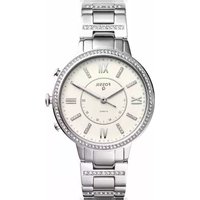
Q Virginia Hybrid FTW5009 - Montre FOSSIL - Notice d'utilisation et mode d'emploi gratuit
Retrouvez gratuitement la notice de l'appareil Q Virginia Hybrid FTW5009 FOSSIL au format PDF.


| Type de produit | Montre connectée hybride |
| Marque | Fossil |
| Modèle | Q Virginia Hybrid FTW5009 |
| Dimensions du boîtier | Environ 42 mm de diamètre |
| Poids | Environ 50 g |
| Alimentation | Pile bouton CR2430 |
| Autonomie de la pile | Jusqu'à 6 mois |
| Étanchéité | 3 ATM (résiste à la pluie et aux éclaboussures) |
| Connectivité | Bluetooth Smart |
| Fonctions principales | Affichage de l'heure analogique, notifications d'appels et SMS, suivi d'activité (pas, calories), alarme, contrôle de la musique, recherche du téléphone |
| Entretien et nettoyage | Nettoyer avec un chiffon doux et sec ; éviter les produits chimiques agressifs |
| Sécurité | Ne pas exposer à des chocs violents ; garder hors de portée des enfants de moins de 3 ans |
| Pièces détachées et réparabilité | Pile remplaçable par un bijoutier ; bracelet interchangeable |
| Informations générales | Garantie 2 ans ; compatible avec iOS et Android via l'application Fossil Q |
FOIRE AUX QUESTIONS - Q Virginia Hybrid FTW5009 FOSSIL
Questions des utilisateurs sur Q Virginia Hybrid FTW5009 FOSSIL
0 question sur cet appareil. Repondez a celles que vous connaissez ou posez la votre.
Poser une nouvelle question sur cet appareil
Téléchargez la notice de votre Montre au format PDF gratuitement ! Retrouvez votre notice Q Virginia Hybrid FTW5009 - FOSSIL et reprennez votre appareil électronique en main. Sur cette page sont publiés tous les documents nécessaires à l'utilisation de votre appareil Q Virginia Hybrid FTW5009 de la marque FOSSIL.
MODE D'EMPLOI Q Virginia Hybrid FTW5009 FOSSIL
Q SMARTWATCH
QUICK-START GUIDE
To get started, put your Fossil Q on the magnetic charger to power it. Download the latest version of the Android Wear™ App onto your smartphone, then open the app, enable Bluetooth and follow the steps on your smartwatch.
NAVIGATION
SWIPE DOWN: Quick Settings
SWIPE LEFT OR RIGHT: Watch Faces
SWIPE UP: Notifications
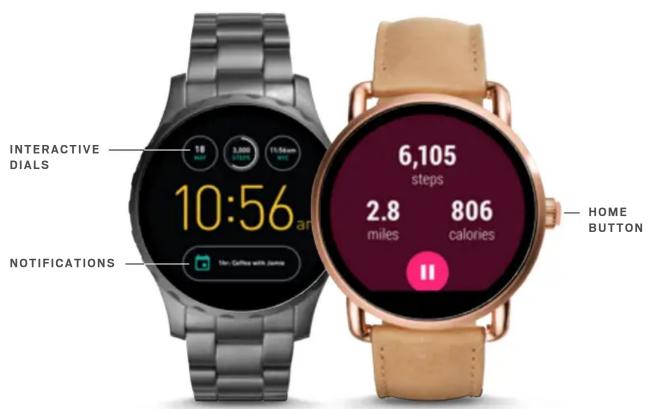
INTERACTIVE DIALS
Tap once on each sub-dial individually to see information at a glance. Double tap the sub-dials to change.
NOTIFICATIONS
Tap on a notification to expand it.
View multiple notifications by swiping up and down.
To dismiss a notification, swipe right.
Tap "Reply" on the notification and respond using your preferred keyboard.
HOME BUTTON
■ Press for features and settings menu.
— Press and hold to access Google Assistant™*.
← Use it to go back to main watch dial.

CHARGING
Place smartwatch on the magnetic charger. The battery will last up to 24 hours, based on usage.
ACTIVITY
Press the button, scroll through the app launcher, and tap the Google Fit™ icon.
APPS
Download third-party apps like Uber or Spotify through your watch.
GOOGLE PLAY
The all-in-one app store for your watch—Android users can directly download content without a Wi-Fi connection. iOS users will need to be connected to Wi-Fi.
FOSSIL ^Q
CHANGING STRAPS
Flip the watch over and release the pin on the strap. Place the new strap in one link at a time. Lock the pin strap by securing it to the right.
To remove links on a bracelet, please visit your nearest Fossil store.
CUSTOM WATCH FACES
On main dial screen, swipe right or left to browse options and simply tap to update. Once you've chosen a dial, tap and hold to change the color.
Download new watch faces from the Google Play™ store to your smartwatch.
STAYING CONNECTED
Having trouble keeping your smartwatch connected? Here are a few steps you can take:
- Make sure the Android Wear™ App is running in the background.
- Try turning Bluetooth on and off.
- Keep your smartphone and smartwatch updated with the latest firmware. On your watch, go to System, then About and click on System Updates to see if it's the most recent.



Marque : FOSSIL
Modèle : Q Virginia Hybrid FTW5009
Catégorie : Montre