
Q7411 - Serveur AXIS - Notice d'utilisation et mode d'emploi gratuit
Retrouvez gratuitement la notice de l'appareil Q7411 AXIS au format PDF.


| Type de produit | Serveur vidéo (encodeur/décodeur réseau) |
| Marque | Axis |
| Modèle | Q7411 |
| Dimensions (L x P x H) | 440 x 310 x 44 mm (montage en rack 19" 1U) |
| Poids | Environ 4,5 kg |
| Alimentation | AC 100-240 V, 50-60 Hz, consommation max 60 W |
| Fonctions principales | Encodage/décodage vidéo H.264/H.265, prise en charge de plusieurs flux, gestion réseau, analyse vidéo intégrée |
| Connectivité | 2 ports Ethernet Gigabit RJ-45, 1 port série RS-232, 4 entrées/sorties audio, 8 entrées/sorties alarme |
| Stockage | Emplacement pour carte SD, compatibilité NAS et stockage réseau |
| Système d'exploitation | Axis Embedded Linux |
| Sécurité | Authentification IEEE 802.1X, HTTPS, filtrage d'adresse IP, chiffrement des données |
| Entretien et nettoyage | Dépoussiérage régulier des grilles d'aération, éviter l'humidité et la poussière excessive |
| Pièces détachées et réparabilité | Alimentation et ventilateurs remplaçables, pas de pièces réparables par l'utilisateur |
| Informations générales | Garantie constructeur 3 ans, support logiciel via Axis |
| Température de fonctionnement | 0 °C à 45 °C |
| Humidité relative | 10% à 85% (sans condensation) |
FOIRE AUX QUESTIONS - Q7411 AXIS
Questions des utilisateurs sur Q7411 AXIS
0 question sur cet appareil. Repondez a celles que vous connaissez ou posez la votre.
Poser une nouvelle question sur cet appareil
Téléchargez la notice de votre Serveur au format PDF gratuitement ! Retrouvez votre notice Q7411 - AXIS et reprennez votre appareil électronique en main. Sur cette page sont publiés tous les documents nécessaires à l'utilisation de votre appareil Q7411 de la marque AXIS.
MODE D'EMPLOI Q7411 AXIS
USERMANUAL
AXISQ7411VideoEncoder
Aboutthisdocument
ThismanualisintendedforadministratorsandusersoftheAXISQ7411 VideoEncoder, andisapplicabletofirmware5.40andlater.Itincludes instructionsforusingandmanagingtheproductonyournetwork. Previousexperienceofnetworkingwillbeofusewhenusingthis product.SomeknowledgeofUNIXorLinux-basedsystemsmayalsobe beneficial, fordevelopingshellscriptsandapplications.Laterversion of this document will be posted to the Axis website, as required. See also the product's online help, available via the web-based interface.
Liability
Everycarehasbeentakeninthepreparationofthismanual.Please informyourlocalAxisofficefanyinaccuraciesoromissions.Axis CommunicationsABcannotbeheldresponsibleforanytechnical or typographicalerrorsandreservestherighttomakechangestothe productandmanualswithoutpriornotice.AxisCommunicationsAB makesnowarrantyofanykindwithregardtothematerialcontained withinthisdocument,including,butnotlimitedto,theimplied warrantiesofmerchantabilityandfitnessforaparticularpurpose.Axis CommunicationsABshallnotbeliablenorresponsibleforincidental or consequentialdamagesinconnectionwiththefurnishing,performance oruseofthismaterial.Thisproductisonlytobeusedforitsintended purpose.
IntellectualPropertyRights
AxisABhasintellectualpropertyrightsrelatingtotechnologyembodied in the product described in this document. In particular, and without limitation, these intellectual property rights may include one or more of the patents listed at http://www-axis.com/patent.htmandoneor more additional patents or pending patent applications in the US and other countries.
Thisproductcontainslicensedthird-partysoftware.Seethemenuitem "About"intheproduct'suserinterfaceformoreinformation.
ThisproductcontainssourcecodecopyrightAppleComputer, Inc.,underthetermsofApplePublicSourceLicense2.0(see http://www.opensource.apple.com/apsl).Thesourcecodeisavailable fromhttp://developer.apple.com/darwin/projects/bonjour/
EquipmentModifications
This equipment must be installed and used in strict accordance with the instructions given in the user documentation. This equipment contains nouser-serviceable components. Unauthorized equipment changes or modifications will invalidate all applicable regulatory certifications and approvals.
TrademarkAcknowledgments
Apple,Boa,Bonjour,Ethernet,InternetExplorer,Linux,Microsoft,Mozilla,Real,SMPTE,QuickTime,UNIX,Windows,WindowsVistaandWWWareregisteredtrademarksoftherespectiveholders.JavaandallJava-basedtrademarksandlogosaretrademarksorregisteredtrademarksofOracleand/oritsaffiliates.UPnP ^TM isacertificationmarkoftheUPnP ^TM ImplementersCorporation.
Electromagnetic Compatibility(EMC)
This equipment has been designed and tested to fulfill applicable standards for:
- Radiofrequencyemissionwheninstalledaccordingtothe instructionsandusedinitsintendedenvironment.
- Immunitytoelectricalandelectromagneticphenomenawhen installedaccordingtotheinstructionsandusedinitsintended environment.
USA
Thisequipmenthasbeentestedusingashieldednetworkcable(STP) andfoundtocomplywiththelimitsforaClassBdigitaldevice, pursuanttopart15oftheFCCRules. Theselimisaredesigned toprovidereasonableprotectionagainstharmfulinterferenceina residentialinstallation. Thisequipmentgenerates,usesandcanradiate radiofrequencyenergyand,ifnotinstalledandusedinaccordance withtheinstructions,maycauseharmfulinterferencetoradio communications. However,thereisnoguaranteethatinterference willnotoccurinaparticularinstallation. Ifthisequipmentdoes causeharmfulinterferencetoradioortelevisionreception,which canbedeterminedbyturningtheequipmentoffandon,theuseris encouragedtotrytocorrecttheinterferencebyoneormoreofthe followingmeasures:
•Reorientorrelocatethereceivingantenna.
- Increase these separation between the equipment and receiver.
- Connecttheequipmentintoanoutletonacircuitdifferentfrom thattowhichthereceiverisconnected.
- Consultthedealeroranexperiencedradio/TVtechnicianforhelp.
Canada
ThisClassBdigitalapparatuscomplieswithCanadianICES-003.
Europe
CE ThisdigitalequipmentfulfillstherequirementsforRFemission accordingtotheClassBlimitofEN55022.
This product fulfill therequirements for immunity according to EN61000-6-1 residential, commercial and light-industrial environments.
Thisproductfulfillstherequirementsforimmunityaccordingto EN61000-6-2industrialenvironments.
Thisproductfulfillstherequirementsforimmunityaccordingto EN55024officeandcommercialenvironments.
Australia/NewZealand
This digitalequipmentfulfillstherequirementsforRFemission according to the ClassBlimitofAS/NZSCISPR22.
Korea
이기기는가정용(B급)전자파적합기기로서주로가정에서사용하는것을목적으로하며,모든지역에서사용할수있습니다.
Japan
この装置は、クラスB情報技術装置です。この装置は、家庭環境で使用することを目的としていますが、この装置がラジオやテレビジョン受信機に近接して使用されると、受信障害を引き起こすことがあります。取扱説明書に従って正しい取り扱いをして下さい。
Safety
ThisproductcomplieswithIEC/EN/UL60950-1,SafetyofInformation TechnologyEquipment.
The powersupply used with this product shall fulfill therequirements for Safety Extra Low Voltage (SELV) and Limited Power Source (LPS) according to IEC/EN/UL60950-1.
Support
Shouldyourequireanytechnicalassistance,pleasecontactyourAxis reseller.Ifyourquestionscannotbeansweredimmediately,your resellerwillforwardyourqueriesthroughtheappropriatechannelsto ensurearapidresponse.Ifyouareconnectedtothelnternet,youcan:
- downloaduserdocumentationandsoftwareupdates
• findanswerstoresolvedproblemsintheFAQdatabase.Search byproduct, category, orphrase
•reportproblemstoAxissupportstaffbyloggingintoyourprivate supportarea
- chatwithAxissupportstaff(selectedcountriesonly)
- visitAxisSupportatwww.axis.com/techsup/
LearnMore!
VisitAxislearningcenterwww.axis.com/academyforusefultrainings, webinars,tutorialsandguides.
TableofContents
HardwareOverview....5
Connectors....5
LEDIndicators....6
AccessingtheProduct....7
AccessfromaBrowser....7
AccessfromtheInternet8
SettheRootPassword......8
TheLiveViewPage....9
MediaStreams....12
HowtoStreamH.264....12.
MJPEG....12.
AXISMediaControl(AMC)....12.
AlternativeMethodsofAccessingtheVideoStream....13.
AccessingAudioStreams....14.
SettingUptheProduct....15
BasicSetup....15.
VideoandAudio....16
VideoStream....16.
StreamProfiles....18.
CameraSettings....18.
Overlay....19.
PrivacyMask....19.
AudioSettings....20.
AudioClips....21.
LiveViewConfig....22
PTZ(PanTiltZoom)....25
InstallingaPTZdriver....25.
PresetPositions....25.
GuardTour....26.
Advanced....26.
ControlQueue....27.
Detectors....28
CameraTampering....28.
MotionDetection....28.
AudioDetection....30.
Applications....31
Events....32
SettingUpanActionRule....33.
Recipients....33.
Schedules 34
Recurrences....34.
Recordings....35
RecordingList....35.
ContinuousRecording....35.
SystemOptions....37
Security....37.
Date&Time....39.
Network 39
Storage....44.
Ports&Devices....45.
Maintenance....46.
Support......46.
Advanced....47.
ResettoFactoryDefaultSettings....48.
Troubleshooting....49
CheckingtheFirmware....49.
UpgradingtheFirmware....49.
EmergencyRecoveryProcedure....49.
Symptoms, Possible Causes and Remedial Actions....50.
TechnicalSpecifications....54
Connectors....56.
TableofContents
PerformanceConsiderations....58
HardwareOverview
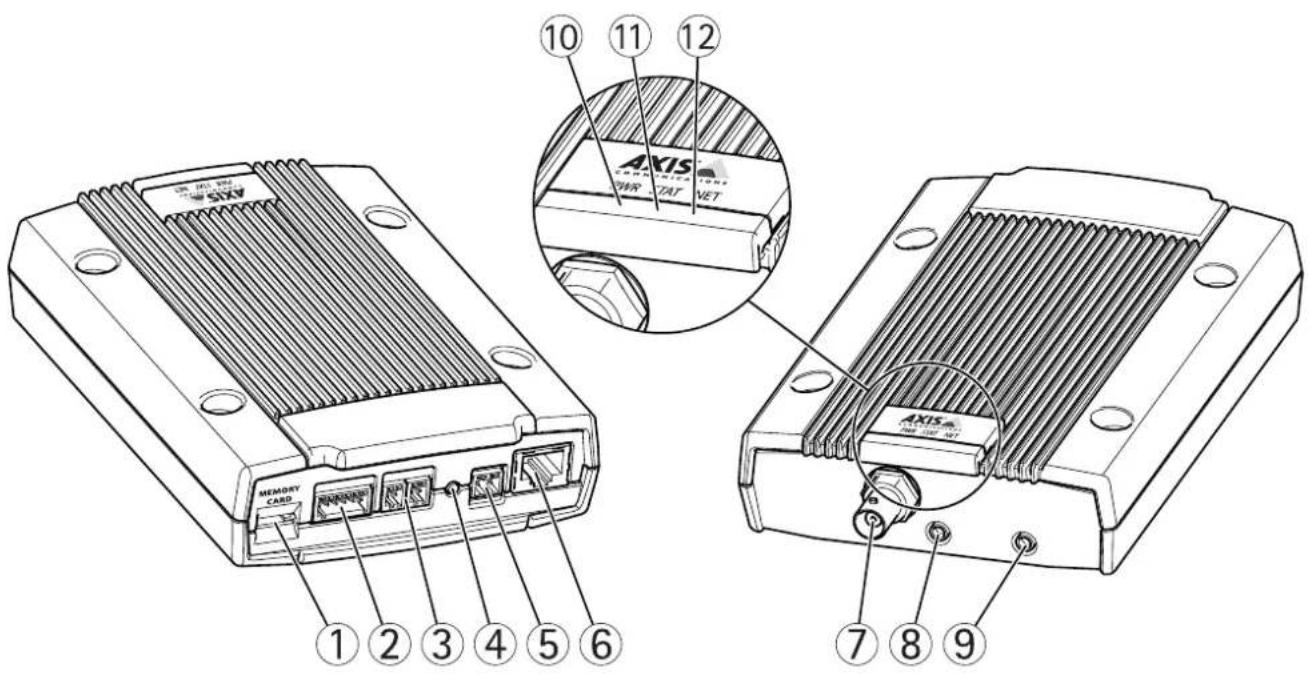
1 MicroSDmemorycardslot
2 I/Oconnector
3 RS485/422connector
4 Controlbutton
5 Powerconnector
6 Networkconnector
7 Videoinput
8 Audioinput
9 Audiooutput
10 PowerLED
11 StatusLED
12 NetworkLED
Connectors
Fortechnicalspecifications,seepage54.
Networkconnector-RJ-45Ethernetconnector.SupportsPoweroverEthernet(PoE).
NOTICE
The product shall be connected using a shielded network cable (STP). All cables connecting the product to thenetwork switch shall be shielded (STP) and intended for their specific use. Makes sure that the network switch is properly grounded. See Electromagnetic Compatibility (EMC) for regulatory requirements.
Audion(pink)3.5mminpuformonomicrophone-pine-imonosigna(leftchannelusedfromstereoignal).
Audioout(green)3.5mmoutputforaudid(lindevel)thatarbeconnectedapubliaddress(PA)systemaractivespeaker withabuilt-inamplifier.Astereoconnectormustbeusedforaudiout.
SDcardlotStandardhigh-capacitymicroSDcard(notincluded)carbusedforoCarecordingwithremovablestorage.
NOTICE
To prevent corruption of recording the SD card should be unmounted before removal. Unmount and Setup System Options > Storage > SDCard and click Unmount.
Controlbutton-Thecontrolbuttonisusedfor:
Connecting an AXIS video hosting system service page 40 connect press and hold the button for about 1 second until the Status LED flashes green.
ConnectingAXISnterneDynamidDNServiceSepage41connectpressandholdbuttonfor about3seconds.
- Resetting the product to factory default settings. See page 48.
Powerconnector-2-pinterminalblockforpowerinput.
I/OrminatconnectorUserapplicationfore.gmotiondetectioneventriggeringtimdapsrecordingandalarmotifications. InadditiontoanauxiliarypowerandaGNDpin,thel/Oterminalconnectorprovidestheinterfaceto:
DigitabOutputForconnectingexternaldevicessuchaselays and LEDsConnecteddevices are activated by theVAPIX®ApplicationProgrammingInterface, outputbuttonsontheLiveViewpageorbyanActionRule. The outputwillshowactive(showundeSystemOptionsPortsDevices) the alarmdevicisactivated.
DigitalInputAalarinputforconnectingdevicesthatartogglbetweenaroperandclosedcircuitforexample:PIRs,door/windowcontacts,glassbreakdetectors,etc.Whenasignalisreceivedthestatechangesandtheinputbecomesactive(shownunderSystemOptions>Ports&tDevices).
RS-485/RS-422 connector Two-pirterminablocks for RS-485/RS-423 aerial interface control auxiliary equipment, e.g. PTZ devices.
LEDIndicators
| LED | Color | Indication |
| Network | Green | Steadyforconnectiontoa100MBit/snetwork.Flashesfornetworkactivity. |
| Amber | Steadyforconnectiontoa10MBit/snetwork.Flashesfornetworkactivity. | |
| UnlitNonetwork | connection. | |
| Status | GreenSteadygreen | enformormaloperation. |
| Amber | Steadyduringstartupandwhenrestoringsettings. | |
| Red | Slowflashforfailedupgrade. | |
| Green | Normaloperation. Power | |
| Amber | Flashesgreen/amberduringfirmwareupgrade. |
Note
- TheStatusLEDcanbeconfiguredtoflashwhileaneventisactive.
TheStatusEDcarbeconfiguredoflashfoidentifyingtheunitGdSetupSystemOptionsMaintenance
AccessingtheProduct
ToinstalltheAxisproduct, refertothel InstallationGuidesupplied with the product.
Theproductcanbeusedwithmostoperatingsystemsandbrowsers.TherecommendedbrowsersareInternetExplorerwithWindows, SafarwithMacintoshandFirefoxwiththeoperatingsystemsSeeTechnicalSpecificationsprpage54viewstreamingvideon InternetExplorer,allowinstallationofAXISMediaControl(AMC)whenprompted.
Note
- QuickTime ^TM is also supported for viewing H.264 streams and for audio.
- If your computer restrict the use of additional software components, the product can be configured to use a Java applet for viewing Motion JPEG.
AccessfromaBrowser
- Startabrowser(InternetExplorer, Firefox, Safari).
2.EntertheIPaddressorhostnameoftheAxisproductinthebrowser'sLocation/Addressfield.Toaccesstheproductfroma Macintoshcomputer(MacOSX),clickontheBonjourtabandselecttheproductfromthedrop-downlist.
If you donot know the I paddress, use AXISIP Utility to locate the product on thenetwork. For information about how to discover and assign I address the installation and management software C doth document Assign and Address and Access the Video Stream on Axis Support web at www axis.com/techsup
- Enteryourusernameandpassword.Ifthisisthefirsttimetheproductisaccessed,therootpasswordmustfirstbe configured.Forinstructions,seeSettheRootPassword,onpage8.
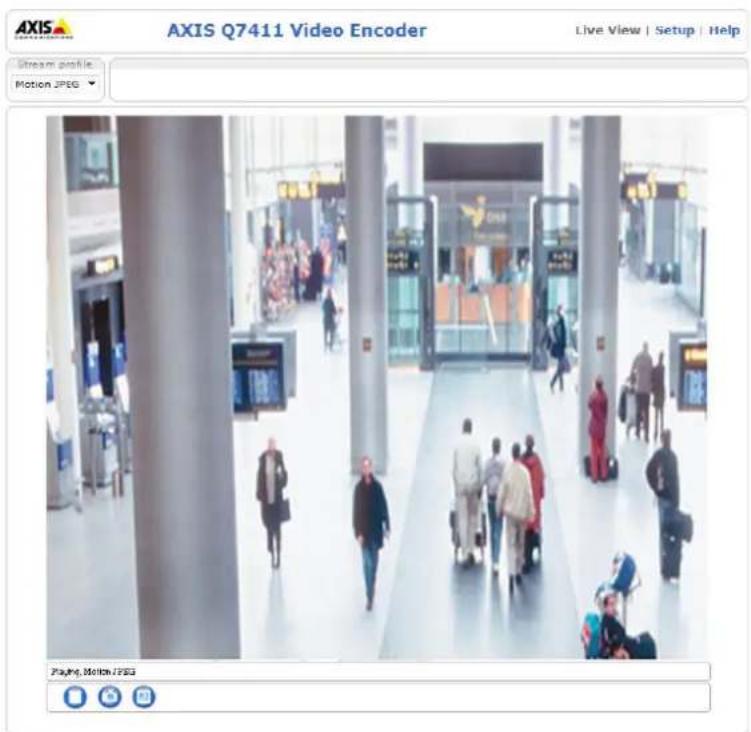
- The product'sLiveViewpageappearsinyourbrowser.
Note
The controls and layout of theLiveViewpagem may have been customized to meet specific installation requirements and user preferences. Consequently, some of the examples and functions featured her may differ from those displayed in your ownLiveViewpage.
AccessingtheProduct
AccessfromtheInternet
Onceconnected,theAxisproductisaccessibleonyourlocalnetwork(LAN).ToaccesstheproductfromtheInternetyoumust configureyournetworkroutertoallowincomingdatatraffictotheproduct.Todothis,enabletheNAT-traversalfeature,which wilattemptautomaticallyconfiguretheroutetallowaccesstheproductThisenabledfromSetupSystemOptions>Network>TCP/IPAdvanced.
FomoreinformationpleasedNATraversal(portmapping)forPv4prpage42sealsAXISnterneDynamidDNServicat www.axiscam.netForTechnicalnotesonthisandothertopics,visittheAxisSupportwebatwww.axis.com/techsup
SettheRootPassword
TagainaccesstheAxiproductyoumustethepasswordfothedefaultadministratouseroofthisllonertheConfigure RootPassworddialog,whichappearswhentheproductisaccessedforthefirsttime.
Topreventnetworkeavesdropping,therootpasswordcanbesetviaanencryptedHTTPSconnection,whichrequiresanHTTPS certificate. HTTPS(HypertextTransferProtocoloverSSL)isaprotocolusedtoencrypttrafficbetweenwebbrowsersandservers.The HTTPScertificatensuresencryptedexchangofinformationSedHTTPSprpage42.
The default administrator names are root permanent and cannot be deleted the password for root host the product must be reset the factory default settings. See Reset Factory Default Settings page 48.
TosetthepasswordviaastandardHTTPconnection,enteritdirectlyinthefirstdialog.
TosetthepasswordviaanencryptedHTTPSconnection,followthesesteps:
- ClickCreateself-signedcertificate.
Provide the requested information and click OK The certificates created and the password tamovb set securely All traffic to and from the product is encrypted from this point on.
Enterpasswordandhere-entetoc confirmthspellingClickOKThepasswordhasnowbeenconfigured.
AccessingtheProduct
![AXIS Create Certificate Secure configuration of the root password via HTTPS requires a self- certificate. Create self-signed certificate... Configure Root Password using HTTP User name: root Password (max 64 characters): Confirm password: OK The password for the pre-configured administrator root must be changed before the product can be used. If the password for root is lost, the product must be reset to the factory default settings, by pressing the button located in the product's casing. Please see the user documentation for more information. ONVIF will be disabled.. To enable ONVIF go to Setup > System Options > Security > ONVIF Create Self-Signed Certificate Common name: 10.92.25.211 Validity: 365 days [1..9644] *The name of the entity to be certified, i.e. the IP address or host name of this product. Once the certificate is created, this page will close and you will be able to configure the root password via HTTPS. AXIS Configure Root Password using HTTPS User name: root Password (max 64 characters): Confirm passwords: OK The password for the pre-configured administrator root must be changed before the product can be used. If the password for root is lost, the product must be reset to the factory default settings, by pressing the button located in the product's casing. Please see the user documentation for more information. ONVIF will be disabled.. To enable ONVIF go to Setup > System Options > Security > ONVIF](/content/2026/06/1263711/images/dfde1fc0ac1f093e2fd947a17ac6bb46cb26d809e470602596688120eb3a4629.jpg)
ConfigureCaptureMode
TheLiveViewPage
The controls and layout of the liveView pagemay have been customized to meet specific installation requirements and user preferences. Consequently, some of the examples and functions featured her may differ from those displayed in your own live view page. The following provides an overview of each available control.
ControlsontheLiveViewPage

TheStreamProfiledrop-downlistallowsoutselectcustomizedpre-programmedstreamprofileStream profilesareconfiguredundeVidedAudioStreamProfilesSeStreamProfilesprpage18.

ClickPulsdactivattheoutputfordefinedperiodbfimesuchaswitchingprarexternalighfo20seconds.

ClicktheActive/Inactivebuttonsmanuallystartandstopconnecteddevice.e.g switcharexternalight onandoff.

TheManuaTriggerbuttonisuseddriggeanactionrulefromtheLiveViewpagesepage1Enablethis buttonfromLiveViewConfig>ActionButtons.

ClickSnapshots=snapshots#the#imageRight-click#videimagesaver#PEFormat#your computer.ThisbuttonisprimarilyintendedforusewhentheAXISMediaControlviewertoolbarsisnotavailable. EnablethisbuttonfromLiveViewConfig>ActionButtons.

TheAudiocliprop-downlistallows/outplayaudioclipfromtheLiveViewpageSelecttheaudioclipandclickthePlaybutton.
ManualTrigger
The ManualTrigger used trigger action rule from the live/view page. The manual trigger can be used to validate actions during product installation and configuration.
Toconfigurethemanualtrigger:
- GotoSetup>Events.
2.ClickAddtoaddanewactionrule.
BonthTriggedrop-downlistselectnpuSignal. - From these second drop-down list, select Manual Trigger.
- Select the desired action and configure the other settings as required.
Formoreinformationaboutactionrules,seeEvents,onpage32.
ToshowthemanualtriggerbuttonsintheLiveViewpage:
- GotoSetup>LiveViewLayout.
2ndeActionButtonsselecShowmanuatriggebutton.
AXISMediaControlviewertoolbar
TheAXISMediaControlViewetoolbarsavailableInterneExploreonlySeeAXISMediaControl(AMC)prpage12omore information.Thetoolbardisplaysthefollowingbuttons:

ThePlaybuttonconnectstotheAxisproductandstartsplayingamediastream.

TheStopbuttonstopsthemediastream.

The SnapshobuttortakesnapshobthevideimageThelocationwherthimagesavedcarspecifiedintheAMCControlPanel.

Click the View Full Screen Button and the video image will filter entire screen Press ESC Escape or the computer keyboard to cancel full screen view.

The Recordbutton is used to record the current video stream location where the recordings saved are specified in the AMControlPaneEnable this button from LiveViewConfigViewSettings.
AMCAudioControls
AMCaudiobuttonscontrolthespeakersandmicrophoneconnectedtotheclientcomputer.Thebuttonsareonlyvisiblewhen audioisenabled.

Speakerbutton—Clicktoturnthespeakersonoroff.

MicrophoneButtonClickmutounmutchemicrophondSimplexspeakeronlymodetheMicrophonandTalk buttonsmustbothbeactivetosendaudiototheAxisproduct.Clickeitherbuttontostopaudiotransmission.
AccessingtheProduct

Usetheslidertocontrolthevolumeofthespeakersandthemicrophone.


Half-duplexmode
TheTalk/Listerbuttonused switch between sending and receiving audio. The buttoncarbe configured from the AudiotabintheAMCControlpanel:
- Push-To-Talkmode: Clickandholdthebuttontotalk/send. Releasethebuttontolisten.
- Togglemode: Clickoncetoswitchbetweentalkingandlistening.
Simplex-speakeronlymode
To end audio the Tall and Microphone buttons mus bot be active Click the button to stop audio transmission.
PTZControls
TheLiveViewpagealsodisplaysPan/Tilt/Zoom(PTZ)controls.Theadministratorcanenable/disablecontrolsforspecifiedusersunderSystemOptions>Security>Users.
With the PTControlQueue enabled that each user is a control of the PTSetting limited ClickButton request or release control of the PTControl The PTControl Queue setup in the PTControlQueue.

Click the Emulatjoystickmodbutton and click the magtomove camera view with direction of the mousepointer.

Click the Centemode button and click the image content the camera view with a position that the centemode button could also be used to zoom on an as specific area. Click the image and drag to draw a rectangular surrounding the are at obemagnified. To zoom out, rotate the mouse wheel.
Ctrl panel
Click the CtrpanebuttortoperthePTZontropanelwhichprovidesadditionaPTZcontrols.User-definedbuttonscanalsoappearintheControlpanel.SeeControls,onpage27.

PanandTiltbars—Usethearrowstopanandtiltthecameraview,orclickonapositiononthebartosteerthe cameraviewtothatposition.
Zoombar-Usethearrowstozoominandout,orclickonapositiononthebartozoomtothatposition.

The PTZ control sarbe disabled under PTZ Advanced Controlssee Controlsprpage27.
MediaStreams
TheAxisproductprovidesseveralaudioandvideostreamformats.Yourrequirementsandthepropertiesofyournetworkwill determinethetypeyouuse.
TheLiveViewpageintheproductprovidesaccesstoH.264andMotionJPEGvideostreams,audiostreamsandtothelistofavailablestreamprofiles.Otherapplicationsandclientscanaccessvideoandaudiostreamsdirectly,withoutgoingviatheLiveViewpage.
HowtoStreamH.264
The videocompressionstandardH.264 makes good use of bandwidth, and can provide high quality video streams at less than 1 Mbit/s.
Deciding which combination of protocols and method stoused depends on your viewing requirements, and on the properties of your network. The available options in AXIS Media Control are:
| UnicastRTP | Thisunicastmethod(RTPoverUDP)isused forliveunicastvideo,especiallywhenitis importanttoalwayshaveanup-to-datevideo stream,evenifsomeimagesaredropped. | Unicastingisusedforvideo-on-demand transmissionsothatthereisnovideotraffic onthenetworkuntilaclientconnectsand requeststhestream.Notethatthereareamaximumof20 simultaneousunicastconnections. |
| RTPoverRTSP | Thisunicastmethod(RTPtunneledoverRTSP) isusefulasitisrelativelysimpletoconfigure firewallstoallowRTSPtraffic. | |
| RTPoverRTSPoverHTTP | Thisunicastmethodcanbeusedtotraverse firewalls.Firewallsarecommonlyconfiguredto allowtheHTTPprotocol,thusallowingRTPto betunneled. | |
| MulticastRTP | Thismethod(RTPoverUDP)shouldbeusedforlivemulticastvideo.Thevideostreamisalways up-to-date,evenifsomeimagesaredropped.Multicastingprovidesthemostefficientusageofbandwidthwhentherearelargenumbersof clientsviewingsimultaneously.Amulticastcannothowever,passanetworkrouterunlessthe routerisconfiguredtoallowthis.ItisnotpossibletomulticastoverthelInternet,forexample.Notealsothatallmulticastviewerscountasoneunicastviewerinthemaximumtotalof20 simultaneousconnections. | |
AXISMediaControlnegotiateswiththeAxisproducttodeterminethetransportprotocoltouse.Theorderofpriority,listedintheAMCControlPanel,canbechangedandtheoptionsdisabled,tosuitspecificrequirements.
Note
H.264islicensedtechnology.TheAxisproductincludesoneH.264viewingclientlicense.Installingadditionalunlicensed copiesoftheclientisprohibited.Topurchaseadditionallicenses,contactyourAxisreseller.
MJPEG
This formatusesstandardJPEGstillimagesforthevideostream. These images are then displayed and updated at a ratesufficient to create stream that shows constantly updated motion.
TheMotionJPEGstreamusesconsiderableamountsofbandwidth,butprovidesexcellentimagequalityandaccesstoeveryimage containedinthestream.TherecommendedmethodofaccessingMotionJPEGlivevideofromtheAxisproductistousetheAXISMediaControlinInternetExplorerinWindows.
AXISMediaControl(AMC)
AXISMediaControl(AMC)inInternetExplorerinWindowsistherecommendedmethodofaccessinglivevideofromtheAxisproduct.
MediaStreams
TheAMCControlPanelcanbeusedtoconfigurevariousvideoandaudiosettings.PleaseeseetheAXISMediaControlUser's Manualformoreinformation.
TheAMCControlPanelisautomaticallyinstalledonfirstuse,afterwhichitcanbeconfigured.OpentheAMCControlPanelfrom:
- WindowsControlPanel(fromtheStartmenu)
Alternatively right-click the video camera Interne Explore and click Settings.

AlternativeMethodsofAccessingtheVideoStream
YoucanalsoaccessvideoandimagesfromtheAxisproductinthefollowingways:
MotionPEGervepush(fupported by the client Firefox example) This option maintains proper HTTP connection to the browser and sends data as and when required, for as long as required.
StiUPEGmagesnbrowserEntethepathhttp://
Window Media Player This requires AXIS Media Control and the 1.264 decoder to installed the following paths can be used:
-UnicastviaRTP:axrtpu://<ip>/axis-media/media.amp
-UnicastviaRTSP:axrtsp://<ip>/axis-media/media.amp
-UnicastviaRTSP,tunneledviaHTTP:axrtsphttp://<ip>/axis-media/media.amp
-Multicast:axrtpm://<ip>/axis-media/media.amp
- QuickTime TM. The following pathscanbeused:
-rtsp://<ip>/axis-media/media.amp
-rtsp://<ip>/axis-media/media.3gp
Note
=|Paddress
•TheAxisproductsupportsQuickTime6.5.1andlater.- QuickTimeaddslatencytothevideostream.
- It maybe possible to use other player's view the H.264 stream using the paths above, although Axis does not guarantee this.
AccessingAudioStreams
TheLiveViewpageprovidesaccesstoaudiothroughAXISMediaControl;inadditionaudiocanbeaccessedinthefollowingways:
VAPIX®ApplicationProgrammingInterface(API)Fomoreinformationyisitwww.axis.com/developer
-WindowsMediaPlayersupportssimplexaudio.Thefollowingpathscanbeused:
-UnicastviaRTP:axrtpu://<ip>/axis-media/media.amp
-UnicastviaRTSP:axrtsp://<ip>/axis-media/media.amp
-UnicastviaRTSP,tunneledviaHTTP:axrtsphttp://<ip>/axis-media/media.amp
-Multicast:axrtpm://<ip>/axis-media/media.amp
-QuickTime TM supportsG.711andAACaudioencoding.Thefollowingpathscanbeused:
-rtsp://<ip>/axis-media/media.amp
-rtsp://<ip>/axis-media/media.3gp
-TheJavaappletsupportssimplexaudiowithG.711encoding.
SettingUptheProduct
The Axi product are configured by users with administrator operator rights to the product's setup pages specific Setup the top-right-hand corner of the Live View page.
- Administratorshaveunrestrictedaccesstoallsettings.
- OperatorshaveaccesstoallsettingsexceptSystemOptions
Seealsotheonlinehelp

BasicSetup
BasicSetupprovidesshortcutstothesettingsthatshouldbemadebeforeusingtheAxisproduct:
1.Users.Seepage37.
2.TCP/IP.Seepage39.
3. Date&Time.Seepage39.
4.VideoStream.Seepage16.
5.AudioSettings.Seepage20.
TheBasicSetupmenucanbedisabledfromSystemOptions>Security>Users.
VideoandAudio
Thevideoandaudiosettingscanbeusedtooptimizevideoandaudioquality.Youcanconfigurethefollowing:
•Videostreamsettings.Seepage16.
- Streamprofiles.See page 18.
- Camerasettings.See page 18.
• Overlayimage.See page 19.
- Privacymask.Seepage19.
• Audiosettings.Seepage20.
• Audioclips.Seepage21.
VideoStream
You can define following video stream settings from VideoAudioVideoStream:
- Image.Seepage17.
•H.264.Seepage17. - MJPEG.Seepage17.
![Basic Setup Instructions 1 Users 2 TCP/IP 3 Date & Time 4 Video Stream 5 Audio Settings Video & Audio Live View Config PTZ Detectors Applications Events Recordings System Options About Video Stream Settings Image Audio H.264 MJPEG Image Appearance Resolution: Aspect ratio correction 4CIF (704 x 480/704 x 576) ▼ (INTSC/PAL) Compression: 30 [0..100] Mirror image Rotate image: 0 ▼ degrees Color setting: Color ▼ Video Stream Maximum frame rate: Unlimited Limited to [1..30] fps per viewer Overlay Settings Include overlay image at the coordinates: X 0 [0..] Y 0 [0..] Include date Include time Include text Text color: white ▼ Text background color: black ▼ Place text/date/time at top ▼ of image Preview View image stream while configuring. Video format: MJPEG ▼ Open... Save Reset](/content/2026/06/1263711/images/bc600f59052fa4438d23e197d40e9f629b50e71d0df6a474d5183964a9cda5c2.jpg)
PixelCounter
Thepixelcountershowsthenumberofpixelsinanareaoftheimage.Thepixelcounterisusefulinsituationswherethereisa requirementthattheimageisacertainsize,forexampleinfacerecognition.
Thepixelcountercanbeaccessedfrom:
VideoAudioVideStreamUndePreviewclicOperandelecthShowpixelcountenptiortenablethe rectangleintheimage.Usethemousetomoveandresizetherectangle,orenterthenumberofpixelsintheWidth andHeighfieldandclickApply.
TheLiveViewpagerInterneExploreinWindowsRight-clickthemagandselectPixelcounterUsethemouse tomoveandresizetherectangle.
Image
The default image settings can be configured under VideoAudioVideoStreamSelectImageTab.
The followingsettingsareavailable:
- Resolution.Selectthedefaultresolution.
CompressionThe compressionlevelaffect the imagequalitybandwidth and file size of saved images, the lower compression, the higher the image quality with higher bandwidth requirements and larger filesizes.
- Rotateimage.Ifrequired,theimagecanberotated.
- Mirror.Ifrequired,theimagecanbemirrored.
Maximunframeate avoid bandwidth problems the framerate allowed each view car limited fixed amount Alternatively the framerate car sets Unlimited which means the Axis product always delivers the highest framerate possible under the current conditions.
OverlayettingSeeOverlappage19.
ClickSavetoapplythenewsettings.
H.264
H.264,alsoknownasMPEG-4Part10/AVC,isavideocompressionstandardthatprovideshighqualityvideostreamsatlowbitrates. AnH.264videostreamconsistsofdifferenttypesofframessuchasl-framesandP-frames.Anl-frameisacompleteimagewhereas P-framesonlycontainthedifferencesfrompreviousframes.
The GOVength the number frame between two consecutive frames increasing the GOVength may save considerably in bandwidth requirement's some cases, but may also have an adverse effect on image quality.
The Axi product supports whd.264 profiles The Main profile provides higher compression than the Baseline profile with the same video quality, but requires more processing power to decode.
ThebitatcarbeseVariableBiRate(VBR)ConstanBiRate(CBR)VBRadjustthebitataccordingdimage complexity,usingupmorebandwidthforincreasedactivityintheimage,andlessforlowerimageactivity.CBRallowsyoutoseta fixedtargebitathatconsumespredictableamountbandwidthAshbitatewouldusuallyneedincreasefoincreased imageactivity,butinthiscasecannot,framerateandimagequalityareaffectednegatively.Topartlycompensateforthis,itis possibletoprioritizeeitherframerateorimagequality.Notsettingaprioritymeansthatframerateandimagequalityareequally affected.Youmustsaveyoursettingsbeforetheycantakeeffect.
The current coordinate appearance overlay told this selection include the checkbox option under Overlay Settings and enter them modifier # binthe field.
MJPEG
Sometimes the imagesize is large duolow light or complex scenery. Adjusting them a maximum framesize help to control the bandwidth and storage used by the Motion PEG video stream in these situations. Setting the framesize the Default setting provides consistently good image quality at the expense of increased bandwidth and storage usage in low light. Limiting the frame size optimizes bandwidth and storage usage, but may give poor image quality. Toprevent increased bandwidth and storage usage, the maximum framesizes should be set to an optimal value.
StreamProfiles
Astreamprofileisasetofpredefinedstreamsettingsincludingresolution,compression,framerateandoverlaysettings.Stream profilescanbeused:
- Whensettinguprecordingusingactionrules.SeeEvents,onpage32.
- Whensettingupcontinuousrecording.SeeContinuousRecording,onpage35.
In theLiveViewpageselectstreamprofilefromtheStreamprofiledrop-downlist.
Forquicksetup, use one of the predefined stream profiles. Each predefined profile has a descriptiven name, indicating its purpose. If required, the predefined stream profile is can be modified and new customized stream profiles can be created.
To create new profile to modify existing profile to Setup Video & AudioStream Profiles.
To select default stream profile for the live view page to setup live view config.
CameraSettings
The VideoAudioCameraSettingspage provides access to advanced image settings for the Axis product.
ImageAppearance
Increasing the Colo level Increase the color saturation The value gives maximum color saturation The value gives black and white image.
Thimag Brightnessaradjustedthe range 0–100 where higher value produces brighter image.
The Contrastangestrelativdifferencbetweenlightandarktaradjustedusingthe Sldebar.
Videoinput
- EnteradescriptivenameforyourvideosourceintheVideosourcenamefield.
The values in the Offset Adjustment field affect the horizontal and vertical synchronization for the image. This can be used to eliminate any black borders surrounding the image. High values, both negative and positive can put the image out of sync. - De-interlacing-isused to improve videostream image quality from analog devices. Select any of the following options from the De-interlacing drop-down is Select None de-interlacing not necessary. Blending for improved image quality that no process-intensive Adaptive Interpolation performs de-interlacing the video stream applying different filters or the image. This may be better result than Motion Adaptive Interpolation in rare cases. Motion Adaptive Interpolation performs de-interlacing the video stream applying different filters depending on the motion indifferent part of the image. This will in most cases result in the best image quality.
Antialiasingwillminimizedistortiorknowrasaliasingwhichhappenswhenhigh-resolutionimagerepresentedatalowerresolution.
- Foreachvideoinput75Ohmvideoterminationcanbeenabled/disabledviatheproduct'swebpageatVideo&Audio>VideoInput>Videotermination.Theseterminationsareenabledonfactorydefault.Incaseswheretheproductistobeconnectedinparallelwithotherequipment,foroptimumvideoquality,itisrecommendedthatterminationbe enabledforonlythelastdeviceinthevideosignalchain.
ImageSettings
Noise reduction Set Or enable noise reduction Noise reduction may increase the amount of motion blur.
Overlay
Overlaysareusedtoprovideextrainformation,forexampleforforensicvideoanalysisorduringproductinstallationand configuration.Overlaysaresuperimposedoverthevideostream.
Anoverlaytextcandisplaythecurrentdateandtime,oratextstring.Whenusingatextstring, modifierscanbeusedtodisplay information such the current to the current frame of information about available modifiersseFileNamingt
Date/TimeFormatsintheonlinehelp

Toenableoverlays:
GoVideoAudioVideStreamandelecthæmagtab.
Tinclude overlayimages select include overlayimage the coordinates The overlay image must first be uploaded to the Axis product, see OverlayImage.
Bincludatandimeselectncludatandncludtime.
TincludetextstringselectIncludetextandentethextrthfieldModifiersbousedseFileNamingEt
Date/TimeFormatsintheonlinehelp

- Select the text color, the text background color and the position of the overlay.
6.ClickSave.
Tomodify the date and time format data system Options Date Time See Date Time per page 39.
OverlayImage
Anoverlayimageisastaticimagesuperimposedoverthevideostream.Theimage,forexamplecompanylogo,isusedtoprovide extrainformationortomaskapartoftheimage.
Touseanoverlayimage, theimagemustfirstbeuploadedtotheAxisproduct:
GoVideoAudioOverlaymage.
2.ClickBrowseandbrowsetothefile.
3.ClickUpload.
- Select the imagetouse from the Use overlay imagelist.
5.ClickSave.
Todisplaytheoverlayimage:
GoVideoAudioVideStreamandelecthImagtab.
UndeOverlaySettingsselectIncludoverlaymagathecoordinatesandentethandcoordinates.
3.ClickSave.
Forinformationaboutsupportedimageformats,seetheonlinehelp

PrivacyMask
Aprivacymaskisanareaofsolidcolorthatprohibitsusersfromviewingpartsofthemonitoredarea.Privacymaskscannotbe bypassedviatheVAPIX®ApplicationProgrammingInterface(API).
The Privacy Mask List (Video & Audio Privacy Mask) shows the mask that are currently configured, the Axis product and indicates if they are enabled.
Youcanaddanewmask,re-sizethemaskwiththemouse,chooseacolorforthemask,andgivethemaskaname.
Formoreinformation,seetheonlinehelp

Important
Adding many privacy masks may affect the product's performance.
AudioSettings
The audifunctionalityforeachvideestreamenabledundevidedAudioVideStreamAudio.
AudioModes
TheAxisproductsupportsthefollowingaudiomodes:
Fullduplex: Simultaneous two-way audio allowing the Axaproductransmit and receive audio in the same time. There is no echocancellation; if feedback loops appear, try moving themicrophone or the speaker.
Half-duplexAudiocartransmittedandfromtheAxiproductbublnyrondirectionatTimeTransmitaudiusingtheLiveViewpageuschTalkandListbuttonsseeAMoAudioControlsprpage10.
SimplexspeakeronlyAudiotransmittedfromclienttheAxiproductandarbplayedspeakerconnectedtdhproductldransmitaudiusingtheLiveViewpagethTalkandMicrophonbuttonsmustbothactiveseeAMCAudioControls,onpage10.
Simplex-microphononlyAudio captured by the product microphonestransmitted from the Axis production more clients.
ToethaudiomodegavidedAudioAudioSettingsandelecthesiredmodefronttheAudiomodelrop-downlist.
Audiolnput
Anexternalmicrophoneoralinesourcecanbeconnectedtotheproduct'sAudio-inconnector.Configuretheaudioinputsettings undevideoAudioAudiSettings.
SourceSelectMicrophonoforexternalmicrophonoLinforLinendevice.ganudiomixefomultiplenicrophonesoramicrophonewithabuilt-inamplifier.
MicrophonpowerTheEnablemicrophonpoweroptionprovidedPowefoarexternamicrophoneMicrophonpower shouldonlybeusedwithmicrophonesthathavenobattery.Thissettingshouldnotbeenabledwhenusingadynamicorbattery poweredmicrophone.Microphonepowerwillnotharmthemicrophone;ifyouareuncertain,tryswitchingitoffandon.Tousea professionalmicrophonerequiring48Vphantompower,youneedanexternalpowersupplyandabalanced-unbalancedconverter (audiotransformer)inbetween.
Input gain Control the volume Full Scale of the audio input hours today choose higher. The amplifies the sound hours today choose lowered. The leve bag gives visual representation of the audio signal level in B relativeto the full-scale input level.
- Green—thesignalisatagoodlevel.
- Yellow—thesignalisbecomingdistorted.
- Red—thesignalisdistorted.
Encoding-Selectdigitalaudioencodingformat.
AACequireslicensfobotlencodinganddecodingAACtheastcomplicatedandmostwidelyusedcodec. Ifachievingthebestpossibleaudioqualityisapriority,AACistherecommendedcodectouse.AnAAClicense isincludedintheAxisproduct.
•G711
•G726
Sampleate The number of times per second sounds sampled higher sample rate will provide better audio quality but also requires a greater bandwidth.
BitatSetrequirebitatependingorthselectedencodinghighebitatovilgivbetteaudiqualityAowebitratemayhavelatencyordelay,butwillrequirelessbandwidth.
Formoreinformationaboutthesesettings,pleaseetheonlinehelp.

AudioOutput
Anexternalspeakercanbeconnectedtotheproduct'sAudio-outconnector(abuilt-inamplifierisrequiredforthis).Theoutputcan beconnectedtoanotheramplifierwithspeakers.Astereoconnectormustbeusedfortheaudioout.
Configure the audio output settings under Video & Audio Audio Settings.
OutputGainControlvolume(dFullScale)theinaudiooutputthesoundtodowchoosehighedBlthesoundstoohigh,choosealowerdB.
AudioClips
AaudioclipsoundilthatbanplayedwhereventscundirectlyfromthLivViewpageTheaudiclipmustfirsbe uploadedtotheAxisproductrecordedbyamicrophoneconnectedtotheproduct.
TaddownloadmodifyremoveaudicipsgotVideoAudioAudicLipsFomoreinformationsethonlinehelp

ToconfiguretheAxisproducttoplayaudioclipswhenaneventoccurs,anactionrulemustbesetup.Formoreinformation,seeEvents,onpage32.
Note
Audia lip sannob used the product's audifunctionality enabled the audifunctionality enabled the Audio tabunder Video & Audio >Video Stream.
LiveViewConfig
YoucancustomizetheLiveViewpageandalterittosuityourrequirements.ItispossibletedefinethefollowingfeaturesoftheLiveViewpage.
- StreamProfile.Seepage18.
- DefaultViewerforBrowser.Seepage22.
-ViewerSettings.Seepage23.
ActionButtonsThesearchbuttonsdescribedControlstheLiveViewPageprpag
-UserDefinedLinks.Seepage23.
- OutputButtons.Seepage23.

DefaultViewerforBrowsers
FromLiveViewConfigDefaultVieweselecthdefaultmethodforviewingvideimagesyoubrowserTheproductattempts toshowthevideoimagesinthesetectedvideoformatandviewer.Ifthisisnotpossible,theproductoverridesthesettingsand selectsthebestavailablecombination.
| BrowserViewerDescription | ||
| WindowsInternetExplorer | AMC | RecommendedviewerinInternetExplorer(H.264/MotionJPEG). |
| QuickTime | H.264. | |
| Javaapplet | AslowerimagingalternativetoAMC(MotionJPEG).Requiresoneofthe followinginstalledontheclient:•JVM(J2SE)1.4.2orhigher.•JRE(J2SE)5.0orhigher. | |
| StillimageDisplaysstillimagesonly.ClicktheRefreshbuttoninyourbrosertoviewa newimage. | ||
| Otherbrowsers | ServerPush | Recommendedviewerforotherbrowsers(MotionJPEG). |
| QuickTime | H.264. | |
| Javaapplet | AslowerimagingalternativetoServerPush(MotionJPEGonly). | |
| StillimageDisplaysstillimagesonly.ClicktheRefreshbuttoninyourbrosertoviewa newimage. | ||
Formoreinformation,pleaseetheonlinehelp.

ViewerSettings
Toconfigureoptionsfortheviewer, gotoLiveViewConfig>ViewerSettings.
SelectShowewetoolbatalisplaytheAXISMediaControl(AMC)theQuickTimeviewetoolbaundethideoimageinyourbrowser.
H.264lecodeinstallationThe administratorandisableinstallationofH.264lecodeincludedwithAXISMedia Control.Thisisusedtopreventinstallationofunlicensedcopies.Furtherdecoderlicensescanbepurchasedfromyour Axisreseller.
SelectShovercrosshainPTJoystickmode enable crosshatwill indicate the center of the image PTJoystick mode.
SelectUsePTZystickmodasdefaultenablejoystickmode. The mode can be changed temporarily from the PTZcontrolpanel.
SelectEnableecordingbuttonEnablerecordingfromtheLiveViewpagThisbuttonisavailablewhenusingtheAMCviewer.TherecordingsaresavedtothelocationspecifiedintheAMCControlPanel.SeeAXISMediaControl(AMC),onpage12.
UserDefinedLinks
Todisplayuser-definedinkinthliveViewpageselecthShowcustomlinkoptiongivthedinlanamandherentethdURL tolinkto.Whendefiningaweblinkdonotremovethehttp://fromtheURLaddress.Customlinkscanbeusedtorunscriptor activateexternaldevicesconnectedtotheproduct,ortheycanlinktoawebpage.Customlinksdefinedascgilinkswillrunthe scriptinthebackground,inahiddenframe.Definingthelinkasaweblinkwilllopenthelinkinanewwindow.
OutputButtons
Externall/OdevicesconnectedtotheAxisproduct'soutputportscanbecontrolleddirectlyfromtheLiveViewpage.
TodisplayoutputbuttonsintheLiveViewpage:
1.GotoSetup>LiveViewConfig.
- UnderOutputButtons, select the type of controltouse:
Pulsactivates the output for define period of time. The pulse time can be seen from 10 seconds to 60 seconds.
-Active/Inactive displaywobuttons, oneoreachaction.
ToconfigureactiveandnactivstatesgdSystemOptionsPortsDevicesl/Portandethport'Normastate.
Formoreinformationaboutl/Oports,seeI/OPorts,onpage45.
PTZ(PanTiltZoom)
InstallingaPTZdriver
ThisAxisproductsupportsseveralPTZdevices.Pleaseeseewww.axis.comforacompletelistofsupporteddevices,andtoobtainthe correctdriver.ToinstallaPTZdeviceyouneedtoinstallthePTZdriver.
TinstalthePTDrivegatPTZ-DriveSelectionBrowseindthrive(e.driver.ptz)andUploadfthedrivewas successfullyuploadedappearsithSelectrivetausdrop-downlistFronthisdrop-downlistselectthrivetinstall orremove,andclickSave.
SelectActivatePTZenablePTZTheaddressofconnecteddevicappearsgainsDeviceDChoostheDevicetypefromthedrop-downlist.Tofindwhichdevicetypetouse,consultthedocumentationsuppliedbythePTZdriver.
To complete the installation of SystemOptionsPortsDevicesCOMPort(seeCOMPort) and verify the settings.
PresetPositions
Apresetpositionisapredefinedviewthatcanbeusedtoquicklysteerthecameratoaspecificlocation.Presetpositionscan beaccessedinseveralways:
- Whensettingupactionrules.Seepage32.
- WhensettingupGuardTour.Seepage26.
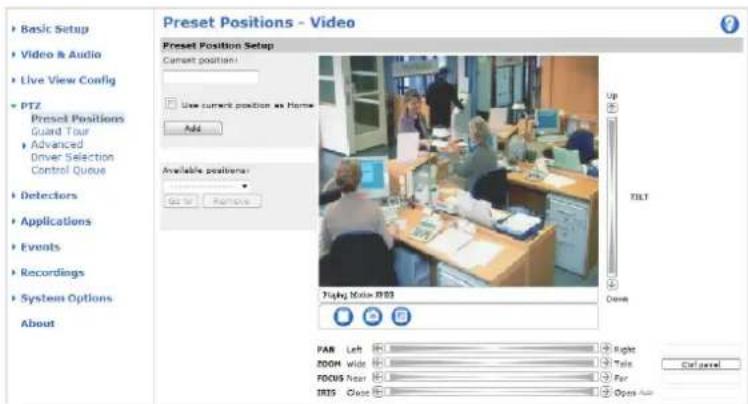
Toaddapresetposition:
- GotoPTZ>PresetPositions.
- Usethepan, tilt and zoom control, tosteer the camera view to the desired position.
3.EnteradescriptivenameintheCurrentpositionfield.
@licAddThecamera'spositionandfocussettingsareavedspreseposition.
TheproductcanbeconfiguredtoreturntotheHomepositionwhenthePTZfunctionalityhasbeeninactiveforaspecifiedlengthofimeEntethdengthofimerthfieldandlicSavSethdimczerdpreventhproducfromautomaticallyreturningtotheHomeposition.
To include the preposition am in the overlay text guide Audio select include overlay text and the ether modifier. En the field from more information about modifiers, file Naming Date/Time format or the online help

GuardTour
Aguardtourdisplaysthevideostreamfromdifferentpresetpositions,one-by-one,inapredeterminedorderoratrandomandforconfigurabletimeperiods.Theenabledguardtourwillkeeprunningaftertheuserhasloggedofforclosedthebrowser.
Toaddaguardtour:
GdPTZGuardTouandclicAdd.
2.Enteradescriptivename.
3. Specifythepauselengthbetweenruns.
4. SelectanavailablepresetpositionandclickApply.
5. Specify theViewTimeinsecondsorminutes.
SpecifyViewOrderselecttheRandomviewDeoption.
7.ClickSave.
TomodifyremoveguardoursgctPTZGuardTourselectheguardouirthGuardTouListandClickModify/Remove.
Formoreinformationseetheonlinehelp

TourRecording
Theguardtourfunctioninthisproductincludestourrecording,whichallowsrecordingofacustomtourusinganinputdevicesuch asajoystick,mouse,keyboardorthroughtheVAPIX®ApplicationProgrammingInterface(API).Arecordedtourdisplaysthevideo streamoftherecordedsequenceofPan/Tilt/Zoommovements,includingtheirvariablespeedsandlengths.
GdPTZGuardTouandclickAdd.
SelectRecordouandlicOK.
3.Enteradescriptivename.
- Specify the pause length between runs.
5.Click tostartrecordingthePan/Tilt/Zoommovements.
- Whensatisfied, click.

7.ClickOK.
Note
Only then a name of the recorded tour and pause between runscambemodified. Starting an new recording will overwrite the existing guard tour.
TherecordedtourcanbeactivatedfromtheLiveViewandGuardTourpagesorthroughevents.Formoreinformationsee
theonlinehelp.
Advanced
DeviceSettings
TheDeviceSettingswindowdisplaysdriverspecificsettings.Theappearanceofthiswindowcanvarydependingonthdriver installed.Optionsthatcanbeconfiguredinclude:
- DriverSpecificSettingsfromVideoSource
•MechanicalLimitsforMovingVideoSource
•LightControlVideoSource
- ExtendedDriverSpecificSettingsforVideoSource
ForddownloadandinstallationinformationaboutPTZdriversforyourAxisproductpleasevisitwww.axis.com/techsup/
Controls
PaneShortcuCommandButtons:abconfiguredprovide directaccess commandissued via the/APIX®Application ProgrammingInterface. The buttons will be displayed in the PTZ control panel, which is available in theLiveViewpagethrough the Ctrpanebuttonsepage 1.
DeselectoptionsundeEnable/Disablecontrolsdisablethepantilzoomandfocuscontrols.
Note
DisablingPTZcontrolswillnotaffectpresetpositions. Forexample, ifthetiltcontrolisdisabled, theproductcanstillmoveto presetpositionsthatrequireatiltmovement.
ControlQueue
The administrator setup que ufo PTZ controller from PTZ Control Queue Once set up the PTZ Control Queue buttons appear in the live View page offering one viewer exclusive control for a limited period of time. Other users will be placed in queue.
AusewhbelongsgroupisedUsersprpage37withhighePT2prioritycangbeforetheusersithqueueandtakecontroloftheproduct.Theorderofpriorityisasfollows:
Administrator\Administrator takesovePTZ controlregardless of whisfirstqueue The administrator wilbe removed from the queue 60 seconds after the last PTZ control command.
Event-TheAxisproductarbeconfigured@topresepositionwhertriggeredbyalarm(seeEventsorpage32). Theeventwillimmediatelybeplacedfirstinthequeueexceptwhenanadministratorisincontrol.
- Operator—Sameas administrator but with lower priority
GuardTourAguardou(sepage26)haPTZontrofoarindefinitperiodofimeImayboverridderbyan operator,eventoradministrator.Theguardtourwillresumewhenhigherprioritygroupsleavethequeue.
Viewer-MultipleviewersmustwaifotheiturnTheviewehasSecondPTZontrobeforecontrolpassed ontothenextviewerinqueue.
Note
- The administratorcanenableanddisablePTZcontrolsforselectedusers.
- Toidentifydifferentusersintheviewergroup,cookiesmustbeenabledontheclient.
OSDMenu
If the PTZ units supports an internal configuration menu, this can be accessed using the On-Screen Display(OSD). Configure the analog cameraby opening and navigating through its internal menu in this display.
Detectors
CameraTampering
CameraTamperingcangenerateanalarmwheneverthecameraisrepositioned,orwhenthelensiscovered,sprayedorseverely defocused.Tosendanalarm,forexampleanemail,anactionrulemustbesetup.
Toconfiguretampering:
- GotoDetectors>CameraTampering.
SethMinimundurationthattheimehatmustlapsbeforealarmgeneratedThisamelprevent falsealarmsforknownconditionsthataffecttheimage.
Select Alarmfor dark images for alarm should be generated, fights are dimmed, turned off, forthenis sprayed, covered, or rendered severely out of focus.
4.ClickSave.
Toconfiguretheproducttosendanalarmwhentamperingoccurs:
- GotoEvents>ActionRules.
2.ClickAddtosetupanewactionrule.
- EnteraNamefortheactionrule.
UndeConditionselecDetectorsfromtheTriggerlist.
- SelectTamperingfromthelistofdetectors.
6.Selectthevideochannel.
- Optionally, select as schedule and set additional conditions.
SelectactionTosendaremailselectSendNotificationandselectRecipientfromtheisbfefineddecipients.
Note
The Whileu16activeOptionundeDurationcannobusedwithcamertamperingsincecamertamperingdoesnot haveadurationandonceithasbeentriggereditwillnotautomaticallyreturntoitsuntriggeredstate.
Formoreinformationonactionsrules,seeEvents,onpage32.
MotionDetection
Motiondetectionisusedtogenerateanalarmwhenevermovementstartsorstopsinthecameraview.
Motiondetectionisconfiguredbydefiningupto10IncludeandExcludewindows:
- Includewindows—defineareaswheremotionsshouldbedetected
Exclude windows define areas within an include window that should be ignored (areas outside include windows are automatically ignored).
Forinstructions, see SetupMotionDetectionWindows, onpage29.
To control the number of motion detection alarms, parameter ObjectSizeHistory and Sensitivity are adjusted. See MotionDetectionParameters, on page 29.
Oncemotiondetectionwindowsareconfigured, theAxisproductcanbeconfiguredtoperformactionswhenmotionisdetected. Possible actions include uploading images and start recording from information settingUpActionRuleprpage33.
Detectors
Note
Usingthemotiondetectionfeaturemaydecreasetheproduct'soverallperformance.

SetUpMotionDetectionWindows
TosetupamotiondetectionIncludeWindow, followtheseinstructions:
- GotoDetectors > MotionDetection.
Select the Configure included Windows option and click New Select the new window with the disp window and enter adescriptivename.
- Adjustthesize(dragthebottomright-handcorner)andtheposition(clickonthetextatthetopanddragtothedesired position)ofthewindow.
Adjust the Object Size History and Sensitivity profile labels (see Motion Detection Parameters for details) Any detected motion within an active window is indicated by red peaks in the Activity window.
5.ClickSave.
To exclude parts of the inclusion window, select the Configure Excluded Windows an position the exclusion window within the inclusion window.
ToletanincludeexcludowindowselecthowindowirthelisbwindowsandlicDel.
MotionDetectionParameters
The parameters controlling motion detection are described in the table below:
| Parameter | ObjectSize | History | Sensitivity |
| Description | Objectsizerelativetowindow size. | Objectmemorylength. | Differenceinluminance betweenbackground and object. |
| Highlevel(100%) | Onlyverylargeobjectstrigger motiondetection. | Anobjectthatappearsin thewindowtriggersmotion detectionforalongtime beforeitisconsideredas non-moving. | Ordinarycoloredobjectson ordinarybackgroundstrigger motiondetection. |
| Mediumlevel(50%) | Alargedifferenceinluminance isrequiredtotriggermotion detection. |
Detectors
| Lowlevel(0%) | Evenverysmallobjectstrigger motiondetection. | Anobjectthatappearsin thewindowtriggersmotion detectiononlyforaveryshort timebeforeitisconsideredas non-moving. | Onlyverybrightobjectson adarkbackgroundtrigger motiondetection. |
| Recommendedvalues | 5–15%60–90%75–95% | ||
| Defaultvalues | 15%90%90% |
Note
- Totriggeronsmallobjectsormovements,useseveralsmallmotiondetectionwindowsratherthanonelargewindow andselectalowobjectsize.
- To avoid triggering on small objects, select a high object size.
- IfnoobjectsshouldappearinthIncludeWindow,selectahighhistorylevel.Thiswillcausemotiondetectiontotriggeras longastheobjectispresentinthewindow.
- Toonlydetectflashinglight,selectalowsensitivity.Inothercaseshighsensitivityisrecommended.
AudioDetection
TheAxisproductcanbeconfiguredtogenerateanalarmwhenaudiorisesaboveorfallsbelowthethresholdvalue.Thethreshold valuecanbesetintherange0-100where0isthemostsensitiveand100theleastsensitive.
-
GotoDetectors>AudioDetection.
-
Set the audio alarm level and click Save.
GoEventsActionRulesandetuparactionruleseSettingUparActionRuleprpage3.
Detected audio indicated by colore peak births Activity indicator Areven triggered when detected audio rises above falls below the threshold value, which is represented by the bar.
Applications
ThirdpartyapplicationscanbeuploadedtoandinstalledontheAxisproduct.Forinformationaboutavailableapplications, downloads,trialsandlicenses,gotowww.axis.com/applications
TuploadapplicationdoApplicationsOverviewclicBrowsedocatthefileandtherellicUploadPackageClickorthe uploadedapplication'snameoperthemenuptionSettingsLicenseAndAboutConfigurationinstructionspleasereferto thedocumentationprovidedwiththeapplication.
MosapplicationneedlicenseourInstalltheLicenseselecttheLicensenoptionfheproductconnectedthenternetAutomationinstallationappearithewebpagefheproductsnotconnecteddhternetgdowww.axis.com/applicationstoacquireaLicensekey.Youwillneedalicensecodeandtheproduct'sserialnumber(foundonthelabelandundeSystemOptionsSupportSystemOverview)receivelicenskey.
InstalledApplicationList: installed applications within information about the version and the vendor's status of application (running or not running), and information about the license.
Use the Start and Stop buttons to start and stop the application.
Togeneratealogfilefortheapplication,selecttheapplicationandclickLog.
Note
Itisrecommendedtorunoneapplicationatatime.Avoidrunningapplicationswhenmotiondetectionisactive.
Events
TheAxisproductcanbeconfiguredtoperformactionswhendifferenteventsoccur,forexample,startarecordingwhenmotionis detectedThesecondditionshatefineshowandwhethactionstriggeredsalledActionRule.
AvailableActionRuletriggersandconditionsinclude:
Applications=usinstalled applicationsdriggetheuleseApplicationsprpage31.
- Detectors
AudioDetection-triggered rule when audiosdetected see AudioDetection on page 30.
MotionDetection-triggered Rule when motion is detected see MotionDetectionpage28.
Tampering-triggered rule whertampering detected see Camera Tampering or page 28.
- Hardware
-VideoSignal—triggertheruleifvideosignalislost.
Network-triggered network connection is restored. This example used start recording to the SDcard.
- InputSignal
DigitalInputPort-triggered rule when an Port receive signa from connected devicesed/O Ports, on page 45.
ManualTrigger-triggered using the ManualTriggerbutton in the Viewpages Control on theLiveViewPage, onpage9. This can forexample be used to validate actions during product installation and configuration.
•Storage
Available trigger the rule whether storage devices unmounted removed this so example used to send maintenance notifications.
Full-triggered rule whether the storage device is full. Undenormaboperation the oldest recordings will be overwritten to prevent the storage device from becoming full.
-Locked—triggertheruleifthestoragedeviceislocked(writeprotected).
•System
SystemInitializing-triggered rule whether product being started This car example used send notification when the product restarts.
•Time
Recurrence-triggered ul periodically see Recurrences or page 34 This are examples used to upload an image every 5 minutes.
UsSchedule-triggetheulaccordingtheselectedscheduleseSchedulesprpage34.
Availableactionsinclude:
- OutputPort—activateanl/Oporttocontrolanexternaldevice.
PlayAudioClipseeAudioClipsprpage21.
-PresetPosition—gotoapresetposition.
GuardTour-startguardourseGuardTourprpage26.
Events
- RecordVideo—recordvideotoaselectedstorage.
- SendImages—sendimagestoarecipient.
- SendNotifications—sendanotificationmessagetoarecipient.
StatutLED-flashtledLIndicatorThisarforexampleusedo validatedtriggersuchasmotiondetectionduring productinstallationandconfiguration.
SettingUpanActionRule
Anactionruledefinestheconditionsthatmustbemetfortheproducttoperformanaction,forexemplerecordvideoorsendemail notifications.Ifmultipleconditionsaredefined,allmustbemettotriggertheaction.
The following example describes how to setup an action rule to record video to an network share if there is movement in the camera's field of view.
Setupmotiondetectionandaddanetworkshare:
Gdd Detectors Motion Detection and configurational motion detection window page 29
QdSystemOptionsStorageandetuphnetworksharesepage45.
Setuptheactionrule:
GdEventsActionRulesandclicAdd.
- SelectEnableruleandenteradescriptivenamefortherule.
SelectDetectorsfromthTriggerdrop-downlist.
SelectMotionDetectionfromthedrop-downlistSelectthemotiondetectionwindowtause.
Optionallyselect Scheduland Additionaconditionssebelow.
UndeActionsselecRecordVidefromthTypdrop-downlist.
SelectStreamprofilandconfiguretheDurationsettingsdescribedbelow.
- SelectNetworkSharefromtheStoragedrop-downlist.
To additiona criterion, select the Addition condition option and additionatriggers to prevent aaction from being triggered repeatedly. Wa i b e a t i m c a r b e t E n t h t i m e n hours m i n u t e s a n d e c o n d s d u r i n g w h i c l t h e r i g g e r should be ignored before the action rule can be activated again.
The recording Duration of actions can be set in each immediately before and after the event Select Pre-trigger time and/or Post-triggered number seconds. When the activity is enabled and the action triggered again during the post-trigger time, thereocording timewill be extended with another post-trigger time period.
Formoreinformation,seetheonlinehelp

Recipients
Recipientsreceivemediafilesandnotificationmessages.Thefollowingrecipientsareavailable:
| RecipientUsewithaction | |
| SendImagesSendNotification | |
| FTP | SendImages |
Events
| HTTP | SendImagesSendNotification |
| NetworkShareSendImages | |
| TCPSendNotification |
Note
Anetworksharealsalsoused a storage device forecorded video Gd System Options Storage configura network share for setting continuous recording action rule recorded video Se Storage page 4 from more information about storage devices.
Toaddarecipient:
GoEventsRecipientandclickAdd.
2.Enteradescriptivename.
3.SelectarecipientType.
4.Entertheinformationneededfortherecipienttype.
5.ClickTesttotesttheconnectiontotherecipient.
6.ClickOK.
Schedules
Schedulescanbeusedasactionruletriggersorasadditionalconditions,forexampletorecordvideoifmotionisdetectedoutside officehours.Useoneofthepredefinedschedulesorcreateanewscheduleasdescribedbelow.
Tocreateanewschedule:
GetEventsSchedulesandlicAdd.
- Enteradescriptivename and the information needed for daily, weekly, monthly or yearly schedule.
3.ClickOK.
To set the scheduled Action Rule select the schedule from the Schedule drop-down list the Action Rule Setup page.
Recurrences
RecurrencesareusedtotriggerActionRulesrepeatedly,forexampleevery5minutesoreveryhour.
Tosetuparecurrence:
GdEventsRecurrencesandClickAdd.
2.Enteradescriptivenameandrecurrencepattern.
3.ClickOK.
TaustherecurrenciarActionRulefirstselectTimefromthTriggedrop-downlisttheActionRulSetuppagand thenselecttherecurrencefromthesecondrop-downlist.
To modify remove recurrences select the recurrence path Recurrence List and click Modify Remove.
Recordings
TheAxisproductcanbeconfiguredtorecordvideocontinuouslyoraccordingtoanactionrule:
- Tostartacontinuousrecording,see page35.
- Tosetupactionrules,seepage33.
•Toaccessrecordings,seeRecordingList,onpage35. - Toconfigurecameracontrolledstorage, see Storage, onpage44.
RecordingList
Recorded videos and the Recordings List page the shows a recording start at and time duration and the event that triggered therecording.
Toplayordownloadarecording, followthesesteps:
- GotoRecordings>List.
Use filter to narrow disb recording Enteth desired filter criterion and lic Filte Some filters may take along timetocomplete.
- Selecttherecording.
@licPlayplaythecording?clickDownloaddownloadhecording.
Multiple recordingscarbdownloadedatsameTimeSelectRecordingsandlicDownloadThedownloadedfilezipfile containingaminimumofthreefiles,ofwhichtheMatroska(mkv)filesaretheactualrecordings.Therecordingsaretime-stamped withthedateandtimetheyweredownloaded(thatis,notthedatetherecordingsweremade).
Note
ToplayrecordingsinWindowsMediaPlayer,AXISMatroskaFileSplittermustbeinstalled.AXISMatroskaFileSplitter canbedownloadedfromwww.axis.com/techsup/software
For detailed recording and video information, select recording and lic Properties.
Toremovearecording,selecttherecordingandclickRemove.
ContinuousRecording
The Axisproduct are configured continuously saved storage device. See Storage page 44 more information about storage devices. Top prevent the disk from becoming full, its recommended to configure the disk to automatically remove old recordings.
Tostartacontinuousrecording,followthesesteps:
- GotoRecordings>Continuous.
2.SelectEnabled. - SelecttypeofstoragedevicefromtheDisklist.
- SelectaStreamprofiletouseforcontinuousrecordings.
5.ClickSavetosaveandstarttherecording.
Recordings
Note
Ifanewstreamprofileisselectedwhilearecordingisongoing,therecordingwillbestoppedandsavedintherecordinglist andanewrecordingwiththenewstreamprofilewillstart.Allpreviouscontinuousrecordingswillremainintherecording listuntiltheyareremovedmanuallyorthroughautomaticremovalofoldrecordings.
SystemOptions
Security
Users
Use access controlled enabled by default and bar configured under System Options Security Users Administrator can setup other users by giving them usernames and passwords. It is also possible to allow anonymous viewer login, which means that anybody may access the Live View page.
Theuserlistdisplaysauthorizedusersandusergroups(accesslevels):
Viewer-AccesstotheLiveViewpage
Operator-AccessstotheLiveViewpageandtoallsettingsexceptSystemOptions
Administrator-Unrestrictedaccesstoallsettings;canadd,modifyandremoveotherusers.
UndeHTTP/RTSIPasswordSettingsselectthypopasswordallowYoumayneedallowunencryptepasswordsthere areviewingclientsthatdonotsupportencryption,orifyouupgradedthefirmwareandexistingclientssupportencryptionbutneed tologinagainandbeconfiguredtousethisfunctionality.
UndeUseSettingsselecttheEnablanonymousviewelogimptionallowanonymoususersaccesstheLiveViewpage.
Deselect the Enable Basi Setup option to hide the Basi Setup menu Basi Setup provides quick access settings that should be made before using the Axis product.
ONVIF
ONVIF(OpenNetworkVideoInterfaceForum)isaglobalinterfacestandardthatmakesiteasierforendusers,integrators,consultants,andmanufacturerstotakeadvantageofthepossibilitiesofferedbynetworkvideotechnology.ONVIFenablesinteroperabilitybetweendifferentvendorproducts,increasedflexibility,reducedcostandfuture-proofsystems.
BycreatingauseryouautomaticallyenableONVIFcommunication.UsetheusernameandpasswordwithallONVIFcommunication withtheproduct.Formoreinformationseewww.onvif.org
IPAddressFilter
IAddressfiltering enableorthSystemOptionsSecurityAddressFiltepageOnce enabledthestd addressedare alloweddeniedaccesstheAxiproductSelectAllowDenfronthdistandlicApplylenabledAddressfiltering.
The administrator can add up to 2561 Paddressentriestothelist (asingleentry can contain multiple Paddresses).
HTTPS
The Axis product supports encrypted browsing using HTTP This configured by the System Options Security HTTP page.
Self-signed certificate has been used until Certificate Authority-issued certificate have been obtained. Click Create self-signed certificate install self-signed certificate Although self-signed certificates and offer some protection trust security only implemented after the installation of a signed certificate issued by a Certificate Authority.
To obtain signed certificate from issuing Certificate Authorityyclic Create Certificate Request Whether signed certificate is returned click installed signed certificate import the certificate The properties any certificate request currently resident in the productor installed can be viewed by clicking Properties.
TenableHTTPSrtheAxiproductthdHTTPConnectionPolicymusbseforeachusegroup.
Formoreinformation,seetheonlinehelp

HTTPS
HTTPS(HyperTextTransferProtocoloverSecureSocketLayer,orHTTPowerSSL)isawebprotocolprovidingencryptedbrowsing. HTTPScanalsobeusedbyusersandclientstoverifythatthecorrectdeviceisbeingaccessed. Theseuritylevelprovidedby HTTPSisconsideredadequateformostcommercialexchanges.
TheAxisproductcanbeconfiguredtorequireHTTPSwhenusersfromdifferentusergroups(administrator, operator, viewer)connect.
TousHTTPSarHTTPCertificatenusfirstbeinstalledGdsystemOptionsSecurityCertificatesinstallandmanage certificates.See.
ToenableHTTPSontheAxisproduct:
- GotoSystemOptions>Security>HTTPS
- Selectan HTTPS certificate from the list of installed certificates.
- Optionally, click Ciphers and select the encryption algorithm for SSL.
- SettheHTTPSConnectionPolicyforthedifferentusergroups.
5.ClickSavetoenablethesettings.
To access the Axis product via the desire protocol to https://onhttp://irtheaddressfieldbrowser.
The HTTP Sport change orth System Options Network TCP/IP Advance page.
IEEE802.1X
IEEE802.1Xisastandardforport-basedNetworkAdmissionControlprovidingsecureauthenticationofwiredandwirelessnetwork devices.IEEE802.1XisbasedonEAP(ExtensibleAuthenticationProtocol).
ToaccessanetworkprotectedbyIEEE802.1X,devicesmustbeauthenticated.Theauthenticationisperformedbyanauthentication servertypicallyRADIUServerexampleswhichareFreeRADIUSandMicrosoftInternetAuthenticationService.
InAxisimplementation, theAxisproductandtheauthenticationserveridentifythemselveswithdigitalcertificatesusingEAP-TLS (ExtensibleAuthenticationProtocolTransportLayeSecurity)ThecertificatesareprovidedbyCertificationAuthority(CA). Youneed:
- aCAcertificatetoauthenticatetheauthenticationserver
- aCA-signedclientcertificatetoauthenticatetheAxisproduct.
To create and install certificates go to System Options Security Certificates Se Many CA certificates are preinstalled.
ToallowtheproducttoaccessanetworkprotectedbyIEEE802.1X:
- GotoSystemOptions>Security>IEEE802.1X. Select CACertificate and Client Certification from the list of installed certificates.
UndeSettingsselecttheEAPOLversionanprovidetheEARidentityassociatedwiththeclientcertificate.
- ChecktheboxtoenableIEEE802.1XandclickSave.
Note
Forauthenticationtoworkproperly, the date and timesettings in the Axis product should be synchronized with an NTP server. See Date & Time, on page 39.
AudioSupport
SelectEnableaudisupportallowclientsRetrievaudiostreamsfromtheAxiproductEoinformationhowtoconfigure audiosettings,seeAudioSettings,onpage20.
Note
DeselectingthisoptionwilldisableaudiogloballyintheAxisproduct,forconfiguredeventsandprofileswithaudioaswell.
Date&Time
The Axi product's lat and dim settings are configured under SystemOptionsDateTime.
CurrenServeTimedisplaythecurrentlatandtime(24clock)Thetimecarbeisplayednl2clklockrthetexoverlay(see below).
TochangthelatandimsettingsselecthepreferredTimmodundeNewServeTime:
Synchronize with computer time set at and time according the computer's clock With this option at and time a reset once and will not be updated automatically.
SynchronizewithNTBerverbataindimfromanNTBerverWiththisoptiondatandimsettingare updatedcontinuouslyEoinformationorNTBettingssedNTRConfigurationpage41.
If using host name for the NT Server, DNS servemus be configured. See DNS Configuration or page 41.
- Setmanuallyallowsyoutomanuallysetdateandtime.
Ifising NTBerverselect your Timez onronthdrop-downlist required check Automatically adjust todaylight saving timechanges.
The DateTimFormaUsedImages the date and timeframe displayed at each overlay the video stream uses
predefinedformatsorseeFileNaming&Date/TimeFormatsintheonlinehelp forinformationonhowtocatecustomdateand timeformatsIncluddatandimethoverlaytextgVideoAudiandelectIncluddatandncludtime.
Network
BasicTCP/IPSettings
TheAxisproductsupportsIPversion4andIPversion6.Bothversionscanbeenabledsimultaneously, andatleastoneversion mustalwaysbeenabled.
IPv4AddressConfiguration
Bydefault,theAxisproductissettouseIPv4(IPversion4)andtoobtaintheIPaddressautomaticallyviaDHCP.TheIPv4settingsare configuredunderSystemOptions>Network>TCP/IP>Basic.
DHCP(DynamicHostConfigurationProtocol) allows network administrator stocentrally manage and automate the assignment of IP addresses. DHCP should only be enabled if using dynamicIP address notification, or if the DHCP can update a DNS server. It is then possible to access the Axis product by name (hostname).
If DHCP is enabled and the product cannot be accessed, run AXISIPUtility to search then network for connected Axis products, or reset the product the factory default settings page 48 and then perform the installation again.
TouestatidAddresscheckUsethfollowingAddressandspecifytheAddresssubnetmasklanddefaultouter.
IPv6AddressConfiguration
IfIPv6(IPversion6)isenabled,theAxisproductwillreceiveanIPaddressaccordingtotheconfigurationinthenetworkrouter.
TenablePv6gdcSystemOptionsNetworkTCP/IPBasicOthersettingsforPvShouldbeconfiguredrthenetworkrouter.
ARP/Ping
The product's Address can be assigned using ARP and Ping for instructions see Assign/Address using ARP/Ping or page 40.
SystemOptions
TheARP/Pingserviceisenabledbydefaultbutisautomaticallydisabledtwominutesaftertheproductisstarted,orassoonasanIP addressisassigned.Tore-assignIPaddressusingARP/Ping,theproductmustberestartedtoenableARP/Pingforanadditional twominutes.
Talisable the service goto SystemOptions Network TCP/IP Basic and cleath option Enable ARP/Pingetting of Paddress.
Pinging the product is still possible when the service is disabled.
AssignIPAddressusingARP/Ping
Theproduct'sIPaddresscanbeassignedusingARP/Ping.Thecommandmustbeissuedwithin2minutesofconnectingpower.
- AcquireafreestaticIPaddressonthesamenetworksegmentasthecomputer.
- Locatetheserialnumber(S/N) on the product label.
3.Openacommandpromptandenterthefollowingcommands:
Linux/Unixsyntax
arp-s<IPaddress><serialnumber>temp
ping-s408<IPaddress>
Linux/Unixexample
arp-s192.168.0.12500:40:8c:18:10:00temp
ping-s408408192.168.0.125
Windowssyntax(thismayrequirethatyourunthecommandpromptasanadministrator)
arp-s<IPaddress><serialnumber>
ping-1408-t<IPaddress>
Windowsexample(thismayrequirethatyourunthecommandpromptasanadministrator)
arp-s192.168.0.12500-40-8c-18-10-00
ping-l408-t192.168.0.125
- Check that thenetwork cable is connected to the Axis product and then restart the product by disconnecting and reconnecting power.
Glosthe comma prompt whether products respond with Reply from 92.168.0.125:..osimilar.
Openbrowseandyphttp://
Fothemethods:assigninghdAddress;ethinstallationandManagementSoftwareCDothecodumentAssignandP AddressandAccesstheVideoStreamonAxisSupportwebatwww.axis.com/techsup
Note
To open command prompt Windowsoperth Start menu and type cmdth Run/Searchfield.
- TousetheARPcommandinWindows7/WindowsVista,right-clickthecommandprompticonandselectRunas administrator.
TopencommanpromptrMacOSopertheTerminalutilityfromApplicationUtilities.
AXISVideoHostingSystem(AVHS)
AVHSusedinconjunctionwithanAVHSservice,provideaseasyandsecureInternetaccesstoliveandrecordedvideoaccessiblefromanylocation.FormoreinformationandhelptofindalocalAVHSServiceProvidergotowww.axis.com/hosting
AVHS enabled by default The setting are configured under System Options Network TCP Basic.
SystemOptions
One-clickenabledPresthproduct'strontobuttonisedHardwareOverviewprag &connectanAVHServiceovethe InternetOnceregisteredAlwayswilbenabledtheAxiproductstaysconnectedtheAVHServicdtheproductnot registeredwithin24hoursfromwhenthebuttonispressed,theproductwilldisconnectfromtheAVHSservice.
Always The Axis product will constantly attempt to connect the AVH Service over the Internet. Once registered the product will stay connected to the service. This option can be used when the product is already installed and is not convenient to use the one-click installation.
AXISInternetDynamicDNSService
AXISInternetDynamicDNSServiceassignsahostnameforeasyaccesstotheproduct.Formoreinformation,seewww.axiscam.net
To eist the Axi product with AXIS interne Dynamic DNS service system Options Network TCP/IBBasid Under Services click the AXIS interne Dynamic DNS Service Settings button (requires access the Internet) The domain are currently registered at AXIS Internet Dynamic DNS service for the product can at any time be removed.
AdvancedTCP/IPSettings
DNSConfiguration
DNS(DomainNamService)provides the translation of names and addresses The DNS Settings are configured under System Options > Network > TCP/IP > Advanced.
SelectObtainDNServeaddress via DHCP to the DNSetting provided by the DHCP server.
TomakemanuasettingsselectUsethfollowingDNServeaddressandspecifythofollowing:
Domainname the domain(s) search forthoshamused by the Axiproduct Multiple domains are separated by semicolons. The hosham always their first parb fully qualified domainame for example my server is the hosham the fully qualified domainammyserver.mycompany.com where my company.com the domainame.
Primary/SecondaryDNServeEntethdAddressesofthprimaryandsecondaryDNServersThecondanDNServes optionalandwillbeusediftheprimaryisunavailable.
NTPConfiguration
NTP(NetworkTimeProtocol)isusedtosynchronizetheclocktimesofdevicesinanetwork.TheNTPsettingsareconfiguredunder SystemOptions>Network>TCP/IP>Advanced.
SelectObtainNTBerveaddressidHCRousethNTBettingprovidedbythDHCServer.
TomakemanuasettingsselectUsingfollowingNTBervaddressandentethoshamofAddressofNTBerver.
HostNameConfiguration
TheAxisproductcanbeaccessedusingahostnameinsteadofanIPaddress.ThehostnameisusuallythesameastheassignedDNS nameThehostnameisconfiguredundesystemOptionsNetworkTCP/IBAdvanced.
SelectObtainmoshamovidPv4DHCRoushoshamprovidedbythDHCServerunningprPv4.
SelectUsethehostnametosetthehostnamemanually.
SelectEnableDynamidDNSUpdates dynamically update docaDNServers whenever the Axi product's Address changes.
Formoreinformation,seetheonlinehelp.

Link-LocalIPv4Address
Link-LocalAddress enabled by default and assign the product additional address which can be used to access the product from other hosts on the same segment on the local network. The product can have a Link-LocalIPandastic or DHCP-suppliedIPaddressatthesametime.
SystemOptions
This function can be disabled under System Options Network TCP/IP Advanced.
HTTP
The HTTP port used by the Axiproductar be changed under SystemOptionsNetworkTCP/IP Advanced addition the default setting, which is 80, any port in therange 1024-65535 can be used.
HTTPS
The HTTPSportused by the Axi product are changed under SystemOptions Network TCP/IP Advanced addition to the default setting, which is 443, any portion in the range 1024-65535 can be used.
TenableHTTPSg1SystemOptionsSecurityHTTPSFomoreinformationsepage37.
NATtraversal(portmapping)forIPv4
Anetworkrouterallowsdevicesonaprivatenetwork(LAN)toshareasingleconnectiontothelnternet.Thisisdonebyforwarding networktrafficfromtheprivatenetworktothe"outside",thatis,theInternet.Securityontheprivatenetwork(LAN)isincreased sincemostroutersarepre-configuredtostopattemptstoaccesstheprivatenetwork(LAN)fromthepublicnetwork(Internet).
UsNATraversalwhentheAxiproductlocatedmaintrane(LAN)andyouwisltonaketavailablefromother(WAN)sideofaNATrouter.WithNATtraversalproperlyconfigured,allHTTPtraffictoanexternalHTTPportintheNATrouterisforwardedtotheproduct.
NATraversalconfiguredundesystemOptionsNetworkTCP/IBAdvanced.
Note
- ForNATtraversaltowork, this must be supported by the router. Therouter must also support UPnP
TM - Therouterhasmanydifferentnames:"NATrouter","Networkrouter","InternetGateway","Broadbandrouter","Broadband sharingdevice"or"Homefirewall"buttheessentialpurposeofthedeviceisthesame.
Enable/DisableWhenenabledtheAxiproductattemptsconfigureportmappingnATrouteonyounetworkusingUPnP NotethatUPnP™ mustbeenabledintheproduct(seeSystemOptions>Network>UPnP).
TM.
Usmanually selected NATouteSelect this option manually select NAToute and the address that the route in the field. If norouter is specified, the product automatically searches for NATrouterson your network. If more than one router is found, the default router is selected.
Alternative HTTP Port Select this option manually defines external HTTP Port Enteth port number the field of ports entered here, a port number is automatically selected when NAT traversal is enabled.
Note
- AnalternativeHTTPportcanbeusedorbeactiveevenifNATtraversalisdisabled. ThisisusefulifyourNATrouterdoesnot supportUPnPandyouneedtomanuallyconfigureportforwardingintheNATrouter.
- If you attempt to manually enter a port that is already in use, another available port is automatically selected.
WherthportselectedautomaticallyitsdisplayedrthisfieldTochangthisentemewporhumbeandclickSave.
FTP
TheFTPserverrunningintheAxisproductenablesuploadofnewfirmware,userapplications,etc.TheFTPservercanbedisabled underSystemOptions>Network>TCP/IP>Advanced.
Note
ThisFTPserverhasnothingtodowiththeproduct'sabilitytotransferimagesviaFTPtootherlocationsandservers.
SystemOptions
RTSP
TheRTSPserverrunningintheAxisproductallowsaconnectingclienttostartanH.264stream.TheRTSPportnumbercanbe changedundeSystemOptionsNetworkTCP/IPAdvancedThedefaultport554.
Note
H.264videostreamswillnotbeavailableiftheRTSPserverisdisabled.
SOCKS
SOCKSisanetworkingproxyprotocol.TheAxisproductcanbeconfiguredtouseaSOCKSservertoreachnetworksontheother sideofafirewallorproxyserver.ThisfunctionalityisusefuliftheAxisproductislocatedonalocalnetworkbehindafirewall,and notifications,uploads,alarms,etcneedtobesenttoadestinationoutsidethelocalnetwork(forexamplethelnternet).
SOCKSconfigured under System Options Network SOCKS from information set the online help

QoS(QualityofService)
QoS(QualityofService)guaranteesacertainlevelofaspecifiedresourcetoselectedtrafficonanetwork.AQoS-awarenetwork prioritizesnetworktrafficandprovidesagreaternetworkreliabilitybycontrollingtheamountofbandwidthanapplicationmayuse.
TheQoSettingsareconfiguredIndeSystemOptionsNetworkQoSUsingDSCRDifferentiatedServiceCodepointvaluestheAxisproductcanmarkthefollowingtypesoftraffic:livevideo,liveaudio,event/alarmtrafficandmanagementtraffic.
Note
LiveaudioDSCPwillbeequaltolivevideoDSCPifH.264overRTSPisused.
SMTP(email)
TosendemailmessagesfromtheAxisproductviaSMTP(SimpleMailTransferProtocol),anSMTPmailservermustbesetup.This isdoneunderSystemOptions>Network>SMTP(email).
Entethosnames of addresses an for numbers of the primary and secondary ma i servers in the field provided. From email address is required, the ma i server requires authentication check. Use authentication to get this serve and enter the necessary information.
SNMP
TheSimpleNetworkManagementProtocol(SNMP) allows remotemanagementofnetworkdevices.AnSNMPcommunityisthe groupofdevicesandmanagementstationrunningSNMP.Communitynamesareusedtoidentifygroups.
The Axiproduct are configured support SNMPorth System Options Network SNMPage.
Dependingonthelevelofsecurityrequired,selecttheversiononSNMPtouse.
SNMR1/v2provide the lowest security The community name can be specified as password for about read/write access supported SNMR devices The default password for the community public and default password for the write community is write.
Note
IfHTTPSisenabled,SNMPv1andSNMPv2cshouldbedisabled.
TrapfoSNMR1/v2areused by the Axiproduct send messages to management system important events and status change. Check Enable trap and the address where the trap message should be sent and the community that should receive them message.
The followingtrapsareavailable:
•Coldstart
•Warmstart
SystemOptions
•Linkup
- Authenticationfailed
SNMR3 provides encryption and secure passwords to strap with SNMR3 and SNMR3 management application required.
TousENMR3HTTPSmustenabledshedHTTPSprpage31 enableENMR3checkboxanprovidethenitialuser password.
Note
The initial password can only be set once. If the password is lost, the Axis product must be reset to factory default, see Resetto Factory Default Settings, on page 48.
UPnP ^TM
TheAxisproductincludessupportforUPnP ^TM .UPnP ^TM isenabledbydefaultandtheproductisautomaticallydetectedbyoperating systemsandclientsthatsupportthisprotocol.
UPnP ^TM canbedisabledunderSystemOptions>Network>UPnP TM.
RTP/H.264
The RTPortangandmulticastettings are configured under SystemOptionsNetworkRTP.
The RTP portranged defines the range of ports from which the video or audio ports are automatically selected. Form multicast streams, only certain IP addresses and port numbers should be used.
SelectAlwayMulticastVideoand/orAlwayMulticastAudioStartmulticaststreamingwithoutpeningnRTSBession.
Bonjour
TheAxisproductincludessupportforBonjour.Bonjourisenabledbydefaultandtheproductisautomaticallydetectedbyoperating systemsandclientsthatsupportthisprotocol.
BonjourcanbedisabledunderSystemOptions>Network>Bonjour.
Storage
SDCard
NOTICE
Topreventcorruptionofrecordings,theSDcardshouldalwaysbeunmountedbeforeitisejected.
TheAxisproductsupportsSDcardswiththefollowingfilesystems:
ext4-recommended due to resiliency against datados if the cards ejected if there is bruppowetoss to access data store done on the card from the Windows operating system, at third-party ext4 driver or application is required.
- vFAT—mostSDcardsarepre-formattedwithvFATwhenpurchased.
Ifrequired,theSDcardcanbere-formattedtothedesiredfilesystem.ToformattheSDcard:
- Insert the SD card in the SD card slot.
GoSystemOptionsStorageandlicSICard.
3.ClickFormatandselectthedesiredfilesystem.
Note
During formatting any previous data stored on the disk will belost.
SystemOptions
Mountingisdoneautomaticallywhenthecardisinsertedorwhentheproductisstarted.Amanualmountisonlyrequiredifthe cardhasbeenunmountedandnotejectedandre-inserted.
TounmounttheSDcard:
GoSystemOptionsStorageandlicSICard.
2.ClickUnmount.
3. Thecardcannowberemoved.
The SDcardsmanagedSystemOptionsStoragePageClickSTCardopenStorageManagement.
If he card's tatushows a failed click Check disk see if the problem can be found and then Repair this option only available for SD cards with next 4. For SD cards with v FAT, use acard reader or computertot roubles hoot the card.
Tavoidilling the card is recommended to remove recordings continuously. UndeRecording Settings select Remove recordings older than and select then number of days or weeks.
TstopwritingthecardandprotectecordingsfrombeingremovedselectLockunderRecordingSettings.
NetworkShare
NetworkshareallowsyoutoaddnetworkstoragesuchasaNAS(NetworkAttachedStorage)oranyserverthatusesCIFS(Common InternetFileSystem)andusethemforstorageofrecordings.
Toaddanetworkshare:
- GotoSystemOptions>Storage.
2.ClickNetworkShare.
3.EntertheIPaddress,DNSorBonjourametothehostserverintheHostfield.
4.EnterthenameoftheshareintheSharefield.
I ^s requiredselectThesharerequiresloginantethesenamenanspassword.
6.ClickConnect.
To eal recording and data from the Axi product's folder the designated share click Clearunde Storage Tools.
T avoid filling the share it recommended remove recordings continuously. UndeRecording Settings, select Remove recordings older than and select then number of days or weeks.
Tstopwritingthe share and protect recordings from being removed select Lockunde Recording Settings.
Ports&Devices
I/OPorts
TheAxisproductprovidesfourconfigurableinputandoutputportsforconnectionofexternaldevices.Forinformationonhowtoconnectexternaldevices,seeConnectors,onpage5.
The Port are configured under System Options, Ports Devices, Ports Select port direction (Input Output) The ports are given descriptive names and the Normal states are configured as Open circuit Grounded circuit.
COMPort
TheAxisproducthasoneRS-485/RS-422serialport.Theportsupportsthefollowingmodes:
- GenericHTTPallowstheAxisproducttoreceivedataandsendcommandsviaHTTP.
SystemOptions
PaTilZoomusedcontrolPTDeviceThePTDevicerequiresdriveBednstallingPTDrivefomore information.Driverscanbedownloadedfromwww.axis.com
GenericTCP/IPallowtheAxisproductreceivdatandendcommandsviaTCP/IPDaisychairserverAllowDaisychainclientstocommunicatewiththeAxisproduct.
Select the desire for type from the drop-down list from information or Series Por Settings and DaisyChain Por Settings seetheonline help ?
PortStatus
TheisbrthSystemOptionsPortsDevicesPorStatuspageshowststatusoftheproduct'sinputandoutputports.
Maintenance
The Axi produc provides several maintenance functions. These are available under System Options Maintenance.
ClickRestartperformcorrectestartheAxiproductsobehavingsexpectedThiswillhoffectanyofthecurrent settings.
ClickRestordoresetmosettingtchfactorydefaultvaluesThefollowingsettingsarenotaffected:
•thebootprotocol(DHCPorstatic)
- thestaticIPaddress
- thedefaultrouter
- thesubnetmask
- thesystemtime
• theIEEE802.1Xsettings
ClicDefaultresetsettingsincludingtheAddress factoryvaluesThisbuttonshouldusedwith cautionThe AxiproductandsetefactorydefaultusingthecontrolbuttonsetResetFactoryDefaultSettingspage48.
To identify the product test the Status LED click Flash LED undel identify and specify the duration in seconds minutes hours. This can be useful for identifying the product among other products installed in the same location.
Forinformationaboutfirmwareupgrade,see UpgradingtheFirmware,onpage49.
Support
SupportOverview
The SystemOptionsSupportSupportOverviewpageprovideinformationtroubleshootingandcontactInformation, shouldyourequiretechnicalassistance.
See also Troubleshooting, on page 49.
SystemOverview
Together overview of the Axi product status and settings and System Options Support System Overview Information that can be found here includes firmware version, IP address, network and security settings, event settings, images settings and recent log items. Many of the captions are linked to the proper setup page.
SystemOptions
Logs&Reports
The SystemOptionsSupportLogReportpaggenerateslogsandreportsusefufosystemanalysisandroubleshootingIf contactingAxisSupport,pleaseprovideavalidServerReportwithyourquery.
SystemLog-Providesinformationaboutsystemevents.
AccesLogistalfailed attempts to access the product The AccesLogans also configured distal connection to the product(see below).
ServeReport Provides information about the product status: pop-up window. The Access Log automatically included in the Server Report.
Youcanviewordownloadtheserverreport.Downloadingtheserverreportcreatesa.zipfilethatcontainsacompleteserverreport texfileUTF-formaSelectdIncludenapshowitdefaultImagesettingsoptionincludesnapshoftheproduct's LivViewthatalshowthsettingsspecifiedundeVideStream>Image>ImageAppearanceTheerverreportzipfileshould alwaysbeincludedwhencontactingsupport.
ParametelisShowshproduct' parameters and their current setting This may prove useful when troubleshooting or when contacting AxisSupport.
ConnectionList-Listsallclientsthatarecurrentlyaccessingmediastreams.
CrashReport-Generatesanarchivewithdebugginginformation.Thereporttakesseveralminutestogenerate.
TheDeviceSystemsLogandAccessLogsetundeSystemOptionsSupportLogReportsConfiguration. TheAccessLogcanbeconfiguredtolistallconnectionstotheproduct(selectCritical,Warnings&Info).Ifrequired,adifferentlog levelcanbeusedwhensendingemails.
Advanced
Scripting
Scriptingallowsexperienceduserstocustomizeandusetheirownscripts.
NOTICE
ImproperusemaycauseunexpectedbehaviorandlossofcontactwiththeAxisproduct.
Axisstronglyrecommendsthatyoudonotusethisfunctionunlessyouunderstandtheconsequences.AxisSupportdoesnotprovide assistanceforproblemswithcustomizedscripts.
To Perth Scrip Editora System Options Advanced Scripting is recommended to create backup file before customizing this script because problems reset the product of factory default settings page 48.
Formoreinformation,seewww.axis.com/developer
FileUpload
Files,forexamplewebpagesandimages,canbeuploadedtotheAxisproductandusedascustomsettings.Touloadafile,go toSystemOptions>Advanced>FileUpload.
Uploadedfile accessed through http://
PlainConfig
PlainConfigisforadvanceduserswithexperienceofAxisproductconfiguration.Mostparameterscanbesetandmodifiedfromthis page.Helpisavailablefromthestandardhelppages.
ToopenPlainConfig, gotoSystemOptions>Advanced>PlainConfig.
ResettoFactoryDefaultSettings
Thiswillresetallparameters,includingthelPaddress,tothefactorydefaultsettings:
- Disconnectpowerfromtheproduct.
PresandholdtheContributtonandreconnectpoweredHardwareOverviewpage5. - Keep the Control button pressed for about 15 seconds until the status indicator flashes amber.
- ReleasetheControlbutton. The process is complete after about 1 minute (when the status indicator turns green). The product has been reset to the factory default settings. The defaultIPaddress is 192.168.0.90
- Re-assignthelPaddress.
It's also possible to rese parameters factory default via the web interface Data Setup System Options Maintenance.
Troubleshooting
CheckingtheFirmware
Firmwareissoftwarethatdeterminesthefunctionalityofnetworkdevices.Oneofyourfirstactionswhentroubleshootingaproblem shouldbetocheckthecurrentfirmwareversion.Thelatestversionmaycontainacorrectionthatfixesyourparticularproblem.The currenfirmwareversiontheAxiproductsdisplayedthepagSetupBasiSetupandSetupAbout.
UpgradingtheFirmware
When you upgrade the product with the latest firmware from Axis website, the product receives the latest functionality available. Always read the upgrade instructions and releases notes available with each new release, before upgrading the firmware.
Toupgrade, followtheseinstructions:
- Savethefirmwarefiletoyourcomputer. The latest version of the firmware is available free of charge from Axis website at www.axis.com/techsup
- GotoSetup>SystemOptions>Maintenanceintheproductswebpages.
UndeUpgradServerClicBrowsandocatchfileyourcomputerClicUpgrade.
Afterstartingtheupgradeprocess,alwayswaitatleast5–10minutesbeforerestartingtheproduct,evenifyoususpectthe upgradehasfailed.
AXISCameraManagementcanbeusedformultipleupgrades.Seewww.axis.comformoreinformation.
Note
- Yourdealerreservestherighttochargeforanyrepairattributabletofaultyupgradebytheuser.
- Preconfiguredandcustomizedsettingsaresavedwhenthefirmwareisupgraded(providingthefeaturesareavailableinthenewfirmware)althoughthisisnotguaranteedbyAxisCommunicationsAB.
![Basic Setup Video & Audio Live View Config PTZ Detectors Applications Events Recordings System Options Security Date & Time Network Storage Ports & Devices Maintenance Support Advanced About Server Maintenance Maintain Server Restart Restart the AXIS Q7411 Video Encoder. Restor Resets all parameters, except the IP parameters, to the original factory settings. Default Resets all parameters to the original factory settings. Upgrade Server Upgrade the AXIS Q7411 with the latest firmware. Specify the firmware to upgrade to: Browse and click Upgrade Note: Do not disconnect power to the unit during the upgrade. The unit restarts automatically after the upgrade has completed. (1-10 minutes.) Identify Flash LED for 10 seconds ▼ [1..60]](/content/2026/06/1263711/images/b55c8babf71fb076d7cfe3ba9bd214a6c9f2d73e654c157ad585d5601f7c01fe.jpg)
EmergencyRecoveryProcedure
If power or network connection is lostduring the upgrade, the process fails and the product becomes unresponsive. Flashing red Status indicator indicates a failed upgrade. Torecover the product, follow the steps below. The serial number is found on the product's label.
- In UNIX/Linux, typethefollowing from the commandline:
Troubleshooting
arp-s<IPaddress><serialnumber>temp
ping-s408<IPaddress>
In Window styp the following from command/DO prompt(this may require your the command prompts an administrator):
arp-s<IPaddress><serialnumber>
ping-1408-t<IPaddress>
- If the product does not reply in 30 seconds, restart it and wait for areply. Press CTRL + Ctostop Ping.
Openbrowseandyparthropduct'sAddressrthepagthatappearsustheBrowsduttortoselectheupgrade filetouse.ThenclickLoadtorestarttheupgradeprocess.
-
After the upgrade is complete (1–10 minutes), the product automatically restarts and shows a steady green on the Status indicator.
-
Reinstall the product, referring to the Installation Guide.
If the emergency recovery procedure does not get the product up and running again, contact Axissupport at www.axis.com/techsup/
Symptoms, Possible Causes and Remedial Actions
ProblemssettingtheIPaddress
| WhenusingARP/Ping | Trytheinstallationagain.TheIPaddressmustbesetwithintwominutesafterpowerhasbeen appliedtotheproduct.EnsurethePinglengththissetto408.Forinstructions,seeAssignIPAddress usingARP/Ping,onpage40. |
| Theproductislocatedona differentsubnet | IfthelPaddressintendedfortheproductandthelPaddressofthecomputerusedtoaccessthe productarelocatedondifferentsubnets,youwillnotbeabletosethelPaddress.Contactyour networkadministratortoobtainanIPaddress. |
| ThelPaddressisbeingused byanotherdevice | DisconnecttheAxisproductfromthenetwork.RunthePingcommand(inaCommand/DOS window,typepingandthelPaddressoftheproduct:·Ifyoureceive:Replyfrom:bytes=32;time=10... thismeansthatthelPaddressmayalreadybeinusebyanotherdeviceonthenetwork. ObtainanewIPaddressfromthenetworkadministratorandreinstalltheproduct.·Ifyoureceive:Requesttimedout,thismeansthatthelPaddressisavailable forusewiththeAxisproduct.Checkallcablingandreinstalltheproduct. |
| PossibleIPaddressconflict withanotherdeviceonthe samesubnet. | ThestaticIPaddressintheAxisproductisusedbeforetheDHCPserversetsadynamicaddress. ThismeansthatifthesamedefaultstaticIPaddressisalsousedbyanotherdevice,theremay beproblemsaccessingtheproduct. |
| Theproductcannotbeaccessedfromabrowser | |
| Cannotlogin | WhenHTTPSisenabled,ensurethatthecorrectprotocol(HTTPorHTTPS)isusedwhenattempting tdognYoumayneedmanuallytypehttphttpsithebrowser'saddressfield.Ifthepasswordforrootislost,theproductmustberesettothefactorydefaultsettings.See ResettoFactoryDefaultSettings,onpage48. |
Troubleshooting
| TheIPaddresshasbeen changedbyDHCP | IPaddressesobtainedfromaDHCPserveraredynamicandmaychange.IfthelPaddresshasbeen changed,useAXISIPUtilityorAXISCameraManagementtolocatedtheproductonthenetwork.Identifytheproductusingitsmodelorserialnumber. |
| Ifrequired,astaticIPaddressscanbeassignedmanually.Forinstructions,seethInstallationandManagemenSoftwareCDothedocumentAssignandAddressandAccesstheVideoStreamonAxisSupportwebatwww.axis.com/techsup | |
| Certificateerrorwhenusing IEEE802.1X | Forauthenticationtoworkproperly,thedateandtimesettingsintheAxisproductshouldbesynchronizedwithanNTPserver.SeeDate&Time,onpage39. |
Theproductisaccessiblelocallybutnotexternally
| RouterconfigurationToconfigureyourroutertoallowincomingdatatrafficitotheAxisproduct,enabletheNAT-traversalfeaturewhichwillattempttoautomaticallyconfiguretheroutertoallowaccesstotheAxisproductseeNATtraversa(portmapping)forPv4prpage42TheoutemustsupportUPnP | TM. | |
| Firewallprotection | ChecktheInternetfirewallwithyournetworkadministrator. | |
| Defaultroutersrequired | Checkifyouneedtoconfiguretheroutersettings. | |
ProblemswiththeH.264format
| NoH.264displayedinthe client | CheckthattherelevantH.264connectionmethodsandcorrectinterfaceareenabledintheAMC ControlPanel(streamingtab).SeeAXISMediaControl(AMC),onpage12.IntheAMCControPanelselecthdH.264bandlicSetodefaultH.264decoder.CheckthaRTSPenabledundesystemOptionsNetworkTCP/IPAdvanced. |
| NomulticastH.264 displayedintheclient | CheckwithyournetworkadministratorthatthemulticastaddressesusedbytheAxisproduct arevalidforyournetwork.Checkwithyournetworkadministratortoseeifthereisafirewallpreventingviewing. |
| MulticastH.264only accessiblebylocalclients | Checkifyourroutersupportsmulticasting,orifteroutersettingsbetweentheclientandthe productneedtobeconfigured.TheTTL(TimeToLive)valuemayneedtobeincreased. |
| PoorrenderingofH.264 images | Colordepthsetincorrectlyonclients.Setto16-bitor32-bitcolor.Iftextoverlaysareblurred,orifthereareotherrenderingproblems,youmayneedtoenable AdvancedVideoRenderingfromtheVideotabintheAMCControlPanel.Ensurethatyourgraphicscardisusingthelatestdriver.Thelatestdriverscanusuallybe downloadedfromthemanufacturer'swebsite. |
| Colorsaturationisdifferent inH.264andMotionJPEG | Modifythesettingsforyourgraphicsadapter.Refertoheadapter'sdocumentationformore information. |
| Lowerframeratethan expected | Reducethenumberofapplicationsrunningontheclientcomputer.Limitthenumberofsimultaneousviewers.Checkwiththenetworkadministratorthatthereisenoughbandwidthavailable.CheckintheAMCControlPanel(H.264tag)thatvideoprocessingisNOTsettoDecodeonly keyframes.Lowertheimageresolution. |
| Whydolnotgetmaximum framespersecond? | SeePerformanceConsiderations,onpage58. |
| Imagedegeneration | DecreastheGOVlengthGoAudioVideStreamandselecthdH.264tab tomodifytheGOVlength. |
Troubleshooting
StatusandNetworkindicatorLEDsareflashingredrapidly
| Hardwarefailure | ContactyourAxisreseller. |
| StatusindicatorLEDisflashingredandtheproductisinaccessible | |
| Afirmwareupgradehas beeninterruptedorthe firmwarehasotherwisebeen damaged | SeeEmergencyRecoveryProcedure,onpage49. |
| Noimagesdisplayedonwebpage | |
| ProblemswithAXISMedia Control(InternetExplorer only) | ToenabletheupdatingofvideoimagesinInternetExplorer,setthebrowsertoallowActiveX controls.Also,makesurethatAXISMediaControlisinstalledonyourcomputer. |
| Installationofadditional ActiveXcomponent restrictedorprohibited | ConfiguretheAxisproducttouseaJavaappletforupdatingvideoimagesinInternetExplorer.Go tSetupLiveViewConfigIndelectJavaappletundeDefaultviewer. |
| Poorqualitysnapshotimages | |
| Screenincorrectly configuredonyourcomputer | Configureyourscreentoshowatleast65000colors,thatis,atleast16bits.Usingonly16or256 colorswillproduceditheringartifactsintheimage. |
| Overlayimageisnotdisplayed | |
| Incorrectsizeorlocationof overlayimage | Theoverlayimagemayhavebeenpositionedincorrectlyormaybetoolarge.SeeOverlayImage Settingsintheonlinehelpformoreinformation. |
| Privacymaskisnotdisplayed | |
| Incorrectsizeorlocationof privacymask | Theprivacymaskmayhavebeenpositionedincorrectlyormaybetoolarge. |
| Browserfreezes | |
| Firefoxcansometimes freezeonaslowcomputer | Lowertheimageresolution |
| Problemsuploadingfiles | |
| LimitedspaceThereisonlylimitedspaceavailablefortheuploadofyourownfiles.Deleteexistingfilestofree upspace. | |
| MotionDetectiontriggersunexpectedly | |
| Changesinluminance | Motiondetectionisbasedonchangesinluminanceintheimage.Thismeansthatifthereare suddenchangesinthelighting,motiondetectionmaytriggermistakenly.Lowerthesensitivity settingtoavoidproblemswithluminance. |
Troubleshooting
Noaudio
| Incorrectsetup | Checkthesoundcardinthecomputer.Ensurethatmuteisnotselectedandthatthevolume settingsarecorrect. |
| Noaudioorverypooraudio quality | CheckthaEnableaudiosupportselectedundesetupSystemOptionsSecurityAudio Support.CheckthacorrectAudionputourceselectedundesetupVideoAudioAudio Settings. |
Pooraudioquality
| CPUoverloaded | Reducethenumberoflistenersandviewers.Decreaseimageresolutionandcompression. |
| Unsynchronizedaudioand video | Synchronizetheproduct'sdateandtimesettingswithanNTPserver.GotoSetup>System Options>Date&Time. |
| Distortedaudio | CheckthatthecorrectAudioInputourceselectedundeSetupVideAudioAudio Settings. |
| FeedbackloopsFeedbackloopsmightappearinfull-duplexmode.Trymovingthemicrophoneorthespeaker,or usehalf-duplexmodeinstead. | |
Storageanddiskmanagementproblems
| Videocannotberecorded | CheckthattheSDcardisnotwriteprotected(thatis,readonly). |
| SDcardcannotbemountedReformattheSDcardandthenclickMount. | |
TechnicalSpecifications
| Function/group | Item | Specifications |
| VideoEncoder | Model | AXISQ7411 |
| Pan/Tilt/Zoom | WiderangeofanalogPTZcamerassupported(driversavailablefordownloadatwww.axis.com)CompatiblewithCoaxitron®byPelco100presets/camera,guardtour,PTZcontrolqueueSupportsWindowscompatiblejoysticks | |
| Video | Video compression | H.264(MPEG-4Part10/AVC)BaselineProfile(BP)MainProfile(MP)MotionJPEG |
| Resolutions | 176x120to720x576 | |
| FramerateH.264 | 60/50(NTSC/PAL)fpsinallresolutions | |
| Framerate MotionJPEG | 60/50(NTSC/PAL)fpsinallresolutions | |
| Videostreaming | MultipletreamsinH.264andMotionJPEG.H.264andMotionJPEG:1streaminresolutionandframerateasspecifiedabove.MorestreamsifidenticalorlimitedinframerateorresolutionControllableframerateandbandwidthVBR/CBRH.264 | |
| Imagesettings | Compression,color,brightness,contrastRotation:90°,180°,270°AspectratiocorrectionMirroringofimagesTextandimageoverlayPrivacymaskEnhanceddeinterlacefilterVideoterminationAnti-aliasingTemporalnoisefiltering | |
| Audio | AudiostreamingTwo-way,fullduplexandhalfduplex | |
| Audio compression | In:AAC-LC8or16kHz8-64kbit/sG.711μ-lawPCM8kHz64kbit/sG.726ADPCM8kHz32kbit/sor24kbit/sOut:G.711μ-lawPCM8kHz64kbit/sμ-lawPCM16kHz128kbit/sG.726ADPCM8kHz32kbit/sor24kbit/s | |
| Audio input/output | Externalmicrophoneonlineinputandlineoutput. | |
| Network | SecurityPasswordprotection,IPaddressfiltering,HTTPSencryption,IEEE802.1Xnetworkaccess control,digestauthentication,useraccesslog | |
| Supported protocols | IPv4/v6,HTTP,HTTPS,QoSlayer3DiffServ,FTP,CIFS/SMB,SMTP,Bonjour,UPnPTM, SNMPv1/v2c/v3(MIB-II),DNS,DynDNS,NTP,RTSP,RTP,TCP,UDP,IGMP,RTCP,ICMP, DHCP,ARP,SOCKS | |
TechnicalSpecifications
| Function/group | Item | Specifications |
| System Integration | Application Programming Interface | OpenAPIforsoftwareintegration,includingtheONVIFspecificationavailableatwww.onvif.org,aswellasVAPIX®andAXISCameraApplicationPlatformfromAxisCommunications,specificationsavailableatwww.axis.comEventtriggerdatainvideostreamQualityofService(QoS)layer3,DiffServModelEmbeddedLinuxoperatingsystemSupportforAXISVideoHostingSystem(AVHS)withOne-ClickCameraconnection |
| IntelligentvideoVide | motiondetectionActivetamperingalarm | |
| EventtriggersIntelligentvideoExternalinputsVideolossAudiodetection | ||
| EventactionsFileupload:FTP,HTTPnetworkshareandemailNotification:email,HTTPandTCPPTZpresetExternaloutputactivationPlayaudioclipVideoandaudiorecordingotedgestoragePre-andpost-alarmvideobufferingStatusLED | ||
| Videoaccessfrom webbrowser | CameraliveviewVideorecordingtofile(ASF)Windows7,Vista,XP,2000,2003serverDirectX9corhigherForotheroperatingsystemsandbrowersseewww.axis.com/techsup | |
| Installation, management and maintenance | AXISCameraManagementtoolonCDandweb-basedconfigurationFirmwareupgradesoverHTTPorFTP,firmwareavailableatwww.axis.com | |
| General | CasingCastaluminum | |
| Memory256MBRAM | 128MBFlashBatterybacked-upreal-timeclock | |
| Power | 8-28VDC,max5.3WPoweroverEthernetIEEE802.3afClass2 | |
| ConnectorsAnalogcom | mpositevideoBNCinputRJ-4510BASE-T/100BASE-TXPoETerminalblockforfourconfigurableexternalinputs/outputsTerminalblockforRS-485/422(fullduplex)3.5mmjackformicrophoneonlineinput(mono)3.5mmjackforaudiooutput(mono) | |
| Edgestorage | MicroSD/SDHCmemorycardslot(cardnotincluded)Supportforrecordingtonetworkshare(network-attachedstorageorfileserver) | |
| Operating conditions | 0to60°C(0to50°Cwithincludedpowersupply)(32to140°F,32to122°Fwithincludedpowersupply)Humidity10-85%RH(non-condensing) | |
| Approvals | EN55022ClassB,EN61000-3-2,EN61000-3-3,EN55024,EN61000-6-1,EN61000-6-2,FCCPart15SubpartBITEClassB,ICES-003ClassB,VCCIClassBITE,C-tickAS/NZSCISPR22KN22,KN24KCCClassB,IEC/EN/UL60950-1,EN50121-4 | |
| Weight | 520g(1.1lb) |
TechnicalSpecifications
| Function/group | Item | Specifications |
| Included accessories | InstallationGuideInstallationandManagementSoftwareCDWindowsdecoder1-userlicensePowersupply,mountingandconnectorkits | |
| Video management software | AXISCameraCompanion(incl.),AXISCameraStationandvideomanagementsoftware fromAxis'ApplicationDevelopmentPartners(notincl.).Formoreinformation,see www.axis.com/products/video/software | |
| Optional accessories | AXIST8006PS12(enablesoperationat60°C) | |
| Dimensions (HxWxD) | 37x109x172mm |
Connectors
I/Oterminalconnector
6-pinterminalblockfor:
- DigitalInput
- DigitalOutput
•Auxiliarypowerandground(GND)

| FunctionPinNotes | Specifications | ||
| GND | 1 | Ground | |
| 3.3VDCPower | 2 | Canbeusedtopowerauxiliaryequipment.Note:Thispincanonlybeusedaspowerout. | Maxload=250mA |
| (InputorOutput) | 3-6 | Digitalinput—ConnecttoGNDtoactivate,orleavefloating(unconnected)todeactivate. | Oto+40VDC Configurable |
| Digitaloutput—Internalconnectiontogroundwhenactivated,floating(unconnected)whendeactivated.Ifusedwithaninductiveload,e.g.arelay,adiodemustbe | Maxload=100mAMaxvoltage=+40VDC |
TechnicalSpecifications
| connectedinparallelwiththeload,forprotectionagainstvoltagetransients. |
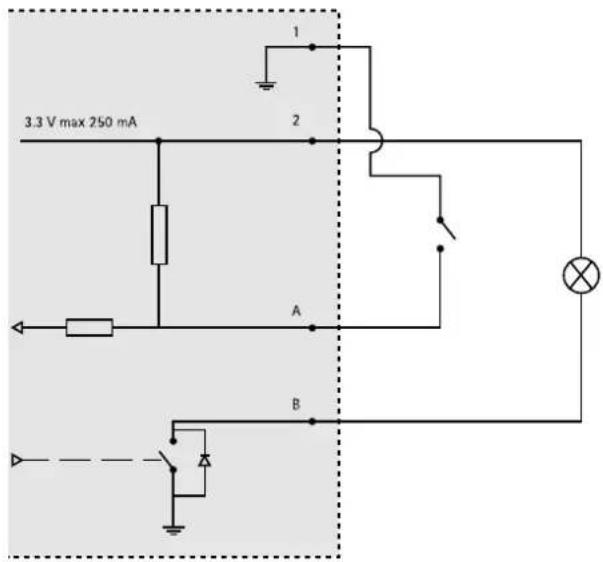
A I/Oconfiguredasinput
B I/Oconfiguredasoutput
Powerconnector
2-pinterminalblockforpowerinput.
DCpowerinput
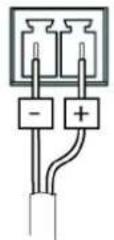
Audioconnector
3.5mmaudioconnectors (stereo)
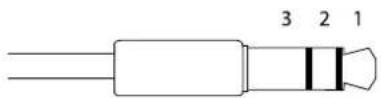
| AudioInput | AudioOutput | |
| Tip | Microphone/Linein | Lineout(mono) |
| 2Ring | ||
| 3SleeveGroundGround |
RS-485/422connector
Two2-pinterminalblocksforRS-485/RS-422serialinterface.Theserial portcanbeconfiguredtosupport:
- Two-wireRS-485halfduplex
- Four-wireRS-485fullduplex
- Two-wireRS-422simplex
- Four-wireRS-422fullduplexpointtopointcommunication
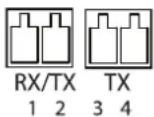
| FunctionPinNotes | ||
| RS-485/RS-422RX/TXA | 1 | (RX)ForfullduplexRS-485/RS-422(RX/TX)ForhalfduplexRS-485 |
| RS-485/RS-422RX/TXB | 2 | |
| RS-485/RS-422TXA | 3 | (TX)ForfullduplexRS-485/RS-422 |
| RS-485/RS-422TXB | 4 |
PerformanceConsiderations
Whensettingsupyoursystem,itisimportanttoconsiderhowvarioussettingsandsituationswillaffectperformance.Somefactors affecttheamountofbandwidth(thebitrate)required,otherscanaffecttheframerate,andsomeaffectboth.Iftheloadonthe CPUreachesitsmaximum,thiswillalsoaffecttheframerate.
The following factors are among them most important to consider:
- Highimageresolutionand/orlowercompressionlevelsresultinimagescontainingmoredata.Bandwidthaffected.
- AccessbylargenumbersofMotionJPEGand/orunicastH.264clients.Bandwidthaffected.
- Simultaneousviewingofdifferentstreams(resolution, compression)bydifferentclients.Effectonframerateand bandwidth.
- AccessingMotionJPEGandH.264videostreamssimultaneously.Framerateandbandwidthaffected.
- Heavyusageofeventsettingsaffecttheproduct'sCPUload.Framerateaffected.
- Heavynetworkutilizationduetopoorinfrastructure.Bandwidthaffected.
- Viewingonpoorlyperformingclientcomputerslowersperceivedperformance.Framerateaffected.


- USERMANUAL
- Aboutthisdocument
- Liability
- IntellectualPropertyRights
- EquipmentModifications
- TrademarkAcknowledgments
- Electromagnetic Compatibility(EMC)
- USA
- Canada
- Europe
- Australia/NewZealand
- Korea
- Japan
- Safety
- Support
- LearnMore!
- TableofContents
- HardwareOverview
- Connectors
- NOTICE
- Note
- AccessingtheProduct
- AccessfromaBrowser
- AccessfromtheInternet
- SettheRootPassword
- ConfigureCaptureMode
- TheLiveViewPage
- ControlsontheLiveViewPage
- ManualTrigger
- AXISMediaControlviewertoolbar
- AMCAudioControls
- PTZControls
- MediaStreams
- HowtoStreamH.264
- MJPEG
- AXISMediaControl(AMC)
- AlternativeMethodsofAccessingtheVideoStream
- AccessingAudioStreams
- SettingUptheProduct
- BasicSetup
- VideoandAudio
- VideoStream
- PixelCounter
- Image
- H.264
- StreamProfiles
- CameraSettings
- ImageAppearance
- Videoinput
- ImageSettings
- Overlay
- OverlayImage
- PrivacyMask
- Important
- AudioSettings
- AudioModes
- Audiolnput
- AudioOutput
- AudioClips
- LiveViewConfig
- DefaultViewerforBrowsers
- ViewerSettings
- UserDefinedLinks
- OutputButtons
- PTZ(PanTiltZoom)
- InstallingaPTZdriver
- PresetPositions
- GuardTour
- TourRecording
- Advanced
- DeviceSettings
- Controls
- ControlQueue
- OSDMenu
- Detectors
- CameraTampering
- MotionDetection
- SetUpMotionDetectionWindows
- MotionDetectionParameters
- AudioDetection
- Applications
- Events
- SettingUpanActionRule
- Recipients
- Schedules
- Recurrences
- Recordings
- RecordingList
- ContinuousRecording
- SystemOptions
- Security
- Users
- ONVIF
- IPAddressFilter
- HTTPS
- IEEE802.1X
- AudioSupport
- Date&Time
- Network
- BasicTCP/IPSettings
- IPv4AddressConfiguration
- IPv6AddressConfiguration
- ARP/Ping
- AssignIPAddressusingARP/Ping
- AXISVideoHostingSystem(AVHS)
- AXISInternetDynamicDNSService
- AdvancedTCP/IPSettings
- DNSConfiguration
- NTPConfiguration
- HostNameConfiguration
- Link-LocalIPv4Address
- HTTP
- NATtraversal(portmapping)forIPv4
- FTP
- RTSP
- SOCKS
- QoS(QualityofService)
- SMTP(email)
- SNMP
- UPnP TM
- RTP/H.264
- Bonjour
- Storage
- SDCard
- NetworkShare
- Ports&Devices
- I/OPorts
- COMPort
- PortStatus
- Maintenance
- SupportOverview
- SystemOverview
- Logs&Reports
- Scripting
- FileUpload
- PlainConfig
- ResettoFactoryDefaultSettings
- Troubleshooting
- CheckingtheFirmware
- UpgradingtheFirmware
- EmergencyRecoveryProcedure
- Symptoms, Possible Causes and Remedial Actions
- TechnicalSpecifications
- Powerconnector
- DCpowerinput
- Audioconnector
- RS-485/422connector
- PerformanceConsiderations
Marque : AXIS
Modèle : Q7411
Catégorie : Serveur