
PenCam Trio HD - Caméscope AIPTEK - Notice d'utilisation et mode d'emploi gratuit
Retrouvez gratuitement la notice de l'appareil PenCam Trio HD AIPTEK au format PDF.


| Type de produit | Caméscope numérique au format stylo |
| Marque | Aiptek |
| Modèle | PenCam Trio HD |
| Dimensions | Environ 14 x 1,5 x 1,5 cm |
| Poids | Environ 50 g |
| Alimentation | Batterie lithium-ion rechargeable via USB |
| Résolution vidéo | HD 1280 x 720 pixels |
| Résolution photo | Jusqu'à 5 mégapixels (interpolée) |
| Support mémoire | Carte microSD jusqu'à 32 Go |
| Fonctions principales | Enregistrement vidéo HD, photo, enregistrement audio, webcam |
| Connectivité | USB 2.0 |
| Capteur | Capteur CMOS |
| Angle de vue | Environ 70 degrés |
| Format vidéo | AVI |
| Format photo | JPEG |
| Microphone | Intégré |
| Entretien et nettoyage | Nettoyer avec un chiffon doux et sec. Éviter les solvants. |
| Sécurité | Ne pas exposer à l'humidité, aux chocs ou aux températures extrêmes. |
| Pièces détachées et réparabilité | Aucune pièce détachée disponible. Ne pas tenter d'ouvrir l'appareil. |
| Informations générales | Utilisation comme caméra de poche discrète. Livré avec câble USB et dragonne. |
FOIRE AUX QUESTIONS - PenCam Trio HD AIPTEK
Questions des utilisateurs sur PenCam Trio HD AIPTEK
0 question sur cet appareil. Repondez a celles que vous connaissez ou posez la votre.
Poser une nouvelle question sur cet appareil
Téléchargez la notice de votre Caméscope au format PDF gratuitement ! Retrouvez votre notice PenCam Trio HD - AIPTEK et reprennez votre appareil électronique en main. Sur cette page sont publiés tous les documents nécessaires à l'utilisation de votre appareil PenCam Trio HD de la marque AIPTEK.
MODE D'EMPLOI PenCam Trio HD AIPTEK
Caméscope HD-DV
Bienvenue :
Cher utilisateur, merci d'avoir acheté ce produit.
Nous espérons que notre engagement à fournir un produit fiable et bien conçu vous offrira une excellente expérience utilisateur et des années d'utilisation sans souci.
Avertissement de sécurité :
- La garantie sera annulée si la caméra est tombée, percée ou démontée.
- Évitez tout contact avec l'eau et séchez-vous les mains avant utilisation.
- N'exposez pas la caméra à des températures élevées ni à la lumière directe du soleil.
- Évitez d'appliquer une pression inutile sur le boîtier de la caméra.
- Pour votre sécurité, évitez d'utiliser la caméra pendant un orage.
- Utilisez uniquement les accessoires fournis par le fabricant.
- Gardez la caméra hors de portée des nourrissons.
Évitez les dommages auditifs :
Une perte auditive permanente peut survenir si les écouteurs sont utilisés à volume élevé. Réglez le volume à un niveau sûr. Vous pouvez vous adapter avec le temps à un volume plus élevé qui peut sembler normal mais qui peut endommager votre audition. Si vous ressentez des bourdonnements dans les oreilles ou une parole étouffée, arrêtez d'écouter et faites vérifier votre audition. Plus le volume est élevé, moins il faut de temps avant que votre audition puisse être affectée. Les experts en audition suggèrent que pour protéger votre audition :
- limitez le temps d'utilisation des écouteurs à volume élevé
- Évitez d'augmenter le volume pour couvrir un environnement bruyant.
- Baissez le volume si vous ne pouvez pas entendre les personnes qui parlent près de vous.

CE


Lorsqu'il sera temps de vous débarrasser de votre produit, veuillez recycler tous les composants possibles.
Les piles et batteries rechargeables ne doivent pas être jetées avec les déchets ménagers ! Veuillez les recycler dans votre point de collecte local.
Ensemble, nous pouvons contribuer à protéger l'environnement.
Déclaration de conformité FCC :
Cet appareil est conforme à la partie 15 des règles de la FCC. Son fonctionnement est soumis aux deux conditions suivantes : (1) cet appareil ne doit pas causer d'interférences nuisibles, et (2) cet appareil doit accepter toute interférence reçue, y compris les interférences susceptibles de provoquer un fonctionnement indésirable.

Cet équipement a été testé et déclaré conforme aux limites d'un
dispositif numérique de classe B, conformément à la partie 15 des règles de la FCC. Ces limites sont conçues pour fournir une protection raisonnable contre les interférences nuisibles dans les installations résidentielles. Cet équipement génère, utilise et peut émettre de l'énergie radiofréquence et, s'il n'est pas installé et utilisé conformément aux instructions, peut causer des interférences nuisibles aux communications radio.
Cependant, il n'est pas garanti que des interférences ne se produiront pas dans une installation particulière. Si cet équipement provoque des interférences avec la réception radio ou télévision, ce qui peut être déterminé en éteignant et en allumant l'équipement, l'utilisateur est encouragé à essayer de corriger les interférences par une ou plusieurs des mesures suivantes :
- Réorienter ou déplacer l'antenne de réception.
- Éloigner l'équipement du récepteur.
- Brancher l'équipement sur une prise située sur un circuit différent de celui auquel le récepteur est connecté.
- Consulter le revendeur ou un technicien radio/télévision expérimenté pour des suggestions supplémentaires.
Vous êtes averti que toute modification ou changement apporté à l'équipement sans l'approbation expresse de la partie responsable de la conformité pourrait annuler votre droit d'utiliser cet équipement.
Pour commencer
Présentation du produit
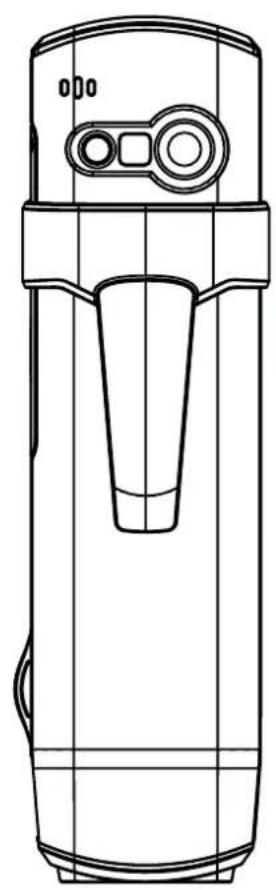
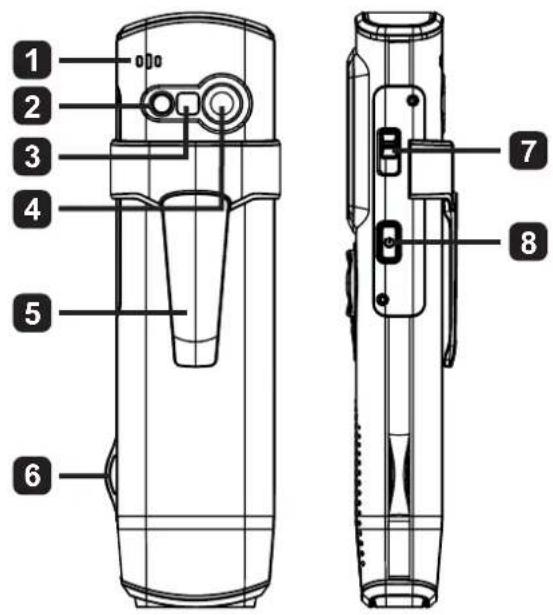
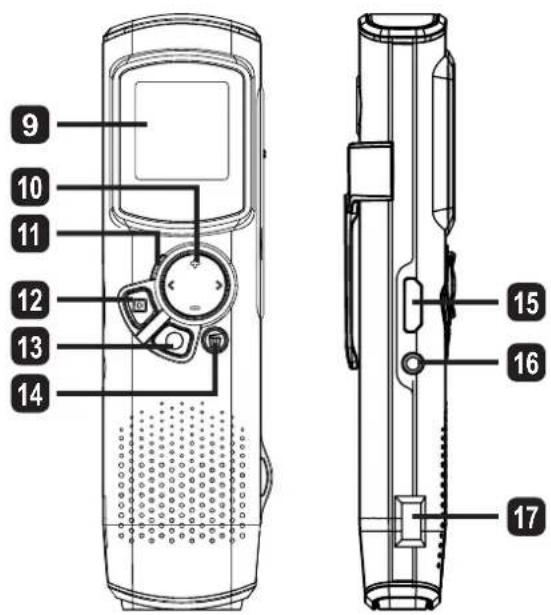
1 Microphone 2 Voyant LED/stroboscope 3 Miroir (pour autoportrait) 4 Objectif 5 Clip 6 Support de dragonne 7 Interrupteur de mode :
- Caméscope ( )
- Enregistreur vocal ( )
- Appareil photo ( )
8 Bouton d'alimentation ( ⏻
9 Écran OLED
10 Bouton directionnel (◀)
11 Voyant LED
12 Bouton de lecture ()
13 Bouton OK (Enregistrement/Déclencheur) ( )
14 Bouton Supprimer (
15 Sortie HDMI
16 Connecteur TV-out/écouteurs
17 Port USB
18 Connecteur trépied
Vue de dessous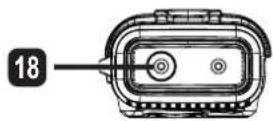
Fonctionnement du produit
Z
Présentation du produit
Ce caméscope numérique offre les caractéristiques suivantes :
- Conception ultra-mince et compacte de type stylo pour une mobilité et une liberté maximales • Résolution vidéo haute définition 1280 x 720 (720P) jusqu'à 30 images par seconde • Multifonctions : caméscope numérique, appareil photo numérique, enregistreur vocal
- Conception compacte de 2,84 cm (1,1") et écran OLED haute qualité économe en énergie • Photos fixes jusqu'à 5 mégapixels • Mémoire intégrée de 4 Go pour le stockage • Formats de fichiers pris en charge : MOV, JPEG et WAVE • Prise en charge de la connexion USB à un PC • Prise en charge de la sortie TV / HDMI / écouteurs
Chargement de la batterie
Lors de la première utilisation, veuillez charger la batterie lithium-polymère intégrée pendant au moins 8 heures.
1 Assurez-vous que le caméscope est éteint. Ensuite, insérez une extrémité du câble USB fourni dans le port USB du caméscope et l'autre extrémité dans un PC sous tension.
2 Le voyant LED s'allume en rouge pour indiquer que l'appareil est en charge.
3 Le voyant LED s'éteint si la charge est interrompue ou terminée.
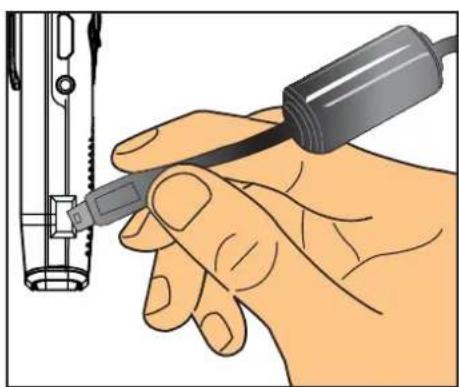
Remarque : lors de l'utilisation d'un PC pour charger la batterie, n'allumez pas le caméscope, sinon la charge s'arrêtera.
Mise sous tension / hors tension
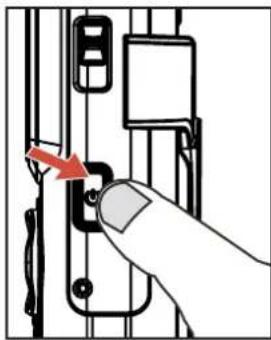
Maintenez le bouton Power enfoncé pendant 1 seconde pour allumer ou éteindre l'appareil.
Remarque :
1) Si le caméscope ne s'allume pas après avoir appuyé sur le bouton Power, rechargez d'abord la batterie. 2) Si un câble AV ou un connecteur d'écouteur est branché lors de la mise sous tension, vous serez invité à sélectionner une option de connexion.
Format d'affichage
En raison de la nature des écrans OLED, le format d'affichage des photos/vidéos sur le caméscope et sur le téléviseur/PC peut varier. Veuillez consulter le tableau suivant pour plus de détails.
| Mode 1.1” OLED display TV/PC display | |||
| Video (preview/recording) |  (1:1) (1:1) |  (16:9) (16:9) | |
| Video ( playback) |  (1:1) (1:1) |  (16:9) (16:9) | |
| Picture ( preview/snapshot) |  (1:1) (1:1) |  (4:3) (4:3) | |
| Picture ( playback) |  (1:1) (1:1) |  (4:3) (4:3) | |
Remarque :
Lors de la sortie vidéo sur un écran 4:3, l'affichage sera encadré par des zones noires en haut et en bas. Lors de l'affichage de photos sur un écran 16:9, l'affichage sera encadré par des zones noires à gauche et à droite.
Enregistrement / lecture d'une vidéo
Z
Pour enregistrer une vidéo :
1 Allumez le caméscope et passez en mode caméscope ( ). 2 Appuyez sur le bouton OK (Enregistrement) ( ) pour démarrer l'enregistrement. Utilisez le bouton directionnel haut/bas ( ◆ ) pour zoomer avant/arrière. 3 Pour arrêter l'enregistrement, appuyez à nouveau sur le bouton OK (Enregistrement) ( ).
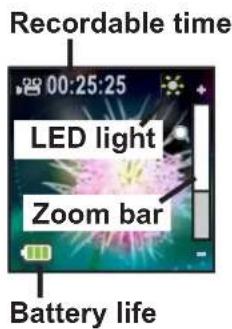
Remarque : Appuyez sur le bouton directionnel vers la droite pour activer la LED lorsque vous travaillez dans un environnement sombre.
Pour lire une vidéo :
En mode aperçu du caméscope, appuyez sur le bouton Lecture (▶) et la dernière vidéo enregistrée sera lue automatiquement. 2 Lorsque l'appareil est connecté à un téléviseur ou à des écouteurs, vous pouvez appuyer sur le bouton directionnel haut/bas (◀) pour régler le volume. Pendant la lecture, vous pouvez appuyer sur le bouton Lecture (▶) pour mettre en pause/reprendre la lecture vidéo. 3 Pendant la lecture, maintenez enfoncé le bouton directionnel gauche/droite (◀) pour rembobiner/avancer rapidement la vidéo. Appuyez brièvement sur gauche/droite (◀) pour passer d'un fichier vidéo à un autre. 4 Pour revenir au mode aperçu, appuyez sur le bouton OK ().
Remarque : Après avoir copié vos vidéos sur votre PC, vous pouvez les lire à l'aide du lecteur « Quicktime ».
Prendre/visionner une photo
Pour prendre une photo :
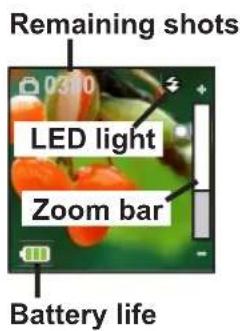
1 Allumez le caméscope et passez en mode caméra ( ). 2 Utilisez le bouton directionnel haut/bas (↙) pour zoomer/dézoomer. 3 Appuyez sur le bouton OK (déclencheur) () pour prendre une photo.
Remarque : Appuyez sur le bouton directionnel vers la droite pour activer le flash LED pour la prise de photos dans des environnements sombres.
Pour visionner une photo :
1 En mode aperçu de la caméra, appuyez sur le bouton Lecture ( ). 2 Utilisez le bouton directionnel gauche/droite (◀) pour sélectionner la photo que vous souhaitez visionner. 3 En mode lecture, vous pouvez zoomer/dézoomer en appuyant sur haut/bas (↗). Vous pouvez ensuite appuyer sur le bouton Lecture (▶) pour verrouiller le rapport et naviguer dans la photo à l'aide du bouton directionnel (◀). Appuyez à nouveau sur le bouton Lecture ( ) pour déverrouiller le rapport. 4 Pour revenir au mode aperçu, appuyez sur le bouton OK ().
Suppression de fichiers
1 Appuyez sur le bouton Lecture ( ) en mode aperçu. 2 Utilisez le bouton directionnel gauche/droite (◀) pour sélectionner le fichier à supprimer et appuyez sur le bouton Supprimer (💡). 3 Pour supprimer le fichier actuel :
Utilisez le bouton directionnel gauche/droite (◀) pour sélectionner « Oui » et appuyez sur le bouton Lecture (▶).
Pour supprimer tous les fichiers :
Utilisez le bouton directionnel gauche/droite (◀) pour sélectionner « Tous » et appuyez sur le bouton Lecture (▶). Ensuite, sélectionnez « Oui » et appuyez sur le bouton Lecture (▶) pour confirmer.
4 Pour quitter l'écran de suppression, appuyez sur le bouton Supprimer (📊).
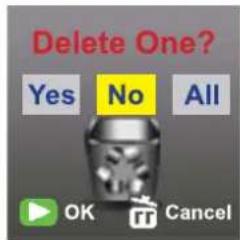
Supprimer des fichiers
Enregistreur vocal
Pour enregistrer un clip vocal :
1 Allumez le caméscope et passez en mode enregistreur vocal (☐). 2 Appuyez sur le bouton OK (Enregistrer) (●) pour démarrer l'enregistrement. 3 Appuyez à nouveau sur le bouton OK (Enregistrer) (●) pour arrêter l'enregistrement.
Pour écouter un clip vocal :
En mode enregistreur vocal, utilisez le bouton directionnel haut/bas (◀) pour sélectionner un fichier et appuyez sur le bouton Lecture (▶) pour le lire. 2 Pendant la lecture, vous pouvez utiliser le bouton directionnel haut/bas (◀) pour régler le volume ou appuyer sur Lecture (▶) pour mettre en pause/reprendre la lecture. 3 Pour passer à un autre fichier enregistré pendant la lecture, appuyez sur le bouton OK (●) pour revenir à la liste des fichiers. Le clip vocal continuera à jouer s'il n'est pas terminé. Ensuite, appuyez sur le bouton directionnel haut/bas (▲) pour sélectionner un autre clip enregistré et appuyez sur le bouton Lecture (▶).
Remarque :
Sélectionnez l'icône du casque après avoir branché le connecteur du casque.
Réglage de la connexion du casque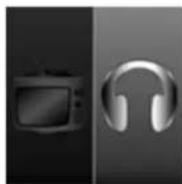
Pour supprimer un clip vocal :
1 En mode enregistreur vocal, utilisez le bouton directionnel haut/bas (◀) pour sélectionner le fichier que vous souhaitez supprimer. 2 Appuyez sur le bouton Supprimer (et suivez les instructions de la section "Suppression de fichiers - Étape 3".
Connexion PC
Lorsque le caméscope est allumé et connecté à un PC via le câble USB fourni, le système passe en mode esclave USB. La mémoire interne est alors traitée comme un disque amovible sur le PC, ce qui vous permet d'accéder aux fichiers stockés dans le caméscope.
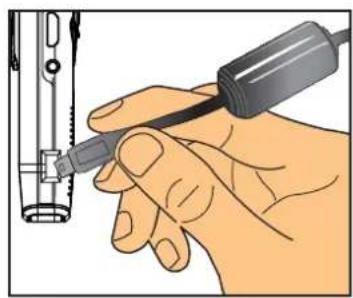
Connexion à un téléviseur standard et à un téléviseur HD
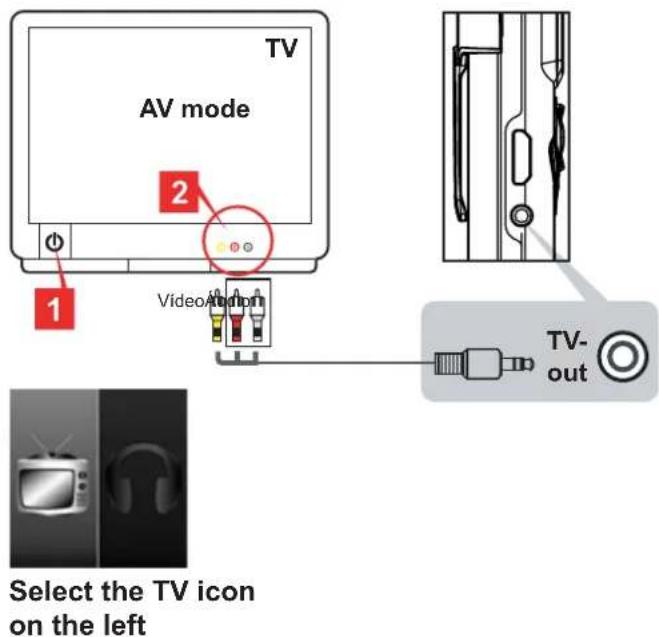
Connectez votre caméscope et votre téléviseur via le câble AV fourni pour un affichage en temps réel.
TV : téléviseur CRT traditionnel
1. Allumez votre téléviseur et passez en mode AV. 2. Connectez les extrémités audio et vidéo du câble AV au téléviseur. 3. Allumez le caméscope. 4. Connectez l'autre extrémité du câble AV à votre caméscope. 5. Sélectionnez l'icône TV et appuyez sur le bouton OK.
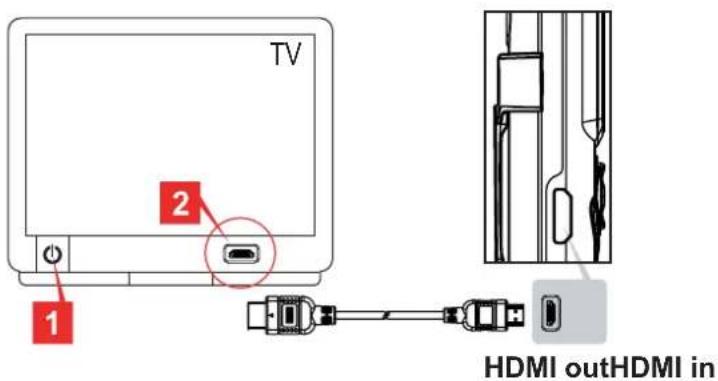
TV : HDTV avec port d'entrée HDMI
1. Allumez votre téléviseur HD. 2. Connectez le connecteur d'entrée HDMI (la plus grande extrémité) du câble HDMI au téléviseur HD. 3. Allumez le caméscope. 4. Connectez l'autre extrémité du câble HDMI à votre caméscope. 5. Mettez le téléviseur HD en mode "Entrée HDMI".
Addendum
Dépannage
| Problem Cause Solution | ||
| Q The camcorder is frozen and unresponsive. | A The camcorder has encountered a software failure. | S Press and hold down the power button to force a manual shut down to reset the camcorder. |
Indicateur de durée de vie de la batterie
| Icon Description | |
 | Full battery life |
 | Moderate battery life |
 | Low battery life* The LED light/strobe will be disabled. |
 | Empty battery life |
Remarque : Pour éviter une perte de puissance soudaine et inattendue, il est recommandé de recharger la batterie une fois que l'indicateur atteint "Faible".
Durée de vie de la batterie
| Still picture Video clip | |
| Number of shots Recording time | (minutes) |
| 310=125 | |
| * shoot every 30 seconds** alternate flash (CIPA standard test method)*** resolution set to 5M (2592x1944) | * resolution set to HD 30f (1280x720 ) |
Remarque : Ce tableau est fourni à titre de référence uniquement et est approximatif. La durée de vie réelle de la batterie peut varier légèrement en raison de nombreux facteurs, y compris le niveau de recharge.
Capacité de stockage
| Memory Video(HD30f 1280x720) | Still picture(5M) | Voice recorder(.WAV) | |
| 4GB 100 min 2357=83.7 hr | |||
Remarque : Ce tableau est fourni à titre de référence uniquement et est approximatif. La capacité réelle peut varier (jusqu'à ±30 %) en fonction de la complexité de votre sujet et de votre environnement.
Configuration système requise
| Video Resolution PC system requirements | |
| HD 30f (1280x720) @30fps | OS = Windows XP SP2, Vista or aboveCPU = Pentium 4 3.2GHz or aboveSystem RAM = 1GB (2GB recommended)Display card = 256MB of RAM |
Remarque : Il s'agit de la configuration système minimale recommandée. Les vidéos peuvent être visualisées et éditées sur des systèmes de spécifications inférieures, mais ces systèmes peuvent subir une diminution notable des performances.
Spécifications
| Item Specification | |
| Image Sensor=5 Mega-pixel | (2592x1944) |
| Resolution | Camcorder: HD 720P (1280x720)Camera: 5 Mega-pixel |
| File Format MOV, JPEG, WAV | |
| Video Frame Rate=HD 720P up to 30fps | |
| Internal Memory=4GB for storage | |
| LCD Display=2.8cm OLED (1.1") | |
| Lens=Fixed lens (F 3.0; f=7.15mm) | |
| Flash Light=LED Back Lighting Support | |
| Digital Zoom 3X | |
| Night Shot Mode Auto | |
| White Balance=Auto | |
| Voice Recorder=Yes | |
| Microphone Yes | |
| Speaker | None |
| TV out | HDMI-out / Composite AV-out (NTSC/PAL system supported) |
| Power Save Mode | 3 min. |
| Battery | Built-in Li-Polymer battery (950mAh) |
Remarque : Les spécifications sont sujettes à modification sans préavis.


- BIENVENUE
- AVERTISSEMENT DE SÉCURITÉ
- ÉVITEZ LES DOMMAGES AUDITIFS
- DÉCLARATION DE CONFORMITÉ FCC
- POUR COMMENCER
- PRÉSENTATION DU PRODUIT
- FONCTIONNEMENT DU PRODUIT
- Z
- CHARGEMENT DE LA BATTERIE
- MISE SOUS TENSION / HORS TENSION
- REMARQUE
- FORMAT D'AFFICHAGE
- ENREGISTREMENT / LECTURE D'UNE VIDÉO
- POUR ENREGISTRER UNE VIDÉO
- POUR LIRE UNE VIDÉO
- PRENDRE/VISIONNER UNE PHOTO
- POUR PRENDRE UNE PHOTO
- POUR VISIONNER UNE PHOTO
- SUPPRESSION DE FICHIERS
- POUR SUPPRIMER TOUS LES FICHIERS
- ENREGISTREUR VOCAL
- CONNEXION PC
- CONNEXION À UN TÉLÉVISEUR STANDARD ET À UN TÉLÉVISEUR HD
- TV : TÉLÉVISEUR CRT TRADITIONNEL
- TV : HDTV AVEC PORT D'ENTRÉE HDMI
- ADDENDUM
Marque : AIPTEK
Modèle : PenCam Trio HD
Catégorie : Caméscope