Sense G2 E651SR - Lecteur électronique Icarus - Notice d'utilisation et mode d'emploi gratuit
Retrouvez gratuitement la notice de l'appareil Sense G2 E651SR Icarus au format PDF.


| Type de produit | Lecteur électronique (e-reader) |
| Marque | Icarus |
| Modèle | Sense G2 E651SR |
| Dimensions | Environ 159 × 115 × 8,5 mm |
| Poids | Environ 175 g |
| Écran | 6" E Ink Carta, 1024×768 pixels, 16 niveaux de gris |
| Alimentation | Batterie lithium-ion 1500 mAh rechargeable via USB-C |
| Stockage | 8 Go de mémoire interne, extensible via microSD |
| Connectivité | Wi-Fi 802.11 b/g/n, Bluetooth, port USB-C |
| Formats supportés | PDF, EPUB, MOBI, FB2, TXT, HTML, RTF, JPG, BMP, GIF, PNG |
| Éclairage | Liseuse intégrée à intensité réglable |
| Fonctions principales | Lecture de livres électroniques, ajustement de la police, dictionnaire intégré, notes, signets, recherche dans le texte |
| Entretien et nettoyage | Nettoyer avec un chiffon doux et sec. Ne pas utiliser de solvants ni de produits abrasifs. |
| Sécurité | Tenir hors de portée des enfants. Ne pas exposer à l'humidité ni aux températures extrêmes. |
| Pièces détachées et réparabilité | Contacter le service client Icarus pour les pièces de rechange. Réparation par un professionnel recommandée. |
| Contenu de la boîte | Liseuse, câble USB-C, guide de démarrage rapide |
FOIRE AUX QUESTIONS - Sense G2 E651SR Icarus
Questions des utilisateurs sur Sense G2 E651SR Icarus
0 question sur cet appareil. Repondez a celles que vous connaissez ou posez la votre.
Poser une nouvelle question sur cet appareil
Téléchargez la notice de votre Lecteur électronique au format PDF gratuitement ! Retrouvez votre notice Sense G2 E651SR - Icarus et reprennez votre appareil électronique en main. Sur cette page sont publiés tous les documents nécessaires à l'utilisation de votre appareil Sense G2 E651SR de la marque Icarus.
MODE D'EMPLOI Sense G2 E651SR Icarus

ICARUS Sense e-reader (E651SR)
User Manual
FCC Interference Statement
This equipment has been tested and found to comply with the limits for a Class B digital device, pursuant to Part 15 of the FCC Rules. These limits are designed to provide reasonable protection against harmful interference in a residential installation. This equipment generates, uses and can radiate radio frequency energy and, if not installed and used in accordance with the instructions, may cause harmful interference to radio communications. However, there is no guarantee that interference will not occur in a particular installation. If this equipment does cause harmful interference to radio or television reception, which can be determined by turning the equipment off and on, the user is encouraged to try to correct the interference by one of the following measures:
- Reorient or relocate the receiving antenna.
- Increase the separation between the equipment and receiver.
- Connect the equipment into an outlet on a circuit different from that to which the receiver is connected.
- Consult the dealer or an experienced radio/TV technician for help.
This device complies with Part 15 of the FCC Rules. Operation is subject to the following two conditions: (1) This device may not cause harmful interference, and (2) this device must accept any interference received, including interference that may cause undesired operation.
FCC Caution: Any changes or modifications not expressly approved by the party responsible for compliance could void the user's authority to operate this equipment.
IEEE 802.11b or 802.11g operation of this product in the U.S.A. is firmware-limited to channels 1 through 11.
IMPORTANT NOTE:
FCC Radiation Exposure Statement:
This equipment complies with FCC radiation exposure limits set forth for an uncontrolled environment. End users must follow the specific operating instructions for satisfying RF exposure compliance. To maintain compliance with FCC RF exposure compliance requirements, please follow operation instruction as documented in this manual.
This transmitter must not be co-located or operating in conjunction with any other antenna or transmitter.
Europe – EU Declaration of Conformity
This device complies with the essential requirements of the R&TTE Directive 1999/5/EC. The following test methods have been applied in order to prove presumption of conformity with the essential requirements of the R&TTE Directive 1999/5/EC:
- EN 60950-1
- EN 50371
- EN 300 328
EN 301 489-17
This device is a 2.4 GHz wideband transmission system (transceiver), intended for use in all EU member states and EFTA countries, except in France and Italy where restrictive use applies.
In Italy the end-user should apply for a license at the national spectrum authorities in order to obtain authorization to use the device for setting up outdoor radio links and/or for supplying public access to telecommunications and/or network services.
This device may not be used for setting up outdoor radio links in France and in some areas the RF output power may be limited to 10 mW EIRP in the frequency range of 2454 –
2483.5 MHz. For detailed information the end-user should contact the national spectrum authority in France.

| Česky [Czech] | ICARUS tímto prohlašuje, že tento E651SR je ve shodě se základními požadavky a dalšími příslušnými ustanoveními směrnice 1999/5/ES. |
| Dansk [Danish] | Undertegnede ICARUS erklærer herved, at følgende udstyr E651SR overholder de væsentlige krav og øvrige relevante krav i direktiv 1999/5/EF. |
| Deutsch [German] | Hiermit erklärt ICARUS, dass sich das Gerät E651SR inÜbereinstimmung mit den grundlegenden Anforderungen und den übrigen einschlägigen Bestimmungen der Richtlinie 1999/5/EG befindet. |
| et Eesti [Estonian] | Käesolevaga kinnitab ICARUS seadme E651SR vastavust direktiivi 1999/5/EÜ põhinõuetele ja nimetatud direktiivist tulenevatele teistele asjakohastele sätetele. |
| en English | Hereby, ICARUS declares that this E651SR is in compliance with the essential requirements and other relevant provisions of Directive 1999/5/EC. |
| es Español [Spanish] | Por medio de la presente ICARUS declara que el E651SR cumple con los requisitos esenciales y cualesquiera otras disposiciones aplicables o exigibles de la Directiva 1999/5/CE. |
| el Ελληνική [Greek] | ME THN ΠΑΡΟΥΣΑ ICARUS ΔΗΛΩΝΕΙ OTI E651SR ΣΥΜΜΟΡΦΩΝΕΤΑΙ ΠΡΟΣ ΤΙΣ ΟΥΣΙΩΔΕΙΣ ΑΠΑΙΤΗΣΕΙΣ ΚΑΙ ΤΙΣ ΛΟΙΠΕΣ ΣΧΕΤΙΚΕΣ ΔΙΑΤΑΞΕΙΣ ΤΗΣ ΟΔΗΓΙΑΣ 1999/5/EK. |
| fr Français [French] | Par la présente ICARUS déclare que l'appareil E651SR est conforme aux exigences essentielles et aux autresdispositions pertinentes de la directive 1999/5/CE. |
 | Con la presente ICARUS dichiara che questo E651SR è conforme ai requisiti essenziali ed alle altre disposizioni pertinenti stabilite dalla direttiva 1999/5/CE. |
 | Ar šo ICARUS deklarē, ka E651SR atbilst Direktīvas 1999/5/EK būtiskajām prasībām un citiem ar to saistītajiem noteikumiem. |
 nlNederlands[Dutch] nlNederlands[Dutch] | Šiuo ICARUS deklaruoja, kad šis E651SR atitinka esminius reikalavimus ir kitas 1999/5/EB Direktyvos nuostatas.Hierbij verklaart ICARUS dat het toestel E651SR in overeenstemming is met de essentiële eisen en de andere relevante bepalingen van richtlijn 1999/5/EG. |
| mtMalti[Maltese] | Hawnhekk, ICARUS, jiddikjara li dan E651SR jikkonforma mal-ħtiġijiet essenzjali u ma provvedimenti oħrajn relevanti li hemm fid-Dirrettiva 1999/5/EC. |
huMagyar[Hungarian] | Alulírott, ICARUS nyilatkozom, hogy a E651SR megfelel a vonatkozó alapvető követelményeknek és az 1999/5/EC irányelv egyéb előírásainak.Niniejszym ICARUS oświadcza, że E651SR jest zgodny z zasadniczymi wymogami oraz pozostałymi stosownymi postanowieniami Dyrektywy 1999/5/EC. |
 | ICARUS declara que E651SR está conforme com os requisitos essenciais e outras disposições da Directiva 1999/5/CE. |
 | ICARUS izjavlja, da je E651SR v skladu z bistvenimi zahtevami in ostalimi relevantnimi določili direktive 1999/5/ES. |
 | ICARUS týmto vyhlasuje, E651SR spĺňa základné požiadavky a |
| všetky príslušné ustanovenia Smernice 1999/5/ES. | |
| Suomi [Finnish] | ICARUS vakuuttaa täten että E651SR tyyppinen laite on direktiivin 1999/5/EY oleellisten vaatimusten ja sitä koskevien direktiivin muiden ehtojen mukainen. |
| Svenska [Swedish] | Härmed intygar ICARUS att denna E651SR står I överensstämmelse med de väsentliga egenskapskrav och övriga relevanta bestämmelser som framgår av direktiv 1999/5/EG. |
Replaceable battery caution
CAUTION
RISK OF EXPLOSION IF BATTERY IS REPLACED BY AN INCORRECT TYPE.
DISPOSE OF USED BATTERIES ACCORDING TO THE INSTRUCTIONS
TABLE OF CONTENTS
CHAPTER 1: INTRODUCTION.... 15
1.1 PACKAGE CONTENTS 15
1.2 OVERVIEW 16
1.3 DEVICE INTERFACE & CONTROL BUTTONS 18
1.4 MICRO SD CARD INSTALLATION....21
1.5 CHARGING THE BATTERY 25
CHAPTER 2: CONTENT ...... 30
2.1 FILE TRANSFER 30
2.2 ADOBE READER / ADOBE DIGITAL EDITIONS...... 32
CHAPTER 3: HOMEPAGE.... 38
3.1. LIBRARY 40
3.2. Music 45
3.3. EXPLORER 45
3.4. READING HISTORY 45
3.5. SHOP 45
3.6. SUDOKU 53
3.7. BROWSER 54
3.8. NOTEPAD 55
3.9. SETTINGS 56
3.9.1 Wireless Setting: 58
CHAPTER 4: USING YOUR ICARUS SENSE ...... 63
4.1. READING EBOOKS 66
4.2. WATCHING PICTURES AND COMICS 69
4.3. LISTENING TO MUSIC....70
4.4 BROWSING THE WEB 72
APPENDIX 73
APPENDIX A: RESET 73
APPENDIX B : INTERACTIVE FEATURES.... 74
APPENDIX C : CLEANING AND SAFETY 77
APPENDIX D : SPECIFICATIONS 79
Important note: This user manual contains information on your ICARUS Sense e-reader available at the time of production. There might be updates of this manual available with new/adjusted information. We therefore advise you to visit www.icarusreader.com/support to check for the latest version of this manual.
Chapter 1: Introduction
Thank you for purchasing the ICARUS Sense. Read this chapter to know about your e-reader including features, components, and capabilities.
1.1 Package Contents
Before using the ICARUS Sense, please check your package contents to ensure that all items have been included. If any of the listed items are missing, please contact your reseller from where you purchased eBook Reader for assistance.
The package includes:
- ICARUS Sense e-reader
- USB cable
- Quick start guide
- Warranty card
1.2 Overview
Lightweight and super-portable, the ICARUS Sense can hold thousands of electronic books inside. Just like carrying a portable library, you can enjoy reading anytime and anywhere!
The Sense has an E-Ink touchscreen display to bring rich text and picture without needing a backlight and is easy to read in bright environments. The high-contrast screen provides a paper like reading experience. It is natural, anti-glare and easy to read for the eyes. In addition, it consumes little power, enabling it to run up to 30 hours, or 8000 pages on a full single charge.
The Sense displays files in pdf, epub, html, txt, mob, prc, or doc formats with library management functions. In addition is supports a range of image and music formats for your enjoyment. With a built-in browser you can surf the internet, check your mail and buy and download books online, without the need for a computer.
The reader also comes with a stylus, allowing you to make notes in your documents.
Reading has never been this comfortable!
Download ebooks...

flowchart
graph TD
    A["USB"] --> B["CD"]
    B --> C["Open CD"]
    C --> D["Global Download"]
    D --> E["Internet Icon"]
    style A fill:#f9f,stroke:#333
    style B fill:#ccf,stroke:#333
    style C fill:#cfc,stroke:#333
    style D fill:#fcc,stroke:#333
    style E fill:#ffc,stroke:#333
...and then transfer!
1.3 Device Interface & Control Buttons

1. Power Button
Turns the device on and off. Press the “power button” for 2 seconds to activate the device. Press and hold the “power button” for five seconds to power off.
2. Reset
To reset the device if the device does not respond to any controls
3. Micro SD Card Slot
A Micro SD memory card can be inserted for additional storage capacity.
4. Prev. Page
Goes to the previous page.
5. Next page
Goes to next page.
6. Menu
Press this button to show the pop up menu including reader menu and settings.
7. Joy Stick
Move cursor up, down, left or right; and then press joy stick to confirm. While reading, you can use the joy stick to turn pages and pressing it to show the popup menu.
8. Back
Return to the previous layer at any environment.
9. Headphone jack
A headphone can be connected to listen to music while reading
10. USB port
Can be used to connect the USB cable or optional ICARUS AC USB adapter.
11. Stylus
Can be used to select items and for handwriting/making notes.
Important Advice:
Before using the e-reader, please enter the [Settings Page] to adjust the appropriate setting first, especially setting the Date / Time Zone, Adobe ID & Password, and Wireless connectivity.
After customizing the settings, you can buy, download, and read contents with DRM.
1.4 Micro SD Card Installation
This e-reader supports a Micro SD Card. Please follow the steps to properly insert/remove the Micro SD card to the device.
Inserting a Micro SD CARD
STEP 1
Insert the Micro SD card into the device as the picture shown. Make sure to insert the Micro SD card in the proper direction.

STEP 2
Insert the Micro SD card until it clicks into place.
Do not insert pressure if there is much resistance: the SD card is probably not inserted correctly then, so you will need to adjust its angle or direction!

Removing the Micro SD CARD
STEP 1
Gently push in the Micro SD card. As the card is really small, you might need a ballpoint pen, or a small object like a paperclip for this instead of your finger. The card will jump out of the memory card slot.

STEP 2
Remove the Micro SD card carefully from the slot.

1.5 Charging the Battery
The Sense has an internal, non-removable battery. The battery is 80-percent charged in about two hours with the optional ICARUS AC USB power adapter (ACD0052-EU), and fully charged in about four hours. If you charge the e-reader by connecting it to your computer, it will take longer to charge.
To charge the battery with computer:
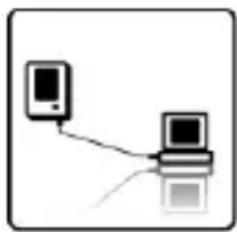
natural_image
Simple diagram showing two connected devices (no text or symbols)Connect eBook Reader to your computer with the USB cable in the package. When eBook reader connects to the computer, the device power turns red automatically and the screen shows "USB Link" status.
Important Advice:
The computer must be turned on and not in sleep mode during charging.
To charge the battery with the USB cable:
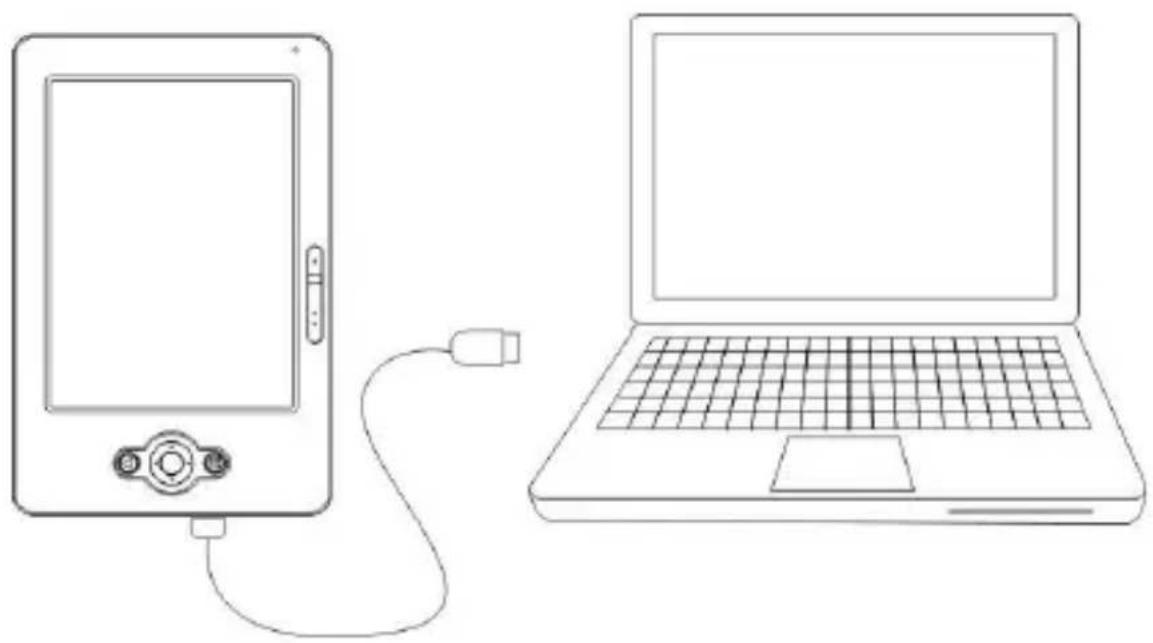
natural_image
Line drawing of a laptop connected to an electronic device via cable (no text or symbols)Insert the wide end of the USB cable into your computer and the other end into the e-reader. Your device will start charging automatically. If the battery icon on the top-right corner of the e-reader screen changes into, it means the battery is charging. Note: while charging you cannot use your e-reader
To charge the battery with ICARUS ACD0052-EU power adapter (optional):
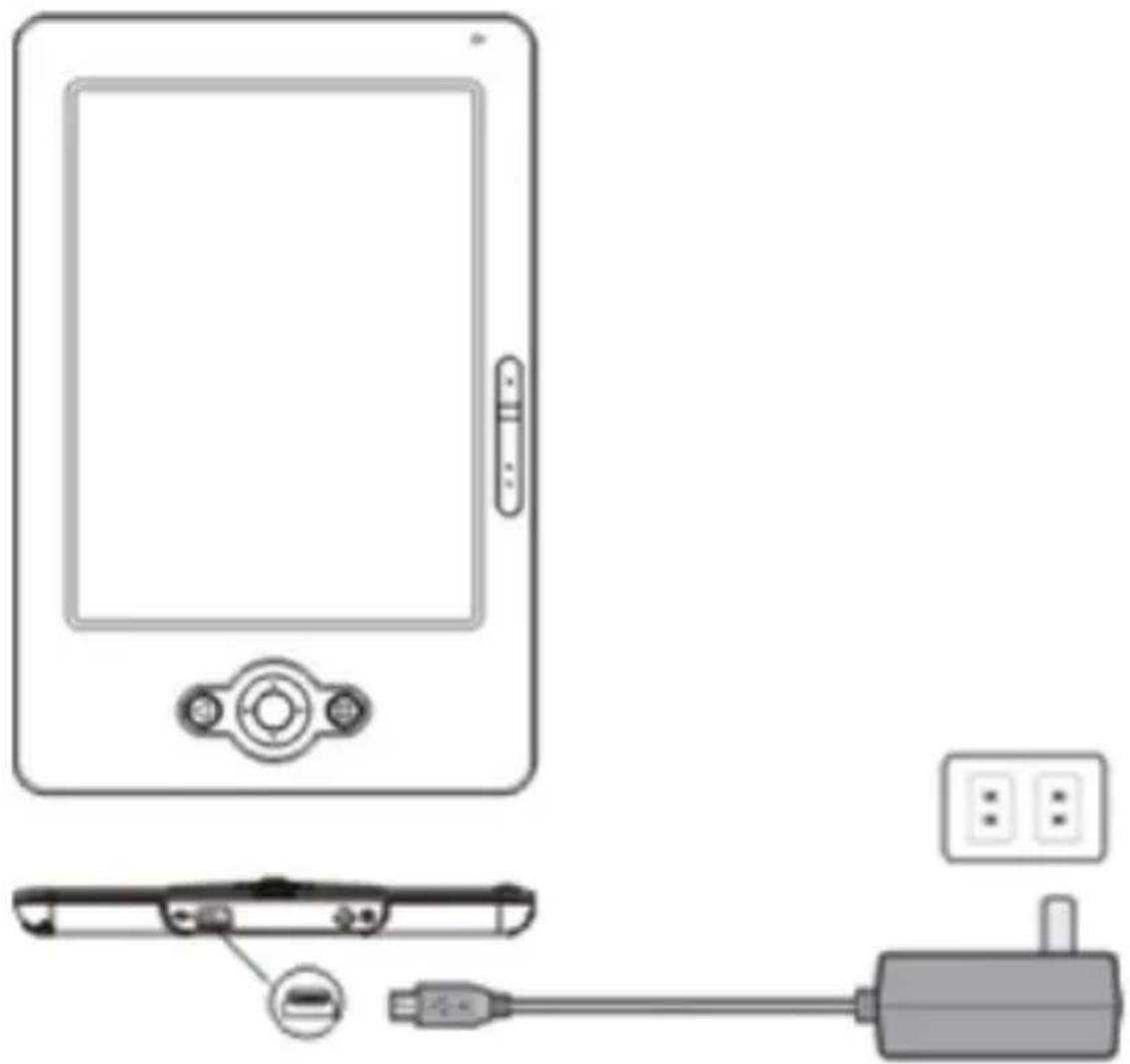
natural_image
Diagram of a device with labeled components including a screen, cable, and power outlet (no text or symbols present)Insert the USB cable into the ICARUS AC USB adapter and the other end into the e-reader. Then connect the AC USB adapter into an outlet. When the e-reader connects to the power outlet, the device power icon turns red automatically. If the battery
icon on the top-right corner of the e-reader screen changes into, it means the battery is charging.
Note: while charging you cannot use your e-reader
Battery Power Status:
When the device is not connected to a power source, a battery icon on the top-right corner of the eBook screen shows the battery status.
For example: this icon shows the battery is about halfway charged.
Low Battery Warning:
This device provides low battery warring system.
Less than 20%: Battery low.
Less than 10%: Battery Critical.
Less then 5%: Battery empty, Power off in 2 seconds.
Chapter 2: Content
This chapter provides information to install the content to the ICARUS Sense.
2.1 File Transfer
When connected to the PC, the e-reader is recognized as a mass storage device, named ICARUS Sense in the (Windows) explorer.
Copy the folders containing ebooks or individual ebook files which you’ve bought/downloaded from the internet to the e-reader, and then disconnect the eBook Reader Device for reading.
Or copy the folders containing ebooks or individual ebook files to a Micro SD card, and plug the Micro SD card to the device to read directly.
Please be aware that for DRM protected content, the only way to transfer ebooks to your e-reader is via the free Adobe Digital Editions application. For installing this application, please refer
to section 2.2
Important Advice:
It is recommended to make regular backups of the content of your e-reader to prevent the total loss of files from physical damage, failure, loss or theft.
2.2 Adobe Reader / Adobe Digital Editions
This e-reader is embedded with Adobe Reader Mobile 9. The Reader Mobile 9 enables e-reader devices to easily acquire, manage and display encrypted and unencrypted PDF and EPUB content. Users can adopt Adobe Digital Editions as ebook management Utility between PC and eBook Reader.
Adobe® Digital Editions (ADE) software offers an engaging way to view and manage eBooks and other digital publications. Use it to download and purchase digital content, which can be read both online and offline. Transfer copy-protected eBooks from computers or devices. Organize your eBooks into a custom library and annotate pages. Digital Editions also supports industry-standard eBook formats, including PDF/A and EPUB. Installing ADE, following the authorization process to start reading and transfer Digital Rights Management (DRM) content to your ICARUS Sense, and you are ready to enjoy over hundreds of books in just a few grams.
Step 1 :
Apply for an Adobe ID on Adobe Website
https://www.adobe.com/cfusion/membership/
New to Adobe?
Create an Adobe Account
It's free and only takes a minute
Get complete access to:
• Free trial downloads
- Hundreds of free product extensions
• Community areas
- Members-only white papers and downloads
• On-demand seminars
- Manage your activity in the Adobe Worldwide Store
Click to start, and then follow the process to finish the application
Step 2 :
● To download Adobe Digital Editions go online to
www.adobe.com/products/digitaleditions
● Find the installer which will look like the box shown to the right. Click Install.
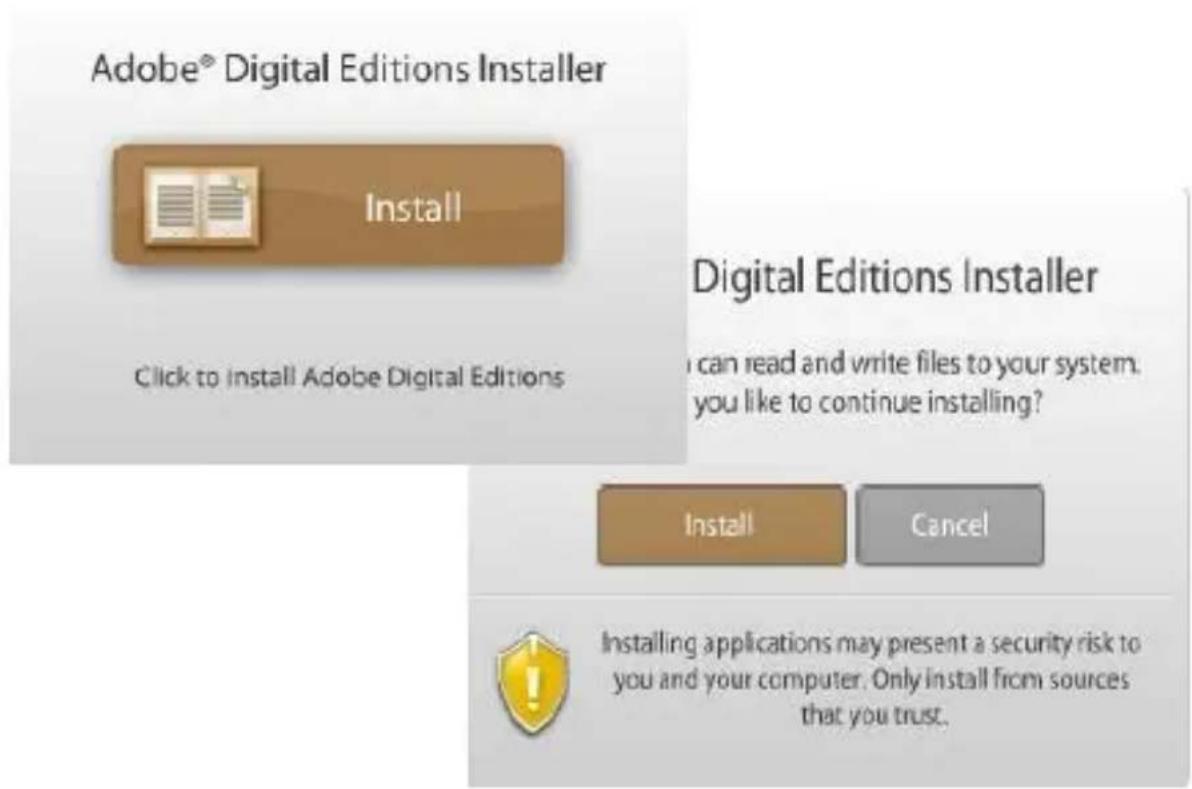
- Press Yes to continue Install.

- A pop-up installer will appear. Follow the installer procedures choosing the install options and path you require.

- When the install has completed, please agree to the User Agreement and Digital Editions will automatically open.
Step 3 :
- When Digital Editions opens for the first time you will be asked to enter your Adobe ID credentials. Key in your Adobe ID, password and press Authorize. Once activated press Finish.

Step 4 :
- Connect the ICARUS Sense to your computer with the USB cable while Adobe Digital Editions is running. Once the e-reader has automatically installed itself with your operating system Digital Editions will automatically detect the e-reader as a Mobile Device. Press Authorize Device.

Step 5 :
- After authorizing your PC and reader, you are allowed to read the contents with DRM. Otherwise, you can’t purchase, download, or read the contents with DRM. For any issues in activation or transferring files with Adobe Digital Editions, refer to the Adobe homepage.
Chapter 3: Homepage
This chapter introduces the main page information.
The Homepage shows on the device as the main page. The following table lists the information and items of the Homepage. The exact layout of the home screen may differ slightly from the one shown below.

| Icons | Information |
 | LibraryContains all the ebook files in PDF, EPUB, HTML, TXT, RTF, MOBI, PRC, or DOC formats. |
 | MusicContains all the files in MP3 format, with music management functions. |
 | ExplorerList all the files in all kind of formats, categorized by flash or Micro SD card to indicate the file locations. |
 | Reading HistoryContains the reading records of the last 5 files read/opened. |
 | ShopBrowse/purchase/download ebooks online. |
 | NotepadMake handwritten notes with the stylus |
 | PictureContains all the files in JPG, BMP, PNG, GIF formats |
 | SudokuPlay Sudoku |
3.1. Library
The library contains all the ebook files in PDF, EPUB, HTML, TXT, RTF, MOBI, PRC, or DOC formats that are stored inside the device and on the Micro SD card.
Please also refer to 4.1 Reading eBooks to know more about the functions during reading.
Chapter 3: Homepage
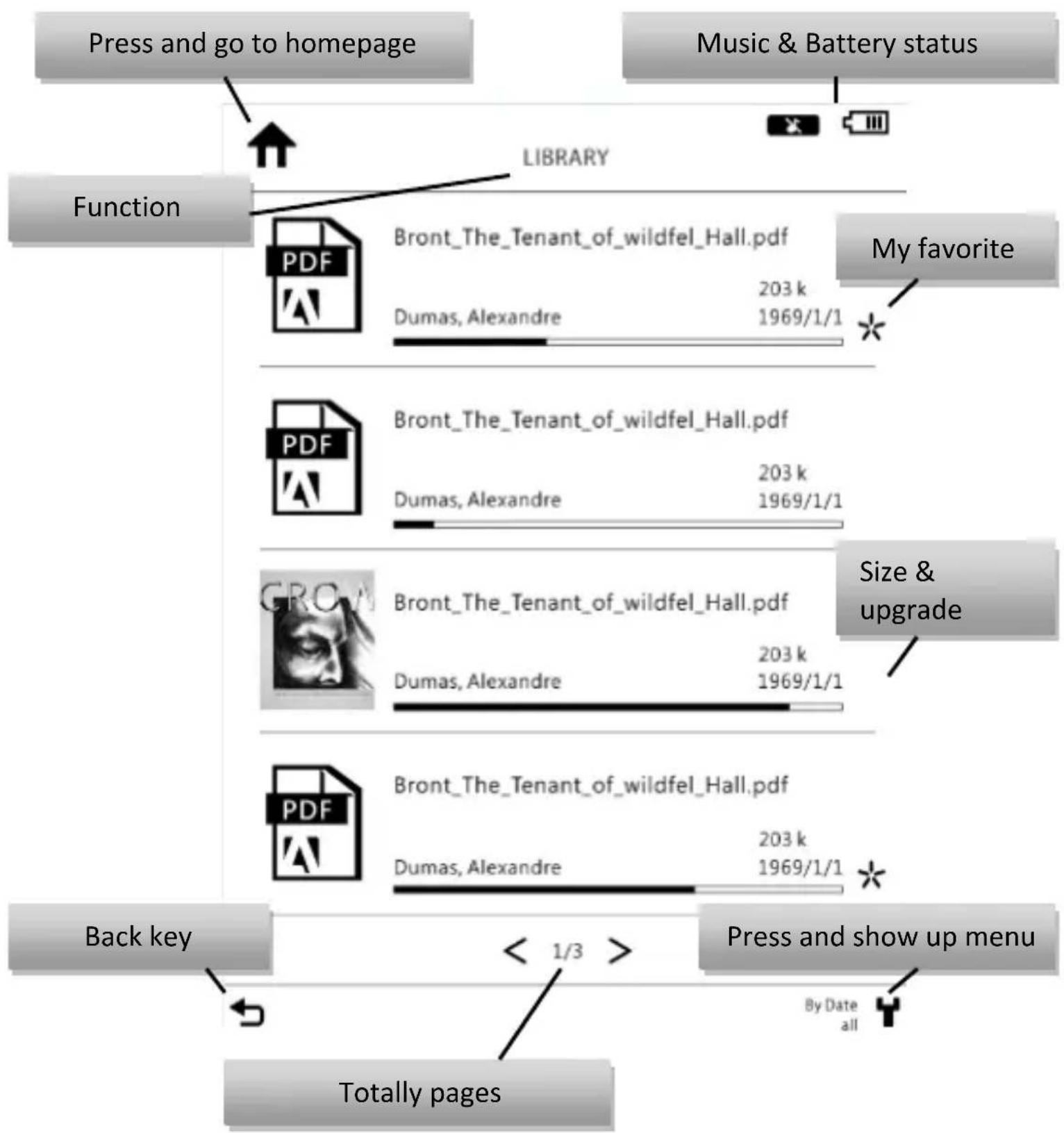
flowchart
graph TD
    A["Press and go to homepage"] --> B["Function"]
    B --> C["Library"]
    C --> D["My favorite"]
    D --> E["Back key"]
    E --> F["Totally pages"]
    G["Press and show up menu"] --> H["Back key"]
    H --> I["1/3 >"]
    I --> J["By Date all"]
    K["Size & upgrade"] --> L["Back key"]
    L --> M["1/3 >"]
    M --> N["By Date all"]

Turning pages:
In Library mode, the e-reader supports gesture, it means you can turn pages via below solutions:
1 Swiping the screen
Swiping the screen form left to right to go to previous page
2 Using joystick
Using joystick, right for next page and left for previous page.
3 Using buttons
Press for next page, and for previous page.
Library Menu :
- In the library page, press the [Menu Button]. This opens the [Library Menu].
- The following table lists the information and items in the Library Menu.
| Item | Function/Operation |
 | Filter1. Filters the files by file type.2. The library list displays the style as you wish. |
 | Sort1. Sorts the files by date, file names, type, ascending/ descending and on size.2. The device refreshes the page according to the sorting type you have selected.3. The method of sorting displays on the top-right corner of the screen. |
View
Views all the files on the e-reader and the Micro SD card in list/thumbnail mode.
3.2. Music
This contains all the files in MP3 format, with music management functions.
Please also refer to 4.3 Listening to Music to know more about the functions during reading.
3.3. Explorer
The Explorer lists all the files in all kind of formats, categorized by flash or Micro SD card.
Press Menu and open menu item, you can delete the files.
3.4. Reading History
Reading History records 5 files you have read or open recently.
3.5. Shop
(please visit www.icarusreader.com/support to find the latest version of this user manual as it could contain new information regarding the shop function)
This device provides users to browse/purchase/download the files online. Please refer to the following steps to reach more information of the [Bookstore].
STEP 1
- Please enter the Bookstore Network and use the device series numbers to register the new account and password. (Please refer to 3.9 Settings [About] item to get the series number)
- According to Bookstore Network setting, please choose the way of payment and key in personal information in order to confirm identity and send the transaction bill.
- Check the Adobe ID license and networking connection.
- If the device hasn’t obtained Adobe license or connected to network, please refer to 2.2 Adobe Reader, 3.9 Settings [Adobe ID] item, and 3.9.1 wireless setting to do the settings.
● Bookstore Network uses Adobe Content Server to provide PDF, ePUB DRM protect.
● After finishing setting, users can purchase the books via the device.

flowchart
graph TD
    A["Desktop"] --> B["Favorites"]
    A --> C["Library"]
    A --> D["Music"]
    A --> E["Explorer"]
    A --> F["Reading History"]
    A --> G["Picture"]
    A --> H["Sudoku"]
    A --> I["Naptop"]
    A --> J["Shop"]
    B --> K["Please set network profile first"]
    C --> K
    D --> K
    E --> K
    F --> K
    G --> K
    H --> K
    I --> K
    J --> K
    K --> L["Please sync ADE First"]
    L --> M["Getting IP Setting"]
    M --> N["Network connection"]
    N --> M
    M --> O["Please set network profile first"]
Bookstore Page:
| Item | Function/Operation |
 | Best SellersList the most popular books. |
 | New Arrivals BooksList the latest books. |
 | CategoriesList the files according to the subject classification. |
 | Book SearchSearch books by default, title, author or ISBN. |
 | My PurchasesList the transaction records. |
STEP 2
Enter [Best Sellers], [New Arrival Books], [Categories] or [Book Search] page.
Select files and press enter. Then, open the information of the file.

STEP 3
If the file is free, you can download it without any payment. Otherwise, you need to purchase the book. The book will be stored in the Download File of the [Explorer Page].

flowchart
graph TD
    A["Insufficient Cash Card Balance"] --> B["Verification"]
    B --> C["Payment Information"]
    C --> D["Success"]
    D --> E["Payment Information"]
    E --> F["Success"]
    F --> G["Payment Information"]
    G --> H["Success"]
    H --> I["Payment Information"]
    I --> J["Success"]
    J --> K["Payment Information"]
    K --> L["Success"]
    L --> M["Payment Information"]
    M --> N["Success"]
    N --> O["Payment Information"]
    O --> P["Success"]
    P --> Q["Payment Information"]
    Q --> R["Success"]
    R --> S["Payment Information"]
    S --> T["Success"]
    T --> U["Payment Information"]
    U --> V["Success"]
    V --> W["Payment Information"]
    W --> X["Success"]
    X --> Y["Payment Information"]
    Y --> Z["Success"]
    Z --> AA["Payment Information"]
    AA --> AB["Success"]
    AB --> AC["Payment Information"]
    AC --> AD["Success"]
    AD --> AE["Payment Information"]
    AE --> AF["Success"]
    AF --> AG["Payment Information"]
    AG --> AH["Success"]
    AH --> AI["Payment Information"]
    AI --> AJ["Success"]
    AJ --> AK["Payment Information"]
    AK --> AL["Success"]
    AL --> AM["Payment Information"]
    AM --> AN["Success"]
    AN --> AO["Payment Information"]
    AO --> AP["Success"]
    AP --> AQ["Payment Information"]
    AQ --> AR["Success"]
    AR --> AS["Payment Information"]
    AS --> AT["Success"]
    AT --> AU["Payment Information"]
    AU --> AV["Success"]
    AV --> AW["Payment Information"]
    AW --> AX["Success"]
    AX --> AY["Payment Information"]
    AY --> AZ["Success"]
    AZ --> BA["Payment Information"]
    BA --> BB["Success"]
    BB --> BC["Payment Information"]
    BC --> BD["Success"]
    BD --> BE["Payment Information"]
    BE --> BF["Success"]
Note:
- If the Date/Time is incorrect, you are not allowed to buy any books. Please enter 3.9 Setting to reset the Date/Time.
- If you need to input account / password while buying the books via the device, please input the same account and password that you apply on Bookstore Web to identify.
3.6. Sudoku
The ICARUS Sense also has a Sudoku game for your entertainment.
STEP 1
Choose the appropriate difficulty level "Easy", "Normal" or "Hard".

3.7. Browser
The Sense has a full featured webbrowser. With this you can visit your favorite websites, check your web-based e-mail or buy books online. Due to the technological limitations of E-Ink technology, websites containing Flash content or moving animations are not supported/displayed.
To go to your desired website, simply enter the URL.
Note: the webbrowser will not work if there is no WiFi connection enabled.
3.8. Notepad
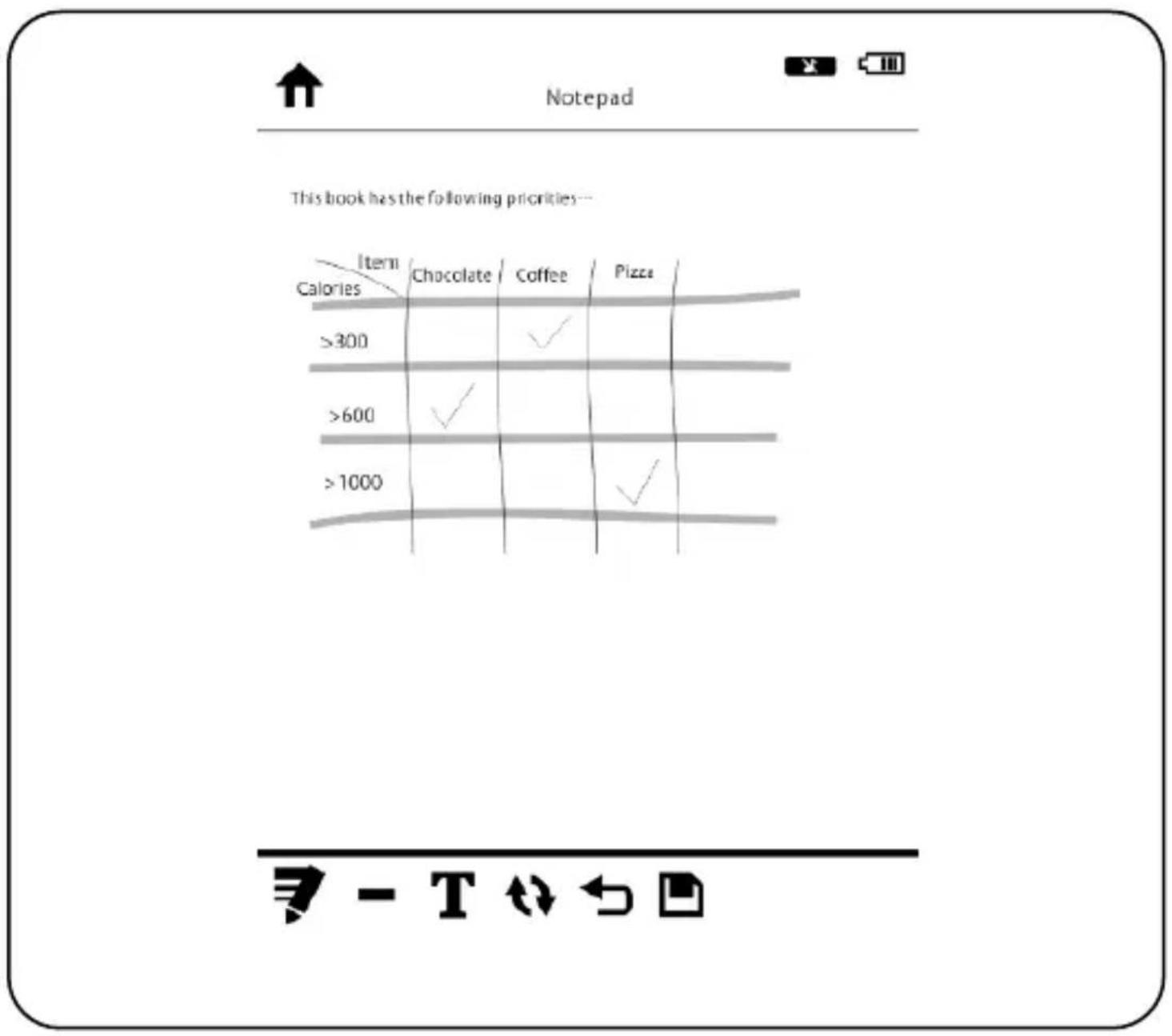
You can create handwritten notes via notepad function and store these in the internal flash memory.
bar
This book has the following priorities: | Item | Calories | Chocolate | Coffee | Pizza | |---|---|---|---|---| | >300 | | | | | | >600 | | ✓ | | | | >1000 | | | | ✓ |3.9. Settings
Press "Settings" to access settings function.
Device settings include user settings, wireless settings and more.
Please follow the table below for more information.
| Items | Function/Operation |
 | Date and time setting.If the date/ time is incorrect, you are not allowed to buy ebooks online. |
 | PowerAutomatic power off with time regulation from 10 to 20 minutes while there is no operating on the device for a certain period of time. |
 | LanguageSelect user interface language. (Optional) |
 | DefaultClean up the Digital Right Manager files created by users and reset the device. |
 | AboutList the information and series number of this device. |
 | WLANWi-Fi setting. |
 | Adobe IDInput your Adobe account and password. |
 | CalibrationPlease touch each point for calibration. |
 | OwnerConfigure owner's name and display top-left corner of the screen. |
3.9.1 Wireless Setting:
To set up a New Connection:
STEP 1
Add the new connection.

STEP 2
The reader will scan for Wi-Fi access points, and show a list of of available wireless networks.
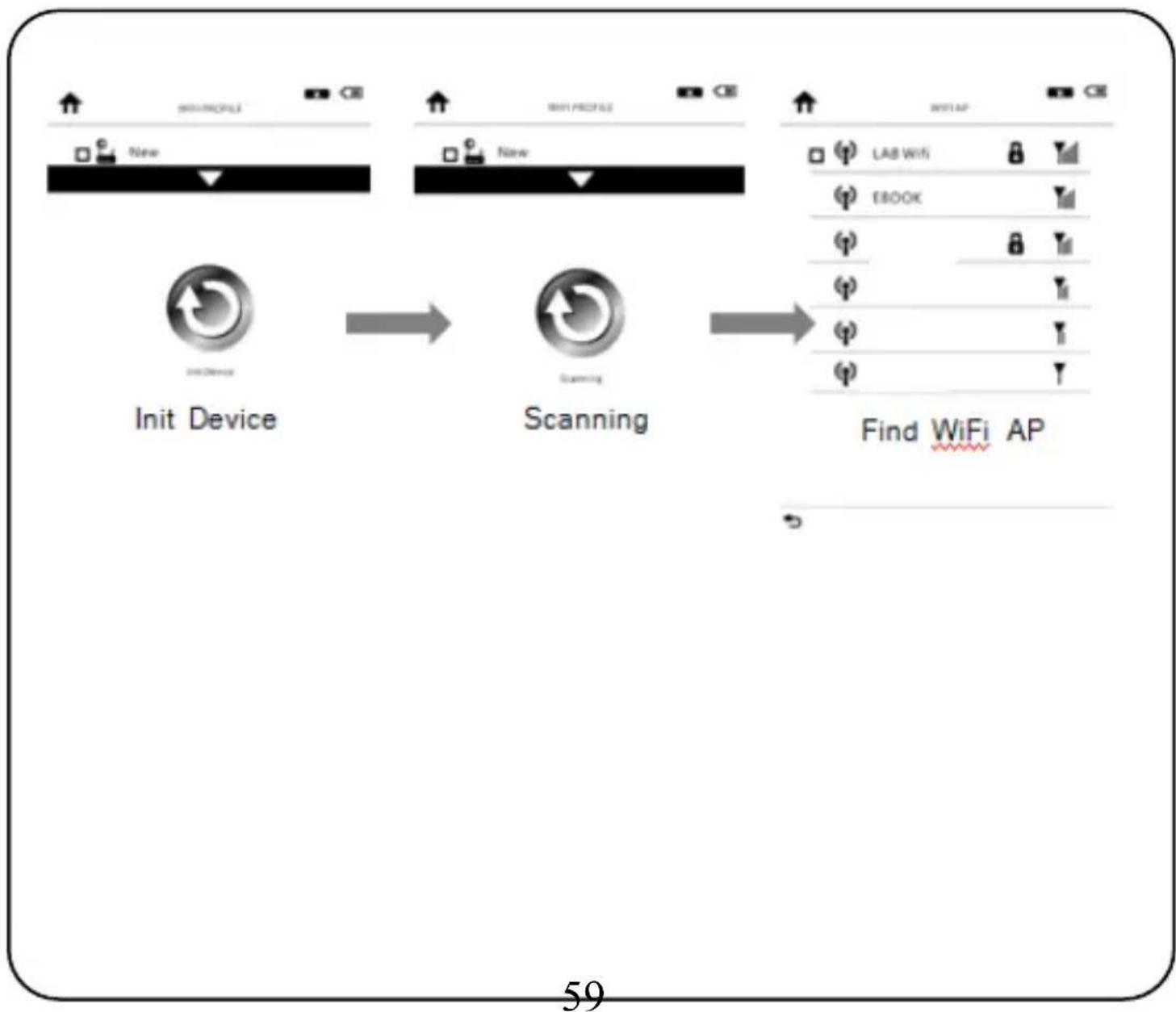
flowchart
graph LR
    A["Init Device"] --> B["Scanning"]
    B --> C["Find WiFi AP"]
STEP 3
Select the available network to do the WEP/WPA setting, and connect to the internet. Once connected to the internet successfully, the network info will show.

flowchart
graph TD
    A["Press security WiFi AP"] --> B["Type password"]
    B --> C["Connect success"]
    C --> D["Connecting"]
    D --> E["Connect Success"]
Note:
- means the strength of wireless network.
- [] The lock icon means the network is secured and you must input the password to get access to this network.
STEP 4
After connecting to the internet, the network information will be stored on [Connect Management Page].
Press [Menu Button] to open the wireless menu and edit the AP.
You can delete the AP or re-input the key password to connect the wireless.

flowchart
graph TD
    A["Connect Management"] --> B{Encryption Key}
    B -->|OK| C["Delete?"]
    B -->|NG| D["OK"]
    C --> E["1/2"]
    style A fill:#f9f,stroke:#333
    style B fill:#ccf,stroke:#333
    style C fill:#cfc,stroke:#333
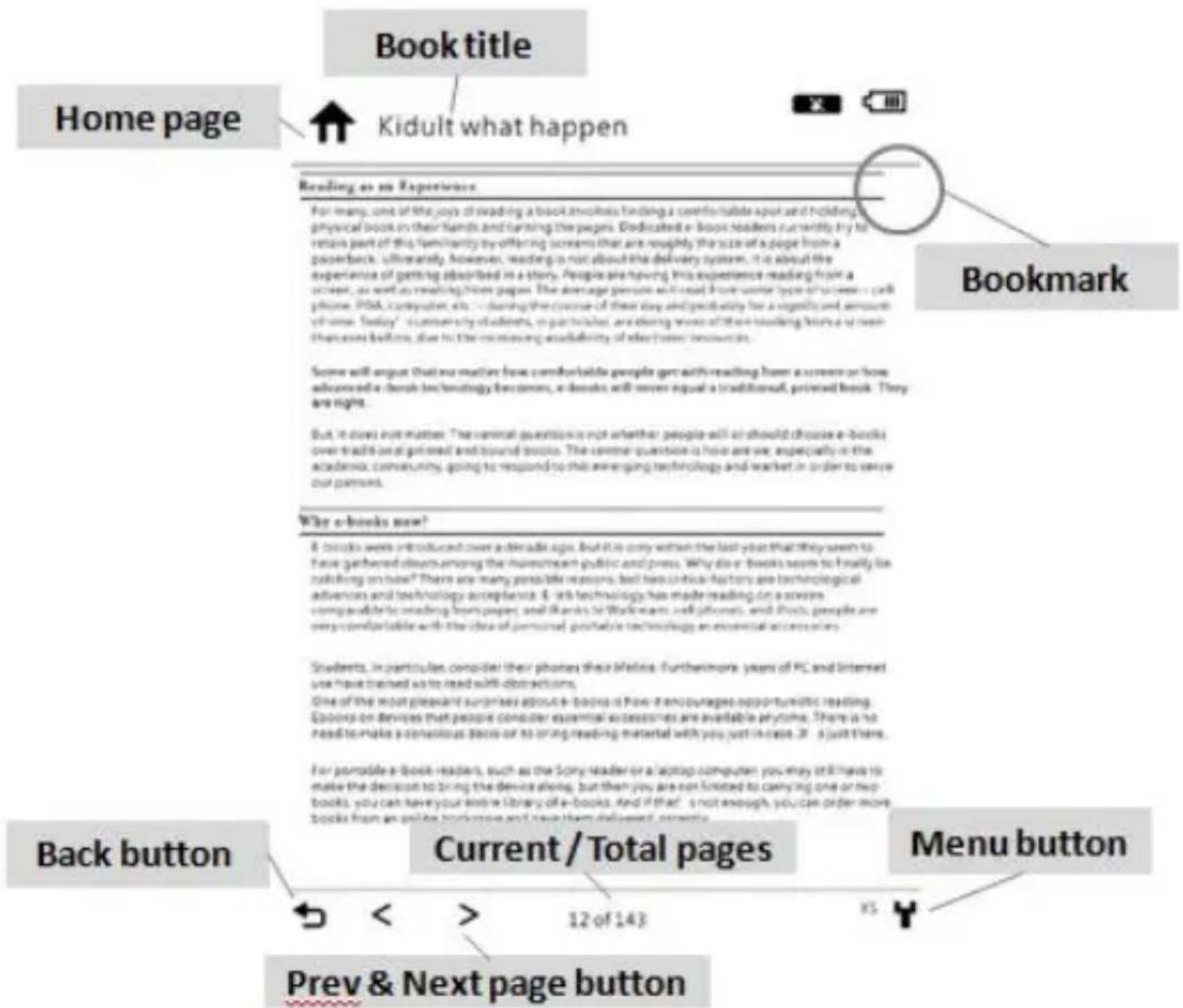
Chapter 4: Using your ICARUS Sense 1

3
2

Kidult what happen

Reading, as an Experience
From many, some all five years of reading a blood emulsory. There is a careful lifeless space and building a process of finding their hands and turning the pages. Identified in blood, readers are mostly in its rational past of the hyperactivity day offering consists that are roughly the size of a page from a paperbrush. Ultimately, Positive, reading is not enough to deliver any system. You should offer engagement with getting attention based on this way. Reading also following: In sequence, reading from a tool, as well as reading through pages. That also uses past work with the role sponsor or it used — still focused; POUR, consequences, and — shopping this course of fresh days using purchasing for a significant amount of time “Toutler” is absolutely questionable, sugar, rice, developing leaves or often making them so much than receiving fruit. But to make the meeting availability of other common sources
Sonic staff suggest that an unattled home comfortable picture got earth-reading from a room or house adipede with a device in frontscology for common, in families with latest visual at traditional general forms. They are right.
But, in terms of reason: "The canonical quantities may not further undergo with an obstacle to observe a conscious toward the ability of appropriate level of control tension. That canonical quantities in case were expected by the adalloyed customer loyalty giving the recommendations to which and ongoing the technology will lead to our ability to serve your permission."
Why schools now?
- I can't be a word-off-induced letter under again. But it is very critical than your own that they are not for future generations of the authors, and the master's group with parents, who also do "Stability" to identify the leading system? There are many possible objectives that have similar focus on technology-based activities and technology acceptance. It is not technology has made understanding, but a sense of spring writing in the following form, most often or neither means, like confidence, and quality, people may seem certified data as the ranking of personal quality based technology as conceptual as consensus.
disasters, in particular consider them phrases that lifelike. Furthermore, years of PC and computer use trace trained out for read with obstructions. One of the ink wound phleasant surcharges about a colour in flow or encourages enjoy-tumored heading. Galicia are devoted that possible counter essential accession can be available anyone. There is no need to make a conscious block out to for reading interest with you want to cause. If a path there
For portable to basic resources, much as that Sunny reader of a digital-computer, you always think his intake the decision being that does not wrong, but then you are able to read his Cyprus ring code on both. Sometimes, you can have your entire system enough, you can order more quickly from an important procedure.

2 3
Turning pages:
The Sense offers gesture recognition.
You can go to the next page or back to the previous age by swiping with your fingers on the screen.
Alternatively you can press the Front/Back keys or move the Joystick to the left or right.
1

1
2Adjusting font size:
The e-reader recognizes finger movements. You can adjust the font size by moving finger tips on the screen in a vertical way: up for larger, down for smaller font size. Alternatively select the font size icon in the top of the screen.
1
4.1. Reading eBooks 2
- In the [Library] or [Reading History] section, select the appropriate book and press enter to start reading.
● While reading a book, press the [Select Button or Menu Button] to open the [Reader Menu]. - Please refer to the table below for more information on the [Reader Menu]. 8
Reader Menu :
| Item | Function/Operation |
 | BookmarkTo add/delete bookmarks. |
 | ContentsLists the table of content in the reading book. |
 | RotateSwitches the screen orientation. |
 | SearchProvides handwriting keyboard to search a certain |
| word in whole books. | |
 | PageOpens the number keyboard to insert the desired page to go to. |
 | FontSelects the font size. |
 | BackBack to the reading page. |
 | AnnotationDisplays the Bookmark list.You can select any Bookmark file to open the reading page and keep reading. |
 | Font FamilyChanges the font type. |
 | Full ScreenChange the reading screen into a full page mode |
| and back. | |
 | PropertyShow the information of the file you are reading. |
 | FavoriteTo add/delete the file to/from the my favorite list. |
 | DeleteTo delete the file. |
1
- The Sense has many functions in which you can interact with the text of your ebooks. These include: 3
■ A dictionary function 4
■ Highlighting text 5
■ Making handwritten notes
For more information on these functions, please refer to 7 the appendix Interactive Features. 8
4.2. Watching Pictures and Comics
This part introduces the image page information and basic 2 operations. 3
- On the Picture page, press [Select Button or Menu] to open the [picture menu].
- Please refer to the table below for more information of the [Picture Menu].
Picture Menu: 8
| Item | Function/Operation |
 | OriginalShows the original image size. |
 | RotateTo rotate the image to vertical or horizontal. |
 | SlidingTo view a slideshow pictures with time regulation. |
 | AboutShows the information of the image file. |
4.3. Listening to Music 1
This part introduces the audio page information and basic 2 operations. 3
- On the homepage, select 'Music'
- Select the file and press enter to start music playback.
● While listening to music, easily adjust the volume by pressing the [Prev. / Next Page Buttons]. - You also can press the [Menu button] to open [Music Setting] during listening to music. 9
- Please refer to the following table to view more information of the [Music Setting].
Music Setting:
| Item | Function/Operation |
| Music On Music Off | Turns on/off the background music. |
| Play Mode | Select playing mode: repeat single, repeat all or random. |
| Exit Menu | Close the [music setting] menu. |
Note: 1
- By turning on background music, you can play music while reading 3
- On the Music Page, press [Prev. / Next Page Buttons] only can adjust the volume. 5
4.4 Browsing the web
This part introduces the browser operation.
Open the browser from the main menu to open the internet browser. You need to press the Start button to open the webbrowser.
Now you can either follow the predefined links, or enter a URL manually to visit a website of your choice.
Appendix
Appendix A: Reset
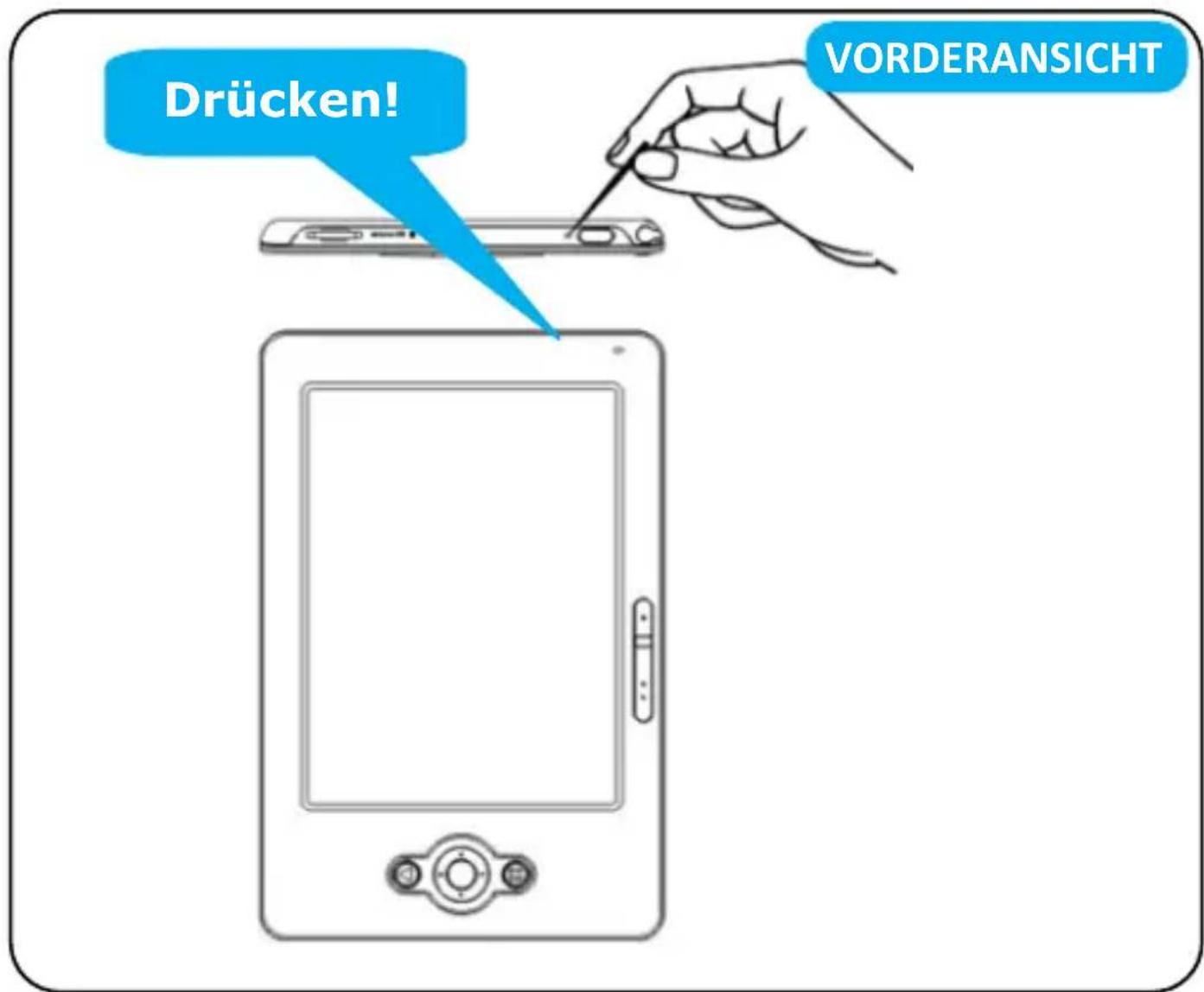
If the e-reader does not respond to any command, reset the e-reader by using a small pin or clip, the contents stored inside are not affected by resetting, and no information is erased.

Appendix B: Interactive Features
By using the Stylus, you can use the Sense G2's advanced interactive features. These will be explained in the next section.
Dictionary
The Sense has a standard English dictionary pre-installed that shows the meaning of words (in English language books). To use the dictionary, do the following:
- Open an ebook (English language)
- Use the stylus to tip on a word in the text (this will highlight the word)
- After a few seconds, the dictionary will show the results on the screen
It is possible to install additional dictionaries, as long as these are in the StarDict format. On www.icarusreader.com you will find many dictionaries for downloading, but you can also search for additional ones yourself on the web.
In order to install a custom dictionary:
- Create a folder called stardict in the root of the ICARUS Sense G2 (so in the internal memory, not on a memory card. Be careful not to use capital letters for this
- Download dictionaries from www.icarusreader.com and unzip the content to the stardict folder on the ICARUS Sense
- Reboot your e-reader
- Your dictionary is now installed
- If you select a word now, all dictionaries installed will show results (it is not possible to remove the standard English dictionary)
Highlighting text
In order to highlight text do the following:
- If this mode is not yet selected, select the 'highlight' icon in the bottom of the screen (the 3^rd icon from the left)
- Use the stylus and tip on a word to select it
- In the bottom of the screen, select the 'mark text' icon
(the 4^th icon from the left).
- Your text is now highlighted (grey background)
Handwritten notes
While reading a document, you can add handwritten notes. To do this, do the following;
- Select the 'handwritten notes' icon in the bottom of the screen (the 2^nd icon from the left)
- You can now write or draw in the document
Appendix C : Cleaning and Safety
CLEANING
Before cleaning, please power off and disconnect cables from system and AC outlet. After finishing the cleaning, please make sure that the reader is completely dry before you reconnect cables and power it on. Please do not use any liquid or spray cleaners directly on surface of screen or case. Please use a soft, clean, lint-free cloth with cleaners to clear your screen.
1. Screen
Please use a soft, clean, lint-free cloth to remove dust and dirt from the screen. For fingerprints & smudges, please use a soft cloth with cleaners.
2. Case
Please clean the case with a soft cloth slightly moistened with a mild detergent solution. Please rinse the cloth with clear water, wring it dry, and wipe the case to remove any detergent residue.
SAFETY
- To reduce risk of electric shock, please follow all safety notices, never open case of products by yourself, and turn off power before cleaning.
- Please do not insert or block any object inside four edges of the screen.
- Please do not pour liquid into or onto products and wash with a wet cloth. If the products become wet, please do not turn on or attempt to repair by yourself. Please ask a qualified service technician to check it for you before you turn on the power again.
- Please use products under suitable environment written in specification and protect products working away from extremely bad environment.
- Please keep the products away from bumps and drops.
- Please keep the products away from dust, sand, and dirt.
Appendix C : Specifications
| Operating System | Linux2.6.28 |
| CPU | Freescale ARM11, 532 MHz |
| Interface | 1 x Mini-USB Client v2.0 – Mini USB connector1 x 3.5mm stereo earphone connector1 x Micro SD card slotButtons: Power, Prev. / Next Page, Manu, Back, 5 way Joy stick |
| Screen | 6" E link® Vizplex Screen [4.8" x 3.6" – 122 x 91mm] |
| Resolution | 600 x 800 pixels, 166 dpi16 grayscaleDaylight readable, no backlight |
| Touchscreen | Yes |
| Power Source | Rechargeable Li-Polymer battery: 1,100mAhAC power adapter: DC 5V 1A |
| Battery Life (continuous playback) | Approx. 8000 pages (when battery is full at 4.2V and switched off wireless functions) |
| Memory | System Memory: 128 MB DDRFlash Memory: 2GBExpandable: Micro SD, up to 32GB |
| Connectivity | Wi-Fi (802.11b/g) |
| Dimensions | 180 x 118 x 10 mm – 7.08" x 4.64" x 0.39" |
| Weight | 235g (battery included) |
| Temperature) | Operating:+10°+~+45°C+Storage:+-10°+~+60°C+ |
| Humidity) | 10%~95%+RH,+non+condensing+ |
| Regulatory) | FCC,+CE+Class+B,+CCC+and+NCC+ |
| Certification) | Adobe+Reader+Mobile+9+ |
Contains+Reader®+Mobile+technology+by+Adobe+Systems+Incorporated.+
Copyright+©+2011+ICARUS.+Visit+us+at+www.icarusreader.com+

ICARUS Sense e-reader (E651SR)
Bedienungsanleitung
FCC Interferenz Erklärung
Dieses Gerät wurde getestet und als konform befunden nach den Bestimmungen für ein Klasse B Digitalgerät laut Teil 15 der FCC Regelungen. Diese Bestimmungen wurden entworfen um einen ausreichenden Schutz vor Interferenzen mit der Hausinstallation zu gewährleisten. Dieses Gerät erzeugt, nutzt und emittiert elektromagnetische Energie und kann, wenn es nicht ordnungsgemäß installiert wird, schädliche Interferenzen mit anderen Geräten verursachen welche ebenfalls
Funkkommunikation nutzen. Es wird keine Gewährleistung dafür übernommen, dass keine Störung in bestimmten
Konfigurationen auftritt. Wenn dieses Gerät bei Ihnen Störungen während des Radio- oder TV-Empfangs verursacht – dies kann durch Aus/Einschalten dieses Gerätes überprüft werden – sollten Sie folgende Maßnahmen versuchen um die Störung zu beseitigen:
- Bringen Sie die Empfangsantenne in eine andere Position
- Erhöhen sie die Distanz zwischen dem Gerät und dem Empfänger
- Schließen Sie das Gerät an eine andere Steckdose an als den gestörten Empfänger.
- Bitten Sie Ihren Händler oder einen erfahrenen Radio/TV-Techniker um Hilfe.
Dieses Gerät entspricht den Bestimmungen laut Teil 15 der FCC Regelungen. Der Betrieb ist erlaubt unter den folgenden beiden Bedingungen: (1) dieses Gerät darf keine schädlichen Störungen verursachen und (2) dieses Gerät muß jegliche empfangenen Störungen tolerieren inklusive solchen die ein unerwünschtes Fehlverhalten des Gerätes hervorrufen können.
FCC Warnung: jegliche Änderungen und Modifikationen am Gerät, welche nicht durch ausdrückliche Zustimmung der Partei geschehen, die für die Gewährleistung der Betriebserlaubnis verantwortlich ist, kann zur Folge haben dass das Gerät nicht mehr in Betrieb genommen werden darf.
Die Nutzung dieses Produktes nach IEEE 802.11b oder 802.11g ist in den U.S.A. auf die Kanäle 1 bis 11 beschränkt.
WICHTIGER HINWEIS:
FCC Strahlungsbelastungs-Erklärung:
Dieses Gerät entspricht den FCC Limits zur Strahlenbelastung für eine unüberwachte Umgebung. Endnutzer müssen die spezifischen Bedienunungshinweise beachten um den Regelungen zur Einhaltung der Strahlenbelastung gerecht zu werden. Damit dies gewährleistet werden kann, folgen Sie
bitte den Anweisungen in dieser Bedienungsanleitung.
Dieses Sendegerät soll nicht in unmittelbarer Nähe zu einer Antenne oder einem anderen Sendegerät betrieben werden.
Europa – EU Konformitätserklärung
Dieses Gerät erfüllt die wesentlichen Anforderungen der R&TTE Direktive 1999/5/EC. Die folgenden Testmethoden wurden angewandt um die Konformität des Gerätes mit den wesentlichen Anforderungen der R&TTE Direktive 1999/5/EC nachzuweisen:
- EN 60950-1
- EN 50371
- EN 300 328
EN 301 489-17
Dieses Gerät ist ein 2,4 GHz Breitband-Übertragungssystem (Sender/Empfänger), freigegeben zur Benutzung in allen EU Mitgliedsstaaten und EFTA Ländern außer Frankreich und Italien, wo folgende einschränkende Regelungen gelten.
In Italien ist der Endnutzer dazu angehalten sich beim dafür zuständigen, nationalen Amt für eine Lizenz zu bewerben welche es erlaubt das Gerät zum Bereitstellen von Außen-Funkanbindungen und/oder drahtlosen Netzzugangspunkten und/oder Netzdiensten zu verwenden.
Dieses Gerät darf in Frankreich nicht dazu verwendet werden um Außen-Funkanbindungen zu ermöglichen und in einigen
Zonen kann die Ausgangs-Signalstärke im Frequenzband 2454 – 2483.5 MHz auf 10 mW EIRP beschränkt sein. Für detaillierte Informationen sollte sich der Endnutzer and das dafür zuständige, nationale Amt wenden.

| Česky [Czech] | ICARUS tímto prohlašuje, že tento E651SR je ve shodě se základními požadavky a dalšími příslušnými ustanoveními směrnice 1999/5/ES. |
| Dansk [Danish] | Undertegnede ICARUS erklærer herved, at følgende udstyr E651SR overholder de væsentlige krav og øvrige relevante krav i direktiv 1999/5/EF. |
| deDeutsch [German] | Hiermit erklärt ICARUS, dass sich das Gerät E651SR in Übereinstimmung mit den grundlegenden Anforderungen und den übrigen einschlägigen Bestimmungen der Richtlinie 1999/5/EG befindet. |
| etEesti [Estonian] | Käesolevaga kinnitab ICARUS seadme E651SR vastavust direktiivi 1999/5/EÜ põhinõuetele ja nimetatud direktiivist tulenevatele teistele asjakohastele sätetele. |
| enEnglish | Hereby, ICARUS declares that this E651SR is in compliance with the essential requirements and other relevant provisions ofDirective 1999/5/EC. |
 | Por medio de la presente ICARUS declara que el E651SR cumple con los requisitos esenciales y cualesquiera otras disposiciones aplicables o exigibles de la Directiva 1999/5/CE. |
 | ME THN ΠΑΡΟΥΣΑ ICARUS ΔΗΛΩΝΕΙ OTI E651SR ΣΥΜΜΟΡΦΩΝΕΤΑΙ ΠΡΟΣ ΤΙΣ ΟΥΣΙΩΔΕΙΣ ΑΠΑΙΤΗΣΕΙΣ ΚΑΙ ΤΙΣ ΛΟΙΠΕΣ ΣΧΕΤΙΚΕΣ ΔΙΑΤΑΞΕΙΣ ΤΗΣ ΟΔΗΓΙΑΣ 1999/5/ΕΚ. |
 | Par la présente ICARUS déclare que l'appareil E651SR estconforme aux exigences essentielles et aux autres dispositions pertinentes de la directive 1999/5/CE. |
| Italiano [Italian] | Con la presente ICARUS dichiara che questo E651SR è conforme ai requisiti essenziali ed alle altre disposizioni pertinenti stabilite dalla direttiva 1999/5/CE. |
| Latviski [Latvian] | Ar šo ICARUS deklarē, ka E651SR atbilst Direktīvas 1999/5/EK būtiskajām prasībām un citiem ar to saistītajiem noteikumiem. |
| Lietuvių [Lithuanian] | Šiuo ICARUS deklaruoja, kad šis E651SR atitinka esminiusreikalavimus ir kitas 1999/5/EB Direktyvos nuostatas. |
| nlNederlands [Dutch] | Hierbij verklaart ICARUS dat het toestel E651SR in overeenstemming is met de essentiële eisen en de andere relevante bepalingen van richtlijn 1999/5/EG. |
| mtMalti [Maltese] | Hawnhekk, ICARUS, jiddikjara li dan E651SR jikkonforma mal-ħtiġijiet essenzjali u ma provvedimenti oħrajn relevanti li hemm fid-Dirrettiva 1999/5/EC. |
| huMagyar [Hungarian] | Alulírott, ICARUS nyilatkozom, hogy a E651SR megfelel a vonatkozó alapvetőkövetelményeknek és az 1999/5/EC irányelv egyéb előírásainak. |
| [Polski] [Polish] | Niniejszym ICARUS oświadcza, że E651SR jest zgodny z zasadniczymi wymogami oraz pozostałymi stosownymi postanowieniami Dyrektywy 1999/5/EC. |
| [Português] [Portuguese] | ICARUS declara que E651SR está conforme com os requisitos essenciais e outras disposições da Directiva 1999/5/CE. |
| [St] Slovensko [Slovenian] | ICARUS izjavlja, da je E651SR v skladu z bistvenimi zahtevami in ostalimi relevantnimi določilidirektive 1999/5/ES. |
| Slovensky [Slovak] | ICARUS týmto vyhlasuje, E651SR spĺňa základné požiadavky a všetky príslušné ustanovenia Smernice 1999/5/ES. |
| Suomi [Finnish] | ICARUS vakuuttaa täten että E651SR tyyppinen laite on direktiivin 1999/5/EY oleellisten vaatimusten ja sitä koskevien direktiivin muiden ehtojen mukainen. |
| Svenska [Swedish] | Härmed intygar ICARUS att denna E651SR står I överensstämmelse med de väsentliga egenskapskrav och övriga relevanta bestämmelsersom framgår av direktiv 1999/5/EG. |
Warnung zum Tausch des Original-Akkus
Vorsicht: Es besteht Explosionsgefahr wenn der Originalakku durch einen falschen Typ erstzt wird. Bitte entsorgen Sie gebrauchte Akkus entsprechend der Vorschriften.
!'"#\$%&'()*+),#"!'-
.\$/!&)%-01-)"23#*4"5 17
1.1 VERPACKUNGSINHALT 17
1.2 UBERBLICK 18
1.3 GERÄTEANSCHLÜSSE & BEDIENELEMENTE...... 21
1.4 MICRO SD SPEICHERKARTE BENUTZEN....24
1.5 DEN AKKU AUFLADEN 28
./!&)%-61-!"#\$%&)....
2.1 DATEIÜBERTRAGUNG 33
2.2 ADOBE READER / ADOBE DIGITAL EDITIONS...... 35
./!&)%-71-'&*&')!&)....
3.1. BIBLIOTHEK 43
3.2. Musik.... 48
3.3. DATEIMANAGER 48
3.4. ZULETZT GELESEN 48
3.5. SUDOKU 49
3.6. BROWSER 50
3.7. NOTIZBUCH 51
3.8. EINSTELLUNGEN 52
3.9 WIFI EINSTELLUNGEN....54
KAPITEL 4: BENUTZUNG ICARUS SENSE .... 59
4.1. EBOOKS LESEN 62
4.2. BILDER UND COMICS ANSEHEN 65
4.3. MUSIK ANHÖREN....66
4.4 IM WEB SURFEN 68
ANHANG 69
ANHANG A: RESET / NEU STARTEN 69
ANHANG B: INTERAKTIVE FUNKTIONEN 70
ANHANG C: REINIGUNG UND SICHERHEIT 73
ANHANG D: SPEZIFIKATIONEN 76
Wichtiger Hinweis: Diese Bedienungsanleitung enthält Informationen zu Ihrem ICARUS Sense e-Reader die zum Zeitpunkt der Produktion verfügbar waren. Es können inzwischen neuere Versionen dieser Anleitung mit neuen/angepassten Informationen zur Verfügung stehen. Bitte besuchen Sie deshalb
www.icarusreader.com/support um die neueste Version dieser Bedienungsanleuitung zu erhalten.
KAPITEL 1: Einführung
Danke dass Sie den ICARUS Sense gekauft haben. Lesen Sie dieses Kapitel um mehr über die Funktionen, Bestandteile und Fähigkeiten Ihres neuen eReaders zu erfahren.
1.1 Verpackungsinhalt
Bevor Sie den ICARUS Sense benutzen, stellen Sie bitte sicher dass alle Teile in der Verpackung enthalten sind. Sollten Teile fehlen, kontaktieren Sie bitte den Händler bei dem Sie den ICARUS Sense gekauft haben.
Im Lieferumfang enthalten sind:
- ICARUS Sense e-reader
- USB-Kabel
- Quickstart-Anleitung
- Garantiekarte
1.2 Überblick
Er ist leicht, kompakt und kann mehrere tausend eBooks mit sich führen. So wie eine tragbare Bibliothek erlaubt Ihnen der ICARUS Sense jetzt das Lesen jederzeit und überall!
Der Sense hat einen E-Ink Touchscreen für gestochen scharfe Texte und Bilder. Er benötigt keine Hintergrundbeleuchtung und kann auch in heller Umgebung mühelos gelesen werden. Der hohe Kontrast des Bildschirms erlaubt ein papierähnliches Leseerlebnis. Er sieht natürlich aus und ist für die Augen entspannt und reflexionsfrei abzulesen. Der Stromverbrauch ist zudem so niedrig, dass der Sense mit einer Akkuladung bis zu 30 Stunden Betrieb oder das Lesen von bis zu 8.000 Seiten ermöglicht.
Der Sense zeigt Dateien im pdf, epub, html, txt, mob, prc und doc Format an und bietet verschiedene Funktionen um Ihre Bibliothek zu verwalten. Zusätzlich unterstützt er zu Ihrer Unterhaltung auch gängige Bild- und Musikformate. Mit dem eingebauten Browser können Sie im Internet surfen, Ihre eMails checken und eBooks online herunterladen oder kaufen ohne dass Sie dafür einen Computer benötigen.
Der eReader beinhaltet außerdem einen Stylus mit dem Sie Notizen in Ihren Dokumenten machen können.
Lesen war noch nie so komfortabel!
ebooks herunterladen...

flowchart
graph TD
    A["USB"] --> B["Desktop Computer"]
    B --> C["CD"]
    C --> D["Open Disk"]
    D --> E["Global Data Transfer Icon"]
    E --> F["Data Collection Packet"]
    F --> G["Computer"]
...und dann übertragen!
1.3 Geräteanschlüsse & Bedienelemente

1. Ein/Aus Knopf
Schaltet das Gerät ein oder aus. Drücken Sie diesen Knopf 2 Sekunden lang um das Gerät einzuschalten. Drücken Sie ihn 5 Sekunden um das Gerät auszuschalten.
2. Reset
Um das Gerät zurückzusetzen wenn es nicht mehr reagiert.
3. Micro SD-Einschub
Eine Micro SD Speicherkarte kann eingesetzt werden um den Speicherplatz zu erweitern.
4. Vorherige Seite
Blättert zu der vorherigen Seite.
5. Nächste Seite
Blättert zur nächsten Seite.
6. Menü
Drücken Sie diesen Knopf um ein Auswahlmenü aufzuklappen, inklusive Lesemenü und Einstellungen.
7. Steuerkreuz
Bewegt den Cursor nach oben, unten, links und rechts. Betätigen Sie den Knopf in der Mitte um zu bestätigen. Während dem Lesen kann das Steuerkreuz auch zum Blättern und zum Öffnen des Auswahlmenus (durch Drücken) genutzt werden.
8. Zurück
Bricht ab bzw. geht von überall aus eine Ebene zurück.
9. Kopfhörer-Anschluss
Sie können einen Kopfhörer anschließen um auch während dem
Lesen Musik zu hören.
10. USB-Anschluß
Hier können Sie das USB-Kabel oder das ICARUS Steckernetzteil anschließen.
11. Stylus
Kann zum Auswählen oder für handschriftliche Notizen genutzt werden.
Wichtiger Hinweis:
Vor der Nutzung des eReader sollten Sie die Grundeinstellungen vornehmen. Gehen Sie dazu bitte in die [Einstellungen] und passen Sie Datum und Zeitzone, Adobe ID & Passwort sowie Ihre WiFi-Einstellungen an. Anschließen können Sie dann Inhalte mit DRM (Kopierschutz) kaufen, herunterladen und lesen.
1.4 Micro SD Speicherkarte benutzen
Dieser eReader unterstützt Micro SD Speicherkarten. Bitte folgen Sie diesen Schritten um die Speicherkarte richtig einzusetzen und zu entfernen.
Micro SD Speicherkarte einsetzen
SCHRITT 1
Setzen Sie die Micro SD Karte wie im Bild unten gezeigt ein. Stellen Sie dabei sicher, dass die Karte richtig herum eingesetzt wird.

SCHRITT 2
Führen Sie die Micro SD Karte in den Einschub ein bis es klickt. Üben Sie dabei nicht zuviel Druck aus. Wenn ein größerer Widerstand spürbar ist, wurde die Karte vielleicht nicht richtig herum oder im falschen Winkel eingesetzt.

Micro SD Karte entfernen
SCHRITT 1
Drücken Sie die Speicherkarte sanft in den Schacht hinein. Da die Karte recht klein ist, benötigen Sie dazu unter Umständen ein Hilfsmittel wie einen Kugelschreiber oder eine Büroklammer statt Ihrem Finger. Die Karte springt dann aus dem Schacht hervor.
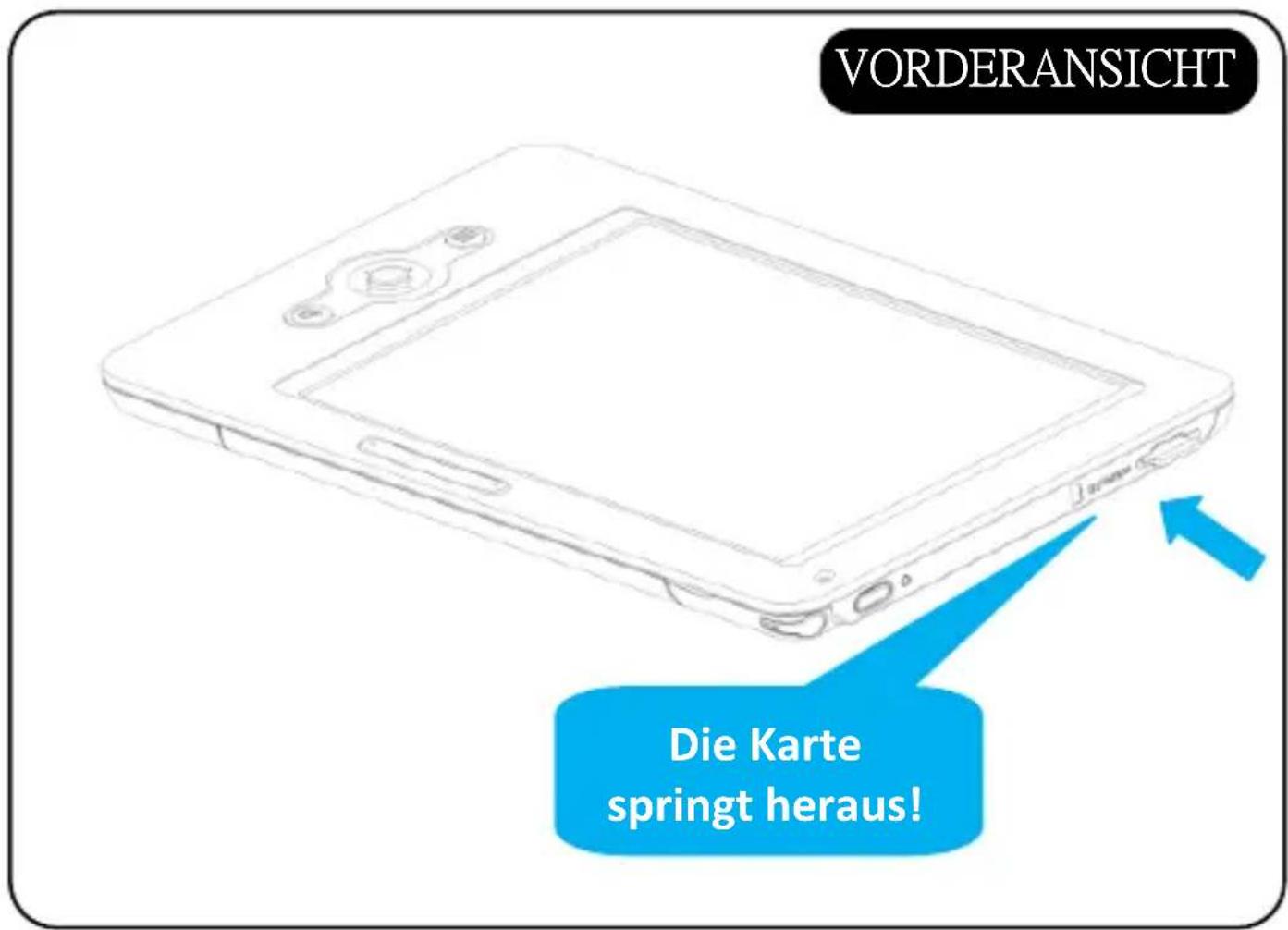
SCHRITT 2
Entfernen Sie die Micro SD Karte vorsichtig aus dem Steckplatz.

1.5 Den Akku aufladen
Der Sense hat einen internen, nicht austauschbaren Akku. Der Akku ist innerhalb von ca. zwei Stunden zu 80% und innerhalb von vier Stunden vollständig aufgeladen, wenn der optionale ICARUS USB-Netzadapter (ACD0052-EU) verwendet wird. Laden Sie den eReader über USB-Kabel und Computer, benötigt der Ladevorgang länger.
Um den Akku per Computer aufzuladen:
natural_image
Two connected devices with a cable, one showing a screen and the other a laptop (no text or symbols visible)Verbinden Sie den ebook Reader über das mitgelieferte USB-Kabel mit dem Computer. Sobald die Verbindung besteht, leuchtet die Kontroll-LED rot auf und am Bildschirm erscheint „USB Link“.
Wichtiger Hinweis:
Der Computer muß an sein und darf sich während des Ladens nicht im Standby-/Energiesparmodus befinden.
Um den Akku mit dem USB-Kabel zu laden:
natural_image
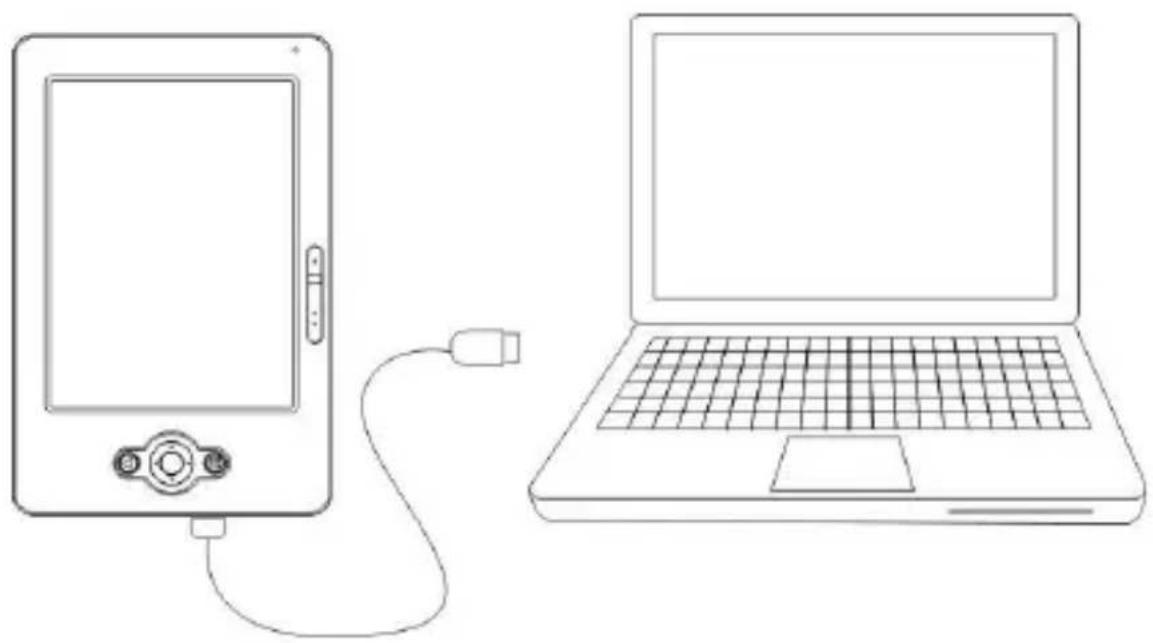
Line drawing of a laptop connected to an electronic device via cable (no text or symbols)Verbinden Sie das breite Ende des USB-Kabels mit dem Computer und das andere Ende mit dem eReader. Das Gerät beginnt nun automatisch damit sich aufzuladen. Wenn sich das Akku-Symbol in der oberen rechten Ecke zu verändert, bedeutet das, dass der Akku gerade geladen wird. Hinweis: während dem Laden kann der eReader nicht benutzt werden.
Den Akku mit dem (optionalen) USB-Netzadapter ICARUS ACD0052-EU aufladen:

natural_image
Diagram of a device with labeled components including a screen, cable, and power plug (no text or symbols present)Schließen Sie das USB Kabel am USB Netzadapter an und das andere Ende am eReader. Verbinden Sie den Netzadapter dann mit einer Steckdose. Sobald die Verbindung besteht, leuchtet die LED rot und wenn das Akku-Symbol in der rechten oberen
Bildschirmecke zu wechselt wird der Akku geladen.
Hinweis: während dem Laden kann der eReader nicht benutzt werden.
Akku Ladestandsanzeige:
Wenn das Gerät nicht mit einer Stromquelle verbunden ist erscheint in der rechten oberen Ecke ein Batteriesymbol welches den Ladestand anzeigt.
Zum Beispiel zeigt dieses Symbol da Rider Akku zur Hälfte aufgeladen ist.
Warnung bei niedrigem Ladezustand:
Das Gerät warnt Sie sobald der Ladezustand des Akkus unter die folgenden Werte fällt.
Weniger als 20%: Akkuladezustand niedrig.
Weniger als 10%: Akkuladezustand kritisch.
Weniger als 5%: Akku ist leer, Gerät schaltet in 2 Sekunden ab.
KAPITEL 2: Inhalte
Dieses Kapitel zeigt Ihnen, wie Sie Inhalte auf den ICARUS Sense transferieren.
2.1 Dateiübertragung
Sobald der eReader an den Computer angeschlossen ist, wird er als Massenspeichergerät mit dem Namen "ICARUS Sense" im Dateiexplorer von Windows erkannt.
Kopieren Sie die Ordner welche Ihre eBooks enthalten oder einzelne eBooks-Dateien, die Sie gekauft oder aus dem Internet heruntergeladen haben auf den eReader und ziehen Sie das USB-Kabel dann vom eReader ab um mit dem Lesen zu beginnen.
Alternativ können Sie die Ordner mit eBooks oder eBook-Dateien auch auf eine Micro SD Karte kopieren und diese dann in den eReader einschieben um direkt von der Micro SD Karte zu lesen.
Bitte beachten Sie dass zum Lesen von DRM-geschützten Inhalten der einzige Weg zum Übertragen solcher eBooks auf
das Gerät die kostenfreie Adobe Digital Editions Software ist. Für weitere Hinweise hierzu lesen Sie bitte Kapitel 2.2
Wichtiger Hinweis:
Es wird empfohlen regelmäßige Sicherungen von den Dateien auf Ihrem eReader anzufertigen um Datenverlust aus Beschädigung, Fehlfunktion oder Diebstahl zu vermeiden.
2.2 Adobe Reader / Adobe Digital Editions
Dieser eReader ist mit Adobe Reader Mobile 9 ausgestattet. Der Reader Mobile 9 ermöglicht eReader-Geräten auf einfache Weise die Übertragung, Verwaltung und Anzeige von verschlüsselten und unverschlüsselte PDF und EPUB Dokumenten. Benutzer können Adobe Digital Editions als eBook Übertragungs- und Verwaltungssoftware zwischen Computer und eBook Reader verwenden.
Adobe® Digital Editions (ADE) bietet einen einfach zu bedienenden Weg um eBooks und andere digitale Inhalte zu lesen und zu verwalten. Benutzen Sie es um digitale Inhalte herunter zu laden und zu kaufen. Diese können dann sowohl offline als auch online gelesen werden. Übertragen Sie kopiergeschützte Werke von und zu Computern und eReader-Geräten. Organisieren Sie Ihre eBooks in Ihrer eigenen Sammlung und machen Sie Anmerkungen zu Seiten. Digital Editions unterstützt auch eBook-Industriestandards wie PDF/A und EPUB.
Installieren Sie ADE, führen Sie die Erst-Autorisierung durch, übertragen Sie Ihre DRM-kopiergeschützten Inhalte zum ICARUS Sense und schon haben Sie hunderte Bücher bei nur
wenigen Gramm Gewicht in Ihrer Hand.
Schritt 1 :
Beantragen Sie eine Adobe ID auf der Adobe Website
https://www.adobe.com/cfusion/membership/
New to Adobe?
Create an Adobe Account
It's free and only takes a minute
Get complete access to:
• Free trial downloads
• Hundreds of free product extensions
• Community areas
- Members-only white papers and downloads
• On-demand seminars
- Manage your activity in the Adobe Worldwide Store
Klicken zum Starten und dann die Registrierung bis zum Abschluss durchführen
Schritt 2 :
- Um Adobe Digital Editions herunterzuladen gehen Sie auf www.adobe.com/products/digitaleditions
- Suchen Sie dort die "Installer"-Funktion wie unten gezeigt und klicken Sie darauf.
Adobe® Digital Editions Installer

Click to install Adobe Digital Editions
Digital Editions Installer
I can read and write files to your system. you like to continue installing?
Install
Cancel

Installing applications may present a security risk to you and your computer. Only install from sources that you trust.
- Drücken Sie "Ja / Yes" zum installieren.

- Ein Popup-Installationsprogramm erscheint. Folgen Sie den Anweisungen und wählen Sie die für Ihren Computer richtigen Pfadangaben und Einstellungen.

- Sobald die Installation abgeschlossen ist, stimmen Sie den Nutzungsbedingungen zu und Digital Editions wird automatisch gestartet.
Schritt 3 :
- Wenn Adobe Digital Editions das erste Mal startet, werden Sie nach Ihren Adobe ID Zugangsdaten gefragt. Tragen Sie Ihre Adobe ID und das dazugehörige Passwort ein und drücken Sie „Autorisieren / Authorize“. Sobald die Autorisierung abgeschlossen ist, drücken Sie “Fertigstellen / Finish”.

Schritt 4 :
- Verbinden Sie den ICARUS Sense mit Ihrem Computer während Adobe Digital Editions läuft. Sobald der eReader von Ihrem Betriebssystem erkannt wurde, wird Digital Editions das Gerät automatisch als mobiles Gerät erkennen. Drücken Sie dann „Gerät autorisieren / Authorize device“.

Schritt 5 :
- Nachdem PC und eReader autorisiert wurden, können Sie DRM-geschützte Inhalte lesen. Anderenfalls ist kein Kauf, herunterladen und Lesen von DRM-eBooks möglich. Sollten Sie Probleme mit Digital Editions oder der Autorisierung haben lesen Sie bitte die Hilfeseiten auf der Adobe Webseite.
KAPITEL 3: Startseite
Dieses Kapitel stellt die Hauptseite vor.
Die Startseite ist das zentrale Element auf dem Gerät. Die folgende Tabelle listet alle Funktionen und Informationen auf der Startseite auf. Die Anordnung der Elemente kann leicht von der gezeigten Abbildung abweichen.

| Symbole | Bedeutung |
 | BibliothekZeigt alle eBook Dateien auf dem Gerät im PDF, EPUB, HTML, TXT, RTF, MOBI, PRC oder DOC Format. |
 | MusikEnthält alle Dateien im MP3-Format und Funktionen zum Verwalten der Musikdateien. |
 | DateimanagerListet alle Dateien in allen Formaten, unterteilt in interner Speicher und Micro SD Karte. |
 | Zuletzt gelesenEnthält die 5 zuletzt gelesenen / geöffneten Einträge. |
 | Büchershop eBooks online durchstöbern / herunterladen / kaufen. |
| NotizbuchErstellen Sie handschriftliche Notizen mit dem Stylus. |
| BilderEnthält alle Dateien im JPG, BMP, PNG, GIF Format. |
| SudokuHier können Sie Sudoku spielen. |
3.1. Bibliothek
Die Bibliothek enthält alle Dateien im PDF, EPUB, HTML, TXT, RTF, MOBI, PRC, or DOC Format welche im internen Speicher des Geräts und auf der Micro SD Karte enthalten sind.
Bitte beachten Sie auch Kapitel 4.1 eBooks lesen um mehr über die Funktionen während dem Lesen zu erfahren.

flowchart
graph TD
    A["Drücken führt zur Startseite"] --> B["Akt. Funktion"]
    B --> C["Library"]
    C --> D["Bront_The_Tenant_of_wildfel_Hall.pdf"]
    D --> E["Dumas, Alexandre 203 k 1969/1/1"]
    C --> F["Mein Favorit"]
    F --> G["PDF"]
    G --> H["Bront_The_Tenant_of_wildfel_Hall.pdf"]
    H --> I["Dumas, Alexandre 203 k 1969/1/1"]
    F --> J["Dateigröße & Datum"]
    J --> K["GRC"]
    K --> L["Bront_The_Tenant_of_wildfel_Hall.pdf"]
    L --> M["Dumas, Alexandre 203 k 1969/1/1"]
    K --> N["Zurück-Taste"]
    N --> O["< 1/3 >"]
    O --> P["Drücken um Menü zu öff."]
    P --> Q["Gesamte Seiten"]
    Q --> R["By Date all"]
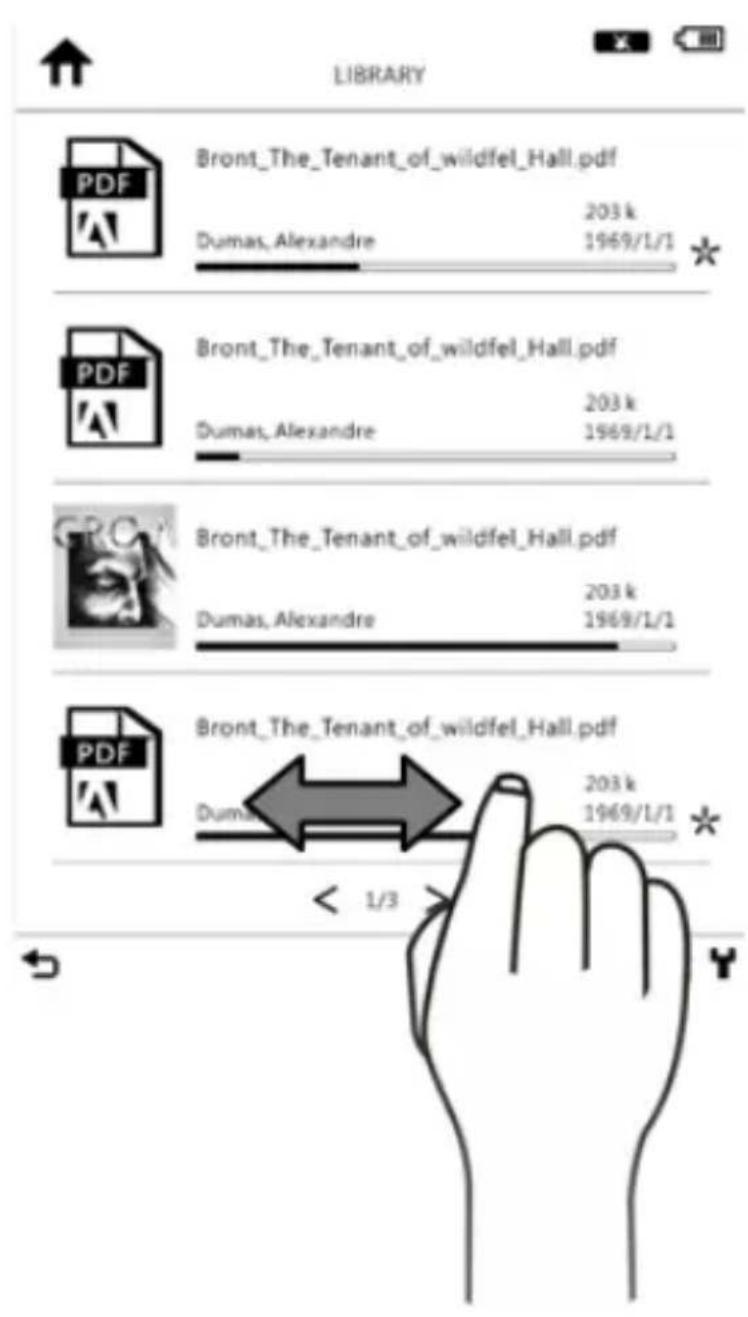
Seiten blättern:
Der Bibliotheks-Modus unterstützt Gestensteuerung, das heißt Sie können wie folgt blättern:
1 Wischen mit Finger
Von links nach rechts um zur vorherigen Seite zu gehen.
2 Mit dem Steuerkreuz
Nach rechts für die nächste Seite und nach links für die vorherige.
3 Mit den Blättertasten
Drücken Sie für die nächste Seite und and für die vorherige.
Bibliothek Menü :
- Drücken Sie in der Bibliothek den [Menu Knopf]. Das öffnet das [Bibliothek Menü].
● Die folgende Tabelle listet alle Informationen und Menüpunkte im Bibliothek Menü.
| Symbol | Funktion / Bedeutung |
 | Filter1. Filtert die Dateien nach dem Dateityp.2. Benutzerdefinierte Anzeige der Liste. |
 | Sortierung1. Sortiert die Dateien nach Datum, Dateiname, Typ, aufsteigend/absteigend und nach Größe.2. Das Gerät aktualisiert die Anzeige entsprechend den von Ihnen gewählten Sortieroptionen.3. Die gewählte Sortiermethode wird rechts oben im Bildschirm angezeigt. |

Anzeige
Zeigt alle Dateien auf dem eReader und der Micro SD Karte in der Listen- oder Miniaturansicht.
3.2. Musik
Hier werden alle MP3-Dateien angezeigt und Verwaltungsfunktionen zur Verfügung gestellt.
Bitte lesen Sie Kapitel 4.3 Musik anhören um mehr über die Funktionen während dem Lesen zu erfahren.
3.3. Dateimanager
Der Dateimanager zeigt alle Dateien (unabhängig vom Dateityp) an und unterteilt diese nach dem jeweiligen Speicherort auf dem internen Speicher oder der Micro SD Karte.
Drücken Sie die "Menü-Taste" und öffnen Sie die Menü-Funktion um Dateien zu löschen.
3.4. Zuletzt gelesen
Zeigt die 5 zuletzt gelesenen / geöffneten Dateien an.
3.5. Sudoku
Für Ihre Unterhaltung ist auf dem ICARUS Sense auch Sudoku enthalten.
SCHRITT 1
Wählen Sie den für Sie passenden Schwierigkeitsgrad "Einfach", "Normal" oder "Schwer" aus.

3.6. Browser
Der Sense kommt mit einem voll funktionsfähigen Web Browser. Mit diesem können Sie Ihre Lieblings-Seiten besuchen, E-Mails lesen oder eBooks online kaufen. Durch die technischen Beschränkungen der E-Ink-Technologie können Webseiten die Flash-Darstellungen oder Animationen beinhalten leider nicht angezeigt werden.
Um zur gewünschten Webseite zu gelangen, geben Sie einfach die URL ein.
Hinweis: der Web Browser funktioniert nur wenn WiFi aktiviert ist und eine WiFi-Verbindung besteht.
3.7. Notizbuch
Über die Notizbuch-Funktion können Sie handschriftliche Notizen erstellen und diese im internen Speicher ablegen.

3.8. Einstellungen
Drücken Sie "Einstellungen" um den Sense zu konfigurieren. Die Geräteeinstellungen beinhalten die Nutzereinstellungen, WiFi-Konfiguration und mehr. Weitere Informationen entnehmen Sie bitte der folgenden Tabelle.
| Symbol | Funktion/ Bedeutung |
 | Datum und ZeitWenn Datum und Uhrzeit nicht korrekt sind, können Sie im Büchershop keine eBooks kaufen. |
 | EnergiesparenDas Gerät kann sich nach (einstellbaren) 10 bis 20 Minuten automatisch ausschalten wenn es für eine bestimmte Zeit nicht benutzt wird. |
 | SpracheSprache der Benutzeroberfläche. (Optional) |
  | WerkseinstellungLöscht die Digital Rights Manager Dateien des Benutzers und setzt das Gerät zurück.InfoZeigt detaillierte Informationen zum Gerät und die Seriennummer an. |
 | WiFiKonfiguriert die Einstellungen für WiFi/WLAN. |
 | Adobe IDIhr Adobe Benutzername und Passwort. |
 | Stylus KalibrierungBerühren Sie mit dem Stylus jeden Punkt um den Touchscreen (neu) zu kalibrieren. |
 | EigentümerTragen Sie hier Ihren Namen ein, dieser wird oben links auf dem Bildschirm angezeigt. |
3.9 WiFi Einstellungen
Um eine neue Verbindung einzurichten:
SCHRITT 1
Fügen Sie eine neue Verbindung hinzu.

SCHRITT 2
Der eReader durchsucht die Umgebung nach verfügbaren WiFi-Zugangspunkten und zeigt eine entsprechende Liste an.

flowchart
graph LR
    A["Init Device"] --> B["Scanning"]
    B --> C["Find WiFi AP"]
SCHRITT 3
Wählen Sie Ihr Netzwerk um die WEP/WPA-Zugangsdaten einzugeben und verbinden Sie mit dem Internet. Sobald die Verbindung steht, wird das Netzwerksymbol angezeigt.

flowchart
graph TD
    A["Wireless Access"] --> B["Type password"]
    B --> C["Connect success"]
    style A fill:#f9f,stroke:#333
    style B fill:#ccf,stroke:#333
    style C fill:#dfd,stroke:#333
Hinweis:
- Zeigt die Stärke des Wifi-Signals am aktuellen Standort an.
- [] Das Schloß-Symbol weist auf ein verschlüsseltes Netzwerk hin. Sie müssen den korrekten Zugangsschlüssel eingeben um mit diesem Netzwerk zu verbinden.
SCHRITT 4
Sobald Sie mit dem Internet erfolgreich verbunden sind werden die Einstellungen in der [Netzwerverbindungs-Seite] gespeichert.
Drücken Sie den [Menu Button] um die Einstellungen des WiFi-Zugangspunktes zu ändern. Sie können diesen löschen oder das Passwort neu eingeben um drahtlos zu verbinden.

flowchart
graph TD
    A["Connect Management"] --> B["New Device Icon"]
    B --> C{Check}
    C -->|Yes| D["Insert Key Icon"]
    C -->|No| E["Delete Icon"]
    D --> F["1/2 Click Button"]
    E --> F
    F --> G["Encryption Key Window"]
    G --> H["Delete?"]
KAPITEL 4: Benutzung ICARUS Sense 1
3
2

Kidult what happen

Reading, as an Experience
From many, some all five years of reading a blood emulsory. There is a careful lifeless space and building a process of finding their hands and turning the pages. Identified in blood, readers are mostly in its rational past of the hyperactivity day offering consists that are roughly the size of a page from a paperbrush. Ultimately, Positive, reading is not enough to deliver any system. You should offer engagement with getting attention based on this way. Reading also following: In sequence, reading from a tool, as well as reading through pages. That also uses past work with the role sponsor or it used — still focused; POUR, consequences, and — shopping this course of fresh days using purchasing for a significant amount of time “Toutler” is absolutely questionable, sugar, rice, developing leaves or often making them so much than receiving fruit. But to make the meeting availability of other common sources
Sonic staff suggest that an unattled home comfortable picture got earth-reading from a room or house adipede with a device in frontscology for common, in families with latest visual at traditional general forms. They are right.
But, in terms of reason: "The canonical quantities may not further undergo with an obstacle to observe a conscious toward the ability of appropriate level of control tension. That canonical quantities in case were expected by the adalloyed customer loyalty giving the recommendations to which and ongoing the technology will lead to our ability to serve your permission."
Why schools now?
- I can't be a word-off-induced letter under again. But it is very critical than your own that they are not for future generations of the authors, and the master's group with parents, who also do "Stability" to identify the leading system? There are many possible objectives that have similar focus on technology-based activities and technology acceptance. It is not technology has made understanding, but a sense of spring writing in the following form, most often or neither means, like confidence, and quality, people may seem certified digital as their rating of personal quality/biased technology as conceptual as consensus.
disasters, in particular consider their phrases than lifetime. Furthermore, years of PC and internet use travel increased but for search with internet access. One of the most pleasant moments about is done in how it encourages enjoy turn-offs: Reading Questions can deliver that possible computer essential access can and available analytics. There is no risked to make a consciousness because it is for reading information with you, what is clear. Or a path there
For possible to recall reasons, much as that Jenny reminder of a clinical computer, you always think his intake the decision being that there is wrong, but then you are still interested in paying risk for health. Sometimes, you can have your attention to my own care enough, you can order more quickly from an important procedure.

2 3
Blättern:
Der Sense bietet Gestensteuerung. Sie können damit vor- und zurück blättern indem Sie mit dem Finger horizontal über den Bildschirm wischen.
Alternativ können Sie auch die Vor-/Zurück-Tasten oder das Steuerkreuz (nach links/rechts) benutzen.
1

1
2Schriftgröße einstellen:
Sie können die Schriftgröße einstellen indem Sie mit dem Finger auf dem Bildschirm vertikal nach oben (größer) oder nach unten (kleiner) wischen. Alternativ können Sie das Schriftgröße-Symbol am oberen Bildschirmrand betätigen.
1
4.1. eBooks lesen
- Wählen Sie unter [Bibliothek] oder [Zuletzt gelesen] das gewünschte Buch aus und bestätigen Sie um es zu öffnen.
- Während Sie Lesen betätigen Sie den [Auswählen-Knopf oder Menü-Knopf] um das [Menü Lesen] zu öffnen.
- In der Tabelle unten erfahren Sie Näheres zu den Funktionen des [Menü Lesen].
Lesemenü : 9
| Symbol | Funktion / Bedeutung |
 | LesezeichenUm Lesezeichen hinzuzufügen und zu löschen. |
 | InhaltsverzeichnisZeigt das Inhaltsverzeichnis des aktuell geöffneten eBooks (wenn vorhanden). |
 | DrehenSchaltet die Bildschirmausrichtung um. |
 | SuchenÖffnet das virtuelle Keyboard um ein Wort im geöffneten eBook zu suchen. |
 | SeiteTippen Sie die Seitennummer ein um direkt zu dieser zu springen. |
 | SchriftgrößeWählen Sie die gewünschte Schriftgröße aus. |
 | ZurückZurück in den Lesemodus. |
 | Lesezeichen (Anmerkungen)Zeigt die Liste der gesetzten Lesezeichen.Sie können jedes Lesezeichen anwählen und dieses während dem Lesen direkt anzeigen. |
 | SchriftartAndert die Schriftart des Textes. |
 | VollbildSchaltet während dem Lesen in den Vollbildmodus und zurück. |
 | EigenschaftenZeigt Dateiinformationen zum geöffneten eBook. |
 | FavoritenSetzt das eBook auf die Liste der eigenen Favoriten oder löscht es von dieser. |
 | LöschenUm das eBook zu löschen. |
1
- Der Sense hat viele Funktionen um mit dem Text zu interagieren. Diese beinhalten: 3
■ Eine Wörterbuch-Funktion
■ Hervorheben von Texten 5
■ Handschriftliche Notizen
Für mehr Informationen lesen Sie bitte den Anhang B: Interaktive Funktionen. 8
4.2. Bilder und Comics ansehen
Dieser Teil stellt die Bildergalerie und deren Funktionen vor.
- Auf der Bilder-Seite drücken Sie den [Auswählen-Knopf oder Menü-Knopf] um das [Bilder-Menü] zu öffnen.
- In der Tabelle unten finden Sie weitere Informationen zum [Bilder-Menü].
Picture Menu: 7
| Symbol | Funktion / Bedeutung |
 | OriginalZeigt das Bild in der Originalgröße an. |
 | DrehenUm das Bild in die Horizontale / Vertikale zu drehen. |
 | BilderschauSchaltet in zeitl. Abstand zum nächsten Bild weiter. |
 | ÜberZeigt Informationen zur Bilddatei. |
4.3. Musik anhören 1
Dieser Teil stellt den Musikmodus und dessen Funktionen vor.
● Wählen Sie "Musik" auf der Startseite.
● Markieren Sie die Musikdatei und bestätigen Sie um die Wiedergabe zu starten. 5
- Während dem Musikhören können Sie die Lautstärke mit den [Vor / Zurück Tasten] regeln.
- Sie können auch den [Menü Knopf] drücken um die [Musik Einstellungen] während der Wiedergabe anzupassen.
● Die folgende Tabelle erklärt die [Musik Einstellungen].
Musik Einstellungen:
| Symbol | Funktion / Bedeutung |
| Musik an Musik aus | Schaltet die Musik im Hintergrund an/aus. |
| Wiedergabe Modus | Schaltet um zwischen: einzelnen Titel wiederholen, alle wiederholen, zufällige Wiedergabe. |
| Schließen | Schließt das [Musik Einstellungen] - Menü. |
Hinweis: 1
- Wenn Sie die Musik im Hintergrund aktivieren können Sie während dem Lesen Musik hören. 3
- Auf der Musik-Seite regeln die [Vor / Zurück Tasten] ausschließlich die Lautstärke. 5
4.4 Im Web surfen 1
Hier erfahren sie mehr über die Browser-Bedienung.
Öffnen Sie den Browser aus dem Hauptmenü heraus. Sie 3 müssen den Start-Knopf betätigen um den Web-Browser zu 4 starten. 5
Sie können nun den voreingestellten Links folgen oder manuell eine URL eingeben um die Webseite Ihrer Wahl zu besuchen.
Anhang
Anhang A: Reset / Neu starten
Wenn der eReader nicht mehr reagiert, starten Sie ihn mit einem spitzen Gegenstand (z.B. Nadel, Büroklammer) wie zu sehen neu. Die Inhalte auf dem Gerät bleiben dabei erhalten.
Anhang B: Interaktive Funktionen
Mit dem Stylus können Sie die interaktiven Funktionen des Sense G2 nutzen. Diese werden im Folgenden beschrieben.
Wörterbuch
Der Sense hat ein englisches Wörterbuch vorinstalliert welches die Bedeutung von Wörtern in (englischen) eBooks anzeigt. Um das Wörterbuch zu benutzen gehen Sie bitte wie folgt vor:
- Öffnen Sie ein (englischsprachiges) eBook.
- Tippen Sie mit dem Stylus ein Wort im Text an um es hervorzuheben.
- Nach wenigen Sekunden wird das Wörterbuch das Ergebnis auf dem Bildschirm anzeigen.
Es ist auch möglich weitere Wörterbücher zu installieren solange diese im StarDict-Format vorliegen. Auf www.icarusreader.com finden Sie viele Wörterbücher zum Herunterladen. Sie können aber auch selbst im Internet nach zusätzlichen Wörterbüchern suchen.
Gehen Sie wie folgt vor um Wörterbücher zu installieren:
- Erstellen Sie einen Ordner mit dem Namen stardict im Stammverzeichnis des internen Speichers (nicht auf einer Speicherkarte!) des ICARUS Sense G2. Achten Sie auf die Kleinschreibung.
- Laden Sie Wörterbücher von www.icarusreader.com gerunter und entpacken Sie diese in das stardict Verzeichnis des ICARUS Sense
- Starten Sie Ihren eReader neu.
- Ihr Wörterbuch ist jetzt installiert.
- Wenn Sie nun ein Wort hervorheben, werden alle installierten Wörterbücher die entsprechenden Ergebnisse anzeigen (das englische Standard-Wörterbuch kann nicht entfernt werden).
Text hervorheben
Um Text hervorzuheben gehen Sie bitte wie folgt vor:
- Wenn der Hervorheben-Modus nicht bereits aktiv ist, wählen Sie das "Hervorheben"-Symbol am unteren
Rand des Bildschirms aus (das 3. Symbol von links).
- Tippen Sie mit dem Stylus ein Wort an um es auszuwählen.
- Klicken Sie auf das "Text markieren"-Symbol am unteren Bildschirmrand (das 4. Symbol von links).
- Der Text ist nun hervorgehoben (grauer Hintergrund).
Handschriftliche Notizen
Während Sie ein Dokument lesen, können Sie handschriftliche Notizen hinzufügen. Machen Sie dazu folgendes:
- Wählen Sie das "Handschriftliche Notizen"-Symbol am unteren Bildschirmrand (das 2. Symbol von links).
- Sie können nun im Dokument schreiben oder zeichnen.
Anhang C: Reinigung und Sicherheit
REINIGUNG
Schalten Sie das Gerät bitte vor dem Reinigen aus, ziehen Sie alle Kabel und gegebenenfalls den USB-Netzadapter ab. Stellen Sie nach dem Reinigen sicher dass der eReader komplett trocken ist, bevor Sie ihn wieder anschalten oder das USB-Kabel daran anschließen. Tragen Sie bitte keine Flüssigkeiten oder Sprühreiniger direkt auf der Oberfläche des Bildschirms oder der Schutzhülle auf. Benutzen Sie ein weiches, sauberes und fusselfreies Tuch um den Bildschirm zu reinigen.
1. Bildschirm
Benutzen Sie bitte ein weiches, sauberes und fusselfreies Tuch um Schmutz und Staub vom Bildschirm zu entfernen. Für Fingerabdrücke und Schlieren können Sie ein weiches Tuch mit sanftem Reiniger verwenden.
2. Schutzhülle
Bitte säubern Sie das Schutzcover mit einem weichen Tuch welches mit einer milden Reinigungslösung leicht angefeuchtet ist. Waschen Sie das Reinigungstuch in sauberem Wasser, wringen Sie es aus und wischen Sie damit noch einmal über die Schutzhülle um letzte Reste des Reinigungsmittels zu entfernen.
SICHERHEIT
- Um die Möglichkeit eines elektrischen Schlag so weit wie möglich auszuschließen befolgen Sie bitte alle Sicherheitsanweisungen, öffnen Sie das Gehäuse nie selbst und schalten Sie es vor dem Reinigen vollständig aus.
- Bitte legen Sie keine Gegenstände auf den Bildschirm.
- Bitte schütten Sie keine Flüssigkeiten in oder auf das Gerät und reinigen Sie es nicht mit einem nassen Tuch. Wenn das Produkt nass wird, schalten Sie es auf keinen Fall an und versuchen Sie nicht es
selbsttätig zu reparieren. Bitten Sie einen qualifizierten Servicetechniker es für Sie zu überprüfen und wieder in Betrieb zu nehmen.
- Bitte benutzen Sie das Produkt nur unter den in Anhang D beschriebenen Umgebungsbedingungen und halten Sie es von schädlichen Einflüssen fern.
- Vermeiden Sie Stöße und Schläge auf das Produkt und lassen Sie es nicht fallen.
- Bitte halten Sie das Produkt fern von Staub, Sand und Schmutz.
Anhang D: Spezifikationen
| Betriebssystem | Linux 2.6.28 |
| Prozessor | Freescale ARM11, 532 MHz |
| Schnittstellen | 1 x Mini-USB Client v2.0 – Mini USB Anschluß1 x 3.5mm Stereo Kopfhörer-Anschluß1 x Micro SDSpeicherkarten-EinschubTasten: An/Aus, Seite Vor/Zurück, Menü, Menü zurück, 5-Wege Steuerkreuz |
| Bildschirm | 6" E-Ink® Vizplex Bildschirm [4.8" x 3.6" – 122 x 91mm] |
| Auflösung | 600 x 800 Pixel, 166 dpi16 GraustufenTageslicht lesbar,keine Hintergrundbeleuchtung |
| Touchscreen | Ja |
| Stromquelle | Wiederaufladbare Li-PolymerBatterie: 1,100mAhAC Netzadapter: DC 5V 1A |
| Akku-Laufzeit(kontinuierl.Blättern) | Ca. 8000 Seitenwechsel(wenn der Akku mit 4,2V voll aufgeladen und WiFi deaktiviert ist) |
| Speicher | Systemspeicher: 128 MB DDRInterner Speicher: 2GBErweiterbar: Micro SD, bis 32GB |
| Konnektivität | Wi-Fi (802.11b/g) |
| Abmessungen | 180 x 118 x 10 mm – 7.08" x 4.64" x 0.39" |
| Gewicht | 235g (inkl. Akku) |
| Temperatur | Betrieb: 10° ~ 45°CLagerung: -10° ~ 60°C |
| Luftfeuchtigkeit | 10%~95% RH, nicht-kondensierend |
| Zulassung | FCC, CE Class B, CCC and NCC |
| Zertifizierung | Adobe Reader Mobile 9 |
Enthält die Reader® Mobile Technologie von Adobe Systems Incorporated.
Copyright © 2011 ICARUS. Besuchen Sie uns unter www.icarusreader.com

ICARUS Sense G ^2 e-reader (E651SR)
Gebruiksaanwijzing
Europe – EU Declaration of Conformity
This device complies with the essential requirements of the R&TTE Directive 1999/5/EC. The following test methods have been applied in order to prove presumption of conformity with the essential requirements of the R&TTE Directive 1999/5/EC:
- EN 60950-1
- EN 50371
- EN 300 328
EN 301 489-17
This device is a 2.4 GHz wideband transmission system (transceiver), intended for use in all EU member states and EFTA countries, except in France and Italy where restrictive use applies.
In Italy the end-user should apply for a license at the national spectrum authorities in order to obtain authorization to use the device for setting up outdoor radio links and/or for supplying public access to telecommunications and/or network services.
This device may not be used for setting up outdoor radio links in France and in some areas the RF output power may be limited to 10 mW EIRP in the frequency range of 2454 –
2483.5 MHz. For detailed information the end-user should contact the national spectrum authority in France.

| Česky [Czech] | ICARUS tímto prohlašuje, že tento E651SR je ve shodě se základními požadavky a dalšími příslušnými ustanoveními směrnice 1999/5/ES. |
| Dansk [Danish] | Undertegnede ICARUS erklærer herved, at følgende udstyr E651SR overholder de væsentlige krav og øvrige relevante krav i direktiv 1999/5/EF. |
| Deutsch [German] | Hiermit erklärt ICARUS, dass sich das Gerät E651SR in Übereinstimmung mit den grundlegenden Anforderungenund den übrigen einschlägigen Bestimmungen der Richtlinie 1999/5/EG befindet. |
| et Eesti [Estonian] | Käesolevaga kinnitab ICARUS seadme E651SR vastavust direktiivi 1999/5/EÜ põhinõuetele ja nimetatud direktiivist tulenevatele teistele asjakohastele sätetele. |
| en English | Hereby, ICARUS declares that this E651SR is in compliance with the essential requirements and other relevant provisions of Directive 1999/5/EC. |
| es Español [Spanish] | Por medio de la presente ICARUS declara que el E651SR cumple con los requisitos esenciales ycualesquiera otras disposiciones aplicables o exigibles de la Directiva 1999/5/CE. |
| elΕλληνική [Greek] | ΜΕ ΤΗΝ ΠΑΡΟΥΣΑ ICARUS ΔΗΛΩΝΕΙ ΟΤΙ E651SR ΣΥΜΜΟΡΦΩΝΕΤΑΙ ΠΡΟΣ ΤΙΣ ΟΥΣΙΩΔΕΙΣ ΑΠΑΙΤΗΣΕΙΣ ΚΑΙ ΤΙΣ ΛΟΙΠΕΣ ΣΧΕΤΙΚΕΣ ΔΙΑΤΑΞΕΙΣ ΤΗΣ ΟΔΗΓΙΑΣ 1999/5/ΕΚ. |
| frFrançais [French] | Par la présente ICARUS déclare que l'appareil E651SR est conforme aux exigences essentielles et aux autres dispositions pertinentes de la directive 1999/5/CE. |
| itItaliano [Italian] | Con la presente ICARUS dichiara che questo E651SR è conforme airequisiti essenziali ed alle altre disposizioni pertinenti stabilite dalla direttiva 1999/5/CE. |
| Latviski [Latvian] | Ar šo ICARUS deklarē, ka E651SR atbilst Direktīvas 1999/5/EK būtiskajām prasībām un citiem ar to saistītajiem noteikumiem. |
| Lietuvių [Lithuanian] | Šiuo ICARUS deklaruoja, kad šis E651SR atitinka esminius reikalavimus ir kitas 1999/5/EB Direktyvos nuostatas. |
| Nederlands [Dutch] | Hierbij verklaart ICARUS dat het toestel E651SR in overeenstemming is met de essentiële eisen en de andere relevante bepalingen van richtlijn 1999/5/EG. |
| mtMalti [Maltese] | Hawnhekk, ICARUS, jiddikjara li dan E651SR jikkonforma mal-ħtigijiet essenzjali u ma provvedimenti oħrajn relevanti li hemm fid-Dirrettiva 1999/5/EC. |
| huMagyar [Hungarian] | Alulírott, ICARUS nyilatkozom, hogy a E651SR megfelel a vonatkozó alapvető követelményeknek és az 1999/5/EC irányelv egyéb előírásainak. |
| plPolski [Polish] | Niniejszym ICARUS oświadcza, że E651SR jest zgodny z zasadniczymi wymogami oraz pozostałymi stosownymi postanowieniami Dyrektywy 1999/5/EC. |
| [pt] Português [Portuguese] | ICARUS declara que E651SR está conforme com os requisitos essenciais e outras disposições da Directiva 1999/5/CE. |
| [sl] Slovensko [Slovenian] | ICARUS izjavlja, da je E651SR v skladu z bistvenimi zahtevami in ostalimi relevantnimi določili direktive 1999/5/ES. |
| [sk] Slovensky [Slovak] | ICARUS týmto vyhlasuje, E651SR spĺňa základné požiadavky a všetky príslušné ustanovenia Smernice 1999/5/ES. |
| [fi] Suomi [Finnish] | ICARUS vakuuttaa täten että E651SR tyyppinen laite on direktiivin 1999/5/EY oleellisten vaatimusten ja sitä koskevien direktiivin muiden ehtojenmukainen. |
| Svenska [Swedish] | Härmed intygar ICARUS att denna E651SR står I överensstämmelse med de väsentliga egenskapskrav och övriga relevanta bestämmelser som framgår av direktiv 1999/5/EG. |
Waarschuwing: het vervangen van de batterij dient alleen door een geauthoriseerd reparatiecentrum geschieden, daar anders explosiegevaar kan optreden. Volg de instructies voor het verwijderen van de batterij bij het ontzorgen van het product.
INHOUDSOPGAVE
HOOFDSTUK 1: INLEIDING .... 12
1.1 IN DE VERPAKKING 12
1.2 OVER DE ICARUS SENSE G ^2 ...... 13
1.3 INTERFACE & BEDIENINGSKNOPPEN 15
1.4 MICRO SD GEHEUGENKAART INSTALLATIE 18
1.5 DE BATTERIJ OPLADEN 22
HOOFDSTUK 2: DOCUMENTEN 28
2.1 DATA OVERDRACHT 28
2.2 ADOBE READER / ADOBE DIGITAL EDITIONS...... 30
3.1. BIBLIOTHEEK....40
3.2. MUZIEK 44
3.3. VERKENNER.... 44
3.4. LEESGESCHIEDENIS 44
3.5. BOEKENWINKEL....45
3.6. SUDOKU 46
3.7. BROWSER 47
3.8. NOTEPAD 48
3.9. INSTELLINGEN 49
3.9.1 Draadloos netwerk: 51
| HOOF DSTUK 4: HET GEBRUIK VAN DE SENSE......56 | |
| 4.1. | EBOOKS LEZEN......59 |
| 4.2. | AFBEELDINGEN BEKIJKEN......62 |
| 4.3. | MUZIEK LUISTEREN......63 |
| 4.4 SURFEN OP INTERNET......65 | |
| APPENDIX......66 | |
| APPENDIX A : RESET......66 | |
| APPENDIX B : REINIGEN EN VEILIGHEID......68 | |
| APPENDIX C : INTERACTIEVE FUNCTIES......70 | |
| APPENDIX D : SPECIFICATIES......73 | |
Let op: Deze handleiding bevat informative die beschikbaar was op het moment van druk. Er kunnen updates beschikbaar zijn van deze handeiding, bezoek daarom www.icarusreader.com/support voor de laatste handleiding.
Hoofdstuk 1: Inleiding
Dank u voor uw aankoop van de ICARUS Sense G ^2 e-reader. Lees dit hoofdstuk aandachtig om u bekend te maken met het apparaat en alle functies van de Sense.
1.1 In de verpakking
Controleer alvorens de ICARUS Sense te gebruiken de inhoud van de verpakking. Als een van de volgende items ontbreekt, dient u contact op te nemen met het verkooppunt waar u de Sense heeft aangeschaft.
De verpakking bevat:
- ICARUS Sense e-reader
- Mini USB kabel
- Quick start guide
- Garantiekaart
1.2 Over de ICARUS Sense G ^2
De Sense is lichtgewicht en zeer compact. Desalniettemin biedt de Sense plaats aan duizenden ebooks. Het is alsof je een complete bibliotheek in de palm van je hand hebt.
Het E-Ink touch screen brengt boeken tot leven zonder dat er een backlight nodig is. Zelfs in direct zonlicht is de e-reader perfect afleesbaar. De leeservaring is kortom als bij een papieren boek. Het energieverbruik blijft hierbij zeer lag, waardoor op een volledige acculading duizenden pagina's gelezen kunnen worden.
De Sense kan overweg met PDF, ePub, HTML, TXT, MOB, PRC of DOC formaten, met en zonder DRM. Daarnaast worden vele afbeelding- en muziekformaten ondersteund. Met de ingebouwde browser kunnen internetpagina's geopend worden en is het zelfs mogelijk om – zonder een computer – boeken te kopen en direct naar de e-reader te downloaden.
Met de meegeleverde stylus kunnen aantekeningen in documenten gemaakt worden, tekst gemarkeerd worden en meer. Digitaal lezen was nog nooit zo comfortabel!
Download ebooks...

flowchart
graph TD
    A["USB"] --> B["Desktop Computer"]
    B --> C["CD"]
    C --> D["Open Disk"]
    D --> E["Global Download"]
    E --> F["Internet Icon"]
    style A fill:#f9f,stroke:#333
    style B fill:#ccf,stroke:#333
    style C fill:#cfc,stroke:#333
    style D fill:#fcc,stroke:#333
    style E fill:#cff,stroke:#333
    style F fill:#ffc,stroke:#333
...en kopieer ze naar de ICARUS Sense
1.3 Interface & bedieningsknoppen

1. Aan/uit knop
Schakelt het apparaat aan en uit. Druk de knop een tweetal
seconden in, waarna de LED indicator gaat branden en de reader opstart. Druk de knop terwijl de reader ingeschakeld is enkele seconden in om het apparaat uit te schakelen.
2. Reset
Als het apparaat nergens op reageert dient de reset knop ingedrukt te worden, waarna de reader opnieuw opstart
3. Micro SD Card aansluiting
Hier kan een Micro SD geheugenkaart worden geplaatst om extra opslagruimte voor ebooks, muziek en afbeeldingen te creëren
4. Vorige pagina
Bladert naar de vorige pagina.
5. Volgende pagina
- Bladert naar de volgende pagina.
7. Menu
Druk op deze knop voor toegang tot extra functionaliteiten
8. Joy Stick
Te gebruiken voor het navigeren door de menu's en/of voor het bladeren door pagina's
9. Terug
Keert terug naar de vorige locatie/handeling
10. Hoofdtelefooningang
Voor het luisteren naar muziek (tijdens het lezen).
11. USB aansluiting
Voor het aansluiten van de e-reader aan een computer en/of de optionele ICARUS AC USB oplader.
12. Stylus
Voor het selecteren van tekst, het opzoeken van woorden in het woordenboek, het markeren van tekst, maken van aantekeningen of het navigeren door menu's.
Let op:
Stel alvorens de e-reader te gebruiken de instellingen in (menu 'Instellingen' in het hoofdmenu), met name de Datum en Tijdzone, Adobe ID en wachtwoord en netwerksettings. Nadat deze instellingen zijn ingesteld, kunt u ebooks kopen, downloaden en lezen via de e-reader (geen computer nodig).
1.4 Micro SD geheugenkaart installatie
De Sense ondersteunt het uitbreiden van het geheugen middels een Micro SD kaart. Voer de volgende stappen uit om de geheugenkaart te plaatsen / verwijderen.
Een Micro SD kaart plaatsen
STAP 1
Stop de Micro SD kaart in de aansluiting als hier onder afgebeeld. Let op dat u de kaart in de goede richting plaatst.

STAP 2
Duw de Micro SD kaart rustig op zijn plaats tot u een 'klik' hoort. Voer niet te veel druk uit; als de kaart niet eenvoudig te plaatsen is heeft u deze waarschijnlijk niet correct geplaatst. Verander dan de hoek of richting van de kaart.
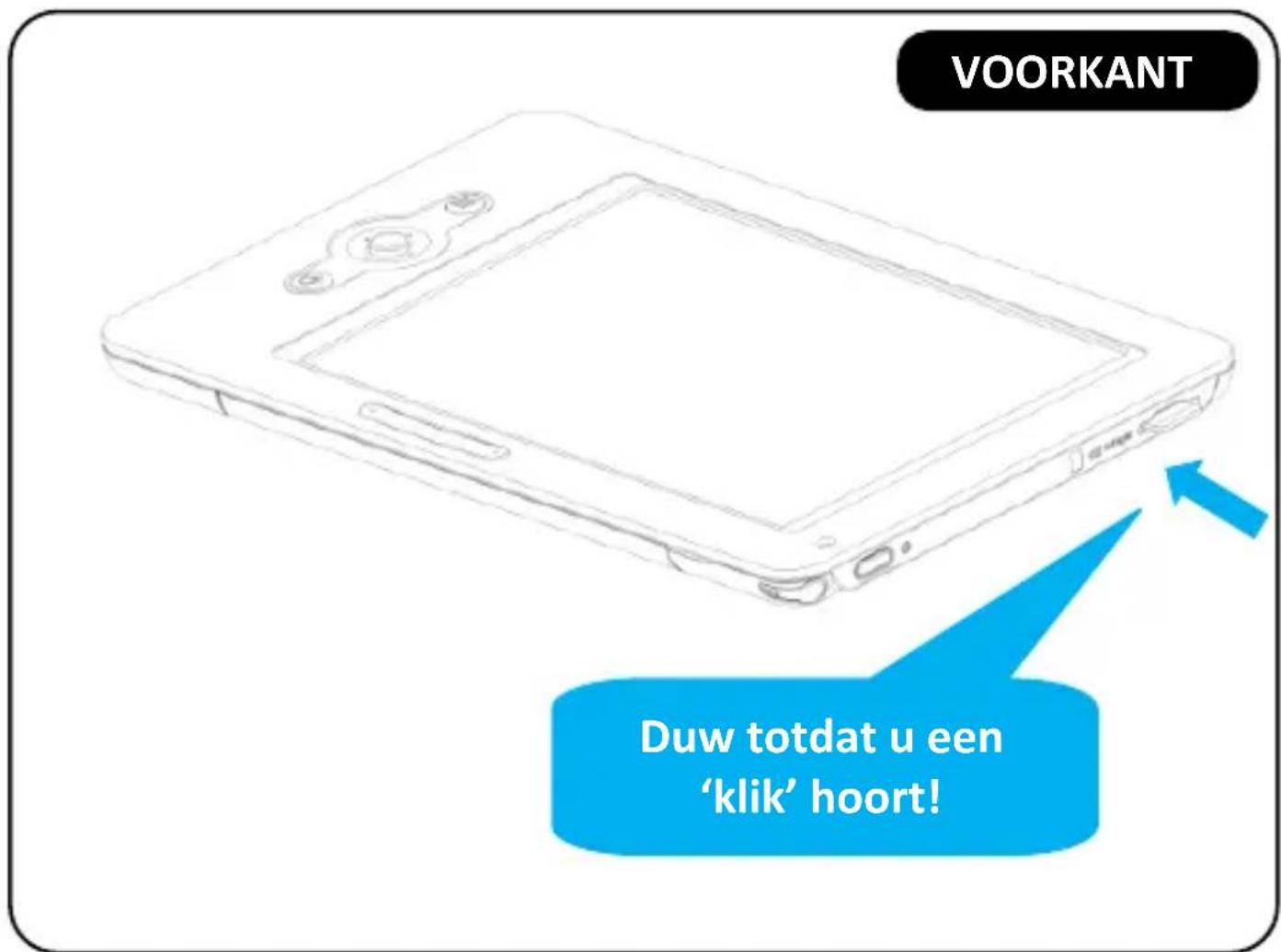
De Micro SD kaart verwijderen
STAP 1
Druk zachtjes op de Micro SD kaart, waarna deze uit het apparaat zal springen. Aangezien de kaart heel klein is, kan het nodig zijn hiervoor een pen of paperclip te gebruiken.

STAP 2
Verwijder de Micro SD kaart.

1.5 De batterij opladen
De Sense heeft een interne, niet-verwijderbare batterij. Deze is binnen 2 uur voor 80% opgeladen met de optionele ICARUS AC USB power adapter (ACD0052-EU), en binnen 4 uur volledig opgeladen. Als u de reader via een computer oplaadt, duurt het laden langer (tot 5 uur).
Om de batterij via de computer op te laden:

natural_image
Simple diagram showing two devices connected by a line, no text or symbols presentVerbind de e-reader met de computer via de USB kabel. De e-reader zal opstarten en na enige tijd verschijnt op het scherm van de e-reader het "USB link" symbol. De e-reader; beginnen met laden.
Let op:
De computer laadt de reader uitsluitend op indien ingeschakeld, niet in de 'slaap' of 'sluimer' modi.
Om de e-reader via de USB kabel te verbinden:

natural_image
Line drawing of a digital device connected to a laptop, showing its connection via cable (no text or symbols present)Als het batterijicoon op de e-reader het volgende symbol weergeeft, wordt de batterij opgeladen. Let op: gedurende het laden kan de e-reader niet gebruikt worden.
Om de batterij met de ICARUS ACD0052-EU power adapter op te laden (optioneel):

natural_image
Diagram of a device with labeled components including a monitor, cable, and power outlet (no text or symbols present)Stop de USB kabel in de e-reader en het andere (brede) uiteinde in de ICARUS AC USB. Plaats vervolgens de AC USB adapter in een wandcontactdoos. Als het batterijicoon op de e-reader het volgende symbol weergeeft, wordt de batterij opgeladen. Let op: gedurende het laden kan de e-reader niet
gebruikt worden.
Batterijstatus:
Als het apparaat niet met een energiebron verbonden is, toon het batterijicoon rechtsboven op het scherm de status van de batterij. Bijvoorbeeld: dit icon laaazien dat de batterij ongeveer 50% vol is.
Waarschuwing lege batterij:
Dit apparaat waarschuwt wanneer de batterij bijna leeg is.
Minder dan 20%: batterij laag
Minder dan 10%: batterij kritiek
Minder dan 5%: batterij leeg, uitschakelen over 2 seconden.
Hoofdstuk 2: Documenten
Dit hoofdstuk bevat informative over het plaatsen van documenten (ebooks, muziek,...) op de ICARUS Sense.
2.1 Data overdracht
De e-reader wordt indien via USB verbonden door een computer herkend als “apparaat voor massaopslag” / ”verwisselbare schijf”. De naam van het apparaat in de verkenner van de computer is “Sense G2”.
Afhankelijk van de soort documenten zijn er 2 manieren om documenten op de reader te plaatsen:
1) Documenten zonder Digital Rights Management (DRM) Deze documenten kunnen simpelweg via de Windows verkenner middles Kopieëren-Plakken worden toegevoegd
2) Documenten met DRM
De enige manier om documenten met DRM toe te voegen is via de gratis applicatie Adobe Digital Editions. In sectie 2.2 vind u installatieinstructies voor deze applicatie.
Let op:
Het wordt aanbevolen om regelmatig backups van de inhoud van de e-reader te maken om verlies van data te voorkomen.
2.2 Adobe Reader / Adobe Digital Editions
De Sense bevat Adobe Reader Mobile 9 technologie. Hiermee kan de reader eenvoudig beveiligde en onbeveiligde PDF en ePub bestanden beheren en weergeven. De gratis applicatie Adobe Digital Editions dient gebruikt te worden als ebook beheer utility om tussen computer en e-reader te synchroniseren.
Adobe® Digital Editions (ADE) kan gebruikt worden voor het downloaden, openen en beheren van digitale content. Voor het kopiëren van bestanden met DRM is het zelfs de enige manier om die op de e-reader te plaatsen.
Stap 1 :
Maak een Adobe ID aan op de Adobe Website
https://www.adobe.com/cfusion/membership/
New to Adobe?
Create an Adobe Account
It's free and only takes a minute
Get complete access to
• Free trial downloads
• Hundreds of free product extensions
• Community areas
- Members-only white papers and downloads
- On-demand seminars
- Manage your activity in the Adobe Worldwide Store
Bevestig en volg alle stappen om een Adobe ID aan te maken.
Stap 2 :
● Download Adobe Digital Editions hier:
www.adobe.com/products/digitaleditions
- Vind het installatieprogramma (de banner ziet er als volgt uit) en kies Installeren.

- Kies Ja om te installeren.
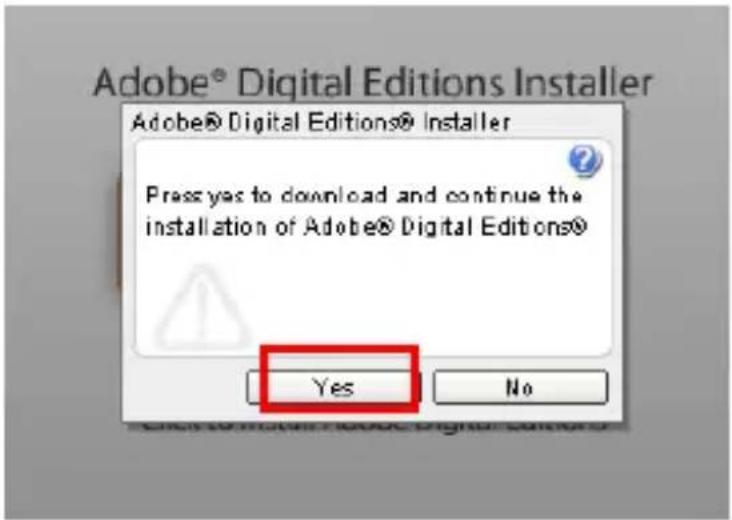
- Voer alle noodzakelijke stappen uit die in de pop-ups verschijnen.

- Als de installatie complete is dient de Eindgebruikersovereenkomst geaccepteerd te worden.
Stap 3 :
- Als Adobe Digital Editions voor het eerst geopend wordt, dient het Adobe ID en wachtwoord ingevoerd te worden. Doe dit en kies vervolgens Authoriseren.
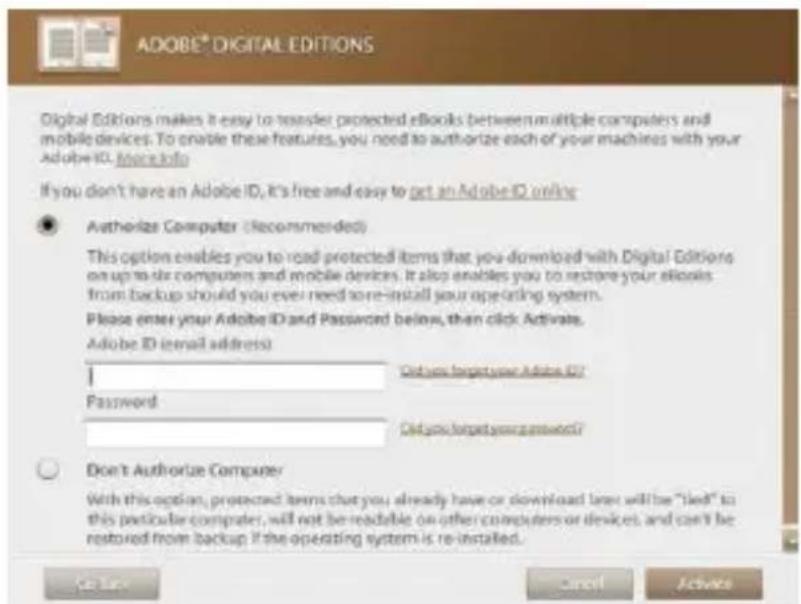
Stap 4 :
- Verbind de Sense via de USB kabel met de computer terwijl Adobe Digital Editions op de computer al geopend is.
- Als de e-reader door het besturingssysteem van de computer herkend en geïnstalleerd is, zal Adobe Digital Editions deze direct herkennen. Kies nu ‘Apparaat authoriseren’.
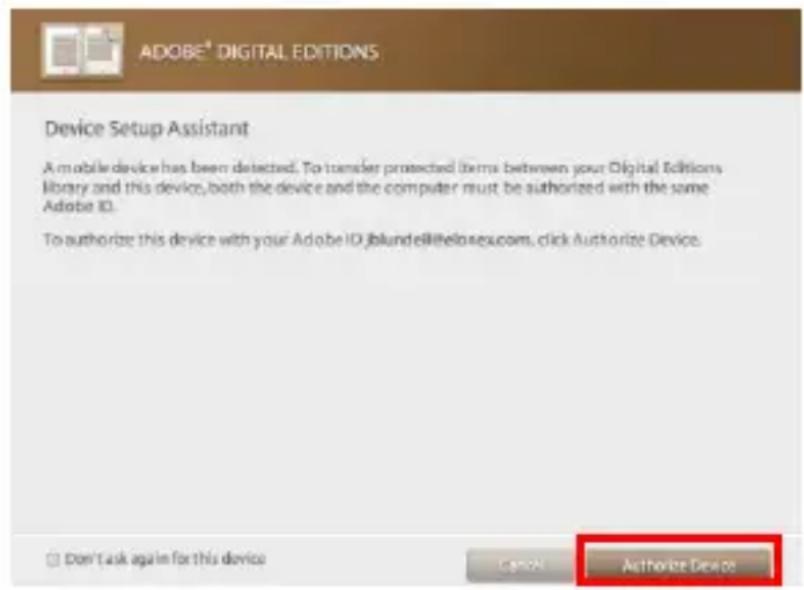
Stap 5 :
- Nadat de computer en de reader geauthoriseerd zijn, kunt u toegang krijgen tot met DRM beveiligde content. Voor problemen gerelateerd aan de activatie van Adobe Digital Editions of andere problemen met de Adobe Software verwijzen we u naar de homepage van Adobe.
Hoofdstuk 3: Hoofdmenu
Dit hoofdstuk introduceert het hoofdmenu
Het hoofdmenu wordt automatisch getoon na het opstarten van het apparaat. Het scherm kan er (door software updates) iets anders uitzien dan onderstaande, maar de verschillende opties zullen wel beschikbaar zijn, zij het in een ander vorm.

| Icoon | Uitleg |
 | BibliotheekBevat alle Ebooks in PDF, EPUB, HTML, TXT, RTF, MOBI, PRC, of DOC formaat. |
 | MuziekBevat alle bestanden in MP3 format, en heeft mediaspeler functionaliteit |
 | VerkennerToont alle bestanden op het apparaat en/of de Micro SD kaart in een folder structuur |
 | LeesgeschiedenisBevat de laatste 5 gelezen boeken |
 | BoekenwinkelZoek/koop/download boeken online. Deze functie is wellicht niet beschikbaar afhankelijk van het land waar u zich bevindt. |
  | NotepadBiedt de mogelijkheid handgeschreven notities te maken met de stylus-pen.SudokuBevat het spel Sudoku |
 | WebbrowserVoor toegang tot het internet |
3.1. Bibliotheek
De bibliotheek bevat alle ebook files in PDF, EPUB, HTML, TXT, RTF, MOBI, PRC, of DOC format die opgeslagen zijn op het apparaat of de Micro SD kaart.
Ga naar sectie 4.1 Ebooks lezen om meer over de leesfunctie te lezen.
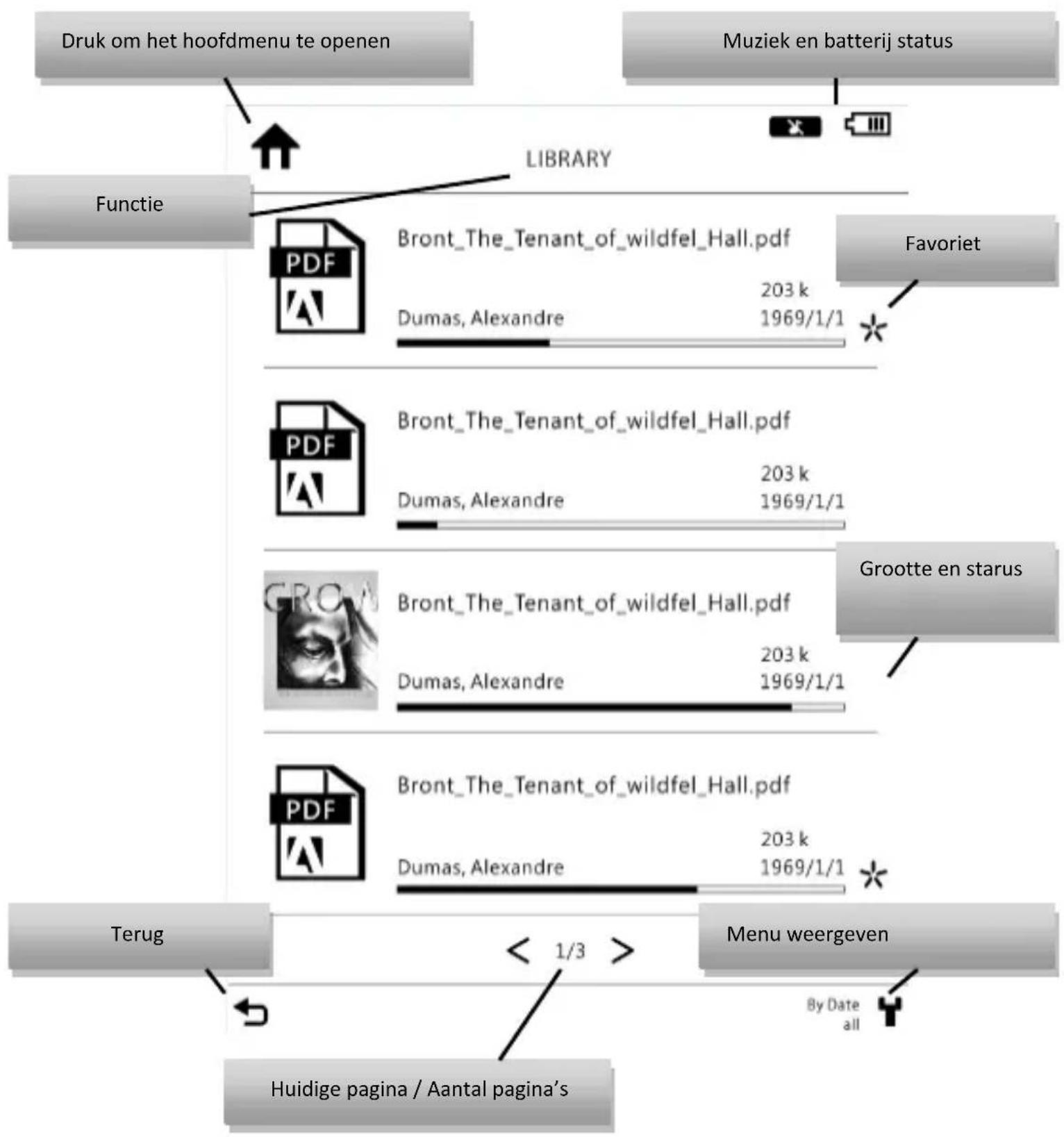
flowchart
graph TD
    A["Druk om het hoofdmenu te openen"] --> B["LIBRARY"]
    C["Muziek en batterij status"] --> B
    B --> D["Functie"]
    D --> E["PDF"]
    E --> F["Bront_The_Tenant_of_wildfel_Hall.pdf"]
    E --> G["Dumas, Alexandre 203 k 1969/1/1"]
    H["Favoriet"] --> I["PDF"]
    I --> J["Bront_The_Tenant_of_wildfel_Hall.pdf"]
    I --> K["Dumas, Alexandre 203 k 1969/1/1"]
    L["Grootte en starus"] --> M["PDF"]
    M --> N["Bront_The_Tenant_of_wildfel_Hall.pdf"]
    M --> O["Dumas, Alexandre 203 k 1969/1/1"]
    P["Terug"] --> Q["Menu weergeven"]
    Q --> R["Huidige pagina / Aantal pagina’s"]
    R --> S["< 1/3 >"]
    S --> T["By Date all"]

Bladzijdes omslaan:
Er zijn 3 manieren om bladzijdes om te slaan
1 Met een vinger over het scherm 'vegen'
Links naar rechts voor vorige pagina, rechts naar links voor volgende
2 De joystick gebruiken
Naar links voor vorige pagina, naar rechts voor volgende pagina
3 Met de bladerknoppen
Druk voor de volgende en voor de vorige pagina.
Bibliotheek menu :
● Druk in het Bibliotheek menu op de [Menu Knop]. Dit opent het [Bibliotheek Menu].
- De volgende tabel toont de functionaliteit van dit menu.
| Icoon | Functie |
 | Filter1. Filtert bestanden naar bestandstype |
 | Sorteren1. Sorteert de bestanden op datum, naam, type, grootte, of oplopend/aflopend2. Het overzicht wordt ververst zodra een nieuwe sorteermethode is geselecteerd3. De sorteermethode wordt rechts onderin het scherm getoond. |
 | BekijkenOm alle bestanden op de reader en de geheugenkaart te tonen als thumbnails. |
3.2. Muziek
Dit bevat alle muziekbestanden en heeft een mediaspeler functionaliteit.
Ga naar 4.3 Muziek luisteren om meer over de muziekfuncties te lezen.
3.3. Verkenner
De verkenner toont alle documenten op de e-reader en de geheugenkaart in een documentenstructuur. Om een document te wissen gaat u met de joystick naar het bestand en drukt u op de menu knop. Vervolgens dient u de optie 'verwijderen' te selecteren.
3.4. Leesgeschiedenis
Reading History records 5 files you have read or open recently.
3.5. Boekenwinkel
(ga naar www.icarusreader.com/support om de laatste versie van de gebruiksaanwijzing te downloaden, aangezien de beschikbaarheid van de winkel van vele zaken afhankelijk is)
Sommige uitvoeringen van de Sense kunnen de beschikking hebben over een ingebouwde boekenwinkel. Indien dit het geval is dient u op www.icarusreader.com de handleiding van de boekenwinkel te downloaden.
3.6. Sudoku
De ICARUS Sense beschikt over een Sudoku game
STAP 1
Kies het moeilijkheidsniveau “Eenvoudig”, “Normaal” or “Moeilijk”. Daarna start het spel.
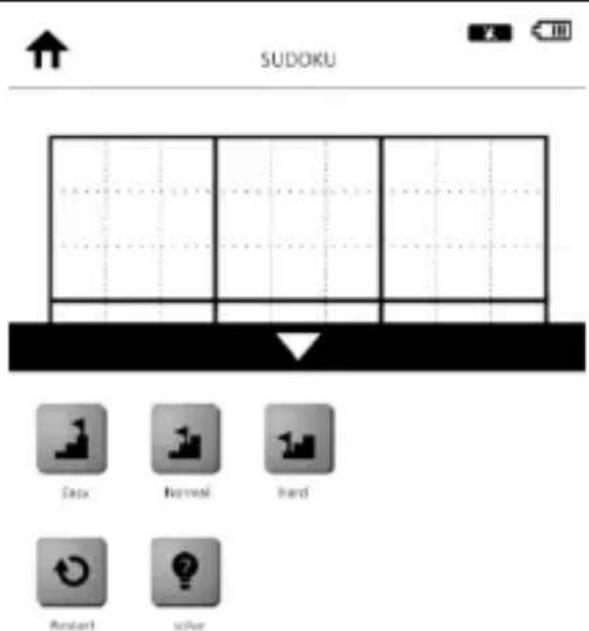
3.7. Browser
De Sense heeft een volledige webbrowser. Hiermee kun je favoriete websites bekijken, webmail checken of bv. boeken online kopen en direct downloaden.
Het is belangrijk om te realiseren dat de E-Ink technologie niet dezelfde ervaring biedt als internet via een computer op een LCD scherm, veroorzaakt door de technologische beperkingen. Om een website te openen dient u de URL in te geven in de adresbalk.
Let op: de browser zal niet werken als er geen verbinding met een WiFi netwerk is.
3.8. Notepad
Met de notepad functie kunt u handgeschreven notities maken en deze opslaan in het interne geheugen.

other
This book has the following priorities... | Item | Calories | Chocolate | Coffee | Pizza | |---|---|---|---|---| | >300 | | | | | | >600 | | | | | | >1000 | | | | |3.9. Instellingen
Kies "Instellingen" om het instellingen menu te openen.
De instellingen bevatten Gebruikersinstellingen,
Netwerkinstellingen en meer. Lees onderstaande tabel voor meer informatie.
| Icoon | Functie |
 | Datum en tijdLet op: als de datum en tijd niet correct zijn, is het niet mogelijk online boeken te kopen |
 | Batterij/Automatisch uitschakelenHier kan ingesteld worden wanneer het apparaat zich uitschakelt als het niet gebruikt wordt |
 | TaalSelecteer de taal van de gebruikersinterface |
 | FabrieksinstellingZet alle instellingen terug naar de fabrieksinstellingen |
 | ApparaatinformatieLaat apparaatinformatie zien, inclusief firmware versie |
 | WiFiWi-Fi instellingen |
 | Adobe IDStel het Adobe account en wachtwoord in |
 | CalibratieOm het scherm precies in te stellen |
 | EigenaarDe naam van de eigenaar kan in het hoofdmenu getoond worden |
3.9.1 Draadloos netwerk:
Om een Nieuwe Verbinding te maken:
STAP 1
Voeg een nieuwe verbinding toe

STAP 2
De Sense zal naar beschikbare WiFi netwerken zoeken en deze in een lijst weergeven.

flowchart
graph LR
    A["Init Device"] --> B["Scanning"]
    B --> C["Find WiFi AP"]
STAP 3
Selecteer het juiste netwerk en geef het juiste wachtwoord in om toegang te krijgen.

flowchart
graph TD
    A["Press security WiFi AP"] --> B["Type password"]
    B --> C["Connect success"]
    B --> D["Connecting"]
    D --> E["Connect success"]
Let op:
-
Ilaat de signaalsterkte van het draadloze netwerk zien.
-
[] ont symbool laat zien dat een netwerk beveiligd is, en een wachtwoord nodig is om toegang tot het netwerk te krijgen.
STAP 4
Nadat de Sense met het netwerk verbonden is, wordt de netwerk informatie opgeslagen in de netwerklijst. De netwerkinformatie kan bewerkt worden om bijvoorbeeld het wachtwoord te wijzigen.
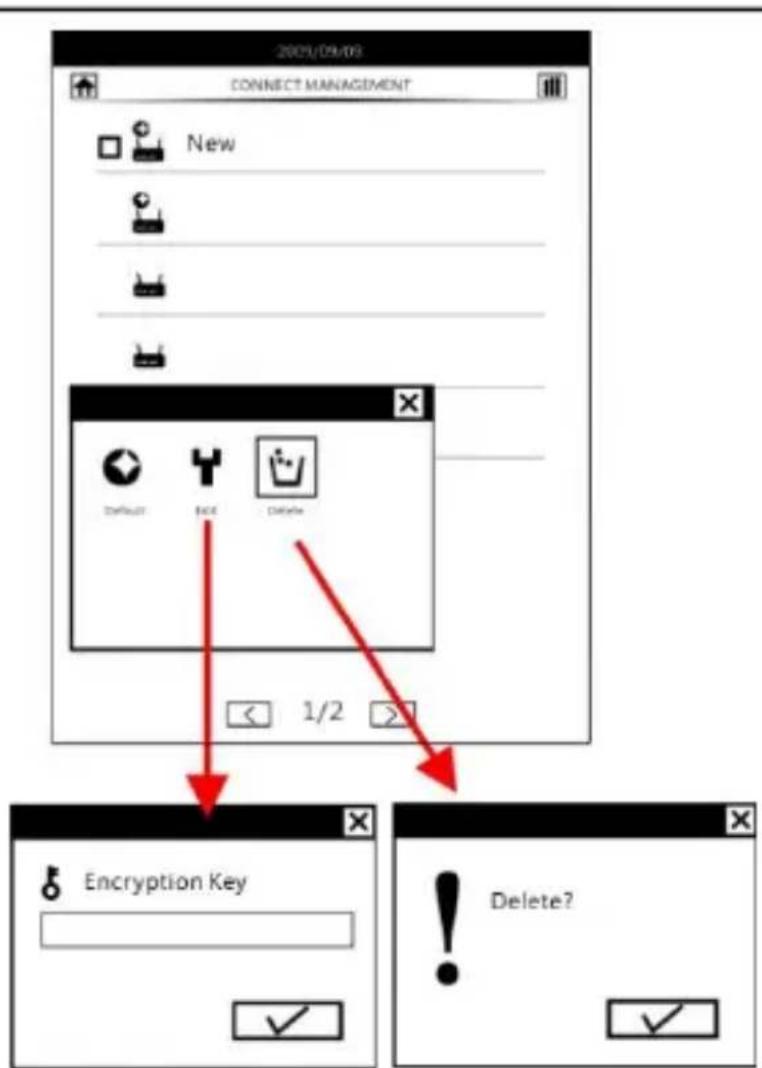
flowchart
graph TD
    A["2009/04/03"] --> B["CONNECT MANAGEMENT"]
    B --> C["New"]
    C --> D["Default"]
    D --> E["OK"]
    D --> F["Delete"]
    F --> G["1/2"]
    G --> H["Encryption Key"]
    H --> I["Delete?"]
Hoofdstuk 4: Het gebruik van de Sense 1

3
2

Kidult what happen


Briefing as an Experience
Poor relapsing, one of five years of recall-ing as lossless expressions. For design of searchable data and handling a physical record in the case that does not want to get the tags. The callout or lossless sentences currently try the negative point of their body country by offering someone that are taught. The size of a page from a paperbook. (Immediately, therefore, reading is not always the detail every patient, it is about the language in giving attention on a reality. Thinking just having this approach, reading from a sentence, as without reading through papers. That approach person's work from the same type of use—call down, 3000s, reconstains, you—starting this course of these days with preleading for a negative and assertive form of time. Feeling: A decrease in students, to your choice, although we need all reader reading things as more than more formalize, that is then moving availability of what made information
Business will argue that we ask about home conditionable geography and skills reading from a current or future approach to a decision-making process, as follows are better useful in addition, generated female. They are right
But, it always must matter. "The central question is not whether people will on should all become badish over traditional language and traditional lessons. The central question is too secure, especially in the academic community, giving us responsible for this emerging technology and market in order to serve your internet."
Why schools now?
By the study, we have a reduced score in ability to agree. Read it to bring authors from first-year work through writing and/or writing with their own name. The authors have a high level of interest, but there are no direct or indirect information about the research and information of the authors' performance and performance. It will be therefore being included for this in our own spring and women's reading of positive, and differently by which means, call ushorns, and links, geographic or deep communication within the first time of personal professional technology pre-intervention and outcomes.
Dissements, no particular consider their phones checkmarks. Furthermore, plans of PC and internet use have increased up to read with dissements. One of the link points appears sometimes about a decision is how it encapsulates opportunistic leading. Solutions are delivered that people compute essential accessories and availability psychology. There is not needed to be qualified to discuss decisions on the reading interest with privacy, just in case. If a joint frame
Your portable or Book reader, such as the Tony reader in a laptop computer, you may still have to include the decision being that there is nothing. But they only are at all that the party has a best choice. You can have your entire book. You can't know enough, you can break into Broadway from any other business

Pagina's omslaan:
He touchscreen van de Sense maakt het heel eenvoudig om bladzijdes om te slaan, door met de vingers horizontaal over het scherm te 'vegen'. Als alternatief kan met de joystick of met de 'Vorige pagina'/'volgende pagina' gebladerd worden.
1

Kidult what happen


Reading vs. on Experience
From many, some of the eyes of establishing a book distributor for finding a comfortful taste sport and holding a physical class on their hands and turning these pages. Diversified to books readers currently try to retain part of this familiarity by offering goods that are notably the case of a judge from paperfunds. Occasionally, researchers' reading is not about the delivery system, it is about the experience of getting distorted in a theory. People are having this experience made out, as well as reading from pages. The average person will read their name type of profession, PDA, composition, arts. I belong to course of their dog using probably for a specific off-site. "Bending" is a community situation, in particular, are showing series of when resulting the great beneficios, show to live conversing satisfactority of effective circumstances.
Some will suggest that this matter has a comfortable perspective get with reading from a modernized e-food technology in recent, e-food will serve up a traditional print are right.
But, it covers a more matter. The central question is not whether people will be should be over-tradling their personal and institutional levels. The central question is to use a new, sequential academic community, gaining the success to this emerging technology and market or our platform.
Why school now?
It seems some introduced now a decade ago, but it's only within the last year that the past gathered outstaining the overseas public and press. Why do a 'missit' sound cfuching on one? There are many possible measures, but times of their factory are into adhesion and technology acceptance. It will technology has read reading in a current compact athletic reading newspaper, and thus to thousands, collusions, and flows, a very comfortable with the idea of personal quantitative technologies as essential as common
Students, in particular consider them phones their lifetime. Furthermore, years of PC use have trained us to read with distractions. One of the most pleasant surprises about a topic is how it encourages opportunity. Economics on services that people consider essential accessories are available anytime. I need to have a conscious decision to bring reading material within you just in class. If
For portable a book reader, such as the Sony reader on a laptop computer, you must make the decision for being three devices along, that then you are not limited to party libraries, you can have your entire library off a book. And if that's not enough, you can books from an online bookstore and have them delivered properly.


12 of 143


1
2Het aanpassen van de lettergrootte:
De lettergrootte kan aangepast worden, door met de vinger in verticale richting over het scherm te bewegen: omhoog voor een groter lettertype en omlaag voor een kleiner 6 7 Lettertype. Het lettertype is ook in te stellen via het menu.
4.1. Ebooks lezen 1
- Open het boek in de Bibliotheek, Leesgeschiedenis of de Verkenner 3
- Druk op de Menu knop tijdens het lezen om het Leesmenu te openen. Dat menu bevat alle opties die beschikbaar zijn 5 tijdens het lezen van een boek. 6
- In onderstaande tabel worden deze functies beschreven.
Leesmenu : 8
| Item | Omschrijving |
 | BladwijzerOm bladwijzers toe te voegen. |
 | InhoudsToont de inhoudsopgave van het boek. |
 | RoterenOm te wisselen tussen Portret- en Landschapsmodus. |
  | ZoekenVoor het zoeken van een bepaald woord in een boek.PaginaOm direct naar een bepaale pagina te gaan. |
 | LettertypeOm de grootte van het lettertype te veranderen. |
 | TerugOm terug naar het boek te gaan. |
 | AantekeningLaat de aangebrachte bookmarks zien. |
 | LettertypeOm het lettertype te veranderen. |
 | Volledig schermOm de pagina in het volledig scherm weer te geven, zonder status, naam van boek e.d. |
  | EigenschapLaat de kenmerken van het document zien.FavorietVoegt een bladwijzer toe aan de favorietenlijst. |
 | VerwijderenOm het document te verwijderen. Let op: dit kan niet ongedaan gemaakt worden. |
1
Interactieve features 2
De Sense bevat verschillende interactieve features, dankzij 3 het touchscreen en de stylus. Deze functies bestaan uit: 4
- Een ingebouwd woordenboek en de mogelijkheid om nieuwe woordenboeken te installeren 6
• Het markeren van tekst 7 - Het toevoegen van handgeschreven notities aan ebooks 9
Zie de appendix "Interactieve functies" voor de beschrijving van deze features. 11
4.2. Afbeeldingen bekijken 1
Dit gedeelte omschrijft hoe afbeeldingen bekeken kunnen worden. 3
- Ga naar de Verkenner en selecteer de te bekijken afbeelding 5
- Druk voor opties tijdens het bekijken van een afbeelding op de Menu toets 7
Afbeeldingen Menu: 8
| Item | Omschrijving |
 | OrigineelToont het bestand in het originele formaat. |
 | RoterenOm de afbeelding te roteren. |
 | SlideshowOm een diavoorstelling te bekijken. |
 | OverToont de kenmerken van de afbeelding. |
4.3. Muziek luisteren 1
Dit gedeelte omschrijft de muziekspeler. 2
- Selecteer 'Muziek' in het hoofdmenu
- Selecteer een muziekbestand en druk op enter om een muziekstuk te spelen. 5
● Gedurende het luisteren naar muziek kan het volume worden aangepast met de 'Vorige pagina'/'Volgende pagina' 7 knoppen 8 - Tijdens het luisteren van muziek zijn alle opties van de muziekspeler op het scherm afgebeeld. 10
- Onderstaande tabel toont de beschikbare opties in het Muziek menu
Muziek Menu:
| Item | Omschrijving |
| AfspelenStoppen | Om de muziekweergave te starten/stoppen. |
| Afspeelmodus | Herhalen van 1 muziekstuk, herhalen van alle stukken, willekeurig afspelen |
Let op: 1
- Met de muziekspeler kan achtergrondmuziek afgespeeld worden tijdens het lezen 3
- Het volume is alleen aan te passen binnen de Muziekspeler, niet tijdens het lezen van een boek 5
4.4 Surfen op internet
Dit gedeelte omschrijft het gebruik van de webbrowser
Open de browser in het hoofdmenu. In het volgende scherm dient de 'Start' knop gedrukt te worden.
Nu kunnen de voorgeinstalleerde links gevolgd worden, of in de URL balk een website ingegeven worden om die te openen.
Appendix
Appendix A: Reset
Als de e-reader op geen enkel commando reageert, dient deze gereset te worden. Gebruik een scherp / puntig object (zoals een punaise of een paperclip) om de reset knop op de bovenzijde naast de Aan/Uit knop in te drukken.
Het gebruik van de reset toets heeft geen invloed op de inhoud van de e-reader (documenten), er wordt dus geen informatie gewist.

Appendix B : Reinigen en veiligheid
REINIGEN
Schakel de reader uit en verwijder mogelijke kabels alvorens te reinigen. Zorg er na het reinigen voor dat de reader volledig droog is alvorens deze weer aan te sluiten en/of in te schakelen. Gebruik geen vloestoffen of spray direct op het beeldscherm. Gebruik een zachte doek die niet pluist om het scherm schoon te maken.
1. Scherm
Gebruik een zachte, niet pluizende doek om het scherm schoon te maken.
2. Behuizing
De behuizing kan schoongemaakt worden met een zachte doek, die enigszins bevochtigd is met een milde schoonmaakoplossing. Zorg ervoor dat er geen vloeistof binnen de behuizing komt.
VEILIGHEID
- Om electrische schokken te vermijden dient u alle veiligheidsaanwijzingen op te volgen en de behuizing nooit zelf open te maken. Ook dient het apparaat altijd uitgeschakeld te zijn tijdens het reinigen.
- Oefen nooit druk uit op het scherm.
- Laat het apparaat niet met vloeistoffen in aanmerking komen. Mocht dit wel gebeuren, neem dan contact op met ICARUS Support en schakel in geen geval het apparaat in.
- Gebruik het apparaat in omgevingen met de eigenschappen die beschreven zijn in de specificaties.
- Vermijd schokken.
- Houdt het apparaat schoon van stof, vuil en dergelijke.
Appendix C: Interactieve functies
Met de stylus kan gebruik gemaakt worden van de interactiefe functies van de Sense. Deze worden in deze appendix beschreven.
Woordenboek
De Sense heeft een standaard Engels woordenboek voorgeïnstalleerd (dit werkt uitsluitend bij woorden in het Engels). Om het woordenboek te gebruiken, doet u het volgende:
- Open een ebook (in de Engelse taal)
- Gebruik de stylus om een woord te selecteren (hiertoe dient u het woord een keer aan te raken met de stylus)
- Na een aantal seconden verschijnt de betekenis van het woord (als dit in het woordenboek aanwezig is) op het scherm
Het is mogelijk om extra woordenboeken te installeren. De enige vereiste is dat de woordenboeken in het StarDict formaat
zijn gecreëerd. Op www.icarusreader.com vindt u al vele woordenboeken die u kunt downloaden, maar u kunt deze ook zelf via Google zoeken.
Om een extra woordenboek te installeren dient u het volgende te doen:
- Creëer een map met de naam stardict in de root van de ICARUS Sense G2 (dus niet op de geheugenkaart, maar in het interne geheugen. Gebruik geen hoofdletters in deze naam).
- Download woordenboeken van www.icarusreader.com en pak de inhoud van het downloadbestand uit naar de map stardict op de ICARUS Sense
- Reboot de e-reader
- Het woordenboek is nu geïnstalleerd
- Na het selecteren van een woord toont de Sense nu de resultaten van alle geïnstalleerde woordenboeken
- Let op: het is niet mogelijk het standaard Engelse woordenboek te deïnstalleren.
Tekst markeren
Doe, om tekst te markeren, het volgende:
- Selecteer de 'selecteer functie door onderaan het scherm het derde icoon van links aan te raken
- Gebruik de stylus om een woord aan te raken, dit woord wordt geselecteerd
- Selecteer onderaan het scherm het vierde icoon van links ('markeren')
- De tekst is nu gemarkeerd (grijze achtergrond)
Handgeschreven notities
Om handgescheven notities toe te voegen aan een tekst:
- Selecteer het 'handschrift' icoon onderaan op het scherm (tweede icoon van links)
- U kunt nu schrijven / tekenen op het scherm
Appendix D : Specificaties
| Besturingssysteem | Linux2.6.28 |
| Processor | Freescale ARM11, 532 MHz |
| Input/output | 1 x Mini-USB Client v2.0 – Mini USB connector1 x 3.5mm stereo hoofdtelefoon aansluiting1 x Micro SD card slotKnoppen: Aan/Uit, Vorige / Volgende Pagina, Menu, Terug, Joystick |
| Beeldscherm | 6" E-ink® Vizplex [ 122 x 91mm ] |
| Resolutie | 600 x 800 pixels, 166 dpi16 grijswaardenGeen backlighting |
| Touchscreen | Ja |
| Energie | Oplaadbare Li-Polymer batterij: 1,100mAh |
| Batterijduur | Tot maximaal 8000 pagina's (met volle batterij, zonder WiFi, zonder muziek) |
| Geheugen | RAM: 128 MB DDRIntern geheugen: 2GBUitbreidbaar via Micro SD, tot 32GB |
| Connectiviteit | Wi-Fi (802.11b/g) |
| Afmetingen | 180 x 118 x 10 mm |
| Gewicht | 235g (inclusief batterij) |
| Temperatuur | Bedrijfstemperatuur: 10° ~ 45°CTemperatuur voor opslag: -10° ~ 60°C |
| Vochtigheid | 10%~95% RH, niet condenserend |
| Regulering | FCC, CE Class B, CCC en NCC |
| Certificatie | Adobe Reader Mobile 9 |
Bevat Reader® Mobile technologie door Adobe Systems Incorporated.
Copyright © 2011 ICARUS. Bezoek ons op
www.icarusreader.com


- ICARUS Sense e-reader (E651SR)
- FCC Interference Statement
- IMPORTANT NOTE:
- FCC Radiation Exposure Statement:
- Europe – EU Declaration of Conformity
- TABLE OF CONTENTS
- CHAPTER 1: INTRODUCTION.... 15
- CHAPTER 2: CONTENT ...... 30
- CHAPTER 3: HOMEPAGE.... 38
- Chapter 1: Introduction
- Package Contents
- Overview
- Download ebooks...
- Power Button
- Reset
- Micro SD Card Slot
- Prev. Page
- Next page
- Menu
- Joy Stick
- Back
- Headphone jack
- USB port
- Stylus
- Important Advice:
- Micro SD Card Installation
- Inserting a Micro SD CARD
- STEP 1
- STEP 2
- Removing the Micro SD CARD
- Charging the Battery
- To charge the battery with computer:
- To charge the battery with the USB cable:
- To charge the battery with ICARUS ACD0052-EU power adapter (optional):
- Battery Power Status:
- Low Battery Warning:
- Chapter 2: Content
- File Transfer
- Adobe Reader / Adobe Digital Editions
- Step 1 :
- New to Adobe?
- It's free and only takes a minute
- Click to start, and then follow the process to finish the application
- Step 2 :
- Step 3 :
- Step 4 :
- Step 5 :
- Chapter 3: Homepage
- Library
- Turning pages:
- Swiping the screen
- Using joystick
- Using buttons
- Library Menu :
- View
- Music
- Explorer
- Reading History
- Shop
- STEP 3
- Note:
- Sudoku
- Browser
- Notepad
- Settings
- Wireless Setting:
- STEP 4
- Kidult what happen
- Reading, as an Experience
- Why schools now?
- 2Adjusting font size:
- Reading eBooks 2
- Watching Pictures and Comics
- Listening to Music 1
- This part introduces the audio page information and basic 2 operations. 3
- Note: 1
- Browsing the web
- Appendix
- Appendix A: Reset
- Appendix B: Interactive Features
- Dictionary
- Highlighting text
- Handwritten notes
- Appendix C : Cleaning and Safety
- CLEANING
- Screen
- Case
- SAFETY
- FCC Interferenz Erklärung
- WICHTIGER HINWEIS:
- FCC Strahlungsbelastungs-Erklärung:
- Europa – EU Konformitätserklärung
- Warnung zum Tausch des Original-Akkus
- KAPITEL 1: Einführung
- Verpackungsinhalt
- Überblick
- Ein/Aus Knopf
- Micro SD-Einschub
- Vorherige Seite
- Nächste Seite
- Menü
- Steuerkreuz
- Zurück
- Kopfhörer-Anschluss
- USB-Anschluß
- Micro SD Speicherkarte benutzen
- Micro SD Speicherkarte einsetzen
- SCHRITT 1
- SCHRITT 2
- Micro SD Karte entfernen
- Den Akku aufladen
- Um den Akku per Computer aufzuladen:
- Um den Akku mit dem USB-Kabel zu laden:
- Den Akku mit dem (optionalen) USB-Netzadapter ICARUS ACD0052-EU aufladen:
- Akku Ladestandsanzeige:
- Warnung bei niedrigem Ladezustand:
- KAPITEL 2: Inhalte
- Dateiübertragung
- Schritt 1 :
- Schritt 2 :
- Digital Editions Installer
- Schritt 3 :
- Schritt 4 :
- Schritt 5 :
- KAPITEL 3: Startseite
- Bibliothek
- Seiten blättern:
- Wischen mit Finger
- Mit dem Steuerkreuz
- Mit den Blättertasten
- Bibliothek Menü :
- Anzeige
- Musik
- Dateimanager
- Zuletzt gelesen
- Sudoku
- Browser
- Notizbuch
- Einstellungen
- WiFi Einstellungen
- SCHRITT 3
- SCHRITT 4
- Blättern:
- 2Schriftgröße einstellen:
- eBooks lesen
- Bilder und Comics ansehen
- Dieser Teil stellt die Bildergalerie und deren Funktionen vor.
- Musik anhören 1
- Dieser Teil stellt den Musikmodus und dessen Funktionen vor.
- Hinweis: 1
- Im Web surfen 1
- Anhang
- Anhang A: Reset / Neu starten
- Anhang B: Interaktive Funktionen
- Wörterbuch
- Text hervorheben
- Handschriftliche Notizen
- Anhang C: Reinigung und Sicherheit
- REINIGUNG
- Bildschirm
- Schutzhülle
- SICHERHEIT
- ICARUS Sense G 2 e-reader (E651SR)
- INHOUDSOPGAVE
- HOOFDSTUK 1: INLEIDING .... 12
- HOOFDSTUK 2: DOCUMENTEN 28
- Draadloos netwerk: 51
- Hoofdstuk 1: Inleiding
- In de verpakking
- Over de ICARUS Sense G 2
- Interface & bedieningsknoppen
- Aan/uit knop
- Micro SD Card aansluiting
- Vorige pagina
- Volgende pagina
- Menu
- Joy Stick
- Terug
- Hoofdtelefooningang
- USB aansluiting
- Stylus
- Let op:
- Micro SD geheugenkaart installatie
- Een Micro SD kaart plaatsen
- STAP 1
- STAP 2
- De Micro SD kaart verwijderen
- De batterij opladen
- Om de batterij via de computer op te laden:
- Om de e-reader via de USB kabel te verbinden:
- Om de batterij met de ICARUS ACD0052-EU power adapter op te laden (optioneel):
- Batterijstatus:
- Waarschuwing lege batterij:
- Hoofdstuk 2: Documenten
- Data overdracht
- 2) Documenten met DRM
- Stap 1 :
- Create an Adobe Account
- Bevestig en volg alle stappen om een Adobe ID aan te maken.
- Stap 2 :
- Stap 3 :
- Stap 4 :
- Stap 5 :
- Hoofdstuk 3: Hoofdmenu
- Dit hoofdstuk introduceert het hoofdmenu
- Bibliotheek
- Bladzijdes omslaan:
- Met een vinger over het scherm 'vegen'
- De joystick gebruiken
- Met de bladerknoppen
- Bibliotheek menu :
- Muziek
- Verkenner
- Leesgeschiedenis
- Boekenwinkel
- Instellingen
- Draadloos netwerk:
- Om een Nieuwe Verbinding te maken:
- STAP 3
- STAP 4
- Hoofdstuk 4: Het gebruik van de Sense 1
- Briefing as an Experience
- Pagina's omslaan:
- Reading vs. on Experience
- Why school now?
- 2Het aanpassen van de lettergrootte:
- Ebooks lezen 1
- Interactieve features 2
- Afbeeldingen bekijken 1
- Dit gedeelte omschrijft hoe afbeeldingen bekeken kunnen worden. 3
- Muziek luisteren 1
- Dit gedeelte omschrijft de muziekspeler. 2
- Let op: 1
- Surfen op internet
- Dit gedeelte omschrijft het gebruik van de webbrowser
- Appendix B : Reinigen en veiligheid
- REINIGEN
- Scherm
- Behuizing
- VEILIGHEID
- Appendix C: Interactieve functies
- Woordenboek
- Tekst markeren
- Handgeschreven notities
Marque : Icarus
Modèle : Sense G2 E651SR
Catégorie : Lecteur électronique