Omnia M703BK - Lecteur électronique Icarus - Notice d'utilisation et mode d'emploi gratuit
Retrouvez gratuitement la notice de l'appareil Omnia M703BK Icarus au format PDF.


| Type de produit | Lecteur électronique |
| Marque | Icarus |
| Modèle | Omnia M703BK |
| Écran | 7 pouces (17,8 cm) e-ink tactile |
| Résolution | 1024 x 768 pixels |
| Dimensions | 195 x 125 x 10 mm |
| Poids | 180 g |
| Capacité de stockage | 8 Go (extensible par microSD) |
| Formats pris en charge | EPUB, PDF, MOBI, TXT, HTML, FB2, etc. |
| Connectivité | Wi-Fi 802.11 b/g/n, micro USB |
| Batterie | Lithium-polymère 1500 mAh |
| Autonomie | Jusqu'à 4 semaines (utilisation modérée) |
| Éclairage | Éclairage avant réglable |
| Fonctions principales | Lecture d'e-books, dictionnaire intégré, réglage de police, notes, signets, bibliothèque |
| Entretien et nettoyage | Nettoyer l'écran avec un chiffon doux et sec. Ne pas utiliser de produits chimiques. |
| Sécurité | Éviter les chocs, l'humidité et les températures extrêmes. |
| Pièces détachées et réparabilité | Pièces disponibles via le service après-vente Icarus. Réparations possibles en centre agréé. |
| Informations générales | Garantie 2 ans. Fabriqué en Chine. |
FOIRE AUX QUESTIONS - Omnia M703BK Icarus
Questions des utilisateurs sur Omnia M703BK Icarus
0 question sur cet appareil. Repondez a celles que vous connaissez ou posez la votre.
Poser une nouvelle question sur cet appareil
Téléchargez la notice de votre Lecteur électronique au format PDF gratuitement ! Retrouvez votre notice Omnia M703BK - Icarus et reprennez votre appareil électronique en main. Sur cette page sont publiés tous les documents nécessaires à l'utilisation de votre appareil Omnia M703BK de la marque Icarus.
MODE D'EMPLOI Omnia M703BK Icarus
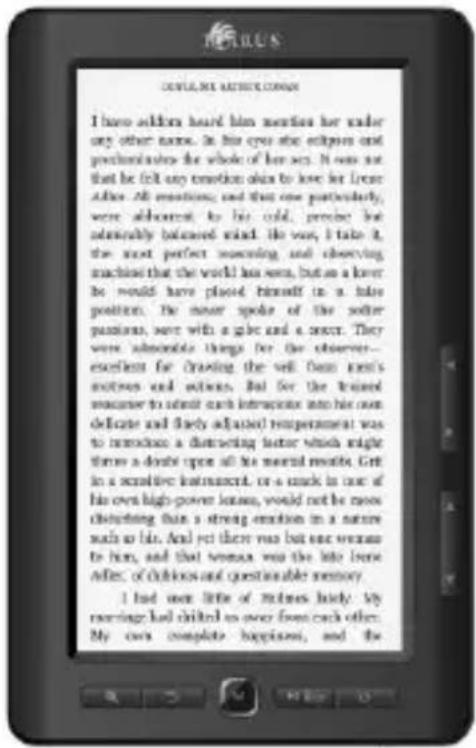
Omnia (M703BK)
User Manual
Introduction
Thank you for purchasing an ICARUS e-reader.
The Omnia gives you access to all your media on the go. It is not only a well-equipped e-reader, it also plays your videos (many formats up to 720p), music and images. The crisp 16:9 widescreen LCD is perfect for watching movies that will make your eyes pop. The screen can be optimized for viewing or reading with adjustable brightness, background color and more. Listen through the internal speaker or via headphones (not included).
We wish you a lot of reading, listening and watching pleasure!
The Icarus Team
Notes
Please kindly read carefully all the notes below.
I Safety Notes
1 The device is not waterproof. Please prevent the use in wet and dangerous environments.
2 Never place the device under bright sunlight in order not to shorten the battery life
3 Never squeeze the display panel or put heavy objects on it to protect the screen from getting broken
4 Do not clean the device with a chemical liquid. Please clean using a cotton-free soft cloth
5 Do not hold the device if you are using sunscreen or other creams that contain alcohol. This will damage the e-reader's housing
6 Do not drop, beat or shake the device. Strong vibration or falling down will cause damage
to the device and rough treatment can damage internal structures
7 Do not tear open the device yourself. The ICARUS Illumina should only be opened by qualified ICARUS or ICARUS trained personnel. If you try to repair yourself, the device can be damaged and warranty will no longer apply.
7 The normal working temperature of the device display panel is 0-40°C. In colder or warmer environments the display might malfunction.
8 Do not subject the device to extremely hot conditions, as this could lead to overheating and damage to the components.
9 Stop using the device if the battery is damaged, distorted, discolored, overheated or smells bad.
II Product Notes
1 If the e-reader cannot recognize the memory card inserted, please take this out and insert it again
2 While the memory card is reading data, please do not remove the memory card. This will lead to loss of data
3 Choose the FAT file format when formatting the memory card
4 If the device does not respond, please press the RESET button and restart
5 If the device does not respond after reset and restart, the battery could be empty. Please charge the device for at least 4 hours
6 Only use original ICARUS accessories with your device. ICARUS holds no responsibility to damage caused to the device by third party devices
7 ICARUS recommends using Kingston memory cards only
8 Great care has been exercised when creating this user manual. However, as software and hardware are in constant development, it is possible that parts of this user manual do not correspond to
the actual product. Always visit www.icarusreader.com for the latest product information.
In the box
• Icarus Omnia M703BK e-reader
• Micro USB cable (charging and data)
• DC adapter (charging)
- Quick Start Guide
• Warranty card / Club Icarus card
Make sure your package contains the items described above. If you find any items are missing or damaged, please contact your dealer.
System Requirements
• 1 USB 2.0 Port
• Windows Operating System
Buttons, ports and controls

- 7" LCD screen
- Left/right buttons
- Up/down buttons
- Power button
- Zoom button / adjust font button
- Back/return button
- Menu button
- Play/pause button (also for screen rotation)
- 3.5mm headphone jack
- Micro SD memory card slot
- Mini USB connector (charging/data)
- DC input (charging)
- On/offswitch
1.1 Turning on / Shutdown
To turn on, change the position of the ON / OFF switch (13) to the ON position, then hold the power button (4) for 5 seconds.
To turn off, hold the power button (4) for 5 seconds.
1.2 Charging the e-reader
Your e-reader can be charged in two ways:
(1)
by connecting the e-reader to computer or wall USB adapter (sold separately: ACD0052-EU) using the mini USB port (11) using the mini USB cable
(2)
by connecting the e-reader to computer or wall USB adapter (sold separately: ACD0052-EU) using the DC adapter. Charging with the DC adapter can be quicker than using the USB port, depending on the power output of your computer/wall outlet.
1.3 Copying books or files to the e-reader
For books that do not have Adobe DRM (copyright protection) or movie, image and sound files, you can copy files to the e-reader like you would with for instance a USB disk.
- Connect the e-reader to your PC using the supplied USB cable. The device will act as a storage device. You can recognize the device by its volume label "ICARUS".
- You can now perform normal file management operations like with any other USB storage device (copy-paste, drag and drop etcetera.)
1.4 Importing books with DRM content
Many e-books have copyright protection called Adobe DRM. You can only read these books on up to 6 devices that you need to authorize with a so-called Adobe ID. You cannot share these books with others. In order to read e-books that contain Adobe DRM, proceed as follows.
- Download Adobe Digital Editions (ADE) from http://www.adobe.com/solutions/ebook/digital-editions/download.html
- Install ADE on your PC.
- For first time users, you are required to register for an account ADE.
- Enter the user name and password to activate your Adobe account, and then connect the e-reader to the PC.
- Run ADE and authorize your computer and the e-reader.
- Download or buy e-books from online e-book shops
- When you download the e-book, it will be opened on your computer in ADE and added to the library.
- You can then drag and drop the selected item (s) in the reader unit to transfer DRM e-books as illustrated below
- Be aware that if your e-reader is not authorized with the same Adobe ID as the computer, you will not be able to copy the
content.
For any questions regarding Adobe Digital Editions, we refer to Adobe, the owner of this software.
1.5 Basic usage
The Omnia is very easy to use. Please refer to the part Buttons, ports and controls in the beginning of this document to discover how the control elements need to be used.
■ Use the left/right (2) and up/down (3) buttons to navigate the user interface
■ Use the menu button (7) to confirm choices in the menu or to open the options menu
■ Press the back button (6) to go back one step at any point
■ Press the Play/Pause button (8) to play/pause music or video.
- Press the Zoom button (5) to increase the font size or to adjust the way the page is fitted to the screen.
1.6 Settings
To adjust your e-reader's settings, in the main menu navigate to 'Settings' with the directional buttons (2 and 3) and press the menu button (7).
The following settings are available:
■ Display (brightness and screen time-out)
- to set brightness level. In general we recommend to use a moderate level as a high brightness is tiring to the eyes
- to set time of no use after which the screen turns off (to save energy)
■ System (screen lock and system restore)
- to set the time of no use after which the screen should be locked
- to restore the system to factory settings. Warning: this will erase all content on the device.
Language
■ System information
■ Automatic shutdown
- to set the time of no use after which the e-reader should shutdown
Time setting
■ Font setting
- to adjust the font of the system and books
1.7 Reading books
From the main menu, select Books.

Then use the directional buttons(2 and 3) to select the desired book, press the menu button to open it.
This will open the book (the book can take a few seconds to load depending on the format, file size, amount of pages).
Other controls:
■ When reading press the left/right buttons(2) to turn pages.
■ To change the font size or layout, press the Zoom button.
■ To access other reading options (adding bookmarks etcetera), press the menu button (7).
■ While reading a book, press the play/pause button (8) to rotate the screen (from portrait to landscape mode). Press it again to rotate from landscape to portrait mode. In landscape mode, the up/down buttons behave as the left/right buttons: press up to go to the previous page, press down to go to the next page.
- To exit the book, press the back button (6) in order to return to the main menu.
1.8 Listening to music
From the main menu, select Music.

In the menu that opens, you can choose to view all music or to select based on artist, album, genre. Also you can open your favorites.
Move to the music file you want to play using the directional buttons (2 and 3). Press the menu button (7) to open the file and start playback.
Other controls:
■ Press the play/pause button (8) to pause or resume playback
■ Press the up/down buttons (3) to adjust the volume
In order to open advance options, press the menu button (7). You can set playback options (e.g. repeat), adjust the sound using the equalizer, set the playback order (normal or shuffle) and more.
1.9 Videos
From the main menu, select Video to open the video/movies section.

Move to the video file you want to play using the directional buttons (2 and 3). Press the menu button (7) to open the file and start playback.
Other controls:
■ Press the play/pause button (8) to pause or resume playback
■ Press the left/right buttons (2) to adjust the volume
■ Press the up/down buttons (3) to go to the previous or next file
In order to open advanced options, press the menu button (7). You can set playback options, like setting the playing time, full screen mode or adjusting the brightness.
Beware that not all video formats available are supported. Full HD movies for instance (1080i, 1080p) are not supported. Check the device specifications for supported files.
There are two viewing modes for movies:
1. Original screen
in this mode the original aspect ratio of the movie is used. Black bars might be show to fill the rest of the screen. This mode is the most accurate representation of the movie as intended by its producers
2. Full screen
in this mode, the movie is stretched to fit the screen the aspect ratio is not in line with the movie's original aspect ratio You can change the aspect ratio while watching a movie as follows:
- Press the menu button
• Select the 2nd option from the top
• Choose Original Screen or Full Screen - Press the menu button again to confirm
• Press the back button to return to the movie
1.10 Pictures
From the main menu, select Pictures to open the pictures section.

Move to the image file you want to open using the directional buttons (2 and 3). Press the menu button (7) to open the file.
Other controls:
■ Press the left/right buttons (2) to go to the previous or next image
■ Press the zoom button (5) to zoom in on the image
- Press the menu button (7) to access the browse/slideshow option. You can set the time in between images to a certain amount of seconds. To stop the slideshow, follow same procedure and in the pop-up menu turn the slideshow off.
■ While viewing a image, press the play/pause button (8) to rotate the screen 90 degrees.
1.11 Explorer
As opposed to using the Books, Music, Video or Pictures menu, you can also browse through the files in the file explorer.
From the main menu, select Explorer to open the file explorer.

The files on the e-reader (both internal memory and memory card) will be displayed in a simple folder structure. You can open any type of file (book, music, video, image) from the file explorer.
You cannot copy, rename, delete files or perform other operations like that in this view. For managing your files, connect the e-reader to a computer and perform these tasks in the Windows Explorer.
Technical Support.
If you have any questions on your device, please first read this user manual. If this does not help you, check out our Frequently Asked Questions via http://faq.icarusreader.com
Our technical support department is also happy to answer your questions. Please send us an e-mail first via support@icarusreader.com
This will open a ticket in our support system. Our department will get back to you within several business days. In most cases, we can solve your problem remotely.
In case a repair or inspection is needed, we will instruct you on how to send us devices for inspection.
Beware: never send us products without our explicit request to do so. This can lead to products being lost.
Disclaimer
Every effort has been put into making this user manual as complete as possible. However as both hardware and software evolve over time, there can be differences between the descriptions in this manual and the actual device. We refer you to
www.icarusreader.com, this always contains the latest information.
All trademarks are property of the respected owners.


- Omnia (M703BK)
- Introduction
- Notes
- I Safety Notes
- II Product Notes
- In the box
- System Requirements
- Turning on / Shutdown
- Charging the e-reader
- Copying books or files to the e-reader
- Importing books with DRM content
- Basic usage
- Settings
- Reading books
- Other controls:
- Listening to music
- Videos
- Original screen
- Full screen
- Pictures
- Explorer
- Technical Support.
- Disclaimer
Marque : Icarus
Modèle : Omnia M703BK
Catégorie : Lecteur électronique