SALORA

TVP9100 - Téléviseur SALORA - Notice d'utilisation et mode d'emploi gratuit

Retrouvez gratuitement la notice de l'appareil TVP9100 SALORA au format PDF.

📄 25 pages Français FR Télécharger 💬 Question IA
Notice SALORA TVP9100 - page 18
Voir la notice : Français FR English EN Nederlands NL
Choisissez votre langue et indiquez votre email : nous vous enverrons une version traduite specifiquement.

Questions des utilisateurs sur TVP9100 SALORA

0 question sur cet appareil. Repondez a celles que vous connaissez ou posez la votre.

Poser une nouvelle question sur cet appareil

L'email reste privé : il sert seulement à vous prévenir si quelqu'un répond à votre question.

Aucune question pour l'instant. Soyez le premier à en poser une.

Téléchargez la notice de votre Téléviseur au format PDF gratuitement ! Retrouvez votre notice TVP9100 - SALORA et reprennez votre appareil électronique en main. Sur cette page sont publiés tous les documents nécessaires à l'utilisation de votre appareil TVP9100 de la marque SALORA.

MODE D'EMPLOI TVP9100 SALORA

SALORA

TVP9100

SALORA TVP9100 - TVP9100 - 1

natural_image Digital camera tablet displaying a colorful test pattern with a black-and-white checkered overlay (no readable text or symbols)

HANDLEIDING

MODE D' EMPLOI

USER MANUAL

Inhoud

Inhoud 1 Veiligheidsvoorschriften 2
Overzicht functies 3
Toestel 3
Afstandsbediening 4
Aansluitingen 5
Afbeelding aansluitingen 5
Snelle installatie 6
Hoofdmenu 6
Instellingen 6
Installatie 6
Hoe zenders ontvangen 6
Automlatisch zoeken 7
Handmatig zoeken 7
TV instellingen 8
Paswoord 8
Timer 8
Update software 9
Standaard instellen 9
TV/Radio 9
Lijst 9
Voorkeuren 9
Blokkeren 1
Bewerken 1
Overspringen 1
Annuleren 1
Zoeken 1
Gids 1
Multimedia 1
Mijn album 1
Thumbnail 1
Folder 1
Zoom 1
Diashow 1
Mijn muziek 1
Mijn film 1
Spelletjes 1
Berichten 1
Automatisch uitschakelen 1
Specifications 1
In geval van problemen 1

Veiligheidsvoorschriften

Dank u voor het aanschaffen van de draagbare DVB-T speler. Dit apparaat bevat de laatste elektronische toptechnologie en is ontwikkeld voor huisgebruik, in hotels, op kantoor, enz... Het compacte formaat zorgt voor gemakkelijke draagbaarheid en installatie. Lees de gebruiksaanwijzing alvorens het toestel te gebruiken en hou deze bij voor latere consultatie.

SALORA TVP9100 - Veiligheidsvoorschriften - 1

SALORA TVP9100 - Veiligheidsvoorschriften - 2

text_image Om de gebruiker eraan te herinneren voorzichting te zijn en elektrische schokken te vermijden

Verwittiging :om het risico op een elektrische schok te vermijden, dit toestel niet blootstellen aan regen of vocht.

1) Gelieve aandachtig de gebruiksaanwijzing te lezen en op te volgen om het toestel veilig te kunnen gebruiken.
2) Gebruik dit toestel niet naast water. Plaats geen objecten, gevuld met een vloeistof, boven het toestel.
3) Plaats het toestel niet naast warmtebronnen zoals radiatoren, kachels of andere apparatuur (inclusief een versterker) die warmte verspreidt.
4) Trek de stekker uit in geval van bliksem, storm of als het toestel lange tijd niet gebruikt wordt.
5) Reinigen: trek de stekker uit en gebruik een bevochtigd doekje. Gebruik geen vloeibare detergenten of spuitbussen.
6) Gebruik alleen de accessoires die door de fabrikant aanbevolen worden.
7) Maak gebruik van een erkende servicedienst als onderhoud nodig is. Dat is het geval wanneer het toestel beschadigd is, wanneer de netstroomkabel beschadigd is, wanneer er vloeistof in of andere voorwerpen op het toestel gevallen zijn, wanneer het blootgesteld is aan vocht of wanneer het niet goed meer functioneert. Probeer niet zelf het toestel te herstellen wegens het gevaar van hoge spanningen en het risico op een elektrische schok.

Overzicht functies

Toestel
SALORA TVP9100 - Overzicht functies - 1

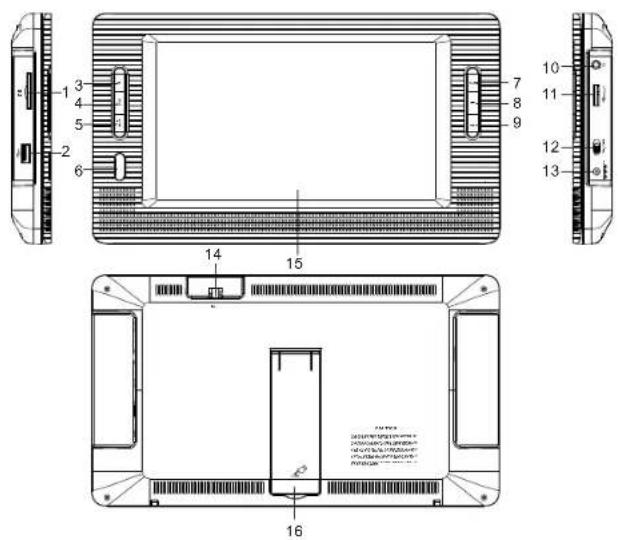
text_image Technical diagram of a device front panel with numbered components and labeled parts
  1. Ingang SD kaart
    2.USB poort
    3.OK toets
    4.CH+/↑
    5.CH-/↓
  2. Ontvanger afstandsbediening
  3. MENU toets
  4. Aansluiting hoofdtelefoon
  5. Volumeregeling
  6. AAN/UIT
  7. DC In 9-12 V
  8. Antenneaansluiting
    15.LCD scherm
  9. Steun

Afstandsbediening
SALORA TVP9100 - Overzicht functies - 2

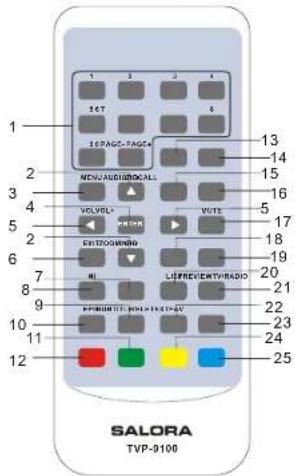
text_image 1 2 3 4 5 6 7 8 9 10 11 12 13 14 15 16 17 18 19 20 21 22 23 24 25 SALORA TVP9100
  1. Numerieke toetsen 0-9
  2. ▲▼CH+/CH-
    3.MENU
  3. ENTER
  4. ◀/▶ VOL-/VOL+
  5. EXIT
    7.TV/RADIO
  6. Weergave/Pauze
    9.FAV, voorkeuren
    10.EPG
  7. Groene toets
    12.Rode toets
    13.PAGE-, pagina naar beneden
    14.PAGE+, pagina naar boven
    15.AUDIO
    16.RECALL, terug naar vorige zender
    17.MUTE
    18.ZOOM
  8. INFO, toont een EPG event of
    programma-informatie
    20.LIJST
    21.PREVIEW
    22.SUBTITLE, instellen ondertitels
  9. TELETEXT, instellen teletekst
  10. Gele toets
    25.Blauwe loets

Gebruik van de afstandsbediening

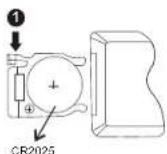
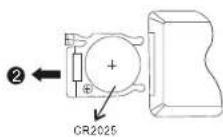
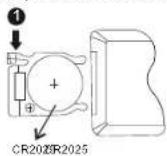
Plaats de batterij in de afstandsbediening zoals hieronder geïllustreerd.

SALORA TVP9100 - Gebruik van de afstandsbediening - 1

SALORA TVP9100 - Gebruik van de afstandsbediening - 2

Bij gebruik van de afstandsbediening, zorg dat deze gericht is op de infrarood ontvanger van het toestel. De afstand tussen het toestel en de afstandsbediening mag niet meer dan 3 meter zijn. Zie afbeelding hiernaast.

SALORA TVP9100 - Gebruik van de afstandsbediening - 3

text_image Diagram showing a monitor connected to a remote control with labeled ports and distance markers

Opmerkingen

  1. Zorg ervoor dat de afstandsbediening niet kan vallen en gebruik hem niet in een vochtige omgeving.
  2. Zorg ervoor dat de infrarood ontvanger zich niet in direct zonlicht bevindt,
  3. Vervang de batterij indien de afstandsbediening niet goed meer werkt.

Aansluitingen

Afbeelding aansluiting

SALORA TVP9100 - Afbeelding aansluiting - 1

natural_image Technical line drawing of a rectangular electronic device with a cable and indicator connected to its side (no text or symbols)

Snelle installatie

Hoofdmenu

Het hoofdmenu dient om vele functies te bedienen.

(1) Druk op

om in het hoofdmenu te gaan
(2) Druk op om de versie van uw draagbare DVB-T te tonen.

INSTELLINGEN

Om de instellingen van de DVB-T te realiseren. Zie afbeelding hieronder.

Installatie

Instellingen voor het ontvangen en weergeven van zenders op de draagbare DVB-T. Zie afbeelding hieronder.

SALORA TVP9100 - Installatie - 1

text_image • Options To Help Forward Advance Than Set Up Set Down

Hoofdmenu, INSTELLINGEN

SALORA TVP9100 - Installatie - 2

text_image Auto Image Auto Language Auto Language Auto Image Smart Image Smart Image Auto Image Auto Image Auto Image Auto Image Auto Image Auto Image Auto Image Auto Image Auto Image Auto Image Auto Image Auto Image Auto Image Auto Image Auto Image Auto Image Auto Image Auto Image Auto Image Auto Image Auto Image Auto Image Auto Image Auto Image Auto Image Auto Image Auto Image Auto Image Auto Image Auto Image Auto Image Auto Image Auto Image Auto Graph

Installatiepagina

De gebruiker kan via de installatiepagina voorkeurtalen instellen.
(1) Druk op

om naar het Hoofdmenu te gaan.
(2) Druk op toetsen om SETUP te kiezen.
(3) Druk op toetsen om Installatie te kiezen.
(4) Druk op om in de Installatie pagina te gaan.
(5) Druk op loetsen om de optie OSD taal te kiezen.
(6) Druk op om de taal te kiezen.
Als er zich geen geheugen (zoekresultaat) in de DVB-T bevindt, wordt de
installatiepagina gekozen.
Stel het landin voor Automatisch Zoeken, Handmatig Zoeken en Tijdzone. Het
wijzigen van de Landinstelling, wijzigt automatisch de waarde van de tijdzone.
De Landinstelling bevatook standaard waarden voor Frequentie en Bandbreedte voor Automatisch Zoeken.

Hoe zenders ontvangen?

Doorzoek de mogelijke frequenties en bandbreedte om de zenders te ontvangen. (1) Druk op toetsen omte kiezen tussen Automatisch Zoeken of Handmatig Zoeken.

Automatisch zoeken

Automatisch zoeken zal eerst het geheugen wissen en vervolgens de frequenties en de bandbreedte afzoeken in functie van de Landinstellingen. Volgde verschillende stappen(1).

(1) Druk toets om te bevestigen dat het geheugen gewist zal worden. (2) Druk toets om het geheugen te wissen het Automatisch Zoeken te starten. Het Automatisch Zoeken neemt een bepaaldetijd in. U kan op eender moment op drukken om het zoeken stop te zetten. Zie afbeelding hieronder.

SALORA TVP9100 - Automatisch zoeken - 1

text_image Database Database is checked (Default) English Database will be checked (Default) English English Language English Language 100% 200% 30%

Bericht wissen geheugen Pagina Automatisch Zoeken

SALORA TVP9100 - Automatisch zoeken - 2

text_image RADIO CHANNEL Signal Channels Total Lock: 4 Progress: 0% AB Frequency: Total Fail: 8.7% Data Setting: Please Mail F-12 F-13 F-14 F-15 F-16 F-17 F-18 Unknown Unknown

Handmatig zoeken

Met Handmatig zoeken worden de zoekresultaten in het geheugen opgeslagen. Het wist het geheugenniet, De gebruikerdient wel de Frequentle en de Bandbreedte te kennen. Als dezelfde Frequentle en Bandbreedte wordt gekozen, wordt de zender tweemaal opgeslagen. Volg de stappen (1)

(2) Druk toets om in de pagina voor Handmatig zoeken te komen.
(3) Druk toetsen om de optie Frequentie te kiezen.
(4) Druk <0-9> toetsen om de Frequentie in te brengen.
(5) Druk toetsen om deoptie Bandbreedte te kiezen.
(6) Druk om de Bandbreedte te kiezen.
(7) Druk om het zoeken te starten of te verlaten.
Zié figuur hieronder.

SALORA TVP9100 - Handmatig zoeken - 1

text_image Channel 1% Channel No. Q1 - P Flow Rate 74.48% M Scanwidth 8 Bits Strength Quality 80 % 84 % Speed Speed Speed Speed

Pagina Handmatig zoeken Resultaat handmatig zoeken

SALORA TVP9100 - Handmatig zoeken - 2

text_image Media Player - News Out Channel Channel No. 01-22 Property Dr. 1 D. 1 Digital 2 Digital 3 Digital 4 Digital 5 Total Out: 2 TV, 8 Radio Channels Data Saving: Please Run OK

TV instellingen

De keuze TV.1 voor schermweergave geeft de meest transparante OSD weergave. Met 'Set Banner' kan u de tijd instellen hoe lang of OSD informatie op het scherm verschijnt. Als u kiest voor 'Altijd' verdwijnt de informatie niet. Het verschijnt steeds bij het bekijken van een zender. Voor videgebruik kan de huidskleur en de zwart/wit-expansie ingesteld worden. Zie afbeelding hieronder.

SALORA TVP9100 - TV instellingen - 1

text_image RGB 75.0 Hz Optical Fiber Optical Transparency Linear Dioxide Tube China Enhancement OFF Next Next Add

Pagina TV instellingen

SALORA TVP9100 - TV instellingen - 2

text_image 674.211 EUR/USD EUR/USD EUR/USD EUR/USD EUR/USD EUR/USD EUR/USD EUR/USD EUR/USD EUR/USD EUR/USD EUR/USD EUR/USD EUR/USD EUR/USD EUR/USD EUR/USD EUR/USD EUR/USD EUR/USD EUR/USD EUR/USD EUR/USD EUR/USD EUR/USD EUR/GBP EUR/GBP EUR/GBP EUR/GBP EUR/GBP EUR/GBP EUR/GBP EUR/GBP EUR/GBP EUR/GBP EUR/GBP EUR/GBP EUR/GBP EUR/GBP EUR/GBP EUR/GBP EUR/GBP EUR/GBP EUR/GBP EUR/GBP EUR/GBP EUR/GBP EUR/GBP EUR/GBP EUR/GBP EUR/ GBP EUR/ GBP EUR/ GBP EUR/ GBP EUR/ GBP EUR/ GBP EUR/ GBP EUR/ GBP EUR/ GBP EUR/ GBP EUR/ GBP EUR/ GBP EUR/ GBP EUR/ GBP EUR/ GBP EUR/ GBP EUR/ GBP EUR/ GBP EUR/ GBP EUR/ GBP EUR/ GBP EUR/ GBP EUR/ GBP EUR/ GBP EUR/ GBP EUR/ EUR

Pagina 'banner'

Paswoord

Hiermee kunnen verschillende blokkeringen van de DVB-T ingesteld worden. Wanneer het Instelmenu geblokkeerd is, kan het hoofdmenu alleen geopend worden door het inbrengen van het juiste paswoord. Ook zenders kunnen geblokkeerd worden. Gebruik het paswoord om het programma te blokkeren en om de niveau van de blokkering (censuur) in te stellen. U kan hier het paswoord wijzigen. Het standaard paswoord is 8888.

Timer functie

De gebruiker kan de datum, de tijd en de frequentie instellen om de DVB-T automatisch op te starten met een bepaalde zender. De start en stoptijd zijn afhankelijk van de in het toestel ingestelde tijd.

(1) Druk toets om in de 'event edit' pagina te komen.
(2) Druk toetsen om de rij van het event dat ingesteld moet worden, te kiezen.
(3) Druk om de gegevens te wijzigen.

(4) Druk om vast te leggen.

Als er een conflict is met een andere geprogrammeerde instelling, wordt dit via een bericht meegedeeld. Als de datum en de tijd voorbij zijn, schakelt de DVB-T automatisch over op de gekozen zender.

Het programma kan tijdens de weergave stopgezet worden. Zie afbeelding hieronder.

SALORA TVP9100 - Timer functie - 1

text_image 01 02 03 04 05 06 07 08 09 10 None OK

Timer functie

SALORA TVP9100 - Timer functie - 2

text_image Event On Date Time Mode Channel Type Funds 2000000 Start Time 18:31 Stop Time 18:21 Start Time 5th

'Event edit' pagina

Update software

Update de software door gebruik te maken van de ingebouwde kaartlezer of de USB-poort. Selecteer .ssu.file om te updaten.

Standaardwaarden terugzetten

Hiermee kunnen de fabrieksinstellingen van de DVB-T terug ingesteld worden. Alle persoonlijke instellingen en het geheugen worden gewist.

TV/RADIO

Er kan gekozen worden tussen twee types zenders: TV of Radio. De bediening van de Lijst en de Gids zijn identiek voor TV en Radio. Hieronder het voorbeeld voor TV. Zie afbeelding hieronder.

SALORA TVP9100 - TV/RADIO - 1

text_image Ota Lee My State

Hoofdmenu TV

SALORA TVP9100 - TV/RADIO - 2

text_image Video No Image Name: Video 000 527/1981 000 527/1981 000 527/1981 000 527/1981 000 527/1981 000 527/1981 000 527/1981 000 527/1981 000 527/ 000 527/1981 000 527/1981 000 527/1981 000 527/1981 000 527/1981 000 527/1981 000 527/1981 000 527/2004 000 527/2004 000 527/2004 000 527/2004 000 527/2004 000 527/2004 000 527/2004 000 527/2004 000 527/ 000 527/2016 000 527/2016 000 527/2016 000 527/2016 000 527/2016 000 527/2016 000 527/2016 000 527/2016 Video OK OK For My Info Group Save

TV-lijst

Lijst

De gebruiker kan bepaalde functies in de lijst bedienen. Het resultaat wordt weergegeven.

(1) Druk toetsen om 'Tool' te selecteren.
(2) Druk om de zender te klezen.
(3) Druk om te bedienen. Zie afbeelding TV-lijst.

Voorkeuren

De gebruiker kan snel doorheen de zenders lopen door gebruik te maken van een voorkeurfilter. Er is keuze uit 8 verschillende voorkeurfilters: nieuws, sport, film, muziek, shopping, reizen, jongen en meisje.

(1) Druk om de zender te klezen.
(2) Druk om de voorkeuroptie te kiezen.
(3) Druk <1-8> om het type voorkeurfilter te kiezen.
(4) Druk om te bevestigen en vast te leggen.
De zenderstatus wordt hierna gewijzigd. Druk toets in om te bevestigen en vast te leggen. Zie afbeelding Voorkeurpagina.

SALORA TVP9100 - Voorkeuren - 1

text_image Track Track Name: 300000 Track ID: 300000 Track Time: 12.00 Track Step: 12.00 Track Label: 12.00 Track Record: 12.00 Track Record: 12.00 Track Record: 12.00 Track Record: 12.00 Track Record: 12.00 Track Record: 12.00 Track Record: 12.00 Track Record: 12.00 Track Record: 12.00 Track Record: 12.00 Track Track: 12.00 Track Track: 12.00 Track Track: 12.00 Track Track: 12.00 Track Track: 12.00 Track Track: 12.00 Track Track: 12.00 Track Track: 12.00 Track Track: 12.00 Track Track: 12.00 Track Record: 12.00 Track Record: 12.00 Track Record: 12.00 Track Record: 12.00 Track Record: 12.00 Track Record: 12.00 Track Record: 12.00 Track Record: 12.00 Track Record: 12.00 Track Report: 12.00 Track Report: 12.00 Track Report: 12.00 Track Report: 12.00 Track Report: 12.00 Track Report: 12.00 Track Report: 12.00 Track Report: 12.00 Track Report: 12.00 Track Report: 12.00 Track Record: 12.00 Track Record: 12.00 Track Record: 12.00 Track Record: 12.00 Track Record: 12.00 Track Record: 12.00 Track Record: 12.00 Track Record: 12.00 Track Record: 12.00 Track Print: Track Print: Track Print: Track Print:

Voorkeurpagina

SALORA TVP9100 - Voorkeuren - 2

text_image Volume Movie: Pugan Vial 00:00 01:00 02:00 03:00 04:00 05:00 06:00 07:00 08:00 09:00 10:00 11:00 12:00 13:00 14:00 15:00 16:00 17:00 18:00 19:00 20:00 21:00 22:00 23:00 24:00 25:00 26:00 27:00 28:00 29:00 30:00 31:00 32:00 33:00 34:00 35:00 36:00 37:00 38:00 39:00 40:00 41:00 42:00 43:00 44:00 45:00 46:00 47:00 48:00 49:00 50:00 51:00 52:00 53:00 54:00 55:00 56:00 57:00 58:00 59:00 60:00 61:00 62:00 63:00 64:00 65:00 66:00 67:00 68:00 69:00 70:00 71:00 72:00 73:00 74:00 75:00 76:00 77:00 78:00 79:00 80:00 81:00 82:00 83:00 84:00 85:00 86:00 87:00 88:00 89:00 90:00 91:00 92:00 93:00 94:00 95:00 96:00 97:00 98:00 99:00 1 Save Channels! VPS 1 PSX 2 PSX 3 PSX 4 PSX 5 PSX 6 PSX 7 PSX 8 PSX 9 PSX 1 1 1 1 1 1 1 1 1 1 1 1 1 1 1 1 1 1 1 1 1 1 1 1 1 1 1 1 1 1 1 1 1 1

Blokkering pagina

Blokkering

Wanneer een zender geblokkeerd is, kan deze bekeken worden na het paswoord ingebracht te hebben.

(1) Druk om de zender te kiezen.
(2) Druk om de blokkeringsoptie te kiezen.
(3) Druk om de blokkering in te stellen.
(4) Druk om te bevestigen en vast te leggen.
(5) De zenderstatus wordt hierna gewijzigd. Druk toets in om te bevestigen en vast te leggen. Zie afbeelding Blokkering pagina.

Bewerken

De gebruiker kan de naam van de zender wijzigen, maximaal 16 karakters. (1) Druk om de zender te kiezen.
(2) Druk om de Edit optie te kiezen.
(3) Druk om de infopagina van de zender af te beelden.
(4) Druk om de zendernaam te wijzigen.
(5) Druk <links/rechts/OK/0-9) om de letter of het cijfer te kiezen.
(6) Druk op 'Save' om terug te gaan naar de infopagina van de zender.
(7) Druk om vast te leggen en terug te gaan naar de lijst.
Indien bij stap (7) op wordt gedrukt wordt er teruggegaan naar de lijst zonder de gegevens vast te leggen.
Zie afbeelding hieronder.

SALORA TVP9100 - Bewerken - 1

text_image Program info Program Name: SCYMB Program No: 0033 Video PSD 2162 Channel No: 6551 Audio PSD 0988 Program: 122000 Seq. 1 Bewinath: 0038 mini Coordination: CMINT Hierarchy Media AIA Cluster Method: 1/4 UP Core Rate 1/2 FFT: 0K UP Core Rate 1/2

Edit selectie

SALORA TVP9100 - Bewerken - 2

text_image Project Name STVW6.1 x 1 - 2.1 x 2 x 3 x 4 y 1 y 2 y 3 y 4 80% in characters: Press 50 to bigger

Editing

Skip (overspringen)

Met skip wordt een zender overgesprongen bij gebruik van zender up/down.

Annuleren

Met annuleren wordt een zender uit het geheugen gewist. Om de zender terug te hebben, dient handmatig gezocht te worden.

Zoeken

De gebruiker kan een zender vinden door een deel van de naam in te voegen.

Gids

Gids wordt ook EPG (Electronic Program Guide) genoemd en toont informatie over de zender. De gids voor TV en Radio zijn gelijkaardig. Zie figuur hieronder.

(1) Druk om de zender te kiezen.
(2) Druk om de datum te wijzigen.

SALORA TVP9100 - Gids - 1

text_image Music Player Video No Event 1000 2007 2008 3009 3010 3011 3012 3013 3014 3015 3016 3017 3018 3019 3020 3021 3022 3023 3024 3025 3026 3027 3028 3029 3030 3031 3032 3033 3034 3035 3036 3037 3038 3039 3040 3041 3042 3043 3044 3045 3046 3047 3048 3049 3050 3051 3052 3053 3054 3055 3056 3057 3058 3059 3060 3061 3062 3063 3064 3065 3066 3067 3068 3069 3070 3071 3072 3073 3074 3075 3076 3077 3078 3079 3080 3081 3082 3083 3084 3085 3086 3087 3088 3089 3090 3091 3092 3093 3094 3095 3096 3097 3098 3099 3100

TV gids

SALORA TVP9100 - Gids - 2

text_image My Player My Player My Master MILK TENDER

Multimedia

MULTIMEDIA

Voor multimedia dient gebruik gemaakt te worden van de ingebouwde kaartlezer of USB-poort. Kies voor Mijn Album, Mijn Muziek, Mijn Film. Zie afbeelding Multimedia.

Mijn Album

Hiermee kan u JPG foto's weergeven. Als er zich geen foto's in de folder bevinden, wordt gestart in Thumbnail modus. Of er wordt gestart in Folder modus.

Thumbnail

Geeft JPG info (breedte, hoogte en datum) van de geselcteerde foto. Zie afbeelding Thumbnail modus.

  • Druk om een andere foto te kiezen.
  • Druk om doorheen de folders en files (foto's) te bladeren.

SALORA TVP9100 - Thumbnail - 1

text_image 01.03.2017 01.03.2017 01.03.2017 01.03.2017 01.03.2017 01.03.2017 01.03.2017 01.03.2017 01.03.2017 01.03.2017 1/2

Thumbnail modus Folder modus

SALORA TVP9100 - Thumbnail - 2

text_image File name: 1234 Plots: 1234 images DISH DISH DISH DISH DISH DISH DISH DISH DISH DISH DISH DISH DISH DISH DISH DISH DISH DISH DISH DISH DISH DISH DISH DISH DISH DISH DISH DISH DISH DISH DISH DISH DISH DISH

Folder

De gebruiker kan door folders en files bladeren. Geeft ook JPG info over de geselecteerde foto. Zie afbeelding Folder modus.
- Druk om door de folders en files te bladeren.
- Druk om de geselcteerde foto te bekijken.
- Druk om terug te gaan naar de Thumbnail modus met foto'suit de huidige folder of keer terug naar het Hoofdmenu.

Zoom

Bekijk en vergroot de foto's op 100% vanaf Thumbnail of Folder modus.

• Druk om MP3 weergave te klezen
• Druk om op de foto in te zoomen.
- Druk /Blauw> om het beeld te spiegelen.
- Druk om de volgende of vorige foto weer te geven.
- Druk om de foto te roteren.
- Druk om naar de diapresentatie te gaan.
De foto's kunnen ingezoomd worden op 25%, 50%, 100%, 150%, 200%. Als de zooming meer dan 100% is, druk om het beeld te verplaatsen. Zie afbeelding Zoom pagina

SALORA TVP9100 - Zoom - 1

natural_image Computer window displaying four colored circular icons on a grassy field under a blue sky with white clouds (no text or symbols visible)

Zoom pagina

Diapresentatie

Diaweergave van alle foto's in de huidige folder vanuit zoom modus.
- Druk om weer te geven fo te pauzeren.
- Druk om MP3 te selecteren voor de diapresentatie.
- Druk om de herhaling in te stellen.
- Druk om het tijdsinterval tussen de dia's in te stellen. Er zijn drie snelheden: snel, medium en traag.
- Druk om direct naar de vorige of volgende foto te gaan.
Zie afbeelding Pagina Diapresentatie

SALORA TVP9100 - Diapresentatie - 1

natural_image Scenic tropical beach scene with thatched-roof structures and a blue sky (no text or symbols)

Pagina Diapresentatie

SALORA TVP9100 - Diapresentatie - 2

text_image MOS: 1000 Open(MOS) Layer Filter... mp3 OK - kappa OK - 2mp3 OK - 2mp4 OK - mp3 OK - mp4 OK - mp5

Pagina Muziek

Mijn Muziek

Hiermee kan MP3 weergegeven worden.
- Druk om doorheen de folders en files (Mp3) te bladeren.
- Druk om een MP3 file weer te geven.
- Druk om de MP3 file weer te geven of te pauzeren.
- Druk om de MP3 file te stoppen.
- Druk om alleen de geselecteerde MP3 file te herhalen.
- Druk om de MP3 file in de huidige folder versneld weer te geven.
- Druk om het volume te regelen.
• Druk om het geluid te dempen.
Tijdens de weergave van MP3 toont het scherm de vooruitgang, de speeltijd en de
totale tijd.
Zie afbeelding Pagina Muziek

Mijn Film

Voor de weergave van AVI/MPG files

SPELLETJES

Er bevinden zich drie items onder spelletjes: Gomoku, Calendar en Calculator

Berichten

Er bestaan berichten om de gebruiker te informeren over de huidige conditie.

Geen signaal: de draagbare DVB-T ontvangt geen signaal, bv omdat de kabel niet is aangesloten.

Geen inhoud: het programma heeft geen inhoud om weer te geven.

Inhoud gecodeerd: het programma is gecodeerd voor betaling, contacteer uw provider om te weten hoe het gedecodeerd kan worden.

Antenne overladen: het vermogen van de antenne is overladen.

HDTV niet ondersteund: deze draagbare DVB-T ondersteunt geen HDTV. Als de programma-inhoud HDTV is, zal deze boodschap verschijnen.

Geblokkeerd: de zender is geblokkeerd. Gebruiker moet het paswoord inbrengen om de zender te deblokkeren.

Apparaat is verwijderd: wanneer er zich geen apparaat (SD kaart of USB) aangesloten is, verschijnt dit bericht.

Automatisch uitschakelen

U kan het automatisch uitschakelen instellen in de instelpagina. Als voor deze functie de positie ON is gekozen en het toestel is in werking via de stroomadapter, zal het, indien er gedurende vier uur geen bediening is gebeurd, automatisch uitschakelen. Als het toestel zich automatisch gaat uitschakelen, verschijnt er op het scherm de tekst "indien geen bediening automatisch uitschakelen binnen 10 minuten". Indien u toch verder wil kijken, moet u de ON/OFF schakelaar opnieuw naar de ON positie schuiven. Om deze functie uit te schakelen, kies voor OFF in de instelpagina:

Specifications

LCD scherm

LCD scherm: 9°

Resolutie: 640 (H) x RGB X 234 (V)

LCD beeldverhouding: 16:9/4:3

Andere gegevens

Video ingang: 1Vp-p/75 Ohm

Ontvangstbereik :177.5 MHz-226.5 MHz

474 MHz-858 MHz

Voeding: AC adapter (AC ingang 100-240 V 50/60 Hz, DC uitgang 9V/1A) Car adapter (DC12V/1A)

Aansluitingen: DC ingant/hoofdtelefoon/USB poort/ SD/MMC kaart

Audio uitgang (analoge audio) : 2.0 V (rms)

Sigaal/ruis-verhouding: ≥80 dB

Dynamisch bereik: ≥60 dB

Gebruikstemperatuur: 0°C \~ 40°C

Verbruik: 10 W

Afmetingen: 290(L)X164(W)X28(D)mm

Netto gewicht: 0.78Kg

In geval van problemen

ProbleemOplossing
Geen beeld en geluidControleer de voeding. Controleer of de schakelaar zich in de AAN stand bevindt.
Geen beeldControleer of de zender goed gekozen is. Gebruik een externe antenne in geval van zwakke ontvangst.
Geen geluidControleer de volumeregeling. Controleer of er een hoofdtelefoon aangesloten is.
Onstabiel beeldRegel de richting en de lengte van de antenne. Signaal is te zwak.
Dubbel beeldDe hoek van de antenne is niet juist. Reflecties van naburige gebouwen, enz...
Sneeuw in het beeldInterferentie
Geen kleurControleer de instellingen

Index

Index1
Safety Precaution2
Functional overview3
Main unit controls3
Remote control4
System connection5
Connection figure5
Quick installation6
Main menu6
Setup6
Installation6
How to receive the program6
Auto scan7
Manual scan7
TV setup8
Password8
Advance timer8
SW update9
Set default9
TV/radio9
List9
Favorites9
Lock10
Edit10
Skip11
Delete11
Search11
Guide11
Multimedia11
My album11
Thumbnail11
Folder12
Zoom12
Slide show13
My music13
My movie13
Game13
Message14
Automatic power off14
Specification15
Troubleshooting15

Safety Precaution

Thank you for choosing our portable DVB-T player. The unit applies the latest state of art electronics and is designed for use at home, in hotels and in offices etc for relaxation. The compact size makes carrying easier as well as installation. Please read the manual carefully prior to use and keep it well for later consultation.

SALORA TVP9100 - Safety Precaution - 1

SALORA TVP9100 - Safety Precaution - 2

Remind user to be careful to avoid electric shock

SALORA TVP9100 - Safety Precaution - 3

Warning: To reduce the risk of fire or electric shock, do not expose this apparatus to rain or moisture.

1) Please read the instruction manual carefully and follow all the requirements of safe operation to operate the device.
2) Do not use this unit near water. Do not place over the unit any container with liquid inside.
3) Do not install near any heat sources such as radiators, heat registers, stoves, or other apparatus (including amplifiers) that produce heat.
4) Unplug this unit during lightning storms or when unused for long time.
5) About Cleaning: Unplug the system, use only wet cloth to clean. Do not use liquid detergent or aerosol.
6) Only use accessories specified by the manufacturer.
7) Refer all servicing to qualified service personnel, servicing is required when the unit has been damaged in any way, such as power supply cord or plug is damaged, liquid has been spilled or objects have fallen into the unit, exposed to moisture, does not operate normally. Don't try to repair the machine by yourself because of the danger of high voltage and electric shock.

Functional Overview

Main unit controls
SALORA TVP9100 - Functional Overview - 1

text_image Technical diagram of a device rear panel with numbered components and labeled parts
  1. SD card slot
  2. USB Port
  3. OK button
  4. CH+/↑
  5. CH-/↓
  6. Remote control sensor
  7. MENU button
    8.

  8. Earphone jack
  9. Volume knob
    12.ON/OFF
    13.DC IN 9-12V
  10. Antenna jack
  11. LCD display
  12. Self-support bracket

Remote control
SALORA TVP9100 - Functional Overview - 2

text_image 1 2 3 4 5 6 7 8 9 10 11 12 13 14 15 16 17 18 19 20 21 22 23 24 25 SALORA TVP-9100

1.Number buttons 0-9
2. ▲/▼ CH+/CH-
3.MENU
4. ENTER
5. ◀/▶ VOL-/VOL+
6. EXIT
7.TV/RADIO
8. ▶ Play/Pause
9.FAV,switch the favorite filter
10.EPG
11.Green button
12.Red button
13.PAGE-,Page down
14.PAGE+,Page up
15.AUDIO
16.RECALL,return the last program
17.MUTE
18.ZOOM
19.INFO,show EPG event or program info
20.LIST
21.PREVIEW
22.SUBTITLE,subtitle setting
23.TELETEXT.teletext setting
24. Yellow button
25. Blue button

The Use of Remote Control

Please put the battery into the remote control as per below illustration

SALORA TVP9100 - The Use of Remote Control - 1

SALORA TVP9100 - The Use of Remote Control - 2

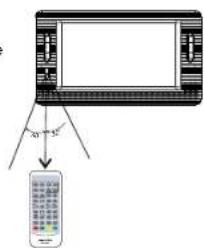
When using remote control, make sure the infrared window is pointed to infrared receiving window of the machine. The distance between machine and remote control must be within 3 metres. Please refer to the illustration beside.

SALORA TVP9100 - The Use of Remote Control - 3

text_image Diagram showing a monitor connected to a remote control with labeled ports and distance markers

Notice

  1. To avoid falling off or place near damp environment.
  2. To avoid infrared receiving window of the unit being under direct sunlight
  3. Please use a new battery to replace old one if the remote control doesn't work.

System Connection

Connection figure
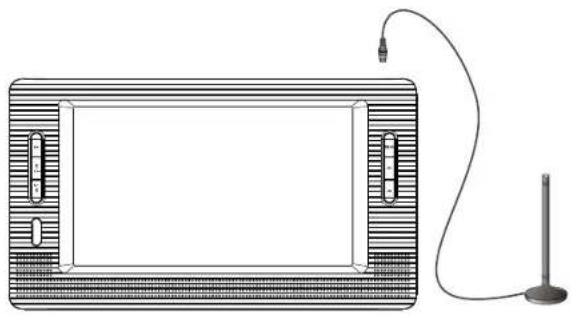
SALORA TVP9100 - System Connection - 1

natural_image Technical line drawing of a rectangular electronic device with a cable and sensor attached (no text or symbols)

Quick Installation

Main Menu for operating a lot of functions.

(1) Press

button to enter Main Menu.
(2) Press button to display the version information of portable DVB-T.

SETUP

Set the system settings of portable DVB-T. See Figure below.

Installation

Install receiving and playing program settings of portable DVB-T. See Figure below.

SALORA TVP9100 - Installation - 1

text_image To Buy Payment Options Time Get Done Set Done

Main Menu, SETUP

SALORA TVP9100 - Installation - 2

text_image Audio & Splice 36D Language Audio Language Audio Language Loy Self Image English Grammar Grammar ON ON

Installation Page

User can select a preferred language among various languages at Installation page.

(1) Press

button to enter Main Menu.
(2) Press button to select SETUP option.
(3) Press button to select Installation option.
(4) Press button to enter Installation page.
(5) Press button to select OSD Language option.
(6) Press button to select a language.
If there is no database (scan result) in the portable DVB-T, it will start at Installation page when booting.
Set the country for Auto Scan, Manual Scan and Time Zone. Change the
Country Setting will automatically change the default Time Zone value
Country Setting also has default Frequency and Bandwidth for Auto Scan.

How to receive the programs?

Scan the possible frequency and bandwidth to receive the programs.

(1) Press button to Auto Scan or Manual Scan at installation page.

Auto Scan

Auto Scan will erase the database first, and scan default frequency and bandwidth by Country Setting. Follow the step(1) at front section.

(2) Press button to be confirmed to clear the database.

(3) Press button to confirm the database will be cleared and start Auto Scan. It costs time to do Auto Scan, user can press to exit at anytime. See Figure below.
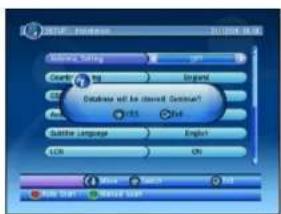
SALORA TVP9100 - Auto Scan - 1

text_image Audio: Function Audio: Setting Query: 100 English Database will be installed. English? Auto: 0.5 Ctrl Buffer Language English LCN OK More Search Add Save Start Named User

Clear database message
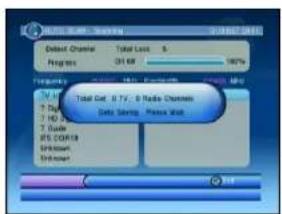
SALORA TVP9100 - Auto Scan - 2

text_image Windows 8.0.1.2007 Default Chancial Total Load S Regms 361 KB 100% Frequency Total Cut: 8.7V; 9 Radio Channels Data Savings, Privacy Quick W: 1 T: 1 T: 100% T: Guide W: COM/18 Unknown Unknown

Auto Scan Page

Manual Scan

Manual Scan adds the scanning results into database, it doesn't erase the database. But User has to know the Frequency and Bandwidth for scanning. If user scans the same Frequency and Bandwidth more than once, the programs will be duplicated. Follow the step (1).

(2) Press button to enter Manual Scan Page.

(3) Press button to select Frequency option.

(4) Press <0\~9> button to input the Frequency value.

(5) Press button to select Bandwidth option.

(6) Press button to set Bandwidth value.

(7) Press button to start scan or exit.

See Figure .below

SALORA TVP9100 - Manual Scan - 1

text_image CHANNEL 2016 CHANNEL 2016 Channel % 0x - 21 Frequency 4 MHz, per Bandwidth 8 Mio Width 30 % Quality 91 % Sound More Lamp Out

Manual Scan Page
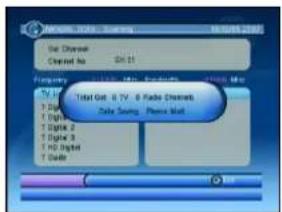
SALORA TVP9100 - Manual Scan - 2

text_image Mobile Phone Options Set Channels Closer No: 01.21 Frequency: 100 MHz Type: Radio V1 T Digital T Optics T Optics 2 T Optics 3 T HD Optics T Guide Total Get: 8 TV - 6 Radio Channels Data Swing: Phone Wall

Manual Scan Result

TV Setup

Setup the display mode for TV.1 is the most diaphanous for OSD transparency. Set Banner displays time for banner display time. Banner doesn't disappear when setting "Always". It displays at watching program. User can set flesh tone or black /white expansion for video enhancement. See Figure below.

SALORA TVP9100 - TV Setup - 1

text_image 12 Format 023 Transparency General Display Time Video Enhancement 027 Wave Solder Edit

TV Setup Page

SALORA TVP9100 - TV Setup - 2

text_image 674.21 Live your you're 20:30 2019 New Daily Hillg Street

Banner page

Password

Set various lock of portable DVB-T.User work main menu by input correct password when Setup Menu Lock has been turned on. User can choose to lock or don't lock program for Channel Lock.Lock the program by password and censorship threshold for Censorship Lock.

User can change password here. The default PIN Code is 8888.

Advance Timer

User can set event(s) for watching the program(s) by date, time and frequency. When setting date and start time is up, portable DVB-T will automatically switch to program user sets. Setting here, the start time and end time depend on current system time.

(1) Press button to enter event edit page

(2) Press button to select Event row user wants to set or modify.

(3) Press button to change the data.

(4) Press button to save.

If conflict with itself or other event, it displays conflict message. If the date and time in the event are up, portable DVB-T will automatically switch to setting program in event.

User can delete the event while it isn't at running. See Figure below.

SALORA TVP9100 - Advance Timer - 1

text_image EVENT: Arrival Time 21 Event Cs Date Time Mate 81 ----- ----- ----- ----- 82 ----- ----- ----- ----- 83 ----- ----- ----- ----- 84 ----- ----- ----- ----- 85 ----- ----- ----- ----- 86 ----- ----- ----- ----- 87 ----- ----- ----- ----- 88 ----- ----- ----- ----- 89 ----- ----- ----- ----- 90 ----- ----- ----- ----- 91 ----- ----- ----- ----- 进度(%): 100%

Advance timer
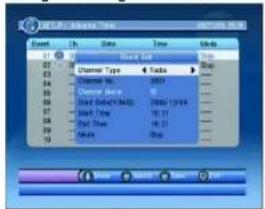
SALORA TVP9100 - Advance Timer - 2

text_image 01.23 Event Ch Date Time Units 01 Channel Type Radio 02 Channel Name: 03 Start Time: 04 Start Time: 05 Stop 06 Stop Time: 07 Stop Time: 08 Stop Time: 09 Stop Time: 10 Stop Time: 11 Stop Time: 12 Stop Time: 13 Stop Time: 14 Stop Time: 15 Stop Time: 16 Stop Time: 17 Stop Time: 18 Stop Time: 19 Stop Time: 20 Stop Time: 21 Stop Time: 22 Stop Time: 23 Stop Time: 24 Stop Time: 25 Stop Time: 26 Stop Time: 27 Stop Time: 28 Stop Time: 29 Stop Time: 30 Stop Time: 31 Stop Time: 32 Stop Time: 33 Stop Time: 34 Stop Time: 35 Stop Time: 36 Stop Time: 37 Stop Time: 38 Stop Time: 39 Stop Time: 40 Stop Time: 41 Stop Time: 42 Stop Time: 43 Stop Time: 44 Stop Time: 45 Stop Time: 46 Stop Time: 47 Stop Time: 48 Stop Time: 49 Stop Time: 50 Stop Time: 51 Stop Time: 52 Stop Time: 53 Stop Time: 54 Stop Time: 55 Stop Time: 56 Stop Time: 57 Stop Time: 58 Stop Time: 59 Stop Time: 60 Stop Time: 61 Stop Time: 62 Stop Time: 63 Stop Time: 64 Stop Time: 65 Stop Time: 66 Stop Time: 67 Stop Time: 68 Stop Time: 69 Stop Time: 70 Stop Time: 71 Stop Time: 72 Stop Time: 73 Stop Time: 74 Stop Time: 75 Stop Time: 76 Stop Time: 77 Stop Time: 78 Stop Time: 79 Stop Time: 80 Stop Time: 81 Stop Time: 82 Stop Time: 83 Stop Time: 84 Stop Time: 85 Stop Time: 86 Stop Time: 87 Stop Time: 88 Stop Time: 89 Stop Time: 90 Stop Time: 91 Stop Time: 92 Stop Time: 93 Stop Time: 94 Stop Time: 95 Stop Time: 96 Stop Time: 97 Stop Time: 98 Stop Time: 99 Stop Time: 100

Event edit page

SW Update

Update the software by built-in card reader or USB port. User select .ssu file to update.

Set Default

Reset portable DVB-T to factory default. All settings by user has been operated will be reset default, and database will be erased at the same time.

TV/RADIO

There are two types of program. One is TV and the other is Radio. The operation of the List and Guide at TV and Radio are the same. Here using TV to be example. See Figure below.
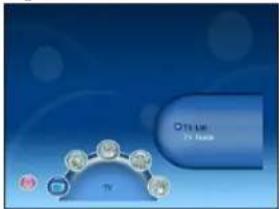
SALORA TVP9100 - TV/RADIO - 1

text_image On Use TV Make

Main Menu - TV

SALORA TVP9100 - TV/RADIO - 2

text_image Video File: Image Book Color: RGB 527-8001 RGB 527-8001 RGB 527-8001 RGB 527-8001 No Signa RGB 527-8001 RGB 527-8001 - 4.000 RGB 527-8001 RGB 527-8001 RGB 527-8001 RGB 527-8001 RGB 527-8001 RGB 527-8001 RGB 527-8001 RGB 527-8001 RGB 527-8001 RGB 527-8001

TV List

List

User can operate some functions on the List. The result of operating will be displayed.

(1) Press button to select Tool (operation).
(2) Press button to select the program.
(3) Press button to operate. Buttons depend on operation. See Figure TV List.

Favorites

User can quickly channel up/down the favorite programs by favorite filter. There are 8 kinds of favorite for user setting. They are News, Sport, Movie, Music, Shopping, Travel, Boy, and Girl.

(1) Press button to select the program.
(2) Press button to select Favorites option.
(3) Press <1\~8> button to set the kind of favorite.
(4) Press button to confirm the operation and save the result. Program status is changed after operating. And press button will confirm and save. See Figure favorite page.

SALORA TVP9100 - Favorites - 1

text_image Track Track Name Track Value Track Time Track Position Track Date Track Time Track Position Track Time Track Position Track Time Track Position Track Time Track Position Track Time Track Position Track Time Track Position Track Time Track Position Track Time Track Position Track Time Track Position Track Time Track Position Track Time Track Position Track Time Track Position Track Time Track Position Track Time Track Position Track Time Track Position Track Time Track Position Track Time Track Position Track Time

Favorite page
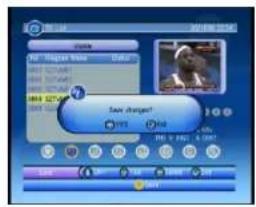
SALORA TVP9100 - Favorites - 2

text_image Track Name Track Time Track Position Track Position Track Position Track Position Track Position Track Position Track Position Track Position Track Position Track Position Track Position Track Position Track Position Track Position Track Position Track Position Track Position Track Position Track Position Track Position Track Position Track Position Track Position Track Position Track Position Track Position Track Position Track Position Track Position Track Position Track Position Track Position Track Position Track Position

Lock page

Lock

Lock will confirm password before watching this program when Channel Lock is turned on.

(1)Press button to select the program.
(2) Press button to select Lock option.
(3) Press button to set lock status.
(4) Press button to confirm the operation and save the result.
Program status is changed after operating. And press button will confirm and save. See Figure Lock page.

Edit

User can use Edit to edit the program name, maximum length is 16 characters.

(1) Press button to select the program.
(2) Press button to select Edit option.
(3) Press button to display program info page.
(4) Press button to edit program name.
(5) Press button to select the character.
(6) Press button on "Save" button to return program info page.
(7) Press button to save the editing and return to List
If press button at step (7), it returns to List without saving.

See Figure below.
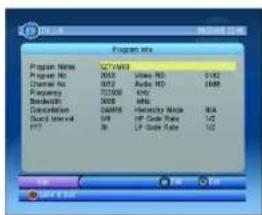
SALORA TVP9100 - Edit - 1

text_image Program Title Program Name: 327MB3 Project No: 0003 Status No: 0002 Frequency: 72000 BreakUp: 5008 Cancellation: 16498 Cust Interval: 148 PPT: 16 Volume NO: 1/162 Audio NO: 1648 ENO: 1/162 MPS: 1/162 Hertzicity Mode: 164 HP Color Mode: 1/2 LP Color Mode: 1/2

Edit Select
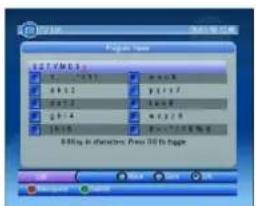
SALORA TVP9100 - Edit - 2

text_image Project name SET / VME 1 1 - 201 2 - 3.5 3 - 4.5 4 - 5.5 5 - 6.5 6 - 7.5 7 - 8.5 8 - 9.5 80% in characters, Press 36 to fragment

Edit Editing

Skip

Skip will skip the program by channel up/down when watching program.

Delete

Delete will delete the program perpetually from database. User must rescan to recover it.

User can search the program name by partial keyword or character(s)

Guide

Guide is also named as EPG (Electronic Program Guide). Display program info and events. TV and Radio Guide are the same. See Figure below.

(1) Press button to select program.
(2) Press button to change date.

SALORA TVP9100 - Guide - 1

text_image File Edit View Help Mode No Signet 000 5271M3 000 5271M3 000 5271M3 000 5271M3 Name: No Signet Name: No DTC Event

TV Guide
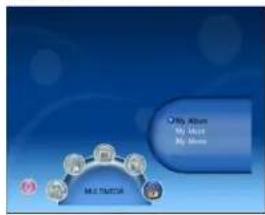
SALORA TVP9100 - Guide - 2

text_image My Music My Music My Music Multi-Twitter

Multimedia

MULTIMEDIA

Multimedia must be used with built-in card reader or USB. Enter My Album My Music and My Movie. See Figure Multimedia.

My Album

My Album can display JPG photo and operate it. If there is no photo in device root folder, it will start at Thumbnail mode. Or it will start at Folder mode.

Thumbnail

It displays JPG file info (Width, Height and Date) of selected photo. See Figure Thumbnail mode.

  • Press button to change selected photo or page.
  • Press button to browse folders and files (photos).
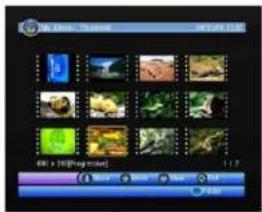
SALORA TVP9100 - Thumbnail - 1

text_image My Black: Traditional 01/26/12 File 14 [Image files] My Black: Traditional 01/26/12

Thumbnail mode
SALORA TVP9100 - Thumbnail - 2

text_image Flash 15 photos Bosch (RGB) BYMP P30 P3000-1 SLA2VY3 SLNEM HAPP DHF101 FUSGAG MFGG J4896-1 DSI DSI DSI DSI DSI DSI DSI DSI DSI DSI DSI DSI DSI DSI DSI DSI DSI DSI DSI DSI DSI DSI DSI DSI DSI DSI DSI DSI DSI DSI DSI DSI DSI DSI

Folder mode

Folder

User can browse folders and files. It also displays JPG file info of selected photo. See Figure Folder mode.

  • Press button to browse folders or files.
  • Press button to view the selected photo.
  • Press button to return Thumbnail mode with photos in current folder, or return Main Menu.

Zoom

View and zoom the photo at 100% from Thumbnail or Folder mode.

  • Press button to select MP3 for playing.
  • Press button to zoom the photo.
  • Press /button to mirror.
  • Press button to display next or previous photo.
  • Press button to rotate the photo.
  • Press button to enter slide show.

User can zoom the photo with 25%, 50%, 100%, 150%, 200%. If zooming greater than 100%, press button can move the photo. See Figure z .oom page

SALORA TVP9100 - Zoom - 1

natural_image Illustration of a park scene with colorful circular markers under a blue sky with white clouds (no text or symbols)

Zoom page

Slide Show

Slide all photos in current folder from zoom mode.

  • Press button to play or pause.
  • Press button to select mp3 for playing at slide show.
  • Press button to set repeat or once.
  • Press button to set the time interval between current and next photo. There are three ways: fast, medium and slow.
  • Press button to next or previous photo right away. See slide-show page.
SALORA TVP9100 - Slide Show - 1

natural_image Scenic tropical beach scene with a thatched hut, green lights, and blue sky (no text or symbols)

Slide-show page
SALORA TVP9100 - Slide Show - 2

text_image M32 - 5 images NewBook Layer New... Map 01: name 02: map 03: map 04: map 05: map 06: map 07: map

music page

My Music

My Music can play Mp3.

  • Press button to browse folders and files (MP3).
  • Press button to play MP3 file.
  • Press button to play or pause MP3 file.
  • Press button to stop MP3 file.
  • Press button to repeat selected MP3 file only.
  • Press button to fast play MP3 file in current folder.
  • Press button to adjust volume while playing the MP3 file.
  • Press button to mute.

While playing the MP3, it displays progress, current playing time, and total time. See Figure music page

My Movie

My Movie can play AVI/MPG file.

GAME

There are three items in Game, Gomoku, Calendar and Calculator.

Message

There are some messages to inform user the current condition.

No Signal : portable DVB-T can't get signal, for example, cable is disconnected.

No Service: Program doesn't have any content to play.

Service Scrambled: Program is scrambled for payment, contact the content provider to know how to descramble it.

Antenna Overload: The power of antenna is overload.

HDTV not support : This portable DVB-T doesn't support HDTV. If the program content is HDTV, portable DVB-T will display this message.

Locked : Program is locked by setting lock and turning on password setting. User must input correct password to watch program.

Device is removed: When no device or device is removed, portable DVB-T will display this message.

Automatic Power Off

You can set automatic power off function on the installation page. When the function is set ON, and the unit is working with power adaptor, if there is no operation within four hours, the unit will power off automatically. When the unit is going to power off, it will remind user by showing "power off in 10 minutes without any operation". If you want to turn on the unit, you have to slide the ON/OFF switch to ON position again. To cancel this function, set it as OFF on the installation page.

Specification

LCD Screen Parameters

LCD screen: 9'

LCD screen scale: 16:9/4:3

Capability Parameters

Video input: 1Vp-p/759hm

Receiving frequency range:177.5MHZ-226.5MHZ

474MHZ-858MHZ

Power supply: AC adaptor(AC input 100-240V 50/60Hz, DC output

9V/1A); Car adaptor(DC 12V1.5A)

Connection terminals: DC input/Earphone jack/USB port

SD/MMC card

Audio Output (analog Audio):2.0V(rms)

S/N Ration: 80dB

Dynamic Range: 60dB

Operation Condition: Temperature 00\~40 ℃

Power Consumption: 10W

Dimension: 290(L)X164(W)X28(D)mm

Net weight: 0.78Kg

Troubleshooting

SymptomRemedy
No picture and soundCheck the power supply.Check the power switch and make sure it is at the ON position.
No pictureMake sure the channel is properly selected.External antenna is used for poor reception area.
No soundCheck whether the volume is switched to low level or muted?Headphone is inserted?
Picture is unstableAdjust the direction, length of the antenna.Signal is too weak.
Double imageAntenna angle is not correct.Signal rebound from adjacent building etc.
"Snowy" on the screenPower interference.
No colourMake sure the system settings are correct.

Sommaire

Sommaire1
Précautions de sécurité2
Fonctions3
Appareil3
Télécommande4
Connexions5
Illustration connexions5
Installation rapide6
Menu principal6
Réglages6
Installation6
Comment capter les émetteurs6
Recherche automatique7
Recherche manuelle7
Réglage TV8
Mot de passe8
Chrono programmation8
Update logiciel9
Réglage standard9
TV/radio9
Liste9
Préférences9
Blocage10
Edit10
Sauter (skip)11
Annuler11
Recherche11
Guide11
Multimédia11
Mon album11
Thumbnail11
Folder12
Zoom12
Présentation dia13
Ma musique13
Mon film13
Jeux13
Messages14
Mise hors fonction automatique14
Spécifications15
En cas de problèmes15

Précautions de sécurité

Merci d'avoir choisi ce lecteur portable DVB-T. L'appareil contient la toute dernière technologie électronique haut-de-gamme et est développé pour utilisation à la maison, à l'hôtel, au bureau. Le format compact permet un transport et une installation facile. Lisez attentivement le manuel d'utilisation avant d'utiliser l'appareil et gardez-le pour consultation ultérieure.
SALORA TVP9100 - Précautions de sécurité - 1

SALORA TVP9100 - Précautions de sécurité - 2

text_image Pour avertir l'utilisateur d'être prudent pour éviter des chocs électriques!

Avertissement : pour éviter le risque d'incendie ou des chocs électriques, ne pas exposer cet appareil à la pluie ou à l'humidité.

1) Lissez attentivement le manuel d'utilisation et suivez toutes les instructions pour une opération sûre.
2) Ne pas utiliser l'appareil à côté d'eau. Ne pas placer un objet rempli d'une liquide au-dessus de l'appareil.
3) Ne pas placer l'appareil à côté d'une source de chaleur telles que des radiateurs ou des appareils qui produisent du chaleur (y compris un amplificateur).
4) Déconnectez la prise courant secteur pendant des orages ou quand vous n'utilisez pas l'appareil pendant un certain temps.
5) Nettoyage : déconnectez le système et utilisez un chiffon légèrement humide. Ne pas utiliser des détergents ou des aérosols.
6) Utilisez uniquement les accessoires recommandées par le fabriquant.
7) Contactez un service après-ventes dans les cas suivants : quand l'appareil est endommagé, quand le câble courant secteur est endommagé, quand une liquide a pénétré l'appareil, quand un objet est tombé sur l'appareil, quand l'appareil a été exposé à l'humidité ou quand il ne fonctionne pas bien. N'essayez pas de réparer vous-même l'appareil à cause des hauts voltages et le risque d'un choc électrique.

Fonctions

Appareil
SALORA TVP9100 - Fonctions - 1

text_image Technical diagram of a device front panel with numbered components and labeled parts
  1. Ouverture Carte SD

  2. Porte USB

3.Bouton OK

4.CH+/

5.CH-/↓

  1. Récepteur infrarouges

7.Bouton MENU

  1. Prise pour casque d'écoute

  2. Réglage volume

  3. EN/HORS FONCTION

  4. Entrée DC 9-12 V

  5. Prise antenne

15.Ecran LCD

  1. Support

Télécommande
SALORA TVP9100 - Fonctions - 2

text_image 1 2 3 4 5 6 7 8 9 10 11 12 13 14 15 16 17 18 19 20 21 22 23 24 25 SALORA TVP-9100
  1. Boutons numériques 0-9
  2. ▲/▼ CH+/CH-

3.MENU

4.ENTRER

5.◄/► VOL-/VOL+

6.SORTIR

7.TV/RADIO

  1. ▶ Lecture/pause

9.FAV, filtre pour préférences

10.EPG

11.Bouton vert

12.Bouton rouge

13.PAGE-, page vers le bas

14.PAGE+, page vers le haut

15.AUDIO

16.RECALL, pour retourner à l'émetteur

précédent

17.MUTE

18.ZOOM

19.INFO, informations émetteur

  1. LISTE

21.PREVIEW

22.SOUS TITRES, réglage des sous titres

23.TELETEXTE, réglage télétexte

24.Bouton jaune

25.Bouton bleu

Utilisation de la télécommande

Insérez la pile dans la télécommande comme illustré ci-dessou.
SALORA TVP9100 - Utilisation de la télécommande - 1

SALORA TVP9100 - Utilisation de la télécommande - 2

Quand vous utilisez la télécommande, dirigez-la vers le récepteur infrarouges de l'appareil.

La distance entre l'appareil et la télécommande ne peut pas dépasser 3 mètres. Voyez

illustration à droite.

SALORA TVP9100 - Utilisation de la télécommande - 3

text_image 20 32

Remarque

  1. Evitez que la télécommande tombe ou qu'elle soit utilisée dans un endroit humide.
  2. Le récepteur à infrarouges ne peut pas être exposé à la lumière directe du soleil.
  3. Remplacez la pile quand la télécommande ne fonctionne plus bien.

Connexions

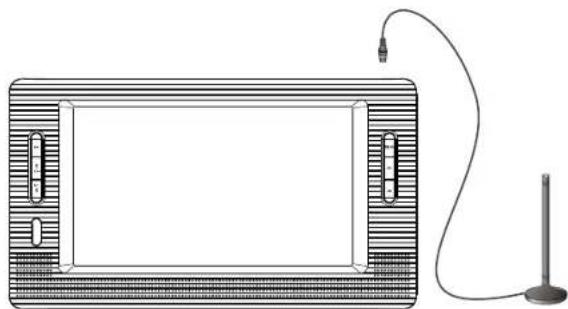
Illustration connexions
SALORA TVP9100 - Illustration connexions - 1

natural_image Diagram of a rectangular device with side panels and a connected cable, no text or symbols present

Installation rapide

Le menu principal permet de commander un grand nombre de fonctions.

(1) Poussez

pour entrer dans le Menu principal
(2)Poussez pour obtenir des informations concernant la version du DVB-T

REGLAGE

Pour effectuer des réglages du DVB-T. Voyez illustration ci-dessous.

Installation

Pour régler les systèmes de réception et de lecture du DVB-T. Voyez Illustration ci-dessous.

SALORA TVP9100 - Installation - 1

text_image SETUP Find From To Build Forward Advance Than Set Up Set Down

Manu principal, REGLAGES

SALORA TVP9100 - Installation - 2

text_image Auto Language Auto Language Audio Language Audio Language ON OMT Usage Auto Switch Select Auto Scan Market Scan

Page installation

L'utilisateur peut choisir entre différentes langues dans la page Installation.

(1) Poussez

pour entrer dans le Menu principal.
(2) Poussez pour sélectionner l'option REGLAGE.
(3) Poussez pour sélectionner l'option Installation.
(4) Poussez pour entrer dan la page Installation
(5) Poussez pour sélectionner Langue OSD
(6) Poussez pour choisir la langue
Quand il n'y a pas des émetteurs mémorisés dans le DVB-T, l'apparell démarre avec la page installation après avoir mis en fonction.
Réglez le pays pour Recherche automatique, Recherche manuelle et Zone temps.
Changer le Réglage pays, change automatiquement la valeur du zone temps. Le
réglage pays contient également les réglages standards pour Fréquences et Gamme d'ondes pour la Recherche automatique.

Comment capter les émetteurs ?

Recherchez les fréquences et les gammes d'ondes disponibles pour trouver les émetteurs.

(1) Poussez pour démarrer la Recherche automatique ou la Recherche manuelle dans le page installation.

Recherche automatique

La Recherche automatique efface la mémoire et recherche les fréquences et gammes d'ondes disponibles selon le Réglage pays. Suivez les étapes (1).

(1) Poussez pour confirmer que la mémoire peut être effacée.

(2) Poussez pour confirmer l'effacement de la mémoire et le démarrage de la Recherche automatique.

Il prend uncertain temps pour effectuer la Recherche automatique. Vous pouvez interrompre la recherche en poussant le bouton . Voyez illustration ci-dessous.

SALORA TVP9100 - Recherche automatique - 1

text_image Database Settings Country: USA English Database will be checked. Continuous? Rest: 100% English Database Language: English LDS: On

Effacer la mémoire

SALORA TVP9100 - Recherche automatique - 2

text_image AUDIO JPEG Advertising Signal Channels: Total Loss, % Program: 0.48 Frequency: 100 MHz F1: Total Gain, 8.7V, 6 Pacific Channels F2: Data Saving, Please Note! F3: F100 MHz F4: F100 MHz F5: F100 MHz F6: F100 MHz Unknown Unknown

Page recherche automatique

Recherche manuelle

Avec la recherche manuelle des émetteurs peuvent-être ajoutés à la mémoire ; la mémoire n'est pas effacée. L'utilisateur doit connaître la fréquence et la gamme d'ondes pour la recherche. Si la même fréquence et gamme d'ondes sont sélectionnées pour une deuxième fois, l'émetteur sera mémorisé deux fois. Suivez les étapes (1).

(2) Poussez pour entrer dans la page Recherche manuelle.
(3) Poussez pour sélectionner l'option Fréquences.
(4) Poussez <0-9> pour entrer la Fréquence.
(5) Poussez pour sélectionner l'option Gamme d'ondes
(6) Poussez pour choisir la Gamme d'ondes.
(7) Poussez pour démarrer ou pour quitter la recherche. Voyez illustration ci-dessous.

SALORA TVP9100 - Recherche manuelle - 1

text_image CONTROL NO Control No Open - 25 Open Breakthrough Open Quality 80 % 90 % OK - 25 OK - 25 OK - 25

Page recherche manuelle

SALORA TVP9100 - Recherche manuelle - 2

text_image DINEMIC Channel Gas Channels Channel No. 01-23 Description: Tr. 1 F Digital F Digital 2 F Digital 3 F HD Digital F Chdc Total Cut: 9 Tr. 8 Radio Channels Data Saving: Power Mix

Résultat recherche manuelle

Réglage TV

Régler le mode écran en TV.1 offre la plus grande transparence pour l'affichage OSD. Réglez le temps de durée de l'affichage OSD. L'affichage ne disparaît pas quand vous choisissez 'Toujours'. L'affichage apparaît en regardant des émissions. Vous pouvez régler la couleur de la peau et régler l'expansion noire/blanc pour utilisation vidéo. Voyez illustration ci-dessous.

SALORA TVP9100 - Réglage TV - 1

text_image RGB - 7x Rate GSD Parameters: 1.0 GSD Transparency: 8 Camera Display Time: 3.5 Video Enhancement: CPT

Page réglage TV

SALORA TVP9100 - Réglage TV - 2

text_image 624.213 624.213 624.213 624.213 624.213 624.213 624.213 624.213 624.213 624.213 624.213 624.213 624.213 624 624 624 624 624 624 624 624 624 624 624 624 624 624 624 624 624 624 624 624 624 624 624 624 624 624

Page affichage

Mot de passe

Pour régler les blocages du DVB-T. Le mot de passe est nécessaire quand le blocage dans le menu principal a été mis en fonction. L'utilisateur peut choisir de bloquer un émetteur et de déterminer un niveau de censure. L'utilisateur peut changer le mot de passe. Le mot de passe standard est 8888.

Chrono programmation

Vous pouvez préprogrammer la date, l'heure et la fréquence quand un émetteur doit démarrer automatiquement. Le temps de démarrage et d'arrêt sont déterminés par le temps du système.

(1) Poussez pour entrer dans la page de programmation.

(2) Poussez pour sélectionner la ligne que vous voulez programmer.

(3) Poussez pour changer les data.

(4) Poussez pour mémoriser.

Si les données entrées sont en conflict avec d'autres données, un message apparaît. Quand la date et le temps sont passés le DVB-T change automatiquement vers l'émetteur choisi.

La programmation peut être arrêté pendant la reproduction. Voyez illustration ci-dessous.

SALORA TVP9100 - Chrono programmation - 1

text_image EventScript Event Date Time Break 01:00:00 02:00:00 03:00:00 04:00:00 05:00:00 06:00:00 07:00:00 08:00:00 09:00:00 10:00:00 11:00:00 12:00:00 13:00:00 14:00:00 15:00:00 16:00:00 17:00:00 18:00:00 19:00:00 20:00:00 21:00:00 22:00:00 23:00:00 24:00:00 25:00:00 26:00:00 27:00:00 28:00:00 29:00:00 30:00:00 31:00:00 32:00:00 33:00:00 34:00:00 35:00:00 36:00:00 37:00:00 38:00:00 39:00:00 40:00:00 41:00:00 42:00:00 43:00:00 44:00:00 45:00:00 46:00:00 47:00:00 48:00:00 49:00:00 50:00:00 51:00:00 52:00:00 53:00:00 54: 1999.12.27 1999.12.27

Chrono programmation Page de programmation

SALORA TVP9100 - Chrono programmation - 2

text_image Channel Type Channel Name: 10000 Channel Type: 10000 Channel Type: 10000 Channel Type: 10000 Channel Type: 10000 Channel Type: 10000 Channel Type: 10000 Channel Type: 10000 Channel Type: 10000 Channel Type: 10000 Channel Type: 10000 Channel Time: 16.21 Channel Time: 16.21 Channel Time: 16.21 Channel Time: 16.21 Channel Time: 16.21 Channel Time: 16.21 Channel Time: 16.21 Channel Time: 16.21 Channel Time: 16.21 Channel Time: 16.21 Channel Time: 16.2

Update logiciel

Vous pouvez mettre à jour le logiciel par la porte USB ou le lecteur cartes. Sélectionnez . ssu file pour mettre à jour.

Réglage standard

Pour remettre le DVB-T sur les valeurs d'usine. Tous les réglages faits par l'utilisateur sont annulés et la mémoire est effacée.

TV/RADIO

Il y adeux types de programmes : TV et Radio. L'opération des fonctions Liste et Guide sont identiques pour TV et Radio. Ici par exemple pour TV. Voyez illustration ci-dessous.

SALORA TVP9100 - TV/RADIO - 1

text_image Ota Line TV Guide

Menu principal TV

SALORA TVP9100 - TV/RADIO - 2

text_image File Edit View Insert Help No Signa REV 3271041 REV 3271042 REV 3271043 REV 3271044 REV 3271045 REV 3271046 REV 3271047 REV 3271048 REV 3271049 REV 3271050 REV 3271051 REV 3271052 REV 3271053 REV 3271054 REV 3271055 REV 3271056 REV 3271057 REV 3271058 REV 3271059 REV 3271060 REV 3271061 REV 3271062 REV 3271063 REV 3271064 REV 3271065 REV 3271066 REV 3271067 REV 3271068 REV 3271069 REV 3271070 REV 3271071 REV 3271072 REV 3271073 REV 3271074 REV 3271075 REV 3271076 REV 3271077 REV 3271078 REV 3271079 REV 3271080 REV 3271081 REV 3271082 REV 3271083 REV 3271084 REV 3271085 REV 3271086 REV 3271087 REV 3271088 REV 3271089 REV 3271090 REV 3271091 REV 3271092 REV 3271093 REV 3271094 REV 3271095 REV 3271096 REV 3271097 REV 3271098 REV 3271099 REV 3271100

Liste TV

Liste

L'utilisateur peut opérer certaines fonctions dans la liste. Le résultat est affiché.

(1) Poussez pour sélectionner Tool (opération).
(2) Poussez pour sélectionner l'émetteur.
(3) Poussez pour opérer. L'opération dépend du bouton. Voyez l'illustration liste TV.

Préférences

L'utilisateur peut choisir rapidement les émetteurs en y ajoutant un filtre. Il y a 8 filtres disponibles : journal, sport, film, musique, shopping, voyage, garçon et fille.

(1) Poussez pour sélectionner l'émetteur
(2) Poussez pour sélectionner la préférence.
(3) Poussez <1-8> pour régler le type de préférence.
(4) Poussez pour confirmer et mémoriser.
Le statut de l'émetteur est changé après l'opération. Poussez pour confirmer et mémoriser. Voyez illustration Préférences.

SALORA TVP9100 - Préférences - 1

text_image Track Track Name: 300000 Track ID: 300000 Track Time: 12.00 Track Step: 12.00 Track Label: 12.00 Track Record: 12.00 Track Record: 12.00 Track Record: 12.00 Track Record: 12.00 Track Record: 12.00 Track Record: 12.00 Track Record: 12.00 Track Record: 12.00 Track Record: 12.00 Track Record: 12.00 Track Track Track Label: 12.00 Track Record: 12.00 Track Record: 12.00 Track Record: 12.00 Track Record: 12.00 Track Record: 12.00 Track Record: 12.00 Track Record: 12.00 Track Record: 12.00 Track Record: 12.0

Page préférences

SALORA TVP9100 - Préférences - 2

text_image Video Movie: 000 12346 000 12346 000 12346 000 12346 000 12346 000 12346 000 12346 000 12346 000 12346 000 12346 000 12346 Save Image! 000 12346 000 12346 000 12346 000 12346 000 12346 000 12346 000 12346 000 12346 000 12346 000 12346

Page bloquage

Blocage

Il est nécessaire de confirmer le mot de passe quand le blocage des émetteurs est en fonction.

(1) Poussez pour sélectionner l'émetteur.
(2) Poussez pour sélectionner l'option bloquage.
(3) Poussez pour mémoriser le statut de bloquage.
(4) Poussez pour confirmer et mémoriser
(5) Le statut de l'émetteur est changé après l'opération. Poussez
pour confirmer et mémoriser. Voyez illustration Bloquage.

Edit

L'utilisateur peut changer le nom de l'émetteur, maximum 16 caractères.
(1) Poussez pour sélectionner l'émetteur.
(2) Poussez pour sélectionner l'option Edit.
(3) Poussez pour afficher la page info de l'émetteur.
(4) Poussez pour changer le nom de l'émetteur.
(5) Poussez pour sélectionner les caractères.
(6) Poussez en position 'save' pour retourner à la page info.
(7) Poussez pour mémoriser et retourner vers la liste.
Si vous poussez pendant l'étape (7), vous retournez vers la liste sans mémoriser.

Voyez illustration ci-dessous.

SALORA TVP9100 - Edit - 1

text_image Program Files Program Name: SITVMB Program No: 0003 Video FWD 2142 Operator No: 6552 Audio FWD 1988 Programs: 123000 Seq. 1/2 Booklets: 6078 Seq. Consolidators: 00078 Hertz City Media AIA Cluster Method: 148 HF Core Rate 1/2 FFT: 26 LF Core Rate 1/2

Edit sélection

SALORA TVP9100 - Edit - 2

text_image Project Name STORMS 1 - 7.1 2 x 1.2 3 x 1.3 4 x 1.4 5 x 1.5 6 x 1.6 STORMS 8 PKp in characters Press 10 to begin

Edit nom

Sauter (skip)

Skip permet de sauter un émetteur quand vous utilisez les boutons up/down.

Delete (Annuler)

Pour effacer un émetteur de la mémoire. Il faut effectuer une recherche manuelle pour récupérer l'émetteur.

Recherche

L'utilisateur peut trouver un émetteur en introduisant quelques caractères du nom de l'émetteur.

Guide

Guide est également nommé EPG (Electronic Program Guide) et affiche des informations de l'émetteur. Les guides pour TV et Radio sont identiques. Voyez illustration ci-dessous.

(1) Poussez pour sélectionner l'émetteur. (2) Poussez pour changer la date.

SALORA TVP9100 - Guide - 1

text_image Music Player Video No Player Name BOX 32/1987 BOX 32/1988 BOX 32/1989 BOX 32/1990 BOX 32/1991 Box 32/1992 Box 32/1993 Box 32/1994 Box 32/1995 Box 32/1996 Box 32/1997 Box 32/1998 Box 32/1999 Box 32/199A Box 32/199B Box 32/199C Box 32/199D Box 32/199E Box 32/199F Box 32/199G Box 32/199H Box 32/199I Box 32/199J Box 32/199K Box 32/199L Box 32/199M Box 32/199N Box 32/199O Box 32/199P Box 32/199Q Box 32/199R Box 32/199S Box 32/199T Box 32/199U Box 32/199V Box 32/199W Box 32/199X Box 32/199Y Box 32/199Z Box 32/199A Box 32/199B Box 32/199C Box 32/199D Box 32/199E Box 32/199F Box 32/199G Box 32/199H Box 32/199I Box 32/199K Box 32/199L Box 32/199M Box 32/199N Box 32/199O Box 32/199P Box 32/199Q Box 32/199R Box 32/199S Box 32/199S Box 32/199S Box 32/199S Box 32/199S Box 32/199S Box 32/199S Box 32/199S Box 32/199S Box 32/199S Box 32/199M Box 32/199M Box 32/199M Box 32/199M Box 32/199M Box 32/199M Box 32/1988 Box 32/1888 Box 32/1888 Box 32/1888 Box 32/1888 Box 32/1888 Box 32/1888 Box 32/1888 Box 32/1888 Box 32/1888 Box 32/1888 Box 32/1777 Box 32/1777 Box 32/1777 Box 32/1777 Box 32/1777 Box 32/1777 Box 32/1777 Box 32/1777 Box 32/1777 Box 32/1777 Box 32/1776 Box 32/1776 Box 32/1776 Box 32/1776 Box 32/1776 Box 32/1776 Box 32/1776 Box 32/1776 Box 32/1776 Box 32/1776 Box 32/1775 Box 32/1775 Box 32/1775 Box 32/1775 Box 32/1775 Box 32/1775 Box 32/1775 Box 32/1775 Box 32/1775 Box 32/1775 Box 32/1774 Box 32/1774 Box 32/1774 Box 32/1774 Box 32/1774 Box 32/1774 Box 32/1774 Box 32/1774 Box 32/1774 Box 32/1774 Box 32/1775 Box 32/1775 Box 32/1775 Box 32/1775 Box 32/1775 Box 32/1775 Box 32/1775 Box 32/1775 Box 32/1766 Box 32/1766 Box 32/1766 Box 32/1766 Box 32/1766 Box 32/1766 Box 32/1766 Box 32/1766 Box 32/1766 Box 32/1766

Guide TV

SALORA TVP9100 - Guide - 2

text_image My Answer My Answer MY LENDER

Multimédia

MULTIMEDIA

Multimédia peut être utilisé avec le lecteur cartes ou la porte USB. Choisissez pour Mon album, ma musique ou mon film. Voyez illustration Multimédia.

Mon Album

Mon album sert à afficher les photos JPG. Quand il n'y a pas de photo dans le folder, l'appareil démarre avec le modus Thumbnail. Ou démarrer en mode Folder.

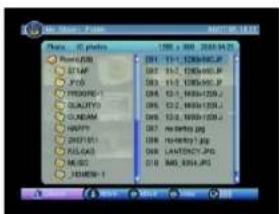
Thumbnail

Affiche l'info JPG (largeur, hauteur et date) de la photo sélectionnée. Voyez Illustration Thumbnail.

- Poussez pour changer la photo ou page. - Poussez pour naviguer dans les folders ou files (photos).

SALORA TVP9100 - Thumbnail - 1

text_image 01.03.2017 01.03.2017 01.03.2017 01.03.2017 01.03.2017 01.03.2017 01.03.2017 01.03.2017 01.03.2017 01.03.2017 1/2

Mode Thumbnail

SALORA TVP9100 - Thumbnail - 2

text_image Photo - Image Photo | 120x 1.4 (20) (54:23) Power(USB) STAP FUS PROGEC-1 QUALITYO QUINAM HAPPY RUSTBY SUG-GE MASC VENDAY-1 DWI DWI-1, 1200-HL.P. DWI-1, 1200-HL.P. DWI-1, 1200-HL.P. DWI-1, 1200-HL.P. DWI-1, 1200-HL.P. DWI-1, 1200-HL.P. DWI-1, 1200-HL.P. DWI-1, 1200-HL.P. DWU DWU-1, 1200-HL.P. DWU-1, 1200-HL.P. DWU-1, 1200-HL.P. DWU-1, 1200-HL.P. DWU-1, 1200-HL.P. DWU-1, 1200-HL.P. DWU-1, 1200-HL.P. DWU-1, 1200-HL.P. DWUU DWUU-1, 1200-HL.P. DWUU-1, 1200-HL.P. DWUU-1, 1200-HL.P. DWUU-1, 1200-HL.P. DWUU-1, 1200-HL.P. DWUU-1, 1200-HL.P. DWUU-1, 1200-HL.P. DWUU-1, 1200-HL.P. DWU DWU-1, 1200-HL.P. DWU-1, 1200-HL.P. DWU-1, 1200-HL.P. DWU-1, 1200-HL.P. DWU DWU-1, 1200-HL.P. DWU DWU-1, 1200-HL.P. DWU DWU-1, 1200-HL.P. DWU DWU-1, 1200-HL.P. DWU DWU-1, 1200-HL.P. DWU DWU-1, 1200-HL.P. DSU DSU-1, 1200-HL.P. DSU-1, 1200-HL.P. DSU DSU-1, 1200-HL.P. DSU DSU-1, 1200-HL.P. DSU DSU-1, 1200-HL.P. DSU DSU-1, 1200-HL.P. DSU DSU-1, 1200-HL.P. DSU DSU-1, 1200-HL.P. DTU DTU-1, 1200-HL.P. DTU-1, 1200-HL.P. DTU DTU-1, 1200-HL.P. DTU DTU-1, 1200-HL.P. DTU DTU-1, 1200-HL.P. DTU DTU-1, 1200-HL.P. DTU DTU-1, 1200-HL.P. DTU DTU-1, 1200-HL.P. DUT DUT-1, 1200-HL.P. DUT-1, 1200-HL.P. DUT DUT-1, 1200-HL.P. DUT DUT-1, 1200-HL.P. DUT DUT-1, 1200-HL.P. DUT DUT-1, 1200-HL.P. DUT DUT-1, 1200-HL.P. DUT DUT-1, 1200-HL.P. DTU DTU-1, 1200-HL.P. DTU-1, 1200-HL.P. DTU DTU-1, 1200-HL.P. DTU DTU-1, 1200-HL.P. DTU DTU-1, 1200-HL.P. DTU DTU- DTU- DTU- DTU- DTU- DTU- DTU- DTU- DTU- DTU- DTU- DTU- DTU- DTU- DTU- DTU- DTU- DTU- DTU- DTU- DTU- DTU- DTU- DTU- DTU- DTU- DTU- DTU- DTU- DTU- DTU- DTU- DTU- DTU- DUT DUT- DTU- DTU- DTU- DTU- DTU- DTU- DTU- DTU- DTU- DTU- DTU- DTU- DTU- DTU- DTU- DTU- DTU- DTU- DTU- DTU- DTU- DTU- DTU- DTU- DTU- DTU- DTU- DTU- DTU- DTU- DTU- DTU- DTU DUT DUT- DTU- DTU- DTU- DTU- DTU- DTU- DTU- DTU- DTU- DTU- DTU- DTU- DTU- DTU- DTU- DTU- DTU- DTU- DTU- DTU- DTU- DTU- DTU- DTU- DTU- DTU- DTU- DTU- DTU- DTU- DTU- DUT DUT DUT- DUT- DUT- DUT- DUT- DUT- DUT- DUT- DUT- DUT- DUT- DUT- DUT- DUT- DUT- DUT- DUT DUT DUT DUT DUT DUT DUT DUT DUT DUT DUT DUT DUT DUT DUT DUT DUT DUT DUT DUT DUT DUT DUT DUT DUT DUT DUT DUT DUT DUT DUT DUT DUT DUT DYA DYA-1, 1200-HL.P. DYA-1, 1200-HL.P. DYA-1, 1200-HL.P. DYA-1, 1200-HL.P. DYA-1, 1200-HL.P. DYA-1, 1200-HL.P. DYA-1, 1200-HL.P. DYA-1, 1200-HL.P. DYB DYB-1, 1200-HL.P. DYB-1, 1200-HL.P. DYB-1, 1200-HL.P. DYB-1, 1200-HL.P. DYB-1, 1200-HL.P. DYB-1, 1200-HL.P. DYB-1, 1200-HL.P. DYB-1, 1200-HL.P. DYC DYC-1, 1200-HL.P. DYC-1, 1200-HL.P. DYC-1, 1200-HL.P. DYC-1, 1200-HL.P. DYC-1, 1200-HL.P. DYC-1, 1200-HL.P. DYC-36878888888888888888888888888888888888888888888888888888888888888888888888888888888888888888888888888888

Mode Folder

Folder

L'utilisateur peut naviguer dans les folders et files. L'info JPG de la photo sélectionnée est affichée. Voyez illustration mode folder.

  • Poussez pour naviguer dans les folders et files.
  • Poussez pour voir la photo sélectionnée.
  • Poussez pour revenir au mode Thumbnail avec photos du folder actuel ou retournez vers le menu principal.

Zoom

Regardez les photos à 100% à partir des modes Thumbnail ou Folder.
- Poussez pour sélectionner Mp3.
- Poussez pour agrandir la photo.
- Poussez / pour obtenir un effet miroir.
- Poussez pour affichet la photo précédente ou suivante.
- Poussez pour tourner la photo.
- Poussez pour entrer dans la présentation dia.

Vous pouvez agrandir la photo avec 25%, 50%, 100%, 150% et 200%. Quand vous avez agrandi plus que 100% utilisez pour bouger l'image. Voyez illustration page zoom.

SALORA TVP9100 - Zoom - 1

natural_image Illustration of a green field under a blue sky with scattered clouds, no text or symbols present.

Page zoom

Présentation dia

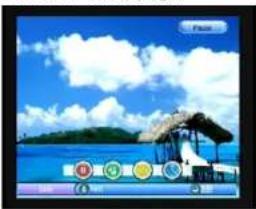
Présentation de toutes les photos dans le folder actuel à partir du mode zoom.

  • Poussez pour lecture ou pause
  • Poussez pour sélectionner Mp3.
  • Poussez pour sélectionner la répétition.
  • Poussez pour régler le temps d'intervalle entre les photos. Il y a trois options : rapide, moyen et lent.
  • Poussez pour aller directement vers la photo précédente ou suivante. Voyez illustration page présentation dia.

SALORA TVP9100 - Présentation dia - 1

natural_image Scenic tropical beach scene with thatched-roof structures and a blue sky with clouds (no text or symbols visible)

Page présentation dia Page musique

SALORA TVP9100 - Présentation dia - 2

text_image MOS: 1000 Open(MOS) Layer Filter... mp3 OK - kappa OK - 2mp3 OK - 2mp4 OK - mp3 OK - mp4 OK - mp5

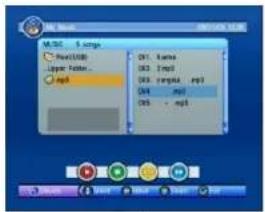
Ma musique

Pour reproduire MP3

  • Poussez >up/down/gauche/droite/OK> pour naviguer dans les folders et files (Mp3).
  • Poussez pour reproduire un file Mp3.
    ● Poussez pour lire et pauser un file Mp3.
    ● Poussez pour arrêter un file Mp3.
  • Poussez pour répéter le file MP3 sélectionné
  • Poussez < BLEU> pour une lecture rapide d'un file MP3 dans le folder actuel.
  • Poussez pour régler le volume.
    ● Poussez pour couper le son.
    Pendant la lecture MP3, l'affichage progresse, indiquant le temps de lecture et le temps total.
    Voyez illustration page musique.

Mon film

Pour lire les files AVI/MPG.

JEUX

Il y a trois items à choisir : Gomoku, Calendar et Calculator.

Messages

Les messages informent l'utilisateur des conditions actuelles.

Pas de signal : le DVB-T ne reçoit pas de signal, p.e. câble déconnecté.

Pas de service : le programme ne contient pas de contenu à afficher.

Service codé : le programme est codé ; contacté le provider pour savoir comment décoder.

Surcharge antenne : la puissance de l'antenne est surchargée.

Pas de support HDTV : le lecteur DVB-T ne supporte pas le format HDTV. Le programme en HDTV ne peut pas être reproduit avec le lecteur DVB-T.

Bloqué : l'émetteur est bloqué. Introduisez le mot de passe correct pour débloquer.

Pas de source : affichage qui apparaît quand il n'y a pas de disque SD ou USB.

Mise hors fonction automatique

Vous pouvez régler la mise hors fonction automatique dans la page de réglage. Si pour cette fonction vous avez choisi ON et l'appareil fonctionne avec l'adaptateur courant secteur, il se met automatiquement hors fonction s'il n'y a pas de commande pendant quatre heures. Avant de se mettre automatiquement hors fonction le texte suivant apparaît sur l'écran : « mise hors fonction dans 10 minutes si pas de commande ». Si vous voulez continuer à regarder, remettez le commutateur ON/OFF en position ON. Pour annuler cette fonction, choisissez OFF dans la page de réglage

Spécifications

Ecran LCD

Ecran LCD : 9 pouces

Résolution :640 (H) x 234 (V) (RGB)

Rapport écran : 16 :9/4 :3

Autres spécifications

Entrée vidéo : 1 Vp-p/75 Ohm

Gamme de fréquences (réception) : 177.5 MHz-226.5 MHz

474 MHz-858 MHz

Alimentation : adaptateur AC (entrée AC 100-240V 50/60 Hz, sortie DC 9V/1A)

adaptateur voiture (DC 12V 1A)

Connexions : entrée DC/prise pour casque/ porte USB/ lecteur cartes SD/MMC

Sortie audio (analogique) : 2.0 V (rms)

Rapport signal/bruit : ≥80 dB

Dynamique : ≥60 dB

Température d'opération : 0°C \~40°C

Consommation : 10 W

Dimensions : 290(L)X164(W)X28(D)mm

Poids net : 0.78Kg

En cas de problèmes

ProblèmeSolution
Pas d'image et sonVérifiez l'alimentation.Vérifiez que le bouton de puissance se trouve en position ON.
Pas d'imageVérifiez que l'émetteur est bien sélectioné.Utilisez une antenne extérieure en cas de faible réception
Pas de sonVérifiez le niveau volume ou la position mute.Vérifiez qu'un casque d'écoute est connecté.
Image instableRèglez la direction et la longueur de l'antenne.Signal trop faible.
Double imageAngle antenne pas correcte.Réflexions causées par des bâtiment dans les environs.
Neige dans l'imageInterférences.
Pas de couleurVérifiez les réglages du système
Sommaire Cliquez un titre pour y accéder
Assistant notice
Powered by Anthropic
En attente de votre message
Informations produit

Marque : SALORA

Modèle : TVP9100

Catégorie : Téléviseur