
MUSIC PLAYER - Lecteur de musique NOKIA - Notice d'utilisation et mode d'emploi gratuit
Retrouvez gratuitement la notice de l'appareil MUSIC PLAYER NOKIA au format PDF.


| Intitulé | Valeur / Description |
|---|---|
| Type de produit | Lecteur de musique portable |
| Caractéristiques techniques principales | Support des formats audio MP3, WMA, AAC |
| Alimentation électrique | Batterie rechargeable via USB |
| Dimensions approximatives | 10 cm x 5 cm x 1.5 cm |
| Poids | 150 grammes |
| Compatibilités | Compatible avec Windows, MacOS, et certains systèmes Linux |
| Type de batterie | Batterie lithium-ion |
| Tension | 5V |
| Puissance | 1W |
| Fonctions principales | Lecture de musique, radio FM, enregistrement audio |
| Entretien et nettoyage | Essuyer avec un chiffon doux, éviter l'humidité |
| Pièces détachées et réparabilité | Réparabilité limitée, pièces disponibles sur demande |
| Sécurité | Ne pas exposer à des températures extrêmes, éviter les chocs |
| Informations générales | Vérifier la compatibilité des formats audio avant l'achat |
FOIRE AUX QUESTIONS - MUSIC PLAYER NOKIA
Questions des utilisateurs sur MUSIC PLAYER NOKIA
0 question sur cet appareil. Repondez a celles que vous connaissez ou posez la votre.
Poser une nouvelle question sur cet appareil
Téléchargez la notice de votre Lecteur de musique au format PDF gratuitement ! Retrouvez votre notice MUSIC PLAYER - NOKIA et reprennez votre appareil électronique en main. Sur cette page sont publiés tous les documents nécessaires à l'utilisation de votre appareil MUSIC PLAYER de la marque NOKIA.
MODE D'EMPLOI MUSIC PLAYER NOKIA
NOKIA
MUSIC PLAYER
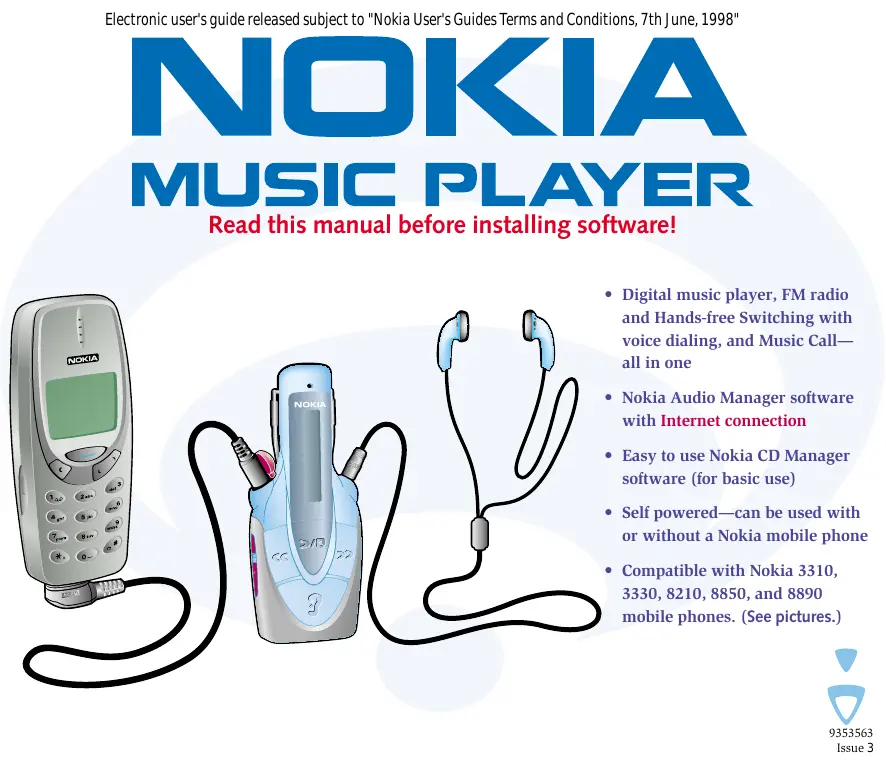
Read this manual before installing software!
natural_image
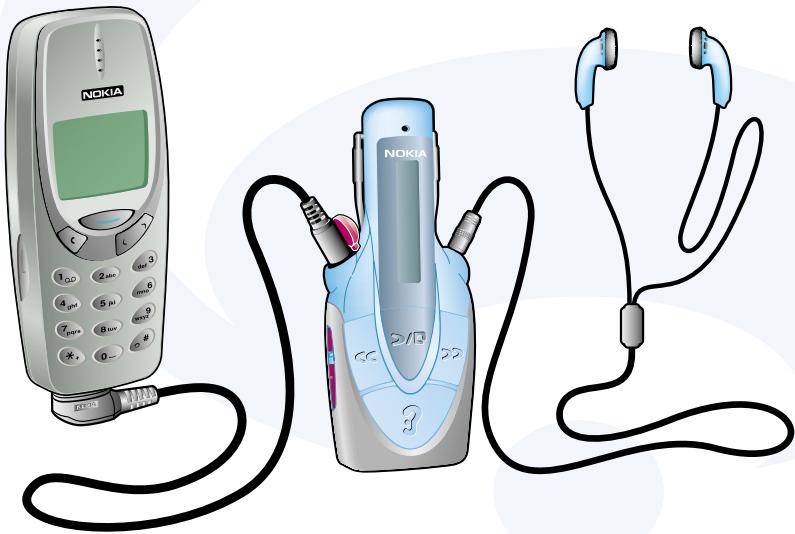
Illustration of a Nokia mobile phone connected to a charging device and earphones (no text or symbols present)- Digital music player, FM radio and Hands-free Switching with voice dialing, and Music Call—all in one
- Nokia Audio Manager software with Internet connection
- Easy to use Nokia CD Manager software (for basic use)
- Self powered—can be used with or without a Nokia mobile phone
- Compatible with Nokia 3310, 3330, 8210, 8850, and 8890 mobile phones. (See pictures.)
Declaration of conformity
We, NOKIA MOBILE PHONES Ltd declare under our sole responsibility that the product NOKIA MUSIC PLAYER, HDR-1 is in conformity with the provisions of the following Council Directive: 89/336/EC and 1999/5/EC.
Copyright © Nokia Mobile Phones 2001. All rights reserved.
Reproduction, transfer, distribution or storage of part or all of the contents in this document in any form without the prior written permission of Nokia is prohibited.
Nokia and Nokia Connecting People are registered trademarks of Nokia Corporation. Other product and company names mentioned herein may be trademarks or tradenames of their respective owners.
Nokia operates a policy of continuous development. Nokia reserves the right to make changes and improvements to any of the products described in this document without prior notice.
Under no circumstances shall Nokia be responsible for any loss of data or income or any special, incidental, consequential or indirect damages howsoever caused.
The contents of this document are provided “as is”. Except as required by applicable law, no warranties of any kind, either express or implied, including, but not limited to, the implied warranties of merchantability and fitness for a particular purpose, are made in relation to the accuracy, reliability or contents of this document. Nokia reserves the right to revise this document or withdraw it at any time without prior notice.
Music is copyright protected in international treaties and national copyright laws. It may be necessary to obtain permission or a license to reproduce or copy music. In some countries national law prohibits private copying of copyrighted material. Please check the national legislation of the applicable country concerning the use of such material.
The availability of particular products may vary by region. Please check with the Nokia dealer nearest to you.
Contents 1 of 3
Declaration of conformity 2
Introduction 6
For your safety 6
Uses of your Nokia Music Player 8
Contents of the sales package.... 9
Your Nokia Music Player diagram ..... 10
Software choices 11
Nokia CD Manager 11
Nokia Audio Manager 11
Getting and listening to music...... 12
Quick & Easy.... 13
Nokia CD Manager 13
Nokia Audio Manager 14
Nokia Music Player.... 16
FM radio 17
Hands-free headset 18
Install Nokia Audio Manager 19
Installation 19
Install error 20
Uninstall Nokia Audio Manager ...... 20
Install Nokia CD Manager.... 21
Installation 21
Install error 24
Uninstall Nokia CD Manager...... 24
Nokia Music Player – Getting started .... 25
Installing the battery 25
Attach the headphone cable 27
Inserting the memory card 27
Removing the memory card 29
How to wear your Nokia Music Player.... 31
Connecting to your personal computer... 35
Nokia Audio Manager.... 37
Usage 37
Managing your music.... 37
Starting Nokia Audio Manager ...... 38
PC operation shortcuts 40
Help – Where to go from here?...... 41
Step 1. Playback from a CD ...... 42
Play a CD 42
Using the Small Player 46
Step 2. How to read CDs ...... 47
Adding tracks from CDs 47
Step 3. Working with the database..... 51
Add tracks from the Internet 51
Making a custom playlist 53
Contents 2 of 3
Step 4. Transferring music to your memory card....55
Step 5. Backup music and restore ..... 58
Nokia CD Manager 59
Getting and listening to music overview.... 59
Help - Where to go from here? 60
Step 1. Get music....63
Step 2. Read a CD 64
Step 3. Rename tracks...... 65
Step 4. Copy to player and listen to music....66
Step 5. Using menus...... 67
Media on PC - Right click.... 67
Media on Device - Right click.... 69
Step 6. Backup music and restore ..... 71
Nokia Music Player – Memory card playback ...... 72
Memory card playback controls.... 72
Selecting a track to play 75
Scanning tracks 76
Selecting playback options 76
Selecting playback tone.... 78
Button lock.... 80
Display lighting 81
Nokia Music Player – Tuning in your FM radio...... 82
Selecting a frequency 84
Using FM frequency auto-search...... 85
Using station presets 86
Switching stereo and monaural 87
Nokia Music Player – Using as a hands-free headset..... 88
What phones can be used? 88
Connecting your Nokia Music Player and phone.... 89
Receiving and making calls 91
Receiving a call.... 92
Placing a call 92
Nokia Music Player – Hands-free switching 94
Volume setting and Music Call 97
Nokia Music Player – Battery 98
Power-saving tips 99
Contents 3 of 3
Nokia Audio Manager – Error Messages .... 100
Nokia Audio Manager – File types .... 101
Playable file types with Nokia Audio Manager.... 101
Nokia CD Manager – Error Messages ...... 102
Nokia Music Player – Error Messages .... 104
Nokia Music Player – Troubleshooting.... 106
Care and maintenance 109
Nokia Music Player 109
Memory card 109
Battery 110
Specifications 111
Personal computer 111
Memory card 112
Suggested encoding bit rates.... 113
Upgrading – Nokia Audio Manager ..... 114
Definitions 115
Introduction – For your safety
Read these simple guidelines. Breaking the rules may be dangerous or illegal. Further detailed information is given in this manual.
Please refer to the user guide of the phone for instructions on operation, care and maintenance, including important safety information.

Road safety comes first
You can connect your Nokia mobile phone to the Nokia Music Player but do not use the phone while driving; park the vehicle first.

Interference
All wireless devices may get interference which could affect performance.

Switch off in hospitals
Follow any regulations or rules. If you have a Nokia mobile phone connected to your Nokia Music Player, switch the phone off near medical equipment.

Switch off in aircraft
Wireless devices can cause interference. Switch off your Nokia Music Player and Nokia mobile phone while onboard aircraft. Using them on aircraft is illegal.

Switch off when refueling
Do not use phones at refuelling points. Do not use near fuel or chemicals.

Switch off near blasting
Do not use phones or radios where blasting is in progress. Observe restrictions, and follow any regulations or rules.
Introduction – For your safety

Use qualified service
Only qualified service personnel must install or repair equipment.

Accessories and batteries
Use only approved accessories and batteries. Do not connect to incompatible products.

Connecting to other devices
When connecting to any other device, read the user's guide for detailed safety instructions. Do not connect incompatible products. Remember to make backup copies of all important data.

Listening volume
We want you to enjoy your music but please be careful not to play your music too loud. Continuous loud noises can damage your hearing. Please use care when selecting your listening volume.

Headphones and neckstrap
Do not use the headphones or the neckstrap when it would not be safe to do so.
There are three different ways of using your Nokia Music Player.
Stand-alone player
Your Nokia Music Player can be used by itself as a small, portable, high-quality, playback device. For information about using your Nokia Music Player as a stand-alone player see Nokia Music Player – Memory card playback.
Connected to your Nokia mobile phone
When connected to your Nokia mobile phone the Nokia Music Player allows hands-free operation of the phone. You can receive calls and dial out without touching your Nokia mobile phone. For information about using your Nokia Music Player with your Nokia mobile phone see Nokia Music Player – Using as a hands-free headset.
Note: Because the same cable port is used for both connections to your Nokia mobile phone and your personal computer it cannot be used to connect to both devices at the same time.
Connected to a compatible PC
The Nokia Music Player receives from your PC new music files, downloaded directly to the memory card in the Nokia Music Player. For information about using your Nokia Music Player when connected to your PC starts see Nokia Audio Manager – Usage or Nokia CD Manager.
Note: Do not use this product improperly to violate anyone's copyrights or other rights in the music you download or play.
The license is system specific. If you plan on using the software on multiple computers, you must register on each computer.
Introduction – Contents of the sales package
Nokia Music Player
natural_image
Top-down line drawing of a NOKA scooter with handle and seat (no text or symbols)AAA Battery, (1)
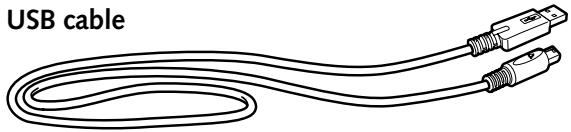
natural_image
Line drawing of a USB cable with two connectors (no text or symbols)Neck strap

natural_image
Line drawing of a Nokia brand strap with connector and cable (no text or symbols beyond branding)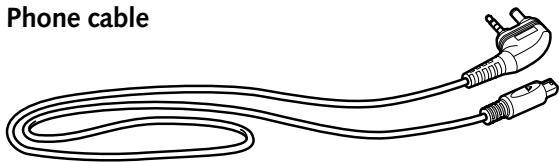
natural_image
Line drawing of a flexible cable with two connectors and a plug, labeled 'Phone cable' (no other text or symbols)Headphone cable
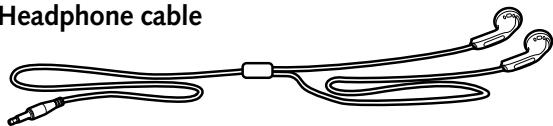
natural_image
Line drawing of a headphone cable with earbuds and connectors (no text or symbols)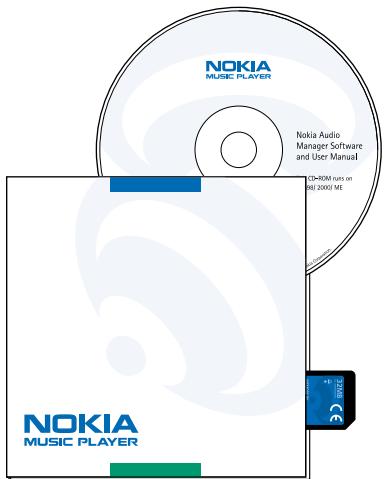
text_image
NOKIA MUSIC PLAYER Nokia Audio Manager Software and User Manual CD-ROM runs on MB 2000 ME NOKIA MUSIC PLAYER NOKIA MUSIC PLAYER ©2000 MECD-ROM jacket
Memory card
Warranty card (not shown)
Introduction – Your Nokia Music Player diagram
Left
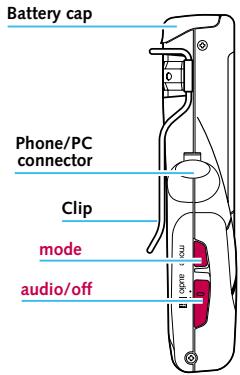
text_image
Battery cap Phone/PC connector Clip mode audio/offFront
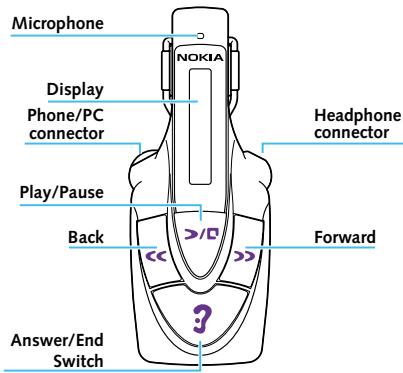
text_image
Microphone NOKIA Display Phone/PC connector Play/Pause Back Forward Answer/End Switch ?Right
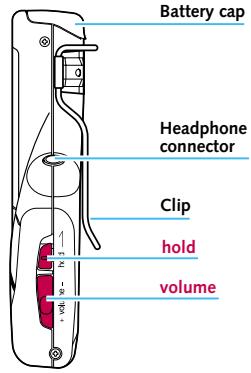
text_image
Battery cap Headphone connector Clip hold volumeMemory-card cover
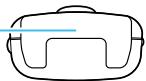
Bottom
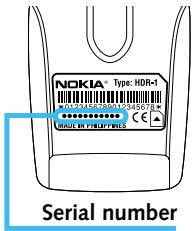
text_image
NOKIA® Type: HDR-1 HID:24563801-345673* MADE BY: PRAPPRILS Serial numberRear
You must choose between these two pieces of software to manage your music.
Note: The Nokia CD Manager and the Nokia Audio Manager were not developed to be used at the same time. Please close one before using the other.
Nokia CD Manager
Nokia CD Manager allows you to copy music from an audio CD, rename the tracks, and transfer the music to your Nokia Music Player. No Internet connection is needed.
Easy to use
- CD read management
- Simple download to Nokia Music Player
- AAC 64 kpbs only supported (64 kpbs is one hour on a 32MB memory card.)
Nokia Audio Manager
Nokia Audio Manager is a complete music manager that allows you to copy music from audio CDs (reading), get music from the Internet, create a database of your music and transfer to your Nokia Music Player. A connection to the Internet is necessary for access to the CD Database with Nokia Audio Manager.
Main features
- CD Reader (AAC)
- Database management (multiple formats: MP3, AAC, etc.) including legacy MP3 files
- Download to Nokia Music Player
- Internet connection (downloading music)
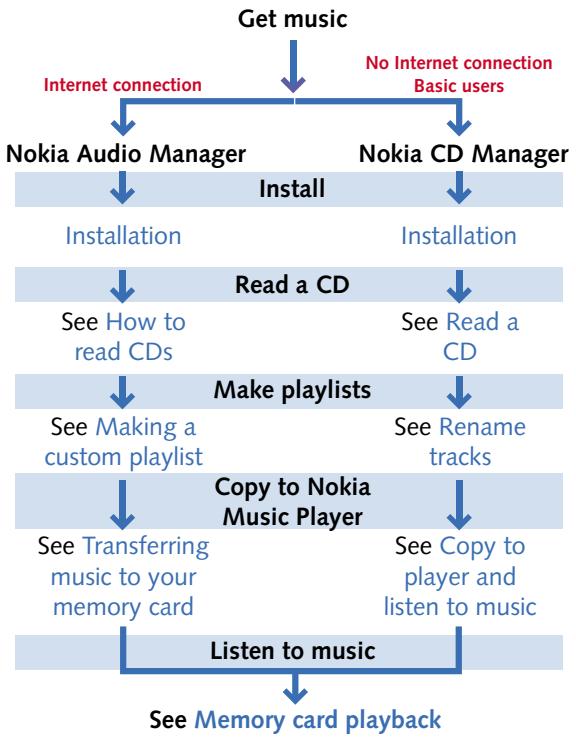
flowchart
graph TD
    A["Get music"] --> B["Nokia Audio Manager"]
    A --> C["Nokia CD Manager"]
    B --> D["Install"]
    C --> E["Install"]
    D --> F["Installation"]
    E --> G["Installation"]
    F --> H["Read a CD"]
    G --> I["Read a CD"]
    H --> J["See How to read CDs"]
    I --> K["See Read a CD"]
    J --> L["Make playlists"]
    K --> M["Make playlists"]
    L --> N["See Making a custom playlist"]
    M --> O["See Rename tracks"]
    N --> P["Copy to Nokia Music Player"]
    O --> Q["Copy to player and listen to music"]
    P --> R["See Transferring music to your memory card"]
    Q --> S["Listen to music"]
    R --> T["See Memory card playback"]
Nokia CD Manager
Install Nokia CD Manager
Insert the CD-ROM into your personal computer. Install by choosing icon on Main Menu. An Internet connection is not used.
Note: Do not connect your Nokia Music Player to your personal computer before installing Nokia CD Manager.
Before you can connect the music player, see Getting Started to learn how to:
- install the battery,
- attach the headphone cable,
- insert the memory card.
Connect your Nokia Music Player
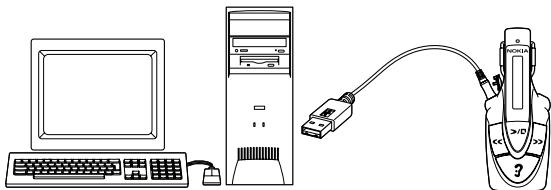
Connect the USB cable to the Phone/PC connector and the USB port on your personal computer.
Turn on your Nokia Music Player
Slide the audio/off switch to audio.
Start Nokia CD Manager
Select Nokia CD Manager from the start menu.
Insert a music CD
Insert a music CD into your personal computer.
Select tracks
Click on track titles to select tracks to transfer to your personal computer.
Transfer tracks from the CD
Click on Read a CD to transfer the selected tracks to your personal computer.
Rename tracks
Right-click on a track. Enter track titles or rename tracks.
Save your renamed tracks
Click on Rename to close the box and save your renamed title.
Copy to your Nokia Music Player
Select tracks from the left side of the screen to transfer to your Nokia Music Player. Click Add. The selected tracks are transferred to your Nokia Music Player.
Nokia Audio Manager
Install Nokia Audio Manager
Insert the CD-ROM into your personal computer. Install by choosing icon on Main Menu.
Note: Before you can connect the music player, see Getting Started to learn how to:
- install the battery,
- attach the headphone cable,
- insert the memory card.
Connect your Nokia Music Player
Connect the USB cable to the Phone/PC connector and the USB port on your personal computer.
Turn on your Nokia Music Player
Slide the audio/off switch to audio.
Start Nokia Audio Manager
Select Nokia Audio Manager from the start menu.
Insert a music CD
Insert a music CD into your personal computer.
Get tracks from the CD
Click on make a playlist, then read a CD.
Get track titles from the CD Database
If track titles have not been recorded on the CD, Nokia Audio Manager will ask if you want to download the track titles from the CD Database on the Internet. Click Yes. You will need an Internet connection.
Select track/tracks
Click in the box next to the track/tracks you wish to copy to the music database.
Start reading tracks
Click Start Reading. When all selected tracks are copied, Recording completed successfully is displayed. These tracks have been added to your database of music tracks.
Select tracks from the database
Click Select Tracks From Database.
Select tracks for the playlist
Click in the box next to the track/tracks you wish to copy to add to the playlist then click OK.
Save the selected tracks to a playlist
Click Save Tracks as Playlist and enter a name for the playlist. Click Close.
Copy to your Nokia Music Player
Click copy to devices.
Select tracks or playlists to copy to your Nokia Music Player
Click Select Tracks From Database or Select Playlists From Database and click in the box next to the tracks or playlists you wish to copy to the Nokia Music Player then click OK.
Copy to your Nokia Music Player
Confirm that your Nokia Music Player is on. Click Copy To Portable. Sending to device is displayed and a progress window appears. When the copy is finished, Finished transferring tracks is displayed. Click OK.
Nokia Music Player
Turn on the music player (Standby mode)
Slide the audio/off switch to audio.
Begin playback
Press >/☐.
Adjust volume
Press the volume button up + or down -.
Pause playback
While a track is playing, press >/☐.
Resume playback
While a track paused, press >/☐.
Select tracks
Press >> with one quick press to move to the next track. Press << with two quick presses to move to the previous track.
Scanning tracks
Press and hold << or >>. When you release << or >>, playback begins again.
FM radio
Turn on the music player
Slide the audio/off switch to audio.
Select playback from the FM radio
Press and hold the mode key for several seconds until FM is displayed.
Select a frequency
Press << or >> until the desired frequency is tuned in.
Adjust volume
Press the volume button up + or down -.
Hands-free headset
Before you can use the music player as hands-free headset, connect your Nokia Music Player to your Nokia mobile phone. See Connecting your Nokia Music Player and phone.
Receive a call
Press 3 for a second.
Placing a call (only Nokia mobile phones 3310 and 8890)
- Press and hold the ? until the voice starting tone is heard through the headphone.
- Speak the name of the number already recorded in your Nokia mobile phone.
End call
Press the 3.
Installation
These are the minimum requirements to successfully install Nokia Audio Manager:
| Item | Requirement |
| PC | IBM PC/AT compatible. |
| CPU | Pentium MMX 266 MHz required. Pentium 300 MHz recommended. |
| Memory | Minimum 48 MB recommended. 64 MB suggested for Windows 2000. |
| Hard disk | 35 MB of free space is required to install the software. Additional free space is necessary for music files. |
Note: If you do not have an Internet connection, please refer to Install Nokia CD Manager.
Do not connect your Nokia Music Player to your personal computer until after either Nokia Audio Manager or Nokia CD Manager has been installed.
The installation process starts by clicking on Install the Nokia Audio Manager button in the Set-up Program (Install program) for the Nokia Music Player on the CD-ROM.
Load CD-ROM into your personal computer
Quit all other applications and then load the CD-ROM you received with your Nokia Music Player into your personal computer. Please refer to the user manual you received with your personal computer for more information. Nokia Audio Manager is automatically installed onto your hard disk after choosing the install button on the Main Product Menu. Follow on-screen instructions to successfully complete installation.
Uninstall Nokia Audio Manager
Automatic Nokia Audio Manager uninstall (from Start menu)
Select Start > Programs > Nokia > Nokia Audio Manager > Uninstall Nokia Audio Manager.
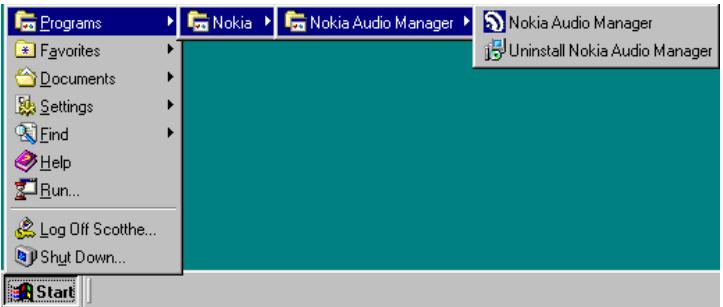
text_image
Programs Favorites Documents Settings Find Help Run... Log Off Scotthe... Shut Down... Nokia Nokia Audio Manager Nokia Audio Manager Uninstall Nokia Audio Manager StartFollow the dialog boxes until you have successfully uninstalled Nokia Audio Manager.
Installation
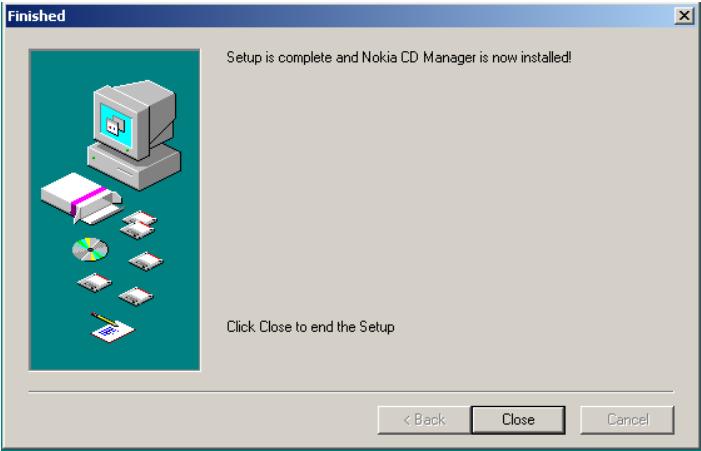
The installation process starts by clicking on Install the Nokia CD Manager button in the Setup Program (Install program) for the Nokia Music Player on the CD-ROM.
Load CD-ROM into your personal computer
Quit all other applications and then load the CD-ROM you received with your Nokia Music Player into your personal computer. Nokia CD Manager is automatically installed onto your hard disk after choosing the install button on the Install Nokia Audio Manager screen. Follow on-screen instructions to successfully complete installation.
Note: Do not connect your Nokia Music Player to your personal computer before installing Nokia CD Manager.
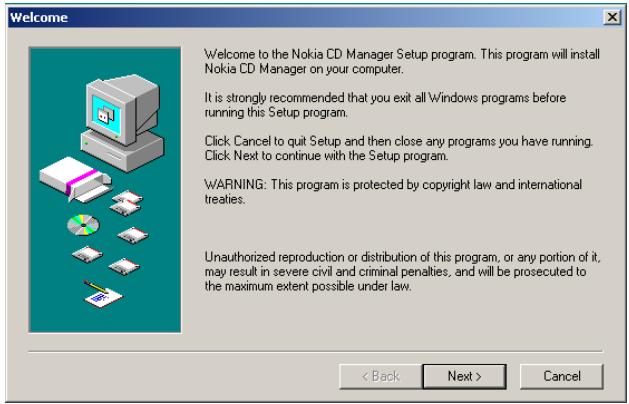
text_image
Welcome Welcome to the Nokia CD Manager Setup program. This program will install Nokia CD Manager on your computer. It is strongly recommended that you exit all Windows programs before running this Setup program. Click Cancel to quit Setup and then close any programs you have running. Click Next to continue with the Setup program. WARNING: This program is protected by copyright law and international treaties. Unauthorized reproduction or distribution of this program, or any portion of it, may result in severe civil and criminal penalties, and will be prosecuted to the maximum extent possible under law. < Back Next > Cancel
text_image
Choose Destination Location Setup will install Nokia CD Manager in the following directory. To install to this directory, click Next. To install to a different directory, click Browse and select another directory. You can choose not to install Nokia CD Manager, by clicking Cancel to exit Setup. Destination Directory C:\Program Files\Nokia\CD Manager Browse... Space Required: 2402 K Space Available: 15879333 K < Back Next > CancelThe destination directory for the program files is C:\Program Files\Nokia\CD Manager. Click Next> to continue. It is recommended that you use this directory due to links to program executables.
text_image
Finished Setup is complete and Nokia CD Manager is now installed! Click Close to end the Setup < Back Close CancelInstallation is complete. Click Close.
Uninstall Nokia CD Manager
Automatic Nokia CD Manager uninstall process (from Start menu)
On CD Manager installation failure click Cancel.
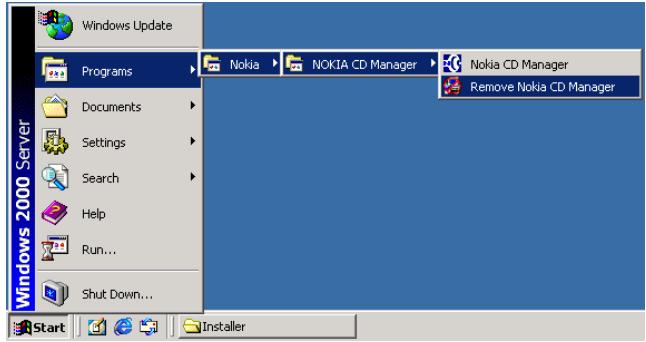
Select Start > Programs > Nokia > Nokia CD Manager > Remove Nokia CD Manager.
text_image
Windows Update Programs Nokia NOKIA CD Manager Nokia CD Manager Remove Nokia CD Manager Documents Settings Search Help Run... Shut Down... Start InstallerFollow the dialog boxes until you have successfully uninstalled Nokia CD Manager. After uninstalling Nokia CD Manager try the installation again by clicking on Install the Nokia CD Manager button in the Set-up Program (Install program) for the Nokia Music Player on the CD-ROM.
There are a few short steps to get ready to use your Nokia Music Player. Follow the steps carefully.
Installing the battery
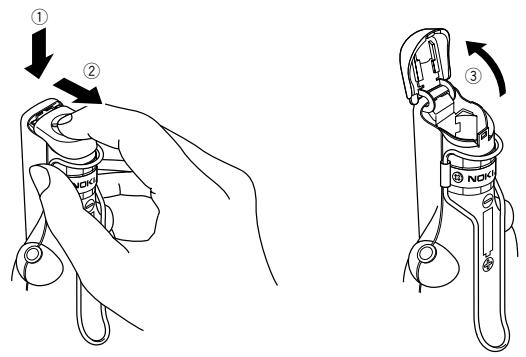
Remove the battery cap
Hold the Nokia Music Player with the back of the player facing you. Press down on the battery cap ① and pull the battery cap towards you ②, in the direction of the arrows on top of the battery cap. Carefully fold the battery cap back, opening the battery compartment ③.
text_image
Diagram showing a mechanical device with labeled parts and directional arrows indicating movement or forceInsert the battery
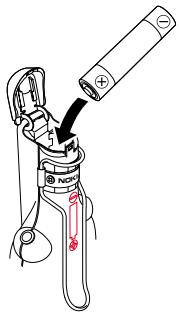
Insert the plus + end of the battery first into the battery compartment.
text_image
Diagram of a No.111 tool with labeled parts and directional arrows indicating motion or assembly.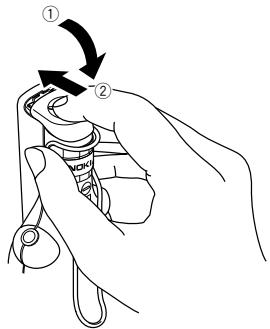
text_image
Diagram showing a hand holding a mechanical component with two labeled arrows indicating rotation or movement steps.Close the battery cap
Fold the battery cap down ① and carefully press and slide the battery cap back into place ②, closing the battery compartment.
text_image
NOKIA +/0 << >>Attach the headphone cable
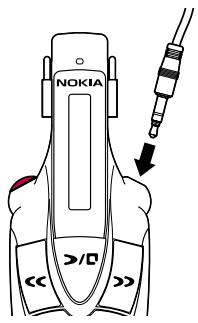
Plug the headphone cable in on the right side of the Nokia Music Player.
Note:
Always be careful when inserting or removing the headphone cable. Grasp the cable by the thick portion just above the metal plug. Never insert or remove the cable by holding or pulling the cable portion itself.
Inserting the memory card
natural_image
Line drawing of a hand holding a battery with an arrow indicating rotation (no text or symbols)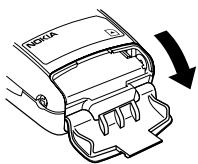
natural_image
Diagram of a Nokia device's internal components with an arrow indicating rotation (no text or symbols present)Open the memory-card cover
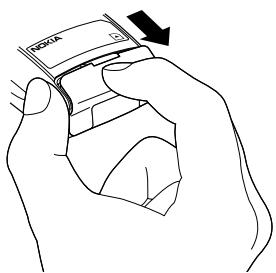
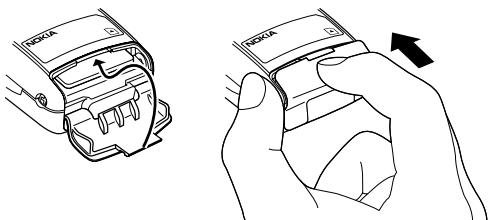
Grasp the end of the Nokia Music Player and pull the memory-card cover open from the notch.
Insert the memory card
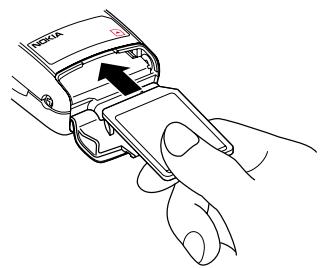
Turn the Nokia Music Player face down and hold the memory-card cover open. With the label side of the memory card facing up, slide the card into the memory-card slot and push in. The memory card locks into place.
Note: Before installing the memory card, always make sure that the Nokia Music Player is switched off.
natural_image
Line drawing of a hand inserting a device into a device slot (no text or symbols)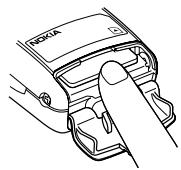
natural_image
Line drawing of a hand holding a Nokia device (no text or symbols present)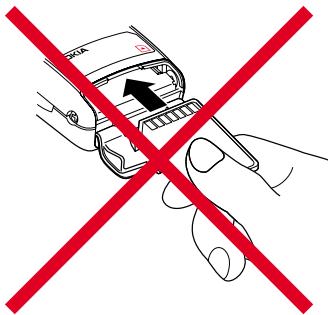
natural_image
Illustration of a hand using a smartphone to switch a device, crossed out by red prohibition signs (no text or symbols present)Close the memory-card cover
Slide the tab of the memory-card cover into the memory-card compartment.
Note: If the memory card is not properly inserted all the way, you cannot close the memory-card cover. Remove the memory card, see below, and insert it again.
natural_image
Line drawing showing two hand positions: one holding a device with internal components, the other holding a device with an arrow indicating rotation (no text or symbols present)Removing the memory card
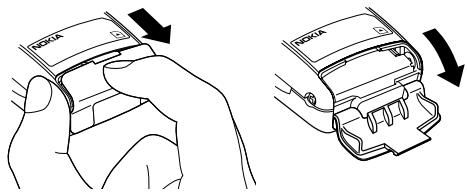
Open the memory-card cover
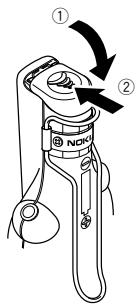
Grasp the end of the Nokia Music Player and slide the memory-card cover open.
text_image
Diagram showing hand holding a device with 'NOVA' label and scroll arrows indicating rotation or adjustment.Remove the memory card
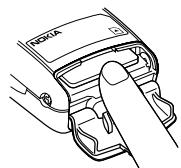
Press the memory card in ①. When the memory card is pushed all the way in it springs back out ②. Pull the memory card out and remove it from the Nokia Music Player.
Note: Do not remove the memory card while the Nokia Music Player's power is on. This could result in loss of recorded music from the memory card and damage the memory card.
natural_image
Line drawing of a hand holding a device component, no text or symbols present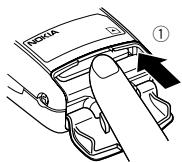
text_image
①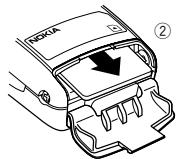
text_image
HOKA ②How to wear your Nokia Music Player
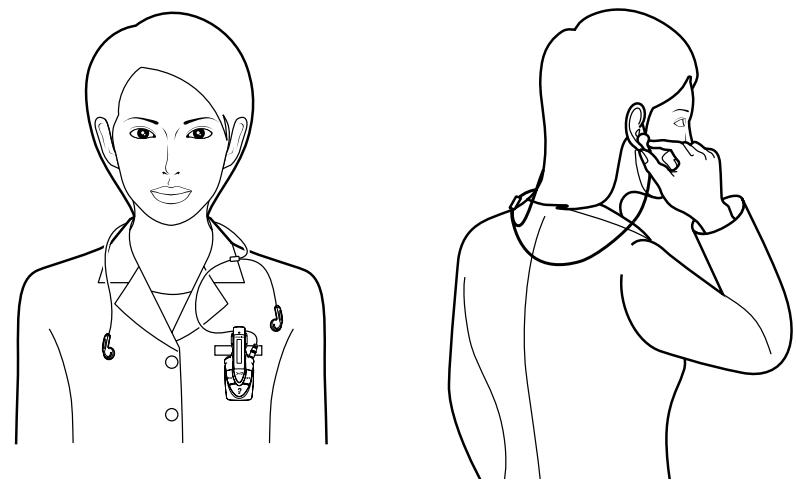
Wearing your headphones
The left headphone is marked with an L. Put this headphone in your left ear. The longer headphone cable is the right channel. Place the right channel cable behind your neck to your right ear.
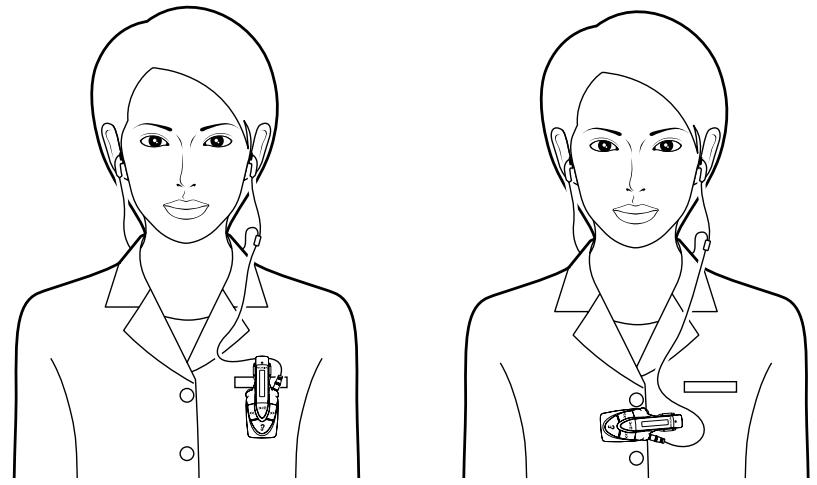
Wearing your Nokia Music Player
Your Nokia Music Player has a clip on the back that can attach or hang the Nokia Music Player to varying thicknesses of clothing. You can hang the music player from the top of a pocket, on the collar of a suit, almost anywhere.
natural_image
Line drawing of a person wearing a medical device, shown in two different angles (no text or symbols)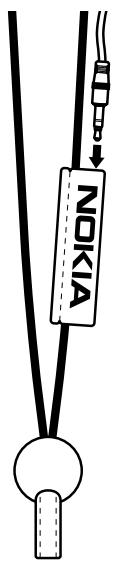
text_image
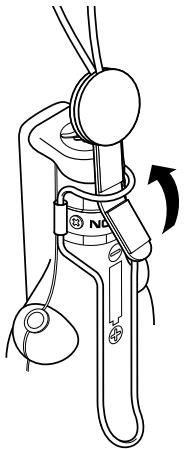
NOKIAThread the headphone cable into the neckstrap
Thread the headphone cable through the Nokia-labeled cable holder before plugging the headphone cable into your Nokia Music Player.
Attach the strap to the Nokia Music Player
Loop the Nokia Music Player leather-like strap through the hook on the back of the Nokia Music Player.
natural_image
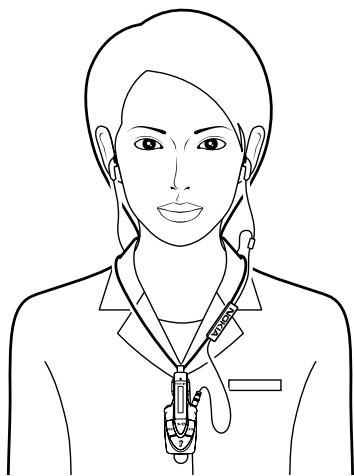
Technical line drawing of a mechanical clamp or connector with no visible text or symbolsWearing the neck strap
Place the neck strap over your head and hang the Nokia Music Player.
natural_image
Line drawing of a person wearing a medical device with earphones (no text or symbols)Note: The headphone cable acts as your FM radio antenna. Use of the neck strap prevents the headset cable from becoming tangled and improves FM radio reception.
Note:
You must install Nokia Audio Manager or Nokia CD Manager before connecting your Nokia Music Player to your personal computer.
text_image
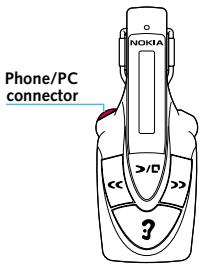
NOKIA Phone/PC connector ?Remove the Phone/PC connector cap
Pull open the cap on the Phone/PC connector. The cap can be removed from the Phone/PC connector but stays attached to your Nokia Music Player.
Note: To prevent dust, dirt or moisture from getting into the Phone/PC connector on your Nokia Music Player always replace the cap when not in use.
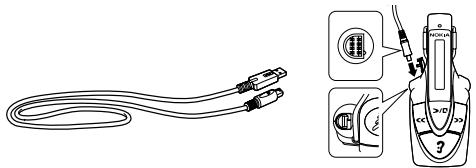
Connect your Nokia Music Player
Insert the USB cable into the Phone/PC connector, being careful to line up the pins.
natural_image
Illustration of a flexible cable and its connector with labeled parts (no text or symbols present)Note:
Always be careful when inserting or removing the headphone cable. Grasp the cable by the thick portion just above the metal plug. Never insert or remove the cable by holding or pulling the cable portion itself.
Connect a compatible personal computer
Insert the USB cable into the USB connector on a compatible personal computer. Refer to the user manual you received with your personal computer for further details.
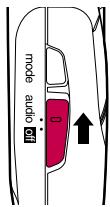
Note: When attaching the Nokia Music Player, please put the player in standby mode. Slide the Audio/off switch to off then slide Audio/off to Audio again. This is standby mode.
natural_image
Line drawing of a desktop computer setup with monitor, tower, and connector (no text or symbols)Note: Disconnect your Nokia Music Player from the personal computer and turn it off if you do not plan to use it for an extended time.
text_image
mode audio offTurn on the music player
Slide the audio/off switch to audio.
Note:
If no memory card has been inserted or if the memory is not inserted properly □ No Media ^2 is displayed. If the memory card is blank □ No Tracks ^2 is displayed.
If the player is not used for three minutes the unit will go to sleep and the display goes blank. Press >/☐ to wake the player.
Managing your music
With your Nokia Music Player connected to your personal computer and using the supplied Nokia Audio Manager software you can:
Copy music from your personal CD library
You can copy the contents of your personal library of CDs and load them to memory cards for use in the Nokia Music Player.
Get music from the Internet
You can download specially encoded music files from the Internet and load them to your personal computer or memory card for playback.
Organize your music library
You can create playlists of your favorite music. These playlists can be loaded along with the music to your Nokia Music Player. You can also create a library of different collections of music.
Note:
After installation an Internet connection is only necessary when retrieving CD track titles from the Compact Disc DataBase on the Internet.
MP3 files created for your Nokia Music Player are encrypted and cannot be played on other music players.
This product limits the content that can be downloaded to the device due to copyright protection. See Nokia Audio Manager – File types.
Starting Nokia Audio Manager
Start Nokia Audio Manager
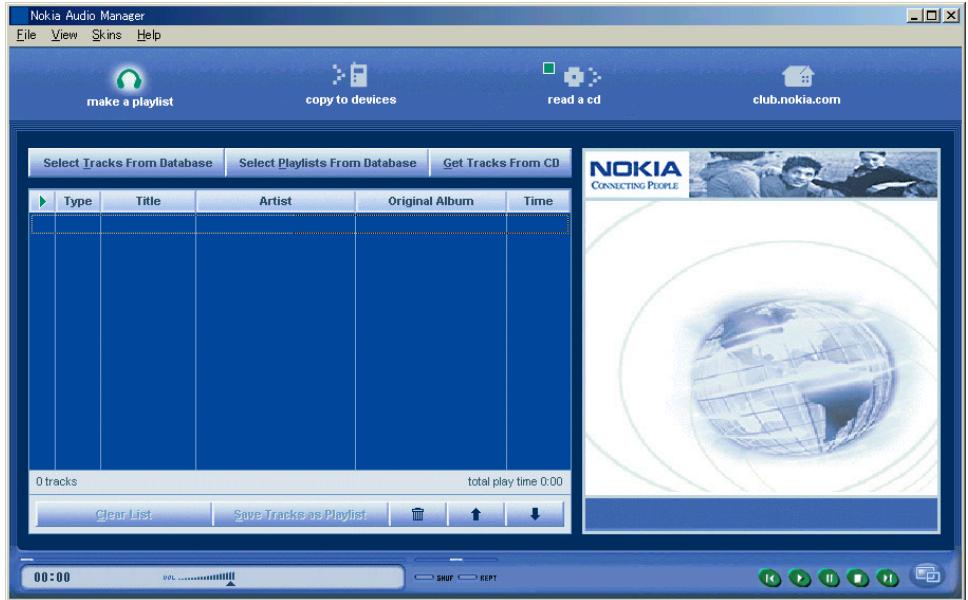
Select the Nokia Audio Manager icon starting screen is displayed.

from the start menu. The program loads and the
text_image
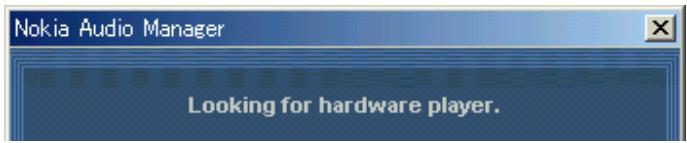
Nokia Audio Manager File View Skins Help make a playlist copy to devices read a cd club.nokia.com Select Tracks From Database Select Playlists From Database Get Tracks From CD Type Title Artist Original Album Time 0 tracks total play time 0:00 Clear List Save Tracks as Playlist NOKIA CONNECTING PEOPLE 00:00 90% ......Nokia Audio Manager attempts to make a connection to your Nokia Music Player. Looking for hardware player displays on your computer screen.
text_image
Nokia Audio Manager Looking for hardware player.If your Nokia music player is on and properly connected PC connected scrolls through the Nokia Music Player display.
Note: While your Nokia Music Player is connected to your personal computer and PC connected is displayed you will not be able to operate the controls on the Nokia Music Player to listen to music.
If your Nokia Music Player is off or if the Phone/PC cable is not properly connected, Unable to communicate with portable device is displayed on your computer screen. Follow the displayed instructions and refer to Nokia Audio Manager – Error messages in this manual.
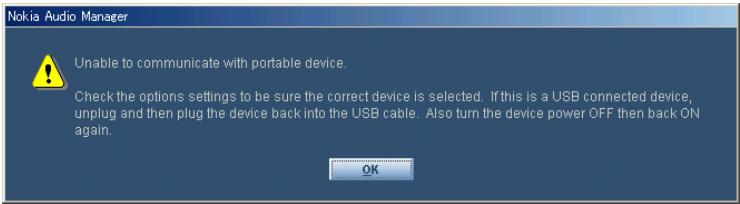
text_image
Nokia Audio Manager Unable to communicate with portable device. Check the options settings to be sure the correct device is selected. If this is a USB connected device, unplug and then plug the device back into the USB cable. Also turn the device power OFF then back ON again. OKPC operation shortcuts
Some commands and menu selections can be done by typing a key or a combination of keys without moving the cursor. In this section those shortcuts are indicated by the command or menu selection in bold type with an underline under the character that is the shortcut.
Select a menu
Press the ALT key and the shortcut key. If the menu to be opened is File, then press ALT and F at the same time. The File menu will open.
| Nokia Audio Manager | |||
| File | View | Skins | Help |
Select an item from an open menu
Press the shortcut key. If the item from the opened Help menu is Help Topics, then press H. Help Topics panel is displayed.
| Help |
| Help Topics |
| Help On |
Select a button
Press the shortcut key. If the button is Select Tracks From Database, then press T. The Select Tracks From Database panel opens.
| Select Tracks From Database |
Help – Where to go from here?
Follow these instructions carefully and while you are in Nokia Audio Manager if you have any specific questions click the Help “?” button in the upper right-hand corner of any dialog box to access the online help files and select the item in question. If you are not sure how to complete any task, choose Help Topics from the Help menu, in the upper left, and search for the task in question. The online help files provides detailed instructions for all the tasks you can perform with Nokia Audio Manager including additional tasks not listed in this manual.
Note: It is recommended that you read the online Help file after installation.
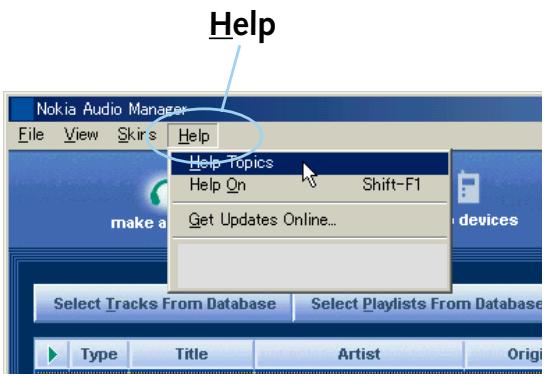
text_image
Help Nokia Audio Manager File View Skirs Help Help Topics Help On Shift-F1 Get Updates Online... make a select Tracks From Database Select Playlists From Database Type Title Artist Origin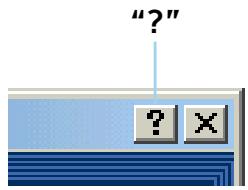
text_image
"" ? XPlay a CD
Start Nokia Audio Manager
Insert CD
Follow instructions for inserting a CD that came with your personal computer.
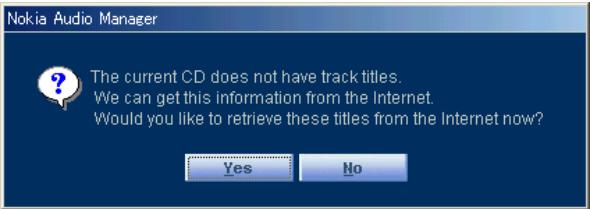
Note: If the inserted CD does not have track titles recorded on the CD the following alert box is displayed.
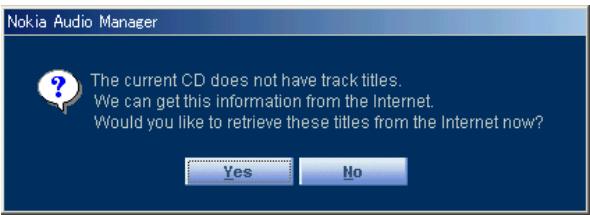
text_image
Nokia Audio Manager The current CD does not have track titles. We can get this information from the Internet. Would you like to retrieve these titles from the Internet now? Yes NoPress Yes. The Playlist information is downloaded from the CD Database on the Internet and displayed on your screen.
You must be able to connect to the Internet to get Playlist information from the CD Database.
Get tracks from CD
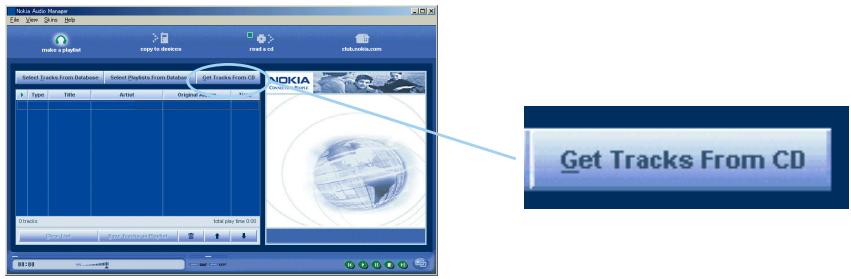
Click make a playlist, then click Get Tracks From CD.
If there are already tracks listed in the Playlist when you click Get Tracks From CD a dialog box is displayed and asks if you want to Play this CD, Append to Playlist or Cancel. If you click Play this CD the current tracks listed are replaced by the tracks from the CD. If you select Append to Playlist, the tracks taken from the CD are added to the current tracks in the Playlist.
text_image
iola audio Manager File View Genre Tools make a playlist copy to devices read a cd iola.malika.com Select Tracks From Database Select Playlists From Database Get Tracks From CD Type Titles Artist Original As MICKIA Get tracks from CD Tracks Take play time 0:00 Open Text Copy Tracks from Pricet Get Tracks From CD 01:00Select a track
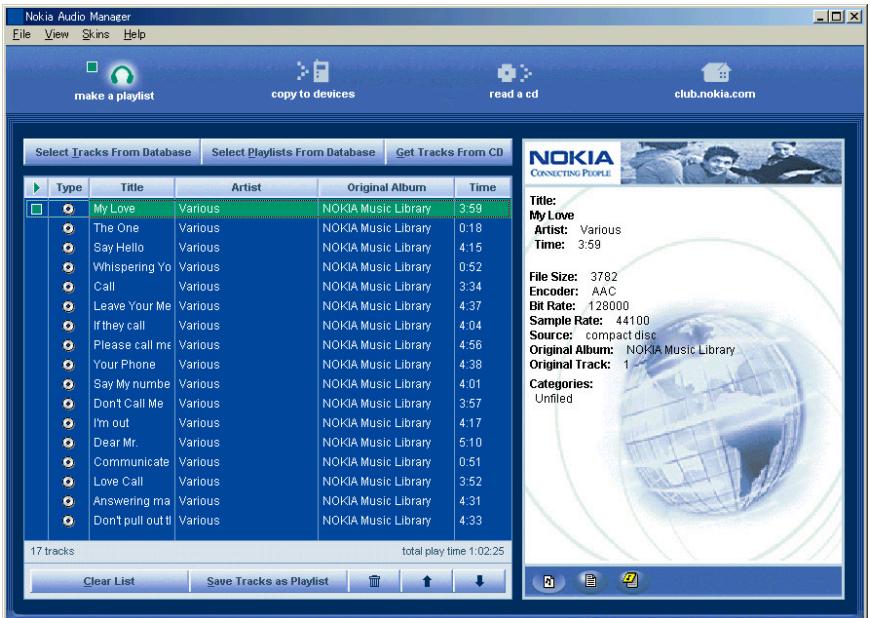
Select the track you wish to play by placing the cursor over the desired track and click. A green box appears to the left of the selected track and the track is highlighted. Information about the selected track is displayed in the right panel.
text_image
Make a playlist copy to devices read a cd club.nokia.com Select Tracks From Database Select Playlists From Database Get Tracks From CD Type Title Artist Original Album Time My Love Various NOKIA Music Library 3:59 The One Various NOKIA Music Library 0:18 Say Hello Various NOKIA Music Library 4:15 Whispering Yo Various NOKIA Music Library 0:52 Call Various NOKIA Music Library 3:34 Leave Your Me Various NOKIA Music Library 4:37 If they call Various NOKIA Music Library 4:04 Please call me Various NOKIA Music Library 4:56 Your Phone Various NOKIA Music Library 4:38 Say My numbe Various NOKIA Music Library 4:01 Don't Call Me Various NOKIA Music Library 3:57 I'm out Various NOKIA Music Library 4:17 Dear Mr. Various NOKIA Music Library 5:10 Communicate Various NOKIA Music Library 0:51 Love Call Various NOKIA Music Library 3:52 Answering ma Various NOKIA Music Library 4:31 Don't pull out! Various NOKIA Music Library 4:33 17 tracks total play time 1:02:25 Clear List Save Tracks as PlaylistPlay the track
Press 📋. The selected track begins to play and the green box changes to a green arrow showing that the track is playing. If available the current track name, length and artist scrolls through the display at the bottom of the window.
Note: A sound card is required to hear the playback. See Specifications.
Select a different track
While a track is playing, select a different track and press ▶. Play of the newly selected track begins.
Scan through a track
While a track is playing, place the cursor over the SCAN button, hold down the left mouse button and you can slide the SCAN button to any point in the track to listen to it. Playback continues even during scanning.

text_image
SCAN REPT SHUF 00:00 VOL - If they call (04:04)** SHUF REPTRepeat CD playback
Click REPT. The REPT indicator changes to green and after all tracks of the CD are played, playback begins again with the first track. To cancel repeat playback click REPT again.
Random playback
Click SHUF. The SHUF indicator changes to green and the tracks of the CD are played back in random order. To cancel random playback click SHUF again.
Using the Small Player
Switch to Small Player
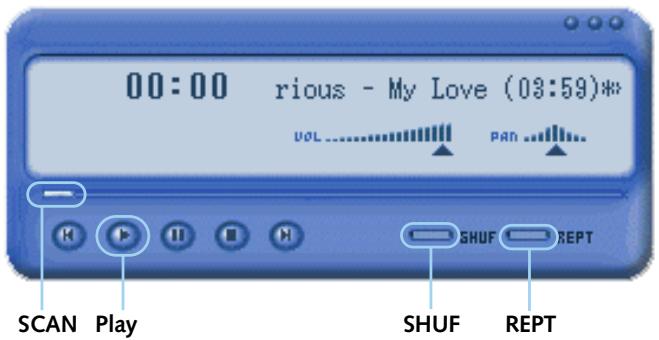
Click 📄, on the bottom right-hand side of the panel, to transform Nokia Audio Manager into a Small Player.
text_image
00:00 rious - My Love (03:59)* VOL PAN SHUF REPT SCAN Play SHUF REPTIn Small Player mode you can play the tracks in your current Playlist. To return to the Big Player, right click on the Small Player and select Big Player.
Adding tracks from CDs
In Nokia Audio Manager, you can record tracks from your audio CDs. The tracks are recorded as digital audio files and stored on your hard disk.
Insert CD
Follow instructions for inserting a CD that came with your personal computer.
Note: If you insert CD while Nokia Audio Manager is open, tracks from the CD are automatically added to the Playlist.
If the inserted CD does not have track titles recorded on the CD, the following alert box is displayed.
text_image
Nokia Audio Manager The current CD does not have track titles. We can get this information from the Internet. Would you like to retrieve these titles from the Internet now? Yes NoPress Yes. The Playlist information is downloaded from the CD Database on the Internet and displayed on your screen.
You must be able to connect to the Internet to get Playlist information from the CD Database.
Get tracks from CD
Click read a CD.
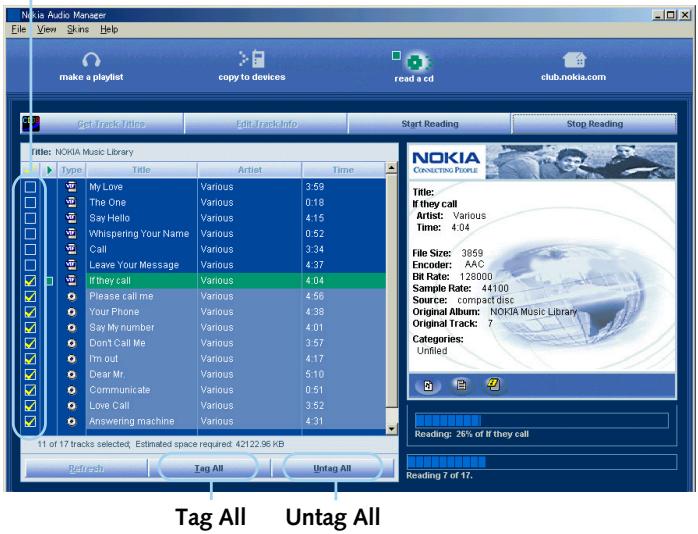
Select a track
Click in the square box next to the track you wish to select. A check mark appears in the box.
Deselect a track
Click on a check mark next to the track you wish to deselect.
Select/Deselect
text_image
Nokia Audio Manager File View Skins Help make a playlist copy to devices read a cd club.nokia.com Get Track Titles Edit TrackInfo Start Reading Stop Reading Title: NOKIA Music Library Type Title Artist Time My Love Various 3.59 The One Various 0.18 Say Hello Various 4.15 Whispering Your Name Various 0.52 Call Various 3.34 Leave Your Message Various 4.37 If they call Various 4.04 Please call me Various 4.56 Your Phone Various 4.38 Say My number Various 4.01 Don't Call Me Various 3.57 I'm out Various 4.17 Dear Mr. Various 5.10 Communicate Various 0.51 Love Call Various 3.52 Answering machine Various 4.31 11 of 17 tracks selected Estimated space required: 42122.96 KB Tag All Untag All NOKIA Conductors Page Title: If they call Artist: Various Time: 4:04 File Size: 3859 Encoder: AAC Bit Rate: 128000 Sample Rate: 44100 Source: compact disc Original Album: NOKIA Music Library Original Track: 7 Categories: Unified Reading: 26% of If they call Reading 7 of 17. Refresh Tag All Untag AllSelect all tracks Click Tag All.
Deselect all tracks Click Untag All.
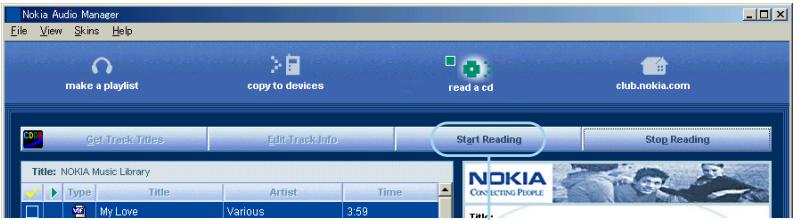
Start reading tracks
Click Start Reading. Nokia Audio Manager starts encoding and copying the selected tracks to the hard disk. The status of the operation is shown in the progress bars in the bottom right of the panel. After a track has been encoded and copied to the hard disk the check mark disappears the type icon changes from a 🔒 to a 🔒. When all selected tracks have been encoded and copied to the hard disk Recording completed successfully! is displayed. Click OK. Nokia Audio Manager has created a playlist in your database for this CD and links the new track records to that playlist.
text_image
Nokia Audio Manager File View Skins Help make a playlist copy to devices read a cd club.nokia.com Get Track Titles Edit Track Info Start Reading Stop Reading Title: NOKIA Music Library Type Title Artist Time My Love Various 3.59 NOKIA CONTACTING PEOPLE Talk...Start Reading
Edit track info
On the read a cd window, click Edit Track Info. The Review Playlist panel appears and the titles of the tracks is displayed. Select the track you wish to edit by clicking on it. Click Review/Edit. Edit existing information or add information for each track. Press <
Add tracks from the Internet
In the future you may be able to download digital audio files from the Internet. Nokia Audio Manager can also detect these files as they are added to your hard disk and automatically add them to your database.
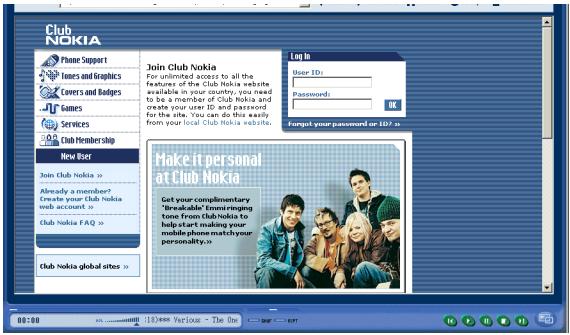
Connect to the Internet
Click club.nokia.com. Nokia Audio Manager uses your Internet connection to connect to Club Nokia.
Note: If this is your first visit to Club Nokia register. Click Join Club Nokia. Follow the instructions to register.
text_image
Club Nokia Phone Support Times and Graphics COVERS and Gadgets Games Services Club Members ship New User Join Club Nokia » Already a member? Create your Club Nokia web account » Club Nokia FAQ » Club Nokia global sites » Join Club Nokia For unlimited access to all the features of the Club Nokia website available in your country, you need to be a member of Club Nokia and create your user ID and password for the site. You can do this easily from your local Club Nokia website. Log In User ID: Password: Help Forgot your password or ID? » Make it personal at Club Nokia Get your complimentary "Breakable" Enverstringing tone from Club Nokia to help start making your mobile phone match your personality.Note:
If you do not have an active Internet connection, do not click on the link to go to club.nokia.com. Your computer may hang causing you to restart the computer.
View downloadable files
In the future Nokia Club may offer downloads (some of which may be free, some of which may be purchased) from a variety of partners. Follow links to partners' web sites for additional downloads. If you know the Web address of a specific site that you would like to visit, type the address in the address field and click the Enter key on your keyboard. The controls on this window (Back, Forward, Stop, and Home) work just like your Web browser.
Download files
Typically, to download a file from the Internet, you click the link for the file that you want to download. Specify where you want to store the file on your hard disk and your bowser download the file. Downloaded files are automatically added to your database. See the documentation for your Web browser for more information on downloading files from the Internet.
Making a custom playlist
After your tracks are in the database you can select tracks to make custom playlists. Create a playlist when you want to make party mixes or create playlists to send to your Nokia Music Player. Add the tracks you want to the current playlist, organize the tracks in the order you want, and save the list as a playlist.
Select tracks from the database
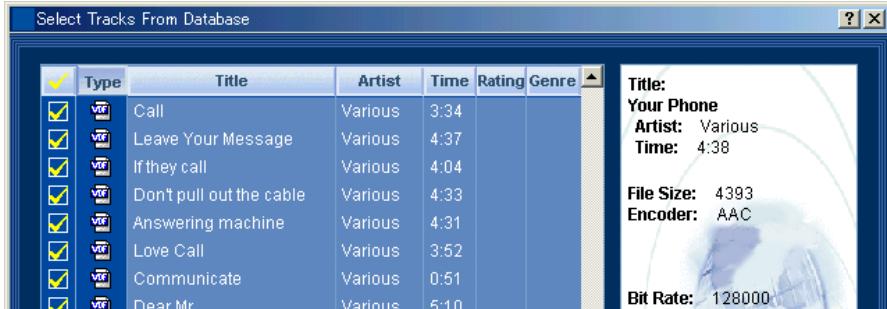
Click make a playlist then click Select Tracks From Database. Select Tracks From Database window appears and shows a list of all tracks in your database, including the track title, artist, playing time, rating, and genre. You can sort the list of tracks by clicking on any column heading, for example click the Artist column heading to sort the list alphabetically by artist.
text_image
Select Tracks From Database ✓ Type Title Artist Time Rating Genre ✓ Call Various 3:34 ✓ Leave Your Message Various 4:37 ✓ If they call Various 4:04 ✓ Don't pull out the cable Various 4:33 ✓ Answering machine Various 4:31 ✓ Love Call Various 3:52 ✓ Communicate Various 0:51 ✓ Dear Mr... Various 5:10 Title: Your Phone Artist: Various Time: 4:38 File Size: 4393 Encoder: AAC Bit Rate: 128000Select tracks to add to the playlist
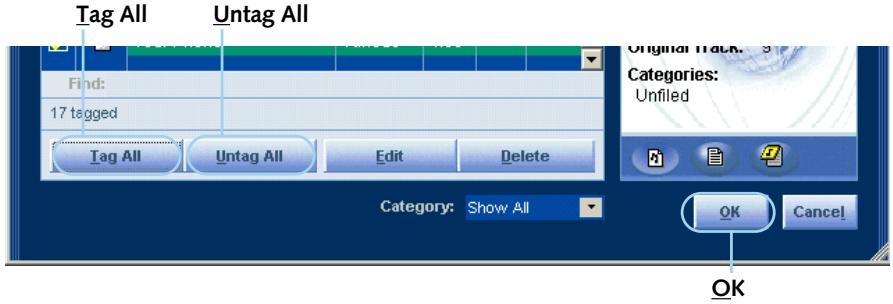
Click in the square box next to the track you wish to select. A check mark appears in the box next to a selected track. You can also click Tag All to select all displayed tracks or Untag All to deselect all tracks. When you have selected the tracks to be added click OK.
Save the custom playlist
Click Save Tracks as Playlist.

text_image
17 of 17 tracks selected; Estimated space required: 59680 KB Clear List Save Tracks as Playlist Refresh Advanced Format ... 00:00 Various - My Love (08:5 SHUF KEPTSave Tracks as Playlist
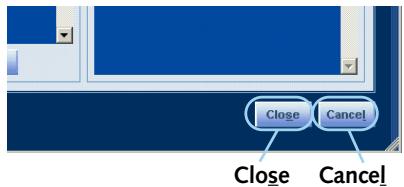
The Add Playlist window is displayed. Enter a name for your custom playlist and any additional information you wish to add either by entering the information or by clicking on the drop-down menu boxes. When you have finished entering information, click Close to save your custom playlist or Cancel to discard your changes and close the window. If you click Close, The playlist has been saved is displayed. Click OK.
text_image
Close Cancel Close Cancel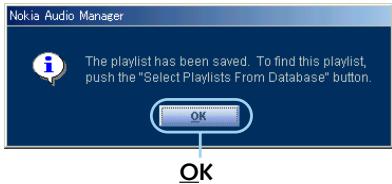
text_image
Nokia Audio Manager The playlist has been saved. To find this playlist, push the "Select Playlists From Database" button. OK OKStep 4. Transferring music to your memory card
You can use Nokia Audio Manager to transfer tracks and playlists to your Nokia Music Player.
Open the devices window
Click copy to devices.
copy to devices

text_image
Nokia Audio Manager File View Skins Help make a playlist copy to devices read a cd club.nokia.comAdd tracks
Click Select Tracks From Database or Select Playlists From Database to select and add tracks or playlists.
Select Tracks From Database Select Playlists From Database

text_image
Select Tracks From Database Select Playlists From Database Copy To Portable T... Time Size Title Artist 3:59 380€ My Love Various 0:18 320 The One Various 4:15 406€ Say Hello Various Media MMC Card Used Selected Available OverStep 4. Transferring music to your memory card
Select tracks to transfer
Click in the square box next to the track or playlist you wish to select. To select all of the tracks in the list, click the Tag All button. To deselect all the tracks that are currently selected, click the Untag All button. After you have selected the tracks or playlists that you want to add to your transfer list, click OK.
text_image
Tag All Untag All Find: 17 tagged Tag All Untag All Edit Delete Category: Show All OK Cancel Categories: Unfiled OKNote: If the number of tracks or playlists exceeds the capacity of the memory card, Not enough room panel appears. Follow the instructions on the panel to deselect tracks or playlists until the capacity of the memory is no longer exceeded.
Step 4. Transferring music to your memory card
Copy selected tracks to the memory card
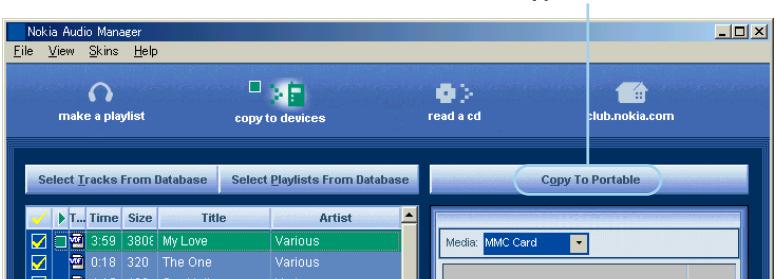
Click Copy to Portable. Converting file for download is displayed and then Sending to device with a progress window. When the transfer is complete Finished transferring tracks is displayed. Click OK.
Copy to Portable
text_image
Nokia Audio Manager File View Skins Help make a playlist copy to devices read a cd club.nokia.com Select Tracks From Database Select Playlists From Database Copy To Portable Time Size Title Artist 3:59 380€ My Love Various 0:18 320 The One Various Media: MMC CardRemove tracks from the memory card
Remove tracks from the memory card by selecting a track and click 📄 or right click on a track and click on Remove. The track is erased from the memory card.
Step 5. Backup music and restore
This feature to be offered in the future. Please access club.nokia.com for information.
The Nokia CD Manager allows you to copy music from an audio CD, rename the tracks, and transfer the music to your Nokia Music Player. A connection to the Internet is not necessary for the Nokia CD Manager.
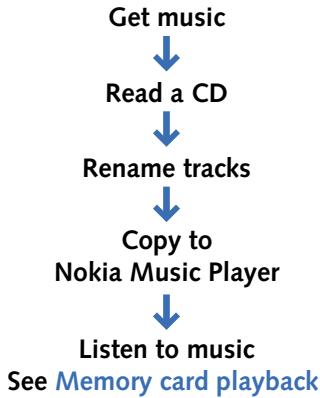
Getting and listening to music overview
Using Nokia CD Manager you can quickly get and listen to your music.
flowchart
graph TD
    A["Get music"] --> B["Read a CD"]
    B --> C["Rename tracks"]
    C --> D["Copy to Nokia Music Player"]
    D --> E["Listen to music"]
    E --> F["See Memory card playback"]
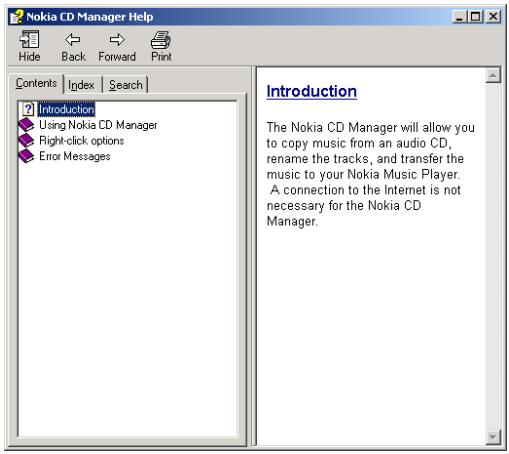
Help – Where to go from here?
Follow these instructions carefully and while you are in Nokia CD Manager if you have any specific questions right-click on the face of the application window and select Help to access the online help files and select the item in question. The online help files provides detailed instructions for all the tasks you can perform with Nokia CD Manager including additional tasks not listed in this manual.
Note: It is recommended that you read the online Help file after installation.
text_image
Nokia CD Manager Help Hide Back Forward(Print) Contents lipindex Search Introduction Using Nokia CD Manager Right-click options Error Messages Introduction The Nokia CD Manager will allow you to copy music from an audio CD, rename the tracks, and transfer the music to your Nokia Music Player. A connection to the Internet is not necessary for the Nokia CD Manager.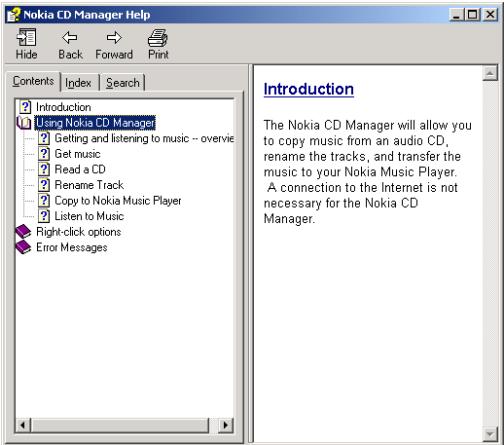
text_image
Nokia CD Manager Help Hide Back Forward Print Contents Index Search Introduction Using Nokia CD Manager Getting and listening to music -- overvie Get music Read a CD Rename Track Copy to Nokia Music Player Listen to Music Right-click options Error Messages Introduction The Nokia CD Manager will allow you to copy music from an audio CD, rename the tracks, and transfer the music to your Nokia Music Player. A connection to the Internet is not necessary for the Nokia CD Manager.First double click on any book icon in the left panel to open the help item list. Then click on any topic for the help information to be displayed in the right panel.
text_image
Nokia CD Manager Help Hide Back Forward Print Contents Index Search Introduction Using Nokia CD Manager Getting and listening to music -- overvie Get music Read a CD Rename Track Copy to Nokia Music Player Listen to Music Right-click options Error Messages Get music Launch the Nokia CD Manager from your computer. The following screen will appear. Nokia CD Manager NOKIA Media On PC Your PC has are stored in this directory. You may change this directory using the menu command. This is not to related music back to from your device. These files may then be added to your device. C:\MED.MAN.MAN\NOKIA\CD\123\Track_01 Media On De These are from your PC by clicking your device. Read a CD... The Read a CD... button begins the CD read operation.Click on any button displayed in the right panel and a pop-up information box is displayed.
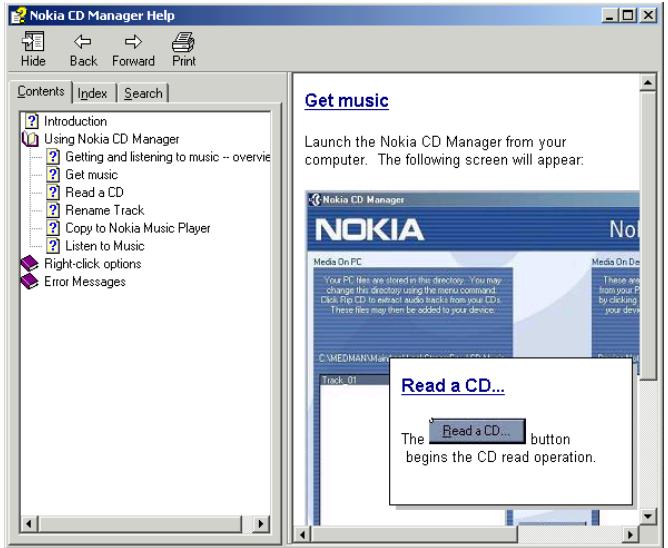
Step 1. Get music
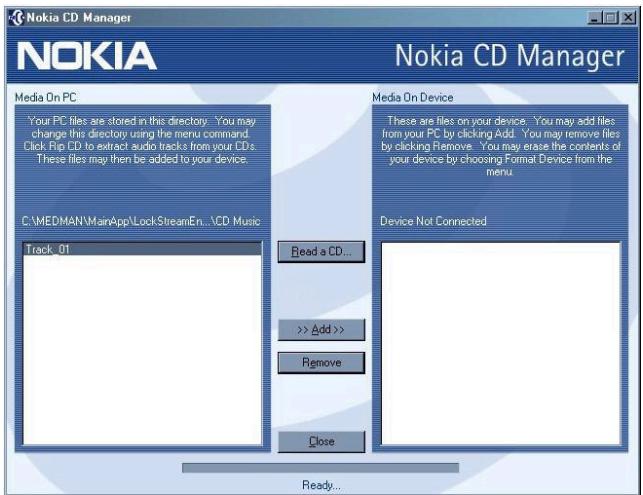
Select the Nokia CD Manager icon from the start menu. The following screen will appear:
text_image
Nokia CD Manager NOKIA Media On PC Your PC files are stored in this directory. You may change this directory using the menu command. Click Rip CD to extract audio tracks from your CDs. These files may then be added to your device. C:\MEDMAN\MainApp\LockStreamEn...\CD Music Track .01 Read a CD... >> Add >> Remove Close Ready... Media On Device These are files on your device. You may add files from your PC by clicking Add. You may remove files by clicking Remove. You may erase the contents of your device by choosing Format Device from the menu. Device Not ConnectedAny audio files existing on your computer are listed on the left; any audio files existing on your personal device are listed on the right. If your device is not currently connected to your computer, the column on the right will reflect this.
Step 2. Read a CD
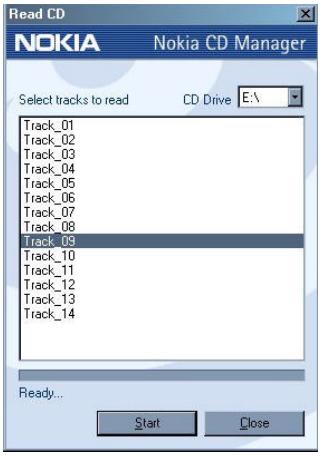
“Read a CD” refers to the process of copying the tracks from your CD-ROM to the hard disk drive of your computer. To read a CD, simply place an audio CD disk in the appropriate drive, and start Nokia CD Manager. Choose consecutive files by using the shift key; choose nonconsecutive files by using the control key.
Click the Start button to launch the CD Transfer dialog. The Progress Control bar will show the progress of the operation.
text_image
Read CD NOKIA Nokia CD Manager Select tracks to read CD Drive E:\ Track_01 Track_02 Track_03 Track_04 Track_05 Track_06 Track_07 Track_08 Track_09 Track_10 Track_11 Track_12 Track_13 Track_14 Ready... Start CloseStep 3. Rename tracks
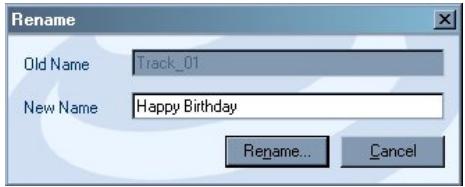
Right-click on a single file name in the Track List Box. The Edit Box will display the name of the currently selected file name.
text_image
Rename Old Name Track_01 New Name Happy Birthday Rename... CancelType in the name that you choose. The name must be unique; another track with the same name cannot exist on your computer or your Nokia Music Player.
Note: Do not use any of the following characters in the name: / \ : * ? " < > ! @ | Click the Rename to complete the operation.
Step 4. Copy to player and listen to music
On the left side of the screen, highlight the media files to transfer to the Nokia Music Player. You can use the shift key to highlight consecutive files, or the control key to highlight non-consecutive files.
Click the >> Add >> button to copy the files to the Nokia Music Player.
See Nokia Music Player – Memory card playback.
Step 5. Using menus
Media On PC-Right click
Right-clicking any item in the list of the Media On PC box will bring up the following menu:
| Change PC Directory... |
| Refresh Device... |
| Format Device... |
| Read a CD... |
| Rename... |
| Remove... |
| Help... |
| Close... |
Change PC Directory
The Audio Manager by default saves your media files to the C: drive of your computer. To change the directory, right-click on the face of the Nokia CD Manager and choose Change PC Directory...
Refresh Device
Refresh the Media On PC or Media On Device list box.
Format Device
To format the memory card in your Nokia Music Player, right-click on the face of the Nokia CD Manager and choose Format Device...
Note: All music on the memory card of the Nokia Music Player will be lost when the device is formatted!
Read a CD
Nokia CD Manager starts reading from your audio CD.
Remove
Right-click on the name of the file to remove.
Rename
Right-click on the name of the file to rename the file.
Help
The Help option will access an on-screen help file.
Close
Close closes Nokia CD Manager.
Media On Device-Right click
Clicking on a single file in the Media On Device window will bring up the following Menu:
| Change PC Directory... |
| Refresh Device... |
| Format Device... |
| Read a CD... |
| Rename... |
| Remove |
| Help... |
| Close |
Change PC Directory
The Nokia CD Manager by default saves your media files to the C: drive of your computer. To change the directory, right-click on the face of the Nokia CD Manager and choose Change PC Directory...
Refresh Device
Refresh the Media On PC or Media On Device list box.
Format Device
To format the memory card in your Nokia Music Player, right-click on the face of the Nokia CD Manager and choose Format Device...
Note: All music on the memory card of the Nokia Music Player will be lost when the device is formatted!
Read a CD
Nokia CD Manager starts reading from your audio CD.
Rename\_track
You cannot rename a track from the Media On Device link box.
Remove
Right-click on the name of the file to remove.
Help
The Help option will access an on-screen help file.
Close
Close closes Nokia CD Manager.
Step 6. Backup music and restore
This feature to be offered in the future. Please access club.nokia.com for information.
Memory card playback controls
This section explains in detail the controls you use to listen to music from a memory card. To copy music to the memory card see Transferring music to your memory card (with Nokia Audio Manager) or Copy to player and listen to music (with Nokia CD Manager).
text_image
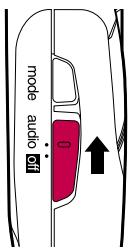
mode audio offTurn on the music player
Slide the audio/off switch to audio.
Note: If no memory card has been inserted or if the memory card is not inserted properly □ No Media ≈ is displayed. If the memory card is blank □ No Tracks ≈ is displayed.
Select playback from the memory card
If the music player was last used for playback from the memory card the display shows:

text_image
MusicOn MHz V 1.00 MHz DigitalIf the music player was last used for playback from the FM radio the display shows:

text_image
MusicOn V 1.00 FM MHzNote: The Nokia Music Player is shipped with Firmware Version 1.00. See Upgrade – Nokia Music Player for instructions on how and when to upgrade the firmware (to be used for special feature upgrades in the future).
Nokia Music Player – Memory card playback
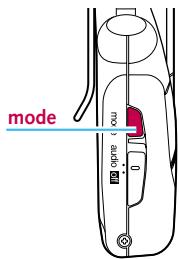
text_image
mode radioTo switch from FM radio playback to memory card playback press and hold the mode key for several seconds until Digital is displayed and then the playlist name.
Note:
If no playlist name has been recorded to the memory card Unknown is displayed.
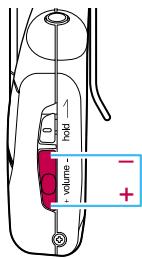
text_image
pin wavelength + -Adjust volume
Press the volume button up + or down - to adjust the volume.
Minimum
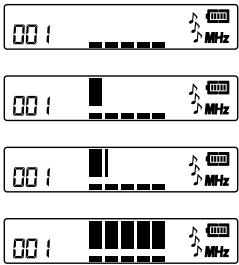
text_image
00: 分频器 00: 分频器 00: 分频器 00: 分频器Maximum
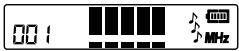
Note: The volume level is remembered by the Nokia Music Player. When playback resumes the volume returns to the last setting.
Play a track
Press >/☐. The first track on the memory card begins to play, the track title scrolls for 30 seconds then the playtime is displayed.
Blinks during playback
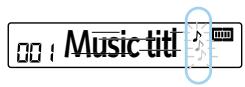
text_image
00: Music titlePause playback
While a track is playing, press >/□ and playback pauses and the playtime and music notes blink.
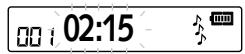
text_image
00:02:15Note: If you leave the player in the pause mode for three minutes the player automatically enters a power-saving sleep mode.
Resume playback
While a track paused, press >/☐ and playback resumes.
text_image
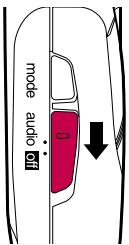
mode audio offStop playback/turn off
Slide the audio/off switch to off.
Selecting a track to play
Move forward a track
While a track is playing or paused, press >> with one quick press. Each time you press >> playback moves to the next track and the track number changes in the display.
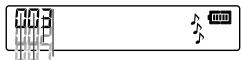
text_image
Scanned interface element showing a battery icon and Chinese text labelsMove back to the beginning of a track
After a track has played over two seconds, press << with one quick press. Playback returns to the beginning of the track.
Move back a track
After a track has played over two seconds, press << with two quick presses. Playback moves to the track previous to the playing track and the track number changes in the display.
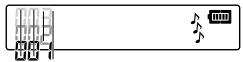
text_image
Diagram showing a music player interface with a bar, musical note, and battery iconScanning tracks
You can move forward or backward through a track quickly.
Scan forward in a track
While a track is playing or paused, press and hold >>. When you press and hold >>, the player scans forward through the track and playback is muted while the playtime count increases. When you release >>, playback begins again.
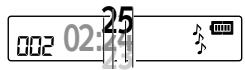
text_image
002 02:24 25 11Scan backwards in a track
While a track is playing or paused, press and hold <<. When you press and hold <<, the player scans backwards through the track while the playtime count decreases. When you release <<, playback begins again.
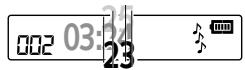
text_image
002 03:24 23Selecting playback options
Play all tracks once
Press mode. [00:Play>>] is displayed. Within several seconds, press << or >> repeatedly until [00:Play-1] is displayed.
Nokia Music Player – Memory card playback
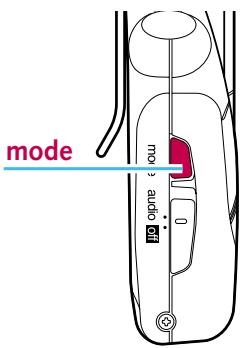
text_image
mode mode audioRepeat play of all tracks
Press mode. Play>> is displayed. Within several seconds, press or repeatedly until Rep-ALL is displayed.
Repeat play of one track
While listening to the track that you want to repeat, press mode.
Play>> is displayed. Within several seconds, press <
repeatedly until Rep-1 is displayed.
Play all tracks in random order
Press mode. Play>> is displayed. Within several seconds, press
or >> repeatedly until Random is displayed.
Selecting playback tone
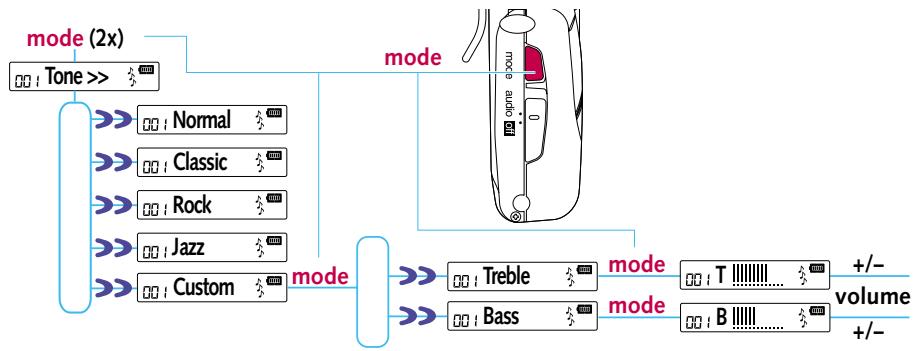
There are five different tone settings to enhance playback of your music. The five settings are; Normal, Classic, Rock, Jazz, or Custom. In the Custom setting you can adjust Bass and Treble. For maximum enjoyment of your recorded music select the tone setting that most closely matches the type of music you are listening to.
text_image
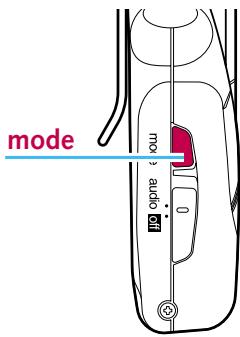
mode moc audioSelect a tone setting
While a track is playing or paused, press mode twice. ☐: Tone>> ½ is displayed. Within several seconds, press << or >> repeatedly to select the tone setting you wish to use; ☐: Normal ½, ☐: Classic ½, ☐: Rock ½, ☐: Jazz ½, or ☐: Custom ½. The selected tone setting is applied to your music.
Select Custom tone setting
While a track is playing or paused, press mode twice. ☐ Tone>> is displayed. Within several seconds, press << or >> repeatedly to select ☐ Custom . Within several seconds, press mode again. The display changes to ☐ Treble or Bass . Within several seconds, press << or >> repeatedly to select between ☐ Treble or Bass .
flowchart
graph TD
    A["mode (2x)"] --> B["Tone >>"]
    B --> C["Normal"]
    B --> D["Classic"]
    B --> E["Rock"]
    B --> F["Jazz"]
    B --> G["Custom"]
    C --> H["mode"]
    D --> H
    E --> H
    F --> H
    G --> H
    H --> I["Treble"]
    H --> J["Bass"]
    I --> K["T volume"]
    J --> L["B volume"]
text_image
hold volume - + +Adjust Bass and Treble
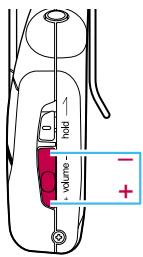
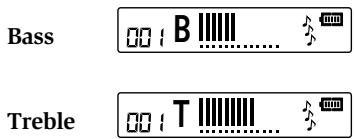
While 001 Treble 32 or 001 Bass 32 is displayed press the mode and then the volume button up + or down – to adjust Bass or Treble.
text_image
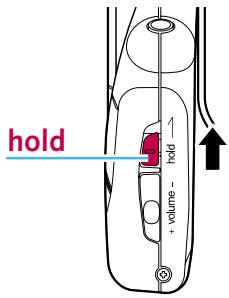
Bass 00 : B Treble 00 : TButton lock
This locks the buttons on your Nokia Music Player to prevent the buttons from being accidentally pressed (for example, when your Nokia Music Player is in your pocket).
text_image
hold hold - 1mm x +Lock the buttons
After adjusting your Nokia Music Player as you like it slide hold in the direction of the arrow. [00] HOLD is displayed. All buttons are locked.
Note: You can still answer the phone and make phone calls while connected to a Nokia mobile phone by pressing 7.
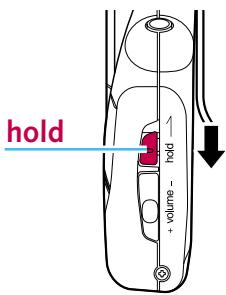
If you place the Nokia Music Player in the sleep mode and then lock the buttons you can still resume playback by pressing >/☐.
text_image
hold pin - carview + ↓Unlock the buttons
If you want to unlock the buttons slide hold in the direction of the arrow. The buttons are unlocked.
Display lighting
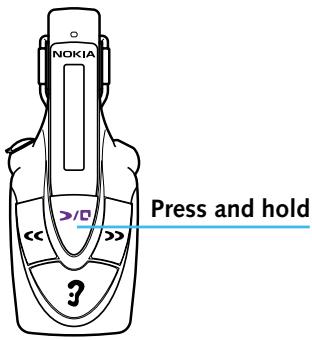
The display lights for several seconds whenever you press any of the keys on the Nokia Music Player. If you want to turn the display light on press and hold >/☐. The display lights. When you release >/☐ the display light goes out.
text_image
NOKIA Press and hold ?Nokia Music Player – Tuning in your FM radio
Your Nokia Music Player also receives FM stereo radio broadcasts. Before you can listen to FM broadcasts you must insert a battery into your Nokia Music Player and attach the headphone cable. If you have not done these yet please see Nokia Music Player – Getting started.
Note:
The headphone cable is the antenna for your FM radio. If you wish to attach and use a different headphone cable make sure it is the same length as the original headphone cable.
text_image
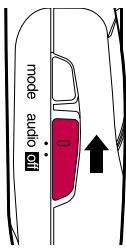
mode audio offTurn on the music player
Slide the audio/off switch to audio.
Select playback from the FM radio
If the music player was last used for playback from the FM radio the display shows:
MusicOn

V 1.00

FM

If the music player was last used for playback from the memory card the display shows:
MusicOn

V 1.00

Digital

Nokia Music Player – Tuning in your FM radio
text_image
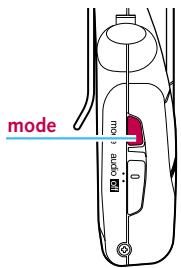
modeTo switch from memory card playback to FM radio playback press and hold the mode key for several seconds until FM is displayed. The frequency of the last selected FM radio station is then displayed. If the frequency selected is a broadcasting FM station you will hear the broadcast.
FM 99.9

text_image
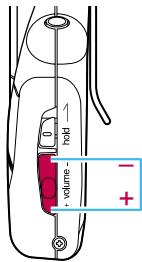
1 top valence - +Adjust volume
Press the volume button up + or down - to adjust the volume.
Minimum
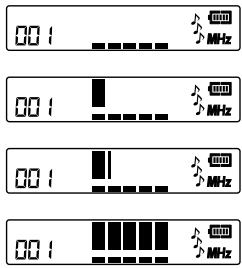
Maximum
Note: The volume level is remembered by the Nokia Music Player. When playback resumes the volume returns to the last setting.
Selecting a frequency
Select a higher frequency
Press >> with one quick press. The frequency selected increases by 100 Hz and is displayed.
Press >> repeatedly with quick presses until the desired frequency is tuned in.
FM 100.0


FM 100.1

Select a lower frequency
Press cc with one quick press. The frequency selected decreases by 100Hz and is displayed.
Press << repeatedly with quick presses until the desired frequency is tuned in.
FM 100.1


FM 100.0

Using FM frequency auto-search
You can use the Nokia Music Player to automatically search for a FM stereo broadcast of sufficient strength for good reception.
Auto-search for a higher frequency
Press and hold >>. The frequency displayed changes as auto-search begins. Release >>. The Nokia Music Player automatically searches up the frequencies until a stereo broadcast of sufficient strength for good reception is found while increasing the frequency displayed. When a suitable station is found the frequency display stops changing.
FM 110

Auto-search for a lower frequency
Press and hold <<. The frequency displayed changes as auto-search begins. Release <<. The Nokia Music Player automatically searches down the frequencies until a stereo broadcast of sufficient strength for good reception is found while decreasing the frequency displayed. When a suitable station is found the frequency display stops changing.
FM 115

Using station presets
You can set up to five of your favorite FM stations for easy recall.
text_image
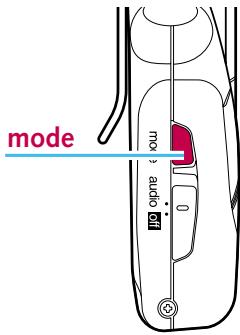
mode mod audioSelect a frequency
When you have tuned in a station press mode twice. Memory is displayed and after two seconds CH Select is displayed.
Assign a recall channel
While CH1 Select 52 is displayed, press << or >> to assign a recall channel of CH1 to CH5.

text_image
CH1 Select MHz → CH2 Select MHzAfter you select a recall channel of CH1 to CH5 press mode.
CH2 Yes 3 MHz is displayed. Your selected frequency has been stored.
Recall a preset frequency
Press >/□. With each press of >/□ the recall channels are displayed with the frequencies that have been stored in memory.

text_image
CH1 FM 99.1 MHz → CH2 FM 100.0 MHzThe recall channel and frequency you want to listen to is displayed. After two seconds you hear the selected frequency.
Switching stereo and monaural
Sometimes radio interference or a weak signal can cause your reception to become noisy. Switching to monaural may help to cancel the noise.
Select monaural
While listening to the radio, press mode with one quick press. The present stereo or monaural status is displayed. Press << or >> to display Mono 12 . Playback becomes monaural.
Select stereo
While listening to the radio, press mode with one quick press. The present stereo or monaural status is displayed. Press << or >> to display Stereo 12 . Playback becomes stereo.
Nokia Music Player – Using as a hands-free headset
When connected to your Nokia mobile phone the Nokia Music Player allows Hands-free Switching. You can listen to music and when there is an incoming call you can answer the phone and speak to the caller without touching the mobile phone. You can also dial out without touching your mobile phone by using voice dialing.
Note: Voice dialing is available when using Nokia 3310, 3330, 8250 and 8890 mobile phones.
What phones can be used?
These Nokia mobile phones have been designed to work with your Nokia Music Player. Do not attempt to connect your Nokia Music Player to other phones.
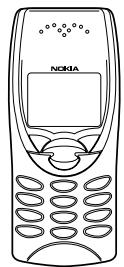
natural_image
Line drawing of a Nokia mobile phone with keypad and screen (no text or symbols beyond branding)Nokia 8210
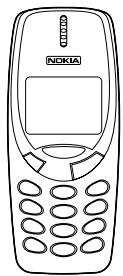
natural_image
Line drawing of a Nokia mobile phone with keypad and screen (no text or symbols)Nokia 3310, 3330
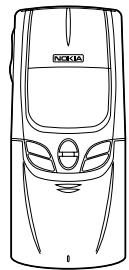
natural_image
Line drawing of a car with visible roof, windows, and logo (no text or symbols)Nokia 8850, 8890
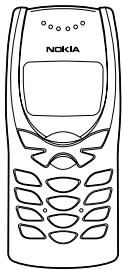
natural_image
Line drawing of a Nokia mobile phone with keypad and front panel (no text or symbols on body)Nokia 8250
Connecting your Nokia Music Player and phone
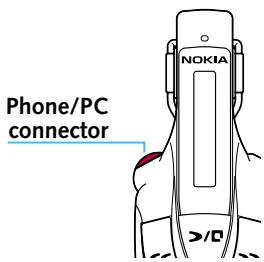
text_image
Phone/PC connector NOKIA >/0Remove the Phone/PC connector cap
Pry off the cap on the Phone/PC connector. The cap can be removed from the Phone/PC connector but stays attached to your Nokia Music Player.
Note: The cap is attached to your Nokia Music Player. Do not attempt to remove it.
To prevent dust, dirt or moisture from getting into the Phone/PC connector on your Nokia Music Player always replace the cap when not in use.
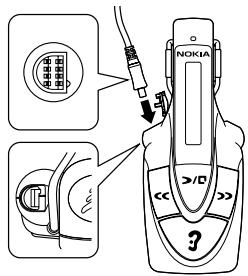
text_image
Diagram showing NOKIA device with labeled buttons and a close-up of its internal componentsConnect your Nokia Music Player
Insert the phone cable into the Phone/PC connector, being careful to line up the pins.
Note: Always be careful when inserting or removing the cable. Grasp the cable by the thick portion just above the metal plug. Never insert or remove the cable by holding the cable portion itself.
Connect your Nokia mobile phone
Insert the phone cable into the connector on your Nokia mobile phone. The connector's position is slightly different depending on which model phone you have.
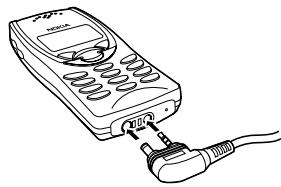
natural_image
Line drawing of a handheld electronic device with an attached plug (no text or symbols)Nokia 8210
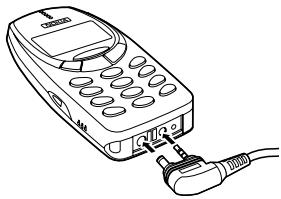
natural_image
Line drawing of a handheld electronic device with ports and cables (no text or symbols)Nokia 3310, 3330
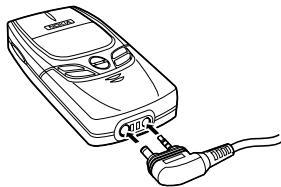
natural_image
Line drawing of a mobile phone connected to a cable (no text or symbols)Nokia 8850 ^ , 8890 ^
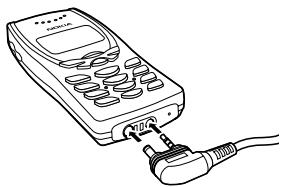
natural_image
Line drawing of a handheld electronic device with ports and an attached plug (no text or symbols)Nokia 8250
* Note: Be careful not to scratch the phone cable connector when opening or closing the sliding cover of the phone.
Receiving and making calls
With the Nokia Music Player and Nokia mobile phone are connected you can receive and place calls with Hands-free Switching. Listen to your favorite music and when a call comes in the phone rings through your headphones and the music is muted, or when you place a call the Nokia Music Player automatically mutes the music. Also, your Nokia Music Player is equipped with a microphone so you can speak without touching the phone.
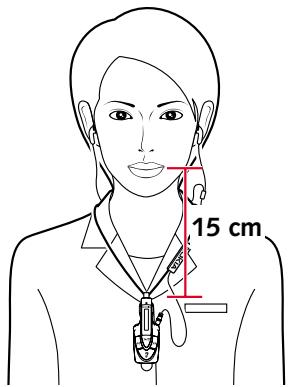
text_image
15 cmNote: Voice dialing is available when using Nokia 3310, 3330, 8250 and 8890 mobile phones.
If the microphone of the Nokia Music Player is too far from your mouth the microphone may pick up unwanted surrounding noise. For optimal voice pickup place the Nokia Music Player within about 15 cm of your mouth.
If your Nokia Music Player is off you can still place or receive calls through your Nokia mobile phone but sound only comes through the left headphone.
If the battery is exhausted or if there is no battery the Nokia Music Player must be off so you can place or receive calls.
Receiving a call
Receive a call
If your phone rings while you are listening to music a ringing tone sounds in your headphone. Phone is displayed. Press 3 for a second. The music is muted and if you are listening to music from a memory card, playback pauses. Begin speaking in a normal voice. You will hear the caller's voice in the headphone.
End call
When you have completed your call simply press 3 once again for one second. The phone call is disconnected and playback resumes.
Note: To maximize listening time from a battery turn off the Nokia Music Player when not listening to music. You will still be able to hear and talk through the headphone when the music player is off.
Placing a call
Even with your Nokia mobile phone in your pocket you can dial out very easily. Using both Hands-free Switching and voice dialing you can make a call without touching your Nokia mobile phone. Refer to the manual that you received with your Nokia mobile phone for more information on voice dialing.
Note: Voice dialing with the Nokia Music Player is supported for Nokia 3310 and 8890 mobile phones.
Nokia Music Player – Using as a hands-free headset
Activate your phone
Press and hold 3 for a second. The music is muted and if you are listening to music from a memory card, playback pauses. You will hear the voice starting tone through the headphone. Phone is displayed.
Voice dial
Speak the name of one of the numbers already recorded in your Nokia mobile phone. The recognized name plays back through the headphone and after a short wait the registered phone number is dialed. Speak in a normal voice when your party answers.
Note:
If the phone fails to recognize the name, an error tone plays through the headphone. Start again from Activate your phone above.
Refer to your phone's users guide for important information about voice dialing.
End call
When you have completed your call simply press 3 once again. The phone call is disconnected and playback resumes.
Nokia Music Player – Hands-free Switching
There are different ways you can possibly answer and end calls when connected to a Nokia mobile phone. Below are explanations of the different methods. Please refer to the user manual that you received with your Nokia mobile phone for specific instructions on using your phone.
Receiving calls
| Receive a call | End a call | Result |
Press3 | Press3 | This is the recommended way of using Hands-free Switching. When you press3to receive the call, the music is muted and if the music is being played back from the memory card playback pauses. |
| Press3[CRZX] | Press End | When you press the3to receive the call, the music is muted and if the music is being played back from the memory card the playback pauses. When you pressEndthe call is ended and within five to ten seconds playback begins again, starting at a low volume and increases until it reaches the volume setting at the beginning of the call. |
PressAnswer | Press3 | When you pressAnsweryou will hear the voice of the caller but playback of the music continues, mixed with the caller's voice. This is called Music Call. When you press3the call is ended and the music continues. |
PressAnswer | PressEnd | When you pressAnsweryou will hear the voice of the caller but playback of the music continues, mixed with the caller's voice. This is called Music Call. When you pressEndthe call is ended and the music continues. |
Nokia Music Player – Hands-free Switching
Placing calls
| Place a call | End a call | Result |
Press Call | Press End | When you press Call your phone dials and connects to the caller but playback of the music continues, mixed with the caller's voice. This is called Music Call. When you press End, the call is ended and the music continues. |
Press Call | Press 3 | When you press Call your phone dials and connects to the caller but playback of the music continues, mixed with the caller's voice. This is called Music Call. When you press 3the call is ended and the music stops. Press 3 once again to begin listening to music. |
Receiving SMS
| Result | |
Press Read | The selected SMS arrival tone is played through the headphones. Operate your Nokia mobile phone normally to receive and display a SMS. |
Sending SMS
| Result | |
Press Send | Operate your Nokia mobile telephone normally to compose and send a SMS but no sound from key presses are heard through the headphones. |
Nokia Music Player – Hands-free Switching
Voice dialing
| Voice dial | Ending a call | Result |
| Press 3 and hold[8KB5] | Press 3[8KB] | Press and hold 3 for several seconds. The music is muted and if you are listening to music from a memory card, playback pauses. You will hear the voice starting tone through the headphone. Phone is displayed.Speak the name of one of the numbers already recorded in your Nokia mobile phone. The recognized name plays back through the headphone and after a short wait the registered phone number is dialed. Speak in a normal voice when your party answers.When you have completed your call simply press 3 once again. The phone call is disconnected and playback resumes. |
| Activate voice dialing[×7BW] | Press End | You must turn off your Nokia Music Player before voice dialing. Refer to your Nokia mobile phone user manual.When the call is over you can turn Nokia Music Player on again. |
Other Nokia mobile phones that support voice dialing
| Voice dial | Ending a call | Result | |
| Activate voice dialing | Press End | You must turn off your Nokia Music Player before voice dialing. Refer to your Nokia mobile phone user manual. | |
 |  | When the call is over you can turn Nokia Music Player on again. | |
Volume settings and Music Call
Volume settings of the Nokia mobile phone and Nokia Music Player
When you answer or make a call with Music Call the volume of the voice on the phone is mixed with the music at the volume that has been set on the Nokia mobile phone. If you use the volume control of the Nokia Music Player to adjust the volume during the call, both the volume of the music and the caller's voice are adjusted simultaneously. If it is difficult to hear the caller's voice:
- Lower the volume by using the controls on the Nokia Music Player.
- Make the caller's voice louder by using the volume control on the Nokia mobile phone.
We recommend that you set the volume on your Nokia mobile phone low. Then, when a call comes in you can turn down the volume on your Nokia Music Player. Both the volume of the Nokia Music Player and the Nokia mobile phone are decreased. Then turn up the volume of your Nokia mobile phone, thereby raising only the volume of the caller's voice.
While your Nokia Music Player is on the battery power indicator in the display shows you the present strength of the battery.
natural_image
Simple icon of a battery with musical notes and a battery symbol (no text or labels)When the battery is at full power, five power bars show. As the battery weakens fewer and fewer power bars show.

flowchart
graph LR
    A["Step 1"] --> B["Step 2"]
    B --> C["Step 3"]
    C --> D["Step 4"]
When the battery power indicator shows no power bars, you have approximately five minutes of power left. When the battery is completely exhausted LOW BATTERY displays and the Nokia Music Player turns off. Until the battery is replaced the Nokia Music Player cannot be turned on. To replace the battery see Installing the battery.

flowchart
graph LR
    A["LOW"] --> B["BATTERY"]
Power-saving tips
- Under normal operating conditions, one Alkaline AAA battery supplies enough power to play music from the memory card for approximately five hours.
- When operated in a cold climate the battery life is considerably shorter and may supply enough power to play music from the memory card for only several hours. Keep the player covered and in a warm place.
- Leaving a battery in hot or cold places, such as in a closed car in summer or winter, reduces the capacity and lifetime of the battery. Always try to keep the battery between 15°C and 25°C (59°F and 77°F). If you use a overly hot or cold battery with your Nokia Music Player it may temporarily not work even if the battery has been fully charged.
- Although you can listen to music while talking on your connected Nokia mobile phone, it is a good idea to conserve the battery's power by turning the Nokia Music Player off for longer phone conversations. See Hands-Free Switching.
- Always select good quality, well known brand batteries for your Nokia Music Player.
- Alkaline batteries are recommended for long life. NiMH is also usable. Do not use batteries identified as Ni-Cad, manganese or manganese dioxide or lithium batteries.
Question: I get an error message when I try to read a CD. What does this mean?
Answer: This indicates that there has been an error copying data from your CD-ROM drive. Let Nokia Audio Manager select the best settings for you by clicking the Configure it for me button in menu item View > Options> ReadCD tab.
Question: When I first start up Nokia Audio Manager, I get a message saying, “Some of this program’s file types are no longer associated with it.” What does this mean? Why does it keep happening?
Answer: Nokia Audio Manager supports a number for different file types. You can choose to have different file types automatically open and run in Nokia Audio Manager. Go to menu item View > Options > File Types tab and put a check mark beside the files you want to run in Nokia Audio Manager.
If you keep getting this message, it may be that there is another application on your machine that is taking over the association of these files when you exit the Nokia Audio Manager.
Question: When I click copy to devices, I receive the message Unable to communicate with portable device. What do I do?
Answer: There are several things to check if you get this message:
- Check that the battery in your Nokia Music Player is not exhausted. See Battery.
- Make sure your Nokia Music Player is connected properly with the supplied cable and turned on. See Connecting to your personal computer.
- On your computer desktop, check My Computer > Control Panel > System > Device Manager > Universal Serial Bus Controller to see if your Nokia Music Player is listed. The listed name is Nokia Music Player HDR-1 Nokia Mobile Phones Ltd. Click on the device listed and check its Device Status. The status should read Working Properly. If it is not listed, slide the audio/off switch to off and then back to audio and/or restart your personal computer.
playable file types with Nokia Audio Manager
These are some of the file types that can be supported with the Nokia Audio Manager depending on the software plugins available. Please note that only some of the file formats can be used on the Nokia Music Player.
| .721 | G.721 Audio Files |
| .asf * | MS Media Playlist |
| .asx * | MS Media Playlist |
| .avi * | Microsoft Movie |
| .bmr | Universal Music Group Reference Files |
| .bmo | Universal Music Group Offer Files |
| .bmt | Universal Music Group Content Files |
| .cda | CD Audio Files |
| .lse | Nokia LSE DRM |
| .mp3 | MPEG Audio Files |
| .mpg | MS Movie File |
| .m3u | Playlist File |
| .mov § | Quicktime Movie |
| .pls | PLS Playlist |
| .ra † | RealAudio Files |
| .ram † | RealAudio Streams |
| .saf ‡ | DigiBox Audio Files |
| .sm3 | Secure Audio Files |
| .smil | RA SMIL Files |
| .wav | Wave Audio files |
| .wax * | MS Media Playlist |
| .wm * | MS Media Playlist |
| .wma | Microsoft Windows Media Audio Files |
| .wmv * | MS Media Playlist |
| .wmx * | MS Media Playlist |
| .wvx * | MS Media Playlist |
* Must have Windows Media Player installed to view.
† Must have Real Player installed to view.
‡ Must have InterRights Point installed.
§ Must have QuickTime installed to view.

Files that can be downloaded to Nokia Music Player.
Question: Why did the Cancel Button error message display?
Answer: This message appears when you click the ✗ button in the title bar of the program while reading a CD. To protect the CD reader, please use the Cancel button instead.
Question: Why when I try to copy, rename or read a file does Could not copy file error message display?
Answer: The most likely reason that a file cannot be copied, renamed, or read is because it is already in use. If you have another music device open on your computer, close the device before continuing.
A file also cannot be copied, renamed, or read because it is not an audio file, or because it is an written in a format that is incompatible with the Nokia Music Player.
Question: What does the Device not attached error message mean?
Answer: The Nokia CD Manager is unable to detect your device. Check the following:
- Is your device connected to the computer? See Connecting to your personal computer.
- Is the USB cable firmly inserted into both the device and the computer?
Question: What does the Free Space error message mean?
Answer: There is not enough free space left on the memory card of the Nokia Music Player to complete the operation. Use Delete Tracks option of the Media on Device window to delete files from the memory card in your Nokia Music Player.
Question: What does the Load an audio CD error message mean?
Answer: Please load an audio CD into your CD-ROM drive and try again. The Nokia CD Manager cannot detect a CD in your CD-ROM drive. Check the following:
• Is the CD in your disk drive an audio CD?
Nokia CD Manager – Error messages
• Is the CD-ROM drive closed?
• Is the CD-ROM drive in use?
Question: Unsupported Audio is displayed on my Nokia Music Player.
Answer: You are attempting to play a file format that is not supported by the Nokia Music Player such as; WMA. image or other unsupported format.
Question: Unusable Media is displayed on my Nokia Music Player.
Answer: The memory card in your Nokia Music Player is not supported. Replace with the originally supplied memory card or other supported memory card. See Memory card.
Question: Unknown Format is displayed on my Nokia Music Player.
Answer: Information on the memory card has been recorded in an unsupported file format. Music cannot be played. Reformat the memory card with Nokia Audio Manager in order to use with Nokia Music Player.
Question: Read Error is displayed on my Nokia Music Player.
Answer: The memory card may be defective or the power supplied may be uneven. Replace the batteries with new ones. If Read Error displays again discard the memory card and replace it with a new one.
Question: Data Error is displayed on my Nokia Music Player.
Answer: The selected track is corrupt and cannot be played. Press <
Question: DRM Error is displayed on my Nokia Music Player.
Answer: There is a problem with the Digital Rights Management of the selected track and it cannot be played. Press <
Question: No Media is displayed on my Nokia Music Player.
Answer: A memory card is not inserted or has been improperly inserted. Insert a memory card or check that it has been inserted properly. See Inserting the memory card.
Question: Format Error is displayed on my Nokia Music Player.
Answer: This error might be displayed while formatting a memory card with Nokia Audio Manager. Try formatting the memory card again with Nokia Audio Manager. When Format Error is no longer displayed the error has been corrected.
Question: No Track is displayed on my Nokia Music Player.
Answer: No music tracks have been recorded to the memory card. Copy music tracks using Nokia Audio Manager or CD Manager. See Transferring music to your memory card (with Nokia Audio Manager) or Copy to player and listen to music (with Nokia CD Manager).
Question: Connect Error is displayed on my Nokia Music Player.
Answer: The Nokia Music Player is not properly connected to the PC with the USB cable or the memory card has been ejected while the Nokia Music Player is connected to the PC. Reinsert the memory card. See Inserting the memory card. Turn off and reconnect your Nokia Music Player to the PC. See Connecting to your personal computer.
Nokia Music Player – Troubleshooting
| Problem | Possible cause | Solution |
| The Nokia Music Player does not work. | Hold is on. | Turn Hold off. |
| Memory card is not properly inserted. | Check memory card. | |
| The battery is dead. | Replace battery. | |
| Connected to the computer. | Disconnect from the computer. | |
| I cannot hear anything. | Volume is set too low. | Adjust volume. |
| Headphone cable is not inserted properly. | Check connection. | |
| Plug is dirty. | Clean and reinsert. | |
| I hear noise. | Headphone or Phone/PC cable is wrapped around the player. | Uncoil cable from around the player. |
Nokia Music Player – Troubleshooting
| Problem | Possible cause | Solution |
| My caller can’t hear my voice. | Microphone is too far from your mouth. | Place microphone within 15 cm of your mouth. |
| Background noise is too loud. | Go to a quieter area. | |
| “Can’t find a portable device” message appeared. | Memory card is not properly inserted. | Insert memory card correctly. |
| Nokia Music Player is not on. | Turn on player. | |
| USB cable is not properly connected. | Check connection. | |
| I cannot close the memory card cover. | Memory card is not properly inserted. | Insert memory card correctly. |
| Memory card is not the right kind. | Make sure the memory card is the same size as the original memory card. | |
| Music stops, display freezes or keys don’t work. | Firmware error. | Remove and reinsert batteries. |
Nokia Music Player – Troubleshooting
| Problem | Possible cause | Solution |
| Voice dialing does not work | Your phone does not support voice dialing when connected to the Nokia Music Player. | Voice dialing is supported only for Nokia 3310 and 8890 mobile phones. |
| Your Nokia mobile phone is not properly set for voice dialing. | Refer to the instructions that came with your Nokia mobile phone. | |
| Your Nokia Music Player is not properly connected to your Nokia mobile phone. | Check connection. |
Nokia Music Player
Your Nokia Music Player is a product of superior design and craftsmanship and should be treated with care. The suggestions below will help you to fulfill any warranty obligations and to enjoy this product for many years. When using your Nokia Music Player:
- Keep it and all parts out of the reach of small children.
- Keep it dry. Precipitation, humidity and liquids contain minerals that corrode electronic circuits.
- Do not use or store in dusty, dirty areas. Moving parts can be damaged.
- Do not store in hot areas. High temperatures can shorten the life of electronic devices, damage batteries, and warp or melt certain plastics.
- Do not store in cold areas. When the music player warms up (to its normal temperature), moisture can form inside the player, which may damage electronic circuit boards.
- Do not attempt to open. Non-expert handling of the device may damage it.
- Do not drop, knock or shake it. Rough handling can break internal circuit boards.
- Do not use harsh chemicals, cleaning solvents, or strong detergents to clean it. Wipe it with a soft cloth slightly dampened in a mild soap-and-water solution.
-
Do not paint it. Paint can clog the device's moving parts and prevent proper operation.
-
Use only supplied cables and attachments. Unauthorized modification or attachments could damage the music player or result in less than satisfactory performance.
- If your Nokia Music Player, any parts or accessories do not work properly, take them to your nearest qualified service facility. The personnel there will assist you and, if necessary, arrange for service.
Memory card
- When buying a new MMC (Multimedia Card) card, affix the accompanying label to the specified location on the card. Do not affix anything else to the card. Write on the label before affixing it to the card. If the label is to be written on after it has been affixed to the card, be sure to use a felt-tip pen (oil based). Do not use a pencil or ballpoint pen.
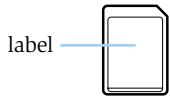
text_image
label- Use only MMC (Multimedia Card) cards in your Nokia Music Player.
- If you wish to purchase replacement or additional memory cards buy a memory card that is the same size as the one supplied with this device. Bring your original memory card to the store where you will purchase a new card and make sure it is the
Care and maintenance
same size. All cards of the same size work with your Nokia Music Player.
- Keep all memory cards out of the reach of small children.
- The memory card and its contacts can easily be damaged by scratches or bending, so be careful when handling, inserting or removing the card.
- Before installing the memory card, always make sure that the Nokia Music Player is switched off.
- Do not use or store the memory card in high temperatures, direct sunlight or high humidity. Avoid conditions that cause condensation on the card.
- Keep the card away from corrosive materials.
- Avoid touching the electrical contacts.
- Do not insert the memory card into any other device such as a digital camera as damage or loss of information can occur.
Battery
- The Nokia Music Player uses one AAA battery. Do not attempt to use other size batteries.
- Turn off your Nokia Music Player before opening the battery compartment and replacing the battery.
-
You may use rechargeable batteries in the Nokia Music Player. Before recharging any battery make sure that the battery was designed to be recharged and that you are using the proper device for recharging.
-
Leaving a battery in hot or cold places, such as in a closed car in summer or winter, reduces the capacity and lifetime of the battery. Always try to keep the battery between 15°C and 25°C (59°F and 77°F). If you use a overly hot or cold battery with your Nokia Music Player it may temporarily not work even if the battery has been fully charged.
- Batteries must be recycled or disposed of properly. Do not dispose of batteries in municipal waste!
Personal computer
| Item | Requirement |
| PC | IBM PC/AT compatible. |
| CPU | Pentium MMX 266 MHz required. Pentium 300 MHz recommended. |
| Memory | Minimum 48 MB recommended. 64 MB suggested for Windows 2000. |
| Hard disk | 35 MB of free space is required to install the software. Additional free space is necessary for music files. |
| Operating System | Windows 98/Windows ME/Windows 2000. This software cannot be used on a computer running Windows 95/3.1 or Windows NT. Furthermore the software is not supported on a homemade PC with Windows 98 installed and/or a computer which has had its system upgraded from Windows 95/3.1 to Windows 98. |
| Display/Monitor | More than 800 x 600 pixels. More than 65,536 colors, High Color setting. |
| Browser | Microsoft Internet Explorer or Netscape Navigator, versions 4.0 or higher. |
| Import file formats supported | ACC, MP3, WAV, CD-DA (music CD) |
| USB | Version 1.0/1.1 or above. |
| CD-ROM drive† | SCSI/ANSI X3T10-1048D standard. ATAPI/SFF-8020i standard. |
| Recommended Soundcard* | Sound Blaster 16 (recommended) |
Notes: *The soundcard is not required but without it playback of music with the Nokia Audio Manager on the personal computer will not be possible.
†CD-ROM speeds may affect quality of encoding
Memory card
Buy a new card
All Multimedia Cards (MMC) should work with it. If you wish to buy new, or additional memory cards, compare the new card with the card that you have to be sure it is the same size. Due to continual development of new cards and standards some cards released in the future may not work correctly in your Nokia Music Player.
Select memory card size
Both 32MB and 64MB size cards are supported.
Suggested encoding bit rates
Nokia Music Player has been especially designed to give you a full 64 minutes of music time on a 32MB memory card when encoded with AAC.
| kBit/s | Music quality | Capacity on a 32MB card (minutes) | Reduction ratio | |
| MP3 | AAC | |||
| 128 | Good | *Best | 32 | 11.15 : 1 |
| 96 | OK | *Better | 48 | 15 : 1 |
| 64 | Poor | *Good | 64 | 22.5 : 1 |
To set the encoding bit rate to use with your Nokia Music Player see View > Options > Read CD > Bit Rate in Nokia Audio Manager.
*Note: Best = Professional quality
Better = CD quality
Good = Near CD quality
Upgrading – Nokia Audio Manager
Nokia Audio Manager V1.0 and Nokia CD Manager are standard systems bundled with the Nokia Music Player.
As long as the end user frequently visits club.nokia.com and registers their Nokia Music Player serial number during install and at the Club Nokia web site, there may be upgrade opportunities available to add features to Nokia Audio Manager, Nokia CD Manager and Nokia Music Player. Other downloadable files may be available.
AAC: AAC stands for Advanced Audio Coding, an encoding format developed by Dolby, Fraunhofer, AT&T and Sony. AAC is the next generation after MP3. It takes up much less space on your hard disk or memory card.
Bit rate: Bit rate is generally the sample rate multiplied by the number of “bits per sample.” When we sample the music, the amplitude or volume has a range that we want to capture, from very soft to quite loud. That range has to get expressed in digital terms of bits. One bit gets you “on or off,” not exactly high fidelity. Eight bits gets you 256 levels, which is not at all bad for speech. Moving up to twenty four bits gets you a whopping 16 million levels, which is way more than the human ear can actually perceive. So, you take your sample rate and the chosen number of bits per sample, multiply them together and shove them down a single piece of wire. This gives you a “bit rate.” In general, the higher the bit rate, the better the sound quality of the resulting file.
CD quality: CD quality files provide superior sound quality. CD quality files are the least compressed of your digital music files and will take up more space on your hard drive. If you select AAC or MP3 format in menu item View > Options > Read CD tab, you have five choices of quality ranging from a compression rate of 112kBit/s at 11.25 : 1 to 320kBit/s at 4.4 : 1.
Digital Rights Management: Digital Rights Management (DRM) is the system for end-to-end copyright protection, content distribution management, content payment and billing management, to assure the content holders can manage their digital rights.
Firewall: A system that enforces an access policy between an organization's network and the Internet for purposes of security. A firewall can limit access and/or some forms of communication between computers inside an organization and those on the Internet.
Firmware: Software that enables the Nokia Music Player to operate. The core software for the system.
FM radio quality: FM radio quality is the lowest sound quality. These files take up the least amount of space. If you choose AAC or MP3 format under menu item View > Options > Read CD tab, you will record at 64kBit/s at 22.5 : 1 compression.
Genre: A genre is distinctive style or subgrouping of artistic composition.
ISP: Internet Service Provider. The company through which users connect to the Internet.
MP3: MP3 stands for MPEG (Motion Picture Experts Group) Layer 3. MP3 is a music file format, which is small in size but big in quality. MP3 files are audio files that have been compressed so that they take up less space on your hard drive. For example, a track in MP3 format that is 3,062KB in size would be a whopping 33,746KB in .wav format.
Near CD quality: If you have a limited amount of hard disk space, Near CD quality is a good choice for reading a CD. The sound quality is quite close to CD quality, but the files are smaller. If you choose AAC or MP3 in menu item View > Options > Read CD tab, you have two choices of Near CD quality recording. These are 96kBit/s at 15 : 1 or 80kBit/s at 18 : 1 compression.
Sample rate: Sample rate is how often you look at or "sample" the continuously varying signal we call music.
Upgrading: Getting the latest version of the firmware or software.
WMA: WMA stands for Windows Media Audio.