
903SH - Smartphone SHARP - Notice d'utilisation et mode d'emploi gratuit
Retrouvez gratuitement la notice de l'appareil 903SH SHARP au format PDF.


| Type de produit | Smartphone |
| Marque | SHARP |
| Modèle | 903SH |
| Dimensions (fermé) | Environ 50,0 x 108,7 x 28,5 mm |
| Poids (avec batterie) | Environ 148 g |
| Type de batterie | Lithium-ion, 3,7 V |
| Capacité de la batterie | 900 mAh |
| Temps de charge standard | Environ 140 minutes |
| Écran principal | Écran couleur 240 x 320 pixels (QVGA) |
| Appareil photo externe | Appareil photo numérique intégré (max. 1536 x 2048 pixels) |
| Appareil photo interne | Caméra interne pour autoportrait (max. 240 x 320 pixels) |
| Enregistrement vidéo | Jusqu'à 30 minutes selon la mémoire, formats QCIF, QVGA |
| Réseaux supportés | 3G (UMTS) / GSM 900/1800/1900 / GPRS |
| Connectivité sans fil | Bluetooth, Infrarouge |
| Connectique | USB (chargeur et données), prise casque stéréo, sortie vidéo |
| Stockage extensible | Carte mémoire miniSD (fournie) |
| Lecteur musique | MP3, AAC, AAC+ |
| Messagerie | SMS, MMS, Email (pièces jointes jusqu'à 300 Ko) |
| Fonctions supplémentaires | Appels vidéo, appareil photo, lecteur musique, Java, Bluetooth, infrarouge, scanner de codes-barres, synchronisation, agenda, réveil |
| Sécurité | Code PIN, code PIN2, code appareil, verrouillage clavier |
| Entretien et nettoyage | Nettoyer avec un chiffon doux et sec. Ne pas utiliser de solvants. |
| Accessoires inclus | Batterie, chargeur, kit oreillette stéréo, câble vidéo, carte miniSD, guide utilisateur, CD-ROM |
| Réparabilité | Ne pas ouvrir le téléphone soi-même. Seul un personnel agréé peut effectuer des réparations. |
FOIRE AUX QUESTIONS - 903SH SHARP
Questions des utilisateurs sur 903SH SHARP
0 question sur cet appareil. Repondez a celles que vous connaissez ou posez la votre.
Poser une nouvelle question sur cet appareil
Téléchargez la notice de votre Smartphone au format PDF gratuitement ! Retrouvez votre notice 903SH - SHARP et reprennez votre appareil électronique en main. Sur cette page sont publiés tous les documents nécessaires à l'utilisation de votre appareil 903SH de la marque SHARP.
MODE D'EMPLOI 903SH SHARP
Déclaration de conformité
Par la présente, Sharp Telecommunications of Europe Limited déclare que ce 903SH est conforme aux exigences essentielles et aux autres dispositions pertinentes de la directive 1999/5/CE.
Une copie de la déclaration de conformité originale peut être trouvée à l'adresse Internet suivante :
http://www.sharp-mobile.com
Introduction
Félicitations pour votre nouveau téléphone 3G/UMTS 903SH.
À propos de ce guide de l'utilisateur
Ce guide de l'utilisateur est soigneusement conçu pour vous aider à découvrir rapidement et efficacement les fonctions et le fonctionnement de votre téléphone.
AVIS
- Nous vous recommandons vivement de conserver des enregistrements écrits permanents et séparés de toutes les données importantes. Les données peuvent être perdues ou modifiées dans pratiquement tout produit de mémoire électronique dans certaines circonstances. Par conséquent, nous déclinons toute responsabilité en cas de perte de données ou de données rendues inutilisables, que ce soit à la suite d'une utilisation inappropriée, de réparations, de défauts, de remplacement de la batterie, d'une utilisation après l'expiration de la durée de vie spécifiée de la batterie ou de toute autre cause.
- Nous déclinons toute responsabilité, directe ou indirecte, pour les pertes financières ou les réclamations de tiers résultant de l'utilisation de ce produit et de l'une de ses fonctions, telles que le vol de numéros de carte de crédit, la perte ou la modification de données stockées, etc.
- Tous les noms de sociétés et/ou de produits sont des marques commerciales et/ou des marques déposées de leurs détenteurs respectifs.
- La disposition de l'écran peut différer de celle illustrée dans ce guide de l'utilisateur. Les informations décrites dans ce guide de l'utilisateur sont sujettes à modification sans préavis.
- Toutes les fonctions décrites dans ce guide de l'utilisateur peuvent ne pas être prises en charge par tous les réseaux.
- Nous déclinons toute responsabilité pour les contenus téléchargés, les informations, etc. provenant du réseau.
- Il peut arriver que quelques pixels noirs ou brillants apparaissent à l'écran. Veuillez noter que cela n'affecte en rien les fonctionnalités ou les performances.
Droits d'auteur
Conformément aux lois sur le droit d'auteur, la reproduction, la modification et l'utilisation de matériel protégé par le droit d'auteur (musique, images, etc.) ne sont autorisées qu'à des fins personnelles ou privées. Si l'utilisateur ne détient pas de droits d'auteur plus étendus ou n'a pas reçu l'autorisation explicite du titulaire du droit d'auteur pour reproduire, modifier ou utiliser une copie réalisée ou modifiée de cette manière, cela est considéré comme une violation des lois sur le droit d'auteur et donne au titulaire du droit d'auteur le droit de réclamer des dommages-intérêts. Pour cette raison, évitez toute utilisation illégale de matériel protégé par le droit d'auteur.
Windows est une marque déposée de Microsoft Corporation aux États-Unis et/ou dans d'autres pays.
Propulsé par JBlend™ Copyright 1997-2005 Aplix Corporation. Tous droits réservés. JBlend et toutes les marques et logos basés sur JBlend sont des marques commerciales ou des marques déposées d'Aplix Corporation au Japon et dans d'autres pays.
JBlend
Propulsé par Mascot Capsule®/Micro3D Edition™ Mascot Capsule® est une marque déposée de HI Corporation ©2002-2005 HI Corporation. Tous droits réservés.
Sous licence d'Inter Digital Technology Corporation en vertu d'un ou de plusieurs des brevets américains suivants et/ou de leurs équivalents nationaux ou étrangers et d'autres brevets en instance, y compris les brevets américains : 4,675,863 : 4,779,262 : 4,785,450 : 4,811,420 : 5,228,056 : 5,420,896 : 5,799,010 : 5,166,951 : 5,179,571 et 5,345,467
T9 Text Input est sous licence en vertu d'un ou de plusieurs des brevets suivants : brevets américains n° 5,818,437, 5,953,541, 5,187,480, 5,945,928 et 6,011,554 ; brevet australien n° 727539 ; brevet canadien n° 1,331,057 ; brevet du Royaume-Uni n° 2238414B ; brevet standard de Hong Kong n° HK0940329 ; brevet de la République de Singapour n° 51383 ; brevet européen n° 0 842 463 (96927260.8) DE/DK, FI, FR, IT, NL, PT, ES, SE, GB ; brevets de la République de Corée n° KR201211B1 et KR226206B1 ; et d'autres brevets sont en instance dans le monde entier.

miniSD™ est une marque commerciale de SD Card Association.

aPlayer
est une marque déposée de RealNetworks, Inc.
Bluetooth est une marque commerciale de Bluetooth SIG, Inc.

Bluetooth
La marque verbale Bluetooth et les logos associés sont la propriété de Bluetooth SIG, Inc. et toute utilisation de ces marques par Sharp est sous licence. Les autres marques commerciales et noms commerciaux appartiennent à leurs propriétaires respectifs.
Contient la technologie Macromedia® Flash™ de Macromedia, Inc. Copyright © 1995-2005 Macromedia, Inc. Tous droits réservés. Macromedia, Flash, Macromedia Flash et Macromedia Flash Lite sont des marques commerciales ou des marques déposées de Macromedia, Inc. aux États-Unis et dans d'autres pays.

macromedia FLASH PLAYER
Sous licence de QUALCOMM Incorporated en vertu d'un ou plusieurs des brevets américains suivants et/ou de leurs équivalents dans d'autres pays ; 4,901,307 5,490,165 5,056,109 5,504,773 5,101,501 5,506,865 5,109,390 5,511,073 5,228,054 5,535,239 5,267,261 5,544,196 5,267,262 5,568,483 5,337,338 5,600,754 5,414,796 5,657,420 5,416,797 5,659,569 5,710,784 5,778,338


BREVET CP8
Ce produit est sous licence du portefeuille de brevets MPEG-4 Visual pour une utilisation personnelle et non commerciale par un consommateur afin de (i) encoder une vidéo conformément à la norme vidéo MPEG-4 ("Vidéo MPEG-4") et/ou (ii) décoder une vidéo MPEG-4 encodée par un consommateur dans le cadre d'une activité personnelle et non commerciale et/ou obtenue auprès d'un fournisseur de vidéo sous licence. Aucune licence n'est accordée ou implicite pour toute autre utilisation. Des informations supplémentaires peuvent être obtenues auprès de MPEG LA. Voir http://www.mpegla.com.
Ce produit est sous licence du portefeuille de brevets MPEG-4 Systems pour l'encodage conformément à la norme MPEG-4 Systems, sauf qu'une licence supplémentaire et le paiement de redevances sont nécessaires pour l'encodage en rapport avec (i) des données stockées ou répliquées sur un support physique qui est payé titre par titre et/ou (ii) des données qui sont payées titre par titre et transmises à un utilisateur final pour stockage et/ou utilisation permanente. Une telle licence supplémentaire peut être obtenue auprès de MPEG LA, LLC. Voir http://www.mpegla.com pour plus de détails.
Technologie de codage audio MPEG Layer-3 sous licence de Fraunhofer IIS et Thomson.
Fonctions et services utiles
Votre téléphone vous offre les fonctions suivantes :
- Appels vidéo. Vous pouvez parler tout en vous voyant mutuellement sur les écrans respectifs.
- Jeux et applications Java™ 3D et en couleur avec un accélérateur graphique. Vous pouvez également télécharger divers jeux et applications depuis Vodafone via l'Internet mobile.
- Un appareil photo numérique intégré pour prendre des photos et des clips vidéo.
- Une fonction de messagerie pour lire et créer des messages SMS.
- MMS (Multimedia Messaging Services) pour personnaliser votre téléphone de diverses manières.
- E-mail pour envoyer jusqu'à 300 Ko et recevoir des messages avec pièces jointes.
- Un navigateur WAP couleur pour accéder aux informations sur l'Internet mobile.
- Vos propres sonneries et vidéos de sonnerie. Vous pouvez utiliser des fichiers sonores ou vidéo téléchargés comme sonnerie ou vidéo de sonnerie.
- Un lecteur de musique capable de lire des fichiers audio aux formats MP3, AAC et AAC+.
- Lecture des fichiers sonores et vidéo téléchargés.
- Une fonction d'enregistreur vocal pour enregistrer et lire des clips vocaux.
- Une interface de technologie sans fil Bluetooth® pour établir un contact et transmettre des données avec certains appareils. Vous pouvez transmettre des images, des sons et des clips vidéo aux téléphones compatibles OBEX.
- Une interface infrarouge pour la communication de données. Vous pouvez transmettre des images, des sons et des clips vidéo aux téléphones compatibles OBEX.
- Une fonction de synchronisation de données pour mettre à jour les entrées de la liste de contacts sur Internet.
- Une alarme d'agenda pour créer et envoyer des entrées d'agenda avec des réglages d'alarme.
- Sortie vidéo. Vous pouvez connecter votre téléphone à d'autres appareils, tels que des téléviseurs ou des magnétoscopes en sortie, et afficher des données Java™, des images ou des clips vidéo.
- Avec l'appareil photo numérique intégré, vous pouvez lire des textes et des codes-barres, et créer des codes QR.
- Un emplacement pour carte mémoire miniSD™ qui étend la connectivité avec un PC à l'aide de la carte mémoire.
Sommaire
Introduction 1
Votre téléphone 7
Pour commencer 8
Insertion de la carte SIM et de la batterie 11
Retrait de la carte SIM et de la batterie 12
Chargement de la batterie 13
Insertion de la carte mémoire 14
Retrait de la carte mémoire 14
Connexion du kit piéton stéréo 15
Allumer et éteindre votre téléphone 15
Verrouillage du clavier 15
Indicateurs à l'écran 16
Ouverture de votre téléphone 17
Fonctions de navigation 19
Utilisation en position normale de l'écran 19
Fonctions d'appel vocal/appel vidéo 20
Passer un appel vocal 20
Numérotation abrégée 21
Recomposer un numéro 21
Répondre à un appel vocal 21
Menu pendant un appel (appel vocal) 22
Passer un appel vidéo 25
Répondre à un appel vidéo 26
Menu pendant un appel (appel vidéo) 26
Saisie de caractères 29
Changement de la langue de saisie 30
Changement du mode de saisie 30
Mon dictionnaire 30
Utilisation des modèles 31
Utilisation du menu 32
Menu principal 32
Touches de raccourci 33
Liste des contacts 34
Modification de l'ordre des noms 34
Modification de la liste affichée 34
Sélection de la mémoire de stockage 34
Tri des entrées de la liste des contacts 35
Ajouter un nouveau contact 35
Affichage de mes coordonnées 35
Copie des entrées de la liste des contacts entre la carte SIM et
le combiné 35
Recherche d'un nom 36
Composition à partir de la liste des contacts 36
Modification des entrées du répertoire 36
Attribution d'une sonnerie ou d'un clip vidéo de sonnerie à chaque
entrée 37
Suppression d'entrées du répertoire 37
Gérer les catégories 37
Groupes de contacts 38
État de la mémoire 39
Liste de numérotation abrégée 39
Envoi d'une entrée du répertoire 39
Réception d'une entrée du répertoire 39
Envoi d'un message vocal ou d'un message vidéo
Utilisation d'une adresse du répertoire 40
Synchronisation des entrées du répertoire avec celles sur
Internet 40
Caméra 41
Prise de photos 41
Enregistrement de clips vidéo 42
Utilisation du menu Options en position visionneuse de l'
écran 42
Fonctions communes aux modes photo et caméra vidéo 42
Fonctions en mode photo 45
Fonctions en mode caméra vidéo 47
Messagerie 49
SMS 49
MMS 49
E-mail 49
Création d'un nouveau message 50
Paramètres de messagerie 56
Vodafone live! 60
Vodafone live! 60
Naviguer dans une page WAP 61
Musique 63
Lecteur de musique 63
Mes éléments 65
Images 65
Sons et sonneries 66
Vidéos 67
Autres documents 67
Menus d'options courants 68
Jeux et applications 71
Modèles de texte 71
État de la mémoire 71
Divertissement 72
Jeux et applications 72
Paramètres 74
TV & Vidéo 76
Organiseur & Outils 80
Calendrier 80
Alarmes 83
84
Enregistreur vocal 85
Scanner 86
Livre électronique 87
Chronomètre 88
Tâches 88
Horloge mondiale 90
Minuteur 90
Mémorandum de dépenses 90
Aide du téléphone 91
Application SIM 92
Paramètres 93
Profils 93
Réglage de l'affichage 97
Paramètres sonores 100
Date et heure 100
Paramètres de langue 101
Paramètres d'appel 102
Paramètres d'appel vidéo 106
Sécurité 107
Réinitialisation générale 108
Journal d'appels 109
Minuteurs d'appel 109
Compteur de données 109
Coûts d'appel 110
Connectivité 111
Bluetooth 111
Infrared 113
Network Settings 114
Flight Mode 115
Internet Settings 115
Memory Card 116
Connecting 903SH to Your PC .118
System Requirements 118
3G/GSM Modem 118
Handset Manager 119
Software Installation 119
Note 119
Troubleshooting 120
Safety Precautions and Conditions of Use 122
CONDITIONS OF USE 122
ENVIRONNEMENT 125
PRÉCAUTIONS CONCERNANT L'UTILISATION DU VÉHICULE 125
SAR 125
INFORMATIONS SUR L'ÉLIMINATION APPROPRIÉE 126
PRÉCAUTIONS D'UTILISATION AUX ÉTATS-UNIS 127
Spécifications et accessoires en option 129
Spécifications 129
Accessoires en option 129
Index 130
Liste des fonctions du menu 132
Votre téléphone
Veuillez vérifier attentivement ce qui suit. Votre téléphone doit être livré complet avec :
Téléphone 3G (UMTS)/GSM 900/1800/1900/GPRS - Batterie lithium-ion - Cache de batterie - Chargeur secteur - Kit pièces stéréo - Guide de l'utilisateur - Guide de démarrage rapide - CD-ROM - Carte mémoire miniSD™ - Câble vidéo
Pour commencer
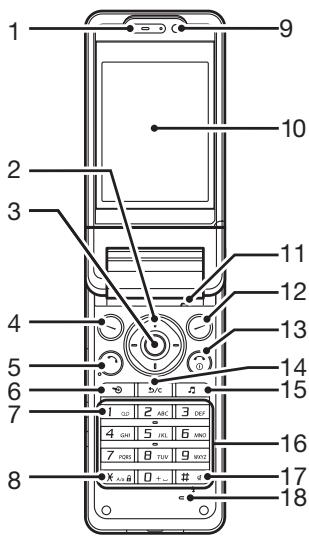
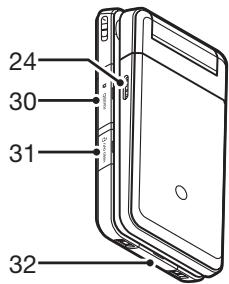
- Écouteur
- Touches de navigation (touches fléchées) :

Déplace le curseur pour mettre en surbrillance un élément de menu, etc.
Touches fléchées haut/bas :
Affiche les entrées de la liste de contacts en veille.
Touche fléchée gauche :
Affiche la boîte de réception des messages en veille.
Touche fléchée droite :
Affiche le calendrier mensuel ou hebdomadaire en veille.
- Touche centrale :
Affiche le menu principal en veille et exécute les fonctions.
4. Touche logicielle gauche :
Exécute la fonction en bas à gauche de l'écran.
Affiche le menu de messagerie en veille.
- Touche d'appel/rappel :
Émet ou accepte des appels, affiche les journaux d'appels en veille.
- Touche de raccourci :
Ouvre le menu contextuel pour accéder aux applications souhaitées.
- Touche de messagerie vocale : 1
Maintenez enfoncée pour vous connecter au centre de messagerie vocale (selon la carte SIM).
- Touche * / Maj :

Bascule la casse des caractères entre quatre modes : Abc, ABC, 123 et abc sur l'écran de saisie de texte. En veille, appuyez pour saisir P, ?, - ou *. En veille, maintenez enfoncée pour verrouiller le clavier.
- Caméra secondaire (caméra interne)
- Écran principal
- Microphone (du côté du spectateur de l'écran)
- Touche logicielle droite : exécute la fonction en bas à droite de l'écran.
Accède à "Vodafone live!" en ouvrant le navigateur en veille.
- Touche Fin / Marche-Arrêt : termine un appel et allume/éteint l'appareil.
- Touche Effacer / Retour : efface les caractères à gauche du curseur, retourne à l'écran précédent, etc.
- Touche Musique : affiche le menu Musique en veille. 16. Clavier
17. Touche # / Silencieux :
Affiche l'écran des symboles sur l'écran de saisie de texte.
Maintenez enfoncé pour changer de langue sur l'écran de saisie de texte.
Allume ou éteint le flash/la lampe auxiliaire en mode caméra.
En veille, maintenez enfoncé pour basculer les profils entre le mode le plus récemment activé et le mode silencieux.
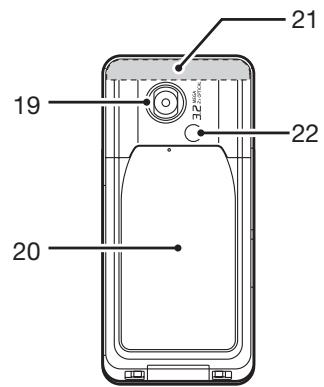
- Microphone
- Caméra (caméra externe)
- Cache de la batterie
- Antenne intégrée :
Avertissement : ne couvrez pas le haut du téléphone avec votre main lors de l'utilisation, car cela pourrait interférer avec les performances de l'antenne intégrée.
- Lampe mobile :
Utilisée comme flash ou lampe auxiliaire en mode caméra.
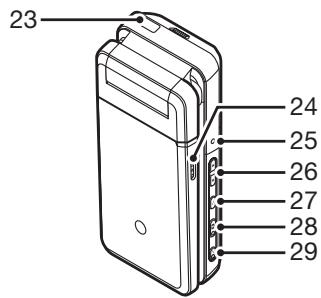
- Port infrarouge :
Envoie et reçoit des données via infrarouge.
- Haut-parleurs stéréo
- Petite lumière :
Utilisée pour l'indicateur de charge de la batterie, la lumière d'événement et la lumière d'état.
- Touches latérales (A / B)
Ces deux touches fonctionnent en sens inverse selon la position du spectateur par rapport à l'écran. Déplacent le curseur vers le haut ou vers le bas. En veille ou pendant un appel, appuyez pour augmenter ou diminuer le volume de l'écouteur.
- Touche Menu :
- Touche Appareil photo :
- Touche Annuler :
- Touche Annuler :
Exécute la fonction en bas à gauche de l'écran selon la position du spectateur.
Affiche le menu principal lorsqu'on appuie en veille, puis exécute la fonction mise en surbrillance selon la position du spectateur. Appuyez longuement pour activer l'appareil photo.
Appuyez pendant une alerte d'appel entrant pour répondre à l'appel selon la position du spectateur.
Exécute la fonction en bas à droite de l'écran selon la position du spectateur.
Appuyez longuement en veille pour allumer la lumière mobile. Vous pouvez changer les couleurs de la lumière en appuyant sur A ou B lorsque la lumière mobile est allumée.
Appuyez longuement pour rejeter un appel entrant.
Appuyez pendant une alerte d'appel entrant pour envoyer une tonalité d'occupation à l'appelant selon la position du spectateur.
Appuyez pour terminer l'appel en position visionneuse de l'écran.
- Cache du logement de carte mémoire
- Connecteur vidéo OUT / kit mains libres stéréo
- Connecteur externe : utilisé pour brancher le chargeur ou un câble de données USB.
Insertion de la carte SIM et de la batterie
- Faites glisser le cache de la batterie pour le retirer (① ②).
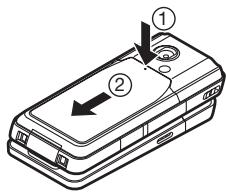
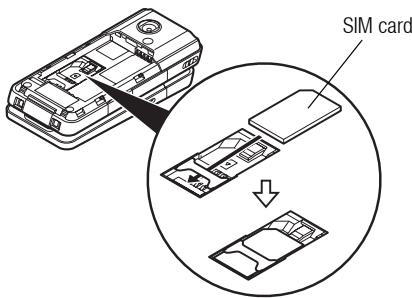
- Faites glisser la carte SIM dans son logement.
- Tenez la batterie de manière à ce que les contacts métalliques soient orientés vers le bas, faites glisser les guides situés sur le dessus de la batterie dans la fente prévue à cet effet (③), puis insérez-la (④).
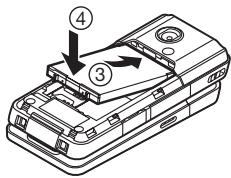
- Replacez le cache de la batterie.
Remarque
Assurez-vous d'utiliser uniquement des cartes SIM 3V. - Assurez-vous d'utiliser la batterie standard (XN-1BT70).
Retrait de la carte SIM et de la batterie
- Assurez-vous que le téléphone est éteint et que le chargeur et autres accessoires sont débranchés. Faites glisser le cache de la batterie pour le retirer.
- Soulevez la batterie en utilisant le bord en saillie et retirez-la du téléphone.
- Maintenez ① enfoncé doucement tout en faisant glisser la carte SIM hors de son logement (②).
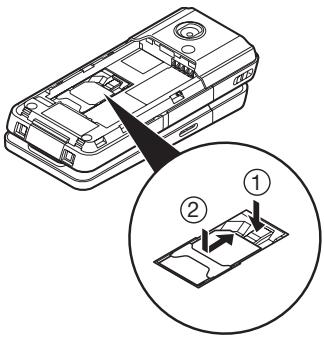
Élimination de la batterie
L'appareil fonctionne avec une batterie. Afin de protéger l'environnement, veuillez lire les points suivants concernant l'élimination de la batterie :
- Apportez la batterie usagée à votre déchetterie locale, à votre revendeur ou à un centre de service client pour recyclage.
- N'exposez pas la batterie usagée à une flamme nue, ne l'immergez pas dans l'eau et ne la jetez pas avec les ordures ménagères.
Chargement de la batterie
Vous devez charger la batterie pendant au moins 140 minutes avant la première utilisation de votre téléphone.
Utilisation du chargeur
- Ouvrez le cache du connecteur externe, branchez le chargeur sur la prise externe située en bas du téléphone en appuyant sur les deux côtés indiqués par des flèches, puis branchez-le sur une prise secteur.
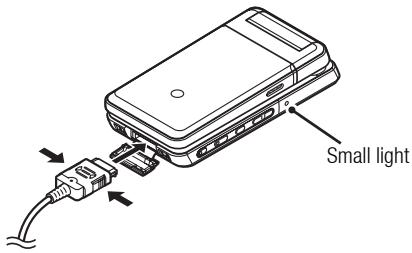
Le petit voyant s'allume.
Temps de charge standard : environ 140 minutes
Remarque
- Le temps de charge peut varier selon l'état de la batterie et d'autres conditions. (Voir « Batterie » à la page 122.)
Débranchement du chargeur
Lorsque la charge est terminée, le petit voyant s'éteint.
- Débranchez le chargeur de la prise secteur, puis débranchez le connecteur du chargeur du téléphone.
- Fermez le capot.
Remarque
- N'utilisez pas de chargeurs non approuvés, car ils pourraient endommager votre téléphone et annuler toute garantie. Voir « Batterie » à la page 122 pour plus de détails.
Pour charger à l'aide du chargeur allume-cigare
Le chargeur allume-cigare en option fournit l'alimentation pour la charge à partir de la prise allume-cigare d'une voiture.
Indicateur de niveau de batterie
Le niveau de batterie actuel est affiché en haut à droite de l'écran principal.
Batterie faible pendant l'utilisation
Lorsque la batterie est presque déchargée, une alarme retentit et « » s'affiche sur l'écran principal.
Si vous utilisez votre téléphone et que vous entendez l'alarme de batterie faible, branchez votre chargeur dès que possible. Le téléphone risque de ne pas pouvoir continuer à fonctionner normalement si vous continuez à l'utiliser.
| Battery Indicators | Charge Level |
| Sufficiently charged | |
| Charging recommended | |
| Charging required | |
| Empty |
Insertion de la carte mémoire
- Éteignez le téléphone.
- Ouvrez le capot du logement de la carte mémoire et insérez la carte avec le côté étiqueté vers le haut.
- Insérez la carte mémoire à fond jusqu'à ce qu'elle s'enclenche.
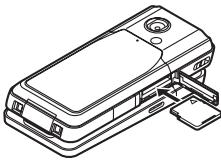
- Fermez le capot.
Note
- Assurez-vous que le téléphone est éteint avant d'insérer la carte mémoire.
- Veillez à insérer la carte dans le bon sens et la bonne orientation.
- N'ouvrez pas le cache de la carte mémoire pendant le formatage ou l'écriture de la carte. La carte pourrait être endommagée de manière irréversible.
- Gardez toutes les cartes mémoire hors de portée des jeunes enfants.
Astuce
- Vous verrez les indicateurs suivants lorsque la carte mémoire est utilisée :
: Apparaît lorsque la carte est insérée. : Apparaît lorsque la carte est endommagée ou inutilisable. : Apparaît lorsque la carte est en cours d'écriture ou de lecture. : Apparaît lorsque la carte est en cours de formatage.
Retrait de la carte mémoire
- Ouvrez le cache du logement de la carte mémoire et poussez légèrement la carte pour qu'elle sorte. Retirez la carte et refermez le cache.
Note
- Assurez-vous que le téléphone est éteint avant de retirer la carte mémoire.
- Ne retirez pas la carte mémoire pendant le formatage ou l'écriture de la carte.
Connexion du kit piéton stéréo
- Ouvrez le cache du connecteur du kit piéton stéréo.
- Connectez le kit mains libres stéréo.
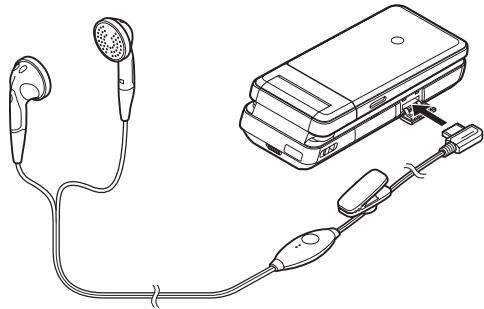
Allumer et éteindre votre téléphone
Pour allumer ou éteindre l'appareil, maintenez enfoncée la touche pendant environ 2 secondes.
Saisie du code PIN
Si cette fonction est activée, vous devez saisir un code PIN (numéro d'identification personnel) et le code de verrouillage du combiné après avoir allumé votre téléphone.
- Saisissez votre code PIN.
Le code PIN comporte de 4 à 8 chiffres.
- Appuyez sur
Remarque
- Si votre code PIN est saisi incorrectement trois fois de suite, la carte SIM est verrouillée. Voir « Activation/désactivation du code PIN » à la page 107.
- Si les paramètres de l'horloge n'ont pas été saisis, l'écran de saisie de la date et de l'heure s'affiche (p. 100).
Copier toutes les entrées du répertoire depuis la carte SIM
Lorsque vous insérez la carte SIM dans votre téléphone pour la première fois et que vous démarrez l'application Répertoire, vous êtes invité à copier les entrées du répertoire de la carte SIM. Suivez les instructions à l'écran, ou vous pouvez le faire plus tard à l'aide du menu Répertoire comme suit :
« Répertoire » → « Gérer les contacts » → « Copier toutes les entrées »
- Sélectionnez « De la SIM vers le combiné ».
Verrouillage du clavier
Vous pouvez verrouiller le clavier pour éviter toute pression accidentelle.
Verrouillage du clavier
- Maintenez enfoncée la touche 左 en veille.
Pour déverrouiller, maintenez enfoncée la touche ...a.
Astuce
- Les numéros d'urgence (112, etc.) peuvent être composés et appelés même si le clavier est verrouillé.
Indicateurs à l'écran
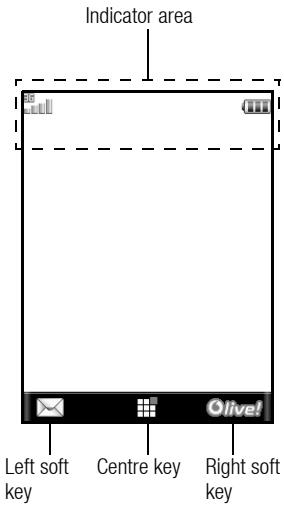
- Puissance du signal reçu / Hors de couverture
3G : 3G (UMTS)/GPRS
G : GSM/GPRS
: Itinérance hors du réseau
2. : Mode avion 3. Échange de données avec un périphérique externe 4. Connexion au serveur [établie/communication] 5. /Appel vocal [entrant/en cours] 6. / / : Mode de communication vidéo activé [voix et vidéo/voix/vidéo] 7. / : Alertes [message texte et multimédia/ e-mail] 8. Dérivation des "appels vocaux" définie sur "toujours" 9. Alertes WAP/OTA [alerte WAP/alerte OTA/alertes WAP et OTA] 10. Carte mémoire insérée 11. //8/8/.
État de la connexion [câble USB/Infrarouge échange d'informations/ Bluetooth sans fil [activé (en veille ou hors veille)/échange d'informations/conversation avec l'oreillette Bluetooth]]
- / : Application Java™ [exécutée (couleur)/suspendue (gris)]
- Page WAP sécurisée affichée
Réglage silencieux/vibration [silencieux/volume croissant/vibration activée/silencieux et vibration activée/volume croissant et vibration activée]
- Mode haut-parleur [haut-parleur activé/haut-parleur activé/micro coupé]
- (Aucun affichage)// / /
Profil actuel [Normal/Réunion/Activité/Voiture/Casque/Silencieux]
- Niveau de batterie
- Lumière du mobile activée
- Alarme quotidienne activée
- / : entrée d'agenda activée [avec/sans alarme de rappel]
- Boîte d'envoi contient des messages non envoyés [texte/multimédia/e-mail]
- Alerte de message vocal
- : verrouillage de fonction activé 24.: verrouillage du clavier activé
- Paramètre infrarouge [activé/désactivé] 26. : Mode secret réglé sur "0\text{n}"
Ouverture de votre téléphone
Votre téléphone peut être ouvert dans les trois positions suivantes : normale, autoportrait et visionneuse.
Position normale (①)
- Ouvrez le téléphone jusqu'à ce que l'écran s'arrête comme illustré.
①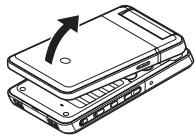
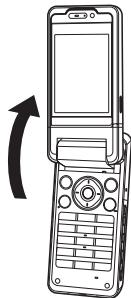
Position autoportrait (②)
- Tournez l'écran de 180° dans le sens des aiguilles d'une montre.
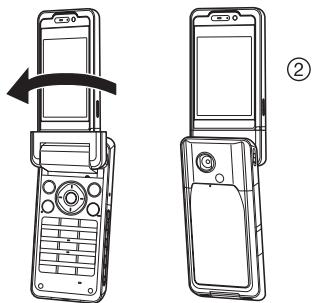
Utilisez cette position pour prendre un autoportrait avec la caméra externe. Ne tournez pas l'écran dans le sens inverse des aiguilles d'une montre, car cela pourrait l'endommager.
Position visionneuse (③)
- Fermez l'écran principal vers le clavier.
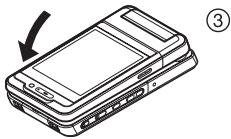
Remarque
- Les opérations de sont inversées dans la position visionneuse de l'écran.
- Les opérations du clavier ne peuvent pas être effectuées dans la position visionneuse de l'écran.
- Faites attention à ne pas transporter le téléphone dans la position visionneuse de l'écran, car cela pourrait endommager l'écran.
Fonctions de navigation
Utilisation en position normale de l'écran
Toutes les applications sont accessibles depuis le menu principal. Pour ouvrir le menu principal, appuyez sur la touche centrale (O) en mode veille.
Pour lancer des applications, vous devez mettre en surbrillance les éléments du menu et faire des sélections. Pour sélectionner un élément de menu (indiqué entre guillemets), déplacez le curseur à l'aide de , , et , puis appuyez sur pour valider.
Dans certaines procédures, vous devrez appuyer sur l'une des touches logicielles (indiquées entre crochets), affichées en bas à gauche et à droite de l'écran. Appuyez sur la touche logicielle correspondante ( ou ).
Pour revenir à l'écran précédent, appuyez sur la touche logicielle droite si elle affiche Retour. Pour fermer le menu principal, appuyez sur la touche logicielle droite si elle affiche Quitter.
Chaque section de ce guide de l'utilisateur commence par une liste d'éléments que vous devez sélectionner dans l'ordre (indiqués en italique) avant d'effectuer les procédures décrites. Sélectionnez chaque élément pour afficher la liste suivante d'éléments parmi lesquels vous devez choisir. Ouvrez les sous-éléments après avoir ouvert ceux de la section principale.
Exemple :
"Contacts" → "Liste des contacts" → "Ajouter un nouveau contact"
Utilisation en position visualisation de l'écran
Les touches disponibles en position visualisation de l'écran sont 心 , 心 et 心
Pour ouvrir le menu principal, appuyez sur l en mode veille.
Pour sélectionner un élément de menu (indiqué entre guillemets), appuyez sur ou , puis appuyez sur pour valider.
Dans certaines procédures, vous devrez appuyer sur l'une des touches logicielles (indiquées entre crochets), affichées en bas à gauche et à droite de l'écran. La touche logicielle gauche est et la touche logicielle droite est .
Les touches latérales fonctionnent en mode caméra comme suit :
/ : Zoom avant/arrière
: Options
: Capture
: Bascule entre les modes appareil photo et caméra vidéo.
Fonctions d'appel vocal / appel vidéo
Passer un appel vocal
- Saisissez l'indicatif régional et le numéro de téléphone que vous souhaitez composer, puis appuyez sur pour composer.
Si vous avez saisi un mauvais numéro, appuyez sur b/c pour supprimer le chiffre à gauche du curseur.
Appels d'urgence
- Composez le 112 (numéro d'urgence international) à l'aide du clavier et appuyez sur la touche pour composer.
Remarque
- Les appels d'urgence peuvent ne pas être possibles sur tous les réseaux de téléphonie mobile lorsque certains services réseau et/ou fonctions du téléphone sont utilisés. Contactez votre fournisseur de services pour plus d'informations.
- Ce numéro d'urgence peut normalement être utilisé pour passer un appel d'urgence dans n'importe quel pays, avec ou sans carte SIM insérée, si un réseau 3G (UMTS)/GSM est disponible.
Appels internationaux
- Maintenez enfoncée la touche 0· -· jusqu'à ce qu'un signe + (préfixe d'appel international) s'affiche.
- Saisissez l'indicatif du pays, suivi de l'indicatif régional (sans le zéro initial) et du numéro de téléphone, puis appuyez sur pour composer.
Ajout d'un numéro de téléphone saisi à la liste de contacts
- Après avoir saisi un numéro de téléphone, appuyez sur [Options] et sélectionnez "Enregistrer le numéro".
Pour plus de détails sur la création d'une nouvelle entrée, voir "Ajouter un nouveau contact" à la page 35.
Afficher ou masquer mon numéro de téléphone sur l'écran du correspondant
- Après avoir saisi un numéro de téléphone, appuyez sur [Options] et sélectionnez "Afficher mon identifiant" ou "Masquer mon identifiant".
Passer un appel en utilisant la liste de contacts en position visualisation de l'écran
- Appuyez sur
- Sélectionnez "Contacts".
- Sélectionnez "Liste de contacts".
- Sélectionnez l'entrée que vous souhaitez appeler.
- Sélectionnez le numéro de téléphone.
- Sélectionnez "Appeler" pour composer.
Pour terminer un appel, appuyez sur
Numérotation abrégée
Jusqu'à 8 numéros de téléphone de la liste de contacts (téléphone et SIM) peuvent être attribués à des numéros abrégés. Vous pouvez appeler ces numéros à l'aide des touches numériques (1 à 9). Le numéro de la messagerie vocale est attribué à la touche 1.
Pour plus de détails sur la configuration de la liste des numéros abrégés, voir "Liste des numéros abrégés" à la page 39.
- Pour composer un numéro à l'aide du numéro abrégé, maintenez enfoncée l'une des touches numériques (1 à 9).
Le numéro de téléphone enregistré dans la liste des numéros abrégés est composé.
Recomposition
Vous pouvez recomposer les numéros du journal des appels. Sélectionnez une catégorie spécifique ou "Tous les appels". Les catégories spécifiques contiennent jusqu'à 30 numéros et la liste "Tous les appels" en contient jusqu'à 90.
- Appuyez sur en mode veille.
- Sélectionnez la catégorie parmi "Tous les appels", "Numéros composés", "Appels manqués" ou "Appels reçus".
Pour changer de journal, appuyez sur ou
- Mettez en surbrillance le numéro de téléphone que vous souhaitez appeler.
- Appuyez pour recomposer l'appel.
Répondre à un appel vocal
Lorsqu'un appel entrant est détecté, le téléphone sonne.
- Appuyez sur , ou appuyez sur [Options] et sélectionnez "Répondre" pour répondre à l'appel.
Ou appuyez sur n'importe quelle touche sauf 0 , et [Occupé] lorsque la fonction "Réponse par toute touche" est activée. Activez la fonction Réponse par toute touche dans le profil de chaque mode (p. 97).
Astuce
- Si vous avez souscrit au service d'identification de la ligne appelante (CLI) et que le réseau de l'appelant envoie le numéro, le numéro de l'appelant s'affiche à l'écran. Si le nom et le numéro de l'appelant sont enregistrés dans la liste de contacts, le nom et le numéro de téléphone de l'appelant s'affichent à l'écran.
- Si le numéro est un numéro masqué, l'écran affiche "Masqué".
- Lorsque vous recevez un appel d'une personne dont la photo est enregistrée dans la liste de contacts, la photo, le nom et le numéro de téléphone s'affichent.
Répondre à un appel en position visionneuse de l'écran
- Appuyez sur pour répondre à l'appel.
Pour terminer un appel, appuyez sur
Pour rejeter l'appel entrant, maintenez enfoncé
Rejet d'un appel entrant
- Appuyez sur ⑤ pendant que le téléphone sonne pour rejeter un appel auquel vous ne souhaitez pas répondre.
Signaler à l'appelant que vous êtes indisponible
- Appuyez sur [Occupé] pendant que le téléphone sonne pour envoyer une tonalité d'occupation à l'appelant.
Menu en cours d'appel (appel vocal)
Votre téléphone dispose de fonctions supplémentaires disponibles pendant un appel.
Réglage du volume de l'écouteur
Vous pouvez régler le volume de l'écouteur (et le volume du haut-parleur, s'il est connecté) sur cinq niveaux.
- Appuyez sur ou pour afficher l'écran Volume de l'écouteur.
- Appuyez sur (ou /) pour augmenter le volume de l'appel, ou appuyez sur (ou /) pour diminuer le volume.
- Appuyez sur lorsque le volume est réglé au niveau souhaité.
Astuce
- En position visualisation de l'écran, appuyez sur 心 ou 心 pour afficher le menu d'appel en cours.
- En position visualisation de l'écran, utilisez 口 ou 口 pour augmenter ou diminuer le volume de l'écouteur. Les opérations de ces touches sont inversées en position visualisation.
Activation et désactivation des haut-parleurs
Vous pouvez parler via les haut-parleurs situés sur les côtés du téléphone lorsqu'il est allumé.
- Pendant un appel, appuyez sur [Options] et sélectionnez "Haut-parleur activé".
Mise en attente d'un appel
Cette fonction vous permet de gérer deux appels en même temps. Si vous souhaitez passer un autre appel pendant que vous parlez à quelqu'un, vous pouvez mettre l'appel en cours en attente pour appeler quelqu'un d'autre.
Pour passer un autre appel pendant un appel
- Pendant un appel, appuyez sur [Options] et sélectionnez "Attente".
L'appel en cours est mis en attente.
- Appuyez sur [Options] et sélectionnez "Composer un nouveau numéro".
- Saisissez le numéro de téléphone auquel vous souhaitez passer un autre appel, puis appuyez sur .
Astuce
- Vous pouvez également passer un autre appel en saisissant le numéro de téléphone pendant un appel au lieu de l'étape 1. L'appel en cours est automatiquement mis en attente.
Accès au menu SMS/MMS pendant un appel
- Pendant un appel, appuyez sur [Options] et sélectionnez "Messagerie".
Les options suivantes sont disponibles : "Créer un message" pour créer un SMS et un MMS, ou "Boîte de réception", "Envoyés" ou "Brouillons" pour accéder à ces dossiers. Pour plus de détails sur les SMS, voir "SMS" et "MMS" à la page 49.
Appel en attente
Ce service vous avertit d'un autre appel entrant pendant que vous avez un appel en cours.
- Pendant un appel, appuyez sur [Options] et sélectionnez "Mettre en attente et répondre" pour répondre au deuxième appel.
Le premier appel est mis en attente et vous pouvez maintenant parler au deuxième appelant.
Remarque
- Vous devez régler "Appel en attente" sur "Activé" si vous souhaitez utiliser le service d'appel en attente (p. 103).
- Le service d'appel en attente peut ne pas être disponible sur tous les réseaux. Contactez votre fournisseur de services pour plus d'informations.
- Si vous ne souhaitez pas répondre au deuxième appel, appuyez sur [Options] et sélectionnez "Occupé" à l'étape 1. Si "Rejeter" est sélectionné, le journal du deuxième appel est enregistré comme un appel manqué.
Conférence téléphonique
Une conférence téléphonique est un appel avec plus de 2 participants. Vous pouvez inclure jusqu'à 5 participants dans une conférence téléphonique.
Pour établir une conférence téléphonique
Vous devez avoir un appel actif et un appel en attente.
- Pendant un appel, appuyez sur [Options] et sélectionnez "Multiparti".
- Sélectionnez "Conférence tous" pour rejoindre la conférence téléphonique.
- Appuyez sur ⑤ pour mettre fin à la conférence téléphonique.
Remarque
- Le service de conférence téléphonique peut ne pas être disponible sur tous les réseaux. Contactez votre fournisseur de services pour plus d'informations.
- Vous avez plus d'options pour la conférence téléphonique à l'étape 2 :
- Pour mettre tous les participants en attente, sélectionnez "Tout mettre en attente".
- Pour mettre tous les participants en attente sauf l'appel en cours, sélectionnez "Privé".
- Pour terminer l'appel avec tous les participants, sélectionnez "Terminer les appels actifs" ou "Terminer les appels en attente".
- Pour refuser l'ajout de nouveaux participants à la conférence en cours, appuyez sur [Options] et sélectionnez "Refuser", ou vous pouvez envoyer la tonalité d'occupation en sélectionnant "Occupé".
Pour ajouter de nouveaux participants à la conférence téléphonique
- Appuyez sur [Options] et sélectionnez "Composer un nouveau numéro".
- Saisissez le numéro que vous souhaitez inclure dans la conférence et appuyez sur pour composer.
- Appuyez sur [Options] et sélectionnez "Multiparti".
- Sélectionnez "Conférence avec tous" pour rejoindre la conférence. Si vous souhaitez ajouter d'autres participants, répétez les étapes 1 à 4.
Pour terminer l'appel avec un participant à la conférence
- Pendant une conférence, mettez en surbrillance la personne que vous souhaitez déconnecter de la conférence.
- Appuyez sur [Options] et sélectionnez "Terminer cet appel".
Pour avoir une conversation privée avec l'un des participants Si vous souhaitez avoir une conversation privée avec l'un des participants, vous pouvez sélectionner le participant dans la liste de la conférence et mettre les autres participants en attente.
- Pendant une conférence, sélectionnez la personne à qui vous souhaitez parler.
- Appuyez sur [Options] et sélectionnez "Multiparti".
- Sélectionnez "Privé".
- Une fois la conversation privée terminée, appuyez sur [Options] et sélectionnez "Multiparti".
- Sélectionnez « Conférence générale » pour revenir à la conférence téléphonique.
Mise en sourdine du microphone
- Pendant un appel, appuyez sur [Mute]. Pour réactiver le microphone, appuyez sur [Unmute].
Passer un appel vidéo
Remarque
- Utilisez cette fonction uniquement avec les téléphones compatibles avec les appels vidéo.
- Assurez-vous que la batterie est complètement chargée et que le signal est fort avant d'utiliser cette fonction.
- Allumez les haut-parleurs ou utilisez un kit mains libres stéréo avec interrupteur ou un kit mains libres afin de pouvoir parler tout en regardant l'écran d'appel vidéo sur l'écran principal.
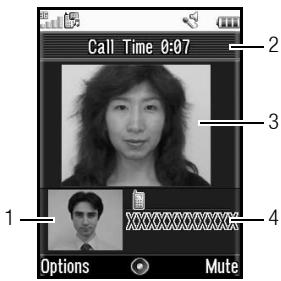
Indicateurs d'état
- Sous-écran pour votre image
- Temps écoulé
- Écran principal pour l'image de l'appelant
- Nom ou numéro de téléphone de l'appelant
Passer un appel vidéo
- Composez l'indicatif régional et le numéro de téléphone que vous souhaitez appeler.
- Appuyez sur [Options] et sélectionnez "Appel vidéo" ou maintenez la touche enfoncée pour composer.
Si vous composez un mauvais numéro, appuyez sur 5 / c pour supprimer le chiffre à gauche du curseur.
Lorsque la ligne est connectée, l'image de l'appelé s'affiche en haut de l'écran, et la vôtre en bas à gauche.
Astuce
- Si le téléphone de l'appelé n'est pas compatible avec les appels vidéo, vous pouvez appuyer sur et saisir à nouveau le numéro pour passer un appel vocal.
- À la fin de l'appel, le coût du dernier appel est affiché.
Répondre à un appel vidéo
Lorsqu'un appel entrant est détecté, le téléphone sonne.
- Appuyez sur pour répondre à l'appel en vidéo ou appuyez sur [Options] et sélectionnez "Masquer l'image" pour répondre en vocal uniquement.
Astuce
- À la fin de l'appel, le coût de l'appel est affiché.
- Si vous avez souscrit au service d'identification de l'appelant (CLI) et que le réseau de l'appelant envoie le numéro, le numéro de l'appelant s'affiche à l'écran. Si le nom et le numéro de l'appelant sont enregistrés dans la liste de contacts, le nom de l'appelant s'affiche à l'écran.
Rejeter un appel entrant
- Appuyez sur ⑤ pendant que le téléphone sonne pour rejeter un appel que vous ne souhaitez pas prendre.
Signaler à l'appelant que vous êtes indisponible
- Appuyez sur [Occupé] pendant que le téléphone sonne pour envoyer une tonalité d'occupé à l'appelant d'un appel entrant, lui indiquant que vous ne pouvez pas répondre à l'appel.
Menu d'appel (appel vidéo)
Mise en sourdine du microphone
- Pendant un appel vidéo, appuyez sur [Muet]. Pour réactiver le microphone, appuyez sur [Rétablir le son].
Échange d'images
Vous pouvez échanger les images entre l'écran principal et l'écran secondaire.
- Pendant un appel vidéo, appuyez sur [Options] et sélectionnez "Échanger les images".
Astuce
- Vous pouvez également échanger les images entre l'écran principal et l'écran secondaire en appuyant sur pendant un appel vidéo.
Changer votre propre image
- Pendant un appel vidéo, appuyez sur [Options] et sélectionnez "Image de la caméra".
- Sélectionnez "Caméra interne", "Caméra externe" ou "Image alternative".
"Caméra interne" : L'image de la caméra secondaire est affichée et envoyée à l'appelant.
"Caméra externe" : L'image de la caméra est affichée et envoyée à l'appelant.
"Image alternative" : La caméra est désactivée et l'image sélectionnée dans "Image alternative" des "Paramètres d'appel vidéo" est utilisée.
Astuce
- Vous pouvez également changer l'image affichée à l'appelant en appuyant sur ou pendant un appel vidéo.
Utilisation de la fonction de zoom optique
Le zoom optique vous permet de zoomer l'image plus clairement grâce à l'action de zoom réelle de la lentille optique. Le zoom optique est utilisé jusqu'au rapport de zoom [ × 2 ]. Si le zoom dépasse [ × 2 ], le zoom numérique est utilisé pour agrandir davantage.
- Pendant un appel vidéo, appuyez sur [Options] et sélectionnez "Activer le zoom optique".
- Appuyez sur ou .
Activation et désactivation des haut-parleurs
Vous pouvez parler via les haut-parleurs situés sur les côtés du téléphone lorsqu'il est allumé.
- Pendant un appel vidéo, appuyez sur [Options] et sélectionnez "Haut-parleur activé".
Remarque
- Dans un environnement très bruyant, vous pourriez ne pas être en mesure de poursuivre un appel ou de passer un appel clair. Nous vous recommandons d'utiliser le kit mains libres stéréo.
- Avec cette option, il peut y avoir des interruptions si vous augmentez le volume de l'écouteur. Nous vous recommandons de diminuer le volume de l'écouteur ou d'utiliser le kit mains libres stéréo.
Paramètres des appels vidéo
Pour ajuster la qualité de l'image entrante ou sortante, vous pouvez ajuster la qualité de l'image de la personne appelée ou de l'appelant.
- Pendant un appel vidéo, appuyez sur [Options] et sélectionnez "Paramètres des appels vidéo".
- Sélectionnez « Qualité d'image entrante » ou « Qualité d'image sortante ».
- Sélectionnez « Normal », « Priorité à la qualité » ou « Priorité à la fréquence d'images ».
« Normal » :
La qualité standard est utilisée.
« Priorité à la qualité » :
La qualité de l'image prime sur la fréquence d'images.
« Priorité à la fréquence d'images » :
La fréquence d'images prime sur la qualité.
Pour activer ou désactiver le rétroéclairage
Vous pouvez activer le rétroéclairage de votre écran.
- Pendant un appel vidéo, appuyez sur [Options] et sélectionnez « Paramètres d'appel vidéo ».
- Sélectionnez « Rétroéclairage ».
- Sélectionnez « Toujours activé », « Toujours désactivé » ou « Comme réglage normal ». Lorsque « Toujours activé » est sélectionné, le rétroéclairage reste allumé pendant un appel vidéo.
Lorsque « Comme réglage normal » est sélectionné, le rétroéclairage s'éteint automatiquement selon le réglage du rétroéclairage (p. 99).
Pour régler l'exposition vidéo
- Lors d'un appel vidéo, appuyez sur [Options] et sélectionnez "Paramètres d'appel vidéo".
- Sélectionnez "Exposition".
- Appuyez sur ou .
Image miroir
Lors d'un appel vidéo, vous pouvez inverser votre image sur le sous-écran.
- Lors d'un appel vidéo, appuyez sur [Options] et sélectionnez "Paramètres d'appel vidéo".
- Sélectionnez "Image miroir".
- Sélectionnez "Activé" ou "Désactivé".
Pour changer l'image de la caméra secondaire en image alternative lors d'un appel vidéo, vous pouvez basculer entre l'image de la caméra secondaire et une image alternative, ou afficher une image tout en mettant l'appel en attente, à partir des fichiers d'images enregistrés.
- Lors d'un appel vidéo, appuyez sur [Options] et sélectionnez "Paramètres d'appel vidéo".
- Sélectionnez "Image alternative" ou "Image de mise en attente".
- Sélectionnez "Image prédéfinie" ou "Mes images".
Saisie de caractères
Lors de la saisie de caractères pour créer des entrées de la liste de contacts, des messages texte ou des messages multimédia, etc., appuyez sur les touches correspondantes.
En mode de saisie multi-tap, appuyez sur chaque touche jusqu'à ce que le caractère souhaité s'affiche. Par exemple, appuyez sur 2ABC une fois pour la lettre A ou deux fois pour la lettre B.
Tableau des caractères
Chaque touche permet de faire défiler les caractères dans l'ordre suivant. L'ordre varie selon la langue sélectionnée.
Mode anglais
| Key | Upper Case Characters | Lower Case Characters | Numeric |
| 1 C.D. | .(full-stop) , (comma) - (hyphen) ? ! , (apostrophe) @ :1 | 1 | |
| 2 ABC | ABC2 | abc2 | 2 |
| 3 DEF | DEF3 | def3 | 3 |
| 4 GH | GHI4 | ghi4 | 4 |
| 5 JKL | JKL5 | jkl5 | 5 |
| 6 MNO | MNO6 | mno6 | 6 |
| 7 PQRS | PQRS7 | pqrs7 | 7 |
| 8 TUV | TUV8 | tuv8 | 8 |
| Key | Upper Case Characters | Lower Case Characters | Numeric |
| g wxyz | WXYZ9 | wxyz9 | 9 |
| 0 + - | (space) + = < > € $ ¥ % & 0 | 0 | |
| X A G B | Switches character case between four modes: Abc, ABC, 123 and abc. | ||
| # a | . , ? ! ; - + # * @ ' " ( ) _ & € £ $ % / ~ < > $ = \ | € i ^ [ ] { } □ Å Å A E à a e à C E é é i N ñ ñ ñ ñ ñ ñ ñ ñ ñ ñ ñ ñ ñ ñ ñ ñ ñ ñ ñ ñ ñ ñ ñ ñ ñ ñ ñ ñ ñ ñ ñ ñ ñ ñ ñ ñ ñ ñ ñ ñ ñ ñ ñ ñ ñ ñ ñ ñ ñ ñ õ ñ ñ ñ ñ ñ ñ ñ ñ ñ ñ ñ ñ ñ ñ ñ ñ ñ ñ ñ ñ ñ ñ ñ ñ ñ ñ ñ ñ ñ ñ ñ ñ ñ ñ ñ ñ ñ ñ ñ ñ ñ ñ ñ ñ ñ ñ ñ ñ ñ ÿ ñ ñ ñ ñ ñ ñ ñ ñ ñ ñ ñ ñ ñ ñ ñ ñ ñ ñ ñ ñ ñ ñ ñ ñ ñ ñ ñ ñ ñ ñ ñ ñ ñ ñ ñ ñ ñ ñ ñ ñ ñ ñ ñ ñ ñ ñ ñ ñ ñ ò ñ ñ ñ ñ ñ ñ ñ ñ ñ ñ ñ ñ ñ ñ ñ ñ ñ ñ ñ ñ ñ ñ ñ ñ ñ ñ ñ ñ ñ ñ ñ ñ ñ ñ ñ ñ ñ ñ ñ ñ ñ ñ ñ ñ ñ ñ ñ ñ ñ ë ñ ñ ñ ñ ñ ñ ñ ñ ñ ñ ñ ñ ñ ñ ñ ñ ñ ñ ñ ñ ñ ñ ñ ñ ñ ñ ñ ñ ñ ñ ñ ñ ñ ñ ñ ñ ñ ñ ñ ñ ñ ñ ñ ñ ñ ñ ñ ñ ñ û ñ ñ ñ ñ ñ ñ ñ ñ ñ ñ ñ ñ ñ ñ ñ ñ ñ ñ ñ ñ ñ ñ ñ ñ ñ ñ ñ ñ ñ ñ ñ ñ ñ ñ ñ ñ ñ ñ ñ ñ ñ ñ ñ ñ ñ ñ ñ ñ ñ ÷ ñ ñ ñ ñ ñ ñ ñ ñ ñ ñ ñ ñ ñ ñ ñ ñ ñ ñ ñ ñ ñ ñ ñ ñ ñ ñ ñ ñ ñ ñ ñ ñ ñ ñ ñ ñ ñ ñ ñ ñ ñ ñ ñ ñ ñ ñ ñ ñ ñ ü ñ ñ ñ ñ ñ ñ ñ ñ ñ ñ ñ ñ ñ ñ ñ ñ ñ ñ ñ ñ ñ ñ ñ ñ ñ ñ ñ ñ ñ ñ ñ ñ ñ ñ ñ ñ ñ ñ ñ ñ ñ ñ ñ ñ ñ ñ ñ ñ ñ È ñ ñ ñ ñ ñ ñ ñ ñ ñ ñ ñ ñ ñ ñ ñ ñ ñ ñ ñ ñ ñ ñ ñ ñ ñ ñ ñ ñ ñ ñ ñ ñ ñ ñ ñ ñ ñ ñ ñ ñ ñ ñ ñ ñ ñ ñ ñ ñ ñ ð ñ ñ ñ ñ ñ ñ ñ ñ ñ ñ ñ ñ ñ ñ ñ ñ ñ ñ ñ ñ ñ ñ ñ ñ ñ ñ ñ ñ ñ ñ ñ ñ ñ ñ ñ ñ ñ ñ ñ ñ ñ ñ ñ ñ ñ ñ ñ ñ ñ ô ñ ñ ñ ñ ñ ñ ñ ñ ñ ñ ñ ñ ñ ñ ñ ñ ñ ñ ñ ñ ñ ñ ñ ñ ñ ñ ñ ñ ñ ñ ñ ñ ñ ñ ñ ñ ñ ñ ñ ñ ñ ñ ñ ñ ñ ñ ñ ñ ñ î ñ ñ ñ ñ ñ ñ ñ ñ ñ ñ ñ ñ ñ ñ ñ ñ ñ ñ ñ ñ ñ ñ ñ ñ ñ ñ ñ ñ ñ ñ ñ ñ ñ ñ ñ ñ ñ ñ ñ ñ ñ ñ ñ ñ ñ ñ ñ ñ ñ í ñ ñ ñ ñ ñ ñ ñ ñ ñ ñ ñ ñ ñ ñ ñ ñ ñ ñ ñ ñ ñ ñ ñ ñ ñ ñ ñ ñ ñ ñ ñ ñ ñ ñ ñ ñ ñ ñ ñ ñ ñ ñ ñ ñ ñ ñ ñ ñ ñ ì õ õ õ õ õ õ õ õ õ õ õ õ õ õ õ õ õ õ õ õ õ õ õ õ õ õ õ õ õ õ õ õ õ õ õ õ õ õ õ õ õ õ õ õ õ õ õ õ õ õ ÷ õ õ õ õ õ õ õ õ õ õ õ õ õ õ õ õ õ õ õ õ õ õ õ õ õ õ õ õ õ õ õ õ õ õ õ õ õ õ õ õ õ õ õ õ õ õ õ õ õ û õ õ õ õ õ õ õ õ õ õ õ õ õ õ õ õ õ õ õ õ õ õ õ õ õ õ õ õ õ õ õ õ õ õ õ õ õ õ õ õ õ õ õ õ õ õ õ õ õ ÿ õ õ õ õ õ õ õ õ õ õ õ õ õ õ õ õ õ õ õ õ õ õ õ õ õ õ õ õ õ õ õ õ õ õ õ õ õ õ õ õ õ õ õ õ õ õ õ õ õ ø õ õ õ õ õ õ õ õ õ õ õ õ õ õ õ õ õ õ õ õ õ õ õ õ õ õ õ õ õ õ õ õ õ õ õ õ õ õ õ õ õ õ õ õ õ õ õ õ õ ö õ õ õ õ õ õ õ õ õ õ õ õ õ õ õ õ õ õ õ õ õ õ õ õ õ õ õ õ õ õ õ õ õ õ õ õ õ õ õ õ õ õ õ õ õ õ õ õ õ ê Φ � 0 | ||
1 9 : Maintenez enfoncée pour saisir les chiffres 1 à 9 et 0.

XAA B : Maintenez enfoncée pour basculer entre le mode multi-tap et le mode T9.
Maintenez enfoncée pour afficher l'écran de langue de saisie.
Changement de la langue de saisie
- Sur l'écran de saisie de texte, appuyez sur [Options] et sélectionnez "Langue de saisie".
- Sélectionnez la langue souhaitée.
Changement du mode de saisie
Saisie de texte T9
La méthode de saisie T9 est un raccourci pour saisir du texte facilement et rapidement.
- Sur l'écran de saisie de texte, maintenez enfoncée la touche a pour passer en mode T9.
- Appuyez sur [Options] et sélectionnez "Mode de saisie".
- Sélectionnez le mode de saisie (Abc, ABC, 123, abc).
- Appuyez une fois sur chaque touche pour chaque lettre dont vous avez besoin sur cette touche. Pour saisir le mot « How », appuyez sur 4 g8 5 woc 9 enz.
- Si le mot affiché n'est pas celui que vous voulez, appuyez sur ou jusqu'à ce que vous mettiez en surbrillance le bon.
- Appuyez sur pour sélectionner le mot.
Remarque
- Si le mot correct n'apparaît pas à l'étape 5, saisissez à nouveau le mot correct après être passé à la méthode de saisie multi-tap.
Astuce
- Si vous appuyez sur 0+ - au lieu de l'étape 6, un espace est inséré à côté du mot sélectionné.
Symboles et ponctuation
- Sur l'écran de saisie de texte, appuyez sur [Options] et sélectionnez « Ajouter un symbole ».
- Sélectionnez le symbole souhaité.
Mon dictionnaire
Vous pouvez créer votre propre liste de mots pour la saisie de texte T9.
- Sur l'écran de saisie de texte en mode T9, appuyez sur [Options] et sélectionnez « Mon dictionnaire ».
- Sélectionnez « Ajouter un nouveau mot » et saisissez un nouveau mot.
Modification d'un mot dans la liste
- Sur l'écran de saisie de texte en mode T9, appuyez sur [Options] et sélectionnez "Mon dictionnaire".
- Mettez en surbrillance le mot souhaité.
- Appuyez sur [Options] et sélectionnez "Modifier". 4. Modifiez le mot.
Utilisation des modèles
Vous pouvez utiliser les phrases enregistrées dans les modèles de texte lors de la saisie de caractères.
Pour plus de détails sur la création du modèle de texte, voir "Ajout de phrases aux modèles de texte" à la page 71.
- Sur l'écran de saisie de texte, déplacez le curseur à l'endroit où vous souhaitez insérer le modèle.
- Appuyez sur [Options] et sélectionnez "Avancé".
- Sélectionnez "Insérer un modèle".
- Sélectionnez le modèle de texte souhaité.
Copier, couper et coller du texte
- Sur l'écran de saisie de texte, appuyez sur [Options] et sélectionnez "Avancé".
- Sélectionnez "Copier" ou "Couper".
- Déplacez le curseur sur la première lettre à copier ou à couper, puis appuyez sur .
- Déplacez le curseur sur la dernière lettre pour mettre en surbrillance la zone, puis appuyez sur .
- Déplacez le curseur à l'endroit où vous souhaitez coller les lettres.
- Appuyez sur [Options] et sélectionnez "Avancé".
- Sélectionnez "Coller".
Utilisation du menu
Menu principal
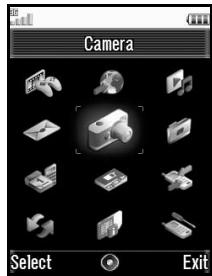
- Appuyez sur en veille.
Le menu principal s'affiche.
- Appuyez sur 喜 , ou pour mettre en surbrillance le menu souhaité, puis appuyez pour accéder à la fonction.
Pour plus de détails sur les options du menu, voir "Liste des fonctions du menu" à la page 132.
Utilisation du menu en position visualisation de l'écran
- Placez le téléphone en position visualisation de l'écran.
- Appuyez sur 空 pour afficher le menu principal.
- Appuyez sur ou pour déplacer le curseur vers le haut ou vers le bas, puis appuyez sur ou °.
Appuyez pour revenir au menu principal.
Le curseur se déplace de la même manière qu'en position normale de l'écran en utilisant  et .
Pour plus de détails sur les fonctions de ces touches, voir page 10.
Touches de raccourci
Vous pouvez accéder aux menus en appuyant sur et les touches numériques correspondant au numéro du menu principal. Pour les numéros 10 à 12, appuyez sur et 米 (10), (11) ou # (12). Voir "Liste des fonctions du menu" à la page 132.
Les raccourcis sont listés dans les titres de ce guide de l'utilisateur.
Exemples : Pour accéder au sous-menu "Vidéos" (M 6-4) à l'aide des touches de raccourci
Appuyez sur 6 4
Pour accéder au sous-menu "Totaux" (M 7-11-2) à l'aide des touches de raccourci
Appuyez sur 7000 0+2 ABC.
Pour accéder au sous-menu "Vibration" (M 12-3-4) à l'aide des touches de raccourci
Appuyez sur #3DE4G
Remarque
- Les touches de raccourci ne fonctionnent que pour les trois premiers niveaux de menu.
Liste de contacts (M 8-1)
Vous pouvez stocker les numéros de téléphone et les adresses e-mail de vos amis, de votre famille et de vos collègues dans la liste de contacts.
Votre téléphone peut stocker jusqu'à 500 entrées. Dans une liste de contacts, vous pouvez enregistrer les éléments suivants :
Éléments enregistrés dans la mémoire du téléphone
| First Name | up to 16 characters |
| Last Name | up to 16 characters |
| Telephone Number | up to 3 phone numbers (up to 32 digits each) |
| Email Address | up to 3 Email addresses (up to 128 characters each) |
| Category | 16 categories |
| Street & Number | up to 64 characters |
| City | up to 64 characters |
| State/Province | up to 64 characters |
| Postal Code | up to 20 characters |
| Country | up to 32 characters |
| Note | up to 256 characters |
| Birthday | (date) |
| Picture | (file name) |
| Assign Tone/Video | (file name) |
| Secret | (On or Off) |
Éléments enregistrés dans la mémoire SIM (selon la carte SIM)
| Name | up to 16 characters |
| Telephone Number | up to 2 phone numbers (up to 32 digits each) |
| Email Address | up to 128 characters (or no Email address) |
| Category | up to 16 categories |
Modification de l'ordre des noms (M 8-8-1)
"Contacts" → "Paramètres" → "Ordre des noms"
- Sélectionnez "Prénom Nom" ou "Nom Prénom".
Modification de la liste affichée (M 8-8-2)
"Contacts" → "Paramètres" → "Emplacement des contacts"
- Sélectionnez "Téléphone" ou "SIM".
Sélection de la mémoire de stockage (M 8-8-3)
"Contacts" → "Paramètres" → "Enregistrer les nouveaux contacts dans"
- Sélectionnez "Téléphone", "SIM" ou "Choisir avant l'enregistrement".
Astuce
- "Choisir avant l'enregistrement" vous invite à choisir la mémoire à chaque fois que vous enregistrez une nouvelle entrée.
Tri des entrées de la liste des contacts (M 8-8-4)
Vous pouvez modifier l'ordre des entrées de la liste des contacts pour les classer par ordre alphabétique ou par catégorie.
"Contacts" → "Settings" → "Sort Contacts"
- Sélectionnez "Par ordre alphabétique" ou "Par catégorie".
Ajouter un nouveau contact
Vous pouvez choisir de stocker la nouvelle entrée dans la mémoire du téléphone ou dans celle de la carte SIM. Pour changer d'emplacement, voir "Sélection de la mémoire de stockage" à la page 34.
Le nombre de numéros de téléphone que vous pouvez stocker sur la carte SIM dépend de sa capacité. Contactez votre opérateur pour plus de détails.
"Contacts" → "Liste des contacts" → "Ajouter un nouveau contact"
Si vous sélectionnez l'option "Choisir avant l'enregistrement" pour la mémoire à utiliser, le choix se fait entre "Sur le téléphone" et "Sur la carte SIM".
- Sélectionnez le champ que vous souhaitez remplir et saisissez les informations correspondantes.
- Appuyez sur [Enregistrer] lorsque vous avez terminé.
Astuce
- Pour créer une entrée, au moins un champ doit être rempli ("Prénom", "Nom", "Numéro de téléphone" ou "Adresse e-mail" pour la mémoire du téléphone ; "Nom", "Numéro de téléphone" ou "Adresse e-mail" pour la mémoire de la carte SIM).
Affichage de mes coordonnées (M 8-5)
Vous pouvez enregistrer et modifier vos propres coordonnées comme pour toute autre entrée de la liste des contacts.
"Contacts" → "Mes coordonnées"
Copie des entrées de la liste des contacts entre la carte SIM et le téléphone (M 8-9-1)
"Contacts" → "Manage Contacts" → "Copy All Entries"
- Sélectionnez "De la SIM vers le téléphone" ou "Du téléphone vers la SIM".
Remarque
- Lorsque vous insérez la carte SIM dans votre téléphone pour la première fois et que vous démarrez l'application Liste des contacts, l'écran de confirmation s'affiche automatiquement, vous demandant si vous souhaitez copier ou non. Le nombre d'entrées de la liste des contacts à copier varie selon la capacité de la SIM.
- Si l'espace mémoire n'est pas suffisant pour enregistrer toutes les entrées, vous ne pouvez pas terminer la copie.
Recherche d'un nom
"Contacts" → "Liste des contacts"
- Saisissez les premières lettres du nom. Les résultats de recherche s'affichent par ordre alphabétique.
Astuce
- Vous pouvez sélectionner l'emplacement des contacts parmi "Téléphone" ou "SIM" avant la recherche.
Composer un numéro depuis la liste des contacts
"Contacts" → "Liste des contacts"
- Mettez en surbrillance l'entrée souhaitée et appuyez sur ⊙
Astuce
- Si plusieurs numéros de téléphone sont enregistrés pour l'entrée, mettez en surbrillance le numéro souhaité après l'étape 1 et appuyez sur ○.
- Vous pouvez également composer un numéro à partir de l'écran de détails de la liste de contacts. Sur l'écran de détails, sélectionnez le numéro de téléphone souhaité et appuyez sur .
Modification des entrées de la liste de contacts
"Contacts" → "Liste de contacts"
- Mettez en surbrillance l'entrée que vous souhaitez modifier.
- Appuyez sur [Options] et sélectionnez "Modifier". 3. Modifiez les informations.
- Appuyez sur [Enregistrer] lorsque vous avez terminé.
Ajout d'une vignette aux entrées
"Contacts" → "Liste de contacts"
- Mettez en surbrillance l'entrée souhaitée.
- Appuyez sur [Options] et sélectionnez "Modifier".
- Sélectionnez "Image".
- Sélectionnez "Attribuer une image".
- Sélectionnez l'image souhaitée.
- Appuyez sur [Enregistrer] lorsque vous avez terminé.
Remarque
- Si vous supprimez une image dans la mémoire du combiné, la vignette correspondante est également supprimée.
Attribution d'une sonnerie ou d'un clip vidéo de sonnerie à chaque entrée
"Contacts" → "Liste des contacts"
- Mettez en surbrillance l'entrée souhaitée.
- Appuyez sur [Options] et sélectionnez "Modifier".
- Sélectionnez "Attribuer sonnerie/vidéo".
- Sélectionnez "Pour appel vocal", "Pour appel vidéo" ou "Pour nouveau message".
- Sélectionnez "Attribuer sonnerie" ou "Attribuer vidéo". Lorsque vous sélectionnez "Attribuer vidéo", passez à l'étape 7.
- Sélectionnez "Sons prédéfinis" ou "Mes sons".
- Sélectionnez la sonnerie ou le clip vidéo souhaité.
- Appuyez sur [Enregistrer] lorsque vous avez terminé.
Suppression d'entrées de la liste de contacts
Suppression de toutes les entrées de contacts (M 8-9-3)
"Contacts" → "Gérer les contacts" → "Supprimer toutes les entrées"
- Sélectionnez "Entrées du combiné" ou "Entrées SIM".
- Saisissez votre code de combiné.
Le code de combiné par défaut est « 9999 ». Pour plus de détails sur la modification du code de combiné, reportez-vous à la section « Modification du code de combiné » à la page 108.
Suppression d'une entrée de contact
« Contacts » → « Liste des contacts »
- Mettez en surbrillance l'entrée souhaitée.
- Appuyez sur [Options] et sélectionnez « Supprimer ».
Gérer les catégories (M 8-3)
Des sonneries différentes peuvent être définies pour chaque catégorie. Si vous ne modifiez pas la sonnerie d'une catégorie, la sonnerie assignée dans le menu Profils est utilisée.
« Contacts » → « Gérer les catégories »
- Mettez en surbrillance la catégorie souhaitée.
- Appuyez sur [Options] et sélectionnez « Assigner sonnerie/vidéo ».
- Sélectionnez « Pour appel vocal », « Pour appel vidéo » ou « Pour nouveau message ».
- Sélectionnez « Assigner sonnerie » ou « Assigner vidéo ». Si vous sélectionnez « Assigner vidéo », passez à l'étape 6.
- Sélectionnez « Sons prédéfinis » ou « Mes sons ».
- Sélectionnez la sonnerie ou le clip vidéo souhaité. Pour plus de détails sur la sélection d'une sonnerie ou d'un clip vidéo de sonnerie, reportez-vous à la section « Assignation d'une sonnerie » ou « Assignation d'un fichier clip vidéo de sonnerie » à la page 94.
Note
- Vous ne pouvez modifier que les noms de catégories dans la carte SIM. Vous ne pouvez pas modifier les paramètres de sonnerie ou de vidéo de sonnerie.
Modification du nom de catégorie
Vous pouvez modifier les noms de catégories à attribuer aux entrées de la liste de contacts. Tout d'abord, changez la liste de contacts affichée (p. 34).
"Contacts" → "Gérer les catégories"
- Mettez en surbrillance le nom de catégorie souhaité.
- Appuyez sur [Options] et sélectionnez "Renommer". 3. Modifiez le nom.
Groupes de contacts (M 8-6)
Vous pouvez créer une liste de diffusion pour envoyer le même message à un groupe de destinataires à la fois. Jusqu'à 5 groupes peuvent être enregistrés.
Création d'une nouvelle liste de diffusion
"Contacts" → "Groupes de contacts" → "Ajouter un nouveau groupe"
- Saisissez le nom du groupe.
Le nouveau nom de groupe s'affiche après le dernier groupe sur l'écran de la liste des groupes.
Ajout de destinataires à un groupe
Jusqu'à 20 destinataires peuvent être enregistrés dans chaque liste.
"Contacts" puis "Contact Groups"
- Sélectionnez le nom du groupe souhaité.
- Sélectionnez "Assign New Entry".
- Sélectionnez l'entrée souhaitée.
L'écran détaillé s'affiche.
- Sélectionnez le numéro de téléphone ou l'adresse e-mail souhaité.
Astuce
- Si vous modifiez l'entrée assignée dans le groupe, vous devez la réassigner au groupe. Appuyez sur [Options] et sélectionnez "Re-assign Entry" à l'étape 2.
- Pour supprimer une entrée du groupe, appuyez sur [Options] et sélectionnez "Remove Entry" à l'étape 2.
- Pour supprimer un groupe, mettez en surbrillance un nom de groupe et appuyez sur [Options], puis sélectionnez "Delete" à l'étape 1.
Envoi d'un message à l'aide d'une liste de diffusion
"Contacts" puis "Contact Groups"
- Mettez en surbrillance le nom du groupe souhaité.
- Appuyez sur [Options] et sélectionnez "Create Message".
- Sélectionnez le type de messagerie souhaité. Pour les procédures suivantes, voir "Creating a New Message" à la page 50.
État de la mémoire (M 8-9-2)
Cette fonction vous permet de vérifier la mémoire utilisée dans la liste de contacts.
"Contacts" → "Gérer les contacts" → "État de la mémoire"
Liste de numéros abrégés
Vous pouvez définir un maximum de 8 numéros de téléphone dans la liste de numéros abrégés (p. 21).
Ajout d'une entrée de la liste de contacts à la liste de numéros abrégés
"Contacts" → "Liste de contacts"
- Sélectionnez l'entrée souhaitée.
- Mettez en surbrillance le numéro de téléphone souhaité.
- Appuyez sur [Options] et sélectionnez "Ajouter aux numéros abrégés".
- Sélectionnez l'emplacement souhaité.
Astuce
- Les neuf touches numériques correspondent aux numéros de la liste.
Pour modifier la liste de numéros abrégés (M 8-4)
"Contacts" → "Liste de numéros abrégés"
- Mettez en surbrillance l'entrée que vous souhaitez modifier.
- Appuyez sur [Options] et sélectionnez "Réaffecter" (ou "Affecter").
Envoi d'une entrée de la liste de contacts
"Contacts" → "Liste de contacts"
- Mettez en surbrillance l'entrée souhaitée.
- Appuyez sur [Options] et sélectionnez "Envoyer contact".
- Sélectionnez "Comme message", "Via Bluetooth" ou "Via infrarouge". Pour plus de détails sur la création d'un message, voir "Création d'un nouveau message" à la page 50.
Pour plus de détails sur les paramètres sans fil Bluetooth, voir "Bluetooth" à la page 111.
Pour plus de détails sur les paramètres infrarouge, voir "Infrarouge" à la page 113.
Réception d'une entrée de la liste de contacts
Lorsque le téléphone reçoit une entrée de la liste de contacts, un message de confirmation s'affiche en veille.
- Appuyez sur [Oui].
L'entrée reçue est enregistrée dans la liste de contacts. Appuyez sur [Non] pour la rejeter.
Astuce
- Pour plus de détails sur la saisie des paramètres infrarouge ou sans fil Bluetooth, voir "Connectivité" à la page 111.
Envoi d'un message vocal ou d'un message vidéo à l'aide d'une adresse de la liste de contacts
"Contacts" → "Liste de contacts"
- Sélectionnez l'entrée souhaitée contenant le numéro de téléphone ou l'adresse e-mail que vous souhaitez utiliser.
- Mettez en surbrillance le numéro de téléphone ou l'adresse e-mail souhaité.
- Appuyez sur [Options] et sélectionnez "Créer un message".
- Sélectionnez "Message vocal" ou "Message vidéo". Pour la suite de la procédure, voir "Création d'un nouveau message" à la page 50.
Synchronisation des entrées de la liste de contacts avec celles sur Internet (M 8-7)
La fonction de synchronisation des données est un service réseau et vous permet d'enregistrer les entrées de votre liste de contacts de la mémoire du téléphone sur le serveur Internet. Les données de la carte SIM ne seront pas enregistrées. Abonnez-vous à un service de synchronisation en contactant votre centre de services réseau.
Synchronisation de la liste de contacts (M 8-7-1)
"Contacts" → "Synchroniser"
- Sélectionnez "Synchroniser maintenant !" pour synchroniser les données.
Remarque
- "Synchroniser maintenant !" n'est pas disponible s'il n'y a pas de paramètre de synchronisation actif.
Affichage du journal (M 8-7-2)
"Contacts" → "Synchroniser"
- Sélectionnez "Afficher le journal".
Paramètres de synchronisation (M 8-7-3)
"Contacts" → "Synchroniser" → "Paramètres de synchronisation"
- Sélectionnez le compte souhaité ou "Créer nouveau" pour saisir les paramètres suivants.
"Nom du profil" : Nom du profil de synchronisation (nom unique)
"Nom du serveur" : Adresse du serveur
"ID utilisateur" : ID utilisateur pour l'authentification
"Mot de passe" : Mot de passe pour l'authentification
"Proxy" : Sélectionne le paramètre de proxy pour la synchronisation.
"Nom de la base de contacts" : Nom de la base de données de la liste de contacts sur le serveur
Remarque
- Les paramètres de synchronisation ont déjà été saisis dans votre téléphone en fonction de votre opérateur. Vous pouvez avoir des restrictions sur la visualisation, la suppression, la copie ou la modification des paramètres. Contactez votre opérateur pour plus de détails.
Caméra (M 5)
Votre téléphone dispose d'un appareil photo numérique intégré qui vous permet de prendre des photos et d'enregistrer des clips vidéo où que vous soyez. Cette section commence par les fonctions de base et les procédures opérationnelles pour prendre, enregistrer et envoyer des photos et des clips vidéo, suivies des fonctions communes et uniques aux modes appareil photo et vidéo.
Prendre des photos
"Caméra"
- Appuyez sur pour prendre la photo.
Le déclencheur retentit et l'image fixe de la photo prise s'affiche.
- Appuyez sur [Enregistrer].
La photo prise est enregistrée dans Mes éléments.
Pour annuler, appuyez sur [Annuler].
Pour envoyer la photo prise, appuyez sur à l'étape 2 et sélectionnez "Comme message" ou "Comme carte postale" dans les options d'envoi. (Le service de carte postale n'est pas disponible avec certains fournisseurs de services. Contactez votre fournisseur de services pour plus d'informations.)
Remarque
- Appuyez sur au lieu de dans la position de visualisation de l'écran.
- Lorsque la caméra vidéo est lancée, appuyez sur [Options] et sélectionnez "Aller à l'appareil photo", ou appuyez sur 4 ou 0 (dans la position de visualisation de l'écran) pour passer en mode appareil photo.
- Lorsque vous essayez d'envoyer une photo dont la taille de fichier est trop grande, la taille de la photo est réduite pour le message. La photo à la taille originale est enregistrée dans Mes éléments.
Astuce
- Vous pouvez activer l'appareil photo en appuyant longuement sur 回 . Appuyez simplement sur 回 pour prendre des photos, et pour démarrer et arrêter l'enregistrement.
- Vous pouvez verrouiller la mise au point en appuyant sur ou en appuyant à mi-course avant de prendre une photo ou d'enregistrer un clip vidéo.
Prendre un autoportrait
Vous pouvez prendre un autoportrait en regardant l'écran principal.
"Appareil photo"
- Appuyez sur [Options] et sélectionnez "Passer à l'appareil photo interne". Ou appuyez sur 米 en mode viseur.
- Appuyez sur pour prendre la photo.
- Appuyez sur [Enregistrer].
La photo prise est enregistrée dans Mes éléments.
Pour revenir à l'appareil photo externe, appuyez sur [Options] et sélectionnez "Passer à l'appareil photo externe" ou appuyez sur → B en mode viseur.
Pour prendre une photo en position autoportrait
Vous pouvez prendre un autoportrait avec l'appareil photo externe.
- Faites pivoter l'écran principal de 180° dans le sens horaire par rapport à la position normale.
- Appuyez sur le côté du téléphone.
Remarque
- Ne faites pas pivoter l'écran principal dans le sens antihoraire. Sinon, le téléphone pourrait mal fonctionner.
Sortie du mode appareil photo en position visionneuse de l'écran
- Maintenez enfoncé en position visionneuse.
Enregistrement de clips vidéo
Vous pouvez enregistrer un clip vidéo avec votre téléphone. Vous pouvez également utiliser cette fonction en position visionneuse de l'écran.
Enregistrement de clips vidéo
"Appareil photo"
L'aperçu s'affiche à l'écran.
- Appuyez sur Appuyez en position visionneuse de l'écran.
- Pour arrêter l'enregistrement, appuyez sur
- Sélectionnez "Enregistrer".
Le clip vidéo est enregistré dans Mes éléments. Pour afficher l'aperçu avant l'enregistrement, sélectionnez "Aperçu". Pour envoyer le clip vidéo, sélectionnez "Enregistrer et envoyer". Sélectionnez ensuite le mode d'envoi souhaité. Pour plus de procédures, voir "Création d'un nouveau message" à la page 50.
Remarque
- Vous ne pouvez envoyer des clips vidéo que lorsque "Pour message" est sélectionné pour la durée d'enregistrement. Pour plus de détails, voir "Sélection de la durée et de la taille d'enregistrement" à la page 47.
Utilisation du menu Options en position visionneuse de l'écran
- Appuyez sur Le menu Options s'affiche graphiquement.
- Appuyez sur ou pour mettre en surbrillance l'option souhaitée, puis appuyez pour effectuer la sélection.
Fonctions communes aux modes Photo et Caméra vidéo
Utilisation de la fonction de zoom numérique
Pour régler le taux de zoom
- En mode viseur, appuyez sur ▲ ou ▼.
Pour activer le zoom optique
Le zoom optique vous permet de zoomer l'image plus nettement grâce à l'action réelle de zoom de la lentille optique. Le zoom optique est utilisé jusqu'au taux de zoom [×2]. Si le zoom dépasse [×2], le zoom numérique est utilisé pour agrandir davantage.
"Appareil photo" → [Options] → "Paramètres" → "Zoom optique"
1. Sélectionnez "Activer".
Sélectionnez "Désactiver" pour désactiver.
Si vous sélectionnez "Désactiver", vous ne pouvez utiliser que la fonction de zoom numérique.
2. Appuyez sur ◄ ou ▼.
Une fois que le téléphone est revenu en veille, les paramètres de zoom reviennent aux valeurs par défaut.
Réglage de l'exposition
"Appareil photo" → [Options] → "Exposition"
- Appuyez sur (Plus lumineux) ou (Plus sombre).
: (Sombre → Normal → Lumineux)
Une fois le téléphone revenu en veille, les réglages de luminosité reviennent par défaut.
Lumière mobile
Pour changer le mode de la lumière mobile
Réglez la lumière mobile selon votre objectif.
"Appareil photo" → [Options] → "Modes" → "Lumière mobile" → "Activer/Désactiver"
- Sélectionnez le mode souhaité.
"Activé" ( ) : La lumière est toujours allumée.
"Automatique" (\\) : La lumière s'allume si le téléphone détecte que les conditions sont sombres.
"Faible luminosité" ( ) (mode appareil photo uniquement) :
Sélectionnez ce mode pour les prises de vue en macro.
"Désactivé" : La lumière est toujours éteinte.
L'indicateur correspondant s'affiche à l'écran. Sélectionnez "Désactivé" pour l'éteindre.
Pour changer la couleur de la lumière
Vous pouvez prendre une photo dans différents modes de couleur.
"Appareil photo" → [Options] → "Modes" → "Lumière mobile" → "Couleur de la lumière"
- Sélectionnez la couleur de lumière souhaitée.
Couleurs de lumière : blanc/rouge/jaune/vert/bleu/violet/bleu clair
Utilisation du retardateur
"Appareil photo" → [Options] → "Modes" → "Retardateur"
- Sélectionnez "Activé" ou "Désactivé".
" " s'affiche à l'écran lorsque vous sélectionnez "Activé".
Passage entre les modes photo et vidéo
Vous pouvez passer entre les modes photo et vidéo en appuyant sur ou, ou (dans la position du viseur de l'écran). Sélectionnez l'option appropriée.
"Appareil photo" → [Options] → "Aller à la caméra vidéo" "Appareil photo" → [Options] → "Aller à la caméra photo"
Sélection de la qualité de l'image ou de la vidéo
Sélectionnez l'option appropriée.
"Appareil photo" → [Options] → "Qualité d'image" "Appareil photo" → [Options] → "Qualité vidéo"
- Sélectionnez la qualité d'image ou de vidéo souhaitée.
Super fine 图 : Fine 3 : Normale
Remarque
- Plus la qualité sélectionnée est élevée, plus la taille du fichier est importante.
Sélection de la mémoire de stockage
Sélectionnez l'option appropriée.
"Caméra" → [Options] → "Paramètres" → "Enregistrer les nouvelles photos" "Caméra" → [Options] → "Paramètres" → "Enregistrer les nouvelles vidéos"
- Sélectionnez l'emplacement souhaité parmi "Vers la mémoire du téléphone", "Vers la carte mémoire" ou "Choisir avant l'enregistrement".
Remarque
- Si vous sélectionnez "Choisir avant l'enregistrement", sélectionnez l'emplacement souhaité à chaque enregistrement.
Réglage de la mise au point
"Caméra" → [Options] → "Modes" → "Mise au point"
- Sélectionnez l'option souhaitée.
AF : Autofocus
MF : Mise au point manuelle
Macro
Enregistrement automatique
Vous pouvez configurer le téléphone pour enregistrer automatiquement les photos et les clips vidéo. "Caméra" → [Options] → "Paramètres" → "Enregistrement automatique"
- Sélectionnez « On » ou « Off ».
Démarrage automatique
Vous pouvez configurer le téléphone pour qu'il lance automatiquement l'application appareil photo lorsque vous basculez l'écran en position viseur.
« Appareil photo » → [Options] → « Paramètres » → « Démarrage automatique »
- Sélectionnez « On » ou « Off ».
Utilisation de la fonction d'aide
« Appareil photo » → [Options] → « Aide »
Touches de raccourci courantes
Si plusieurs options existent, elles changent à chaque pression sur la touche correspondante.
| Photo Camera | Video Camera | |
| 1∞ | Zoom Max/Min | |
| 2ABC | Exposure | |
| 3DER | Focus | |
| 4on | Save New Pictures to | Save New Videos to |
| 5JKL | Picture Size | |
| 6MO | Scene | Microphone On/Off |
| 7POS | Picture Quality | Video Quality |
| 8TOV | Self-timer On/Off | |
| 9BRTZ | Change Light Colour (when light is on) | |
| XAXA | Change External Camera/Internal Camera | |
| 0+/- | Switches Viewfinder | Switches Screen |
| #+/- | Light On/Off | |
Remarque
- L'option « Basculer l'écran » est disponible en « Aperçu » avant d'enregistrer un clip vidéo. Voir « Enregistrement de clips vidéo » à la page 42.
Fonctions du mode appareil photo
Sélection de la taille de l'image
Vous pouvez sélectionner la taille des photos. Toutes les photos prises sont enregistrées au format JPEG.
« Appareil photo » → [Options] → « Taille de l'image »
- Sélectionnez la taille souhaitée.
(Caméra externe) 1536 × 2048 points / 1200 × 1600 points / 960 × 1280 points / 768 × 1024 points / 480 × 640 points / 240 × 320 points / 120 × 160 points
(Caméra interne) 240 × 320 points / 120 × 160 points
Sélection de la scène
Vous pouvez sélectionner le mode approprié en fonction de la scène lorsque vous prenez la photo.
"Caméra" → [Options] → "Modes" → "Scène"
1. Sélectionnez la scène souhaitée.
Les huit modes suivants sont disponibles :
"Automatique" (A) : Réglage automatique en fonction de l'environnement.
"Nuit" (C) : Adapté à la photographie de nuit.
"Sports" (V) : Adapté aux objets en mouvement.
"Personnages" : Adapté aux sujets à fort contraste tels que le texte.
"Animal" : Adapté aux objets en mouvement à courte distance.
"Contre-jour" : Adapté pour éviter que les objets ne soient silhouettés contre la lumière.
"Portrait" (图) : Adapté au portrait.
"Portrait in Dark" (12) :
Adapté pour un portrait en intérieur ou par faible luminosité.
Sélection des effets d'image
Vous pouvez prendre une photo avec des effets spéciaux.
"Appareil photo" → [Options] → "Modes" → "Effets d'appareil photo"
1. Sélectionnez les effets souhaités.
Les cinq modes suivants sont disponibles :
"Désactivé" : L'effet d'appareil photo est annulé.
"Sépia" : Crée une image aux tons sépia.
"Monochrome" : Crée une image en noir et blanc.
"Négatif" : Crée une image en négatif.
"Esquisse" : Crée une image de type esquisse avec les contours des objets soulignés.
Remarque
- Vous ne pouvez pas utiliser la fonction Effets d'appareil photo pour des tailles d'image supérieures à 480 × 640 points.
Prise de vue en continu
Il existe différents modes pour prendre des photos en rafale.
"Appareil photo" → [Options] → "Modes" → "Prise en rafale"
1. Sélectionnez le mode souhaité.
Les modes de prise en rafale suivants sont disponibles :
"Désactivé" : les prises en rafale sont annulées.
"4 photos"/"9 photos" (/) :
Prend 4 ou 9 photos en continu.
Après avoir sélectionné ce mode, choisissez parmi cinq types de vitesse ou "Manuel".
"Superposition" (figure) : superpose les photos en rafale en une seule image et crée une image rémanente.
Après avoir sélectionné ce mode, choisissez "Rapide" ou "Normal".
"Bracket" (2) : prend 9 photos en continu avec différentes couleurs et niveaux de luminosité.
Après avoir sélectionné ce mode, choisissez "Rapide" ou "Normal".
Remarque
- Lorsque vous sélectionnez "Manuel" pour prendre des photos en rafale, appuyez manuellement sur ⑤ ou sur le bouton (dans la position du viseur de l'écran) à la vitesse souhaitée.
- Lorsque les fonctions Minuterie et Prise en rafale sont réglées simultanément, " → " (pour "4 photos", par exemple) s'affiche à la place.
- Vous ne pouvez pas utiliser la fonction de prise de vue en continu pour des tailles d'image supérieures à 768 × 1024 points. Les options « 9 images », « Chevauchement » et « Très rapide » pour « 4 images » ne sont pas disponibles pour des tailles d'image supérieures à 480 × 640 points.
Sélection d'un cadre
Vous pouvez sélectionner le cadre parmi les motifs prédéfinis ou Mes images.
« Appareil photo » → [Options] → « Modes » → « Ajouter un cadre »
- Sélectionnez « Cadres prédéfinis » ou « Mes images ».
- Sélectionnez le cadre souhaité.
Le cadre sélectionné est confirmé à l'écran.
- Appuyez sur ○
Remarque
Les images de taille supérieure à 240 [L] × 320 [H] points ne peuvent pas être utilisées.
Utilisation du plein écran
Vous pouvez afficher l'aperçu en plein écran sans la zone des touches logicielles ni la zone d'indicateurs.
« Appareil photo » → [Options] → « Paramètres »
- Sélectionnez « Viseur plein écran ».
Pour revenir au viseur normal, sélectionnez « Viseur normal ».
Sélection du son de l'obturateur
"Appareil photo" → [Options] → "Réglages" → "Son de l'obturateur"
- Sélectionnez le son de l'obturateur souhaité parmi 3 motifs prédéfinis.
Remarque
- La prise de vue en continu utilise un son d'obturateur spécifique qui ne peut pas être modifié via les réglages ci-dessus.
- Le son de l'obturateur reste actif même lorsque le "Volume général" (p. 93) est réglé sur "Silencieux" pour empêcher toute utilisation non autorisée.
Fonctions du mode Caméscope
Sélection de la durée d'enregistrement et de la taille
"Appareil photo" → [Options] → "Durée/Taille d'enregistrement"
- Sélectionnez "Pour message" ou "Vidéo étendue".
"Pour message" : limite la taille pour envoyer un message selon les fournisseurs de services. "Vidéo étendue" : moins de 30 minutes (selon la mémoire)
- Sélectionnez la taille d'image "Grande (QCIF)" ou "Petite (SubQCIF)" pour "Pour message" et "QVGA (3gp)", "QVGA (asf)", "Grande (QCIF)" ou "Petite (SubQCIF)" pour "Vidéo étendue".
Remarque
- Si vous sélectionnez "Pour message" pour la durée d'enregistrement, la taille du fichier est limitée selon le fournisseur de services.
- "Enregistrer et envoyer" n'est pas affiché après l'enregistrement en mode Vidéo étendue.
Enregistrement de clips vidéo avec le son
Pour enregistrer un clip vidéo avec le son, le microphone doit être activé.
"Appareil photo" → [Options] → "Paramètres" → "Microphone"
- Sélectionnez "Activé" ou "Désactivé".
Remarque
- Le microphone est déjà activé par défaut. Sélectionnez "Désactivé" pour enregistrer un clip vidéo sans le son.
- La taille du fichier d'un clip vidéo peut être réduite si le son n'est pas enregistré.
Encodage vidéo
"Appareil photo" → [Options] → "Paramètres" → "Encodage vidéo"
- Sélectionnez le format approprié.
Messagerie (M 4)
Votre téléphone vous permet d'envoyer et de recevoir des messages texte, multimédia et e-mail.
SMS
Le SMS vous permet d'envoyer des messages texte jusqu'à 765 caractères. Si vous envoyez un message de plus de 160 caractères, il est divisé en plusieurs segments.
MMS
MMS vous permet d'envoyer et de recevoir des messages multimédia d'une taille maximale de 300 Ko, avec des images, des sons ou des clips vidéo en pièce jointe.
L'e-mail vous permet d'envoyer des messages d'une taille maximale de 300 Ko.
Remarque
Certaines fonctions MMS peuvent ne pas être disponibles selon votre réseau. Contactez votre fournisseur de services pour plus d'informations. La taille maximale des messages varie selon les paramètres du fournisseur de services.
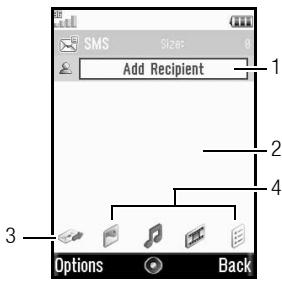
- Champ destinataire
- Champ message
- Indicateur d'envoi
- Indicateurs de pièces jointes (de gauche à droite : image, son, clip vidéo, autres)
Création d'un nouveau message (M 4-1) (SMS/MMS)
→ "Créer un message" → "Message"
E-mail)
→ "Créer un message" → "E-mail"
- Sélectionnez le champ adresse.
- Sélectionnez la méthode souhaitée pour saisir l'adresse.
- Pour MMS, saisissez ou sélectionnez l'adresse e-mail ou le numéro de téléphone dans la liste de contacts. Pour SMS, saisissez ou sélectionnez un numéro de téléphone. Pour e-mail, saisissez ou sélectionnez une adresse e-mail.
- Pour ajouter plusieurs adresses e-mail ou numéros de téléphone, mettez en surbrillance le champ destinataire, appuyez sur [Options], sélectionnez "Modifier les destinataires", puis sélectionnez "Ajouter un contact". Saisissez ou sélectionnez l'adresse e-mail ou le numéro de téléphone dans la liste de contacts existante.
- Pour modifier les types de destinataires, appuyez sur [Options], sélectionnez "Modifier les destinataires" et mettez en surbrillance le destinataire souhaité. Appuyez sur [Options] et sélectionnez "Changer en À", "Changer en Cc" ou "Changer en Cci".
- Pour ajouter un objet, appuyez sur [Options] et sélectionnez "Ajouter un objet".
- Placez le curseur dans le champ du message.
- Saisissez le message.
- Mettez en surbrillance l'indicateur "Envoyer" en bas à gauche de l'écran. Appuyez sur ○ et sélectionnez "Envoyer le message".
Après l'envoi du message, celui-ci est déplacé dans la boîte d'envoi.
Astuce
- Pour envoyer le même message à un groupe de destinataires, sélectionnez "Sélectionner un groupe" à l'étape 3, puis sélectionnez le nom du groupe souhaité. Pour plus de détails sur la création d'une liste de diffusion, voir "Création d'une nouvelle liste de diffusion" à la page 38.
Pour ajouter un diaporama
- À l'étape 5 de « Création d'un nouveau message », appuyez sur [Options] et sélectionnez « Ajouter une diapositive ».
Si vous souhaitez ajouter d'autres diapositives, sélectionnez « Ajouter une diapositive après » ou « Ajouter une diapositive avant ».
2. Saisissez le message.
Si vous souhaitez définir la durée de chaque diapositive, mettez en surbrillance l'espace entre les diapositives. Appuyez sur [Options] et sélectionnez « Durée de la diapositive », puis choisissez la durée souhaitée.
Astuce
- Vous pouvez créer des messages jusqu'à 300 Ko. Chaque diapositive peut contenir une image et/ou un fichier sonore ou un clip vidéo.
Pour joindre des données de Mes éléments
- À l'étape 5 de « Création d'un nouveau message » à la page 50, mettez en surbrillance l'indicateur « Image », « Son » ou « Vidéo » en bas au centre de l'écran, puis appuyez sur .
- Sélectionnez « Images enregistrées », « Sons enregistrés » ou « Vidéos enregistrées ».
- Sélectionnez le fichier souhaité.
Si vous souhaitez prendre de nouvelles photos, enregistrer des sons ou des clips vidéo, sélectionnez « Prendre une photo », « Enregistrer la voix » ou « Enregistrer une vidéo ».
- Lorsque vous joignez des fichiers JPEG, sélectionnez l'option de redimensionnement appropriée, car la taille maximale des messages pour l'envoi varie selon le fournisseur de services.
Pour joindre une entrée de la liste de contacts
- À l'étape 5 de « Création d'un nouveau message » à la page 50, mettez en surbrillance l'indicateur « Autres » en bas à droite de l'écran. Appuyez sur et sélectionnez « Joindre un contact ».
- Sélectionnez l'entrée souhaitée.
Si vous souhaitez sélectionner votre propre entrée de la liste de contacts, choisissez "Mes coordonnées".
Pour joindre une entrée de l'agenda
- À l'étape 5 de "Création d'un nouveau message" à la page 50, mettez en surbrillance l'indicateur "Autres" en bas à droite de l'écran. Appuyez sur ○ et sélectionnez "Joindre un rendez-vous".
- Sélectionnez le jour souhaité, y compris l'entrée d'agenda que vous souhaitez ajouter.
- Sélectionnez l'entrée d'agenda souhaitée.
Pour supprimer ou remplacer des pièces jointes
- À l'étape 5 de "Création d'un nouveau message" à la page 50, appuyez sur [Options] et sélectionnez l'option de suppression correspondante pour chaque pièce jointe.
Utilisation des options d'envoi
Vous pouvez utiliser les options d'envoi de message pour chaque type de message.
- Mettez en surbrillance l'indicateur "Envoyer" en bas à gauche de l'écran, puis appuyez sur ○ et sélectionnez "Paramètres du message".
- "Accusé de lecture" ("Activé", "Désactivé") (MMS) : Confirme si un rapport est envoyé pour notifier l'expéditeur que le message a été lu.
- "Accusé de réception" ("Activé", "Désactivé") (SMS/MMS) : Active ou désactive l'accusé de réception lorsque le message est envoyé avec succès au destinataire.
- "Durée de validité" ("Maximum", "30 minutes", "1 heure", "6 heures", "1 jour", "1 semaine") (SMS/MMS) : Définit la durée de validité d'un message à enregistrer sur le serveur.
- "Priorité" ("Haute", "Normale", "Basse") : donne la priorité aux messages composés.
- "Heure de livraison" ("Aucun délai", "30 minutes", "1 heure", "6 heures", "1 jour", "1 semaine") (SMS/MMS) : définit le délai avant la livraison du message.
- Mettez en surbrillance l'indicateur "Envoyer" en bas à gauche de l'écran. Appuyez sur et sélectionnez "Envoyer le message".
Une fois le message envoyé, il est déplacé dans la boîte d'envoi.
Remarque
- La taille du message affichée pendant la création est approximative.
- Si un message ne peut pas être envoyé pour une raison quelconque, il reste dans la boîte d'envoi et le symbole "×" s'affiche en veille.
Astuce
- Pour enregistrer le message sans l'envoyer, appuyez sur [Options] et sélectionnez "Enregistrer dans les brouillons" à l'étape 5 de "Création d'un nouveau message" à la page 50.
- Vous pouvez joindre les éléments suivants aux messages multimédia. Les détails sont donnés dans les sections suivantes.
Données Mes éléments - Entrée de la liste de contacts - Fichier (entrée de calendrier créée par l'agenda, entrée de la liste de contacts), etc.
- Vous pouvez utiliser l'option de modèle pour vous aider à composer des messages. Pour plus de détails sur l'utilisation de cette option, voir "Utilisation des modèles" à la page 31.
Envoi d'un message depuis la boîte des brouillons (M 4-3)
→ "Brouillons"
- Sélectionnez l'onglet souhaité, SMS/MMS ou E-mail.
- Appuyez sur [Options] et sélectionnez "Modifier et envoyer".
- Modifiez le message, si nécessaire.
- Mettez en surbrillance l'indicateur "Envoyer" en bas à gauche de l'écran. Appuyez sur et sélectionnez "Envoyer le message".
Envoi d'un message vocal ou d'un message vidéo (M 4-1-2) (M 4-1-3)
Vous pouvez enregistrer un nouveau clip vocal ou vidéo lors de la création d'un nouveau message.
Sélectionnez l'option appropriée.
→ "Créer un message" → "Message vocal" → "Créer un message" → "Message vidéo"
- Appuyez sur pour commencer l'enregistrement.
- Appuyez sur pour arrêter l'enregistrement.
- Sélectionnez "Accepter" pour joindre au nouveau message.
Le fichier est enregistré dans le dossier correspondant dans Mes éléments. Pour les procédures suivantes, voir "Création d'un nouveau message" à la page 50.
Lecture des messages
Les messages que vous recevez sont enregistrés dans la boîte de réception.
⊙ → "Boîte de réception"
- Sélectionnez le message que vous souhaitez consulter.
Enregistrement du numéro de téléphone d'un expéditeur dans la liste de contacts
⊙ → "Boîte de réception"
- Mettez en surbrillance le message dont vous souhaitez enregistrer le numéro de téléphone ou l'adresse e-mail.
- Appuyez sur [Options] et sélectionnez "Enregistrer l'adresse".
L'écran de nouvelle entrée de la liste de contacts, incluant le numéro de téléphone, s'affiche. Pour plus de détails sur la création d'une nouvelle entrée de la liste de contacts, voir "Ajouter un nouveau contact" à la page 35.
Appel du numéro de téléphone d'un expéditeur intégré dans le message
⊙ → "Boîte de réception"
- Mettez en surbrillance le message contenant le numéro de téléphone que vous souhaitez composer.
- Appuyez sur [Options] et sélectionnez "Appeler l'expéditeur".
Téléchargement d'un MMS unique
⊙ → "Boîte de réception"
- Mettez en surbrillance l'alerte de message ( ) que vous souhaitez télécharger.
- Appuyez sur [Options] et sélectionnez "Télécharger".
Astuce
- Vous pouvez télécharger plusieurs messages en même temps. Voir « Téléchargement de plusieurs MMS ».
Téléchargement de plusieurs MMS
→ « Boîte de réception »
- Appuyez sur [Options] et sélectionnez « Avancé ».
- Sélectionnez « Sélection multiple ».
- Sélectionnez l'alerte de message souhaitée, appuyez sur [Options] et sélectionnez « Sélectionner » ou « Tout sélectionner ».
- Appuyez sur [Options] et sélectionnez « Télécharger ».
Les messages sélectionnés sont téléchargés en même temps.
Répondre à un message ou à tous les destinataires
→ « Boîte de réception »
- Mettez en surbrillance le message dont vous souhaitez répondre à l'expéditeur.
- Appuyez sur [Options] et sélectionnez « Répondre » ou « Répondre à tous ».
- Sélectionnez « Répondre » ou « Répondre avec historique ».
- Saisissez le message.
- Mettez en surbrillance l'indicateur "Envoyer" en bas à gauche de l'écran. Appuyez sur et sélectionnez "Envoyer un message".
Transfert d'un message
→ "Boîte de réception"
- Mettez en surbrillance le message que vous souhaitez transférer.
- Appuyez sur [Options] et sélectionnez "Transférer".
- Effectuez les étapes 1 à 6 de la section "Création d'un nouveau message" à la page 50.
Tri des messages dans la liste
→ "Boîte de réception"
- Appuyez sur [Options] et sélectionnez "Avancé".
- Sélectionnez "Trier".
- Sélectionnez le type de tri souhaité.
Verrouillage ou déverrouillage des messages
→ "Boîte de réception"
- Mettez en surbrillance le message que vous souhaitez verrouiller ou déverrouiller.
- Appuyez sur [Options] et sélectionnez "Avancé".
- Sélectionnez « Verrouiller » ou « Déverrouiller ».
Envoi d'un fichier image avec une carte postale (M 4-1-4)
Votre téléphone vous permet d'envoyer des messages multimédia à un centre de service de cartes postales spécifique à Vodafone, qui imprime l'image et l'envoie par courrier à l'adresse du destinataire spécifiée dans le message MMS. (Votre téléphone est initialement fourni avec l'adresse d'un centre de service de cartes postales spécifique à Vodafone, et cette adresse ne peut pas être modifiée.)
Remarque
- Ce service n'est pas disponible avec certains fournisseurs de services. Veuillez contacter votre fournisseur de services pour plus d'informations.
Pour créer une nouvelle carte postale
Voir la note à la page 133 pour les indications de menu.
→ « Créer un message » → « Carte postale » → « Images enregistrées »
1. Sélectionnez une image que vous souhaitez envoyer.
Si vous souhaitez prendre de nouvelles photos, sélectionnez « Prendre une photo ». Si la taille du fichier des images JPEG sélectionnées ou des photos prises est trop grande pour être envoyée, redimensionnez l'image et réessayez.
2. Saisissez votre message.
Vous pouvez saisir des messages d'une longueur maximale de 200 octets.
3. Saisissez ou sélectionnez le destinataire.
Voir la note ci-dessous pour plus de détails.
- « Nom » (obligatoire) : Nom du destinataire pour une carte postale, jusqu'à 50 octets. « Informations supplémentaires » (facultatif) : Informations supplémentaires sur le destinataire, jusqu'à 50 octets.
- "Street & Number" (obligatoire) : rue et numéro jusqu'à 50 octets. "Ville" (obligatoire) : ville jusqu'à 50 octets.
- "Code postal" (facultatif) : code postal jusqu'à 20 octets.
- "État/Province" (facultatif) : état, province et région jusqu'à 50 octets. "Pays" (facultatif) : pays jusqu'à 20 octets.
4. Appuyez sur [Options] et sélectionnez "Envoyer une carte postale".
Remarque
- Les éléments "Nom", "Rue et numéro" et "Ville" sont nécessaires pour terminer l'envoi de cartes postales.
- Les éléments affichés diffèrent selon le service. Veuillez contacter votre fournisseur de services pour plus d'informations. L'élément "Pays" peut ne pas être affiché, vous ne pouvez donc pas envoyer de cartes postales à l'étranger depuis votre téléphone.
- Les astérisques saisies dans le message ou l'adresse deviennent invalides lors de l'envoi du message, et les espaces ne peuvent pas être saisis dans le code postal.
- Les fichiers au format GIF animé ne peuvent pas être utilisés pour le service de cartes postales.
- La qualité d'image des cartes postales varie selon la taille de l'image.
Paramètres de messagerie (M 4-9)
Paramètres généraux (M 4-9-1)
→ "Paramètres de messagerie" → "Paramètres généraux"
1. Sélectionnez l'élément que vous souhaitez configurer.
- "Téléchargement à domicile" :
Contrôle le moment du téléchargement des messages dans votre zone réseau.
"Toujours télécharger" : télécharge immédiatement les messages depuis le serveur.
"Toujours différer" : diffère le téléchargement des messages.
- "Téléchargement en itinérance" :
Contrôle le moment du téléchargement des messages lorsque vous êtes en itinérance hors de votre réseau.
"Toujours télécharger" : télécharge immédiatement les messages depuis le serveur.
"Toujours différer" : diffère le téléchargement des messages.
- "Accusé de réception" :
Active ou désactive la demande d'accusé de réception.
- "Accusé de lecture" :
Active ou désactive la demande d'accusé de lecture.
- "Durée de validité" :
Indique le nombre de jours et d'heures pendant lesquels un message que vous envoyez peut rester non livré au destinataire. Pendant cette période, le centre de services de messages essaiera continuellement de livrer le message au destinataire.
- "Autoriser l'accusé de réception" :
Confirme si un rapport est envoyé pour notifier l'expéditeur lorsque vous recevez un MMS/SMS.
- "Read Report Allow" :
Active ou désactive l'autorisation de rapport de lecture lorsque le destinataire est tenu d'informer l'expéditeur que le message a été lu.
- "Modifier la signature" :
Ouvre l'écran pour saisir la signature.
- "Suppression automatique" :
Supprime automatiquement le message le plus ancien lorsque la boîte de réception, les messages envoyés ou les deux (boîte de réception et messages envoyés) sont pleins.
Renvoi automatique
Tente de renvoyer le SMS/MMS ayant échoué jusqu'à deux fois (sélection "Activé" ou "Désactivé").
- "Affichage de la liste des messages" :
Bascule l'affichage de la boîte aux lettres entre "Affichage sur une ligne" et "Affichage sur deux lignes".
Paramètres SMS (M 4-9-2)
→ "Paramètres de messagerie" → "Paramètres SMS"
- Sélectionnez l'élément que vous souhaitez configurer.
- "Centre de messages" :
Saisissez le numéro du centre de messages.
Si vous souhaitez saisir un indicatif de pays pour un message vers un numéro international, maintenez la touche 0 enfoncée jusqu'à ce qu'un signe + s'affiche.
- "Format de message" :
Sélectionnez le format de message à utiliser lors de la création d'un nouveau message.
- Chemin de réponse :
Accepte ou rejette le même chemin de réponse que le chemin d'envoi lors de la réception du message de réponse à votre message.
- "Optimisation" :
Lorsqu'elle est réglée sur "Activée" (par défaut), les caractères à double octet tels que les caractères européens avec accent sont convertis en caractères à simple octet et envoyés.
Lorsqu'elle est réglée sur "Désactivée", les caractères à double octet sont envoyés tels qu'ils sont affichés.
Veuillez noter que vous pouvez être facturé le double pour les caractères à double octet envoyés dans un SMS lorsque l'optimisation est réglée sur "Désactivée".
Paramètres MMS (M 4-9-3)
→ "Paramètres de messagerie" → "Paramètres MMS"
- Sélectionnez l'élément que vous souhaitez configurer.
Sélectionnez le compte souhaité ou sélectionnez "Créer nouveau" pour saisir les paramètres suivants.
"Nom du profil" : nom du profil MMS (nom unique)
"Proxy" : paramètre de proxy pour MMS
"URL du serveur relais" : serveur relais MMS
- "Durée de la diapositive" :
Définit la durée de la diapositive.
- "Taille maximale du message" :
Définit la taille maximale du message pour l'envoi et désactive l'envoi de messages MMS dépassant cette taille.
- "Mode de création" :
Lorsqu'il est défini sur "Libre", vous pouvez joindre des fichiers de tout format au message. Lorsqu'il est défini sur "Restreint", seuls certains formats et tailles de message peuvent être joints. Le paramètre "Restreint" a priorité sur "Taille maximale du message".
Paramètres de messagerie (M 4-9-4)
→ "Paramètres de messagerie" → "Paramètres e-mail"
- Sélectionnez l'élément que vous souhaitez configurer.
- "Comptes e-mail" : sélectionnez le compte souhaité ou sélectionnez "Créer nouveau" pour saisir les paramètres suivants.
"Nom du compte" : nom du compte e-mail (nom unique)
"Serveur POP3" : nom du serveur, identifiant, mot de passe et numéro de port pour le serveur POP3
"Serveur SMTP" : nom du serveur, identifiant, mot de passe, numéro de port pour le serveur SMTP et authentification SMTP
"Point d'accès" : point d'accès pour l'e-mail. "Adresse e-mail" : adresse e-mail
- "Intervalle de téléchargement" : définit l'intervalle de téléchargement.
- "Taille maximale des messages" : définit la taille maximale des messages pour l'envoi et désactive l'envoi de messages e-mail dépassant cette taille.
Diffusion cellulaire (M 4-9-5)
Vous pouvez recevoir des messages de diffusion cellulaire ou des messages généraux tels que des prévisions météorologiques et des informations sur le trafic. Ces informations sont diffusées aux abonnés dans certaines zones du réseau.
Cette fonction peut ne pas être disponible sur tous les réseaux de téléphonie mobile. Contactez votre fournisseur de services pour plus d'informations.
Pour activer/désactiver la diffusion cellulaire
→ "Paramètres de messagerie" → "Diffusion cellulaire" → "Activer/Désactiver"
- Sélectionnez "Activé" ou "Désactivé".
Pour lire les messages de diffusion cellulaire
→ "Paramètres de messagerie" → "Diffusions cellulaires" → "Lire les messages"
- Sélectionnez le sujet souhaité.
- Faites défiler l'écran pour lire le message.
- Appuyez sur [Retour].
Pour définir les langues des messages de diffusion cellulaire
→ "Paramètres de messagerie" → "Diffusions cellulaires" → "Paramètres" → "Langue"
La langue actuelle est affichée.
- Appuyez sur
- Appuyez sur pour cocher.
- Appuyez sur [Enregistrer].
Pour s'abonner aux diffusions cellulaires
Sélectionnez la page du message de diffusion cellulaire que vous souhaitez.
→ "Paramètres de messagerie" → "Diffusions cellulaires" → "Paramètres" → "Définir les sujets d'information" → [Options]
- Sélectionnez "Ajouter/Supprimer".
- Sélectionnez la page souhaitée.
- Appuyez sur [Retour].
Astuce
- Si la page souhaitée ne figure pas dans la liste qui apparaît à l'étape 2, sélectionnez "Créer un sujet" à l'étape 1, puis saisissez le code du sujet pour ajouter une page. Pour plus de détails sur le code du sujet, contactez votre fournisseur de services.
Infos zone (M 4-9-6)
Les Infos zone sont les informations de message que les opérateurs envoient aux abonnés dans certaines zones.
Lorsque vous recevez des Infos zone, le message (code de zone) s'affiche en veille.
Pour activer/désactiver les Infos zone
→ "Paramètres de messagerie" → "Infos zone"
- Sélectionnez "Activé" ou "Désactivé".
Remarque
- Cette fonction peut ne pas être disponible sur tous les réseaux de téléphonie mobile. Contactez votre fournisseur de services pour plus d'informations.
- Si les Infos zone sont définies sur "Activé", la durée de veille diminuera.
Vodafone live! (M 2)
Votre téléphone est déjà configuré pour accéder à Vodafone live! et à l'Internet mobile*.
Personnalisé pour

live !
Vodafone live! est un nouveau portail Internet mobile qui est votre passerelle vers un nouveau monde d'informations, de jeux, de musique et de services.
Parce que votre téléphone utilise la 3G (UMTS), il dispose d'un système beaucoup plus rapide que les anciennes méthodes d'accès aux informations mobiles. De plus, la connexion est « toujours active », ce qui signifie qu'il n'est pas nécessaire d'attendre la numérotation. Vous ne payez que pour les données que vous envoyez ou recevez, et non pour la durée de connexion.
- Si vous rencontrez des problèmes de connexion, veuillez contacter le service clientèle de Vodafone.
Votre téléphone contient un navigateur WAP utilisé pour surfer sur l'Internet mobile, où vous pouvez obtenir de nombreuses informations utiles. Normalement, les pages sont conçues pour un téléphone mobile.
Menu principal
"Vodafone live!" → "Vodafone live!"
La page de service Vodafone live! s'affiche.
"Vodafone live!" → "Saisir l'URL"
L'écran de saisie d'URL s'affiche, vous permettant d'accéder à un site.
"Vodafone live!" → "Signets"
Voir page 61.
"Vodafone live!" → "Boîte de réception des alertes"
Les alertes WAP Push sont affichées.
"Vodafone live!" → "My Saved Page"
Les captures d'écran enregistrées sont affichées.
"Vodafone live!" → "Historique d'accès"
L'historique des pages que vous avez récemment consultées est affiché.
"Vodafone live!" → "Paramètres du navigateur"
Voir page 61.
Naviguer dans une page WAP
A
Déplacez les surlignages à l'écran.
- ○ : exécute l'option affichée en bas au centre de l'écran.
- ⊖ : lance le menu des options du navigateur.
- ⊖ : sélectionne une action affichée en bas à droite de l'écran.
Utilisé pour accéder à "Vodafone live!" en ouvrant le navigateur.
- (appui court) : quitte le navigateur. (appui long) : éteint le téléphone.
Modification des favoris (M 2-3)
"Vodafone live!" → "Favoris"
- Sélectionnez l'URL souhaitée, puis appuyez sur [Options].
Vous pouvez modifier la liste des favoris à l'aide des options suivantes :
"Ouvrir" : sélectionne un favori. "Détails" : affiche des informations détaillées sur la page WAP.
"Envoyer la page" : envoie l'adresse URL à des destinataires. "Nouveau" : crée de nouveaux dossiers ou favoris. "Renommer" : renomme les favoris.
"Modifier l'URL" : modifie l'adresse URL du favori. "Déplacer" : déplace les favoris vers un autre emplacement. "Supprimer" : supprime un favori. "Tout supprimer" : supprime tous les favoris.
Paramètres du navigateur (M 2-7)
"Vodafone live!" → "Paramètres du navigateur"
"Taille de police" : définit la taille de la police de navigation. "Pas de défilement" : définit la vitesse de défilement. "Envoyer le référent" : active ou désactive la notification du référent. "Cookies" : règle les paramètres des cookies. "Téléchargements" : active le téléchargement de données à partir des images/sons/objets. "Sécurité" : règle le niveau d'invite de sécurité. "WAP Push" : définit si vous avez besoin d'une confirmation pour les messages push. "Télécharger vers" : définit l'emplacement de téléchargement.
Les options du navigateur
Vous pouvez utiliser diverses options du navigateur WAP.
→ [Options]
"Select" :
"Accueil" :
"Signets" :
"Marquer la page" :
"Enregistrer ce lien" :
"Enregistrer les éléments" :
"Saisir l'URL" :
"Historique d'accès" :
"Suivant" :
"Recharger la page" :
"Avancé" :
"Quitter" :
Sélectionne une page WAP.
Va à la page d'accueil.
Voir page 61.
Marque la page WAP sélectionnée.
Télécharge les données de la page WAP liée.
Enregistre les éléments des pages WAP.
Accède à la page WAP dont vous saisissez l'adresse URL.
Affiche l'historique de navigation.
Passe à la page suivante parmi les pages affichées.
Recharge la page WAP pour obtenir de nouvelles informations.
Affiche les menus avancés.
Quitte le navigateur.
Les options avancées
→ [Options] → "Avancé"
"Ma page enregistrée" :
"Enregistrer cette page" :
"Envoyer la page" :
"Détails" :
Données du navigateur :
Rechercher dans cette page :
Copier le texte :
Paramètres du navigateur :
Redémarrer le navigateur :
À propos :
Les captures d'écran enregistrées sont affichées.
Enregistre la page WAP en fichier local.
Envoie l'adresse URL et le titre aux destinataires.
Affiche des informations détaillées sur la page WAP.
Modifie les données du navigateur. Vous pouvez effacer le cache/les cookies/l'historique.
Recherche des mots spécifiques dans la page WAP.
Copie le texte de la page web.
Affiche les menus de paramètres.
Redémarre le navigateur.
Affiche les informations du navigateur.
Musique (M 3)
Lecteur de musique
Vous pouvez lire des fichiers audio aux formats MP3, AAC et AAC+ avec le lecteur de musique. Pendant la lecture de fichiers audio en arrière-plan, vous pouvez utiliser d'autres menus.
Lecture de fichiers audio
"Musique" → "Ma musique"
- Sélectionnez "Toute la musique" ou la liste de lecture souhaitée.
- Sélectionnez le fichier souhaité.
Pour mettre en pause la lecture, appuyez sur
Pour arrêter la lecture, appuyez sur [Retour].
Remarque
- Il vous est demandé si vous souhaitez jouer les sons lorsque le mode Silencieux est activé.
- Pour lire le dernier fichier joué, sélectionnez "Dernière musique jouée". "En cours de lecture" s'affiche lorsque le fichier est en cours de lecture.
Astuce
- Vous pouvez revenir à l'écran du menu principal tout en lisant le fichier en arrière-plan.
- Vous pouvez créer votre liste de lecture en listant uniquement les fichiers souhaités (p. 64).
- Vous pouvez régler le son à l'étape 2. Appuyez sur [Options] et sélectionnez "Contrôle du son". Sélectionnez "Normal", "Basse", "Surround" ou "Surround Basse".
- Vous pouvez sélectionner le mode de lecture à l'étape 2. Appuyez sur [Options] et sélectionnez "Mode de lecture".
"Normal" : lit tous les fichiers du dossier sélectionné une fois puis arrête la lecture.
"Répéter" : continue la lecture dans le dossier sélectionné. "Tout répéter" : lit tous les fichiers du dossier sélectionné. "Aléatoire" : lit les fichiers du dossier sélectionné dans un ordre aléatoire.
- Vous pouvez contrôler le lecteur de musique à l'aide des touches suivantes :

: Augmente ou diminue le volume.

(maintenir enfoncé) : coupe le son.

: Passe au fichier suivant.

: Revient au début du fichier en cours.

(maintenir enfoncé) : avance rapide.

(maintenir enfoncé) : retour rapide.

: Lit le fichier en arrière-plan.
Recherche d'un fichier à lire
"Musique" → "Ma musique"
- Sélectionnez "Toute la musique" ou la liste de lecture souhaitée.
- Appuyez sur [Options] et sélectionnez "Rechercher".
- Saisissez les premières lettres du titre.
Les résultats de recherche sont affichés par ordre alphabétique et le fichier correspondant est mis en surbrillance.
Ajout d'un fichier à la liste de lecture
Vous pouvez créer une liste de lecture en enregistrant les fichiers souhaités.
"Musique" → "Ma musique" → "Toute la musique"
- Mettez en surbrillance le fichier que vous souhaitez ajouter à la liste de lecture.
- Appuyez sur [Options] et sélectionnez "Ajouter à la liste de lecture".
Les listes de lecture sont affichées. Pour plus de détails sur l'ajout d'une liste de lecture, voir "Ajout d'une nouvelle liste de lecture". 3. Sélectionnez le dossier souhaité.
Le fichier mis en surbrillance à l'étape 1 est enregistré.
Pour supprimer des fichiers de la liste de lecture, mettez le fichier en surbrillance et appuyez sur
[Options]. Sélectionnez ensuite "Supprimer de la liste de lecture".
Ajout d'une nouvelle liste de lecture
"Musique" → "Ma musique"
- Appuyez sur [Options] et sélectionnez "Ajouter une nouvelle liste de lecture".
- Saisissez le nom souhaité pour la liste de lecture.
- Appuyez sur
Remarque
- Pour supprimer la liste de lecture, mettez-la en surbrillance et appuyez sur [Options]. Sélectionnez ensuite "Supprimer la liste de lecture".
Téléchargement des fichiers musicaux (M 3-3)
"Musique" → "Parcourir la boutique de musique"
Le site de téléchargement de fichiers musicaux s'affiche.
Remarque
- Ce service n'est pas disponible avec certains fournisseurs de services. Veuillez contacter votre fournisseur de services pour plus d'informations.
Mes éléments (M 6)
Mes éléments contient plusieurs types de données : images, sons et clips vidéo. Il inclut également des phrases de messages texte fréquemment utilisées et des sites WAP que vous pouvez utiliser pour télécharger. Vous pouvez aussi transmettre des images, des sons et des clips vidéo via la technologie sans fil infrarouge ou Bluetooth à des téléphones compatibles OBEX.
Images (M 6-1)
Les images prises par un appareil photo numérique ou téléchargées depuis des sites Internet mobiles peuvent être gérées. Vous pouvez enregistrer des images aux formats suivants : JPEG, PNG, WBMP et GIF.
Affichage des images
"Mes éléments" → "Images"
- Appuyez pour afficher la liste depuis la carte mémoire et pour revenir à la mémoire du téléphone.
- Sélectionnez le fichier que vous souhaitez afficher. L'image sélectionnée s'affiche.
Utilisation d'images comme fond d'écran
"Mes éléments" → "Images"
- Mettez en surbrillance le fichier que vous souhaitez utiliser comme fond d'écran.
- Appuyez sur [Options] et sélectionnez "Définir comme fond d'écran".
Enregistrement d'une image dans les entrées de la liste de contacts
Vous ne pouvez utiliser cette option que pour les images enregistrées dans la mémoire du téléphone.
"Mes éléments" → "Images"
- Mettez en surbrillance le fichier que vous souhaitez ajouter à la liste de contacts.
- Appuyez sur [Options] et sélectionnez "Ajouter au contact". Pour écraser, sélectionnez les données que vous souhaitez enregistrer. Pour enregistrer comme nouvelle entrée, sélectionnez "Nouveau contact". Pour plus de détails sur la saisie d'un nom, voir "Ajouter un contact" à la page 35.
Modification d'images
"Mes éléments" → "Images"
- Mettez en surbrillance le fichier que vous souhaitez modifier.
- Appuyez sur [Options] et sélectionnez "Éditeur d'images".
- Sélectionnez l'option souhaitée.
Remarque
- "Éditeur d'images" peut ne pas être disponible selon l'image d'origine et les droits d'auteur.
Ajustement de la taille
Vous pouvez ajuster l'image à une taille appropriée selon la scène.
"Mes éléments" → "Images"
- Mettez en surbrillance le fichier dont vous souhaitez ajuster la taille.
- Appuyez sur [Options] et sélectionnez "Redimensionner".
- Sélectionnez l'option souhaitée.
Remarque
- "Redimensionner" peut ne pas être disponible selon l'image d'origine et les droits d'auteur.
Astuce
- Pour les autres menus d'options, voir "Menus d'options courants" à la page 68.
Téléchargement de fichiers image
"Mes éléments" → "Images" → "Obtenir nouveau"
Le site de téléchargement de fichiers image s'affiche.
Sons et sonneries (M 6-2)
Les fichiers sonores téléchargés et les données AMR enregistrées par l'enregistreur vocal sont gérés dans Sons et sonneries. Les sonneries par défaut ne sont pas contenues dans Sons et sonneries. Seuls les fichiers sonores pouvant être lus sur le téléphone sont stockés dans Sons et sonneries.
Lecture de fichiers sonores
"Mes éléments" → "Sons et sonneries"
- Appuyez pour afficher la liste depuis la carte mémoire et pour revenir à la mémoire du téléphone.
- Sélectionnez le fichier que vous souhaitez lire.
Pour arrêter la lecture, appuyez sur
Remarque
- La lecture peut ne pas être disponible pour certains fichiers sonores.
Utilisation des fichiers sonores comme sonnerie
"Mes éléments" → "Sons et sonneries"
- Mettez en surbrillance le fichier que vous souhaitez utiliser comme sonnerie.
- Appuyez sur [Options] et sélectionnez "Définir comme sonnerie".
Remarque
- Les fichiers musicaux au format AMR ne peuvent pas être utilisés comme sonneries.
Astuce
- Pour les autres menus d'options, voir "Menus d'options courants" à la page 68.
Téléchargement de fichiers sonores
"Mes éléments" → "Sons et sonneries" → "Obtenir nouveau"
Le site de téléchargement de fichiers sonores s'affiche.
Vidéos (M 6-4)
Les clips vidéo enregistrés par une caméra vidéo ou téléchargés depuis des sites Internet mobiles peuvent être gérés.
Lecture de fichiers de clips vidéo
"Mes éléments" → "Vidéos"
- Appuyez pour afficher la liste depuis la carte mémoire et pour revenir à la mémoire du téléphone.
- Sélectionnez le fichier que vous souhaitez lire.
- Appuyez sur
Pour mettre la lecture en pause, appuyez sur
Pour reprendre la lecture, appuyez à nouveau sur .
Pour arrêter la lecture, appuyez sur [Retour].
Utilisation d'un clip vidéo comme sonnerie vidéo
Vous pouvez configurer votre clip vidéo pour qu'il soit lu lorsque le téléphone sonne.
"Mes éléments" → "Vidéos"
- Mettez en surbrillance le clip vidéo souhaité.
- Appuyez sur [Options] et sélectionnez "Définir comme sonnerie vidéo".
Astuce
- Pour les autres menus d'options, voir "Menus d'options courants" à la page 68.
Téléchargement de fichiers de clips vidéo
"Mes éléments" → "Vidéos" → "Obtenir nouveau"
Le site de téléchargement de fichiers de clips vidéo s'affiche.
Autres documents (M 6-6)
Certains types de fichiers sont stockés dans le dossier Autres documents du téléphone. Vous pouvez les modifier et les utiliser comme des données de Mes éléments.
Ouverture du fichier document
"Mes éléments" → "Autres documents"
- Appuyez pour afficher la liste depuis la carte mémoire et pour revenir à la mémoire du téléphone.
- Sélectionnez le fichier souhaité.
Astuce
- Pour les autres menus d'options, voir "Menus d'options courants" à la page 68.
Menus d'options courants
Activation des fichiers protégés par le droit d'auteur (DRM)
Certaines images, sonneries et clips vidéo sont protégés par un programme de protection contre la copie numérique, appelé DRM (Digital Rights Management). Vous devez activer la licence numérique pour ouvrir ces fichiers. Les fichiers protégés par DRM sont affichés avec ← . Sélectionnez l'option appropriée.
"Mes éléments" → "Images"
"Mes éléments" → "Sons et sonneries"
"Mes éléments" → "Vidéos"
"Mes éléments" → "Autres documents"
- Mettez en surbrillance le fichier que vous souhaitez activer.
- Appuyez sur [Options] et sélectionnez « Activer ».
Remarque
- Certaines images avec DRM peuvent ne pas s'ouvrir même si l'on tente de les activer.
Envoi des données de Mes éléments
Sélectionnez l'option appropriée.
« Mes éléments » → « Images »
« Mes éléments » → « Sons et sonneries »
« Mes éléments » → « Vidéos »
« Mes éléments » → « Autres documents »
- Mettez en surbrillance le fichier souhaité.
- Appuyez sur [Options] et sélectionnez « Envoyer ».
- Sélectionnez « Comme message », « Comme carte postale », « Via Bluetooth » ou « Via infrarouge ».
Pour plus de détails sur la création d'un message, voir « Créer un nouveau message » à la page 50.
Pour plus de détails sur les paramètres sans fil Bluetooth, voir « Bluetooth » à la page 111.
Pour plus de détails sur les paramètres infrarouge, voir « Infrarouge » à la page 113.
Note
- Les images, sons et clips vidéo protégés par des droits d'auteur ne peuvent pas être envoyés en pièce jointe à un message, à l'exception des fichiers en livraison séparée.
- Lors de l'appairage, vous devez saisir votre code d'accès lors du premier contact avec un appareil compatible avec la technologie sans fil Bluetooth.
- Lorsque vous envoyez un fichier image, sélectionnez "Comme carte postale" à l'étape 3. Le service de carte postale n'est pas disponible avec certains fournisseurs. Contactez votre fournisseur de services pour plus d'informations.
Réception des données Mes éléments
Lorsque le téléphone reçoit des données Mes éléments, un message de confirmation s'affiche en veille.
1. Appuyez sur [Oui].
Les données reçues sont enregistrées dans le dossier Mes éléments correspondant.
Astuce
- Pour plus de détails sur les paramètres infrarouge ou sans fil Bluetooth, voir "Connectivité" à la page 111.
Utilisation des données Mes éléments
Vous pouvez copier, déplacer, trier, renommer et supprimer les données Mes éléments enregistrées.
Sélectionnez l'option appropriée.
"Mes éléments" → "Images"
"Mes éléments" → "Sons et sonneries"
"Mes éléments" → "Vidéos"
"Mes éléments" → "Autres documents"
- Mettez en surbrillance le fichier souhaité.
- Appuyez sur [Options] et sélectionnez "Avancé".
- Sélectionnez l'option souhaitée.
"Déplacer" : déplace les fichiers vers un autre dossier. Sélectionnez le dossier de destination.
"Copier" : copie les fichiers. Sélectionnez le dossier de destination.
"Créer un dossier" : crée un nouveau dossier.
"Sélection multiple" : sélectionne plusieurs fichiers.
"Trier" : trie les fichiers. Sélectionnez les fichiers à trier.
Pour renommer le fichier
Sélectionnez l'option appropriée.
"Mes éléments" → "Images"
"Mes éléments" → "Sons et sonneries"
"Mes éléments" → "Vidéos"
"Mes éléments" → "Autres documents"
- Mettez en surbrillance le fichier souhaité.
- Appuyez sur [Options] et sélectionnez "Renommer".
Pour supprimer le fichier
"Mes éléments" → "Images" "Mes éléments" → "Sons et sonneries" "Mes éléments" → "Vidéos" "Mes éléments" → "Autres documents" 1. Mettez en surbrillance le fichier souhaité. 2. Appuyez sur [Options] et sélectionnez "Supprimer".
Pour voir les détails de Mes éléments
Sélectionnez l'option appropriée.
"Mes éléments" → "Images"
"Mes éléments" → "Sons et sonneries"
"Mes éléments" → "Vidéos"
"Mes éléments" → "Autres documents"
- Mettez en surbrillance le fichier dont vous souhaitez voir les détails.
- Appuyez sur [Options] et sélectionnez "Détails".
Téléchargement des données de Mes éléments
Vous pouvez télécharger vos fichiers image, son ou clip vidéo vers l'album multimédia.
"Mes éléments" → "Images"
"Mes éléments" → "Sons et sonneries"
"Mes éléments" → "Vidéos"
- Mettez en surbrillance le fichier que vous souhaitez télécharger.
- Appuyez sur [Options] et sélectionnez "Envoyer".
- Sélectionnez "Vers l'album multimédia".
Remarque
- Ce service n'est pas disponible avec certains fournisseurs de services. Veuillez contacter votre fournisseur de services pour plus d'informations.
- Les fichiers image, son et clip vidéo protégés par un droit d'auteur ne peuvent pas être téléchargés, à l'exception des fichiers de livraison séparée.
Sélection de plusieurs fichiers
Vous pouvez sélectionner plus d'un élément dans Mes éléments pour les déplacer, les copier et les supprimer.
Remarque
- La procédure suivante s'applique lorsque les entrées autres que "Obtenir nouveau" sont en surbrillance.
Sélectionnez l'option appropriée.
"Mes éléments" → "Images" → [Options]
"Mes éléments" → "Sons et sonneries" → [Options]
"Mes éléments" → "Vidéos" → [Options]
"Mes éléments" → "Autres documents" → [Options]
- Sélectionnez "Avancé".
- Sélectionnez "Sélection multiple".
- Appuyez sur pour cocher les noms de fichiers souhaités.
- Appuyez sur [Options] et sélectionnez l'option souhaitée.
Astuce
- Pour décocher, sélectionnez à nouveau le fichier ou sélectionnez "Décocher" à l'étape 4.
- Si vous souhaitez sélectionner tous les fichiers, sélectionnez "Tout sélectionner" à l'étape 4. Pour tout décocher, sélectionnez "Tout décocher".
Jeux et applications (M 6-3)
Pour plus de détails sur les applications spécifiques à Vodafone, voir "Jeux et applications" à la page 72.
Modèles de texte (M 6-5)
Vous pouvez enregistrer jusqu'à 50 modèles de texte pour les utiliser dans les messages texte et les messages multimédia. Un maximum de 256 caractères peut être utilisé pour un seul modèle de texte.
Ajout de phrases aux modèles de texte
"Mes éléments" → "Modèles de texte" → "Ajouter un nouveau modèle"
- Saisissez le texte et appuyez sur ○
Modification des modèles de texte
"Mes éléments" → "Modèles de texte"
- Mettez en surbrillance le modèle de texte que vous souhaitez modifier.
- Appuyez sur [Options] et sélectionnez "Modifier".
Pour afficher le modèle de texte, appuyez sur [Options] et sélectionnez "Afficher".
Pour supprimer le modèle de texte, appuyez sur [Options] et sélectionnez "Supprimer".
3. Modifiez le texte et appuyez sur ○
Envoi de modèles de texte
"Mes éléments" → "Modèles de texte"
- Mettez en surbrillance le modèle de texte que vous souhaitez envoyer.
- Appuyez sur [Options] et sélectionnez "Envoyer le modèle".
État de la mémoire (M 6-7)
Cette fonction vous permet de vérifier l'état de la mémoire du téléphone ou de la carte mémoire. L'état de la mémoire couvre les éléments suivants.
Mémoire du téléphone : Applications, Images, Vidéos, Sons, Autres, Total et Espace libre
Carte mémoire : Images, Vidéos, Sons, Autres, Total et Espace libre
"Mes éléments" → "État de la mémoire"
- Sélectionnez "Mémoire du téléphone" ou "Carte mémoire".
Divertissement (M 1)
Jeux et applications (M 1-1)
Utilisation des applications (M 1-1-1)
Différents types d'applications spécifiques à Vodafone peuvent être utilisés sur ce téléphone. Pour utiliser des applications, téléchargez-les via l'Internet mobile. Certaines applications offrent la possibilité de se connecter à un réseau, que ce soit dans un jeu ou une application basée sur le réseau.
Remarque
- Les applications peuvent être à la fois locales (sans connectivité) et basées sur le réseau (utilisant l'Internet mobile pour mettre à jour des informations/jouer à des jeux). Le réseau peut vous facturer davantage pour l'utilisation d'applications basées sur le réseau. Veuillez contacter votre fournisseur de services pour plus d'informations.
Téléchargement d'applications
"Divertissement" → "Jeux et applications" → "Jeux et applications" → "Plus de jeux"
- Sélectionnez l'application souhaitée. Avant de télécharger l'application, il vous est demandé de confirmer ce que vous êtes sur le point de recevoir. Après avoir vérifié les informations sur l'écran de confirmation, l'application peut être téléchargée.
- Appuyez sur pour commencer le téléchargement.
- Appuyez sur lorsque c'est terminé.
Remarque
- Une authentification de l'utilisateur peut être requise avant de télécharger l'application sur certains écrans d'information.
Exécution d'applications
"Divertissement" → "Jeux et applications" → "Jeux et applications"
- Sélectionnez le titre de l'application que vous souhaitez exécuter. L'application sélectionnée est exécutée. Pour les applications utilisant une connexion réseau, la connexion au réseau peut être sélectionnée.
- Pour terminer l'application, appuyez sur et sélectionnez "Terminer".
Définition comme économiseur d'écran pour l'écran principal
"Divertissement" → "Jeux et applications" → "Jeux et applications"
- Mettez en surbrillance le fichier que vous souhaitez utiliser comme économiseur d'écran.
- Appuyez sur [Options] et sélectionnez "Définir comme économiseur d'écran".
Définition des autorisations
Vous pouvez définir des autorisations pour les applications Java™ sélectionnées.
"Divertissement" → "Jeux et applications" → "Jeux et applications"
- Mettez en surbrillance l'application Java™ souhaitée.
- Appuyez sur [Options] et sélectionnez "Autorisation".
- Sélectionnez l'une des options suivantes :
"Appel téléphonique" :
"Accès réseau" :
"Messagerie" :
"Exécution automatique" :
"Connexion locale" :
"Lecture des données utilisateur" :
"Écriture des données utilisateur" :
"Utilisation du multimédia" :
"Accès à la localisation" :
Définit l'autorisation d'effectuer des appels vocaux.
Définit l'autorisation d'accéder au réseau.
Définit l'autorisation d'effectuer des messages MMS et SMS.
Définit l'autorisation d'effectuer la fonction d'exécution automatique.
Définit l'autorisation de se connecter à des appareils locaux.
Définit l'autorisation de lire les données utilisateur, telles que les entrées de la liste de contacts, la boîte de réception (Inbox) et les données de Mes éléments.
Définit l'autorisation d'écrire des entrées dans votre téléphone, telles que les entrées de la liste de contacts, la boîte de réception (Inbox) et les données de Mes éléments.
Définit l'autorisation d'utiliser l'enregistrement multimédia.
Définit l'autorisation de mettre à jour la fonction de positionnement.
4. Sélectionnez l'une des options suivantes :
"Session" :
Le message de confirmation n'est pas affiché tant que vous ne quittez pas l'application, tandis que l'exécution de l'API du groupe de fonctions spécifié est autorisée.
"Demander une fois" :
Le message de confirmation est affiché à chaque exécution de l'API du groupe de fonctions spécifié.
"Général" :
Le message de confirmation n'est pas affiché tant que l'application n'est pas supprimée ou que vous ne modifiez pas les paramètres, tandis que l'exécution de l'API du groupe de fonctions spécifié est autorisée.
"Non" :
L'exécution de l'API du groupe de fonctions spécifié n'est pas autorisée.
Remarque
- Pour effacer tous les paramètres d'autorisation, sélectionnez "Réinitialiser" à l'étape 3.
- Toutes les autorisations ne sont pas disponibles pour toutes les applications Java™.
Affichage des informations sur une application
Vous pouvez consulter les informations sur les applications Java™.
"Divertissement" → "Jeux et applications" → "Jeux et applications"
- Mettez en surbrillance l'application Java™ souhaitée.
- Appuyez sur [Options] et sélectionnez "Informations".
Suppression d'une application
Vous pouvez supprimer une application de la mémoire du téléphone.
"Divertissement" → "Jeux et applications" → "Jeux et applications"
- Mettez en surbrillance l'application Java™ souhaitée.
- Appuyez sur [Options] et sélectionnez "Supprimer".
Paramètres (M 1-1-2)
Volume de l'application
Vous pouvez régler le volume de l'application, comme les effets sonores, sur l'un des cinq niveaux ou sur silencieux. Lorsque le profil est réglé sur "Silencieux", le paramètre "Volume général" (p. 93) a priorité.
"Divertissement" → "Jeux et applications" → "Paramètres" → "Volume de l'application"
- Appuyez sur (ou) pour augmenter le volume ou appuyez sur (ou) pour diminuer le volume, puis appuyez sur .
Rétroéclairage
"Divertissement" → "Jeux et applications" → "Paramètres" → "Rétroéclairage" → "Activer/Désactiver"
- Sélectionnez "Toujours activé", "Toujours désactivé" ou "Paramètres normaux".
"Toujours activé" :
Allumé pendant que l'application est utilisée.
"Toujours désactivé" :
Éteint pendant que l'application est utilisée, même si une touche est enfoncée.
"Paramètres normaux" :
Fonctionne avec le réglage principal du rétroéclairage (p. 99).
Pour régler le fonctionnement clignotant
Ce réglage permet de contrôler le rétroéclairage depuis l'application. S'il est réglé sur "Désactivé", le rétroéclairage ne peut pas être allumé depuis l'application.
"Divertissement" → "Jeux et applications" → "Paramètres" → "Rétroéclairage" → "Clignotement"
- Sélectionnez "Activé" ou "Désactivé".
Vibration
Lorsque le vibreur est réglé dans l'application, vous pouvez choisir d'activer ou de désactiver la fonction.
"Divertissement" → "Jeux et applications" → "Paramètres" → "Vibreur"
- Sélectionnez "Activé" ou "Désactivé".
Appels et alarmes
Vous pouvez définir la priorité des appels entrants et des alarmes pendant qu'une application est en cours d'exécution.
"Divertissement" → "Jeux et applications" → "Paramètres" → "Appels et alarmes"
- Sélectionnez "Appel vocal", "Appel vidéo", "Message entrant" ou "Alarme".
- Sélectionnez la méthode souhaitée.
- "Priorité d'appel", "Priorité de message" ou "Priorité d'alarme" : L'application est suspendue automatiquement, et vous pouvez recevoir un appel ou un message, ou l'alarme sonnera. Après avoir terminé l'appel ou le message, ou lorsque l'alarme se termine, l'indicateur de suspension ( ) s'affiche pour vous informer qu'une application est suspendue.
- "Notification d'appel", "Notification de message" ou "Notification d'alarme" : Le défilement (caractères défilants) s'affiche sur la première ligne de l'écran pendant que l'application continue. Si vous appuyez sur , l'application est suspendue, et vous pouvez recevoir un appel ou un message. Après avoir terminé l'appel ou le message, l'indicateur de suspension ( 山 ) s'affiche pour vous informer qu'une application est suspendue.
Écrans de veille
Vous pouvez télécharger des applications de capture d'écran pour l'écran de veille et définir la période d'activation de la capture d'écran.
"Divertissement" → "Jeux et applications" → "Paramètres" → "Écrans de veille" → "Activer/Désactiver"
- Sélectionnez "Activé" ou "Désactivé".
Pour plus de procédures, voir "Définition comme écran de veille pour l'écran principal" à la page 72.
Pour régler le temps d'activation
"Divertissement" → "Jeux et applications" → "Paramètres" → "Écrans de veille" → "Temps d'activation"
- Saisissez le temps d'activation en deux chiffres à l'aide du clavier.
Pour régler le temps de suspension
"Divertissement" → "Jeux et applications" → "Paramètres" → "Écrans de veille" → "Temps de suspension"
- Définissez la période souhaitée entre "après 15 min" et "après 6 heures".
Réglage du son surround
"Divertissement" → "Jeux et applications" → "Paramètres" → "Surround"
- Sélectionnez "Activé" ou "Désactivé".
Paramètres par défaut
Tous les paramètres de "Jeux et applications" peuvent être réinitialisés.
"Divertissement" → "Jeux et applications" → "Paramètres" → "Rétablir les valeurs par défaut"
- Saisissez votre code de combiné.
Effacement de toute la mémoire
Les applications Java™ de la mémoire du combiné peuvent être réinitialisées.
"Entertainment" → "Games & Applications" → "Settings" → "Memory All Clear"
- Saisissez votre code téléphone.
Informations Java™ (M 1-1-3)
"Entertainment" → "Games & Applications" → "Java™ Information"
Les informations concernant les licences appartenant à Java™ sont affichées.
TV & Vidéo (M 1-2)
Lecture de fichiers de clips vidéo (M 1-2-4)
"Entertainment" → "TV & Vidéo" → "Mes vidéos"
- Sélectionnez "Mémoire du téléphone" ou "Carte mémoire".
- Sélectionnez le fichier souhaité.
Pour mettre la lecture en pause, appuyez sur ○.
Pour arrêter la lecture, appuyez sur [Retour].
Astuce
- Vous pouvez contrôler le lecteur vidéo à l'aide des touches suivantes :
/ : augmente ou diminue le volume. (maintenir enfoncé) : coupe le son. Passe au fichier suivant. : revient au début du fichier en cours. (maintenir enfoncé) : avance rapide. (maintenir enfoncé) : retour rapide.
Recherche d'un fichier à lire
"Divertissement" → "TV & Vidéo" → "Mes vidéos"
- Sélectionnez "Mémoire du téléphone" ou "Carte mémoire".
- Sélectionnez "Toutes les vidéos" ou la liste de lecture souhaitée.
- Appuyez sur [Options] et sélectionnez "Rechercher".
- Saisissez les premières lettres du titre.
Les résultats de recherche sont affichés par ordre alphabétique et le fichier correspondant est mis en surbrillance.
Ajout d'un fichier à la liste de lecture
Vous pouvez créer une liste de lecture en enregistrant les fichiers souhaités.
"Divertissement" → "TV & Vidéo" → "Mes vidéos"
- Sélectionnez "Mémoire du téléphone" ou "Carte mémoire".
- Sélectionnez "Toutes les vidéos" ou la liste de lecture souhaitée.
- Mettez en surbrillance le fichier que vous souhaitez ajouter à la liste de lecture.
- Appuyez sur [Options] et sélectionnez "Ajouter à la liste de lecture".
Les listes de lecture s'affichent. Pour plus de détails sur la création d'une liste de lecture, voir "Ajout d'une nouvelle liste de lecture".
- Sélectionnez le dossier souhaité.
Le fichier mis en surbrillance à l'étape 3 est enregistré.
Pour supprimer des fichiers de la liste de lecture, mettez le fichier en surbrillance et appuyez sur
[Options]. Sélectionnez ensuite "Supprimer de la liste de lecture".
Ajout d'une nouvelle liste de lecture
"Divertissement" → "TV et vidéo" → "Mes vidéos"
- Sélectionnez "Mémoire du téléphone" ou "Carte mémoire".
- Appuyez sur [Options] et sélectionnez "Ajouter une nouvelle liste de lecture".
- Saisissez le nom souhaité pour la liste de lecture.
- Appuyez sur
Remarque
- Pour supprimer la liste de lecture, mettez-la en surbrillance et appuyez sur [Options]. Sélectionnez ensuite "Supprimer la liste de lecture".
Modification du fichier de clip vidéo
"Divertissement" → "TV & Vidéo" → "Mes vidéos"
- Sélectionnez "Mémoire du téléphone" ou "Carte mémoire".
- Sélectionnez "Toutes les vidéos" ou la liste de lecture souhaitée.
- Sélectionnez le fichier que vous souhaitez modifier.
- Appuyez sur [Options] et sélectionnez "Modifier".
- Sélectionnez l'option souhaitée.
"Recadrer" : sélectionne la zone à recadrer. "Sous-titre" : crée un sous-titre à ajouter au fichier.
Paramètres
Vous pouvez sélectionner un mode de lecture pour "Motif de lecture", "Rétroéclairage" et "Taille d'affichage" lors de la lecture de fichiers vidéo.
"Divertissement" → "TV & Vidéo" → "Mes vidéos"
- Sélectionnez "Mémoire du téléphone" ou "Carte mémoire".
- Sélectionnez "Toutes les vidéos" ou la liste de lecture souhaitée.
- Sélectionnez le fichier pour lequel vous souhaitez régler le mode de lecture.
- Appuyez sur [Options] et sélectionnez "Paramètres".
- Sélectionnez "Motif de lecture", "Rétroéclairage" ou "Taille d'affichage".
- Sélectionnez parmi les options suivantes :
- "Mode de lecture"
"Normal" :
Lit tous les fichiers du dossier sélectionné une fois puis arrête la lecture.
"Répéter" :
Continue la lecture dans le dossier sélectionné.
"Tout répéter" :
Lit tous les fichiers du dossier sélectionné. Lit les fichiers du dossier sélectionné de manière aléatoire.
"Rétroéclairage"
"Toujours activé" :
Allumé pendant la lecture du fichier.
"Toujours désactivé" :
Éteint pendant la lecture du fichier même si une touche est enfoncée.
"Réglages normaux" :
Fonctionne avec le réglage principal du rétroéclairage (p. 99).
- "Taille d'affichage"
"Taille d'origine" :
Affiche le fichier dans sa taille d'origine.
"Agrandir" :
Affiche le fichier dans une taille agrandie.
"Plein écran" :
Affiche le fichir en plein écran.
SDVIDEO(M1-2-5)
Les clips vidéo enregistrés par un caméscope ou téléchargés depuis des sites Internet mobiles peuvent également être gérés avec SD VIDEO.
"Divertissement" → "TV & Vidéo" → "SDVIDEO"
- Sélectionnez le fichier souhaité.
Pour mettre en pause la lecture, appuyez sur
Pour arrêter la lecture, appuyez sur .
Pour supprimer des fichiers de la liste de lecture, mettez en surbrillance la liste de lecture, puis appuyez sur
[Options] et sélectionnez "Supprimer".
Téléchargement de fichiers de clips vidéo (M 1-2-3)
"Divertissement" → "TV et vidéo" → "Obtenir de nouvelles vidéos"
Le site de téléchargement de fichiers de clips vidéo s'affiche.
Lecture des fichiers de clips vidéo
Pour lire le dernier fichier (M 1-2-1)
"Divertissement" → "TV et vidéo" → "Dernière vidéo lue"
Streaming (M 1-2-2)
Vous pouvez lire des fichiers de clips vidéo tout en les téléchargeant depuis le réseau mobile.
Vous pouvez également enregistrer l'adresse du site Web comme favori.
"Divertissement" → "TV et vidéo" → "Streaming"
- Sélectionnez "Dernier streaming", "Saisir l'URL", "Favoris", "Journal d'accès" ou "Taille d'affichage".
"Dernier streaming" :
Affiche le dernier fichier en streaming.
"Saisir l'URL" :
Saisissez l'adresse souhaitée du site Web. Le navigateur s'ouvre, commence le téléchargement et la lecture.
"Favoris" :
L'adresse du site Web est enregistrée.
"Journal d'accès" :
Affiche les journaux des sites Web auxquels vous avez accédé. À partir du journal, vous pouvez lancer la lecture en continu.
"Taille d'affichage" :
Sélectionnez "Taille d'origine", "Agrandir" ou "Plein écran".
Organiseur et outils (M 7)
Calendrier (M 7-1)
Le calendrier vous permet de planifier facilement des rendez-vous ou des événements à une date ou une heure donnée.
Ces entrées peuvent également être envoyées via la technologie sans fil infrarouge ou Bluetooth à un PC pour partager les mêmes plannings. Lorsque vous échangez des entrées avec d'autres appareils, la date et l'heure affichées peuvent différer de celles des données d'origine en fonction du format de données de l'appareil récepteur.
Créer une nouvelle entrée
"Organiseur et outils" → "Calendrier"
- Sélectionnez le jour souhaité auquel vous voulez ajouter un événement.
- Sélectionnez « Ajouter une nouvelle entrée ».
- Saisissez le sujet.
- Saisissez le lieu.
- Sélectionnez la catégorie souhaitée.
- Saisissez la date de début, puis l'heure de début.
- Sélectionnez la durée.
Lorsque vous sélectionnez « Autre », saisissez la date et l'heure de fin souhaitées.
- Sélectionnez l'heure du rappel. Lorsque vous sélectionnez « Autre », saisissez la date et l'heure du rappel souhaitées.
- Appuyez sur [Enregistrer].
Remarque
- Si les réglages de date et d'heure n'ont pas été saisis, l'écran de saisie de la date et de l'heure s'affiche (p. 100).
- Le rappel ne sonnera pas lorsque « Volume général » (p. 93) est réglé sur « Silencieux ».
Pour modifier le type de sonnerie ou la vidéo du rappel
- Sur l'écran Nouvelle entrée, sélectionnez « Rappel ».
- Sélectionnez « Assigner sonnerie/vidéo ».
- Sélectionnez « Assigner une sonnerie » puis « Sons prédéfinis » ou « Mes sons », ou sélectionnez « Assigner une vidéo ».
- Sélectionnez le fichier de son ou de clip vidéo souhaité. Pour plus de détails sur la sélection d'une sonnerie, voir « Assigner une sonnerie » à la page 94.
Pour modifier la durée de la sonnerie ou de la vidéo du rappel
- Sur l'écran Nouvelle entrée, sélectionnez « Rappel ».
- Sélectionnez « Durée ».
- Sélectionnez la période. Si vous sélectionnez « Autre », vous pouvez saisir la durée souhaitée en deux chiffres à l'aide du clavier.
Pour modifier l'option de répétition du rappel
- Sur l'écran Nouvelle entrée, sélectionnez « Répéter ».
- Sélectionnez l'option de répétition souhaitée.
Pour saisir la description
- Sur l'écran Nouvelle entrée, sélectionnez « Description ».
- Saisissez un mémo pour l'entrée de l'agenda.
Pour rendre l'entrée secrète
- Sur l'écran Nouvelle entrée, sélectionnez « Secret ».
- Sélectionnez « Activé » pour rendre les données secrètes ou « Désactivé » pour les laisser telles quelles.
Affichage d'une entrée de l'agenda
"Organiseur et outils" → "Agenda"
- Sélectionnez le jour que vous souhaitez afficher. Pour rechercher par date
- Dans n'importe quelle vue, appuyez sur [Options] et sélectionnez "Aller à".
- Sélectionnez "Aujourd'hui" pour afficher le jour actuel ou "Saisir la date" pour entrer la date souhaitée.
Astuce
- Dans la vue mensuelle ou hebdomadaire, vous pouvez contrôler l'affichage en utilisant les touches suivantes :
Vue mensuelle
米 山 : Affiche le mois précédent. : Affiche le mois suivant. 0 : Affiche la vue hebdomadaire. 5 : Déplace le curseur sur aujourd'hui. : Déplace le curseur à gauche (jour précédent) ou à droite (jour suivant). : Déplace le curseur vers le haut (semaine précédente) ou vers le bas (semaine suivante).
Vue hebdomadaire
※a : Affiche la semaine précédente.
d : Affiche la semaine suivante.
0 : Affiche la vue mensuelle. 5 : Déplace le curseur sur aujourd'hui. : Déplace le curseur à gauche (jour précédent) ou à droite (jour suivant). : Déplace la vue hebdomadaire vers le haut ou vers le bas (heure précédente ou suivante).
Modification d'une entrée de l'agenda
"Organiseur et outils" → "Agenda"
- Sélectionnez le jour et l'entrée souhaitée que vous voulez modifier.
- Appuyez sur [Options] et sélectionnez "Modifier".
- Sélectionnez l'élément souhaité et modifiez l'entrée.
- Appuyez sur [Enregistrer].
Suppression d'entrées d'agenda
- Dans n'importe quelle vue, appuyez sur [Options] et sélectionnez "Supprimer".
- Sélectionnez l'option souhaitée.
"Ce rendez-vous" (vue quotidienne) :
Supprime l'entrée sélectionnée.
"Toute cette journée" : Supprime toutes les entrées du jour sélectionné.
"Toute cette semaine" (vue hebdomadaire) :
Supprime toutes les entrées de la semaine sélectionnée.
"Jusqu'à la semaine dernière" (vue hebdomadaire) :
Supprime toutes les entrées antérieures à cette semaine.
"Tout ce mois" (vue mensuelle) :
Supprime toutes les entrées du mois sélectionné.
"Jusqu'au mois dernier" (vue mensuelle) :
Supprime toutes les entrées antérieures à ce mois.
"Tous les rendez-vous" (vue hebdomadaire et mensuelle) :
Supprime toutes les entrées de cette application.
Envoi d'une entrée d'agenda
"Organiseur et outils" → "Calendrier"
- Sélectionnez le jour et l'entrée souhaitée, y compris les entrées d'agenda que vous souhaitez envoyer.
- Appuyez sur [Options] et sélectionnez "Envoyer".
- Sélectionnez "Comme message", "Via Bluetooth" ou "Via infrarouge".
Pour plus de détails sur la création d'un message, voir "Création d'un nouveau message" à la page 50.
Pour plus de détails sur les paramètres sans fil Bluetooth, voir "Bluetooth" à la page 111.
Pour plus de détails sur les paramètres infrarouge, voir "Infrarouge" à la page 113.
Remarque
- Lors de l'appairage, vous devez saisir votre code d'accès lors du premier contact avec un appareil compatible avec la technologie sans fil Bluetooth.
Réception d'une entrée d'agenda
Lorsque le téléphone reçoit une entrée d'agenda, un message de confirmation s'affiche en veille.
- Appuyez sur [Oui].
L'entrée reçue est enregistrée dans le calendrier.
Appuyez sur [Non] pour rejeter.
Astuce
- Pour plus de détails sur la configuration des paramètres infrarouge ou Bluetooth, voir « Connectivité » à la page 111.
Affichage de l'état de la mémoire
- Dans n'importe quelle vue, appuyez sur [Options] et sélectionnez « État de la mémoire ».
Alarmes (M 7-2)
Réglage des alarmes
La fonction d'alarme vous permet d'être alerté à une heure spécifiée.
Notez que vous devez régler la date et l'heure actuelles avant de régler la fonction d'alarme si cela n'a pas déjà été fait.
« Organiseur et outils » → « Alarmes »
- Sélectionnez le réglage vide.
- Saisissez l'heure souhaitée.
- Appuyez sur [Enregistrer].
Pour modifier le type d'options de répétition
- Sur l'écran Régler l'alarme, sélectionnez "Répéter".
- Sélectionnez "Une seule fois", "Tous les jours" ou "Jours sélectionnés".
"Une seule fois" :
L'alarme ne sonne qu'une seule fois.
"Tous les jours" :
L'alarme sonne tous les jours à l'heure spécifiée.
"Jours sélectionnés" :
L'alarme sonne le jour de la semaine sélectionné à l'heure spécifiée.
Pour modifier le type de sonnerie ou de fichier vidéo
- Sur l'écran Régler l'alarme, sélectionnez "Attribuer son/vidéo".
- Sélectionnez "Attribuer son" puis "Sons prédéfinis" ou "Mes sons", ou sélectionnez "Attribuer vidéo".
- Sélectionnez le son ou le fichier vidéo souhaité.
Pour plus de détails sur la sélection d'une sonnerie, voir « Attribution d'une sonnerie » à la page 94.
Pour modifier la répétition de la sonnerie de l'alarme
- Sur l'écran Régler l'alarme, sélectionnez « Répétition ».
- Sélectionnez l'option de répétition souhaitée.
Pour modifier le volume de l'alarme
- Sur l'écran Régler l'alarme, sélectionnez « Volume de l'alarme ».
- Appuyez sur (ou) pour augmenter le volume ou sur (ou) pour le diminuer.
Remarque
- L'alarme ne sonnera pas si « Volume de l'alarme » est réglé sur « Silencieux ». Lorsque le profil est réglé sur « Silencieux », le réglage « Volume général » (p. 93) a priorité.
Pour modifier la vibration de la sonnerie de l'alarme
- Sur l'écran Régler l'alarme, sélectionnez « Vibration ».
- Sélectionnez « Activée », « Liée au son » ou « Désactivée ».
Pour plus de détails sur la sélection d'une vibration, voir « Vibration » à la page 96.
Pour modifier la durée de la sonnerie de l'alarme
- Sur l'écran Régler l'alarme, sélectionnez « Durée ».
- Sélectionnez la durée souhaitée.
Réinitialisation d'un réglage d'alarme
"Organiseur et outils" → "Alarmes"
- Mettez en surbrillance l'alarme que vous souhaitez réinitialiser.
- Appuyez sur [Options] et sélectionnez "Réinitialiser l'alarme".
Réinitialisation de tous les réglages d'alarme
"Organiseur et outils" → "Alarmes" 1. Sélectionnez "Tout effacer".
Calculatrice (M 7-3)
La fonction calculatrice effectue les 4 opérations arithmétiques en utilisant jusqu'à 12 chiffres.
"Organiseur et outils" → "Calculatrice"
Les opérations clés pour le calcul sont les suivantes :
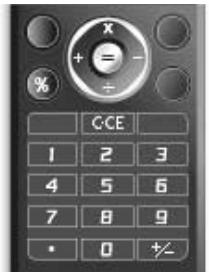
Pour saisir un point décimal, appuyez sur
Pour effacer le nombre ou la fonction saisie, appuyez sur b/c.
Pour effectuer les calculs, appuyez sur
Pour commencer un nouveau calcul, appuyez sur
Conversion de taux
Vous pouvez également utiliser la calculatrice comme convertisseur de devises pour convertir depuis/vers une devise de référence en utilisant un taux de conversion que vous saisissez.
Pour définir un taux de conversion de devises
"Organiseur et outils" → "Calculatrice" → [Options] → "Convertisseur de devises" → "Taux de change"
- Sélectionnez "Devise nationale" ou "Devise étrangère".
- Saisissez le taux de conversion de devises.
Pour convertir une valeur
"Organiseur et outils" → "Calculatrice"
- Saisissez la valeur à convertir.
- Appuyez sur [Options] et sélectionnez "Convertisseur de devises".
- Sélectionnez "Convertir en devise nationale" ou "Convertir en devise étrangère".
Enregistreur vocal (M 7-4)
Cette fonction vous permet d'enregistrer un clip vocal, qui peut être utilisé pour vous rappeler des entrées de l'agenda ou être envoyé dans un message multimédia. Le clip vocal enregistré est sauvegardé dans Sons enregistrés. Les clips vocaux sont sauvegardés au format AMR.
Enregistrement d'un clip vocal
"Organiseur et outils" → "Enregistreur vocal"
- Appuyez sur pour démarrer l'enregistrement. Pour arrêter l'enregistrement avant la fin du temps imparti, appuyez sur
- Sélectionnez "Enregistrer" pour sauvegarder le clip vocal.
Remarque
- Appuyez sur (ou) ou (ou) pour régler le volume sonore lors de la lecture du fichier enregistré.
Envoi de clips vocaux
"Organiseur & Outils" → "Enregistreur vocal"
- Appuyez sur pour démarrer l'enregistrement.
- Appuyez sur pour arrêter l'enregistrement.
- Sélectionnez "Enregistrer et envoyer".
- Sélectionnez "Comme message".
Pour plus de détails sur la création d'un message, voir "Création d'un nouveau message" à la page 50.
Sélection de la durée d'enregistrement
"Organiseur & Outils" → "Enregistreur vocal" → [Options] → "Durée d'enregistrement"
- Sélectionnez "Pour message" ou "Voix étendue".
Lors de la sélection de "Voix étendue", les clips vocaux sont automatiquement sauvegardés sur une carte mémoire.
Sélection de la mémoire de stockage
"Organiseur et outils" → "Enregistreur vocal" → [Options] → "Enregistrer les nouveaux sons"
- Sélectionnez l'emplacement souhaité.
Lorsque vous sélectionnez "Choisir avant l'enregistrement", vous pouvez choisir l'emplacement lors de l'enregistrement d'un clip vocal.
Scanner (M 7-5)
Grâce à l'appareil photo numérique intégré, vous pouvez lire des textes et des codes-barres au format Jan et des codes QR, et créer des codes QR. Les données scannées peuvent être enregistrées comme entrée de la liste de contacts, URL, adresse e-mail et texte.
Remarque
- Si la numérisation ne se fait pas, cela peut être dû à l'une des raisons suivantes : type ou taille du code-barres, rayures, saleté, dommages, qualité d'impression, réflexion de la lumière, etc.
Lecture des codes-barres
"Organiseur et outils" → "Scanner" → "Scanner un code-barres"
- Affichez le code-barres à l'aide de l'appareil photo externe.
- Appuyez sur
- Appuyez sur [Options] et sélectionnez l'option souhaitée.
Les options varient en fonction des données scannées.
"Ouvrir le lien" : le navigateur ouvre l'URL.
"Copier l'URL" : l'URL est copiée.
"Envoyer un message" : le résultat est envoyé par SMS ou MMS.
"Copier" : le résultat est copié.
Pour utiliser le balayage continu
- En mode balayage, appuyez sur [Options] et sélectionnez "Balayage continu".
- Sélectionnez "Activé" ou "Désactivé".
Ouverture d'une image de code-barres
"Organiseur et outils" → "Scanner" → "Ouvrir un code-barres"
- Sélectionnez les données d'image souhaitées pour le code-barres.
Affichage des données scannées
"Organiseur et outils" → "Scanner" → "Résultats scannés" 1. Mettez en surbrillance les données que vous souhaitez afficher, puis appuyez sur .
Création de codes QR
"Organiseur et outils" → "Scanner" → "Créer un code QR"
- Sélectionnez l'option souhaitée.
"Saisie de texte" : créez un code QR à l'aide du texte que vous saisissez. "Mes éléments" : créez un code QR à l'aide des données de Mes éléments.
- Saisissez le texte souhaité ou sélectionnez les données souhaitées, puis appuyez sur ○.
- Appuyez sur ○ pour enregistrer.
Astuce
- Le code QR est enregistré dans un fichier au format PNG.
Numérisation de texte
"Organiser & Outils" → "Scanner" → "Numériser du texte"
- Affichez le texte à l'aide de la caméra.
- Lorsque la barre sous le texte numérisé est bleue, appuyez sur ○.
- Appuyez sur ou pour sélectionner le texte souhaité, puis appuyez sur ○.
- Appuyez sur [Options] et sélectionnez l'option souhaitée.
"OK" :
Le résultat numérisé se trouve dans l'écran de saisie de texte.
"Sélectionner/Modifier" :
Le résultat numérisé peut être modifié.
"Changer de mode" :
Le résultat numérisé peut être converti en adresse web, adresse e-mail, numéro de téléphone ou en texte romain.
Pour utiliser le texte inversé
- En mode numérisation, appuyez sur [Options] et sélectionnez "Texte inversé".
- Sélectionnez l'option souhaitée parmi "Auto", "Normal" ou "Inversé".
Livre électronique (M 7-6)
Cette fonction vous permet de visualiser des fichiers de livres électroniques (XMDF ou fichiers texte) stockés sur une carte mémoire.
"Organiseur et outils" → "Livre électronique"
- Sélectionnez le fichier souhaité.
Pour faire défiler l'écran de haut en bas (ligne précédente ou suivante), appuyez sur ou. Pour passer aux pages précédentes ou suivantes, appuyez sur ou.
- Appuyez sur lorsque vous avez terminé.
Astuce
- Lorsqu'un appel arrive pendant que le visualiseur est ouvert ou lorsque vous quittez un livre électronique, "AutoBookmark1" est automatiquement ajouté à la dernière page consultée. La page avec le signet s'ouvre automatiquement lorsque vous sélectionnez le fichier la prochaine fois. Le nouveau signet devient "AutoBookmark1", et l'ancien devient "AutoBookmark2".
Ajout d'un signet
Vous pouvez ajouter jusqu'à deux signets à chaque fichier de livre électronique.
"Organiseur et outils" → "Livre électronique"
- Sélectionnez le fichier souhaité.
- Appuyez sur [Options] et sélectionnez "Signet".
- Sélectionnez "Signet1" ou "Signet2".
Remarque
- Les fichiers de livres électroniques ne peuvent pas être consultés pendant l'utilisation de "Musique" ou "Jeux et applications".
- Si vous retirez la carte mémoire pendant l'utilisation du livre électronique, un message de confirmation apparaît et votre téléphone revient en mode veille.
Chronomètre (M 7-7)
Vous pouvez stocker 4 temps au tour lors de l'utilisation de la fonction chronomètre.
"Organiseur et outils" → "Chronomètre"
- Appuyez sur pour démarrer.
Appuyez sur [TOUR] pour afficher le temps au tour avant l'arrêt du chronomètre. Les 4 derniers temps au tour sont enregistrés.
- Appuyez sur pour arrêter.
Astuce
- Vous pouvez enregistrer un relevé des temps au tour et du temps d'arrêt dans les modèles de texte en appuyant sur [Options] et en sélectionnant "Enregistrer dans les modèles".
Réinitialisation du temps
- Après avoir arrêté le chronomètre, appuyez sur [Options] et sélectionnez "Réinitialiser".
Tâches (M 7-8)
Vous pouvez enregistrer votre emploi du temps comme entrées de tâches pour une date ou une heure donnée.
Créer une nouvelle entrée
"Organiseur et outils" → "Tâches"
- Sélectionnez "Ajouter une nouvelle entrée".
- Saisissez l'objet.
- Saisissez la date d'échéance puis l'heure d'échéance.
- Sélectionnez l'heure du rappel.
Lorsque vous sélectionnez "Autre", saisissez la date et l'heure du rappel souhaitées.
- Appuyez sur [Enregistrer].
Remarque
- Si les réglages de date et d'heure n'ont pas été saisis, l'écran de saisie de la date et de l'heure s'affiche (p. 100).
Pour changer le type de tonalité d'alarme ou de fichier vidéo
- Sur l'écran Nouvelle entrée, sélectionnez "Rappel".
- Sélectionnez "Assigner tonalité/vidéo".
- Sélectionnez "Assigner tonalité" puis "Sons prédéfinis" ou "Mes sons", ou sélectionnez "Assigner vidéo".
- Sélectionnez la tonalité ou le fichier vidéo souhaité.
Pour plus de détails sur la sélection d'une tonalité, voir "Assigner une sonnerie" à la page 94.
Pour changer la durée de la tonalité d'alarme ou de la vidéo
- Sur l'écran Nouvelle entrée, sélectionnez "Rappel".
- Sélectionnez "Durée".
- Sélectionnez la période. Si vous sélectionnez "Autre", vous pouvez saisir la durée souhaitée en deux chiffres à l'aide du clavier.
Pour changer la description
- Sur l'écran Nouvelle entrée, sélectionnez "Description".
- Saisissez un mémo pour l'entrée de tâche.
Pour rendre l'entrée secrète
- Sur l'écran Nouvelle entrée, sélectionnez "Secret".
- Sélectionnez « On » pour rendre les données secrètes ou « Off » pour les laisser telles quelles.
Pour marquer l'entrée comme terminée ou non terminée
« Organiseur & Outils » → « Tâches »
- Mettez en surbrillance l'entrée souhaitée.
- Appuyez sur
- Sur l'écran d'affichage, appuyez sur [Options] et sélectionnez « Vérifier ». Pour marquer l'entrée comme non terminée, sélectionnez « Décocher ».
Envoi d'une entrée de tâche
« Organiseur & Outils » → « Tâches »
- Mettez en surbrillance l'entrée de tâche que vous souhaitez envoyer.
- Appuyez sur [Options] et sélectionnez « Envoyer ».
- Sélectionnez « Comme message », « Via Bluetooth » ou « Via infrarouge ».
Pour plus de détails sur la création d'un message, voir « Création d'un nouveau message » à la page 50.
Pour plus de détails sur les paramètres sans fil Bluetooth, voir « Bluetooth » à la page 111.
Pour plus de détails sur les paramètres infrarouge, voir « Infrarouge » à la page 113.
Remarque
- Lors de l'appairage, vous devez saisir votre code PIN lors du premier contact avec un périphérique compatible Bluetooth.
Consultation de l'état de la mémoire
"Organiseur et outils" → "Tâches"
- Appuyez sur [Options] et sélectionnez "État de la mémoire".
Suppression d'entrées
"Organiseur et outils" → "Tâches" → [Options] → "Supprimer"
- Sélectionnez l'option souhaitée.
"Cette tâche" : supprime l'entrée sélectionnée. "Toutes les tâches terminées" : supprime toutes les entrées cochées. "Toutes les tâches" : supprime toutes les entrées.
Horloge mondiale (M7-9)
Réglage du fuseau horaire
"Organiseur et outils" → "Horloge mondiale"
- Appuyez sur [Modifier] et sélectionnez "Régler le fuseau horaire".
Le fuseau horaire actuel est indiqué par une ligne rouge sur la carte du monde.
- Appuyez sur ou pour changer le fuseau horaire.
- Appuyez sur
Pour régler le fuseau horaire personnalisé
"Organiseur et outils" → "Horloge mondiale"
- Appuyez sur [Modifier] et sélectionnez "Régler le fuseau horaire".
- Appuyez sur [Options] et sélectionnez "Régler le fuseau personnalisé".
- Saisissez le nom de la ville et l'heure souhaités.
Réglage de l'heure d'été
"Organiseur et outils" → "Horloge mondiale"
- Appuyez sur [Modifier] et sélectionnez "Heure d'été".
- Sélectionnez "Activé" ou "Désactivé".
Minuteur (M 7-10)
"Organiseur et outils" → "Minuteur"
- Saisissez la durée à compter. Vous pouvez régler la durée de 1 seconde à 60 minutes.
- Appuyez sur pour démarrer le compte à rebours.
- Appuyez pour mettre en pause. Appuyez à nouveau sur pour continuer le compte à rebours.
- Si le compte à rebours est terminé, appuyez sur [Annuler] puis appuyez pour recommencer le compte à rebours.
Modification du temps du compte à rebours
- Sur l'écran de démarrage du compte à rebours, appuyez sur [Options] et sélectionnez "Modifier".
- Modifiez l'heure souhaitée.
Mémorandum de dépenses (M 7-11)
Vous pouvez enregistrer un mémorandum de dépenses avec des catégories prédéfinies ou modifiées.
Enregistrement dans le mémorandum de dépenses (M 7-11-1)
"Organiseur et outils" → "Mémorandum de dépenses" → "Ajouter une nouvelle dépense"
- Saisissez les dépenses à l'aide des touches numériques.
- Sélectionnez la catégorie souhaitée.
Le mémorandum de dépenses est enregistré.
Affichage des totaux (M 7-11-2)
"Organiseur et outils" → "Mémorandum de dépenses" → "Totaux"
Les dépenses enregistrées sont affichées à l'écran.
Pour modifier le montant
- Dans la vue d'ensemble, sélectionnez l'article souhaité.
- Appuyez sur [Options] et sélectionnez "Modifier le montant".
- Saisissez le montant souhaité à l'aide des touches numériques.
Pour supprimer un article enregistré ou tous les articles
- Dans la vue d'ensemble, sélectionnez l'article souhaité.
- Appuyez sur [Options] et sélectionnez "Supprimer l'article" ou "Tout supprimer".
Modification du nom de catégorie (M 7-11-3)
"Organiseur et outils" → "Mémorandum de dépenses" → "Modifier la catégorie"
- Sélectionnez le nom de catégorie souhaité.
- Modifiez le nom.
Aide du téléphone (M 7-12)
Vous pouvez consulter la liste d'aide et l'utiliser pour vous guider dans les fonctions du téléphone.
"Organiseur et outils" → "Aide du téléphone"
- Appuyez sur ou .
Application SIM (M 11)
Vous pouvez consulter les informations relatives à la carte SIM/USIM. Contactez votre fournisseur de services pour plus de détails.
Paramètres (M 12)
Profils (M 12-1)
Les réglages de sonnerie, de son, de vibration et de lumière peuvent être personnalisés pour chaque profil selon votre environnement.
Il existe 6 profils : « Normal », « Réunion », « Activité », « Voiture », « Casque » et « Silencieux ».
Activation d'un profil
« Paramètres » → « Profils »
- Sélectionnez le profil souhaité.
Remarque
- Lorsqu'un profil est défini, l'indicateur correspondant décrit à la page 17 s'affiche en veille.
Astuce
- En veille, maintenez enfoncée la touche # pour basculer entre le mode Silencieux et le profil le plus récemment activé.
Réinitialisation des paramètres du profil
« Paramètres » → « Profils »
- Mettez en surbrillance le profil que vous souhaitez réinitialiser.
- Appuyez sur [Options] et sélectionnez "Rétablir les valeurs par défaut".
- Saisissez le code de votre combiné.
Le code par défaut du combiné est "9999". Pour plus de détails sur la modification du code du combiné, voir "Modification du code du combiné" à la page 108.
Volume
Vous pouvez régler le volume des appels vocaux entrants, des messages SMS/MMS/E-mail et d'autres sons ("Volume général") sur l'un des six niveaux, ou définir un volume croissant pour tous ces éléments, à l'exception du "Volume général".
"Paramètres" → "Profils"
- Mettez en surbrillance le profil que vous souhaitez personnaliser.
- Appuyez sur [Options] et sélectionnez "Personnaliser".
- Sélectionnez "Volume".
- Sélectionnez "Pour appel entrant", "Pour nouveau message" ou "Volume général".
- Appuyez sur (ou) pour augmenter le volume de la sonnerie ou sur (ou) pour le diminuer, puis appuyez. Pour sélectionner "Volume croissant", appuyez sur (ou au niveau 5. Pour sélectionner "Silencieux", appuyez sur (ou au niveau 1.
Astuce
- Vous pouvez choisir entre deux niveaux ou un volume croissant lors de la sélection du profil "Silencieux".
Attribution d'une sonnerie
Vous pouvez sélectionner la sonnerie parmi 28 tonalités, dont 5 motifs, 13 effets sonores et 10 mélodies. Vous pouvez également sélectionner un son dans Sons enregistrés comme sonnerie par défaut, à l'exception du format AMR.
"Réglages" → "Profils"
- Mettez en surbrillance le profil que vous souhaitez personnaliser.
- Appuyez sur [Options] et sélectionnez "Personnaliser".
- Sélectionnez "Sonnerie/Vidéo de sonnerie".
- Sélectionnez "Pour appel vocal" ou "Pour appel vidéo".
- Sélectionnez "Attribuer une tonalité".
- Sélectionnez "Sons prédéfinis" ou "Mes sons".
- Mettez en surbrillance la sonnerie que vous souhaitez utiliser. Pour écouter l'aperçu, appuyez sur [Options] et sélectionnez "Lire".
- Appuyez sur [Options] et sélectionnez "Attribuer" pour "Sons prédéfinis" ou "Sélectionner" pour "Mes sons".
Remarque
- Même si vous supprimez une sonnerie qui utilise un son dans Sons et sonneries, le réglage reste le même et la sonnerie par défaut retentit. Si vous supprimez une sonnerie attribuée à la sonnerie, la sonnerie par défaut est définie.
Attribution d'un fichier vidéo de sonnerie
Vous pouvez sélectionner un fichier vidéo dans Vidéos enregistrées comme fichier vidéo de sonnerie par défaut.
"Réglages" → "Profils"
- Mettez en surbrillance le profil que vous souhaitez personnaliser.
- Appuyez sur [Options] et sélectionnez "Personnaliser".
- Sélectionnez "Sonnerie/Vidéos de sonnerie".
- Sélectionnez "Pour appel vocal" ou "Pour appel vidéo".
- Sélectionnez "Attribuer une vidéo".
- Mettez en surbrillance le fichier vidéo de sonnerie que vous souhaitez utiliser. Pour prévisualiser le fichier, appuyez sur [Options] et sélectionnez "Lire".
- Appuyez sur [Options] et sélectionnez "Sélectionner".
Notification de message
Lors de la réception de messages, votre téléphone vous notifiera leur arrivée avec la sonnerie ou la vidéo de sonnerie que vous spécifiez.
"Paramètres" → "Profils"
- Mettez en surbrillance le profil que vous souhaitez personnaliser.
- Appuyez sur [Options] et sélectionnez "Personnaliser".
- Sélectionnez "Sonnerie/Vidéos de sonnerie".
- Sélectionnez "Pour nouveau message".
- Sélectionnez "Attribuer une sonnerie" ou "Attribuer une vidéo". Si "Attribuer une sonnerie" est sélectionné, sélectionnez "Sons prédéfinis" ou "Mes sons".
- Mettez en surbrillance la sonnerie ou le clip vidéo de sonnerie souhaité. Pour plus de détails sur la sélection d'une sonnerie ou d'un clip vidéo de sonnerie, voir "Affectation d'une sonnerie" ou "Affectation d'un fichier de clip vidéo de sonnerie" à la page 94.
- Appuyez sur [Options] et sélectionnez "Affecter" pour "Sons prédéfinis" ou "Sélectionner".
- Sélectionnez "Pour nouveau message" et choisissez "Durée".
- Saisissez la durée souhaitée.
Touches du clavier
Lorsque le son des touches est activé, vous entendrez un son de confirmation à chaque pression sur une touche.
"Paramètres" → "Profils"
- Mettez en surbrillance le profil que vous souhaitez personnaliser.
- Appuyez sur [Options] et sélectionnez "Personnaliser".
- Sélectionnez "Sons système".
- Sélectionnez "Touches du clavier".
- Mettez en surbrillance le motif de tonalité souhaité.
- Appuyez sur [Options] et sélectionnez "Affecter".
Tonalité d'avertissement
Votre téléphone émet une tonalité d'avertissement lorsqu'une erreur se produit.
"Réglages" → "Profils"
- Mettez en surbrillance le profil que vous souhaitez personnaliser.
- Appuyez sur [Options] et sélectionnez "Personnaliser".
- Sélectionnez "Sons système".
- Sélectionnez "Tonalité d'avertissement".
- Sélectionnez "Tonalité" ou "Durée". Pour "Tonalité", sélectionnez "Désactivé", "Sons prédéfinis" ou "Mes sons". Pour "Durée", sélectionnez la durée souhaitée entre 0,5 et 2 secondes.
Son de mise sous/hors tension
Le téléphone peut être configuré pour émettre un son lors de sa mise sous ou hors tension. Vous pouvez régler la durée et la mélodie du son.
"Réglages" → "Profils"
- Mettez en surbrillance le profil que vous souhaitez personnaliser.
- Appuyez sur [Options] et sélectionnez "Personnaliser".
- Sélectionnez "Sons système".
- Sélectionnez "Son de mise sous tension" ou "Son de mise hors tension".
- Sélectionnez "Son" ou "Durée".
Pour "Son", sélectionnez "Désactivé", "Sons prédéfinis" ou "Mes sons".
Vibration
"Réglages" → "Profils"
- Mettez en surbrillance le profil que vous souhaitez personnaliser.
- Appuyez sur [Options] et sélectionnez "Personnaliser".
- Sélectionnez "Vibration".
- Sélectionnez "Activée", "Liée au son" ou "Désactivée".
Astuce
- Lorsque l'option "Liée au son" est sélectionnée à l'étape 4, le vibreur pulse en rythme avec la mélodie choisie. Veuillez noter que toutes les mélodies ne prennent pas en charge l'option "Liée au son".
- Lorsque vous sélectionnez "Activée" ou "Liée au son" à l'étape 4, "□" s'affiche en veille.
Voyant d'événement
Lorsque l'option de voyant est activée, le voyant du téléphone clignote lorsque le téléphone reçoit un appel ou un message.
"Réglages" → "Profils"
- Mettez en surbrillance le profil que vous souhaitez personnaliser.
- Appuyez sur [Options] et sélectionnez "Personnaliser".
- Sélectionnez "Voyant d'événement".
- Sélectionnez « Pour appel vocal », « Pour appel vidéo » ou « Pour nouveau message ».
- Sélectionnez « Activer/Désactiver ».
- Sélectionnez « Activé » ou « Désactivé ».
Pour changer la couleur de la lumière
Vous pouvez choisir parmi 7 couleurs et 1 motif pour chaque profil.
- À l'étape 5 de « Lumière d'événement », sélectionnez « Couleur de la lumière ».
- Sélectionnez la couleur souhaitée.
Astuce
- Si vous sélectionnez « Disco » à l'étape 2, les 7 couleurs clignotent dans l'ordre.
Voyant d'état
Lorsque l'option de lumière est activée, la lumière mobile ou la petite lumière clignote pour vous informer des appels manqués ou des nouveaux messages.
« Paramètres » → « Profils »
- Mettez en surbrillance le profil que vous souhaitez personnaliser.
- Appuyez sur [Options] et sélectionnez « Personnaliser ».
- Sélectionnez « Voyant d'état ».
- Sélectionnez "Pour appel manqué" ou "Pour nouveau message".
- Sélectionnez "Activer/Désactiver".
- Sélectionnez "On (lumière mobile)", "On (petite lumière)" ou "Off".
Pour changer la couleur de la lumière
Vous pouvez choisir parmi 7 couleurs lorsque "Lumière de statut" est réglé sur "On (lumière mobile)".
- À l'étape 5 de "Lumière de statut", sélectionnez "Couleur de la lumière mobile".
- Sélectionnez la couleur souhaitée.
Réponse par touche quelconque
Vous pouvez répondre à un appel en appuyant sur n'importe quelle touche sauf ⑧, ⑤ et [Busy]. Pour plus de détails, voir "Répondre à un appel vocal" à la page 21.
"Paramètres" → "Profils"
- Mettez en surbrillance le profil que vous souhaitez personnaliser.
- Appuyez sur [Options] et sélectionnez "Personnaliser".
- Sélectionnez "Réponse par touche quelconque".
- Sélectionnez "On" ou "Off".
Réglage de l'affichage (M 12-2)
Vous pouvez modifier les paramètres de l'affichage.
Réglage du fond d'écran (M 12-2-1)
Pour l'écran de veille, 5 images sont fournies.
Les photos prises avec l'appareil photo numérique ou les images téléchargées depuis un site WAP peuvent être utilisées comme fonds d'écran.
Pour définir Mes images
"Réglages" → "Réglages d'affichage" → "Fond d'écran"
- Sélectionnez "Mes images".
- Sélectionnez l'image souhaitée.
- Après avoir affiché l'image, appuyez sur .
Remarque
- Certaines images ne peuvent pas être utilisées en raison de leur type d'image et de données.
- Si l'image dans Mes images est déjà définie, elle est affichée à l'étape 1. Appuyez sur [Changer] et sélectionnez l'image souhaitée.
Graphiques système (M 12-2-2)
Des images peuvent être affichées lors de la mise sous tension ou hors tension, à la réception d'un appel entrant ou lors de l'utilisation de l'alarme.
Les photos prises avec l'appareil photo numérique ou les images téléchargées depuis un site WAP peuvent être utilisées.
Pour utiliser une animation ou un motif prédéfini
"Réglages" → "Réglages d'affichage" → "Graphiques système"
- Sélectionnez la scène souhaitée pour définir l'image.
- Sélectionnez "Animation prédéfinie" lorsque vous choisissez "Mise sous tension" ou "Mise hors tension" à l'étape 1.
Sélectionnez "Motif 1", "Motif 2" ou "Motif 3" lorsque vous choisissez "Appel entrant" ou "Alarme" à l'étape 1.
Pour définir Mes images
"Réglages" → "Réglages d'affichage" → "Graphiques système"
- Sélectionnez la scène souhaitée pour définir l'image.
- Sélectionnez "Mes images".
- Sélectionnez l'image souhaitée.
- Après avoir affiché l'image, appuyez sur .
- Spécifiez la zone que vous souhaitez afficher à l'aide des touches de navigation.
Remarque
- Certaines images ne peuvent pas être utilisées en raison de leur type d'image et de données.
- Si l'image dans Mes images est déjà définie, elle est affichée à l'étape 2. Appuyez sur [Changer] et sélectionnez l'image souhaitée.
Réglage de la graisse de police (M 12-2-3)
"Réglages" → "Réglages d'affichage" → "Réglages de police"
- Sélectionnez "Fin", "Normal", "Gras" ou "Extra-gras".
L'image d'aperçu s'affiche avec la graisse sélectionnée.
Réglage du message d'accueil (M 12-2-4)
Vous pouvez définir le message affiché lors de la mise sous tension du téléphone.
"Réglages" → "Réglages d'affichage" → "Message d'accueil" → "Activer/Désactiver"
- Sélectionnez "Activé" ou "Désactivé".
- Sélectionnez "Modifier le message" et saisissez le message (10 caractères maximum).
Rétroéclairage (M 12-2-5)
Le rétroéclairage s'éteint si vous n'appuyez pas sur le clavier pendant un certain temps. Vous pouvez spécifier la durée souhaitée avant l'extinction du rétroéclairage, ce qui contribue à économiser la batterie.
Astuce
- Lors de l'achat de ce téléphone, le rétroéclairage est réglé sur 15 secondes.
Pour sélectionner le délai d'extinction du rétroéclairage
"Réglages" → "Réglages d'affichage" → "Rétroéclairage" → "Délai d'extinction"
- Sélectionnez l'heure souhaitée.
Sélectionnez "Désactivé" pour l'éteindre.
Pour régler la luminosité du rétroéclairage
Réglages → Réglages d'affichage → Rétroéclairage → Luminosité
- Appuyez sur ▲ et ► pour basculer entre 4 niveaux de clarté.
- Appuyez sur ○
Réglage de l'économie d'affichage (M 12-2-6)
L'écran de ce téléphone s'éteint automatiquement après un certain temps. Vous pouvez modifier la durée avant que l'économie d'affichage ne s'active, ce qui permet d'économiser la batterie.
"Réglages" → "Réglages d'affichage" → "Économie d'affichage"
- Sélectionnez l'heure souhaitée.
Lors de l'achat de ce téléphone, l'économie d'affichage est réglée sur 2 minutes.
Remarque
- L'économie d'affichage ne fonctionne pas pendant un appel, une utilisation de WAP ou d'une application.
- Pour annuler l'économie d'affichage : L'économie d'affichage continue jusqu'à ce qu'une touche soit enfoncée ou qu'une alerte entrante se produise. La première pression sur une touche annule uniquement cette fonction. Vous devez appuyer sur une autre touche pour saisir une valeur numérique ou textuelle.
Réglage de la sortie vidéo (M 12-2-7)
Avec le câble en option, vous pouvez connecter votre téléphone à un autre appareil, comme un téléviseur ou un magnétoscope, pour afficher des images ou des clips vidéo stockés sur votre téléphone. Il est également possible d'afficher des données stockées sur la carte mémoire.
Pour activer la fonction de sortie
Vous devez connecter votre téléphone à l'autre appareil à l'aide du câble en option au préalable.
« Réglages » → « Paramètres d'affichage » → « Sortie vidéo » → « Activer/Désactiver »
- Sélectionnez « Activé ».
Sélectionnez « Désactivé » sur l'écran de sortie lorsque vous avez terminé.
Remarque
- Lorsque vous fermez votre téléphone, vous ne pouvez pas envoyer de données à l'appareil connecté.
- Il n'est pas possible d'afficher certaines images ou clips vidéo.
Pour sélectionner la taille d'affichage
Vous pouvez afficher les images en taille agrandie.
« Réglages » → « Paramètres d'affichage » → « Sortie vidéo » → « Taille d'affichage »
- Sélectionnez « Agrandir ».
Pour afficher en taille originale, sélectionnez « Taille originale ».
Pour faire pivoter l'image
"Réglages" → "Réglages d'affichage" → "Sortie vidéo" → "Réglage de rotation"
- Sélectionnez l'élément souhaité.
L'image affichée sur l'appareil pivote jusqu'au degré sélectionné.
Pour sélectionner le système TV
Vous devez sélectionner le système TV approprié. Reportez-vous au manuel d'instructions de votre appareil connecté pour confirmer le système TV.
"Réglages" → "Réglages d'affichage" → "Sortie vidéo" → "Système TV"
- Sélectionnez l'élément souhaité.
Réglages sonores (M 12-3)
Vous pouvez utiliser ce menu pour vérifier ou modifier les réglages des profils actuels (sauf "Réponse par n'importe quelle touche").
Réglage du son surround
"Réglages" → "Réglages sonores" → "Surround"
- Sélectionnez "On", "Link to Sound" ou "Off".
Date et heure (M 12-4)
Vous devez régler l'heure et la date correctes pour que les diverses fonctions basées sur le temps de votre téléphone fonctionnent correctement.
"Réglages" → "Date et heure" → "Régler la date/l'heure"
- Saisissez le jour, le mois et l'année à l'aide des touches numériques.
- Saisissez l'heure à l'aide des touches numériques.
Astuce
- Lorsque vous saisissez l'heure au format 12 heures, appuyez sur ou pour basculer entre am et pm. L'ordre d'affichage de la date et de l'heure dépend du réglage du format.
Réglage de l'heure d'été (M 12-4-2)
"Réglages" → "Date et heure" → "Heure d'été"
- Sélectionnez "Activé" ou "Désactivé".
Réglage du fuseau horaire (M 12-4-3)
"Réglages" → "Date et heure" → "Régler le fuseau horaire"
- Appuyez sur ↓ ou ↑ pour sélectionner la ville de résidence à régler.
- Appuyez sur ○
Personnalisation du fuseau horaire
"Réglages" → "Date et heure" → "Régler le fuseau horaire" → [Options] → "Régler un fuseau personnalisé"
- Saisissez le nom de la ville.
- Saisissez les différences de fuseau horaire à l'aide des touches numériques.
Appuyez sur ou pour basculer entre - et +.
- Appuyez sur
Affichage de la date et de l'heure (M 12-4-4)
Vous pouvez afficher le calendrier ou la date et/ou l'heure actuelles en veille.
Pour régler l'affichage de l'horloge
"Réglages" → "Date et heure" → "Afficher la date et l'heure" → "Afficher l'horloge"
- Sélectionnez le type d'horloge souhaité ou "Désactivé" pour désactiver l'affichage de l'horloge.
Pour régler l'affichage du calendrier
"Réglages" → "Date et heure" → "Afficher la date et l'heure" → "Afficher le calendrier"
- Sélectionnez le type de calendrier souhaité ou "Désactivé" pour désactiver l'affichage du calendrier.
Horloge mondiale (M 12-4-5)
Pour plus de détails, voir "Horloge mondiale" à la page 90.
Sélection du format de l'heure (M 12-4-6)
"Réglages" → "Date et heure" → "Format de l'heure"
- Sélectionnez "24 heures" ou "12 heures".
Sélection du format de date (M 12-4-7)
"Réglages" → "Date et heure" → "Format de date"
- Sélectionnez "J.M.A", "M-J-A" ou "A/M/J".
Réglage du format du calendrier (M 12-4-8)
"Réglages" → "Date et heure" → "Format du calendrier"
- Sélectionnez "Dimanche-samedi" ou "Lundi-dimanche".
Réglage de la langue (M 12-5)
Vous pouvez changer la langue affichée sur le téléphone.
"Réglages" → "Langue"
- Sélectionnez la langue souhaitée.
Remarque
- Si vous sélectionnez "Automatique" à l'étape 1, la langue prédéfinie sur la carte SIM/USIM est sélectionnée.
- Si la langue prédéfinie sur la carte SIM/USIM n'est pas prise en charge, la langue par défaut du téléphone est sélectionnée.
Astuce
- Vous pouvez également changer la langue de saisie sur l'écran de saisie de texte (p. 30).
Paramètres d'appel (M 12-6)
Messagerie vocale et renvois (M 12-6-1)
Ce service permet de renvoyer les appels entrants que vous ne pouvez pas prendre. Les appels peuvent être renvoyés vers un autre numéro de téléphone ou vers votre messagerie vocale.
Remarque
- Ce service peut ne pas être disponible sur tous les réseaux de téléphonie mobile. Contactez votre opérateur pour plus d'informations.
Pour définir les numéros de messagerie vocale
Vous pouvez renvoyer les appels vers le centre de messagerie vocale du réseau. Selon que vous êtes à l'intérieur ou à l'extérieur de votre zone de réseau, vous pouvez définir deux numéros de messagerie vocale : un pour votre zone de réseau domestique et un pour une zone de réseau en itinérance.
Remarque
- Ce service dépend de la carte SIM. Contactez votre fournisseur de carte SIM pour plus d'informations.
Paramètres → Paramètres d'appel → Messagerie vocale et renvois → Messagerie vocale → Paramètres → Numéros de messagerie vocale
- Sélectionnez "Messagerie maison" ou "Messagerie itinérante".
- Saisissez le numéro de téléphone souhaité.
Pour accéder au centre de messagerie vocale
- Maintenez la touche 1 enfoncée en mode veille.
Pour activer le service de messagerie vocale : "Paramètres" → "Paramètres d'appel" → "Messagerie vocale et renvois" → "Messagerie vocale" → "Activer"
- Sélectionnez l'une des options suivantes :
"Toujours" : renvoie tous les appels sans sonnerie. "Occupé" : renvoie les appels entrants lorsque vous êtes en communication.
"Sans réponse" : renvoie les appels entrants si vous ne répondez pas dans un délai déterminé.
"Injoignable" : renvoie les appels entrants lorsque votre téléphone n'a pas de réseau ou est éteint.
Si vous sélectionnez "Sans réponse", choisissez le délai parmi 6 niveaux (de 05 à 30 secondes).
- Appuyez sur
Pour activer le service de renvoi
Sélectionnez l'option appropriée.
"Paramètres" → "Paramètres d'appel" → "Messagerie vocale et renvois" → "Renvois"
- Sélectionnez "Activer" ou "Par service". Si vous sélectionnez "Par service", vous pouvez choisir d'autres options de renvoi.
- Sélectionnez "Toujours", "Occupé", "Sans réponse" ou "Injoignable". Si vous sélectionnez "Sans réponse", choisissez le délai parmi 6 niveaux (de 05 à 30 secondes).
- Saisissez le numéro de téléphone vers lequel vous souhaitez renvoyer les appels ou recherchez-le dans la liste de contacts (p. 35).
- Appuyez sur
Remarque
- Lorsque les renvois d'"Appels vocaux" sont définis sur "Toujours", "3" s'affiche en veille.
Pour vérifier l'état des renvois d'appels
"Paramètres" → "Paramètres d'appel" → "Messagerie vocale et renvois" → "État"
- Sélectionnez l'option de renvoi que vous souhaitez vérifier. Pour désactiver le service de renvoi/messagerie vocale : "Paramètres" → "Paramètres d'appel" → "Messagerie vocale et renvois" → "Désactiver"
- Sélectionnez l'option souhaitée.
Pour annuler le service de renvoi et de messagerie vocale
Une fois que vous avez modifié les paramètres de renvoi, vous pouvez tous les annuler avec ce service.
"Paramètres" → "Paramètres d'appel" → "Messagerie vocale et renvois" → "Tout annuler"
Appel en attente (M 12-6-2)
Remarque
- Ce service peut ne pas être disponible sur tous les réseaux de téléphonie mobile. Contactez votre opérateur pour plus d'informations.
Si vous souhaitez pouvoir recevoir un autre appel entrant pendant que vous avez un appel en cours, vous devez activer le service d'appel en attente.
"Paramètres" → "Paramètres d'appel" → "Appel en attente"
- Sélectionnez "Activé", "Désactivé" ou "État".
Afficher votre numéro de téléphone (M 12-6-3)
Cela vous permet de contrôler si votre numéro de téléphone est affiché lorsque vous appelez une autre partie ou non.
"Réglages" → "Réglages d'appel" → "Afficher votre numéro"
- Sélectionnez "Activé", "Désactivé" ou "Statut".
Remarque
- Certains réseaux ne prennent pas en charge ce service. Veuillez vérifier auprès de votre opérateur pour la disponibilité.
Restreindre les appels (M 12-6-4)
Cette fonction vous permet de restreindre les appels entrants et sortants. Pour activer cette option, vous aurez besoin du mot de passe spécifié, disponible auprès de votre opérateur.
"Réglages" → "Réglages d'appel" → "Restreindre les appels"
- Sélectionnez "Appels sortants" ou "Appels entrants".
"Appels sortants" :
Restreint les appels sortants.
"Appels entrants" :
Restreint les appels entrants.
- Sélectionnez l'une des options suivantes :
(Pour "Appels sortants")
"Bloquer tous les appels sortants" :
Restreint tous les appels sortants, sauf les appels d'urgence.
"Bloquer les appels internationaux" :
Restreint tous les appels sortants internationaux.
"Uniquement local et national" :
Restreint tous les appels sortants internationaux, sauf vers votre pays d'origine.
(Pour "Appels entrants")
"Bloquer tous les appels entrants" :
Restreint tous les appels entrants.
"Bloquer à l'étranger" :
Restreint tous les appels entrants lorsque vous êtes hors de la zone de couverture de votre opérateur enregistré.
- Sélectionnez l'une des options suivantes :
"Tous les services" :
Restreint tous les services.
"Appels vocaux" :
Restreint tous les appels vocaux.
"Appels vidéo" :
Restreint tous les appels vidéo.
"Fax" :
Restreint tous les appels fax.
"Messages" :
Restreint tous les messages.
- Sélectionnez "Activé", "Désactivé" ou "Statut".
- Saisissez le mot de passe réseau.
Pour annuler les paramètres
"Paramètres" → "Paramètres d'appel" → "Restreindre les appels"
- Sélectionnez "Appels sortants" ou "Appels entrants".
- Sélectionnez "Tout annuler".
- Saisissez le mot de passe réseau.
Rejeter un appel entrant
Vous pouvez enregistrer les numéros de téléphone auxquels vous ne souhaitez pas répondre.
Pour rejeter le numéro enregistré
"Paramètres" → "Paramètres d'appel" → "Restriction d'appels" → "Numéros rejetés" → "Activer/Désactiver"
- Sélectionnez "Activé" ou "Désactivé".
Pour enregistrer le numéro rejeté
"Paramètres" → "Paramètres d'appel" → "Restriction d'appels" → "Numéros rejetés" → "Définir le numéro à rejeter"
- Sélectionnez un champ vide.
- Saisissez le numéro souhaité.
Appel masqué
Lorsque l'option "Appel masqué" est activée, les appels entrants sans identification de l'appelant (CLI) sont rejetés.
"Paramètres" → "Paramètres d'appel" → "Restriction d'appels" → "Appel masqué"
- Sélectionnez "Activé" ou "Désactivé".
Changement du mot de passe réseau
"Paramètres" → "Paramètres d'appel" → "Restriction d'appels" → "Changer le mot de passe réseau"
- Saisissez l'ancien mot de passe réseau.
- Saisissez un nouveau mot de passe réseau.
- Saisissez à nouveau le nouveau mot de passe du réseau.
Si vous saisissez un mot de passe incorrect, il vous sera demandé de le saisir à nouveau.
- Appuyez sur
Numéro à composition fixe
Lorsque la fonction Numéro à composition fixe est activée, vous ne pouvez appeler que des numéros préenregistrés.
Pour activer la fonction Numéro à composition fixe
"Paramètres" → "Paramètres d'appel" → "Restreindre les appels" → "Numéro à composition fixe" → "Activer/Désactiver"
- Sélectionnez "Activé" pour activer cette fonction.
Pour ajouter un nouveau nom
"Paramètres" → "Paramètres d'appel" → "Restreindre les appels" → "Numéro à composition fixe" → "Modifier la liste de numérotation"
- Mettez en surbrillance l'entrée vide, appuyez sur [Options], puis sélectionnez "Ajouter un nouveau numéro".
- Saisissez votre code PIN2.
- Ajoutez un nom et un numéro de téléphone. Pour plus de détails sur l'ajout d'un nom et d'un numéro de téléphone, voir "Ajouter un nouveau contact" à la page 35.
- Appuyez sur [Enregistrer].
Minuteur (M 12-6-5)
La fonction Minute Minder vous informe de votre temps de communication en émettant un signal sonore après chaque minute.
"Réglages" → "Réglages d'appel" → "Minute Minder"
- Sélectionnez "Activé" ou "Désactivé".
Affichage du compteur de temps d'appel (M 12-6-6)
"Réglages" → "Réglages d'appel" → "Compteur de temps d'appel"
- Sélectionnez "Activé" ou "Désactivé".
Affichage des coûts d'appel (M 12-6-7)
"Réglages" → "Réglages d'appel" → "Afficher le coût des appels"
- Sélectionnez "Activé" ou "Désactivé".
Rappel automatique (M 12-6-8)
"Réglages" → "Réglages d'appel" → "Rappel automatique"
- Sélectionnez "Activé" ou "Désactivé".
Réglages des appels vidéo (M 12-7)
Réglez divers types de fonctions et de services pour les appels vidéo.
Sélection de l'image de la caméra (M 12-7-1)
Vous pouvez sélectionner une image affichée à l'appelant entre l'image de la caméra secondaire et une image alternative.
"Réglages" → "Paramètres d'appel vidéo" → "Image de la caméra"
- Sélectionnez "Image par défaut".
- Sélectionnez "Caméra interne" ou "Image alternative".
Pour sélectionner l'image de l'image alternative
Cette fonction n'est disponible que si "Image alternative" est sélectionné pour "Image par défaut".
"Réglages" → "Paramètres d'appel vidéo" → "Image de la caméra"
- Sélectionnez "Image alternative".
- Sélectionnez "Image prédéfinie" ou "Mes images".
- Sélectionnez l'image souhaitée.
Activation ou désactivation des haut-parleurs (M 12-7-2)
"Réglages" → "Paramètres d'appel vidéo" → "Haut-parleur"
- Sélectionnez "On" pour activer les haut-parleurs sur les côtés de votre téléphone, ou "Off" pour les désactiver.
Sélection de la qualité d'image (M 12-7-3) (M 12-7-4)
Sélectionnez le format de données souhaité pour votre environnement.
"Réglages" → "Réglages des appels vidéo" → "Qualité d'image entrante"
"Réglages" → "Réglages des appels vidéo" → "Qualité d'image sortante"
- Sélectionnez "Normal", "Priorité à la qualité" ou "Priorité à la fluidité". Sélectionnez "Priorité à la fluidité" pour une communication plus rapide.
Rétroéclairage (M 12-7-5)
Lorsque ce réglage est activé, le rétroéclairage du téléphone est allumé lors d'un appel vidéo.
"Réglages" → "Réglages des appels vidéo" → "Rétroéclairage"
- Sélectionnez "Toujours allumé", "Toujours éteint" ou "Comme réglage normal". L'option "Comme réglage normal" dépend du réglage du rétroéclairage de l'écran principal (p. 99).
Mise en sourdine (M 12-7-6)
Vous pouvez couper le microphone pendant un appel vidéo.
"Réglages" → "Réglages des appels vidéo" → "Couper le microphone"
- Sélectionnez "Activé" pour couper le son ou "Désactivé" pour annuler la mise en sourdine.
Affectation de l'image de mise en attente (M 12-7-7)
Vous pouvez afficher une image enregistrée dans le téléphone sur l'écran principal pendant que vous mettez un appel en attente.
"Réglages" → "Réglages des appels vidéo" → "Image de mise en attente"
- Sélectionnez "Image prédéfinie" ou "Mes images".
- Sélectionnez l'image souhaitée.
Sécurité (M 12-8)
Activation/Désactivation du code PIN (M 12-8-1)
Si le code PIN est activé, vous devez saisir le code PIN à chaque mise sous tension du téléphone. Votre code PIN est enregistré sur la carte SIM/USIM et vous devriez avoir été informé de ce code lors de l'achat de la carte SIM/USIM. Contactez votre fournisseur de services pour plus de détails.
"Paramètres" → "Sécurité" → "Saisie du PIN" → "Activer/Désactiver"
- Sélectionnez "Activé" pour activer le code PIN ou "Désactivé" pour le désactiver.
- Saisissez votre code PIN.
Remarque
- Si vous saisissez trois fois un code PIN incorrect à l'étape 2, la carte SIM/USIM se verrouillera. Pour déverrouiller, contactez votre fournisseur de services/vendeur de carte SIM/USIM.
Pour modifier le code PIN
Cette option vous permet de modifier le code PIN enregistré sur la carte SIM/USIM. Avant de modifier le code PIN, sélectionnez "Activé" à l'étape 1 de "Activation/Désactivation du code PIN".
"Paramètres" → "Sécurité" → "Saisie du PIN" → "Modifier le PIN"
- Saisissez le code PIN existant.
- Saisissez un nouveau code PIN.
- Saisissez à nouveau le nouveau code PIN.
Changement du code PIN2 (M 12-8-2)
Le code PIN2 est utilisé pour protéger certaines fonctions du téléphone, telles que la numérotation fixe et les limites de coût des appels. Ce qui suit vous montre comment changer le code PIN2.
"Réglages" → "Sécurité" → "Changer PIN2"
- Saisissez le code PIN2 actuel.
- Saisissez un nouveau code PIN2.
- Saisissez à nouveau le nouveau code PIN2.
Verrouillage du combiné (M 12-8-3)
Le verrouillage du combiné est une fonction de sécurité supplémentaire qui empêche toute utilisation non autorisée du téléphone ou de certaines fonctions.
"Réglages" → "Sécurité" → "Verrouillage du combiné"
- Sélectionnez "Activé" ou "Désactivé".
- Saisissez votre code combiné.
Verrouillage des fonctions (M 12-8-4)
En activant cette option, toutes les fonctions de votre téléphone seront verrouillées jusqu'à ce que le code combiné correct soit saisi.
"Réglages" → "Sécurité" → "Verrouillage des fonctions"
- Saisissez votre code combiné.
Le code de combiné par défaut est « 9999 ». Pour plus de détails sur la modification du code de combiné, voir « Modification du code de combiné ».
Pour désactiver le verrouillage des fonctions
Saisissez votre code de combiné en mode veille pour désactiver le verrouillage des fonctions.
Verrouillage des contacts (M 12-8-5)
La fonction de verrouillage des contacts empêche toute utilisation non autorisée de votre liste de contacts.
« Paramètres » → « Sécurité » → « Verrouillage des contacts »
- Sélectionnez « Activé » pour verrouiller ou « Désactivé » pour déverrouiller.
- Saisissez votre code de combiné.
Affichage des données secrètes (M 12-8-6)
En activant cette option, les données masquées peuvent être affichées.
« Paramètres » → « Sécurité » → « Afficher les données secrètes »
- Sélectionnez « Activé » pour afficher ou « Désactivé » pour masquer.
- Saisissez votre code de combiné lorsque vous sélectionnez « Activé ».
Modification du code de combiné (M 12-8-7)
Le code de combiné par défaut est « 9999 ».
"Réglages" → "Sécurité" → "Modifier le code du combiné"
- Saisissez l'ancien code du combiné.
- Saisissez un nouveau code du combiné.
- Saisissez à nouveau le nouveau code du combiné.
Réinitialisation générale (M 12-9)
Réinitialisation des réglages de M1 à M12 (M 12-9-1)
"Réglages" → "Réinitialisation générale" → "Réinitialiser les réglages"
- Saisissez votre code du combiné.
Le code du combiné par défaut est "9999". Pour plus de détails sur la modification du code du combiné, voir "Modification du code du combiné".
Remarque
- Tous les réglages ne sont pas réinitialisés.
Réinitialisation de tous les réglages de M1 à M12 et de toutes les données créées (M 12-9-2)
"Réglages" → "Réinitialisation générale" → "Tout réinitialiser"
- Saisissez votre code du combiné.
Pour plus de détails sur le code du combiné, voir "Modification du code du combiné".
Le téléphone enregistre les 30 derniers appels manqués, reçus et composés.
Consultation du journal d'appels
"Journal d'appels"
- Sélectionnez "Tous les appels", "Numéros composés", "Appels manqués" ou "Appels reçus".
La liste du journal d'appels sélectionné s'affiche.
Pour changer de journal, appuyez sur ou
- Sélectionnez le numéro de téléphone que vous souhaitez consulter.
Si vous souhaitez composer le numéro, appuyez sur .
Astuce
- Vous pouvez également consulter les journaux d'appels en appuyant sur en veille.
Envoi de messages
- Dans la liste du journal d'appels, mettez en surbrillance le numéro de téléphone ou le nom auquel vous souhaitez envoyer un message.
- Appuyez sur [Options] et sélectionnez "Créer un message".
Pour plus de détails sur la création d'un message, voir "Création d'un nouveau message" à la page 50.
Note
- Le service de carte postale n'est pas disponible avec certains fournisseurs de services. Veuillez contacter votre fournisseur de services pour plus d'informations.
Suppression d'un journal d'appels
- Dans la liste du journal d'appels, appuyez sur [Options] et sélectionnez "Supprimer" ou "Tout supprimer".
Minuteries d'appel (M 9-5)
Cette fonction vous permet de vérifier la durée de vos appels.
Vérification de la durée du dernier appel et de tous les appels
"Journal d'appels" → "Minuteries d'appel"
- Sélectionnez "Appels reçus" ou "Appels composés".
Réinitialisation des minuteries d'appel (M 9-5-3)
"Journal d'appels" → "Minuteries d'appel" → "Effacer les minuteries"
- Saisissez votre code de combiné.
Le code de combiné par défaut est "9999". Pour plus de détails sur la modification du code de combiné, voir "Modification du code de combiné" à la page 108.
Compteur de données (M 9-6)
Vous pouvez confirmer le nombre d'octets utilisés dans la transmission 3G (UMTS) et GSM.
"Journal d'appels" → "Compteur de données"
- Sélectionnez "Dernières données" ou "Toutes les données".
Réinitialisation du compteur de données total (M 9-6-3)
"Journal d'appels" → "Compteur de données" → "Effacer le compteur"
Coût des appels (M 9-7)
Cette fonction vous permet de vérifier les frais de vos appels. Certains réseaux ne prennent pas en charge le conseil de facturation. Veuillez vérifier la disponibilité auprès de votre opérateur.
Vérification du coût du dernier appel (M 9-7-1)
"Journal d'appels" → "Coût des appels" → "Dernier appel"
Vérification du coût total des appels (M 9-7-2)
"Journal d'appels" → "Coût des appels" → "Tous les appels"
Réglage du tarif (M 9-7-5)
Réglez le tarif pour calculer le coût des appels et définissez la limite maximale du coût des appels.
"Journal d'appels" → "Coût des appels" → "Unités de coût" → "Définir les unités"
- Saisissez votre code PIN2.
- Saisissez une unité monétaire (jusqu'à 3 caractères).
- Saisissez un coût unitaire.
Pour saisir un point décimal, appuyez sur 一
Réglage de la limite de charge (M 9-7-6)
Cette fonction est utile si vous souhaitez vous assurer de ne pas dépasser une certaine limite de charge.
"Journal d'appels" → "Coûts d'appels" → "Coût max." → "Définir limite"
- Saisissez votre code PIN2.
- Saisissez une valeur.
Vérification du crédit résiduel (M 9-7-3)
"Journal d'appels" → "Coûts d'appels" → "Crédit résiduel"
Réinitialisation de tous les coûts d'appels (M 9-7-4)
"Journal d'appels" → "Coûts d'appels" → "Effacer les coûts"
- Saisissez votre code PIN2.
Connectivité (M 10)
En configurant les paramètres de ce menu, vous pouvez vous connecter à des téléphones compatibles Bluetooth ou infrarouge via ces connexions, ainsi qu'à un PC via Bluetooth ou infrarouge.
Bluetooth (M 10-1)
Pour utiliser la fonction sans fil Bluetooth, vous devez rechercher d'autres appareils compatibles avec la technologie sans fil Bluetooth pour établir un contact avec votre téléphone. Gardez votre téléphone à une distance maximale de 10 mètres des appareils avant la recherche.
Utilisation de la fonction sans fil Bluetooth
Pour activer ou désactiver (M 10-1-1)
"Connectivité" → "Bluetooth" → "Activer/Désactiver"
- Sélectionnez "Activé" ou "Désactivé".
Le réglage sans fil Bluetooth est activé, "Activé" est sélectionné et "8" est affiché.
Pour afficher ou masquer votre téléphone (M 10-1-2)
"Connectivité" → "Bluetooth" → "Visibilité"
- Sélectionnez les paramètres de visibilité souhaités.
"Afficher mon téléphone" :
Permet aux autres appareils de reconnaître votre téléphone.
"Masquer mon téléphone" :
Masque votre téléphone aux autres appareils.
Pour rechercher des appareils à appairer (M 10-1-3)
Un maximum de 16 appareils peut être recherché.
"Connectivité" → "Bluetooth" → "Rechercher des appareils"
- Sélectionnez l'appareil souhaité pour l'appairage.
- Saisissez le code d'accès de l'appareil.
Remarque
- Si la fonction sans fil Bluetooth est désactivée avant la recherche, le téléphone active automatiquement la fonction sans fil Bluetooth et lance la recherche.
- Vous ne pouvez sélectionner qu'un seul appareil pour l'appairage. Pour changer d'appareil appairé, voir « Pour activer l'appareil appairé » à la page 112.
Astuce
- Vous pouvez économiser la batterie en désactivant la fonction sans fil Bluetooth lorsqu'elle n'est pas utilisée. Désactivez la fonction sans fil Bluetooth dans « Pour activer ou désactiver » sur cette page ou dans « Pour désactiver automatiquement » à la page 113.
- Pendant un appel, vous pouvez transférer les appels vocaux vers l'appareil mains libres appairé. Appuyez sur [Options], sélectionnez « Transférer l'audio » puis « Vers Bluetooth » ou « Vers le combiné ».
Pour activer l'appareil appairé (M 10-1-4)
Les appareils appairés sont répertoriés par onglets pour tous les appareils et pour les appareils mains libres.
"Connectivité" → "Bluetooth" → "Appareils appairés"
- Appuyez pour basculer vers la liste des appareils mains libres.
- Sélectionnez l'appareil que vous souhaitez activer.
Pour cocher et décocher les appareils mains libres appairés "Connectivité" → "Bluetooth" → "Appareils appairés"
- Sélectionnez la liste des périphériques mains libres.
- Appuyez sur [Options] et sélectionnez « Activer » ou « Désactiver ».
Pour renommer ou supprimer les périphériques appariés
« Connectivité » → « Bluetooth » → « Périphériques appariés »
- Appuyez sur ou pour basculer entre tous les périphériques et les périphériques mains libres.
- Mettez en surbrillance le périphérique souhaité.
- Appuyez sur [Options] et sélectionnez « Renommer » ou « Supprimer ».
Pour envoyer toutes les données à d'autres périphériques (M 10-1-5)
Vous pouvez envoyer toutes les données d'applications telles que la liste de contacts, le calendrier, les tâches, etc. aux périphériques sélectionnés.
« Connectivité » → « Bluetooth » → « Tout envoyer »
- Sélectionnez le périphérique souhaité.
Si aucun périphérique n'est spécifié, la recherche démarre automatiquement.
- Saisissez votre code de combiné.
Le code de combiné par défaut est « 9999 ». Pour plus de détails sur la modification du code de combiné, voir « Modification du code de combiné » à la page 108.
- Sélectionnez les données à envoyer.
- Saisissez le code d'accès de l'appareil pour les appareils non appariés.
Remarque
- Si le dispositif mains libres est connecté, l'écran de confirmation pour désactiver la fonction mains libres s'affiche. Appuyez sur [Oui] pour désactiver.
Paramètres Bluetooth sans fil (M 10-1-6)
Ce paramètre vous permet de renommer votre téléphone, d'empêcher d'autres téléphones de le reconnaître, de désactiver automatiquement la fonction Bluetooth sans fil pour économiser la batterie, etc.
Pour renommer votre téléphone
Vous pouvez renommer votre téléphone. Le nom est affiché sur les autres appareils lorsque votre téléphone est détecté.
"Connectivité" → "Bluetooth" → "Paramètres Bluetooth" → "Nom de l'appareil"
- Saisissez le nouveau nom de l'appareil.
Pour désactiver automatiquement
"Connectivité" → "Bluetooth" → "Paramètres Bluetooth" → "Délai d'expiration Bluetooth"
- Sélectionnez la durée souhaitée.
Votre téléphone désactive automatiquement la fonction après la durée spécifiée.
Pour modifier les paramètres du kit mains libres
Vous pouvez basculer entre deux modes du kit mains libres : parler avec le kit mains libres ou parler avec le téléphone.
"Connectivité" → "Bluetooth" → "Paramètres Bluetooth" → "Réglage mains libres"
- Sélectionnez "Mode privé" ou "Mode mains libres".
"Mode privé" :
Pour parler avec le téléphone
"Mode mains libres" :
Pour parler avec le kit mains libres
Pour activer ou désactiver la demande d'authentification
Vous pouvez demander à l'expéditeur ou au destinataire des données OBEX d'authentifier le code secret (échange du code secret) avant d'appairer les appareils.
"Connectivité" → "Bluetooth" → "Paramètres Bluetooth" → "Authentification"
- Sélectionnez "On" ou "Off".
Remarque
- Aucune authentification n'est requise pour les appareils appairés.
- Même si vous sélectionnez "Off", vous pouvez authentifier le code secret lorsque l'expéditeur le demande.
Pour voir les détails de votre téléphone
"Connectivité" → "Bluetooth" → "Paramètres Bluetooth" → "Détails de mon téléphone"
Infrarouge (M 10-2)
Pour utiliser la fonction infrarouge, vous devez rechercher d'autres appareils compatibles infrarouge pour établir un contact avec votre téléphone. Gardez votre téléphone à une distance de 20 centimètres de l'autre téléphone avant de rechercher. Le réglage infrarouge reviendra à désactivé lorsqu'aucune donnée n'est transmise/reçue via la communication infrarouge.
Activation ou désactivation (M 10-2-1)
"Connectivité" → "Infrarouge" → "Activer/Désactiver"
- Sélectionnez "Activé" ou "Désactivé".
Le réglage infrarouge est activé et "品" s'affiche.
Envoi de toutes les données à d'autres appareils (M 10-2-2)
"Connectivité" → "Infrarouge" → "Tout envoyer"
- Saisissez votre code de combiné. Le code de combiné par défaut est "9999". Pour plus de détails sur la modification du code de combiné, voir "Modification du code de combiné" à la page 108.
- Sélectionnez les données à envoyer.
- Saisissez le code d'autorisation.
Paramètres réseau (M 10-3)
Sélection automatique d'un service
Chaque fois que l'appareil est allumé, votre téléphone sélectionne un service automatiquement.
"Connectivité" → "Paramètres réseau" → "Sélectionner le service"
- Sélectionnez "Auto".
Sélection manuelle d'un service
"Connectivité" → "Paramètres réseau" → "Sélectionner le service"
- Sélectionnez "GSM".
Sélection automatique d'un réseau
Chaque fois que l'appareil est mis sous tension, il essaie toujours de se connecter au réseau préféré.
Si votre téléphone n'est pas connecté au réseau, vous pouvez effectuer les opérations suivantes immédiatement pour établir la connexion au réseau préféré.
"Connectivité" → "Paramètres réseau" → "Sélectionner le réseau" → "Automatique"
Réglage manuel du réseau
"Connectivité" → "Paramètres réseau" → "Sélectionner le réseau" → "Manuel"
- Sélectionnez le réseau souhaité.
Ajout d'un nouveau réseau
"Connectivité" → "Paramètres réseau" → "Sélectionner le réseau" → "Ajouter un nouveau réseau"
S'il n'y a aucune entrée, appuyez sur et passez à l'étape 2.
S'il y a une entrée, appuyez sur et effectuez les étapes suivantes.
- Sélectionnez "Ajouter".
- Saisissez l'indicatif du pays (jusqu'à 3 chiffres).
- Saisissez l'indicatif du réseau (jusqu'à 3 chiffres).
- Saisissez un nouveau nom de réseau (jusqu'à 25 caractères).
- Sélectionnez "Type de réseau".
- Sélectionnez le réseau souhaité.
Modification de la liste préférée
"Connectivité" → "Paramètres réseau" → "Sélectionner le réseau" → "Définir préféré"
- Sélectionnez le nom du réseau que vous souhaitez modifier.
- Sélectionnez "Insérer" pour insérer à la position sélectionnée, "Ajouter à la fin" pour insérer à la fin ou "Supprimer" pour supprimer.
Affichage des informations réseau (M 10-3-3)
"Connectivité" → "Paramètres réseau" → "Informations réseau"
Les informations sur le nom de l'opérateur, le forfait et les services sont affichées.
Mode Avion (M 10-4)
Lorsque le mode Avion est réglé sur « On », le téléphone coupe les connexions réseau et cesse de rechercher les réseaux disponibles pour se connecter.
Avec ce mode, vous pouvez jouer à des jeux ou écouter de la musique même en avion.
« Connectivité » → « Mode Avion »
- Sélectionnez « On » ou « Off ».
Paramètres Internet (M 10-5)
Remarque
- En fonctionnement normal, vous n'avez pas besoin de modifier les paramètres.
- Les paramètres Internet ont déjà été saisis dans votre téléphone en fonction de votre opérateur. Vous pouvez avoir des restrictions concernant la consultation, la suppression, la copie ou la modification des paramètres. Contactez votre opérateur pour plus de détails.
Paramètres WAP (M 10-5-1)
« Connectivité » → « Paramètres Internet » → « Paramètres WAP » → « Créer nouveau »
« Nom du profil » :
Nom du profil WAP (nom unique)
« Proxy » :
Paramètre proxy pour WAP (lorsque « Utiliser proxy » est activé)
"Point d'accès" :
Point d'accès pour WAP (lorsque "Utiliser un proxy" est désactivé)
"Utiliser un proxy" :
Paramètre pour se connecter via un proxy ou non
"Accueil" :
URL de la page d'accueil (lorsque "Utiliser un proxy" est désactivé)
Paramètres de streaming (M 10-5-2)
"Connectivité" → "Paramètres Internet" → "Paramètres de streaming" → "Créer nouveau"
"Nom du profil" :
Nom du profil pour le streaming (nom unique)
"Adresse du proxy" :
Adresse du proxy
"Numéro de port du proxy" :
Numéro de port (1-65535)
"Point d'accès" :
Point d'accès
Paramètres du proxy (M 10-5-3)
"Connectivité" → "Paramètres Internet" → "Paramètres du proxy" → "Créer nouveau"
"Nom du proxy" :
Nom du proxy (nom unique)
"Adresse du proxy" :
Adresse IP
"Point d'accès" :
Point d'accès
"Accueil" :
URL de la page d'accueil
"Numéro de port" :
Numéro de port (1-65535)
"Type d'authentification" :
Type d'authentification ("HTTP-BASIC" ou "HTTP-DIGEST")
"UserID" :
Nom d'utilisateur pour l'authentification
"Password" :
Mot de passe pour l'authentification
Paramètres du point d'accès (M 10-5-4)
"Connectivité" → "Paramètres Internet" → "Paramètres du point d'accès" → "Créer nouveau"
"Nom du point d'accès" : Nom du point d'accès (nom unique)
"APN" : Paramètre APN
"Type d'authentification" : Type d'authentification ("AUCUN", "PAP" ou "CHAP")
"Nom d'utilisateur" : Nom d'utilisateur pour le point d'accès
"Mot de passe" : Mot de passe pour le point d'accès
"DNS" : DNS (système de noms de domaine)
"Temps d'attente" : Temps d'attente (1-99999 sec.)
Paramètres de re-provisionnement (M 10-5-5)
"Connectivité" → "Paramètres Internet" → "Paramètres de re-provisionnement" → "Exécuter en attente"
Vider le cache DNS (M 10-5-6)
"Connectivité" → "Paramètres Internet" → "Vider le cache DNS"
Liste blanche (M 10-5-7)
"Connectivité" → "Paramètres Internet" → "Liste blanche" → "Créer nouveau"
"Adresse SMSC" : adresse du centre de messages
"Adresse d'origine SM" : adresse d'origine du message
Pour activer le profil WAP/Streaming
"Connectivité" → "Paramètres Internet"
- Sélectionnez "Paramètres WAP" ou "Paramètres Streaming".
- Sélectionnez le profil souhaité à activer.
Pour modifier/copier/supprimer le profil WAP/Streaming : "Connectivité" → "Paramètres Internet"
- Sélectionnez "Paramètres WAP" ou "Paramètres Streaming".
- Mettez en surbrillance le profil souhaité.
- Appuyez sur [Options] et sélectionnez l'option souhaitée.
"Modifier" : modifiez l'élément souhaité.
"Copier" : Saisissez le nouveau nom du fichier.
"Supprimer" : Appuyez sur [Oui] pour supprimer.
Carte mémoire (M 10-6)
Avec une carte mémoire insérée dans votre téléphone, vous pouvez créer des fichiers de sauvegarde des signets, des textes, des contacts, du calendrier et des tâches de la mémoire du téléphone vers la carte mémoire. Vous pouvez également restaurer les données de sauvegarde depuis la carte mémoire.
Création d'un fichier de sauvegarde sur la carte mémoire
"Connectivité" → "Carte mémoire" → "Sauvegarde/Restauration" → "Sauvegarde"
- Saisissez votre code téléphone. Le code téléphone par défaut est "9999". Pour plus de détails sur la modification du code téléphone, voir "Modification du code téléphone" à la page 108.
- Sélectionnez l'élément souhaité à sauvegarder ou "Tout sélectionner" pour sauvegarder tous les fichiers.
Restauration d'un fichier de sauvegarde
"Connectivité" → "Carte mémoire" → "Sauvegarde/Restauration" → "Restauration"
- Saisissez votre code téléphone.
- Sélectionnez l'élément souhaité à restaurer ou "Tout sélectionner" pour restaurer tous les fichiers.
- Sélectionnez le fichier souhaité à restaurer.
Un message de confirmation indiquant la suppression de la mémoire du téléphone s'affiche.
- Appuyez sur [Oui].
Note
- Pour supprimer un fichier de sauvegarde, mettez en surbrillance l'élément souhaité, appuyez sur [Options] et sélectionnez "Supprimer" après avoir effectué les étapes 1 à 3.
Formatage de la carte mémoire (M 10-6-2)
"Connectivité" → "Carte mémoire" → "Formater la carte"
- Saisissez votre code de combiné.
Le code de combiné par défaut est "9999". Pour plus de détails sur la modification du code de combiné, voir "Modification du code de combiné" à la page 108.
- Appuyez sur [Oui] pour démarrer le formatage.
Connexion du 903SH à votre PC
Vous pouvez utiliser les fonctions suivantes en connectant le 903SH à votre PC via un port infrarouge, un port USB* ou un port de technologie sans fil Bluetooth :
Modem 3G/GSM Gestionnaire de combiné pour 903SH * Nécessite un câble de données USB en option XN-1DC30 pour la connexion au port USB.
Configuration système requise
Système d'exploitation :
Windows® 98 , Windows® Me, Windows® 2000 *,
Windows® XP***
- Windows® 98 Second Edition Service Pack 4 ou version ultérieure * Service Pack 2 ou version ultérieure
Logiciels pris en charge :
Microsoft® Outlook/Outlook Express
Interface :
Port infrarouge, port USB ou port sans fil Bluetooth, lecteur de CD-ROM
Modem 3G/GSM
Vous pouvez utiliser le 903SH comme modem 3G/GSM pour accéder à Internet depuis votre PC. Connectez votre téléphone à votre PC via la technologie sans fil Bluetooth ou l'interface USB. L'installation d'un logiciel sur votre PC est requise. Pour plus de détails, voir « Installation du logiciel » à la page 119.
Modem via le câble USB
Pour utiliser la fonction modem avec un câble USB, utilisez le câble mentionné ci-dessus et suivez les instructions fournies avec le câble.
Modem via connexion Bluetooth
Pour utiliser la fonction modem via l'interface de la technologie sans fil Bluetooth, voir « Utilisation de la fonction sans fil Bluetooth » à la page 111 et activez la fonction modem.
Pour plus de détails sur le support logiciel, consultez le site suivant : http://www.sharp-mobile.com
Remarque
- La communication modem n'est pas possible pendant une communication avec le gestionnaire de combiné via la technologie sans fil Bluetooth, infrarouge ou interface USB.
- Votre téléphone épuise la batterie lorsqu'il est connecté à un PC, même en l'absence de communication.
Gestionnaire de combiné
Vous pouvez transférer les éléments suivants entre votre téléphone et votre PC, et utiliser les entrées de la liste de contacts sur votre PC :
- Fichiers Mes éléments (images/sons/clips vidéo/autres données de documents)
- Entrées de la liste de contacts
- Entrées de l'agenda
Pour plus de détails sur le support logiciel, consultez le site suivant : http://www-strong-mobile.com
Installation du logiciel
- Insérez le CD-ROM fourni dans le lecteur de CD-ROM. L'écran CD-ROM 903SH s'affiche. Si l'écran CD-ROM 903SH ne s'affiche pas, double-cliquez sur [Launcher.exe] dans votre CD-ROM.
- Appuyez sur le bouton souhaité.
- Suivez les instructions à l'écran pour terminer l'installation.
Remarque
- Le téléphone peut ne pas reconnaître le câble de données USB s'il est connecté pendant qu'une application (Appareil photo, Mes éléments, etc.) est en cours d'exécution. Connectez le câble de données USB en mode veille.
Communication infrarouge
- Les ports infrarouges doivent être alignés les uns avec les autres.
- Les ports infrarouges doivent être placés à moins de 20 cm l'un de l'autre et dans un angle de 30 degrés.
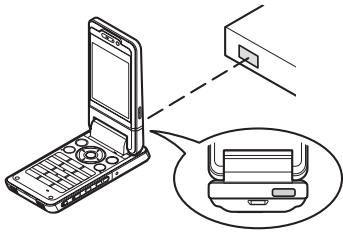
Modem 3G/GSM
- Il n'est pas recommandé de passer ou de recevoir des appels lorsque vous utilisez le 903SH comme modem 3G/GSM. L'opération peut être interrompue.
Gestionnaire du téléphone
- Certains fichiers volumineux peuvent ne pas être transmis du PC au téléphone.
- Les applications (Appareil photo, Mes éléments, etc.) ne s'exécutent pas lorsque le téléphone est connecté au PC via l'interface sans fil Bluetooth, l'infrarouge ou le câble de données USB.
Dépannage
| Problem | Solution |
| The phone does not turn on. | ·Make sure the battery is properly inserted and charged. |
| PIN code or PIN2 code is rejected. | ·Make sure you have entered the correct code (4 to 8 digits). ·Your SIM/USIM card/protected functions will become locked after three unsuccessful attempts. ·Contact your SIM/USIM provider if you do not have the correct PIN code. |
| The SIM/USIM card becomes locked. | ·Enter the PUK code (8 digits) provided by your service provider (if supported). ·If the attempt is successful, enter the new PIN code and confirm your phone is operational again. Otherwise contact your dealer. |
| The display is difficult to read. | ·Adjust the backlight brightness for the display. |
| Phone functions do not work after the phone is turned on. | ·Check the radio signal strength indicator as you may be outside the service area. ·Check to see if any error message is displayed when you turn your phone on. If so, contact your dealer. ·Make sure the SIM/USIM card is correctly inserted. |
| Problem | Solution |
| Calls cannot be made or received. | If the message “Insert SIM Card” is displayed when the phone is switched on, you cannot use your SIM/USIM card or the SIM/USIM card is damaged. Contact your dealer or network service provider. Check your call barring, fixed dialling setting, remaining battery and call forwarding settings. Check if your phone is currently performing data communication using Infrared (IrDA), Bluetooth wireless technology interface or a USB data cable. Check the remaining balance if you are using a pre-paid SIM/USIM card. |
| Call quality is poor. | Your current location may not provide good call quality (i.e., in a car or train). Move to a location where radio signal strength is greater. |
| Cannot access network service. | ·Check where your account has been registered and where the service is available. |
| Cannot send or receive text message. | ·Make sure you are correctly subscribed for the Short Message Service, that the network supports this service, and that the centre number is set up correctly. If not, contact your network service provider. |
| Cannot connect to Multimedia Messaging Service provider. | ·MMS settings and configuration may be missing or incorrect or the network does not support it. Check your service provider's access point number. Contact your service provider to confirm the correct settings. |
| Limited memory available. | ·Delete any unnecessary data. |
| Call is terminated unexpectedly. | ·Magnetised objects such as health necklaces placed near the phone may terminate the call. Keep your phone away from such objects. |
| No entries are displayed in the Contacts List. | ·Confirm that the Contacts Location setting (Handset or SIM/USIM) is correct. |
| Problem | Solution |
| Fax transmission failure. | ·Before transmitting fax data, configure your fax software to use the software flow control. ·Use of the optional data cable is recommended for transmitting fax data. |
| Cannot receive OBEX data. | ·The OBEX data can only be received only in standby. |
Précautions de sécurité et conditions d'utilisation
Votre téléphone est conforme aux réglementations internationales dans la mesure où il est utilisé dans des conditions normales et conformément aux instructions suivantes.
CONDITIONS D'UTILISATION
Ondes électromagnétiques
- N'allumez pas votre téléphone à bord d'un avion (car il peut interférer avec les systèmes électroniques de l'avion). La législation en vigueur interdit cette utilisation et des poursuites judiciaires peuvent être engagées contre l'utilisateur.
- N'allumez pas votre téléphone dans un hôpital, sauf dans les zones désignées.
- Pour un porté sur le corps, ce téléphone a été testé et répond aux directives d'exposition aux radiofréquences lorsqu'il est utilisé avec un accessoire sans métal et qui maintient le téléphone à une distance minimale de 15 mm du corps. L'utilisation d'autres accessoires peut ne pas garantir la conformité aux directives d'exposition aux radiofréquences.
- L'utilisation des fonctions de votre téléphone peut affecter les performances des appareils médicaux électroniques (stimulateurs cardiaques, prothèses auditives, pompes à insuline, etc.). Lorsque la fonction téléphone est activée, ne l'approchez pas d'équipements médicaux ou de zones où des équipements médicaux sont utilisés. Si vous portez une prothèse auditive ou un stimulateur cardiaque, utilisez le téléphone uniquement du côté opposé de votre corps où se trouve l'appareil. Le téléphone doit être maintenu à au moins 6 pouces (15,24 cm) d'un stimulateur cardiaque à tout moment où le téléphone est allumé.
- N'allumez pas votre téléphone à proximité de gaz ou de substances inflammables.
- Respectez les consignes concernant l'utilisation des téléphones portables dans les stations-service, les usines chimiques et sur tous les sites présentant un risque d'explosion.
Entretien de votre téléphone
- Ne laissez pas les enfants utiliser votre téléphone sans surveillance.
- N'ouvrez pas et ne tentez pas de réparer votre téléphone vous-même. Le produit ne peut être réparé que par un personnel de service agréé.
- Ne faites pas tomber votre téléphone et ne le soumettez pas à des chocs violents. Plier le boîtier ou appuyer avec une force extrême sur l'écran ou les touches pourrait endommager le téléphone.
- N'utilisez pas de solvants pour nettoyer votre téléphone. Utilisez uniquement un chiffon doux et sec.
- Ne portez pas votre téléphone dans votre poche arrière, car il pourrait se casser lorsque vous vous asseyez. L'écran est en verre et particulièrement fragile.
- Évitez de toucher le connecteur externe situé sous le téléphone, car les composants délicats qu'il contient peuvent être endommagés par l'électricité statique.
Batterie
- Utilisez votre téléphone uniquement avec des batteries, chargeurs et accessoires recommandés par le fabricant. Le fabricant décline toute responsabilité en cas de dommages causés par l'utilisation d'autres chargeurs, batteries ou accessoires.
La configuration du réseau et l'utilisation du téléphone affectent la durée de communication et la durée de veille.
L'utilisation des jeux ou de l'appareil photo accélère la consommation de la batterie.
- Lorsque l'alerte de charge de la batterie s'affiche à l'écran, chargez la batterie dès que possible. Si vous continuez à utiliser votre téléphone en ignorant l'alerte, le téléphone peut cesser de fonctionner et toutes les données et tous les paramètres que vous avez stockés peuvent être perdus à tout moment.
- Avant de retirer la batterie du téléphone, assurez-vous que le téléphone est éteint.
- Remplacez et chargez la nouvelle batterie dès que possible après avoir retiré l'ancienne.
- Ne touchez pas les bornes de la batterie. Les batteries peuvent causer des dommages, des blessures ou des brûlures si un matériau conducteur entre en contact avec les bornes exposées. Lorsque la batterie est détachée du téléphone, utilisez un couvercle en matériau non conducteur pour la conserver et la transporter en toute sécurité.
- La température recommandée pour l'utilisation et le stockage des batteries est d'environ 20 °C.
- Les performances des batteries sont limitées à basse température, en particulier en dessous de 0 °C, et le téléphone peut ne pas fonctionner temporairement, quelle que soit la quantité d'énergie restante.
- Exposer le téléphone à des températures extrêmes réduira la durée de vie de la batterie.
- La batterie peut être chargée et déchargée des centaines de fois, mais elle finira par s'user. Lorsque la durée de fonctionnement (temps de conversation et temps de veille) est nettement plus courte que la normale, il est temps d'acheter une nouvelle batterie.
ATTENTION : RISQUE D'EXPLOSION SI LA BATTERIE EST REMPLACÉE PAR UN TYPE INCORRECT. ÉLIMINEZ LES BATTERIES USAGÉES CONFORMÉMENT AUX INSTRUCTIONS.
Voir « Élimination de la batterie » à la page 12.
Carte mémoire
- Ne retirez pas et n'insérez pas de carte mémoire pendant que des données sur la carte sont en cours de modification. N'éteignez pas le téléphone ou l'appareil contenant la carte mémoire pendant que des données sur la carte sont en cours de modification, car cela pourrait endommager les données ou empêcher la carte de fonctionner correctement. Des données peuvent être perdues dans les circonstances suivantes.
- Si le téléphone est tombé, secoué ou si une force est appliquée pendant que la carte mémoire est insérée.
- Lorsque le téléphone est utilisé dans des zones exposées à l'électricité statique ou au bruit électrique.
- Sauvegardez vos données importantes au cas où les données sur les cartes mémoire seraient perdues en raison de dysfonctionnements.
- Ne touchez pas les bornes métalliques avec vos mains ou des objets métalliques.
- Ne pliez pas la carte mémoire et ne la soumettez pas à des chocs violents. Tenez-la à l'écart de l'eau et des températures élevées.
- SHARP décline toute responsabilité en cas de perte ou de dommage des données contenues sur une carte mémoire.
- Gardez toutes les cartes mémoire hors de portée des jeunes enfants.
Entretien de l'antenne
- Ne couvrez pas le haut du téléphone (p. 8, n° 21) avec votre main lors de l'utilisation, car cela pourrait interférer avec les performances de l'antenne intégrée. La qualité des appels peut se dégrader, entraînant une réduction du temps de conversation et de veille, car le téléphone mobile doit fonctionner à un niveau de puissance plus élevé que nécessaire.
- Utilisez uniquement l'antenne fournie ou une antenne approuvée par Sharp pour votre téléphone mobile. L'utilisation d'antennes non autorisées ou modifiées peut endommager le téléphone mobile. De plus, comme le téléphone mobile peut enfreindre les réglementations en vigueur, il peut perdre en performance ou dépasser la limite des niveaux de DAS.
- Pour éviter une dégradation des performances, ne endommagez pas l'antenne du téléphone mobile.
- Lorsque vous parlez directement dans le microphone, tenez le téléphone mobile de manière à ce que l'antenne soit dirigée vers le haut, au-dessus de votre épaule.
- Pour éviter d'interférer avec les opérations de dynamitage, veuillez éteindre le téléphone mobile dans une zone de dynamitage ou dans un endroit où un panneau « éteindre la radio bidirectionnelle » est affiché.
Utilisation de l'appareil photo
- Apprenez au préalable la qualité d'image, les formats de fichiers, etc.
Les photos prises peuvent être enregistrées au format JPEG.
- Veillez à ne pas bouger la main lors de la prise de photos. Si le téléphone bouge pendant la prise de vue, la photo peut être floue. Lors de la prise de vue, tenez fermement le téléphone pour éviter tout mouvement, ou utilisez le retardateur.
- Nettoyez le cache de l'objectif avant de prendre une photo. Les traces de doigts, les huiles, etc. sur le cache de l'objectif gênent une mise au point nette. Essuyez-les avec un chiffon doux avant de prendre une photo.
Autres
- Comme pour tout dispositif de stockage électronique, des données peuvent être perdues ou corrompues dans diverses circonstances.
- Avant de connecter le téléphone à un PC ou à un périphérique, lisez attentivement le manuel d'utilisation de l'autre appareil.
- Si la batterie du téléphone a été retirée pendant un certain temps, ou si le téléphone a été réinitialisé, l'horloge et le calendrier de l'appareil peuvent être réinitialisés. Dans ce cas, la date et l'heure doivent être mises à jour.
- Le téléphone utilise un aimant pour détecter qu'il est fermé. Ne placez pas de cartes magnétiques près de votre téléphone et ne laissez pas la carte se coincer dans le téléphone, car cela pourrait endommager les données enregistrées.
ENVIRONNEMENT
- Tenez votre téléphone à l'écart de la chaleur extrême. Ne le laissez pas sur le tableau de bord d'une voiture ou près d'un radiateur. Ne le laissez pas dans un endroit extrêmement humide ou poussiéreux.
- Ce produit n'étant pas étanche, ne l'utilisez pas et ne le rangez pas dans un endroit où des liquides tels que de l'eau peuvent éclabousser. Les gouttes de pluie, les projections d'eau, le jus, le café, la vapeur, la transpiration, etc. peuvent également provoquer des dysfonctionnements.
PRÉCAUTIONS CONCERNANT L'UTILISATION EN VÉHICULE
- Il incombe à l'utilisateur de vérifier les lois locales régissant l'utilisation d'un téléphone mobile dans les véhicules. Accordez toute votre attention à la conduite. Rangez-vous sur le côté de la route, garez la voiture et coupez le moteur avant de passer ou de répondre à un appel.
- L'utilisation des fonctions de votre téléphone peut interférer avec les systèmes électroniques du véhicule, tels que les freins antiblocage ABS ou l'airbag. Pour garantir l'absence de tels problèmes, veuillez consulter votre revendeur ou le constructeur automobile avant de connecter votre téléphone.
- Seul un personnel de maintenance qualifié est autorisé à installer les accessoires du véhicule.
Le fabricant décline toute responsabilité en cas de dommages résultant d'une utilisation inappropriée ou contraire aux instructions contenues dans le présent document.
DAS
Votre appareil mobile est un émetteur-récepteur radio. Il est conçu pour ne pas dépasser les limites d'exposition aux ondes radio recommandées par les directives internationales. Ces directives ont été élaborées par l'organisation scientifique indépendante ICNIRP et incluent des marges de sécurité conçues pour assurer la protection de toutes les personnes, quel que soit leur âge et leur état de santé.
Les directives utilisent une unité de mesure connue sous le nom de débit d'absorption spécifique, ou DAS. La limite de DAS pour les appareils mobiles est de 2 W/kg et la valeur de DAS la plus élevée pour cet appareil lors d'un test à l'oreille était de 0,544 W/kg. Comme les appareils mobiles offrent une gamme de fonctions, ils peuvent être utilisés dans d'autres positions, comme sur le corps, comme décrit dans ce guide de l'utilisateur*. Dans ce cas, la valeur de DAS la plus élevée testée est de 0,876 W/kg.
Comme le DAS est mesuré en utilisant la puissance de transmission la plus élevée de l'appareil, le DAS réel de cet appareil en fonctionnement est généralement inférieur à celui indiqué ci-dessus. Cela est dû aux changements automatiques du niveau de puissance de l'appareil pour garantir qu'il n'utilise que le niveau minimal requis pour atteindre le réseau.
L'Organisation mondiale de la santé a déclaré que les informations scientifiques actuelles n'indiquent pas la nécessité de précautions particulières pour l'utilisation des appareils mobiles. Ils notent que si vous souhaitez réduire votre exposition, vous pouvez le faire en limitant la durée des appels ou en utilisant un dispositif "mains libres" pour éloigner le téléphone mobile de la tête et du corps.
- Les tests sont effectués conformément aux directives internationales de test. ** Veuillez consulter la section CONDITIONS D'UTILISATION à la page 122 concernant le fonctionnement sur le corps.
INFORMATIONS SUR L'ÉLIMINATION APPROPRIÉE

Attention : Votre produit est marqué de ce symbole. Cela signifie que les produits électriques et électroniques usagés ne doivent pas être mélangés avec les déchets ménagers ordinaires. Il existe un système de collecte séparé pour ces produits.
A. Informations sur l'élimination pour les utilisateurs (ménages privés)
1. Dans l'Union européenne
Attention : Si vous souhaitez vous débarrasser de cet équipement, veuillez ne pas utiliser la poubelle ordinaire !
Les équipements électriques et électroniques usagés doivent être traités séparément et conformément à la législation qui exige un traitement, une récupération et un recyclage appropriés des équipements électriques et électroniques usagés. Suite à la mise en œuvre par les États membres, les ménages privés des États de l'UE peuvent retourner leurs équipements électriques et électroniques usagés dans des installations de collecte désignées gratuitement. Dans certains pays, votre détaillant local peut également reprendre gratuitement votre ancien produit si vous achetez un nouveau produit similaire.
*) Veuillez contacter votre autorité locale pour plus de détails.
Si votre équipement électrique ou électronique usagé contient des piles ou des accumulateurs, veuillez les retirer séparément au préalable, conformément aux exigences locales.
En éliminant correctement ce produit, vous contribuerez à garantir que les déchets subissent le traitement, la récupération et le recyclage nécessaires, et à prévenir ainsi les effets négatifs potentiels sur l'environnement et la santé humaine qui pourraient autrement survenir en raison d'une manipulation inappropriée des déchets.
2. Dans les autres pays hors UE
Si vous souhaitez vous débarrasser de ce produit, veuillez contacter vos autorités locales et demander la méthode d'élimination appropriée.
Pour la Suisse :
Les équipements électriques ou électroniques usagés peuvent être retournés gratuitement au revendeur, même si vous n'achetez pas un nouveau produit. D'autres points de collecte sont répertoriés sur les sites www.swico.ch ou www.sens.ch.
B. Informations sur l'élimination pour les utilisateurs professionnels.
1. Dans l'Union européenne
Si le produit est utilisé à des fins professionnelles et que vous souhaitez vous en débarrasser :
Veuillez contacter votre revendeur SHARP qui vous informera sur la reprise du produit. Des frais peuvent vous être facturés pour la reprise et le recyclage. Les petits produits (et les petites quantités) peuvent être repris par vos installations de collecte locales.
Pour l'Espagne : veuillez contacter le système de collecte établi ou votre autorité locale pour la reprise de vos produits usagés.
2. Dans les autres pays hors UE
Si vous souhaitez vous débarrasser de ce produit, veuillez contacter vos autorités locales et demander la méthode d'élimination appropriée.
PRÉCAUTIONS D'UTILISATION AUX ÉTATS-UNIS
Les modifications ou changements non expressément approuvés par le fabricant responsable de la conformité pourraient annuler le droit de l'utilisateur à utiliser l'équipement.
Exposition aux ondes radio
CE MODÈLE DE TÉLÉPHONE RÉPOND AUX EXIGENCES DU GOUVERNEMENT EN MATIÈRE D'EXPOSITION AUX ONDES RADIO.
Votre téléphone sans fil est un émetteur-récepteur radio. Il est conçu et fabriqué pour ne pas dépasser les limites d'émission pour l'exposition à l'énergie radiofréquence (RF) fixées par la Commission fédérale des communications (FCC) du gouvernement américain. Ces limites font partie de directives complètes qui établissent les niveaux d'énergie RF autorisés pour la population générale. Ces directives sont basées sur des normes élaborées par des organisations scientifiques indépendantes, à la suite d'une évaluation périodique et approfondie d'études scientifiques. Ces normes comprennent une marge de sécurité substantielle conçue pour garantir la sécurité de tous, quel que soit l'âge ou l'état de santé.
La norme d'exposition pour les téléphones mobiles sans fil utilise une unité de mesure appelée débit d'absorption spécifique (DAS). La limite de DAS fixée par la FCC est de 1,6 W/kg. * Les tests de DAS sont effectués dans des positions d'utilisation standard spécifiées par la FCC, avec le téléphone émettant à son niveau de puissance certifié le plus élevé dans toutes les bandes de fréquences testées. Bien que le DAS soit déterminé au niveau de puissance certifié le plus élevé, le niveau de DAS réel du téléphone en fonctionnement peut être bien inférieur à la valeur maximale. Cela est dû au fait que le téléphone est conçu pour fonctionner à plusieurs niveaux de puissance afin de n'utiliser que la puissance nécessaire pour atteindre le réseau. En général, plus vous êtes proche d'une antenne de station de base sans fil, plus la puissance de sortie est faible.
Avant qu'un modèle de téléphone ne soit mis en vente au public, il doit être testé et certifié auprès de la FCC pour garantir qu'il ne dépasse pas la limite établie par l'exigence de sécurité adoptée par le gouvernement. Les tests sont effectués dans des positions et des emplacements (par exemple, à l'oreille et porté sur le corps) comme l'exige la FCC pour chaque modèle. La valeur de DAS la plus élevée pour ce modèle de téléphone lorsqu'il est testé pour une utilisation à l'oreille est de 0,355 W/kg, et lorsqu'il est porté sur le corps, comme décrit dans ce guide de l'utilisateur, est de 0,426 W/kg. Fonctionnement porté sur le corps : cet appareil a été testé pour des opérations typiques portées sur le corps avec le dos du téléphone maintenu à 1,5 cm du corps. Pour rester conforme aux exigences d'exposition RF de la FCC, utilisez des accessoires qui maintiennent une distance de séparation de 1,5 cm entre le corps de l'utilisateur et le dos du téléphone. L'utilisation de clips de ceinture, d'étuis et d'accessoires similaires ne doit pas contenir de composants métalliques dans leur assemblage.
L'utilisation d'accessoires qui ne satisfont pas à ces exigences peut ne pas être conforme aux exigences d'exposition RF de la FCC et doit être évitée. Bien qu'il puisse y avoir des différences entre les niveaux de DAS de divers téléphones et à différentes positions, ils répondent tous à l'exigence gouvernementale de sécurité en matière d'exposition.
La FCC a accordé une autorisation d'équipement pour ce modèle de téléphone, tous les niveaux de DAS signalés ayant été évalués comme conformes aux directives d'émission RF de la FCC. Les informations sur le DAS de ce modèle de téléphone sont déposées auprès de la FCC et peuvent être consultées dans la section « Display Grant » du site http://www.fcc.gov/oet/fccid après avoir recherché l'ID FCC APYHR000041.
Des informations supplémentaires sur les débits d'absorption spécifiques (DAS) sont disponibles sur le site Web de la Cellular Telecommunications & Internet Association (CTIA) à l'adresse http://www.phonefacts.net.
- Aux États-Unis et au Canada, la limite de DAS pour les téléphones mobiles utilisés par le public est de 1,6 watt/kg (W/kg) en moyenne sur un gramme de tissu. La norme intègre une marge de sécurité substantielle pour offrir une protection supplémentaire au public et pour tenir compte des variations de mesure.
Spécifications et accessoires en option
Spécifications
Poids : environ 148 g (avec batterie)
Dimensions (L × H × P) : environ 50,0 × 108,7 × 28,5
mm (fermé, sans parties saillantes)
Batterie : lithium-ion, 3,7 V, 900 mAh
Accessoires en option
Batterie lithium-ion (XN-1BT70) Chargeur allume-cigare (XN-1CL30) - Câble de données USB (XN-1DC30) - Chargeur secteur (XN-1QC30, XN-1QC31) - Câble d'antenne externe (XN-1AT90) Télécommande audio (XN-1AR90) Support voiture (XN-1CH91) Support de bureau (XN-1DH91) - Casque stéréo (XN-1HS90) - Microphone mains libres (XN-1HU90) Câble vidéo (XN-1VC90)
Les accessoires ci-dessus peuvent ne pas être disponibles dans toutes les régions.
Pour plus de détails, veuillez contacter votre revendeur.
Index
A
Alarmes 83
Informations sur la zone 59
B
Batterie 11
Indicateur de niveau de batterie 13
Fonction sans fil Bluetooth 111
C
Calculatrice 84
Calendrier 80
Coûts d'appel 110
Journal d'appels 109
Paramètres d'appel 102
Minuteries d'appel 109
Caméra (photo/vidéo) 41
Réglage de l'exposition 43
Raccourcis clavier courants 45
Prise de vue en continu 46
Réglage de la mise au point 44
Enregistrement de clips vidéo 42
Sélection de la qualité de l'image ou de la vidéo 44
Sélection de la taille de l'image 45
Sélection de la durée d'enregistrement et de la taille 47
Sélection de la scène 46
Sélection du son de l'obturateur 47
Basculement entre les modes photo et caméra vidéo 44
Prise de photos 41
Diffusion cellulaire 58
Caractères 29
Changement du mode de saisie 30
Utilisation de modèles 31
Connectivité 111
Bluetooth 111
Mode Avion 115
Infrarouge 113
Paramètres Internet 115
Paramètres réseau 114
Liste des contacts 34
Groupes de contacts 38
Gérer les catégories 37
État de la mémoire 39
Sélection de la mémoire de stockage 34
Liste de numérotation abrégée 39
Synchronisation des contacts avec Internet 40
Affichage de mes coordonnées 35
Verrouillage des contacts 108
Minuteur 90
D
Compteur de données 109
Date et heure 100
Position de l'affichage 17
Paramètres d'affichage 97
E
Volume de l'écouteur 22
Livre électronique 87
Appels d'urgence 20
Mémorandum de dépenses 90
F
Verrouillage des fonctions 108
G
Jeux et applications 72
Java™ Information 76
Setting Permission 73
Switching the Screensaver On or Off 75
Viewing Application Information 74
Handset Code 108
Handset Lock 107
In Call Menu (Video Call) 26
Changing the Image of Yourself 26
Muting the Microphone 26
Swapping Images 26
Turning the Speakers On and Off 27
Using the Optical Zoom Function 27
Video Call Settings 27
Menu d'appel (appel vocal) 22
Accès au menu SMS/MMS pendant un appel 23
Conférence téléphonique 23
Mise en sourdine du microphone 24
Mise en attente d'un appel 23
Activation et désactivation des haut-parleurs 22
Appels internationaux 20
Paramètres Internet 115
K
Verrouillage du clavier 15
L
Réglage de la langue 101
M
Réinitialisation générale 108
Carte mémoire 116
Messagerie (SMS/MMS/E-mail) 49
Appeler le numéro de téléphone 53
Téléchargement 53
Paramètres e-mail 58
Transfert 54
Paramètres généraux 56
Verrouillage ou déverrouillage 54
Paramètres MMS 57
Envoyer un message depuis la boîte des brouillons 52
Envoyer un message vocal ou un message
Clip vidéo 52
Envoyer avec carte postale 54
Paramètres SMS 57
Enregistrer le numéro de téléphone 53
Utiliser les options d'envoi 51
Lecteur de musique 63
Mes éléments 65
N
Navigation dans les fonctions 19
Paramètres réseau 114
0
Organiseur et outils 80
Autres documents 67
P
Connexion PC 118
Aide du téléphone 91
Images 65
Code PIN 107
Code PIN2 107
Mise sous et hors tension 15
Profils 93
R
Recomposition 21
S
Précautions de sécurité 122
Scanner 86
Écrans de veille 75
Données secrètes 108
Sécurité 107
Paramètres 93
Application SIM 92
Carte SIM 11
Paramètres sonores 100
Sons et sonneries 66
Numérotation rapide 21
Chronomètre 88
T
Tâches 88
Modèles de texte 71
Dépannage 120
V
Paramètres d'appel vidéo 27
Clips vidéo 67
Vodafone live! 60
Enregistreur vocal 85
W
Navigateur WAP 61
Horloge mondiale 90
Liste des fonctions du menu
| Menu No./Main Menu | Menu No./Sub Menu1 | |
| 1 Entertainment | Games & ApplicationsTV & Video | |
| 2 Vodafone live! | Vodafone live!Enter URL BookmarksAlert InboxMy Saved PageAccess HistoryBrowser SettingsWhat's New?Music*GamesRingtonesPicturesNewsSport | |
| 3 Music | Last Played Music/Currently PlayingMy MusicBrowse Music Store* | |
| 4 Messaging | Create Message InboxDraftsSentOutboxVodafone MessengerTemplatesMedia Album*Messaging SettingsMemory Status | |
*Ce menu n'est pas disponible avec certains fournisseurs de services.
| Menu No./Main Menu | Menu No./Sub Menu1 | |
| 5 | Camera | |
| 6 | My Items | 1 Pictures 2 Sounds & Ringtones 3 Games & Applications 4 Videos 5 Text Templates 6 Other Documents 7 Memory Status |
| 7 | Organiser & Tools | 1 Calendar 2 Alarms 3 Calculator 4 Voice Recorder 5 Scanner 6 E-Book 7 Stopwatch 8 Tasks 9 World Clock 10 Countdown Timer 11 Expenses Memo 12 Phone Help |
| 8 | Contacts | 1 Contacts List 2 Call Voicemail 3 Manage Category 4 Speed Dial List 5 My Contact Details 6 Contact Groups 7 Synchronise 8 Settings 9 Manage Contacts |
| Menu No./Main Menu | Menu No./Sub Menu1 |
| 9 Call Log | 1 All Calls2 Dialled Numbers3 Missed Calls4 Received Calls5 Call Timers6 Data Counter7 Call Costs** |
| 10 Connectivity | 1 Bluetooth2 Infrared3 Network Settings4 Flight Mode5 Internet Settings6 Memory Card |
| 11 SIM Application | |
| 12 Settings | 1 Profiles2 Display Settings3 Sound Settings4 Date & Time5 Language6 Call Settings7 Video Call Settings8 Security9 Master Reset |
**Dépend du contenu de la carte SIM.
Remarque concernant les indications de menu pour la carte postale, l'album multimédia et d'autres services
- Les indications de menu pour la carte postale, l'album multimédia et d'autres services varient au Royaume-Uni et en Irlande comme suit :
| Current indications in the user guide | Indications in United Kingdom | Indications in Ireland |
| “Postcard” | “live! Postcard” | (Not available) |
| “Additional Information” | “Additional information” | “Additional Information” |
| “Street & Number” | “Address” | “Street & Number” |
| “State/Province” | “County” | “State/Province” |
| “Postal Code” | “Post Code” | “Postal Code” |
| “Media Album” | “live! Studio” | “Picture Album” |
| “To Media Album” | “To live! Studio” | “To Picture Album” |
| “What's New?” | “New” | “New” |


- DÉCLARATION DE CONFORMITÉ
- INTRODUCTION
- À PROPOS DE CE GUIDE DE L'UTILISATEUR
- AVIS
- DROITS D'AUTEUR
- BLUETOOTH
- BREVET CP
- FONCTIONS ET SERVICES UTILES
- SOMMAIRE
- CAMÉRA
- SMS
- VODAFONE LIVE
- MUSIQUE
- MES ÉLÉMENTS
- DIVERTISSEMENT
- ORGANISEUR & OUTILS
- APPLICATION SIM
- PARAMÈTRES
- JOURNAL D'APPELS
- CONNECTIVITÉ
- CONNECTING 903SH TO YOUR PC
- TROUBLESHOOTING
- SAFETY PRECAUTIONS AND CONDITIONS OF USE
- SPÉCIFICATIONS ET ACCESSOIRES EN OPTION
- INDEX
- LISTE DES FONCTIONS DU MENU
- VOTRE TÉLÉPHONE
- POUR COMMENCER
- INSERTION DE LA CARTE SIM ET DE LA BATTERIE
- REMARQUE
- RETRAIT DE LA CARTE SIM ET DE LA BATTERIE
- ÉLIMINATION DE LA BATTERIE
- CHARGEMENT DE LA BATTERIE
- UTILISATION DU CHARGEUR
- POUR CHARGER À L'AIDE DU CHARGEUR ALLUME-CIGARE
- INDICATEUR DE NIVEAU DE BATTERIE
- BATTERIE FAIBLE PENDANT L'UTILISATION
- INSERTION DE LA CARTE MÉMOIRE
- NOTE
- ASTUCE
- RETRAIT DE LA CARTE MÉMOIRE
- CONNEXION DU KIT PIÉTON STÉRÉO
- ALLUMER ET ÉTEINDRE VOTRE TÉLÉPHONE
- COPIER TOUTES LES ENTRÉES DU RÉPERTOIRE DEPUIS LA CARTE SIM
- VERROUILLAGE DU CLAVIER
- INDICATEURS À L'ÉCRAN
- OUVERTURE DE VOTRE TÉLÉPHONE
- POSITION NORMALE (①)
- POSITION AUTOPORTRAIT (②)
- POSITION VISIONNEUSE (③)
- FONCTIONS DE NAVIGATION
- UTILISATION EN POSITION NORMALE DE L'ÉCRAN
- UTILISATION EN POSITION VISUALISATION DE L'ÉCRAN
- LES TOUCHES LATÉRALES FONCTIONNENT EN MODE CAMÉRA COMME SUIT
- FONCTIONS D'APPEL VOCAL / APPEL VIDÉO
- PASSER UN APPEL VOCAL
- APPELS D'URGENCE
- APPELS INTERNATIONAUX
- AJOUT D'UN NUMÉRO DE TÉLÉPHONE SAISI À LA LISTE DE CONTACTS
- AFFICHER OU MASQUER MON NUMÉRO DE TÉLÉPHONE SUR L'ÉCRAN DU CORRESPONDANT
- PASSER UN APPEL EN UTILISANT LA LISTE DE CONTACTS EN POSITION VISUALISATION DE L'ÉCRAN
- NUMÉROTATION ABRÉGÉE
- RECOMPOSITION
- RÉPONDRE À UN APPEL VOCAL
- RÉPONDRE À UN APPEL EN POSITION VISIONNEUSE DE L'ÉCRAN
- REJET D'UN APPEL ENTRANT
- SIGNALER À L'APPELANT QUE VOUS ÊTES INDISPONIBLE
- MENU EN COURS D'APPEL (APPEL VOCAL)
- RÉGLAGE DU VOLUME DE L'ÉCOUTEUR
- ACTIVATION ET DÉSACTIVATION DES HAUT-PARLEURS
- MISE EN ATTENTE D'UN APPEL
- ACCÈS AU MENU SMS/MMS PENDANT UN APPEL
- APPEL EN ATTENTE
- CONFÉRENCE TÉLÉPHONIQUE
- MISE EN SOURDINE DU MICROPHONE
- PASSER UN APPEL VIDÉO
- INDICATEURS D'ÉTAT
- RÉPONDRE À UN APPEL VIDÉO
- REJETER UN APPEL ENTRANT
- MENU D'APPEL (APPEL VIDÉO)
- ÉCHANGE D'IMAGES
- CHANGER VOTRE PROPRE IMAGE
- UTILISATION DE LA FONCTION DE ZOOM OPTIQUE
- PARAMÈTRES DES APPELS VIDÉO
- SAISIE DE CARACTÈRES
- TABLEAU DES CARACTÈRES
- CHANGEMENT DE LA LANGUE DE SAISIE
- CHANGEMENT DU MODE DE SAISIE
- MON DICTIONNAIRE
- MODIFICATION D'UN MOT DANS LA LISTE
- UTILISATION DES MODÈLES
- COPIER, COUPER ET COLLER DU TEXTE
- UTILISATION DU MENU
- MENU PRINCIPAL
- UTILISATION DU MENU EN POSITION VISUALISATION DE L'ÉCRAN
- TOUCHES DE RACCOURCI
- LISTE DE CONTACTS (M 8-1)
- MODIFICATION DE L'ORDRE DES NOMS (M 8-8-1)
- MODIFICATION DE LA LISTE AFFICHÉE (M 8-8-2)
- SÉLECTION DE LA MÉMOIRE DE STOCKAGE (M 8-8-3)
- TRI DES ENTRÉES DE LA LISTE DES CONTACTS (M 8-8-4)
- AJOUTER UN NOUVEAU CONTACT
- AFFICHAGE DE MES COORDONNÉES (M 8-5)
- COPIE DES ENTRÉES DE LA LISTE DES CONTACTS ENTRE LA CARTE SIM ET LE TÉLÉPHONE (M 8-9-1)
- RECHERCHE D'UN NOM
- COMPOSER UN NUMÉRO DEPUIS LA LISTE DES CONTACTS
- MODIFICATION DES ENTRÉES DE LA LISTE DE CONTACTS
- AJOUT D'UNE VIGNETTE AUX ENTRÉES
- ATTRIBUTION D'UNE SONNERIE OU D'UN CLIP VIDÉO DE SONNERIE À CHAQUE ENTRÉE
- SUPPRESSION D'ENTRÉES DE LA LISTE DE CONTACTS
- GÉRER LES CATÉGORIES (M 8-3)
- CONTACTS » → « GÉRER LES CATÉGORIES
- MODIFICATION DU NOM DE CATÉGORIE
- CONTACTS" → "GÉRER LES CATÉGORIES
- GROUPES DE CONTACTS (M 8-6)
- CRÉATION D'UNE NOUVELLE LISTE DE DIFFUSION
- AJOUT DE DESTINATAIRES À UN GROUPE
- ENVOI D'UN MESSAGE À L'AIDE D'UNE LISTE DE DIFFUSION
- ÉTAT DE LA MÉMOIRE (M 8-9-2)
- LISTE DE NUMÉROS ABRÉGÉS
- AJOUT D'UNE ENTRÉE DE LA LISTE DE CONTACTS À LA LISTE DE NUMÉROS ABRÉGÉS
- ENVOI D'UNE ENTRÉE DE LA LISTE DE CONTACTS
- RÉCEPTION D'UNE ENTRÉE DE LA LISTE DE CONTACTS
- ENVOI D'UN MESSAGE VOCAL OU D'UN MESSAGE VIDÉO À L'AIDE D'UNE ADRESSE DE LA LISTE DE CONTACTS
- CONTACTS" → "LISTE DE CONTACTS
- SYNCHRONISATION DES ENTRÉES DE LA LISTE DE CONTACTS AVEC CELLES SUR INTERNET (M 8-7)
- SYNCHRONISATION DE LA LISTE DE CONTACTS (M 8-7-1)
- CONTACTS" → "SYNCHRONISER
- AFFICHAGE DU JOURNAL (M 8-7-2)
- PARAMÈTRES DE SYNCHRONISATION (M 8-7-3)
- CONTACTS" → "SYNCHRONISER" → "PARAMÈTRES DE SYNCHRONISATION
- CAMÉRA (M 5)
- PRENDRE DES PHOTOS
- PRENDRE UN AUTOPORTRAIT
- APPAREIL PHOTO
- SORTIE DU MODE APPAREIL PHOTO EN POSITION VISIONNEUSE DE L'ÉCRAN
- ENREGISTREMENT DE CLIPS VIDÉO
- UTILISATION DU MENU OPTIONS EN POSITION VISIONNEUSE DE L'ÉCRAN
- FONCTIONS COMMUNES AUX MODES PHOTO ET CAMÉRA VIDÉO
- UTILISATION DE LA FONCTION DE ZOOM NUMÉRIQUE
- POUR ACTIVER LE ZOOM OPTIQUE
- SÉLECTIONNEZ "ACTIVER
- APPUYEZ SUR ◄ OU ▼
- RÉGLAGE DE L'EXPOSITION
- LUMIÈRE MOBILE
- UTILISATION DU RETARDATEUR
- PASSAGE ENTRE LES MODES PHOTO ET VIDÉO
- SÉLECTION DE LA QUALITÉ DE L'IMAGE OU DE LA VIDÉO
- SÉLECTION DE LA MÉMOIRE DE STOCKAGE
- RÉGLAGE DE LA MISE AU POINT
- ENREGISTREMENT AUTOMATIQUE
- DÉMARRAGE AUTOMATIQUE
- UTILISATION DE LA FONCTION D'AIDE
- TOUCHES DE RACCOURCI COURANTES
- FONCTIONS DU MODE APPAREIL PHOTO
- SÉLECTION DE LA TAILLE DE L'IMAGE
- APPAREIL PHOTO » → [OPTIONS] → « TAILLE DE L'IMAGE
- SÉLECTION DE LA SCÈNE
- CAMÉRA" → [OPTIONS] → "MODES" → "SCÈNE
- SÉLECTIONNEZ LA SCÈNE SOUHAITÉE
- SÉLECTION DES EFFETS D'IMAGE
- APPAREIL PHOTO" → [OPTIONS] → "MODES" → "EFFETS D'APPAREIL PHOTO
- SÉLECTIONNEZ LES EFFETS SOUHAITÉS
- PRISE DE VUE EN CONTINU
- APPAREIL PHOTO" → [OPTIONS] → "MODES" → "PRISE EN RAFALE
- SÉLECTIONNEZ LE MODE SOUHAITÉ
- SÉLECTION D'UN CADRE
- UTILISATION DU PLEIN ÉCRAN
- SÉLECTION DU SON DE L'OBTURATEUR
- FONCTIONS DU MODE CAMÉSCOPE
- SÉLECTION DE LA DURÉE D'ENREGISTREMENT ET DE LA TAILLE
- ENREGISTREMENT DE CLIPS VIDÉO AVEC LE SON
- ENCODAGE VIDÉO
- MESSAGERIE (M 4)
- MMS
- CRÉATION D'UN NOUVEAU MESSAGE (M 4-1) (SMS/MMS)
- POUR AJOUTER UN DIAPORAMA
- SAISISSEZ LE MESSAGE
- UTILISATION DES OPTIONS D'ENVOI
- ENVOI D'UN MESSAGE DEPUIS LA BOÎTE DES BROUILLONS (M 4-3)
- ENVOI D'UN MESSAGE VOCAL OU D'UN MESSAGE VIDÉO (M 4-1-2) (M 4-1-3)
- LECTURE DES MESSAGES
- ENREGISTREMENT DU NUMÉRO DE TÉLÉPHONE D'UN EXPÉDITEUR DANS LA LISTE DE CONTACTS
- APPEL DU NUMÉRO DE TÉLÉPHONE D'UN EXPÉDITEUR INTÉGRÉ DANS LE MESSAGE
- TÉLÉCHARGEMENT D'UN MMS UNIQUE
- TÉLÉCHARGEMENT DE PLUSIEURS MMS
- RÉPONDRE À UN MESSAGE OU À TOUS LES DESTINATAIRES
- TRANSFERT D'UN MESSAGE
- TRI DES MESSAGES DANS LA LISTE
- VERROUILLAGE OU DÉVERROUILLAGE DES MESSAGES
- ENVOI D'UN FICHIER IMAGE AVEC UNE CARTE POSTALE (M 4-1-4)
- POUR CRÉER UNE NOUVELLE CARTE POSTALE
- SÉLECTIONNEZ UNE IMAGE QUE VOUS SOUHAITEZ ENVOYER
- SAISISSEZ VOTRE MESSAGE
- SAISISSEZ OU SÉLECTIONNEZ LE DESTINATAIRE
- APPUYEZ SUR [OPTIONS] ET SÉLECTIONNEZ "ENVOYER UNE CARTE POSTALE
- PARAMÈTRES DE MESSAGERIE (M 4-9)
- PARAMÈTRES GÉNÉRAUX (M 4-9-1)
- → "PARAMÈTRES DE MESSAGERIE" → "PARAMÈTRES GÉNÉRAUX
- SÉLECTIONNEZ L'ÉLÉMENT QUE VOUS SOUHAITEZ CONFIGURER
- PARAMÈTRES SMS (M 4-9-2)
- PARAMÈTRES MMS (M 4-9-3)
- PARAMÈTRES DE MESSAGERIE (M 4-9-4)
- DIFFUSION CELLULAIRE (M 4-9-5)
- INFOS ZONE (M 4-9-6)
- VODAFONE LIVE! (M 2)
- PERSONNALISÉ POUR
- NAVIGUER DANS UNE PAGE WAP
- MODIFICATION DES FAVORIS (M 2-3)
- VODAFONE LIVE!" → "FAVORIS
- PARAMÈTRES DU NAVIGATEUR (M 2-7)
- VODAFONE LIVE!" → "PARAMÈTRES DU NAVIGATEUR
- LES OPTIONS DU NAVIGATEUR
- → [OPTIONS]
- LES OPTIONS AVANCÉES
- → [OPTIONS] → "AVANCÉ
- MUSIQUE (M 3)
- LECTEUR DE MUSIQUE
- LECTURE DE FICHIERS AUDIO
- RECHERCHE D'UN FICHIER À LIRE
- AJOUT D'UN FICHIER À LA LISTE DE LECTURE
- AJOUT D'UNE NOUVELLE LISTE DE LECTURE
- TÉLÉCHARGEMENT DES FICHIERS MUSICAUX (M 3-3)
- MES ÉLÉMENTS (M 6)
- IMAGES (M 6-1)
- AFFICHAGE DES IMAGES
- UTILISATION D'IMAGES COMME FOND D'ÉCRAN
- ENREGISTREMENT D'UNE IMAGE DANS LES ENTRÉES DE LA LISTE DE CONTACTS
- MODIFICATION D'IMAGES
- AJUSTEMENT DE LA TAILLE
- MES ÉLÉMENTS" → "IMAGES
- TÉLÉCHARGEMENT DE FICHIERS IMAGE
- SONS ET SONNERIES (M 6-2)
- LECTURE DE FICHIERS SONORES
- MES ÉLÉMENTS" → "SONS ET SONNERIES
- UTILISATION DES FICHIERS SONORES COMME SONNERIE
- TÉLÉCHARGEMENT DE FICHIERS SONORES
- VIDÉOS (M 6-4)
- LECTURE DE FICHIERS DE CLIPS VIDÉO
- UTILISATION D'UN CLIP VIDÉO COMME SONNERIE VIDÉO
- TÉLÉCHARGEMENT DE FICHIERS DE CLIPS VIDÉO
- AUTRES DOCUMENTS (M 6-6)
- OUVERTURE DU FICHIER DOCUMENT
- MENUS D'OPTIONS COURANTS
- ACTIVATION DES FICHIERS PROTÉGÉS PAR LE DROIT D'AUTEUR (DRM)
- ENVOI DES DONNÉES DE MES ÉLÉMENTS
- RÉCEPTION DES DONNÉES MES ÉLÉMENTS
- APPUYEZ SUR [OUI]
- UTILISATION DES DONNÉES MES ÉLÉMENTS
- TÉLÉCHARGEMENT DES DONNÉES DE MES ÉLÉMENTS
- SÉLECTION DE PLUSIEURS FICHIERS
- JEUX ET APPLICATIONS (M 6-3)
- MODÈLES DE TEXTE (M 6-5)
- AJOUT DE PHRASES AUX MODÈLES DE TEXTE
- MODIFICATION DES MODÈLES DE TEXTE
- ENVOI DE MODÈLES DE TEXTE
- ÉTAT DE LA MÉMOIRE (M 6-7)
- DIVERTISSEMENT (M 1)
- JEUX ET APPLICATIONS (M 1-1)
- UTILISATION DES APPLICATIONS (M 1-1-1)
- TÉLÉCHARGEMENT D'APPLICATIONS
- EXÉCUTION D'APPLICATIONS
- DÉFINITION COMME ÉCONOMISEUR D'ÉCRAN POUR L'ÉCRAN PRINCIPAL
- DÉFINITION DES AUTORISATIONS
- DIVERTISSEMENT" → "JEUX ET APPLICATIONS" → "JEUX ET APPLICATIONS
- SÉLECTIONNEZ L'UNE DES OPTIONS SUIVANTES
- AFFICHAGE DES INFORMATIONS SUR UNE APPLICATION
- SUPPRESSION D'UNE APPLICATION
- PARAMÈTRES (M 1-1-2)
- VOLUME DE L'APPLICATION
- DIVERTISSEMENT" → "JEUX ET APPLICATIONS" → "PARAMÈTRES" → "VOLUME DE L'APPLICATION
- RÉTROÉCLAIRAGE
- DIVERTISSEMENT" → "JEUX ET APPLICATIONS" → "PARAMÈTRES" → "RÉTROÉCLAIRAGE" → "ACTIVER/DÉSACTIVER
- DIVERTISSEMENT" → "JEUX ET APPLICATIONS" → "PARAMÈTRES" → "RÉTROÉCLAIRAGE" → "CLIGNOTEMENT
- VIBRATION
- APPELS ET ALARMES
- ÉCRANS DE VEILLE
- RÉGLAGE DU SON SURROUND
- PARAMÈTRES PAR DÉFAUT
- EFFACEMENT DE TOUTE LA MÉMOIRE
- TV & VIDÉO (M 1-2)
- DIVERTISSEMENT" → "TV & VIDÉO" → "MES VIDÉOS
- DIVERTISSEMENT" → "TV ET VIDÉO" → "MES VIDÉOS
- MODIFICATION DU FICHIER DE CLIP VIDÉO
- SDVIDEO(M1-2-5)
- DIVERTISSEMENT" → "TV & VIDÉO" → "SDVIDEO
- TÉLÉCHARGEMENT DE FICHIERS DE CLIPS VIDÉO (M 1-2-3)
- DIVERTISSEMENT" → "TV ET VIDÉO" → "OBTENIR DE NOUVELLES VIDÉOS
- LECTURE DES FICHIERS DE CLIPS VIDÉO
- STREAMING (M 1-2-2)
- DIVERTISSEMENT" → "TV ET VIDÉO" → "STREAMING
- ORGANISEUR ET OUTILS (M 7)
- CALENDRIER (M 7-1)
- CRÉER UNE NOUVELLE ENTRÉE
- AFFICHAGE D'UNE ENTRÉE DE L'AGENDA
- D : AFFICHE LA SEMAINE SUIVANTE
- MODIFICATION D'UNE ENTRÉE DE L'AGENDA
- SUPPRESSION D'ENTRÉES D'AGENDA
- ENVOI D'UNE ENTRÉE D'AGENDA
- RÉCEPTION D'UNE ENTRÉE D'AGENDA
- AFFICHAGE DE L'ÉTAT DE LA MÉMOIRE
- ALARMES (M 7-2)
- RÉGLAGE DES ALARMES
- ORGANISEUR ET OUTILS » → « ALARMES
- RÉINITIALISATION D'UN RÉGLAGE D'ALARME
- RÉINITIALISATION DE TOUS LES RÉGLAGES D'ALARME
- CALCULATRICE (M 7-3)
- ORGANISEUR ET OUTILS" → "CALCULATRICE
- CONVERSION DE TAUX
- ENREGISTREUR VOCAL (M 7-4)
- ENREGISTREMENT D'UN CLIP VOCAL
- ENVOI DE CLIPS VOCAUX
- SÉLECTION DE LA DURÉE D'ENREGISTREMENT
- SCANNER (M 7-5)
- LECTURE DES CODES-BARRES
- OUVERTURE D'UNE IMAGE DE CODE-BARRES
- AFFICHAGE DES DONNÉES SCANNÉES
- CRÉATION DE CODES QR
- NUMÉRISATION DE TEXTE
- POUR UTILISER LE TEXTE INVERSÉ
- LIVRE ÉLECTRONIQUE (M 7-6)
- ORGANISEUR ET OUTILS" → "LIVRE ÉLECTRONIQUE
- AJOUT D'UN SIGNET
- CHRONOMÈTRE (M 7-7)
- ORGANISEUR ET OUTILS" → "CHRONOMÈTRE
- RÉINITIALISATION DU TEMPS
- TÂCHES (M 7-8)
- ORGANISEUR & OUTILS » → « TÂCHES
- ENVOI D'UNE ENTRÉE DE TÂCHE
- CONSULTATION DE L'ÉTAT DE LA MÉMOIRE
- ORGANISEUR ET OUTILS" → "TÂCHES
- SUPPRESSION D'ENTRÉES
- ORGANISEUR ET OUTILS" → "TÂCHES" → [OPTIONS] → "SUPPRIMER
- HORLOGE MONDIALE (M7-9)
- RÉGLAGE DU FUSEAU HORAIRE
- ORGANISEUR ET OUTILS" → "HORLOGE MONDIALE
- RÉGLAGE DE L'HEURE D'ÉTÉ
- MINUTEUR (M 7-10)
- ORGANISEUR ET OUTILS" → "MINUTEUR
- MODIFICATION DU TEMPS DU COMPTE À REBOURS
- MÉMORANDUM DE DÉPENSES (M 7-11)
- ENREGISTREMENT DANS LE MÉMORANDUM DE DÉPENSES (M 7-11-1)
- ORGANISEUR ET OUTILS" → "MÉMORANDUM DE DÉPENSES" → "AJOUTER UNE NOUVELLE DÉPENSE
- AFFICHAGE DES TOTAUX (M 7-11-2)
- MODIFICATION DU NOM DE CATÉGORIE (M 7-11-3)
- AIDE DU TÉLÉPHONE (M 7-12)
- APPLICATION SIM (M 11)
- PARAMÈTRES (M 12)
- PROFILS (M 12-1)
- ACTIVATION D'UN PROFIL
- RÉINITIALISATION DES PARAMÈTRES DU PROFIL
- VOLUME
- PARAMÈTRES" → "PROFILS
- ATTRIBUTION D'UNE SONNERIE
- RÉGLAGES" → "PROFILS
- ATTRIBUTION D'UN FICHIER VIDÉO DE SONNERIE
- NOTIFICATION DE MESSAGE
- TOUCHES DU CLAVIER
- TONALITÉ D'AVERTISSEMENT
- SON DE MISE SOUS/HORS TENSION
- VOYANT D'ÉVÉNEMENT
- VOYANT D'ÉTAT
- PARAMÈTRES » → « PROFILS
- RÉPONSE PAR TOUCHE QUELCONQUE
- RÉGLAGE DE L'AFFICHAGE (M 12-2)
- RÉGLAGE DU FOND D'ÉCRAN (M 12-2-1)
- POUR DÉFINIR MES IMAGES
- RÉGLAGES" → "RÉGLAGES D'AFFICHAGE" → "FOND D'ÉCRAN
- GRAPHIQUES SYSTÈME (M 12-2-2)
- RÉGLAGE DE LA GRAISSE DE POLICE (M 12-2-3)
- RÉGLAGE DU MESSAGE D'ACCUEIL (M 12-2-4)
- RÉTROÉCLAIRAGE (M 12-2-5)
- RÉGLAGE DE L'ÉCONOMIE D'AFFICHAGE (M 12-2-6)
- RÉGLAGES" → "RÉGLAGES D'AFFICHAGE" → "ÉCONOMIE D'AFFICHAGE
- RÉGLAGE DE LA SORTIE VIDÉO (M 12-2-7)
- POUR ACTIVER LA FONCTION DE SORTIE
- RÉGLAGES SONORES (M 12-3)
- DATE ET HEURE (M 12-4)
- RÉGLAGE DE L'HEURE D'ÉTÉ (M 12-4-2)
- RÉGLAGE DU FUSEAU HORAIRE (M 12-4-3)
- PERSONNALISATION DU FUSEAU HORAIRE
- AFFICHAGE DE LA DATE ET DE L'HEURE (M 12-4-4)
- HORLOGE MONDIALE (M 12-4-5)
- SÉLECTION DU FORMAT DE L'HEURE (M 12-4-6)
- SÉLECTION DU FORMAT DE DATE (M 12-4-7)
- RÉGLAGE DU FORMAT DU CALENDRIER (M 12-4-8)
- RÉGLAGE DE LA LANGUE (M 12-5)
- PARAMÈTRES D'APPEL (M 12-6)
- MESSAGERIE VOCALE ET RENVOIS (M 12-6-1)
- POUR DÉFINIR LES NUMÉROS DE MESSAGERIE VOCALE
- APPEL EN ATTENTE (M 12-6-2)
- AFFICHER VOTRE NUMÉRO DE TÉLÉPHONE (M 12-6-3)
- RESTREINDRE LES APPELS (M 12-6-4)
- RÉGLAGES" → "RÉGLAGES D'APPEL" → "RESTREINDRE LES APPELS
- PARAMÈTRES" → "PARAMÈTRES D'APPEL" → "RESTREINDRE LES APPELS
- APPEL MASQUÉ
- CHANGEMENT DU MOT DE PASSE RÉSEAU
- NUMÉRO À COMPOSITION FIXE
- MINUTEUR (M 12-6-5)
- AFFICHAGE DU COMPTEUR DE TEMPS D'APPEL (M 12-6-6)
- AFFICHAGE DES COÛTS D'APPEL (M 12-6-7)
- RAPPEL AUTOMATIQUE (M 12-6-8)
- RÉGLAGES DES APPELS VIDÉO (M 12-7)
- SÉLECTION DE L'IMAGE DE LA CAMÉRA (M 12-7-1)
- SÉLECTION DE LA QUALITÉ D'IMAGE (M 12-7-3) (M 12-7-4)
- RÉTROÉCLAIRAGE (M 12-7-5)
- MISE EN SOURDINE (M 12-7-6)
- AFFECTATION DE L'IMAGE DE MISE EN ATTENTE (M 12-7-7)
- RÉGLAGES" → "RÉGLAGES DES APPELS VIDÉO" → "IMAGE DE MISE EN ATTENTE
- SÉCURITÉ (M 12-8)
- ACTIVATION/DÉSACTIVATION DU CODE PIN (M 12-8-1)
- POUR MODIFIER LE CODE PIN
- CHANGEMENT DU CODE PIN2 (M 12-8-2)
- VERROUILLAGE DU COMBINÉ (M 12-8-3)
- VERROUILLAGE DES FONCTIONS (M 12-8-4)
- VERROUILLAGE DES CONTACTS (M 12-8-5)
- AFFICHAGE DES DONNÉES SECRÈTES (M 12-8-6)
- MODIFICATION DU CODE DE COMBINÉ (M 12-8-7)
- RÉINITIALISATION GÉNÉRALE (M 12-9)
- RÉINITIALISATION DES RÉGLAGES DE M1 À M12 (M 12-9-1)
- RÉINITIALISATION DE TOUS LES RÉGLAGES DE M1 À M12 ET DE TOUTES LES DONNÉES CRÉÉES (M 12-9-2)
- CONSULTATION DU JOURNAL D'APPELS
- ENVOI DE MESSAGES
- SUPPRESSION D'UN JOURNAL D'APPELS
- MINUTERIES D'APPEL (M 9-5)
- VÉRIFICATION DE LA DURÉE DU DERNIER APPEL ET DE TOUS LES APPELS
- RÉINITIALISATION DES MINUTERIES D'APPEL (M 9-5-3)
- COMPTEUR DE DONNÉES (M 9-6)
- RÉINITIALISATION DU COMPTEUR DE DONNÉES TOTAL (M 9-6-3)
- COÛT DES APPELS (M 9-7)
- RÉGLAGE DU TARIF (M 9-7-5)
- RÉGLAGE DE LA LIMITE DE CHARGE (M 9-7-6)
- CONNECTIVITÉ (M 10)
- BLUETOOTH (M 10-1)
- UTILISATION DE LA FONCTION SANS FIL BLUETOOTH
- CONNECTIVITÉ" → "BLUETOOTH" → "RECHERCHER DES APPAREILS
- PARAMÈTRES BLUETOOTH SANS FIL (M 10-1-6)
- INFRAROUGE (M 10-2)
- PARAMÈTRES RÉSEAU (M 10-3)
- SÉLECTION AUTOMATIQUE D'UN SERVICE
- SÉLECTION MANUELLE D'UN SERVICE
- SÉLECTION AUTOMATIQUE D'UN RÉSEAU
- RÉGLAGE MANUEL DU RÉSEAU
- AJOUT D'UN NOUVEAU RÉSEAU
- MODIFICATION DE LA LISTE PRÉFÉRÉE
- AFFICHAGE DES INFORMATIONS RÉSEAU (M 10-3-3)
- MODE AVION (M 10-4)
- PARAMÈTRES INTERNET (M 10-5)
- CONNECTIVITÉ" → "PARAMÈTRES INTERNET" → "PARAMÈTRES DU POINT D'ACCÈS" → "CRÉER NOUVEAU
- CONNECTIVITÉ" → "PARAMÈTRES INTERNET
- POUR MODIFIER/COPIER/SUPPRIMER LE PROFIL WAP/STREAMING : "CONNECTIVITÉ" → "PARAMÈTRES INTERNET
- CARTE MÉMOIRE (M 10-6)
- CRÉATION D'UN FICHIER DE SAUVEGARDE SUR LA CARTE MÉMOIRE
- RESTAURATION D'UN FICHIER DE SAUVEGARDE
- FORMATAGE DE LA CARTE MÉMOIRE (M 10-6-2)
- CONNEXION DU 903SH À VOTRE PC
- CONFIGURATION SYSTÈME REQUISE
- MODEM 3G/GSM
- MODEM VIA LE CÂBLE USB
- MODEM VIA CONNEXION BLUETOOTH
- GESTIONNAIRE DE COMBINÉ
- INSTALLATION DU LOGICIEL
- COMMUNICATION INFRAROUGE
- GESTIONNAIRE DU TÉLÉPHONE
- DÉPANNAGE
- PRÉCAUTIONS DE SÉCURITÉ ET CONDITIONS D'UTILISATION
- CONDITIONS D'UTILISATION
- ONDES ÉLECTROMAGNÉTIQUES
- ENTRETIEN DE VOTRE TÉLÉPHONE
- BATTERIE
- CARTE MÉMOIRE
- ENTRETIEN DE L'ANTENNE
- UTILISATION DE L'APPAREIL PHOTO
- AUTRES
- ENVIRONNEMENT
- PRÉCAUTIONS CONCERNANT L'UTILISATION EN VÉHICULE
- DAS
- INFORMATIONS SUR L'ÉLIMINATION APPROPRIÉE
- INFORMATIONS SUR L'ÉLIMINATION POUR LES UTILISATEURS (MÉNAGES PRIVÉS)
- DANS L'UNION EUROPÉENNE
- DANS LES AUTRES PAYS HORS UE
- INFORMATIONS SUR L'ÉLIMINATION POUR LES UTILISATEURS PROFESSIONNELS
- PRÉCAUTIONS D'UTILISATION AUX ÉTATS-UNIS
- EXPOSITION AUX ONDES RADIO
- CE MODÈLE DE TÉLÉPHONE RÉPOND AUX EXIGENCES DU GOUVERNEMENT EN MATIÈRE D'EXPOSITION AUX ONDES RADIO
- SPÉCIFICATIONS
- ACCESSOIRES EN OPTION
- A
- B
- C
- D
- E
- F
- G
- K
- L
- M
- N
- P
- R
- S
- T
- V
- W
- REMARQUE CONCERNANT LES INDICATIONS DE MENU POUR LA CARTE POSTALE, L'ALBUM MULTIMÉDIA ET D'AUTRES SERVICES
Marque : SHARP
Modèle : 903SH
Catégorie : Smartphone