ZV743 - Télévision TOSHIBA - Notice d'utilisation et mode d'emploi gratuit
Retrouvez gratuitement la notice de l'appareil ZV743 TOSHIBA au format PDF.


| Type d'appareil | Téléviseur numérique |
| Séries disponibles | RV74, TV74, XV74, ZV74, VL74, YL74, WL74 |
| Technologie d'affichage | Non précisé |
| Taille de l'écran | Non précisé |
| Résolution | Non précisé |
| Connectivité | Non précisé |
| Compatibilité numérique | Oui |
| Fonctions spéciales | Non précisé |
| Type de tuner | Numérique |
| Audio | Non précisé |
| Consommation électrique | Non précisé |
| Dimensions | Non précisé |
| Poids | Non précisé |
| Marque | Non précisé |
| Année de sortie | Non précisé |
| Garantie | Non précisé |
FOIRE AUX QUESTIONS - ZV743 TOSHIBA
Questions des utilisateurs sur ZV743 TOSHIBA
0 question sur cet appareil. Repondez a celles que vous connaissez ou posez la votre.
Poser une nouvelle question sur cet appareil
Téléchargez la notice de votre Télévision au format PDF gratuitement ! Retrouvez votre notice ZV743 - TOSHIBA et reprennez votre appareil électronique en main. Sur cette page sont publiés tous les documents nécessaires à l'utilisation de votre appareil ZV743 de la marque TOSHIBA.
MODE D'EMPLOI ZV743 TOSHIBA

RV74* Digital
Series
TV74* Digital
Series
XV74* Digital
Series
ZV74* Digital
Series
VL74* Digital
Series
YL74* Digital
Series
WL74* Digital
Series

Contents
INSTALLING YOUR TV
Difference List 4
Safety Precautions 5
Installation and important information 6
The remote control 7
CT-90344 (for RV/TV series) 7
Inserting batteries and effective range 7
The remote control 8
CT-90345 (for XV/ZV/VL/YL/WL series) 8
Inserting batteries and effective range 8
CONNECTING YOUR TV
Connecting external equipment 9
Connecting an HDMI® or DVI device to the HDMI input 10
To connect an HDMI device 10
To connect a DVI device 10
HDMI's ARC (Audio Return Channel) feature 10
REGZA-LINK connection 11
Connecting a computer 12
To connect a PC to the RGB/PC terminal ... 12
To connect a PC to the HDMI terminal 12
Connecting a home network 13
To connect the TV to a home network - Wired 13
To connect the TV to a home network with an internet connection - Wireless 13
Controls and input connections 14
Switching on 14
Using the remote control 14
Using the controls and connections 14
SETTING UP YOUR TV
Startup Application 15
Quick Setup 15
Ant/Cable/Satellite (if available) 17
Satellite Settings 17
Auto Tuning 19
ATV Manual Tuning 20
Tuning 20
Skip 21
Sorting positions 22
DTV Manual Tuning 22
Manual Tuning 22
Manual Tuning for DVB-C 23
Manual Tuning for DVB-S 23
DTV Settings 23
Channels (Antenna/Cable) 23
Channels (Satellite) 24
Standby Channel Update 25
DVB Character Set 25
Dynamic Scan 25
Location setting 25
Analogue switch-off 25
CONTROLS AND FEATURES
General controls 26
Quick Menu 26
Selecting positions 26
The Time Display-analogue only 26
Stereo and Bilingual transmissions 26
Sound controls 27
Volume controls and mute sound 27
Dual 27
Balance, Bass and Treble 27
Sound Navi (XV/ZV/VL/YL/WL series only) .... 27
Surround Settings 28
Dolby Volume 28
Dynamic Range Control 28
Audio Level Offset 28
TV Speakers (XV/ZV/VL/YL/WL series only) .... 29
Headphone Settings 29
Audio Description 29
Widescreen viewing 30
Picture controls 32
Picture Mode 32
Picture preferences 32
Reset 32
3D Colour Management 32
Base Colour Adjustment 33
Colour Temperature 33
Auto Brightness Sensor Settings 33
Active Backlight Control 34
Black/White Level 34
Static Gamma 34
MPEG NR - Noise Reduction 34
DNR-Digital Noise Reduction 34
Resolution+ 34
Active Vision M100 (XV/ZV/VL/YL series) .... 34
Active Vision M200 Pro (WL series) 35
Film Stabilization (WL series only) 35
Film Stabilization (XV/ZV/VL/YL series only) 35
Expert Mode 35
Resetting the advanced picture settings 35
Control Visualization 35
Automatic Format (Widescreen) 36
4:3 Stretch 36
Blue Screen 36
Picture Position 36
Picture still 36
HDMI Information Display 36
Using your home network 37
Setting up the Network 38
Wireless Setup 38
Advanced Network Setup 40
DNS Setup 41
Network Connection Test 42
Using the software keyboard 42
Setting up the Media Renderer feature 43
Installation 43
Media Renderer 43
Device Name Setup 43
Web Password Setup 44
Media Controller Setup 44
Maximum Volume Setup 44
Using YouTubeTM (XV/ZV/VL/YL/WL series only) .... 45
Using the Function Menu 45
Using the Media Player 47
Basic operation 48
Viewing photo files 49
Viewing movie files (on a DLNA CERTIFIEDTM Server or USB device) 51
Playing music files (on a DLNA CERTIFIEDTM Server or USB device) 53
Using the Photo Frame feature 54
To open Photo Frame 54
Setting the features 55
Other features 56
Panel Lock 56
TOSHIBA Illumination 56
The timers 57
Programme Timers - digital only 57
On Timer 57
Sleep Timer 58
Energy Saving Settings 58
Automatic Power Down 58
No Signal Power Down 58
Digital on-screen information and Programme
Guide 59
Information 59
Guide 60
Genre selection/searching 60
Digital settings - parental control 61
Setting the PIN 61
Parental Setup 61
Network Lock 61
Digital settings - Channel Options 62
Selecting favourite channels 62
Favourite Channel Lists 62
Skip channels 62
Locking channels 62
Digital settings - other settings 63
Subtitles 63
Audio languages 63
Common Interface 63
Software Upgrade and Licences 64
Auto Upgrade 64
Searching for New Software 64
Network Upgrade 64
Software Licences 64
System Information and Reset TV 65
System Information 65
Reset TV 65
PC Settings 65
Horizontal and Vertical Position 65
Clock Phase 65
SamplingClock 66
Reset 66
Input selection and AV connections 66
Input selection 66
External input skip 67
Input signal selection 67
Labeling video input sources 68
Woofer setting (XV/ZV/VL/YL/WL series only) 68
PC Audio 68
HDMI 3 Audio 68
HDMI Settings 69
Digital Audio Output 69
Using REGZA-LINK 70
Enable REGZA-LINK 70
TV Auto Power 70
Auto Standby 70
Amplifier Control 70
Speaker Preference 70
REGZA-LINK input source selection 70
REGZA-LINK playback device control 71
REGZA-LINK one touch play 71
REGZA-LINK system standby 71
REGZA-LINK system audio control 71
Toshiba PC compatible with REGZA-LINK ..71
TEXT SERVICES
Text services 72
Selecting modes 72
Text information 72
Navigating pages using Auto 72
Navigating pages using LIST 72
Control buttons 73
PROBLEM SOLVING
Questions and Answers 74
INFORMATION
License Information 77
Information 79
Specifications and accessories 81
Difference List
Please confirm your TV's specifications in the following table.
NOTE: The model number is on the back of your TV.
| Feature | RV74/TV74 | XV74/ZV74 | VL74/YL74 | WL74 |
| Picture | ||||
| Active Vision M100/ | — | ● | ● | — |
| Film Stabilization | — | ● | ● | — |
| Active Vision M200 Pro/ | — | — | — | ● |
| Film Stabilization | — | — | — | ● |
| Sound | ||||
| Audyssey EQ | — | ● | ● | ● |
| Sound Navi | — | ● | ● | ● |
| Panel Spec. | ||||
| LED Back Light | — | — | ● | ● |
| Terminal | ||||
| MP3 Player (USB) | — | ● | ● | ● |
| DivX Player (USB) | — | ● (SD) | ● (SD) | ● (SD) |
| SD Card Slot (Photo Viewer) | — | ● | ● | ● |
| Variable Woofer Out | — | ● | ● | ● |
| Variable Audio Out | — | ● | ● | ● |
| YouTube for TV | — | ● | ● | ● |
| TOSHIBA Dual Band WLAN Adaptor WLM-10U2 with Goosenck Cable | Not supplied | Not supplied | Supplied | Supplied |
| Remote Control | CT-90344 | CT-90345 | CT-90345 | CT-90345 |
NOTE: The illustrations of the menu display in this manual show the WL743 as an example.
Safety Precautions
This equipment has been designed and manufactured to meet international safety standards, but like any electrical equipment, care must be taken to obtain the best results and for safety to be assured. Please read the points below for your own safety. They are of a general nature and are intended to help with all electronic consumer products. Some points may not apply to the goods you have just purchased.
Air Circulation
Leave more than 10cm clearance around the television to allow adequate ventilation. This will prevent overheating and possible damage to the television. Dusty places should also be avoided.
Heat Damage
Damage may occur if the television is left in direct sunlight or near a heater. Avoid places subject to extremely high temperatures or humidity. Place in a location where the temperature remains between 5^ (41^) min. and 35^ (94^) max.
Mains Supply
The mains supply required for this equipment is 220-240v AC 50 / 60Hz . Never connect to a DC supply or any other power source. DO ensure that the television is not standing on the mains lead. Use only the supplied lead.
DO NOT cut off the mains plug from this equipment. The plug incorporates a special Radio Interference Filter, the removal of which will impair its performance.
IF IN DOUBT, PLEASE CONSULT A COMPETENT ELECTRICIAN.
Do
DO read the operating instructions before you attempt to use the equipment.
DO ensure that all electrical connections (including the mains plug, extension leads and inter-connections between pieces of equipment) are properly made and in accordance with the manufacturers' instructions. Switch off and withdraw the mains plug before making or changing connections.
DO consult your dealer if you are ever in doubt about the installation, operation or safety of your equipment.
DO be careful with glass panels or doors on equipment.
DO NOT REMOVE ANY FIXED COVERS AS THIS WILL EXPOSE DANGEROUS AND 'LIVE' PARTS.
THE MAINS PLUG IS USED AS A DISCONNECTING DEVICE AND THEREFORE SHOULD BE READILY OPERABLE.
Do not
DO NOT obstruct the ventilation openings of the equipment with items such as newspapers, tablecloths, curtains, etc. Overheating will cause damage and shorten the life of the equipment.
DO NOT allow electrical equipment to be exposed to dripping or splashing or objects filled with liquids, such as vases, to be placed on the equipment.
DO NOT place hot objects or naked flame sources, such as lighted candles or nightlights, on or close to equipment. High temperatures can melt plastic and lead to fires.

WARNING: To prevent the spread of fire, keep candles or other open flames away from this product at all times.
DO NOT use makeshift stands and NEVER fix legs with wood screws. To ensure complete safety, always fit the manufacturers' approved stand, bracket or legs with the fixings provided according to the instructions.
DO NOT leave equipment switched on when it is unattended, unless it is specifically stated that it is designed for unattended operation or has a standby mode. Switch off by withdrawing the plug, and make sure your family knows how to do this. Special arrangements may need to be made for people with disabilities.
DO NOT continue to operate the equipment if you are in any doubt about it working normally, or if it is damaged in any way - switch off, withdraw the mains plug and consult your dealer.
WARNING - excessive sound pressure from earphones or headphones can cause hearing loss.
ABOVE ALL - NEVER let anyone, especially children, push or hit the screen, push anything into holes, slots or any other openings in the case.
NEVER guess or take chances with electrical equipment of any kind - it is better to be safe than sorry.
Installation and important information
Where to install
Locate the television away from direct sunlight and strong lights. Soft, indirect lighting is recommended for comfortable viewing. Use curtains or blinds to prevent direct sunlight falling on the screen.
Place the TV on a stable, level surface that can support the weight of the TV. In order to prevent Injury and maintain stability of this apparatus, secure the TV to the level surface using the strap if fitted, or to a wall using a sturdy tie to the P clips provided.
The LCD display panels are manufactured using an extremely high level of precision technology; however, sometimes some parts of the screen may be missing picture elements or have luminous spots. This is not a sign of a malfunction.
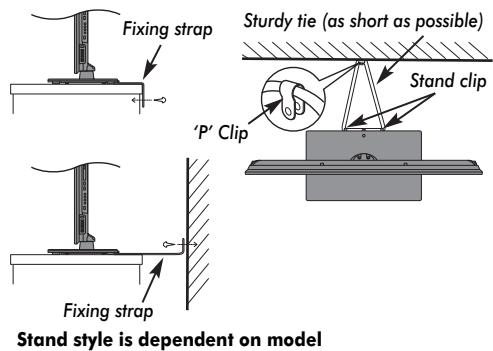
Make sure the television is located in a position where it cannot be pushed or hit by objects, as pressure will break or damage the screen. Also please be certain that small items cannot be inserted into slots or openings in the case.
Cleaning the screen and cabinet...
Turn off the power, and clean the screen and cabinet with a soft, dry cloth. We recommend that you do not use any proprietary polishes or solvents on the screen or cabinet as this may cause damage.
Please take note
The digital reception function of this television is only effective in the countries listed in the "Country" section of the "SETUP" menu. Depending on country/area, some of this television's functions may not be available. Reception of future additional or modified services can not be guaranteed with this television.
If stationary images generated by 4:3 broadcasts, text services, channel identification logos, computer displays, video games, on-screen menus, etc. are left on the television screen for any length of time, they could become conspicuous. It is always advisable to reduce both the brightness and contrast settings.
Very long, continuous use of the 4:3 picture on a 16:9 screen may result in some retention of the image at the 4:3 outlines. This is not a defect of the LCD TV and is not covered under the manufacturer's warranty. Regular use of other size modes (eg: Super Live) will prevent permanent retention.
EXCLUSION CLAUSE
Toshiba shall under no circumstances be liable for loss and/or damage to the product caused by:
i) fire;
ii) earthquake;
iii) accidental damage;
iv) intentional misuse of the product;
v) use of the product in improper conditions;
vi) loss and/or damage caused to the product whilst in the possession of a third party;
vii) any damage or loss caused as a result of the owner's failure and/or neglect to follow the instructions set out in the owner's manual;
viii) any loss or damage caused directly as a result of misuse or malfunction of the product when used simultaneously with associated equipment;
Furthermore, under no circumstances shall Toshiba be liable for any consequential loss and/or damage including but not limited to the following: loss of profit, interruption of business, the loss of recorded data whether caused during normal operation or misuse of the product.
NOTE: A Toshiba wall bracket or stand, where available, must be used.
The remote control
CT-90344 (for RV/TV series)
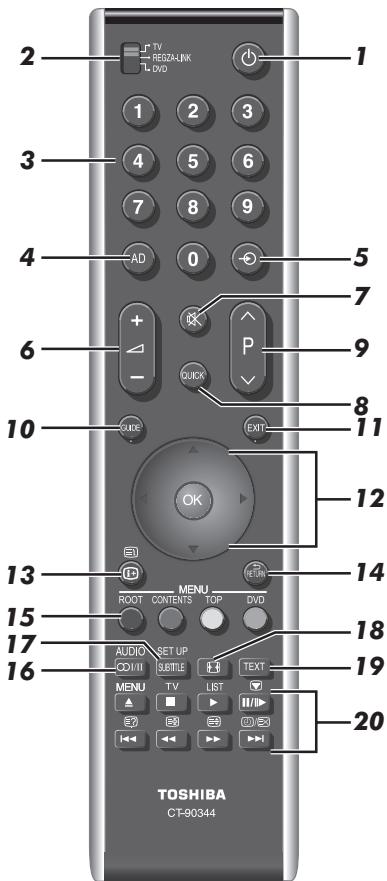
1 For On/Standby mode (T / R / D)^*
2 To select device mode (T/R/D)
3 Number buttons (T/R/D)
4 Switch the Audio Description On/Off (T)
5 To select external input sources (T/R/D)
6 To alter the TV volume (T/R/D)
7 To mute the TV sound (T/R/D)
8 To access Quick Menu (T)
9 To change programme positions (T/R)
To change text pages (T)
10 To display the digital on-screen Programme Guide (T)
11 To exit menus (T)
12 When using menus, the arrows move the cursor on the screen up, down, left or right. Press OK to confirm your selection (T/R/D)
13 To display on-screen information (T/R/D)
To access index page in Text mode (T)
14 To return to previous menu (T/R/D)
15 Colour buttons: Text and interactive service control buttons (T)
ROOT To display Root menu (R)
CONTENTS To display Contents menu (R)
TOP To access Top Menu (R/D)
DVD DVD menus (R/D)
16 CDI/II Stereo/bilingual transmissions (T)
AUDIO To access Audio menu (R/D)
17 SUBTITLE Digital Subtitles or Analogue TEXT Subtitle pages if available (T)
SET UP To access Setup menu (R/D)
18 Widescreen viewing (T/R/D)
19 To call up text services (T)
E? E E O/are available
20 When in TV mode:
MENU On-screen menus
TV To switch between ATV (analogue television) and DTV (digital television)
LIST To access the analogue or digital Channel List Picture still
Analogue time display
When using the Programme Guide:
-24 hours) / +24 hours
(-1 page) / (+1 page)
REGZA-LINK or DVD mode:
(EJECT) / (STOP) / (PLAY) / (PAUSE/STEP) /
(SKIP-BACK) / (REWIND) / (FAST FORWARD)
/ (SKIP-FORWARD)
- T=TV mode, R=REGZA-LINK mode, D=DVD mode
Inserting batteries and effective range
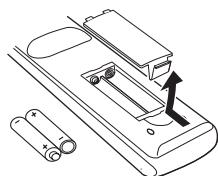
Remove the back cover to reveal the battery compartment and make sure the batteries are inserted the proper way.
Suitable battery types for this remote are AAA, IEC R03 1.5V.
Do not combine a used, old battery with a new one or mix
battery types. Remove dead batteries immediately to prevent acid from leaking into the battery compartment. Dispose of them in accordance with instructions on page 78 of this manual. Warning: batteries must not be exposed to excessive heat such as sunshine, fire or the like.
The performance of the remote control will deteriorate beyond a distance of five metres or outside an angle of 30 degrees from the centre of the television. If the operating range becomes reduced, the batteries may need replacing.
The remote control
CT-90345 (for XV/ZV/VL/YL/WL series)
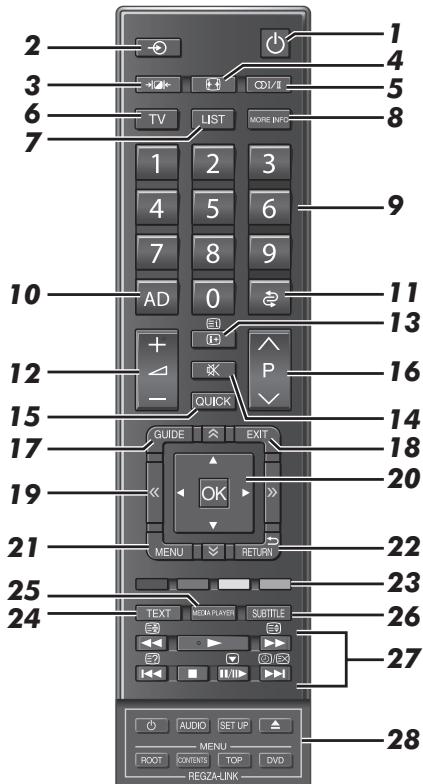
1 For On/Standby mode
2 To select external input sources
3 Selectable Picture preferences
4 Widescreen viewing
5 OD/II Stereo/bilingual transmissions
6 To select TV Mode
7 To access the analogue or digital Channel List
8 To access More Information Menu
9 Number buttons
10 Switch the Audio Description On/Off
11 To return to previous programme position
12 To alter the TV volume
13 To display on-screen information To access the index page in Text mode
14 To mute the TV sound
15 To access Quick Menu
16 To change programme positions To change TEXT pages
17 To display the digital on-screen Programme Guide
18 To exit menus
19 公 To page up, down, left or right
20 When using menus, the arrows move the cursor on the screen up, down, left or right. Press OK to confirm your selection
21 On-screen Menus
22 To return to previous Menu
23 Colour buttons: Text and interactive service control buttons
24 To call up text services
25 To access Media Player Menu
26 Digital Subtitles or Analogue TEXT Subtitle pages if available
27 When in TV mode:

Picture still Analogue 1 display
When in Text mode:

To reveal concealed text

To hold a wanted page

To enlarge text display size

To select a page whilst viewing a normal picture
When using Programme Guide:

- 24 hours

+24 hours

- 1 page

+1 page
During Playback:

To PLAY

To STOP

To PAUSE/STEP

To SKIP-BACK

To REWIND

To FAST FORWARD

To SKIP-FORWARD
28 When using REGZA-LINK:

To turn On/Standby
AUDIO
To access AUDIO Menu
SET UP
To access SET UP Menu

To EJECT
ROOT
To access ROOT Menu
CONTENTS
To access CONTENTS Menu
TOP
To access TOP Menu
DVD
To access DVD Menu
Inserting batteries and effective range
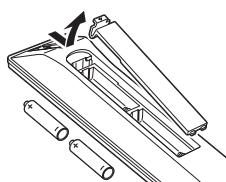
Remove the back cover to reveal the battery compartment and make sure the batteries are inserted the proper way. Suitable battery types for this remote are AAA, IEC R03 1.5V.
Do not combine a used, old battery with a new one or mix
battery types. Remove dead batteries immediately to prevent acid from leaking into the battery compartment. Dispose of them in accordance with instructions on page 78 of this manual. Warning: batteries must not be exposed to excessive heat such as sunshine, fire or the like.
The performance of the remote control will deteriorate beyond a distance of five metres or outside an angle of 30 degrees from the centre of the television. If the operating range becomes reduced, the batteries may need replacing.
Connecting external equipment
Before connecting any external equipment, turn off all main power switches. If there is no switch, remove the mains plug from the wall socket.
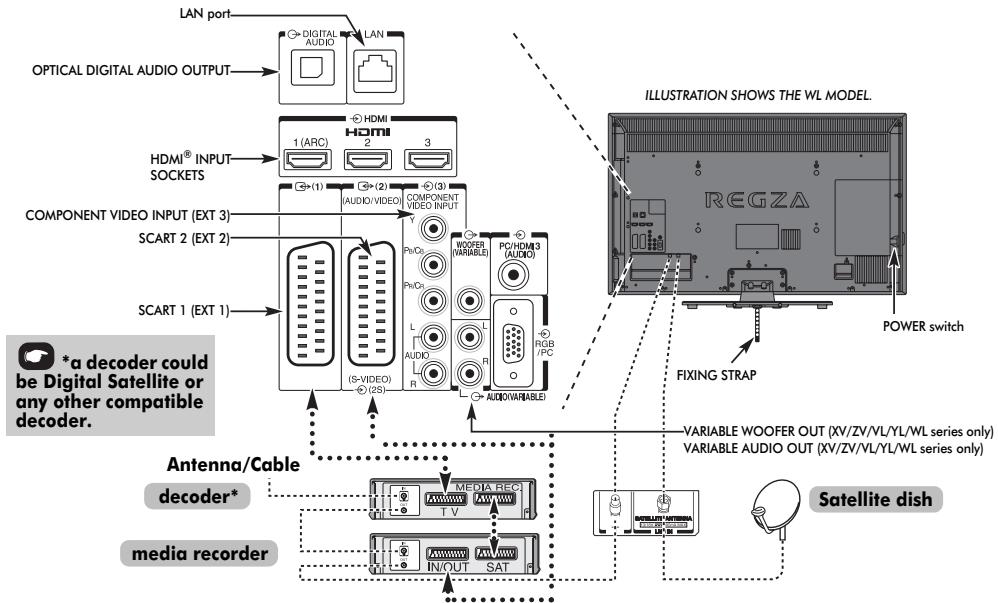
Aerial cables:
Connect the aerial to the socket on the rear of the television. If you use a decoder* and/or a media recorder, it is essential that the aerial cable is connected through the decoder and/or through the media recorder to the television.
Satellite cable:
Connect the LNB from the satellite dish to the SATELLITE ANTENNA socket on the TV. You can receive TV, radio, interactive TV, and HD TV with clear reception.
SCART leads:
Connect the video recorder IN/OUT socket to the television. Connect the decoder TV socket to the television. Connect the media recorder SAT socket to the decoder MEDIA REC. socket.
Before running Auto Tuning, put your decoder and media recorder to Standby.
The phono sockets alongside the COMPONENT Video INPUT sockets will accept L and R audio signals.
The Digital Audio Output socket enables the connection of a suitable surround sound system. NOTE: this output is always active.
HDMI® (High-Definition Multimedia Interface) is for use with a DVD decoder or electrical equipment with digital audio and video output.
For acceptable video or PC signal formats through the HDMI terminals, see page 80.

NOTE: Although this television is able to connect to HDMI equipment, it is possible that some equipment may not operate correctly.
LAN port is used to connect the TV to your home network. This TV can play digital content stored on a DLNA CERTIFIED™ product with server function.
A wide variety of external equipment can be connected to the back of the television; therefore, the relevant owner's manuals for all additional equipment must be referred to for exact instructions.
We recommend SCART 1 for a decoder and SCART 2 for a media recorder.
If connecting S-Video equipment, set EXT 2 Input mode to SVIDEO. See page 67.
The VARIABLE AUDIO OUT sockets allow you to listen to your TV's audio through your audio system.
The VARIABLE WOOFER OUT socket allows you to connect an external Sub-Woofer.
If the television automatically switches over to monitor external equipment, return to normal television by pressing the desired programme position button. To recall external equipment, press to select between DTV, EXT 1, EXT 2, EXT 3, EXT 4, HDMI 1, HDMI 2, HDMI 3, HDMI 4, PC or ATV.
When the external input mode is selected while viewing DTV mode, the SCART socket does not output video/audiosignals.
Connecting an HDMI® or DVI device to the HDMI input
The HDMI input on your television receives digital audio and uncompressed digital video from an HDMI source device or uncompressed digital video from a DVI (Digital Visual Interface) source device.
This input is designed to accept HDCP (High-Bandwidth Digital-Content Protection) programme material in digital form from EIA/CEA-861-D-compliant [1] consumer electronic devices (such as a set-top box or DVD player with HDMI or DVI output). For acceptable video signal formats, see page 80.
NOTE:
- Some early HDMI equipment may not work properly with your latest HDMI TV, due to the adoption of a new standard. Please unplug your HDMI cable first and then try setting the INSTAPORT™ and Enable Content Type options to "Off". Your early HDMI source should operate properly with your television. See page 69.
Supported Audio format: Linear PCM, Dolby Digital (AC-3), sampling rate 32/44.1/48kHz.
To connect an HDMI device
Connect an HDMI cable (type A connector) to the HDMI terminal.
For proper operation, it is recommended that you use an HDMI cable with the HDMI Logo (HDMI).
- If your HDMI connection is capable of 1080p and/or your television is capable of refresh rates greater than 50Hz , you will need a Category 2 cable. Conventional HDMI/DVI cable may not work properly with this model.
- HDMI cable transfers both video and audio. Separate analogue audio cables are not required (see illustration).
See "HDMI 3 Audio" on page 68.
The HDMI 4 terminal is located on the side of the television.
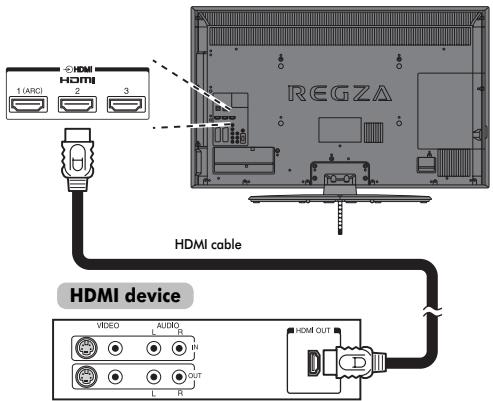
To view the HDMI device video, press the button to select HDMI 1, HDMI 2, HDMI 3 or HDMI 4 mode.
To connect a DVI device
Connect an HDMI-to-DVI adaptor cable (HDMI type A connector) to the HDMI 3 terminal and audio cables to the PC/HDMI 3 (AUDIO) socket (see illustration).
- The recommended HDMI-to-DVI adaptor cable length is 6.6 ft (2m).
- An HDMI-to-DVI adaptor cable transfers video only. Separate analogue audio cables are required.
See "HDMI 3 Audio" on page 68.
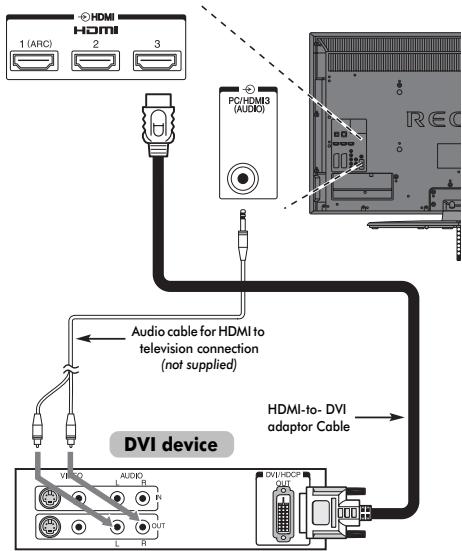
NOTE:
To ensure that the HDMI or DVI device is reset properly, it is recommended that you follow these procedures:
- When turning on your electronic components, turn on the television first, and then the HDMI or DVI device.
- When turning off your electronic components, turn off the HDMI or DVI device first, and then the television.
HDMI's ARC (Audio Return Channel) feature
This feature enables the audio signal of the TV to be sent to the AV amplifier via the HDMI cable. It will not be necessary to connect a cable from the audio output of the TV to the audio input of the AV amplifier to reproduce the audio received from the tuner of the TV through the AV amplifier.
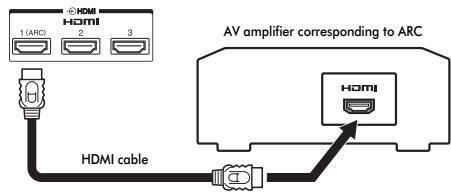
the back of your television
REGZA-LINK connection
You can control the basic functions of connected audio/video devices using the television's remote control if you connect a REGZA-LINK compatible AV amplifier or playback device. For an explanation of setup and operations, see pages 70-71.
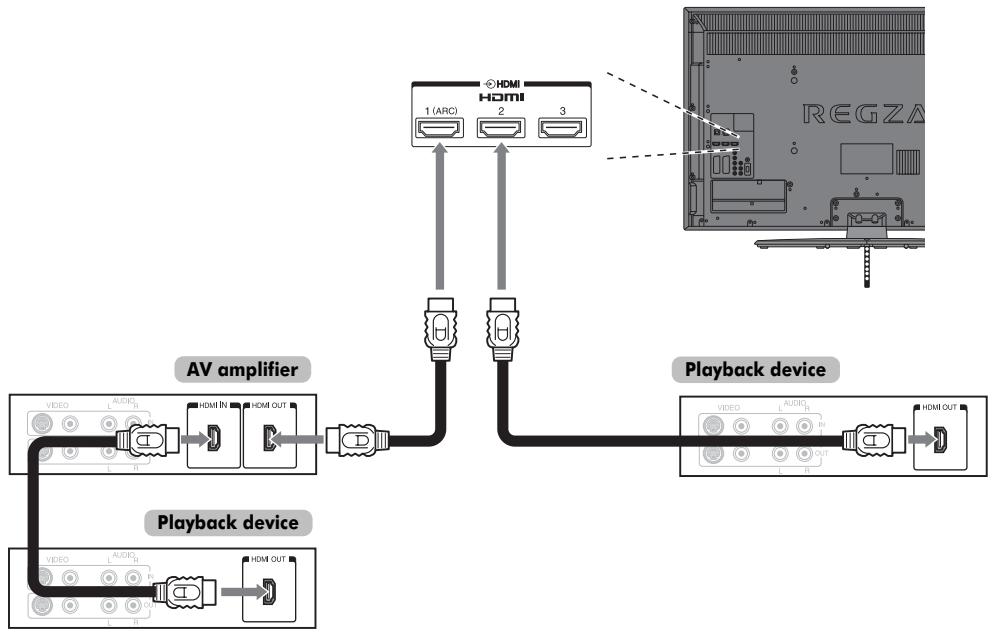
For the setup shown above, you will need three HDMI cables.
NOTE:
- If several devices are connected, the REGZA-LINK feature may not operate properly.
- For proper operation, it is recommended that you use HDMI cables with the HDMI Logo (HOMI)
- The HDMI 4 terminal is located at the side of the television.
- This function is available when one PC and one AV amplifier are connected separately. However, it may not operate properly if the PC is connected via the AV amplifier.
Before controlling the device(s):
- After completing the above connections, set the REGZA-LINK Setup menu as you desire (see page 70).
- The connected devices must also be set. For details, see the operation manual for each device.
- The REGZA-LINK feature uses CEC technology as regulated by the HDMI standard.
- This feature is limited to models incorporating Toshiba's REGZA-LINK. However, Toshiba is not liable for those operations. Refer to individual instruction manuals for compatibility information.
Connecting a computer
With either an RGB/PC or an HDMI connection, you can watch your computer's display on the television and hear the sound from the television's speakers.
To connect a PC to the RGB/PC terminal
When connecting a PC to the RGB/PC terminal on the television, use an analogue RGB (15-pin) computer cable and a PC audio cable for the PC/HDMI 3 (AUDIO) socket. Select PC from the PC/HDMI 3 Audio options in the AV Connection menu located in the SETUP menu.
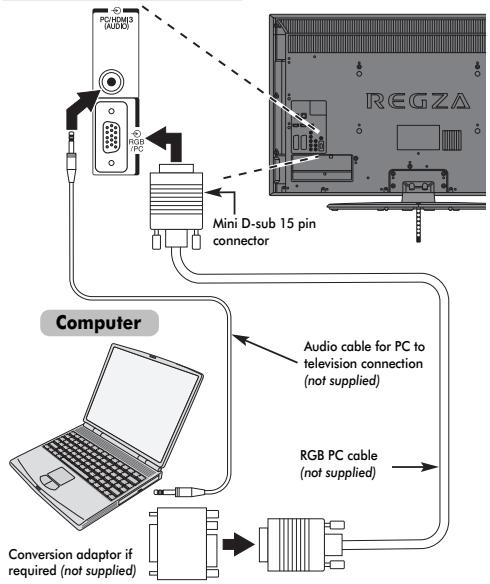
the back of your television
To use a PC, set the monitor output resolution on the PC before connecting it to the television. For acceptable PC signal formats, see page 79.
To display the optimum picture, use the PC setting feature (see page 65).
NOTE:
- The PC audio input terminal on the television is shared with the HDMI 3 analogue audio input terminal (see page 68).
- Some PC models cannot be connected to this television.
- An adaptor is not needed for computers with a compatible mini D-sub15-pin terminal.
Depending on the DVD's title and the specifications of the PC on which you are playing the DVD-Video, some scenes may be skipped or you may not be able to pause during multi-angle scenes. -
A band may appear at the edges of the screen or parts of the picture may be obscured. This is due to scaling of the picture by the set, it is not a malfunction.
-
When PC input mode is selected, some of the television's features will be unavailable e.g. Colour System in the SETUP menu.
- If connecting a certain PC model with a unique PC signal, the PC signal may not be detected correctly.
To connect a PC to the HDMI terminal
When connecting a PC to the HDMI terminal on the television, use an HDMI-to-DVI adaptor cable and an analogue audio cable.
If connecting a PC with an HDMI terminal, use an HDMI cable (type A connector). A separate analogue cable is not necessary.
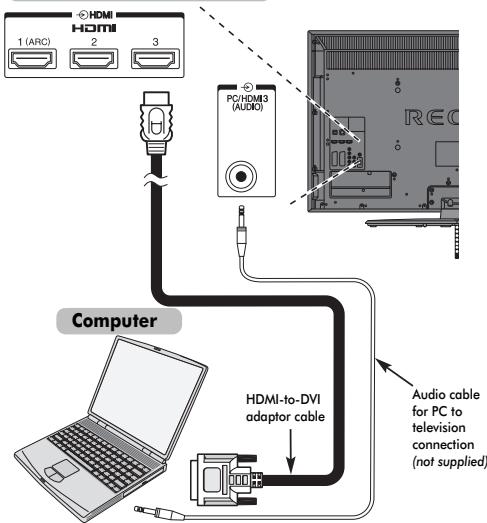
the back of your television
For acceptable PC and video signal formats, see page 80.
NOTE:
- The edges of the images may be hidden.
- If connecting a certain PC model with a unique PC signal, the PC signal may not be detected correctly.
Connecting a home network
The LAN port allows your Toshiba TV to connect to your home network. You can use this revolutionary home entertainment networking system to access photo, video and audio files that are stored on a DLNA CERTIFIED™ server and play/display them on your TV.
NOTE:
- If you connect to a shared-network outside your home, please use the router, and use DLNA in a private network environment.
- If you use a Hub or switch to connect the TV to your home network, you may not be able to use the automatic setup and will have to manually set up the network address. See page 41.
- If you use a router with built-in DHCP functionality, use the automatic setup. Manual setup may not work.
- If you connect the TV and PC directly, use a crossover LAN cable.
To connect the TV to a home network - Wired
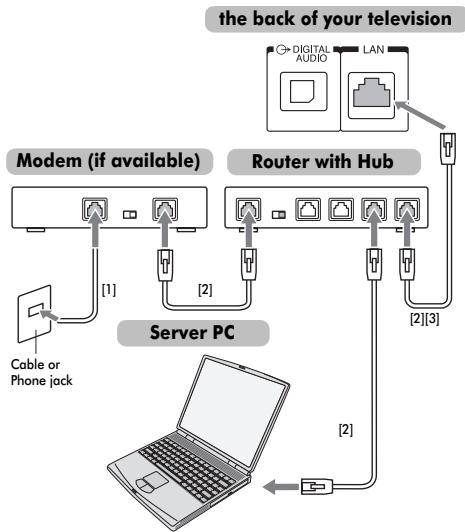
[1] Coaxial or telephone cable (depending on your modem type)
[2] Standard LAN cable
[3] Do NOT connect a phone jack directly to the TV's LAN port.
To connect the TV to a home network with an internet connection - Wireless
Please refer to "Wireless Setup" section on page 38.
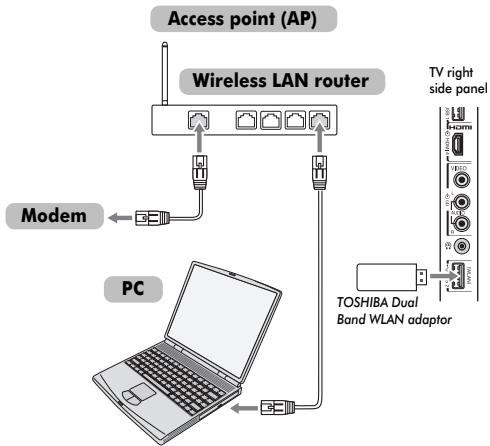
If you use the Gooseneck cable to connect the WLAN adaptor;
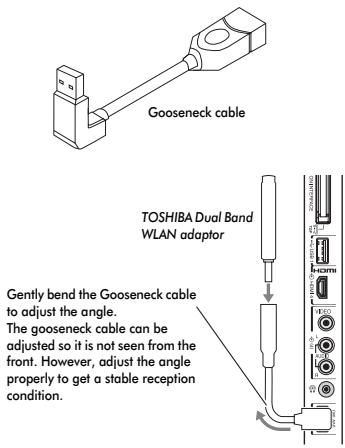
The transmission speed over the wireless LAN and the distance over which wireless LAN can reach may vary depending on surrounding electromagnetic environment, obstacles, access point design and configuration, and client design and software/hardware configurations. The actual transmission speed will be lower than the theoretical maximum speed.
Controls and input connections
A wide variety of external equipment can be connected to the input sockets on the side of the television. Whilst all the necessary adjustments and controls for the television are made using the remote control, the buttons on the television may be used for some functions.
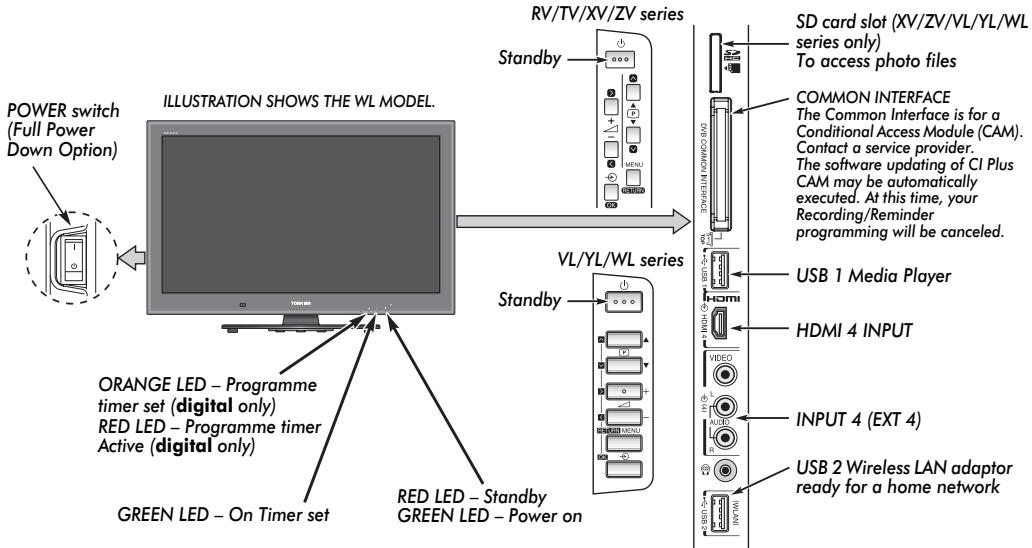
Switching on
If the RED LED is not lit, check that the mains plug is connected to the power supply and press the / (POWER) button on the left side of the television to switch the television on. If the picture does not appear, press on the remote control; it may take a few moments. The GREEN LED will be lit.
To put the television into Standby, press on the remote control. To view the television, press again. The picture may take a few seconds to appear.
For energy saving:
We recommend that you use the television with the factory settings. The factory settings are for energy saving.
Turning the television off at its mains supply, or un-plugging it, will cut energy use to nearly zero for all televisions. This is recommended when the television is not being used for a long time, e.g. when on holiday.
Reducing the brightness of the screen will reduce energy use. Energy efficiency cuts energy consumption and thus saves money by reducing electricity bills.
NOTE: Putting the television into standby mode, will reduce energy consumption, but will still draw some power.
Using the remote control
Press MENU on the remote control to display the menu.
The menu appears as a list of five topics. As each symbol is selected by pressing or on the remote control, its respective options will appear below.
NOTE: The same menu is displayed in DTV (Digital TV) and ATV (Analogue TV) modes; however, where some items are not available in a mode, they will appear greyed out.
To use the option, press and on the remote control to move up and down and press or to select your desired setting. Follow the on-screen instructions. The functions of each menu are described in detail throughout the manual.
Using the controls and connections
To alter the volume press - +
To alter the programme position press P A.
Press MENU and , , or to control the sound and picture options.
Press MENU to finish.
The Media Player feature provides access to photo files stored on a USB storage device or SD memory card.
For WL series only, the Media Player feature allows for music and movies to be played from USB 1.
NOTE: The USB socket has limited functionality and Toshiba can take no responsibility for damage to other connected equipment.
The USB 2 socket has to be used with the "TOSHIBA Dual Band WLAN Adaptor WLM-10U2" in order to access a wireless network.
You must use the TOSHIBA Wireless LAN device to ensure correct operation of this feature. This feature is available only when the "TOSHIBA Dual Band WLAN Adaptor" is used.
To select an external input, press until the appropriate input source is selected.
Please always refer to the owner's manual of the equipment to be connected for full details.
Startup Application
Before switching on the television, put your decoder and media recorder, if applicable, to Standby. To set up the television, use the buttons on the remote control as detailed on page 7.
Quick Setup

Press the button. The Menu Language screen will appear. This screen will appear the first time that the television is switched on and each time Reset TV is selected.

Press , , or to select the menu language, and then press OK.

Highlight Country and or to select. The television is now set to tune the stations for your country.
| Quick Setup | ||
| Country | Germany | |
| Primary Subtitle Language | English | |
| Secondary Subtitle Language | English | |
| Primary Audio Language | English | |
| Secondary Audio Language | English | |
NOTE:
- The following display menus will differ slightly according to the country you selected.
- If there is not a country that you want to select in the list, select Others.

Press OK, and the Location screen will appear.
| Location To use the TV for displaying in a store showroom, please select [Store], [Home] mode is recommended for normal use. | |
| ← Home → |

Press or to select Home or Store. For normal home use, select Home.

Press OK. If Store is selected in step 5, a Store mode confirmation window will appear. If you select Yes from that window, the TV will proceed to the Auto Demo setup screen.

Press OK, and the TV Mounting screen will appear, press or to select Stand or Wall.
| TV Mounting If you are mounting the TV on a wall please select [Wall]. [Stand] is recommended for other uses. This setting may be modified later under Sound Navi in the SOUND menu. | |
| Stand | |

Press OK, and the AutoView screen will appear, press or to select Yes or No.
| AutoView | |
| AutoView mode automatically adjusts picture settings to suit ambient light conditions. Do you wish to enable AutoView mode? | |
| ▲ | No |

Press OK. If the Ant/Cable/Satellite screen appears, press or to select Antenna, Cable or Satellite, and then press OK to check (√).
| Ant / Cable / Satellite |
| Antenna |
| Cable |
| Satellite |
| Next |
If DVB-C is not supported in your area, Cable will not be displayed.
- When you select Antenna or Cable, follow steps 10 to 13.
- When you select Satellite, skip to step 14.
- When you select Antenna (or Cable) and Satellite, the Satellite Settings startup screen will appear automatically after completing the Antenna (or Cable) scan and pressing OK.

Select Next and press OK). The Auto Tuning startup screen will appear with the option to select between DTV and ATV, DTV or ATV if available. Use or to select the appropriate mode.

Press or to highlight Start Scan, and then press OK.
The television will start to search for available DTV and/or ATV channels. The progress bar will indicate the scan status.
You must allow the television to complete the search.
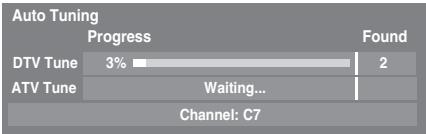
When the search is complete, the television will automatically select position one.
The Auto Tuning screen will display the total number of services found.
12
Press to view the DTV (digital channel) or ATV (analogue channel) lists.
13
Use or to move through the list to select a channel, and then press OK to view.
In ATV mode, some areas may receive duplicate stations. There may not be a clear picture or the signal may be weak, so the station order can be changed using ATV Manual Tuning.
REMEMBER: Press TV at any time to select between ATV and DTV (DTV Ant TV/RADIO/TEXT, DTV Cable TV/RADIO/TEXT, DTV Sat TV/RADIO/TEXT if available) modes.
NOTE: The time will be set automatically by transmission but can be advanced or decreased by using Local Time Setting in the DTV Settings screen.
14
Select Next and press OK. The Satellite Settings screen will appear. From this window, you can add the satellites that you wish to tune and configure detailed settings for each one individually. See "Satellite Settings" section on page 17.
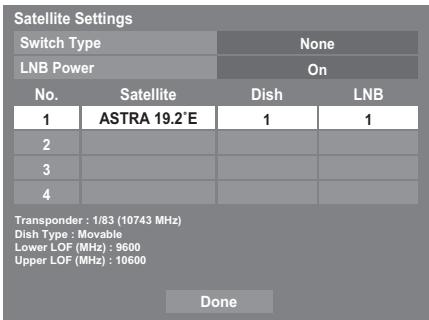
Highlight Done and press OK.
15
If your satellite dish is movable, the following Positioning screen will appear.
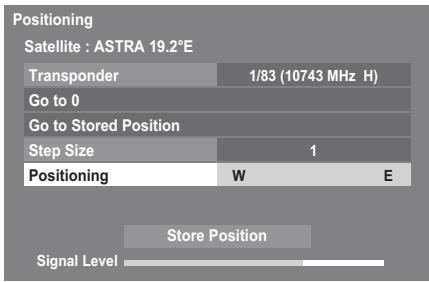
Press or to highlight Positioning, and then press or to find the dish position with the strongest signal level.
Press ▲ or ▼ to highlight Store Position and press OK to store the dish position. Repeat steps 14 and 15 for the next satellite as necessary.
If your satellite dish is not movable, the Positioning screen will not appear.
Adjust the dish position manually for the maximum Signal Level strength.
Highlight Done and press OK.
16
If the reception testing completes successfully, the Auto Tuning startup screen will display.
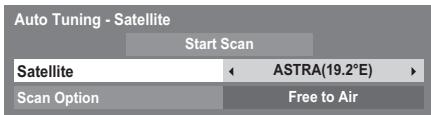
You can select Scan Option from Free to Air and All.
17
Press ▲ or ▼ to highlight Start Scan, and then press OK.
The television will start to search for available DVB-S channels. The progress bar will indicate the scan status.
When the search is complete, the Auto Tuning results screen will display the total number of services found.
18
Use or to move through the list to select a channel, and then press OK to view.
PLEASE NOTE
The Reset TV menu can also be accessed at any time from the SETUP menu.
Ant/Cable/Satellite (if available)
From this menu, you can set the RF input configuration.
1 Press MENU, and select SETUP menu.
Use to highlight Ant/Cable/Satellite and use or to select Antenna, Cable or Satellite.
NOTE: When you attempt to change the Ant/Cable/ Satellite setting, a warning message will appear followed by PIN entry (if PIN has been set) and a prompt for Auto Tuning.
3 When Ant/Cable/Satellite is set to Cable, the following setting options will be provided in the Auto Tuning screen.
Press or to select an item, and then press or to select your desired option.
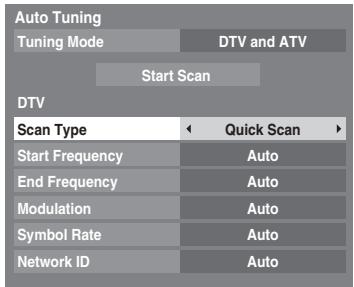
With the exception of DTV Scan Type and DTV Modulation items, all of the following items will have 2 operating modes. The first is Auto where the values for each item are preset by the system. The second is an Input mode where you will be able to enter a single value in place of the pre-set value. If no channel is currently tuned and the Input state is chosen, a system default value will be shown. However, if a channel is currently tuned when the item is accessed, the value of the current channel will be displayed.
DTV Scan Type:
This item determines whether a Quick Scan or a Full Scan will be executed.
The Quick Scan is a simplified version of the Full Scan that is designed to complete in less time.
DTV Start Frequency:
This sets the frequency from which the scan will begin.
DTV End Frequency:
This sets the frequency at which the scan will end.
DTV Modulation:
You can choose from five QAM modulation settings.
DTV Symbol Rate:
This is the baud rate (KS/s) of the scan.
DTV Network ID:
This is the Network ID to be utilized for the scan. This item is greyed out when DTV Scan Type is set to "Full Scan".
Satellite Settings
From the SETUP menu, you can add the satellites that you wish to tune and configure detailed settings for each one individually.
To add a satellite:
Press MENU and use or to select SETUP menu.
Use to highlight Satellite Settings. Press OK).
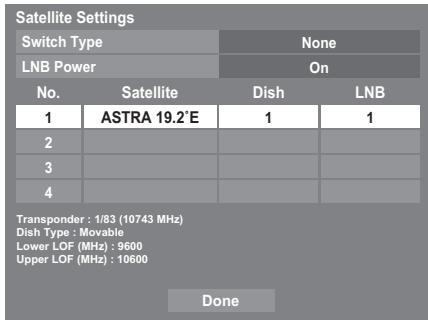
Press to highlight a new line to add an another satellite, and press OK.
Press until the required satellite is displayed and press OK.
To delete a satellite:
In the Satellite Settings menu, press or to highlight the satellite you want to delete.
Press the RED button. A confirmation window will appear.
Press or to select Yes and press OK.
NOTE: It is not possible to delete position No.1.
To edit the satellite settings:
In the Satellite Settings menu, press to highlight Switch Type.
Press or to select None, ToneBurst, DiSeqC 2way or DiSeqC 4way as your satellite switch type.
Press to highlight LNB Power and press or to select On or Off.
To add a transponder:
1 In the Satellite Settings menu, press or to highlight the line you want to edit and press OK.
| 1 | ASTRA 19.2'E | 1 | 1 |
Press the GREEN button. The Transponder Settings screen will appear.
| Transponder Settings | ||||
| Frequency | Polarisation | Symbol Rate | S/S2 | |
| 1 | 10743 | H | 22000 | S |
| 2 | 10773 | H | 22000 | S |
| 3 | 10788 | V | 22000 | S |
| 4 | 10817 | V | 22000 | S |
| 5 | 10832 | H | 22000 | S |
| 6 | 10847 | V | 22000 | S |
| 7 | 10861 | H | 22000 | S |
| 8 | 10876 | V | 22000 | S |
Press▲to highlight a new line.
| Transponder Settings | ||||
| Frequency | Polarisation | Symbol Rate | S/S2 | |
| 76 | 12640 | V | 22000 | S |
| 77 | 12662 | H | 22000 | S |
| 78 | 12669 | V | 22000 | S |
| 79 | 12692 | H | 22000 | S |
| 80 | 12699 | V | 22000 | S |
| 81 | 12721 | H | 22000 | S |
| 82 | 12728 | V | 22000 | S |
| 83 | ||||
4 Press ()
| 83 | 0 | H | 0 | S |
Edit each parameter as required and press OK. See page 18.
| 83 | 12731 | H | 22000 | S2 |
To delete a transponder:
In the Transponder Settings menu, press or to highlight the line you want to delete.
Press the RED button.
To edit the Transponder Settings:
In the Transponder Settings menu, press or to highlight the line you want to edit and press OK.
Press or to select Frequency, Polarisation, Symbol Rate or S/S2, and set the item using the number buttons if necessary.
3 Press OK to save your settings.
4 Repeat steps 1 through 3 for other lines.
5 Press BLUE to finish editing and return to Satellite Settings.
Press GREEN to cancel any edits that were made this time.
Press YELLOW to reset all transponder settings to their initial default settings.
To select the Dish Settings:
In the Satellite Settings menu, press or to highlight the required satellite line, and then press OK.
Press or to highlight Dish, and then press the GREEN button.
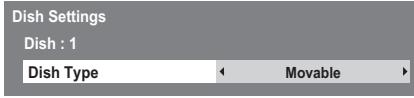
Press or to select Dish Type. You can select Movable or Fixed as the Dish Type.
To select the LNB Settings:
In the Satellite Settings menu, press or to highlight the required satellite line, and then press OK.
Press or to highlight LNB, and then press the GREEN button.
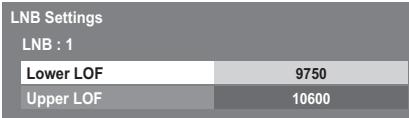
Press or to select Lower LOF or Upper LOF and input the appropriate frequencies.
Auto Tuning
NOTE: As new services are broadcast, it will be necessary to re-tune the television in order to view them.
Auto Tuning will completely re-tune the television and can be used to update the channel list. It is recommended that Auto Tuning is run periodically to ensure that all new services are added. All current channels and settings, i.e. locked channels, will be lost.
Press MENU and use or to select SETUP menu. Use to highlight Auto Tuning. Press OK.
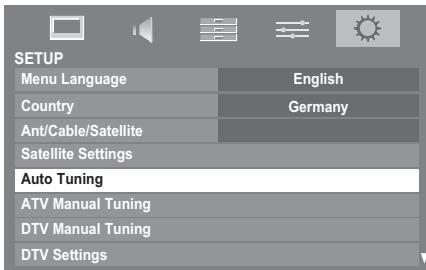
2 For DTV/ATV Tuning:
A screen will appear warning that previous programmes and settings will be deleted.
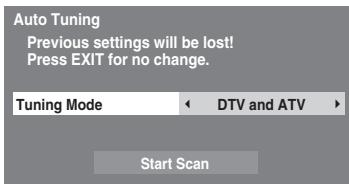
Use or to select DTV and ATV, DTV or ATV, if available, then highlight Start Scan and press OK to continue with the Auto Tuning.
NOTE: If you have selected "Others" for the Country field in the SETUP menu, and selected a tuning mode other than "DTV", choose the optimum ATV broadcasting system (B/G, I, D/K or L).
The television will start to search for all available DTV and/or ATV services.
You must allow the television to complete the search.
When the search is complete, the Auto Tuning screen will display the services found.
For Satellite Tuning:
A screen will appear warning that previous programmes and settings will be deleted.

Press or to highlight Satellite and then press or to select the desired satellite (No.1 Sat No.4 Sat or All).
You can select Free to Air or All as the Search Option. Highlight Start Scan and press OK to continue with the Auto Tuning.
When the search is complete, the Auto Tuning screen will display the services found.

Use or to move through the list to select a channel, and then press OK to view.
ATV Manual Tuning
Tuning
The television can be tuned-in manually using ATV Manual Tuning. For example, you might use the feature if the television cannot be connected to a media recorder/decoder with a SCART lead or when you want to tune-in a station on another System.
Use and to move across the screen and select any of the ATV Manual Tuning options. Then use or to adjust the settings.
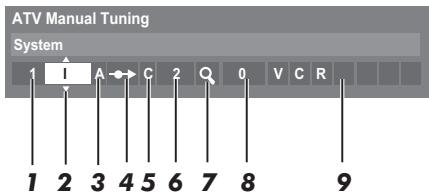
1 Position
The number to be pressed on the remote control to tune the channel.
2 System
Specific to certain areas.
3 Colour System
Factory set to Auto, should only be changed if problems are experienced, i.e. NTSC input from external source.
4 Skip
Set Skip to On () or Off () for the selected channel. See page 21
5 Signal Class
The channel classification.
6 Channel
The channel number on which a station is being broadcast.
7 Search
Search up and down for a signal.
8 Manual Fine Tuning
Only used if interference/weak signal is experienced. See page 74.
9 Station
Station identification. Use the or and or buttons to enter up to seven characters.
To allocate a position on the television for a decoder and media recorder: turn the decoder on, insert a pre-recorded film in the media recorder, press PLAY, and then manually tune.
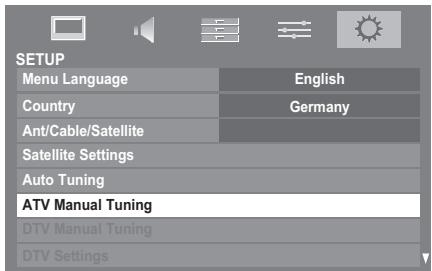
Press MENU and use or to select the SETUP menu. Press to highlight ATV Manual Tuning and press OK to select.
Use or to highlight the desired position. We suggest Pos. 0 for a media recorder.
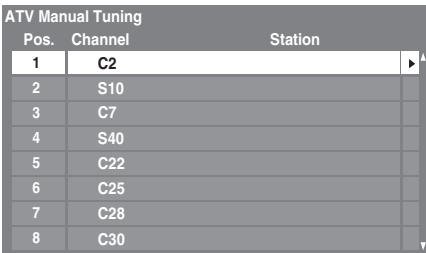
Different Channel numbers may be displayed.
Press OK to select. If the channel chosen for the media recorder is set to skip, Skip should be removed before storing.
Press to select System and use or to change if required.
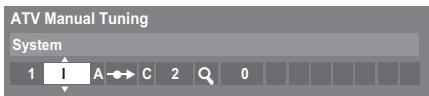
5 Then press to select Search.
Press or to begin the search. The search symbol will flash.
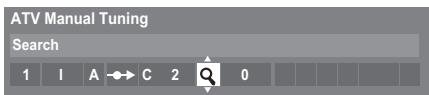
Each signal will show on the television. If it is not your media recorder, press or again to restart the search.
When your media recorder signal is found, press to move along to Station. Use , , and to put in the required characters, e.g. VCR.
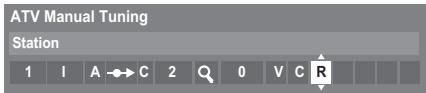
9 Press OK to save.
10 Repeat for each position you want to tune, or press RETURN to return to the list of channels and select the next number to tune.
Press EXIT when you have finished.
PLEASE NOTE
This television has direct channel entry if the channel numbers are known.
Select the ATV Manual Tuning screen in Step 3. Enter the Position number, the System, then C for standard (terrestrial) channels or S for cable channels and the Channel number. Press OK to save.
Skip
To prevent certain channels from being viewed, positions can be skipped.
1 Select ATV Manual Tuning from the SETUP menu.
Use ▲ or ▼ to highlight the position to be skipped and press OK to select.
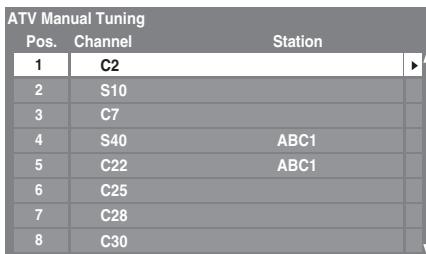
Press to select Skip.
Use ▲ or ▼ to turn Skip on. Press OK.
on the screen indicates a skipped position.

5 Press RETURN and repeat from Step 2 or press EXIT.
Each position has to be individually selected. To turn Skip off, repeat the procedure for each position.
Skipped positions cannot be selected by P^ and P^v or by the controls on the television but can still be accessed by the number buttons on the remote control.
Sorting positions
Channels may be moved and saved to the position of your choice.
1 Select ATV Manual Tuning from the SETUP menu.
2 With the list of channels showing, use or to highlight the channel you want to move and press.
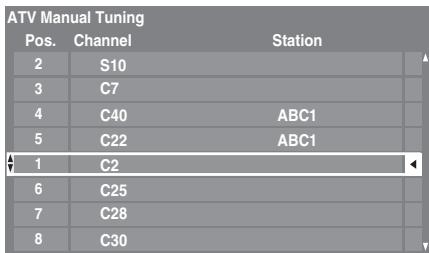
Use or to move through the list to your preferred position. As you do so, the other channels will move to make room.
4 Press to save your move.
Repeat as necessary, and then press EXIT.
DTV Manual Tuning
NOTE: The content of this menu varies depending on the DTV input (Antenna, Cable, or Satellite) that is currently selected.
Manual Tuning
This feature is available for service engineers or can be used for direct channel entry if the multiplex channel is known.
1 Select DTV Manual Tuning from the SETUP menu and press OK.
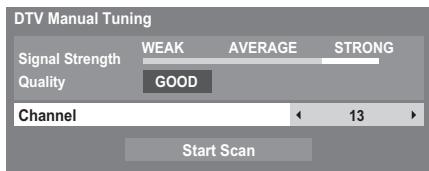
2 Enter the multiplex number using the number buttons or use or to adjust the number up or down.
3 Highlight Start Scan, and then press OK. The television will automatically search for that multiplex.
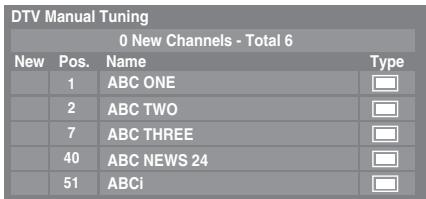
When the multiplex is found, any channels that are not currently in the channel list will be added and the channel information at the top of the screen will be updated.
4 Repeat as necessary. Press EXIT to finish.
Manual Tuning for DVB-C
When Ant/Cable/Satellite is set to Cable, DTV Manual Tuning items are as follows:
Frequency - input a specific frequency to be scanned
Modulation - choose from one of five QAM modulation options
Symbol Rate - input a specific baud rate (KS/s) to be used for the manual scan
Highlight Start Scan, and then press OK.
Manual Tuning for DVB-S
When Ant/Cable/Satellite is set to Satellite, DTV Manual Tuning items are as follows:
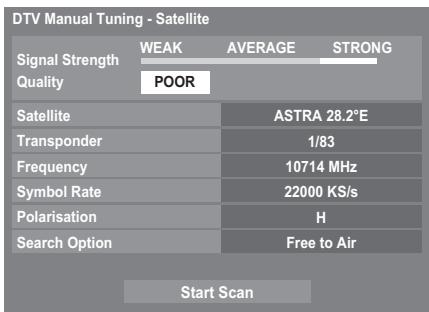
Use or to highlight an item (Satellite, Transponder, Frequency, Symbol Rate, Polarisation or Search Option), and then press or to select the required option.
Highlight Start Scan, and then press OK.
DTV Settings
Channels (Antenna/Cable)
The channel order may be changed to suit your personal preference.
1 Select DTV Settings from the SETUP menu and press OK.
2 Select Channels and press OK.
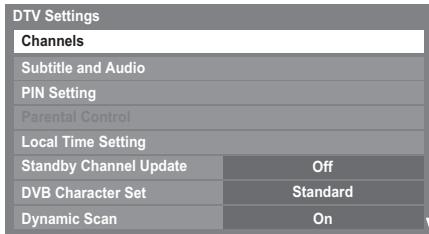
3 For your convenience, you can jump to specific places in the list by one of two methods.
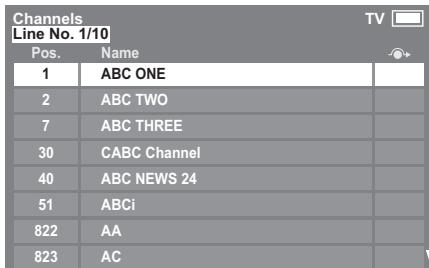
Line Number Jump Use the number buttons (0-9) to input the line number you want to select, and then press OK.
Station Letter Jump Press or to jump to the next station name with a different initial letter.
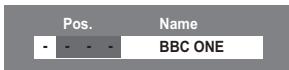
It is also possible to change the Position number of a particular channel.
Renumber - Press the RED button to renumber the highlighted channel. Edit the channel number using the number buttons and press OK.
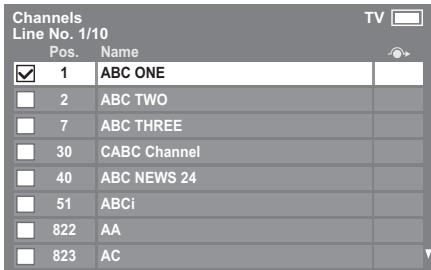
Move Press the GREEN button to activate the Move feature.Use the or buttons to select the channel you wish to move and press OK to check. If you wish to move multiple channels at once, select another channel and check in the same way. Repeat as necessary.
Once all desired channels have been checked, use the or buttons to place the focus at the position to which you wish to move the channels. The channels will be inserted above the highlighted channel. Press the GREEN button to execute the move.
Sort Press the YELLOW button. A confirmation window will appear. Press or to select Yes and press OK.
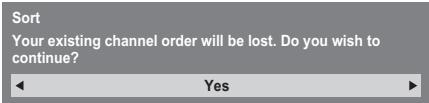
The Sorting Type selection window will appear.
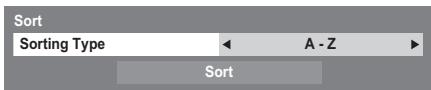
Press or to set the sorting type.
A-Z
Station name order (A to Z)
Channel Number
Position No. order (numerical sequence)
Press to highlight Sort and press OK.
Channels (Satellite)
1 Select DTV Settings from the SETUP menu and press OK.
2 Select Channels and press OK).
The satellite channel list will appear.
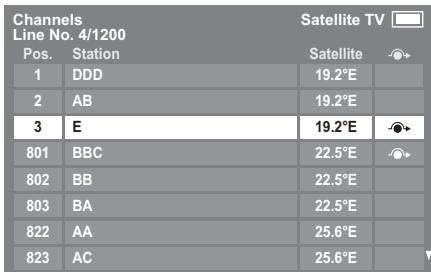
3 For your convenience, you can edit and sort your channel list.
Line Number Jump Use the number buttons (0-9) to input the line number you want to select, and then press OK.
Station Letter Jump Press or to jump to the next station name with a different initial letter.
Satellite Jump Press or to jump to the next channel on a different Satellite.
Renumber Same as Antenna/Cable channels. See page 23.
Move Same as Antenna/Cable channels. See page 24.
Sort Press the YELLOW button. A confirmation window will appear. Press or to select Yes and press OK.
The Sort menu will appear.
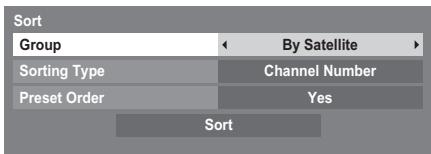
Group Press or to select All or By Satellite.
Sorting Type - Press or to set the sorting type.
A-Z
Station name order (A to Z)
Channel Number
Position No. order (numerical sequence)
Preset Order Press or to set Yes or No.
This item is displayed when Country is set to Germany, and only applies to the Astra 19.2^ satellite.
Press to highlight Sort and press OK.
Standby Channel Update
If the Standby Channel Update is set to On, when the TV is in standby mode, Digital Tuning is automatically executed and any new channels are saved.

Select DTV Settings from the SETUP menu and press OK.

Press to select Standby Channel Update and use or to select On.
DVB Character Set
This feature allows you to manually select the character set (Standard = Table 0, West = Table 5 or Latin alphabet 9) to be used for DVB-C or DVB-T channels.

Select DTV Settings from the SETUP menu and press OK.

Press to select DVB Character Set and use or to select Standard, West or Latin alphabet 9.
Dynamic Scan
If the broadcast information has changed in your DVB-T receiving area, the TV screen will display the message "Broadcast information has changed. Would you like to rescan now?" Please follow the message. If you do not wish for the TV to detect changes and prompt you to rescan, you should set this feature to "Off".

Select DTV Settings from the SETUP menu and press OK.

Press to select Dynamic Scan and use or to select On.
Location setting
You can select either Home or Store mode. Home is recommended for normal home use. Select Store when using the television for displaying in a shop, etc.

Select Location from the SETUP menu.

Press or to select Home or Store.
Analogue switch-off
This is a digital television which is integrated to allow the use of both digital and analogue services. However, during the lifetime of this set it is very likely that analogue services will be switched off to allow for more new digital services.
This 'switch-off' will happen in a number of phases, which will be advertised in your area well in advance. It is recommended that at each phase the television is re-tuned to ensure that existing and new digital services can be viewed without disruption.
General controls
Quick Menu
Quick Menu helps you access some options quickly, such as Picture Mode, Picture Size, More Information, Sleep Timer etc.
Press QUICK to display the Quick Menu and use or to select the option.
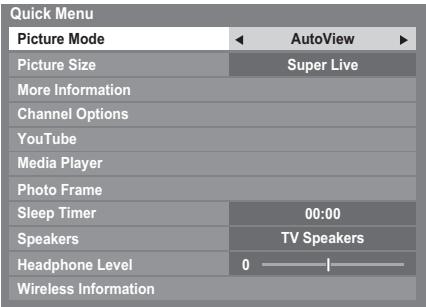
NOTE: Quick Menu items are different depending on the current mode.
Quick menu item example
| Mode | Quick menu item | Description |
| When viewing a TV programme or pictures from the external input | Picture Mode | See page 32. |
| Picture Size | See page 30. | |
| More Information | See page 59. | |
| Channel Options | See page 62. | |
| YouTube | See page 45. | |
| Media Player | See page 47. | |
| Photo Frame | See page 54. | |
| Sleep Timer | See page 58. | |
| Speakers | See page 70. | |
| Headphone Level | See page 29. | |
| Wireless Information | See page 40. | |
| When using EPG | Genre Colour | See page 60. |
| EPG Update/Cancel EPG Update | See page 60. | |
| Media Player (Multi View, ListView) | Sort | See page 50. |
| Interval Time | See page 50. | |
| Repeat | See page 50. | |
| Device Information | See page 50. | |
| Wireless Information | See page 40. | |
| Photo Frame | PICTURE | See page 32. |
| Picture Size | See page 30. |
Selecting positions
To select a position, use the numbered buttons on the remote control.
Positions can also be selected using P^ and P^v.
To display on-screen information such as position, input mode or stereo/mono signal, press i+. Press again to cancel.
The Time Display - analogue only
The time display facility allows the current (text service) time to be seen on the television screen.
Press l /XiX whilst watching a normal television broadcast to see the time display from the broadcaster. It will remain on screen for about 5 seconds.
NOTE: This display may not be available in some cases.
Stereo and Bilingual transmissions
For ATV programmes
If stereo or dual language broadcasts are transmitted, the word Stereo or Dual will appear on the screen each time positions are changed, disappearing after a few seconds. If the broadcast is not in stereo, the word Mono will appear.
Stereo... Press / to select Stereo or Mono.
Bilingual... Bilingual transmissions are rare. If they are transmitted, the word Dual will be displayed. Choose the required programme number, and if the word Dual appears, press I / to select Dual 1, Dual 2 or Mono.
For DTV programmes
For stereo or dual mono broadcasts, press I / and use to select settings.
| Mode Display | Pressing |
| Oo Stereo | Stereo → Left → Right |
| ●O Dual mono | Dual 1 → Dual 2 |
| ○ Mono | - |
| ••• Multichannel | - |
For multi-audio track broadcasts, press CDI/II repeatedly to change the audio language (see 'Audio language' on page 63).
Sound controls
Volume controls and mute sound
Volume
Press or to adjust the volume.
Sound Mute
Press once to turn the sound off and again to cancel.
Dual
If a programme or film is being broadcast with a soundtrack in more than one language, the DUAL feature allows selection between them.
Press MENU and or to select the SOUND menu.
Press to highlight Dual, and then press or to choose between Dual 1 or Dual 2.
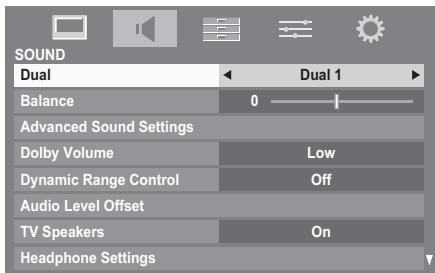
Balance, Bass and Treble
The sound controls are accessible in digital and analogue modes.
1 Select the SOUND menu.
Press to highlight Balance, and then press or to emphasize left or right speaker balance.
For RV/TV series only
Press to highlight Advanced Sound Settings, and then press OK.
Press to highlight Bass or Treble, and then press or to adjust the settings.
Sound Navi (XV/ZV/VL/YL/WL series only)
You can customize current sound mode settings. Select the appropriate mode in accordance with the installation location of the TV (Stand or Wall) and adjust the equalizer on-screen as desired.
1 Select the SOUND menu.
Press to highlight Advanced Sound Settings, and then press OK.
3 Press to highlight Sound Navi, and then press OK.
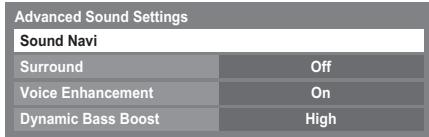
Press or to select either Stand or Wall depending on how your TV is installed, and then press the RED button.
Press or to select the frequency range you want to adjust from the equalizer window, and then press or to adjust the level.
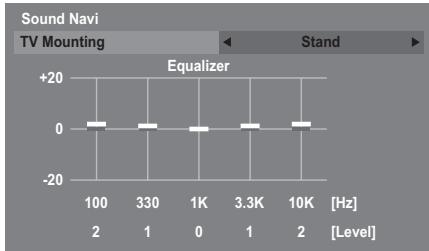
6 Repeat step 5 for other frequencies.
Surround Settings
Surround or Stereo Extension, Voice Enhancement, and Dynamic Bass Boost help to create an enhanced surround sound experience with deep, rich bass from stereo sound sources. Your TV's audio will sound fuller, richer, and wider.
In the SOUND menu, press to highlight Advanced Sound Settings, and then press OK.
Press to highlight Surround (XV/ZV/VL/YL/WL series), and then press or to select Off, Spatial or Cinema.
Press to highlight Stereo Extension (RV/TV series), and then press or to select On.
XV/ZV/VL/YL/WL series menu
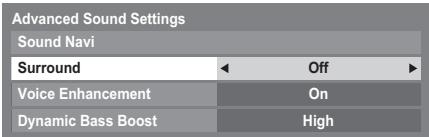
RV/TV series menu
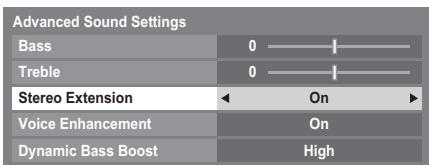
Press to highlight Voice Enhancement, and then press or to select On.
Press to highlight Dynamic Bass Boost and using or select the desired bass expansion level (Off, Low or High).
NOTE: For XV/ZV/VL/YL/WL series only, Ext. Woofer is displayed instead of Dynamic Bass Boost when Woofer is set to External in the AV Connection menu. See 'Woofer setting' section on page 68.
Dolby Volume®
This feature provides a consistent sound volume regardless of programmes, channels or input sources.
In the SOUND menu, press to highlight Dolby Volume.
Press or to select Low, High or Off.
NOTE:
- The Dolby Volume setting influences the Dynamic Range Control and Digital Audio Output settings.
- If Dynamic Range Control is set to On, this feature will be disabled.
Dynamic Range Control
This feature allows control of audio compression for some digital TV programmes (MPEG-1 and MPEG-2 audio programmes are not supported).
In the SOUND menu, press to highlight Dynamic Range Control.
Press or to select On or Off.
NOTE: This feature is disabled when Dolby Volume is set to Low or High.
Audio Level Offset
Sometimes there can be large changes in volume when switching from a DTV 5.1ch to a DTV 2ch, an ATV channel, or an external input. Using the Audio Level Offset feature reduces these volume differences.
1 Set the volume level usually used when watching a DTV 5.1ch programme.
2 Tune to a channel which is DTV 2ch, ATV or an external input.
3 In the SOUND menu, press to highlight Audio Level Offset and press OK.
Press to highlight an option, and then use or to adjust the volume level.
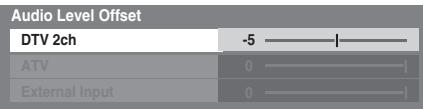
NOTE:
- The available item changes depending on the current input source. For example, while watching a DTV 2ch programme, only DTV 2ch is available and the other two items are greyed out in the menu. This allows you to easily adjust according to each condition.
- When watching a DTV 5.1ch programme, this feature is not available.
TV Speakers (XV/ZV/VL/YL/WL series only)
You can use this feature to turn off the TV speakers when you connect an audio system to the VARIABLE AUDIO OUT on your TV.
In the SOUND menu, press to select TV Speakers.
Press or to select Off.
To turn on the built-in speakers, select On.
Headphone Settings
This setting is used to set the sound output when headphones are connected.
| Speaker Link | Headphone | Speakers |
| On | Sound is output (▷- + is available.) | No sound |
| Off | Sound is output (Headphone level menu is available.) | Sound is output (▷- + is available.) |
1 In the SOUND menu, press to highlight Headphone Settings, and then press OK.
Press to highlight Speaker Link and use or to select On or Off.
3 If you select Off, then highlight Headphone Level and use or to adjust the headphone sound.
| Headphone Settings | |
| Speaker Link | Off |
| Headphone Level | 50 ——|—— |
Audio Description
Audio Description is an additional narrative sound track for visually impaired individuals to understand and enjoy the story line more fully. The letters AD will be displayed in the channel banner when programmes contain AD content. You can choose to hear sound from the TV speakers and the headphone output or only from the headphone output.
In the SOUND menu, select Audio Description and press OK.
2 Highlight Audio Description, and then press or to select On.
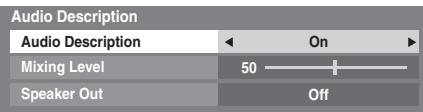
The AD button on the Remote can also be used to toggle the Audio Description feature between On and Off.
3 To adjust the level of the audio description sound to the main sound, highlight Mixing Level and use or
4 Highlight Speaker Out, and then press or to select On or Off.
On: sound from both the headphone output and speakers.
Off: sound from the headphone output.
See "Headphone Settings" to adjust the headphone sound.
NOTE: This feature also applies to the sound from the DIGITAL AUDIO output and FIXED AUDIO output.
Widescreen viewing
Depending on the type of broadcast being transmitted, programmes can be viewed in a number of formats.
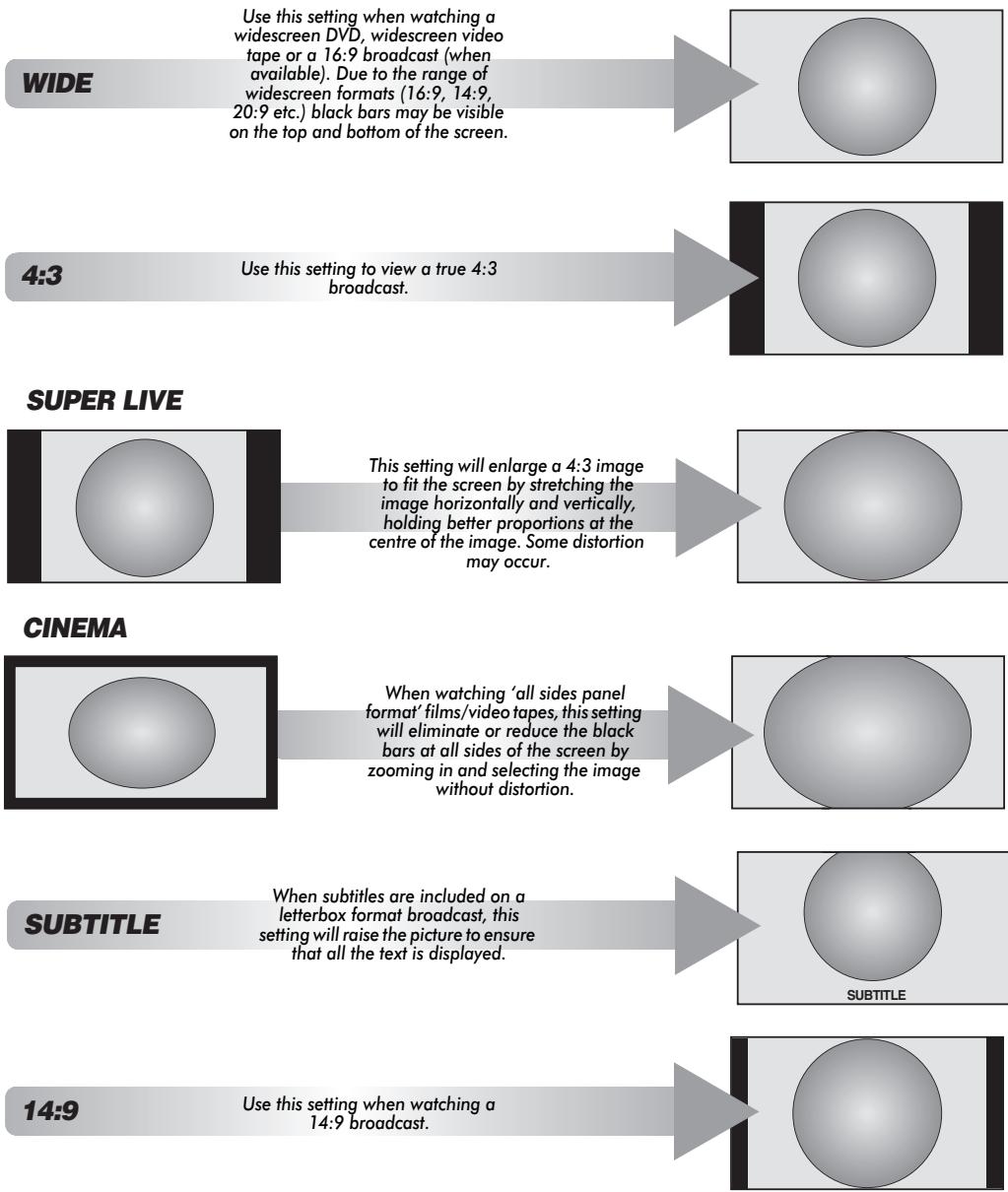
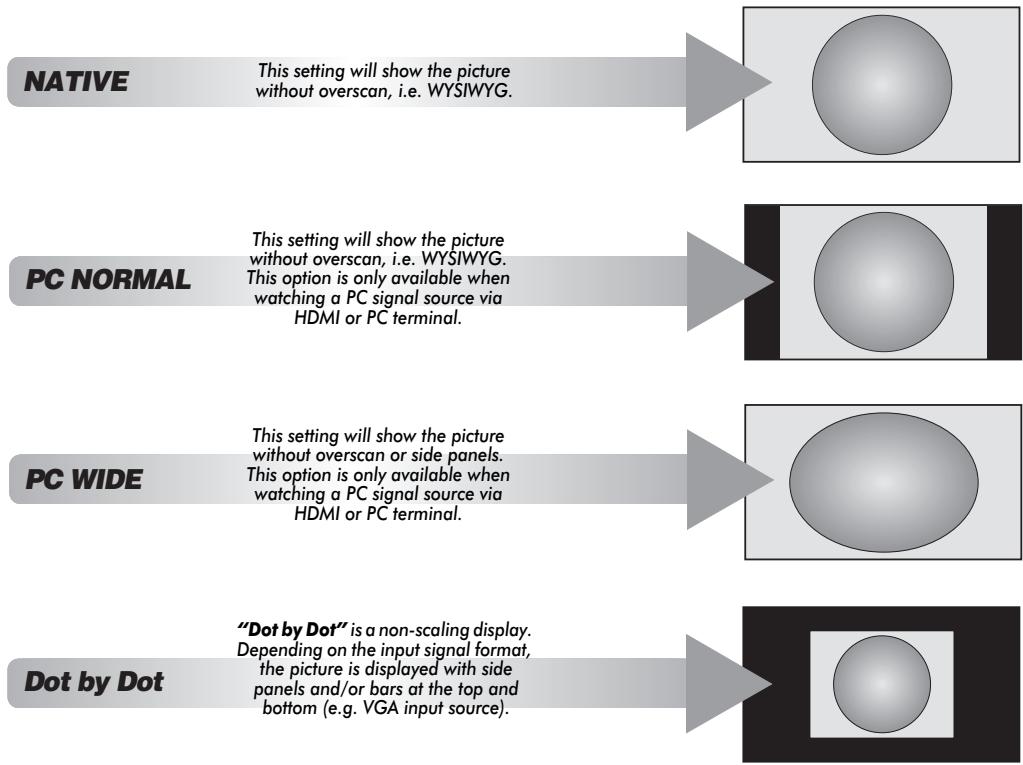
Press the button on the Remote to display the list of available widescreen formats.
Press the button repeatedly to highlight the required format.
The Quick Menu feature can also be used to select Picture Size.
AV format
Picture Size
Native
Wide
4:3
Super Live
Cinema
Subtitle
14:9
PC format
Picture Size
Dot by Dot
PC Normal
PC Wide
Using the special functions to change the size of the displayed image (i.e. changing the height/width ratio) for the purposes of public display or commercial gain may infringe on copyright laws.
Picture controls
Most of the picture controls and functions are available in both digital and analogue modes. PLEASE NOTE: features not available will be greyed out.
Picture Mode
This television offers the choice of personalising the picture style.
AutoView, Dynamic, Standard, Movie, Store, Game and PC are preset options and affect many features/settings within the television.
NOTE:
- Because the AutoView mode automatically adjusts picture settings based on ambient light conditions and input signal content, the Auto Brightness Sensor and Expert Mode menus are greyed out when it is selected.
- Store mode is only available when Location is set to Store.
- Game mode is available in external input mode (other than aerial input). When you select Game mode, suitable widescreen formats will be selected.
- PC mode is available in RGB/PC input mode or HDMI input mode.
1 In the PICTURE menu, press to select Picture Mode.

Press or to select the picture mode you prefer and press OK.
NOTE: The picture mode you select affects the current input only. You can select a different picture mode for each input.
Picture preferences
You can customize current picture mode settings as desired. For example, while selecting "Dynamic", if you change the following items, such as Backlight, Contrast, Brightness, Colour, Tint, Sharpness and the Advanced Picture Settings items, your new settings are saved for "Dynamic" picture mode.
In the PICTURE menu press to select either Backlight, Contrast, Brightness, Colour, Tint or Sharpness and press OK.
Press or to adjust the settings.
Reset
This feature resets all picture settings to the factory settings except Picture Mode.
NOTE: If no picture settings have been changed, Reset is not available.
1 In the PICTURE menu, press to select Reset and press OK.
A confirmation message will appear. Press or to select Yes and press OK.
3D Colour Management
When 3D Colour Management is set to On, it allows the 'Base Colour Adjustment' feature to become available.
1 In the PICTURE menu, press to select Advanced Picture Settings and press OK.
Press to select 3D Colour Management.
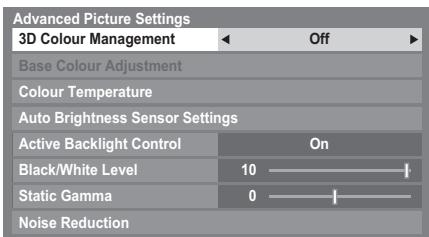
Press or to select On or Off, and then press OK.
Base Colour Adjustment
The Base Colour Adjustment feature allows the adjustment of individual colours to suit personal preference. This can be useful when using an external source.
In the Advanced Picture Settings menu, press to select Base Colour Adjustment, and then press OK.
Press or to select an option, and then press to move to the adjustment window.
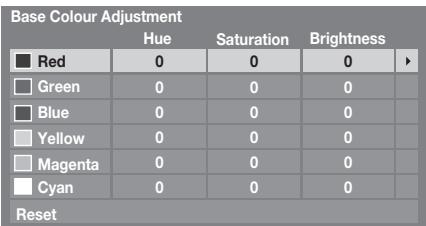
Press or to select Hue, Saturation or Brightness, and then press or to adjust the settings as required.

Press RETURN to return to the previous menu.
To return to the factory settings, select Reset and press OK.
Colour Temperature
Colour Temperature increases the 'warmth' or 'coolness' of the picture by increasing the red or blue tint.
1 In the Advanced Picture Settings menu, press to select Colour Temperature and press OK.
Press or to select the Colour Temperature setting (0 (warm) -10 (cool)).
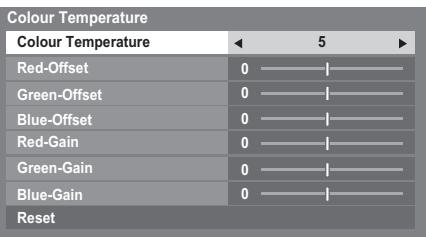
Press or to select an option you want to adjust, and then press or to adjust the settings.
Press RETURN to return to the previous menu.
To return the Colour Temperature settings to the factory defaults, select Reset and press OK.
NOTE: If Picture Mode is set to AutoView, you can adjust Colour Temperature only and the range will be -5 to +5.
Auto Brightness Sensor Settings
When the Auto Brightness Sensor is activated, it will automatically optimise the backlighting levels to suit ambient light conditions.
In the Advanced Picture Settings menu, press to select Auto Brightness Sensor Settings and press OK.
Press or to select On and press OK.
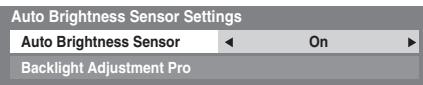
Press to select Backlight Adjustment Pro and press OK.
The Backlight Adjustment Pro window will appear. Press OK again to display the adjustment window.
Press or to select a point and press or to adjust the level.
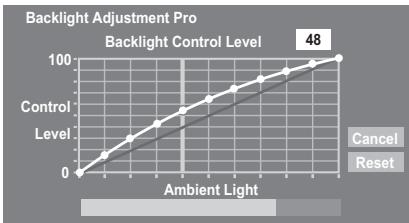
6 Press OK to fix the adjustment.
To cancel the adjustment when selecting a point, select Cancel and press OK.
To return the adjustments of all points to the factory defaults, select Reset and press OK).
Active Backlight Control
When Active Backlight Control is activated, it will automatically optimize the backlighting levels for dark scenes.
1 In the Advanced Picture Settings menu, press to select Active Backlight Control.
Press or to select On or Off.
Black/White Level
Black/White Level increases the strength of dark areas of the picture to improve the definition.
In the Advanced Picture Settings menu, press to select Black/White Level.
Press or to adjust the level. The effect depends on the broadcast and is most noticeable on dark colours.
Static Gamma
The static gamma feature allows you to adjust the levels of black in the picture.
In the Advanced Picture Settings menu, press to select Static Gamma.
Press or to adjust the level.
MPEG NR - Noise Reduction
When watching a DVD, the compression may cause some words or picture elements to become distorted or pixelated. Using the MPEG NR feature reduces this effect by smoothing out the edges.
1 In the Advanced Picture Settings menu, press to select Noise Reduction and press OK.
Press to select MPEG NR.
| Noise Reduction | ||
| MPEG NR | Low | ▶ |
| DNR | Auto | |
Press or to select Low, Middle, High or Off to suit your preference.
DNR - Digital Noise Reduction
DNR allows you to 'soften' the screen representation of a weak signal to reduce the noise effect.
1 Select DNR from the Noise Reduction menu.
Use or to select Low, Middle, High, Auto or Off. The differences may not always be noticeable (for the best result use lower settings as picture quality can be lost if the setting is too high).
Resolution+
The Resolution+ feature allows you to adjust the clarity levels for your desired picture settings.
In the Advanced Picture Settings menu, press to select Resolution+ and press OK.
In the Resolution+ field, select On.
| Resolution+ | ||
| Resolution+ | On | |
| Level | 3 | |
3 Press to highlight Level, and then press or to adjust the level.
NOTE:
- This feature may not work properly depending on the content.
- Adjustable range varies according to the Picture Mode you set.
- Noise may appear in the picture depending on the device connected to the TV (e.g. a device with a specific enhancer function).
Active Vision M100 (XV/ZV/VL/YL series)
This feature will reduce picture blur without decreasing image brightness, or adding flicker.
In the Advanced Picture Settings menu, press to select Active Vision M100.
Press or to select On or Off.
NOTE: When Picture Mode is set to Game, this feature will be grayed out and automatically set to Off.
Active Vision M200 Pro (WL series)
This feature will reduce picture blur without decreasing image brightness, or adding flicker.

In the Advanced Picture Settings menu, press to select Active Vision M200 Pro.

Press or to select On or Off.
NOTE: When Picture Mode is set to Game, this feature will be grayed out and automatically set to Off.
Film Stabilization (WL series only)
The Film Stabilization feature allows the adjustment of motion smoothness.

In the Advanced Picture Settings menu, press to select Film Stabilization.

Press or to select High, Middle, Standard, or Off.
NOTE: When Picture Mode is set to Game, this feature will be grayed out and automatically set to Off.
Film Stabilization (XV/ZV/VL/YL series only)
The Film Stabilization feature allows the adjustment of motion smoothness.

In the Advanced Picture Settings menu, press to select Film Stabilization.

Press or to select Standard, Smooth or Off.
NOTE:
- When Picture Mode is set to AutoView, the Film Stabilization feature will have an additional "Auto" mode.
- When Picture Mode is set to Game, this feature will be grayed out and automatically set to Off.
Expert Mode
This feature allows you to turn the colours red, green, and blue On/Off individually in order to adjust each colour more accurately.
NOTE: This feature is not available when Picture Mode is set to AutoView.

In the Advanced Picture Settings menu, press to select Expert Mode and press OK.

Press or to select either Red, Green or Blue and press or to select On.
Select Off for the other two colours.
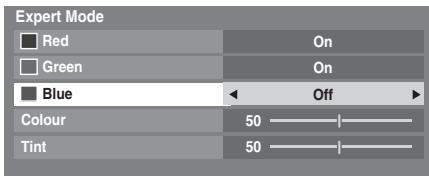

Press to select Colour or Tint, and then press or to adjust.
Resetting the advanced picture settings
This feature allows you to reset the current Advanced Picture Settings to the default values.

In the Advanced Picture Settings menu, press to select Reset.

Press OK.
Control Visualization
This feature displays the brightness histogram and control curve of each scene.

In the PICTURE menu, press to select Control Visualization and press OK. The histogram window will appear.
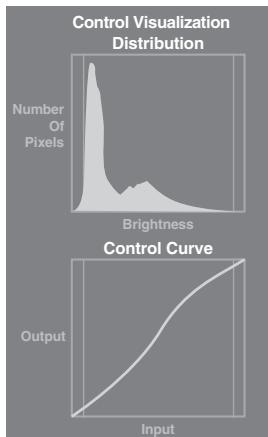

Press RETURN to return to the previous menu.
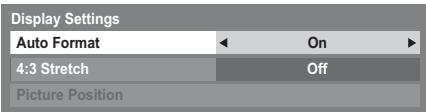
Automatic Format (Widescreen)
When this television receives a true Widescreen picture and Auto format is On, it will automatically be displayed in Widescreen format irrespective of the television's previous setting.
Press MENU and or to select the PREFERENCES menu.
Press to select Display Settings and press OK.
Press to select Auto Format, and then press or to select On or Off.
4:3 Stretch
When 4:3 Stretch is activated, the size switching system changes 4:3 programmes into full screen picture.
1 In the PREFERENCES menu, press to select Display Settings, and press OK.
Press to select 4:3 Stretch, and then press or to select On or Off.
Blue Screen
When Blue Screen is selected, the screen will turn blue and the sound will be muted on analogue channels and external input modes when no signal is received.
NOTE: Some external input sounds may not be muted.
1 In the PREFERENCES menu, press to select Blue Screen.
Press or to select On or Off.
Picture Position
The picture position may be adjusted to suit personal preference and can be particularly useful for external inputs.
1 In the PREFERENCES menu, highlight Display Settings and press OK.
2 In the Display Settings menu, highlight Picture Position.
| Display Settings | |
| Auto Format | On |
| 4:3 Stretch | Off |
| Picture Position | |
Press OK to view the options available for the picture format that has been selected.
Press and to select an option, and then or to adjust the settings.
The options differ depending on the currently selected widescreen format and the input signal.
In Cinema mode:
| Picture Position | |
| Horizontal Position | 0 |
| Vertical Position | 0 |
| Reset | |
To return to the original factory settings, select Reset in the Picture Position menu and press OK.
Picture still
This feature is used to hold a still image on the screen.
Press to hold an image on the screen, and press again to cancel.
HDMI Information Display
When the HDMI Information Display feature is On and you are watching an HDMI input source, pressing the 1 + button displays the HDMI signal information banner.
1 In the PREFERENCES menu, press to select HDMI Information Display.
Press or to select On.
HDMI signal information is as follows: Resolution, Scan Type, Frame Rate, Aspect, Bit Depth, Colour Space, RGB/YUV, Chroma Format, and Content Type (if available).
Using your home network
This TV is a DLNA CERTIFIED™ Player and Renderer. This TV can play digital content stored on a DLNA CERTIFIED™ product with server function. If you want to use this TV as a DLNA CERTIFIED™ Player or Renderer, you will have to configure the network on your TV (see page 13).
If you want to use your home network, you will have to configure the network on your TV. (see page 13) Change the network settings if necessary (see 'Setting up the Network' on page 38).
When using a wireless home network:
Wireless Interoperability
The TOSHIBA Dual Band WLAN Adaptor is designed to be interoperable with any wireless LAN product that is based on Direct Sequence Spread Spectrum (DSSS)/Orthogonal Frequency Division Multiplexing (OFDM) radio technology, and is compliant to:
- The IEEE 802.11 Standard on Wireless LANs (Revision a/b/g/n), as defined and approved by the Institute of Electrical and Electronics Engineers.
- The Wireless Fidelity (Wi-Fi®) certification as defined by the Wi-Fi Alliance®. The "Wi-Fi CERTIFIED™" logo is a certification mark of the Wi-Fi Alliance®.
- The TOSHIBA Dual Band WLAN Adaptor is intended for use with the RV/TV/XV/ZV/VL/YL/WL series LCD TV's and should not be used with any other devices.
Use of the WLAN Adaptor in other USB products may result in damage to the WLAN Adaptor and or the equipment. Such use will void any warranty that may otherwise apply, and TOSHIBA will have no liability for any damage that may result from such use.
CAUTION
Bluetooth™ and Wireless LAN devices operate within the same radio frequency range and may interfere with one another. If you use Bluetooth™ and Wireless LAN devices simultaneously, you may occasionally experience a less than optimal network performance or even lose your network connection.
If you should experience any such problem, immediately turn off either your Bluetooth™ or Wireless LAN device.
Actual performance can vary, including lower wireless network capacity, data throughput rate, range and coverage.
Performance depends on many factors, conditions and variables, including distance from the access point, volume of network traffic, building materials and construction, operating system used, mix of wireless products used, interference and other adverse conditions.
Wireless LAN and your Health
Wireless LAN products, like other radio devices, emit radio frequency electromagnetic energy. The level of energy emitted by Wireless LAN devices, however, is far less than the electromagnetic energy emitted by wireless devices such as mobile phones.
Because Wireless LAN products operate within the guidelines found in radio frequency safety standards and recommendations, TOSHIBA believes Wireless LAN is safe for use by consumers. These standards and recommendations reflect the consensus of the scientific community and result from deliberations of panels and committees of scientists who continually review and interpret the extensive research literature.
In some situations or environments, the use of Wireless LAN may be restricted by the proprietor of the building or responsible representatives of the organization. Such restrictions may apply in environments where the risk of interference to other devices or services is perceived or identified as harmful.
If you are uncertain of the policy that applies to the use of wireless devices in a specific organization or environment, you are encouraged to ask for authorization to use the Wireless LAN device prior to turning on the equipment.
This Dual Band Wireless LAN Adaptor may be operated in the following countries:
| AT | Austria | IS | Iceland |
| BE | Belgium | LI | Liechtenstein |
| CH | Switzerland | LT | Lithuania |
| CY | Cyprus | LU | Luxembourg |
| CZ | Czech Republic | LV | Latvia |
| DE | Germany | MT | Malta |
| DK | Denmark | NL | Netherlands |
| ES | Spain | NO | Norway |
| FI | Finland | PL | Poland |
| FR | France | PT | Portugal |
| GB | United Kingdom | SE | Sweden |
| GR | Greece | SI | Slovenia |
| EE | Estonia | SK | Slovakia |
| HU | Hungary | BG | Bulgaria |
| IT | Italy | RO | Romania |
| IE | Ireland | TR | Turkey |
How to use this Dual Band Wireless LAN Adaptor
- If this device is going to be operated in the frequency range of 5.15 GHz to 5.35 GHz, it is restricted to indoor use.
- If this device is going to be operated for 802.11 b/g/n function in the frequency range of 2.454 GHz to 2.4835 GHz in France, it is restricted to indoor use.
- A general authorization is required for using this device outdoors or in public places in Italy.
- This device is NOT ALLOWED to be used in the geographical area within a radius of 20km from the centre of Ny-Alesund in Norway.
Setting up the Network
You can select the Network Type.
1 In the PREFERENCES menu, highlight Network Setup and press OK.
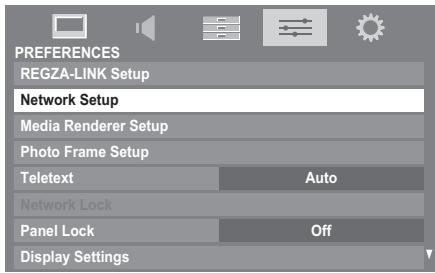
Press or to highlight Network Type, and then press or to select Wired or Wireless.
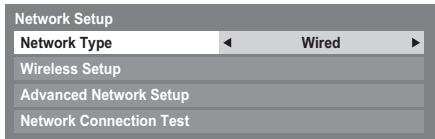
NOTE: If the Dual Band WLAN Adaptor is not connected, Wireless cannot be selected.
3 If you selected Wired, see "Advanced Network Setup" on page 40.
Wireless Setup
NOTE:
- This feature is grayed out when the Dual Band WLAN Adaptor is not connected or Network Type is set to Wired.
- Continued connection of AP (Access Point) is not guaranteed. The connection may be disconnected while watching TV.
- Do not remove the Dual Band WLAN Adaptor when Network Type is set to Wireless or wireless communication is active.
There are 3 methods for Wireless Setup:
Easy Setup (WPS)
If the AP supports WPS, this method can be used.
- WPS (Wi-Fi Protected Setup™) is an industry standard designed to make connection of wireless LAN equipment and security setup easy. WPS will automatically configure all wireless settings.
Assisted Setup (setup by using the AP's notification information)
Network Name, Authentication, and Encryption are decided based on information from the AP. You will manually set the Security Key.
Manual Setup (manual input of all settings)
Easy Setup using PBC (Push Button Configuration)
1 In the PREFERENCES menu, highlight Network Setup and press OK.
Press or to highlight Wireless Setup, and press OK.
Press or to highlight Easy Setup, and press OK.
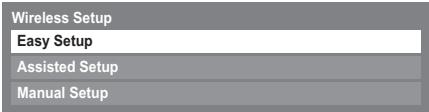
Press or to select PBC.
Press to highlight Start Scan, and press OK.
6 Following the on-screen instructions, push the appropriate button on your AP.
When a window reporting that the setup is complete appears, press OK.
To cancel searching for the AP:
Press RETURN while searching for the AP. A message will appear, and then press or to select Yes and press OK.
Easy Setup using PIN (Personal Identification Number)
1 In the PREFERENCES menu, highlight Network Setup and press OK.
Press or to highlight Wireless Setup, and press OK.
Press or to highlight Easy Setup, and press OK.
4 Press or to select PIN.
5 Press to highlight Start Scan, and press OK).
6 Press or to select the desired AP and press OK.
NOTE: Check the MAC address on the label of the AP or in the manual, and select your AP.
When the PIN code window appears, enter the displayed PIN into your AP, and then press Next to continue the PIN Setup. When a message displays to report that the setup is complete, press OK.
To cancel searching for the AP:
Press RETURN while searching for the AP. A message will appear; then, press or to select Yes and press OK.
Assisted Setup
In the PREFERENCES menu, highlight Network Setup and press OK.
Press or to highlight Wireless Setup, and press OK.
Press or to highlight Assisted Setup, and press OK.
Wireless Setup
Easy Setup
Assisted Setup
Manual Setup
4 Press or to select the desired AP and press OK.
NOTE: Check the MAC address on the label of the AP or in the manual, and select your AP.
5 Highlight Security Key and press OK. The Software Keyboard window will appear.
Input the Security Key by using the Software Keyboard (see page 42). To save your setting, press the BLUE button.
NOTE:
-
The Security Key must adhere to these conditions:
-
TKIP/AES: 8-63 ASCII or 64 Hex characters
- WEP: 5 or 13 ASCII or 10 or 26 Hex characters
- There is only one key ID to set for WEP encryption.
7 Highlight Done, and then press OK.
NOTE: If Network Name is not displayed, see step 4 and 5 in Manual Setup below to set Network Name before pressing Done.
NOTE: Settings are not saved if RETURN is pressed before Done is selected.
Manual Setup
In the PREFERENCES menu, highlight Network Setup and press OK.
Press or to highlight Wireless Setup, and press OK.
Press or to highlight Manual Setup, and press OK.
Wireless Setup
Easy Setup
Assisted Setup
Manual Setup
Press or to highlight Network Name, and press OK. The Software Keyboard window will appear.
Input the Network Name by using the Software Keyboard (see page 42). To save your setting, press the BLUE button.
Press or to highlight Authentication, and then press or to select Open System, Shared Key, WPA-PSK or WPA2-PSK.
Press ▲ or ▼ to highlight Encryption, and then press ▲ or ▲ to select None, WEP, TKIP or AES.
NOTE:
- Certain encryption types are only compatible with specific authentication types.
- When Authentication is Open System, only WEP or None is compatible.
- When Authentication is Shared Key, only WEP is compatible.
-
When Authentication is WPA-PSK or WPA2-PSK, only TKIP or AES is compatible.
-
When incompatible Authentication/Encryption pairings are detected, a warning message will be displayed, and no connection attempt will be made until the incompatibility is resolved.
- There is only one key ID to set for WEP encryption.
Press ▲ or ▼ to highlight Security Key, and press OK.
Input the Security Key by using the Software Keyboard (see page 42). To save your setting, press the BLUE button.
NOTE: This item is grayed out when Encryption is None.
10 Highlight Done, and then press OK.
NOTE: When Encryption is None, a message will appear. Press or to select Yes and press OK.
NOTE: Settings are not saved if RETURN is pressed before Done is selected.
Wireless Information
The settings configured in Wireless Setup can be confirmed.
Press QUICK to open the Quick Menu.
Press or to select Wireless Information and press OK.
| Quick Menu | |
| Picture Mode | AutoView |
| Picture Size | Super Live |
| More Information | |
| Channel Options | |
| YouTube | |
| Media Player | |
| Photo Frame | |
| Sleep Timer | 00:00 |
| Speakers | TV Speakers |
| Headphone Level | 0 |
| Wireless Information | |
The Wireless Information window will appear.
NOTE: Press the RED button to scan for all available APs.
| Item | Description |
| Status | Connected is displayed when the TV is connected with the AP. Disconnected is displayed when the TV is not connected with the AP. |
| Signal | Connection signal strength with AP (STRONG/MEDIUM/WEAK) |
| Speed | Link with AP |
| Mode | Working mode (11a, 11b, 11g, 11n) |
| Channel | Channel in use (1-165) |
| Network Name | SSID set |
| Authentication | Authentication set |
| Encryption | Encryption set |
| Security Key | Security Key set |
| AP MAC Address | The AP's MAC address is displayed when the TV is connected with the AP. |
| USB MAC Address | The MAC address of the USB (Dual Band WLAN Adaptor) is displayed. |
| DHCP | Enabled is displayed when using DHCP. Disabled is displayed when not using DHCP. |
| IP Address | The TV's IP address |
| Subnet Mask | Value of the Subnet Mask |
| Default Gateway | Address of the Default GATEWAY |
| DNS | Address of the DNS |
NOTE: Even if an AP for IEEE 802.11n is used when Encryption is set to WEP or TKIP, the Speed value might be low. It is recommended that Encryption be changed to AES (see "Manual Setup" on see page 39).
Notes on wireless LAN environment:
The function of all IEEE802.11 is not supported.
- The ad-hoc mode is not supported.
- It is recommended to use IEEE 802.11a or IEEE 802.11n on 5 GHz for audio and SD video streaming.
- It is recommended to use IEEE 802.11n on 5 GHz for HD video streaming.
- It is recommended that the encoding rate for streaming video content is 20 Mps or less.
It is not recommended to use 2.4 GHz for audio and video streaming.
- Content playback may be interrupted by various surrounding interference.
Advanced Network Setup
NOTE:
- When the DHCP function of the router connected with this TV is On, you can set Auto Setup to On or Off. (This should usually be set to On.)
- When the DHCP function of the router is Off, set Auto Setup to Off, and set the IP Address manually.
IP Address Setup
Auto Setup:
In the PREFERENCES menu, highlight Network Setup and press OK.
Press or to highlight Advanced Network Setup, and press OK.
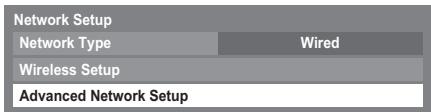
Press or to highlight IP Address Setup, and press OK.
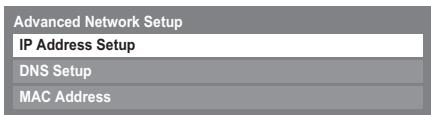
4 Highlight Auto Setup, and then press or to select On.
| IP Address Setup | ||||
| Auto Setup | On | |||
| IP Address | 133 . 177 . 108 . 157 | |||
| Subnet Mask | 255 . 255 . 255 . 0 | |||
| Default Gateway | . . . . . . | |||
NOTE: Other items will be grayed out when Auto Setup is set to On.
Manual Setup:
In the PREFERENCES menu, highlight Network Setup and press OK.
Press or to highlight Advanced Network Setup, and press OK.
Press ▲ or ▼ to highlight IP Address Setup, and press OK.
4 Highlight Auto Setup, and then press or to select Off.
| IP Address Setup | ||||
| Auto Setup | Off | |||
| IP Address | 133 . 177 . 108 . 157 | |||
| Subnet Mask | 255 . 255 . 255 . 0 | |||
| Default Gateway | . . . . . . | |||
Press or to highlight IP Address.
Press or to highlight the field you want to change, and then use the number buttons to input the IP address. To save the setting, press OK.
NOTE: IP address field numbers must be between 0 and 255. After each field number has been set, press OK to store the entire address. If the entire IP Address is invalid, a warning message will appear after OK is pressed.
Press or to highlight Subnet Mask, and edit in the same way as IP Address.
| IP Address Setup | ||||
| Auto Setup | Off | |||
| IP Address | 133 | 177 | 108 | 157 |
| Subnet Mask | 255 | 255 | 255 | 0 |
| Default Gateway | . | . | . | . |
Press or to highlight Default Gateway, and edit in the same way as IP Address.
NOTE: If you manually set the IP address, you must not use the same IP address for any other device. The IP address you use should be a private address.
DNS Setup
NOTE: When the DHCP function of the router connected to this TV is Off, set Auto Setup to Off, and manually set the DNS address(es). Your internet service provider should have provided these to you.
Auto setup:
In the PREFERENCES menu, highlight Network Setup and press OK.
Press or to highlight Advanced Network Setup, and press OK.
3 Press or to highlight DNS Setup, and press OK.
4 Highlight Auto Setup, and then press or to select On.
NOTE: Other items will be grayed out when Auto Setup is set to On.
Manual setup:
1 In the PREFERENCES menu, highlight Network Setup and press OK.
Press or to highlight Advanced Network Setup, and press OK.
3 Press or to highlight DNS Setup, and press OK.
4 Highlight Auto Setup, and then press or to select Off.
| DNS Setup | |||||
| Auto Setup | Off | ||||
| Primary DNS Address | 133 | 177 | 108 | 157 | |
| Secondary DNS Address | 255 | 255 | 255 | 0 | |
Press or to highlight Primary DNS Address.
Press or to highlight the field you want to change, and then use the number buttons to input the Primary DNS Address. To save the setting, press OK.
NOTE: DNS address field numbers must be between 0 and 255. If you input an incompatible number and press OK, the field number will reset to the previous value.

Press or to highlight Secondary DNS Address, and edit in the same way as Primary DNS Address.
MAC Address
You can view the fixed MAC address for the TV and for the Dual Band WLAN Adaptor, if one is installed.

In the PREFERENCES menu, highlight Network Setup and press OK.

Press ▲ or ▼ to highlight Advanced Network Setup, and press OK.

Press ▲ or ▼ to highlight MAC Address, and press OK.
Network Connection Test
This function checks the Internet connectivity.

In the PREFERENCES menu, highlight Network Setup and press OK.

Press ▲ or ▼ to highlight Network Connection Test, and press OK.
A message will appear to indicate if the connection was successful or if it could not be completed.
NOTE: The result of Network Connection Test does not always guarantee the connection. Depending on the situation, YouTube may not be able to be used.
To cancel the Network Connection Test:

Press RETURN while searching for the Internet connection.
Using the software keyboard
You can enter text by using the Software Keyboard. The Software Keyboard window will appear when you press OK on a field that accepts character input.
To enter text using the software keyboard:

Highlight the desired character on the on-screen software keyboard.

Press OK

Repeat steps 1 and 2 until you have entered all desired text.

Press the BLUE button to close the software keyboard and return to the previous screen.
NOTE: If RETURN is pressed, changes are not saved and the software keyboard window is closed. The text will remain as it was before starting the keyboard.
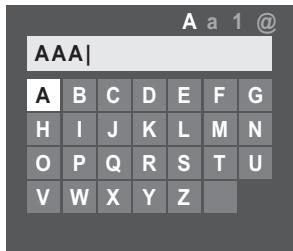
Input operation on the remote control:
| Button | Description |
| OK | Inputs the selected character. |
| 0-9 | Inputs the number directly. |
| ▲▼▲ | Moves the character highlight. |
| ←→ | Moves the cursor. |
| ← | Moves the cursor to the head of a character string. |
| → | Moves the cursor to the end of a character string. |
| RED | Deletes 1 character to the left of the cursor. |
| GREEN | Cycles through upper case, lower case, numbers, and symbols, if available. |
| YELLOW | Chooses an accented version of the current letter, if applicable. |
| BLUE | Saves changes and closes the Software Keyboard window. |
| RETURN | Closes the Software Keyboard window without saving changes. |
Setting up the Media Renderer feature
Terminology:
DMS: DLNA CERTIFIED™ Server
DMR: DLNA CERTIFIED™ Renderer
DMC: DLNA CERTIFIED™ Controller
The TV can be configured as a DMR. When operating as a DMR, the TV displays content provided by a DMS. The selection of the media is done by the DMC - the TV does not select the input. The TV can play photo, movie, or audio files when operating as a DMR.
Installation
You can configure the DMR settings individually, or use Installation mode to be prompted for each setting in order.
In the PREFERENCES menu, highlight Media Renderer Setup and press OK.
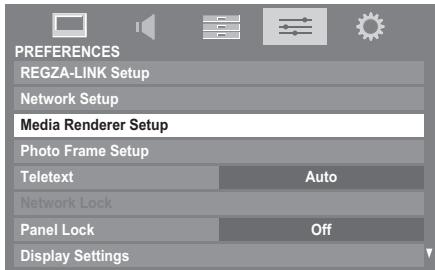
Press or to highlight Installation, and press OK.
Press or to select On, and press OK.
If you want to change the device name as a Renderer, highlight the Device Name field and press OK. The Software Keyboard window will appear.
Input the Device Name by using the Software Keyboard (see page 42). To save your setting, press the BLUE button.
NOTE: The Device Name can be up to 127 characters long.
6 Highlight Done, and then press OK.
If you want to change the password, press or to select Yes, and then press OK.
Change the password by using the Software Keyboard (see page 42), and then press the BLUE button.
NOTE: The Web Password can be up to 15 characters long.
9 Highlight Done, and then press OK.
10 If you want to limit access from unexpected DMCs, press or to select On, and then press OK.
If you want to proceed with registration of DMCs, press or to select Yes, and then press OK.
12 Press or to highlight the item you want to accept, and press OK. A check will appear in the box. To remove the check, press OK again.
13 Press to highlight Done, and then press OK.
14 The Maximum Volume Setup window appears. Press or to adjust to the desired volume. Then, press OK.
Media Renderer
In the PREFERENCES menu, highlight Media Renderer Setup and press OK.
Press or to highlight Media Renderer, and then press or to select On or Off.
Device Name Setup
1 In the PREFERENCES menu, highlight Media Renderer Setup and press OK.
Press ▲ or ▼ to highlight Device Name Setup, and press OK.
3 Highlight the Device Name field and press OK. The Software Keyboard window will appear.
4 Input the Device Name by using the Software Keyboard (see page 42). To save your setting, press the BLUE button.
The TV's device name as a DMR can change. The device name can be confirmed from the DMC.
NOTE: The Device Name can be up to 127 characters long.
5 Highlight Done, and then press OK.
Web Password Setup
This setup determines the password that is necessary for the DMC to access built-in web pages on the DMR.

In the Media Renderer Setup menu, highlight Web Password Setup, and press OK. Highlight the Password field and press OK. The Software Keyboard window will appear.

Change the password by using the Software Keyboard (see page 42), and then press the BLUE button.
NOTE:
- The Web Password can be up to 15 characters long.
- Only the password can be changed. User ID cannot be changed.

Highlight Done, and then press OK.
NOTE:
- Some DMCs can view or modify the device name of the DMR.
- Depending on the TV's state, it may not be possible to set the device name from the web page.
- Review the owner's manual of the DMC to confirm the method for accessing web pages.
Media Controller Setup
You can limit which DMC can control this TV. If Access Control is enabled, only those DMCs with a check will be allowed to control the TV.

In the Media Renderer Setup menu, highlight Media Controller Setup, and press OK.

Press or to highlight Access Control, and then press or to select On.

Press ▲ or ▼ to highlight Select Media Controller, and press OK.

Press or to highlight the item you want to accept, and press OK. A check will appear in the box.
To remove the check, press OK again.

Press to highlight Done, and then press OK.
NOTE:
- You can select up to 8 DMC devices.
- If you would not like to limit the DMCs for this TV, set Access Control to Off.
Devices other than DMCs may be displayed in the list. Confirm the MAC address of the DMC and set it.
Maximum Volume Setup
This feature allows you to set the maximum volume of the TV when it receives volume operation commands from a DMC.

In the Media Renderer Setup menu, highlight Maximum Volume Setup, and press or to adjust to the desired volume.
NOTE:
- The TV's remote control can set volume regardless of the value of Maximum Volume Setup.
- When DMR playback is ended, the TV volume will return to the value in effect when DMR playback is started.
Using YouTube™ (XV/ZV/VL/YL/WL series only)
YouTube is a video-sharing service managed by YouTube, LLC.
This TV allows you to view YouTube contents.
NOTE:
- You need to configure a home network before using this feature (see page 13).
- If Network Lock is set to On, it will be necessary to enter your four-digit PIN code in order to access network features (see page 61).

In the APPLICATIONS menu, highlight YouTube and press OK.
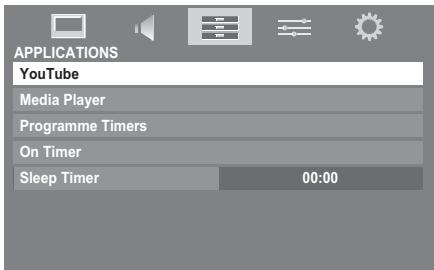

Press , , or to select the file you want to view, and press OK.
To close YouTube:

Press EXIT.
NOTE:
- This TV may not be able to perform the same operations that a computer can perform.
- Depending on network environment and the use situation, content may be difficult to view.
- Though the same volume value, an actual volume might be greatly different depending on contents.
- This TV might take time to the start-up and the playback of contents.
- The content of service and the screen that can be used may be changed without a previous notice.
Using the Function Menu
The Function Menu provides easy access to functions that are commonly used.

Press the BLUE button while displaying YouTube.
The Function menu window will appear.
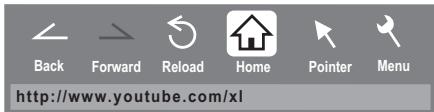

Press or to select the desired icon, and press OK.
| Item | Description |
| Back | Returns to the previous page. |
| Forward | Moves to the forward page. |
| Reload/Abort | Updates the displayed page./Aborts update(×is displayed while reading, and ♂is displayed in other case.) |
| Home | Returns to the top page of YouTube. |
| Pointer | Switches the pointer On/Off or drag mode. |
| Menu | Switches the frame or sets various settings. |
Switching the pointer
The tool that operates the screen can be changed to pointer or drag mode.

From the Function menu, press or to select Pointer, and then press OK.

If you select , see "To use the Pointer: ON" on this page. If you select , see "To use the Drag Mode" on this page.
To use the Pointer: ON:

Press or to select Pointer: ON, and press OK.
will appear.

Press , , or to the place where changes to , and then press OK.
NOTE: When Pointer: OFF is selected and , or is pressed, the highlight moves to linked areas.
To use the Drag Mode:

Press or to select Pointer: ON, and press OK.

Press the BLUE button.

From the Function menu, press or to select Pointer, and then press OK.
4 Press or to select Drag Mode, and press OK.
will appear.
Press OK, and then changes to
Press ▲,▼, ▲or ▲ to move the selected item in the desired place.
Switching the frame
1 From the Function menu, press or to select Menu, and then press OK.
Press or to select Page Tasks.
3 Highlight Switch Frames, and press OK.
Setting the view feature
1 From the Function menu, press or to select Menu, and then press OK.
Press or to select View.
3 Press or to select the desired item, and press OK.
4 Press or to select the desired setting, and press OK.
| Item | Settings |
| Display Mode | Normal: Displays YouTube page with the size as it is. Just-Fit Rendering: Displays YouTube page at a size that has been adjusted to precisely fit the width of your TV. |
| Text Size | Changes the font size of the screen. Select from Largest, Large, Medium, Small or Smallest. NOTE: This font size is effective only for the page. |
| Advanced Settings | See the next column. |
| Page Information | Displays the information of the page you are viewing. |
| Server Certificates | Displays the server certification. |
To setup the Advanced Settings:
Press , , or to select the setting items, and press OK. A check will appear in the box. To remove the check, press OK again.
Press , , or to select OK field, and press (OK).
| Item | Description |
| Image | Sets display/non-display of images. |
| Table | Sets effect/non-effect of tables. |
| CSS | Sets effect/non-effect of CSS. |
| Pop-up window | Sets effect/non-effect of pop-up windows. |
| Animation | Sets display/non-display of animations. |
| JavaScript | Sets effect/non-effect of JavaScript. |
| Word wrap | Sets effect/non-effect of Word Wrap. If Word Wrap is enabled, a word not finished at the end of a line is shifted to the next line. |
| Rapid-Render | Sets effect/non-effect of Rapid-Render. If Rapid-Render is enabled, texts and links are displayed first, and the images and the tables, etc. are displayed afterward. The highlight can be moved with the text and the link displayed. |
Setting other features
1 From the Function menu, press or to select Menu, and then press OK.
Press or to select Settings.
Press or to select the desired item, and press OK.
4 Press or to select the desired setting, and press OK.
| Item | Settings |
| Security | When jumping from a protected page to an unprotected page, the message is displayed when the check is applied to Notify of secure/non-secure page changes. Apply the check to select SSL version from SSL Version to use (SSL2.0, SSL3.0, TSL1.0). A content confirmation of the certification and a setting effect/non-effect can be done in Root Certificates and CA Certificates shown below. |
| Cookies | Accept all: Cookie is received, and it records in this TV. Reject all: Cookie is not received. Prompt before accepting: When Cookie is received, a message window will be displayed. |
| Delete Cookies | Deletes all recorded Cookies. |
| Cache | Use cache: When the check is applied to this, cache is used. Delete All Cache Data: Deletes all the cache preserved in the television. |
| Browser Information | Displays the information on a browser. |
NOTE:
- Cookie is the technical information that a website leaves in this TV so that the website will recognize you when you use it again.
- Cache is a system used to shorten the display time by checking the past data preserved in this television when a page that you viewed before is seen again.
To confirm Root Certificates or CA Certificates:

Press or to select Security in step3 in Setting other features.

Press , , or to select Root Certificates or CA Certificates, and press OK.

Press or to select the desired certificate.
- When OK is pressed, a detailed information window will appear.
- When the BLUE button is pressed, Disable or Enable bar will appear. It changes whenever BLUE button is pressed.

Press RETURN.
Using the Media Player
The XV/ZV/VL/YL/WL series TV allows you to enjoy movie (DivX), music (MP3) and photo files stored on a USB 1 device, or photo files on a SD memory card.
The RV/TV series TV allows you to enjoy photo files stored on a USB device or SD memory card.
Moreover, you can also play photos, movies or music files from your PC by connecting the TV to your home network.
Terminology:
DMP: DLNA CERTIFIED™ Player
DMS: DLNA CERTIFIED™ Server
DMR: DLNA CERTIFIED™ Renderer
DMC: DLNA CERTIFIED™ Controller
- DMP: The TV can control and play content from a DMS.
- A DMS is a device that can function as a server for DMP or DMR.
- DMR: The TV can play content from a DMS. Playback is controlled by a DMC.
- A DMC is a device that can instruct the TV to display content.
NOTE:
- Do not insert/remove USB device or SD Memory Card while in use.
- MENU is not available during playback.
- When you want to use your TV as a DMR, set Media Renderer to On (see "Media Renderer" on page 43).
Media Player Specifications
Device
USB device: USB Mass Storage Class devices (MSC)
NOTE:
- Connectivity is not guaranteed for all devices.
- Do not use a USB Hub.
SD Memory Card: up to 2GB
SD High Capacity Memory Card (SDHC): 4 - 32GB
Supported file system
FAT12, FAT16 and FAT32
NOTE: Do not use any SD Memory Cards other than those specified.
DLNA CERTIFIEDTM Server: Your PC (for example)
You must obtain any required permission from copyright owners to download or use copyrighted content. TOSHIBA cannot and does not grant such permission.
Basic operation
Using Media Player with a USB or SD Memory Card
When Auto Start is enabled, you will be asked if you want to start the Media Player whenever a USB or SD device is inserted. If Auto Start is disabled (or if you want to connect to a DMS on the network), you must manually start the Media Player from the menu.
To change the Auto Start setting:

Press MENU and or to select the APPLICATIONS menu.

Press to select Media Player, and press OK.
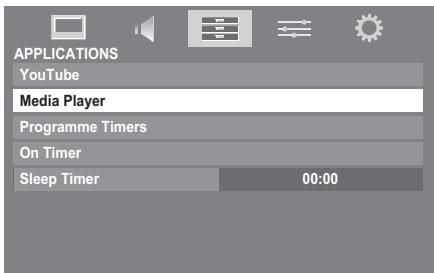

Press or to select SETUP, and press OK.

Press or to select USB/SD Auto Start, and then press or to select On or Off.
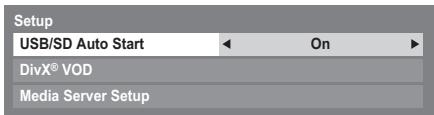
Auto Start:

Insert USB device into the USB socket or SD Memory Card into the SD card slot on the right side of the TV. A prompt will appear.

Press or to select Yes, and then press OK.

Press ▲ or ▼ to select Photo, Movie, or Music and press OK. The thumbnail view will appear.

Press or to select USB or SD Memory Card if the selection window is displayed.
NOTE: If Auto Start is set to Off, you can start the Media Player manually.
Manual Start:

Insert USB device into the USB socket or SD Memory Card into the SD card slot on the right side of the TV.

In the APPLICATIONS menu, select Media Player, and press OK.

Press ▲ or ▼ to select Photo, Movie or Music and press OK. The thumbnail will appear.
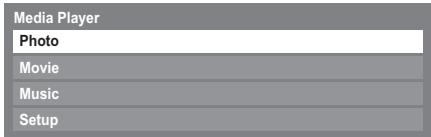
NOTE: If the selection window is displayed, press or to select USB or SD Memory Card.
To select a file in the list of contents:

Press or to select a file or folder.

Press OK to move to the next layer, or press RETURN to return to the previous layer.
To close the Media Player:

Press EXIT.
Using the Media Player with a DLNA CERTIFIED™ Server
You need to configure a home network before using this feature (see page 13).

In the APPLICATIONS menu, highlight Media Player, and then press OK.

Press ▲ or ▼ to select Photo, Movie, or Music and press OK. The thumbnail (for Photo) or list of files (for Movie and Music) will appear.
NOTE: If there is more than one media server on the network, a list of all media servers will be displayed. Highlight the server you want to use, and press OK.

Press or to select a DMS if the selection window is displayed.
To select a file in the list of contents:
Press or to select a file or folder.
Press OK to move to the next layer, or press RETURN to return to the previous layer.
To close the Media Player:
1 Press EXIT.
To set the Media Server Setup:
You only need to complete the Media Server Setup if you want to store a list of DMSs to activate later from the TV.
In the APPLICATIONS menu, highlight Media Player, and then press OK.
Press or to highlight Setup, and press OK.
Press or to highlight Media Server Setup, and press OK. A list of currently available DMSs will appear.
Press or to select the desired device, and press OK. A check will appear in the box. To remove the check, press again.
Press▶ to highlight Done, and then press OK to save.
NOTE:
- Up to 8 DMSeq can be selected.
- If the device is checked, it will still be displayed (with gray out) in the Select Device window, even if it is currently powered off. When OK is pressed with the highlight on a grayed out item, a confirmation window for Wake-on-LAN will be displayed. If Yes is selected, the TV will attempt to power up ("wake up") the DMS. If the server supports Wake-on-LAN, it will start up.
-
When several DMSs are connected, it may take some time for the list to be displayed. The following operations may help to improve the display time.
-
Close the device selection window, and open it again.
- Press the RED button to update the list.
Viewing photo files
There are three types of viewing modes.
Multi View
This view allows you to search for photos in a grid format. The pictures are displayed using thumbnail data in each image file.

The initial highlighted position will be on the top left thumbnail in the Multi View.
Press (\triangle \triangle \triangle \triangle \triangle \triangle \triangle \triangle \triangle \triangle \triangle \triangle \triangle \triangle \triangle \triangle \triangle \triangle \triangle \triangle \triangle \triangle \triangle \triangle \triangle \triangle \triangle \triangle \triangle \triangle \triangle \triangle \triangle \triangle \triangle \triangle \triangle \triangle \triangle \triangle \triangle \triangle \triangle \triangle \triangle \triangle \triangle \triangle \triangle \triangle \triangle
P^PV buttons can be used to page up/down the photo list when there are more photos than will fit onto one screen. When the P^PV buttons are pressed, the highlight shall be on the photo at the top left of Previous/Next list.
When you select a folder, press OK to move to the next layer. Press RETURN to move back to the previous layer.
Press OK to view the selected photo in Single View mode.
Single View
In this mode, only files located in the selected directory will be displayed. This view allows you to change the photo content manually. When moving from Multi View to Single View, the currently selected photo will be displayed.
Press to view the next photo. Press to view the previous photo.
Press to rotate the image 90^ clockwise. Press to rotate the image 90^ counterclockwise.
3 Press i+ to display file status information (file number, photo title, date and time taken, resolution etc.).
NOTE: The information may not be correctly displayed depending on the content, DMC or DMS.
Slide Show
This view allows you to watch a slide show of your photos. In this mode, only files located in the selected directory will be played.
1 To start slideshow, press OK in the Single View mode.
Press to view the previous/next photo.
Press or to rotate the photo.
Press i+ to display file status information.
To set Interval Time and Repeat settings:
Press QUICK to open the Quick Menu.
Press or to select either Interval Time or Repeat.
Press or to adjust the setting and press OK.
To sort the folders and files
Press QUICK to open the Quick Menu from Multi View mode.
Press or to select Sort.

Press or to select File Name or Title, New or Old to set the sorting rule.
| Item | Description |
| File Name or Title | File sorting rules: 1. Unicode priority 2. (0, 1, ..., 9), capital alphabet (A, B, ..., Z), small alphabet (a, b, ..., z) 3. Increasing order |
| New | From new to old according to the date and time when the picture was taken. |
| Old | From old to new according to the date and time when the picture was taken. |
NOTE: Sorting may not be supported by some DMSs.
To display the device information
Press QUICK to open the Quick Menu from Multi View mode.
Press or to select Device Information.
NOTE: When the photos on the USB or SD card device are used, or the TV is used as a DMR, this feature is not available.
To close the Photo Viewer
Press EXIT. The television will return to the last viewed channel or external input.
File Compatibility
USB or SD card use:
Data compatibility: JPEG Exif ver 2.2
File format: JPEG
Maximum viewable resolution:
4096 x 4096 (HW decode) pixels
16384 x 16384 (SW decode) pixels
Maximum photo size: 9 MB
Maximum number of files: 2000 / folder
Content on DLNA CERTIFIED™ Server:
Data compatibility: JPEG EXIF Ver.1.x or later, JFIF 1.02a
File format: JPEG
Maximum viewable resolution:
4096 x 4096 pixels (DMP)
1024 x 768 pixels (DMR)
Maximum photo size: 6 MB
Maximum number of files: 2000 / folder
Viewing movie files (on a DLN A CERTIFIED ^TM Server or USB device)
You can select movies from a list of available files.
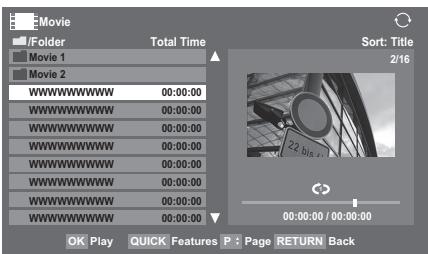
DLNA screen example

Press to select a file or folder. PVPv buttons can be used to page up/down the movie list when there are more files than will fit onto one screen.

When you select a folder, press OK to move to the next layer. Press RETURN to move back to the previous layer.

With the desired file selected, press OK or PLAY (▶) to start playback.
NOTE:
- On DLNA preview screen, if you highlight the file without pressing OK, the content is played on a preview screen. When OK is pressed, it is played in full screen mode.
- Depending on the file size, it may take some time to start playback.

Press to stop playback.
NOTE:
- If playback finishes before is pressed, the screen will return to the list of available file.
Depending on the file size, it may take some time for playback to begin.
During playback:
- Press to pause.
You can move to the desired replay position by pressing or during PAUSE.
PAUSE or operations during PAUSE may not be available depending on the content, DMC or DMS.
- To resume normal playback, press PLAY(▶).
- To play in fast reverse or fast forward directions, press or during playback. Each time you press the or , the playback speed will change.
To locate a specific file, press or repeatedly. - Press 1+ to display the file status information (content number, movie title, progress time etc.).
NOTE:
The information may not be correctly displayed depending on the content, DMC or DMS.
- During playback, you can adjust the PICTURE, Picture Size and SOUND menu functions from the Quick Menu.
To select subtitle and audio languages
- Press SUBTITLE repeatedly to select your preferred subtitle language.
- Press AUDIO repeatedly to select your preferred audio language.
To set the repeat mode

Press QUICK to open the Quick Menu.

Press or to select Off, All or 1.
| Mode | Description |
| Off | The file is played back only once. |
| All | Files in the same folder are repeatedly played back. |
| 1 | The same file is repeatedly played back. |

Press RETURN.
NOTE: When the TV is used as a DMR, this feature is not available.
To close the Movie Viewer

Press EXIT.
To sort the folders and files (DLNA only)
Press QUICK to open the Quick Menu in list mode.
Press or to select Sort.
Press or to select Title, New or Old to set the sorting rule.
| Item | Description |
| Title | File sorting rules: 1. Unicode priority 2. (0, 1, ..., 9), capital alphabet (A, B, ..., Z), small alphabet (a, b, ..., z) 3. Increasing order |
| New | From new to old according to the date and time when the contents were updated. |
| Old | From old to new according to the date and time when the contents were updated. |
NOTE: Sorting may not be supported by some DMSs.
To display the device information
Press QUICK to open the Quick Menu in list mode.
Press or to select Device Information.
To close the Movie Viewer
1 Press EXIT.
File Compatibility
USB device use:
Profile: DivX Home Theater Profile v3.0
Video:DivX3,4,5,6
Audio: AC-3, 2-channel of MP2 and MP3
External subtitle: unsupported
Maximum video resolution:
720 × 480 (30 fps)
720 × 576 (25 fps)
Maximum number of files: 500 / folder
Content on DLNA CERTIFIED™ Server:
File format:
Video: MPEG2(PS) PAL, MPEG2(PS) NTSC, MPEG2(TS)
Audio: LPCM / MPEG1-Layer1 / MPEG1-Layer2 / MPEG2-Layer2 / Dolby Digital (AC-3)
Maximum number of files: 1000 / folder
To register your TV to a DivX® account (XV/ZV/ VL/YL/WL series only)
This TV allows you to play back files purchased or rented from DivX® VOD Video-On Demand (VOD) services. When you purchase or rent DivX® VOD files on the internet, you will be asked to enter a registration code.
1 In the APPLICATIONS menu, press to highlight Media Player, and then press OK.
Press or to highlight DivX® VOD, and then press OK.
Press or to highlight DivX® VOD Registration, and then press OK.
DivX® VOD
DivX® VOD Registration
DivX® VOD Deactivation
4 The DivX® VOD window will appear and you will see the registration code. For details on registration, please visit the DivX® website at
http://vod.divx.com
5 Copy the activation file to a memory device and play it on the TV.
To deactivate your device
1 In step 3 above, highlight DivX® VOD Deactivation, and then press OK.
A confirmation message will appear. Select Yes, and then press OK.
3 The DivX® VOD window will appear and you will see the deactivation code. For details on registration, please visit the DivX® website at
http://vod.divx.com
ABOUT DIVX VIDEO: DivX® is a digital video format created by DivX, Inc. This is an official DivX Certified device that plays DivX video. Visit www.divx.com for more information and software tools to convert your files into DivX video.
ABOUT DIVX VIDEO-ON-DEMAND: This DivX Certified device must be registered in order to play DivX Video-on-Demand (VOD) content. To generate the registration code, locate the DivX VOD section in the device setup menu. Go to vod.divx.com with this code to complete the registration process and learn more about DivX VOD.
Playing music files (on a DLN A CERTIFIED ^TM Server or USB device)
You can listen to music from a list of available files.
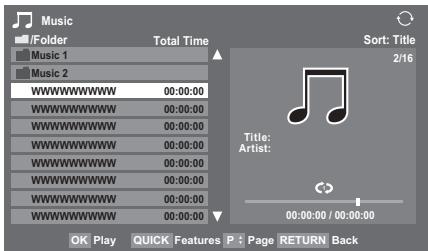

Press to select a file or folder. PAPV buttons can be used to page up/down the music list when there are more files than will fit onto one screen.

When you select a folder, press OK to move to the next layer. Press RETURN to move back to the previous layer.

With the desired file selected, press OK or PLAY (▶) to start playback.

Press to stop playback.
NOTE:
Depending on the file size, it may take some time for playback to begin.
- During playback, you can adjust the SOUND menu functions from the QUICK Menu.
During playback:
- Press to pause.
- To resume normal playback, press PLAY(▶).
- You can move to the desired replay position by pressing or during PAUSE.
- PAUSE or operations during PAUSE may not be available depending on the content, DMC or DMS (for DLNA only).
To play in fast reverse or fast forward directions, press or during playback. Each time you press or , the playback speed will change.
To set the repeat mode:

Press QUICK to open the Quick Menu.

Press or to select Off, All or 1.
| Mode | Description |
| Off | USB: Files in the same folder are played back once. DLNA: A file is played back once. |
| All | Files in the same folder are repeatedly played back. |
| 1 | The same file is repeatedly played back. |

Press RETURN.
NOTE: When the TV is used as a DMR, this feature is not available.
To close the Music Player:

Press EXIT.
To sort the folders and files (DLNA only)

Press QUICK to open the Quick Menu in list mode.

Press or to select Sort.

Press or to select Title, New or Old to set the sorting rule.
| Item | Description |
| Title | Title--File sorting rules: 1. Unicode priority 2. (0, 1, ..., 9), capital alphabet (A, B, ..., Z), small alphabet (a, b, ..., z) 3. Increasing order |
| New | From new to old according to the date and time when the contents were updated. |
| Old | From old to new according to the date and time when the contents were updated. |
NOTE: Sorting may not be supported by some DMSs.
To display the device information

Press QUICK to open the Quick Menu in list mode.

Press or to select Device Information.
To display the file status information (DLNA only)
Press i+ during playback. The information will be displayed on the bottom of the screen.
Press i+ again to remove the information.
NOTE: The information may not be correctly displayed depending on the content, DMC or DMS.
File Compatibility
USB device use:
File format: MP3
Sampling frequency: 16 kHz, 22.05 kHz, 24 kHz, 32 kHz, 44.1 kHz, 48 kHz
Bit rate: from 8 to 320 kbps
Maximum number of files: 500 / folder
Content on DLNA CERTIFIED™ Server:
File format: Linear PCM, MP3
Sampling frequency: 32kHz 44.1 kHz, 48 kHz
Bit rate: from 32 to 320 kbps
Maximum number of files: 1000 / folder
Using the Photo Frame feature
You can use the TV screen as a digital photo frame. One image (pre-installed or user-installed) can be displayed. Date info can also be superimposed, if desired.
You can overwrite the photo file with a file from a USB storage device or SD card.
To open Photo Frame
Open from Menu
Press MENU and or to select the PREFERENCES menu.
Press to select Photo Frame Setup, and then press OK.
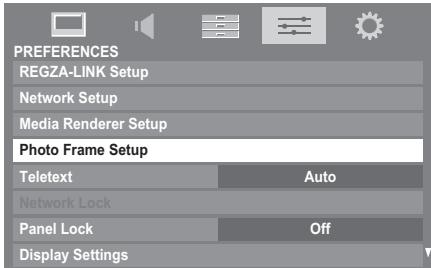
The preview screen will appear.
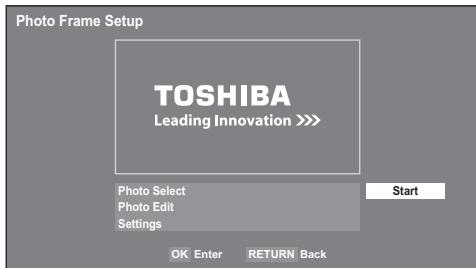
Press to select Start, and then press OK to open Photo Frame.

To open from the Quick Menu
Press QUICK to open the Quick Menu.
Press or to select Photo Frame, and then press OK to open Photo Frame.
To close Photo Frame:
1 Press EXIT.
Setting the features
In the preview screen, you can set various settings for Photo Frame.
Photo Select
1 In the Photo Frame Setup menu, press or to select Photo Select, and then press OK.
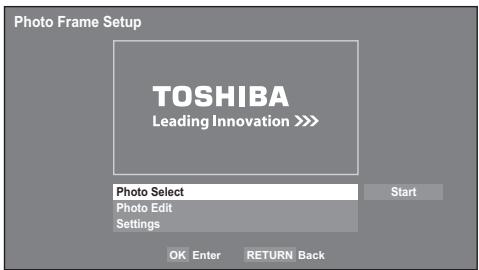
If the device selection screen appears, press or to select the appropriate device, and then press OK.
Press to select the photo you want to copy from the USB storage device or SD card to the TV's flash memory, and then press OK.
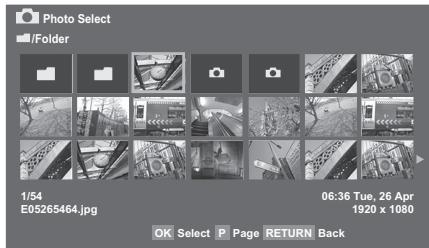
Photo Edit
1 Press or to select Photo Edit, and then press OK.
Press or to select Rotate or Delete.
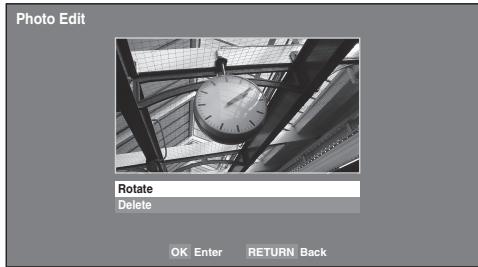
3 Set the following items as required.
- Rotate - Press OK to rotate the image 90^ clockwise.
- Delete — Press OK. A confirmation window will appear. Press or to select YES, and then press OK.
4 Press RETURN.
Settings
1 Press or to select Settings, and then press OK.

Press or to select Clock, Position or Auto Power Off.
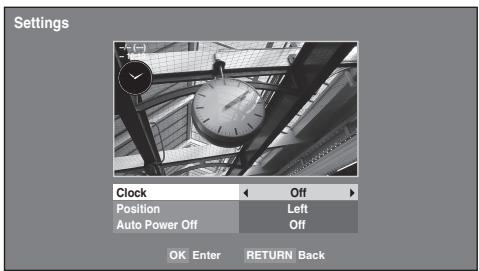

Set the following items as required.
- Clock - Press or to select Off, Digital Clock, Analogue Clock or Analogue + Digital.
- Position — Press or to select Left or Right.
- Auto Power Off - Press or to select Off, 00:30, 01:00, 02:00, 04:00, 06:00 or 12:00.
If the Photo Frame window is left open, the TV will automatically turn off after the set length of time (maximum 12 hours).

Press RETURN.

Select Start, and then press OK.
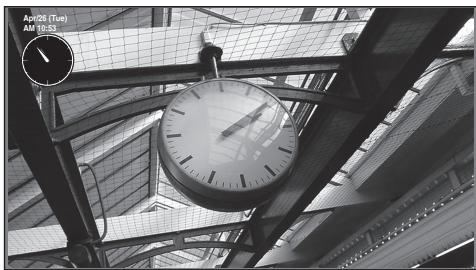
NOTE:
- The clock display will only appear when time from a digital broadcast is available.
- The photo and clock displays are moved by 4 dots every 5 minutes to prohibit screen burn-in.
- The pre-installed photo file is stored in the TV's flash memory before shipment.
- Picture Size selection (Normal/ Dot by Dot) is available by pressing the QUICK button.
Other features
Panel Lock
Panel Lock disables the buttons on the television. All buttons on the remote control can still be used.

In the PREFERENCES menu, select Panel Lock and choose On or Off using or .
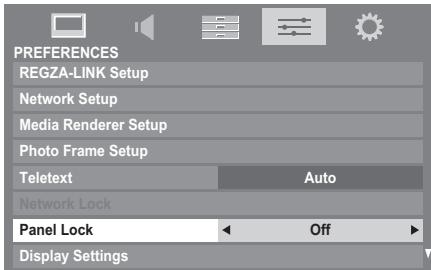
When Panel Lock is On, a reminder will appear when the buttons on the television are pressed. If the standby button is pressed, the television will switch off and can only be brought out of standby by using the remote control.
TOSHIBA Illumination
You can set the illumination mode of the TOSHIBA logo located on the front panel to On or Off.

In the PREFERENCES menu, press to select TOSHIBA Illumination.

Press or to select either On or Off.
The timers
Programme Timers - digital only
This feature will set the television to go to a specific channel at a certain time. It can be used to view a particular programme, or by setting the mode to daily or weekly, can be used to view a series of programmes.

Press MENU and or to select the APPLICATIONS menu.

Press to select Programme Timers, and then press OK.
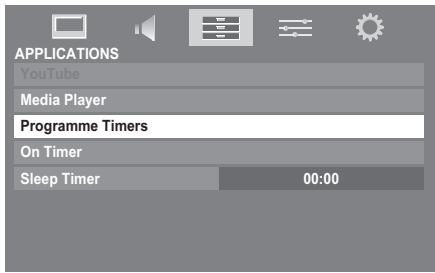

Press if necessary to select an open timer position, then press OK. The Edit Timer menu will now appear on screen.

Press and to go through the list adding the details of the programme by using the number buttons and and to make selections.
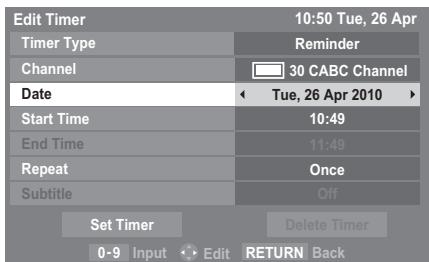

When all of the details have been entered, highlight Set Timer and press OK to save the timer.
The ORANGE/RED programme timer indicator on the front of the television will be lit (see page 76 for details).
PLEASE NOTE: When a timed programme is about to start, an information screen will appear offering the option of watching or cancelling the programme. The menus and other channels will not be available during the timed programme unless the programme timer is cancelled. The programme timer you set is not performed when the TV is turned off with the / POWER switch.
It will only be possible to create or edit programme timers for the currently tuned DTV input.
On Timer
The feature allows you to set the television to turn on automatically at a certain time of day or after a certain length of time. When On Timer is set to On, the green On Timer indicator on the front of the television is lit.

In the APPLICATIONS menu, press to select On Timer and press OK.

Press or to select Enable On Timer, and then press or to select On.
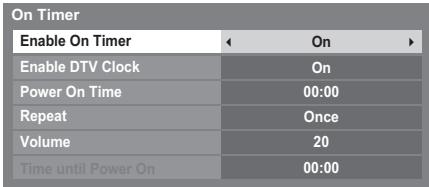

Press to select Enable DTV Clock, and then press or to select On or Off.

Press or to go through the list adding the details of the On Timer by using the number buttons and and to make selections.
Power On Time (only for DTV Clock On mode): Set the time you prefer with the number buttons.
Repeat (only for DTV Clock On mode): Select the desired On Timer operation (Once, Every Day, Mon-Fri, Mon-Sat, Sat-Sun).
NOTE: When an external input is selected in the Input field, a channel cannot be selected.
Volume: Set the volume that will be applied when the television turns on.
Time until Power On (only for DTV Clock Off mode): Set the amount of time from now until the TV turns on using the number buttons (maximum of 12 hours).
To cancel the On Timer

In the On Timer menu, select Enable On Timer

Press or to select Off.
Sleep Timer
The television can be set to turn itself Off after a certain length of time.
In the APPLICATIONS menu, press to select Sleep Timer. Use the number buttons to set the desired time. For example, to switch the television off in one and a half hours enter 01:30, or press /to increase/ decrease in steps of 10 minutes. (Maximum time setting is 12 hours)
Press EXIT to finish.
3 To cancel the Sleep Timer, enter all zeros for the above setting.
Energy Saving Settings
Automatic Power Down
The TV will automatically turn itself off (standby) after 4 hours, if you do not operate the TV either from the remote control or the TV control panel.
1 In the PREFERENCES menu, highlight Energy Saving Settings and press OK.
Press or to select Automatic Power Down.
Press or to select On or Off, and press OK.
NOTE:
- This feature is set to On when Location is set to Home.
- 1 minute before switching to standby, a Warning message will appear.
-
When the following features are set, the feature that is set for the nearest time will function.
-
Automatic Power Down
- Sleep Timer
- Photo Frame/Auto Power Off
- Auto shutdown after 1 hour of inactivity (after power on by On Timer)
- No signal auto power off (after 15 minute of no signal)
No Signal Power Down
The TV will automatically turn itself off after 15 minutes when no signal is detected. You can change the setting to Off for the following purposes:
- Low signal strength of analog channel (no signal detection)
- Only Audio L/R is connected to external input to listen to music through the TV speakers.
In the Energy Saving Settings menu, highlight No Signal Power Down, and press OK.
Press or to highlight the item you want to change, and press or to select On or Off.
NOTE:
- Default setting is all On.
- A warning message will appear 1 minute before turning off.
Digital on-screen information and Programme Guide
When viewing in digital mode, the on-screen information and programme guide provide access to programme details for all available channels.
Information
Press + , the information screen will appear giving details of the channel and programme currently being viewed.
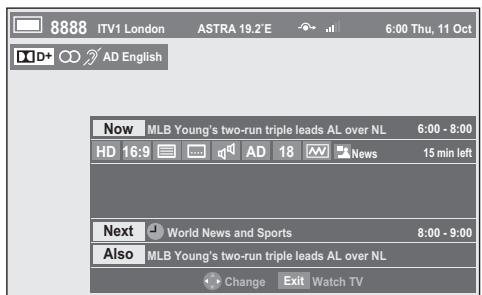
Press or to select the "Now", "Next" or "Also" information guide.
To record the next scheduled programme, select "Next" and press OK. The Edit Timer screen will appear.
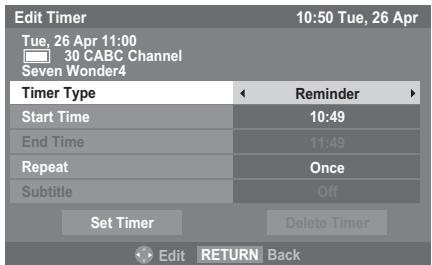
4 The details of the programme will already have been added to the timer. Highlight Set Timer and press OK to save.
To indicate that a Recording Timer has been set, a clock icon will be displayed in the Next and Also fields of the information screen. A check mark will appear if the timer is a Reminder Timer.
Press to select Also. Details of programmes that have started on other channels will be provided. Use or to change the display contents.
To display More Information
Press QUICK to open the Quick Menu.
Press to highlight More Information and press OK.
On-screen Information icons
| Icon | Description | |
| Service info | ■ ▼ □ | Service type (TV, Radio, TEXT) |
| ← → | Skip | |
| Audio info | ○ | Mono |
| ○○ | Stereo | |
| ●○ | Dual mono | |
| ○○ | Multichannel | |
| □ D | Dolby Digital | |
| □ D+ | Dolby Digital + | |
| HE-AAC | Audio Coding | |
| AD | Audio Description | |
| Audio/Subtitle info | 2 | For Hard of Hearing |
| Event info | HD, SD | Video format (HD, SD) |
| 16:9, 4:3 | Video Aspect | |
| ■ | Teletext | |
| ……… | Subtitle (Single, Multi) | |
| ▲ | Multi-audio track | |
| 0, 4 - 18 | Parental rating | |
| AW | Encrypted | |
| Timer info | ↓ | Recording |
| ✓ | Reminder |
Guide

Select the on-screen guide by pressing GUIDE, and the guide screen will appear highlighting details of the channel and programme currently being viewed. This may take a few moments to appear.
| Thu6 10:50 Tue, 6 Apr | |||||
| TV | 18:00 | 18:30 | 19:00 | 19:30 | 20:00 |
| 6 M6 | LE SIM...LE SIM... | TOP MODEL | |||
| 9 W9 | LE SIMPSON MUS SUMME-HLAND | SUMMERLAND | LE SIM... | ||
| 11 NT1 | Nicky La...Street fight...Dragon B...Dragon B...K 2000 | ||||
| 31 PARIS PREMIÈRE | MA SORCIE...HAPPY DAYS HAPPY DAYS | ||||
| 34 AB1 | Evamag 21 jump street Jerry Springer Show City guys L... | ||||
| 800 FlowerGd 6Mbs | |||||
| 801 FlowerGd 4Mbs | |||||
| 802 FlowerGd 2Mbs | |||||
| 804 Codec 4:3 | |||||
| 806 ITV1 | |||||
| 807 ITV3 | |||||
| 808 ITV2 | |||||
| 809 ITV4 | |||||
You can switch the time scale to 1.25 or 2.5 hours by pressing the GREEN button.
NOTE: Channels are displayed in groups by service type (TV, Radio, TEXT). Pressing the TV button will switch the service type.

Press or for information on other programmes scheduled for the channel selected. To highlight the first programme in the genre grid, press the RED button.

For details of other programmes currently available, press and to scroll up and down the channel list. As channels are selected, details of the programme currently being broadcast will appear. Press or to view information for future programmes.

For information on a highlighted programme, press i+

To set the timer for that programme, press the BLUE button to bring up the Programme Timers menu.
NOTE: In order for the recording operation to work properly, the media recorder must be set to the same time as the TV. Regarding the process for recording, please refer to the owner's manual of the recording equipment.

Press P to advance to the next page, or press P to go back to the previous page.
Genre selection/searching
From the guide screen, you can use the genre selection and search features.

Press the QUICK button from the guide screen.

Press ▲ or ▼ to highlight Genre Colour in the Quick Menu, and then press OK.
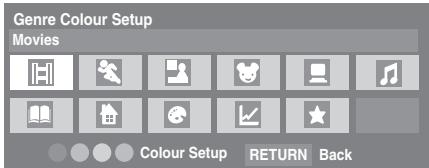

With the focus on a particular genre, press the desired colour key to assign. Four colours will be available to set. Press RETURN to go back to the guide screen.

Press the YELLOW button to access the Genre Search screen.
| Genre Search 10:50 Tue, 6 Apr | ||
| Movies | ||
| 34 AB1 | Hard Rain | Wed,27 Apr 0:15- 1:45 |
| 31 PARIS PREMIÈRE | Red Corner | Wed,27 Apr 22:15- 23:55 |
| 11 NT1 | The Lawnmower Man | Thu,28 Apr 1:20- 3:00 |
| 9 W9 | A Vow to Kill | Fri,29 Apr 1:30- 3:00 |
| 34 AB1 | Parenthood | Sat,30 Apr 0:45- 2:40 |
| 11 NT1 | Body and Soul | Sat,30 Apr 1:15- 3:00 |
| 31 PARIS PREMIÈRE | The Nun's Story | Sat,30 Apr 15:00- 17:30 |
| 9 W9 | Red Corner | Sat,30 Apr 23:20- 1:15 |
| 11 NT1 | The Real Blonde | Sun,1 May 0:40- 2:00 |
| 31 PARIS PREMIÈRE | Critters | Sun,1 May 0:40- 2:20 |
| 11 NT1 | Indiana Jones and the Temple of Doom | Sun,1 May 21:10- 23:20 |
| 11 NT1 | The jackal | Sun,1 May 23:20- 1:15 |
| 34 AB | Coup De Ville | Mon,1 May 1:10- 3:00 |

Press or to select the genre. Programmes listed will change for the new genre. Press or to highlight a particular programme.

When a current programme is selected, pressing OK will tune to that programme. When a future programme is selected, pressing OK will open the Edit Timer menu.

For information on a highlighted programme, press i+

To exit the Genre Search and go back to the guide screen, press the YELLOW button.
Digital settings - parental control
In order to prevent viewing of unsuitable films and programmes, channels and menus can be locked in digital mode. These can then only be accessed with a security code PIN.
Setting the PIN
Press MENU and to select the SETUP menu.
Use to select DTV Settings, and then press OK.
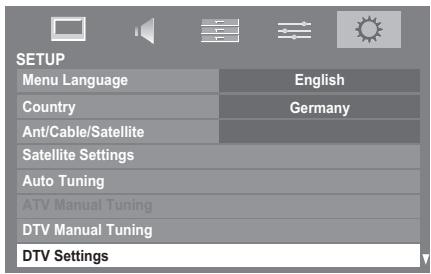
3 Press to highlight PIN Setting, and then press OK.
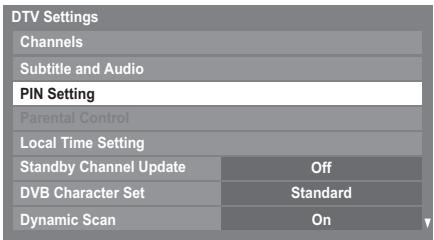
Using the number buttons enter a four digit number. Once entered you will be prompted to confirm by entering again.
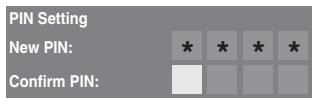
The PIN number is now set.
If the PIN code has been set, when Auto Tuning and Reset TV are executed, entering the PIN will be necessary.
Parental Setup
The Parental Control feature allows you to block programmes according to their rating levels. If a PIN has been set, you will need to enter it before adjusting the level.
In the DTV Settings menu, press to select Parental Control, and then press OK.
Use or to choose an option (None or an age setting (4-17 or 4-18 depending on the Country setting)).

To view blocked programmes, enter the PIN. To reactivate the Parental Control, turn the TV off and then on again.
Network Lock
You can use the Network Lock feature to prevent the Web browser from launching. When this feature is set to On, PIN input will be necessary to use YouTube.
This feature will be grayed out until a PIN is set.
In the PREFERENCES menu, highlight Network Lock and press OK.
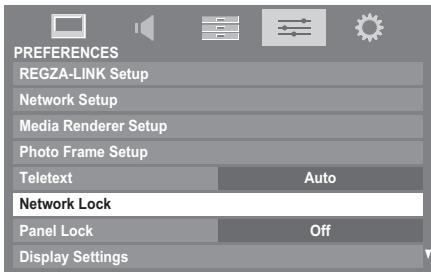
2 Enter your four-digit PIN code.
Press or to select On, and then press OK.
To unlock the Network:
1 Select Off in step 3 above.
Digital settings - Channel Options
Selecting favourite channels
Favourite Channels creates a list of the digital channels that are watched most. Four lists can be created, these can be a mixture of television, radio and text channels.
1 Select a channel you want to add to your favourite list.
Press QUICK to open the Quick Menu.
3 Press to select Channel Options and press OK.
4 Press repeatedly to select the favourite list (Fav. 1-4)
Channel Options
Fav.


Press OK to select the ones required. A tick will appear in the box as they are selected.
6 Repeat steps 1 through 5 for other channels.
When all favourites have been selected, press EXIT.
Favourite Channel Lists
Press LIST to display Channel List.
Press or to select Favourites 1-4. The number of favours available depends on how many lists have been created.
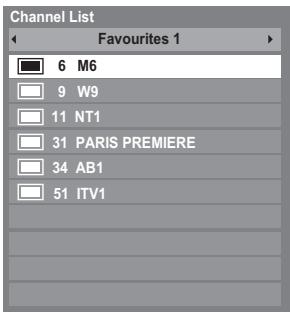
Press or to highlight a channel and press OK to watch.
Skip channels
This feature allows you to set channels that will be skipped when P or P are used to tune.
1 Select the channel you want to skip in your channel list.
2 From the Quick Menu, press to select Channel Options and press OK.
Press repeatedly to highlight the skip () box.
Press OK to select. A tick will appear in the box.
5 Repeat steps 1 through 4 for other channels.
6 Press EXIT.
NOTE: Skipped channels cannot be selected by P or PA but still be accessed by direct number entry (when tuned a icon will be displayed in the banner to indicate as a skipped channel).
Locking channels
Locking Channels stops the viewing of digital channels, and they can only be accessed by entering the PIN.
1 Select the channel you want to lock in your channel list.
2 From the Quick Menu, press to select Channel Options and press OK.
Press repeatedly to highlight the lock (A) box.
4 Press OK to select. A tick will appear in the box. If a PIN has already been set, PIN entry will be required to set the locked channels.
5 Repeat steps 1 through 4 for other channels.
6 Press EXIT.
From this point on, when any of the channels in the Locked Channel list are selected, the PIN must be entered before they can be accessed.
Digital settings - other settings
Subtitles
In digital mode, this feature will show subtitles on the screen in the selected language provided they are being broadcast.

In the DTV Settings menu, press to select Subtitle and Audio and press OK.

Press to select Subtitle Display and use or to select On or Off.
| Subtitle and Audio | ||
| Subtitle Display | ← Off | |
| Subtitle Type | Normal | |
| Primary Subtitle Language | English | |
| Secondary Subtitle Language | English | |
| Audio Type | Normal | |
| Primary Audio Language | English | |
| Secondary Audio Language | English | |

Press to select Primary Subtitle Language or Secondary Subtitle Language and use or to select an option.
The SUBTITLE button can be used to select subtitle on or off for the current channel only and to select the subtitle language if more than one subtitle is available.
Audio languages
This feature allows a programme or film to be viewed with a choice of soundtrack language, provided multiple language tracks are being broadcast.

In the Subtitle and Audio menu, press to select Audio Type and use or to select Normal or For Hard of Hearing.

Press to select Primary Audio Language or Secondary Audio Language and use or to select an option.
If more than one soundtrack is available, use the CDI/II button to select between them.
Common Interface
The Common Interface Slot, situated on the side of the television, enables the insertion of a CAM (Conditional Access Module) and card. These are purchased from a service provider and allow additional subscription broadcasts to be viewed. For information, see a service provider.

Insert the CAM and card into the Common Interface Slot, following the instructions provided with the CAM. A box will appear on screen to confirm that the CAM has been inserted.

In the DTV Settings menu, press or to select Common Interface and press OK.

Details of the CAM should now be available.
NOTE:
- Software update of a CI Plus CAM may occur automatically if instigated by the broadcaster. This could cause the cancellation of any Reminders/Recordings during this process.
- Some CI or Cl+ CAM may not be supported.
- Cl+ operation is not guaranteed except for Canal Ready DTT services on suffix FC models.
Software Upgrade and Licences
Auto Upgrade
When Auto Upgrade is set to On, the television will automatically upgrade while in standby if new software is available.

From the SETUP menu, press or to select Software Upgrade and press OK.

Press ▲ or ▼ to select Over-the-air Upgrade and press OK.

Press or to select Auto Upgrade.

Use or to select On or Off.
Searching for New Software
If preferred, software upgrades can be searched for manually using Search for New Software.

In the Software Upgrade menu, select Over-the-air Upgrade, and then press or to select Search for New Software.

Press OK. The television will automatically start searching for a software upgrade, the progress bar will move along the line.
SEARCH FOR NEW SOFTWARE
Searching for a new software upgrade for this TV.
Searching
If an upgrade is found, the television will automatically start downloading. If not, a screen will appear stating that an upgrade is unavailable.
Network Upgrade
TOSHIBA may offer upgrades for the TV's software in the future. The TV's software is upgraded via the Network.
Before downloading software;
Configure your TV to connect to the Internet.
NOTE: While the upgrade is being performed, you will not be able to watch the TV.

In the Software Upgrade menu, press or to select Network Upgrade and press OK.
NOTE: If the network is not available, a warning message will appear.

The TV software upgrade will start when download succeeds.
Software Licences
The licences for the software used in this television are available for viewing.

In the SETUP menu, press ▲ or ▼ to select Software Licences and press OK.
A screen will appear displaying all the licensing information required for the televisions software.
System Information and Reset TV
System Information
This feature can be used to check the version of software currently installed. When in DTV mode, it includes additional diagnostic information such as signal strength, signal quality, centre frequency, modulation, etc.

From the SETUP menu, press or to select System Information.

Press OK to display the System Information.
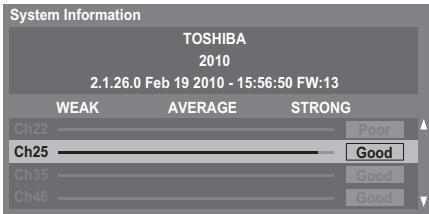

For information about the signal quality of a particular multiplex, press or to select that multiplex.

Press OK for a screen showing detailed technical information about the selected multiplex.
Reset TV
Selecting Reset TV will reset all TV settings, including saved channels, to their original factory values.

In the SETUP menu, press until Reset TV is highlighted.

Press OK to select. A screen will appear warning that all settings will be lost. Press OK to continue.
When the set powers back on, the Quick Setup screen will appear. Press OK to advance the setup and perform an auto tune. (See 'Quick Setup' section on page 15.)
PC Settings
Horizontal and Vertical Position
Connect the PC (as shown in the 'Connecting a computer' section) and ensure that a picture is showing on the television screen. The picture position may now be adjusted to suit personal preference.

In the PREFERENCES menu, highlight Display Settings and press OK.

In the Display Settings menu, press until PC Settings is highlighted.
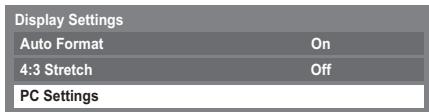

Press OK. Press and to select an option, then or to adjust the settings.
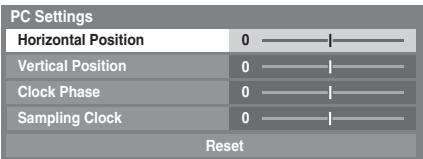
Clock Phase
The Clock Phase matches the PC signal with the LCD display. Adjusting this can clear horizontal stripes and picture blur.

In the Display Settings menu, press until PC Settings is highlighted.

Press OK to select, and then to highlight Clock Phase.

Use or to adjust until the picture clears.
Sampling Clock
Adjusting the Sampling Clock alters the number of pulses per scan, this will clear vertical lines on the screen.
1 In the Display Settings menu, press until PC Settings is highlighted.
Press OK to select, and then to highlight Sampling Clock.
Use or to adjust until the picture clears.
Reset
Use Reset to return all items to the original factory settings.
1 In the Display Settings menu, press until PC Settings is highlighted.
Press OK to select, and then to highlight Reset.
Press@K).
NOTE: When a PC is connected using HDMI, none of these functions will be available.
The screen is disrupted momentarily when adjusting PC Settings. This is not a sign of malfunction.
The default settings and adjustment ranges may vary depending on the input signal format.
Input selection and AV connections
See page 9 for a detailed image showing recommended connections.
Most media recorders and decoders send a signal through the SCART lead to switch the television to the correct Input socket.
Alternatively, press the external source selection button until the picture from connected equipment is shown.
An S in the display e.g. 2S (EXT 2S), indicates the input is set for an S-Video signal.
Input selection
Use the Input Selection window if the television does not switch over automatically.
1 By pressing on the remote control or TV, a list will appear on screen showing all inputs and external equipment.
Pressing on the remote control
Pressing on the TV right side panel
| Inputs |
| TV |
| 1 |
| 2 |
| 3 |
| 4 |
| HDMI 1 |
| HDMI 2 |
| HDMI 3 |
| HDMI 4 |
| PC |
| Inputs |
| DTV Ant (or Cable) TV * |
| DTV Ant (or Cable) RADIO * |
| DTV Ant (or Cable) TEXT * |
| DTV Sat TV * |
| DTV Sat RADIO * |
| DTV Sat TEXT * |
| 1 |
| 2 |
| 3 |
| 4 |
| HDMI 1 |
| HDMI 2 |
| HDMI 3 |
| HDMI 4 |
| PC |
| ATV |
- Depends on the type of channels that are currently available for DTV.
HDMI® displays equipment connected to Input HDMI on the back or side of the television.
PC displays a computer connected to Input RGB/PC on the back of the television.
External input skip
This feature is designed to make input selection more convenient.
1 In the PREFERENCES menu, press to select AV Connection and press OK.
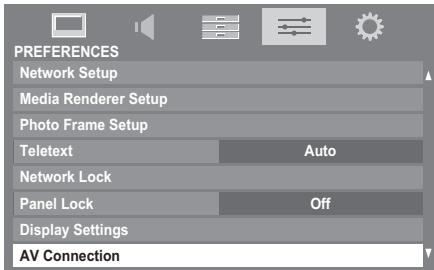
Press ▲ or ▼ to highlight Input Labeling and press OK.
Press or to select the input you want to skip, and then press the RED button to turn on the skip.
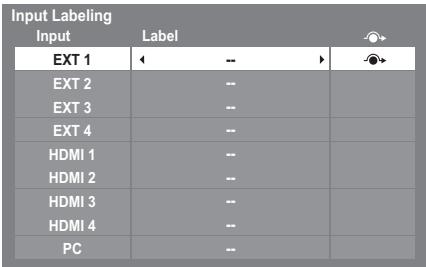
4 To turn off the skip, press the RED button again.
The input set to Skip is greyed out in the Input Selection window and is skipped over when you press on the remote control.
Input signal selection
This specifies the type of signal going into SCART 2 (EXT 2) on the back of the television. Please refer to the manufacturer's instructions for the connected equipment.
In the PREFERENCES menu, press until AV Connection is highlighted and press OK.
Press or to highlight EXT 2 Input.
Press or to select either AV or S-VIDEO as the required input for EXT 2.
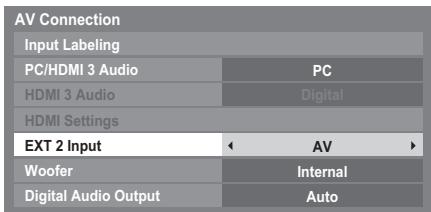
If video colour is absent, try the other setting.
Labeling video input sources
These input labels are shown in the input selector. You can label video inputs according to the devices you have connected to the TV.
In the PREFERENCES menu, highlight AV Connection and press OK.
Press or to highlight Input Labeling and press OK.
| Input Labeling | ||
| Input | Label | -@ |
| EXT 1 | ← -- | |
| EXT 2 | -- | |
| EXT 3 | -- | |
| EXT 4 | -- | |
| HDMI 1 | -- | |
| HDMI 2 | -- | |
| HDMI 3 | -- | |
| HDMI 4 | -- | |
| PC | -- | |
Press or to highlight the item you want to label, and then press or to select --, Amplifier, Cable, DVD, Game, PC, Recorder, Satellite or VCR, or press the GREEN button to select User Input.
NOTE: When User Input is selected by pressing the GREEN button, the Software Keyboard window will appear. Input the desired characters (10 characters or less) by using the Software Keyboard (see page 42) or using the number buttons for a number input. To save your settings, press the BLUE button.
Repeat step 3 for other video inputs.
Woofer setting (XV/ZV/VL/YL/WL series only)
When an active Sub-Woofer is connected to the Woofer out connection on the back of the television, set the Woofer setting to External.
In the AV Connection menu, press to highlight Woofer.
Press or to select External.
PC Audio
In order to receive sound from a connected PC, plug the audio cable into the back of the television (as shown in the 'Connecting a computer' section), and then use the PC/HDMI 3 Audio setting.
In the PREFERENCES menu, press until AV Connection is highlighted, and then press OK.
2 Highlight PC/HDMI 3 Audio, and then use to select the PC option.
NOTE: Selecting the PC option will force HDMI 3 Audio to Digital mode.
HDMI 3 Audio
If the connected HDMI source does not support digital audio, plug the audio cable into PC/HDMI 3 (AUDIO) on the back of the television (as shown in the 'Connecting an HDMI® or DVI device to the HDMI input' section), then use the HDMI 3 Audio setting.
In the AV Connection menu, press to highlight PC/HDMI 3 Audio and using select HDMI 3.
Then highlight HDMI 3 Audio, and using or select Auto or Analogue.
| AV Connection | |
| Input Labeling | |
| PC/HDMI 3 Audio | HDMI 3 |
| HDMI 3 Audio | ← Auto |
| HDMI Settings | |
| EXT 2 Input | AV |
| Woofer | Internal |
| Digital Audio Output | Auto |
If the sound is absent, try selecting a different setting.
NOTE: HDMI 3 supports digital and analogue sound, HDMI 1, HDMI 2 and HDMI 4 are digital sound only.
Certain DVD disk formats may not output from this TV (32/44.1/48kHz and 16/20/24 bits are acceptable).
HDMI Settings
Some early HDMI equipment may not work properly with your HDMI TV. Please try setting the Enable Content Type and INSTAPORT™ options to Off. Adjusting these settings should allow your early HDMI source to operate properly with your television.
In the PREFERENCES menu, press until AV
Connection is highlighted, and then press OK.
Press to highlight HDMI Settings and press OK.
NOTE: HDMI Settings is grayed out on non-HDMI inputs.
Press or to select an item, and then press or to select a setting.
| Enable Content Type | < | On | > |
| INSTAPORT™ | On | ||
| RGB Range | Auto |
- Enable Content Type: On
This feature is part of the HDMI1.4 standard.
When set to On, the TV will automatically adjust settings according to the content type data sent from the connected HDMI device.
- INSTAPORT™: On
This feature reduces the lag time when switching HDMI sources.
- RGB Range: Auto
This feature adjusts RGB full range signal automatically. When Limited is selected, RGB signal is output in the range from 16 to 235. When Full is selected, RGB signal is output in the range from 0 to 255.
NOTE:
- If your HDMI connection is capable of 1080p and/or your television is capable of refresh rates greater than 50Hz or supports Deep Colour, you will need a Category 2 cable. Conventional HDMI/DVI cables may not work properly with this mode.
- All of the above HDMI settings need proper HDMI source devices.
If the HDMI source products do not support these features, the television may not work properly by activating these features.
Digital Audio Output
When connecting a surround sound amplifier to the digital audio output (Sony/Philips Digital Interface Format [S/PDIF]), the following options can be selected.
PCM: this mode outputs PCM format to the digital audio output socket.
Auto: this mode outputs Dolby Digital (if available) or PCM to the digital audio output socket.
Dolby Digital Dolby Digital
Dolby Digital Plus Dolby Digital
MPEG PCM
HE-AAC Dolby Digital
1 In the AV Connection menu, press to select Digital Audio Output.
| AV Connection | ||
| Input Labeling | ||
| PC/HDMI 3 Audio | HDMI 3 | |
| HDMI 3 Audio | Auto | |
| HDMI Settings | ||
| EXT 2 Input | AV | |
| Woofer | Internal | |
| Digital Audio Output | < | Auto |
Use or to select PCM or Auto.
Using REGZA-LINK
This is a new feature that uses CEC technology and allows you to control Toshiba REGZA-LINK compatible devices from the television remote control via HDMI connection (page 11).
When the Enable REGZA-LINK item in the REGZA-LINK Setup menu is set to On, individual functions also set to On will be activated.
Enable REGZA-LINK
Press MENU and or to select the PREFERENCES menu.
Press to select REGZA-LINK Setup and press OK.
Press to highlight Enable REGZA-LINK, and then press or to select On.
| REGZA-LINK Setup | |
| Enable REGZA-LINK | On |
| TV Auto Power | On |
| Auto Standby | On |
| Amplifier Control | On |
| Speaker Preference | TV Speakers |
NOTE: If you set Enable REGZA-LINK to Off, all other items will be grayed out.
TV Auto Power
The TV Auto Power setting allows the television to be automatically switched on if a REGZA-LINK device is turned on.
1 In the REGZA-LINK Setup menu, press to highlight TV Auto Power.
Press or to select On or Off.
Auto Standby
When Auto Standby is enabled, the television, when switched off, will automatically switch off (standby mode) all connected REGZA-LINK equipment.
1 In the REGZA-LINK Setup menu, press to highlight Auto Standby.
Press or to select On or Off.
Amplifier Control
When Amplifier Control is set to On, it allows the "Speaker Preference" feature to become available.
1 In the REGZA-LINK Setup menu, press to highlight Amplifier Control.
Press or to select On or Off.
Speaker Preference
This feature allows the audio output preference to be set to the TV speakers or AV amplifier speakers. The AV Amplifier option lets the television's remote control adjust or mute the volume of the audio.
In the REGZA-LINK Setup menu, press to highlight Speaker Preference.
Press or to select TV Speakers or Amplifier.
REGZA-LINK input source selection
If a REGZA-LINK device with HDMI switching capability (e.g. AV amplifier) is connected to the HDMI input, you can select another REGZA-LINK device that is connected to the master HDMI device on the input source list.
Press 念 and a list will appear on screen showing available input sources.
Press to select the desired input source with REGZA-LINK icon.
Press and a second selection screen will appear showing all connected REGZA-LINK equipment.
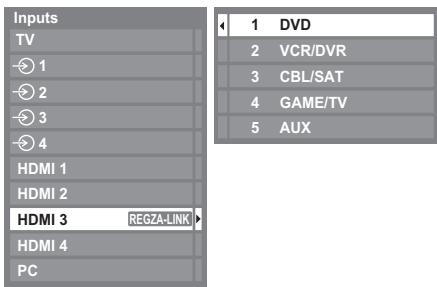
Press or to select the desired input source, and then press OK.
NOTE:
- These functions depend on the device connected.
- If you select the REGZA-LINK input source from the popup window, some REGZA-LINK devices may automatically turn on.
- When the television is switched on it will take a few minutes for the REGZA-LINK icon to appear in the list. When an HDMI cable is removed, it will take a few minutes for the icon to disappear.
- If the HDMI cable from connected equipment is changed, Enable REGZA-LINK in the REGZA-LINK Setup menu may need to be reset to On.
- If you change the HDMI lead to a connected device or change an HDMI device setting, reset the Enable REGZA-LINK item on the REGZA-LINK Setup menu from Off to On.
REGZA-LINK playback device control
With the REGZA-LINK mode on your television's remote control, you can control the connected REGZA-LINK playback device you are watching.
Remote Control CT-90344
To control the REGZA-LINK input source first select the equipment by REGZA-LINK input source selection, and then switch the mode on the remote control to REGZA-LINK and press a button.
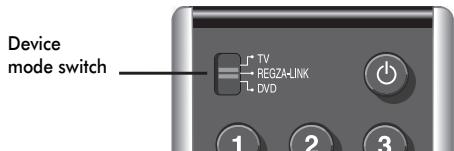
See page 7 for details on available remote control key functions.
Remote Control CT-90345
To control the REGZA-LINK input source first select the equipment by REGZA-LINK input source selection.
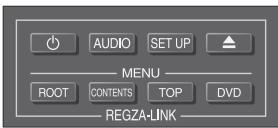
Available remote control keys
See page 8 for details on available remote control key functions.
NOTE: The available functions depend on the equipment connected. All of the remote control keys may not be available. Please refer to the operation manual for each piece of equipment connected.
REGZA-LINK one touch play
When connected equipment is switched on, REGZA-LINK will automatically detect the television through the input selection. If the television is in standby, it will be switched on automatically.
These functions can be enabled or disabled from the REGZALINK Setup (see page 70).
NOTE:
- Even if the equipment is showing a menu, the television may automatically show the input source.
- This feature depends on the connected equipment and television state.
REGZA-LINK system standby
If the television is turned off (standby mode), the television will send a message to turn off (standby mode) all of the REGZALINK devices connected to the television.
These functions can be enabled or disabled from the REGZALINK Setup (see page 70).
NOTE: This feature depends on the connected equipment and television state.
REGZA-LINK system audio control
With your television's remote control, you can adjust or mute the sound volume of the speakers connected to the television via an AV amplifier. First, set the remote control mode switch to REGZA-LINK.
1 Set the Speaker Preference to Amplifier in the REGZA-LINK Setup menu.
2 Confirm that a connected REGZA-LINK device (such as a DVD player, etc) is selected for the AV amplifier input source.
NOTE:
These functions depend on the device connected.
- When you turn on the AV amplifier, change its input source, or adjust the sound volume, the sound will be output from the AV amplifier's speakers even if TV Speakers has been selected. Turn the television off and on again to output the sound from the TV Speakers.
- This feature may not work if the AV amplifier is operated.
Toshiba PC compatible with REGZA-LINK
This feature automatically adjusts the suitable widescreen formats and picture preferences when connected to a Toshiba PC compatible with REGZA-LINK.
NOTE: This feature depends on the connected equipment state.
Text services
This television has a multi-page text memory, which takes a few moments to load. It offers two Modes of viewing text - Auto will display Fastext, if available. LIST will save your four favourite pages.
Selecting modes
The text character set will be automatically chosen by the language setting in the SETUP menu.
1 In the PREFERENCES menu, select Teletext.
2 With or choose Auto or LIST then press EXIT.
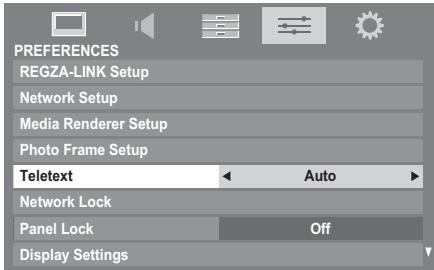
Text information
The TEXT button:
To view text services press TEXT. Press again to superimpose the text over a normal broadcast picture and again to return to normal viewing. Channels cannot be changed until text is cancelled.
The first text page shown will be the initial page.
Any text page can be accessed by entering the 3 digit page number using the numbered buttons, pressing the coloured buttons or pressing P^ to advance to the next page and P^v to go back to the previous page.
Sub-pages
The pages on the screen will dynamically update as sub-pages are received.
If you open a page containing sub-pages, the sub-pages are automatically displayed in sequence. To quit automatic subpage change, press or .
Once selected, the sub-page you are viewing will be highlighted and, as the television loads any additional sub-pages, the colour of the numbers will change, indicating that these pages have been loaded.
These sub-pages will remain available to view until another page is chosen or, in normal TV mode, the channel is changed.
Navigating pages using Auto
If Fastext is available, four coloured titles will appear at the base of the screen.
To access one of the four given subjects, press the relevant coloured button on the remote control.
For further information on your particular text system(s), see the broadcast text index page or, consult your local Toshiba dealer.
Navigating pages using LIST
The four coloured choices at the bottom of the screen are numbers - 100, 200, 300 and 400, which have been programmed into the television's memory. To view these pages, press the relevant coloured buttons.
To change these saved pages, press the relevant coloured button and enter the 3 digit number. This number will change in the top left of the screen and in the coloured highlight.
Press OK to save. Whenever OK is pressed, all four page numbers showing at the bottom will be saved and the previous ones will be lost.
If 0k is not pressed, the selection will be forgotten when the channel is changed.
Other pages may be viewed by entering the 3 digit page number - but DO NOT press OK or these pages will be saved.
Control buttons
Below is a guide to the functions of the remote control text buttons.
To display the index/initial page:
Press [31] to access the index/initial page. The one displayed is dependant on the broadcaster.
TEXT To display a page of text:
Press TEXT to display text. Press again to superimpose text over a normal picture. Press again to return to normal television viewing. Channels cannot be changed until this has been done.
To reveal concealed text:
To discover the solutions on quiz and joke pages press the button.
To hold a wanted page:
At times it is convenient to hold a page of text. Press _X and _X will appear in the top left of the screen. The page will be held on screen until the button is pressed again.
To enlarge the text display size:
Press ( 12) once to enlarge the top half of the page, press again to enlarge the bottom half of the page. Press again to revert to normal size.
To select a page whilst viewing normal picture:
Enter the page number then press 0 / x , normal picture will be displayed. The television will indicate when the page is ready by changing the colour of the page number at the top of the screen. Press TEXT to view the page.
To display news flashes:
Select the news flash page for the chosen text service (see the index page of text service). The news flashes will be displayed as and when they are broadcast.
Remember to cancel text before changing channels - press the TEXT button twice.
Questions and Answers
Below are the answers to some of the most common queries.

Why is there no sound or picture?

Check the television is not in standby mode. Check the mains plug and all mains connections.

There is a picture, but why is there little or no colour?

When using an external source, for instance, a poor quality video tape, if there is little or no colour, improvements may sometimes be achieved. The colour is factory set to Auto to automatically display the best colour system.
To check that you have the best colour:

With the external source playing, select Colour System from the SETUP menu.
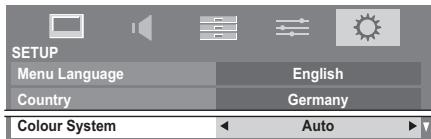

With or choose between Auto, PAL, SECAM, NTSC 4.43 or NTSC 3.58.

Why doesn't the video/DVD being played show on screen?

Make sure the media recorder or DVD player is connected to the television as shown on page 9, and then select the correct input by pressing

Why is there a picture but no sound?

Check all lead connections.
No sound or unacceptable format sound may be received.
Check the volume has not been turned down or that sound mute has not been selected.

Why is the VCR/DVD picture in black and white?

Check that the correct EXT 2 input setting has been chosen, S-VIDEO or AV. See AV Connection on page 67.

What else can cause a poor picture?

Interference or a weak signal. Try a different television station. Manual Fine Tuning may help.

Select the ATV Manual Tuning menu. Highlight the station and press OK). Then press to select Manual Fine Tuning.

Using or adjust to get the best picture and sound. Press OK and then EXIT.
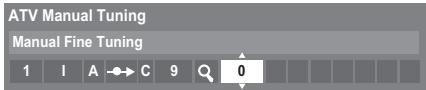

Why don't the controls of the television work?

Check that Panel Lock is not On.

Why doesn't the remote control work?

Check that the mode switch on the remote control is in TV mode. Check that the batteries aren't dead or inserted incorrectly.

Why is the digital channel locked?

The channel has been locked in Channel Options (see 'Digital Settings' section).

Why are some of the digital subscription channels unavailable?

Your subscription needs upgrading. Contact your service provider.

Why is the soundtrack in English when a different audio language has been selected?

The programme is currently being broadcast with an English soundtrack only.

Why is there incorrect or no sound when in DTV mode?

Press / to ensure the hard of hearing option has not been selected.
Q What is DVB-T?
Digital Video Broadcast via an aerial/antenna.
Q What is DVB-C?
A Digital Video Broadcast via a cable connection.
Q What is DVB-S/S2?
A Digital Video Broadcasting Satellite/ETSI EN300 421 and Digital Video Broadcasting Satellite/ETSI EN302 307 via a satellite dish.
Q How are radio channels selected?
A Press TV on the remote control and select DTV RADIO. Alternatively select from the GUIDE.
Q What can be done if the PIN number has been forgotten?
A Use the Master PIN code of 1276, then change to a number of your choice. Select PIN Settings from the DTV Setting menu to enter PIN. Ensure that no-one else can use the Master PIN by removing the Owner's Manual.
Q Why are there vertical stripes on the screen when in PC mode?
A The Sampling Clock may need adjustment. Select PC Settings from the Display Settings menu, highlight Sampling Clock and adjust until the lines clear.
Why are there horizontal stripes and/or blurred images on the screen when in PC mode?
The Clock Phase may need adjustment. Select PC Settings from the Display Settings menu, highlight Clock Phase and adjust until the picture clears.
Why when digital subtitles have been selected are they not showing on screen?
A Subtitles are not currently being transmitted by the broadcaster.
Why is a page number visible at the top of the screen but no text?
A Text has been selected but Teletext information is currently unavailable on the current source.
Q Why are there problems with analogue text?
A Good performance of text depends on a good strong broadcast signal. This normally requires a roof or loft aerial. If the text is unreadable or garbled, check the aerial. Go to the main index page of the text service and look for the User Guide. This will explain the basic operation of text in some detail. If further information is needed on how to use text see the text section.
Q Why are the colours wrong when an NTSC source is played?
A Connect the source via a SCART lead and play. Select Colour System from the SETUP menu.
1 Set the Colour to Auto and exit.
2 Go to the PICTURE menu and adjust the tint.
Q Why don't the devices connected via HDMI operate properly?
A Make sure to use cables with the HDMI logo HOMI (see page 10).
Some early HDMI equipment may not work properly with the latest HDMI TV products, due to new standard adoption. Try switching the HDMI settings (Enable Content Type and INSTAPORT™) to Off.
Q Why don't the REGZA-LINK devices work?
When the connected REGZA-LINK device does not work correctly after you have changed the settings of the device, turn off your television and unplug the power cord, and then plug and turn on again. Unplug the HDMI cable of the REGZA-LINK device and lead again.
Q Why is the REGZA-LINK logo still showing when the equipment has been disconnected?
A If the REGZA-LINK device is disconnected, the logo will disappear after approximately one minute.
Q Why don't the networked devices work?
A The LAN cables are not connected properly or at all. Connect all cables (see page 13). Make sure your network address is set up correctly (see page 40).

Why doesn't the wireless network work?

Make sure the TOSHIBA Dual Band WLAN Adaptor is used (see page 13).
Check that the AP is powered on.

Why doesn't the Media Player feature operate?

Make sure that devices are connected correctly. Incorrect behavior may occur with a USB Hub connection.

What do the LEDs on the front of the television indicate?

Check the table below.
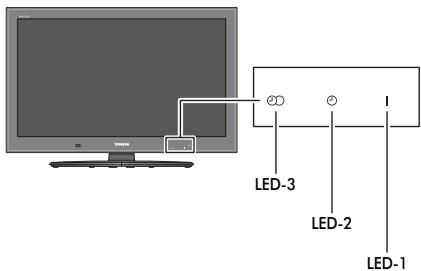
| LED indication | Condition | Solution | ||
| LED-3 | LED-2 | LED-1 | ||
| Orange(Solid) | Green(Solid) | Green(Solid) | Power ON On Timer is set Programme Timer is set | - |
| Red(Solid) | Green(Solid) | Green(Solid) | Power ON On Timer is set Programme Timer is active | - |
| OFF | Green(Solid) | Green(Solid) | Power ON On Timer is set Programme Timer is NOT set | - |
| Orange(Solid) | OFF | Green(Solid) | Power ON On Timer is NOT set Programme Timer is set | - |
| Red(Solid) | OFF | Green(Solid) | Power ON On Timer is NOT set Programme Timer is active | - |
| OFF | OFF | Green(Solid) | Power ON On Timer is NOT set Programme Timer is NOT set | - |
| Orange(Solid) | Green(Solid) | Red(Solid) | Power OFF(Standby) On Timer is set Programme Timer is set | - |
| LED indication | Condition | Solution | ||
| LED-3 | LED-2 | LED-1 | ||
| Red(Solid) | Green(Solid) | Red(Solid) | Power ON (Standby)On Timer is setProgramme Timer is active | - |
| OFF | Green(Solid) | Red(Solid) | Power OFF (Standby)On Timer is setProgramme Timer is NOT set | - |
| Orange(Solid) | OFF | Red(Solid) | Power OFF (Standby)On Timer is NOT setProgramme Timer is set | - |
| Red(Solid) | OFF | Red(Solid) | Power ON (Standby)On Timer is NOT setProgramme Timer is active | - |
| OFF | OFF | Red(Solid) | Power OFF (Standby)On Timer is NOT setProgramme Timer is NOT set | - |
| OFF | OFF | Green(Blinks) | Abnormal operation of BUS line. | Turn OFF the TV and unplug the power cord. Plug the power cord in again and turn ON the TV. |
| OFF | OFF | Red(Blinks) | Abnormal operation of WDT. | |
| OFF | Green(Blinks) | OFF | Fan stopped.(if applicable) | |
| OFF | OFF | Orange(Blinks) | Back Light error. | |
License Information
DOLBY Manufactured under license from Dolby DIGITAL PLUS Laboratories.
DOLBY. Dolby and the double-D symbol are registered trademarks of Dolby Laboratories.
HDMI, the HDMI logo, and High-Definition Multimedia Interface are trademarks or registered trademarks of HDMI Licensing, LLC.
INSTAPORT™ and INSTAPORT logo are trademarks of Silicon Image, Inc. in the United States and other countries.

SD Logo is a trademark.
YouTube and the YouTube Logo are trademarks of Google Inc. This product contains NetFront Browser of ACCESS CO., LTD.
AC@ESS ACCESS, the ACCESS logo and NetFront are trademarks or registered trademarks of ACCESS
NetFront CO., LTD. in the United States, Japan and other countries.
© 2010 ACCESS CO., LTD. All rights reserved. This software is based in part on the work of the Independent JPEG Group.
This product contains Adobe® Flash® Player software under license from Adobe Systems Incorporated.
Copyright © 1995-2009 Adobe Systems Incorporated. All rights reserved. Adobe and Flash are trademarks of Adobe Systems Incorporated.
MPEG Layer-3 audio coding technology licensed from Fraunhofer IIS and Thomson.
DivX® is a registered trademark of DivX, Inc., and is used under license.
Covered by one or more of the following U.S. Patents: 7,295,673; 7,519,274; 7,515,710
DVB is a registered trademark of the DVB Project.
DLNA®, the DLNA Logo and DLNA CERTIFIED™ are trademarks, service marks, or certification marks of the Digital Living Network Alliance.
THIS PRODUCT IS LICENSED UNDER THE AVC PATENT PORTFOLIO LICENSE FOR THE PERSONAL AND NONCOMMERCIAL USE OF A CONSUMER TO (i) ENCODE VIDEO IN COMPLIANCE WITH THE AVC STANDARD (AVC VIDEO) AND/OR (ii) DECODE AVC VIDEO THAT WAS ENCODED BY A CONSUMER ENGAGED IN A PERSONAL AND NONCOMMERCIAL ACTIVITY AND/OR WAS OBTAINED FROM A VIDEO PROVIDER LICENSED TO PROVIDE AVC VIDEO. NO LICENSE IS GRanted OR SHALL BE IMplied FOR ANY OTHER USE. ADDITIONAL INFORMATION MAY BE OBTAINED FROM MPEG LA, L.L.C.
SEE HTTP://WWW.MPEGLA.COM
AUDYSSEY
Audyssey EQ technology (XV/ZV/YL/YL/WL series only)
Manufactured under license from Audyssey Laboratories. U.S. and foreign patents pending. Audyssey EQ is a registered trademark of Audyssey Laboratories.
Audyssey EQ is based on the award-winning Audyssey MultEQ technology. It is the first-ever room equalization solution that can achieve optimum sound for a large listening area and it is featured in many high end home theater products. Audyssey EQ is used in the TV tuning process to calculate an equalization solution that corrects time and frequency response problems in TV systems. This results in clear, rich sound with more intelligible dialog.
Cleaning the screen and cabinet...
Turn off the power, clean the screen and cabinet with a soft, dry cloth. We recommend that you do not use any proprietary polishes or solvents on the screen or cabinet as this may cause damage.
Disposal...
The following information is only for EU-member states:
Disposal of products
The crossed out wheeled dust bin symbol indicates that products must be collected and disposed of separately from household waste. Integrated batteries and accumulators can be disposed of with the product. They will be separated at the recycling centres.
The black bar indicates that the product was placed on the market after August 13, 2005.
By participating in separate collection of products and batteries, you will help to assure the proper disposal of products and batteries and thus help to prevent potential negative consequences for the environment and human health.
For more detailed information about the collection and recycling programmes available in your country, please contact your local city office or the shop where you purchased the product.
Disposal of batteries and/or accumulators
The crossed out wheeled dust bin symbol indicates that batteries and/or accumulators must be collected and disposed of separately from household waste.
If the battery or accumulator contains more than the specified values of lead (Pb), mercury (Hg), and/or cadmium (Cd) defined in the Battery Directive (2006/66/EC), then the chemical symbols for lead (Pb), mercury (Hg) and/or cadmium (Cd) will appear below the crossed out wheeled dust bin symbol.
By participating in separate collection of batteries, you will help to assure the proper disposal of products and batteries and thus help to prevent potential negative consequences for the environment and human health. For more detailed information about the collection and recycling programmes available in your country, please contact your local city office or the shop where you purchased the product.

Information
Before connecting any external equipment, turn off all main power switches. If there is no switch, remove the mains plug from the wall socket.
Signal information for Mini D-sub 15 pin connector
| Pin No. | Signal name | Pin No. | Signal name | Pin No. | Signal name |
| 1 | R | 6 | Ground | 11 | NC |
| 2 | G | 7 | Ground | 12 | NC |
| 3 | B | 8 | Ground | 13 | H-sync |
| 4 | NC* | 9 | NC | 14 | V-sync |
| 5 | NC | 10 | Ground | 15 | NC |
- NC = not connected
Acceptable PC signals through the PC terminal
The PC input on this TV only accepts signal formats which are compliant with VESA-DMT as shown in the table below. Since some PCs input signals which are different from the resolution and frequency described in the table below, the following phenomenon may occur; incorrect display, false format detection, picture position failure, blur, or judder. In this case, set the monitor output format on your PC to conform to a signal in the table below.
| Format | Resolution | V. Frequency | H. Frequency | Pixel Clock Frequency | VESA Standard (DMT) |
| VGA | 640 × 480 | 59.940Hz | 31.469kHz | 25.175MHz | ● |
| 72.809Hz | 37.861kHz | 31.500MHz | ● | ||
| 75.000Hz | 37.500kHz | 31.500MHz | ● | ||
| SVGA | 800 × 600 | 56.250Hz | 35.156kHz | 36.000MHz | ● |
| 60.317Hz | 37.879kHz | 40.000MHz | ● | ||
| 72.188Hz | 48.077kHz | 50.000MHz | ● | ||
| 75.000Hz | 46.875kHz | 49.500MHz | ● | ||
| XGA | 1024 × 768 | 60.004Hz | 48.363kHz | 65.000MHz | ● |
| 70.069Hz | 56.476kHz | 75.000MHz | ● | ||
| 75.029Hz | 60.023kHz | 78.750MHz | ● | ||
| WXGA | 1280 × 768 | 59.995Hz | 47.396kHz | 68.250MHz | ● |
| 59.870Hz | 47.776kHz | 79.500MHz | ● | ||
| 74.893Hz | 60.289kHz | 102.250MHz | ● | ||
| 1360 × 768 | 60.015Hz | 47.712kHz | 85.500MHz | ● | |
| SXGA | 1280 × 1024 | 60.020Hz | 63.981kHz | 108.000MHz | ● |
| 75.025Hz | 79.976kHz | 135.000MHz | ● |
Acceptable video or PC signals through the HDMI terminals
The HDMI inputs on this TV only accept VGA, SVGA, XGA, WXGA, and SXGA signal formats which are compliant with VESA as shown in the table below. Since some PCs and HDMI or DVI devices input signals which are different from the resolution and frequency described in the table below, the following phenomenon may occur; incorrect display, false format detection, picture position failure, blur, or judder. In this case, set the monitor output format on your PC, HDMI or DVI device to conform to a signal in the table below.
| Format | Resolution | V. Frequency | H. Frequency | Pixel Clock Frequency | VESA Standard |
| 480i | 720 × 480i | 59.940/60.000Hz | 15.734/15.750kHz | 27.000/27.027MHz | |
| 576i | 720 × 576i | 50.000Hz | 15.625kHz | 27.000MHz | |
| 480p | 720 × 480p | 59.940/60.000Hz | 31.469/31.500kHz | 27.000/27.027MHz | |
| 576p | 720 × 576p | 50.000Hz | 31.250kHz | 27.000MHz | |
| 1080i | 1920 × 1080i | 59.940/60.000Hz | 33.716/33.750kHz | 74.176/74.250MHz | |
| 1080i | 1920 × 1080i | 50.000Hz | 28.125kHz | 74.250MHz | |
| 720p | 1280 × 720p | 59.940/60.000Hz | 44.955/45.000kHz | 74.176/74.250MHz | |
| 720p | 1280 × 720p | 50.000Hz | 37.500kHz | 74.250MHz | |
| 1080p | 1920 × 1080p | 59.940/60.000Hz | 67.433/67.500kHz | 148.352/148.500MHz | |
| 1080p | 1920 × 1080p | 50.000Hz | 56.250kHz | 148.500MHz | |
| 1080p | 1920 × 1080p | 24.000Hz | 27.000kHz | 74.250MHz | |
| VGA | 640 × 480 | 59.940/60.000Hz | 31.469/31.500kHz | 25.175/25.200MHz | ● |
| 72.809Hz | 37.861kHz | 31.500MHz | ● | ||
| 75.000Hz | 37.500kHz | 31.500MHz | ● | ||
| SVGA | 800 × 600 | 56.250Hz | 35.156kHz | 36.000MHz | ● |
| 60.317Hz | 37.879kHz | 40.000MHz | ● | ||
| 72.188Hz | 48.077kHz | 50.000MHz | ● | ||
| 75.000Hz | 46.875kHz | 49.500MHz | ● | ||
| XGA | 1024 × 768 | 60.004Hz | 48.363kHz | 65.000MHz | ● |
| 70.069Hz | 56.476kHz | 75.000MHz | ● | ||
| 75.029Hz | 60.023kHz | 78.750MHz | ● | ||
| WXGA | 1280 × 768 | 59.995Hz | 47.396kHz | 68.250MHz | ● |
| 59.870Hz | 47.776kHz | 79.500MHz | ● | ||
| 74.893Hz | 60.289kHz | 102.250MHz | ● | ||
| 1360 × 768 | 60.015Hz | 47.712kHz | 85.500MHz | ● | |
| SXGA | 1280 × 1024 | 60.020Hz | 63.981kHz | 108.000MHz | ● |
| 75.025Hz | 79.976kHz | 135.000MHz | ● |
Specifications and accessories
Receiving systems
| DVB-T Broadcast systems/channels | Broadcast systems/channels | 2 carrier system | |||||
| UK | UHF 21-68 | PAL-I | UHF UK21-UK69 | Visible Screen Size (approx.) | Model | 32 | 80cm |
| 37 | 94cm | ||||||
| France | VHF 05-10 (VHF 01-05) | PAL-B/G | UHF E21-E69 | (VHF E2-E12, S1-S41) | 40 | 102cm | |
| UHF 21-69 | VHF F21-F69 | 46 | 117cm | ||||
| Germany | VHF 05-12 | SECAM-L | UHF F21-F69 | 55 | 139cm | ||
| UHF 21-69 | VHF F1-F10, B-Q | ||||||
| Austria | VHF 05-12 | SECAM-D/K | UHF R21-R69 | Display | 16:9 | ||
| UHF 21-69 | VHF R1-R12 | Sound output (at 10% distortion) | Main | 10W + 10W | |||
| Switzerland | VHF 05-12 | Power consumption (approx.) | 32RV/32TV | 126W | |||
| UHF 21-69 | 32XV/32ZV | 129W | |||||
| Italy | VHF 05-12 (D,E,F,G,H1,H2) | 32VL/32YL | 121W | ||||
| UHF 21-69 | 37RV/37TV | 155W | |||||
| 37XV/37ZV | 146W | ||||||
| Spain | UHF 21-69 | 40RV/40TV | 157W | ||||
| Netherlands | VHF 05-12 | 40XV/40ZV | 159W | ||||
| UHF 21-69 | 40VL/40YL | 149W | |||||
| 40WL | 180W | ||||||
| Greece | VHF 05-12 | 46XV/46ZV | 186W | ||||
| UHF 21-69 | 46VL/46YL | 163W | |||||
| 46WL | 200W | ||||||
| DVB-C Broadcast systems | 55WL | 206W | |||||
| DVB-S/S2 Broadcast systems | |||||||
| Video Input PAL, SECAM, NTSC 3.58/4.43 | Annual power consumption* (approx.) | 32RV/32TV | 132.9kWh | ||||
| 32XV/32ZV | 134.2kWh | ||||||
| External connections | 32VL/32YL | 132.3kWh | |||||
| EXT 1 | Input | 21-pin SCART | RGB, A/V | 37RV/37TV | 155.1kWh | ||
| 37XV/37ZV | 169.7kWh | ||||||
| EXT 2 | Input | 21-pin SCART | A/V, S-video | 40RV/40TV | 164.1kWh | ||
| EXT 3 | Input | Phono jacks | Y, PB/CB, PR/CR | Audio L + R | 40XV/40ZV | 171.3kWh | |
| Phono jacks | 40VL/40YL | 172.9kWh | |||||
| 40WL | 181.3kWh | ||||||
| EXT 4 | Input (Side) | Phono jack | Video | 46XV/46ZV | 240.9kWh | ||
| Phono jacks | Audio L + R | 46VL/46YL | 182.8kWh | ||||
| HDMI 1/2/3 | Input | HDMI® (Enable Content Type, INSTAPORTTM, RGB Range, supported) | 46WL | 222.5kWh | |||
| 55WL | 247.8kWh | ||||||
| HDMI 4 | Input (Side) | HDMI® (Enable Content Type, INSTAPORTTM, RGB Range, supported) | On mode power consumption** (approx.) | 32RV/32TV | 90W | ||
| 32XV/32ZV | 90.9W | ||||||
| 32VL/32YL | 89.6W | ||||||
| PC | Input | Mini D-sub 15-pin Analog RGB signal | 37RV/37TV | 106W | |||
| 37XV/37ZV | 116W | ||||||
| PC/HDMI 3 Audio | 3.5mm mini jack | Audio | 40RV/40TV | 112W | |||
| Digital Audio Output (S/PDIF) | Optical | 40XV/40ZV | 117W | ||||
| 40VL/40YL | 118W | ||||||
| Output to Active Sub-Woofer (XV/ZV/YL/YL/WS series only) | Phono jack | 40WL | 123W | ||||
| 46XV/46ZV | 164W | ||||||
| Variable Audio Output (XV/ZV/YL/YL/WS series only) | Phono jacks | Audio L + R | 46VL/46YL | 124W | |||
| 46WL | 151W | ||||||
| 55WL | 169W | ||||||
| LAN port | RJ-45 | Standby power | 0.3W (46VL/46YL/40WL/46WL/55WL) | ||||
| USB 1 port | Media Player | consumption (approx.) | 0.2W (other than listed above) | ||||
| Interface version: USB 2.0 | |||||||
| USB class: Mass Storage | |||||||
| File system: FAT12, FAT16 and FAT32 | Off mode power consumption (approx.) | <0.01W | |||||
| USB 2 port | Wireless LAN adaptor ready for a home network, IEEE802.11a/b/g/n compatible | ||||||
| SD card slot (XV/ZV/YL/YL/WS series only) | Photo Viewer | * Operating 4 hours a day and 365 days a year. | |||||
| Interface version: SD (up to 2GB) SDHC (4-32GB) | ** Tested in accordance with IEC 62087-BD Ed. 2.0:2008. | ||||||
| File system: FAT12, FAT16 and FAT32 | |||||||
| Dimensions (approx.) | 32RV/32TV | 58cm (H) | 79cm (W) | 29cm (D) |
| 32XV/32ZV | 58cm (H) | 79cm (W) | 29cm (D) | |
| 32VL/32YL | 58cm (H) | 82cm (W) | 26cm (D) | |
| 37RV/37TV | 65cm (H) | 90cm (W) | 29cm (D) | |
| 37XV/37ZV | 65cm (H) | 90cm (W) | 29cm (D) | |
| 40RV/40TV | 68cm (H) | 98cm (W) | 33cm (D) | |
| 40XV/40ZV | 68cm (H) | 98cm (W) | 33cm (D) | |
| 40VL/40YL | 68cm (H) | 101cm (W) | 31cm (D) | |
| 40WL | 68cm (H) | 101cm (W) | 31cm (D) | |
| 46XV/46ZV | 76cm (H) | 111cm (W) | 33cm (D) | |
| 46VL/46YL | 76cm (H) | 114cm (W) | 31cm (D) | |
| 46WL | 76cm (H) | 114cm (W) | 31cm (D) | |
| 55WL | 89cm (H) | 134cm (W) | 33cm (D) | |
| (Height dimension includes foot stand) | ||||
| Weight (approx.) | 32RV/32TV | 13.5kg | ||
| 32XV/32ZV | 14.0kg | |||
| 32VL/32YL | 14.5kg | |||
| 37RV/37TV | 16.0kg | |||
| 37XV/37ZV | 17.5kg | |||
| 40RV/40TV | 18.5kg | |||
| 40XV/40ZV | 19.0kg | |||
| 40VL/40YL | 19.0kg | |||
| 40WL | 19.0kg | |||
| 46XV/46ZV | 23.5kg | |||
| 46VL/46YL | 22.5kg | |||
| 46WL | 22.5kg | |||
| 55WL | 30.0kg | |||
| Headphone socket | 3.5mm stereo | |||
| Operating condition | Temperature 5°C - 35°C (41°F - 94°F) | |||
| Humidity 20 - 80% (non-condensing) | ||||
| Supplied accessories | Remote control 2 batteries (AAA, IEC R03 1.5V) ‘P'Clip Cleaning cloth | |||
| TOSHIBA Dual Band WLAN Adaptor WLM-10U2 with Goosenck cable (for VL/YL/WL series) | ||||
| Standard: IEEE 802.11a/b/g/n | ||||
| Host Interface: USB2.0 compatible | ||||
| Frequency Range: 5.15-5.35 GHz, 5.47-5.725 GHz, 5.725-5.850 GHz, 2.412-2.462 GHz | ||||
| Security: WEP64/128, TKIP, AES, WPA/WPA2-PSK, WPS, None | ||||
| Optional accessories | TOSHIBA Dual Band WLAN Adaptor WLM-10U2 with Goosenck cable (for RV/TV/XX/VZ series) | |||
For your own records
© TOSHIBA Television Central Europe Sp. z o.o.
All rights reserved.
Reproduction in whole or part without written permission is strictly prohibited.
TOSHIBA Television Central Europe Sp. z o.o.
ul. Pokoju 1, Biskupice Podgorne, 55-040 Kobierzyce, Poland
Specification is subject to change without notice.