
DJS - Equipement de DJ PIONEER - Notice d'utilisation et mode d'emploi gratuit
Retrouvez gratuitement la notice de l'appareil DJS PIONEER au format PDF.


| Type de produit | Logiciel DJ pour PC |
| Marque | Pioneer |
| Modèle | DJS |
| Systèmes d'exploitation compatibles | Windows XP Home/Professional, Windows 2000 Professional |
| Configuration minimale requise | CPU Intel Pentium M 1,5 GHz, 512 Mo RAM, 250 Mo disque dur, résolution 1024×768 (XGA), carte son stéréo (2 sorties recommandées pour casque et enceintes) |
| Formats audio supportés | MP3, WAV, CD audio |
| Fonctions principales | Mixage automatique et manuel, synchronisation BPM, égaliseur 3 bandes, effets (Delay, Echo, Pan, Trans, Filter, Flanger, Reverb, Pitch), boucles, hot cues (jusqu'à 8 points), playlists, importation depuis CD/MP3/WAV, enregistrement ligne/micro |
| Pistes simultanées | 2 lecteurs (A et B) + 1 lecteur de liste |
| Modes de mixage | Cut In, Zip, Echo, Cross Fade |
| Courbes de crossfader | Courbe A, B, C |
| Fonctions avancées | Fader Start, Auto Mix, Auto Cue, Master Tempo, Jog Dial (normal/scratch), transfert vers carte SD (jusqu'à 3 fois par titre) |
| Gestion des morceaux | Bibliothèque musicale, listes de lecture, catégories, recherche, édition des informations (ID3) |
| Installation et mise à jour | Installation par CD-ROM, mise à jour automatique via Internet après enregistrement |
| Documentation fournie | Guide de démarrage rapide (papier), manuel d'utilisation (PDF), autocollants pour clavier |
| Enregistrement requis | Obligatoire pour les mises à jour et le support technique ; version d'essai de 60 jours sans enregistrement |
| Connectivité | Internet nécessaire pour mises à jour et support ; compatible avec DMP-555 (matériel optionnel) |
FOIRE AUX QUESTIONS - DJS PIONEER
Questions des utilisateurs sur DJS PIONEER
0 question sur cet appareil. Repondez a celles que vous connaissez ou posez la votre.
Poser une nouvelle question sur cet appareil
Téléchargez la notice de votre Equipement de DJ au format PDF gratuitement ! Retrouvez votre notice DJS - PIONEER et reprennez votre appareil électronique en main. Sur cette page sont publiés tous les documents nécessaires à l'utilisation de votre appareil DJS de la marque PIONEER.
MODE D'EMPLOI DJS PIONEER
SVJ-DLO1
User's Manual/Mode d'emploi Bedienungsanleitung/Manuale dell'utente/Gebruikershandleiding Manual del lavoro/使用手册/uno-マニュアル
DJ Software/Logiciel de DJ
Software für DJ/DJ Software
DJ-Software/Software para DJ
DJ用軟體/DJソフロー
DJS
There are two manuals for DJS./Iy a deux manuels pour DJS./Es gibt zwei Bedienungsanleitungen für DJS. DJS è provvosto di due manuale./Er zijn twee handeleginden voor DJS./Hay dos manuales para DJS. DJS 提供有部份手冊./DJS は、2つマネル的好处。
Quick Start Guide/Guide de Demarrage Rapide/Kurzanleitung/Guida di Avvio Rapido Beknopte Handleiding/Guia de Inicio Rápido/ 快速開始使用指南 / イイクスローガイド
Individuall using DJS for the first time should read this guide prior to use./Les personnes qui utilisent DJS pour la première fois doivent commencer par dire ce guide. Benutzer, die DJS zum ersten Mal verwenden, sollten die Anleitung vor dem Gebrauch lesen. Prima di utilizzare DJS si raccomanda ai nuovo utenti di leggere lnanzi tutto la presente guide. Personi dei DJS voor het eerst gaan gebruizen,要去en voor gebruik eri deze handleding lezen./Lea this guie ainite deutilizar DJS por la primera vez.個人在首次使用DJS時,請於使用前詳談本指南。初見ofDSを使你能有哪是书、本书当点或请(了)做。
User's Manual/Mode d'emploi/Biedungsanleitung/Manusale dell'tepe Gebruikershandleiding/Manual del usuario/使用手册/一沙一卡之卡
The User's Manual can be read after D.J.S has been installed. Le mode d'emploi peut être lu une fois que D.J.S a été installe
Sie können la Bedienungsanleitung lessen, nach dem D.J.S installiert wurd. /II Manuale dell'ultente e consultabille esclusamente upone installo D.J.S.
De Gebruikershandlingkucht u lezen nadat D.J.S is geinstallierte. Se puede leer el manuel del usuario après des installos D.J.S.
使用手册於D.J.S安装完後即可開置。/D.J.SをInsums一上了後、と請求いはくてごavesを送。
- Pioneer is a registered trademark of the Pioneer Corporation. Copyright © 2005 Pioneer Corporation. All rights reserved.
- Microsoft and Windows are registered trademarks of the Microsoft Corporation of the United States and other countries. Copyright © 2005 Microsoft Corporation. All rights reserved.
- Pentium is a registered trademark of the Intel Corporation of the United States.
- Netscape and Netscape Navigator are registered trademarks of the Netscape Communications Corporation of the United States and other countries.
- Adobe and Reader are either registered trademarks or trademarks of Adobe Systems Incorporated in the United States and/or other countries.
- All other company names and names of products are either the trademarks or registered trademarks of their respective company(ies).
■ Disclaimers
- This software is not compatible with music CDs that do not have the either of following symbols printed on the label of the disc.

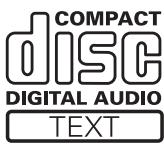
This software restricts the playback and reproduction of music content subject to copyright protection.
- When encoded data is included in order to protect the copyrights of music content, the program may not operate correctly.
- When encoded data included in order to protect the copyrights of music content is detected, it may cancel the ripping, playback and/or other processes.
- In order to protect the copyrights of music content, transferring (checking out) music to SD memory cards is limited to a maximum of 3 per music content.
- A reader compatible with the copyright protection function of SD memory cards is needed in order to transfer (check out) music content to an SD memory card. For more detailed information, refer to the user's manual of the various readers/writers.
-
Music transferred (checked out) to an SD memory card can only be played back on SD Audio Compatible players. For more detailed information, refer to the user's manual of the various players.
-
Please make a note of your registration information and keep it in a safe location.
-
Please be advised that in the unlikely event that the information created/registered with this software is lost, Pioneer shall bear no responsibility for it.
About Copyrights
Copying of copyrighted materials such as music is unlawful unless permitted by a legal exception or consented to by the rightowners.
Reading this Manual
This User's Manual uses the following writing conventions in its explanations.
You can get the most out of this manual with a full understanding of each.
- The names of pop-up screens and function screens (DJ Play, Music Management, Ripping, Create and Transfer) are enclosed in bold brackets, [ ]. (Ex. [DJ Play] screen)
- Menus and icons that are displayed on the screens are enclosed in brackets, [ ].
(For example: [▶/■] button)
Chapter number and title
Steps on the page
Basic Description of an Operation
A fuller explanation of the operation
The DJS screen that is displayed while performing a step
Goes to the Table of Contents
Goes to the Index

Mixing Songs
Stop

Click the headphone cue for player B.
The headphone cue will light up

About the Headphone Cue
When you click a headphone cue, you can output the sound from that headphone.
Functions that have a headphone cue:
Player A, Player B, List Player, Master, Effector

Listen to the song over your headphones and search for the playback start position.

Clicking the [ / ] button of player B at the playback start position pauses it.
Contd. on the next page)
Using the Auto Function to Mix Songs
Warning!
Sound Output to Speakers
Get a sound card that is for use in the future.
The sound card, the headphones will not work.
→1-1 DI System P16

Note
Adjusting your headphones
You can make adjustments for the volume of your headphones, mixing levels, and switching between stereo and mono split.
→[Headphone Monitor Control] P27

Note
Rewind & Fast Forward
If you click the search buttons, [ ] . The position to the vicinity where you want it.
Changing the Playback Position
You can move the playback back to the screen when you are in the "Display display or the [Playing Address]

Note
Fine Tuning the Pause Position
If you turn the [QolDial] while the song is paused, you can make fine adjustments in frame units to the paused position. (I Frame 1/75 Sec.) If you can also drill the search buttons [ ] to make fine adjustments.
Section title
Things to be careful of while performing a step
Helpful information and where to find related information
Indicates the content continues on the next page
Software name and its version number
Page number
- The sample screen shots were taken with Windows XP as the OS and the screen settings set to the XGA (1024 × 768 Pixels) size.
The DJ Play sample screen shots were taken with it set to side by side positions. - For information about SXGA (1280 × 1024 Pixels) images, refer to 'Starting Up DJS' P.12.
Table of Contents
About DJS 6
Getting Ready 6
- Checking the Packaging 6
- Installing DJS 7
- Starting Up DJS 12
Names of Each Screen 14
Chapter 1 Getting the Most out of DJS. 16
1-1 DJ System 16
Chapter 2 Mixing Songs. 18
2-1 Using the Auto Function to Mix Songs 18
2-2 Mixing Songs Manually 29
Chapter 3 Playing Sound 34
3-1 Adjusting the Sound Quality 34
3-1-1 Making Changes
3-1-2 Cutting a Specific Range
3-2 Adding Effects 37
3-2-1 Effector Types and their Features
3-2-2 Adding Effects
3-2-3 Adjusting Effects
3-2-4 Turning Effects ON/OFF
3-3 Playing a Part of a Song Repeatedly 44
3-3-1 Setting up Loops (Play)
3-3-2 Getting out of a Loop
3-3-3 Playing a Loop you Set up Previously
3-4 Setting up to 8 Points to Start Playing (List Hot Cue) 47
3-4-1 Determining List Hot Cue Points
3-4-2 Playing from a List Hot Cue Point
3-5 Arranging Mixes of Songs 51
3-5-1 Types of Mix Modes & Fader Curves and their Features
3-5-2 Selecting a Mix Mode or Fader Curve
3-5-3 Setting the Mixing Time (Beat)
3-5-4 Mixing Songs
3-6 Using the Fader Start Functions 54
3-6-1 Channel Fader Start
3-6-2 Cross Fader Start
Chapter 4 Useful Functions 57
4-1 Setting up to 4 Points to Start Playing (Track Hot Cue) 57
4-1-1 Determining Track Hot Cue Points
4-1-2 Calling Out Track Hot Cues
4-1-3 Changing a Track Hot Cue into an Auto Setup Cue
4-2 Using Play Lists 61
4-2-1 Auto-Playing a Play List
4-2-2 Changing the Order of Songs During Auto-Play
4-3 Checking Songs 63
4-4 Using the Auto Mix Function for Mixing Songs 65
4-5 Key Operations 67
4-6 Operations used with DMP-555 68
4-6-1 Connecting
4-6-2 Allocating the DMP-555 to a Player
Chapter 5 Creating Loops Made Easy 70
5-1 Making a Loop 70
5-2 Adjusting the Loop Range 72
5-3 Saving the Length of a Loop as a Track 73
5-4 Other Useful Functions (Create) 74
Chapter 6 Play Lists & Classifying Songs 76
6-1 Editing Song Information 76
6-2 Classifying Songs into Categories 78
6-3 Creating a New Play List 79
6-4 Editing a Playlist 80
Chapter 7 Importing Songs 82
7-1 Importing an MP3 82
7-2 Importing Songs from Music CDs 83
7-3 Importing WAV Files 86
7-4 Recording Sound from Microphone or Line Input 89
Chapter 8 Using SD Cards 91
8-1 Transferring DJS Music to SD Cards 91
8-2 Returning Music from an SD Card to DJS 93
Chapter 9 Changing the Settings to Make DJS More Convenient 95
9-1 Opening and Closing Preferences 95
9-1-1 Opening Preferences
9-1-2 Closing Preferences
9-2 Setting the Size of Text Displayed in Lists 97
9-3 Setting the Layout of DJ Play Functions 98
9-4 Mixer and Sound Card Settings 100
9-4-1 Switching between Internal & External Mixers
9-4-2 Selecting a Sound Card
9-4-3 Adjusting Delay Time
9-4-4 Adjusting the Size of Buffers
9-5 Key Assignment Settings 104
9-6 Ripping Settings 105
9-6-1 Setting the Bit Rate
9-6-2 ID3 Tag Settings
9-6-3 Dead Air Cut Settings
9-6-4 Settings for Selecting the DVD/CD Drive & Acquiring Song Information
9-6-5 Line In Settings
9-7 Category Settings 108
9-7-1 Selecting Categories for Top & Other
9-7-2 Creating Categories & Play Lists, Changing their Names and Deleting them
Chapter 10 Other Functions 111
10-1 Connecting to the Internet 111
10-2 Table of Functions 112
10-3 Tables of Menus. 123
10-3-1 Names of Each Function & What they Do
10-3-2 Menus Displayed in DJ Play Functions
10-3-3 Menus Displayed in Track List/Play List
Chapter 11 User Registration 131
11-1 Registering Online 131
11-2 Registering Offline 136
Chapter 12 Uninstalling DJS 139
Chapter 13 Version Updates. 142
13-1 Updating the Version of the DJS Software 142
13-2Updating the Version of the DJS Manual 144
13-3 Updating the Version of the DMP-555 Firmware 146
Troubleshooting 148
Index 151
About this Manual
If this is your first time using DJ equipment or DJS, please read the Quick Start Guide and then start enjoying DJS.
Quick Start Guide:
Written to make it easy to start using DJS right away.
User's Manual:
Written so you can use the full complement of DJS functions.
About DJS
Thank you very much for your purchase of DJS.
DJS is a software that allows you to enjoy DJing with MP3 files. You can enjoy all the things involved in being the DJ with just DJS, as it incorporates the functions of MP3 players and those of a DJ's mixer.
Not only can you achieve a high level of DJ play with its rich variety of functions, like its equalizer, effector and hot cueing, but even a beginner to DJ mixers has easy access to the pleasure of DJing via its auto tempo synching function, beat display function, etc.
First off, in order to get to know DJS 's functions, please read the Quick Start Guide (pamphlet) and the User's Manual (PDF), and then get right to using DJS for real.
Getting Ready
1. Checking the Packaging
Check that the following attachments are enclosed with DJS.
CD-ROM × 1
Quick Start Guide × 1
Installation Key Sticker × 1
Notices about DJS × 1
User Registration Card × 1
Keyboard Stickers × 4
2. Installing DJS
Before you install DJS, please read the Software Usage Agreement, and if you agree to the content, take the software out of its package. Also before installing, check and make sure that your computer meets the following requirements.
Recommended Operating Environment
CPU: IBM PC/AT compatible computer with 1.5 GHz or faster Intel® Pentium® M or compatible processor
Required Memory: 512 MB
Hard Disk: 250 MB (Not including the space required for saving files, such as MP3, etc.)
Optical Disk Drive: DVD/CD Drive
Display: 1024 × 768 Pixels (XGA), High Color (16 bit) or better display capability
Sound: Internal or External Audio Output Board or Device (If sound will be output to both speakers and headphones, 2 systems are required.)
OS: Microsoft® Windows® XP Home Edition/Professional Microsoft® Windows® 2000 Professional
External Ports: USB 1.1
Input Devices: Keyboard, Mouse (or equivalent pointing device)
Internet Connection Environment: Connection speed of 56 kbps or faster. Use a 128-bit SSL compatible browser, such as Internet Explorer 5.5 or later or Netscape Navigator 4.7 or later.
Warning: Please note that other software, when used with this software, make cause incompatibilities that could render this software inoperable.
(Contd. on the next page)
Step
1
2
3
4
5
6
7
8
9
1 Place the DJS CD-ROM in the DVD/CD drive.
- After a few moments, the [DJS Installation] screen will open.
2 Click the check box of the items you wish to install and then click the [Install] button.
![PIONEER DJS - Click the check box of the items you wish to install and then click the [Install] button. - 1](/content/2020/04/118751/images/df5c339615ea67029b62c1daceffdd099e9d01bd387b4be6e39802959fa3bcd1.jpg)
- If Adobe Reader is not installed on your computer, the check box to do so will be marked automatically.
- Once you click on the [Install] button, the screen for selecting the language is displayed.
3 Select [English] and click the [OK] button.
![PIONEER DJS - Select [English] and click the [OK] button. - 1](/content/2020/04/118751/images/0566e1a56c723c4bd539a34ec6f7b157e77f170faf6d89af46d53ba0799dfcba.jpg)
- Depending on the user's Windows environment, you may be able to select from a number of languages.
- The [Preparing to Install...] screen opens.
- Once the preparation is complete, the [Welcome to DJS Install] screen opens.
(Contd. on the next page)
![PIONEER DJS - Select [English] and click the [OK] button. - 2](/content/2020/04/118751/images/1509df04c039e72cae5bb4a817f7fbb0c039ab8dffc2173d469176b1f564c01d.jpg)
Note
If the [DJS Installation] screen fails to open after you place the CD-ROM in the drive, open the [CD Drive] from My Computer on the [Start] menu and double-click the [Autorun] icon.
Warning!
Installing and uninstalling DJS requires administrator authority for the computer. Log in as a user who has been set up as a computer administrator and then install the software.

Note
To cancel the installation... Click the [Cancel] button.
If you are using Adobe Reader Version 3.0 or earlier...
A message will be displayed. Follow the instructions in the message to reinstall it and then to reinstall.
Warning!
When the trial version of DJS has been installed
The [DJS] checkbox on the [DJS installation] screen becomes unavailable. Press the [Remove DJS] button and uninstall the program.
- Click the [Remove DJS] button.
- Uninstall the previously installed DJS.
Chapter 12 Uninstalling DJS P.139
- After uninstallation is complete, again place the DJS CD-ROM in the DVD/CD drive and install DJS (this software).
| Step | 1 | 2 | 3 | 4 | 5 | 6 | 7 | 8 | 9 |

Click the [Next] button.
![PIONEER DJS - Click the [Next] button. - 1](/content/2020/04/118751/images/6bf00dad7d15d34255779b65c12dda71ae6ba13e2f40dfbd0a8299029fd24d05.jpg)
- The [Usage Agreement] screen opens.
![PIONEER DJS - Click the [Next] button. - 2](/content/2020/04/118751/images/fbf721a8ecc7cc840f687ad4a1b182591f9ca46042e71d46206b8366d12f923a.jpg)
After reading the Software Usage Agreement, if you agree to all the terms contained within, select [I accept the terms of the license agreement] and then click the [Next] button.
![PIONEER DJS - Click the [Next] button. - 3](/content/2020/04/118751/images/6c93b6872dc199889d92256998b890b7432529e99a221fbbbe0d8b80e923ebd2.jpg)
- The [Inputting the Installation Key] screen opens.
(Contd. on the next page)
![PIONEER DJS - Click the [Next] button. - 4](/content/2020/04/118751/images/343a1ae5fc4c15a9c9893249006800ca63e2d4753716ea4996413bc65923534a.jpg)
Note
If you do not agree...
Click the [Cancel] button.
- The installation will be terminated.
- In such case, you will not be able to use DJS.
| Step | 1 | 2 | 3 | 4 | 5 | 6 | 7 | 8 | 9 |

Enter the installation key and then click the [Next] button.
- The installation key is printed on the Installation Key Sticker that comes in the package.
- The installation key will be printed in green. Be careful to input all numerals and letters correctly.
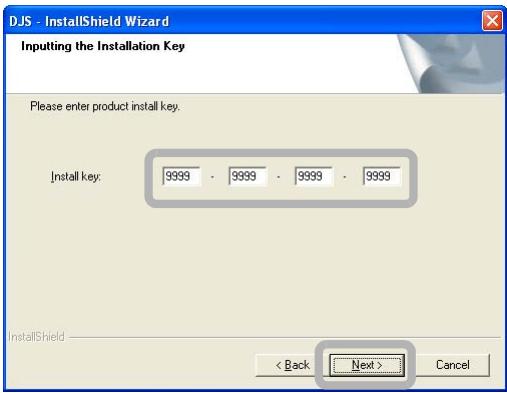
- The [Selection of the Destination of Installation] screen opens.

Click the [Next] button after you check the destination folder for the installation.
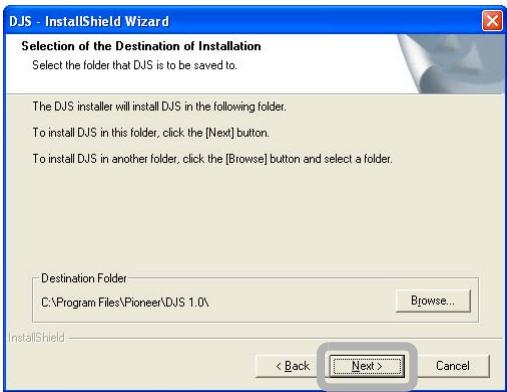
- The [Confirming Installation Information] screen opens.
(Contd. on the next page)

Note
If the [Insufficient Disk Capacity] screen opens...
There isn't enough free space on the hard disk to which it will be installed. Perform either operation (a) or (b).
(a) Click the [OK] button and specify a different drive.
(b) Click the [Cancel] button and suspend installation. Delete unneeded files and programs to ensure there is enough hard disk capacity and then restart the installation.
| Step | 1 | 2 | 3 | 4 | 5 | 6 | 7 | 8 | 9 |
8 Click the [Next] button after checking the [Current Settings].
![PIONEER DJS - Click the [Next] button after checking the [Current Settings]. - 1](/content/2020/04/118751/images/fd77971f19098cad83356891e6783987bf03321f6145f949f15dd7f6e224f070.jpg)
- The installation begins and the [DJS is being installed.] screen opens.
- Once the installation is complete, the [Installation of DJS is now complete.] screen opens.
9 After clicking the [Yes, I want to restart my computer now.] button, read the message that is displayed and click the [Finish] button.
![PIONEER DJS - After clicking the [Yes, I want to restart my computer now.] button, read the message that is displayed and click the [Finish] button. - 1](/content/2020/04/118751/images/d62b20860617eb8165604d116257239bc0018429885e43dc188505fc893a0b33.jpg)
- The [Installation of DJS is now complete.] closes and your computer restarts.
Warning!
If you select [No, I will restart my computer later.]...
It is necessary to restart your computer. If you select [No, I will restart my computer later.] and finish the installation, be absolutely sure that you do restart your computer before you start up DJS.

Note
If you can't successfully install DJS...
Click the [Open the User's Manual] button to display the User's Manual on your screen. Refer to '2. installing DJS' P.7 and 'Troubleshooting' P.148.
3. Starting Up DJS
There are two ways to start up DJS , (a) and (b).
1 Start up DJS with either method (a) or (b).
(a) Double-click the [DJS] shortcut icon on the desktop.
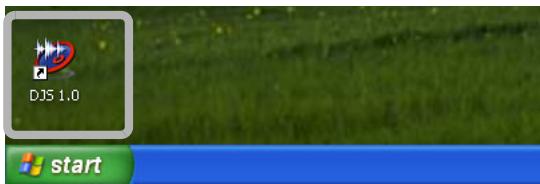
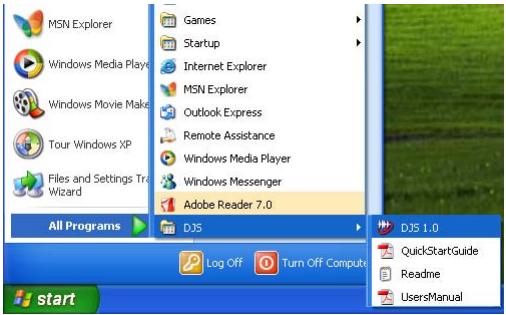
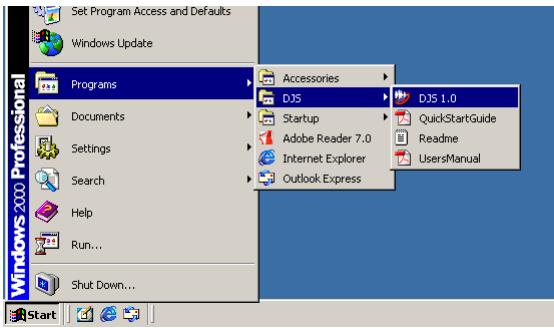
(b) Click the [Start] button, then select [All Programs], (Windows XP) or [Programs] (Windows 2000) and [DJS] in that order.
In Windows XP
In Windows 2000
(Contd. on the next page)
2 If you haven't completed the user registration, a dialog box prompting user registration will appear when you start DJS. Please register as indicated. 'Chapter 11 User Registration' P.131
- If you do not wish to register right away, click [No] button in the dialog box.
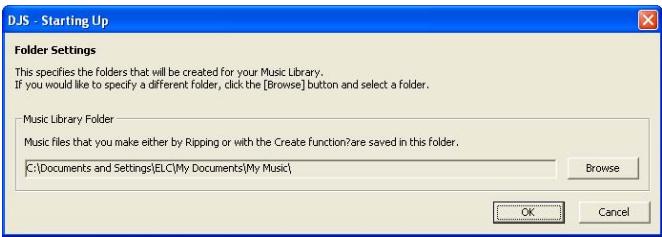
3 Follow the instructions in the [Folder Settings] screen, selecting destination folders for music library creation, and then click the [OK] button. (Only the 1st time it is started)
- The following screen is displayed.
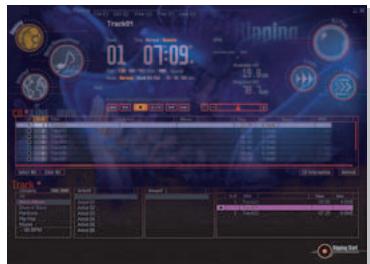
[DJ Play] Screen
![PIONEER DJS - [DJ Play] Screen - 1](/content/2020/04/118751/images/1aefdaab116a94dd8e56de88e9bc05ac85b45aecd294f5b5bfdb1414988ebcd7.jpg)
XGA
![PIONEER DJS - [DJ Play] Screen - 2](/content/2020/04/118751/images/4fae58214541380eaee5b3da68f6a8d2629e4d4f2a27e4c1f8c8317da103a462.jpg)
SXGA
![PIONEER DJS - [DJ Play] Screen - 3](/content/2020/04/118751/images/65b59d07c71c9203c15891de437ddf7635f0799968fffb4f60fd3b80967178bb.jpg)
About registration
If you do not register the software, the DJS software will operate with the following conditions:
(a) You can use DJS for a period of 60 days without registering the user.
(b) A dialog box prompting you to register a user will be displayed every time you launch the program. 'Chapter 11 User Registration' P.131

DJS Screen Size
The screen is displayed in line with the computer's screen settings (SXGA 1280 × 1024 or XGA 1024× 768 ).
The Music Library Creation Folder
Music files created by ripping are saved in this folder.
Names of Each Screen
DJS has 5 functions in addition to the DJ Play function that opens when DJS starts up. To switch between functions, click the [Function] icon at the top of the screen.
Ripping Function
Converts music CDs, WAV files and the sound from line inputs into MP3 files and then imports them.

Internet Function
Gives you access to our user support pages and to a web page that introduces web sites that distribute music.
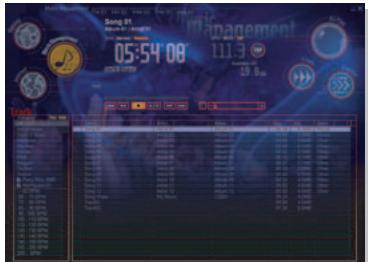
Music Management Functions
Allows you to edit the information on songs in a track list. Allows you to classify each of your songs into their respective categories.
(Contd. on the next page)
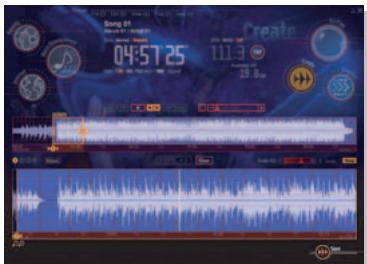
Create Function
Allows you to create loops and save them as separate tracks.
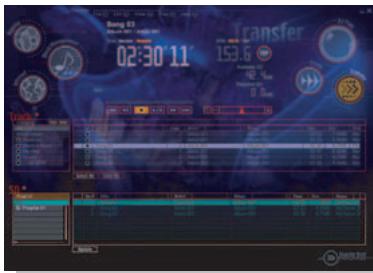
Transfer Function
Allows you to transfer songs in the MP3 format to a SD memory card.
DJ Play Function
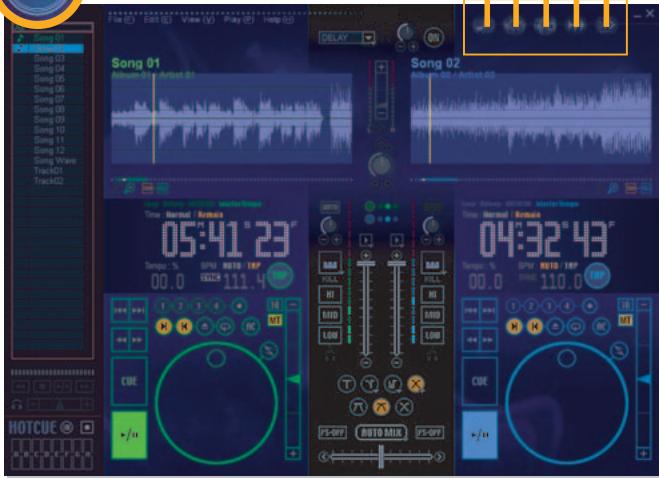
[Function] Icon
Chapter 1 Getting the Most out of DJS
Explains the system structure that needs to be in place to DJ with DJS.
1-1 DJ System
- When Using the DJS Mixer Function
Outputs the audio for speakers and monitor separately. Doing so requires a computer equipped with at least 2 audio output systems, either internal or external. If your computer only has 1 audio output system, you will have to install additional audio devices, such as a sound card. Then connect your speakers or headphones to the computer's audio output (for speakers, monitor) respectively.
Example of connections in a 2 audio output (sound card) system
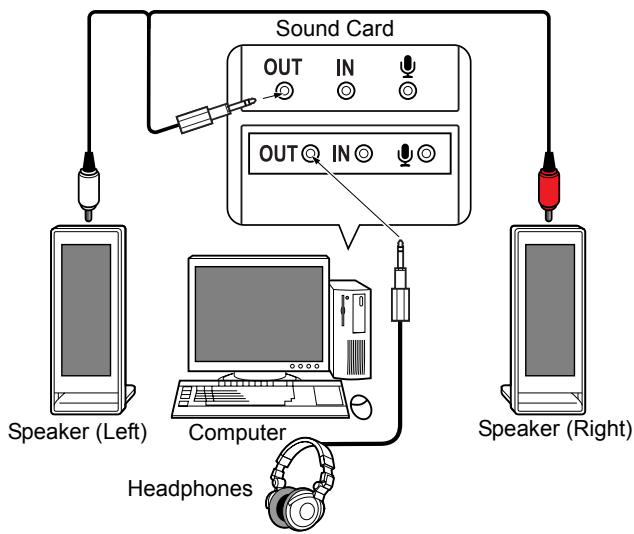
Warning!
If you increase the number of sound cards
Make the settings appropriate for the audio output to the audio device, such as a sound card, on the [Preference] screen.
'9-4-2 Selecting a Sound Card' P.101
(Contd. on the next page)
- When Using an External Mixer
You can use just DJS's player functions (Player A, Player B, List Player) without using the DJS mixer functions. When doing so, you can output the audio of the 3 players to an external mixer. To do this, your computer needs to have a minimum of 2 or 3+ internal or external audio output systems. If the computer you are using only has 1 audio output system, you will have to install additional audio devices, such as sound cards.
Then connect each of the audio outputs (for Player A, Player B &/or List Player) from your computer to the external mixer and connect the external mixer to the speakers and headphones.
Example of connections in a 3 audio output (sound card) system
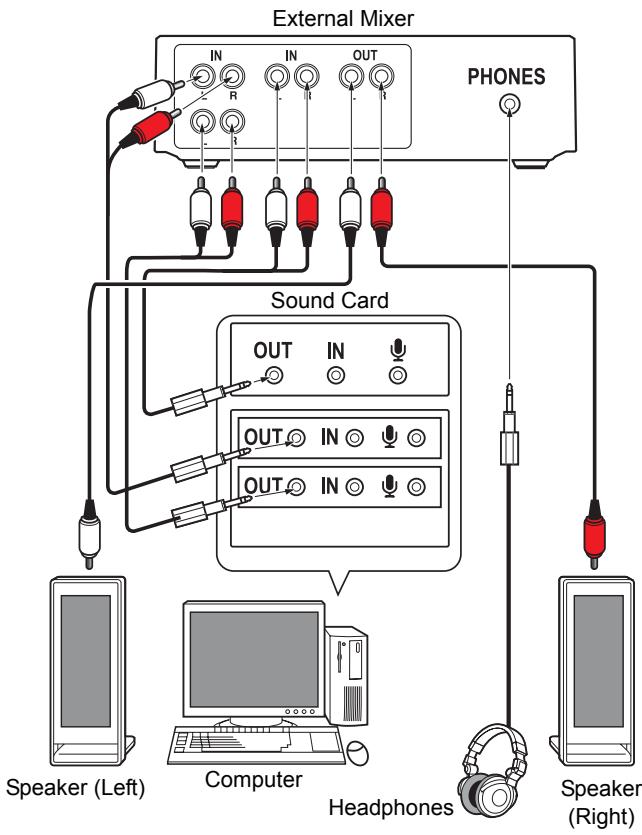
Note
Switching to an External Mixer
When DJS is initially installed, it is set up for using the DJS mixer functions. Consequently, if you do not wish to use DJS 's mixer functions, use the [Preference] screen to switch the settings to using an external mixer.
'9-4-1 Switching between Internal & External Mixers' P.100
Warning!
If you increase the number of sound cards
Make the settings appropriate for the audio output to the audio device, such as a sound card, on the [Preference] screen.
'9-4-2 Selecting a Sound Card' P.101
Chapter 2 Mixing Songs
When you use the Quick Start Guide, everything is done automatically, except for selecting songs. Follow the below explanation on how to mix songs in a semi-automatic way (auto functions) and how to do everything yourself (manual).
2-1 Using the Auto Function to Mix Songs
Auto function automate parts of the operation involved with mixing songs. If you use the convenient functions explained here, you can make light work of DJing.
The actual work flow is as follows.
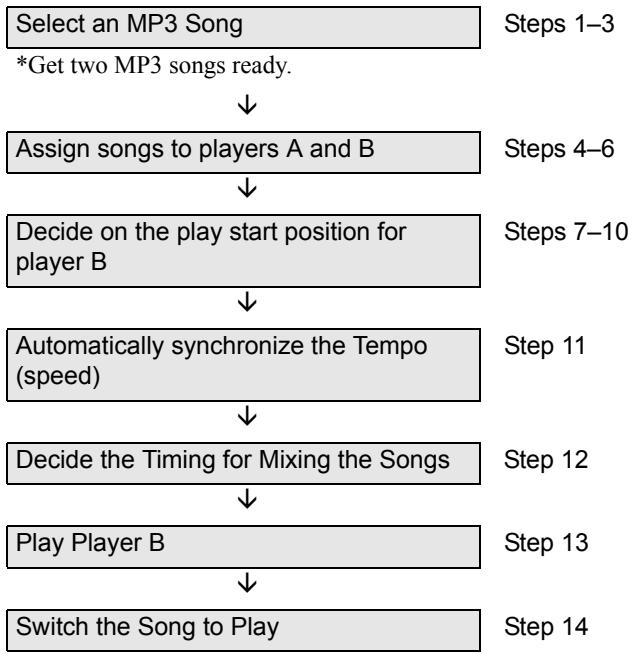
- Start up DJS before doing any of the operations.
- Switch the [AUTO MIX] button on the Mixer to the [MIX] button.
Warning!
Sound Output to Headphones
Get a sound card that is for headphones. If there is no sound card, the headphones will not work.
'1-1 DJ System' P.16
(Contd. on the next page)
- Layout of the Information Display
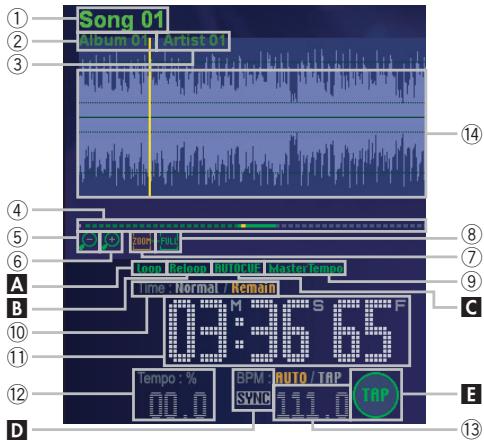
①Title Display
Displays song titles.
②Album Display
Displays the name of the album.
③ Artist Display
Displays the name of the artist.
④ Playing Address
The width indicates the length of the whole song. The yellow indicates the playback position. The solid line in the color of the player indicates the range that is being displayed in the waveform display. If you drag the solid line, you can move the range of the waveform display. (After it has been displayed for about 2 seconds, it returns to the playback position.)
⑤Zoom Out Button
Shrinks the range of the waveform that is displayed.
⑥Zoom In Button
Expands the range of the waveform that is displayed.
⑦Zoom Button
Expands the display of the area around the playback position in the waveform display.
⑧FULL Button
The entire song is displayed in the waveform display.
9Master Tempo Display
Lights up when the Master Tempo function is ON.
Time Display Setting
Displays the settings for the time display (Elapsed time display: Normal; Time remaining display: Remain). If you click the display, it toggles to the other setting.
⑪Time Display
Displays the time (time remaining or elapsed time).
⑫Tempo Display
Displays the tempo setting.
⑬ BPM Display
Displays the BPM, which is automatically detected during playback. It updates itself every time it is detected.
14Waveform Display
The dynamics of the music are displayed as a waveform.
(Contd. on the next page)
Note
ALoop Display
3-3-1 Setting up Loops (Play) P.44
BReloop Display
3-3-3 Playing a Loop you Set up Previously' P.46
CAUTO CUE Display
'When the Auto Cue function is ON' P.22
DBPM SYNC Button
2-1 Using the Auto Function to Mix Songs' P.18
ETAP Button
Using the [TAP] button to Re-detect the BPM' P.33
Master Tempo Function
When the master tempo is OFF, changing the tempo causes the key to be altered (faster: higher pitch, slower: lower pitch), but if you turn the master tempo ON, it prevents changes to the tempo from resulting in changes to the key.
Expanding the Waveform Display
Can be expanded to a maximum of 4 beats.
Meaning of Colors in the Waveform Display
While a Loop is Playing
Light Blue: In the range of the loop being played
Indigo: Outside the range of the loop being played
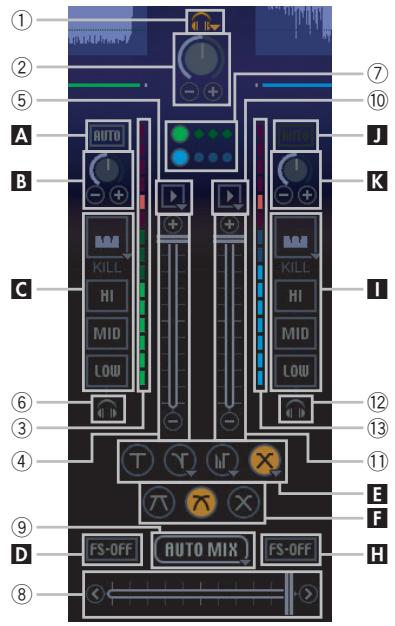
- Layout of the Mixer
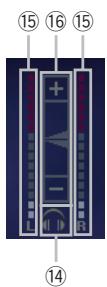
① Headphone Monitor Control Displays the [HEADPHONES] screen. '[Headphone Monitor Control] P.27
② Headphone Volume Adjusts the volume for the headphones.
③ 1 3 Peak Level Meter (for both Players A & B) Displays the volume of each player.
④⑪ Channel Fader (for both Players A & B) Adjusts the volume of each player.
⑤ 10 Auto Fader (for both Players A & B) Adjusts the volume of each player.
⑥⑫ Headphone Cue (for both Players A & B) Select the source to monitor on your headphones.
Beat Indicator Displays the beat of each player.
⑧ Cross Fader Switches the sound that is output from the speakers.
⑨ AUTO MIX/MIX Button The Cross Fader moves to the opposite side.
14 Headphone Cue (Master) Switches the sound output from the headphones to that of the master.
Peak Level Meter (Master) Displays the volume of the master sound.
16 Master Volume Fader Adjusts the volume of the master.
(Contd. on the next page)
Note
A AUTO Button
'Adjusting all of the Sound' P.36
B K Trim
'Adjusting all of the Sound' P.36
Equalizer
3-1 Adjusting the Sound Quality P.34
D H Fader Start Button
3-6 Using the Fader Start Functions P.54
E Mix Mode Button
3-5-1 Types of Mix Modes & Fader Curves and their Features' P.51
F Fader Curve Button
3-5-1 Types of Mix Modes & Fader Curves and their Features' P.51
G Effector
3-2 Adding Effects' P.37
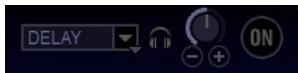
Note
[Beat Adjust] Button
The circle on the left side of the [Beat Indicator] serves as the [Beat Adjust] buttons as well.)
'Operating the [Beat Adjust] Button' P.27
| Step | 1 | 2 | 3 | 4 | 5 | 6 | 7 |
| 8 | 9 | 10 | 11 | 12 | 13 | 14 |
1 Click [File] and select [Import] then [MP3 Audio File] in order.
- The [Importing MP3 Audio Files] screen opens.
![PIONEER DJS - Click [File] and select [Import] then [MP3 Audio File] in order. - 1](/content/2020/04/118751/images/231636935fbd248d4513917bc2a8259b536d5974b329b5ade6b5b856e605a5a2.jpg)
2 Click the first song you want to play and then click the [Open] button.
![PIONEER DJS - Click the first song you want to play and then click the [Open] button. - 1](/content/2020/04/118751/images/e245d96be9322219885984d082ae4c6471ce48876506abe51c96249fd772e977.jpg)
- When you start importing, the [Import] screen opens up so you can check the status of progress.
![PIONEER DJS - Click the first song you want to play and then click the [Open] button. - 2](/content/2020/04/118751/images/99b18a348383aeebd56c3ddf9875b462f1a5be08b8842482327339d000c7d647.jpg)
- Once you have finished importing, click the [OK] button to close the [Import] screen. The songs you imported will be displayed in the track list.
(Contd. on the next page)
Note
Listing songs in the order you wish to play them.
'6-3 Creating a New Play List' P.79
Displaying the play list when DJS starts up
'9-3 Setting the Layout of DJ Play Functions' P.98
Meanings of Colors for Categories/Tracks/Play List
DJ Play Function:
Slate Blue: While Not Playing
Green: DuringPlayback on Player A
Blue: DuringPlayback on Player B
Orange: During Playback of the List Player
Gray: Cannot be Played
Functions other than DJ Play:
Slate Blue: While Not Playing
Orange: During Playback
Gray: Cannot be Played
Track Search Buttons on the Track List
Regardless of which track search button you click [▶] [▶], it jumps to the beginning of the song.
The import process cannot be done
Troubleshooting' P.148
| Step | 1 | 2 | 3 | 4 | 5 | 6 | 7 |
| 8 | 9 | 10 | 11 | 12 | 13 | 14 |
If you want to change the folder...
Click the name of the folder displayed in the [Location of File(s)] and click the folder you wish to change to.
3 After doing step 1, click the song that will be mixed next and click the [Open] button.
- The [Import] screen closes and the selected song(s) are added to the track list.
4 Drag the [Cross Fader] to the player A side (left edge).
- Music will be output only from player A.

5 Select the first song to play and drag & drop it from the track list to player A.
- The song will start to play on player A.
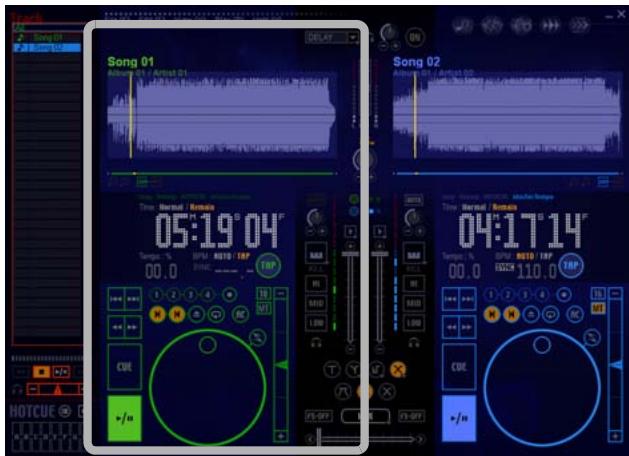
6 Select the next song to play and drag & drop it from the track list to player B.
- The song will start to play on player B.
(Contd. on the next page)
Note
Before mixing...
This chapter explains how to mix songs while 2 songs are playing at the same time, so conduct the operations with the mix mode at [Cross Fader] as is.
Note
When the Auto Cue function is ON
When the Auto Cue is working, it automatically detects where the music starts (starting point of the song), cues it up and stands by.
Status Display
When a song is put on Player A, B or a list player, a musical note symbol will be displayed on the left side of the title display.
Play/Pause Button [▶/II]
In DJS a song starts to play as soon as you put it on a player.
In addition, if you press the [ / ] button during playback, it pauses with the sound being output. (Sound ON Pause)
When a song finishes playing
Track List:
Returns to the beginning of the song and continues to play.
Play List:
The next song is put on.
Title Display of a List
If the latter part of a title is hidden because the list is too narrow, put the cursor on it and the entire title will be displayed as a pop-up. Double-byte characters for languages like Chinese and Japanese cannot be displayed.
| Step | 1 | 2 | 3 | 4 | 5 | 6 | 7 |
| 8 | 9 | 10 | 11 | 12 | 13 | 14 |
7 Click the headphone cue for player B.
- The headphone cue will light up.
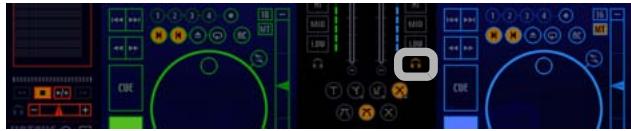
About the Headphone Cue
When you click a headphone cue, you can output the sound from that headphone.
Functions that have a headache cue:
Player A, Player B, List Player, Master, Effector
8 Listen to the song over your headphones and search for the playback start position.
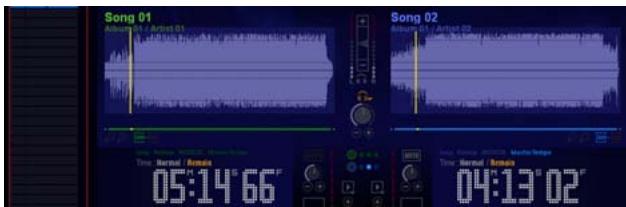
9 Clicking the [▶/III] button of player B at the playback start position pauses it.
![PIONEER DJS - Clicking the [▶/III] button of player B at the playback start position pauses it. - 1](/content/2020/04/118751/images/269330b86d511978a2637694c475765f6bc99cabb5868b548afa7b6a28b7bf1c.jpg)
Warning!
Sound Output to Headphones
Get a sound card that is for headphones. If there is no sound card, the headphones will not work.
1-1 DJ System' P.16
Note
Adjusting your headphones
You can make adjustments for the volume of your headphones, mixing levels, and switching between stereo and mono split.
[Headphone Monitor Control] P.27
Note
Rewind & Fast Forward
If you click the search buttons, [ ]
[▶▶] you can move the playback position to the vicinity where you want it.
Changing the Playback Position
You can move the playback position to the point you click in the waveform display or the [Playing Address].
Note
Fine Tuning the Pause Position
If you turn the [Jog Dial] while the song is paused, you can make fine adjustments in frame units to the paused position. (1 Frame 1/75 Sec.) In addition, you can also click the search buttons [][] to make fine adjustments.
(Contd. on the next page)
| Step | 1 | 2 | 3 | 4 | 5 | 6 | 7 |
| 8 | 9 | 10 | 11 | 12 | 13 | 14 |
10 Click player B's [CUE] button and to set up the place where playback is to start.
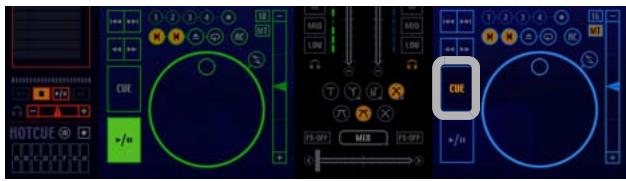
11 Click player B's [BPM SYNC] button and it will match the speed of player A's song.
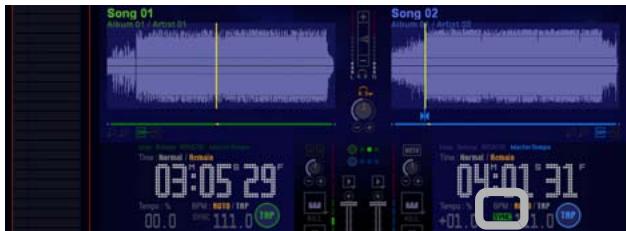
Using the [Beat Indicator] of Player A as a guide, gauge when playback is to start for Player B.
About the Beat Indicators
The [Beat Indicator] is composed of one large, circular indicator on the left and 3 smaller circular indicators to its right. Usually, the largest waveform is shown in the large, round indicator as the beginning of the beat.

(Contd. on the next page)
Note
Using the [CUE] button
Using the [CUE] button' P.28
Recording Cues
(Track Hot Cues / List Hot Cues)
4-1 Setting up to 4 Points to Start Playing (Track Hot Cue) P.57
'3-4 Setting up to 8 Points to Start Playing (List Hot Cue)' P.47
Note
[BPM SYNC] Button
This button automatically adjusts the speed of the next song to synchronize with the speed of the song being played. The speed of a song is called its BPM (Beats Per Minute). The button is called [BPM SYNC] as it automatically synchronizes the BPM of the two songs.
Note
[Beat Indicators]
The indicators display the beats of players A & B. In order to mix the songs cleanly, it is essential to synchronize the 2 beats perfectly.
Adjusting Disparities in the Beat Displays
Adjusting discrepancies in the [Beat Indicator] P.27
| Step | 1 | 2 | 3 | 4 | 5 | 6 | 7 |
| 8 | 9 | 10 | 11 | 12 | 13 | 14 |
13 Click on the [▶/II] button of Player B to initiate playback for player B.
- This enables you to monitor the sound from player B on your headphones.
14 Click the [MIX] button to move the [Cross Fader] to player B.
![PIONEER DJS - Click the [MIX] button to move the [Cross Fader] to player B. - 1](/content/2020/04/118751/images/0ae97e934877c2441927cac4ec40c8a50258e0a518aed940e8fda7c097c21f4f.jpg)
- As the [Cross Fader] moves, the volume from player A gets quieter while that of player B gets louder.
- When the [Cross Fader] reaches the right side and stops, the volume from player A goes completely off.
(Contd. on the next page)
Note
[MIX]Button
This button automatically moves the cross fader position from the song being played to the next song to be played.
Setting the Timing (beats) of the [Cross Fader]
3-5-3 Setting the Mixing Time (Beat)' P.53
Direction the [Cross Fader] Moves
The cross fader moves to the opposite side. If you press the [MIX] button again while it is moving, the [Cross Fader] will stop moving.
If the BPM Isn't Detected
Songs are mixed at 120 BPM.
- When the Beat is not Synchronized...
If the beat is not synchronized, the drums make an out of sync "bam-bam" sound and it all sounds fast and garbled. The timing of the mixing of the songs is either too slow or too fast. Conduct one of the following, 'Adjusting with the [Jog Dial] before Mixing' P.26 or 'Adjusting discrepancies in the [Beat Indicator]' P.27.
Adjusting with the [Jog Dial] before Mixing
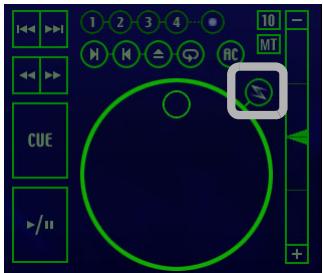
Normal Mode
Scratch Mode
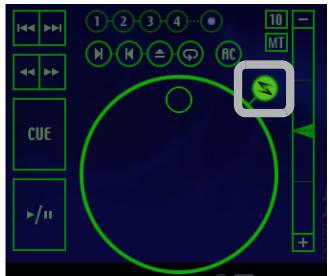
If you check your headphones before mixing the songs, you will notice if the beats are not aligned. If you use the jog dial, you can make adjustments, like speeding the beat up or altering the playback position.
Switching Jog Dial Modes
Click the [Scratch] button above and to the right of the Jog Dial to switch between the Normal and Scratch modes.
When Off: Normal Mode
When Lit: Scratch Mode
Operating in the Normal Mode
Clockwise: The song plays faster the further you turn the dial.
Counter Clockwise: The song plays slower the further you turn the dial.
Operating in the Scratch Mode
Rotate: The more you move the dial, the more the playback position moves while sound continues to be output.
Stop: When you stop turning the jog dial, playback returns to normal.
(Contd. on the next page)
- When the BPM (speed) is not Synchronized...
'Using the [TAP] button to Re-detect the BPM' P.33
Adjusting discrepancies in the [Beat Indicator]
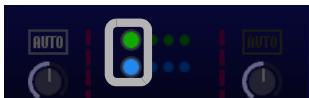
If the display of the [Beat Indicator] gets out of sync with the actual beat, use the [Beat Adjust] button to redisplay it. The circle on the left side of the [Beat Indicator] has the function of displaying the starting beat and acts as the [Beat Adjust] button.
Operating the [Beat Adjust] Button
If you click the [Beat Adjust] button, the timing with which you click it is re-displayed in the [Beat Indicator] as the starting beat.
- [Headphone Monitor Control]
Make headphone settings on the Mixer and [HEADPHONES] screens.
The [HEADPHONES] screen is displayed by right clicking the [Headphone Monitor Control] on the upper edge of the Mixer.
The Mixer
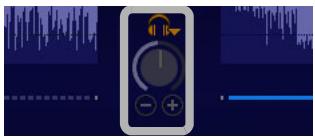
Selecting the Source to Monitor on your Headphones:
Click the headphone cue on each of the sources, players, master, or effector and it will light up.
Adjusting the Volume:
Drag the slider of the [Headphone Volume] to adjust the volume. Turn the dial to the left [-] to decrease the volume and turn it to the right [+] to increase the volume.
(Contd. on the next page)
[HEADPHONES] Screen
Switching between Stereo & Mono Split:
Click either the [STEREO] or [MONO SPLIT] button and select the 'monitoring by headphones' method.
Mixing Adjustment:
If you turn the dial to the left to [CUE], the volume of sources selected with headphone cue, other than master, increases, whereas if you turn it to the right to [MASTER], the volume of the Master output increases.
![PIONEER DJS - [HEADPHONES] Screen - 1](/content/2020/04/118751/images/77156f81af20c3e15d1ad987cd3ba0d98ffd3a16e97ef19680192abc4fbc53f7.jpg)
-Using the [CUE] button
If you click the [CUE] button, it will work as follows, depending on the circumstances when you clicked it.
When Paused:
That position is registered for the [CUE] button and it changes to Cue Standby.
When in Cue Standby:
As long as you push and hold the button, it continues to play from the cue position. Once you release the button, it returns to the cue position and goes to cue standby.
During Playback:
It returns to the cue position and stands by.
- Registered cue position information is retained until either a new cue position is set, or the [DJ Play] screen is closed.

Note
With [STEREO] Selected
If you click [STEREO], the source selected with [Headphone Cue] can be monitored in stereo.
With [MONO SPLIT] Selected
If you click [MONO SPLIT], the output to the headphones becomes monaural and you can monitor the audio of the source selected with [Headphone Cue] (not master) on the left and the master audio on the right.
![PIONEER DJS - With [MONO SPLIT] Selected - 1](/content/2020/04/118751/images/b615a87052f7a68c5c73e9df4616d02b0b74fcba60942770f408fab55c2e3228.jpg)
Note
When Cues have been Set
The Loop In button blinks 3 times and then stays lit. (A cue point and a loop in point are the same)
A Cue is overwritten when...
(a) When a new cue is set
(b) When Auto Cue is ON and you put on another song
(c) When Auto Cue is on and you return to the beginning of a song with track search
(d) When a new loop is set up
(e) When a One Track Loop is set up
(f) When you move to any function other than DJ Play
(g) When a track is put on that has an Auto Setup Cue set to it or when it jumps to the beginning of the song via track searching of a track that has an Auto Setup Cue set
Saving Set Cues
The Track Hot Cue function allows you to register up to 4 cues per song.
4-1 Setting up to 4 Points to Start Playing (Track Hot Cue) P.57
2-2 Mixing Songs Manually
The procedures explained here are aimed at users who are already accustomed to using DJ equipment. For beginners these methods call for a great deal of practice, but this is the only way to develop so you can use the methods freely.
The actual work flow is as follows.
Select an MP3 Song
*Get two MP3 songs ready.

Assign songs to players A and B
Steps 1-3
Synchronize the tempo (speed) while listening to the music
Steps 4-6

Decide on the play start position for player B
Steps 7-9
Decide the Timing for Mixing the Songs
Step 10
Play Player B
Step 11
Switch the Song to Play
Step 12
- Start up DJS before doing any of the operations.
(Contd. on the next page)
| Step | 1 | 2 | 3 | 4 | 5 | 6 |
| 7 | 8 | 9 | 10 | 11 | 12 |
1 Drag the [Cross Fader] to the player A side (left edge).
2 Select the first song to play and drag & drop it from the track list to player A.
The song starts to play.
3 Select the next song to play and drag & drop it from the track list to player B.
The song starts to play.
4 Click the headphone cue for player B.
- The headphone cue will light up.
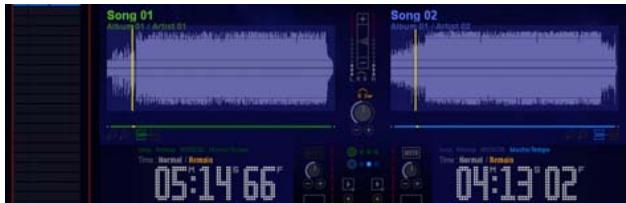
5 Listen to the music on player B over the headphones and gauge the difference in tempos.
Warning!
Sound Output to Headphones
Get a sound card that is for headphones. If there is no sound card, the headphones will not work.
1-1 DJ System' P.16
Note
Before Mixing Songs
Import 2 or more songs into the track list.
Note
BPM Display
The automatically detected BPM is displayed in the information display for each player.
(Contd. on the next page)
| Step | 1 | 2 | 3 | 4 | 5 | 6 |
| 7 | 8 | 9 | 10 | 11 | 12 |
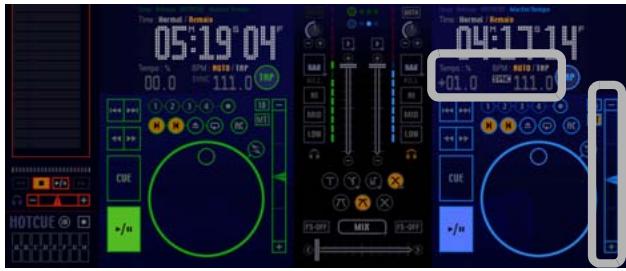
6 Drag the player B's [Tempo Adjustment] control while listening on your headphones to the music from player B and synchronize the speed of the music on players A & B.
- The indicator on the right side of player B's BPM display will change, as will the BPM itself. To adjust the tempo to the max/min, click the [-] or [+] on the bottom/top of the [Tempo Adjustment Slider].
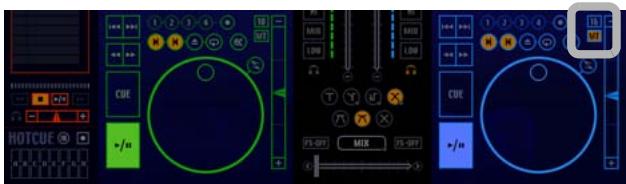
Changing the Max Value that Tempo can be Adjusted (Tempo Control Range)
Each time you press the [Tempo Control Range], the tempo control range switches from [10] [16] [6] [10] .
7 Listen with the headphones to player B and search for a playback standby position.
8 Clicking the [▶/III] button of player B at the playback start position pauses it.
(Contd. on the next page)
Note
When Master Tempo is ON
When the master tempo is OFF, changing the tempo causes the key to be altered (faster: higher pitch, slower: lower pitch), but if you turn the master tempo ON, it prevents changes to the tempo from resulting in changes to the key.
Note
Using the [TAP] button to Redetect the BPM
Using the [TAP] button to Re-detect the BPM' P.33
Min Amount of Tempo Adjustment
This changes depending on the tempo control range setting.
± 6% :0.05%
± 10% :0.1%
± 16% .. 0.1%
Changing headphone settings
[Headphone Monitor Control] P.27
Note
Changing the Playback Position
Click either the waveform display or the [Playing Address] when a player is either playing or paused. The playback position moves to the position you clicked.
Fine Tuning the Pause Position
If you turn the [Jog Dial] while the song is paused, you can make fine adjustments in frame units to the paused position. (1 Frame 1/75 Sec.)
In addition, you can also click the search buttons [←] [→] to make fine adjustments.
| Step | 1 | 2 | 3 | 4 | 5 | 6 |
| 7 | 8 | 9 | 10 | 11 | 12 |
9 Click player B's [CUE] button to set up the place where playback is to start.
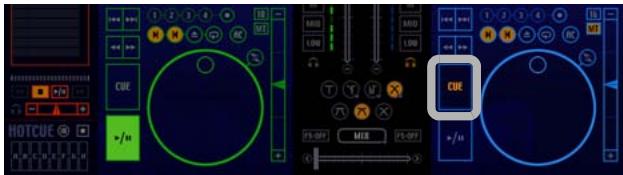
Using the [Beat Indicator] of Player A as a guide, gauge when playback is to start for Player B.
11 Click the [▶/III] button of Player B to initiate playback for player B.
- This enables you to monitor Player B's sound on your headphones.
12 Drag the [Cross Fader] and move it to the player B side at whatever speed you wish.

- As the [Cross Fader] moves, the volume from player A gets quieter while that of player B gets louder.
- When the [Cross Fader] reaches the right side, the volume from player A goes completely off.
(Contd. on the next page)
Note
Using the [CUE] button
'Using the [CUE] button' P.28
Auto Cue Function
'When the Auto Cue function is ON' P.22
Recording cues
(Track Hot Cues/List Hot Cues)
'4-1 Setting up to 4 Points to Start Playing (Track Hot Cue)' P.57
3-4 Setting up to 8 Points to Start Playing (List Hot Cue) P.47
Using the Channel Fader
Using the Channel Fader to Mix Songs' P.33
Note
Correcting Discrepancies in the Beat Displays
'Adjusting discrepancies in the [Beat Indicator] P.27
- When the BPM (speed) is not Synchronized...
When it is difficult to synchronize the beats with the auto-detected BPM, use the [TAP] button to find the BPM.
Using the [TAP] button to Re-detect the BPM
- Put the song you want to find the BPM of on a player and play it.
- While listening to the song, click the [TAP] button to synchronize the beat.
- The BPM is found by using the interval between clicks as a basis and then displayed.
![PIONEER DJS - Using the [TAP] button to Re-detect the BPM - 1](/content/2020/04/118751/images/fb1bb09eaa452f8c522142acab3c3f20eb62b953b68d8bead9894570d6be1424.jpg)
It takes practice to get good at mixing songs smoothly. At first, mix songs by using the [AUTO MIX] button and auto functions, so you can gradually learn while enjoying DJing.
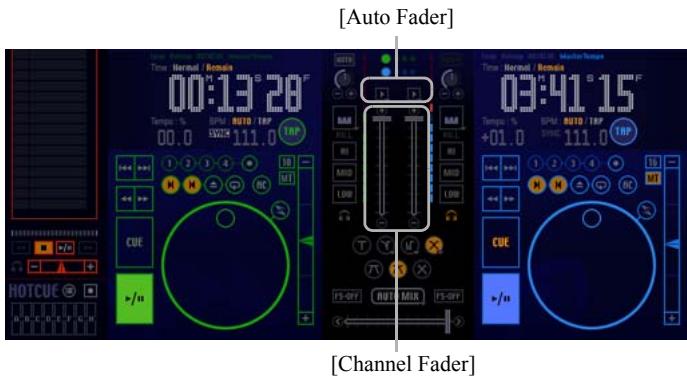
- Using the Channel Fader to Mix Songs
Leaving the [Cross Fader] in its central position, adjust the volume of each player's [Channel Fader] and change the song that outputs sound.
Note
Having the [Channel Fader] move automatically
Click the [Auto Fader] button on the right side of the [Channel Fader].
Adjusting the [Auto Fader] button.
Sets the amount of time (beats) it takes the [Channel Fader] to move when the [Auto Fader] button is pressed.
- Right click the [Auto Fader] button.
- Click the time (beats) to set it.
Chapter 3 Playing Sound
DJS enables you to change the way your music sounds, add audio effects and create a new and different atmosphere. If you perform effectively, you'll match the mood in the room and create an excitement and feeling the original song couldn't get.
3-1 Adjusting the Sound Quality
With DJS you can adjust the quality of the sound by utilizing the equalizer function to extract any range of music (i.e. low, medium and high ranges) and making the sound of that frequency band louder or quieter.
Furthermore, by using the Kill Function, you can change sound quality by cutting out any frequency band (i.e. low, medium and high ranges).
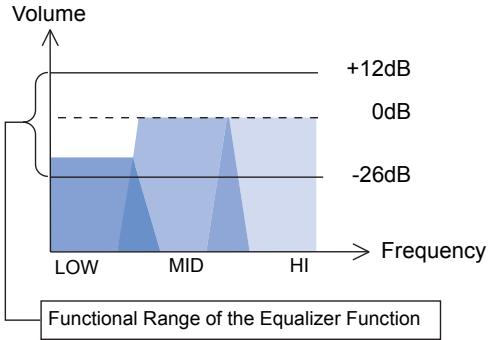
- Image of sound when the low range has been toned down (Equalizer Function)
- Image of sound when the low range has been cut out (Kill Function)
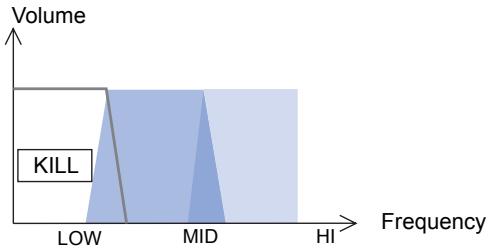
- When the Kill function is put into effect, the sound in the selected range is cut completely. (The figure is an image depicting what happens when the Kill function is activated for the low range).

Note
Equalizer Function
Divides one sound into the [HI], [MID] and [LOW] ranges and adjusts them.
Each range of sound can be adjusted in a band of -26dB - +12dB
3-1-1 Making Changes
To make it easier to listen to when playing music at high volumes, it is important to adjust the balance of the low, mid and high ranges.
Following is an explanation by way of an example of adjusting a song on player A with the equalizer.
1 Click the [▶/II] button on player A.
2 Click the [Equalizer] button on player A.
- The [Equalizer] button on player A lights up.

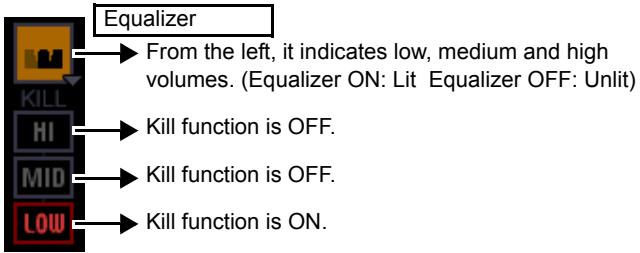
Indicator Functions
The [Equalizer] button does not just start up the [EQ (Equalizer)] screen, but plays the role of an indicator as well.
3 Right click the [Equalizer] button on player A.
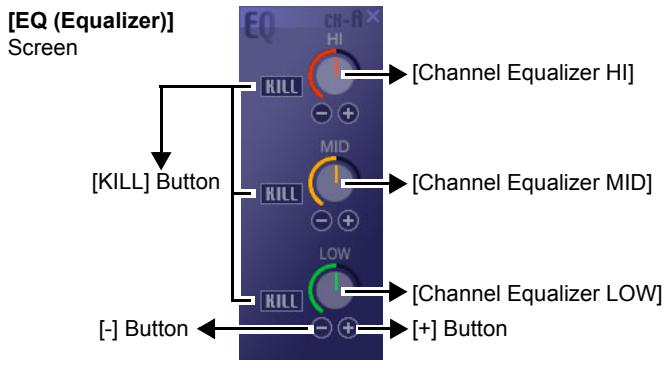
- The [EQ (Equalizer)] screen opens.
4 Dragging the [Channel Equalizer] of the range (HI, MID, LOW) you wish to adjust and adjust it.
- If you rotate it to the left (-), it gets quieter, to the right (+) and it gets louder (Min -26 dB, Max +12 dB).
- If you click the [+] or the [-] , you can adjust them little by little.
(Contd. on the next page)

Note
Completely cutting sound from a given band
Click the [KILL] button.
'3-1-2 Cutting a Specific Range' P36
Warning!
When the Kill function is ON
Adjustments cannot be made with the [Channel Equalizer]. Once you turn the Kill function OFF, they can be used again.
3-1-2 Cutting a Specific Range P.36
Adjusting all of the Sound
You can adjust all of the sound together by using the functions below.
Trim:
Adjusts the input signal level when sending sound from each player to the mixer.
[AUTO]Button:
Automatically matches the input signal level of the clicked player to the input signal level of the player currently playing.

3-1-2 Cutting a Specific Range
Use the Kill function when you wish to kill just a specific range (high, mid or low) of sound completely. Following is an explanation by way of an example of how to turn ON the Kill function for a song being played on player A.

Click the [ / ] button on player A.

Click the [KILL] button of the range of music to be cut.

- The button for the range you clicked lights up and that range of sound is completely cut.
Recovering a cut range of sound
Click the button for the range of sound that is lit orange and it will go off.

Note
Turning OFF the Equalizer function
When the equalizer function is ON (the indicator lit), if you click the [Equalizer] button, the equalizer functions turns OFF. (The indicator goes off/gray.) If you click it again, it turns back ON.

Note
[KILL] Button
This is on both the mixer and the [EQ (Equalizer)] screen. It operates the same regardless of which you use.
How to use the Kill function
The Kill function is convenient to use in the following situations.
(a) Cut the low range of player A and then substitute the low range of player B, thereby making it sound like a different song.
(b) When mixing songs, if the same range of sound of the 2 songs makes it sound discordant, cutting the range of sound from 1 allows the songs to mix smoothly.
3-2 Adding Effects
The DJS has an Effector function for adding special sound effects. If you right click the [Effects] button on the Mixer, the [EFFECT] screen will be displayed.
[Effects] Button

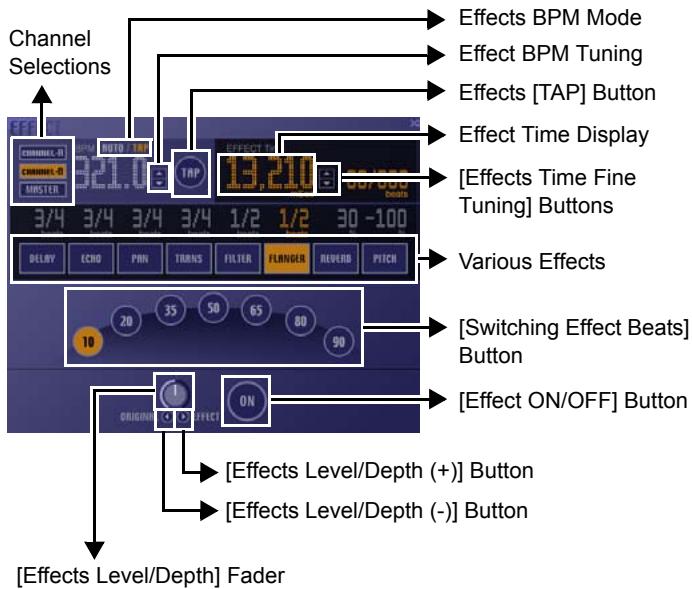
[EFFECT] Screen
Note
Effect BPM Mode
Selects the mode for determining the BPM.
AUTO: Automatically detects the BPM from the audio signal.
TAP: You manually enter the BPM by tapping the Effects [TAP] button.
Effects [TAP] Button
When you tap the [TAP] button 2 or more times to the beat (1/4 note), the average span of that interval is set as the BPM.
Adjusting the Effects BPM
You can adjust the BPM directly up/ down by changing the BPM displayed.
Various Effects
3-2-1 Effector Types and their Features' P.38
3-2-1 Effector Types and their Features
DJS has the following Effector functions. Each kind of effect links up with the automatically detected BPM and plays the sound.
- DELAY
Delays the music and repeats it once. This makes the music sound like it was reflected, giving it the feel of being live or indoors.
Effect Times: 1/4, 2/4, 3/4, 1, 2, 4 or 8 beats
Fine Tuning Units: Time delay of 1 to 3,500 msec (1 msec Steps)
Ex.
If set to delay for a 1/2 beat, a quarter note becomes an eighth note. Further, if matched to the delay of a 3/4 beat, it makes it a jumpy rhythm.
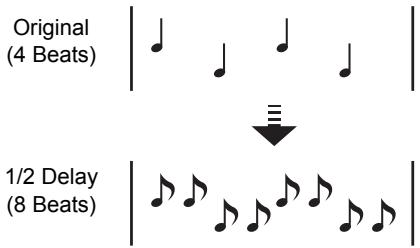
ECHO
The music is delayed and repeated a number of times, making it echo. If a vocal is given a 1 beat echo, it gives it the effect of being sung in round.
Effect Times: 1/4, 2/4, 3/4, 1, 2, 4 or 8 beats
Fine Tuning Units: Time delay of 1 to 3,500 msec (1 msec Steps)
Ex.
If during a 1 beat echo you suddenly move the channel fader to a volume of 0 and cut the input sound, the music repeats to the beat and fades out.
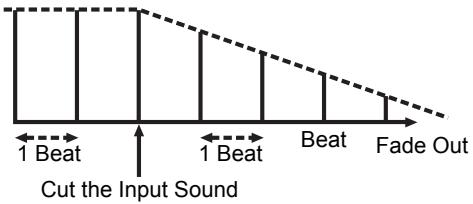
(Contd. on the next page)
PAN (Auto PAN)
Pans the sound right and left. In addition, it is also possible to do a short auto-pan at shorter intervals than is possible by operating the cross fader on the screen.
Effect Times: 1/4, 2/4, 3/4, 1, 2, 4 or 8 beats
Fine Tuning Units: Switching Time 10 to 16,000 msec (from 1 to 1,000 in 5 msec steps; from 1,000 to 16,000 in 10 msec steps)
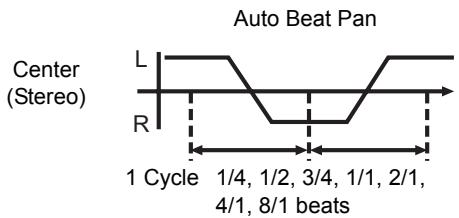
Ex.
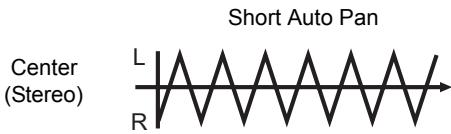
- TRANS (Auto TRANS)
Synchronizes the sound to the rhythm and cuts it off automatically.
Effect Times: 1/4, 2/4, 3/4, 1, 2, 4 or 8 beats
Fine Tuning Units: Switching Time 10 to 16,000 msec (from 1 to 1,000 in 5 msec steps; from 1,000 to 16,000 in 10 msec steps)
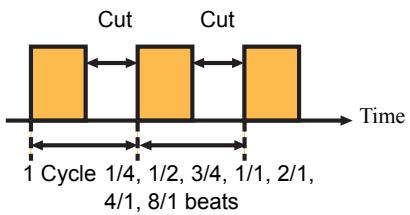
Ex.
(Contd. on the next page)
- FILTER
Filtering alters the frequency of the filter of electronic musical instruments, enabling huge changes in their tone.
Effect Times: 1/2, 1, 2, 4, 8, 16 or 32 beats
Fine Tuning Units: Period 10 to 16,000 msec (from 1 to 1,000 in 5 msec steps; from 1,000 to 16,000 in 10 msec steps)
Ex.
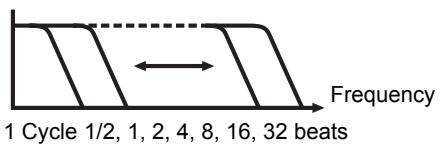
FLANGER
Adds the sound effect of a jet taking off or descending.
Effect Times: 1/2, 1, 2, 4, 8, 16 or 32 beats
Fine Tuning Units: Period 10 to 16,000 msec (from 1 to 1,000 in 5 msec steps; from 1,000 to 16,000 in 10 msec steps)
Ex.
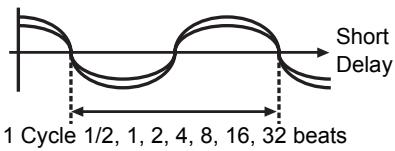
REVERB
Adds an effect that sounds like it is lingering, after being reflected off the walls and floor.
Effect Time: 10, 20, 35, 50, 65, 80, 90%
Fine Tuning Units: Reverb Time 1 to 100% (1% steps)
PITCH
Pitch alters the musical interval by a range of +/- 1 octave. In addition, if you mix this with the original track, you can get a chorus effect.
Effect Time: -100, -50, -33, 0, 33, 50, 100%
Fine Tuning Units: Musical Interval 0 to + / - 100% (1% steps)
3-2-2 Adding Effects
You can add an effect to the song that is playing. An explanation is provided here by way of an example of adding an effect to a song on player A.
1 Right click the [Effects] button.
- The [EFFECT] screen opens up.
![PIONEER DJS - Right click the [Effects] button. - 1](/content/2020/04/118751/images/e9297f8b7355ccf2b9e3071178738f61cb4f52d2b02347e749b220beb70c988c.jpg)
2 Click the sound input ([CHANNEL/MASTER] button) to which you want to add the effect.
- The BPM of the song playing on the selected sound input is displayed in the BPM display.
![PIONEER DJS - Click the sound input ([CHANNEL/MASTER] button) to which you want to add the effect. - 1](/content/2020/04/118751/images/9558784cd8cd4260d9684a38bee0cd492c20d4ff0d76312a2ac0f6d6b4a385ef.jpg)
3 Click an [Effect] button.
- The beat or percentage that can be set is displayed as the [Switching Effect Beats] button.
![PIONEER DJS - Click an [Effect] button. - 1](/content/2020/04/118751/images/8d1e4911028b4a7e8bf906aaf029d4ea809cc6168e89b2ab5e0aa6f7f9560e1e.jpg)
![PIONEER DJS - Click an [Effect] button. - 2](/content/2020/04/118751/images/ad7f194771c939e81bc725b66e5e9185c9338c4a6f0a5513e6e335c83c7d286e.jpg)
(Contd. on the next page)
![PIONEER DJS - Click an [Effect] button. - 3](/content/2020/04/118751/images/e85721f2186814f8518a498bdfce769bcc898d46f19cfa17557be06fa6ee6a7c.jpg)
Note
Switching the type of effect
Clicking the [Effects] button opens up the menu for switching the type of effect.
Through function
If you click [THROUGH], it bypasses the effector and sends the music to the speakers.
- You can reduce the load on your computer by using this function.

Note
[CHANNEL/MASTER] Buttons
The effects are added to the sound as indicated below by pressing the respective buttons.
CHANNEL-A: Player A
CHANNEL-B: Player B
MASTER: Master
![PIONEER DJS - [CHANNEL/MASTER] Buttons - 1](/content/2020/04/118751/images/55a40861d4339ad85123d9311547a0e8084159e9d934fe24849ac8d71614cf69.jpg)
Click the [Switching Effect Beats] button.
![PIONEER DJS - Click the [Switching Effect Beats] button. - 1](/content/2020/04/118751/images/c7ece3f66f1029cdbe89684eb4c229c4f58998c22bde9b42c5d65ec65120bce1.jpg)
- The Effect Time value that corresponds to the contents of the selected [Switching Effect Beats] button is displayed in the [EFFECT Time] of the [EFFECT] screen.
Fine Tuning the Effect Time
You can fine tune the time manually by pressing the Effect Time Fine Tuning buttons.
Refer to '3-2-1 Effector Types and their Features' P.38 for information on the units and effects that can be realized with fine tuning.

Click the [Headphone Cue (Effects)] button and check it on your headphones.
- The button will light up and the effect is output from your headphone output.
![PIONEER DJS - Click the [Headphone Cue (Effects)] button and check it on your headphones. - 1](/content/2020/04/118751/images/3df50742aaca4992167a2ecf09aafb724b84d66e9c84d1a6ae0dbd1414912f95.jpg)
![PIONEER DJS - Click the [Headphone Cue (Effects)] button and check it on your headphones. - 2](/content/2020/04/118751/images/ec3f51358802ae87c3949a9a895d2a5d3639e7cccdde0150d2c6d5f6283a6ea1.jpg)
Note
[Switching Effect Beats] Button
The value to be changed on the [Switching Effect Beats] button differs depending on the kind of effect.
3-2-1 Effector Types and their Features' P.38
3-2-3 Adjusting Effects
1 Dragging the [Effects Level/Depth] adjusts the balance of the levels between the source and the effect.
- Rotating the [Effects Level/Depth] to the left (-) makes it smaller, while rotating it to the right (+) makes it larger.
- If you click the [Effects Level/Depth (+)] or the [Effects Level/Depth (-)], you can adjust them little by little.
![PIONEER DJS - Dragging the [Effects Level/Depth] adjusts the balance of the levels between the source and the effect. - 1](/content/2020/04/118751/images/21000f1e1b322bdfac06a3aab0f2960ff2b1b9e15fe8dab9663f0ccdc1ad6761.jpg)
![PIONEER DJS - Dragging the [Effects Level/Depth] adjusts the balance of the levels between the source and the effect. - 2](/content/2020/04/118751/images/a46ae4b86eba1d3306c8b54c58136d73a041ed364077a421ef130fb6df8c93db.jpg)
3-2-4 Turning Effects ON/OFF
1 Click the [Effect ON/OFF] button.
- The button lights up and the effect selected for master output is applied.
![PIONEER DJS - Click the [Effect ON/OFF] button. - 1](/content/2020/04/118751/images/952f264f6d51cb8af2836672b2ab57de7a1ce7f7731326a36b80dd3b01c47a99.jpg)
![PIONEER DJS - Click the [Effect ON/OFF] button. - 2](/content/2020/04/118751/images/7cf49f40d1148dc8192d760c912a6d40f04ed59e046e84d0dd6036367a8c79ee.jpg)
2 Click the button again.
- The button goes off and the effect turns OFF.

Note
[Effects Level/Depth]
This is on both the mixer and the [EFFECT] screen. It operates the same regardless of which you use.
![PIONEER DJS - [Effects Level/Depth] - 1](/content/2020/04/118751/images/6d8d4506beda65cf4c2712c85b8734b28168727551d82e2e77e8b5089b9370b6.jpg)
Note
[Headphone Cue (Effects)] button
If you toggle the button from OFF to ON, the effect sound is output from your speakers.
[Effect ON/OFF] Button
This is on both the mixer and the [EFFECT] screen. It operates the same regardless of which you use.
3-3 Playing a Part of a Song Repeatedly
One of the things DJs do is play loops.
By playing just one part of a song over and over again, you can get various effects.
(Ex. 1) Playing one part of a song over and over again gives it the feeling of being stuck in the groove.
(Ex. 2) With a loop playing as a base, lay the melody of another song on top.
With the sound of how pro DJs perform in mind, try out all kinds of different things.
3-3-1 Setting up Loops (Play)
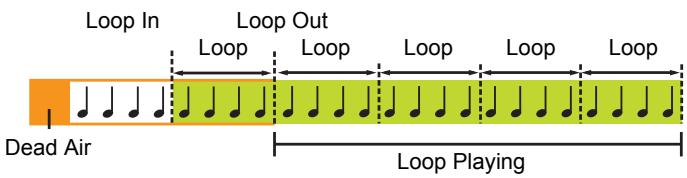
While listening to a song, set the range of the loop. As soon as you finish setting it, the loop immediately starts playing.
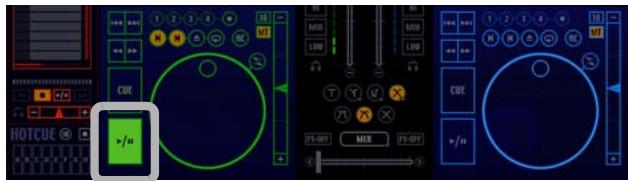
1 Click the [▶/II] button and it plays the song.
![PIONEER DJS - Click the [▶/II] button and it plays the song. - 1](/content/2020/04/118751/images/85cbf9527799ad5db86779fab65854c363e6b92c78ace757ad5bdca65972db1c.jpg)
(Contd. on the next page)
Note
Saving a loop
'4-1 Setting up to 4 Points to Start Playing (Track Hot Cue)' P.57
Saving a Loop as a Separate Track
'5-3 Saving the Length of a Loop as a Track' P.73
Note
A Loop is overwritten...
(a) When Cues have been Set
(b) When Auto Cue is ON and you put on another song
(c) When Auto Cue is on and you return to the beginning of a song with track search
(d) When a new loop is set up
(e) When a One Track Loop is set up
(f) When you move to any function other than DJ Play
(g) When a track is put on that has an Auto Setup Cue set to it or when it jumps to the beginning of the song via track search of a track that has an Auto Setup Cue set
2 While paused, click the [Loop In] button at the point where the loop is to start playing.
- The point specified in this operation is called the loop in point.
![PIONEER DJS - While paused, click the [Loop In] button at the point where the loop is to start playing. - 1](/content/2020/04/118751/images/2a57718a24af4cac03175d50b4b732cd727568492c64b2318e5739031ed5f30e.jpg)
3 While paused, click the [Loop Out] button at the point to end playing the loop.
- The point specified in this step is called the loop out point.
- In a moment, the loop starts playing. (While the loop is playing, the [Loop In] [Loop Out] buttons blink on and off.)
- The Loop display on the information display comes on.
![PIONEER DJS - While paused, click the [Loop Out] button at the point to end playing the loop. - 1](/content/2020/04/118751/images/6e70774244c21a21176f0b11caf4dbbfc8b3c1316b6503d3fb7f70b4700b98d3.jpg)
-Playing an entire song as a loop (One Track Loop)
To play an entire song (track) as a loop, click the [One Track Loop] button.

It is effective when a song is for playing a loop.

When Cues are Set
The point specified to the [CUE] button becomes the loop in point.

Out Adjust Function
If you follow the procedures below, you can adjust the loop out point you specified previously.
- While the loop is playing, click the [Loop Out] button.
- Use [][] or [Jog Dial] to find the desired loop out point. (While you are making adjustments, the [Loop Out] button blinks off and on more quickly than during playback)
- Click the [Loop Out] button.
- It stays in the loop-out adjust status until you press the [Loop Out] button.
- The [Loop In] point cannot be adjusted.

When Auto Cue is ON
Even if an auto-cue has been set, the beginning of the track will be the loop in point.
3-3-2 Getting out of a Loop
A loop will continue to play until you stop the loop. To stop the loop, follow the steps below.
1 While the loop is playing, click the [Exit/Reloop] button.
- This returns the player to normal playback mode.
- The Loop display goes out and the Reloop display comes on. 'Layout of the Information Display' P.19
![PIONEER DJS - While the loop is playing, click the [Exit/Reloop] button. - 1](/content/2020/04/118751/images/98991cf81cca2416b45b87ebd3f594e976094526b33e790ce9afd12b0c4219c2.jpg)
3-3-3 Playing a Loop you Set up Previously
After finishing the playback of a loop, to restart a loop playing in the specified range, follow the procedures below.
1 While paused, click the [Exit/Reloop] button.
- It jumps to the loop in point and starts playing the loop seamlessly.
- The Reloop display goes out and the Loop display comes on. 'Layout of the Information Display' P.19
![PIONEER DJS - While paused, click the [Exit/Reloop] button. - 1](/content/2020/04/118751/images/1b2a262255adf42bf6a9685ffcdddc88619d6c5e4af8376cf2074251854c4131.jpg)
![PIONEER DJS - While paused, click the [Exit/Reloop] button. - 2](/content/2020/04/118751/images/10e02c0326fe8146ce2a254fd848afdf4f5aea7563f2c8d59d9bf2cf05653c36.jpg)
Note
After Exiting Loop Playback
Even when the playback position reaches the loop out point, it will not return to the loop in point.

Note
When reloading is possible
When reloading is possible, [Reloop] is displayed in the information display.
3-4 Setting up to 8 Points to Start Playing (List Hot Cue)
List hot cue starts playback at the same time as when a cue point is called out. Further, you can set up to 8 cues for the whole track list. (You can set up to 8 cues for the whole play list.)
Even if you do not set any list hot cues for songs on a player, if you just click list hot cue, it calls out a cue point. It is better to set points that are used more frequently than track hot cues.

3-4-1 Determining List Hot Cue Points
List hot cue points can record cues or loops with the [List Hot Cue] buttons on the lower part of the play list, from [A] to [H].
1 Specify a song on player A or B and determine the point to record.
- When you record a loop, start the loop playing.
2 Clicking the [Record] button makes the [List Hot CUE] buttons (A to H) light up red.
- This state is the List Hot Cue record mode.

(Contd. on the next page)

Note
Track Hot Cue
4-1 Setting up to 4 Points to Start
Playing (Track Hot Cue)' P.57

Note
Stopping recording
Click the [Record] button again.
3 Recording a Cue Point:
During playback or when sound output is paused, click the [List Hot CUE] button at the point you wish to set a cue.
Recording up a loop:
Click a [List Hot Cue] button during looping playback.
- The [List Hot CUE] button you click will flash red for about 2 seconds.

4 Click the [Record] button.
- Finishes the List Hot Cue record mode.
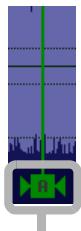
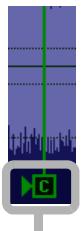
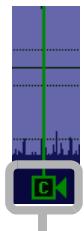
Waveform Display Symbols (List Hot Cue Tags)
When you set a List Hot Cue, a List Hot Cue tag is displayed in the waveform display.
① Cue point of List Hot Cue A
② Loop In point of List Hot Cue A
③ Loop Out point of List Hot Cue A
1
②
3
Erasing a recorded List Hot Cue
- Click the List Hot Cue to be erased in the Hot Cue list.
- Right click and click on [Clear List Hot CUE].
'Hot Cue List' P.50

Note
[List Hot CUE] Buttons
You can save either cue points or loops.
Copying Information of a [Track Hot Cue] button to a List Hot Cue
Drag a Track Hot Cue (1 to 4) displayed in the play list and drop it in a Hot Cue list.
Editing List Hot Cues
You can edit list hot cue (loop) points in the hot cue list by entering a number.
3-4-2 Playing from a List Hot Cue Point' P.49

Note
Display of Recorded List Hot Cues
'Display of Cues and Loops' P.49
3-4-2 Playing from a List Hot Cue Point
Click a recorded [List Hot Cue] button and the List Hot Cue point is called out. Moments later it starts playing from the List Hot Cue point.
1 Playing back on Player A: Click the upper half of a [List Hot CUE] button. Playing back on Player B: Click the lower half of a [List Hot CUE] button.

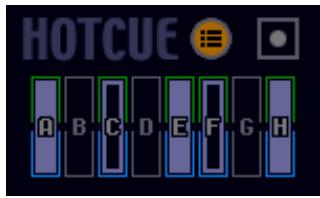
-Display of Cues and Loops
When a button is completely filled in (A, E, H in diagram below):
A cue point has been set.
When a frame inside the button is displayed (C, F below):
A loop has been set.
Meaning of Colors:
Player A:Green
Player B: Blue
If no song is set on a player: Purple
- In the screen shot, nothing is set for B, D or G.
(Contd. on the next page)

Note
If a List Hot Cue is called out during a pause in the Scratch Mode
Pauses at the List Hot Cue point (or if a loop, at the Loop In point).
Loop In/Loop Out Buttons
When a List Hot Cue you set for a loop is called out, loop in/loop out points are set for the loop in/loop out buttons. Once a List hot cue finishes being played, it returns to its original setting.
Getting out of a Loop
Click the [Exit/Reloop] button.
Hot Cue List
Clicking on [Pop Hot Cue List] opens the hot cue list.

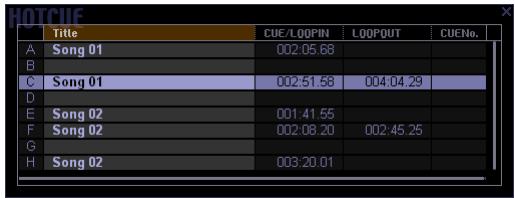
The following information is displayed in the hot cue list.
Title
Displays the name of the song for which a list hot cue is recorded.
List Hot Cue/Loop In Point
Displays the cue point or the loop in point. You can change this by entering a number.
Loop Out Point
Displays the loop out point if a loop has been set up. You can change this by entering a number. If the loop out point is blank, it becomes a cue point.
Track Hot Cue Number Display
Displays the Track Hot Cue or loop number if the setting is the same as the Track Hot Cue or loop (1 to 4).
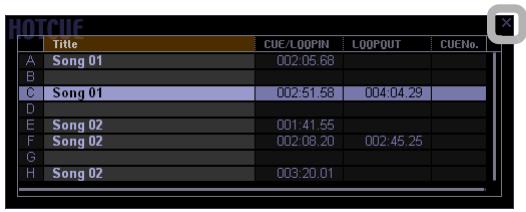
Closing the Hot Cue List
Click the [Close] button on the upper right of the screen.
3-5 Arranging Mixes of Songs
If you change the Mix Mode and the Fader Curve, it changes how the music is played when you move the fader.
3-5-1 Types of Mix Modes & Fader Curves and their Features
Arranges how your songs are linked when you are mixing them. See the diagrams below about the different types of arrangements.
Mix Mode
| Cut In | As soon as the previous song is cut, the next song mixes in immediately. |
| A B | |
| Zip | The volume of the previous song is gradually lowered and then the next song is mixed in. |
| A B | |
| Echo | While the previous song is reverbed out, the next song is mixed in. |
| A B | |
| Cross Fade | While the previous song is fading, the next song is mixed in. |
| A B |
(Contd. on the next page)
Fader Curves
| Curve-A | The point where the volume of the previous song starts to fade meets at the point where the volume of the next song comes up full. |
| A B | |
| Curve-B | The volume of the previous and next songs start to fade out and in, respectively, at the same time and they cross at the point of -3dB. |
| A B | |
| Curve-C | The volume of the previous and next songs start to fade out and in at the same time and they cross midway. |
| A B |
How to Use the Mix Modes and Fader Curves
Mix Modes:
The settings you selected with the [Mix Mode] button become effective when the [AUTO MIX] or [MIX] buttons are used.
Fader Curves:
The settings you selected with the [Fader Curve] button become effective when the [AUTO MIX], [MIX] buttons or the [Cross Fader] are used.
3-5-2 Selecting a Mix Mode or Fader Curve
1 Click a [Mix Mode] button.
- Select from among [Cut In], Zip, Echo and Cross Fade.
- The [Mix Mode] button you select will light up.
![PIONEER DJS - Click a [Mix Mode] button. - 1](/content/2020/04/118751/images/e613dcf48a7f3b926f0994b6726344ac78cc441b675112612fd27ee0c20c7a8a.jpg)
2 Click a [Fader Curve] button.
- Select from among [Curve-A], [Curve-B] and [Curve-C].
- The [Fader Curve] button you select will light up.
![PIONEER DJS - Click a [Fader Curve] button. - 1](/content/2020/04/118751/images/dda85de39a5f283c2641b49ceb1cdd8adc08348b7376535da28acfeb26221906.jpg)
3-5-3 Setting the Mixing Time (Beat)
Set the mix timing for when you are using a mix mode.
1 Right click on top of the [Zip], [Echo] or the [Cross Fade] button and then click the mix beat (time).
![PIONEER DJS - Right click on top of the [Zip], [Echo] or the [Cross Fade] button and then click the mix beat (time). - 1](/content/2020/04/118751/images/5fbbf59906f3d73400d2b21716faa796c98010f9698d3e0f3b7cd79ded1dc1b5.jpg)
3-5-4 Mixing Songs
When you use the [AUTO MIX] or the [MIX] button, the settings you make here for the timing are used in moving the [Cross Fader].

Note
Default Settings when Installed
At installation it is set to Cross Fade.

Note
Default Settings when Installed
At installation it is set to [Curve-B].

Note
Default Settings when Installed
Following are the setting values.
3-6 Using the Fader Start Functions
If you use the Fader Start function, you can start a song playing through either the operation of the cross fader or a channel fader. In addition, if you set up a cue, you can also back cue.
You can do various things like starting players, cueing back, etc simply via the fader, so you can make it perform like a sampler.
3-6-1 Channel Fader Start
How to use the Channel Fader Start function is explained here for Player A. Before conducting the operations below, set a song for Player A and put it into Cue Standby mode. Set the Channel Fader to its minimum setting (Volume 0).
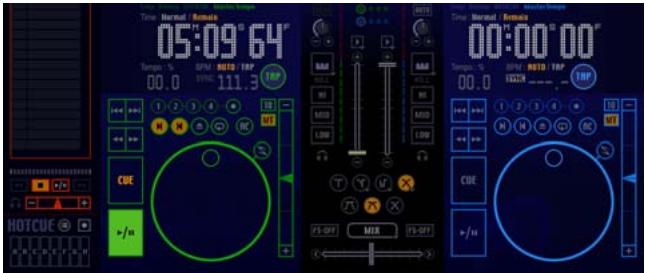
1 Click Player A's [Fader Start] button to display [FS-CH].
- Every time you click the [Fader Start] button, it switches between the modes as follows.
$$ [ \mathrm {F S - O F F} ] \rightarrow [ \mathrm {F S - C H} ] \rightarrow [ \mathrm {F S - C R} ] \rightarrow [ \mathrm {F S - O F F} ] $$
![PIONEER DJS - Click Player A's [Fader Start] button to display [FS-CH]. - 1](/content/2020/04/118751/images/ae2c6d1fa0f4721f314add0908c6698a2a3077f7d79595e959913c4fd0653e4b.jpg)
(Contd. on the next page)
Note
Back Cue
Moves the playback position to the cue point and goes to standby at that point.
Note
Setting a [CUE]
'Using the [CUE] button' P.28
2 Drag the [Channel Fader] of Player A upwards (Other than Volume 0).
- Once you move the position of the [Channel Fader] (Other than Volume 0), Player A immediately begins to play.
![PIONEER DJS - Drag the [Channel Fader] of Player A upwards (Other than Volume 0). - 1](/content/2020/04/118751/images/2f05bd4d10327ae94217f234a1d30e4c1f7015640fd648651986b6e9ac0ae83d.jpg)
Cuing Player A Back
When a cue has been set up for Player A, if you move the [Channel Fader] to the very bottom (Volume 0), it returns to the cue point set for the song on Player A and stands by at that point.
3-6-2 Cross Fader Start
How to use the Cross Fader Start function is explained here for Player A. Before conducting the operations below, set a song for Player A and put it into Pause (Delay) or Cue Standby mode. Move the Cross Fader to the Player B side (i.e., to the right side).

1 Click Player A's [Fader Start] button to display [FS-CR].
- Every time you click the [Fader Start] button, it switches between the modes as follows.
[ \text{[FS-OFF]} \rightarrow \text{[FS-CH]} \rightarrow \text{[FS-CR]} \rightarrow \text{[FS-OFF]} ]
![PIONEER DJS - Click Player A's [Fader Start] button to display [FS-CR]. - 1](/content/2020/04/118751/images/d7d301494d8ee314c3a49a73455858f084e83e3eab8997b791739eb71dd482d6.jpg)
2 Drag the [Cross Fader] toward the Player A side (any position except the right edge).
- Once you start moving the [Cross Fader] toward the Player A side (any position except the right edge), Player A immediately starts playing.
![PIONEER DJS - Drag the [Cross Fader] toward the Player A side (any position except the right edge). - 1](/content/2020/04/118751/images/3f02c9cb37898df0b7d4615a144d005c456dbed53363db1dff035dd98e59762c.jpg)
Cuing Player A Back
When a cue has been set up for Player A, if you move the [Cross Fader] to the very bottom (right edge), it returns to the cue point set for the song on Player A and stands by at that point.
Note
Setting a [CUE]
'Using the [CUE] button' P.28
Chapter 4 Useful Functions
This chapter will introduce you to functions in DJS that are useful and convenient for DJing.
4-1 Setting up to 4 Points to Start Playing (Track Hot Cue)
You can record up to 4 cues or loops per song with DJS. This function is called Track Hot Cue.
Once you record your Track Hot Cues, you can call those points out instantaneously. In addition, if you record various points, you can use them to suit the mood.
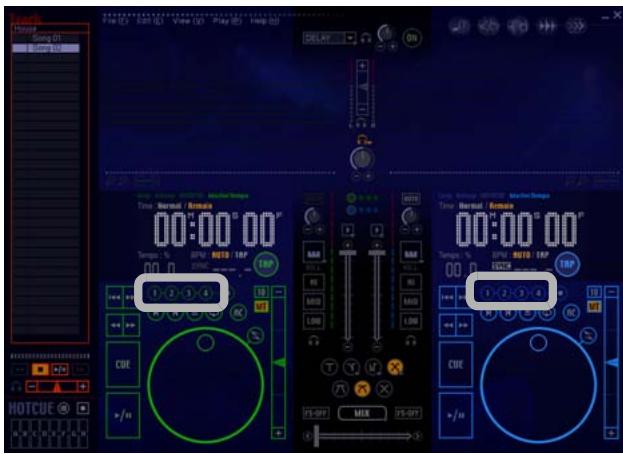
[Track Hot CUE] Buttons
4-1-1 Determining Track Hot Cue Points
Record a cue or loop to the [Track Hot Cue] buttons, from [1] to [4] on either player. You can set up 4 Track Hot Cues per song.
Track Hot Cues that you record are recorded in the song's information.
(Contd. on the next page)
Note
Standby Cueing
Using the [CUE] button' P.28
Setting up a loop
3-3-1 Setting up Loops (Play) P.44
Warning!
When you change songs, the content of the [Track Hot CUE] buttons also changes.
1 Put a song on player A or B and determine the point(s) to record.
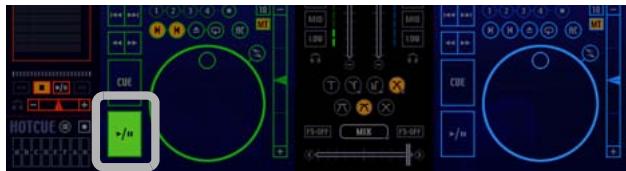
2 Click the [Record Track Hot CUE] button and it makes the [Track Hot CUE] button light up red.
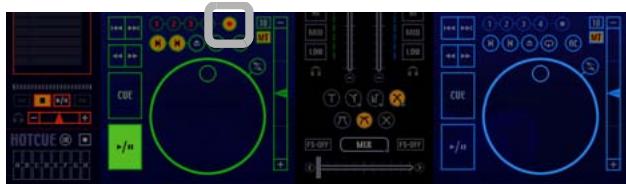
- The background of [Track Hot CUE] buttons that are already being used light up.
3 Setting a Cue Point: During playback or during a silent pause, click the [Track Hot CUE] button at the point you wish to set a cue.
Setting up a loop: While the loop is playing, click the [Track Hot CUE] button.
- The number of the [Track Hot CUE] button you click will flash red for about 3 seconds.
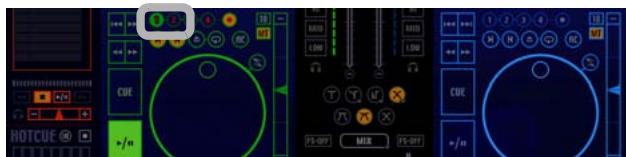
4 Click the [Record Track Hot CUE] button.
- The Track Hot Cue settings are complete and it returns to the Call Out mode.
(Contd. on the next page)
Note
Overwriting a Track Hot Cue that is being Used
Click a [Track Hot CUE] button that is already being used and conduct the following operations.
Cancel the Setting
Click the [Record Track Hot CUE] button again.
Note
Playing a Loop
3-3-1 Setting up Loops (Play) P.44
Note
Track Hot Cue Display
'Waveform Display Symbols (Track Hot Cue Tags)' P.59
Deleting Track Hot Cues
- Display a [Cue Mark] in either the track list or the play list.
- Right click above the [Cue Mark] and click [Clear Track Hot CUE].
Display of Cues and Loops
[] (Filled in):
A cue point has been set.
[ ] (Only the outer ring is colored):
A loop has been set.
Waveform Display Symbols (Track Hot Cue Tags)
When you set a Track Hot Cue, a Track Hot Cue tag is displayed in the waveform display.
- Indicates the cue point for Track Hot CUE 1.
- Indicates the loop in point for Track Hot Cue 2.
- Indicates the loop out point for Track Hot CUE 2.
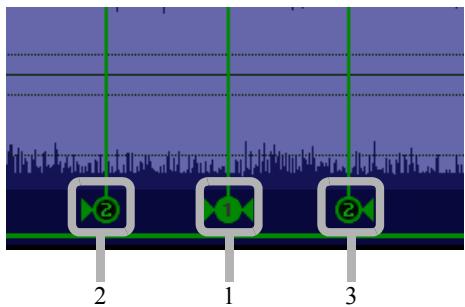
Fine Tuning the Stop Position
- Play a song and pause it approximately where sound starts to play.
- Use the [] / [] buttons or the jog dial to fine tune the position. You can make adjustments in increments of 1 frame (1/75 of a second).
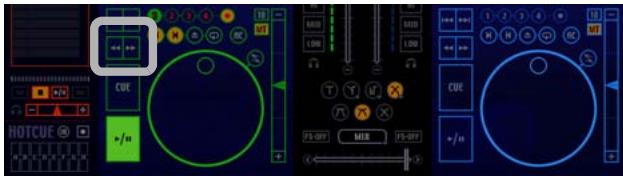

Note
Copying Information of a [Track Hot Cue] button to a List Hot Cue
3-4-1 Determining List Hot Cue Points' P.47
4-1-2 Calling Out Track Hot Cues
If you click a [Track Hot Cue] button that has a cue or loop set up, it calls out the Track Hot Cue and starts playing.
1 Click a [Track Hot CUE] button that has a cue or loop recorded.
- The Track Hot Cue point is called out and it starts playing.
![PIONEER DJS - Click a [Track Hot CUE] button that has a cue or loop recorded. - 1](/content/2020/04/118751/images/dd3c70bcea87769ae4b1ebeae44490c1fd557042913e289673cb59b433fda703.jpg)
4-1-3 Changing a Track Hot Cue into an Auto Setup Cue
One Track Hot Cue can be changed to an [Auto Setup CUE]. If you change one to an [Auto Setup CUE], when a song is put on either player, it cues it up to the [Auto Setup CUE] position and stands by.
The following is an explanation of how to change a Track Hot Cue that was set up previously into an Auto Setup Cue.
1 Open a track list or a play list, right click on the icon indicating Track Hot Cue settings and click [Auto Setup CUE ON].
Auto Setup CUE ON
Auto Setup CUE OFF
Clear Track Hot CUE
Clearing the Auto Setup Cue
Right click on a [Cue Mark] in a list and then click [Auto Setup CUE OFF].
Note
When a Track Hot Cue is Called Out
It is recorded to a [CUE] button. If you click a [CUE] button during playback, it returns to the Track Hot Cue.
Note
When in a Pause in the Scratch Mode
It calls out a Track Hot Cue and cues it up and stands by.
Getting out of a Loop
Click the [Exit/Reloop] button.
Note
When an Auto Setup Cue is Called Out
It is recorded to a [CUE] button. If you click a [CUE] button during playback, it returns to the Auto Setup Cue.
Note
Auto Setup Cues and Auto Cues
When both have been set up, the Auto Setup Cue is given priority and is cued up.
4-2 Using Play Lists
If you use a play list, you can play songs automatically in the order of the list. Using a play list is convenient when you have already decided the order you want to play songs in.
- To use a play list, use the Preference to make settings so the list that is displayed when DJS starts up will be a play list.
'9-3 Setting the Layout of DJ Play Functions' P.98
- Before you can use a play list, you have to create one.
'6-3 Creating a New Play List' P.79
4-2-1 Auto-Playing a Play List
The songs recorded in the play list are played automatically.
1 Click the [▶/III] button on player A. Songs play alternately as below.
- If you display a play list on the [DJ Play] screen, the 1st song is allocated to player A and the 2nd song is automatically allocated to player B.
- Once playing starts, songs are played in turn, starting with player A, then B, then from player B to player A.
- When the song being played comes to the [Mix Out] position, the next song starts playing from its [Mix In] position.
- It switches to the next player according to the mix mode, fader curve, and mix beats that were set up.
- If a [Mix Out] point has not been set up, the song will play all the way to the end (including dead air parts).
- If a [Mix In] point has not been set up, the song will play from the beginning (including dead air parts).
- When a song ends on a player, its next song is automatically set up (standby mode).
Deleting a Song from a Play List
Right click the song to be deleted and click [Remove].
Note
Displaying Play Lists on the Right Side of the Screen
'9-3 Setting the Layout of DJ Play Functions' P.98
Switching the Width of a List
Click the icon on the upper right of the play list display. When the [DJ Play] screen is opened, it is displayed at the narrowest list width. In addition, if you click the player or the mixer, the play list is displayed at its narrowest width.
Auto Level Adjustment
While playing a play list, when it switches from one player to another, this automatically adjusts the levels so they are the same.
Changing the Song Order
The song order of a play list can be changed by dragging and dropping the songs.
Changing Song Order during Auto Play
'4-2-2 Changing the Order of Songs During Auto-Play' P.62
Saving Changes to a Play List
After you edit a play list and go to close it, a message will be displayed to check if you wish to save it. If you wish to save it, click the [Yes] button.
Order of Priority for Mix Start Positions
- Auto Setup Cue
- Mix In Start
- Auto Cue
- Beginning of Track
Order of Priority for Mix End Positions
- Mix Out Start
- End of Track
Changing the mix mode/fader curve from the play list
When you right click an icon indicating the settings for each, a menu that enables you to make selections opens.
4-2-2 Changing the Order of Songs During Auto-Play
You can change the order of songs during Auto Play of a play list.
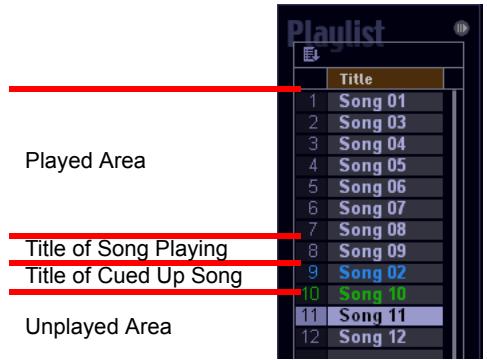
1 Drag the song you wish to change from the play list and drop it in the place you want to change to.
- This will result in the following, depending on the status of the selected song and the position in the play list where it is dropped.
| Drag From | Drag To | Action |
| Unplayed Song | Unplayed Area | Changes the song order of the list. |
| Unplayed Song | Played Area | Changes the song order of the list. |
| Unplayed Song | Song Playing | Finishes the song being played and puts the dragged song on the player. The song that was playing becomes a played song. |
| Unplayed Song | Cued Up Song | The song order of the list is changed and the song that had been cued up is treated as already played. |
| Played Song | Unplayed Area | The song is added to the list. |
| Played Song | Song Playing | Finishes the song being played and puts the dragged song on the player. The song that was playing becomes a played song. |
| Played Song | Cued Up Song | The song order of the list is changed and the song that had been cued up is treated as already played. |
| Song Playing | Unplayed Area | The song is added to the list. |
| Song Playing | Played Area | The next song starts to play and the song that had been playing is moved to the end of the played song area. |
| Song Playing | Cued Up Song | The song is added to the list and the song that had been cued up is treated as already played. |
| Cued Up Song | Song Playing | Finishes the song being played and puts the dragged song on the player. The song that was playing becomes a played song. |

Note
Adding Song(s)
You can add songs while a play list is playing by dragging songs from the track list and dropping them on the play list.
Deleting Songs
Right click the song to be deleted and click [Remove].
Operation of the [CUE], the [Exit/Reloop] and the [List Hot CUE] buttons
If you use one of the buttons above to change to another song from the one that was set on a player, the song becomes a played song.
Using the [][] Buttons
Fast forwarding the song being played to the end of the song: ends the song being played. Starts playing the cued up song
Fast forwarding the cued up song to the end of the song: moves the cued up song to the played area.
Rewinding the song being played to the beginning of the song: starts playing from the beginning of the song that was being played.
Rewinding the cued up song to the beginning: starts playing from the beginning of the cued up song.
Using the [1 ] [▶] Buttons
Skipping the song being played or the cued up song ( )
For each click, it skips that number of songs. The skipped songs are moved to the played area.
Skipping the song being played or the cued up song (1)
Skipping as many songs as consecutive clicks minus 1. The skipped songs are moved to the unplayed area.
4-3 Checking Songs
In addition to the A & B players, the DJ Play function comes with another player (list player), which is for sampling songs. The list player is below the track list or the play list. If you use the list player, you can give a trial listen to a song in the track list or the play list.
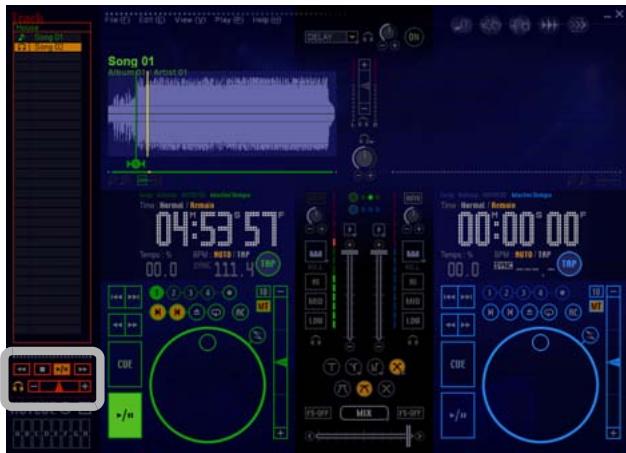
It works as follows if you set it to [Internal Mixer] and use the list player.
- When you start listening to the list player, the output signal of the headphone cue to the mixer ceases to be sent to the headphones and only the sound of the list player can be heard.
Warning!
Before Using the List Player
If your computer does not have the necessary sound card installed and is not set up to enable checking the sound over the headphones, the list player cannot be used.
1-1 DJ System' P.16
Note
List Player Settings
Make the [DJ Play] - [Mixer/Sound Card] settings on the [Preference] screen in line with your operating environment.
'9-4 Mixer and Sound Card
Settings' P.100
Listening to List Player Sound on your Headphones
Set it to [Internal Mixer].
'9-4 Mixer and Sound Card
Settings' P.100
When using the DJS Mixer function, [Internal Mixer]
You need to have at least 2 sound cards in order to output the sound of the list player from your headphones.
When you are using the External Mixer Function [External Mixer]
A sound card is required to output the list player sound.
In addition, set it to [External Mixer], allocate the sound card to the list player and you can use it as an independent player.
(Contd. on the next page)
- Functions of the Various Buttons
![PIONEER DJS - When you are using the External Mixer Function [External Mixer] - 1](/content/2020/04/118751/images/975caa52ea69c8cf3ae68e39aebbb29c08c33aefffad159a9429b390a0879974.jpg)
Sample Song Playing Address
The playback position of the song you are giving a trial listen to is indicated by yellow.
In addition, if you click any position on the bar, playback jumps to that position.
Once the song plays to the end position, it stops.
Sample Song Stop Button (■)
This stops the playback.
Sample Song Play/Pause Button (▶/II)
While stopped or paused: starts playback.
While playing: pauses playback.
Sample Song Search Button (
This function is only available during playback and rewinds at about 10 times normal speed as long as the button is pushed. If you continue to hold the button after reaching the start of the song, it simply rewrites to the starting position and maintains its status. (Does not return to the previous song.)
Sample Song Search Button (▶)
This function is only available during playback and fast forwards at about 10 times normal speed as long as the button is pushed. If you continue to hold the button after reaching the end of the song, it simply fast forwards to the end position and stops.
Sample Song Headphone Cue
Once playing starts on the list player, the sample song headphone cue lights up. If you make the headphone cue on the mixer light up, it goes out and sample listening stops. In addition, it goes out when playback is stopped or paused.
Sample Song Monitor Output Level Fader
Clicking the + / - buttons adjusts the volume of the song being sampled.

Note
30 Seconds before Playback Ends
When playback reaches 30 seconds before the end, the area to be played (gray) and the area already played (indigo) start flashing alternately. When it reaches 15 seconds to the end, they flash more quickly.

Note
When Headphone Cue is lit (While List Player is Playing)
If you click the mixer's headphone cue (Players A/B, Master Effector), it switches to the sound of the clicked headphone cue and the list player headphone cue goes OFF.
4-4 Using the Auto Mix Function for Mixing Songs
If you use the Auto Mix function, you can automatically synchronize the beat with the BPM and mix the songs using just 1 button.
Following is an explanation of how to use the Auto Mix function to mix songs from player A with those of player B.
1 Select the songs you wish to mix from the track list and drag and drop them on players A & B.
- The songs will start playing on their respective players.
- The songs in the track list will change to the color of their player (A: Green, B: Blue).
- Song information is displayed in the information display.
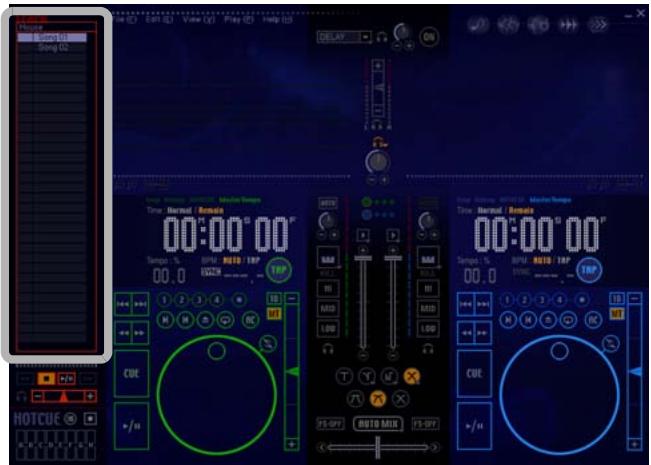
2 Drag the slider of the [Cross Fader] all the way to the left.
- Only the sound from player A is output from the speakers.

(Contd. on the next page)
3 Click the headphone cue for player B.
- This enables you to check the sound from player B on your headphones.
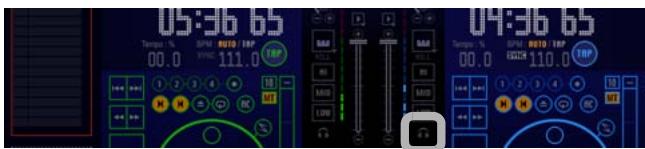
4 After pressing the [▶/III] button at the position you want to cue up player B, click the [CUE] button.
- This cues up the song at the position you pressed [ / ] .
![PIONEER DJS - After pressing the [▶/III] button at the position you want to cue up player B, click the [CUE] button. - 1](/content/2020/04/118751/images/10f2a5d0f095310fb918599f4d1f5b946533a692bf3553c89c3658aa8b5421ab.jpg)
5 Click the [AUTO MIX] button at the place you wish to start mixing.
-
Once auto mixing begins, the following operations are conducted simultaneously.
(a) Player B starts playing.
(b) The speed (BPM) and beat of Player B are aligned with those of Player A.
(c) The [Cross Fader] moves from left to right. -
As the [Cross Fader] moves, the volume from player A gets quieter while that of player B gets louder.
- When the [Cross Fader] reaches the right side and stops, the volume from player A goes completely off.
![PIONEER DJS - Click the [AUTO MIX] button at the place you wish to start mixing. - 1](/content/2020/04/118751/images/838796f887c2ee440d27500a7b1e580638f8b5bed6e687d19118d2fdaec61ec4.jpg)
![PIONEER DJS - Click the [AUTO MIX] button at the place you wish to start mixing. - 2](/content/2020/04/118751/images/28ebeab05e0daeb9139077bb5e376dca7916c6740d34a1ed3d9defc007871d6a.jpg)
Changing the Playback Position
Click either the waveform display or the [Playing Address] when a player is either playing or paused. The playback position moves to the position you clicked.

Fine Tuning the Pause Position
While a player is paused, you can make minute adjustments to the pause position by turning the [Jog Dial].
Using the [CUE] button
'Using the [CUE] button' P.28
![PIONEER DJS - Using the [CUE] button - 1](/content/2020/04/118751/images/43958c5d00da7ef9f34248d6d1976127da96c1c8ed3ba1c7e4aaa0b91dab2508.jpg)
When the Beat and BPM won't Synchronize (Works the same as MIX)
The beat will not synchronize with the BPM in the following circumstances.
(a) During Auto Mix if either the [Tempo Slider] or [Tempo Control Range] has been operated.
(b) When either the beat or the BPM is not detected.
Auto Mix is Cancelled...
Whenever any of the following are operated: Cross Fader, Fader Curve, Mix Mode, Mix Beat.
4-5 Key Operations
You can operate DJ Play functions from your computer's keyboard. Right after installation, the functions are allocated to keys as follows.
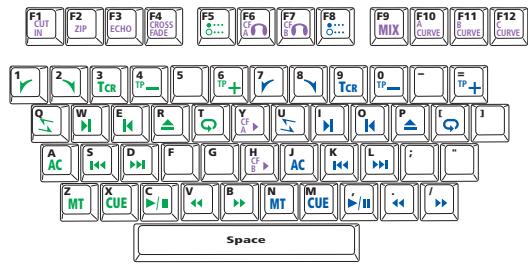
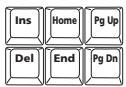
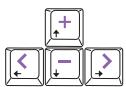
- In the diagram, the colors indicate functions as follows: indigo, the Mixer, green, Player A, blue, Player B.
- M = Mixer, A = Player A, B = Player B.
F1: Mix Mode Cut In (M) I: Loop In Adjust (B)
F2: Mix Mode Zip (M) O: Loop Out Adjust (B)
F3: Mix Mode Echo (M) P: Loop Exit/Reloop (B)
F4: Mix Mode Cross Fade (M) [: One Track Loop (B)
F5: Beat Adjuster (A)]: (Not Assigned)
F6: Headphone Cue (A) A: Auto Cue (A)
F7: Headphone Cue (B) S: Track Search REW (A)
F8: Beat Adjuster (B) D: Track Search FWD (A)
F9: MIX (M) F: (Not Assigned)
F10: Fader Curve Curve-A (M) G: (Not Assigned)
F11: Fader Curve Curve-B (M) H: Auto Fader B (M)
F12: Fader Curve Curve-C (M) J: Auto Cue (B)
1: Jog Dial REW (A) K: Track Search REW (B)
2: Jog Dial FWD (A) L: Track Search FWD (B)
3: Tempo Control Range (A) ; (Not Assigned)
4: Tempo Adjust - (A) “: (Not Assigned)
5: (Not Assigned) Z: Master Tempo (A)
6: Tempo Adjust + (A) X: CUE (A)
7: Jog Dial REW (B) C: Play/Pause (A)
8: Jog Dial FWD (B) V: Search REW (A)
9: Tempo Control Range (B) B: Search FWD (A)
0: Tempo Adjust - (B) N: Master Tempo (B)
Not Assigned) M: CUE (B)
=: Tempo Adjust + (B) Play/Pause (B)
Q: Scratch Mode Select (A) : Search REW (B)
W: Loop In Adjust (A) /: Search FWD (B)
E: Loop Out Adjust (A) : Master Volume + (M)
R: Loop Exit/Reloop (A) Master Volume - (M)
T: One Track Loop (A) Cross Fader Left (M)
Y: Auto Fader A (M) : Cross Fader Right (M)
U: Scratch Mode Select (B)

Note
Changing Key Assignments
'9-5 Key Assignment Settings' P.104
4-6 Operations used with DMP-555
If you connect the Pioneer digital media player DMP-555 with a USB cable, you can operate DJS with the DMP-555's operation keys.
Functions you can Perform from the DMP-555
DJ Play Function
Create Function (Starts & Stops Playback, Sets Loops, etc.)
Transfer Function (SD Memory Card Reader and Writer)
4-6-1 Connecting
You can connect the DMP-555 to your computer with a USB cable. You will need to install the driver software in order to use the DMP-555.
1 Connect the USB cable to the USB ports of the computer and of the DMP-555.
- You can also start up the computer, turn the DMP ON and then connect them.
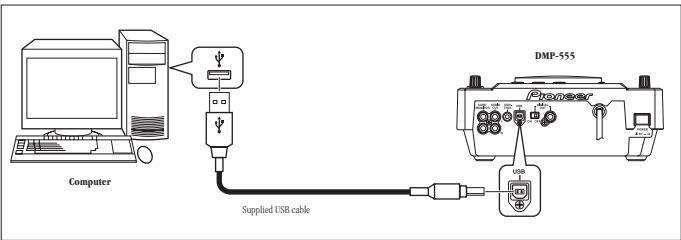
Connecting a 2nd DMP-555
If you connect a second DMP-555 via USB cables, you can operate Players A & B from their respective DMP-555s.
4-6-2 Allocating the DMP-555 to a Player' P.69

Note
DMP-555
The DMP-555 is not sold in some countries and/or regions, such as in Japan.
When using the Transfer function you can use a reader/writer compliant with SD memory cards' Copyright Protection Function in place of the DMP-555.
'Chapter 8 Using SD Cards' P.91
Warning!
SD Card Reader/Writer
Please use devices that are compatible with copyright protection functions. (Check the specs of your SD card reader/writer before connecting it.)
Warning!
Installing Drivers
See "Read me" on the Installation DJS CD-ROM.

Note
After Drivers are Installed
You do not need to install drivers again even if you make changes, such as to your USB port connections, connecting a 2nd DMP-555, etc.
4-6-2 Allocating the DMP-555 to a Player
You can assign a DMP-555 in place of a Player, A or B, of the DJ Play function.
Use the DMP-555's Source Select Button ([CD] or [Card]) to assign the player.
1 Press the DMP-555's Source Select button ([CD] or [Card]).
To assign it to Player A: Press [CD].
- To assign it to Player B: Press [Card].
When 2 DMP-555s are Connected
When two DMP-555s are connected, they are automatically assigned to Player A and Player B.
Player A:
The DMP-555 whose Source Select button [CD] is lit.
Player B:
The DMP-555 whose Source Select button [Card] is lit.
- If you wish to reverse the settings, press on one of the DMP-555's Source Select button ([CD] or [Card]). The other DMP-555 will change automatically.
2 Working with DMP-555s.
- When you operate the DMP-555 via controls such as the jog dial, the tempo fader, the play/pause button, etc., the corresponding Player will respond.

When a 2nd DMP-555 is connected using the Create or Transfer function
The first DMP-555 detected becomes the controller and the Source Select Button ([CD] or [Card]) goes off. The other DMP-555 can be used as a stand alone digital media player.
Chapter 5 Creating Loops Made Easy
The Create function makes it easy to set up and save loops while monitoring the waveform display.
5-1 Making a Loop
Using the Create function, you can look at the waveform display and visually search for the position you wish to set up a cue or loop. In addition, dragging your mouse makes it easy to trim track hot cue points.
1 Click the song to use in making a loop in a track list under the Music Management, DJ Play, Ripping or Transfer functions.
- The song you click will be displayed highlighted.
2 Click [File] and then click [Create].
- The [Create] screen opens.
- The upper waveform display shows the whole thing. The orange frame indicates the range of the expanded waveform that is displayed below.
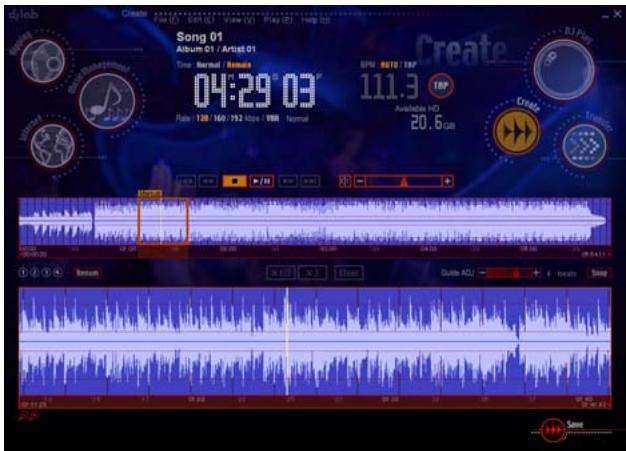
(Contd. on the next page)
Note
When more than one Song is Selected
The first song is displayed.
When No Songs are Selected
After the Create function tries to execute, an error message is displayed and it returns to the original function screen.
Expanding & Shrinking the Range of the Expanded Waveform Display
Click the [+] or [-] buttons on the bottom left of the expanded waveform.
Or, you can expand or shrink it by dragging the left/right of the orange frame.
Moving the Range of the Expanded Waveform Display
Drag the top/bottom of the orange frame to move it.
3 Click the point to set as the cue or the loop in/out point on the waveform display (entire/enlarged). (If setting up a loop, then go ahead and click the loop out point.)
Setting a Cue
Setting a Loop Out
- The track hot cue tags are displayed in the waveform display and it starts to play from the point you clicked. (If a loop was set up, it plays the loop.)
- You can set up a max of 4 cues or loops.

Click the [Save] button.
- The [SAVE] screen opens.
![PIONEER DJS - Click the [Save] button. - 1](/content/2020/04/118751/images/5639313f9ede86ad142d1dfabae73e5cb4700acde56b64b4cde12c0f5bade6a0.jpg)
![PIONEER DJS - Click the [Save] button. - 2](/content/2020/04/118751/images/5574cf692ca30265f6b608dd0538286766616a1fc3764e55579708d2e872186c.jpg)
Click [Save] and then click the [Save] button.
After saving the settings, close the [SAVE] screen.
Warning!
When you Click a Point
Be sure to click in the vicinity of the center line of the waveform. Clicking anywhere other than near the center line makes it jump to the clicked position and start playing.

Player Functions
[▶/II]: Play or Pause
[Volume Adjuster]: Adjusts the Volume
Stop Position of the [■] Button
Moves to the beginning of the track or to the loop in point.
Blue Part of the Waveform Display
Indicates the range to be played.
Selecting a Track Hot Cue Number that has not been Set Up
After clicking the track hot cue number at the bottom left of the entire waveform display if you create a cue or loop, the selected number is assigned to that cue/loop.
Selecting a Track Hot Cue Number that has been Set Up
If you click the track hot cue number of a cue or loop that has already been set up, the replay point moves to the cue or loop in point.
Using the Beat Guide & Snapping Functions
If you specify the beat interval and display the guide on the top of the waveform, you can set the positions of cues or loops.
'5-4 Other Useful Functions (Create)' P.74
Track Hot Cue Tag
'5-2 Adjusting the Loop Range' P.72

Saving a Loop you Created as a Track
'5-3 Saving the Length of a Loop as a Track' P.73
5-2 Adjusting the Loop Range
Adjust the positions of saved cues and loops.
1 Click the round part of the [Track Hot CUE] tag on the bottom of the waveform display and then select the point to change it to.
- The song starts to play from the point you clicked.
Track Hot Cue tag
Cue Point
Loop In Point
Loop Out Point
2 Drag the round part of the [Track Hot CUE] tag and drop it at the point you wish to change it to.
Making a cue point into a loop in or loop out point.
Drag & drop the triangle symbol on either side of the cue tag.
Making a loop in or loop out point into a cue point.
If the loop out is to be deleted:
Drag & drop the loop out point before (to the left) of the loop in point.
If the loop in point is to be deleted:
Drag & drop the loop in point after (to the right) of the loop out point.
3 Click the [Save] button.
- The [SAVE] screen opens.
4 Click [Save] and then click the [Save] button.
- After saving the settings, close the [SAVE] screen.

Note
Short Cut Keys
Moves the loop in/out points by a frame at a time. (1 Frame 1/75 sec.): [ ][ ]
Undoing Operations
You can undo the last thing you did by executing [Edit] [Undo].
If a DMP-555 is connected to your computer
You can set up loops with the DMP-555's operating keys while a song is playing.
4-6 Operations used with DMP555' P.68
Clear Button
'Clear Function' P.75
Using the Beat Guide & Snapping Functions
You can specify the beat interval, display the guide on top of the waveform and set the positions of cues or loops.
'5-4 Other Useful Functions (Create)' P.74

Note
Saving a Loop you Created as a Track
'5-3 Saving the Length of a Loop as a Track' P.73
5-3 Saving the Length of a Loop as a Track
This saves the range of a loop you have created as an MP3 file.
1 Click the [Save] button.
![PIONEER DJS - Click the [Save] button. - 1](/content/2020/04/118751/images/444276d3b8a1fb34aa4eadb2db49482fe75856f4904a81713510a15a98045a8e.jpg)
- The [SAVE] screen opens.
2 Click the [Save as] check box and then click the [Select Loop] button.
![PIONEER DJS - Click the [Save as] check box and then click the [Select Loop] button. - 1](/content/2020/04/118751/images/86059b4737500dd7d4c516c9bc5c5032e79b35a0ab05b7c7e77c92965a08e58d.jpg)
- The loop selection screen opens.
3 Click the check box of the loop you wish to save and then click the [OK] button.
![PIONEER DJS - Click the check box of the loop you wish to save and then click the [OK] button. - 1](/content/2020/04/118751/images/991b0707dc54ffde99fea4e2340bb40d19c426376abb8096d1e900a276ba189d.jpg)
4 Click the [Save] button.
- The progression bar indicates the status of progress in saving the loop.
- Once saving finishes, the progression bar closes.
![PIONEER DJS - Click the [Save] button. - 1](/content/2020/04/118751/images/8a348ea70cc43be228877a356861f00c90dde6eb4dbdacf8a77b67ef44f11435.jpg)
Note
Making a Loop
'5-1 Making a Loop' P.70

Note
When music is transferred from Ripping (CD-DA, WAV)
You can only select [Save as]. (It cannot be saved as a track hot cue.)

Note
Song titles when saving as a new track
A title composed of the original song title + a space + #LOOP + the track hot cue number is assigned automatically.
5-4 Other Useful Functions (Create)
- Renumbering Function

When you click the [Renum] button, the memory of cues and/or loops you have set up is renumbered in order from the beginning of the song.
Once you click the [Save] button, it is saved with the new numbers.
Beat Guide and Snapping Function

After clicking the [Snap] function, when you click in the vicinity of the desired point, it sets a point much closer in the beat guide in the expanded waveform display.
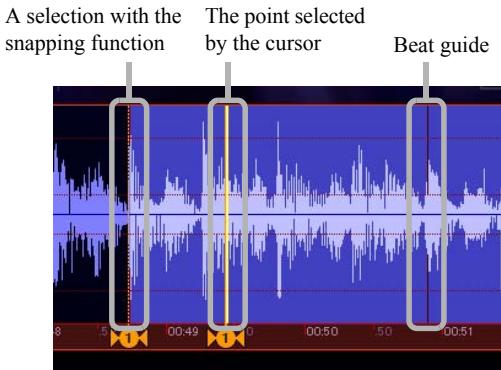
- If you click the [Guide ADJ] slider, you can select a beat guide interval in the expanded waveform display from among those below.
Beats: 1/16, 1/8, 1/4, 1/2, 1, 2, 4, 8, 16, 32 - The selected beat guide interval is displayed on the right side of the bar. (In the example screen, it is a [1/16 beat])
(Contd. on the next page)
Note: Canceling Function
When you wish to set a cue/loop without using the snapping function, if you click the [Snap] button you can cancel the snapping function.
Clear Function

When you click the [Clear] button, the selected track hot cue is deleted.
- Halving & Doubling the Length of a Loop
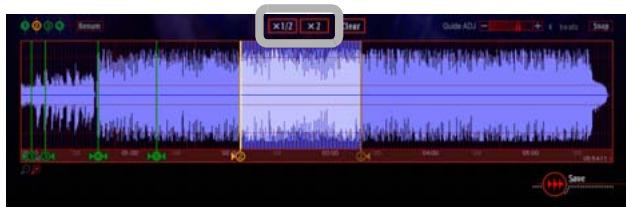
Click the [Track Hot Cue] button to be changed and then click either [ × 1 / 2 ] (half) or [ × 2 ] (double).

Note
When a loop in or out point is selected
The selected loop in or out point is deleted and the point left behind becomes a cue point.

Note
Short Cut Keys
[× 1 / 2] [Ctrl] ^+ [h]
[× 2] : [Ctrl] ^+ [w]
Chapter 6 Play Lists & Classifying Songs
You can edit the information on songs you wish to use and classify each into a category. In addition, you can create a play list and save it in a category.
6-1 Editing Song Information
This changes the song information below for a displayed track list or play list.
Song Name (Title)
Genre
-
Name of the Artist
-
Tempo of the Song (BPM)
-
Title of the Album (Album)
1 Click [File] and then [Music Management].
- The [Music Management] screen opens.

- The category list is displayed on the left, while the track list is on the right.
2 Click the song (line) of the song you wish to edit from the items displayed in the track list.
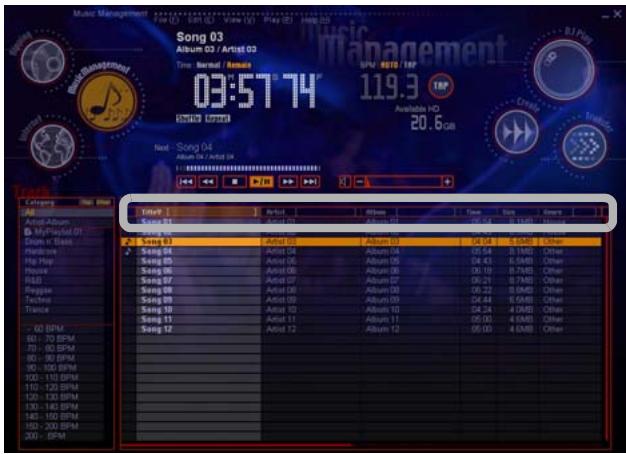
(Contd. on the next page)
Note
Song Information Displayed in Lists
TR.: Play Number within an Album
No.: Play Number in a Play List
Status: Displays the play or standby status of a player with a note mark
Title: Name of a Song
Artist: Name of the Artist
Album: Title of the Album
Time: Running Time (Length of Song)
Size: Size of the MP3 File
Genre: The style of music
Track Hot Cue: Track Hot Cue
HOT: List Hot Cue
Mix In Start: Time Mix Starts (Start of Song)
Mix Out Start: Time Mix Starts (End of Song)
Mode: Mix Mode
Beats: Beats for Mixing
Fader: Fader Curve
BPM:BPM
Entry: Date/Time Registered in
Database
Bit Rate: Bit Rate
Copy: Number Remaining that can be Copied
Location: Location a File is Saved
Toggling between Ascending or Descending Sort Order
Click the name of the item you wish to change.
Priority Ranking of Notes
Numbers Alphabet Selected Language (The opposite when descending order)
- Only when it is a number, if it is too short, modify the number to the required length by adding a 0 and then sort.
Narrowing a Search
If you enter the first letter(s) of a title to the right of the item's name, Title, Artist, Album, Genre, Location, the corresponding song will be displayed. If you click a displayed song, the display toggles back as it was before.
Changing the Width of an Item
Drag the border of any item.
Keyboard Jump Function
If you select the header on top of a list and then type in a letter on the keyboard, it will jump to the first line corresponding to the letter.
Changing the Order of Items
If you drag and drop the item you wish to change, it changes where it is displayed.
3 Click [Edit] and then click [Edit].
- The [EDIT] screen opens.
| Undo | CTRL+Z |
| Redo | CTRL+Y |
| Cut | CTRL+X |
| Copy | CTRL+C |
| Paste | CTRL+V |
| Show | |
| Edit | |
| Remove | |
| Delete | |
| Select All | CTRL+A |
Deleting Songs
Perform either (a) or (b).
(a) Press the Delete key.
(b) Click [Edit] and then click [Delete].

Click the item you wish to change and then either enter information or select a menu.
- You can enter text to a length of 128 single-byte, English characters for the Title, Artist, Album and Genre. Double-byte characters for languages like Chinese and Japanese cannot be displayed.
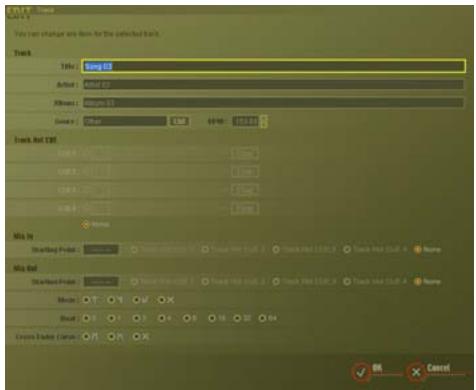
5 Once you finish making changes, click the [OK] button.
- Depending on the content of your editing, the edited song(s) may be moved to another category or it may cease to be displayed. (In cases such as when a song registered in a category is being displayed and the genre or BPM is edited.)
![PIONEER DJS - Once you finish making changes, click the [OK] button. - 1](/content/2020/04/118751/images/0e6261238e57e71c6eb9d1d15f9155311d81f6ae2b85bb2b6c355aae81bbb8ec.jpg)
Note
Editing Directly
- Click a song.
- Click the item you wish to change.
- Once it changes so you can edit the info, enter the desired text or numbers.
Name of Genre
If an applicable genre has not been set up, an error message will be given. (Genre names that have not been created cannot be input.)
Editing Identical Information for Multiple Songs at the Same Time
The album, artist, BPM and genre information for multiple songs can be edited all together.
- Click a song.
- If you click songs while holding the Shift or Ctrl key down, you can select multiple songs.
- Right click and then click [Edit the Album, Artist, Genre, BPM].
- Enter the information you wish to edit on the screen that opens and then click the [OK] button.
Characters that Cannot be Entered
'Characters that Cannot be Entered (Symbols)' P.79
When Auto Set Up Cues are Set
It is not possible to edit the Mix In starting point.
BPM Values
You can enter values from 40.00 to 399.99 up to the 2nd digit after the decimal.
- The 1st and 2nd digits after the decimal point may be omitted for display in lists.
Mix In Start Values
The values cannot be after the Mix Out Start.
Mix Out Start Values
The values cannot be before the Mix In Start.
Time (Frames) Values
You can enter frame values from 0 to 74. (1 Frame 1/75 Sec.)
6-2 Classifying Songs into Categories
Songs are classified in DJS in units of categories. It makes it easy to search for a desired song if you categorize songs with the required information, such as genre or BPM when you select a song.
1 Click [File] and then [Music Management].
- The category list is displayed on the left, while the track list is on the right.
![PIONEER DJS - Click [File] and then [Music Management]. - 1](/content/2020/04/118751/images/e8f1395ed47fe783ec114cad0dc8ec18f2f6aa56b39b05ea1b882d44fdd0d6a0.jpg)
2 Drag the song you wish to register from the track list and drop it on the category you wish to register it in on the category list.
- It is registered under the category you dropped it in.
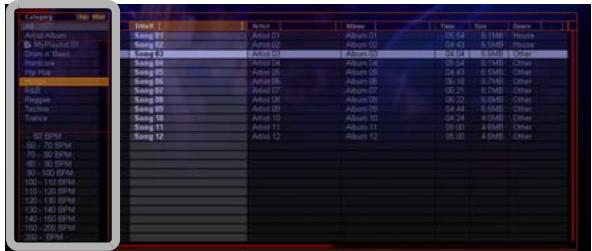

Note
Selecting the Category to be Displayed
'9-7-1 Selecting Categories for Top & Other' P.109
Creating a New Category
'9-7-2 Creating Categories & Play Lists, Changing their Names and Deleting them' P.110

Note
[All] & [Artist-Album]
[All] and [Artist-Album] are always displayed at the very top of the category list.
[Album-Artist]
If you drag the [Artist] and drop it to the right of [Album], it switches their order in the display.
Default Settings when Installed
Headers are shown in the order of [All], [Artist-Album], [Top] and [Other].
Switching the Display of [Top] and [Other] On/Off
Click the [Top] or [Other] button at the top of the category list.
Using [Top] and [Other]
If you register songs in [Top] or [Other], they will always be displayed at the top of the category list.
Songs are displayed in [Top] in the order specified by the user and in [Other] in alphabetical order of the name (ascending only).
![PIONEER DJS - Using [Top] and [Other] - 1](/content/2020/04/118751/images/37a5092c00ed3bf01d1077162d801d59dca77ea6db8244adbdc682cd0396dbfb.jpg)
Note
Toggling between Ascending or Descending Sort Order
Click the title line of the item.
Filter Display
If you enter the first letter(s) (more than one letter can be input) on the right side of the item's name in the track list, the corresponding song(s) will be displayed. If you click a displayed song, the display toggles back as it was before.
Changing the Width of an Item
Drag the border of any item.
6-3 Creating a New Play List
Decide on the order in which to play songs and then add them to the play list.
1 Right click on the [Top] category list.
2 Click [Make Playlist].
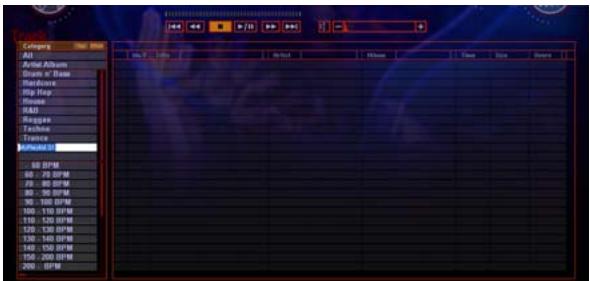
- A new play list is displayed at the bottom of the selected category list.
- The title "My Play List + a 2 digit number" is automatically assigned to it. To change it, enter a name. (up to 128 characters) Double-byte characters for languages like Chinese and Japanese cannot be displayed.
- Characters that Cannot be Entered (Symbols)
The following characters (symbols) cannot be entered in DJS .
| € | , | f | , | ... | † | ‡ | ^ | ‰ |
| Š | < | CE | Ž | ' | , | " | ” | • |
| - | — | ~ | TM | Š | > | OE | Ž | Ŷ |
3 Click any song from any category and drag and drop it into the play list.
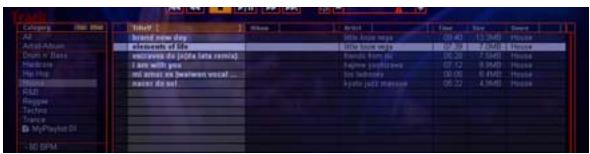
- Songs are added to the play list in the order in which you drag and drop them.
6-4 Editing a Playlist
This sets how each track in the play list will be played.
The following items can be changed.
- Track Hot Cue (1-4): Settings for track hot cues and loops
- Mix Out: Sets how the song being played is to end.
- Mix In: Sets how the next song is to start playing.
To make the settings, click the [Toggle Display] at the top, right of the play list, widening it, and display the item(s) to be edited.
See '4-2-2 Changing the Order of Songs During Auto-Play' P.62
for more information about changing song order and adding/ removing songs.

Cue Mark
Following is a detailed explanation of how to make the settings for each item.
Track Hot Cue
Specify a track hot cue as an auto setup cue.
Right click the icon of a cue mark and then click [Auto Setup CUE ON].
Auto Setup CUE ON
Auto Setup CUE OFF
Clear Track Hot CUE
- To cancel Auto Setup Cue settings, click [Auto Setup CUE OFF].
Mix In
Specify the point where the song will start playing.
You can also specify the same position as the track hot cue by right clicking.
Paste Track Hot CUE 1
Paste Track Hot CUE 2
Paste Track Hot CUE 3
Paste Track Hot CUE 4
(Contd. on the next page)
Note
Switching the Width of a List
Click the [Toggle Display] button on the upper right of the play list display.
When the [DJ Play] screen is opened, it is displayed at the narrowest list width.
In addition, if you click the player or the mixer, the play list is displayed at its narrowest width.
Items that cannot be Edited (Play List)
No items other than [Track Hot CUE] [Mix In] [Mix Out] can be edited (display only).
Note
[Cue Mark]
The following symbols are used.
: Cue
: Loop
Highlighted: Auto Setup CUE ON
Registeing Track Hot Cue into List Hot Cues
Drag a [Cue Mark] and drop it in the hot cue list.
Clearing Track Hot Cue
Right click the icon of a cue or loop and then click [Clear Track Hot Cue].
Warning!
When the Track Hot Cue is set to Auto Setup Cue
It automatically sets that cue point to [Mix In]. This value cannot be changed.
Note
When no Value has been set for [Mix In]
The starting point of the song acts as the beginning of the song. (In line with auto cue settings)
Mix Out
Changes how playback ends (Start/Mode/Beats/Fader).
If you right click each item, its menu will open.
Start:
Sets the position of the ending time.
You can also specify the same position as the track hot cue by right clicking.
Paste Track Hot CUE 1
Paste Track Hot CUE 2
Paste Track Hot CUE 3
Paste Track Hot CUE 4
Mode:
Selects the mix mode.
Cut In
Zip
Echo
Cross Fade
Beats:
Selects the mix beats.
Settings can be changed even while selecting mix mode [Cut In], however the status of the [Cut In] does not change.
0
1
2
4
8
16
32
64
Fader:
Selects the fader curve.
Settings can be changed even while selecting mix mode [Cut In], however the status of the [Cut In] does not change.
Curve-A
Curve-B
Curve-C
Chapter 7 Importing Songs
You can convert and import music CDs, WAV files, sound sources from a microphone or other external devices, etc., into MP3 files, which can be used by DJS.
7-1 Importing an MP3
Imports MP3 files on your computer into DJS.
(DJ Play, Music Management, Transfer Functions only)
1 Click [File] and then click [Import] - [MP3 Audio File].
- The [Importing MP3 Audio Files] screen opens.

2 Select a folder with an MP3 file(s) in it and after clicking the MP3 file(s) to be imported, click the [Open] button.
- Once importing begins, the window [Import] for checking the status of progress opens.
- Once importing finishes, the [Import] window closes and the track list is displayed highlighted.
- If a song is the same as an already imported song, it cannot be imported.
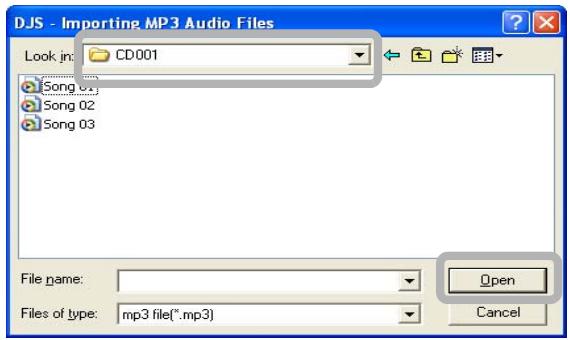

Note
MP3
A digital compression technology for music data. DJS is compatible with either file format (a) or (b).
(a) MPEG-1 Audio Layer-3
(b) MPEG-2 Audio Layer-3 LSF
Folder displayed in the [Importing MP3 Audio Files] screen
The first time the program is started up, the folder set up as the music library is opened. If you change the folder, that folder will open thereafter.
If you want to change the folder
Click the name of the folder displayed in the [Location of File(s)] and click the folder you wish to change to.
Tag Information of MP3 Files
Tag information like titles, genres, artists, etc. is imported from MP3 files and displayed in categories.
Double-byte characters, like those used for Chinese and Japanese, cannot be displayed.
MP3 File Tag Information
Compatible with ID3v1 & ID3v2 formats.
Editing Song Information
6-1 Editing Song Information' P.76
When importing a play list
Play lists created with other software can be imported.
- If compatible with M3U files.
- Click [File] - [Import] - [M3U Playlist].
- Click the M3U file you wish to import and then click the [Open] button.
The import process cannot be done
Troubleshooting' P.148
7-2 Importing Songs from Music CDs
Imports songs from music CDs as MP3 files.
| Step | 1 | 2 | 3 | 4 | 5 | 6 | 7 |
1 Put a Music CD (CD-DA) in the DVD/CD drive.
2 Click [File] and then click [Ripping] - [CD-DA].
- The [Ripping] screen opens.
- The songs on the music CD are displayed in the upper list (CD List). The disc title of compatible CDs is limited in English to a maximum of 128 characters.
![PIONEER DJS - Click [File] and then click [Ripping] - [CD-DA]. - 1](/content/2020/04/118751/images/75037262360cf1b38902ddd9373a950c0367ce3569c25d9703c46c3fc7863ff1.jpg)
3 Click the check boxes of songs you wish to import.
- Once you click a box, a check mark is displayed in it.
- The lower list (track list) switches to the Artist-Album (Album-Artist) display and the songs you clicked on are shown.
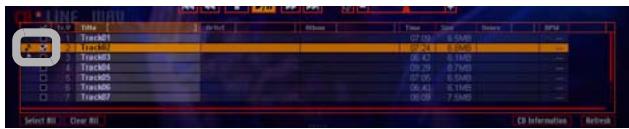
(Contd. on the next page)

Note
[Ripping] Icon
If you click the [Ripping] icon, which is displayed in each function, it shifts to the Ripping Function.
Input Media
The [CD], [LINE], and [WAV] buttons on the left edge of the list above indicate the media for importing. The button of the selected source will be lit red.
If [CD] is not lit red
Click the [CD] button.
Changing the composition of the list
A [Spread List] button is located to the right of the [CD] button.
Importing Music Info via the Internet
- [CD Information] button.
- The information of the CD list is updated, and at the same time the information displayed in the track list estimated from Ripping is also updated.
Step
1 | 2 | 3 | 4 | 5 | 6 | 7
- Depending on the total number of songs selected, the hard disk space that is required is calculated and the [Required HD] is displayed. (The [Available HD] shows how much hard disk space is free.)
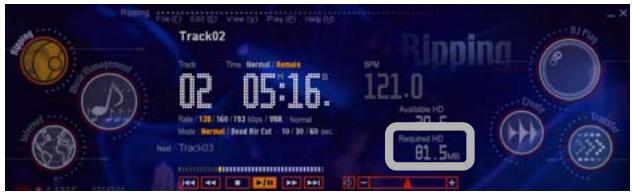
Selecting or Clearing All Songs
Select All Songs: Click [Select All].
Clear All Songs: Click [Clear All].
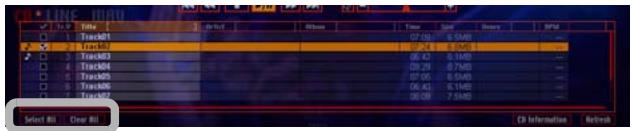

Changing the Bit Rate:
Click the bit rate to set it.
- [Rate] indicates the bit rates.
Cutting Dead Air:
After clicking [Dead Air Cut], click the desired time setting.
- Dead Air Cut is displayed in [Mode].
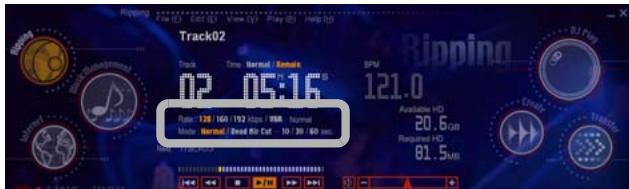
(Contd. on the next page)
Note
[Refresh] Button
Reads the CD and updates the list.
No
Note
Default Settings when Installed
The bit rate is set to [128 kbps].
The dead air cut is set to [Normal] (dead air is not cut).
Changing the bit rate settings that can be selected
'9-6-1 Setting the Bit Rate' P.105
Changing the dead air detection times that can be selected
'9-6-3 Dead Air Cut Settings' P.106
| Step | 1 | 2 | 3 | 4 | 5 | 6 | 7 |
5 Click the [Ripping Start] button.
- The [Copyright] screen opens.
![PIONEER DJS - Click the [Ripping Start] button. - 1](/content/2020/04/118751/images/8b69db7cfd08bca519bf1e1a54b5d8411e80bbb0d4a10a85ca3c83ff3b140d1e.jpg)
6 Click the check box and after reading "Copyrights," click the [Agree] button only if you agree.
![PIONEER DJS - Click the check box and after reading "Copyrights," click the [Agree] button only if you agree. - 1](/content/2020/04/118751/images/a94aaa5badc46429670e2298dd1ab28ac953fb96149c5f7427f60bf28511caf6.jpg)
![PIONEER DJS - Click the check box and after reading "Copyrights," click the [Agree] button only if you agree. - 2](/content/2020/04/118751/images/181fd70ea67ea12014058dd52d9122ca65be3619672c94c1ac223a2e5f08d01f.jpg)
- The [Ripping Start] button changes into a [Stop] button.
- Songs that are being imported are indicated as such in the track list on the lower right by orange.
When importing has finished, the recording symbol displayed between the CD list and the track list turns off.
- The [Stop] button changes into a [Ripping Start] button.
- Once a song has finished being imported, it is shown in pink.
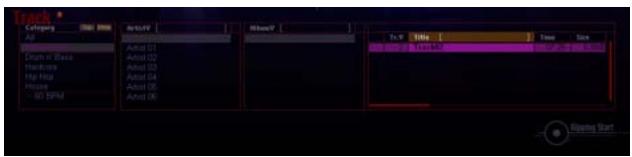
Note
If you do not agree
Click the [Disagree] button.
Please do not carry out ripping.
Note
Pausing Importing
Click the [Stop] button. (Returns and cues up at the start of the song.)
Restarting Importing while Paused
Click the [Ripping Start] button.
7-3 Importing WAV Files
Compresses WAV (.wav) files on your computer into MP3 files and imports them.
| Step | 1 | 2 | 3 | 4 | 5 | 6 | 7 |
1 Click [File] and then click [Ripping] - [Wave].
- The [Ripping] screen opens.
- In the upper list (WAV List), a list of folders is displayed on the left, while on the right the songs inside a folder are shown.
![PIONEER DJS - Click [File] and then click [Ripping] - [Wave]. - 1](/content/2020/04/118751/images/8ef322b22df949960a7b260eb21dbb92082e823d49daf953545e5e69f6dc6db8.jpg)
2 Click the [WAV] button and the songs to be imported are shown in the upper list.
- The folders are displayed on the left side of the list, while the songs inside the selected folder are displayed on the right.
![PIONEER DJS - Click the [WAV] button and the songs to be imported are shown in the upper list. - 1](/content/2020/04/118751/images/36448d17357edb1ede8ad7bf2fd8b9d3a11d1407fd7826ad2c8196f9cf3035ca.jpg)
(Contd. on the next page)
![PIONEER DJS - Click the [WAV] button and the songs to be imported are shown in the upper list. - 2](/content/2020/04/118751/images/49a5f5031fae5ecbfb93fb646364d31d779f89988416e24eafe67405374d0e4a.jpg)
Note
[Ripping] Icon
If you click the [Ripping] icon, which is displayed in each function, it shifts to the Ripping Function.
Input Media
The [CD], [LINE], and [WAV] buttons on the left edge of the list above indicate the media for importing. The button of the selected source will be lit red.

Note
Changing Folders
Click the folder you wish to display from the list shown on the left.
Changing the composition of the list
A [Spread List] button is located to the right of the [WAV] button.
| Step | 1 | 2 | 3 | 4 | 5 | 6 | 7 |
3 Click the check boxes of songs you wish to import.
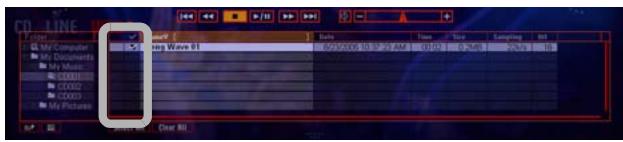
- Once you click a box, a check mark is displayed in it.
- Depending on the total number of songs selected, the hard disk space that is required is calculated and the [Required HD] is displayed.
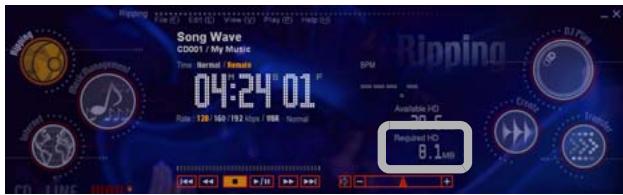
Selecting or Clearing All Songs
Select All Songs: Click [Select All].
Clear All Songs: Click [Clear All].
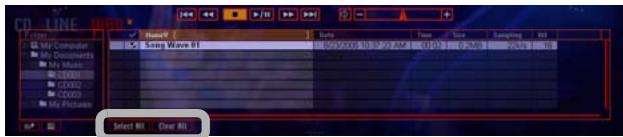

Click the bit rate to set it.
- [Rate] indicates the bit rates.
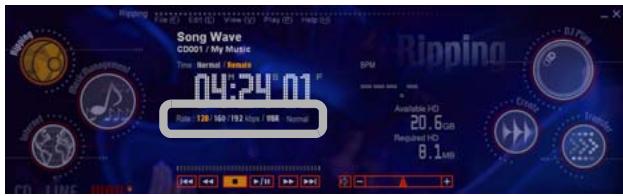
Warning!
If there is Insufficient Hard Disk Space
Songs cannot be imported. Cancel what you are doing and check how much hard disk space is needed in order to save.
(Contd. on the next page)
| Step | 1 | 2 | 3 | 4 | 5 | 6 | 7 |
5 Click the [Ripping Start] button.
- The [Copyright] screen opens.
![PIONEER DJS - Click the [Ripping Start] button. - 1](/content/2020/04/118751/images/4522ff3fe5459bb74327e793974d340ae54405936ad09603daea95e82be68abf.jpg)
Click the check box and after reading "Copyrights," click the [Agree] button only if you agree.
![PIONEER DJS - Click the check box and after reading "Copyrights," click the [Agree] button only if you agree. - 1](/content/2020/04/118751/images/d9c5b80f15b9936fe546350acf2dc6c586c6fe23cfe112b6164cc141f7a8c9e6.jpg)
![PIONEER DJS - Click the check box and after reading "Copyrights," click the [Agree] button only if you agree. - 2](/content/2020/04/118751/images/f5661872405284d45e2274cd12623cf57296c26b83e04af717be229cb796e979.jpg)
- The [Ripping Start] button changes into a [Stop] button.
- Songs that are being imported are indicated as such in the track list on the lower right by orange.
When importing has finished, the recording symbol displayed between the WAV list and the track list goes off.
- The [Stop] button changes into a [Ripping Start] button.
- Once a song has finished being imported, it is shown in pink.
Note
If you do not agree
Click the [Disagree] button.
Please do not carry out ripping.
Note
Pausing Importing
Click the [Stop] button.
Returns and cues up at the start of the song.
Restarting Importing while Paused
Click the [Ripping Start] button.
7-4 Recording Sound from Microphone or Line Input
Records audio from a microphone or external device (Line In) as an MP3 file.
1 Click [File] and then click [Ripping] - [Line In].
- The [Ripping] screen opens.
![PIONEER DJS - Click [File] and then click [Ripping] - [Line In]. - 1](/content/2020/04/118751/images/2094190df1a7d97d42a82bddbd6b0076f1fce18dfe40c0457ae26a3ecfebe937.jpg)
2 Click the [Time Set] button, adjust the minutes with [ ][ ] and then click the [Set] button.
- The Minutes display flashes.
Canceling the Recording Time Setting
Click [Cancel]. The recording time you set is returned to what it was before (before changes), so redo the settings from the beginning.
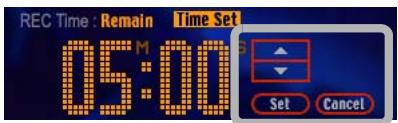
3 Adjust the seconds with [ ][ ] and then click [Set].
- The Seconds display flashes.
4 Click the input column of the line input list and enter the necessary information.
- Items to Enter:
[Title] [Album] [BPM] [Artist] [Genre]

(Contd. on the next page)

Note
[Ripping] Icon
If you click the [Ripping] icon, which is displayed in each function, it shifts to the Ripping Function.
Input Media
The [CD], [LINE], and [WAV] buttons on the left edge of the list above indicate the media for importing. The button of the selected source will be lit red.
MP3 Settings
The valid settings are lit. If you wish to change them, click the desired settings. Rate: Bit Rate.
REC Mode: Toggles between Stereo and Mono.
Sampling Rate: Sampling Frequency. Track Divide: When set to Multi, if three or more seconds elapse with no sound (dead air), the track is automatically split up and a MP3 audio file is created.

Note
Using the [List] Button
- Click the [List] button and display the genre table.
- Select a genre name and click the [OK] button.
5 Click the [Ripping Start] button.
![PIONEER DJS - Click the [Ripping Start] button. - 1](/content/2020/04/118751/images/5c633b71eeb665fb7fac651dec950210a8f380696139e13b793da0770603291b.jpg)
6 Click the check box and after reading "Copyrights," click the [Agree] button only if you agree.
![PIONEER DJS - Click the check box and after reading "Copyrights," click the [Agree] button only if you agree. - 1](/content/2020/04/118751/images/6ae840cdedd957ce86c9631cd51e7c3fe9b1984621eb45e29a0e63fc3f094682.jpg)
![PIONEER DJS - Click the check box and after reading "Copyrights," click the [Agree] button only if you agree. - 2](/content/2020/04/118751/images/5748fce3c881f325b352a0b7d3a14232df9a290b101d7b01183aee3d0a3af5ad.jpg)
- The [Ripping Start] button changes into a [Stop] button.
- Songs that are being imported are indicated as such in the track list on the lower right by orange.
The [Time Set] value counts down and when it reaches [0:00], recording finishes.
- The [Stop] button changes into a [Ripping Start] button.
- Once a song has finished being imported, it is shown in pink.
- The changed recording time returns to what it was before (before changes).
![PIONEER DJS - The [Time Set] value counts down and when it reaches [0:00], recording finishes. - 1](/content/2020/04/118751/images/a64d7e754000da284bf80da06b46202fe5349d4a91fade0bdcc51cbced861f2d.jpg)
Note
If you do not agree
Click the [Disagree] button.
Please do not carry out ripping.
Note
Stopping recording
Click the [Stop] button.
It saves the recording up to the point where you clicked the [Stop] button.
Chapter 8 Using SD Cards
You can use DJS to manage your songs—transferring them to an SD card loaded in a DMP-555 or an SD card reader/writer attached to your computer, as well as returning them from the SD card to DJS.
8-1 Transferring DJS Music to SD Cards
You can transfer music managed by DJS to an SD card loaded in your SD reader/writer. (Check Out)
1 Connect the card reader/writer to your computer and load an SD card (in the unlocked position).
2 Click [File] and then [Transfer].
- The [Transfer] screen opens.
- The songs in DJS (computer) are shown in the upper track list and the songs on the SD memory card are shown on the lower track list.

Warning!
SD Card Reader/Writer
Please use devices that are compatible with copyright protection functions. (Check the specs of your SD card reader/writer before connecting it.)
Administrator authority for the computer being used is required in order to use SD Memory Cards. So, log in as the user designated as the Computer Administrator before trying to use them.

SD Card Unlock Status
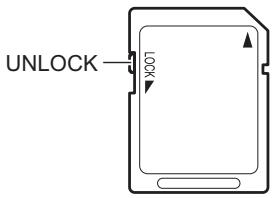

[Transfer] Icon
If you click the [Transfer] icon, which is displayed in each function, it shifts to the Transfer Function.
Adding a Play List
- Click [File] and then click [SD Memory Card] - [Make Playlist].
- Enter the name of the play list.
- Click the [OK] button.
- Drag & drop the songs inside the SD card to the card play list.
(Contd. on the next page)
3 Click the check boxes of songs you wish to transfer from the computer to the SD memory card.
- Once you click a box, a check mark is displayed in it.
- Selected songs are displayed in a light blue-green in the SD list.
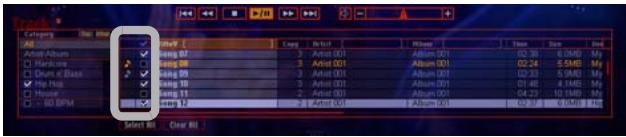
Selecting or Clearing All Songs
Select All Songs: Click [Select All].
Clear All Songs: Click [Clear All].
4 Click the [Transfer Start] button.
- As soon as the transfer begins, the [Transfer Start] button turns into the [Stop] button.
While a song is being transferred, it is shown in orange.
![PIONEER DJS - Click the [Transfer Start] button. - 1](/content/2020/04/118751/images/653d9a7ab46681c88e821a03e8b6074c184bf7c82cb46d51795c6ce80a0e2004.jpg)
5 Once transfer is completed, the number of remaining copies displayed in the song information decreases by 1.
- Songs that have been transferred are shown in a dark blue-green.

The status of each track in the SD list is indicated as follows.
10: Saving to the Original SD Card
11: Transfer Complete
12: Transfer Complete
13: Transferring
14:Awaiting Transfer (Not Complete)
15:Awaiting Transfer (Not Complete)
16:Awaiting Transfer (Not Complete)
Note
When transferring any category
Click on the check box of any category in the category list displayed on the left side.
Warning!
Amount of Transferable Song Data
Make sure that the [Required SD] is within the SD card's free space [Available SD].
Note
Stopping Transfer
The transfer is stopped if you click the [Stop] button.
Once a song has been transferred, its check mark disappears, while the check marks of songs being transferred or awaiting transfer remain intact.
Restarting Transfer while Paused
Click the [Transfer Start] button.
Formatting SD Cards
- Click [File] and then click [SD Memory Card] - [Format].
- After you confirm the information about the SD Memory Card and what kind of formatting to do, click the [Format] button.
- After reading the warning message, click the [OK] button. The [FORMAT] screen is displayed.
- To cancel during formatting, click the [Cancel] button.
- After formatting finishes, click the [Close] button.
8-2 Returning Music from an SD Card to DJS
Returns the song copied to the SD card to the computer from which it was copied.
You can restore the number of remaining copies, which decreased during copying, by conducting the following process. (Check In)
1 Connect the card reader to your computer and load an SD card (in the UNLOCK position).
2 Click [File] and then [Transfer].
- The songs in DJS (computer) are shown in the upper track list and the songs on the SD memory card are shown on the lower SD list.
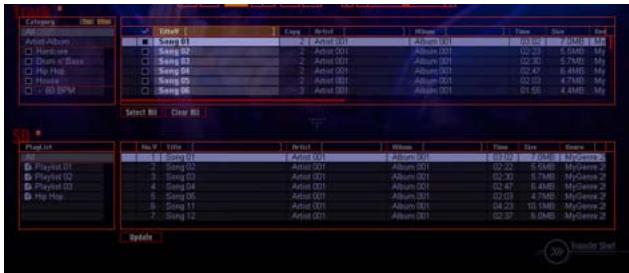
3 Click [All] in the lower SD list.
- After switching the SD list to so that All is displayed, carry out Check In.
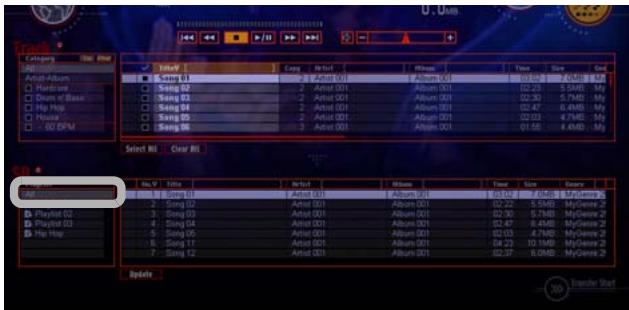
(Contd. on the next page)

Note
[Transfer] Icon
If you click the [Transfer] icon, which is displayed in each function, it shifts to the Transfer Function.
![PIONEER DJS - [Transfer] Icon - 1](/content/2020/04/118751/images/163a55e26998e4e41dc69f39db158ed62d956153ecb6dc8d0f6b9377b0e5d55e.jpg)
Drag the songs to be checked into the computer from the lower SD list and drop them into the upper track list.
- The [Confirm Check In] screen displays.
![PIONEER DJS - [Transfer] Icon - 2](/content/2020/04/118751/images/8feca48f7dafe456ab3f66b831294ae89fa3eddfb0a7799e34aa1dc5eb4085d3.jpg)
Click the [OK] button in the [Confirm Check In] screen.
![PIONEER DJS - [Transfer] Icon - 3](/content/2020/04/118751/images/a5b2f884e9b4b7dc5f5b40eeb3abf467d22d2544ff722e58f2593b728ed3354e.jpg)
- The songs are removed from the lower SD list and the remaining copies in the upper track list increase by 1.
-If a Copied File is Missing
If the original of a copied song is deleted from your computer, it will become impossible to return the song to your computer. If you try to check a song in, it will simply be deleted from the SD memory card as well.
Similarly, it is not possible to check in a song from an SD memory card onto a computer other than the one from which it was checked out. If you try to check a song in to a computer other than where it was checked out, it will simply delete the song from your SD memory card.
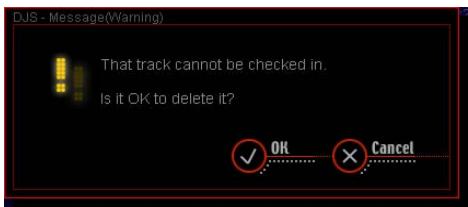
Chapter 9 Changing the Settings to Make DJS More Convenient
You can make various settings in Preferences to customize the various functions so they are easier for you to use.
9-1 Opening and Closing Preferences
9-1-1 Opening Preferences
Opens the [Preference] screen so you can change your settings.
1 Click [File] and then [Preference].
- The [Preference] screen opens.
2 Click the menu to use from among the items on the left.
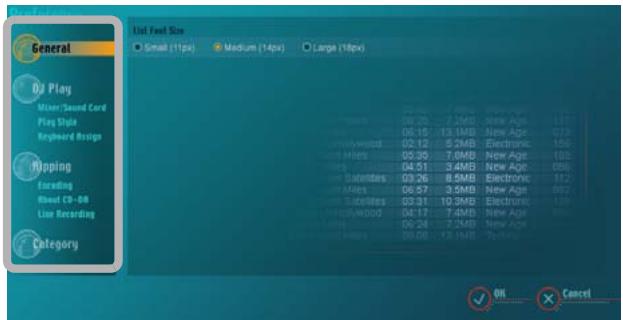
3 Operating the buttons below executes the changes to settings.
Sample Screen
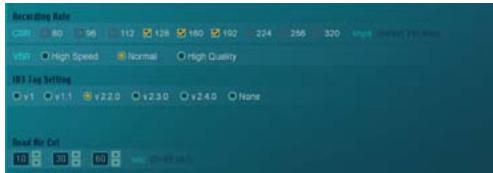
(Contd. on the next page)

Note
Preferences
Can be opened from any of the functions except Internet.
Check Box
Select (checks the box):
Click.
Deselect (remove check mark):
Click a check mark.
- You can check more than one check box.
Radio Button
Select (lights up):
Click.
Deselect (goes off):
Click a different radio button.
- One of the options is always selected.
- If you click on a lighted radio button, it does not change the setting.
[▲] Button/[▼] Button
Changing the Number:
Enter a number directly. Click the [▲] button or the [▼] button.
9-1-2 Closing Preferences
After saving the settings, closes the [Preference] screen.

Make the different kinds of settings to the
Preferences (For information on how to make settings, refer to P.97-110.)

Saving the changes:
Click the [OK] button.
To not save the changes:
Click the [Cancel] button.
- The [Preference] screen closes.
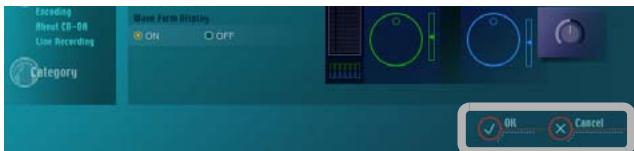
9-2 Setting the Size of Text Displayed in Lists
This changes the size of text displayed in track lists & play lists.
1 Click [General].
![PIONEER DJS - Click [General]. - 1](/content/2020/04/118751/images/8ab567da04bc800de3a0f16d2d1921d152a43530aeb5927f3508f35e2aefe5b4.jpg)
2 Click the radio button of the font size you wish to use.
- You can choose from among the 3 font sizes (Units: Pixel) below.
[Small (11 px)], [Medium (14 px)] and [Large (18 px)]
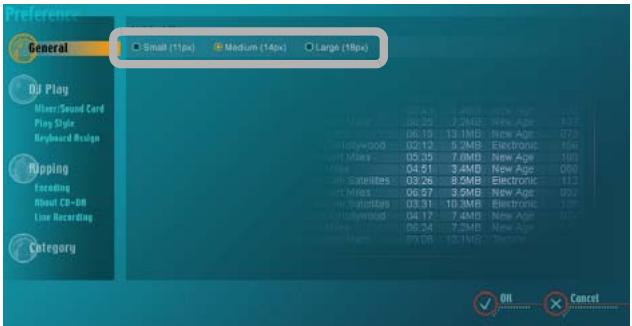
- When you pass the mouse cursor over the options, examples appear on the right-hand side.
Note Default Settings when Installed
Set to [Medium (14 px)].
9-3 Setting the Layout of DJ Play Functions
Changes the display and/or layout settings of the DJ Play Functions.
1 Click [Play Style].
![PIONEER DJS - Click [Play Style]. - 1](/content/2020/04/118751/images/b7cc2e0aabf9577fe3a1ebff0cda3b21236fbce354ab1441366b9b6998aeb710.jpg)
2 Select the changes to settings from the change items (play list format, play list position, player positioning, type of volume controls, waveform display) by clicking its radio button.
- Settings displayed in orange are the default settings at installation.
Music List Style
Playlist
Music List Layout
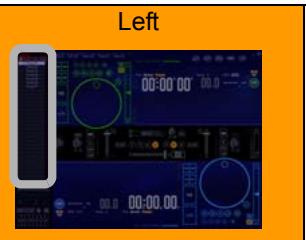
Right
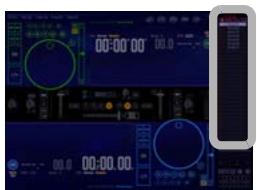
(Contd. on the next page)

Note
Default Settings when Installed
At installation the following settings are made.
Music List Style: Track List
Music List Layout: Left
Player Layout: Horizontal
Volume Type: Rotary
Waveform Display: Display
Player Layout
Diagonal
Horizontal
Volume Type
Rotary
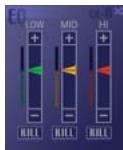
Slide
Waveform Display
ON
OFF
9-4 Mixer and Sound Card Settings
For switching the mixer, selecting the sound card, adjusting the delay time and adjusting the size of buffers.
Here you will display the [Mixer/Sound Card] settings screen.
1 Click [Mixer/Sound Card].
- The [Mixer/Sound Card] settings screen opens.
![PIONEER DJS - Click [Mixer/Sound Card]. - 1](/content/2020/04/118751/images/f4f4a224f6d1a725395f83aea4e254c5afaa5536dcdcce053bb089d7d5de2251.jpg)
9-4-1 Switching between Internal & External Mixers
Switch between the [Internal Mixer] and the [External Mixer].
[Internal Mixer]:
When you want to use the DJS mixer functions.
[External Mixer]:
When you want to connect to the mixer with sound output from the sound card.
1 Click either [Internal Mixer] or [External Mixer].
- The right portion of the screen shot shows the connection diagram after changes.
![PIONEER DJS - Click either [Internal Mixer] or [External Mixer]. - 1](/content/2020/04/118751/images/7b3ea2815c98ef9367baab0c196459c73aa49d266818c49477fd94d1a372ee8a.jpg)
Note
Delay Time
'9-4-3 Adjusting Delay Time' P.102
Buffer Size
'9-4-4 Adjusting the Size of Buffers' P.103
Note
Default Settings when Installed
At installation it is set to [Internal Mixer].
9-4-2 Selecting a Sound Card
Select a sound card to output sound for each—master, headphones, and players.
[DirectX / MCI]:
When outputting to a DirectX or MCI compatible sound card [ASIO]:
When outputting to an ASIO compatible sound card
1 Click either [DirectX / MCI] or [ASIO].
- The sound cards connected to your computer are displayed.
2 Click the Sound Card you wish to select.
- The number of sound cards required differs according to the mixer settings.
- Example of a screen shot when set to internal mixer and using 2 sound cards.
(for master output/headphone output)
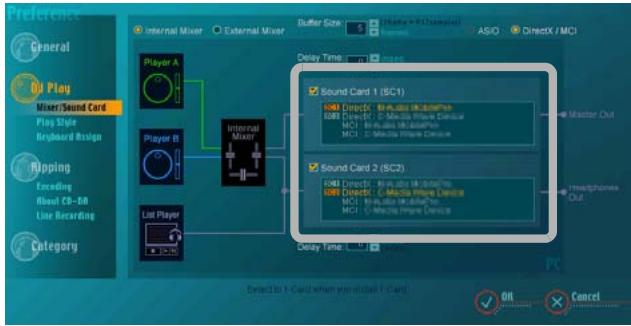
- Example of a screen shot when set to external mixer and using 3 sound cards.
(for Player A output, Player B output and List Player output)
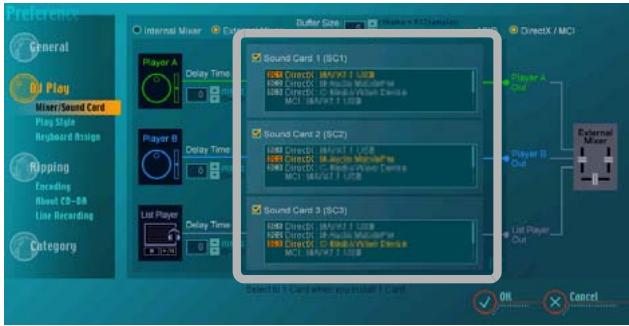

Note
Default Settings when Installed
At installation it is set to [ DirectX / MCI].
With ASIO Selected
After selecting the sound card, if you close the Preferences, DJS will close automatically. In order to get the most out of ASIO, use the driver setting functions that came with the sound card and make appropriate adjustments, such as for latency, buffer size, etc., and then launch DJS. For further details, refer to the user's manual for the sound card(s) you are using.
Adding an ASIO-Compatible Sound Card
If ASIO-compatible sound cards are not in conformance with a cascaded connection, multiple cards from the same manufacturer may appear as one sound card. For further information, refer to the user's manual(s) of your sound card(s).
9-4-3 Adjusting Delay Time
If you are using DJS with a variety of different sound cards, it is necessary to adjust their delay time to align the timing of their audio output with each other.
Delay Time (Latency)
The length of time it takes for processing, from the time audio data is transferred to when the audio is actually output differs, depending on the sound card.
When using various sound cards with DJS , the timing of the sound cards can be aligned to the audio output of the sound card with the slowest processing time by slowing the audio output of the faster sound card(s).
1 Click either [] or [] for the [Delay Time] of each sound card.
![PIONEER DJS - Click either [] or [] for the [Delay Time] of each sound card. - 1](/content/2020/04/118751/images/3e1f64170dc416fe2808d8b522e41a7f0de2dc87a06d7f29e7fd22e03613f2ac.jpg)
- Changing the settings of the sound card(s) themselves
Depending on the kind of sound card(s) you are using, there may be an adjustment function for the delay time (latency/buffer size). You will get better performance if you make adjustments to the delay time (latency/buffer size) via the setting functions of the driver that came with your sound card than by using this software.
For further information, refer to the user's manual for your sound card(s).
Note Default Settings when Installed
Delay time is set to 0 msec.
9-4-4 Adjusting the Size of Buffers
Buffer size is a setting that is made to prevent any interruption to the audio stream.
If you experience an interruption to the audio, follow the steps below to increase the size of the buffer.
Buffer Size
In the interest of preventing the audio from being interrupted, especially when your computer is doing a lot of processing, DJS gathers together the audio data and sends it to a place called a buffer, where it is saved. While this audio data is being saved to the buffer, there will be a lag in the audio.
If you are not experiencing any interruptions to the audio stream, can you can reduce the size of the buffer, which will reduce the lag in the audio.
1 Click either [▲] or [▼] for the [Buffer Size].
![PIONEER DJS - Click either [▲] or [▼] for the [Buffer Size]. - 1](/content/2020/04/118751/images/59085504113a05a1b96c7af5caac04e5f0c18b70bc49d3cad7d935da88f3cc24.jpg)
![PIONEER DJS - Click either [▲] or [▼] for the [Buffer Size]. - 2](/content/2020/04/118751/images/535d3715d74369e0a49f573c6e492b11cd5c809069f2362abf09efc4b0da3896.jpg)
Note
If the audio is interrupted
You can eliminate interruptions to the audio by reducing the load on your computer. You can reduce the load on your computer in the following ways.
(a) Turn OFF the waveform display, '9-3 Setting the Layout of DJ Play Functions' P.98
(b) Bypass the equalizer & effector. 3-1-1 Making Changes' P.35
3-2-2 Adding Effects' P.41

Note
Adjustable Range
Can be adjusted from between 2 to 20 frames. (1 frame = 512 samples)

Note
Default Settings when Installed
It is set to 4 frames.
9-5 Key Assignment Settings
Customizes the assignment of key for operation the DJ Play functions from your computer's keyboard.
1 Click [Keyboard Assign].
![PIONEER DJS - Click [Keyboard Assign]. - 1](/content/2020/04/118751/images/8eec5f49c5e3bbe13b6200b8ffeb75325be2f03bf3173282a9937970a16b6450.jpg)
- The [Keyboard Assign] settings screen opens.
2 Click the name of the area(s) that has the function you wish to assign.
- The areas (5) are shown as the following. [Player A] [Player B] [Mixer] [Effector] [Headphones Out]
- The name of the area you click lights up and its function layout is shown.
3 Click a function assigned to the keyboard.
- The function you clicked lights up on the function chart.
4 Click the key on the keyboard layout that is assigned the function.
- The key you clicked will show the same symbol as the selected function.
Note
Functions for which key assignments can be made
Only for DJ Play functions.
Note
One Touch Key Assignment
Drag a button from the functions chart and drop it on a key in the keyboard layout.
Alternatively, you can also drag from the keyboard layout and drop on the functions chart.
Returning to the Installation Default Key Assignments
Click the [Reset Default] button.
Clearing the Key Assignment of Selected Button(s)
Click the [Clear] button.
The selected key(s) will lose all of its assigned functions.
Clear All Key Assignments
Click the [Clear All] button.
All the key(s) will lose their assigned functions.
9-6 Ripping Settings
Changes the settings for importing music to DJS .
1 Click [Encoding].
- The screen for setting the [Recording Rate], [ID3 Tag Setting], and [Dead Air Cut] opens.
![PIONEER DJS - Click [Encoding]. - 1](/content/2020/04/118751/images/d330fbd64f1155676f3e3992a21b406728dea0f345661fd39f109a9a5021e964.jpg)
9-6-1 Setting the Bit Rate
Select the bit rate to be shown in the Ripping function.
1 Select from between [CBR] and [VBR] for the [Recording Rate] and click it.
CBR: Select 3 form the range of 80-320 kbps (9 steps).
VBR: Select one of the three types.
9-6-2 ID3 Tag Settings
Selects the type of ID3 tag (song information) to be recorded in the MP3 file.
1 Select a setting from the [ID3 Tag Setting] and click it.
Note
The Ripping Function
The settings changed here are displayed.

Explanations
CBR (Constant Bit Rate)
An abbreviation for Constant Bit Rate. An allocation format in which the amount of bit traffic is always constant.
VBR (Variable Bit Rate)
An abbreviation for Variable Bit Rate. An allocation format in which most bit traffic is in bursts of packetized sound.

Note
[CBR] Values
The larger the value, the better the quality, but the volume of data is also greater.
Default Settings when Installed
At installation the following settings are made.
CBR (Units of kbps):
$$ [ 1 2 8 ] [ 1 6 0 ] [ 1 9 2 ] $$
VBR: Normal

Note
Default Settings when Installed
v2.2.0
Versions that may be Selected
v1, v1.1, v2.2.0, v2.3.0, v2.4.0, None
9-6-3 Dead Air Cut Settings
Select the settings (3) shown in the Ripping function.

Set the number of seconds for the [Dead Air Cut] by clicking [] or [] .
- Set how far (1-99 seconds) before the point detected as dead air at the end of a song to start.
9-6-4 Settings for Selecting the DVD/CD Drive & Acquiring Song Information
This changes the CD drive to be used when importing songs from a music CD. In addition, this changes the settings for importing song information via the Internet (Auto Access ON/OFF, Site(s) to Access, Proxy Servers).
1 Click [About CD-DA].
- The [DVD/CD Drive] and [CD Information] setting screens open.
![PIONEER DJS - Click [About CD-DA]. - 1](/content/2020/04/118751/images/0a3082d56abc8e50004ce960e2dbbc45efd3050186b09d60c50dabe1a0809f15.jpg)
![PIONEER DJS - Click [About CD-DA]. - 2](/content/2020/04/118751/images/ead1af3ae999f9020cfe9d890e7ea41a76c52e18688ecc533eb89a8a58c5e2a4.jpg)
Click the DVD/ or CD drive you wish to use.
- The [DVD/CD Drives] that can be used are displayed in a list.
- The currently selected DVD/CD drive is displayed in orange.
(Contd. on the next page)
Note
Default Settings when Installed
At installation the following settings are made.
(Units: Sec.) [10] [30] [60]
3 To acquire song information automatically:
- Enter the [URL of The Server].
- Click [Get it automatically].
To acquire song information manually:
- Enter the [URL of The Server].
- Click [Don't get it automatically].

Do not use a proxy server:
Click [Don't use Proxy Server].
To use a proxy server:
Click [Use Proxy Server] and then set the [IP
Address] and the [Port].
9-6-5 Line In Settings
Changes the settings for recording music from Line In.

Click [Line Recording].
- Connected devices are shown in a list.
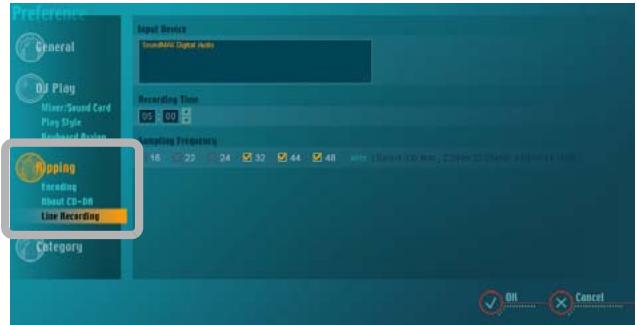

Select the device from which external sound will be imported (the sound device) from [Input Device].
- The currently selected device is displayed in orange.
- Settings that are changed here are used on the [Ripping] screen, [Line In].
(Contd. on the next page)

Note
Default Settings when Installed
At installation it is set to [Don't get it automatically].

Note
Proxy Server Settings
You can get CD information without using a proxy server.
[IP Address] and [Port]
Settings
Any information previously created in OS (Windows) will be automatically displayed.

Note
Default Settings when Installed
According to the Windows recording settings.
3 Click a column for entering the [Recording Time] (minutes and/or seconds) and enter a time.
- You can set it from [00:01] to [99:59].
- Settings that are changed here are displayed every time the [Ripping] screen, [Line In] is launched.
4 Select the frequency you wish to set from the [Sampling Frequency] and click it.
- Make sure it matches the device being used.
- Select 3 from the 6 following rates. (Unit/kHz) 16 [24] [32] 44 [48]
- The sampling frequencies are displayed as choices on the [Ripping] screen, [Line In].
9-7 Category Settings
Sets the categories that are displayed in [Top] or [Other] in the list of categories in track lists. In addition, it adds Genres and Play Lists to categories.
1 Click on [Category].
- The [Category] settings screen opens.
![PIONEER DJS - Click on [Category]. - 1](/content/2020/04/118751/images/4fbf547e503245845ac5bb0879cde80ef5dd1e1e6664310e19e83a9f1e38764b.jpg)
Explanations
Sampling Frequency
When analog data from music is digitized, the standard frequency at which it is done is called the sampling rate. The higher the sampling rate, the more faithfully the original music can be reproduced, but it also increases the volume of data. Digital audio devices generally have their own, fixed sampling frequency. (For CDs, MDs, etc., 44.1kHz)
Note
Default Settings when Installed
At instillation it is set to [05:00].
Note
Default Settings when Installed
At installation it is set to [32], 44 and [48] kHz.
9-7-1 Selecting Categories for Top & Other
Selects the categories for display in [Top] & [Other].
1 In the [Category] settings screen, click on categories for [Top] or for [Other].
2 To put in [Top]: Click on [] on the right side of the [Top] list.
To put in [Other]: Click on [ ] on the right side of the [Other] list.
- A [T] is displayed to the left of category names that are in [Top].
- An [O] is displayed to the left of category names that are in [Other].
To select items for display in [Genre] - [Default]...
Do the following:
- Click [List] and display the Genre list.
- Click the Genre check boxes, either checking them (show) or unchecking them (don't show).
- Click [OK].
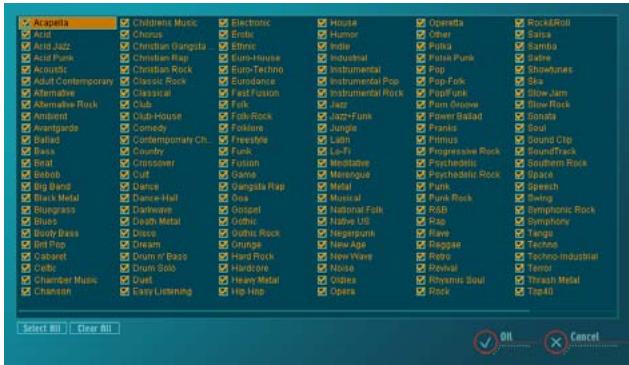
Note
[Top]
Immediately after installation the following categories are selected.
[Drum n'Bass][Hardcore]
[Hip Hop][House]
[R&B][Reggae][Techno][Trans]
[Other]
Immediately after installation the following categories are selected.
[Club] [Dance] [Disco] [Electronic]
[Jazz] [Jungle] [Latin] [Metal]
[NewAge] [Oldies] [Samba] [Vocal]
Switching between [Top] & [Other]
Do the following:
- Click the category you wish to move.
- Click on [↑] or [↓] between [Top] and [Other].
9-7-2 Creating Categories & Play Lists, Changing their Names and Deleting them
This creates new categories and/or play lists.
Here you can also change the names of and/or delete categories and play lists.
1 Click the item ([Genre] or [ Playlist]) you wish to add or change.
2 To add: Click [Add]. To change a name: Click [Edit]. To delete: Click [Delete]
- Displayed at the bottom when a name can be entered.

3 You can use letters and numbers to enter category names.
- Only single byte letters/numbers can be entered.
'Characters that Cannot be Entered (Symbols)' P.79
- Changing the [BPM] Category
To prevent an omission of BPM values, you do not enter the value that is displayed, but the values that comprise the limits of each category. (The Min [40] and Max [400] cannot be altered.)
- Immediately after installation there are 12 categories. This number cannot be increased or decreased.
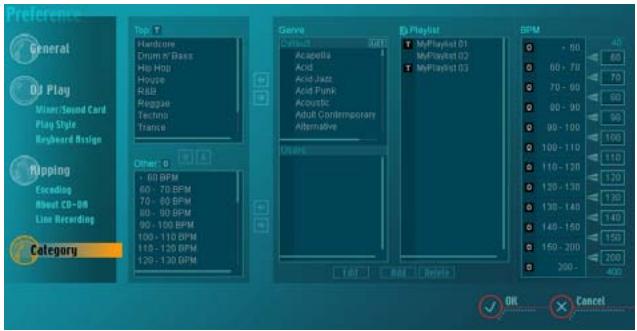
Warning!
You cannot add, change the name of, or delete [BPM].
You cannot change the name of or delete the [Genre] - [Default] category.
Chapter 10 Other Functions
This section provides a list of the functions you can use in DJS as well as an explanation of each pull-down menu.
10-1 Connecting to the Internet
You can receive user support via the Internet.
1 Click the [Internet] icon and connect to the Internet.
- Your web browser will launch and open the DJS [Download] page.
- You can access the DJS website only via the [Internet] icon.
![PIONEER DJS - Click the [Internet] icon and connect to the Internet. - 1](/content/2020/04/118751/images/f22d2def6526d37a3f0a2e3fc9eb8ae83e537a972bfa6e169d3e02a9adfe6d5a.jpg)
2 Click [Support Top].
![PIONEER DJS - Click [Support Top]. - 1](/content/2020/04/118751/images/d16cd70bcf86256259cea609fe3685395ad197beadb589e63caaf2bf9d578c01.jpg)
![PIONEER DJS - Click [Support Top]. - 2](/content/2020/04/118751/images/87cd9f87ebbabb85d992e97b84aa395914beb99a325352c0a53f3941a885e53f.jpg)
Note
[Download] Page
Links to sites where you can download MP3 files.
Web Browser to be Used
Launches the browser set as the designated browser.
Changing Web Browser to be Used
Launch the browser you wish to use and change the setting to designated browser.
Warning!
When Downloading Songs
Follow the instructions provided on each site.
If you have not Registered as a User
The user registration dialog
([Welcome] Screen) will open.
Chapter 11 User Registration P.131
If you enter the URL of the support site into your browser
You will not be able to connect to the support site. It only works by click the DJS [Internet] icon.
10-2 Table of Functions
-Names of Each Function & What it Does
| Minimize Button | Minimizes the DJS window. |
| Close Button | Closes DJS. |
Function
| Music Management Icon | Switches to the [Music Management] screen. |
| Internet Icon | Starts up your Internet browser and connects to the site. |
| Ripping Icon | Switches to the [Ripping] screen. Opens last screen that was displayed (CD-DA, WAV, Line In) |
| Create Icon | Switches to the [Create] screen. |
| Transfer Icon | Switches to the [Transfer] screen. |
DJ Play Functions
Player
| Track Search Button (▲/▲) | ▲: For each click, it skips that number of songs. ▲: Skips as many songs as consecutive clicks minus 1. |
| Search Buttons (▲/▲) | Operates as follows during play, pause and when cued up. Rewinds or fast forwards as long as you click or operate the key. Once you release the click or the key, it returns to what it had been doing (play, pause or cued up.) It works as follows during loop out adjustments. As long as you are clicking or operating a key, it moves the loop out position backward/forwards. Once you release the click or the key, it stops moving the position. If you just do a short click or press the key, it moves the loop out position 1 frame backwards/forwards. |
| CUE Button | Operates as follows during play, pause and when cued up. During playback after the set cue point: Cues up at the cue point. While Paused: Sets the cue point. While Cued Up: Samples the sound from the cue point. (Cue Point Sampler) |
| Play/Pause Button (▲/II) | Standby/Paused/Cued Up: Starts Playing. While Playing: Pauses. |
| Loop In Button | While Playing, Paused, Cued Up: Sets the loop in point. |
| Loop Out/Out Adjust Button | After setting the loop in, while playing/paused after the loop in: After setting the loop out point, starts playing the loop. While Playing the Loop: Starts the out adjust. Playing during the Out Adjust: After setting the loop out point, starts playing the loop. |
| One Track Loop Button | Sets the beginning of the track as the loop in point and the end of the track as the loop out point, and then starts playing the loop. |
(Contd. on the next page)
| Exit/Reloop Button | After exiting a loop that is not being played: Resets the loop settings from memory. While Playing a Loop: Returns to playing normally. |
| AUTO CUE Button | Toggles the Auto Cue function ON or OFF. |
| Track Hot CUE Memory Button | Toggles the Track Hot Cue Recording Mode ON or OFF. |
| Track Hot CUE Button | During playback Mode (while the track hot cue memory button is not lit): 1. With track hot cue settings made and player paused silently Calls out the registered track hot cue and pauses. 2. With the track hot cue settings made and the player playing Calls out the registered track hot cue and starts playing. During Recording Mode (while the track hot cue memory button is lit): 1. While a Loop is Playing Records the loop that is playing. 2. Other than while a Loop is Playing Saves that position as a cue point. |
| Tempo Control Range Button | Switches the maximum controllable tempo (BPM). (10→16→6) |
| Master Tempo Button | Toggles the Master Tempo function ON or OFF. |
| Tempo Adjustment Slider | Adjusts the tempo (BPM) of each player. |
| Scratch Button | Toggles the Scratch Mode ON or OFF. |
| Jog Dial | While Playing: Makes fine adjustments to the tempo. While Paused: Makes fine adjustments to the pause position. Scratch Mode: Plays backwards & forwards while outputting the sound. While Adjusting the Out Adjust: Makes fine adjustments to the loop out point. |
| Loop/Reloop/AUTO CUE/ Master Tempo Display | Lights up while playing a loop, when a reloop is possible, when setting an auto cue, while setting the master tempo. |
| Time Normal Button | Switches to elapsed time in the time display. (Lights up orange during settings.) |
| Time Remain Button | Switches to time remaining in the time display. (Lights up orange during settings.) |
| Time Display | Displays the time of the song on the player. |
| Tempo Display | Displays the value set by the tempo adjustment slider. |
| BPM Display | Displays either the BPM value detected automatically from the song on the player or the BPM value detected based on the interval tapped in with the [TAP] button. |
| BPM SYNC Button | Toggles the BPM Synchro ON or OFF when in the slave mode. Cannot be used when in the master mode. |
| TAP Button | The interval resulting from pressing the [TAP] button is reflected in measurement of the BPM. |
| Waveform Display | During Play: Moves the playback point to the selected point. During Standby: Starts playing from the selected point. While Paused: Moves the paused point to the selected point. While Cued Up: Moves to the selected point and pauses. |
| Track Hot CUE Tag | Normally: Displays the registered cues, loop in and loop out points. |
| Zoom In/Out Button | Expands or shrinks the waveform display by one increment. |
| ZOOM Button | [ZOOM]: Displays Part of the Waveform / [FULL]: Displays the Entire Waveform |
(Contd. on the next page)
Mixer, Effector, Equalizer (Shared by Players A & B)
| Headphone Button | Turns the monitor of the selected source ON/OFF (Mutes) via the headphone cue. If you right click, it displays the [HEADPHONES] screen. In addition, if you click it while monitoring the list player with your headphones, you can switch to monitoring the selected source with headphone cues. |
| Headphone Volume Fader | Adjusts the volume for the headphones. |
| Headphone Volume +/- Buttons | Increases & decreases headphone volume. |
| AUTO Button* | Toggles the Auto Trim function ON or OFF. (Automatically adjusts the Trim to the average level of the opposite channel.) |
| Trim Fader* | Adjusts the volume input from the player to the master. |
| Trim +/- Buttons* | Increases & decreases the volume input from the player to the master. |
| Equalizer Button* | Toggles the equalizer function ON or OFF. If you right click, it displays the [EQ (Equalizer)] screen. |
| Headphone Cue Button Player A Player B Master Effector | Select the source to monitor on your headphones. |
| Auto Fader Button* | Starts the Auto Fader (moves the channel fader up/down.) Clicking it while the Auto Fader is operating stops the Auto Fader. If you right click, the menu screen for specifying the beat opens. |
| Channel fader* | Adjusts the volume of the player (A/B). |
| Volume +/- Button* | Increases & decreases player (A/B) volume. |
| Fader Start Button* | Switches the Fader Start settings. (FS-OFF→FS-CH→FS-CR→FS-OFF) |
| Mix Mode Button | Switches the Mix Mode. (4 Curves)If you right click, the menu screen for specifying the beat opens. |
| Fader Curve Button | Switches the Fader Curve. (3 Curves) |
| Beat Indicator* | Displays the automatically detected beat through four round blinking indicators. The indicator on the furthest left-hand side lights up with the starting beat. Green is Player A and blue is Player B. |
| Beat Adjust Button | The beat indicator on the furthest left-hand side functions as a [Beat Adjust] button. The timing with which you click it is re-displayed in the [Beat Indicator] as the starting beat. |
| Effect Button | Displays the menu for switching effects. If you right click, it displays the [EFFECT] screen. |
| Effect Level / Depth Fader | Adjusts the volume of effects. |
| Effects ON/OFF Button | Toggles the Effects function ON or OFF. |
| Master Volume Fader | Adjusts the volume of the master. |
(Contd. on the next page)
| Master Volume +/- Buttons | Increases & decreases the volume of the master. |
| AUTO MIX / MIX Button | Starts Auto Mixing. Clicking it while the Auto Mix is operating stops Auto Mixing. If you right click, the menu screen for changing [AUTO MIX]/[MIX] opens. |
| Cross Fader | Adjusts the mixing balance (Left/Right Volume). |
| Cross Fader Adjust </> Buttons | Adjust the mixing balance (L/R). |
*The same function exists for each player (A/B).
Track List
| All | Displays the entire track list. |
| Artist-Album | Displays the track list by Artist-Album. |
| Top Button | Toggles between Display & Do Not Display the Top category. |
| Other Button | Toggles between Display & Do Not Display the Other category. |
| Title Display *1 | If you enter text inside the brackets of the Title column, it restricts display to those titles with that text.*3 |
| Artist Display *1 | If you enter text inside the brackets of the Artist column, it restricts display to those artists with that text.*3 |
| Album Display *1 | If you enter text inside the brackets of the Album column, it restricts display to those albums with that text.*3 |
| Time Display *1 | Displays the length of the song (time). |
| Size Display *1 | Displays the size of the MP3 file. |
| Genre Display *1 | Displays the Genre. |
| BPM Display *1 | Displays the BPM. |
| Track Hot CUE Display *1 | Displays whether there are any track hot cues or not.*2 |
| List Hot CUE Display *1 | Displays whether there are any list hot cues or not.*2 |
| Mix In Start Display *1 | Displays the time that mixing will start.*2 |
| Mix Out Start Display *1 | Displays the time that mixing will end.*2 |
| Mix Out Mode Display *1 | Displays the selected mix mode.*2 |
| Mix Out Beats Display *1 | Displays the selected mix beat.*2 |
| Mix Out Fader Display *1 | Displays the selected fader curve.*2 |
| Status Display *1 | Displays the status of a song. |
1 The play list has the same functions.
2 If you right click, it shows the menu.
*3 If you click the results displayed, it returns to the display before it was restricted.
- The track list has Music Management, Ripping, and Transfer functions.
(Contd. on the next page)
Play List
| Track List Pop-up Button | Toggles between Display & Do Not Display the track list. |
| Switch Play List Display</> Buttons | Enlarges or shrinks the width of the play list display. |
| Clear All Button | Cleared all the songs recorded in the play list. |
| Display Play List Numbers | Displays numbers for the order of songs in the play list. |
- The display of song information is the same as the track list.
List Player
| Sample Playing Address | During Sample Playing: Moves the playback point to the selected point. While Sample Song is Paused: Moves the paused point to the selected point. |
| Sample Song Play/Pause Button (▶/■) | With Sample Stopped/Paused: Starts playing. While Playing Sample: Pauses |
| Sample Song StopButton (■) | With Sample Song Playing/Paused: Ends sampling and removes song from player. |
| Sample Song SearchButton (←/→) | Rewinds or fast forwards as long as you click or operate the key. Once you release the click or the key, it returns to what it had been doing (play, paused). |
| Sample SongHeadphone Cue Button | Toggles the list player's headphone volume ON or OFF. |
| Sample Song MonitorOutput Level Fader | Adjust the monitor output level to the position it is dragged to. |
| Sample Song MonitorOutput Level +/- Button | Increases & decreases the monitor output level. |
Information Display of Players in the List
| Display Loop | Lights up the loop being played. |
| Display Reloop | This indicator flashes during loop playback and when in re-loop standby mode. |
| Time Normal Button | Switches to elapsed time in the time display. (Lights up orange during settings) |
| Time Remain Button | Switches to time remaining in the time display. (Lights up orange during settings) |
| Time Display | Displays the time of the song registered on the player. |
| Master Tempo Display | Displays the status of the Master Tempo function. |
List Hot Cue
| Display Hot Cue List Button | Displays the hot cue list. |
| Hot Cue Button (A-H) | The upper half operates player A while the lower half operates player B. It works as follows during the play mode. DuringPlayback Mode (while the list hot cue memory button is not lit): 1. With list hot cue settings made and player paused silently Calls out the registered list hot cue and pauses. 2. With the list hot cue settings made and the player playing Calls out the registered list hot cue and starts playing. During Recording Mode (while the list hot cue memory button is lit): 1. While a Loop is Playing Records the loop that is playing. 2. Other than while a Loop is Playing Saves that position as a cue point. |
| Record Button | Toggles the List Hot Cue Recording Mode ON or OFF. |
HEADPHONES Screen
| STEREO Button | Toggles the stereo mode. |
| MONO SPLIT Button | Toggles the mono split mode. |
| Mixing Adjustments | Adjusts mixing (Master & non-master) of the master volume. |
| MASTER Level Button | Increases the volume of the Master monitor. |
| CUE Level Button | Increases the volume of monitor other than master. |
EQ (Equalizer) Screen
| HI Fader | Adjusts the output level in the high range. |
| MID Fader | Adjusts the output level in the mid range. |
| LOW Fader | Adjusts the output level in the low range. |
| Fader +/- Buttons* | Increases & decreases the output level of the selected range. |
| KILL Button* | Cuts output of the selected range. |
- The same button is for each range (HI, MID, LOW).
EFFECT Screen
| CHANNEL-A Button | Applies the results of an effect to Channel A. |
| CHANNEL-B Button | Applies the results of an effect to Channel B. |
| MASTER Button | Applies the results of an effect to the master. |
| BPM Display | Displays the BPM. |
| The Effects TAP Button | Measures the BPM when applying an effect. |
| Display Effect Timer | Displays the time of set up effects. |
| Effect Time Fine Tuning Buttons | Makes the time setting of an effect longer or shorter. |
| Display Last Effect Beat | Displays the last beat used. |
| Delay Button | Toggles the Effects result to Delay. |
| Echo Button | Toggles the Effects result to ECHO. |
(Contd. on the next page)
| Pan Button | Toggles the Effects result to Pan. |
| Trans Button | Toggles the Effects result to Trans. |
| Filter Button | Toggles the Effects result to Filter. |
| Flanger Button | Toggles the Effects result to Flanger. |
| Reverb Button | Toggles the Effects result to Reverb. |
| Pitch Button | Toggles the Effects result to Pitch. |
| Switching Effect Beats Button | Switches the effect of the selected beat (or%). |
| Effect Level/Depth Fader | Adjusts the effect level. |
| Effect Level/Depth +/- Button | Raises and lowers the effect level. |
| Effect ON/OFF Button | Toggles the Effects function ON or OFF. |
Display Hot Cue List
| Display Hot Cue Number | Displays the list hot cue number (A-H). |
| Display Title | Displays the title. |
| Display CUE/Loop In | Displays the cue/loop in point in time. |
| Display Loop Out | Displays the loop out point in time. |
| Display CUE Number | Displays the track hot cue number (1-4). |
Music Management Functions
| Display My Songs | Displays the title and the name of the album and artist of My Songs. |
| Display Next Song | Displays the title and the name of the album and artist of the next song. |
| Time Normal Button | Switches to elapsed time in the time display. (Lights up orange during settings) |
| Time Remain Button | Switches to time remaining in the time display. (Lights up orange during settings) |
| Shuffle Button | Switches the play mode to genre. |
| Repeat Button | Switches the play mode to repeat. |
| Time Display | Displays the time of the song registered on the player. |
| BPM Display | Displays the BPM. |
| TAP Button | The interval resulting from clicking the [TAP] button is reflected in measurement of the BPM. |
| Display Available HD | Displays the free hard disk space. |
| Mute Button | Toggles the mute function ON or OFF. |
| Volume Fader | Adjusts the volume. |
| Volume +/- Buttons | Turns the volume up or down. |
- The track list is the same as the track list of the DJ Play functions.
(Contd. on the next page)
Ripping Function
| Display My Songs | Displays the title and the name of the album and artist of My Songs. |
| Display Next Song | Displays the title and the name of the album and artist of the next song. |
| Time Normal Button | Switches to elapsed time in the time display. (Lights up orange during settings) |
| Time Remain Button | Switches to time remaining in the time display. (Lights up orange during settings) |
| Time Display | Displays the time of the song registered on the player. |
| Rate Setting Button | Sets the bit rate of the MP3. |
| VBR Button | Changes the setting of the MP3 bit rate to VBR (Variable Bit Rate). |
| Mode Switch Button | Only in CD Input mode & Line Input mode: Toggles between Normal and Dead Air Cut modes. |
| Dead Air Cut Button | Only in CD Input mode & Line Input mode: Switches the Dead Air Cut time setting. |
| BPM Display | Displays the BPM. |
| Display Available HD | Displays the free hard disk space. |
| Display Required HD | Displays the amount of free hard disk space required for importing the selected songs. |
| Import Progress Bar •1 Song •All Songs | Displays how long importing will take and the status of progress in importing. |
| Mute Button | Toggles the mute function ON or OFF. |
| Volume Fader | Adjusts the volume. |
| Volume +/- Buttons | Turns the volume up or down. |
| Input List Expand/Shrink Button | Expands or shrinks the height & width of the input list. |
| Select All Button | Puts a check mark in all the check boxes. |
| Clear All Button | Removes check marks from all the check boxes. |
| CD Information Button | Searches for song information via the Internet. |
| Refresh Button | Reads the CD and updates the list. |
| Status Display | Displays the status of a song. |
| Check Box (check mark) | Displays the selection status. |
| Display Track Numbers | Displays the track numbers. |
| Display Title | If you enter text inside the brackets of the Title column, it restricts display to those titles with that text.* |
| Display Artist | If you enter text inside the brackets of the Artist column, it restricts display to those artists with that text.* |
| Display Album | If you enter text inside the brackets of the Album column, it restricts display to those albums with that text.* |
| Display Time | Displays the length of the song (time). |
| Display Size | Displays the size of the MP3 file. |
| Display Genre | Displays the Genre. |
| BPM Display | Displays the BPM. |
| Import Song Display | Displays the title and the name of the album and artist of the next song. |
(Contd. on the next page)
| Time Set Button | Displays the button for changing the recording time. |
| STEREO/MONO Toggle | Line Input mode only: Toggles between stereo and mono for the recording time. |
| Select Sampling Rate Button | Line Input mode only: Switches the sampling rate for the recording time. |
| Input Level Fader | Adjusts the input level. |
| Input Level +/- Button | Raises and lowers the input level. |
| Input Level Meter | Displays the input level of the sound being imported from the line input. |
| List Button | Selects a genre from the list. |
| Display Imported Song Title | Makes the selected item active and opens the editing window. |
| Display Imported Song Artist | Makes the selected item active and opens the editing window. |
| Display Imported Song Album | Makes the selected item active and opens the editing window. |
| Display Imported Song Genre | Makes the selected item active and opens the editing window. |
| Display Imported Song BPM | Makes the selected item active and opens the editing window. |
| Folder Up Button | Displays the list of MP3 files in the folder one level higher. |
| Desktop Button | Displays a list of MP3 files on the desktop. |
| v/> Buttons | v Button: Closes the folder. > Button: Opens the folder. |
| Open/Close Folder | When a closed folder is selected: Opens the folder. When an open folder is selected: Closes the folder. |
| Display File Name | If you enter text inside the brackets of the file name, it restricts display to files with that text.* |
| Display Date | Displays the date the file was saved. |
| Display Sampling Frequency | Displays the sampling rate of the file(s). |
| Display Bit Size | Displays the size of the file in bits. |
| CD Button | Switches to the Import CD screen. |
| Line In Button | Switches to the Import Line Input screen. |
| WAV Button | Switches to the Import WAV Files screen. |
| Ripping Start Button | Starts ripping. |
| Stop Button | Stops ripping. |
- If you click the results displayed, it returns to the display before it was restricted.
(Contd. on the next page)
Transfer Function
| Display Transfer Songs | Displays the title and the name of the album and artist of transfer song(s). |
| BPM Display | Displays the BPM. |
| TAP Button | The interval resulting from pressing the [TAP] button is reflected in measurement of the BPM. |
| Display Available HD | Displays the free hard disk space. |
| Display Required HD | Displays the amount of free hard disk space required for importing the selected songs. |
| Import Progress Bar •1 Song •All Songs | Displays how long importing will take and the status of progress in importing. |
| Mute Button | Toggles the mute function ON or OFF. |
| Volume Fader | Adjusts the volume. |
| Volume +/- Buttons | Turns the volume up or down. |
| SD List Expand/Shrink Button | Expands or shrinks the height & width of the SD list. |
| Select All Button | Puts a check mark in all the check boxes. |
| Clear All Button | Removes check marks from all the check boxes. |
| Status Display | Displays the status of a song. |
| Check Box (check mark) | Displays the selection status. |
| Display Track Numbers | Displays the track numbers. |
| Display Title | If you enter text inside the brackets of the Title column, it restricts display to those titles with that text.* |
| Display Artist | If you enter text inside the brackets of the Artist column, it restricts display to those artists with that text.* |
| Display Album | If you enter text inside the brackets of the Album column, it restricts display to those albums with that text.* |
| Display Time | Displays the length of the song (time). |
| Display Size | Displays the size of the MP3 file. |
| Display Genre | Displays the Genre. |
| BPM Display | Displays the BPM. |
| Transfer Start Button | Starts transferring. |
| Stop Button | Stops transferring. |
- If you click while results are displayed, it returns to the display before it was restricted.
Create Function
| Rate Setting Button | Sets the bit rate of the MP3. |
| VBR Button | Clicking this changes to the variable bit rate set in Preferences. |
| BPM Display | Displays the BPM. |
| TAP Button | The interval resulting from pressing the [TAP] button is reflected in measurement of the BPM. |
(Contd. on the next page)
| Display Available HD | Displays the free hard disk space. |
| Mute Button | Toggles the mute function ON or OFF. |
| Volume Fader | Adjusts the volume. |
| Volume +/- Buttons | Turns the volume up or down. |
| Entire Waveform Display | Moves the playback position (replay bar) to the point clicked. |
| Expanded Range Frame | Displayed in the entire waveform display and indicates the position of the expanded waveform display. |
| Beat Guideline | Displays the unit of the beat. |
| Track Hot CUE Tag | If you drag further left than the tag, it changes the loop in setting and the expanded waveform frame, & it changes the expanded waveform. If you drag further right than the tag, it changes the loop in setting and the expanded waveform frame, & it changes the expanded waveform. |
| Track Hot CUE/Loop In (1-4) | Dragging this sets the loop in point. |
| Loop Out (1-4) | Dragging this sets the loop out point. |
| Track Hot CUE Button | Settings Made: Click and the playback position jumps to the track hot cue. Not Set: Drag and drop onto the waveform to set the track hot cue and stop the automatic scrolling of the expanded waveform. |
| Renum Button | When Loop is Selected: Renumbers the loop in numbers from the selected song. |
| ×1/2 Button | When a Loop is Selected: Cuts the selected loop in half. |
| ×2 Button | When a Loop is Selected: Doubles the selected loop. |
| Clear Button | When a Loop is Selected: Clears the selected loop. When a Cue is Selected: Clears the selected cue. |
| Guide Adjust Slider | Sets how often the beat line is drawn in the expanded waveform. |
| Guide ADJ +/- Button | Increases or decreases the time between drawing the beat line in the expanded waveform. |
| Snap Button | Toggles the Snap mode ON or OFF. |
| Display Expanded Waveform | Zooms in on a part of the entire waveform display. Moves the playback position (replay bar) to the point clicked. |
| Wave Zoom +/- Buttons | Expands or shrinks the expanded waveform frame. |
| Save Button | Overwrites track hot cues and Saves/Saves as MP3 files. * If the remaining copies is 0, it cannot be saved as MP3 files. * Saves it as an MP3 file when a song is displayed in the Ripping function. (Track hot cues cannot be overwritten.) |
10-3 Tables of Menus
Explanations of the menu bars and the menus that open when you right-click are provided here.
10-3-1 Names of Each Function & What they Do
The menus open if you click the headers [File], [Edit], [View], [Play] or [Help] at the top of the DJ Play, Music Management, Ripping, Create, and Transfer function screens.
| Display | Title *The letter in parentheses ( ) indicates a short-cut key for the corresponding menu. |
| File | [File] Menu (Alt+F) |
| Edit | [Edit] Menu (Alt+E) |
| View | (View] Menu (Alt+V) |
| Play | [Play] Menu (Alt+P) |
| Help | [Help] Menu (Alt+H) |
For information on how to operate the items, see the reference page in the right column of the table. The key column in the table lists the short-cut keys that correspond to functions that can be executed when its menu has been opened.
[File] Menu
| Display | Action | Key | See |
| New | Displays thesubmenu of [New]. | N | P.123 |
| Import | Displays thesubmenu of [Import]. | O | P.82 |
| Save | Overwrites and saves changed play lists and genres. | S | - |
| Save As... | Renames and saves changed play lists and genres. | A | - |
| Preference | Displays the [Preference] screen. | P | P.95 |
| SD Memory Card | Displays thesubmenu of [SD Memory Card]. | E | P.124 |
| DJ Play | Moves to the DJ Play functions. | D | P.15 |
| Music Management | Moves to the Music Management functions. | M | P.14 |
| Internet | Moves to the Internet functions. | I | P.14 |
| Ripping | Displays thesubmenu of [Ripping]. | R | P.124 |
| Create | Moves to the Create functions. | C | P.15 |
| Transfer | Moves to the Transfer functions. | T | P.15 |
| Exit | Closes DJS. (Alt+F4 also works) | X | - |
- [Import] can be used in the DJ Play, Music Management, and Transfer functions.
[Import] Submenu
| Display | Action | Key | See |
| MP3 Audio File | Registers MP3 files to a track list. | A | P.82 |
| M3U Playlist | Registers play list (M3U) files in a category list. | P | P.82 |
[New] Submenu
| Display | Action | Key | See |
| Make Playlist | Creates a new play list. | P | P.79 |
| Make Genre | Creates a new genre. | G | P.110 |
(Contd. on the next page)
[SD Memory Card] Submenu (Transfer Function Only)
| Display | Action | Key | See |
| Format | Formats your SD memory card. | F | P.92 |
| Make Playlist | Creates a play list on your SD memory card. | P | P.91 |
[Ripping] Submenu
| Display | Action | Key | See |
| CD-DA | Converts songs from music CDs to MP3 files and imports them. | C | P.83 |
| Line In | Converts sound from the Line IN to MP3 files and imports them. | L | P.89 |
| Wave | Converts WAV files to MP3 files and imports them. | W | P.86 |
[Edit] Menu
| Display | Action | Key | See |
| Undo | Undoes the last operation to a loop. | U | - |
| Redo | Redoes the last operation to the loop. | R | - |
| Cut | Cuts the selected range. | T | - |
| Copy | Copies the selected range. | C | - |
| Paste | Pastes information that has been copied or cut. | P | - |
| Show | Displays thesubmenu of [Show]. | S | P.124 |
| Edit | Edits song information. | E | - |
| Remove | Removes songs from a list. | M | - |
| Delete | Deletes song(s) from the database. | D | - |
| Select All | Selects all. | L | - |
- [Undo] and [Redo] can be selected in the Create function. (Valid just once)
- [Edit] displays the [EDIT] screen.
[Show] Submenu
| Display | Action | See |
| Artist: | Displays the name of the artist. | P.76 |
| Album: | Displays the title of the album. | P.76 |
| Track No.: | Displays the track numbers. | P.76 |
| Title: | Displays the title. | P.76 |
| Genre: | Displays the genre. | P.76 |
| BPM: | Displays the BPM. | P.76 |
| Track Hot CUE 1: | Displays the status of track hot cue 1. | P.76 |
| Track Hot CUE 2: | Displays the status of track hot cue 2. | P.76 |
| Track Hot CUE 3: | Displays the status of track hot cue 3. | P.76 |
| Track Hot CUE 4: | Displays the status of track hot cue 4. | P.76 |
| Mix In Starting Point: | Displays the time of the mix in starting point. | P.76 |
| Mix Out Starting Point: | Displays the time of the mix out starting point. | P.76 |
| Mix Out Mixing Mode: | Displays the mix mode. | P.76 |
(Contd. on the next page)
| Display | Action | See |
| Mix Out Mixing Beats: | Displays the beats for mix out. | P.76 |
| Mix Out Cross Fader Curve: | Displays the fader curve. | P.76 |
| Time: | Displays the track time. | P.76 |
| Sampling Rate: | Displays the sampling rate. | P.76 |
| Encode: | Displays the settings for when MP files are converted. | - |
| Bit Rate: | Displays the bit rate. | - |
| Drive: | Displays the selected drive. | - |
| Folder Name: | Displays the name of the folder. | - |
| File Name: | Displays the name of the file. | - |
| File Size: | Displays the file size. | - |
| DB Entry: | Displays the date/time of database registry. | P.76 |
| Number of Permitted Copies: | Displays the number of remaining copies allowed. | P.76 |
- Also controls the copy count of original song at the same time (displays number of remaining copies).
[View] Menu
| Display | Action | Key | See |
| Time Mode | Changes the time mode (Normal/Remain). | M | - |
| Spread Track List | Compresses/Expands a track list. | T | - |
| Spread Playlist | Compresses/Expands a play list. | P | - |
| Spread CD List | Expands/compresses a CD list. | C | - |
| Spread WAV List | Expands/compresses a WAV list. | W | - |
| Spread SD List | Expands/compresses a SD list. | S | - |
| Pop Track List | Displays the track list. | R | - |
| Pop Hot CUE List | Displays the hot cue list. | H | - |
| Pop EQ (CH-A) | Displays the equalizer screen for channel A. | A | - |
| Pop EQ (CH-B) | Displays the equalizer screen for channel B. | B | - |
| Pop Effector | Displays the Effector screen. | E | - |
| Pop Headphones | Displays the Headphones screen. | D | - |
| Zoom In | Zooms in on the waveform display. | I | - |
| Zoom Out | Zooms out on the waveform display. | O | - |
- Depending on the situation, some items may not be displayed (grayed out).
(Contd. on the next page)
[Play] Menu
| Display | Action | Key | See |
| Previous | Back. | V | - |
| Rewind | Rewinds. | R | - |
| Stop | Stops. | S | - |
| Play/Pause | Plays/pauses. | P | - |
| Fast Forward | Fast forwards. | F | - |
| Next | Next. | N | - |
| Mute | Mutes. | M | - |
| Volume Down | Decreases the volume. | D | - |
| Volume Up | Increases the volume. | U | - |
| Shuffle | Shuffles. | H | - |
| Repeat | Repeats. | T | - |
| Sound Card | Opens the sound card settings screen. | C | - |
- The list player can be operated from the DJ Play functions.
- The different functions are assigned to the F1-F12 keys in the DJ Play functions. (You can make the changes to settings with Preferences.)
[Help] Menu
| Display | Action | Key | See |
| Quick Start Guide | Displays the Quick Start Guide. | Q | - |
| User's Manual | Displays the User's Manual. | M | - |
| Pop Hints | Displays hints. | P | - |
| User Registration | Displays the [User Registration] screen. When user registration is completed the menu will switch to [Show Key Code]. | R | - |
| Version UP | If you select this, it displays the [Version UP] submenu. | U | - |
| Version Information | Displays version information. | I | - |
[Version UP] Submenu
| Display | Action | Key | See |
| DJS Software | Updates the DJS software to the latest version. | S | - |
| DJS Manual | Updates the DJS manual to the latest version. | M | - |
| DMP-555 Firmware | Updates the DMP-555 firmware to the latest version. | F | - |
10-3-2 Menus Displayed in DJ Play Functions
The following menus are displayed if you right click on the [Auto Fader], [Mix Mode], [AUTO MIX], or [MIX] buttons, or the Hot Cue, Track or Play lists that are displayed in [DJ Play] screens.
The key column in the table lists short-cut keys that can execute functions for each of the items.
If you right click the [Auto Fader] (CH-A / CH-B) button:
| Display | Action |
| 0 | Operates the channel fader at 0 beats. |
| 1 | Operates the channel fader at 1 beat. |
| 2 | Operates the channel fader at 2 beats. |
| 4 | Operates the channel fader at 4 beats. |
| 8 | Operates the channel fader at 8 beats. |
| 16 | Operates the channel fader at 16 beats. |
| 32 | Operates the channel fader at 32 beats. |
| 64 | Operates the channel fader at 64 beats. |
If you right click the [Mix Mode] (Zip/Echo/Cross Fade) button:
| Display | Action |
| 0 | Mixes (operates the cross fader) at 0 beats. |
| 1 | Mixes (operates the cross fader) at 1 beat. |
| 2 | Mixes (operates the cross fader) at 2 beats. |
| 4 | Mixes (operates the cross fader) at 4 beats. |
| 8 | Mixes (operates the cross fader) at 8 beats. |
| 16 | Mixes (operates the cross fader) at 16 beats. |
| 32 | Mixes (operates the cross fader) at 32 beats. |
| 64 | Mixes (operates the cross fader) at 64 beats. |
- If you right click the [AUTO MIX] or [MIX] buttons:
| Display | Action |
| AUTO MIX | Switches to the [AUTO MIX] button. |
| MIX | Switches to the [MIX] button. |
If you right click the Hot Cue List:
| Display | Action | Key |
| Cut | Cuts the selected range. | Ctrl+X |
| Copy | Copies the selected range. | Ctrl+C |
| Paste | Pastes information that has been copied or cut. | Ctrl+V |
| Clear List Hot CUE | Deletes list hot cues. | - |
- If you select more than one List Hot Cue, only [Clear List Hot CUE] can be selected.
- [Cut], [Copy] and [Paste] can only be selected when editing times (Start/End).
10-3-3 Menus Displayed in Track List/Play List
The menus displayed for each item in the track list/play lists are different.
The key column in the table lists short-cut keys that can execute functions for each of the items.
- If you right click on [Title], [Album], [Artist], [Genre], or [BPM]:
| Display | Action | Key |
| Cut | Cuts the selected range. | Ctrl+X |
| Copy | Copies the selected range. | Ctrl+C |
| Paste | Pastes information that has been copied or cut. | Ctrl+V |
| Show | Displays song information. | - |
| Edit | Edits song information. | - |
| Remove | Removes song(s) from the play list. | - |
| Delete | Deletes song(s) from the database. | - |
- [Cut], [Copy] and [Paste] cannot be selected when in a play list (cannot be edited).
- If you select [Edit], a dialog box that allows editing of all items is displayed.
If you right click on [Track Hot CUE] 1, 2, 3, 4:
| Display | Action |
| Auto Setup CUE ON | Turns the Auto Setup Cue ON. |
| Auto Setup CUE OFF | Turns the Auto Setup Cue OFF. |
| Clear Track Hot CUE | Deletes the selected track hot cue(s). |
| Show | Displays song information. |
| Edit | Edits song information. |
| Remove | Removes song(s) from the play list. |
| Delete | Deletes song(s) from the database. |
- If you right click on [Mix In Start] or [Mix Out Start]:
| Display | Action | Key |
| Cut | Cuts the selected range. | Ctrl+X |
| Copy | Copies the selected range. | Ctrl+C |
| Paste | Pastes information that has been copied or cut. | Ctrl+V |
| Paste Track Hot CUE 1 | Pastes track hot cue 1. | - |
| Paste Track Hot CUE 2 | Pastes track hot cue 2. | - |
| Paste Track Hot CUE 3 | Pastes track hot cue 3. | - |
| Paste Track Hot CUE 4 | Pastes track hot cue 4. | - |
| Show | Displays song information. | - |
| Edit | Edits song information. | - |
| Remove | Removes song(s) from the play list. | - |
| Delete | Deletes song(s) from the database. | - |
(Contd. on the next page)
- If you right click on [Mix Out], [Mode]:
| Display | Action |
| Cut In | Changes to [Cut In]. |
| Zip | Changes to [Zip]. |
| Echo | Changes to [Echo]. |
| Cross Fade | Changes to [Cross Fade]. |
| Show | Displays song information. |
| Edit | Edits song information. |
| Remove | Removes song(s) from the play list. |
| Delete | Deletes song(s) from the database. |
- If you right click on [Mix Out], [Beats]:
| Display | Action |
| 0 | Mixes (operates the cross fader) at 0 beats. |
| 1 | Mixes (operates the cross fader) at 1 beat. |
| 2 | Mixes (operates the cross fader) at 2 beats. |
| 4 | Mixes (operates the cross fader) at 4 beats. |
| 8 | Mixes (operates the cross fader) at 8 beats. |
| 16 | Mixes (operates the cross fader) at 16 beats. |
| 32 | Mixes (operates the cross fader) at 32 beats. |
| 64 | Mixes (operates the cross fader) at 64 beats. |
| Show | Displays song information. |
| Edit | Edits song information. |
| Remove | Removes song(s) from the play list. |
| Delete | Deletes song(s) from the database. |
If you right click on [Mix Out], [Fader]:
| Display | Action |
| Curve-A | Changes to the Curve-A. |
| Curve-B | Changes to the Curve-B. |
| Curve-C | Changes to the Curve-C. |
| Show | Displays song information. |
| Edit | Edits song information. |
| Remove | Removes song(s) from the play list. |
| Delete | Deletes song(s) from the database. |
- If you right click on any other item:
| Display | Action |
| Show | Displays song information. |
| Edit | Edits song information. |
| Remove | Removes song(s) from the play list. |
| Delete | Deletes song(s) from the database. |
(Contd. on the next page)
If you right click on more than one songs on a track list:
| Display | Action |
| Edit Album | Edits the title of the album. |
| Edit Artist | Edits the name of the artist. |
| Edit Genre | Edits the name of the genre. |
| Edit BPM | Edits the BPM. |
| Remove | Removes song(s) from the play list. |
| Delete | Deletes song(s) from the database. |
- [Edit Album], [Edit Artist], [Edit Genre], and [Edit BPM] open a dialog box for changing all together.
- [Edit Album], [Edit Artist], [Edit Genre], and [Edit BPM] cannot be selected from a play list (cannot be edited).
- [Remove] can be selected in Play List, and [Delete] can be selected at any other time.
If you right click under the following conditions:
- If one is selected (highlighted) from either the [Album] or the [Artist] column and right clicked.
| Display | Action | Key |
| Cut | Cuts the selected range. | Ctrl+X |
| Copy | Copies the selected range. | Ctrl+C |
| Paste | Pastes information that has been copied or cut. | Ctrl+V |
- If 1 is selected from the [Category] column and right clicked:
| Display | Action | Key |
| Make Playlist | Creates a new play list. | - |
| Make Genre | Creates a new genre. | - |
| Cut | Cuts the selected range. | Ctrl+X |
| Copy | Copies the selected range. | Ctrl+C |
| Paste | Pastes information that has been copied or cut. | Ctrl+V |
| Remove | Removes category(es) from the play list. | - |
| Delete | Deletes category(es) from the database. | - |
- When either [Make Playlist] or [Make Genre] is selected, 1 line is added to the last line of the Top category or the Other category and you can enter a name for the play list or for the genre. In addition, you can [Cut], [Copy], [Paste], and [Delete] play lists and genres that you have created yourself.
- With [ALL] or [Artist-Album] (Album-Artist), neither [Delete] nor [Remove] may be selected.
Chapter 11 User Registration
Please register the software so you can use DJS. Use of DJS is in the trial period until you enter the registration ID issued to you when you register the user. If the 60-day trial period elapses and you have not yet entered a registration ID, you will not be able to use DJS any further.
11-1 Registering Online
| Step | 1 | 2 | 3 | 4 | 5 | 6 | 7 |
1 Start up DJS.
- Until registration is completed, a message indicating the number of days remaining in the trial period is displayed.
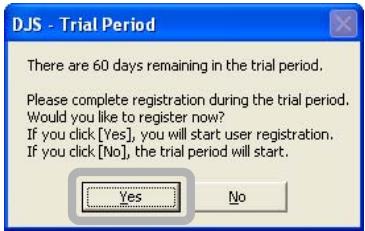
2 Click the [Yes] button.
- The [Welcome] screen opens up.
Warning!
Before Registering Online
Connect your computer to the Internet.
Note
Before the Trial Period Ends
You can call out the [User Registration] screen from DJS's [Help] menu.
After the Trial Period Ends
If you double-click the DJS short-cut icon, a message prompting you to register a user will be displayed.
(Contd. on the next page)
| Step | 1 | 2 | 3 | 4 | 5 | 6 | 7 |
3 After clicking [Online Registration], click the [Next] button.
![PIONEER DJS - After clicking [Online Registration], click the [Next] button. - 1](/content/2020/04/118751/images/6b02babe666ffc1ed1132c0a869398f9fe74499e1d16bc14932f442fffb1196a.jpg)
- The [User Information Entry 1/2] screen opens.
(Contd. on the next page)
| Step | 1 | 2 | 3 | 4 | 5 | 6 | 7 |
![PIONEER DJS - After clicking [Online Registration], click the [Next] button. - 2](/content/2020/04/118751/images/da171990627c0d364b987588b5dd7ab45646eb0e9a46aa4a4c9686d3e3536989.jpg)
After entering the required information, click the [Next] button.
-
- indicates item that must be entered.
- One of the items marked with ^** must be entered.
![PIONEER DJS - After clicking [Online Registration], click the [Next] button. - 3](/content/2020/04/118751/images/682c2b21fc69b16ca7fb0d3ec7bfa734c236fac572c922c91990ed7aa11a290b.jpg)
- The [User Information Entry 2/2] screen opens.
(Contd. on the next page)
| Step | 1 | 2 | 3 | 4 | 5 | 6 | 7 |
![PIONEER DJS - After clicking [Online Registration], click the [Next] button. - 4](/content/2020/04/118751/images/30c89f9d6347c6f00ae445219552b25506c617f11a53484d4f6a74a3ff34a62b.jpg)
After entering the required information, click the [Next] button.
-
- indicates item that must be entered.
![PIONEER DJS - After clicking [Online Registration], click the [Next] button. - 5](/content/2020/04/118751/images/2dfdbf10ae8cb9c37c3db1e71e519d569fbd7b43ae853435084aee9d033860dd.jpg)
- The [Confirm your entries] screen opens.
(Contd. on the next page)
| Step | 1 | 2 | 3 | 4 | 5 | 6 | 7 |
6 After checking the content of the information you entered, click the [Submit] button.
![PIONEER DJS - After checking the content of the information you entered, click the [Submit] button. - 1](/content/2020/04/118751/images/0e948ba0d33e2d4ac0112431e100b7bb50cc85652b8e7c843b9c857fe0cc56af.jpg)
- Once you click the [Submit] button, your computer connects to the Internet and registers your information on the server.
- After sending, once you complete registration, the [ID Registration Complete] message is displayed.
7 Click the [OK] button.
![PIONEER DJS - Click the [OK] button. - 1](/content/2020/04/118751/images/881b2b5a34b6d38538f477d918f5822e97e4a334fd509c99e0ee1643691afb8d.jpg)
- The [Display of Registration ID] screen appears.
- If you click the [OK] button, the [Display of Registration ID] screen closes and it launches DJS.
11-2 Registering Offline
Fill out the enclosed User Registration Card with the required information and mail it in. Be sure to write in the key code obtained in the following steps on the User Registration Card.
| Step | 1 | 2 | 3 | 4 | 5 | 6 | 7 |
1 Start up DJS.
- The message indicating the number of days remaining in the trial period is displayed.
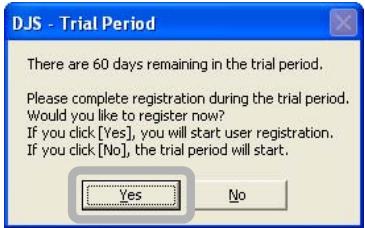
2 Click [Yes].
- The [Welcome] screen opens up.
3 After clicking [Offline Registration] and [Show Key Code], click the [Next] button.
![PIONEER DJS - After clicking [Offline Registration] and [Show Key Code], click the [Next] button. - 1](/content/2020/04/118751/images/98cf9e729cf2a6cac17a8f7954038340d8f34d0adbd52014fd8b9ca0560b1651.jpg)
- The [Key Code] screen comes out.
(Contd. on the next page)
![PIONEER DJS - After clicking [Offline Registration] and [Show Key Code], click the [Next] button. - 2](/content/2020/04/118751/images/40d957532c6faad254b0208c89c0cbf4bcd286d77a68cf09fb604130d7b596da.jpg)
Note
Before the Trial Period Ends
You can call out the [User Registration] screen from DJ'S [Help] menu.
After the Trial Period Ends
If you double-click the DJS short-cut icon, a message prompting you to register a user will be displayed.
| Step | 1 | 2 | 3 | 4 | 5 | 6 | 7 |

After writing in the [Key Code] displayed onto the User Registration Card, click [Finish].
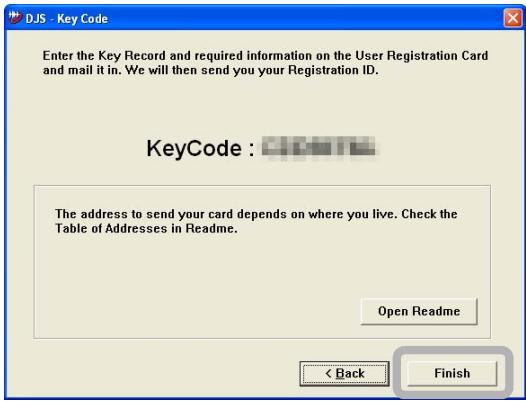
- Write the address from the User Registration Card Address Table onto your User Registration Card and send it in.
- After we receive your User Registration Card, we will reply with your Registration ID.
[The User Registration Card Address Table]
1: North America
PIONEER ELECTRONICS (USA) INC.
BUSINESS SOLUTIONS DIVISION, PRO AUDIO MARKETING 2265 East 220th Street, Long Beach, CA 90810, U.S.A
2: Europe
PIONEER ELECTRONICS NV
MULTIMEDIA DIVISION
Pioneer House, Hollybush Hill, Stoke Poges, Slough SL2 4QP U.K.
3: South Asia, Southeast Asia
PIONEER ELECTRONICS ASIACENTRE PTE. LTD.
253 Alexandra Road, #04-01, Singapore 159936
4: Hong Kong
PIONEER (HK) LIMITED
Suite 901-906, 9th Floor World Commerce Centre, Harbour City 11
Canton Road, Tsim Sha Tsui Kowloon, Hong Kong
5: Oceania
PIONEER ELECTRONICS AUSTRALIA PTY. LTD.
178-184 Boundary Road, Braeside, Victoria 3195, Australia
6: Middle East, Africa
PIONEER GULF, FZE.
Lob 11-017, Jabel Ali Free Zone, PO.Box 61226, Jabel Ali, Dubai, U.A.E.
7: Central & South America
PIONEER INTERNATIONAL (MIAMI) INC.
5200 Blue Lagoon Drive, Suite 850, Miami FL 33126, USA
(Contd. on the next page)
Warning!
Once your Registration ID arrives, follow steps 5 and 6 and enter the Registration ID. (Registration is not complete until you enter your Registration ID. It can be used until the end of the trial period.)
The address differs depending on the region in which you reside. Please check the address and send it in.
| Step | 1 | 2 | 3 | 4 | 5 | 6 | 7 |
5 Once your Registration ID arrives, carry out steps 1 and 2 and the [Welcome] screen will open.
- Have the Registration ID you received in the mail ready.
6 After clicking [Offline Registration] and [Enter your Registration ID], click the [Next] button.
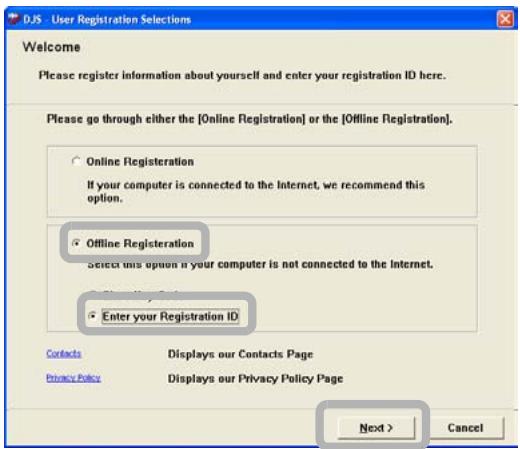
- The [Registration ID Entry] screen opens.
7 After entering the Registration ID, click the [OK] button.
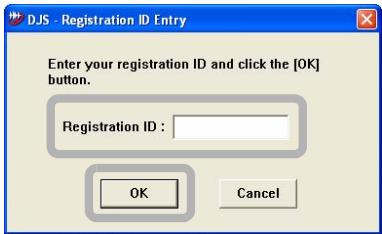
- Once you complete the registration, the message [ID Registration Complete] is displayed and DJS starts up.
Warning!
Take good care of your registration ID that arrived by mail as even after you register as a user, you may need it to consult about any problems you might have.
Chapter 12 Uninstalling DJS
Uninstalls DJS.
If the trial version of DJS is installed, you can use the same procedures to uninstall it.
1 Open the control panel.
First click the [Start] button and then [Control Panel] to open the [Control Panel].
- If you are using Windows 2000, click the [Start] button, then [Settings] and then the [Control Panel] in that order, and the [Control Panel] window will open.
2 Click [Add or Remove Programs].
- If you are using Windows 2000, click [Add or Remove Applications].
![PIONEER DJS - Click [Add or Remove Programs]. - 1](/content/2020/04/118751/images/554ddd188eb16d64201c5bbb4a4de1743f84f2927d237a8f6b34ae04ab782f7f.jpg)
- The [Add or Remove Programs] screen will open.
Note
Using the CD-ROM to Uninstall DJS
- Place the DJS CD-ROM in a DVD/ CD drive.
- Click the [Remove DJS] on the [DJS Installation] screen.
- Check to make sure of the version of the DJS program shown.
Note
Switching the Display of the Control Panel
If you are using Windows XP with the control panel set to [Classic Display], you can return to the category display on the left of the screen if you click [Switch to Category View].
(Contd. on the next page)
3 If you select [DJS] from the list of installed programs, and click it, the [Change/Remove] button will be displayed; click the [Change/Remove] button.
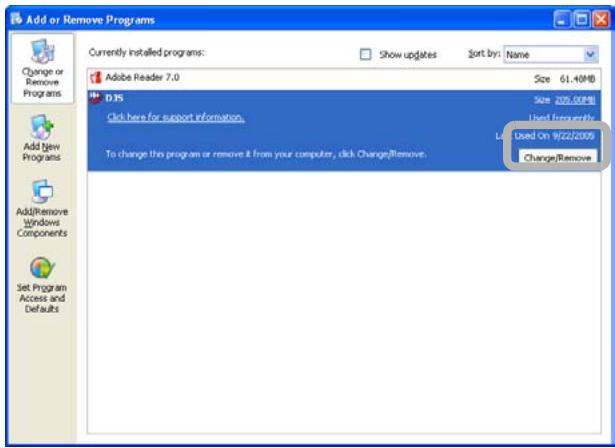
- The [Deletes DJS] screen will open.

Click the items you wish to remove and click the [Delete] button.
[All]:
Deletes DJS and the DJS database.
[DJS only]:
Removes just DJS .
Leaves the DJS database on your computer.
If you reinstall DJS , you will be able to use the
information from the previous database again.
[Database only]:
Removes all DJS database information.
As DJS is not removed, you can start using DJS in the same state as when you first installed DJS .
(Contd. on the next page)

Note
The DJS Database
All the music information recorded so far (titles, artists, albums, etc) as well as the categories (play lists, genres, etc.) and settings, such as preferences are saved.
Trial Version Uninstall
When you uninstall the trial version, if you select [DJS only], you will be able to use that database information just as it is after you install DJS again.
To Stop Uninstalling
Click the [Cancel] button.
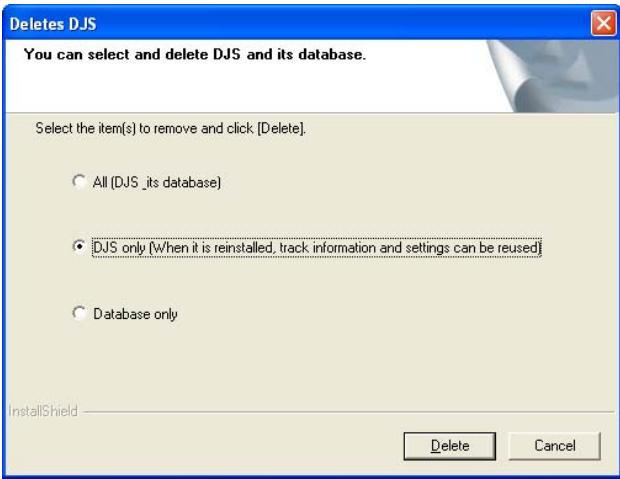
- The uninstall process begins and the [DJS is being uninstalled.] screen opens.
- Once the uninstall process finishes, the [Uninstallation of DJS is now complete.] screen opens.
5 Click the [Finish] button.
![PIONEER DJS - Click the [Finish] button. - 1](/content/2020/04/118751/images/c2eacfcd08555d055ada00f28108c101b4a079e36fcd33164095a187fc44fd0c.jpg)
- Closing the [Uninstallation of DJS is now complete.] screen completes the uninstall process.
Chapter 13 Version Updates
You can update your DJS software, DJS manual and DMP-555 firmware by getting update packages from Pioneer's dedicated support site.
13-1 Updating the Version of the DJS Software
Update the version of the DJS software.
1 Click [Help] and then click [Version UP] - [DJS Software].
- The [The following update package was detected.] screen opens.
2 Click the [Yes] button.
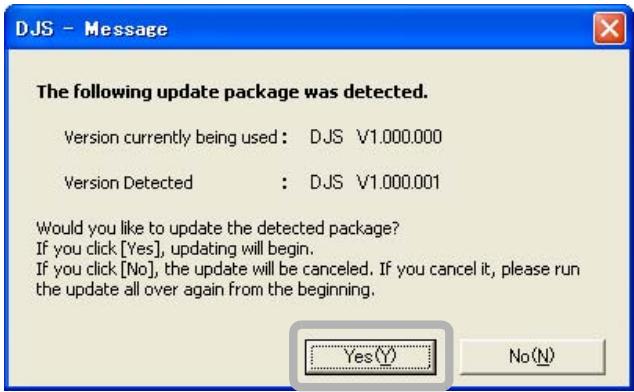
- The download of the update package begins.
- While the Update Package is downloading, the [Currently downloading the update package.] screen is displayed.
Warning!
Before Updating Versions
Connect your computer to the Internet.
Updating the version requires administrator authority for the computer. Log in as a user who was been set up as a computer administrator and then update the computer.
You cannot update the version unless user registration has been completed.
Note
If there is not a newer version of DJS than the one you are currently using
Do not try to update the version.
(Contd. on the next page)
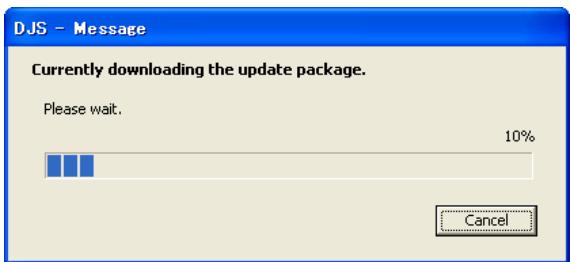
- Once the download finishes, DJS closes and the update of DJS software starts.
- The [Executing the update.] screen is displayed while the software is being updated.
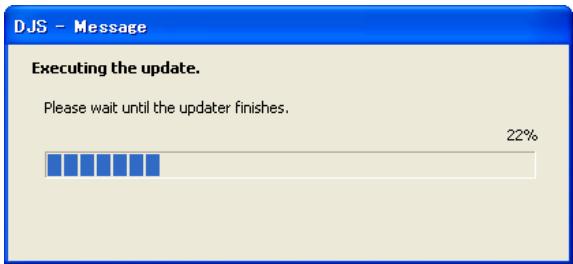
- Once the update finishes, a message indicating the version has been updated is shown.
3 Click the [OK] button.
![PIONEER DJS - Click the [OK] button. - 1](/content/2020/04/118751/images/57496a792e8775a143d8bbfe5202db46f7dbea1f93d42d5a61a47f99d44cb7e1.jpg)
- The message indicating the version has been updated closes and DJS starts up.
13-2 Updating the Version of the DJS Manual
Updates the version of the DJS software.
1 Click [Help] and then click [Version UP] - [DJS Manual].
- The [The following update package was detected.] screen opens.
2 Click the [Yes] button.
DJS - Message

The following update package was detected.
Version currently being used:
DJS Manual V1.000.000
Version Detected
DJS Manual V1.000.001
Would you like to update the detected package?
If you click [Yes], updating will begin.
If you click [No], the update will be canceled. If you cancel it, please run the update all over again from the beginning.
No(N)
- The download of the update package begins.
- While the Update Package is downloading, the [Currently downloading the update package.] screen is displayed.
DJS - Message
Currently downloading the update package.
Please wait.

10%
Cancel
- Once the download finishes, DJS closes and the update of DJS software starts.
- The [Executing the update.] screen is displayed while the manual is being updated.
(Contd. on the next page)
Warning!
Before Updating Versions
Connect your computer to the Internet.
Close all DJS manuals.
Updating the version requires administrator authority for the computer. Log in as a user who was been set up as a computer administrator and then update the computer.
You cannot update the version unless user registration has been completed.
Note
If there is not a newer version of manual than the one you are currently using
Do not try to update the version.
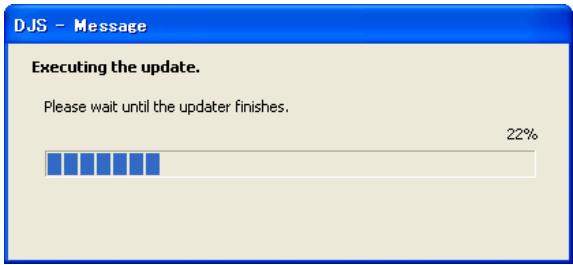
- Once the update finishes, a message indicating the version has been updated is shown.
3 Click the [OK] button.
![PIONEER DJS - Click the [OK] button. - 1](/content/2020/04/118751/images/157f24aa17679ec661f1ac7b71f0176c3e2f5cf09e6dde68046be7be214382ca.jpg)
- This completes the update of the version of the DJS manual.
13-3 Updating the Version of the DMP-555 Firmware
Updates the version of the DMP-555 firmware.
1 Click [Help] and then click [Version UP] - [DMP-555 Firmware].
- A message for confirming that the DMP-555 is connected opens.
2 Click the [OK] button after turning ON the power to the DMP-555 to be updated and connecting it to your computer.
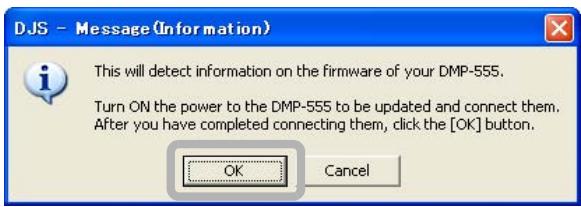
- The [The following update package was detected.] screen opens.
3 Click the [Yes] button.
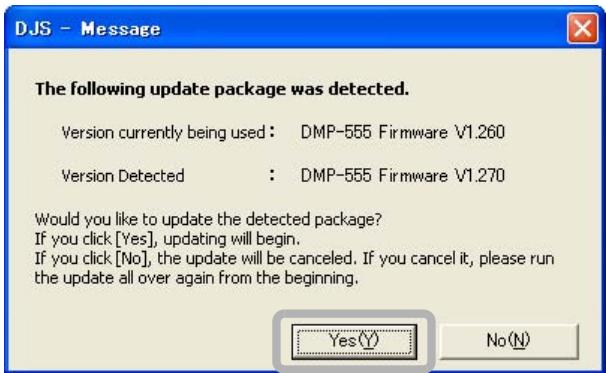
- The download of the update package begins.
- While the Update Package is downloading, the [Currently downloading the update package.] screen is displayed.
(Contd. on the next page)
Warning!
Before Updating Versions
Connect your computer to the Internet.
Eject the SD memory Card from the DMP-555. You cannot update the version when it is inserted.
Updating the version requires administrator authority for the computer. Log in as a user who was been set up as a computer administrator and then update the computer.
You cannot update the version unless user registration has been completed.

If you have 2 or more DMP-555s
Update the version for each device.

If there is not a more current version on the support site than the one currently in use
Do not try to update the version.
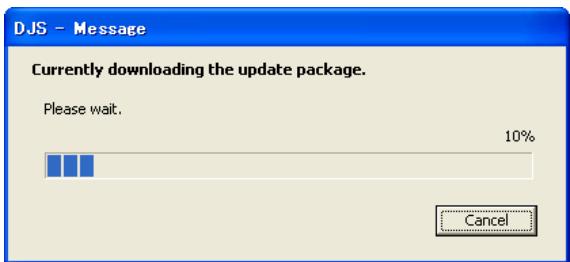
- Once the download finishes, updating of the DMP-555 firmware begins.
- The [Executing the update.] screen is displayed while the firmware is being updated.
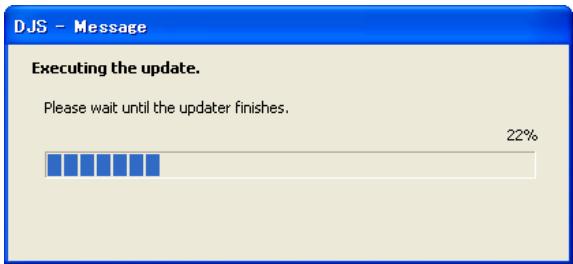
- Once the update finishes, a message indicating the version has been updated is shown.

Click the [OK] button.
- This completes the updating of the version of the DMP-555 firmware.
![PIONEER DJS - Click the [OK] button. - 1](/content/2020/04/118751/images/4198a48590fe974c89d5982351e00327018d6db0a80693cb7d8250acdf49c0a2.jpg)
![PIONEER DJS - Click the [OK] button. - 2](/content/2020/04/118751/images/a41f3e659a1c4345913b9e937f343743e881e4f5c953f45e5044c91d052a3d45.jpg)
Turn OFF the power to the DMP-555.

Turn ON the power to the DMP-555.
Troubleshooting
Under no circumstances will our support personnel be able to assist users who have not completed the user registration process.
Before contacting us with inquires regarding operation of the software or technical questions, please check to see if the answers to your questions can be found on either this User's Manual, which is located on this product's CD-ROM, or in the FAQ appearing on the support site for this product.
For more information about the process of connecting to our support site, please see page 111 of this User's Manual (10-1 Connecting to the Internet).
In order to connect to the support site, it is necessary to be a registered user. Customers with access to the Internet are able to register online. For information about how to register as a user using this method, please see page 131 of this User's Manual (11-1 Registering Online).
Customers without access to the Internet may record the required information on the User Registration Card and mail it to us. Upon receipt, we will register these individuals. For information about the procedures for registering as a user, as well as where to send the User Registration Card, please see page 136 of this User's Manual (11-2 Registering Offline). (Note: please do not send the User Registration Card to the customer support offices noted on the next page.)
If you utilize our Support Service, please be prepared to provide the customer name, product name, installation key, brand and make of computer, detailed spec information (CPU, amount of available memory and connected peripherals), version of operating system and a detailed explanation of the problem(s) you are experiencing.
If you run into difficulties in the installation process or during user registration, please visit our home page.
Information about installation and user registration can be found at http://www.prodjnet.com/djs/support/
Please keep in mind that we are only able to answer questions regarding our products; inquiries concerning the operation of, and technical questions regarding computers, peripherals, etc. should be directed to the appropriate product maker or the shop where the product in question was purchased.
(Contd. on the next page)
List of Customer Support
| Country of Europe | Contacts |
| Andorra | R.AC.EL (Pioneer distributor)Tel: (+376) 822 651E-mail: serveitechnic@racel.ad |
| Austria | Hans Lurf GMBH(Pioneer distributor)Tel: (+43) 161 645 800E-mail: info@pioneer.at |
| Belgium | Pioneer Belgium, a branch of Pioneer Benelux B.V.Tel: +32 (0)3.570.05.70E-mail: info_pbl@pioneer-benelux.com |
| Bosnia & Herzegovina | MEDIA FORUM D.O.O.(Pioneer distributor)Tel: (+387) 36 650 488E-mail: media-forum@tel.net.ba |
| Bulgaria | Global Electronics PLC(Pioneer distributor)Tel: (+359) 32 622 498E-mail: global@pioneerbg.com |
| Croatia | Helikop (Pioneer distributor)Tel: (+385) 1 2314-555E-mail: helikop@helikop.hr |
| Cyprus(Greek part) | KH. Papasian (Distributors) LTD(Pioneer distributor)Tel: (+357) 22 486 565E-mail: papasian@mp-group.com |
| Cyprus(Turkish Part) | Gayem Electronics LTD.(Pioneer distributor)Tel: +(90) 392 225 6555E-mail: gayem@north-cyprus.net |
| Czech Republic | Basys CS Praha s.r.o.(Pioneer distributor)Tel: (+420) 234 706 700E-mail: info@basys.cz |
| Denmark | Pioneer Denmark A.S.Tel: +(45) 43 55 54 00E-mail: kundepost@pioneer.dk |
| Estonia | Digisound OÜ(Pioneer distributor)Tel: (+372) 60 33 990E-mail: info@digisound.ee |
| Finland | Pioneer Finland(Pioneer distributor)Tel: (+358) 207 74 97 80 |
| France | Pioneer France S.A. Tel: + (33) (0) 810 786 400 E-mail: sceconso@pioneer.fr |
| FYROM (Macedonia) | Makpetrol AD (Pioneer distributor) Tel: + (389) 2 112 144 E-mail: milosav.kastratovic@makpetrol.co m.mk |
| Germany | Pioneer Electronics Deutschland GmbH Tel: (+49) 603 980 099 99 E-mail: info@pioneer.de |
| Gibraltar | Liberty Ltd. Tel: +34 956 776 912 |
| Greece | INTERSYS S.A. (Pioneer Hi-Fi distributor) Tel: (+30) 10 95 54 000 E-mail: pioneer@intersys.gr |
| Hungary | Basys Multimedia Kft. (Pioneer distributor) Tel: + (36) 23 415 541 E-mail: basys@mail.basys.hu |
| Iceland | Braedurnir Ormsson ehf Tel: 354 530 2800 E-mail: bragi@ormsson.is |
| Ireland | Audio Vision Import LTD. (Pioneer distributor) Tel: (+353) 1 240 5643 E-mail: info@avi.ie |
| Israël | UDT Electronics Corporation LTD (Pioneer Multimedia Products distributor) Tel: (+972) 3 522 01 35 E-mail: yossi@pioneer-il.com |
| Italy | Pioneer Italy S.P.A. Tel: + (39) 02 939 11 E-mail: servizio.clienti@pee.pioneer.be |
| Latvia | Baltic Multimedia SIA (Pioneer distributor) Tel: + (371) 761 01 11 E-mail: pioneer@pioneer.lv |
| Lithuania | Digisound OÜ (Pioneer distributor) Tel: (+372) 60 33 990 E-mail: info@digisound.ee |
(Contd. on the next page)
| Luxemburg | Pioneer Belgium Tel: + (32) 3 570 05 25 E-mail: info_pbl@pioneer- benelux.com |
| Malta | Dorell Trading Ltd. (Pioneer Service & Repair Centre) Tel: (+356) 21314003 E-mail: info@directsales.com.mt |
| Maroc | Skytek S.A.R.L Tel: +212 22 321 312 E-mail: a.kettani@galaxy.co.ma |
| The Netherlands | Pioneer Benelux B.V. tel: 0900-PIONEER (0900-7466337) E-mail: info_peh@pioneer- benelux.com |
| Norway | Pioneer Norge A/S Tel: +47 22 09 3050 E-mail: firmapost@pioneer.no |
| Poland | DSV Trading S.A. (Pioneer distributor) Tel: (+48) 58 661 28 00 E-mail: market@dsv.com.pl Piotech s.c. (After-sales service) Tel: +48 (0)58 624 5009 E-mail: piotech@trv.com.pl |
| Portugal | Pioneer Electronics Iberica S.A. Tel: (+351) 21 861 03 40 E-mail: pioneer@pioneer.com.pt |
| Romania | Sun Audio Electronics S.R.L. (Pioneer distributor) Tel: (+40) 21 222 14 28 E-mail: office@pioneer.com.ro |
| Russia | Pioneer Europe NV - Moscow Representative Office E-mail: info@pioneer-rus.ru |
| Serbia & Montenegro | ITM (Pioneer distributor) Tel: + (381) 11 31 07 400 E-mail: pioneer@itm.co.yu |
| Slovakia | BASYS CZECH+SLOVAK s.R.O. (Pioneer distributor) Tel: + (421) 2 49 10 66 11 E-mail: office@basys.sk AUDIO URI BaSys (Service channel) Tel: +421 7 5477 5527 |
| Slovenia | Primaline DOO (Pioneer distributor) Tel: (+386) 1 510 31 40 E-mail: primaline@siol.net |
| Spain | Pioneer Electronics Iberica S.A. Tel: + (34) 937 18 26 42 E-mail: pioneer@pioneer.es |
| Sweden | Pioneer Scandinavia A.B Tel: (+46) 8 609 91 00 URL: http://www.pioneer.se/se/ content/company/company/ locations.html |
| Switzerland | Sacom S.A. (Pioneer distributor) Tel: (+41) 32 366 85 85 E-mail: support@sacom.ch |
| Turkey | Digi-Com Elektronic (Pioneer distributor) Tel: + (90) 212 470 0600 E-mail: info@digicom.com.tr |
| Tunisia | World Technology Access (Pioneer distributor) Tel: + (216) 71 894 770 E-mail: k.azzouz@planet.cn |
| United Kingdom | Pioneer GB LTD. Tel: + (44) 17 537 895 00 URL: http://pioneer- customerrelations.custhelp.com/ cgi-bin/pioneer.cfg/php/enduser/ home.php |
| Country of America | Contacts |
| Canada | Pioneer Electronics of Canada (Customer Satisfaction Group) Tel: Long distance (877) 283-5901 Tel: Local (905) 479-4411 E-mail: poccs@pioneer-usa.com |
| United States | PIONEER USA (Customer Service Department) Tel: (800) 421-1404 URL;http://www.pioneerelectronics.com/pna/contact/us/0,,2076_138787615,00.html |
Index
Instruction for symbols
If marked with a symbol, the term is a name of a button or icon. The symbols indicate usable functions of buttons and icons.
①: DJ Play Function
①☆: Pop Up Screen of DJ Play Function
②: MusicManagement Function
③: Ripping Function
④: Transfer Function
⑤: Create Function
⑥: Track List
Symbols
x1 / 2⑤ 75
x2⑤ 75
v/> Buttons③ 120
A
A Cue is overwritten when. 28
A Loop is overwritten 44
About DJS 6
About the Beat Indicators 24
Adding Effects 37
Adjusting Delay Time 102
Adjusting discrepancies in the Beat Indicator .... 27
Adjusting Effects 43
Adjusting the Effects BPM 37
Adjusting the Loop Range 72
Adjusting the Size of Buffers 103
Adjusting the Sound Quality 34
Adjusting with the Jog Dial before Mixing 26
Album Display 19
Album Display 6 115
Album-Artist 78
All 6 115
Allocating the DMP-555 to a Player 69
Artist Display 19
Artist Display 6 115
Artist-Album 78
ASIO 101
AUTOButton ① 20,36
AUTO CUE Button 113
AUTO CUE Display 19
Auto Cue 22
Auto Fader 20
Auto Level Adjustment 61
AUTO MIX Button① 20
Auto Setup Cue 60
Auto-Playing a Play List 61
Available HD ③④⑤ 84
B
Back Cue 54
Beat Adjust Button ① 20
Beat Guideline(5) 122
Beat Indicator① 20
Best Guide and Snapping Function 74
BPM Display 19
BPMSYNCButton 19
BPMSYNC ① 24
Buffer Size 103
C
Calling Out Track Hot Cues 60
Category Settings 108
CBR 105
CD Button 120
CD Information 83
Changing a Track Hot Cue into an Auto
Setup Cue 60
Changing the Order of Songs During
Auto-Play 62
Channel Equalizer ① 35
Channel Fader Start 54
Channel Fader 20,33
CHANNEL-A①☆ 41
CHANNEL-B①☆ 41
Characters that Cannot be Entered (Symbols) .... 79
Check In 93
Checking Songs 63
Classifying Songs into Categories 78
Clear All Button ③④⑥ 116,119,121
Clear button ⑤ 75
Clear Function 75
Clearing the Auto Setup Cue 60
Closing Preferences 96
Connecting 68
Connecting a 2nd DMP-555 68
Connecting to the Internet 111
CPU 7
Create Function 15
Create Icon①②③④⑤ 112
Creating a New Play List 79
Creating Categories & Play Lists, Changing their Names and Deleting them 110
Cross Fade 51
Cross Fader Start 56
Cross Fader 20
CUE button① 28
Cue Mark 80
Curve-A 52
Curve-B 52
Curve-C 52
Cut In 51
Cutting a Specific Rang 36
D
Dead Air Cut Settings 106
Dead Air Cut 84
Delay Time 102
DELAY① 38
Deleting Track Hot Cues 59
Desktop Button 120
Determining List Hot Cue Points 47
Determining Track Hot Cue Points 57
Diagonal 99
DirectX / MCI 101
Display 7
Display Bit Size③ 120
Display Date ③ 120
Display File Name 120
Display Imported Song Album ③ 120
Display Imported Song Artist ③ 120
Display Imported Song BPM 120
Display Imported Song Genre ③ 120
Display Imported Song Title ③ 120
Display My Songs ②③ 118
Display Next Song ②③ 118
Display of Cues and Loops 49, 59
Display Sampling Frequency 120
Display Transfer Songs 121
DJ Play Function 15
DJ System 16
DJS Screen Size 13
Download Page 111
DVD/CD drive 8
E
Echo 51
ECHO① 38
Edit Menu 124
Editing a Playlist 80
Editing Song Information 76
Effect BPM Mode①☆ 37
Effect ON/OFF Button ①☆ 37
Effect Time Display ① 37
Effector Types and their Features 38
Effector ① 20
Effects Level/Depth (-) Button①☆ 37
Effects Level/Depth (+) Button①☆ 37
Effects Level/Depth Fader①☆ 37
Effects TAP Button 37
Effects Time Fine Tuning Buttons 37
Entire Waveform Display 122
Equalizer ① 20
Erasing a recorded List Hot Cue 48
Exit/Reloop Button 113
Expanded Range Frame 122
Expanding the Waveform Display 19
External Ports 7
F
Fader Curve Button 20
Fader Start Button 20
Fader Start Functions 54
File Menu 123
FILTER① 40
Fine Tuning the Effect Time 42
FLANGER① 40
Folder Up Button 120
FULLButton 19
Functions you can Perform from the DMP-555 ... 68
G
Genre Display 6 115
Getting out of a Loop 46
Guide ADJ + / - Button 122
Guide ADJ slider 74
Guide Adjust Slider⑤ 122
H
Hard Disk 7
Headphone Cue 20
Headphone Monitor Control 20, 27
Headphone Volume 20
HEADPHONES Screen 28
Help Menu 126
HI Fader ① ☆ 117
Horizontal 99
Hot Cue List 50
How to use the Kill function 36
How to Use the Mix Modes and Fader Curves .... 52
1
ID3 Tag Settings 105
If the audio is interrupted 103
Import Progress Bar ③④ 119,121
Import Submenu 123
Importing an MP3 82
Importing Songs from Music CDs 83
Importing WAV Files 86
Input Devices 7
Installation Key Sticker 6
Internet Connection Environment 7
Internet Function 14
Internet Icon①②③④⑤ 112
J
Jog Dial① 113
K
Key Assignment Settings 104
Key Operations 67
Keyboard Jump Function 76
Keyboard Stickers 6
KILL Button ① ☆ 35
L
Layout of the Information Display 19
Line In Button 120
Line In Settings 107
ListButton ③ 120
List Hot Cue 47
List Hot CUE buttons 47
List Hot CUE Display 115
List Hot Cue Tags 48
List of Customer Support 149
List Player 63
Loop Display 19
Loop In Button① 112
Loop Out/Out Adjust Button① 112
LOW Fader①☆ 117
M
Making a Loop 70
Making Changes 35
Master Tempo Display 19
Master Tempo Function 19
Master Volume Fader 20
MASTER ① 41
Meaning of Colors in the Waveform Display 19
Meanings of Colors for Categories/Tracks/Play List 21
MID Fader①☆ 117
Min Amount of Tempo Adjustment 31
MIXButton ① 20
Mix IN START Display 115
Mix Mode Button 20
Mix Out Beats Display 115
Mix Out Fader Display 115
Mix Out Mode Display 115
Mix Out START Display 115
Mixer and Sound Card Settings 100
Mixing Adjustment ①☆ 28
Mixing Songs Manually 29
Mode Switch Button 119
MONO SPLIT ① 28
MP3 82
MP3 File Tag Information 82
MP3 Settings 89
Music List Layout 98
Music List Style 98
Music Management Functions 14
Music Management Icon①②③④⑤ 112
Mute Button ②③④⑤ 118
N
Narrowing a Search 76
New Submenu 123
Normal Mode 26
Notices about DJS 6
0
One Track Loop 45
One Track Loop Button 112
Open/Close Folder 120
Opening and Closing Preferences 95
Opening Preferences 95
Operating the Beat Adjust Button 27
Operations used with DMP-555 68
Optical Disk Drive 7
Order of Priority for Mix Start Positions 61
OS 7
Other Useful Functions (Create) 74
Other 6 78,109
Out Adjust Function 45
P
PAN① 39
Peak Level Meter 20
PITCH ① 40
Play Menu 126
Play/Pause Button 112
Player Layout 99
Playing a Loop you Set up Previously 46
Playing a Part of a Song Repeatedly 44
Playing Address 19
Playing from a List Hot Cue Point 49
Proxy Server Settings 107
Q
Quick Start Guide 6
R
Rate Setting Button ③⑤ 119
Reading this Manual 3
Recommended Operating Environment 7
Record button 47
Record Track Hot Cue button 58
Recording Sound from Microphone or Line Input 89
Registering Offline 136
Registering Online 131
Reloop Display 19
Renum button 74
Renumbering Function 74
Repeat Button ② 118
Required HD ③④⑤ 84
Required Memory 7
Returning Music from an SD Card to DJS 93
REVERB① 40
Ripping Function 14
Ripping Icon①②③④⑤ 112
Ripping Settings 105
Ripping Start Button 120
Ripping Submenu 124
Rotary 99
s
Sample Song Headphone Cue 64
Sample Song Monitor Output Level Fader 64
Sample Song Play/Pause Button 64
Sample Song Playing Address 64
Sample Song Search Button 64
Sample Song Stop Button 64
Sampling Frequency 108
Saving the Length of a Loop as a Track 73
Scratch Mode① 26
SD Card Reader/Writer 91
SD List Expand/Shrink Button 121
SD Memory Card Submenu 124
Search Buttons 112
Select All Button ③④ 119,121
Select Sampling Rate Button 120
Selecting a Mix Mode or Fader Curve 53
Selecting a Sound Card 101
Selecting Categories for Top & Other 109
Setting the Bit Rate 105
Setting the Layout of DJ Play Functions 98
Setting the Mixing Time (Beat) 53
Setting the Size of Text Displayed in Lists 97
Setting up Loops (Play) 44
Settings for Selecting the DVD/CD Drive &
Acquiring Song Information 106
Show Submenu 124
Shuffle Button 118
Size Display 6 115
Slide 99
Sound 7
Status Display 22
STEREO/MONO Toggle③ 120
STEREO ① 28
Stop Button ③④ 120,121
Switching between Internal & External Mixers 100
Switching Effect Beats Button 37
Switching Jog Dial Modes 26
Switching the Display of Top and Other On/Off ... 78
SXGA 13
T
TAP Button 19
Tempo Control Range 31
Tempo Display 19
Through function 41
Time Display 19
Time Display Setting 19
Time Display 6 115
Time Normal Button 113
Time Remain Button 113
Time Set Button 120
Title Display 19
Title Display 115
Top 6 78,109
Track Hot Cue 57
Track Hot Cue Buttons 57
Track Hot Cue Display 115
Track Hot Cue Tags 59
Track Search Button 112
TRANS① 39
Transfer Function 15
Transfer Icon 12345 112
Transfer Start Button 121
Transferring DJS Music to SD Cards 91
Trim ① 20,36
Troubleshooting 148
Turning Effects ON/OFF 43
Types of Mix Modes & Fader Curves and their
Features 51
U
Uninstalling DJS 139
Updating the Version of the DJS Manual 144
Updating the Version of the DJS Software 142
Updating the Version of the DMP-555
Firmware 146
User Registration Card 6
User Registration Card Address Table 137
User's Manual 6
Using Play Lists 61
Using the Auto Function to Mix Songs 18
Using the Auto Mix Function for Mixing Songs .... 65
Using the TAP button to Re-detect the BPM 33
V
VBR 105
VBR Button③⑤ 119
Version UP Submenu 126
View Menu 125
Volume Type 99
W
WAV Button 120
Waveform Display 19, 99
Web Browser to be Used 111
Whenimportingaplaylist 82
When Using an External Mixer 17
When Using the DJS Mixer Function 16
X
XGA 13
Z
Zip 51
Zoom Button 19
Zoom In Button 19
Zoom Out Button 19
- SVJ-DLO1
- ■ Disclaimers
- About Copyrights
- Reading this Manual
- Warning!
- Note
- Table of Contents
- About DJS 6
- Getting Ready 6
- Names of Each Screen 14
- Chapter 1 Getting the Most out of DJS. 16
- Chapter 2 Mixing Songs. 18
- Chapter 3 Playing Sound 34
- Chapter 4 Useful Functions 57
- Chapter 5 Creating Loops Made Easy 70
- Chapter 6 Play Lists & Classifying Songs 76
- Chapter 7 Importing Songs 82
- Chapter 8 Using SD Cards 91
- Chapter 9 Changing the Settings to Make DJS More Convenient 95
- Chapter 10 Other Functions 111
- Chapter 11 User Registration 131
- Chapter 12 Uninstalling DJS 139
- Chapter 13 Version Updates. 142
- Troubleshooting 148
- Index 151
- About this Manual
- About DJS
- Getting Ready
- Checking the Packaging
- Installing DJS
- Recommended Operating Environment
- Step
- Place the DJS CD-ROM in the DVD/CD drive.
- Click the check box of the items you wish to install and then click the [Install] button.
- Select [English] and click the [OK] button.
- If you are using Adobe Reader Version 3.0 or earlier...
- When the trial version of DJS has been installed
- Click the [Next] button.
- If you do not agree...
- Click the [Next] button after checking the [Current Settings].
- After clicking the [Yes, I want to restart my computer now.] button, read the message that is displayed and click the [Finish] button.
- Starting Up DJS
- In Windows XP
- In Windows 2000
- [DJ Play] Screen
- About registration
- DJS Screen Size
- The Music Library Creation Folder
- Names of Each Screen
- Ripping Function
- Internet Function
- Music Management Functions
- Create Function
- Transfer Function
- DJ Play Function
- Chapter 1 Getting the Most out of DJS
- 1-1 DJ System
- - When Using an External Mixer
- Example of connections in a 3 audio output (sound card) system
- Switching to an External Mixer
- If you increase the number of sound cards
- Chapter 2 Mixing Songs
- 2-1 Using the Auto Function to Mix Songs
- - Layout of the Information Display
- Master Tempo Function
- Expanding the Waveform Display
- Meaning of Colors in the Waveform Display
- A AUTO Button
- B K Trim
- Equalizer
- D H Fader Start Button
- E Mix Mode Button
- F Fader Curve Button
- G Effector
- [Beat Adjust] Button
- Click [File] and select [Import] then [MP3 Audio File] in order.
- Click the first song you want to play and then click the [Open] button.
- Track Search Buttons on the Track List
- The import process cannot be done
- Click the headphone cue for player B.
- About the Headphone Cue
- Listen to the song over your headphones and search for the playback start position.
- Clicking the [▶/III] button of player B at the playback start position pauses it.
- Sound Output to Headphones
- Adjusting your headphones
- Rewind & Fast Forward
- Changing the Playback Position
- Fine Tuning the Pause Position
- About the Beat Indicators
- Recording Cues
- Adjusting Disparities in the Beat Displays
- Click on the [▶/II] button of Player B to initiate playback for player B.
- Click the [MIX] button to move the [Cross Fader] to player B.
- [MIX]Button
- Setting the Timing (beats) of the [Cross Fader]
- Direction the [Cross Fader] Moves
- If the BPM Isn't Detected
- Switching Jog Dial Modes
- Operating in the Normal Mode
- Operating in the Scratch Mode
- [HEADPHONES] Screen
- -Using the [CUE] button
- When Paused:
- When in Cue Standby:
- During Playback:
- With [STEREO] Selected
- With [MONO SPLIT] Selected
- When Cues have been Set
- A Cue is overwritten when...
- Saving Set Cues
- 2-2 Mixing Songs Manually
- Before Mixing Songs
- BPM Display
- Changing the Max Value that Tempo can be Adjusted (Tempo Control Range)
- When Master Tempo is ON
- Using the [TAP] button to Redetect the BPM
- Min Amount of Tempo Adjustment
- Changing headphone settings
- Using the [CUE] button
- Auto Cue Function
- (Track Hot Cues/List Hot Cues)
- Using the Channel Fader
- Correcting Discrepancies in the Beat Displays
- Using the [TAP] button to Re-detect the BPM
- - Using the Channel Fader to Mix Songs
- Having the [Channel Fader] move automatically
- Adjusting the [Auto Fader] button.
- Chapter 3 Playing Sound
- 3-1 Adjusting the Sound Quality
- Equalizer Function
- 3-1-1 Making Changes
- Indicator Functions
- Completely cutting sound from a given band
- When the Kill function is ON
- Adjusting all of the Sound
- 3-1-2 Cutting a Specific Range
- Recovering a cut range of sound
- Turning OFF the Equalizer function
- [KILL] Button
- How to use the Kill function
- 3-2 Adding Effects
- Effect BPM Mode
- Effects [TAP] Button
- Adjusting the Effects BPM
- Various Effects
- 3-2-1 Effector Types and their Features
- - DELAY
- Ex.
- ECHO
- PAN (Auto PAN)
- - TRANS (Auto TRANS)
- - FILTER
- FLANGER
- REVERB
- PITCH
- 3-2-2 Adding Effects
- Right click the [Effects] button.
- Click the sound input ([CHANNEL/MASTER] button) to which you want to add the effect.
- Click an [Effect] button.
- Switching the type of effect
- Through function
- [CHANNEL/MASTER] Buttons
- Click the [Switching Effect Beats] button.
- Fine Tuning the Effect Time
- Click the [Headphone Cue (Effects)] button and check it on your headphones.
- [Switching Effect Beats] Button
- 3-2-3 Adjusting Effects
- Dragging the [Effects Level/Depth] adjusts the balance of the levels between the source and the effect.
- 3-2-4 Turning Effects ON/OFF
- Click the [Effect ON/OFF] button.
- Click the button again.
- [Effects Level/Depth]
- [Headphone Cue (Effects)] button
- [Effect ON/OFF] Button
- 3-3 Playing a Part of a Song Repeatedly
- 3-3-1 Setting up Loops (Play)
- Click the [▶/II] button and it plays the song.
- Saving a loop
- Saving a Loop as a Separate Track
- A Loop is overwritten...
- While paused, click the [Loop In] button at the point where the loop is to start playing.
- While paused, click the [Loop Out] button at the point to end playing the loop.
- -Playing an entire song as a loop (One Track Loop)
- When Cues are Set
- Out Adjust Function
- When Auto Cue is ON
- 3-3-2 Getting out of a Loop
- While the loop is playing, click the [Exit/Reloop] button.
- 3-3-3 Playing a Loop you Set up Previously
- While paused, click the [Exit/Reloop] button.
- After Exiting Loop Playback
- When reloading is possible
- 3-4 Setting up to 8 Points to Start Playing (List Hot Cue)
- 3-4-1 Determining List Hot Cue Points
- Track Hot Cue
- Stopping recording
- Recording a Cue Point:
- Recording up a loop:
- Click the [Record] button.
- Waveform Display Symbols (List Hot Cue Tags)
- Erasing a recorded List Hot Cue
- [List Hot CUE] Buttons
- Copying Information of a [Track Hot Cue] button to a List Hot Cue
- Editing List Hot Cues
- Display of Recorded List Hot Cues
- 3-4-2 Playing from a List Hot Cue Point
- -Display of Cues and Loops
- If a List Hot Cue is called out during a pause in the Scratch Mode
- Loop In/Loop Out Buttons
- Getting out of a Loop
- Hot Cue List
- Title
- List Hot Cue/Loop In Point
- Loop Out Point
- Track Hot Cue Number Display
- Closing the Hot Cue List
- 3-5 Arranging Mixes of Songs
- 3-5-1 Types of Mix Modes & Fader Curves and their Features
- Fader Curves
- How to Use the Mix Modes and Fader Curves
- Mix Modes:
- Fader Curves:
- 3-5-2 Selecting a Mix Mode or Fader Curve
- Click a [Mix Mode] button.
- Click a [Fader Curve] button.
- 3-5-3 Setting the Mixing Time (Beat)
- Right click on top of the [Zip], [Echo] or the [Cross Fade] button and then click the mix beat (time).
- 3-5-4 Mixing Songs
- Default Settings when Installed
- 3-6 Using the Fader Start Functions
- 3-6-1 Channel Fader Start
- Click Player A's [Fader Start] button to display [FS-CH].
- Back Cue
- Setting a [CUE]
- Drag the [Channel Fader] of Player A upwards (Other than Volume 0).
- Cuing Player A Back
- 3-6-2 Cross Fader Start
- Click Player A's [Fader Start] button to display [FS-CR].
- Drag the [Cross Fader] toward the Player A side (any position except the right edge).
- Chapter 4 Useful Functions
- 4-1 Setting up to 4 Points to Start Playing (Track Hot Cue)
- 4-1-1 Determining Track Hot Cue Points
- Overwriting a Track Hot Cue that is being Used
- Cancel the Setting
- Playing a Loop
- Track Hot Cue Display
- Deleting Track Hot Cues
- Fine Tuning the Stop Position
- 4-1-2 Calling Out Track Hot Cues
- Click a [Track Hot CUE] button that has a cue or loop recorded.
- 4-1-3 Changing a Track Hot Cue into an Auto Setup Cue
- Open a track list or a play list, right click on the icon indicating Track Hot Cue settings and click [Auto Setup CUE ON].
- Clearing the Auto Setup Cue
- When a Track Hot Cue is Called Out
- When in a Pause in the Scratch Mode
- When an Auto Setup Cue is Called Out
- Auto Setup Cues and Auto Cues
- 4-2 Using Play Lists
- 4-2-1 Auto-Playing a Play List
- Click the [▶/III] button on player A. Songs play alternately as below.
- Deleting a Song from a Play List
- Displaying Play Lists on the Right Side of the Screen
- Switching the Width of a List
- Auto Level Adjustment
- Changing the Song Order
- Changing Song Order during Auto Play
- Saving Changes to a Play List
- Order of Priority for Mix Start Positions
- Order of Priority for Mix End Positions
- Changing the mix mode/fader curve from the play list
- 4-2-2 Changing the Order of Songs During Auto-Play
- Drag the song you wish to change from the play list and drop it in the place you want to change to.
- Adding Song(s)
- Deleting Songs
- Operation of the [CUE], the [Exit/Reloop] and the [List Hot CUE] buttons
- Using the [][] Buttons
- Using the [1 ] [▶] Buttons
- 4-3 Checking Songs
- Before Using the List Player
- List Player Settings
- Listening to List Player Sound on your Headphones
- When using the DJS Mixer function, [Internal Mixer]
- When you are using the External Mixer Function [External Mixer]
- Sample Song Playing Address
- Sample Song Stop Button (■)
- Sample Song Play/Pause Button (▶/II)
- Sample Song Search Button (
- Sample Song Search Button (▶)
- Sample Song Headphone Cue
- Sample Song Monitor Output Level Fader
- Seconds before Playback Ends
- When Headphone Cue is lit (While List Player is Playing)
- 4-4 Using the Auto Mix Function for Mixing Songs
- Click the headphone cue for player B.
- After pressing the [▶/III] button at the position you want to cue up player B, click the [CUE] button.
- Click the [AUTO MIX] button at the place you wish to start mixing.
- When the Beat and BPM won't Synchronize (Works the same as MIX)
- Auto Mix is Cancelled...
- 4-5 Key Operations
- Changing Key Assignments
- 4-6 Operations used with DMP-555
- Functions you can Perform from the DMP-555
- 4-6-1 Connecting
- Connect the USB cable to the USB ports of the computer and of the DMP-555.
- Connecting a 2nd DMP-555
- DMP-555
- SD Card Reader/Writer
- Installing Drivers
- After Drivers are Installed
- 4-6-2 Allocating the DMP-555 to a Player
- Press the DMP-555's Source Select button ([CD] or [Card]).
- When 2 DMP-555s are Connected
- Working with DMP-555s.
- When a 2nd DMP-555 is connected using the Create or Transfer function
- Chapter 5 Creating Loops Made Easy
- 5-1 Making a Loop
- When more than one Song is Selected
- When No Songs are Selected
- Expanding & Shrinking the Range of the Expanded Waveform Display
- Moving the Range of the Expanded Waveform Display
- Click the [Save] button.
- Click [Save] and then click the [Save] button.
- When you Click a Point
- Player Functions
- Stop Position of the [■] Button
- Blue Part of the Waveform Display
- Selecting a Track Hot Cue Number that has not been Set Up
- Selecting a Track Hot Cue Number that has been Set Up
- Using the Beat Guide & Snapping Functions
- Track Hot Cue Tag
- Saving a Loop you Created as a Track
- 5-2 Adjusting the Loop Range
- Short Cut Keys
- Undoing Operations
- If a DMP-555 is connected to your computer
- Clear Button
- 5-3 Saving the Length of a Loop as a Track
- Click the [Save] button.
- Click the [Save as] check box and then click the [Select Loop] button.
- Click the check box of the loop you wish to save and then click the [OK] button.
- Click the [Save] button.
- Making a Loop
- When music is transferred from Ripping (CD-DA, WAV)
- Song titles when saving as a new track
- 5-4 Other Useful Functions (Create)
- - Renumbering Function
- Beat Guide and Snapping Function
- Note: Canceling Function
- When a loop in or out point is selected
- Chapter 6 Play Lists & Classifying Songs
- 6-1 Editing Song Information
- Song Information Displayed in Lists
- Toggling between Ascending or Descending Sort Order
- Priority Ranking of Notes
- Narrowing a Search
- Changing the Width of an Item
- Keyboard Jump Function
- Changing the Order of Items
- Click [Edit] and then click [Edit].
- Click the item you wish to change and then either enter information or select a menu.
- Once you finish making changes, click the [OK] button.
- Editing Directly
- Name of Genre
- Editing Identical Information for Multiple Songs at the Same Time
- Characters that Cannot be Entered
- When Auto Set Up Cues are Set
- BPM Values
- Mix In Start Values
- Mix Out Start Values
- Time (Frames) Values
- 6-2 Classifying Songs into Categories
- Click [File] and then [Music Management].
- Drag the song you wish to register from the track list and drop it on the category you wish to register it in on the category list.
- Selecting the Category to be Displayed
- Creating a New Category
- [All] & [Artist-Album]
- [Album-Artist]
- Switching the Display of [Top] and [Other] On/Off
- Using [Top] and [Other]
- Filter Display
- 6-3 Creating a New Play List
- - Characters that Cannot be Entered (Symbols)
- Click any song from any category and drag and drop it into the play list.
- 6-4 Editing a Playlist
- Items that cannot be Edited (Play List)
- [Cue Mark]
- Registeing Track Hot Cue into List Hot Cues
- Clearing Track Hot Cue
- When the Track Hot Cue is set to Auto Setup Cue
- When no Value has been set for [Mix In]
- Mix Out
- Start:
- Mode:
- Beats:
- Fader:
- Chapter 7 Importing Songs
- 7-1 Importing an MP3
- MP3
- Folder displayed in the [Importing MP3 Audio Files] screen
- If you want to change the folder
- Tag Information of MP3 Files
- MP3 File Tag Information
- Editing Song Information
- When importing a play list
- 7-2 Importing Songs from Music CDs
- Put a Music CD (CD-DA) in the DVD/CD drive.
- Click [File] and then click [Ripping] - [CD-DA].
- Click the check boxes of songs you wish to import.
- [Ripping] Icon
- Input Media
- If [CD] is not lit red
- Changing the composition of the list
- Importing Music Info via the Internet
- | 2 | 3 | 4 | 5 | 6 | 7
- Selecting or Clearing All Songs
- Changing the Bit Rate:
- [Refresh] Button
- No
- Changing the bit rate settings that can be selected
- Changing the dead air detection times that can be selected
- Click the [Ripping Start] button.
- Click the check box and after reading "Copyrights," click the [Agree] button only if you agree.
- When importing has finished, the recording symbol displayed between the CD list and the track list turns off.
- If you do not agree
- Pausing Importing
- Restarting Importing while Paused
- 7-3 Importing WAV Files
- Click [File] and then click [Ripping] - [Wave].
- Click the [WAV] button and the songs to be imported are shown in the upper list.
- Changing Folders
- Click the bit rate to set it.
- If there is Insufficient Hard Disk Space
- Click the check box and after reading "Copyrights," click the [Agree] button only if you agree.
- When importing has finished, the recording symbol displayed between the WAV list and the track list goes off.
- 7-4 Recording Sound from Microphone or Line Input
- Click [File] and then click [Ripping] - [Line In].
- Click the [Time Set] button, adjust the minutes with [ ][ ] and then click the [Set] button.
- Canceling the Recording Time Setting
- Adjust the seconds with [ ][ ] and then click [Set].
- Click the input column of the line input list and enter the necessary information.
- MP3 Settings
- Using the [List] Button
- The [Time Set] value counts down and when it reaches [0:00], recording finishes.
- Chapter 8 Using SD Cards
- 8-1 Transferring DJS Music to SD Cards
- [Transfer] Icon
- Adding a Play List
- Click the check boxes of songs you wish to transfer from the computer to the SD memory card.
- Click the [Transfer Start] button.
- Once transfer is completed, the number of remaining copies displayed in the song information decreases by 1.
- When transferring any category
- Amount of Transferable Song Data
- Stopping Transfer
- Restarting Transfer while Paused
- Formatting SD Cards
- 8-2 Returning Music from an SD Card to DJS
- -If a Copied File is Missing
- Chapter 9 Changing the Settings to Make DJS More Convenient
- 9-1 Opening and Closing Preferences
- 9-1-1 Opening Preferences
- Preferences
- Check Box
- Radio Button
- [▲] Button/[▼] Button
- 9-1-2 Closing Preferences
- 9-2 Setting the Size of Text Displayed in Lists
- Click [General].
- Click the radio button of the font size you wish to use.
- Note Default Settings when Installed
- 9-3 Setting the Layout of DJ Play Functions
- Click [Play Style].
- Select the changes to settings from the change items (play list format, play list position, player positioning, type of volume controls, waveform display) by clicking its radio button.
- Music List Style
- Playlist
- Music List Layout
- Right
- 9-4 Mixer and Sound Card Settings
- Click [Mixer/Sound Card].
- 9-4-1 Switching between Internal & External Mixers
- Click either [Internal Mixer] or [External Mixer].
- Buffer Size
- 9-4-2 Selecting a Sound Card
- Click either [DirectX / MCI] or [ASIO].
- Click the Sound Card you wish to select.
- - Example of a screen shot when set to internal mixer and using 2 sound cards.
- - Example of a screen shot when set to external mixer and using 3 sound cards.
- With ASIO Selected
- Adding an ASIO-Compatible Sound Card
- 9-4-3 Adjusting Delay Time
- Delay Time (Latency)
- Click either [] or [] for the [Delay Time] of each sound card.
- - Changing the settings of the sound card(s) themselves
- 9-4-4 Adjusting the Size of Buffers
- Click either [▲] or [▼] for the [Buffer Size].
- If the audio is interrupted
- Adjustable Range
- 9-5 Key Assignment Settings
- Click [Keyboard Assign].
- Click the name of the area(s) that has the function you wish to assign.
- Click a function assigned to the keyboard.
- Click the key on the keyboard layout that is assigned the function.
- Returning to the Installation Default Key Assignments
- Clearing the Key Assignment of Selected Button(s)
- Clear All Key Assignments
- 9-6 Ripping Settings
- Click [Encoding].
- 9-6-1 Setting the Bit Rate
- Select from between [CBR] and [VBR] for the [Recording Rate] and click it.
- 9-6-2 ID3 Tag Settings
- Select a setting from the [ID3 Tag Setting] and click it.
- The Ripping Function
- Explanations
- CBR (Constant Bit Rate)
- VBR (Variable Bit Rate)
- [CBR] Values
- Versions that may be Selected
- 9-6-3 Dead Air Cut Settings
- 9-6-4 Settings for Selecting the DVD/CD Drive & Acquiring Song Information
- Click [About CD-DA].
- To acquire song information automatically:
- 9-6-5 Line In Settings
- Proxy Server Settings
- [IP Address] and [Port]
- Settings
- Click a column for entering the [Recording Time] (minutes and/or seconds) and enter a time.
- Select the frequency you wish to set from the [Sampling Frequency] and click it.
- 9-7 Category Settings
- Click on [Category].
- Sampling Frequency
- 9-7-1 Selecting Categories for Top & Other
- [Top]
- [Other]
- Switching between [Top] & [Other]
- 9-7-2 Creating Categories & Play Lists, Changing their Names and Deleting them
- Chapter 10 Other Functions
- 10-1 Connecting to the Internet
- Click the [Internet] icon and connect to the Internet.
- Click [Support Top].
- [Download] Page
- Web Browser to be Used
- Changing Web Browser to be Used
- When Downloading Songs
- If you have not Registered as a User
- If you enter the URL of the support site into your browser
- 10-2 Table of Functions
- DJ Play Functions
- 10-3 Tables of Menus
- 10-3-1 Names of Each Function & What they Do
- 10-3-2 Menus Displayed in DJ Play Functions
- 10-3-3 Menus Displayed in Track List/Play List
- Chapter 11 User Registration
- 11-1 Registering Online
- Start up DJS.
- Click the [Yes] button.
- After clicking [Online Registration], click the [Next] button.
- After checking the content of the information you entered, click the [Submit] button.
- Click the [OK] button.
- 11-2 Registering Offline
- Click [Yes].
- After clicking [Offline Registration] and [Show Key Code], click the [Next] button.
- Before the Trial Period Ends
- After the Trial Period Ends
- [The User Registration Card Address Table]
- Chapter 12 Uninstalling DJS
- Open the control panel.
- Click [Add or Remove Programs].
- Using the CD-ROM to Uninstall DJS
- Switching the Display of the Control Panel
- The DJS Database
- Trial Version Uninstall
- To Stop Uninstalling
- Click the [Finish] button.
- Chapter 13 Version Updates
- 13-1 Updating the Version of the DJS Software
- Before Updating Versions
- Click the [OK] button.
- 13-2 Updating the Version of the DJS Manual
- DJS - Message
- 13-3 Updating the Version of the DMP-555 Firmware
- Click the [OK] button.
- Turn OFF the power to the DMP-555.
- Turn ON the power to the DMP-555.
- Troubleshooting
- Index
- Instruction for symbols
- Symbols
- A
- B
- C
- D
- E
- F
- G
- H
- 1
- J
- K
- L
- M
- N
- 0
- P
- Q
- R
- s
- T
- U
- V
- W
- X
- Z
Marque : PIONEER
Modèle : DJS
Catégorie : Equipement de DJ