
HP NAVIGATION PACK-IPAQ RZ1710/HX2110 - GPS Navigation TOMTOM - Notice d'utilisation et mode d'emploi gratuit
Retrouvez gratuitement la notice de l'appareil HP NAVIGATION PACK-IPAQ RZ1710/HX2110 TOMTOM au format PDF.


| Type de produit | GPS de navigation automobile avec logiciel TomTom Navigator -HP Edition- |
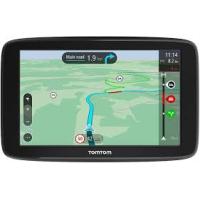
| Marque et modèle | HP iPAQ RZ1710 / HX2110 + TomTom Navigator |
| Dimensions (approximatives) | 120 × 70 × 20 mm (selon les spécifications iPAQ) |
| Poids (approximatif) | 150 g (avec batterie) |
| Écran | Couleur tactile (3,5 pouces QVGA) - selon modèle iPAQ |
| Alimentation | Batterie rechargeable Li-Ion (autonomie ~4-5h), chargeur allume-cigare fourni |
| Cartographie | Cartes Tele Atlas préchargées sur carte SD (non fournie avec le pack) |
| Récepteur GPS | Externe (connecté via le port du pocket PC) - antenne active |
| Fonctions principales | Navigation routière avec instructions vocales, calcul d'itinéraire, POI, planification A->B, affichage 2D/3D, mode nuit/jour |
| Langues disponibles | Français, anglais, allemand, espagnol, italien, néerlandais, etc. (selon versions installées) |
| Mémoire requise | Carte SD pour stocker cartes et voix (minimum 256 Mo recommandé) |
| Connexion PC | Port USB (via câble synchro) pour installation de cartes et mises à jour |
| Entretien et nettoyage | Nettoyer l'écran avec un chiffon doux et sec ; ne pas utiliser de produits abrasifs. Protéger de l'humidité et des chocs. |
| Sécurité | Utiliser un support adapté dans le véhicule ; ne pas manipuler en conduisant. Débrancher le câble d'alimentation par temps d'orage. |
| Pièces détachées et réparabilité | Contacter TomTom ou HP pour les pièces ; certaines pièces (batterie, câble) sont remplaçables. Logiciel mis à jour via CD-ROM. |
| Informations générales | Notice de 42 pages disponible ; numéro de version logicielle affiché dans le menu "About Navigator". |
FOIRE AUX QUESTIONS - HP NAVIGATION PACK-IPAQ RZ1710/HX2110 TOMTOM
Questions des utilisateurs sur HP NAVIGATION PACK-IPAQ RZ1710/HX2110 TOMTOM
0 question sur cet appareil. Repondez a celles que vous connaissez ou posez la votre.
Poser une nouvelle question sur cet appareil
Téléchargez la notice de votre GPS Navigation au format PDF gratuitement ! Retrouvez votre notice HP NAVIGATION PACK-IPAQ RZ1710/HX2110 - TOMTOM et reprennez votre appareil électronique en main. Sur cette page sont publiés tous les documents nécessaires à l'utilisation de votre appareil HP NAVIGATION PACK-IPAQ RZ1710/HX2110 de la marque TOMTOM.
MODE D'EMPLOI HP NAVIGATION PACK-IPAQ RZ1710/HX2110 TOMTOM
TOMTOM
NAVIGATOR
-HP EDITION-
TomTom Navigator -HP Edition- User Guide
Copyright ©1996-2004 TomTom B.V., The Netherlands.
TomTom is a trademark of TomTom BV.
Data copyright ©2004 Tele Atlas N.V., The Netherlands.
Data copyright ©2004 Tele Atlas Inc, U.S.A.
http://www.tomtom.com
Introduction
Thank you for purchasing TomTom Navigator -HP Edition- as your navigation system. This User Guide is your reference using TomTom Navigator -HP Edition-.
Table of Contents
1. What you see on the screen
1.1. The main screen
1.2. The menu
1.3. The route summary
1.4. The map browser
1.5. The schematic view
2. Browsers and locations
2.1. Browsers
2.2. Picking locations
2.2.1 Picking your HOME location
2.2.2 Picking a favourite location
2.2.3 Picking a recent destination
2.2.4 Picking your GPS position
2.2.5 Picking a point of interest
2.2.6 Picking an address
3. The menu
3.1. Planning from A to B
3.2. Alternative routes
3.3. The route instructions
4. The preferences
4.1. Use night colours
4.2. Turn off 3D display
4.3. Turn off map display
4.4. Hide POI
4.5. Turn sound off
4.6. Change volume
4.7. Maintain favourites
4.8. GPS status
4.9. Switch map
4.10. Enable/Disable POI
4.11. Change map colours
4.12. Use larger keyboard
4.13. About Navigator
4.14. Set name display
4.15. Change Home location
4.16. Set metric units
4.17. Left-handed lay-out
4.18. Set schematic speed
4.19. Change voice
4.20. Switch Language
4.21. POI appendix
5. Installation
5.1. Using the CD-ROM
5.2. Requirements for installation
5.4. (Re-)Installing TomTom Navigator -HP Edition-, voices and maps
1. What you see on the screen
1.1. The main screen
The main screen of TomTom Navigator -HP Edition- is used to navigate to your destination. Your position is displayed on the map using your GPS receiver. If your GPS receiver is switched off, or has not (yet) determined a clear position from the GPS satellites, the main screen displays your last known position. To emphasize the fact that your actual position is unknown, the screen is displayed in black and white.
1 "Sound off" warning indicator
2 Next instruction
③ The name of the next street
4 Journey information
6 Your current GPS position
7 "Zoom in" button
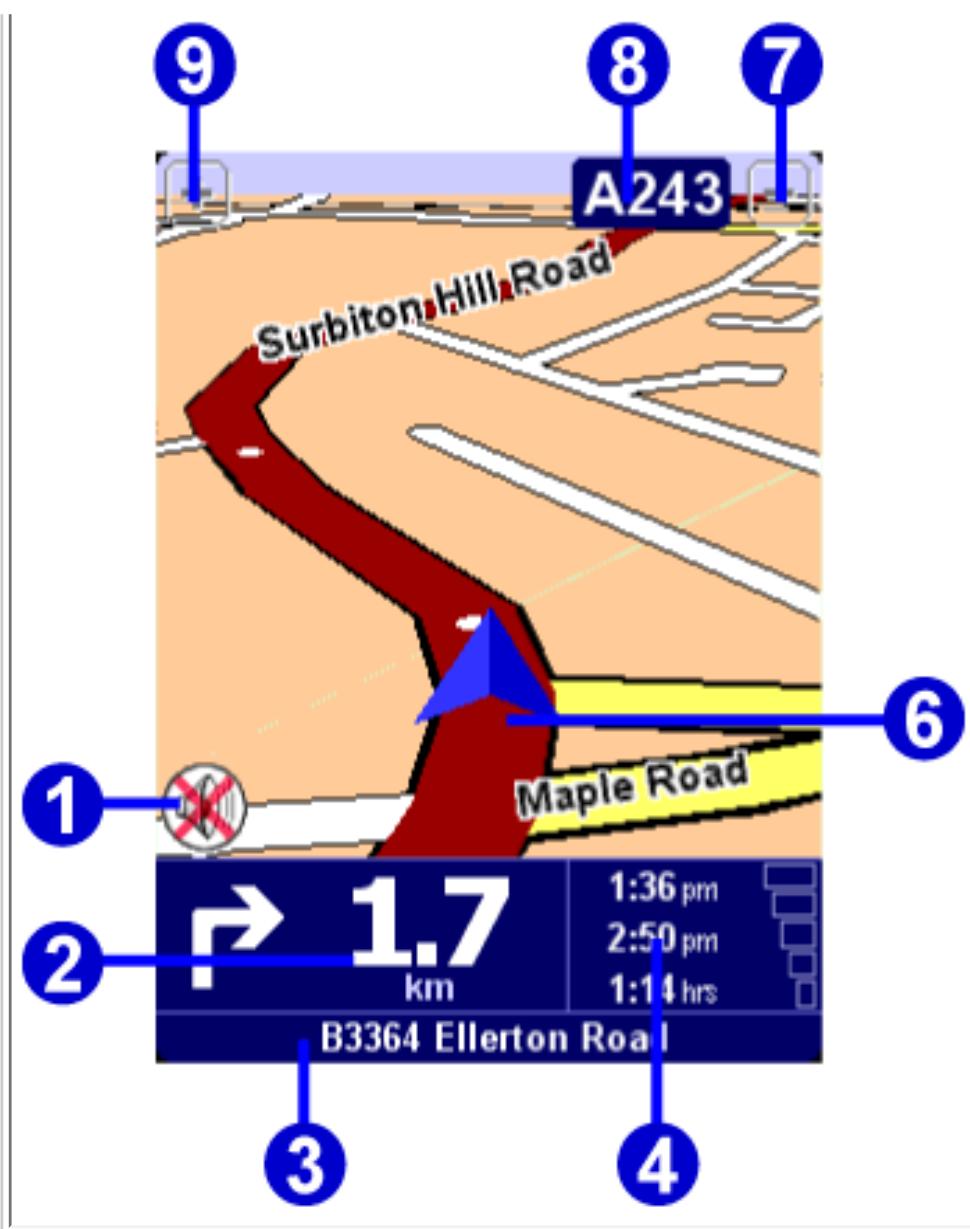
8 "Next highway" indicator
9 "Zoom out" button
The dark red path indicates the calculated route. The route instructions will guide you along this path to reach your destination.
Your next driving instruction ② shows an arrow for the direction to follow and a distance indicator (presented in your distance units preference) when to do it. The bottom of the screen ③ shows the street name you will reach if you follow the current driving instruction. If the "sound off" indicator ① is not shown, the displayed instruction will be accompanied by voice instructions. If necessary, use the sound on preference to switch on the voice instructions.
To increase or decrease the scale of the map, tap 7 to zoom in or 9 to zoom out relative to your current position. This keeps working when covered by the 8 "next highway" indicator.
The journey information 4 shows the current time, estimated time of arrival and the time left to reach your destination.
Note:
When the battery is low, a "low battery" warning symbol will start blinking in the area where you normally
see your "current speed".
Ignoring the planned route
TomTom Navigator -HP Edition- is very flexible. If you take a turn different from the one in the instruction (by mistake or on purpose) TomTom Navigator -HP Edition- will adjust almost instantly to the new situation. It will keep guiding you to your current position as fast as it can calculate.
Operate the main screen
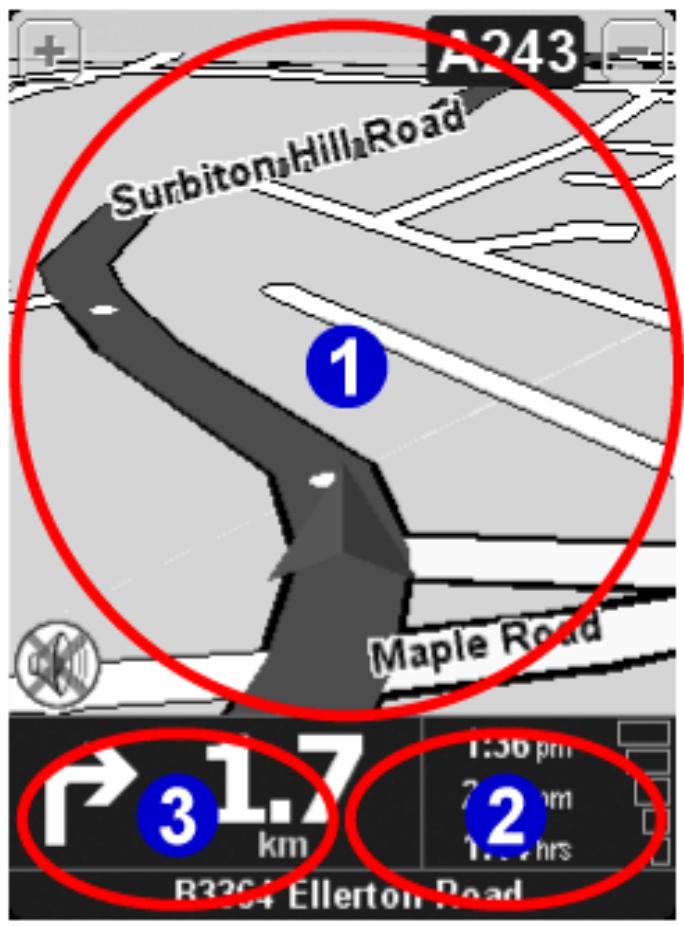
1 Tap roughly in the middle of the map to open the menu
2 Tap the journey information area to open the detailed route summary
3 Tap the instruction area to repeat the last spoken instruction (if still available)
1.2. The menu
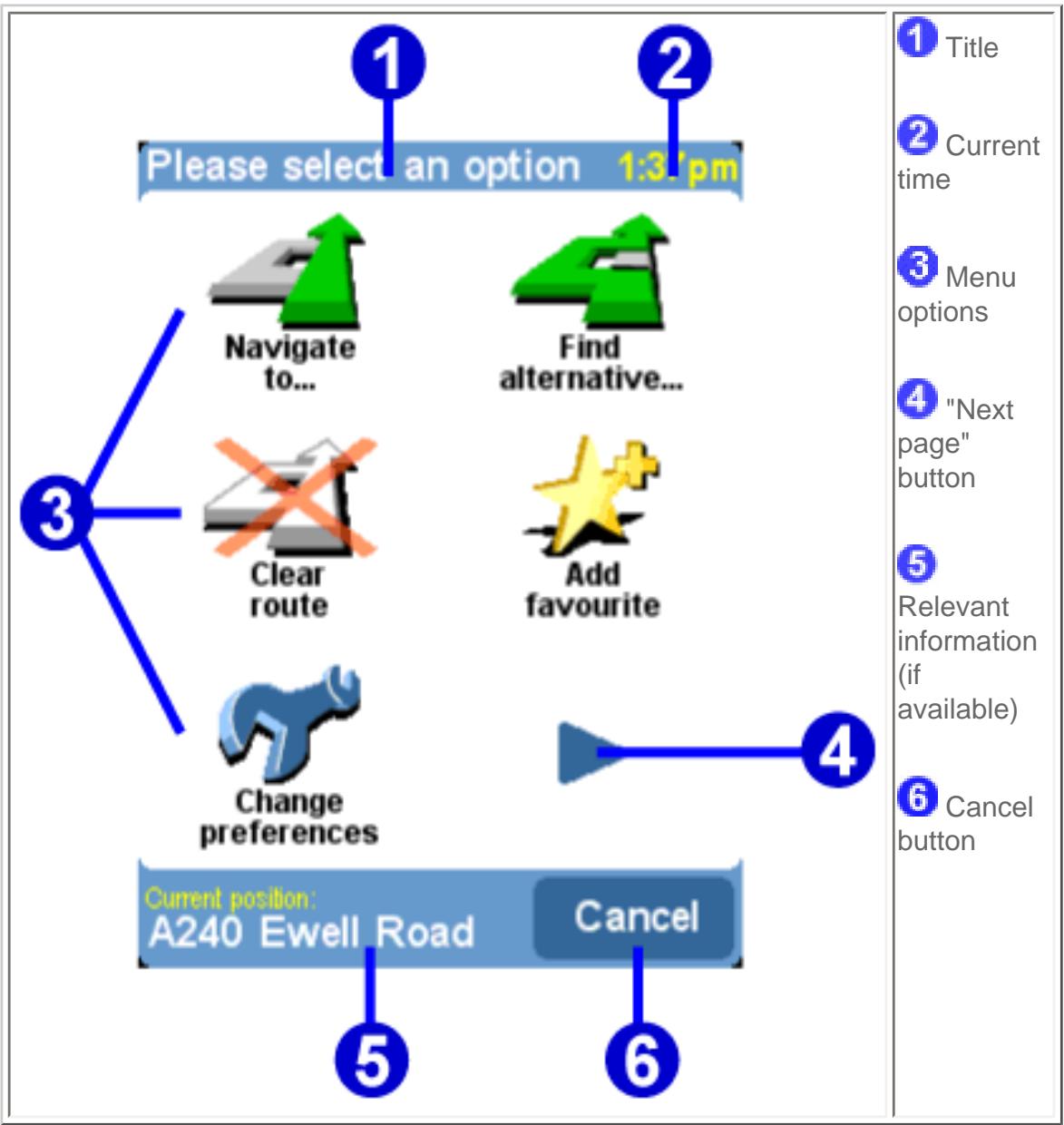
The menu opens when you tap roughly in the middle of the main screen. It provides access to all functions.
There are two pages. Use the ▶ button to cycle through the pages. You select an icon by tapping it. Until you take your stylus or finger off the screen, icons and buttons are only highlighted, not yet selected.
flowchart
graph TD
    A["Please select an option 1:3 pm"] --> B["1"]
    A --> C["2"]
    B --> D["3"]
    D --> E["Navigate to..."]
    D --> F["Find alternative..."]
    D --> G["Clear route"]
    D --> H["Add favourite"]
    D --> I["Change preferences"]
    I --> J["4"]
    J --> K["5"]
    J --> L["6"]
    K --> M["Current position: A240 Ewell Road"]
    L --> N["Cancel"]
The 10 main menu options are explained in chapter 3.
The "change preferences" option gives access to several menu pages with preference options, which are explained in chapter 4.
1.3. The route summary
The route summary screen gives you an overview of the calculated route. From this screen you can decide how to use the route. The route summary screen is shown immediately after you have calculated a route, for example with "Navigate to...", "Plan from A to B", or "Find alternative...". You can also show is
by tapping Show status in the menu.
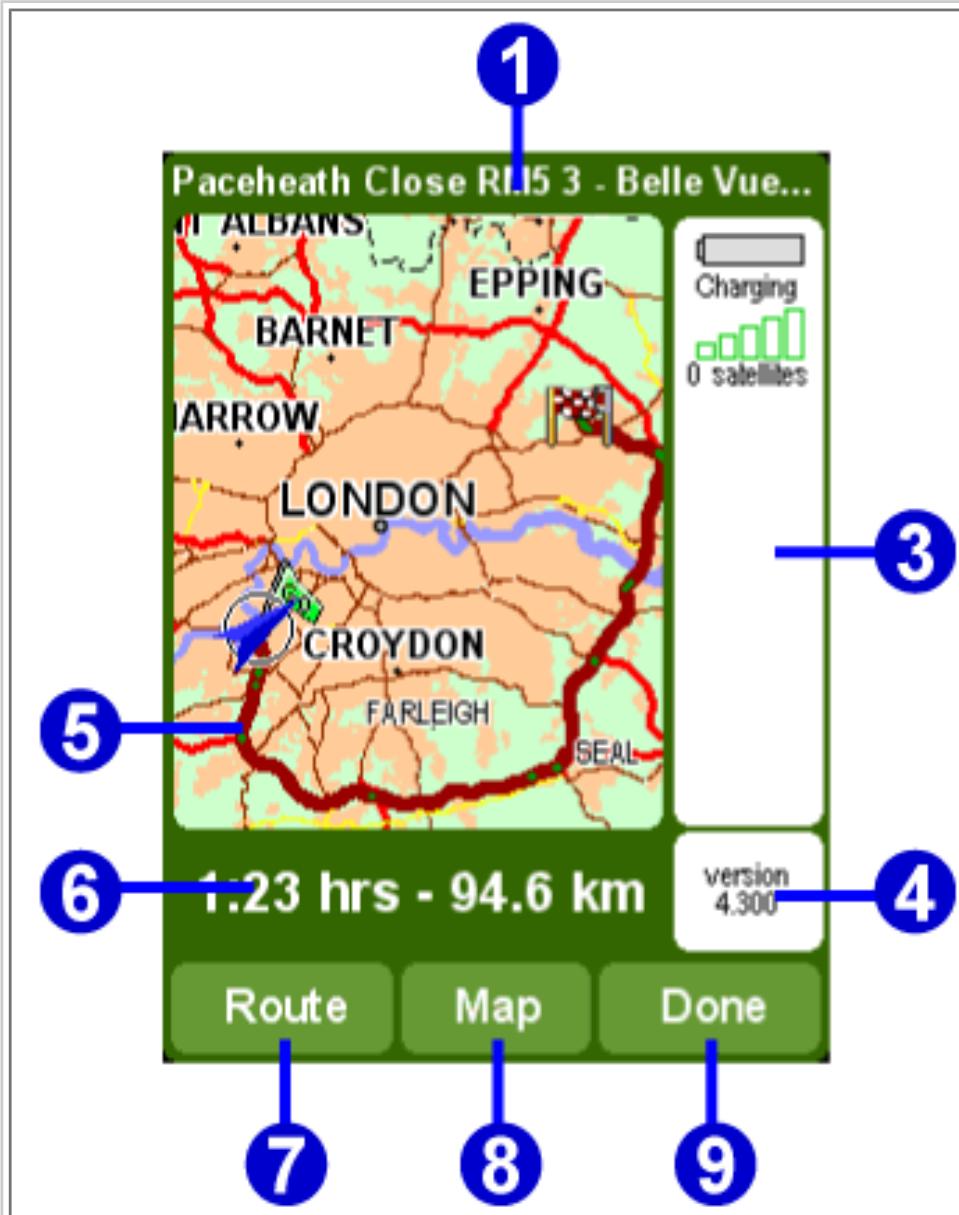
1 Current destination
③ Battery and GPS indicators
4 Application version
5 Map showing the calculated route
6 Journey summary
7 Route button
8 Map button
9 Done button
The current destination 1 is shown as an address, the name of a favourite or a point of interest.
The indicators 3 show battery strength, GPS signal strength, number of GPS satellites and GPS coordinates (if available). Tap this area to see the full GPS details, with the option to configure your GPS hardware.
Tap the application version 4 to see the application version and copyrights.
The journey summary 6 shows the estimated total journey time and total distance (presented in your distance units preference). If the route shown is an alternative route, the original journey time and distance are also shown for comparison.
Tap Route ^7 to display a complete list of route instructions.
Tap Map ^8 to browse around on the map of your route.
Tap Done ^9 to start navigating in the main screen.
1.4. The map browser
TomTom Navigator -HP Edition- offers many features that allow you to browse around on a map. You can do so by tapping Browse map in the menu, or tap Mapin the route summary screen.
On the map, you will find all the items you might find on a normal paper map, such as cities, towns, roads, streets, rivers and lakes, points of interest (such as petrol stations, restaurants and hospitals) etc.
You can also find more dynamic and personal elements, such as your current GPS position, your favourite locations or your current departure and destination.

1 Scale bar
② Cursor position
③ GPS button
4 Zoom slider
5 Your current GPS location
6 Options button
7 Search button
8 Cursor button
9 Done
The blinking icon represents your cursor. Simply tap the map anywhere to place the cursor at that position.
To increase or decrease the scale of the map, move the zoom slider (white square at the side of the screen) up or down. The map will zoom in (or out) relative to your cursor position.
To browse around, simply tap the map, keep your finger on the screen and drag it around.
| option | function |
 | The search button allows you to search for a specific location and place your cursor there. You use it to locate:an addressone of your favourite locationsyour home locationa recent destinationa nearby point of interest (e.g. a hotel or petrol station)your current GPS positionRelated topic:To learn more about the options to search a location, see the "Picking locations" description. |
 | The cursor button provides functions for your cursor location (i.e. the location indicated by the blinkingicon). You can:calculate a route from your current location to the cursor locationfind a point of interest near the cursor locationcentre the map around the cursor locationturn the cursor location into a favourite |
| Options | The options button allows you to change the items that are currently being displayed on the map:show the number of roads and streetsshow the number of street namesshow or hide all points of interestshow or hide all favouritesTap Show POIto use the Enable/disable POI preference to specify which categories of points of interest can be displayed.Note:The option to show or hide all points of interest in this menu is the same as Show POI / Hide POI preference. Changes have direct effect on this preference. |
 | Tap the GPS button (in the top right corner of the screen) to re-centre the map around your current GPS position. | |
| Done | Tap Doneto return to the main screen. | |
1.5. The schematic view
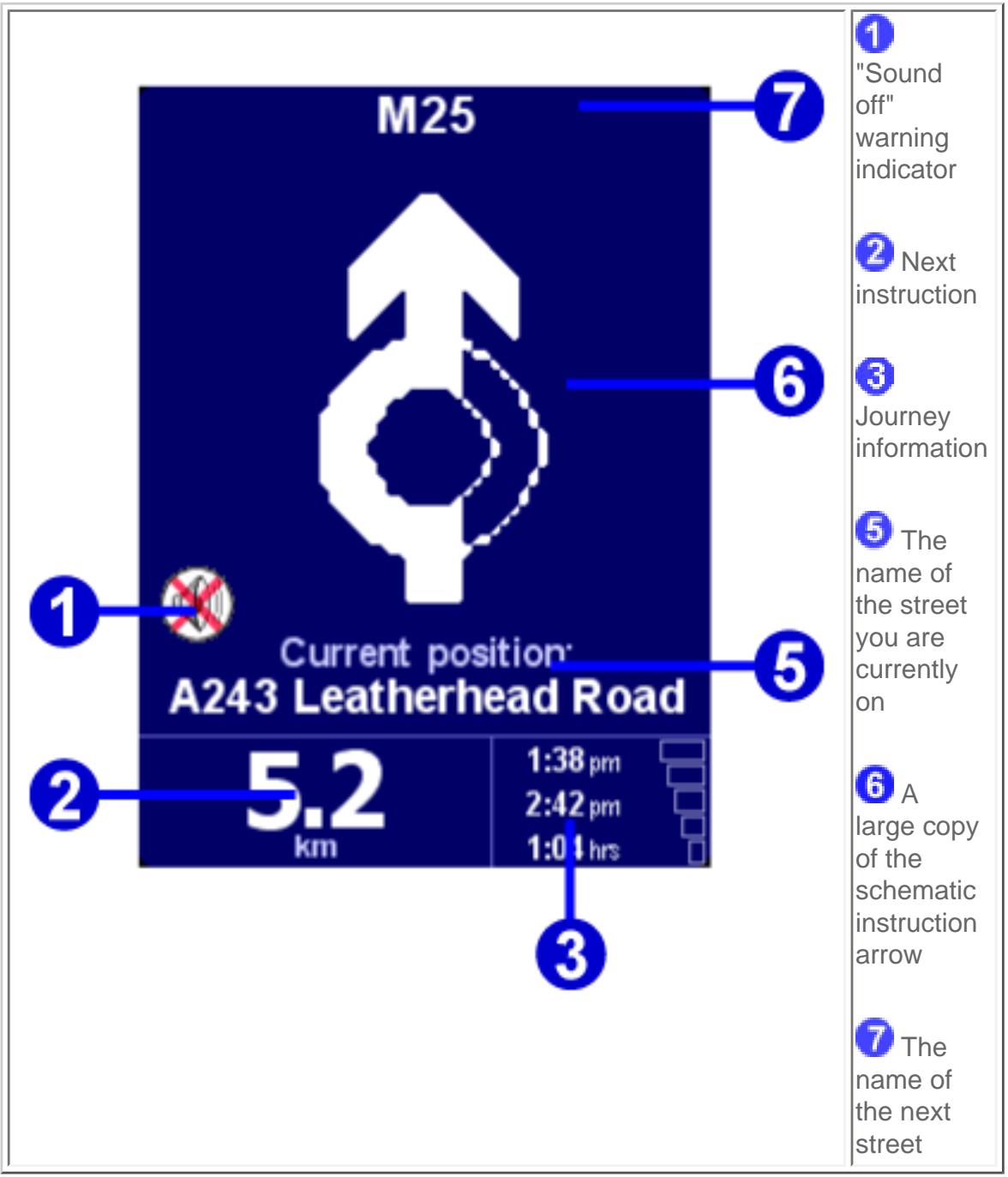
Instead of the main screen, a much simpler, schematic design can be used to display driving instructions. Some people prefer the simplicity of this "at-a-glance" schematic display.
You can switch to the schematic display using the turn off map display preference.
You can also set TomTom Navigator -HP Edition- to hide the map only when you go faster than a certain speed.
2. Browsers and locations
2.1 Browsers
- Tap a line to select it; if you change your mind and wish to go back to the previous screen without selecting anything, press the BACK or CANCEL button
- If there are more lines than fit on the screen, you can browse to the other pages of the list by tapping ▲ and ▼.
- When a line has too much text to fit on the screen, it will be abbreviated. When you tap an item and keep your finger or stylus on the screen, the item will be adjusted in size in order to show the complete text.
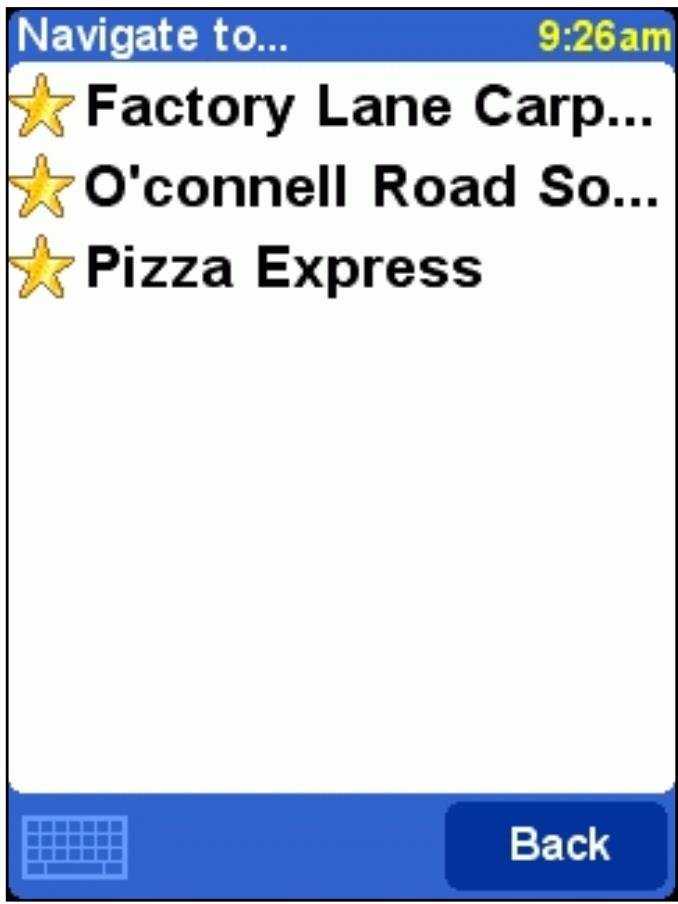
browser with collapsed keyboard
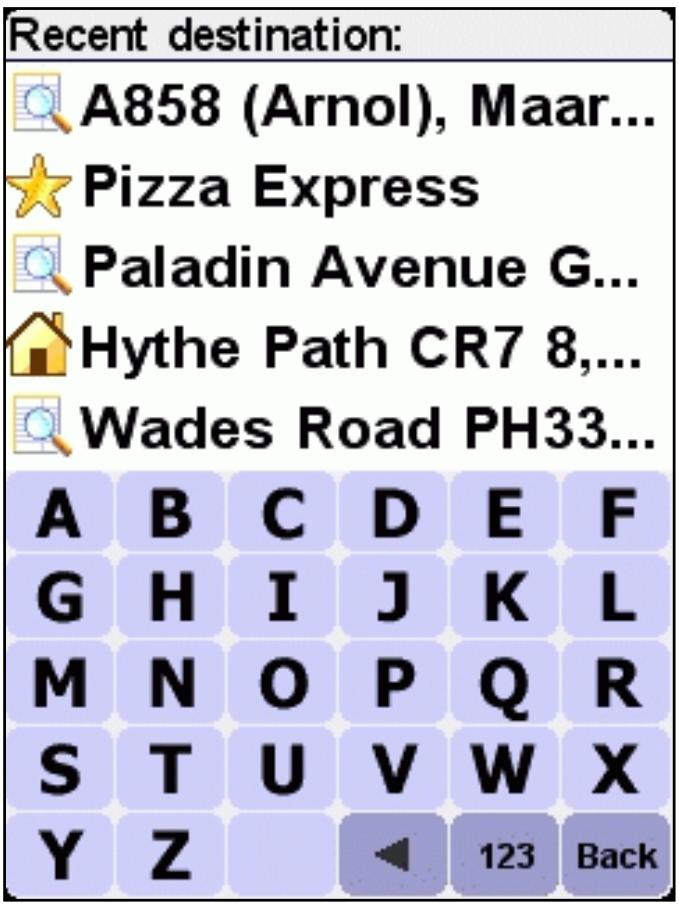
browser with popped-up keyboard
Most browsers allow you to search for items with a particular name. Simply type some letters of the name, by tapping the corresponding buttons on the keyboard. If no keyboard is visible, tap the keyboard
symbol in the bottom corner open it. See chapter 4.12 how to change the size of the keyboard.

to remove a character.
Tap 123 to switch to the alternative keyboard, which allows you to enter digits and special symbols.
2.2 Picking locations
You can select a location by several options:
• Home - your "home" location
- Favourite - one of your own favourite locations
- Recent destination - a location that you have recently travelled to
- Point of Interest (POI) - a point of interest such as a petrol station, restaurant, hospital etc.
- Address - a city, street and house number
• GPS position - your current location (as measured by your GPS device)

2.2.1 Picking your HOME location
The main advantage of the HOME location is simply that you can select it with a single tap of your finger. It is therefore useful to set it to the location that is most central in your travels, such as your home, your parking spot or your office.
You can change your HOME location using the "change home location" preference.
If you don't specify a HOME position, the home icon in the location menu will remain dimmed.
2.2.2 Picking a favourite
Locations you travel to regularly (like family, friends, work address, important customers etc.) can be turned into favourite locations.
If you have never turned a location into a favourite yet, the "favourite" icon in the location menu is
dimmed. Otherwise, you will be presented with a browser listing of all your favourite locations in alphabetical order:
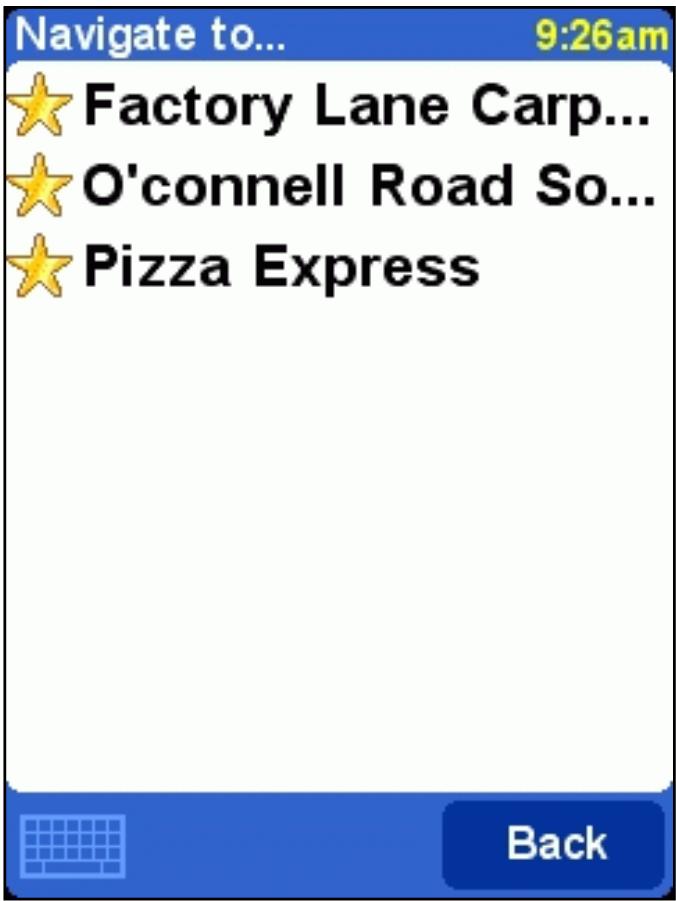
See chapter 2.1 for details about how to browse, search for particular items, etc.
You can turn locations into favourites using the "Add favourite" option in the menu, or using the "Add as favourite" cursor action in the map browser. You can rename or delete favourites using the Maintain favourites preference.
2.2.3 Picking a recent destination
Every time you plan a route, the destination is automatically added to the list of recent destinations.
If you have never navigated anywhere, the "recent destination" icon in the location menu will be dimmed. Otherwise, you will be presented with a browser listing the most recently used destinations.
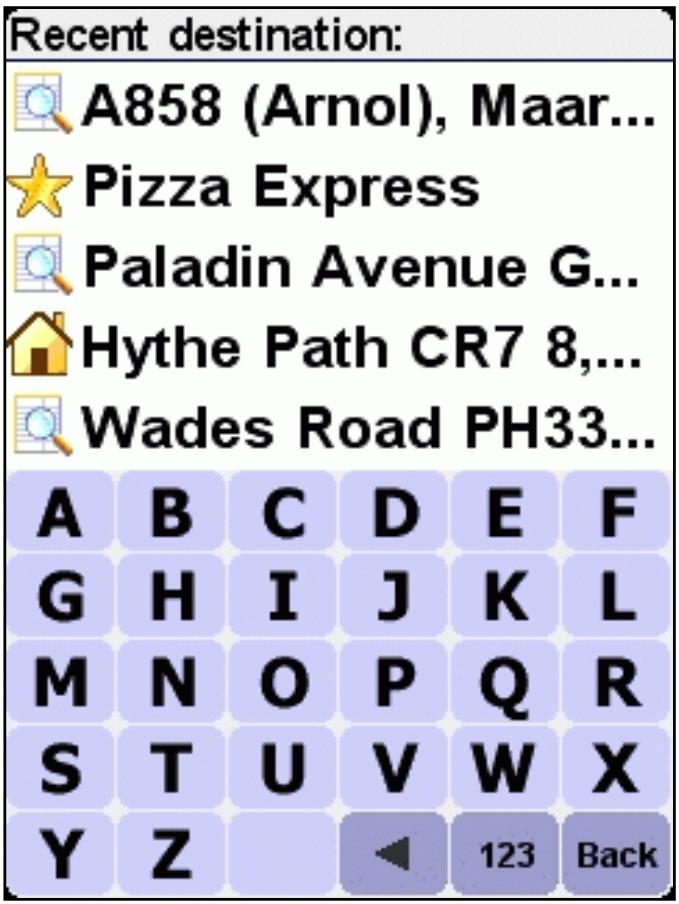
See chapter 2.1 for details about how to browse, search for particular items, etc.
2.2.4 Picking your GPS position
If you tap the "GPS position" icon in the location menu, your select your current location (i.e. the position measured by your GPS devices).
If your GPS devices is off or disconnected, or if there is no valid GPS signal, the icon will be dimmed, or produce a "no valid GPS signal!" message when you tap it.
For more information about your GPS signal, see chapter 4.8.
2.2.5 Picking a point of interest
Points of interest (often abbreviated to "POI") are locations like parking garages, petrol stations, hotels, restaurants, hospitals, monuments etc.
Most TomTom Navigator -HP Edition- maps offer huge amounts of POI (a notable exception is the Major Roads map, for which the POI icon in the location menu will be dimmed).
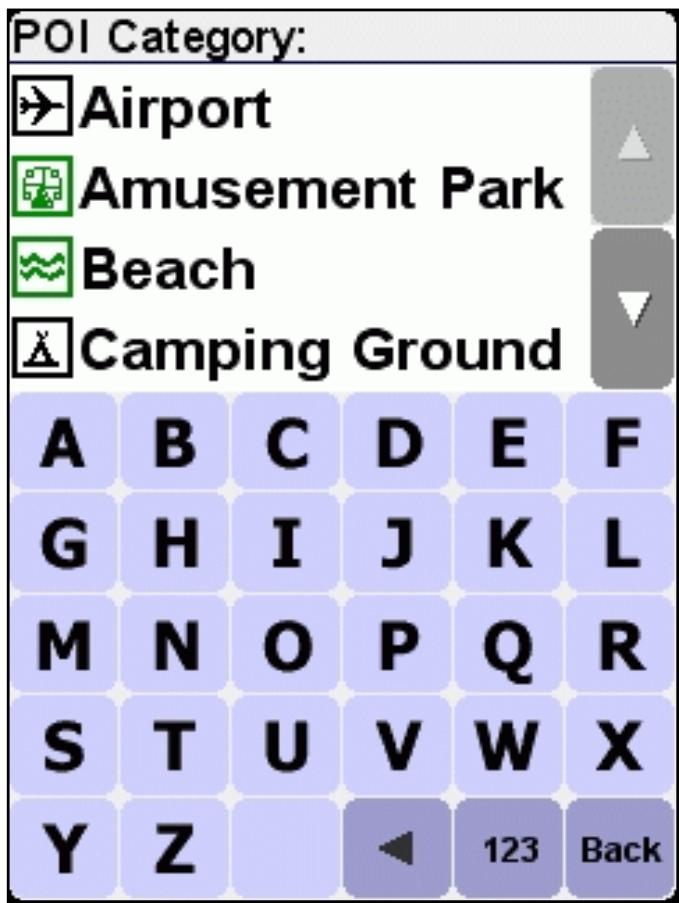
In order to pick a POI, you first need to pick a POI category. As there are many categories, TomTom Navigator -HP Edition- first presents you with a menu listing the five categories that you have most often and/or most recently used. Either tap the one you want, or press the ▶ button to select a category from the complete list:
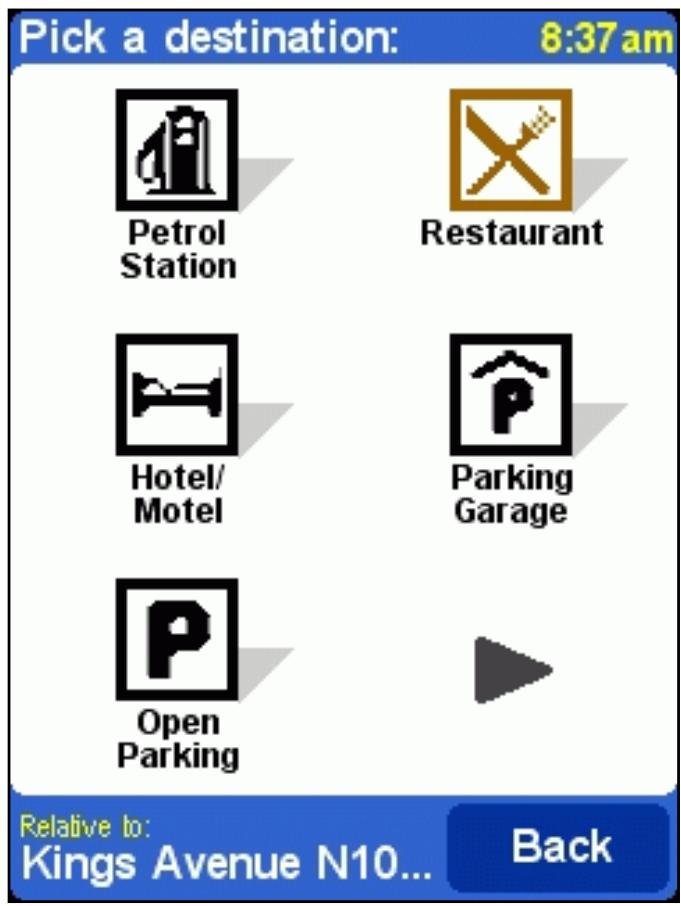
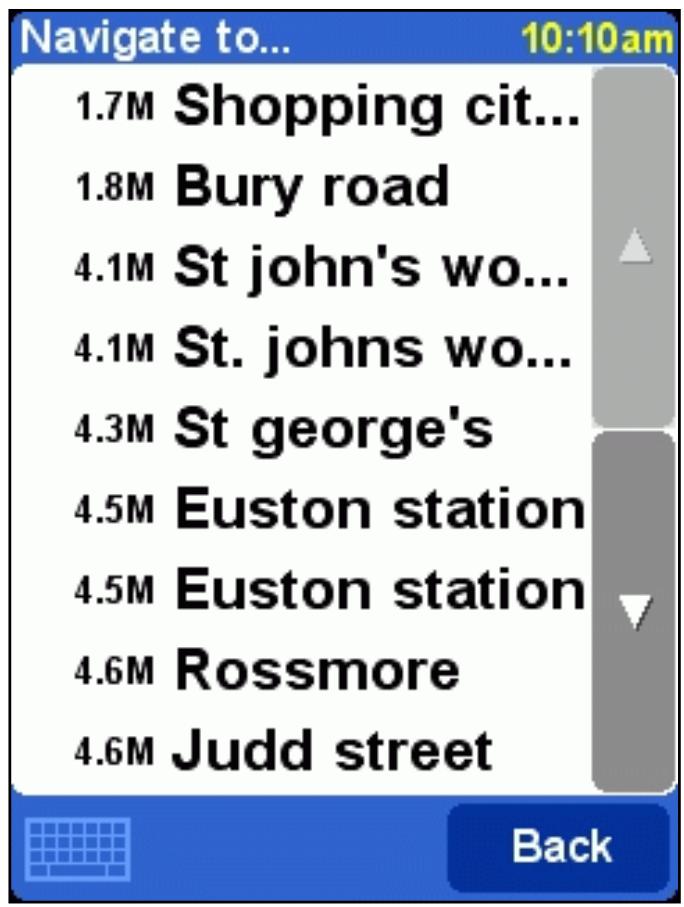
Once you have picked the POI category you want, TomTom Navigator -HP Edition- will provide a list of POI, in order of proximity.
Note:
The POI browser only shows the nearest points of interest, not all of them. Therefore, if you are looking for a particular point of interest, say a restaurant with a certain name, you may have to type some (more) letters of that name before it appears in the list.
Related topics:
See chapter 2.1 for details about how to browse, search for particular items, etc. in the list of POI categories or in the list of POI.
See chapter 4.4 about how to show or hide POI on the main screen
See chapter 4.10 about how to show or hide particular POI categories.
2.2.6 Picking an address
STEP 1. Specifying the city or postal code area
In TomTom Navigator -HP Edition-, you find an address by going from the general to the specific. In other words, you first specify the city or postal code area, then the street name, and then the house number or crossing. Although this is slightly different from how addresses are normally written down, there are many advantages to searching for an address in this order.
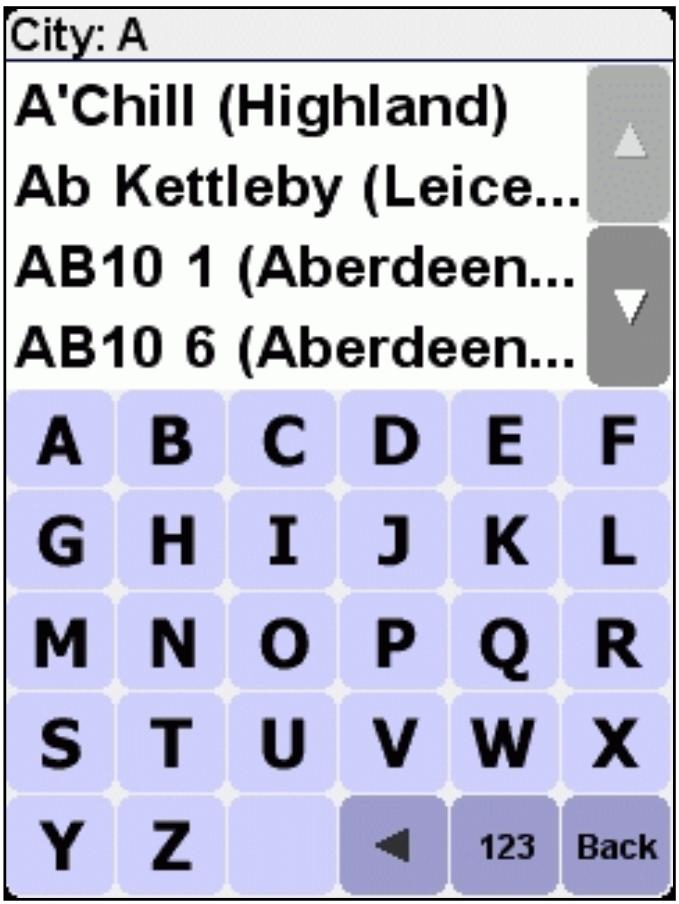
The first thing you are therefore asked to do, is to specify a city, town or village. Type the first letters of its name. A few letters usually suffice. When you see the name of the city in the list, tap it.
TomTom Navigator -HP Edition- will initially present you with a list of recently used city names. In other words, after you have used TomTom Navigator for a while, you will often be able to pick the city without typing any letters at all.
TomTom Navigator -HP Edition- also knows the postal code zones for most countries. This means that in those countries, you can enter the (first part of) a postal code instead of entering the name of the city.
STEP 2. Specifying the street
Once you have selected a city, you will be asked for a street name. Once again, a few letters usually suffice. Note that TomTom Navigator -HP Edition- is quite capable of finding streets on the basis of misspelled or incomplete names. This also means that if you are looking for a street such as "Avenue de Mazagran", you could forget about the "avenue" and simply start typing "MAZ".
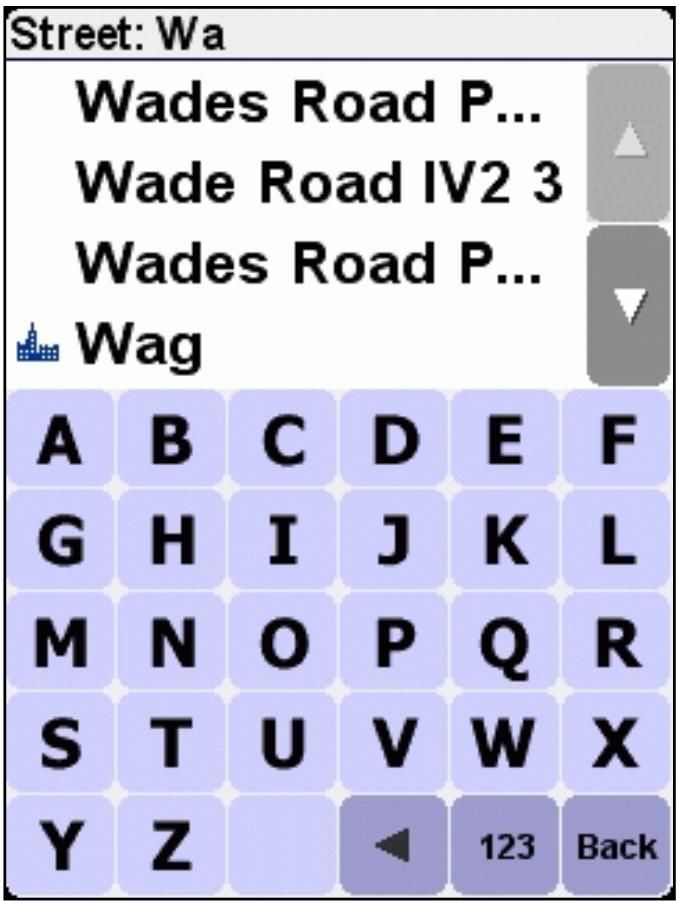
The street browser initially offers recently selected street names in the selected city. In other words, after you have used TomTom Navigator for a while, you will sometimes be able to pick a street without typing any letters at all.
Streets that cannot be entered by car are marked with a special symbol:
The browser may also contain items that aren't so much streets as "locations". This includes certain parks and squares, as you might expect, but also crucial landmarks such as railway stations: 📄 and "city centres": 📁.
In almost every city there is at least one such location, carrying the same name as the city itself.
STEP 3. Specifying the house number or crossing
Next, you will be asked to enter the house number. Or, as an alternative way of specify a precise location on a long street, you can pick the place where the selected street crosses another street.
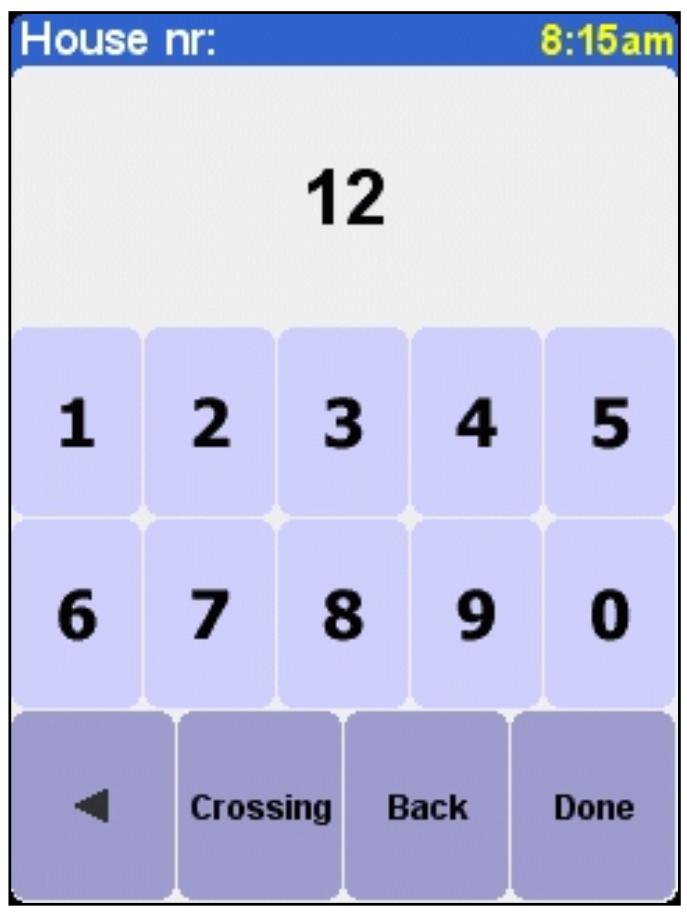
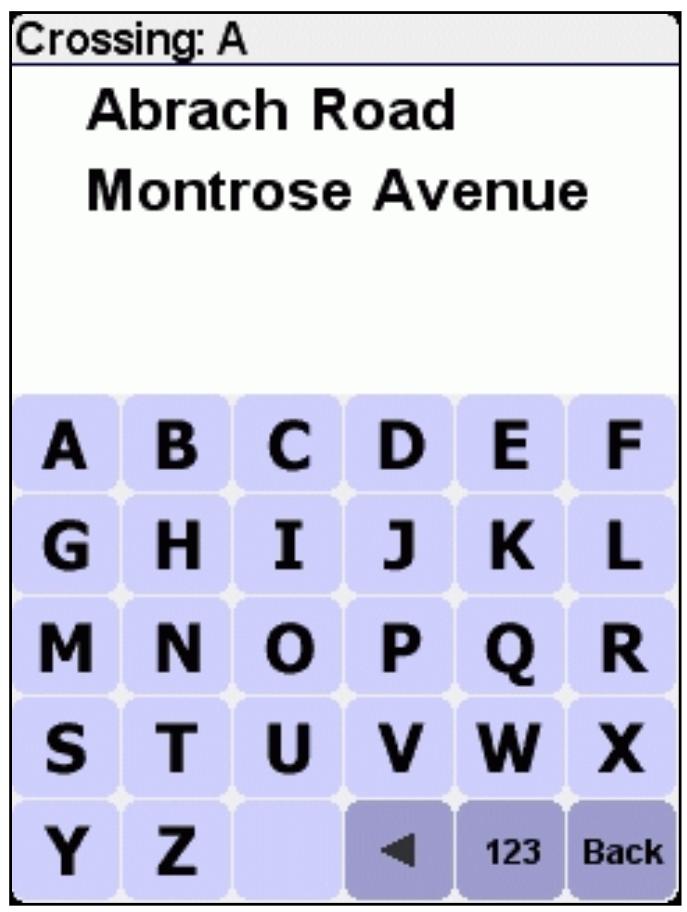
If you pressed the CROSSING button when asked for a house number, or pressed DONE without entering a house number, or if TomTom Navigator -HP Edition- simply does not know any house numbers on the selected street, you will be presented with a list of all known crossings (i.e. street corners). If you really do not care about the exact spot, simply pick the option "Anywhere".
Note: just like the streets themselves, side streets are sometimes marked with a special symbol
3. The menu
The menu pops up when you tap roughly in the middle of the main screen. There are two pages. Use the button to cycle through the pages. You select an icon by tapping it. Until you take your stylus or finger off the screen, icons and buttons are only highlighted, not yet selected. When a menu option is not available, the icon is dimmed and cannot be selected.
The "change preferences" option gives access to several menu pages with preference options, which are explained in chapter 4.
| option | function | |
 Navigate to... Navigate to... | Calculates a route from your current position to a certain destination. The destination can be any type of location except your current position. Enter the destination using the picking locations menu.The calculated route is shown in the route summary screen, from which you can start navigating.Note:To calculate the route TomTom Navigator -HP Edition- must have a valid GPS signal. If you do not have this, the route summary screen is shown with the message "Waiting for a valid GPS signal..." The route will be calculated when the signal becomes available. If necessary, refer to your installation poster to find out how to connect your GPS device.Related topic:To learn more about the options to set a destination, see the "Picking locations" description. | |
 Find alternative Find alternative | If you are not happy with the route TomTom Navigator -HP Edition- has calculated you can recalculate a new route. For detailed instructions see Chapter 3.2.The recalculated route is shown in the route summary screen, from which you can start navigating.Note:Find alternative is not available when you have no route calculated. | |
 Clear route Clear route | The calculated route will be removed. The screen will show your position on the map without providing route instructions or indicators.Note:Clear route is not available when you have no route calculated. | |
 Add favourite Add favourite | Add a location to your list of favourites. You can do this using any type of location except another favourite. Enter the location using the picking locations menu.Related topic:To learn more about the options to set a destination, see the "Picking locations" description. | |
 Change preferences Change preferences | TomTom Navigator -HP Edition- has many preferences which set the behaviour to your personal liking. Chapter 4 describes all the options from the preference menu in detail. | |
 Plan from A to B Plan from A to B | To plan a route without a valid GPS signal. You can manually select the departure and destination of your route. Chapter 3.1 describes this function in detail. | |
 Browse map Browse map | Lets you explore and search for locations in the map browser. It is a digital version of your paper map with a lot of detailed information available.Related topic:To learn more the map browser screen, see the "Map browser" description. | |
 Show status Show status | Shows the route summary screen. This is the same screen as displayed after a route has been calculated.Related topic:To learn more the route summary screen, see the "Route summary" description. | |
 Guided tour Guided tour | This option gives you a brief guided tour of the application, the most important menu options, and the map browser. | |
 Show route instructions Show route instructions | Shows the calculated route as written instructions. Chapter 3.3 describes this function in detail.Note:Show route instruction is not available when you have no route calculated. | |
3.1 Planning from A to B
Calculate a route between two selected locations, in the menu tap Plan from A to B

Without a valid GPS signal you can still calculate a route using "planning from A to B". This is typically
the case when you are not in your car. "Planning from A to B" is a valuable function when you want to prepare for your trip in advance, you want to find out how long a certain would take or when you want to find out how someone should travel to you.
The difference with "Navigate to..." is the departure location of your trip. Where "Navigate to..." uses you current GPS location as the departure, "Planning from A to B" requires you to enter the departure manually.
Use the locations picker to set any type of location to depart from.
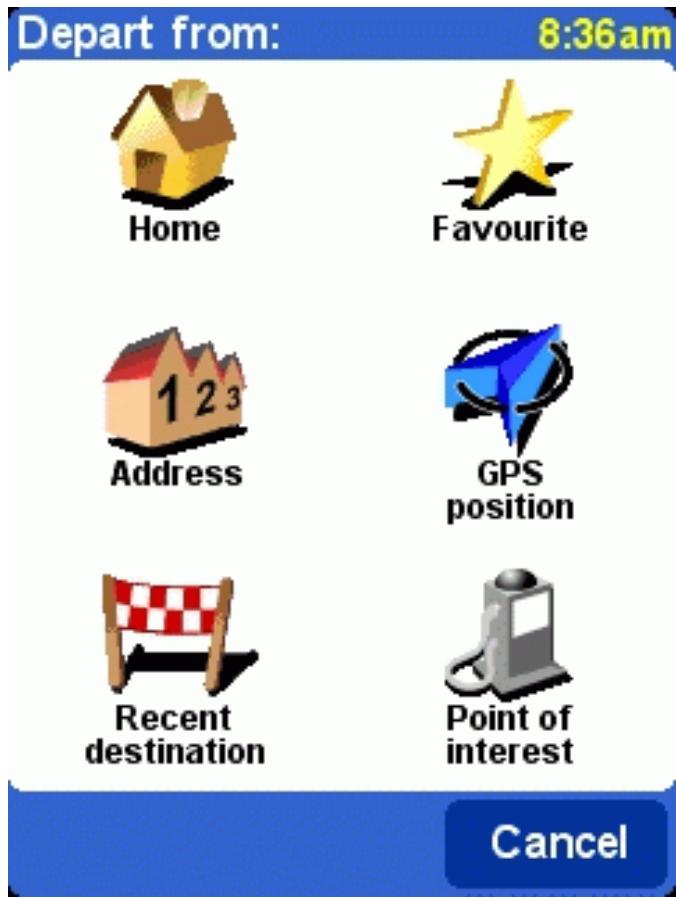
For fast selection TomTom Navigator -HP Edition- offers you the option to use your last destination again. If you have not calculated a route before this will not be offered.
Use Hythe Path CR7 8, London as the destination?
NO
YES
If you do not want to use your last destination again, use the locations picker to set any type of location as your destination.
Pick a destination:
8:36am

Home

Favourite

Address

GPS
position

Recent
destination

Point of interest
Destination:
Hythe Path CR7 8...
Cancel
The calculated route will be presented in the route summary screen. You can review the route on the map, as written instructions and the summary statistics (total distance and estimated total journey time). This gives a good overview of your trip. If you are not happy with the calculated route you can calculate
3.2 Alternative routes
Alternative route options are available from the menu by tapping Find alternative

Routes are calculated on the basis of the time required to reach the destination. In other words, TomTom Navigator -HP Edition- calculates the quickest way to get you to your destination.
If for some reason you want to get rid of a particular route (for instance because you drive into a traffic jam or a road construction), you can request an alternative route. Such an alternative will use different roads, and will probably take more time. An unlimited number of alternatives can be calculated - each alternative will be longer and/or take more time than the previous one.
| option | function |
 Calculate alternative Calculate alternative | Calculates a new route using the same departure and destination as the current route. As many new roads as possible are used for the new route.The new calculated route is shown in thereoute summary screen, from which you can start navigating or exploring the calculated alternative. |
 Avoid roadblock Avoid roadblock | Calculates a new route using the same departure and destination as the current route. The roads for the next 2000 meter of the current route are not used in the new route. This gives you the opportunity to avoid roadblocks directly ahead.Avoid roadblock is available as separate menu options for 100, 500, 2000 and 5000 meters.The new calculated route is shown in thereoute summary screen, from which you can start navigating or exploring the calculated alternative. |
 Recalculate original Recalculate original | If you are not happy with any of the alternatives routes TomTom Navigator -HP Edition- will recalculate the original fastest route.The recalculated route is shown inthereoute summary screen, from which you can start navigating. |
3.3 The route instructions
Show the route instructions from the menu by tapping Show route instructions button in the route summary screen will show you the route instructions.

. Also the ROUTE
All the driving instructions from departure to destination are displayed.
Every line shows the estimated time until the next instruction, the instruction arrow and the street name you should drive onto.
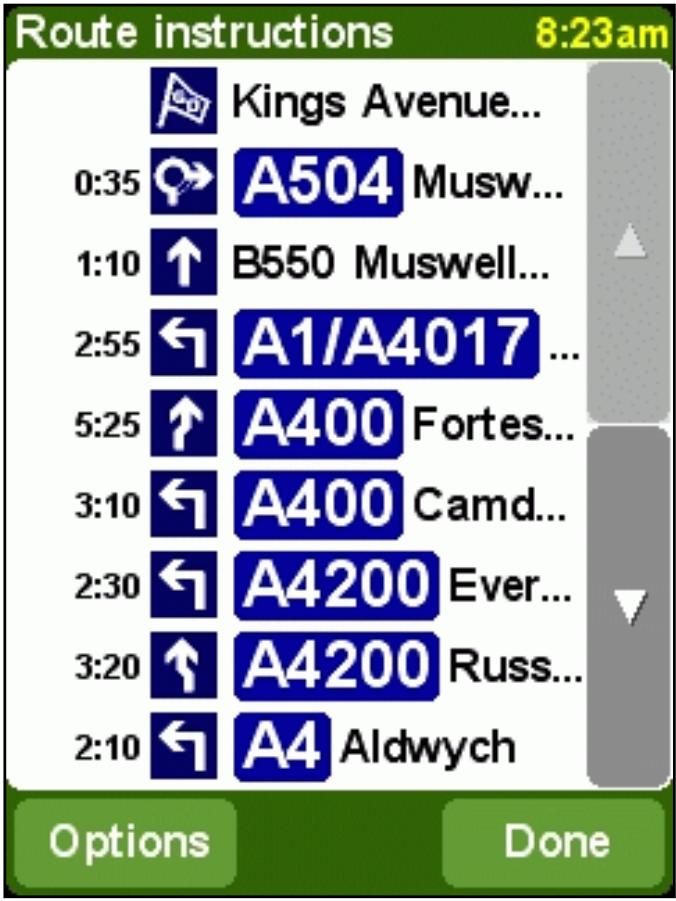
Scroll through the list using the ▲ and ▼ buttons.
To see the details of a single instruction, tap on it. The instruction is shown zoomed-in on the map using the map browser. The option DONE will get you back to the route instructions.
With the OPTIONS button you can select an alternative for the estimated time until the next instruction which is shown before the instruction arrow:
| Distance to instruction | The distance between the last instruction and the next instruction |
| Distance since departure | he distance between your departure and the next instruction |
| Time to instruction | Estimated time between the last instruction and the next instruction |
| Time since departure | Estimated time between your departure and the next instruction |
| Time of day | Estimated time for the next instruction |
The distance is presented in your distance units preference.
4. The preferences
TomTom Navigator -HP Edition- offers many preferences – options that allow you to change the look and feel to your liking.
There are multiple pages. Use the ▶ button to cycle through the pages. When a menu option is not available, the icon is dimmed and cannot be selected.
A number of preferences work as a status which can be switched between by selecting it. The icons
show what can be activated. For example, Turn off sound

will disable the voice instructions. The
next time you enter the preference menu the icon has changed into Turn on sound this will turn on the sound again.

,selecting
4.1. Use night colours / Use day colours
Normally, TomTom Navigator -HP Edition- uses bright colours with a lot of contrast, so that you can see the map clearly, even in bright sunlight. When it is dark outside, you may want to switch to night colours. The map will then be displayed using subdued colours that will not interfere with your night vision.
If day colours are used, switch to night colours by tapping Use night colours

If night colours are used, switch to day colours by tapping Use day colours

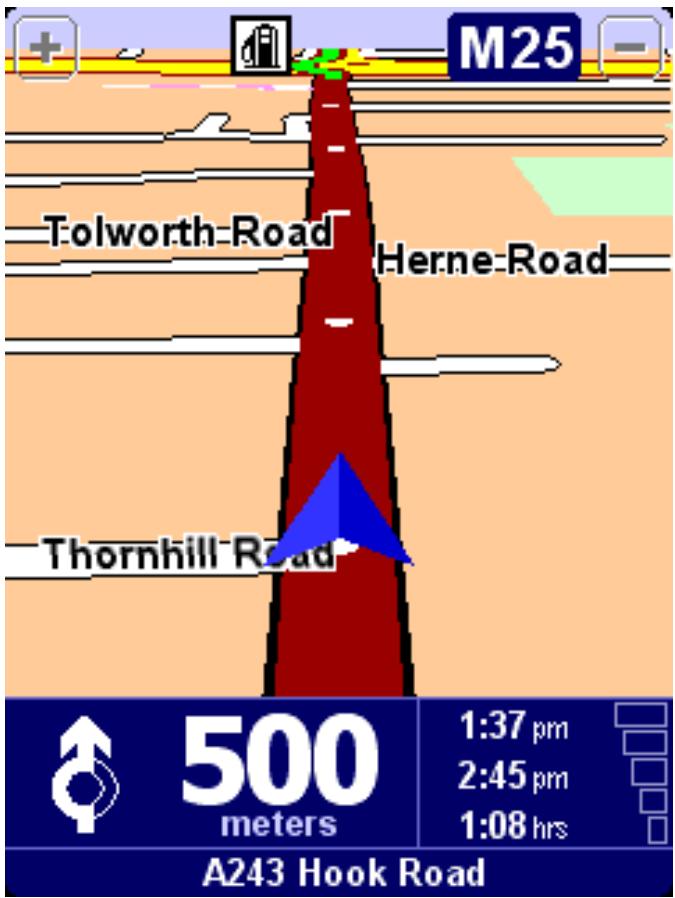
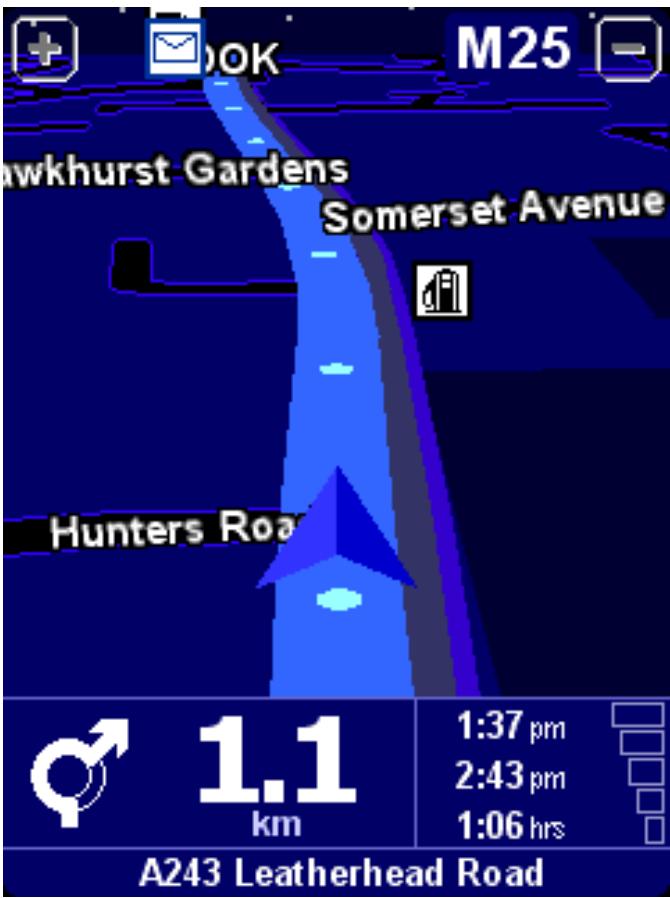
To change the style of the map display, use the "Change map colours" preference option.
4.2. Turn off 3D display / Turn on 3D display
You can use the map in the main screen in two modes. The 3D display shows the map from a birds eye perspective similar to the view you have while driving a car. The alternative is the 2D display which shows the map from the sky like your paper maps.
If 3D display is used, switch to 2D display by tapping Turn off 3D display.
If 2D display is used, switch to 3D display by tapping Turn on 3D display.
Note:
This preference is not available if the map display has been disabled
Related topic:
To navigate with the schematic view, see the "Turn off map display" preference option
4.3. Turn off map display / Turn on map display
You can navigate using either the map display or the schematic display. The map display gives you the most detailed information about your current situation, including a map. The schematic view is focussed on the next driving instruction.
If map display is used, switch to the schematic display by tapping Turn off map display.
If schematic display is used, switch on the map display by tapping Turn on map display
Related topics:
For more details about the schematic view, see the "schematic view" description.
To automatically hide the map when you drive faster than a certain speed, use the "Set schematic speed" preference option.
Note:
If you have set a "schematic speed" your display will automatically turn off the map display when your driving speed exceeds the schematic speed. The "turn map display on" option will NOT override this safety feature.
4.4. Hide POI / Show POI
The main screen can show points of interest (POI) as icons in the map. Every category of POI will be shown using its own icon. This Hide POI/Show POI preference either shows all specified POI categories or no POI's on the map.
If Points Of Interest are shown, they can be hidden by tapping Hide POI

If no Points Of Interest are shown, you can make them appear by tapping Show POI

Note:
Only those categories of POI that have been enabled will be shown; If no POI categories have been enabled, you will not see any POI on the map even if you use the "Show POI" option.
Related topics:
To specify which particular categories of Point Of Interest are shown, use the "Enable/Disable POI" preference option.
4.5. Turn off sound / Turn on sound
You can turn off the voice that gives navigation instructions. You will then have to rely on the visual instructions on your screen to navigate. To hear the navigation instructions again, turn on the sound once
more. If the sound is switched off, this is indicated during navigation by the hand corner of the screen.

icon in the lower left-
If the sound is currently switched on, switch it off by tapping Turn off sound

If the sound is currently switched off, switch it on by tapping Turn on sound

Related topics:
To change the volume of the spoken instructions, use the "change volume" preference option.
To select another voice, use the "change voice" preference option.
4.6. Change volume
This preference option allows you to change the volume of the spoken instructions, from 10% (very soft) to 100% (very loud).
Press the TEST button to hear a sample of the voice at the current sound volume.
Related topics:
To turn the sound completely OFF, use the "turn off sound" preference option.
To select another voice, use the "change voice" preference option.
4.7. Maintain favourites
Maintain your list of favourite locations by tapping Maintain favourite
TomTom Navigator -HP Edition- allows you to maintain a list of favourites – locations that you use a lot, like your work address, your company headquarters, your best friends, your most important customers, your hotel etc. You can rename or delete any favourite from your list.
Use the browser to select a favourite from your favourites list.
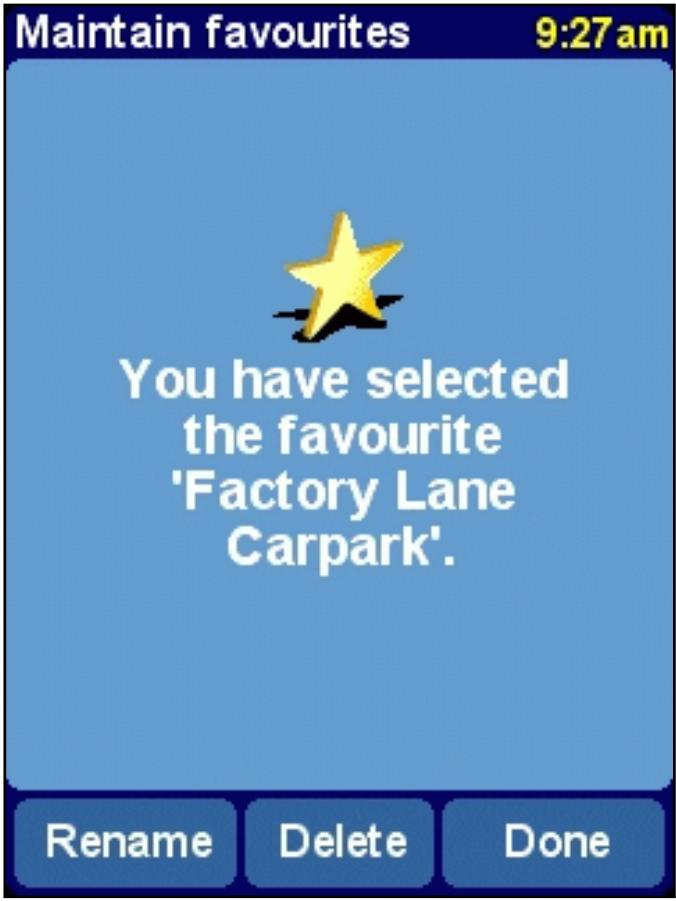
If you want to delete the selected favourite, select DELETE. The message "FAVOURITE DELETED..." briefly blinks in the top corner of the screen to confirm the deletion.
If you want to change the name of the selected favourite, select RENAME. Use the text editor to enter the new name. The message "FAVOURITE ADDED..." briefly blinks in the top corner of the screen to
confirm the renaming.
Note:
If your favourite list is empty the icon is dimmed and cannot be selected.
If the location changes for one of your favourites you should create this as a new location.
Deleting a favourite will be executed immediately without a confirmation.
Related topics:
For an explanation on how to use the browser to select a favourite, see the browser usage description.
4.8. GPS status
Check your GPS signal or configure your GPS by tapping GPS status

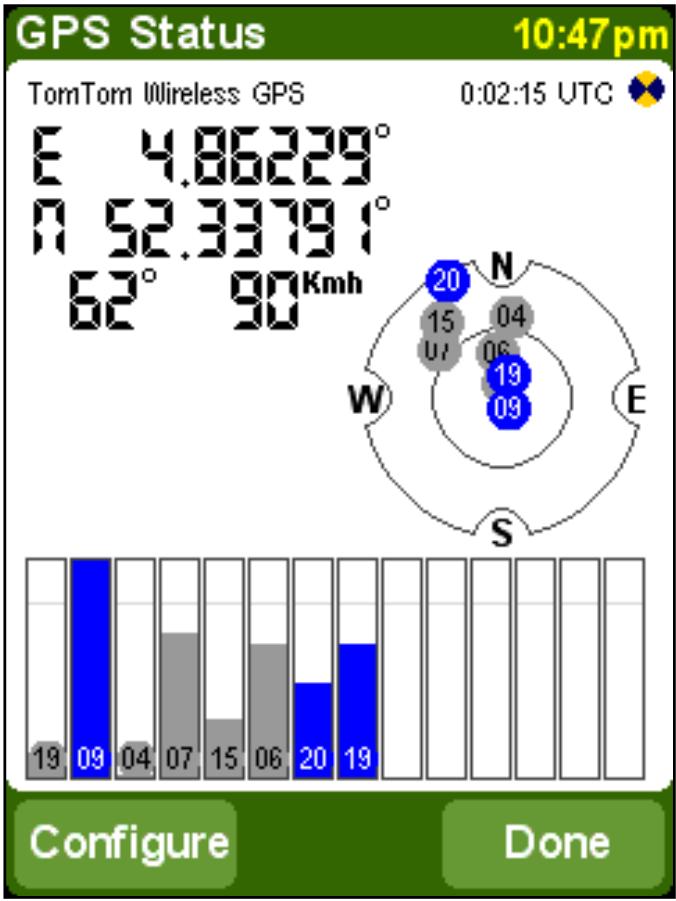
The GPS status screen shows detailed information on the GPS signal you receive:
bar
GPS Status | Direction | Value | | :--- | :--- | | N | 20 | | E | 15 | | W | 04 | | S | 06 | | N | 19 | | E | 09 | | S | 19 | Configure DoneOn the GPS status screen is shown:
- The longitude and latitude are displayed using the distance units
- The driving direction is shown in degrees compared to the north
- The driving speed
-
The Universal Time Code (UTC), the time according to the GPS signal which is not the local time
-
An icon which shows, when circling, if your GPS device is well connected and it receives data
- The schematic representation of the sky showing the positions of the satellites
- Measuring bars for the signal strength of each visual satellite, locked satellites are shown in blue
Configure GPS
Use ▶ and ◀ to browse through the list of supported GPS devices until your GPS device is shown. Specify your GPS device by selecting DONE.
Note:
When you select "Other Cable NMEA GPS" as your GPS device you might need to specify a baud rate. Refer to your NMEA GPS receiver manual to find out the used baud rate. For many devices this will be 4800 baud.
Related topics:
To specify the units for displaying longitude/latitude, use the "set units" preference option.
To specify the units for displaying distance, use the "set units" preference option.
4.9. Switch map
Switch to the map of another country or area by tapping Switch map

This option allows you to select a map from a list of available maps. Certain maps come pre-installed on your SD card, others can be installed using your CD-ROM.
The map that you are currently using is highlighted yellow.
If only one map is available, it is selected automatically.
Related topics:
To install a specific map from the CD-ROM, use the map installation description.
4.10. Enable/Disable POI
Specify which POI categories can be shown on maps by tapping Enable/Disable POI

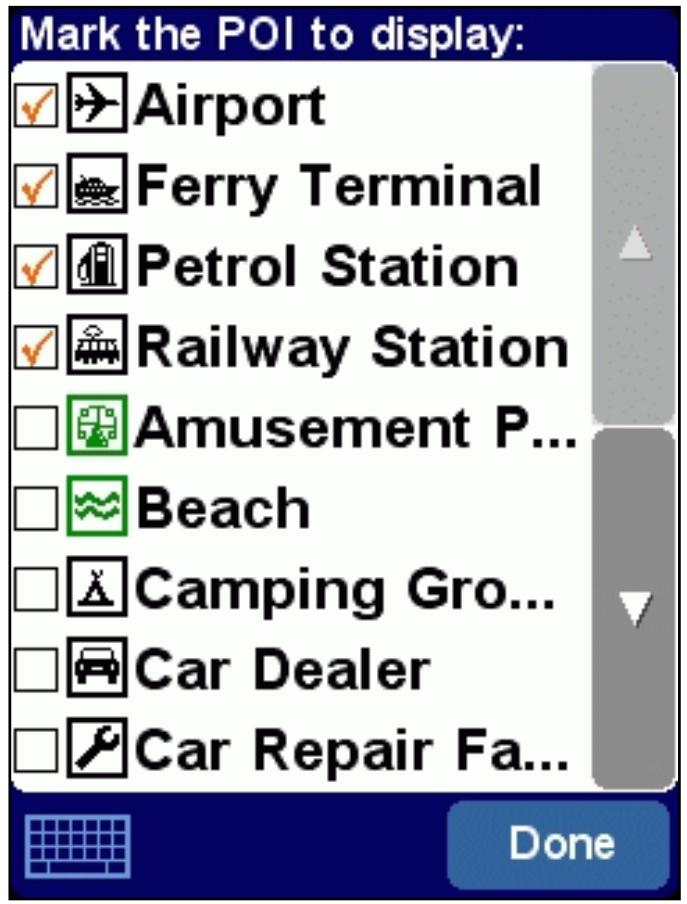
Both the main screen and the map browser are capable of displaying points of interest (POI) on the map. There are many POI categories available, each represented by its own icon. The "Enable/Disable POI" preference lets you specify which particular categories can be shown on the map.
You will be offered a browser listing of all the available POI categories. Place a checkmark in the boxes before those POI categories that you wish to be shown on maps.
Related topics:
Whether POI are shown at all is controlled by the "Show POI" preference option.
For more information about how to use browsers, see the browser usage description.
4.11. Change map colours
Change the way maps are coloured by tapping Change map colours

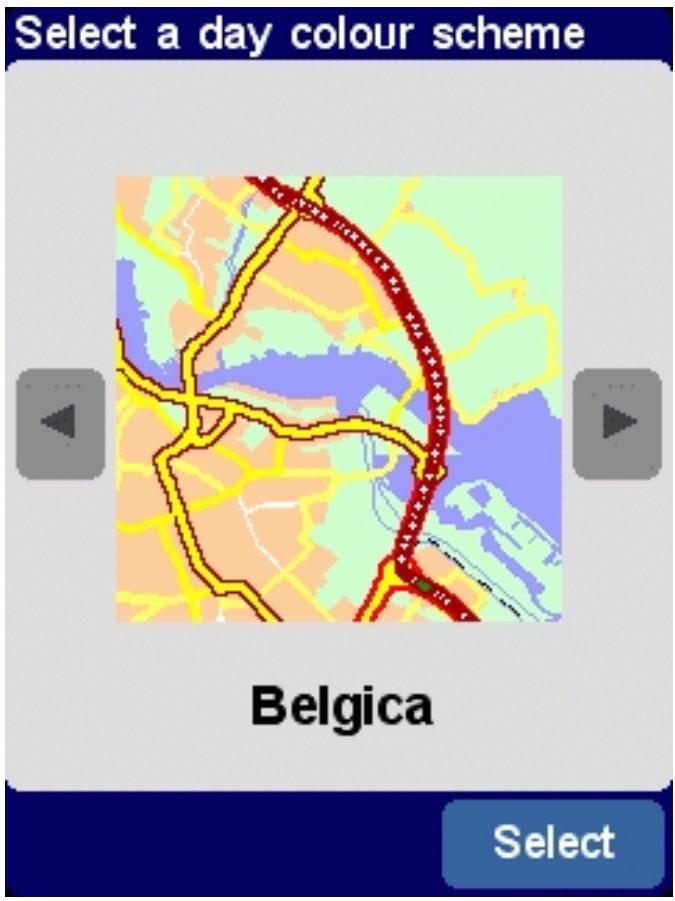
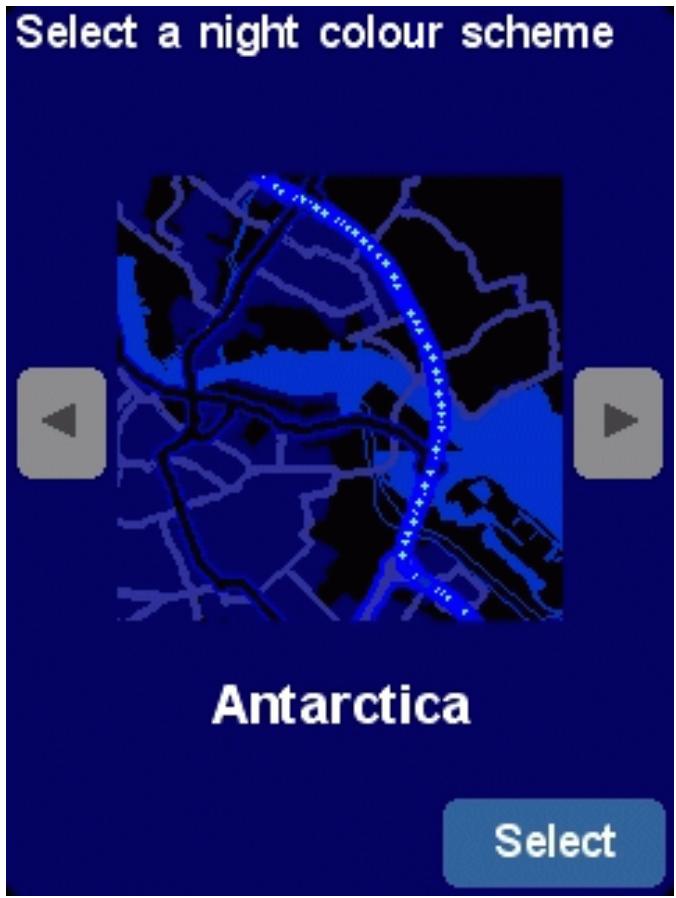
All maps are shown using a colour scheme, this determines the colours used for each element shown in the map.
Use ▶ and ◀ to browse through the list of available colour schemes until your preferred scheme is shown. Specify your colour scheme by selecting DONE. You need to specify a colour scheme for day colours and after that for night colours.
Related topics:
To switch between day and night colours, use the "Use night colours" preference option.
4.12. Use larger keyboard / Use smaller keyboard
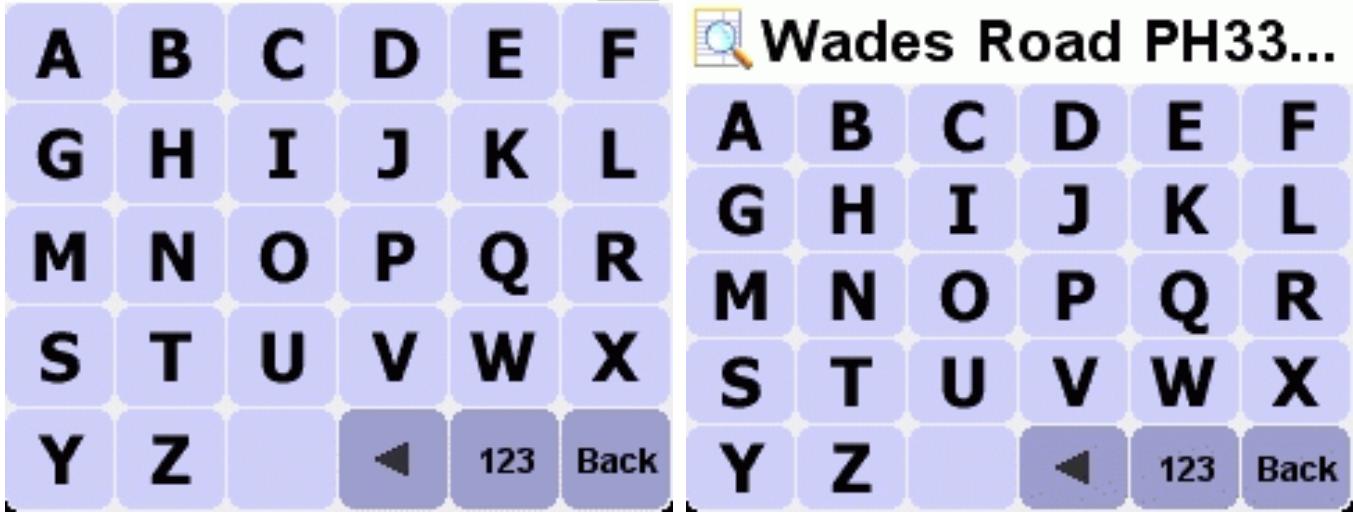
This preference lets you select a larger keyboard (which makes it easier to enter letters) or a smaller keyboard (which leaves more room for items in the list).
If you use the smaller keyboard, switch to the larger keyboard by tapping Use larger keyboard

If you use the larger keyboard, switch to the smaller keyboard by tapping Use smaller keyboard

Recent destination:

A858 (Arnol), M...

Pizza Express

Paladin Avenue...

Hythe Path CR7...


Related topics:
For more information relating to the use of the keyboard, see the sections about using browsers and entering an address.
4.13. About Navigator
To see the version and copyright details of your TomTom Navigator -HP Edition- software, tap About
Navigator

4.14. Set name display
Set your name display preferences by tapping Set name display

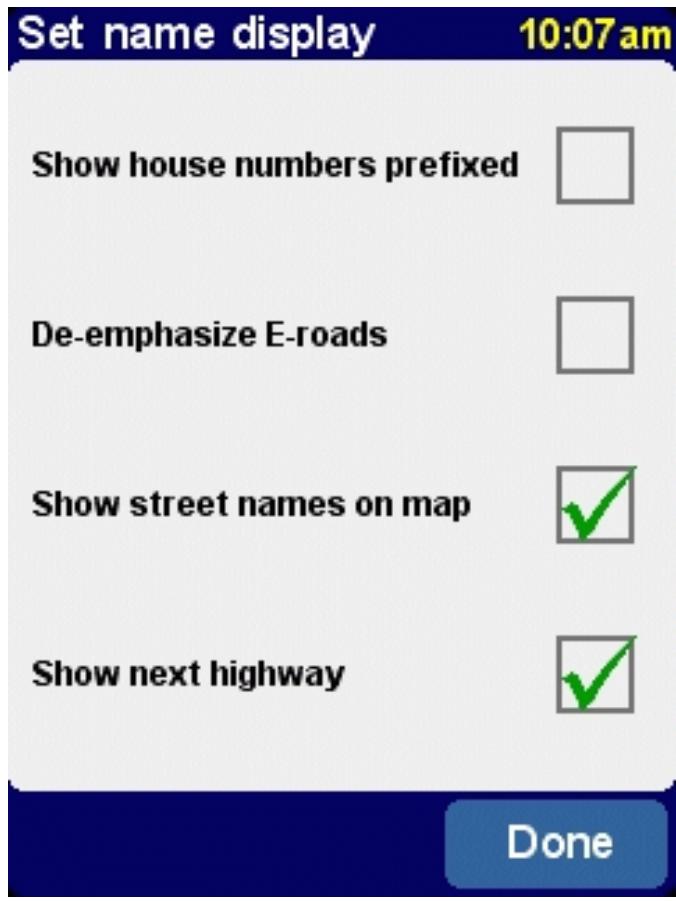
This preference lets you specify how you want to show names in the main screen:
| Show house numbers prefixed | addresses will be displayed as “112 Oxford street” rather than “Oxford street 112” |
| De-emphasize E-roads | local road numbering are preferred over European road numbering, e.g. “A10/E35” is preferred over “E35/A10” |
| Show street names on map | the names of roads and side streets are shown on the map while you are driving |
Place a checkmark in the boxes of the options you wish to enable.
4.15. Change Home location
Change your home location by tapping Change home location

This preference lets you specify the location that is to be used as your "home".
The advantage of the HOME location is simply that you can select it with a single tap of your finger. It is therefore useful to set it to the location that is most central in your travels, such as your home, your parking spot or your office.
You can pick any type of location as your home location.
Change home location to...

Home

Favourite

Address

GPS
position

Recent
destination

Point of interest
Current Home:
Kings Avenue N10...
Cancel
4.16. Set metric units
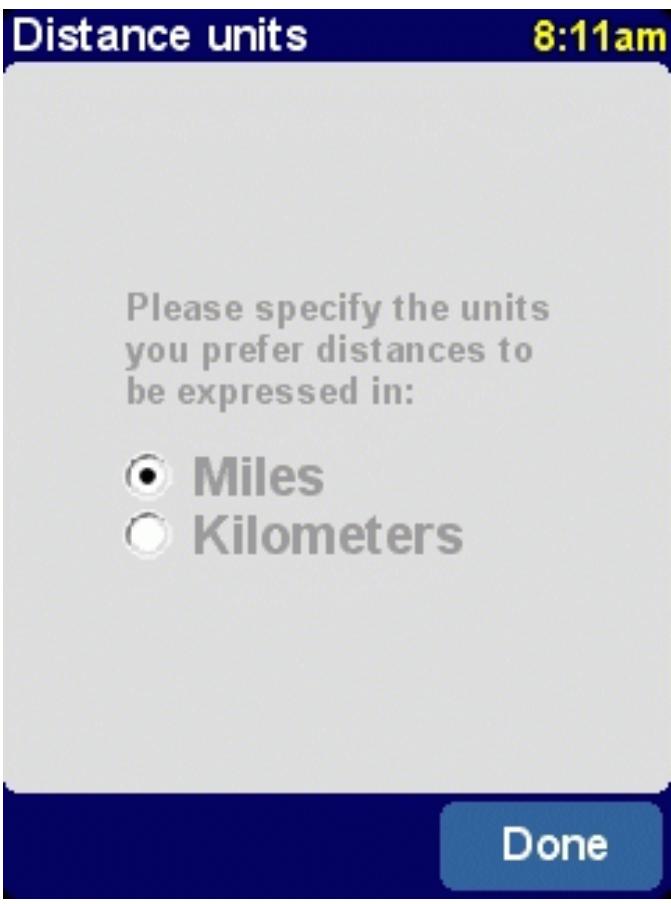
Set the preferred units by tapping Set units

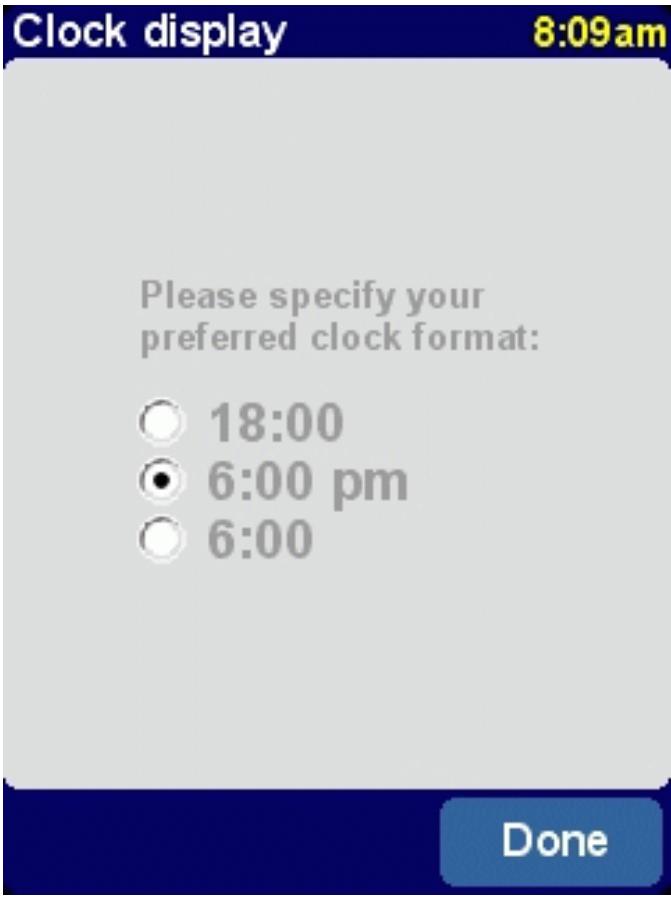
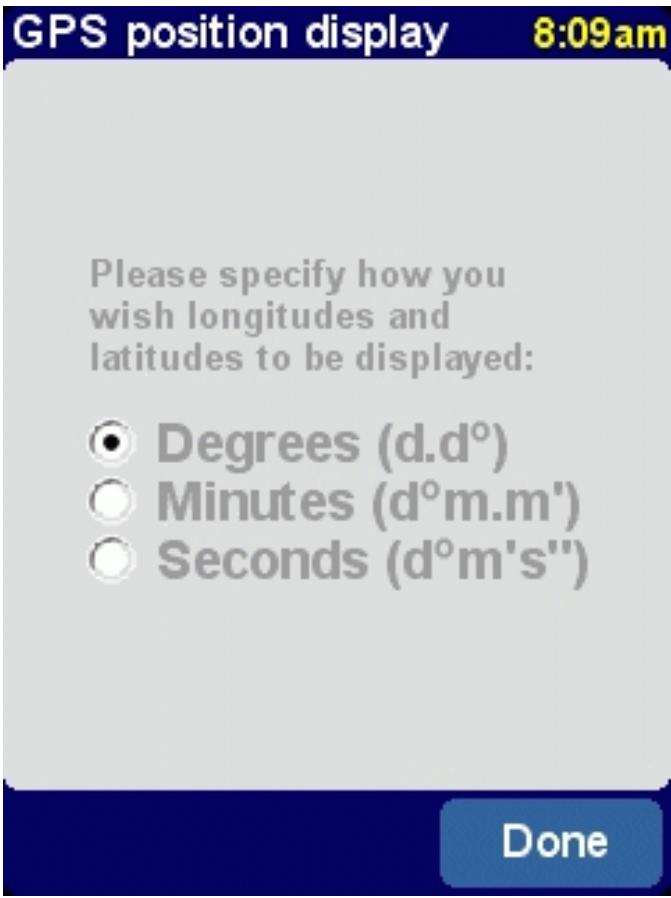
This preference lets you specify how distances are expressed (in kilometres or in miles); how longitudes and latitudes are displayed (using decimals or sexagesimals); and how times are displayed (using 24-hour format, or using the 12-hour am/pm format).
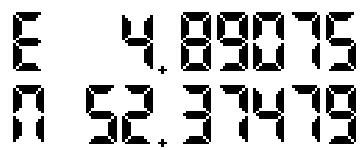
decimal display

sexagesimal display (degrees, minutes and seconds)
4.17. Left-handed lay-out / Right-handed lay-out
You can optimise TomTom Navigator -HP Edition- for either right-handed or left-handed operation. Left-handed operation, for example. means that important buttons and controls will be located on the left side of the screen. As a result, you will be able to operate them with your left hand without obscuring the screen.
If the application operates for right-handed, switch it by tapping Left-handed lay-out.
If the application operates for left-handed, switch it by tapping Right-handed lay-out.
4.18. Set schematic speed
Modify the schematic speed by tapping Set schematic speed

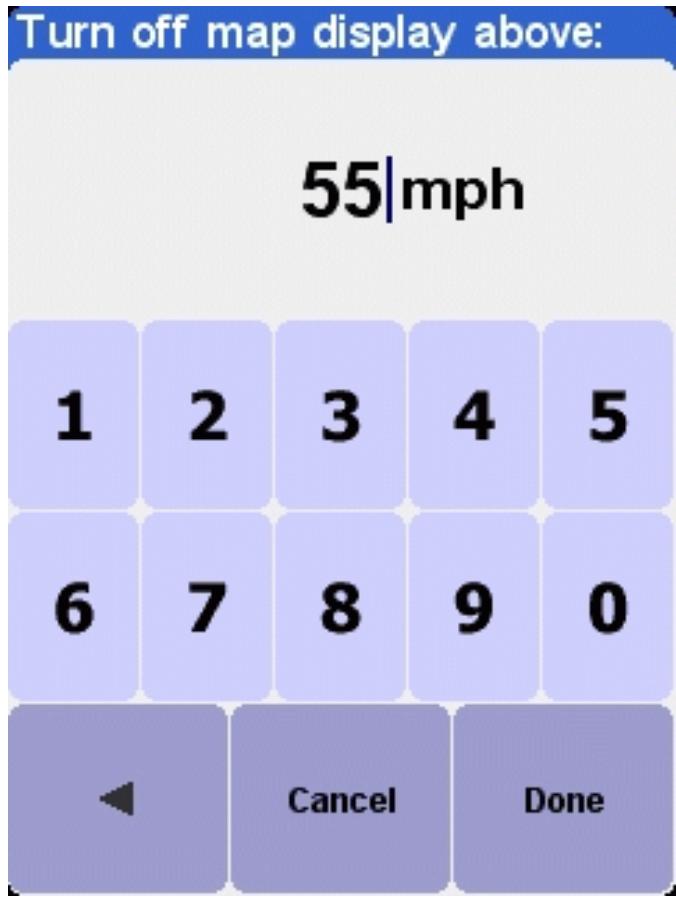
You can set TomTom Navigator -HP Edition- to hide the map when you go faster than a certain speed. Instead of the map, a much simpler, schematic design is used to display driving instructions. The simplicity of the "at-a-glance" schematics can be a true benefit when you need to concentrate on the road.
If you do not enter a speed, or set the speed extremely high, you disable this feature.
Related topics:
To turn the schematic view on/off regardless of speed, use the "Turn on/off map display" preference option.
For more information about the schematic view, see the schematic view description.
4.19. Change voice
Change the voice used for driving instructions by tapping Change voice ( )
This preference lets you change the voice used for driving instructions. Voices are available in many different languages. For certain languages, several different voices are available.
To hear a sample of a voice, tap the TEST button.

Test
Delete
Select
Related topics:
To change the volume of the voice instructions, use the "Change volume" preference option.
To turn the sound completely off, use the "Turn off sound" preference option.
4.20. Switch Language
Set the language used by TomTom Navigator -HP Edition- by tapping Switch language

This preference will set the language in which the menus and screens are shown. Simply tap the language of your choice.

Note:
When you switch to another language, TomTom Navigator -HP Edition- will also ask you to select an appropriate voice in that language.
Related topics:
To change only the language of the voice instructions, use the "change voice" preference option.
4.21. POI Appendix
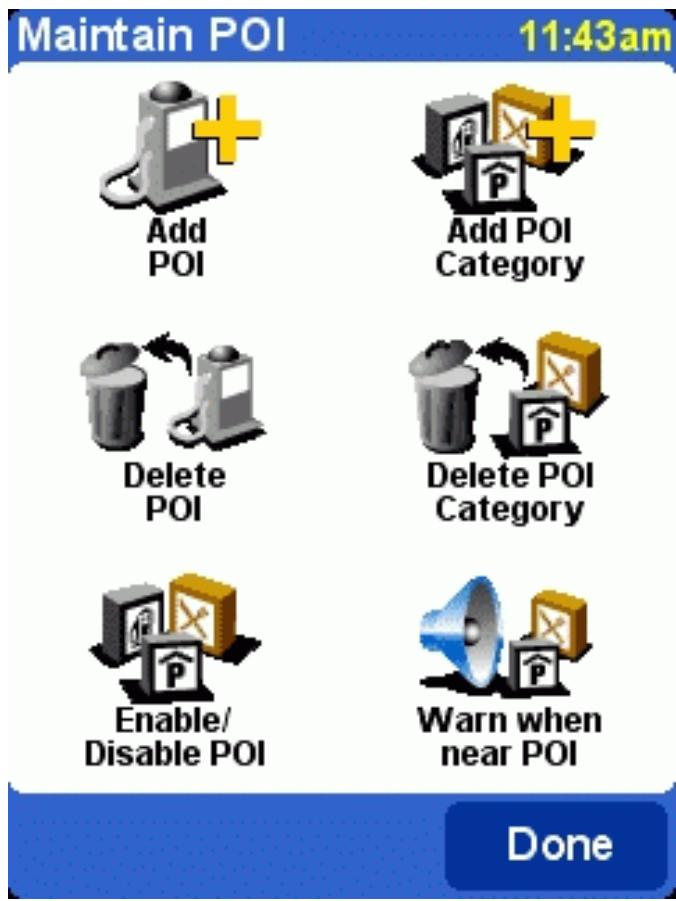
TomTom Navigator -HP Edition- comes with a powerful POI management tool. Not only you can enable and disable the available POI categories, you can also add new categories of POI's and your own POI's! TomTom Navigator -HP Edition- can even warn you when you are near POI in a chosen category.
5. Installation
5.1. Using the CD-ROM
The CD-ROM provides maps and voices and allows you to install the TomTom Navigator -HP Edition-software onto your handheld.
The CD-ROM also includes documentation and provides links to the TomTom website and helps you register you product for future updates, helpdesk support and product news.
To use the CD-ROM, insert it into your PC running Microsoft Windows ME or later. If you are not presented automatically with the TomTom Setup Menu, launch it by opening My Computer, then double-clicking the icon of your CD-ROM drive and then double-clicking "setup.exe".
After choosing your preferred language, carefully read the license agreement. Next you will be presented with the main Setup Menu. You can use this menu to install TomTom Navigator -HP Edition-, to load extra maps, to change voices and to access further product information.
5.2. Requirements for installation
To install TomTom Navigator -HP Edition- or additional voices or maps, a memory card (such as an industry standard SD Card) for your handheld is required.
When performing an installation, make sure the memory card is inserted into your handheld.
Maps can also be loaded directly onto a memory card that is inserted into a PC Memory Card Reader that is attached to your PC. Installing a map this way is quicker.
5.4. (Re-)Installing TomTom Navigator -HP Edition-, voices and maps
From the main Setup Menu choose the appropriate option. You will be guided through a number of screens to refine your choices.
Note: Maps can be installed directly to a memory card that is inserted into a PC Memory Card Reader that is attached to your PC.
- TOMTOM
- NAVIGATOR
- Introduction
- Table of Contents
- What you see on the screen
- Browsers and locations
- The menu
- The preferences
- Installation
- The main screen
- Ignoring the planned route
- Operate the main screen
- The menu
- The route summary
- The map browser
- The schematic view
- Browsers
- Picking locations
- Picking your HOME location
- Picking a favourite
- Picking a recent destination
- Picking your GPS position
- Picking a point of interest
- Picking an address
- STEP 1. Specifying the city or postal code area
- STEP 2. Specifying the street
- STEP 3. Specifying the house number or crossing
- Planning from A to B
- Use Hythe Path CR7 8, London as the destination?
- Pick a destination:
- Alternative routes
- The route instructions
- Use night colours / Use day colours
- Turn off 3D display / Turn on 3D display
- Turn off map display / Turn on map display
- Hide POI / Show POI
- Turn off sound / Turn on sound
- Change volume
- Maintain favourites
- GPS status
- Configure GPS
- Switch map
- Enable/Disable POI
- Change map colours
- Use larger keyboard / Use smaller keyboard
- Recent destination:
- About Navigator
- Set name display
- Change Home location
- Change home location to...
- Set metric units
- Left-handed lay-out / Right-handed lay-out
- Set schematic speed
- Change voice
- Switch Language
- POI Appendix
- Using the CD-ROM
- Requirements for installation
- (Re-)Installing TomTom Navigator -HP Edition-, voices and maps
Marque : TOMTOM
Modèle : HP NAVIGATION PACK-IPAQ RZ1710/HX2110
Catégorie : GPS Navigation