
TECHTOOL DELUXE 3.0.2 - Outils de diagnostic et de réparation APPLE - Notice d'utilisation et mode d'emploi gratuit
Retrouvez gratuitement la notice de l'appareil TECHTOOL DELUXE 3.0.2 APPLE au format PDF.


| Type de produit | Utilitaire de diagnostic et de réparation |
| Marque | APPLE |
| Modèle | TECHTOOL DELUXE 3.0.2 |
| Version | 3.0.2 |
| Système d'exploitation compatible | Mac OS X et Mac OS 9 |
| Format du support | CD-ROM |
| Langues disponibles | Anglais, Français, Allemand, Japonais |
| Fonctions principales | Test du processeur, de la RAM, de la VRAM, du disque dur, du bus USB ; réparation de la structure du volume et reconstruction des répertoires |
| Configuration minimale | Mac avec lecteur CD et Mac OS X |
| Mise à jour | Vérification en ligne via le menu Services |
| Entretien | Conserver le CD dans son boîtier, à l'abri de la poussière et des rayures |
| Sécurité | Nécessite un mot de passe administrateur pour l'installation et l'exécution |
FOIRE AUX QUESTIONS - TECHTOOL DELUXE 3.0.2 APPLE
Questions des utilisateurs sur TECHTOOL DELUXE 3.0.2 APPLE
0 question sur cet appareil. Repondez a celles que vous connaissez ou posez la votre.
Poser une nouvelle question sur cet appareil
Téléchargez la notice de votre Outils de diagnostic et de réparation au format PDF gratuitement ! Retrouvez votre notice TECHTOOL DELUXE 3.0.2 - APPLE et reprennez votre appareil électronique en main. Sur cette page sont publiés tous les documents nécessaires à l'utilisation de votre appareil TECHTOOL DELUXE 3.0.2 de la marque APPLE.
MODE D'EMPLOI TECHTOOL DELUXE 3.0.2 APPLE
Quick Start Guide
TechTool Deluxe 3.0.2 for Mac OS X
If you are using Mac OS X, follow these steps to use TechTool Deluxe 3.0.2 from Micromat.
NOTE: If you are using Mac OS 9, follow the steps in the file entitled, "Quick Start Guide TTD 2.5.7."
If you experience difficulties with your Apple computer, use TechTool Deluxe from Micromat. TechTool Deluxe is a powerful diagnostic utility that tests critical system components, such as the processor, the Random Access Memory (RAM), the video RAM, the hard disk, and more. As necessary, TechTool Deluxe can repair the disk structure and rebuild the directories.
1. Restart the computer and open TechTool Deluxe.
With the computer turned on, insert the AppleCare Protection Plan CD. Hold the C key while choosing Restart from the Apple menu. Release the C key after the Apple logo appears onscreen. The computer will continue starting up.
2. Select a language.
In the next dialog box, click the radio button by the language of your choice, then click OK.
TechTool Deluxe
Language Selection
Use English for the main language.
Utiliser le français comme langue principale.
Deutsch als Standardsprache verwenden.
主日日本語を使用する
OK
3. Select a volume to test.
Locate the Volume pop-up menu in the lower right corner.
Volume: Macintosh HD

From that menu, select the volume (hard disk or partition) you wish to test.
4. Consider the options.
Click the Options triangle at the bottom of the screen. The window extends to show the many tests TechTool Deluxe performs:
Processor
RAM
Video RAM
USB
Diagnostic
Rezero Unit
Format Check
Random Read
Random Write
Seek
Linear Read
Linear Write
Read Buffer
Write Buffer
Volume Structure
Select or deselect individual tests by clicking to the left of each test in the list.
5. Perform the tests.
Click the Start button. As each test is performed, its icon passes through a magnified window pane in the upper portion of the screen. Clicking the Skip button halts the current test and allows the next test to begin. Clicking Stop ends the testing altogether.
6. View the test results.
When the testing is complete, the Test Details report is displayed. The report lists each test, including whether the test passed, failed, or was skipped, and a description about the test.
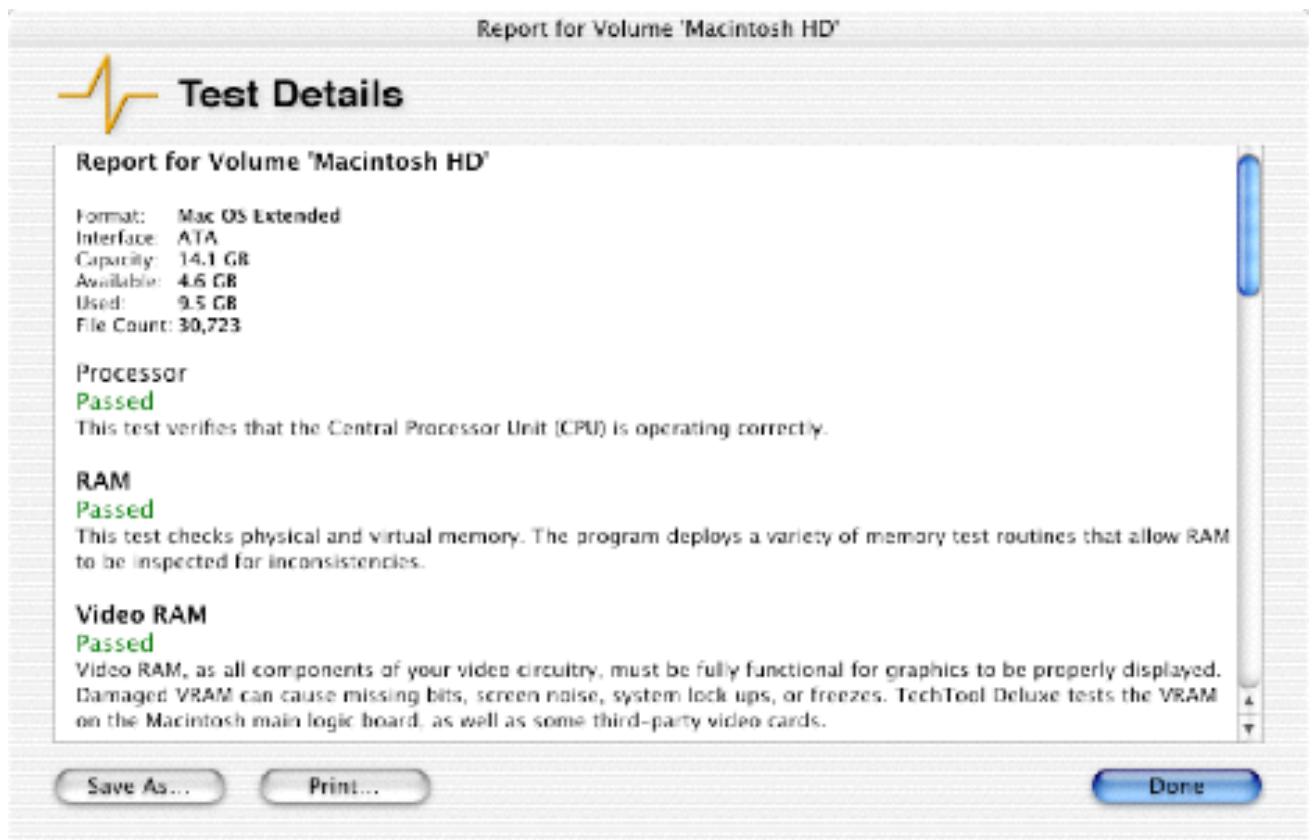
If the Volume Structure fails, you should consider backing up your essential data before repairing the volume. Click Cancel and choose Quit TechTool Deluxe from the TechTool Deluxe menu. After the computer starts up from the hard disk, back up your data. Then repeat the steps in this Quick Start Guide so that you may repair the Volume Structure.
If any other tests fail, the report will recommend the steps you should take to correct the problem.
Click Done to return to the main screen.
7. Quit TechTool Deluxe and restart the computer from the hard disk.
Choose Quit TechTool Deluxe from the TechTool Deluxe menu. The computer will automatically restart, using the hard disk as the startup drive.
8. Use the most current version of TechTool Deluxe.
Micromat periodically updates TechTool Deluxe to correct issues, introduce program enhancements, or keep current with changes to the Mac OS and Apple hardware. We recommend that you take advantage of these enhancements by keeping your copy of TechTool Deluxe up to date. If your computer has an active connection to the Internet, follow these steps to find out whether a newer version of TechTool Deluxe is available:
a. Start the computer from the hard disk, using Mac OS X.
b. Insert the AppleCare Protection Plan CD. Two CD icons will appear on the desktop, TechTool Deluxe and TechTool Deluxe X.
c. Open the TechTool Deluxe X CD and double-click the TechTool Deluxe Installer in the CD window.
d. The Installer will ask for an administrator password. Enter your Mac OS X administrator password and click OK.
e. In the TechTool Deluxe Installer window, click Install. TechTool Deluxe will be placed in the Applications folder of your computer's Mac OS X startup volume.
f. When the installation is complete, click Ouit.
g. Open the Mac OS X startup volume and then open the Applications folder.
h. Double-click the TechTool Deluxe icon inside the Applications folder. Enter your Mac OS X administrator password and click OK.
i. Choose Check for Product Update from the Services menu.
j. TechTool Deluxe will determine whether a later version of the application is available. Either of the following will result:
1) A dialog box will confirm that your version is current and suggest you check later.
2) A dialog box will indicate that a newer version is available and offer to help you obtain it. If you click Proceed, your web browser will open and take you to the registration page on Micromat's website. Enter the required information, then click Submit to proceed to the TechTool Deluxe update page.
9. Contact AppleCare for additional support.
If you require additional assistance, please contact AppleCare. Your AppleCare Protection Plan materials contain contact information specific to your country or region.
- Quick Start Guide
- TechTool Deluxe 3.0.2 for Mac OS X
- Restart the computer and open TechTool Deluxe.
- Select a language.
- TechTool Deluxe
- Language Selection
- Select a volume to test.
- Consider the options.
- Perform the tests.
- View the test results.
- Quit TechTool Deluxe and restart the computer from the hard disk.
- Use the most current version of TechTool Deluxe.
- Contact AppleCare for additional support.
Marque : APPLE
Modèle : TECHTOOL DELUXE 3.0.2
Catégorie : Outils de diagnostic et de réparation