
BATCH MONITOR - Logiciel APPLE - Notice d'utilisation et mode d'emploi gratuit
Retrouvez gratuitement la notice de l'appareil BATCH MONITOR APPLE au format PDF.


| Type de produit | Logiciel de surveillance de traitement par lots |
| Marque | APPLE |
| Modèle | BATCH MONITOR |
| Fonctions principales | Surveiller l'avancement des transcodages, suspendre/reprendre/annuler des lots et des travaux, afficher les détails dans une fenêtre d'inspection avec onglets Statut et Journal, gérer les clusters de traitement distribué |
| Applications associées | Compressor, Apple Qmaster |
| Système d'exploitation requis | macOS (version non spécifiée, compatible avec les systèmes supportant Compressor/Apple Qmaster) |
| Interface utilisateur | Fenêtre hiérarchique avec arborescence des lots, travaux, cibles et segments ; barre d'outils avec boutons Rafraîchir, Tout développer, Tout réduire, Ordre de tri ; liste de clusters ; boutons Moi/Tous, Actif/Terminé/Tous |
| Fenêtre d'inspection | Deux onglets : Statut (nom, heure de soumission, propriétaire, temps écoulé, temps restant, pourcentage, statut) et Journal (détails textuels, exportables en XML) |
| Mise à jour des informations | Intervalle configurable (en secondes) dans les préférences |
| Préférences | Options d'affichage : Afficher les travaux, les cibles, les segments ; navigation sur réseau étendu (DNS) |
| Sécurité | Mots de passe administrateur, utilisateur et nœud de service pour contrôler l'accès aux clusters et aux lots |
| Lancement automatique | Par défaut, s'ouvre automatiquement lors de la soumission d'un lot depuis Apple Qmaster ; configurable pour Compressor |
| Affichage des lots terminés | Les lots réussis ou échoués restent dans la fenêtre avec les mentions « Réussi » ou « Échoué » |
| Traitement distribué | Surveillance des clusters Apple Qmaster, possibilité pour les administrateurs d'annuler/modifier tout lot, les utilisateurs seulement leurs propres lots |
FOIRE AUX QUESTIONS - BATCH MONITOR APPLE
Questions des utilisateurs sur BATCH MONITOR APPLE
0 question sur cet appareil. Repondez a celles que vous connaissez ou posez la votre.
Poser une nouvelle question sur cet appareil
Téléchargez la notice de votre Logiciel au format PDF gratuitement ! Retrouvez votre notice BATCH MONITOR - APPLE et reprennez votre appareil électronique en main. Sur cette page sont publiés tous les documents nécessaires à l'utilisation de votre appareil BATCH MONITOR de la marque APPLE.
MODE D'EMPLOI BATCH MONITOR APPLE
Batch Monitor User Manual
You can use the Batch Monitor to view or adjust the status of batches and jobs processed by Compressor or Apple Qmaster. You can also use the Batch Monitor to view detailed history for recently completed batches and jobs.
You use the Batch Monitor to monitor the transcoding progress of batches and jobs. You can pause, resume, cancel, and get the status for any submitted batch and/or any individual job, target, or target segment.
Just as Printer Setup Utility allows you to view print jobs submitted to a printer, the Batch Monitor lets you view the status of batches submitted for processing. For example, the Batch Monitor displays each batch's name, details of where it originated, the percentage of completion, and the estimated time before completion. Batches not yet running appear as pending. Each batch, job, target, and target segment includes status information and a progress bar, as well as buttons you can use to pause, resume, cancel, and get the status of a transcode that is currently in progress.
This document covers the following:
- About the Batch Monitor (p. 2)
Viewing or Changing the Status of a Submitted Batch (p. 5) - Batch Monitor and Distributed Processing (p. 7)
- Setting Batch Monitor Preferences (p.8)
About the Batch Monitor
The Batch Monitor contains the following items:
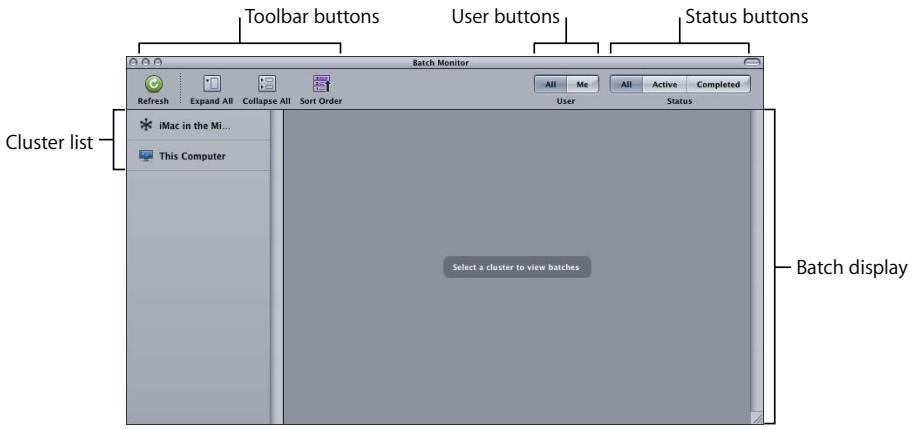
- Batch display: Hierarchical display of batch, job, target, and segment information for current and completed batches. Also includes controls to pause, resume, cancel, and get status for any individual batch, job, target, or segment.
- Toolbar: Use the Toolbar to adjust the display of items you are monitoring. See "ToolBar Buttons," below, for details.
- Cluster list: Displays a list computers available for processing batches, including "This Computer" (the one running Batch Monitor) and all enabled Apple Qmaster processing clusters on your network. Select any cluster in the list to monitor its activity.
- User buttons: Click the Me button to display batches you submitted. Click All to display all batches for the selected cluster. (See the Distributed Processing Setup guide for information about permissions and password protection.)
- Status buttons: Click the Active button to display batches that the selected cluster is currently processing. Click Completed to display batches that the selected cluster has already completed. Click All to display all batches for the selected cluster.
ToolBar Buttons
The Batch Monitor contains a toolbar with the following buttons that let you adjust the display of batch status information.
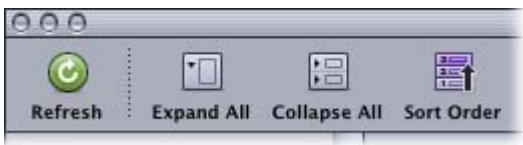
- Refresh: Click Refresh to update the status of a selected cluster immediately, rather than wait for the next update event.
- Expand All: Reveals all job, target, and segment information for every batch.
- Collapse All: Displays batch-level information only.
- Sort Order: Toggles the batch list between descending and ascending order.
Note: If the toolbar isn't visible when you open Batch Monitor, click the button in the upper-right corner of the Batch window to open it.
Batch Display
Batches, jobs, targets, and segments are displayed in hierarchical (nested) views. Each view in the batch view hierarchy contains a disclosure triangle. Click the disclosure triangles to reveal the next level of the hierarchy. For example, click the disclosure triangle in a batch view to reveal the jobs contained within the batch, and click the disclosure triangle in a job view to reveal the targets contained within the job.
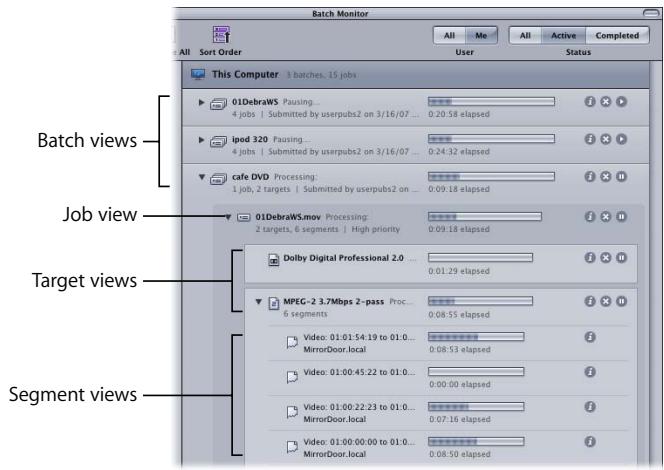
- Batch view: Displays the batch name, the number of jobs and targets contained within the batch, the date and time on which the batch was submitted, the name of the user who submitted the batch, and status.
- Job view: Displays the name, the number of targets and segments contained within the job, the input file type (displayed as an icon), and the status.
- Target view: Displays the type (displayed as an icon), the name, the number of segments that the target has been broken down into, and the status.
- Segment view: Displays a description (a time- or frame-based description of the portion of the target being processed), the machine name (service node that the segment is being processed on), the status, and the machine type (displayed as an icon). Segment information is only available while a batch is being processed.
Note: Completed tasks appear in the same view area.
Inspector Window
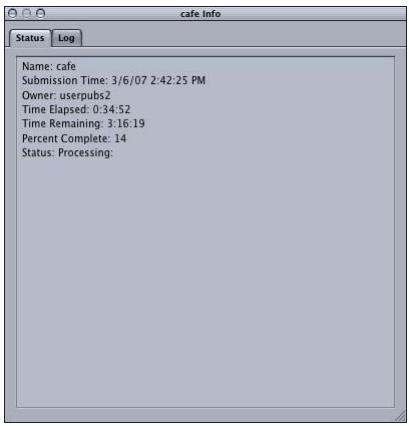
To get detailed information about any submitted batch, job, target, or segment, click its Show Info button to open the Inspector for that item. The Inspector includes two tabs: the Status tab and the Log tab.
Status Tab
The Status Tab displays the full text of status messages on any batch, job, target, or segment, such as Name, Submission Time, Owner, Time Elapsed, Time Remaining, Percent Complete, and Status.
Log Tab
The Log Tab displays detailed text information on any batch, job, target, or segment. This information is useful for troubleshooting distributed processing issues, and it can be saved to a file and processed with XML tools and UNIX scripts.
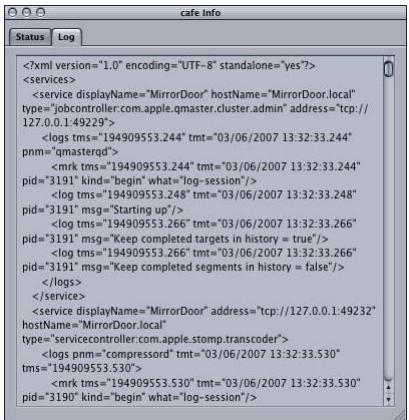
Log and Notification Labels
The following table lists the service labels used in logs and email notifications.
| Processing | Notification |
| Local Compressor service | servicecontroller:com.apple.stomp.transcoder |
| Distributed Compressor service | servicecontroller:com.apple.stomp.transcodex |
| Distributed Apple Qmaster service | servicecontroller:com.apple.qmaster.executor |
Viewing or Changing the Status of a Submitted Batch
You open the Batch Monitor to see the status of a submitted batch and all the jobs contained within it. Because it is a standalone application, you can view the Batch Monitor window whether or not Compressor or Apple Qmaster is open or whether or not you have submitted anything.
Note: By default, Batch Monitor will launch automatically whenever you submit a batch using Apple Qmaster. You can enable the same automatic behavior for Compressor by selecting the "Auto launch Batch Monitor" checkbox in Compressor preferences.
To view the status of your batch:
1 To manually open the Batch Monitor, do one of the following:
- Double-click the Batch Monitor icon in the Utilities folder.
- Click the Batch Monitor button in either the Compressor window or the Apple Qmaster window.
The Batch Monitor opens. If you just submitted a batch, you should see it being processed. If you didn't recently submit a batch, the table is empty.
2 View the batch processing details and take any necessary action:
- Click the disclosure triangle next to the batch, job, or target name to reveal information about the component parts of that item.
- To pause a job, batch, or target, click the corresponding Pause toggle button. The Pause toggle button becomes the Resume toggle button.
- To restart the processing for an item, click the Resume toggle button.
- To cancel a job, batch, or target, click its Cancel button.
Click the disclosure triangle next to an item to reveal more information.
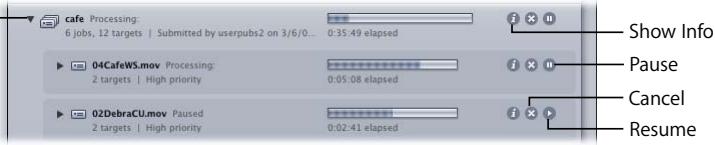
When the progress bar reaches 100 percent, your media file has been successfully transcoded and saved in the designated destination folder. Completed batch and job items are marked "Successful" and remain in the batch display. Unsuccessful batch and job items are marked "Failed" and remain in the batch display.
3 Click the Show Info button for any item in the batch display to view information about that item. In the inspector window that appears, click on either the Status tab or the Log tab to view the respective details.
4 Open the destination folder to view the newly transcoded output media file.
Batch Monitor and Distributed Processing
If you have set up an Apple Qmaster distributed processing system to process Compressor or Apple Qmaster jobs, then Batch Monitor will offer some additional features. For example, both administrators and client users can use the Batch Monitor to monitor the processing of submitted jobs. Administrators can stop or cancel any batch, as long as they have the administrator password for the cluster that is processing the batch, and users can stop or cancel their own batches.
The Batch Monitor and Passwords
There are different kinds of passwords that may affect how you use the Batch Monitor. See the Distributed Processing Setup guide for more information.
Administrator Password
If you create this password, administrators will need to know it in order to modify this cluster and to view the selected cluster's batches in the Batch Monitor To create an administrator password, click the Security tab in Apple QAdministrator.
User Password
If you create this password, users will need to know it in order to submit batches to the selected cluster and to view those batches in the Batch Monitor. To create a user password, click the Security tab in Apple Q administrator.
Service Node Password
If you are setting up a QuickCluster, other users will be required to enter this password before being allowed to submit remote requests to the computer. If you are setting up a cluster to use with Apple QAdministrator, an administrator will be required to enter this password before being allowed to add the computer to a cluster. To create a service node password, click the "Require password" checkbox in the Apple Qmaster pane of System Preferences.
Viewing or Changing Batch Status for Distributed Processing
To view or change batch status:
1 Open the Batch Monitor in one of the following ways:
- Administrators who want to see or modify the status of batches: Choose Cluster > Show Batch Monitor when Apple Q administrator is open.
-
Users who want to see the status of batches and modify the status of their own batches: Use the Batch Monitor window that opens when you do any of the following:
-
Double-click the Batch Monitor icon in the Utilities folder.
- Click the Batch Monitor button in either the Compressor window or the Apple Qmaster window.
- Submit a batch from Apple Qmaster or Compressor (and preferences have been set to open Batch Monitor automatically).
2 Choose the cluster whose activity you want to view from the Cluster list.
3 View the batch processing details and take any necessary action:
Note: Client users cannot modify other users' batches: When they select a batch or job submitted by another user, the Cancel and Pause/Resume buttons are not available.
For more details, see "Setting Batch Monitor Preferences," next, and "Viewing on Changing the Status of a Submitted Batch" on page 5.
Setting Batch Monitor Preferences
You can use the Batch Monitor Preferences window to configure several aspects of Batch Monitor. Most of the information displayed in the Batch Monitor can be shown or hidden using settings in Batch Monitor Preferences.
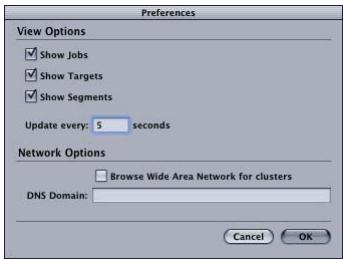
To set the Batch Monitor Preferences, do one of the following:
Choose Batch Monitor > Preferences.
Press Command-, (comma).
Batch Monitor Preferences opens.
To control what appears in the Batch Monitor batch display, select or deselect the checkbox next to the following items under the View Options heading:
Show Jobs: Select this checkbox to display job views (and target and segment views).
Show Targets: Select this checkbox to display target views (and segment views).
Show Segments: Select this checkbox to display segment views.
To control how often Batch Monitor information is updated:
- Use the "Update every" field to enter the number of seconds between updates from processing computers.
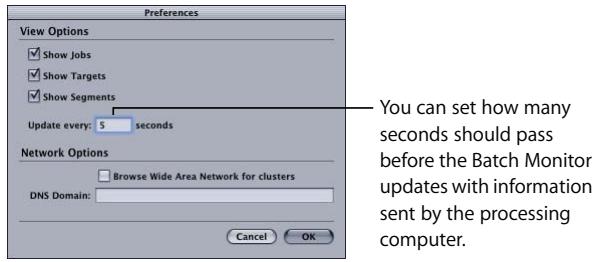
To control whether Batch Monitor can browse clusters from a wide area network, do one of the following:
- Select Browse Wide Area Network to have Compressor use computers beyond the local subnet, and enter the DNS domain in the DNS Domain field.
- Deselect Browse Wide Area Network to have Compressor limit itself to computers in the local subnet.
Note: Any changes you make to the Batch Monitor Preferences settings take effect only when you click OK. If you make changes but decide not to use them, click Cancel.
The Status Interval setting in Apple Q administrator Cluster Preferences takes precedence over the Update frequency setting in Batch Monitor Preferences. The Batch Monitor can provide new status information only as often as it receives it from the cluster controller, as set in the Status Interval field of the Apple Q administrator Cluster Preferences dialog. See "Setting Cluster Preferences" in the Distributed Processing Setup guide for more information.