
ADS-1600W - Scanner BROTHER - Notice d'utilisation et mode d'emploi gratuit
Retrouvez gratuitement la notice de l'appareil ADS-1600W BROTHER au format PDF.


| Type de produit | Scanner document à numérisation rapide |
| Marque | Brother |
| Modèle | ADS-1600W |
| Dimensions (L × H × P) | 285 × 103 × 231 mm |
| Poids | Environ 1,6 kg |
| Alimentation | AC 220-240 V, 50/60 Hz |
| Consommation électrique (scan) | Environ 14 W |
| Consommation électrique (veille) | Environ 1,5 W |
| Interface | USB 2.0 Hi-Speed, Wi-Fi IEEE 802.11b/g/n |
| Capacité du chargeur automatique | Jusqu'à 20 feuilles (80 g/m²) |
| Formats de documents pris en charge | A4, A5, A6, B5, B6, Letter, cartes plastiques, reçus, longs documents (jusqu'à 863 mm) |
| Résolution optique | 600 × 600 dpi |
| Résolution interpolée | 1200 × 1200 dpi |
| Numérisation recto-verso | Automatique (duplex) |
| Écran | Écran tactile couleur TFT 2,7 pouces |
| Mémoire | 256 Mo |
| Fonctions principales | Scan vers PC, USB, FTP, e-mail, Web, carte plastique, reçu, carte de visite |
| Logiciels inclus | ControlCenter4 (Windows), ControlCenter2 (Mac), Nuance PaperPort 12SE, Presto! BizCard 6, BR-Receipts |
| Entretien et nettoyage | Nettoyage du scanner, remplacement du patin de séparation et du rouleau de préhension |
| Sécurité | WLAN activable/désactivable, fonctions de réinitialisation, protection par code PIN pour Scan vers PC |
| Pièces détachées | Patin de séparation (consommable), rouleau de préhension (consommable) |
| Réparabilité | Assistance technique Brother, Solutions Center en ligne, numéros de service |
FOIRE AUX QUESTIONS - ADS-1600W BROTHER
Questions des utilisateurs sur ADS-1600W BROTHER
0 question sur cet appareil. Repondez a celles que vous connaissez ou posez la votre.
Poser une nouvelle question sur cet appareil
Téléchargez la notice de votre Scanner au format PDF gratuitement ! Retrouvez votre notice ADS-1600W - BROTHER et reprennez votre appareil électronique en main. Sur cette page sont publiés tous les documents nécessaires à l'utilisation de votre appareil ADS-1600W de la marque BROTHER.
MODE D'EMPLOI ADS-1600W BROTHER
User's Guide
ADS-1100W
ADS-1600W
User's Guides and where to find them?
| Which manual? | What's in it? | Where is it? |
| Quick Setup Guide | Follow the instructions for setting up your machine and installing the drivers and software for the operating system and connection type you are using. This Guide also includes the Safety Instructions before you set up your machine. Read the Safety Instructions first. | Printed / In the box |
| User's Guide | Learn the Scan operations and security features, learn how to perform routine maintenance, and see troubleshooting tips. | PDF file / Brother Solutions Center1 |
| Network User's Guide | This Guide provides useful information about wireless network settings and security settings using the Brother machine. You can also find supported protocol information for your machine and detailed troubleshooting tips. | PDF file / Brother Solutions Center1 |
| Web Connect Guide (ADS-1600W only) | This Guide provides useful information about accessing internet services from the Brother machine, as well as downloading images and uploading files directly from internet services. | PDF file / Brother Solutions Center1 |
| Mobile Print/Scan Guide for Brother iPrint&Scan | This Guide provides useful information about accessing internet services from the Brother machine, as well as downloading images and uploading files directly from internet services. | PDF file / Brother Solutions Center1 |
| Brother Image Viewer Guide for AndroidTM | This Guide provides useful information about using your AndroidTM mobile device to view and edit documents that were scanned by a Brother machine. | PDF file / Brother Solutions Center1 |
| Brother ScannerViewer Guide for iOS/OS X | This Guide provides useful information about using your iOS device or Macintosh computer to view and edit documents that were scanned by a Brother machine and saved to iCloud. | PDF file / Brother Solutions Center1 |
Getting Started
| Features | Applications | What Can I Do? | Where Should I Go for More Information? | |
| Scan to PC | Scan to Image | ControlCenter4 (Windows®) ControlCenter2 (Macintosh) | Lets you scan your document directly into a graphics application for image editing. | For scanning from the Control Panel of the machine: Save Scanned Documents on Your Computer on page 125 For scanning from ControlCenter4 (Windows®): ■ Home Mode: Basic Scan on page 52 ■ Advanced Mode: Basic Scan on page 57 For scanning from ControlCenter2 (Macintosh): Image (example: Apple Preview) on page 70 |
| Scan to OCR | Lets you scan your document and convert it to text. This text can be edited using your favourite word processing software. | For scanning from the Control Panel of the machine: Save Scanned Documents on Your Computer on page 125 For scanning from ControlCenter4 (Windows®): ■ Home Mode: Basic Scan on page 52 ■ Advanced Mode: Basic Scan on page 57 For scanning from ControlCenter2 (Macintosh): OCR (word processing application) on page 71 | ||
| Scan to PC (continued) | Scan to E-mail | ControlCenter4 (Windows®) ControlCenter2 (Macintosh) (continued) | Lets you scan your document to your default E-mail application, so you can send the scanned job as an attachment. | For scanning from the Control Panel of the machine:Save Scanned Documents on Your Computer on page 125For scanning from ControlCenter4 (Windows®):■ Home Mode: Basic Scan on page 52■ Advanced Mode: Basic Scan on page 57For scanning from ControlCenter2 (Macintosh):E-mail on page 72 |
| Scan to File | Lets you scan your document and save it to a folder on your hard disk in one of the file types shown in the file type list. If you want to scan your document as a PDF file, select this method. | For scanning from the Control Panel of the machine:Save Scanned Documents on Your Computer on page 125For scanning from ControlCenter4 (Windows®):■ Home Mode: Basic Scan on page 52■ Advanced Mode: Basic Scan on page 57For scanning from ControlCenter2 (Macintosh):File on page 73 | ||
| Scan Receipts | BR-Receipes (Windows® and Macintosh) | You can use the BR-Receipes application included in the Brother MFL-Pro software suite for scanning receipts. | For scanning from Windows®:Scan Receipts Using BR-Receipes (Windows®) on page 89For scanning from Macintosh:Scan Receipts Using BR-Receipes (Macintosh) on page 101 | |
| Scan to PC (continued) | Scan Business Cards | NewSoft Presto! BizCard 6 (Windows® and Macintosh) | You can use the NewSoft Presto! BizCard 6 application included in the Brother MFL-Pro software suite for scanning business cards. | For scanning from ControlCenter4 (Windows®): ■ Home Mode: Scan Business Cards on page 56 ■ Advanced Mode: Scan Business Cards on page 60 For scanning from ControlCenter2 (Macintosh): Scan Business Cards on page 78 |
| Scan Using the TWAIN/WIA/ISIS® Driver for Windows® Users | Applications supporting TWAIN/WIA/ISIS driver such as: Nuance™ PaperPort™ 12SE Windows® Fax and Scan Windows® Photo Gallery Captiva® QuickScan™ Pro | You can use the Nuance™ PaperPort™ 12SE application included in the Brother MFL-Pro software suite, or other applications supporting TWAIN or WIA specifications, for scanning. You can also use the free trial version of Captiva® QuickScan™ Pro, or other applications supporting ISIS® specifications, for scanning. Before scanning using the ISIS® applications, you must install the ISIS® scanner driver. | For scanning using the TWAIN/WIA driver: Scan Using Nuance™ PaperPort™ 12SE or Other Windows® Applications on page 90 For scanning using the ISIS® driver: Scan Using Captiva® QuickScan™ Pro or ISIS® Applications (Windows®) on page 112 | |
| Scan Using the TWAIN/ICA Driver for Macintosh Users | Applications supporting TWAIN/ICA driver such as: Presto! PageManager Apple Image Capture | You can use the Presto! PageManager application included in the Brother MFL-Pro software suite, or other applications supporting TWAIN specifications, for scanning. After installing the Brother MFL-Pro software suite, you can also use the Apple Image Capture application for scanning. | For scanning using the TWAIN driver: Scan Using Presto! PageManager or TWAIN Applications (Macintosh) on page 102 For scanning using the ICA driver: Scan Using Apple Image Capture (ICA Driver) on page 107 | |
| Scan to PC (continued) | WS Scan (Windows® users only) | Windows® Fax and Scan Windows® Photo Gallery | Lets you scan your document by using the Web Services protocol. The Web Services protocol enables you to scan over the network using your machine and a computer running Windows Vista® (SP2 or later), Windows® 7 or Windows® 8. | For installing drivers: Installing drivers used for scanning via Web Services (Windows Vista®, Windows® 7 and Windows® 8) in the Network User's Guide For scanning from the Control Panel of the machine: Scan Using Web Services (Windows Vista® SP2 or Later, Windows® 7 and Windows® 8) on page 131 |
| Scan from the Control Panel of the Machine | Scan to USB | — | Lets you scan your document and save the scanned image on a USB flash memory drive. You can configure the settings on the control panel of the machine. | Save Scanned Documents on a USB Flash Memory Drive on page 134 |
| Scan to FTP | Lets you scan your document directly to an FTP server on your local network, or on the internet. | Scan Documents Directly to an FTP Server on page 113 | ||
| Scan to Network (Windows® users only) (ADS-1600W only) | Lets you scan your document directly to a shared folder on a CIFS server on your local network, or on the internet. | Scan Documents Directly to a CIFS Server (Windows®) (ADS-1600W only) on page 121 | ||
| Scan to E-mail Server (ADS-1600W only) | — | Lets you scan your document and send it directly to an E-mail address from the machine. In addition, because this feature can assign an E-mail address to the machine, you can use the machine to send documents over your local network or the internet to computers or other Internet Fax machines. | Send Scanned Documents Directly to an Email Address (ADS-1600W only) on page 137 | |
| Scan to Web (ADS-1600W only) | Lets you scan your document and upload it directly to Web Services, such as Facebook, Picasa, Flickr, Google Docs, Evernote, Dropbox, Box.net and SkyDrive, without using a computer. | Web Connect Guide | ||
| Outline and Scan (ADS-1600W only) | Lets you scan your document that contains specific areas outlined using a red pen. The outlined areas can be processed as images in various ways. | Web Connect Guide | ||
| From Mobile Devices | Scan Documents (Brother iPrint&Scan) | Brother iPrint&Scan | Lets you scan your document directly from your Android™ devices, iOS devices, and Windows® Phone without using a computer. You can download and install Brother iPrint&Scan from the Google Play, App Store, or Windows® Phone Store. | Mobile Print/Scan Guide for Brother iPrint&Scan |
| View or Edit Scanned Data (iOS/OS X) | Brother ScViewer | Lets you to use your iOS device or Macintosh computer to view and edit images and documents that were scanned by a Brother machine and saved to iCloud. You can download and install Brother ScViewer from the App Store. | Brother ScViewer Guide for iOS/OS X | |
| View or Edit Scanned Data (Android™) | Brother Image Viewer | Lets you to use your Android™ mobile device to view and edit documents that were scanned by a Brother machine. You can download and install Brother Image Viewer from the Google Play. | Brother Image Viewer Guide for Android™ | |
| Scan Plastic Cards Using the Card Slot | Lets you scan your plastic cards using the Card Slot on the back of the machine. Scan to Image, Scan to OCR, Scan to E-mail, Scan to File, Scan to FTP and Scan from mobile devices using Brother iPrint&Scan are available when scanning a plastic card using the Card Slot. | For scanning from the Control Panel of the machine: Scan Plastic Cards on page 139 For scanning from ControlCenter4 (Windows®): ■ Home Mode: Scan Plastic Cards on page 53 ■ Advanced Mode: Scan Plastic Cards on page 58 For scanning from ControlCenter2 (Macintosh): Scan Plastic Cards on page 75 | ||
Table of Contents
1 General Information
1
Using the Documentation 1
Symbols and Conventions Used in the Documentation 1
About This Machine 2
Control Panel Overview (ADS-1100W) 3
Control Panel Overview (ADS-1600W). 5
Touchscreen LCD (Liquid Crystal Display) 6
Basic Operations 8
Change the Keyboard Setting 9
Set the Backlight Brightness 9
Set the Dim Timer for the Backlight 9
Memory Storage 10
Beep Volume 10
Select Your Language (if needed) 13
Set the Date and Time (ADS-1600W only). 16
Automatic Daylight Saving Time 16
Set the Time Zone 19
Sleep Mode 22
Auto Power Off 25
Acceptable Document. 28
Acceptable Document 28
Unacceptable Documents 30
Receipt Carrier Sheet Information 30
Unacceptable Receipt 31
Loading Documents 32
Set Up the Machine 32
Loading Standard Size Documents 33
Loading Business Cards 35
Loading Documents Longer than A4 Size 36
Loading a Receipt 37
Loading a Plastic Card 39
2 Before Scanning
40
Before Scanning 40
Before Network Scanning 41
Network License (Windows®) 41
Configure Network Scanning for Windows 41
Configure Network Scanning for Macintosh 44
Launch the BRAdmin Utility (Windows®) 47
3 Scan from Your Computer
48
Change the User Interface of ControlCenter4 (Windows®) 48
Scan Using ControlCenter4 in Home Mode (Windows®) 52
Basic Scan. 52
Scan Plastic Cards 53
Scan to an Office File 55
Scan Business Cards 56
Scan Using ControlCenter4 in Advanced Mode (Windows®) 57
Basic Scan. 57
Change the Default Settings of Each Button 57
Scan Plastic Cards 58
Scan to an Office File 59
Scan Business Cards 60
Create a Custom Tab (ControlCenter4 Advanced Mode) (Windows®). 62
Create a Custom Tab 62
Create a Custom Button in Custom Tab 63
Change Scan Settings (ControlCenter4) (Windows®) 64
Scan Using ControlCenter2 (Macintosh) 69
Image (example: Apple Preview) 70
OCR (word processing application) 71
E-mail 72
File 73
Change the Default Settings of a Button 74
Scan Plastic Cards 75
Scan to an Office File 76
Scan Business Cards 78
Register your Favourite Scan Settings Using ControlCenter2 (CUSTOM SCAN) (Macintosh)............79
User-defined Button. 80
Change Scan Settings (ControlCenter2) (Macintosh) 83
Scan Receipts Using BR-Receits (Windows®) 89
89
Scan Using Nuance™ PaperPort™ 12SE or Other Windows® Applications .90
Scan Using NuanceTM PaperPortTM 12SE. 90
Scan Using Windows® Photo Gallery or Windows® Fax and Scan 98
Use Nuance PDF Converter Professional 8 (Windows®) (ADS-1600W only).99
Installing Nuance PDF Converter Professional 8 99
Use NewSoft Presto! BizCard 6 (Windows®) 100
Installing NewSoft Presto! BizCard 6. 100
Scan Receipts Using BR-Receints (Macintosh) 101
Scan Using Presto! PageManager or TWAIN Applications (Macintosh) 102
Installing Presto! PageManager 102
Scan Using Presto! PageManager 102
TWAIN Driver Settings 104
Scan Using Apple Image Capture (ICA Driver) 107
Scan Using Apple Image Capture 107
ICA Driver Settings 109
Select your machine from Print & Fax or Print & Scan 110
Use NewSoft Presto! BizCard 6 (Macintosh) 111
Installing NewSoft Presto! BizCard 6. 111
Scan Using Captiva® QuickScan™ Pro or ISIS® Applications (Windows®) 112
Installing ISIS® Scanner and Captiva® QuickScan™ Pro 112
4 Scan from the Control Panel of the Machine
Scan from the Control Panel of the Machine 113
Scan Documents Directly to an FTP Server 113
Scan Documents Directly to a CIFS Server (Windows®) (ADS-1600W only). 121
Save Scanned Documents on Your Computer 125
Scan Using Web Services (Windows Vista® SP2 or Later, Windows® 7 and Windows® 8) ....131
Save Scanned Documents on a USB Flash Memory Drive 134
Send Scanned Documents Directly to an Email Address (ADS-1600W only). 137
Scan Plastic Cards 139
Upload Scanned Documents to the Web (ADS-1600W only) 139
Change Scan to PC Settings (Windows®) 140
Change Scan to PC Settings (Macintosh) 146
Set Up the Address Book (ADS-1600W only) 152
Register an E-mail Address 152
Change an Email Address 152
Delete an Email Address 153
Set Up a Group 153
Change a Group 154
Delete a Group 155
Set Up the Shortcuts (ADS-1600W only). 156
Register a Shortcut 156
Rename or Delete a Shortcut 158
5 Managing the Machine from Your Computer
Monitor the Status of the Machine from Your Computer (Windows®) 159
Monitor the Status of the Machine from Your Computer 159
Error Notifications 160
What are the Status Monitor Indicators? 160
Monitor the Status of the Machine from Your Computer (Macintosh) 161
Monitor the Status of the Machine from Your Computer 161
Turn the AutoLoad Feature On/Off (ControlCenter2) 163
Set Up the Brother Machine from Your Computer 164
6 Routine Maintenance
Clean the Outside of the Machine 168
Clean the Scanner 169
Replace Consumables 173
Order Consumables 173
Check Consumable Replacement Cycle 174
Replace the Separation Pad 175
Replace the Pick-up Roller 178
Reset the Usage Counters 181
Packing and Shipping the Machine 184
7 Troubleshooting
186
Identifying Your Problem 186
Error and Maintenance Messages 186
Document Jam 190
Long Paper Jam 192
Card Jam 192
Troubleshooting 194
If you are having difficulty with your machine 194
Machine Information 202
Check the Serial Number 202
WLAN Enable/Disable 204
Reset Functions 205
Reset the Machine 205
Scan Priority (ADS-1100W only) 207
A Specifications
210
General 210
Scanner 212
Direct Scan Feature (Scan to USB) 212
Interfaces 213
Network. 213
Computer Requirements 214
B Appendix
215
Entering Text (ADS-1600W only) 215
Inserting spaces 215
Making corrections 215
LED Indications (ADS-1100W only). 216
Service Call Indications 223
Brother Numbers 224
Register Your Product 224
FAQs (frequently asked questions) 224
For Customer Service 224
C Index
225
1 General Information
Using the Documentation
Thank you for buying a Brother machine! Reading the documentation will help you make the most of your machine.
Symbols and Conventions Used in the Documentation
The following symbols and conventions are used throughout the documentation.
| CAUTION | CAUTION indicates a potentially hazardous situation which, if not avoided, may result in minor or moderate injuries. |
| IMPORTANT | IMPORTANT indicates a potentially hazardous situation which, if not avoided, may result in damage to property or loss of product functionality. |
| NOTE | Notes tell you how you should respond to a situation that may arise or give tips about how the operation works with other features. |
| Bold | Bold typeface identifies keys on the machine control panel or computer screen. |
| Italics | Italicized typeface emphasizes an important point or refers you to a related topic. |
| Courier New (ADS-1600W only) | Text in Courier New font identifies messages on the LCD of the machine. |
NOTE
- Unless otherwise specified, screens and illustrations in this guide show the ADS-1600W.
- Unless otherwise specified, the screens in this manual are from Windows® 7 and Mac OS X v10.7.x. Screens on your computer may vary depending on your operating system.
About This Machine
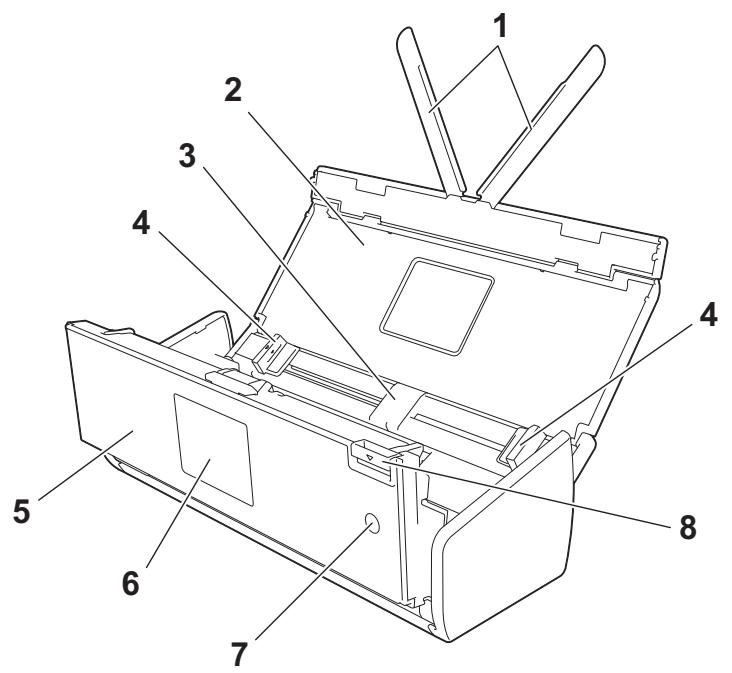
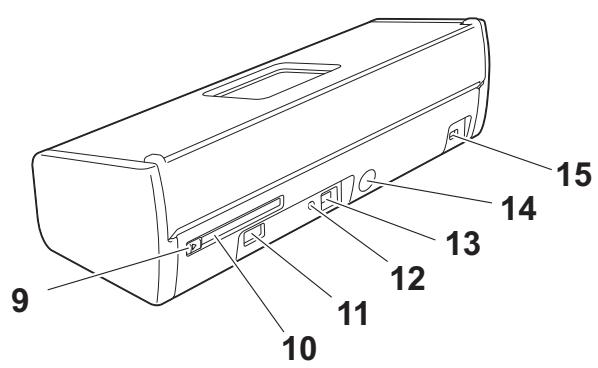
1 Document Support Arms
2 Top Cover
3 Automatic Document Feeder (ADF)
4 Document Guides
5 Front Cover
6 Control Panel
7 Power Key
8 Cover Release Lever
9 Card Slot Guide
10 Card Slot
11 USB Direct Interface
12 AOSS/WPS Button (ADS-1100W only)
13 USB Connector
14 AC Adapter Connector
15 Security Slot
Control Panel Overview (ADS-1100W)
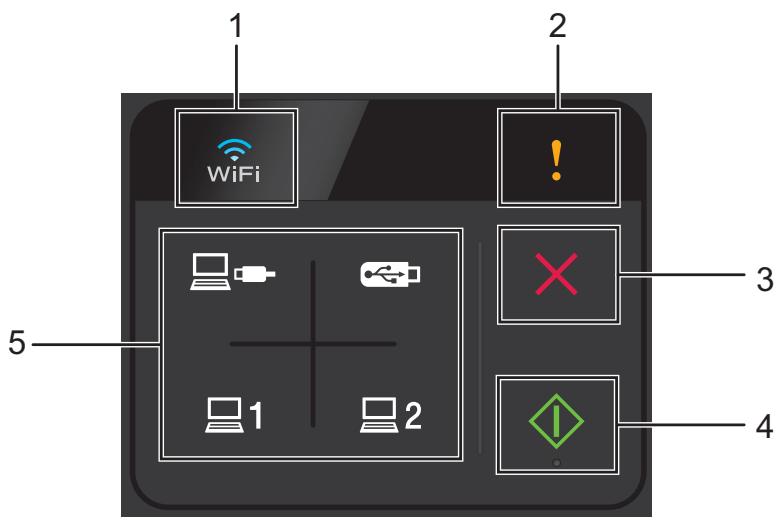
1 WiFi
When WLAN is enabled, the WiFi light lights up.
2 Error Indicator
The Error Indicator will light up when an error has occurred.
3 Stop Button
Press to stop or cancel. The Stop button does not light up when it is unavailable.
4 Start Button
Press to start. You need to select a scan type by pressing one of the Scan buttons before pressing the Start button. The Start button does not light up when it is unavailable.
NOTE
If you configure the Scan Priority settings (see Scan Priority (ADS-1100W only) on page 207) and the Scan buttons are available, they will blink automatically.
5 Scan Buttons
Press to select a scan type. The Scan buttons will light up when they are available.
Press to select the Scan to PC (USB Connect) function.
NOTE
is only available when the machine was set up using the USB interface method (see the Quick
Setup Guide).


You can assign the Scan to FTP, Scan to PC (Network Connect) or WS Scan function to the keys. Press to select your assigned function after configuring the settings.
NOTE

and 2 are only available when the machine was set up using the wireless network method
with the installation DVD-ROM and a USB cable (see the Quick Setup Guide).
Press to select the Scan to USB function.
Control Panel Overview (ADS-1600W)
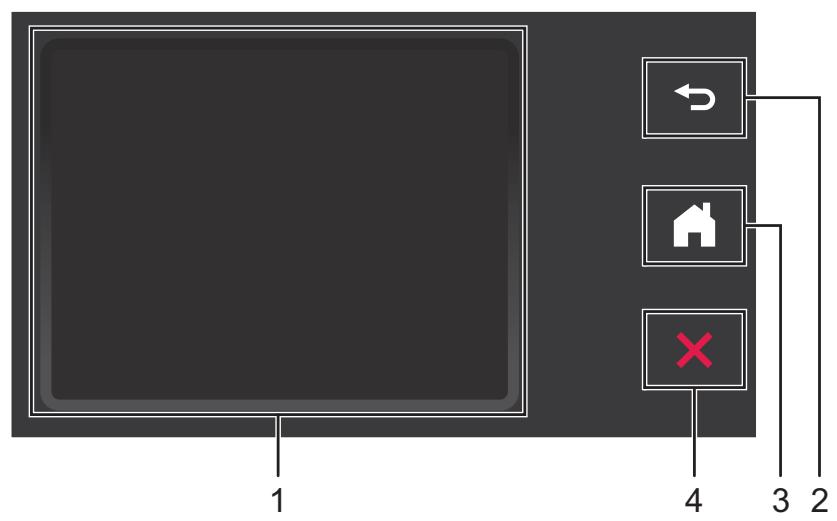
1 Touchscreen LCD (Liquid Crystal Display)
You can access the menus and options by pressing them on the Touchscreen.
2 Back Button
Press to go back to the previous menu level. The Back key does not light up when it is unavailable.
3 Home Button
Lets you return to Ready mode. The Home key does not light up when it is unavailable.
4 Stop Button
Press to stop or cancel. The Stop key does not light up when it is unavailable.
Touchscreen LCD (Liquid Crystal Display)
Clock Mode (When the Top Cover is closed only)
In this mode, you can see the date and time.
The LCD shows the current machine status when the machine is idle.
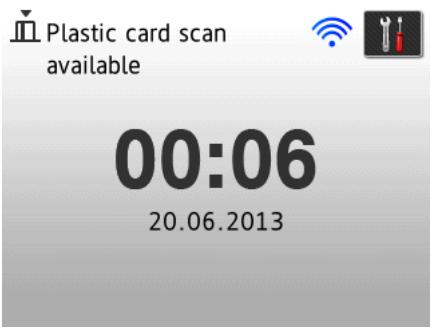
1 Date and Time
Lets you see the date and time.
2
When WLAN is enabled, a four level indicator shows the current wireless signal strength.

0


Max
3
Lets you access the plastic card scan settings.
The information icon appears on the Touchscreen when there is an error or maintenance message. For details, see Error and Maintenance Messages on page 186.
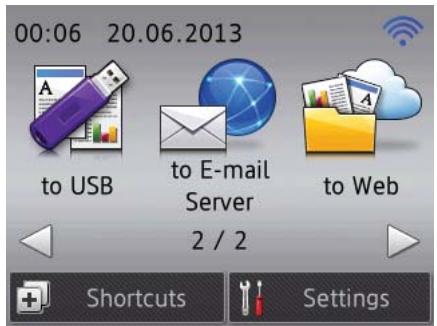
Scan Mode (When the Top Cover is open only)
In this mode, Scan to FTP, Scan to Network, Scan to PC, Scan to USB, Scan to E-mail Server and Scan to Web are available.
The LCD shows the current machine status when the machine is idle.
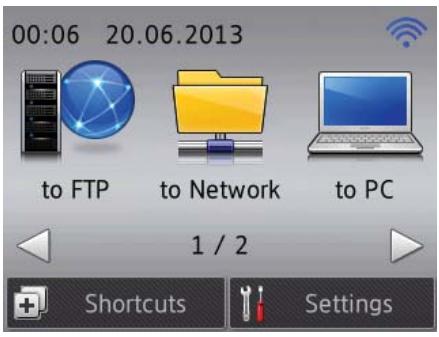
1 to FTP
Lets you access the Scan to FTP function.
2 to Network
Lets you access the Scan to Network function.
3 to PC
Lets you access the Scan to PC function.
4 to USB
Lets you access the Scan to USB function.
5 to E-mail Server
Lets you access the Scan to E-mail Server function.
6 to Web
Lets you access the Scan to Web function.
7
When WLAN is enabled, a four level indicator shows the current wireless signal strength.

0


Max
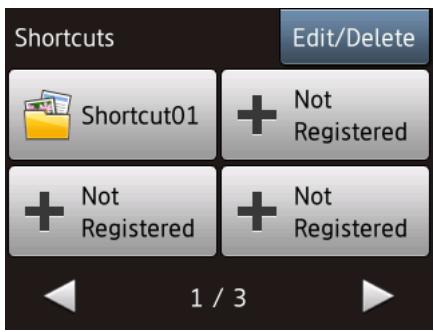
8 Shortcuts
Lets you set up Shortcut menus.
Also you can quickly scan using the options that you have set as shortcuts.
9 (Settings)
Lets you access the main settings.
The information icon appears on the Touchscreen when there is an error or maintenance message. For details, see Error and Maintenance Messages on page 186.
NOTE
This product adopts the font of ARPHIC TECHNOLOGY CO., LTD.
Basic Operations
To operate the screen, use your finger to press the (Settings) or option button directly on the screen. To display and access all the screen menus or options in a setting, press or to scroll through them.
IMPORTANT
DO NOT press the screen with a sharp object, such as a pen or stylus. It may damage the machine.
The following steps show how to change a setting in the machine. In this example, the Document Size setting in Scan to PC is changed to Auto.
Press or to display to PC.
Press to PC.
Press or to display to File.
4 Press to File.
Press Options.
Press or to display Set with Touch Panel.
7 Press Set with Touch Panel.
8 Press on.
Press or to display Document Size.
10 Press Document Size.
Press or to display Auto.
12 Press Auto.
NOTE
Press to go back to the previous level.
Change the Keyboard Setting
You can choose the type of keyboard for the Touchscreen.
1 Press

(Settings), General Setup and then Keyboard Settings.
2
Press QWERTY or ABC.
3

Set the Backlight Brightness
You can adjust the brightness of the LCD backlight. If you are having difficulty reading the LCD, try changing the brightness setting.
Press
Press (Settings), General Setup, LCD Settings and then Backlight.
2
Press Light, Med or Dark.
3

Set the Dim Timer for the Backlight
You can set how long the LCD backlight stays on after the Ready screen is shown.
1 Press

(Settings), General Setup, LCD Settings and then Dim Timer.
2
Press Off, 10Secs, 20Secs or 30Secs.
3

Memory Storage
Your menu settings are stored permanently and, in the event of a power failure, will not be lost, although temporary settings will be lost.
(ADS-1600W only)
If you have chosen Set New Default for your Scan to USB and Scan to E-mail Server preferred settings, those settings will not be lost. Also, during a power failure, the machine will retain the date and time for approximately 24 hours.
Beep Volume
When the beep setting is on, the machine will beep when you press a key or make a mistake.
You can choose a range of beep volume levels from Low to High, or choose Off.
(ADS-1100W)
1 Start the ControlCenter application.
Windows®
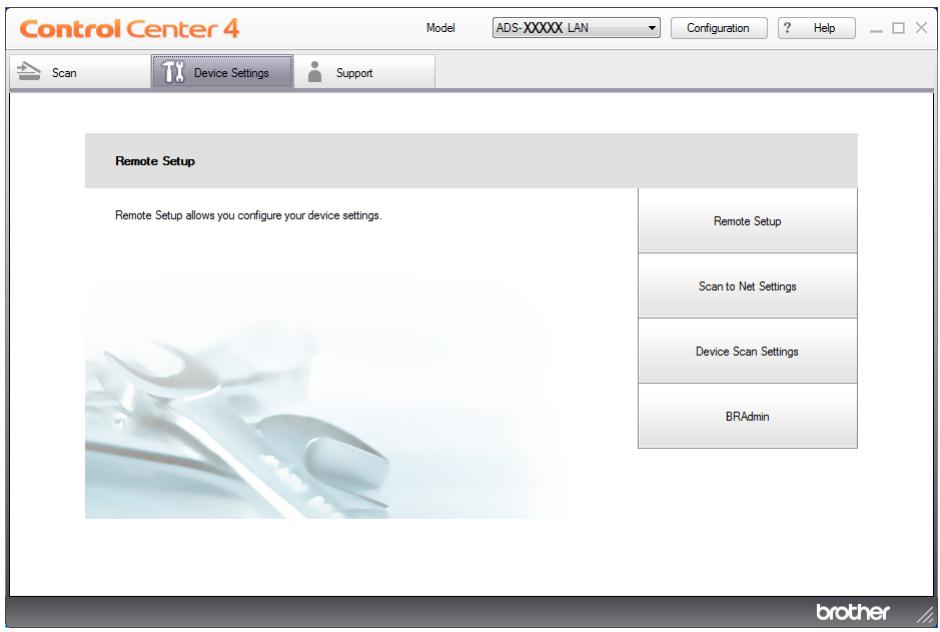
1 Click the (ControlCenter4) icon in the task tray and then select Open from the menu. The ControlCenter4 window will appear.
2 Click the Device Settings tab (the example below uses Home Mode).
Macintosh
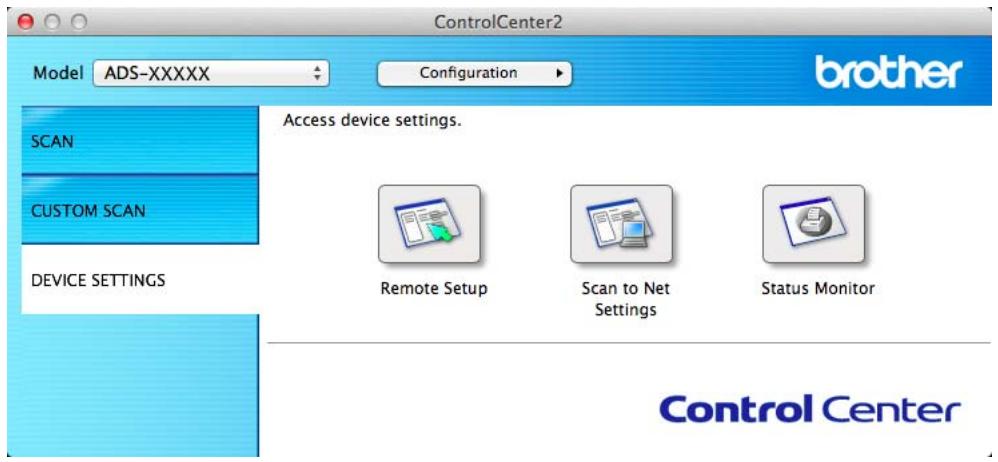
1 Click the (ControlCenter2) icon in the Dock. The ControlCenter2 window will appear.
2 Click the DEVICE SETTINGS tab.
2 Click the Remote Setup button. The Remote Setup window will appear.
3 Select General Setup in the folder tree (the example below uses Windows®).
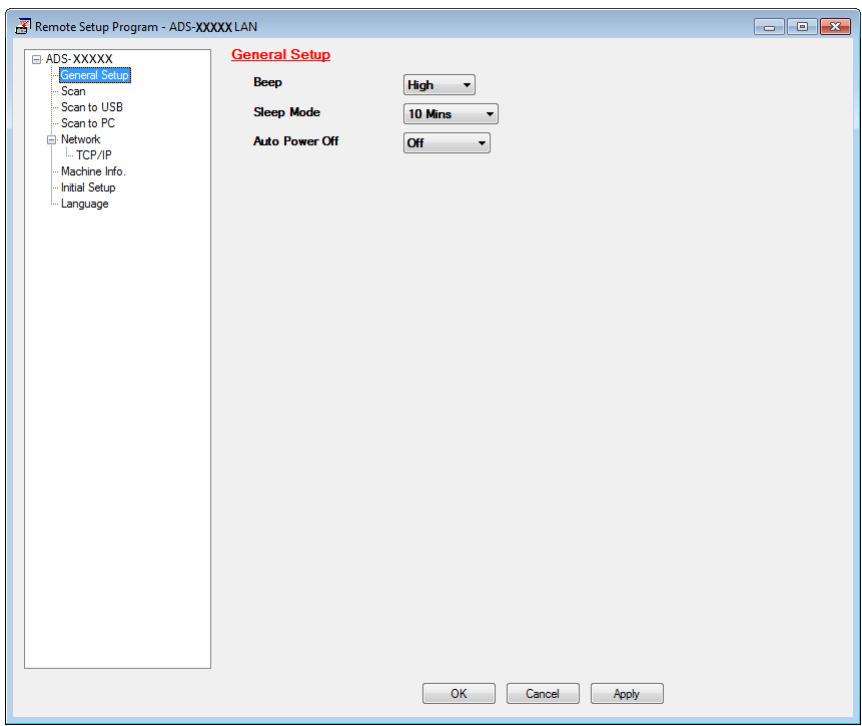
4 Select Low, Med, High or Off from the Beep drop-down list.
5 Click Apply and then OK.
(ADS-1600W)
Press (Settings), General Setup and then Beep.
Press Low, Med, High or Off.
Press
Select Your Language (if needed)
(ADS-1100W)
1 Start the ControlCenter application.
Windows®
1 Click the (ControlCenter4) icon in the task tray and then select Open from the menu. The ControlCenter4 window will appear.
2 Click the Device Settings tab (the example below uses Home Mode).
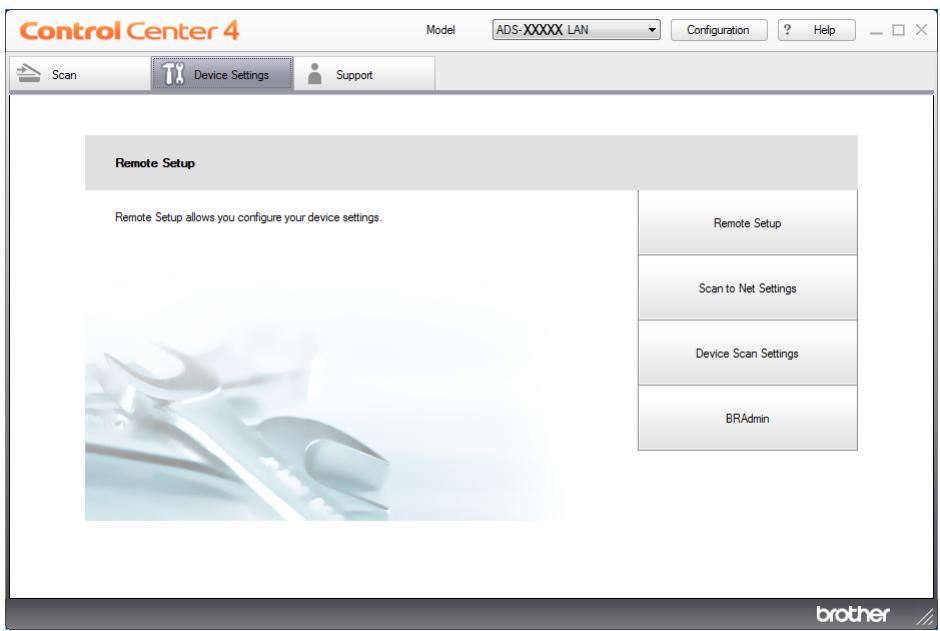
Macintosh
1 Click the (ControlCenter2) icon in the Dock. The ControlCenter2 window will appear.
2 Click the DEVICE SETTINGS tab.
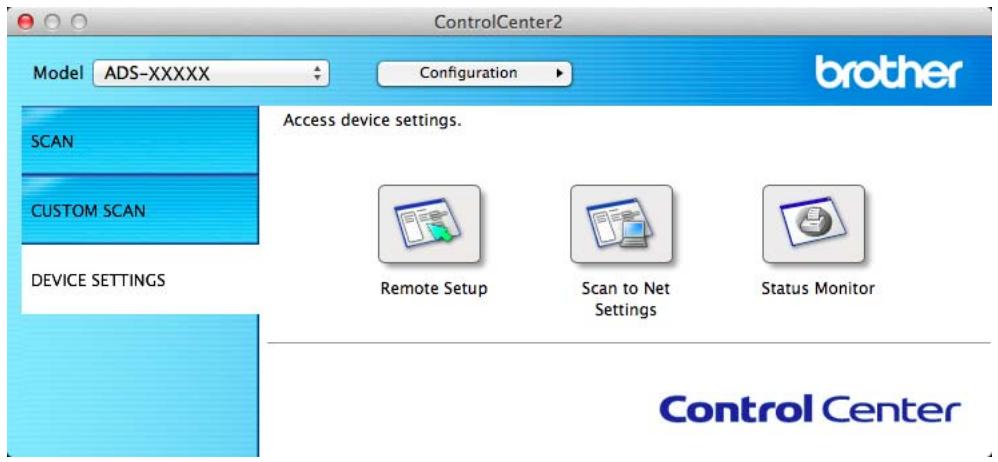
2 Click the Remote Setup button. The Remote Setup window will appear.
3 Select Language in the folder tree (the example below uses Windows®).
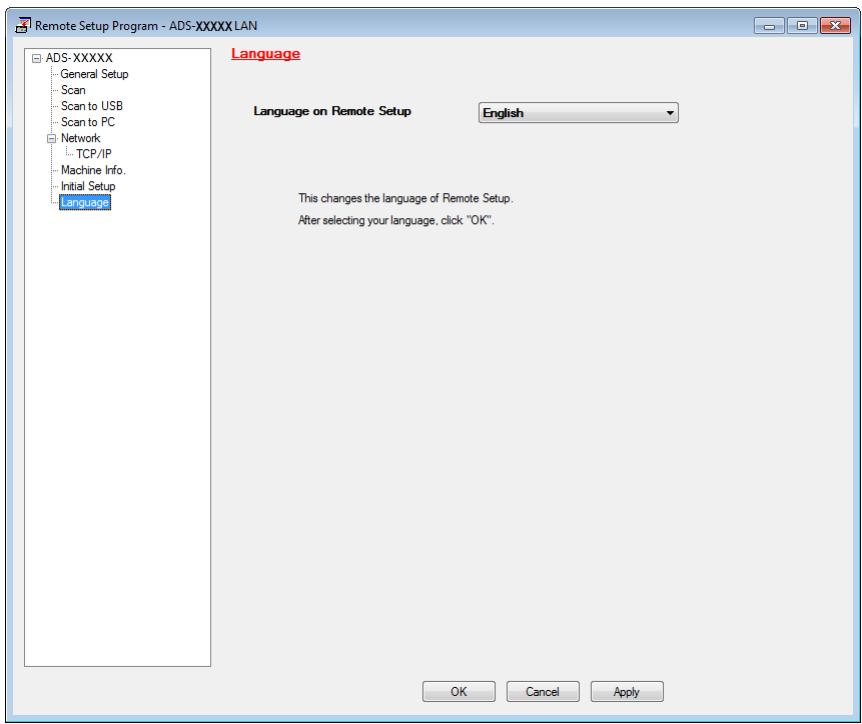
4 Select your language from the Language on Remote Setup drop-down list.
5 Click Apply and then OK.
(ADS-1600W)
Press (Settings).
Press or to display Initial Setup. Press Initial Setup.
Press Local Language.
Press or to display your language. Press your language.
Press
Set the Date and Time (ADS-1600W only)
The machine displays the date and time.
Press (Settings).
Press or to display Initial Setup.
Press Initial Setup, Date & Time and then Date.
4 Enter the last two digits of the year on the Touchscreen, and then press OK.
5 Enter the two digits for the month on the Touchscreen, and then press OK.
6 Enter the two digits for the day on the Touchscreen, and then press OK.
7 Press Time.
8 Enter the time on the Touchscreen.
Press OK, and then press
Automatic Daylight Saving Time
You can set the machine to change the time automatically for Daylight Saving Time. The Time will be adjusted forward one hour in the Spring and adjusted backward one hour in the Autumn.
The factory setting is Off, therefore, you will have to change the Automatic Daylight Saving Time setting to On as follows.
(ADS-1100W)
1 Start the ControlCenter application.
Windows®
1 Click the (ControlCenter4) icon in the task tray and then select Open from the menu. The ControlCenter4 window will appear.
2 Click the Device Settings tab (the example below uses Home Mode).
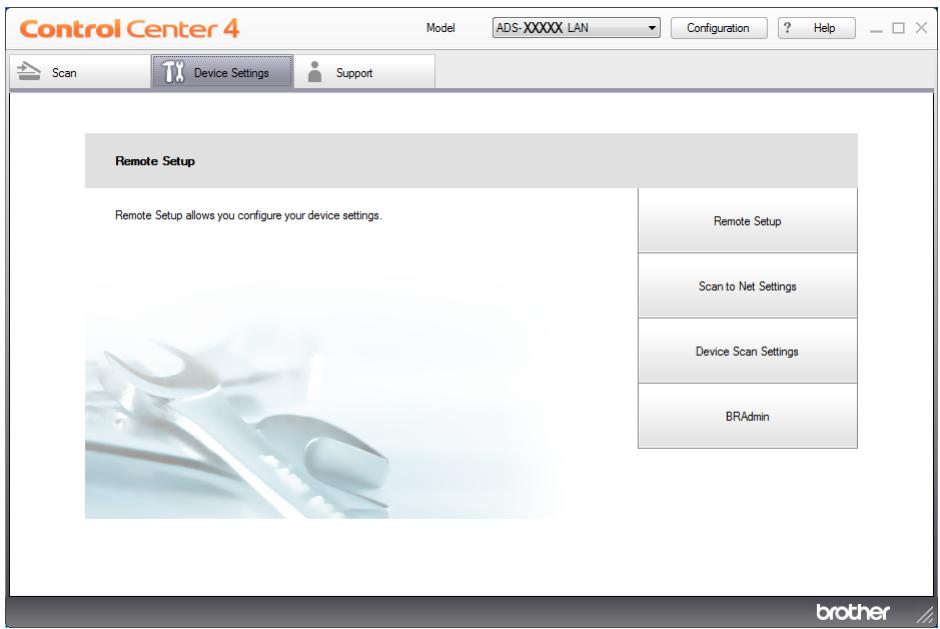
Macintosh
1 Click the (ControlCenter2) icon in the Dock. The ControlCenter2 window will appear.
2 Click the DEVICE SETTINGS tab.
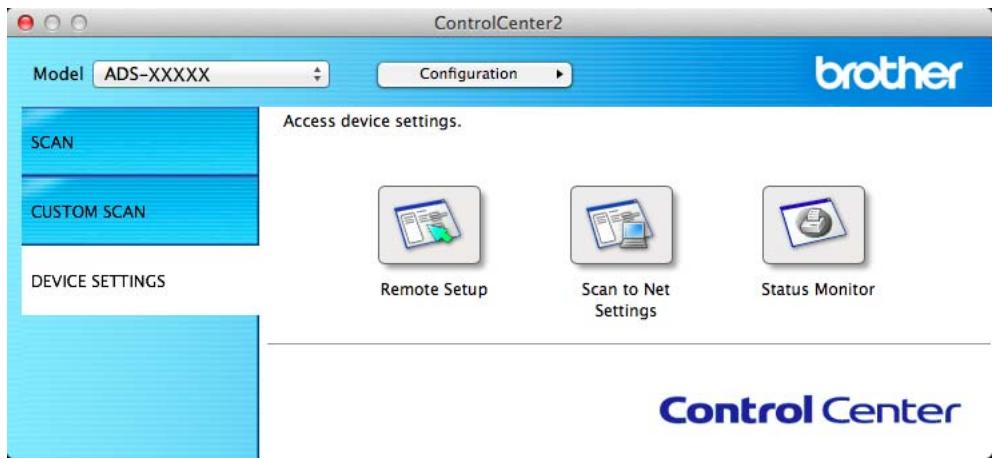
2 Click the Remote Setup button. The Remote Setup window will appear.
3 Select Initial Setup in the folder tree (the example below uses Windows®).
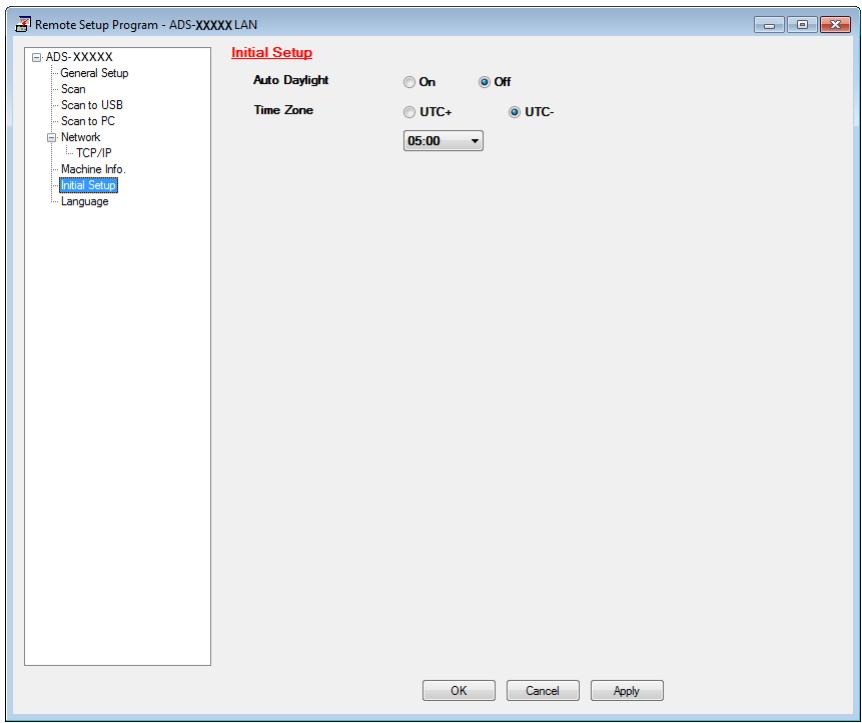
4 Select Off (or On) from the Auto Daylight options.
5 Click Apply and then OK.
(ADS-1600W)
NOTE
Make sure you have set the correct date and time in the Date & Time setting.
Press (Settings).
Press or to display Initial Setup.
Press Initial Setup, Date & Time and then Auto Daylight.
4 Press Off (or On).
Press
Set the Time Zone
You can set the time zone (not summer time but standard time) on the machine for your location. (ADS-1100W)
1 Start the ControlCenter application.
Windows®
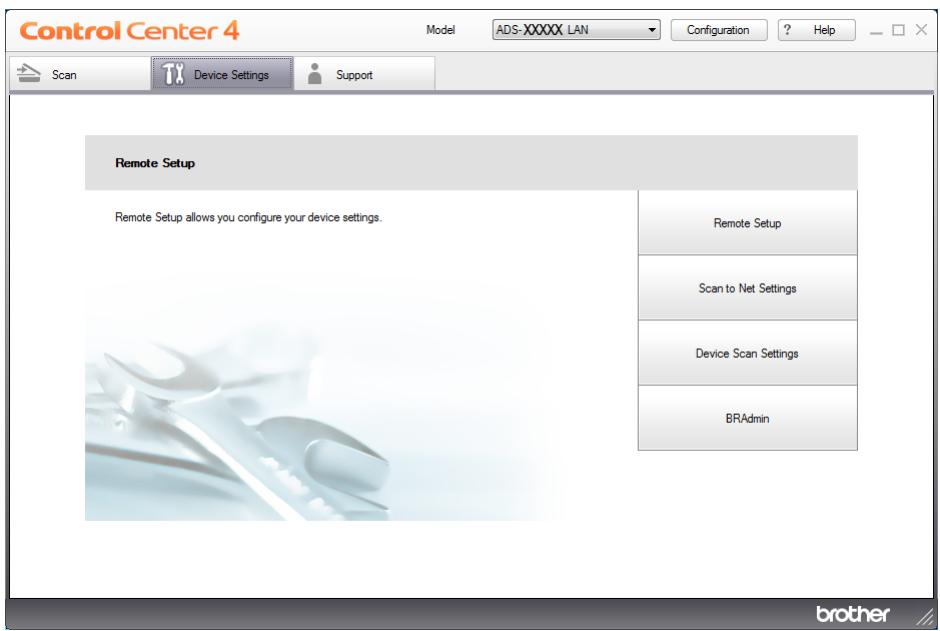
1 Click the (ControlCenter4) icon in the task tray and then select Open from the menu. The ControlCenter4 window will appear.
2 Click the Device Settings tab (the example below uses Home Mode).
Macintosh
1 Click the (ControlCenter2) icon in the Dock. The ControlCenter2 window will appear.
2 Click the DEVICE SETTINGS tab.
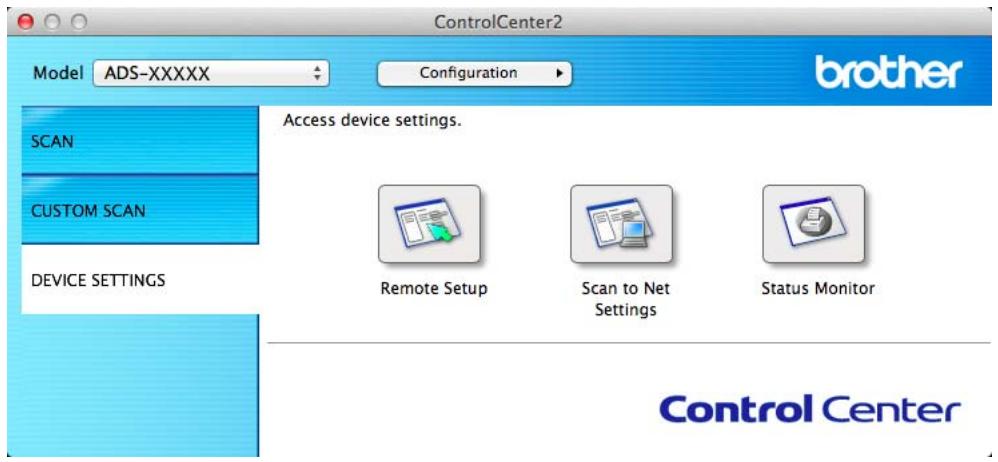
2 Click the Remote Setup button. The Remote Setup window will appear.
3 Select Initial Setup in the folder tree (the example below uses Windows®).
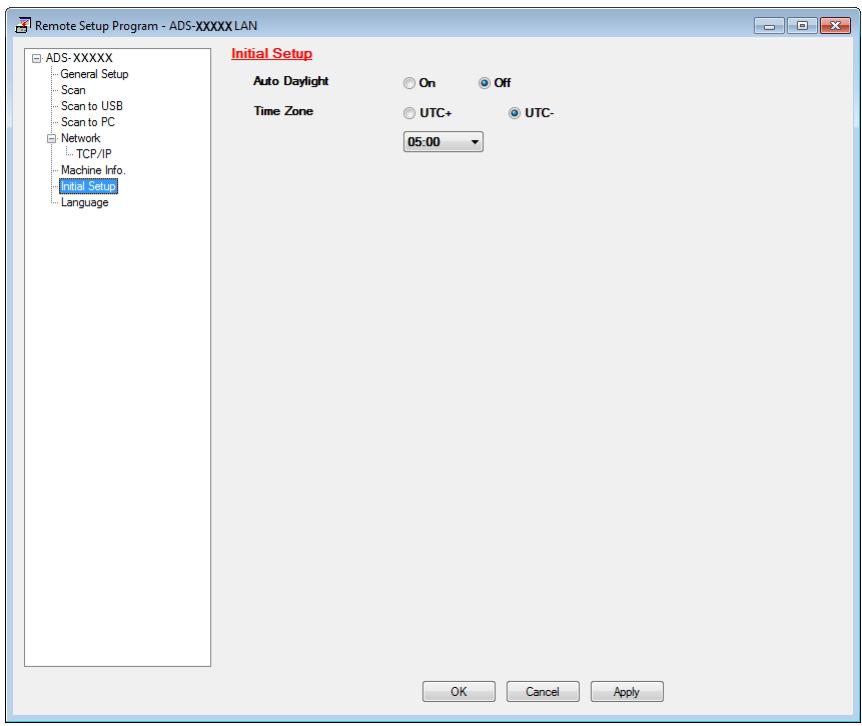
4 Select your time zone from the Time Zone options.
5 Click Apply and then OK.
(ADS-1600W)
Press (Settings).
Press or to display Initial Setup.
Press Initial Setup, Date & Time and then Time Zone.
4 Enter your time zone. Press OK.
Press
Sleep Mode
You can enter how long the machine must be idle (the maximum setting is 60 minutes and the default setting is 10 minutes) before it enters Sleep Mode. The timer will restart if any operation is carried out on the machine.
NOTE
If a plastic card is inserted into the Card Slot, the machine does not enter Sleep mode.
(ADS-1100W)

Start the ControlCenter application.
Windows®
1 Click the (ControlCenter4) icon in the task tray and then select Open from the menu. The ControlCenter4 window will appear.
2 Click the Device Settings tab (the example below uses Home Mode).
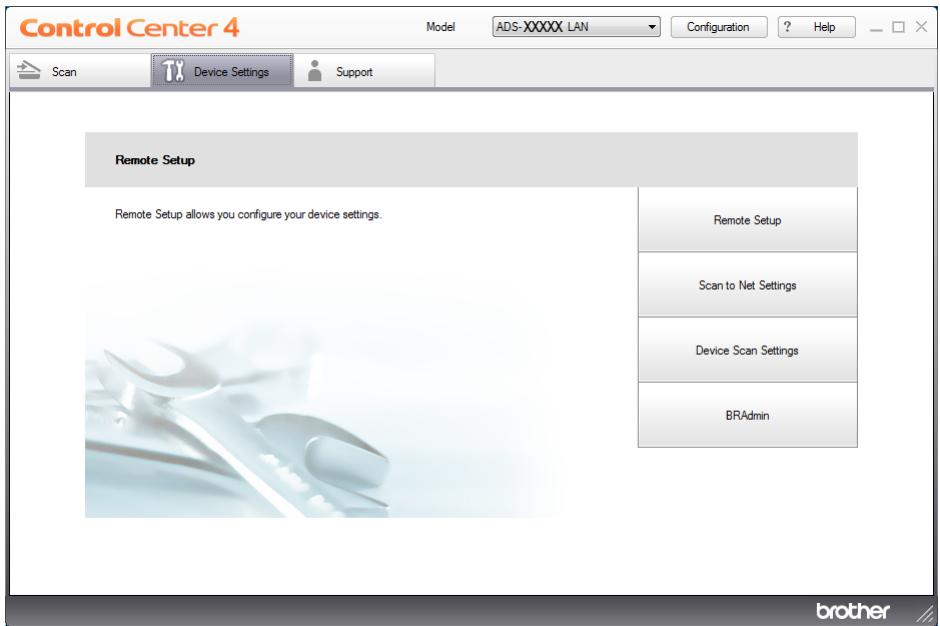
Macintosh
1 Click the (ControlCenter2) icon in the Dock. The ControlCenter2 window will appear.
2 Click the DEVICE SETTINGS tab.
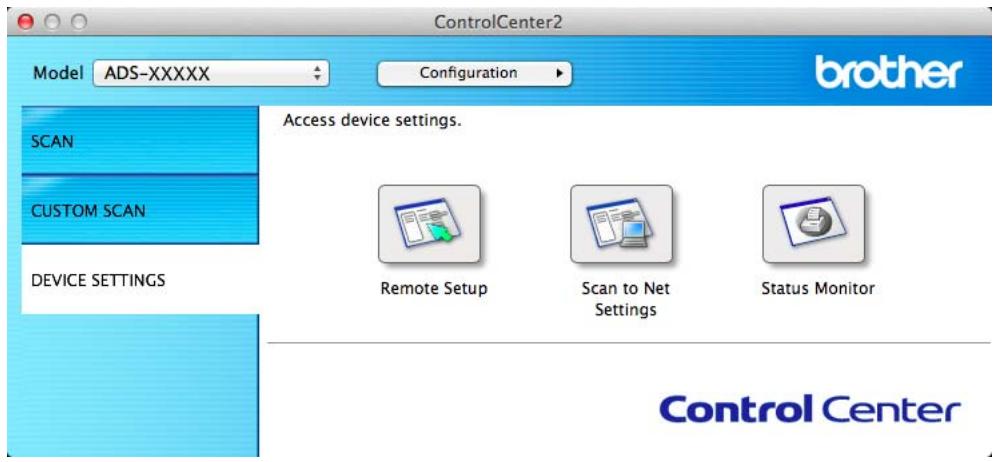
2 Click the Remote Setup button. The Remote Setup window will appear.
3 Select General Setup in the folder tree (the example below uses Windows®).
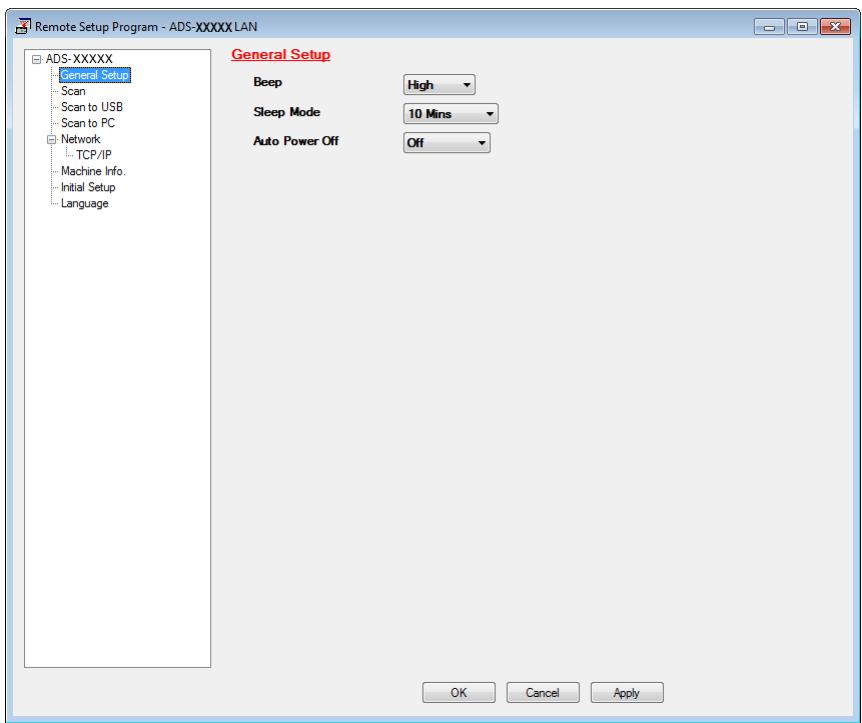
4 Select 1 Min, 2 Mins, 3 Mins, 5 Mins, 10 Mins, 30 Mins or 60 Mins from the Sleep Mode drop-down list.
5 Click Apply and then OK.
(ADS-1600W)
Press (Settings) and then General Setup.
Press or to display Sleep Mode.
Press Sleep Mode.
4 Press 1Min, 2Mins, 3Mins, 5Mins, 10Mins, 30Mins or 60Mins.
Press
Auto Power Off
You can enter how long the machine is in Sleep mode (the maximum setting is 8 hours and the default setting is 4 hours) before it turns the power off automatically.
(ADS-1100W)
1 Start the ControlCenter application.
Windows®
1 Click the (ControlCenter4) icon in the task tray and then select Open from the menu. The ControlCenter4 window will appear.
2 Click the Device Settings tab (the example below uses Home Mode).
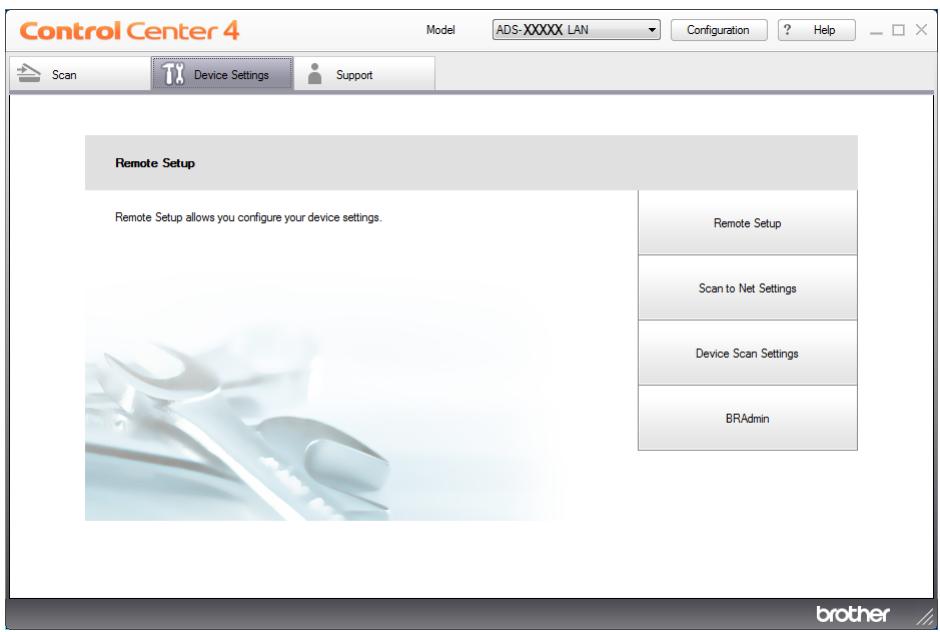
Macintosh
1 Click the (ControlCenter2) icon in the Dock. The ControlCenter2 window will appear.
2 Click the DEVICE SETTINGS tab.
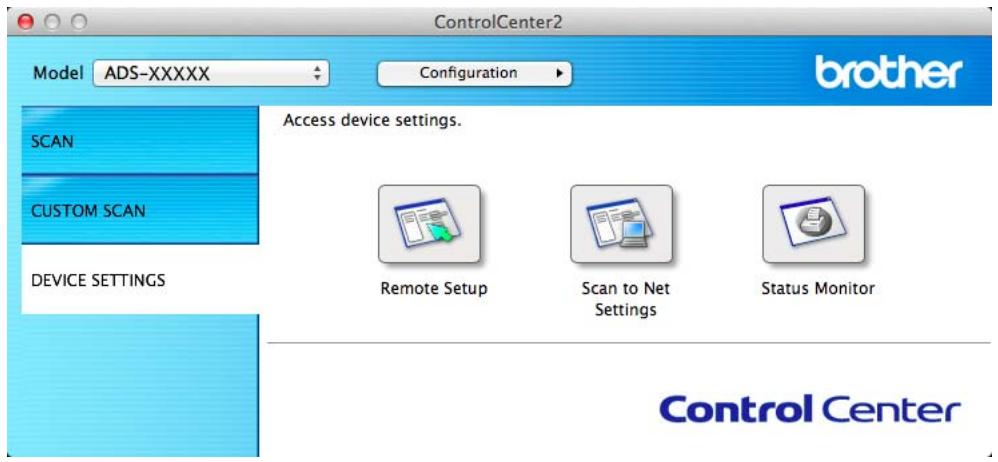
2 Click the Remote Setup button. The Remote Setup window will appear.
3 Select General Setup in the folder tree (the example below uses Windows®).
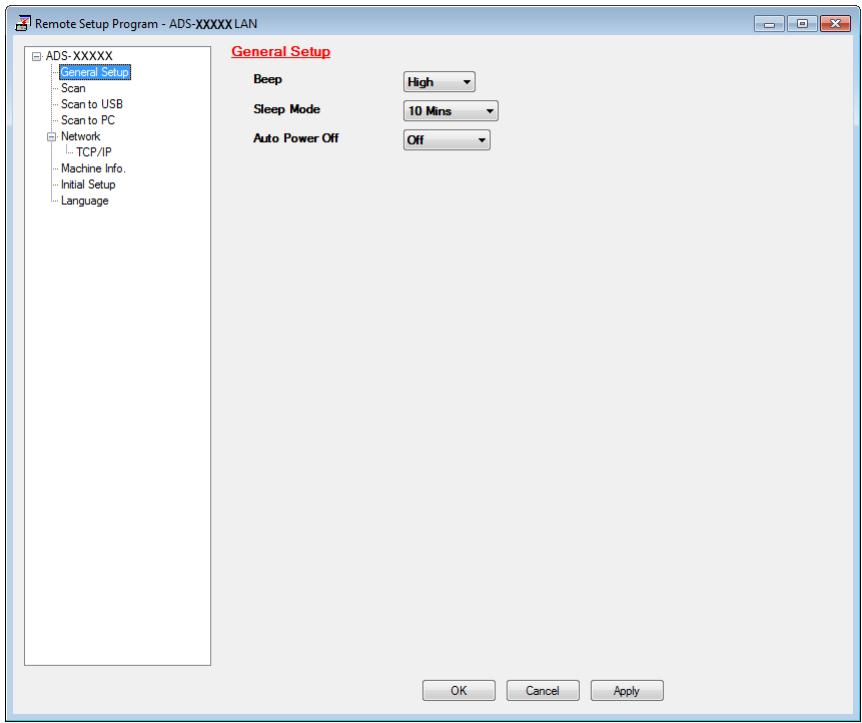
4 Select 1hour, 2hours, 4hours, 8hours or Off from the Auto Power Off drop-down list.
5 Click Apply and then OK.
(ADS-1600W)
Press (Settings) and then General Setup.
Press or to display Auto Power Off.
Press Auto Power Off.
4 Press 1hour, 2hours, 4hours, 8hours or Off.
Press
Acceptable Document
NOTE
Do not load documents that contain multiple page thicknesses, paper qualities, etc.
Acceptable Document
| Standard Paper | Length | 70 mm to 297 mm | |
| Width | 51 mm to 215.9 mm | ||
| Weight | 52 g/m2to 110 g/m2 | ||
| Thickness | 0.08 mm to 0.12 mm | ||
| Maximum Number of Documents | Total thickness of no more than 2 mm, no more than 20 sheets | ||
| Standard Paper Size | A4 | 210 × 297 mm | |
| A5 | 148 × 210 mm | ||
| A6 | 105 × 148 mm | ||
| B5 | 182 × 257 mm | ||
| B6 | 128 × 182 mm | ||
| Letter | 215.9 × 279.4 mm | ||
| Thick Paper1 | Length | 70 mm to 147 mm |
| Width | 51 mm to 110 mm | |
| Weight | 110 g/m2to 200 g/m2 | |
| Thickness | 0.12 mm to 0.2 mm | |
| Maximum Number of Documents | Total thickness of no more than 2 mm and no more than 10 sheets |
| Thick Paper2 | Length | 70 mm to 95 mm |
| Width | 51 mm to 55 mm | |
| Material | Plastic (PET), Paper | |
| Thickness | 0.2 mm to 0.4 mm | |
| Maximum Number of Documents | 1 sheet | |
| Long Paper | Length | 297 mm to 863 mm |
| Width | 51 mm to 215.9 mm | |
| Weight | 52 g/m2to 110 g/m2 | |
| Thickness | 0.08 mm to 0.12 mm | |
| Maximum Number of Documents | 1 sheet |
NOTE
To scan a document between 297 mm to 863 mm, select Long Paper as Scan Size or Document Size in the setting dialog box.
| Plastic Card | Standard Size (ISO) | 85.6 × 54.0 × 0.76 mm |
| Length | 70 mm to 95 mm | |
| Width | 51 mm to 55 mm | |
| Material | Plastic (PET) | |
| Type | Plastic card such as driver's license or insurance card | |
| Thickness | Base: 0.4 mm to 0.76 mm Embossed: up to 1.4 mm | |
| Maximum Number of Documents | 1 sheet |
NOTE
A plastic card can be scanned when saving the scanned image to your computer. Check the Plastic Card Mode check box in the setting dialog box.
| Receipt Carrier Sheet | Length | Up to 270 mm |
| Width | Up to 110 mm | |
| Weight | Up to 110 g/m2 | |
| Thickness | Total thickness of the Receipt Carrier Sheet and receipt of no more than0.35 mm (excluding overlapping portions of a Z-shaped receipt) | |
| Maximum Number of Documents | 1 sheet Fold a receipt into a Z-shape if it is longer than the Receipt Carrier Sheet. |
NOTE
A Receipt Carrier Sheet can be used when saving the scanned image to your computer and cannot be used when scanning to USB flash memory drive.
Unacceptable Documents
Documents with a carbon sheet attached on the back
Documents written in pencil
Documents of uneven thickness, such as envelopes
Documents with large wrinkles or curls
Bent or damaged documents
Documents that use tracing paper
Documents that use coated paper
Photographs (photographic paper)
Documents printed on perforated paper
Documents printed on unusually-shaped paper (not square or rectangle)
Documents with photos, notes, or stickers affixed to them
Documents that use carbonless paper
Documents that use loose-leaf paper or any paper with holes in it
Documents with paper clips or staples
Documents with wet ink
■ Fabrics, metallic sheets, Over Head Projector sheets
Glossy or mirrored media
Documents that exceed recommended media thicknesses
Receipt Carrier Sheet Information
Use the Receipt Carrier Sheet for a receipt only.
■ Use the BR-Receipts application when using the Receipt Carrier Sheet (see Scan Receipts Using BR-Receits (Windows®) on page 89 or Scan Receipts Using BR-Receits (Macintosh) on page 101).
- You can fold the receipt into a Z-shape and then insert it into the Receipt Carrier Sheet if the receipt is longer than the Receipt Carrier Sheet (see Loading a Receipt on page 37).
To avoid document jams, do not load the Receipt Carrier Sheet upside down. Refer to the instructions printed on the Receipt Carrier Sheet itself for more information or see Loading Documents on page 32.
To avoid document jams, do not put several small documents into the Receipt Carrier Sheet at the same time. Insert only one document into the Receipt Carrier Sheet at a time.
- Do not write on the Receipt Carrier Sheet, as the writing may be seen in a scanned receipt. If the Receipt Carrier Sheet becomes dirty, wipe it with a dry cloth.
- Do not leave any receipt in the Receipt Carrier Sheet for extended periods of time, as the printing on the receipt may bleed-through onto the Receipt Carrier Sheet.
Unacceptable Receipt
Receits with paper clips or staples
Receits with wet ink
CAUTION
To avoid cutting yourself, do not slide or scrape your hand or fingers along the edge of the Receipt Carrier Sheet.
IMPORTANT
- To avoid warping, do not place the Receipt Carrier Sheet in direct sunlight or in an area subject to high temperatures and high humidity. Do not store the Receipt Carrier Sheet horizontally with a large object placed on top of it.
- To avoid damaging the Receipt Carrier Sheet, do not bend or pull it. If the Receipt Carrier Sheet becomes damaged, it may not be acceptable for scanning, and should not be used.
Loading Documents
The document feeder can hold up to 20 pages and feeds each sheet individually. Use 20 lb (80g / m^2) paper and always fan the pages before placing them in the document feeder.
IMPORTANT
- DO NOT pull on the document while it is feeding.
DO NOT use paper that is curled, wrinkled, folded, ripped, stapled, paper clipped, pasted or taped. - DO NOT use cardboard or fabric.
Set Up the Machine
1 Open the Top Cover (1) and push the flap of the Top Cover (2) firmly back until it clicks.
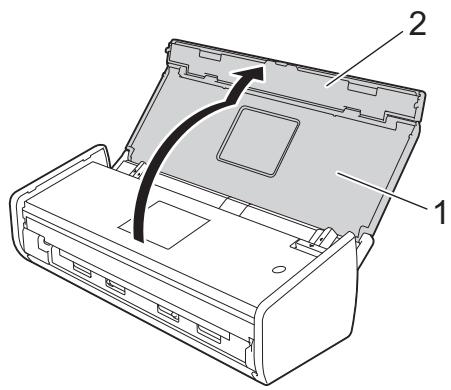
2 Lift the Document Support Arms (1).
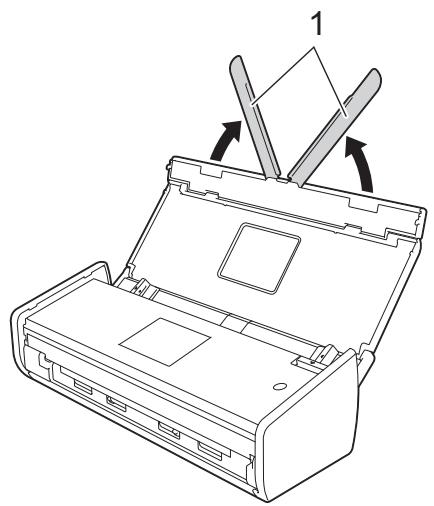
Loading Standard Size Documents
Make sure documents with ink or correction fluid are completely dry.
1 Set up the machine (see Set Up the Machine on page 32).
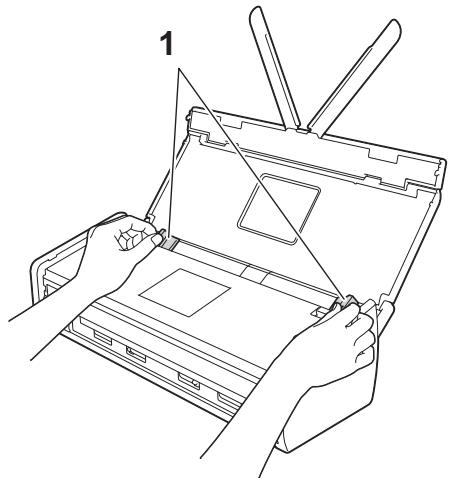
Adjust the Document Guides (1) to fit the width of your document.
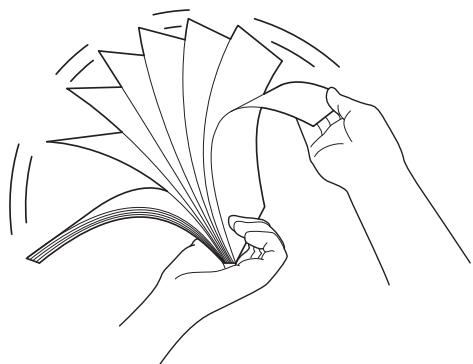
Fan the pages several times along both the long edge and the short edge.
Align the edges of the pages.
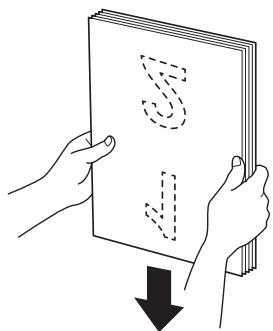
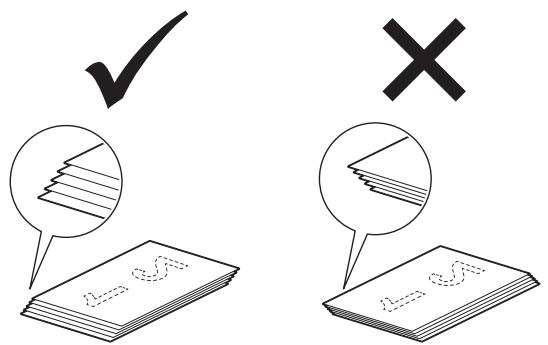
Position the pages so that the leading edges are aligned at a slight angle in the feed direction.
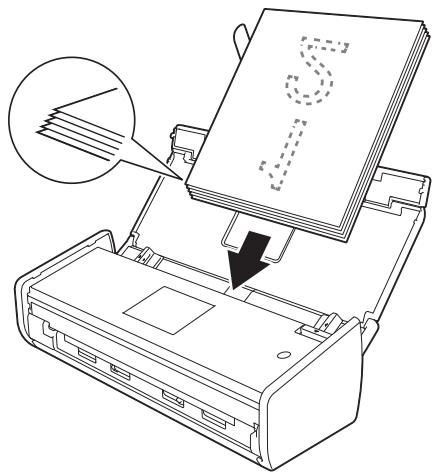
Place your document, face down, top edge first in the document feeder between the Guides until you feel it touch the inside of the machine gently.
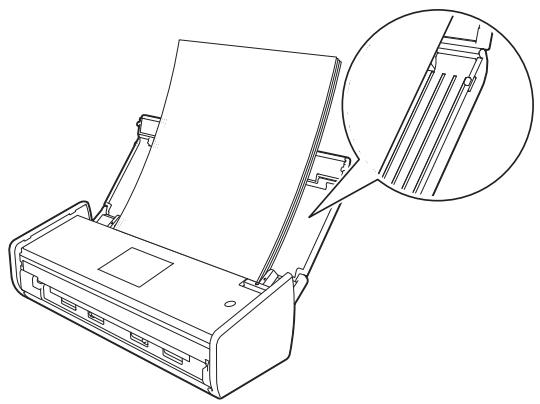
Make sure that the side edges of the document are parallel to the grooves in the Top Cover, and then adjust the Guides to fit the width of the document again.
Loading Business Cards
Make sure documents with ink or correction fluid are completely dry.
1 Set up the machine (see Set Up the Machine on page 32).
Adjust the Document Guides (1) to fit the width of your document.
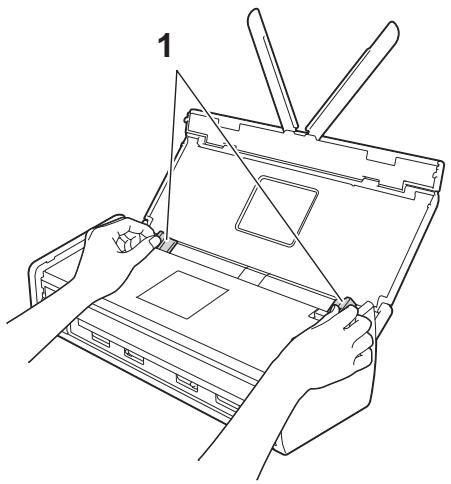
Place your document, face down and short side first in the document feeder between the Guides until you feel it touch the inside of the machine.
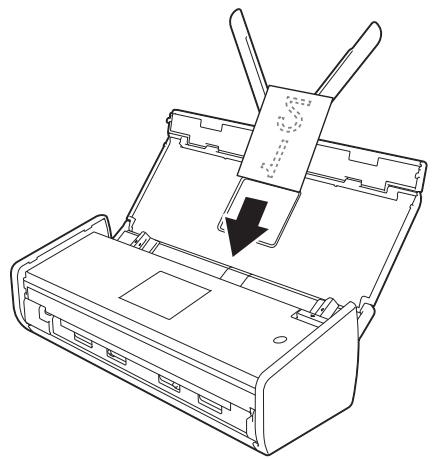
NOTE
Do not insert a business card into the Card Slot located at the back of the machine.
Loading Documents Longer than A4 Size
Make sure documents with ink or correction fluid are completely dry.
1 Set up the machine (see Set Up the Machine on page 32).
Adjust the Document Guides (1) to fit the width of your document.
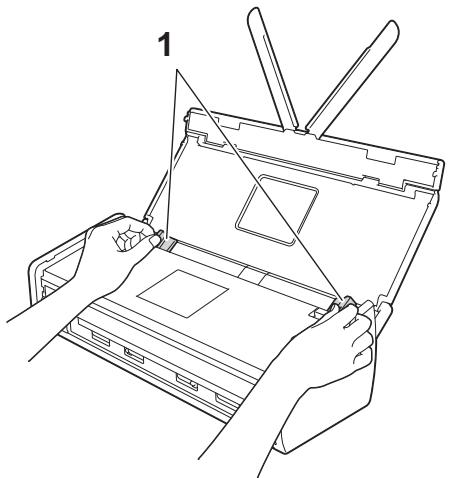
Place your document, face down, top edge first in the document feeder between the Guides until you feel it touch the inside of the machine.
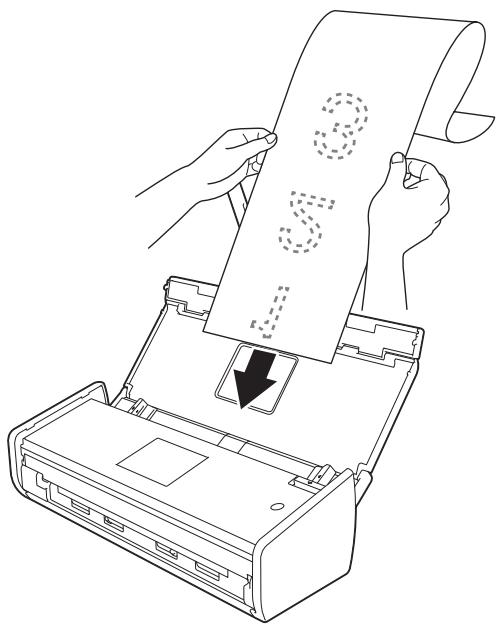
NOTE
- Load only one document at a time.
- Support the document with your hand if the document is longer than the Top Cover.
Loading a Receipt
Make sure documents with ink or correction fluid are completely dry.
1 Set up the machine (see Set Up the Machine on page 32).
2 Insert the document into the Receipt Carrier Sheet.
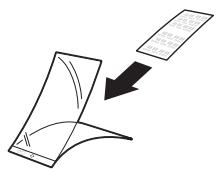
NOTE
Set the document in the center of the Receipt Carrier Sheet and align the top of the document with the top of the Receipt Carrier Sheet.
Adjust the Document Guides (1) to fit the width of the Receipt Carrier Sheet.
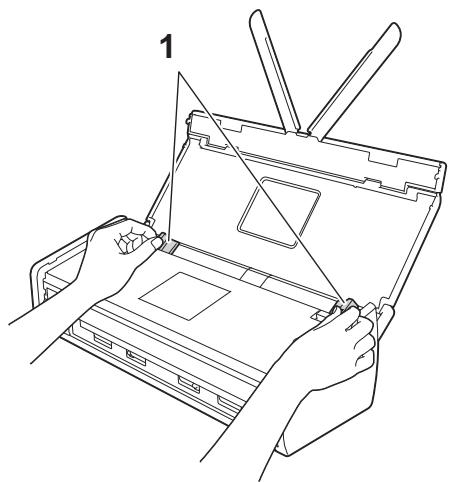
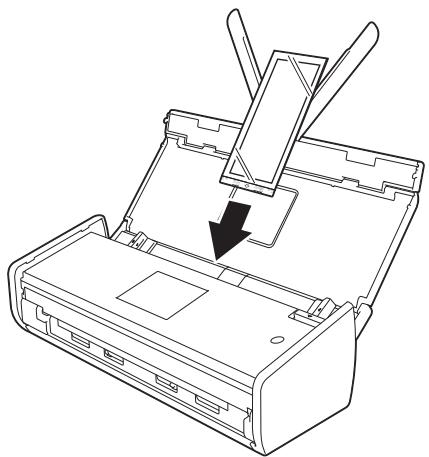
Place the Receipt Carrier Sheet in the document feeder between the Guides until you feel it touch the inside of the machine.
NOTE
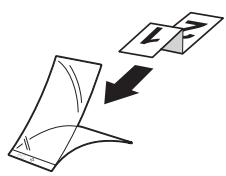
- You can fold the receipt into a Z-shape and then insert it into the Receipt Carrier Sheet if the receipt is longer than the Receipt Carrier Sheet.
- When the Receipt Carrier Sheet is scanned, the 30mm glued portion at the leading edge of the sheet will be automatically deleted only when using BR-Receits (see Scan Receipts Using BR-Receits (Windows®) on page 89 or Scan Receipts Using BR-Receits (Macintosh) on page 101).
Loading a Plastic Card
1 Close the Top Cover if it is open.
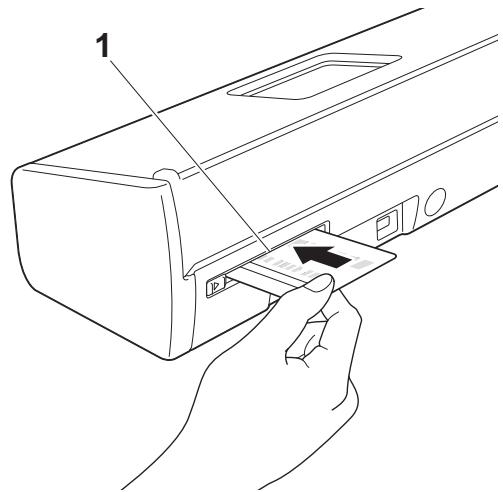
Adjust the Card Slot Guide (1) located at the back of the machine to fit the width of the plastic card.
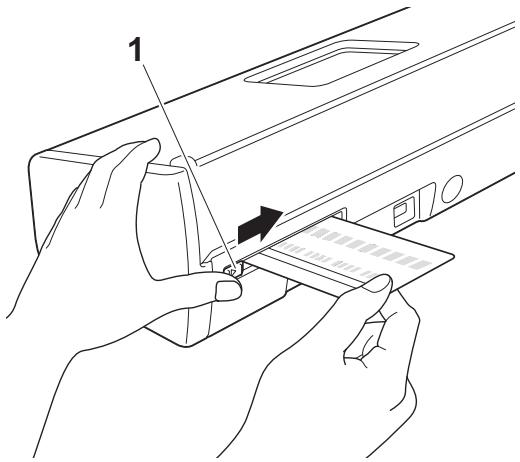
3 Insert the plastic card into the Card Slot (1). The card will be fed into the machine.
NOTE
- If the plastic card is embossed, insert the plastic card, the embossed side down, into the Card Slot.
- If the plastic card is not fed into the machine, pull the plastic card out from the machine and then load it on the ADF (see Loading Business Cards on page 35).
2 Before Scanning
Before Scanning
Before scanning, confirm the following:
■ Make sure you have installed the Brother software (MFL-Pro Suite) by following the steps in the Quick Setup Guide.
Make sure that the interface cable is physically secure.
Before Network Scanning
Network License (Windows®)
This product includes a computer license for up to 2 users.
This license supports the installation of the MFL-Pro Suite software including Nuance™ PaperPort™ 12SE on up to 2 computers on the network.
If you want to use more than 2 computers with Nuance™ PaperPort™ 12SE installed, please buy the Brother NL-5 pack which is a multiple computer license agreement pack for up to 5 additional users. To buy the NL-5 pack, contact your Brother dealer.
Configure Network Scanning for Windows®
If you have replaced your machine, and therefore it is different from the one originally registered to your computer during the installation of MFL-Pro Suite software, follow the steps below.
1 (Windows® XP)
Click the Start button, Control Panel, Printers and Other Hardware, then Scanners and Cameras (or Control Panel, Scanners and Cameras).
(Windows Vista®)
Click the button, Control Panel, Hardware and Sound, then Scanners and Cameras.
(Windows 7)
Click the button, All Programs, Brother, ADS-XXXX (where XXXX is your model name),
Scanner Settings, then Scanners and Cameras.
(Windows® 8)
Click (Brother Utilities), and then click the drop-down list and select your model name (if not already selected). Click SCAN in the left navigation bar, and then click Scanners and Cameras.
2 Do one of the following:
WindowsXP
Right-click the Scanner Device icon and choose Properties.
The Network Scanner Properties dialog box appears.
Windows Vista®, Windows® 7 and Windows® 8
Click the Properties button.
NOTE
(Windows Vista®, Windows® 7 and Windows® 8)
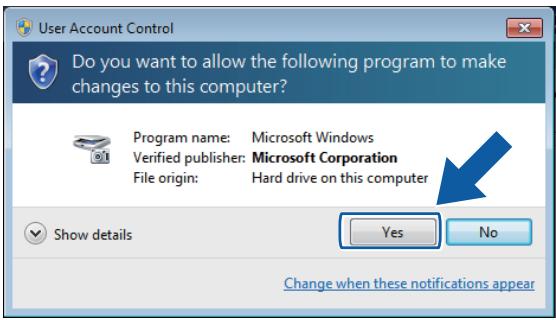
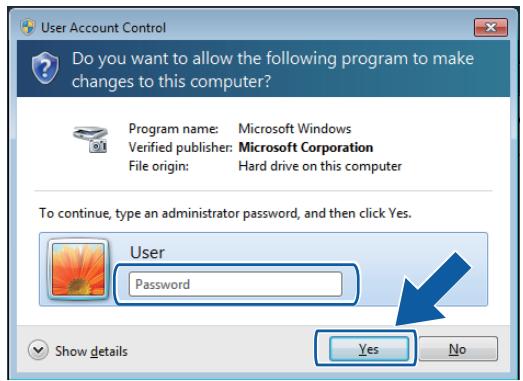
If the User Account Control screen appears, do the following:
- For users who have administrator rights: Click Continue or Yes.
- For users who do not have administrator rights: Enter the administrator password and click OK or Yes.

Click the Network Setting tab and choose the appropriate connection method.
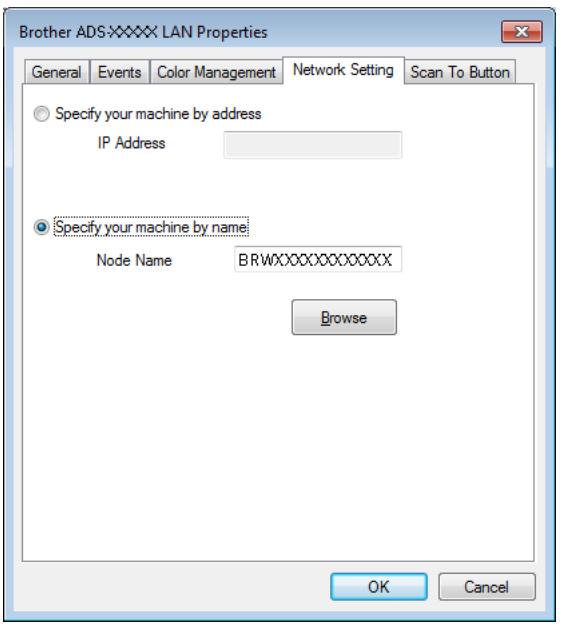
Specify your machine by address
Enter the IP address of the machine in IP Address, and then click Apply or OK.
Specify your machine by name
1 Enter the machine node name in Node Name, or click Browse and choose the machine you want to use.
2 Click OK.
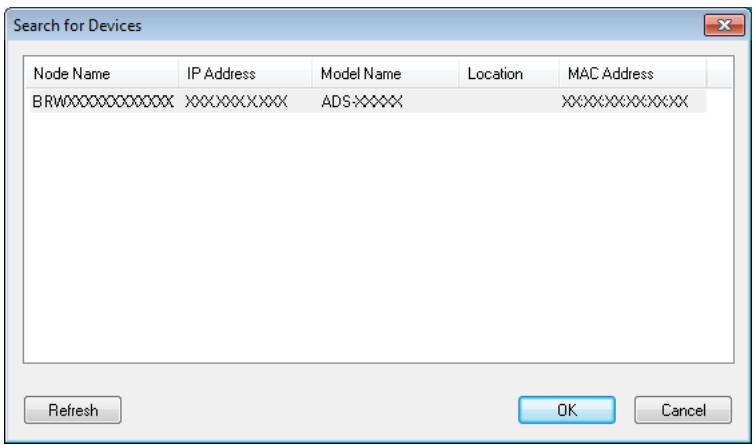
4 Click the Scan To Button tab and enter your computer name in the Display Name field. The Destination drop-down list in Scan to Network Device from the Scan tab in Web Based Management (ADS-1100W only) (see Save Scanned Documents on Your Computer on page 125) or on the LCD of the machine (ADS-1600W only) displays the name you enter. The default setting is your computer name. You can enter any name that you like.
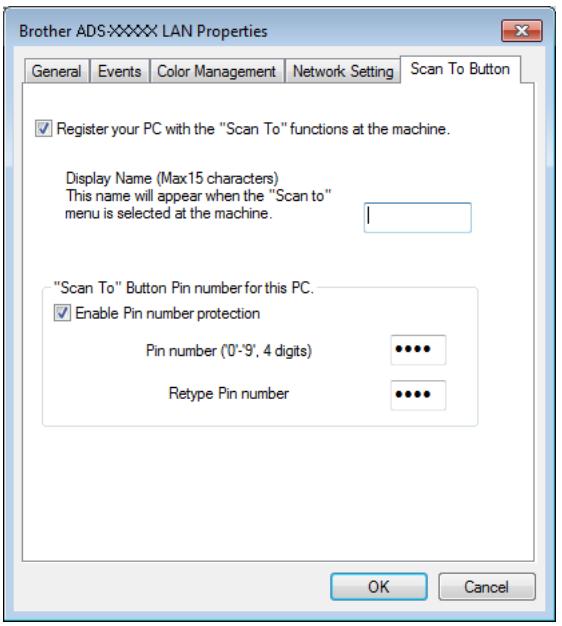
If you want to avoid receiving unwanted documents, enter a 4-digit PIN number in the Pin number and Retype Pin number field.
(ADS-1600W only)
To send data to a computer protected by a PIN number, the LCD prompts you to enter the PIN number before the document can be scanned and sent to the computer.
Configure Network Scanning for Macintosh
If you want to scan from the machine on a network, you must choose the networked machine in the Device Selector application from the Model drop-down list in the main screen of ControlCenter2. If you have already installed the MFL-Pro Suite software following the network installation steps in the Quick Setup Guide, this selection should already be made.
To use the machine as a network scanner, the machine must be configured with a TCP/IP address. You can set or change the address settings from the Control Panel.
1 Click the (ControlCenter2) icon in the Dock.
The ControlCenter2 window will appear.
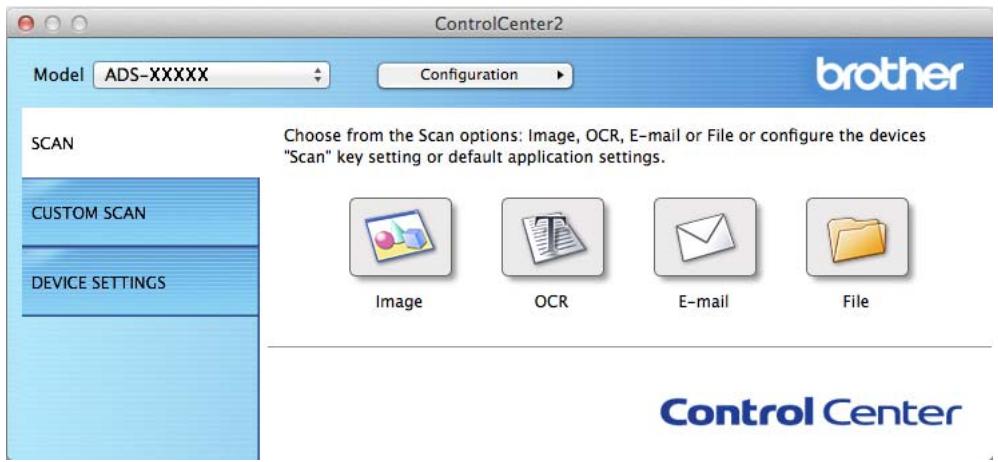
2 Select Other from the Model drop-down list.
The Device Selector window will appear.
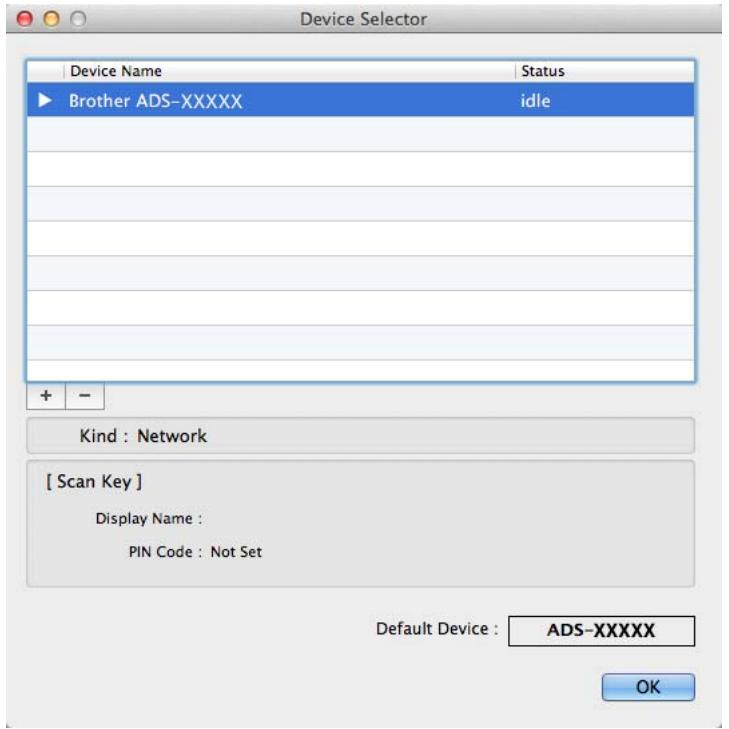
3 Click the + button. The setting window will appear.
4 Select your machine from the list and then click Add.
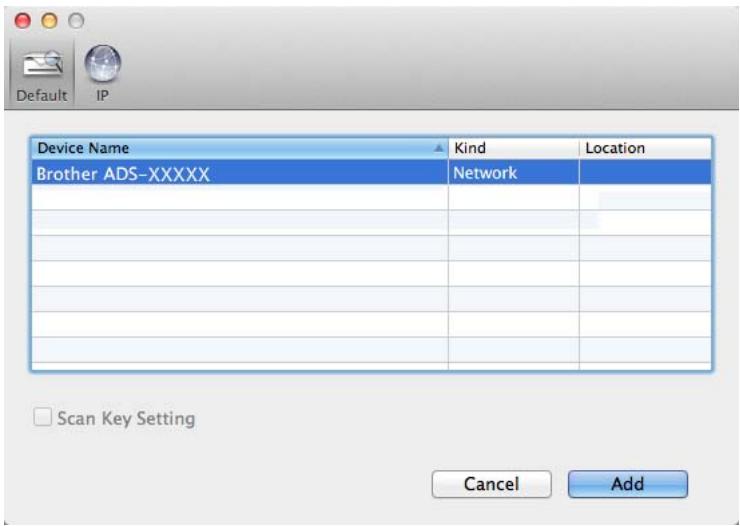
NOTE
You can also select your machine by entering the IP address. Click IP and then specify your machine by IP address. To change the IP address of an existing machine on the network, enter the new IP address.
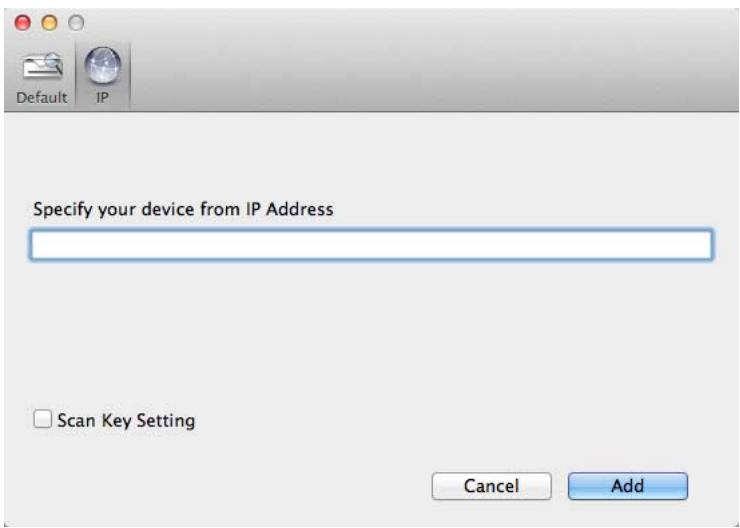
5 Click Add.
NOTE
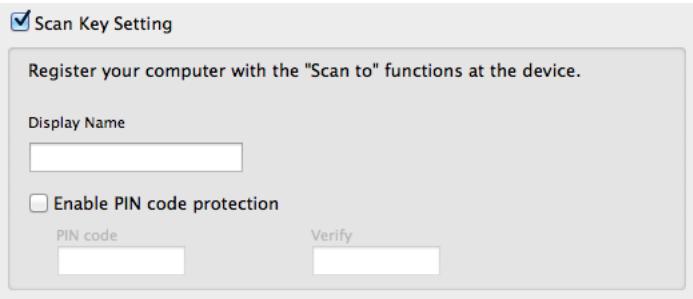
Click the check box for Scan Key Setting and then configure the following:
- For Scan to PC (Network Connect) (ADS-1100W only) or scanning from the Control Panel of the machine (ADS-1600W only), click the check box for
Register your computer with the "Scan To" functions at the device. Then enter the name you want to be displayed in the Destination drop-down list in Scan to Network Device from the Scan tab in Web Based Management (ADS-1100W only) (see Save Scanned Documents on Your Computer on page 125) or on the LCD of the machine (ADS-1600W only). You can use up to 15 characters.
- You can avoid receiving unwanted documents by setting a 4-digit PIN number. Enter your PIN code in the PIN code and Verify field.
(ADS-1600W only)
To send data to a computer protected by a PIN code, the LCD prompts you to enter the PIN code before the document can be scanned and sent to the machines.
Launch the BRAdmin Utility (Windows®)
If you have installed BRAdmin Light or BRAdmin Professional 3, the BRAdmin button lets you open the BRAdmin Light or BRAdmin Professional 3 utility.
The BRAdmin Light utility is designed for initial setup of the Brother network connected devices. It can also search for Brother products in a TCP/IP environment, view the status and configure basic network settings, such as the IP address. For information about installing BRAdmin Light from the supplied DVD-ROM, see the Network User's Guide.
If you require more advanced machine management, use the latest version of BRAdmin Professional 3 utility that is available as a download from http://solutions.brother.com/
1 Click the (ControlCenter4) icon in the task tray and then select Open from the menu.
The ControlCenter4 window will appear.
2 Select the Device Settings tab.
3 Click BRAdmin. The BRAdmin Light or BRAdmin Professional 3 utility dialog box will appear.
NOTE
If you have installed both BRAdmin Light and BRAdmin Professional, ControlCenter4 will launch BRAdmin Professional 3.
3
Scan from Your Computer
Change the User Interface of ControlCenter4 (Windows®)
ControlCenter4 is a software utility that lets you quickly and easily access your most often used applications. Using ControlCenter4 eliminates the need to manually launch specific applications.
ControlCenter4 also controls the settings for 1 , 2 (when used for the Scan to PC function with
network connection only for ADS-1100W), (for ADS-1100W), or to PC button (for ADS-1600W) on
your Brother machine. For information about how to configure the settings for 1 , 2 (when used for
the Scan to PC function with network connection only for ADS-1100W), (for ADS-1100W), or to PC
button (for ADS-1600W) on the machine, see Change Scan to PC Settings (Windows®) on page 140.
ControlCenter4 has two operation modes: Home Mode and Advanced Mode. You can change the mode at any time.
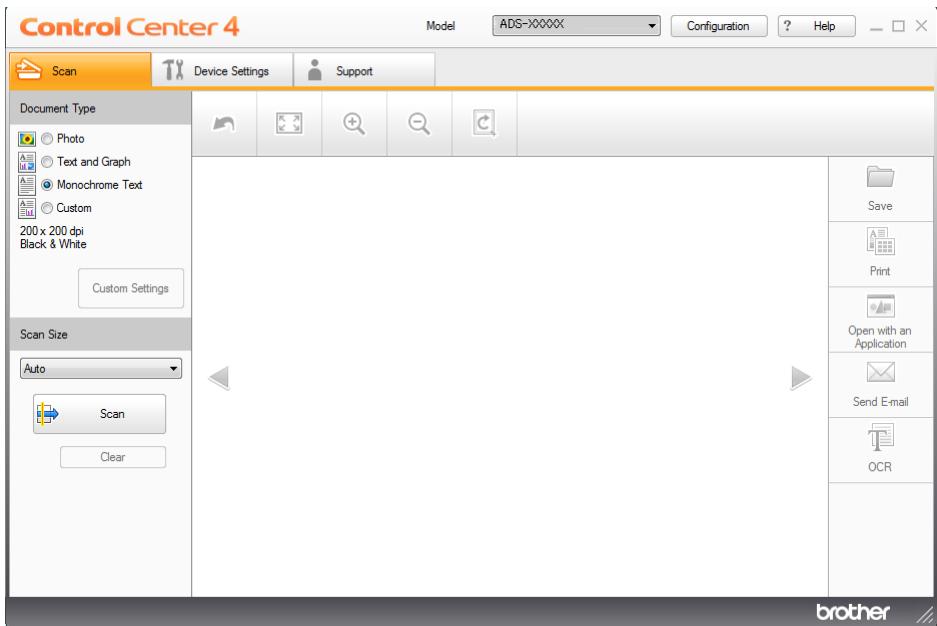
Home Mode
Lets you access your machine's main functions easily. You can intuitively use the functions without any settings.
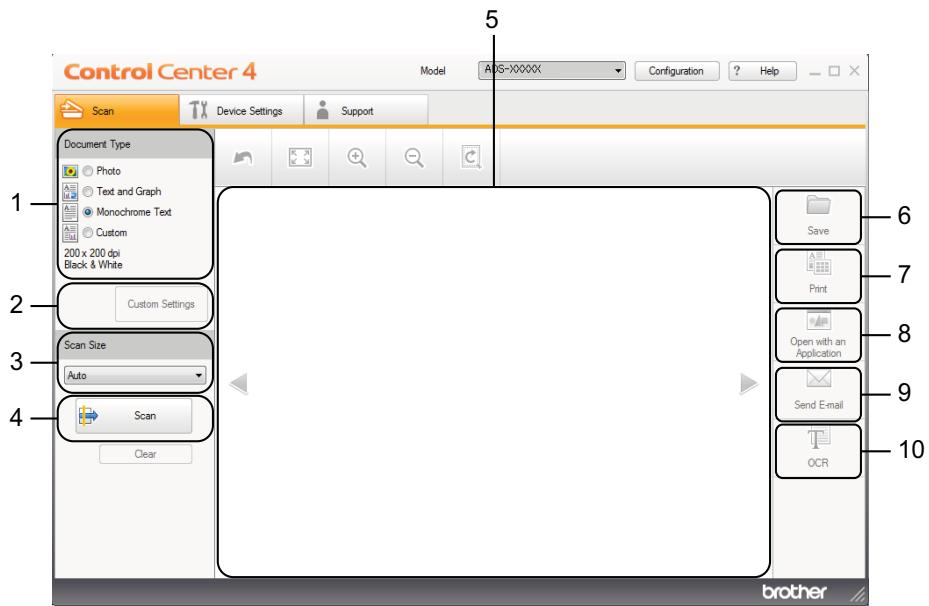
1 Document Type
Lets you select a document type.
2 Custom Settings
Lets you configure scan settings.
3 Scan Size
Lets you select a scan size.
4 Scan
Lets you start scanning.
5 Image viewer
Displays a scanned image.
6 Save
Lets you save a scanned image to a folder on your hard drive in one of the file types shown in the file type list.
7 Print
Lets you print the scanned document out using by your printer.
8 Open with an Application
Lets you scan an image directly into your graphics application for image editing.
9 Send E-mail
Lets you scan a document to your default E-mail application.
10OCR
Lets you scan a document and convert it to text.
Advanced Mode
Gives you more control over the details of your machine's functions. You can also customize one-button scan actions to meet your scanning needs.
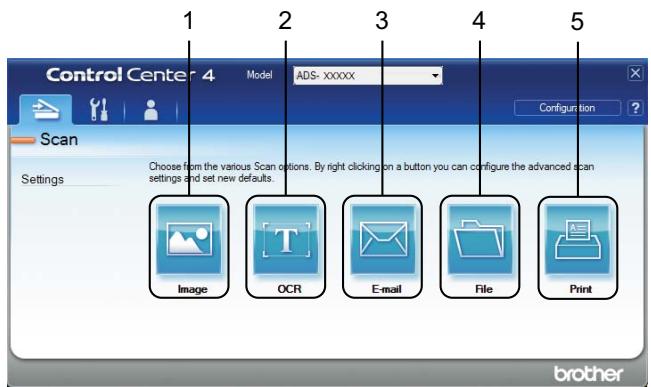
1 Image
Lets you scan a document directly into any graphic viewer/editor application.
2OCR
Lets you scan a document and convert it to text.
3 E-mail
Lets you scan a document to your default E-mail application.
4 File
Lets you save a scanned image to a folder on your hard drive in one of the file types shown in the file type list.
5 Print
Lets you print the scanned document out using by your printer.
To change the operation mode, perform the following steps.
1 Click the (ControlCenter4) icon in the task tray and then select Open from the menu. The ControlCenter4 window will appear.
NOTE
If the icon is not displayed in the task tray, do one of the following:
- (Windows® XP, Windows Vista® and Windows® 7 users)
Click (Start), All Programs, Brother, ADS-XXXXX (where XXXXX is your model name) and then ControlCenter4.
- (Windows® 8 users)
Click (Brother Utilities), and then click the drop-down list and select your model name (if not already selected). Click SCAN in the left navigation bar, and then click ControlCenter4.
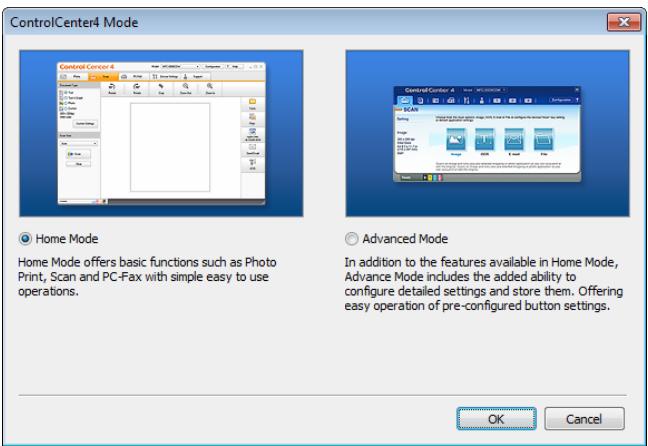
2 Click Configuration and then select Mode Select.
3 Select Home Mode or Advanced Mode in the mode dialog box.
Scan Using ControlCenter4 in Home Mode (Windows®)
There are five scan options: Save, Print, Open with an Application, Send E-mail and OCR. This section briefly introduces the Scan tab function. For more details of each function, click ? (Help).
Basic Scan
1 Configure the settings in the PC Scan setting area.
2 Click (Scan).
3 Confirm and edit (if necessary) the scanned image in the image viewer.
4 Click (Save), (Print), (Open with an Application), (Send E-mail) or (OCR).
5 Do one of the following:
For (Save)
Select your Destination Folder and other settings. Click OK.
The image will be saved in your chosen folder.
For (Print)
Select your Printer Name and configure the printer settings. Then click OK.
The scanned document will be printed out.
For (Open with an Application)
Select the application from the drop-down list and then click OK.
The image will appear in the application you have chosen.
NOTE
If you have installed the Evernote application in your computer, you can select Evernote from the drop-down and then click OK to upload the scanned data to Evernote directly.
For (Send E-mail)
Configure the attached file settings and then click OK.
Your default E-mail application will open and the image will be attached to a new E-mail.
For (OCR)
Configure the OCR settings and then click OK.
The application you have chosen will open with the converted text data.
Scan Plastic Cards
1 Load a plastic card (see Loading a Plastic Card on page 39).
NOTE
Load only one plastic card at a time.
2 Click the (ControlCenter4) icon in the task tray and then select Open from the menu. The ControlCenter4 window will appear.
3 Select the Scan tab.
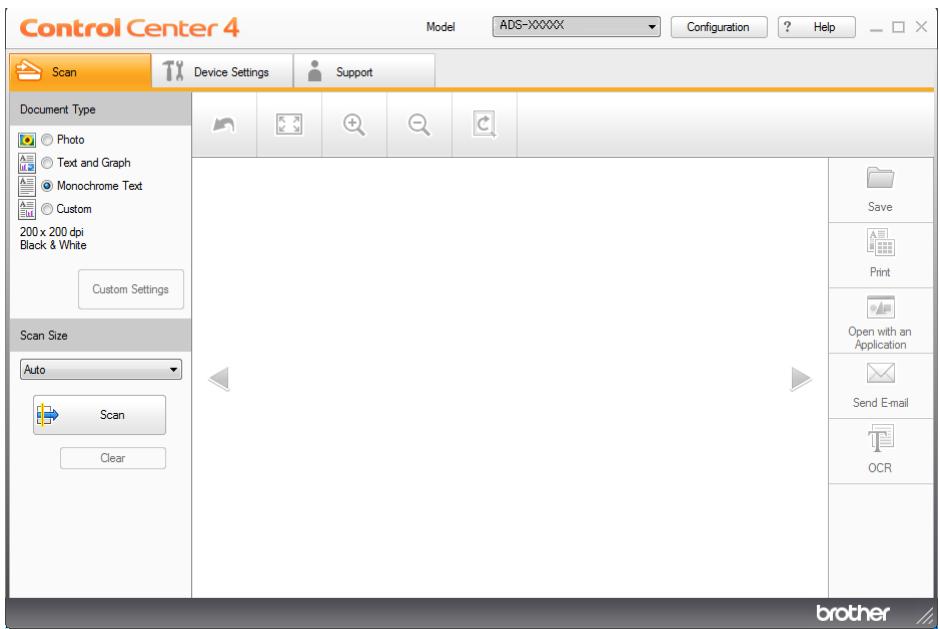
4 Select Custom in the Document Type option and then click the Custom Settings button. The Custom Scan Settings dialog box will appear.
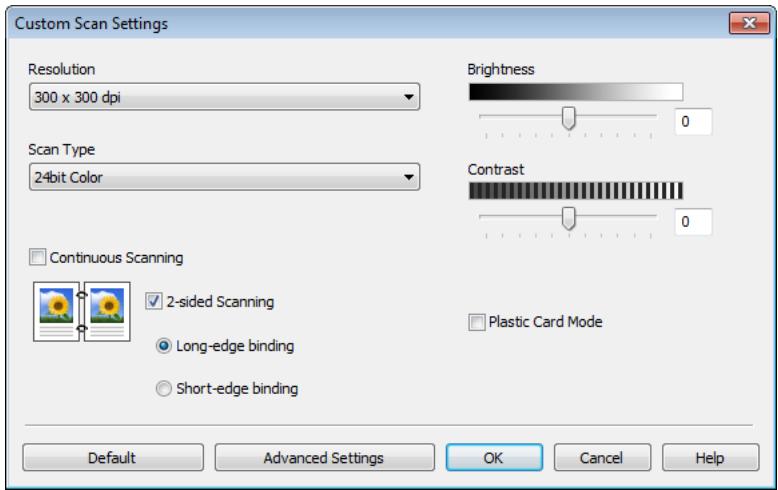
Check the Plastic Card Mode check box.
6 Configure other settings if needed (see Change Scan Settings (ControlCenter4) (Windows®) on page 64).
7 Click OK.
8 Click the (Scan) button. The machine starts scanning, and then the Scanning Completed dialog box will appear and display the number of scanned pages. The scanned image appears in the image viewer.
NOTE
If the Scanning Completed dialog box does not appear and you want to display the number of scanned pages, check the Display Scanning Results check box.
9 Do one of the following:
- Click the (Save) button to save the scanned data. See Basic Scan on page 52.
■ Click the (Print) button to print the scanned data out. See Basic Scan on page 52. - Click the (Open with an Application) button to open the scanned data in another application. See Basic Scan on page 52.
- Click the (Send E-mail) button to attach the scanned data to an E-mail. See Basic Scan on page 52.
- Click the (OCR) button to scan to an editable text file. See Basic Scan on page 52.
NOTE
Plastic Card Mode automatically uses these settings:
Resolution: 600 x 600 dpi
Scan Size: 2 in 1 (Auto)
2-sided Scanning: On (Short-edge binding)
Auto Deskew: On
Auto Image Rotation: Off
| Original Layout | Scan Result |
Scan to an Office File
Your machine can convert scanned data to a Microsoft Word file or a Microsoft PowerPoint file. In order to use this feature, your Brother machine must be connected to a network that has access to the Internet through a wireless connection.
1 Load your document (see Loading Standard Size Documents on page 33).
Click the (ControlCenter4) icon in the task tray and then select Open from the menu. The ControlCenter4 window will appear.
3 Select the Scan tab.
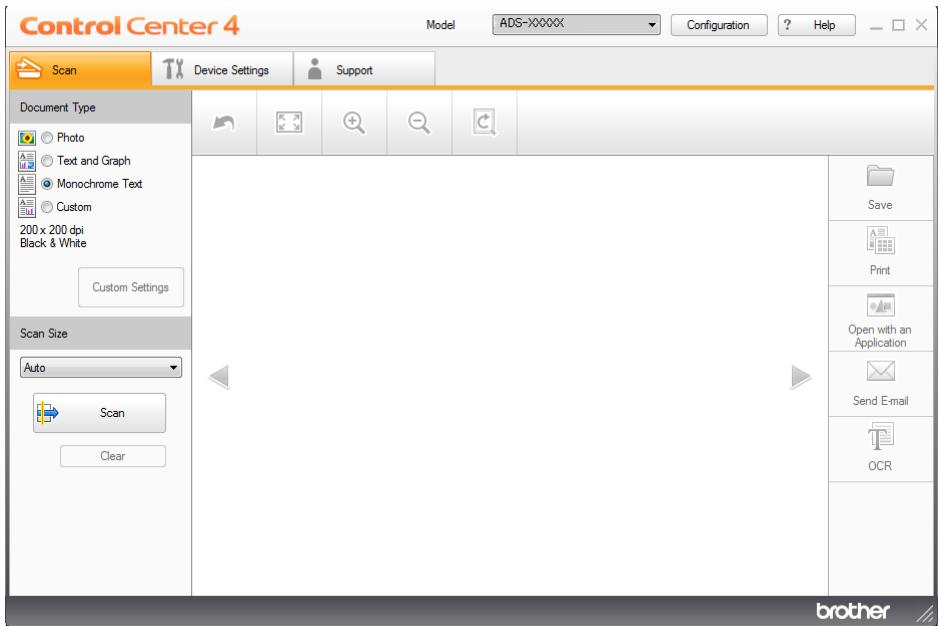
4 Select the document type.
Change the size of your document, if needed.
6 Configure other settings if needed (see Change Scan Settings (ControlCenter4) (Windows®) on page 64).
7 Click the (Scan) button. The machine starts scanning, and then the Scanning Completed dialog box will appear and display the number of scanned pages. The scanned image appears in the image viewer.
NOTE
If the Scanning Completed dialog box does not appear and you want to display the number of scanned pages, check the Display Scanning Results check box.
8 Click Save) or (Send E-mail). The setting dialog box will appear.
9 Click the File Type drop-down list, and then select the Microsoft Office Word(.docx) or Microsoft Office PowerPoint (.pptx) option.
10 Click OK. If a message dialog box regarding the Internet connection appears, read the information and click OK.
Scan Business Cards
1 Load your document (see Loading Business Cards on page 35).
Click the (ControlCenter4) icon in the task tray and then select Open from the menu. The ControlCenter4 window will appear.
3 Select the Scan tab.
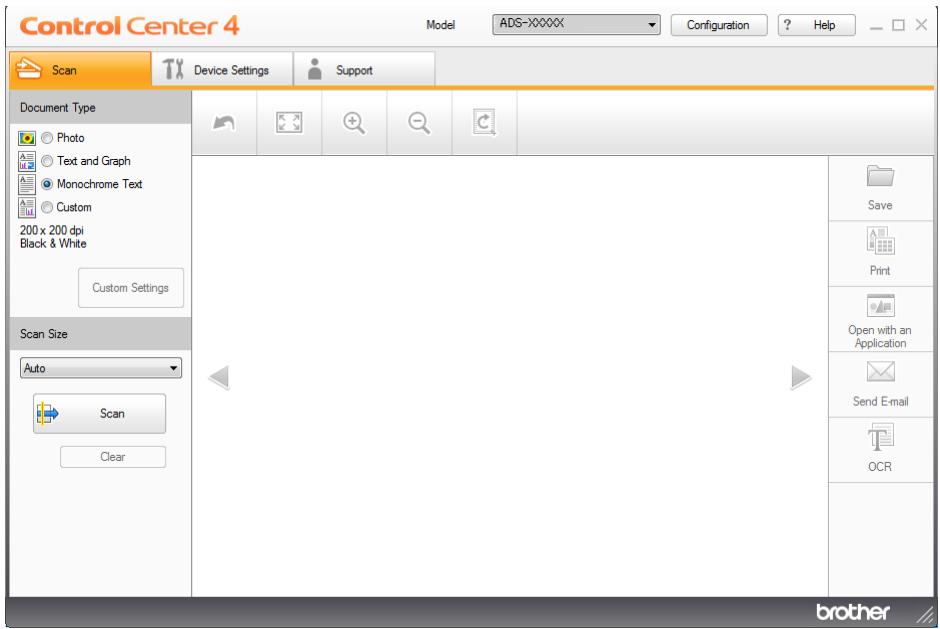
4 Select the document type.
5 Select Business Card from the Scan Size drop-down list.
6 Configure other settings if needed (see Change Scan Settings (ControlCenter4) (Windows®) on page 64).
7 Click the (Scan) button. The machine starts scanning, and then the Scanning Completed dialog box will appear and display the number of scanned pages. The scanned image appears in the image viewer.
NOTE
If the Scanning Completed dialog box does not appear and you want to display the number of scanned pages, check the Display Scanning Results check box.
8 Click (Open with an Application). The Open with an Application dialog box will appear.
9 Select BizCard MFC Application from the Target Application drop-down list and then click OK. The scanned data will be opened in the BizCard 6 application.
Edit and save the scanned data using BizCard 6.
Scan Using ControlCenter4 in Advanced Mode (Windows®)
There are five scan options: Image, OCR, E-mail, File and Print.
This section briefly introduces the Scan tab function. For more details of each function, click (Help).
Basic Scan
1 Select the Scan tab.
2 Click (Image), (OCR), (E-mail), (File) or (Print). The Scan Settings dialog box appears.
3 Do one of the following:
For (Image)
Select the application from the drop-down list and click Scan.
The image will appear in the application you have chosen.
NOTE
If you have installed the Evernote application on your computer, you can select Evernote from the drop-down and then click OK to upload the scanned data to Evernote directly.
For [T] (OCR)
Configure the OCR settings and click Scan.
The application you have chosen will open with the converted text data.
For (E-mail)
Configure the attached file settings and click Scan.
Your default E-mail application will open and the image will be attached to a new E-mail.
For (File)
Select your Destination Folder and other settings. Click Scan.
The image will be saved in your chosen folder.
For (Print)
Select your Printer Name and configure other settings. Then click Scan.
The scanned document will be printed out.
Change the Default Settings of Each Button
You can change the default settings of the (Image), [T] (OCR), (E-mail), (File) and (Print) buttons.
Right-click the button that you want to configure and click Button settings. The settings dialog box will appear.
Choose the settings for File Type, Resolution, Scan Type, Document Size, Brightness, Contrast, Continuous Scanning and 2-sided Scanning as needed.
3 Click OK. The new settings will be used as the default settings.
Scan Plastic Cards
1 Load a plastic card (see Loading a Plastic Card on page 39).
NOTE
Load only one plastic card at a time.
2 Click the (ControlCenter4) icon in the task tray and then select Open from the menu. The ControlCenter4 window will appear.
3 Select the Scan tab.
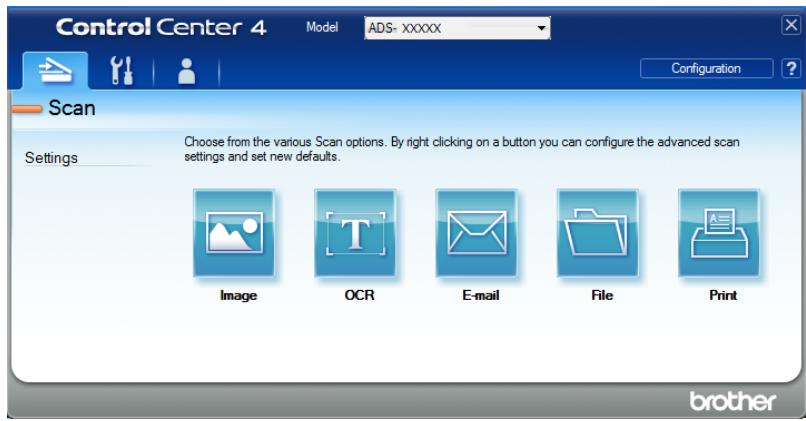
4 Click the button you want to use (Image), (OCR), (E-mail), (File) or (Print)). The setting dialog box will appear (the example below uses Image).
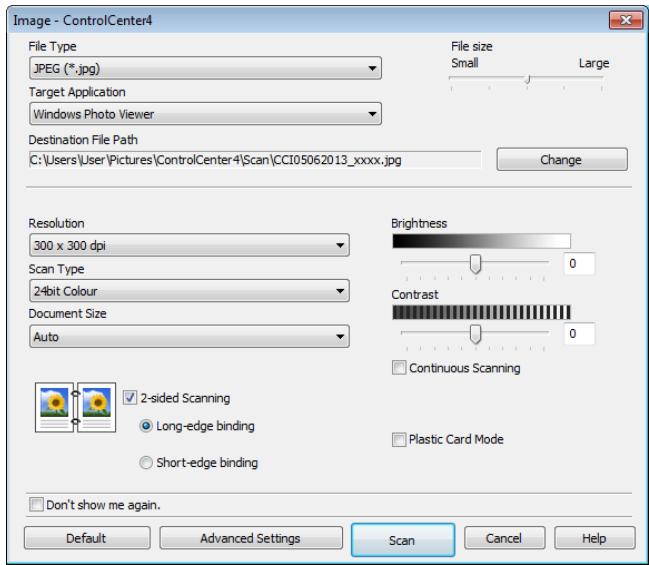
Check the Plastic Card Mode check box.
Change other settings if needed (see Change Scan Settings (ControlCenter4) (Windows®) on page 64).
7 Click the Scan button. The machine starts scanning.
NOTE
- Check the Don't show me again. check box not to show the setting dialog box again.
- Plastic Card Mode automatically uses these settings:
Resolution: 600 x 600 dpi
Document Size: 2 in 1 (Auto)
2-sided Scanning: On (Short-edge binding)
Auto Deskew: On
Auto Image Rotation: Off
| Original Layout | Scan Result |
Scan to an Office File
Your machine can convert scanned data to a Microsoft Word file or a Microsoft PowerPoint file. In order to use this feature, your Brother machine must be connected to a network that has access to the Internet through a wireless connection.
1 Load your document (see Loading Standard Size Documents on page 33).
Click the (ControlCenter4) icon in the task tray and then select Open from the menu. The ControlCenter4 window will appear.
3 Select the Scan tab.
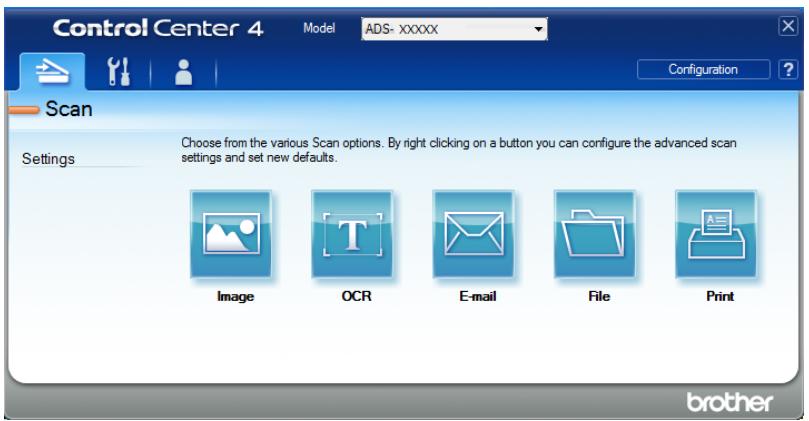
4 Click (E-mail) or (File). The setting dialog box will appear (the example below uses E-mail).
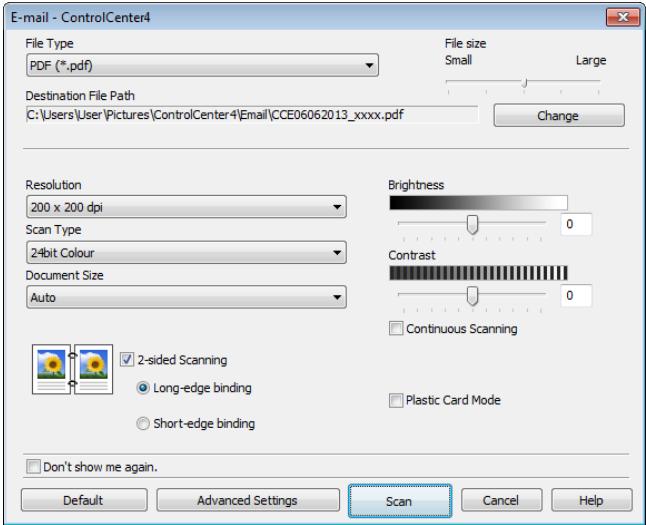
5 Click the File Type drop-down list, and then select the Microsoft Office Word(.docx) or Microsoft Office PowerPoint (.pptx) option.
Change other settings if needed (see Change Scan Settings (ControlCenter4) (Windows®) on page 64).
7 Click Scan. If a message dialog box regarding the Internet connection appears, read the information and click OK.
Scan Business Cards
1 Load your document (see Loading Business Cards on page 35).
2 Click the (ControlCenter4) icon in the task tray and then select Open from the menu. The ControlCenter4 window will appear.
3 Select the Scan tab.
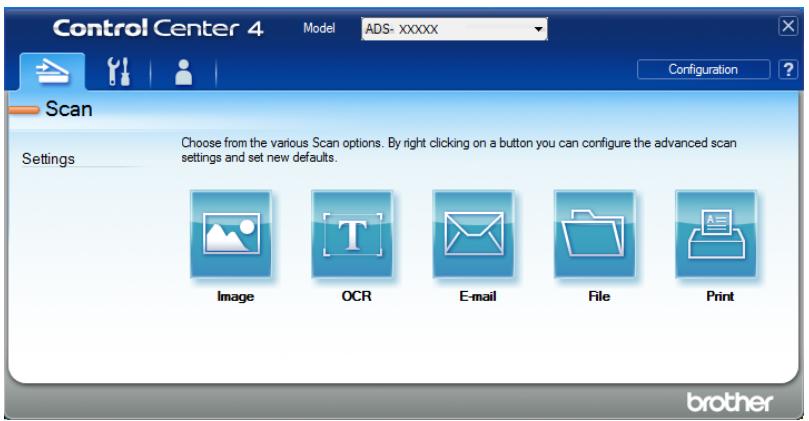
4 Click (Image). The setting dialog box will appear.
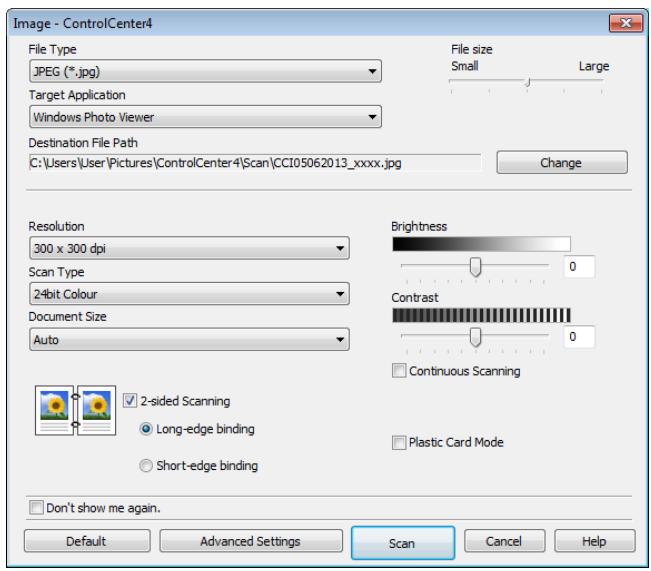
5 Select BizCard MFC Application from the Target Application drop-down list.
Change other settings if needed (see Change Scan Settings (ControlCenter4) (Windows®) on page 64).
7 Click Scan. The scanned data will be opened in the BizCard 6 application.
8 Edit and save the scanned data using BizCard 6.
Create a Custom Tab (ControlCenter4 Advanced Mode) (Windows®)
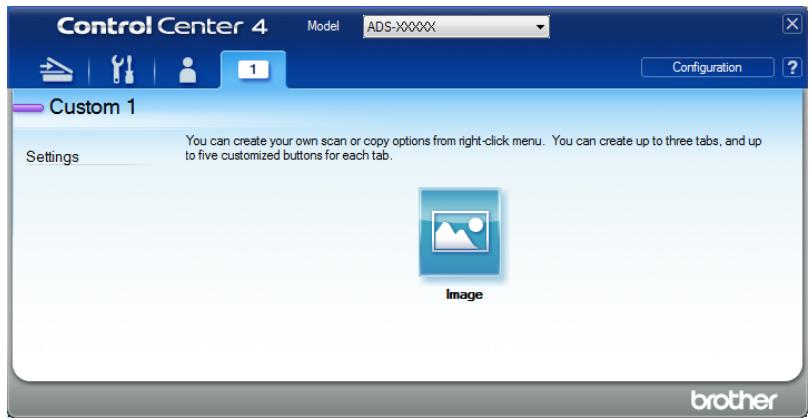
You can create up to three customized tabs that include up to five customized buttons with your preferred settings.
Create a Custom Tab
1 Click the (ControlCenter4) icon in the task tray and then select Open from the menu. The ControlCenter4 window will appear.
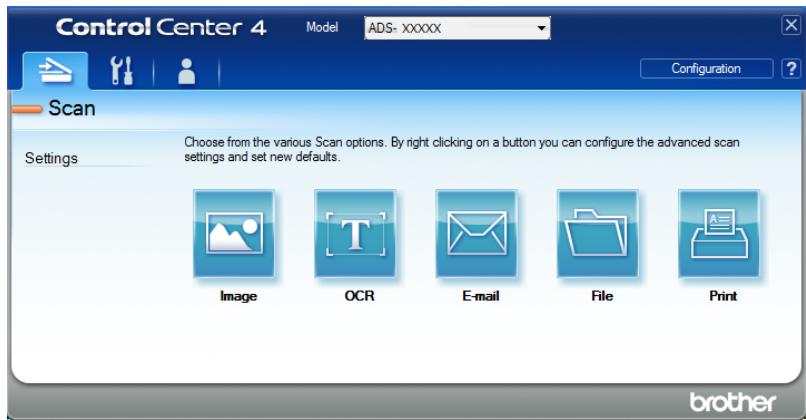
2 Click Configuration and then select Create custom tab. You can also create a custom tab by right-clicking the tab area and selecting Create custom tab. A custom tab will be created.
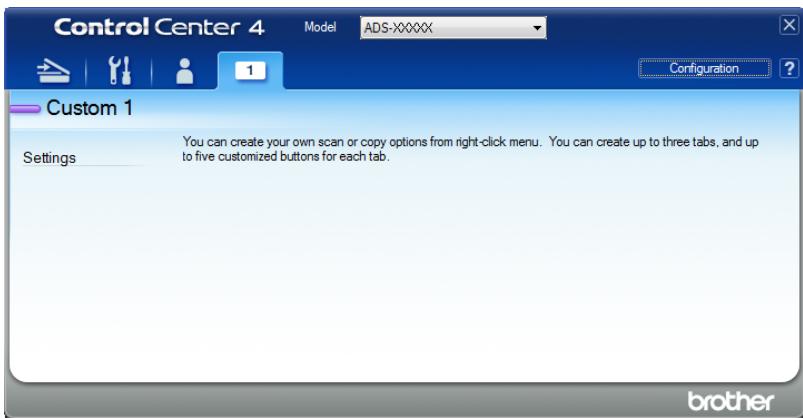
3 If you want to change the name of the custom tab, right-click the custom tab and select Rename custom tab.
NOTE
You can also change the name of a custom tab by clicking Configuration and then Rename custom tab.
Create a Custom Button in Custom Tab
1 Create a Custom tab.
Right-click the area inside the tab and select Create custom button. Select a button you want to create from the menu. The settings dialog box will appear.
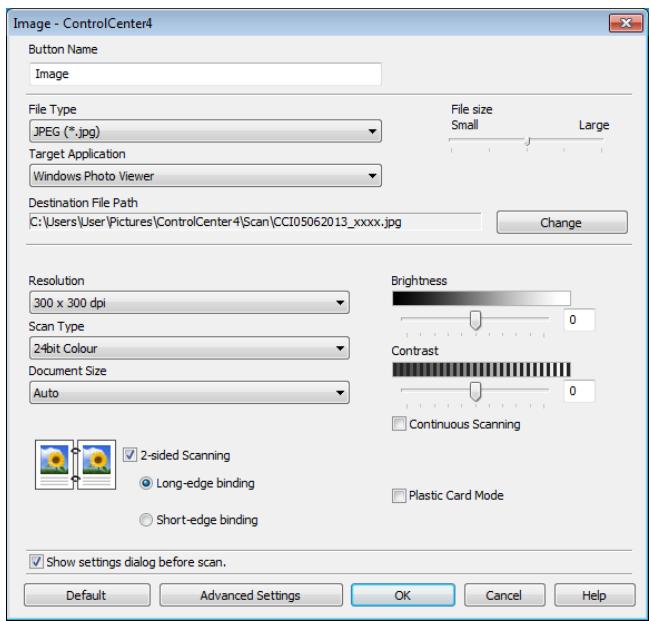
NOTE
You can also copy a custom button by selecting Copy custom button from the right-click context menu.
3 Enter the button name and change the settings if needed. Click the OK button. (The setting options vary depending on the button you created.)
NOTE
You can change or remove the tab, button or settings you created. Click Configuration and continue as prompted.
Change Scan Settings (ControlCenter4) (Windows®)
The following settings can be changed.
| Setting | Description | Applicable Feature | ||||
| Image | OCR | File | ||||
| File Type | Select the file type you want to use for the scanned data. | Yes | Yes | Yes | Yes | - |
| NOTE • To save the document as a password-protected PDF, select Secure PDF (.pdf) from the File Type drop-down list, click the Set PDF Password button, and enter the password (Image, E-mail and File only). | Yes | Yes | Yes | Yes | - | |
| • Searchable PDF is a file format that includes the text data layer over a scanned image. This layer allows you to search the text on the image data. The OCR language setting must be set to match the language you want to make the searchable PDF for. | Yes | Yes | Yes | Yes | - | |
| • To save the document as a searchable PDF, select Searchable PDF (.pdf) from the File Type drop-down list. | Yes | Yes | Yes | Yes | - | |
| • To save the document as a searchable PDF, Nuance™ PaperPort™ 12SE must be installed on your computer. | Yes | Yes | - | - | - | |
| • To save the document as a high compression PDF, select 300 x 300 dpi from the Resolution drop-down list, High Compression PDF (.pdf) from the File Type drop-down list and True Grey or 24bit Colour from the Scan Type drop-down list. | Yes | Yes | - | - | - | |
| Target Application | Select the destination application including Nuance™ PaperPort™ 12SE, Presto! BizCard 6, BR-Receints and Evernote from the drop-down list. | Yes | Yes | - | - | - |
| OCR Language | Set to match the language of the scanned document's text. | - | Yes | - | - | - |
| Printer Name | Select the Printer Name you want to use to print scans. | - | - | - | - | Yes |
| File Name | Click the Change button for Image, OCR or E-mail. Enter a prefix for the file name if needed. | Yes | Yes | Yes | Yes | - |
| Print Options | Click the Print Options button to configure the settings of the selected printer. | - | - | - | - | Yes |
| Show Save As Window | If you want to specify the destination of the scanned image every time you scan, check the Show Save As Window check box. | - | - | - | Yes | - |
| Destination File Path | Click the Change button and then the folder icon to change the folder you would like to save your scanned document to. | Yes | Yes | Yes | - | - |
| Destination Folder | Click the folder icon and browse to the folder you would like to save your scanned document to. Check Show Folder to automatically display the destination folder after scanning. | - | - | - | Yes | - |
| File size | You can adjust the File size by moving the slider to the right or left. NOTE File size can be adjusted depending on your selected File Type. | Yes | - | Yes | Yes | - |
| Resolution | You can select a scanning resolution from the Resolution drop-down list. Higher resolutions take more memory and transfer time, but produce a finer scanned image. | Yes | Yes | Yes | Yes | Yes |
| Scan Type | Lets you select several colour depth options for scanned images. Black & White Use for text or line art images. Grey (Error Diffusion) Use for photographic images or graphics. (Error Diffusion is a method for creating simulated grey images without using true grey dots. Black dots are put in a specific pattern to give a grey appearance.) True Grey Use for photographic images or graphics. This mode is more exact due to using up to 256 shades of grey. 24bit Colour Uses up to 16.8 million colours to scan the image. Although using 24bit Colour creates an image with the most accurate colour reproduction, it requires the most memory and has the longest transfer time. Auto Automatically selects suitable colours for your document.1 | Yes | Yes | Yes | Yes | Yes |
1 Depending upon the condition of the original document, this function may not work properly.
| Setting | Description | Applicable Feature | ||||
| Image | OCR | File | ||||
| Document Size | Document size is set to Auto by default. You can scan documents of any size without making any adjustments to Document Size. For faster scan speeds, you can select the exact size of your document from the Document Size drop-down list. | Yes | Yes | Yes | Yes | Yes |
| NOTE ·If you select a 1 to 2 document size, the scanned image will be divided into two documents that are half the size of the setting. If you select 1 to 2 (A4), the scanned image will be divided into two A4 documents. ·To do 1 to 2 scanning, uncheck the Auto Image Rotation check box in the Advanced Settings dialog box. ·If you select a 2 in 1 document size, two scanned images will be combined into one document. ·You can select Long Paper when you configure the settings as following: ·Auto Deskew: Off ·2-sided Scanning: Off ·Each Long Paper option can scan a large document up to following: Long Paper (Normal Width) 215.9 mm (8 1/2 in): 215.9 × 863.0 mm Long Paper (Narrow Width) 107.9 mm (4 1/4 in): 107.9 × 863.0 mm | ||||||
| Brightness | Adjust the setting (-50 to 50) to get the best image. The default value of 0 represents an average and is usually suitable for most images. You can set the Brightness level by dragging the slider to the right or left to lighten or darken the image. You can also enter a value in the box to set the level. If the scanned image is too light, set a lower Brightness level and scan the document again. If the image is too dark, set a higher Brightness level and scan the document again. | Yes | Yes | Yes | Yes | Yes |
1 Depending upon the condition of the original document, this function may not work properly.
| Setting | Description | Applicable Feature | ||||
| Image | OCR | File | ||||
| Contrast | Adjust the setting (-50 to 50) to get the best image. The default value of 0 represents an average and is usually suitable for most images. You can increase or decrease the contrast level by moving the slider to the right or left. An increase emphasizes dark and light areas of the image, while a decrease reveals more details in grey areas. You can also enter a value in the box to set the Contrast. NOTE The Contrast setting is only available when setting Scan Type to Auto, Grey (Error Diffusion), True Grey or 24bit Colour. | Yes | Yes | Yes | Yes | Yes |
| Continuous Scanning | Lets you scan multiple pages. After the page is scanned, you can select to continue scanning or finish. Using this method, you can scan more pages than the maximum capacity of the document feeder. | Yes | Yes | Yes | Yes | Yes |
| 2-sided Scanning | If you check this box, the machine scans both sides of the document. When using the automatic 2-sided (duplex) scan feature, you must select Long-edge binding or Short-edge binding depending on the layout of your original to make sure that the data file created appears correctly in the scanned document. NOTE The 2-sided (duplex) scanning feature is available with lengths up to Legal size. | Yes | Yes | Yes | Yes | Yes |
| Plastic Card Mode | Lets you scan cards, such as driver's licenses or insurance cards, using these automatic settings: ■ Resolution: 600 x 600 dpi ■ Document Size: 2 in 1 (Auto) ■ 2-sided Scanning: On (Short-edge binding) ■ Auto Deskew: On ■ Auto Image Rotation: Off NOTE • If you want to scan a plastic card with different settings, set Plastic Card Mode to off and Resolution to 600 dpi. • Load only one plastic card at a time. | Yes | Yes | Yes | Yes | Yes |
| Default | Restore all settings to their factory default values. | Yes | Yes | Yes | Yes | Yes |
You can configure more settings in the Advanced Settings dialog box. Click the Advanced Settings button.
| Setting | Description | Applicable Feature | ||||
| Image | OCR | File | ||||
| Auto Deskew | Corrects the skew (within 5 degrees) of the scanned data.1 | Yes | Yes | Yes | Yes | Yes |
| Auto Image Rotation | Changes the direction of the document based on the text orientation.1 | Yes | Yes | Yes | Yes | Yes |
| Bleed Through Prevention/Remove Background Colour | Prevents the Bleed Through phenomenon on a two-sided document, and also allows you to remove the base colour of documents such as newspapers to make the scanned data more recognizable.1 | Yes | Yes | Yes | Yes | Yes |
| Skip Blank Page | Removes blank pages of the document from the scanning results.1 | Yes | Yes | Yes | Yes | Yes |
| Display Scanning Results | Shows the numbers of total pages saved and blank pages skipped on your computer screen. | Yes | Yes | Yes | Yes | Yes |
1 Depending upon the condition of the original document, this function may not work properly.
Scan Using ControlCenter2 (Macintosh)
ControlCenter2 is a software utility that lets you quickly and easily access your often used applications. Using ControlCenter2 eliminates the need to manually launch specific applications.
There are four scan buttons for the Scan to Image, Scan to OCR, Scan to E-mail and Scan to File features.
■ Image (Default: Apple Preview)
Lets you scan a page directly into any graphic viewer/editor application. You can choose the destination application, such as Adobe ® Photoshop ® or any kind of image editing application on your computer.
OCR (Default: Apple TextEdit)
Lets you scan a page or document, automatically run the OCR application and put text (not a graphic image) into a word processing application. You can choose the target word processing application, such as Microsoft® Word or any word processing application on your computer. You must install Presto! PageManager on your computer. For installation information see Scan Using Presto! PageManager or TWAIN Applications (Macintosh) on page 102.
E-mail (Default: your default E-mail software)
Lets you scan a page or document directly into an E-mail application as a standard attachment. You can choose the file type and resolution for the attachment.
File
Lets you scan directly to a file on your hard drive. You can change the file type and destination folder, as needed.
ControlCenter2 gives you the ability to configure the hardware 1, 2 (when used for the Scan to PC function with network connection only for ADS-1100W), (for ADS-1100W), or to PC button (for ADS-1600W) on your machine and the ControlCenter2 software button for each scan feature. To configure the hardware 1, 2 (when used for the Scan to PC function with network connection only for ADS-1100W), (for ADS-1100W), or to PC button (for ADS-1600W) on your machine choose the Device Button tab in the configuration menu for each of the SCAN buttons. To configure the software button in ControlCenter2 choose the Software Button tab in the configuration menu for each of the SCAN buttons. To start ControlCenter2, click the (ControlCenter2) icon in the Dock.
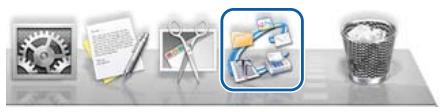
If the (ControlCenter2) icon is not displayed in the Dock, click Go from the Finder menu bar,
Applications, Brother, and then double-click the (ControlCenter2) icon. The (ControlCenter2) icon will appear in the Dock.
Image (example: Apple Preview)
The Scan to Image feature lets you scan an image directly into your graphics application for image editing.
1 Select the SCAN tab.
2 Click (Image).
The Scan to Image dialog box will appear.
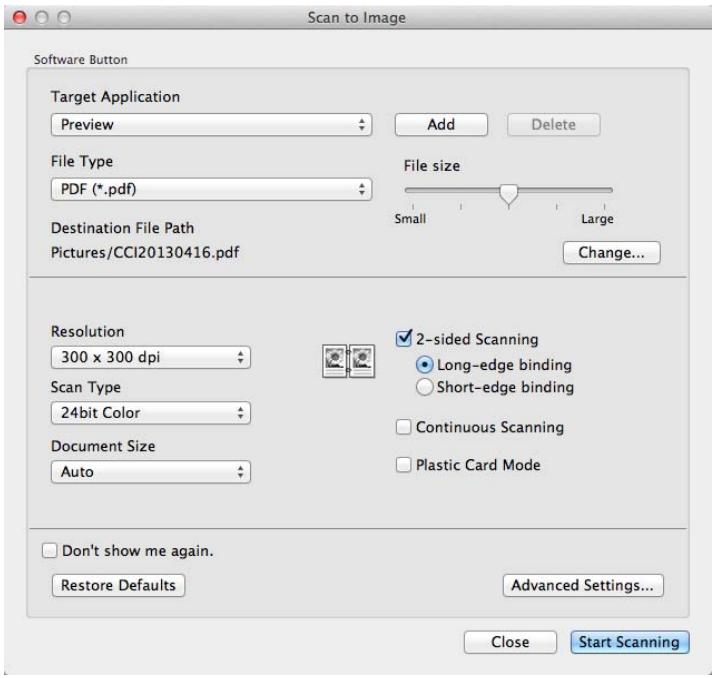
3 You can configure the scan settings.
- To scan a 2-sided document, check the 2-sided Scanning check box and choose Long-edge binding or Short-edge binding.
- To change the application that you want to use, choose the appropriate application from the Target Application pop-up menu. You can add an application to the list by clicking Add. If you want to delete an application, click Delete.
4 Click Start Scanning.
Your default application will start and display the image.
NOTE
If you choose Secure PDF (.pdf) from the File Type list, the Set PDF Password dialog box will appear. Enter your password in the Password and Re-type Password boxes, and then click OK. You can also choose Secure PDF (.pdf) for Scan to E-mail and Scan to File.
OCR (word processing application)
The Scan to OCR feature lets you convert the graphic page image data into text which can be edited by any word processing application. You can change the default word processing application.
NOTE
Presto! PageManager must be installed on your computer.
1 Select the SCAN tab.
Click (OCR).
The Scan to OCR dialog box will appear.
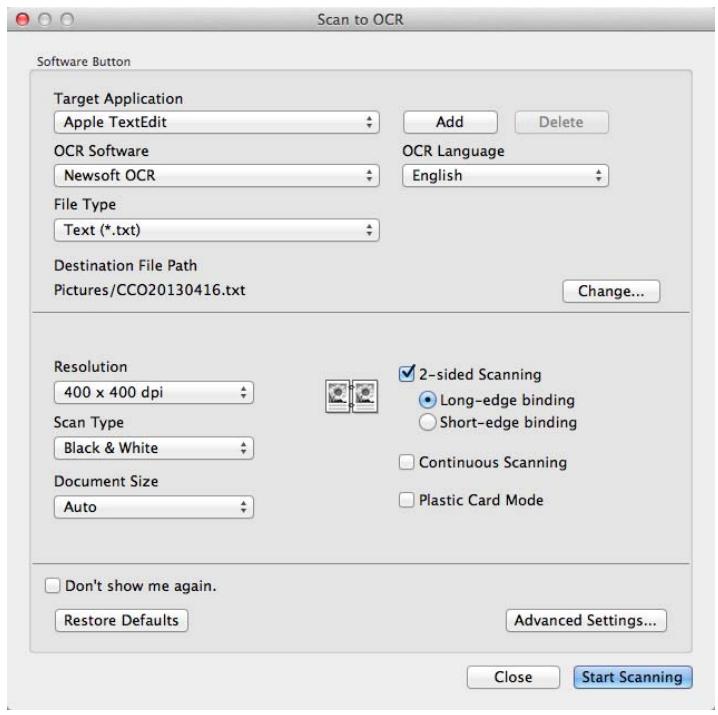
3 You can configure the scan settings.
To scan a 2-sided document, check the 2-sided Scanning check box and choose Long-edge binding or Short-edge binding.
- To change the word processing application that you want to use, choose the appropriate application from the Target Application pop-up menu. You can add an application to the list by clicking Add. If you want to delete an application, click Delete.
4 Click Start Scanning.
Your default word processing application will start and display the converted text data.
The Scan to E-mail feature lets you scan a document to your default E-mail application so you can send the scanned document as an attachment.
1 Select the SCAN tab.
2 Click (E-mail).
The Scan to E-mail dialog box will appear.
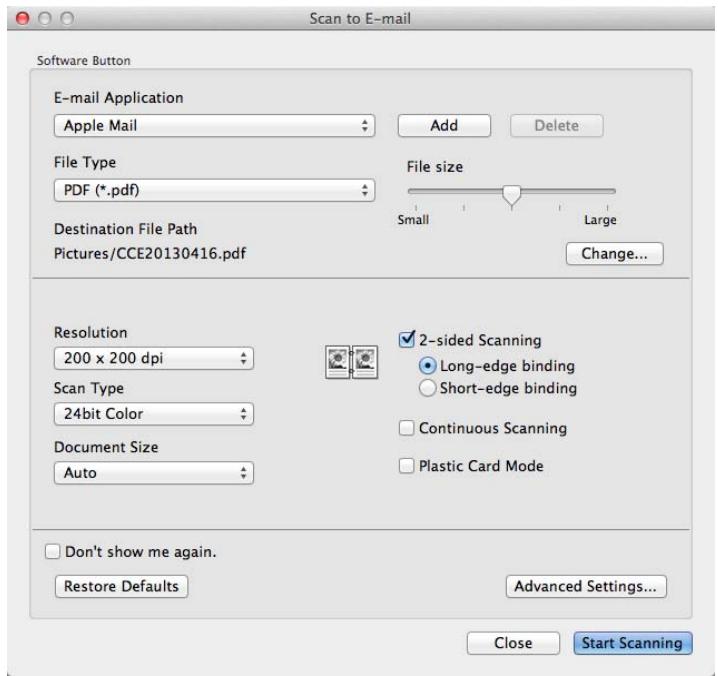
3 You can configure the scan settings.
- To scan a 2-sided document, check the 2-sided Scanning check box and choose Long-edge binding or Short-edge binding.
- To change the E-mail application that you want to use, choose the appropriate application from the E-mail Application pop-up menu. You can add an application to the list by clicking Add 1. If you want to delete an application, click Delete.
1 When you first start ControlCenter2, a default list of compatible E-mail applications will appear in the pop-up menu. If you are having trouble using a custom application with ControlCenter2, you should choose an application from the list.
4 Click Start Scanning.
Your default E-mail application will start and the image will be attached to a new E-mail.
NOTE
The Scan to E-mail feature does not support Webmail services. Use the Scan to Image or Scan to File feature to scan a document or picture, and then attach the file of the scanned data to an E-mail message.
File
The Scan to File button lets you scan an image to a folder on your hard disk in a supported file format. Therefore, this feature allows you to easily archive your paper documents.
1 Select the SCAN tab.
2 Click (File).
The Scan to File dialog box will appear.
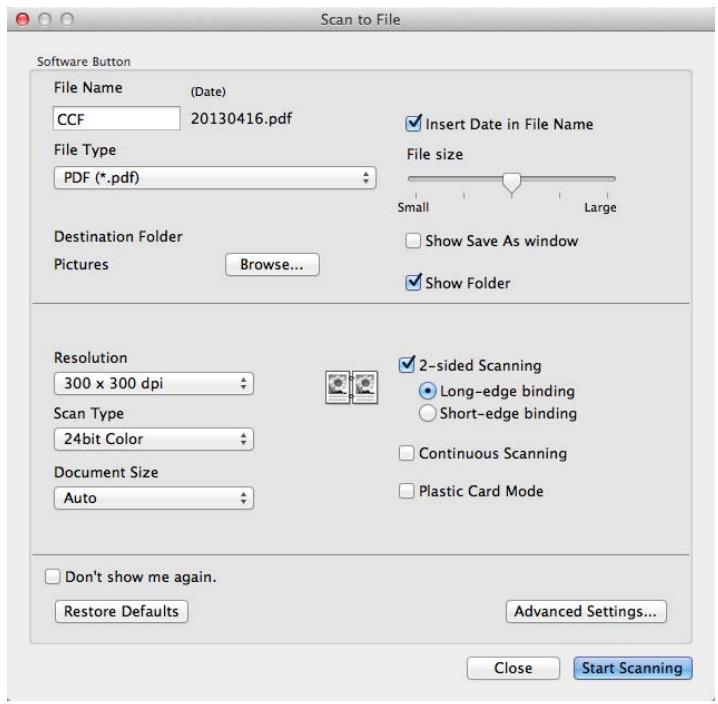
3 You can configure the scan settings.
- To scan a 2-sided document, check the 2-sided Scanning check box and choose Long-edge binding or Short-edge binding.
To change the file name, enter the file name you want to use for the document (up to 100 characters) in the File Name box. The file name will be the file name you entered plus the current date and a sequential number. - Choose the file type for the saved image from the File Type pop-up menu. You can save the file to the default folder, or choose your preferred folder by clicking Browse.
- To show where the scanned image is saved when scanning is finished, check the Show Folder check box. If you want to specify the destination of the scanned image every time, check the Show Save As window check box.
4 Click Start Scanning
The image will be saved in the folder you have chosen.
Change the Default Settings of a Button
You can change the default settings of the (Image), (OCR), (E-mail), and

(File) buttons.
1 Click the button while holding down the Control key and choose Software Button. The settings dialog box will appear.
Choose the settings for File Type, Scan Type, Document Size, Brightness, Contrast, and Continuous Scanning as needed.
You can also choose the setting for 2-sided Scanning.
3 Click OK. The new settings will be used as the default settings.
Scan Plastic Cards
1 Load a plastic card (see Loading a Plastic Card on page 39).
NOTE
Load only one plastic card at a time.
2 Click the (ControlCenter2) icon in the Dock.
The ControlCenter2 window will appear.
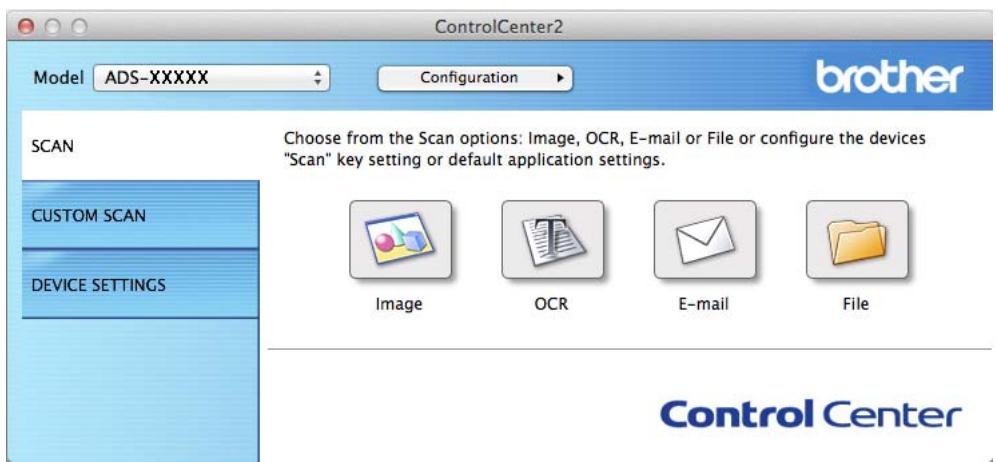
3 Click the button in the SCAN tab for the Scan-to action you want to change (Image, OCR, E-mail, or File). The settings dialog box will appear (the example below uses Image).
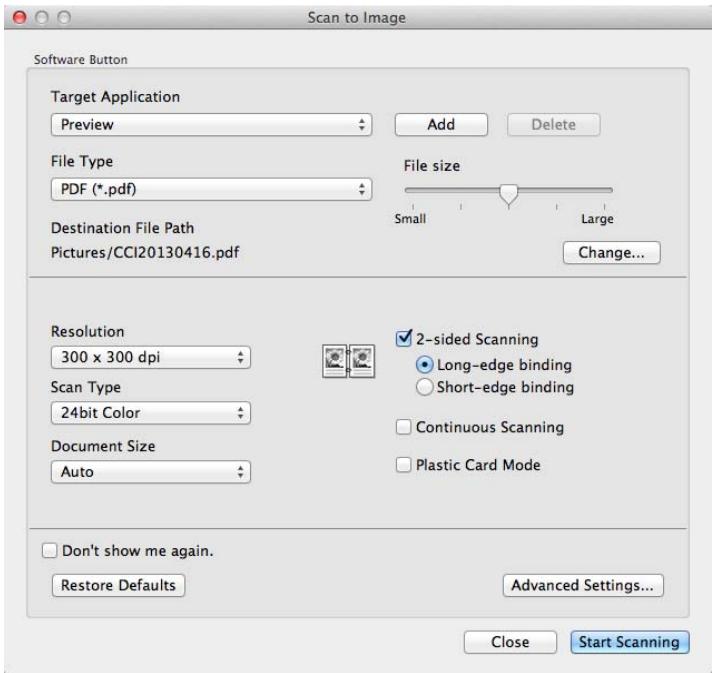
4 Check the Plastic Card Mode check box.
Change other settings if needed (see Change Scan Settings (ControlCenter2) (Macintosh) on page 83).
6 Click Start Scanning.
Your default application will start and display the image.
NOTE
- Check the Don't show me again. check box not to show the setting dialog box again.
- Plastic Card Mode automatically uses these settings:
Resolution: 600 dpi
Document Size: 2 in 1 (Auto)
2-sided Scanning: On (Short-edge binding)
Auto Deskew: On
Auto Image Rotation: Off
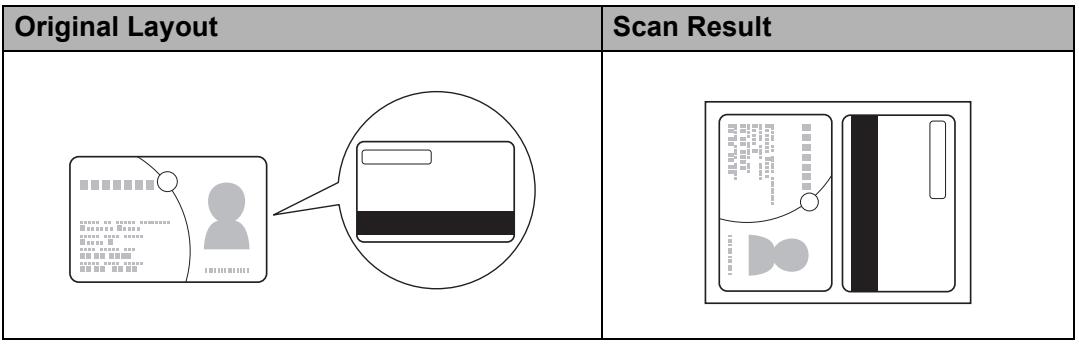
Scan to an Office File
Your machine can convert scanned data to a Microsoft Word file or a Microsoft PowerPoint file. In order to use this feature, your Brother machine must be connected to a network that has access to the Internet through a wireless connection.
1 Load your document (see Loading Standard Size Documents on page 33).
2 Click the (ControlCenter2) icon in the Dock.
The ControlCenter2 window will appear.
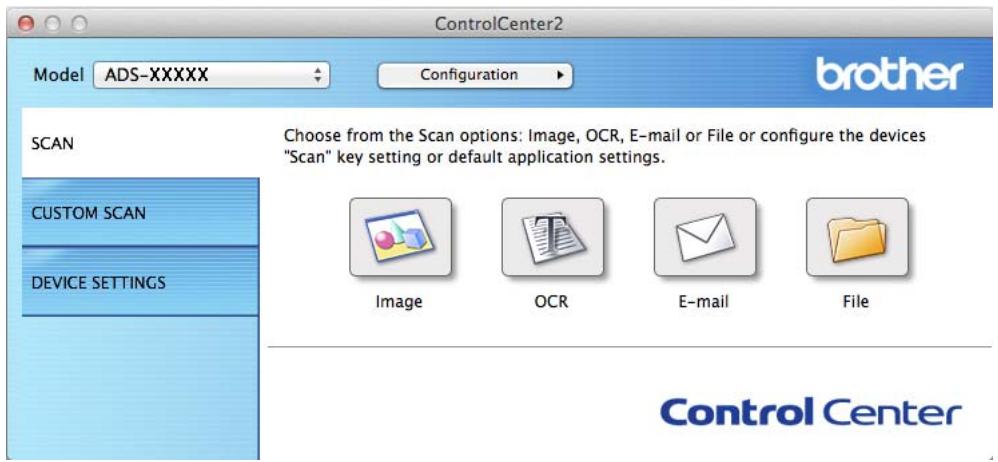
3 Click the SCAN tab.
4 Click the E-mail or File button. The settings dialog box will appear (the example below uses E-mail).
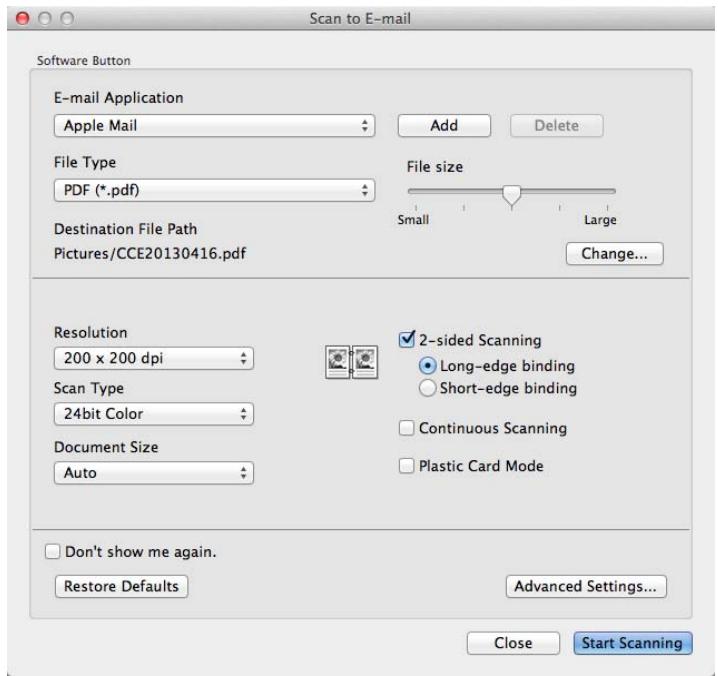
5 Click the File Type pop-up menu, and then select the Microsoft Office Word (.docx) or Microsoft Office PowerPoint (.pptx) option.
Change other settings if needed (see Change Scan Settings (ControlCenter2) (Macintosh) on page 83).
7 Click Start Scanning. If a message dialog box regarding the Internet connection appears, read the information and click OK.
Scan Business Cards
1 Load your document (see Loading Business Cards on page 35).
2 Click the (ControlCenter2) icon in the Dock. The ControlCenter2 window will appear.
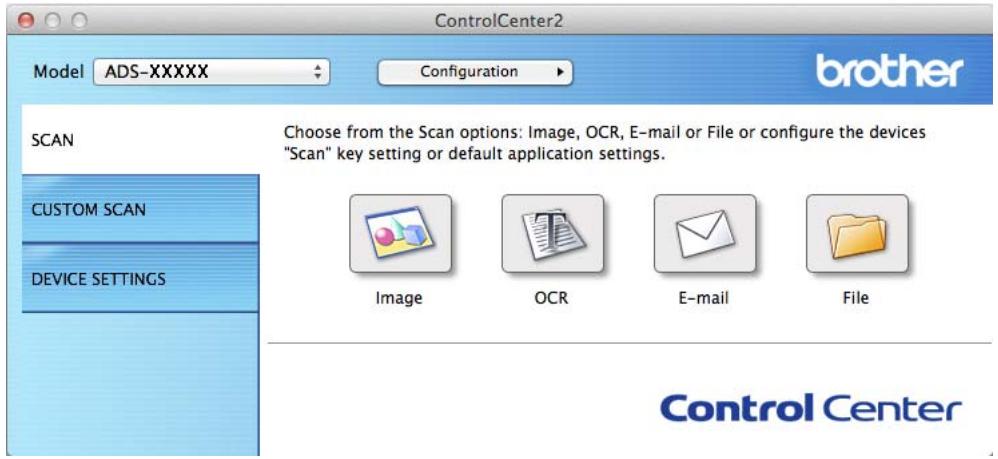
3 Click the SCAN tab.
4 Click the Image button. The settings dialog box will appear.
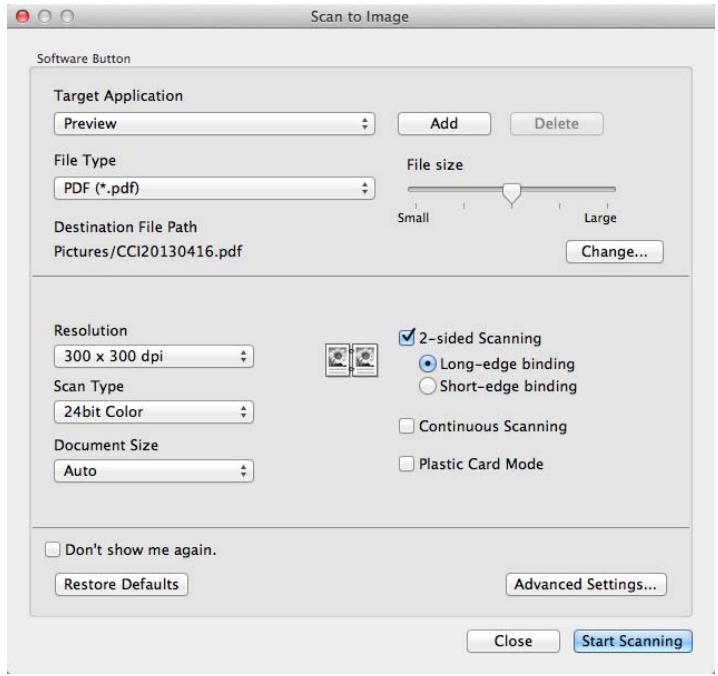
5 Select BizCard 6 from the Target Application drop-down list.
Change other settings if needed (see Change Scan Settings (ControlCenter2) (Macintosh) on page 83).
7 Click Start Scanning. The scanned data will be opened in the BizCard 6 application.
8 Edit and save the scanned data using BizCard 6.
Register your Favourite Scan Settings Using ControlCenter2 (CUSTOM SCAN) (Macintosh)
There are four buttons which you can configure to fit your scanning needs.
To customize a button, click the button while holding down the Control key, and the configuration window appears. There are four scan functions: Scan to Image, Scan to OCR, Scan to E-mail and Scan to File.
Scan to Image
Lets you scan a page directly into any image viewer/editor software. You can choose any image editor application on your computer as a destination.
Scan to OCR
Converts scanned documents into editable text files. You can choose the destination application for the editable text. You must install Presto! PageManager on your computer. For installation information see Scan Using Presto! PageManager or TWAIN Applications (Macintosh) on page 102.
Scan to E-mail
Attaches the scanned images to an E-mail message. You can also choose the file attachment type and create a quick send list of E-mail addresses chosen from your E-mail address book.
Scan to File
Lets you save a scanned image to any folder on a local or network hard disk. You can also choose the file type to be used.
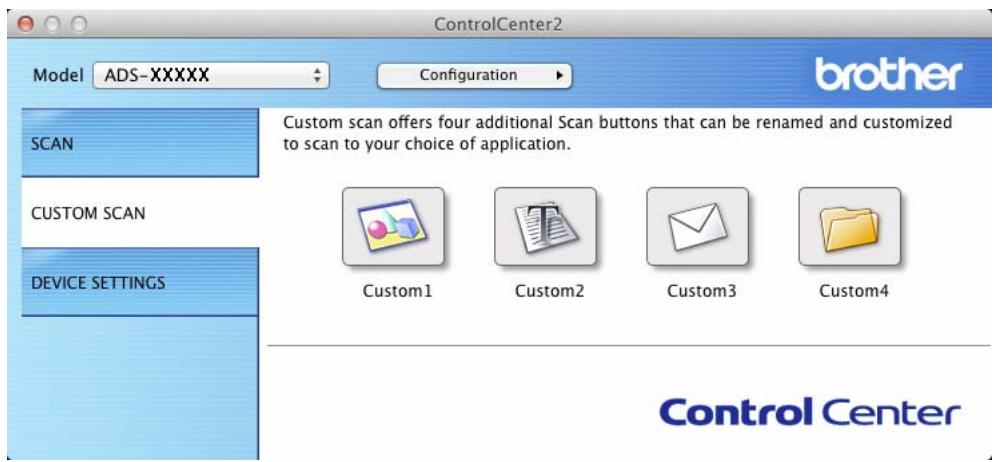
User-defined Button
To customize a button, click the button while holding down the Control key, and the configuration window appears. Follow these guidelines for button configuration.
Scan to Image/OCR/E-mail/File
General tab
Enter a name in Name for Custom (up to 30 characters) to create the button name. Choose the type of scan from the Scan Action selections.
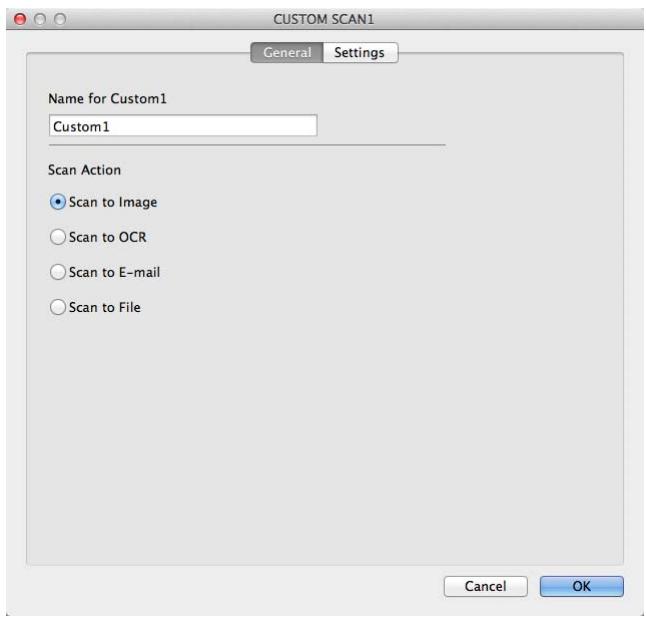
Settings tab (Scan to Image/OCR/E-mail)
Choose the Target Application, File Type, Resolution, Scan Type, Document Size and 2-sided Scanning settings.
NOTE
The Scan to E-mail feature does not support Webmail services. Use the Scan to Image or Scan to File feature to scan a document or picture, and then attach the file of the scanned data to an E-mail message.
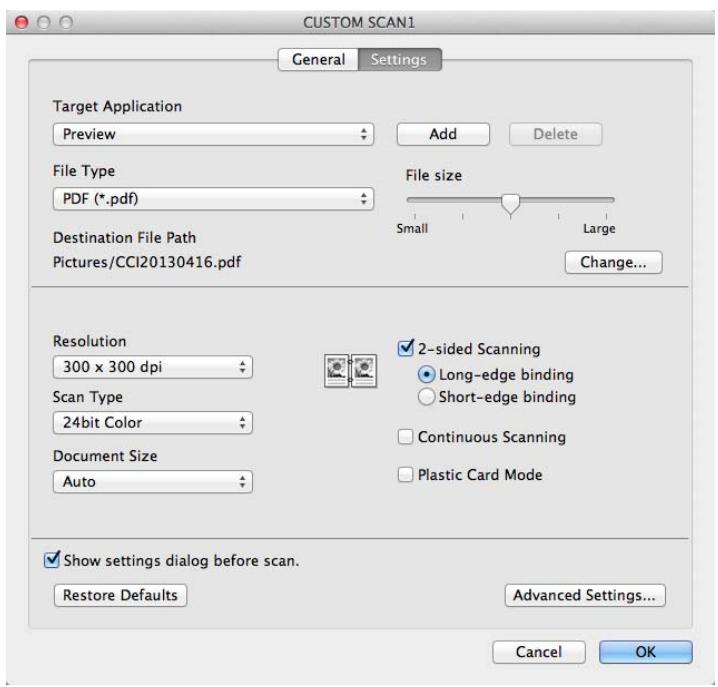
If you choose Secure PDF (.pdf) from the File Type list, the Set PDF Password dialog box appears. Enter your password in the Password and Re-type Password box and then click OK.
NOTE
Secure PDF (.pdf) is available for Scan to Image, Scan to E-mail and Scan to File.
Settings tab (Scan to File)
Choose the file format from the File Type pop-up menu. Save the file to the default folder or choose your preferred folder by clicking the Browse button.
Choose the Resolution, Scan Type, Document Size and 2-sided Scanning settings.
If you want to specify the destination of the scanned image, check the Show Save As window check box.
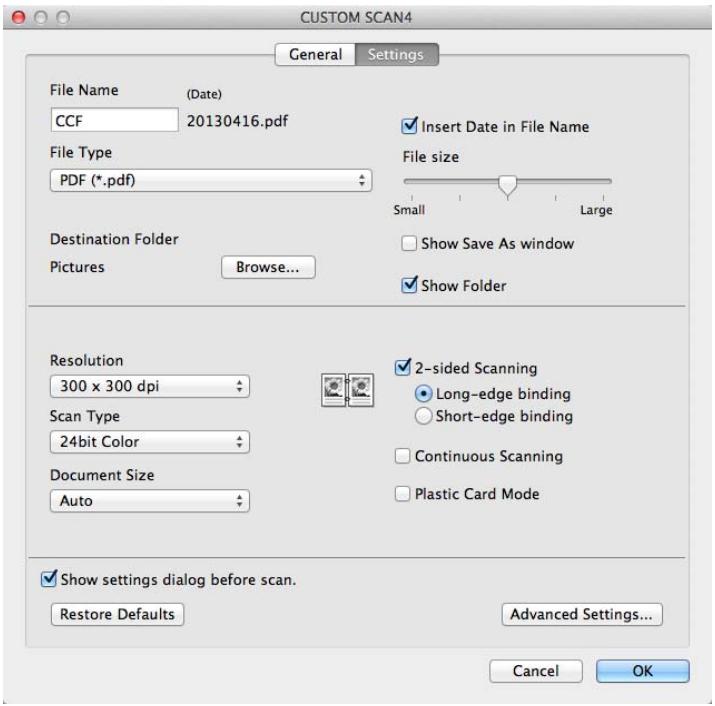
Change Scan Settings (ControlCenter2) (Macintosh)
The following settings can be changed.
| Setting | Description | Applicable Feature | |||
| Image | OCR | File | |||
| Target Application (for Image, OCR and File) or E-mail Application (for E-mail) | You can select which application is used to open scanned data. Only applications installed on your computer (including Presto! PageManager, Presto! BizCard 6, BR-Receipts and Evernote) can be selected. ■ Add button You can add an application to the drop-down list. Enter the Application Name (up to 30 characters) and select your preferred application by clicking the Browse button. Also select the File Type from the drop-down list. ■ Delete button You can delete an application that you have added. Select the Application Name and click the Delete button. | Yes | Yes | Yes | - |
| File Type | Select the file type you want to use for the scanned data. | Yes | Yes | Yes | Yes |
| NOTE ·To save the document as a password-protected PDF, select Secure PDF (.pdf) for File Type and then enter the password in the Set PDF Password dialog box (Image, E-mail and File only). | |||||
| ·Searchable PDF is a file format that includes the text data layer over a scanned image. This layer allows you to search the text on the image data. The OCR language setting must be set to match the language you want to make the searchable PDF for. | |||||
| ·To save the document as a searchable PDF, select Searchable PDF (.pdf) from the File Type drop-down list. | |||||
| ·To save the document as a searchable PDF, Presto! PageManager must be installed on your computer from the supplied DVD-ROM. | |||||
| ·To save the document as a high compression PDF, select 300 x 300 dpi from the Resolution drop-down list, High Compression PDF (.pdf) from the File Type drop-down list and True Gray or 24bit Color from the Scan Type drop-down list. | |||||
| ·Several file types such as TIFF, TIFF Multi/Page, PDF, Secure PDF and JPEG support file size compression. Select Uncompressed or Compressed to adjust the file size for TIFF or TIFF Multi/Page. For PDF, Secure PDF and JPEG, use the slider to adjust the file size (not available for Scan to OCR). | |||||
| File size | You can adjust the File size by moving the slider to the right or left. | Yes | - | Yes | Yes |
| NOTE ·File size can be adjusted depending on your selected File Type. | |||||
| OCR Software | Shows the application that will convert the scanned image to editable text. | - | Yes | - | - |
| OCR Language | Set to match the language of the scanned document's text. | - | Yes | - | - |
| File Name | Enter a prefix for the file name if needed. | Yes | Yes | Yes | Yes |
| Show Save As window | If you want to specify the destination of the scanned image every time you scan, check the Show Save As window check box. | - | - | - | Yes |
| Destination File Path | Click the Change button and then the Browse button to change the folder you would like to save your scanned document to. | Yes | Yes | Yes | - |
| Destination Folder | Click Browse and browse to the folder you would like to save your scanned document to. Check Show Folder to automatically display the destination folder after scanning. | - | - | - | Yes |
| Resolution | You can select a scanning resolution from the Resolution drop-down list. Higher resolutions take more memory and transfer time, but produce a finer scanned image. | Yes | Yes | Yes | Yes |
| Scan Type | Lets you select from a range of scan colour depth. Black & White Use for text or line art images. Gray (Error Diffusion) Use for photographic images or graphics. (Error Diffusion is a method for creating simulated grey images without using true grey dots. Black dots are put in a specific pattern to give a grey appearance.) True Gray Use for photographic images or graphics. This mode is more exact due to using up to 256 shades of grey. 24bit Color Uses up to 16.8 million colours to scan the image. Although using 24bit Color creates an image with the most accurate colour reproduction, it requires the most memory and has the longest transfer time. Auto Uses suitable colours for your document automatically.1 | Yes | Yes | Yes | Yes |
1 Depending upon the condition of the original document, this function may not work properly.
| Setting | Description | Applicable Feature | |||
| Image | OCR | File | |||
| Document Size | Document size is set to Auto by default. You can scan documents of any size without making any adjustments to Document Size. For faster scan speeds, you can select the exact size of your document from the Document Size drop-down list. | Yes | Yes | Yes | Yes |
| NOTE ·If you select a 1 to 2 document size, the scanned image will be divided into two documents that are half the size of the setting. If you select 1 to 2 (A4), the scanned image will be divided into two 5.8 × 8.3 in. documents. ·To do 1 to 2 scanning or 2 in 1 scanning, uncheck the Auto Image Rotation check box in the Advanced Settings dialog box. ·If you select a 2 in 1 document size, two scanned images will be combined into one document. ·You can select Long Paper when you configure the settings as following: ·Auto Deskew: Off ·2-sided Scanning: Off | Yes | Yes | Yes | Yes | |
| 2-sided Scanning | If you check this box, the machine scans both sides of the document. When using the automatic 2-sided (duplex) scan feature, you must select Long-edge binding or Short-edge binding, depending on the layout of your original, to make sure that the data file created appears correctly in the scanned document. NOTE The 2-sided (duplex) scanning feature is available with lengths up to Legal size. | Yes | Yes | Yes | Yes |
| Restore Defaults | Restore all settings to their factory default values. | Yes | Yes | Yes | Yes |
| Continuous Scanning | You can scan multiple batches of documents and put them together into one data file. After the first batch of documents is scanned, click Continue for additional pages or Finish. This operation enables you to scan more sheets than the maximum capacity of the document feeder. | Yes | Yes | Yes | Yes |
1 Depending upon the condition of the original document, this function may not work properly.
| Setting | Description | Applicable Feature | |||
| Image | OCR | File | |||
| Plastic Card Mode | Lets you scan cards, such as driver's licenses or insurance cards, using these automatic settings: ■ Resolution: 600 dpi ■ Document Size: 2 in 1 (Auto) ■ 2-sided Scanning: On (Short-edge binding) ■ Auto Deskew: On ■ Auto Image Rotation: Off NOTE • If you want to scan a plastic card with different settings, set Plastic Card Mode to off and Resolution to 600 dpi. • Load only one plastic card at a time. | Yes | Yes | Yes | Yes |
You can configure more settings in the Advanced Settings dialog box. Click the Advanced Settings button.
| Setting | Description | Applicable Feature | |||
| Image | OCR | File | |||
| Brightness | Adjust the setting (0 to 100) to get the best image. The default value of 50 represents an average and is usually suitable for most images. You can set the Brightness level by dragging the slider to the right or left to lighten or darken the image. If the scanned image is too light, set a lower Brightness level and scan the document again. If the image is too dark, set a higher Brightness level and scan the document again. | Yes | Yes | Yes | Yes |
| Contrast | Adjust the setting (0 to 100) to get the best image. The default value of 50 represents an average and is usually suitable for most images. You can increase or decrease the contrast level by moving the slider to the right or left. An increase emphasizes dark and light areas of the image, while a decrease reveals more details in grey areas.NOTE:The Contrast setting is only available when setting Scan Type to Auto, Gray (Error Diffusion), True Gray or 24bit Color. | Yes | Yes | Yes | Yes |
| Auto Deskew | Corrects the skew (within 5 degrees) of the scanned data.1 | Yes | Yes | Yes | Yes |
| Auto Image Rotation | Changes the direction of the document based on the text orientation.1 | Yes | Yes | Yes | Yes |
| Bleed Through Prevention/Remove Background Color | Prevents the Bleed Through phenomenon on a two-sided document, and also allows you to remove the base colour of documents such as newspapers to make the scanned data more recognizable.1 | Yes | Yes | Yes | Yes |
| Skip Blank Page | Removes blank pages of the document from the scanning results.1 | Yes | Yes | Yes | Yes |
| Display Scanning Results | Shows the numbers of total pages saved and blank pages skipped on your computer screen. | Yes | Yes | Yes | Yes |
1 Depending upon the condition of the original document, this function may not work properly.
Scan Receipts Using BR-Receints (Windows®)
Brother's BR-Receipts application processes receipts using OCR functionality to take information from your scanned images and categorizing it. You can generate reports to view and track expenses. (This application is available depending on your country.)
Installing BR-Receints
1 Insert the supplied DVD-ROM into your DVD-ROM drive.
The DVD-ROM top menu will appear automatically. Select your model name and then the desired language
3 Click Additional Applications.
4 Click the BR-Receipts button. Follow the instructions on Brother Online.
For information about how to scan using BR-Receipts, see the BR-Receits user's guide by clicking on Help on the menu bar, then Using Help.
Scan Using Nuance™ PaperPort™ 12SE or Other Windows® Applications
Scan Using Nuance™ PaperPort™ 12SE
You can use the Nuance™ PaperPort™ 12SE application, which is included in the Brother MFL-Pro software suite, for scanning. The instructions for scanning in these steps are for Nuance™ PaperPort™ 12SE. For other Windows® applications these steps will be similar. Nuance™ PaperPort™ 12SE supports both TWAIN and WIA drivers; the TWAIN driver (recommended) is used in the example on this page. For an example using the WIA driver, see Scan Using Windows® Photo Gallery or Windows® Fax and Scan on page 98.
NOTE
- Nuance™ PaperPort™ 12SE supports Windows® XP (SP3 or later), Windows Vista® (SP2 or later), Windows® 7 and Windows® 8.
- The WIA driver with Windows® XP (SP2 or later) does not support 2-sided (duplex) scanning.
- For more details about the application refer to the Nuance™ PaperPort™ 12SE help file. You can access this from the Nuance™ PaperPort™ 12SE Help menu.
1 Load your document.

Start Nuance™ PaperPort™ 12SE. Do one of the following:
(Windows® XP, Windows Vista® and Windows® 7)
Click (Start), All Programs, Nuance PaperPort12, and then PaperPort.
(Windows® 8)
Click

(PaperPort).
The Nuance™ PaperPort™ 12SE window will appear.
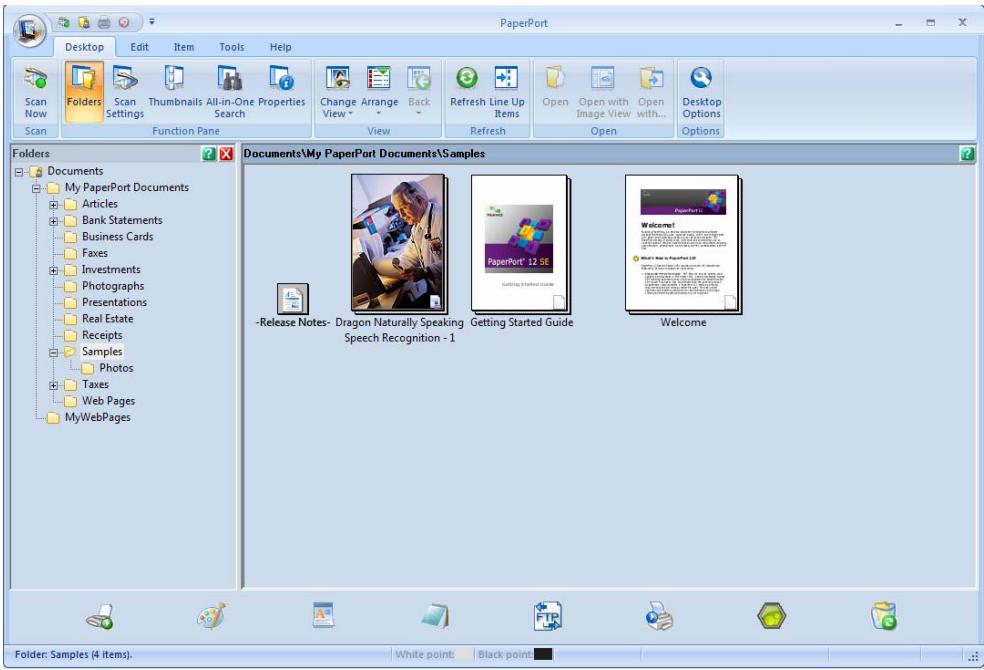
3 Click Scan Settings from the Desktop tab on the ribbon.
The Scan or Get Photo panel will appear on the left side of the window.
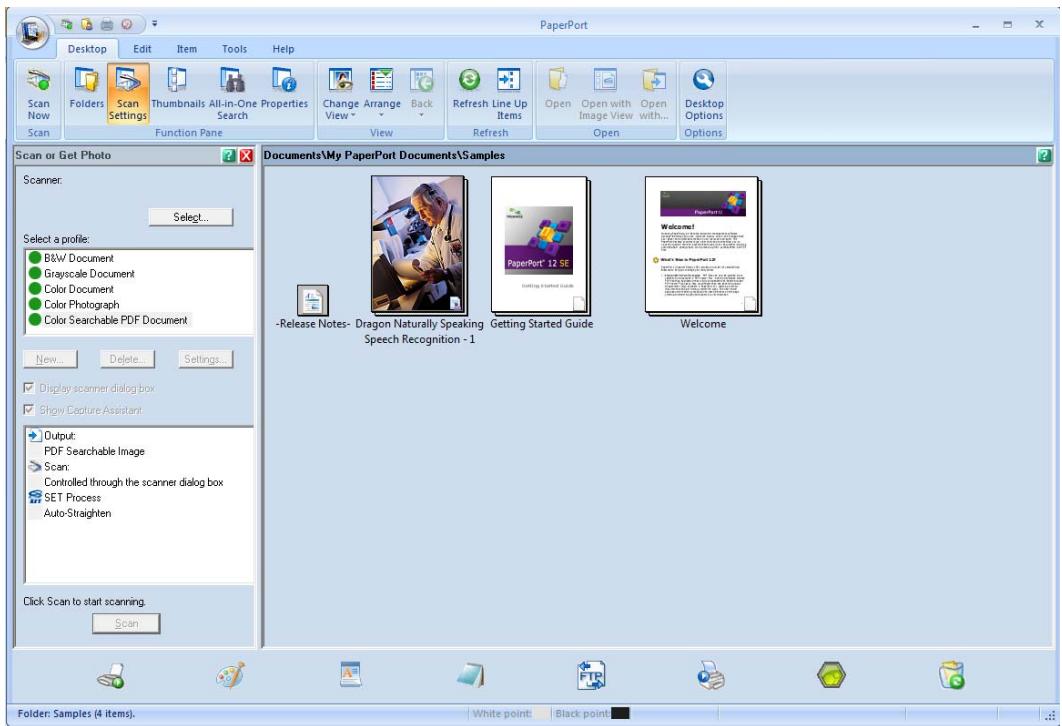
4 Click the Select button.
From the Available Scanners list, select TWAIN: TW-Brother ADS-XXXXX or
TWAIN: TW-Brother ADS-XXXXX LAN (where ADS-XXXXX is the model name of your machine). If you want to use the WIA driver, select the Brother driver that has "WIA" as the prefix.
Click the OK button.
6 Check the Display scanner dialog box check box in the Scan or Get Photo panel.
7 Click the Scan button.
The Scanner Setup dialog box will appear.
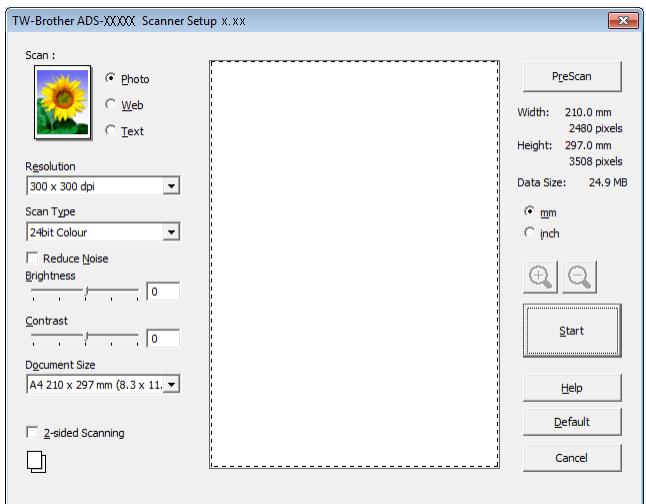
Adjust the settings in the Scanner Setup dialog box if needed (Resolution, Scan Type, Brightness, and Contrast).
TWAIN Driver Settings
WIA Driver Settings
9 From the Document Size drop-down list, select your document size.
NOTE
After you select a document size, you can adjust the scanning area further by clicking the left mouse button and dragging it. This is required when cropping an image for scanning.
10 Click the Start button.
The machine starts scanning.
TWAIN Driver Settings
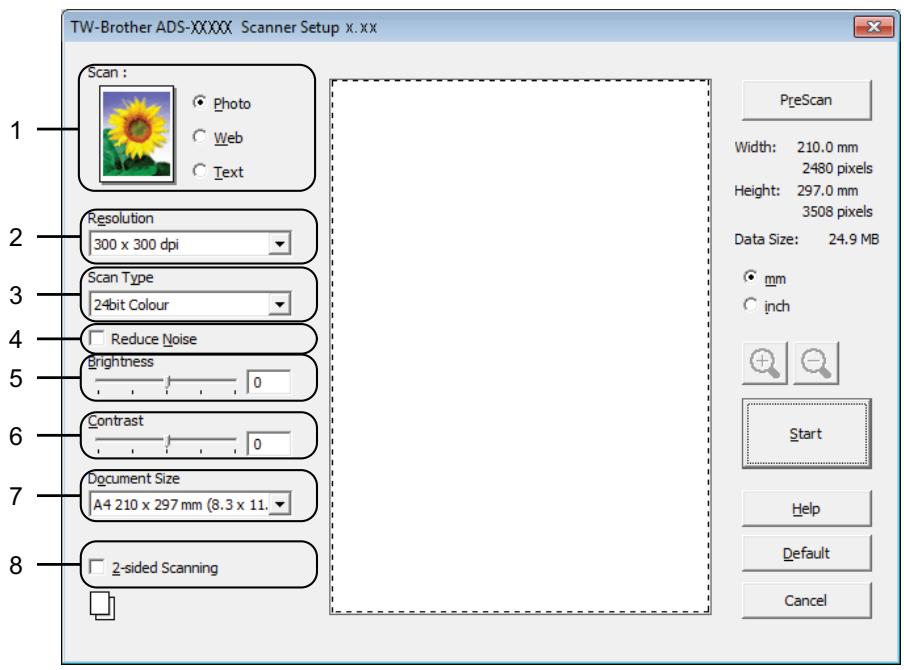
1 Scan (Image Type)
You can select Photo, Web or Text for the type of document you want to scan.
| Scan (Image Type) | Resolution | Scan Type | |
| Photo | Use for scanning photo images | 300 x 300 dpi | 24bit Colour |
| Web | Use for attaching the scanned image to web pages | 100 x 100 dpi | 24bit Colour |
| Text | Use for scanning text documents | 200 x 200 dpi | Black & White |
2 Resolution
You can select a scanning resolution from the Resolution drop-down list. Higher resolutions take more memory and transfer time, but produce a finer scanned image.
| Resolution | Black & White/Grey (Error Diffusion) | 256 Colour | True Grey/24bit Colour |
| 100 x 100 dpi | Yes | Yes | Yes |
| 150 x 150 dpi | Yes | Yes | Yes |
| 200 x 200 dpi | Yes | Yes | Yes |
| 300 x 300 dpi | Yes | Yes | Yes |
| 400 x 400 dpi | Yes | Yes | Yes |
| 600 x 600 dpi | Yes | Yes | Yes |
| 1,200 x 1,200 dpi | Yes | No | Yes |
3 Scan Type
Select one of the following types:
Black & White
Use for text or line art images.
Grey (Error Diffusion)
Use for photographic images or graphics. (Error Diffusion is a method for creating simulated grey images without using true grey dots. Black dots are put in a specific pattern to give a grey appearance.)
True Grey
Use for photographic images or graphics. This mode is more exact due to using up to 256 shades of grey.
256 Colour
Use for simple colour illustrations that do not use the full colour spectrum. Uses up to 256 colours to create images.
24bit Colour
Uses up to 16.8 million colours to scan the image. Although using 24bit Colour creates an image with the most accurate colour reproduction, it requires the most memory and has the longest transfer time.
4 Reduce Noise
You can improve and enhance the quality of your scanned images with this selection. The Reduce Noise setting is available when using 24bit Colour and scan resolutions of 300 × 300 dpi, 400 × 400 dpi or 600 × 600 dpi.
5 Brightness
Adjust the setting (-50 to 50) to get the best image. The default value of 0 represents an average and is usually suitable for most images. You can set the Brightness level by dragging the slider to the right or left to lighten or darken the image. You can also enter a value in the box to set the level. If the scanned image is too light, set a lower Brightness level and scan the document again. If the image is too dark, set a higher Brightness level and scan the document again.
NOTE
The Brightness setting is only available when setting Scan Type to Black & White, Grey (Error Diffusion), True Grey or 24bit Colour.
6 Contrast
Adjust the setting (-50 to 50) to get the best image. The default value of 0 represents an average and is usually suitable for most images. You can increase or decrease the contrast level by moving the slider to the right or left. An increase emphasizes dark and light areas of the image, while a decrease reveals more details in grey areas. You can also enter a value in the box to set the Contrast.
NOTE
The Contrast setting is only available when setting Scan Type to Grey (Error Diffusion), True Grey or 24bit Colour.
7 Document Size
Document size is set to A4 by default. For faster scan speeds, you can select the exact size of your document from the Document Size drop-down list. If you select Custom, the Custom Document Size dialog box appears in which you can specify the document size.
8 2-sided Scanning
Select Long-edge binding or Short-edge binding depending on the layout of your original to make sure that the data file created appears correctly in the scanned document.
| 2-sided Scan Setting | Original Layout | Scan Result | ||
| Long-edge binding | 123 | 1 | 2 | 3 |
| Short-edge binding | 123 | 1 | 2 | 3 |
WIA Driver Settings
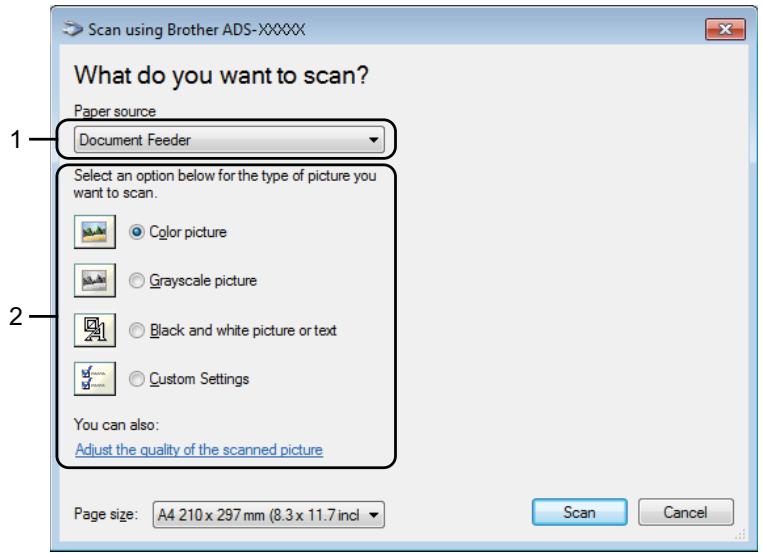
1 Paper source
You can select Document Feeder only.
2 Picture Type (Image Type)
You can select Color picture, Grayscale picture, Black and white picture or text or Custom Settings for the type of document you want to scan.
If you want to change some advanced settings, click Adjust the quality of the scanned picture.
Resolution
You can select a scanning resolution from the Resolution text box. Higher resolutions take more memory and transfer time, but produce a finer scanned image.
Brightness
Adjust the setting (-50 to 50) to get the best image. The default value of 0 represents an average and is usually suitable for most images. You can set the Brightness level by dragging the slider to the right or left to lighten or darken the image. You can also enter a value in the box to set the level. If the scanned image is too light, set a lower Brightness level and scan the document again. If the image is too dark, set a higher Brightness level and scan the document again.
Contrast
Adjust the setting (-50 to 50) to get the best image. The default value of 0 represents an average and is usually suitable for most images. You can increase or decrease the contrast level by moving the slider to the right or left. An increase emphasizes dark and light areas of the image, while a decrease reveals more details in grey areas. You can also enter a value in the box to set the Contrast.
Scan Using Windows® Photo Gallery or Windows® Fax and Scan
You can use the Windows® Photo Gallery or Windows® Fax and Scan applications for scanning. These applications use the WIA scanner driver. The steps below will guide you through the scanning operations. You may need to download Windows® Photo Gallery or Windows® Fax and Scan.
1 Load your document.
2 Open your software application to scan the document. Do one of the following:
(Windows® Photo Gallery)
1 Click File, then Import from Camera or Scanner.
2 Select the scanner you want to use.
3 Click the Import button. The settings dialog box will appear.
(Windows® Fax and Scan)
Click File, New, then Scan.
The settings dialog box will appear.
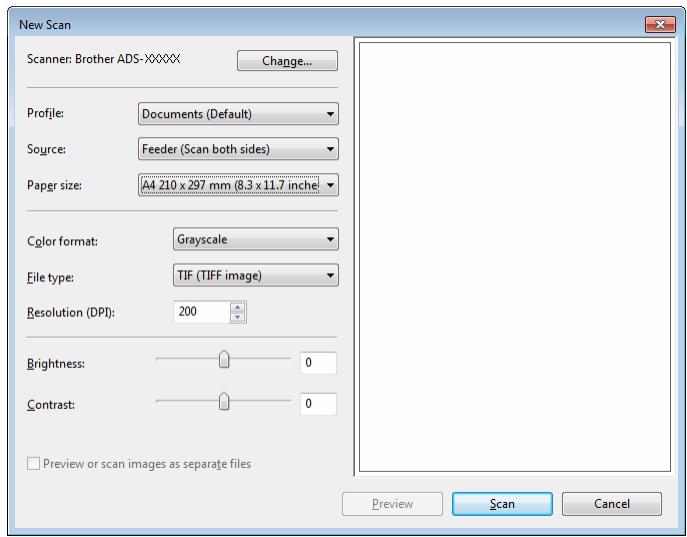
Adjust the settings in the settings dialog box if needed.
4 Click the Scan button. The machine starts scanning the document.
Use Nuance PDF Converter Professional 8 (Windows®) (ADS-1600W only)
Nuance PDF Converter Professional 8 offers a variety of features for handling PDF files. It can unlock and open PDF files for viewing, editing, annotation and re-assembly.
Installing Nuance PDF Converter Professional 8
1 Insert the supplied DVD-ROM into your DVD-ROM drive.
The DVD-ROM top menu will appear automatically. Select your model name and then the desired language.
3 Click Additional Applications.
4 Click the Nuance PDF Converter Professional 8 button. Follow the on-screen instructions.
For information about how to scan using Nuance PDF Converter Professional 8, see the Nuance PDF Converter Professional 8 help by clicking on Help on the menu bar, then Help.
NOTE
Enter the Nuance serial number that is shown on the sleeve of the MFL-Pro Suite DVD-ROM package when installing Nuance PDF Converter Professional 8.
Use NewSoft Presto! BizCard 6 (Windows®)
Presto! BizCard lets you manage the information from scanned business cards, such as names, companies, mailing addresses, phone/fax numbers and e-mail addresses, on your computer. Simply scan, or import your business cards and Presto! BizCard automatically saves the data and image for each card. Different viewing modes are available for easy searching, editing, creating, and sorting.
Installing NewSoft Presto! BizCard 6
1 Insert the supplied DVD-ROM into your DVD-ROM drive.
The DVD-ROM top menu will appear automatically. Select your model name and then the desired language.
3 Click Additional Applications.
4 Click the NewSoft Presto! BizCard 6 button. Follow the on-screen instructions.
For information about how to scan using Presto! BizCard 6, see the Presto! BizCard User's Manual. Do one of the following:
(Windows® XP, Windows Vista® and Windows® 7)
Click (Start), All Programs, NewSoft, Presto! BizCard 6, and then Presto! BizCard 6.
(Windows® 8)
Click (Presto! BizCard 6).
Scan Receipts Using BR-Receints (Macintosh)
Brother's BR-Receipts application processes receipts by taking information from your scanned images and categorizing it. You can generate reports to view and track expenses. (This application is available depending on your country.)
1 Insert the supplied DVD-ROM into your DVD-ROM drive.
Double-click the BROTHER icon on your desktop.
3 Double-click Brother Support.
4 Click the BR-Receipts button. Follow the instructions on Brother Online.
For information about how to scan using BR-Receits, see the BR-Receits user's guide by clicking on Help on the menu bar, then Using Help.
Scan Using Presto! PageManager or TWAIN Applications (Macintosh)
You can use the Presto! PageManager application for scanning. The instructions for scanning in these steps are for Presto! PageManager. For other applications which support TWAIN specifications, these steps will be similar.
Installing Presto! PageManager
1 Insert the supplied DVD-ROM into your DVD-ROM drive.
Double-click the BROTHER icon on your desktop.
3 Double-click Brother Support.
4 Click Presto! PageManager to download the Presto! PageManager installer.
Double-click the installer, and then follow the on-screen instructions.
NOTE
- Presto! PageManager supports Mac OS X v10.6.8, 10.7.x and 10.8.x.
- For more details about the application refer to the Presto! PageManager help file. You can access this from the Presto! PageManager Help menu.
Scan Using Presto! PageManager
Start Presto! PageManager by double-clicking the Presto! PageManager icon on your computer screen.
NOTE
The first time you use the Brother TWAIN driver, you need to set it as the default driver. To set the Brother TWAIN driver as the default driver, do the following.
1 Select Select Source in the File menu.
2 Select Brother TWAIN, then click Select.
2 Select Acquire Image Data in the File menu.
The scanner setup dialog box will appear.
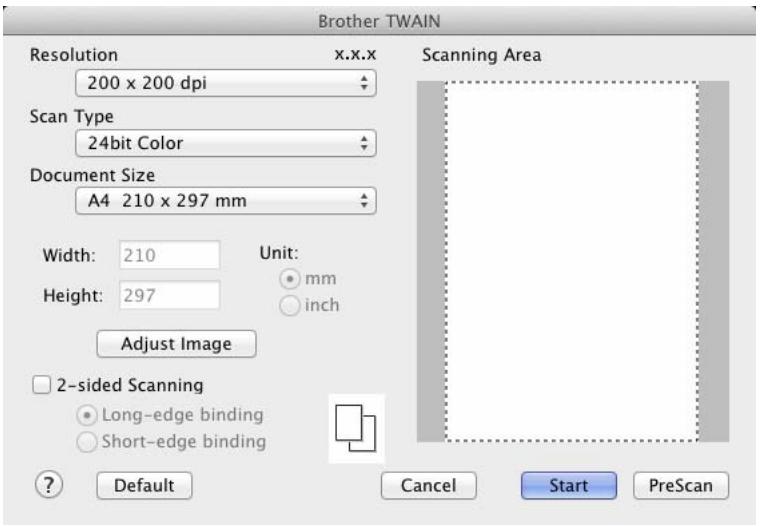
(The Brother TWAIN screen supports languages specified in Presto! PageManager.)
Adjust the settings in the scanner setup dialog box if needed (Resolution, Scan Type, Adjust Image).
From the Document Size drop-down list, select your document size.
NOTE
After you select a document size, you can adjust the scanning area further by clicking the left mouse button and dragging it. This is required when cropping an image for scanning.
5 Click the Start button.
The machine starts scanning.
TWAIN Driver Settings
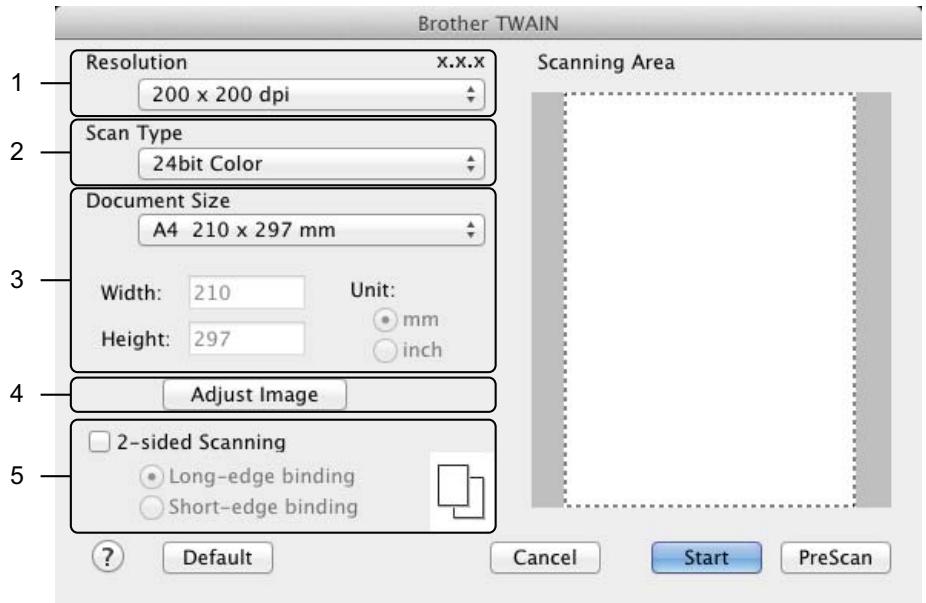
(The Brother TWAIN screen supports languages specified in Presto! PageManager.)
1 Resolution
You can select a scanning resolution from the Resolution drop-down list. Higher resolutions take more memory and transfer time, but produce a finer scanned image.
| Resolution | Black & White/Grey (Error Diffusion) | 256 Colour | True Grey/24bit Colour |
| 100 x 100 dpi | Yes | Yes | Yes |
| 150 x 150 dpi | Yes | Yes | Yes |
| 200 x 200 dpi | Yes | Yes | Yes |
| 300 x 300 dpi | Yes | Yes | Yes |
| 400 x 400 dpi | Yes | Yes | Yes |
| 600 x 600 dpi | Yes | Yes | Yes |
| 1,200 x 1,200 dpi | Yes | No | Yes |
2 Scan Type
Select one of the following types:
Black & White
Use for text or line art images.
Gray (Error Diffusion)
Use for photographic images or graphics. (Error Diffusion is a method for creating simulated grey images without using true grey dots. Black dots are put in a specific pattern to give a grey appearance.)
True Gray
Use for photographic images or graphics. This mode is more exact due to using up to 256 shades of grey.
256 Color
Use for simple colour illustrations that do not use the full colour spectrum. Uses up to 256 colours to create images.
24bit Color
Uses up to 16.8 million colours to scan the image. Although using 24bit Color creates an image with the most accurate colour reproduction, it requires the most memory and has the longest transfer time.
NOTE
256 Color is only available when your scanning application supports this setting. Presto! PageManager does not support 256 Color.
3 Document Size
Document size is set to A4 by default. If you select Custom, you can specify the document size.
4 Adjust Image
Click the Adjust Image button for adjusting the image.
Brightness
Adjust the setting (-50 to 50) to get the best image. The default value of 0 represents an average and is usually suitable for most images. You can set the Brightness level by dragging the slider to the right or left to lighten or darken the image. You can also enter a value in the box to set the level. If the scanned image is too light, set a lower Brightness level and scan the document again. If the image is too dark, set a higher Brightness level and scan the document again.
NOTE
The Brightness setting is only available when setting Scan Type to Black & White, Gray (Error Diffusion), True Gray or 24bit Color.
Contrast
Adjust the setting (-50 to 50) to get the best image. The default value of 0 represents an average and is usually suitable for most images. You can increase or decrease the contrast level by moving the slider to the right or left. An increase emphasizes dark and light areas of the image, while a decrease reveals more details in grey areas. You can also enter a value in the box to set the Contrast.
NOTE
The Contrast setting is only available when setting Scan Type to Gray (Error Diffusion), True Gray or 24bit Color.
Reduce Noise
You can improve and enhance the quality of your scanned images with this selection. The Reduce Noise setting is available when using 24bit Color and scan resolutions of 300 × 300 dpi, 400 × 400 dpi or 600 × 600 dpi.
5 2-sided Scanning
Select Long-edge binding or Short-edge binding depending on the layout of your original to make sure that the data file created appears correctly in the scanned document.
| 2-sided Scan Setting | Original Layout | Scan Result | ||
| Long-edge binding | 123 | 1 | 2 | 3 |
| Short-edge binding | 123 | 1 | 2 | 3 |
Scan Using Apple Image Capture (ICA Driver)
You can scan a document using the ICA driver. If you installed MFL-Pro Suite from the installer DVD-ROM, the ICA driver has been already installed on your computer. If you don't see your machine in the Print & Fax or Print & Scan list, you can add your machine by clicking the + button (see Select your machine from Print & Fax or Print & Scan on page 110). You can also scan directly using the Image Capture application.
Scan Using Apple Image Capture

Launch the Image Capture application.
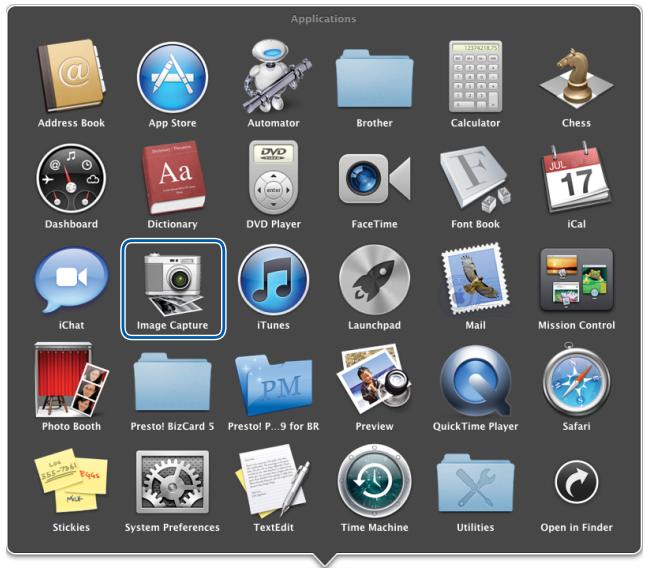
2 Select the machine from the list on the left side of the window.
You will see the machine in the DEVICES area. If connected via wireless LAN, you will see it in the SHARED area.
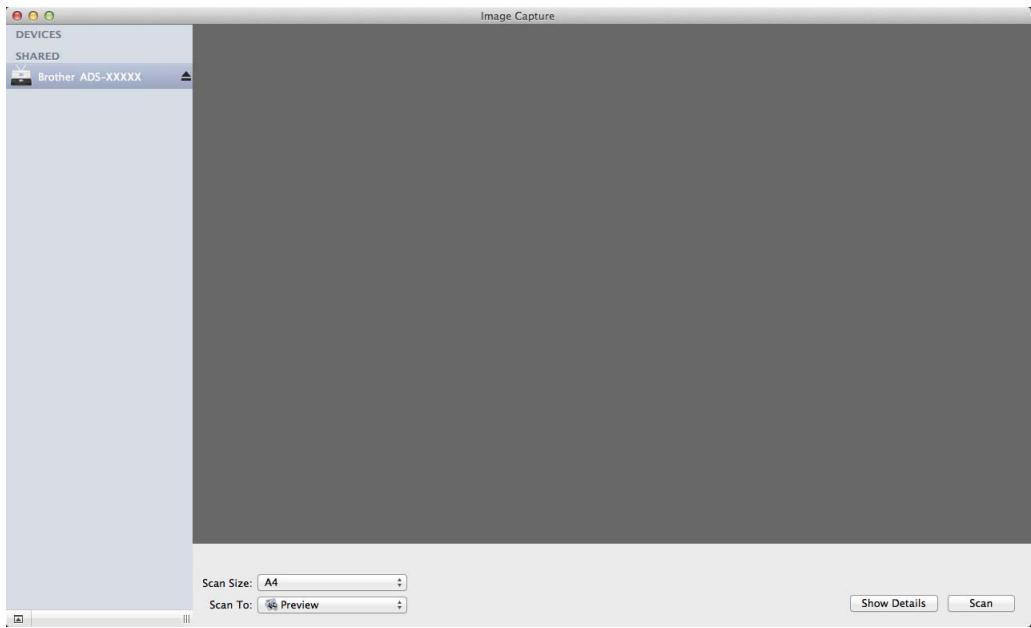
3 Load your document.
4 Select a size of your document for Scan Size.
5 Select the destination folder or destination application for Scan To.
6 Click the Scan button.
The machine starts scanning.
ICA Driver Settings
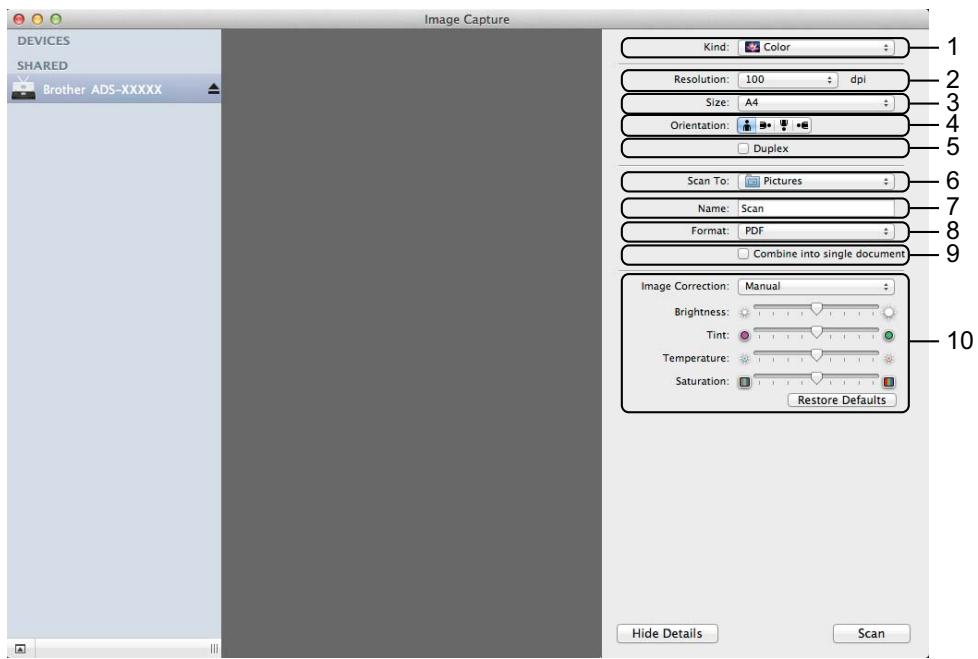
You can adjust the following settings, if needed, in the dialog box accessed by clicking on Show Details. Note that the item name and assignable value will vary depending on the machine.
1 Kind
Select from Color, Black & White or Text.
2 Resolution
Select the resolution you want to scan your document at.
3 Scan Size or Size
Select the paper size of the document.
4 Orientation
Select the orientation of the document.
5 Duplex
Check the Duplex check box to do 2-sided (duplex) scanning.
6 Scan To
Select the destination folder or destination application.
7 Name
Enter the prefix text used for the name of the scanned image.
8 Format
Select the file format of the scanned data.
9 Create single document or Combine into single document
Check this box to scan a document as one item and save it as one file when selecting PDF or TIFF for the file format.
NOTE
If you cannot select TIFF for the file format, select PDF first and then select TIFF.
10 Image Correction
You can configure settings depending on Kind that you have chosen.
| Kind | Configurable Settings |
| Color | Brightness, Tint, Temperature, Saturation |
| Black & White | Brightness, Contrast (Mac OS X v10.7.x, 10.8.x) |
| Text | Threshold |
Select your machine from Print & Fax or Print & Scan
1 Select System Preferences in the menu bar.
2 Click the Print & Fax icon or the Print & Scan icon.
3 Select the machine from the list on the left side of the screen.
NOTE
If you do not see the Open Scanner button on the window, remove your machine by clicking the - button from the Print & Fax or Print & Scan list and then add your machine by clicking the + button.
Use NewSoft Presto! BizCard 6 (Macintosh)
Presto! BizCard lets you manage the information from scanned business cards, such as names, companies, mailing addresses, phone/fax numbers and e-mail addresses, on your computer. Simply scan, or import your business cards and Presto! BizCard automatically saves the data and image for each card. Different viewing modes are available for easy searching, editing, creating, and sorting.
Installing NewSoft Presto! BizCard 6
1 Insert the supplied DVD-ROM into your DVD-ROM drive.
Double-click the BROTHER icon on your desktop.
3 Double-click Brother Support.
4 Click Presto! BizCard to download the Presto! BizCard 6 installer.
Double-click the installer, and then follow the on-screen instructions.
For information about how to scan using Presto! BizCard 6, see the Presto! BizCard 6 user's guide by clicking on Help on the menu bar, then Using Help.
Scan Using Captiva® QuickScan™ Pro or ISIS® Applications (Windows®)
You can use the free trial version of Captiva® QuickScan™ Pro or other applications, which support the ISIS® specifications, for scanning. Before scanning using the ISIS® applications, you must install the ISIS® scanner driver.
NOTE
In order to use the ISIS® driver, the Brother scanner driver needs to be installed. If you have not installed the Brother scanner driver, you must do so before installing the ISIS® driver.
Installing ISIS® Scanner and Captiva® QuickScan™ Pro
1 Insert the supplied DVD-ROM into your DVD-ROM drive.
The DVD-ROM top menu will appear automatically. Select your model name and then the desired language.
3 Click Custom Installation.
4 Click ISIS Scanner Driver & Application.
5 Click ISIS Scanner Driver. Follow the on-screen instructions.
Click Captiva QuickScan Pro Trial. Follow the on-screen instructions.
NOTE
- The web site where you can download the free trial version of Captiva® QuickScan™ Pro is operated by EMC corporation. If you have any questions about Captiva® QuickScan™ Pro, contact EMC corporation.
- For information about how to scan using your ISIS® application, see Captiva® QuickScan™ Pro's help.
4
Scan from the Control Panel of the Machine
Scan from the Control Panel of the Machine
Scan Documents Directly to an FTP Server
When you choose Scan to FTP, you can scan a black and white or colour document directly to an FTP server on your local network, or on the Internet.
The details required to use Scan to FTP can be entered by using Web Based Management to pre-configure and store the details in an FTP Profile.
NOTE
- Scan to FTP is available when FTP profiles are configured by using Web Based Management.
- We recommend Microsoft Internet Explorer® 8.0/9.0 for Windows® and Safari 5.0 for Macintosh. Please also make sure that JavaScript and Cookies are always enabled in whichever browser you use. If a different web browser is used, make sure it is compatible with HTTP 1.0 and HTTP 1.1.
Start Web Based Management
(ADS-1100W)
NOTE
If you have set up the machine using the USB interface method, you need to set up the machine using the wireless network method with the installation DVD-ROM and a USB cable (see the Quick Setup Guide) to use Web Based Management.
1 Start the ControlCenter application.
Windows®
1 Click the (ControlCenter4) icon in the task tray and then select Open from the menu. The ControlCenter4 window will appear.
2 Click the Device Settings tab (the example below uses Home Mode).
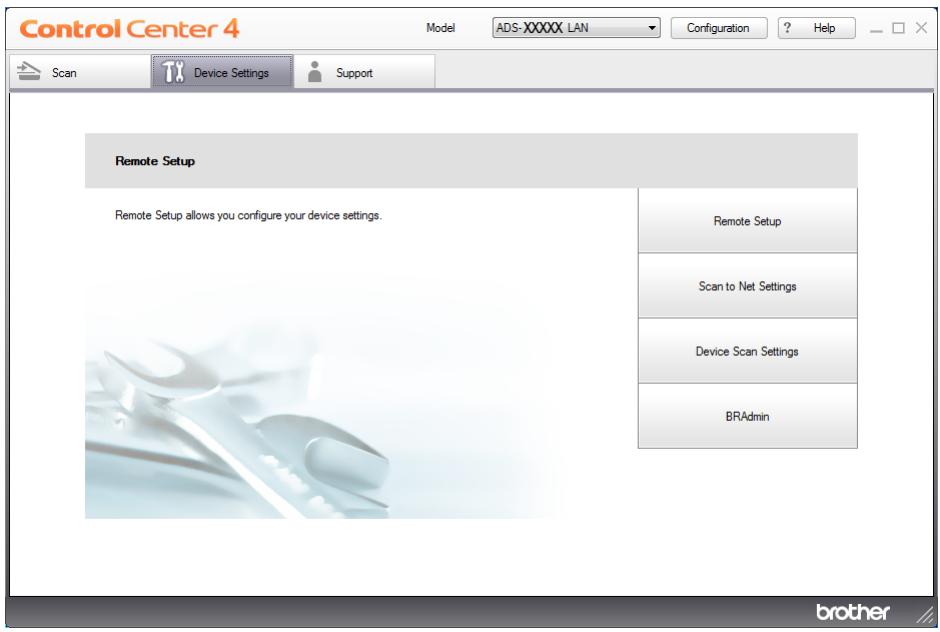
Macintosh
1 Click the (ControlCenter2) icon in the Dock. The ControlCenter2 window will appear.
2 Click the DEVICE SETTINGS tab.
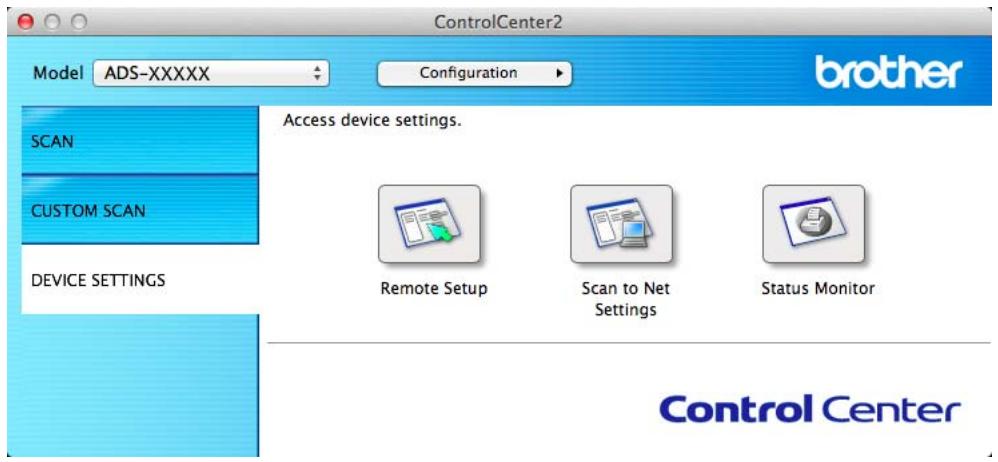
2 Click the Scan to Net Settings button. The Web Based Management window will appear.
(ADS-1600W)
Type "http://machine's IP address/" into your browser's address bar (where "machine's IP address" is the IP address of the machine).
For example:
http://192.168.1.2/
You can configure or change the settings in Scan to FTP (for ADS-1100W) or Scan to FTP/Network (for ADS-1600W) in the Scan tab. You can configure up to five FTP server profiles and choose what profile numbers (1 to 5) to use for Scan to FTP settings in Scan to FTP Profile (for ADS-1100W) or Scan to FTP/Network Profile (for ADS-1600W).
In addition to the seven preset file names you can store two user defined file names that can be used for creating an FTP Server Profile.
Choose Scan to FTP (for ADS-1100W) or Scan to FTP/Network (for ADS-1600W) in Web Based Management. In Create a User Defined File Name, enter a file name in one of the two user defined fields and click Submit. A maximum of 15 characters can be entered in each of the user defined name fields (the example below uses ADS-1600W).
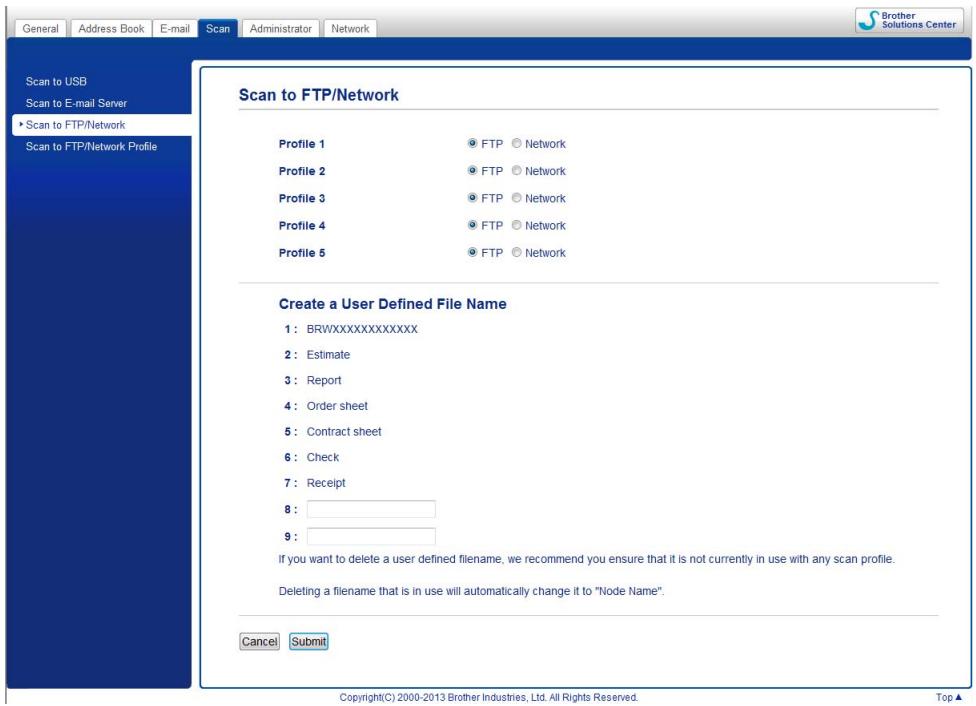
NOTE
Do not use unsuitable characters in the file name (for example ?, /, , or * ). They may cause a sending error when using Scan to FTP.
Configure the FTP Default Settings
You can set Passive Mode to Off or On depending on your FTP server and network firewall configuration. By default this setting is On. You can also change the port number used to access the FTP server. The default for this setting is port 21. In most cases these two settings can remain as the default (the example below uses ADS-1600W).
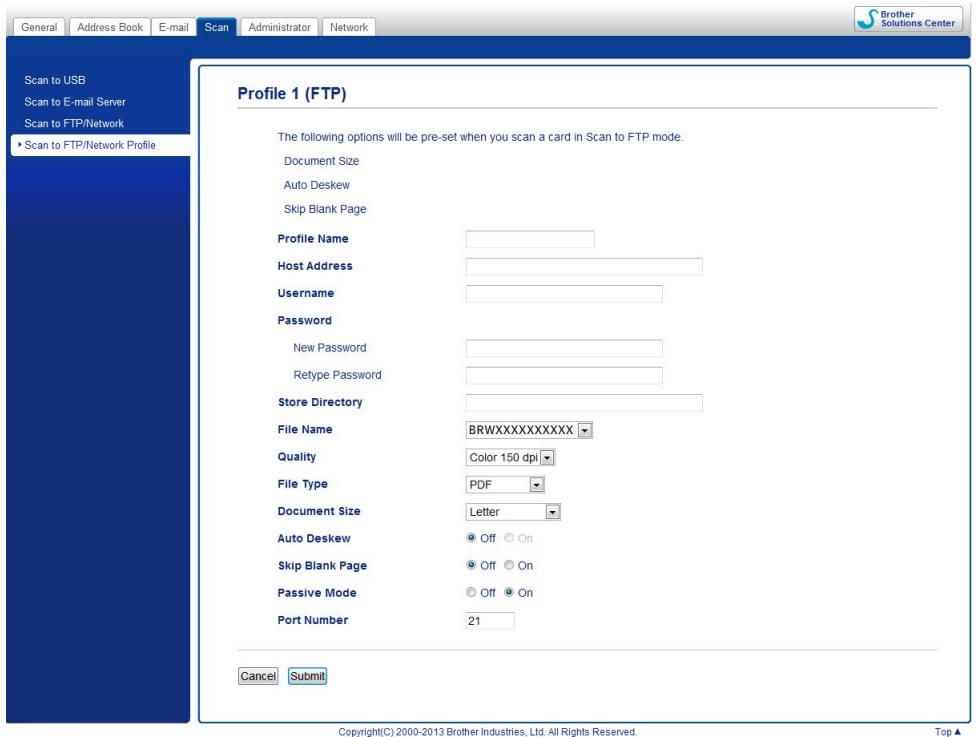
1 (ADS-1600W only)
Choose FTP in Scan to FTP/Network from the Scan tab. Click Submit.
Choose the Profile you want to configure in Scan to FTP Profile (for ADS-1100W) or Scan to FTP/Network Profile (for ADS-1600W) from the Scan tab.
3 Enter the name that you want to use for the profile of the FTP server. This name will be displayed in Destination in Scan to Network Device from the Scan tab (ADS-1100W only) or on the LCD of the machine (ADS-1600W only), and can be up to 15 characters.
The Host Address is the domain name of the FTP server. Enter the Host Address (for example ftp.example.com) (up to 64 characters) or the IP address (for example 192.23.56.189).
5 Enter theUsername that has been registered with the FTP server for the machine (up to 32 characters).
6 Enter the Password for access to the FTP server (up to 32 characters).
7 Enter the destination folder where your document will be stored on the FTP server (for example brother\abc) (up to 60 characters).
Choose the file name you want to use for the scanned document. You can choose from seven preset and two user defined file names. The file name that will be used for your document will be the file name you selected plus the last 6 digits of the scanner counter plus the file extension (for example, Estimate_098765.pdf).
Choose the quality, file type, document size and 2-sided Scan you want to use for the scanned data. The following settings can be changed.
| Setting | Options | Description |
| Quality | Color 150 dpiColor 200 dpiColor 300 dpiColor 600 dpiB&W 150 dpiB&W 200 dpiB&W 300 dpiB&W 600 dpiAuto 150 dpiAuto 200 dpiAuto 300 dpiUser Select(ADS-1600W only) | ■ You can select a scanning quality from the Quality drop-down list. Higher qualities take more memory and transfer time, but produce a finer scanned image.■ If you select User Select, you must select the setting from the Control Panel of the machine. |
| File Type | PDFTIFFJPEGUser Select(ADS-1600W only) | ■ You can select the file type you want to use for the scanned data.■ You can select PDF or JPEG when you select Color in Quality.■ You can select PDF or TIFF when you select B&W in Quality.■ You can select PDF when you select Auto in Quality.■ If you select User Select, you must select the setting from the Control Panel of the machine. |
| Document Size | AutoA4LetterLegalB5A5B6A6Business CardLong PaperUser Select(ADS-1600W only) | ■ If you select Auto, you can scan documents of any size without making any adjustments to Document Size. For faster scan speeds, you can select the exact size of your document from the Document Size drop-down list.If you select 600 dpi for Quality, you cannot select Auto.■ You can select A4, Letter, Legal, B5, A5, B6, A6, Business Card or Long Paper when Auto Deskew is set to Off.■ You can select Long Paper when you configure the settings as following:· Quality: other than Auto· Auto Deskew: Off· Skip Blank Page: Off· 2-sided Scan: Off |
1 Depending upon the condition of the original document, this function may not work properly.
| Setting | Options | Description |
| 2-sided Scan (ADS-1100W only) | Off | To scan both sides of the document, select Long Edge or Short Edge depending on the layout of your original to make sure that the data file created appears correctly in the scanned document. |
| Long Edge | ||
| Short Edge | ||
| NOTE | ||
| The 2-sided Scan feature is available with lengths up to Legal size. |
10 Set Auto Deskew 1 to On if you want to correct the skew (within 5 degrees) of the scanned data.
Set Skip Blank Page 1 to On if you want to remove blank pages of the document from the scanned data.
12 Click Submit.
1 Depending upon the condition of the original document, this function may not work properly.
Scan Using FTP Server Profiles
(ADS-1100W)
NOTE
- If you have set up the machine using the USB interface method, you need to set up the machine using the wireless network method with the installation DVD-ROM and a USB cable (see the Quick Setup Guide) to use the Scan to FTP feature.
- Before starting Scan to FTP, you need to configure the Scan to FTP profile (see Configure the FTP Default Settings on page 116).
1 Start the ControlCenter application.
Windows®
1 Click the (ControlCenter4) icon in the task tray and then select Open from the menu. The ControlCenter4 window will appear.
2 Click the Device Settings tab (the example below uses Home Mode).
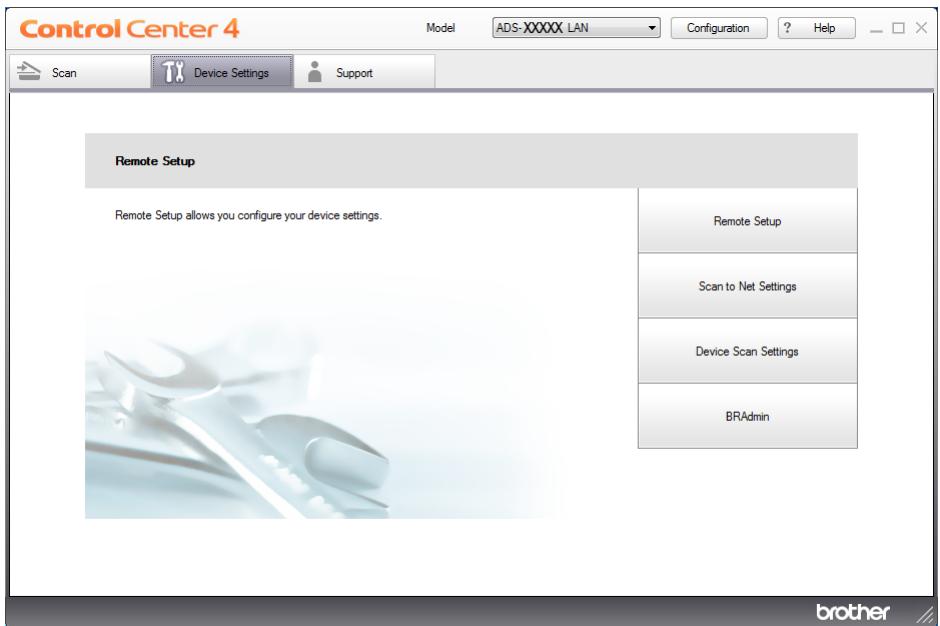
Macintosh
1 Click the (ControlCenter2) icon in the Dock. The ControlCenter2 window will appear.
2 Click the DEVICE SETTINGS tab.
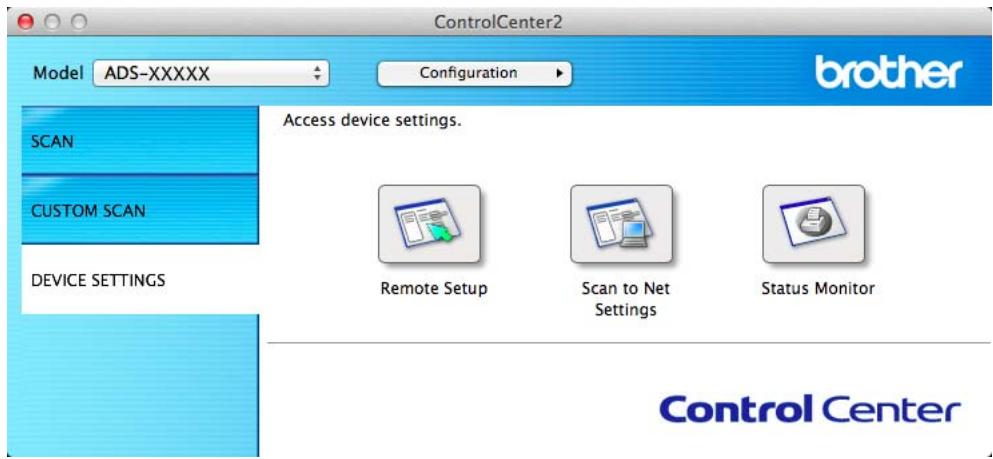
2 Click the Scan to Net Settings button. The Web Based Management window will appear.
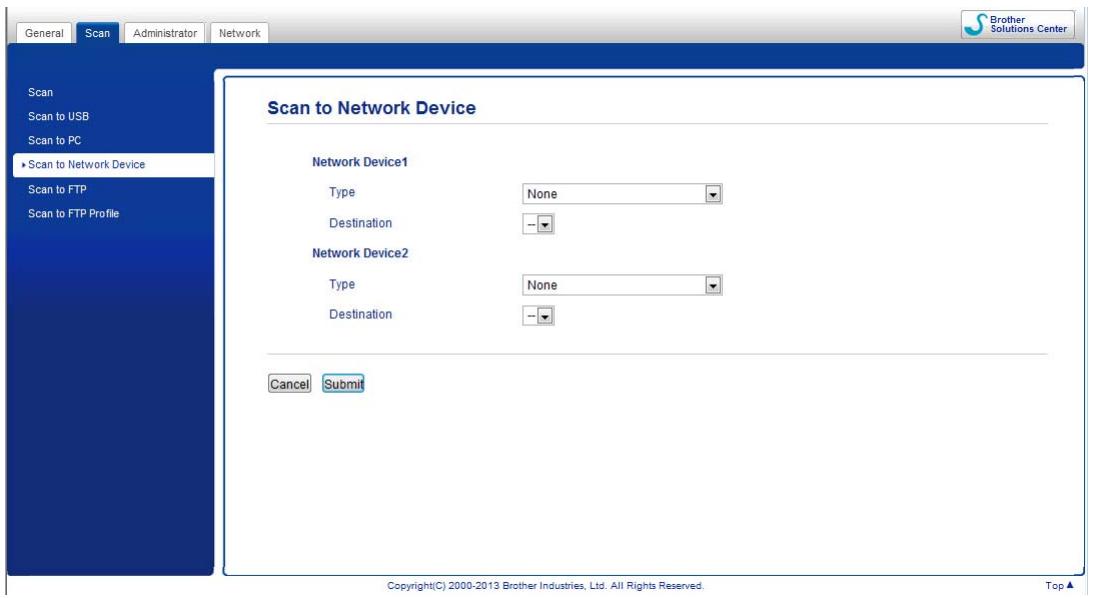
3 Select Network Device 1 or Network Device 2 which you want to assign the Scan to FTP feature.
NOTE
- The Network Device 1 settings will be applied to 1 on the Control Panel of the machine.
- The Network Device 2 settings will be applied to 2 on the Control Panel of the machine.
4 Select Scan to FTP from the Type drop-down list for your selected device in 3.
5 Select a profile name from the Destination drop-down list for your selected device in 3.
Click Submit.
7 Load your document.
Press 1 or 2 which you have assigned the Scan to FTP feature.
Press . The machine starts scanning.
(ADS-1600W)
1 Load your document.
Press or to display to FTP.
Press to FTP.
Press or to choose one of the FTP server profiles listed.
Do one of the following:
If the Scan to FTP profile is complete, go to 7.
If the Scan to FTP profile is not complete, go to ⑤.
Press Options.
Choose the settings for 2-sided Scan, Scan Type, Resolution, File Type, Document Size,
Auto Deskew, Skip Blank Page and User Name as needed. Press OK.
NOTE
If you want to save the profile as a shortcut, press Save as Shortcut.
7 Press Start.
The LCD shows Connecting. When the connection to the FTP server is successful the machine starts the scanning process.
Scan Documents Directly to a CIFS Server (Windows®) (ADS-1600W only)
When you choose Scan to Network, you can scan documents directly to a shared folder on a CIFS server located on your local network or the Internet.
The details required to use Scan to Network can be entered by using Web Based Management to preconfigure and store the details in a Scan to Network profile. The Scan to Network profile stores user information and configuration settings for use on a network, or the Internet.
NOTE
- Scan to Network is available when Scan to Network profiles are configured by using Web Based Management.
- You must configure the SNMP protocol (network time server), or you must set the date, time and time zone correctly for Authentication. For more information, see the Network User's Guide.
- We recommend Microsoft® Internet Explorer® 8.0/9.0. Please also make sure that JavaScript and Cookies are always enabled in whichever browser you use. If a different web browser is used, make sure it is compatible with HTTP 1.0 and HTTP 1.1.
Type "http://machine's IP address/" into your browser's address bar (where "machine's IP address" is the IP address of the machine) (For example: http://192.168.1.2/). You can configure or change the settings in Scan to FTP/Network in the Scan tab. You can configure up to five Scan to Network profiles and choose what profile numbers (1 to 5) to use for Scan to Network settings in Scan to FTP/Network Profile.
In addition to the seven preset file names you can store two user defined file names that can be used for creating a Scan to Network profile.
Choose Scan to FTP/Network in Web Based Management. In Create a User Defined File Name, enter a file name in one of the two user defined fields and click Submit. A maximum of 15 characters can be entered in each of the user defined name fields.
NOTE
Do not use unsuitable characters in the file name (for example ?, /, , or * ). They may cause a sending error when using Scan to Network.
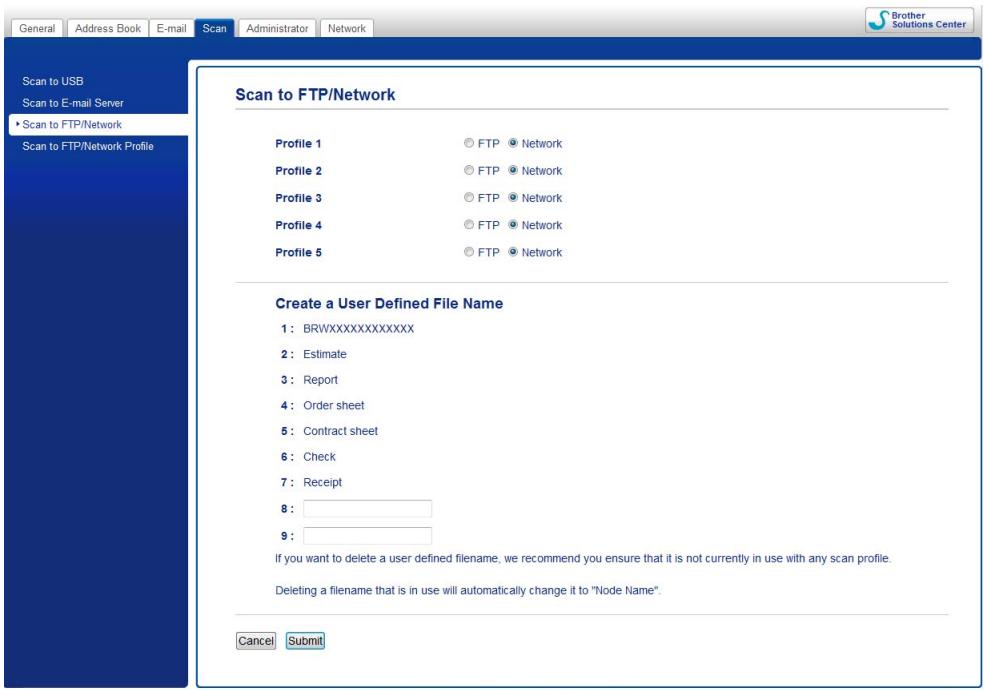
Copyright(C) 2000-2013 Brother Industries, Ltd. All Rights Reserved.
Top
Configure the Scan to Network Default Settings
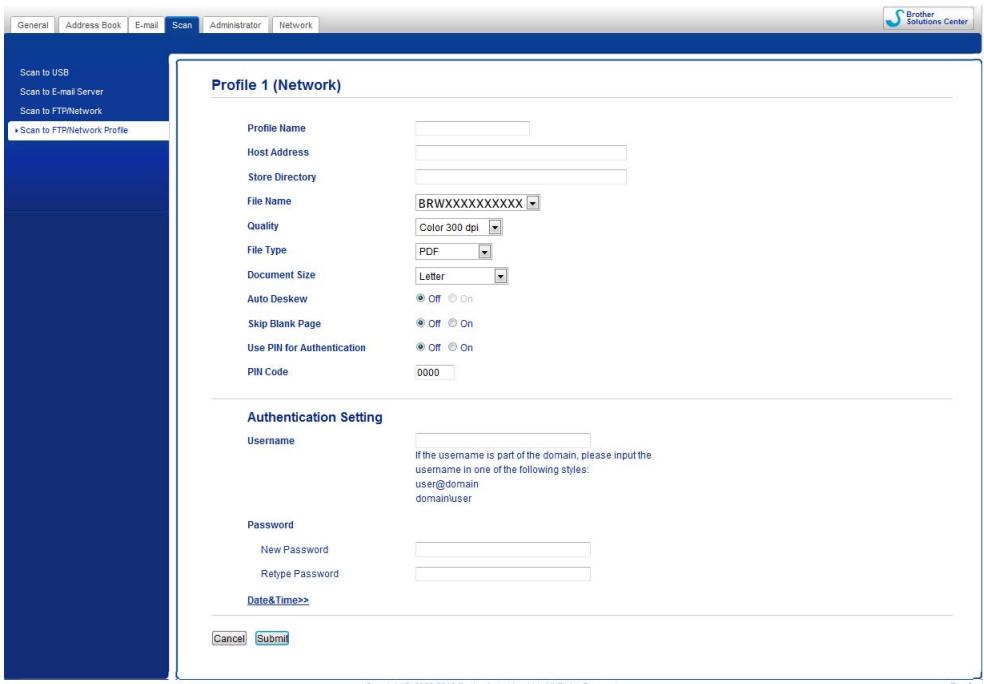
Copyright(C) 2000-2013 Brother Industries, Ltd. All Rights Reserved.
Choose Network in Scan to FTP/Network from the Scan tab. Click Submit.
Choose the Profile you want to configure in Scan to FTP/Network Profile.
3 Enter the name that you want to use for the Scan to Network profile. This name will be displayed on the LCD of the machine and can be up to 15 characters.
The Host Address is the domain name of the CIFS server. Enter the Host Address (for example mypc.example.com) (up to 64 characters) or the IP address (for example 192.23.56.189).
5 Enter the destination folder where your document will be stored on the CIFS server (for example brother\abc) (up to 60 characters).
Choose the file name you want to use for the scanned document. You can choose from seven preset and two user defined file names. The file name that will be used for your document will be the file name you selected plus the last 6 digits of the scanner counter plus the file extension (for example, Estimate_098765.pdf).
Choose the quality, file type and document size you want to use for the scanned data. The following settings can be changed.
| Setting | Options | Description |
| Quality | Color 150 dpi | ■ You can select a scanning quality from the Quality drop-down list. Higher qualities take more memory and transfer time, but produce a finer scanned image. |
| Color 200 dpi | ||
| Color 300 dpi | ■ If you select User Select, you must select the setting from the Control Panel of the machine. | |
| Color 600 dpi | ||
| B&W 150 dpi | ||
| B&W 200 dpi | ||
| B&W 300 dpi | ||
| B&W 600 dpi | ||
| Auto 150 dpi | ||
| Auto 200 dpi | ||
| Auto 300 dpi | ||
| User Select(ADS-1600W only) | ||
| File Type | ■ You can select the file type you want to use for the scanned data. | |
| TIFF | ■ You can select PDF or JPEG when you select Color in Quality. | |
| JPEG | ■ You can select PDF or TIFF when you select B&W in Quality. | |
| User Select(ADS-1600W only) | ■ You can select PDF when you select Auto in Quality. | |
| ■ If you select User Select, you must select the setting from the Control Panel of the machine. | ||
| Document Size | Auto | ■ If you select Auto, you can scan documents of any size without making any adjustments to Document Size.1 For faster scan speeds, you can select the exact size of your document from the Document Size drop-down list. |
| A4 | ||
| Letter | ||
| Legal | ■ If you select 600 dpi for Quality, you cannot select Auto. | |
| B5 | ■ You can select A4, Letter, Legal, B5, A5, B6, A6, Business Card or Long Paper when Auto Deskew is set to Off. | |
| A5 | ||
| B6 | ■ You can select Long Paper when you configure the settings as following: | |
| A6 | ||
| Business Card | • Quality: other than Auto | |
| Long Paper | • Auto Deskew: Off | |
| User Select | • Skip Blank Page: Off | |
| (ADS-1600W only) |
1 Depending upon the condition of the original document, this function may not work properly.
8 Set Auto Deskew 1 to On if you want to correct the skew (within 5 degrees) of the scanned data.
9 Set Skip Blank Page 1 to On if you want to remove blank pages of the document from the scanned data.
If you want to protect the profile, choose On from Use PIN for Authentication and enter a 4-digit PIN number in PIN Code.
11 Enter theUsername that has been registered with the CIFS server for the machine (up to 96 characters).
12 Enter the Password for access to the CIFS server (up to 32 characters).
13 Click Submit.
14 Choose Date&Time from the General tab.
15 Enter the date and time used on the CIFS server.
16 Choose the time zone from the pull-down list.
17 Click Submit.
Scan Using Scan to Network Profiles
1 Load your document.
Press or to display to Network.
3 Press to Network.
Press or to choose one of Network server profiles listed. If the LCD prompts you to enter a PIN number, enter the 4-digit PIN number for the profile on the LCD. Press OK.
Do one of the following:
If the Scan to Network profile is complete, go to 7.
If the Scan to Network profile is not complete, go to ⑤.
Press Options.
Choose the settings for 2-sided Scan, Scan Type, Resolution, File Type, Document Size, Auto Deskew, Skip Blank Page and User Name as needed. Press OK.
NOTE
If you want to save the settings as a shortcut, press Save as Shortcut.
7 Press Start.
The LCD shows Connecting. When the connection to the Network is successful the machine starts the scanning process.
Save Scanned Documents on Your Computer
Scan to PC (USB Connect)
(ADS-1100W)
NOTE
If you have set up the machine using the wireless network method with the installation DVD-ROM and a USB cable, you need to set up the machine using the USB interface method (see the Quick Setup Guide) to display the Scan to PC Settings button in the ControlCenter application and to use the Scan to PC (USB Connect) feature.
1 Start the ControlCenter application.
Windows®
1 Click the (ControlCenter4) icon in the task tray and then select Open from the menu. The ControlCenter4 window will appear.
2 Click the Device Settings tab (the example below uses Home Mode).
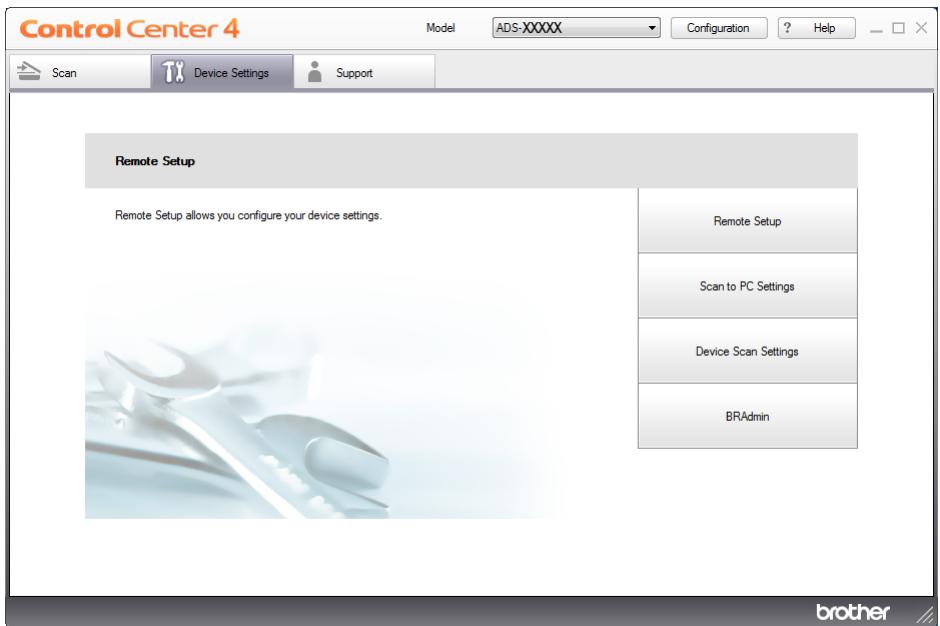
Macintosh
1 Click the (ControlCenter2) icon in the Dock. The ControlCenter2 window will appear.
2 Click the DEVICE SETTINGS tab.
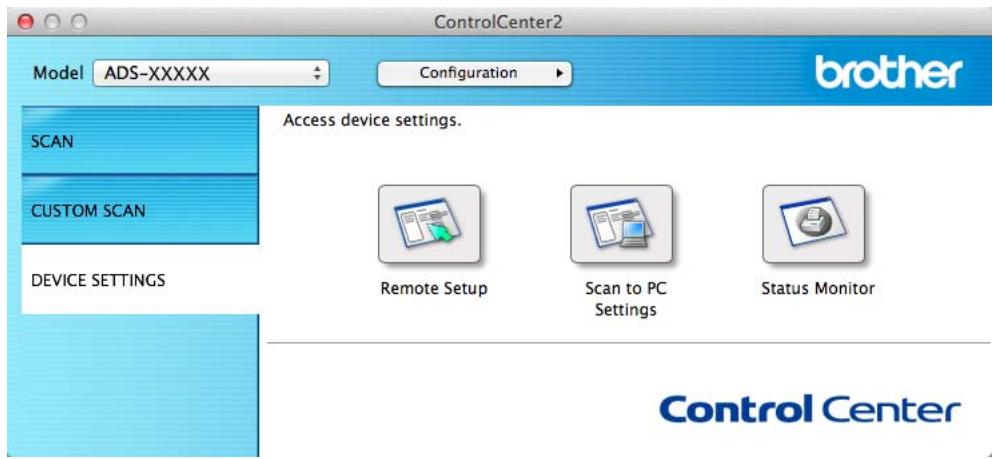
2 Click Scan to PC Settings. The Remote Setup window will appear.
3 Select Scan to PC in the folder tree (the example below uses Windows®).
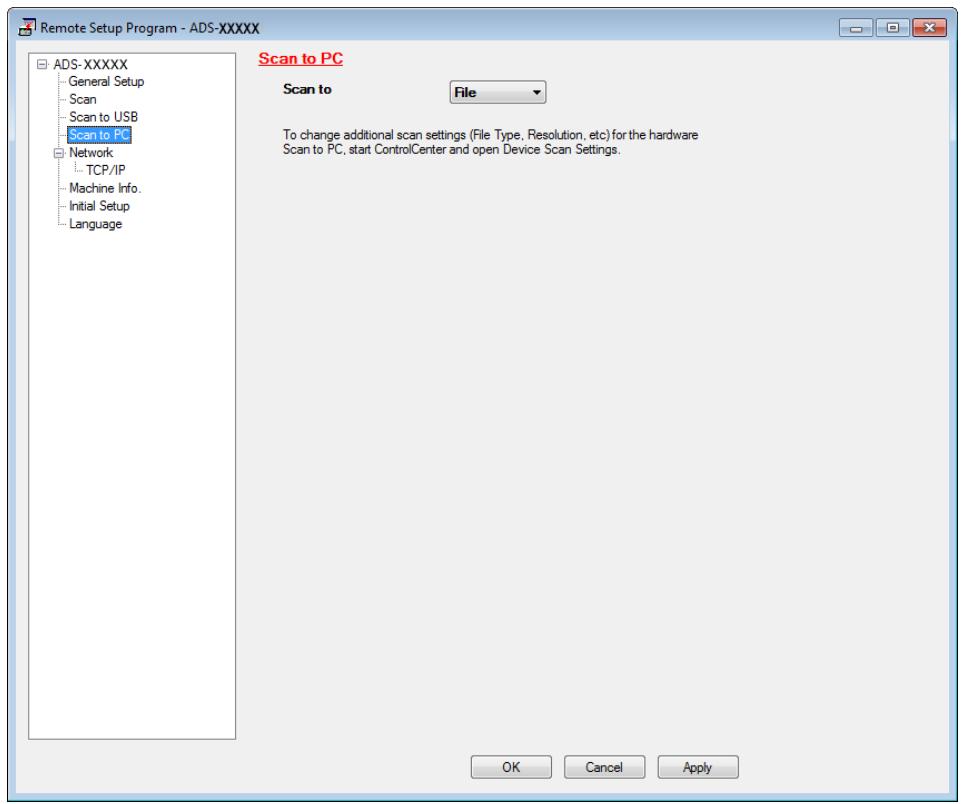
4 Select a Scan-to action you want to use (Image, OCR, E-mail, or File) from the drop-down list.
5 Click Apply and then OK.
6 Configure the settings if needed (see Change Scan to PC Settings (Windows®) on page 140 or Change Scan to PC Settings (Macintosh) on page 146).
7 Load your document.
Press and then The machine starts scanning.
(ADS-1600W)
1 Load your document.
Press or to display to PC.
Press to PC.
Press or to display the Scan-to action you want to do (to OCR, to File, to Image or to E-mail).
Press the Scan-to action you want to do.
6 Press Start.
The machine starts the scanning process.
NOTE
- You can configure the Scan-to settings from your computer. See Change Scan to PC Settings (Windows®) on page 140 or Change Scan to PC Settings (Macintosh) on page 146.
- If you want to save the settings as a shortcut, press Save as Shortcut. For more information, see Set Up the Shortcuts (ADS-1600W only) on page 156.
Scan to PC (Network Connect)
(ADS-1100W)
NOTE
If you have set up the machine using the USB interface method, you need to set up the machine using the wireless network method with the installation DVD-ROM and a USB cable (see the Quick Setup Guide) to display the Scan to Net Settings button in the ControlCenter application and to use the Scan to PC (Network Connect) feature.
1 Start the ControlCenter application.
Windows®
1 Click the (ControlCenter4) icon in the task tray and then select Open from the menu. The ControlCenter4 window will appear.
2 Click the Device Settings tab (the example below uses Home Mode).
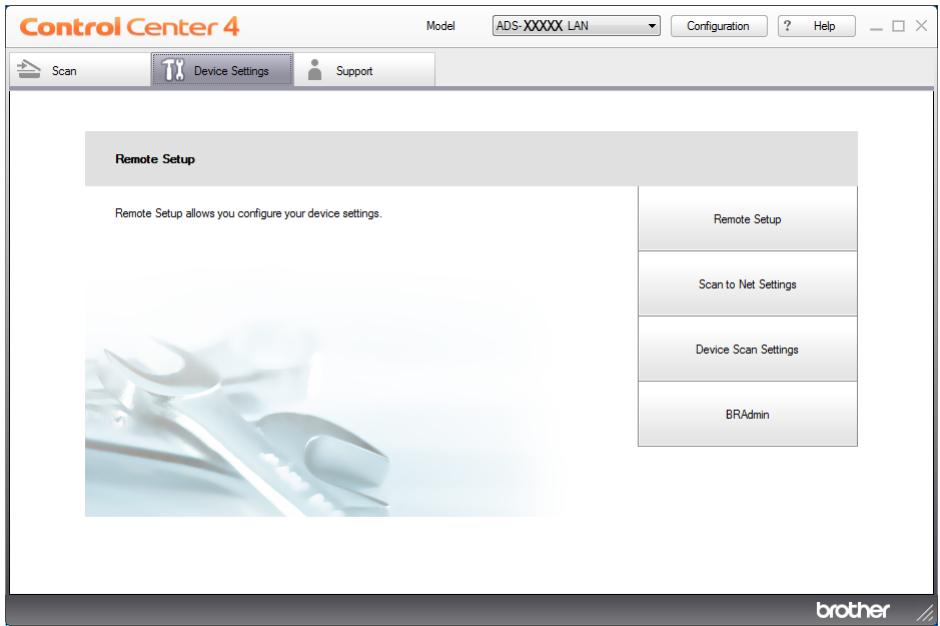
Macintosh
1 Click the (ControlCenter2) icon in the Dock. The ControlCenter2 window will appear.
2 Click the DEVICE SETTINGS tab.
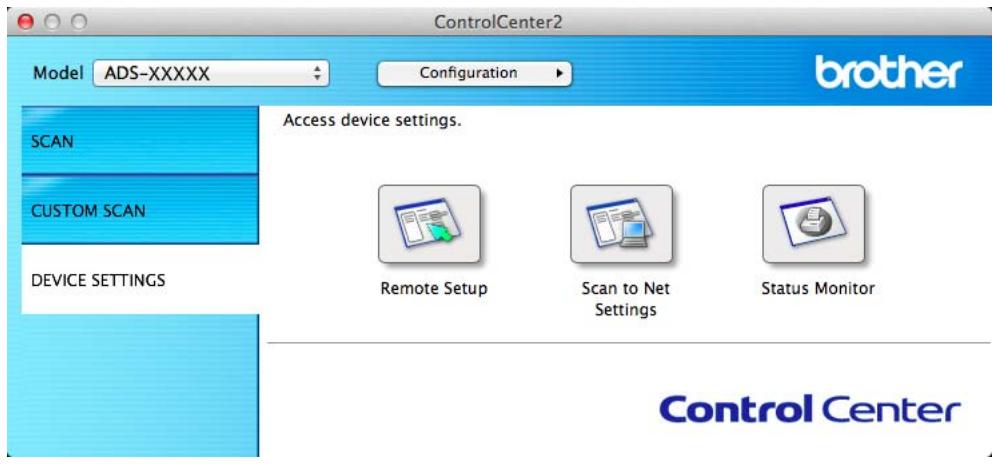
2 Click the Scan to Net Settings button. The Web Based Management window will appear.
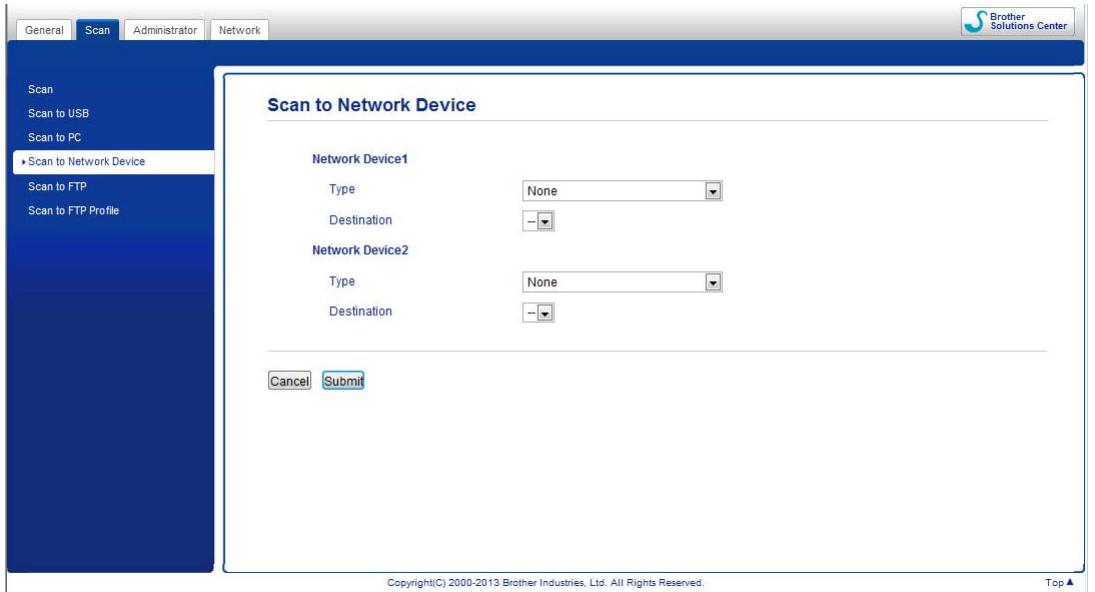
3 Select the device (Network Device 1 or Network Device 2) to which you want to assign the Scan to PC feature.
NOTE
The Network Device 1 settings will be applied to 1 on the Control Panel of the machine.
The Network Device 2 settings will be applied to 2 on the Control Panel of the machine.
4 Select Scan to PC(Net Connect-XXXXXX) (XXXXXX is a scan type) from the Type drop-down list for the selected device in 3.
5 Select the destination computer from the Destination drop-down list for the selected device in 3.
Click Submit.
7 Configure the settings if needed (see Change Scan to PC Settings (Windows®) on page 140 or Change Scan to PC Settings (Macintosh) on page 146).
8 Load your document.
Press your configured key and then . The machine starts scanning.
(ADS-1600W)
1 Load your document.
Press or to display to PC.
Press to PC.
Press or to display the Scan-to action you want to do (to OCR, to File, to Image or to E-mail).
Press the Scan-to action you want to do.
Press or to display the destination computer you want to save on. Press the destination computer.
If the PIN entry screen is displayed, enter the four-digit PIN and press OK.
Press Start. The machine starts the scanning process.
NOTE
- You can configure the Scan-to settings from your computer. See Change Scan to PC Settings (Windows®) on page 140 or Change Scan to PC Settings (Macintosh) on page 146.
- If you want to save the settings as a shortcut, press Save as Shortcut. For more information, see Set Up the Shortcuts (ADS-1600W only) on page 156.
Scan Using Web Services (Windows Vista® SP2 or Later, Windows® 7 and Windows® 8)
The menu that allows you to use Web Services for scanning is displayed in Destination in Scan to Network Device from the Scan tab in Web Based Management (ADS-1100W only) or on the LCD of the machine (ADS-1600W), if you have installed the driver for scanning via Web Services. For information about installing Web Services, see Installing drivers used for scanning via Web Services (Windows Vista®, Windows® 7 and Windows® 8) in the Network User's Guide.
NOTE
If the LCD or LED indications show Out of Memory, decrease the Paper size setting or the Resolution setting. For details, see Configuring Settings for Scanning on page 133.
(ADS-1100W)
NOTE
If you have set up the machine using the USB interface method, you need to set up the machine using the wireless network method with the installation DVD-ROM and a USB cable (see the Quick Setup Guide) to display the Scan to Net Settings button in the ControlCenter application and to use the WS Scan feature.
1 Click the (ControlCenter4) icon in the task tray and then select Open from the menu. The ControlCenter4 window will appear.
2 Click the Device Settings tab (the example below uses Home Mode).
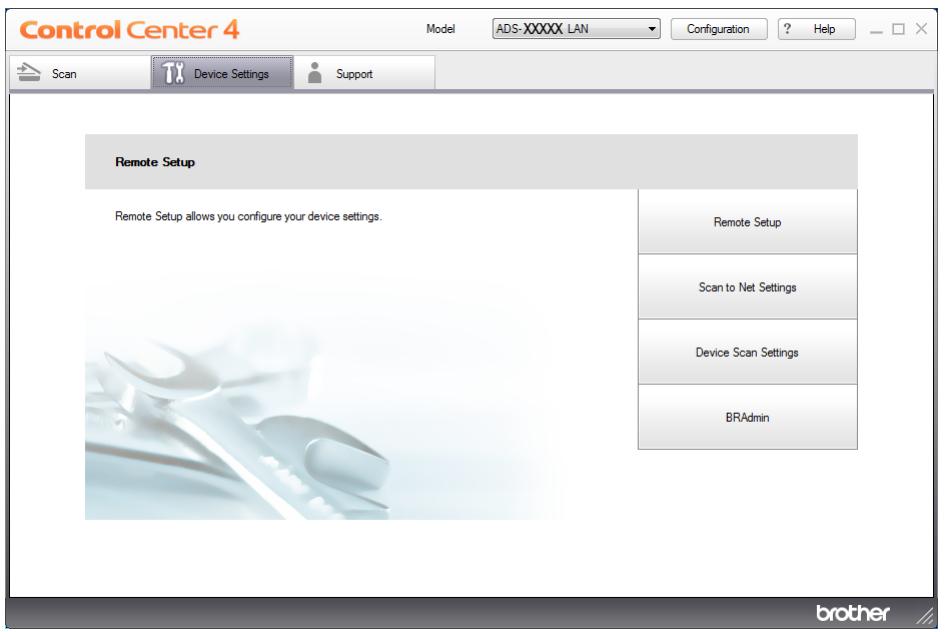
3 Click the Scan to Net Settings button. The Web Based Management window will appear.
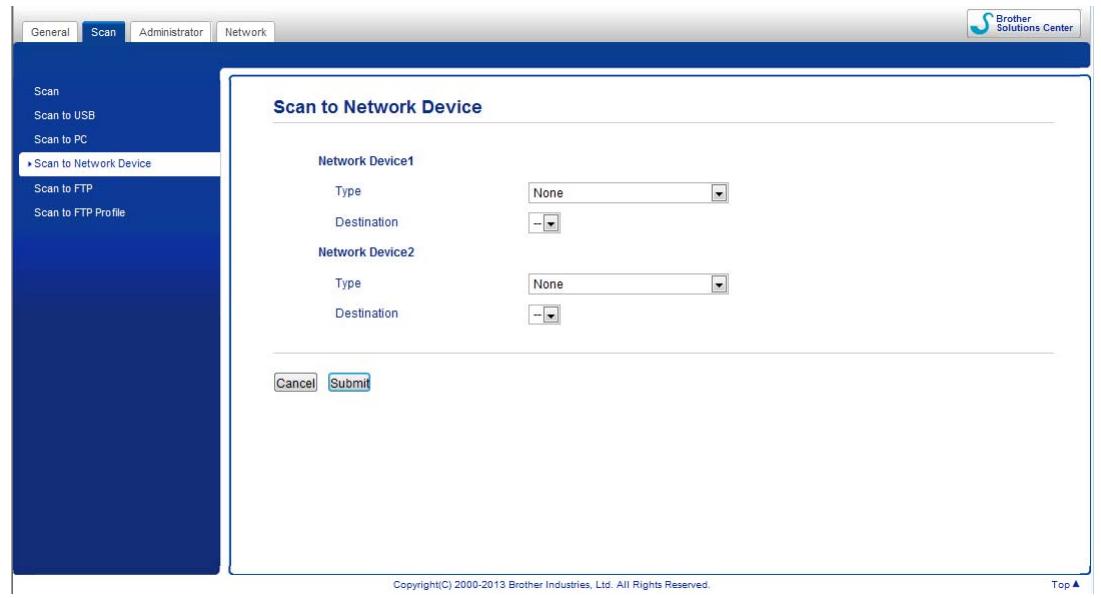
4 Select the device (Network Device1 or Network Device2) to which you want to assign the Scan to PC feature.
NOTE
The Network Device1 settings will be applied to 1 on the Control Panel of the machine.
The Network Device2 settings will be applied to 2 on the Control Panel of the machine.
5 Select WS Scan from the Type drop-down list for the selected device in 4.
6 Select the destination computer from the Destination drop-down list for the selected device in 4.
7 Click Submit.
8 Load your document.
Press 1 or 2 for the device to which you assigned the WS Scan feature.
Press The machine starts scanning.
(ADS-1600W)
NOTE
Certain characters in the messages displayed on the LCD may be replaced with spaces when the language settings of your OS and your Brother machine are different.
1 Load your document.
Press or to display to PC.
Press to PC.
Press or to display WS Scan.
Press WS Scan.
Press the type of scan you want to do.
Press or to display the destination computer you want to send to. Press the destination computer.
Press Start. The machine starts scanning process.
Configuring Settings for Scanning
If the LCD or LED indications show Out of Memory, decrease the Paper size setting or the Resolution setting.
1 (Windows Vista®)
Click the button, Control Panel, Hardware and Sound, then Scanners and Cameras.
(Windows® 7)
Click the button, Control Panel, Hardware and Sound, then Devices and Printers.
(Windows® 8)
Move your mouse to the lower right corner of your desktop. When the menu bar appears, click Settings, and then click Control Panel. In the Hardware and Sound group, click View devices and printers.
2 Click your machine, and then click the Scan Profiles button.
The Scan Profiles dialog box will appear.
Choose the scan profile you want to use. Make sure the scanner selected in Scanner is a Brother machine that supports Web Services for scanning.
Click Set as Default.
4 Click Edit. The Edit Default Profile dialog box will appear.
Choose the Source, Paper size, Color format, File type, Resolution, Brightness and Contrast settings.
6 Click Save Profile. The settings will be applied when scanning using the Web Services protocol.
NOTE
If you are requested to choose a software application to scan, choose Windows® Fax and Scan or Windows® Photo Gallery from the list.
Save Scanned Documents on a USB Flash Memory Drive
(ADS-1100W)
1 Start the ControlCenter application.
Windows®
1 Click the (ControlCenter4) icon in the task tray and then select Open from the menu. The ControlCenter4 window will appear.
2 Click the Device Settings tab (the example below uses Home Mode).
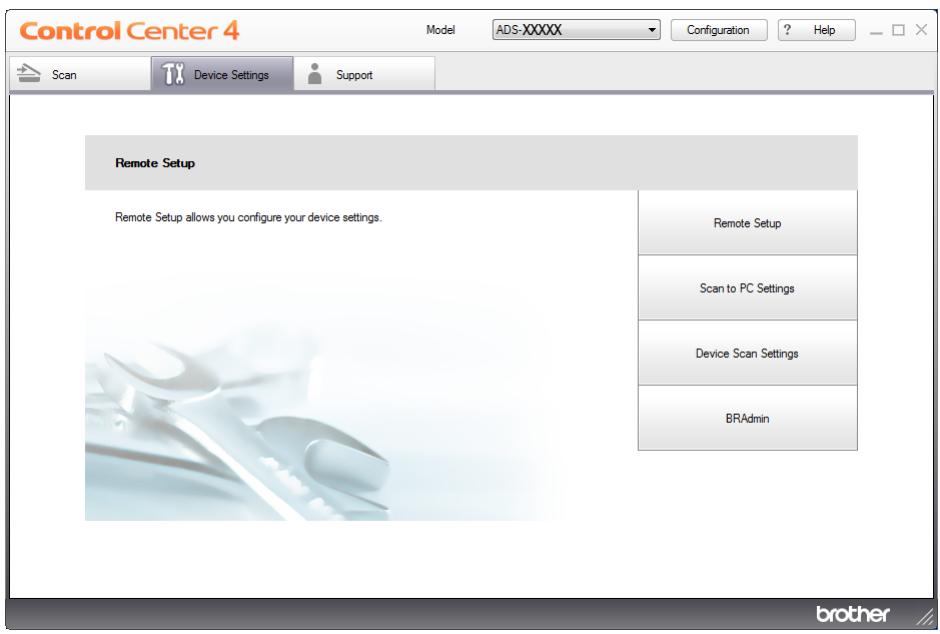
Macintosh
1 Click the (ControlCenter2) icon in the Dock.
The ControlCenter2 window will appear.
2 Click the DEVICE SETTINGS tab.
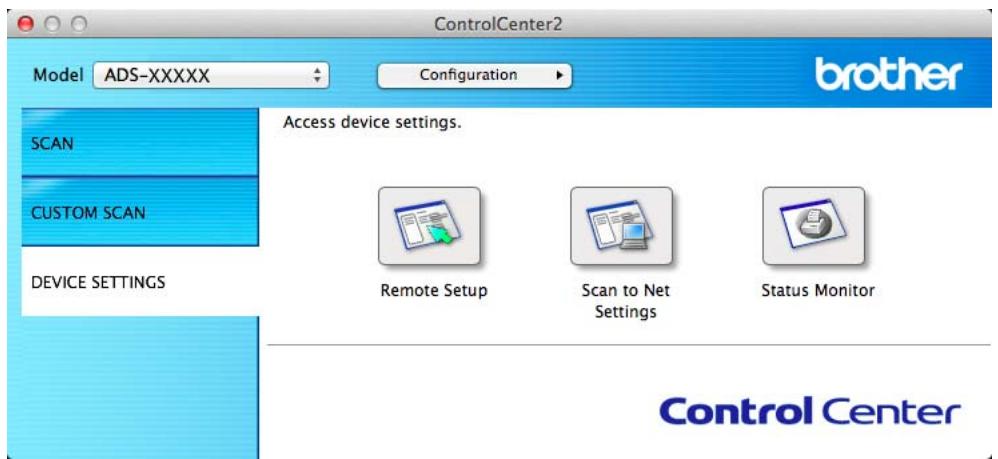
2 Click the Remote Setup button. The Remote Setup window will appear.
3 Select Scan to USB in the folder tree and then configure scan settings as needed (the example below uses Windows®).
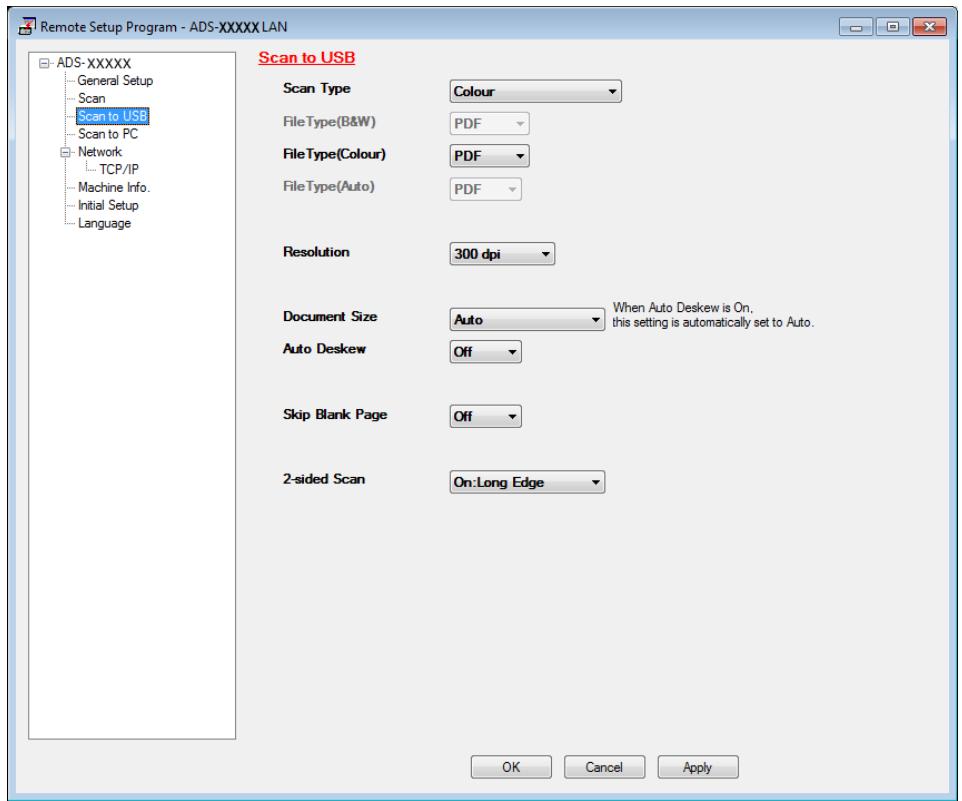
4 Click Apply and then OK.
5 Insert a USB flash memory drive into the machine.
6 Load your document.
Press and then The machine starts scanning.
NOTE
The file name will be the current date plus a two-digit sequential number.
(ADS-1600W)
1 Insert a USB flash memory drive into your machine.
2 Load your document.
Press or to display to USB.
4 Press to USB.
Press Options.
6 Configure the settings for 2-sided Scan, Scan Type, Resolution, File Type, Document Size, File Name, Auto Deskew and Skip Blank Page as needed. Press OK.
NOTE
-
To select Long Paper (up to 863mm) for Document Size, use these settings:
-
Auto Deskew: Off
-
2-sided Scan: Off
-
If you want to save the settings as a new default, press Set New Default.
- If you want to restore all settings to the factory settings, press Factory Reset.
7 Press Start.
The machine starts scanning, and then the scanned data is saved on the USB flash memory drive.
NOTE
If you want to save the settings as a shortcut, press Save as Shortcut. For more information, see Set Up the Shortcuts (ADS-1600W only) on page 156.
IMPORTANT
DO NOT remove the USB flash memory drive while the machine is scanning to the USB flash memory drive to avoid damaging the drive or the data stored on it.
Send Scanned Documents Directly to an Email Address (ADS-1600W only)
1 Load your document.
Press or to display to E-mail Server.
3 Press to E-mail Server.
4 Select the E-mail address you want to send to by doing one of the following:
If you want to select an email address from the Address Book, see Select an Email Address from the Address Book on page 137.
If you want to enter an email address manually, see Enter an Email Address Manually on page 138.
NOTE
You can select up to 100 E-mail addresses from the Address Book and enter up to 50 E-mail addresses manually. The scanned data will be sent to all of the addresses at the same time.
Press OK and then do one of the following:
If you want to use the default settings, go to 8.
If you want to change the default settings, go to ⑥.
6 Press Options.
Select the settings for 2-sided Scan, Scan Type, Resolution, File Type, Document Size, Auto Deskew and Skip Blank Page as needed. Press OK.
NOTE
- If you want to save the settings as a new default, press Set New Default.
- If you want to restore all settings to the factory settings, press Factory Reset.
Press Start.
The machine starts scanning and then sends the scanned document to the E-mail address directly.
NOTE
If you want to save the settings as a shortcut, press Save as Shortcut. For more information, see Set Up the Shortcuts (ADS-1600W only) on page 156.
Select an Email Address from the Address Book
Press or to display to E-mail Server.
Press to E-mail Server.
Press Address Book.
Press. The software keyboard will appear on the LCD.
5 Enter the initial characters for your search and then press OK. The machine starts searching the Address Book, and then the search result will be shown.
Press or until you find the name you are looking for.
Press the name from the result.
Press Apply.
NOTE
- If you want to register an E-mail address in the Address Book, see Set Up the Address Book (ADS-1600W only) on page 152.
- You can select up to 100 E-mail addresses from the Address Book and enter up to 50 E-mail addresses manually. The scanned data will be sent to all of the addresses at the same time.
Enter an Email Address Manually
Press or to display to E-mail Server.
Press to E-mail Server.
Press Manual. The software keyboard will appear on the LCD.
4 Enter an email address and then press OK.
Press OK.
NOTE
You can enter up to 50 email addresses manually. The scanned data will be sent to all of the addresses at the same time.
Scan Plastic Cards
(ADS-1100W)
1 Close the Top Cover if it is open.
2 Load a plastic card (see Loading a Plastic Card on page 39).
3 Do one of the following:
Press for Scan to PC (USB Connect).
Press 1 or 2 for Scan to PC (Network Connect) or Scan to FTP.
NOTE
- You need to assign the Scan to PC (Network Connect) feature to 1 or 2 before starting Scan to PC (Network Connect). See Scan to PC (Network Connect) on page 128.
- You need to assign the Scan to FTP feature to 1 or 2 before starting Scan to FTP. See Scan Documents Directly to an FTP Server on page 113.
Press The machine starts scanning.
(ADS-1600W)
1 Register a shortcut (see Card Scan on page 157).
2 Close the Top Cover if it is open.
3 Load a plastic card (see Loading a Plastic Card on page 39).
4 Press your configured shortcut.
Press Start. The machine starts scanning.
NOTE
To configure the settings in detail, see Change Scan to PC Settings (Windows®) on page 140 or Change Scan to PC Settings (Macintosh) on page 146 for Scan to PC, or Scan Documents Directly to an FTP Server on page 113 for Scan to FTP.
Upload Scanned Documents to the Web (ADS-1600W only)
Scan to Web lets you scan a document and upload it directly to Web Services. See the Web Connect Guide.
Change Scan to PC Settings (Windows®)
1 Click the (ControlCenter4) icon in the task tray and then select Open from the menu. The ControlCenter4 window will appear.
2 Click the Device Settings tab (the example below uses Home Mode).
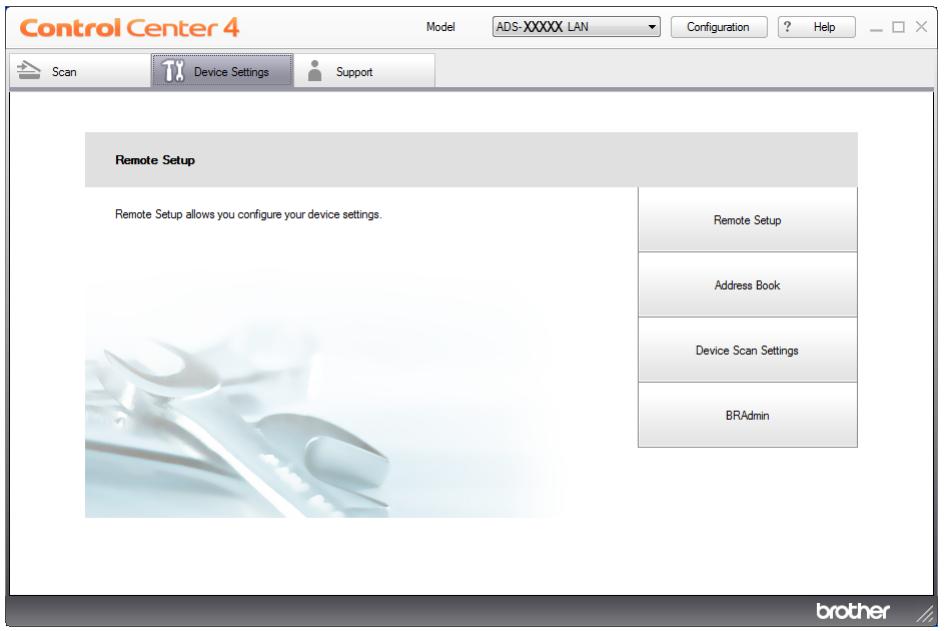
3 Click the Device Scan Settings button. The Device Scan Settings dialog box will appear.
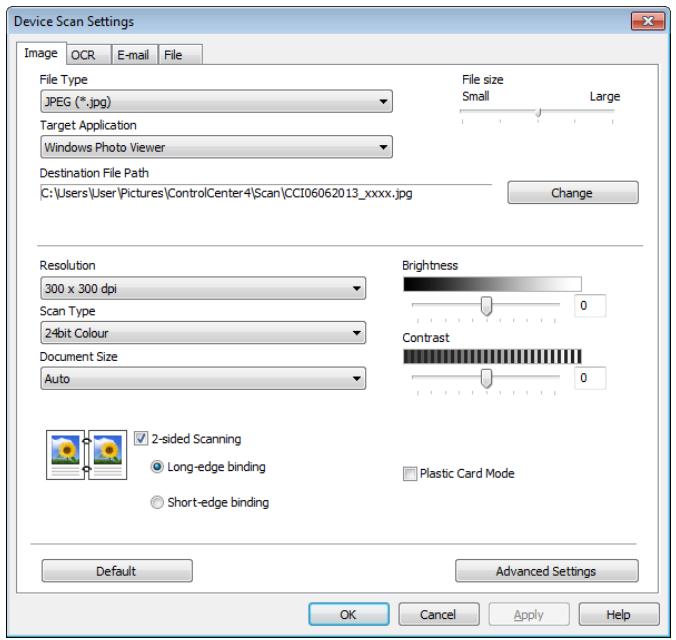
4 Select the tab for the Scan-to action you want to change (Image, OCR, E-mail, or File).
Change the settings.
The following settings can be changed.
| Setting | Description | Applicable Feature | |||
| Image | OCR | File | |||
| File Type | Select the file type you want to use for the scanned data. NOTE ·To save the document as a password-protected PDF, select Secure PDF (.pdf) from the File Type drop-down list, click the Set PDF Password) button, and enter the password (Image, E-mail and File only). ·Searchable PDF is a file format that includes the text data layer over a scanned image. This layer allows you to search the text on the image data. The OCR language setting must be set to match the language you want to make the searchable PDF for. ·To save the document as a searchable PDF, select Searchable PDF (.pdf) from the File Type drop-down list. ·To save the document as a searchable PDF, Nuance™ PaperPort™ 12SE must be installed on your computer. ·Several file types such as TIFF, TIFF Multi/Page, PDF, Secure PDF and JPEG support file size compression. Select Uncompressed or Compressed to adjust the file size for TIFF or TIFF Multi/Page. For PDF, Secure PDF and JPEG, use the slider to adjust the file size (not available for Scan to OCR). | Yes | Yes | Yes | Yes |
| Target Application | Select the destination application from the drop-down list. | Yes | Yes | - | - |
| OCR Language | Set to match the language of the scanned document's text. | - | Yes | - | - |
| File Name | Click the Change button for Image, OCR or E-mail. Enter a prefix for the file name if needed. | Yes | Yes | Yes | Yes |
| Destination File Path | Click the Change button and then the folder icon to change the folder you would like to save your scanned document to. | Yes | Yes | Yes | - |
| Destination Folder | Click the folder icon and browse to the folder you would like to save your scanned document to. Check Show Folder to automatically display the destination folder after scanning. | - | - | - | Yes |
| File size | You can adjust the File size by moving the slider to the right or left. NOTE File size can be adjusted depending on your selected File Type. | Yes | - | Yes | Yes |
| Resolution | You can select a scanning resolution from the Resolution drop-down list. Higher resolutions take more memory and transfer time, but produce a finer scanned image. | Yes | Yes | Yes | Yes |
| Scan Type | Lets you select from a range of scan colour depth. Black & White Use for text or line art images. Grey (Error Diffusion) Use for photographic images or graphics. (Error Diffusion is a method for creating simulated grey images without using true grey dots. Black dots are put in a specific pattern to give a grey appearance.) True Grey Use for photographic images or graphics. This mode is more exact due to using up to 256 shades of grey. 24bit Colour Uses up to 16.8 million colours to scan the image. Although using 24bit Colour creates an image with the most accurate colour reproduction, it requires the most memory and has the longest transfer time. Auto Uses suitable colours for your document automatically.1 | Yes | Yes | Yes | Yes |
| Document Size | Document size is set to Auto by default. You can scan documents of any size without making any adjustments to Document Size. For faster scan speeds, you can select the exact size of your document from the Document Size drop-down list.1 NOTE ·If you select a 2 in 1 document size, two scanned images will be combined into one document. ·You can select Long Paper when you configure the settings as following: ·Auto Deskew: Off ·2-sided Scanning: Off | Yes | Yes | Yes | Yes |
1 Depending upon the condition of the original document, this function may not work properly.
| Setting | Description | Applicable Feature | |||
| Image | OCR | File | |||
| Brightness | Adjust the setting (-50 to 50) to get the best image. The default value of 0 represents an average and is usually suitable for most images. You can set the Brightness level by dragging the slider to the right or left to lighten or darken the image. You can also enter a value in the box to set the level. If the scanned image is too light, set a lower Brightness level and scan the document again. If the image is too dark, set a higher Brightness level and scan the document again. | Yes | Yes | Yes | Yes |
| Contrast | Adjust the setting (-50 to 50) to get the best image. The default value of 0 represents an average and is usually suitable for most images. You can increase or decrease the contrast level by moving the slider to the right or left. An increase emphasizes dark and light areas of the image, while a decrease reveals more details in grey areas. You can also enter a value in the box to set the Contrast. NOTE The Contrast setting is only available when setting Scan Type to Auto, Grey (Error Diffusion), True Grey or 24bit Colour. | Yes | Yes | Yes | Yes |
| 2-sided Scanning | If you check this box, the machine scans both sides of the document. When using the automatic 2-sided (duplex) scan feature, you must select Long-edge binding or Short-edge binding depending on the layout of your original to make sure that the data file created appears correctly in the scanned document. NOTE The 2-sided (duplex) scanning feature is available with lengths up to Legal size. | Yes | Yes | Yes | Yes |
| Plastic Card Mode | Lets you scan cards, such as driver's licenses or insurance cards, using these automatic settings: ■ Resolution: 600 x 600 dpi ■ Document Size: 2 in 1 (Auto) ■ 2-sided Scanning: On (Short-edge binding) ■ Auto Deskew: On ■ Auto Image Rotation: Off NOTE • If you want to scan a plastic card with different settings, set Plastic Card Mode to off and Resolution to 600 dpi. • Load only one plastic card at a time. | Yes | Yes | Yes | Yes |
| Default | Restore all settings to their factory default values. | Yes | Yes | Yes | Yes |
Click the Advanced Settings button. The Advanced Settings dialog box will appear.
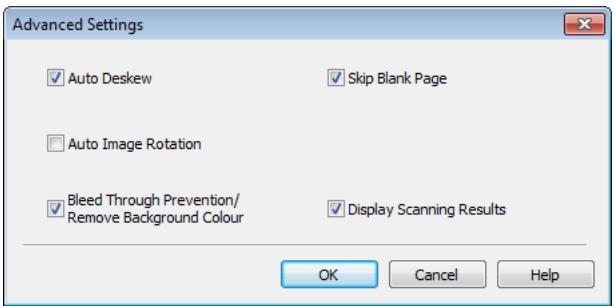
7 Change the settings.
The following settings can be changed.
| Setting | Description | Applicable Feature | |||
| Image | OCR | File | |||
| Auto Deskew | Corrects the skew (within 5 degrees) of the scanned data.1 | Yes | Yes | Yes | Yes |
| Auto Image Rotation | Changes the direction of the document based on the text orientation.1 | Yes | Yes | Yes | Yes |
| Bleed Through Prevention/Remove Background Colour | Prevents the Bleed Through phenomenon on a two-sided document, and also allows you to remove the base colour of documents such as newspapers to make the scanned data more recognizable.1 | Yes | Yes | Yes | Yes |
| Skip Blank Page | Removes blank pages of the document from the scanning results.1 | Yes | Yes | Yes | Yes |
| Display Scanning Results | Shows the numbers of total pages saved and blank pages skipped on your computer screen. | Yes | Yes | Yes | Yes |
1 Depending upon the condition of the original document, this function may not work properly.
8 Click the OK button to close the Advanced Settings dialog box.
9 Click the OK button to close the Device Scan Settings dialog box.
Change Scan to PC Settings (Macintosh)
1 Click the (ControlCenter2) icon in the Dock.
The ControlCenter2 window will appear.
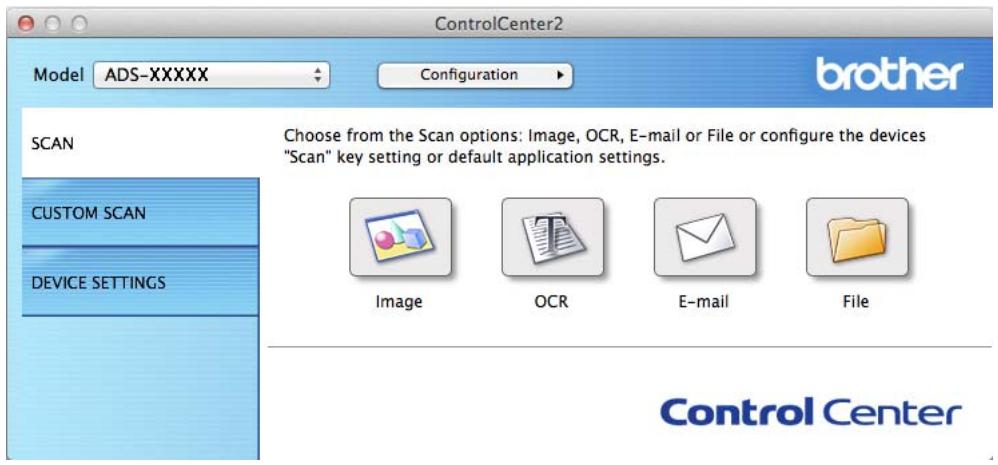
While holding down the Control key click a button for the Scan-to action you want to change (Image, OCR, E-mail, or File). The Scan-to action setting dialog box will appear (the example below uses Image).
3 Click the Device Button tab.
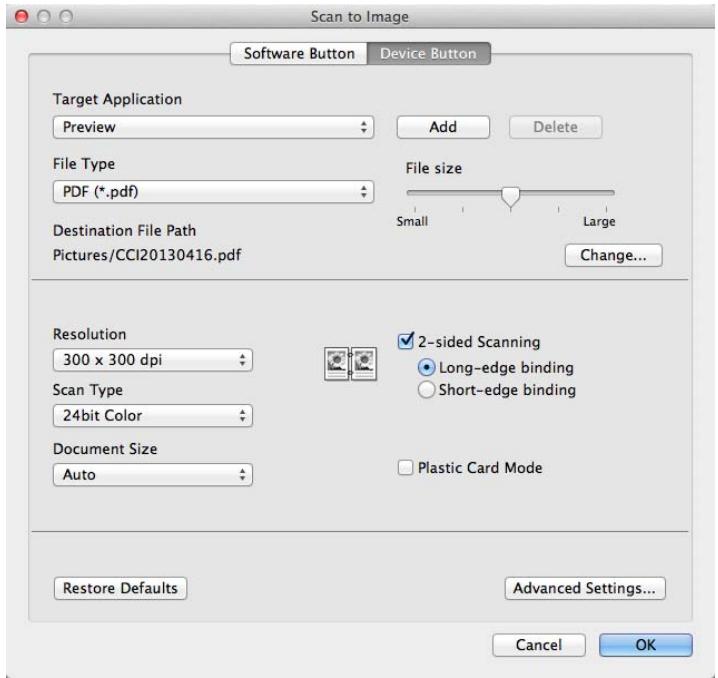
Change the settings. The following settings can be changed.
| Setting | Description | Applicable Feature | |||
| Image | OCR | File | |||
| Target Application (for Image, OCR and File) or E-mail Application (for E-mail) | You can select which application is used to open scanned data. Only applications installed on your computer can be selected. ■ Add button You can add an application to the drop-down list. Enter the Application Name (up to 30 characters) and select your preferred application by clicking the Browse button. Also select the File Type from the drop-down list. ■ Delete button You can delete an application that you have added. Select the Application Name and click the Delete button. | Yes | Yes | Yes | - |
| File Type | Select the file type you want to use for the scanned data. NOTE ·To save the document as a password-protected PDF, select Secure PDF (.pdf) for File Type and then enter the password in the Set PDF Password dialog box (Image, E-mail and File only). ·Searchable PDF is a file format that includes the text data layer over a scanned image. This layer allows you to search the text on the image data. The OCR language setting must be set to match the language you want to make the searchable PDF for. ·To save the document as a searchable PDF, select Searchable PDF (.pdf) from the File Type drop-down list. ·To save the document as a searchable PDF, Presto! PageManager must be installed on your computer from the supplied DVD-ROM. ·Several file types such as TIFF, TIFF Multi/Page, PDF, Secure PDF and JPEG support file size compression. Select Uncompressed or Compressed to adjust the file size for TIFF or TIFF Multi/Page. For PDF, Secure PDF and JPEG, use the slider to adjust the file size (not available for Scan to OCR). | Yes | Yes | Yes | Yes |
| File size | You can adjust the File size by moving the slider to the right or left. NOTE File size can be adjusted depending on your selected File Type. | Yes | - | Yes | Yes |
| OCR Software | Shows the application to extract the editable text data from the document. | - | Yes | - | - |
| OCR Language | Set to match the language of the scanned document's text. | - | Yes | - | - |
| File Name | Click the Change button for Image, OCR or E-mail. Enter a prefix for the file name if needed. | Yes | Yes | Yes | Yes |
| Destination File Path | Click the Change button and then the Browse button to change the folder you would like to save your scanned document to. | Yes | Yes | Yes | - |
| Destination Folder | Click Browse and browse to the folder you would like to save your scanned document to. Check Show Folder to automatically display the destination folder after scanning. | - | - | - | Yes |
| Resolution | You can select a scanning resolution from the Resolution drop-down list. Higher resolutions take more memory and transfer time, but produce a finer scanned image. | Yes | Yes | Yes | Yes |
| Scan Type | Lets you select from a range of scan colour depth. Black & White Use for text or line art images. Gray (Error Diffusion) Use for photographic images or graphics. (Error Diffusion is a method for creating simulated grey images without using true grey dots. Black dots are put in a specific pattern to give a grey appearance.) True Gray Use for photographic images or graphics. This mode is more exact due to using up to 256 shades of grey. 24bit Color Uses up to 16.8 million colours to scan the image. Although using 24bit Color creates an image with the most accurate colour reproduction, it requires the most memory and has the longest transfer time. Auto Uses suitable colours for your document automatically.1 | Yes | Yes | Yes | Yes |
1 Depending upon the condition of the original document, this function may not work properly.
| Setting | Description | Applicable Feature | |||
| Image | OCR | File | |||
| Document Size | Document size is set to Auto by default. You can scan documents of any size without making any adjustments to Document Size. For faster scan speeds, you can select the exact size of your document from the Document Size drop-down list.1NOTE·If you select a 1 to 2 document size, the scanned image will be divided into two documents that are half the size of the setting. If you select 1 to 2 (A4), the scanned image will be divided into two 5.8 × 8.3 in. documents.·To do 1 to 2 scanning or 2 in 1 scanning, uncheck the Auto Image Rotation check box in the Advanced Settings dialog box.·If you select a 2 in 1 document size, two scanned images will be combined into one document.·You can select Long Paper when you configure the settings as following:·Auto Deskew: Off·2-sided Scanning: Off | Yes | Yes | Yes | Yes |
| 2-sided Scanning | If you check this box, the machine scans both sides of the document. When using the automatic 2-sided (duplex) scan feature, you must select Long-edge binding or Short-edge binding, depending on the layout of your original, to make sure that the data file created appears correctly in the scanned document.NOTEThe 2-sided (duplex) scanning feature is available with lengths up to Legal size. | Yes | Yes | Yes | Yes |
| Restore Defaults | Restore all settings to their factory default values. | Yes | Yes | Yes | Yes |
1 Depending upon the condition of the original document, this function may not work properly.
5 Click the Advanced Settings button. The Advanced Settings dialog box will appear.
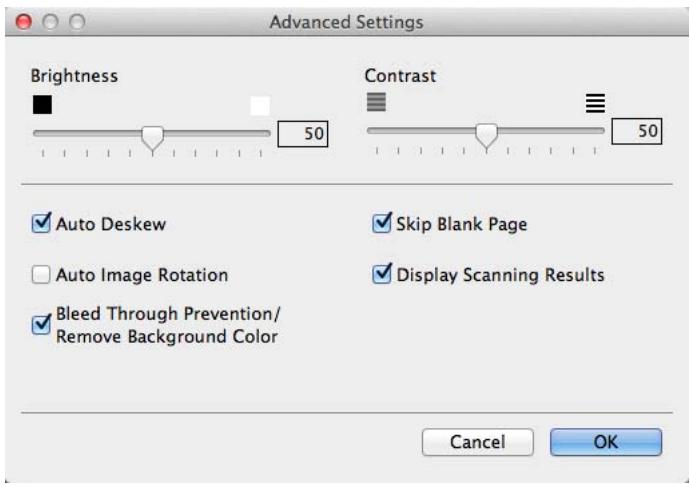
6 Change the settings.
The following settings can be changed.
| Setting | Description | Applicable Feature | |||
| Image | OCR | File | |||
| Brightness | Adjust the setting (0 to 100) to get the best image. The default value of 50 represents an average and is usually suitable for most images. You can set the Brightness level by dragging the slider to the right or left to lighten or darken the image. If the scanned image is too light, set a lower Brightness level and scan the document again. If the image is too dark, set a higher Brightness level and scan the document again. | Yes | Yes | Yes | Yes |
| Contrast | Adjust the setting (0 to 100) to get the best image. The default value of 50 represents an average and is usually suitable for most images. You can increase or decrease the contrast level by moving the slider to the right or left. An increase emphasizes dark and light areas of the image, while a decrease reveals more details in grey areas. NOTE The Contrast setting is only available when setting Scan Type to Auto, Gray (Error Diffusion), True Gray or 24bit Color. | Yes | Yes | Yes | Yes |
| Auto Deskew | Corrects the skew (within 5 degrees) of the scanned data.1 | Yes | Yes | Yes | Yes |
| Auto Image Rotation | Changes the direction of the document based on the text orientation.1 | Yes | Yes | Yes | Yes |
| Bleed Through Prevention/Remove Background Color | Prevents the Bleed Through phenomenon on a two-sided document, and also allows you to remove the base colour of documents such as newspapers to make the scanned data more recognizable.1 | Yes | Yes | Yes | Yes |
| Skip Blank Page | Removes blank pages of the document from the scanning results.1 | Yes | Yes | Yes | Yes |
| Display Scanning Results | Shows the numbers of total pages saved and blank pages skipped on your computer screen. | Yes | Yes | Yes | Yes |
1 Depending upon the condition of the original document, this function may not work properly.
7 Click the OK button to close the Advanced Settings dialog box.
8 Click the OK button to close the setting dialog box.
Set Up the Address Book (ADS-1600W only)
The Address Book feature lets you select an email address to send the scanned data directly. You can configure the Address Book from the Control Panel of the machine.
NOTE
You can also configure the Address Book with Remote Setup.
Register an E-mail Address
You can register up to 100 email addresses and enter a name for each address.
Press or to display to E-mail Server.
Press to E-mail Server, Address Book and then Edit.
Press or to display Add New Address.
Press Add New Address and then Name.
5 Enter a name and then press OK.
6 Press Address.
7 Enter an email address and then press OK.
Press OK.
Change an Email Address
Press or to display to E-mail Server.
Press to E-mail Server, Address Book and then Edit.
Press or to display Change.
4 Press Change.
Press or until you find the email address you want to change.
Press the email Address. If the email address is used in one or more shortcuts, the LCD shows you that the address in the shortcut(s) will also change. Press OK.
7 Do one of the following:
If you want to change the name, go to step ③.
If you want to change the E-mail address, go to step 10.
Press Name. The software keyboard will appear on the LCD.
9 Enter a new name and then press OK. Go to step 12.
Press Address. The software keyboard will appear on the LCD.
11 Enter a new email address and then press OK.
12 Press OK.
NOTE
The LCD shows you a list of shortcuts using the email address you changed. The shortcut settings will automatically change.
Delete an Email Address
Press or to display to E-mail Server.
Press to E-mail Server, Address Book and then Edit.
Press or to display Delete.
4 Press Delete.
Press or until you find the email address you want to delete.
Press the E-mail address and then OK.
7 Press Yes.
NOTE
You cannot delete an E-mail address used in a shortcut. Delete the shortcut first (see Rename or Delete a Shortcut on page 158).
Set Up a Group
You can register up to 6 groups.
NOTE
Before setting up a group, you need to register more than one email address.
Press or to display to E-mail Server.
Press to E-mail Server, Address Book and then Edit.
Press or to display Setup Groups.
4 Press Setup Groups and then Name.
5 Enter a group name and then press OK.
6 Press Add/Delete.
Press or until you find the E-mail address you want to add to the group.
Press the E-mail address and then OK.
Press OK.
Change a Group
You can rename a group, add an E-mail address to a group or delete an E-mail address from a group.
Press or to display to E-mail Server.
Press to E-mail Server, Address Book and then Edit.
Press or to display Change.
4 Press Change.
Press or until you find the group you want to change.
Press the group name.
7 Do one of the following:
If you want to rename the group, go to step 8.
If you want to add an E-mail address to the group, go to step 10.
If you want to delete an E-mail address from the group, go to step 10.
Press Name. The software keyboard will appear on the LCD.
9 Enter a new group name. Go to step 14.
Press or to display Add/Delete.
11 Press Add/Delete.
Press or until you find the E-mail address you want to add or delete.
Press the E-mail address.
14 Press OK.
15 Press OK.
Delete a Group
Press or to display to E-mail Server.
Press to E-mail Server, Address Book and then Edit.
Press or to display Delete.
4 Press Delete.
Press or until you find the group name you want to delete.
Press the group name, and then OK.
7 Press Yes.
Set Up the Shortcuts (ADS-1600W only)
Register a Shortcut
Basic Scan
You can set up 12 shortcut menus.
Press Shortcuts.
Press Not Registered
Press or until you find the shortcut type you want to create.
4 Press the shortcut type and then OK.
5 Do one of the following:
to USB
Configure settings for 2-sided Scan, Scan Type, Resolution, File Type, Document Size, File Name, Auto Deskew and Skip Blank Page as needed.
Press OK and then Save as Shortcut.
NOTE
To select Long Paper (up to 863mm) for Document Size, use these settings:
- Auto Deskew: Off
- 2-sided Scan: Off
to File, to OCR, to Image and to E-mail
Select the type of scan and destination computer and then go to 6.
to E-mail Server
Configure settings for E-mail address(es), 2-sided Scan, Scan Type, Resolution, File Type, Document Size, Auto Deskew and Skip Blank Page as needed.
Press OK and then Save as Shortcut.
NOTE
To select Long Paper (up to 863mm) for Document Size, use these settings:
- Auto Deskew: Off
2-sided Scan: Off
to Network and to FTP
Select a profile name and then go to 6.
to Web
NOTE
Occasionally, updates or announcements about your machine's feature will be displayed on the LCD. Read the information, and then press OK.
1 Press or to display the available services, and then press the desired service.
2 Press or to display your account name, and press it.
3 If the PIN entry screen is displayed, enter the four-digit PIN and press OK.
4 Select the function you want.
NOTE
The functions that can be set vary depending on the chosen service.
6 Confirm your settings and then press OK. The software keyboard will appear on the LCD.
7 Enter a shortcut name and then press OK.
Press OK.
Card Scan
You can set up 4 shortcut menus
1 Close the Top Cover if it is open.
Press
3 Open the Top Cover.
4 Press Not Registered
Press or until you find the shortcut type you want to create.
Press the shortcut type and then OK.
NOTE
If the machine is connected to multiple computers, select the destination computer from the PC Name list.
Press Save. The software keyboard will appear on the LCD.
8 Enter a shortcut name and then press OK.
Press OK.
Rename or Delete a Shortcut
Basic Scan
Press Shortcuts.
Press Edit/Delete.
Press the shortcut you want to rename or delete.
4 Press Edit Shortcut Name or Delete.
5 Do one of the following:
Edit Shortcut Name
The software keyboard will appear on the LCD. Enter a new shortcut name and then press OK.
Delete
The LCD shows you the shortcut name you are deleting. Press Yes.
Card Scan
1 Close the Top Cover if it is open.
Press
3 Open the Top Cover.
Press a shortcut you want to rename or delete.
Press Edit Card Scan Shortcut Name or Delete.
6 Do one of the following:
Edit Card Scan Shortcut Name
The software keyboard will appear on the LCD. Enter a new shortcut name and then press OK.
Delete
Press Yes.
5
Managing the Machine from Your Computer
Monitor the Status of the Machine from Your Computer (Windows®)
The Status Monitor utility is a configurable software tool for monitoring the status of one or more devices, allowing you to get immediate notification of error messages such as document jam.
Monitor the Status of the Machine from Your Computer
Do one of the following:
Double-click the

icon in the task tray.
(Windows® XP, Windows Vista® and Windows® 7)
Click (Start) > All Programs > Brother > ADS-XXXXX > Status Monitor.
■ (Windows® 8)
Click (Brother Utilities), and then click the drop-down list and select your model name (if not already selected). Click Tools in the left navigation bar, and then click Status Monitor.
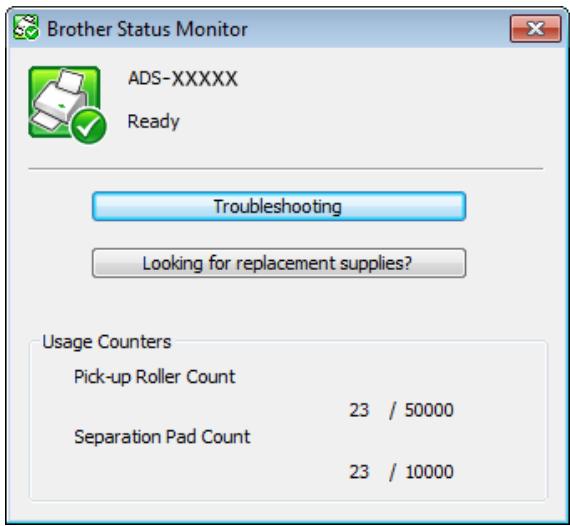
- Troubleshooting
Lets you access the troubleshooting web site by clicking the Troubleshooting button.
- Looking for replacement supplies?
Lets you access the Brother genuine supplies web site by clicking the Looking for replacement supplies? button.
Pick-up Roller Count
Displays the Pick-up Roller replacement cycle.
- Separation Pad Count
Displays the Separation Pad replacement cycle.
NOTE
For more information about using the Status Monitor software, right-click the Brother Status Monitor icon and select Help.
Error Notifications
Right-click the Brother Status Monitor icon and then click Enable error notifications. to clear the check mark.
What are the Status Monitor Indicators?
Once you start up your computer, the Brother Status Monitor icon appears on the tasktray.
| A green icon indicates the normal stand-by condition. | |
| A yellow icon indicates a warning. | |
| A red icon indicates an error has occurred. | |
| A grey icon indicates the offline condition. |
Monitor the Status of the Machine from Your Computer (Macintosh)
The Status Monitor utility is a configurable software tool for monitoring the status of a device, allowing you to get immediate notifications of error messages such as document jams. The Status Monitor starts from the ControlCenter2.
Monitor the Status of the Machine from Your Computer
1 Click the (ControlCenter2) icon in the Dock.
The ControlCenter2 window will appear.
2 Select the DEVICE SETTINGS tab.
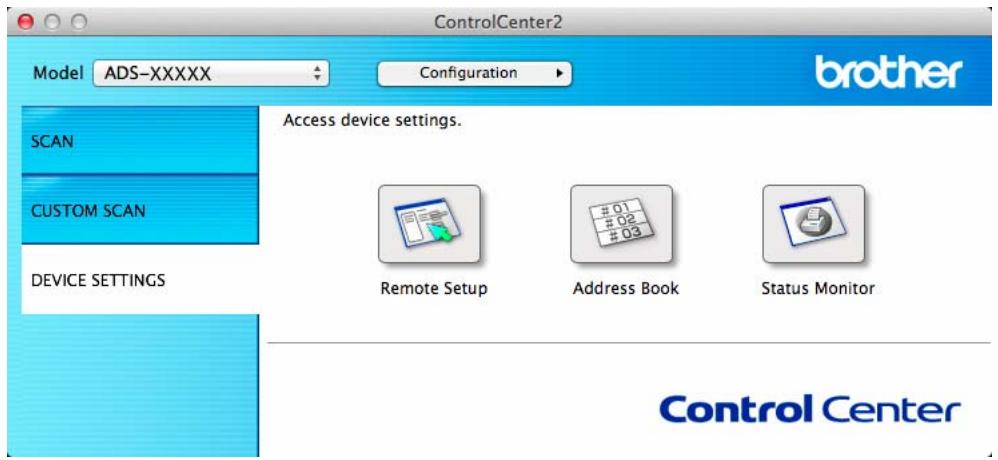

Click the Status Monitor button.
The Status Monitor window will appear and display the status of devices.
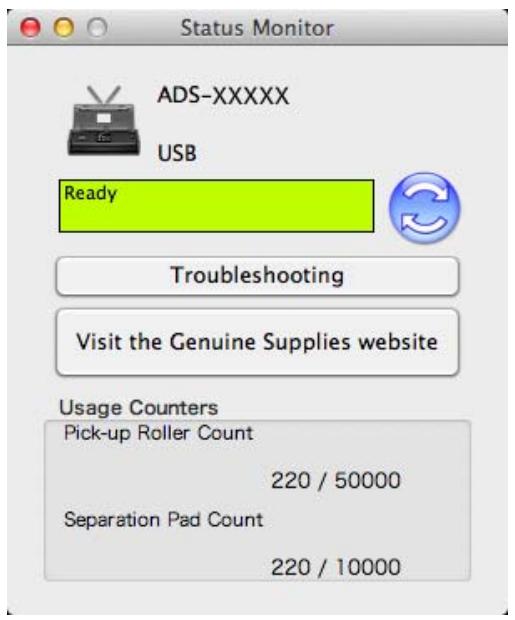
Troubleshooting
Lets you access the troubleshooting web site by clicking the Troubleshooting button.
■ Visit the Genuine Supplies website
Lets you access the Brother genuine supplies web site by clicking the Visit the Genuine Supplies website button.
Pick-up Roller Count
Displays the Pick-up Roller replacement cycle.
■ Separation Pad Count
Displays the Separation Pad replacement cycle.
Turn the AutoLoad Feature On/Off (ControlCenter2)
1 Click the (ControlCenter2) icon in the Dock. The ControlCenter2 window will appear.
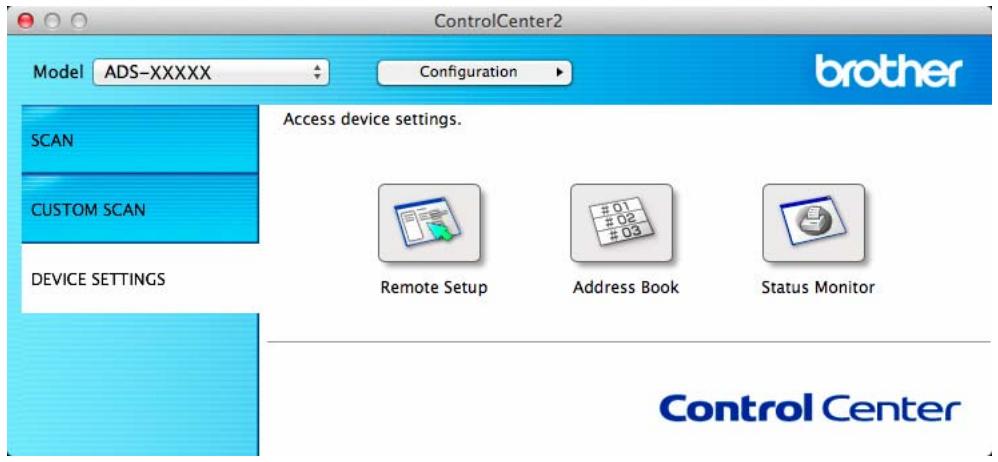
2 Click Configuration and then select Preferences. The ControlCenter2 Preferences window will appear.
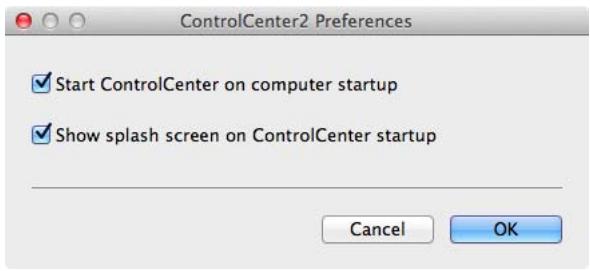
3 Check (or uncheck) Start ControlCenter on computer startup.
4 Click the OK button.
Set Up the Brother Machine from Your Computer
The Remote Setup application lets you configure many machine settings from your computer. When you start the Remote Setup application, the settings on your Brother machine will be downloaded automatically to your computer and displayed on the screen. If you change the settings, you can upload them directly to the machine.
NOTE
- If an error occurs, Remote Setup will not start. Correct the error and then try to start Remote Setup again.
-
Windows®
-
If your computer is protected by a firewall, and is unable to use Remote Setup, you may need to configure the firewall settings to allow communication through port number 137 and 161.
- If you are using Windows® Firewall and you installed MFL-Pro Suite from the DVD-ROM, the necessary Firewall settings have already been made.
1 Start the ControlCenter application.
Windows®
1 Click the (ControlCenter4) icon in the task tray and then select Open from the menu. The ControlCenter4 window will appear.
2 Click the Device Settings tab (the example below uses Home Mode).
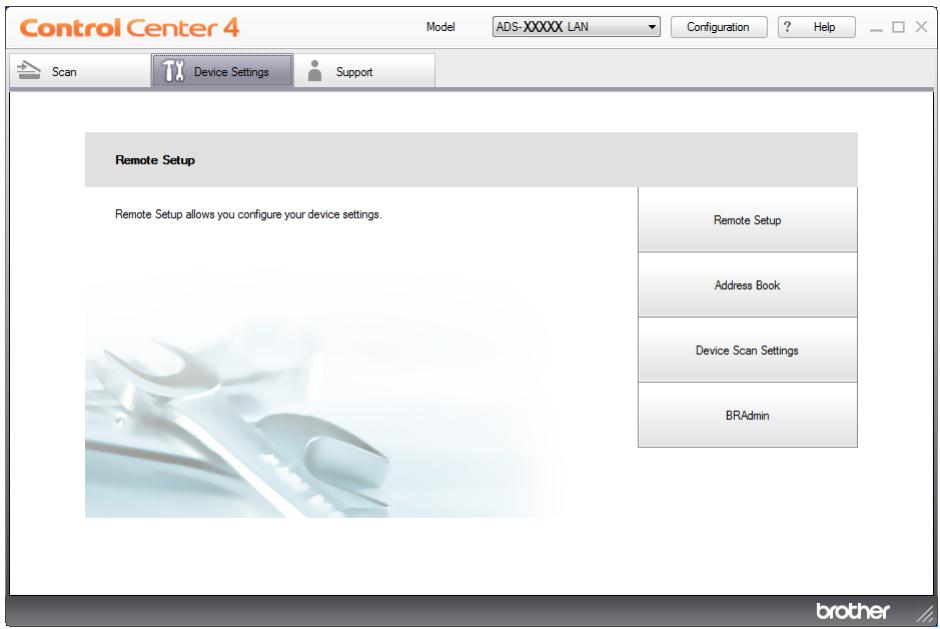
Macintosh
1 Click the (ControlCenter2) icon in the Dock. The ControlCenter2 window will appear.
2 Click the DEVICE SETTINGS tab.
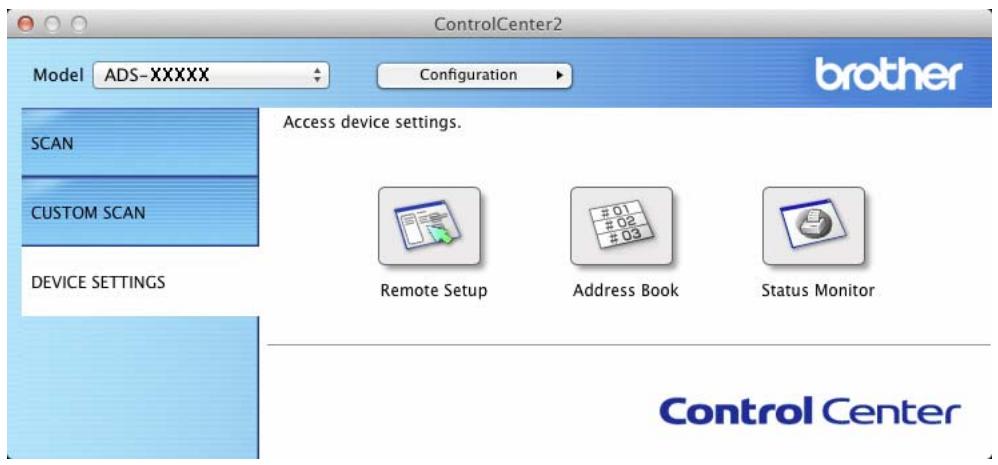
2 Click the Remote Setup button. The Remote Setup window will appear.
NOTE
You can also start Remote Setup by following the instructions below:
- (Windows® XP, Windows Vista® and Windows® 7)
Click (Start) > All Programs > Brother > ADS-XXXXX > Remote Setup. - (Windows® 8)
Click (Brother Utilities), and then click the drop-down list and select your model name (if not already selected). Click Tools in the left navigation bar, and then click Remote Setup.
- Macintosh Click Go from the Finder bar, Applications, Brother, and then double-click the RemoteSetup icon.

Select a menu in the folder tree and then configure the settings as needed (the example below uses General Setup).
Windows®
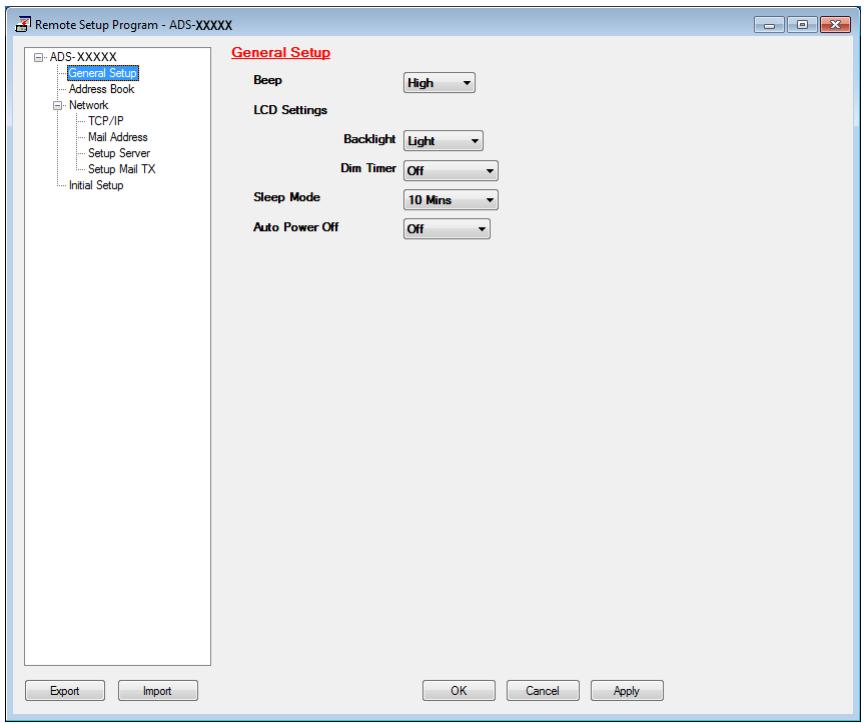
Macintosh
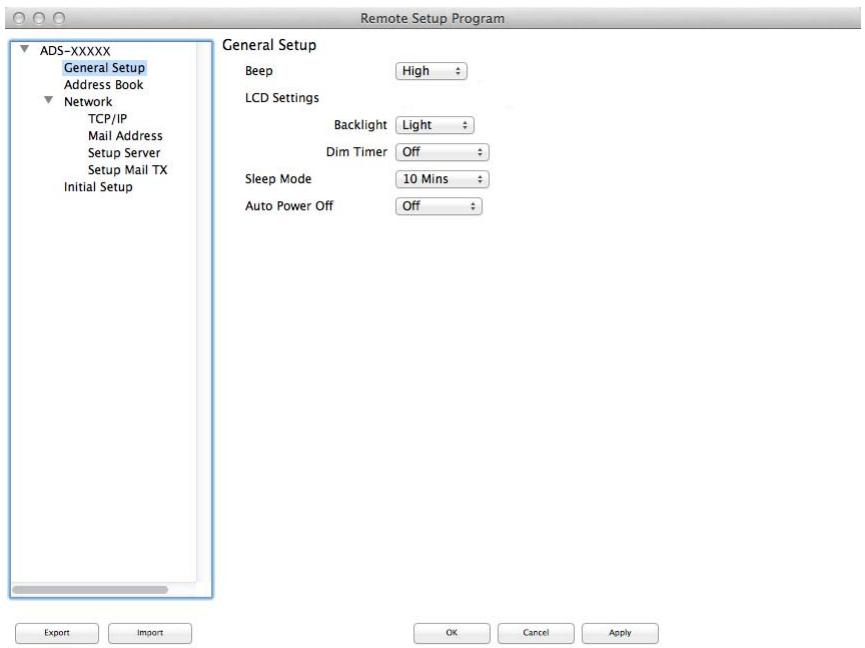
OK
Lets you start uploading data to the machine and exit the Remote Setup application. If an error message is displayed, enter the correct data again and then click OK.
Cancel
Lets you exit the Remote Setup application without uploading data to the machine.
Apply
Lets you upload data to the machine without exiting the Remote Setup application.
Remote Setup synchronizes the date and time of the machine with the connected computer during startup.
NOTE
- You can use the Export button to save all your settings for your machine.
- (Windows®)
If your computer is protected by a firewall, and is unable to use Remote Setup, you may need to configure the firewall settings to allow communication through port number 137.
- If you are using Windows® Firewall and you installed MFL-Pro Suite from the DVD-ROM, the necessary Firewall settings have already been made.
(Macintosh)
If you need to change the machine that was registered to your computer during the installation of MFL-Pro Suite (see the Quick Setup Guide), or if the network environment was changed, you need to specify the new machine. Open the Device Selector and choose the new machine. (For network users only)
6
Routine Maintenance
Clean the Outside of the Machine
Wipe the outside of the machine with a dry, soft, and lint-free cloth to remove dust.
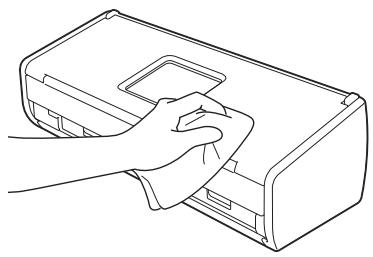
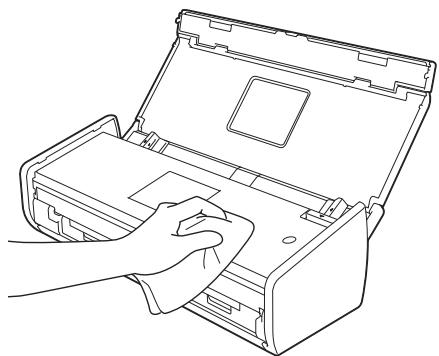
Clean the Scanner
A spot of dirt or correction fluid on the glass strip may cause poor quality scans. Clean the inside of the scanner if a vertical line appears in the scanned data or if areas are missing in the scanned data.
Unplug the machine from the electrical socket.
Open the Top Cover (1) and the Front Cover (2).
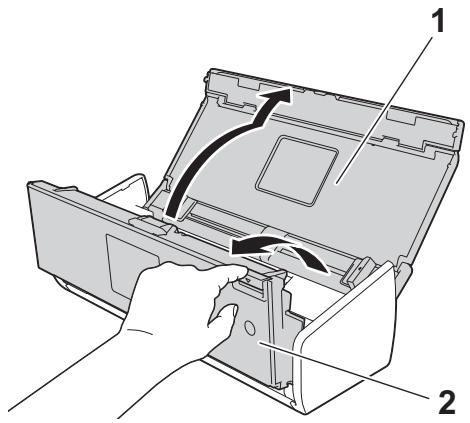
In the document feeder unit, clean the glass strips (1) (2) with a soft lint-free cloth moistened with water.
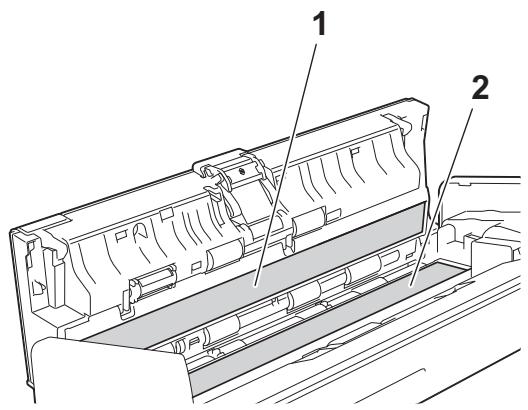
IMPORTANT
Be careful when touching the Separation Pad and its surrounding area in the machine. Otherwise, you could cause serious damage to the machine.
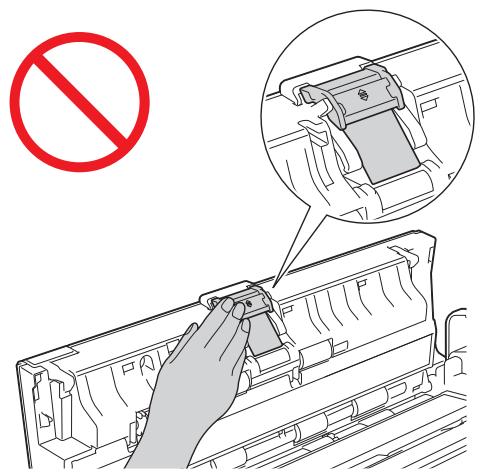
4 Pinch the Pick-up Roller Cover (1) and then pull the cover up.
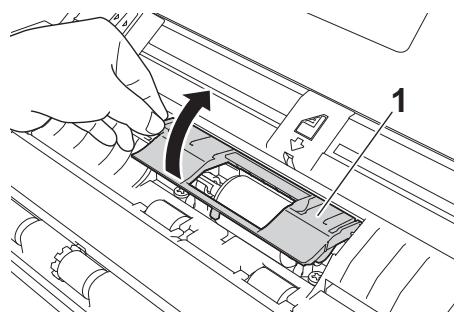
Slide the Pick-up Roller (1) to the right edge.
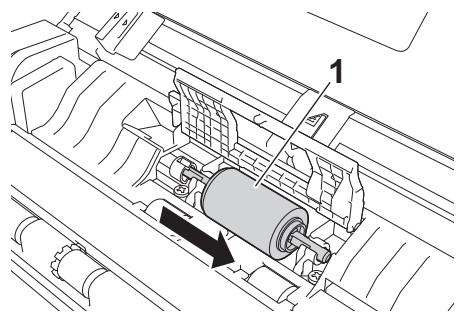
The holder of the Pick-up Roller has a narrow opening that is designed to avoid dropping the roller, and the shape of the shaft of the Pick-up Roller matches the opening. Turn the Pick-up Roller around until the shape of the shaft matches the opening of the holder.
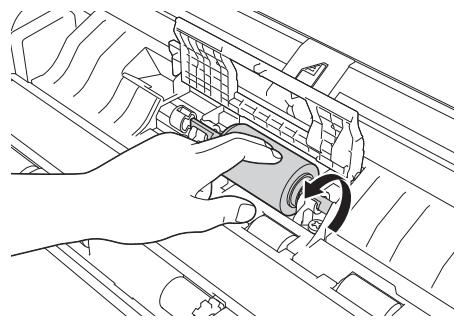
Pinch and pull the Pick-up Roller out of the machine.

Clean the Pick-up Roller with a soft lint-free cloth moistened with water.
9 Place the Pick-up Roller into the machine.
NOTE
Confirm the left and right sides of the Pick-up Roller before attaching it.
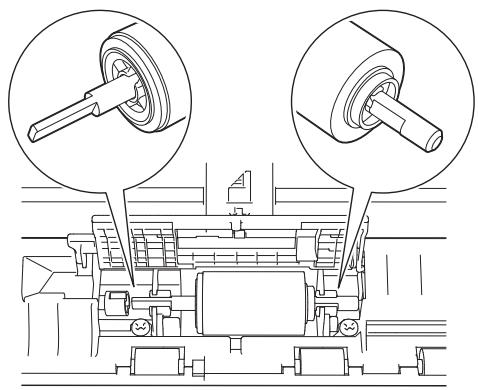
10 Slide the Pick-up Roller (1) to the left edge while turning the Pick-up Roller.
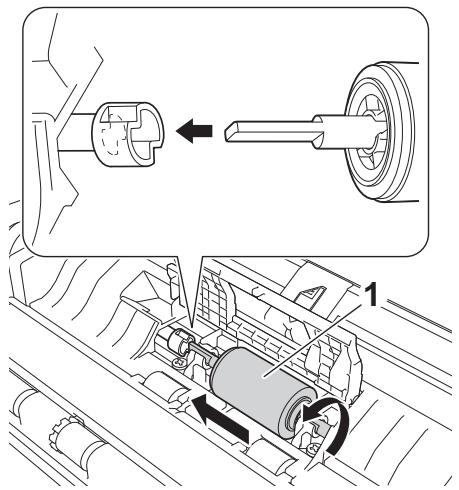
11 Close the Pick-up Roller Cover.
12 Close the Front Cover and the Top Cover.
NOTE
In addition to cleaning the glass strips with a soft lint-free cloth moistened with water, run your fingertip over the glass to see if you can feel anything on it. If you feel dirt or debris, clean the glass again concentrating on that area. You may need to repeat the cleaning process three or four times. To test, scan a document after each cleaning attempt.
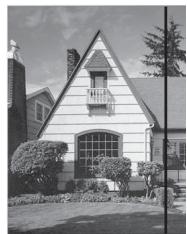
When there is a spot of dirt or correction fluid on the glass strip the scanned sample shows a vertical line.

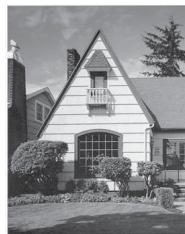
After the glass strip is cleaned the vertical line is gone.
Replace Consumables
The Status Monitor will tell you when the machine detects that consumables are near the end of their life.
Order Consumables
The following table lists the part numbers of consumables and rough guidelines for replacing these parts.
| No. | Part Name | Part No. | Standard Replacement Cycle |
| 1 | Separation Pad | SP-C0001 | 10,000 sheets (A4 or Letter) or 1 year |
| 2 | Pick-up Roller | PUR-C0001 | 50,000 sheets (A4 or Letter) or 1 year |
| 3 | Receipt Carrier Sheet | CS-RE001 | 500 times |
NOTE
The life may vary depending on the usage environment, type of documents, how often documents are scanned, etc.
These parts are available at most Brother retailers. Call your Brother dealer.
Check Consumable Replacement Cycle
(ADS-1100W)
Start the Status Monitor application.
Windows®
Double-click the

icon in the task tray.
The Status Monitor window will appear.
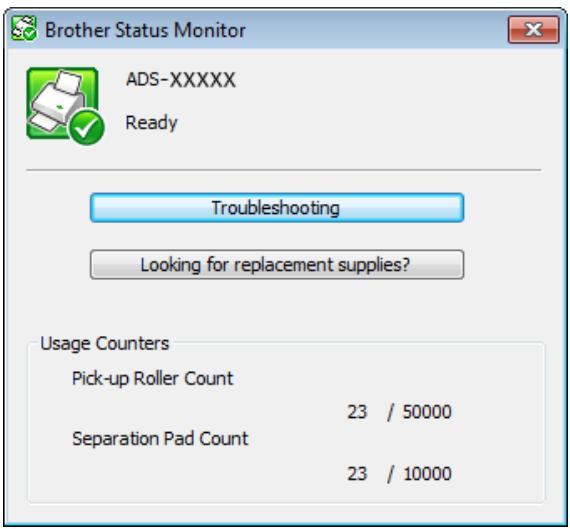
Macintosh
1 Click the (ControlCenter2) icon in the Dock.
The ControlCenter2 window will appear.
2 Select the DEVICE SETTINGS tab.
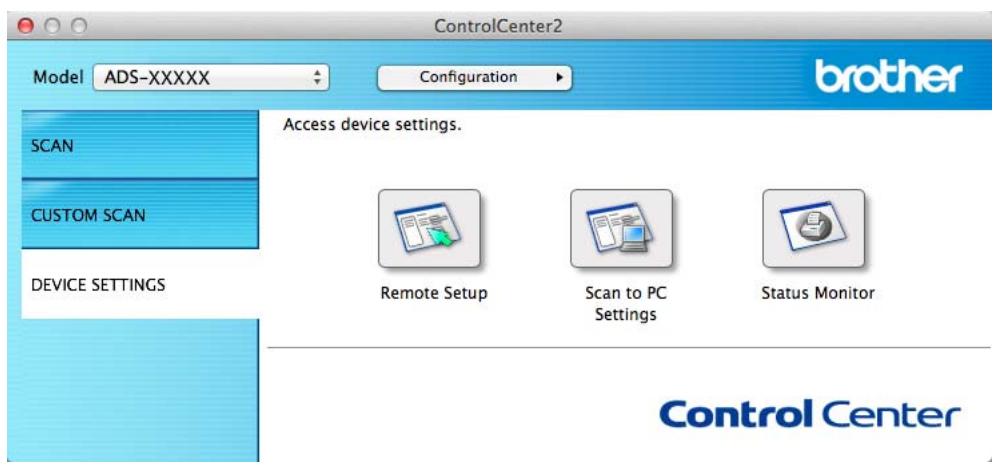
3 Click the Status Monitor button. The Status Monitor window will appear.
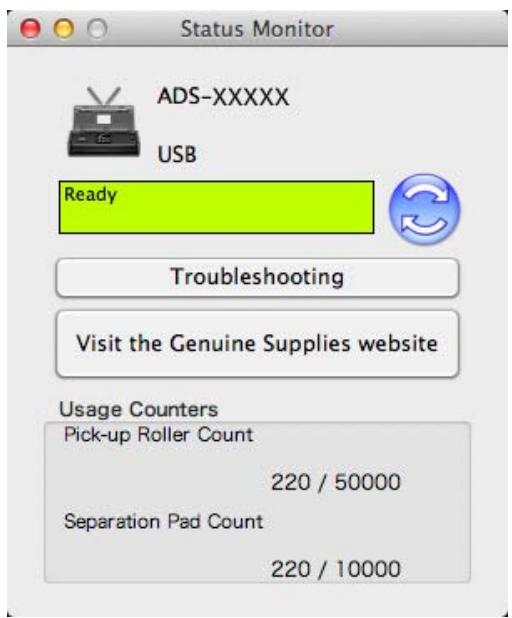
(ADS-1600W)
Press (Settings).
Press or to display Machine Info.
Press Machine Info.
Press Usage Counters. The LCD will show Separation Pad Count and Pick-up Roller Count.
NOTE
If the LCD or LED indications warn you to replace the Separation Pad and/or the Pick-up Roller, order the necessary parts and then replace the used parts with new ones.
Replace the Separation Pad
Your machine is equipped with a scan counter. The counter automatically counts how many times the machine has scanned. When the machine scans 10,000 times, the machine will display a message on the Status Monitor to remind you to replace the Separation Pad.
1 Open the Top Cover (1) and the Front Cover (2).
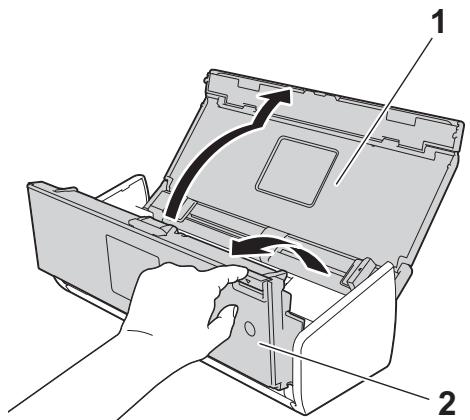
2 Slide the Separation Pad Holder up.
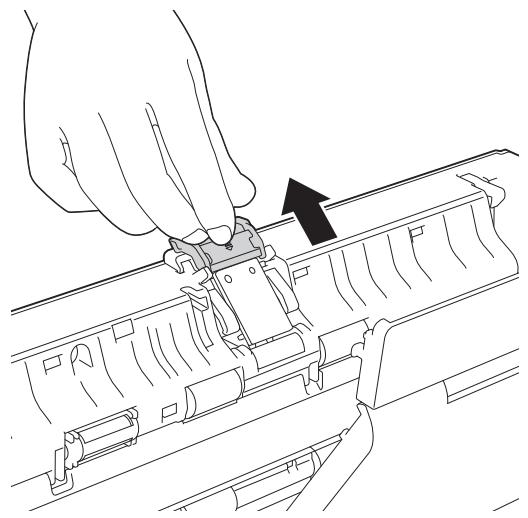
IMPORTANT
Be careful when touching the Separation Pad and its surrounding area in the machine. Otherwise, you could cause serious damage to the machine.
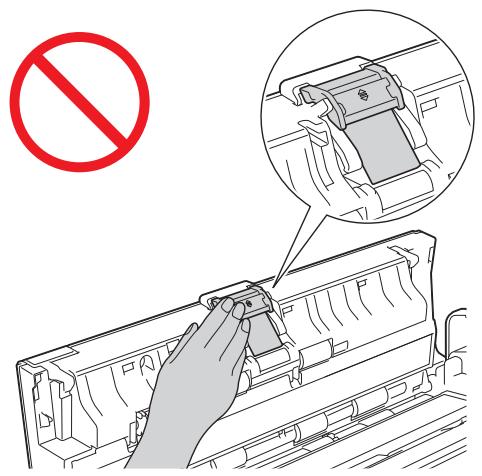
Pinch and pull the Separation Pad upward.
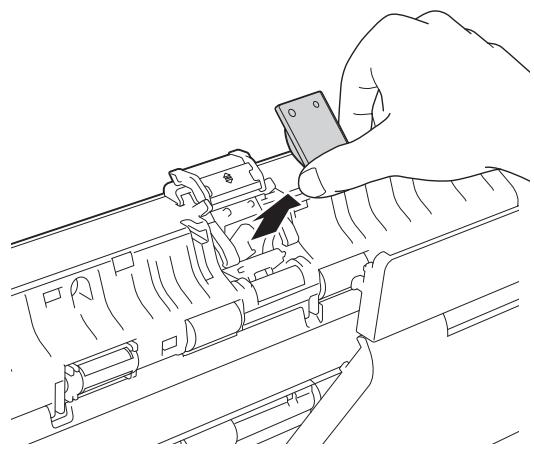
4 Attach a new Separation Pad.
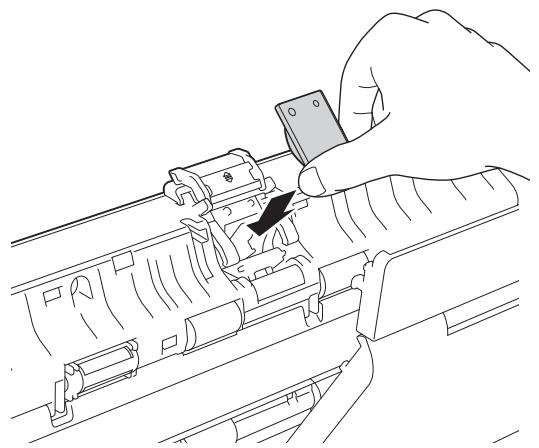
5 Securely slide the Separation Pad Holder down.
6 Close the Front Cover and the Top Cover.
7 Reset the counter (see Reset the Usage Counters on page 181).
NOTE
Confirm the following items:
- The value of Separation Pad Count is 0 (see Check Consumable Replacement Cycle on page 174).
- The error message on the Status Monitor has been cleared.
- The LCD or LED indications do not show Replace Pad and Replace Parts.
Replace the Pick-up Roller
Your machine is equipped with a scan counter. The counter automatically counts how many times the machine has scanned. When the machine scans 50,000 times, the machine will display a message on the Status Monitor to remind you to replace the Pick-up Roller.
1 Open the Top Cover (1) and the Front Cover (2).
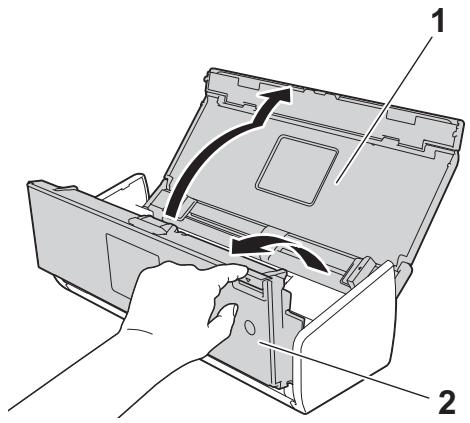
2 Pinch the Pick-up Roller Cover (1) and then pull the cover up.
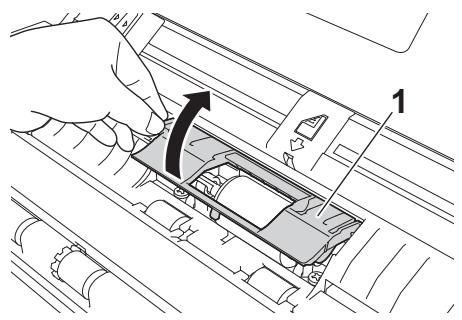
3 Slide the Pick-up Roller (1) all the way to the right.
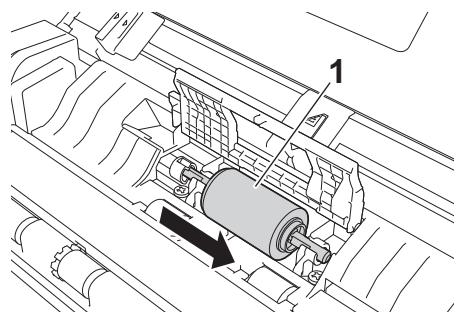
The holder of the Pick-up Roller has a narrow opening, and the shape of the shaft of the Pick-up Roller matches this opening. Rotate the Pick-up Roller until you can fit the shaft into the opening of the holder.
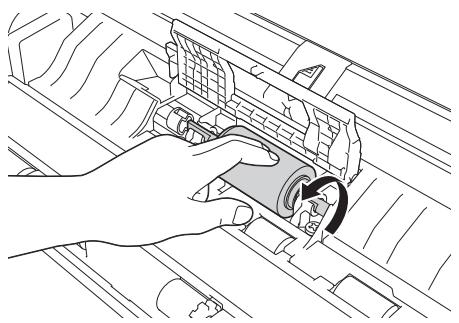
Pinch and pull the Pick-up Roller out of the machine.
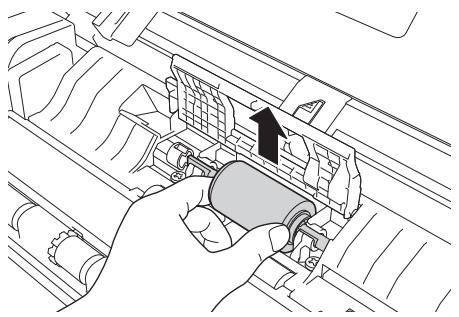
Place a new Pick-up Roller into the machine.
NOTE
Identify the left and right sides of the Pick-up Roller before attaching it.
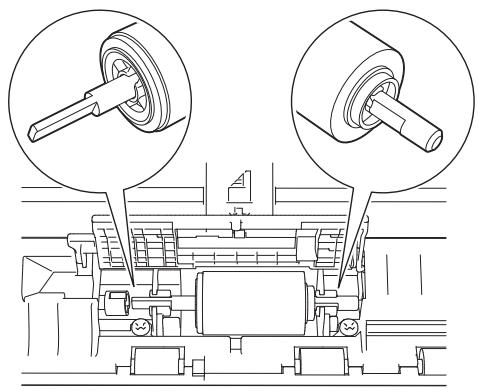
7 Slide the Pick-up Roller (1) to the left edge while turning the Pick-up Roller.
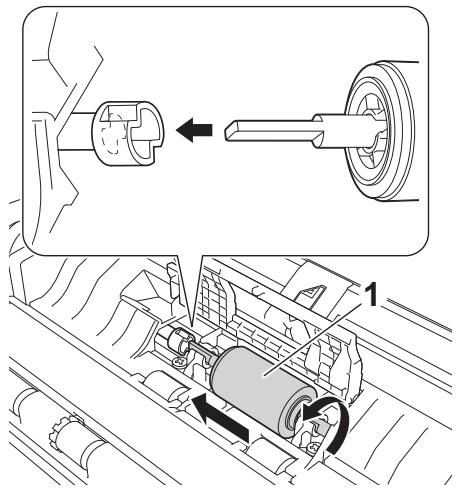
8 Close the Pick-up Roller Cover firmly.
9 Close the Front Cover and the Top Cover.
Reset the counter (see Reset the Usage Counters on page 181).
NOTE
Confirm the following items:
- The value of Pick-up Roller Count is 0 (see Check Consumable Replacement Cycle on page 174).
- The error message on the Status Monitor has been cleared.
- The LCD or LED indications do not show Replace Roller and Replace Pad.
Reset the Usage Counters
(ADS-1100W)
1 Start the ControlCenter application.
Windows®
1 Click the (ControlCenter4) icon in the task tray and then select Open from the menu. The ControlCenter4 window will appear.
2 Click the Device Settings tab (the example below uses Home Mode).
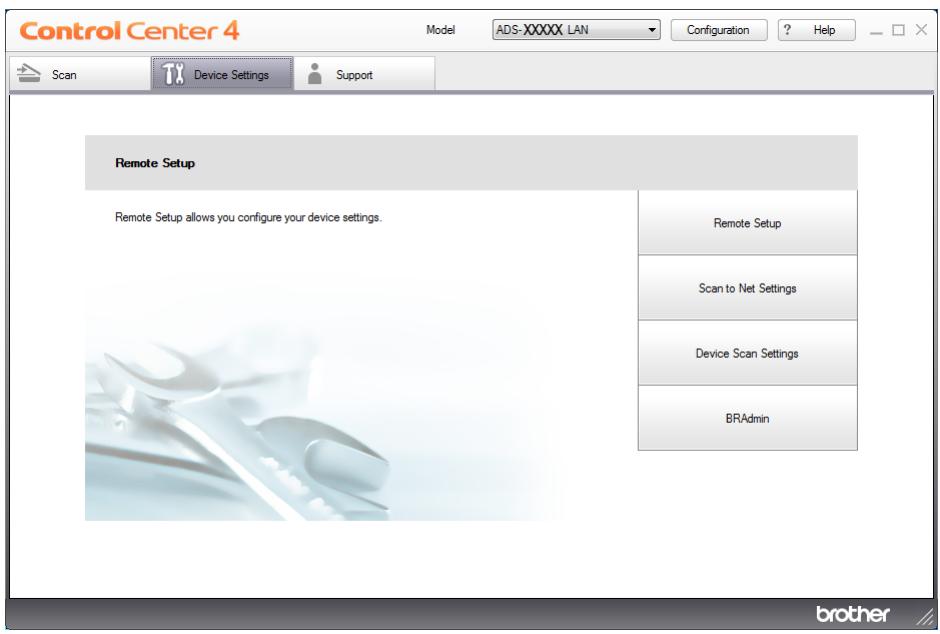
Macintosh
1 Click the (ControlCenter2) icon in the Dock.
The ControlCenter2 window will appear.
2 Click the DEVICE SETTINGS tab.
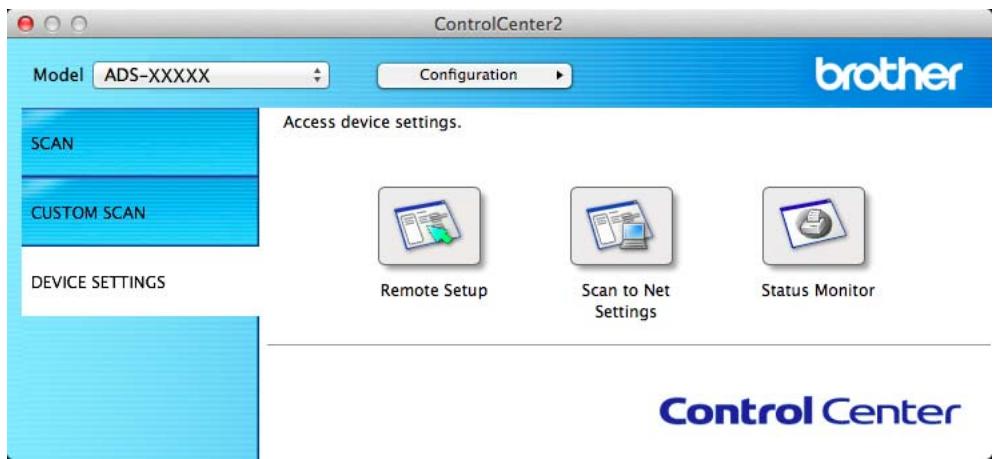
2 Click the Remote Setup button. The Remote Setup window will appear.
3 Select Machine Info. in the folder tree and then configure scan settings as needed (the example below uses Windows®).
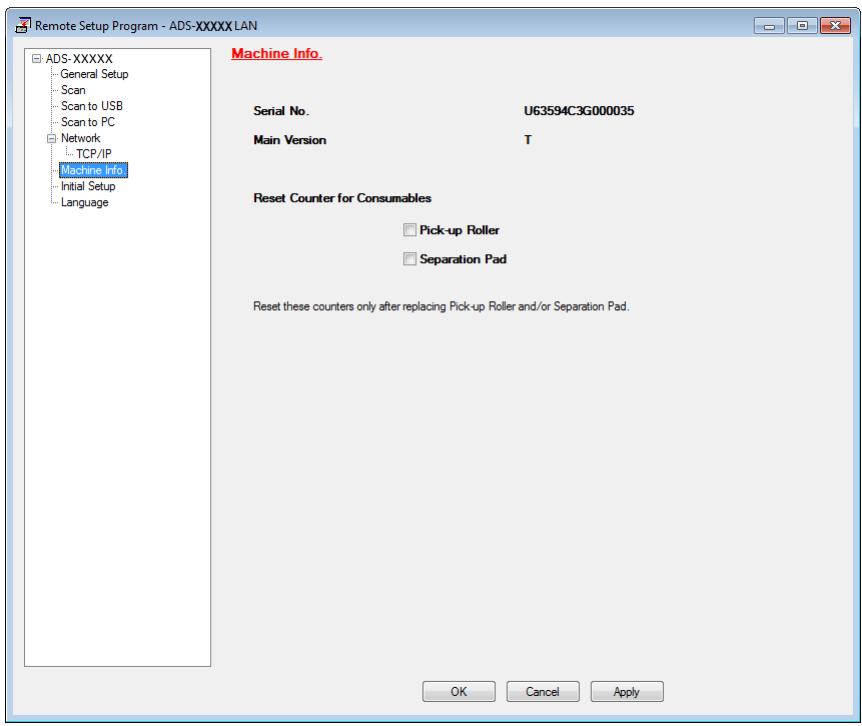
4 Do one of the following:
To reset the counter for the Separation Pad, check the Separation Pad check box for Reset Counter for Consumables.
- To reset the counter for the Pick-up Roller, check the Pick-up Roller check box for Reset Counter for Consumables.
5 Click Apply and then OK.
(ADS-1600W)
Press (Settings).
Press or to display Machine Info.
3 Press Machine Info.
4 Press Usage Counters.
5 Do one of the following:
To reset the counter for the Separation Pad, press Separation Pad Count.
To reset the counter for the Pick-up Roller, press Pick-up Roller Count.
The LCD shows the confirmation message. Press Yes.
7 Press
Packing and Shipping the Machine
When you transport the machine, use the packing materials that came with your machine. If you do not pack the machine correctly, any damage that may occur in transit may not be covered by your warranty. The machine should be adequately insured with the carrier.
Fold the Document Support Arms (1) and then close the Top Cover (2) gently.
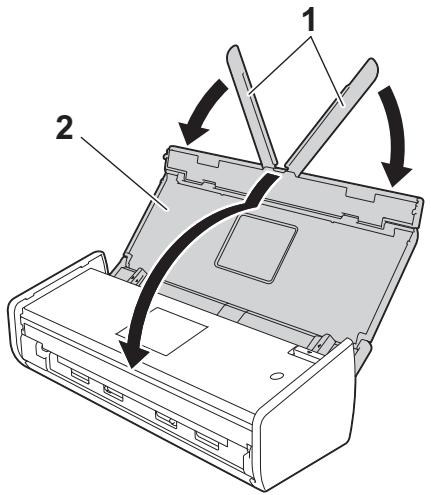
2 Wrap the machine in the bag it originally came in.
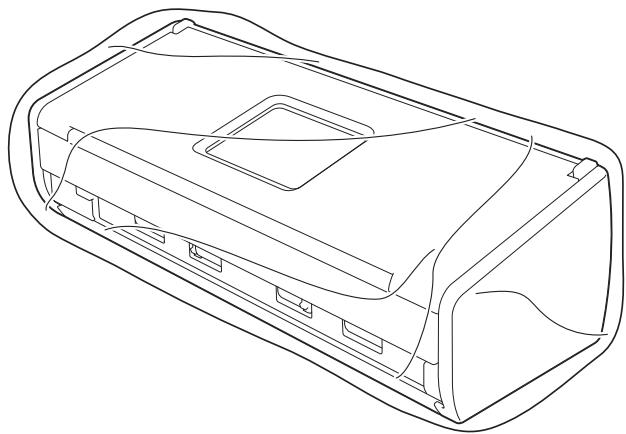
3 Pack the machine and the printed materials in the original carton with the original packing material as shown below.
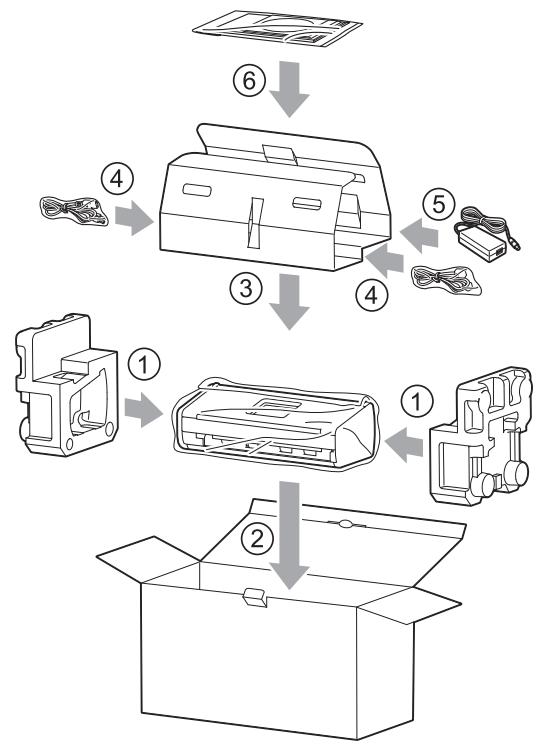
NOTE
If you are returning your machine to Brother as part of the Exchange Service, pack only the machine. Keep all separate parts (power cord, AC adapter and USB cable) and printed materials to use with your "Exchange" machine.

Close the carton and tape it shut.
7 Troubleshooting
Identifying Your Problem
First, check the following:
The AC adapter is connected correctly and the machine is turned on.
All of the protective parts have been removed.
The Front Cover, Separation Pad Cover and Pick-up Roller Cover are completely closed.
The interface cable is securely connected to the machine and the computer.
The correct driver for the machine has been installed.
The computer is connected to the correct port on the machine.
Error and Maintenance Messages
As with any sophisticated office product, errors may occur and consumable items may need to be replaced. If this happens, your machine identifies the problem and shows an error message. The most common error and maintenance messages are shown below (the messages will be displayed on Status Monitor or the LCD of the machine (ADS-1600W only)).
You can correct most errors and clear routine maintenance messages by yourself. If you need more help, the Brother Solutions Center offers the latest FAQs and troubleshooting tips.
Visit us at http://solutions.brother.com/
NOTE
(For ADS-1100W users only)
See LED Indications (ADS-1100W only) on page 216.
| Error | Cause | Action |
| Replace Pad | The Separation Pad has been used over 10,000 times. | Replace the Separation Pad with a new one. Scanning errors may occur if you do not replace the part. See Replace the Separation Pad on page 175. |
| Replace Roller | The Pick-up Roller has been used over 50,000 times. | Replace the Pick-up Roller with a new one. Scanning errors may occur if you do not replace the part. See Replace the Pick-up Roller on page 178. |
| Replace Parts | The Separation Pad has been used over 10,000 times and the Pick-up Roller has been used over 50,000 times. | Replace the Separation Pad and the Pick-up Roller with new ones. Scanning errors may occur if you do not replace the parts. See Replace the Separation Pad on page 175 and Replace the Pick-up Roller on page 178. |
| Out of Memory | The machine's memory is full and the machine cannot scan the entire document. | Press X and do one of the following: ■ Decrease the scanner resolution. ■ Reduce the number of the documents. |
| Unable to Scan XX (XX is an error code.) | A machine error is occurring. | Turn the machine off and then on, and then try to scan again. If the error is not cleared after turning the machine off and then on, make a note of the error message and report it to your dealer or to Brother Customer Service. |
| Document Jam | ■ The Document Guides are not set to the correct document size. ■ The settings are not suitable for your document. ■ Paper dust has accumulated on the surface of the Pick-up Roller or Separation Pad. ■ The document is unacceptable for the machine. ■ The document is not loaded properly. | Clear the document jam (see Document Jam on page 190) and then do the following: ■ Adjust the Document Guides to fit the width of the document. When Scan Size is set to Auto and you are scanning a document that contains multiple page sizes, insert narrow pages straight and as close to the centre of the machine as possible. If the document will not be fed straight, use Continuous Scanning. ■ Confirm the settings. See Important in Document Jam on page 190. ■ Clean the Pick-up Roller and Separation Pad. See Clean the Scanner on page 169. ■ Load the acceptable document for the machine. See Acceptable Document on page 28. ■ Load your document properly (see Loading Standard Size Documents on page 33), and then try again. |
| Card Jam | ■ The machine was turned on while a plastic card was inserted into the machine. ■ The Card Slot Guide is not adjusted to fit the width of the plastic card. ■ Plastic Card Mode was not set. ■ The card is unacceptable for the machine. | Clear the card jam (see Card Jam on page 192) and then do the following: ■ Make sure that any plastic card is not left in the Card Slot. ■ Adjust the Card Slot Guide to fit the width of the plastic card before inserting the card into the machine. ■ Set Plastic Card Mode. See one of the following: · Change Scan Settings (ControlCenter4) (Windows®) on page 64 · Change Scan Settings (ControlCenter2) (Macintosh) on page 83 · Change Scan to PC Settings (Windows®) on page 140 · Change Scan to PC Settings (Macintosh) on page 146 ■ Load the acceptable card for the machine. See Acceptable Document on page 28. |
| There is a card in the card slot. | The Top Cover was opened while a plastic card was inserted into the machine. | Close the Top Cover. Do not open the Top Cover while a plastic card is inserted into the Card Slot. |
| Do not insert card | A plastic card was inserted while the Top Cover was open. | Clear the card jam (see Card Jam on page 192). Do not insert a plastic card into the Card Slot while the Top Cover is open. |
| Unusable Device | An unusable device is inserted in the USB port. | Disconnect the device. Turn the machine off and then on. |
| Hub is Unusable | A hub or USB flash memory drive with a hub is inserted in the USB direct interface. | Remove the unsupported device, such as a USB hub or USB flash memory drive with a hub, from the USB direct interface. |
| USB Flash Drive is Full | Your machine cannot save to a USB flash memory drive if it contains too many files. | Remove the USB flash memory drive, press ✦ . Delete unused files or folders from the Brother folder of the USB flash memory drive and then try again. |
| Rename the File | The maximum sequential number for the file name has been reached. | Press ✦ and then do one of the following: ■ Delete unused files from the USB flash memory drive and then try again. ■ Change the file name. See Save Scanned Documents on a USB Flash Memory Drive on page 134. |
| Authentication Err | The FTP user name and password you entered are incorrect or not configured correctly. | Confirm that the user name and password are configured or entered correctly and then try again. |
| Server Time out | — | Check the following and then try again. ■ The network settings are correct. ■ Your wireless access point/router is turned on. ■ The remote FTP server is turned on. ■ The name (or IP address) of the FTP remote server is correct. |
| Sending Error (Scan to FTP) | — | Check the following and then try again. ■ You have writing permission for the destination folder. ■ The hard disk containing the destination folder is not full. (For example, if the hard disk is full, free some disk space and then try again.) |
| Address Book Full (ADS-1600W only) | The Address Book is full. | Delete unnecessary E-mail addresses and then try again. |
| Shortcuts Full (ADS-1600W only) | The maximum number of shortcuts has been reached. | Delete unnecessary shortcuts and then try again. |
| Registration Failed (Shortcut) (ADS-1600W only) | The maximum number of E-mail addresses in a shortcut has been reached. | Delete unnecessary E-mail addresses and then try again. |
| Cannot Delete (ADS-1600W only) | The E-mail address is registered in a shortcut. | You cannot delete an E-mail address used in a shortcut. Delete the shortcut first, and then try again. |
| No Profile set (ADS-1600W only) | No Scan to FTP profile or Scan to Network profile is registered. | Configure the Scan to FTP profile or the Scan to Network profile before using Scan to FTP or Scan to Network. See Scan Documents Directly to an FTP Server on page 113 or Scan Documents Directly to a CIFS Server (Windows®) (ADS-1600W only) on page 121. |
Document Jam
Documents can jam in the document feeder unit if they are not inserted or fed correctly, or if they are too long. Follow the steps below to clear a document jam.
Take out any paper from the ADF that is not jammed.
2 Open the Front Cover by pulling the Cover Release Lever toward you (1).
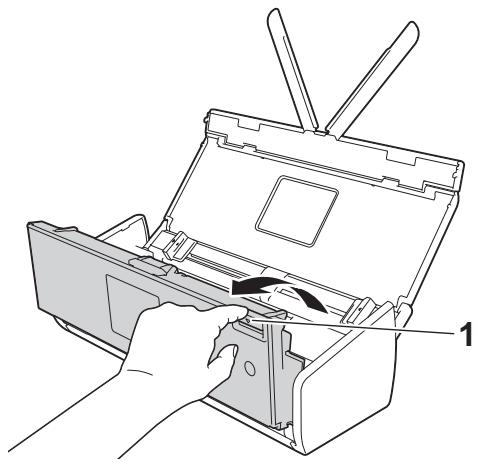
Pull the jammed document out of the machine.
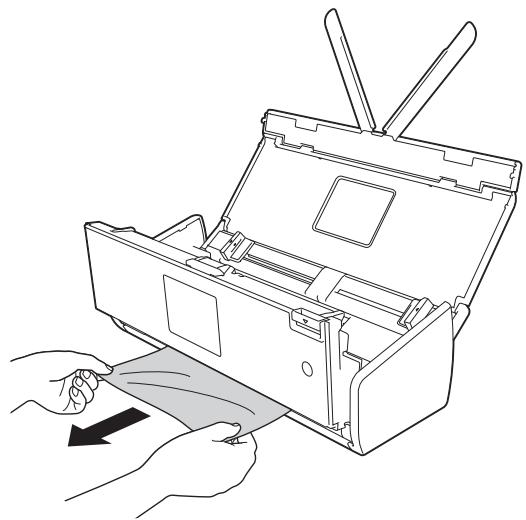
NOTE
Check for ripped paper inside the machine. Remove any ripped paper you find inside the machine.
4 Close the Front Cover.
Press X.
IMPORTANT
- Be careful when touching the Separation Pad and its surrounding area in the machine. Otherwise the quality of your documents may be reduced.
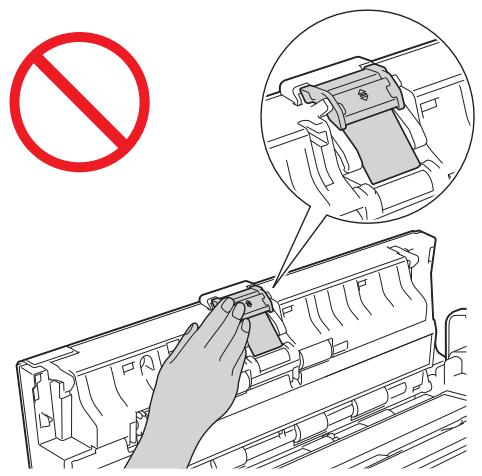
- To avoid damage to the jammed document, DO NOT pull the document out before opening the Front Cover.
- Take out any paper from the ADF before closing the Front Cover.
-
To avoid future document jams, do the following:
-
Close the Front Cover correctly by pushing it gently in the middle.
- Configure the settings for your document correctly.
- Clean the Separation Pad and Pick-up Roller. To clean the Separation pad, see Replace the Separation Pad on page 175 to refer how to pull the Separation Pad out from the machine, clean the rubber side of the Separation Pad with a soft lint-free cloth moistened with water, and then attach the Separation Pad in the machine. To clean the Pick-up Roller, see Clean the Scanner on page 169.
- Stagger the pages and then load your document. See Loading Documents on page 32.
- Make sure your document is acceptable for the machine. See Acceptable Document on page 28.
- Load your document correctly. See Loading Documents on page 32.
- Load no more than 20 pages at a time.
- Load the card vertically when scanning cards.
Long Paper Jam
In order to avoid the long paper jam, select Long Paper for Scan Size or Document Size.
See one of the following:
When you scan from your PC
- Change Scan Settings (ControlCenter4) (Windows®) on page 64
- Change Scan Settings (ControlCenter2) (Macintosh) on page 83
When you scan from the machine (ADS-1600W only)
In order to select Long Paper (up to 863 mm) for Document Size on the Control Panel, confirm the following settings:
(Scan to USB/FTP/Network/E-mail Server)
- 2-sided Scan: Off
- Scan Type: Color or Black and White
- Auto Deskew: Off
- Skip Blank Page: Off
(Scan to PC)
2-sided Scan: Off
- Auto Deskew: Off
Card Jam
1 Open the Top Cover (1) and the Front Cover (2).

2 Remove the jammed card.
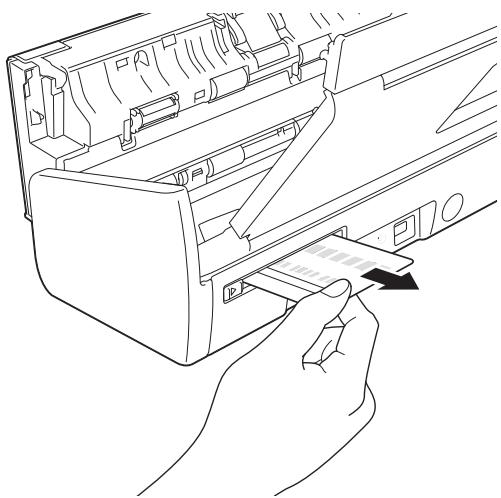
3 Close the Front Cover and the Top Cover.
4 Press (for ADS-1100W) or (for ADS-1600W).
NOTE
To avoid future card jams, see Card Jam on page 188.
Troubleshooting
IMPORTANT
For technical help, you must call the country where you bought the machine. Calls must be made from within that country.
If you think there is a problem with your machine, check the chart below and follow the troubleshooting tips.
Most problems can be easily resolved by yourself. If you need additional help, the Brother Solutions Center offers the latest FAQs and troubleshooting tips.
Visit us at http://solutions.brother.com/
Using non-Brother supplies may affect the scan quality, hardware performance, and machine reliability.
If you are having difficulty with your machine
Scanning Difficulties
| Difficulty | Cause | Suggestions |
| TWAIN or WIA errors appear when starting to scan. (Windows®) | TWAIN or WIA driver has not been chosen as the primary source in your scanning application. | Make sure the Brother TWAIN or WIA driver is chosen as the primary source in your scanning application. For example, in Nuance™ PaperPort™ 12SE, click Scan Settings and then Select to select the Brother TWAIN/WIA driver. |
| TWAIN errors appear when starting to scan. (Macintosh) | TWAIN driver has not been chosen as the primary source in your scanning application. | Make sure the Brother TWAIN driver is chosen as the primary source. In Presto! PageManager, click File, Select Source and select the Brother TWAIN driver. Mac OS X v10.6.8, 10.7.x and 10.8.x users can also scan documents using the ICA Scanner Driver. |
| OCR does not work. | ■ The scanner resolution is too low. ■ (Macintosh users) Presto! PageManager has not been installed on your computer. | ■ Increase the scanner resolution. ■ (Macintosh users) Make sure you have installed Presto! PageManager from the supplied DVD-ROM on your computer. |
| Vertical lines are seen in the scanned image. | Paper dust has accumulated on the surface of the glass strips. | Clean the glass strips inside the machine. See Clean the Scanner on page 169. |
| The scanned image is missing. | ■ The Document Guides are not adjusted to fit the width of the document. ■ The Auto Deskew feature was set to On when the document was scanned. ■ The settings are not suitable for your document. For example, a A4-size document was fed when A5 was selected as document size. ■ The card was loaded horizontally. | ■ Adjust the Document Guides to fit the width of the document. When Scan Size is set to Auto and you are scanning a document that contains multiple page sizes, insert narrow pages straight and as close to the centre of the machine as possible. If the document does not stay straight while feeding, use Continuous Scanning. ■ Set Auto Deskew to Off. ■ Make sure the document size settings are suitable for your document. ■ Load the card vertically. |
| The scanned image is skewed. | ■ The Document Guides are not adjusted to fit the width of the document. ■ The Auto Deskew feature was set to Off when the document was scanned. | ■ Adjust the Document Guides to fit the width of the document. When Scan Size is set to Auto and you are scanning a document that contains multiple page sizes, insert narrow pages straight and as close to the centre of the machine as possible. If the document does not stay straight while feeding, use Continuous Scanning. ■ Set Auto Deskew to On. |
| The scan speed is too slow. | The resolution is not suitable for your document. | Decrease the scanner resolution. |
| The document was not fed. | ■ Paper dust has accumulated on the surface of the Pick-up Roller or Separation Pad. ■ Too many documents are loaded in the document feeder at a time. ■ There are foreign objects in the document feeder. ■ Your document is too thin or too thick. ■ Remote Setup is in process. ■ Paper ejection has paused. ■ The Separation Pad Cover is not properly closed. | ■ Clean the Separation Pad and Pick-up Roller. To clean the Separation pad, see Replace the Separation Pad on page 175 to refer how to pull the Separation Pad out from the machine, clean the rubber side of the Separation Pad with a soft lint-free cloth moistened with water, and then attach the Separation Pad in the machine. To clean the Pick-up Roller, see Clean the Scanner on page 169. ■ Make sure your document is acceptable for the machine. See Acceptable Document on page 28. ■ Remove any foreign objects or ripped paper from the document feeder. ■ Cancel Remote Setup. ■ Finish ejecting the paper. ■ Securely close the Separation Pad Cover until the hooks fit into the Front Cover. |
| The document is jammed. | ■ Paper dust has accumulated on the surface of the Pick-up Roller or Separation Pad. ■ There are foreign objects in the document feeder. ■ Your document is not acceptable for the machine. ■ A receipt is scanned without using the Receipt Carrier Sheet. | ■ Clean the Separation Pad and Pick-up Roller. To clean the Separation pad, see Replace the Separation Pad on page 175 to refer how to pull the Separation Pad out from the machine, clean the rubber side of the Separation Pad with a soft lint-free cloth moistened with water, and then attach the Separation Pad in the machine. To clean the Pick-up Roller, see Clean the Scanner on page 169. ■ Remove any foreign objects or ripped paper from the document feeder. ■ Make sure your document is acceptable for the machine. See Acceptable Document on page 28. ■ Scan the receipt using the Receipt Carrier Sheet. See Loading a Receipt on page 37, and Scan Receipts Using BR-Receipts (Windows®) on page 89 or Scan Receipts Using BR-Receipts (Macintosh) on page 101. |
| The scan quality is poor. | ■ Paper dust has accumulated on the surface of the Pick-up Roller or Separation Pad. ■ Paper dust has accumulated on the surface of the glass strips inside the machine. ■ The resolution is too low. | ■ Clean the Separation Pad and Pick-up Roller. To clean the Separation pad, see Replace the Separation Pad on page 175 to refer how to pull the Separation Pad out from the machine, clean the rubber side of the Separation Pad with a soft lint-free cloth moistened with water, and then attach the Separation Pad in the machine. To clean the Pick-up Roller, see Clean the Scanner on page 169. ■ Clean the glass strips inside the machine. See Clean the Scanner on page 169. ■ Increase the scanner resolution. |
| The machine pauses for about 3 seconds between each page when scanning. | The machine has entered motor save mode. If you scan continuously, the internal temperature of the machine may increase, causing the machine to enter motor save mode. NOTE The length of the pause may vary depending on the scanning conditions. | This is normal and you may continue to scan. If you scan continuously, the internal temperature of the machine may increase, causing the machine to enter motor save mode. |
| Bleed through is seen in the scan data. | The settings are not appropriate for the type of document being scanned. | Check the Bleed Through Prevention/Remove Background Colour check box. |
Plastic Card Difficulties
| Difficulty | Cause | Suggestions |
| Colours in the scanned data are dark. | The settings are not appropriate for the type of document being scanned. | Do one of the following: ■ Check the Bleed Through Prevention/Remove Background Colour check box and then scan from your computer. ■ Change Brightness higher and then scan from your computer. ■ Change Contrast higher and then scan from your computer. ■ Change Scan Type to Grey or Colour and then scan from your computer. |
| A page that is not a blank page is skipped. | ■ The document is too light. ■ Skip Blank Page is set to On. | Set Skip Blank Page to Off. |
| Cannot scan a long document. | Long Paper is not selected for the document size. | Select Long Paper for the document size. If you cannot select Long Paper, set both Auto Deskew and 2-sided Scanning to off. In addition, when scanning from the machine's Control Panel, set Skip Blank Page to off and set Scan Type to an option other than Auto. Then, you can select Long Paper for the document size. ■ Long Paper Jam on page 192 |
| Cannot set Auto Deskew to On when trying to scan using Scan to USB. | The document size is set to an option other than Auto. | Set the document size to Auto. |
| A multifeed occurs. | The document is not loaded properly. | Load your document properly (see Loading Standard Size Documents on page 33), and then try again. |
| (ADS-1100W only) does not work. | No Scan-to key is selected. | Press a lighting Scan-to key and then |
| Difficulty | Cause | Suggestions |
| The plastic card is jammed. | The machine was turned on while a plastic card was inserted into the machine. | Clear the card jam (see Card Jam on page 192). To avoid future jams, do not leave a plastic card in the machine. |
| The scanned image is skewed. | The Card Slot Guide is not adjusted to fit the width of the plastic card. | Adjust the Card Slot Guide to fit the width of the plastic card before inserting the card into the machine. |
| A plastic card error occurs while a plastic card is inserted into the machine. | The Top Cover was opened while a plastic card was inserted into the machine. | (ADS-1100W) Close the Top Cover, and then press ✘. (ADS-1600W) Close the Top Cover, and then press Eject card. To avoid future errors, do one of the following: ■ Do not open the Top Cover while a plastic card is inserted into the machine. ■ Close the Top Cover before inserting a plastic card into the machine. |
| A plastic card error occurs while the Top Cover is open. | A plastic card was inserted while the Top Cover was open. | Remove the jammed card from the machine. To avoid future error, do not insert a plastic card into the machine while the Top Cover is open. |
| A plastic card error occurs while the machine is scanning using the ADF. | A plastic card was inserted while the machine was scanning using the ADF. | Eject the card, and then clear the card jam. (see Card Jam on page 192). To avoid future error, do not insert a plastic card into the machine while the machine is scanning using the ADF. |
| A plastic card is not inserted into the machine. | ■ When scanning the card using the ADS: The card is too thick. ■ When scanning the card using the Card Slot: The card is too thin. | ■ Scan the card using the Card Slot. ■ Scan the card using the ADF. |
| (ADS-1600W only) Cannot delete a Card Scan shortcut. | To enable card scan, you must leave at least one Card Scan shortcut. | Add a new shortcut before deleting the shortcut you want to. |
Software Difficulties
| Difficulty | Cause | Suggestions |
| Cannot install software. | — | (Windows® users only) Run the Repair MFL-Pro Suite program on the DVD-ROM. This program will repair and reinstall the software. |
| Cannot find the Nuance serial number to install Nuance PDF Converter Professional 8. | — | Enter the Nuance serial number that is shown on the “sleeve” of the MFL-Pro Suite DVD-ROM package when installing Nuance PDF Converter Professional 8. |
| Cannot start ControlCenter4. | You have not logged in the computer as the administrator. | Restart the computer and log in as the administrator. |
| Cannot find how to start ControlCenter4 (Windows®). | — | If the icon is not displayed in the task tray, do one of the following: ■ (Windows® XP, Windows Vista® and Windows® 7 users) Click Start, All Programs, Brother, ADS-XXXXX (where XXXXX is your model name) and then ControlCenter4. ■ (Windows® 8 users) Click Brother Utilities), and then click the drop-down list and select your model name (if not already selected). Click SCAN in the left navigation bar, and then click ControlCenter4. |
| Cannot find Print button in ControlCenter4 (Windows®). | — | Download the latest driver from the Brother Solutions Center at http://solutions.brother.com/ |
| Cannot start ControlCenter2. | You have not logged in the computer as the administrator. | Restart the computer and log in as the administrator. |
| Cannot find how to start ControlCenter2 (Macintosh). | — | To start ControlCenter2, click the (ControlCenter2) icon in the Dock. If the (ControlCenter2) icon is not displayed in the Dock, click Go from the Finder menu bar, Applications, Brother, and then double-click the (ControlCenter2) icon. The (ControlCenter2) icon will appear in the Dock. |
| (ADS-1100W only)Cannot find how to configure the settings to scan from the Control Panel of the machine. | — | Use Remote Setup or Web Based Management. See Set Up the Brother Machine from Your Computer on page 164 or Start Web Based Management on page 113. |
| (ADS-1100W only)Cannot find IP address of the machine. | — | Start Remote Setup and then select Network in the folder tree. See Set Up the Brother Machine from Your Computer on page 164. |
| Cannot save the settings in Remote Setup or Web Based Management. | ■ The machine is processing. ■ The machine is being configured from the machine's Control Panel. | ■ Wait until the machine finishes processing and then try again. ■ Stop configuring the machine from the Control Panel. |
Network Difficulties
| Difficulty | Cause | Suggestions |
| Cannot start Remote Setup. | ■ The machine is turned off. ■ The machine is not connected to your computer. ■ The machine is in Sleep Mode. ■ An error is occurring. ■ The machine is scanning. ■ The machine is being configured from the machine's Control Panel. | ■ Turn on the machine and then try again. ■ Connect the machine to your computer and then try again. ■ Press × or open the Top Cover, and then try again. ■ Clear all errors and then try again. ■ Wait until scanning has finished and try again. ■ Stop configuring the machine from the Control Panel. |
| Difficulty | Suggestions |
| Cannot scan over the network. | Make sure that your machine is powered on and is online and in Ready mode. Check the current network settings. See Troubleshooting in the Network User's Guide. |
| The network scanning feature does not work. | (Windows®users)It is necessary to configure the third-party Security/Firewall Software to allow Network scanning. To add port 54925 for Network scanning, enter the information below:In Name: Enter any description, for example Brother NetScan.In Port number: Enter 54925.In Protocol: UDP is selected.Please refer to the instruction manual that came with your third-party Security/Firewall Software or contact the software manufacturer.(Macintosh users)Re-select your machine in the Device Selector application from the model list in ControlCenter2. |
| The Brother software cannot be installed. | (Windows®users)If the Security Software warning appears on the computer screen during the installation, change the Security Software settings to permit the Brother product setup program or other program to run.(Macintosh users)If you are using a firewall function of anti-spyware or antivirus security software, temporarily disable it and then install the Brother software. |
| Cannot connect to wireless network. | Check the wireless network settings. |
| Reset the network settings. | See Reset the Machine on page 205. |
Other Difficulties
| Difficulty | Cause | Suggestions |
| The machine is in Sleep Mode (power save mode). | The machine is idle and the amount of time specified by the Sleep Time setting has elapsed. | Do one of the following: Press X. Open the Top Cover. Load your document. Insert a plastic card into the Card Slot. |
| The machine cannot be in Sleep Mode (power save mode). | The plastic card is in the Card Slot. | Remove the plastic card from the Card Slot. (ADS-1100W) Close the Top Cover, and then press X. (ADS-1600W) Close the Top Cover, and then press Eject card. |
| The machine is in Offline Mode. | The machine is not connected to the computer. | Connect the machine to the computer and turn on the machine. |
Machine Information
Check the Serial Number
(ADS-1100W)
1 Start the ControlCenter application.
Windows®
1 Click the (ControlCenter4) icon in the task tray and then select Open from the menu. The ControlCenter4 window will appear.
2 Click the Device Settings tab (the example below uses Home Mode).
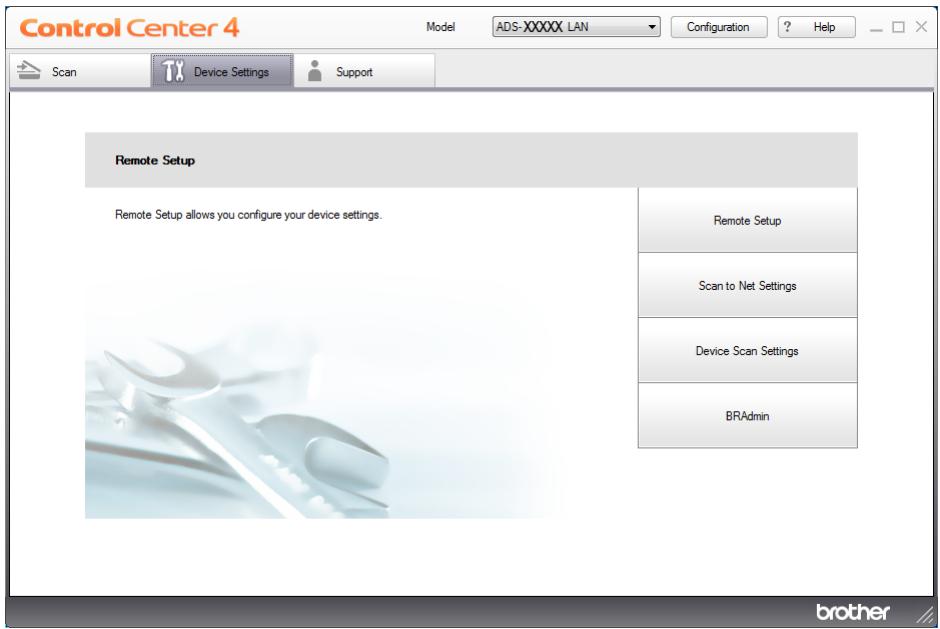
Macintosh
1 Click the (ControlCenter2) icon in the Dock.
The ControlCenter2 window will appear.
2 Click the DEVICE SETTINGS tab.
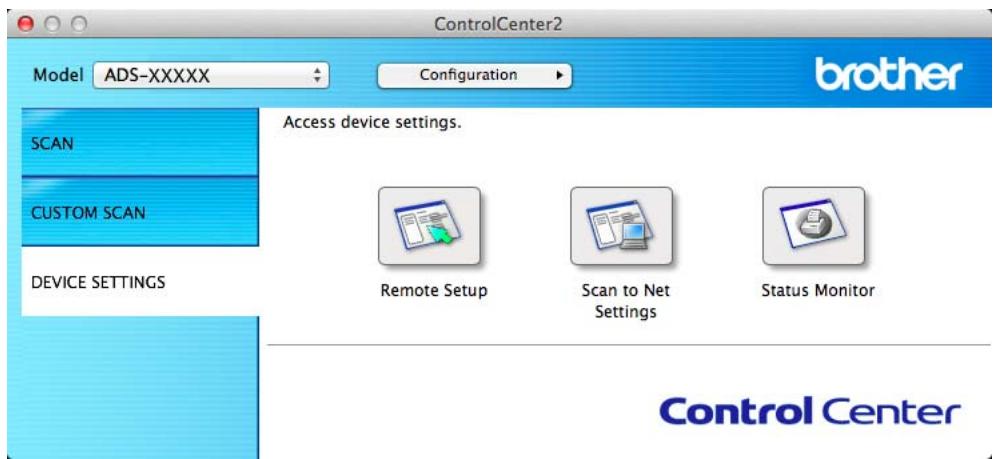
2 Click the Scan to Net Settings button. The Web Based Management window will appear.
3 Select Maintenance Information in the General tab. The window shows you the machine's serial number.
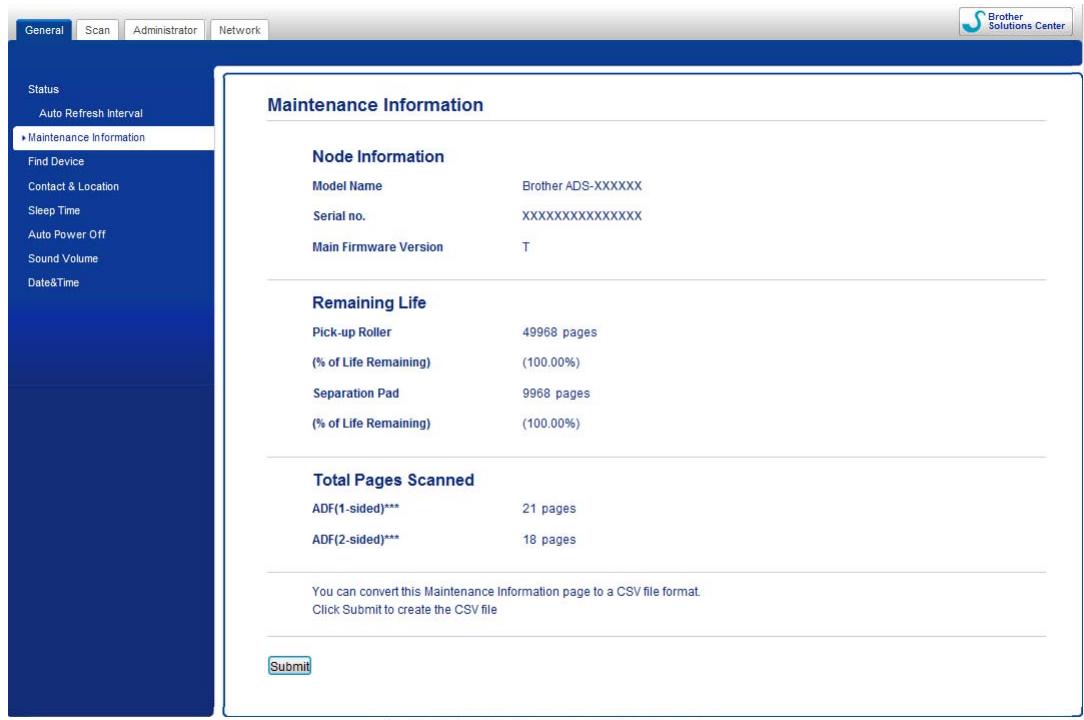
Copyright(C) 2000-2013 Brother Industries, Ltd. All Rights Reserved.
Top
(ADS-1600W)
Press (Settings).
Press or to display Machine Info.
Press Machine Info.
Press Serial No. The LCD will show you the machine's serial number.
WLAN Enable/Disable
(ADS-1100W)
1 Open the Top Cover (1) and the Front Cover (2).
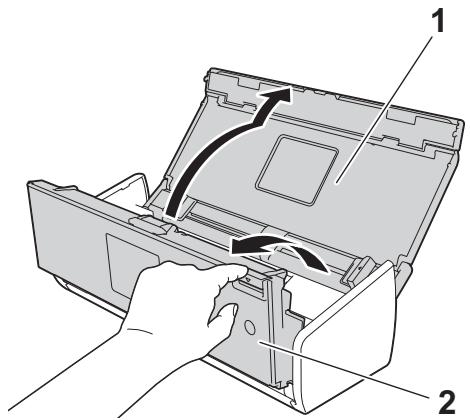
Press 2 for about five seconds until the machine beeps.
3 Close the Front Cover. When WLAN is enabled, the WiFi light is on. When WLAN is disabled, the WiFi light is off.
(ADS-1600W)
Press (Settings).
Press Network.
Press or to display WLAN Enable.
4 Press WLAN Enable.
Press On (or Off).
Reset Functions
The following reset functions are available:
Network
You can restore the network settings, such as the password and IP address information, to the factory settings.
Address Book (ADS-1600W only)
You can reset the Address Book setting.
All Settings
You can restore all settings to the factory settings.
Brother strongly recommends performing this procedure before transferring or disposing of the machine.
NOTE
Unplug the interface cable before you choose Network or All Settings.
Reset the Machine
(ADS-1100W)

Start the ControlCenter application.
Windows®
1 Click the (ControlCenter4) icon in the task tray and then select Open from the menu. The ControlCenter4 window will appear.
2 Click the Device Settings tab (the example below uses Home Mode).
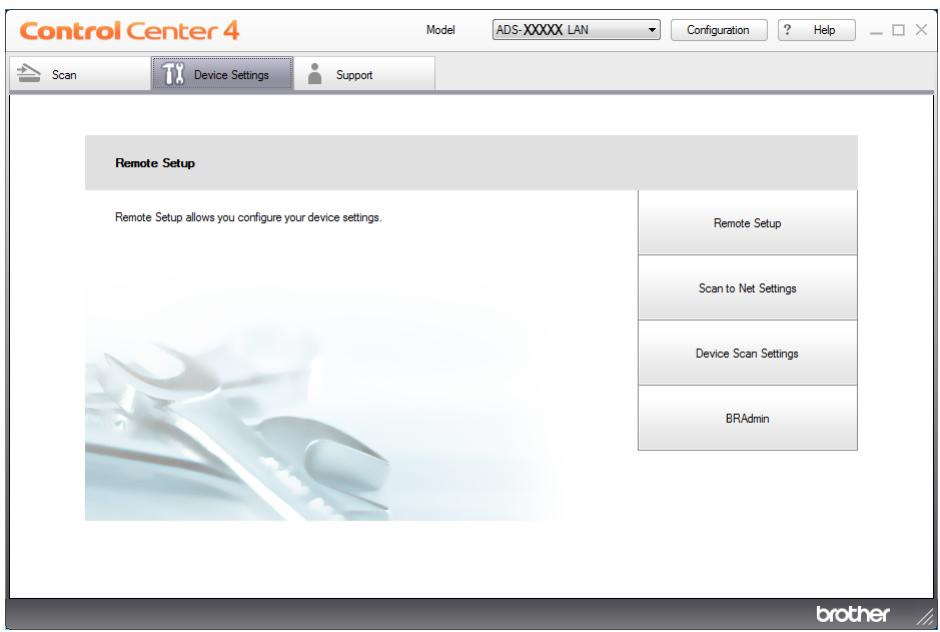
Macintosh
1 Click the (ControlCenter2) icon in the Dock.
The ControlCenter2 window will appear.
2 Click the DEVICE SETTINGS tab.
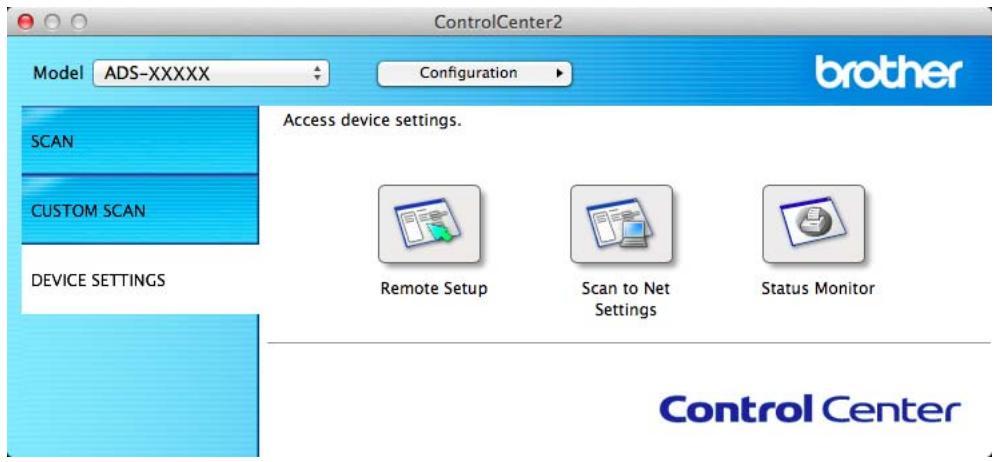
2 Click the Scan to Net Settings button. The Web Based Management window will appear.
3 Select Reset Menu in the Administrator tab.
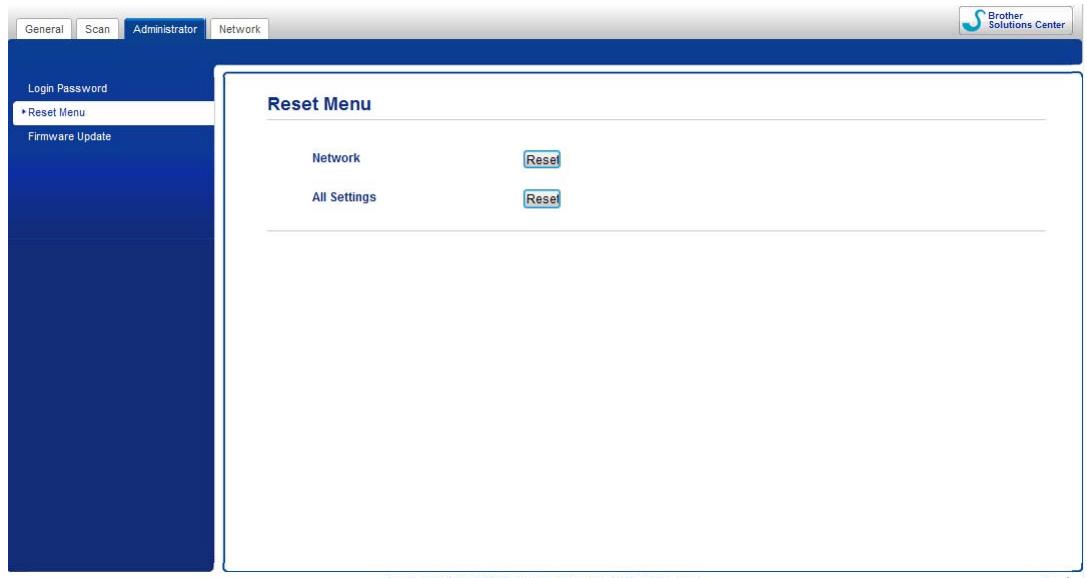
Copyright(C) 2000-2013 Brother Industries, Ltd. All Rights Reserved.
4 Click Reset for Network or All Settings.
5 Click Yes to restart the machine.
NOTE
You can also reset the Network settings by doing the following.
1 Open the Top Cover (1) and the Front Cover (2).
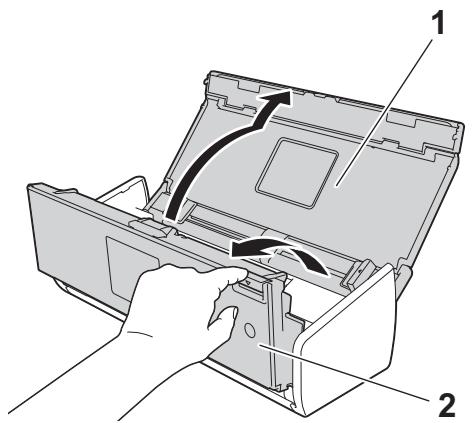
2 Press 1 for about five seconds until the machine beeps.
(ADS-1600W)
Press (Settings).
Press or to display Initial Setup.
Press Initial Setup and then Reset.
Press the type of reset you want to use.
5 Press Yes to confirm.
6 Press Yes for 2 seconds to restart the machine.
Scan Priority (ADS-1100W only)
You can configure the default Scan-to key on the Control Panel of the machine. When scanning is finished, the key will blink if it is available.
1 Start the ControlCenter application.
Windows®
1 Click the (ControlCenter4) icon in the task tray and then select Open from the menu. The ControlCenter4 window will appear.
2 Click the Device Settings tab (the example below uses Home Mode).
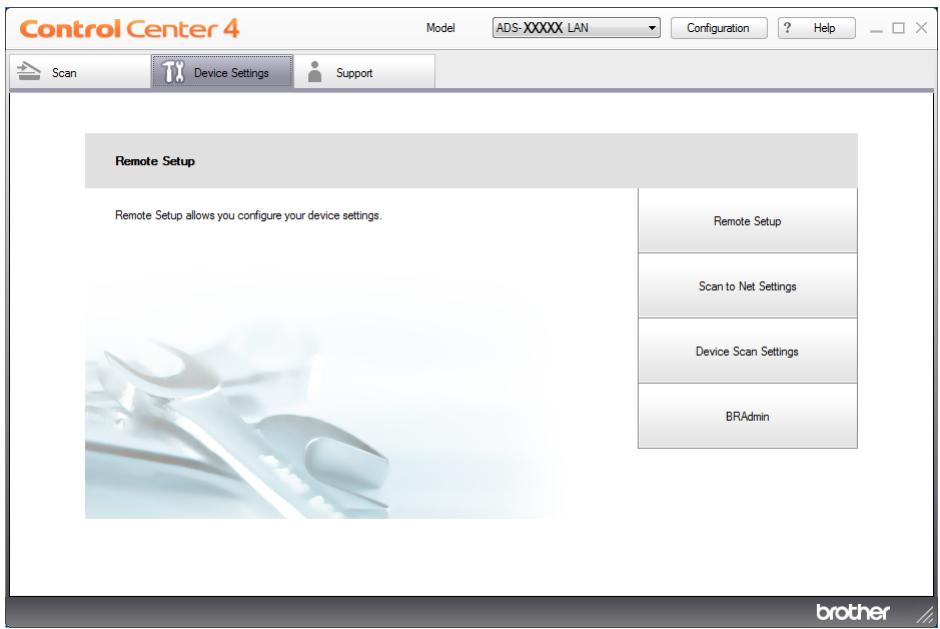
Macintosh
1 Click the (ControlCenter2) icon in the Dock.
The ControlCenter2 window will appear.
2 Click the DEVICE SETTINGS tab.
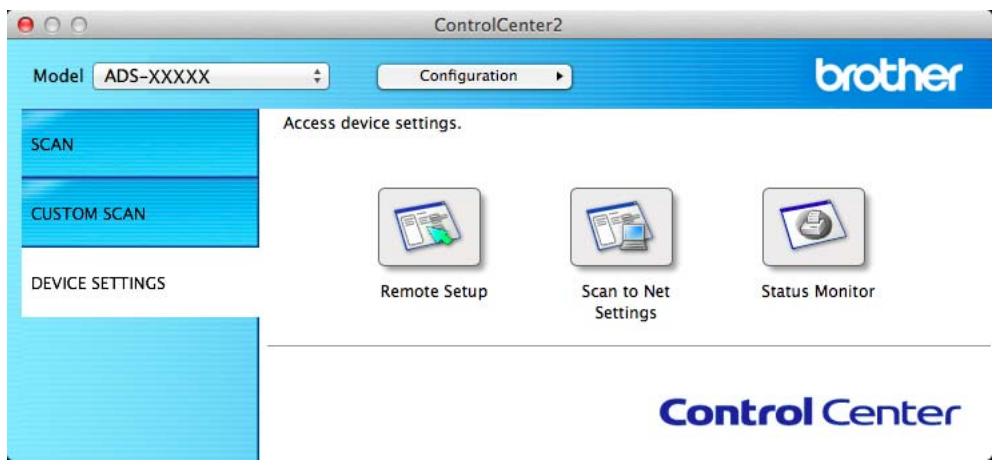
2 Click the Remote Setup button. The Remote Setup window will appear (the example below uses Windows®).
3 Select Scan in the folder tree.
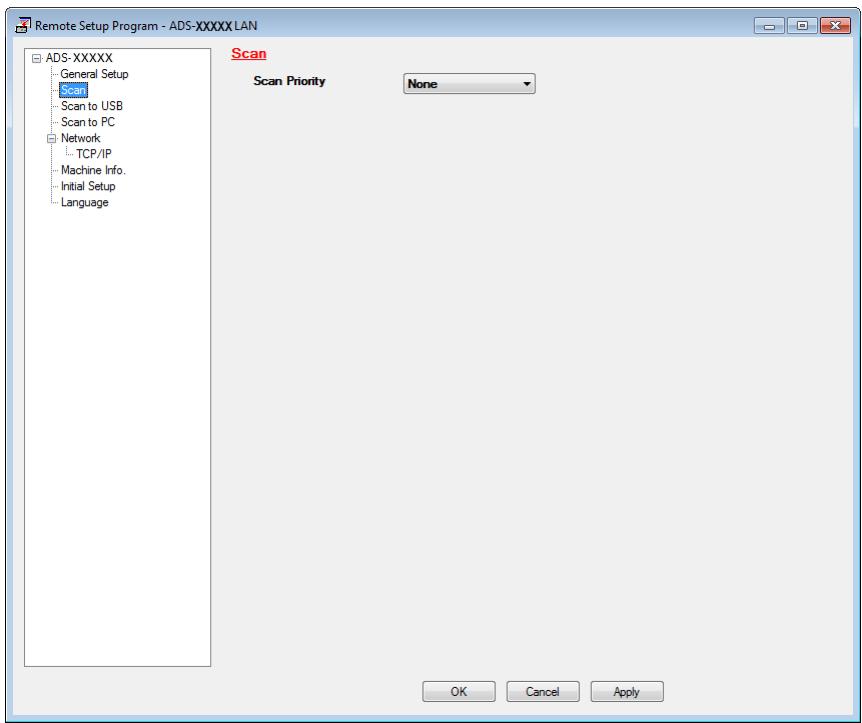
4 Select a Scan-to key you want to use as the default from the Scan Priority drop-down list.
5 Click Apply and then OK.
General
NOTE
This chapter provides a summary of the machine's specifications. For additional specifications, visit http://www.brother.com/ for details.
| Memory Capacity | Standard | (ADS-1100W) 128 MB (ADS-1600W) 256 MB |
| Power Source | AC: 220 - 240 V, 50/60 Hz | |
| LCD (Liquid Crystal Display) (ADS-1600W only) | Touchscreen 2.7 in. (67.5 mm) TFT Colour LCD 1 | |
| Power Consumption 2 | Scanning 3 | Approx. 14 W |
| Ready | Approx. 4.0 W | |
| Sleep | Approx. 1.5 W | |
| Power Off | Approx. 0.25 W | |
Dimensions
| Dimensions | 84 mm 285 mm 103 mm 231 mm 285 mm 255 mm | |
| Weights | (ADS-1100W) Approx. 1.5 kg (ADS-1600W) Approx. 1.6 kg | |
| Temperature | Operating | 41 to 95 °F (5 to 35 °C) |
| Humidity | Operating | 20 to 80% |
| ADF (automatic document feeder) | Up to 20 pages (Paper: 80 g/m² A4 size, or less than 2 mm) | |
| Document Size | Multiple Paper | Width | 51 mm to 215.9 mm |
| Length | 70 mm to 297 mm | ||
| Single Paper | Width | 51 mm to 215.9 mm | |
| Length | 297 mm to 863 mm |
1 Measured diagonally.
2 Measured when the machine is connected to your computer.
3 When 2-sided (duplex) scanning.
Scanner
| Colour/Black | Yes/Yes | |
| TWAIN Compliant | Windows® | Windows® XP 1/Windows Vista®/Windows® 7/Windows® 8 |
| Macintosh | Mac OS X v10.6.8, 10.7.x, 10.8.x2 | |
| WIA Compliant | Windows® | Windows® XP 1/Windows Vista®/Windows® 7/Windows® 8 |
| ICA Compliant | Macintosh | Mac OS X v10.6.8, 10.7.x, 10.8.x2 |
| ISIS® Compliant | Windows® | Windows® XP 1/Windows Vista®/Windows® 7/Windows® 8 |
| Colour Depth | Input | 30 bit colour Processing |
| Output | 24 bit colour Processing | |
| Resolution | Interpolated | Up to 1,200 × 1,200 dpi |
| Optical | Up to 600 × 600 dpi | |
| Scanning Width | 212 mm | |
| Grey Scale | 256 levels | |
| Max. Speed | For detailed specifications, visit http://www.brother.com/ | |
1 Windows® XP in this User's Guide includes Windows® XP Home Edition and Windows® XP Professional.
2 For the latest driver updates for the Mac OS X you are using, visit us at http://solutions.brother.com/
Direct Scan Feature (Scan to USB)
| Compatible Media | USB flash memory drive1 |
| Interface | USB 1.1 Full Speed |
1 USB Mass Storage standard up to 64 GB Support format: FAT12/FAT16/FAT32/exFAT
Interfaces
| USB | Hi-Speed USB 2.01,2 |
| Wireless LAN | IEEE 802.11b/g/n (Infrastructure/Ad-hoc Mode) |
1 Your machine has a Hi-Speed USB 2.0 interface. The machine can also be connected to a computer that has a USB 1.1 interface.
2 Third party USB ports are not supported.
Network
NOTE
For more information about the Network specifications, see the Network User's Guide.
| WLAN | You can connect your machine to a network for Network Scanning and Remote Setup. Also included is Brother BRAdmin Light¹ Network Management software. | |
| Wireless Network Security | SSID (32 characters), WEP 64/128 bit, WPA-PSK (TKIP/AES), WPA2-PSK (AES) | |
| Setup Support Utility | AOSS⁵ | Yes |
| WPS | Yes | |
If you require more advanced scanner management, use the latest Brother BRAdmin Professional utility version that is available as a download from http://solutions.brother.com/
Computer Requirements
| SUPPORTED OPERATING SYSTEMS AND SOFTWARE FUNCTIONS | ||||||||
| Computer Platform & Operating System Version | Supported PC Software Functions | PC Interface | Processor Minimum Speed | Minimum RAM | Recommended RAM | Hard Disk Space to install | ||
| For Drivers | For Appli-cations | |||||||
| Windows®Operating System | Windows®XP Home (SP2 or later)2Windows®XP Professional (SP2 or later)2 | Scanning | USB Wireless 802.11b/g/n | Intel®Pentium®II or equivalent | 128 MB | 256 MB | 150 MB | 1.0 GB |
| Windows Vista®2 | Intel®Pentium®4 or equivalent 64-bit (Intel®64 or AMD64) supported CPU | 512 MB | 1 GB | 500 MB | ||||
| Windows®72Windows®82 | 1 GB(32 bit)2 GB(64 bit) | 1 GB(32 bit)2 GB(64 bit) | 650 MB | |||||
| Macintosh Operating System | Mac OS X v10.6.8 | USB1 Wireless 802.11b/g/n | Intel®Processor | 1 GB | 2 GB | 80 MB | ||
| Mac OS X v10.7.x | 2 GB | |||||||
| Mac OS X v10.8.x | ||||||||
| Conditions:1 Third party USB ports are not supported.2 Nuance™ PaperPort™ 12SE supports Windows®XP Home (SP3 or later), XP Professional (SP3 or later), Windows Vista® (SP2 or later), Windows®7 and Windows®8. | For the latest driver updates, visit us at http://solutions.brother.com/All trademarks, brand and product names are the property of their respective companies. | |||||||
B
Appendix
Entering Text (ADS-1600W only)
When you need to enter text into the machine the keyboard will appear on the Touchscreen. Press A 1 @ to cycle between letters, numbers and special characters.
NOTE
To change between lowercase or uppercase, press aA
- You can change the keyboard setting on the Touchscreen.
(For more information, see Change the Keyboard Setting on page 9.)
Inserting spaces
To enter a space, press Space. Or, you can press to move the cursor.
NOTE
The characters that are available may differ depending on your country.
Making corrections
If you entered an incorrect character and want to change it, press to move the cursor to highlight the incorrect character. Press × and enter the correct character. You can also use the cursor to go back and insert letters.
Press for each character you want to erase, or press and hold to erase all the characters.
LED Indications (ADS-1100W only)
The LED indications shown in the table below are used in the illustrations in this chapter
| ○ | The LED is on. |
| ● | The LED is blinking quickly. |
| ▲ | The LED is blinking slowly. |
| × | The LED is off. |
| Status | ! | ○/×1 | ○/×1 | ○/×1 | ○/×1 | ○/×2 | ○/×2 | ▲/×3 | The machine is ready to scan. |
| Ready | × | × | × | × | × | × | × | × | The machine is in Sleep mode (Power Save mode). The machine acts as though it is turned off. Do one of the following to wake up the machine:■ Press ▲.■ Open the Top Cover.■ Load your document. The machine will enter Ready mode. |
| Sleep Mode | × | × | × | × | × | × | × | × | The machine will enter Ready mode. |
| Selecting Scan to PC | × | ▲ | ○/×1 | ○/×1 | ○/×1 | ○/×2 | ○ | Scan to PC is selected. To start scanning, press ▲. | Scan to PC is selected. To start scanning, press ▲. |
| Selecting Scan to USB | × | ○/×1 | ▲ | ○/×1 | ○/×1 | × | ○ | Scan to USB is selected. To start scanning, press ▲. | Scan to USB is selected. To start scanning, press ▲. |
| Selecting Scan to Net Device 1 | × | ○/×1 | ○/×1 | ▲ | ○/×1 | ○/×2 | ○ | Scan to Net Device 1 is selected. To start scanning, press ▲. | Scan to Net Device 1 is selected. To start scanning, press ▲. |
| Selecting Scan to Net Device 2 | × | ○/×1 | ○/×1 | ○/×1 | ▲ | ○/×2 | ○ | Scan to Net Device 2 is selected. To start scanning, press ▲. | Scan to Net Device 2 is selected. To start scanning, press ▲. |
| Connecting (Scan to PC) | × | ▲ | × | × | × | ○ | × | Connection between the machine and your device is in progress. | Connection between the machine and your device is in progress. |
| Connecting (Scan to Net Device 1) | × | × | × | ▲ | × | ○ | × |
| Status | ! | ! | ! | !1 | !2 | !X | ! | Descriptions |
| Connecting (Scan to Net Device 2) | × | × | × | × | ▲ | ○ | × | Connection between the machine and your device is in progress. |
| Connecting (Scan from PC) | × | × | × | × | × | ○ | ▲ | |
| Connecting (One-push WLAN Setup) | × | × | × | × | ▲ | × | × | One-push WLAN setup is in progress. |
| × | × | × | ▲ | × | × | × | ||
| × | × | × | ▲ | ▲ | × | × | ||
| Scanning (Scan to PC) | × | ▲ | × | × | × | ○ | × | Scanning is in progress. |
| Scanning (Scan to USB) | × | × | ▲ | × | × | ○ | × | |
| Scanning (Scan to Net Device 1) | × | × | × | ▲ | × | ○ | × | |
| Scanning (Scan to Net Device 2) | × | × | × | × | ▲ | ○ | × | |
| Scanning (Scan from PC) | × | × | × | × | × | ○ | ▲ | |
| Sending (Scan to Net Device 1) | × | × | × | ▲ | × | ○ | × | The machine is sending the scanned data to the network device. |
| Sending (Scan to Net Device 2) | × | × | × | × | ▲ | ○ | × | |
| Ejecting Paper | × | ● | ● | ● | ● | ○ | × | The machine is ejecting the document or the Plastic Card. |
| Ejecting Plastic Card | × | ● | ● | ● | ● | × | × | The machine is ejecting the plastic card. |
| Stopping Ejecting | × | ● | ● | ● | ● | ○ | × | The machine has stopped ejecting the document or the Plastic Card. To continue ejecting, press ×. |
| Remote Setup | × | ▲ | ▲ | ▲ | ▲ | ○ | × | Remote Setup is in progress. To cancel Remote Setup, click the Cancel button in the Remote Setup window on your computer. |
| Status | ! | ! | ! | !1 | !2 | X | ! | Descriptions |
| All Blank Page Skipped | ○ | × | × | × | × | ○ | × | All scanned pages were skipped as blank pages. Press × and then do one of the following: ■ Place your document, face down, top edge first in the document feeder. ■ Set Blank Page Skip. See one of the following: · Change Scan Settings (ControlCenter4) (Windows®) on page 64 · Change Scan Settings (ControlCenter2) (Macintosh) on page 83 · Change Scan to PC Settings (Windows®) on page 140 · Change Scan to PC Settings (Macintosh) on page 146 |
| Replace Pad | ○ | ○ | × | × | × | × | × | Replace the Separation Pad with a new one. See Replace the Separation Pad on page 175. |
| Replace Roller | ○ | × | ○ | × | × | × | × | Replace the Pick-up Roller with a new one. See Replace the Pick-up Roller on page 178. |
| Replace Parts | ○ | ○ | ○ | × | × | × | × | Replace the Separation Pad and the Pick-up Roller with new ones. See Replace the Separation Pad on page 175 and Replace the Pick-up Roller on page 178. |
| Status | ! | ! | ! | 1 | 2 | X | ! | Descriptions |
| USB cable is not connected (Scan to PC) Network Disconnected (Scan to Net Device 1/Net Device 2) | ● | ● | × | ○ | × | ○ | × | Press X and then do one of the following: ■ Scan to PC Connect the machine and your computer with a USB cable. ■ Scan to Net Device 1/Net Device 2 Check the following and then try again. · The WLAN is enabled. · The network settings are correct. · Your wireless access point/rodter is turned on. |
| Front Cover is Open | ● | ● | ○ | × | × | × | × | Close the Front Cover of the machine. |
| Document Jam | ● | × | × | × | × | ○ | ● | Clear the document jam. See Document Jam on page 190. |
| Plastic Card Jam | ● | × | × | × | × | ○ | ● | Pull the plastic card out from the machine. |
| Top Cover is Open | ● | ● | × | × | ○ | ○ | × | Close the Top Cover. Do not open the Top Cover while a plastic card is inserted into the Card Slot. |
| Plastic Card Inserted | ● | ● | ○ | ○ | × | × | × | Pull the plastic card out from the machine. Do not insert a plastic card into the Card Slot while the Top Cover is open. |
| Too Many Files on USB (Scan to USB) | ● | ○ | ● | × | × | ○ | × | Your machine cannot save to a USB flash memory drive if it contains too many files. Disconnect the USB flash memory drive, press X, delete unused files or folders from the root folder of the USB flash memory drive and then try again. |
| Status | ! | ! | ! | !1 | !2 | × | ! | Descriptions |
| File NameCannot BeUsed (Scan toUSB) | ● | × | ● | ○ | × | ○ | × | The maximum sequentialnumber for the file name hasbeen reached. Press删除 unused files from theUSB flash memory drive andthen try again. |
| UnusableDevice (Scan toUSB) | ● | × | ● | × | ○ | × | × | An unsupported USB device isinserted in the USB DirectInterface. Remove theunsupported USB device,such as a mouse, from theUSB Direct Interface. |
| Unusable USBDevice (Scan toUSB) | ● | ○ | ● | ○ | × | × | × | An unusable device is insertedin the USB port. Disconnectthe device, turn the machineoff and then on. |
| USB Hub NotSupported(Scan toUSB) | ● | × | ● | ○ | ○ | × | × | A hub or USB flash memorydrive with a hub is inserted inthe USB Direct Interface.Remove the unsupporteddevice, such as a USB hub orUSB flash memory drive with ahub, from the USB DirectInterface. |
| AuthenticationError (Scan toFTP) | ● | × | × | ● | × | ○ | × | A server authentication erroroccurred because the FTPuser name and password youentered are incorrect or notconfigured correctly. Confirmthat the user name andpassword are configured orentered correctly and then tryagain. |
| Server TimeOut (Scan toFTP) | ● | ○ | × | ● | × | ○ | × | Check the following and thentry again.■ The network settings arecorrect.■ Your wireless accesspoint/rodter is turned on.■ The remote FTP server isturned on.■ The name (or IP address)of the FTP remote server iscorrect. |
| Sending Error (Scan to FTP) | ● | × | ○ | ● | × | ○ | × | Check the following and then try again. ■ You have writing permission for the destination folder. ■ The hard drive containing the destination folder is not full. (For example, if the hard disk is full, free some disk space and then try again.) |
| Out of Memory (Scan to USB) | ● | × | ● | × | × | ○ | × | The machine's memory is full and the machine cannot scan the entire document. Press × and do one of the following: ■ Decrease the scanner resolution. ■ Reduce the number of the documents. |
| Out of Memory (Scan to FTP) | ● | ○ | ○ | ● | × | ○ | × | |
| Out of Memory (Scan to PC) | ● | × | × | × | ● | ○ | × | |
| Out of Memory (WS Scan) | ● | ○ | × | × | ● | ○ | × | |
| One-push WLAN Setup Error | ● | × | ○ | × | × | ○ | × | The machine cannot detect a wireless access point/roderthat has WPS or AOSS™enabled. To configure your wireless settings using WPS or AOSS™, you must operate both your machine and the wireless access point/rodert. Confirm your wireless access point/rodert supports WPS or AOSS™, and try setup again. If you do not know how to operate your wireless access point/rodert using WPS or AOSS™, see the documentation provided with your wireless access point/rodert, ask the manufacturer of your wireless access point/rodert, or ask your network administrator. |
| ● | × | × | ○ | × | ○ | × | One-push WLAN setup failed. Turn the machine off and on, and then try setup again. | |
| ● | × | × | × | ○ | ○ | × | Two or more wireless access points that have WPS or AOSS™, enabled are detected. Do one of the following:■ Confirm that only one wireless access point/rodert within range has the WPS or AOSS™ method active and try setup again.■ Try setup again after a few minutes in order to avoid interference from other access points. |
1 When the LED is available:
Otherwise: X
2 When a plastic card is inserted into the machine:
Otherwise: X
3 When all LEDs except the WiFi light are off:
Otherwise: X
Service Call Indications
If there is an error that cannot be cleared by the user, the machine will indicate that a service call is needed by lighting up all the LEDs as shown below.

If you see the service call indication shown above, turn the machine off and then on, and then try to scan again.
If the error is not cleared after turning the machine off and then on, press X. The LEDs will light up as shown in the table below to identify the error.
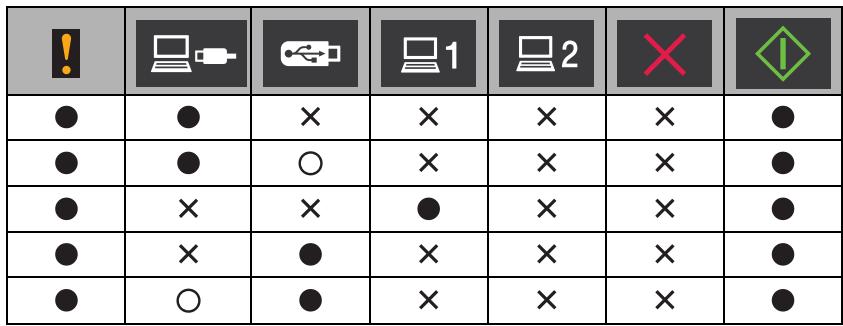
Make a note of the LED indication and then report the indication to your dealer or to Brother Customer Service.
Brother Numbers
IMPORTANT
For technical help, you must call the country where you bought the machine. Calls must be made from within that country.
Register Your Product
FAQs (frequently asked questions)
For Customer Service
Register Your Product
Please complete the Brother Warranty Registration or, for your convenience and most efficient way to register your new product, register on-line at
http://www.brother.com/registration/
FAQs (frequently asked questions)
The Brother Solutions Center is our one-stop resource for all your Brother machine needs. You can download the latest software documents and utilities, read FAQs and troubleshooting tips, and learn how to get the most from your Brother product.
http://solutions.brother.com/
NOTE
- You can check here for Brother driver updates.
- To keep your machine performance up to date, check here for the latest firmware upgrade.
For Customer Service
Visit http://www.brother.com/ for contact information for your local Brother office.
C
Index
B
Brother
Brother Numbers 224
Customer Service 224
FAQs (Frequently Asked Questions) 224
Product Support 224
Solutions Center 224
C
ControlCenter2
Macintosh 146, 161
ControlCenter4
Windows 48, 140
D
Device Selector 45, 167
Drivers
Macintosh
ICA 107
TWAIN 102
Windows®
TWAIN 90
WIA 90
L
LCD (Liquid Crystal Display)
Brightness 9
Dim Timer 9
M
Memory Storage 10
N
Nuance™ PaperPort™ 12SE (Windows®) 90
P
Power Failure 10
Presto! PageManager (Macintosh) 102
R
Remote Setup 164
S
Scan
Macintosh
ICA Compliant 107
Presto! PageManager 102
TWAIN Compliant 102
Windows®
NuanceTM PaperPortTM 12SE 90
TWAIN Compliant 90
WIA Compliant 90
Sleep Mode 22
Status Monitor
Macintosh 161
Windows 159
T
Text, entering 215
Troubleshooting 194
V
Volume, Setting
Beeper 10
W
Web Connect
brother
Visit us on the World Wide Web
http://www.brother.com/
These machines are approved for use in the country of purchase only. Local Brother companies or their dealers will only support machines purchased in their own countries.