
POWER FV - Système de gestion de l'énergie ACER - Notice d'utilisation et mode d'emploi gratuit
Retrouvez gratuitement la notice de l'appareil POWER FV ACER au format PDF.



| Type de produit | Ordinateur de bureau |
| Marque | ACER |
| Modèle | POWER FV |
| Processeur | Intel Pentium 4, Socket LGA775, FSB 533/800 MHz |
| Mémoire système | DDR333/400, 4 slots, extensible jusqu'à 4 Go |
| Stockage | Disque dur IDE/SATA haute capacité, lecteur de disquette 3,5", lecteur optique (CD/DVD/Combo/Graveur) |
| Ports USB | 6 ports USB 2.0 (2 avant, 4 arrière) |
| Ports PS/2 | 2 ports pour souris et clavier |
| Port parallèle | 1 |
| Port série | 1 |
| Port VGA | 1 |
| Connectivité réseau | Ethernet 10/100 Mbps |
| Modem | Fax/data V.92 56K (en option) |
| Audio | Audio 3D intégré, entrée/sortie ligne, microphone, casque |
| Système d'exploitation | Microsoft Windows XP |
| Alimentation | Indéterminée (reportez-vous à l'étiquette sur l'ordinateur) |
| Entretien | Nettoyer avec un chiffon doux humide ; ne pas utiliser de nettoyants liquides ou aérosols |
| Sécurité | Batterie au lithium : ne remplacer que par le même type ; rayonnement laser classe 1 |
| Économies d'énergie | Conforme Energy Star |
| Certifications | CE, EMC Directive 89/336/EEC, Low Voltage Directive 73/23/EEC |
| Pièces détachées | Disponibles auprès d'ACER ou revendeurs agréés |
| Réparabilité | Composants évolutifs (mémoire, disque dur, lecteurs, cartes PCI) |
FOIRE AUX QUESTIONS - POWER FV ACER
Questions des utilisateurs sur POWER FV ACER
0 question sur cet appareil. Repondez a celles que vous connaissez ou posez la votre.
Poser une nouvelle question sur cet appareil
Téléchargez la notice de votre Système de gestion de l'énergie au format PDF gratuitement ! Retrouvez votre notice POWER FV - ACER et reprennez votre appareil électronique en main. Sur cette page sont publiés tous les documents nécessaires à l'utilisation de votre appareil POWER FV de la marque ACER.
MODE D'EMPLOI POWER FV ACER
AcerPower FV
Guide de l'utilisateur
acer
Copyright © 2004 Acer Incorporated
Tous droits réservés
AcerPower FV
Guide de l'utilisateur
Des modifications peuvent être apportées périodiquement aux informations contenues dans cette publication sans obligation d'en informer quiconque. Ces modifications seront incorporées dans les nouvelles éditions de ce manuel ou dans des documents et publications supplémentaires. Cette société ne fait aucune déclaration ni ne donne aucune garantie, expresse ou implicite, concernant le contenu de ce document et décline expressément toute garantie implicite de qualité marchande ou d'adéquation à un usage particulier.
Notez le numéro de modèle, le numéro de série, la date d'achat et le lieu d'achat dans l'espace prévu ci-dessous. Le numéro de série et le numéro de modèle sont indiqués sur l'étiquette apposée sur votre ordinateur. Toute correspondance concernant votre appareil doit inclure le numéro de série, le numéro de modèle et les informations d'achat.
Aucune partie de cette publication ne peut être reproduite, stockée dans un système de récupération ou transmise, sous quelque forme ou par quelque moyen que ce soit, électronique, mécanique, par photocopie, enregistrement ou autre, sans l'autorisation écrite préalable d'Acer Incorporated.
Numéro de modèle :
Numéro de série :
Date d'achat :
Lieu d'achat :
Acer et le logo Acer sont des marques déposées d'Acer Inc. Les noms de produits ou marques d'autres sociétés sont utilisés ici uniquement à des fins d'identification et appartiennent à leurs sociétés respectives.
Sommaire
Panneau avant 1
Panneau arrière 2
Caractéristiques du système 3
Performances 3
Multimédia 3
Connectivité 3
Périphériques du système 4
Souris (PS/2 ou USB, option de fabrication) 4
Clavier (PS/2 ou USB, option de fabrication) 4
Haut-parleurs 5
Mise à niveau du système 6
Ouvrir l'ordinateur 6
Installer de nouveaux composants 6
Configuration de votre ordinateur 7
Prérequis avant l'installation 7
Choix de l'emplacement 7
Ouverture du carton 7
Connexion des périphériques 8
Démarrage de votre ordinateur 8
Arrêt de votre ordinateur 8
Dépannage 9
Entretien de votre ordinateur 11
Conseils importants 11
Nettoyage et maintenance 11
Pour nettoyer votre ordinateur et votre clavier 11
Pour nettoyer votre dispositif de pointage 12
Pour nettoyer votre souris optique 12
Pour nettoyer votre moniteur 12
Quand contacter un technicien de maintenance 12
Demande d'assistance technique 12
Conformité aux directives Energy Star 13
Déclaration de conformité pour les pays de l'UE 13
Avis concernant le modem 13
TBR 21 13
Consignes de sécurité importantes 13
Déclaration relative à la batterie au lithium 15
Déclaration de conformité laser 16
Déclaration de conformité pour le marquage CE 17
Remarque : Toutes les images sont fournies à titre de référence uniquement.
La configuration réelle peut varier.
Présentation du système
Votre ordinateur se compose des éléments suivants :
Panneau avant
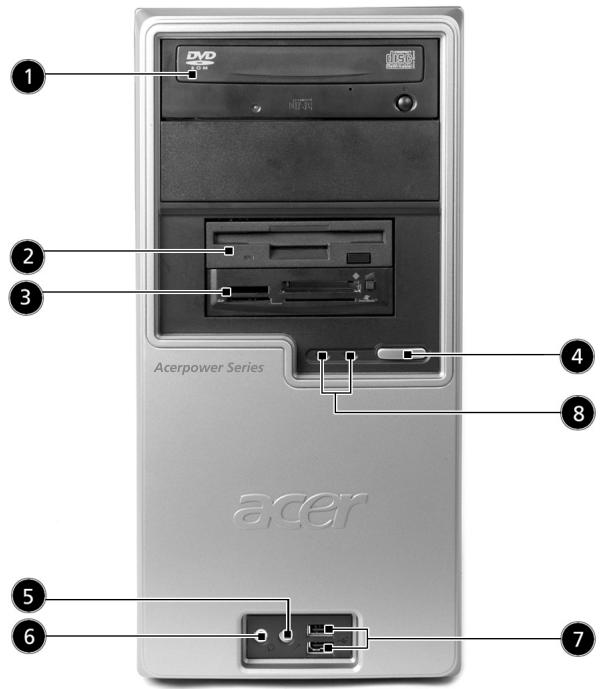
| No. | Description | No. | Description |
| 1 | Optical drive | 2 | Floppy drive |
| 3 | Multimedia card reader (optional) | 4 | Power button |
| 5 | Microphone jack | 6 | Speaker or headphone jack |
| 7 | USB 2.0 ports | 8 | Indicator |
Panneau arrière
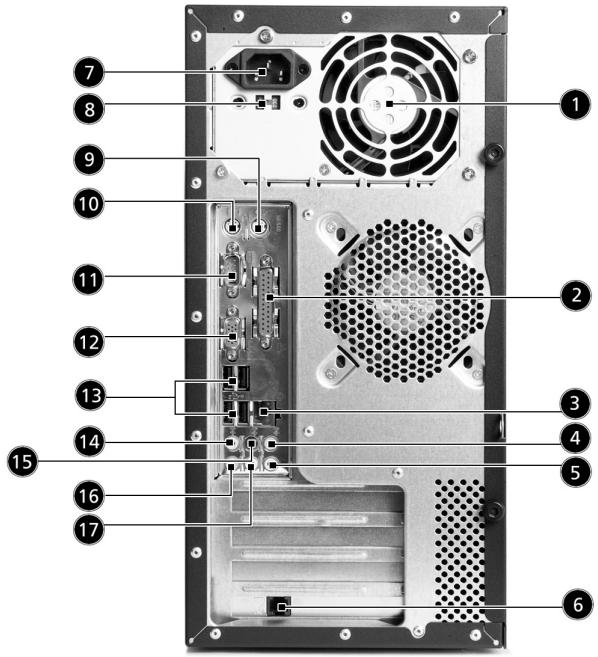
| No. | Description | No. | Description |
| 1 | Fan aperture | 2 | Printer connector |
| 3 | RJ-45 Ethernet connector | 4 | Center-surround/Subwoofer jack |
| 5 | Line-in jack | 6 | Modem card (optional) |
| 7 | Power cord socket | 8 | Voltage selector switch |
| 9 | PS/2 mouse connector | 10 | PS/2 Keyboard connector |
| 11 | VGA port | 12 | Serial port |
| 13 | USB 2.0 ports | 14 | Side-surround jack |
| 15 | Rear-surround jack | 16 | Microphone-in jack |
| 17 | Line-out / Front-surround jack |
Fonctionnalités du système
Fonctionnalités de votre ordinateur :
Performances
Processeur Intel® Pentium® 4 Socket LGA775, FSB 533/800 MHz - Mémoire système DDR333/400, 4 emplacements DIMM, extensible jusqu'à 4 Go Fonctionnalité de gestion de l'alimentation Lecteur de disquette 3,5 pouces Lecteur de cartes multimédia (en option) - CD-ROM, DVD-ROM, CD-RW (52X/24X), combo DVD/CD-RW ou graveur DVD Disque dur Enhanced-IDE/SATA haute capacité Prend en charge les périphériques haute performance USB 2.0
Multimédia
Système audio 3D de qualité via le contrôleur audio intégré - Prises d'entrée audio/ligne, sortie audio/ligne, sortie casque et microphone externe
Connectivité
- Deux ports PS/2 pour clavier et souris Un port parallèle Un port VGA Port série Six ports USB 2.0 (deux à l'avant, quatre à l'arrière) Modem fax/données V.92 haute vitesse, 56K (en option) Réseau Ethernet 10/100 Mbps
Périphériques système
L'ordinateur AcerPower FV se compose du système lui-même et de périphériques système, comme une souris, un clavier et un ensemble de haut-parleurs (en option). Cette section fournit une brève description des périphériques système de base.
Souris (PS/2 ou USB, option de fabrication)
La souris fournie est une souris standard à deux boutons avec molette. Connectez la souris au port PS/2 ou au port USB du panneau arrière du système.

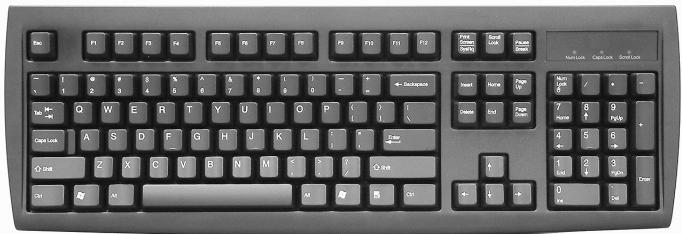
Clavier (PS/2 ou USB, option de fabrication)
Connectez le clavier au port PS/2 ou au port USB du panneau arrière du système.
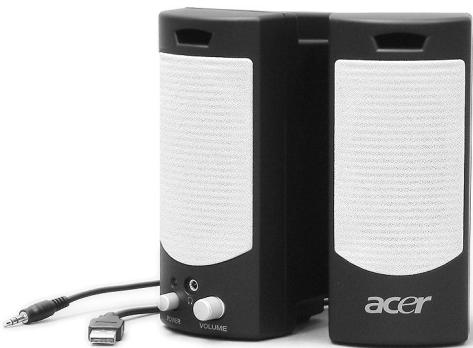
Haut-parleurs
Pour les systèmes livrés avec des enceintes, avant de mettre le système sous tension, connectez le câble des enceintes au port de sortie audio (enceinte externe) situé sur le panneau arrière du système.
Pour plus d'informations détaillées sur les enceintes, veuillez vous référer aux instructions d'utilisation fournies.

Remarque : Les enceintes sont en option et leur apparence peut varier selon le produit réel.
Mise à niveau du système
Vous pouvez étendre votre système AcerPower FV rapidement et facilement en ajoutant des composants. Vous pouvez également mettre à niveau les composants de votre système AcerPower FV.
Ouvrir l'ordinateur
Avant de retirer tout panneau ou capot, assurez-vous d'éteindre l'ordinateur et de débrancher le cordon d'alimentation de la prise.
- Retirez les deux vis du panneau latéral.
- Faites glisser le panneau vers l'arrière et retirez-le.
Installer de nouveaux composants
Vous ne pouvez utiliser que des composants compatibles avec les ordinateurs AcerPower FV. Avant de choisir de nouveaux composants, demandez à votre revendeur Acer agréé si la pièce fonctionnera avec votre système AcerPower FV.
Pour garantir une installation et une configuration correctes, veuillez vous référer aux instructions fournies avec vos nouveaux composants.
Les mises à niveau probables sont :
Passer à un disque dur de grande capacité - Étendre la mémoire de haut niveau Passer d'un lecteur de CD-ROM à un graveur de CD-RW, un lecteur de DVD-ROM, un combo DVD/CD-RW ou un graveur de DVD Installer des cartes d'interface supplémentaires dans les emplacements PCI vides, par exemple une carte fax/modem PCI
Configuration de votre ordinateur
L'AcerPower FV est un système polyvalent et puissant, prenant en charge les processeurs Intel® Pentium® 4 Socket LGA775. Cet ordinateur utilise le bus Peripheral Component Interface Express (PCI Express), ce qui améliore l'efficacité du système et lui permet de prendre en charge diverses applications multimédia et logicielles.
Votre AcerPower FV dispose d'interfaces d'entrée/sortie (E/S) standard telles qu'un port parallèle, un port série, un port VGA, des ports PS/2 pour clavier et souris, six ports USB, deux prises microphone et des sorties stéréo (une à l'avant et une à l'arrière) ainsi qu'une entrée stéréo. Le système peut accueillir des périphériques supplémentaires via ces ports.
Votre système peut également prendre en charge un modem fax/données haute vitesse en option ou une carte LAN (réseau local) supplémentaire.
De plus, le système est compatible avec les systèmes d'exploitation Microsoft® Windows® XP.
À savoir avant l'installation
Avant de configurer votre système AcerPower FV :
- Choisir un emplacement
- Ouvrir le carton
Choisir l'emplacement
Pour choisir l'emplacement optimal de votre ordinateur :
- Ne placez pas le système trop près d'autres équipements électriques.
- Ne placez pas le système dans des zones de passage ou là où le cordon d'alimentation ou d'autres câbles pourraient être piétinés.
- Évitez de placer le système dans un endroit excessivement poussiéreux ou humide.
Ouvrir le carton
Ouvrez le carton avec précaution et conservez tous les matériaux d'emballage pour une utilisation ultérieure.
Vérifiez que tous les articles sont présents et en bon état. Si l'un des articles suivants manque ou est endommagé, contactez immédiatement votre revendeur :
Série AcerPower FV - Clavier PS/2 ou USB (option de fabrication) - Souris PS/2 ou USB (option de fabrication) - Haut-parleurs (pour certains modèles uniquement) - Guide de l'utilisateur et affiche de démarrage
Autre documentation utilisateur et logiciels tiers.
Connexion des périphériques

Remarque : Ne branchez pas le cordon d'alimentation du système avant d'avoir connecté tous les périphériques au système.
Une fois tout connecté, branchez le cordon d'alimentation dans le système et insérez l'autre extrémité dans une prise de courant.
Démarrage de votre ordinateur
Après avoir connecté tous les périphériques, démarrez votre ordinateur en suivant les étapes ci-dessous :
1. Mettez sous tension tous les périphériques, tels que le moniteur, l'imprimante, le télécopieur, les haut-parleurs, etc. 2. Allumez le système. Une fois le processus de démarrage terminé, vous pouvez commencer à utiliser votre ordinateur.
Arrêt de votre ordinateur
Dans le menu « Démarrer », sélectionnez « Arrêter » et cliquez sur OK.
En cas de panne du système, maintenez enfoncé le bouton d'alimentation à l'avant du système pendant quatre secondes. Une fois le système éteint, éteignez tous les périphériques.
Dépannage
Les questions suivantes concernent des situations possibles qui peuvent survenir lors de l'utilisation de votre ordinateur, et chacune est suivie de réponses simples et de solutions à la situation.
Q : J'ai appuyé sur l'interrupteur d'alimentation mais le système n'a pas démarré.
A : Vérifiez la LED située au-dessus de l'interrupteur d'alimentation.
Si la LED n'est pas allumée, le système n'est pas alimenté. Procédez comme suit :
- Vérifiez que le sélecteur de tension situé sur le panneau arrière de l'ordinateur est réglé sur la tension correcte.
- Vérifiez que le câble d'alimentation est correctement branché sur une prise électrique.
- Si vous utilisez une multiprise ou un onduleur, assurez-vous qu'il est branché et allumé.
Si la LED est allumée, vérifiez les points suivants :
- Y a-t-il une disquette non amorçable (non système) dans le lecteur de disquette ? Si oui, retirez-la ou remplacez-la par une disquette système, puis appuyez sur Ctrl + Alt + Suppr pour redémarrer l'ordinateur.
Q : Rien ne s'affiche à l'écran.
R : La fonction de gestion de l'alimentation de votre ordinateur éteint automatiquement l'écran pour économiser l'énergie. Appuyez sur une touche pour réactiver l'affichage.
Si l'appui sur une touche ne fonctionne pas, redémarrez l'ordinateur. Si le redémarrage ne résout pas le problème, contactez votre revendeur ou le centre d'assistance technique.
Q : L'imprimante ne fonctionne pas.
R : Procédez comme suit :
- Assurez-vous que l'imprimante est branchée sur une prise électrique et qu'elle est allumée.
- Assurez-vous que le câble de l'imprimante est connecté solidement au port parallèle du système et au port correspondant de l'imprimante.
- Pour plus d'informations concernant l'imprimante, reportez-vous à la documentation de l'imprimante.
Q : Aucun son ne sort des haut-parleurs.
R : Vérifiez les points suivants :
- Le volume est peut-être coupé. Recherchez l'icône Volume dans la barre des tâches. Si elle est barrée, cliquez dessus et désélectionnez l'option muet. Vous pouvez également appuyer sur la molette de contrôle du volume/muet de votre clavier USB pour activer ou désactiver la fonction muet.
- Si des écouteurs, des oreillettes ou des haut-parleurs externes sont connectés à la prise de sortie ligne de votre ordinateur, les haut-parleurs internes ou intégrés sont automatiquement désactivés.
Q : Le système ne peut pas lire les informations d'une disquette, d'un disque dur, d'un CD ou d'un DVD.
R : Vérifiez les points suivants :
Assurez-vous d'utiliser le bon type de support. - Vérifiez si la disquette est correctement formatée. Si ce n'est pas le cas, reformatez-la.

Attention : Si vous reformatez une disquette, vous perdrez toutes les données qu'elle contient.
Assurez-vous que la disquette, le CD ou le DVD est inséré correctement (c'est-à-dire dans le bon sens) dans le lecteur approprié (par exemple, la disquette dans le lecteur de disquette, le DVD dans le lecteur de DVD).
- Vérifiez que le CD ou le DVD est propre et sans rayures.
- Testez votre lecteur en utilisant un bon support (c'est-à-dire non endommagé) comme une disquette ou un disque optique. Si votre lecteur de disquette, de CD ou de DVD ne peut pas lire les informations sur le bon support, il y a peut-être un problème avec le lecteur. Contactez votre revendeur ou le centre d'assistance technique pour obtenir de l'aide.
Q : Le système ne peut pas écrire sur une disquette, un disque dur ou un disque optique.
R : Vérifiez les points suivants :
Assurez-vous que le support n'est pas protégé en écriture. - Assurez-vous d'utiliser le bon type de disquette. Vérifiez si la disquette est correctement formatée. Si ce n'est pas le cas, reformatez-la.

Attention : Si vous reformatez une disquette, vous perdrez toutes les données qu'elle contient.
Prendre soin de votre ordinateur
Veuillez lire les instructions énumérées dans cette section. Le respect de ces instructions vous aidera à maximiser la durabilité de votre ordinateur.
Conseils importants
- N'exposez pas l'ordinateur à la lumière directe du soleil. Ne le placez pas près de sources de chaleur, comme un radiateur.
- Ne soumettez pas l'ordinateur à des champs magnétiques.
- N'exposez pas l'ordinateur à la pluie ou à l'humidité.
- Ne renversez pas d'eau sur ou dans l'ordinateur.
- Ne soumettez pas l'ordinateur à des chocs ou vibrations violents.
- N'exposez pas l'ordinateur à la poussière ou à la saleté.
- Ne placez jamais le système sur des surfaces inégales.
- Ne marchez pas sur le cordon d'alimentation et ne placez pas d'objets lourds dessus. Acheminez soigneusement le cordon d'alimentation et tous les câbles loin des zones de passage.
- Lorsque vous débranchez le cordon d'alimentation, ne tirez pas sur le cordon lui-même mais sur la fiche.
- L'intensité totale en ampères des équipements branchés ne doit pas dépasser l'intensité nominale du cordon, si vous utilisez une rallonge. De plus, le courant total de tous les équipements branchés sur une seule prise murale ne doit pas dépasser le calibre du fusible.
- Consultez la documentation fournie avec vos logiciels et/ou pilotes pour voir si vous pouvez sélectionner d'autres paramètres afin de rendre la visualisation de l'écran plus confortable.
Nettoyage et entretien
Pour nettoyer votre ordinateur et votre clavier
1 Éteignez l'ordinateur et débranchez le cordon d'alimentation. 2 Utilisez un chiffon doux humidifié avec de l'eau et essuyez délicatement l'extérieur de l'ordinateur et le clavier. N'utilisez pas de nettoyants liquides ou en aérosol.
Pour nettoyer votre dispositif de pointage
Pour nettoyer votre souris (à boule)
1 Ouvrez le couvercle circulaire sous la souris. 2 Retirez la boule et essuyez-la avec un chiffon doux et humide. 3 Remettez la boule en place et replacez le couvercle.
Pour nettoyer votre souris optique
Pour les utilisateurs d'une souris optique, reportez-vous à la documentation fournie avec votre souris pour les instructions d'entretien.
Pour nettoyer votre moniteur
Assurez-vous de garder votre écran propre. Pour les instructions de nettoyage, reportez-vous à la documentation fournie avec votre moniteur.
Quand contacter un technicien de service
Si vous faites tomber et endommagez l'ordinateur. Si du liquide a été renversé dans l'ordinateur. Si l'ordinateur ne fonctionne pas normalement.
Demander une assistance technique
Pour une assistance technique, contactez votre revendeur ou distributeur local. Vous pouvez également consulter le site Web d'Acer (www.acersupport.com) pour savoir comment et où contacter les centres de service disponibles dans votre région.
Conformité aux directives Energy Star
En tant que partenaire Energy, Acer Inc. a déterminé que ce produit respecte les directives Energy Star en matière d'efficacité énergétique.
Déclaration de conformité pour les pays de l'UE
Acer Inc. déclare par la présente que cet ordinateur personnel est conforme aux exigences essentielles et aux autres dispositions pertinentes de la directive 1999/5/CE.
Remarque : câbles blindés
Toutes les connexions à d'autres dispositifs informatiques doivent être effectuées à l'aide de câbles blindés afin de maintenir la conformité avec les réglementations FCC.
Remarque : périphériques
Seuls les périphériques (dispositifs d'entrée/sortie, terminaux, imprimantes, etc.) certifiés conformes aux limites de classe B peuvent être connectés à cet équipement. L'utilisation de périphériques non certifiés est susceptible de provoquer des interférences avec la réception radio et télévision.
Avis concernant le modem
TBR 21
Cet équipement a été approuvé [décision du Conseil 98/482/CE - "TBR 21"] pour une connexion terminale unique paneuropéenne au réseau téléphonique public commuté (RTPC). Cependant, en raison des différences entre les RTPC individuels fournis dans les différents pays, l'approbation ne garantit pas en soi le bon fonctionnement sur chaque point de terminaison du RTPC. Vous devez contacter votre fournisseur d'équipement immédiatement.
Consignes de sécurité importantes
Lisez attentivement ces instructions. Conservez-les pour référence future.
1 Respectez tous les avertissements et instructions marqués sur le produit. 2 Débranchez ce produit de la prise murale avant de le nettoyer. N'utilisez pas de nettoyants liquides ou en aérosol. Utilisez un chiffon humide pour le nettoyage. 3 N'utilisez pas ce produit près de l'eau.
4 Ne placez pas ce produit sur un chariot, un support ou une table instable. Si le produit tombe, il pourrait être sérieusement endommagé. 5 Des fentes et des ouvertures sont prévues pour la ventilation afin de garantir un fonctionnement fiable du produit et de le protéger contre la surchauffe. Ces ouvertures ne doivent pas être obstruées. Les ouvertures ne doivent jamais être bloquées en plaçant le produit sur un lit, un canapé, un tapis ou une surface similaire. Ce produit ne doit jamais être placé près ou au-dessus d'un radiateur ou d'une source de chaleur, ni dans une installation encastrée, sauf si une ventilation adéquate est assurée. 6 Ce produit doit être alimenté par le type de courant indiqué sur l'étiquette. Si vous n'êtes pas sûr du type de courant disponible, consultez votre revendeur ou votre compagnie d'électricité locale. 7 Ne laissez rien reposer sur le cordon d'alimentation. Ne placez pas ce produit à un endroit où les gens pourraient marcher sur le cordon. 8 Si une rallonge est utilisée avec ce produit, assurez-vous que l'intensité nominale totale de l'équipement branché sur la rallonge ne dépasse pas l'intensité nominale de la rallonge. Assurez-vous également que la puissance totale de tous les produits branchés sur la prise murale ne dépasse pas le calibre du fusible. 9 Ne poussez jamais d'objets de quelque nature que ce soit dans ce produit à travers les fentes du boîtier, car ils pourraient toucher des points de tension dangereux ou court-circuiter des pièces, ce qui pourrait provoquer un incendie ou un choc électrique. Ne renversez jamais de liquide de quelque nature que ce soit sur ou dans le produit. 10 N'essayez pas de réparer ce produit vous-même, car l'ouverture ou le retrait des capots peut vous exposer à des points de tension dangereux ou à d'autres risques. Confiez toute réparation à un personnel qualifié. 11 Débranchez ce produit de la prise murale et confiez la réparation à un personnel qualifié dans les conditions suivantes :
a Lorsque le cordon d'alimentation ou la prise est endommagé ou effiloché. b Si du liquide a été renversé dans le produit. c Si le produit a été exposé à la pluie ou à l'eau. d Si le produit ne fonctionne pas normalement lorsque les instructions d'utilisation sont suivies. Réglez uniquement les commandes couvertes par les instructions d'utilisation, car un réglage incorrect d'autres commandes peut entraîner des dommages et nécessiter souvent un travail important par un technicien qualifié pour remettre le produit en état normal. e Si le produit est tombé ou si le boîtier a été endommagé. Si le produit présente un changement net de performance, indiquant qu'une réparation est nécessaire.
12 Utilisez uniquement le type de cordon d'alimentation approprié (fourni dans votre boîte d'accessoires) pour cet appareil. Il doit être de type détachable : certifié UL/CSA, type SPT-2, calibre 7A 125V minimum, approuvé VDE ou équivalent. La longueur maximale est de 4,6 mètres (15 pieds).
13 Débranchez toujours toutes les lignes téléphoniques de la prise murale avant de réparer ou de démonter cet équipement. 14 Évitez d'utiliser une ligne téléphonique (autre que sans fil) pendant un orage électrique. Il peut y avoir un risque à distance de choc électrique dû à la foudre.
Déclaration relative à la batterie au lithium
ATTENTION
Danger d'explosion si la batterie est remplacée de manière incorrecte. Remplacez uniquement par un type identique ou équivalent recommandé par le fabricant. Éliminez les batteries usagées conformément aux réglementations locales. Recyclez si possible.
AVERTISSEMENT !
Batterie au lithium - Risque d'explosion en cas de manipulation incorrecte. Le remplacement ne doit se faire qu'avec une batterie de même marque et de même type. Retournez la batterie usagée au fournisseur.
AVERTISSEMENT
Risque d'explosion en cas de remplacement incorrect de la batterie. Utilisez le même type de batterie ou un type équivalent recommandé par le fabricant de l'appareil. Éliminez les batteries usagées conformément aux instructions du fabricant.
AVERTISSEMENT
Risque d'explosion en cas de remplacement incorrect de la batterie. Utilisez le même type de batterie ou un type équivalent recommandé par le fabricant de l'appareil. Éliminez les batteries usagées conformément aux instructions du fabricant.
AVERTISSEMENT
La pile peut exploser si elle est installée de manière incorrecte. Remplacez la pile uniquement par le type recommandé par le fabricant de l'appareil. Éliminez la pile usagée conformément aux instructions du fabricant.
ATTENTION !
Danger d'explosion en cas de remplacement incorrect de la batterie. Remplacement uniquement par le même type ou un type similaire recommandé par le fabricant. Élimination des batteries usagées conformément aux indications du fabricant.
Déclaration de conformité laser
Le lecteur de CD ou DVD utilisé avec cet ordinateur est un produit laser. L'étiquette de classification du lecteur de CD ou DVD (contenu indiqué ci-dessous) se trouve sur le lecteur.
PRODUIT LASER DE CLASSE 1
ATTENTION : RAYONNEMENT LASER INVISIBLE EN CAS D'OUVERTURE. ÉVITER TOUTE EXPOSITION AU FAISCEAU.
APPAREIL A LASER DE CLASSE 1 PRODUIT
LASER ATTENTION : RADIATION DU FAISCEAU LASER INVISIBLE EN CAS
D'OUVERTURE. ÉVITER TOUTE EXPOSITION AUX RAYONS.
LUOKAN 1 LASERLAITE LASER KLASSE 1
VORSICHT : UNSICHTBARE LASERSTRAHLUNG, WENN ABDECKUNG GEÖFFNET
NICHT DEM STRAHL AUSSETZEN
PRODUCTO LÁSER DE LA CLASE I
ADVERTENCIA : RADIACIÓN LÁSER INVISIBLE AL SER ABIERTO. EVITE EXPONERSE
A LOS RAYOS.
ADVARSEL : LASERSTRÅLING VED ÅBNING. SE IKKE IND I STRÅLEN.
VARO! LAVATTAESSA OLET ALTTIINA LASERSÄTEILYLLE.
VARNING : LASERSTRÅLNING NÄR DENNA DEL ÄR ÖPPNAD. ÅLÅ TUIJOTA
SÄTEESEEN. STIRRA EJ IN I STRÅLEN
VARNING : LASERSTRÅLNING NAR DENNA DEL ÄR ÖPPNAD. STIRRA EJ IN I
STRÅLEN
AVERTISSEMENT : RAYONNEMENT LASER LORSQUE LE COUVERCLE EST OUVERT. NE PAS REGARDER DANS LE FAISCEAU.
Déclaration de conformité pour le marquage CE
Nom du fabricant :
Acer Inc.
Adresse du fabricant :
8F, 88, Sec. 1, Hsin Tai Wu Rd.,
Hsichih, Taipei Hsien 221,
Taïwan, R.O.C.
Déclare que le produit :
Ordinateur personnel
Modèle :
Aspire T600
Est conforme à la directive CEM 89/336/CEE, comme attesté par la conformité aux normes harmonisées suivantes :
EN55022:1994 /A2: 1997 : Limites et méthodes de mesure des caractéristiques de perturbation radioélectriques des équipements de traitement de l'information
EN55024: 1998/A1: 2001 : Équipement de traitement de l'information -- Caractéristiques d'immunité -- Limites et méthodes de mesure, y compris :
| EN61000-4-2: 1995/A1: 1998/A2: 2001 | EN61000-4-6: 1996/A1: 2001 |
| EN61000-4-3: 1996/A1: 1998 | EN61000-4-8: 1993/A1: 2001 |
| EN61000-4-4: 1995/A2: 2001 | EN61000-4-11: 1994/A1: 2001 |
| EN61000-4-5: 1995/A1: 2001 |
EN61000-3-2: 2000 : Limites pour les émissions de courants harmoniques
EN61000-3-3: 1995/A1: 2001 : Limites pour les fluctuations de tension et le papillotement dans les réseaux d'alimentation basse tension
Conforme à la directive basse tension 73/23/CEE, attesté par la conformité à la norme harmonisée suivante :
EN60950: 2000 : Sécurité des équipements de traitement de l'information, y compris les équipements électriques de bureau. Cet équipement a été approuvé conformément à la décision du Conseil 98/482/CE (CTR21) pour la connexion terminale unique paneuropéenne au réseau téléphonique public commuté (RTPC).
Nous, Acer Inc., déclarons par la présente que l'équipement portant le nom commercial et le numéro de modèle spécifiés ci-dessus a été testé conformément aux règles applicables selon les normes de mesure les plus précises possibles, et que toutes les mesures nécessaires ont été prises et sont en vigueur pour garantir que les unités de production du même équipement continueront à respecter les exigences.
- ACERPOWER FV
- SOMMAIRE
- CONFIGURATION DE VOTRE ORDINATEUR
- DÉPANNAGE
- PRÉSENTATION DU SYSTÈME
- PANNEAU AVANT
- PANNEAU ARRIÈRE
- FONCTIONNALITÉS DU SYSTÈME
- PERFORMANCES
- MULTIMÉDIA
- CONNECTIVITÉ
- PÉRIPHÉRIQUES SYSTÈME
- SOURIS (PS/2 OU USB, OPTION DE FABRICATION)
- CLAVIER (PS/2 OU USB, OPTION DE FABRICATION)
- HAUT-PARLEURS
- MISE À NIVEAU DU SYSTÈME
- OUVRIR L'ORDINATEUR
- INSTALLER DE NOUVEAUX COMPOSANTS
- À SAVOIR AVANT L'INSTALLATION
- CHOISIR L'EMPLACEMENT
- OUVRIR LE CARTON
- CONNEXION DES PÉRIPHÉRIQUES
- DÉMARRAGE DE VOTRE ORDINATEUR
- ARRÊT DE VOTRE ORDINATEUR
- Q : AUCUN SON NE SORT DES HAUT-PARLEURS
- Q : LE SYSTÈME NE PEUT PAS LIRE LES INFORMATIONS D'UNE DISQUETTE, D'UN DISQUE DUR, D'UN CD OU D'UN DVD
- Q : LE SYSTÈME NE PEUT PAS ÉCRIRE SUR UNE DISQUETTE, UN DISQUE DUR OU UN DISQUE OPTIQUE
- PRENDRE SOIN DE VOTRE ORDINATEUR
- CONSEILS IMPORTANTS
- NETTOYAGE ET ENTRETIEN
- POUR NETTOYER VOTRE ORDINATEUR ET VOTRE CLAVIER
- POUR NETTOYER VOTRE DISPOSITIF DE POINTAGE
- POUR NETTOYER VOTRE SOURIS OPTIQUE
- POUR NETTOYER VOTRE MONITEUR
- QUAND CONTACTER UN TECHNICIEN DE SERVICE
- DEMANDER UNE ASSISTANCE TECHNIQUE
- CONFORMITÉ AUX DIRECTIVES ENERGY STAR
- DÉCLARATION DE CONFORMITÉ POUR LES PAYS DE L'UE
- REMARQUE : CÂBLES BLINDÉS
- REMARQUE : PÉRIPHÉRIQUES
- AVIS CONCERNANT LE MODEM
- TBR
- CONSIGNES DE SÉCURITÉ IMPORTANTES
- DÉCLARATION RELATIVE À LA BATTERIE AU LITHIUM
- ATTENTION
- AVERTISSEMENT
- DÉCLARATION DE CONFORMITÉ LASER
- DÉCLARATION DE CONFORMITÉ POUR LE MARQUAGE CE
Marque : ACER
Modèle : POWER FV
Catégorie : Système de gestion de l'énergie