
SDX-500V - Lecteur de bandes SONY - Notice d'utilisation et mode d'emploi gratuit
Retrouvez gratuitement la notice de l'appareil SDX-500V SONY au format PDF.


| Type de produit | Lecteur de bande interne AIT (Advanced Intelligent Tape) |
| Marque | Sony |
| Modèle | SDX-500V |
| Capacité native | 50 Go (AIT-2, bande 230 m) / 36 Go (AIT-2, bande 170 m) |
| Capacité compressée (2:1) | 100 Go (AIT-2, bande 230 m) / 72 Go (AIT-2, bande 170 m) |
| Format de cartouche compatible | AIT-1 (25/35 Go natif) et AIT-2 (36/50 Go natif) |
| Interface | SCSI Ultra Wide LVD/SE, 16 bits, jusqu'à 40 Mo/s (synchrone) |
| Débit de transfert natif | 4 Mo/s (AIT-1) / 6 Mo/s (AIT-2) |
| Taux d'erreur binaire | ≤ 10-17 |
| Alimentation | 5 V ±5% (1,1 A typ., 1,4 A max.) et 12 V ±10% (0,4 A typ., 1,2 A max.) |
| Connecteur d'alimentation | Connecteur DC 4 broches |
| Connecteur SCSI | 68 broches haute densité (femelle) |
| Configuration SCSI ID | Par cavaliers (0 à 15, ID par défaut 4) |
| Compression de données | Matérielle, activable/désactivable par commutateur DIP |
| Température de fonctionnement | 10 °C à 35 °C |
| Humidité de fonctionnement | 20 % à 80 % HR (max. 26 °C) |
| Température de stockage | -40 °C à 70 °C |
| Humidité de stockage | 5 % à 95 % HR (max. 26 °C) |
| Dimensions (5,25 pouces) | 146 mm (L) x 203 mm (P) x 41 mm (H) (approx.) |
| Poids (5,25 pouces) | Environ 1,0 kg |
| Entretien | Nettoyage régulier des têtes avec cartouche de nettoyage AIT Sony (modèle EF-3237J) ; nettoyage extérieur avec un chiffon doux humide |
| Sécurité | Ne pas démonter, ne pas insérer d'objets métalliques, éviter l'humidité et les gaz corrosifs, débrancher avant intervention |
| Durée de vie | 5 ans (produit) ; cartouches de données : remplacer après 1 à 2 ans selon usage |
| Systèmes d'exploitation supportés | Windows 2000, Windows XP, Windows Server 2003 (pilotes fournis sur disquette) |
FOIRE AUX QUESTIONS - SDX-500V SONY
Questions des utilisateurs sur SDX-500V SONY
0 question sur cet appareil. Repondez a celles que vous connaissez ou posez la votre.
Poser une nouvelle question sur cet appareil
Téléchargez la notice de votre Lecteur de bandes au format PDF gratuitement ! Retrouvez votre notice SDX-500V - SONY et reprennez votre appareil électronique en main. Sur cette page sont publiés tous les documents nécessaires à l'utilisation de votre appareil SDX-500V de la marque SONY.
MODE D'EMPLOI SDX-500V SONY
N8151-34B/N8151-46A AIT Built-In AIT
1
Guide de l'utilisateur Page 59
- Assurez-vous de lire ce manuel avant d'utiliser le produit. Après avoir lu ce manuel attentivement, conservez-le dans un endroit sûr.
Advanced Intelligent Tape
Windows 2000 Système d'exploitation Microsoft® Windows® 2000 Professionnel Système d'exploitation Microsoft® Windows® 2000 Serveur Système d'exploitation Microsoft® Windows® 2000 Serveur Avancé
Windows XP Système d'exploitation Microsoft® Windows® XP Professionnel Système d'exploitation Microsoft® Windows® XP Édition Familiale
Windows Server 2003 Système d'exploitation Microsoft® Windows Server™ 2003 Édition Standard Système d'exploitation Microsoft® Windows Server™ 2003 Édition Entreprise Système d'exploitation Microsoft® Windows Server™ 2003 Édition Datacenter Système d'exploitation Microsoft® Windows Server™ 2003 Édition Web


3




CA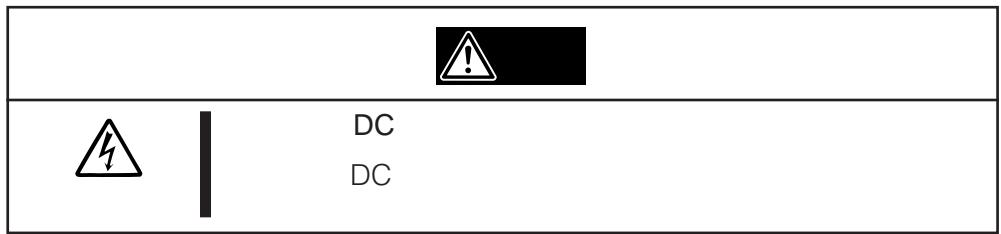
AIT
AIT
ID SCSI
SCSI
ID SCSI
OFF
LED DE MOUVEMENT DE BANDE
EF-2420L EF-2420 N8151-34B EF-2423S EF-2420L EF-2420 N8151-46A
A
EF-2423
41
AIT
:EF-3237J
N8151-34B/N8151-46A AIT AIT
AIT
AIT
AIT
2
- 13
- 28
- AIT 17 18
- 19 24
- 25 27 6.
28 36
- .. AIT EF-2423
EF-2423S EF-2420L EF-2420
43 48
- 37 40
- LED 40
- AIT 41 42
- Windows 2000 Windows Windows Server 2003
Windows XP
| 重要 | |
| ~ト |

5
NEC NEC
5
N8151-34B/N8151-46A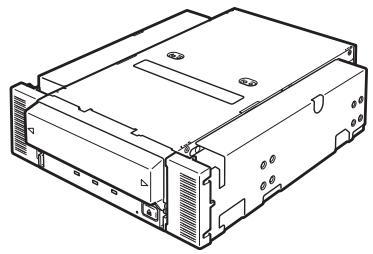

4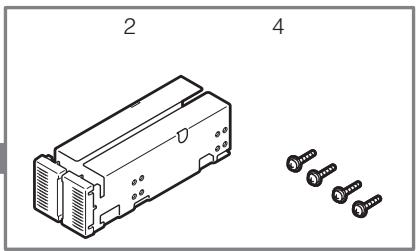


28 AIT

Important
| 1 |
| 2 |
| 3 |
| 4 |
| 9 |
| 10 |
| 10 |
| 11 |
| 11 |
| 11 |
| 12 |
| 12 |
| 12 |
| 13 |
| AIT | 16 |
| 17 | |
| 17 | |
| 17 | |
| 17 | |
| 17 | |
| 18 | |
| 18 | |
| 19 | |
| 19 | |
| AIT | 21 |
| AIT | |
| DIP | 23 |
| 25 | |
| 27 | |
| 28 | |
| 37 | |
| AIT | 37 |
| AIT | 39 |
| LED | 40 |
| 40 |
AIT
EF-2423 EF-2423S
EF-2420L EF-2420
41
......41
42
43
44
44
44
45
45
46
46
46
47
47
48
3 48
48
48
49
51
52
Advanced Intelligent Tape (AIT)
| AIT | Gbyte | ||
| N8151-34B | AIT-1 | EF-2420L | 35 Gbyte |
| EF-2420 | 25 Gbyte | ||
| N8151-46A | AIT-2 | EF-2423 | 50 Gbyte |
| EF-2423S | 36 Gbyte | ||
| AIT-1 | EF-2420L | 35 Gbyte | |
| EF-2420 | 25 Gbyte | ||
AIT
AIT
5,25
3,5
5,25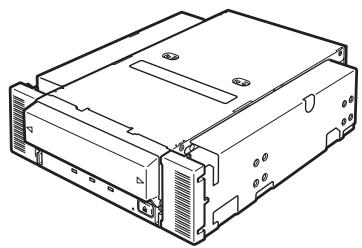
3,5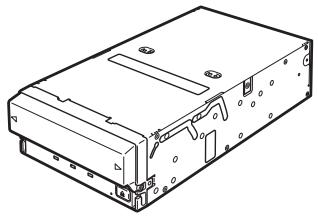
| AIT | AIT1 | EF-2420L | 230 m | |
| EF-2420 | 170 m | N8151-34B | AIT2 | EF-2423 |
| EF-2423S | 170 m | EF-2420L | 230 m | EF-2420 |
| m N8151-46A | AIT |

5,25
3,5
5,25
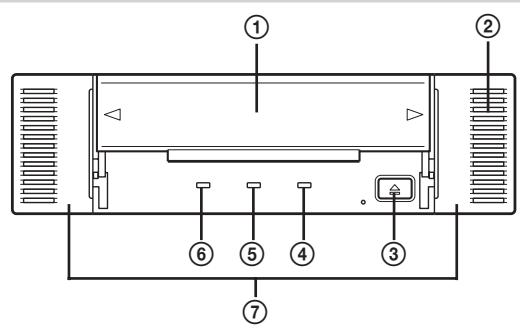
①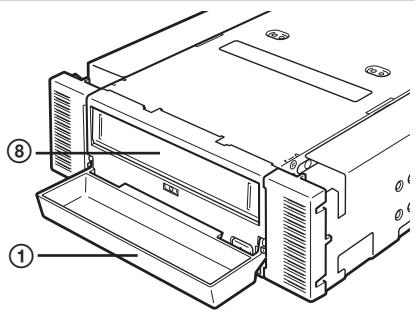
37
(2)
③ EJECT
AIT
39
④ VOYANT DE REMPLACEMENT DE BANDE
AIT
VOYANT
40
⑤ VOYANT DE DEMANDE DE NETTOYAGE
AIT
VOYANT 40
⑥ VOYANT DE MOUVEMENT DE BANDE
AIT
VOYANT
40
⑦
(8)
AIT
38
(1) DC 26 (2) AIT 21 ③ SCSI SCSI 26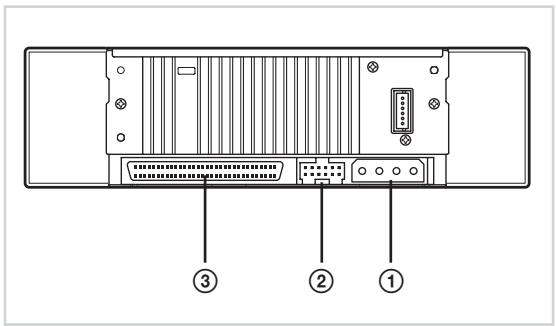
① DIP AIT 23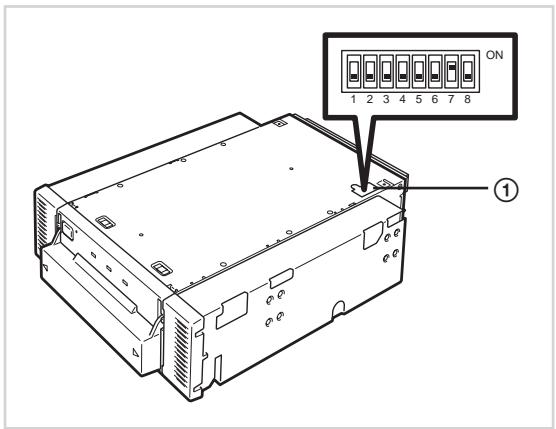
Express5800
3.5

Important
4.0 mm
5.0 mm
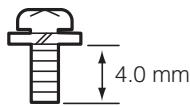
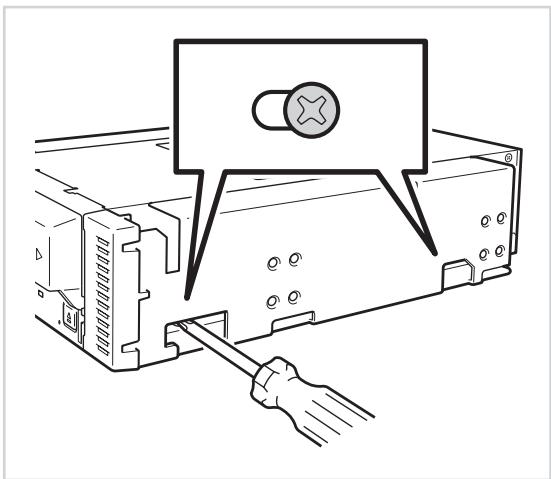
AIT
SCSI ID
ID4
2
2
3 4

Important
SCSI
ID SCSI
| SCSI ID | 3 | 2 | 1 | 0 |
| 0 | × | × | × | × |
| 1 | × | × | × | |
| 2 | × | × | × | |
| 3 | × | × | ||
| 4 *1 | × | × | × | |
| 5 | × | × | ||
| 6 | × | × | ||
| 7 *2 | × | |||
| 8 | × | × | × | |
| 9 | × | × | ||
| 10 | × | × | ||
| 11 | × | |||
| 12 | × | × | ||
| 13 | × | |||
| 14 | × | |||
| 15 |
× 1 2 ID SCSI ID7
Important
AIT
DIP
DIP
Alimentation du terminateur
Contrôle CC (1)
Contrôle CC (2)
ARRÊT
MARCHE
ARRÊT
SCSI
5
ON
OFF
Terminator Power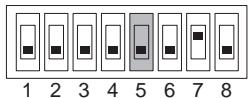
ON

Important
N8541-28 N8141-28A
OFF
DC Control (1)
7
ON
OFF
ON
DC Control (2)
8
ON
OFF
ON


ON
AC
AC
AC
AC
一
1.
N8151-34B/N8151-46A
AIT
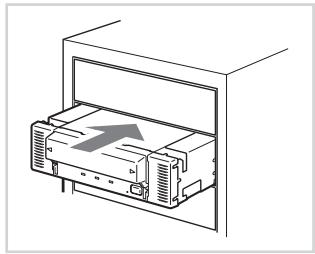
Fig. 1 Fig. 2
2
4
Fig. 3 Fig. 1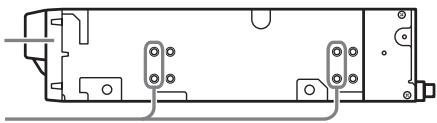
Fig. 2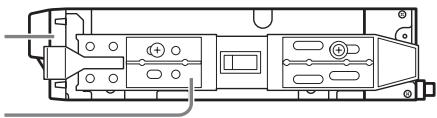
Fig. 3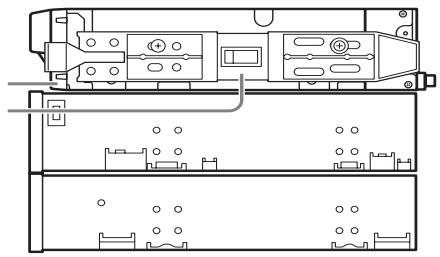
5.25
3.5
3.5 mm
5.0 mm


2.
- AC
- ON
- SCSI
:40 Mbyte :16 Ultra Wide SCSI LVD/SE DISCONNECT/RECONNECT :

SCSI
| SCSI | (Mbyte) | (bit) | (m) | SCSI + | |
| Single-ended | LVD* | ||||
| Ultra Wide SCSI | 40 | 16 | 3 | - | 4 |
| Ultra Wide SCSI | 40 | 16 | 1.5 | - | 8 |
| Ultra Wide SCSI | 40 | 16 | - | 3 | 16 |
| Fast Wide SCSI | 20 | 16 | 3 | 3 | 16 |
| Wide SCSI | 10 | 16 | 6 | 3 | 8 |
*SCSI
LVD
NEC Web 8 http://wwwexpress.nec.co.jp Express5800/100
Windows 2000
N8151-46A
SDX-500V
SDX-400V
N8151-34B
- 3.
SDX-500V (SDX-400V) SCSI Sequential Device
SONY SDX-500V (SDX-400V) SCSI Sequential Device
SONY SDX-500V (SDX-400V) SCSI Sequential Device
4.
5.
6.
7.
- a:\win2000\sw2ait.inf
9.
10.
AIT
Windows XP
N8151-46A
SDX-500V
SDX-400V
N8151-34B
- SONY
SDX-500V (SDX-400V) SCSI Sequential Device
SONY SDX-
500V (SDX-400V) SCSI Sequential Device
SONY SDX-500V (SDX-400V)
SCSI Sequential Device
4.
5.
- a:¥winxp¥spxait.inf
7.
8.
AIT
七卜
Windows Server 2003
N8151-46A
SDX-500V
SDX-400V
N8151-34B
- 3.
SONY SDX-500V (SDX-400V) SCSI Sequential Device
SONY SDX-500V (SDX-400V) SCSI Sequential Device
SONY SDX-500V (SDX-400V) SCSI Sequential Device
4.
5.
- a:\win2003\sxpait.inf
7.
8.
AIT
AIT

AIT
OFF
- ON REPLACE TAPE LED TAPE MOTION LED CLEANING REQUEST LED
2.
- AIT
LED
TAPE MOTION
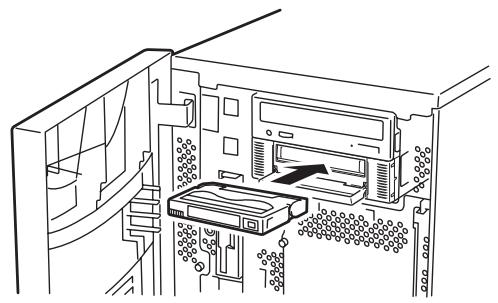
Fig. 1
Fig. 1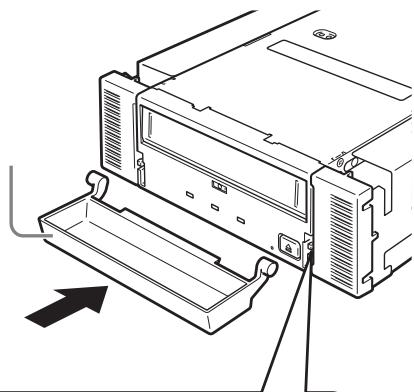
AIT
- TÉMOIN DE DÉFILEMENT DE BANDE
- ÉJECTION
3.
4.

TÉMOIN DE DÉFILEMENT DE BANDE
ARRÊT
TÉMOIN
| 3 LED AIT | |||
| LED | TAPE MOTION | CLEANING REQUEST | REPLACE TAPE |
| Slowly | |||
| Fast | |||
| LED Fast | |||
| Fast | 0.3 | 0.3 | |
| Slowly | 0.9 | 0.3 | |
AIT
TÉMOIN DE DEMANDE DE NETTOYAGE
EF-3237J
AIT
35

IMPORTANT
AIT
EJECT
1 1
1 1
AIT EF-2423EF-2423S EF-2420L EF-2420
AIT
10 45
20 80
26
AIT
8
10
5 32
20 60
26
AIT
-40 45
5 80
26
10
AIT
AIT
AIT
AIT
AIT
INDEX
AIT
INDEX
INDEX
AIT
REC
SAFE
EF-2423
EF-2423S
EF-2420L
EF-2420
AIT
AIT
8
1 10
AIT
AIT

重要
1
1
2
AIT
AIT
AIT
AIT
AIT
3
2
3
3
2
3
A
C
B
3
C
B
3
1
A
B
A
2
N8151-34B
35 Gbyte 25 Gbyte
N8151-46A
- 50 Gbyte 36 Gbyte 35 Gbyte 25 Gbyte
70 Gbyte EF-2420L 50 Gbyte EF-2420
100 Gbyte EF-2423 72 Gbyte EF-2423S 70 Gbyte EF-2420L 50 Gbyte EF-2420
2
10 17
TAPE
N8151-34B
- AIT-1 4 Mbyte N8151-46A
- AIT-2 6 Mbyte
- AIT-1 4 Mbyte
SCSI 40 Mbyte
40 Mbyte
5
14
20
105
:10 35
: 20% 80%
:26
| 5 V± 5 | 12 V± 10 | |
| Typ. | 1.1 A | 0.4 A |
| Max. | 1.4 A | 1.2 A |
N8151-34B/N8151-46A 5.25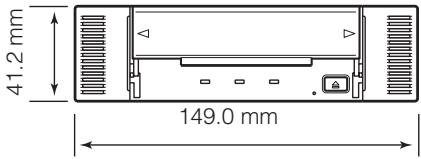
N8151-34B/N8151-46A 3.5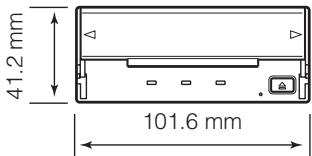
| OS | |
| SCSI SCSI ID | |
| EF | |
| EF | |
| 1 | LED | DC 2 DC | |
| AC AC | |||
| 2 | SCSI SCSI I/F SCSI MB SCSI SCSI ID ID “7” | ||
| 2 | SCSI | ||
| ON | |||
| SCSI MB | |||
| BIOS ON | |||
| PIN SCSI 68pin | |||
| 50pin PIN | |||
| SCSI BIOS | |||
| SCSI BIOS | |||
| 3 | OS | ||
| 4 | DDS2 DDS3EFSCSI | ||
| 5 | SCSI IDSCSI | ||
| 6 | LEDLCD | LED LCDERRxx | |
| 7 | 4 6EJECTOFF/ONEJECT510OFF/ONEJECT | ||
| 8 | EJECT EJECT | ||
| 9 | TAPE MOTION LED | ||
| 10 | DDS2 DDS3 AIT AIT2 EF | ||
| 11 |
8151-34 / 8151-46
AIT
2003 10
2004 9 3
71
TEL(03)3454-1111
Marques déposées
Microsoft et le logo Microsoft sont des marques déposées de Microsoft Corporation aux États-Unis et dans d'autres pays.
Advanced Intelligent Tape est une marque de commerce de Sony Corporation.
Les noms de sociétés et de produits contenus dans ce manuel sont des marques de commerce ou des marques déposées de leurs sociétés respectives.
Windows 2000 est une abréviation pour Microsoft® Windows® 2000 Professional, Microsoft® Windows® 2000 Server et Microsoft® Windows® 2000 Advanced Server.
Windows XP est une abréviation pour Microsoft® Windows® XP Professional et Microsoft® Windows® XP Home Edition.
Windows Server 2003 est une abréviation pour Microsoft® Windows Server™ 2003 Standard Edition, Microsoft® Windows Server™ 2003 Enterprise Edition, Microsoft® Windows Server™ 2003 Datacenter Edition et Microsoft® Windows Server™ 2003 Web Edition.
Tous les noms utilisés dans les exemples d'applications sont fictifs. Ils n'ont aucun lien avec un produit, une partie ou des noms de personnes.
Remarques
(1) La reproduction de ce document ou de parties de celui-ci sans autorisation préalable est interdite. (2) Les informations contenues dans ce document sont sujettes à modification à tout moment, sans préavis. (3) La réimpression ou la modification de ce document sans autorisation préalable de NEC est interdite. (4) Tous les efforts ont été faits pour garantir l'exactitude du contenu de ce manuel ; cependant, en cas de doute, d'erreur ou d'omission détectée, NEC apprécierait grandement que nos revendeurs soient informés. (5) Veuillez noter qu'en aucun cas NEC ne pourra être tenu responsable des dommages découlant de l'utilisation de cet appareil, indépendamment du point (4) ci-dessus.
Conservez ce guide de l'utilisateur à portée de main pour une référence rapide à tout moment nécessaire.

Consignes de sécurité - À lire impérativement -
Suivez les instructions données dans ce guide de l'utilisateur pour un fonctionnement correct et une utilisation sûre de l'appareil.
INDICATIONS DE SÉCURITÉ
Ce guide de l'utilisateur décrit les composants de l'appareil présentant un danger potentiel, les risques pouvant résulter de l'ignorance des avertissements, et les mesures préventives contre ces risques. Les composants présentant un danger potentiel sont signalés par une étiquette d'avertissement placée sur ou à proximité d'eux. Dans le guide de l'utilisateur ou sur les étiquettes d'avertissement, "AVERTISSEMENT" ou "ATTENTION" est utilisé pour indiquer un degré de danger. Ces termes sont définis comme suit :

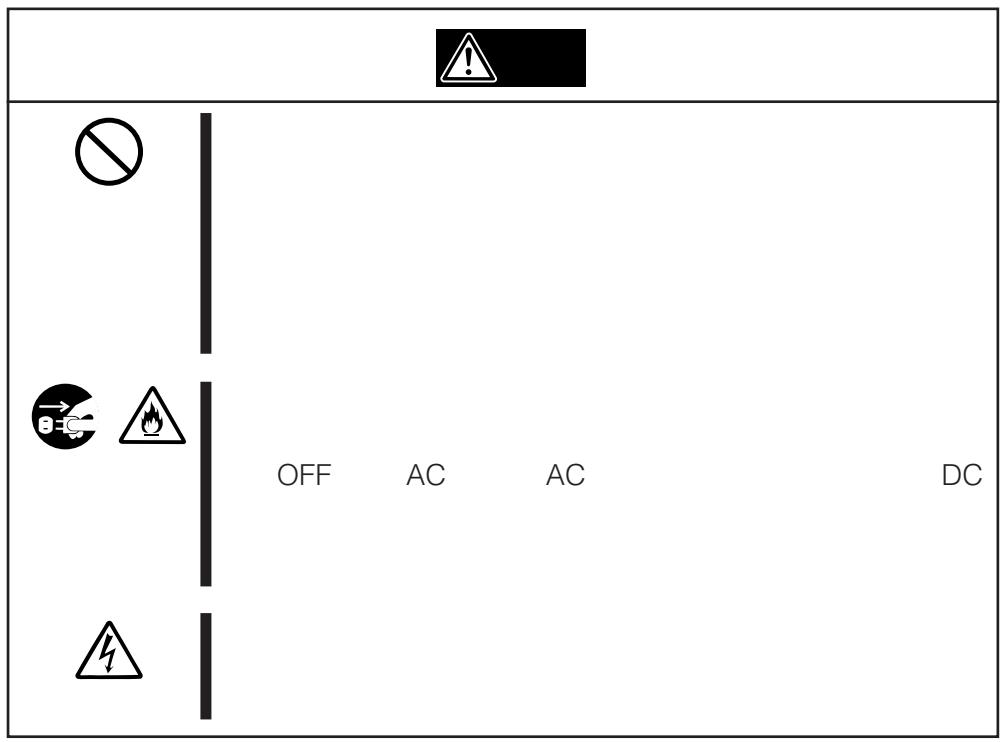
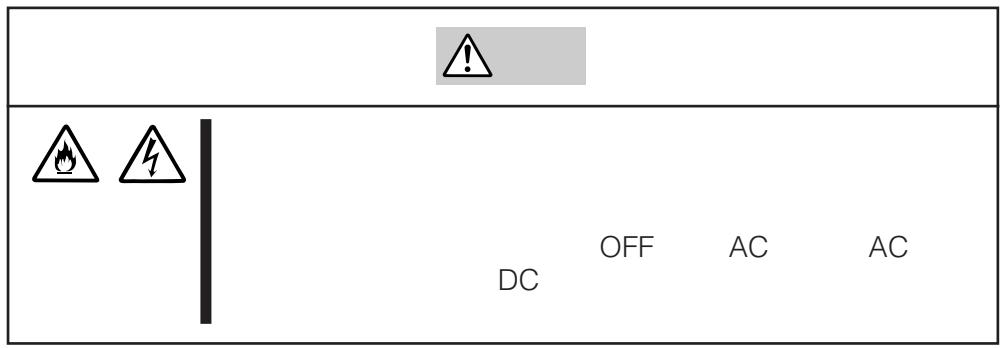
Avertissement

Attention
Le non-respect de ce signe peut entraîner des blessures graves ou la mort.
Le non-respect de ce signe peut entraîner des blessures corporelles ou des dommages matériels.
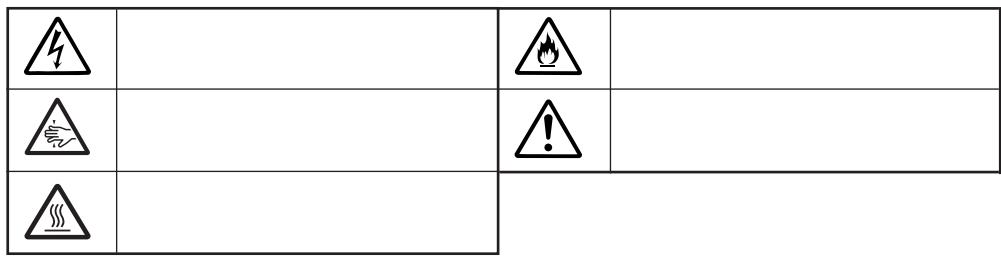
Les précautions et avis contre les dangers sont présentés avec l'un des trois symboles suivants. Les symboles individuels sont définis comme suit :
| Attention | This symbol indicates the presence of a hazard if the instruction is ignored. An image in the symbol illustrates the hazard type. | (sample) (Electric shock) | |
| Prohibited Action | This symbol indicates prohibited actions. An image in the symbol illustrates a particular prohibited action. | (sample) (Do not disassemble) | |
| Mandatory Action | This symbol indicates mandatory actions. An image in the symbol illustrates a mandatory action to avoid a particular hazard. | (sample) (Disconnect the power cord) |
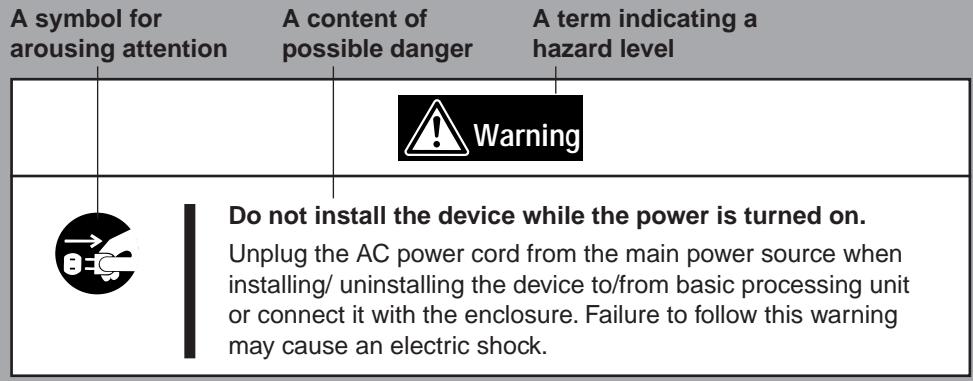
Symboles utilisés dans ce guide de l'utilisateur et sur les étiquettes d'avertissement
Attention
| 4 | Indicates that improper use may cause an electric shock. | Indicates that improper use may cause fumes or fire. | |
| 5 | Indicates that improper use may cause fingers to be caught. | 1 | Indicates a general notice or warning that cannot be specifically identified. |
| 6 | Indicates that improper use may cause personal injury. | ||
Action interdite
| ○ | Indicates a general prohibited action or warning that cannot be specifically identified. | ○ | Do not disassemble, repair, or modify the device. Otherwise, an electric shock or fire may be caused. |
Action obligatoire
| →C | Unplug the power cord. Otherwise, an electric shock or fire may be caused. | Indicates a general mandatory action or warning that cannot be specifically identified. |
Consignes de sécurité
Cette section fournit plusieurs précautions pour vous permettre d'utiliser le produit en toute sécurité et correctement, et pour prévenir les blessures et les dommages matériels. Lisez attentivement cette section pour garantir une utilisation correcte et sûre du produit. Pour les symboles, voir "INDICATIONS DE SÉCURITÉ" fournies précédemment.
Attention générale
| Warning | |
| Do not use in life-critical applications or applications requiring high reliability. This device is not intended for integration with or control of facilities or equipment that may affect human life or that require a high degree of reliability, such as medical equipment, nuclear power facilities, aerospace instruments, and transportation equipment. The manufacturer does not assume any liability for accidents resulting in injury or death, or for any damages to property that may occur as a result of using this device in such facilities, equipment, or control systems. Do not use the Built-in AIT if any smoke, odor, or noise is present. If smoke, odor, or noise is present, immediately turn off the POWER switch and disconnect the power plug from the outlet, then contact your sales agent. Using the Built-in AIT in such conditions may cause a fire. Keep needles or metal objects away from the Built-in AIT. Do not insert needles or metal objects into ventilation holes in the Built-in AIT. Failure to follow this warning may cause an electric shock. | |
| Caution | |
| Keep water or foreign matter away from the Built-in AIT. Do not let any kind of liquid (water etc.) or foreign matter (e.g., pins or paper clips) enter the Built-in AIT. Failure to follow this warning may cause an electric shock, a fire, or a failure of the Built-in AIT. When such things accidentally enter the Built-in AIT, immediately turn off the power and disconnect the power plug from the outlet. Do not disassemble the Built-in AIT. Contact your sales agent. |
Attention à l'alimentation ou au cordon d'alimentation
| Warning | |
| Do not hold the DC cable with a wet hand. Do not disconnect/connect the cable while your hands are wet. Failure to follow this warning may cause an electric shock. | |
| Caution | |
| BEC | Do not install the device while the power is turned on. Unplug the AC power cord from the main power source when installing/ uninstalling the device to/from basic processing unit or connect it with the enclosure. Failure to follow this warning may cause an electric shock. |
| Insert the DC cable into the outlet as far as it goes. Heat generation resulting from a halfway inserted DC cable (imperfect contact) may cause a fire. Heat will also be generated if condensation is formed on dusty blades of the halfway inserted cable, increasing the possibility of a fire. | |
| Do not connect the Built-in AIT by unspecified cabling. Connecting or cabling with DC cable should be done in accordance with the procedure specified in the User's Guide. Unspecified connecting or cabling may cause an electric shock or a fire. | |
| Do not use any damaged power cord. If the power cord is damaged, immediately replace it with a new part of same type. Do not repair the damaged section for reuse. Otherwise, the section repaired with vinyl tape or the like will be overheated to cause an electric shock or a fire. | |
| Use the authorized cable only. Use only the specified cable when connecting the Built-in AIT with a basic processing unit. Use of an unspecified cable or connection by unspecified cabling may cause a fire. | |
Attention à l'installation, au déplacement, au stockage et à la connexion
| Caution | |
| Do not close the ventilation hole. Do not close the ventilation hole in the front side of the Built-in AIT. Otherwise, Its internal temperature will rise to cause malfunctions or a fire. Do not connect/disconnect the interface cables before unplugging the power plug. Before connecting/disconnecting the interface cables, disconnect the power plug of the main power unit from the outlet. If the power is off but the power plug is still connected, you may get an electric shock. | |
| Do not use the unspecified interface cables. Use only the cable authorized by NEC and locate the device and connector before connection. Use of an unauthorized cable or displaced connection may cause a short circuit, resulting in a fire. When handling or connecting the interface cables, keep the notes as follows: • Do not tread on cables. • Do not load on the cable. • Insert the cable connector as far as it goes. • Do not use damaged cables. • Do not use damaged connectors. • Make sure that screwing or the like be done firmly. | |
| Do not use or store this product in corrosive environment. Avoid the usage or storage of this product in an environment which may be exposed to corrosive gases, such as those including but not limited to: sulfur dioxide, hydrogen sulfide, nitrogen dioxide, chlorine, ammonia and/or ozone. Avoid installing this product in a dusty environment or one that may be exposed to corrosive materials such as sodium chloride and/or sulfur. Avoid installing this product in an environment which may have excessive metal flakes or conductive particles in the air. Such environments may cause corrosion or short circuits within this product, resulting in not only damage to this product, but may even lead to be a fire hazard. If there are any concerns regarding the environment at the planned site of installation or storage, please contact your sales agent. |


Haute température
Immédiatement après la mise hors tension du serveur, ses composants internes tels que les disques durs sont très chauds. Laissez le serveur refroidir complètement avant d'installer ou de retirer un composant.
Attention à la manipulation ou à la maintenance


Ne démontez pas, ne réparez pas et ne modifiez pas le lecteur AIT intégré.
Ne tentez jamais de démonter, réparer ou modifier le lecteur AIT intégré, sauf dans les cas décrits dans ce guide de l'utilisateur. Le non-respect de cette consigne peut provoquer un choc électrique ou un incendie, ainsi que des dysfonctionnements du lecteur AIT intégré.

Les opérations suivantes peuvent être effectuées par l'utilisateur du lecteur AIT intégré. N'effectuez aucun autre type de démontage que celui décrit ici.
- Retirer ou installer les supports
- Retirer ou installer le câble de signal DC
Ne pas manipuler lorsque la fiche d'alimentation est branchée.
Avant de manipuler ou de nettoyer le Built-In AIT, débranchez la fiche d'alimentation de l'unité principale de la prise. Si l'alimentation est coupée mais que la fiche est toujours branchée, vous risquez un choc électrique.


Insérez les câbles dans les connecteurs jusqu'au bout.
La chaleur générée par des câbles ou des câbles d'interface insérés à moitié (contact imparfait) peut provoquer un incendie. De la chaleur sera également générée si de la condensation se forme sur les lames poussiéreuses du câble inséré à moitié, augmentant le risque d'incendie.
Attention à l'utilisation
| Warning | |
| Do not insert your hands into the cartridge load compartment. Do not insert your hands into the cartridge load compartment. Otherwise, the fingers will be caught/pinched by the Built-in AIT to cause an injury. | |
| Do not touch the Built-in AIT when it thunders. If it starts thundering, do not touch any part of the Built-in AIT. Failure to follow this warning may cause an electric shock or a fire. | |
| Keep away pets. Keep away pets from the Built-in AIT. Insertion their hair or excrements may cause a fire or an electric shock. | |
| Do not use a cellular phone or a pager Turn off the power of the cellular phone or a pager. Otherwise, malfunction may be caused. | |
Pour un fonctionnement correct
Pour faire fonctionner correctement le Built-In AIT, observez les points suivants. Pour des considérations sur la manipulation de la cartouche de données AIT, reportez-vous au chapitre "Cartouche de données AIT".
- Réglez l'ID SCSI du Built-In AIT afin qu'il ne soit pas en double avec l'ID SCSI d'autres équipements SCSI.
→ Sinon, une erreur de fonctionnement se produira.
- Ne coupez pas l'alimentation de l'unité de traitement de base lorsque le voyant TAPE MOTION sur le devant du Built-In AIT clignote.
→ Cela peut provoquer une panne de la machine ou endommager les données de sauvegarde.
- Ne stockez pas le Built-In AIT dans un endroit soumis à des gaz corrosifs, des produits chimiques ou des éclaboussures de produits chimiques.
→ Une pièce du Built-In AIT peut être déformée ou endommagée et ne plus fonctionner correctement.
- Ne stockez pas le lecteur AIT intégré dans un endroit soumis à de fortes vibrations.
→ Cela peut provoquer une panne de la machine.
- Utilisez notre « cartouche de données AIT » (modèles : AIT1 (avec N8151-34B) ; AIT1 ou 2 (avec N8151-46A)) comme cartouche de données à insérer dans le lecteur AIT intégré.
→ Si vous utilisez une cartouche de données d'un autre fabricant, une erreur de lecture/écriture peut se produire.
- Nettoyez régulièrement le lecteur AIT intégré.
→ Pour plus de détails sur le nettoyage du lecteur AIT intégré, voir « Nettoyage » (page 99).
- Lors du nettoyage du lecteur AIT intégré, utilisez notre « cartouche de nettoyage AIT ».
→ Si vous utilisez un nettoyant d'un autre fabricant, une panne de la machine peut se produire.
- Ne transportez pas le lecteur AIT intégré avec une cartouche de données insérée.
→ Les chocs peuvent endommager le lecteur AIT intégré et/ou la cartouche de données.
- Éjectez la cartouche de données lorsque vous avez terminé une sauvegarde.
→ Cela peut raccourcir la durée de vie de la cartouche de données et/ou provoquer des dysfonctionnements.
Organisation du manuel d'instructions
Le manuel d'instructions sert de guide pour vous permettre d'installer et d'utiliser correctement le lecteur AIT intégré N8151-34B/N8151-46A. Vous pouvez vous y référer chaque fois que vous rencontrez une question ou un problème lors de l'installation et de l'utilisation quotidienne.
Le manuel d'instructions se compose de deux chapitres : le premier couvre les considérations sur l'utilisation sûre du lecteur AIT intégré (installation, utilisation quotidienne et maintenance) et le second couvre les considérations sur l'utilisation sûre de la cartouche de données AIT disponible sur le lecteur AIT intégré (fonctionnement et maintenance).
Ordre de priorité lors de la première utilisation de l'AIT intégré
Lors de la première utilisation de l'AIT intégré, reportez-vous au manuel d'instructions dans l'ordre suivant pour effectuer la configuration après avoir déballé le lecteur.
- Vérifiez le contenu de l'emballage. Contenu de l'emballage (→ P. 71)
- Apprenez les précautions d'utilisation. Consignes de sécurité (→ P. 60 à 66)
- Apprenez les pièces de l'AIT intégré. Nom et fonction des pièces (→ P. 75 à 76)
- Réglage avant installation. Configuration (→ P. 77 à 82)
- Montez le lecteur dans l'unité de traitement de base. ....... Configuration (→ P. 83 à 85)
- Installez le pilote de bande.*
- Installez le pilote de bande.*
- Installez le pilote de bande.*
- Installez le pilote de bande.*
- Installez le pilote de bande.*
- Installez le pilote de bande.*
- Installez le pilote de bande.*
- Installez le pilote de bande.*
- Installez le pilote de bande.*
- Installez le pilote de bande.*
- Installez le pilote de bande.*
- Installez le pilote de bande.*
- Installez le pilote de bande.* .....
- Installez le pilote de bande.* .....
- Installez le pilote de bande.* .....
- Installez le pilote de bande.* .....
- Installez le pilote de bande.* .....
- Installez le pilote de bande.* .....
- Installez le pilote de bande.* .....
- Installez le pilote de bande.* .....
- Installez le pilote de bande.* .....
- Installez le pilote de bande.* .....
- Installez le pilote de bande.* .....
- Installez le pilote de bande.* .....
- Installez le pilote de bande.* .....
- Installez le pilote de bande.* .....
- Installez le pilote de bande.* .....
- Installez le pilote de bande.* .....
- Installez le pilote de bande.* .....
- Installez le pilote de bande.* .....
- Installez le pilote de bande.* .....
- Installez le pilote de bande.* ....
- Installez le pilote de bande.* ....
- Installez le pilote de bande.* ....
- Installez le pilote de bande.* ....
- Installez le pilote de bande.* ....
- Installez le pilote de bande.* ....
- Installez le pilote de bande.* ....
- Installez le pilote de bande.
- Installez le pilote de bande.
- Installez le pilote de bande.
- Installez le pilote de bande.
- Installez le pilote de bande.
- Installez le pilote de bande.
- Installez le pilote de bande.
- Installez le pilote de bande.
- Installez le pilote de bande.
- Installez le pilote de bande.
- Installez le pilote de bande.
- Installez le pilote de bande.
- Installez le pilote de bande.
- Installez le pilote de bande.
- Installez le pilote de bande.
- Installez le pilote de bande.
- Installez le pilote de bande.
- Installez le pilote de bande.
- Installez le pilote de bande.
- Installez le pilote de bande.
- Installez le pilote de bande.
- Installez le pilote de bande.
- Installez le pilote de bande.
- Installez le pilote de bande.
- Installez le pilote de bande.
- Installez le pilote de bande.
- Installez le pilote de bande.
- Installez le pilote de bande.
- Installez le pilote de bande.
- Installez le pilote de bande.
- Installez le pilote de bande.
- Installez le pilote de bande.
- Installez le pilote de bande.
- Installez le pilote de bande.
- Installez le pilote de bande.
- Installez le pilote de bande.
- Installez le pilote de bande.
- Installez le pilote de bande.
- Installez le pilote de bande.
- Installez le pilote de bande.
- Installez le pilote de bande.
- Installez le pilote de bande.
- Installez le pilote de bande.
- Installez le pilote de bande.
- Installez le pilote de bande.
- Installez le pilote de bande.
- Installez le pilote de bande.
- Installez le pilote de bande.
- Installez le pilote de bande.
- Installez le pilote de bande.
- Apprenez à manipuler la cartouche. Cartouche de données AIT (→ P. 101 à 106)
- Installez la cartouche. Manipulation (→ P. 95 à 98)
- Vérifiez l'indication des voyants. Manipulation (→ P. 98)
- Nettoyez le lecteur AIT intégré. Nettoyage (→ P. 99 à 100)
- Uniquement nécessaire lors de l'utilisation de la fonction de sauvegarde de Windows 2000, Windows XP ou Windows Server 2003.
Pour plus de détails sur les méthodes et paramètres de stockage des données, tels que le format de sauvegarde, reportez-vous au manuel d'instructions fourni avec le logiciel de sauvegarde.
Symboles utilisés dans ce texte
Les symboles suivants sont utilisés dans ce texte pour indiquer les précautions et les notes concernant le fonctionnement de cet appareil. (Reportez-vous au début de ce document pour une explication des symboles utilisés pour les précautions de sécurité.)
| Important | This symbol indicates important information concerning the handling of the device or the operation of the software. |
| Hint | Indicates useful information and operational help. |
Transfert à un tiers
Si vous transférez ou vendez le lecteur AIT intégré à un tiers, assurez-vous que le transfert ou la vente satisfait aux conditions suivantes.
Lors du transfert ou de la vente de l'AIT intégré, veillez à inclure le manuel d'instructions.
Autres accessoires
Les accessoires accompagnant l'AIT intégré sont nécessaires lors de l'installation et d'autres procédures. Assurez-vous donc de les inclure.

Données sur bande
Il incombe à la partie qui transfère ou vend l'appareil de supprimer les données importantes stockées sur la bande (telles que les prévisions de ventes ou les budgets) afin d'éviter qu'elles ne soient divulguées à un tiers. À cette fin, nous vous recommandons vivement de supprimer toutes les données sauvegardées via votre logiciel de sauvegarde avant de transférer ou de vendre l'unité. Pour plus de détails sur la façon d'effectuer cette opération, reportez-vous à la documentation de votre logiciel de sauvegarde. NEC décline toute responsabilité en cas de fuite d'informations vers des tiers.
Logiciels fournis
Lors du transfert ou de la vente de l'AIT intégré, assurez-vous d'inclure tous les logiciels fournis avec l'unité et de ne pas conserver de copies de ces logiciels. Assurez-vous également que le transfert respecte les conditions spécifiées dans chaque contrat de licence utilisateur des logiciels fournis.
Élimination des pièces consommées et de l'équipement
Pour l'élimination de l'AIT intégré et de sa cartouche, respectez les règles d'élimination des déchets de votre administration locale. Pour plus de détails, contactez le bureau de l'administration locale.
Durée de vie du produit
La durée de vie des N8151-34B/N8151-46A est de cinq ans.
Contenu de l'emballage
De nombreux accessoires sont inclus avec l'AIT intégré dans les modèles N8151-34B/N8151-46A. Vérifiez le contenu de l'emballage à l'aide de la liste des pièces ci-dessous et assurez-vous que tous les composants et pièces sont présents. Vérifiez également que chaque article n'est pas endommagé. Si un composant ou une pièce manque ou est endommagé, contactez votre revendeur.
N8151-34B/N8151-46A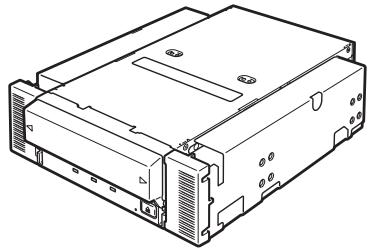
Les supports (2) sont expédiés vissés (4).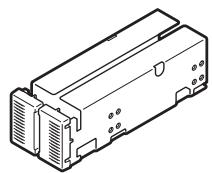

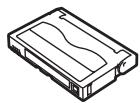
Cartouche de nettoyage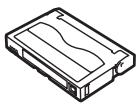
Vis (4) Disquette (pilote de périphérique)
- Utiliser uniquement lors de l'installation du périphérique sur l'unité de traitement de base.

Instructions concernant la manipulation de l'unité AIT
Manuel d'instructions (ce manuel)

Important
- Les pièces de verrouillage contenues dans l'emballage ou la boîte seront nécessaires lors du retrait de l'AIT intégré pour le transport. Conservez-les en lieu sûr.
- Selon l'environnement connecté, certaines pièces peuvent ne pas être utilisables. Cependant, lorsque l'environnement change, ces pièces peuvent devenir utilisables ; conservez-les donc en lieu sûr.
- Pour vous assurer de ne pas perdre le pilote de périphérique, sauvegardez la disquette fournie. Une fois cela fait, conservez la disquette maîtresse dans un endroit sûr et utilisez la copie.
Table des matières
Consignes de sécurité - À lire impérativement -
Marques déposées 59
INDICATIONS DE SÉCURITÉ 60
SYMBOLES UTILISÉS DANS CE GUIDE DE L'UTILISATEUR ET SUR LES ÉTIQUETTES D'AVERTISSEMENT 61
NOTES DE SÉCURITÉ 62
Organisation du manuel d'instructions 68 Ordre de priorité lors de la première utilisation de l'AIT intégré 68
Symboles utilisés dans ce texte 69
Autres 70
Transfert à un tiers 70
Élimination des pièces consommées et de l'équipement .... 70
Durée de vie du produit 70
Contenu de l'emballage 71
AIT intégré
Caractéristiques 74 Cartouches utilisables 74 Nom et fonction des pièces 75
Avant 75 Avant (lorsque le capot anti-poussière est ouvert) 75 Arrière 76 Dessous 76 Installation 77 Retrait et installation des supports 77 Réglage de l'AIT intégré - Réglage avec les broches de cavalier - 79 Réglage de l'AIT intégré - Réglage avec le commutateur DIP - 81 Montage sur l'unité de traitement de base 83 Installation du pilote de périphérique à bande 85 Manipulation 95 Réglage de la cartouche de données AIT 95 Éjection de la cartouche de données AIT 97 Indication LED 98 Lecture/écriture de données 98
Cartouche de données AIT
Nettoyage 99
Nettoyage de la tête de lecture/écriture 99
Nettoyage de l'AIT intégré 100
Nom et fonction des pièces de la cartouche de données. 101
Conditions d'utilisation, de stockage et de transport 102
Étiquette 102
Position de collage de l'étiquette 102
Précautions concernant la saisie sur l'étiquette 103
Protection en écriture. 103
Précautions de manipulation. 104
Précautions opérationnelles 104
Précautions générales 104
Norme d'interdiction d'utilisation 105
Durée de vie 105
Stockage des données importantes 106
Gestion des données sur 3 générations 106
Stockage des cartouches de données 106
Établissement de procédures de sauvegarde et de reprise après sinistre 106
Spécifications 107
Fiche d'application client 109
Liste de contrôle de dépannage 110
AIT intégré
Ce chapitre explique l'installation, la configuration et l'utilisation quotidienne de l'AIT intégré.
Caractéristiques
Cet appareil possède les caractéristiques suivantes :
- Vous pouvez enregistrer de grandes quantités de données sur des cartouches en utilisant le format AIT (Advanced Intelligent Tape).
- En utilisant la fonction de compression des données, les volumes de données suivants peuvent être stockés.
| Tape length | Memory capacity (GB) | ||
| N8151-34B | AIT-1 | 230 m | Approx. 35 GB |
| 170 m | Approx. 25 GB | ||
| N8151-46A | AIT-2 | 230 m | Approx. 50 GB |
| 170 m | Approx. 36 GB | ||
| AIT-1 | 230 m | Approx. 35 GB | |
| 170 m | Approx. 25 GB | ||
- L'unité de traitement de base détermine automatiquement si les données enregistrées sur les cartouches AIT sont compressées. Elle peut également lire les données enregistrées sur des cartouches AIT avec des lecteurs AIT conventionnels.
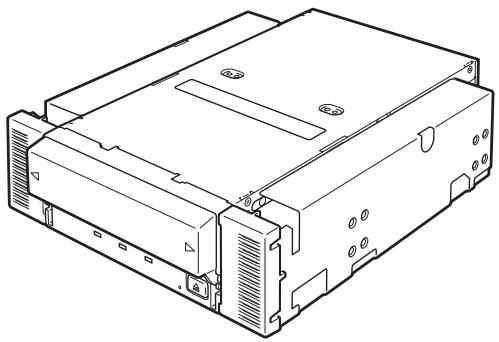
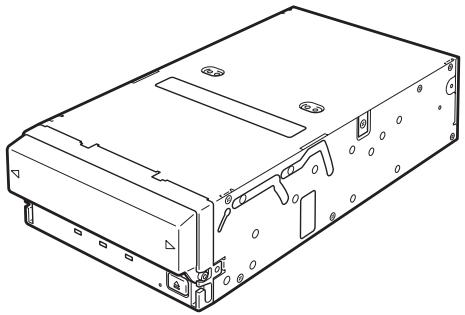
- À la livraison, le périphérique 5,25 pouces est livré avec des supports de montage installés aux deux extrémités du lecteur. Le retrait des supports permet de transformer le lecteur en périphérique 3,5 pouces.
Périphérique 5,25 pouces, installé (à la livraison)
Périphérique 3,5 pouces, installé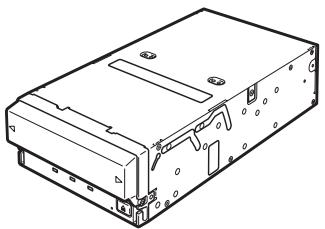
Cartouches utilisables
Veuillez utiliser uniquement les cartouches AIT Sony N8151-46A (AIT2 (longueur de bande : 230 m), (longueur de bande : 170 m), ou AIT1 (longueur de bande : 230 m), (longueur de bande : 170 m) avec cet appareil. L'utilisation d'autres types de cartouches AIT peut entraîner des erreurs de lecture et d'écriture.
Nom de la pièce et fonction
Le lecteur AIT intégré et le magasin ont les pièces et fonctions suivantes.

Les noms des pièces, les fonctions et les réglages du périphérique 5,25 pouces installé et du périphérique 3,5 pouces installé (lecteur seul) sont les mêmes. (Pour plus de clarté, nous utilisons le périphérique 5,25 pouces dans les explications ci-dessous.)
Face avant
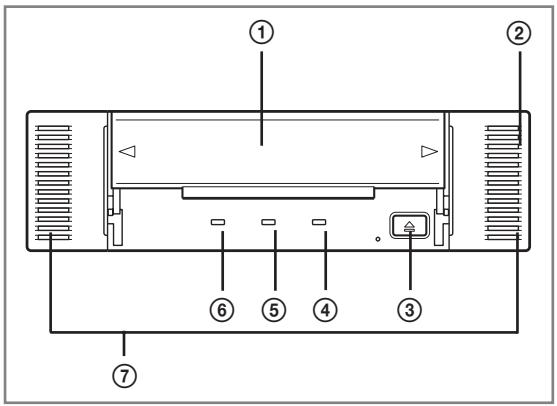
Face avant (lorsque le capot anti-poussière est ouvert)
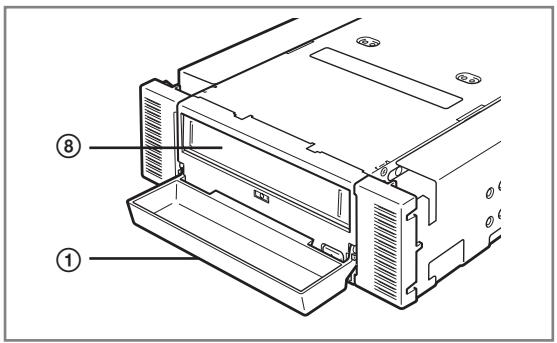
① Capot anti-poussière Protège la fente de cartouche contre la poussière. (→ P.95) ② Orifices de ventilation (Le lecteur n'a pas d'orifices de ventilation.) ③ Bouton EJECT Appuyez sur ce bouton pour éjecter une cartouche de données. (→ P.97) ④ Voyant REPLACE TAPE Voyant indiquant que la cartouche de données AIT doit être remplacée. (→ P.98) ⑤ Voyant CLEANING REQUEST Voyant indiquant l'état de nettoyage du lecteur AIT intégré. (→ P.98) ⑥ Voyant TAPE MOTION Voyant indiquant l'état de la cartouche de données AIT. (→ P.98) ⑦ Supports ⑧ Fente de cartouche Fente dans laquelle la cartouche AIT est insérée. (→ P.96)
Face arrière
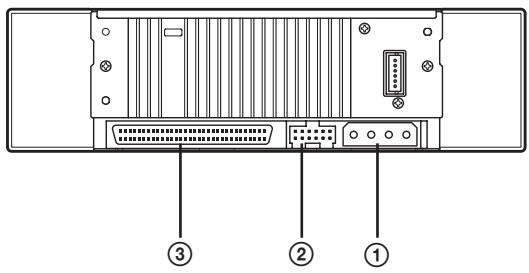
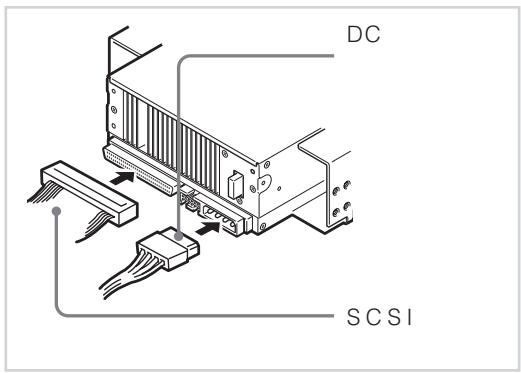
① Connecteur d'alimentation
Branchez le câble d'alimentation intégré du lecteur AIT intégré. (→ P.84)
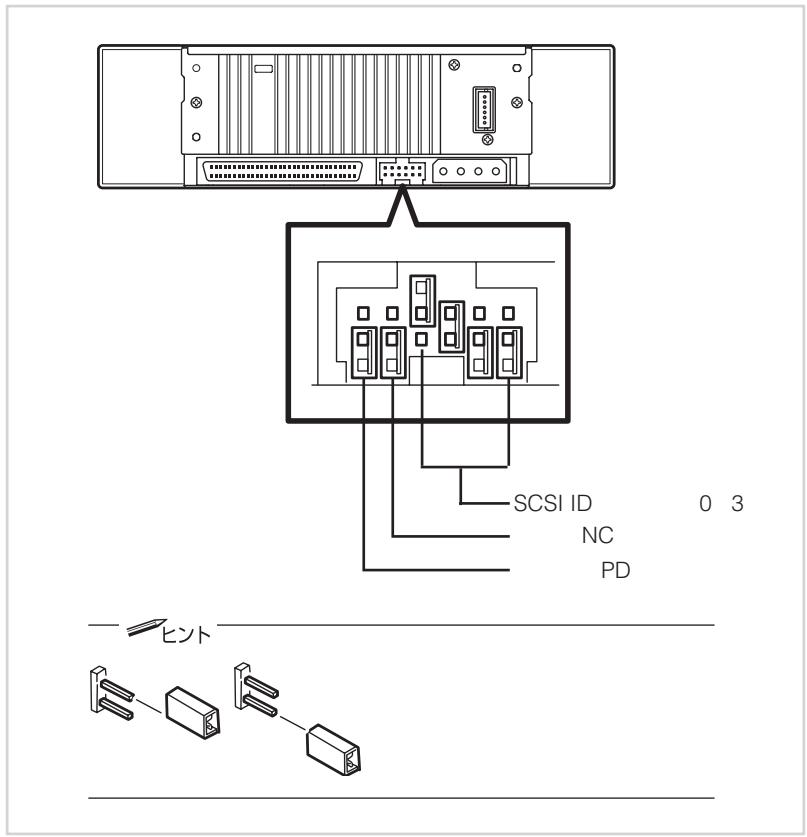
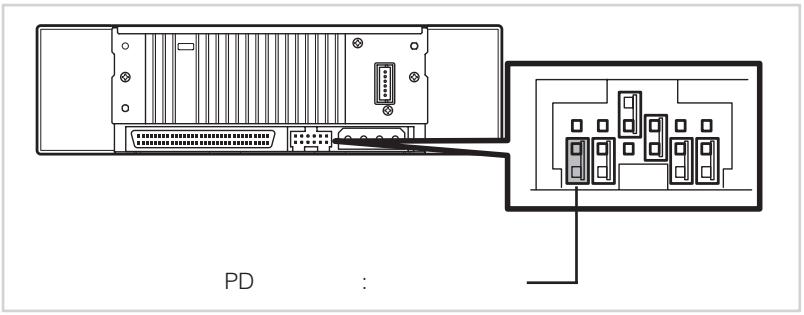
② Broches de cavalier
Broches qui règlent le lecteur AIT intégré (→ P.79)
③ Connecteur SCSI
Branchez le câble SCSI intégré du lecteur AIT intégré. (→ P.84)
Face inférieure
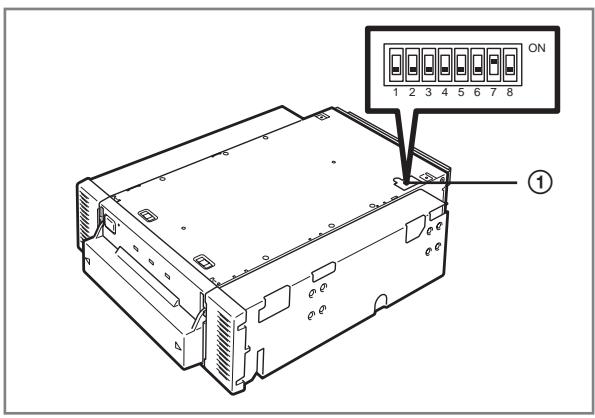
① Interrupteur DIP
Interrupteurs qui règlent l'AIT intégré (→ P, 81)
Configuration
La procédure jusqu'à l'installation de l'AIT intégré dans l'« unité de traitement de base » est expliquée ci-après.
Retrait et installation des supports
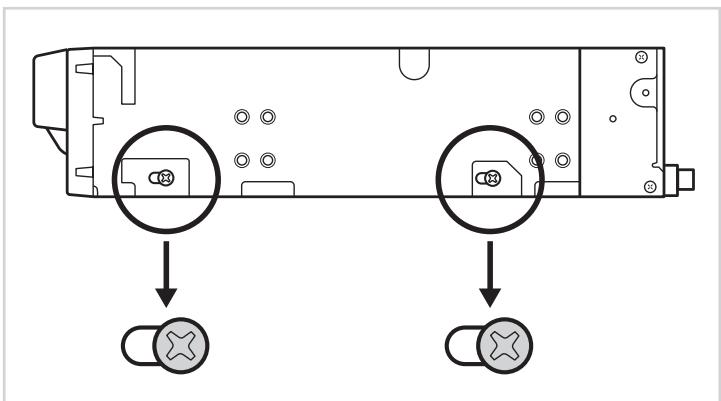
Si vous souhaitez utiliser l'AIT intégré comme périphérique 3,5 pouces, vous devez retirer les supports gauche et droit.
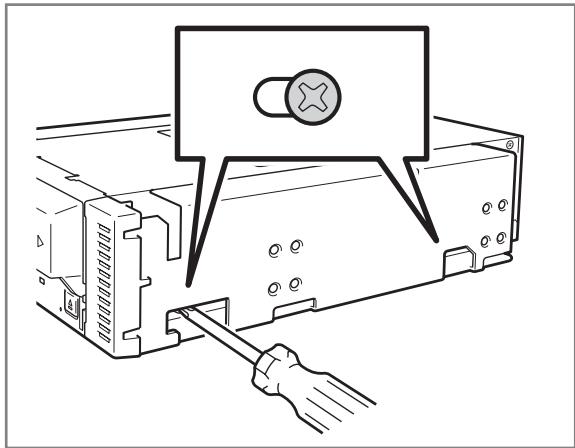
Pour retirer les supports
À l'aide d'un tournevis cruciforme, retirez les vis, puis les supports.

Important
- Assurez-vous de conserver les supports et les vis en lieu sûr.
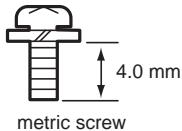
- Utilisez uniquement ces vis lors de l'installation des supports. Ce sont des vis métriques (longueur : 5,0 mm ; longueur sous la rondelle : 4,0 mm). L'utilisation de vis plus longues pourrait endommager le périphérique.
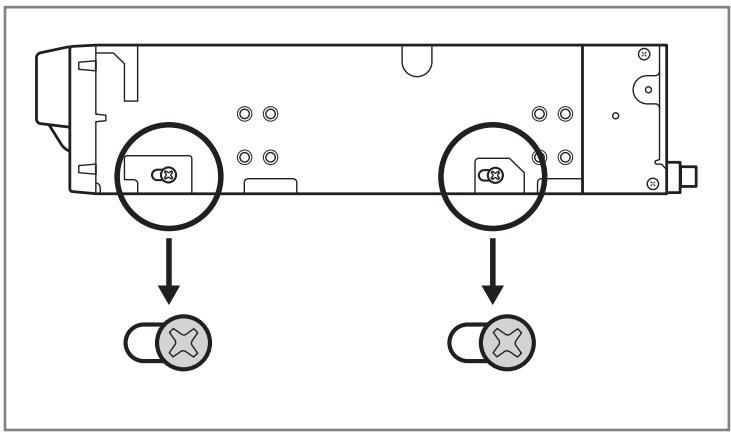
Pour installer les supports
Alignez les trous de vis de l'AIT intégré avec l'extrémité des trous de vis réglables du support. À l'aide d'un tournevis cruciforme, serrez les vis.
Réglage de l'AIT intégré - Réglage avec les cavaliers -
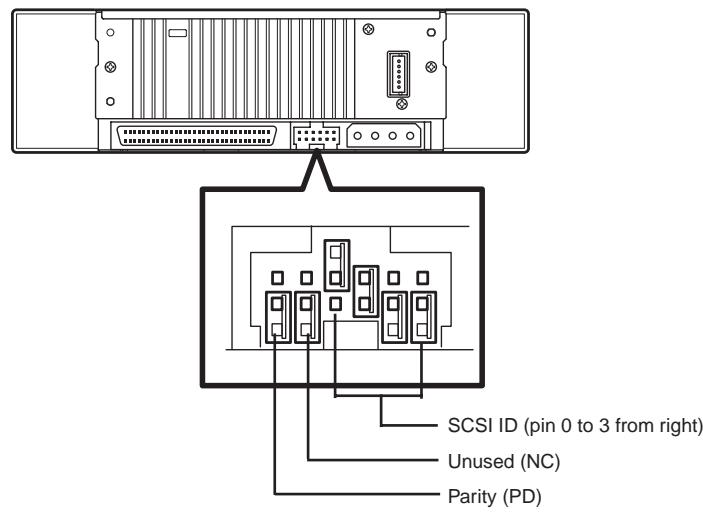
Vous pouvez modifier les réglages suivants à l'aide des cavaliers situés à l'arrière de l'AIT intégré.
- ID SCSI (réglé en usine sur « ID4 »)
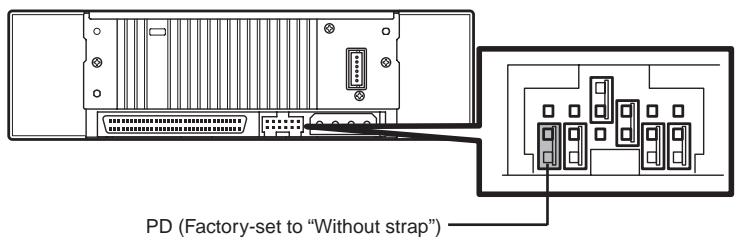
- Fonction de parité (réglée en usine sur « Activée »)
Conseil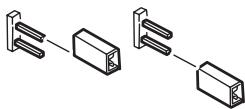
« Sans cavalier » signifie qu'un cavalier est fixé sur l'une des deux broches, ou que le cavalier a été retiré complètement. Si vous retirez le cavalier, assurez-vous de le ranger dans un endroit sûr.

Conseil
« Avec cavalier » signifie que les cavaliers sont fixés sur deux broches. « Sans cavalier » signifie qu'aucun cavalier n'est fixé sur l'une ou l'autre broche, ou qu'il est fixé sur l'une des deux broches.
Réglage de l'ID SCSI
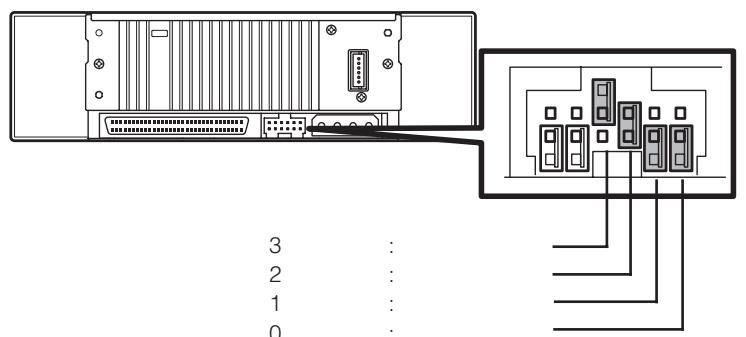
Réglez l'ID SCSI utilisé par l'AIT intégré. Utilisez les quatre broches de cavalier, de la broche 0 à la broche 3, à l'arrière de l'AIT intégré.
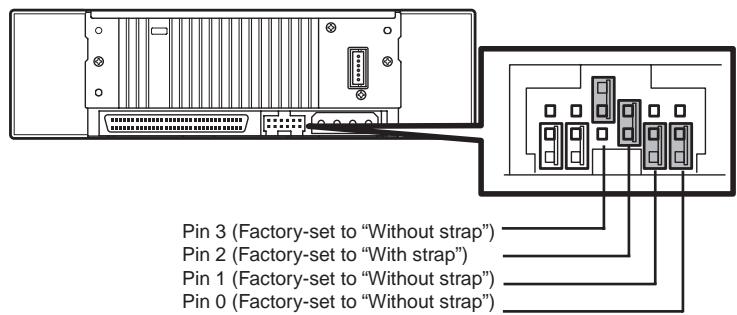

Vérifiez que l'ID SCSI de l'AIT intégré n'est pas dupliqué avec l'ID SCSI d'un autre périphérique SCSI.
| SCSI ID | Pin 3 | Pin 2 | Pin 1 | Pin0 |
| 0 | × | × | × | × |
| 1 | × | × | × | ○ |
| 2 | × | × | ○ | × |
| 3 | × | × | ○ | ○ |
| 4*1 | × | ○ | × | × |
| 5 | × | ○ | × | ○ |
| 6 | × | ○ | ○ | × |
| 7*2 | × | ○ | ○ | ○ |
| 8 | ○ | × | × | × |
| 9 | ○ | × | × | ○ |
| 10 | ○ | × | ○ | × |
| 11 | ○ | × | ○ | ○ |
| 12 | ○ | ○ | × | × |
| 13 | ○ | ○ | × | ○ |
| 14 | ○ | ○ | ○ | × |
| 15 | ○ | ○ | ○ | ○ |
: Avec cavalier X : Sans cavalier 1 : Valeur réglée en usine 2 : Ne réglez pas l'ID SCSI sur ID7.
Réglage de la fonction de parité
Réglez la fonction de parité à l'aide de la broche de cavalier la plus à gauche à l'arrière de l'AIT intégré.
La fonction de parité est « Activée » lorsque le réglage est « Sans cavalier » (valeur réglée en usine). La fonction de parité est « Désactivée » lorsque le réglage est « Avec cavalier ».

Important
Pour une meilleure fiabilité, utilisez avec « Activée (Sans cavalier) ».
Réglage de l'AIT intégré - Réglage avec le commutateur DIP -
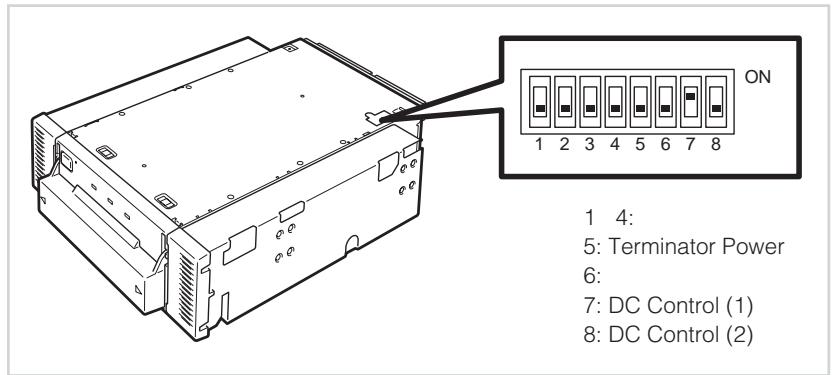
Le commutateur DIP situé sous l'AIT intégré vous permet de modifier les réglages suivants.
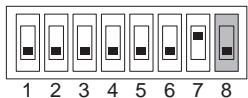
Alimentation du terminateur (alimentation du terminateur) (réglée sur OFF en usine) - Contrôle DC (1) (réglage de compression des données) (réglé sur ON en usine) - Contrôle DC (2) (réglage de compression des données) (réglé sur OFF en usine)
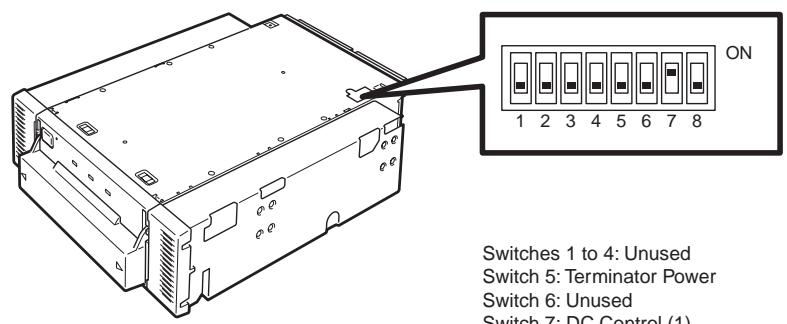
Interrupteurs 1 à 4 : inutilisés
Interrupteur 5 : alimentation du terminateur
Interrupteur 6 : inutilisé
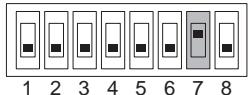
Interrupteur 7 : contrôle DC (1)
Interrupteur 8 : contrôle DC (2)
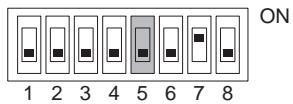
Réglage de l'alimentation du terminateur - Alimentation du terminateur -
Définissez si l'alimentation du terminateur est fournie au bus SCSI ou non. Utilisez l'interrupteur 5. Mettre l'interrupteur 5 sur ON fournit l'alimentation du terminateur ; le mettre sur OFF (réglé sur OFF en usine) ne la fournit pas.
Important
Lorsque l'AIT intégré est équipé de l'unité d'extension de périphériques N8541-28F/N8141-28AF et que vous souhaitez utiliser la fonction d'alimentation asservie, laissez l'interrupteur 5 sur OFF.
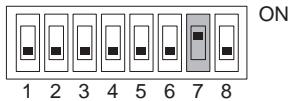
Réglage de la compression des données - Contrôle DC (1) -
Définissez si la fonction de compression des données de l'AIT intégré est activée ou désactivée.
Utilisez l'interrupteur 7. Mettre l'interrupteur 7 sur ON (réglé sur ON en usine) active la fonction de compression des données ; le mettre sur OFF la désactive.
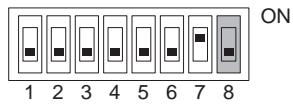
Réglage de la compression des données - Contrôle DC (2) -
Définit si le contrôle de la compression des données par le logiciel de sauvegarde est activé ou désactivé.
Utilisez l'interrupteur 8. Mettre l'interrupteur 8 sur ON désactivera le contrôle de la compression des données par l'application de sauvegarde ; le mettre sur OFF (réglage d'usine) l'activera.


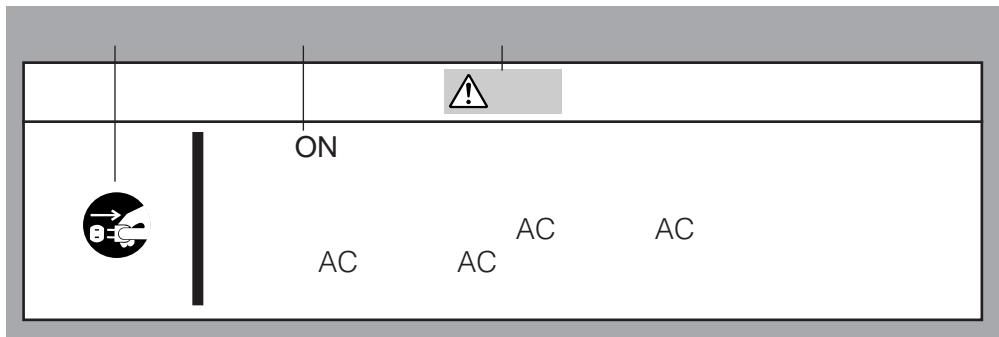
Coupez l'alimentation avant d'installer ou de retirer le périphérique.
Assurez-vous toujours de couper l'alimentation principale et de débrancher le cordon d'alimentation de la prise secteur avant d'installer/retirer ce périphérique ou de connecter des câbles. Il y a un risque de choc électrique si ce périphérique est installé ou retiré, ou si des câbles sont connectés alors que le cordon d'alimentation est encore branché sur une prise secteur.
La procédure d'installation du lecteur dans un serveur est la suivante.

Conseil
Certains serveurs nécessitent l'utilisation des glissières. Pour plus de détails sur l'installation des glissières, reportez-vous au manuel d'utilisation du serveur.
1 Installez le lecteur AIT intégré comme indiqué ici.
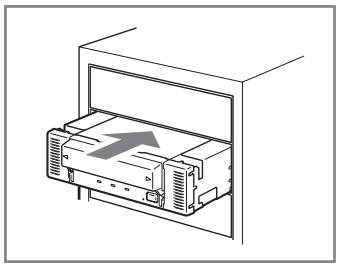

- Lors de l'utilisation des glissières avec ce périphérique, utilisez les trous de vis du capot avant illustrés à la Fig. 1 (voir Fig. 2). (Effectuez la même opération du côté opposé. Fixez deux vis de chaque côté, soit quatre vis au total.) Dans certains cas, les glissières peuvent s'étendre jusqu'au moulage du capot avant. Cela ne pose aucun problème. (La forme des glissières varie selon le modèle du périphérique.)
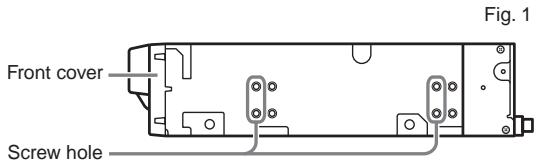
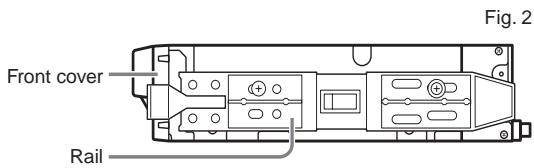
Fig. 3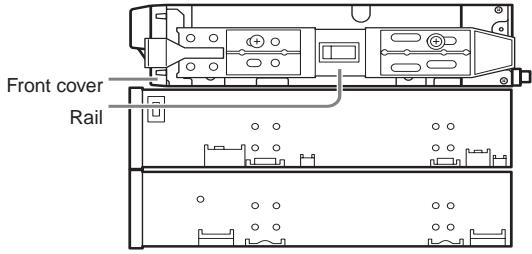
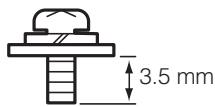
- Les vis nécessaires pour les périphériques 5,25 pouces et 3,5 pouces sont les mêmes.
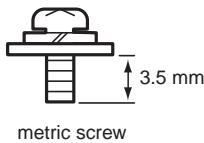
- Utilisez toujours les vis fournies avec ce périphérique. Les vis fournies sont des vis métriques (longueur : 5,0 mm ; longueur sous la rondelle : 3,5 mm). L'utilisation de vis plus longues que celles fournies pourrait endommager le périphérique.

Attention

N'utilisez pas de cordon d'alimentation endommagé.
Si le cordon d'alimentation est endommagé, remplacez-le immédiatement par un nouveau cordon de même type. Ne réparez pas la section endommagée pour la réutiliser. Sinon, la section réparée avec du ruban isolant ou similaire surchauffera et provoquera un choc électrique ou un incendie.
2 Connectez les câbles au lecteur comme indiqué ici.
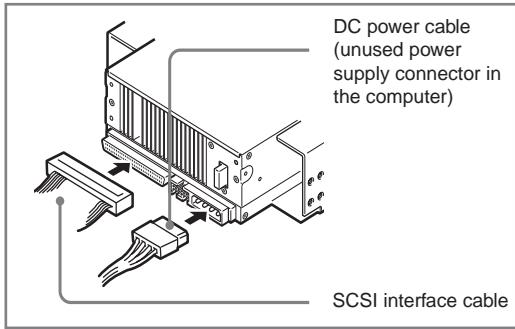

Important
- Confirmez l'ID SCSI et les autres réglages avant l'installation.
- Le réglage d'usine par défaut de l'ID SCSI est 4. Assurez-vous que cet ID n'est pas utilisé par un autre périphérique du système.
- Cet appareil ne possède pas de terminateur intégré. Lors de la connexion de cet appareil à la dernière extrémité du bus SCSI, fixez un terminateur à l'extrémité du câble SCSI.
3 Fixez le capot sur l'unité de traitement de base. Branchez le câble d'alimentation sur la prise. 4 Mettez sous tension l'unité de traitement de base. 5 Lorsque le bus SCSI peut être configuré côté unité de traitement de base, réglez les paramètres suivants sur l'AIT intégré.
- Débit de transfert : 40 Mo/seconde (max., synchrone) Largeur du bus de données : 16 bits (Ultra Wide SCSI, LVD/SE)
- Fonction DISCONNECT/RECONNECT : Activée
Pour plus de détails, consultez le manuel d'instructions fourni avec l'unité de traitement de base.

Réglez les débits de transfert maximaux comme suit, selon le nombre de périphériques connectés au bus et la longueur du câble SCSI.
Les valeurs suivantes sont des valeurs standard.
Si vous disposez d'autres spécifications, utilisez-les de préférence à celles ci-dessous.
| SCSI ID | Maximum transfer rate (Mbyte/s) | Data bus width (bit) | Maximum cable length (m) | Maximum number of devices (SCSI host + number of devices) | |
| Single-ended | LVD* | ||||
| Ultra Wide SCSI | 40 | 16 | 3 | - | 4 |
| Ultra Wide SCSI | 40 | 16 | 1.5 | - | 8 |
| Ultra Wide SCSI | 40 | 16 | - | 3 | 16 |
| Fast Wide SCSI | 20 | 16 | 3 | 3 | 16 |
| Wide SCSI | 10 | 16 | 6 | 3 | 8 |
- Lorsque l'hôte SCSI et tous les périphériques connectés au même bus sont compatibles LVD.
Installation du pilote de périphérique de bande
Installez le pilote uniquement si vous avez l'intention d'utiliser la sauvegarde Windows 2000, la sauvegarde Windows XP ou la sauvegarde Windows Server 2003 (situées dans le dossier Outils système correspondant).
Installez le pilote de périphérique dans l'unité de traitement de base à l'aide de la disquette fournie. Préparez la disquette à l'avance.
Pour les utilisateurs de Windows 2000
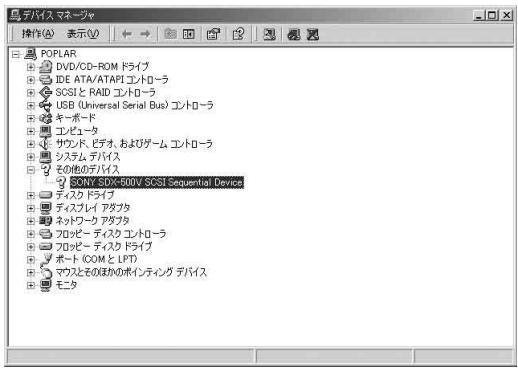
(Nous avons utilisé le N8151-46A comme exemple dans cette procédure. Si vous utilisez le N8151-34B, remplacez SDX-500V par SDX-400V.)
1 Cliquez sur le bouton [Démarrer], pointez sur [Paramètres], cliquez sur [Panneau de configuration], puis double-cliquez sur [Système].
La boîte de dialogue [Propriétés système] apparaît.
2 Cliquez sur l'onglet [Matériel], puis cliquez sur le bouton [Gestionnaire de périphériques].
La fenêtre [Gestionnaire de périphériques] apparaît.
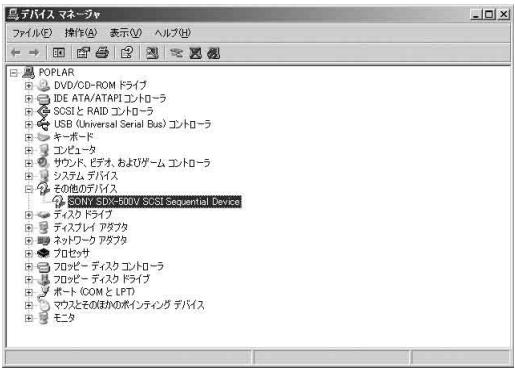
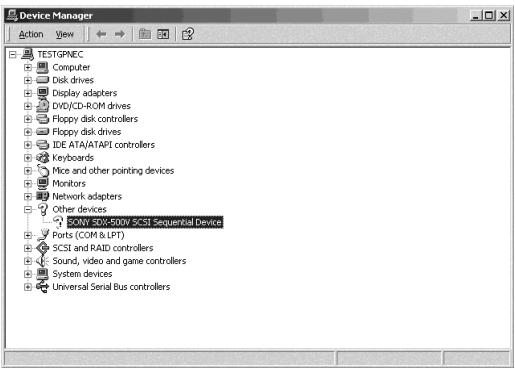
3 Assurez-vous que [SONY SDX-500V (SDX-400V) SCSI Sequential Device] apparaît dans [Autres périphériques], puis double-cliquez dessus.
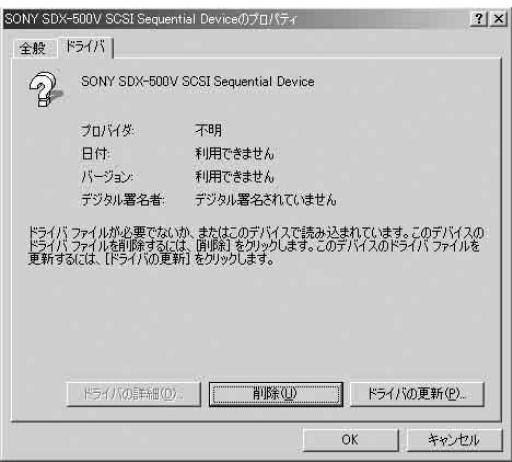
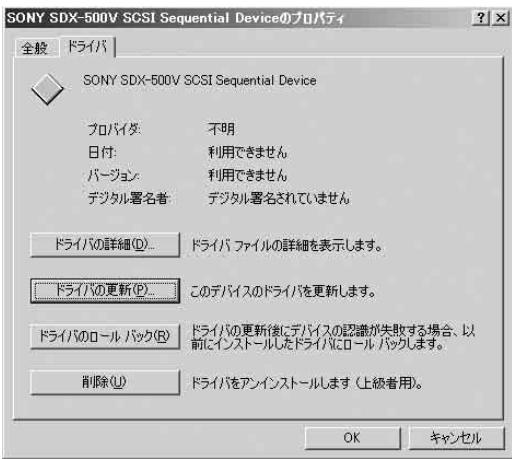
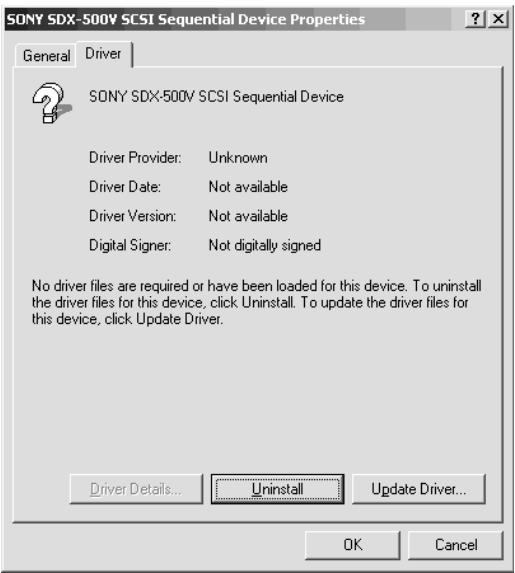
La boîte de dialogue [Propriétés de SONY SDX-500V (SDX-400V) SCSI Sequential Device] apparaît.
4 Cliquez sur l'onglet [Pilote], puis cliquez sur le bouton [Mettre à jour le pilote].
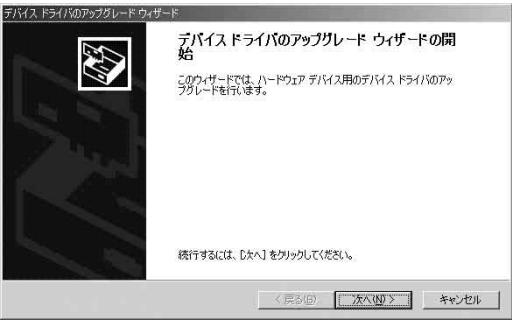
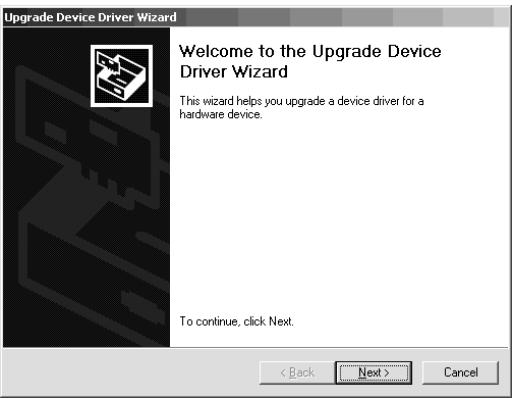
L'[Assistant Mise à jour de pilote de périphérique] apparaît.
5 Cliquez sur le bouton [Suivant].
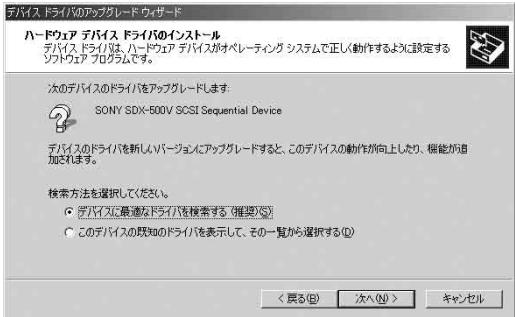
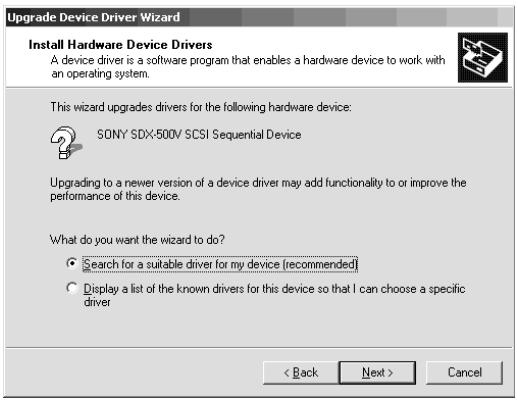
L'écran [Installer les pilotes de périphériques] apparaît.
6 Sélectionnez [Rechercher un pilote approprié pour mon périphérique (recommandé)], puis cliquez sur le bouton [Suivant].
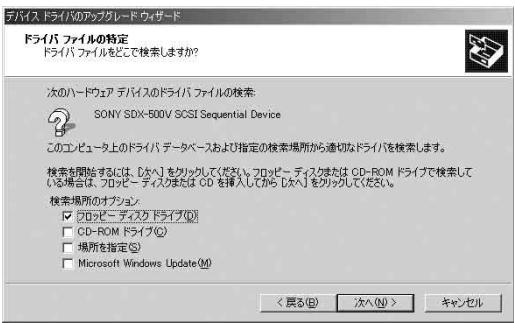
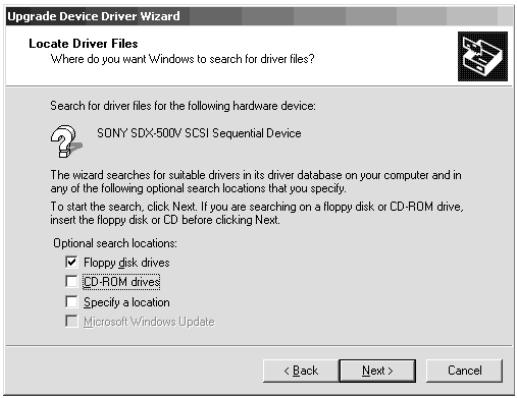
L'écran [Localiser les fichiers de pilotes] apparaît.
Insérez la disquette fournie.
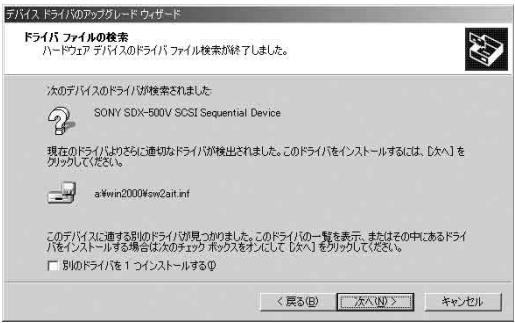
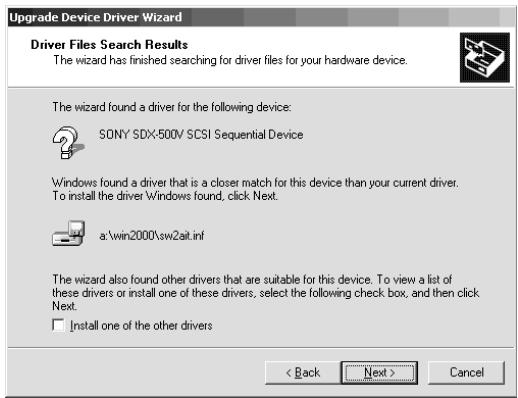
7 Cochez la case [Lecteurs de disquettes], puis cliquez sur le bouton [Suivant]. L'unité de traitement de base commence à rechercher les fichiers de pilotes, puis l'écran [Résultats de la recherche de fichiers de pilotes] apparaît.
8 Vérifiez que « a:\win2000\sw2ait.inf » apparaît dans l'écran [Résultats de la recherche de fichiers de pilotes], puis cliquez sur le bouton [Suivant]. L'écran [Assistant Mise à jour de périphérique - Fin] apparaît.
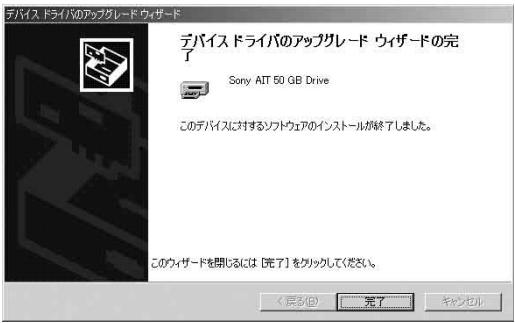
9 Cliquez sur le bouton [Terminer].
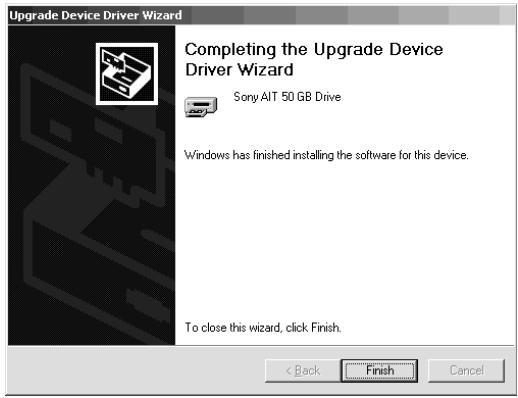
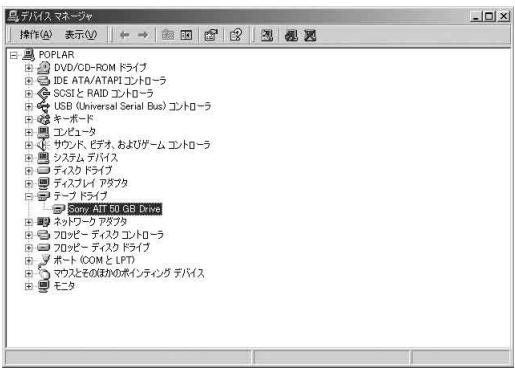
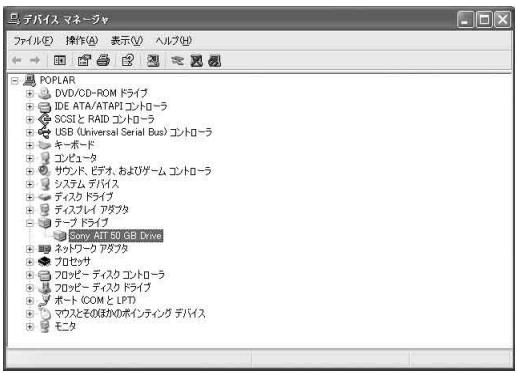
10 Vérifiez que « Sony AIT 50 GB Drive » apparaît dans la fenêtre [Gestionnaire de périphériques].
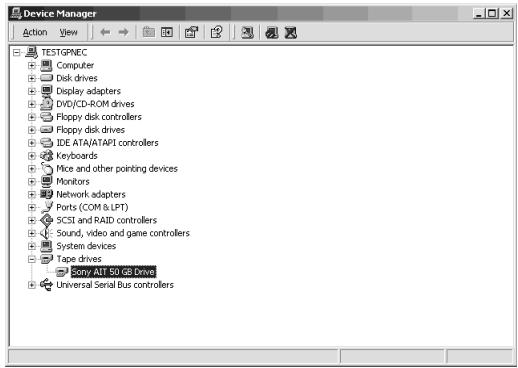
L'installation du pilote du périphérique à bande est maintenant terminée.
Pour les utilisateurs de Windows XP
(Nous avons utilisé le N8151-46A comme exemple dans cette procédure. Si vous utilisez le N8151-34B, remplacez SDX-500V par SDX-400V.)
1 Cliquez sur le bouton [Démarrer], cliquez sur [Panneau de configuration], puis double-cliquez sur [Système].
La boîte de dialogue [Propriétés système] apparaît.
2 Cliquez sur l'onglet [Matériel], puis cliquez sur le bouton [Gestionnaire de périphériques].
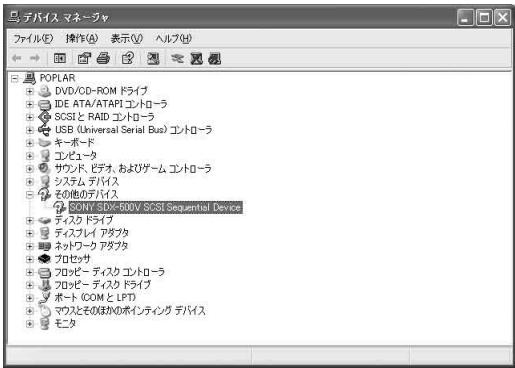
La fenêtre [Gestionnaire de périphériques] apparaît.
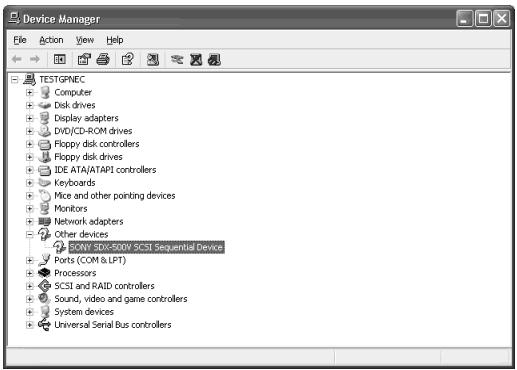
3 Vérifiez que [SONY SDX-500V (SDX-400V) SCSI Sequential Device] apparaît dans [Autres périphériques], puis double-cliquez dessus.
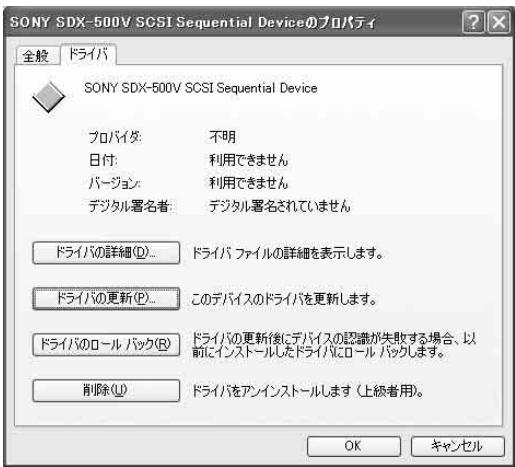
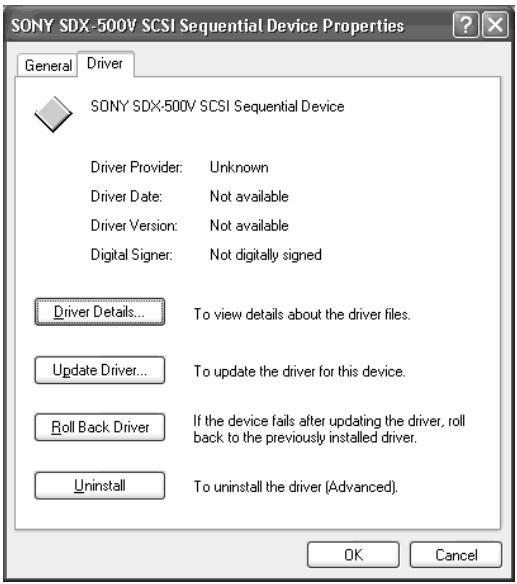
La boîte de dialogue [Propriétés de SONY SDX-500V (SDX-400V) SCSI Sequential Device] apparaît.
4 Cliquez sur l'onglet [Pilote], puis cliquez sur le bouton [Mettre à jour le pilote].
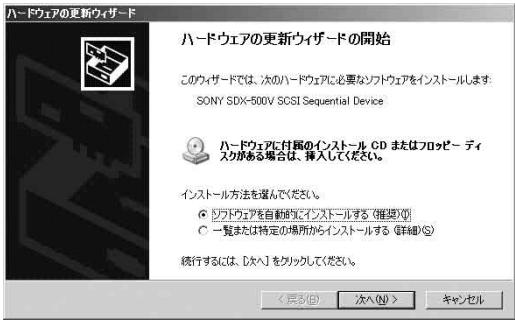
L'assistant [Mise à jour de matériel] apparaît.
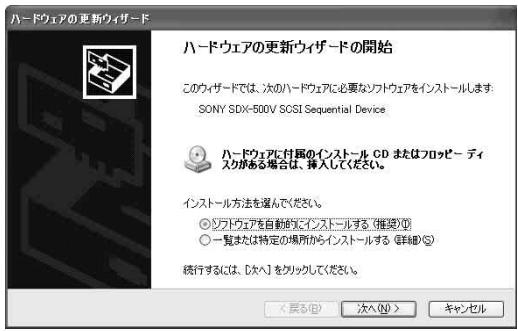
5 Sélectionnez [Installer le logiciel automatiquement (recommandé)], insérez la disquette fournie, puis cliquez sur le bouton [Suivant]. L'écran [Veuillez sélectionner le meilleur correspondant pour votre matériel dans la liste ci-dessous.] apparaît.
Assistant Mise à jour de matériel

Bienvenue dans l'assistant Mise à jour de matériel
Cet assistant vous aide à installer le logiciel pour :
SONY SDX-500V SCSI Sequential Device

Si votre matériel est fourni avec un CD d'installation ou une disquette, insérez-le maintenant.
Que voulez-vous que l'assistant fasse ?

Installer le logiciel automatiquement (recommandé)

Installer à partir d'une liste ou d'un emplacement spécifique [Avancé]
Cliquez sur Suivant pour continuer.
<Précédent
Suivant>
Annuler
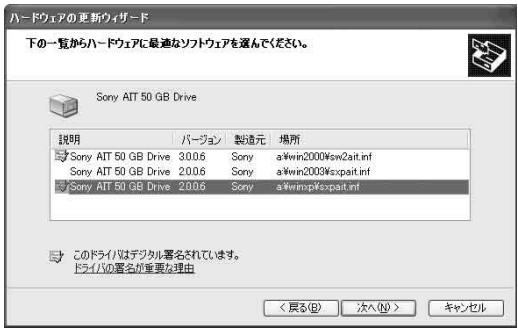
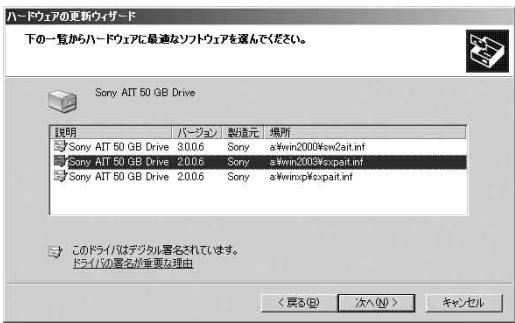
6 Sélectionnez le matériel associé à "a:\winxp\sxpait.inf", puis cliquez sur le bouton [Suivant]. L'écran [Terminer l'assistant Mise à jour de matériel] apparaît.
Assistant de mise à jour du matériel
Veuillez sélectionner la meilleure correspondance pour votre matériel dans la liste ci-dessous.


Sony AIT 50 Go Lecteur
Description

Lecteur MT 50 Go
Version
Fabricant
Emplacement
Lecteur MT 50 Go
3.0.0.6

a\win2000\sw2ait.inf
BIT50GBDrive

6 Sony

a winxp'sxpat.inf

Lecteur MT 50 Go


a\win2003\sxpait.inf

Ce pilote est signé numériquement.
Expliquez-moi pourquoi la signature des pilotes est importante
<Précédent
Suivant>
Annuler
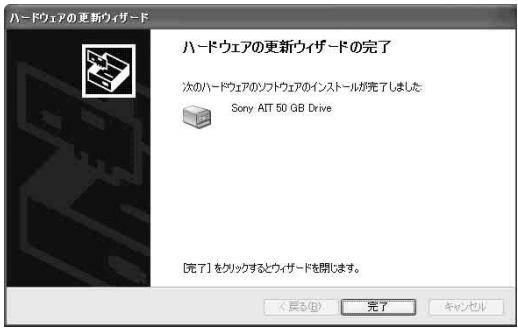
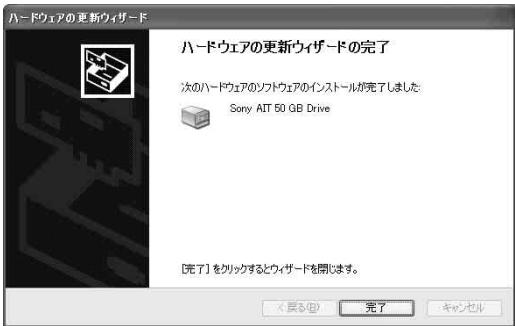
7 Cliquez sur le bouton [Terminer].
Assistant Mise à jour du matériel

Fin de l'Assistant Mise à jour du matériel
L'assistant a fini d'installer le logiciel pour :

Sony AIT 50 GB Drive
Cliquez sur Terminer pour fermer l'assistant.
<Précédent
Terminer
Annuler
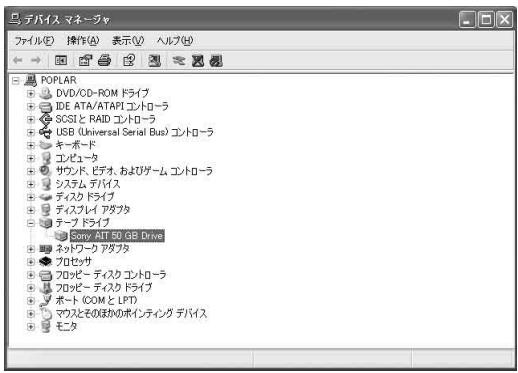
8 Vérifiez que « Sony AIT 50 GB Drive » apparaît dans la fenêtre [Gestionnaire de périphériques].
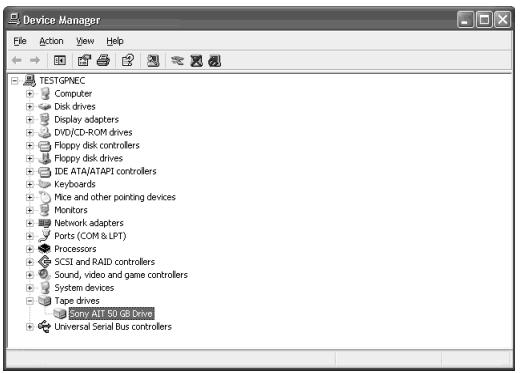
L'installation du pilote de périphérique à bande est maintenant terminée.

Astuce
Le pilote de périphérique que vous avez installé est activé après le redémarrage du système.
Pour les utilisateurs de Windows Server 2003
(Nous avons utilisé le N8151-46A comme exemple dans cette procédure. Si vous utilisez le N8151-34B, remplacez SDX-500V par SDX-400V.)
1 Cliquez sur le bouton [Démarrer], pointez sur [Panneau de configuration], puis cliquez sur [Système].
La boîte de dialogue [Propriétés système] apparaît.
2 Cliquez sur l'onglet [Matériel], puis cliquez sur le bouton [Gestionnaire de périphériques].
La fenêtre [Gestionnaire de périphériques] apparaît.
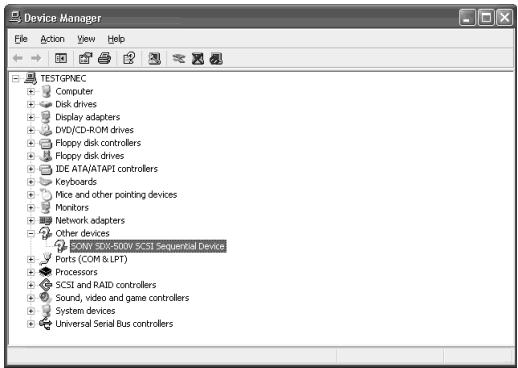
3 Vérifiez que [SONY SDX-500V (SDX-400V) SCSI Sequential Device] apparaît dans [Autres périphériques], puis double-cliquez dessus.
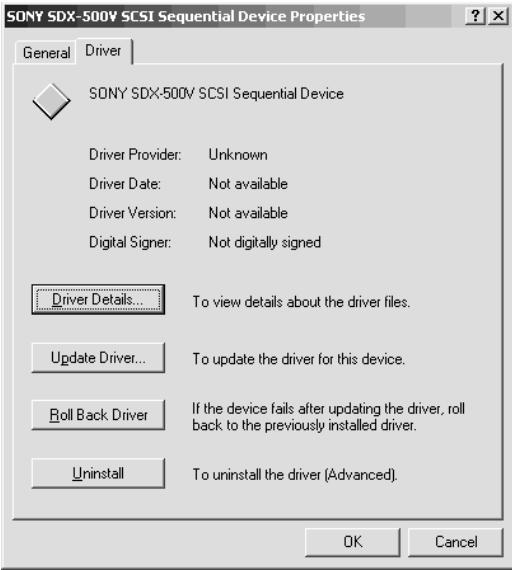
La boîte de dialogue [Propriétés de SONY SDX-500V (SDX-400V) SCSI Sequential Device] apparaît.
4 Cliquez sur l'onglet [Pilote], puis cliquez sur le bouton [Mettre à jour le pilote].
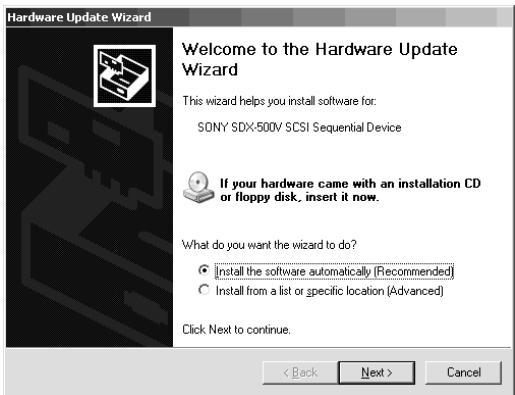
L'[Assistant Mise à jour du matériel] apparaît.
5 Sélectionnez [Installer le logiciel automatiquement (recommandé)], insérez la disquette fournie, puis cliquez sur le bouton [Suivant]. L'écran [Veuillez sélectionner le meilleur correspondance pour votre matériel dans la liste ci-dessous.] apparaît.
6 Sélectionnez le matériel associé à "a:\win2003\sxpait.inf", puis cliquez sur le bouton [Suivant]. L'écran [Fin de l'assistant de mise à jour du matériel] apparaît.
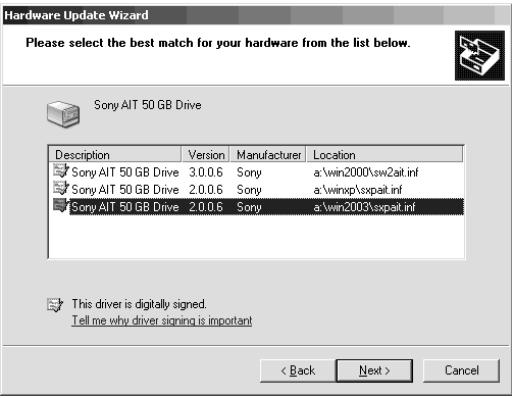
7 Cliquez sur le bouton [Terminer].
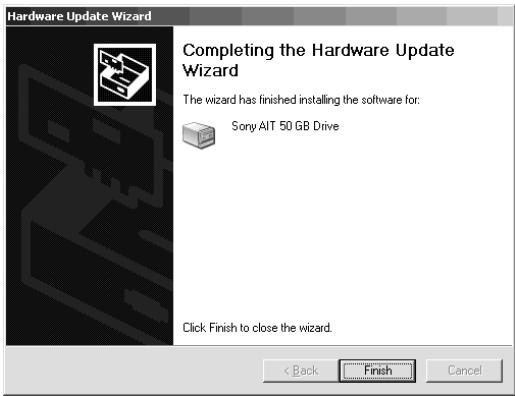
8 Vérifiez que le "Sony AIT 50 GB Drive" apparaît dans la fenêtre [Gestionnaire de périphériques].
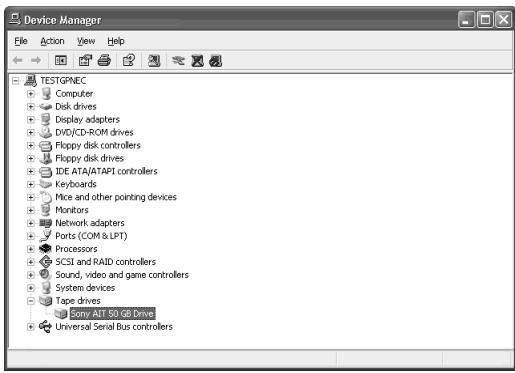
L'installation du pilote du périphérique à bande est maintenant terminée.
Manipulation
Ce qui suit explique comment manipuler l'AIT intégré.
Réglage de la cartouche de données AIT

Important
- Comme cartouche de données à insérer dans le magasin, utilisez notre "Cartouche de données AIT". Si vous utilisez une cartouche de données d'un autre fabricant, une erreur de lecture/écriture peut se produire.
- Pendant le réglage de la cartouche de données, ne mettez pas l'unité de traitement de base hors tension. Cela pourrait provoquer un dysfonctionnement ou endommager les données.
1 Allumez l'unité de traitement de base. Vérifiez que les voyants REPLACE TAPE, TAPE MOTION et CLEANING REQUEST du lecteur sont éteints. 2 Ouvrez le capot anti-poussière.
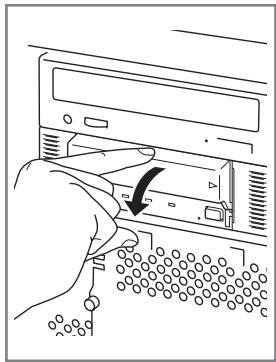
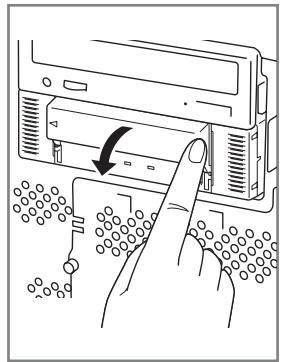
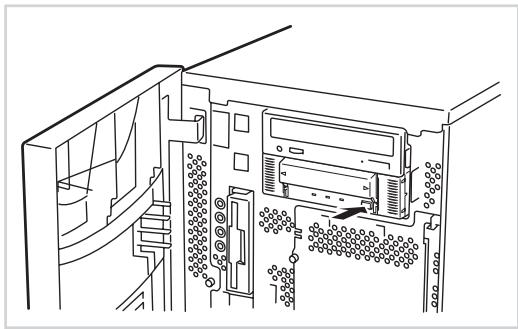
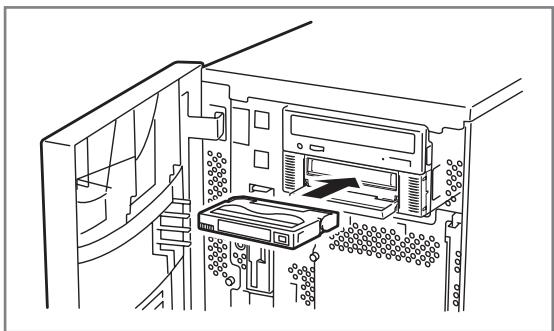
3 Orientez la cartouche de données AIT comme indiqué ici et insérez-la dans la fente de cartouche de données.
En insérant la cartouche de données jusqu'à une certaine limite, elle est automatiquement installée dans le lecteur et le voyant TAPE MOTION s'allume.
4 Fermez le capot anti-poussière.
Important
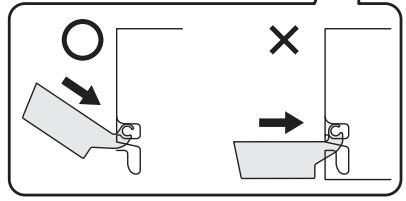
- Installation du cache anti-poussière
Pour éviter d'endommager le cache anti-poussière, il est conçu pour être facile à installer et à retirer. Pour installer le cache, tenez-le légèrement (comme illustré) et insérez les broches aux deux extrémités du cache tour à tour jusqu'à ce que vous les entendiez cliquer.
Fig. 1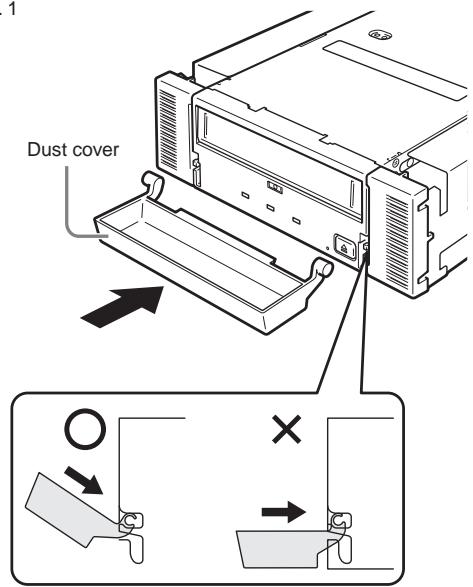
Éjection de la cartouche de données AIT
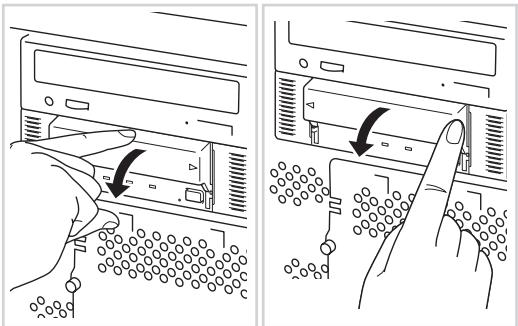
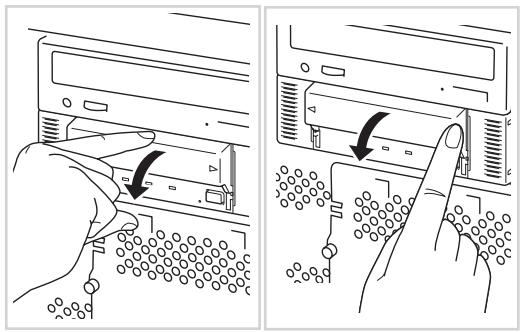
1 Vérifiez que le voyant TAPE MOTION ne clignote pas. 2 Appuyez sur le bouton EJECT ; l'AIT intégré commence à rembobiner la bande (cela peut prendre quelques minutes).
Lorsque la bande est complètement rembobinée, la cartouche de données est automatiquement éjectée de l'AIT intégré.
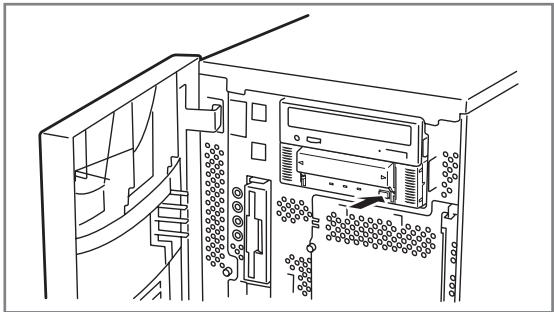

Important
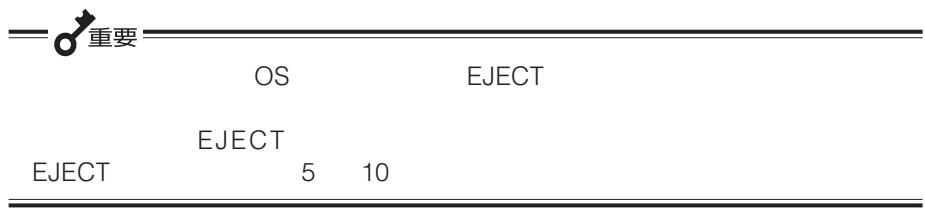
Selon votre logiciel de sauvegarde ou le verrouillage du système d'exploitation, il se peut que vous ne puissiez pas éjecter la cartouche de données du lecteur en appuyant sur le bouton EJECT. Éjectez la cartouche de données à partir du logiciel de sauvegarde ou attendez un moment puis réessayez avec le bouton EJECT. Si vous ne parvenez toujours pas à éjecter la cartouche, maintenez le bouton EJECT enfoncé pendant 5 à 10 secondes pour forcer l'éjection.
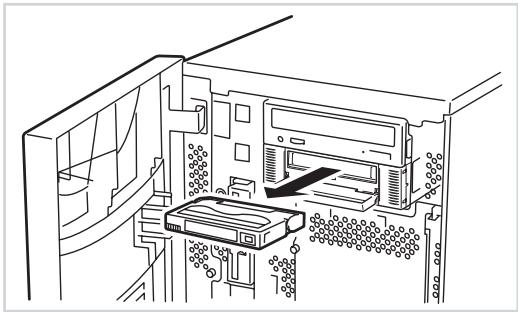
3 Ouvrez le cache anti-poussière.
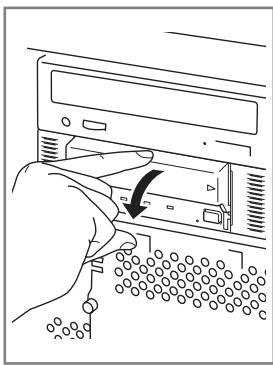
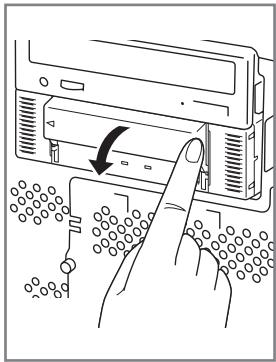
4 Retirez la cartouche de données de la fente et fermez le cache anti-poussière.
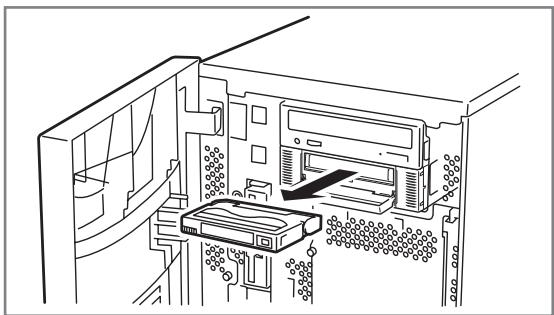
- Lorsque le voyant TAPE MOTION est allumé ou clignote, ne mettez pas l'unité de traitement de base hors tension. Cela pourrait provoquer un dysfonctionnement ou endommager les données.
- Pour éviter tout dysfonctionnement, ne transportez pas cette unité avec la cartouche de données installée.
- Éjectez la cartouche de données lorsque vous avez terminé une sauvegarde.
Indication des voyants
Les trois LED sur la face avant du Built-In AIT indiquent l'état du lecteur et de la cartouche de données AIT.
| LED | TAPE MOTION | CLEANING REQUEST | REPLACE TAPE |
| OFF | No data cartridge set. | Built-In AIT does not need cleaning. | No data cartridge error. |
| ON | Data cartridge set. | Built-In AIT needs cleaning. | Data cartridge error. |
| Blink (Slow) | Set data cartridge operating normally (low speed). | Cleaning head or cleaning cartridge tape ended. | - |
| Blink (Fast) | Set data cartridge operating normally (high speed). | - | - |
| All LED: Blink (Fast) | Malfunction | ||
Clignotement (rapide) : 0,3 s allumé, 0,3 s éteint
Clignotement (lent) : 0,9 s allumé, 0,3 s éteint
Lecture/écriture de données
Pour lire/écrire les données sur/depuis la cartouche de données AIT, consultez le manuel d'instructions fourni avec l'application de sauvegarde.
Nettoyage
Pour maintenir le lecteur en bon état, un nettoyage régulier est nécessaire.
Nettoyage de la tête de lecture/écriture
Lorsque le voyant CLEANING REQUEST s'allume, nettoyez la tête de lecture/écriture interne du Built-In AIT. Insérez la cartouche de nettoyage fournie dans le lecteur, en suivant la procédure décrite dans "Manipulation" dans "Réglage de la cartouche de données AIT".
Une fois insérée dans le Built-In AIT, la cartouche de nettoyage commence automatiquement à nettoyer la tête.
Après le nettoyage, la cartouche de nettoyage est automatiquement éjectée (ce qui prend environ 35 secondes après le début du nettoyage). Retirez la cartouche de nettoyage.
Important
- Utilisez notre "Cartouche de nettoyage AIT" pour nettoyer le Built-In AIT. Si vous utilisez un nettoyant d'un autre fabricant, cela peut provoquer une panne de la machine.
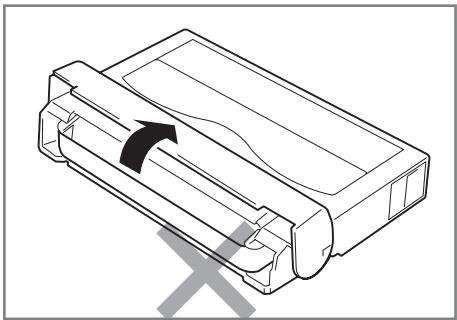
- Ne touchez pas la surface de la bande de la cartouche de nettoyage et ne rembobinez pas la bande.
- Vous pouvez utiliser la cartouche de nettoyage environ 70 fois. Même si vous insérez une cartouche de nettoyage usagée ou si le nettoyage se termine parce que la bande est arrivée à sa fin, le périphérique n'éjecte pas automatiquement la cartouche de nettoyage. Dans ce cas, appuyez sur le bouton EJECT. Achetez une nouvelle cartouche de nettoyage.

Conseil
Avant d'utiliser les cartouches de données AIT, vous devez nettoyer la tête de lecture/écriture à l'aide de la cartouche de nettoyage une fois par semaine. (La fréquence de nettoyage varie en fonction de l'environnement d'exploitation (génération de poussière et de saleté) et de la fréquence d'utilisation. Lors de l'utilisation quotidienne du lecteur AIT intégré dans un bureau typique, un nettoyage hebdomadaire est recommandé.)
Nettoyage du lecteur AIT intégré
Si le lecteur AIT intégré semble sale, essuyez délicatement sa surface avec un chiffon doux humidifié avec de l'eau ou un détergent.

Ne nettoyez pas le lecteur AIT intégré avec des produits chimiques tels que la benzine ou le diluant (produits chimiques volatils), qui peuvent déformer ou décolorer l'appareil. Pour la même raison, ne vaporisez pas d'insecticide. Si un produit chimique adhère à la surface du lecteur, essuyez-le immédiatement avec un chiffon doux humidifié avec de l'eau.
Cartouche de données AIT
Ce chapitre explique comment manipuler la cartouche de données AIT.
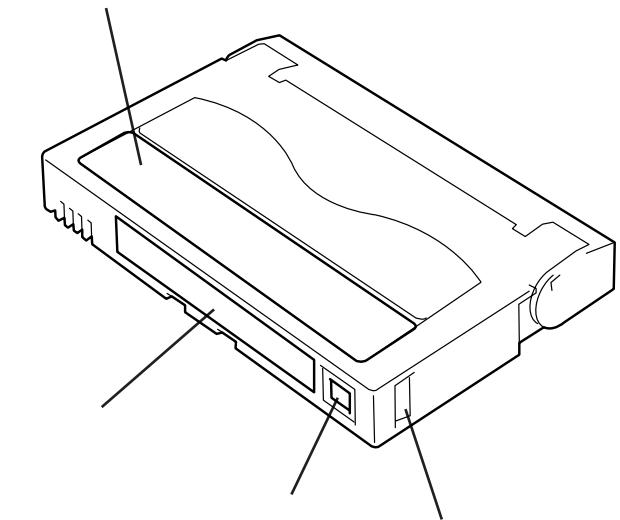
Nom et fonction des pièces de la cartouche de données
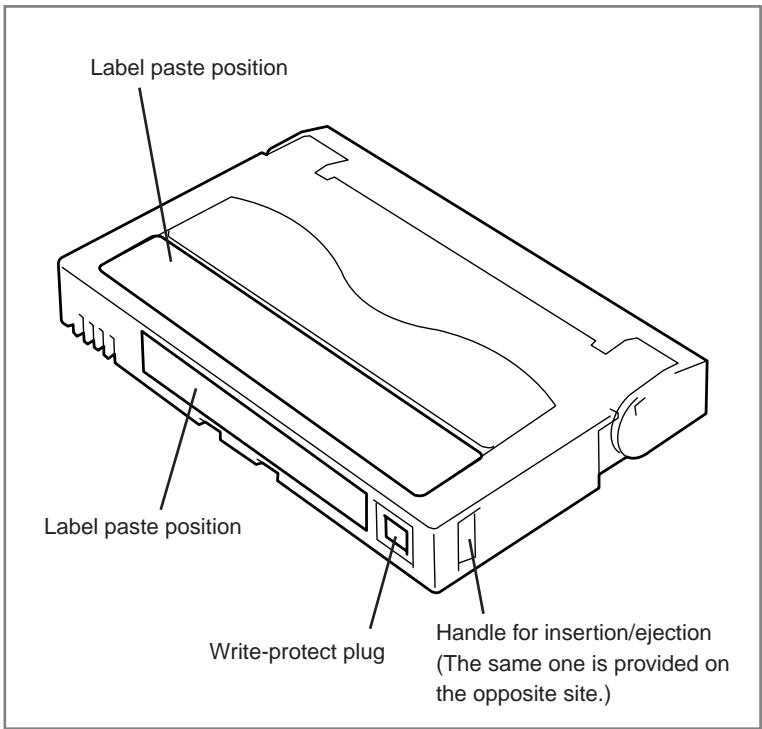
Exigences d'utilisation, de stockage et de transport
Exigences d'utilisation
Température
: 10 à 45°C
Humidité
: 20 à 80% (La température maximale du bulbe humide est de 26°C.)
Durée de conservation
Si une cartouche de données AIT est exposée à un environnement autre que l'environnement de fonctionnement ou de stockage, exposez-la à l'environnement de fonctionnement pendant une durée plus longue que la période d'exposition à l'autre environnement (8 heures au maximum) avant utilisation. Le gradient de température est de 10 °C/heure (maximum).
Exigences de stockage
Température
: 5 à 32 °C
Humidité
: 20 à 60 % (la température maximale du bulbe humide est de 26 °C.)
Conditions de stockage
: Rangez une cartouche de données AIT dans une boîte de protection avec couvercle. Vous pouvez placer la boîte horizontalement ou verticalement.
■ Exigences de transport
Température
: -40 à 45 °C
Humidité
: 5 à 80 % (la température maximale du bulbe humide est de 26 °C.)
Gradient de température
: 10 °C/heure (maximum)
Conditions de transport
Conservez une cartouche de données AIT dans une boîte de protection. Pendant le transport, emballez la boîte de manière à ce qu'aucune force ne s'applique sur la cartouche de données AIT.
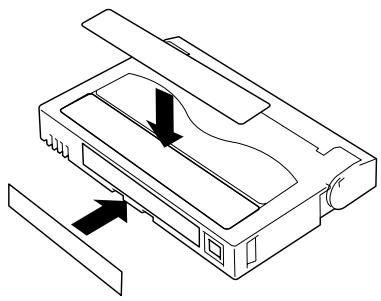
Étiquette
Il est recommandé d'apposer une étiquette sur chaque cartouche AIT pour associer la cartouche de données AIT aux données de sauvegarde afin de faciliter leur identification.
Position de collage de l'étiquette
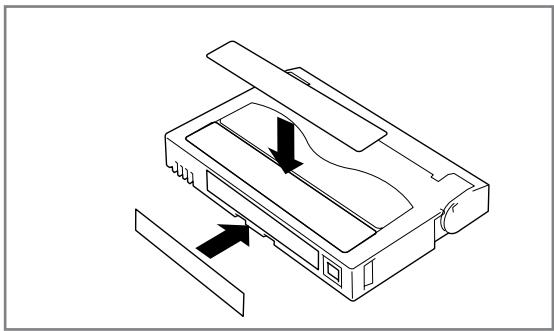
Précautions concernant l'apposition de l'étiquette
- Pour représenter les données contenues dans la cartouche de données AIT, utilisez une étiquette facilement remplaçable et ne laissant aucune trace d'adhésif.
- Pour modifier l'indication de l'étiquette, ne l'effacez pas avec une gomme, mais décollez l'ancienne étiquette et collez-en une nouvelle. (Les étiquettes INDEX sont fournies avec la cartouche de données AIT.)
- Collez l'étiquette à la position spécifiée dans la section précédente. Pour remplacer l'étiquette, décollez l'ancienne et collez-en une nouvelle.
- Si vous utilisez une étiquette autre que l'étiquette INDEX spécifiée, sa taille doit être identique à celle de l'étiquette spécifiée.
- Inscrivez la date de début d'utilisation de la cartouche sur l'étiquette INDEX fournie. Cela vous aidera à vérifier la durée de vie de la cartouche de données AIT.
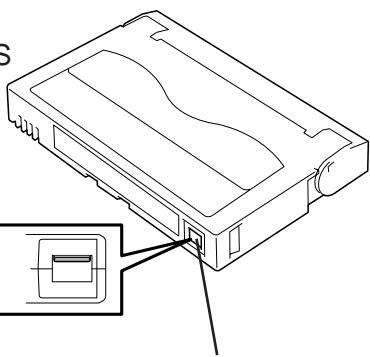
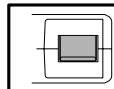
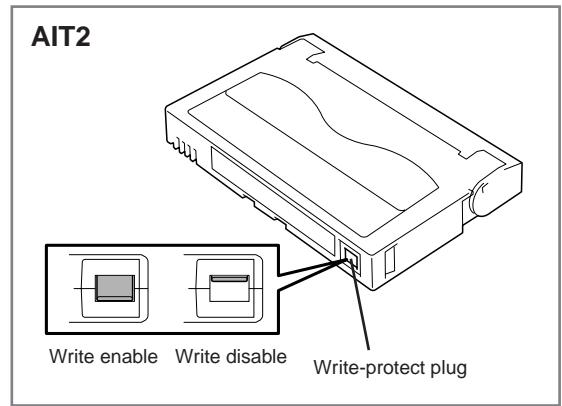
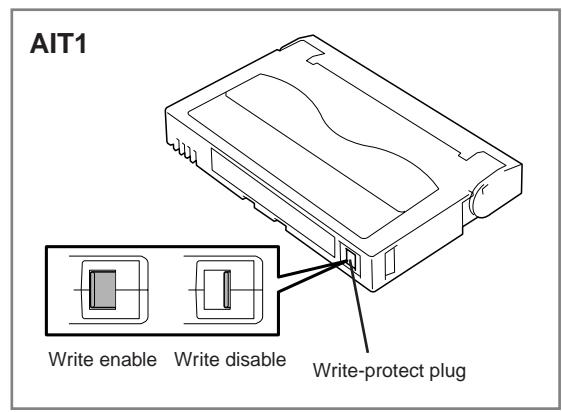
Protection en écriture
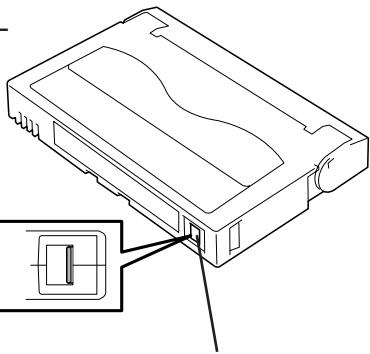
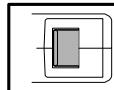
En réglant la languette de protection en écriture comme indiqué à droite, les données de la bande peuvent être protégées.
Lorsque vous ne souhaitez pas effacer les données écrites, réglez la languette sur la position "SAFE" (écriture désactivée). Pour activer l'écriture sur la bande, réglez la languette sur la position "REC" (écriture activée).
Précautions de manipulation
Précautions d'utilisation
Avant utilisation
- Si la cartouche de données AIT est endommagée, déformée ou pliée, ne l'utilisez pas.
- Si la cartouche de données AIT a été exposée à un environnement autre que l'environnement de fonctionnement ou de stockage, exposez-la à l'environnement de fonctionnement pendant une durée plus longue que la période d'exposition à l'autre environnement (8 heures maximum) avant utilisation. Si la température diffère considérablement entre le lieu de stockage et le lieu d'utilisation, ne précipitez pas la cartouche dans l'environnement de fonctionnement. Laissez la cartouche de données AIT à la température du site d'utilisation avec un gradient de température réglé à 10 °C/heure.
Montage dans le lecteur AIT intégré
Installez les cartouches comme expliqué dans « Installation de la cartouche de données AIT ». Fermez fermement le boîtier de protection vide et rangez-le dans un endroit exempt de poussière et de saleté.
Après utilisation
Veillez à remettre la cartouche de données AIT utilisée dans son boîtier de protection et rangez-la dans un endroit exempt de poussière et de saleté. Vous pouvez la placer horizontalement ou verticalement.
Précautions générales
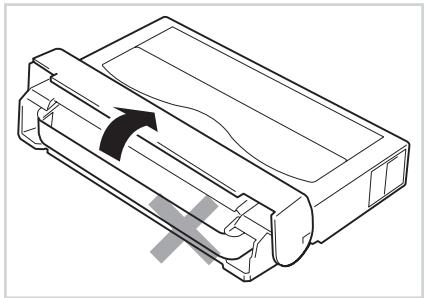
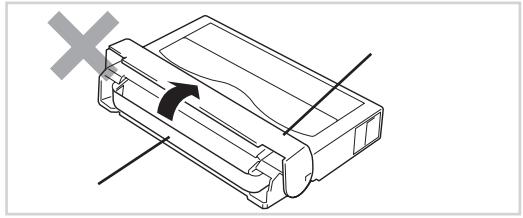
- Ne touchez pas la bande avec les mains. N'ouvrez pas et ne fermez pas le volet de la bande.
- Ne placez pas de substance générant un champ magnétique à proximité de la cartouche.
- Ne placez pas la cartouche dans un endroit exposé à la lumière directe du soleil ou à proximité d'un radiateur.
- N'appliquez pas de chocs violents.
- Évitez de manipuler la cartouche en mangeant ou en buvant. Veillez à ne pas faire adhérer de diluant ou d'alcool sur la cartouche.
- Insérez la cartouche dans le lecteur AIT intégré avec précaution.
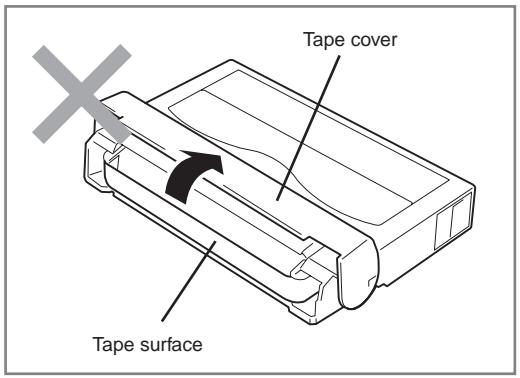
Norme d'interdiction d'utilisation
Si la cartouche de données AIT que vous utilisez présente l'une des conditions ci-dessous, remplacez-la.
- La cartouche de données AIT a subi un choc violent (par exemple, une chute) et est endommagée. Les cartouches endommagées de cette manière peuvent être cassées ou déformées, leurs couvercles de bande peuvent ne plus s'ouvrir et se fermer correctement, ce qui peut empêcher leur éjection du lecteur.
- La surface d'enregistrement est contaminée par un liquide (comme des boissons gazeuses, du café ou du thé), un détergent, des particules métalliques ou de la cendre de cigarette.
Important
Si vous insérez une cartouche de données AIT dans un tel état dans le lecteur AIT intégré, la tête de lecture/écriture ou le lecteur lui-même peut être endommagé ou contaminé, provoquant une panne de la machine. De plus, si vous insérez une nouvelle cartouche de données AIT dans le lecteur AIT intégré dont la tête est contaminée ou rayée sans le savoir, la cartouche de données AIT peut être contaminée ou endommagée. De cette manière, les dommages se propagent.
Durée de vie
La durée de vie de la cartouche de données AIT varie considérablement en fonction de la température et de l'humidité de l'environnement d'utilisation/stockage, de la poussière et de la saleté, et de l'état d'abrasion de la tête. Si vous utilisez la cartouche une fois par jour, nous vous recommandons de la remplacer une fois par an. Si vous n'utilisez pas la cartouche tous les jours, nous vous recommandons de la remplacer tous les deux ans. Si des erreurs se produisent fréquemment, remplacez la cartouche de données AIT.
Vous pouvez évaluer sa durée de vie de la manière suivante.
- Attribuez un numéro de gestion à une nouvelle cartouche de données AIT. Inscrivez le numéro sur l'étiquette de la cartouche de données AIT.
- Créez le registre de gestion des cartouches de données AIT. Enregistrez la date d'utilisation de chaque cartouche de données AIT et estimez combien d'années et à quelle fréquence chaque cartouche est utilisée.
- Examinez régulièrement le registre de gestion des cartouches de données AIT et l'étiquette d'index. Jetez les cartouches ayant une faible fiabilité, par exemple celles qui génèrent des erreurs d'écriture/lecture.
La couche magnétique de la bande est composée de produits chimiques et se détériore avec le temps.
Bien que la durée de vie de la bande, déterminée par cette détérioration, varie considérablement selon l'environnement de stockage de la bande (humidité, température), la bande est généralement utilisable pendant environ 3 ans à compter de son achat.
Stockage des données importantes
Lors du stockage de données ou de programmes importants, il est fortement recommandé de préparer et de conserver la bande maîtresse et une copie (sauvegarde) de la bande, par précaution.
De plus, nous recommandons de vérifier le logiciel de sauvegarde lors de l'enregistrement et de contrôler les données sauvegardées. Pour plus de détails sur la vérification, reportez-vous au manuel d'instructions du logiciel de sauvegarde que vous utilisez.
Ainsi, si l'une des bandes provoque une erreur de lecture due à la poussière ou à la saleté, vous pouvez récupérer les données à partir de l'autre bande. Vous pouvez donc éviter la perte de données et de programmes importants.
Gestion des données sur trois générations
Pour stocker les données sur le disque, vous devez gérer les données sur trois générations.
Pour gérer les données sur trois générations, utilisez trois bandes (A, B, C). Le premier jour, stockez les données du disque sur la bande A. Le deuxième jour, stockez les données sur la bande B. Le troisième jour, stockez les données sur la bande C.
Cette méthode vous permet de protéger vos données importantes. Par exemple, si la bande C génère une erreur de lecture, vous pouvez utiliser la bande B pour récupérer les données. Si la bande B génère une erreur de lecture, vous pouvez utiliser la bande A pour récupérer les données.
Stockage des cartouches de données
Stockez toujours les cartouches de données dans un endroit propre et dans les conditions de stockage spécifiées.
Il est recommandé d'activer la protection en écriture lors du stockage des cartouches de données.
Lorsque vous stockez des cartouches de données pendant une période prolongée, les données doivent être lues périodiquement afin de garantir que la restauration à partir des données de sauvegarde est possible à tout moment.
Il est recommandé de stocker les cartouches de données dans un endroit différent de celui du système. Si vous conservez à la fois la cartouche principale et la cartouche de secours, il est recommandé de les stocker dans des endroits différents.
Établissement de procédures de sauvegarde et de reprise après sinistre
Lors du choix d'une méthode de sauvegarde, veillez à établir un calendrier pour la reprise après sinistre des images. La première étape de l'utilisation de la sauvegarde consiste à définir la procédure de sauvegarde appropriée. Après avoir établi votre procédure de reprise après sinistre, vérifiez-la périodiquement pour vous assurer qu'elle fonctionne correctement.
Spécifications
Le lecteur AIT intégré présente les spécifications suivantes :
Performances
Capacité mémoire
N8151-34B
- 35 Go (en mode compression : 70 Go) avec cartouche de données AIT1 : longueur de bande 230 m
- 25 Go (en mode compression : 50 Go)
avec cartouche de données AIT1 : longueur de bande 170 m N8151-46A
- 50 Go (en mode compression : 100 Go)
avec cartouche de données AIT2 : longueur de bande 230 m
- 36 Go (en mode compression : 72 Go)
avec cartouche de données AIT2 : longueur de bande 170 m
- 35 Go (en mode compression : 70 Go)
avec cartouche de données AIT1 : longueur de bande 230 m
- 25 Go (en mode compression : 50 Go)
avec cartouche de données AIT1 : longueur de bande 170 m
La valeur en mode compression est obtenue lorsque le taux de compression est de 2x.
Le taux de compression varie selon le motif des données.
Taux d'erreur binaire
10^-17 ou moins
Débit de transfert de données
N8151-34B
- AIT-1 : 4 Mo/s (en mode non compressé) N8151-46A
- AIT-2 : 6 Mo/s (en mode non compressé)
- AIT-1 : 4 Mo/s (en mode non compressé)
Le débit de transfert de données varie selon le serveur auquel le lecteur AIT intégré est connecté.
Vitesse de transfert en rafale (SCSI)
40 Mo/s (max, synchrone)
Selon votre environnement de connexion, il peut être impossible de définir 40 Mo/s.
Temps d'initialisation
Moins de 5 secondes
Temps de chargement
En moyenne 14 secondes
Temps de déchargement
En moyenne 20 secondes
Temps de rembobinage
En moyenne 105 secondes
Si l'AIT intégré est configuré pour effectuer des nouvelles tentatives, les temps ci-dessus peuvent être plus longs.
Exigences environnementales
Pendant le fonctionnement
Température : de 10 °C à 35 °C
Humidité : de 20 % à 80 % (pas de condensation)
Température sèche maximale : 26 °C
Hors fonctionnement
Température : de -40°C à 70°C
Humidité : de 5% à 95% (sans condensation)
Spécifications de l'alimentation électrique
| Voltage | 5 V±5% | 12 V±10% |
| Current (Typ.) | 1.1 A | 0.4 A |
| Current (Max.) | 1.4 A | 1.2 A |
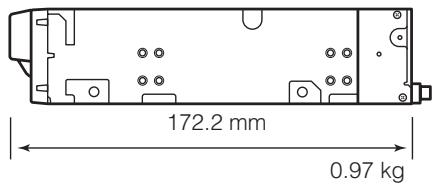
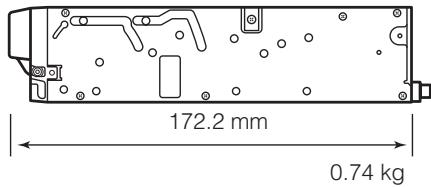
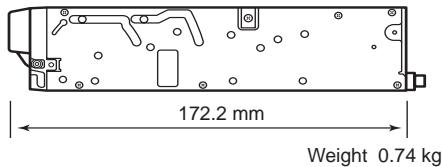
Dimensions, poids
N8151-34B/N8151-46A périphérique 5,25 pouces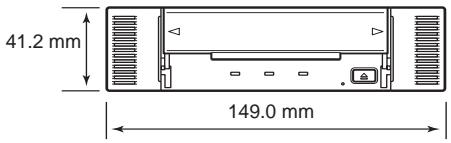
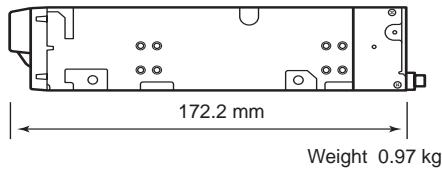
N8151-34B/N8151-46A périphérique 3,5 pouces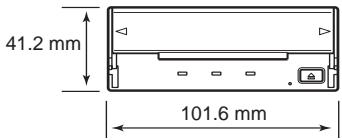
Feuille d'application client
Utilisez cette feuille comme note pour les informations requises pour la maintenance et la gestion de l'AIT intégré.
| Item | Record |
| Basic processing unit model name | |
| Operating system (OS) (name, version, service pack/batch application) | |
| Backup software (name, version service pack/batch application) | |
| SCSI bus configuration (SCSI ID/device on the same bus) Built-In AIT installation environment | |
| Built-In AIT installation environment (temperature, humidity, dust) | |
| Cartridge type (manufacturer, EF model code) | |
| Cleaning cartridge type | |
| Cleaning cartridge usage (method of managing cleaning frequency, operation frequency and starting month) | |
| Cartridge usage (method of managing cleaning frequency, operation frequency and starting month) | |
| Cartridge management |
Liste de contrôle de dépannage
Si ce produit ne fonctionne pas comme prévu, consultez la liste de contrôle suivante et vérifiez le produit avant de le renvoyer pour réparation. Si l'appareil présente l'un des symptômes listés, prenez les mesures indiquées.
| No. | Symptom | Internal/External | Action |
| 1 | ☐ The drive does not turn on. ☐ The LED does not light. | Internal | ☐ Make sure that the DC cable is correctly connected to the drive. ☐ Some integrated drives have two power connectors (some drives require a special DC cable). Check the User's Guide and make sure that the drive is correctly plugged into a power outlet. ☐ Check the power contacts of the DC cable by unplugging the cable and then plugging it back. |
| External | ☐ Make sure that the AC cord is correctly connected to the drive. ☐ Make sure that the AC cord is correctly plugged into the power outlet. | ||
| 2 | ☐ The drive is not properly detected during startup. | Internal External | ☐ Make sure that the SCSI cable is correctly connected to the drive. ☐ Make sure that the SCSI cable is correctly connected to the SCSI connector (SCSI board connector, motherboard connector, etc.). ☐ Make sure that there is no other drive on the SCSI bus with the same SCSI ID. →If you find a drive with the same SCSI ID, change the ID of one of the drives to an ID that is not currently in use. (Do not use “7”, as this ID is assigned to the host.) |
| 2 | ☐ The drive is not properly detected during startup. | Internal External | ☐ Make sure that terminators are connected and/or set correctly. → Terminators must be connected at both ends of the SCSI bus. · If the remote end of the SCSI bus is a cable (connector), make sure that a terminating connector is connected to it. · If the remote end of the SCSI bus is an internal drive, make sure that the drive terminator setting is ON. · If the remote end of the SCSI bus is an external drive, make sure that a terminating connector is connected to it. · If the remote end of the SCSI bus is a SCSI board or motherboard, make sure that the SCSI BIOS is set up correctly. (Refer to the appropriate documentation for details.) · Make sure that the terminator setting is OFF for any drive that is not at the remote end of the SCSI bus. □ If the SCSI connector is a pin-type connector, make sure that none of the pins are bent (internal drive 50-pin connector, internal or external cable 68-pin connector, external cable 50-pin [PIN type] connector, etc.). → If pins are bent, do not try to bend them back into position. Replace the drive or cable. □ Make sure that the SCSI BIOS is correctly set up. (Refer to the setup procedures in the appropriate documentation, if available. Some SCSI BIOS are designed not to allow changes.) □ Make sure that the drive is connected in the proper position according to the system configuration. |
| 3 | ☐ The drive is not properly detected after OS startup. (The drive was properly detected during startup.) | Internal External | ☐ Make sure that the device driver is installed correctly. → In some cases, the device driver may be installed automatically. In other cases, it may be necessary to install the device driver manually. In still other cases, the device driver may be incorporated into the product. Refer to the User's Guide for details. □ Make sure that the device driver started correctly. |
| 4 | ☐ The cartridge is not detected correctly.☐ The backup process is not performed correctly.(The backup software correctly detected the drive.) | Internal External | ☐ Clean the head with the cleaning cartridge.☐ Replace the data cartridge with a new cartridge.☐ Make sure that you are using the correct data cartridge.→ ·Make sure that you are using a correct drive and cartridge combination, for example that you are not using a DDS3 cartridge in a DDS2 drive.·Make sure that you are using a type of cartridge for which operation is guaranteed (EF-type cartridge, etc.).·Make sure that you are not using a cartridge that has reached the end of its operational life.·Make sure that you are not using a cartridge on which there are errors.☐ There may be a problem at a one or more of the following connections: SCSI cable, connector, the terminator, etc.→ Check the connections.☐ If the drive was moved to an environment with different temperature and/or humidity, the drive may not have fully adapted to its new environ-ment. Allow the drive time to adapt to the new environment before using it.☐ If the backup process is initiated immediately after system startup in an environment that is not air-conditioned, the drive may not have fully adapted to the environment. Modify the operating procedures so that the drive is allowed to time to adapt before beginning the backup process.(This problem frequently occurs when the system starts up in the middle of the night and begins the backup process.) |
| 5 | ☐ The backup process is not performed correctly.(The backup software does not correctly detect the drive.) | Internal External | ☐ Make sure that the backup software is installed correctly.☐ Make sure that there is no other device on the SCSI bus with the same SCSI ID.☐ Make sure that there are no software conflicts.→ If there are incompatible device drivers installed on the system, it may be necessary to remove some of the drivers. Refer to the appropriate software documentation for details.☐ There may be a problem at a one or more of the following connections: SCSI cable, connector, the terminator, etc.→ Check the connections. |
| 6 | ☐ The backup process is not performed correctly.(An LED is flashing and an error is displayed on the LCD.) | Internal External | ☐ Refer to the explanation of the LED and LCD indicators (if any) in the User's Guide.→ · If a cleaning request is indicated, clean the drive and attempt the backup process again. If the same error occurs again, replace the data cartridge.· If an error is indicated (ERRxx, for example), there may be a problem with the drive. Replace the drive. |
| 7 | ☐ Cannot eject the data cartridge. | Internal External | ☐ If the cartridge is not ejected even though the automatic ejection setting is made in the backup software, the backup process may not have been performed correctly.→ See numbers 4 through 6.☐ If the cartridge is not ejected even though the EJECT button is pressed, the EJECT function may be locked by the backup software.→ · Exit the backup software.· Restart the system.· Turn the power off, and then turn it on again.☐ The drive may have detected a problem and is not allowing the cartridge to be ejected.→ · Some drives eject the cartridge when you press and hold the EJECT button for a certain time (five or ten seconds).· Restart the system.· Turn the power off, and then turn it on again.☐ The cartridge may be jammed in the drive.(Even if you press the EJECT button longer than the prescribed time.)→ · If a cartridge jams in a drive, the head, drum, or various guide pins may be damaged. Replace the drive. |
| 8 | □Cannot eject the cleaning cartridge. | Internal External | □If a spent cleaning cartridge is inserted, or if cleaning is not completed properly because the cartridge ends during cleaning, some drives indicate this by not ejecting the cleaning cartridge. →Press and hold the EJECT button to eject the cleaning cartridge, and then clean again with a new cleaning cartridge. □The cartridge may be jammed in the drive. (Even if you press the EJECT button longer than the prescribed time.) →·If a cartridge jams in a drive, the head, drum, or various guide pins may be damaged. Replace the drive. |
| 9 | □The cartridge magazine is not ejected. | Internal External | □Make sure that the TAPE MOTION LED is not blinking. →The unit may still be reading data to tape. Wait until the reading is done. If a reading error occurs, replace the tape. |
| 10 | □The data cartridge is ejected. | Internal External | □Make sure that you are using the correct type of data cartridge. →·Make sure that you are using a correct drive and cartridge combination, for example that you are not using a DDS3 cartridge in a DDS2 drive, or an AIT2 cartridge in an AIT1 drive. ·Make sure that you are using a type of cartridge for which operation is guaranteed (EF-type cartridge, etc.). ·Make sure that you are not using a cartridge that has reached the end of its operational life. ·Make sure that you are not using a cartridge on which there are errors. □The head may be dirty. →If the head is dirty, a read/write error may occur, after which the cartridge is ejected. Clean the drive. |
| 11 | □The cleaning cartridge is ejected. | Internal External | □The cleaning cartridge may be spent. →Replace the cleaning cartridge with a new cleaning cartridge. |
N8151-34B/N8151-46A
Guide de l'utilisateur de l'AIT intégré
Première édition, octobre 2003
Troisième édition, septembre 2004
NEC Corporation
5-7-1 Shiba, Minato-ku, Tokyo
Tél. (03) 3454-1111 (standard principal)
- N8151-34B/N8151-46A AIT BUILT-IN AIT
- AIT
- IMPORTANT
- DIP
- TÉMOIN DE DEMANDE DE NETTOYAGE
- AIT EF-2423EF-2423S EF-2420L EF
- MARQUES DÉPOSÉES
- REMARQUES
- CONSIGNES DE SÉCURITÉ - À LIRE IMPÉRATIVEMENT
- INDICATIONS DE SÉCURITÉ
- SYMBOLES UTILISÉS DANS CE GUIDE DE L'UTILISATEUR ET SUR LES ÉTIQUETTES D'AVERTISSEMENT
- CONSIGNES DE SÉCURITÉ
- ATTENTION GÉNÉRALE
- ATTENTION À L'ALIMENTATION OU AU CORDON D'ALIMENTATION
- ATTENTION À L'INSTALLATION, AU DÉPLACEMENT, AU STOCKAGE ET À LA CONNEXION
- HAUTE TEMPÉRATURE
- ATTENTION À LA MANIPULATION OU À LA MAINTENANCE
- NE DÉMONTEZ PAS, NE RÉPAREZ PAS ET NE MODIFIEZ PAS LE LECTEUR AIT INTÉGRÉ
- NE PAS MANIPULER LORSQUE LA FICHE D'ALIMENTATION EST BRANCHÉE
- INSÉREZ LES CÂBLES DANS LES CONNECTEURS JUSQU'AU BOUT
- ATTENTION À L'UTILISATION
- POUR UN FONCTIONNEMENT CORRECT
- ORGANISATION DU MANUEL D'INSTRUCTIONS
- ORDRE DE PRIORITÉ LORS DE LA PREMIÈRE UTILISATION DE L'AIT INTÉGRÉ
- SYMBOLES UTILISÉS DANS CE TEXTE
- TRANSFERT À UN TIERS
- AUTRES ACCESSOIRES
- LOGICIELS FOURNIS
- ÉLIMINATION DES PIÈCES CONSOMMÉES ET DE L'ÉQUIPEMENT
- DURÉE DE VIE DU PRODUIT
- CONTENU DE L'EMBALLAGE
- TABLE DES MATIÈRES
- AIT INTÉGRÉ
- CARTOUCHE DE DONNÉES AIT
- CARACTÉRISTIQUES
- CARTOUCHES UTILISABLES
- NOM DE LA PIÈCE ET FONCTION
- FACE AVANT
- FACE AVANT (LORSQUE LE CAPOT ANTI-POUSSIÈRE EST OUVERT)
- FACE ARRIÈRE
- FACE INFÉRIEURE
- CONFIGURATION
- RETRAIT ET INSTALLATION DES SUPPORTS
- POUR RETIRER LES SUPPORTS
- POUR INSTALLER LES SUPPORTS
- RÉGLAGE DE L'AIT INTÉGRÉ - RÉGLAGE AVEC LES CAVALIERS
- CONSEIL
- RÉGLAGE DE L'ID SCSI
- RÉGLAGE DE LA FONCTION DE PARITÉ
- RÉGLAGE DE L'AIT INTÉGRÉ - RÉGLAGE AVEC LE COMMUTATEUR DIP
- RÉGLAGE DE L'ALIMENTATION DU TERMINATEUR - ALIMENTATION DU TERMINATEUR
- RÉGLAGE DE LA COMPRESSION DES DONNÉES - CONTRÔLE DC (1)
- RÉGLAGE DE LA COMPRESSION DES DONNÉES - CONTRÔLE DC (2)
- COUPEZ L'ALIMENTATION AVANT D'INSTALLER OU DE RETIRER LE PÉRIPHÉRIQUE
- ATTENTION
- N'UTILISEZ PAS DE CORDON D'ALIMENTATION ENDOMMAGÉ
- INSTALLATION DU PILOTE DE PÉRIPHÉRIQUE DE BANDE
- POUR LES UTILISATEURS DE WINDOWS
- POUR LES UTILISATEURS DE WINDOWS XP
- ASSISTANT MISE À JOUR DE MATÉRIEL
- ASSISTANT DE MISE À JOUR DU MATÉRIEL
- ASSISTANT MISE À JOUR DU MATÉRIEL
- POUR LES UTILISATEURS DE WINDOWS SERVER
- MANIPULATION
- RÉGLAGE DE LA CARTOUCHE DE DONNÉES AIT
- ÉJECTION DE LA CARTOUCHE DE DONNÉES AIT
- INDICATION DES VOYANTS
- LECTURE/ÉCRITURE DE DONNÉES
- NETTOYAGE
- NETTOYAGE DE LA TÊTE DE LECTURE/ÉCRITURE
- NETTOYAGE DU LECTEUR AIT INTÉGRÉ
- NOM ET FONCTION DES PIÈCES DE LA CARTOUCHE DE DONNÉES
- EXIGENCES D'UTILISATION, DE STOCKAGE ET DE TRANSPORT
- EXIGENCES D'UTILISATION
- EXIGENCES DE STOCKAGE
- EXIGENCES DE TRANSPORT
- ÉTIQUETTE
- POSITION DE COLLAGE DE L'ÉTIQUETTE
- PRÉCAUTIONS CONCERNANT L'APPOSITION DE L'ÉTIQUETTE
- PROTECTION EN ÉCRITURE
- PRÉCAUTIONS DE MANIPULATION
- PRÉCAUTIONS D'UTILISATION
- AVANT UTILISATION
- MONTAGE DANS LE LECTEUR AIT INTÉGRÉ
- APRÈS UTILISATION
- PRÉCAUTIONS GÉNÉRALES
- NORME D'INTERDICTION D'UTILISATION
- DURÉE DE VIE
- STOCKAGE DES DONNÉES IMPORTANTES
- GESTION DES DONNÉES SUR TROIS GÉNÉRATIONS
- STOCKAGE DES CARTOUCHES DE DONNÉES
- ÉTABLISSEMENT DE PROCÉDURES DE SAUVEGARDE ET DE REPRISE APRÈS SINISTRE
- SPÉCIFICATIONS
- PERFORMANCES
- EXIGENCES ENVIRONNEMENTALES
- SPÉCIFICATIONS DE L'ALIMENTATION ÉLECTRIQUE
- DIMENSIONS, POIDS
- FEUILLE D'APPLICATION CLIENT
- LISTE DE CONTRÔLE DE DÉPANNAGE
Marque : SONY
Modèle : SDX-500V
Catégorie : Lecteur de bandes