CL-ADA24004 - Nettverkskort / adapter Syba - Gratis bruksanvisning og manual
Finn enhetens veiledning gratis CL-ADA24004 Syba i PDF-format.


Brukerspørsmål om CL-ADA24004 Syba
0 spørsmål om dette apparatet. Svar på dem du kjenner, eller still ditt eget.
Still et nytt spørsmål om dette apparatet
Last ned instruksjonene for din Nettverkskort / adapter i PDF-format gratis! Finn veiledningen din CL-ADA24004 - Syba og ta den elektroniske enheten tilbake i hendene. På denne siden er alle dokumenter som er nødvendige for bruken av enheten din publisert. CL-ADA24004 av merket Syba.
BRUKSANVISNING CL-ADA24004 Syba
Connectland
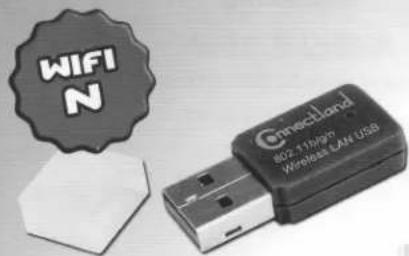
ADAPTATEUR USB RESEAU SANS FIL IEEE 80211 N
IEEE 802.11 n WIRELESS USB ADAPTER
Manuel utilisateur
User's manual

natural_image
Black-and-white collage of three people in professional settings, no visible text or symbols
Connectland
WIRE-N-USB-R
802.11 N USB Wireless Adapter
Quick Installation Guide
Package Contents Page 1
Network Card Installation Page 2
Connect to Wireless Access Point...... Page 5
Package Contents
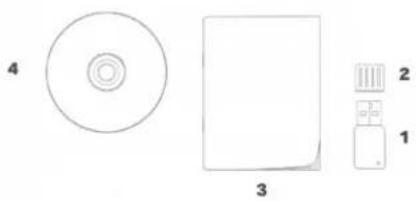
Before you starting to use this wireless network card, please check if there's anything missing in the package, and contact your dealer of purchase to claim for missing items:
USB Wireless Network Card (1 pcs) 1
■ Protection Cap (1 pcs) 2
- Quick Installation Guide (1 pcs) 3
- Driver/Utility/User Manual CD-ROM (1 pcs) 4
natural_image
Diagram showing four labeled objects: a circular ring, a square, a small rectangular object, and a small electronic device (no text or symbols present)WPS setting
WPS (Wifi Protected Setup) enables to have an automatic and secure WIFI connection: a simple pressure on the button lets you connect to Wireless network without additional setting, nor password setting. It can run only with router or modem equipped with WPS button no matter what trademark is.
The setting is simple and easy:
- After creating wireless secure network on your box/router/modem-router (consult the device manual), press down the WPS button.
-Press down the WPS button of the wireless USB device.
-The 2 devices will automatically synchronize instantly: you just have to wait.
-You will be automatically connected to your secure wireless network.
Network Card Installation
Please follow the following instructions to install your new USB wireless network card.
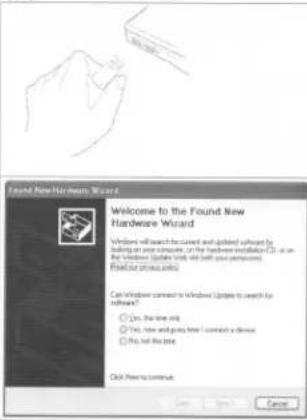
- Insert the USB wireless network card into an empty USB 2.0 port of your computer when computer is switched on.
Never use force to insert the card, if you feel it's stuck, flip the card over and try again.
- The following message will appear on your computer, click 'Cancel'.
2
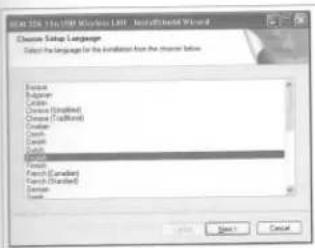
- Insert device driver CDROM into the CD/DVD ROM drive of your computer, and execute 'Setup.exe' program. Please select Setup Language and then click 'Next' to continue.
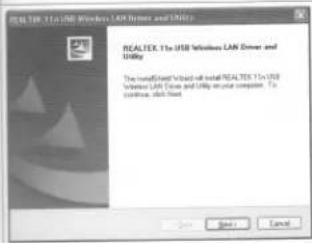
- Click "Next" to go to next step.
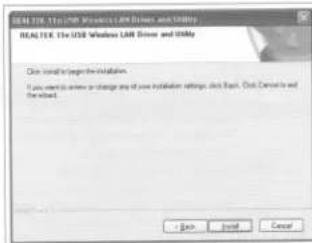
- Now you'll see the following message, please click 'Install' to begin the installation.
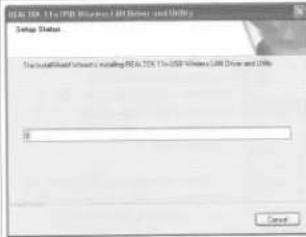
- Please wait while the installation procedure is running.
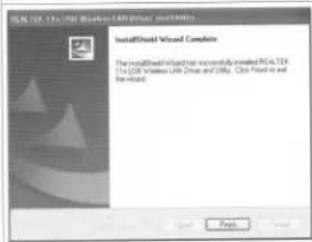
- The installation is completed, please click 'Finish'.
4
Connect to Wireless Access Point
Using Configuration Utility to Connect to Wireless Access Point:
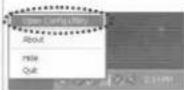
- After installation is complete, wireless configuration utility will be shown in the desktop of your computer automatically. You will also see an icon at the lower-right corner of your windows system. You can click the icon by right mouse key, and select the configuration utility.
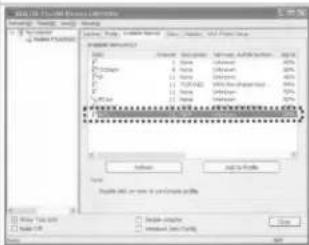
- Configuration utility will scan for wireless access points and access to any unencrypted wireless access point automatically. If you wish to connect to another access point, select the access point and double click it.
If the wireless access point you want to connect does not show here, please click 'Rescan'.
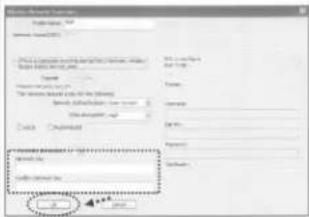
- If the wireless access point uses encryption, you have to input WEP key or WPA preshared key. Please ask the owner of the wireless access point you want to connect and input the correct key here, and then click 'OK'. If the value you inputted here is wrong, you will not be able to connect to wireless access point.
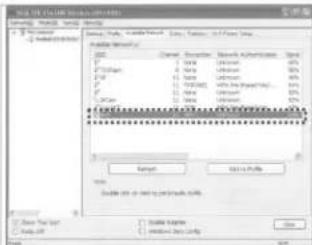
- If the wireless access point is successfully connected, you'll see a symbol appears in front of the name of wireless device.
For advanced settings and other features of this USB wireless network card, please refer to user manual enclosed in supplied CD-ROM.
FC CE!
Copyright © 2009. Connectland. All rights reserved