WorkForce Pro WF-R8590DTWF - Pisač EPSON - Besplatni korisnički priručnik
Pronađite besplatno priručnik za uređaj WorkForce Pro WF-R8590DTWF EPSON u PDF formatu.


Pitanja korisnika o WorkForce Pro WF-R8590DTWF EPSON
0 pitanje o ovom uređaju. Odgovorite na one koje znate ili postavite svoje.
Postavi novo pitanje o ovom uređaju
Preuzmite upute za vaš Pisač u PDF formatu besplatno! Pronađite svoj priručnik WorkForce Pro WF-R8590DTWF - EPSON i uzmite svoju elektroničku napravu natrag u ruke. Na ovoj stranici objavljeni su svi dokumenti potrebni za korištenje vaše naprave. WorkForce Pro WF-R8590DTWF marke EPSON.
KORISNIČKI PRIRUČNIK WorkForce Pro WF-R8590DTWF EPSON
User's Guide
Copyright
Copyright
No part of this publication may be reproduced, stored in a retrieval system, or transmitted in any form or by any means, electronic, mechanical, photocopying, recording, or otherwise, without the prior written permission of Seiko Epson Corporation. No patent liability is assumed with respect to the use of the information contained herein. Neither is any liability assumed for damages resulting from the use of the information herein. The information contained herein is designed only for use with this Epson product. Epson is not responsible for any use of this information as applied to other products.
Neither Seiko Epson Corporation nor its affiliates shall be liable to the purchaser of this product or third parties for damages, losses, costs, or expenses incurred by the purchaser or third parties as a result of accident, misuse, or abuse of this product or unauthorized modifications, repairs, or alterations to this product, or (excluding the U.S.) failure to strictly comply with Seiko Epson Corporation's operating and maintenance instructions.
Seiko Epson Corporation and its affiliates shall not be liable for any damages or problems arising from the use of any options or any consumable products other than those designated as Original Epson Products or Epson Approved Products by Seiko Epson Corporation.
Seiko Epson Corporation shall not be held liable for any damage resulting from electromagnetic interference that occurs from the use of any interface cables other than those designated as Epson Approved Products by Seiko Epson Corporation.
© 2014 Seiko Epson Corporation. All rights reserved.
The contents of this manual and the specifications of this product are subject to change without notice.
Trademarks
Trademarks
☐ EPSON® is a registered trademark, and EPSON EXCEED YOUR VISION or EXCEED YOUR VISION is a trademark of Seiko Epson Corporation.
☐ EPSON Scan software is based in part on the work of the Independent JPEG Group.
□ libtiff
Copyright © 1988-1997 Sam Leffler
Copyright © 1991-1997 Silicon Graphics, Inc.
Permission to use, copy, modify, distribute, and sell this software and its documentation for any purpose is hereby granted without fee, provided that (i) the above copyright notices and this permission notice appear in all copies of the software and related documentation, and (ii) the names of Sam Leffler and Silicon Graphics may not be used in any advertising or publicity relating to the software without the specific, prior written permission of Sam Leffler and Silicon Graphics.
THE SOFTWARE IS PROVIDED "AS-IS" AND WITHOUT WARRANTY OF ANY KIND, EXPRESS, IMPLIED OR OTHERWISE, INCLUDING WITHOUT LIMITATION, ANY WARRANTY OF MERCHANTABILITY OR FITNESS FOR A PARTICULAR PURPOSE.
IN NO EVENT SHALL SAM LEFFLER OR SILICON GRAPHICS BE LIABLE FOR ANY SPECIAL, INCIDENTAL, INDIRECT OR CONSEQUENTIAL DAMAGES OF ANY KIND, OR ANY DAMAGES WHATSOEVER RESULTING FROM LOSS OF USE, DATA OR PROFITS, WHETHER OR NOT ADVISED OF THE POSSIBILITY OF DAMAGE, AND ON ANY THEORY OF LIABILITY, ARISING OUT OF OR IN CONNECTION WITH THE USE OR PERFORMANCE OF THIS SOFTWARE.
□ Microsoft®, Windows®, and Windows Vista® are registered trademarks of Microsoft Corporation.
□ Apple, Macintosh, Mac OS, OS X, Bonjour, Safari, iPad, iPhone, iPod touch, and iTunes are trademarks of Apple Inc., registered in the U.S. and other countries. AirPrint and the AirPrint logo are trademarks of Apple Inc.
□ Apple Chancery, Chicago, Geneva, Hoefler Text, Monaco and New York are trademarks or registered trademarks of Apple Inc.
☐ Google Cloud Print™, Chrome™, Chrome OS™, and Android™ are trademarks of Google Inc.
☐ Monotype is a trademark of Monotype Imaging, Inc. registered in the United States Patent and Trademark Office and may be registered in certain jurisdictions.
☐ Albertus, Arial, Gill Sans, Joanna and Times New Roman are trademarks of The Monotype Corporation.
☐ ITC Avant Garde, ITC Bookman, ITC Lubalin, ITC Mona Lisa Recut, ITC Symbol, ITC Zapf-Chancery, and ITC Zapf Dingbats are trademarks of International Typeface Corporation registered in the United States Patent and Trademark Office and may be registered in certain jurisdictions.
Clarendon, Helvetica, New Century Schoolbook, Optima, Palatino, Stempel Garamond, Times and Univers are registered trademarks of Heidelberger Druckmaschinen AG, which may be registered in certain jurisdictions, exclusively licensed through Linotype Library GmbH, a wholly owned subsidiary of Heidelberger Druckmaschinen AG.
□ Wingdings is a registered trademark of Microsoft Corporation in the United States and other countries.
Antique Olive is a registered trademark of Marcel Olive and may be registered in certain jurisdictions.
□ Adobe SansMM, Adobe SerifMM, Carta, and Tekton are registered trademarks of Adobe Systems Incorporated.
☐ Marigold and Oxford are trademarks of AlphaOmega Typography.
Coronet is a registered trademark of Ludlow Type Foundry.
☐ Eurostile is a trademark of Nebiolo.
Trademarks
☐ Bitstream is a registered trademark of Bitstream Inc. registered in the United States Patent and Trademark Office and may be registered in certain jurisdictions.
☐ Swiss is a trademark of Bitstream Inc. registered in the United States Patent and Trademark Office and may be registered in certain jurisdictions.
☐ PCL is the registered trademark of Hewlett-Packard Company.
□ Adobe, Adobe Reader, PostScript3, Acrobat, and Photoshop are trademarks of Adobe systems Incorporated, which may be registered in certain jurisdictions.
□ Getopt
Copyright © 1987, 1993, 1994 The Regents of the University of California. All rights reserved.
Redistribution and use in source and binary forms, with or without modification, are permitted provided that the following conditions are met:
- Redistributions of source code must retain the above copyright notice, this list of conditions and the following disclaimer.
- Redistributions in binary form must reproduce the above copyright notice, this list of conditions and the following disclaimer in the documentation and/or other materials provided with the distribution.
- Neither the name of the University nor the names of its contributors may be used to endorse or promote products derived from this software without specific prior written permission.
THIS SOFTWARE IS PROVIDED BY THE REGENTS AND CONTRIBUTORS "AS IS" AND ANY EXPRESS OR IMPLIED WARRANTIES, INCLUDING, BUT NOT LIMITED TO, THE IMPLIED WARRANTIES OF MERCHANTABILITY AND FITNESS FOR A PARTICULAR PURPOSE ARE DISCLAIMED. IN NO EVENT SHALL THE REGENTS OR CONTRIBUTORS BE LIABLE FOR ANY DIRECT, INDIRECT, INCIDENTAL, SPECIAL, EXEMPLARY, OR CONSEQUENTIAL DAMAGES (INCLUDING, BUT NOT LIMITED TO, PROCUREMENT OF SUBSTITUTE GOODS OR SERVICES; LOSS OF USE, DATA, OR PROFITS; OR BUSINESS INTERRUPTION) HOWEVER CAUSED AND ON ANY THEORY OF LIABILITY, WHETHER IN CONTRACT, STRICT LIABILITY, OR TORT (INCLUDING NEGLIGENCE OR OTHERWISE) ARISING IN ANY WAY OUT OF THE USE OF THIS SOFTWARE, EVEN IF ADVISED OF THE POSSIBILITY OF SUCH DAMAGE.
□ Arcfour
This code illustrates a sample implementation of the Arcfour algorithm.
Copyright © April 29, 1997 Kalle Kaukonen. All Rights Reserved.
Redistribution and use in source and binary forms, with or without modification, are permitted provided that this copyright notice and disclaimer are retained.
THIS SOFTWARE IS PROVIDED BY KALLE KAUKONEN AND CONTRIBUTORS "AS IS" AND ANY EXPRESS OR IMPLIED WARRANTIES, INCLUDING, BUT NOT LIMITED TO, THE IMPLIED WARRANTIES OF MERCHANTABILITY AND FITNESS FOR A PARTICULAR PURPOSE ARE DISCLAIMED. IN NO EVENT SHALL KALLE KAUKONEN OR CONTRIBUTORS BE LIABLE FOR ANY DIRECT, INDIRECT, INCIDENTAL, SPECIAL, EXEMPLARY, OR CONSEQUENTIAL DAMAGES (INCLUDING, BUT NOT LIMITED TO, PROCUREMENT OF SUBSTITUTE GOODS OR SERVICES; LOSS OF USE, DATA, OR PROFITS; OR BUSINESS INTERRUPTION) HOWEVER CAUSED AND ON ANY THEORY OF LIABILITY, WHETHER IN CONTRACT, STRICT LIABILITY, OR TORT (INCLUDING NEGLIGENCE OR OTHERWISE) ARISING IN ANY WAY OUT OF THE USE OF THIS SOFTWARE, EVEN IF ADVISED OF THE POSSIBILITY OF SUCH DAMAGE.
□ microSDHC Logo is a trademark of SD-3C, LLC.
Note: microSDHC is built into the product and cannot be removed.

User's Guide
Trademarks
Intel® is a registered trademark of Intel Corporation.
☐ General Notice: Other product names used herein are for identification purposes only and may be trademarks of their respective owners. Epson disclaims any and all rights in those marks.
Contents
Contents
Copyright
Trademarks
About This Manual
Introduction to the Manuals....10
Marks and Symbols....10
Descriptions Used in this Manual. 11
Operating System References....11
Important Instructions
Safety Instructions....12
Printer Advisories and Warnings. 13
Advisories and Warnings for Setting Up/ Using the Printer....13
Advisories and Warnings for Using the Printer with a Wireless Connection....14
Advisories and Warnings for Using the Touchscreen. 14
Advisories and Warnings for Using the Optional Cabinet. 14
Protecting Your Personal Information....15
Administrator Settings
Locking the Printer Settings Using an Administrator's Password....16
Unlocking the Printer Settings. 16
User Feature Restrictions....16
Printer Basics
Part Names and Functions....18
Control Panel. 22
Buttons and Lights. 22
Icons Displayed on the LCD Screen. . . . . . . . . . . . 22
Icons Displayed on the Software Keyboard of the LCD Screen. 24
Menu Options....24
Copy Mode. 24
Scan Mode. 26
Fax Mode. 28
Memory Device Mode....29
Setup Mode. 30
Contacts Mode. 40
Presets Mode. 41
Status Menu. 41
Loading Paper
Paper Handling Precautions....42
Available Paper and Capacities....42
List of Paper Types. 45
Loading Paper in the Paper Cassette. 46
Loading Paper in the Rear Paper Feed. . . . . . . . . . . 48
Loading Paper in the Front Paper Feed Slot. . . . . . 50
Loading Envelopes and Precautions. 52
Setting the Paper Size and Paper Type for Each Paper Source. 52
Placing Originals
Available Originals for the ADF....54
Placing Originals on the ADF....54
Placing Originals on the Scanner Glass. 56
Managing Contacts
Registering Contacts. 58
Registering Grouped Contacts. 58
Registration and Backup of Contacts Using a Computer. 59
Printing
Printing from the Control Panel....60
Printing from a Computer. 60
Authenticating Users in the Printer Driver when User Feature Restriction Is Enabled (for Windows Only). 61
Printing Basics - Windows....61
Printing Basics - Mac OS X. 63
Printing on 2-Sides. . . . . . . . . . . . . . . . . . . . . . . . . . . . . . . . . . . . . . . . . . . . . . . . . . . . . . . . . . . . . . 64
Printing Several Pages on One Sheet. 67
Printing to Fit the Paper Size....68
Printing Multiple Files Together (for Windows Only). 69
Enlarged Printing and Making Posters (for Windows Only). 70
Printing Using Advanced Features. 76
Printing Using a PostScript Printer Driver.....78
Printing Using a PostScript Printer Driver - Windows. 78
Contents
Printing Using a PostScript Printer Driver -
Mac OS X. 80
Setting Items for the PostScript Printer Driver. . . 83
Printing from Smart Devices. 83
Using Epson iPrint....83
Using AirPrint....85
Canceling Printing. 85
Canceling Printing - Printer Button. . . . . . . . . . . . . . . . . . . . . . . . . . . . . . . . . . . . . . . . . . . . . . . . . . . . . . .
Canceling Printing - Status Menu. 85
Canceling Printing - Windows. 86
Canceling Printing - Mac OS X. 86
Copying
Scanning
Scanning Using the Control Panel. 88
Scanning to an Email. 88
Scanning to a Network Folder or FTP Server....89
Scanning to a Memory Device. 90
Scanning to the Cloud. 90
Scanning Using Document Capture Pro (for Windows Only). 90
Scanning to a Computer (WSD)....91
Scanning from a Computer....92
Authenticating Users when Using Access Control in EPSON Scan (for Windows Only). . . .92
Scanning in Office Mode. 92
Scanning in Professional Mode. 94
Scanning from Smart Devices....96
Faxing
Setting Up a Fax. 98
Connecting to a Phone Line. 98
Making Basic Fax Settings....102
Sending Faxes. 104
Basic Fax Sending Operations. 104
Various Ways of Sending Faxes. 106
Receiving Faxes. 110
Setting Receiving Mode. 110
Various Ways of Receiving Faxes. . . . . . . . . . . . 111
Saving and Forwarding Received Faxes. . . . . . 112
Using Other Faxing Features....117
Printing Fax Report and List....117
Setting Security for Faxing....118
Checking Fax Jobs. 118
Replacing Ink Supply Units and Other Consumables
Checking the Status of the Remaining Ink and the Maintenance Box. 121
Checking the Status of the Remaining Ink and the Maintenance Box - Control Panel. . . . 121
Checking the Status of the Remaining Ink and the Maintenance Box - Windows....121
Checking the Status of the Remaining Ink and the Maintenance Box - Mac OS X. . . . . . . 121
Ink Supply Unit Codes....122
Ink Supply Unit Handling Precautions....122
Replacing Ink Supply Units. 124
Maintenance Box Code....127
Maintenance Box Handling Precautions. ..... 128
Replacing a Maintenance Box. 128
Maintenance Rollers Codes....130
Replacing Maintenance Rollers in Paper Cassette 1. 130
Replacing Maintenance Rollers in Paper Cassette 2 to 4. 133
Temporarily Printing with Black Ink. 137
Temporarily Printing with Black Ink - Windows 138 Temporarily Printing with Black Ink - Mac OS X. 139
Conserving Black Ink when the Black Ink Is Low (for Windows Only). 140
Improving Print and Scan Quality
Checking and Cleaning the Print Head. 141
Checking and Cleaning the Print Head - Control Panel. 141
Checking and Cleaning the Print Head - Windows. 142
Checking and Cleaning the Print Head - Mac OS X. 142
Running Power Ink Flushing....142
Aligning the Print Head. 143
Aligning the Print Head - Control Panel. . . . . 143
Aligning the Print Head - Windows....144
Aligning the Print Head - Mac OS X. 144
Cleaning the Paper Path for Ink Smears. . . . . . . . 145
Cleaning the Paper Path for Paper Feeding Problems....145
Cleaning the ADF. 146
Cleaning the Scanner Glass....148
Contents
Applications and Network Service Information
Epson Connect Service....149
Web Config. 149
Running Web Config on a Web Browser. . . . . 149
Running Web Config on Windows.... 150
Running Web Config on Mac OS X. 150
Necessary Applications....151
Windows Printer Driver. 151
Mac OS X Printer Driver. 152
EPSON Scan (Scanner Driver)....153
Document Capture Pro (for Windows Only)....154
PC-FAX Driver (Fax Driver)....154
FAX Utility. 155
E-Web Print (for Windows Only)....155
EPSON Software Updater....156
EpsonNet Config. 156
Uninstalling Applications....156
Uninstalling Applications - Windows.....156
Uninstalling Applications - Mac OS X. . . . . . . 157
Installing Applications....158
Installing a PostScript Printer Driver. . . . . . . . 158
Installing the Epson Universal Printer Driver (for Windows Only). 161
Updating Applications and Firmware.... 162
Solving Problems
Checking the Printer Status. 163
Checking Messages on the LCD Screen. . . . . . 163
Error Code on the Status Menu. 164
Checking the Printer Status - Windows. . . . . . 169
Checking Printer Status - Mac OS X. . . . . . . . 170
Removing Jammed Paper. 170
Removing Jammed Paper from the Front Cover (A). 171
Removing Jammed Paper from the Rear Paper Feed (B1)....171
Removing Jammed Paper from the Front Paper Feed Slot (B2). 172
Removing Jammed Paper from the Paper Cassette (C1/C2/C3/C4)....173
Removing Jammed Paper from Rear Cover 1 (D1) and Rear Cover 2 (D2). 174
Removing Jammed Paper from the Rear Cover (E)....176
Removing Jammed Paper from the ADF (F).... 176
Paper Does Not Feed Correctly. 179
Original Does Not Feed in the ADF....180
Power and Control Panel Problems. 180
Power Does Not Turn On. 180
Power Does Not Turn Off. 180
LCD Screen Gets Dark. 180
Printer Does Not Print. 181
Printout Problems. 181
Print Quality Is Poor. 181
Copy Quality Is Poor. 183
An Image of the Reverse Side of the Original Appears in the Copied Image. 183
The Position, Size, or Margins of the Printout Are Incorrect. 183
Paper Is Smeared or Scuffed. 184
Printed Characters Are Incorrect or Garbled. . . 185
The Printed Image Is Inverted. 185
The Printout Problem Could Not be Cleared. . . 185
Printing Is Too Slow....185
PostScript Printer Driver Problems....186
Printer Does Not Print While Using PostScript Printer Driver.... 186
Printer Does Not Print Correctly While Using PostScript Printer Driver....186
Print Quality Is Poor While Using PostScript Printer Driver. 187
Printing Is Too Slow While Using PostScript Printer Driver.... 187
Cannot Start Scanning....187
Scanned Image Problems. 188
Scan Quality Is Poor....188
Characters Are Blurred. 188
An Image of the Reverse Side of the Original Appears in the Scanned Image. 188
Moiré (Cross-Hatch) Patterns Appear in the Scanned Image. 189
Scanning Area or Direction Is Not Correct. . . . 189
The Scanned Image Problem Could Not be Cleared....190
Other Scanning Problems....190
Thumbnail Preview Does Not Work Properly. . .190
Scanning Is Too Slow....190
Cannot Send the Scanned Image by Email. . . . 190
Scanning Stops when Scanning to PDF/Multi-TIFF. 190
Problems when Sending and Receiving Faxes. . . . 191
Cannot Send or Receive Faxes. 191
Cannot Send Faxes. 192
Cannot Send Faxes to a Specific Recipient....192
Cannot Send Faxes at a Specified Time. . . . . . 193
Cannot Receive Faxes. 193
Memory Full Error Occurs. 193
Contents
Sent Fax Quality Is Poor. 194
Faxes Are Sent at the Wrong Size. . . . . . . . . . . . . . 194
Received Fax Quality Is Poor....194
Cannot Receive A3 Size Faxes. 195
Received Faxes Are Not Printed. 195
Other Faxing Problems....195
Cannot Make Calls on the Connected Telephone. 195
Answering Machine Cannot Answer Voice Calls. 195
Sender's Fax Number Not Displayed on Received Faxes or the Number Is Wrong. . . . . 196
Other Problems....196
Slight Electric Shock when Touching the Printer....196
Operation Sounds Are Loud. 196
The Date and Time Are Incorrect. 196
Memory Device Is not Recognized. 196
Cannot Save Data to a Memory Device.....196
Forgot Your Password....197
Application Is Blocked by a Firewall (for Windows Only).... 197
Appendix
Technical Specifications. 198
Printer Specifications. 198
Scanner Specifications.... 198
Interface Specifications....199
Fax Specifications....199
Wi-Fi Specifications. 200
Ethernet Specifications. 200
Security Protocol. 200
Supported Third Party Services. 201
External USB Device Specifications....201
Supported Data Specifications....201
Dimensions. 202
Electrical Specifications. 202
Environmental Specifications. 203
System Requirements. 203
Font Information. 204
Available Fonts for PostScript. 204
Available Fonts for PCL 5. 205
Available Fonts for PCL 6. 207
List of Symbol Sets. 209
Regulatory Information. 214
Standards and Approvals. 214
Restrictions on Copying. 215
Printer Transfer and Transportation. 216
Printer Transfer Within a Short Distance.....216
Transporting the Printer....216
Installing the Optional Units. 219
Optional Cabinet Code....219
Installing the Optional Cabinet. 219
Optional Paper Cassette Unit Code. 223
Installing the Optional Paper Cassette Units. . . 224
Accessing an External USB Device From a Computer. 228
Using an Email Server.... 229
Configuring an Email Server....229
Email Server Setting Items. 230
Checking an Email Server Connection.....231
Where to Get Help....231
Technical Support Web Site. 231
Contacting Epson Support. 232
About This Manual
About This Manual
Introduction to the Manuals
The latest versions of the following manuals are available from the Epson support website.
http://www.epson.eu/Support (Europe)
http://support.epson.net/ (outside Europe)
☐ Important Safety Instructions (paper manual)
Provides you with instructions to ensure the safe use of this printer. This manual may not be included depending on model and region.
□ Start Here (paper manual)
Provides you with information on setting up the printer and installing the software.
□ User's Guide (PDF manual)
This manual. Provides instructions on using the printer, replacing ink supply units, maintenance, and solving problems.
☐ Network Guide (PDF manual)
Provides information on network settings and solving problems when using the printer on a network.
☐ Administrator's Guide (PDF manual)
Provides network administrators with information on management and printer settings.
As well as the manuals above, check the various types of help information available from the printer itself or from the applications.
Marks and Symbols

Caution:
Instructions that must be followed carefully to avoid bodily injury.

Important:
Instructions that must be observed to avoid damage to your equipment.
Note:
Provides complementary and reference information.

Related Information
Links to related sections.
About This Manual
Descriptions Used in this Manual
☐ Screenshots of the printer driver and the EPSON Scan (scanner driver) screens are from Windows 8.1 or Mac OS X v10.9.x. The content displayed on the screens varies depending on the model and situation.
☐ Illustrations of the printer used in this manual are examples only. Although there may be slight differences depending on the model, the method of operation is the same.
☐ Some of the menu items on the LCD screen vary depending on the model and settings.
Operating System References
Windows
In this manual, terms such as "Windows 8.1", "Windows 8", "Windows 7", "Windows Vista", "Windows XP", "Windows Server 2012 R2", "Windows Server 2012", "Windows Server 2008 R2", "Windows Server 2008", "Windows Server 2003 R2", and "Windows Server 2003" refer to the following operating systems. Additionally, "Windows" is used to refer to all versions.
□ Microsoft® Windows® 8.1 operating system
□ Microsoft® Windows® 8 operating system
□ Microsoft® Windows® 7 operating system
□ Microsoft® Windows Vista® operating system
□ Microsoft® Windows® XP operating system
□ Microsoft® Windows® XP Professional x64 Edition operating system
□ Microsoft® Windows Server® 2012 R2 operating system
□ Microsoft® Windows Server® 2012 operating system
□ Microsoft® Windows Server® 2008 R2 operating system
□ Microsoft® Windows Server® 2008 operating system
□ Microsoft® Windows Server® 2003 R2 operating system
□ Microsoft® Windows Server® 2003 operating system
Mac OS X
In this manual, "Mac OS X v10.9.x" refers to "OS X Mavericks" and "Mac OS X v10.8.x" refers to "OS X Mountain Lion". Additionally, "Mac OS X" is used to refer to "Mac OS X v10.9.x", "Mac OS X v10.8.x", "Mac OS X v10.7.x", "Mac OS X v10.6.x", and "Mac OS X v10.5.8".
Important Instructions
Important Instructions
Safety Instructions
Read and follow these instructions to ensure safe use of this printer. Make sure you keep this manual for future reference. Also, be sure to follow all warnings and instructions marked on the printer.
☐ Use only the power cord supplied with the printer and do not use the cord with any other equipment. Use of other cords with this printer or the use of the supplied power cord with other equipment may result in fire or electric shock.
□ Be sure your AC power cord meets the relevant local safety standard.
☐ Never disassemble, modify, or attempt to repair the power cord, plug, printer unit, scanner unit, or options by yourself, except as specifically explained in the printer's manuals.
□ Unplug the printer and refer servicing to qualified service personnel under the following conditions:
The power cord or plug is damaged; liquid has entered the printer; the printer has been dropped or the casing damaged; the printer does not operate normally or exhibits a distinct change in performance. Do not adjust controls that are not covered by the operating instructions.
Place the printer near a wall outlet where the plug can be easily unplugged.
☐ Do not place or store the printer outdoors, near excessive dirt or dust, water, heat sources, or in locations subject to shocks, vibrations, high temperature or humidity.
☐ Take care not to spill liquid on the printer and not to handle the printer with wet hands.
- Keep the printer at least 22 cm away from cardiac pacemakers. Radio waves from this printer may adversely affect the operation of cardiac pacemakers.
☐ If the LCD screen is damaged, contact your dealer. If the liquid crystal solution gets on your hands, wash them thoroughly with soap and water. If the liquid crystal solution gets into your eyes, flush them immediately with water. If discomfort or vision problems remain after a thorough flushing, see a doctor immediately.
□ Avoid using a telephone during an electrical storm. There may be a remote risk of electric shock from lightning.
☐ Do not use a telephone to report a gas leak in the vicinity of the leak.
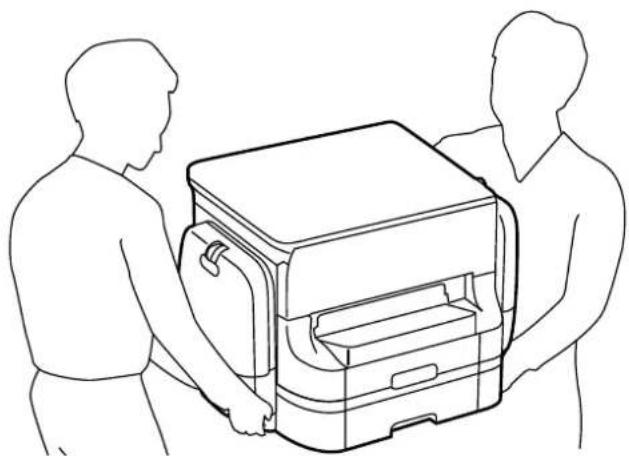
☐ The printer is heavy and should not be lifted or carried by less than two people. When lifting the printer, two or more people should assume the correct positions as shown below.
natural_image
Line drawing of two people handling a large box (no text or symbols)Important Instructions
☐ Be careful when you handle used ink supply units, as there may be some ink around the ink supply port.
☐ If ink gets on your skin, wash the area thoroughly with soap and water.
☐ If ink gets into your eyes, flush them immediately with water. If discomfort or vision problems continue after a thorough flushing, see a doctor immediately.
☐ If ink gets into your mouth, see a doctor right away.
☐ Do not disassemble the ink supply unit and the maintenance box; otherwise ink may get into your eyes or on your skin.
☐ Do not shake ink supply units too vigorously; otherwise ink may leak from the ink supply units.
□ Keep ink supply units and maintenance box out of the reach of children.
Printer Advisories and Warnings
Read and follow these instructions to avoid damaging the printer or your property. Make sure you keep this manual for future reference.
Advisories and Warnings for Setting Up/Using the Printer
☐ Do not block or cover the vents and openings in the printer.
☐ Use only the type of power source indicated on the printer's label.
☐ Avoid using outlets on the same circuit as photocopiers or air control systems that regularly switch on and off.
☐ Avoid electrical outlets controlled by wall switches or automatic timers.
- Keep the entire computer system away from potential sources of electromagnetic interference, such as loudspeakers or the base units of cordless telephones.
☐ The power-supply cords should be placed to avoid abrasions, cuts, fraying, crimping, and kinking. Do not place objects on top of the power-supply cords and do not allow the power-supply cords to be stepped on or run over. Be particularly careful to keep all the power-supply cords straight at the ends and the points where they enter and leave the transformer.
☐ If you use an extension cord with the printer, make sure that the total ampere rating of the devices plugged into the extension cord does not exceed the cord's ampere rating. Also, make sure that the total ampere rating of all devices plugged into the wall outlet does not exceed the wall outlet's ampere rating.
☐ If you plan to use the printer in Germany, the building installation must be protected by a 10 or 16 amp circuit breaker to provide adequate short-circuit protection and over-current protection for the printer.
☐ When connecting the printer to a computer or other device with a cable, ensure the correct orientation of the connectors. Each connector has only one correct orientation. Inserting a connector in the wrong orientation may damage both devices connected by the cable.
Place the printer on a flat, stable surface that extends beyond the base of the printer in all directions. The printer will not operate properly if it is tilted at an angle.
☐ When storing or transporting the printer, avoid tilting it, placing it vertically, or turning it upside down; otherwise ink may leak.
☐ Allow space above the printer so that you can fully raise the document cover.
Leave enough space in front of the printer for the paper to be fully ejected.
☐ Avoid places subject to rapid changes in temperature and humidity. Also, keep the printer away from direct sunlight, strong light, or heat sources.
Important Instructions
☐ Do not insert objects through the slots in the printer.
☐ Do not put your hand inside the printer during printing.
☐ Do not touch the white flat cable inside the printer.
☐ Do not use aerosol products that contain flammable gases inside or around the printer. Doing so may cause fire.
☐ Do not move the print head by hand; otherwise, you may damage the printer.
☐ Be careful not to trap your fingers when closing the document cover.
☐ Do not press too hard on the scanner glass when placing the originals.
□ Always turn the printer off using the ⏻ button. Do not unplug the printer or turn off the power at the outlet until the ⏻ light stops flashing.
☐ Before transporting the printer, make sure that the print head is in the home (far right) position, and the ink supply units are removed.
☐ If you are not going to use the printer for a long period, be sure to unplug the power cord from the electrical outlet.
Advisories and Warnings for Using the Printer with a Wireless Connection
☐ Radio waves from this printer may negatively affect the operation of medical electronic equipment, causing them to malfunction. When using this printer inside medical facilities or near medical equipment, follow directions from the authorized personnel representing the medical facilities, and follow all posted warnings and directions on the medical equipment.
☐ Radio waves from this printer may negatively affect the operation of automatically controlled devices such as automatic doors or fire alarms, and could lead to accidents due to malfunction. When using this printer near automatically controlled devices, follow all posted warnings and directions on these devices.
Advisories and Warnings for Using the Touchscreen
☐ The LCD screen may contain a few small bright or dark spots, and because of its features it may have an uneven brightness. These are normal and do not indicate that it is damaged in any way.
☐ Only use a dry, soft cloth for cleaning. Do not use liquid or chemical cleaners.
☐ The exterior cover of the touchscreen could break if it receives a heavy impact. Contact your dealer if the panel surface chips or cracks, and do not touch or attempt to remove the broken pieces.
☐ Press the touchscreen gently with your finger. Do not press force or operate with your nails.
☐ Do not use sharp objects such as ball point pens or sharp pencils to perform operations.
☐ Condensation inside the touchscreen due to abrupt changes in temperature or humidity may cause performance to deteriorate.
Advisories and Warnings for Using the Optional Cabinet
☐ This cabinet is exclusively designed to install this printer on top as well as the optional paper cassette units. Do not install any other products except for the specified printer and paper cassette unit.
☐ Do not climb on the cabinet or place heavy object on it.
Important Instructions
☐ Make absolutely sure both stands are attached securely, otherwise the printer may fall.
☐ Secure the printer or the optional paper cassette unit to the cabinet using the two attachments and screws supplied with the cabinet.
☐ When using the printer, make sure you lock the casters at the front of the cabinet.
☐ Do not move the cabinet when the casters are locked.
☐ When moving the cabinet with the printer or the optional paper cassette unit installed, avoid moving over uneven or rough surfaces.
Protecting Your Personal Information
When you give the printer to someone else or dispose of it, erase all the personal information stored in the printer's memory by selecting Setup > System Administration > Restore Default Settings > Clear All Data and Settings on the control panel.
Administrator Settings
Administrator Settings
Locking the Printer Settings Using an Administrator's Password
You can set an administrator's password to lock the printer settings so that they cannot be changed by other users. You can lock the following settings.
□ System Administration
□ Eco Mode
□ Presets
□ Contacts
You cannot change settings without entering the password. This password is also required when you make settings using Web Config or EpsonNet Config.

Important:
Do not forget the password. If you forget the password, contact Epson support.
- Enter Setup from the home screen.
- Select Admin Settings > Admin Password.
- Select Register, and then enter a password.
- Enter the password again.
- Select Lock Setting, and then enable it.
Unlocking the Printer Settings
- Enter Setup from the home screen.
- Select Admin Settings.
- Enter the administrator's password.
- Select Lock Setting, and then disable it.
User Feature Restrictions
Note:
Mac OS X is not supported.
The administrator can restrict printer features for individual users. To use a restricted feature, the user has to enter an ID and password on the control panel. Use this feature to prevent misuse of the printer.
User's Guide
Administrator Settings
Use Web Config to configure restriction settings on a computer. See the Administrator's Guide for more details. After configuring settings on the computer, enable the user restriction feature on the printer. Select Setup > System Administration > Security Settings > Access Control from the home screen, and then enable it.
Printer Basics
Part Names and Functions
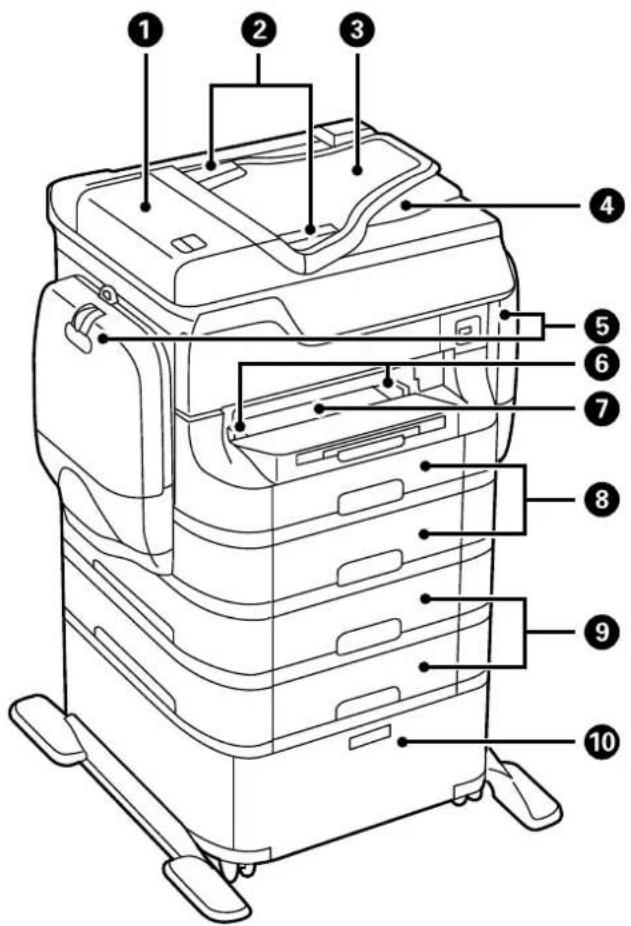
| 1 | ADF (Automatic Document Feeder) cover (F) | Open when removing jammed originals in the ADF. |
| 2 | ADF edge guides | Feeds originals straight into the printer. Slide to the edges of the originals. |
| 3 | ADF input tray (F) | Feeds originals automatically. |
| 4 | ADF output tray | Holds originals ejected from the ADF. |
| 5 | Ink cases (P1, P2) | Insert the ink supply units. |
| 6 | Edge guides | Feeds the paper straight into the printer. Slide to the edges of the paper. |
| 7 | Front paper feed slot (B2) | Load one sheet of paper at a time by hand. |
| 8 | Paper cassette 1, Paper cassette 2 (C1, C2) | Loads paper. |
| 9 | Paper cassette 3, Paper cassette 4 (C3, C4) | Optional paper cassette units. Loads paper. |
Printer Basics
| 10 | Cabinet | Optional cabinet. Stores paper or other consumables. |
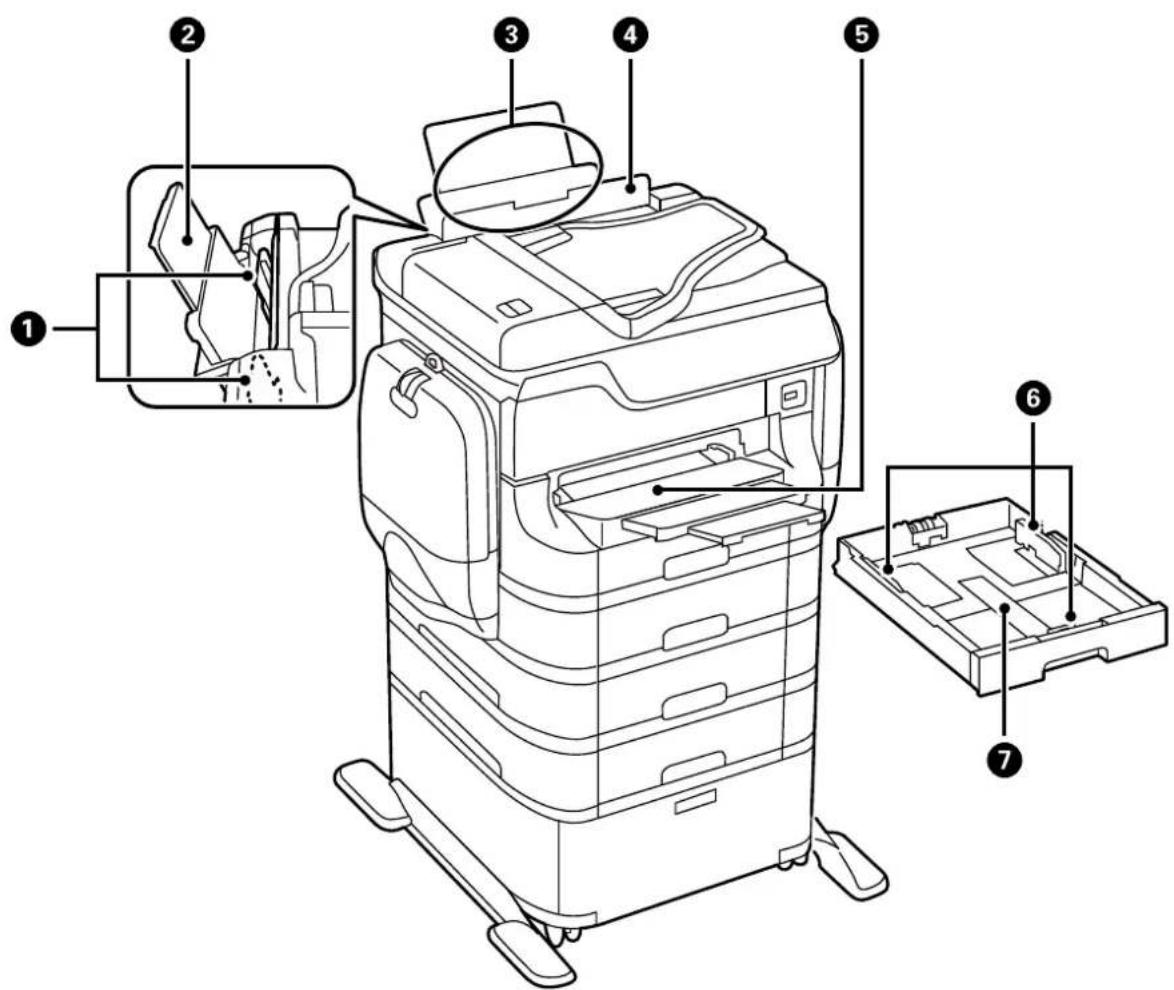
| 1 | Edge guides | Feeds the paper straight into the printer. Slide to the edges of the paper. |
| 2 | Paper support | Supports loaded paper. |
| 3 | Rear paper feed (B1) | Loads paper. |
| 4 | Feeder guard | Prevents foreign substance from entering the printer. Usually keep this guard closed. |
| 5 | Output tray | Holds the ejected paper. |
| 6 | Edge guides | Feeds the paper straight into the printer. Slide to the edges of the paper. |
| 7 | Paper cassette | Loads paper. |
Printer Basics
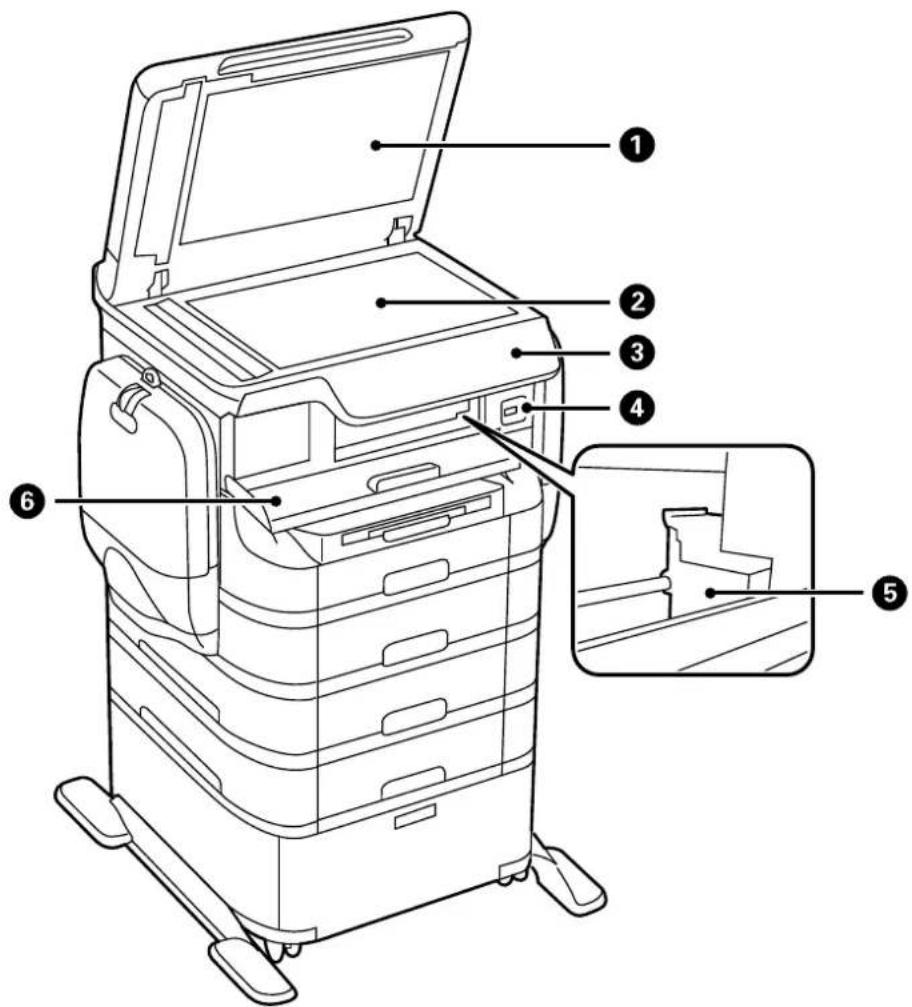
| 1 | Document cover | Blocks external light while scanning. |
| 2 | Scanner glass | Scans placed originals. |
| 3 | Control Panel | Operates the printer. |
| 4 | External interface USB port | Connects memory devices. |
| 5 | Print head | Fires ink. |
| 6 | Front cover (A) | Open when removing jammed paper inside the printer. |
Printer Basics
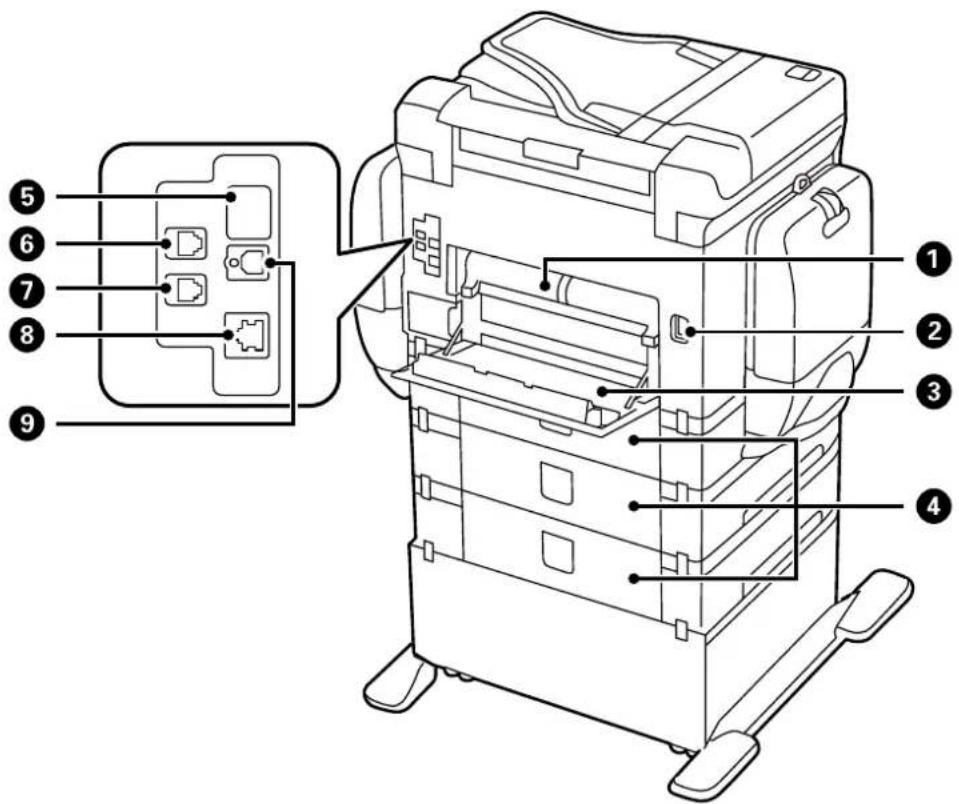
| 1 | Rear cover 2 (D2) | Remove when removing jammed paper. |
| 2 | AC inlet | Connects the power cord. |
| 3 | Rear cover 1 (D1) | Open when replacing the maintenance box or maintenance rollers, or removing jammed paper. |
| 4 | Rear cover (E) | Open when replacing the maintenance rollers or removing jammed paper. |
| 5 | Service USB port | USB port for future use.Do not remove the sticker. |
| 6 | LINE port | Connects a phone line. |
| 7 | EXT. port | Connects external phone devices. |
| 8 | LAN port | Connects a LAN cable. |
| 9 | USB port | Connects a USB cable. |
Control Panel
Buttons and Lights
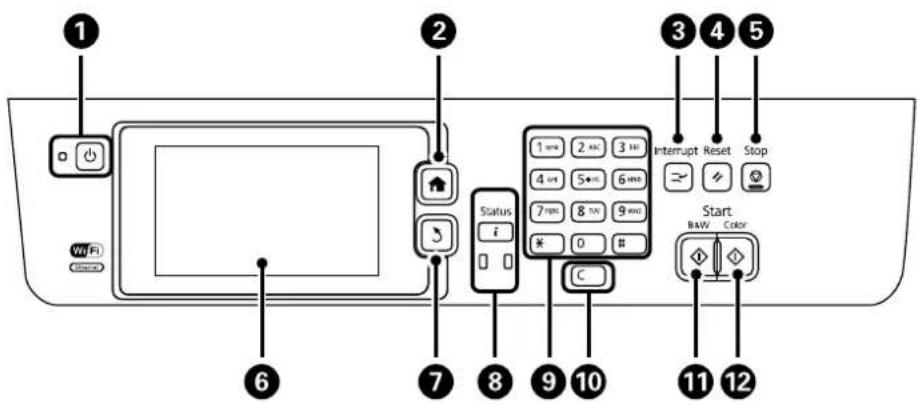
| 1 | Turns the printer on or off. | |
| Unplug the power cord when the power light is off. | ||
| 2 | Displays the home screen. | |
| 3 | Pauses the current job and allows you to interrupt another job. Press this button again to restart a paused job. | |
| 4 | Returns the current settings to their previous status. | |
| 5 | Stops the current operation. | |
| 6 | - | Displays menus and messages. Touch the LCD screen to select a menu, and scroll by swiping. |
| 7 | Returns to the previous screen. | |
| 8 | Displays the Status Menu. You can check the printer's status and job history. | |
| The error light on the left flashes or turns on when an error occurs. | ||
| The data light on the right flashes when the printer is processing data. It turns on when there are queued jobs. | ||
| 9 | 0 - 9 | Enters numbers, characters, and symbols. |
| *, # | ||
| 10 | c | Clears number settings such as the number of copies. |
| 11 | Starts printing, copying, scanning, and faxing in black and white. | |
| 12 | Starts printing, copying, scanning, and faxing in color. |
Icons Displayed on the LCD Screen
The following icons are displayed on the LCD screen depending on the printer's status. Press the network icon to check the current network settings and make Wi-Fi settings.
Printer Basics
 | Press this icon to view operating instructions such as how to load paper, and how to place originals. | |
 | Turns on when originals are placed in the ADF. | |
 | Turns on when ink is running low or the maintenance box is nearly full. Press the i button, and then select Printer Information to check the status. | |
 | Turns on when ink is expended or the maintenance box is full. Press the i button, and then select Printer Information to check the status. | |
 | Turns on when received documents that have not yet been read, printed, or saved, are stored in the product's memory. | |
 | Indicates fax memory usage. | |
 | Indicates that the fax memory is full. | |
 | Indicates the number of unprocessed or unread received faxes. This icon is displayed on the fax mode icon. When the number of faxes exceeds 10, the icon changes to 10+. For more details, see the section that describes the display when a received fax has not been processed. | |
 | Indicates that the printer is connecting to a wireless (Wi-Fi) or wired (Ethernet) network. | |
 | Turns on while the printer is connected to a wired (Ethernet) network. | |
 | Turns on while the printer is connected to a wireless (Wi-Fi) network. The number of bars indicates the signal strength of the connection. The more bars there are, the stronger the connection. | |
 | Indicates a problem with the printer's wireless (Wi-Fi) network connection, or that the printer is searching for a wireless (Wi-Fi) network connection. | |
 | Indicates that the printer is connected to a wireless (Wi-Fi) network in Ad Hoc mode. | |
 | Indicates that the printer is connected to a wireless (Wi-Fi) network in Wi-Fi Direct mode. | |
| [8x8W] | Indicates that the printer is connected to a wireless (Wi-Fi) network in Simple AP mode. | |
 | Indicates that the user restriction feature is enabled. Press this icon to log in to the printer. You need to enter a user name and password. Contact your printer administrator for login information. | |
 | Indicates that a user with access permission has logged in. |
Printer Basics
Related Information
→ "Notification of Unprocessed Received Faxes" on page 118
→ "Memory Full Error Occurs" on page 193
Icons Displayed on the Software Keyboard of the LCD Screen
You can enter characters and symbols by using the software keyboard screen when you register a contact, make network settings, and so on. The following icons are displayed on the software keyboard screen.
Note:
Available icons vary depending on the setting item.
 | Switches between upper case and lower case. |
 | Switches the character type.123#: Enters numbers and symbols. |
 | ABC: Enters letters.AÄÄ: Enters special characters such as umlauts and accents. |
 | |
 | Changes the keyboard layout. |
 | Enters a space. |
 | Deletes a character to the left. |
 | Enters a character. |
 | Enters a hyphen (-) on the fax number entry screen. |
Menu Options
Copy Mode
Note:
☐ Available menus vary depending on the layout you selected.
☐ Press Settings to display hidden setting menus.
| Menu | Settings and Explanations |
| Number of copies | Enter the number of copies. |
Printer Basics
| Menu | Settings and Explanations | |
| Layout | With Border | Copies with a border around the edges. |
| 2-up | Copies multiple page originals onto one sheet. | |
| 4-up | When placing originals in the ADF, insert them into the feeder from the top or left edge.Load vertical originals as shown below, and select Portrait from Document Orientation.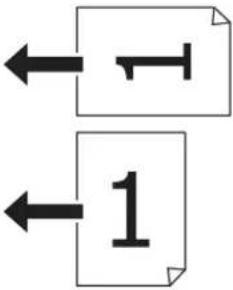 Load horizontal originals as shown below, and select Landscape from Document Orientation. Load horizontal originals as shown below, and select Landscape from Document Orientation.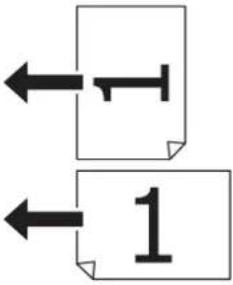 | |
| ID CardSplit Pages | Scans both sides of an ID card and copies onto one side of A4 size paper.Copies two facing pages of a booklet onto separate sheets of paper. | |
| Document Size | Select the size of your original. | |
| Zoom | Enlarges or reduces the original.Select Auto Fit Page to fit to the paper size of the selected paper source. | |
| Paper Source | Select the paper source that you want to use.Auto: Feeds paper automatically using the Paper Setup settings made when you loaded the paper.Front Paper Feed Slot: Select the paper size and paper type you loaded in the front paper feed slot. | |
| 2-Sided | Select 2-sided layout.Select a layout, press Advanced, and then select the binding position of your original and the paper. | |
| Document Orientation | Select the orientation of your original. | |
| Quality | Select the type of your original.Text: Provides faster printing, but the printouts may be faint.Photo: Provides higher quality printing, but the printing speed may be slower. | |
| Density | Set the density of your copies. | |
Printer Basics
| Menu | Settings and Explanations |
| Layout Order | Select the copy layout for multiple pages when you have selected 2-up or 4-up as the Layout setting. |
| Scan Order | Select which page of a booklet to scan when you have selected Split Pages as the Layout setting. |
| Remove Shadow | Removes shadows that appear in the center of copies when copying a booklet or that appear around copies when copying thick paper. |
| Remove Punch Holes | Removes the binding holes when copying. |
| Collate Copy | Prints multiple copies of multiple originals collated in order and sorts them into sets. |
| Mixed Documents | You can place the following combination of sizes in the ADF at the same time. A3 and A4; B4 and B5. When using these combinations, originals are copied at the actual size of the originals.Place your originals as shown below.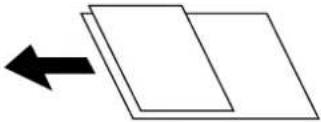 |
| Dry Time | Select the drying time. |
| Advanced Settings | Adjust image settings such as contrast and saturation. |
Scan Mode
| Menu | Settings and Explanations | |
| Contacts | Select email addresses to send the scanned image from the contacts list. | |
| Format | Select the format in which to save the scanned image. When you select TIFF (Single Page) or TIFF (Multi Page), only monochrome scanning is available. | |
| Menu | Email Settings | Subject: Enter a subject for the email Filename Prefix: Enter a prefix for the name of the file to be sent. |
| Basic Settings Scan Report | See the list of menus in Settings. Prints a history that shows when and to which email address scanned files have been sent. | |
Network Folder/FTP
| Menu | Settings and Explanations |
| Contacts | Select a folder in which to save the scanned image from the contact list. You do not need to make location settings when you have selected a folder from the contacts list. |
Printer Basics
| Menu | Settings and Explanations | |
| Location | Communication Mode | Select the communication mode. |
| Location | Enter a folder path in which to save the scanned image. | |
| User Name | Enter a user name for the specified folder. | |
| Password | Enter a password for the specified folder. | |
| Connection Mode | Select the connection mode. | |
| Port Number | Enter a port number. | |
| Format | Select the format in which to save the scanned image. When you select TIFF (Single Page), only monochrome scanning is available. | |
| Menu | File Settings | Enter a prefix for the file name in Filename Prefix. |
| Basic Settings | See the list of menus in Settings. | |
| Scan Report | Prints a history that shows when and to which folder the scanned files have been sent. | |
Memory Device
| Menu | Settings and Explanations |
| Format | Select the format in which to save the scanned image. When you select TIFF (Multi Page), only monochrome scanning is available. |
| Settings | See the list of menus in Settings. |
Cloud
| Menu | Settings and Explanations |
| Format | Select the format in which to save the scanned image. |
| Settings | See the list of menus in Settings. |
Document Capture Pro
This menu has no setting item.
Computer (WSD)
This menu has no setting item.
Settings
Note:
Available menus vary depending on the destination type, such as email or folder, and the format in which scanned images are saved.
Printer Basics
| Menu | Settings and Explanations |
| Resolution | Select the scanning resolution. |
| Scan Area | Select the scan area.Auto Cropping: Crops the white space around the text or image when scanning.Max Area: Scans at the maximum scan area of the scanner glass or the ADF. |
| 2-Sided | Scans both sides of the original. When performing 2-sided scanning, selectBinding Directionand then select the binding position of the original. |
| Document Type | Select the type of your original. |
| Density | Select the contrast of the scanned image. |
| Document Orientation | Select the orientation of your original. |
| Compression Ratio | Select how much to compress the scanned image. |
| PDF Settings | When you have selectedPDFas the save format setting, use these settings to protect PDF files.Document Open Password: Creates a PDF file that requires a password when opening Nova Permissions Password: Creates a PDF file that requires a password when printing or editing. |
| Attached File Max Size | Select the maximum file size that can be attached to the email. |
Fax Mode
From the home screen, select Fax > Menu. You can access some of the setting menus directly from the Fax screen.
| Menu | Settings and Explanations | |
| Fax Send Settings | Resolution | Select the resolution of the outgoing fax.SelectPhotofor originals that contain both text and photo images. |
| Density | Set the density of the outgoing fax. | |
| Document Size (Glass) | Select the size and orientation of the original you placed on the scanner glass. | |
| ADF 2-Sided | When sending a monochrome fax, both sides of the original placed in the ADF are scanned. | |
| Direct Send | See the pages that describe these features for more details. | |
| Priority Send | ||
| Continuous Scan from ADF | ||
| Transmission Report | Prints a transmission report automatically after you send a fax. Select Print on Error to print a report only when an error occurs. | |
Printer Basics
| Menu | Settings and Explanations | |
| Send Fax Later | See the pages that describe these features for more details. | |
| Polling Receive | ||
| Polling Send | ||
| Store Fax Data | ||
| Fax Report | Fax Settings List | Prints the current fax settings. |
| Fax Log | Prints a transmission report automatically after you send a fax. You can set to print this report automatically using the following menu. | |
| Setup > System Administration > Fax Settings > Output Settings > Fax Log Auto Print | ||
| Last Transmission | Prints a report for the previous fax that was sent or received through polling. | |
| Stored Fax Documents | Prints a list of fax documents stored in the printer's memory, such as unfinished jobs. | |
| Protocol Trace | Prints a detailed report for the previous fax that was sent or received. | |
Related Information
→ "Sending Many Pages of a Monochrome Document (Direct Send)" on page 108
→ "Sending a Fax Preferentially (Priority Send)" on page 109
→ "Sending Different Size Documents Using ADF (Continuous Scan from ADF)" on page 109
→ "Sending Faxes at a Specified Time (Send Fax Later)" on page 107
→ "Receiving Faxes by Polling (Polling Receive)" on page 112
→ "Sending Faxes on Demand (Polling Send)" on page 108
→ "Storing a Fax Without Specifying a Recipient (Store Fax Data)" on page 107
Memory Device Mode
Note:
Memory device is a generic name for external USB devices such as USB flash drives.
File format
| Menu | Settings and Explanations |
| JPEG | Select the file format of the file you want to print. |
| TIFF | |
Settings
Note:
Available menus vary depending on the selected file format.
Printer Basics
| Menu | Settings and Explanations | |
| Number of printouts | Enter the number of printouts. | |
| Settings | Paper Source | Select the paper source that you want to use.When you selectFront Paper Feed Slot, select the paper size and paper type you loaded in the front paper feed slot. |
| Quality | Select the print quality.If you selectBest, the printing speed may be slower. | |
| Date | Select the format of the date on the printouts. | |
| Fit Frame | Crops the top and bottom edges of the image to fit in the selected paper size.Turning this off causes margins to appear on the left and right side of the image. | |
| Bidirectional | Select which side to fire ink when the print head moves. Turn this on under normal usage.Enabled: Prints when the print head moves in both directions. Disabled: Prints only when the print head moves in one direction. Print quality improves, but the printing speed is slow. | |
| 2-Sided | Select 2-sided layout. | |
| Image Adjustments | Print Order | Last Page on Top: Prints from the first page of a file.First Page on Top: Prints from the last page of a file. |
| Enhance | Select the image correction method.On: Enhances the image automatically by using Epson's unique image analysis and image processing technology.P.I.M.: Adjusts the image by using your camera's PRINT Image Matching or Exif Print information. | |
| Fix Red-Eye | Fixes red-eye in photos.Corrections are not applied to the original file, only to the printouts.Depending on the type of photo, parts of the image other than the eyes may be corrected. | |
| Options | Select Images | Select All Images selects all of the images on the memory device. |
| Select Group | Select this menu to select another group. | |
Setup Mode
| Menu | Settings and Explanations |
| Ink Levels | Displays the approximate levels of the ink and the maintenance box.When an exclamation mark is displayed, the ink is running low on ink or the maintenance box is nearly full. |
Printer Basics
| Menu | Settings and Explanations | |
| Maintenance | Print Head Nozzle Check | Prints a pattern to check if the print head nozzles are clogged. |
| Print Head Cleaning | Cleans clogged nozzles in the print head. | |
| Print Head Alignment | Adjusts the print head to improve print quality.Run Ruled Line Alignment if text and lines are misaligned.Run Vertical Alignment if your printouts look blurry.Run Horizontal Alignment if your printouts contain horizontal banding at regular intervals. | |
| Thick Paper | Reduces ink smearing when printing. Enable this feature only when you see ink smearing on your printouts because it may lower the printing speed. | |
| Paper Guide Cleaning | Use this feature to feed paper for cleaning when there are ink stains on the internal rollers. | |
| Remove Paper | Use this feature if there are still some torn pieces of paper inside the printer even after removing jammed paper. | |
| Maintenance Roller Information | Displays the status of the maintenance rollers for the paper cassette in the Maintenance Roller Status.After replacing maintenance rollers, select Reset Maintenance Roller Counter to reset the counter for the paper cassette in which you replaced the maintenance rollers. | |
| Paper Setup | Select the paper size and paper type you loaded in each paper source. | |
| Print Status Sheet | Configuration Status SheetSupply Status Sheet | Prints an information sheet showing the current printer status and settings.Prints an information sheet showing the status of consumables. |
| Usage History Sheet | Prints an information sheet showing the usage history of the printer. | |
| PS3 Status SheetPS3 Font List | Prints an information sheet when you use this printer as a PostScript printer.Prints a list of fonts that are available for a PostScript printer. | |
| PCL Font List | Prints a list of fonts that are available for a PCL printer. | |
| Network Status | Wi-Fi/Network StatusWi-Fi Direct StatusEmail Server Status | Displays or prints the current network settings.Displays the current email server settings. |
| Epson Connect StatusGoogle Cloud Print Status | Displays whether or not the printer is registered and connected to Epson Connect or Google Cloud Print service.See the Epson Connect portal website for more details.https://www.epsonconnect.com/http://www.epsonconnect.eu (Europe only) | |
Printer Basics
| Menu | Settings and Explanations | |
| Admin Settings | These menus allow an administrator to register an administrator password to protect the printer settings from being changed by other users. | |
| Admin Password | Set, change, or reset the administrator password.If you forget the password, contact Epson support. | |
| Lock Setting | You need to enter an administrator password when you enter the System Administration settings and when you change the settings of Eco Mode, Presets, and the contacts. | |
| System Administration | See the pages that describe these features for more details. | |
Related Information
→ "System Administration" on page 32
System Administration
Select Setup on the home screen, and then select System Administration.
| Menu | Settings and Explanations | ||
| Printer Settings | See the list of menus in Printer Settings. | ||
| Common Settings | LCD Brightness | Adjust the brightness of the LCD screen. | |
| Sound | Adjust the volume and select the type of audio. | ||
| Sleep Timer | Select the time period before the printer enters sleep mode (energy saving mode) when no operations are performed. | ||
| The LCD screen turns black when the set time passes. | |||
| Power Off Timer | You can adjust the time before power management is applied. Any increase will affect the product's energy efficiency. Please consider the environment before making any change. | ||
| Date/Time Settings | Date/Time | Enter the current date and time. | |
| Daylight Saving Time | Select the summer time setting that applies to your area. | ||
| Time Difference | Enter the time difference between your local time and UTC (Coordinated Universal Time). | ||
| Country/Region | Select the country or region. | ||
| Language | Select the display language. | ||
| Operation Time Out | If this feature is enabled, the LCD screen returns to the home screen when no operations have been performed for about three minutes. This feature is automatically enabled when the user restriction feature is enabled. | ||
Printer Basics
| Menu | Settings and Explanations | ||
| Wi-Fi/Network Settings | Wi-Fi/Network Status | Displays or prints the network settings and connection status. | |
| Wi-Fi Setup | Wi-Fi Setup Wizard | See the Network Guide for more details. | |
| Push Button Setup (WPS) | |||
| PIN Code Setup (WPS) | |||
| Wi-Fi Auto Connect | |||
| Disable Wi-Fi | You may be able to resolve network problems by disabling the Wi-Fi settings or making the Wi-Fi settings again. See the Network Guide for more details. | ||
| Wi-Fi Direct Setup | See the Network Guide for more details. | ||
| Connection Check | Checks the status of the network connection and prints the network connection check report. If there are any problems with the connection, see the check report to solve the problem. | ||
| Advanced Setup | See the Network Guide for more details. | ||
| Epson Connect Services | You can suspend or resume the Epson Connect or Google Could Print service, or cancel using the services (restore the default settings). | ||
| Google Cloud Print Services | See the Epson Connect portal website for more details. | ||
| https://www.epsonconnect.com/ | |||
| http://www.epsonconnect.eu (Europe only) | |||
| Copy Settings | The settings made in the User Default Settings are displayed as the default settings in each mode. For details on the setting items, see the list of menus for each mode. | ||
| Scan Settings | |||
| Fax Settings | See the list of menus in Fax Settings. | ||
| Universal Print Settings | These print settings are applied when printing from an external device without using the printer driver, or when printing from a PostScript printer driver or PCL printer driver. | ||
| Top Offset | Adjust the top or left margin of the paper. | ||
| Left Offset | |||
| Top Offset in Back | Adjust the top margin or left margin for the back of the page when performing 2-sided printing. | ||
| Left Offset in Back | |||
| Check Paper Width | Checks the paper width before the printer starts printing. This prevents printing beyond the edges of the paper when the paper size setting is not correct, but the printing time may be little longer. | ||
| Dry Time | Select the drying time when performing 2-sided printing. | ||
| Skip Blank Page | Skips blank pages in the print data automatically. | ||
| PDL Print Configuration | See the list of menus in PDL Print Configuration. | ||
Printer Basics
| Menu | Settings and Explanations | ||
| Security Settings | Access Control | Requires the administrator password to operate the printer.Select whether or not to allow jobs that do not have the necessary authentication information. | |
| Delete All Confidential Jobs | Deletes all saved confidential jobs. | ||
| Eco Mode | The following Eco mode settings are available. When these settings are disabled, the settings made in Common Settings are applied. | ||
| Configure | Sleep TimerLCD Brightness2-Sided (Copy) | Select the time period before the printer enters sleep mode (energy saving mode) when no operations are performed.The LCD screen turns black when the set time passes.Adjust the brightness of the LCD screen.Sets 2-sided copying as the default setting. | |
| 2-Sided (Memory Device) | Sets 2-sided printing as the default setting. | ||
| Clear Internal Memory DataRestore Default Settings | Deletes the print settings for a PostScript printer driver and a PCL printer driver.Select Clear All to delete all of the data for a PostScript printer driver and a PCL printer driver that is saved in the printer's memory.Resets the selected settings to their defaults. | ||
Related Information
→ "Copy Mode" on page 24
→ "Scan Mode" on page 26
→ "Printer Settings" on page 34
→ "Fax Settings" on page 35
→ "PDL Print Configuration" on page 39
Printer Settings
Select Setup > System Administration > Printer Settings from the home screen.
Printer Basics
| Menu | Settings and Explanations | |
| Paper Source Settings | Rear Paper Feed Priority | Feeds paper from the rear paper feed on a priority basis. |
| A4/Letter Auto Switching | Feeds paper from the paper source set as A4 size when there is no paper source set as Letter, or feeds from the paper source set as Letter size when there is no paper source set as A4. | |
| Auto Select Settings | Specify which paper source to feed from when using features such as copying and faxing. When there are multiple paper sources available, paper is fed from the paper source with paper settings that match the copy or print job. | |
| Error Notice | Displays an error message when the paper size or type settings in Paper Setup and the print settings do not match. | |
| USB I/F Timeout Setting | Specify the length of time in seconds that must elapse before ending USB communication with a computer after the printer receives a print job from a PostScript printer driver or PCL printer driver. If the job ending is not clearly defined from a PostScript printer driver or PCL printer driver, it can cause endless USB communication. When this occurs, the printer ends communication after the specified time has elapsed. Enter 0 (zero) if you do not want to end communication. | |
| Printing Language | Select the printing language for the USB interface or the network interface. | |
| Auto Error Solver | Select an action to perform when a 2-sided printing error or a memory full error occurs.☐ 2-sided printing errorEnabled: If a 2-sided job is sent when there is no paper available that supports 2-sided printing, the printer displays an error message, and then automatically prints on only one side of the paper.Disabled: The printer displays an error message and cancels printing.☐ Memory full errorEnabled: If the printer's memory becomes full while printing, the printer displays an error message, and then prints only the part of the data that the printer could process.Disabled: The printer displays an error message and cancels printing. | |
| Memory Device Interface | Memory Device | Select whether or not the printer can access an inserted memory device. Disable this function to stop data from being saved to the memory device. This prevents confidential documents from being removed illegally. |
| File Sharing | Select whether to give write access to the memory device from a USB-connected computer or from a network-connected computer. | |
| PC Connection via USB | Select whether or not the the printer allows access from a USB-connected computer. Disable this function to restrict printing and scanning that is not sent over a network connection. | |
Fax Settings
From the home screen, select Setup > System Administration > Fax Settings.
| Menu | Settings and Explanations |
| User Default Settings | The settings made in this menu become your default settings for sending faxes. For details on the setting items, See the list of menus in Fax mode. |
Printer Basics
| Menu | Settings and Explanations | |
| Send Settings | Auto Rotation | An A4 size original placed in the ADF or on the scanner glass with its long edge facing to the left is sent as an A3 size fax. Enabled: The printer rotates the scanned image to send it at A4 size. Disabled: The printer sends the document at A3 size and the recipient machine prints it on A3 paper, or reduces the image to A4 size. See the page that describes this feature. Saves documents that failed to be sent in the printer's memory. You can resend the documents from theStatus Menu. |
| Batch Send | ||
| Save Failure Data | ||
| Receive Settings | Receive Mode | Select the receive mode. If you have subscribed to a distinctive ring service from your telephone company, select the ring pattern to be used for incoming faxes (or selectOn). |
| DRD | ||
| Rings to Answer | Select the number of rings that must occur before the printer automatically receives a fax. Select "0" (zero) if you want to receive faxes with no ringing. | |
| Remote Receive | When you answer an incoming fax call on a phone connected to the printer, you can start receiving the fax by entering the code using the phone. | |
Printer Basics
| Menu | Settings and Explanations | |
| Output Settings | Fax Output | You can set to save received documents in the inbox, on a memory device, or on a computer, or forward the documents. |
| Auto Reduction | Reduces large received documents to fit on the paper in the paper source. Reducing may not always be possible depending on the received data. If this is turned off, large documents are printed at their original size on multiple sheets, or a blank second page may be ejected. | |
| Auto Rotation | Rotates a landscape-oriented A5, B5, A4, or Letter size received document so that it is printed on the correct paper size. This setting is applied when two or more paper sources are set for fax printing in Paper Source Settings > Auto Select Settings, and the paper size settings use the following combinations; A3 and A4, B4 and B5, or A4 and A5. | |
| Collation Stack | Prints received documents from the last page (print in descending order) so that the printed documents are stacked in the correct page order. When the printer is running low on memory, this feature may not be available. | |
| Print Suspend Time | Turn this on and enter the Time to Stop and Time to Restart to stop printing documents received during the specified time period and save them in the memory instead. Before using this feature, make sure there is enough free memory. You can check and print documents received during that time from the Status Menu. This feature can be used for noise prevention at night or to prevent confidential documents from being disclosed while you are away. | |
| Forwarding Report | Prints a report after forwarding a received document. | |
| Attach Image to Report | Prints a Transmission Report with an image of the first page of the sent document.On(Large Image): Prints the upper part of the page without reducing.On(Small Image): Prints the entire page reducing it to fit onto the report. | |
| Fax Log Auto Print | Prints the fax log automatically.On(Every 30): Prints a log every time 30 fax jobs are completed.On(Time): Prints the log at a specified time. However, if the number of fax jobs exceeds 30, the log is printed before the specified time. | |
| Report Format | Select a format for fax reports other than Protocol Trace. Select Detail to print with error codes. | |
Printer Basics
| Menu | Settings and Explanations | |
| Basic Settings | Fax Speed | Select the fax transmission speed.We recommend selecting Slow(9,600bps) when a communication error occurs frequently, when sending/receiving a fax to/from abroad, or when you are using an IP (VoIP) phone service. |
| ECM | Automatically corrects errors in the fax transmission (Error Correction Mode), mostly caused by telephone line noise. If this is disabled, you cannot send or receive documents in color. | |
| Dial Tone Detection | Detects a dial tone before starting to dial.If the printer is connected to a PBX (Private Branch Exchange) or digital phone line, the printer may fail to start dialing. In this situation, change the Line Type setting to PBX. If this does not work, disable this feature. However, disabling this feature may drop the first digit of a fax number and send the fax to the wrong number. | |
| Dial Mode | Select the type of phone system to which you have connected the printer. When set to Pulse, you can temporarily switch the dialing mode from pulse to tone by pressing * ("T" is entered) while entering numbers on the fax top screen. Depending on the region, this setting may not be displayed. | |
| Line Type | Select the line type to which you have connected the printer. For more details, see the page that describes the settings for PBX. | |
| Security Settings | Header | Enter your sender name and fax number. These appear as a header on outgoing faxes.You can enter up to 40 characters for your name, and up to 20 digits for your fax number. |
| Direct Dialing Restrictions | Enable this to prevent fax numbers from being entered manually allowing the operator to select recipients only from the contacts list or sent history. Select Enter Twice to require the operator to enter the fax number again when a number is entered manually. | |
| Confirm Address List | Displays a recipient confirmation screen before starting the transmission. | |
| Inbox Password Settings | Select to password protect the inbox to restrict users from viewing received faxes.Select Change to change the password, and select Reset to cancel password protection. When changing or resetting the password, you need the current password. | |
| Backup Data Auto Clear | Fax documents deleted by using the control panel disappear from the LCD screen, but their backups are temporarily stored in the memory. The following features delete backups. | |
| Clear Backup Data | Backup Data Auto Clear: Automatically deletes backups each time a sent or received document is deleted.Clear Backup Data: Deletes all backups. Run this before you give the printer to someone else or dispose of it. | |
| Check Fax Connection | Checks if the printer is connected to the phone line and ready for fax transmission, and prints the check result on A4 size plain paper. | |
| Fax Setting Wizard | Select to make basic fax settings by following the on-screen instructions.For more details, see the page that describes basic fax settings. | |
Printer Basics
Related Information
→ "Fax Mode" on page 28
→ "Saving and Forwarding Received Faxes" on page 112
→ "Sending Multiple Faxes to the Same Recipient at Once (Batch Send)" on page 109
→ "Making Basic Fax Settings" on page 102
PDL Print Configuration
Select Setup > System Administration > Universal Print Settings > PDL Print Configuration from the home screen.
| Menu | Settings and Explanations | |
| Common Settings | Paper Size | Select the paper size. |
| Paper Type | Select the paper type. | |
| Orientation | Select the printing direction. | |
| Quality | Select the print quality. | |
| Ink Save Mode | Conserves ink by reducing the print density. | |
| Print Order | Last Page on Top: Prints from the first page of a file.First Page on Top: Prints from the last page of a file. | |
| Number of Copies | Set the number of copies. | |
| Binding Margin | Select the binding position. | |
| Auto Paper Ejection | Ejects paper automatically when printing is stopped during a print job. | |
| 2-Sided Printing | Performs 2-sided printing. | |
Printer Basics
| Menu | Settings and Explanations | |
| PCL Menu | Font Source | Resident: Select to use a preinstalled font on the printer. Download: Select to use a font you have downloaded. |
| Font Number | Select the default font number for the default font source. The available number varies depending on the settings you made. | |
| Pitch | Set the default font pitch if the font is scalable and of fixed-pitch. You can select from 0.44 to 99.99 cpi (characters per inch), in 0.01 increments. This item may not appear depending on the font source or font number settings. | |
| Height | Set the default font height if the font is scalable and proportional. You can select from 4.00 to 999.75 points, in 0.25 increments. This item may not appear depending on the font source or font number settings. | |
| Symbol Set | Select the default symbol set. If the font that you selected in the font source and the font number setting is not available in the new symbol set setting, the font source and the font number settings are automatically replaced with the default value, IBM-US. | |
| Form | Set the number of lines for the selected paper size and orientation. This also causes a line spacing (VMI) change, and the new VMI value is stored in the printer. This means that later changes in the page size or orientation settings cause changes in the Form value based on the stored VMI. | |
| CR Function | Select the line feed command when printing with a driver from a specific operating system. | |
| LF Function | ||
| Paper Source Assign | Set the assignment for the paper source select command. When 4 is selected, the commands are set as compatible with the HP LaserJet 4. When 4K is selected, the commands are set as compatible with the HP LaserJet 4000, 5000, and 8000. When 5S is selected, the commands are set as compatible with the HP LaserJet 5S. | |
| PS3 Menu | Error Sheet | Prints a sheet showing the error status when any PostScript errors occur while printing and any errors occur while printing a PDF file. |
| Coloration | Select the color mode for PostScript printing. | |
| Image Protect | Disable this feature to lower the print quality automatically if the printer's memory becomes full. | |
| Binary | Enable this feature when printing data that contains binary images. The application may send the binary data even if the printer driver setting is set to ASCII, but you can print the data when this feature is enabled. | |
| Text Detection | Converts the text file to a PostScript file when printing. This feature is available when Printing Language is set to PS3. | |
| PDF Page Size | Select the paper size when printing a PDF file. If Auto is selected, the paper size is determined based on the size of the first page that is printed. | |
Contacts Mode
| Menu | Description |
| Menu | Registers contacts and a contact group, or prints the contacts list. |
Printer Basics
| Menu | Description |
| View | Select whether to display all contacts or the contacts for each feature only.LDAP allows you to search in the contacts registered in the LDAP server. |
Presets Mode
You can register frequently used copy, fax, and scan settings as presets. To register a preset, select Presets from the home screen, select Add New, and then select the feature for which you want to register a contact. Make the necessary settings, press Save, and then enter a name for the preset.
To load a registered preset, select the preset from the list.
Press Preset on the screen of each feature. You can register the current address (except for address that have been entered directly and the contacts in the LDAP address list) and settings.
| Menu | Description |
| Menu | Displays the details of registered presets, and allows you to change their names, edit, and delete. |
Status Menu
Press the i button on the control panel.
| Menu | Description |
| Printer Information | Displays the status of the consumables and any errors that have occurred in the printer. Select the error from the list to display the error massage. |
| Job Monitor | Displays a list of ongoing jobs and jobs waiting to be processed. You can also cancel jobs. |
| Job History | Displays the job history. If a job has failed, an error code is displayed in the history. |
| Job Storage | Select Inbox to display the received faxes stored in the printer's memory. |
| Confidential Job | Displays a list of jobs for which a password has been set. To print a job, select the job and enter the password. |
Loading Paper
Loading Paper
Paper Handling Precautions
☐ Read the instruction sheets supplied with the paper.
☐ Fan and align the edges of the paper before loading. Do not fan or curl photo paper. Doing so may damage the printable side.
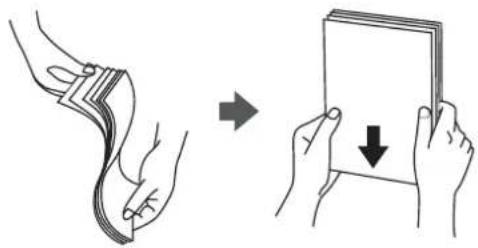
☐ If the paper is curled, flatten it or curl it slightly in the opposite direction before loading. Printing on curled paper may cause paper jams and smears on the printout.

☐ Do not use paper that is wavy, torn, cut, folded, damp, too thick, too thin, or paper that has stickers stuck to it. Using these types of paper causes paper jams and smears on the printout.
☐ Make sure you are using long-grain paper. If you are not sure what type of paper you are using, check the paper packaging or contact the manufacturer to confirm the paper specifications.
Related Information
→ "Printer Specifications" on page 198
Available Paper and Capacities
Epson recommends using genuine Epson paper to ensure high-quality printouts.
Genuine Epson Paper
Note:
Genuine Epson paper is not available when printing with the Epson universal printer driver.
Loading Paper
| Media Name | Size | Loading Capacity (Sheets) | 2-Sided Printing | |||
| Paper Cassette 1 | Paper Cassette 2 to 4 | Rear Paper Feed | Front Paper Feed Slot | |||
| Epson Bright White Ink Jet Paper | A4 | 200 | 400 | 50 | 1 | Auto, Manual* |
| Epson Ultra Glossy Photo Paper | A4, 13 × 18 cm(5 × 7 in.), 10 × 15 cm (4 × 6 in.) | - | - | 20 | - | - |
| Epson Premium Glossy Photo Paper | A3+, A3 | - | - | 10 | - | - |
| A4, 13 × 18 cm(5 × 7 in.), 16:9 wide size (102 × 181 mm), 10 × 15 cm (4 × 6 in.) | - | - | 20 | - | - | |
| Epson Premium Semigloss Photo Paper | A3+, A3 | - | - | 10 | - | - |
| A4, 10 × 15 cm(4 × 6 in.) | - | - | 20 | - | - | |
| Epson Photo Paper Glossy | A4, 13 × 18 cm(5 × 7 in.), 10 × 15 cm (4 × 6 in.) | - | - | 20 | - | - |
| Epson Matte Paper-Heavyweight | A3+, A3 | - | - | 10 | - | - |
| A4 | - | - | 20 | - | - | |
| Epson Photo Quality Ink Jet Paper | A3+, A3 | - | - | 50 | - | - |
| A4 | - | - | 70 | - | - | |
* Only use the rear paper feed to print 2-sided print jobs manually. You can load up to 30 sheets for paper with one side already printed.
Note:
☐ The availability of paper varies by location. For the latest information on paper available in your area, contact Epson support.
☐ When printing on genuine Epson paper at a user defined size, only Standard or Normal print quality settings are available. Although some printer drivers allow you to select a better print quality, the printouts are printed using Standard or Normal.
Loading Paper
Commercially Available Paper
| Media Name | Size | Loading Capacity (Sheets or Envelopes) | 2-Sided Printing | |||
| Paper Cassette 1 | Paper Cassette 2 to 4 | Rear Paper Feed | Front Paper Feed Slot | |||
| Plain paper | A3, B4 | Up to the line under the ▼ symbol inside the edge guide. | 50 | 1 | Auto, Manual*1*2 | |
| Copy paper | ||||||
| Letterhead | ||||||
| Recycled paper | Legal, Letter, A4, B5, A5 | Up to the line under the ▼ symbol inside the edge guide. | 80 | 1 | Auto, Manual*1*2 | |
| Color paper | ||||||
| Preprinted paper | B6, A6 | Up to the line under the ▼ symbol inside the edge guide. | - | 80 | 1 | Manual*1*2 |
| Executive | Up to the line under the ▼ symbol inside the edge guide. | - | 80 | 1 | Manual*1*2 | |
| Plain paper | User Defined (mm) | - | - | 1 | - | Manual |
| Copy paper | 55 × 127 to 105 × 148, | |||||
| Letterhead Recycled paper | 297 × 431.8 to 329 × 1200 | |||||
| Color paper | ||||||
| Preprinted paper | User Defined (mm) | - | - | 80 | 1 | Manual*1*2 |
| 105 × 148 to 148 × 210 | ||||||
| User Defined (mm) | - | - | 80 | 1 | Auto, Manual*1*2 | |
| 148 × 210 to 215 × 297 | ||||||
| User Defined (mm) | - | - | 50 | 1 | Auto, Manual*1*2 | |
| 215 × 297 to 297 × 431.8 | ||||||
| Thick paper | A3, B4, Legal, Letter, A4, B5, A5, A6, Executive | - | - | 10 | - | Manual*3 |
| User Defined | - | - | 1 | - | Manual | |
Loading Paper
| Media Name | Size | Loading Capacity (Sheets or Envelopes) | 2-Sided Printing | |||
| Paper Cassette 1 | Paper Cassette 2 to 4 | Rear Paper Feed | Front Paper Feed Slot | |||
| Envelope | Envelope #10,Envelope DL,Envelope C6 | - | - | 10 | - | - |
| Envelope C4 | - | - | 1 | - | - | |
*1 Only use the rear paper feed to print 2-sided print jobs manually.
*2 You can load up to 30 sheets for paper with one side already printed.
*3 You can load up to 5 sheets for paper with one side already printed.
Related Information
→ "Part Names and Functions" on page 18
List of Paper Types
To obtain optimum printing results, select the paper type that suits the paper.
| Media Name | Media Type | |||
| Control Panel | Printer Driver | PostScript Printer Driver | Epson Universal Printer Driver | |
| Copy paper, Plain paperEpson Bright White Ink Jet Paper | plain papers | plain papers | Plain | Plain |
| LetterheadRecycled paper | LetterheadRecycled | LetterheadRecycled | LetterheadRecycled | LetterheadRecycled |
| Colored paper | Color | Color | Color | Color |
| Preprinted paperEpson Ultra Glossy Photo Paper | PreprintedUltra Glossy | PreprintedEpson Ultra Glossy | PreprintedEpson Ultra Glossy | Preprinted-- |
| Epson Premium Glossy Photo Paper | Prem. Glossy | Epson Premium Glossy | Epson Premium Glossy | - |
| Epson Premium Semigloss Photo Paper | Prem. Semigloss | Epson Premium Semigloss | Epson Premium Semigloss | - |
| Epson Photo Paper Glossy | Glossy | Photo Paper Glossy | Photo Paper Glossy | - |
Loading Paper
| Media Name | Media Type | |||
| Control Panel | Printer Driver | PostScript Printer Driver | Epson Universal Printer Driver | |
| Epson Matte Paper-Heavyweight | Matte | Epson Matte | Epson Matte | - |
| Epson Photo Quality Ink Jet Paper | ||||
| Thick paper | Thick-Paper | Thick-Paper | Thick | Thick |
| Envelope | Envelope | Envelope | Envelope | Envelope |
Loading Paper in the Paper Cassette
Note:
If the optional cabinet and the paper cassette units are installed, do not pull out two or more paper cassettes at the same time.
- Check that the printer is not operating, and then pull out the paper cassette.
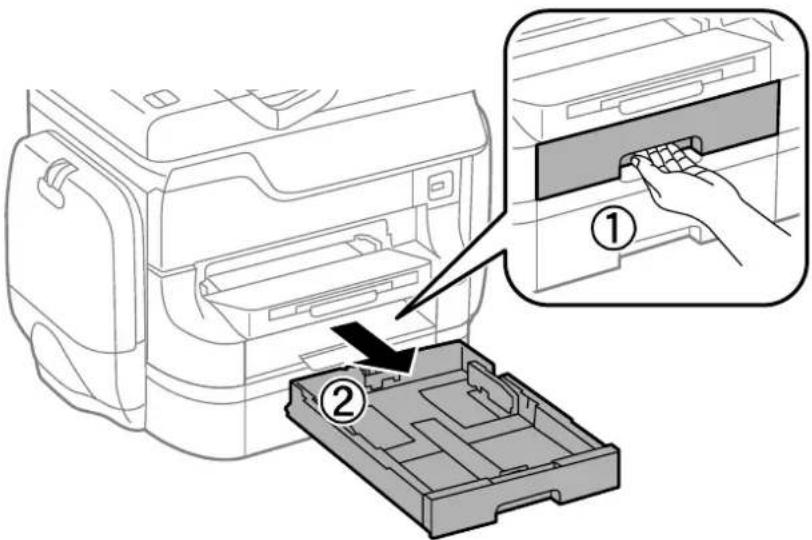
Loading Paper
- Slide the front edge guide to its maximum position, and then slide the side edge guides to adjust to the paper size you want to use.
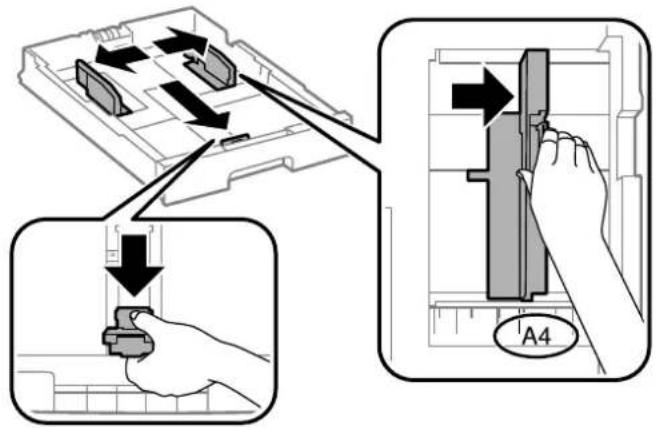
- Load paper with the printable side facing down, and then slide the front edge guide to the edge of the paper.
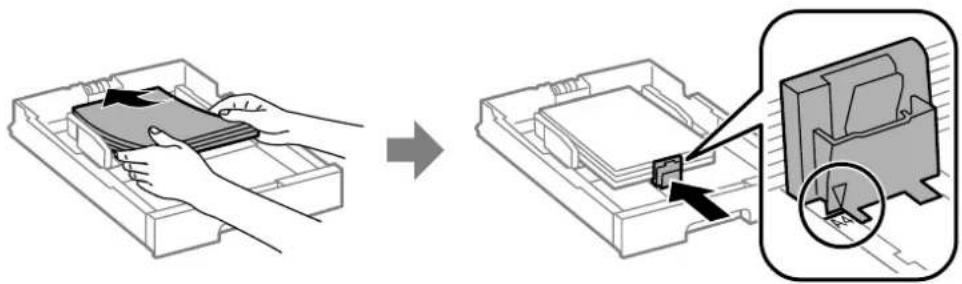

Important:
Do not load more than the maximum number of sheets specified for the paper. For plain paper, do not load above the line just under the ▼ symbol inside the edge guide.
- Check that the paper size label matches the size of the paper loaded in the paper cassette. If it does not match, remove the holder and change the paper size indicated on the label.
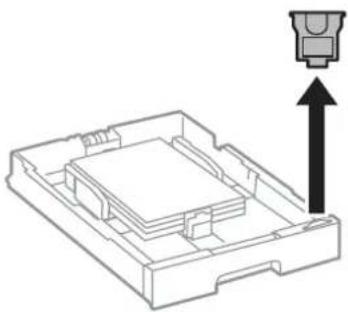
natural_image
Technical line drawing of a mechanical component with an upward arrow indicating assembly or force (no text or symbols present)-
Insert the paper cassette all the way.
-
On the control panel, set the size and type of the paper you loaded in the paper cassette.
Loading Paper
7. Slide out the output tray.
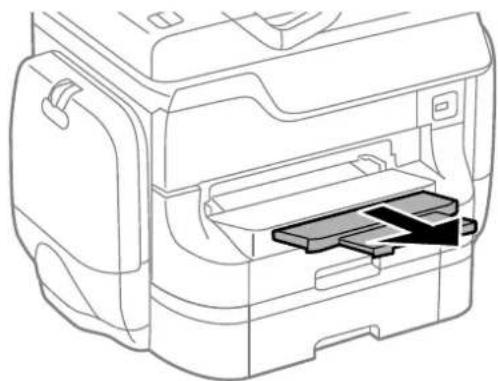
natural_image
Line drawing of a printer internal structure with no visible text or symbolsRelated Information
→ "Paper Handling Precautions" on page 42
→ "Available Paper and Capacities" on page 42
Loading Paper in the Rear Paper Feed
1. Open the feeder guard and pull out the paper support.
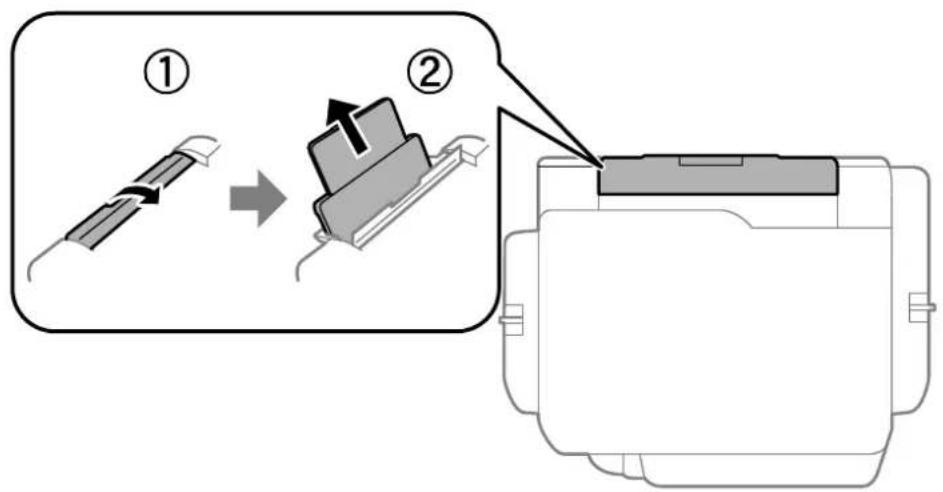
2. Slide the edge guides.
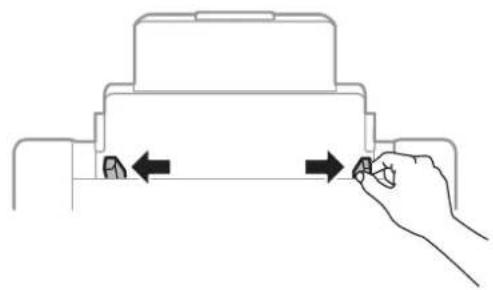
natural_image
Diagram showing a hand pressing a button on a mechanical component with arrows indicating motion (no text or symbols)Loading Paper
- Load paper at the center of the rear paper feed with the printable side facing up.
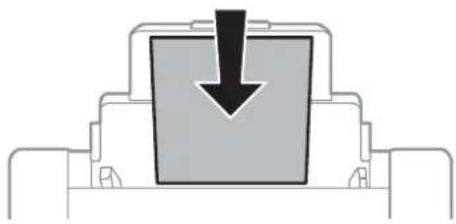
natural_image
Diagram of a mechanical component with a downward arrow indicating force or direction (no text or symbols)
Important:
☐ Do not load more than the maximum number of sheets specified for the paper. For plain paper, do not load above the line just under the ▼ symbol inside the edge guide.
☐ Load paper short edge first. However, when you have set the long edge as the width of the user defined size, load paper long edge first.
- Slide the edge guides to the edges of the paper.
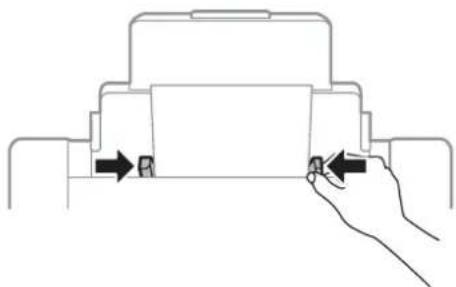
natural_image
Line drawing of a hand pressing down on a mechanical component (no text or symbols)- On the control panel, set the size and type of the paper you loaded in the rear paper feed.
- Slide out the output tray.
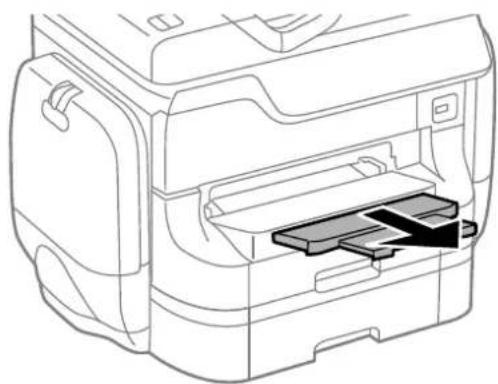
natural_image
Line drawing of a printer internal structure with no visible text or symbolsLoading Paper
Note:
☐ Return the remaining paper to its package. If you leave it in the printer, the paper may curl or the print quality may decline.
☐ You can use pre-punched paper under the following conditions. Automatic 2-sided printing is not available for pre-punched paper.
□ Loading capacity: One sheet
□ Available size: A3, B4, A4, B5, A5, Letter, Legal
☐ Binding holes: Do not load paper with the binding holes at the top or the bottom.
Adjust the print position of your file to avoid printing over the holes.
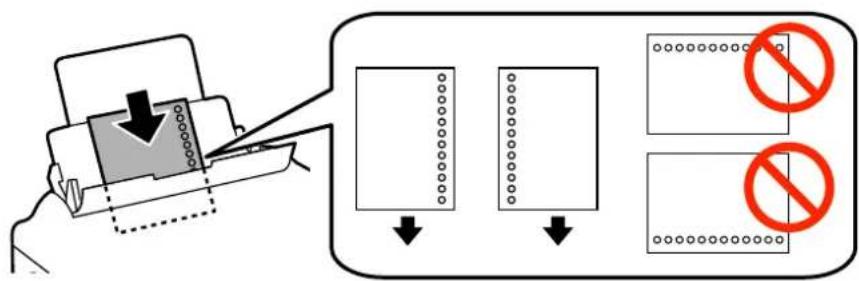
Related Information
→ "Paper Handling Precautions" on page 42
→ "Available Paper and Capacities" on page 42
→ "Loading Envelopes and Precautions" on page 52
Loading Paper in the Front Paper Feed Slot
You can only load one sheet of paper in the front paper feed slot. Because the front paper feed slot also serves the output tray, you cannot load paper during printing.

Important:
You can load paper with a thickness of 0.08 to 0.11 mm in the front paper feed slot. However, even if the thickness is within this range, some papers may not be fed correctly depending on their hardness.
Loading Paper
- Slide out the output tray.
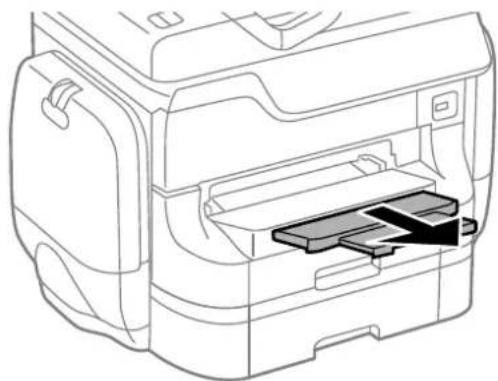
natural_image
Line drawing of a printer internal structure with no visible text or symbols- Slide the edge guides to adjust to the paper size you want to use.
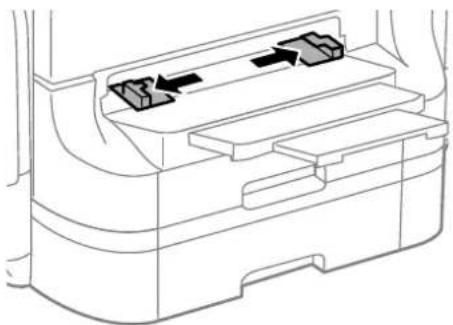
natural_image
Technical line drawing of a mechanical component with two ports and arrows indicating direction (no text or symbols)- Insert the paper with the printable side facing down until the printer partially pulls in the paper.
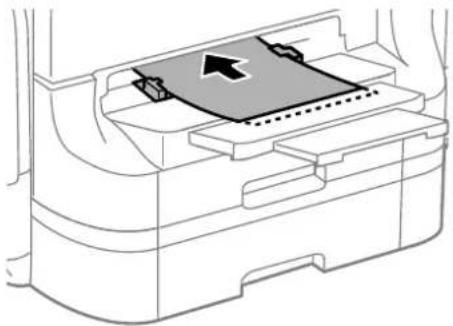
natural_image
Technical line drawing of a mechanical component with no visible text or symbols
Important:
☐ Load paper short edge first. However, when you have set the long edge as the width of the user defined size, load paper long edge first.
□ Keep the paper straight to prevent it from being fed askew.
Note:
If the printer does not pull in the paper, load it again.
Related Information
→ "Paper Handling Precautions" on page 42
→ "Available Paper and Capacities" on page 42
Loading Envelopes and Precautions
Envelopes can only be loaded in the rear paper feed. Load envelopes short edge first at the center with the flap facing down, and slide the edge guides to the edges of the envelopes.
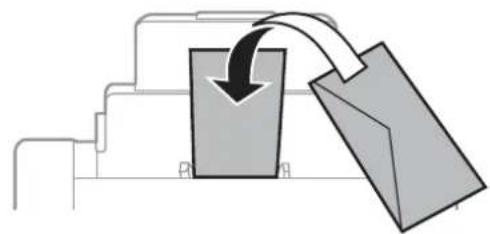
flowchart
graph TD
    A["Input"] --> B["Processing Box"]
    B --> C["Output"]
    style B fill:#ccc,stroke:#333
☐ Fan and align the edges of the envelopes before loading. When the stacked envelopes are puffed up with air, press them down to flatten them before loading.
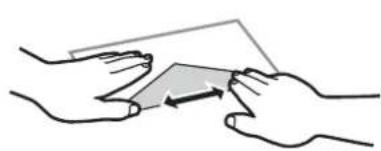
natural_image
Illustration of two hands exchanging a rectangular object with an arrow indicating direction (no text or symbols)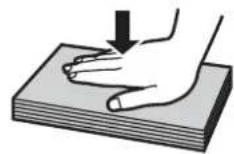
☐ Do not use envelopes that are curled or folded. Using these envelopes causes paper jams and smears on the printout.
☐ Do not use envelopes with adhesive surfaces on the flaps or window envelopes.
☐ Avoid using envelopes that are too thin, as they may curl during printing.
Related Information
→ "Available Paper and Capacities" on page 42
→ "Loading Paper in the Rear Paper Feed" on page 48
Setting the Paper Size and Paper Type for Each Paper Source
After loading paper, set the paper size and paper type for each paper source on the control panel. Once these settings have been made, when automatic paper source selection is enabled, paper is automatically fed from a paper source that matches the paper size and type settings for the print job. You do not need to select the paper source each time you print.
- Enter Setup from the home screen.
- Select Paper Setup.
- Select a paper source.
- Select the paper size and paper type you loaded.
User's Guide
Loading Paper
Related Information
→ "List of Paper Types" on page 45
Placing Originals
Placing Originals
Place originals on the scanner glass or the ADF. Use the scanner glass for originals that the ADF does not support.
You can scan multiple originals and both sides of the originals at the same time with the ADF.
Available Originals for the ADF
| Available Paper Sizes | A6 landscape/A5 to Ledger (Maximum 297 × 431.8 mm) |
| Paper Type | Plain paper |
| Paper Thickness (Weight of Paper) | 52 to 105 g/m ^2 |
| Loading Capacity | 50 sheets or 5 mm |
To prevent paper jams, avoid placing the following originals in the ADF. For these types, use the scanner glass.
☐ Originals that are torn, folded, wrinkled, deteriorated, or curled
☐ Originals with binder holes
☐ Originals held together with tape, staples, paper clips etc.
☐ Originals that have stickers or labels stuck to them
☐ Originals that are cut irregularly or not right angled
☐ Originals that are bound
☐ OHPs, thermal transfer paper, or carbon backs
Placing Originals on the ADF
- Align the edges of the originals.
- Slide the ADF edge guides.
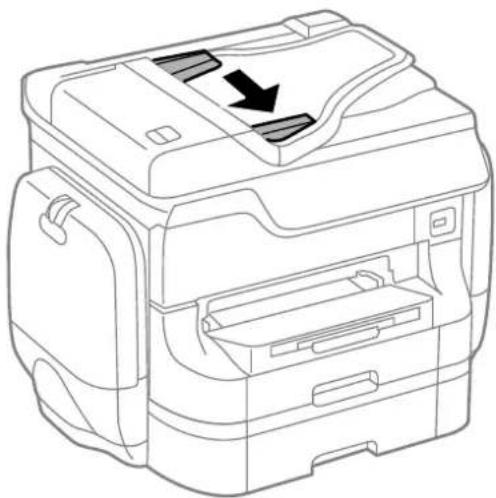
natural_image
Line drawing of a printer with an arrow indicating compression or disassembly (no text or symbols present)Placing Originals
- Place the originals in the center of the ADF, facing up.
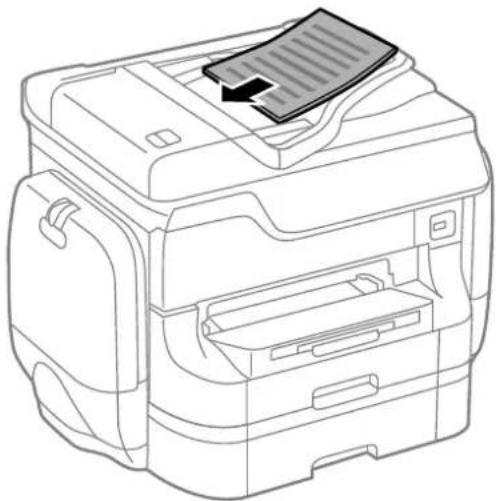
natural_image
Line drawing of a printer with paper lid and internal compartments (no text or symbols)
Important:
Do not load originals above the line just under the ▼ symbol inside the ADF edge guide.
Note:
You can place originals smaller than A4 size with the long edge facing toward the ADF.
- Slide the ADF edge guides to the edges of the originals.
The size of the originals is automatically detected.
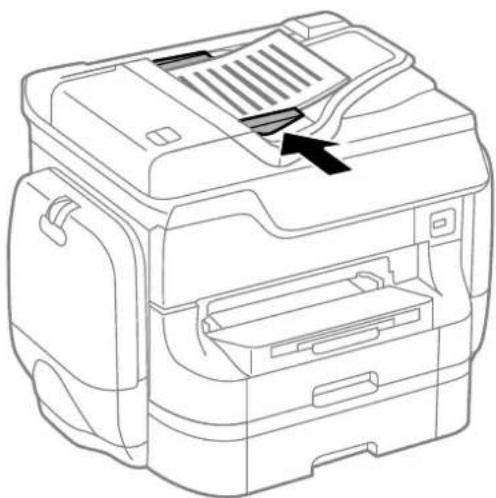
natural_image
Line drawing of a printer with an arrow pointing to the cover area (no text or symbols present)Note:
Some sizes may not be automatically detected. In this situation, manually select the size of the originals.
Related Information
→ "Available Originals for the ADF" on page 54
Placing Originals
Placing Originals on the Scanner Glass

Caution:
Be careful not to trap your fingers when closing the document cover. Otherwise you may be injured.

Important:
When placing bulky originals such as books, prevent exterior light from shining directly onto the scanner glass.
- Open the document cover.
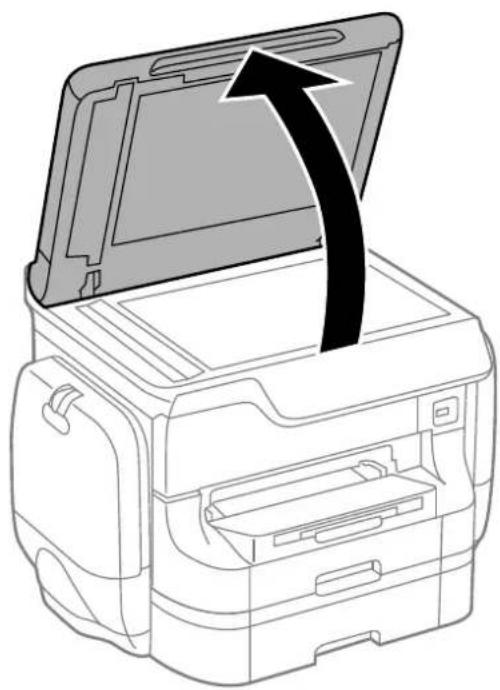
natural_image
Line drawing of a printer with an open lid and arrow indicating rotation (no text or symbols)- Remove any dust or stains on the scanner glass.
- Place the original face-down and slide it to the corner mark.
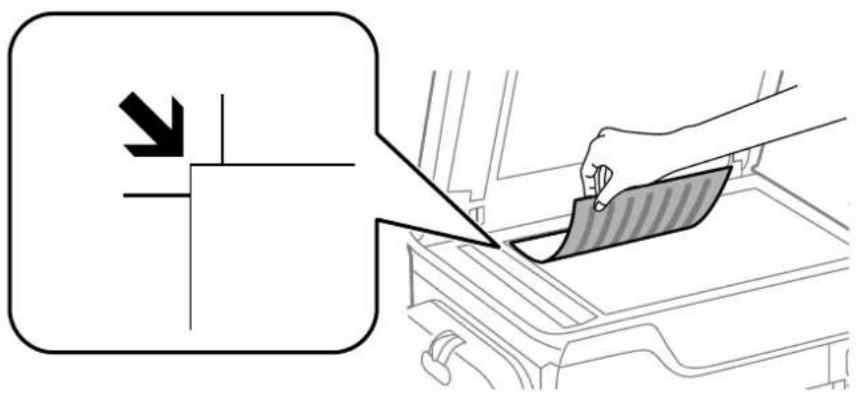
Placing Originals
Note:
☐ A range of 1.5 mm from the edges of the scanner glass is not scanned.
☐ When originals are placed in the ADF and on the scanner glass, priority is given to the originals in the ADF.
4. Close the cover gently.
The size of the originals is automatically detected.
Note:
☐ Some sizes may not be automatically detected. In this situation, manually select the size of the originals.
☐ Remove the originals after scanning or copying. If you leave the originals on the scanner glass for a long time, they may stick to the surface of the glass.
Managing Contacts
Managing Contacts
Registering a contacts list allows you to easily enter destinations. You can register up to 200 entries, and you can use the contacts list when you enter a fax number, enter a destination for attaching a scanned image to an email, and saving a scanned image to a network folder.
You can also register contacts in the LDAP server. See the Administrator's Guide to register contacts in the LDAP server.
Registering Contacts
-
Select Contacts from the home screen, the Scan mode, or the Fax mode.
-
Press Menu, and then select Add Entry.
-
Select in which mode you want to use the contact.
Note:
This screen is displayed when you open the contacts list from the home screen.
-
Select the entry number that you want to register.
-
Make the necessary settings for each mode.
Note:
When entering a fax number, enter an external access code at the beginning of the fax number if your phone system is PBX and you need the access code to get an outside line. If the access code has been set in the Line Type setting, enter a hash (#) instead of the actual access code. To add a pause (pause for three seconds) during dialing, enter a hyphen by pressing ☐.
- Press Save.
Note:
☐ To edit or delete an entry, select the target entry and press Edit or Delete.
☐ You can register an address that is registered in the LDAP server in the local contacts list of the printer. Display an entry, and then press Save.
Registering Grouped Contacts
Adding contacts to a group allows you to send a fax or send a scanned image by an email to multiple destinations at the same time.
-
Select Contacts from the home screen, the Scan mode, or the Fax mode.
-
Press Menu, and then select Add Group.
-
Select in which mode you want to use the grouped contact.
Note:
This screen is displayed when you open the contacts list from the home screen.
- Select the entry number that you want to register.
Managing Contacts
-
Enter Name and Index Word, and then press Proceed.
-
Press the check box of the contacts that you want to register in the group.
Note:
☐ You can register up to 199 contacts.
☐ To deselect, press the check box of the contact again.
- Press Save.
Note:
To edit or delete a grouped contact, select the target grouped contact and press Edit or Delete.
Registration and Backup of Contacts Using a Computer
You can register and backup contacts on the printer using EpsonNet Config. See the manual of EpsonNet Config for details.
Contacts data may be lost due to a printer malfunction. We recommend that you make a backup of the data whenever you update the data. Epson shall not be responsible for the loss of any data, for backing up or recovering data and/or settings even during a warranty period.
Related Information
→ "EpsonNet Config" on page 156
Printing
Printing from the Control Panel
You can print data stored on a memory device, such as a USB flash drive, directly.
- Load paper in the printer.
- Insert a memory device into the printer's external interface USB port.
- Enter Memory Device from the home screen.
- Select a file format.
Note: If you have more than 999 images on your memory device, images are automatically divided into groups and the group selection screen is displayed. Select the group that contains the image you want to print. Images are sorted by the date they were taken. To select another group, select Options > Select Group.
-
Select the file you want to print.
-
Enter the number of printouts using the numeric keypad.
-
Press Settings, and then make print settings.
Note: When you select JPEG as the file format, you can adjust the image. Press Adjustments. You can also add more images. Press the ⚙ button, or swipe the screen horizontally to select the image.
- Press the ◊ button.
Related Information
→ "Loading Paper in the Paper Cassette" on page 46
→ "Loading Paper in the Rear Paper Feed" on page 48
→ "Loading Paper in the Front Paper Feed Slot" on page 50
→ "Part Names and Functions" on page 18
→ "Memory Device Mode" on page 29
Printing from a Computer
If you cannot change some of the printer driver settings, they may have been restricted by the administrator. Contact your printer administrator for assistance.
Printing
Authenticating Users in the Printer Driver when User Feature Restriction Is Enabled (for Windows Only)
When the user feature restriction is enabled, a user ID and password are required to print. Register the user ID and password in the printer driver. If you do not know the password, contact your printer administrator.
- Access the printer driver window.
- Click Printer and Option Information on the Maintenance tab.
- Select Save Access Control settings, click Settings, and then enter the user name and the password.
Related Information
→ "Windows Printer Driver" on page 151
Printing Basics - Windows
Note:
☐ See the online help for explanations of the setting items. Right-click an item, and then click Help.
☐ Operations may differ depending on the application. See the application's help for details.
- Load paper in the printer.
- Open the file you want to print.
- Select Print or Print Setup from the File menu.
- Select your printer.
Printing
- Select Preferences or Properties to access the printer driver window.
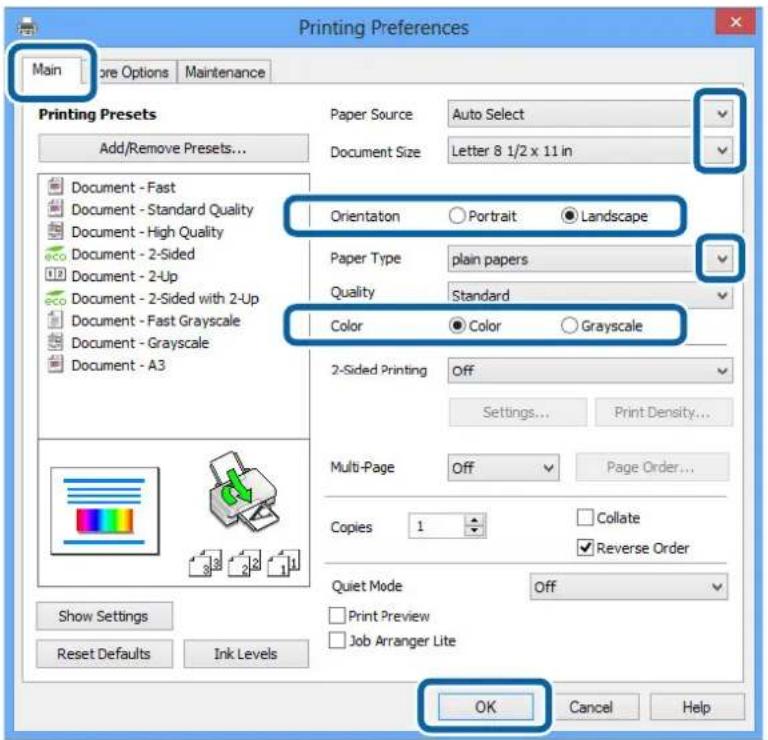
- Make the following settings.
☐ Paper Source: Select the paper source in which you loaded the paper.
☐ Document Size: Select the paper size you set in the application.
☐ Orientation: Select the orientation you set in the application.
☐ Paper Type: Select the type of paper you loaded.
☐ Color: Select Grayscale when you want to print in black or shades of gray.
Note:
☐ If you are printing high-density data on plain paper, letterhead, or preprinted paper, select Standard-Vivid as the Quality setting to make your printout vivid.
☐ When printing on envelopes, select Landscape as the Orientation setting.
-
Click OK to close the printer driver window.
-
Click Print.
Related Information
→ "Available Paper and Capacities" on page 42
→ "Loading Paper in the Paper Cassette" on page 46
→ "Loading Paper in the Rear Paper Feed" on page 48
→ "Loading Paper in the Front Paper Feed Slot" on page 50
→ "List of Paper Types" on page 45
→ "Authenticating Users in the Printer Driver when User Feature Restriction Is Enabled (for Windows Only)" on page 61
Printing
Printing Basics - Mac OS X
Note:
Operations differ depending on the application. See the application's help for details.
- Load paper in the printer.
- Open the file you want to print.
- Select Print from the File menu or another command to access the print dialog. If necessary, click Show Details or ▼ to expand the print window.
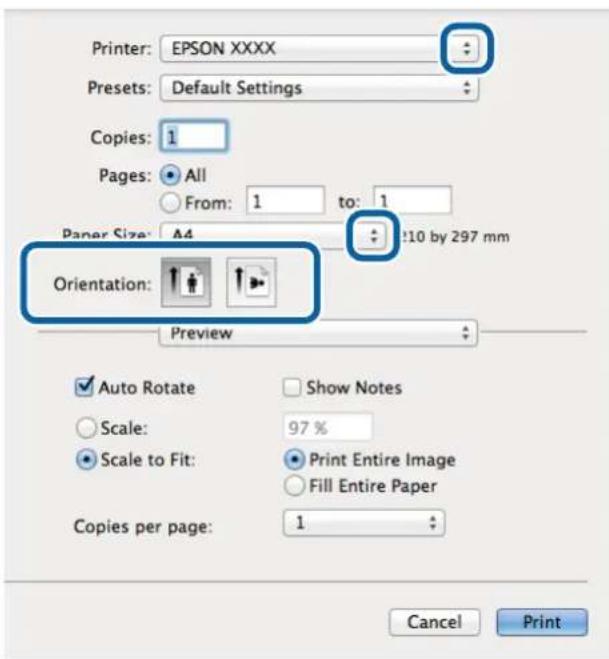
- Make the following settings.
☐ Printer: Select your printer.
☐ Preset: Select when you want to use the registered settings.
☐ Paper Size: Select the paper size you set in the application.
☐ Orientation: Select the orientation you set in the application.
Note:
When printing on envelopes, select landscape orientation
Printing
5. Select Print Settings from the pop-up menu.
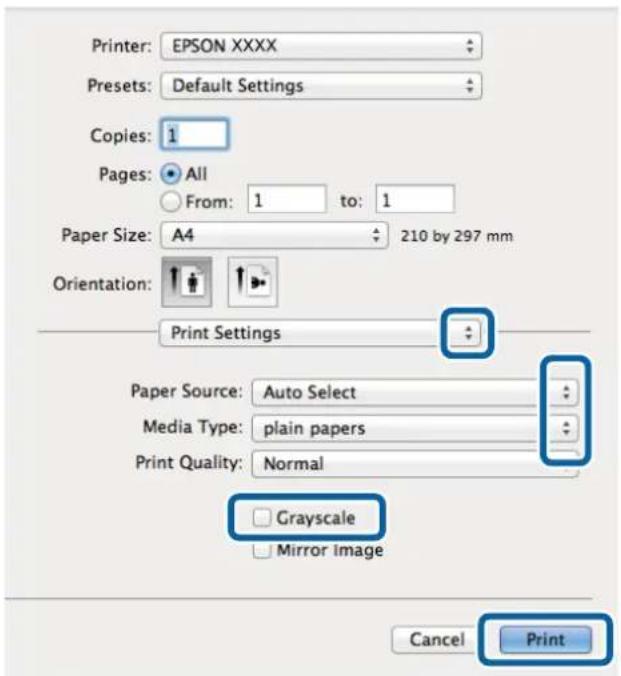
Note:
On Mac OS X v10.8.x or later, if the Print Settings menu is not displayed, the Epson printer driver has not been installed correctly.
Select System Preferences from the menu > Printers & Scanners (or Print & Scan, Print & Fax), remove the printer, and then add the printer again. See the following to add a printer.
http://epson.sn
6. Make the following settings.
☐ Paper Source: Select the paper source in which you loaded the paper.
☐ Media Type: Select the type of paper you loaded.
☐ Grayscale: Select to print in black or shades of gray.
7. Click Print.
Related Information
→ "Available Paper and Capacities" on page 42
→ "Loading Paper in the Paper Cassette" on page 46
→ "Loading Paper in the Rear Paper Feed" on page 48
→ "Loading Paper in the Front Paper Feed Slot" on page 50
→ "List of Paper Types" on page 45
Printing on 2-Sides
You can use either of the following methods to print on both sides of the paper.
☐ Automatic 2-sided printing
Printing
☐ Manual 2-sided printing (for Windows only)
When the printer has finished printing the first side, flip the paper over to print on the other side. You can also print a booklet that can be created by folding the printout. (For Windows only)
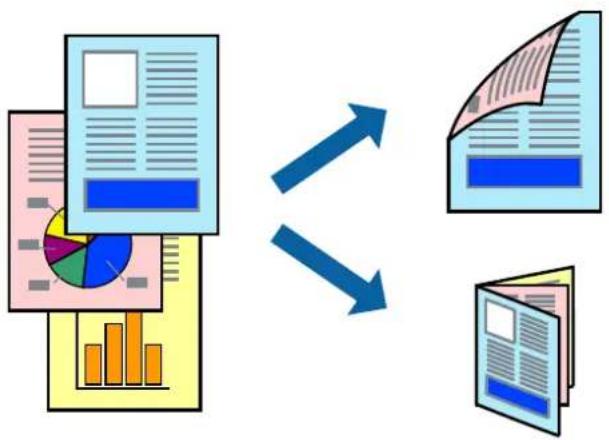
flowchart
graph TD
    A["Document Submission"] --> B["Pie Chart"]
    B --> C["Output"]
    D["Document Paper"] --> E["Output"]
    style A fill:#f9f,stroke:#333
    style B fill:#ccf,stroke:#333
    style C fill:#cfc,stroke:#333
Note:
☐ If you do not use paper that is suitable for 2-sided printing, the print quality may decline and paper jams may occur.
☐ Depending on the paper and the data, ink may bleed through to the other side of the paper.
Related Information
→ "Available Paper and Capacities" on page 42
Printing on 2-Sides - Windows
Note:
☐ Manual 2-sided printing is available when EPSON Status Monitor 3 is enabled. If EPSON Status Monitor 3 is disabled, access the printer driver, click Extended Settings on the Maintenance tab, and then select Enable EPSON Status Monitor 3.
☐ Manual 2-sided printing may not be available when the printer is accessed over a network or is used as a shared printer.
- Load paper in the printer.
- Open the file you want to print.
- Access the printer driver window.
- Select Auto (Long-edge binding), Auto (Short-edge binding), Manual (Long-edge binding), or Manual (Short-edge binding) from 2-Sided Printing on the Main tab.
- Click Settings, make the appropriate settings, and then click OK.
Note:
To print a folded booklet, select Booklet.
- Click Print Density, select the document type from Select Document Type, and then click OK.
The printer driver automatically sets the Adjustments options for that document type.
Printing
Note:
☐ Printing may be slow depending on the combination of options selected for Select Document Type in the Print Density Adjustment window and for Quality on the Main tab.
☐ For manual 2-sided printing, the Print Density Adjustment setting is not available.
-
Set the other items on the Main and More Options tabs as necessary, and then click OK.
-
Click Print.
For manual 2-sided printing, when the first side has finished printing, a pop-up window is displayed on the computer. Follow the on-screen instructions.
Related Information
→ "Loading Paper in the Paper Cassette" on page 46
→ "Loading Paper in the Rear Paper Feed" on page 48
→ "Loading Paper in the Front Paper Feed Slot" on page 50
→ "Printing Basics - Windows" on page 61
Printing on 2-Sides - Mac OS X
- Load paper in the printer.
- Open the file you want to print.
- Access the print dialog.
- Select Two-sided Printing Settings from the pop-up menu.
- Select the bindings and Document Type.
Note:
☐ Printing may be slow depending on the Document Type setting.
☐ If you are printing high-density data such as photos or graphs, select Text & Graphics or Text & Photos as the Document Type setting. If scuffing occurs or the image bleeds through to the reverse side, adjust the print density and ink drying time by clicking the arrow mark next to Adjustments.
-
Set the other items as necessary.
-
Click Print.
Related Information
→ "Loading Paper in the Paper Cassette" on page 46
→ "Loading Paper in the Rear Paper Feed" on page 48
→ "Loading Paper in the Front Paper Feed Slot" on page 50
→ "Printing Basics - Mac OS X" on page 63
Printing
Printing Several Pages on One Sheet
You can print two or four pages of data on a single sheet of paper.
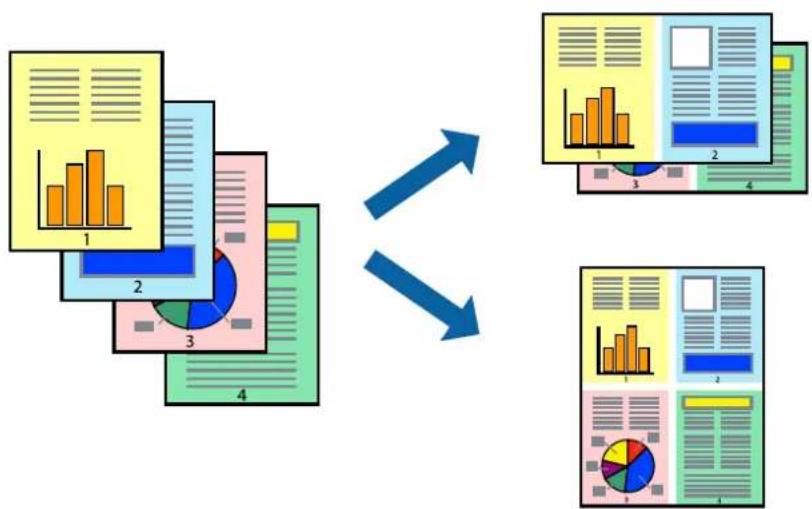
flowchart
graph TD
    A["Input Data"] --> B["Processing Step 1"]
    B --> C["Processing Step 2"]
    C --> D["Output Format 1"]
    C --> E["Output Format 2"]
    D --> F["Final Output Format 3"]
    E --> G["Final Output Format 4"]
Printing Several Pages on One Sheet - Windows
- Load paper in the printer.
- Open the file you want to print.
- Access the printer driver window.
- Select 2-Up or 4-Up as the Multi-Page setting on the Main tab.
- Click Page Order, make the appropriate settings, and then click OK to close the window.
- Set the other items on the Main and More Options tabs as necessary, and then click OK.
- Click Print.
Related Information
→ "Loading Paper in the Paper Cassette" on page 46
→ "Loading Paper in the Rear Paper Feed" on page 48
→ "Loading Paper in the Front Paper Feed Slot" on page 50
→ "Printing Basics - Windows" on page 61
Printing Several Pages on One Sheet - Mac OS X
- Load paper in the printer.
- Open the file you want to print.
- Access the print dialog.
- Select Layout from the pop-up menu.
Printing
- Set the number of pages in Pages per Sheet, the Layout Direction (page order), and Border.
- Set the other items as necessary.
- Click Print.
Related Information
→ "Loading Paper in the Paper Cassette" on page 46
→ "Loading Paper in the Rear Paper Feed" on page 48
→ "Loading Paper in the Front Paper Feed Slot" on page 50
→ "Printing Basics - Mac OS X" on page 63
Printing to Fit the Paper Size
You can print to fit the paper size you loaded in the printer.
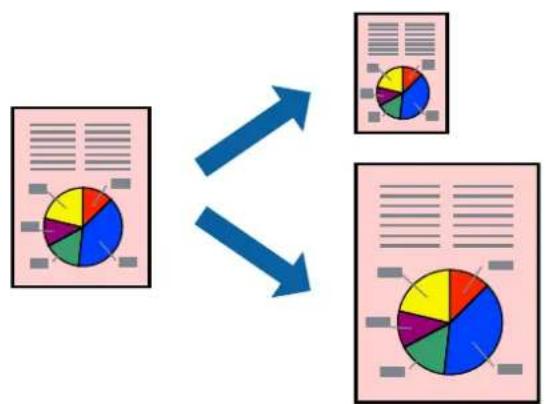
flowchart
graph TD
    A["Document 1"] --> B["Document 2"]
    A --> C["Document 3"]
    A --> D["Document 4"]
    B --> E["Document 5"]
    C --> F["Document 6"]
    D --> G["Document 7"]
Printing to Fit the Paper Size - Windows
- Load paper in the printer.
- Open the file you want to print.
- Access the printer driver window.
- Make the following settings on the More Options tab.
☐ Document Size: Select the paper size you set in the application.
☐ Output Paper: Select the paper size you loaded in the printer.
Fit to Page is selected automatically.
Note:
If you want to print a reduced image at the center of the page, select Center.
- Set the other items on the Main and More Options tabs as necessary, and then click OK.
- Click Print.
Printing
Related Information
→ "Loading Paper in the Paper Cassette" on page 46
→ "Loading Paper in the Rear Paper Feed" on page 48
→ "Loading Paper in the Front Paper Feed Slot" on page 50
→ "Printing Basics - Windows" on page 61
Printing to Fit the Paper Size - Mac OS X
- Load paper in the printer.
- Open the file you want to print.
- Access the print dialog.
- Select the size of the paper you set in the application as the Paper Size setting.
- Select Paper Handling from the pop-up menu.
- Select Scale to fit paper size.
- Select the paper size you loaded in the printer as the Destination Paper Size setting.
- Set the other items as necessary.
- Click Print.
Related Information
→ "Loading Paper in the Paper Cassette" on page 46
→ "Loading Paper in the Rear Paper Feed" on page 48
→ "Loading Paper in the Front Paper Feed Slot" on page 50
→ "Printing Basics - Mac OS X" on page 63
Printing Multiple Files Together (for Windows Only)
Job Arranger Lite allows you to combine several files created by different applications and print them as a single print job. You can specify the print settings for combined files, such as layout, print order, and orientation.
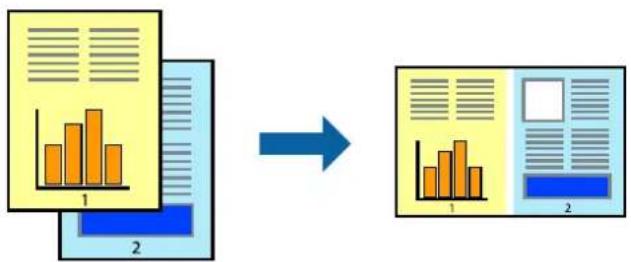
flowchart
graph LR
    A["Document with Charts and Bars"] --> B["Output: Sub Streams"]
    style A fill:#FFD700,stroke:#333
    style B fill:#FFD700,stroke:#333
Note:
To open a Print Project saved in Job Arranger Lite, click Job Arranger Lite on the printer driver's Maintenance tab. Next, select Open from the File menu to select the file. The extension of the saved files is "ecl".
Printing
- Load paper in the printer.
- Open the file you want to print.
- Access the printer driver window.
- Select Job Arranger Lite on the Main tab.
-
Click OK to close the printer driver window.
-
Click Print.
The Job Arranger Lite window is displayed and the print job is added to the Print Project.
- With the Job Arranger Lite window opened, open the file that you want to combine with the current file, and then repeat steps 3 to 6.
Note:
If you close the Job Arranger Lite window, the unsaved Print Project is deleted. To print later, select Save from the File menu.
-
Select the Layout and Edit menus in Job Arranger Lite to edit the Print Project as necessary.
-
Select Print from the File menu.
Related Information
→ "Loading Paper in the Paper Cassette" on page 46
→ "Loading Paper in the Rear Paper Feed" on page 48
→ "Loading Paper in the Front Paper Feed Slot" on page 50
→ "Printing Basics - Windows" on page 61
Enlarged Printing and Making Posters (for Windows Only)
You can print one image on multiple sheets of paper to create a larger poster. You can print alignment marks that help you stick the sheets together.
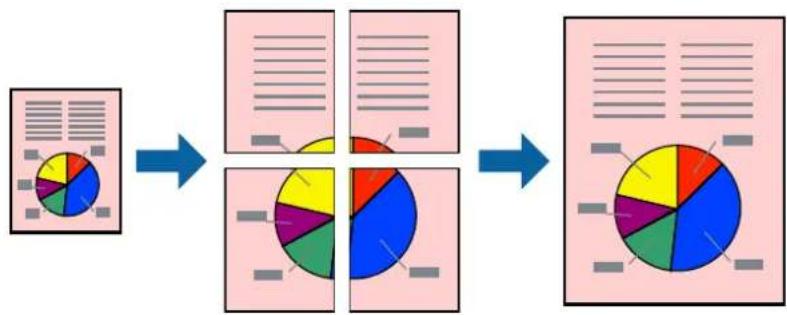
flowchart
graph LR
    A["Document Image"] --> B["Representation"]
    B --> C["Representation with Blue, Green, Purple, Yellow, Red, and Gray Segments"]
    C --> D["Representation with Yellow, Blue, Green, Purple, Red Segments"]
    D --> E["Representation with Blue, Green, Purple, Red Segments"]
- Load paper in the printer.
- Open the file you want to print.
- Access the printer driver window.
- Select 2x1 Poster, 2x2 Poster, 3x3 Poster, or 4x4 Poster from Multi-Page on the Main tab.
Printing
- Click Settings, make the appropriate settings, and then click OK.
- Set the other items on the Main and More Options tabs as necessary, and then click OK.
- Click Print.
Related Information
→ "Loading Paper in the Paper Cassette" on page 46
→ "Loading Paper in the Rear Paper Feed" on page 48
→ "Loading Paper in the Front Paper Feed Slot" on page 50
→ "Printing Basics - Windows" on page 61
Making Posters Using Overlapping Alignment Marks
Here is an example of how to make a poster when 2x2 Poster is selected, and Overlapping Alignment Marks is selected in Print Cutting Guides.
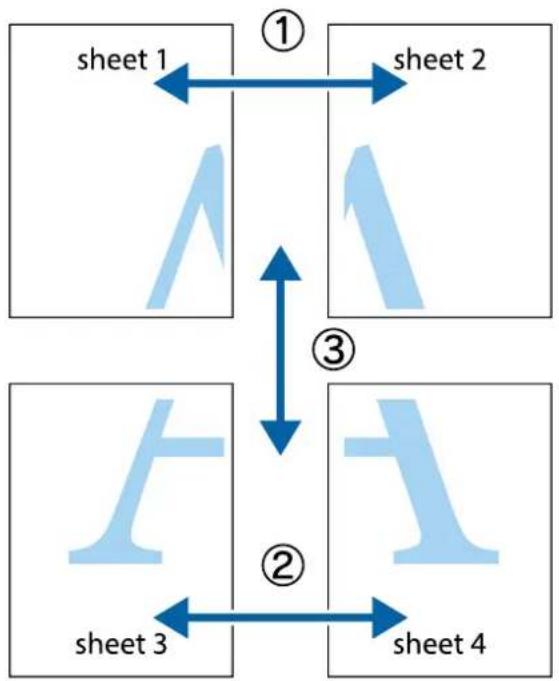
flowchart
graph TD
    A["sheet 1"] -->|①| B sheet2
    B sheet2 --> C["Sheet 1"]
    C --> D["Sheet 2"]
    D --> E["Sheet 2"]
    E --> F["Sheet 3"]
    F --> G["Sheet 3"]
    G --> H["Sheet 4"]
    H --> I["Sheet 4"]
    I --> J["Sheet 4"]
    style A fill:#cce5ff,stroke:#333
    style B fill:#cce5ff,stroke:#333
    style C fill:#cce5ff,stroke:#333
    style D fill:#cce5ff,stroke:#333
    style E fill:#cce5ff,stroke:#333
    style F fill:#cce5ff,stroke:#333
    style G fill:#cce5ff,stroke:#333
    style H fill:#cce5ff,stroke:#333
    style I fill:#cce5ff,stroke:#333
    style J fill:#cce5ff,stroke:#333
Printing
- Prepare Sheet 1 and Sheet 2. Cut off the margins of Sheet 1 along the vertical blue line through the center of the top and bottom cross marks.
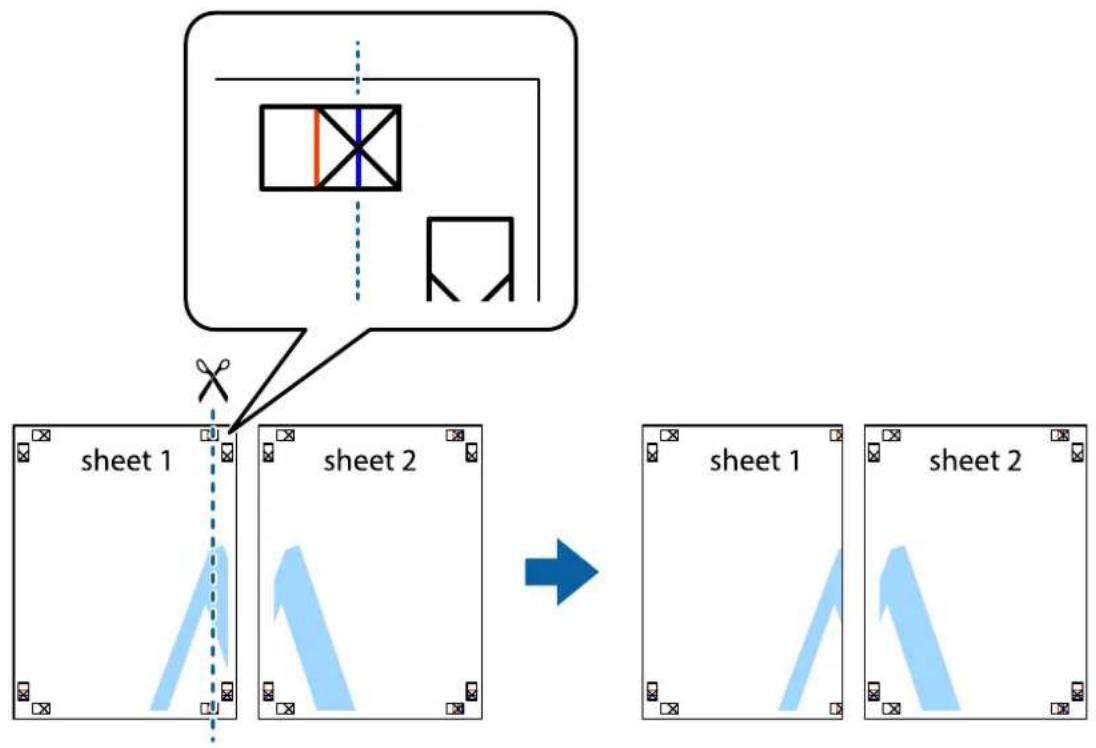
flowchart
graph TD
    A_sheet1["sheet 1"] --> B sheet2 sheet2 sheet2
    style A fill:#f9f,stroke:#333
    style B fill:#bbf,stroke:#333
    subgraph A
        C["Diagram: Cutting scissors"]
        D["Diagram: Vertical lines within rectangle"]
        E["Diagram: Vertical line within rectangle"]
    end
    subgraph B
        F["Arrow pointing right"]
    end
    subgraph C
        G["Arrow pointing left"]
    end
    subgraph D
        H["Arrow pointing left"]
    end
    subgraph E
        I["Arrow pointing right"]
    end
- Place the edge of Sheet 1 on top of Sheet 2 and align the cross marks, then temporarily tape the two sheets together from the back.
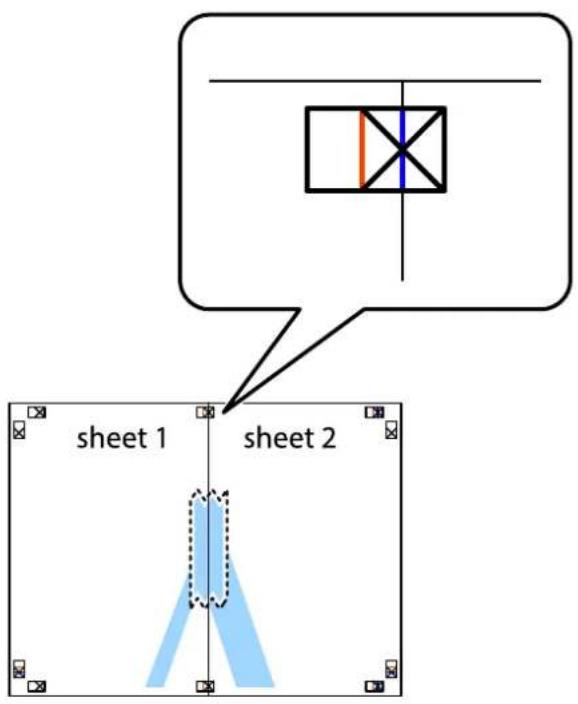
Printing
- Cut the taped sheets in two along the vertical red line through the alignment markers (this time, the line to the left of the cross marks).
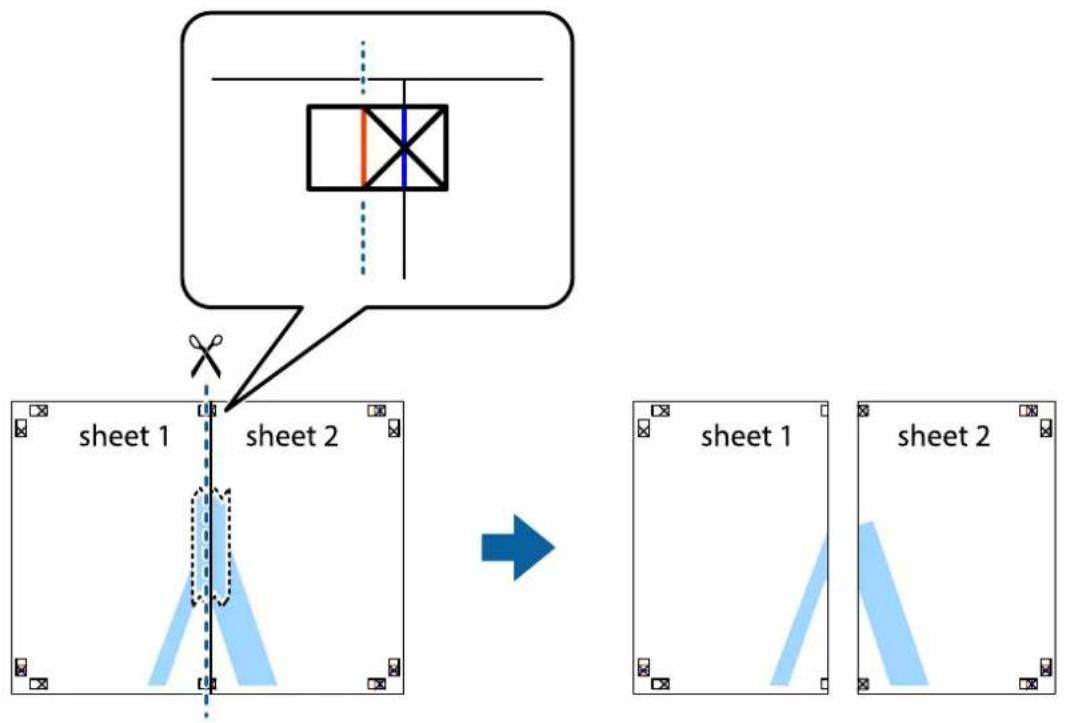
flowchart
graph TD
    A["sheet 1"] --> B["sheet 2"]
    B --> C["Arrow"]
    style A fill:#f9f,stroke:#333
    style B fill:#ccf,stroke:#333
    style C fill:#cfc,stroke:#333
- Tape the sheets together from the back.
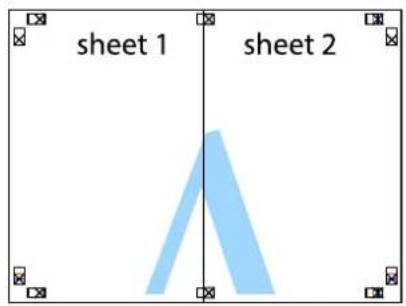
- Repeat steps 1 to 4 to tape Sheet 3 and Sheet 4 together.
Printing
- Cut off the margins of Sheet 1 and Sheet 2 along the horizontal blue line through the center of the left and right side cross marks.
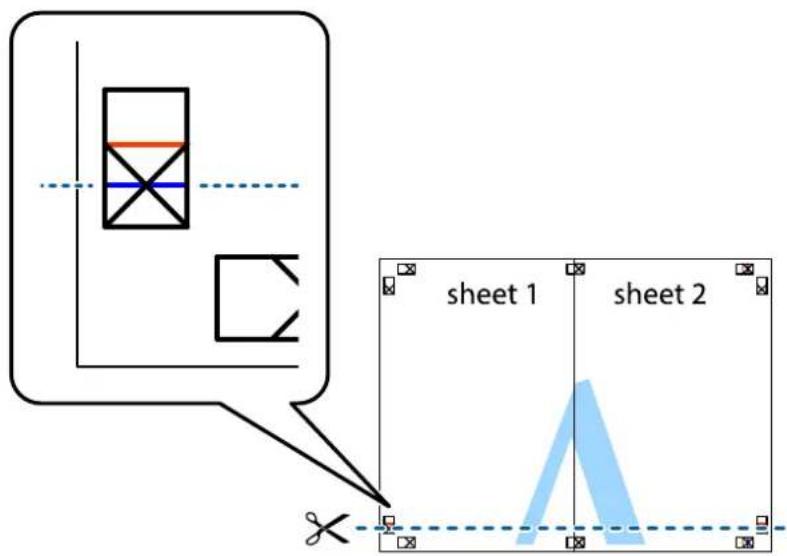
- Place the edge of Sheet 1 and Sheet 2 on top of Sheet 3 and Sheet 4 and align the cross marks, and then temporarily tape them together from the back.
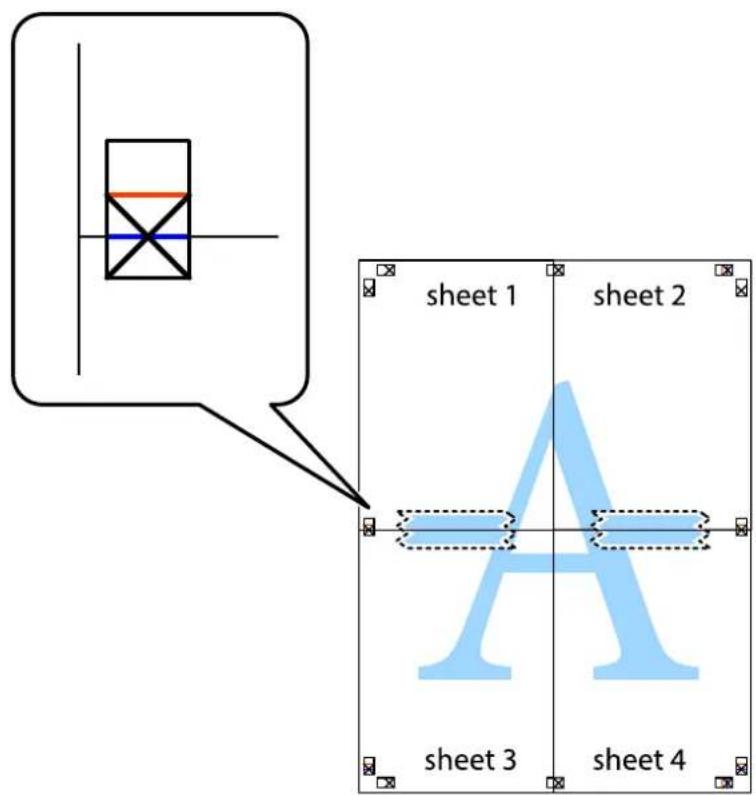
Printing
- Cut the taped sheets in two along the horizontal red line through the alignment markers (this time, the line above the cross marks).
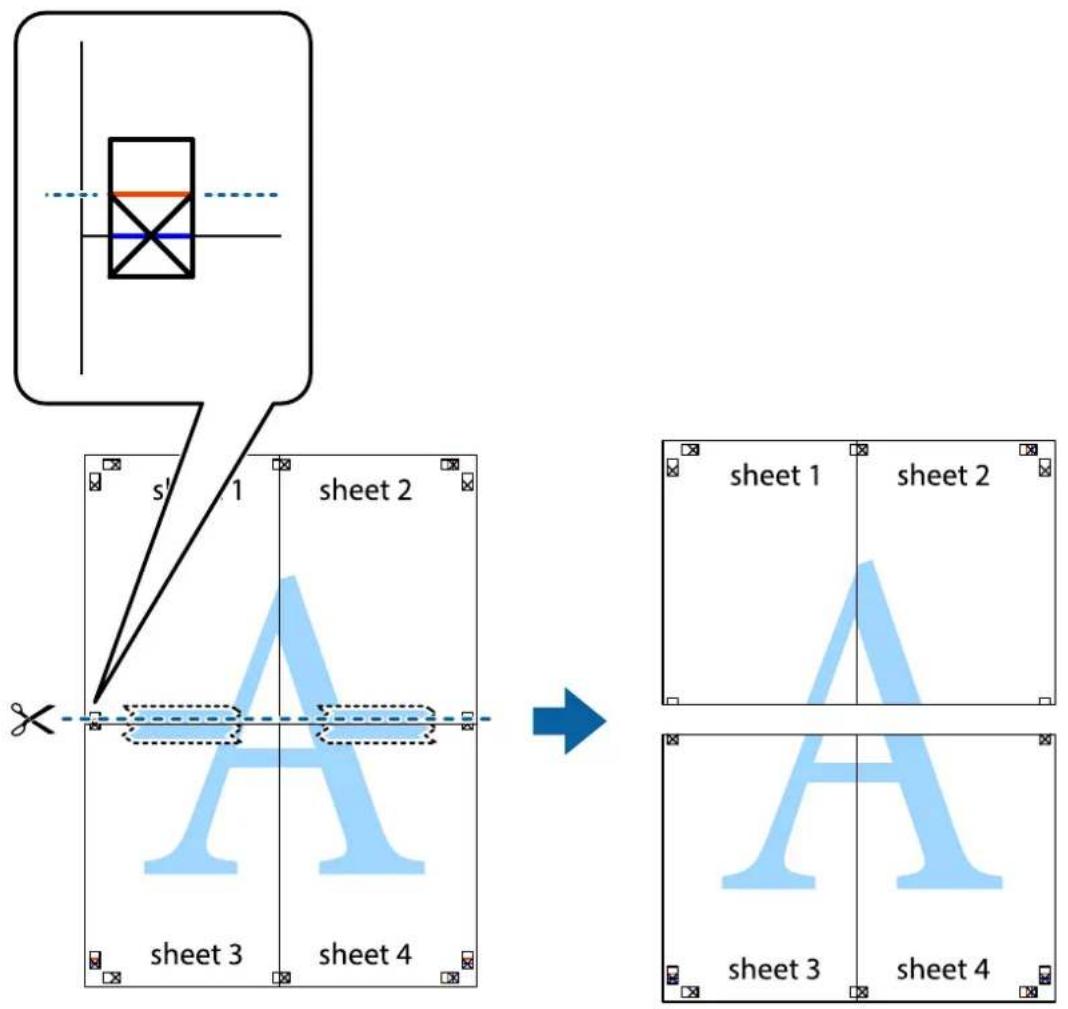
- Tape the sheets together from the back.
Printing
- Cut off the remaining margins along the outer guide.
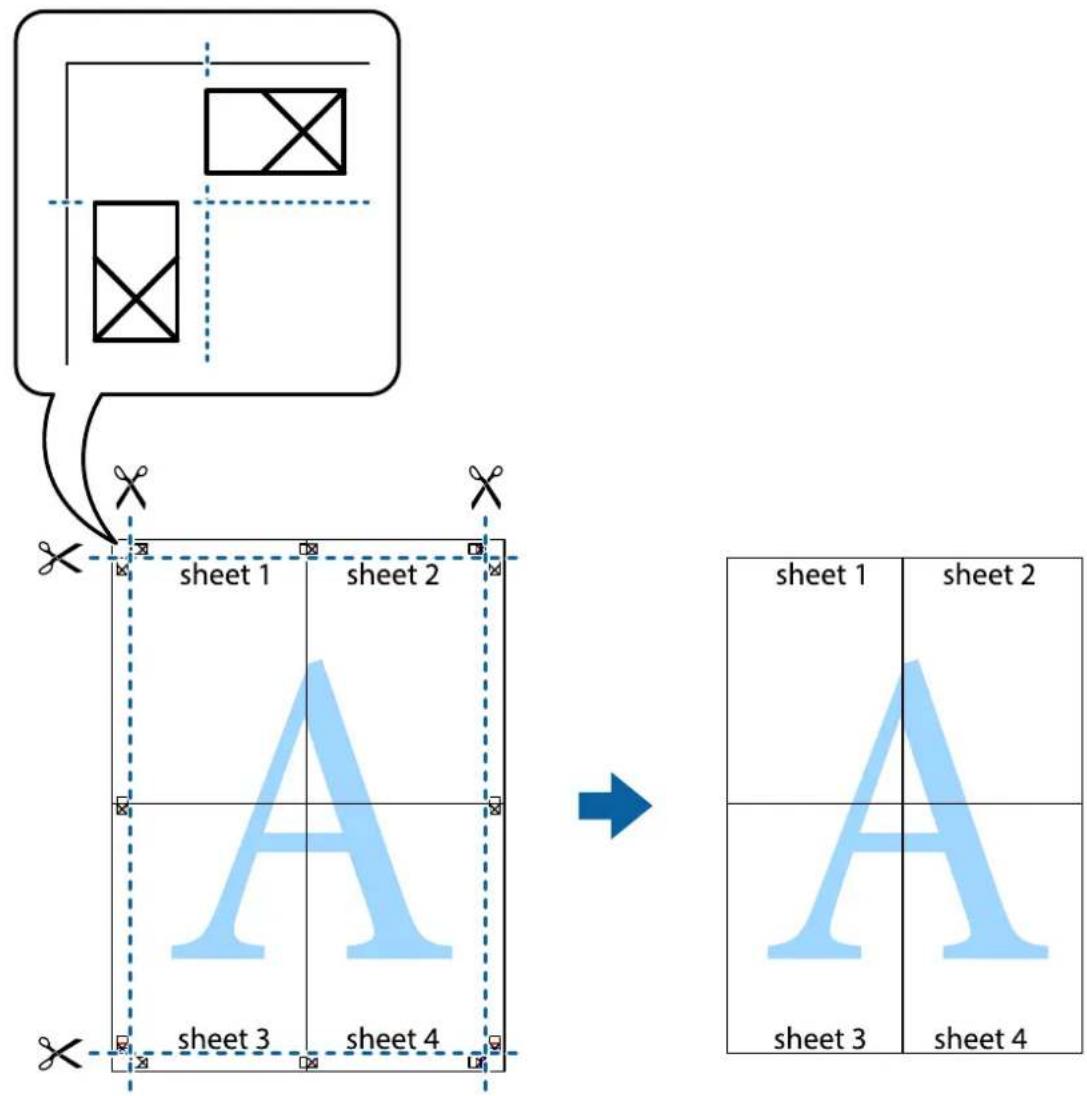
Printing Using Advanced Features
This section introduces a variety of additional layout and printing features available on the printer driver.
Related Information
→ "Windows Printer Driver" on page 151
→ "Mac OS X Printer Driver" on page 152
Adding a Printing Preset
If you create your own preset of frequently used print settings on the printer driver, you can print easily by selecting the preset from the list.
User's Guide
Printing
Windows
To add your own preset, set items such as the Document Size and Paper Type on the Main or More Options tab, and then click Add/Remove Presets in Printing Presets.
Mac OS X
Access the print dialog. To add your own preset, set items such as the Paper Size and Media Type, and then save the current settings as the preset in the Presets setting.
Printing a Reduced or Enlarged Document
You can reduce or enlarge the size of a document by a specific percentage.
Windows
Set the Document Size on the More Options tab. Select Reduce/Enlarge Document, Zoom to, and then enter a percentage.
Mac OS X
Select Page Setup from the File menu. Select the settings for Format For and Paper Size, and then enter a percentage in Scale. Close the window, and then print following the basic printing instructions.
Related Information
→ "Printing Basics - Mac OS X" on page 63
Adjusting the Print Color
You can adjust the colors used in the print job.
PhotoEnhance produces sharper images and more vivid colors by automatically adjusting the contrast, saturation, and brightness of the original image data.
Note:
☐ These adjustments are not applied to the original data.
☐ PhotoEnhance adjusts the color by analyzing the location of the subject. Therefore, if you have changed the location of the subject by reducing, enlarging, cropping, or rotating the image, the color may change unexpectedly. If the image is out of focus, the tone may be unnatural. If the color is changed or becomes unnatural, print in a mode other than PhotoEnhance.
Windows
Select Custom as the Color Correction setting on the More Options tab. Click Advanced, select the Color Management setting, and then make appropriate settings.
Mac OS X
Access the print dialog. Select Color Matching from the pop-up menu, and then select EPSON Color Controls. Select Color Options from the pop-up menu, and then select one of the available options. Click the arrow next to Advanced Settings and make the appropriate settings.
Printing
Printing an Anti-Copy Pattern (for Windows Only)
You can print documents with invisible letters such as "Copy". These letters appear when the document is photocopied so that the copies can be distinguished from the original. You can also add your own anti-copy pattern.
Note:
This feature is only available when the following settings are selected.
□ Paper Type: plain papers
Quality: Standard
☐ Auto 2-sided printing: Disabled
☐ Color Correction: Automatic
☐ Short Grain Paper: Disabled
Click Watermark Features on the More Options tab, and then select an anti-copy pattern. Click Settings to change details such as the size and density.
Printing a Watermark (for Windows Only)
You can print a watermark such as "Confidential" on your printouts. You can also add your own watermark.
Click Watermark Features on the More Options tab, and then select a watermark. Click Settings to change details such as the color and position of the watermark.
Printing a Header and Footer (for Windows Only)
You can print information such as a user name and printing date as headers or footers.
Click Watermark Features in the More Options tab, and then select Header/Footer. Click Settings and select necessary items from the drop-down list.
Setting a Password for a Print Job (for Windows Only)
You can set a password for a print job to prevent printing until the password is entered on the printer's control panel.
Select Confidential Job on the More Options tab, and then enter a password.
To print the job, press the i button on the printer's control panel, and then select Confidential Job. Select the job and enter the password.
Printing Using a PostScript Printer Driver
Printing Using a PostScript Printer Driver - Windows
- Load paper in the printer.
- Open the file you want to print.
- Access the PostScript printer driver window.
Printing
- Select the orientation you set in the application as the Orientation on the Layout tab.
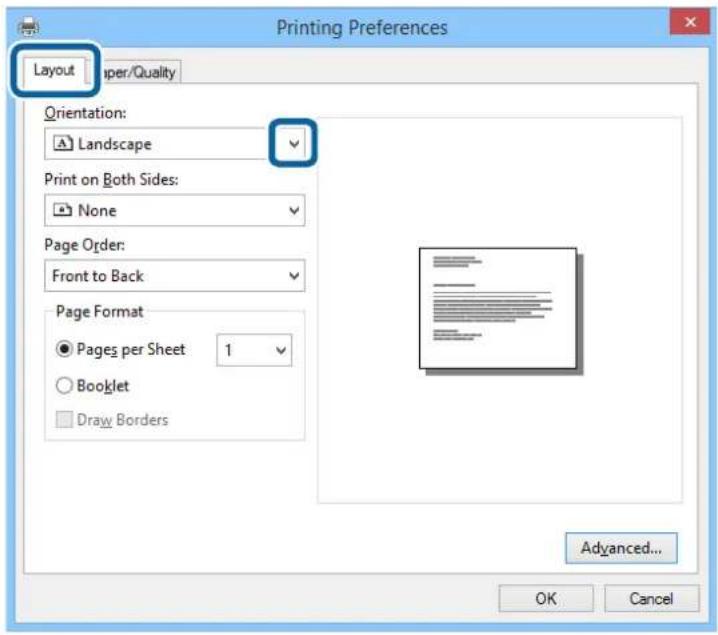
- Make the following settings on the Paper/Quality tab.
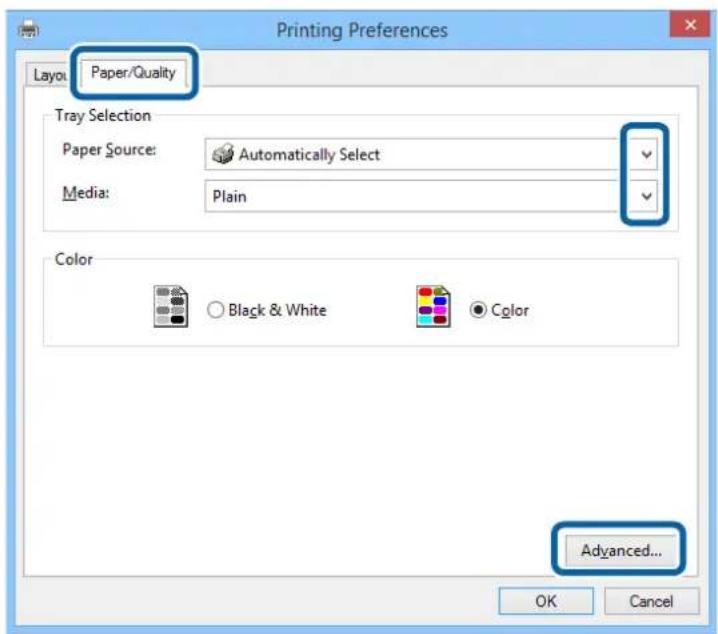
☐ Paper Source: Select the paper source in which you loaded the paper.
☐ Media: Select the type of paper you loaded.
Printing
- Click Advanced, make the following settings, and then click OK.
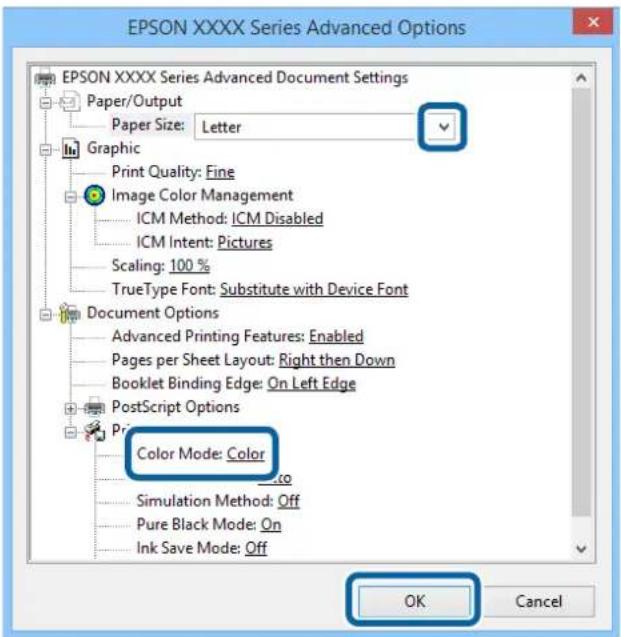
☐ Paper Size: Select the paper size you set in the application.
☐ Color Mode: Select to print in full color or monochrome.
- Click OK.
- Click Print.
Printing Using a PostScript Printer Driver - Mac OS X
- Load paper in the printer.
- Open the file you want to print.
Printing
3. Access the print dialog.
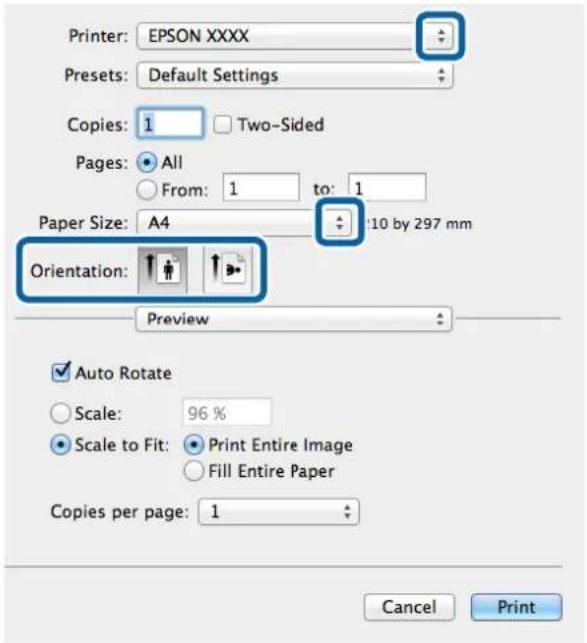
4. Make the following settings.
☐ Printer: Select your printer.
☐ Paper Size: Select the paper size you set in the application.
☐ Orientation: Select the orientation you set in the application.
5. Select Paper Feed from the pop-up menu, and then select the paper source in which you loaded the paper.
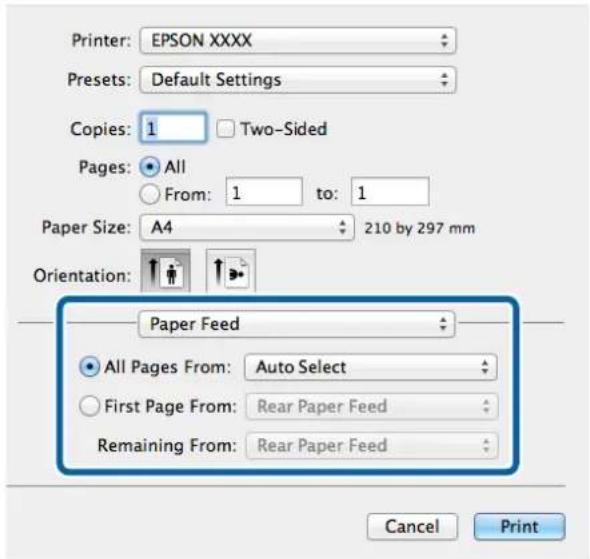
Printing
- Select Printer Features from the pop-up menu, select Quality as the Feature Sets setting, and then select the type of paper you loaded as the MediaType setting.
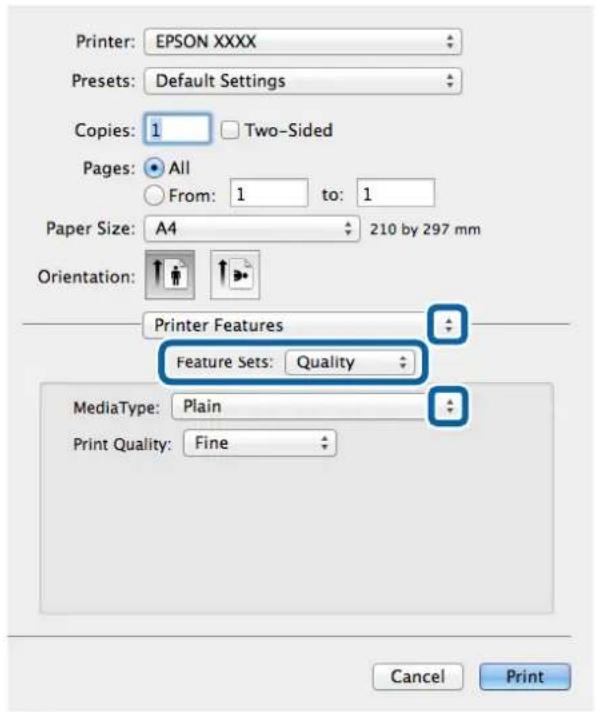
- Select Color as the Feature Sets setting, and then select the setting for Color Mode.
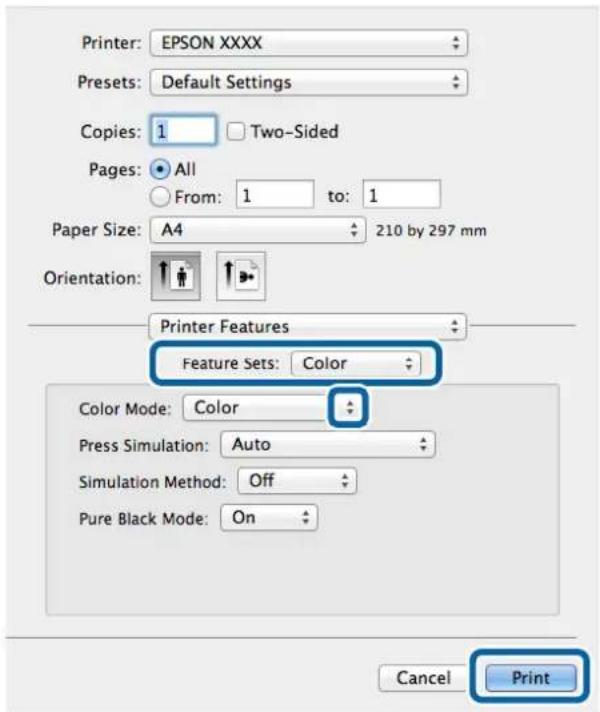
- Click Print.
Printing
Setting Items for the PostScript Printer Driver
Note:
The availability of these settings varies by model.
| Color Mode | Select whether to print in color or in monochrome. |
| Press Simulation | You can select a CMYK ink color to simulate when you print by reproducing the CMYK ink color of the offset press. |
| Simulation Method | Select the method of color conversion for the CMYK simulation. |
| Pure Black Mode | Select whether or not to print black text data or line drawing data using only black ink. However, other color inks may be consumed depending on the paper, even when this feature is set. |
| Ink Save Mode | Conserves ink by reducing the print density. |
| Rotate by 180° | Rotates the data 180 degrees before printing. |
Printing from Smart Devices
Using Epson iPrint
Epson iPrint is an application that allows you to print photos, documents, and Web pages from a smart device such as a smartphone or tablet. You can use either local print, printing from a smart device that is connected to the same wireless network as your printer, or remote print, printing externally over the internet. To use remote print, register your printer in the Epson Connect service.
natural_image
Illustration of a printer with a printed image, labeled 'EPSON' below (no other text or symbols)You can install Epson iPrint on your smart device from the following URL or QR code.
http://ipr.to/c

Using Epson iPrint
Start Epson iPrint from your smart device and select the item you want to use from the home screen.
Printing
The following screens are subject to change without notice.
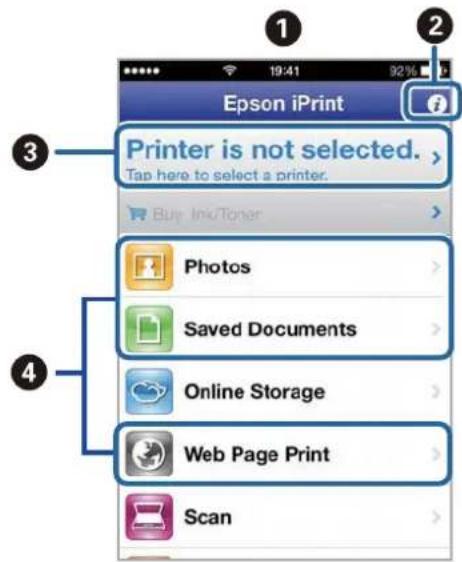
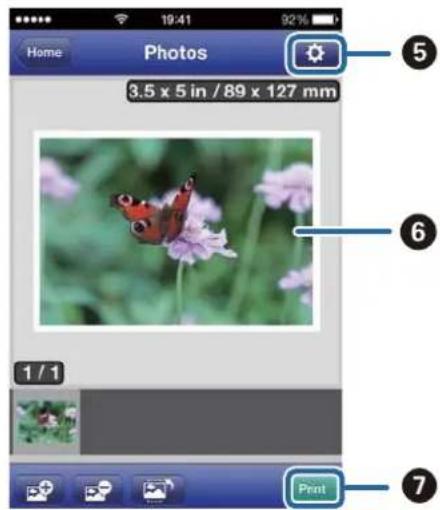
| 1 | Home screen displayed when the application is started. |
| 2 | Displays information on how to setup the printer and a FAQ. |
| 3 | Displays the screen where you can select the printer and make printer settings. Once you have selected the printer, you do not need to select it again from the next time. |
| 4 | Select what you want to print such as photos, documents, and web pages. |
| 5 | Displays the screen to make print settings such as paper size and paper type. |
| 6 | Displays photos and documents you selected. |
| 7 | Starts printing. |
Note:
To print from the document menu using iPhone, iPad, and iPod touch running iOS, start Epson iPrint after transferring the document you want to print using the file sharing function in iTunes.
Related Information
→ "Epson Connect Service" on page 149
Printing
Using AirPrint
AirPrint allows you to wirelessly print to your AirPrint-enabled printer from your iOS device using the latest version of iOS and from your Mac OS X v10.7.x or later.
Note:
See the AirPrint page of the Apple website for more details.
- Load paper in the printer.
- Connect your device to the same wireless network that your printer is using.
- Print from your device to your printer.
Related Information
→ "Loading Paper in the Paper Cassette" on page 46
→ "Loading Paper in the Rear Paper Feed" on page 48
→ "Loading Paper in the Front Paper Feed Slot" on page 50
Canceling Printing
Note:
☐ In Windows, you cannot cancel a print job from the computer once it has been completely sent to the printer. In this case, cancel the print job by using the printer's control panel.
☐ When printing several pages from Mac OS X, you cannot cancel all of the jobs by using the control panel. In this case, cancel the print job from the computer.
☐ If you have sent a print job from Mac OS X v10.6.x or v10.5.8 through the network, you may not be able to cancel printing from the computer. In this case, cancel the print job by using the printer's control panel. You need to change settings in Web Config to cancel printing from the computer. See the Network Guide for more details.
Canceling Printing - Printer Button
Press the Ⓤ button to cancel the print job in progress.
Canceling Printing - Status Menu
- Press the i button to display Status Menu.
User's Guide
Printing
- Select Job Monitor > Print Job.
Ongoing jobs and jobs that are standing by are shown in the list. - Select the job that you want to cancel.
- Press Cancel.
Canceling Printing - Windows
- Access the printer driver window.
- Select the Maintenance tab.
- Click Print Queue.
- Right-click on the job you want to cancel and then select Cancel.
Related Information
→ "Windows Printer Driver" on page 151
Canceling Printing - Mac OS X
- Click the printer icon in the Dock.
- Select the job you want to cancel.
- Cancel the job.
☐ Mac OS X v10.8.x to Mac OS X v10.9.x
Click next to the progress meter.
□ Mac OS X v10.5.8 to v10.7.x
Click Delete.
Copying
Copying
-
Load paper in the printer.
-
Place the originals.
-
Enter Copy from the home screen.
-
Enter the number of copies by using the numeric keypad.
-
Press Layout, and then select the appropriate layout.
-
Make other settings as necessary. You can make detailed settings by pressing Settings.
Note:
☐ Press Preset to save your settings as a preset.
☐ Press Preview to preview the copy results. However, you cannot preview when you have placed the originals on the ADF.
- Press the ◊ button.
Related Information
→ "Loading Paper in the Paper Cassette" on page 46
→ "Loading Paper in the Rear Paper Feed" on page 48
→ "Loading Paper in the Front Paper Feed Slot" on page 50
→ "Placing Originals" on page 54
→ "Copy Mode" on page 24
→ "Presets Mode" on page 41
Scanning
Scanning Using the Control Panel
Scanning to an Email
You can send scanned image files by email directly from the printer through a pre-configured email server. Before using this feature, you need to configure the email server.
You can specify the email address by entering directly, but it may be easier if you register the email address in the contacts list first.
Note:
Before you use this feature, make sure the printer's Date/Time and Time Difference settings are correct. Access the menus from System Administration > Common Settings.
☐ By using the Document Capture Pro function on the control panel instead of this function, you can send emails directly. Before using this function, make sure you have registered a job to send emails in Document Capture Pro and that the computer is turned on.
-
Place the originals.
-
Enter Scan from the home screen.
-
Select Email.
-
Enter the email addresses.
☐ To select from the contacts list: Press Contacts, press the check box to add a check mark to a contact, and then press Proceed.
☐ To enter the email address manually: Select Enter Email Address > Enter Email Address, enter the email address, and then press the enter key at the bottom-right of the screen.
Note:
You can send emails to up to 10 individual email addresses and groups.
-
Press Format, and then select the file format.
-
Press Menu, and then make settings for Email Settings and Basic Settings.
Note:
☐ You can specify the maximum size for files that can be attached to an email in Attached File Max Size.
☐ When you select PDF as the file format, you can set a password to protect the file. Select PDF Settings, and then make settings.
☐ Press Preset to save your settings as a preset.
- Press the ◊ button.
The scanned image is sent by email.
Related Information
→ "System Administration" on page 32
Scanning
→ "Configuring an Email Server" on page 229
→ "Managing Contacts" on page 58
→ "Placing Originals" on page 54
→ "Scan Mode" on page 26
→ "Presets Mode" on page 41
→ "Scanning Using Document Capture Pro (for Windows Only)" on page 90
Scanning to a Network Folder or FTP Server
You can save the scanned image to a specified folder on a network. You can specify the folder by entering a folder path directly, but it may be easier if you register the folder information in the contacts list first.
Note:
Before you use this feature, make sure the printer's Date/Time and Time Difference settings are correct. Access the menus from System Administration > Common Settings.
- Place the originals.
- Enter Scan from the home screen.
- Select Network Folder/FTP.
- Specify the folder.
☐ To select from the contacts list: Press Contacts, select a contact, and then press Proceed.
☐ To enter the folder path directly: Press Enter Location. Select Communication Mode, enter the folder path as Location, and then make other folder settings.
Note:
Enter the folder path in the following format.
When using SMB as the communication mode:
\host name\folder name
When using FTP as the communication mode:
ftp://host name/folder name
- Press Format, and then select the file format.
- Press Menu, and then make settings for File Settings and Basic Settings.
Note:
☐ When you select PDF as the file format, you can set a password to protect the file. Select PDF Settings, and then make settings.
☐ Press Preset to save your settings as a preset.
- Press the ◊ button.
The scanned image is saved.
Related Information
→ "System Administration" on page 32
→ "Managing Contacts" on page 58
Scanning
→ "Placing Originals" on page 54
→ "Scan Mode" on page 26
→ "Presets Mode" on page 41
Scanning to a Memory Device
You can save the scanned image to a memory device.
- Insert a memory device into the printer's external interface USB port.
- Place the originals.
- Enter Scan from the home screen.
- Select Memory Device.
- Press Format, and then select the file save format.
- Press Settings, and then make scan settings.
Note:
☐ When you select PDF as the file format, you can set a password to protect the file. Select PDF Settings, and then make settings.
☐ Press Preset to save your settings as a preset.
- Press the ◊ button.
The scanned image is saved.
Related Information
→ "Part Names and Functions" on page 18
→ "Placing Originals" on page 54
→ "Scan Mode" on page 26
→ "Presets Mode" on page 41
Scanning to the Cloud
You can send scanned images to cloud services using Epson Connect.
See the Epson Connect portal website for details.
https://www.epsonconnect.com/
http://www.epsonconnect.eu (Europe only)
Scanning Using Document Capture Pro (for Windows Only)
You can scan the original using the settings specified in Document Capture Pro.
Note:
Before scanning, install Document Capture Pro and make settings for the job.
☐ Before scanning, connect the printer and the computer to the network.
Scanning
- Place the originals.
- Enter Scan from the home screen.
-
Select Document Capture Pro.
-
Press Select Computer, and then select the computer registered to the job in Document Capture Pro.
Note:
☐ If you select Option > Network Scanning Settings, and enable Protect with password in Document Capture Pro, enter a password.
☐ If you set only one job, proceed to step 6.
-
Select the job.
-
Press the area in which the job content is displayed, and check the job details.
-
Press the ◊ button.
The scanned image is saved.
Related Information
→ "Placing Originals" on page 54
→ "Document Capture Pro (for Windows Only)" on page 154
Scanning to a Computer (WSD)
Note:
Before using this feature, you need to setup your computer. See the Network Guide for more details.
☐ This function is only available for computers running Windows 8.1/Windows 8/Windows 7/Windows Vista.
- Place the originals.
- Enter Scan from the home screen.
- Select Computer (WSD).
- Select a computer.
- Press the ◊ button.
The scanned image is saved.
Note:
See your computer's documentation for information on where the scanned image is stored on the computer.
Related Information
→ "Placing Originals" on page 54
Scanning from a Computer
Scan using the scanner driver "EPSON Scan". See the EPSON Scan help for an explanation of each setting item.
Authenticating Users when Using Access Control in EPSON Scan (for Windows Only)
When the access control function is enabled for a printer, you need to enter a user ID and password when scanning. Register a user name and password in EPSON Scan. If you do not know the password, contact your printer administrator.
- Access the EPSON Scan Settings.
☐ Windows 8.1/Windows 8/Windows Server 2012 R2/Windows Server 2012
Enter "EPSON Scan Settings" in the search charm, and then select the displayed icon.
☐ Except for Windows 8.1/Windows 8/Windows Server 2012 R2/Windows Server 2012
Click the start button, and select All Programs or Programs > EPSON > EPSON Scan > EPSON Scan Settings.
- Click Access Control.
- Enter the user name and the password.
Scanning in Office Mode
You can scan many text documents quickly.
- Place the originals.
- Start EPSON Scan.
Scanning
3. Select Office Mode from the Mode list.
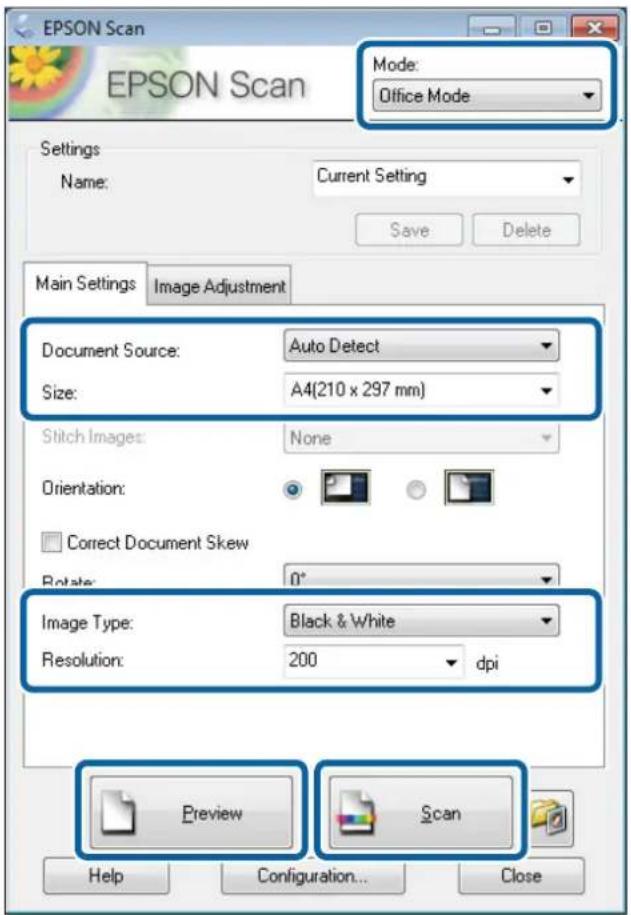
- Make the following settings on the Main Settings tab.
☐ Document Source: Select the document source in which you placed your original.
☐ Size: Select the size of your original.
☐ Image Type: Select the type of image you want to scan.
☐ Resolution: Select the resolution of the image you want to scan.
- Click Preview.
The preview window opens.
Note:
If you have place originals in the ADF, the first page of the originals is ejected when the preview is finished. Place your first document page on top of the rest of the pages, and then load the entire original into the ADF.
- Confirm the preview, and make settings on the Image Adjustment tab as necessary.
Note:
You can adjust the image such as making text enhancements.
-
Click Scan.
-
In the File Save Settings window, make appropriate settings and then click OK.
The scanned image is saved in the specified folder.
User's Guide
Scanning
Note:
When you select PDF as the Image Format setting, you can set a password to protect the file. Click Options, select the Security tab, and then make settings.
Related Information
→ "Placing Originals" on page 54
→ "EPSON Scan (Scanner Driver)" on page 153
Scanning in Professional Mode
You can scan images while adjusting the quality and color. This mode is recommended for advanced users.
- Place the originals.
- Start EPSON Scan.
Scanning
3. Select Professional Mode from the Mode list.
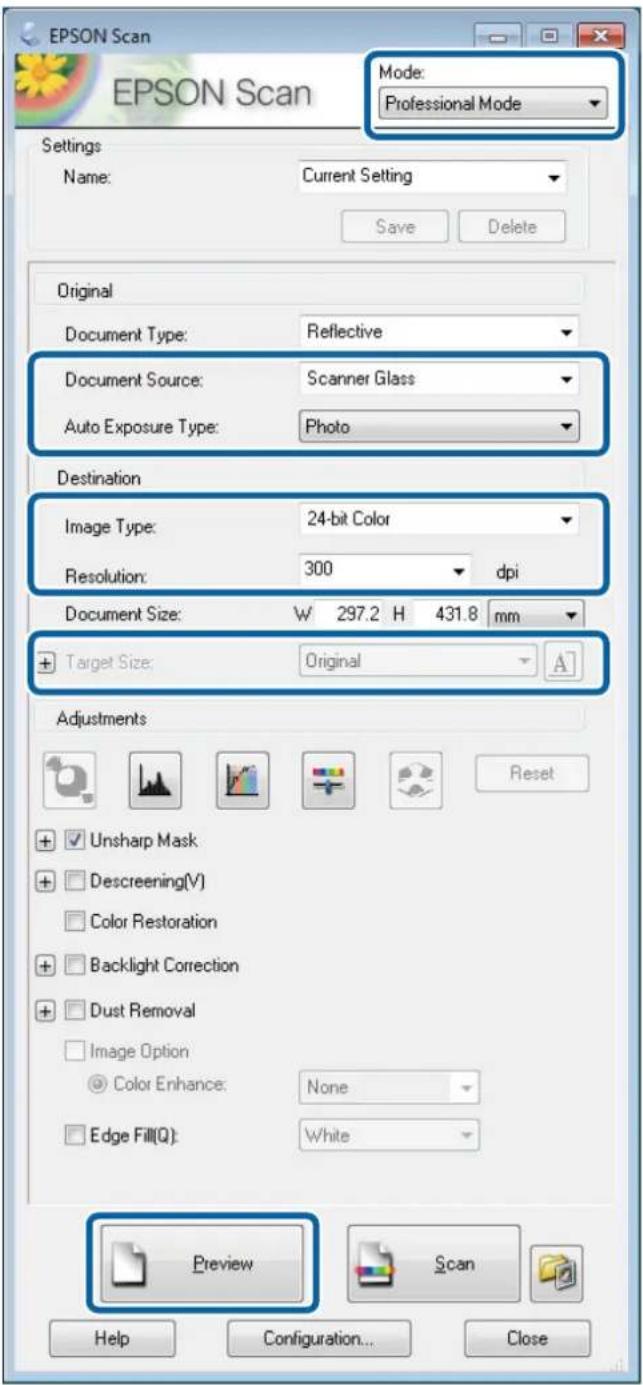
4. Make the following settings.
☐ Document Source: Select the document source in which you placed your original.
☐ Auto Exposure Type: Select the exposure type that suits your original.
☐ Image Type: Select the type of image you want to scan.
☐ Resolution: Select the resolution of the image you want to scan.
☐ Target Size: Select the output image size you want to scan to.
Scanning
5. Click Preview.
The preview window opens.
Note:
If you have place originals in the ADF, the first page of the originals is ejected when the preview is finished. Place your first document page on top of the rest of the pages, and then load the entire original into the ADF.
6. Check the preview, and adjust the image as necessary.
Note:
You can make various image adjustments such as improving the color, sharpness, and contrast.
7. Click Scan.
8. In the File Save Settings window, make appropriate settings and then click OK.
The scanned image is saved in the specified folder.
Note:
When you select PDF as the Image Format setting, you can set a password to protect the file. Click Options, select the Security tab, and then make settings.
Related Information
→ "Placing Originals" on page 54
→ "EPSON Scan (Scanner Driver)" on page 153
Scanning from Smart Devices
Epson iPrint is an application that allows you to scan photos and documents from a smart device, such as a smartphone or tablet, that is connected to the same wireless network as your printer. You can save the scanned data on a smart device or to Cloud services, send it by email, or print it.
You can install Epson iPrint on your smart device from the following URL or QR code.
http://ipr.to/c

Using Epson iPrint
Start Epson iPrint from your smart device and select the item you want to use from the home screen.
Scanning
The following screens are subject to change without notice.
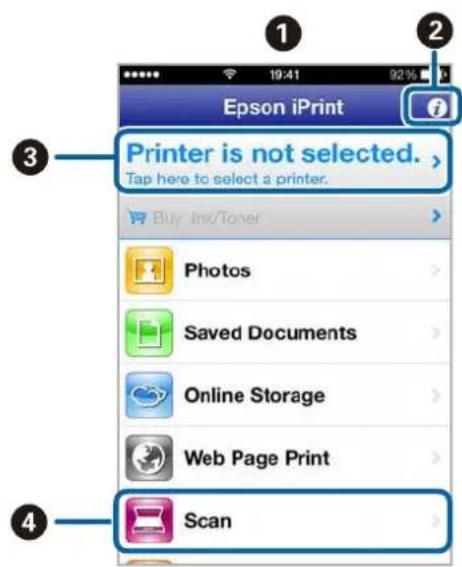
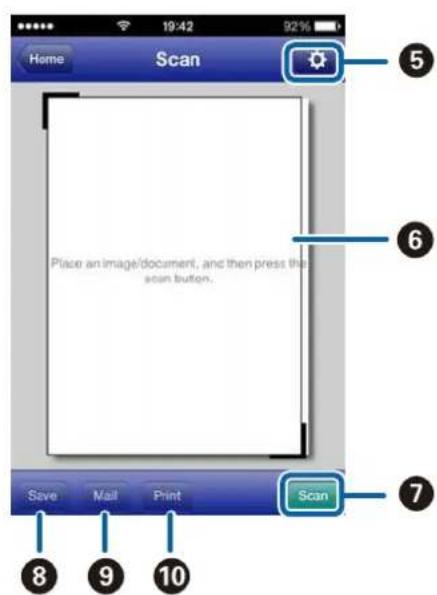
| 1 | Home screen displayed when the application is started. |
| 2 | Displays information on how to setup the printer and a FAQ. |
| 3 | Displays the screen where you can select the printer and make printer settings. Once you have selected the printer, you do not need to select it again from the next time. |
| 4 | Displays the scanning screen. |
| 5 | Displays the screen where you can make scan settings such as resolution. |
| 6 | Displays scanned images. |
| 7 | Starts scanning. |
| 8 | Displays the screen where you can save scanned data to a smart device or Cloud services. |
| 9 | Displays the screen where you can send scanned data by email. |
| 10 | Displays the screen where you can print scanned data. |
Related Information
→ "Using Epson iPrint" on page 83
Faxing
Setting Up a Fax
Connecting to a Phone Line
Compatible Telephone Lines
You can use the printer over standard analogue telephone lines (PSTN = Public Switched Telephone Network) and PBX (Private Branch Exchange) telephone systems.
You may not be able to use the printer with the following phone lines or systems.
☐ VoIP phone line such as DSL or fiber-optic digital service
☐ Digital phone line (ISDN)
☐ Some PBX telephone systems
☐ When adapters such as terminal adapters, VoIP adapters, splitters, or DSL router are connected between the telephone wall jack and the printer
Connecting the Printer to a Phone Line
Connect the printer to a telephone wall jack using an RJ-11 (6P2C) phone cable. When connecting a telephone to the printer, use a second RJ-11 (6P2C) phone cable.
Depending on the area, a phone cable may be included with the printer. If it is included, use that cable.
You may need to connect the phone cable to an adapter provided for your country or region.

Important:
Remove the cap from the EXT. port of the printer only when connecting your telephone to the printer. Do not remove the cap if you are not connecting your telephone.
In areas where lightning strikes occur frequently, we recommend that you use a surge protector.
User's Guide
Faxing
Connecting to a Standard Phone Line (PSTN) or PBX
Connect a phone cable from the telephone wall jack or PBX port to the LINE port on the back of the printer.
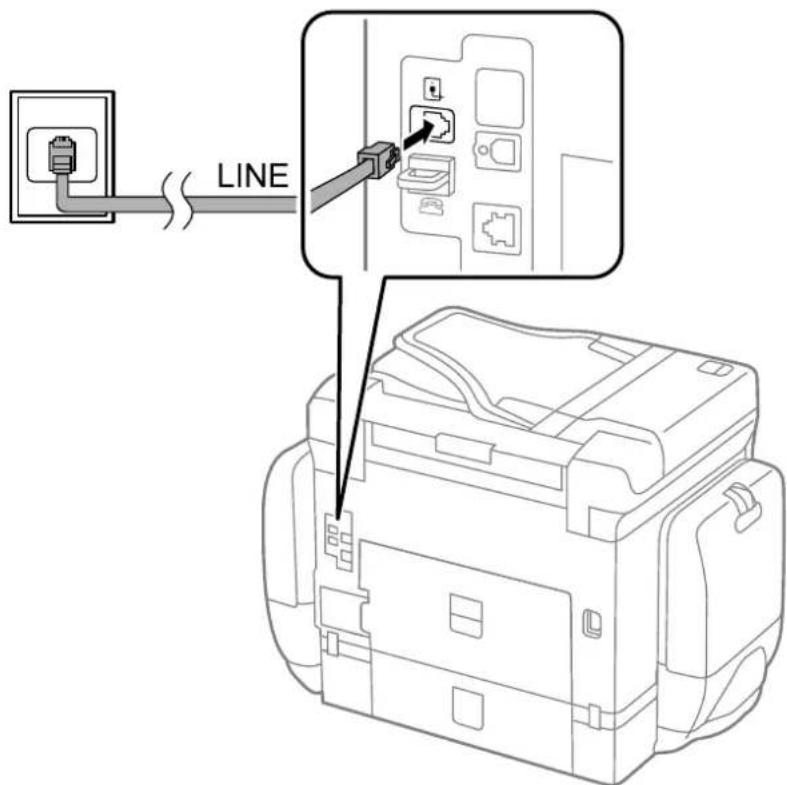
Related Information
→ "Making Settings for a PBX Phone System" on page 103
Connecting to DSL or ISDN
Connect a phone cable from the DSL modem or the ISDN terminal adapter to the LINE port on the back of the printer. See the documentation provided with the modem or the adapter for more details.
Faxing
Note:
If your DSL modem is not equipped with a built-in DSL filter, connect a separate DSL filter.
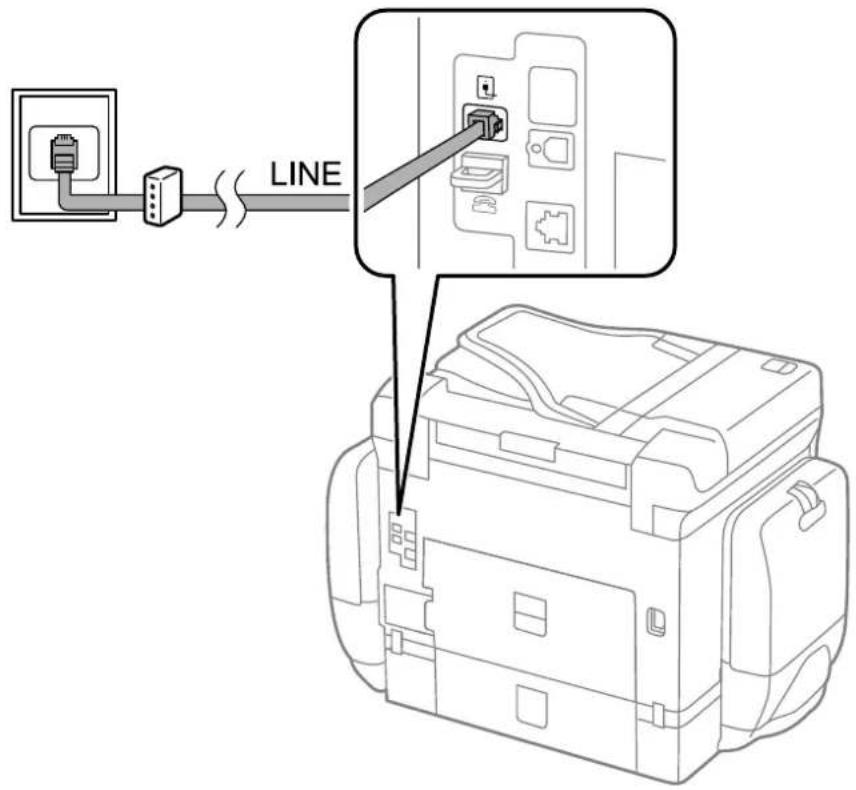
Connecting Your Phone Device to the Printer
When using the printer and your telephone on a single phone line, connect the telephone to the printer.
Note:
☐ If your phone device has a fax function, disable the fax function before connecting. See the manuals that came with the phone device for details.
☐ If you connect an answering machine, make sure the printer's Rings to Answer setting is set higher than the number of rings your answering machine is set to answer a call.
Faxing
- Remove the cap from the EXT. port on the back of the printer.
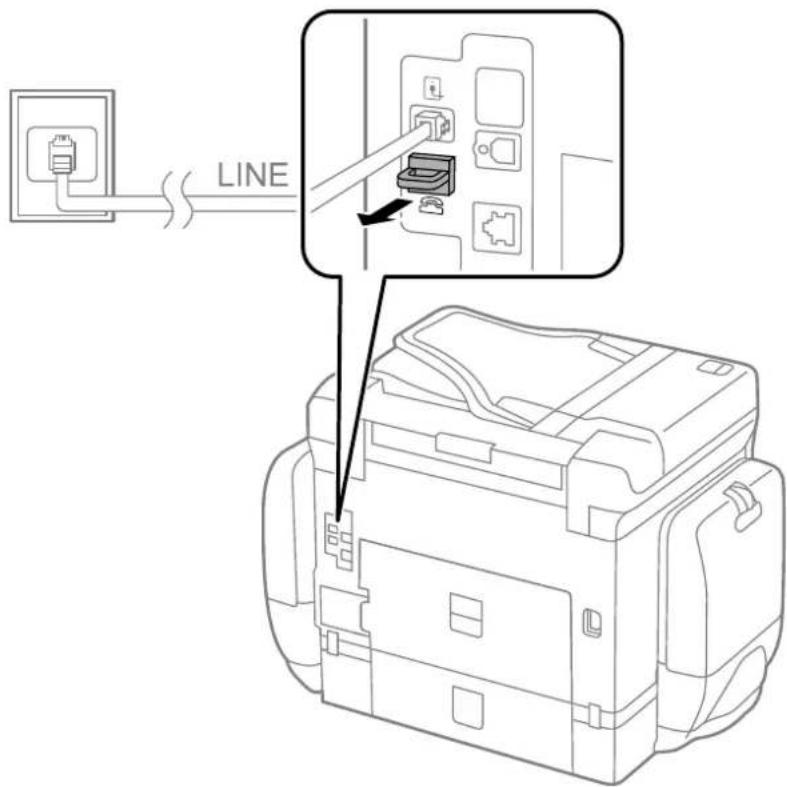
- Connect the phone device and the EXT. port with a phone cable.
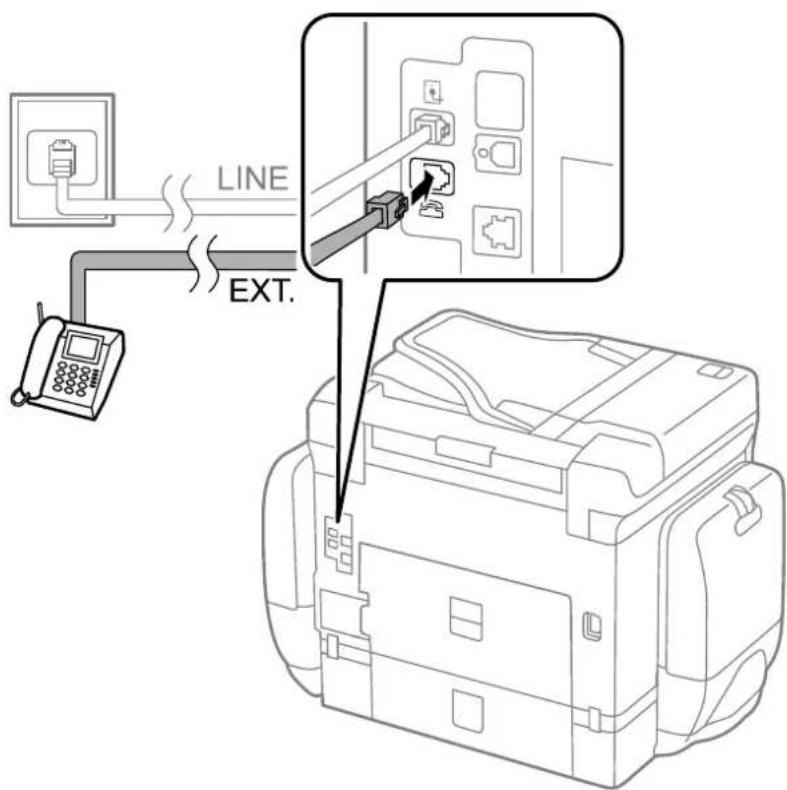
Faxing

Important:
When sharing a single phone line, make sure you connect the phone device to the EXT. port of the printer. If you split the line to connect the phone device and the printer separately, the phone and the printer do not work correctly.
- Pick up the handset of the connected phone device and confirm that the [The phone line is in use.] message is displayed on the LCD screen.
If the message is not displayed, check that the phone cable is securely connected to the EXT. port.
Related Information
→ "Settings for the Answering Machine" on page 110
Making Basic Fax Settings
First make basic fax settings such as Receive Mode using the Fax Setting Wizard, and then configure the other settings as necessary.
The Fax Setting Wizard is automatically displayed when the printer is turned on for the first time. Once you have made the settings, you do not need to make them again unless the connection environment is changed.
If an administrator has locked the settings, only the administrator can make the settings.
Making Basic Fax Settings Using the Fax Setting Wizard
Make basic settings by following the on-screen instructions.
- Connect the printer to the phone line.

Important:
Because an automatic fax connection check runs at the end of the wizard, make sure you connect the printer to the phone line before starting the wizard.
-
Enter Setup from the home screen.
-
Select System Administration > Fax Settings > Fax Setting Wizard, and then press Start.
The wizard begins.
- On the fax header entry screen, enter your sender name such as your company name.
Note:
Your sender name and your fax number appear as the header for outgoing faxes.
-
On the phone number entry screen, enter your fax number.
-
On the DRD Setting screen, make the following settings.
☐ If you have subscribed to a distinctive ring service from your telephone company: Press Proceed, select the ring pattern to be used for incoming faxes, and then go to step 9. Receive Mode is automatically set to Auto.
☐ If you do not need to set this option: Press Skip, and then go to the next step.
Faxing
Note:
☐ Distinctive ring services, offered by many telephone companies (the service name differs by company), allows you to have several phone numbers on one phone line. Each number is assigned a different ring pattern. You can use one number for voice calls and another for fax calls. Select the ring pattern assigned to fax calls in DRD.
☐ Depending on the region, On and Off are displayed as the DRD options. Select On to use the distinctive ring feature.
- On the Receive Mode Setting screen, select whether you are using your phone device connected to the printer.
☐ When connected: Press Yes, and go to the next step.
☐ When not connected: Press No and go to step 9. Receive Mode is set to Auto.
- On the Receive Mode Setting screen, select whether you want to receive faxes automatically.
☐ To receive automatically: Press Yes. Receive Mode is set to Auto.
☐ To receive manually: Press No. Receive Mode is set to Manual.
- On the Confirm Settings screen, check the settings you made, and then press Proceed.
To correct or change settings, press the ♂ button.
- Press Start to run the fax connection check, and when the screen prompts you to print the check result, press the ◊ button.
A report of the check result that shows the connection status is printed.
Note:
☐ If there are any errors reported, follow the instructions on the report to solve them.
☐ If the Select Line Type screen is displayed, select the line type. When you are connecting the printer to a PBX phone system or terminal adapter, select PBX.
☐ If the Select Dial Tone Detection screen is displayed, select Disable.
However, setting this to Disable may cause the printer to skip the first digit of a fax number when dialing and send the fax to the wrong number.
Related Information
→ "Connecting the Printer to a Phone Line" on page 98
→ "Setting Receiving Mode" on page 110
→ "Making Settings for a PBX Phone System" on page 103
→ "Fax Settings" on page 35
Making Basic Fax Settings Individually
You can make fax settings without using the fax setting wizard by selecting each setting menu individually. The settings configured using the wizard can also be changed. For more details, see the list of menus in fax settings.
Related Information
→ "Fax Settings" on page 35
Making Settings for a PBX Phone System
Make the following settings when using the printer in offices that use extensions and require external access codes, such as 0 and 9, to get an outside line.
Faxing
- Enter Setup from the home screen.
- Select System Administration > Fax Settings > Basic Settings > Line Type.
- Select PBX.
-
On the Access Code screen, select Use.
-
Press the Access Code field, enter the external access code used for your phone system, and then press the enter key at the bottom-right of the screen.
The access code is stored in the printer. When sending a fax to an outside fax number, enter # (hash) instead of the actual access code.
Note:
When # (hash) is entered at the beginning of the fax number, the printer replaces the # with the stored access code when dialing. Using # helps avoid connection problems when connecting to an outside line.
Making Paper Source Settings to Receive Faxes
Set the paper sources that you do not want to use for printing received documents or fax reports. Make this setting if you have loaded special paper such as photo paper in one paper source and you do not want to use the paper for printing faxes.
- Enter Setup from the home screen.
- Select System Administration > Printer Settings > Paper Source Settings > Auto Select Settings > Fax.
- Select the paper source that you do not want to use for printing faxes, and then disable it.
Sending Faxes
Basic Fax Sending Operations
Send faxes in color or monochrome (B&W). When sending a fax in monochrome, you can preview the scanned image on the LCD screen before sending.
Note:
☐ If the fax number is busy or there is some problem, the printer automatically redials after one minute.
☐ You can reserve up to 50 monochrome fax jobs even while the phone line is in use for a voice call, sending another fax, or receiving a fax. You can check or cancel reserved fax jobs from Job Monitor in Status Menu.
☐ If you have enabled the Save Failure Data feature, failed faxes are saved, and you can resend them from Job Monitor in Status Menu.
Sending Faxes Using the Control Panel
- Place the originals.
Note:
You can send up to 100 pages in one transmission; however depending on the remaining amount of memory, you may not be able to send faxes even with less than 100 pages.
- Enter Fax from the home screen.
Faxing
- Specify the recipient.
☐ To enter manually: Enter numbers using the numerical keypad on the control panel or the LCD screen, and then press the enter key at the bottom-right of the screen.
☐ To select from the contacts list: Press Contacts, press the check box to add a check mark to a contact, and then press Proceed.
☐ To select from the sent fax history: Press History, select a recipient, and then press Menu > Send to this number.
Note:
☐ You can send the same monochrome fax to up to 200 recipients. A color fax can only be sent to one recipient at a time.
☐ To add a pause (pause for three seconds) during dialing, enter a hyphen by pressing
☐ When Direct Dialing Restrictions in Security Settings is enabled, you can only select fax recipients from the contacts list or the sent fax history. You cannot manually enter a fax number.
☐ If you set an external access code in Line Type, enter "#" (hash) instead of the actual external access code at the beginning of the fax number.
☐ To delete recipients you entered, display the list of recipients by pressing the field on the screen that shows a fax number or the number of recipients, select the recipient from the list, and then select Delete from the List.
- Press Menu, select Fax Send Settings, and then make settings such as the resolution and the sending method as necessary.
Note:
☐ To send 2-sided originals, enable ADF 2-Sided. However, you cannot send in color with this setting.
☐ Press Preset on the fax top screen to save the current settings and the recipients in Preset. Recipients may not be saved depending on how you specified the recipients, such as entering a fax number manually.
- When sending a monochrome fax, press Preview on the fax top screen to check the scanned document.
□: Moves the screen in the direction of the arrows.
□: Reduces or enlarges.
□ △ ▽: Moves to the previous or the next page.
☐ Retry: Cancels the preview.
☐ View: Displays or hides the operation icons.
Note:
☐ You cannot send the fax in color after previewing.
☐ When Direct Send is enabled, you cannot preview.
☐ When the preview screen is left untouched for 20 seconds, the fax is sent automatically.
☐ The image quality of a sent fax may be different from what you previewed depending on the capability of the recipient machine.
- Press the ◊ button.
Note:
☐ To cancel sending, press the Ⓤ button.
☐ It takes longer to send a fax in color because the printer performs scanning and sending simultaneously. While the printer is sending a color fax, you cannot use the other features.
Faxing
Related Information
→ "Placing Originals" on page 54
→ "Fax Mode" on page 28
→ "Checking Fax Jobs" on page 118
→ "Managing Contacts" on page 58
→ "Presets Mode" on page 41
Sending Faxes Dialing from the External Phone Device
You can send a fax by dialing using the connected telephone when you want to talk over the phone before sending a fax, or when the recipient's fax machine does not switch to the fax automatically.
- Place the originals.
Note:
You can send up to 100 pages in one transmission.
-
Pick up the handset of the connected telephone, and then dial the recipient's fax number using the phone.
-
Press Start Fax on the printer's control panel, and then press Send.
-
Press Menu, select Fax Send Settings, and then make settings such as the resolution and the sending method as necessary.
-
When you hear a fax tone, press the ◊ button, and then hang up the handset.
Note:
When a number is dialed using the connected telephone, it takes longer to send a fax because the printer performs scanning and sending simultaneously. While sending the fax, you cannot use the other features.
Related Information
→ "Placing Originals" on page 54
→ "Fax Mode" on page 28
Various Ways of Sending Faxes
Sending Faxes After Confirming the Recipient's Status
You can send a fax while listening to sounds or voices through the printer's speaker while dialing, communicating, and transmitting. You can also use this feature when you want to receive a fax from a fax polling service by following audio guidance.
- Place the originals.
- Enter Fax from the home screen.
- Press On Hook.
Note:
You can adjust the sound volume of the speaker.
Faxing
-
Specify the recipient.
-
When you hear a fax tone, press Send/Receive, and then press Send.
Note:
When receiving a fax from a fax polling service, and you hear the audio guidance, follow the guidance to make the printer operations.
- Press the ◊ button.
Related Information
→ "Sending Faxes Using the Control Panel" on page 104
→ "Receiving Faxes by Polling (Polling Receive)" on page 112
→ "Placing Originals" on page 54
→ "Fax Mode" on page 28
Sending Faxes at a Specified Time (Send Fax Later)
You can set to send a fax at a specified time. Only monochrome faxes can be sent when the time to send is specified.
- Place the originals.
- Enter Fax from the home screen.
- Specify the recipient.
- Press Menu, and then select Send Fax Later.
- Press On, enter the time to send the fax, and then press OK.
- Press Menu, select Fax Send Settings, and then make settings such as the resolution and the sending method as necessary.
- Press the ◊ button.
Note:
To cancel the fax, cancel it from Job Monitor in Status Menu.
Related Information
→ "Sending Faxes Using the Control Panel" on page 104
→ "Placing Originals" on page 54
→ "Fax Mode" on page 28
→ "Checking Fax Jobs" on page 118
Storing a Fax Without Specifying a Recipient (Store Fax Data)
You can store up to 100 pages of a single document in monochrome. This allows you to save the time spent scanning the document when you need to send the same document frequently.
Faxing
- Place the originals.
- Enter Fax from the home screen.
- Press Menu, select Store Fax Data, and then enable the function.
- Press Menu, select Fax Send Settings, and then make settings such as the resolution and the sending method as necessary.
- Press the ◆ (B&W) button.
You can send the stored document from Job Monitor in Status Menu.
Related Information
→ "Sending Faxes Using the Control Panel" on page 104
→ "Placing Originals" on page 54
→ "Fax Mode" on page 28
→ "Checking Fax Jobs" on page 118
Sending Faxes on Demand (Polling Send)
You can store up to 100 pages of a single document in monochrome for polling fax. The stored document is sent upon request from another fax machine that has a polling receive feature.
- Place the originals.
- Enter Fax from the home screen.
- Press Menu, select Polling Send, and then enable the function.
- Press Menu, select Fax Send Settings, and then make settings such as the resolution and the sending method as necessary.
- Press the ◆ (B&W) button.
To delete the stored document, delete it from Job Monitor in Status Menu.
Related Information
→ "Sending Faxes Using the Control Panel" on page 104
→ "Placing Originals" on page 54
→ "Fax Mode" on page 28
→ "Checking Fax Jobs" on page 118
Sending Many Pages of a Monochrome Document (Direct Send)
When sending a fax in monochrome, the scanned document is temporarily stored in the printer's memory. Therefore, sending a lot of pages may cause the printer to run out of memory and stop sending the fax. You can avoid this by enabling the Direct Send feature, however, it takes longer to send the fax because the printer performs scanning and sending simultaneously. You can use this feature when there is only one recipient.
User's Guide
Faxing
From the home screen, select Fax > Menu > Fax Send Settings > Direct Send > On.
Sending a Fax Preferentially (Priority Send)
You can send an urgent document ahead of the other faxes waiting to be sent.
From the home screen, select Fax > Menu > Fax Send Settings > Priority Send > On.
Note:
You cannot send your document preferentially while one of the following is in progress because the printer cannot accept another fax.
□ Sending a monochrome fax with Direct Send enabled
□ Sending a color fax
□ Sending a fax using a connected telephone
□ Sending a fax sent from the computer
Sending Different Size Documents Using ADF (Continuous Scan from ADF)
If you place different sized originals in the ADF, all of the originals are sent at the largest size among them. You can send them in their original sizes by sorting and placing them by size, or placing them one by one.
Before placing originals, select Fax > Menu > Fax Send Settings > Continuous Scan from ADF > On from the home screen. Follow the on-screen instructions to place originals.
The printer stores the scanned documents, and sends as one document.
Note:
If you leave the printer untouched for 20 seconds after prompted to set the next originals, the printer stops storing and starts sending the document.
Sending Multiple Faxes to the Same Recipient at Once (Batch Send)
If there are multiple faxes waiting to be sent to the same recipient, you can set the printer to group them together to send them at once. Up to 5 documents (up to 100 pages in total) can be sent at one time. This helps you save on connection fees by reducing the number of transmission times.
From the home screen, select Setup > System Administration > Fax Settings > Send Settings > Batch Send > On.
Note:
☐ Scheduled faxes are also grouped together when the recipient and the time to send the fax match.
☐ Batch Send is not applied to the following fax jobs.
☐ Monochrome fax with Priority Send enabled
☐ Monochrome fax with Direct Send enabled
□ Color faxes
☐ Faxes sent from the computer
Sending a Fax from a Computer
You can send faxes from the computer by using the FAX Utility and PC-FAX driver. See the help of FAX Utility and PC-FAX driver for the operating instructions.
Related Information
→ "PC-FAX Driver (Fax Driver)" on page 154
→ "FAX Utility" on page 155
Receiving Faxes
Setting Receiving Mode
You can set Receive Mode using the Fax Setting Wizard. When you set up the fax feature for the first time, we recommend using the Fax Setting Wizard. If you want to change the Receive Mode settings individually, follow the steps below.
- Enter Setup from the home screen.
- Select System Administration > Fax Settings > Receive Settings > Receive Mode.
- Select how to receive.
☐ Auto: Recommended for heavy fax users. The printer automatically receives a fax after the number of rings you specified.

Important:
When you do not connect a telephone to the printer, select the Auto mode.
☐ Manual: Recommended for users who do not fax often, or who want to receive a fax after answering calls with the connected telephone. When receiving a fax, pick up the handset, and then operate the printer.
Note:
If you enable the Remote Receive feature, you can start receiving a fax just by using the connected telephone.
Related Information
→ "Making Basic Fax Settings Using the Fax Setting Wizard" on page 102
→ "Receiving Faxes Manually" on page 111
→ "Receiving Faxes Using a Connected Telephone (Remote Receive)" on page 111
Settings for the Answering Machine
You need settings to use an answering machine.
☐ Set the Receive Mode of the printer to Auto.
☐ Set the Rings to Answer setting of the printer to a higher number than the number of rings for the answering machine. Otherwise, the answering machine cannot receive voice calls to record voice messages. See the manuals that came with the answering machine for its settings.
The Rings to Answer setting may not be displayed depending on the region.
Related Information
→ "Fax Settings" on page 35
Faxing
Various Ways of Receiving Faxes
Receiving Faxes Manually
When you connect a telephone and set the Receive Mode setting of the printer to Manual, follow the steps below to receive faxes.
-
When the telephone rings, pick up the handset.
-
When you hear a fax tone, press Start Fax on the LCD screen of the printer.
Note:
If you enable the Remote Receive feature, you can start receiving a fax just by using the connected telephone.
-
Press Receive.
-
Press the ◊ button, and then hang up the handset.
Related Information
→ "Receiving Faxes Using a Connected Telephone (Remote Receive)" on page 111
→ "Saving Received Faxes in the Inbox" on page 113
→ "Making Paper Source Settings to Receive Faxes" on page 104
Receiving Faxes Using a Connected Telephone (Remote Receive)
To receive a fax manually, you need to operate the printer after you pick up the handset of the telephone. By using the Remote Receive feature, you can start receiving a fax just by operating the phone.
The Remote Receive feature is available for telephones that support tone dialing.
Related Information
→ "Receiving Faxes Manually" on page 111
Setting Up Remote Receive
- Enter Setup from the home screen.
- Select System Administration > Fax Settings > Receive Settings > Remote Receive.
- After enabling Remote Receive, enter a two digit code (0 to 9, *, and # can be entered) in the Start Code field.
- Press OK.
Using Remote Receive
- When the telephone rings, pick up the handset.
- When you hear a fax tone, enter the start code using the telephone.
- After confirming that the printer has started receiving the fax, hang up the handset.
Faxing
Receiving Faxes by Polling (Polling Receive)
You can receive a fax stored on another fax machine by dialing the fax number. Use this feature to receive a document from a fax information service. However, if the fax information service has an audio guidance feature that you need to follow to receive a document, you cannot use this feature.
Note:
To receive a document from a fax information service that uses audio guidance, just dial the fax number using the On Hook feature or the connected telephone, and operate the phone and the printer following the audio guidance.
-
Enter Fax from the home screen.
-
Select Menu > Polling Receive, and then enable the function.
-
Enter the fax number.
Note:
When Direct Dialing Restrictions in Security Settings is enabled, you can only select fax recipients from the contact list or the sent fax history. You cannot manually enter a fax number.
- Press the ◊ button.
Related Information
→ "Sending Faxes After Confirming the Recipient's Status" on page 106
→ "Sending Faxes Dialing from the External Phone Device" on page 106
Saving and Forwarding Received Faxes
The printer provides the following features to save and forward received faxes.
□ Saving in the printer's inbox
☐ Saving in an external memory device
□ Saving on a computer
Forwarding to another fax machine, an email address, or to a shared folder on a network
Note:
☐ The above features can be used at the same time. If you do use them all at the same time, received documents are saved to the inbox, to an external memory device, on a computer, and forwarded to the specified destination.
☐ When there are received documents that have not been read, saved or forwarded yet, the number of the unprocessed jobs is displayed on the fax mode icon.
Related Information
→ "Saving Received Faxes in the Inbox" on page 113
→ "Saving Received Faxes in an External Memory Device" on page 114
→ "Saving Received Faxes on a Computer" on page 114
→ "Forwarding Received Faxes" on page 115
→ "Notification of Unprocessed Received Faxes" on page 118
Faxing
Saving Received Faxes in the Inbox
You can set to save received faxes in the printer's inbox. Up to 100 documents can be saved. If you use this feature, received documents are not automatically printed. You can view them on the printer's LCD screen and print only when needed.
Note:
Saving 100 documents may not be possible depending on the usage conditions such as the file size of saved documents, and using of multiple fax saving features at a time.
Setting to Save Received Faxes in the Inbox
-
Enter Setup from the home screen.
-
Select System Administration > Fax Settings > Output Settings > Fax Output.
-
Check the current settings displayed on the screen, and press Settings.
-
Select Save to Inbox > Yes.
-
Select the option to use when the inbox is full.
□ Receive and print faxes: The printer prints all received documents that cannot be saved in the Inbox.
□ Reject incoming faxes: The printer does not answer incoming fax calls.
Checking the Received Faxes on the LCD Screen
- Enter Fax from the home screen.
Note:
When there are received faxes that have not been read, the number of unread documents is displayed on the fax mode icon on the home screen.
-
Select Open Inbox.
-
If the inbox has been password protected, enter the inbox password or the administrator password.
-
Select the fax to view from the list.
The contents of the fax are displayed.
☐ Rotates the image to the right by 90 degrees.
□: Moves the screen in the direction of the arrows.
□: Reduces or enlarges.
□ △ ▽: Moves to the previous or the next page.
☐ View: Displays or hides the operation icons.
☐: Deletes the previewed documents.
Faxing
- Press Menu, select whether to print or delete the document you have viewed, and then follow the on-screen instructions.

Important:
If the printer runs out of memory, receiving and sending faxes may be disabled. Delete documents that you have already read or printed.
Related Information
→ "Notification of Unprocessed Received Faxes" on page 118
→ "Fax Settings" on page 35
Saving Received Faxes in an External Memory Device
You can set to convert received documents into PDF format and save them in an external memory device connected to the printer. You can also set to automatically print the documents while saving them in the memory device.

Important:
Keep the memory device connected to the printer as long as possible. If you leave the device disconnected, the printer temporarily saves received documents and may result in a memory full error that disables sending and receiving faxes. While the printer is temporarily saving documents, the number of unsaved jobs is displayed on the fax mode icon on the home screen.
- Connect an external memory device to the printer.
- Enter Setup from the home screen.
- Select System Administration > Fax Settings > Output Settings > Fax Output.
- Check the current settings displayed on the screen, and press Settings.
- Select Other Settings > Create Folder to Save.
- Check the message on the screen and then press Create.
A folder to save received documents is created in the memory device.
-
Press the 5 button to return to the Fax Output screen.
-
Select Save to Memory Device > Yes. To print the documents automatically while saving them in the memory device, select Yes and Print.
Related Information
→ "Notification of Unprocessed Received Faxes" on page 118
Saving Received Faxes on a Computer
You can set to convert received documents into PDF format and save them on a computer connected to the printer. You can also set to automatically print the documents while saving them on the computer.
Faxing
First, you need to use FAX Utility to make the setting. Install FAX Utility on the computer.

Important:
☐ Set the printer's receive mode to Auto.
☐ Try not to let your computer enter sleep mode. If the computer is left in sleep mode or if it is turned off, the printer temporarily saves received documents and may result in a memory full error that disables sending and receiving faxes. While the printer is temporarily saving documents, the number of unsaved jobs is displayed on the fax mode icon on the home screen.
- Start FAX Utility on the computer connected to the printer.
- Open the setting screen of FAX Utility.
Windows
Select Fax Settings for Printer > Received Fax Output Settings.
□ Mac OS X
Click Fax Receive Monitor, select the printer, and then click Received Fax Output Settings.
- Click Save faxes on this computer, and specify the folder to save received documents.
- Make the other settings as necessary, and then send the setting to the printer.
Note:
For details on the setting items and the procedure, see the help of FAX Utility.
- On the printer's control panel, enter Setup.
- Select System Administration > Fax Settings > Output Settings > Fax Output.
- The current setting is displayed. Check that the printer is set to save faxes on a computer (Save to Computer). If you want to automatically print received documents while saving them on the computer, press Settings and go to the next step.
- Select Save to Computer > Yes and Print.
Note:
To stop saving received document on the computer, set Save to Computer to No on the printer. You can also use FAX Utility to change the setting, however, changing from FAX Utility is not allowed while there are received faxes that have not been saved on the computer.
Related Information
→ "Setting Receiving Mode" on page 110
→ "FAX Utility" on page 155
→ "Notification of Unprocessed Received Faxes" on page 118
Forwarding Received Faxes
You can set to forward received documents to another fax machine, or convert the documents into PDF format and forward them to a shared folder on a network or to an email address. Forwarded documents are deleted from the printer. First register the forwarding destinations to the contacts list. To forward to an email address, you also need to configure the email server settings.
Faxing
Note:
☐ Color documents cannot be forwarded to another fax machine. They are processed as documents that failed to be forwarded.
Before you use this feature, make sure the printer's Date/Time and Time Difference settings are correct. Access the menus from System Administration > Common Settings.
-
Enter Setup from the home screen.
-
Select System Administration > Fax Settings > Output Settings > Fax Output.
-
Check the current settings displayed on the screen, and press Settings.
-
Select Forward > Yes.
Note:
To print the documents automatically while forwarding them, select Yes and Print.
-
Select Other Settings > Where to Forward.
-
Select forwarding destinations from the contacts list.
Note:
☐ Press View to sort the contacts by printer's feature.
☐ You can specify up to five forwarding destinations. Press the check box to select the destination. Press the box again to cancel the selection.
-
When finished selecting forwarding destinations, press Proceed.
-
Check that the forwarding destinations you selected are correct, then press Close.
-
Select Options When Forwarding Failed.
-
Select whether to print received documents or save them in the printer's inbox when forwarding them is failed.

Important:
When you set to save documents that failed to be forwarded in the inbox, you should delete the documents from the inbox once they have been checked. While there are documents waiting or that have failed to be forwarded, the number of unfinished jobs is displayed on the fax mode icon on the home screen.
- When forwarding to an email address, you can specify a subject for the email. Select Email Subject to Forward, and enter the subject.
Note:
☐ If you have selected a shared folder on a network or an email address as the forwarding destination, we recommend that you test if you can send a scanned image to the destination in the scan mode. Select Scan > Email, or Scan > Network Folder/FTP from the home screen, select the destination, and then start scanning.
☐ You can set to receive a new fax notification on a Windows computer when received documents are saved to a shared folder on a network. Use FAX Utility to make the settings. For details, see the help of FAX Utility.
Related Information
→ "System Administration" on page 32
→ "Managing Contacts" on page 58
→ "Using an Email Server" on page 229
Faxing
→ "Checking the Received Faxes on the LCD Screen" on page 113
→ "Notification of Unprocessed Received Faxes" on page 118
→ "Scanning to an Email" on page 88
→ "Scanning to a Network Folder or FTP Server" on page 89
→ "FAX Utility" on page 155
Using Other Faxing Features
Printing Fax Report and List
Printing Fax Report Manually
- Enter Fax from the home screen.
- Select Menu > Fax Report.
- Select the report to print, and then follow the on-screen instruction.
Note:
You can change the report format. From the home screen, select Setup > System Administration > Fax Settings > Output Settings, and then change the Attach Image to Report or Report Format settings.
Related Information
→ "Fax Mode" on page 28
→ "Fax Settings" on page 35
Setting Up to Print Fax Reports Automatically
You can make settings to print the following fax reports automatically.
Transmission Report
From the home screen, select Setup > System Administration > Fax Settings > User Default Settings > Transmission Report, and then select Print or Print on Error.
Note:
To change the setting when sending a fax, press Menu on the fax top screen, and then select Fax Send Settings > Transmission Report.
Forwarding Report
From the home screen, select Setup > System Administration > Fax Settings > Output Settings > Forwarding Report, and then select Print or Print on Error.
Fax Log
From the home screen, select Setup > System Administration > Fax Settings > Output Settings > Fax Log Auto Print, and then select On(Every 30) or On(Time).
Faxing
Related Information
→ "Fax Mode" on page 28
→ "Fax Settings" on page 35
Setting Security for Faxing
You can make security settings to prevent sending a fax to the wrong recipient, or prevent received documents from being leaked or lost. You can also delete backed-up fax data.
- Enter Setup from the home screen.
- Select System Administration > Fax Settings > Security Settings.
- Select the menu, and then make the settings.
Related Information
→ "Fax Settings" on page 35
Checking Fax Jobs
Notification of Unprocessed Received Faxes
When there are unprocessed received documents, the number of unprocessed jobs is displayed on the fax mode icon on the home screen. See the table below for a definition of the "unprocessed".
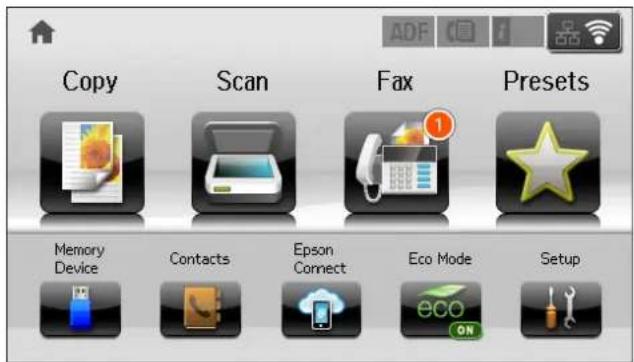
Note:
If you are using more than one of the fax output settings, the number of unprocessed jobs may be displayed as "2" or "3" even if only one fax has been received. For example, if you have set to save faxes in the inbox and on a computer and one fax is received, the number of unprocessed jobs is displayed as "2" if the fax has not been saved to the inbox and on a computer.
| Received Fax Output Setting | Unprocessed Status |
| Printing^*1 | Received documents are waiting to be printed or printing is in progress. |
| Saving in the inbox | There are unread received documents in the inbox. |
| Saving in an external memory device | There are received documents that have not been saved in the device because there is no device containing a folder specifically created to save received documents connected to the printer or for other reasons. |
Faxing
| Received Fax Output Setting | Unprocessed Status |
| Saving on a computer | There are received documents that have not been saved on the computer because the computer is in sleep mode or for other reasons. |
| Forwarding | There are received documents that have not been forwarded or failed to be forwarded *2. |
*1 : When you have set none of the fax output settings, or when you have set to print received documents while saving them in an external memory device or a computer.
*2 : When you have set to save documents that could not be forwarded in the inbox, there are unread documents that failed to be forwarded in the inbox. When you have set to print documents that failed to be forwarded, printing is not complete.
Related Information
→ "Saving Received Faxes in the Inbox" on page 113
→ "Saving Received Faxes in an External Memory Device" on page 114
→ "Saving Received Faxes on a Computer" on page 114
→ "Forwarding Received Faxes" on page 115
→ "Checking the Received Faxes on the LCD Screen" on page 113
→ "Checking Fax Jobs in Progress" on page 119
Checking Fax Jobs in Progress
You can check, cancel, print, resend, or delete the following fax documents.
□ Received documents that have not been printed yet.
□ Documents that have not be sent yet
□ Documents stored using Polling Send or Store Fax Data.
☐ Documents that have failed to be sent (if you have enabled Save Failure Data)
□ Received documents that have not been saved on a computer or in an external memory device
- Press the i button.
- Select Job Monitor, and then select Communication Job or Print Job.
- Select a job to check.
Checking the Fax Job History
You can check the history of sent or received fax jobs. The received fax logs include the received documents so that you can reprint them. You cannot print or resend sent documents from the sent log.
- Press the i button.
- Select Job History, and then select Receive Job or Send Job.
- Select a job to check.
Note:
All the received documents are stored in Job History so that you can reprint them, but they are deleted in chronological order when the printer runs out of memory.
Faxing
Checking the Received Documents in the Inbox
You can check received documents stored in the printer's inbox.
-
Press the i button.
-
Select Job Storage and then select Inbox.
Note:
Press Menu to display menus for printing or deleting all the documents in the inbox.
- Select a fax to check.
The content of the document is displayed.
Note:
☐ Press Menu, and then select Details to see detailed information such as the date and time, and the sender.
☐ The printer cannot receive and send faxes when the memory is full. We recommend deleting the viewed or printed documents.
Replacing Ink Supply Units and Other Consumables
Checking the Status of the Remaining Ink and the Maintenance Box
You can check the approximate ink levels and the approximate service life of the maintenance box from the control panel or the computer.
Checking the Status of the Remaining Ink and the Maintenance Box - Control Panel
- Press the i button on the control panel.
- Select Printer Information.
Note:
The indicator on the far right indicates the available space in the maintenance box.
Checking the Status of the Remaining Ink and the Maintenance Box - Windows
- Access the printer driver window.
- Click EPSON Status Monitor 3 on the Maintenance tab, and then click Details.
Note:
If EPSON Status Monitor 3 is disabled, click Extended Settings on the Maintenance tab, and then select Enable EPSON Status Monitor 3.
Related Information
→ "Windows Printer Driver" on page 151
Checking the Status of the Remaining Ink and the Maintenance Box - Mac OS X
- Start the printer driver utility:
☐ Mac OS X v10.6.x to v10.9.x
Select System Preferences from the menu > Printers & Scanners (or Print & Scan, Print & Fax) and then select the printer. Click Options & Supplies > Utility > Open Printer Utility.
□ Mac OS X v10.5.8
Select System Preferences from the menu > Print & Fax, and then select the printer. Click Open Print Queue > Utility.
Replacing Ink Supply Units and Other Consumables
2. Click EPSON Status Monitor.
Ink Supply Unit Codes
Epson recommends the use of genuine Epson ink supply units. Epson cannot guarantee the quality or reliability of non-genuine ink. The use of non-genuine ink may cause damage that is not covered by Epson's warranties, and under certain circumstances, may cause erratic printer behavior. Information about non-genuine ink levels may not be displayed.
The following are the codes for genuine Epson ink supply units.
| Product | Black | Cyan | Magenta | Yellow |
| WF-R8590 | T8691 | T8692 | T8693 | T8694 |
| T8391 | T8392 | T8393 | T8394 | |
| WF-R8591 | T8461 | T8462 | T8463 | T8464 |
| T8841 | T8842 | T8843 | T8844 |
Note:
☐ Not all ink supply units are available in all regions.
☐ For users in Europe, visit the following website for information on Epson's ink supply unit yields. http://www.epson.eu/pageyield
For Australia/New Zealand
| Product | Black | Cyan | Magenta | Yellow |
| WF-R8590 | R24X | R24X | R24X | R24X |
Ink Supply Unit Handling Precautions
Read the following instructions before replacing ink supply units.
Handling precautions
☐ Store ink supply units at normal room temperature and keep them away from direct sunlight.
☐ Epson recommends using the ink supply unit before the date printed on the package.
☐ For best results, store ink supply unit packages with their bottom down.
☐ After bringing an ink supply unit inside from a cold storage site, allow it to warm up at room temperature for at least 12 hours before using it.
Replacing Ink Supply Units and Other Consumables
☐ Do not remove the transparent seal from the ink supply area; otherwise the ink supply unit may become unusable.
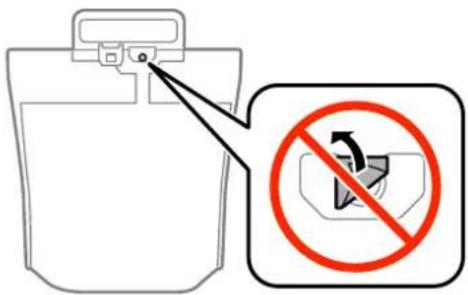
☐ Do not touch the sections shown in the illustration. Doing so may prevent normal operation and printing.
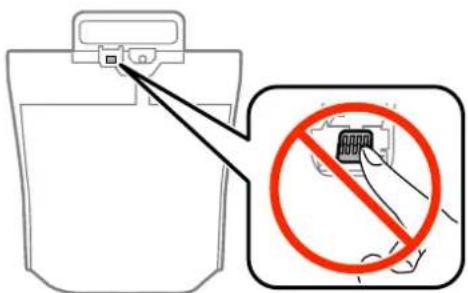
☐ Install all ink supply units; otherwise you cannot print.
☐ Do not turn off the printer during ink charging. If the ink charging is incomplete, you may not be able to print.
☐ Do not leave the printer with the ink supply units removed; otherwise, ink remaining in the print head nozzles may dry out and you may not be able to print.
☐ If you need to remove an ink supply unit temporarily, make sure you protect the ink supply area from dirt and dust. Store the ink supply unit in the same environment as the printer. Because the ink supply port is equipped with a valve designed to contain the release of excess ink, there is no need to supply your own covers or plugs.
☐ Removed ink supply units may have ink around the ink supply port, so be careful not to get any ink on the surrounding area when removing the ink supply units.
☐ This printer uses ink supply unit equipped with a green chip that monitors information such as the amount of remaining ink for each ink supply unit. This means that even if the ink supply unit is removed from the printer before it is expended, you can still use the ink supply unit after reinserting it back into the printer.
☐ To ensure you receive premium print quality and to help protect your print head, a variable ink safety reserve remains in the ink supply unit when your printer indicates to replace the ink supply unit. The yields quoted for you do not include this reserve.
☐ Although the ink supply units may contain recycled materials, this does not affect printer function or performance.
☐ Specifications and appearance of the ink supply unit are subject to change without prior notice for improvement.
☐ Do not disassemble or remodel the ink supply unit, otherwise you may not be able to print normally.
☐ Do not drop or knock the ink supply unit against hard objects; otherwise, the ink may leak.
☐ You cannot use the ink supply units that came with the printer for the replacement.
☐ Quoted yields may vary depending on the images that you are printing, the paper type that you are using, the frequency of your prints and environmental conditions such as temperature.
Replacing Ink Supply Units and Other Consumables
Consumption of Ink
☐ To maintain optimum print head performance, some ink is consumed from all ink supply units not only during printing but also during maintenance operations such as print head cleaning.
☐ When printing in monochrome or grayscale, color inks instead of black ink may be used depending on the paper type or print quality settings. This is because a mixture of color inks is used to create black.
Replacing Ink Supply Units
- Open the ink case.
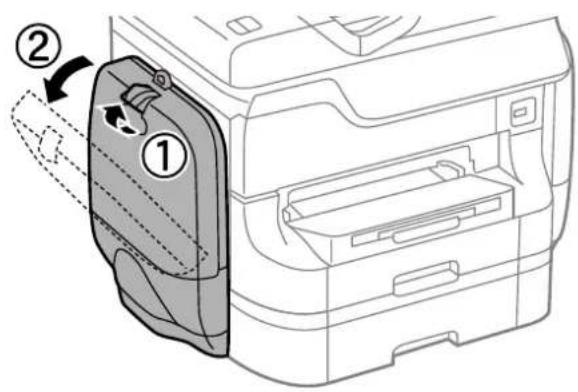
Note:
This procedure explains how to replace the black ink supply unit. To replace color ink supply units, open the ink case on the other side of the printer. The replacement methods are the same.
- Push the handle on the ink supply unit that you want to replace.
The ink supply unit will pop out.
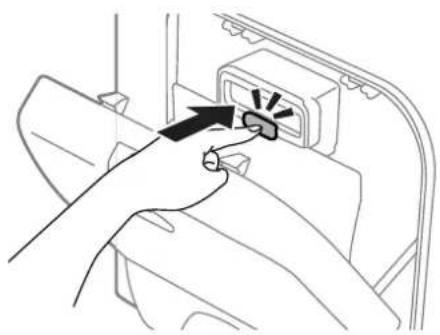
natural_image
Line drawing of a hand pressing a button on a device (no text or symbols)User's Guide
Replacing Ink Supply Units and Other Consumables
- Lift up the ink supply unit.
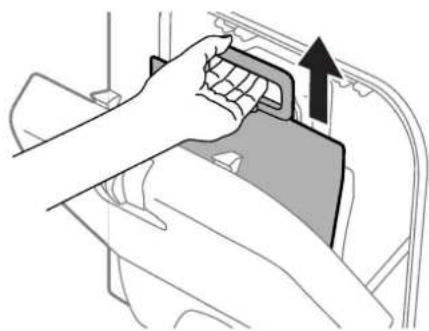
natural_image
Illustration of a hand inserting a component into a car interior, showing a blue mesh and black upward arrow (no text or symbols)Note:
If you cannot lift up the ink supply unit, pull the handle forward.
- Unpack the new ink supply unit from its package.
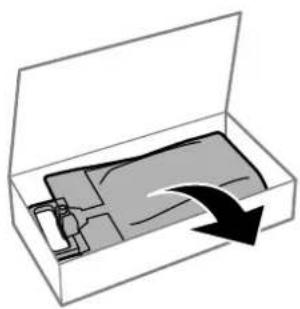
natural_image
Illustration of a box with a bag inside, showing a closed lid and a small inset device, with an arrow indicating direction (no text or symbols)
Important:
Do not touch the sections shown in the illustration. Doing so may prevent normal operation and printing.
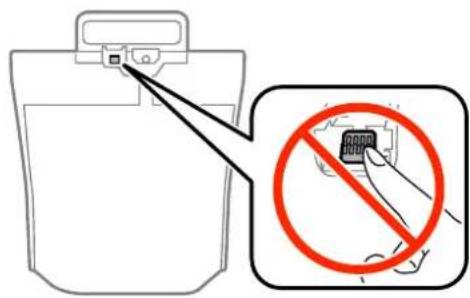
User's Guide
Replacing Ink Supply Units and Other Consumables
Note:
If there is protective material attached to the bottom of the ink supply unit, remove it. The shape and number of protective materials and where they are attached are subject to change without notice.
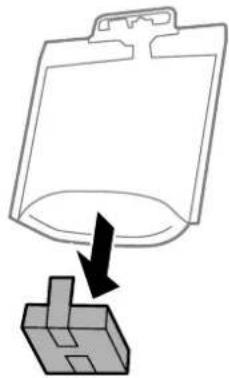
natural_image
Diagram showing a clipboard with an arrow pointing to a 3D block (no text or symbols present)- Shake theink supply unit 20 times well.
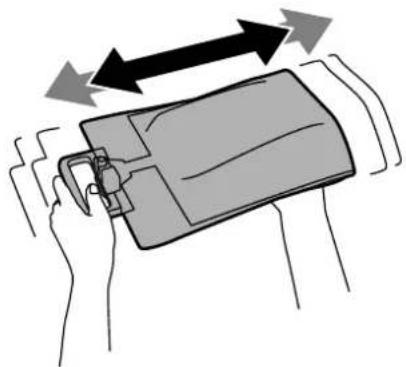
natural_image
Illustration of hands holding a device with bidirectional arrows indicating movement or force (no text or symbols)- Insert the ink supply unit into the ink case so that it fits into the printer.
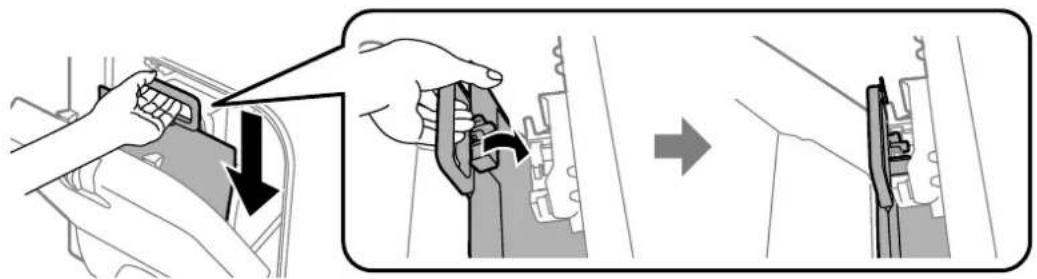
natural_image
Diagram showing a hand holding a car seatbelt with a directional arrow indicating movement (no text or symbols present)Replacing Ink Supply Units and Other Consumables
Note:
☐ If the ink supply unit has changed shape due to being dropped and so on, fix the shape before inserting it in the printer; otherwise, it may not be set correctly or the ink levels may not be displayed correctly.
☐ If the ink supply unit has a base that spreads out, spread the base and place it over the projecting section in the ink case. Some ink supply units do not have a base that can be spread.
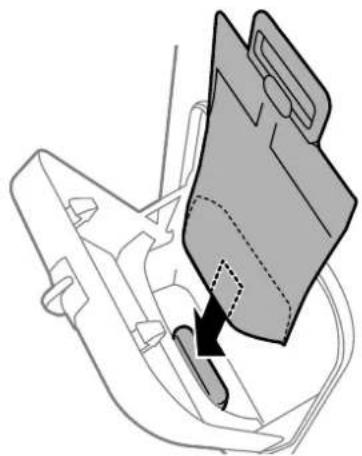
natural_image
Diagram of a mechanical component with a highlighted section and arrow indicating direction (no text or symbols)- Push the handle of the ink supply unit until it clicks into place.
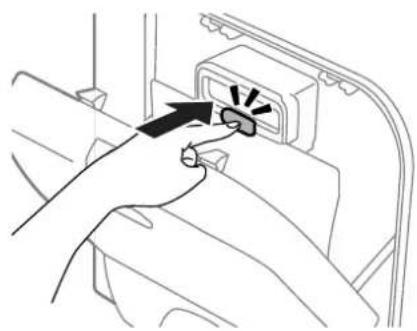
natural_image
Illustration of a hand inserting a button into a hospital bed (no text or symbols)Note:
To confirm whether the ink supply units are installed correctly, press Check when displayed on the printer's control panel.
- Close the ink case.
Related Information
→ "Ink Supply Unit Codes" on page 122
→ "Ink Supply Unit Handling Precautions" on page 122
Maintenance Box Code
Epson recommends the use of a genuine Epson maintenance box.
The following is the code for the genuine Epson maintenance box.
T6712
Maintenance Box Handling Precautions
Read the following instructions before replacing the maintenance box.
☐ Do not touch the green chip on the side of the maintenance box. Doing so may prevent normal operation and printing.
☐ Do not remove the film on the top of the box; otherwise ink may leak.
☐ Do not tilt the used maintenance box until after it is sealed in the plastic bag; otherwise ink may leak.
☐ Keep the maintenance box out of direct sunlight.
☐ Do not replace the maintenance box during printing; otherwise, ink may leak.
☐ Do not reuse a maintenance box which has been removed and left detached for a long period. Ink inside the box will have solidified and no more ink can be absorbed.
Replacing a Maintenance Box
In some print cycles a very small amount of surplus ink may be collected in the maintenance box. To prevent ink leakage from the maintenance box, the printer is designed to stop printing when the absorbing capacity of the maintenance box has reached its limit. Whether and how often this is required will vary according to the number of pages you print, the type of material that you print and the number of cleaning cycles that the printer performs. Replace the maintenance box when you are promoted to do so. The Epson Status Monitor, your LCD, or lights on the control panel will advise you when this part needs replacing. The need for replacement of the box does not mean that your printer has ceased to operate in accordance with its specifications. The Epson warranty does not cover the cost of this replacement. It is a user-serviceable part.
Note:
When it is full, you cannot print until the maintenance box is replaced to avoid ink leakage. However, you can perform operations such as sending faxes and saving data to an external USB device.
- Remove the new maintenance box from its package.

Important:
☐ Do not touch the green chip on the side of the maintenance box. Doing so may prevent normal operation and printing.
☐ Do not remove the film on the top of the box; otherwise ink may leak.
Note:
A transparent bag for the used maintenance box is provided with the new maintenance box.
User's Guide
Replacing Ink Supply Units and Other Consumables
- Open rear cover 1.
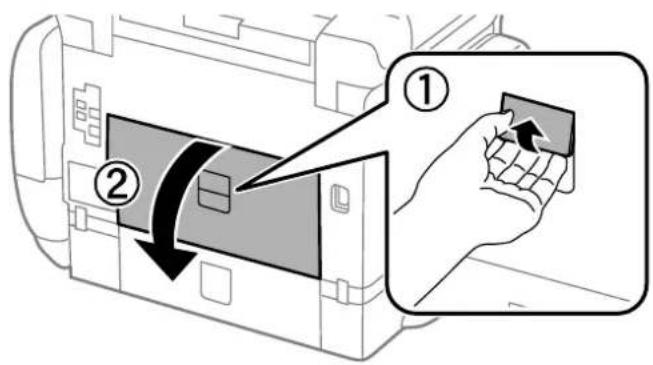
- Remove the used maintenance box.
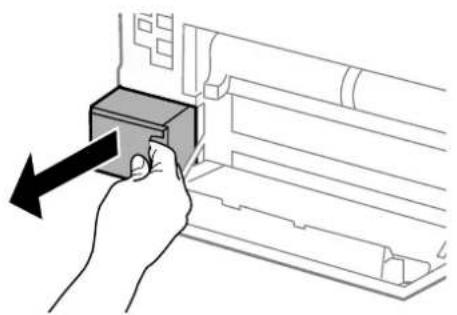
natural_image
Hand inserting a component into a rack, showing a black arrow indicating direction (no text or symbols present)- Put the used maintenance box in the transparent bag that came with the new maintenance box and seal the bag shut.
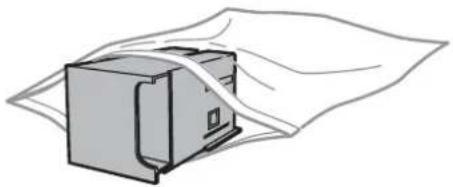
natural_image
Illustration of a toaster placed on a cloth (no text or symbols)
Important:
☐ Do not remove the film on the top of the maintenance box.
☐ Do not tilt the used maintenance box until after it is sealed in the plastic bag; otherwise ink may leak.
-
Insert the new maintenance box all the way into the printer.
-
Close rear cover 1.
Related Information
→ "Maintenance Box Code" on page 127
→ "Maintenance Box Handling Precautions" on page 128
Maintenance Rollers Codes
Epson recommends the use of genuine Epson maintenance rollers.
The following are the codes.
Maintenance rollers of paper cassette 1: S990011
Maintenance rollers of paper cassette 2 to 4: S990021
Replacing Maintenance Rollers in Paper Cassette 1
There are two places for replacing the maintenance rollers: on the back of the printer (two rollers) and on the paper cassette (one roller).
- Remove the new maintenance rollers from their package.

Important:
☐ The maintenance rollers for the paper cassette 1 and paper cassette 2 to 4 are different. Check the direction of the arrow at the center of the maintenance rollers, and make sure the maintenance rollers are the ones for paper cassette 1. If you attach the wrong rollers, the printer may not feed the paper.
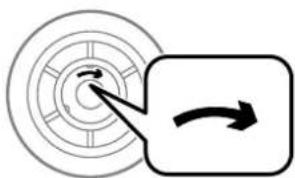
natural_image
Diagram showing concentric circles with arrows pointing to a central point, next to a rounded rectangle with an arrow (no text or symbols)☐ Be careful not to stain the surface of the maintenance rollers. If dust collects on the surface of the maintenance rollers, clean the rollers by using a soft and dry cloth.
- Turn off the printer by pressing the ⏻ button, and then unplug the power cord.
- Pull out paper cassette 1.
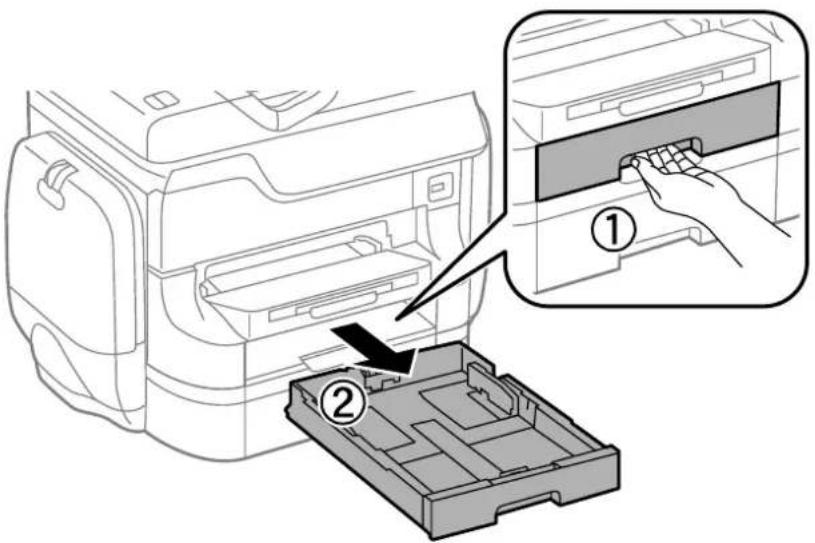
User's Guide
Replacing Ink Supply Units and Other Consumables
- Turn the printer around, and open rear cover 1.
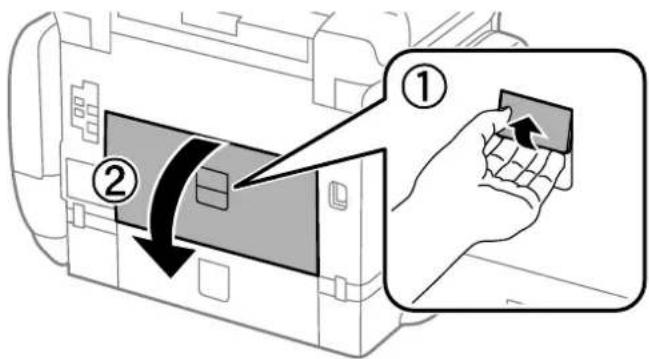
- Pull out rear cover 2.
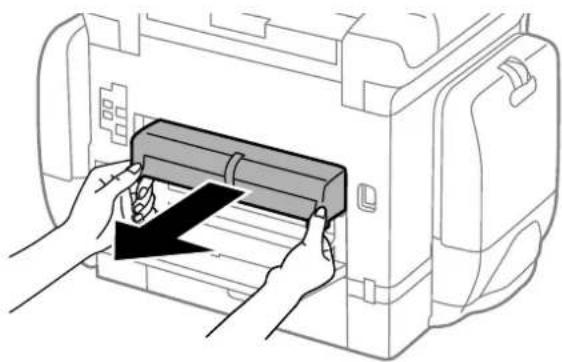
natural_image
Line drawing of hands inserting a printer into a machine (no text or symbols)- Remove the cover inside the back of the printer.
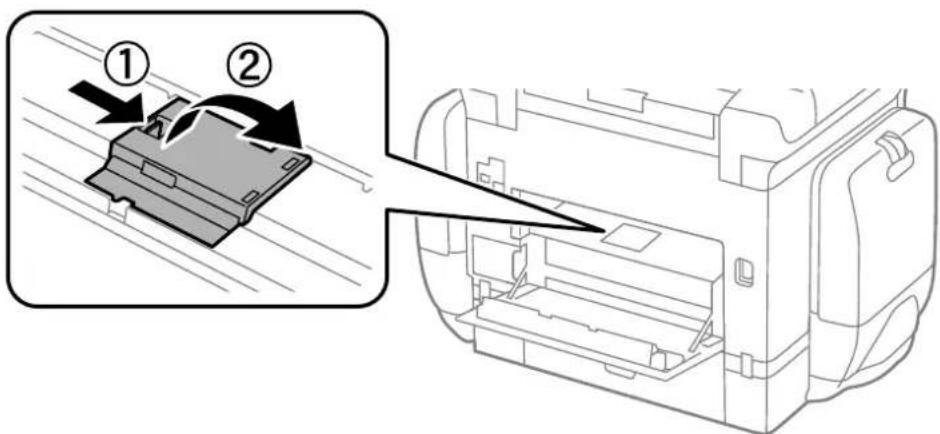
User's Guide
Replacing Ink Supply Units and Other Consumables
- Slide out the two used maintenance rollers, and remove them.
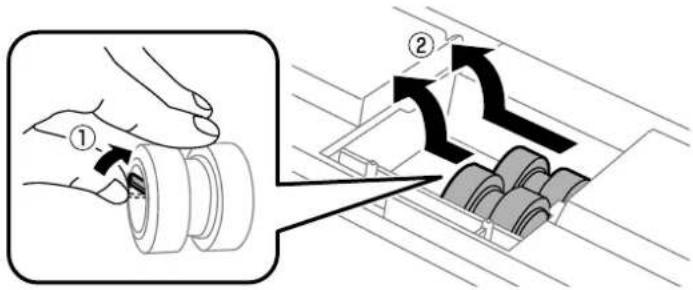
- Insert two new maintenance rollers until they click into place.
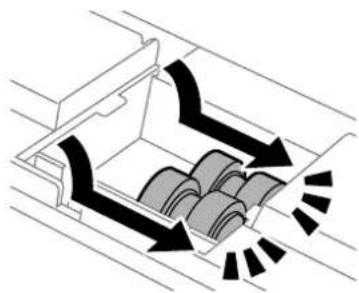
natural_image
Diagram of a mechanical component with arrows indicating flow or movement, no text or symbols presentNote:
Insert the maintenance rollers by rolling them so that you can insert them smoothly.
- Reattach the cover inside the back of the printer.
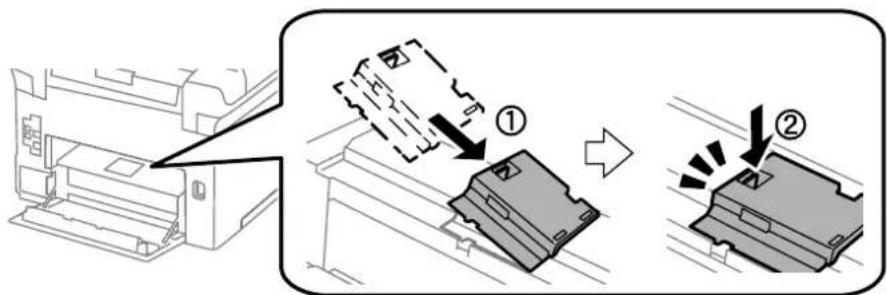
- Hold up the maintenance roller for the paper cassette by rolling it up, and then remove it.
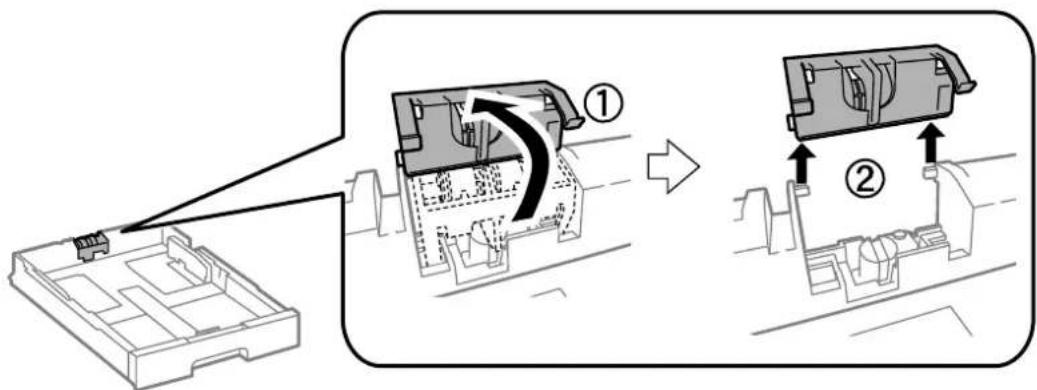
User's Guide
Replacing Ink Supply Units and Other Consumables
- Install the new maintenance roller in the paper cassette.
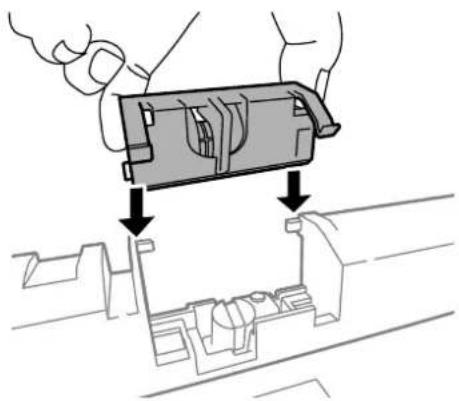
natural_image
Diagram showing hands assembling a mechanical component with arrows indicating assembly (no text or symbols present)- Hold down the maintenance roller firmly.
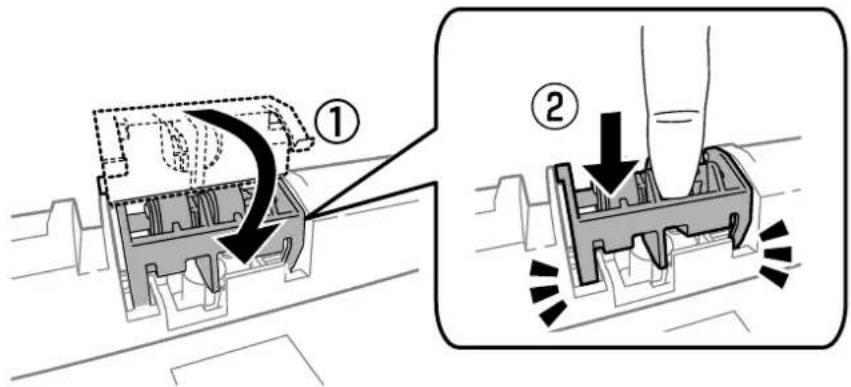
-
Insert rear cover 2, close rear cover 1, and then insert the paper cassette.
-
Turn on the printer, select Setup>Maintenance>Maintenance Roller Information>Reset Maintenance Roller Counter, and then select the paper cassette in which you replaced the maintenance rollers.
Related Information
→ "Maintenance Rollers Codes" on page 130
Replacing Maintenance Rollers in Paper Cassette 2 to 4
There are two places for replacing the maintenance rollers: on the back of the printer (two rollers) and on the paper cassette (one roller).
Replacing Ink Supply Units and Other Consumables
- Remove the new maintenance rollers from their package.

Important:
☐ The maintenance rollers for the paper cassette 1 and paper cassette 2 to 4 are different. Check the direction of arrow on the center of the maintenance rollers, and make sure the maintenance rollers are the ones for paper cassette 2 to 4. If you attach the wrong rollers, the printer may not feed the paper.
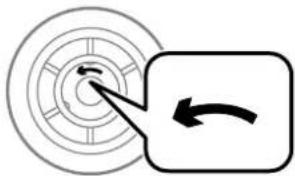
natural_image
Diagram showing a circular target with an arrow pointing to the center, next to a rectangular button with an arrow (no text or symbols)☐ Be careful not to stain the surface of the maintenance rollers. If the dust collects on the surface of the maintenance rollers, clean the rollers by using a soft and dry cloth.
- Turn off the printer by pressing the ⏻ button, and then unplug the power cord.
- Pull out the paper cassette for which you want to replace the rollers.
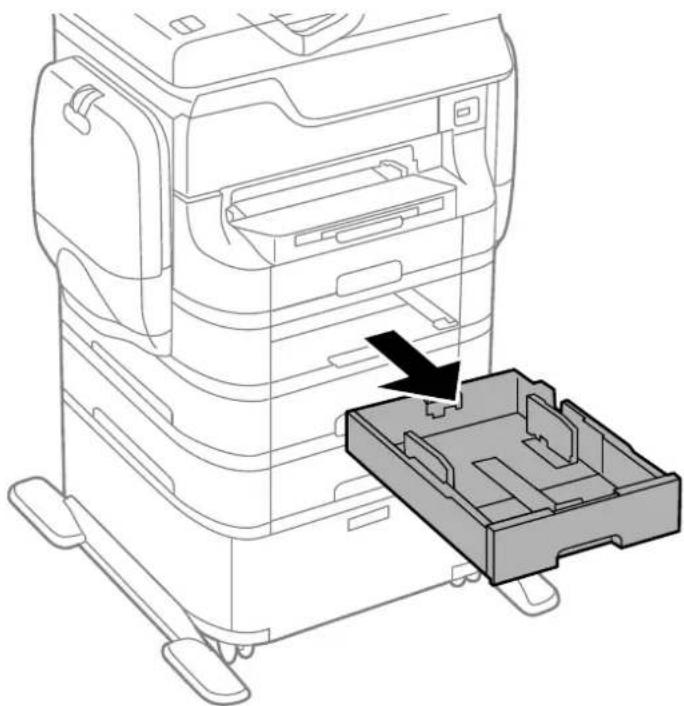
natural_image
Line drawing of a printer's internal structure with an arrow indicating a component (no text or symbols present)User's Guide
Replacing Ink Supply Units and Other Consumables
- Turn the printer around, and then open the printer's rear cover.
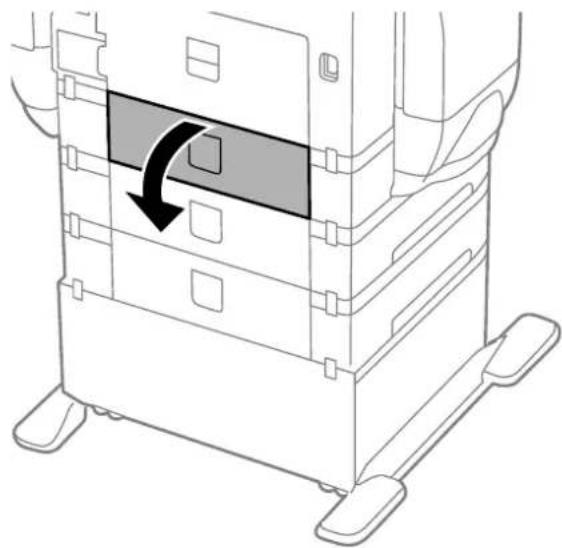
natural_image
Diagram of a mechanical device with a highlighted section and directional arrow, no text or symbols present- Remove the screws by a screwdriver and remove the cover on the rear of inside the printer.
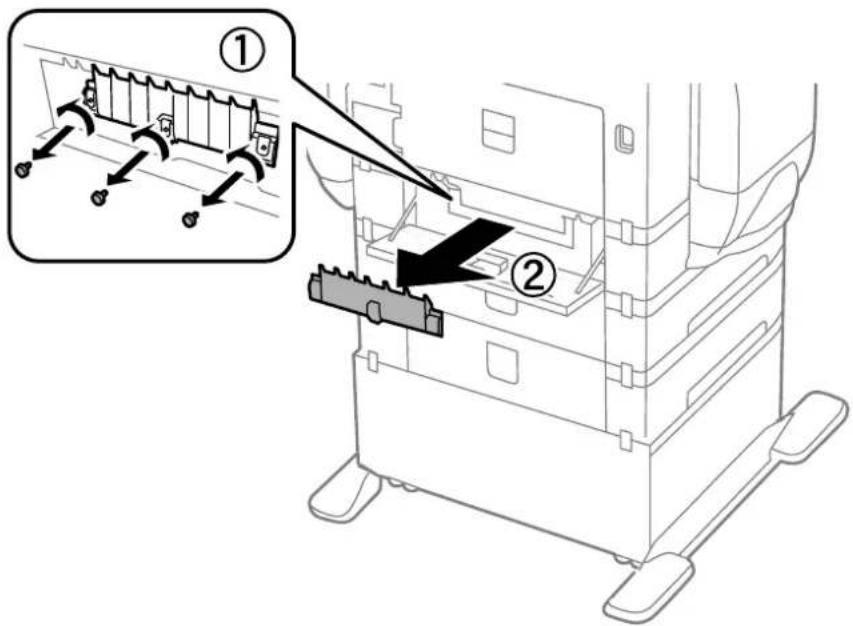
User's Guide
Replacing Ink Supply Units and Other Consumables
- Slide out two used maintenance rollers, and remove both of them.
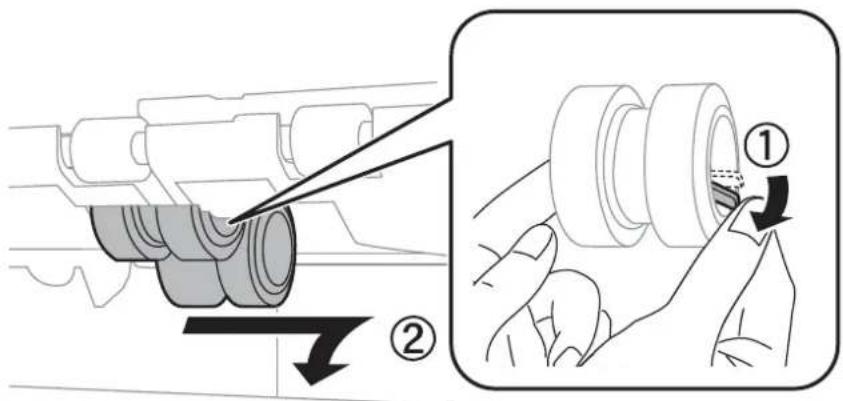
- Insert two new maintenance rollers until they click into place.
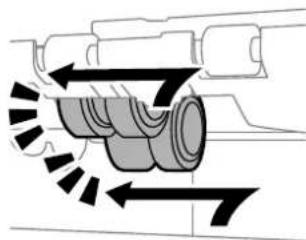
natural_image
Mechanical assembly diagram showing gear and shaft components with motion arrows (no text or labels)Note:
Insert the maintenance rollers by rolling them so that you can insert them smoothly.
- Hold up the maintenance roller for the paper cassette by rolling it up, and then remove it.
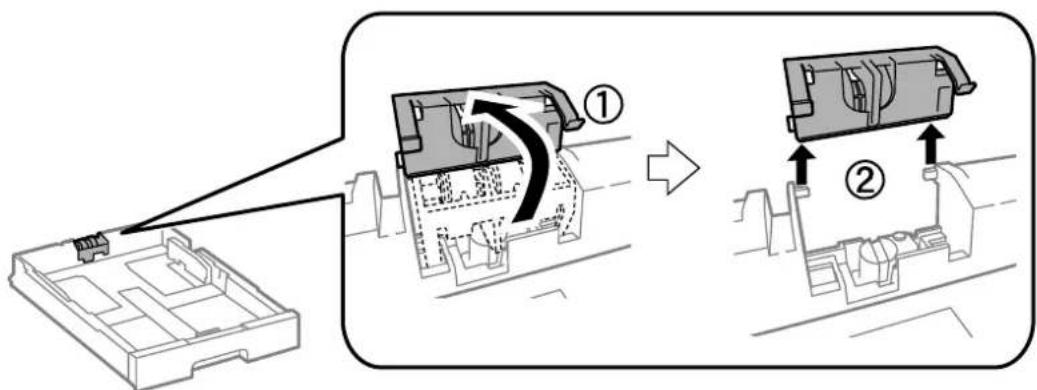
Replacing Ink Supply Units and Other Consumables
- Install the new maintenance roller in the paper cassette.
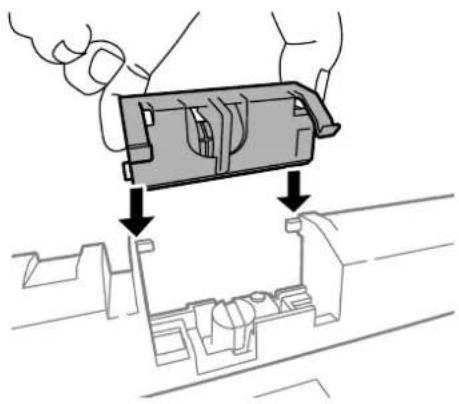
natural_image
Diagram showing hands installing a mechanical component into a mechanical assembly (no text or symbols present)- Hold down the maintenance roller firmly.
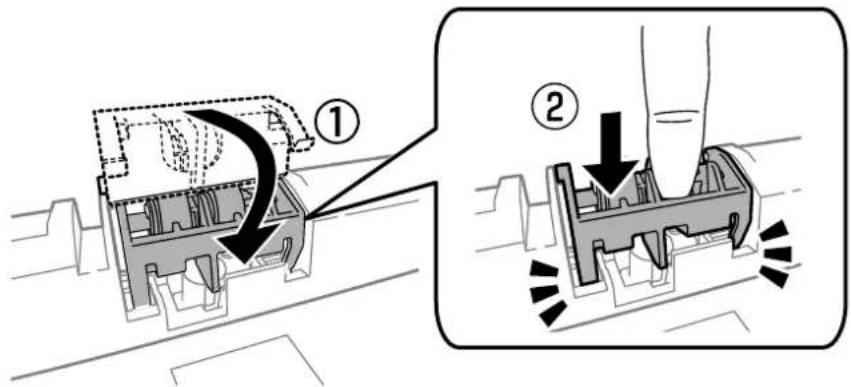
-
Fasten the screws to attach the cover back on, and close the rear cover.
-
Insert the paper cassette.
-
Turn on the printer, select Setup > Maintenance > Maintenance Roller Information > Reset Maintenance Roller Counter, and then select the paper cassette in which you replaced the maintenance rollers.
Related Information
→ "Maintenance Rollers Codes" on page 130
Temporarily Printing with Black Ink
When color ink is expended and black ink still remains, you can use the following settings to continue printing for a short time using only black ink.
☐ Type of paper: plain papers, Envelope
□ Color: Grayscale
☐ EPSON Status Monitor 3: Enabled (for Windows only)
Because this feature is only available for approximately five days, replace the expended ink supply unit as soon as possible.
Replacing Ink Supply Units and Other Consumables
Note:
☐ If EPSON Status Monitor 3 is disabled, access the printer driver, click Extended Settings on the Maintenance tab, and then select Enable EPSON Status Monitor 3.
☐ The available period varies depending on the usage conditions.
Temporarily Printing with Black Ink - Windows
- When the following window is displayed, cancel printing.
![EPSON Status Monitor 3 : EPSON XXXXXX Color ink supply unit(s) need to be replaced. Black printing is temporarily available. Epson recommends the genuine Epson ink supply units listed above. Click [Replace Unit] for ink supply unit replacement instructions or click [Close] to see Status Monitor. You can cancel the job and reprint in black ink using the following settings: - Paper Type: plain papers or Envelope - Color: Grayscale If it is not printed correctly with the settings above, there may be an error on the previous print job. Cancel the previous print job on the product and print again. Replace Unit... Cancel Close](/content/2026/05/1103554/images/037467a593adfb6fe80e0d9fad2cc029bc2c00708a15abc5d1ddf6b78273722d.jpg)
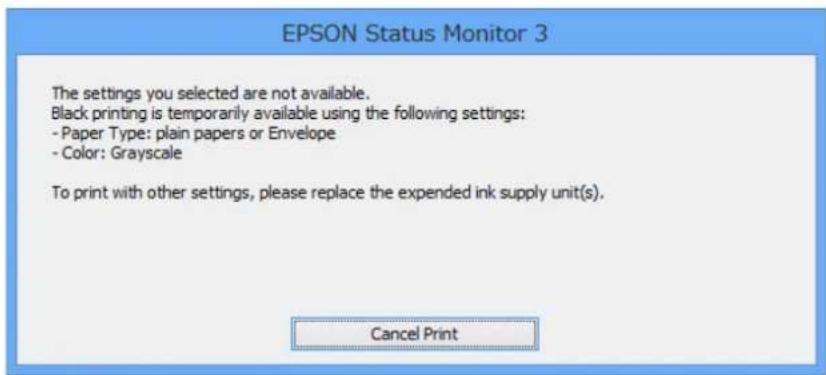
Note:
If you cannot cancel printing from the computer, cancel using the printer's control panel.
- Access the printer driver window.
- Select plain papers or Envelope as the Paper Type setting on the Main tab.
- Select Grayscale.
- Set the other items on the Main and More Options tabs as necessary, and then click OK.
Replacing Ink Supply Units and Other Consumables
-
Click Print.
-
Click Print in Black in the window displayed.
Related Information
→ "Loading Paper in the Paper Cassette" on page 46
→ "Loading Paper in the Rear Paper Feed" on page 48
→ "Loading Paper in the Front Paper Feed Slot" on page 50
→ "Printing Basics - Windows" on page 61
Temporarily Printing with Black Ink - Mac OS X
Note:
To use this feature through a network, connect with Bonjour.
- Click the printer icon in the Dock.
- Cancel the job.
☐ Mac OS X v10.8.x to Mac OS X v10.9.x Click ✕ next to the progress meter.
☐ Mac OS X v10.5.8 to v10.7.x Click Delete.
Note:
If you cannot cancel printing from the computer, cancel using the printer's control panel.
- Select System Preferences from the menu > Printers & Scanners (or Print & Scan, Print & Fax), and then select the printer. Click Options & Supplies > Options (or Driver).
- Select On as the Permit temporary black printing setting.
- Access the printer driver window.
- Select Print Settings from the pop-up menu.
- Select plain papers or Envelope as the Media Type setting.
- Select Grayscale.
- Set the other items as necessary.
- Click Print.
Related Information
→ "Loading Paper in the Paper Cassette" on page 46
→ "Loading Paper in the Rear Paper Feed" on page 48
→ "Loading Paper in the Front Paper Feed Slot" on page 50
→ "Printing Basics - Mac OS X" on page 63
Conserving Black Ink when the Black Ink Is Low (for Windows Only)
When black ink is running low and there is enough color ink remaining, you can use a mixture of color inks to create black. You can continue printing while preparing a replacement black ink supply unit.
This feature is only available when you select the following settings in the printer driver.
□ Paper Type: plain papers
□ Quality: Standard
☐ EPSON Status Monitor 3: Enabled
Note:
☐ If EPSON Status Monitor 3 is disabled, access the printer driver, click Extended Settings on the Maintenance tab, and then select Enable EPSON Status Monitor 3.
☐ Composite black looks slightly different from pure black. In addition, the print speed is reduced.
☐ To maintain the quality of the print head, black ink is also consumed.
EPSON Status Monitor 3
Black ink is low. You can extend black ink supply unit life by printing with a mixture of other colors to create composite black. Do you want to do this for the current print job?
Yes
No
Disable this feature
| Options | Description |
| Yes | Select to use a mixture of color inks to create black. This window is displayed the next time you print a similar job. |
| No | Select to continue using the remaining black ink. This window is displayed the next time you print a similar job. |
| Disable this feature | Select to continue using the remaining black ink. This window is not displayed until you replace the black ink supply unit and it runs low again. |
Improving Print and Scan Quality
Improving Print and Scan Quality
Checking and Cleaning the Print Head
If the nozzles are clogged, the printouts become faint, there is visible banding, or unexpected colors appear. When print quality has declined, use the nozzle check feature and check if the nozzles are clogged. If the nozzles are clogged, clean the print head. You can perform a nozzle check and head cleaning from the control panel or the computer.

Important:
Do not open the ink case or turn off the printer during head cleaning. If the head cleaning is incomplete, you may not be able to print.
Note:
☐ Because print head cleaning uses some ink, clean the print head only if quality declines.
☐ When ink is low you may not be able to clean the print head. Replace the appropriate ink supply unit first.
☐ If print quality has not improved after repeating nozzle check and head cleaning about four times, run the power cleaning once. If print quality has still not improved, wait for at least six hours without printing, and then run the nozzle check again and repeat the head cleaning if necessary. We recommend to turn off the printer. If print quality has still not improved, contact Epson support.
☐ To prevent the print head from drying out, always turn the printer off by pressing the ⏻ button.
☐ To keep the print head operating at its best, we recommend printing a few pages on a regular basis.
Checking and Cleaning the Print Head - Control Panel
- Load A4-size plain paper in the printer.
- Enter Setup from the home screen.
- Select Maintenance > Print Head Nozzle Check.
- Follow the on-screen instructions to print the nozzle check pattern.
Note:
The test pattern may vary by model.
- Compare the printed check pattern with the sample shown below.
☐ All lines are printed: The print head nozzles are not clogged. Close the nozzle check feature.
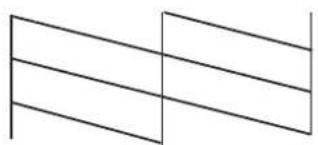
natural_image
Pure geometric lines forming a parallelogram with no text, numbers, or symbolsImproving Print and Scan Quality
☐ There are broken lines or missing segments: The print head nozzles may be clogged. Go to the next step.
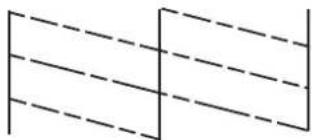
natural_image
Pure geometric lines forming a grid-like pattern without any text, numbers, or symbols-
Follow the on-screen instructions to clean the print head.
-
When cleaning is finished, print the nozzle check pattern again. Repeat cleaning and printing the pattern until all lines are printed completely.
Checking and Cleaning the Print Head - Windows
-
Load A4-size plain paper in the printer.
-
Access the printer driver window.
-
Click Nozzle Check on the Maintenance tab.
-
Follow the on-screen instructions.
Related Information
→ "Windows Printer Driver" on page 151
Checking and Cleaning the Print Head - Mac OS X
-
Make sure that A4-size plain paper is loaded in the printer.
-
Start the printer driver utility:
□ Mac OS X v10.6.x to v10.9.x
Select System Preferences from the 📄 menu > Printers & Scanners (or Print & Scan, Print & Fax), and then select the printer. Click Options & Supplies > Utility > Open Printer Utility.
□ Mac OS X v10.5.8
Select System Preferences from the menu > Print & Fax, and then select the printer. Click Open Print Queue > Utility.
-
Click Nozzle Check.
-
Follow the on-screen instructions.
Running Power Ink Flushing
Note:
The maintenance box reaches its capacity earlier by running this feature. Replace the maintenance box when the absorbing capacity of the maintenance box has reached its limit.
Improving Print and Scan Quality
-
Turn off the printer, and then press the ⏻ button and the ♂ button at the same time to display the confirmation window.
-
Follow the on-screen instructions to run the power ink flushing feature.
Note:
If you cannot run this feature, solve the problems that are displayed in the window. Next, turn off the printer, and then run this feature again.
- After running this feature, run the nozzle check to make sure the nozzles are not clogged.
Related Information
→ "Replacing a Maintenance Box" on page 128
Aligning the Print Head
If you notice a misalignment of vertical lines or blurred images, align the print head.
Aligning the Print Head - Control Panel
-
Load A4-size plain paper in the printer.
-
Enter Setup from the home screen.
-
Select Maintenance > Print Head Alignment.
-
Select one of the alignment menus and follow the on-screen instructions to print a pattern for alignment.
☐ Ruled Line Alignment: Select this if vertical lines look misaligned.
☐ Vertical Alignment: Select this if your printouts look blurry.
☐ Horizontal Alignment: Select this if you see horizontal banding at regular intervals.
- Follow the on-screen instructions to align the print head.
Note:
The alignment patterns may be slightly different from the actual ones, but the procedures are the same.
☐ Ruled Line Alignment: Find and enter the number for the pattern that has the least misaligned vertical line.
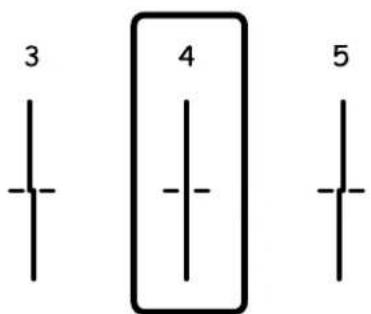
Improving Print and Scan Quality
☐ Vertical Alignment: Find and enter the number for the most solid pattern in each group.
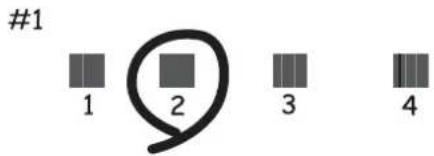
☐ Horizontal Alignment: Find and enter the number for the least separated or overlapping pattern in each group.
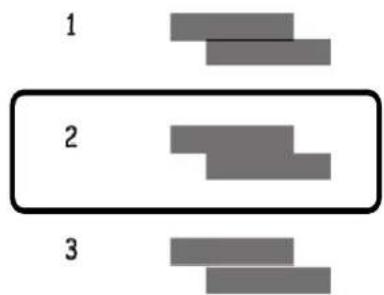
Aligning the Print Head - Windows
- Load A4-size plain paper in the printer.
- Access the printer driver window.
- Click Print Head Alignment on the Maintenance tab.
- Follow the on-screen instructions.
Related Information
→ "Windows Printer Driver" on page 151
Aligning the Print Head - Mac OS X
- Make sure that A4-size plain paper is loaded in the printer.
- Start the printer driver utility:
□ Mac OS X v10.6.x to v10.9.x
Select System Preferences from the menu > Printers & Scanners (or Print & Scan, Print & Fax), and then select the printer. Click Options & Supplies > Utility > Open Printer Utility.
□ Mac OS X v10.5.8
Improving Print and Scan Quality
Select System Preferences from the menu > Print & Fax, and then select the printer. Click Open Print Queue > Utility.
- Click Print Head Alignment.
- Follow the on-screen instructions.
Cleaning the Paper Path for Ink Smears
When the printouts are smeared or scuffed, clean the roller inside.

Important:
Do not use tissue paper to clean the inside of the printer. The print head nozzles may be clogged with lint.
- Load A3-size plain paper in the paper source that you want to clean.
- Enter Setup from the home screen.
- Select Maintenance > Paper Guide Cleaning.
- Select the paper source, and then follow the on-screen instructions to clean the paper path.
Note:
Repeat this procedure until the paper is not smeared with ink. If the printouts are still smeared or scuffed, clean the other paper sources.
Cleaning the Paper Path for Paper Feeding Problems
When paper is not fed from rear paper feed correctly, clean the roller inside.

Important:
Do not use tissue paper to clean the inside of the printer. The print head nozzles may be clogged with lint.
- Load the cleaning sheet that came with the Epson genuine paper in the rear paper feed.
- Enter Setup from the home screen.
- Select Maintenance > Paper Guide Cleaning.
- Select rear paper feed, and then follow the on-screen instructions to clean the paper path.
- Repeat this procedure two or three times.
Note:
The cleaning sheet loses its effect when used three times or more.
Improving Print and Scan Quality
Cleaning the ADF
When the copied or scanned images from the ADF are smeared or the originals do not feed in the ADF correctly, clean the ADF.

Important:
Never use alcohol or thinner to clean the printer. These chemicals can damage the printer.
- Open the ADF cover.
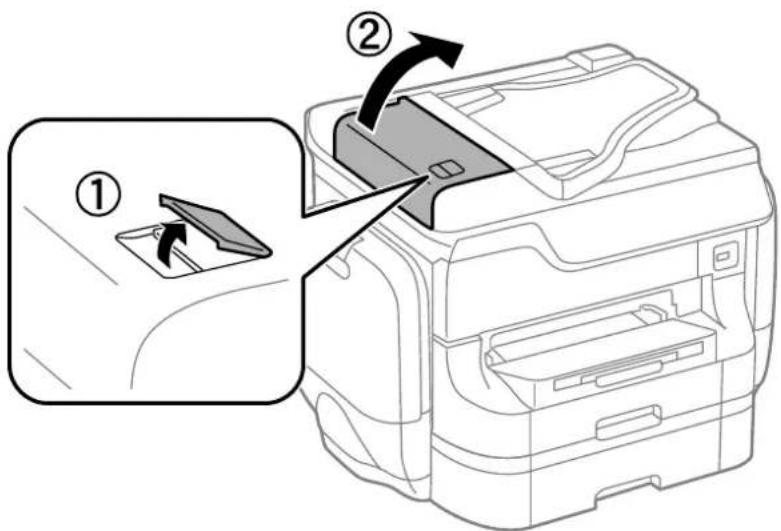
- Use a soft, dry, clean cloth to clean the roller and the interior of the ADF.
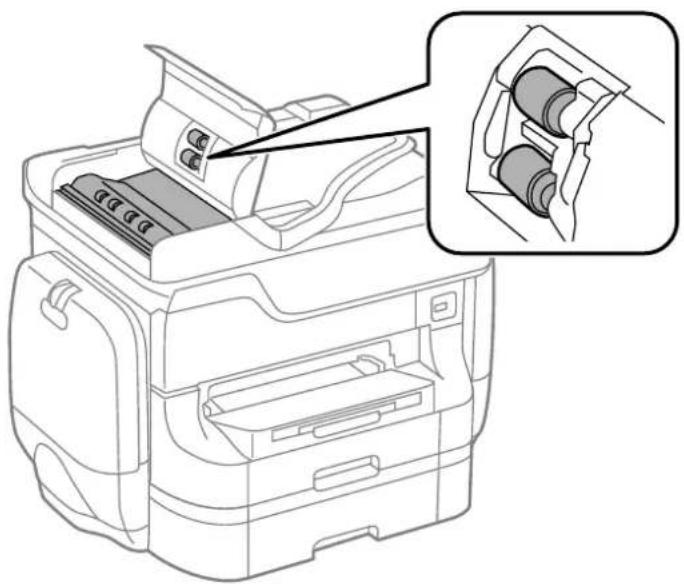
natural_image
Line drawing of a printer internal structure with an inset showing the close-up of its internal components (no text or symbols present)User's Guide
Improving Print and Scan Quality
- Open the document cover.
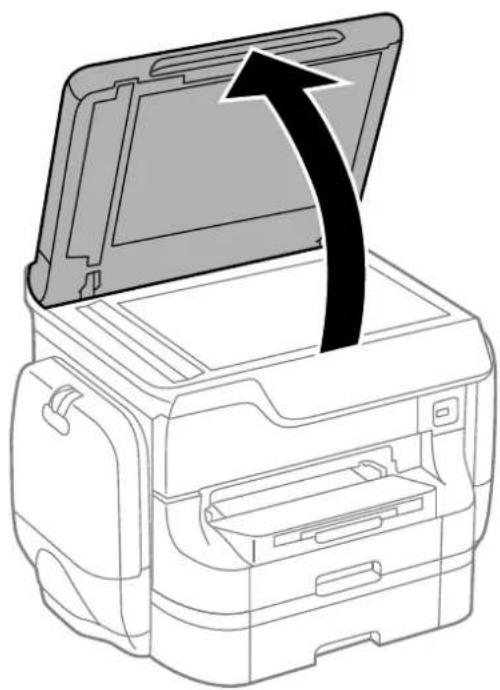
natural_image
Line drawing of a printer with an open lid and arrow indicating compression or shift (no text or symbols)- Clean the part that is shown in the illustration.
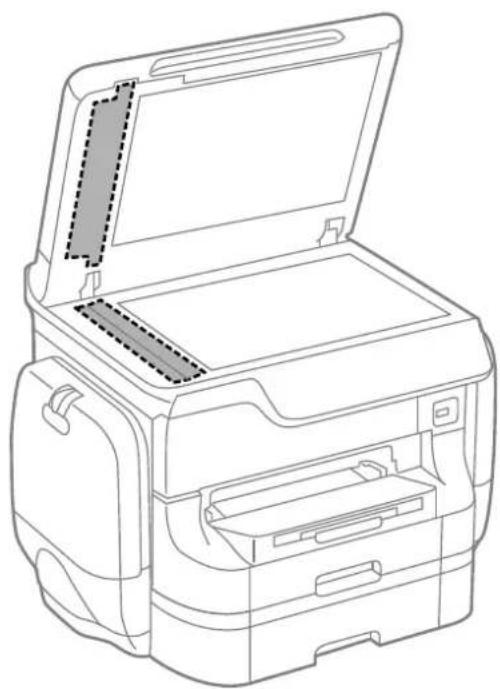
natural_image
Line drawing of an open industrial machine with internal compartments and handlebars (no text or symbols)Note:
☐ If the glass surface is stained with grease or some other hard-to-remove material, use a small amount of glass cleaner and a soft cloth to remove it. Wipe off all remaining liquid.
☐ Do not press the glass surface too hard.
☐ Be careful not to scratch or damage the surface of the glass. A damaged glass surface can decrease the scan quality.
Improving Print and Scan Quality
Cleaning the Scanner Glass
When the copies or scanned images are smeared or scuffed, clean the scanner glass.

Important:
Never use alcohol or thinner to clean the printer. These chemicals can damage the printer.
- Open the document cover.
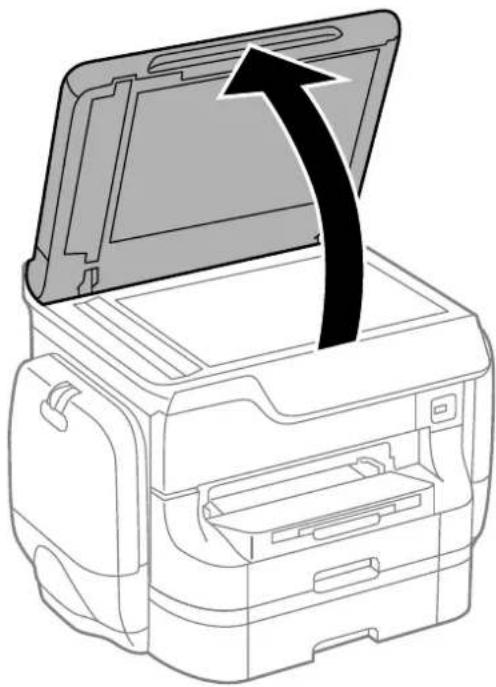
natural_image
Line drawing of a printer with an open lid and arrow indicating rotation (no text or symbols)- Use a soft, dry, clean cloth to clean the surface of the scanner glass.
Note:
☐ If the glass surface is stained with grease or some other hard-to-remove material, use a small amount of glass cleaner and a soft cloth to remove it. Wipe off all remaining liquid.
☐ Do not press the glass surface too hard.
☐ Be careful not to scratch or damage the surface of the glass. A damaged glass surface can decrease the scan quality.
Applications and Network Service Information
Applications and Network Service Information
Epson Connect Service
By using Epson Connect service available on the Internet, you can print from your smartphone, tablet PC, or laptop, anytime and practically anywhere.
The features available on the Internet are as follows.
| Email Print | Epson iPrint remote print | Scan to Cloud | Remote Print Driver |
| √ | √ | √ | √ |
See the Epson Connect portal website for details.
https://www.epsonconnect.com/
http://www.epsonconnect.eu (Europe only)
Web Config
Web Config is an application that runs on a Web browser, such as Internet Explorer and Chrome, from a computer or smart device. You can confirm the printer status or change the network service and printer settings. To use Web Config, connect the computer or device to the same network as the printer.
Note:
The following browsers are supported.
| OS | Browser |
| Windows XP or later | Internet Explorer 8 or later, Firefox*, Chrome* |
| Mac OS X v10.5.8 or later | Safari*, Firefox*, Chrome* |
| iOS* | Safari* |
| Android 2.3 or later | Default browser |
| Chrome OS* | Default browser |
* Use the latest version.
Running Web Config on a Web Browser
- Check the printer's IP address.
Press the network icon (for example 1 ) from the home screen, and then check the printer's IP address.
Applications and Network Service Information
- Launch a Web browser from a computer or smart device, and then enter the printer's IP address.
Format:
IPv4: http://the printer's IP address/
IPv6: http://[the printer's IP address]/
Examples:
IPv4: http://192.168.100.201/
IPv6: http://[2001:db8::1000:1]/
Note:
Using the smart device, you can also run Web Config from the maintenance screen of Epson iPrint.
Related Information
→ "Using Epson iPrint" on page 83
Running Web Config on Windows
When connecting a computer to the printer using WSD, follow the steps below to run Web Config.
- Access the devices and printers screen in Windows.
☐ Windows 8.1/Windows 8/Windows Server 2012 R2/Windows Server 2012
Select Desktop > Settings > Control Panel > View devices and printers in Hardware and Sound (or Hardware).
Windows 7/Windows Server 2008 R2
Click the start button, and select Control Panel > View devices and printers in Hardware and Sound.
Windows Vista/Windows Server 2008
Click the start button, and select Control Panel > Printers in Hardware and Sound.
-
Right-click on your printer and select Properties.
-
Select the Web Service tab and click the URL.
Running Web Config on Mac OS X
- Select System Preferences from the menu > Printers & Scanners (or Print & Scan, Print & Fax), and then select the printer.
- Click Options & Supplies> Show Printer Webpage.
Necessary Applications
Windows Printer Driver
The printer driver is an application that controls the printer according to the print commands from other applications. Making settings on the printer driver provides the best printing results. You can also check the status of the printer or keep it in top operating condition using the printer driver utility.
Note:
You can change the language of the printer driver. Select the language you want to use from the Language setting on the Maintenance tab.
Accessing the printer driver from applications
To make settings that apply only to the application you are using, access from that application.
Select Print or Print Setup from the File menu. Select your printer, and then click Preferences or Properties.
Note:
Operations differ depending on the application. See the application's help for details.
Accessing the printer driver from the control panel
To make settings that apply to all of the applications, access from the control panel.
☐ Windows 8.1/Windows 8/Windows Server 2012 R2/Windows Server 2012
Select Desktop > Settings > Control Panel > View devices and printers in Hardware and Sound. Right-click on your printer, or press and hold it and then select Printing preferences.
□ Windows 7/Windows Server 2008 R2
Click the start button, and select Control Panel > View devices and printers in Hardware and Sound. Right-click on your printer and select Printing preferences.
□ Windows Vista/Windows Server 2008
Click the start button, and select Control Panel > Printers in Hardware and Sound. Right-click on your printer and select Select printing preferences.
☐ Windows XP/Windows Server 2003 R2/Windows Server 2003
Click the start button, and select Control Panel > Printers and Other Hardware > Printers and Faxes. Right-click on your printer and select Printing preferences.
Starting the utility
Access the printer driver window. Click the Maintenance tab.
Restricting Available Settings for the Windows Printer Driver
Administrators can restrict the following printer driver settings for each user to prevent unintended changes of the settings.
□ Anti-Copy Pattern
Watermark
Header/Footer
□ Color
□ 2-Sided Printing
Applications and Network Service Information
□ Multi-Page
Note:
Log on to your computer as an administrator.
- Open the Optional Settings tab in printer properties.
Windows 8.1/Windows 8/Windows Server 2012 R2/Windows Server 2012
Select Desktop > Settings > Control Panel > View devices and printers in Hardware and Sound. Right-click on your printer, or press and hold it and then select Printer properties. Click the Optional Settings tab.
Windows 7/Windows Server 2008 R2
Click the start button, and select Control Panel > View devices and printers in Hardware and Sound. Right-click on your printer, and then select Printer properties. Click the Optional Settings tab.
Windows Vista/Windows Server 2008
Click the start button, and select Control Panel > Printers in Hardware and Sound. Right-click on your printer, and then select Properties. Click the Optional Settings tab.
Windows XP/Windows Server 2003 R2/Windows Server 2003
Click the start button, and select Control Panel > Printers and Other Hardware > Printers and Faxes. Right-click on your printer, and then select Properties. Click the Optional Settings tab.
-
Click Driver Settings.
-
Select the feature that you want to restrict.
See the online help for explanations of the setting items.
- Click OK.
Making Operation Settings for the Windows Printer Driver
You can make settings such as enabling EPSON Status Monitor 3.
- Access the printer driver window.
- Click Extended Settings on the Maintenance tab.
- Make the appropriate settings, and then click OK.
See the online help for explanations of the setting items.
Related Information
→ "Windows Printer Driver" on page 151
Mac OS X Printer Driver
The printer driver is an application that controls the printer according to the print commands from other applications. Making settings on the printer driver provides the best printing results. You can also check the status of the printer or keep it in top operating condition using the printer driver utility.
Applications and Network Service Information
Accessing the printer driver from applications
Select Print from the File menu. If necessary, click Show Details (or ▼) to expand the print window.
Note:
Operations differ depending on the application. See the application's help for details.
Starting the utility
□ Mac OS X v10.6.x to v10.9.x
Select System Preferences from the menu > Printers & Scanners (or Print & Scan, Print & Fax), and then select the printer. Click Options & Supplies > Utility > Open Printer Utility.
□ Mac OS X v10.5.8
Select System Preferences from the menu > Print & Fax, and then select the printer. Click Open Print Queue > Utility.
Making Operation Settings for the Mac OS X Printer Driver
You can make various settings such as skipping blank pages and enabling/disabling high speed printing.
-
Select System Preferences from the menu > Printers & Scanners (or Print & Scan, Print & Fax), and then select the printer. Click Options & Supplies > Options (or Driver).
-
Make the appropriate settings, and then click OK.
☐ Thick paper and envelopes: Prevents the ink from smearing when printing on thick paper. However, the print speed may be slower.
☐ Skip Blank Page: Avoids printing blank pages.
□ Quiet Mode: Prints quietly. However, the print speed may be slower.
☐ Permit temporary black printing: Prints only with black ink temporarily.
☐ High Speed Printing: Prints when the print head moves in both directions. The print speed is faster, but the quality may decline.
☐ Warning Notifications: Allows the printer driver to display warning notifications.
☐ Establish bidirectional communication: Usually, this should be set to On. Select Off when acquiring the printer information is impossible because the printer is shared with Windows computers on a network or for any other reason.
☐ Lower Cassette: Add the optional paper cassette units to the paper source.
Note:
The availability of these settings varies by model.
Related Information
→ "Temporarily Printing with Black Ink" on page 137
EPSON Scan (Scanner Driver)
EPSON Scan is an application for controlling scanning. You can adjust the size, resolution, brightness, contrast, and quality of the scanned image.
User's Guide
Applications and Network Service Information
Note:
You can also start EPSON Scan from a TWAIN-compliant scanning application.
Starting on Windows
Note:
For Windows Server operating systems, you need to install the Desktop Experience feature.
☐ Windows 8.1/Windows 8/Windows Server 2012 R2/Windows Server 2012
Enter the application name in the search charm, and then select the displayed icon.
☐ Except for Windows 8.1/Windows 8/Windows Server 2012 R2/Windows Server 2012
Click the start button, and select All Programs or Programs > EPSON > EPSON Scan > EPSON Scan.
Starting on Mac OS X
Note:
EPSON Scan does not support the Mac OS X fast user switching feature. Turn off fast user switching.
Select Go > Applications > Epson Software > EPSON Scan.
Document Capture Pro (for Windows Only)
Document Capture Pro is an application that allows you to set the method for processing scanned images from a printer connected to the computer over a network.
You can register up to 30 jobs (separation settings after scanning, save format, folders to save, destination, and so on) that you want the software to perform after scanning a document. Registered jobs are can be performed not only from the computer, but also from the control panel of the printer; select Scan > Document Capture Pro.
See the Document Capture Pro help for details on using the software.
Note:
Windows Server operating systems are not supported.
Starting
□ Windows 8.1/Windows 8
Enter the application name in the search charm, and then select the displayed icon.
☐ Windows 7/Windows Vista/Windows XP
Click the start button, and select All Programs or Programs > Epson Software > Document Capture Pro.
PC-FAX Driver (Fax Driver)
PC-FAX driver is an application that allows you to send a document created on a separate application as a fax directly from the computer. PC-FAX driver is installed when you install FAX Utility. See the application's help for details.
Note:
☐ Windows Server operating systems are not supported.
☐ The operation differs depending on the application you used to create the document. See the application's help for details.
User's Guide
Applications and Network Service Information
Accessing from Windows
In the application, select Print or Print Setup from the File menu. Select your printer (FAX), and then click Preferences or Properties.
Accessing from Mac OS X
In the application, select Print from the File menu. Select your printer (FAX) as the Printer setting, and then select Fax Settings or Recipient Settings from the pop-up menu.
FAX Utility
FAX Utility is an application that allows you to configure various settings for sending faxes from a computer. You can create or edit the contacts list to be used when sending a fax, configure to save received faxes in PDF format on the computer, and so on. See the application's help for details.
Note:
☐ Windows Server operating systems are not supported.
Before installing the FAX Utility, make sure you have installed the printer driver for this printer; this does not include the PostScript printer driver and Epson universal printer driver.
Starting on Windows
Windows 8.1/Windows 8
Enter the application name in the search charm, and then select the displayed icon.
□ Windows 7/Windows Vista/Windows XP
Click the start button, and select All Programs (or Programs) > Epson Software > FAX Utility.
Starting on Mac OS X
□ Mac OS X v10.6.x to v10.9.x
Select System Preferences from the menu > Printers & Scanners (or Print & Scan, Print & Fax), and then select the printer (FAX). Click Options & Supplies > Utility > Open Printer Utility.
□ Mac OS X v10.5.8
Select System Preferences from the menu > Print & Fax, and then select the printer (FAX). Click Open Print Queue > Utility.
E-Web Print (for Windows Only)
E-Web Print is an application that allows you to easily print web pages with various layouts. See the application's help for details. You can access the help from the E-Web Print menu on the E-Web Print tool bar.
Note:
Windows Server operating systems are not supported.
Starting
When you install E-Web Print, it is displayed in your browser. Click Print or Clip.
Applications and Network Service Information
EPSON Software Updater
EPSON Software Updater is an application that checks for new or updated software on the internet and installs it. You can also update the printer's firmware and manual.
Note:
Windows Server operating systems are not supported.
Starting on Windows
□ Windows 8.1/Windows 8
Enter the application name in the search charm, and then select the displayed icon.
□ Windows 7/Windows Vista/Windows XP
Click the start button, and select All Programs (or Programs) > Epson Software > EPSON Software Updater.
Starting on Mac OS X
Select Go > Applications > Epson Software > EPSON Software Updater.
EpsonNet Config
EpsonNet Config is an application that allows you to set the network interface addresses and protocols. See the operations guide for EpsonNet Config or the application's help for more details.
Starting on Windows
☐ Windows 8.1/Windows 8/Windows Server 2012 R2/Windows Server 2012
Enter the application name in the search charm, and then select the displayed icon.
☐ Except for Windows 8.1/Windows 8/Windows Server 2012 R2/Windows Server 2012
Click the start button, and select All Programs (or Programs) > EpsonNet > EpsonNet Config V4 > EpsonNet Config.
Starting on Mac OS X
Select Go > Applications > Epson Software > EpsonNet > EpsonNet Config V4 > EpsonNet Config.
Uninstalling Applications
Note:
Log on to your computer as an administrator. Enter the administrator password if the computer prompts you.
Uninstalling Applications - Windows
-
Press the ⏻ button to turn off the printer.
-
Quit all running applications.
-
Open Control Panel:
☐ Windows 8.1/Windows 8/Windows Server 2012 R2/Windows Server 2012
Applications and Network Service Information
Select Desktop > Settings > Control Panel.
☐ Except for Windows 8.1/Windows 8/Windows Server 2012 R2/Windows Server 2012 Click the start button and select Control Panel.
- Open Uninstall a program (or Add or Remove Programs):
Windows 8.1/Windows 8/Windows 7/Windows Vista/Windows Server 2012 R2/Windows Server 2012/Windows Server 2008 R2/Windows Server 2008 Select Uninstall a program in Programs.
☐ Windows XP/Windows Server 2003 R2/Windows Server 2003 Click Add or Remove Programs.
-
Select the application you want to uninstall.
-
Uninstall the applications:
Windows 8.1/Windows 8/Windows 7/Windows Vista/Windows Server 2012 R2/Windows Server 2012/Windows Server 2008 R2/Windows Server 2008 Click Uninstall/Change or Uninstall.
Windows XP/Windows Server 2003 R2/Windows Server 2003 Click Change/Remove or Remove.
Note: If the User Account Control window is displayed, click Continue.
- Follow the on-screen instructions.
Uninstalling Applications - Mac OS X
-
Download the Uninstaller using EPSON Software Updater. Once you have downloaded the Uninstaller, you do not need to download it again each time you uninstall the application.
-
Press the ⏻ button to turn off the printer.
-
To uninstall the printer driver or PC-FAX driver, select System Preferences from the menu > Printers & Scanners (or Print & Scan, Print & Fax), and then remove the printer from the enabled printers list.
-
Quit all running applications.
-
Select Go > Applications > Epson Software > Uninstaller.
-
Select the application you want to uninstall, and then click Uninstall.

Important:
The Uninstaller removes all drivers for Epson inkjet printers on the computer. If you use multiple Epson inkjet printers and you only want to delete some drivers, delete all of them first, and then install the necessary printer driver again.
Applications and Network Service Information
Note:
If you cannot find the application you want to uninstall in the application list, you cannot uninstall using the Uninstaller. In this situation, select Go >Applications >Epson Software, select the application you want to uninstall, and then drag it to the trash icon.
Related Information
→ "EPSON Software Updater" on page 156
Installing Applications
If your computer is connected to a network, install the latest applications available on the website. If you are unable to download the applications from the website, install them from the software disc that came with the printer.
Note:
Log on to your computer as an administrator. Enter the administrator password if the computer prompts you.
☐ When reinstalling an application, you need to uninstall it first.
-
Quit all running applications.
-
When installing the printer driver or EPSON Scan, disconnect the printer and the computer temporarily.
Note: Do not connect the printer and the computer until you are instructed to do so.
- Install the applications by following the instructions on the website below.
http://epson.sn
Note: Install Document Capture Pro from the website below. http://support.epson.net/ http://assets.epson-europe.com/gb/en/document_capture_pro/index.html (Europe)
Related Information
→ "Uninstalling Applications" on page 156
Installing a PostScript Printer Driver
Installing a PostScript Printer Driver Using USB Interface - Windows
- Turn off all virus protection applications.
- Insert the software disc that came with the printer into the computer, and download the "Driver/PostScript/eppsnt.inf" file.
Note: If your computer does not have a CD/DVD drive, download the printer driver from the Epson support website. http://www.epson.eu/Support (Europe) http://support.epson.net/ (outside Europe)
Applications and Network Service Information
- Connect the printer to the computer with a USB cable, and then turn on the printer.
Note:
For Windows Vista/Windows XP, when the Found New Hardware screen appears, click Ask me again later.
- Add a printer.
☐ Windows 8.1/Windows 8/Windows Server 2012 R2/Windows Server 2012
Select Desktop > Settings > Control Panel > View devices and printers in Hardware and Sound, and then click Add a Printer.
□ Windows 7/Windows Server 2008 R2
Click the start button, select Control Panel > View devices and printers in Hardware and Sound, and then click Add a Printer.
□ Windows Vista/Windows Server 2008
Click the start button, select Control Panel > Printers in Hardware and Sound, and then click Add a Printer.
☐ Windows XP/Windows Server 2003 R2/Windows Server 2003
Click the start button, select Control Panel > Printers and Other Hardware > Printers and Faxes > Add a Printer, and then click Next.
- Add a local printer.
☐ Windows 8.1/Windows 8/Windows Server 2012 R2/Windows Server 2012
Click The printer that I want isn't listed, select Add a local printer or network printer with manual settings, and then click Next.
☐ Windows 7/Windows Vista/Windows Server 2008 R2/Windows Server 2008
Click Add a local printer.
☐ Windows XP/Windows Server 2003 R2/Windows Server 2003
Select Local printer attached to this computer, clear Automatically detect and install my Plug and Play printer, and then click Next.
- Select Use an existing port, select USB001 (Virtual printer port for USB), and then click Next.
- Click Have Disk, specify the "eppsnt.inf" file that is on the software disc or that you have downloaded from the website, and then click OK.
- Select your printer, and then click Next.
- Follow the on-screen instructions for the rest of the installation.
Installing a PostScript Printer Driver Using Network Interface - Windows
- Select Setup > Network Status > Wi-Fi/Network Status on the control panel, and then confirm the IP address.
- Turn off all virus protection applications.
- Turn on the printer.
Applications and Network Service Information
- Insert the software disc that came with the printer into the computer, and download the "Driver/PostScript/eppsnt.inf" file.
Note:
If your computer does not have a CD/DVD drive, download the printer driver from the Epson support website.
http://www.epson.eu/Support (Europe)
http://support.epson.net/ (outside Europe)
- Add a printer.
☐ Windows 8.1/Windows 8/Windows Server 2012 R2/Windows Server 2012
Select Desktop > Settings > Control Panel > View devices and printers in Hardware and Sound, and then click Add a Printer.
☐ Windows 7/Windows Server 2008 R2
Click the start button, select Control Panel > View devices and printers in Hardware and Sound, and then click Add a Printer.
□ Windows Vista/Windows Server 2008
Click the start button, select Control Panel > Printers in Hardware and Sound, and then click Add a Printer.
☐ Windows XP/Windows Server 2003 R2/Windows Server 2003
Click the start button, select Control Panel > Printers and Other Hardware > Printers and Faxes > Add a Printer, and then click Next.
- Add a local printer.
☐ Windows 8.1/Windows 8/Windows Server 2012 R2/Windows Server 2012
Click The printer that I want isn't listed, select Add a local printer or network printer with manual settings, and then click Next.
☐ Windows 7/Windows Vista/Windows Server 2008 R2/Windows Server 2008
Click Add a local printer.
☐ Windows XP/Windows Server 2003 R2/Windows Server 2003
Select Local printer attached to this computer, clear Automatically detect and install my Plug and Play printer, and then click Next.
- Select Create a new port, select Standard TCP/IP Port, and then click Next.
Note:
For Windows XP/Windows Server 2003 R2/Windows Server 2003, when the Add Standard TCP/IP Printer Port Wizard screen appears, click Next.
- Enter the printer's IP address, and then click Next.
Note:
For Windows XP/Windows Server 2003 R2/Windows Server 2003, when the Add Standard TCP/IP Printer Port Wizard screen appears, click Finish.
-
Click Have Disk, specify the "eppsnt.inf" file that is on the software disc or that you have downloaded from the website, and then click OK.
-
Select your printer, and then click Next.
-
Follow the on-screen instructions for the rest of the installation.
Applications and Network Service Information
Installing a PostScript Printer Driver - Mac OS X
Download the printer driver from the Epson Support website, and then install it.
http://www.epson.eu/Support (Europe)
http://support.epson.net/ (outside Europe)
You need the IP address of the printer while installing the printer driver. Confirm the IP address by selecting Setup > Network Status > Wi-Fi/Network Status on the control panel.
Adding the Printer Driver (for Mac OS X Only)
-
Select System Preferences from the menu > Printers & Scanners (or Print & Scan, Print & Fax).
-
Click +, and then select Add Other Printer or Scanner.
-
Select your printer, and then click Add.
Note:
☐ If your printer is not listed, check that it is correctly connected to the computer and that the printer is on.
☐ For a USB, IP, or Bonjour connection, set the optional paper cassette unit manually after adding the printer driver.
Related Information
→ "Setting the Optional Paper Cassette Unit in the Printer Driver - Mac OS X" on page 228
Installing the Epson Universal Printer Driver (for Windows Only)
The Epson universal printer driver is a universal PCL6 compatible print driver that comes with the following features:
☐ It supports basic print functions needed for business situations.
☐ It supports multiple Epson business printers as well as this printer.
☐ It supports most of the languages from the printer drivers for this printer.
You may need the printer's IP address while installing the printer driver. Check the IP address by selecting Setup > Network Status > Wi-Fi/Network Status on the control panel.
- Download the driver's executable file from the Epson support website.
http://www.epson.eu/Support (Europe)
http://support.epson.net/ (outside Europe)
Note:
We recommend downloading the latest driver from the website. However you can also find it on the software disc that came with the printer. Access "Driver\PCLUniversal" or "Driver\Universal".
-
Double-click the executable file that you downloaded from the website or that is on the software disc.
-
Follow the on-screen instructions for the rest of the installation.
Updating Applications and Firmware
You may be able to clear certain problems and improve or add functions by updating the applications and the firmware. Make sure you use the latest version of the applications and firmware.
- Make sure that the printer and the computer are connected, and the computer is connected to the internet.
- Start EPSON Software Updater, and update the applications or the firmware.

Important:
Do not turn off the computer or the printer while updating.
Note:
If you cannot find the application you want to update in the list, you cannot update using the EPSON Software Updater. Check for the latest versions of the applications from your local Epson website.
http://www.epson.com
Related Information
→ "EPSON Software Updater" on page 156
Solving Problems
Checking the Printer Status
You can check error messages and the approximate ink levels on the LCD screen or the computer.
Checking Messages on the LCD Screen
If an error message is displayed on the LCD screen, follow the on-screen instructions or the solutions below to solve the problem.
| Error Messages | Solutions |
| Printer error. Turn the power off and on again. For details, see your documentation. | Remove any paper or protective material in the printer and the paper cassette. If the error message is still displayed after turning the power off and on again, contact Epson support. |
| Printer error. For details, see your documentation. | The printer may be damaged. Contact Epson or an authorised Epson service provider to request repairs. However, non-printing features such as scanning are available. |
| Too many paper cassette units are installed. Turn the power off and uninstall the extra units. See your documentation for details. | You can install up to two optional paper cassette units. For other optional paper cassette units, uninstall them by following the reverse steps to installation. |
| Cannot print because XX is out of order. You can print from another paper source. | Turn the power off and on again, and then reinsert the paper cassette. If the error message is still displayed, contact Epson or an authorised Epson service provider to request repairs. |
| Maintenance rollers on XX are nearing the end of their service life. | The maintenance rollers need to be replaced periodically. Paper is not fed correctly from the paper cassette when it is time for replacement. Prepare new maintenance rollers. |
| Maintenance rollers on XX are at the end of their service life. | Replace the maintenance rollers. After replacing the rollers, select Setup > Maintenance > Maintenance Roller Information > Reset Maintenance Roller Counter, and then select the paper cassette for which you replaced the maintenance rollers. |
| You need to replace the following ink supply unit(s). | To ensure you receive premium print quality and to help protect your print head, a variable ink safety reserve remains in the ink supply unit when your printer indicates it is time to replace the ink supply unit. Replace to new ink supply units. |
| No dial tone detected. | This problem might be resolved by selecting Setup > System Administration > Fax Settings > Basic Settings > Line Type, and then selecting PBX. If your phone system requires an external access code to get an outside line, set the access code after selecting PBX. Use # (hash) instead of the actual access code when entering an outside fax number. This makes connection more secure.If the error message is still displayed, set the Dial Tone Detection settings to disabled. However, disabling this feature may drop the first digit of a fax number and send the fax to the wrong number. |
Solving Problems
| Error Messages | Solutions |
| Failed to receive faxes because the fax data capacity is full. Press [i] for details. | Received faxes may accumulate without being processed due to the following reasons.☐ Cannot print because a printer error has occurred.Clear the printer error. To check the details and solutions to the error, press the i button and then select Printer Information.☐ Cannot save in the computer or the memory device.To check whether or not received faxes have been saved, press the i button and then select Job Monitor > Communication Job. To save received faxes, turn on the computer or connect a memory device to the printer. |
| Combination of the IP address and the subnet mask is invalid. See your documentation. | See the Network Guide. |
| Recovery Mode | The printer has started in recovery mode because the firmware update failed. Follow the steps below to try to update the firmware again.1. Connect the computer and the printer with a USB cable. (During recovery mode, you cannot update the firmware over a network connection.)2. Visit your local Epson website for further instructions. |
Related Information
→ "Contacting Epson Support" on page 232
→ "Installing the Optional Units" on page 219
→ "Replacing Maintenance Rollers in Paper Cassette 1" on page 130
→ "Replacing Maintenance Rollers in Paper Cassette 2 to 4" on page 133
→ "Installing Applications" on page 158
→ "Updating Applications and Firmware" on page 162
Error Code on the Status Menu
If a job does not complete successfully, check the error code displayed on the history of each job. You can check the error code by pressing the i button, and then selecting Job History. See the following table to find the problem and its solution.
| Code | Problem | Solution |
| 001 | The product was turned off by a power failure. | - |
| 101 | The memory is full. | Try the methods below to reduce the size of the print job.☐ Lower the print quality and the resolution.☐ Change the format setting.☐ Reduce the number of images, letters or fonts used in the print job. |
Solving Problems
| Code | Problem | Solution |
| 102 | Collated printing has failed due to a lack of available memory. | Select Setup > System Administration > Clear Internal Memory Data > Clear Font and Macro, and then clear the fonts and the macros that you have downloaded.Try the methods below to reduce the size of the print job. If you do not want to use these methods, try printing one copy at a time.Lower the print quality and the resolution.Change the format setting.Reduce the number of images, letters or fonts used in the print job. |
| 103 | Printing quality has been lowered due to a lack of available memory. | If you do not want to lower the print quality, try the following methods to reduce the size of the print job.Change the format setting.Reduce the number of images, letters or fonts used in the print job. |
| 104 | Reverse printing has failed due to a lack of available memory. | Select Setup > System Administration > Clear Internal Memory Data > Clear Font and Macro, and then clear the fonts and the macros that you have downloaded.If you want to print in reverse, try the following methods to reduce the size of the print job.Lower the print quality and the resolution.Change the format setting.Reduce the number of images, letters or fonts used in the print job. |
| 106 | Cannot print from the computer due to the access control settings. | Contact your printer administrator. |
| 107 | User authentication failed. The job has been canceled. | Make sure that the user name and password are correct.Select Setup > System Administration > Security Settings > Access Control. Enable the user restriction function, and then allow the job without an authentication information. |
| 108 | Confidential job data was deleted when the product was turned off. | - |
| 109 | The received fax was already deleted. | - |
| 110 | The job was printed on one side only because the paper loaded does not support double sided printing. | If you want to perform 2-sided printing, load paper that supports 2-sided printing. |
Solving Problems
| Code | Problem | Solution |
| 111 | Available memory is running low. | Try the methods below to reduce the size of the print job. Lower the print quality and the resolution. Change the format setting. Reduce the number of images, letters or fonts used in the print job. |
| 201 | The memory is full. | Print received faxes from Job Monitor in Status Menu.Delete received faxes saved in the inbox from Job Storage in Status Menu.If you are sending a monochrome fax to a single destination, you can send it by using Direct Send.Divide your originals in two or more to send them in several batches. |
| 202 | The line was disconnected by the recipient machine. | Wait for a while and then try again. |
| 203 | The product cannot detect the dial tone. | Make sure that the phone cable is connected correctly and the phone line is working.When the printer is connected to the PBX or the terminal adapter, change the Line Type setting to PBX.Select Setup > System Administration > Fax Settings > Basic Settings > Dial Tone Detection, and then disable the dial tone setting. |
| 204 | The recipient machine is busy. | Wait for a while and then try again. |
| 205 | The recipient machine does not answer. | Wait for a while and then try again. |
| 206 | The phone cable is incorrectly connected to the LINE and EXT. port of the product. | Check the connection of the LINE port and the EXT. port of the printer. |
| 207 | The product is not connected to the phone line. | Connect the phone cable to the phone line. |
| 208 | The fax could not be sent to some of the specified recipients. | Print a Fax Log or Last Transmission report for previous faxes from Fax Report in the Fax mode to check the failed destination. When the Save Failure Data setting is enabled, you can resend a fax from Job Monitor in Status Menu. |
| 301 | There is not enough storage space available to save the data in the memory device. | Increase the storage space in the memory device.Reduce the number of documents.Lower the scanning resolution or increase the compression ratio to reduce the size of the scanned image. |
| 302 | The memory device is write-protected. | Disable write protection on the memory device. |
| 303 | No folder has been created to save the scanned image. | Insert another memory device. |
| 304 | The memory device has been removed. | Reinsert the memory device. |
Solving Problems
| Code | Problem | Solution |
| 305 | An error occurred while saving the data to the memory device. | If the external device is accessed from a computer, wait for a while and then try again. |
| 306 | The memory is full. | Wait until other ongoing jobs are finished. |
| 311 | A DNS error has occurred. | Select Setup > System Administration > Wi-Fi/ Network Settings > Advanced Setup > DNS Server, and then check the DNS settings.Check the DNS settings for the server, the computer, or the access point. |
| 312 | An authentication error has occurred. | Select Setup > System Administration > Wi-Fi/ Network Settings > Advanced Setup > Email Server > Server Settings, and then check the server settings. |
| 313 | A communication error has occurred. | Select Setup > System Administration > Wi-Fi/ Network Settings > Advanced Setup > Email Server > Server Settings to check the email server settings. You can check the cause of the error by running connection check.The authentication method of the settings and the email server may not match. When you select Off as the authentication method, make sure the authentication method of the email server is set to None.Check the network connection. See the Network Guide for more details. |
| 314 | The data size exceeds the maximum size for attached files. | Increase the Attached File Max Size setting in the scan settings.Lower the scanning resolution or increase the compression ratio to reduce the size of the scanned image. |
| 315 | The memory is full. | Retry after other ongoing jobs are finished. |
| 321 | A DNS error has occurred. | Select Setup > System Administration > Wi-Fi/ Network Settings > Advanced Setup > DNS Server, and then check the DNS settings.Check the DNS settings for the server, the computer, or the access point. |
| 322 | An authentication error has occurred. | Check the Location settings. |
| 323 | A communication error has occurred. | Check the Location settings.Check the network connection. See the Network Guide for more details. |
| 324 | A file with the same name already exists in the specified folder. | Delete the file with the same name.Change the file name prefix in File Settings. |
Solving Problems
| Code | Problem | Solution |
| 325 | There is not enough storage space available in the specified folder. | Increase the storage space in the specified folder.Reduce the number of documents.Lower the scanning resolution or increase the compression ratio to reduce the size of the scanned image. |
| 327 | The memory is full. | Wait until other ongoing jobs are finished. |
| 328 | The destination was wrong or the destination does not exist. | Check the Location settings. |
| 331 | A communication error occurred while acquiring the destination list. | Check the network connection. See the Network Guide for more details. |
| 332 | There is not enough storage space available to save the scanned image in the destination storage. | Reduce the number of documents. |
| 333 | The destination could not be found because the destination information was uploaded to the server before sending the scanned image. | Select the destination again. |
| 334 | An error occurred while sending the scanned image. | - |
| 341 | A communication error has occurred. | Check the connections for the printer and the computer. If you are connecting over a network, see the Network Guide.Make sure that Document Capture Pro is installed on the computer. |
| 401 | There is not enough storage space available to save the data in the memory device. | Increase the storage space in the memory device. |
| 402 | The memory device is write-protected. | Disable write protection on the memory device. |
| 404 | The memory device has been removed. | Reinsert the memory device. |
| 405 | An error occurred while saving the data to the memory device. | Reinsert the memory device.Use a different memory device on which you have created a folder using the Create Folder to Save function. |
| 411 | A DNS error has occurred. | Select Setup > System Administration > Wi-Fi/ Network Settings > Advanced Setup > DNS Server, and then check the DNS settings.Check the DNS settings for the server, the computer, or the access point. |
| 412 | An authentication error has occurred. | Select Setup > System Administration > Wi-Fi/ Network Settings > Advanced Setup > Email Server > Server Settings, and then check the server settings. |
Solving Problems
| Code | Problem | Solution |
| 413 | A communication error has occurred. | Select Setup > System Administration > Wi-Fi/ Network Settings > Advanced Setup > Email Server > Server Settings to check the email server settings. You can check the cause of the error by running connection check.The authentication method of the settings and the email server may not match. When you select Off as the authentication method, make sure the authentication method of the email server is set to None.Check the network connection. See the Network Guide for more details. |
| 421 | A DNS error has occurred. | Select Setup > System Administration > Wi-Fi/ Network Settings > Advanced Setup > DNS Server, and then check the DNS settings.Check the DNS settings for the server, the computer, or the access point. |
| 422 | An authentication error has occurred. | Select Setup > System Administration > Fax Settings > Output Settings > Fax Output > Other Settings, and then check the settings of the folder selected in Where to Forward. |
| 423 | A communication error has occurred. It is also possible that a file with the same name is open or the file is a read-only file. | Check the network connection. See the Network Guide for more details.Select Setup > System Administration > Fax Settings > Output Settings > Fax Output > Other Settings, and then check the settings of the folder selected in Where to Forward.Close the file with the same name or disable the read-only protection. |
| 425 | There is not enough storage space available in the forwarding destination folder. | Increase the storage space in the forwarding destination folder. |
| 428 | The destination was wrong or the destination does not exist. | Select Setup > System Administration > Fax Settings > Output Settings > Fax Output > Other Settings, and then check the settings of the folder selected in Where to Forward. |
Related Information
→ "Connecting to a Phone Line" on page 98
→ "Scan Mode" on page 26
→ "Fax Settings" on page 35
→ "Available Paper and Capacities" on page 42
Checking the Printer Status - Windows
- Access the printer driver window.
Solving Problems
- Click EPSON Status Monitor 3 on the Maintenance tab, and then click Details.
Note:
If EPSON Status Monitor 3 is disabled, click Extended Settings on the Maintenance tab, and then select Enable EPSON Status Monitor 3.
Related Information
→ "Windows Printer Driver" on page 151
Checking Printer Status - Mac OS X
- Start the printer driver utility:
□ Mac OS X v10.6.x to v10.9.x
Select System Preferences from the menu > Printers & Scanners (or Print & Scan, Print & Fax), and then select the printer. Click Options & Supplies > Utility > Open Printer Utility.
□ Mac OS X v10.5.8
Select System Preferences from the menu > Print & Fax, and then select the printer. Click Open Print Queue > Utility.
- Click EPSON Status Monitor.
Removing Jammed Paper
Follow the on-screen instructions on the printer's control panel to locate and remove the jammed paper including any torn pieces.

Caution:
Never touch the buttons on the control panel while your hand is inside the printer. If the printer starts operating, it could cause an injury. Be careful not to touch the protruding parts to avoid injury.

Important:
Remove the jammed paper carefully. Removing the paper vigorously may cause damage to the printer.
Solving Problems
Removing Jammed Paper from the Front Cover (A)
1. Open the front cover.
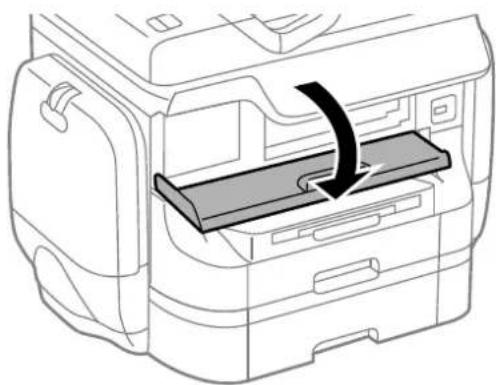
natural_image
Diagram of a printer drawer with an arrow indicating compression or disassembly (no text or symbols present)2. Remove the jammed paper.
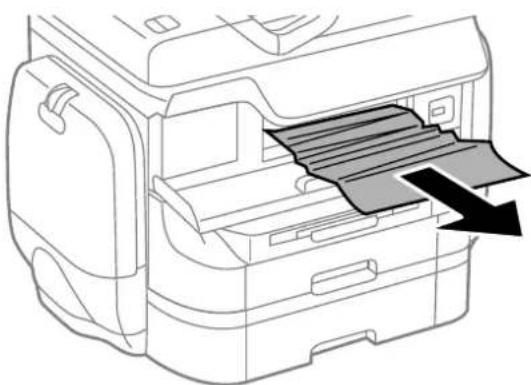
natural_image
Line drawing of a printer's internal structure showing paper feeding into a tray (no text or symbols)
Important:
Do not touch the parts inside the printer. Doing so may cause a malfunction.
3. Close the front cover.
Note:
If any torn pieces of paper remain, select Setup > Maintenance > Remove Paper after clearing the paper jam error. This helps you to remove the remaining pieces of paper.
Removing Jammed Paper from the Rear Paper Feed (B1)
Remove the jammed paper.
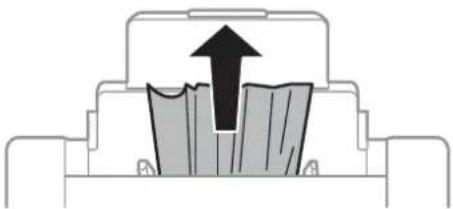
natural_image
Cross-sectional diagram of a mechanical component with an upward arrow indicating force or direction (no text or symbols)Solving Problems
Removing Jammed Paper from the Front Paper Feed Slot (B2)
- Remove the output tray and pull out the paper cassette.
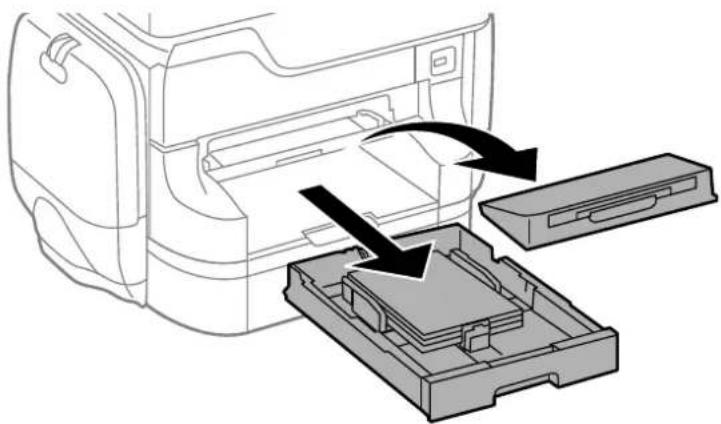
natural_image
Diagram of a printer's internal structure showing paper feeding into a plastic tray (no text or symbols)- Pull the lever.
The cover comes off.
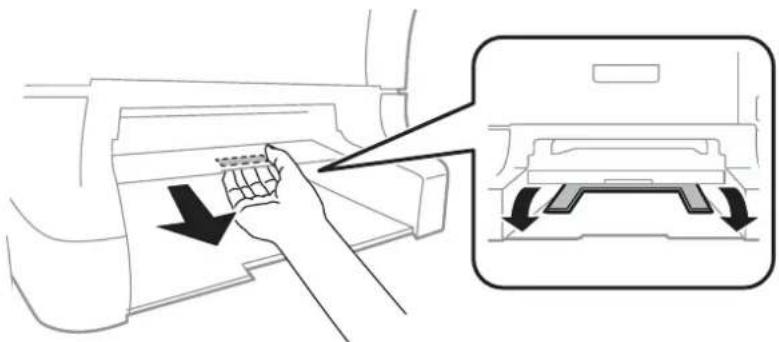
- Remove the jammed paper.
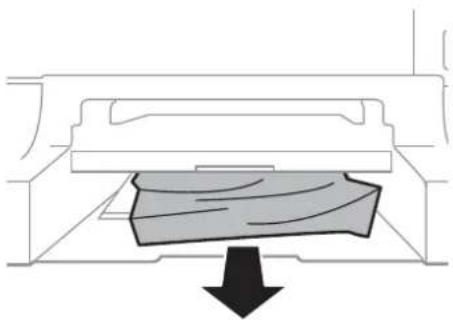
natural_image
Diagram of a mechanical component with a downward arrow indicating force or direction (no text or symbols)Solving Problems
- Reattach the cover.
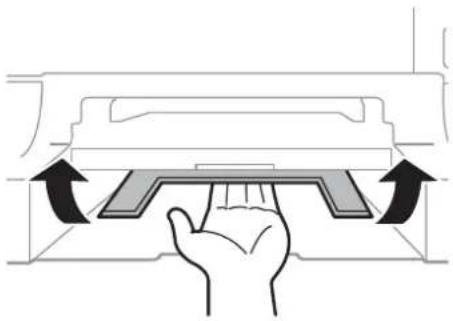
natural_image
Diagram of a hand pressing down on a mechanical component with directional arrows indicating motion (no text or symbols)- Insert the paper cassette, and then set the output tray.
Removing Jammed Paper from the Paper Cassette (C1/C2/C3/C4)
Note:
If the optional cabinet and the paper cassette units are installed, do not pull out two or more paper cassettes at the same time.
- Pull out the paper cassette.
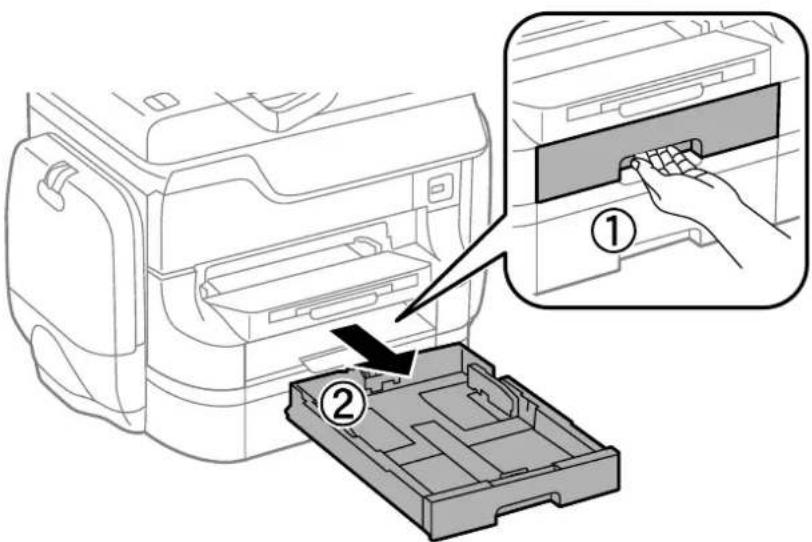
User's Guide
Solving Problems
- Remove the jammed paper.
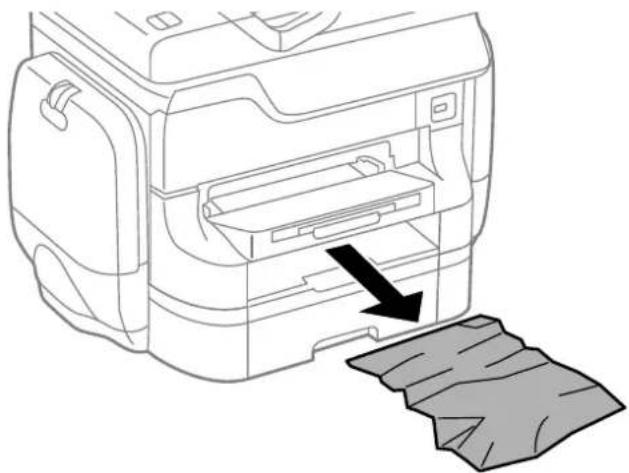
natural_image
Line drawing of a printer with an arrow pointing to the paper sheet (no text or symbols present)- Insert the paper cassette.
Removing Jammed Paper from Rear Cover 1 (D1) and Rear Cover 2 (D2)
- Open rear cover 1.
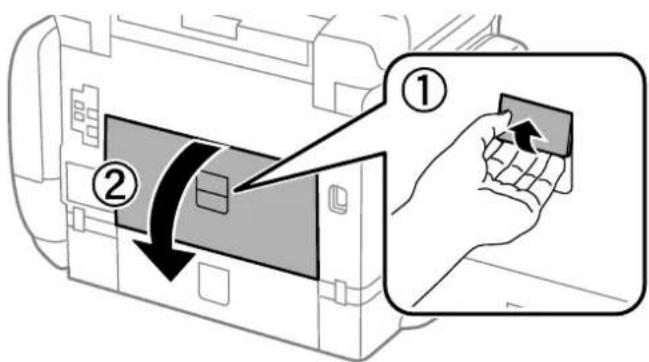
- Remove the jammed paper.
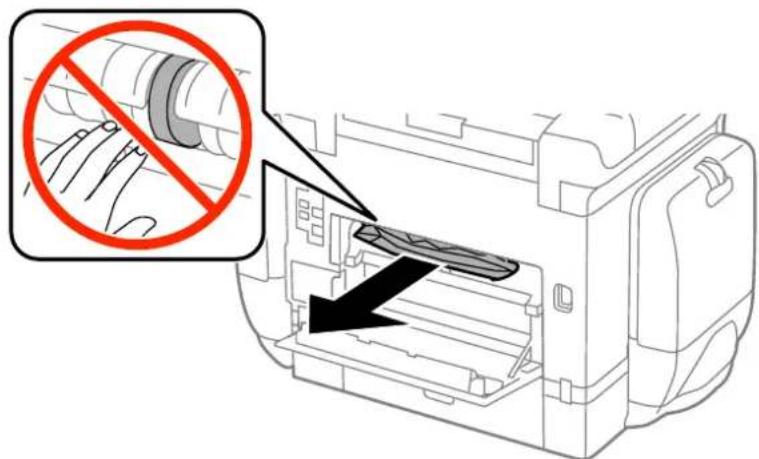
User's Guide
Solving Problems
Note:
If you cannot remove the paper, pull rear cover 2 a little.
- Pull out rear cover 2.
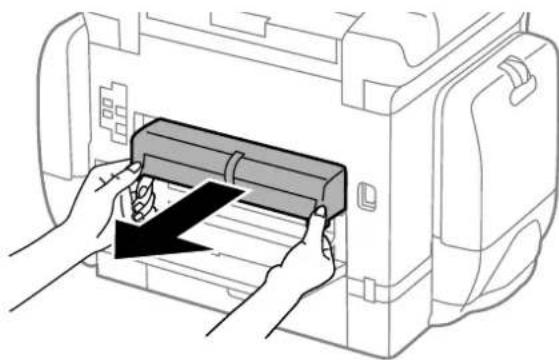
natural_image
Illustration of hands inserting a printer into a machine (no text or symbols visible)- Remove the jammed paper.
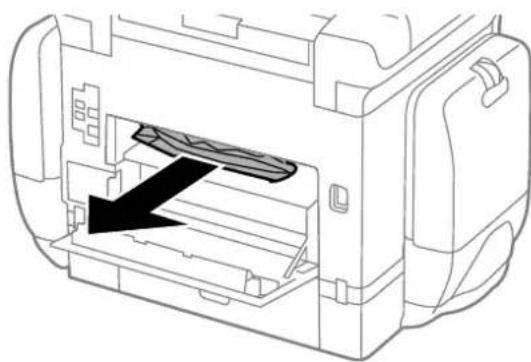
natural_image
Technical line drawing of a printer internal structure with no visible text or symbols-
Insert rear cover 2.
-
Close rear cover 1.
Solving Problems
Removing Jammed Paper from the Rear Cover (E)
1. Open the rear cover.
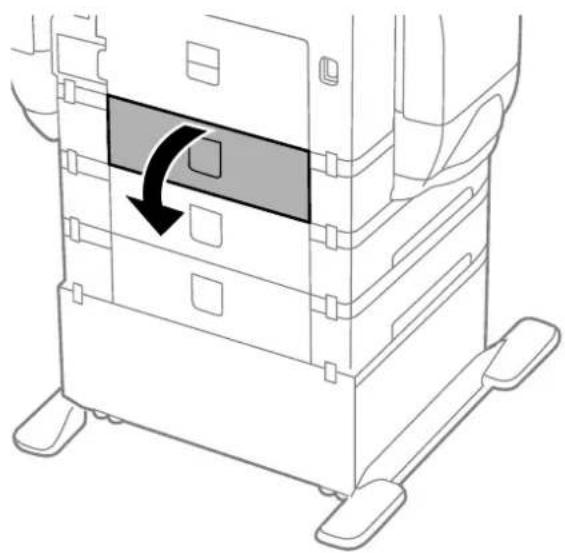
natural_image
Diagram of a device's internal structure with a highlighted section and directional arrow (no text or symbols)2. Remove the jammed paper.
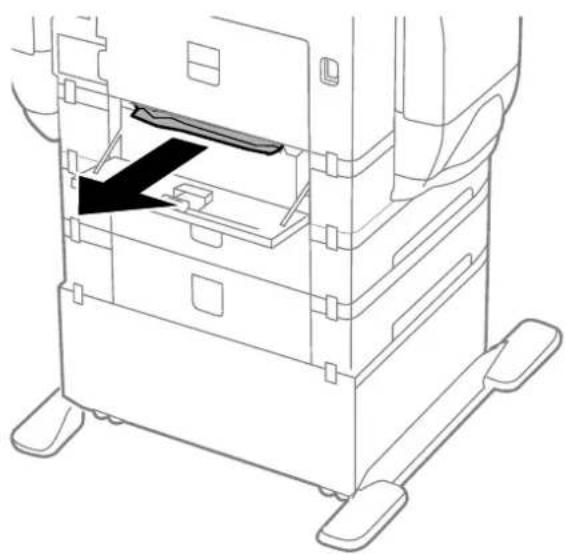
natural_image
Technical line drawing of a mechanical device with internal components and mounting feet (no text or symbols)3. Close the rear cover.
Removing Jammed Paper from the ADF (F)

Caution:
Be careful not to trap your hand or fingers when opening or closing the document cover. Otherwise you may be injured.
User's Guide
Solving Problems
- Raise the lever and open the ADF cover.
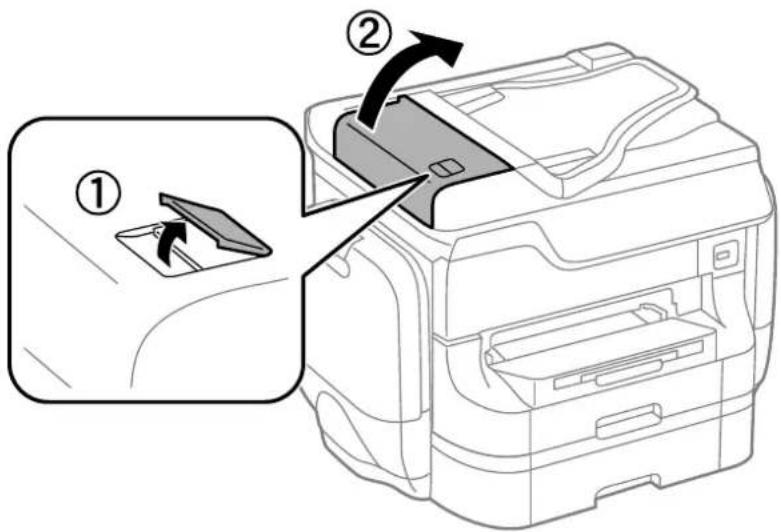
- Remove the jammed paper.
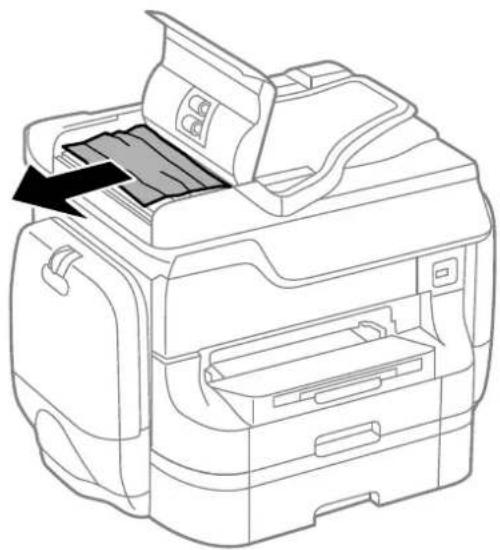
natural_image
Line drawing of a printer with an open lid and internal compartments (no text or symbols)- Close the ADF cover.
User's Guide
Solving Problems
- Open the document cover.
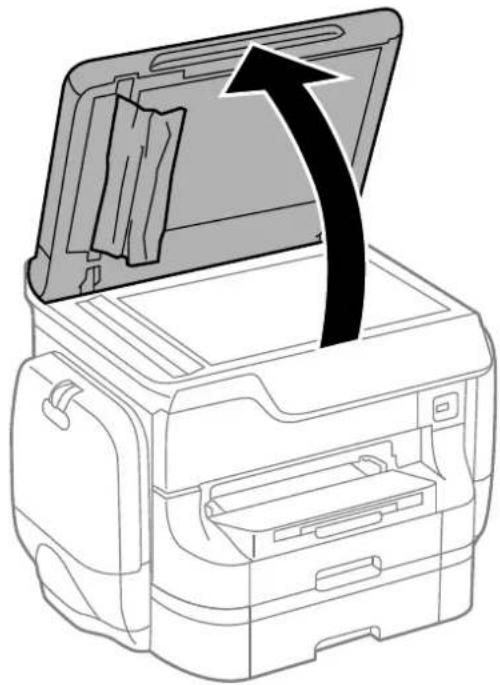
natural_image
Line drawing of a printer with an open lid and arrow indicating rotation (no text or symbols)- Remove the jammed paper.
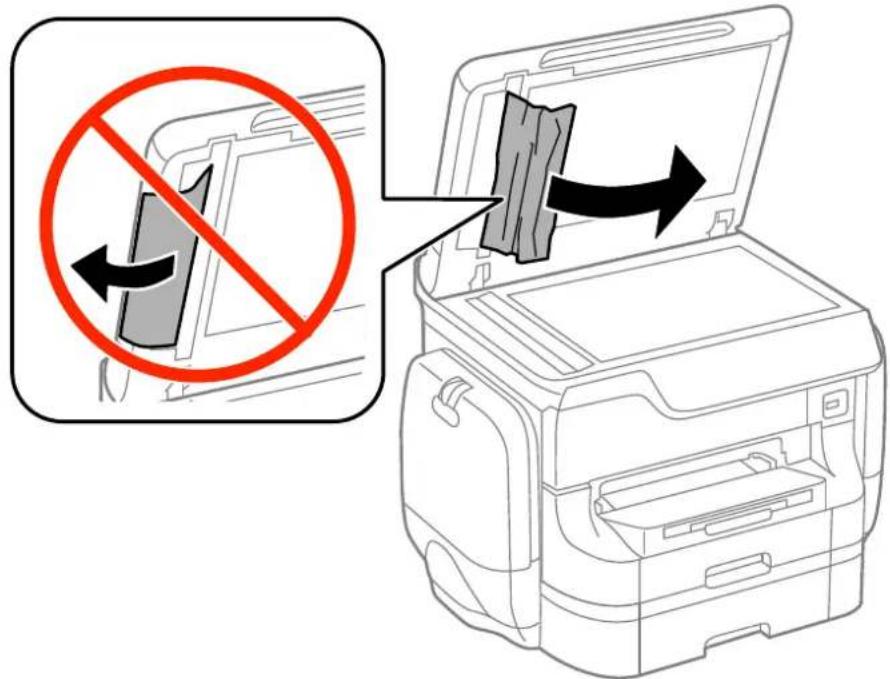
- Close the document cover.
Solving Problems
- Raise the ADF input tray, and then remove the jammed paper.
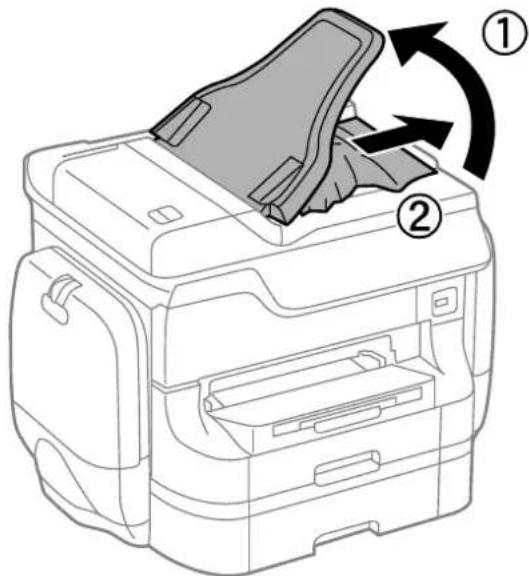
Paper Does Not Feed Correctly
Check the following if the paper jams, paper feeds at a slant, several sheets of paper feed at a time, no paper feeds, or paper is ejected.
Place the printer on a flat surface and operate in the recommended environmental conditions.
☐ Use paper supported by this printer.
☐ Follow the paper handling precautions.
□ Load paper in the correct direction, and slide the edge guides against the edges of the paper.
☐ Do not load more than the maximum number of sheets specified for the paper. For plain paper, do not load above the line just under the ▼ symbol inside the edge guide.
☐ Insert the paper cassette all the way.
☐ When paper does not feed after replacing the maintenance rollers, the rollers may not have been replaced correctly. Check if they have been replaced correctly.
☐ If you have added optional paper cassette units, you need to make settings in the printer driver.
☐ When a no-paper error occurs although paper is loaded in the rear paper feed, load paper again in the center of the rear paper feed.
☐ When multiple sheets of paper feed at once during manual 2-sided printing, remove any paper which is loaded in the paper source before you reload the paper.
☐ Load and eject paper without printing to clean the paper path.
☐ Close the ink case immediately if you opened it during printing. Keeping the ink case open during printing pauses the print job.
☐ Do not open the rear cover while printing. This causes a paper jam.
☐ The maintenance rollers may be at the end of their service life. Select Setup > Maintenance > Maintenance Roller Information > Maintenance Roller Status, and then replace the maintenance rollers as necessary.
☐ Make sure the paper size and paper type settings of the paper source are correct.
Solving Problems
Related Information
→ "Environmental Specifications" on page 203
→ "Available Paper and Capacities" on page 42
→ "Paper Handling Precautions" on page 42
→ "Loading Paper in the Paper Cassette" on page 46
→ "Loading Paper in the Rear Paper Feed" on page 48
→ "Loading Paper in the Front Paper Feed Slot" on page 50
→ "Replacing Maintenance Rollers in Paper Cassette 1" on page 130
→ "Replacing Maintenance Rollers in Paper Cassette 2 to 4" on page 133
→ "Setting the Optional Paper Cassette Unit in the Printer Driver" on page 228
→ "Cleaning the Paper Path for Paper Feeding Problems" on page 145
→ "Setting the Paper Size and Paper Type for Each Paper Source" on page 52
Original Does Not Feed in the ADF
☐ Use originals supported by the ADF.
□ Load originals in the correct direction, and slide the ADF edge guides against the edges of the originals.
□ Clean the inside of the ADF.
☐ Do not load above the line just under the ▼ symbol inside the ADF edge guide.
☐ Check that the ADF icon appears on the control panel. If it does not appear, place the originals again.
Related Information
→ "Available Originals for the ADF" on page 54
→ "Placing Originals on the ADF" on page 54
→ "Cleaning the ADF" on page 146
Power and Control Panel Problems
Power Does Not Turn On
☐ Hold down the ⏻ button for a little longer.
☐ Make sure the power cord is securely plugged in.
Power Does Not Turn Off
Hold down the ⏻ button for a little longer. If you still cannot turn off the printer, unplug the power cord. To prevent the print head from drying out, turn the printer back on and turn it off by pressing the ⏻ button.
LCD Screen Gets Dark
The printer is in sleep mode. Press any button on the control panel to return the LCD screen to its former state.
Solving Problems
Printer Does Not Print
Check the following if the printer does not operate or prints nothing.
☐ When the user feature restriction is enabled, a user ID and password are required to print. If you do not know the password, contact your printer administrator.
☐ For Mac OS X, the printer may not print when the user feature restriction is enabled. Contact your printer administrator.
☐ Connect the interface cable securely to the printer and the computer.
☐ If you are using a USB hub, try to connect the printer directly to the computer.
☐ If you are using the printer over a network, make sure the printer is connected to the network. You can check the status by checking the indicators on the control panel or by printing the network status sheet. If the printer is not connected to the network, see the Network Guide.
☐ If you are printing a large image, the computer may not have enough memory. Print the image at a lower resolution or a smaller size.
☐ In Windows, click Print Queue on the printer driver's Maintenance tab, and then check the following.
☐ Check if there are any paused print jobs.
Cancel printing if necessary.
☐ Make sure the printer is not offline or pending.
If the printer is offline or pending, clear the offline or pending setting from the Printer menu.
☐ Make sure the printer is selected as the default printer from the Printer menu (there should be a check mark on the menu item).
If the printer is not selected as the default printer, set it as the default printer.
☐ In Mac OS X, make sure the printer status is not Pause.
Select System Preferences from the menu > Printers & Scanners (or Print & Scan, Print & Fax), and then double-click the printer. If the printer is paused, click Resume (or Resume Printer).
☐ Perform a nozzle check, and then clean the print head if any of the print head nozzles are clogged.
☐ You may not be able to use the printer through AirPrint if the necessary protocols or settings have been disabled. Enable AirPrint using Web Config.
Related Information
→ "Canceling Printing" on page 85
→ "Checking and Cleaning the Print Head" on page 141
Printout Problems
Print Quality Is Poor
Check the following if the print quality is poor due to blurry prints, banding, missing colors, faded colors, misalignment, and mosaic-like patterns in the prints.
☐ Use paper supported by this printer.
☐ Do not print on paper that is damp, damaged, or too old.
Solving Problems
☐ If the paper is curled or the envelope is puffed up, flatten it.
☐ When printing images or photos, print using high-resolution data. Images on websites are often low resolution although they look good enough on the display, and so print quality may decline.
☐ Select the appropriate paper type setting on the control panel or in the printer driver for the type of paper loaded in the printer.
☐ Print using a high quality setting on the control panel or in the printer driver.
☐ If you have selected Standard-Vivid as the quality setting on the Windows printer driver, change to Standard. If you have selected Normal-Vivid as the quality setting on the Mac OS X printer driver, change to Normal.
☐ When using certain color adjustment features, the colors may change or the tone may be unnatural. Try disabling the features.
☐ Control Panel When printing a JPEG, select Adjustments > Fix Photo, and then select anything other than On.
Windows Select Custom as the Color Correction setting on the printer driver's More Options tab. Click Advanced, and then select anything other than PhotoEnhance as the Color Management setting.
☐ Mac OS X Select Color Matching from the print dialog's pop-up menu, and then select EPSON Color Controls. Select Color Options from the pop-up menu, and then select anything other than PhotoEnhance.
☐ Disable the bidirectional (or high speed) setting. When this setting is enabled, the print head prints while moving in both directions, and vertical lines may be misaligned. If you disable this feature, printing may slow down.
☐ Control Panel When printing JPEGs or TIFFs, press Settings, and then disable Bidirectional.
Windows Clear High Speed on the printer driver's More Options tab.
☐ Mac OS X Select System Preferences from the 📄 menu > Printers & Scanners (or Print & Scan, Print & Fax), and then select the printer. Click Options & Supplies > Options (or Driver). Select Off as the High Speed Printing setting.
☐ Perform a nozzle check, and then clean the print head if any of the print head nozzles are clogged.
□ Align the print head.
☐ Do not stack the paper immediately after printing.
Dry the printouts completely before filing or displaying them. When drying the printouts, avoid direct sun light, do not use a dryer, and do not touch the printed side of paper.
☐ Try to use genuine Epson ink supply units. This product is designed to adjust colors based on the use of genuine Epson ink supply units. The use of non-genuine ink supply units may cause print quality to decline.
☐ Epson recommends using the ink supply unit before the date printed on the package.
☐ When printing images or photos, Epson recommends using genuine Epson paper rather than plain paper. Print on the printable side of the genuine Epson paper.
Related Information
→ "Paper Handling Precautions" on page 42
→ "List of Paper Types" on page 45
Solving Problems
→ "Checking and Cleaning the Print Head" on page 141
→ "Aligning the Print Head" on page 143
→ "Available Paper and Capacities" on page 42
Copy Quality Is Poor
Check the following if uneven colors, smears, dots, or straight lines appear in the copied image.
☐ Load and eject paper without printing to clean the paper path.
□ Clean the scanner glass.
□ Clean the ADF.
☐ Do not press too hard on the original or the document cover when you are placing the originals on the scanner glass. Uneven colors, smears, or dots may appear when the original or the document cover are pressed too hard.
☐ If a moiré (cross-hatch) pattern appears, change the reduce and enlarge setting or place the original at a slightly different angle.
Related Information
→ "Cleaning the Paper Path for Ink Smears" on page 145
→ "Cleaning the Scanner Glass" on page 148
→ "Cleaning the ADF" on page 146
→ "Print Quality Is Poor" on page 181
An Image of the Reverse Side of the Original Appears in the Copied Image
☐ For a thin original, place the original on the scanner glass and then place a piece of black paper over it.
☐ Lower the copy density setting on the control panel.
The Position, Size, or Margins of the Printout Are Incorrect
☐ Load paper in the correct direction, and slide the edge guides against the edges of the paper.
☐ When placing the originals on the scanner glass, align the corner of the original with the corner indicated by a symbol on the frame of the scanner glass. If the edges of the copy are cropped off, move the original slightly away from the corner.
☐ Clean the scanner glass and the document cover. If there is dust or stains on the glass, the copy area may extend to include the dust or stains, resulting in the wrong printing position or small images.
☐ Select the appropriate size setting for the original on the control panel.
☐ Select the appropriate paper size setting on the control panel or in the printer driver.
☐ Adjust the margin setting in the application so that it falls within the printable area.
Related Information
→ "Loading Paper in the Paper Cassette" on page 46
→ "Loading Paper in the Rear Paper Feed" on page 48
Solving Problems
→ "Loading Paper in the Front Paper Feed Slot" on page 50
→ "Placing Originals" on page 54
→ "Cleaning the Scanner Glass" on page 148
→ "Printable Area" on page 198
Paper Is Smeared or Scuffed
Check the following if the paper is smeared or scuffed when printing.
□ Clean the paper path.
□ Clean the scanner glass and the document cover.
□ Load paper in the correct direction.
☐ When performing manual 2-sided printing, make sure that the ink is completely dry before reloading the paper.
☐ Enable the reduce smear setting for thick paper. If you enable this feature, print quality may decline or the printing may slow down. Therefore, this feature should normally be disabled.
□ Control panel
Select Setup > Maintenance from the home screen, and then enable Thick Paper.
Windows
Click Extended Settings on the printer driver's Maintenance tab, and then select Thick Paper and Envelopes.
□ Mac OS X
Select System Preferences from the menu > Printers & Scanners (or Print & Scan, Print & Fax), and then select the printer. Click Options & Supplies > Options (or Driver). Select On as the Thick paper and envelopes setting.
☐ For Windows, if the paper is still smeared after selecting the Thick Paper and Envelopes setting, select Short Grain Paper in the Extended Settings window of the printer driver.
☐ When printing high-density data such as images or graphs using automatic 2-sided printing, lower the print density setting and choose a longer drying time.
☐ When the paper is smeared during copying, lower the copy density setting on the control panel.
Related Information
→ "Cleaning the Paper Path for Ink Smears" on page 145
→ "Cleaning the Scanner Glass" on page 148
→ "Loading Paper in the Paper Cassette" on page 46
→ "Loading Paper in the Rear Paper Feed" on page 48
→ "Loading Paper in the Front Paper Feed Slot" on page 50
→ "Copy Mode" on page 24
→ "Memory Device Mode" on page 29
→ "Printing on 2-Sides" on page 64
→ "Print Quality Is Poor" on page 181
Solving Problems
Printed Characters Are Incorrect or Garbled
☐ Connect the interface cable securely to the printer and the computer.
☐ Cancel any paused print jobs.
☐ Do not put the computer manually into the Hibernate mode or the Sleep mode while printing. Pages of garbled text may be printed next time you start the computer.
Related Information
→ "Canceling Printing" on page 85
The Printed Image Is Inverted
Clear any mirror image settings in the printer driver or the application.
Windows
Clear Mirror Image on the printer driver's More Options tab.
□ Mac OS X
Clear Mirror Image from the print dialog's Print Settings menu.
The Printout Problem Could Not be Cleared
If you have tried all of the solutions and have not solved the problem, try uninstalling and then reinstalling the printer driver.
Related Information
→ "Uninstalling Applications" on page 156
→ "Installing Applications" on page 158
Printing Is Too Slow
☐ When printing continuously for approximately more than 10 minutes, printing slows down to prevent the printer mechanism from overheating and being damaged. However, you can continue printing. To return to normal printing speed, leave the printer idle for at least 30 minutes. Printing speed does not return to normal if the power is off.
☐ Close any unnecessary applications.
☐ Lower the quality setting on the control panel or the printer driver. High quality printing slows down the printing speed.
Solving Problems
☐ Enable the bidirectional (or high speed) setting. When this setting is enabled, the print head prints while moving in both directions, and the printing speed increases.
☐ Control Panel When printing JPEGs or TIFFs, press Settings, and then enable Bidirectional.
Windows Select High Speed on the printer driver's More Options tab.
☐ Mac OS X Select System Preferences from the 📄 menu > Printers & Scanners (or Print & Scan, Print & Fax), and then select the printer. Click Options & Supplies > Options (or Driver). Select On as the High Speed Printing setting.
☐ Disable quiet mode. This feature slows down the printing speed.
Windows Select Off as the Quiet Mode setting on the printer driver's Main tab.
☐ Mac OS X Select System Preferences from the menu > Printers & Scanners (or Print & Scan, Print & Fax), and then select the printer. Click Options & Supplies > Options (or Driver). Select Off as the Quiet Mode setting.
PostScript Printer Driver Problems
Note:
The menu items and text on the printer driver vary depending on your computer's environment.
Printer Does Not Print While Using PostScript Printer Driver
☐ Set the Printing Language setting to Auto or PS3 on the control panel.
☐ If you cannot print text data, even when Text Detection is enabled on the control panel, set the Printing Language setting to PS3.
☐ In Windows, if a large number of jobs are sent, the printer may not print. Select Print directly to the printer on the Advanced tab in the printer properties.
Related Information
→ "Printer Settings" on page 34
Printer Does Not Print Correctly While Using PostScript Printer Driver
☐ If the file is created in an application that allows you to change the data format, such as Adobe Photoshop, make sure that the settings in the application match the settings in the printer driver.
☐ EPS files made in binary format may not be printed correctly. Set the format to ASCII when making EPS files in an application.
☐ For Windows, the printer cannot print binary data when it is connected to the computer using a USB interface. Set the Output Protocol setting on the Device Settings tab in the printer properties to ASCII or TBCP.
Solving Problems
☐ For Windows, select the appropriate substitution fonts on the Device Settings tab in the printer properties.
Print Quality Is Poor While Using PostScript Printer Driver
You cannot make color settings on the Paper/Quality tab in the printer driver. Click Advanced, and then set the Color Mode setting.
Printing Is Too Slow While Using PostScript Printer Driver
Set the Print Quality setting to Fast in the printer driver.
Cannot Start Scanning
☐ When the access control function is enabled for a printer, you need to enter a user ID and password when scanning. If you do not know the password, contact your system administrator.
☐ When the access control function is enabled, Mac OS X might not be able to scan. Contact your system administrator.
☐ If you are scanning with the ADF, check that the document cover and ADF cover are closed.
☐ Connect the interface cable securely to the printer and the computer.
☐ If you are using a USB hub, connect the printer directly to the computer.
☐ When using the printer on a network, make sure the printer is connected to the network properly. You can check the connection status from the network icon on the printer window and by printing a network status sheet. If the printer is not connected to the network, see the Network Guide.
☐ Make sure you select the correct printer (scanner) if a scanner list is displayed when you start EPSON Scan.
☐ If you are using any TWAIN-compliant applications, select the printer (scanner) you are using.
☐ In Windows, make sure the printer (scanner) is displayed in Scanner and Camera. The printer (scanner) should be displayed as "EPSON XXXXX (printer name)". If the printer (scanner) is not displayed, uninstall and then re-install EPSON Scan. See the following to access Scanner and Camera.
Windows 8.1/Windows 8/Windows Server 2012 R2/Windows Server 2012
Select Desktop > Settings > Control Panel, enter "Scanner and Camera" in the search charm, click Show Scanner and Camera, and then check if the printer is displayed.
Windows 7/Windows Server 2008 R2
Click the start button and select Control Panel, enter "Scanner and Camera" in the search charm, click View scanners and cameras, and then check if the printer is displayed.
Windows Vista/Windows Server 2008
Click the start button, select Control Panel > Hardware and Sound > Scanners and Cameras, and then check if the printer is displayed.
Windows XP/Windows Server 2003 R2/Windows Server 2003
Click the start button, select Control Panel > Printers and Other Hardware > Scanner and Cameras, and then check if the printer is displayed.
☐ If you cannot scan using any TWAIN-compliant applications, uninstall and then reinstall the TWAIN-compliant application.
☐ For Mac OS X with an Intel processor, if other Epson scanner drivers except for EPSON Scan, such as Rosetta or PPC are installed, uninstall them and EPSON Scan, and then reinstall EPSON Scan.
Solving Problems
Related Information
→ "Uninstalling Applications" on page 156
→ "Installing Applications" on page 158
Scanned Image Problems
Scan Quality Is Poor
□ Clean the scanner glass.
□ Clean the ADF.
☐ Do not press too hard on the original or the document cover when you are placing the originals on the scanner glass. Uneven colors, smears, or dots may appear when the original or the document cover are pressed too hard.
☐ Remove dust from the original.
☐ Make the appropriate document type settings on the control panel.
□ Scan at a higher resolution.
☐ Adjust the image in EPSON Scan, and then scan. See the EPSON Scan help for details.
Related Information
→ "Cleaning the Scanner Glass" on page 148
→ "Cleaning the ADF" on page 146
→ "Scan Mode" on page 26
Characters Are Blurred
☐ In Office Mode in EPSON Scan, select Image Option on the Image Adjustment tab, and then select Text Enhancement.
☐ In Professional Mode in EPSON Scan, select Document as the Auto Exposure Type in the Original settings.
☐ Adjust the threshold settings in EPSON Scan.
Office Mode
Select Black & White as the Image Type on the Main Settings tab, and then adjust the threshold setting on the Image Adjustment tab.
□ Professional Mode
Select Black & White as the Image Type setting, and then adjust the threshold setting.
□ Scan at a higher resolution.
An Image of the Reverse Side of the Original Appears in the Scanned Image
☐ For a thin original, place the original on the scanner glass and then place a piece of black paper over it.
☐ Make the appropriate document type settings on the control panel or in EPSON Scan.
Solving Problems
☐ In Office Mode in EPSON Scan, select Image Option on the Image Adjustment tab, and then select Text Enhancement.
Related Information
→ "Scan Mode" on page 26
Moiré (Cross-Hatch) Patterns Appear in the Scanned Image
☐ Place the original at a slightly different angle.
☐ Select Descreening in EPSON Scan.
☐ Change the resolution setting on the control panel or in EPSON Scan.
Related Information
→ "Scan Mode" on page 26
Scanning Area or Direction Is Not Correct
☐ When placing the originals on the scanner glass, align the corner of the original with the corner indicated by a symbol on the frame of the scanner glass. If the edges of the scanned image are cropped off, move the original slightly away from the corner.
☐ Clean the scanner glass and the document cover. If there is dust or stains on the glass, the scanning area may extend to include the dust or stains, resulting in the wrong scanning position or small images.
☐ When you place multiple originals on the scanner glass to scan them separately, but they are scanned onto a single file, place the originals at least 20 mm (0.8 inch) apart. If the problem continues, place one original at a time.
☐ When scanning from the control panel, set the scan area correctly.
☐ When scanning using the thumbnail preview in EPSON Scan, move the original 4.5 mm (0.18 inch) away from the edges of the scanner glass. In other situations, move the original 1.5 mm (0.06 inch) away from the edges of the scanner glass.
☐ When using the thumbnail preview for a large original in Professional Mode, the scanning area may not be correct. When previewing in EPSON Scan, create marquees of the area you want to scan on the Normal tab in the Preview window.
☐ Click Configuration in EPSON Scan, and then clear Auto Photo Orientation on the Preview tab.
☐ If Auto Photo Orientation in EPSON Scan does not work as intended, see the EPSON Scan help.
☐ When scanning with EPSON Scan the available scanning area may be restricted if the resolution setting is too high. Lower the resolution or adjust the scanning area in the Preview window.
Related Information
→ "Placing Originals" on page 54
→ "Cleaning the Scanner Glass" on page 148
→ "Scan Mode" on page 26
Solving Problems
The Scanned Image Problem Could Not be Cleared
If you have tried all of the solutions and have not solved the problem, click Configuration in the EPSON Scan window, and then click Reset All on the Other tab to initialize the EPSON Scan settings. If initialization does not solve the problem uninstall and re-install EPSON Scan.
Related Information
→ "Uninstalling Applications" on page 156
→ "Installing Applications" on page 158
Other Scanning Problems
Thumbnail Preview Does Not Work Properly
See the EPSON Scan help.
Scanning Is Too Slow
Lower the resolution.
Related Information
→ "Scan Mode" on page 26
Cannot Send the Scanned Image by Email
Make sure you have configured the email server settings.
Related Information
→ "Configuring an Email Server" on page 229
Scanning Stops when Scanning to PDF/Multi-TIFF
☐ When scanning using EPSON Scan, you can continuously scan up to 999 pages in PDF format and up to 200 pages in Multi-TIFF format. When scanning using the control panel, you can continuously scan up to 100 pages in single-sided scanning using the ADF, and up to 200 pages in 2-sided scanning using the ADF and when scanning using the scanner glass.
☐ When scanning large volumes, we recommend scanning in grayscale.
☐ Increase the free space on the computer's hard disk. Scanning may stop if there is not enough free space.
☐ Try scanning at a lower resolution. Scanning stops if the total data size reaches the limit.
Related Information
→ "Scan Mode" on page 26
Problems when Sending and Receiving Faxes
Cannot Send or Receive Faxes
☐ Use Check Fax Connection on the control panel to run the automatic fax connection check. Try the solutions printed on the report.
☐ Check the error code displayed for the failed fax job, and try the solutions described in the error code list.
☐ Check the Line Type setting. Setting to PBX may solve the problem. If your phone system requires an external access code to get an outside line, register the access code to the printer, and enter # (hash) at the beginning of a fax number when sending.
☐ If a communication error occurs, change the Fax Speed setting to Slow(9,600bps) on the control panel.
☐ Check that the telephone wall jack works by connecting a phone to it and testing it. If you cannot make or receive calls, contact your telecommunication company.
☐ To connect to a DSL phone line, you need to use a DSL modem equipped with a built-in DSL filter, or install a separate DSL filter to the line. Contact your DSL provider.
☐ If you are connecting to a DSL phone line, connect the printer directly to a telephone wall jack to see if the printer can send a fax. If it works, the problem may be caused by the DSL filter. Contact your DSL provider.
☐ Enable the ECM setting on the control panel. Color faxes cannot be sent or received when ECM is off.
☐ To send or receive faxes using the computer, make sure that the printer is connected using a USB cable or a network, and that the PC-FAX Driver have been installed on the computer. The PC-FAX Driver is installed together with FAX Utility.
☐ In Windows, make sure the printer (fax) is displayed in Devices and Printers, Printer, or Printers and Other Hardware. The printer (fax) is displayed as "EPSON XXXXX (FAX)". If the printer (fax) is not displayed, uninstall and then re-install the FAX Utility. See the following to access Devices and Printers, Printer, or Printers and Other Hardware.
Windows 8.1/Windows 8
Select Desktop > Settings > Control Panel > View devices and printers in Hardware and Sound or Hardware.
Windows 7
Click the start button, and select Control Panel > View devices and printers in Hardware and Sound or Hardware.
Windows Vista
Click the start button, and select Control Panel > Printers in Hardware and Sound.
Windows XP
Click the start button, and select Settings > Control Panel > Printers and Other Hardware > Printers and Faxes.
☐ In Mac OS X, check the following.
☐ Select System Preferences from the menu > Printers & Scanners (or Print & Scan, Print & Fax), and then make sure the printer (fax) is displayed. The printer (fax) is displayed as "FAX XXXX (USB)" or "FAX XXXX (IP)". If the printer (fax) is not displayed, click [+] and then register the printer (fax).
☐ Select System Preferences from the menu > Printers & Scanners (or Print & Scan, Print & Fax), and then double-click the printer (fax). If the printer is paused, click Resume (or Resume Printer).
Solving Problems
Related Information
→ "Fax Settings" on page 35
→ "Error Code on the Status Menu" on page 164
→ "Making Settings for a PBX Phone System" on page 103
→ "Connecting the Printer to a Phone Line" on page 98
→ "Uninstalling Applications" on page 156
→ "Installing Applications" on page 158
Cannot Send Faxes
☐ If the user restriction feature has been enabled, a user name and password are required to operate the printer. Contact your administrator if you do not know the password.
☐ If the user restriction feature has been enabled, and you send a fax from a computer, user authentication is performed using the user name and password set in the printer driver. When you cannot send a fax due to an authentication error, contact your administrator.
☐ Set up the header information for outgoing faxes on the control panel. Some fax machines automatically reject incoming faxes that do not include header information.
☐ If you have blocked your caller ID, unblock it. Some phones or fax machines automatically reject anonymous calls.
☐ Ask the recipient if the fax number is correct and the recipient's fax machine is ready to receive a fax.
Related Information
→ "Fax Settings" on page 35
→ "Cannot Send or Receive Faxes" on page 191
Cannot Send Faxes to a Specific Recipient
Check the following if you cannot send faxes to a specific recipient due to an error.
☐ If the recipient machine does not pick up your call within 50 seconds after the printer has finished dialing, the call ends with an error. Dial using the On Hook feature or using a connected telephone to check how long it takes before you hear a fax tone. If it takes more than 50 seconds, add pauses after the fax number to send the fax. Press ☑ to enter the pause. A hyphen is entered as the pause mark. One pause is about three seconds. Add multiple pauses as needed.
☐ If you have selected the recipient from the contacts list, verify that the registered information is correct. If the information is correct, select the recipient from the contacts list, press Edit and change Fax Speed to Slow(9,600bps).
Related Information
→ "Sending Faxes After Confirming the Recipient's Status" on page 106
→ "Sending Faxes Dialing from the External Phone Device" on page 106
→ "Managing Contacts" on page 58
→ "Cannot Send or Receive Faxes" on page 191
Solving Problems
Cannot Send Faxes at a Specified Time
Set the date and the time correctly on the control panel.
Related Information
→ "Sending Faxes at a Specified Time (Send Fax Later)" on page 107
→ "System Administration" on page 32
Cannot Receive Faxes
☐ If you have subscribed to a call forwarding service, the printer may not be able to receive faxes. Contact the service provider.
☐ If you have not connected a telephone to the printer, set the Receive Mode setting to Auto on the control panel.
☐ Under the following conditions, the printer runs out of memory and cannot receive faxes. See the troubleshooting for information on handling a memory full error.
☐ 100 received documents have been saved in the inbox.
☐ The printer's memory is full (100%).
Related Information
→ "Fax Settings" on page 35
→ "Cannot Send or Receive Faxes" on page 191
→ "Memory Full Error Occurs" on page 193
Memory Full Error Occurs
☐ If the printer has been set to save received faxes in the inbox, delete faxes you have already read from the inbox.
☐ If the printer has been set to save received faxes on a computer, turn on the computer that is set to save the faxes. Once the faxes are saved in the computer, they are deleted from the printer's memory.
☐ If the printer has been set to save received faxes on a memory device, connect the device, in which you have created a folder to save faxes, to the printer. Once the faxes are saved in the device, they are deleted from the printer's memory. Make sure that the device has enough available memory and is not write protected.
☐ Even though the memory is full, you can send a monochrome fax by using the Direct Send feature. Or divide your originals into two or more to send them in several batches.
☐ If the printer cannot print a received fax due to a printer error, such as a paper jam, the memory full error may occur. Clear the printer problem, and then contact the sender and ask them to send the fax again.
Related Information
→ "Saving Received Faxes in the Inbox" on page 113
→ "Saving Received Faxes on a Computer" on page 114
→ "Saving Received Faxes in an External Memory Device" on page 114
→ "Sending Many Pages of a Monochrome Document (Direct Send)" on page 108
→ "Removing Jammed Paper" on page 170
Solving Problems
Sent Fax Quality Is Poor
□ Clean the scanner glass.
□ Clean the ADF.
☐ Change the Resolution setting on the control panel. If your originals contain both text and photos, select Photo.
□ Change the Density setting on the control panel.
☐ If you are not sure about the capabilities of the recipient fax machine, enable the Direct Send feature or select Fine as the Resolution setting.
If you select Super Fine or Ultra Fine for a monochrome fax, and send the fax without using the Direct Send feature, the printer may automatically lower the resolution.
☐ Enable the ECM setting on the control panel.
Related Information
→ "Fax Mode" on page 28
→ "Fax Settings" on page 35
→ "Cleaning the Scanner Glass" on page 148
→ "Cleaning the ADF" on page 146
Faxes Are Sent at the Wrong Size
Before you send an A3 size document, ask the recipient if the recipient's machine supports A3 size. If you see OK (Reduced Size) in the fax transmission report, the recipient's fax machine does not support A3 size.
☐ When sending a fax using the scanner glass, place the original correctly aligning its corner with the origin mark. Select your original size on the control panel.
☐ Clean the scanner glass and the document cover. If there is dust or stains on the glass, the scanning area may extend to include the dust or stains, resulting in the wrong scanning position or small images.
Related Information
→ "Fax Mode" on page 28
→ "Placing Originals" on page 54
→ "Cleaning the Scanner Glass" on page 148
Received Fax Quality Is Poor
☐ Enable the ECM setting on the control panel.
☐ Contact the sender and ask them to send using a higher quality mode.
☐ Reprint the received fax. Select Job History from Status Menu to reprint the fax.
Related Information
→ "Fax Settings" on page 35
→ "Checking the Fax Job History" on page 119
Solving Problems
Cannot Receive A3 Size Faxes
Check that the paper size setting of the paper source that contains A3 paper has been set to A3, and that the paper source is set for use with the fax feature. Select Setup > System Administration > Printer Settings > Paper Source Settings > Auto Select Settings > Fax, and then check the enabled paper source(s).
Related Information
→ "System Administration" on page 32
Received Faxes Are Not Printed
☐ If an error has occurred on the printer, such as a paper jam, the printer cannot print received faxes. Check the printer.
☐ If the printer has been set to save received faxes in the inbox, the received faxes are not automatically printed. Check the Fax Output setting.
Related Information
→ "Checking the Printer Status" on page 163
→ "Removing Jammed Paper" on page 170
→ "Saving Received Faxes in the Inbox" on page 113
Other Faxing Problems
Cannot Make Calls on the Connected Telephone
Connect the telephone to the EXT. port on the printer, and pick up the receiver. If you cannot hear a dial tone through the receiver, connect the phone cable correctly.
Related Information
→ "Connecting Your Phone Device to the Printer" on page 100
Answering Machine Cannot Answer Voice Calls
On the control panel, set the printer's Rings to Answer setting to a number higher than the number of rings for your answering machine.
Related Information
→ "Fax Settings" on page 35
→ "Settings for the Answering Machine" on page 110
Solving Problems
Sender's Fax Number Not Displayed on Received Faxes or the Number Is Wrong
The sender may not have set the fax header information or may have set it incorrectly. Contact the sender.
Other Problems
Slight Electric Shock when Touching the Printer
If many peripherals are connected to the computer, you may feel a slight electric shock when touching the printer. Install a ground wire to the computer that is connected to the printer.
Operation Sounds Are Loud
If operations sounds are too loud, enable quiet mode. However, this may slow down printer operations.
☐ Windows printer driver Select On as the Quiet Mode setting on the Main tab.
□ Mac OS X printer driver
Select System Preferences from the menu > Printers & Scanners (or Print & Scan, Print & Fax), and then select the printer. Click Options & Supplies > Options (or Driver). Select On as the Quiet Mode setting.
The Date and Time Are Incorrect
Set the date and the time correctly on the control panel. After a power failure caused by a lightning strike or if the power is left off for a long time, the clock may show the wrong time.
Related Information
→ "System Administration" on page 32
Memory Device Is not Recognized
Enable the memory card in the Memory Device Interface settings on the control panel.
Related Information
→ "System Administration" on page 32
Cannot Save Data to a Memory Device
☐ Insert the memory device in the printer, and then select Fax Output > Other Settings > Create Folder to Save to create a folder to save documents in the memory device. You cannot use a memory device that does not have a folder.
☐ Check that the memory device is not write protected.
User's Guide
Solving Problems
☐ Check that the memory device has enough available memory. If the available memory is low, data cannot be saved.
Related Information
→ "Saving Received Faxes in an External Memory Device" on page 114
→ "Printer Settings" on page 34
Forgot Your Password
If you forget the administrator's password, contact Epson support.
Related Information
→ "Contacting Epson Support" on page 232
Application Is Blocked by a Firewall (for Windows Only)
Add the application to the Windows Firewall allowed program in security settings on the Control Panel.
Appendix
Technical Specifications
Printer Specifications
| Print Head Nozzle Placement | Black ink nozzles: 400 × 2 rowsColor ink nozzles: 400 × 2 rows for each color | |
| Weight of Paper | Plain Paper | 64 to 90 g/m2 (17 to 24 lb) |
| Thick Paper | 91 to 256 g/m2 (25 to 68 lb) | |
| Envelope | Envelope #10, DL, C6: 75 to 90 g/m2 (20 to 24 lb)Envelope C4: 80 to 100 g/m2 (21 to 26 lb) | |
Printable Area
Print quality may decline in the shaded areas due to the printer's mechanism.
Single sheets
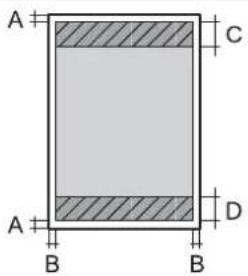 | A | 3.0 mm (0.12 in.) | |
| B | 3.0 mm (0.12 in.) | ||
| C | 46.0 mm (1.81 in.) | ||
| D | 51.0 mm (2.01 in.) |
Envelopes
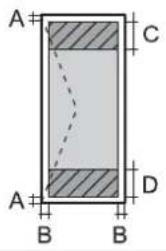 | A | 3.0 mm (0.12 in.) | |
| B | 5.0 mm (0.20 in.) | ||
| C | 18.0 mm (0.71 in.) | ||
| D | 46.0 mm (1.81 in.) |
Scanner Specifications
| Scanner Type | Flatbed |
| Photoelectric Device | CIS |
Appendix
| Effective Pixels | 14040 × 20400 pixels at 1200 dpi |
| Maximum Document Size | 297 × 431.8 mm (11.7 × 17 in.)A3 |
| Scanning Resolution | 1200 dpi (main scan)2400 dpi (sub scan) |
| Output Resolution | 50 to 4800, 7200, 9600 dpi(50 to 4800 dpi in 1 dpi increments.) |
| Color Depth | Color☐ 10 bits per pixel per color internal☐ 8 bits per pixel per color externalBlack and white☐ 10 bits per pixel per color internal☐ 1 or 8 bits per pixel per color external |
| Light Source | LED |
Interface Specifications
| For Computer | Hi-Speed USB |
| For External USB Device | Hi-Speed USB |
Fax Specifications
| Fax Type | Walk-up black and white and color fax capability (ITU-T Super Group 3) |
| Supported Lines | Standard analogue telephone lines, PBX (Private Branch Exchange) telephone systems |
| Speed | Up to 33.6 kbps |
| Resolution | Monochrome Standard: 8 pel/mm × 3.85 line/mm (203 pel/in. × 98 line/in.) Fine: 8 pel/mm × 7.7 line/mm (203 pel/in. × 196 line/in.) Super Fine: 8 pel/mm × 15.4 line/mm (203 pel/in. × 392 line/in.) Ultra Fine: 16 pel/mm × 15.4 line/mm (406 pel/in. × 392 line/in.) Photo: 8 pel/mm × 7.7 line/mm (203 pel/in. × 196 line/in.)Color Fine: 200 × 200 dpi Photo: 200 × 200 dpi |
| Page Memory | Up to 550 pages (when received ITU-T No.1 chart in monochrome draft mode) |
| Redial* | 2 times (with 1 minute intervals) |
Appendix
| Interface | RJ-11 Phone Line, RJ-11 Telephone set connection |
* The specifications may differ by country or region.
Wi-Fi Specifications
| Standards | IEEE802.11b/g/n |
| Frequency Range | 2.4 GHz |
| Coordination Modes | Infrastructure, Ad hoc*1, Wi-Fi Direct*2*3 |
| Wireless Securities | WEP (64/128bit), WPA2-PSK (AES)*4, WPA2-Enterprise |
*1 Not supported for IEEE 802.11n.
*2 Not supported for IEEE 802.11b.
*3 Simple AP mode is compatible with Ethernet connection.
*4 Complies with WPA2 standards with support for WPA/WPA2 Personal.
Ethernet Specifications
| Standards | IEEE802.3i (10BASE-T) |
| IEEE802.3u (100BASE-TX) | |
| IEEE802.3ab (1000BASE-T)* ^1 | |
| IEEE802.3az (Energy Efficient Ethernet)* ^2 | |
| Communication Mode | Auto, 10Mbps Full duplex, 10Mbps Half duplex, 100Mbps Full duplex, 100Mbps Half duplex |
| Connector | RJ-45 |
*1 Use a category 5e or higher STP (Shielded twisted pair) cable to prevent risk of radio interference.
*2 The connected device should comply with IEEE802.3az standards.
Security Protocol
| IEEE802.1X* | |
| IPsec/IP FilteringSSL/TLS | HTTPS Server/Client |
| IPPS | |
| SNMPv3 | |
* You need to use a device for connection that complies with IEEE802.1X.
Appendix
Supported Third Party Services
| AirPrint | iOS 5 or later/Mac OS X v10.7.x or later | |
| Google Cloud Print | ||
External USB Device Specifications
| Devices | Maximum Capacities |
| MO Drive* | 1.3 GB |
| Hard Disk Drive*USB Flash Drive | 2 TB (formatted in FAT, FAT32, or exFAT.) |
* We do not recommend using external USB devices that are powered by USB. Use only external USB devices with independent AC power sources.
You cannot use the following devices:
☐ A device that requires a dedicated driver
☐ A device with security settings (password, encryption, and so on)
☐ A device with a built-in USB hub
Epson cannot guarantee all operations of externally connected devices.
Supported Data Specifications
| File Format | JPEG with the Exif Version 2.3 standard taken by digital cameras DCF*1 version 1.0 or 2.0*2 compliantTIFF 6.0 compliant images as belowRGB full color images (not compressed)Binary images (not compressed or CCITT encoded)PDF Version 1.7 compliant data file |
| Image Size | Horizontal: 80 to 10200 pixelsVertical: 80 to 10200 pixels |
| File Size | Up to 2 GB |
| Maximum Number of Files | JPEG: 9990*3TIFF: 999PDF: 999 |
*1 Design rule for Camera File system.
*2 Photo data stored on digital cameras with a built-in memory is not supported.
*3 Up to 999 files can be displayed at a time. (If the number of files exceeds 999, the files are displayed in groups.)
Appendix
Note:
"?" is displayed on the LCD screen when the printer cannot recognize the image file. In this situation, if you select a multiple image layout, blank sections will be printed.
Dimensions
Only the printer
| Dimensions | Storage |
| Width: 767 mm (30.2 in.) | |
| Depth: 572 mm (22.5 in.) | |
| Height: 591 mm (23.3in.) | |
| Printing | |
| Width: 767 mm (30.2 in.) | |
| Depth: 902 mm (35.5 in.) | |
| Height: 689 mm (27.1in.) | |
| Weight* | Approx. 53.8 kg (118.6 lb) |
* Without the ink supply units and the power cord.
Printers with options
These are the dimensions of printers with 2 optional paper cassette units and an optional cabinet.
| Dimensions | StorageWidth: 767 mm (30.2 in.)Depth: 800 mm (31.5 in.)Height: 1132 mm (44.6in.)PrintingWidth: 767 mm (30.2 in.)Depth: 910 mm (35.8 in.)Height: 1230 mm (48.4in.) |
| Weight* | Approx. 95.9 kg (211.4 lb) |
* Without the ink supply units and the power cord.
Electrical Specifications
| Model | 100 to 240 V Model | 220 to 240 V Model |
| Rated Frequency Range | 50 to 60 Hz | 50 to 60 Hz |
| Rated Current | 1.2 to 0.6 A | 0.8 A |
Appendix
| Power Consumption (with USB Connection) | Standalone copying: Approx. 40 W(ISO/IEC24712) | Standalone copying: Approx. 40 W(ISO/IEC24712) |
| Ready mode: Approx. 18 W | Ready mode: Approx. 18 W | |
| Sleep mode: Approx. 2.7 W | Sleep mode: Approx. 2.9 W | |
| Power off: Approx. 0.4 W | Power off: Approx. 0.5 W |
Note:
☐ Check the label on the printer for its voltage.
☐ For European users, see the following Website for details on power consumption.
http://www.epson.eu/energy-consumption
☐ For users in Belgium, power consumption when copying may vary.
Check http://www.epson.be for the latest specifications.
Environmental Specifications
| Operation | Use the printer within the range shown in the following graph. |
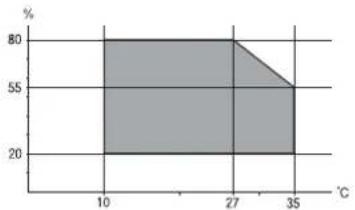 | |
| Temperature: 10 to 35°C (50 to 95°F) | |
| Humidity: 20 to 80% RH (without condensation) | |
| Storage | Temperature: -20 to 40°C (-4 to 104°F)* |
| Humidity: 5 to 85% RH (without condensation) |
* You can store for one month at 40°C (104°F).
Environmental Specifications for Ink Supply Units
| Storage Temperature | -20 to 40 °C (-4 to 104 °F)* |
| Freezing Temperature | -23 °C (-9.4 °F)Ink thaws and is usable after approximately 12 hours at 25 °C (77 °F). |
* You can store for one month at 40 °C (104 °F).
System Requirements
☐ Windows 8.1 (32-bit, 64-bit)/Windows 8 (32-bit, 64-bit)/Windows 7 (32-bit, 64-bit)/Windows Vista (32-bit, 64-bit)/Windows XP Professional x64 Edition/Windows XP (32-bit)/Windows Server 2012 R2/Windows Server 2012/Windows Server 2008 R2/Windows Server 2008 (32-bit, 64-bit)/Windows Server 2003 R2 (32-bit, 64-bit)/Windows Server 2003 (32-bit, 64-bit)
Appendix
☐ Mac OS X v10.9.x/Mac OS X v10.8.x/Mac OS X v10.7.x/Mac OS X v10.6.x/Mac OS X v10.5.8
Note:
☐ Mac OS X may not support some applications and features.
☐ The UNIX File System (UFS) for Mac OS X is not supported.
Font Information
Available Fonts for PostScript
Roman fonts
| Font Name |
| Albertus, Albertus Italic, Albertus Light |
| AntiqueOlive Roman, AntiqueOlive Italic, AntiqueOlive Bold, AntiqueOlive Compact |
| Apple ChanceryITC AvantGarde Gothic Book, ITC AvantGarde Gothic Book Oblique, ITC AvantGarde Gothic Demi, ITC AvantGarde Gothic Demi Oblique |
| Bodoni, Bodoni Italic, Bodoni Bold, Bodoni Bold Italic, Bodoni Poster, Bodoni Poster Compressed |
| ITC Bookman Light, ITC Bookman Light Italic, ITC Bookman Demi, ITC Bookman Demi ItalicCarta |
| Chicago |
| Clarendon, Clarendon Light, Clarendon BoldCooperBlack, CooperBlack Italic |
| Copperplate Gothic 32BC, Copperplate Gothic 33BC |
| CoronetCourier, Courier Oblique, Courier Bold, Courier Bold Oblique |
| GillSans, GillSans Italic, GillSans Bold, GillSans Bold Italic, GillSans Condensed, GillSans Condensed Bold, GillSans Light, GillSans Light Italic, GillSans Extra Bold |
| Eurostile, Eurostile Bold, Eurostile Extended Two, Eurostile Bold Extended TwoGeneva |
| Goudy Oldstyle, Goudy Oldstyle Italic, Goudy Bold, Goudy BoldItalic, Goudy ExtraBold |
| Helvetica, Helvetica Oblique, Helvetica Bold, Helvetica Bold Oblique, Helvetica Condensed, Helvetica Condensed Oblique, Helvetica Condensed Bold, Helvetica Condensed Bold Oblique, Helvetica Narrow, Helvetica Narrow Oblique, Helvetica Narrow Bold, Helvetica Narrow Bold Oblique |
| Hoefler Text, Hoefler Text Italic, Hoefler Text Black, Hoefler Text Black Italic, Hoefler Text OrnamentsJoanna, Joanna Italic, Joanna Bold, Joanna Bold Italic |
Appendix
| Font Name |
| LetterGothic, LetterGothic Slanted, LetterGothic Bold, LetterGothic Bold Slanted |
| ITC Lubalin Graph Book, ITC Lubalin Graph Book Oblique, ITC Lubalin Graph Demi, ITC Lubalin Graph Demi ObliqueMarigoldMonaco |
| ITC Mona Lisa RecutNew Century Schoolbook Roman, New Century Schoolbook Italic, New Century Schoolbook Bold, New Century Schoolbook Bold ItalicNew York |
| Optima, Optima Italic, Optima Bold, Optima Bold Italic |
| OxfordPalatino Roman, Palatino Italic, Palatino Bold, Palatino Bold Italic |
| Stempel Garamond Roman, Stempel Garamond Italic, Stempel Garamond Bold, Stempel Garamond Bold Italic |
| SymbolTekton |
| Times Roman, Times Italic, Times Bold, Times Bold Italic |
| Univers, Univers Oblique, Univers Bold, Univers Bold Oblique, Univers Light, Univers Light ObliqueUniversCondensed, UniversCondensed Oblique, UniversCondensed Bold, UniversCondensed Bold Oblique |
| UniversExtended, UniversExtended Oblique, UniversExtended Bold, UniversExtended Bold Oblique |
| WingdingsITC Zapf Chancery Medium Italic |
| ITC Zapf Dingbats |
| Arial, Arial Italic, Arial Bold, Arial Bold ItalicTimes New Roman, Times New Roman Italic, Times New Roman Bold, Times New Roman Bold Italic |
Available Fonts for PCL 5
Scalable Font
| Font Name | Family | HP Equivalent | Symbol Set |
| Fixed Pitch 810 | Medium, Bold, Italic, Bold Italic | Courier | 1 |
| Fixed Pitch 850 | Regular, Bold, Italic | Letter Gothic | 1 |
| Fixed Pitch 810 Dark | Medium, Bold, Italic, Bold Italic | CourierPS | 3 |
| Dutch 801 | Medium, Bold, Italic, Bold Italic | CG Times | 2 |
Appendix
| Font Name | Family | HP Equivalent | Symbol Set |
| Zapf Humanist 601 | Medium, Bold, Italic, Bold Italic | CG Omega | 3 |
| Ribbon 131 | - | Coronet | 3 |
| Clarendon 701 | - | Clarendon Condensed | 3 |
| Swiss 742 | Medium, Bold, Italic, Bold Italic | Univers | 2 |
| Swiss 742 Condensed | Medium, Bold, Italic, Bold Italic | Univers Condensed | 3 |
| Incised 901 | Medium, Bold, Italic | Antique Olive | 3 |
| Aldine 430 | Medium, Bold, Italic, Bold Italic | Garamond | 3 |
| Calligraphic 401 | - | Marigold | 3 |
| Flareserif 821 | Medium, Extra Bold | Albertus | 3 |
| Swiss 721 SWM | Medium, Bold, Italic, Bold Italic | Arial | 3 |
| Dutch 801 SWM | Medium, Bold, Italic, Bold Italic | Times New | 3 |
| Swiss 721 SWA | Medium, Bold, Oblique, Bold Oblique | Helvetica | 3 |
| Swiss 721 Narrow SWA | Medium, Bold, Oblique, Bold Oblique | Helvetica Narrow | 3 |
| Zapf Calligraphic 801 SWA | Medium, Bold, Italic, Bold Italic | Palatino | 3 |
| Geometric 711 SWA | Medium, Bold, Oblique, Bold Italic | ITC Avant Garde Gothic | 3 |
| Revival 711 SWA | Light, Demi Bold, Light Italic, Demi Bold Italic | ITC Bookman | 3 |
| Century 702 SWA | Medium, Bold, Italic, Bold Italic | New Century Schoolbook | 3 |
| Dutch 801 SWA | Medium, Bold, Italic, Bold Italic | Times | 3 |
| Chancery 801 Medium SWA Italic | - | ITC Zapf Chancery Medium Italic | 3 |
| Symbol SWM | - | Symbol | 4 |
| More WingBats SWM | - | Wingdings | 5 |
| Ding Dings SWA | - | ITC Zapf Dingbats | 6 |
| Symbol SWA | - | SymbolIPS | 4 |
| David BT | Medium, Bold | David | 7 |
| Narkis Tam BT | Medium, Bold | Narkis | 7 |
| Miryam BT | Medium, Bold, Italic | Miryam | 7 |
| Koufi BT | Medium, Bold | Koufi | 8 |
| Naskh BT | Medium, Bold | Naskh | 8 |
| Ryadh BT | Medium, Bold | Ryadh | 8 |
Appendix
Bitmap Font
| Font Name | Symbol Set |
| Line Printer | 9 |
OCR/Barcode Bitmap Font
| Font Name | Family | Symbol Set |
| OCR A | - | 10 |
| OCR B | - | 11 |
| Code39 | 9.37cpi, 4.68cpi | 12 |
| EAN/UPC | Medium, Bold | 13 |
Note:
Depending on the print density, or on the quality or color of the paper, OCR A, OCR B, Code39, and EAN/UPC fonts may not be readable. Print a sample and make sure the fonts can be read before printing large quantities.
Related Information
→ "List of Symbol Sets for PCL 5" on page 209
Available Fonts for PCL 6
Scalable Font
| Font Name | Family | HP Equivalent | Symbol Set |
| FixedPitch 810 | Medium, Bold, Italic, Bold Italic | Courier | 1 |
| FixedPitch 850 | Regular, Bold, Italic | Letter Gothic | 1 |
| FixedPitch 810 Dark | Medium, Bold, Italic, Bold Italic | CourierPS | 3 |
| Dutch 801 | Medium, Bold, Italic, Bold Italic | CG Times | 2 |
| Zapf Humanist 601 | Medium, Bold, Italic, Bold Italic | CG Omega | 3 |
| Ribbon 131 | - | Coronet | 3 |
| Clarendon 701 | - | Clarendon Condensed | 3 |
| Swiss 742 | Medium, Bold, Italic, Bold Italic | Univers | 2 |
| Swiss 742 Condensed | Medium, Bold, Italic, Bold Italic | Univers Condensed | 3 |
| Incised 901 | Medium, Bold, Italic | Antique Olive | 3 |
| Aldine 430 | Medium, Bold, Italic, Bold Italic | Garamond | 3 |
Appendix
| Font Name | Family | HP Equivalent | Symbol Set |
| Calligraphic 401 | - | Marigold | 3 |
| Flareserif 821 | Medium, Extra Bold | Albertus | 3 |
| Swiss 721 SWM | Medium, Bold, Italic, Bold Italic | Arial | 3 |
| Dutch 801 SWM | Medium, Bold, Italic, Bold Italic | Times New | 3 |
| Swiss 721 SWA | Medium, Bold, Oblique, Bold Oblique | Helvetica | 3 |
| Swiss 721 Narrow SWA | Medium, Bold, Oblique, Bold Oblique | Helvetica Narrow | 3 |
| Zapf Calligraphic 801 SWA | Medium, Bold, Italic, Bold Italic | Palatino | 3 |
| Geometric 711 SWA | Medium, Bold, Oblique, Bold Italic | ITC Avant Garde Gothic | 3 |
| Revival 711 SWA | Light, Demi Bold, Light Italic, Demi Bold Italic | ITC Bookman | 3 |
| Century 702 SWA | Medium, Bold, Italic, Bold Italic | New Century Schoolbook | 3 |
| Dutch 801 SWA | Medium, Bold, Italic, Bold Italic | Times | 3 |
| Chancery 801 Medium SWA Italic | - | ITC Zapf Chancery Medium Italic | 3 |
| Symbol SWM | - | Symbol | 4 |
| More WingBats SWM | - | Wingdings | 5 |
| Ding Dings SWA | - | ITC Zapf Dingbats | 6 |
| Symbol SWA | - | SymbolIPS | 4 |
| David BT | Medium, Bold | David | 7 |
| Narkis Tam BT | Medium, Bold | Narkis | 7 |
| Miryam BT | Medium, Bold, Italic | Miryam | 7 |
| Koufi BT | Medium, Bold | Koufi | 8 |
| Naskh BT | Medium, Bold | Naskh | 8 |
| Ryadh BT | Medium, Bold | Ryadh | 8 |
Bitmap Font
| Font Name | Symbol Set |
| Line Printer | 9 |
Related Information
→ "List of Symbol Sets for PCL 6" on page 212
Appendix
List of Symbol Sets
Your printer can access a variety of symbol sets. Many of these symbol sets differ only in the international characters specific to each language.
When you are considering which font to use, you should also consider which symbol set to combine with the font.
Note:
Since most software handles fonts and symbols automatically, you will probably never need to adjust the printer's settings. However, if you are writing your own printer control programs, or if you are using older software that cannot control fonts, refer to the following sections for symbol set details.
List of Symbol Sets for PCL 5
| Symbol Set Name | Attribute | Font Classification | ||||||||||||
| 1 | 2 | 3 | 4 | 5 | 6 | 7 | 8 | 9 | 10 | 11 | 12 | 13 | ||
| ISO 60: Danish/ Norwegian | 0D | ✓ | ✓ | ✓ | - | - | - | - | - | - | - | - | - | - |
| Roman Extension | 0E | - | - | - | - | - | - | - | - | ✓ | - | - | - | - |
| ISO 15: Italian | 0I | ✓ | ✓ | ✓ | - | - | - | - | - | - | - | - | - | - |
| ISO 8859/1 Latin 1 | 0N | ✓ | ✓ | ✓ | - | - | - | - | - | ✓ | - | - | - | - |
| ISO 11: Swedish | 0S | ✓ | ✓ | ✓ | - | - | - | - | - | - | - | - | - | - |
| ISO 6: ASCII | 0U | ✓ | ✓ | ✓ | - | - | - | ✓ | ✓ | - | - | - | - | - |
| ISO 4: United Kingdom | 1E | ✓ | ✓ | ✓ | - | - | - | - | - | - | - | - | - | - |
| ISO 69: French | 1F | ✓ | ✓ | ✓ | - | - | - | - | - | - | - | - | - | - |
| ISO 29: German | 1G | ✓ | ✓ | ✓ | - | - | - | - | - | - | - | - | - | - |
| Legal | 1U | ✓ | ✓ | ✓ | - | - | - | - | - | ✓ | - | - | - | - |
| ISO 8859/2 Latin 2 | 2N | ✓ | ✓ | ✓ | - | - | - | - | - | ✓ | - | - | - | - |
| ISO 17: Spanish | 2S | ✓ | ✓ | ✓ | - | - | - | - | - | - | - | - | - | - |
| ISO 8859/4 Latin 4 | 4N | ✓ | ✓ | ✓ | - | - | - | - | - | - | - | - | - | - |
| Roman-9 | 4U | ✓ | ✓ | ✓ | - | - | - | - | - | - | - | - | - | - |
| PS Math | 5M | ✓ | ✓ | ✓ | - | - | - | ✓ | ✓ | - | - | - | - | - |
| ISO 8859/9 Latin 5 | 5N | ✓ | ✓ | ✓ | - | - | - | - | - | ✓ | - | - | - | - |
| Windows 3.1 Latin 5 | 5T | ✓ | ✓ | ✓ | - | - | - | - | - | - | - | - | - | - |
Appendix
| Symbol Set Name | Attribute | Font Classification | ||||||||||||
| 1 | 2 | 3 | 4 | 5 | 6 | 7 | 8 | 9 | 10 | 11 | 12 | 13 | ||
| Microsoft Publishing | 6J | ✓ | ✓ | ✓ | - | - | - | - | - | - | - | - | - | - |
| Ventura Math | 6M | ✓ | ✓ | ✓ | - | - | - | - | - | - | - | - | - | - |
| ISO 8859/10 Latin 6 | 6N | ✓ | ✓ | ✓ | - | - | - | - | - | ✓ | - | - | - | - |
| DeskTop | 7J | ✓ | ✓ | ✓ | - | - | - | - | - | - | - | - | - | - |
| Math-8 | 8M | ✓ | ✓ | ✓ | - | - | - | ✓ | ✓ | - | - | - | - | - |
| Roman-8 | 8U | ✓ | ✓ | ✓ | - | - | - | - | - | ✓ | - | - | - | - |
| Windows 3.1 Latin 2 | 9E | ✓ | ✓ | ✓ | - | - | - | - | - | - | - | - | - | - |
| Pc1004 | 9J | ✓ | ✓ | ✓ | - | - | - | - | - | - | - | - | - | - |
| ISO 8859/15 Latin 9 | 9N | ✓ | ✓ | ✓ | - | - | - | - | - | ✓ | - | - | - | - |
| PC-8 Turkish | 9T | ✓ | ✓ | ✓ | - | - | - | - | - | - | - | - | - | - |
| Windows 3.0 Latin 1 | 9U | ✓ | ✓ | ✓ | - | - | - | - | - | - | - | - | - | - |
| PS Text | 10J | ✓ | ✓ | ✓ | - | - | - | - | - | - | - | - | - | - |
| PC-8, Code Page 437 | 10U | ✓ | ✓ | ✓ | - | - | - | - | - | ✓ | - | - | - | - |
| PC-8, D/N, Danish/ Norwegian | 11U | ✓ | ✓ | ✓ | - | - | - | - | - | ✓ | - | - | - | - |
| MC Text | 12J | ✓ | ✓ | ✓ | - | - | - | - | - | - | - | - | - | - |
| PC-850, Multilingual | 12U | ✓ | ✓ | ✓ | - | - | - | - | - | ✓ | - | - | - | - |
| Ventura International | 13J | ✓ | ✓ | ✓ | - | - | - | - | - | - | - | - | - | - |
| PcEur858 | 13U | ✓ | ✓ | ✓ | - | - | - | - | - | - | - | - | - | - |
| Ventura US | 14J | ✓ | ✓ | ✓ | - | - | - | - | - | - | - | - | - | - |
| Pi Font | 15U | ✓ | ✓ | ✓ | - | - | - | - | - | - | - | - | - | - |
| PC852, Latin 2 | 17U | ✓ | ✓ | ✓ | - | - | - | - | - | - | - | - | - | - |
| Unicode 3.0 | 18N | ✓ | ✓ | ✓ | - | - | - | ✓ | ✓ | - | - | - | - | - |
| Windows Baltic | 19L | ✓ | ✓ | ✓ | - | - | - | - | - | - | - | - | - | - |
| Windows 3.1 Latin/Arabic | 19U | ✓ | ✓ | ✓ | - | - | - | - | - | - | - | - | - | - |
| PC-755 | 26U | ✓ | ✓ | ✓ | - | - | - | - | - | - | - | - | - | - |
Appendix
| Symbol Set Name | Attribute | Font Classification | ||||||||||||
| 1 | 2 | 3 | 4 | 5 | 6 | 7 | 8 | 9 | 10 | 11 | 12 | 13 | ||
| PC-866, Cyrillic | 3R | ✓ | ✓ | - | - | - | - | - | - | - | - | - | - | - |
| Greek8 | 8G | ✓ | ✓ | - | - | - | - | - | - | - | - | - | - | - |
| Windows Greek | 9G | ✓ | ✓ | - | - | - | - | - | - | - | - | - | - | - |
| Windows Cyrillic | 9R | ✓ | ✓ | - | - | - | - | - | - | - | - | - | - | - |
| PC-851, Greek | 10G | ✓ | ✓ | - | - | - | - | - | - | - | - | - | - | - |
| ISO 8859/5 Cyrillic | 10N | ✓ | ✓ | - | - | - | - | - | - | ✓ | - | - | - | - |
| PC-8, Greek | 12G | ✓ | ✓ | - | - | - | - | - | - | - | - | - | - | - |
| ISO 8859/7 Greek | 12N | ✓ | ✓ | - | - | - | - | - | - | - | - | - | - | - |
| PC-866 UKR | 14R | ✓ | ✓ | - | - | - | - | - | - | - | - | - | - | - |
| Hebrew7 | 0H | ✓ | - | - | - | - | - | ✓ | - | - | - | - | - | - |
| ISO 8859/8 Hebrew | 7H | ✓ | - | - | - | - | - | ✓ | - | - | - | - | - | - |
| Hebrew8 | 8H | ✓ | - | - | - | - | - | ✓ | - | - | - | - | - | - |
| PC-862, Hebrew | 15H | ✓ | - | - | - | - | - | ✓ | - | - | - | - | - | - |
| PC-862, Hebrew | 15Q | ✓ | - | - | - | - | - | ✓ | - | - | - | - | - | - |
| Arabic8 | 8V | - | - | - | - | - | - | - | ✓ | - | - | - | - | - |
| HPWARA | 9V | - | - | - | - | - | - | - | ✓ | - | - | - | - | - |
| PC-864, Arabic | 10V | - | - | - | - | - | - | - | ✓ | - | - | - | - | - |
| Symbol | 19M | - | - | - | ✓ | - | - | - | - | - | - | - | - | - |
| Wingdings | 579L | - | - | - | - | ✓ | - | - | - | - | - | - | - | - |
| ZapfDigbats | 14L | - | - | - | - | - | ✓ | - | - | - | - | - | - | - |
| OCR A | 0O | - | - | - | - | - | - | - | - | - | ✓ | - | - | - |
| OCR B | 1O | - | - | - | - | - | - | - | - | - | - | ✓ | - | - |
| OCR B Extension | 3Q | - | - | - | - | - | - | - | - | - | - | ✓ | - | - |
| Code3-9 | 0Y | - | - | - | - | - | - | - | - | - | - | - | ✓ | - |
| EAN/UPC | 8Y | - | - | - | - | - | - | - | - | - | - | - | - | ✓ |
Appendix
List of Symbol Sets for PCL 6
| Symbol Set Name | Attribute | Font Classification | ||||||||
| 1 | 2 | 3 | 4 | 5 | 6 | 7 | 8 | 9 | ||
| ISO Norwegian | 4 | ✓ | ✓ | ✓ | - | - | - | - | - | - |
| ISO Italian | 9 | ✓ | ✓ | ✓ | - | - | - | - | - | - |
| ISO 8859-1 Latin 1 | 14 | ✓ | ✓ | ✓ | - | - | - | - | - | ✓ |
| ISO Swedish | 19 | ✓ | ✓ | ✓ | - | - | - | - | - | - |
| ASCII | 21 | ✓ | ✓ | ✓ | - | - | - | ✓ | ✓ | - |
| ISO United Kingdom | 37 | ✓ | ✓ | ✓ | - | - | - | - | - | - |
| ISO French | 38 | ✓ | ✓ | ✓ | - | - | - | - | - | - |
| ISO German | 39 | ✓ | ✓ | ✓ | - | - | - | - | - | - |
| Legal | 53 | ✓ | ✓ | ✓ | - | - | - | - | - | ✓ |
| ISO 8859-2 Latin 2 | 78 | ✓ | ✓ | ✓ | - | - | - | - | - | ✓ |
| ISO Spanish | 83 | ✓ | ✓ | ✓ | - | - | - | - | - | - |
| Roman-9 | 149 | ✓ | ✓ | ✓ | - | - | - | - | - | - |
| PS Math | 173 | ✓ | ✓ | ✓ | - | - | - | ✓ | ✓ | - |
| ISO 8859-9 Latin 5 | 174 | ✓ | ✓ | ✓ | - | - | - | - | - | ✓ |
| Windows 3.1 Latin 5 | 180 | ✓ | ✓ | ✓ | - | - | - | - | - | - |
| Microsoft Publishing | 202 | ✓ | ✓ | ✓ | - | - | - | - | - | - |
| ISO 8859/10 Latin 6 | 206 | ✓ | ✓ | ✓ | - | - | - | - | - | ✓ |
| DeskTop | 234 | ✓ | ✓ | ✓ | - | - | - | - | - | - |
| Math-8 | 269 | ✓ | ✓ | ✓ | - | - | - | ✓ | ✓ | - |
| Roman-8 | 277 | ✓ | ✓ | ✓ | - | - | - | - | - | ✓ |
| Windows 3.1 Latin 2 | 293 | ✓ | ✓ | ✓ | - | - | - | - | - | - |
| Pc1004 | 298 | ✓ | ✓ | ✓ | - | - | - | - | - | - |
| ISO 8859-15 Latin 9 | 302 | ✓ | ✓ | ✓ | - | - | - | - | - | - |
| PC-Turkish | 308 | ✓ | ✓ | ✓ | - | - | - | - | - | - |
| Windows 3.0 | 309 | ✓ | ✓ | ✓ | - | - | - | - | - | - |
| PS Text | 330 | ✓ | ✓ | ✓ | - | - | - | - | - | - |
| PC-8 | 341 | ✓ | ✓ | ✓ | - | - | - | - | - | ✓ |
| PC-8 D/N | 373 | ✓ | ✓ | ✓ | - | - | - | - | - | ✓ |
| MC Text | 394 | ✓ | ✓ | ✓ | - | - | - | - | - | - |
Appendix
| Symbol Set Name | Attribute | Font Classification | ||||||||
| 1 | 2 | 3 | 4 | 5 | 6 | 7 | 8 | 9 | ||
| PC-850 | 405 | ✓ | ✓ | ✓ | - | - | - | - | - | ✓ |
| PcEur858 | 437 | ✓ | ✓ | ✓ | - | - | - | - | - | - |
| Pi Font | 501 | ✓ | ✓ | ✓ | - | - | - | - | - | - |
| PC852 | 565 | ✓ | ✓ | ✓ | - | - | - | - | - | - |
| Unicode 3.0 | 590 | ✓ | ✓ | ✓ | - | - | - | ✓ | ✓ | - |
| WBALT | 620 | ✓ | ✓ | ✓ | - | - | - | - | - | - |
| Windows 3.1 Latin 1 | 629 | ✓ | ✓ | ✓ | - | - | - | - | - | - |
| PC-755 | 853 | ✓ | ✓ | ✓ | - | - | - | - | - | - |
| Wingdings | 18540 | - | - | - | - | ✓ | - | - | - | - |
| Symbol | 621 | - | - | - | ✓ | - | - | - | - | - |
| ZapfDigbats | 460 | - | - | - | - | - | ✓ | - | - | - |
| PC-866, Cyrillic | 114 | ✓ | ✓ | - | - | - | - | - | - | - |
| Greek8 | 263 | ✓ | ✓ | - | - | - | - | - | - | - |
| Windows Greek | 295 | ✓ | ✓ | - | - | - | - | - | - | - |
| Windows Cyrillic | 306 | ✓ | ✓ | - | - | - | - | - | - | - |
| PC-851, Greek | 327 | ✓ | ✓ | - | - | - | - | - | - | - |
| ISO 8859/5 Cyrillic | 334 | ✓ | ✓ | - | - | - | - | - | - | - |
| PC-8, Greek | 391 | ✓ | ✓ | - | - | - | - | - | - | - |
| ISO 8859/7 Greek | 398 | ✓ | ✓ | - | - | - | - | - | - | - |
| PC-866 UKR | 466 | ✓ | ✓ | - | - | - | - | - | - | - |
| Hebrew7 | 8 | ✓ | - | - | - | - | - | ✓ | - | - |
| ISO 8859/8 Hebrew | 232 | ✓ | - | - | - | - | - | ✓ | - | - |
| Hebrew8 | 264 | ✓ | - | - | - | - | - | ✓ | - | - |
| PC-862, Hebrew | 488 | ✓ | - | - | - | - | - | ✓ | - | - |
| Arabic8 | 278 | - | - | - | - | - | - | - | ✓ | - |
| HPWARA | 310 | - | - | - | - | - | - | - | ✓ | - |
| PC-864, Arabic | 342 | - | - | - | - | - | - | - | ✓ | - |
Regulatory Information
Standards and Approvals
Standards and Approvals for U.S. Model
| Safety | UL60950-1CAN/CSA-C22.2 No.60950-1 |
| EMC | FCC Part 15 Subpart B Class BCAN/CSA-CEI/IEC CISPR 22 Class B |
This equipment contains the following wireless module.
Manufacturer: Askey Computer Corporation
Type: WLU6117-D69(RoHS)
This product conforms to Part 15 of the FCC Rules and RSS-210 of the IC Rules. Epson cannot accept responsibility for any failure to satisfy the protection requirements resulting from a non-recommended modification of the product. Operation is subject to the following two conditions: (1) this device may not cause harmful interference, and (2) this device must accept any interference received, including interference that may cause undesired operation of the device.
To prevent radio interference to the licensed service, this device is intended to be operated indoors and away from windows to provide maximum shielding. Equipment (or its transmit antenna) that is installed outdoors is subject to licensing.
Standards and Approvals for European Model
| Low voltage directive 2006/95/EC | EN60950-1 |
| EMC directive 2004/108/EC | EN55022 Class B |
| EN61000-3-2 | |
| EN61000-3-3 | |
| EN55024 | |
| R&TTE directive 1999/5/EC | EN300 328 |
| EN301 489-1 | |
| EN301 489-17 | |
| TBR21 | |
| EN60950-1 |
For European users
We, Seiko Epson Corporation, hereby declare that the following equipment Model is in compliance with the essential requirements and other relevant provisions of Directive 1999/5/EC:
C521B
Appendix
For use only in Ireland, UK, Austria, Germany, Liechtenstein, Switzerland, France, Belgium, Luxembourg, Netherlands, Italy, Portugal, Spain, Denmark, Finland, Norway, Sweden, Iceland, Croatia, Cyprus, Greece, Slovenia, Malta, Bulgaria, Czechia, Estonia, Hungary, Latvia, Lithuania, Poland, Romania, and Slovakia.
Epson cannot accept responsibility for any failure to satisfy the protection requirements resulting from a non-recommended modification of the products.
CE
Standards and Approvals for Australian Model
EMC
AS/NZS CISPR22 Class B
Epson hereby declares that the following equipment Models are in compliance with the essential requirements and other relevant provisions of AS/NZS4268:
C521B
Epson cannot accept responsibility for any failure to satisfy the protection requirements resulting from a non-recommended modification of the products.
Restrictions on Copying
Observe the following restrictions to ensure the responsible and legal use of the printer.
Copying of the following items is prohibited by law:
☐ Bank bills, coins, government-issued marketable securities, government bond securities, and municipal securities
☐ Unused postage stamps, pre-stamped postcards, and other official postal items bearing valid postage
□ Government-issued revenue stamps, and securities issued according to legal procedure
Exercise caution when copying the following items:
☐ Private marketable securities (stock certificates, negotiable notes, checks, etc.), monthly passes, concession tickets, etc.
Passports, driver's licenses, warrants of fitness, road passes, food stamps, tickets, etc.
Note:
Copying these items may also be prohibited by law.
Responsible use of copyrighted materials:
Printers can be misused by improperly copying copyrighted materials. Unless acting on the advice of a knowledgeable attorney, be responsible and respectful by obtaining the permission of the copyright holder before copying published material.
Appendix
Printer Transfer and Transportation

Caution:
☐ When carrying the printer, lift it using a stable position. Lifting the printer using an unstable position may result in injury.
Because this printer is heavy, it should always be carried by two or more people when unpacking and transporting.
☐ When lifting the printer, place your hands in the positions shown below. If you lift the printer holding other positions, the printer may fall or you may trap your fingers when placing the printer.
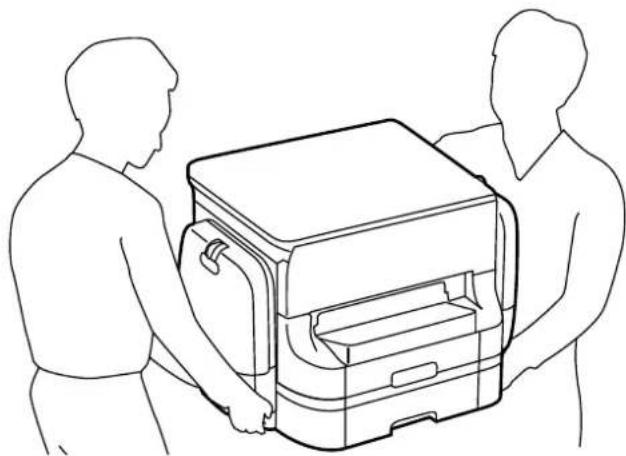
natural_image
Line drawing of two people handling a large box (no text or symbols)☐ When carrying the printer, do not tilt it more than 10 degrees; otherwise the printer may fall.
☐ When installing the printer on the optional cabinet, lock the casters before starting installation. If the cabinet moves unexpectedly, you may be injured.
Printer Transfer Within a Short Distance
Turn off the printer and disconnect the power cord and cables. Do not apply vibrations to the printer and keep it level while carrying.
When lifting the printer
If you have installed the optional cabinet and the paper cassette units, remove them, and then lift the printer.
When moving the printer on the casters
If you have installed the optional cabinet, you can move the printer without lifting it because the cabinet has casters. However, do not move over uneven or rough surfaces to avoid impacts to the printer. Uninstall the stands for the cabinet and unlock the casters before moving.
Transporting the Printer
Prepare the printer for transport as described here.
Appendix

Important:
☐ When storing or transporting the printer, avoid tilting it, placing it vertically, or turning it upside down; otherwise ink may leak.
☐ Remove the ink supply units before you transport the printer; otherwise ink may leak during transporting. After the transportation, re-install the ink supply units as soon as possible to prevent the print head drying out.
Leave the maintenance box installed; otherwise ink may leak during transporting.
- Turn off the printer by pressing the ⏻ button.
- Make sure the power light turns off, and then unplug the power cord.

Important:
Unplug the power cord when the power light is off. Otherwise, the print head does not return to the home position causing the ink to dry, and printing may become impossible.
- Disconnect all cables such as the power cord and USB cable.
- Remove all of the paper from the printer.
- Make sure there are no originals on the printer.
- Store the paper support and the output tray.
- Open the ink case.
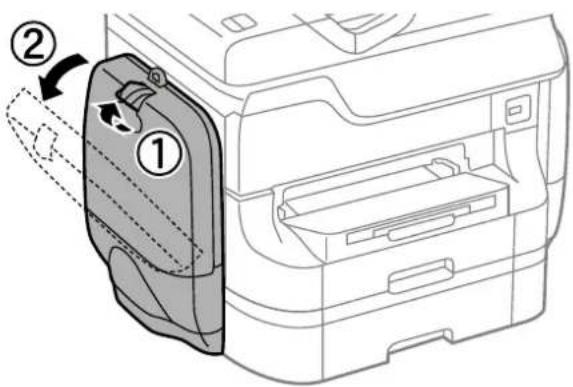
- Push the handle on the ink supply unit.
The ink supply unit will pop out.
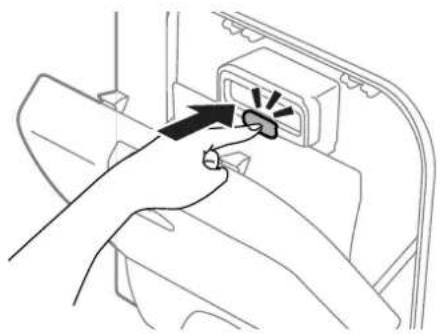
natural_image
Line drawing of a hand inserting a plug into a device (no text or symbols)User's Guide
Appendix
- Lift up the ink supply unit.
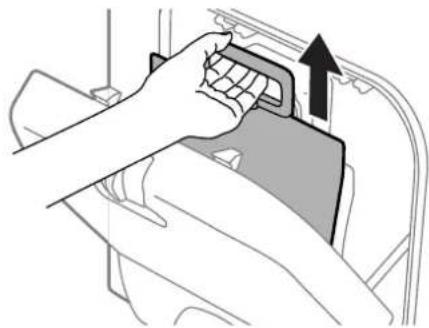
natural_image
Illustration of a hand inserting a component into a vehicle compartment, with an upward arrow indicating motion (no text or symbols present)Note:
☐ If you cannot lift up the ink supply unit, pull the handle forward.
□ Transport the removed ink supply units with the ink supply port facing up and the ink supply units laying down.
☐ Do not drop or knock the ink supply unit against hard objects; otherwise, the ink may leak.
- Push in the pop-out section.
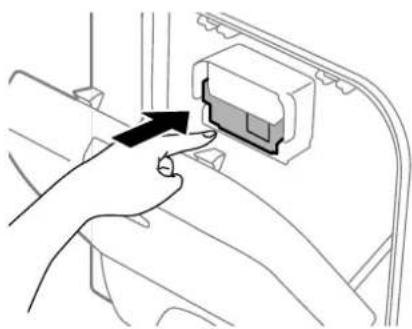
natural_image
Illustration of a hand inserting a device into a patient's bed (no text or symbols visible)- Close the ink case.
- Open the ink case on the opposite side of the printer, and then remove all of the ink supply units.
- Uninstall the optional cabinet or paper cassette units.
- Pack the printer in its box, using the protective materials.
If print quality has declined the next time you print, clean and align the print head.
Related Information
→ "Part Names and Functions" on page 18
→ "Checking and Cleaning the Print Head" on page 141
→ "Aligning the Print Head" on page 143
Installing the Optional Units
Optional Cabinet Code
The following is the code for the optional cabinet.
Optional Cabinet (C12C847261)
Installing the Optional Cabinet
The cabinet can be attached to the printer and the optional paper cassette units.

Caution:
☐ Make sure you turn off the printer, unplug the power cord from the printer, and disconnect any cables before starting installation. Otherwise, the power cord may be damaged resulting in fire or electric shock.
☐ Lock the casters of the cabinet before starting installation. If the cabinet moves unexpectedly, you may be injured.
☐ When lifting the printer, place your hands in the positions shown below. If you lift the printer holding other positions, the printer may fall or you may trap your fingers when placing the printer.
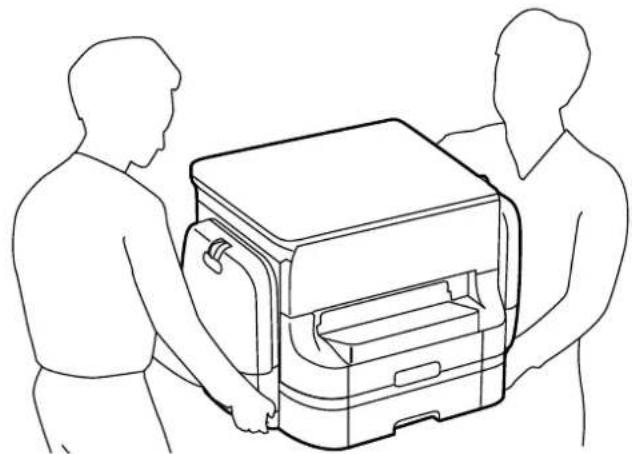
natural_image
Line drawing of two people handling a large box (no text or symbols)- Turn off the printer by pressing the ⏻ button, and then unplug the power cord.
- Disconnect any connected cables.
Note:
If optional paper cassette units have been installed, uninstall them as well.
- Remove the cabinet from the box, and then remove any protective materials.
Appendix
- Check the items supplied.
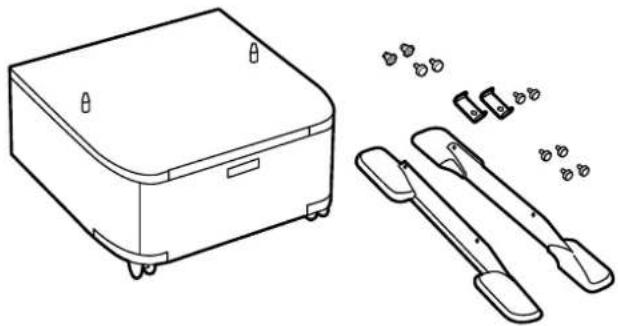
natural_image
Line drawing of a portable electronic device with wheels and accessories (no text or symbols)Note:
The shape of the stands may differ from this illustration.
- Place the cabinet on a flat surface and lock the casters at the front.
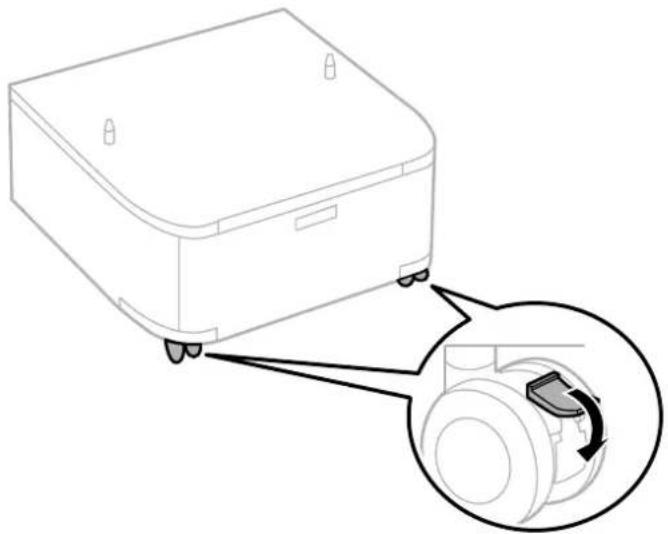
natural_image
Line drawing of a rectangular device with wheels and an inset showing a camera module (no text or symbols)- Secure the stands with the attachments and screws.
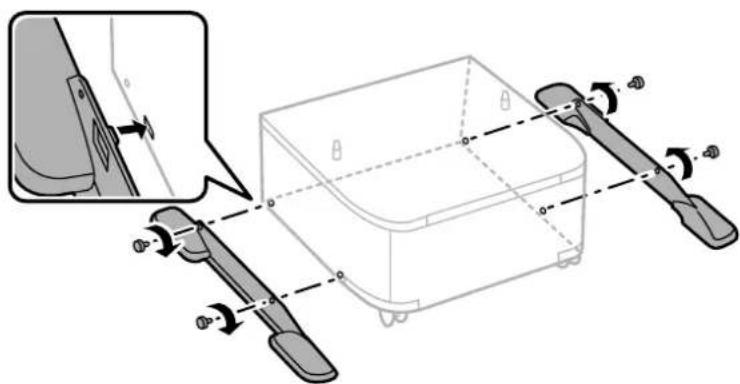

Important:
Make absolutely sure both stands are attached securely, otherwise the printer may fall.
Appendix
7. Pull out the paper cassette.
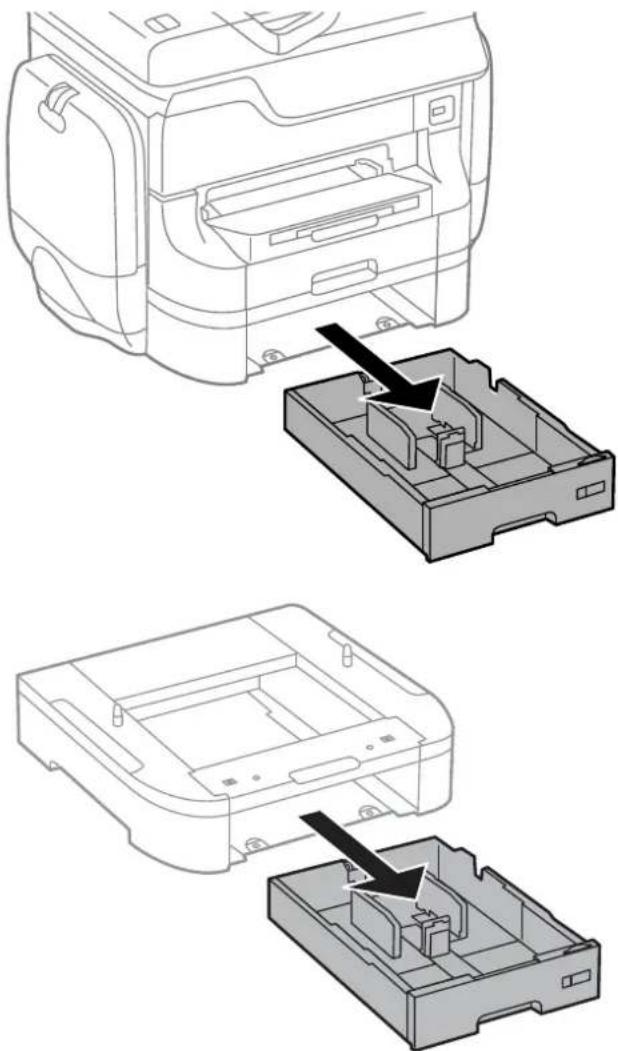
natural_image
Technical line drawing showing a printer's internal components being assembled into two views (no text or symbols present)Appendix
- Lower the printer or an optional paper cassette unit gently onto the cabinet aligning the corners, and then secure them with the screws.
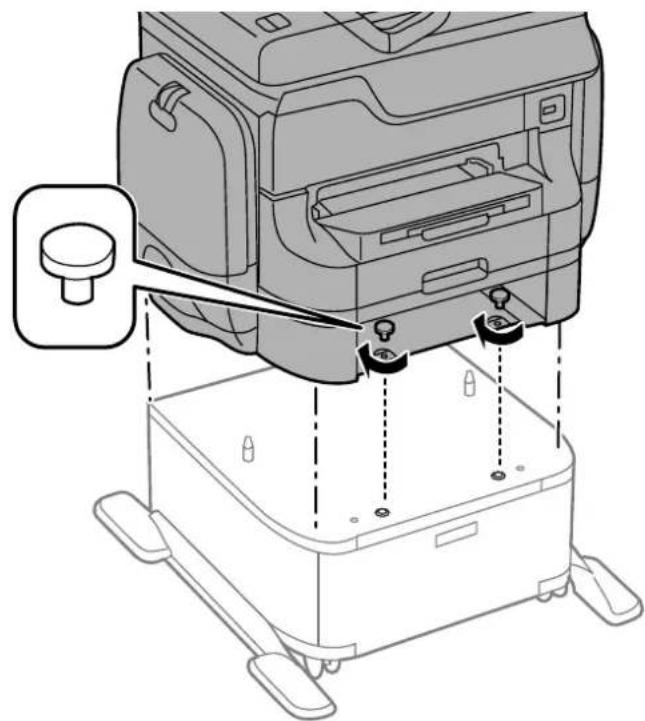
natural_image
Technical line drawing of a device with mounting base and internal components (no text or symbols)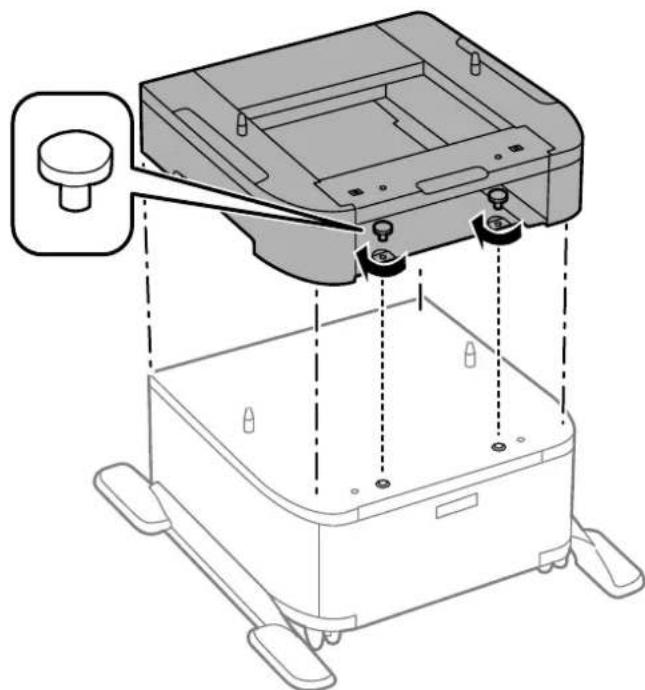
natural_image
Technical line drawing of a mechanical device with mounting base and internal components (no text or symbols)Note:
Some screws will be left over after assembly.
Appendix
- Secure the printer or an optional paper cassette unit at the back with the attachments and screws.
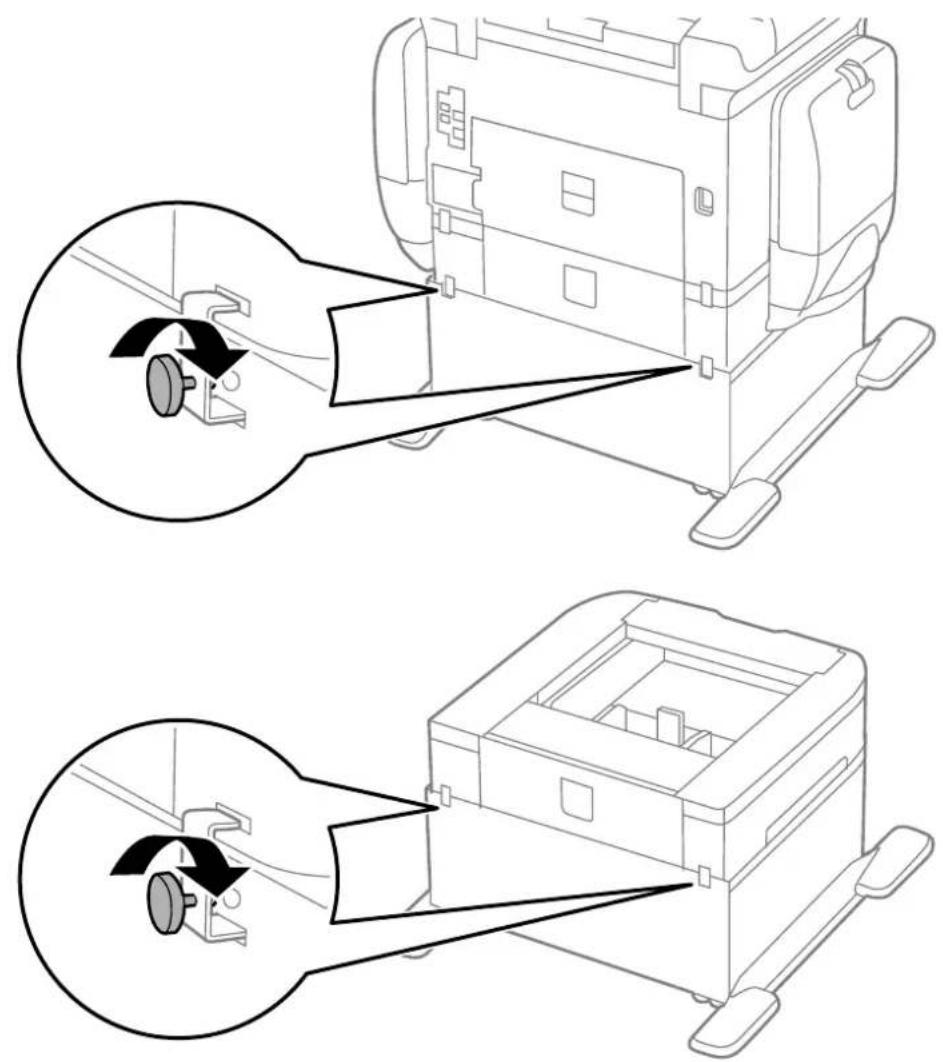
-
Insert the paper cassette.
-
Connect the cables and plug in the printer.
Note:
When uninstalling the cabinet, turn off the printer, unplug the power cord, disconnect any cables, and then perform the installation procedure in reverse.
Related Information
→ "Optional Cabinet Code" on page 219
Optional Paper Cassette Unit Code
The following is the code for the optional paper cassette unit.
500-Sheet Optional Cassette Unit (C12C817061)
Appendix
Installing the Optional Paper Cassette Units
You can install up to 2 paper cassette units.

Caution:
☐ Make sure you turn off the printer, unplug the power cord from the printer, and disconnect any cables before starting installation. Otherwise, the power cord may be damaged resulting in fire or electric shock.
☐ When lifting the printer, place your hands in the positions shown below. If you lift the printer holding other positions, the printer may fall or you may trap your fingers when placing the printer.
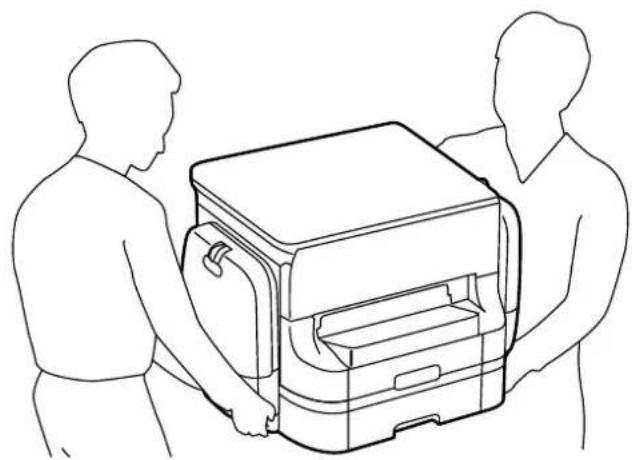
natural_image
Line drawing of two people handling a large box (no text or symbols)
Important:
If you are using the optional cabinet, install it under the bottom of the paper cassette unit in advance.
- Turn off the printer by pressing the ⏻ button, and then unplug the power cord.
- Disconnect any connected cables.
Note:
If other optional paper cassette units have been installed, uninstall them as well.
- Remove the optional paper cassette unit from its box, and then remove any protective materials.
- Check the items supplied.
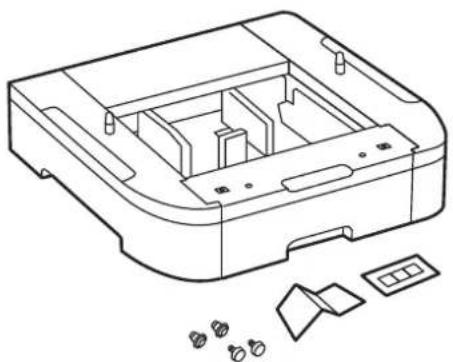
natural_image
Technical line drawing of a device casing with internal compartments and exploded view (no text or symbols)- Place the optional paper cassette unit where you want to set up the printer.
Appendix
6. Pull out the paper cassette.
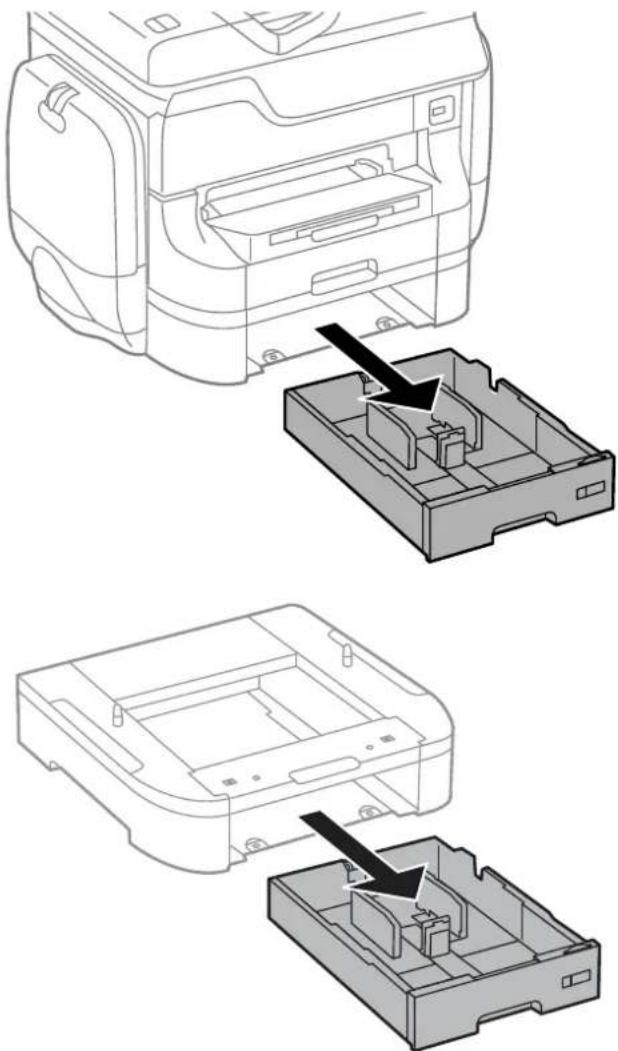
natural_image
Technical line drawing of a printer's internal components, showing top and side views with no text or symbols7. Stack all optional paper cassette units on top of each other, and then secure them with the screws.
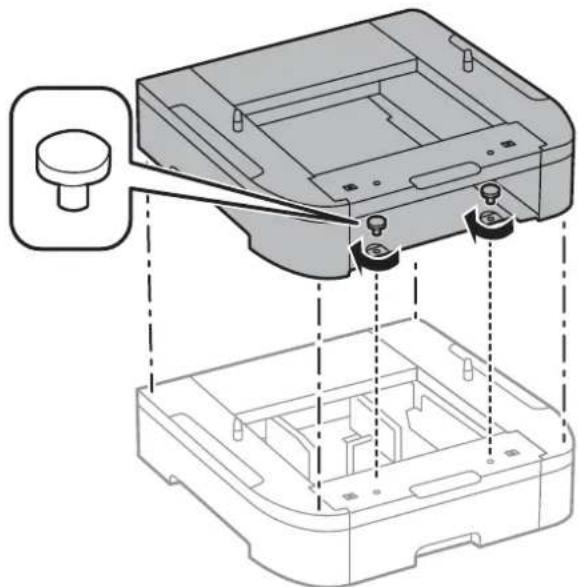
natural_image
Technical diagram of a device's internal structure showing assembly and mounting points (no text or labels)User's Guide
Appendix
- Lower the printer gently onto the optional paper cassette aligning the corners, and then secure them with the screws.
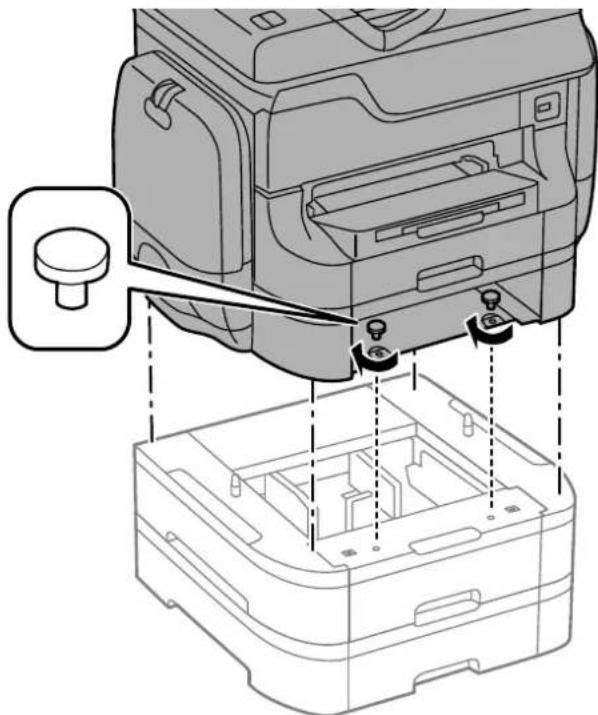
natural_image
Technical line drawing of a mechanical device with internal components and mounting features (no text or symbols)Note:
Some screws will be left over after assembly.
- Secure the optional paper cassette unit and the printer at the back with the attachments and screws.
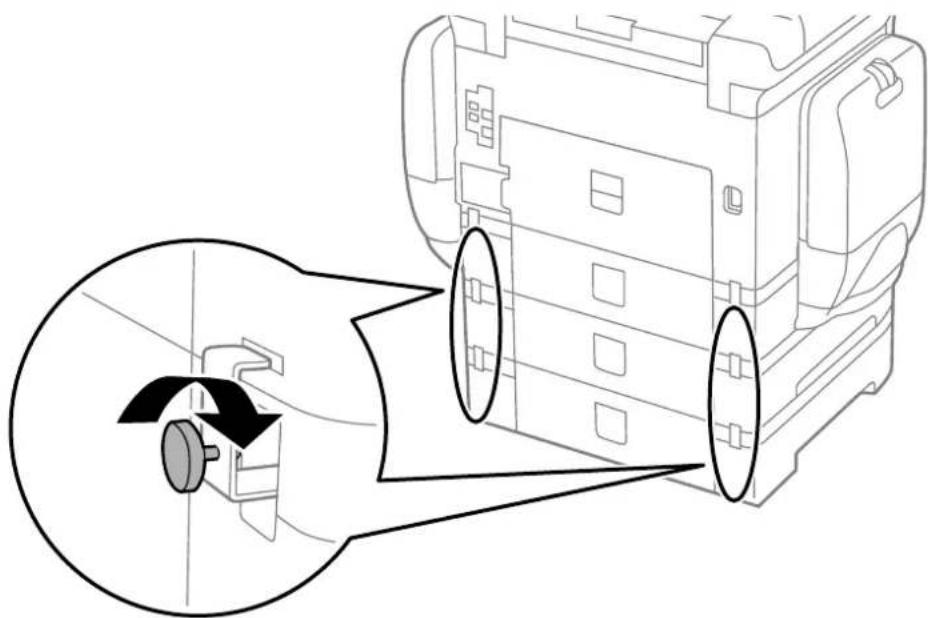
natural_image
Technical line drawing of a mechanical component with an inset showing a close-up of a circular component (no text or symbols)User's Guide
Appendix
- Insert a label showing the size of the paper to be loaded in the cassette into the holder.
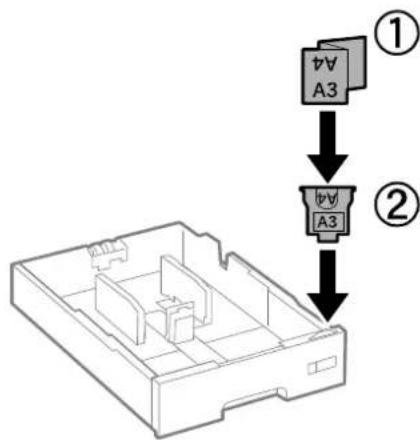
flowchart
graph TD
    A["Port A3"] --> B["Port A3"]
    style A fill:#f9f,stroke:#333
    style B fill:#ccf,stroke:#333
- Insert the paper cassette.
- Place the sticker indicating the cassette number.
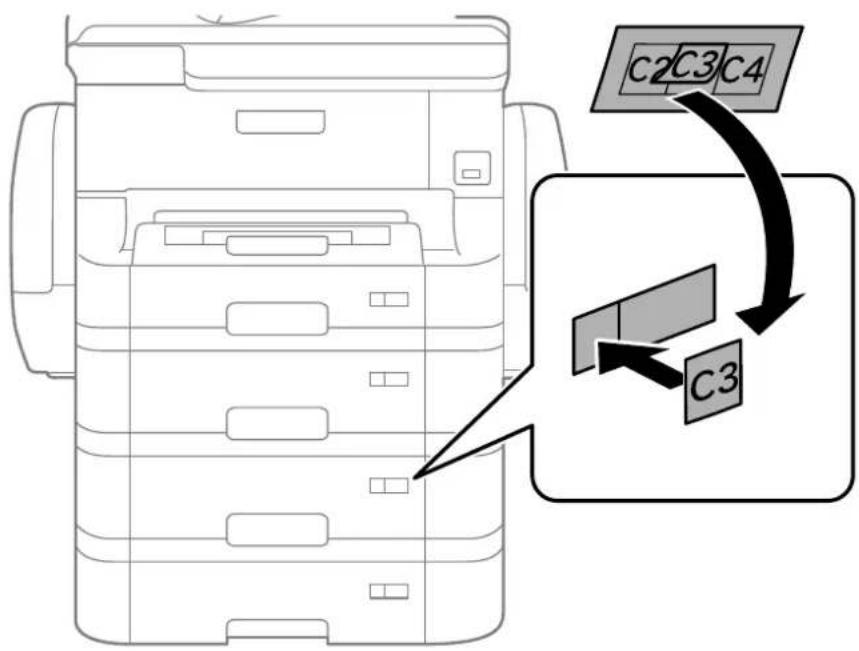
- Reconnect the power cord and any other cables, and then plug in the printer.
- Turn on the printer by pressing the ⏻ button.
- Pull out and reinsert the optional paper cassette unit to check that the optional paper cassette unit is displayed on the Paper Setup screen.
Note:
When uninstalling the optional paper cassette unit, turn off the printer, unplug the power cord, disconnect any cables, and then perform the installation procedure in reverse.
Proceed with the printer driver settings.
Appendix
Related Information
→ "Optional Paper Cassette Unit Code" on page 223
→ "Installing the Optional Cabinet" on page 219
Setting the Optional Paper Cassette Unit in the Printer Driver
To use the installed optional paper cassette unit, the printer driver needs to acquire the necessary information.
Setting the Optional Paper Cassette Unit in the Printer Driver - Windows
Note:
Log on to your computer as an administrator.
- Open the Optional Settings tab from the printer properties.
Windows 8.1/Windows 8/Windows Server 2012 R2/Windows Server 2012
Select Desktop > Settings > Control Panel > View devices and printers in Hardware and Sound. Right-click on your printer, or press and hold it, select Printer properties, and then click the Optional Settings tab.
Windows 7/Windows Server 2008 R2
Click the start button, and select Control Panel > View devices and printers in Hardware and Sound. Right-click on your printer, select Printer properties, and then click the Optional Settings tab.
Windows Vista/Windows Server 2008
Click the start button, and then select Control Panel > Printers in Hardware and Sound. Right-click on your printer, select Property, and then click Optional Settings.
Windows XP/Windows Server 2003 R2/Windows Server 2003
Click the start button, and select Control Panel > Printers and Other Hardware > Printers and Faxes. Right-click on your printer, select Property, and then click the Optional Settings tab.
- Select Acquire from Printer, and then click Get.
Optional Paper Sources information is displayed in Current Printer Information.
- Click OK.
Setting the Optional Paper Cassette Unit in the Printer Driver - Mac OS X
- Select System Preferences from the menu > Printers & Scanners (or Print & Scan, Print & Fax), and then select the printer. Click Options & Supplies > Options (or Driver).
- Set Lower Cassette according to the number of paper cassettes.
- Click OK.
Accessing an External USB Device From a Computer
You can write or read data on an external USB device such as a USB flash drive that has been inserted in the printer from a computer.
Appendix

Important:
☐ When sharing an external device inserted in the printer between computers connected over USB and over a network, write access is only allowed to the computers that are connected by the method you selected on the printer. To write to the external USB device, enter the Setup on the control panel, and then select System Administration > Printer Settings > Memory Device Interface > File Sharing and a connection method. Data can be read by computers connected over USB and over a network.
☐ To write to an external USB device connected to the computer over a network, enter the Setup on the control panel, and then select System Administration > Printer Settings > Memory Device Interface > File Sharing > Wi-Fi/Network.
Note:
It takes a while to recognize data from a computer if a large external USB device, such as 2TB HDD, is connected.
Windows
Select an external USB device in Computer or My Computer. The data on the external USB device is displayed.
Note:
If you connected the printer to the network without using the software disk or Web Installer, map a USB port as a network drive. Open Run and enter a printer name \EPSONXXXXX or a printer's IP address \XXX.XXX.XXX.XXX to Open:. Right-click a device icon displayed to assign the network. The network drive appears in Computer or My Computer.
Mac OS X
Select a corresponding device icon. The data on the external USB device is displayed.
Note:
☐ To remove an external USB device, drag the device icon to the trash icon. Otherwise, data in the shared drive may not be displayed correctly when another external USB device is inserted.
☐ If you connected the printer to the network without using EpsonNet Setup, map a USB port as a network drive. Select Go > Connect to Server. Enter a printer name cifs://EPSONXXXXX or smb://EPSONXXXXX in the Server Address and click Connect.
Related Information
→ "Printer Settings" on page 34
→ "External USB Device Specifications" on page 201
Using an Email Server
To use email features, such as scan or fax forwarding features, you need to configure the email server.
Configuring an Email Server
Check the following before configuring the email server.
☐ The printer is connected to the network.
☐ The email server information, such as the documents from your service provider that you used to setup the email on your computer.
Note:
If you use a free email service, such as Internet email, search the Internet to get the email server information you need.
Appendix
-
Enter Setup from the home screen.
-
Select System Administration > Wi-Fi/Network Settings > Advanced Setup.
-
Select Email Server > Server Settings.
-
Select the authentication method.
Select the authentication method of the email server you are using.

Important:
The following authentication methods are available. SSL and STARTTLS are not supported.
□ None
☐ SMTP (SMTP AUTH)
□ POP Before SMTP
Contact your internet service provider to confirm the authentication method of the email server.
The printer may not be able to communicate with an email server even if the authentication method is available since security may be enhanced (for example SSL communication is necessary). Visit the Epson support website for the latest information.
http://www.epson.eu/Support (Europe)
http://support.epson.net/ (outside Europe)
- Make the appropriate settings.
The necessary settings vary depending on the authentication method. Enter the information for the email server you are using.
-
Press OK.
-
Select Connection Check to check that the printer is connected to the email server.
Note:
☐ If an error message is displayed, check if the email server settings are correct.
☐ When you cannot send an email even if the connection check succeeds, check the authentication method for the email server you are using.
Email Server Setting Items
| Items | Explanations |
| Authentication Method | Displays the selected authentication method. |
| Authenticated Account | If you select SMTP-AUTH or POP before SMTP as the Authentication Method, enter the user name (email address) registered to the email server within 30 characters or less. |
| Authenticated Password | If you select SMTP-AUTH or POP before SMTP as the Authentication Method, enter the password of the authenticated account within 20 characters or less. |
Appendix
| Items | Explanations |
| Sender's Email Address | Specify the email address that the printer uses to send emails. You can specify the existing email address. To make it clear that the email is being sent from the printer, you can acquire an address specifically for the printer and enter it here. |
| SMTP Server Address | Enter the server address of the server that sends the email (SMTP server). |
| SMTP Server Port Number | Enter the port number of the server that sends the email (SMTP server). |
| POP3 Server Address | If you select POP before SMTP as the Authentication Method, enter the server address of the server that receives the email (POP3 server). |
| POP3 Server Port Number | If you select POP before SMTP as the Authentication Method, enter the port number of the email server that receives the email (POP3 server). |
Checking an Email Server Connection
- Enter Setup from the home screen.
- Select System Administration > Wi-Fi/Network Settings > Advanced Setup.
- Select Email Server > Connection Check to check that the printer is connected to the email server.
Note:
☐ If an error message is displayed, check if the email server settings are correct.
☐ When you cannot send an email even if the connection check succeeds, check the authentication method for the email server you are using.
Where to Get Help
Technical Support Web Site
If you need further help, visit the Epson support website shown below. Select your country or region and go to the support section of your local Epson website. The latest drivers, FAQs, manuals, or other downloadables are also available from the site.
http://support.epson.net/
http://www.epson.eu/Support (Europe)
If your Epson product is not operating properly and you cannot solve the problem, contact Epson support services for assistance.
Appendix
Contacting Epson Support
Before Contacting Epson
If your Epson product is not operating properly and you cannot solve the problem using the troubleshooting information in your product manuals, contact Epson support services for assistance. If Epson support for your area is not listed below, contact the dealer where you purchased your product.
Epson support will be able to help you much more quickly if you give them the following information:
□ Product serial number
(The serial number label is usually on the back of the product.)
□ Product model
□ Product software version
(Click About, Version Info, or a similar button in the product software.)
☐ Brand and model of your computer
☐ Your computer operating system name and version
□ Names and versions of the software applications you normally use with your product
Note:
Depending on the product, the dial list data for fax and/or network settings may be stored in the product's memory. Due to breakdown or repair of a product, data and/or settings may be lost. Epson shall not be responsible for the loss of any data, for backing up or recovering data and/or settings even during a warranty period. We recommend that you make your own backup data or take notes.
Help for Users in Europe
Check your Pan-European Warranty Document for information on how to contact Epson support.
Help for Users in Taiwan
Contacts for information, support, and services are:
World Wide Web
http://www.epson.com.tw
Information on product specifications, drivers for download, and products enquiry are available.
Epson HelpDesk (Phone: +02-80242008)
Our HelpDesk team can help you with the following over the phone:
☐ Sales enquiries and product information
□ Product usage questions or problems
□ Enquiries on repair service and warranty
Repair service center:
| Telephone number | Fax number | Address |
| 02-23416969 | 02-23417070 | No.20, Beiping E. Rd., Zhongzheng Dist., Taipei City 100, Taiwan |
Appendix
| Telephone number | Fax number | Address |
| 02-27491234 | 02-27495955 | 1F., No.16, Sec. 5, Nanjing E. Rd., Songshan Dist., Taipei City 105, Taiwan |
| 02-32340688 | 02-32340699 | No.1, Ln. 359, Sec. 2, Zhongshan Rd., Zhonghe City, Taipei County 235, Taiwan |
| 039-605007 | 039-600969 | No.342-1, Guangrong Rd., Luodong Township, Yilan County 265, Taiwan |
| 038-312966 | 038-312977 | No.87, Guolian 2nd Rd., Hualien City, Hualien County 970, Taiwan |
| 03-4393119 | 03-4396589 | 5F., No.2, Nandong Rd., Pingzhen City, Taoyuan County 32455, Taiwan |
| 03-5325077 | 03-5320092 | 1F., No.9, Ln. 379, Sec. 1, Jingguo Rd., North Dist., Hsinchu City 300, Taiwan |
| 04-23011502 | 04-23011503 | 3F., No.30, Dahe Rd., West Dist., Taichung City 40341, Taiwan |
| 04-2338-0879 | 04-2338-6639 | No.209, Xinxing Rd., Wuri Dist., Taichung City 414, Taiwan |
| 05-2784222 | 05-2784555 | No.463, Zhongxiao Rd., East Dist., Chiayi City 600, Taiwan |
| 06-2221666 | 06-2112555 | No.141, Gongyuan N. Rd., North Dist., Tainan City 704, Taiwan |
| 07-5520918 | 07-5540926 | 1F., No.337, Minghua Rd., Gushan Dist., Kaohsiung City 804, Taiwan |
| 07-3222445 | 07-3218085 | No.51, Shandong St., Sanmin Dist., Kaohsiung City 807, Taiwan |
| 08-7344771 | 08-7344802 | 1F., No.113, Shengli Rd., Pingtung City, Pingtung County 900, Taiwan |
Help for Users in Australia
Epson Australia wishes to provide you with a high level of customer service. In addition to your product manuals, we provide the following sources for obtaining information:
Internet URL
http://www.epson.com.au
Access the Epson Australia World Wide Web pages. Worth taking your modem here for the occasional surf! The site provides a download area for drivers, Epson contact points, new product information and technical support (e-mail).
Epson Helpdesk
Epson Helpdesk is provided as a final backup to make sure our clients have access to advice. Operators on the Helpdesk can aid you in installing, configuring and operating your Epson product. Our Pre-sales Helpdesk staff can provide literature on new Epson products and advise where the nearest dealer or service agent is located. Many types of queries are answered here.
The Helpdesk numbers are:
Phone: 1300 361 054
We encourage you to have all the relevant information on hand when you ring. The more information you prepare, the faster we can help solve the problem. This information includes your Epson product manuals, type of computer, operating system, application programs, and any information you feel is required.
Appendix
Help for Users in Singapore
Sources of information, support, and services available from Epson Singapore are:
World Wide Web
http://www.epson.com.sg
Information on product specifications, drivers for download, Frequently Asked Questions (FAQ), Sales Enquiries, and Technical Support via e-mail are available.
Epson HelpDesk (Phone: (65) 6586 3111)
Our HelpDesk team can help you with the following over the phone:
☐ Sales enquiries and product information
☐ Product usage questions or problems
□ Enquiries on repair service and warranty
Help for Users in Thailand
Contacts for information, support, and services are:
World Wide Web
http://www.epson.co.th
Information on product specifications, drivers for download, Frequently Asked Questions (FAQ), and e-mail are available.
Epson Hotline (Phone: (66) 2685-9899)
Our Hotline team can help you with the following over the phone:
☐ Sales enquiries and product information
☐ Product usage questions or problems
□ Enquiries on repair service and warranty
Help for Users in Hong Kong
To obtain technical support as well as other after-sales services, users are welcome to contact Epson Hong Kong Limited.
Internet Home Page
Epson Hong Kong has established a local home page in both Chinese and English on the Internet to provide users with the following information:
□ Product information
□ Answers to Frequently Asked Questions (FAQs)
☐ Latest versions of Epson product drivers
Users can access our World Wide Web home page at:
http://www.epson.com.hk
Appendix
Technical Support Hotline
You can also contact our technical staff at the following telephone and fax numbers:
Phone: (852) 2827-8911
Fax: (852) 2827-4383
Help for Users in India
Contacts for information, support, and services are:
World Wide Web
http://www.epson.co.in
Information on product specifications, drivers for download, and products enquiry are available.
Epson India Head Office - Bangalore
Phone: 080-30515000
Fax: 30515005
Epson India Regional Offices:
| Location | Telephone number | Fax number |
| Mumbai | 022-28261515/16/17 | 022-28257287 |
| Delhi | 011-30615000 | 011-30615005 |
| Chennai | 044-30277500 | 044-30277575 |
| Kolkata | 033-22831589/90 | 033-22831591 |
| Hyderabad | 040-66331738/39 | 040-66328633 |
| Cochin | 0484-2357950 | 0484-2357950 |
| Coimbatore | 0422-2380002 | NA |
| Pune | 020-30286000/30286001/30286002 | 020-30286000 |
| Ahmedabad | 079-26407176/77 | 079-26407347 |
Helpline
For Service, Product info or to order a cartridge - 18004250011 (9AM - 9PM) - This is a Toll-free number.
For Service (CDMA & Mobile Users) - 3900 1600 (9AM - 6PM) Prefix local STD code