
VPA-B222R - Car stereo ALPINE - Free user manual and instructions
Find the device manual for free VPA-B222R ALPINE in PDF.


| Product type | Multimedia car radio with DVD/CD player and Ai-NET function |
| Dimensions (W x H x D) | 178 x 50 x 165 mm |
| Weight | 1.5 kg |
| Power supply | 12 V DC (vehicle) |
| Output power | 4 x 50 W (max) |
| Compatibility | Ai-NET, RGB navigation, speaker input (FACTORY SYS), CD/DVD changer |
| Supported audio formats | CD, CD-R/RW, MP3, DVD video |
| Inputs | 1 AUX video input, 1 RGB navigation input, 1 speaker input (FACTORY SYS), 1 digital optical fiber input |
| Outputs | Voice guidance output, remote control output, RCA preamp output (front/rear/subwoofer) |
| Main functions | DVD/CD/MP3 playback, AM/FM tuner, audio settings (Bass, Treble, Loudness), navigation interrupt, factory speaker system (FACTORY SYS), wired remote control |
| Maintenance and cleaning | Clean with a soft, dry cloth. Do not use solvents or abrasive products. |
| Safety | Turn off the device before any connection or modification of the system selector. |
| Spare parts and repairability | Spare parts available from Alpine after-sales service (address in manual). Repair by a professional recommended. |
| General information | User manual available for free download in PDF format. Manufactured by Alpine Electronics (Europe) GmbH. |
Frequently Asked Questions - VPA-B222R ALPINE
User questions about VPA-B222R ALPINE
0 question about this device. Answer the ones you know or ask your own.
Ask a new question about this device
Download the instructions for your Car stereo in PDF format for free! Find your manual VPA-B222R - ALPINE and take your electronic device back in hand. On this page are published all the documents necessary for the use of your device. VPA-B222R by ALPINE.
USER MANUAL VPA-B222R ALPINE
777 Supertest Road, Toronto,
Ontario M3J 2M9, Canada
Phone 1-800-ALPINE-1 (1-800-257-4631)
ALPINE ELECTRONICS OF AUSTRALIA PTY. LTD.
161-165 Princes Highway, Hallam
Victoria 3803, Australia
Phone 03-8787-1200
ALPINE ELECTRONICS GmbH
Frankfurter Ring 117, 80807 München, Germany
Phone 089-32 42 640
ALPINE ELECTRONICS OF U.K. LTD.
Alpine House
Fletchamstead Highway, Coventry CV4 9TW, U.K.
Phone 0870-33 33 763
ALPINE ELECTRONICS FRANCE S.A.R.L.
(RCS PONTOISE B 338 101 280)
98, Rue de la Belle Etoile, Z.I. Paris Nord II,
B.P. 50016, 95945 Roissy Charles de Gaulle
Cedex, France
Phone 01-48638989
Operating Instructions
WARNING
WARNING 4
CAUTION 4
PRECAUTIONS 5
Getting Started
Feature 6
Accessory List 6
Initial System Start-Up 6
Turning Power On or Off 6
Displaying the Unit Source on the Monitor 6
Switching a Source 6
Adjusting the Volume 7
Lowering Volume Quickly 7
Radio
Listening to Radio 7
Manual Storing of Station Presets 8
Automatic Memory of Station Presets 8
Tuning to Preset Stations 8
RDS Operation
Turning AF (Alternative Frequencies) On or Off 9
Receiving Traffic Information 9
PTY (Programme Type) Tuning 9
Programme Seek 10
Receiving Traffic Information While Playing CD or Radio 10
Priority News 10
Displaying Radio Text 10
Other Useful Features
Adjusting the Audio 11
Adjusting the Balance ...... 11
Adjusting the Fader 11
Setting the Treble Control ....11
Setting the Bass Control 11
Adjusting the Subwoofer Level ...... 12
Turning Loudness ON or OFF 12
Turning Defeat ON or OFF 12
Adjusting Volume of GUIDE Voice ...... 12
Rear Entertainment Function 12
Switching the function of the remote sensor ....13
Setup
GENERAL Setup
General Setup Operation 13
Demonstration Function 14
Setting the Time Display 14
Setting the Time ....14
Setting Daylight Saving Time 14
Sound (Beep) Guide Function 14
Turning the Commander Vibration ON or OFF ....14
Setting the Scroll 14
RDS Time Display 15
Adjusting Source Signal Levels 15
PI SEEK Setting 15
Receiving RDS Regional (Local) Stations ....15
Switching the Display Language of PTY (Programme Type) ....15
Switching to the Russian Font 15
SYSTEM Setup
System Setup Operation 15
Using the Speaker Input 16
Setting the Speaker Input Mode .... 16
Displaying the Speaker Input Volume Level .... 16
Setting the Navigation/Speaker Input Voice Interruption ....17
Adjusting the Speaker Input's Interruption Detection Level .... 17
Adjusting the Speaker Input Voice Interruption Level 17
Setting the Interrupt Type of the Speaker Input Voice .... 17
Setting the Channel of the Speaker Interruption Detection .... 17
Connecting the Navigation 18
Setting the Navigation Mode .... 18
Navigation Audio Interruption Volume Adjustment .... 18
Connecting an External Input Device (AUX) 18
Setting the AUX Mode 18
Naming External Devices 18
Adjusting the External Input Audio Level .... 18
Connecting the Rear Monitor 18
Setting of the External Monitor Output ..... 18
Setting the VISUALIZER Mode Display ... 18
Connecting a Subwoofer 19
Subwoofer On and Off 19
Setting the Commander 19
Setting the Colour of the Commander Button illumination .... 19
Turning the Commander Button illumination on and off 19
Adjusting the Brightness of the Commander Button illumination .... 19
Setting the Others 19
Setting the External Device Interrupt Mode .... 19
Adjusting the display position .... 19
CD/MP3/WMA Operation (Optional)
Playing CD/MP3/WMA 20
Folder/File Search 20
M.I.X. (Random Play) 21
Repeat Play 21
DVD/Video CD Operation (Optional)
Playing DVD/Video CD 22
To display the DVD mode screen 22
If a menu screen appears 22
Playing Still Frames (Pausing) 22
Finding the Beginnings of Chapters or Tracks .... 23
Fast-forwarding/Fast-reversing 23
Displaying the Top Menu Screen (DVD only) 23
Changing Discs (only when DVD changer is connected) 23
Stopping Playback (PRE STOP) 23
Stopping Playback 23
Chapter/Track/Title Repeat Playback 23
Switching the Audio Tracks 24
Switching the Subtitles (Subtitle Language) (DVD only) 24
Switching the Angle (DVD only) 24
Switching from the disc menu 24
iPod® (Optional)
Playback 25
Searching for a desired Song 25
Searching by Playlist 25
Searching by artist name 26
Searching by album name 26
Random Play Shuffle (M.I.X.) 27
Repeat Play 27
Navigation System (Optional)
Displaying the Navigation Screen 27
Changing the Navigation operation mode ..... 27
Map Screen Function 28
Displaying the Current Position ..... 28
Scrolling the Map 28
Changing the Map Scale 28
Menu Screen Function 28
TV Operation (Optional)
Operating TV Unit 28
Automatic Memory of Channel Presets ...... 29
Switching Audio 29
Digital TV Operation (Optional)
Operating Digital TV Unit 29
EPG Screen Operation 30
Automatic Memory of Channel Presets ...... 30
Displaying the Menu Screen 30
Auxiliary Device (Optional)
Operating Auxiliary Devices (Optional) ...... 30
Factory System
Operating Factory System (Speaker Input mode) 31
External Audio Processor (Optional)
Adjustment Procedure for Dolby Surround ... 32
Setting the Speakers 32
Set MX Mode of the External Audio Processor .... 33
X-OVER Adjustment 33
Performing Time Correction Manually (TCR) 34
Phase Switching 34
Graphic Equalizer Adjustments 35
Parametric Equalizer Adjustments 35
Setting Bass Sound Control 36
Setting Bass Compressor 36
Setting Bass Focus 36
Speaker Setup 36
Setting of Dolby Digital 37
Adjusting the acoustic image 37
Mixing bass sound to the rear channel ..... 37
Achieving powerful high volume sound ..... 38
Adjusting the speaker levels 38
Adjusting the DVD Level 38
Storing Settings in the Memory 38
Calling up the Preset Memory 39
Using the Pro Logic II Mode 39
Linear PCM Setting 39
Soft button operation
Basic operation ....40
Radio Operation ....40
RDS Operation 41
Setup Operation 41
CD/MP3/WMA Operation 42
DVD/Video CD Operation ....43
iPod ^® Operation .....44
TV Operation 44
Digital TV Operation 45
Information
In Case of Difficulty 46
Specifications 47
Installation and Connections
Warning 48
Caution 48
Precautions 48
Installation 49
Connections (VPA-B222R Wiring Diagram) 52
System Example 54
Operating Instructions
WARNING

WARNING
This symbol means important instructions. Failure to heed them can result in serious injury or death.
INSTALL THE PRODUCT CORRECTLY SO THAT THE DRIVER CANNOT WATCH TV/VIDEO UNLESS THE VEHICLE IS STOPPED AND THE EMERGENCY BRAKE IS APPLIED.
It is dangerous for the driver to watch TV/Video while driving a vehicle. Installing this product incorrectly enables the driver to watch TV/Video while driving. This may cause a distraction, preventing the driver from looking ahead, thus causing an accident. The driver or other people could be severely injured.
DO NOT WATCH VIDEO WHILE DRIVING.
Watching the video may distract the driver from looking ahead of the vehicle and cause an accident.
DO NOT OPERATE ANY FUNCTION THAT TAKES YOUR ATTENTION AWAY FROM SAFELY DRIVING YOUR VEHICLE.
Any function that requires your prolonged attention should only be performed after coming to a complete stop. Always stop the vehicle in a safe location before performing these functions. Failure to do so may result in an accident.
KEEP THE VOLUME AT A LEVEL WHERE YOU CAN STILL HEAR OUTSIDE NOISE WHILE DRIVING.
Failure to do so may result in an accident.
MINIMIZE DISPLAY VIEWING WHILE DRIVING.
Viewing the display may distract the driver from looking ahead of the vehicle and cause an accident.
DO NOT DISASSEMBLE OR ALTER.
Doing so may result in an accident, fire or electric shock.
USE ONLY IN CARS WITH A 12 VOLT NEGATIVE GROUND.
(Check with your dealer if you are not sure.) Failure to do so may result in fire, etc.
KEEP SMALL OBJECTS SUCH AS BATTERIES OUT OF THE REACH OF CHILDREN.
Swallowing them may result in serious injury. If swallowed, consult a physician immediately.
USE THE CORRECT AMPERE RATING WHEN REPLACING FUSES.
Failure to do so may result in fire or electric shock.
DO NOT BLOCK VENTS OR RADIATOR PANELS.
Doing so may cause heat to build up inside and may result in fire.
USE THIS PRODUCT FOR MOBILE 12V APPLICATIONS.
Use for other than its designed application may result in fire, electric shock or other injury.

CAUTION
This symbol means important instructions.
Failure to heed them can result in injury or material property damage.
HALT USE IMMEDIATELY IF A PROBLEM APPEARS.
Failure to do so may cause personal injury or damage to the product. Return it to your authorized Alpine dealer or the nearest Alpine Service Centre for repairing.
Product Cleaning
Use a soft dry cloth for periodic cleaning of the product. For more severe stains, please dampen the cloth with water only. Anything else has the chance of dissolving the paint or damaging the plastic.
Temperature
Be sure the temperature inside the vehicle is between +45 °C (+113 °F) and 0 °C (+32 °F) before turning your unit on.
Moisture Condensation
You may notice the disc playback sound wavering due to condensation. If this happens, remove the disc from the player and wait about an hour for the moisture to evaporate.
Maintenance
If you have problems, do not attempt to repair the unit yourself. Return it to your Alpine dealer or the nearest Alpine Service Station for servicing.
Installation Location
Make sure the VPA-B222R will not be installed in a location subjected to:
- Direct sun and heat
• High humidity and water - Excessive dust
- Excessive vibrations
Alpine products equipped with the Ai-NET bus, connected to the VPA-B222R, can be operated from the VPA-B222R. Depending on the products connected, the functions and displays will vary. For details, consult your Alpine dealer.
Operation of some of the functions of this unit is very complex. Because of this, it was deemed necessary to place these functions into a special screen. This will restrict operation of these functions to times when the vehicle is parked. This ensures the focus of the driver's attention will be on the road and not on the VPA-B222R. This has been done for the safety of the driver and passengers. Audio Processor Adjustments cannot be made if the car is moving. The car must be parked and the parking brake must be engaged for the procedure described in the Owner's Manual to be valid. The warning "CAN'T OPERATE WHILE DRIVING," will be displayed if any attempts are made to perform these operations while driving.
- Apple, the Apple logo and iPod are trademarks of Apple Computer, Inc., registered in the U.S. and other countries.
Getting Started
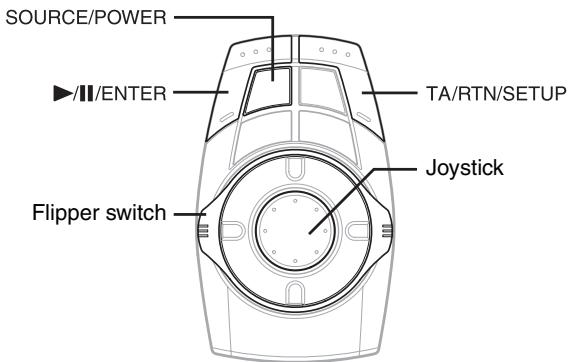
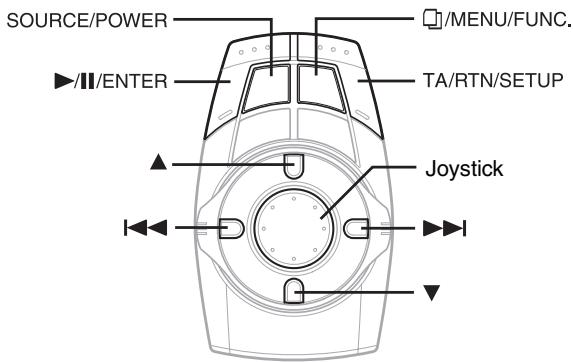
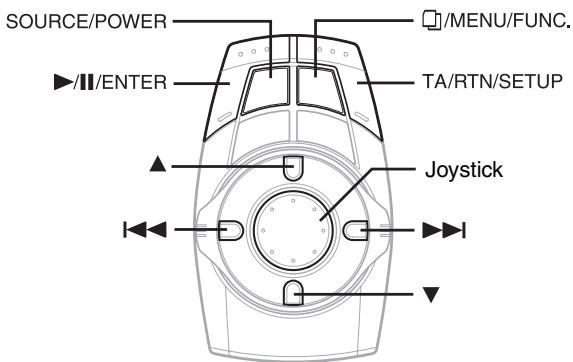
Operation is carried out by the commander. If an Alpine touch panel monitor is connected to this unit, the soft buttons appear in the display to enable touch operation.
This manual explains operation using the commander. For details of the touch operation, refer to “Soft button operation” on page 40.
- The commander vibrates when an operation is performed. Refer to "Turning the Commander Vibration ON or OFF" (page 14).
Feature
If an Alpine Ai-NET compatible products (DVD player, DVD/CD changer, Adapter for iPod, etc.) is connected to the VPA-B222R, it can be controlled from the commander and displayed on the external monitor. If an optional Alpine Navigation System is connected to the VPA-B222R, the Navigation screen will be displayed on the external monitor, and its operation can be performed. For details on the function of connected devices, refer to the Owner's Manual.
Accessory List
Main unit....1
Power cable....1
Parking brake sub-lead ....1
Factory System Cable....1
ISO power cable....1
Pinch connector 6
Bracket 2
Tapping screw (M4 × 14)......4
Pan screw (M4 × 8)....4
Velcro fastener 2
RGB cable (3M) 1
RCA extension cable (6M) 1
Antenna extension cable (5.5M)....1
Commander ....1
Holder....1
Commander connection cable (5.5M)....1
Double-sided adhesive tape....1
Reinforcement screw....3
Cable clamp 3
Initial System Start-Up
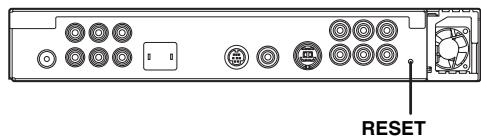
Be sure to press the RESET button when using the unit for the first time, after installing the CD changer, after changing the car battery, etc.
1 Turn off the unit power.
2 Press RESET with a ball-point pen or similar pointed object.
Turning Power On or Off
Some of this unit's functions cannot be performed while the vehicle is in motion. Be sure to stop your vehicle in a safe location and apply the parking brake, before attempting these operations.
1 Press SOURCE/POWER to turn on the unit.
- The unit can be turned on by pressing any button.
2 Press and hold SOURCE/POWER for at least 2 seconds to turn off the unit.
Displaying the Unit Source on the Monitor
By selecting the image source on the unit, it can be displayed on a connected monitor. For operation, refer to the Owner's Manual of the monitor.
If an Alpine monitor is connected (RGB connection)
1 Recall the navigation mode by selecting the image source on the monitor.
The source of the unit is displayed.
Switching a Source
1 Press SOURCE/POWER.
The source selection screen is displayed.
Screen example
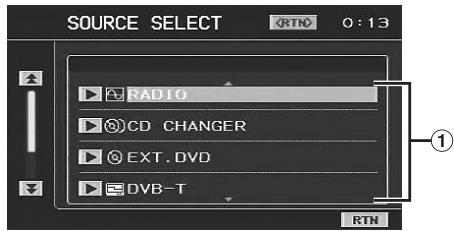
① Displays source modes that can be selected (The kind of source modes that are displayed varies depending on connection and setting)
2 Press the joystick up or down to select the desired source, then press ▶/II/ENTER.
The selected main source screen is displayed.
- In the source selection screen mode, press TA/RTN/SETUP to return to the previous screen.
Adjusting the Volume
Turn the flipper switch clockwise or counterclockwise to adjust the volume.
Clockwise: Volume up
Counterclockwise: Volume down
Volume: 0 - 35
Lowering Volume Quickly
Activating this function will instantly lower the volume level.
- This operation can be performed from either a monitor compatible with touch panel or remote control (sold separately). For operation from a remote control (sold separately), refer to the owner's manual of the remote control.
Touch [MUTE] on the main source screen to activate the MUTE mode.
The audio level decreases.
During mute, the volume level indicator will blink.
Screen example
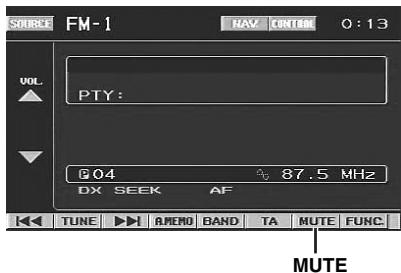
Touching [MUTE] again brings the audio back to its previous level.
Radio
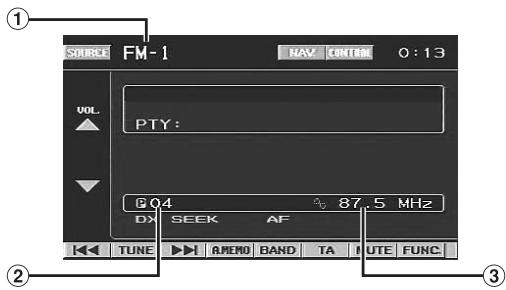
① Band display
② Preset number display
③ Frequency display
Listening to Radio
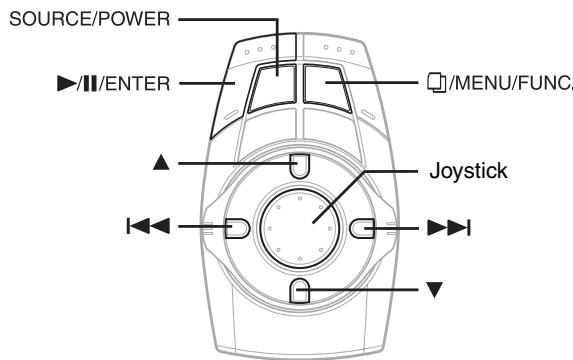
1 Press SOURCE/POWER.
The source selection screen is displayed.
2 Press the joystick up or down to select RADIO, then press ▶/II/ENTER.
3 Press and hold ▲ for at least 2 seconds repeatedly until the desired radio band is displayed.
$$ \mathrm{FM-1} \rightarrow \mathrm{FM-2} \rightarrow \mathrm{FM-3} \rightarrow \mathrm{MW} \rightarrow \mathrm{LW} \rightarrow \mathrm{FM-1} $$
4 Press ▶/II/ENTER to select the tuning mode.
$$ D X \text { SEEK } \rightarrow \text { SEEK } \rightarrow (\text { OFF }) \rightarrow D X \text { SEEK } $$
• The initial mode is Distance mode.
DX SEEK (Distance mode):
Both strong and weak stations will be automatically tuned in (Automatic Seek Tuning).
SEEK (Local mode):
Only strong stations will be automatically tuned in (Automatic Seek Tuning).
OFF (Manual mode):
The frequency is manually tuned in steps (Manual tuning).
5 Press |◀◀ or ▶▶| to tune in the desired station.
Holding down ◀◀◀ or ▶▶▶I will change the frequency continuously.
Manual Storing of Station Presets
1 Select the radio band and tune in a desired radio station you wish to store in the preset memory.
2 Press and hold ☐/MENU/FUNC. for at least 2 seconds.
The FUNCTION screen is displayed.
3 Press the joystick up or down to select PRESET MEMORY, then press the joystick right.
4 Press the joystick up or down to select any one of the preset numbers PRESET1 through PRESET6, then press ▶/II/ENTER.
The selected station is stored.
The display shows the band, preset number and station frequency memorized.
- A total of 30 stations can be stored in the preset memory (6 stations for each band; FM-1, FM-2, FM-3, MW and LW).
- If you store a station in a preset memory which already has a station, the current station will be cleared and replaced with the new station.
Automatic Memory of Station Presets
1 Press and hold ▲ for at least 2 seconds repeatedly until the desired radio band is displayed.
2 Press and hold ▶/II/ENTER for at least 2 seconds.
The frequency on the display continues to change while the automatic memory is in progress. The tuner will automatically seek and store 6 strong stations in the selected band. They will be stored into PRESET1 to PRESET6 in order of signal strength.
When the automatic memory has been completed, the tuner goes to the station stored in preset location No. 1.
- If no stations are stored, the tuner will return to the original station you were listening to before the auto memory procedure began.
Tuning to Preset Stations
1 Press and hold ▲ for at least 2 seconds repeatedly until the desired band is displayed.
Changing Stations by the Commander
2 Press ▲ or ▼ to select a preset number (P01 to P06).
The selected station is received.
Recalling by the FUNCTION screen
2 Press and hold ☐/MENU/FUNC. for at least 2 seconds.
The FUNCTION screen is displayed.
3 Press the joystick up or down to select PRESET CALL, then press the joystick right.
4 Press the joystick up or down to select any one of the preset numbers PRESET1 through PRESET6, then press ▶/II/ENTER.
The preset station is received.
The display shows the band, preset number and frequency of the station selected.
RDS Operation
Turning AF (Alternative Frequencies) On or Off
The RDS (Radio Data System) is a radio information system using the 57 kHz subcarrier of regular FM broadcasting. The RDS allows you to receive a variety of information such as traffic information, station names, and to automatically re-tune to a stronger transmitter that is broadcasting the same programme.
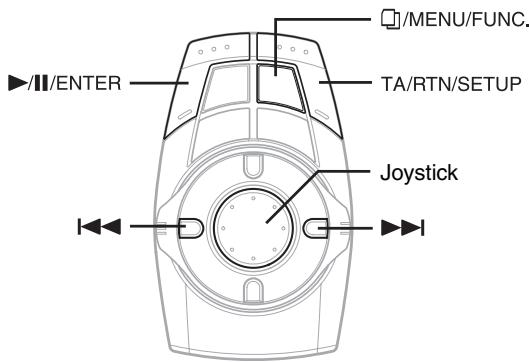
1 Press and hold TA/RTN/SETUP for at least 2 seconds.
The SETUP screen is displayed.
2 Press the joystick up or down to select RDS, then press the joystick right.
The display changes to the RDS setting screen.
3 Press and hold ☐/MENU/FUNC. for at least 2 seconds.
The FUNCTION screen is displayed.
4 Press the joystick up or down to select the AF (Alternative Frequency), then press ▶/II/ENTER.
- When the AF mode is selected, the unit automatically tunes to a strong signal station in the AF list.
- Select AF again, then press ▶/□/ENTER to select OFF mode when automatic re-tuning is not required.
5 Press TA/RTN/SETUP to return to the previous screen.
Tips
- When the unit receives the PTY31 (Emergency Broadcast) signal, the unit will show “ALARM” in the display
• The RDS digital data includes the following:
PI Programme Identification
PS Programme Service Name
AF List of Alternative Frequencies
TP Traffic Programme
TA Traffic Announcement
PTY Programme Type
EON Enhanced Other Networks
- Refer to GENERAL Setup section (Pages 13-15) about “RDS Time Display”, “PI SEEK Setting”, “Receiving RDS Regional (Local) Stations” and “Switching the Display Language of PTY (Programme Type)”.
Receiving Traffic Information
Press TA/RTN/SETUP to turn on the Traffic Information mode.
When the traffic information station is tuned in, the TA indicator lights up.
Traffic information is heard only when it is being broadcast. If traffic information is not being broadcast, the unit is set in the standby mode.
When a traffic information broadcast begins, the unit automatically receives it and the display shows “T. INFO”.
When the traffic information broadcast is over, the unit will automatically set in the standby mode.
- If the traffic information broadcast signal falls below a certain level, the unit remains in the receiving mode for 1 minute. If the signal remains below a certain level for over 70 seconds, "TA" blink light up in the display.
- If you do not want to listen to the traffic information being received, lightly press TA/RTN/SETUP to skip that traffic information message. The T. INFO mode will remain in the ON position to receive the next traffic information message.
- If the volume level is changed while receiving traffic information, the changed volume level will be memorized. When traffic information is received next time, the volume level will be automatically adjusted to the level memorized.
PTY (Programme Type) Tuning
1 Press and hold TA/RTN/SETUP for at least 2 seconds.
The SETUP screen is displayed.
2 Press the joystick up or down to select RDS, then press the joystick right.
The display changes to the RDS setting screen.
Changing PTY by the commander
3 Press and hold |◀◀ or ▶▶| for at least 2 seconds.
PTY is changed.
Changing by the FUNCTION screen
3 Press and hold ☐/MENU/FUNC. for at least 2 seconds.
The FUNCTION screen is displayed.
4 Press the joystick up or down to select the PTY and press the joystick right.
5 Press the joystick up or down to choose the desired programme type.
6 Press ▶/II/ENTER after selecting the programme type to start searching for a station of the selected programme type.
If no station is found, "NO PTY" will be displayed.
Programme Seek
A programme in the current PTY (Programme Type) is sought.
1 Press and hold TA/RTN/SETUP for at least 2 seconds.
The SETUP screen is displayed.
2 Press the joystick up or down to select RDS, then press the joystick right.
The display changes to the RDS setting screen.
3 Press |◀◀ or ▶▶| to seek a programme.
Receiving Traffic Information While Playing CD or Radio
The example explained here is how to receive the traffic information broadcast during CD playback.
1 In the CD mode, press TA/RTN/SETUP to turn on the Traffic information mode.
The unit automatically starts to search for receivable traffic broadcasts.
When the traffic information broadcast is searched out, the CD mode is switched to the Radio mode and the unit receives the traffic information broadcast.
- When the traffic information broadcast starts, the unit automatically mutes the CD.
- When the traffic information broadcast finishes, the unit automatically returns to the original source you were playing before the traffic information broadcast began.
- The receiver is equipped with the EON (Enhanced Other Networks) function so if the station being received does not broadcast the traffic information, the receiver automatically tunes in the related station that broadcasts the traffic information.
2 When the traffic information broadcast has finished, the unit returns to the CD mode.
Priority News
This function allows you to preset to give priority to the News programme. You will never miss the News programme as the unit automatically gives priority to the News programme whenever it begins broadcasting, and interrupts the programme you are currently listening. This feature is functional when your unit is set to a mode other than the LW and MW modes.
1 Press and hold TA/RTN/SETUP for at least 2 seconds.
The SETUP screen is displayed.
2 Press the joystick up or down to select RDS, then press the joystick right.
The display changes to the RDS setting screen.
3 Press and hold ☐/MENU/FUNC. for at least 2 seconds.
The FUNCTION screen is displayed.
4 Press the joystick up or down to select the NEWS mode, then press ▶/II/ENTER.
The “NEWS” indicator appears in the display.
- In the PRIORITY NEWS function, unlike in the TA function, the volume does not increase automatically.
5 Press TA/RTN/SETUP to return to the previous screen.
Displaying Radio Text
Text messages from a radio station can be displayed.
1 Press and hold ☐/MENU/FUNC. for at least 2 seconds in the FM radio mode.
The FUNCTION screen is displayed.
2 Press the joystick up or down to select INFO., then press ▶/II/ENTER.
The display shows "WAIT" for a few seconds.
3 To deactivate the Radio Text mode, repeat step 1 and 2.
- If there is no receivable text message or the unit cannot receive a text message properly, the display shows “NO TEXT”.
Other Useful Features
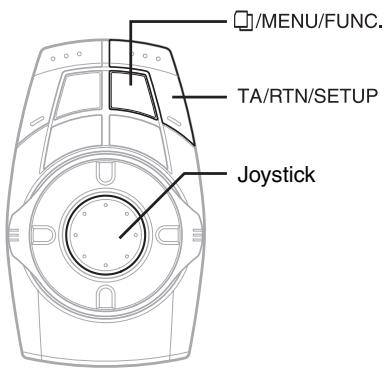
Adjusting the Audio
The following steps 1 to 5 are common operations of each audio adjustment. Refer to each section for details.
1 Press and hold TA/RTN/SETUP for at least 2 seconds.
The SETUP screen is displayed.
2 Press the joystick up or down to select AUDIO MODE, then press the joystick right.
The AUDIO MODE screen is displayed.
Display Example for AUDIO MODE Screen
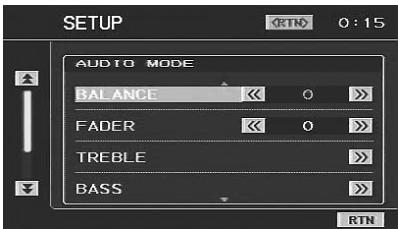
3 Press the joystick up or down to select the desired item.
Setting items: BALANCE / FADER / TREBLE / BASS / SUBW LEVEL / LOUDNESS / DEFEAT / GUIDE MIX LV*
* Setting can be made only when an external audio processor is connected.
4 Press the joystick left or right to adjust and set the desired item.
5 Press TA/RTN/SETUP to return to the previous screen. Press TA/RTN/SETUP repeatedly to return to the main source screen displayed before starting the setup operation.
Adjusting the Balance
Adjust the sound volume of the left and right speakers.
Setting item: BALANCE
Setting range: L15 to R15
Adjusting the Fader
Adjust the volume of the front and rear speakers.
Setting item: FADER
Setting range: F15 to R15
Setting the Treble Control
You can change the Treble Frequency emphasis to create your own tonal preference.
1 Select TREBLE on the AUDIO MODE screen, then press the joystick right.
2 Press the joystick up or down to select the desired item, then press the joystick left or right to adjust and set the desired item.
Setting the treble level
You can boost or cut treble frequencies.
(The level of each audio source can be adjusted.)
Setting item: LEVEL
Setting level: -7 to +7
Setting the treble centre frequency
The displayed treble frequency is boosted.
(Common to each audio source.)
Setting item: FREQUENCY
Setting range: 7.5kHz ↔ 10kHz ↔ 12.5kHz ↔ 15kHz
- Adjustment cannot be performed when an external audio processor is connected and DEFEAT is set to ON.
Setting the Bass Control
You can change the Bass Frequency emphasis to create your own tonal preference.
1 Select BASS on the AUDIO MODE screen, then press the joystick right.
2 Press the joystick up or down to select the desired item, then press the joystick left or right to adjust and set the desired item.
Setting the bass level
You can boost or cut bass frequencies.
(The audio source level can be adjusted.)
Setting item: LEVEL
Setting level: -7 to +10
Setting the slope
Select the frequency you want to set within the available range.
(Common to each audio source.)
Setting item: SLOPE
Setting range: 0.50 ↔ 0.75 ↔ 1.00 ↔ 1.25
Setting the bass centre frequency
The displayed bass frequency is boosted.
(Common to each audio source.)
Setting item: FREQUENCY
Setting range: 60Hz ↔ 80Hz ↔ 100Hz ↔ 120Hz
- Adjustment cannot be performed when an external audio processor is connected and DEFEAT is set to ON.
Adjusting the Subwoofer Level
Adjust the subwoofer output.
Setting item: SUBW LEVEL
Setting range: 0 to 15
- The level adjustment becomes available when ON is set in “Subwoofer On and Off” (page 19).
Turning Loudness ON or OFF
Loudness introduces a special low- and high-frequency emphasis at low listening levels. This compensates for the ear's decreased sensitivity to bass and treble sound.
Setting item: LOUDNESS
Setting range: ON / OFF
- Adjustment cannot be performed when an external audio processor is connected and DEFEAT is set to ON.
Turning Defeat ON or OFF
By setting Defeat ON, previously adjusted settings of BASS and TREBLE will return to the factory defaults.
Setting item: DEFEAT
Setting range: ON / OFF
Adjusting Volume of GUIDE Voice
The volume level of the speaker input voice and the navigation interrupt voice output from the external audio processor is adjusted.
Setting item: GUIDE MIX LV
* Setting range: 0 to 15
* Make sure to adjust this setting to 15. Otherwise operation may not be correctly performed.
- Adjust the speaker input voice interruption level in “Adjusting the Speaker Input Voice Interruption Level” (page 17) and “Navigation Audio Interruption Volume Adjustment” (page 18).
Rear Entertainment Function
The rear entertainment function independently routes different sources to the front and the rear inside a car. For example, while listening to the radio or other audio source in the front, DVD can be enjoyed in the rear with the optional rear monitor and headphones.
To connect the rear monitor, the optional expansion box VPE-S431 is required.
1 Press and hold TA/RTN/SETUP for at least 2 seconds.
The SETUP screen is displayed.
2 Press the joystick up or down to select REAR SELECT, then press the joystick right.
The REAR SELECT screen is displayed.
Display Example for REAR SELECT screen
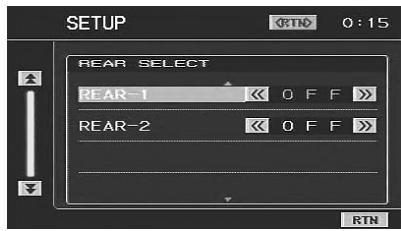
- This function cannot be used when MONITOR-1 or 2 is set to OFF in SYSTEM SETUP.
3 Press the joystick up or down to select the desired external monitor.
REAR-1: A rear external monitor can be connected to AUX OUT 1 of the optional expansion box (VPE-S431).
REAR-2: A rear external monitor can be connected to AUX OUT 2 of the optional expansion box (VPE-S431)
4 Press the joystick left or right to set the desired video source (external input).
5 Press TA/RTN/SETUP to return to the previous screen. Press TA/RTN/SETUP repeatedly to return to the main source screen displayed before starting the setup operation.
- To cancel the rear entertainment function, set to OFF.
- When the “Setting the AUX Mode” (page 18) is set to OFF, the auxiliary source is not displayed.
- VISUALIZER (VISUAL.) is not displayed when the setting of “Setting the VISUALIZER Mode Display” (page 18) is turned off.
Switching the function of the remote sensor
For remote control operation, the remote sensor of the external device (monitor, etc.) can be switched, as you prefer.
Switching the Remote Control Sensor
1 In the SETUP screen mode, press the joystick up or down to select SYSTEM SETUP, then press the joystick right.
The SYSTEM SETUP screen is displayed.
2 Press the joystick up or down to select REMOTE SEL.
3 Press the joystick left or right to select the monitor to be controlled by the remote control.
FRONT: Remote control operation can be performed when the Alpine monitor is connected using an RGB cable, and also when a monitor (other than Alpine) connected to a remote control sensor unit (optional) is connected.
REAR-1: The remote sensor of the external monitor connected to AUX OUT1 of the tuner box of this unit, or the optional expansion box (VPE-S431) is effective, and the remote control can operate only the source selected for the REAR SELECT screen.
REAR-2: The remote sensor of the external monitor connected to AUX OUT2 of the optional expansion box (VPE-S431) is effective, and the remote control can operate only the source selected for the REAR SELECT screen.
4 Press TA/RTN/SETUP to return to the previous screen. Press TA/RTN/SETUP repeatedly to return to the main source screen displayed before starting the setup operation.
- Select SETUP on the FUNCTION screen to recall the SETUP screen after pressing and holding ☐/MENU/FUNC. for at least 2 seconds.
- The sensor of the touch panel rear monitor has priority over the sensor of the remote control, if the rear monitor (connected to the Alpine touch panel rear monitor via the Monitor control lead) is touched, regardless of the remote control sensor switch setting. Note, however, that the sensor of the remote control that has been set takes priority if it has been 5 seconds since last touching the panel.
Setup
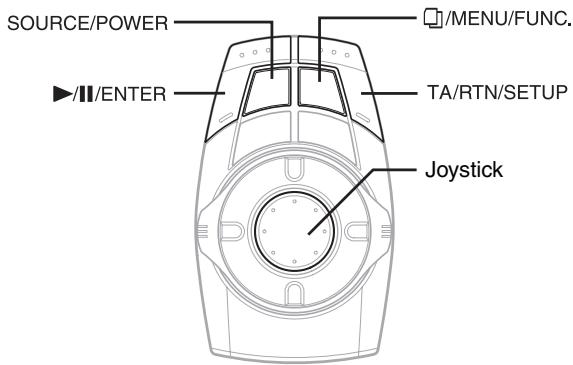
GENERAL Setup
General Setup Operation
The Parking Brake must be engaged to access the SETUP mode screen. Attempting to access this screen while driving will display the warning-CAN'T OPERATE WHILE DRIVING.
The following steps 1 to 5 are common operations to each “Setting item” of GENERAL Setup. Refer to each section for details.
1 Press and hold TA/RTN/SETUP for at least 2 seconds.
The SETUP screen is displayed.
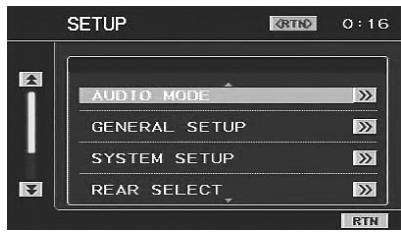
2 Press the joystick up or down to select GENERAL SETUP, then press the joystick right.
The GENERAL SETUP screen is displayed.
Display Example for GENERAL SETUP Screen
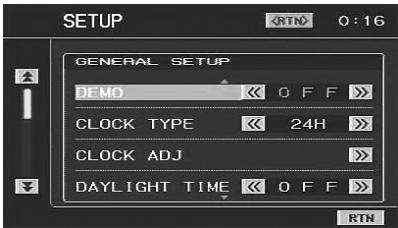
3 Press the joystick up or down to select the desired item.
Setting items:
DEMO / CLOCK TYPE / CLOCK ADJ / DAYLIGHT TIME / BEEP / REACTOR / SCROLL AUTO / RDS CLK DISP / FM LEVEL / PI SEEK / RDS REGIONAL / PTY LANGUAGE / LANGUAGE SEL
4 Press the joystick left or right to adjust and set the desired item.
5 Press TA/RTN/SETUP to return to the previous screen. Press TA/RTN/SETUP repeatedly to return to the main source screen displayed before starting the setup operation.
- Select SETUP on the FUNCTION screen to recall the SETUP screen after pressing and holding ☐/MENU/FUNC. for at least 2 seconds.
- Immediately after changing the settings of General Mode (While the system is writing data automatically) do not turn the ignition key (engine key) to OFF. Otherwise, the settings may not be changed.
Demonstration Function
This unit is equipped with a demonstration function capable of showing basic operations of respective sources on the monitor display.
Setting item: DEMO
Setting content: OFF / ON
ON: Turns on the demonstration mode to show the basic operations.
OFF: Turns off the demonstration mode.
- The demonstration operation is automatically repeated until the function is turned off.
Setting the Time Display
The time display type can be set.
Setting item: CLOCK TYPE
Setting content: OFF / 12H / 24H
12H: Clock indication is displayed for 12 hours.
24H: Clock indication is displayed for 24 hours.
OFF: Clock indication is turned off.
Setting the Time
Setting item: CLOCK ADJ
Further setting items: HOUR / MINUTE
Setting content: 1-12 (0-23)\* / 0-59
HOUR: Adjust the hour.
MINUTE: Adjust the minute.
* The setting content differs depending on the selection in "Setting the Time Display" (page 14).
- Pressing and holding the joystick left or right will change the setting item continuously.
Setting Daylight Saving Time
Setting item: DAYLIGHT TIME
Setting content: OFF / ON
ON: Place the Summer Time mode ON. The time advances by one hour.
OFF: Return to the ordinary time.
Sound (Beep) Guide Function
Setting item: BEEP
Setting content: OFF / ON
ON: Activate the Sound Guide mode.
OFF: Deactivate the Sound Guide mode. The sound guide beep will not be produced when a button on the commander is pressed.
Turning the Commander Vibration ON or OFF
You can turn the commander vibration ON or OFF during operation.
Setting item: REACTOR
Setting content: OFF / ON
OFF: Turns off vibration during operation.
ON: Turns on vibration during operation.
Setting the Scroll
Scroll display is available if CD text, folder name, file name or tag information is entered.
Setting item: SCROLL AUTO
Setting content: OFF / ON
ON: Turns on the AUTO scroll mode. Scroll display is repeated as long as the mode is turned on.
OFF: Turns off the AUTO scroll mode. Scroll display is done once as a track is changed.
- Scroll display of the song, artist and album name is enabled when iPod is connected.
RDS Time Display
When ON is selected, the clock is adjusted automatically based on the time data sent from the RDS broadcast.
Setting item: RDS CLK DISP
Setting content: OFF / ON
ON: Adjust the clock automatically based on the time data. In this case, the clock cannot be adjusted manually. To adjust it manually, select OFF.
Adjusting Source Signal Levels
If the difference in volume level between the CD and FM radio is too great, adjust the FM signal level as follows.
Setting item: FM LEVEL
Setting content: LOW / HIGH
PI SEEK Setting
Setting item: PI SEEK
Setting content: OFF / AUTO
Receiving RDS Regional (Local) Stations
When ON is selected, the unit automatically keeps receiving the related local RDS station.
Setting item: RDS REGIONAL
Setting content: OFF / ON
Switching the Display Language of PTY (Programme Type)
You can select one of the patterns of the display languages.
Setting item: PTY LANGUAGE
Setting content: GB / NL / F / D / I / E
Switching to the Russian Font
Two types of font can be selected.
Setting item: LANGUAGE SEL
Setting content: MODE1 / MODE2
MODE1: Normal Font Display (ISO8859-1)
MODE2: Russian Font Display (WINDOWS-1251)
You cannot use this font for display in RDS, Tuner mode.
SYSTEM Setup
System Setup Operation
The Parking Brake must be engaged to access the SETUP mode screen. Attempting to access this screen while driving will display the warning-CAN'T OPERATE WHILE DRIVING.
The following steps 1 to 5 are common operations to each “Setting item” of SYSTEM Setup. Refer to each section for details.
1 Press and hold TA/RTN/SETUP for at least 2 seconds.
The SETUP screen is displayed.
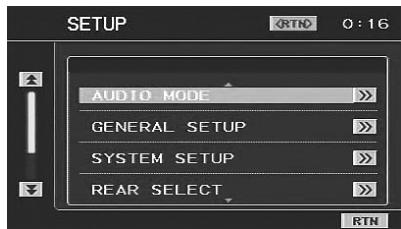
2 Press the joystick up or down to select SYSTEM SETUP, then press the joystick right.
The SYSTEM SETUP screen is displayed.
SYSTEM SETUP Screen example
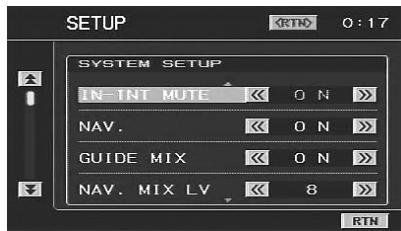
3 Press the joystick up or down to select the desired item.
Setting items:
IN-INT MUTE / NAV. / GUIDE MIX / NAV. MIX LV / FACT SYS SET / FACT SYS LV / FACT SYS DET / FACT SYS MIX / F.SYS MIX TYP / F.SYS INT CH. / REMOTE SEL.*1 / AUX IN-1(2,3) / AUX IN-1(2,3) NAME / AUX IN-1(2,3) LEVEL / MONITOR-1 / MONITOR-2 / VISUALIZER / ILLUM COLOR / CMNDR LIGHT. / DIMMER / SCREEN ADJ / SUBW*2
^*1 Refer to "Rear Entertainment Function" on page 12.
*2 When an external audio processor is connected, the SUBW item is not displayed.
4 Press the joystick left or right to adjust and set the desired item.
5 Press TA/RTN/SETUP to return to the previous screen. Press TA/RTN/SETUP repeatedly to return to the main source screen displayed before starting the setup operation.
- Select SETUP on the FUNCTION screen to recall the SETUP screen after pressing and holding ☐/MENU/FUNC. for at least 2 seconds.
- Immediately after changing the settings of System Mode (While the system is writing data automatically) do not turn the ignition key (engine key) to OFF. Otherwise, the settings may not be changed.
Using the Speaker Input
The unit can interrupt the system (navigation or telephone) of the car. The audio can also be played back on the unit if the car system of the audio (CD, etc.) is selected as the source.
The unit makes the sound interruption according to the sound output level of the car system. If any of the following settings are not correctly made, sound may not interrupt, or loud sound may suddenly interrupt.
Setting the Speaker Input Mode
The following explains how to install the system (navigation/telephone) in your car. While listening to the radio, you can have navigation voice guidance or a received telephone call interrupt automatically. You can also select the speaker input mode (FACTRY SYS) on the source selection screen.
Setting items: FACT SYS SET
Setting content: OFF / SOURCE / INT / BOTH
SOURCE: The system (CD, etc.) of the car can be selected as a source. Navigation/telephone voice of the car is not interrupted.
INT: Interrupts only the navigation/telephone voice of the car.
BOTH: The system (CD, etc.) of the car can be selected as the source. Navigation/telephone voice of the car is interrupted.
OFF: Operation and setting of the speaker input mode is not performed.
- If the car system (CD, etc.) is set to SOURCE and played back in a car with multi-channel speakers, sound such as treble, etc., may not be correctly output.
- Depending on the conditions of use, the INT or SOURCE setting is recommended.
- If INT is set, do not output CD audio from the car system.
- With BOTH set, if the source is set to other than FACTORY SYS, do not output CD audio, etc., from the car system.
- If OFF is to set, speaker input mode settings cannot be made.
Displaying the Speaker Input Volume Level
The volume level of the speaker input is displayed numerically.
Adjustment can be made only on the system in your car (standard car audio, etc.), and cannot be made by this unit.
Setting items: FACT SYS LV
Setting content: 0 to 2 L / 3 to 15: OK / 16 to 18 H
L: Volume level is LOW
OK: Volume level is optimally adjusted
H: Volume level is HIGH
Adjust the volume for optimum level.
- Set the volume as loud as possible, but before the onset of distortion (The volume level should not exceed 15). Even if OK is displayed, if any distortion is apparent, decrease the car audio's volume.
- Turn off the car audio's TREBLE, BASS settings.
- The volume level cannot be displayed when OFF is set in "Setting the Speaker Input Mode" (page 16).
Setting the Navigation/Speaker Input Voice Interruption
With an Alpine navigation system connected to the VPA-B222R, the voice guidance of the navigation system will be mixed with the radio play. Also, the setting of interruption of the speaker input voice can be adjusted.
Setting item: GUIDE MIX
Setting content: OFF / ON
OFF: The navigation/speaker input interruption mode is turned off.
ON: The navigation/speaker input interruption mode is on.
Adjusting the Speaker Input's Interruption Detection Level
You can set the level for voice interruption.
Setting items: FACT SYS DET
Setting level: 1 to 15
When the setting level is low, the voice interrupts even if a low volume level is set on the system
- The setting can be made when INT or BOTH is set in "Setting the Speaker Input Mode" (page 16).
- Warning beeps such as for seat belts may also output from the speakers, depending to the car. Make sure that voice interruption sounds correctly in such a car.
- We recommend initially setting the level to 8. Set the voice interruption level to more than 8 if interruption is too frequent, or set it to less than 8 if interruption is not frequent enough.
Adjusting the Speaker Input Voice Interruption Level
The output level of the speaker input interruption can be adjusted.
Setting items: FACT SYS MIX
Setting level: 0 to 15
- The setting can be made when INT or BOTH is set in “Setting the Speaker Input Mode” (page 16).
- Begin this setting after setting GUIDE MIX to ON and GUIDE MIX LV to 15, when an external audio processor is connected. For details, refer to “Setting the Navigation/Speaker Input Voice Interruption” (page 17) and “Adjusting Volume of GUIDE Voice” (page 12).
Setting the Interrupt Type of the Speaker Input Voice
The following explanation is how to set the voice interrupt type of the speaker input. When the navigation voice guidance is made to interrupt, set to DEMAND, and the telephone voice is made to interrupt, set to MUTE, these are recommended.
Setting items: F.SYS MIX TYP
Setting content: FULL / DEMAND / MUTE
FULL: Regardless of the speaker interruption detection level, voice interruption and source sound are both active. If voice interruption cannot be heard clearly, adjust the source volume accordingly on the commander.
DEMAND: When speaker input interruption occurs, voice interruption may be too high or too low, adjust the source volume so voice interruption can be heard. If no speaker input interruption occurs for 5 seconds, source volume returns to the level you initially set. When speaker input interruption occurs again, source volume level automatically returns to the last one you set.
MUTE: To avoid voice interruption not being heard clearly, this setting mutes the current source sound whenever speaker input interruption occurs. In this setting, even when voice interruption cannot be heard clearly, you can still set the volume by the commander. When speaker input interruption occurs, the commander buttons blink. Press SOURCE/POWER to cancel voice interruption.
- The setting can be made when INT or BOTH is set in "Setting the Speaker Input Mode" (page 16).
Setting the Channel of the Speaker Interruption Detection
The setting should be made according to the speaker output of the car system (navigation/telephone).
Setting items: F.SYS INT CH.
Setting content: L / R / BOTH
L: Outputs from the left speaker of the car system.
R: Outputs from the right speaker of the car system.
BOTH: Outputs from both speakers of the car system.
• Usually set to BOTH.
- The setting can be made when INT or BOTH is set in "Setting the Speaker Input Mode" (page 16).
- The speaker input interrupt voice is output from the right and left front speaker regardless of this setting.
Connecting the Navigation
If an Alpine navigation system is connected, make the necessary settings in “Setting the Navigation/Speaker Input Voice Interruption” (page 17). Also make the following settings.
Setting the Navigation Mode
When you connect optional navigation equipment, set to ON.
Setting item: NAV.
Setting contents: OFF / ON
ON: Navigation source is displayed.
OFF: Navigation source is not displayed. The settings related to the navigation cannot be changed from this unit.
Navigation Audio Interruption Volume Adjustment
With an Alpine navigation system connected to the VPA-B222R, the voice guidance of the navigation system will be mixed with the DVD or CD playback sound.
You can adjust the volume level of the voice guidance.
Setting item: NAV. MIX LV
Setting contents: 0 to 15
- When NAV. is turned on, the setting can be made. Refer to "Setting the Navigation Mode" (page 18).
Connecting an External Input Device (AUX)
If an external input device is connected, make the following settings.
Setting the AUX Mode
Setting item: AUX IN-1, 2, 3
Setting content: OFF / ON
OFF: AUX source is not displayed.
ON: AUX source is displayed.
- When OFF is selected, the settings related to AUX cannot be changed from this unit.
- AUX IN-3 is adjustable when the external expansion box (VPE-S431) is connected.
- OFF is not displayed when a DVD player or DVD changer is connected with the optional Ai-NET.
- When either a DVD player or DVD changer is connected to AUX IN 1, DVD is displayed on the screen. When both of them are connected, DVD is displayed for AUX IN 1 and DVD CHANGER is displayed for AUX IN 2.
Naming External Devices
When more than one external device is connected, you can name each (up to 3) as you like.
Setting items: NAME
Setting contents: AUX / VCR / GAME-1,2 / TV / EXTDVD* / DVB-T
- The setting can be made when ON is set in "Setting the AUX Mode" (page 18).
-
The selected source name is displayed instead of AUX source name. If selecting TV/EXT.DVD/DVB-T as the source, the screen will change to the function screen of that source.
-
Only when an Alpine TV tuner is connected, can you operate the displayed function guide from this unit.
- If an Ai-NET compatible DVD player/DVD changer is connected, names are automatically set, however, they cannot be changed.
* “EXT.DVD” is displayed on the source selection screen when a DVD player is connected, and “DVD-1-3” is displayed on the source selection screen when the NAME setting is set to “EXTDVD” on more than one AUX (included when an external Ai-NET compatible DVD player is connected).
Adjusting the External Input Audio Level
Setting item: LEVEL
Setting content: LOW / HIGH
LOW: Decreases the external input audio level
HIGH: Increases the external input audio level
- The adjustment is available when ON is set in "Setting the AUX Mode" (page 18).
Connecting the Rear Monitor
If the rear monitor is connected, make the following each setting
Setting of the External Monitor Output
Set it to ON when you use the rear entertainment function (page 12).
Setting items: MONITOR-1, 2
Setting contents: OFF / ON
ON: By setting the connected external monitor to ON, the remote control will be usable.
OFF: When either MONITOR-1 or 2 is set to OFF, only one monitor can be set by the rear entertainment function. When both MONITOR-1 and 2 are set to OFF, the rear entertainment function cannot be used.
- This setting can be made if optional expansion box VPE-S431 is connected.
Setting the VISUALIZER Mode Display
Note that this setting is enabled only when the optional expansion box (VPE-S431) is connected.
Setting item: VISUALIZER
Setting contents: MODE-1-MODE-6 / SCAN / OFF
MODE-1 to
MODE-6 / OFF: Recalls the maker's setting mode on the expansion box (VPE-S431).
SCAN: Displays the pattern of MODE-1 to MODE-6 repeatedly.
- VISUALIZER can be displayed in a rear monitor when mode is set to other than OFF. Set the source of the rear monitor to VISUAL. to display VISUALIZER in the rear monitor. For the rear monitor's setting, refer to “Rear Entertainment Function” (page 12).
Connecting a Subwoofer
When a subwoofer is connected, set to ON.
Subwoofer On and Off
Setting item: SUBW
Setting contents: ON / OFF
ON: Subwoofer output is on.
OFF: Subwoofer output is off.
- When an external audio processor is connected, refer to “Setting the Speakers” (page 32) for setting.
Setting the Commander
The colour/brightness, etc., of buttons lighting on the commander supplied with the unit can be adjusted.
Setting the Colour of the Commander Button illumination
You can set the illumination colour of the commander buttons.
Setting items: ILLUM COLOR
Setting content: BLUE / RED
BLUE: When a source other than navigation is activated, illumination is blue. When the navigation is activated, illumination is red.
RED: When a source other than navigation is activated, illumination is red. When navigation is activated, illumination is blue.
Turning the Commander Button illumination on and off
You can select whether the commander button illumination remains lit or blinks when no operation is performed for 5 minutes.
Setting items: CMNDR LIGHT.
Setting content: ON / OFF
ON: Commander button illumination blinks.
OFF: Commander button illumination stays lit (does not blink).
Adjusting the Brightness of the Commander Button illumination
With AUTO set, when the headlights are turned on, the commander button illumination dims. During the night, if the commander button illumination is too bright, this setting is recommended.
Setting items: DIMMER
Setting content: OFF / ON / AUTO
OFF: Brightness of the commander button illumination is maximum.
ON: Brightness of the commander button illumination is decreased.
AUTO: When the headlights are turned on, the commander button illumination dims.
Setting the Others
Setting the External Device Interrupt Mode
If an Alpine Versatile Link Terminal (KCA-410C) is connected to the VPA-B222R, an Auxiliary Source will be allowed to interrupt the current audio source. For example, you can listen to a portable MP3 player through your car audio system even with a CD changer connected and playing. The CD changer will automatically mute when switched to the AUX Input. For further details on how to use the Alpine KCA-410C, see your authorized Alpine dealer.
Setting item: IN-INT MUTE
Setting content: OFF / ON
OFF: Sound will be output in Interrupt mode.
ON: Sound will not be output in Interrupt mode.
- The auxiliary device being connected must have an interrupt wire with a negative trigger for this function to operate automatically. Otherwise, a separate switch needs to be added to switch it manually.
Adjusting the display position
Depending on the connected monitor, the display may move out of position. During touch panel operation, if the position between the display on the LCD and the display of the touch panel does not match, adjust the display position.
Setting items: SCREEN ADJ
Setting content: >>
Adjustment if a monitor not compatible with touch panel operation is connected.
The screen position within the display is adjustable. The position is controlled from the commander.
1 In the SCREEN ADJ mode, press the joystick right. The adjustment screen appears.
2 Press the joystick up, down, left or right to adjust the display position.
3 Press ▶/Ⅲ/ENTER.
The adjustment is complete, and the display returns to the main source screen.
Adjustment if a touch panel compatible monitor is connected.
The screen and soft button positions are adjustable within the display. The position is controlled from the soft buttons.
1 Touch [>>] of SCREEN ADJ.
2 Touch [▲], [▼], [◀] or [▶] to adjust the display position, and touch [ENT].
The TOUCH LOCATE screen is displayed.
3 Touch the centre of the ☒ mark displayed in the lower left of the screen.
The screen changes to the adjustment screen.
4 Touch the centre of the ☒ mark displayed in the upper right of the screen, then touch [ENT].
The adjustment is complete, and the display returns to the main source screen.
CD/MP3/WMA
Operation
(Optional)
Display example for MP3/WMA main screen
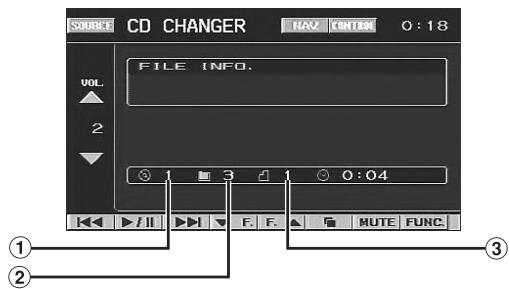
① Disc number display
② Folder number display
③ File number display
Playing CD/MP3/WMA
1 Press SOURCE/POWER.
The source selection screen is displayed.
2 Press the joystick up or down to select the CD/MP3/WMA mode (CD CHANGER, etc.), then press ▶/II / ENTER.
3 Press and hold ▲ or ▼ for at least 2 seconds to select a disc (when a changer is connected).
4 While playing back MP3/WMA. Press ▲ or ▼ to select the desired folder.
5 Press |◀◀ or ▶▶| to select the desired track.
Returning to the beginning of the current track:
Press
Fast reverse:
Press and hold ◀◀◀.
Advancing to the beginning of the next track:
Press ▶▶▶I.
Fast forward:
Press and hold ▶▶▶.
6 To pause playback, press ▶/II/ENTER.
Pressing ▶/Ⅱ/ENTER again will resume playback.
- CD playback information (track no., text etc.) will be displayed on the monitor during playback.
- MP3/WMA playback information (folder no., file no., tag information, etc.) will be displayed on the monitor during playback.
- "NO SUPPORT" is displayed when text information is not compatible with the VPA-B222R.
- The DVD changer (optional) is controllable as well as the CD changer.
Multi-Changer Selection
With the KCA-410C (Versatile Link Terminal), you can connect two changers.
1 Press and hold ☐/MENU/FUNC. for at least 2 seconds.
The FUNCTION screen is displayed.
2 Press the joystick up or down to select CHG SEL. Then press ▶/II/ENTER to select the next changer (connected CD changers only).
Folder/File Search
You can display the names of folders/files and search for a folder/file to play.
1 Press ☐/MENU/FUNC. during playback.
The Folder Name list is displayed.
2 Press the joystick up or down to select the desired folder.
3 Press ▶/II/ENTER to play back the first file in the selected folder.
To search for a file in the selected folder
1 After selecting the folder in step 2, press the joystick right to change to the file search mode of the selected folder.
- If there is a file name list in the folder, is displayed.
2 Press the joystick up or down to select a file, then press ▶/Ⅱ/ENTER.
The selected file is played back.
- Pressing TA/RTN/SETUP will return to the previous screen.
- Folder/File Name search cannot be made during M.I.X. play.
- “ROOT” is displayed for the root folder which does not have folder name.
M.I.X. (Random Play)
1 Press and hold ☐/MENU/FUNC. for at least 2 seconds.
The FUNCTION screen is displayed.
2 Press the joystick up or down to select M.I.X..
When M.I.X. is displayed (changer is connected)
3 Press the joystick right.
4 Press the joystick up or down to select the M.I.X. mode, then press ▶/II/ENTER.
CD mode:
M.I.X.: Track are played back in random sequence.
M.I.X. ALL: The tracks on all the CDs in the current magazine will be included in the random playback sequence.
OFF: M.I.X. mode off.
* When a CD changer equipped with the All M.I.X. function is connected.
MP3/WMA mode:
M.I.X. FLD: Only files in a folder are played back in random sequence.
M.I.X.: All files in a disc are played back in random sequence, and playback shifts to the next disc.
OFF: M.I.X. mode off.
When ▶ M.I.X. is displayed
3 Press ▶/II/ENTER.
M.I.X. mode is changed.
CD mode:
M.I.X. → OFF → M.I.X.
MP3/WMA mode:
M.I.X. FLD → M.I.X. → OFF → M.I.X. FLD
Repeat Play
1 Press and hold ☐/MENU/FUNC. for at least 2 seconds.
The FUNCTION screen is displayed.
2 Press the joystick up or down to select REPEAT.
When REPEAT is displayed (changer is connected)
3 Press the joystick right.
4 Press the joystick up or down to select the REPEAT mode and press ▶/II/ENTER.
CD mode:
RPT: Only a track is repeatedly played back.
RPT DISC: A disc is repeatedly played back.
OFF: Repeat mode off.
MP3/WMA mode:
RPT: Only a file is repeatedly played back.
RPT FLD: Only files in a folder are repeatedly played back.
RPT DISC: A disc is repeatedly played back.
OFF: Repeat mode off.
When ▶ REPEAT is displayed
3 Press ▶/II/ENTER.
The repeat mode is changed.
CD mode:
RPT → OFF → RPT
MP3/WMA mode:
RPT → RPT FLD → OFF → RPT
DVD/Video CD Operation (Optional)
Display example for DVD main operation screen
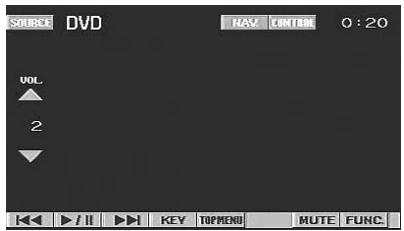
Playing DVD/Video CD
Basic operations of an Alpine DVD player/Changer can be done from the unit's supplied commander. Refer to the Owner's Manual of the connected DVD player/Changer.
When using an Alpine DVD Player/Changer, some of the commander functions may not be recognized. This varies from disc to disc. If the supplied VPA-B222R commander is not controlling a particular function of the DVD being played, please use the remote control that came with the DVD player.

WARNING
It is dangerous for the driver to watch the DVD/TV/Video while driving the vehicle. The driver may be distracted from looking ahead and an accident could occur.
Install the VPA-B222R correctly so that the driver cannot watch DVD/TV/Video unless the vehicle is stopped and the emergency brake is applied.
If the VPA-B222R is not installed correctly, the driver will be able to watch the DVD/TV/Video while driving the vehicle and may be distracted from looking ahead and cause an accident. The driver or other people could be severely injured.
To display the DVD mode screen
- If you try to activate the auxiliary device while driving, the display will show the warning-PICTURE OFF FOR YOUR SAFETY.

Caution
- Not all functions will operate for every DVD. See the individual DVD's instructions for details on the features supported.
- If you try to perform an invalid operation (based on the type of disc being played), the following mark is displayed on the monitor screen:
1 Press SOURCE/POWER.
The source selection screen is displayed.
2 Press the joystick up or down to select the DVD mode (EXT.DVD, DVD CHANGER or etc.), then press ▶/II/ENTER.
Playback starts.
If a menu screen appears
On DVDs and Video CDs with playback control (PBC), menu screens may appear automatically. The DVD menu can be controlled by the commander supplied with the unit. If this happens, perform the operation described below to start playback.
Press the joystick up, down, left or right to select an item, then press and hold ▶/II/ENTER for at least 2 seconds.
- Press TA/RTN/SETUP to return to the previous screen.
- The video CD menu screen cannot be controlled from the commander supplied with the unit.
- Depending on the disc, the menu screen may be recalled from the FUNCTION screen. Select MENU on the FUNCTION screen and press ▶/□□/ENTER to recall the menu, after displaying the FUNCTION screen by pressing and holding □/MENU/FUNC. for at least 2 seconds.
Playing Still Frames (Pausing)
1 During playback, press ▶/II/ENTER.
2 Press ▶/II/ENTER to resume playback.
Finding the Beginnings of Chapters or Tracks
During playback, press |◀◀ or ▶▶|.
The chapter/track switches each time the button is pressed, and playback of the selected chapter/track starts.
▶▶▶: Press this to start playback from the beginning of the following chapter or track.
◀◀◀: Press this to start playback from the beginning of the current chapter or track.
• Some DVDs do not have chapters.
Supplementary explanation
"Chapters" are divisions of movies or musical selections on DVDs.
"Tracks" are divisions of movies or musical selections on video and music CDs.
Fast-forwarding/Fast-reversing
1 During playback, press and hold |◀◀ (fast-reverse) or ▶▶| (fast-forward).
2 Release |◀◀ or ▶▶| to return to normal playback.
Displaying the Top Menu Screen (DVD only)
With a DVD having two or more titles, a top menu screen will appear.
Press ☐/MENU/FUNC. on the DVD mode main screen.
The menu screen appears.
- To perform necessary operations, see "If a menu screen appears" on page 22.
Changing Discs (only when DVD changer is connected)
Press and hold ▲ or ▼ for at least 2 seconds.
The selected disc is played back.
- Select DISC SELECT on the FUNCTION screen and press ▶/□/ENTER to change discs, after pressing and holding □/MENU/FUNC. for at least 2 seconds.
Stopping Playback (PRE STOP)
Select the PRE STOP during playback to stop playback. That position is stored in the memory.
1 During playback, press and hold ☐/MENU/FUNC. for at least 2 seconds.
The FUNCTION screen is displayed.
2 Press the joystick up or down to select STOP/PRE STOP, then press ▶/II/ENTER.
"PRE STOP" is displayed.
3 During PRE STOP mode, press ▶/II/ENTER.
Playback starts from the position at which it was stopped.
- For some discs, the position at which playback was stopped may not be accurate.
- When a DVD player/changer is connected with Ai-NET, STOP/PRE STOP is not displayed on the FUNCTION screen in the video CD mode.
Stopping Playback
1 During the PRE STOP mode, press and hold ☐/MENU/FUNC. for at least 2 seconds.
The FUNCTION screen is displayed.
2 Press the joystick up or down to select STOP/PRE STOP, then press ▶/II/ENTER.
"STOP" is displayed, and playback stops.
- Playback starts from the beginning when ▶/||/ENTER is pressed while playback is stopped.
- When a DVD player/changer is connected with Ai-NET, STOP/PRE STOP is not displayed on the FUNCTION screen in the video CD mode.
Chapter/Track/Title Repeat Playback
Use this function to play the disc's titles, chapters or tracks repeatedly.
1 Press and hold ☐/MENU/FUNC. for at least 2 seconds.
The FUNCTION screen is displayed.
2 Press the joystick up or down to select REPEAT, then press ▶/II/ENTER.
The screen changes to the repeat mode in the following step.
DVD
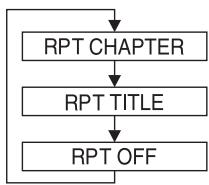
flowchart
graph TD
    A["RPT CHAPTER"] --> B["RPT TITLE"]
    B --> C["RPT OFF"]
The chapter is played repeatedly.
The title is played repeatedly.
The playback returns to normal mode.
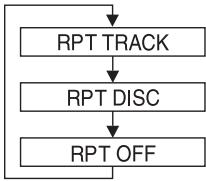
flowchart
graph TD
    A["RPT TRACK"] --> B["RPT DISC"]
    B --> C["RPT OFF"]
The track is played repeatedly.
The disc is played repeatedly.
Playback does not repeat.
- Display may vary depending on the connected devices.
- The track/disc repeat modes cannot be used on video CDs with playback control (PBC). These modes can be carried out after turning PBC off.
- For some discs it is not possible to switch the repeat mode.
- The repeat mode may not be switched, depending on the connected product.
Switching the Audio Tracks
DVDs can have up to 8 different audio tracks. These alternate tracks can be switched during playback.
1 Press and hold ☐/MENU/FUNC. for at least 2 seconds.
The FUNCTION screen is displayed.
2 Press the joystick up or down to select AUDIO, then press ▶/II/ENTER.
The sound switches between the alternate audio tracks recorded on the disc.
- The alternate track selected becomes the default setting every time the power is turned on or the disc is replaced. If the disc does not include that track, the disc's default language is selected instead.
- Not all discs will allow changing the alternate audio tracks during playback. In these cases, select audio tracks from the DVDs menu.
- There may be a delay before the selected alternate track begins to play.
Video CDs with multiplex audio
1 Press and hold ☐/MENU/FUNC. for at least 2 seconds.
The FUNCTION screen is displayed.
2 Press the joystick up or down to select AUDIO, then press ▶/II/ENTER.
The left and right channels will be output as shown in the figure below.
AUDIO L/R → AUDIO L/L → AUDIO R/R → AUDIO L/R
- If a DVD player/DVD changer with Ai-NET is connected, AUDIO is not displayed on the video CD function screen.
Switching the Subtitles (Subtitle Language) (DVD only)
With DVDs on which multiple subtitle languages are recorded, the subtitle language can be switched during playback; moreover, subtitles can be hidden.
1 Press and hold ☐/MENU/FUNC. for at least 2 seconds.
The FUNCTION screen is displayed.
2 Press the joystick up or down to select SUB TITLE, then press ▶/II/ENTER.
The subtitle language stored in the disc is changed, then turns off.
• There may be a delay before the selected subtitle appears.
- Not all discs will allow changing the subtitles during playback. In these cases, select subtitles from the DVDs menu.
- The subtitle language selected becomes the default setting every time the power is turned on or the disc is replaced. If the disc does not include that language, the disc's default language is selected instead. However, the subtitle language may differ depending on the disc.
- For some discs, the subtitles will be displayed even when this is set to off. However, the subtitle language may differ depending on the disc.
Switching the Angle (DVD only)
On DVDs in which scenes have been filmed from multiple angles, the angle can be switched during playback.
1 Press and hold ☐/MENU/FUNC. for at least 2 seconds.
The FUNCTION screen is displayed.
2 Press the joystick up or down to select ANGLE, then press ▶/II/ENTER.
The angle switches between the angles recorded on the disc.
• Some time may be required for the angle to change.
- Depending on the disc, the angle may switch in one of two ways.
- Seamless: The angle switches smoothly.
- Non-seamless: When the angle is switched, a still picture is displayed first, after which the angle switches.
Switching from the disc menu
For some discs, the audio language, angle and subtitles can be switched from the disc menu.
1 Press and hold ☐/MENU/FUNC. for at least 2 seconds.
The FUNCTION screen is displayed.
2 Press the joystick up or down to select MENU, then press ▶/II/ENTER.
3 Select an item to confirm it.
See "If a menu screen appears" on page 22.
iPod® (Optional)
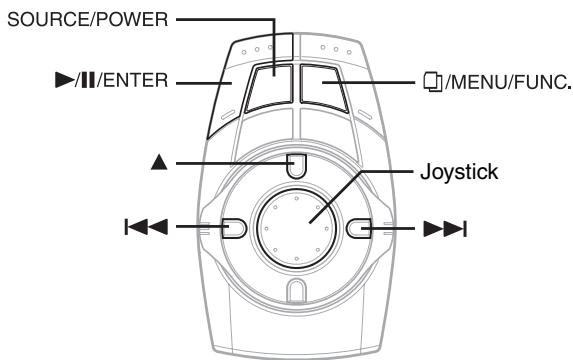
An iPod ^® can be controlled from the VPA-B222R, when connected to an optional Alpine Interface Adapter for iPod (KCA-420i). While connected to the VPA-B222R, operation from the iPod is no longer possible.
- For details, refer to the Owner's Manual of the connected adapter (KCA-420i).
- For each function, refer to the iPod's documentation.
About iPod usable with this unit
- The unit can be used with third generation and above iPod, iPod photo, iPod minis or iPod nano. iPod Shuffle cannot be used, however.
- Touch wheel or scroll wheel type iPods without the dock connector cannot be connected to the unit.
- The unit can be used with the following iPod versions. Correct function of earlier versions cannot be guaranteed.
Third generation iPod: Ver. 2.3
Fourth generation iPod: Ver. 3.0.2
iPod photo: Ver.1.1
iPod mini: Ver. 1.3
iPod nano: Ver.1.0
- The unit cannot be used with the software versions earlier than 2005-02-22. For details about “iPod Software Update”, refer to the iPod Instruction Manual.
Playback
1 Press SOURCE/POWER.
The source selection screen is displayed.
2 Press the joystick up or down to select iPod, then press ▶/II/ENTER.
3 Press |◀◀ or ▶▶| to select the desired song.
Return to the beginning of the current song:
Press
Fast reverse:
Press and hold ◀◀◀.
Advance to the beginning of the next song:
Press ▶▶▶I.
Fast forward:
Press and hold ▶▶.
4 To pause playback, press ▶/II/ENTER. Pressing ▶/II/ENTER again will resume playback.
- If a song is playing on the iPod when it is connected to the VPA-B222R, it will continue playing after the connection.
- If using the iPod with a changer, the Versatile Link Terminal (KCA-410C) must be used. In this case, select “CHG SEL” and press ▶/ || /ENTER on the FUNCTION screen or press and hold ▲ for at least 2 seconds to select the changer mode applicable to the iPod.
- If the artist, album or song name, created in iTunes, has too many characters, songs may not be played back when connected to the adapter. Therefore, a maximum of 250 characters is recommended. The maximum number of characters for this unit is 64 (64 byte).
• Some characters may not be correctly displayed. - “NO SUPPORT” is displayed when text information is not compatible with the VPA-B222R.
Searching for a desired Song
An iPod can contain hundreds to thousands of songs. By keeping these songs organized in smaller playlists, the VPA-B222R has the ability to ease song searches.
- The maximum number of playlists, artists or albums that can be searched is 511. The maximum number of searches for a song is 255.
Searching by Playlist
1 Press ☐/MENU/FUNC..
The search mode is activated, and the search list screen appears.
2 Press the joystick up or down to select PLAYLIST SEARCH, then press the joystick right.
3 Press the joystick up or down to select the playlist.
To play back the playlist directly
1 Press ▶/Ⅱ/ENTER.
The selected playlist is played back repeatedly.
To search for a song in the playlist
1 Press the joystick right to change to the song search mode of the selected playlist.
2 Press the joystick up or down to select a song, then press
▶/II/ENTER.
The selected song is played back.
Searching by artist name
1 Press ☐/MENU/FUNC..
The search mode is activated, and the search list screen appears.
2 Press the joystick up or down to select ARTIST SEARCH, then press the joystick right.
3 Press the joystick up or down to select the artist to be played back.
To play back the artist directly
1 Press ▶/Ⅱ/ENTER.
Songs by the selected artist are played back.
- Selecting ALL and pressing ▶/□/ENTER will return to the iPod mode screen.
- Selecting ALL and pressing the joystick right will change to the ALBUM search screen.
To search for the album of an artist
1 Press the joystick right to change to the album search mode of the selected artist.
2*1 Press the joystick up or down to select the album to be played back.
3 Press ▶/Ⅱ/ENTER to play back all songs of the selected album.
Songs in the selected album are played back.
- Selecting ALL and pressing ▶/□/ENTER will play back the first song of the selected artist.
- Selecting ALL and pressing the joystick right will change to the SONG search screen of the selected artist
To search for a song in the album of an artist
1 After selecting the album in step 2* ^1 , press the joystick right to change to the song search mode of the selected album.
2 Press the joystick up or down to select a song, then press ▶/Ⅱ/ENTER.
The selected song is played back.
Searching by album name
1 Press ☐/MENU/FUNC..
The search mode is activated, and the search list screen appears.
2 Press the joystick up or down to select ALBUM SEARCH, then press the joystick right.
3 Press the joystick up or down to select the album to be played back.
To play back the album directly
1 Press ▶/Ⅱ/ENTER.
Songs in the selected album are played back.
- Selecting ALL and pressing ▶/□□/ENTER will return to the iPod mode screen.
- Selecting ALL and pressing the joystick right will change to the SONG search screen.
To search for a song in an album
1 Press the joystick right to change to the song search mode of the selected album.
2 Press the joystick up or down to select a song, then press ▶/Ⅲ/ENTER.
The selected song is played back.
Random Play Shuffle (M.I.X.)
The Shuffle function of the iPod is displayed as M.I.X. on the VPA-B222R.
1 Press and hold ☐/MENU/FUNC. for at least 2 seconds.
The FUNCTION screen is displayed.
2 Press the joystick up or down to select M.I.X., then press the joystick right.
3 Press the joystick up or down to select the M.I.X. mode, then press ▶/II/ENTER.
M.I.X. ALBUM:
Album shuffle playback plays back all songs in order, then randomly selects the next album. All songs of that album are played back in order, and so on. Any one album is played just once.
M.I.X. SONGS:
Song shuffle randomly plays back certain selected songs. Any one song plays back just once until all songs have been played back.
OFF: M.I.X. mode off
4 To cancel M.I.X. play, select OFF, and press ▶/II/ ENTER.
- For details of the search mode, refer to "Searching for a desired Song" (page 25).
- If a song is selected in the album search mode before selecting Shuffle (M.I.X.), the songs will not play back randomly even when Shuffle album is selected.
- The M.I.X. mode is cancelled when iPod is removed or the ignition key is turned off.
Repeat Play
Only Repeat One is available for the iPod.
Repeat One: A single song is repeatedly played back.
1 Press and hold ☐/MENU/FUNC. for at least 2 seconds.
The FUNCTION screen is displayed.
2 Press the joystick up or down to select REPEAT, then press the joystick right.
3 Press the joystick up or down to select RPT, then press ▶/II/ENTER.
The track is played back repeatedly.
4 To cancel repeat play, select OFF in step 3, and press ▶/II/ENTER.
- During repeat playback, no other songs are selectable by pressing |◀◀ or ▶▶.
- The repeat mode is cancelled when iPod is removed or the ignition key is turned off.
Navigation System (Optional)
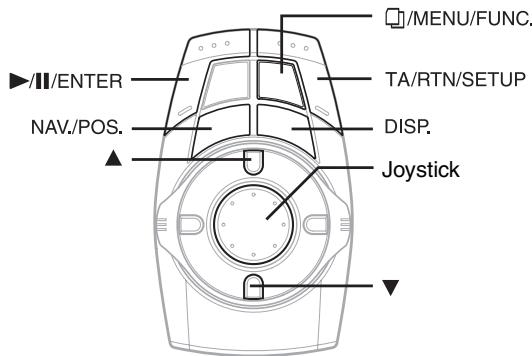
Basic Alpine navigation control can be performed by the commander supplied with the unit. Refer to the Owner's Manual of the navigator.
- If a navigation system that is not controlled by the remote control, but touch-panel operation only is connected, operations cannot be performed by the commander.
Displaying the Navigation Screen
When an Alpine navigation system is connected, the navigation screen can easily be displayed.
1 Press DISP..
The Navigation screen is displayed.
2 To cancel the screen, press DISP. again.
Changing the Navigation operation mode
When an Alpine navigation system is connected, the navigation screen can easily be displayed, and some operations can be performed.
1 Press NAV./POS..
The navigation screen is displayed, and the navigation mode becomes active.
2 Press DISP. to cancel the operation mode, and return to the main source screen before the operation was performed.
When DISP. is pressed and held for at least 2 seconds, the operation mode is cancelled, the navigation screen display remains, and the sound returns to the selected source before the operation was performed.
- If the navigation mode is selected on the source selection screen, the navigation mode is not cancelled even if DISP. is pressed.
- The colour of the commander buttons illumination changes in the navigation mode. Refer to "Setting the Colour of the Commander Button Illumination" (page 19).
Map Screen Function
Displaying the Current Position
1 Press NAV./POS. while displaying the map screen.
The current position screen is displayed.
Scrolling the Map
1 Press the joystick.
The map scrolls in the direction the joystick is pressed.
Changing the Map Scale
1 Press ▲ or ▼.
Each press of the button changes the map scale. Pressing and holding changes the scale continuously.
Menu Screen Function
1 Press ☐/MENU/FUNC. in the Navigation mode.
The Navigation Menu screen is displayed.
2 Press the joystick up, down, left or right to select the desired item.
3 Press ▶/II/ENTER.
- Press TA/RTN/SETUP to return to the previous screen.
TV Operation (Optional)
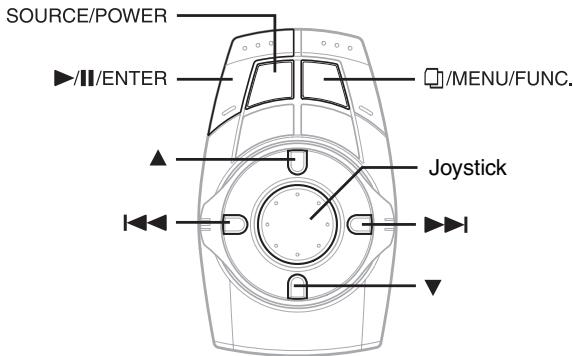
When connected to an Alpine TV unit (sold separately), you can use the commander supplied with the VPA-B222R to operate the TV. Set the AUX NAME to TV. Refer to "Naming External Devices" page 18.
- When the optional expansion box (VPE-S431) is connected, connect TV to AUX IN-2, 3.
- Be sure to connect this unit or VPE-S431 remote control output lead to the TV unit's remote control input lead.
- For details, refer to the owner's manual of the digital TV unit.
Operating TV Unit
WARNING
It is dangerous for the driver to watch the TV while driving the vehicle. The driver may be distracted from looking ahead and an accident could occur.
Install the VPA-B222R correctly so that the driver cannot watch TV unless the vehicle is stopped and the emergency brake is applied.
If the VPA-B222R is not installed correctly, the driver will be able to watch the TV while driving the vehicle and may be distracted from looking ahead and cause an accident. The driver or other people could be severely injured.
- If you try to activate the TV unit while driving, the display will show the warning-PICTURE OFF FOR YOUR SAFETY.
1 Press SOURCE/POWER.
The source selection screen is displayed.
2 Press the joystick up or down to select TV, then press ▶/II/ENTER.
3 Press and hold ▲ for at least 2 seconds to select BAND.
4 Press ▶/Ⅱ/ENTER to switch the tuning mode.
Manual tune ↔ Auto seek tune
5 Press |◀◀ or ▶▶| to seek for a channel downward or upward respectively.
Automatic Memory of Channel Presets
1 Press and hold ▶/II/ENTER for at least 2 seconds.
The auto preset operation starts.
After the completion, memorized channel number list displays and the first memorized station is automatically received.
2 To receive a memorized station, press ▲ or ▼.
Switching Audio
1 Press and hold ☐/MENU/FUNC. for at least 2 seconds.
The FUNCTION screen is displayed.
2 Press the joystick up or down to select AUDIO, then press ▶/II/ENTER.
The audio mode is changed.
Digital TV Operation (Optional)
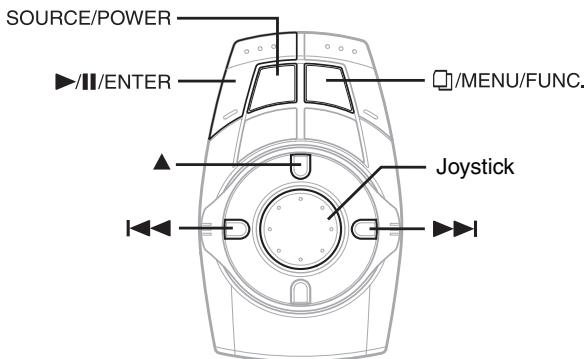
When connected to an Alpine Digital TV unit (sold separately), you can use the commander supplied with the VPA-B222R to operate the Digital TV. Set the AUX NAME to DVB-T. Refer to "Naming External Devices" page 18.
- Be sure to connect this unit or VPE-S431 remote control output lead to the Digital TV unit's remote control input lead.
- For details, refer to the owner's manual of the digital TV unit.
Operating Digital TV Unit
WARNING
It is dangerous for the driver to watch the TV while driving the vehicle. The driver may be distracted from looking ahead and an accident could occur.
Install the VPA-B222R correctly so that the driver cannot watch TV unless the vehicle is stopped and the emergency brake is applied.
If the VPA-B222R is not installed correctly, the driver will be able to watch the TV while driving the vehicle and may be distracted from looking ahead and cause an accident. The driver or other people could be severely injured.
- If you try to activate the Digital TV unit while driving, the display will show the warning-PICTURE OFF FOR YOUR SAFETY.
1 Press SOURCE/POWER.
The source selection screen is displayed.
2 Press the joystick up or down to select DVB-T, then press ▶/II/ENTER.
3 Press ▶/II/ENTER to switch the channel mode.
Channel up/down ↔ Favorite Channel up/down
4 Press |◀◀ or ▶▶| to seek for a channel downward or upward respectively.
5 Press and hold ▲ for at least 2 seconds to switch a source of digital TV unit.
EPG Screen Operation
1 Press ☐/MENU/FUNC..
The EPG screen is displayed.
2 Press the joystick up or down to select the desired item for adjusting.
3 Press the joystick left or right to adjust the selected item, then press and hold ▶/II /ENTER for at least 2 seconds.
Automatic Memory of Channel Presets
1 Press and hold ☐/MENU/FUNC. for at least 2 seconds.
The FUNCTION screen is displayed.
2 Press the joystick up or down to select A. MEMO, then press ▶/II/ENTER.
The auto preset operation starts.
Displaying the Menu Screen
The menu screen for a digital TV unit is displayed.
1 Press and hold ☐/MENU/FUNC. for at least 2 seconds.
The FUNCTION screen is displayed.
2 Press the joystick up or down to select MENU, then press and hold ▶/II/ENTER for at least 2 seconds.
Auxiliary Device (Optional)
Operating Auxiliary Devices (Optional)
To operate devices connected to the AUX terminals of VPA-B222R, follow the procedure described below.
WARNING
It is dangerous for the driver to watch the TV/Video while driving the vehicle. The driver may be distracted from looking ahead and an accident could occur.
Install the VPA-B222R correctly so that the driver cannot watch TV/Video unless the vehicle is stopped and the emergency brake is applied.
If the VPA-B222R is not installed correctly, the driver will be able to watch the TV/Video while driving the vehicle and may be distracted from looking ahead and cause an accident. The driver or other people could be severely injured.
- If you try to activate an auxiliary device while driving, the display will show the warning-PICTURE OFF FOR YOUR SAFETY.
1 Press SOURCE/POWER.
The source selection screen is displayed.
2 Press the joystick up or down to select the AUX mode, then press ▶/II/ENTER.
The external input screen is displayed.
- AUX-1 to AUX are displayed if AUX IN set to ON in “Setting the AUX mode” (page 18), or the name which is given as the source name in “Naming External Devices” on page 18 is displayed.
- AUX-3 is displayed when the optional expansion box (VPE-S431) is connected.
- When the Versatile Link Terminal (KCA-410C) is connected, external input to KCA-410C is unavailable. However, when IN-INT MUTE is set to off, the sound of a device connected to the external input of KCA-410C can be interrupted. (See "Setting the External Device Interrupt Mode" page 19.)
Factory System
Operating Factory System (Speaker Input mode)
The car's system (standard CD player, etc.) can be selected as a source.
1 Press SOURCE/POWER.
The source selection screen is displayed.
2 Press the joystick up or down to select the FACTORY SYS mode, then press ▶/II/ENTER.
The speaker input screen is displayed.
- FACTORY SYS mode is displayed when SOURCE or BOTH is set in "Setting the Speaker Input Mode" (page 16).
- Make each setting correctly in “Using the Speaker Input” (page 16) before use this function.
External Audio Processor (Optional)
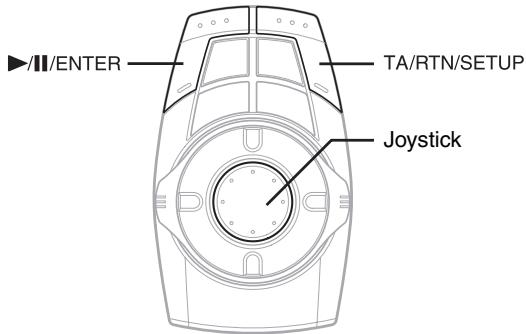
When an external audio processor is connected to this unit, you can operate it from this unit. Some audio processors may not be operated. Explanations below is the case when PXA-H700 or PXA-H701 is connected for example.
Refer also to the operating instructions of the connected audio processor.
- The adjustments or settings performed on the connected audio processor cannot be operated properly from this unit.
- The setting "Setting the Speakers", "Setting Bass Sound Control", and "Graphic Equalizer Adjustments" are not available if the MRD-D550 is connected. Additionally, if the MRD-F350 is connected, the following setting "Setting the MX mode" is not available. Also, the setting content differs between the PXA-H700 and PXA-H701.
Adjustment Procedure for Dolby Surround
Make the adjustments described below in order to reproduce Dolby Digital and DTS sound with greater accuracy.
Adjustment procedure
Speaker Setup (page 36)
(Turning the speakers to be used on and off and setting their response)

Adjusting the speaker levels (page 38)
(Adjusting the signal output level to the various speakers)

Mixing bass sound to the rear channel (page 37)
(Achieving smooth sound in the rear seat by mixing the front audio signals with the rear speaker signals)

Adjusting the acoustic image (page 37)
(Adjusting the acoustic image to achieve a sound as if the centre speaker were directly in front of the listener)

Achieving powerful high volume sound (page 38)
(Achieving energetic sound with even greater power, like the sound in a movie theater)

Adjusting the DVD Level (page 38)
(Adjust the volume (signal level) in the Dolby Digital, Pro Logic II, DTS and PCM modes)

Storing Settings in the Memory (page 38)
(Storing all the settings and adjustments made on the VPA-B222R (not only the above settings/adjustments) in the memory)
In case of combining the Automatic adjustments, etc.
We recommend to make the Automatic adjustments before the Dolby Surround adjustments.
Setting the Speakers
1 Check that Defeat mode is off (page 12).
2 Press and hold TA/RTN/SETUP for at least 2 seconds.
The SETUP screen is displayed.
3 Press the joystick up or down to select AP SETUP, then press the joystick right.
The AP SETUP screen is displayed.
4 Press the joystick up or down to select SPEAKER SEL, then press the joystick right.
5 Press the joystick left or right to set the connected speaker.
FRONT1: OFF/FULL (Full Range)/TW (tweeter)
FRONT2: OFF/ON
REAR: OFF/ON
CENTER: OFF/ON
SUBWOOFER: OFF/MONO/STEREO
6 Repeat step 4 and 5 to set all other speakers.
7 Press TA/RTN/SETUP to return to the previous screen.
- Set any unconnected speakers to OFF.
- Settings above can be carried out even when the speaker is set to OFF in “Speaker Setup” (page 36).
- To use the subwoofer in MONO with PXA-H700 or PXA-H701 connected, connect the subwoofer to the subwoofer output terminal of PXA-H700 or PXA-H701.
Set MX Mode of the External Audio Processor
Before performing the operations below, set MX (Media Xpander) mode of the PXA-H700 to “AUTO” when the PXA-H700 is connected.
1 Check that Defeat mode is off (page 12).
2 Press and hold TA/RTN/SETUP for at least 2 seconds.
The SETUP screen is displayed.
3 Press the joystick up or down to select AP SETUP, then press the joystick right.
The AP SETUP screen is displayed.
4 Press the joystick up or down to select MX, then press joystick left or right to select ON.
5 Press the joystick up or down to select MX SETUP, then press the joystick right.
6 Press the joystick up or down to select the media that is being played back. Then press the joystick left or right to set the desired MX mode.
MX CD (OFF, CD 1 to 3)
CD mode processes a large quantity of data. This data is used to reproduce the sound cleanly by making use of the data quantity.
MX COMPM (OFF, CMPM 1 to 3)
This corrects information that was omitted at the time of compression. This reproduces a well-balanced sound close to the original.
MX FM (OFF, FM 1 to 3)
The medium to high frequencies become more clear, and produces well balanced sound in all the bands.
MX DVD (OFF, MOVIE 1 to 2)
The dialog portion of the video is reproduced more clearly.
(MUSIC)
This disk contains a large quantity of data, such as a music clip. MX uses this data to reproduce the sound accurately.
MX AUX 1 to 3 (OFF, CMPM, MOVIE, MUSIC)
Choose the MX mode (CMPM, MUSIC, or MOVIE) that corresponds to the media connected.
7 Press TA/RTN/SETUP to return to the previous screen.
- The contents of MX set here is reflected in PXA-H700 or PXA-H701.
- When OFF is selected, MX effect of each MX mode will be OFF.
• Each music source, such as radio, CD, and MP3 can have its own MX setting. - MX mode does not function when MX is ON for MW, LW radio.
- MX COMPM is applied for MP3/WMA, MMD, iPod.
- MX mode can only be set for media currently playing back.
- AUX3 can be set only when the optional expansion box VPE-S431 is connected.
X-OVER Adjustment
1 Check that Defeat mode is off (page 12).
2 Press and hold TA/RTN/SETUP for at least 2 seconds.
The SETUP screen is displayed.
3 Press the joystick up or down to select AP SETUP, then press the joystick right.
The AP SETUP screen is displayed.
4 Press the joystick up or down to select X-OVER.
5 Press the joystick left or right to select L/R or L+R.
6 Press the joystick up or down to select X-OVER SETUP, then press the joystick right.
7 Press the joystick up or down to select the desired speaker, then press the joystick right.
8 Press the joystick up or down to select the desired item, then press the joystick left or right to adjust the crossover.
FREQUENCY: Adjust the H.P.F. or L.P.F. cutoff frequency. The adjustable bands differ according to the channel (speaker).
LEVEL: Adjust the H.P.F. or L.P.F. level. Adjustable level: -13 to 0
SLOPE: Adjust the H.P.F. or L.P.F. slope. Adjustable slope: OFF/-6/-12/-18/-24/-30
To adjust other channels, repeat steps 7 and 8.
9 Press TA/RTN/SETUP to return to the previous screen.
- When the speaker is set to the “OFF” mode, the X-OVER for that speaker cannot be set. Refer to “Setting the Speakers” (page 32).
- Check the playback frequencies of the connected speakers before adjusting.
- In order to protect the speakers, there is no OFF setting for the subwoofer low pass filter (the slope remains the same).
- The H.P.F. filter cannot be set to OFF (slope OFF) if TW (tweeter) is selected for FRONT1.
Performing Time Correction Manually (TCR)
Because of the particular conditions inside the vehicle, there can be major differences in the distances between the various speakers and the listening position. It is possible to calculate the optimum correction values and eliminate the time error at the listening position yourself using this function.
1 Check that Defeat mode is off (page 12).
2 Sit in the listening position (the driver's seat, for example) and measure the distance (in meters) between your head and the various speakers.
3 Calculate the difference in distance between the farthest speaker and the other speakers.
L = (distance of farthest speaker)
– (distance of other speakers)
4 Divide the distances calculated for the different speakers by the speed of sound (343 m/s temperature 20 °C).
This value is the time correction value for the various speakers.
Concrete examples
Calculating the time correction value for the front left speaker on the diagram below.
Conditions:
Distance between farthest speaker and listening position: 2.25 m (88-3/4")
Distance between front left speaker and listening position: 0.5 m (20")
Calculation:
$$ L = 2. 2 5 \mathrm{m} (8 8 - 3 / 4 ^ {\prime \prime}) - 0. 5 \mathrm{m} (2 0 ^ {\prime \prime}) = 1. 7 5 \mathrm{m} (6 8 - 3 / 4 ^ {\prime \prime}) $$
Compensation time = 1.75 ÷ 343 x 1000 = 5.1 (ms)
In other words, setting the time correction value for the front left speaker to 5.1 (ms) sets a virtual distance matching the distance to the farthest speaker.
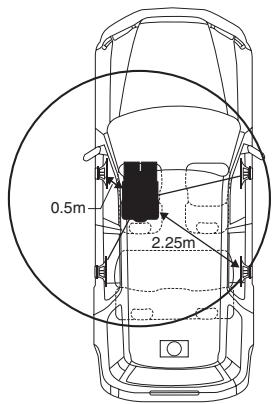
The sound is uneven because the distance between the listening position and the different speakers is different. The difference in the distance between the front left and rear right speakers is 1.75 meters (68-3/4").
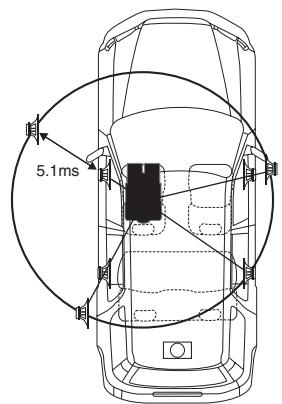
Time correction eliminates the difference between the time required for the sound from the different speakers to reach the listening position. Setting the time correction of the front left speaker to 5.1 ms makes it possible to coordinate the distance from the listening position to the speaker.
5 Press and hold TA/RTN/SETUP for at least 2 seconds.
The SETUP screen is displayed.
6 Press the joystick up or down to select AP SETUP, then press the joystick right.
The AP SETUP screen is displayed.
7 Press the joystick up or down to select TCR.
8 Press the joystick left or right to select L/R or L+R.
L/R: Different adjustment values can be set for the left and right channels.
L+R: Sets the same adjustment values for the left and right channels.
9 Press the joystick up or down to select TCR SETUP, then press the joystick right.
10 Press the joystick up or down to select the desired speaker.
11 Press the joystick left or right to adjust the calculated time correction value (0.00 to 20.00ms). (1step=0.05ms)
Time correction value changes continuously by pressing and holding the joystick.
12 Press TA/RTN/SETUP to return to the previous screen.
- When the speaker is set to the “OFF” mode, the TCR for that speaker cannot be set. Refer to “Setting the Speakers” (page 32).
- The adjustment value for FRONT2 (Speakers) which is adjusted in time correction, is also applied to the front speakers in “Setting Bass Focus” (page 36).
- The adjustment (AUTO TCR) cannot be automatically set on this unit.
Phase Switching
1 Check that Defeat mode is off (page 12).
2 Press and hold TA/RTN/SETUP for at least 2 seconds.
The SETUP screen is displayed.
3 Press the joystick up or down to select AP SETUP, then press the joystick right.
The AP SETUP screen is displayed.
4 Press the joystick up or down to select PHASE SETUP, then press the joystick right.
5 Press the joystick up or down to select the desired speaker.
6 Press the joystick left or right to switch the phase (0° or 180°).
7 Press TA/RTN/SETUP to return to the previous screen.
Graphic Equalizer Adjustments
The graphic equalizer allows you to modify the sound using 31 bands each for the front (left and right), rear (left and right) and centre speakers. An additional 10 bands are available for the subwoofer. This allows you to customize the sound to suit your taste.
1 Check that the Defeat mode is off (page 12).
2 Press and hold TA/RTN/SETUP for at least 2 seconds.
The SETUP screen is displayed.
3 Press the joystick up or down to select AP SETUP, then press the joystick right.
The AP SETUP screen is displayed.
4 Press the joystick up or down to select G-EQ.
5 Press the joystick left or right to select L/R or L+R.
L/R: Different adjustment values can be set for the left and right channels.
L+R: Sets the same adjustment values for the left and right channels.
When parametric EQ is adjusted, this setting will be turned off.
6 Press the joystick up or down to select G-EQ SETUP, then press the joystick right.
7 Press the joystick up or down to select the desired channel, then press the joystick right.
8 Press the joystick up or down to select the desired frequency.
9 Press the joystick left or right to adjust the level of the desired frequency.
Adjustable level: -9 to +9
To adjust other frequencies, repeat steps 8 and 9.
To adjust other channels, repeat steps 7 and 9.
10 Press TA/RTN/SETUP to return to the previous screen.
- When the speaker is set to the “OFF” mode, the graphic equalizer for that speaker cannot be set. Refer to “Setting the Speakers” (page 32).
- Check the playable frequency ranges of the connected speakers before making the equalizer adjustments. If the speaker's playable frequency range is 55 Hz to 30 kHz, for example, adjusting the 40 Hz or 20 Hz band has no effect. Additionally, you may overload and damage the speakers.
- When graphic EQ is adjusted, the adjustment for parametric EQ becomes ineffective.
Parametric Equalizer Adjustments
The frequency bands of the graphic equalizer are fixed. This makes it very difficult to correct for undesired peaks and dips at specific frequencies. The parametric equalizer's centre frequency can be tuned to these specific frequencies. Then, the bandwidth (Q) and level are fine-tuned, independently, to make the necessary corrections. The parametric equalizer function is an advanced tool for serious audiophiles.
1 Check that Defeat mode is off (page 12).
2 Press and hold TA/RTN/SETUP for at least 2 seconds.
The SETUP screen is displayed.
3 Press the joystick up or down to select AP SETUP, then press the joystick right.
The AP SETUP screen is displayed.
4 Press the joystick up or down to select P-EQ.
5 Press the joystick left or right to select L/R or L+R.
L/R: Different adjustment values can be set for the left and right channels.
L+R: Sets the same adjustment values for the left and right channels.
When graphic EQ is adjusted, this setting will be turned off.
6 Press the joystick up or down to select P-EQ SETUP, then press the joystick right.
7 Press the joystick up or down to select the desired channel, then press the joystick right.
8 Press the joystick up or down to select the desired band, then press the joystick right.
9 Press the joystick up or down to select the desired item, then press the joystick left or right to adjust the desired mode.
To adjust other bands, repeat steps 8 and 9.
To adjust other channels, repeat steps 7 and 9.
FREQUENCY: Selects the frequency.
LEVEL: Adjusts the level.
Adjustable level: -9 to +9
Q: Adjust the bandwidth.
Adjustable bandwidth: 0.5/1/2/3/4/5
10 Press TA/RTN/SETUP to return to the previous screen.
- When the speaker is set to the “OFF” mode, the parametric equalizer for that speaker cannot be set. Refer to “Setting the Speakers” (page 32).
- It is not possible to adjust the frequencies of adjacent bands within 7 steps.
- Check the playable frequency ranges of the connected speakers before making the equalizer adjustments. If the speaker's playable frequency range is 55 Hz to 30 kHz, for example, adjusting the 40 Hz or 20 Hz band has no effect. Additionally, you may overload and damage the speakers.
- When the parametric EQ is adjusted, the adjustment for graphic EQ becomes ineffective.
Setting Bass Sound Control
1 Check that Defeat mode is off (page 12).
2 Press and hold TA/RTN/SETUP for at least 2 seconds.
The SETUP screen is displayed.
3 Press the joystick up or down to select AP SETUP and press the joystick right.
The AP SETUP screen is displayed.
4 Press the joystick up or down to select B.SOUND CNTL, then press the joystick right.
Setting Bass Compressor
You can adjust the sound of low frequencies as desired.
5 Press the joystick up or down to select BASS COMP.
6 Press the joystick left or right to select the desired mode.
Bass sound is emphasized more as the mode is sequentially switched as MODE1 2 3, offering you vivid low frequencies.
Select OFF when the setting is not necessary.
Press TA/RTN/SETUP to return to the previous screen.
Setting Bass Focus
Using the previously specified delay number (time difference) allows you to set a time difference between the front-rear/left-right speakers. Namely, it enables a time correction based on your preference. With an initial delay of 0.05 ms for each of the 0 to 400 steps, audible time correction can be achieved.
5 Press the joystick up or down to select the desired speaker.
6 Press the joystick left or right to adjust the front, rear, left and right speakers.
7 Repeat step 5 and 6 to set other speakers.
- Any setting in Bass Focus is applied in time correction, too.
- Press TA/RTN/SETUP to return to the previous screen.
Speaker Setup
The PXA-H700 or PXA-H701 can be set according to the playable frequency range of your speakers. Check the playable frequency range of the speakers (not including the subwoofer) before performing this operation to verify whether the speakers can play low frequencies (of about 80Hz or less).
- Avoid stopping, pausing, switching the disc, cueing, fast-forwarding or switching the audio channel of this unit while making this adjustment. The setting is cancelled if Decode mode is switched.
1 Check that Defeat mode is off (page 12).
2 Press and hold TA/RTN/SETUP for at least 2 seconds.
The SETUP screen is displayed.
3 Press the joystick up or down to select AP SETUP, then press the joystick right.
The AP SETUP screen is displayed.
4 Press the joystick up or down to select SPEAKER SETUP, then press the joystick right.
5 Press the joystick up or down to select the desired speaker.
6 Press the joystick left or right to select the speaker characteristic.
OFF*1: When no speaker is connected.
SMALL: When a speaker that cannot play low frequencies (80 Hz or less) is connected.
LARGE*2: When a speaker that can play low frequencies (80 Hz or less) is connected.
*1 It is not possible to set the front speakers to "OFF".
*2 If the front speakers are set to "SMALL", the rear and centre speakers cannot be set to "LARGE".
7 Repeat step 5 and 6 to set each speaker.
- If the centre speaker is turned “OFF,” the centre channel’s audio signals are added to the audio signals output from the front speakers.
- If you set the speaker response to “OFF,” also set the speaker setting to “OFF” (page 32).
- Perform the setup for all the speakers (“Front,” “Centre,” “Rear” and “Subwoofer”). Otherwise, the sound may not be balanced.
- When the centre speaker is set to “OFF”, the setting is ineffective even if centre is set with this function.
- Through changing the settings on each speaker, a change in the output of the other speakers may occur due to the setting requirements.
- When using PRO LOGIC II, if the rear speaker is set to “LARGE”, there will be no output from the subwoofer.
Setting of Dolby Digital
1 Check that Defeat mode is off (page 12).
2 Press and hold TA/RTN/SETUP for at least 2 seconds.
The SETUP screen is displayed.
3 Press the joystick up or down to select AP SETUP, then press the joystick right.
The AP SETUP screen is displayed.
4 Press the joystick up or down to select MULTI CH SET, then press the joystick right.
The MULTI CH SET screen is displayed.
5 Press the joystick up or down to select the desired item.
Set the items below as you desire.
Adjusting the acoustic image
In most installations, the centre speaker must be placed directly between the front passenger and driver. Using this function, the centre channel information is distributed to the left and right speakers. This creates an acoustic image simulating a centre speaker directly in front of each listener. Adjusting the centre width in PL II MUSIC (see “Using the Pro Logic II Mode,” page 39), makes this function ineffective.
- Avoid stopping, pausing, switching the disc, cueing, fast-forwarding or switching the audio channel of this unit while making this adjustment. The setting is cancelled if the Decode mode is switched.
1 Press the joystick left or right to select ON of BI-PHANTOM.
2 Press the joystick down to select BI-PHANTOM LV.
3 Press the joystick left or right to adjust the level. The level can be adjusted within the range of -5 to +5. The higher the level, the more the position of the centre speaker is shifted to the sides.
The BI-PHANTOM function is turned off when setting to OFF.
- This adjustment is effective when the setting of the centre speaker to SMALL or LARGE in the speaker setup settings.
- This adjustment is ineffective when the speaker is set to CENTER OFF in “Setting the Speakers” (page 32).
Mixing bass sound to the rear channel
This function mixes the front channel audio signals to the audio signals output from the rear speakers, improving the sound in the vehicle's rear seat.
- Avoid stopping, pausing, switching the disc, cueing, fast-forwarding or switching the audio channel of this unit while making this adjustment. The setting is cancelled if the Decode mode is switched.
1 Press the joystick left or right to select ON of REAR MIX.
2 Press the joystick down to select MIX LEVEL.
3 Press the joystick left or right to adjust the level.
The level can adjusted in five steps: -6, -3, 0, +3 and +6. The higher the level, the more bass is output from the rear speakers. (The effect differs depending on the software (DVD, etc.)).
The REAR MIX function is turned off when set to OFF.
- This adjustment is ineffective when the rear speaker setup setting is set to “OFF”.
- For linear PCM signals, the voice is output from the rear speaker regardless of the REAR FILL and REAR MIX setting.
Achieving powerful high volume sound
With Dolby Digital, the dynamic range is compressed so that powerful sound can be achieved at regular volume levels. This compression can be cancelled to achieve an energetic sound with even greater power, like the sound in a movie theater.
This function works only in the Dolby Digital mode.
Press the joystick left or right to select STD or MAX. of LISTENING.
STD: For powerful sound at regular volume levels
MAX.: For powerful sound at high volumes
- Keep the volume to a level at which sounds outside the vehicle can still be heard.
Adjusting the speaker levels
The test tones help to make the volume adjustments of the different speakers. When levels are equal, a strong sense of presence can be heard from the different speakers at the listening position.
- Avoid stopping, pausing, switching the disc, cueing, fast-forwarding or switching the audio channel of this unit while making this adjustment. The setting is cancelled if the decode mode is switched.
1 Press the joystick left or right to select ON of OUTPUT. Test tone output is repeated for each of the different speaker channels. They will be repeated in the order shown below. If no operation is performed for 2 seconds, the channel switches to the next channel.
Left → Centre → Right → Right Surround → Left surround → Left
2 Press the joystick down to select OUTPUT LEVEL.
3 Press the joystick left or right to balance the output from all the speakers.
- The adjustment range for the different speakers is -10dB - + 10dB .
- Adjust based on the front speakers.
- If a speaker is set to off mode, that speaker's level adjustment cannot be made. Refer to "Speaker Setup" (page 36).
Adjusting the DVD Level
The volume (signal level) for Dolby Digital, Dolby PL II, DTS and PCM modes can be set.
- Avoid stopping, pausing, switching the disc, cueing, fast-forwarding or switching the audio channel of this unit while making this adjustment. The setting is cancelled if the Decode mode is switched.
1 Check that Defeat mode is off (page 12).
2 Press and hold TA/RTN/SETUP for at least 2 seconds.
The SETUP screen is displayed.
3 Press the joystick up or down to select AP SETUP, then press the joystick right.
The AP SETUP screen is displayed.
4 Press the joystick up or down to select DVD LEVEL, then press the joystick right.
The DVD LEVEL screen is displayed.
5 Press the joystick up or down to select the desired mode.
6 Press the joystick left or right to adjust level.
The level can be adjusted in the range of -5 to +5.
7 Repeat step 5 and 6 to set each level.
Storing Settings in the Memory
Adjustment or setting contents can be stored.
Contents that can be stored vary depends on the audio processor used.
1 Check that Defeat mode is off (page 12).
2 Press and hold TA/RTN/SETUP for at least 2 seconds.
The SETUP screen is displayed.
3 Press the joystick up or down to select AP SETUP, then press the joystick right.
The AP SETUP screen is displayed.
4 Press the joystick up or down to select PRESET MEMORY, then press the joystick right.
5 Press the joystick up or down to select any one of the preset numbers (1 through 6), then press ▶/Ⅱ/ENTER.
The setting contents are stored.
- The stored contents will not be deleted even when the battery power cord is detached.
Calling up the Preset Memory
1 Check that Defeat mode is off (page 12).
2 Press and hold TA/RTN/SETUP for at least 2 seconds.
The SETUP screen is displayed.
3 Press the joystick up or down to select AP SETUP, then press the joystick right.
The AP SETUP screen is displayed.
4 Press the joystick up or down to select PRESET CALL, then press the joystick right.
5 Press the joystick up or down to select any one of the preset numbers (1 through 6), then press ▶/II/ENTER.
- It takes a few moments to call up the preset memory.
Using the Pro Logic II Mode
Pro Logic processing can be conducted on the music signals recorded on two channels to achieve Dolby Pro Logic II surround sound. For two-channel Dolby Digital and DTS signals, there is also a “REAR FILL” function for outputting the signals of the front channel to the rear channel.
1 Check that Defeat mode is off (page 12).
2 Press and hold TA/RTN/SETUP for at least 2 seconds.
The SETUP screen is displayed.
3 Press the joystick up or down to select AP SETUP, then press the joystick right.
The AP SETUP screen is displayed.
4 Press the joystick up or down to select D PLII/ REAR, then press the joystick right.
5 Press the joystick left or right to select the desired mode of D PLII/REAR.
MOVIE: Suits the stereo TV shows and all programs encoded in Dolby Surround. It improves the sound field directivity to near that of discrete 5.1-channel sound.
MUSIC: Can be used for all stereo music recordings, and provides a wide, deep sound field.
R.FILL: Depending on the input signals, the sound may only be output from the front speakers. In this case, the “REAR FILL” function can be used to output signals from the rear speakers as well.
OFF: Turns D PLII/REAR FILL function to OFF.
If MUSIC is selected, the centre width can be adjusted with the following operations.
This function offers the optimum vocal position by adjusting the centre channel position between the centre speaker and the L/R speaker (The adjustments established in “Adjusting the acoustic image” (page 37) are ineffective while this function is activated).
1 Press the joystick down to select CENTER WIDTH, then press the joystick left or right to select ON.
2 Press the joystick left or right to adjust the level.
The level can be adjusted between 0 to 7. When the level increases, the centre channel position moves from the centre speaker position to both sides.
The centre width control is cancelled when set to OFF.
- This adjustment is effective when the setting of the centre speaker is SMALL or LARGE in the speaker setup settings.
- Avoid stopping, pausing, switching the disc, cueing, fast-forwarding or switching the audio channel of this unit while making this adjustment. The setting is canceled if the Decode mode is switched.
- This adjustment is ineffective when the speaker is set to CENTER OFF in “Setting the Speakers” (page 32).
- This function only works with two-channel signals. This operation is ineffective when 5.1-channel DTS or Dolby Digital signals are input.
- If the setting of REAR FILL is made when REAR MIX is ON, sound is unchanged in the rear fill setting because REAR MIX is given priority during 2 channel decoder other than linear PCM.
- For linear PCM signals, the voice is output from the rear speaker regardless of the REAR FILL and REAR MIX setting.
- Pressing TA/RTN/SETUP will return to the previous screen.
Linear PCM Setting
The output when playing discs recorded in linear PCM can be set to 2 or 3 channels.
1 Check that Defeat mode is off (page 12).
2 Press and hold TA/RTN/SETUP for at least 2 seconds.
The SETUP screen is displayed.
3 Press the joystick up or down to select AP SETUP, then press the joystick right.
The AP SETUP screen is displayed.
4 Press the joystick up or down to select PCM MODE.
5 Press the joystick left or right to select 2CH or 3CH.
2CH: 2ch output (L/R)
3CH: 3ch output (L/R/CENTER)
- This adjustment is ineffective when the speaker is set to CENTER OFF in “Setting the Speakers” (page 32).
Soft button operation
If an Alpine touch panel compatible monitor is connected to this unit, touch operation can be performed by directly touching the monitor. Refer to each section for details.
- Operation may differ depending on the connected device. Refer to owner's manual of the connected device.
Basic operation
The following example for the radio screen and source selection screen explains for basic operation.
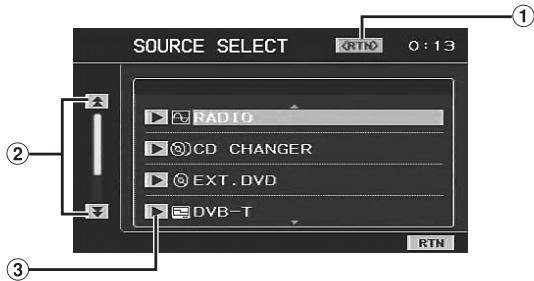
①
② ▲/▼
Scrolls the list.
③ ▶ Selects the item.
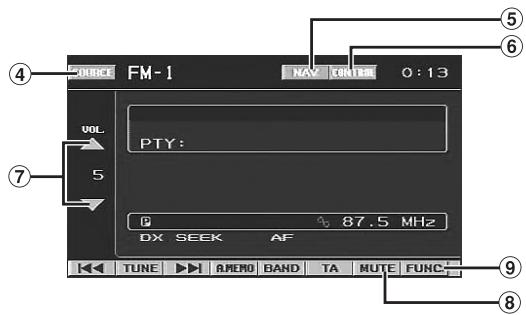
④ SOURCE (page 6)
The source selection screen is displayed.
⑤ NAV. (page 27)
The Navigation screen is displayed.
⑥ CONTROL
Displays the function screen on the connected touch panel compatible with the monitor.
⑦ VOL. ▲/▼ (page 7)
Adjusts the volume.
⑧ MUTE (page 7)
Turns mute on and off.
⑨ FUNC.
Displays the FUNCTION screen of each source.
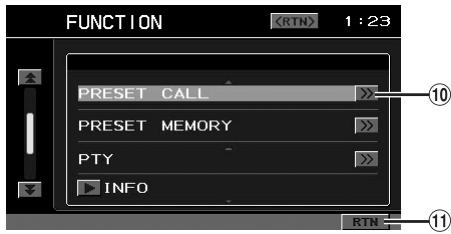
⑩ If there is a hierarchical list, is displayed, and touching will change to the list screen.
⑪ RTN
Returns to the previous screen.
Radio Operation
Display example for the radio main screen
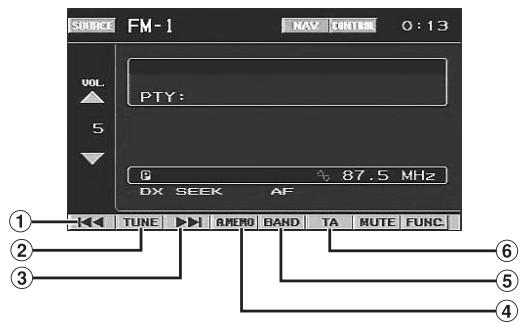
① ◀◀◀ (page 7) Searches and receives a channel automatically (distance mode or local mode).
◀◀ (page 7)
Changes down through channels one by one (manual mode).
◀ (page 9)
PTY search (RDS operation).
② TUNE (page 7)
Changes the tuning mode.
DX SEEK (|◀◀, ▶▶▶|) → SEEK (|◀◀, ▶▶▶|) →
OFF (◀◀, ▶▶) → PTY SEEK (◀, ▶) → DX SEEK
③ ▶▶▶I (page 7)
Searches and receives a channel automatically (distance mode or local mode).
▶▶ (page 7)
Changes down through channels one by one (manual mode).
▶ (page 9)
PTY search (RDS operation).
④ A.MEMO (page 8)
Memorizes automatically.
⑤ BAND (page 7)
Changes the band.
⑥ TA (page 9)
Displayed when FM radio is received. Touch to change to the Traffic Information mode.
Display example for function screen
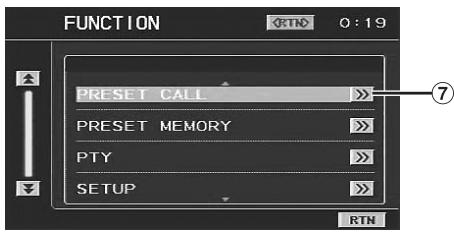
⑦ (page 8)
When you store/recall a preset number, the display changes to the preset number screen.
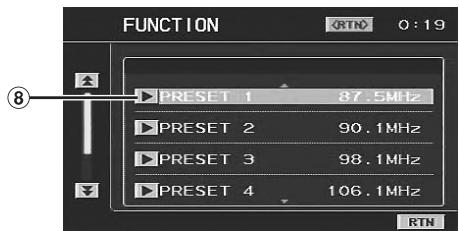
⑧ ▶ (page 8)
Enters the preset number.
RDS Operation
Display example for the RDS screen
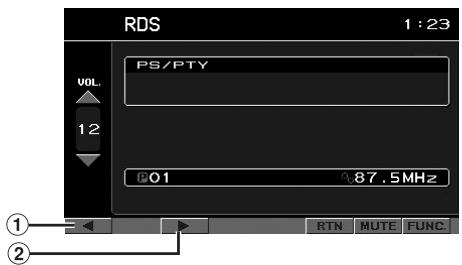
① ◀ (pages 9, 10)
Seeks a programme in current PTY (Programme Type). Touching and holding will change PTY.
② ▶ (pages 9, 10)
Seeks a programme in current PTY (Programme Type). Touching and holding will change PTY.
Display example for the RDS function screen.
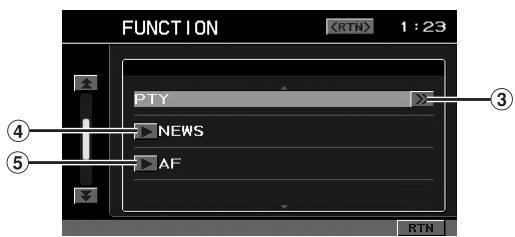
③ (PTY) ≫ (page 9)
Displays the PTY selection screen. Touch ▶ to confirm the programme type in selection screen.
④ ▶ (NEWS) (page 10)
Changes the news mode.
⑤ ▶ (AF) (page 9)
Changes AF setting ON/OFF.
Display example for the function screen
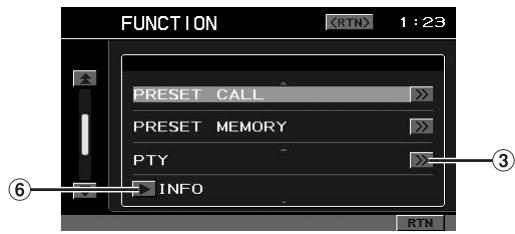
⑥ ▶ (INFO) (page 10)
Displays the radio text.
Setup Operation
“Adjusting the Audio” (page 11), “Rear Entertainment Function” (page 12) and “External Audio Processor (Optional)” (page 31) are operated in the same way.
Display example for the function screen
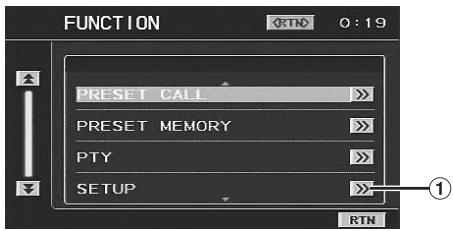
① (SETUP) >>
Displays SETUP screen.
Display example for setup screen
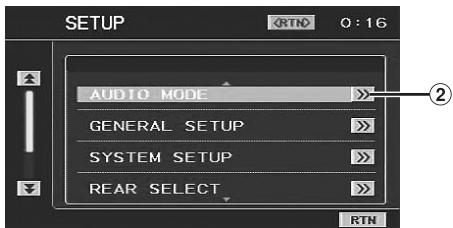
② >>
If there is a hierarchical list, is displayed, and touching will change to the list screen.
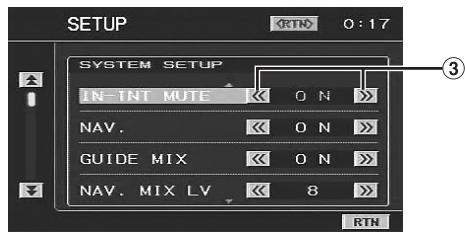
③ «/»
Adjusts and sets by touching.
CD/MP3/WMA Operation
Display example for MP3/WMA main screen
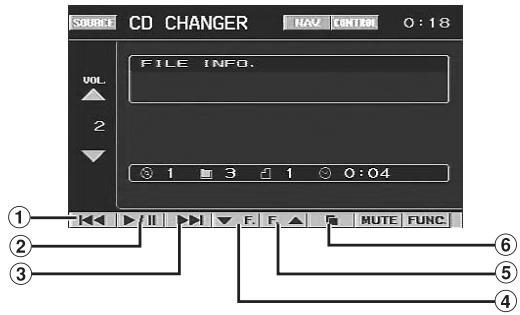
① ◀◀◀ (page 20)
Finds the beginning of the current track. Touch and hold to play fast-reverse.
② ▶/II (page 20)
Pauses and plays back.
③ ▶▶▶I (page 20)
Finds the beginning of the next track. Touch and hold to play fast-forward.
④ ▼F. (page 20)
Selects previous folder.
⑤ F.▲ (page 20)
Selects next folder.
⑥ (page 20)
Enters folder/file search mode.
- “▲F.”, “F.▼” and “☐” are not displayed during CD playback.
Display example for search screen
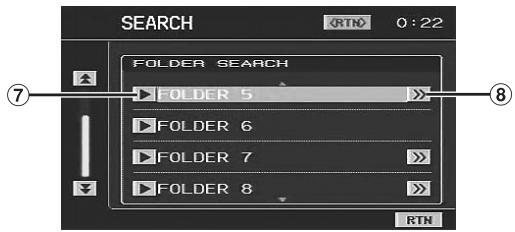
⑦ ▶ (page 20)
Enters the selected folder/file.
⑧ (page 20)
If there is a file in the folder, folders are displayed, and touching will change to the file list screen.
Display example for the function screen
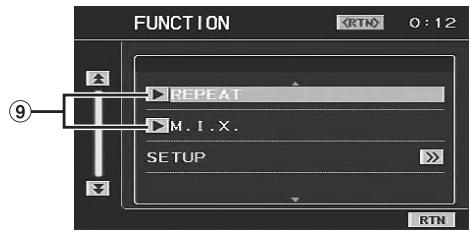
Display example for when connecting a CD changer
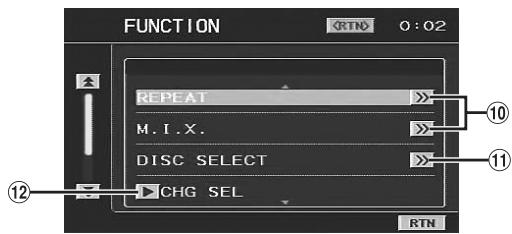
⑩ (REPEAT) , (M.I.X.) (page 21)
Changes to the selection screen of M.I.X. or repeat mode. Touch ▶ to confirm mode in the selection screen.
⑪ (DISC SELECT) ≫ (page 20)
Displays disc selection screen. Touch ▶ to confirm disc in the selection screen.
⑫ ▶ (CHG SEL) (page 20)
Displayed when two changers are connected. Touch to change the changer.
DVD/Video CD Operation
- The display item differs according to disc and connected device.
- Some soft buttons may not be operational.
Display example for DVD main operation screen
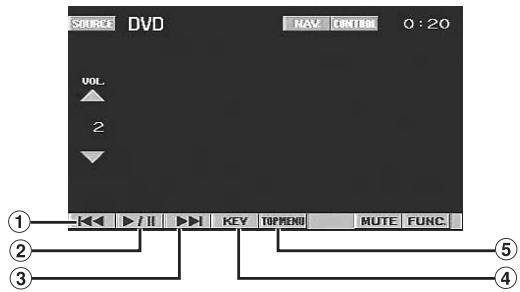
① ◀◀◀ (page 23)
Finds the beginning of track/chapter. Touching and holding plays fast- reverse.
② ▶/Ⅱ (page 22)
Pauses and plays back.
③ ▶▶▶I (page 23)
Finds the beginning of a track/chapter. Touching and holding plays fast-forward.
④ KEY (page 22)
The DVD menu operation screen is displayed.
⑤ TOP MENU (page 23)
The DVD top menu screen is displayed.
Display example for DVD menu operation screen
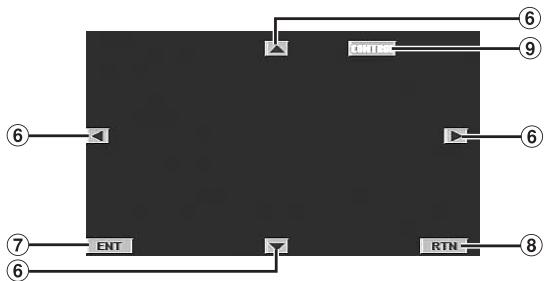
flowchart
graph TD
    A["6"] --> B["ENT"]
    C["7"] --> B
    D["6"] --> E["UNITS"]
    F["8"] --> G["RTN"]
    H["9"] --> I["6"]
    style A fill:#000,stroke:#000,color:#fff
    style C fill:#000,stroke:#000,color:#fff
    style D fill:#000,stroke:#000,color:#fff
    style F fill:#000,stroke:#000,color:#fff
    style H fill:#000,stroke:#000,color:#fff
    style I fill:#000,stroke:#000,color:#fff
⑥ ▲▼◀▶ Moves an item displayed on the screen.
⑦ ENT Enters the selected item.
⑧ RTN Returns to the previous screen.
⑨ CONTROL Displays the main operation screen.
Display example for function screen
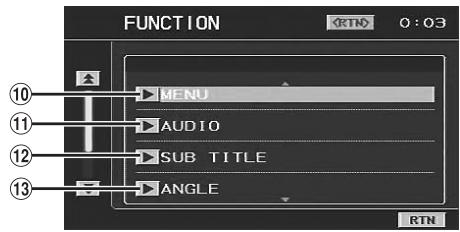
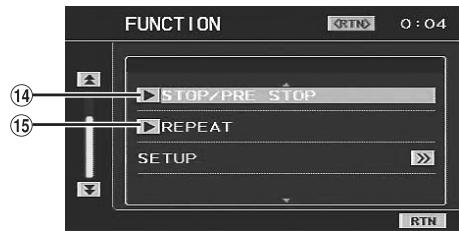
⑩ ▶ (MENU) (page 24) Displays menu screen.
⑪ ▶ (AUDIO) (page 24) Changes audio language
⑫ ▶ (SUB TITLE) (page 24) Changes subtitle language.
⑬ ▶ (ANGLE) (page 24) Changes angle.
⑭ ▶ (STOP/PRE STOP) (page 23) Stops/pauses playback.
⑮ ▶ (REPEAT) (pages 23, 24) Changes repeat mode.
iPod® Operation
Display example for iPod main screen
![SOURCE iPod NAV CONTROL 0:23 INFO. Just Want You To Know Backstreet Boys Never Gone [Bonus Tracks] 2:50 ① ② ③ MUTE FUNC ④](/content/2025/01/99973/images/f5432b701551416458d9416bd63bbbdebe2e13788785aa2783b35b2921df6e07.jpg)
① ◀◀◀ (page 25)
Finds the beginning of a song. Touching and holding will go fast-reverse.
② ▶/Ⅱ (page 25)
Pauses and plays back.
③ ▶▶▶ (page 25)
Finds the beginning of a song. Touching and holding fast-forwards a song.
④ ☐ (page 25)
The search mode screen is displayed.
Display example for search screen
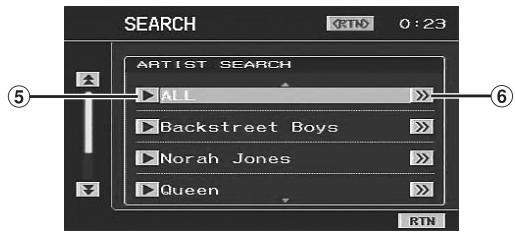
⑤ ▶ (page 25)
Enters the selected playlist/artist/album/song.
⑥ (page 25)
If there is a hierarchy in playlist/artist/album, lists are displayed, and the list screen will change by touching.
Display example for function screen
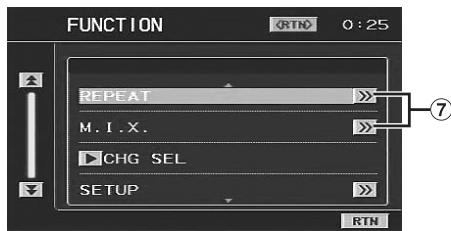
⑦ (REPEAT) , (M.I.X.) (page 27) Changes to the selection screen of M.I.X. or repeat mode. Touch to confirm mode in selection screen.
TV Operation
Display example for TV main screen
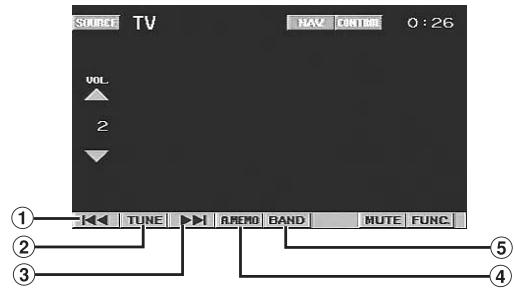
① ◀◀ (page 29)
Decreases channels one by one (Manual mode).
▶◀◀ (page 29)
Searches and receives a channel automatically (Auto seek mode).
◀ P.SET (page 29)
Decreases the preset numbers one by one.
② TUNE (page 29)
Changes the tuning way (manual mode, auto seek mode and preset number).
③ ▶▶ (page 29)
Increases channels one by one.
▶▶▶ (page 29)
Searches and receives a channel automatically (Auto seek mode).
P.SET ▶ (page 29)
Increases the preset numbers one by one.
④ A.MEMO (page 29)
Memorizes automatically.
⑤ BAND (page 29)
Changes the band.
Display example for the function screen
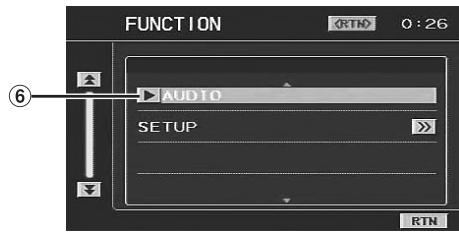
⑥ ▶ (AUDIO) (page 29) Changes audio.
Digital TV Operation
Display example for Digital TV main screen
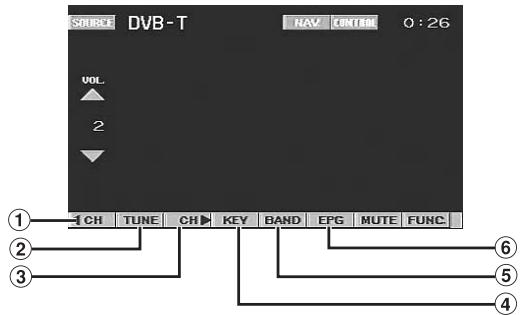
① ◀ CH (page 30)
Decreases channels one by one. Touching and holding changes continuously.
◀ FAV (page 30)
Decreases favorite channels.
② TUNE (page 30)
Changes the tuning way (channel and favorite channel).
③ CH ▶ (page 30)
Increases channels one by one. Touching and holding changes continuously.
FAV ▶ (page 30)
Increases favorite channels.
④ KEY (page 30)
Displays soft button for EPG screen operation.
⑤ BAND (page 30)
Switches source of digital TV.
⑥ EPG (page 30)
Displays EPG screen.
Display example for function screen
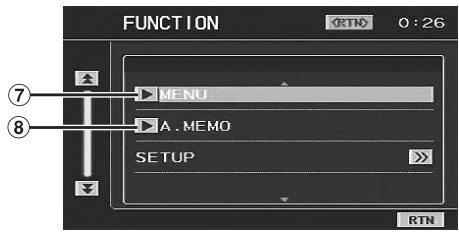
⑦ ▶ MENU (page 30)
Displays the menu screen.
⑧ ▶ A.MEMO (page 30)
Memorizes automatically.
Display example for EPG screen
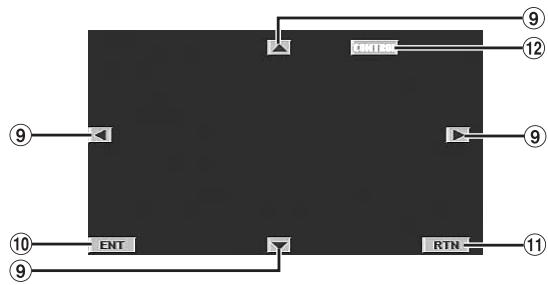
flowchart
graph TD
    A["ENT"] --> B["CNT"]
    B --> C["12"]
    D["10"] --> E["ENT"]
    F["9"] --> G["ENT"]
    H["9"] --> I["ENT"]
    J["11"] --> K["RTN"]
    L["12"] --> M["RTN"]
⑨ ▲▼◀▶ (page 30)
Moves an item displayed on the screen.
⑩ ENT (page 30)
Enters the selected item.
⑪ RTN
Returns to the previous screen.
⑫ CONTROL
Displays the main operation screen.
Information
In Case of Difficulty
If you encounter a problem, please turn the power off, then on again. If the unit is still not functioning normally, please review the items in the following checklist. This guide will help you isolate the problem if the unit is at fault. Otherwise, make sure the rest of your system is properly connected, or then consult your authorized Alpine dealer.
Basic
No function or display.
- Vehicle's ignition is off.
- If connected according to the instructions, the unit will not operate with the vehicle's ignition off.
- Improper power lead connections.
- Check power lead connections.
- Blown fuse.
- Check the fuse on the battery lead of the unit; replace with the proper value if necessary.
- Internal micro-computer malfunctioned due to interference noise, etc.
- Press the RESET switch with a ballpoint pen or other pointed article.
No sound or unnatural sound.
- Incorrect setting of volume/balance/fader controls.
- Readjust the controls.
- Connections are not properly or securely made.
- Check the connections and firmly connect.
Screen not displayed.
- Connections to the DVD, CD player, navigation system are not securely made.
- Check the connections and firmly connect.
Navigation system inoperative.
- Connections to the navigation system are incorrect.
- Check the connections with the navigation system and connect the cables correctly and firmly.
The remote control is inoperative.
- The remote control sensor setting of “Rear Entertainment Function” is not set to this unit.
- Set for this unit.
Radio
Unable to receive stations.
- No antenna, or open connection in the antenna cable.
- Make sure the antenna is properly connected; replace the antenna or cable if necessary.
Unable to tune stations in the seek mode.
- You are in a weak signal area.
- Make sure the tuner is in DX mode.
- If the area you are in is a primary signal area, the antenna may not be grounded and connected properly.
- Check your antenna connections; make sure the antenna is properly grounded at its mounting location.
- The antenna may not be the proper length.
- Make sure the antenna is fully extended; if broken, replace the antenna with a new one.
Broadcast is noisy.
- The antenna is not the proper length.
- Extend the antenna fully; replace it if it is broken.
• The antenna is poorly grounded. - Make sure the antenna is grounded properly at its mounting location.
• The station signal is weak and noisy. - If above solution does not work, tune in another station.
Indication for CD changer
HI-TEMP
- Protective circuit is activated due to high temperature.
- The indicator will disappear when the temperature returns to within operation range.
ERROR01
- Malfunction in the CD Changer.
- Consult your Alpine dealer. Press the magazine eject button and pull out the magazine.
Check the indication. Insert the magazine again.
If the magazine cannot be pulled out, consult your Alpine dealer.
• Magazine ejection not possible. - Press the magazine eject button. If the magazine does not eject, consult your Alpine dealer.
ERROR02
• A disc is left inside the CD Changer.
- Press the Eject button to activate the eject function. When the CD Changer finishes the eject function, insert an empty CD magazine into the CD Changer to receive the disc left inside the CD Changer.
NO MAGAZINE
- No magazine is loaded into the CD Changer.
- Insert a magazine.
NO DISC
- No indicated disc.
- Choose another disc.
NO iPod
• The iPod is not connected.
- Make sure the iPod is correctly connected.
Make sure the cable is not bent excessively.
- The iPod's battery remains low.
- Refer to the iPod's documentation and charge the battery.
NO SONG
• There are no songs in the iPod.
- Download songs to the iPod and connect to the VPA-B222R.
ERROR01
- Communication error
- Turn the ignition key off, and then set to ACC or ON again.
- Check the display by reconnecting between the iPod and the adapter, using the iPod cable.
ERROR02
- Caused by the iPod Software Version not being compatible with this unit.
- Update the iPod Software Version to be compatible with this unit.
Specifications
FM TUNER SECTION
| Tuning Range | 87.5 – 108.0 MHz |
| Mono Usable Sensitivity | 9.3 dBf (0.8 μV/75 ohms) |
| 50 dB Quieting Sensitivity | 13.5 dBf (1.3 μV/75 ohms) |
| Alternate Channel Selectivity | 80 dB |
| Signal-to-Noise Ratio | 65 dB |
| Stereo Separation | 35 dB |
| Capture Ratio | 2.0 dB |
MW TUNER SECTION
| Tuning Range | 531 – 1,602 kHz |
| Sensitivity (IEC Standard) | 25.1 μV/28 dB |
LW TUNER SECTION
| Tuning Range | 153 – 281 kHz |
| Sensitivity (IEC Standard) | 31.6 μV/30 dB |
GENERAL
| Power Requirement | 14.4 V DC(11–16 V allowable) |
| Operating temperature | +32 °F to +113 °F(0 °C to + 45 °C) |
| Maximum Power Output | 50 W × 4 |
| Output Voltage | 2,000 mV/10k ohms |
| Bass | +20/-14 dB at 100 Hz |
| Treble | ±14 dB at 10 kHz |
| Weight | 1.2 kg(2 lbs. 10 oz) |
Audio output level
Preout (Front, Rear): 2V/10k ohms (max.)
Preout (Subwoofer): 2V/10k ohms (max.)
Auxout: 1.2V/10k ohms
Ai-NET: 850 mV
CHASSIS SIZE
| Width | 275 mm (10-13/16") |
| Height | 40 mm (1-9/16") |
| Depth | 170 mm (6-3/4") |
Commander
| Width | 53 mm (2-1/16") |
| Height | 29 mm (1-1/8") |
| Depth | 87 mm (3-7/16") |
| Weight | 50 g (1.8 oz) (holder excluded) |
Installation and Connections
Before installing or connecting the unit, please read the following and pages 4 to 5 of this manual thoroughly for proper use.

Warning
MAKE THE CORRECT CONNECTIONS
Failure to make the proper connections may result in fire or product damage.
USE ONLY IN CARS WITH A 12 VOLT NEGATIVE GROUND.
(Check with your dealer if you are not sure.) Failure to do so may result in fire, etc.
BEFORE WIRING, DISCONNECT THE CABLE FROM THE NEGATIVE BATTERY TERMINAL.
Failure to do so may result in electric shock or injury due to electrical shorts.
DO NOT ALLOW CABLES TO BECOME ENTANGLED IN SURROUNDING OBJECTS.
Arrange wiring and cables in compliance with the manual to prevent obstructions when driving. Cables or wiring that obstruct or hang up on places such as the steering wheel, gear lever, brake pedals, etc. can be extremely hazardous.
DO NOT SPLICE INTO ELECTRICAL CABLES.
Never cut away cable insulation to supply power to other equipment. Doing so will exceed the current carrying capacity of the wire and result in fire or electric shock.
DO NOT DAMAGE PIPE OR WIRING WHEN DRILLING HOLES.
When drilling holes in the chassis for installation, take precautions so as not to contact, damage or obstruct pipes, fuel lines, tanks or electrical wiring. Failure to take such precautions may result in fire.
DO NOT USE BOLTS OR NUTS IN THE BRAKE OR STEERING SYSTEMS TO MAKE GROUND CONNECTIONS.
Bolts or nuts used for the brake or steering systems (or any other safety-related system), or tanks should NEVER be used for installations or ground connections. Using such parts could disable control of the vehicle and cause fire etc.
KEEP SMALL OBJECTS SUCH AS BOLTS OR SCREWS OUT OF THE REACH OF CHILDREN.
Swallowing them may result in serious injury. If swallowed, consult a physician immediately.
DO NOT INSTALL IN LOCATIONS WHICH MIGHT HINDER VEHICLE OPERATION, SUCH AS THE STEERING WHEEL OR GEARSHIFT.
Doing so may obstruct forward vision or hamper movement etc. and results in serious accident.

Caution
HAVE THE WIRING AND INSTALLATION DONE BY EXPERTS.
The wiring and installation of this unit requires special technical skill and experience. To ensure safety, always contact the dealer where you purchased this product to have the work done.
USE SPECIFIED ACCESSORY PARTS AND INSTALL THEM SECURELY.
Be sure to use only the specified accessory parts. Use of other than designated parts may damage this unit internally or may not securely install the unit in place. This may cause parts to become loose resulting in hazards or product failure.
ARRANGE THE WIRING SO IT IS NOT CRIMPED OR PINCHED BY A SHARP METAL EDGE.
Route the cables and wiring away from moving parts (like the seat rails) or sharp or pointed edges. This will prevent crimping and damage to the wiring. If wiring passes through a hole in metal, use a rubber grommet to prevent the wires insulation from being cut by the metal edge of the hole.
DO NOT INSTALL IN LOCATIONS WITH HIGH MOISTURE OR DUST.
Avoid installing the unit in locations with high incidence of moisture or dust. Moisture or dust that penetrates into this unit may result in product failure.
Precautions
- Be sure to disconnect the cable from the (−) battery post before installing your VPA-B222R. This will reduce any chance of damage to the unit in case of a short-circuit.
- Be sure to connect the colour coded leads according to the diagram. Incorrect connections may cause the unit to malfunction or damage to the vehicle's electrical system.
- When making connections to the vehicle's electrical system, be aware of the factory installed components (e.g. on-board computer). Do not tap into these leads to provide power for this unit. When connecting the VPA-B222R to the fuse box, make sure the fuse for the intended circuit of the VPA-B222R has the appropriate amperage. Failure to do so may result in damage to the unit and/or the vehicle. When in doubt, consult your Alpine dealer.
- The VPA-B222R uses female RCA-type jacks for connection to other units (e.g. amplifier) having RCA connectors. You may need an adaptor to connect other units. If so, please contact your authorized Alpine dealer for assistance.
- Be sure to connect the speaker (−) leads to the speaker (−) terminal. Never connect left and right channel speaker cables to each other or to the vehicle body.
IMPORTANT
Please record the serial number of your unit in the space provided below and keep it as a permanent record. The serial number plate is located on the bottom of the unit.
SERIAL NUMBER:
INSTALLATION DATE:
INSTALLATION TECHNICIAN:
PLACE OF PURCHASE:
Installation
Installing the unit
Caution
- Do not block the unit's fan or heat sink, thus preventing air circulation. If blocked, heat will accumulate inside the unit and may cause a fire.
- Do not touch the heat sink as it becomes hot, and may result in injury.
Air ventilation hole
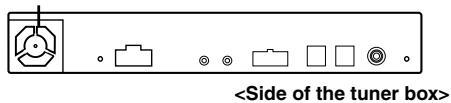
When mounting with Velcro fasteners
When mounting the unit with the Velcro fasteners, be sure to choose a flat location.
Do not hang the unit from the bottom of the dashboard or rear deck with the Velcro fasteners.
1 Remove the Protective paper and attach two pieces of Velcro fastener to the bottom of the Tuner.
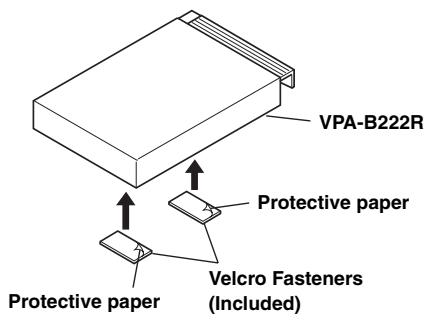
2 Check the position, and then fix the Tuner to the floor carpet.
When mounting with Screws
When mounting the tuner with the screws, be sure to choose a flat location.
When making holes, be careful not to scratch any pipes or wires.
1 Connect the bracket to both the flanks of the tuner with the supplied pan screws (M4 × 8).
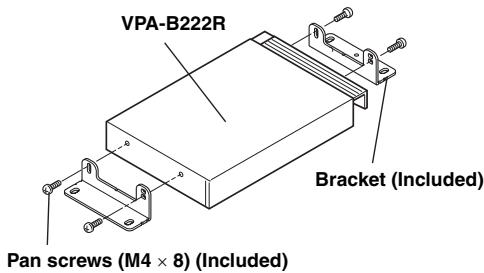
2 Install the tuner on the floor with the supplied flange-head tapping screws (M4 × 14).
Flange-head tapping screws (M4 × 14) (Included)
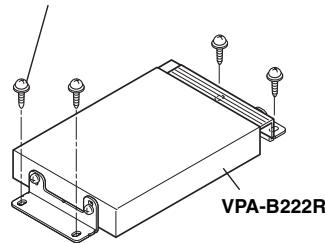
Mounting the Commander
For safe use, make sure of the following:
- Location is stable and film.
- Driver's view or operations are not obstructed.
- Located where driving can easily be performed (centre console, etc.). During operation, ensure that your driving posture does not change, or that your attention is not taken away from safely driving your vehicle.
1 Confirm where the holder is to be placed, and determine its direction.
The angle of the commander can be adjusted according to the direction of the holder.
Pattern 1
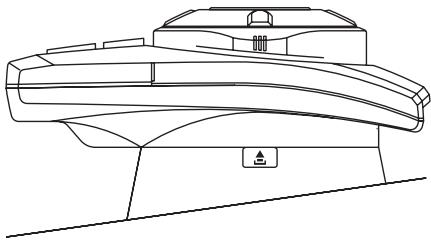
natural_image
Line drawing of a mechanical component or device with no visible text, numbers, or symbolsPattern 2
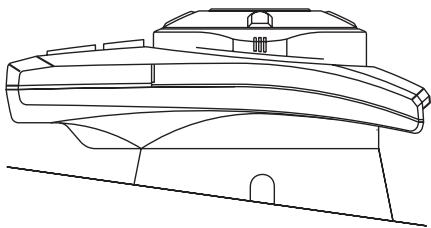
natural_image
Line drawing of a curved architectural structure with no visible text or symbols2 Route the commander connection cable through the holder.
Pattern 1
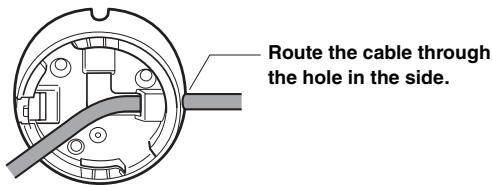
Pattern 2
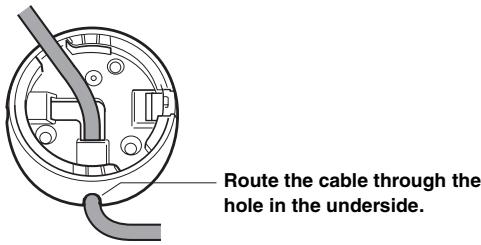
3 Mount the Holder
- When the holder cannot be mounted securely with double-sided adhesive tape, mount it by using screws.
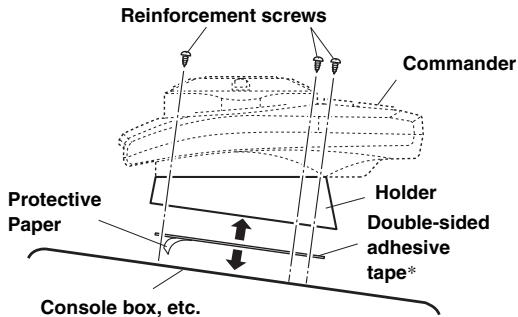
*Before attaching the tape, make sure the mounting location is free from dust or dirt.
4 Connect the commander cable to the commander.
5 Take up any slack by pulling the cable, while holding the holder.
6 Set the commander on the holder.
After aligning the 2 projections on the backside of the commander with the groove of the holder, then turn the commander clockwise until it clicks.
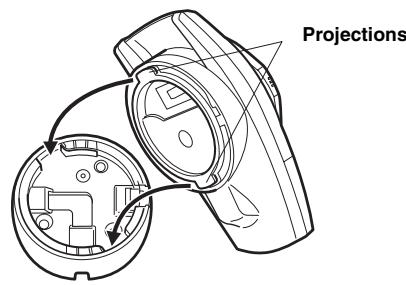
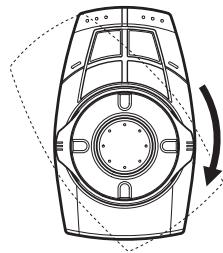
natural_image
Technical line drawing of a mechanical component with no visible text or symbols- When you remove the commander from the holder, turn the commander counterclockwise by pressing ▲ on the holder, then remove the commander.

WARNING
DO NOT INSTALL THE COMMANDER NEAR THE PASSENGER AIR BAG.
If the unit is not installed correctly, the air bag may not function correctly, and if the air bag is triggered, parts may spring upwards and cause accident or injury.
7 Fix the connection cable with the supplied cable clamp.
Parking Brake Lead Connection
If necessary, use a pinch connector to connect the foot brake lead, parking brake lead, etc.
1
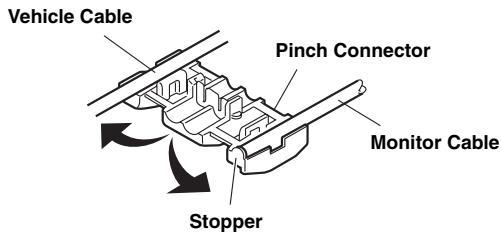
2
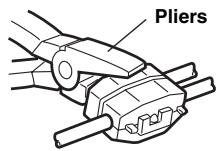
Connection Diagram of SPST Switch (Sold Separately)
(If the ACC power supply is not available)
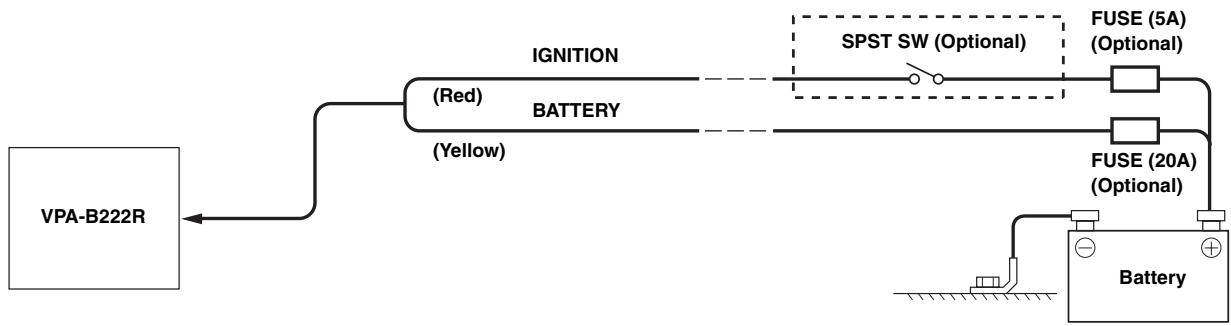
flowchart
graph LR
    A["VPA-B222R"] --> B["IGNITION"]
    B --> C["BATTERY"]
    C --> D["SPST SW (Optional)"]
    D --> E["FUSE (5A) (Optional)"]
    D --> F["FUSE (20A) (Optional)"]
    B --> G["(Red)"]
    B --> H["(Yellow)"]
    G --> I["Battery"]
    H --> I
    I --> J["Ground"]
- If your vehicle has no ACC power supply, add an SPST (Single-Pole, Single-Throw) switch (sold separately) and fuse (sold separately).
- The diagram and the fuse amperage shown above are in the case when VPA-B222R is used individually.
- If the switched power (ignition) lead of the VPA-B222R is connected directly to the positive (+) post of the vehicle's battery, the VPA-B222R draws some current (several hundred milliamperes) even when its switch is placed in the OFF position and the battery may be discharged.
Speaker Input Lead Connection
1 Cut the car audio's speaker leads.
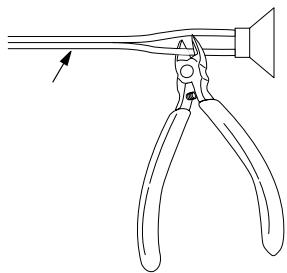
natural_image
Line drawing of a pliers with a handle and pointer, no text or symbols present2 Connect the leads together.
Connect the supplied pinch connector.
To prevent external noise from entering the audio system.
- Locate the unit and route the leads at least 10 cm away from the car harness.
- Keep the battery power leads as far away from other leads as possible.
- Connect the ground lead securely to a bare metal spot (remove any paint, dirt or grease if necessary) of the car chassis.
- If you add an optional noise suppressor, connect it as far away from the unit as possible. Your Alpine dealer carries various noise suppressors, contact them for further information.
- Your Alpine dealer knows best about noise prevention measures so consult your dealer for further information.
Connections (VPA-B222R Wiring Diagram)
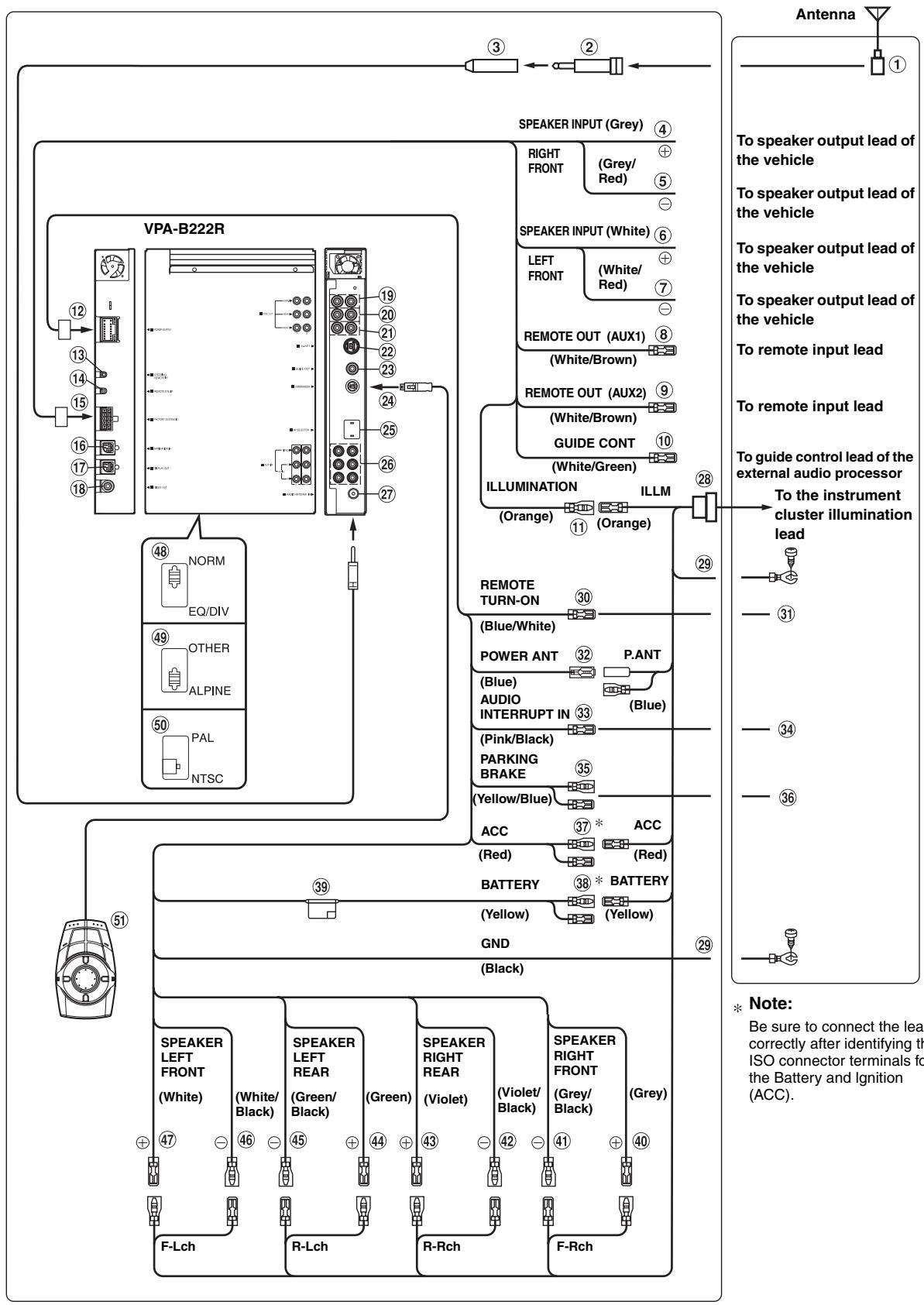
flowchart
graph TD
    A["VPA-B222R"] -->|① ② ③| B["Antenna"]
    A -->|④ ⑤ ⑥ ⑦ ⑧ ⑨ ⑩ ⑳ ⑳ ⑳ ⑳ ⑳ ⑳ ⑳ ⑳ ⑳ ③ ③ ③ ③ ③ ③ ③ ③ ③ ③ ③ ③ ③ ③ ③ ③ ③ ③ ③ ③ ③ ③ ③ ③ ③ ③ ③ ③ ③ ③ ③ ③ ③ ③
    A -->|19 20 21 22 23 24 25 26 27| B
    A -->|18 NORM EQ/DIV OTHER ALPINE PAL NTSC| C
    A -->|48 NORM EQ/DIV OTHER ALPINE PAL NTSC| D
    A -->|39 GND (Black)| E
    A -->|39 GND (Black)| F
    A -->|39 GND (Black)| G
    A -->|39 GND (Black)| H
    A -->|39 GND (Black)| I
    A -->|39 GND (Black)| J
    A -->|39 GND (Black)| K
    A -->|39 GND (Black)| L
    A -->|39 GND (Black)| M
    A -->|39 GND (Black)| N
    A -->|39 GND (Black)| O
    A -->|39 GND (Black)| P
    A -->|39 GND (Black)| Q
    A -->|39 GND (Black)| R
    A -->|39 GND (Black)| S
    A -->|39 GND (Black)| T
    A -->|39 GND (Black)| U
    A -->|39 GND (Black)| V
    A -->|39 GND (Black)| W
    A -->|39 GND (Black)| X
    A -->|39 GND (Black)| Y
    A -->|39 GND (Black)| Z
    A -->|39 GND (Black)| AA
    A -->|39 GND (Black)| AB
    A -->|39 GND (Black)| AC
    A -->|39 GND (Black)| AD
    A -->|39 GND (Black)| AE
    A -->|39 GND (Black)| AF
    A -->|39 GND (Black)| AG
    A -->|39 GND (Black)| AH
    A -->|39 GND (Black)| AI
    A -->|39 GND (Black)| AJ
    A -->|39 GND (Black)| AK
    A -->|39 GND (Black)| AL
    A -->|39 GND (Black)| AM
    A -->|39 GND (Black)| AN
    A -->|39 GND (Black)| AO
    A -->|39 GND (Black)| AP
    A -->|39 GND (Black)| AQ
    A -->|39 GND (Black)| AR
    A -->|39 GND (Black)| AS
    A -->|39 GND (Black)| AT
    A -->|39 GND (Black)| AU
    A -->|39 GND (Black)| AV
    A -->|39 GND (Black)| AW
    A -->|39 GND (Black)| AX
    A -->|39 GND (Black)| AY
    A -->|39 GND (Black)| AZ
    A -->|39 GND (Black)| BA
    A -->|39 GND (Black)| BB
    A -->|39 GND (Black)| BC
    A -->|39 GND (Black)| BD
    A -->|39 GND (Black)| BE
    A -->|39 GND (Black)| BF
    A -->|39 GND (Black)| BG
    A -->|39 GND (Black)| BH
    A -->|39 GND (Black)| BI
    A -->|39 GND (Black)| BJ
    A -->|39 GND (Black)| BK
    A -->|39 GND (Black)| BL
    A -->|39 GND (Black)| BM
    A -->|39 GND (Black)| BN
    A -->|39 GND (Black)| BO
    A -->|39 GND (Black)| BP
    A -->|39 GND (Black)| BQ
    A -->|39 GND (Black)| BR
    A -->|39 GND (Black)| BS
    A -->|39 GND (Black)| BT
    A -->|39 GND (Black)| BU
    A -->|39 GND (Black)| BV
    A -->|39 GND (Black)| BW
    A -->|39 GND (Black)| BX
    A -->|39 GND (Black)| BY
    A -->|39 GND (Black)| BZ
    A -->|39 GND (Black)| CA
    A -->|39 GND (Black)| CB
    A -->|39 GND (Black)| CC
    A -->|39 GND (Black)| CD
    A -->|39 GND (Black)| CE
    A -->|39 GND (Black)| CF
    A -->|39 GND (Black)| CG
    A -->|39 GND (Black)| CH
    A -->|39 GND (Black)| CI
    A -->|39 GND (Black)| CJ
    A -->|39 GND (Black)| CK
    A -->|39 GND (Black)| CL
    A -->|39 GND (Black)| CD
    A -->|39 GND (Black)| CEJ
    A -->|39 GND (Black)| CFJ
    A -->|39 GND (Black)| CKJ
    A -->|39 GND (Black)| CLJ
- Set the system switch to “NORM” when only a changer is connected (when the Ai-NET compatible equalizer is not used).
① ISO Antenna Plug
② ISO Antenna Converter Plug (sold separately)
③ Antenna Extension Cable (Included)
④ Right Front (+) Speaker Input Lead (Grey)
⑤ Right Front (−) Speaker Input Lead (Grey/Red)
⑥ Left Front (+) Speaker Input Lead (White)
⑦ Left Front (−) Speaker Input Lead (White/Red)
⑧ Remote Control Output Lead (White/Brown)
Connect this lead to the remote control input lead. This lead outputs the controlling signals from the remote control.
⑨ Remote Control Output Lead (White/Brown)
Connect this lead to the remote control input lead. This lead outputs the controlling signals from the remote control.
⑩ Guide Control Lead (White/Green)
If an external audio processor is connected, connect this to the guide control lead.
⑪ Illumination Lead (Orange)
This lead may be connected to the vehicle's instrument cluster illumination lead. This will allow the backlighting of the commander to dim whenever the vehicle's lights are turned on.
⑫ Power Supply Connector
⑬ Steering Remote Control Interface Connector
To steering remote control interface box.
⑭ Remote Control Eye Jack
Connect this to the remote control sensor unit.
⑮ Factory System Input Terminal
⑯ Navigation Input (RGB Input) Terminal
Connect this to the RGB output terminal of the Navigation System.
⑰ Display Output (RGB Output) Terminal
Connect a 13P RGB terminal equipped monitor using the RGB cable supplied with the unit.
⑱ Video Output Terminal
Connect this to the external front monitor using the RCA extension cable supplied with the unit.
⑲ Subwoofer output Terminal
Connect the input lead of an amplifier for the subwoofer to this terminal.
⑳ Rear output Terminal
Use when connecting an amplifier or equalizer.
②1 Front output Terminal
Use when connecting an amplifier or equalizer.
⑳ Ai-NET Connector
Connect this to the output or input connector of other product (CD changer, Equalizer, iPod adapter*, etc.) equipped with Ai-NET.
* If you connect to iPod, you need the optional adapter (KCA-420i). For details on connection, refer to the Owner's Manual of the KCA-420i.
②3 Guide Output Terminal
If an external audio processor is connected, outputs the navigation interrupt voice signal that is input from the Alpine navigation system, or the speaker input terminal.
⑳ Commander Terminal
⑲ AV Select Connector
When this connector is connected to the optional expansion box (VPE-S431), connect this to the HEAD UNIT terminal of VPE-S431.
26 AUX Input Terminals If these terminals are connected to the optional expansion box (VPE-S431), the AUX input terminals are not used on this unit. Connect AUX IN 1, 2 and 3, and the AUX OUT 1 and 2 terminals of the expansion box (VPE-S431) to the external device(s).
⑳ Antenna Receptacle
⑳ ISO Connector (Included)
⑲ Ground Lead (Black)
Connect this lead to a good chassis ground on the vehicle. Make sure the connection is made to bare metal and is securely fastened using the sheet metal screw provided.
③0 Remote Turn-On Lead (Blue/White)
Connect this lead to the remote turn-on lead of your amplifier or signal processor.
③1 To amplifier or equalizer
③2 Power Antenna Lead (Blue)
Connect this lead to the +B terminal of your power antenna, if applicable.
③3 Audio Interrupt In Lead (Pink/Black)
③4 To vehicle phone
③5 Parking Brake Lead (Yellow/Blue)
Connect this lead to the power supply side of the parking brake switch to transmit the parking brake status signals to the VPA-B222R.
36 Connect this lead to the parking brake lead powered when parking brake is engaged.
③7 Switched Power Lead (Ignition) (Red)
Connect this lead to an open terminal on the vehicle's fuse box or another unused power source which provides (+) 12V only when the ignition is turned on or in the accessory position.
③8 Battery Lead (Yellow)
Connect this lead to the positive (+) post of the vehicle's battery.
⑲ Fuse Holder (10A)
④0 Right Front (+) Speaker Output Lead (Grey)
④1 Right Front (−) Speaker Output Lead (Grey/Black)
④2 Right Rear (−) Speaker Output Lead (Violet/Black)
④3 Right Rear (+) Speaker Output Lead (Violet)
④4 Left Rear (+) Speaker Output Lead (Green)
45 Left Rear (−) Speaker Output Lead (Green/Black)
46 Left Front (−) Speaker Output Lead (White/Black)
④7 Left Front (+) Speaker Output Lead (White)
④8 System Switch
When connecting an equalizer or divider using Ai-NET feature, place this switch in the EQ/DIV position. When no device is connected, leave the switch in the NORM position.
- Be sure to turn the power off on the unit before changing the switch position.
④9 ALPINE/OTHER switching button
Set to "ALPINE" for normal use.
Set to "OTHER" when connecting optional display interface box.
⑤0 NTSC/PAL switching button
Switch if necessary. Effective only when the ALPINE/OTHER switching button is set to OTHER.
⑤1 Commander (Included)
System Example
Connect the ALPINE Monitor
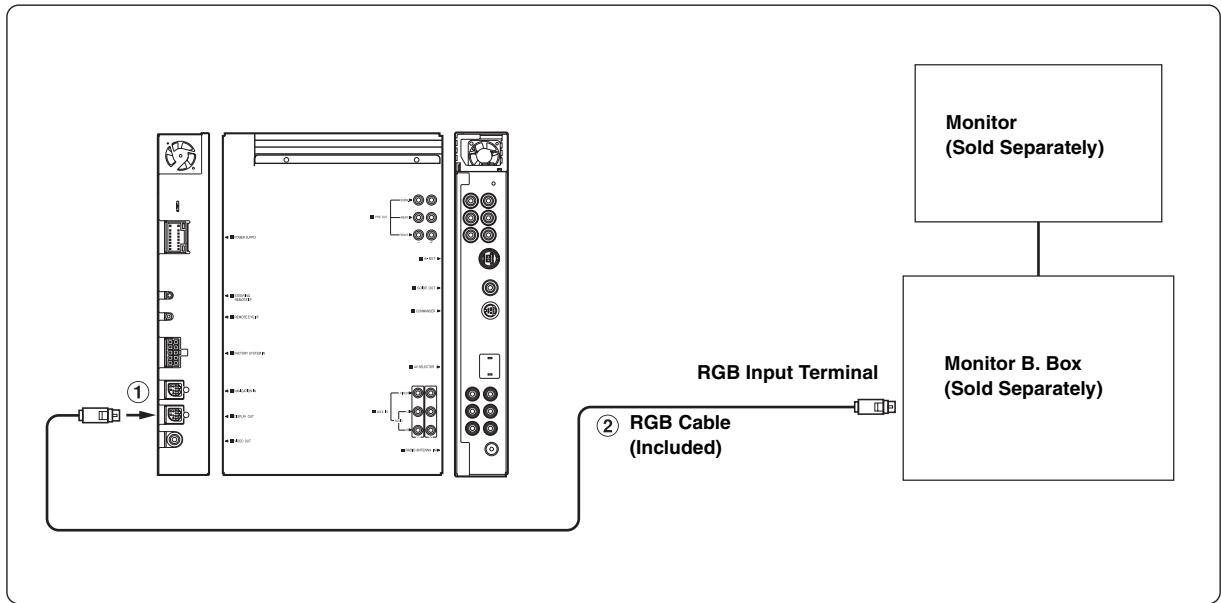
flowchart
graph LR
    A["1"] --> B["2"]
    B --> C["RGB Input Terminal"]
    C --> D["Monitor (Sold Separately)"]
    C --> E["Monitor B. Box (Sold Separately)"]
    style A fill:#f9f,stroke:#333
    style B fill:#ccf,stroke:#333
    style C fill:#cfc,stroke:#333
    style D fill:#fcc,stroke:#333
    style E fill:#cff,stroke:#333
① Display Output (RGB Output) Terminal
Connect a 13P RGB terminal equipped monitor using the RGB cable supplied with the unit.
② RGB Cable (Included)
Connect a Monitor of another manufacturer
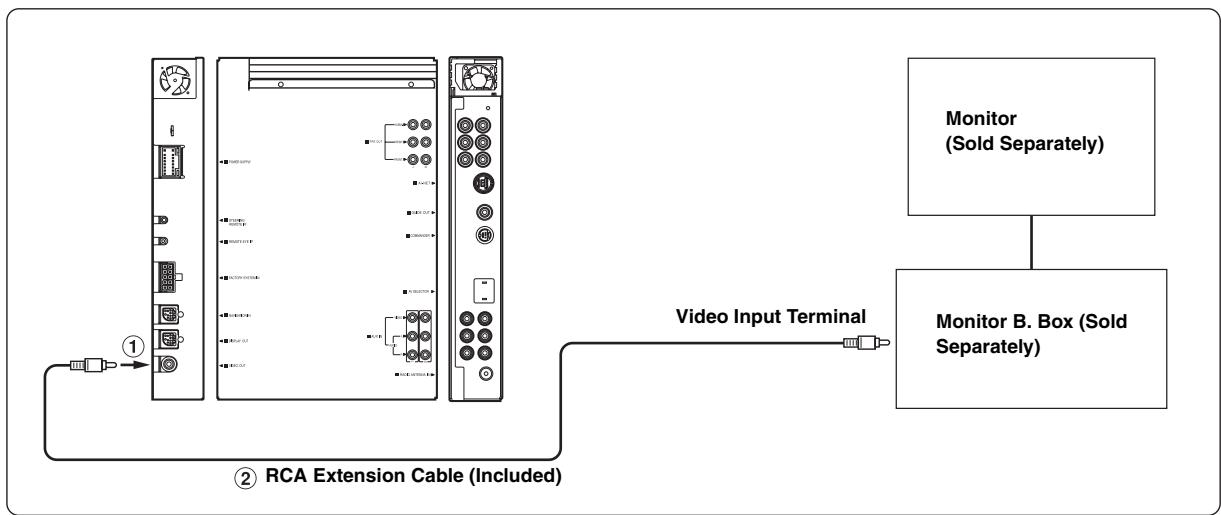
flowchart
graph LR
    A["①"] --> B["② RCA Extension Cable (Included)"]
    B --> C["Video Input Terminal"]
    C --> D["Monitor B. Box (Sold Separately)"]
    D --> E["Monitor (Sold Separately)"]
- Remote control sensor is required.
① Video Output Terminal
Connect this to the external front monitor using the RCA extension cable supplied with the unit.
② RCA Extension Cable (Included)
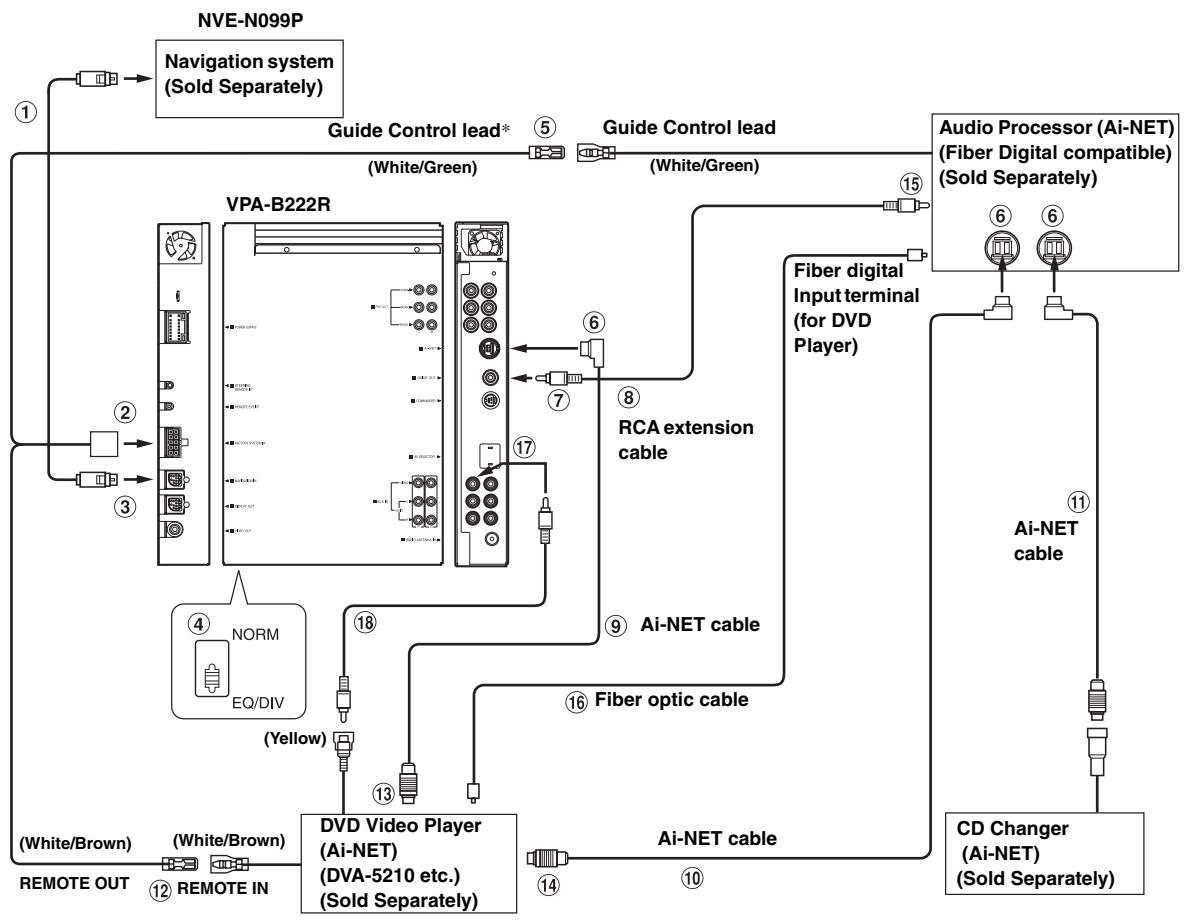
flowchart
graph TD
    A["NVE-N099P"] -->|①| B["Navigation system (Sold Separately)"]
    B --> C["VPA-B222R"]
    C --> D["Guide Control lead* (White/Green)"]
    C --> E["Guide Control lead (White/Green)"]
    C --> F["Fiber digital Input terminal (for DVD Player)"]
    C --> G["Audio Processor (Ai-NET) (Fiber Digital compatible) (Sold Separately)"]
    G --> H["Ai-NET cable"]
    C --> I["DVD Video Player (Ai-NET) (DVA-5210 etc.) (Sold Separately)"]
    I --> J["Ai-NET cable"]
    C --> K["CD Changer (Ai-NET) (Sold Separately)"]
    K --> L["Ai-NET cable"]
    C --> M["NORM EQ/DIV (Yellow)"]
    M --> N["Fiber optic cable"]
    C --> O["②"]
    C --> P["③"]
    C --> Q["④"]
    C --> R["⑤"]
    C --> S["⑥"]
    C --> T["⑦"]
    C --> U["⑧"]
    C --> V["⑨"]
    C --> W["⑩"]
    C --> X["⑪"]
    C --> Y["⑫"]
    C --> Z["⑬"]
    C --> AA["⑭"]
    C --> AB["⑮"]
    C --> AC["⑯"]
    C --> AD["⑰"]
    C --> AE["⑱"]
    C --> AF["⑲"]
    C --> AG["⑳"]
    C --> AH["㉑"]
    C --> AI["㉒"]
    C --> AJ["㉓"]
    C --> AK["㉔"]
    C --> AL["㉕"]
    C --> AM["㉖"]
    style A fill:#f9f,stroke:#333
    style B fill:#ccf,stroke:#333
    style C fill:#cfc,stroke:#333
    style D fill:#fcc,stroke:#333
    style E fill:#fcc,stroke:#333
    style F fill:#fcc,stroke:#333
    style G fill:#fcc,stroke:#333
    style H fill:#fcc,stroke:#333
    style I fill:#fcc,stroke:#333
    style J fill:#fcc,stroke:#333
    style K fill:#fcc,stroke:#333
    style L fill:#fcc,stroke:#333
    style M fill:#fcc,stroke:#333
    style N fill:#fcc,stroke:#333
    style O fill:#fcc,stroke:#333
    style P fill:#fcc,stroke:#333
    style Q fill:#fcc,stroke:#333
    style R fill:#fcc,stroke:#333
    style S fill:#fcc,stroke:#333
    style T fill:#fcc,stroke:#333
    style U fill:#fcc,stroke:#333
    style V fill:#fcc,stroke:#333
    style W fill:#fcc,stroke:#333
    style X fill:#fcc,stroke:#333
    style Y fill:#fcc,stroke:#333
* Guide Control lead is not connected when PXA-H700/PXA-H701 is connected.
- When the NVA-N751AS is connected for the Navigation System, use the RGB conversion cable KWE-503N (sold separately).
① RGB Cable (Included with NVE-N099P)
② Factory System Input Terminal
③ Navigation Input (RGB Input) Terminal
Connect this to the RGB output terminal of the Navigation System.
④ System Switch
When connecting an equalizer or divider using Ai-NET feature, place this switch in the EQ/DIV position. When no device is connected, leave the switch in the NORM position.
- Be sure to turn the power off on the unit before changing the switch position.
⑤ Guide Control Lead (White/Green)
⑥ Ai-NET Connector
Connect this to the output or input connector of other products equipped with Ai-NET.
⑦ Guide Output Terminal
If an external audio processor is connected, outputs the navigation interrupt voice signal that is input from the Alpine navigation system, or the speaker input terminal.
⑧ RCA Extension Cable (Sold Separately)
⑨ Ai-NET Cable (Included with DVD video player)
⑩ Ai-NET Cable (Included with Audio Processor)
⑪ Ai-NET Cable (Included with CD Changer)
⑫ Remote Control Output Lead (White/Brown)
Connect this lead to the remote control input lead. This lead outputs the controlling signals from the remote control.
⑬ To Ai-NET Connector (Grey)
⑭ To Ai-NET Connector (Black)
⑮ Navigation Audio Input Jack (RCA Input)
⑯ Fiber optic Cable (Sold Separately)
⑰ AUX Video Input (AUX1) Terminal
Connect the video output lead of a DVD video player or DVD changer to this terminal.
⑱ RCA Extension Cable (Included with DVD video player)
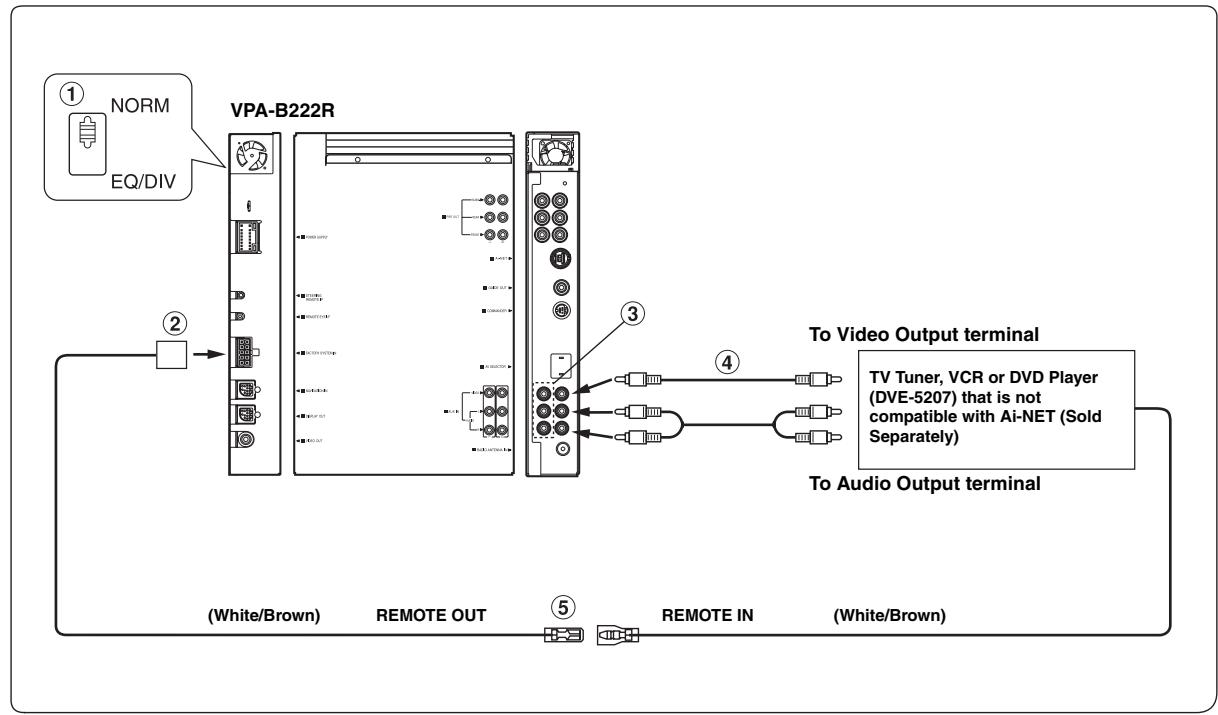
flowchart
graph TD
    A["① NORM"] --> B["VPA-B222R"]
    C["② EQ/DIV"] --> B
    B --> D["③ To Video Output terminal"]
    B --> E["④ To Audio Output terminal"]
    D --> F["⑤ TV Tuner, VCR or DVD Player (DVE-5207) that is not compatible with Ai-NET (Sold Separately)"]
    D --> G["(White/Brown) REMOTE OUT"]
    D --> H["(White/Brown) REMOTE IN"]
① System Switch
When connecting an equalizer or divider using Ai-NET feature, place this switch in the EQ/DIV position. When no device is connected, leave the switch in the NORM position.
- Be sure to turn the power off on the unit before changing the switch position.
② Factory System Input Terminal
③ AUX Video/Audio Input Terminal
④ RCA Extension Cable (Sold separately)
⑤ Remote Control Output Lead (White/Brown)
Connect this lead to the remote control input lead. This lead outputs the controlling signals from the remote control.
VPA-B222R
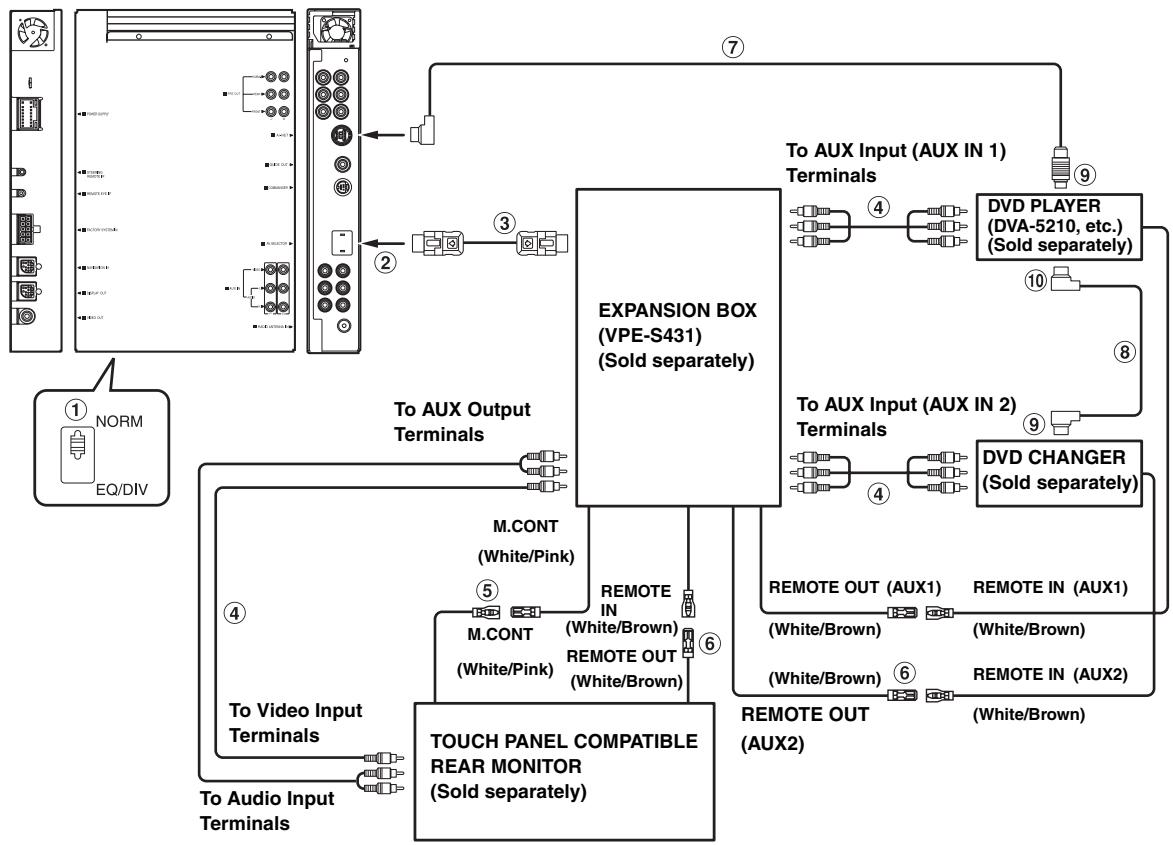
flowchart
graph TD
    A["1 NORM EQ/DIV"] --> B["2"]
    B --> C["3"]
    C --> D["EXPANSION BOX (VPE-S431) (Sold separately)"]
    D --> E["4"]
    E --> F["To AUX Input (AUX IN 1) Terminals"]
    E --> G["9"]
    G --> H["DVD PLAYER (DVA-5210, etc.) (Sold separately)"]
    H --> I["10"]
    I --> J["8"]
    J --> K["To AUX Input (AUX IN 2) Terminals"]
    J --> L["9"]
    L --> M["DVD CHANGER (Sold separately)"]
    M --> N["4"]
    N --> O["REMOTE OUT (AUX1) (White/Brown)"]
    N --> P["6"]
    P --> Q["REMOTE IN (AUX1) (White/Brown)"]
    P --> R["6"]
    R --> S["REMOTE OUT (AUX2) (White/Brown)"]
    D --> T["M.CONT (White/Pink)"]
    T --> U["M.CONT (White/Pink)"]
    U --> V["TOO PHASEMPHANICUMI REAR MONITOR (Sold separately)"]
    V --> W["4"]
    W --> X["To Video Input Terminals"]
    W --> Y["To Audio Input Terminals"]
- If the expansion box (VPE-S431) is connected to either a DVD video player or DVD changer, connect this to AUX IN 1. If this is connected to AUX IN 2, remote control operation will not be possible. If both are to be connected, connect the DVD video player to AUX IN 1, and the DVD changer to AUX IN 2.
① System Switch
When connecting an equalizer or divider using Ai-NET feature, place this switch in the EQ/DIV position. When no device is connected, leave the switch in the NORM position.
- Be sure to turn the power off on the unit before changing the switch position.
② To AV Selector Terminal
③ AV Selector Cable (Included with VPE-S431)
④ RCA Extension Cable (Sold separately)
⑤ Monitor Control Lead (White/Pink)
Connect this to the Monitor Control Lead of the touch panel-compatible rear monitor.
⑥ Remote Control Output Lead (White/Brown)
Connect this lead to the remote control input lead. This lead outputs the controlling signals from the remote control.
⑦ Ai-NET Cable (Included with DVD video player)
⑧ Ai-NET Cable (Included with DVD changer)
⑨ To Ai-NET Connector (Black)
⑩ To Ai-NET Connector (Grey)
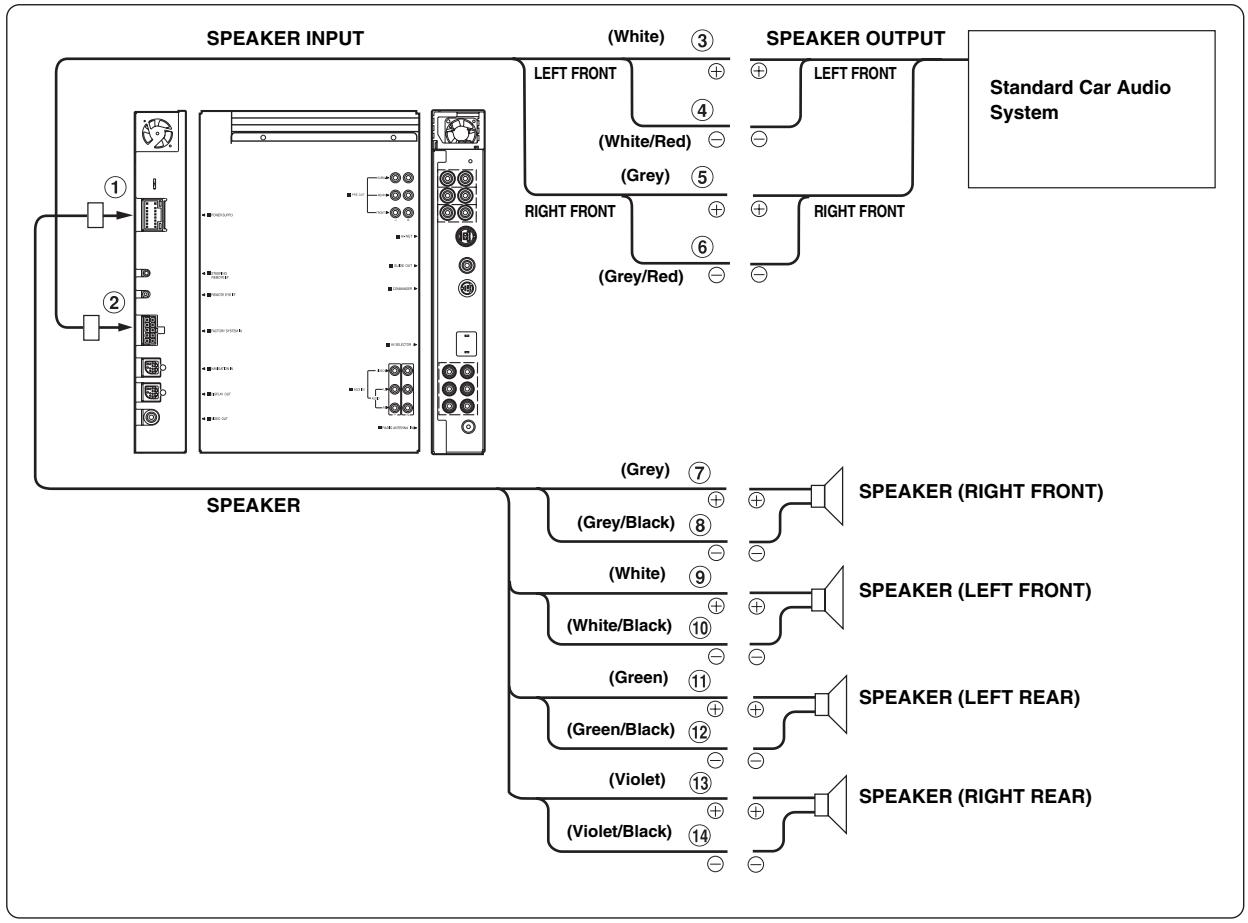
flowchart
graph TD
    A["Speaker INPUT"] --> B["White (3)"]
    A --> C["LEFT FRONT (4)"]
    A --> D["(Grey) 5"]
    A --> E["RIGHT FRONT (6)"]
    A --> F["(Grey/Red) -"]
    G["Speaker OUTPUT"] --> H["Standard Car Audio System"]
    G --> I["SPEAKER (7)"]
    G --> J["SPEAKER (8)"]
    G --> K["SPEAKER (9)"]
    G --> L["SPEAKER (10)"]
    G --> M["SPEAKER (11)"]
    G --> N["SPEAKER (12)"]
    G --> O["SPEAKER (13)"]
    G --> P["SPEAKER (14)"]
    G --> Q["SPEAKER (RIGHT FRONT)"]
    G --> R["SPEAKER (LEFT FRONT)"]
    G --> S["SPEAKER (LEFT REAR)"]
    G --> T["SPEAKER (RIGHT REAR)"]
① Power Supply Connector
② Factory System Input Terminal
③ Left Front (+) Speaker Input Lead (White)
④ Left Front (−) Speaker Input Lead (White/Red)
⑤ Right Front (+) Speaker Input Lead (Grey)
⑥ Right Front (−) Speaker Input Lead (Grey/Red)
⑦ Right Front (+) Speaker Output Lead (Grey)
⑧ Right Front (−) Speaker Output Lead (Grey/Black)
⑨ Left Front (+) Speaker Output Lead (White)
⑩ Left Front (−) Speaker Output Lead (White/Black)
⑪ Left Rear (+) Speaker Output Lead (Green)
⑫ Left Rear (−) Speaker Output Lead (Green/Black)
⑬ Right Rear (+) Speaker Output Lead (Violet)
⑭ Right Rear (−) Speaker Output Lead (Violet/Black)
- Be sure to connect the speaker input to the front speaker output lead. The rear speaker output lead cannot be connected.
- Be sure to disconnect all the speaker output lead of the standard speaker and system.
- If a multi-channel speaker system is connected, connect the speaker input to the mid range speaker (front). If a tweeter or woofer is connected, sound will not output correctly.
- Set each item in "Using the Speaker Input" (page 16).
• Refer to "Speaker Input Lead Connection" (page 51). - Failure to connect correctly may result in damage to your standard car audio system.
To customers/Hinweis an Kunden/A l'attention de l'utilisateur/Información para los clientes/ Informazioni per i clienti/Till kunder
ALPINE®
Please note following additional information of the Owner's Manual./Bitte beachten Sie folgende zusätzliche Informationen zur Bedienungsanleitung./ Veuillez noter les ajouts suivants au mode d'emploi./Tenga en cuenta la información adicional contenida en el Manual de operación./ Tenere presente le seguenti informazioni supplementari d' istruzioni per l'uso./ Se följande tillägg till användarhandledning.
English
About connecting other products
■ Connect the Ai-NET compatible audio processor, Navigation system, DVD player and changer (page 55).
- If PXA-H701/PXA-H700 and DVD player/changer are connected via fiber digital, interruption audio may not be output when a disc is changed, during pause, etc. In this case, connect an external speaker with built-in amplifier to the GUIDE OUT terminal to output interruption audio.
The Owner's Manual has errors as shown here.
- When the NVA-N751AS is connected for the Navigation System, use the RGB conversion cable KWE-503N (Sold separately).
- When the NVE-N055PS is connected for the Navigation System, use the RGB conversion cable KCE-030N (Sold separately).
■ Connect the Digital theater amplifier, Navigation system, DVD changer and CD changer.
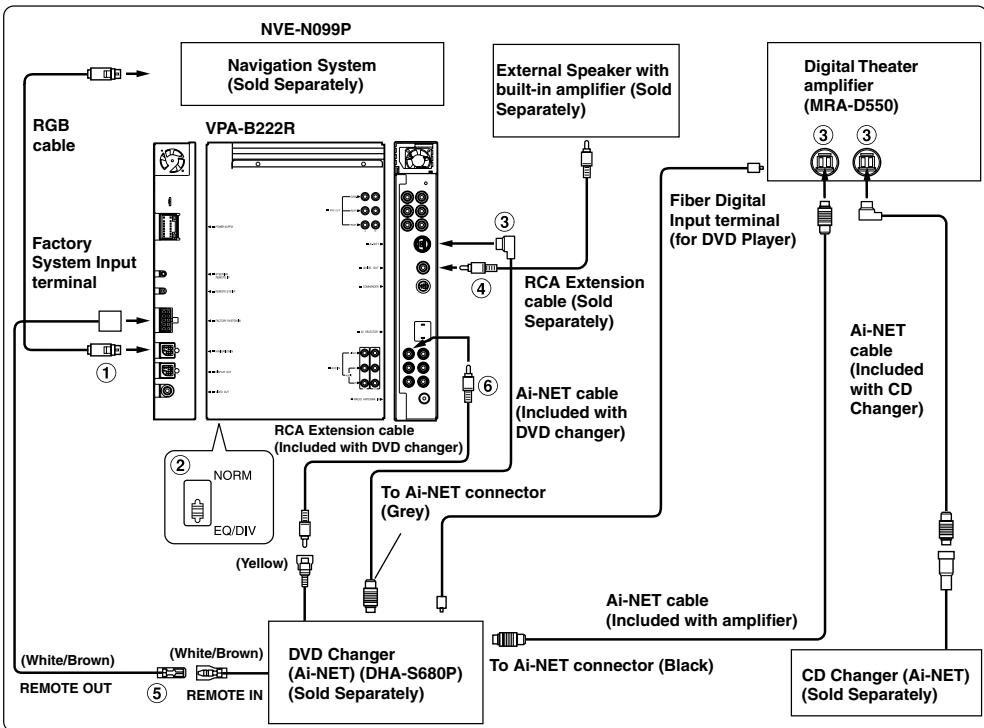
flowchart
graph TD
    A["NVE-N099P"] --> B["Navigation System (Sold Separately)"]
    A --> C["VPA-B222R"]
    A --> D["External Speaker with built-in amplifier (Sold Separately)"]
    A --> E["Digital Theater amplifier (MRA-D550)"]
    B --> F["Factory System Input terminal"]
    C --> G["RCA Extension cable (Sold Separately)"]
    C --> H["Ai-NET cable (Included with DVD changer)"]
    D --> I["Fiber Digital Input terminal (for DVD Player)"]
    E --> J["AI-NET cable (Included with CD Changer)"]
    E --> K["CD Changer (Ai-NET) (Sold Separately)"]
    L["RGB cable"] --> M["Factory System Input terminal"]
    M --> N["1"]
    N --> O["2"]
    O --> P["NORM EQ/DIV (Yellow)"]
    P --> Q["To AI-NET connector (Grey)"]
    Q --> R["DVD Changer (Ai-NET) (DHA-S680P) (Sold Separately)"]
    R --> S["To AI-NET connector (Black)"]
    T["(White/Brown) Remote OUT"] --> U["(White/Brown) REMOTE IN"]
    U --> V["3"]
    V --> W["4"]
    W --> X["6"]
    X --> Y["3"]
    Y --> Z["3"]
- If a DVD player such as DVA-5210 or DVE-5207 is connected, a digital theater amplifier cannot be connected via fiber digital to the DVD player.
① Navigation Input (RGB Input) Terminal Connect this to the RGB output terminal of the Navigation System.
② System Switch
When connecting an equalizer or divider using Ai-NET feature, place this switch in the EQ/DIV position.
- Be sure to turn the power off on the unit before changing the switch position.
③ Ai-NET Connector
Connect this to the output or input connector of other products equipped with Ai-NET.
④ Guide Output Terminal
If an external audio processor is connected, outputs the navigation interrupt voice signal that is input from the Alpine navigation system, or the speaker input terminal.
⑤ Remote Control Output Lead (White/Brown)
Connect this lead to the remote control input lead. This lead outputs the controlling signals from the remote control.
⑥ AUX Video Input (AUX1) Terminal
Connect the video output lead of a DVD video player or DVD changer to this terminal.
Deutsch
■ Add to “In Case of Difficulty” in the Owner’s Manual (page 46) the following settings and operations for FACTORY SYSTEM (Speaker Input).
Speaker input sound is distorted.
- The Factory system has already been adjusted.
- If the following settings of the car's Factory System: BASS, TREBLE, LOUDNESS, etc., are performed while in speaker input mode, the Factory System sound is easily distorted. Therefore reset the above settings.
• The volume is not appropriately adjusted. - Set the speaker input volume level (FACT SYS LV) to less than 15. Then, lower the car's Factory System volume, so that sound is not distorted. Refer to “Displaying the Speaker Input Volume Level” (page 16).
Malfunction.
- A malfunction occurs caused by speaker input cable noise.
- Bundle and route the ⊕ and ⊖ speaker input cables. Routing the speaker input cables separately may cause noise.
The volume of the car audio system is too high/low.
- The volume is not appropriately adjusted.
- Select FACTORY SYS on the source selection screen, and adjust the volume using the commander.
Interruption does not function correctly.
- The speaker input is not correctly set to detect the Factory System.
- Make sure that the speaker cable of the car's Factory System properly connected. Confirm that the input is correctly selected according to the detection channel setting (F.SYS INT CH.). Refer to “Setting the Channel of the Speaker Interruption Detection” (page 17).
- Interruption volume of the car's Factory System is too low.
- 1) When an external audio processor is connected, set the GUIDE voice to 15. Refer to “Adjusting Volume of GUIDE Voice” (page 12).
- 2) While the navigation voice guidance or the telephone audio of the car's Factory System is ON, set the speaker input volume level (FACT SYS LV). The sound should be clearly audible, but the level should not exceed 15. Adjust the volume of the car's Factory System if necessary. Refer to “Displaying the Speaker Input Volume Level” (page 16).
If the speaker input volume level is lower than the detection level (FACT SYS DET), interruption will not occur. Refer to “Adjusting the Speaker Input’s Interruption Detection Level” (page 17).
- Interruption occurs too frequently because the detection level is set too low.
- Raise the interruption detection level (FACT SYS DET). Refer to “Adjusting the Speaker Input’s Interruption Detection Level” (page 17).
- Interruption does not occur frequently enough if the detection level is set too high.
- Lower the interruption detection level (FACT SYS DET). Refer to “Adjusting the Speaker Input’s Interruption Detection Level” (page 17).
• The source is set to FACTORY SYS. - Change to another source. If the source is set to FACTORY SYS while listening to the Factory audio system, sound is output to all speakers without interrupting the front speaker for the navigation voice guidance or telephone voice.
- Depending on the type of telephone ring tone, interruption may not be recognized.
- Lower the interruption detection level (FACT SYS DET), or change the telephone ring tone. Refer to “Adjusting the Speaker Input’s Interruption Detection Level” (page 17).
- Depending on the car, the telephone volume is automatically lowered. Therefore, interruption is not recognized.
- Lower the interruption detection level (FACT SYS DET) based on the car's Factory System level. Refer to “Adjusting the Speaker Input’s Interruption Detection Level” (page 17).
Interruption volume of the car navigation system is too high/low.
- The volume is not appropriately adjusted.
- Set the interruption volume (FACT SYS MIX) appropriately. Refer to “Adjusting the Speaker Input Voice Interruption Level” (page 17).
The volume of the source is too high/low during the navigation interruption of the car system.
- The volume is not appropriately adjusted.
- During navigation voice interruption, adjust the volume of the current listening source using the commander. The next time the navigation voice interrupts, the volume will match the adjusted source.
When the navigation voice of the car system interrupts, the volume of the source changes.
- The volume of the source was adjusted during a navigation voice interruption.
- During a navigation voice interruption, adjust the desired volume using the commander.
If the volume of the source is adjusted during a navigation voice interruption, its volume is stored, and the volume of the source is adjusted at the next time navigation voice interruption.
Navigation interruption of the car system is not cancelled.
- Navigation voice is output.
- Navigation interruption cannot be cancelled on the unit. 5 seconds after you have operated the navigation and finished the guidance, interruption is cancelled, and the volume of the source returns to its previously adjusted level.
The volume of the telephone interruption of the car system is too high/low.
- The volume is not appropriately adjusted.
- During the telephone interruption, adjust the volume appropriately using the commander. At the next telephone interruption, the volume will be adjusted automatically to that level. (Concerning the volume display, though the volume of the source is displayed, the volume of the telephone interruption is not displayed.)
Telephone interruption of the car system is not cancelled.
• Telephone voice is output.
- If the volume of the telephone is higher than the interruption detection level (FACT SYS DET), the telephone voice interrupts again even when interruption is cancelled. Press SOURCE/POWER after hanging up, and cancel the telephone interruption.
Although the source screen is displayed, sound is not output.
• The telephone is interrupting.
- 1) Make sure that the commander blinks quickly, and hang up.
- 2) Press SOURCE/POWER, and cancel the telephone interruption.
Operation cannot be performed on the unit.
• The telephone is interrupting.
- When the speaker input mode (FACT SYS SET) is set to INT or BOTH, or the voice interruption type (F.SYS MIX TYP) is set to MUTE, the telephone will interrupt if the audio of the car system is turned on in a source other than FACTORY SYS.
Press SOURCE/POWER after the audio of the car system is turned off, and cancel the telephone interruption. Refer to “Setting the Speaker Input Mode” (page 16) and “Setting the Interrupt Type of the Speaker Input Voice” (page 17).
natural_image
Top-down schematic of a cylindrical object with a pointed tip and shadow (no text or symbols)CHA-S634
• CD changer for VPA-B222R.
• CD-Wechsler für VPA-B222R.
- Changeur CD pour VPA-B222R.
- Cambiador de CD para VPA-B222R.
• Cambia CD per VPA-B222R.
• CD-växlare för VPA-B222R.
natural_image
Simple line drawing of a car interior with a side mirror and seat (no text or symbols)CHA-1214
• CD changer for VPA-B222R.
• CD-Wechsler für VPA-B222R.
- Changeur CD pour VPA-B222R.
- Cambiador de CD para VPA-B222R.
• Cambia CD per VPA-B222R.
• CD-växlare för VPA-B222R.
natural_image
Top-down schematic of a cylindrical object with a pointed tip and shadow (no text or symbols)CHM-S630
Alpine CD Changers Give You More!
More musical selections, more versatility, more convenience.
The CHA-S634 is a high-performance 6-disc changer with a new M DAC, CD-R/RW PLAY BACK, MP3 PLAY BACK and CD TEXT. The CHA-1214 Ai-NET model holds 12 discs, and the CHM-S630 M-Bus model is a super-compact 6-disc changer with a CD-R/RW PLAY BACK.
Filling in this Product Information Card is voluntary. If you fill in this card and send it to Alpine, your data will be tabulated into reference data for future Alpine product development. In addition, in the future you may receive information about new products or Survey Mail requesting additional opinions about Alpine products or services. If you agree to the above term, please sign your name in the indicated space and return the card. Any additional comments or inquiries may be sent to : Person in charge of Customer Service department Alpine Electronics (Europe) GmbH. Frankfurter Ring 117, 80807 München, Germany Phone: +49-(0)89-32 42 640
Q1. PRODUCT PURCHASED
-
Cassette Player
-
CD Player
-
MD Player
-
DVD Player
-
CD Changer
-
Amplifier
-
Speaker
-
Subwoofer
-
Monitor Controller
-
Video Monitor
-
Navigation
-
Processor/Equalizer
-
CD/Video CD Changer
-
Other
Q2. MODEL NUMBER:
Q3. DATE OF PURCHASE: Month: ____ Year: ____
Q4. If navigation system, which monitor?
-
Alpine → (Model No.).
-
Other → (Brand Name)
Q5. STORE TYPE WHERE PURCHASED:
-
Car Audio Specialist
-
Audio/Video Store
-
Electronics/Appliance Store
-
Car Accessories Shop
-
Other
Q6. Type of vehicle in which this unit is installed:
Make:____ Model:____
Purchased Model
Year: ____ Year:
Q7. How was this vehicle purchased?
-
Purchase
-
Lease
Q8. Purpose of buying this unit?
-
Addition
-
Replacement
↓
• Previous brand replaced?
-
Factory installed
-
Alpine
-
Other → (Brand Name).
Q9. Have you purchased Alpine products before?
-
First time
-
Two or More times
Q10. When you purchased this Alpine unit, did you compare it with other brand?
-
Yes → (Brand Name) ____
-
No.
Q11.GENDER
-
Male
-
Female
Q12.AGE
Q13.MARITAL STATUS
-
Single
-
Married
Q14.OCCUPATION
-
Company Owner/Self-employed/Freelance
-
Manager
-
Company Employee
-
Civil Servant
-
Educator
-
Student
-
Other
Q15.Comments____
Deutsch
-
Addition
-
Remplacement
↓
| Q5 NO. Other | Q6 Make: Model: Purchased Year: | | | | ModelYear: | | | | |


| Q12 | | years old | Q13 NO. | Q14 NO. Other |
| Q15 | Comments |
| _ |
REPONSE PAYEE/ WERBEANTWORT ALLEMAGNE
ALPINE ELECTRONICS (EUROPE) GmbH Frankfurter Ring 117, 80807 München,
Germany