
i-Sound Bar 383 - Loudspeaker WOXTER - Free user manual and instructions
Find the device manual for free i-Sound Bar 383 WOXTER in PDF.


| Product Type | Soundbar Speaker |
| Brand | Woxter |
| Model | i-Sound Bar 383 |
| Dimensions (W x H x D) | approx. 500 x 70 x 90 mm |
| Weight | approx. 1.2 kg |
| Power Supply | DC 12V, 1.5A (AC adapter included) |
| Power Consumption | 18W |
| Total Output Power | 30W RMS |
| Bluetooth Version | 5.0 |
| Bluetooth Range | Up to 10 meters |
| Audio Inputs | Bluetooth, AUX (3.5mm), USB (audio playback) |
| Speaker Drivers | 2x full-range drivers (40mm each) |
| Frequency Response | 80 Hz – 20 kHz |
| Controls | Power, Volume +/-, Play/Pause, Input select |
| Remote Control | Included (CR2025 battery) |
| Mounting Options | Desktop placement or wall-mountable (brackets included) |
| Cable Length (Power) | 1.2 meters |
| Cleaning Instructions | Wipe with a soft, dry cloth. Do not use harsh chemicals. |
| Safety Notes | Keep away from water, heat sources, and children. Do not open. |
| Warranty | 2 years |
Frequently Asked Questions - i-Sound Bar 383 WOXTER
User questions about i-Sound Bar 383 WOXTER
0 question about this device. Answer the ones you know or ask your own.
Ask a new question about this device
Download the instructions for your Loudspeaker in PDF format for free! Find your manual i-Sound Bar 383 - WOXTER and take your electronic device back in hand. On this page are published all the documents necessary for the use of your device. i-Sound Bar 383 by WOXTER.
USER MANUAL i-Sound Bar 383 WOXTER
2.0 speaker
EN
NOTE:
- Before you install the notebook SoundBar, ensure that a working USB controller is listed in Windows device Manager on your computer.
- Ensure that the notebook SoundBar is installed properly before using
- Never unplug the USB connector while the notebook SoundBar is playing sound.
System Requirements:
| PC | Mac |
| Windows®98SE, Windows®ME, Windows®2000, Windows®XP, or Windows®VistaTM | Mac OS9/OS®X,or later |
| Certified USB controller | Built-in USB connection |
Installation:
1.Slide down the clip (Fig.1).
2. clip the notebook SoundBar on the top of the notebook screen and gently tighten the screw on the back (Fig.1).
3. Plug the USB plug into a USB port on the notebook (Fig.2).
4. Open your multimedia application software, and then adjust the volume (Fig.3).
- When you have finished using the SoundBar, exit the multimedia application software.
- Unplug the USB cable from the notebook and release gently the screw to remove the SoundBar from the top of the screen.
- Wrap the USB cable and plug around the SoundBar in the slot, and then store the notebook SoundBar in the pouch (Fig4&5).
If the notebook SoundBar cannot be detected by computer, perform the following steps:
| On pc | On Mac |
| 1. Click Control Panel.2. Double click the sounds and Audio Devices icon.3. In Sounds and Audio Devices properties, select the Audio tab.4. Under Sound playback, select Woxter I-sound Bar 383 | 1. Click System Preferences.2. Click the Sound icon.3. Open Output and select Woxter I-sound Bar 3834. Play music by multimedia software. |
Your product is designed and manufactured with high quality materials and components, which can be recycled and reused. Please inform yourself about the local separate collection system for electrical and electronic products, including those marked by the crossed-out wheely bin symbol. Please act according to your local rules and do not dispose of your old products with your normal household waste.
Data subject to change without notice.

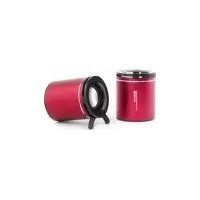
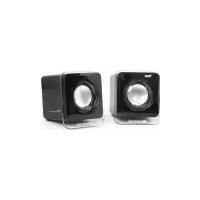
Brand : WOXTER
Model : i-Sound Bar 383
Category : Loudspeaker