
NVD-T003 - Navigation system ALPINE - Free user manual and instructions
Find the device manual for free NVD-T003 ALPINE in PDF.


| Product Type | GPS Navigation System for Automobile |
| Brand | ALPINE |
| Model | NVD-T003 |
| Software Version | T3.00 |
| Cartographic Database | Version 3.00 (Detailed Europe) |
| Main Functions | Dynamic guidance, road navigation, points of interest search |
| Power Supply | 12 V DC (vehicle) |
| Dimensions (approx.) | 178 x 50 x 160 mm |
| Weight (approx.) | 600 g |
| Screen Type | Color LCD |
| Map Support | Optical disc (CD/DVD) for cartographic data |
| Available Languages | Multilingual (French, English, etc.) |
| Cleaning Instructions | Clean with a soft, dry cloth. Avoid solvents and abrasive products. |
| Safety | Do not use while driving; secure the device firmly. |
| Spare Parts and Repairability | Spare parts available from Alpine after-sales service. |
| General Information | User manual available for free download at notice-facile.com |
Frequently Asked Questions - NVD-T003 ALPINE
User questions about NVD-T003 ALPINE
0 question about this device. Answer the ones you know or ask your own.
Ask a new question about this device
Download the instructions for your Navigation system in PDF format for free! Find your manual NVD-T003 - ALPINE and take your electronic device back in hand. On this page are published all the documents necessary for the use of your device. NVD-T003 by ALPINE.
USER MANUAL NVD-T003 ALPINE
for Direction Guidance
Please read before using this disc.
Important Information, Please Read Carefully Before Using This Product.
This product is intended to safely provide turn by turn instruction to get you to a desired destination. Please read the following precautions to ensure that you use your navigation system correctly.
This product is not a substitute for your personal judgment. Any route suggestions made by the navigation system may never supersede any local traffic regulations or your personal judgment and/or knowledge of safe driving practices. Do not follow route suggestions if the navigation system instructs you to perform an unsafe or illegal maneuver, places you in an unsafe situation, or routes you into an area which you consider unsafe.
Glance at the screen only when necessary and safe to do so. If prolonged viewing of the screen is necessary, stop the vehicle in a safe and legal manner and location.
- Do not input destinations, change settings, or access any functions requiring a prolonged view of the screen and/or remote control while you are driving. Stop the vehicle in a safe and legal manner and location before attempting to access the system.
- Do not use the navigation system to route you to emergency services. Not all locations of emergency service providers such as police and fire stations, hospitals, and clinics are contained in the database. Please use your own judgment and your ability to ask for directions in these situations.
The map database contained within the media (DVD ROM) in which it is stored is the most recent map data available at the time of production. Because of changes in streets and neighbourhoods, there may be situations where the navigation system may not be able to route you to your desired destination. In these cases, use your own personal judgment.
The map database is designed to provide you with route suggestions, it does not take account of the relative safety of a suggested route, or of factors which may affect the time required to reach your destination. The database does not reflect road closures or construction, road characteristics (i.e. type of road surface, slope or grade, weight or height restrictions, etc.), traffic congestion, weather conditions, or any other factors which may affect the safety or timing of your driving experience. Use your personal judgment if the navigation system is unable to provide you with an alternate route.
There may be situations where the navigation system may display the vehicle's location erroneously. Use your own driving judgment in this situation, taking into account of current driving conditions. Please be aware that in this situation, the navigation system should correct the vehicle's position automatically; however, there may be times where you may have to correct the position yourself. If this is the case, stop the vehicle in a safe and legal manner and location before attempting operation.
Make certain that the volume level of the main unit is set to a level which still allows you to hear outside traffic and emergency vehicles. Driving while unable to hear outside sounds could cause an accident.
Please make certain that any other person who intends on using the navigation system reads these precautions and the following instructions carefully.
If there is anything in the manual which you do not understand, or are uncertain about the operation of the navigation system, please contact an authorized Alpine representative before using the navigation system.
Points to Observe for Safe Usage
- Read the manuals for this disc and the system components carefully before using your navigation system. They contain instructions on how to use the system in a safe and effective manner. Alpine cannot be responsible for problems resulting from failure to observe the instructions in these manuals.
- This manual uses various pictorial displays to show you how to use this product safely and to alert you to potential dangers resulting from improper connections and operation. Following are the meanings of these pictorial displays. It is important to fully understand the meanings of these pictorial displays in order to use this manual and the system properly.

WARNING
This symbol means important instructions. Failure to heed them can result in serious injury or death.
DO NOT DISASSEMBLE OR ALTER.
Doing so may result in an accident, fire or electric shock.
KEEP SMALL OBJECTS SUCH AS BATTERIES OUT OF THE REACH OF CHILDREN.
Swallowing them may result in serious injury. If swallowed, consult a physician immediately.
DO NOT OPERATE ANY FUNCTION THAT TAKES YOUR ATTENTION AWAY FROM SAFELY DRIVING YOUR VEHICLE.
Any function that requires your prolonged attention should only be performed after coming to a complete stop. Always stop the vehicle in a safe location before performing these functions.
Failure to do so may result in an accident.
KEEP THE VOLUME AT A LEVEL WHERE YOU CAN STILL HEAR OUTSIDE NOISE WHILE DRIVING.
Failure to do so may result in an accident.
DO NOT FOLLOW ROUTE SUGGESTIONS IF THE NAVIGATION SYSTEM INSTRUCTS YOU TO PERFORM AN UNSAFE OR ILLEGAL MANEUVER, OR PLACES YOU IN AN UNSAFE SITUATION OR AREA.
This product is not a substitute for your personal judgment. Any route suggestions by this system should never supersede any local traffic regulations or your personal judgment or knowledge of safe driving practice.
USE THIS PRODUCT FOR MOBILE 12V APPLICATIONS.
Use for other than its designed application may result in fire, electric shock or other injury.
DO NOT PLACE HANDS, FINGER OR FOREIGN OBJECTS IN INSERTION SLOTS OR GAPS.
Doing so may result in personal injury or damage to the product.

CAUTION
This symbol means important instructions. Failure to heed them can result in injury or material property damage.
HALT USE IMMEDIATELY IF A PROBLEM APPEARS.
Failure to do so may cause personal injury or damage to the product. Return it to your authorized Alpine dealer or the nearest Alpine Service Centre for repairing.
KEEP FINGERS AWAY WHILE THE MOTORIZED FRONT PANEL OR MOVING MONITOR IS IN MOTION.
Failure to do so may result in personal injury or damage to the product.
Tip
This indicates supplementary explanation of operation of the system.
Precautions
User Agreement
In using this DVD-ROM "SMART MAP PRO" (hereinafter referred to as "Disk"), as part of the AISIN AW CO., Ltd. ("AISIN AW") and NAVTEQ Corporation ("NAVTEQ") Database (hereinafter referred to as "Database"), you are bound by the terms and conditions set forth below. By breaking the seal on this package, and using your copy of the Database and Disk, you have demonstrated your agreement to the terms and conditions of this Agreement. You should therefore, make sure that you read and understand the following provisions.
- The Disk and Database may not be copied, duplicated, processed, or otherwise modified, in whole or in part, without the express written permission of AISIN AW, NAVTEQ and ALPINE Electronics, Inc. ("ALPINE").
- Neither the Disk nor the Database may be transferred or sublicensed to any third party for profit, rent or loan, or licensed for reuse in any manners.
- The Disk and/or Database may not be decompiled, reverse engineered or otherwise disassembled, in whole or in part.
- The Disk and Database may not be used in a network or by any other manner of simultaneous use in multiple systems.
- The Disk and Database are intended solely for personal use (or internal use where the end-user business), or the consumer. The Disk and Database are not to be used for commercial purposes.
- Neither AISIN AW, ALPINE nor NAVTEQ guarantees to the customer that the functions included in the Disk and Database meet a specific objective of user.
- Neither AISIN AW, ALPINE nor NAVTEQ shall be responsible for any damages caused by the use of the Disk and/or Database to the actual user and to any third party.
-
The Warranty on the Disk and Database shall not extend to an exchange or refund due to misspelling, omission of letters, or any other cosmetic discrepancy in layout found in Disk and/or Database.
-
The right to use the Disk and Database shall expire either when the user destroys this software, or when any of the terms for use is violated and AISIN AW, ALPINE and/or NAVTEQ exercises the option to revoke the license to use this software.
- The terms and conditions hereof apply to all subsequent users and owners as well as to the actual purchaser.

WARNING
- Operation of the system while driving is dangerous. Users should stop vehicle before operating the software.
- Road conditions and regulations take precedence over information contained on the display: observe actual traffic restrictions and circumstances while driving.
- This software is designed for use exclusively in the INA-N333R or INA-N033R. It cannot and may not be used in conjunction with other hardware.
To Customers who use the INA-N033R model
The Owner's Manual explains the function of the map disc for the New-Version (Prog. Ver.3.00, Database Ver.3.00). (The maps that are displayed in this manual are used for the INA-N333R model. Therefore, these maps may differ from those used in the INA-N033R model.)
- Operating System Programme Rewriting 1) Insert the upgrade disc into your INA-N033R. 2) The operating system will automatically be rewritten.
- RDS-TMC is available if the programme is rewritten from Prog. Ver.1.00. (This can be performed only if the optional RDS-TMC receiver box TMC-001P is connected.) Refer to "TMC Operation" (pages 21-23).
The reception area for TMC will be expanded if the programme is rewritten from Prog. Ver.2.30. - The INA-N033R does not have a built-in TMC tuner. The RDS-TMC receiver box TMC-001P can be connected to utilize RDS-TMC. For details of operation, please refer to the TMC-001P Owner's Manual.
Contents
Precautions
Important Information, Please Read Carefully Before Using This Product...2
Points to Observe for Safe Usage 3
WARNING 3
CAUTION 3
User Agreement 4
To Customers who use the INA-N033R model 4
Contents 5
Preface
Navigation Systems 6
Navigation Terminology 8
Features 8
About the Guidance Display 9
Before Using The System
Setting the Navigation Mode 10
Setting the Language Mode 10
Registering Your Home 11
Searching For Destination
Selecting Countries 12
Searching for Destination from Address 12
Searching for Point of Interest from Category 14
Searching from Local Points 15
Searching from Home/Previous Destination/ Memory Points 15
Adding Waypoints on the Route 16
Setting the Display for the Destination Time (INA-N333R only) 16
Route Setting/Route Editing
Checking the Route by List 17
Researching 17
Changing the Searching Conditions 17
Changing the Conditions of the Searched Route 17
Deleting the Destination 18
Changing the Sequence of Waypoints 18
Deleting Waypoints on the Route 19
Drive Simulation 19
Editing for Memory points
Changing the Name of a Memory Point or Inputting a Phone Number 20
Deleting the Memory Points 20
TMC Operation
Automatic Seek Tuning (SEEK) for Receiving TMC Stations (INA-N333R only) 21
Displaying the Traffic Event Information on Route 22
Displaying all Receiving Traffic event Information 22
Setting Dynamic Route Seek 23
Setting the RDS-TMC Voice Guidance to Interrupt the Radio or CD, etc. 23
Selecting TMC Reception (Only when TMC-001P is connected) 23
Setting the System
Setting the Anticipated Arrival Time 24
Setting When Vehicle's Tyres have been Changed 24
Updating the Present Vehicle Position 25
Setting the Voice Guidance Volume 25
Suspending/Restarting Voice Guidance 26
Calling Up the Audio Source 26
Remote Control Operation
Operation on Remote Control RUE-4191 (optional) 27
Operation on Remote Control RUE-4135 (optional) 28
Reference
In Case of Difficulty 29
If this Message Appears 30
Notes
- Due to continuous product improvement, specifications and design are subject to change without notice.
- The displays shown in the photos in this manual may vary slightly from the actual unit screen displays.
Navigation Systems
This navigation system uses three different sensing devices to determine the present location and to track the progress of the vehicle. These three devices are: a GPS (Global Positioning System) receiver which receives digital signals from the GPS satellites to determine the current position of the vehicle, a gyroscope which determines which direction the vehicle turns, and a speedometer pulse sensor which determine how far the vehicle has travelled. Because this system incorporates a gyroscope and a speed sensor, the system will be able to display the vehicle's position and track the vehicle's progress even in areas where the GPS signal may be blocked. All map data is contained on a removable DVD ROM. This system integrates this unique map database with the sensing devices to automatically plot out a route when a destination is entered. While driving, the navigation system guides you along the route with pictorial displays and verbal prompts.
GPS (Global Positioning System)
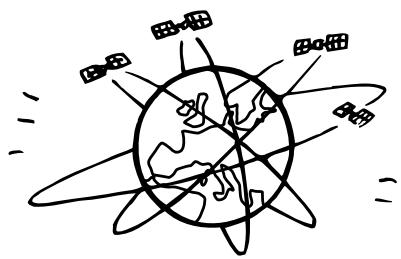
Delay time before the present vehicle's position can be displayed
Determination of the present vehicle's position starts when the ignition key is turned to the ACC or ON positions and ends when the key is turned OFF. When the key is first turned to the ACC or ON positions, there is a slight delay of approximately one to two minutes before the present vehicle's position can be displayed.
This system receives signals from 3 or more GPS satellites (operated by the United States Department of Defence) orbiting at an altitude of 21,000 kilometres and measures the present car position using the same principles as triangulation.
The error from the actual position of the vehicle
When GPS signals can be received from 4 or more satellites, 3 dimensional positioning (the altitude, latitude, and longitude) of the vehicle can be determined. In this case, the error from the actual position of the vehicle is in the range of 100 to 655 feet (30 to 200 meters). When GPS signals can only be received from 3 satellites, only two dimensional positioning (latitude and longitude) can be determined, resulting in a slightly increased error. When GPS signals can only be received from less than three satellites, positioning of the vehicle through GPS is not possible. In addition to the inherent errors from GPS, the error rate can also be increased if the United States Department of Defense deliberately changes the accuracy rate.
Gyroscope
The gyroscope is a sensor that accurately measures the angle by which the direction of a vehicle or other moving body changes. Gyroscopes are used in inertial navigation systems for airliners and ships. In this navigation system, the gyroscope is used together with the speed sensor, making it possible to display the position of the vehicle even in locations where GPS signals may be blocked.
Locations where GPS signals are received easily
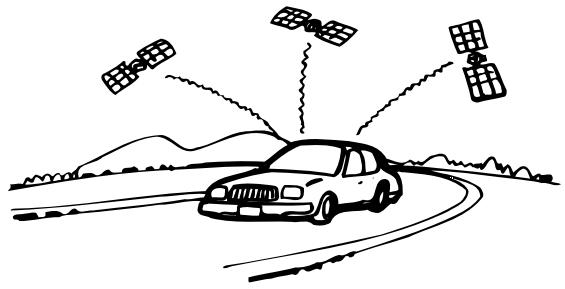
The optimum locations for receiving GPS signals are locations that command a good view where there are no tall buildings, trees, or other objects to obstruct the signals.
Locations where GPS signals cannot be received
In the following locations or conditions GPS signals cannot be received. However even in these locations, the gyroscope and speed sensor will provide a substitute means of determining the vehicle's position and the system will be able to continue to track the vehicle's progress along the route.
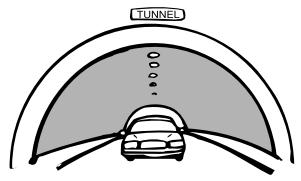
In tunnels and indoor parking lots

Locations surrounded by tall buildings

Locations surrounded by tall trees
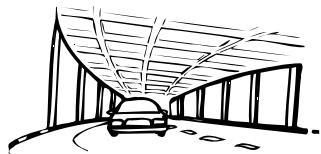
On the bottom level of double-decker motorways
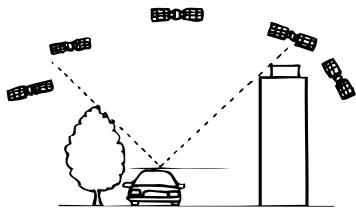
When a GPS satellite is low on the horizon (angle below 10^ ), obstructions sometimes make normal reception impossible
Navigation Terminology
Navigation
When a destination is input, the navigation system quickly calculates a route and guides you along the route with arrow displays and voice prompts.
Present Vehicle Position A
The navigation system integrates the GPS (Global Positioning Satellite) signals received and the map information stored on the DVD ROM to display the position and direction of the vehicle. The system also includes a gyroscope and a speed sensor that enable it to display the present position even in locations where the GPS signals may be blocked.
Map Matching
Since GPS navigation has an error of 100 - 655 feet (30 m - 200 m), the position of your vehicle may be displayed off the road. Map matching automatically corrects this error so that the position of your vehicle is displayed on the road.
Route
When a destination is input, the navigation system automatically calculates a route.
Road Preference Setting
You can set your preferred road on the route to the destination for up to 2 places.
Memory Points
Locations you go to frequently can be stored into memory. The system can store up to 50 points, excluding your home.
Motorway-Preference Selection
When searching for routes with the navigation system, you can switch between searching for routes that give priority to motorways and those that give priority to ordinary roads. When you specify motorway preference, the navigation system automatically searches for a route that gives priority to motorways and guides you along that route.
Features
Advanced Real Junction View
When you are driving on a motorway where quick decisions are required, you can display a detailed map of the next junction in advance, and a 3-D view of the appropriate lane along the recommended route.
Intersection Zoom
As you near intersections and cross points, the map display automatically zooms in to show a more detailed view that you will need.
Motorway Information Display
When you travel on motorways, the basic guidance display (with an arrow) automatically shows the distances to the next fuel station/restaurant/parking/junction (except exit).
Three Types of Auto Route Searching Simultaneously
You can choose the best route from three types of route searching to your destination.
Turn List on the Route
After you have set the route, you can check the sequence of waypoints, road names and distances between points by displaying this list.
Setting Waypoints
You can set one or 2 waypoints to go through to your destination.
Real Time Voice Guidance
Voice guidance informs you of the distance and direction until your course changes, giving advice timed to match road conditions.
The VOICE button lets you call up the voice guide when needed by just pushing the button.
DVD-ROM covers All European Areas
All areas of Europe are covered by one disc.
Eight Languages selectable for the Voice and Display Guidance
You can choose one of eight languages for the voice route guidance and menu displays. (see the "Setting the Language Mode" section, page 10.)
Built-in Gyroscope and Speed Sensors
The gyroscope for sensing direction and the speed pulse sensor for detecting distance provide data which allows the vehicle position and direction to be displayed even in locations where the GPS signal cannot be received such as between buildings or in tunnels.
TMC (Traffic Message Channel)
If there is TMC information, TMC stations can be received by selecting a station on the built-in TMC tuner. The optional RDS-TMC receiver box TMC-001P can also be connected. (For the INA-N033R, only when TMC-001P is connected.)
While you are driving with the route guidance, the display screens are shown as follows.
(The maps that are displayed in this manual are used for the INA-N333R model. Therefore, these maps may differ from those used in the INA-N033R model.)
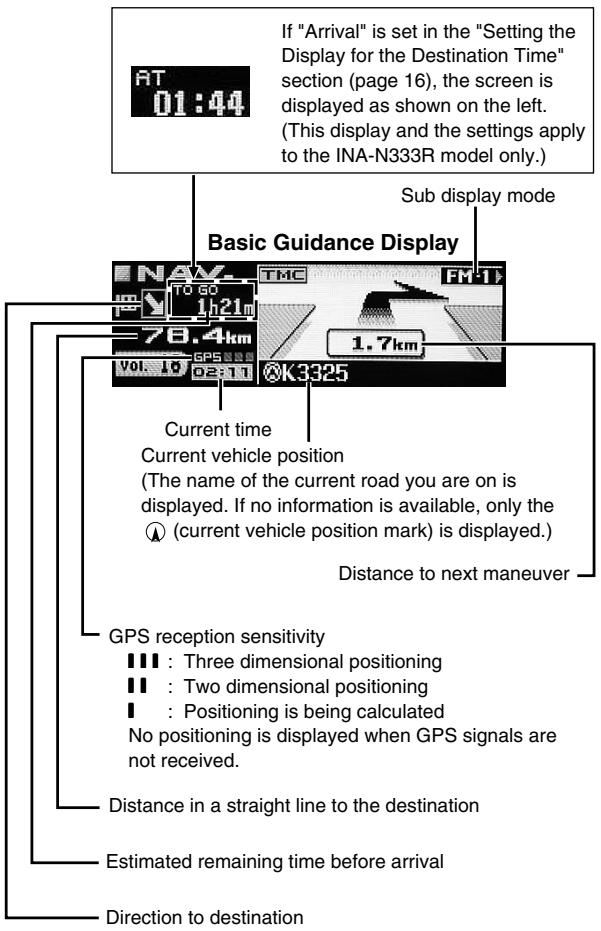
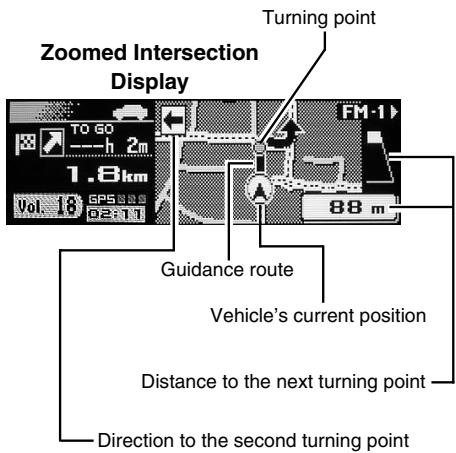
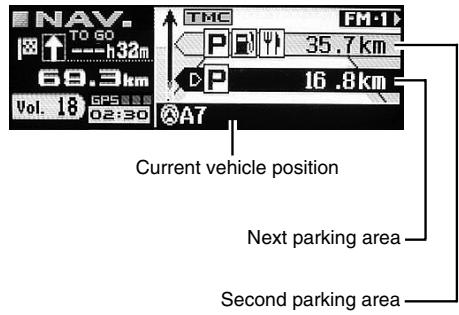
Basic Guidance Display for Motorways
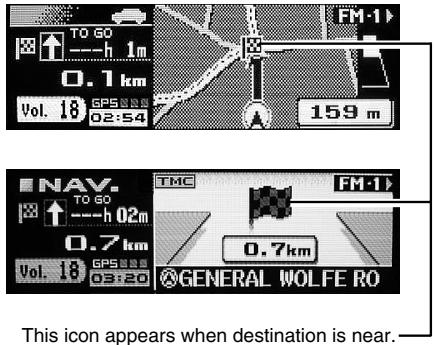
Arrival Display
Notes
About the left/right display indicators
- When you turn to right, the right indicator blinks for about 5 seconds, and then stays lit.
- When you turn to left, the left indicator blinks for about 5 seconds, and then stays lit.
- When the destination is near, the indicators blink on both sides.
Before Using The System
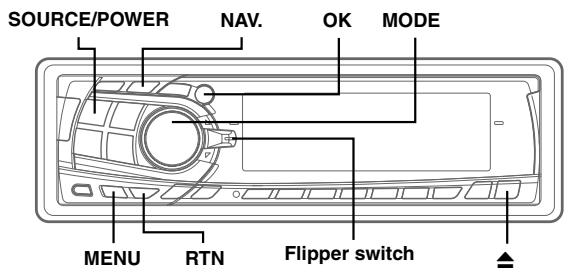
Explanations in this Owner's Manual are based mainly on the INA-N333R model.
Setting the Navigation Mode
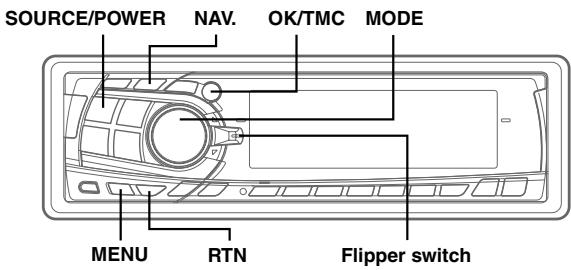
1 Press SOURCE/POWER button to turn on the power.
2 Press the NAV. button.
Changing the Audio mode to Navigation mode.
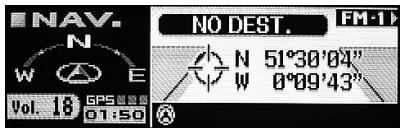
The current vehicle position is displayed.
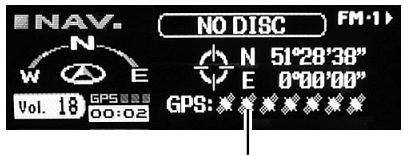
Number of received satellite signals
3 Press button to open the display and then insert the SMART MAP PRO disc.
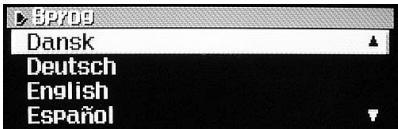
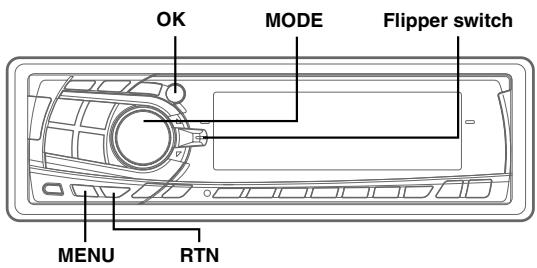
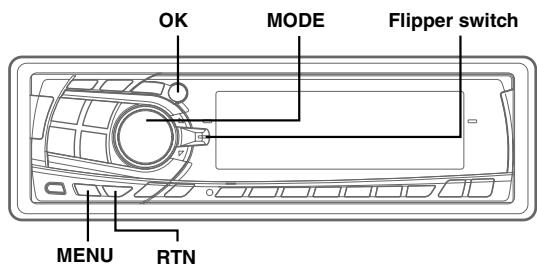
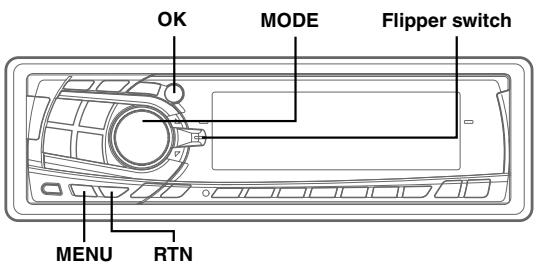
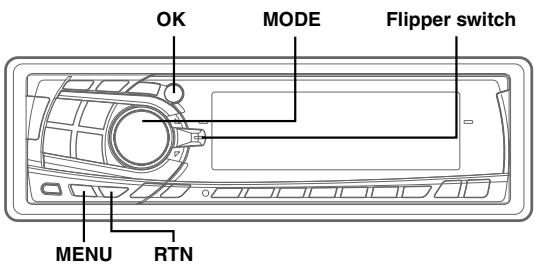
4 Move the Flipper switch up or down to move the cursor to the desired language and press the OK button or MODE knob to execute the selection. (When the system is used for the first time)
Note
For English, you can select the distance indications in either miles(mile) or Kilometres(Km).
For other languages, only kilometres are used for the distance indications.
5 Selected language is displayed.
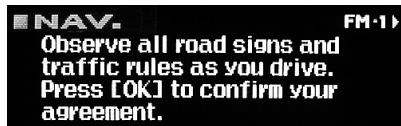
An important message is displayed. Please read this message after stopping the vehicle in a safe location. Press the OK button. (You cannot carry out this operation with the Enter button on the optional remote control.)
6 The present vehicle position is displayed.
Note
Some operations (when displaying the navigation menu, etc.) cannot be performed while the vehicle is in motion. In this case, be sure to first stop your vehicle and apply the parking brake, then perform the operation.
Setting the Language Mode
For the picture/voice guidance and texts, you can choose one of 8 languages as follows.
German (Deutsch)
Dutch (Nederlands)
- English (mile or km)
- Spanish (Espanol)
French (Français)
- Swedish (Svensk)
Italian (Italiano)
- Danish (Dansk)
The guidance language can be changed whenever you like by following the procedure below.
1 Press the MENU button to display "NAV. MENU."
2 Select "NAVI Setup" from "NAV. MENU" by moving the Flipper switch up or down and press the OK button or MODE knob to execute the selection.
3 Select "System Setup" from "NAVI Setup" by moving the Flipper switch up or down.
Press the OK button or MODE knob to execute the selection.
4 Select "Language" from "System Setup" by moving the Flipper switch up or down.
Press the OK button or MODE knob to execute the selection.
5 Select the desired language from the "Language" list by moving the Flipper switch up or down and press the OK button or MODE knob to execute the selection.
Note
For English, you can select the distance indications in either miles or Kilometres (km).
For other languages, only kilometres are used for the distance indications.
6 The selected language is displayed.
An important message is displayed. Please read this message after stopping the vehicle in a safe location. Press the OK button. (You cannot carry out this operation with the Enter button on the optional remote control.)
Note
You cannot use the MENU button while the vehicle is in motion. Stop your vehicle in a safe place before using the MENU button.
Registering Your Home
If home has already been registered, you can call it up with a simple operation.
1 Park your vehicle near your home where GPS signal reception is good.
2 Start your vehicle engine and set to navigation mode, then wait about 5 minutes to receive clear GPS signals.
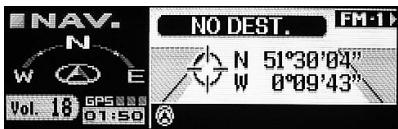
3 Press the OK button.
The message appears. Select "Yes" by the Flipper switch and press the OK button or MODE knob to execute the selection.
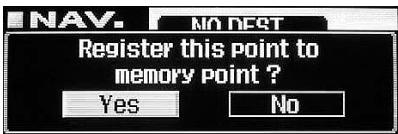
4 Press the MENU button to display "NAV. MENU."
5 Select "NAVI Setup" from "NAV. MENU" by moving the Flipper switch up or down.
Press the OK button or MODE knob to execute the selection.
6 Select "Memory Points" from "NAVI Setup" by moving the Flipper switch up or down and press the OK button or MODE knob to execute the selection.
7 The screen changes and the address stored in step 3 is displayed.
Press the OK button or the MODE knob to set the address.
8 The screen switches to the "Edit Memory Point" menu. Move the Flipper switch up or down to select "Register Home."
Press the OK button or MODE knob to execute the selection.
9 The message is displayed.
Select "Yes" by the Flipper switch and press the OK button or MODE knob to execute the selection. Your home is registered.
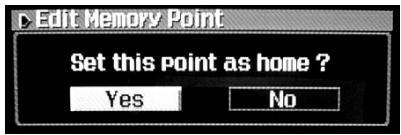
10 To return to the previous screen, press the RTN button, or to return to the "NAV. MENU" screen, press the MENU button.
Searching For Destination
Selecting Countries
When you search for destinations or points of interest in other countries from their addresses or categories, choose the desired country first by following the procedure below.
1 Press the MENU button to display "NAV. MENU."
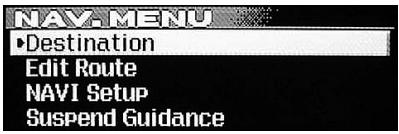
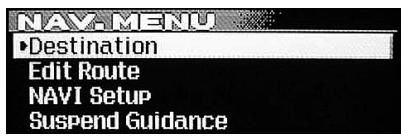
2 Select "Destination" from "NAV. MENU" by moving the Flipper switch up or down. Press the OK button or MODE knob to execute the selection.
3 Select "Country" from the "Destination" menu by moving the Flipper switch up or down and press the OK button or MODE knob to execute the selection.
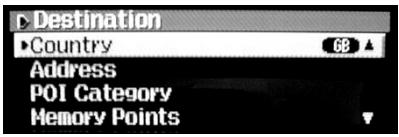
4 Select the desired country from the "Select Country" list by moving the Flipper switch up or down. Press the OK button or MODE knob to execute the selection. For example, if you wish to go to London, select "United Kingdom."
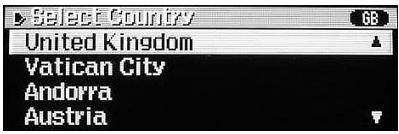
Tip You can select your desired locations in 20 countries.
5 The display returns to the "Destination" menu. The search for selected country has now been activated.
6 To return to the previous screen, press the RTN button, or to return to the "NAV. MENU" screen, press the MENU button.
Searching for Destination from Address
If you know the address of the destination, you can display its location by just inputting the address (name of the city/street).
1 Press the MENU button to display "NAV. MENU."
2 Select "Destination" from "NAV. MENU" by moving the Flipper switch up or down. Press the OK button or MODE knob to execute the selection.
3 Select "Address" from "Destination" by moving the Flipper switch up or down. Press the OK button or MODE knob to execute the selection.
4 Press the OK button or MODE knob to execute "City Name Input."
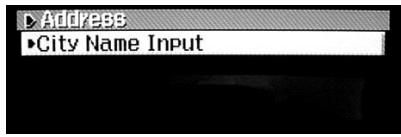
5 The character pallet is displayed.
Move the cursor to the character to be input by moving the Flipper switch up or down.
Press the OK button or MODE knob to execute the character.
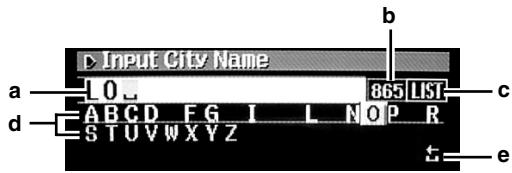
a : Text window
Displays the selected characters.
b:List of the candidate number
c:LIST
Displays a list of the candidate names for the selected characters.
d : Character pallet
Select the desired character.
e: Return to the previous character pallet before inputting one character.
Return to the previous character and erase it.
Tips
- When one character is input, the candidates for the next character are narrowed down (and the others disappear from the character pallet).
- You can also search for a location by inputting just the start of its name and selecting "LIST."
- If you want to display the list of candidate city names, select "LIST," and then press OK button. Skip to Step 7.
6 Repeat Step 5 above to complete the character input for the city name.
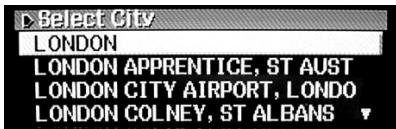
7 The screen changes to the "Select City" list screen. Select a desired city and press the OK button or MODE knob to execute the selection.
8 Repeat Step 5 above to complete character input of the street name.
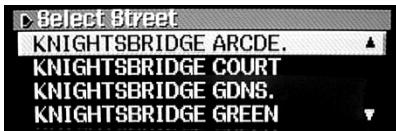
9 The screen changes to the "Select Street" list screen. Select a desired street and press the OK button or MODE knob to execute the selection.
10 The screen changes to the "Option" screen.
Select "Set" and press the OK button or MODE knob to execute the selection.
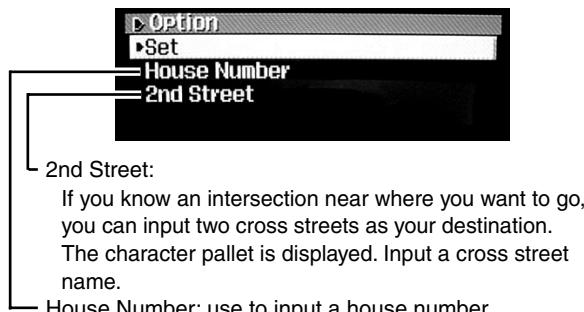
The character pallet is displayed. Input a house number.
11 The displayed screen changes.
Select "Start Guidance" and press the OK button or MODE knob to execute the selection.
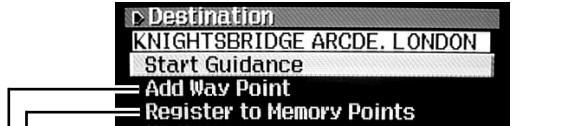
Use to register the location. When the confirmation message is displayed, select "Yes" and press the OK button to execute the selection.
Use to add waypoints (see the "Adding Waypoints on the Route," page 16).
12 The message appears and route search starts.
13 The displayed screen changes.
Move the cursor to the selected item by moving the Flipper switch up or down and press the OK button or MODE knob to execute the setting of the item. The route guidance to the destination starts.
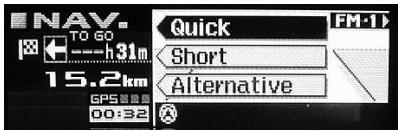
Quick: The shortest time route.
Short: The shortest distance route.
Alternative: Use to search for an alternative route.
Searching For Destination

Searching for Point of Interest from Category
If you know the category of the desired point of interest (P.O.I.), you can easily display that point of interest by just selecting the desired category from the displayed category list.
1 Press the MENU button to display "NAV. MENU."
2 Select "Destination" from "NAV. MENU" by moving the Flipper switch up or down.
Press the OK button or MODE knob to execute the selection.
3 Select "POI Category" from the "Destination" menu by moving the Flipper switch up or down.
Press the OK button or MODE knob to execute the selection.
4 Select the desired category from the "POI Category" list by moving the Flipper switch up or down.
Press the OK button or MODE knob to execute the selection.
(This section describes "Travel" as an example.)
5 Select "Airport" from the "Travel" list and press the OK button or MODE knob to execute the selection.
6 The displayed screen changes. Press the OK button or MODE knob to execute "City Name Input."
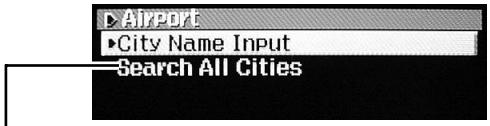
If you select "Search All Cities," you do not need to input a city name. The screen changes directly to the POI Name inputting display.
The character pallet is displayed.
Move the cursor to the character to be input by moving the Flipper switch up or down.
Press the OK button or MODE knob to execute the selection.
Tips
- When one character is input, the candidates for the next character are narrowed down (and the others disappear from the character pallet).
- You can also search for a location by inputting just the start of its name and selecting "LIST."
- If you want to display the list of candidate city names, select "LIST" and press the OK button. Skip to Step 9.
8 Repeat Step 7 above to complete character input of the city name.
9 The displayed screen changes to the city list. Select a desired CITY and press the OK button or MODE knob to execute the selection.
10 Repeat Step 7 above to complete character input of the "Input POI Name."
11 The displayed screen changes to the "Select POI" list. Select the point of interest, and then press the OK button or MODE knob to execute the selection.
12 The displayed screen changes. Select "Start Guidance" and press the OK button or MODE knob to execute the selection.
The message appears and the system starts searching for route.
13 The display screen changes. Select the desired POIs from "Quick/Short/Alternative" by moving the Flipper switch up or down.
Press the OK button or MODE knob to execute the selection. The route guidance to the destination starts.
Searching from Local Points
You can search for POIs such as restaurants, hotels, etc., within a 30 km radius of the present vehicle position.
1 Press the MENU button to display "NAV.MENU."
2 Select "Destination" from "NAV.MENU" by moving the Flipper switch up or down and press the OK button or MODE knob to execute the selection.
3 Select "Local POI" from the "Destination" menu by moving the Flipper switch up or down. Press the OK button or MODE knob to execute the selection.
4 Select a desired category from the "Local POI" list and press the OK button or MODE knob to execute the selection.
This section describes the procedure using "Restaurant" as an example.
5 Select "Chinese" from the "Restaurant" list and press the OK button or MODE knob to execute the selection. The message appears and the system starts searching for POI within a 30 km radius of the vehicle.
6 The "Select Local POI" list is displayed. Select a desired local point and press the OK button or MODE knob to execute the selection.
| Deselect Local POI | |
| TREASURE OF CHINA | 0.7km▲ |
| PEKING DINER | 6.4km |
| IMPERIAL CITY | 7.3km |
| WESTZENDERS | 9.7km▼ |
7 The displayed screen changes. Select "Start Guidance" and press the OK button or MODE knob to execute the selection.
The message appears and the system starts searching for the route.
8 The displayed screen changes. Select a desired item from "Quick/Short/Alternative" by moving the Flipper switch up or down, and then press the OK button or MODE knob to execute the selection.
Searching from Home/Previous Destination/Memory Points
1 Press the MENU button to display "NAV.MENU."
2 Select "Destination" from "NAV.MENU" by moving the Flipper switch up or down and press the OK button or MODE knob to execute the selection.
3 Select "Home" from the "Destination" menu by moving the Flipper switch up or down and press the OK button or MODE knob to execute the selection.
This section describes "Searching from home" as an example.
4 The displayed screen changes. Select "Start Guidance" and press the OK button or MODE knob to execute the selection.
The message appears and the system starts searching for the route.
5 The displayed screen changes. Select a desired item from "Quick/Short/Alternative" by moving the Flipper switch up or down.
Press the OK button or MODE knob to execute the selection.
The route guidance back to your home starts.
Searching For Destination
Adding Waypoints on the Route
You can set up to 2 waypoints after the route search from your current location to your destination has been completed.
1 Find the waypoint from addresses and Local POIs.
2 Select "Add Way Point" and press the OK button or MODE knob to execute the selection.
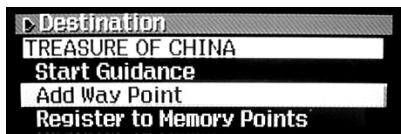
3 The displayed screen changes and the added waypoints are displayed.
Press the OK button or MODE knob to set the added waypoints.
The route searching starts.

Note
Before setting the point, you can move the location of the added waypoint by moving the cursor with the Flipper switch.
Tips
- After setting the waypoint, each time you move the Flipper switch up, the direction and distance to the waypoint, and the anticipated required time that you have set is displayed. (The required time is only displayed when you are driving with the route guidance.)
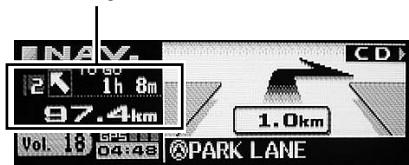
- If "Arrival" is set in the "Setting the Display for the Destination Time" section (this page), the anticipated arrival time is displayed.
Setting the Display for the Destination Time (INA-N333R only)
You can set the display for the destination time in order to anticipate your arrival time or estimated remaining time before arrival.
1 Press the MENU button to display "NAV MENU."
2 Select "NAVI Setup" from "NAV.MENU" by moving the Flipper switch up or down.
Press the OK button or MODE knob to execute the selection.
3 Select "System Setup" from the "NAVI Setup" menu by moving the Flipper switch up or down.
Press the OK button or MODE knob to execute the selection.
4 Select "Est. Time to Dest." from the "System Setup" menu and press the OK button or MODE knob to execute the selection.
5 The displayed screen changes to the "Est Time to Dest." menu. Select "Arrival" or "Remaining" from the menu and press the OK button or MODE knob to execute the selection.
Arrival : the anticipated arrival time will be set.
Remaining : the estimated remaining time will be set.
6 To return to the previous screen, press the RTN button. To return to the "NAV. MENU" screen, press the MENU button.
Route Setting/Route Editing
Checking the Route by List
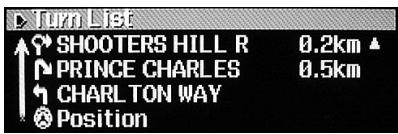
With this detailed list you can find the route, road name and the distance between the points.
1 After setting the route, press the MENU button to display "NAV.MENU."
2 Select "Edit Route" from "NAV.MENU" by moving the Flipper switch up or down. Press the OK button or MODE knob to execute the selection.
3 Select "Turn List" from the "Edit Route" menu by moving the Flipper switch up or down. Press the OK button or MODE knob to execute the selection.
4 The route information is displayed. The "Turn List" scrolls by moving the Flipper switch up.
5 To return to the previous screen, press the RTN button. To return to the "NAV.MENU" screen, press the MENU button.
Researching
You can edit the route search conditions even after the route calculation has been performed, and have the system search for alternative route.
1 Press the MENU button to display "NAV.MENU."
2 Select "Edit Route" from "NAV.MENU" by moving the Flipper switch up or down. Press the OK button or MODE knob to execute the selection.
3 Select "Reroute" from the "Edit Route" menu by moving the Flipper switch up or down. Press the OK button or MODE knob to execute the selection.
4 The system starts to search for a new round-about route in the vicinity of the vehicle.
Changing the Searching Conditions
Use this when you want to change the route preference while you are driving receiving route guidance. (For example, if the route preference is set to "Quick", and you want to change to another route preference.)
1 Press the MENU button to display "NAV.MENU."
2 Select "Edit Route" from "NAV.MENU" by moving the Flipper switch up or down. Press the OK button or MODE knob to execute the selection.
3 Select "Search Condition" from the "Edit Route" menu by moving the Flipper switch up or down. Press the OK button or MODE knob to execute the selection.
4 Set your preference (Quick, Short, Alternative) from the "Search Condition" menu.
Changing the Conditions of the Searched Route
You can edit the route to use the motorway, ferry, etc. or not.
1 Press the MENU button to display "NAV.MENU."
2 Select "Edit Route" from "NAV.MENU" by moving the Flipper switch up or down. Press the OK button or MODE knob to execute the selection.
3 Select "Route Preference" from the "Edit Route" menu by moving the Flipper switch up or down. Press the OK button or MODE knob to execute the selection.
4 Move the cursor to your desired editing item from the "Route Preference" menu by moving the Flipper switch up or down. Press the OK button or MODE knob to execute the setting of the item.
5 The displayed screen changes. Select "Allow" or "Detour" and press the OK button or MODE knob to execute the selection.
6 To return to the previous screen, press the RTN button. To return to the "NAV.MENU" screen, press the MENU button.
Note
The "Motorway Allow" setting is recommended when searching for a long distance route.
Route Setting/Route Editing
Deleting the Destination
When the address in the vicinity of the destination is displayed after arrival at the destination, the point information is erased automatically. If the route guidance is cancelled before arrival at the destination or if the address in the vicinity of the destination is not displayed, the point information remains. In such a case, delete the destination.
1 Press the MENU button to display "NAV.MENU."
2 Select "Edit Route" from "NAV.MENU" by moving the Flipper switch up or down. Press the OK button or MODE knob to execute the selection.
3 Select "Delete Destination" from the "Edit Route" menu by moving the Flipper switch up or down. Press the OK button or MODE knob to execute the selection.
4 When the message appears, select "Yes" and press the OK button or MODE knob to execute the selection.
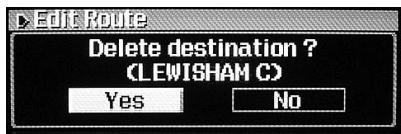
The destination is erased and the display returns to the present vehicle position.
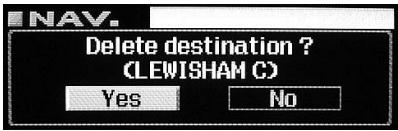
Tip If you slide the Flipper switch down after setting the destination, the above message appears. Select "Yes" and press the OK button or MODE knob to delete the destination you have set.
Changing the Sequence of Waypoints
The sequence of waypoints to go through can be sorted in order of distance from the current vehicle position, or it can be changed in any order as you like.
1 Press the MENU button to display "NAV.MENU."
2 Select "Edit Route" from "NAV.MENU" by moving the Flipper switch up or down. Press the OK button or MODE knob to execute the selection.
3 Select "Edit Way Points" from the "Edit Route" menu by moving the Flipper switch up or down. Press the OK button or MODE knob to execute the selection.
4 Select "Sort" from the "Edit Way Points" menu and press the OK button or MODE knob to execute the selection.
5 Move the cursor to the desired point by moving the Flipper switch.
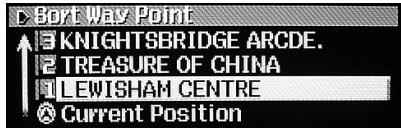
Press the OK button or MODE knob.
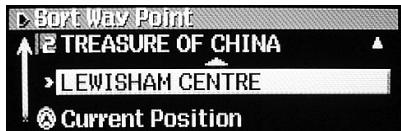
6 Move the cursor to the desired position by moving the Flipper switch.
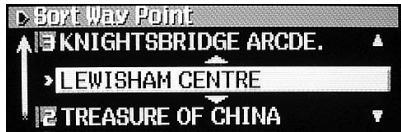
Press the OK button or MODE knob to execute the position.
The route searching starts.
Deleting Waypoints on the Route
If you want to delete all waypoints, perform following operation.
1 Press the MENU button to display "NAV.MENU."
2 Select "Edit Route" from "NAV.MENU" by moving the Flipper switch up or down.
Press the OK button or MODE knob to execute the selection.
3 Select "Edit Way Points" from the "Edit Route" menu by moving the Flipper switch up or down.
Press the OK button or MODE knob to execute the selection.
4 Select "Delete" from the "Edit Way Points" menu and press the OK button or MODE knob to execute the selection.
- When you want to erase all points, select "Delete All" and press the OK button or MODE knob to execute the selection.
When the confirmation message appears, select
"Yes" and press the OK button to execute the selection.
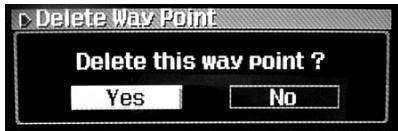
5 The displayed screen changes. Move the cursor to your desired waypoint to delete and press the OK button or MODE knob.
When the confirmation message appears, select "Yes" and press the OK button or MODE knob to execute the selection. Its waypoints are deleted.
Drive Simulation
You can check the searched route by carrying out the drive simulation.
1 After searching the route, press the MENU button to display "NAV.MENU."
2 Select "Edit Route" from "NAV.MENU" by moving the Flipper switch up or down.
Press the OK button or MODE knob to execute the selection.
3 Select "Demo" from the "Edit Route" menu by moving the Flipper switch up or down.
Press the OK button or MODE knob to execute the selection.
4 The drive simulation starts.
To exit the drive simulation, press the RTN button.
Editing for Memory Points
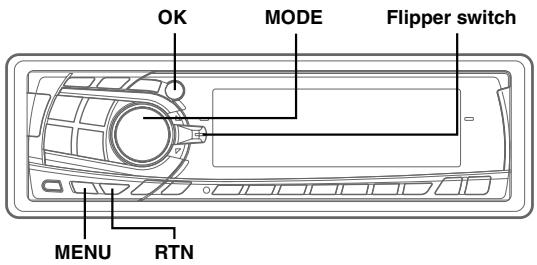
Changing the Name of a Memory Point or Inputting a Phone Number
When a point is registered, the name of the point will be stored automatically. Use when you edit a stored name of the point or phone number.
1 Press the MENU button to display "NAV.MENU."
2 Select "NAVI Setup" from "NAV.MENU" by moving the Flipper switch up or down. Press the OK button or MODE knob to execute the selection.
3 Select "Memory Points" from the "NAVI Setup" menu by moving the Flipper switch up or down. Press the OK button or MODE knob to execute the selection.
4 Select your desired point to edit from the "Memory Points" list and press the OK button or MODE knob to execute the selection.
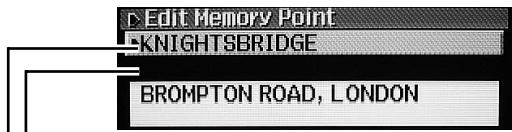
5 The displayed screen changes to the "Edit Memory Point" menu. Select "Edit Memory Point" from the menu and press the OK button or MODE knob to execute the selection. Execute name change or phone number input.
Change Phone No.:
Move the cursor to this menu and execute the selection. The numeric input pallet appears. Input the desired number.
Change Name:
Move the cursor to this item and execute the selection. The character input pallet appears. After selecting with the cursor () , and deleting inputted characters, input the desired characters. (If more than 14 characters have been input, the character pallet disappears. If selecting with the cursor () , and deleting inputted characters, the character pallet reappears.)
6 To return to the previous screen, press the RTN button. To return to the "NAV.MENU" screen, press the MENU button.
Deleting the Memory Points
You can store up to 50 locations in memory. You can erase any of the locations as and when you like.
1 Press the MENU button to display "NAV.MENU."
2 Select "NAVI Setup" from "NAV.MENU" by moving the Flipper switch up or down. Press the OK button or MODE knob to execute the selection.
3 Select "Memory Points" from the "NAVI Setup" menu by moving the Flipper switch up or down. Press the OK button or MODE knob to execute the selection.
4 Select your desired point to erase from the "Memory Points" list and press the OK button or MODE knob to execute the selection.
5 The displayed screen changes to the "Edit Memory Point" menu. Select "Delete" from the menu and press the OK button or MODE knob to execute the selection.
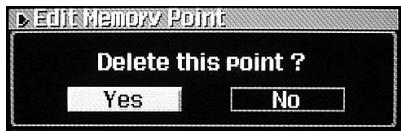
6 The confirmation message appears. Select "Yes" and press the OK button or MODE knob to execute the selection.
7 To return to the previous screen, press the RTN button. To return to the "NAV.MENU" screen, press the MENU button.
About the TMC indicator

: receiving TMC (common)
: not receiving TMC (if TMC tuner is built-in)

: not receiving TMC (when TMC-001P is connected)
| Symbol | Legend | Symbol | Legend |
| A | Stationary traffic | A | Road works |
| A | Traffic jam | A | Weather |
| A | Accidents, etc. | P | Parking |
| X | Closed road |
Automatic Seek Tuning (SEEK) for Receiving TMC Stations (INA-N333R only)
- TMC station can be received if there is TMC information by selecting a station on the INA-N333R model's built-in TMC tuner. The optional RDS-TMC receiver box TMC-001P may be connected.
- TMC stations are tuned to receive available TMC information, if a built-in TMC tuner only is used.
1 Press the NAV. button to change the Audio mode.
2 Press the SOURCE/POWER button to select the Radio mode.
3 In the FM mode, press and hold the OK/TMC button for at least 2 seconds.
All TMC stations that can be received are tuned. "TMC SEEK" is displayed while seeking TMC. When TMC is received, the TMC indicator* is lit on the audio mode display.
Notes
- If a station cannot be sought, the TMC Seek finishes.
- The TMC indicator that is displayed in the Navigation mode differs from that shown in the "About the TMC indicator" section (on the left).
4 After receiving a TMC station, press the NAV. button to switch the Navigation mode.
5 Press the MENU button to display "NAV. MENU."
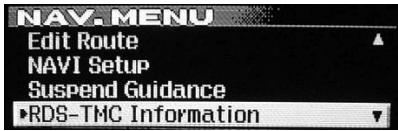
6 Select "RDS-TMC Information" from "NAV. MENU" by moving the Flipper switch up or down.
Press the OK button or MODE knob to execute the selection.
7 Select "Set up RDS-TMC" from the "RDS-TMC Information" menu by moving the Flipper switch up or down.
Press the OK button or MODE knob to execute the selection.
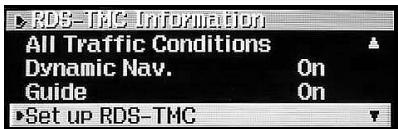
8 The display screen changes to "Set up RDS-TMC." Press the OK button or MODE knob to execute "Country."
9 Move the Flipper switch to select the country in which TMC is to be received.
10 Press the OK button or MODE knob to set the selected country.
11 To return to the previous screen, press the RTN button. To return to the "NAV. MENU" screen, press the MENU button.
TMC Operation

Displaying the Traffic Event Information on Route
1 After setting the route, press the MENU button to display "NAV.MENU."
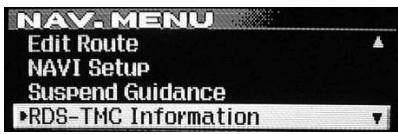
2 Select "RDS-TMC Information" from "NAV. MENU" by moving the Flipper switch up or down. Press the OK button or MODE knob to execute the selection.
3 Select "Traffic On Route" from the "RDS-TMC Information" menu by moving the Flipper switch up or down. Press the OK button or MODE knob to execute the selection.
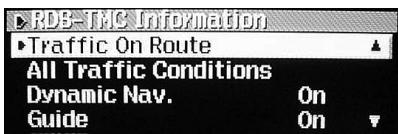
4 If there is any traffic event information on your set route, the information will be displayed. When there are more than one piece of information, move the Flipper switch up or down to select the further information you want to know. Press the OK button or MODE knob to execute the selection.
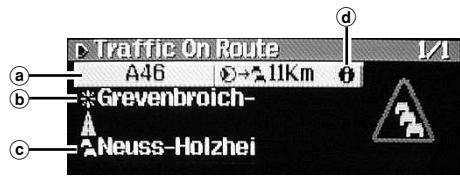
(a) : Road name
b : Destination place name of TMC event
: Starting place name of TMC event
d: When this mark is displayed, "Detail Information" in step 5 will be displayed.
Note
If the destination or starting place name is long, the whole name may not be displayed. It is not a malfunction.
5 Any further information is displayed.
When there are more than one pieces of the traffic event information, move the Flipper switch up or down to switch the further information you want to know.
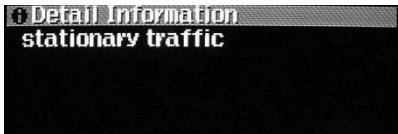
Note
If there is no information on your set route, all other receiving information is displayed.
Tip
While receiving the TMC and displaying your car's position, press the OK button for more than two seconds to display the traffic event information on your set route. If there is no information on your set route, all other receiving information is displayed.
Displaying all Receiving Traffic event Information
1 In RDS-TMC Information Menu, move the Flipper switch up or down to select "All Traffic Conditions." Press the OK button or MODE knob to execute the selection.
2 The display changes to "All Traffic Conditions" list. Move the Flipper switch up or down to select the traffic event information you want to know. Press the OK button or MODE knob to execute the selection.
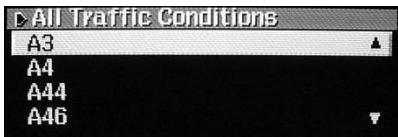
3 The traffic event information on the route that you selected is displayed.
When there are more than one pieces of the traffic event information, move the Flipper switch up or down to select the further information you want to know.
Press the OK button or MODE knob to execute the selection.
Further information is displayed.
When there are more than one piece of the further information, move the Flipper switch up or down to display any further information.
Tip
While receiving the TMC and displaying your vehicle's position, press the OK button for more than two seconds to display the traffic event information on the route that you have set. If there is no information on the route that you have set, all other receiving information is displayed.
Setting Dynamic Route Seek
1 In RDS-TMC Information Menu, move the Flipper switch up or down to select "Dynamic Nav."
Press the OK button or MODE knob to execute the selection.
2 The display changes to "Dynamic Nav." setting.
Move the Flipper switch up or down to select "On" or "Off."
Press the OK button or MODE knob to execute the selection.
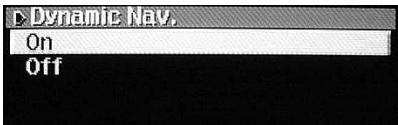
3 When you set to ON, a message regarding an evasion route is displayed while guiding the current route.
Move the Flipper switch up and down to select "Yes," then press the OK button or MODE knob to execute the selection. The unit seeks for a route in consideration of the traffic event given through the RDS-TMC information and new guidance will be given.
Note
When you set to OFF, the unit performs an initial seek for a route without consideration for any traffic event given through the RDS-TMC.
Setting the RDS-TMC Voice Guidance to Interrupt the Radio or CD, etc.
1 In the RDS-TMC Information menu, move the Flipper switch up and down to select "Guide."
Press the OK button or MODE knob to execute the selection.
2 The display changes to the "Guide" setting display. Move the Flipper switch up or down to select "On" or "Off."
On : TMC voice guidance will activate
Off : No TMC voice guidance
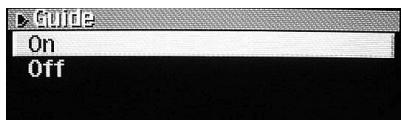
3 Press the OK button or MODE knob to execute the selection.
Selecting TMC Reception (Only when TMC-001P is connected)
If the optional RDS-TMC receiver box TMC-001P is connected, reception of TMC can be set for either "Country" or "Station."
1 In RDS-TMC information Menu, move the Flipper switch up and down to select "Set up RDS-TMC."
Press the OK button to execute the selection.
2 The display changes to "Set up RDS-TMC."
Move the Flipper switch up and down to select "Country" or "Station."
Press the OK button or MODE knob to execute the selection.
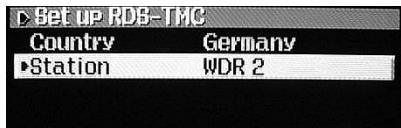
3 Move the Flipper switch to select the name of the country or station you selected in step 2.
Press the OK button or MODE knob to execute the selection.
If you select "Auto," a station will be selected and received automatically.
Note
If you select stations or countries listed as receivable in the list while you are in the area where these stations are not receivable, the TMC receiving is not functioned.
Setting the System
Setting the Anticipated Arrival Time
You can change the conditions (speed) for estimated arrival time.
1 Press the MENU button to display "NAV.MENU."
2 Select "NAVI Setup" from "NAV.MENU" by moving the Flipper switch up or down.
Press the OK button or MODE knob to execute the selection.
3 Select "System Setup" from the "NAVI Setup" menu by moving the Flipper switch up or down.
Press the OK button or MODE knob to execute the selection.
4 Select "Change Speed" from the "System Setup" menu and press the OK button or MODE knob to execute the selection.
5 Move the cursor to your desired item to edit by moving the Flipper switch up or down.
Press the OK button or MODE knob to execute the setting of the item.
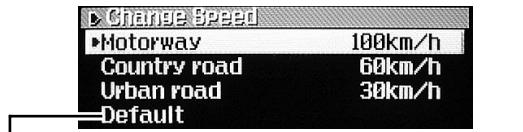
Select "Default" and press the OK button, or the MODE knob to return to the default setting.
The displayed screen changes. Move the Flipper switch up or down to change the speed.
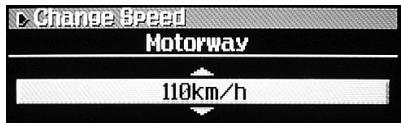
Select the desired speed and press the OK button or MODE knob to execute the selection.
6 To return to the previous screen, press the RTN button. To return to the "NAV.MENU" screen, press the MENU button.
Setting When Vehicle's Tyres have been Changed
Setting is required when the vehicle's tyres are changed.
1 Press the MENU button to display "NAV.MENU."
2 Select "NAVI Setup" from "NAV.MENU" by moving the Flipper switch up or down.
Press the OK button or MODE knob to execute the selection.
3 Select "System Setup" from the "NAVI Setup" menu by moving the Flipper switch up or down.
Press the OK button or MODE knob to execute the selection.
4 Select "Tyre Change" from the "System Setup" menu and press the OK button or MODE knob to execute the selection.
5 When the confirmation message appears, select "Yes" and press OK button or MODE knob to execute the selection.
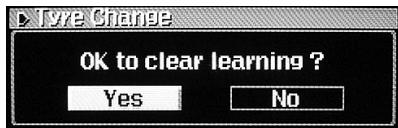
6 To return to the previous screen, press the RTN button. To return to the "NAV.MENU" screen, press the MENU button.
Updating the Present Vehicle Position
If the navigation system is not displaying the correct current position, use this procedure to update the present vehicle position. Depending on the GPS signal reception conditions, the direction of your vehicle may be displayed incorrectly. Map matching automatically corrects this error, but you can manually correct it.
1 Press the MENU button to display "NAV.MENU."
2 Select "NAV Setup" from "NAV.MENU" by moving the Flipper switch up or down. Press the OK button or MODE knob to execute the selection.
3 Select "Memory Points" from the "NAVI Setup" menu by moving the Flipper switch up or down. Press the OK button or MODE knob to execute the selection.
4 Select the point that is closest to your present vehicle position from the "Memory Points" list. Press the OK button or MODE knob to execute the selection.
5 The displayed screen changes to the "Edit Memory Point" menu. Select "Current Position" from the menu and press the OK button or MODE knob to execute the selection.
6 When the confirmation message appears, select "Yes" and press the OK button or MODE knob to execute the selection.
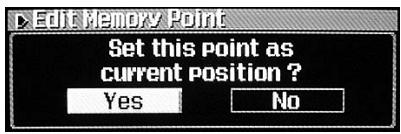
7 To return to the previous screen, press the RTN button. To return to the "NAV.MENU" screen, press the MENU button.
Setting the Voice Guidance Volume
When the voice guidance of the navigation system starts, the volume level of any currently playing audio source is reduced automatically. You can also adjust the volume level of voice guidance.
To set the volume level of voice guidance
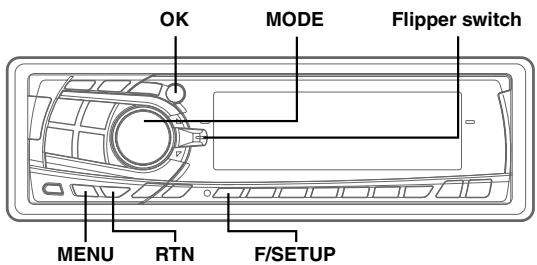
1 Press and hold the F/SETUP button for at least 2 seconds. The display changes to the SETUP screen.
2 Move the Flipper switch up or down to select NAVI MIX. Press the OK button or MODE knob to set.
3 Move the Flipper switch up or down to select ON or OFF. Press the OK button or MODE knob to set. The display returns to the SETUP screen.
4 Press the F/SETUP button to change to the Navigation mode.
5 When displaying the present vehicle position or voice guidance, press the MODE (Audio control) knob repeatedly to select the NAVI MIX mode.
6 Turn the MODE (Audio control) knob until the desired sound is obtained.
Notes
- If you don't hear the voice guidance, press the VOICE button to repeat the voice guidance.
- If you have an external audio processor, you can listen to voice guidance with the extension speaker (KAX-551N).
Setting the System
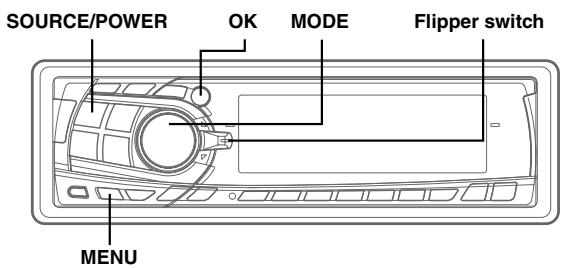
Suspending/Restarting Voice Guidance
1 To suspend the voice guidance, press the MENU button to display the "NAV.MENU" screen after the route has been calculated.
2 Select "Suspend Guidance" from "NAV.MENU" by moving the Flipper switch up or down.
Press the OK button or MODE knob to execute the selection.
The message appears and the voice guidance is suspended.
3 When you want to resume the voice guidance, press the MENU button. Select "Resume Guidance" from "NAV.MENU" and press the OK button or MODE knob to execute the selection.
The message appears and the voice guidance is resumed.
Calling Up the Audio Source
1 While in the Navigation mode (except NAV.MENU screen and each list screen), you can change over to an audio source by pressing the SOURCE/POWER button. In addition, you can perform operations such as calling up a preset, switching BAND and TRACK UP/DOWN, SETUP, bass engine, etc.
For Audio operation, refer to the INA-N333R (or INA-N033R) of Owner's Manual.
Main Display Mode: current mode is displayed.
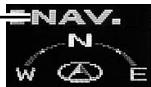
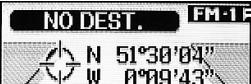
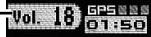

Sub Display Mode: each time you switch the source, the display mode switches.
Audio Source Volume: Displays audio source volume, or during Voice Guidance interruption, automatically switches to display Voice Guidance volume.
Note
While the navigation menu is displayed, some operations do not function.
Tip
When you are driving with route guidance, the voice and route guidance can be interrupted at any time by pressing the NAV. button when you switch to the audio mode.
However, when the list screen (SETUP, bass engine, etc.) is displayed, only the voice guidance can interrupt the audio source.
Remote control Operation
Operation on Remote Control RUE-4191 (Optional)
You can operate it with the optional remote control (RUE-4191). Change the EXT DVD/AUDIO/NAV. Switch, on the side of the remote control, to NAV.
NAV. transmission indicator
The transmission indicator lights for few seconds when the mode selector switch is set to the "NAV." side.
ON/OFF button
Press the button to turn the power on/off.
LO.PT(Local Point) button
When this button is pressed, local points and the vicinity of the current vehicle position will appear in the display.
POS. (Position) button
Returns to the current position of your vehicle or displays the latitude/longitude.
ROUTE button
Pressing this button searches for the route again and switches between motorway preference and ordinary road preference for route searching.
Numeric Keypad
Use these buttons to enter house numbers or street names containing numbers (i.e., 42nd St.).
DEST. (Destination) button
Pressing this button displays the destination menu.
DEL. DEST. button
Pressing this button can delete the current destination.
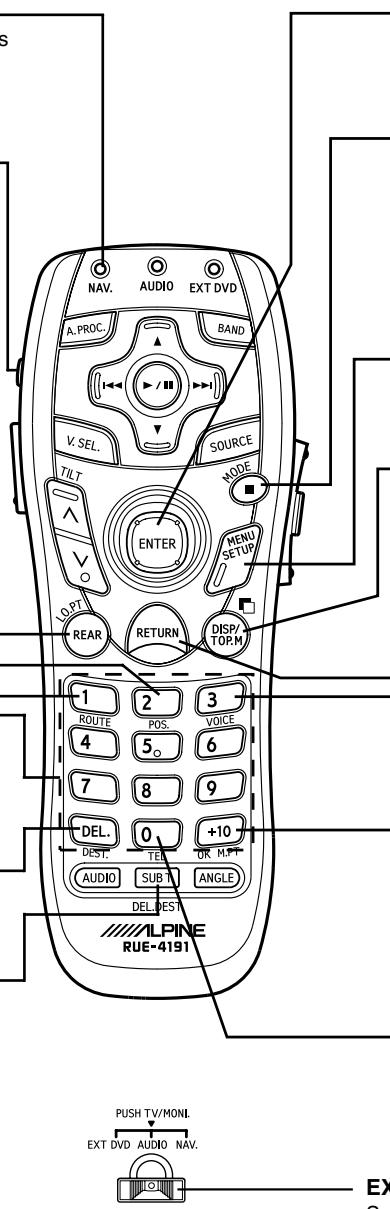
(Rear of the Remote Control)
Joystick/ENTER button
Selects highlighted items in menus. Press the ENTER button to execute any highlighted items.
MODE button
Press this button to input numerals using the numeric keypad, DEL. and + 10 buttons. After pressing the MODE button, the following buttons will be pressed while the status indicator is blinking: numerals (0-9), DEL. and + 10.
MENUButton
Displays NAV. MENU.
□ button
This button is not used.
RETURN button
Returns the navigation system to the previous searching.
VOICE button
Initiates vocal instruction for next route maneuver or repeats last instruction.
OK M.PT (Memory Point) button
Pressing this button displays the memory point list.
TEL button
This button is not used.
EXT DVD/AUDIO/NAV. switch
Set this switch to the "NAV." side to operate a connected navigation system.
Tip
The Alpine head unit can be operated with the remote control.
For details, refer to the INA-N333R (or INA-N033R) of Owner's Manual.
Note
Due to continuous product improvement, specifications are subject to change.
Remote control Operation
Operation on Remote Control RUE-4135 (Optional)
You can operate it with the optional remote control (RUE-4135). Change the AUDIO/NAV. Switch, on the side of the remote control, to NAV.
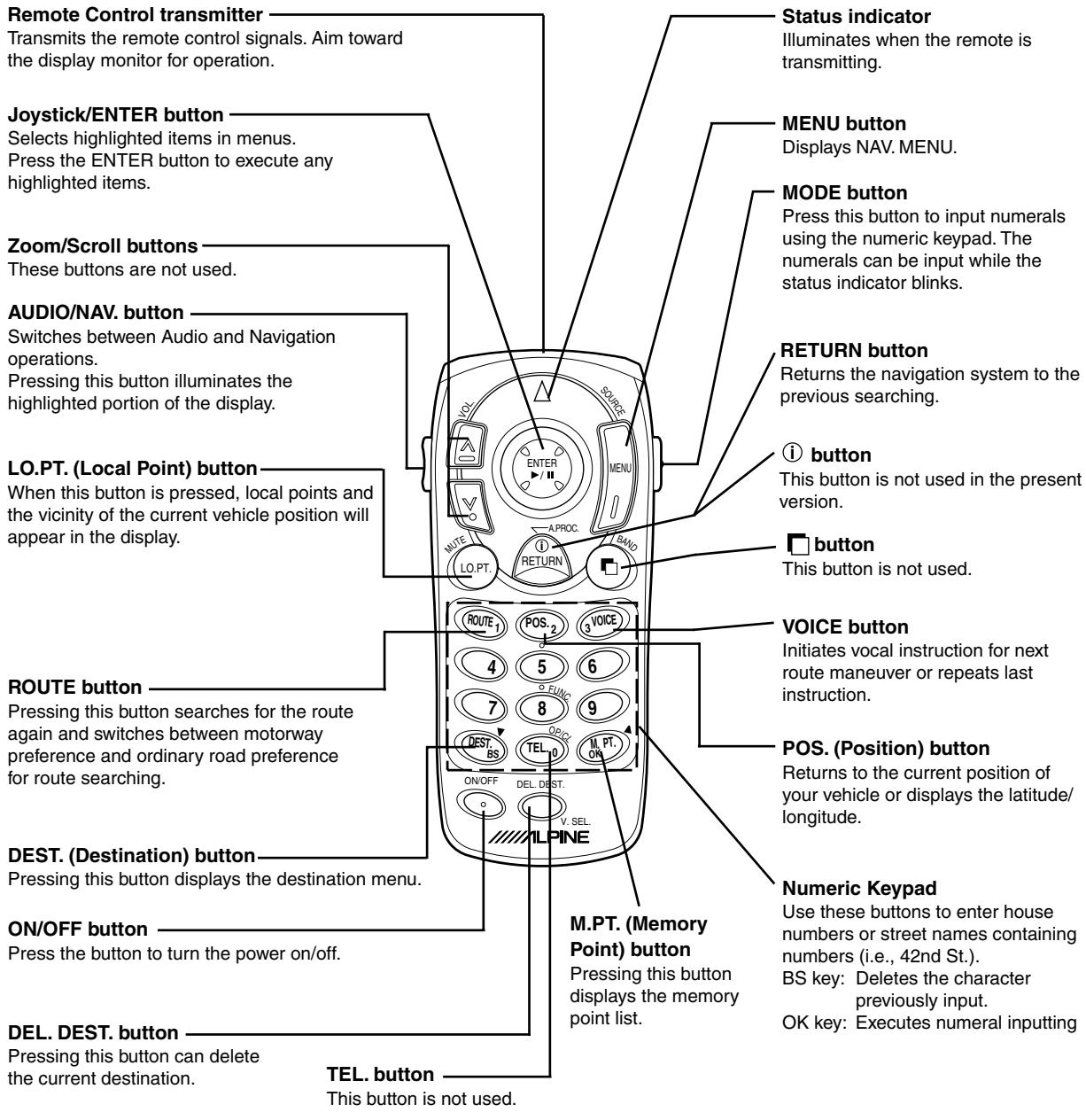
Tips
- The Alpine head unit can be operated with the remote control.
For details, refer to the INA-N333R (or INA-N033R) of Owner's Manual.
After pressing the MODE button, press the following buttons while the status indicator is blinking : numerals (0 to 9), BS, and OK.
Note
Due to continuous product improvement, specifications are subject to change.
In Case of Difficulty
If you encounter a problem, please review the items in the following checklist. This guide will help you isolate the problem if the system is at fault. Otherwise, make sure the system is properly connected or consult your authorized Alpine dealer.
| Symptom | Cause | Solution |
| No operation | Blown fuse | Replace with a fuse of the prescribed rating. |
| Ambient temperature over 50°C | Lower the temperature in the vehicle below 50°C, for example by running for a while with the window open or by using the air conditioner. | |
| Moisture condensation | Allow enough time for the condensation to evaporate (about 1 hour). | |
| The present vehicle position cannot be measured correctly. | The vehicle position changed after the ignition was switched off. • Movement on a ferry boat • Rotation of a parking lot turntable • Movement by tow truck | Drive for a while with GPS signal reception. |
| The measurement error is too large. | Poor satellite configuration | Move to a location where GPS satellite reception is easy. |
| Measurement is 2 dimensional | ||
| Cannot read disc is displayed for a certain operation. | The disc is dirty. | Clean the disc. |
| The pickup lens is dirty. | Periodically clean the pickup lens. |
If this Message Appears
Various messages are displayed on the monitor screen during operation. In addition to the messages telling you the current status or providing guidance for the next operation, there are also the following error messages. If one of these error messages is displayed, carefully follow the instructions in the solution column.
| Message | Cause | Solution |
| E001 NAV.E001 | ·A disc that the system cannot read has been loaded. | Insert a navigation disc designed only for this system. |
| E002 NAV.E002 | ·Main unit error | Please consult your Alpine dealer. |
| No data | ·When there is no item in the list when searching for the destination, the display shows "No data." | Set by selecting another searching method. |
| Not Registered | ·An attempt was made to search home with no home registered. ·An attempt was made to search a memory point with no memory registered. | Register your home or a memory point, then execute the search. |
| Waypoints are full. | ·An attempt was made to set more than 2 waypoints. | Erase unnecessary waypoints, then set again. |
| Memory points are full. | ·An attempt was made to register more than 50 points in memory. | Erase unnecessary points, then register. |
| Specify the destination before using this function. | ·An attempt was made to search the destination from the departure point with no destination registered. | Specify the destination, then carry out the search. |
| Use after setting the waypoint. | ·An attempt was made to erase a waypoint even though no waypoint is set. | This message simply announces that no waypoint is set. The message goes out soon. |
| Route could not be found. | ·No route could be found, for example due to traffic situations. | Move to another location. Set the route search again. |
| Destination is _ m from the current position or Destination nearby within _ m | ·When the distance from the departure point to the destination is too close, this message appears. | Because the distance to the destination is too close, searching for the route cannot be carried out. Drive on the road by complying the traffic regulations. |
| Destination too far. Please choose a destination within 5000 km distance | ·When the distance from the departure point to the destination is too far, this message appears. | Your destination must be within 5,000 km. |
| No registered roads nearby | ·The current vehicle position cannot receive the GPS signals. ·There is no road in the vicinity of the current vehicle position where GPS signals can be received. | Move to another location, then resume the route search. |
ALPINE
ALPINE ELECTRONICS MARKETING, INC.
1-1-8 Nishi Gotanda,
Shinagawa-ku, Tokyo 141-0031, Japan
Phone 03-5496-8231
ALPINE ELECTRONICS OF AMERICA, INC.
19145 Gramercy Place, Torrance,
California 90501, U.S.A.
Phone 1-800-ALPINE-1 (1-800-257-4631)
1-888-NAV-HELP (1-888-628-4357)
ALPINE ELECTRONICS OF CANADA, INC.
777 Supertest Road, Toronto,
Ontario M3J 2M9, Canada
Phone 1-800-ALPINE-1 (1-800-257-4631)
1-888-NAV-HELP (1-888-628-4357)
ALPINE ELECTRONICS OF AUSTRALIA PTY. LTD.
161-165 Princes Highway, Hallam
Victoria 3803, Australia
Phone 03-8787-1200
ALPINE ELECTRONICS GmbH
Frankfurter Ring 117,
80807 München, Germany
Phone 089-32 42 640
ALPINE ELECTRONICS OF U.K. LTD.
Alpine House
Fletchamstead Highway,
Coventry CV4 9TW, U.K.
Phone 0870-33 33 763
ALPINE ELECTRONICS FRANCE S.A.R.L.
(RCS PONTOISE B 338 101 280)
98, Rue de la Belle Etoile, Z.I. Paris Nord II,
B.P. 50016, 95945 Roissy Charles de Gaulle Cedex, France
Phone 01-48638989
- Points to Observe for Safe Usage
- WARNING
- DO NOT DISASSEMBLE OR ALTER.
- KEEP SMALL OBJECTS SUCH AS BATTERIES OUT OF THE REACH OF CHILDREN.
- DO NOT OPERATE ANY FUNCTION THAT TAKES YOUR ATTENTION AWAY FROM SAFELY DRIVING YOUR VEHICLE.
- KEEP THE VOLUME AT A LEVEL WHERE YOU CAN STILL HEAR OUTSIDE NOISE WHILE DRIVING.
- DO NOT FOLLOW ROUTE SUGGESTIONS IF THE NAVIGATION SYSTEM INSTRUCTS YOU TO PERFORM AN UNSAFE OR ILLEGAL MANEUVER, OR PLACES YOU IN AN UNSAFE SITUATION OR AREA.
- USE THIS PRODUCT FOR MOBILE 12V APPLICATIONS.
- DO NOT PLACE HANDS, FINGER OR FOREIGN OBJECTS IN INSERTION SLOTS OR GAPS.
- CAUTION
- HALT USE IMMEDIATELY IF A PROBLEM APPEARS.
- KEEP FINGERS AWAY WHILE THE MOTORIZED FRONT PANEL OR MOVING MONITOR IS IN MOTION.
- Tip
- Precautions
- User Agreement
- To Customers who use the INA-N033R model
- Contents
- Contents 5
- Preface
- Before Using The System
- Searching For Destination
- Route Setting/Route Editing
- Editing for Memory points
- TMC Operation
- Setting the System
- Remote Control Operation
- Reference
- Notes
- Navigation Systems
- GPS (Global Positioning System)
- Delay time before the present vehicle's position can be displayed
- The error from the actual position of the vehicle
- Gyroscope
- Locations where GPS signals are received easily
- Locations where GPS signals cannot be received
- Navigation Terminology
- Navigation
- Present Vehicle Position A
- Map Matching
- Route
- Road Preference Setting
- Memory Points
- Motorway-Preference Selection
- Features
- Advanced Real Junction View
- Intersection Zoom
- Motorway Information Display
- Three Types of Auto Route Searching Simultaneously
- Turn List on the Route
- Setting Waypoints
- Real Time Voice Guidance
- DVD-ROM covers All European Areas
- Eight Languages selectable for the Voice and Display Guidance
- Built-in Gyroscope and Speed Sensors
- TMC (Traffic Message Channel)
- About the left/right display indicators
- Setting the Navigation Mode
- Note
- Setting the Language Mode
- Registering Your Home
- Selecting Countries
- Searching for Destination from Address
- Tips
- Searching for Point of Interest from Category
- Searching from Local Points
- Searching from Home/Previous Destination/Memory Points
- Adding Waypoints on the Route
- Setting the Display for the Destination Time (INA-N333R only)
- Checking the Route by List
- Researching
- Changing the Searching Conditions
- Changing the Conditions of the Searched Route
- Deleting the Destination
- Changing the Sequence of Waypoints
- Deleting Waypoints on the Route
- Drive Simulation
- Changing the Name of a Memory Point or Inputting a Phone Number
- Change Phone No.:
- Change Name:
- Deleting the Memory Points
- About the TMC indicator
- Automatic Seek Tuning (SEEK) for Receiving TMC Stations (INA-N333R only)
- Displaying the Traffic Event Information on Route
- Any further information is displayed.
- Displaying all Receiving Traffic event Information
- Setting Dynamic Route Seek
- Setting the RDS-TMC Voice Guidance to Interrupt the Radio or CD, etc.
- Selecting TMC Reception (Only when TMC-001P is connected)
- Setting the Anticipated Arrival Time
- Setting When Vehicle's Tyres have been Changed
- Updating the Present Vehicle Position
- Setting the Voice Guidance Volume
- To set the volume level of voice guidance
- Suspending/Restarting Voice Guidance
- Calling Up the Audio Source
- Operation on Remote Control RUE-4191 (Optional)
- transmission indicator
- ON/OFF button
- LO.PT(Local Point) button
- (Position) button
- ROUTE button
- Numeric Keypad
- DEST. (Destination) button
- DEST. button
- Joystick/ENTER button
- MODE button
- MENUButton
- □ button
- RETURN button
- VOICE button
- OK M.PT (Memory Point) button
- TEL button
- EXT DVD/AUDIO/NAV. switch
- Operation on Remote Control RUE-4135 (Optional)
- In Case of Difficulty
- If this Message Appears
- ALPINE
- ALPINE ELECTRONICS MARKETING, INC.
- ALPINE ELECTRONICS OF AMERICA, INC.
- ALPINE ELECTRONICS OF CANADA, INC.
- ALPINE ELECTRONICS OF AUSTRALIA PTY. LTD.
- ALPINE ELECTRONICS GmbH
- ALPINE ELECTRONICS OF U.K. LTD.
- ALPINE ELECTRONICS FRANCE S.A.R.L.
Brand : ALPINE
Model : NVD-T003
Category : Navigation system