
INA-N333R - Car stereo ALPINE - Free user manual and instructions
Find the device manual for free INA-N333R ALPINE in PDF.


| Product type | Car stereo with GPS navigation |
| Brand | ALPINE |
| Model | INA-N333R |
| Dimensions (W x H x D) | 178 x 100 x 160 mm |
| Weight | Approximately 1.5 kg |
| Power supply | 12 V DC (vehicle battery) |
| Power consumption | Less than 15 A |
| Screen | 6.5-inch color touchscreen |
| Supported audio formats | CD/CD-R/CD-RW, MP3, WMA, AAC |
| Radio | FM/AM with RDS |
| Main functions | GPS navigation, hands-free Bluetooth, CD/DVD player, USB/Aux input, compatible steering wheel controls |
| Inputs | AUX input (3.5 mm), USB port, Video input |
| Outputs | Preamp audio outputs (front/rear/subwoofer), Video output |
| Bluetooth | Version 2.1+EDR, profile HFP/A2DP/AVRCP |
| GPS | Built-in with antenna, preloaded Europe maps |
| Maintenance and cleaning | Clean the screen with a dry microfiber cloth; avoid solvents |
| Safety | 15 A protection fuse, anti-theft security code |
| Spare parts and repairability | Contact ALPINE customer service or an authorized installer |
| General information | Compatible with Alpine CD changer (models CHA-S634, CHA-1214, CHM-S630) via Ai-NET or M-Bus |
Frequently Asked Questions - INA-N333R ALPINE
User questions about INA-N333R ALPINE
0 question about this device. Answer the ones you know or ask your own.
Ask a new question about this device
Download the instructions for your Car stereo in PDF format for free! Find your manual INA-N333R - ALPINE and take your electronic device back in hand. On this page are published all the documents necessary for the use of your device. INA-N333R by ALPINE.
USER MANUAL INA-N333R ALPINE
GPS Car Navigation/CD Receiver
- OWNER'S MANUAL Please read before using this equipment.
- BEDIENUNGSANLEITUNG
Lesen Sie diese Bedienungsanleitungitte vor
Gebrauch des Gerätes.
MODE D'EMPLOI Veuillez dire avant d'utiliser cet apparéil. - ISTRUZIONI PER L'USO Si prega di leggere prima di utilizzato il attrezzatura.
- MANUAL DE OPERACION Léalo antes de utiliser este equipo.
- GEBRUKSAANWIJZING
Gelieve de gebruiksaanwijzing te lezen alvorens met dit toestel te werkken.
ANVANDARHANDLEDNING Innan du anvander utrustingen bör du lasaigenomenna anvandarhandledning.
BRUGERVEJLEDNING Laes venligstijkevejledning,for du tager enheden i brug.


ALPINE ELECTRONICS MARKETING, INC.
1-1-8 Nishi Gotanda,
Shinagawa-ku, Tokyo 141-0031, Japan
Phone 03-5496-8231
ALPINE ELECTRONICS OF AMERICA, INC.
19145 Gramercy Place, Torrance,
California 90501, U.S.A.
Phone 1-800-ALPINE-1 (1-800-257-4631)
1-888-NAV-HELP (1-888-628-4357)
ALPINE ELECTRONICS OF CANADA, INC.
7300 Warden Ave., Suite 203, Markham, Ontario L3R 926, Canada
Phone 1-800-ALPINE-1 (1-800-257-4631)
1-888-NAV-HELP (1-888-628-4357)
ALPINE ELECTRONICS OF AUSTRALIA PTY. LTD.
6-8 Fireways Boulevard Keysborough,
Victoria 3173, Australia
Phone 03-9769-0000
ALPINE ELECTRONICS GmbH
Kreuzerkamp 7, 40878 Ratingen,
Germany
Phone 02102-4550
ALPINE ELECTRONICS OF U.K. LTD.
Alpine House
Fletchamstead Highway,
Coventry CV4 9TW, U.K.
Phone 0870-33 33 763
ALPINE ELECTRONICS FRANCE S.A.R.L.
(RCS PONTOISE B 338 101 280)
98, Rue de la Belle Etoile, Z.I. Paris
Nord II, B.P. 50016, 95945 Roissy
Charles de Gaulle Cedex, France
Phone 01-48638989
CD changer for INA-N333R.
CD-Wechsler fur INA-N333R.
More musical selections, more versatility, more convenience.
The CHA-S634 is a high-performance 6-disc changer with a new M DAC, CD-R/RW PLAY BACK, MP3 PLAY BACK and CD TEXT.
The CHA-1214 Ai-NET model holds 12 discs, and the CHM-S630 M-Bus model is a super-compact 6-disc changer with a CD-R/RW PLAY BACK.
Operating Instructions

WARNING
WARNING 3
CAUTION 3
PRECAUTIONS 3

Basic Operation
Detaching the Front Panel 5
Attaching the Front Panel 5
Initial System Start-Up 5
Turning Power On and Off 5
Display Angle Adjustment 6
Adjusting Volume/Balance (Between Left and Right)/Fader (Between Front and Rear) 6
Automatic Position Display 6
Radio Operation
Switching the Tuner Mode 7
Listening to Radio 7
Manual Storing of Station Presets 7
Automatic Memory of Station Presets 8
Tuning to Preset Stations 8
Station Title Search Function 8
RDS Operation
Setting RDS Reception Mode and Receiving
RDS Stations 9
Recalling Preset RDS Stations 9
Receiving RDS Regional (Local) Stations 9
PI SEEK Setting. 10
Receiving Traffic Information 10
PTY (Programme Type) Tuning 10
Receiving Traffic Information While Playing CD or Radio 11
Priority PTY (Programme Type) 11
Displaying Radio Text 11
CD Player Operation
Opening and Closing the Movable Display .... 12
Playback 12
Music Sensor (Skip) 13
Fast Forward and Backward 13
Repeat Play 13
M.I.X. (Random Play) 13
ScanningProgrammes 13
Other Functions
Displaying the Title/Text 14
Titling Discs/Stations 15
Erasing Disc Title/Station Title 15
Sound Setup Operation
Turning Loudness On/Off 16
Turning Defeat Mode On/Off 16
Switching the Phase of the Subwoofer Output .. 16
Setting the Bass Control 17
Setting the Treble Control 17
SETUP Operation
Changing Backlighting Colour 18
Sound (Beep) Guide Function 18
Displaying Time 18
Setting Time 19
Setting the Clock Auto Adjustment 19
Subwoofer On and Off 19
Scroll Setting. 19
Navigation Interruption and Adjusting its Volume (NAVI MIX) 20
Auto Volume Setting 20
Setting the AUX Mode (V-Link) 20
Turning Mute Mode On/Off 21
Adjusting Source Signal Level 21
Demonstration 21
Changer Operation (Optional)
Controlling Changer (Optional) 22
Multi-Changer Selection 22
Music Sensor (Skip) 23
Fast Forward and Backward 23
Repeat Play 23
M.I.X. (Random Play) 23
ScanningProgrammes 23
Selecting Folders (only for MP3 compatible changer) 24
File/Folder Search (only for MP3 compatible changer) 24
Setting the Range of MP3 File Selection (only for MP3 compatible changer) 24
DAB Operation (Optional)
Using DAB Receiver for the Ensemble Seek Tuning (Optional) 25
Changing the Service 25
Changing the Service Component 25
Memorizing the Service 25
Receiving the Memorized Service 26
Memorizing the Ensemble Automatically 26
PTY (Programme Type) Tuning 26
Turning ON/OFF Traffic News Announcement 27
Setting the Announcement Select Mode 27
Changing the Display Mode 27
Receiving Announcement Information of DAB Local Stations 28
Setting for Automatic Change from DAB to RDS 28
Setting ON/OFF for DRC (Dynamic Range Control) 28
MobileHub™ Link Operation (Optional)
About MobileHubTM Link (Optional) 29
Telephone Mode On and Off 29
Incoming Calls 30
Calling Calling by using the Speed Dial 30
Calling by the phone book 30
Calling by the outgoing/incoming/absent incoming history. 30
Dial call (only for operation on optional remote control) 31
SMS (Short Message Service) Operation 31
Remote Control Operation
Operation on Remote Control RUE-4191 (Optional) 32
Operation on Remote Control RUE-4135 (Optional) 33
Information
In Case of Difficulty 34
Specifications 36
Installation and Connections
Warning 37
Caution 37
Precautions 37
Installation 38
Connection 40

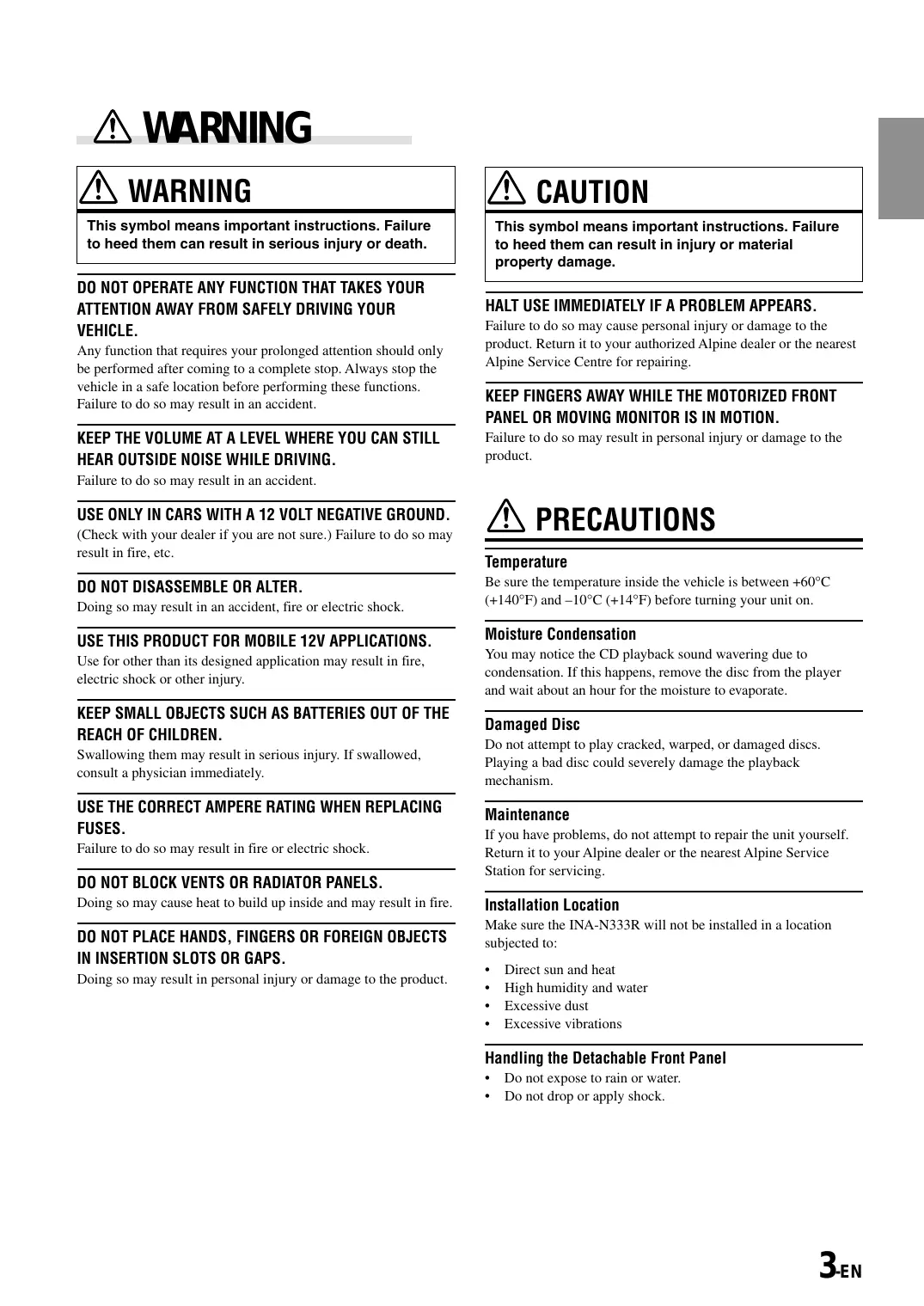
WARNING
This symbol means important instructions. Failure to heed them can result in serious injury or death.
DO NOT OPERATE ANY FUNCTION THAT TAKES YOUR ATTENTION AWAY FROM SAFELY DRIVING YOUR VEHICLE.
Any function that requires your prolonged attention should only be performed after coming to a complete stop. Always stop the vehicle in a safe location before performing these functions. Failure to do so may result in an accident.
KEEP THE VOLUME AT A LEVEL WHERE YOU CAN STILL HEAR OUTSIDE NOISE WHILE DRIVING.
Failure to do so may result in an accident.
USE ONLY IN CARS WITH A 12 VOLT NEGATIVE GROUND.
(Check with your dealer if you are not sure.) Failure to do so may result in fire, etc.
DO NOT DISASSEMBLE OR ALTER.
Doing so may result in an accident, fire or electric shock.
USE THIS PRODUCT FOR MOBILE 12V APPLICATIONS.
Use for other than its designed application may result in fire, electric shock or other injury.
KEEP SMALL OBJECTS SUCH AS BATTERIES OUT OF THE REACH OF CHILDREN.
Swallowing them may result in serious injury. If swallowed, consult a physician immediately.
USE THE CORRECT AMPERE RATING WHEN REPLACING FUSES.
Failure to do so may result in fire or electric shock.
DO NOT BLOCK VENTS OR RADIATOR PANELS.
Doing so may cause heat to build up inside and may result in fire.
DO NOT PLACE HANDS, FINGERS OR FOREIGN OBJECTS IN INSERTION SLOTS OR GAPS.
Doing so may result in personal injury or damage to the product.

CAUTION
This symbol means important instructions. Failure to heed them can result in injury or material property damage.
HALT USE IMMEDIATELY IF A PROBLEM APPEARS.
Failure to do so may cause personal injury or damage to the product. Return it to your authorized Alpine dealer or the nearest Alpine Service Centre for repairing.
KEEP FINGERS AWAY WHILE THE MOTORIZED FRONT PANEL OR MOVING MONITOR IS IN MOTION.
Failure to do so may result in personal injury or damage to the product.

PRECAUTIONS
Temperature
Be sure the temperature inside the vehicle is between +60^ (+140^) and -10^ (+14^) before turning your unit on.
Moisture Condensation
You may notice the CD playback sound wavering due to condensation. If this happens, remove the disc from the player and wait about an hour for the moisture to evaporate.
Damaged Disc
Do not attempt to play cracked, warped, or damaged discs. Playing a bad disc could severely damage the playback mechanism.
Maintenance
If you have problems, do not attempt to repair the unit yourself. Return it to your Alpine dealer or the nearest Alpine Service Station for servicing.
Installation Location
Make sure the INA-N333R will not be installed in a location subjected to:
- Direct sun and heat
High humidity and water - Excessive dust
- Excessive vibrations
Handling the Detachable Front Panel
- Do not expose to rain or water.
- Do not drop or apply shock.
Never Attempt the Following
Do not grip or pull out the disc while it is being pulled back into the player by the automatic reloading mechanism.
Do not attempt to insert a disc into the unit when the unit power is off.

Inserting Discs
Your player accepts only one disc at a time for playback. Do not attempt to load more than one disc.
Make sure the label side is facing up when you insert the disc.
Your player will automatically eject any disc that is inserted incorrectly. If the player continues to eject a correctly inserted disc, push the RESET switch with a pointed object such as a ballpoint pen.
Playing a disc while driving on a very bumpy road may result in skips, but this will not scratch the disc or damage the player.
New Discs
As a protective measure to prevent the CD from jamming, the CD player will automatically eject discs with irregular surfaces or inserted incorrectly. When a new disc is inserted into the player and ejected after initial loading, using your finger, feel around the inside of the centre hole and outside edge of the disc. If you feel any small bumps or irregularities, this could inhibit proper loading of the disc. To remove the bumps, rub the inside edge of the hole and outside edge of the disc with a ballpoint pen or other such instrument, then insert the disc again.


Irregular Shaped Discs
Be sure to use round shape discs only for this unit and never use any special shape discs.
Use of special shape discs may cause damage to the mechanism.

Correct Handling
Do not drop the disc while handling. Hold the disc so you will not leave fingerprints on the surface. Do not affix tape, paper, or gummed labels to the disc. Do not write on the disc.


CORRECT

CORRECT
Disc Cleaning
Fingerprints, dust, or soil on the surface of the disc could cause the CD player to skip. For routine cleaning, wipe the playing surface with a clean, soft cloth from the centre of the disc to the outer edge. If the surface is heavily soiled, dampen a clean, soft cloth in a solution of mild neutral detergent before cleaning the disc.

Disc Accessories
There are various accessories available on the market for protecting the disc surface and improving sound quality. However, most of them will influence the thickness and/or diameter of the disc. Using such accessories can cause the disc to be out of standard specifications and may create operational problems. We recommend not using these accessories on discs played in Alpine CD players.


Use only Alpine's exclusive Navigation Disc (not supplied) with this unit. You cannot use any other navigation discs.
You also cannot play DVD/VIDEO CDs on this unit. For operation of the navigation system, see the owner's manual for the navigation disc.

Detaching the Front Panel
1 Press and hold the SOURCE/POWER button at least 2 seconds to turn off the power.
2 Press the (Release) button at left side until the front panel pops out.
3 Grasp the left side of the front panel and pull it out.

NOTES
- The front panel may become hot in normal usage (especially the connector terminals on the back of the front panel), this is not malfunction.
- To protect the front panel, place it in the supplied carrying case.

Attaching the Front Panel
1 First, insert the right side of the front panel into the main unit. Align the groove on the front panel with the projections on the main unit.
2 Push the left side of the front panel until it locks firmly into the main unit.

NOTE
Before attaching the front panel, make sure that there is no dirt or dust on the connector terminals and no foreign object between the front panel and the main unit.
- Controllable with Remote Control

Remote control sensor
- Compatibility with Factory Steering Wheel Radio Controls
If your vehicle has steering wheel controls for the radio, an optional steering wheel control interface may be available to connect your Alpine radio. For details, contact your Alpine dealer.
Initial System Start-Up
Immediately after installing or applying power to the unit, it should be initialized. Press the RESET switch with a ballpoint pen or any other pointed object.

About Demonstration
This unit is equipped with a Demonstration function. Soon after resetting the unit or after turning the unit on the first time, the demonstration starts automatically. To cancel the demonstration, refer to "Demonstration" on page 21.
Turning Power On and Off
1 Press the SOURCE/POWER button to turn on the unit.
NOTE
The unit can be turned on by pressing any other button except the eject button and TILT button.
The volume level gradually increases to the previous level you were listening to before the unit was turned off. Press and hold the SOURCE/POWER button for at least 2 seconds to turn off the unit.
NOTE
The very first time the power is turned on, the volume will start from level 0.

Display Angle Adjustment

The movable display may be adjusted to 3 different angles depending upon user preference.
1 Press the TILT button to adjust the angle of the movable display.
NOTES
- The display will close a half minute after the ignition key is turned to the OFF position.
- The adjusted angle of the display is stored in memory. There is no need to re-adjust the angle when the power is turned back on.
CAUTION
Keep hands (or any other object) away from the display while it is opening or closing to avoid damage or injury. The back of the movable display will get very warm under normal operating conditions. This is not a malfunction. Do not touch.
Adjusting Volume/Balance (Between Left and Right)/Fader (Between Front and Rear)
1 Press the MODE (Audio Control) knob repeatedly to choose the desired mode.
Each press changes the modes as follows:
Vol. MIX* SUBW.* BAL. FAD. Vol.
Volume: 0 ~ 35
Balance: L15 ~ R15
Fader: F15 ~ R15
Subwoofer: 0 15
Mix level: 0 15
NOTES
- If the MODE (Audio Control) knob is not rotated within 5 seconds after selecting the BALANCE, or FADER mode, the unit automatically returns to the VOLUME mode.
-
- When the NAVI MIX (page 20), subwoofer (page 19) is ON, respective levels may be adjusted.
2 Turn the MODE (Audio Control) knob until the desired sound is obtained in each mode.
NOTE
When the temperature inside the unit rises, the volume may decrease momentarily. This is not a malfunction.
Automatic Position Display
1 Press the NAV. button to change the display. Automatic position (present position) and the GPS receiving sensitivity are displayed.

NOTES
- To display the present position of your vehicle, connect the GPS antenna to the unit. (Refer to "Installing the GPS Antenna" on page 39.).
- When inserting the separately sold navigation disk (NVD-T003) specialized for this unit, navigating operations from the unit become available. MENU, VOICE and TMC button are used for navigating operations.

Switching the Tuner Mode
The INA-N333R incorporates the MAX TUNE Pro for the highest quality tuner audio. Moreover, you can choose between two settings to suit your own personal sound preferences usage.
1 Press and hold the F/SETUP button for at least 2 seconds. The display changes to the SETUP screen.
2 Move the Flipper switch up or down to select FM CONDITION. Press the OK button or MODE knob to set.
3 Move the Flipper switch up or down to select your preference. Press the OK button or MODE knob to set. The display returns to the SETUP screen.
HI-Fl: Sound quality priority setting
NORMAL: Standard setting
STABLE: Noiseless priority setting
NOTES
- The initial setting at the factory is "NORMAL."
- If you find the sound is very noisy while listening to the tuner in the HI-FI mode, we recommend you change to the NORMAL mode.
4 When the setting is completed, press the F/SETUP button to return to the normal mode.
Listening to Radio
Press the SOURCE/POWER button until a radio frequency appears in the display.
2 Press the BAND/TEL. button repeatedly until the desired radio band is displayed.
$$ \mathrm {F M} - 1 \rightarrow \mathrm {F M} - 2 \rightarrow \mathrm {F M} - 3 \rightarrow \mathrm {M W} \rightarrow \mathrm {L W} \rightarrow \mathrm {F M} - 1 $$
3 Press the TUNE/A.ME button to select the tuning mode. DX SEEK (Distance mode) SEEK (Local mode) OFF (Manual mode) DX SEEK
NOTE
The initial mode is DX SEEK.
Distance mode:
Both strong and weak stations will be automatically tuned in (Automatic Seek Tuning).
Local mode:
Only strong stations will be automatically tuned in (Automatic Seek Tuning).
Manual mode:
The frequency is manually tuned in steps (Manual tuning).
4 Press the 1 or 2 button to tune in the desired station.
Holding down the I or button will change the frequency continuously.
NOTES
- The STEREO indicator appears on the display when a Stereo FM station is tuned in.
- About TMC Broadcast Indicator
The TMC indicator, which is displayed in the audio mode, is displayed when a TMC reception station is included in the selected broadcast station. The TMC information cannot be obtained.
The TMC indicator, which is displayed in the navigation mode (when optional NVD-T003 is used), is displayed when the conditions for obtaining the TMC information have been satisfied.
The optional navigation disc (NVD-T003) is required in order to obtain the TMC information.
Please see the instruction manual of the navigation disc for details.
Manual Storing of Station Presets
1 Select the radio band and tune in a desired radio station you wish to store in the preset memory.
2 Press and hold the Preset button (1 through 6) that you want to store the station on for at least 2 seconds. The selected station is stored.
3 Repeat the procedure to store up to 5 other stations onto the same band.
To use this procedure for other bands, simply select the band desired and repeat the procedure.
A total of 30 stations can be stored in the preset memory (6 stations for each band; FM-1, FM-2, FM-3, MW and LW).
NOTE
If you store a station in a preset memory which already has a station, the current station will be cleared and replaced with the new station.

Automatic Memory of Station Presets
1 Press the SOURCE/POWER button to select the radio mode.
2 Press the BAND/TEL. button repeatedly until the desired radio band is displayed.
3 Press and hold the TUNE/A. ME button for at least 2 seconds. The frequency on the display continues to change while the automatic memory is in progress. The tuner will automatically seek and store 6 strong stations in the selected band. They will be stored into buttons Preset 1 to 6 in order of signal strength. When the automatic memory has been completed, the tuner goes to the station stored in the preset location No. 1.
NOTE
If no stations are stored, the tuner will return to the original station you were listening to before the auto memory procedure began.
Tuning to Preset Stations
1 Press the SOURCE/POWER button to select the radio mode.
2 Press the BAND/TEL. button repeatedly until the desired band is displayed.
3 Press the station Preset button that has your desired radio station in memory. The display shows the band, preset number and frequency of the station selected.
Station Title Search Function
If titles for radio stations (radio frequency) are entered, you can search for a radio station from its title.
1 Press and hold the MODE knob for at least 2 seconds. The display changes to the station title search mode.
2 Move the Flipper switch up, down or press the I▶,▶ button to select the station title.
3 Press the OK button or MODE knob. The radio station with the selected title is received.
NOTES
- Press the RTN button or press and hold the MODE knob for at least 2 seconds to cancel the search mode.
- Pressing the / button will permit reception of the broadcast station of the selected title, the same as with the OK button or the MODE knob.

Setting RDS Reception Mode and Receiving RDS Stations
The RDS (Radio Data System) is a radio information system using the 57 kHz subcarrier of regular FM broadcast. The RDS allows you to receive a variety of information such as traffic information, station names, and to automatically re-tune to a stronger transmitter that is broadcasting the same programme.
Press the SOURCE/POWER button until a radio frequency appears in the display.
2 Press the F/SETUP button. The "FUNC" indicator will illuminate.
3 Press the 1/AF button to activate the RDS mode. The display shows the "AF" indicator when the RDS mode is activated.
4 Press the I or button to tune in the desired RDS station.
5 Press the 1/AF button to deactivate the RDS mode. The "AF" indicator will turn off.
6 Press the F/SETUP button to activate the normal mode. The "FUNC" indicator will turn off.
Tips
- When the unit receives the PTY31 (Emergency Broadcast) signal, the unit will show "ALARM" in the display automatically.
- The RDS digital data includes the followings:
PI Programme Identification
PS Programme Service Name
AF List of Alternative Frequencies
TP Traffic Programme
TA Traffic Announcement
PTY Programme Type
EON Enhanced Other Networks
R.TXT Radio Text Information
Recalling Preset RDS Stations
1 Press the F/SETUP button. The "FUNC" indicator will illuminate.
2 Press the 1/AF button to activate the RDS mode. The display shows the "AF" indicator when the RDS mode is activated.
3 Press the F/SETUP button to activate the normal mode. The "FUNC" indicator will turn off.
4 Press the 1 through 6 buttons in which your desired RDS station is preset. If the preset station's signal is weak, the unit automatically searches and tunes to a stronger station in the AF (Alternative Frequencies) list.
5 If the preset station and the stations in the AF list cannot be received:
When the PI SEEK setting is on (refer to "PI SEEK Setting" on page 10), the unit searches again for a station in the PI (Programme Identification) list.
If the signal level of the Regional (Local) station being tuned becomes too weak to receive, press the same preset button to tune in a Regional station in other district.
NOTE
For presetting the RDS stations, refer to the Radio Operation section. The RDS stations can be preset in the FM-1, FM-2 and FM-3 bands only.
Receiving RDS Regional (Local) Stations
1 Press and hold the F/SETUP button for at least 2 seconds. The display changes to the SETUP screen.
2 Move the Flipper switch up or down to select RDS REGIONAL. Press the OK button or MODE knob to set.
3 Move the Flipper switch up or down to select ON or OFF. Press the OK button or MODE knob to set. The display returns to the SETUP screen.
In the "RDS REGIONAL OFF" mode, the unit automatically keeps receiving the related local RDS station.
4 Press the F/SETUP button to deactivate the setting mode.

PI SEEK Setting
1 Press and hold the F/SETUP button for at least 2 seconds. The display changes to the SETUP screen.
2 Move the Flipper switch up or down to select PI SEEK. Press the OK button or MODE knob to set.
3 Move the Flipper switch up or down to select ON or OFF. Press the OK button or MODE knob to set. The display returns to the SETUP screen.
4 Press the F/SETUP button again to return to normal operation.
Receiving Traffic Information
1 Press the T.INFO/ANNC. button to activate the Traffic Information mode. To cancel the Traffic information mode, press the T.INFO/ANNC. button again.
2 Press the or button to select your desired traffic information station. When a traffic information station is tuned in, the TP indicator lights up.
Traffic information is heard only when it is being broadcast. If traffic information is not being broadcast, the unit is set in the standby mode. When a traffic information broadcast begins, the unit automatically receives it and the display shows "T.INFO".
When traffic information broadcast is over, the unit will automatically set in the standby mode.
NOTES
- If the traffic information broadcast signal falls below a certain level, the unit remains in the receiving mode for 70 seconds. If the signal remains below a certain level for over 70 seconds, the "T.INFO" indicator blinks.
- If you do not want to listen to the traffic information being received, lightly press the T.INFO/ANNC. button to skip that traffic information message. The T.INFO mode will remain in the ON position to receive the next traffic information message.
- If the volume level is changed while receiving traffic information, the changed volume level will be memorized. When traffic information is received next time, the volume level will be automatically adjusted to the level memorized
- In the T.INFO mode, the SEEK tuning selects only the TP stations.
PTY (Programme Type) Tuning
1 Press the F/SETUP button. The "FUNC" indicator will illuminate.
2 Press the 2/PTY button to activate the PTY mode, in the FM radio mode. The Programme Type of the station being currently received will be displayed for 5 seconds.
If there is no receivable PTY broadcast, "NO PTY" will be displayed for 5 seconds.
NOTE
If no buttons are pressed within 5 seconds after pressing the 2/ PTY button, the PTY mode will be automatically cancelled.
3 Press the and buttons or move the Flipper switch up or down within 5 seconds after activating the PTY mode to choose the desired programme type while the PTY (programme type) is being displayed. Each press scrolls the programme type by one.

4 Press the 2/PTY button within 5 seconds after selecting the programme type to start searching for a station in the selected programme type. If the received station is found, the programme type of the received station will be displayed for 5 seconds. If no station is found, "NO PTY" will be displayed for 2 seconds.
5 Press the F/SETUP button to activate the normal mode. The "FUNC" indicator will turn off.
NOTES
- Operate the unit while the "FUNC" indicator is illuminated. If no buttons are pressed within 5 seconds, the "FUNC" indicator will turn off.
- When the Navigation disc (sold separately) is inserted and the system is set in navigation mode, the selected language can be used with the PTY (Programme Type) or P.PTY (Priority Programme Type) language.
Receiving Traffic Information While Playing CD or Radio
1 Press the T.INFO/ANNC. button repeatedly until the T.INFO indicator appears in the display.
2 Press the 1 and > buttons to select a traffic information station if necessary.
- When a traffic information broadcast starts, the unit automatically mutes the CD player or the regular FM broadcast.
- When the traffic information broadcast finishes, the unit automatically returns to the original source play before the traffic information broadcast began.
- When traffic information stations cannot be received:
In the tuner mode:
When the TP signal can no longer be received for over 70 seconds, the "T.INFO" indicator blinks. In the CD mode:
When the TP signal can no longer be received, the traffic information station of another frequency will be selected automatically.
NOTE
The receiver is equipped with the EON (Enhanced Other Networks) function in order to keep track of additional alternative frequencies to the AF list. The EON indicator appears while an RDS EON station is being received. If the station being received does not broadcast the traffic information, the receiver automatically tunes in the related station that broadcasts the traffic information when it occurs.
3 Press the T.INFO/ANNC. button to deactivate the Traffic Information mode. The T.INFO indicator disappears.
NOTE
The unit automatically switches to a traffic information announcement even if you are listening to a source other than the radio or CD.
Priority PTY (Programme Type)
This function allows presetting of a programme type such as music category, news, etc. You can listen to a programme in the preset programme type as the unit automatically gives priority to the preset programme type when it begins broadcasting, and interrupts the programme you are currently listening. This feature is functional when your unit is set to a mode other than the LW and MW.
1 Press the F/SETUP button. The "FUNC" indicator will illuminate.
2 Press the 3/P. PTY button to activate the PRIORITY PTY mode.
The programme type will be displayed for 5 seconds. The initial setting is "News."
NOTE
If no buttons are pressed within 5 seconds after pressing the 3 / P PTY button, the PRIORITY PTY mode is automatically cancelled.
3 Press the or button or move the Flipper switch up or down within 5 seconds while "News" is being displayed to choose a desired programme type. Then press 3/P. PTY button. The PRIORITY PTY function will activate.
4 Press the 3/P. PTY button to activate the PRIORITY PTY mode again.
- To change the programme category, perform the step 3.
- To disable the PRIORITY PTY function, press and hold the 3/P. PTY button for at least 2 seconds.
NOTE
In the PRIORITY PTY function, unlike in the T.INFO function, the volume does not increase during operation.
5 Press the F/SETUP button to activate the normal mode. The "FUNC" indicator will turn off.
NOTE
Operate the unit while the "FUNC" indicator is illuminated. If no buttons are pressed within 5 seconds, the "FUNC" indicator will turn off.
Displaying Radio Text
Text messages from a radio station can be displayed.
1 Press the TITLE button while receiving FM in the radio mode to select the Radio Text display.
PS (Programme Service Name) *Station name Radio Text PS
- If titles for radio stations are entered, you can search for a radio station from its title. "Station Title Search Function" (See page 8)
The display shows "Waiting" for a few seconds.
NOTES
- If there is no receivable text message or the unit cannot receive a text message properly, the display shows "NO TEXT".
- Depending on the signal reception conditions, "Waiting" may be displayed.
CD Player Operation

MP3 can be played back if an MP3 compatible CD changer is connected. (Refer to "Changer operation" on page 22)
Opening and Closing the Movable Display
1 Press the button.
The movable display will open.


(Movable display fully opened)
To close the movable display, press the button again. The movable display will close.
NOTES
- Do not apply shock to the movable display when it is open as it may result in malfunction of the unit.
- The display will stop at the set angle when closing.
CAUTION
Keep hands (or any other object) away from the display while it is opening or closing to avoid damage or injury. The back of the movable display will get very warm under normal operating conditions. This is not a malfunction. Do not touch.
Playback
1 Press the button.
The movable display will open.

Insert a disc with the label side facing up.
2 Insert a disc with the label side facing up.
The disc will be pulled into the unit automatically. The movable display will close and playback will begin.
When a disc is already inserted, press the SOURCE/ POWER button to switch to the CD mode.
The mode will change every time the button is pressed.

(*Onlywhen the CD changer is connected)
3 To pause playback, press the button.
Pressing the / 口 button again will resume playback.
4 To eject the disc, press the button.
NOTES
- If the CD does not eject, press button again for at least 2 seconds with the movable display open.
- In CD mode, if the navigation disc (sold separately) is loaded, "NAV.DISC" is displayed.
On handling Compact Discs (CD/CD-R/CD-RW)
- Do not touch the surface.
- Do not expose the disc to direct sunlight.
- Do not affix stickers or labels and do not write on the surface.
- Clean the disc when it is dusty.
- Make sure that there are no bumps around the disc.
- Do not use commercially available disc accessories.
Do not leave the disc in the car or the unit for a long time. Never expose the disc to direct sunlight.
Heat and humidity may damage the CD and you may not be able to play it again.
To customers using CD-R/CD-RW
- If a CD-R/CD-RW cannot be played back, make sure the last recording session was closed (finalized).
- Finalize the CD-R/CD-RW if necessary, and attempt playback again.
About discs that can be used with the INAN333R models.
Use only compact discs with the label side showing the CD logo marks below.


You can play CD-Rs (CD-Recordable)/CD-RWs (CD-ReWritable) for audio use on this unit. You can not play CD-Rs/CD-RWs containing MP3 formatted audio files.
- Some of the following CDs may not play on this unit: Flawed CDs, CDs with fingerprints, CDs exposed to extreme temperatures or sunlight (e.g., left in the car or this unit), CDs recorded under unstable conditions, CDs not designed for audio use, CDs on which a recording failed or a re-recording was attempted.
Music Sensor (Skip)
Momentarily press the 1 button once during CD play to return to the beginning of the current track. If you wish to access the beginning of a track further back, repeatedly press until you reach the desired track.
Press the button once to advance to the beginning of the next track. If you wish to access the beginning of a track further ahead, press repeatedly until the desired track is reached.
NOTE
The music sensor feature is functional in the play or pause mode.
Fast Forward and Backward
1 Press and hold the 1 or 2 button to quickly move backward or forward until you reach the desired section of the track.
Repeat Play
1 Press the 5 ( ) button to play back repeatedly the track being played.
The REPEAT indicator will illuminate and the track will be played repeatedly.
Press the 5 ( ) button again and select OFF to deactivate the repeat play.
M.I.X. (Random Play)
1 Press the 4 (O) button in the play or pause mode.
The M.I.X. indicator will illuminate and the tracks on the disc will be played back in a random sequence. After all the tracks on the disc have been played back once, the player will begin a new random sequence play until the M.I.X. mode is cancelled.
To cancel M.I.X. play, press the 4 (C) button again to turn off the M.I.X.
Scanning Programmes
1 Press the 6 ( I I) button to activate the Scan mode.
The first 10 seconds of each track will be played back in succession.
To stop scanning, press the 6 ( I I) button and deactivate the Scan mode.

Displaying the Title/Text
It is possible to display the CD/Station title if the title has been previously inputted. For details, see "Titling Discs/Stations" (page 15). Text information, such as the disc name and the track name, will be displayed if playing a CD text compatible disc. If a MP3 compatible CD changer is connected, it is also possible to display the folder name, the file name, and the ID3 tag, etc. while playing MP3 files.
1 Press the TITLE button.
The mode will change every time the button is pressed.
About "Title" and "Text"
Title: With this device, it is possible to input the CD name (see page 15). This inputted name is referred to as a "title."
Text: Text compatible CDs contain text information such as the disc name and track name. Such text information is referred to as "text."
Radio mode:

CD/Changer mode:

MP3 mode (When MP3 compatible changer is connected):

1 Displayed during playback of a disc with CD Text. Nothing will be displayed when the CD contains no text data.
2 If an MP3 file contains ID3 tag information, all the ID3 tag information is displayed (e.g., track name, artist name, and album name).
All other tag data is ignored.
3 The recording sampling rate and bit rate of the MP3 file are displayed.
4 Nothing will be displayed when the title has not been inputted.
NOTES
- Some characters may not be displayed correctly with this device, depending on the character type.
- The display may not show all the information of the CD Text depending on the CD changer.
- When the Scroll Setting (refer to page 19) is set to "OFF", press and hold the TITLE button for at least 2 seconds to scroll the Text information only once (TEXT DISPLAY, FOLDER NAME DISPLAY, FILE NAME DISPLAY or TAG DISPLAY mode.)
- "NO SUPPORT" is displayed when the desired text information cannot be displayed on this unit.
Titling Discs/Stations
1 Press the TITLE button and select the title display mode. For details, see "Displaying the Title/Text" (see page 14).
2 Press the TITLE button for at least 2 seconds to change to the Title Input mode.
3 Letter symbols appear on the display. Move the Flipper switch up or down within 10 seconds to transfer the cursor to the letter symbol you want to input. Press the OK button or MODE knob to set the letter.
4 Repeat the Procedure 3. Up to 8 digits can be input. The input title is memorized automatically and displayed as title. When inputting less than 8 digits, select OK in the letter symbols shown on the display. The letters will be memorized automatically and displayed as title. Even if OK is not selected, the letters will be memorized automatically after 10 seconds.
NOTES
- In step 3 and 4, if you do not operate for at least 10 seconds, the Title Inputting mode will be canceled.
- You can also cancel the Title Inputting mode by pressing the RTN button.
- You cannot give titles to tracks.
- You can enter 24 station titles for the radio frequency and 18 disc titles on this unit. If you try to store beyond the limit, the display will show "FULL DATA" for 2 seconds. At this point, no more titles can be stored.
- To input a new title, one of the previously inputted titles must first be deleted.
- When you want to erase a title, enter the "BS" symbol into all spaces.
- When you select or , the cursor indicating the input title moves right or left.
- When selecting SP, you can insert the space.
- When you select C1 or C2, the character/symbol pattern display changes alternately.
- The CD Changer title length or memory capacity varies depending upon the model being used.
- Removing power from the unit may delete these titles. Use caution when manipulating the power cord.
- You can also press the or button instead of the Flipper switch to select a text to enter.
- You can also press the button instead of the OK button or MODE knob to set a text.
Erasing Disc Title/Station Title
1 Press the TITLE button to select the Title Display. Then, press again and hold for at least 2 seconds.
- For details, see "Displaying the Title/Text" (page 14).
2 Press and hold the OK or button or MODE knob for at least 2 seconds.
The title in the display will blink and "SEARCHING TITLE" will be displayed.
3 Move the Flipper switch up or down until the title you want to erase is displayed.
4 Press the OK or button or MODE knob. The message "DELETE OK?" is displayed.
5 Press the OK or button or MODE knob again. The title is deleted.
6 Press the TITLE button to cancel the title erasing mode.
NOTES
- You cannot erase CD-TEXT.
- "NO DATA" is displayed for 2 seconds if the title is not input in step 2, or if the all title is erased in step 5.
- You can also press the 1 or 2 button instead of the Flipper switch to select a title.
Sound Setup Operation

Turning Loudness On/Off
Loudness introduces a special low- and high-frequency emphasis at low listening levels. This compensates for the ear's decreased sensitivity to bass and treble sound.
1 Press the bass engine button to change to the bass engine mode.
2 Move the Flipper switch up or down to select LOUD. Press the OK button or MODE knob to set the LOUD mode.
3 Press the OK button or MODE knob again.
4 Move the Flipper switch up or down to select ON or OFF. Press the OK button or MODE knob to set. The display returns to the LOUD mode.
5 When the setting is completed, press the bass engine button to return to the normal mode.
NOTES
- If no button is pressed within 10 seconds, the Loudness setting will be turned off automatically.
- After 10 seconds from the completion of operation, the system returns to the normal mode automatically. If the RTN button is pressed, the display returns to the previous setting indication.
- You can also press the 1 or 2 button instead of the Flipper switch to select an item.
- You can also press the / 串 button instead of the OK button or MODE knob to set an item.
Turning Defeat Mode On/Off
By setting Defeat ON, all previously adjusted in the bass engine mode (except subwoofer mode) settings will return to the factory defaults.
1 Press the DEFEAT button for more than 2 seconds to turn Defeat on.
To cancel Defeat, press the DEFEAT button again for more than 2 seconds.
Switching the Phase of the Subwoofer Output
You can switch the phase of the subwoofer output to NORMAL 0^ or REVERSE 180^ . To select the desired phase:
1 Press the bass engine button to change to the bass engine mode.
2 Move the Flipper switch up or down to select SUBW. Press the OK button or MODE knob to set the SUBW. mode.
3 Press the OK button or MODE knob to change to the SUBW. PHASE setting display.
4 Move the Flipper switch up or down to select 0^ (NORMAL) or 180^ (REVERSE). Press the OK button or MODE knob to set.
NOTES
- If no button is pressed within 10 seconds, the Phase of the Subwoofer Output setting will be turned off automatically.
- After 10 seconds from the completion of operation, the system returns to the normal mode automatically. If the RTN button is pressed, the display returns to the previous setting indication.
Setting the Bass Control
You can change the Bass Frequency emphasis to create your own tonal preference.
1 Press the bass engine button to change to the bass engine mode.
2 Move the Flipper switch up or down to select BASS CONT. Press the OK button or MODE knob to set the BASS CONT. (Bass Center frequency control) mode.
3-1 Setting the bass Level: Move the Flipper switch up or down to select BASS LEVEL. Press the OK button or MODE knob to set. Move the Flipper switch up or down to select the desired bass level (-7 +7) . Press the OK button or MODE knob to set. You can emphasize or weaken the bass frequency.
3-2 Setting the bass Centre frequency: Move the Flipper switch up or down to select BASS FREQ. Press the OK button or MODE knob to set. Move the Flipper switch up or down to select the desired bass centre frequency (60Hz ~ 180Hz). Press the OK button or MODE knob to set. Emphasizes the displayed Bass frequency ranges.
3-3 Setting the bass Band Width (Q-Factor): Move the Flipper switch up or down to select BAND WIDTH. Press the OK button or MODE knob to set. Move the Flipper switch up or down to select the desired bass Band Width (WIDE1 (Narrow) ~ WIDE4 (Wide)). Press the OK button or MODE knob to set.
Changes the bass boost band width to narrow or wide. A wide setting will boost a wide range of frequencies above and below the centre frequency. A narrower setting will boost only frequencies near the centre frequency.
NOTES
- If no buttons are pressed within 10 seconds, the Bass control setting will be turned off automatically.
- After 10 seconds from the completion of operation, the system returns to the normal mode automatically. By pressing the RTN button, the display returns to the previous indication.
- You can also press the 1 or 2 button instead of the Flipper switch to select an item.
- You can also press the button instead of the OK button or MODE knob to set an item.
- The bass level settings will be individually memorized for each source (FM, MW (LW), CD, etc.) until the setting is changed. The bass frequency and bass band width settings adjusted for one source are effective for all other sources (FM, MW (LW), CD etc.).
- Depending on the connected devices, some functions and display indications do not work. However, bass level is still adjustable if an audio processor with the bass adjustment is connected.
Setting the Treble Control
You can change the Treble Frequency emphasis to create your own tonal preference.
1 Press the bass engine button to change to the bass engine mode.
2 Move the Flipper switch up or down to select TREBLE CONT. Press the OK button or MODE knob to set the TREBLE CONT. (Treble Center frequency control) mode.
3-1 Setting the treble Level: Move the Flipper switch up or down to select TREBLE LEVEL. Press the OK button or MODE knob to set. Move the Flipper switch up or down to select the desired Treble level (-7 +7) . Press the OK button or MODE knob to set.
You can emphasize the treble frequency.
3-2 Setting the treble Centre frequency: Move the Flipper switch up or down to select TREBLE FREQ. Press the OK button or MODE knob to set. Move the Flipper switch up or down to select the desired treble centre frequency (10.0kHz ~ 17.5kHz). Press the OK button or MODE knob to set.
Emphasizes the displayed Treble frequency ranges.
NOTES
- If no buttons are pressed within 10 seconds, the Treble control setting will be turned off automatically.
- After 10 seconds from the operation is completed, the system returns to the normal mode automatically. By pressing the RTN button, the display returns to the previous setting indication.
- You can also press the 144 or 234 button instead of the Flipper switch to select an item.
- You can also press the button instead of the OK button or MODE knob to set an item.
- The treble level settings will be individually memorized for each source (FM, MW (LW), CD, etc.) until the setting is changed. The Treble frequency settings adjusted for one source are effective for all other sources (FM, MW (LW), CD, etc.).
- Depending on the connected devices, some functions and display indications do not work. However, treble level is still adjustable if an audio processor with the treble adjustment is connected.

Changing Backlighting Colour
1 Press and hold the F/SETUP button for at least 2 seconds. The display changes to the SETUP screen.
2 Move the Flipper switch up or down to select ILLUMINATION. Press the OK button or MODE knob to set.
3 Move the Flipper switch up or down and to select GREEN or AMBER. Press the OK button or MODE knob to set. The display returns to the SETUP screen.
NOTE
If you continue to press the Flipper switch to up or down, the cursor position moves continuously.
4 When the setting is completed, press the F/SETUP button to return to the normal mode.
NOTES
- You can also press the 1 or button instead of the Flipper switch to select an item.
- You can also press the / 串 button instead of the OK button or MODE knob to set an item.
- "Switching the Tuner Mode" in the SETUP items is described in the Radio Operation on page 7.
- "Receiving RDS Regional (Local) Stations" and "PI SEEK Setting" in the SETUP items are described in the RDS Operation on page 9 and 10.
- "Receiving Announcement Information of DAB Local Station", "Setting for Automatic Change from DAB to RDS" and "Setting ON/OFF for DRC" in the SETUP items are described in the DAB Operation on page 28. The setting can be operated only when the optional DAB receiver Box is connected.
- "Setting the Range of MP3 File Selection" in the SETUP items is described in the Changer Operation on page 24. The setting can be operated only when the optional changer compatible with MP3 is connected.
- "Switching the incoming calls of the telephone" in the SETUP items is described in the MobileHub™ Link Operation on page 30. The setting can be operated only when the optional portable telephone and the Mobile Hub are connected.
Sound (Beep) Guide Function
This function will give audible feedback with varying tones depending upon the button pressed.
1 Press and hold the F/SETUP button for at least 2 seconds. The display changes to the SETUP screen.
2 Move the Flipper switch up or down to select BEEP. Press the OK button or MODE knob to set.
3 Move the Flipper switch up or down to select OFF or set your preferred volume. The volume can be set one of the three steps: LOW, MID, and HIGH. Press the OK button or MODE knob to set. The display returns to the SETUP screen.
NOTES
- The initial setting at the factory is BEEP OFF.
- When an external audio processor is connected, the beep tone does not function although the BEEP setting is set to on.
- The beep tone will be output from the front speakers only.
4 When the setting is completed, press the F/SETUP button to return to the normal mode.
Displaying Time
1 Press and hold the F/SETUP button for at least 2 seconds. The display changes to the SETUP screen.
2 Move the Flipper switch up or down to select CLOCK DISPLAY. Press the OK button or MODE knob to set.
3 Move the Flipper switch up or down to change the clock display ON or OFF. Press the OK button or MODE knob to set. The display returns to the SETUP screen.
4 When the setting is completed, press the F/SETUP button to return to the normal mode.
Setting Time
1 Press and hold the F/SETUP button for at least 2 seconds. The display changes to the SETUP screen.
2 Move the Flipper switch up or down to select CLOCK ADJUST. Press the OK button or MODE knob to set.
3 Move the Flipper switch up or down to select HOUR. Press the OK button or MODE knob to set. Move the Flipper switch up or down again to set the "Hour". After adjustment, press the RTN button to return to the previous indication.
4 Move the Flipper switch up or down to select MINUTE. Press the OK button or MODE knob to set. Move the Flipper switch up or down again to set the "Minute". After adjustment, press the RTN button to return to the previous indication.
5 When the setting is completed, press the F/SETUP button to return to the normal mode.
Setting the Clock Auto Adjustment
If this is set to ON, the clock display calculated from the GPS information is available.
1 Press and hold the F/SETUP button for at least 2 seconds. The display changes to the SETUP screen.
2 Move the Flipper switch up or down to select AUTO GPS CLOCK. Press the OK button or MODE knob to set.
3 Move the Flipper switch up or down to select ON or OFF. Press the OK button or MODE knob to set. The display returns to the SETUP screen.
4 When the setting is completed, press the F/SETUP button to return to the normal mode.
NOTES
- Only minute and second are adjusted automatically.
- Set the Clock Auto Adjustment to OFF, when not connecting to GPS antenna.
Subwoofer On and Off
1 Press and hold the F/SETUP button for at least 2 seconds. The display changes to the SETUP screen.
2 Move the Flipper switch up or down to select SUBWOOFER. Press the OK button or MODE knob to set.
3 Move the Flipper switch up or down to select ON or OFF. Press the OK button or MODE knob to set. The display returns to the SETUP screen.
4 Press the F/SETUP button after setting the SUBWOOFER ON.
Press the MODE (Audio Control) knob repeatedly to select the SUBWOOFER mode.

6 Turn the MODE (Audio Control) knob until the desired sound is obtained in each mode.
Scroll Setting
When the display of text characters etc., does not fit on the display, it is scrolled.
When the display of text characters fit on the display, it is not scrolled even if the Scroll ON/OFF setting is performed.
1 Press and hold the F/SETUP button for at least 2 seconds. The display changes to the SETUP screen.
2 Move the Flipper switch up or down to select AUTO SCROLL. Press the OK button or MODE knob to set.
3 Move the Flipper switch up or down to select ON or OFF. Press the OK button or MODE knob to set. The display returns to the SETUP screen.
- ON: the display of CD text, etc., is scrolled continuously.
- OFF: the display is scrolled only when a disc is loaded or when a track is changed, etc.
4 When the setting is completed, press the F/SETUP button to return to the normal mode.
NOTES
- Initial mode is "OFF".
- The disc titles input manually (refer to page 15) cannot be scrolled.

Navigation Interruption and Adjusting its Volume (NAVI MIX)
When the voice guidance of the navigation system starts, the volume level of any currently playing audio source is reduced automatically. You can also adjust the volume level of voice guidance.
1 Press and hold the F/SETUP button for at least 2 seconds. The display changes to the SETUP screen.
2 Move the Flipper switch up or down to select NAVI MIX. Press the OK button or MODE knob to set.
3 Move the Flipper switch up or down to select ON or OFF. Press the OK button or MODE knob to set. The display returns to the SETUP screen.
4 Press the F/SETUP button after setting the NAVI MIX ON.
Press the MODE (Audio Control) knob repeatedly to select the NAVI MIX mode.
MIX BAL. FAD. Vol. MIX
6 Turn the MODE (Audio Control) knob until the desired sound is obtained in each mode.
NOTES
- When the voice guidance of the Navigation system starts to interrupt the audio the display is automatically changed to the navigation screen.
- The audio volume during the navigation guide can be set by adjusting the audio volume while the navigation guide continues. When the navigation guide finishes, the previous audio volume and the previous screen are restored. For exception, if the navigation cuts in when the audio volume is lower than the setting level, the audio volume during the navigation guide is reset the current listening volume. (When the navigation guide cuts in, the audio volume does not increase.)
- The voice guidance will be output from the front speakers only.
- When connecting the external audio processor to the unit, ensure the output of the voice guidance by connecting the external speaker (KAX-551N).
Auto Volume Setting
This is a function that changes the Volume, Bass value according to the car speed pulse for the compensation of hearing by noise. The desirable compensation amount can be selected from 6 patterns.
1 Press and hold the F/SETUP button for at least 2 seconds. The display changes to the SETUP screen.
2 Move the Flipper switch up or down to select AUTO VOLUME. Press the OK button or MODE knob to set.
3 Move the Flipper switch up or down to select your preferred Volume pattern (VOL 1: small compensation to VOL 6: large compensation. Set VOL, to OFF when the function is not used.) Press the OK button or MODE knob to set. The display returns to the SETUP screen.
4 When the setting is completed, press the F/SETUP button to return to the normal mode.
Setting the AUX Mode (V-Link)
You can input TV/video sound by connecting an optional Ai-NET/RCA Interface cable (KCA-121B) or Versatile Link Terminal (KCA-410C) to this component.
1 Press and hold the F/SETUP button for at least 2 seconds. The display changes to the SETUP screen.
2 Move the Flipper switch up or down to select AUXILIARY INPUT. Press the OK button or MODE knob to set.
3 Move the Flipper switch up or down to select your preferred auxiliary mode. Press the OK button or MODE knob to set. The disp returns to the SETUP screen.
OFF:
You cannot select an external input sound source.
ON:
You can select an external input sound source. You can also select an AUXILIARY LABEL for external input*.
-
- Move the Flipper switch up or down to select the AUXILIARY LABEL on the SETUP display. Press the OK button or MODE knob to set.
- Move the Flipper switch up or down to select your preferred name from AUX, GAME, VCR, TV and MP3. Press the OK button or MODE knob to set.
AUXILIARY LABEL
You can select and set a name of external input when Versatile Link Terminal (KCA-410C) is not connected.
AUX-1 LABEL/AUX-2 LABEL
You can select an AUXILIARY LABEL when Versatile Link Terminal (KCA-410C) is connected.
NOTE
When connecting the Versatile Link Terminal (KCA-410C), you can set two AUX mode displays.
4 When the setting is completed, press the F/SETUP button to return to the normal mode.
5 To adjust the volume, etc., first press the SOURCE/ POWER button and select the AUX mode, then make the necessary adjustment.
NOTE
When using the Versatile Link Terminal (KCA-410C), you can connect two external inputs. To select the mode, press the BAND/TEL button on the unit.
Turning Mute Mode On/Off
If a device having the interrupt feature is connected, audio will be automatically muted whenever the interrupt signal is received from the device. This function can be turned ON or OFF from the head unit by following procedure below.
1 Press and hold the F/SETUP button for at least 2 seconds. The display changes to the SETUP screen.
2 Move the Flipper switch up or down to select MUTE. Press the OK button or MODE knob to set.
3 Move the Flipper switch up or down to select ON or OFF. Press the OK button or MODE knob to set. The display returns to the SETUP screen.
NOTE
The initial setting at the factory is "MUTE ON."
4 When the setting is completed, press the F/SETUP button to return to the normal mode.
NOTE
When Mute is set to OFF, if an external interruption (e.g., vehicle phone) happens, the display shows "INT". When Mute is set to ON, the display shows "MUTE".
Adjusting Source Signal Level
If the difference in volume level between the CD player and FM radio is too great, adjust the FM signal level as follows.
1 Press and hold the F/SETUP button for at least 2 seconds. The display changes to the SETUP screen.
2 Move the Flipper switch up or down to select FM LEVEL. Press the OK button or MODE knob to set.
3 Move the Flipper switch up or down to select HIGH or LOW. Press the OK button or MODE knob to set. The display returns to the SETUP screen.
4 When the setting is completed, press the F/SETUP button to return to the normal mode.
Demonstration
This unit has the Demonstration feature which simulates the display functions on the display panel.
1 Press and hold the F/SETUP button for at least 2 seconds. The display changes to the SETUP screen.
2 Move the Flipper switch up or down to select DEMO. Press the OK button or MODE knob to set.
3 Move the Flipper switch up or down to select ON or OFF. Press the OK button or MODE knob to set. The display returns to the SETUP screen.
If no buttons are pressed 30 seconds after the DEMO mode is turned ON, the DEMO mode then begins.
NOTES
- The initial setting at the factory is "DEMO ON".
- The demonstration operation will repeat automatically until the DEMO mode is changed to OFF.
4 When the setting is completed, press the F/SETUP button to return to the normal mode.
Changer Operation (optional)

Controlling Changer (Optional)
An optional 6-disc (including MP3 compatible changer) or 12-disc CD Changer may be connected to the INA-N333R if it is Ai-NET compatible. With a CD Changer connected to the Ai-NET input of the INA-N333R, the CD Changer will be controllable from the INA-N333R.
Using the KCA-400C (the Multi-Changer Switching device) or KCA-410C (Versatile Link Terminal) multiple changers can be controlled by the INA-N333R.
See the Multi-Changer Selection section on this page for selecting the CD Changers.
NOTES
- The controls on the INA-N333R for CD Changer operation are operative only when a CD Changer is connected.
- The DVD changer (optional) is controllable from the INAN333R as well as the CD changer.
1 Press the SOURCE/POWER button to activate the CHANGER mode. The display shows the disc number and track number.
NOTE
The source indicator varies depending on the connected source.
2 Press the Disc Select buttons (1 through 6)
corresponding to one of the discs loaded in the CD Changer. The selected disc number appears in the display and CD playback starts.
3 To pause playback, press the button.
Pressing the / 口 button again will resume playback.
NOTES
- After selecting the desired disc, you can operate in the same way as for the CD player. For details, please see the CD Operation section.
- If the "FUNC" indicator is illuminated the Disc Select buttons become nonfunctional.
- The MP3 indicator is lit during MP3 playback.
- Press BAND to switch the Disc mode in the CD/DVD/Changer mode.
- When an MP3 compatible CD player is connected, the unit can play discs containing both audio data and MP3 data.
When a 12-disc CD Changer is connected:
To select discs numbered from 1 to 6, the procedure is the same as for the 6-disc CD Changer. To select discs numbered from 7 to 12, first press the F/SETUP button. This changes the "D" indicator to "d". Then press the desired Preset button. With the F/SETUP button activated, the Preset buttons 1 to 6 will represent discs 7 to 12 respectively.
Multi-Changer Selection
Alpine's Ai-NET system will support up to 6 CD Changers. When operating two or more changers, the KCA-400C (Multi-Changer Switching device) must be used. If you use 1 Switching device, you can connect up to 4 CD Changers. If you use 2 Switching devices, you can connect up to 6 CD Changers. When using KCA-410C (Versatile Link Terminal), you can connect two changers and two external outputs (AUX).
1 Press the SOURCE/POWER button to activate the CD Changer mode.
Alternatively, press the SOURCE button on the Remote Control (optional) to activate the CD Changer mode. Proceed to Step 3 below to select the desired CD Changer.
2 Press the BAND button on this unit or the Remote Control (optional) to activate the CD Changer Selection mode.
3 The CD Changer Selection mode remains active for 3 seconds after Step 2 is performed. Press the BAND button on this unit or the Remote Control until the desired CD Changer indicator appears on the display.
NOTES
- If the selected CD Changer is not connected, the display will show "NO CHANGER."
- For further details about the external input (AUX) when using KCA-410C, see "Setting the AUX Mode (V-Link)" on page 20.
Music Sensor (Skip)
Momentarily press the button once during CD play to return to the beginning of the current track (file). If you wish to access the beginning of a track (file) further back, repeatedly press until you reach the desired track (file).
Press the button once to advance to the beginning of the next track (file). If you wish to access the beginning of a track (file) further ahead, press repeatedly until the desired track (file) is reached.
NOTE
The music sensor feature is functional in the play or pause mode.
Fast Forward and Backward
1 Press and hold the 1 or 2 button to quickly move backward or forward until you reach the desired section of the track (file).
Repeat Play
1 Press the F/SETUP button. The "FUNC" indicator will illuminate.
2 Within 5 seconds, press the 5 ( ) button to play back repeatedly the track being played. The track (file) will be played repeatedly.
$$ \text {R E P E A T} \rightarrow^ {*} \text {R E P E A T A L L} \rightarrow (\text {o f f}) \rightarrow \text {R E P E A T} $$
Press the 5 ( ) button again and select OFF to deactivate the repeat play.
NOTES
- *The REPEAT ALL mode is selected, the unit repeatedly plays back all tracks (files) on the selected disc.
- If a CD changer applicable to MP3 is connected, when you select "FOLDER" and set to REPEAT ALL in the "Setting the Range of MP3 File Selection" section on page 24, the Files will be repeatedly played back.
- In case a 12-disc CD changer is connected: In changer mode, press the F/SETUP button twice to illuminate the "FUNC" indicator and go to step 1 within 5 seconds.
M.I.X. (Random Play)
1 Press the F/SETUP button. The "FUNC" indicator will illuminate.
2 Within 5 seconds, press the 4() button in the play or pause mode. The tracks (files) on the disc will be played back in a random sequence.
$$ M. I. X. \rightarrow^ {*} A L L M. I. X. \rightarrow (o f f) \rightarrow M. I. X. $$
To cancel M.I.X. play, press the 4 (C) button again to turn off the M.I.X.
NOTES
If a CD Changer equipped with the ALL M.I.X. function is connected, ALL M.I.X. will also be selectable. In this mode, the tracks on all the CDs in the current magazine will be included in the random playback sequence.
- In case an MP3 compatible CD changer is connected: When you select "FOLDER" and set to M.I.X. in the "Setting the Range of MP3 File Selection" section on page 24, the Files in the Folder are played back in random sequence. After all the files have been played back, play does not shift to the next Folder.
- In case a 12-disc CD changer is connected: In changer mode, press the F/SETUP button twice to illuminate the "FUNC" indicator and go to step 1 within 5 seconds.
Scanning Programmes
1 Press the F/SETUP button. The "FUNC" indicator will illuminate.
2 Within 5 seconds, press the 6(-1 - 1) button to activate the Scan mode. The first 10 seconds of each track (file) will be played back in succession.
To stop scanning, press the 6 ( I I) button and deactivate the Scan mode.
NOTES
- If a CD changer applicable to MP3 is connected: When you select "FOLDER" in the "Setting the Range of MP3 File Selection" section on page 24, the first 10 seconds of each File in the Folder will be played back.
- In case a 12-disc CD changer is connected: In changer mode, press the F/SETUP button twice to illuminate the "FUNC" indicator and go to step 1 within 5 seconds.
Changer Operation (optional)

Selecting Folders (only for MP3 compatible changer)
Operation I from the main unit button:
1 Move the Flipper switch up or down to select the folder.
Operation II from the main unit button:
1 Press the F/SETUP button so that the "FUNC" indicator will illuminate.
2 Within 5 seconds, press the 1/FOLDER DN or 2/ FOLDER UP button to select the folder.
File/Folder Search (only for MP3 compatible changer)
You can locate all the files on a disc and play them.
1 Press and hold the MODE knob for at least 2 seconds. The unit switches to File/Folder Search Mode.
2 Press and hold the button for at least 2 seconds to select the File search mode or Folder search mode.
3 Move the Flipper switch up or down or press the I▶,▶ to select the desired file or folder.
4 Press the OK button or MODE knob to execute the setting. The selected file or folder starts to play.
NOTE
During search, press the RTN button or press and hold the MODE knob for at least 2 seconds to cancel the Search mode.
Setting the Range of MP3 File Selection (only for MP3 compatible changer)
When an MP3 compatible CD changer is connected, you can set the range of MP3 file selection to "entire disc contents" or "folder contents only."
1 Press and hold the F/SETUP button for at least 2 seconds.
2 Move the Flipper switch up or down to select MP3 PLAY. Press the OK button or MODE knob to set.
3 Move the Flipper switch up or down to toggle the mode between ALL and FOLDER.
- ALL : plays all the files on one disc
- FOLDER : plays files in the selected folder only.
4 Press the OK button or MODE knob to set. The display returns to the SETUP screen.
NOTE
The initial setting at the factory is ALL.
5 Press the F/SETUP button to set the selected mode.
DAB Operation (optional)

Using DAB Receiver for the Ensemble Seek Tuning (Optional)
DAB (Digital Audio Broadcasting) offers excellent sound quality even in a moving vehicle, enabling you to receive various types of information, including weather and traffic information, and it also displays information sent from the broadcasting stations. You can also let urgent broadcasts or announcements interrupt a current broadcast.
NOTES
- If you connect the DAB Receiver Box TUA-T100DAB (separately sold), you can control DAB for the reception of broadcast.
- CD quality sound can be obtained from DAB broadcasts, although quality may differ on some services.
- Some broadcasting stations may perform test broadcasts.
- When DAB reception is poor, metallic noise may occur. This is not a malfunction.
1 Press the SOURCE/POWER button to select DAB.
2 Press the BAND/TEL. button to select DAB1, DAB2, or DAB3.
3 If you press and hold the or button while receiving DAB1, 2, or 3, it starts searching for ensemble automatically.
By selecting the mode in the "Changing the Display Mode" section (see page 27), the display shows the status of the broadcasting stations that have been received as follows:
Ensemble/Service Label Display: the Ensemble/ Service Label of received station is displayed.
Service/Component Label Display: the Service/ Ensemble Label is displayed for 2 seconds, and then the display is changed to the Service Label and Component Label after receiving the broadcasting station.
Dynamic Label Display: the Service/Ensemble Label is displayed for 2 seconds, and then the display is changed to the Dynamic Label after receiving the broadcasting station.
Tips
When you use DAB, you can select a desired ensemble which may contain one or more services, any of which can be received. Furthermore, each service contains a Service Component, which itself can contain any number of Primary or Secondary services, depending on the Service Component. Several different kinds of service can therefore be selected.
Changing the Service
Services are received within the ensemble that you are currently receiving.
1 While receiving the ensemble, momentarily press the 1 or 2 button, and select the service that you desire.
The selected service label is displayed for 2 seconds, and then you return to the display that you select with the steps described under the section "Changing the Display Mode" (see page 27).
Changing the Service Component
You can change Audio Services of the Service Component between the Primary and Secondary, when listening to an Audio Service that has a Secondary Service Component.
1 Press the F/SETUP button so that "FUNC" will illuminate.
2 Press the 4 / P/S button to change the Service Component between the Primary and Secondary broadcast. Every time you press the button the selection toggles. The Component label is displayed for 2 seconds, and then you return to the display that you selected with the steps described under the section "Changing the Display Mode" (see page 27).
NOTES
- If there exists a Secondary Service Component within a service, the indicator "S" blinks on the display. When receiving the Secondary Service Component, the indicator "S" remains lit.
- When receiving the Primary Service Component, the "P" indicator lights up.
Memorizing the Service
1 Select the service that you want to memorize.
2 Press any one of the Preset buttons (1 through 6) for at least 2 seconds while the "FUNC" indicator is turned off. The selected service is memorized.
3 To memorize more, repeat the above steps 1 and 2. NOTES
- You can memorize up to 18 stations (6 stations for each band; DAB1, DAB2, DAB3).
- If you select a preset button that has already memorized a service, the new selection takes it over.
- When you are not receiving DAB, the service is not memorized. (Memorize the service when the DAB reception is good)
DAB Operation (optional)

Receiving the Memorized Service
1 Press the BAND/TEL. button to select your desired band.
2 Press one of the Preset buttons (1 through 6). The selected service is received. By selecting the mode in the "Changing the Display Mode" section (see page 27), the display shows the status of the broadcasting stations that have been received as follows:
Ensemble/Service Label Display: the Ensemble/ Service Label of received station is displayed.
Service/Component Label Display: the Service/ Component Label after receiving the broadcasting station.
Dynamic Label Display: the Service/Ensemble Label is displayed for 2 seconds, and then the display is changed to the Dynamic Label after receiving the broadcasting station.
NOTE
When you receive the Secondary Service Component, you memorize the service, but when you call out this memorized service, the Primary Service Component will be called out.
Memorizing the Ensemble Automatically
1 Press the BAND/TEL. button to select the band that you want to receive.
2 Press and hold the TUNE/A.ME button for at least 2 seconds. The ensemble is searched for, and six ensembles are automatically received and memorized with the preset buttons (1 through 6). When memorization has completed, the Ensemble that was memorized last is received.
By selecting the mode in the "Changing the Display Mode" section (see page 27), the display shows the status of the broadcasting stations that have been received as follows:
Ensemble/Service Label Display: the Ensemble/ Service Label of received station is displayed.
Service/Component Label Display: the Service/ Ensemble Label is displayed for 2 seconds, and then the display is changed to the Service/Component Label after receiving the broadcasting station.
Dynamic Label Display: the Service/Ensemble Label is displayed for 2 seconds, and then the display is changed to the Dynamic Label after receiving the broadcasting station.
NOTE
If no ensemble is received, the one that has been received before you perform this automatic memorization is received.
PTY (Programme Type) Tuning
1 Press the F/SETUP button so that "FUNC" will illuminate.
2 Press the 2/PTY button to go to the PTY Select mode.
3 Press the 14 or 15 button or move the Flipper switch up or down to select your desired programme type.
4 After selecting a programme type, and when the "FUNC" indicator will illuminate, press the 2/PTY button to go to the PTY Search mode. The selected programme type is searched for.
NOTE
To cancel the PTY Search mode during the PTY search, press the 2/PTY button.
5 When the station is received, the received programme type is displayed for 5 seconds. If no station is found, "NO PTY" is displayed for 2 seconds. Then, the selected programme type will be displayed for 3 seconds and the PTY mode will end.
NOTES
- Above functions can be performed only for services within an Ensemble.
- PTY selected here is reflected to the RDS broadcast.
Turning ON/OFF Traffic News Announcement
When you set to ON, you can automatically receive the Traffic News.
1 Press the T.INFO/ANNC. button to set ON/OFF for the Traffic News.
You can also set the RDS stations at the same time.
NOTE
This operation can also be performed by turning the Traffic News ON/OFF in the "Setting the Announcement Select Mode" section on this page.
Setting the Announcement Select Mode
Press the T.INFO/ANNC. button for at least 2 seconds to turn ON the Announcement Select mode.
2 Press the 1 or 2 button to select "Announcement," and then press the 3 button to set it ON.
3 After turning ON the "Announcement," press the I<or button to select your desired Announcement.

4 Press the button to set ON/OFF for the selected Announcement. Repeat Steps 3 and 4 to set more.
5 To set the Announcement Select mode OFF, press the T.INFO/ANNC. button for at least 2 seconds.
NOTES
- When one of the selections between "All Select" and "Financial" is set ON, no announcement interrupts are made if you set OFF for the "Announcement."
- If you set ON/OFF with the "All Select" selection, you can set ON/OFF for the selections from "Traffic News" to "Financial."
Tips
- When an urgent broadcast is received, the mode automatically changes to the DAB mode to receive the Alarm Announcement. If you adjust the volume level at this time, that volume level is memorized, and that volume level is applied the next time you receive an urgent broadcast.
- If the announcement that you select in Step 3 interrupts, the selected announcement Label is displayed. If you adjust the volume level at this time, that volume level is memorized, and that volume level is applied the next time announcement interrupts.
Changing the Display Mode
You can display information that is sent from broadcasting stations, such as the channel number or the service name that you are receiving or listening.
1 While receiving DAB, press the TITLE button to change the display mode.

1: You can display this only when the broadcasting station supplies the Service Component Label. Otherwise, "NO COMPONENT" is displayed.
2: If you set "ON" for "Scroll Setting," the character information that is sent from the broadcasting station is scrolled when it displayed. If you are set to "OFF" while displaying the Dynamic Label and press and hold the TITLE button for at least 2 seconds, you can scroll the character information once.
- "NO SERVICE" is displayed when there is no service, while "NO ENSEMBLE" is displayed when there is no ensemble label.
- "NO TEXT" is displayed when broadcasting stations which contain no Dynamic Label are received.
DAB Operation (optional)

Receiving Announcement Information of DAB Local Stations
1 Press and hold the F/SETUP button for at least 2 seconds. The display changes to the SETUP screen.
2 Move the Flipper switch up or down to select DAB REGIONAL. Press the OK button or MODE knob to set.
3 Move the Flipper switch up or down to select ON or OFF.
ON: You can automatically receive the announcement interrupt of the regional you are currently in. OFF: Announcement interrupt is valid for all regions.
Press the OK button or MODE knob to set. The display returns to the SETUP screen.
4 When the setting is completed, press the F/SETUP button to return to the normal mode.
NOTES
- You can also press the or button instead of the Flipper switch to select an item.
- You can also press the / 串 button instead of the OK button or MODE knob to set an item.
Setting for Automatic Change from DAB to RDS
When the DAB reception is poor, you can set this selection ON to automatically change to the RDS station (a station that can be received) within the same broadcasting station until good reception is achieved. You can switch this for voice only (except Service label/ Dynamic label display). The display and operation remain as for DAB.
1 Press and hold the F/SETUP button for at least 2 seconds. The display changes to the SETUP screen.
2 Move the Flipper switch up or down to select RDS/ DAB SW. Press the OK button or MODE knob to set.
3 Move the Flipper switch up or down to select ON or OFF. Press the OK button or MODE knob to set. The display returns to the SETUP screen.
4 When the setting is completed, press the F/SETUP button to return to the normal mode.
NOTE
When reception is being changed from DAB to RDS, the DAB indicator blinks.
Setting ON/OFF for DRC (Dynamic Range Control)
If you set this ON when receiving the sound of a wide Dynamic Range, the DRC (Dynamic Range Control) gain increases when the source sound is small, and the DRC (Dynamic Range Control) gain decreases when the source sound is large, making the Dynamic Range narrower to give you better and more comfortable sound even in the vehicle that produces a large noise.
1 Press and hold the F/SETUP button for at least 2 seconds. The display changes to the SETUP screen.
2 Move the Flipper switch up or down to select DRC. Press the OK button or MODE knob to set.
3 Move the Flipper switch up or down to select ON or OFF. Press the OK button or MODE knob to set. The display returns to the SETUP screen.
4 When the setting is completed, press the F/SETUP button to return to the normal mode.
NOTE
When a radio programme is set to ON, sound other than what you previously set may be produced depending on the broadcast. In this case, turn the programme OFF.
MobileHub™ Link Operation (optional)

About MobileHub™ Link (Optional)
Connect a separately sold Junction Box and a portable telephone (available from Nokia) to control the incoming and outgoing calls of the portable telephone.
About Icon Indicator

Signal strength indicator: Telephone signal strength is displayed at 4 levels.

Unread mail icon indicator: lights when there is an unread short message.

Missed call icon indicator: lights when there is a missed call.
CAUTION
- Even with hands-free operation, a driver can be distracted during telephone operation or receiving a call. For the sake of safety, drivers are requested to refrain from operating the telephone while driving.
- For the sake of safety, operations other than incoming calls and Speed-Dial outgoing calls cannot be used.
NOTES
- If a portable telephone is connected, its address book, incoming and outgoing history, short message history are downloaded to the Junction Box.
- Please refer to the instruction manual of the Junction BOX.
Telephone Mode On and Off
1 Press and hold the BAND/TEL. button for at least 2 seconds.
After the Network Operator display is shown for about 2 seconds, the display changes to the Speed Dial screen.
See relevant pages for each item.
Press and hold the BAND/TEL. button for at least 2 seconds or press the RTN button to cancel the telephone mode.
NOTES
- When a portable telephone is not connected, "NO PHONE" is displayed for at least 2 seconds, then the mode returns to the original source mode.
- When the portable telephone is taken off the Junction BOX during an incoming or outgoing call, or during a hands-free call, the call will be treated as an ordinary one by the portable telephone.
- When there is an incoming call while the power of INA-N333R is OFF, the power of INA-N333R will turn ON automatically for a hands-free call.
- Even if the power of the portable telephone is OFF, when INA-N333R is set to the telephone mode, the power of the portable telephone will be turned ON.
- Even if the ACC power of the vehicle is turned OFF (even if the engine is stopped) during a hands-free call, the call is not disconnected, and an ordinary call by the portable telephone is possible.
- If there is an incoming call during operation (except an outgoing call or talking), operation mode will end and switch to the incoming or talking mode.
- An outgoing call from a portable telephone is also possible. However, you cannot perform different operations at the same time from a portable telephone and INA-N333R as malfunction can result.
- With a Junction BOX connected, outgoing and incoming history will also be recorded in the portable telephone.
- The telephone volume can be adjusted from the INA-N333R. The volume you set during the call is memorized, and is automatically applied again on the next call.
- While telephoning, defeat is set to ON. When the call has finished, the unit returns to your previous setting.
- In a status other than telephoning, receiving incoming calls or making a call, press the TITLE button to show the Network Operator display for 2 seconds.
- After a call, instead of going to a talking mode, the unit displays the message "NO NETWORK COVERAGE" or "BUSY" for about 2 seconds and then disconnects the line.
- Within 5 seconds after a call, press the button, OK button or MODE knob to radial.
- During a call, you can send dial tone signals 1 to 6 using preset buttons 1 through 6, and dial tone signals 7 to 9, 0, * and # by pressing F/SETUP, and then preset buttons 1 through 6.
- Pressing the OK button in the navigation mode (when optional navigation disc NVD-T003 is used) will not allow selection of message transmissions, item definitions, or items obtained by moving the Flipper switch.
MobileHub™ Link Operation (optional)

Incoming Calls
1 Press the / or OK button to receive an incoming call.
2 Press and hold the BAND/TEL. button for at least 2 seconds to finish a call. Or the line is disconnected automatically if 5 seconds elapse after the call. The telephone mode will end and return to the original source mode.
NOTES
- An incoming call can be received by pressing the MODE knob.
- When the Automatic Calling mode is on, you can talk after 3 seconds of receiving the incoming call.
- Press and hold BAND/TEL for at least 2 seconds during an incoming call to disconnect it.
-
The incoming call can be switched to Automatic Calling or Manual Calling.
-
Press and hold the F/SETUP button for at least 2 seconds. The display changes to the SETUP screen.
- Move the Flipper switch up or down to select TEL RECEIVE. Press the OK button or MODE knob to set.
- Move the Flipper switch up or down to select AUTO or MANUAL. Press the OK button or MODE knob to set. The display returns to the SETUP screen.
- When the setting is completed, press the F/SETUP button to return to the normal mode.
Calling
■ Calling by using the Speed Dial
You can place a call by retrieving one of the telephone numbers registered in No. 1 to 9 of the address book.
1 Press and hold the BAND/TEL. button for at least 2 seconds.
The display changes to the Speed dial screen.
2 Press the Preset buttons (1 through 6) to place a call. Or press the F/SETUP button and then press the Preset button (1 through 3). The telephone numbers stored in 7 through 9 can be accessed.
The display changes to the Select screen.
3 Press the OK button or MODE knob to place a call. If you press and hold the Preset button selected in step 2 for at least 2 seconds, you can place the call directly.
4 Press and hold the BAND/TEL. button for at least 2 seconds to finish the call. Or the line is disconnected automatically if 5 seconds elapse after the call. The telephone mode will end and return to the original source mode.
NOTES
- If there is no telephone number registered to a preset button, "ERROR" is displayed for 2 seconds when you try to place a call.
- You can also place a call by pressing the button.
- Calling by the phone book
You can call up the phone book registered in the portable telephone to call from.
1 Press and hold BAND/TEL. button for at least 2 seconds.
The display changes to the Speed dial screen.
2 Press the BAND/TEL. button to select the Phone Book mode.
The Phone Book list is displayed.
3 Move the Flipper switch up or down to select the other party.
- To skip alphabetically to the next (or previous) set of name, press continuously the Flipper switch up or down.
4 Press the OK button or MODE knob. The display changes to the Select screen.
Press the OK button or MODE knob again to place the call.
6 Press and hold the BAND/TEL. button for at least 2 seconds to finish the call. Or the line is disconnected automatically if 5 seconds elapse after the call. The telephone mode will end and return to the original source mode.
NOTES
- If no item is registered, "NO MEMORY" is displayed.
- You can also press the or button instead of the Flipper switch to select the other party.
- You can also press the button instead of the OK button or MODE knob to set an item or to place a call.
- Calling by the outgoing/incoming/absent incoming history
You can place a call to any of the last 999 calls by outgoing/incoming/absent incoming history.
1 Press and hold BAND/TEL. button for at least 2 seconds. The display changes to the Speed dial screen.
2 Press the BAND/TEL. button to select "DIALED" (outgoing history), "RECEIVED" (incoming history) or "MISSED" (incoming history).
- If no history is registered to any of the lists, NO MEMORY is displayed.
3 Move the Flipper switch up or down to select the other party.
- Press continuously the Flipper switch up or down to change the address continuously.
- The history dial takes priority to display only when there is a missed call.
4 Press the OK button or MODE knob. The display changes to the Select screen.
5 Press the OK button or MODE knob again to place the call.
6 Press and hold the BAND/TEL. button for at least 2 seconds to finish the call. Or the line is disconnected automatically if 5 seconds elapse after the call. The telephone mode will end and return to the original source mode.
NOTES
- You can also press the or button instead of the Flipper switch to select the other party.
- You can also press the button instead of the OK button or MODE knob to set an item or to place a call.
Dial call (only for operation on optional remote control)
Input the telephone number using the dial.
Use the optional Remote Control RUE-4191 to explain.
1 In the TEL mode, press and hold the 0 button for at least 2 seconds.
The Direct Dial mode will be activated.
2 Input the telephone number by using the ten keys (0 to 9, # and *).
NOTES
- Press the DEL. button to input *. Press the DEL. button again within 2 seconds to input ^+ . Press the +10 button to input #.
- To erase the numbers you already input, press the RETURN button.
3 Press the or ENTER button to place a call.
4 Press and hold the BAND button for at least 2 seconds to finish the call.
SMS (Short Message Service) Operation
You can receive short messages and display the contents.
1 Press and hold the BAND/TEL. button for at least 2 seconds. The display changes to the Speed dial screen.
2 Press the BAND/TEL. button to select "SMS INBOX".
3 Move the Flipper switch up or down to select the other party.
4 Press the OK button or MODE knob. The display changes to the SMS READ screen. The contents of the received message is displayed up to 140 letters.
- The display switches between the SMS READ screen and the SMS INBOX screen every time the / II button (OK button or MODE knob) is pressed.
- When no item is registered, "NO MEMORY" is displayed.
Press the 1一 1 or 1 button or move the Flipper switch up or down to scroll the words one by one. Press and hold the button to scroll the display continuously.
- When the "Scroll Setting" (Page 19) is set to ON, the display is scrolled continuously.
- When the unit receives a message, the new reception icon appears.
6 Press the RTN button to return to the previous screen. NOTES
- You can also press the or button instead of the Flipper switch to select an item or the other party.
- You can also press the button instead of the OK button or MODE knob to set an item or the other party.
The recommended remote control for this model is the RUE-4191.
Operation is also possible from the RUE-4135; however, a portion of the functions will be limited.
Operation on Remote Control RUE-4191 (Optional)
You can operate it with the optional remote control (RUE-4191). Change the EXT DVD/AUDIO/NAV. Switch, on the side of the remote control, to AUDIO.


PUSH TV/MONIEXT DVD AUDIO NAV
(Rear of the Remote Control)
① A.PROC. Button*1
Press the button to call the external audio processor mode.*2
(2) / Button
PLAY/PAUSE
Radio mode : Tune switching
TEL mode ^*3 : Place a call.
③ POWER Button
Power ON/OFF
④ 1▶/▶I Button
Radio mode : SEEK UP/DOWN
CD/Changer mode : Music Sensor, BW/FF (Press and hold)
DAB mode:Service UP/DOWN
(5) V.SEL. Button
Switch Audio/Navigation mode.
⑥ LIGHT Button
Light the indicator
⑦ TILT ∧ / ∨ Button
Display Angle UP/DOWN
(8) ENTER Button
TEL mode*: Place a call.
⑨Joystick
List display UP/DOWN (↑/↓)
10 REAR Button
Not used.
11 RETURN Button
TEL mode*3: Cancel TEL mode. Used as a backspace at the time of Direct dial.
⑫ Numeric Keypad
TEL mode ^3 : Input numbers and symbols. Press and hold the 0 button for at least 2 seconds to switch Direct Dial ON.
⑬ AUDIO Button
Not used.
14 SUB T. Button
Not used.
15 ANGLE Button
Not used.
DISP/TOP.M Button
Switch the display.
⑰ MENU/SETUP Button
Press and hold the button for at least 2 seconds to access the SETUP mode.
18 MUTE Button
Press the button to lower the volume by 20dB instantly.
Press the button again to cancel.
19 VOLUME / Button
Volume UP/DOWN
20 Button
Not used.
2 SOURCE Button
Select the audio source.
(2) / Button
Radio mode : Preset Selection
Changer mode : Disc Selection
MP3 mode*5:DiscSelection
TEL mode*: List UP/DOWN (before calling).
23 BAND Button
Radio mode : BAND Selection
- Press the button to select the item for making a call.
- Press and hold the button for at least 2 seconds to switch the TEL display ON/OFF.
- During a call, press and hold the button for at least 2 seconds to finish the call.
EXT DVD/AUDIO/NAV. Switch
TV/MONI. Switch (Push)
Set to the "AUDIO" side to operate the INA-N333R of Audio.
*1 For the operation of external audio processor, refer to the Owner's Manual of the external audio processor you purchased.
2 This button is used in conjunction with an optional Ai-NET processor.
3 When the optional Junction Box and cellular phone are connected.
4 When an optional DAB Receiver Box is connected.
5 When an optional MP3 compatible changer is connected.
Operation on Remote Control RUE-4135 (Optional)
You can operate it with the optional remote control (RUE-4135). Change the AUDIO/NAV. Switch, on the side of the remote control, to AUDIO.

① VOL. ∧ / ∨ Button
Volume UP/DOWN
② AUDIO/NAV. Button
Set to the "AUDIO" side to operate the INA-N333R of Audio.
③ A.PROC.2 Button
Press the button to call the external audio processor mode.*
MUTE Button
Press the button to lower the volume by 20 dB instantly. Press the button again to cancel.
⑤ FUNC. Button
Not used.
⑥ OP/CL Button
Not used.
⑦▼Button
Display Angle DOWN (only pressing MODE button)
(8) ON/OFF Button
Press the button to turn the power on/off.
⑨ V.SEL. Button
Switch Audio/Navigation mode.
10 Button
Display Angle UP (only pressing MODE button)
① Numeric Keypad
Not used.
⑫ BAND Button
Radio mode: Radio Band Selection
CD/Changer mode: Changes Disc Mode
TEL mode*d: Press and hold the button for at least 2 seconds to access the TEL display.
13 SOURCE Button
Select the audio source.
14 MODE Button
Operates ⑦ to ⑩ (Flashes the Status Indicator for 5 seconds.)
(15) / Button
Push:PLAY/PAUSE
Radio mode: Preset Selection (/) , SEEK UP/DOWN (/)
CD/Changer mode:
Disc Selection ( / ) , Music Sensor ( / ) , BW/FF ( / Hold)
TEL mode*: Preset a call. List UP/DOWN (before calling) ( / )
List display UP/DOWN (↑/↓)
DAB mode*: Service UP/DOWN ( / )
MP3 mode*: Disc selection (↑/↓)
1 For the operation of external audio processor, refer to the Owner's Manual of the external audio processor you purchased.
2 This button is used in conjunction with an optional Ai-NET processor.
3 When an optional MP3 compatible CD changer is connected.
4 When the optional Junction Box and cellular phone are connected.
*5 When an optional DAB Receiver Box is connected.
Information
In Case of Difficulty
If you encounter a problem, please review the items in the following checklist. This guide will help you isolate the problem if the unit is at fault. Otherwise, make sure the rest of your system is properly connected or consult your authorized Alpine dealer.
Basic
No function or display.
- Vehicle's ignition is off.
- If connected following instructions, the unit will not operate with the vehicle's ignition off.
- Improper power lead connections.
- Check power lead connections.
- Blown fuse.
- Check the fuse on the battery lead of the unit; replace with the proper value if necessary.
- Internal micro-computer malfunctioned due to interference noise etc.
- Press the RESET switch with a ballpoint pen or other pointed article.
Radio
Unable to receive stations.
-
No antenna or open connection in cable.
-
Make sure the antenna is properly connected; replace the antenna or cable if necessary.
Unable to tune stations in the seek mode.
- You are in a weak signal area.
- Make sure the tuner is in the DX mode.
- If the area you are in is a primary signal area, the antenna may not be grounded and connected properly.
- Check your antenna connections; make sure the antenna is properly grounded at its mounting location.
- The antenna may not be the proper length.
- Make sure the antenna is fully extended; if broken, replace the antenna with a new one.
Broadcast is noisy.
- The antenna is not the proper length.
- Extend the antenna fully; replace it if it is broken.
The antenna is poorly grounded. - Make sure the antenna is grounded properly at its mounting location.
CD
CD Player/Changer not functioning.
-
Out of operating temperature range +50^ (+120^) for CD.
-
Allow the vehicle's interior (or trunk) temperature to cool.
CD playback sound is wavering.
-
Moisture condensation in the CD Module.
-
Allow enough time for the condensation to evaporate (about 1 hour).
CD insertion not possible.
- A CD is already in the CD player.
- Eject the CD and remove it.
- The CD is being improperly inserted.
- Make sure the CD is being inserted following instructions in the CD Player Operation section.
Unable to fast forward or backward the CD.
The CD has been damaged.
- Eject the CD and discard it; using a damaged CD in your unit can cause damage to the mechanism.
CD playback sound skips due to vibration.
- Improper mounting of the unit.
- Securely re-mount the unit.
Disc is very dirty. - Clean the disc.
Disc has scratches. - Change the disc.
CD playback sound skips without vibration.
- Dirty or scratched disc.
- Clean the disc; damaged disc should be replaced.
Error displays (built-in CD player only)
Mechanical error
- Press the button. After the error indication disappears, insert the disc again. If the above-mentioned solution does not solve the problem, consult your nearest ALPINE dealer.
HI-TEMP
- Protective circuit is activated due to high temperature.
- The indicator will disappear when the temperature returns to within operation range.
NO DISC
- No CD is inserted.
- Insert a CD.
- Although a disc is inserted, "NO DISC" is displayed and the unit does not start to play or eject the disc.
- Remove the disc by following these steps:
1) Press the button.
The movable display will open.
2) Press the button again for at least 2 seconds while the movable display is open.
ERROR
- Mechanism error.
1) Press the button and eject the CD.
If not ejecting, consult your Alpine dealer.
2) When the error indication remains after ejecting, press the button again.
If the error indication still does not turn off after pressing the button for a few times, consult your Alpine dealer.
The disc cannot be read.
- Do not insert a scratched disc or an unplayable disc such as DVD,VIDEO CD or CD-ROM.
NOTE
When the "ERROR" is displayed:
In case that the disc cannot be ejected by pressing the button, press the RESET switch (refer to page 5) and press the button again.
If not ejecting, consult your Alpine dealer.
Indication for CD Changer
HI-TEMP
- Protective circuit is activated due to high temperature.
- The indicator will disappear when the temperature returns to within operation range.
ERROR 01
- Malfunction in the CD Changer.
- Consult your Alpine dealer. Press the magazine eject button and pull out the magazine.
Check the indication. Insert the magazine again.
If the magazine cannot be pulled out, consult your Alpine dealer. - Magazine ejection not possible.
Press the magazine eject button. If the magazine does not eject, consult your Alpine dealer.
ERROR 02
- A disc is left inside the CD Changer.
- Press the Eject button to activate the eject function.
When the CD Changer finishes the eject function, insert an empty CD magazine into the CD Changer to receive the disc left inside the CD Changer.
NO MAGAZINE
- No magazine is loaded into the CD Changer.
- Insert a magazine.
NO DISC
No indicated disc.
- Choose another disc.
FM TUNER SECTION
NOSEPIECE SIZE
| Tuning Range | 87.5 – 108.0 MHz | Power Requirement | 14.4 V DC |
| Mono Usable Sensitivity | 0.7 μV | (11–15 V allowable) | |
| Alternate Channel Selectivity | 90 dB | Maximum Power Output | 45 W × 4 |
| Signal-to-Noise Ratio | 65 dB | Maximum Pre-Output Voltage | 2 V/10k ohms |
| Stereo Separation | 35 dB | Bass | ±14 dB at 60 Hz |
| Treble | ±14 dB at 10 kHz | ||
| Weight | 2.0 kg (4 lbs. 6 oz) | ||
| MW TUNER SECTION | |||
| Tuning Range | 531 – 1,602 kHz | ||
| Sensitivity (IEC Standard) | 25.1 μV/28 dB | CHASSIS SIZE | |
| Width | 178 mm (7") | ||
| Height | 50 mm (2") | ||
| LW TUNER SECTION | |||
| Tuning Range | 153 – 281 kHz | Depth | 155 mm (6-3/32") |
| Sensitivity (IEC Standard) | 31.6 μV/30 dB | ||
| NOSEPIECE SIZE | |||
| CD SECTION | Width | 170 mm (6-11/16") | |
| Frequency Response | 5 – 20,000 Hz (±1 dB) | Height | 46 mm (1-13/16") |
| Wow & Flutter (% WRMS) | Below measurable limits | Depth | 24 mm (15/16") |
| Total Harmonic Distortion | 0.008% (at 1 kHz) | ||
| Dynamic Range | 95 dB (at 1 kHz) | ||
| Signal-to-Noise Ratio | 95 dB | Due to continuous product improvement, specifications and are subject to change without notice. | |
| Channel Separation | 85 dB (at 1 kHz) | ||
| PICKUP | |||
| Wave length | 655 nm | ||
| Laser power | CLASS II | ||
| NAVIGATION SECTION | |||
| Aerial Type | Micro-strip planar aerial | ||
| Reception Frequency | 1575.42±1 MHz | ||
| Reception Sensitivity | -130 dB max. | ||
| Reception Method | Parallel 12 channels | ||
GENERAL
CHASSIS SIZE
Due to continuous product improvement, specifications and design are subject to change without notice.
CAUTION
CLASS 1 LASER PRODUCT
(Bottom side of player)
CAUTION-Laser radiation when open, DO NOT STARE INTO BEAM
(Bottom side of player)
Installation and Connections
Before installing or connecting the unit, please read the following and pages 3 and 4 of this manual thoroughly for proper use.

Warning
MAKE THE CORRECT CONNECTIONS.
Failure to make the proper connections may result in fire or product damage.
USE ONLY IN CARS WITH A 12 VOLT NEGATIVE GROUND.
(Check with your dealer if you are not sure.) Failure to do so may result in fire, etc.
BEFORE WIRING, DISCONNECT THE CABLE FROM THE NEGATIVE BATTERY TERMINAL.
Failure to do so may result in electric shock or injury due to electrical shorts.
DO NOT SPLICE INTO ELECTRICAL CABLES.
Never cut away cable insulation to supply power to other equipment. Doing so will exceed the current carrying capacity of the wire and result in fire or electric shock.
DO NOT DAMAGE PIPE OR WIRING WHEN DRILLING HOLES.
When drilling holes in the chassis for installation, take precautions so as not to contact, damage or obstruct pipes, fuel lines, tanks or electrical wiring. Failure to take such precautions may result in fire.
DO NOT USE BOLTS OR NUTS IN THE BRAKE OR STEERING SYSTEMS TO MAKE GROUND CONNECTIONS.
Bolts or nuts used for the brake or steering systems (or any other safety-related system), or tanks should NEVER be used for installations or ground connections. Using such parts could disable control of the vehicle and cause fire etc.
KEEP SMALL OBJECTS SUCH AS BOLTS OR SCREWS OUT OF THE REACH OF CHILDREN.
Swallowing them may result in serious injury. If swallowed, consult a physician immediately.
DO NOT INSTALL IN LOCATIONS WHICH MIGHT HINDER VEHICLE OPERATION, SUCH AS THE STEERING WHEEL OR SHIFT LEVER.
Doing so may obstruct forward vision or hamper movement etc. and results in serious accident.

Caution
HAVETHE WIRING AND INSTALLATIONDONE BY EXPERTS.
The wiring and installation of this unit requires special technical skill and experience. To ensure safety, always contact the dealer where you purchased this product to have the work done.
USE SPECIFIED ACCESSORY PARTS AND INSTALL THEM SECURELY.
Be sure to use only the specified accessory parts. Use of other than designated parts may damage this unit internally or may not securely install the unit in place. This may cause parts to become loose resulting in hazards or product failure.
ARRANGE THE WIRING SO IT IS NOT CRIMPED OR PINCHED BY A SHARP METAL EDGE.
Route the cables and wiring away from moving parts (like the seat rails) or sharp or pointed edges. This will prevent crimping and damage to the wiring. If wiring passes through a hole in metal, use a rubber grommet to prevent the wire's insulation from being cut by the metal edge of the hole.
DO NOT INSTALL IN LOCATIONS WITH HIGH MOISTURE OR DUST.
Avoid installing the unit in locations with high incidence of moisture or dust. Moisture or dust that penetrates into this unit may result in product failure.
Precautions
- Be sure to disconnect the cable from the (-) battery post before installing your INA-N333R. This will reduce any chance of damage to the unit in case of a short-circuit.
- Be sure to connect the colour coded leads according to the diagram. Incorrect connections may cause the unit to malfunction or damage to the vehicle's electrical system.
- When making connections to the vehicle's electrical system, be aware of the factory installed components (e.g. on-board computer). Do not tap into these leads to provide power for this unit. When connecting the INA-N333R to the fuse box, make sure the fuse for the intended circuit of the INA-N333R has the appropriate amperage. Failure to do so may result in damage to the unit and/or the vehicle. When in doubt, consult your ALPINE dealer.
- The INA-N333R uses female RCA-type jacks for connection to other units (e.g. amplifier) having RCA connectors. You may need an adaptor to connect other units. If so, please contact your authorized ALPINE dealer for assistance.
- Be sure to connect the speaker (-) leads to the speaker (-) terminal. Never connect left and right channel speaker cables to each other or to the vehicle body.
IMPORTANT
Please record the serial number of your unit in the space provided below and keep it as a permanent record. The serial number plate is located on the bottom of the unit.
SERIAL NUMBER:
INSTALLATION DATE:
INSTALLATION TECHNICIAN:
PLACE OF PURCHASE:
Installation and Connections
Installation
Installing the Main Unit

Caution
When you install this unit in your car, do not remove the Detachable Front Panel.
If the Detachable Front Panel is removed during installation, you might press too hard and warp the metal plate that holds it in place.
Caution
Do not block the unit's fan or heat sink, thus preventing air circulation. If blocked, heat will accumulate inside the unit and may cause a fire.

1

Slide mounting sleeve from main unit (see "Removal" on this page). Slide the mounting sleeve into the dashboard.

2
When your vehicle has the Bracket, mount the long hex bolt onto the rear panel of the INA-N333R and put the Rubber Cap on the hex bolt. If your vehicle does not have the Mounting Support, reinforce the head unit with the metal mounting strap (not supplied). Connect all the leads of the INA-N333R according to details described in the CONNECTION section.
NOTE
For the screw * , provide a proper screw to the chassis installing location.
3
Slide the INA-N333R into the dashboard. When the unit is in place, make sure the locking pins are fully seated in the down position. This can be done by pressing firmly in on the unit while pushing the locking pin down with a small screwdriver. This ensures that the unit is properly locked and will not accidentally come out from the dashboard. Install the Detachable Front Panel.

Removal
1 Remove the detachable front panel.
2 Use a small screwdriver (or similar tool) to push the locking pins to the "up" position (see above drawing). As each pin is unlocked, gently pull out on the unit to make sure it does not re-lock before unlocking the second pin.
3 Pull the unit out, keeping it unlocked as you do so.


Installing the GPS Antenna
1 Mount the antenna on the roof.
Clean dust and oil at the mounting location and mount the antenna.
NOTES
- The magnet of the antenna is very strong. Proceed cautiously to prevent any damage to the vehicle's body. Keep the magnet away from articles susceptible to magnetic fields such as credit cards, watches, etc.
- Do not paint the antenna. Reception sensitivity may be decreased.

Mounting the antenna inside the vehicle.
- Clean the mounting location.
- Put on the antenna mounting plate.
- Mount the antenna.
NOTES
- Mount the antenna on a flat plane of the dash board or rear tray.
- Some thermal reflection type or thermal absorption type glass may interrupt high frequency waves. If reception is poor with the antenna installed inside the car, try to mount the antenna outside the car.

2 Routing the antenna cable.
- Route the cable using the provided cable clampers to take up the cable's slack.
- Use the waterproof pad when running the cable under the vehicle's rubber gasket.
- Attach the cable at several points using the remaining cable clampers.

Speed Sensor Lead or Parking Brake Lead Connection
For leads which need branching to the supplied speed sensor and parking brake, use the solderless connectors.
1

2

NOTE
The main unit must be mounted within ± 5 degrees of the horizontal plane, left to right, and 30 degrees of the horizontal plane, back to front.

- The unit may not be able to show your present position accurately if the angle is too big. For best performance, be sure to mount the unit as horizontally as possible.
Installation and Connections
Connection

① Antenna Receptacle
Connect to the supplied ISO antenna convertor plug.
② Parking Brake Lead (Yellow/Blue)
Connect this lead to the power supply side of the parking brake switch to transmit the parking brake status signals to the INA-N333R.
③ Audio Interrupt In Lead (Pink/Black)
Connect this lead to the Audio Interface output of a cellular phone which provides ground shorting when a call is received.
④ Remote Turn-On Lead (Blue/White)
Connect this lead to the remote turn-on lead of your amplifier or signal processor.
⑤ Dimmer Lead (Orange)
This lead may be connected to the vehicle's instrument cluster illumination lead. This will enable the vehicle's dimmer control to dim the backlighting of the unit.
⑥ Switched Power Lead (Ignition) (Red)
Connect this lead to an open terminal on the vehicle's fuse box or another unused power source which provides (+) 12V only when the ignition is turned on or in the accessory position.
⑦ Ground Lead (Black)
Connect this lead to a good chassis ground on the vehicle.
Make sure the connection is made to bare metal and is securely fastened using the sheet metal screw provided
⑧ Power Antenna Lead (Blue)
Connect this lead to the +B terminal of your power antenna, if applicable.
NOTE
This lead should be used only for controlling the vehicle's power antenna. Do not use this lead to turn on an amplifier or a signal processor, etc.
⑨ Battery Lead (Yellow)
Connect this lead to the positive (+) post of the vehicle's battery.
⑩ Fuse Holder (10A)
ISO Power Supply Connector
⑫ Speed Sensor (Green/White)
Connect to VSS (Digital or Analog 0V - 3V)
Improper connection of the speed pulse line may cause important safety features of the vehicle to fail (such as the brakes or air bags). Such failures may result in an accident and loss of life. We strongly recommend that the installation be performed by a trained, authorized Alpine dealer.
- If the connectors of the vehicle are not ISO type or they are ISO type but not equipped with the speed sensor terminal on the vehicle side ISO connector, use the supplied speed sensor auxiliary cable to connect to the speed sensor cable of the vehicle.
Remote Control Interface Connector To remote control interface box.
⑭ To RDS-TMC Receiver (Optional)
NOTE
To connect an Alpine RDS-TMC Receiver, consult your Alpine dealer.
GPS Antenna (Included)
16 Power Supply Connector
Ai-NET Connector
Connect this to the output or input connector of other product (CD changer, Equalizer, etc.) equipped with AiNET.
18 System Switch
When connecting a processor using Ai-NET, place this switch in the EQ/DIV position. When no device is connected, leave the switch in the NORM position.
NOTE
Be sure to turn the power off to the unit before changing the switch position.
19 Front Output RCA Connectors
RED is right and WHITE is left.
Rear Output RCA Connectors
RED is right and WHITE is left.
Subwoofer Output RCA Connectors RED is right and WHITE is left.
② RCA Extension Cable (Sold Separately)
② Ai-NET Cable (Included with CD Changer)
ISO Connector (Speaker Output)
25 Left Rear (+) Speaker Output Lead (Green)
26 Left Rear (-) Speaker Output Lead (Green/Black)
27 Left Front (+) Speaker Output Lead (White)
28 Left Front (-) Speaker Output Lead (White/Black)
Right Front (-) Speaker Output Lead (Grey/Black)
30 Right Front (+) Speaker Output Lead (Grey)
③ Right Rear (-) Speaker Output Lead (Violet/Black)
Right Rear (+) Speaker Output Lead (Violet)
To prevent external noise from entering the audio system.
- Locate the unit and route the leads at least 10cm away from the car harness.
- Keep the battery power leads as far away from other leads as possible.
- Connect the ground lead securely to a bare metal spot (remove any paint, dirt or grease if necessary) of the car chassis.
- If you add an optional noise suppressor, connect it as far away from the unit as possible. Your Alpine dealer carries various noise suppressors, contact them for further information.
- Your Alpine dealer knows best about noise prevention measures so consult your dealer for further information.
Installation and Connections
Connection with optional RDS-TMC Receiver Box TMC-001P

* For further information about the connection and installation of TMC-001P, refer to the owner's manual of TMC-001P.
NOTE
- Matching the optional Navigation Disc (NVD-T003) with the RDS-TMC Receiver Box (TMC-001P) may cause function failure to part of the built-in TMC tuner.
Handlerstemple
Tipps der Polizei:
- GPS Car Navigation/CD Receiver
- More musical selections, more versatility, more convenience.
- Operating Instructions
- WARNING
- Basic Operation
- Radio Operation
- RDS Operation
- CD Player Operation
- Other Functions
- Sound Setup Operation
- SETUP Operation
- Changer Operation (Optional)
- DAB Operation (Optional)
- MobileHub™ Link Operation (Optional)
- Remote Control Operation
- Information
- Installation and Connections
- DO NOT OPERATE ANY FUNCTION THAT TAKES YOUR ATTENTION AWAY FROM SAFELY DRIVING YOUR VEHICLE.
- KEEP THE VOLUME AT A LEVEL WHERE YOU CAN STILL HEAR OUTSIDE NOISE WHILE DRIVING.
- USE ONLY IN CARS WITH A 12 VOLT NEGATIVE GROUND.
- DO NOT DISASSEMBLE OR ALTER.
- USE THIS PRODUCT FOR MOBILE 12V APPLICATIONS.
- KEEP SMALL OBJECTS SUCH AS BATTERIES OUT OF THE REACH OF CHILDREN.
- USE THE CORRECT AMPERE RATING WHEN REPLACING FUSES.
- DO NOT BLOCK VENTS OR RADIATOR PANELS.
- DO NOT PLACE HANDS, FINGERS OR FOREIGN OBJECTS IN INSERTION SLOTS OR GAPS.
- CAUTION
- HALT USE IMMEDIATELY IF A PROBLEM APPEARS.
- KEEP FINGERS AWAY WHILE THE MOTORIZED FRONT PANEL OR MOVING MONITOR IS IN MOTION.
- PRECAUTIONS
- Temperature
- Moisture Condensation
- Damaged Disc
- Maintenance
- Installation Location
- Handling the Detachable Front Panel
- Never Attempt the Following
- Inserting Discs
- New Discs
- Irregular Shaped Discs
- Correct Handling
- Disc Cleaning
- Disc Accessories
- Detaching the Front Panel
- NOTES
- Attaching the Front Panel
- NOTE
- Initial System Start-Up
- About Demonstration
- Turning Power On and Off
- Display Angle Adjustment
- Press the TILT button to adjust the angle of the movable display.
- Adjusting Volume/Balance (Between Left and Right)/Fader (Between Front and Rear)
- Press the MODE (Audio Control) knob repeatedly to choose the desired mode.
- Turn the MODE (Audio Control) knob until the desired sound is obtained in each mode.
- Automatic Position Display
- Press the NAV. button to change the display. Automatic position (present position) and the GPS receiving sensitivity are displayed.
- Switching the Tuner Mode
- Listening to Radio
- Distance mode:
- Local mode:
- Manual mode:
- Manual Storing of Station Presets
- Automatic Memory of Station Presets
- Tuning to Preset Stations
- Station Title Search Function
- Setting RDS Reception Mode and Receiving RDS Stations
- Tips
- Recalling Preset RDS Stations
- Receiving RDS Regional (Local) Stations
- PI SEEK Setting
- Receiving Traffic Information
- PTY (Programme Type) Tuning
- Receiving Traffic Information While Playing CD or Radio
- Priority PTY (Programme Type)
- Displaying Radio Text
- Opening and Closing the Movable Display
- Playback
- On handling Compact Discs (CD/CD-R/CD-RW)
- Do not leave the disc in the car or the unit for a long time. Never expose the disc to direct sunlight.
- To customers using CD-R/CD-RW
- About discs that can be used with the INAN333R models.
- Music Sensor (Skip)
- Fast Forward and Backward
- Repeat Play
- M.I.X. (Random Play)
- Scanning Programmes
- Displaying the Title/Text
- Press the TITLE button.
- About "Title" and "Text"
- Radio mode:
- CD/Changer mode:
- Titling Discs/Stations
- Erasing Disc Title/Station Title
- Turning Loudness On/Off
- Turning Defeat Mode On/Off
- Switching the Phase of the Subwoofer Output
- Setting the Bass Control
- Setting the Treble Control
- Changing Backlighting Colour
- Sound (Beep) Guide Function
- Displaying Time
- Setting Time
- Setting the Clock Auto Adjustment
- Subwoofer On and Off
- Scroll Setting
- Navigation Interruption and Adjusting its Volume (NAVI MIX)
- Auto Volume Setting
- Setting the AUX Mode (V-Link)
- OFF:
- ON:
- AUXILIARY LABEL
- AUX-1 LABEL/AUX-2 LABEL
- Turning Mute Mode On/Off
- Adjusting Source Signal Level
- Demonstration
- Controlling Changer (Optional)
- When a 12-disc CD Changer is connected:
- Multi-Changer Selection
- Selecting Folders (only for MP3 compatible changer)
- Operation I from the main unit button:
- Operation II from the main unit button:
- File/Folder Search (only for MP3 compatible changer)
- Setting the Range of MP3 File Selection (only for MP3 compatible changer)
- Using DAB Receiver for the Ensemble Seek Tuning (Optional)
- Changing the Service
- Changing the Service Component
- Memorizing the Service
- Receiving the Memorized Service
- Memorizing the Ensemble Automatically
- Turning ON/OFF Traffic News Announcement
- Setting the Announcement Select Mode
- Changing the Display Mode
- Receiving Announcement Information of DAB Local Stations
- Setting for Automatic Change from DAB to RDS
- Setting ON/OFF for DRC (Dynamic Range Control)
- About MobileHub™ Link (Optional)
- About Icon Indicator
- Telephone Mode On and Off
- Incoming Calls
- Calling
- ■ Calling by using the Speed Dial
- - Calling by the phone book
- - Calling by the outgoing/incoming/absent incoming history
- Dial call (only for operation on optional remote control)
- SMS (Short Message Service) Operation
- Operation on Remote Control RUE-4191 (Optional)
- Operation on Remote Control RUE-4135 (Optional)
- In Case of Difficulty
- Basic
- No function or display.
- Radio
- Unable to receive stations.
- Unable to tune stations in the seek mode.
- Broadcast is noisy.
- CD
- CD Player/Changer not functioning.
- CD playback sound is wavering.
- CD insertion not possible.
- Unable to fast forward or backward the CD.
- CD playback sound skips due to vibration.
- CD playback sound skips without vibration.
- Error displays (built-in CD player only)
- HI-TEMP
- NO DISC
- ERROR
- Indication for CD Changer
- ERROR 01
- ERROR 02
- NO MAGAZINE
- CLASS 1 LASER PRODUCT
- MAKE THE CORRECT CONNECTIONS.
- BEFORE WIRING, DISCONNECT THE CABLE FROM THE NEGATIVE BATTERY TERMINAL.
- DO NOT SPLICE INTO ELECTRICAL CABLES.
- DO NOT DAMAGE PIPE OR WIRING WHEN DRILLING HOLES.
- DO NOT USE BOLTS OR NUTS IN THE BRAKE OR STEERING SYSTEMS TO MAKE GROUND CONNECTIONS.
- KEEP SMALL OBJECTS SUCH AS BOLTS OR SCREWS OUT OF THE REACH OF CHILDREN.
- DO NOT INSTALL IN LOCATIONS WHICH MIGHT HINDER VEHICLE OPERATION, SUCH AS THE STEERING WHEEL OR SHIFT LEVER.
- HAVETHE WIRING AND INSTALLATIONDONE BY EXPERTS.
- USE SPECIFIED ACCESSORY PARTS AND INSTALL THEM SECURELY.
- ARRANGE THE WIRING SO IT IS NOT CRIMPED OR PINCHED BY A SHARP METAL EDGE.
- DO NOT INSTALL IN LOCATIONS WITH HIGH MOISTURE OR DUST.
- IMPORTANT
- Installation
- Installing the Main Unit
- 3
- Removal
- Installing the GPS Antenna
- Mount the antenna on the roof.
- Mounting the antenna inside the vehicle.
- Routing the antenna cable.
- Speed Sensor Lead or Parking Brake Lead Connection
- Connection
- To prevent external noise from entering the audio system.
- Connection with optional RDS-TMC Receiver Box TMC-001P
- Tipps der Polizei:
Brand : ALPINE
Model : INA-N333R
Category : Car stereo