KAAPMWTCRGA - Smartwatch Kogan - Free user manual and instructions
Find the device manual for free KAAPMWTCRGA Kogan in PDF.


| Product Type | Smartwatch |
| Brand | Kogan |
| Model | KAAPMWTCRGA |
| Case Diameter | 42 mm |
| Case Thickness | 12 mm |
| Weight | 50 g (with strap) |
| Display Type | 1.3-inch TFT LCD |
| Battery Capacity | 300 mAh |
| Battery Life | Up to 7 days (typical use) |
| Charging Method | Magnetic charging cable |
| Water Resistance | IP68 (up to 1.5m for 30 minutes) |
| Connectivity | Bluetooth 5.0 |
| Compatible OS | iOS 9.0+ and Android 5.0+ |
| Main Functions | Heart rate monitor, step counter, sleep tracker, notifications, music control, remote camera |
| Sensors | Accelerometer, heart rate sensor |
| Strap Material | Silicone |
| Strap Width | 22 mm (replaceable) |
| Care & Cleaning | Wipe with a soft, dry cloth; avoid solvents |
| Safety Instructions | Do not expose to extreme temperatures; consult physician if you have a pacemaker |
| Spare Parts / Repairability | Strap and charging cable available separately |
Frequently Asked Questions - KAAPMWTCRGA Kogan
User questions about KAAPMWTCRGA Kogan
0 question about this device. Answer the ones you know or ask your own.
Ask a new question about this device
Download the instructions for your Smartwatch in PDF format for free! Find your manual KAAPMWTCRGA - Kogan and take your electronic device back in hand. On this page are published all the documents necessary for the use of your device. KAAPMWTCRGA by Kogan.
USER MANUAL KAAPMWTCRGA Kogan
ACTIVE+ MINI SMART WATCH
KAAPMWTCBLA, KAAPMWTCRGA
SAFETY & WARNINGS
Ensure to read all instructions and warnings in this user guide prior to first use. Retain this user guide for future reference.
- Contact your physician before beginning any exercise regime, especially if you have any blood disease or circulation disorder. The measurement results of this product are for reference only and are not intended for any medical use or basis.
- If you are wearing a pacemaker or other implanted electronic devices, please consult your doctor before using the heart rate monitoring strap.
- The device tracks your daily activities through sensors. This data is intended to tell you about your daily activities, such as steps, sleep, distance, heart rate, and calories, but may not be completely accurate.
- The device, accessories, heart rate sensors, and other relevant data are designed for entertainment and fitness, not for medical purposes.
They are not applicable to the diagnosis, monitoring, treatment, or prevention of any diseases or symptoms. The heart rate data is for reference only. The manufacturer is not responsible for any consequences caused by any data deviation.
The contents of this guide are accurate at the time of printing. Any future changes to functions, design, watch firmware, or app software cannot be reflected in this guide. For the most recent version of this guide, please head to help.Kogan.com.
OVERVIEW
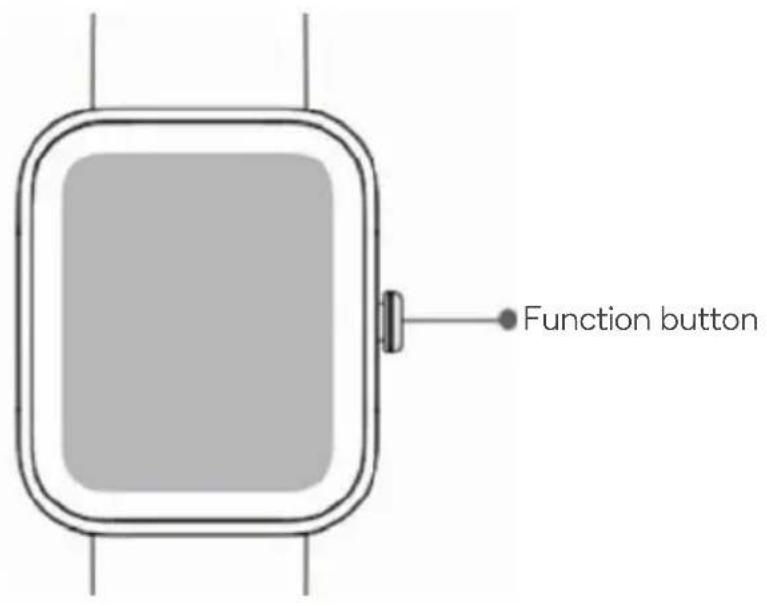
Front view
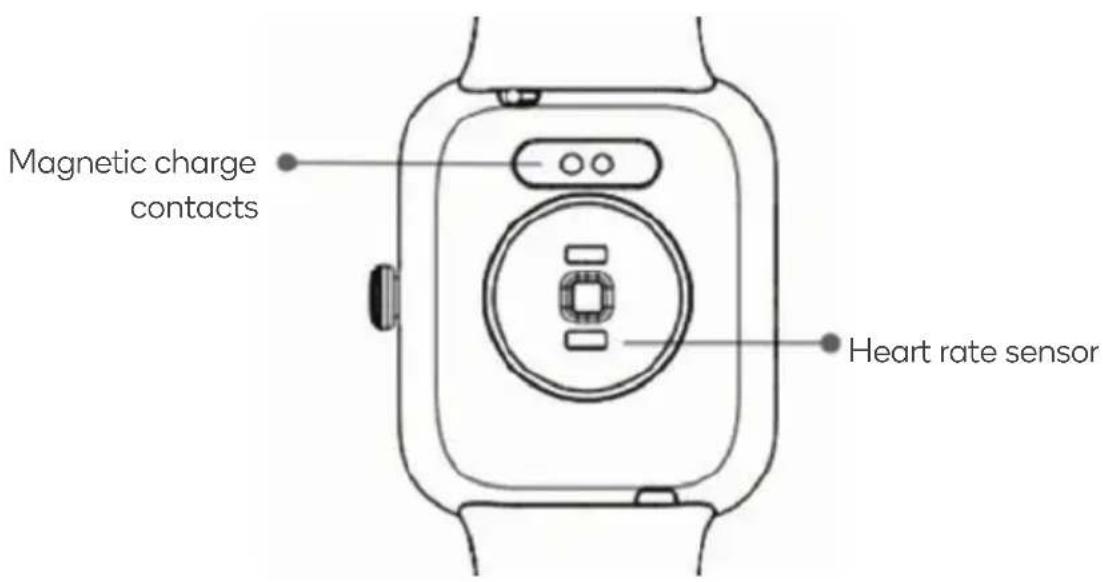
Back view
APP INSTALLATION
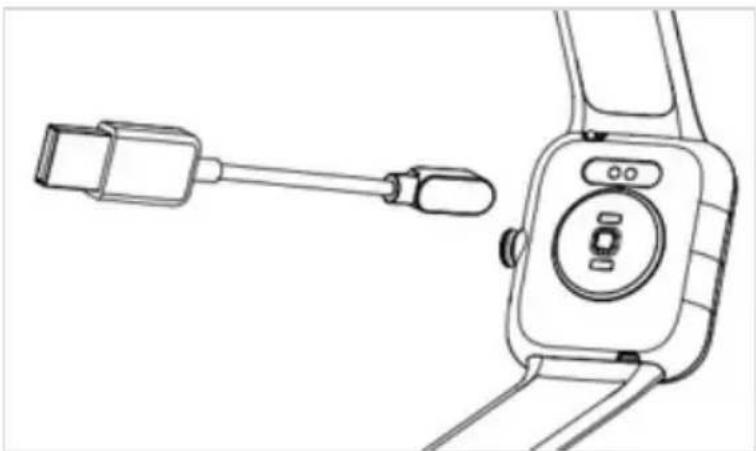
Connect the contact points of the magnetic charging cable to the charge points of the watch to charge and power it on.
Download and install the "Veryfit" App from App Store (Apple) or Google Play Store (Android).
natural_image
Orange square icon with a white checkmark and dot symbol (no text or numbers)
Pairing
- Open the "Veryfit" app and turn on Bluetooth positioning permissions.
- Enter your personal information, as well as your step and weight goals in the app.
- Access the "Add Device" page in the app, select the device type you wish to link, and link the watch model found.
- Bring the watch close to the phone.
- When the watch receives the signal, tap "OK" on the watch to link the device.
Health
- Wear the watch for daily activities, and the watch will automatically record relevant exercise data.
- You can actively measure heart rate, blood oxygen levels, and stress levels using the watch. You can monitor your health status manually or have the watch continuously monitor your health automatically.
Start single exercise
- Access the exercise application on the watch, select the icon corresponding to the exercise type (such as outdoor running), and begin your exercise.
- You may also select a single exercise goal before starting to exercise and then simply tap "Start" to begin your exercise.
OPERATION
Notes:
• Ensure the smart watch is charged fully before first use.
- If the device does not turn on within one minute, this is due to the over discharging protection. Charge the watch for over 30 minutes until it turns on.
Charging
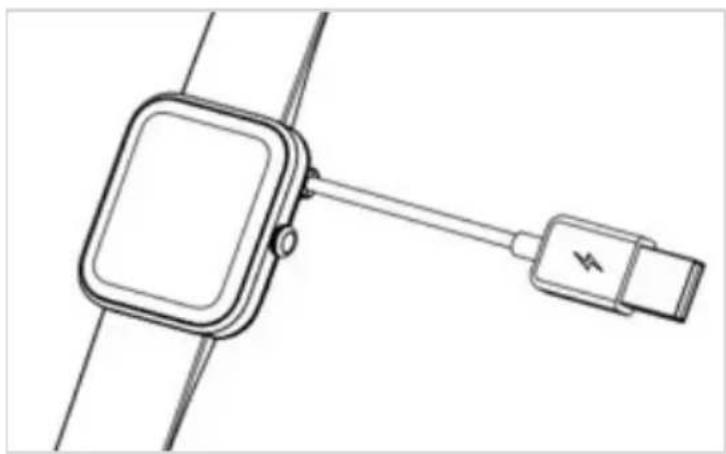
Whilst the watch is off, it automatically turns on when you put it on charge. To charge, attach the supplied magnetic charging cable to the magnetic charging contacts on the back of the smart watch.
natural_image
Line drawing of a smartwatch with attached cable and display unit (no text or symbols)Attach the opposite end of the cable into a USB charging adapter (not supplied). Ensure the adapter meets the specified voltage and current (5V/500mA).
natural_image
Line drawing of a smartwatch connected to a USB port (no text or symbols)How to wear
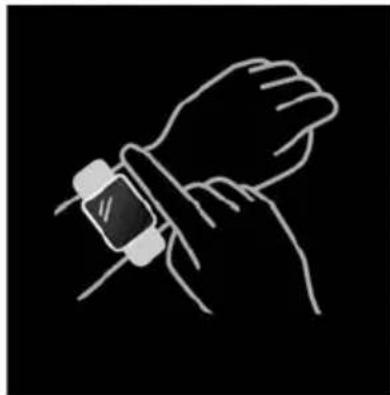
Make sure that the bottom sensor is lightly in contact with your skin and that there is a gap of about one finger's width between the wrist strap and your wrist.
natural_image
Line drawing of a hand wearing a smartwatch (no text or symbols)Touch operation
This watch features a full touch screen that supports both "tap" and "tap and hold" operations:
- Tap once: select and switch.
- Tap and hold: access and confirm.
Button operation
This watch features a function button that supports short press operation:
- Short press: return to the watch face, close alerts, exit program prompts.
Watch face
- The "Veryfit" app comes with several watch faces available for selection. Open the "Watch Face Market" menu to select from the available watch faces or download and install more.
- Change the watch faces by entering Settings – Watch Face.
Exercise
There are 14 exercise modes.
Outdoor run
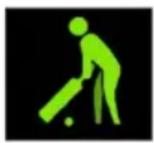
Cricket
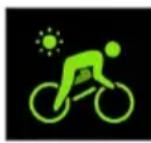
Outdoor cycle
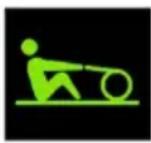
Rower
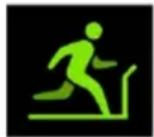
Indoor run
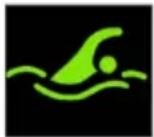
Pool Swim
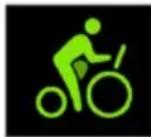
Indoor cycle
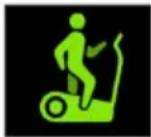
Elliptical
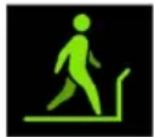
Indoor walk
Open Water Swim
Hiking
Workout
Outdoor walk
Yoga
- This watch features an intelligent exercise recognition function and is able to tell if the user is running or walking. This function can be enabled or disabled in the app.
- The exercise summary includes a variety of exercise data and detailed data can be viewed in the “Veryfit” app.
- The watch is unable to enter any exercise modes when the battery level is below 10% .
-
Through the "VeryFit" app, users can track their exercise path using GPS while in the following modes:
-
Outdoor run
- Outdoor walk
- Outdoor cycle
- Hiking
Ensure the watch is connected to the app during exercise.
Connecting to Third Party Fitness and Strava Apps
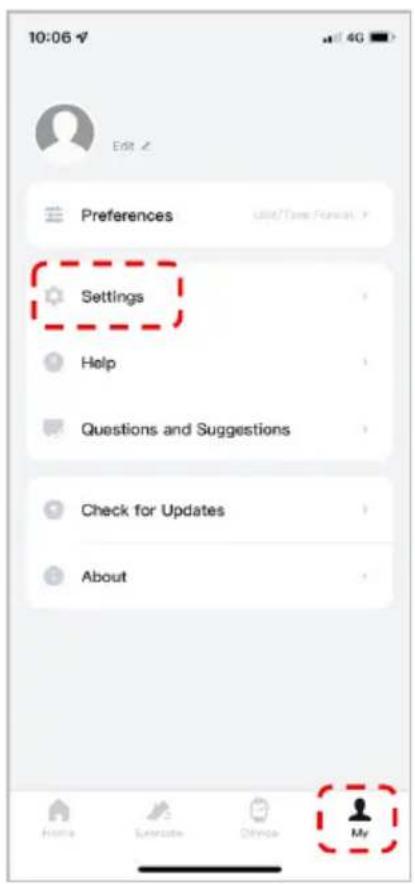
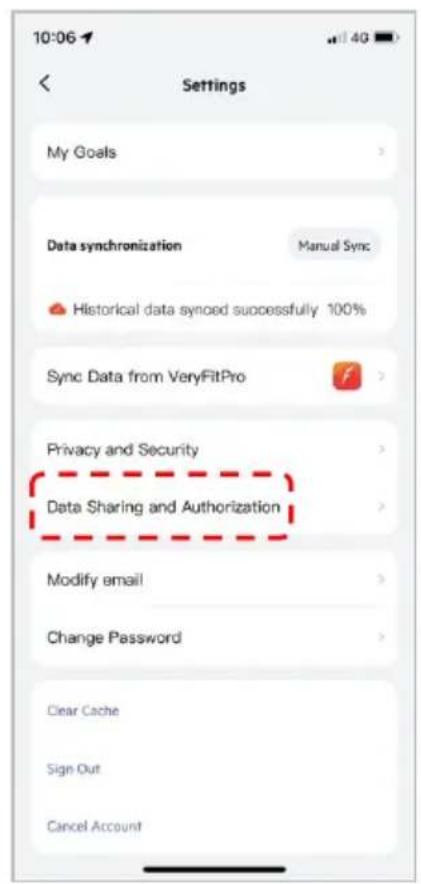
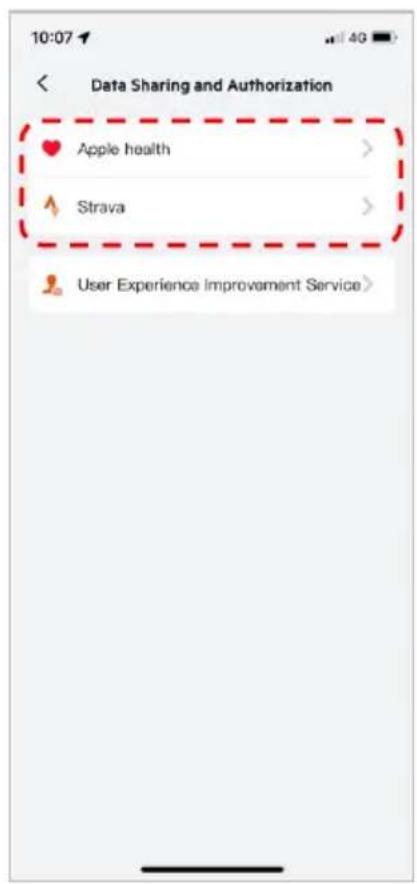
Users can sync their exercise data to Google Fit, Apple Health and Strava through the "Veryfit" app.
- On the home screen, click the "My" tab click on in the bottom right corner.
- Click "Settings"
- Click "Data Sharing and Authorization".
- Select the desired app to sync exercise data with.
Application List
On the watch face, press the function button to enter the application interface:
- Health Data
natural_image
Simple icon with four colored circles inside a white circle, no text or symbols present.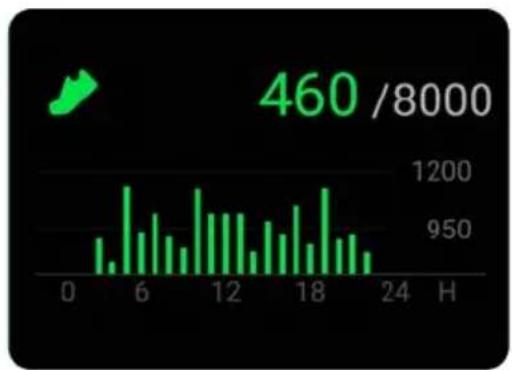
bar
| Time (H) | Value | |---|---| | 0 | 0 | | 1 | 250 | | 2 | 100 | | 3 | 300 | | 4 | 450 | | 5 | 600 | | 6 | 750 | | 7 | 500 | | 8 | 400 | | 9 | 350 | | 10 | 550 | | 11 | 650 | | 12 | 700 | | 13 | 600 | | 14 | 500 | | 15 | 450 | | 16 | 600 | | 17 | 750 | | 18 | 800 | | 19 | 950 | | 20 | 700 | | 21 | 550 | | 22 | 400 | | 23 | 300 | | 24 | 250 | H 460 /8000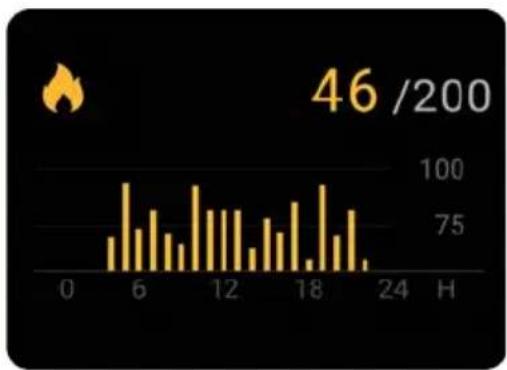
bar
| Time | Value | |------|-------| | 0 | 0 | | 6 | 75 | | 12 | 100 | | 18 | 75 | | 24 | 0 |The watch tracks all of your daily goals (number of steps, calories, distance, active time, and number of walks achieved) and your hourly progress towards these goals.
- Exercise Record
natural_image
Abstract icon of a blue folder inside a white circle on a gray background (no text or symbols)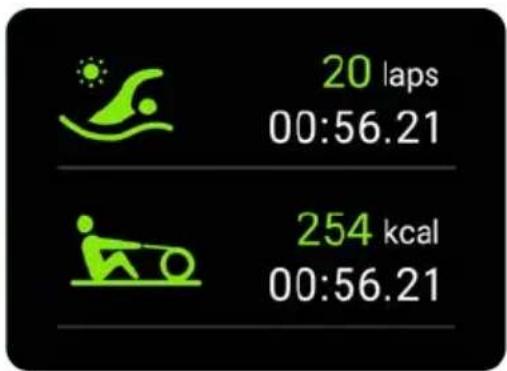
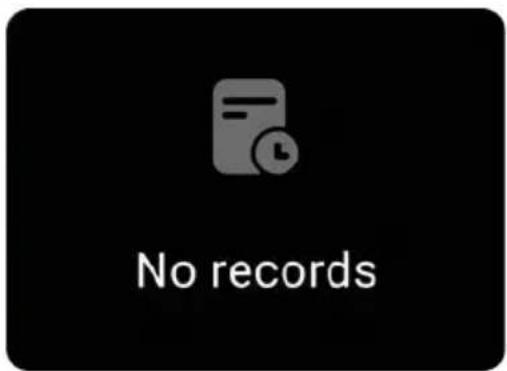
You can view your most recent exercise records on the watch, including detailed exercise data. You can also view the exercise records in the "Veryfit" app.
3. Heart Rate
natural_image
Simple graphic of a white heart inside a red circle on a gray background (no text or symbols)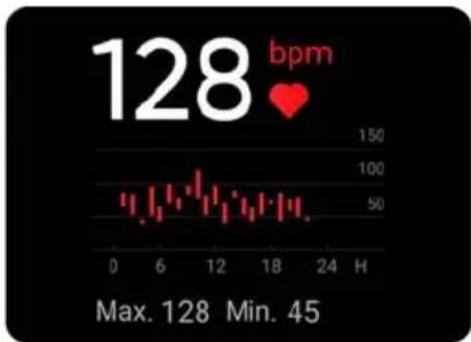
line
| Hour | Value | | ---- | ----- | | 0 | 50 | | 6 | 100 | | 12 | 150 | | 18 | 100 | | 24 | 50 |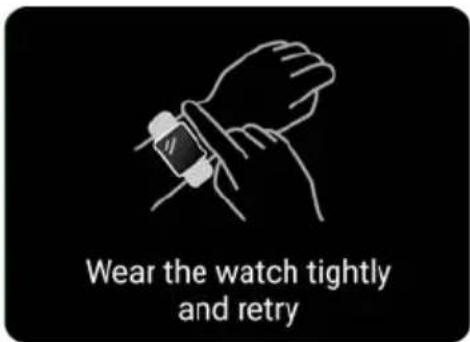
- The watch supports 24-hour continuous heart rate measurement and the viewing of all-day data. You can select the measurement frequency and enable or disable this in the app settings.
- While waiting for the heart rate measurement, keep your arms and wrists still.
4. Blood Oxygen
natural_image
Simple water droplet icon inside a white circle on gray background (no text or symbols)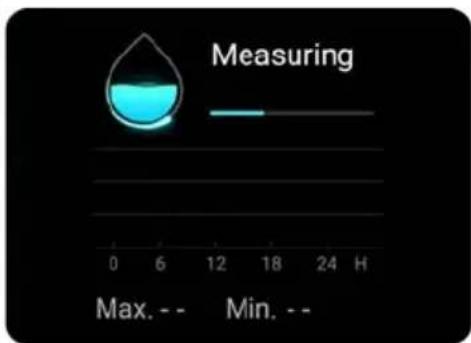
- The blood oxygen level test supports viewing the highest and lowest values of the day and the measurement data throughout the day.
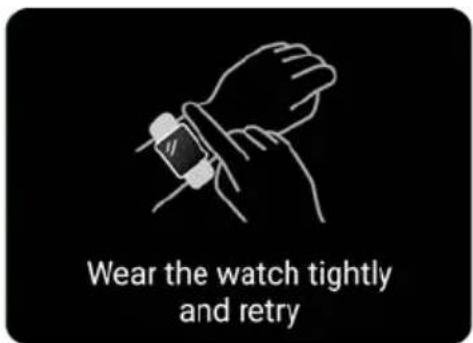
- While waiting for the blood oxygen level, keep your arms and wrists still.
5. Stress
natural_image
Green circular icon with a white silhouette of a person with a lightning bolt inside, on a gray background (no text or symbols)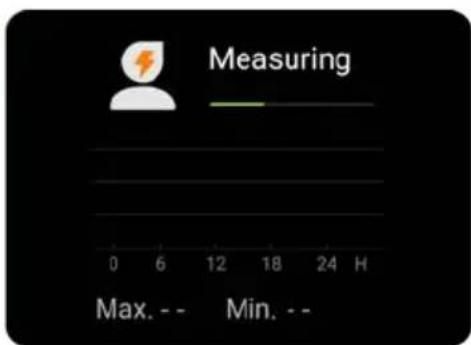
- The watch supports 24-hour continuous stress level tracking. You can select the measurement frequency and enable or disable this in the app settings.
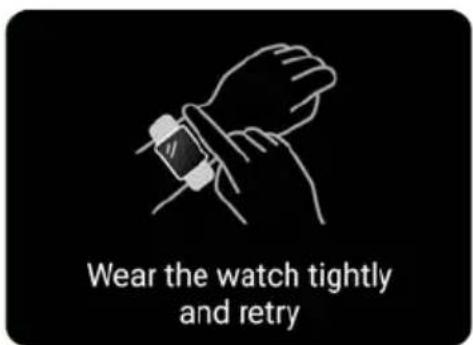
- While waiting for the stress level measurement, keep your arms and wrists still.
6. Breath Training
natural_image
Green circular icon with a white leaf symbol (no text or numbers)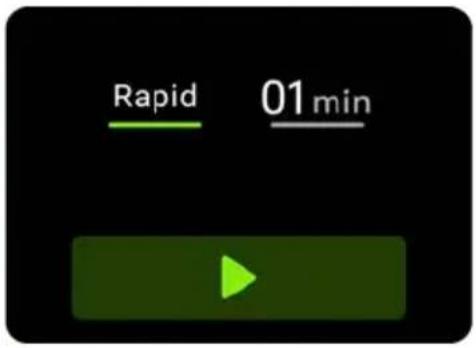
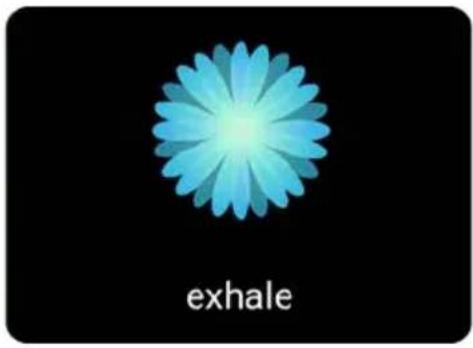
- Controlled breathing can help with your breathing frequency, which is divided into 3 levels: rapid, normal, and slow.
- Click "Start" to access the controlled breathing animation. Adjust your breathing according to the vibration frequency and animation.
7. Sleep
natural_image
Purple circular logo with a white crescent shape and the number '2' in the top-right corner, set against a gray background (no text or symbols beyond the graphic elements)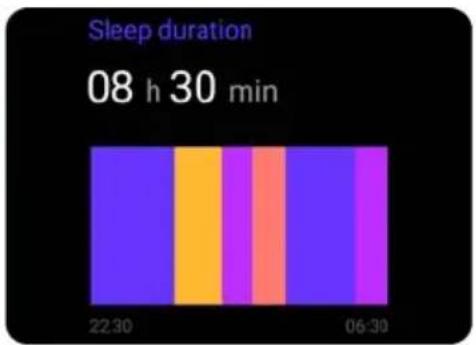
bar
Sleep duration | Time | Sleep duration (min) | |---|---| | 22:30 | 10 | | 06:30 | 10 |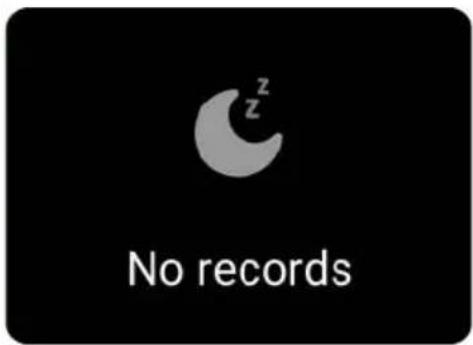
You can view your most recent sleep activity along with the quality of your sleep during different stages.
8. Weather
natural_image
Weather icon showing a cloud with a sun, no text or symbols present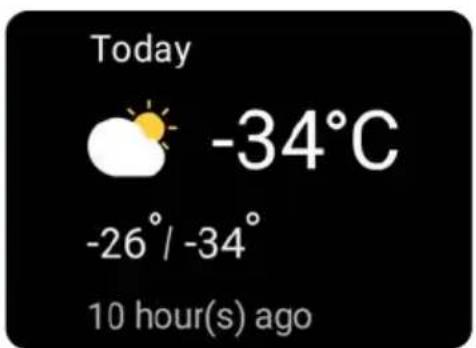
This watch features a 3-day weather forecast. You can view today's weather and the weather for the following 2 days.
9. Music
natural_image
Simple icon of a purple musical note inside a white circle on a gray background (no text or symbols)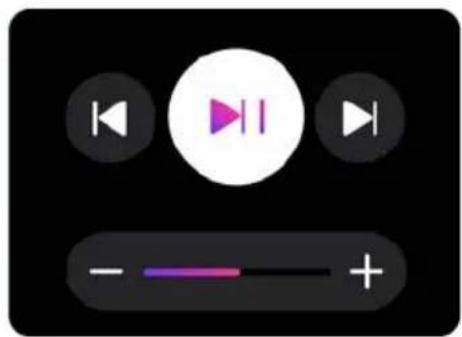
natural_image
Black and white media player interface with playback controls and playback buttons (no text or symbols)
- Using the Music app, you may control the following functions of your phone's music player:
○ play/pause
- next/previous track
o increase/decrease volume
- You may choose to display or hide this function in the app settings.
10. Stopwatch
natural_image
Yellow circular icon with a white stopwatch symbol (no text or numbers)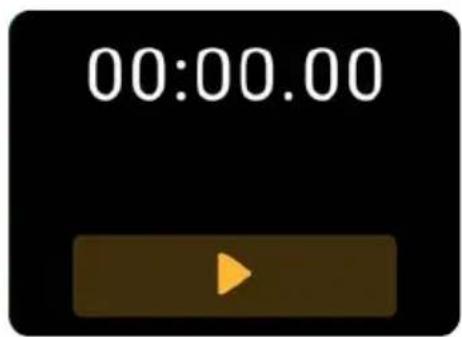
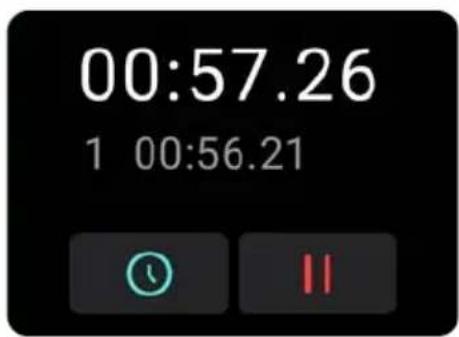
This watch features a stopwatch and lap time functions to time your exercises.
11. Alarm
natural_image
Simple icon of a hand holding a wrench inside a white circle (no text or symbols)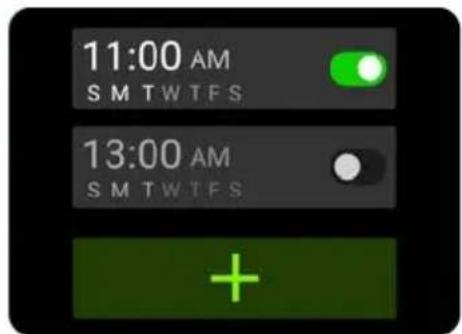
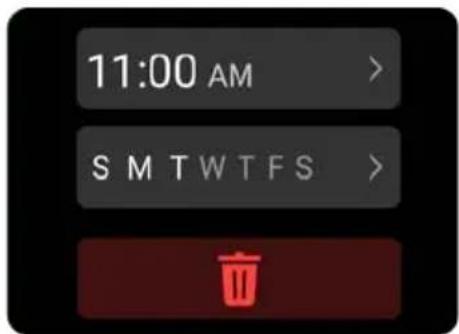
- Use the Alarm app to; add, delete, and enable/disable alarms on the watch. You can set alarms in the "Veryfit" app and send them to the watch. You can also label the alarms to help identify them.
- You can set snooze durations and frequency in the app.
12. Timer
natural_image
Yellow circular icon with a white curved arrow, resembling a refresh or refresh symbol (no text or numbers)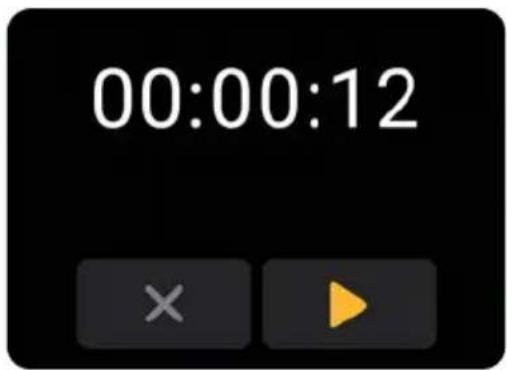
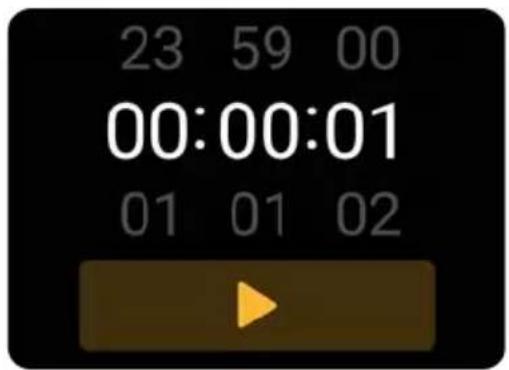
You can set a timer with a preset duration on the watch and the timer will remind you when the time is up.
13. Find Phone
natural_image
Simple blue circular icon with a lightning bolt inside, on a gray background (no text or symbols)
natural_image
Blue circular icon with a diagonal line, set against a black background (no text or symbols)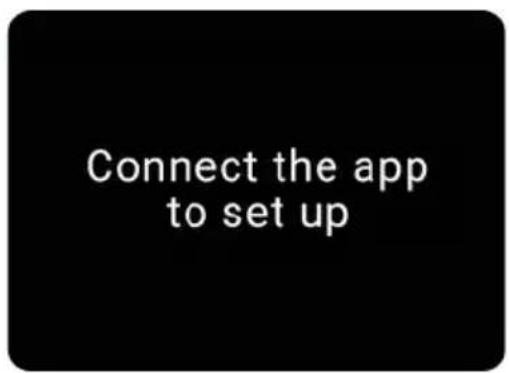
- You can use your watch to help find your phone.
- Click the icon and the phone will play a sound
- Once found click the icon to stop the sound.
- You may choose to display or hide this function in the app settings.
14. Settings
natural_image
Simple gear icon with no text or symbols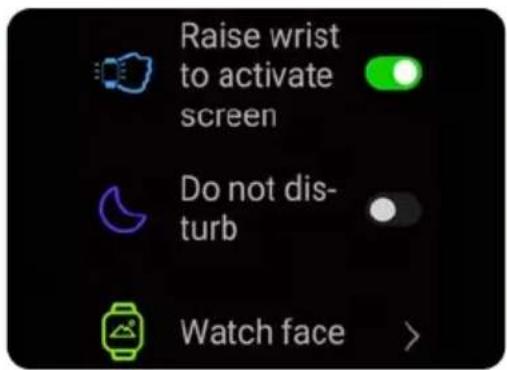
- Configure the wrist-up wake screen function and a Do Not Disturb switch on the watch.
- Switch between locally stored watch faces.
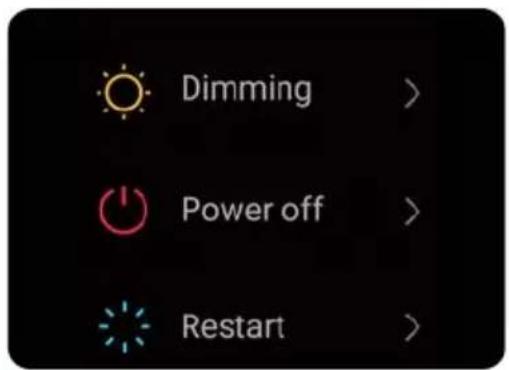
- Set the watch brightness and screen timeout duration. You can also set a switch to reduce the brightness at night.
- Turn off, restart or restore the watch to factory settings (All the data in the watch will be deleted after restoring to factory settings. The watch will no longer be linked to your phone).
15. Reminders
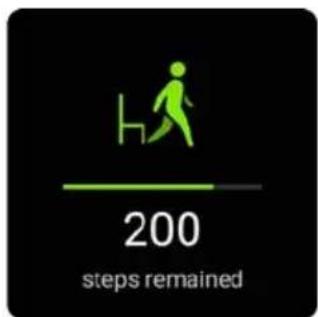
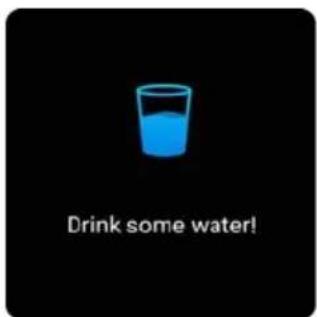
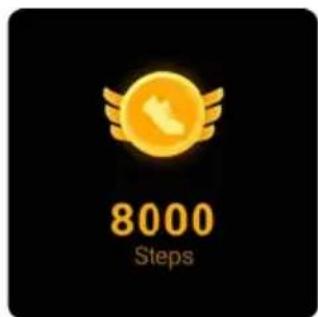
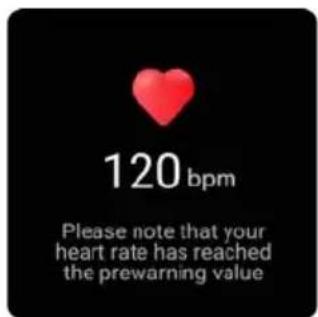
This watch supports multiple reminders, including messages, incoming calls, movement, hydration, exercise target, and exercise heart rate warning reminders etc.
Need more information?
We hope that this user guide has given you the assistance needed for a simple set-up.
For the most up-to-date guide for your product, as well as any additional assistance you may require, head online to help.kogan.com
kogan.com
- ACTIVE+ MINI SMART WATCH
- SAFETY & WARNINGS
- OVERVIEW
- APP INSTALLATION
- Pairing
- Health
- Start single exercise
- OPERATION
- Notes:
- Charging
- How to wear
- Touch operation
- Button operation
- Watch face
- Exercise
- Connecting to Third Party Fitness and Strava Apps
- Application List
- Heart Rate
- Blood Oxygen
- Stress
- Breath Training
- Sleep
- Weather
- Music
- Stopwatch
- Alarm
- Timer
- Find Phone
- Settings
- Reminders
- Need more information?
Brand : Kogan
Model : KAAPMWTCRGA
Category : Smartwatch