
MD031LL/A - Access Point APPLE - Free user manual and instructions
Find the device manual for free MD031LL/A APPLE in PDF.


| Product Type | Wireless Access Point / Router |
| Brand | Apple |
| Model | MD031LL/A |
| Dimensions | 98 x 98 x 23 mm (3.85 x 3.85 x 0.9 in) |
| Weight | 240 g (8.5 oz) |
| Power Supply | AC 100-240V, 50-60 Hz |
| Power Consumption | 10 W (max) |
| Wireless Standard | IEEE 802.11a/b/g/n (dual-band) |
| Frequency Bands | 2.4 GHz and 5 GHz |
| Data Transfer Rate | Up to 300 Mbps (2.4 GHz) and up to 450 Mbps (5 GHz) |
| Antenna Type | Internal |
| Ports | 1x Gigabit Ethernet (WAN), 1x Gigabit Ethernet (LAN), 1x USB 2.0 |
| USB Features | Printer sharing, disk sharing via USB |
| Audio | AirPlay streaming (3.5mm audio jack) |
| Security | WPA/WPA2, WEP, MAC address filtering |
| Management | Apple AirPort Utility (iOS, Mac, Windows) |
| Operating Temperature | 0° to 35° C (32° to 95° F) |
| Storage Temperature | -25° to 60° C (-13° to 140° F) |
| Humidity | 5% to 95% non-condensing |
| Included Accessories | Power adapter, Ethernet cable, Quick Start Guide |
| Repairability | Not user-serviceable; no replaceable battery |
Frequently Asked Questions - MD031LL/A APPLE
User questions about MD031LL/A APPLE
0 question about this device. Answer the ones you know or ask your own.
Ask a new question about this device
Download the instructions for your Access Point in PDF format for free! Find your manual MD031LL/A - APPLE and take your electronic device back in hand. On this page are published all the documents necessary for the use of your device. MD031LL/A by APPLE.
USER MANUAL MD031LL/A APPLE
5 Getting Started
7 About the AirPort Extreme
8 About the AirPort Software
9 What You Need to Get Started
11 The AirPort Extreme Status Light
13 AirPort Extreme Networks
14 Using the AirPort Extreme with a Broadband Internet Service
16 Using the AirPort Extreme to Share a USB Printer
18 Using the AirPort Extreme to Share USB Hard Disks
20 Setting Up the Airport Extreme
21 Using AirPort Utility
22 Creating a New Wireless Network
22 Configuring and Sharing Internet Access
24 Setting Advanced Options
25 Allowing Wireless Clients Access to Your Network
26 Tips and Troubleshooting
26 If You Can't Connect to the Internet
26 If You Forgot Your Network or Base Station Password
28 If Your AirPort Extreme Isn't Responding
29 If Your AirPort Extreme Status Light Flashes Amber
30 If Your Printer Isn't Responding
31 Updating AirPort Software
31 AirPort Extreme Placement Considerations
32 Items That Can Cause Interference with AirPort
33 Learning More, Service, and Support
35 AirPort Extreme Specifications and Safety Guidelines
38 Regulatory Compliance Information
Getting Started
1
Congratulations on purchasing your simultaneous dual-band AirPort Extreme Base Station. Read this guide to get started.
AirPort Extreme provides simultaneous dual-band wireless 802.11n networking. When you set up your AirPort Extreme Base Station, it creates two high-speed Wi-Fi networks:
- A 2.4 gigahertz (GHz) network for 802.11b, 802.11g, and 802.11n devices, such as iPhone, iPod touch, and older computers
- A 5 GHz network for 802.11n and 802.11a devices, such as newer computers, iPad, and Apple TV
Wireless devices join the network that provides them the best performance and compatibility, and the AirPort Extreme shares your broadband Internet connection with computers and devices on your network.
With your AirPort Extreme, you can:
- Create a password-protected wireless home network, and then connect to the Internet and share the connection with other computers and Wi-Fi devices, such as iPad, iPhone, iPod touch, and Apple TV. You can also share files among computers connected to the network.
-
Create a guest network with or without password protection, to provide Internet-only access to wireless devices, such as computers, iPad, iPhone, iPod touch, and Apple TV.
-
Connect your AirPort Extreme to your Ethernet network. Wireless-equipped Mac computers, Windows XP, Windows Vista, or Windows 7 computers can then have access to an entire network without being connected by a cable.
- Connect a supported USB device, such as a printer or a scanner, to your AirPort Extreme. All of the compatible computers on the AirPort network, both wireless and wired, can access the device.
- Connect a USB hard disk to your AirPort Extreme. All of the compatible computers on the AirPort network, both wireless and wired, can access the information on the hard disk.
- Connect a USB hub to your AirPort Extreme, and then connect multiple USB devices, such as printers or hard disks. All of the computers on the network have access to those devices.
Important: Use AirPort Utility to set up your simultaneous dual-band AirPort Extreme Base Station. Previous versions of AirPort Setup Assistant and AirPort Admin Utility are not compatible with this base station.
AirPort Utility is installed in the Utilities folder in the Applications folder on a computer using Mac OS X, and in Start > All Programs > AirPort on a computer using Windows. If AirPort Utility isn't installed on your computer, you can download it from www.apple.com/support/airport.
Apple periodically updates AirPort software. It's recommended that you update your software to keep your AirPort Extreme up to date.
Note: To download a copy of this setup guide in your language, open AirPort Utility and choose Help > AirPort Service and Support, and click Manuals.
About the AirPort Extreme
The AirPort Extreme has six ports, located on the back:
- One 10/100/1000Base-T Gigabit Ethernet Wide Area Network (WAN) port (✗) for connecting a DSL or cable modem, or for connecting to an existing Ethernet network
- Three 10/100/1000Base-T Gigabit Ethernet Local Area Network (LAN) ports (↔) for connecting Ethernet devices, such as printers or computers, or for connecting to an existing Ethernet network
- One USB port ( ) for connecting a compatible USB printer, hard disk, or hub for connecting several devices
•One power port for connecting the AC adapter to a power source
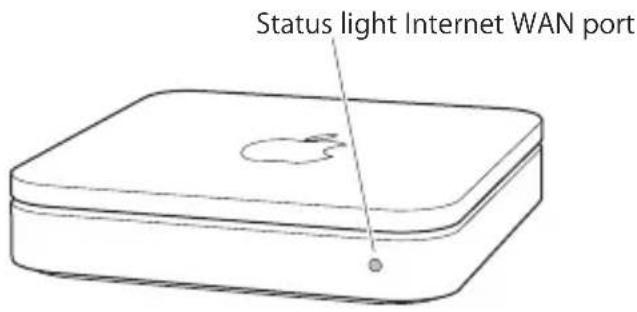
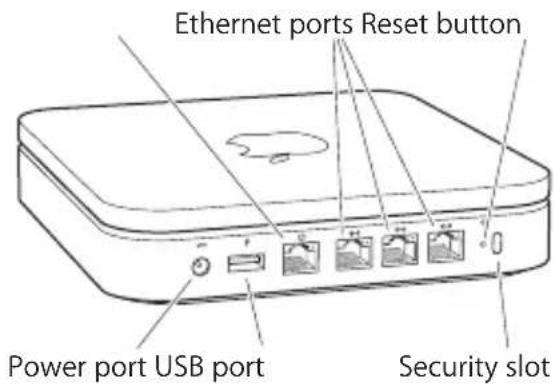

Next to the ports is a reset button, which is used for troubleshooting your AirPort Extreme. The status light on the front of the AirPort Extreme shows the current status.
About the AirPort Software
Use the AirPort Utility software and follow the instructions on the following pages to set up your AirPort Extreme and your AirPort wireless network.
Note: You must use AirPort Utility to set up this base station. The simultaneous dual-band AirPort Extreme Base Station is not compatible with previous versions of AirPort software.

AirPort Utility
Use AirPort Utility to set up your AirPort Extreme to create a wireless network, connect to the Internet, and share compatible USB printers and hard disks. You can also connect your AirPort Extreme to an existing AirPort Extreme wireless network.
AirPort Utility is also an advanced tool for setting up and managing the Time Capsule, AirPort Extreme, and AirPort Express Base Stations. Use it to manually adjust network, routing, and security settings and other advanced options.

AirPort status menu in the menu bar
Use the AirPort status menu to switch quickly between AirPort networks, monitor the signal quality of the current network, create a computer-to-computer network, and turn AirPort on and off. The status menu is available on computers using Mac OS X.
What You Need to Get Started
To use the AirPort Extreme you need a wireless-enabled computer that is compliant with the IEEE 802.11a, 802.11b, 802.11g, or 802.11n specification. To set up the AirPort Extreme, your computer must meet the requirements listed below.
To set up your AirPort Extreme using a Mac, you need the following:
- A Mac computer with an AirPort or AirPort Extreme Card installed to set it up wirelessly, or a Mac computer connected to an AirPort Extreme Base Station with an Ethernet cable to set it up using Ethernet
•Mac OS X v10.5.7 or later
•AirPort Utility 5.5.3 or later
To set up your AirPort Extreme using a Windows PC, you need the following:
- A Windows PC with 300 MHz or higher processor speed and a compatible 802.11a, 802.11b, 802.11g, or 802.11n wireless card to set it up wirelessly, or a Windows computer connected to an AirPort Extreme Base Station with an Ethernet cable to set it up using Ethernet
- Windows XP Home or Professional (with Service Pack 3 installed) or Windows Vista (with Service Pack 1 installed)
•AirPort Utility v5.5.3 or later
Plugging In AirPort Extreme
Before you plug in your AirPort Extreme, first connect the appropriate cables to the ports you want to use:
- Connect the Ethernet cable that is connected to your DSL or cable modem (if you will connect to the Internet) to the Ethernet (WAN) port (○).
- Connect a USB cable connected from the USB port (ψ) on the AirPort Extreme to a compatible USB printer (if you will print to a USB printer), a hard disk, or a hub.
- Connect an Ethernet cable from any Ethernet device to the Ethernet LAN ports («»).
After you have connected the cables for all the devices you plan to use, connect the AC adapter to the power port, and plug your AirPort Extreme into a power outlet. There is no power switch.

10 Chapter 1 Getting Started
Important: Use only the AC adapter that came with your AirPort Extreme.
When you plug the AirPort Extreme AC adapter into a power outlet, the status light flashes green for one second, and then glows amber while it starts up. After it has started up completely, the status light flashes amber until your AirPort Extreme has been updated with the correct settings. The status light glows solid green after your AirPort Extreme is properly set up and connected to the Internet or a network.
When you connect Ethernet cables to the Ethernet ports, the lights above them glow solid green.
The AirPort Extreme Status Light
The following table explains the AirPort Extreme light sequences and what they indicate.
Light Status/description
| Off AirPort Extreme is unplugged. |
| Flashing green AirPort Extreme is starting up. The light flashes for one second. |
| Solid green AirPort Extreme is on and working properly. If you choose FlashOn Activity from the Status Light pop-up menu (in the Base Station pane of AirPort settings in AirPort Utility), the status light may flash green to indicate normal activity. |
| Flashing amber AirPort Extreme cannot establish a connection to the network or the Internet, or is encountering a problem. Make sure you have installed AirPort Utility and use it to get information about what might cause the status light to flash amber. See “If Your AirPort Extreme Status Light Flashes Amber” on page 29. |
Solid amber AirPort Extreme is completing its startup sequence.
Light Status/description
Flashing amber and green There may be a problem starting up. AirPort Extreme will restart and try again.
Solid blue The base station is ready to allow a wireless client access to the network. See "Allowing Wireless Clients Access to Your Network" on page 25.
What's Next
After you plug in your AirPort Extreme, use AirPort Utility to set it up to work with your Internet connection, USB printer or hard disk, or an existing network.
AirPort Extreme Networks
2
In this chapter you'll find explanations of the different ways you can use your AirPort Extreme.
This chapter provides some examples of the different kinds of networks you can set up using your AirPort Extreme. It provides diagrams and explanations of what you need to do to get your AirPort Extreme network up and running quickly.
See Chapter 3, "Setting Up the Airport Extreme" on page 20 to find out more about using AirPort Utility to help set up your network.
See the document "Apple AirPort Networks" for detailed information about AirPort networks and the AirPort Extreme Base Station. The document is located at www.apple.com/support/manuals/airport.
Using the AirPort Extreme with a Broadband Internet Service
When you set up your AirPort Extreme to provide network and Internet access, Mac computers with AirPort and AirPort Extreme Cards, and 802.11a, 802.11b, 802.11g, and IEEE 802.11n specification wireless-equipped computers can access the wireless AirPort network to share files, play games, and use Internet applications like web browsers and email applications.
It looks like this:

To set it up:
1 Connect your DSL or cable modem to your AirPort Extreme Ethernet WAN port (✗).
2 Open AirPort Utility (located in the Utilities folder in the Applications folder on a computer using Mac OS X, and in Start > All Programs > AirPort on a computer using Windows), select your base station, and then click Continue.
3 Follow the onscreen instructions to create a new network. (See "Setting Up the Airport Extreme" on page 20.)
If AirPort Utility isn't installed on your computer, you can download it from www.apple.com/support/airport.
Computers using AirPort or other compatible wireless cards or adapters can connect to the Internet through your AirPort Extreme. Computers connected to the AirPort Extreme Ethernet ports can also access the network and connect to the Internet.
Wireless computers and computers connected to the Ethernet ports can also communicate with one another through your AirPort Extreme.
Using the AirPort Extreme to Share a USB Printer
When you connect a compatible USB printer to your AirPort Extreme, supported computers on the network (wired and wireless) can print to it.
It looks like this:

To set it up:
1 Connect the printer to the AirPort Extreme USB port ( ) or to a USB hub, using a USB cable.
2 Open AirPort Utility (located in the Utilities folder in the Applications folder on a computer using Mac OS X, and in Start > All Programs > AirPort on a computer using Windows), select your base station, and then click Continue.
3 Follow the onscreen instructions to create a new network, if you have not already set up your network.
If AirPort Utility isn't installed on your computer, you can download it from www.apple.com/support/airport.
To print from a computer using Mac OS X v10.5 or later:
1 Choose Apple > System Preferences, and then click Print & Fax.
2 Click Add (+) and select your printer from the list.
3 Click the Add button.
If your printer isn't in the list, use the buttons in the toolbar to search for it.
To print from a computer using Mac OS X v10.2.7 or later:
1 Open Printer Setup Utility (located in the Utilities folder in the Applications folder).
2 Select the printer from the list.
If your printer isn't in the list, click Add and choose Bonjour from the pop-up menu, and then select the printer from the list.
To print from a computer using Windows:
Use Bonjour for Windows (installed with AirPort Utility) to connect your printer.
Using the AirPort Extreme to Share USB Hard Disks
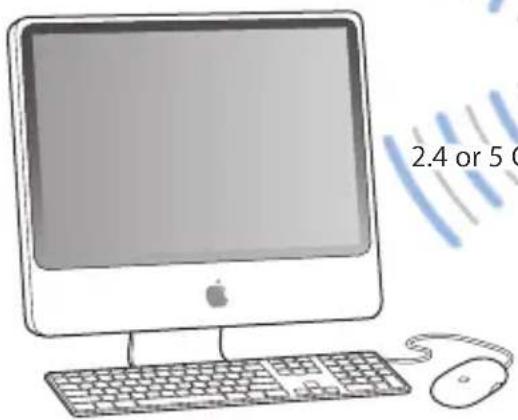
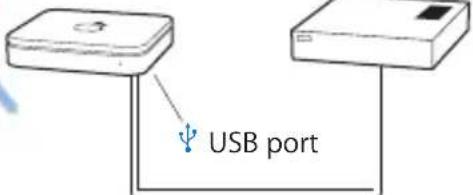
When you connect a USB hard disk to your AirPort Extreme, computers on the network (wired and wireless) can access the hard disk to access, share, and store files.
It looks like this:

natural_image
Line drawing of a laptop computer with blank screen (no text or symbols)2.4 or 5 GHz
Shared hard disk drive
To set it up:
1 Connect the hard disk to the AirPort Extreme USB port ( ) using a USB cable.
2 Open AirPort Utility (located in the Utilities folder in the Applications folder on a computer using Mac OS X, and in Start > All Programs > AirPort on a computer using Windows), select your base station, and then click Continue.
3 Follow the onscreen instructions to create a new network, if you have not already set up your network.
If AirPort Utility isn't installed on your computer, you can download it from www.apple.com/support/airport.
Computers can access the hard disk to share or store files using Mac OS X v10.4 or later, or Windows XP (SP3), Windows Vista (SP2), or Windows 7 (SP1).
Setting Up the Airport Extreme
3
This chapter provides information and instructions for using AirPort Utility to set up your AirPort Extreme.
Use the instructions in this chapter to easily configure your AirPort Extreme and set up your AirPort network.
This chapter provides an overview for using the setup assistant in AirPort Utility to set up your network and other features of your AirPort Extreme. For more detailed wireless networking information, and for information about the advanced features of AirPort Utility, refer to the “Apple AirPort Networks” document, located at www.apple.com/support/airport.
You can do most of your network setup and configuration tasks using the setup assistant in AirPort Utility. To set advanced options, choose Manual Setup from the Base Station menu of AirPort Utility. See “Setting Advanced Options” on page 24.
If AirPort Utility isn't installed on your computer, you can download it from www.apple.com/support/airport.
Using AirPort Utility
To set up and configure your AirPort Extreme to use AirPort for wireless networking and Internet access, use the setup assistant in AirPort Utility.
On a Mac computer using Mac OS X v10.5.7 or later:
1 Open AirPort Utility, located in the Utilities folder in the Applications folder.
2 Select your base station and click Continue.
3 Follow the onscreen instructions to set up your AirPort Extreme and your wireless network.
On a computer using Windows XP (SP3), Windows Vista (SP2), or Windows 7 (SP1):
1 Open AirPort Utility, located in Start > All Programs > AirPort.
2 Select your base station and click Continue.
3 Follow the onscreen instructions to set up your AirPort Extreme and your wireless network.
The setup assistant in AirPort Utility asks you a series of questions about the type of network you want to use and the services you want to set up. The setup assistant helps you enter the appropriate settings.
If you are using your AirPort Extreme to connect to the Internet, you need a broadband (DSL or cable modem) account with an Internet service provider (ISP), or a connection to the Internet using an existing Ethernet network.
Creating a New Wireless Network
You can use the setup assistant in AirPort Utility to create a new wireless network. The setup assistant guides you through the steps necessary to name your network, protect your network with a password, and set other options.
If you plan to share a USB printer or USB hard disk on your network:
1 Connect the printer or hard disk to the AirPort Extreme USB port ( ).
2 Open AirPort Utility, located in the Utilities folder in the Applications folder on a Mac, or in Start > All Programs > AirPort on a computer using Windows.
If AirPort Utility isn't installed on your computer, you can download it from www.apple.com/support/airport.
3 Select your AirPort Extreme and click Continue.
If you don't see the base station you want to configure, click Rescan to scan for available base stations, and then select the base station you want.
4 Follow the onscreen instructions to create a new network.
Configuring and Sharing Internet Access
If you plan to share your Internet connection with wireless-enabled computers on your network or computers connected to the Ethernet ports, you need to set up your AirPort Extreme as an AirPort base station. After it is set up, computers access the Internet through the AirPort network. The base station connects to the Internet and transmits information to the computers over the AirPort network.
Before you use AirPort Utility to set up your wireless device, connect your DSL or cable modem to the AirPort Extreme Ethernet WAN port (✗). If you are using an existing Ethernet network with Internet access to connect to the Internet, you can connect the AirPort Extreme to the Ethernet network instead.
Use the setup assistant in AirPort Utility to enter your ISP settings and configure how the AirPort Extreme shares the settings with other computers.
1 Choose the wireless network you want to change. On a Mac, use the AirPort status menu in the menu bar. On a computer using Windows XP, hold the pointer over the wireless connection icon until you see your AirPort network name (SSID), and choose it from the list if there are multiple networks available.
The default network name for an Apple base station is AirPort Network XXXXXX, where XXXXXX is replaced with the last six digits of the AirPort ID, also known as the Media Access Control or MAC address. The AirPort ID is printed on the bottom of an AirPort Extreme.
2 Open AirPort Utility, located in the Utilities folder in the Applications folder on a computer using Mac OS X, or in Start > All Programs > AirPort on a computer using Windows.
3 Select your base station and click Continue.
4 Follow the onscreen instructions to configure and share Internet access on your AirPort Extreme.
Using AirPort Utility is a quick and easy way to set up your base station and network. If you want to set additional options for your network, such as restricting access to your network, or setting advanced DHCP options, you can choose Manual Setup from the Base Station menu of AirPort Utility.
Setting Advanced Options
To set advanced options, you can use AirPort Utility to set up your AirPort Extreme manually. You can configure advanced base station settings, such as advanced security options, closed networks, DHCP lease time, access control, power controls, user accounts, and more.
To set advanced options:
1 Choose the wireless network you want to change. On a Mac, use the AirPort status menu in the menu bar. On a computer using Windows, hold the pointer over the wireless connection icon until you see your AirPort network name (SSID), and choose it from the list if there are multiple networks available.
The default network name for an Apple base station is AirPort Network XXXXXX, where XXXXXX is replaced with the last six digits of the AirPort ID, also known as the Media Access Control or MAC address. The AirPort ID is printed on the bottom of an AirPort Extreme.
2 Open AirPort Utility, located in the Utilities folder in the Applications folder on a Mac, and in Start > All Programs > AirPort on a computer using Windows.
3 If there is more than one base station in the list, select the base station you want to configure. If you don't see the base station you want to configure, click Rescan to scan for available base stations, and then select the base station you want.
4 Choose Manual Setup from the Base Station menu. If you are prompted for a password, enter it.
For more information and detailed instructions for using the manual setup features in AirPort Utility, see the "Apple AirPort Networks" document, located at www.apple.com/support/airport.
Allowing Wireless Clients Access to Your Network
If your network is password-protected using WPA Personal or WPA/WPA2 Personal, you can provide wireless clients access to your network without requiring them to enter the network password.
When you allow a client access to your network, the client's name and wireless MAC address (or AirPort ID) are stored in the access control list of AirPort Utility until you remove them from the list. You can also provide 24 hours of access, after which time the client is no longer able to access your network.
When you provide a client access to your wireless network, the client does not need to enter the network password.
To allow client access to your network:
1 Open AirPort Utility, select your base station, and choose Manual Setup from the Base Station menu. Enter the base station password if necessary.
2 Choose Add Wireless Clients from the Base Station menu.
3 Select how you want the client to access the network:
- Select PIN to enter the eight-digit number provided by the client requesting network access.
- Select "First attempt" to allow network access to the first client attempting to join the network.
- Select "Limit client's access to 24 hours" if you want to provide only one day of access to your network. If you don't select this option, the client has access to your network until you remove the name from the list.
Tips and Troubleshooting
4
You can quickly solve most problems with your AirPort Extreme by following the advice in this chapter.
If You Can't Connect to the Internet
- Try connecting to the Internet directly from your computer. If you can't connect to the Internet from your computer, check your network settings. If they appear to be correct and you still can't connect, contact your Internet service provider (ISP).
- Make sure you are connecting to the correct wireless network.
If You Forgot Your Network or Base Station Password
You can clear the AirPort network or base station password by resetting AirPort Extreme.
To reset the base station password:
1 Use the tip of a ballpoint pen to hold down the reset button for one second.
Important: If you hold down the reset button for more than one second, you may lose your network settings.
2 Select your AirPort network.
- On a Mac, use the AirPort status menu in the menu bar to select the network created by AirPort Extreme (the network name does not change).
- On a computer using Windows, hold the pointer over the wireless connection icon until you see your AirPort Network Name (SSID), and choose it from the list if there are multiple networks available.
3 Open AirPort Utility (in the Utilities folder in the Applications folder on a Mac, and in Start > All Programs > AirPort on a computer using Windows).
If AirPort Utility isn't installed on your computer, you can download it from www.apple.com/support/airport.
4 Select your base station and then choose Manual Setup from the Base Station menu.
5 Click AirPort in the toolbar, and then click Base Station.
6 Enter a new password for the base station.
7 Click Wireless and choose an encryption method from the Wireless Security pop-up menu to turn on encryption and activate password protection for your AirPort network. If you turn on encryption, enter a new password for your AirPort network.
8 Click Update to restart the base station and load the new settings.
If Your AirPort Extreme Isn't Responding
Try unplugging it and plugging it back in.
If your AirPort Extreme stops responding completely, you may need to reset it to the factory default settings.
Important: Resetting your AirPort Extreme to factory default settings erases all of your base station settings and resets them to the settings that came with your AirPort Extreme.
To return your AirPort Extreme to the factory settings:
Use the tip of a ballpoint pen to press and hold down the reset button until the status light flashes quickly (about 5 seconds).
The AirPort Extreme resets with the following settings:
•The AirPort Extreme receives its IP address using DHCP.
- The network name reverts to Apple Network XXXXXX (where XXXXXX is replaced with the last six digits of the AirPort ID).
- The base station password returns to public.
If your base station is still not responding, try the following:
1 Unplug your AirPort Extreme.
2 Use the tip of a ballpoint pen to hold down the reset button while you plug in your AirPort Extreme.
If Your AirPort Extreme Status Light Flashes Amber
The Ethernet cable may not be connected properly, your AirPort Extreme may be out of range of an AirPort network, or there may be a problem with your Internet service provider. If you are connected to the Internet with a DSL or cable modem, the modem may have lost its connection to the network or the Internet. Even if the modem seems to be working properly, try disconnecting the modem from its power supply, waiting a few seconds, and then reconnecting it. Make sure your AirPort Extreme is connected directly to the modem with an Ethernet cable before reconnecting power to the modem.
For more information about the reason the light flashes, open AirPort Utility, select your base station, and then choose Manual Setup from the Base Station menu. Click Base Station Status to display information about the flashing light.
You can also select the "Monitor base station for problems" checkbox in AirPort preferences. If the base station has problems, AirPort Utility opens and walks you through solving the problems.
If Your Printer Isn't Responding
If you connected a printer to the USB port on your AirPort Extreme and the computers on the AirPort network can't print, try doing the following:
1 Make sure the printer is plugged in and turned on.
2 Make sure the cables are securely connected to the printer and to the AirPort Extreme USB port.
3 Make sure the printer is selected in the Printer List window on client computers.
On a Mac using Mac OS X v10.5 or later:
- Choose Apple > System Preferences, and then click Print & Fax.
- Click Add (+) and select your printer in the list.
- Click the Add button.
On a Mac using Mac OS X v10.2.7 or later:
- Open Printer Setup Utility, located in the Utilities folder in the Applications folder.
- If the printer is not in the list, click Add.
- Choose Bonjour from the pop-up menu.
- Select the printer and click Add.
On a computer using Windows:
- Open "Printers and Faxes" from the Start menu.
- Select the printer. If the printer is not in the list, click Add Printer and then follow the onscreen instructions.
- If Bonjour for Windows is installed, click the Bonjour Printer, click the Bonjour Printer Wizard on the desktop, and follow the onscreen instructions for setting up a printer.
4 Turn off the printer, wait a few seconds, then turn it back on.
Updating AirPort Software
Apple periodically updates AirPort software. It is recommended that you update your AirPort Extreme to use the latest software.
You can select the "Check for updates when opening AirPort Utility" checkbox, or the "Check for updates" checkbox in AirPort preferences. If you select "Check for updates," choose an increment of time, such as weekly, from the pop-up menu to automatically check for updates.
AirPort Extreme Placement Considerations
The following recommendations can help your AirPort Extreme achieve maximum wireless range and optimal network coverage.
- Place your AirPort Extreme in an open area where there are few obstructions, such as large pieces of furniture or walls. Try to place it away from metallic surfaces.
- If you place your AirPort Extreme behind furniture, keep at least an inch of space between the AirPort Extreme and the edge of the furniture.
- Avoid placing your AirPort Extreme in areas surrounded by metal surfaces on three or more sides.
- If you place your AirPort Extreme in an entertainment center with your stereo equipment, avoid completely surrounding the AirPort Extreme with audio, video, or power cables. Place your AirPort Extreme so that the cables are to one side. Maintain as much space as possible between the AirPort Extreme and the cables.
- Try to place your AirPort Extreme at least 25 feet (7.6 meters) from a microwave oven, 2.4 or 5 gigahertz (GHz) cordless phones, or other sources of interference.
Items That Can Cause Interference with AirPort
The farther away the interference source, the less likely it is to cause a problem. The following items can cause interference with AirPort communication:
- Microwave ovens
- Direct Satellite Service (DSS) radio frequency leakage
- The original coaxial cable that came with certain types of satellite dishes. Contact the device manufacturer and obtain newer cables.
- Certain electrical devices such as power lines, electrical railroad tracks, and power stations
- Cordless telephones that operate in the 2.4 or 5 GHz range. If you have problems with your phone or AirPort communication, change the channel your base station or AirPort Extreme uses, or change the channel your phone uses.
- Nearby base stations using adjacent channels. For example, if base station A is set to channel 1, base station B should be set to channel 6 or 11.
Learning More, Service, and Support
5
You can find more information about using your AirPort Extreme on the web and in onscreen help.
Online Resources
For the latest information about the AirPort Extreme, go to www.apple.com/airport.
To register your AirPort Extreme, go to www.apple.com/register.
For AirPort support information, a variety of forums with product-specific information and feedback, and the latest Apple software downloads, go to www.apple.com/support/airport.
For support outside of the United States, go to www.apple.com/support, and then choose your country from the pop-up menu.
Onscreen Help
To learn more about using AirPort Utility with your AirPort Extreme, open AirPort Utility and choose Help > AirPort Utility Help.
Obtaining Warranty Service
If the product appears to be damaged or does not function properly, please follow the advice in this booklet, the onscreen help, and the online resources.
If the base station still does not function, go to www.apple.com/support for instructions about how to obtain warranty service.
Finding the Serial Number of Your AirPort Extreme
The serial number is printed on the bottom of your AirPort Extreme.
AirPort Extreme Specifications and Safety Guidelines
AirPort Extreme Specifications
•Frequency Band: 2.4 and 5 GHz
•Radio Output Power: 23 dBm (nominal)
- Standards: 802.11 DSSS 1 and 2 Mbps standard, 802.11a, 802.11b, 802.11g, or 802.11n specifications
Interfaces
• 1 RJ-45 10/100/1000Base-T Gigabit Ethernet WAN (💡)
• 3 RJ-45 10/100/1000Base-T Gigabit Ethernet LAN («••»)
•Universal Serial Bus (USB ♂)
•802.11a, 802.11b, 802.11g, 802.11n AirPort Extreme wireless
Environmental Specifications
- Operating Temperature: 32ircF to 95ircF (0°C to 35ircC )
- Storage Temperature: -13irc F to 140irc F ( -25irc C to 60irc C)
• Relative Humidity (Operational): 20% to 80% relative humidity - Relative Humidity (Storage): 10% to 90% relative humidity, noncondensing
Size and Weight
•Length: 6.50 inches (165.0 mm)
•Width: 6.50 inches (165.0 mm)
•Thickness: 1.34 inches (34.0 mm)
•Weight: 1.66 pounds (753 grams)
Hardware Media Access Control (MAC) Addresses
The AirPort Extreme has three hardware addresses printed on the bottom of the case:
- AirPort ID: The addresses used to identify the AirPort Extreme on a wireless network.
- Ethernet ID: You may need to provide this address to your ISP to connect the AirPort Extreme to the Internet.
Using your AirPort Extreme Safely
- The only way to shut off power completely to your AirPort Extreme is to disconnect it from the power source.
- When connecting or disconnecting your AirPort Extreme, always hold the plug by its sides. Keep fingers away from the metal part of the plug.
- Your AirPort Extreme should not be opened for any reason, even when it is unplugged. If your AirPort Extreme needs service, see “Learning More, Service, and Support” on page 33.
- Never force a connector into the ports. If the connector and port do not join with reasonable ease, they probably don't match. Make sure that the connector matches the port and that you have positioned the connector correctly in relation to the port.
About Operating and Storage Temperatures
When you are using your AirPort Extreme, it is normal for the case to get warm. The AirPort Extreme case functions as a cooling surface that transfers heat from inside the unit to the cooler air outside.
Avoid Wet Locations
WARNING: To reduce the chance of shock or injury, do not use your AirPort Extreme in or near water or wet locations.
- Keep your AirPort Extreme away from sources of liquids, such as drinks, washbasins, bathtubs, shower stalls, and so on.
- Protect AirPort Extreme from direct sunlight and rain or other moisture.
• Take care not to spill any food or liquid on your AirPort Extreme. If you do, unplug the AirPort Extreme before cleaning up the spill. - Do not use your AirPort Extreme outdoors. The AirPort Extreme is an indoor product.
Do Not Make Repairs Yourself
WARNING: Do not attempt to open your AirPort Extreme or disassemble it. You run the risk of electric shock and voiding the limited warranty. No user-serviceable parts are inside.
About Handling
Your AirPort Extreme may be damaged by improper storage or handling. Be careful not to drop your AirPort Extreme when transporting the device.
Regulatory Compliance Information
FCC Declaration of Conformity
This device complies with part 15 of the FCC rules. Operation is subject to the following two conditions: (1) This device may not cause harmful interference, and (2) this device must accept any interference received, including interference that may cause undesired operation. See instructions if interference to radio or television reception is suspected.
Radio and Television Interference
This computer equipment generates, uses, and can radiate radio-frequency energy. If it is not installed and used properly—that is, in strict accordance with Apple's instructions—it may cause interference with radio and television reception.
This equipment has been tested and found to comply with the limits for a Class B digital device in accordance with the specifications in Part 15 of FCC rules. These specifications are designed to provide reasonable protection against such interference in a residential installation. However, there is no guarantee that interference will not occur in a particular installation.
You can determine whether your computer system is causing interference by turning it off. If the interference stops, it was probably caused by the computer or one of the peripheral devices.
If your computer system does cause interference to radio or television reception, try to correct the interference by using one or more of the following measures:
- Turn the television or radio antenna until the interference stops.
- Move the computer to one side or the other of the television or radio.
- Move the computer farther away from the television or radio.
- Plug the computer into an outlet that is on a different circuit from the television or radio. (That is, make certain the computer and the television or radio are on circuits controlled by different circuit breakers or fuses.)
If necessary, consult an Apple Authorized Service Provider or Apple. See the service and support information that came with your Apple product. Or, consult an experienced radio/television technician for additional suggestions.
Important: Changes or modifications to this product not authorized by Apple Inc. could void the EMC compliance and negate your authority to operate the product.
This product was tested for FCC compliance under conditions that included the use of Apple peripheral devices and Apple shielded cables and connectors between system components. It is important that you use Apple peripheral devices and shielded cables and connectors between system components to reduce the possibility of causing interference to radios, television sets, and other electronic devices. You can obtain Apple peripheral devices and the proper shielded cables and connectors through an Apple-authorized dealer. For non-Apple peripheral devices, contact the manufacturer or dealer for assistance.
Responsible party (contact for FCC matters only)
Apple Inc. Corporate Compliance
1 Infinite Loop M/S 26-A
Cupertino, CA 95014
Wireless Radio Use
This device is restricted to indoor use when operating in the 5.15 to 5.25 GHz frequency band.
Exposure to Radio Frequency Energy
The radiated output power of the AirPort Card in this device is below the FCC and EU radio frequency exposure limits for uncontrolled equipment. This device should be operated with a minimum distance of at least 20 cm between the AirPort Card antennas and a person's body and must not be co-located or operated with any other antenna or transmitter subject to the conditions of the FCC Grant.
Canadian Compliance Statement
This device complies with Industry Canada license-exempt RSS standard(s). Operation is subject to the following two conditions: (1) this device may not cause interference, and (2) this device must accept any interference, including interference that may cause undesired operation of the device.
Industry Canada Statement
Complies with the Canadian ICES-003 Class B specifications. Cet appareil numérique de la classe B est conforme à la norme NMB-003 du Canada. This device complies with RSS 210 of Industry Canada.
Europe–EU Declaration of Conformity

Български
Hereby, Apple Inc. declares that this WLAN Access Point is in compliance with the essential requirements and other relevant provisions of Directive 1999/5/EC.
Español
A copy of the EU Declaration of Conformity is available at: www.apple.com/euro/compliance
This Apple WLAN Access Point can be used in the following countries:
| AT | BG | BE | CY | CZ | DK |
| EE | FI | FR | DE | GR | HU |
| IE | IT | LV | LT | LUMT | |
| NLPL | PT | RO | SK | SL | |
| ES | SE | GB | IS | LI | NO |
| CH | |||||
Korea Warning Statements
대한민국 규정 및 준수
방통위고시에 따른 고지사항
Singapore Wireless Certification
Complies with IDA Standards DB00063
Taiwan Wireless Statements
無線設備的警告聲明
Taiwan Class B Statement
Class B 設備的警告聲明
NIL
警告
Japan VCCI Class B Statement

情報処理装置等電波障害自主規制について
Disposal and Recycling Information

This symbol indicates that your product must be disposed of properly according to local laws and regulations. When your product reaches its end of life, contact Apple or your local authorities to learn about recycling options.
For information about Apple's recycling program, go to www.apple.com/recycling.
European Union — Disposal Information

This symbol means that according to local laws and regulations your product should be disposed of separately from household waste. When this product reaches its end of life, take it to a collection point designated by local authorities. Some collection points accept products for free. The separate collection and recycling of your product at the time of disposal will help conserve natural resources and ensure that it is recycled in a manner that protects human health and the environment.
Türkiye
Battery Disposal Information
Dispose of batteries according to your local environmental laws and guidelines.
China Battery Statement
警告:不要刺破或焚烧。该电池不含水银。
Taiwan Battery Statement
警告:請勿戳刺或焚燒。此電池不含汞。
中国
www.apple.com/airport
www.apple.com/support/airport
© 2011 Apple Inc. All rights reserved.
Apple, the Apple logo, AirPort, AirPort Express, AirPort Extreme, Apple TV, Bonjour, iPad, iPhone, iPod touch, Mac, Mac OS, and Time Capsule are trademarks of Apple Inc., registered in the U.S. and other countries.
Other product and company names mentioned herein may be trademarks of their respective companies.
034-5909-A
Printed in XXXX

- Getting Started
- 1
- Congratulations on purchasing your simultaneous dual-band AirPort Extreme Base Station. Read this guide to get started.
- About the AirPort Extreme
- About the AirPort Software
- AirPort Utility
- AirPort status menu in the menu bar
- What You Need to Get Started
- To set up your AirPort Extreme using a Mac, you need the following:
- Plugging In AirPort Extreme
- Chapter 1 Getting Started
- The AirPort Extreme Status Light
- Light Status/description
- What's Next
- AirPort Extreme Networks
- 2
- In this chapter you'll find explanations of the different ways you can use your AirPort Extreme.
- Using the AirPort Extreme with a Broadband Internet Service
- To set it up:
- Using the AirPort Extreme to Share a USB Printer
- It looks like this:
- Using the AirPort Extreme to Share USB Hard Disks
- Setting Up the Airport Extreme
- 3
- This chapter provides information and instructions for using AirPort Utility to set up your AirPort Extreme.
- Using AirPort Utility
- Creating a New Wireless Network
- Configuring and Sharing Internet Access
- Setting Advanced Options
- To set advanced options:
- Allowing Wireless Clients Access to Your Network
- To allow client access to your network:
- Tips and Troubleshooting
- 4
- If You Can't Connect to the Internet
- If You Forgot Your Network or Base Station Password
- If Your AirPort Extreme Isn't Responding
- To return your AirPort Extreme to the factory settings:
- If Your AirPort Extreme Status Light Flashes Amber
- If Your Printer Isn't Responding
- Updating AirPort Software
- AirPort Extreme Placement Considerations
- Items That Can Cause Interference with AirPort
- Learning More, Service, and Support
- 5
- Online Resources
- Onscreen Help
- Obtaining Warranty Service
- Finding the Serial Number of Your AirPort Extreme
- AirPort Extreme Specifications and Safety Guidelines
- AirPort Extreme Specifications
- Interfaces
- Environmental Specifications
- Size and Weight
- Hardware Media Access Control (MAC) Addresses
- Using your AirPort Extreme Safely
- About Operating and Storage Temperatures
- Avoid Wet Locations
- Do Not Make Repairs Yourself
- About Handling
- Regulatory Compliance Information
- FCC Declaration of Conformity
- Radio and Television Interference
- Wireless Radio Use
- Exposure to Radio Frequency Energy
- Canadian Compliance Statement
- Industry Canada Statement
- Europe–EU Declaration of Conformity
- Български
- Español
- Korea Warning Statements
- Singapore Wireless Certification
- Taiwan Wireless Statements
- 無線設備的警告聲明
- Taiwan Class B Statement
- Japan VCCI Class B Statement
- Disposal and Recycling Information
- European Union — Disposal Information
- Türkiye
- Battery Disposal Information
- China Battery Statement
- Taiwan Battery Statement
Brand : APPLE
Model : MD031LL/A
Category : Access Point