
JUD380 - Computer accessory j5 create - Free user manual and instructions
Find the device manual for free JUD380 j5 create in PDF.


| Product Type | USB-C Hub / Docking Station |
| Model | JUD380 |
| Brand | j5 create |
| Dimensions | 4.7 x 1.2 x 0.5 in (120 x 30 x 12 mm) |
| Weight | Approx. 2.1 oz (60 g) |
| Housing Material | Aluminum alloy |
| Color | Silver / Space Gray |
| Power Supply | USB bus-powered (no external power adapter required) |
| Input Interface | USB-C male connector (integrated cable) |
| Output Ports | 1x HDMI 2.0 (up to 4K@60Hz), 2x USB 3.0 Type-A, 1x USB-C PD (power delivery pass-through), 1x SD card slot |
| Data Transfer Rate | Up to 5 Gbps (USB 3.0) |
| Video Output | Supports 4K@60Hz via HDMI |
| Power Delivery | Up to 60W pass-through to host device |
| Cable Length | Approx. 6 in (15 cm) |
| Compatible Systems | Windows 10/11, macOS 10.12+, Chrome OS, Linux |
| Device Compatibility | Laptops, tablets with USB-C port supporting DP Alt Mode |
| Certifications | FCC, CE, RoHS |
| Operating Temperature | 32°F – 104°F (0°C – 40°C) |
| Storage Temperature | -4°F – 140°F (-20°C – 60°C) |
| Cleaning Instructions | Wipe with a dry, soft cloth. Do not use liquids or solvents. |
| Safety Warnings | Do not expose to moisture, extreme heat, or drop. Use only with compatible devices. |
| Warranty | 2 years limited warranty |
| Spare Parts / Repairability | Not user-serviceable. Contact j5 create support for repairs or replacement. |
| Package Contents | JUD380 hub, user manual |
Frequently Asked Questions - JUD380 j5 create
User questions about JUD380 j5 create
0 question about this device. Answer the ones you know or ask your own.
Ask a new question about this device
Download the instructions for your Computer accessory in PDF format for free! Find your manual JUD380 - j5 create and take your electronic device back in hand. On this page are published all the documents necessary for the use of your device. JUD380 by j5 create.
USER MANUAL JUD380 j5 create
Universal USB Docking Station
USB 3.0 Mini Dock

EN : Quick Installation Guide ES : Guía De Instalación Rápida
English
- Thank you for purchasing the jScreate USB3.0 Docking Station! jScreate's USB3.0 Docking Station enables you to add a 2nd monitor instantly via HDMI or VGA connectors. When you need to get things done fast, simply connect your monitor, keyboard, mouse, Ethernet, speakers, microphone, etc. to your laptop with a single USB3.0 cable. It is the perfect solution for expanding your Ultrabook or MacBook® into a full sized workstation.
■ Windows - Driver Installation
- Driver will automatically install on Win 10 / 8.1 / 7 (Plug & Play requires Internet access)


If you have internet access it is highly recommended that you download the latest driver from www.jcreate.com under Support & Services – scroll down to the product's driver you are installing and download the latest driver for your operating system. (Note: If possible run as an administrator)
If you do not have internet access insert the Driver CD into your computer's CD-ROM drive. (The setup program should launch automatically) If not, go to My Computer and click on your optical drive and manually run the setup CD by double-clicking on Setup.exe (the prompt may take a minute to appear).
Step 2
Follow the prompts to install the driver (You may have to click on My Computer > downloads and choose j5Usb3.0MultiAdapter to begin installation).
Step 3
Once initial installation has completed, click "Restart" to finish installing the software. After your computer has restarted, first connect the j5create USB3.0 Docking Station to your power adapter, HDMI, VGA, Ethernet, audio, etc. and then to your computer. Now you are ready to use your j5create USB3.0 Docking Station!
Step 4 Display Settings
Windows: Right click on the icon 📋 on the lower right-hand side of the toolbar to open display settings. If your driver automatically installed, you will see a different icon 📋.
■ Mac - Driver Installation
- Do NOT plug the j5create USB display adapter into the computer until
the driver is completely installed


If you have internet access it is highly recommended that you download the latest driver from www.jScreate.com under Support & Services – scroll down to the product's driver you are installing and download the latest driver for your operating system. (Note: If you have trouble downloading this driver your security settings may need to be adjusted to allow for "downloading from anywhere")
If you do not have internet access, insert the Driver CD into your computer's CD-ROM drive. Click on "Finder" under Devices and choose j5create. Then select the mac-in-stall folder and open the dmg file.
Step 2
Follow the prompts to install the driver (You may have to click on Finder>downloads and choose i5Usb3.0MultiAdapter to begin installation).
For v10.12 users: Please click "OK" when you see the pop-up window. Go to Security and Privacy > General and then click on "Open Anyway" to install the driver.
Step 3
Once initial installation has completed, click "Restart" to finish installing the software. After your computer has restarted, first connect the jScreate USB3.0 Docking Station to your power adapter, HDMI, VGA, Ethernet, audio, etc. and then to your computer. Now you are ready to use your jScreate USB3.0 Docking Station!
Step 4
Go to ☐, and then System Preferences and select the Sound and Speaker Output options. Here you can select which device has sound output.
■ System Requirements
• Windows 10 / 8.1 / 8 / 7 (32 / 64 bit)
• Mac OS x v10.8 or later
• Available USB 3.1 / 3.0 / 2.0 port • Office applications / Web
CPU: Intel Core i3 Dual Core 2.8GHz / RAM: 2GB memory or higher
• One 2K (2048*1152@60Hz) Full-screen video playback
CPU: Intel Core i5 Quad Core / RAM: 4GB memory or high - Two 2K (2018t1153@60Hz) Full segment video playback
- TWO 2K (2048-1132@60Hz) Full-screen video playback CPU: Intel Core i7 Quad Core / RAM: 8GB memory or high
Graphics card: Intel HD Graphics 4000/ ATI HD 7xxx/ NVIDIA SXXM or higher
- Before you upgrade your operating system, update your j5create
product driver first to avoid compatibility issues.
Español
Deviance Platform/Cell Internet
2017年1月1日
•
Deckau (Technical Wall Master)
- 2017年1月1日
1
• 2017年
- 请在本公告中选择的下列选项:
步骤2 (For x10.12)
www.mn.com
The following table provides the results:
service
2016年 除非经常性损益项目,
(1)
步骤3
In addition, we will consider our
√
The following are successful.
10.2.23
B-10
jScreate offers a limited 1-year warranty. User's wear & tear damage is not included.
The user shall call or e-mail j5create's customer service with information regarding the defect(s) of the product and obtain a return authorization number. Users are responsible for one way return freight cost and we will take care of one way freight back. In order to obtain a return authorization number, users should have the following information handy when calling or emailing the service team:
(i) a copy of the original purchase invoice to verify your warranty
(ii) a product serial number
(iii) a description of the problem
(iv) customer's name, address, and telephone number
i.Screate does not warrant that the operation of the product will be uninterrupted or error-free. i.Screate is not responsible for damage arising from failure to follow instructions relating to the product's use. This warranty does not apply to: (a) consumable parts, unless damage has occurred due to a defect in materials or equipment; (b) damage caused by damage from the products and services of the damage, damage, damage, damage, damage, damage, damage, damage, damage, damage, damage, damage, damage, damage, damage, damage, damage, damage, damage, damage, damage, damage, damage, damage, damage, damage, damage, damage, damage, damage, damage, damage, damage, damage, damage, damage, damage, damage, damage, damage, damage, damage, damage, damage, damage, damage, damage, damage, damage, damage, damage
Copyright© 2017 jScreate. All rights reserved. All trade names are registered trademarks of their respective owners. Features and specifications are subject to change without notice. Product may not be exactly as shown in the diagrams.
STOP!
If you have any problems with this product please contact our technical support team before returning it to the store.
TECHNICAL SUPPORT
ner Service: 888-988-0488
cal Support: 888-689-4088
service@j5create.com
hat: www.j5create.com/livechat
rt Ticket: tickets.j5create.com
SOPORTE TÉCNICO
Número gratuito: +1-888-988-0488
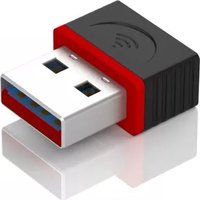


Brand : j5 create
Model : JUD380
Category : Computer accessory