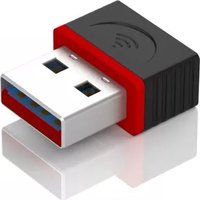
JUE301 - Network card / adapter j5 create - Free user manual and instructions
Find the device manual for free JUE301 j5 create in PDF.


| Product Type | Network card / adapter (Wireless USB) |
| Brand | j5 create |
| Model | JUE301 |
| Interface | USB |
| Wireless Standard | 802.11n |
| Antenna | Two external antennas |
| Driver Installation | Required before connecting the device |
| Configuration Tool | J5create WLAN Utility or Microsoft Zero Configuration |
| Supported Operating Systems | Windows (driver installation provided) |
| Wireless Security | Supports encryption (WEP/WPA/WPA2 typical) |
| Warranty | Limited 1-year warranty |
| Compliance | FCC Part 15 Class B |
| RF Exposure | Maintain at least 20 cm distance |
| Power Source | USB bus powered |
| Technical Support | Phone: 888-689-4088, Email: service@j5create.com, Live Chat |
| Repair | Not user-serviceable; contact support for warranty claims |
Frequently Asked Questions - JUE301 j5 create
User questions about JUE301 j5 create
0 question about this device. Answer the ones you know or ask your own.
Ask a new question about this device
Download the instructions for your Network card / adapter in PDF format for free! Find your manual JUE301 - j5 create and take your electronic device back in hand. On this page are published all the documents necessary for the use of your device. JUE301 by j5 create.
USER MANUAL JUE301 j5 create
natural_image
Black wireless router with two USB connectors and a separate red USB port (no text or symbols visible)STOP
Do Not plug the Wireless 802 11n USB Adapter into the computer until the driver is completely installed.
If you have internet access it is highly recommended that you download the latest driver from www.jScreate.com under Support & Services – scroll down to the product's driver you are installing and download the latest driver for your operating system.
Windows Driver Installation
Please follow the steps below to install your new wireless network card: 1. Insert the device driver CD into the CDROM drive on your computer, double-click the Setup.exe icon and run the Setup.exe program.

- Select accept the terms of the license agreement and then click Next.
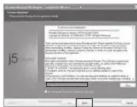
- Select the setup type that best suits your needs, Install driver and J5create WLAN Utility is recommended.

- Click Next, the Select Configuration Tool window will appear, you can manage this wireless adapter by either the J5create Configuration Tool or the Microsoft Zero Configuration Tool.
1

- Click Next, the ready to install window will appear.

- Click Install, and wait while the installation is in process.

- Finally, click Finish to complete the driver installation.

2
■ Connect to a Wireless Access Point
L. After installation has finished, it will automatically try to connect to any unencrypted wireless access point. If you want to connect to a specific wireless access point, or the access point you want to connect to uses encryption, you have to configure the wireless network card and input the correct password to connect to the wireless access point. To do this, double-click 📄 the icon.

- The following window will appear:

- Click the 📋 icon to scan available wireless access points. Scan results will display in the Network zone. If you can't find the access point you want to connect to, click the refresh button, until your wireless access point is displayed.

3
- Double-click the wireless access point's SSID you want to use. If the access point is encrypted, you should follow the prompts to select the appropriate encryption type and enter your password.
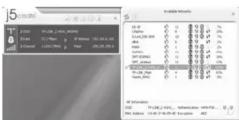
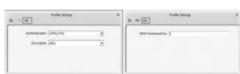
- After you have connected to the wireless access point successfully, you can get detailed information on the connected access point such as status, IP address, speed, etc. Click the 📄 icon, then the 📄 icon, here you will see the signal quality and signal strength information.

Limited Warranty
jScreate offers a limited 1-year warranty. User's wear & tear damage is not included. The user shall call or e-mail jScreate's customer service with information regarding the defect(s) of the product and obtain a return authorization number. Users are responsible for one way return freight cost and we will take care of one way freight back. In order to obtain a return authorization number, users should have the following information handy when calling or emailing the service team:
(i) a copy of the original purchase invoice to verify your warranty
(ii) a product serial number
(iv) customer's name, address, and telephone number
JScreate does not warrant that the operation of the product will be uninterrupted or error-free. JScreate is not responsible for damage arising from failure to follow instructions relating to the product's use. This warranty does not apply to(a) consumable parts, unless damage has occurred due to a defect in materials or workmanship; (b) cosmetic damage, including but not limited to scratches, dents, and broken plastic on ports; (c) damage caused by use with non-Jscreate products; (d) damage cause by natural disasters (flood, fire, earthquake, lightning strike, typhoon etc.); (e) damage caused by human misuse (lost, accident, abuse, misuse or other external causes); (f) damage caused by operating the product outside the permitted or intended uses described by JScreate; (g) damage caused by service (including upgrades and expansions) performed by anyone who is not a representative of JScreate or a JScreate Authorized Service Provider; (h) a product or part that has been modified to alter functionality or capability without the written permission of JScreate; or (i) if any JScreate serial number on the product has been removed or defaced. If such a situation occurs, JScreate will calculate the cost of materials and repair for your reference. This warranty is given by JScreate in lieu of any other warranties expressed or implied.
■ Federal Communication Commission Interference Statement
This equipment has been tested and found to comply with the limits for a Class B digital device, pursuant to Part 15 of the FCC Rules. These limits are designed to provide reasonable protection against harmful interference in a residential installation. This equipment generates, uses and can radiate radio frequency energy and, if not installed and used in accordance with the instructions, may cause harmful interference to radio communications. However, there is no guarantee that interference will not occur in a particular installation. If this equipment does cause harmful interference to radio or television reception, which can be determined by turning the equipment off and on, the user is encouraged to try to correct the interference by one or more of the following measures:
- Reorient or relocate the receiving antenna.
- Increase the separation between the equipment and receiver.
- Connect the equipment into an outlet on a circuit different from that to which the receiver is connected.
- Consult the dealer or an experienced radio/TV technician for help.
This device complies with Part 15 of the FCC Rules. Operation is subject to the following two conditions: (1) This device may not cause harmful interference, and (2) this device must accept any interference received, including interference that may cause undesired operation.
This device and its antenna(s) must not be co-located or operating in conjunction with any other antenna or transmitter.
You are cautioned that any changes or modifications to this product not explicitly approved by the manufacturer in writing could void the user's authority to operate the equipment and any assurances of Safety or Performance, and could result in violation of Part 15 of the FCC Rules.
■ FCC Radiation Exposure Statement
- This equipment complies with FCC radiation exposure limits set forth for an uncontrolled environment.
- This equipment should be installed and operated with a minimum distance of 20~cm between the radiator and your body.
STOP!!
If you have any problems with this product please contact our technical support team before returning it to the store.
TECHNICAL SUPPORT
Customer Service: 888-988-0488
Technical Support : 888-689-4088
Email: service@j5create.com
Service Time : Mon. - Fri. 10:00 - 18:00 E.S.T
Live Chat: www.j5create.com/livechat
Support Ticket : tickets.j5create.com


Brand : j5 create
Model : JUE301
Category : Network card / adapter