
EH308 - Mp3 player THOMSON - Free user manual and instructions
Find the device manual for free EH308 THOMSON in PDF.


| Product Type | MP3 Player |
| Brand | Thomson |
| Model | EH308 |
| Dimensions | Approx. 90 x 40 x 10 mm (3.5 x 1.6 x 0.4 inches) |
| Weight | Approx. 50 g (1.8 oz) including battery |
| Power Source | Built-in rechargeable lithium battery; USB charging via computer or AC adapter (5V, 500mA) |
| Battery Life | Up to 10 hours of music playback |
| Storage Capacity | Internal flash memory (typically 4GB or 8GB, model dependent) |
| Supported Audio Formats | MP3, WMA, WAV, FLAC |
| Display | 1.5-inch monochrome LCD screen with backlight |
| Playback Functions | Play, pause, skip, shuffle, repeat, folder navigation |
| FM Radio | Yes, with preset stations and recording |
| Voice Recording | Built-in microphone, recording in MP3/WAV format |
| Equalizer | Presets: Normal, Rock, Pop, Jazz, Classical, Bass |
| Connectivity | USB 2.0 for data transfer and charging; 3.5mm headphone jack |
| Supported Languages | Multi-language menu (English, French, Spanish, etc.) |
| Additional Features | Clock, alarm, sleep timer, password lock |
| Included Accessories | USB cable, earphones, user manual |
| Care & Maintenance | Keep dry; clean with a soft, lint-free cloth; avoid extreme temperatures |
| Safety Precautions | Do not expose to water or moisture; do not disassemble; use only approved chargers |
| Spare Parts & Repairability | Limited user-serviceable parts; contact certified service center for repairs |
Frequently Asked Questions - EH308 THOMSON
User questions about EH308 THOMSON
0 question about this device. Answer the ones you know or ask your own.
Ask a new question about this device
Download the instructions for your Mp3 player in PDF format for free! Find your manual EH308 - THOMSON and take your electronic device back in hand. On this page are published all the documents necessary for the use of your device. EH308 by THOMSON.
USER MANUAL EH308 THOMSON
EH308
Table of Contents 2
Important Information .... 4
End User License Agreement 6
Before You Begin 8
Unpacking Your Unit 8
Things to consider before you get started.... 9
Computer System Requirements 9
Secure Music Download Requirements 9
Warning 9
Caution 10
Caution While Driving 10
Back up your data 10
Product Registration 10
Software Setup 11
Inserting the Included CD-ROM into CD-ROM Drive 11
Auto Updater 12
Connecting to the Computer 13
Connecting to the Computer 13
Charging the Battery 14
Important Battery Information 14
Caution 14
Transferring Files to the Player 15
Transferring Files via Yahoo! Music Engine (Windows XP only) 16
Transferring Files via Windows Explorer (Drag-and-drop) 17
Disconnecting Your Player from the Computer 18
General Controls 19
Before you Begin 19
Overview of the General Controls 20
Navigation Display 22
Navigation Menus 23
Selecting What You Want to Play 23
Listening and Viewing 26
Music/ Podcasts/ Audiobooks Playback 26
Music/Audiobooks Display 27
Picture Viewing 28
Video Viewing 29
Video Converter 30
Playlists 32
Creating Playlists 32
Playing Playlists 33
Deleting Playlists 34
Player's Menus 35
Accessing the Player's Menus 35
Navigation and Selections 35
Shuffle 36
Repeat 36
DSP 36
Slideshow 37
Settings 37
System Info 37
Additional Information 38
Tips and Troubleshooting 38
Check for Updates 40
Specifications 41
Hardware 41
Hard Drive 41
Software 41
Miscellaneous Specifications 41
WARNING
To reduce the risk of fire or electric shock, do not expose this product to rain or moisture.
CAUTION
RISK OF ELECTRIC SHOCK DO NOT OPEN
To reduce the risk of electric shock, do not remove cover (or back). No user serviceable parts inside. Refer servicing to qualified service personnel.

This symbol indicates "dangerous voltage" inside the product that presents a risk of electric shock or personal injury.

This symbol indicates important instructions accompanying the product.
To reduce risk of injury, charge only rechargeable batteries recommended by the manufacturer for this product. Other types of batteries may burst causing damage and personal injury.
Technical Specification
Product: Digital audio player
Brand: Thomson
Model: EH308
Gross Weight: 285g
Electrical Rating
DC : 3.7 V Li-polymer battery (built-in)

In accordance with the rating plate of the unit, this unit complies with current standards concerning electrical safety and electromagnetic compatibility.
Sound Pressure Control
Articles L44.5 and 44.6 of the Code on Public Health, modified by Article 2 of the Law dated May 28th, 1996, impose a maximum acoustic output of 100 decibels. The headphone provided and your player comply with the legislation in force.
Prolonged listening at full power may irreversibly damage the user's hearing.


Service
This product should be serviced only by those specially trained in appropriate servicing techniques. For instructions on how to obtain service, refer to the warranty in this guide.
This symbol means that your inoperative electronic appliance must be collected separately and not mixed with household waste. The European Union has implemented a specific collection and recycling system for which manufacturers are responsible.
This appliance has been designed and manufactured with high quality materials and components that can be recycled and reused.
Electrical and electronic appliances may contain parts that are necessary for the system to work properly but can become a health and environmental hazard if they are not handled or disposed of properly. Therefore, please do not dispose of your inoperative appliance with household waste.
If you are the owner of the appliance, you must deposit it at the appropriate local collection point or leave it with the vendor when purchasing a new appliance.
- If you are a professional user, please follow your supplier's instructions.
- If the appliance is rented to you or left in your care, please contact your service provider.
Help us protect the environment in which we live!
IMPORTANT: READ CAREFULLY BEFORE DOWNLOADING OR INSTALLING THIS SOFTWARE!
THIS END USER LICENSE AGREEMENT (THIS "EULA") IS A LEGAL AGREEMENT BETWEEN YOU AND THOMSON INC., OR ANY THOMSON GROUP ENTITY, AS DEFINED BELOW (COLLECTIVELY "THOMSON ENTITY"), FOR THE RCA OR THOMSON BRANDED PORTABLE DIGITAL AUDIO/VIDEO DEVICE APPLICATION/DRIVER SOFTWARE PROGRAM AND ASSOCIATED DOCUMENTATION, IF ANY (COLLECTIVELY, THE "PROGRAM"). THIS EULA CONTAINS IMPORTANT LEGAL LIMITATIONS, RESTRICTIONS AND DISCLAIMERS, AND ALSO SPECIFIES THE DURATION OF YOUR LICENSE.
BY INSTALLING THE PROGRAM OR CLICKING ON THE ACCEPTANCE BUTTON OF THE PROGRAM, COPYING OR OTHERWISE USING THE PROGRAM, YOU ACKNOWLEDGE AND AGREE THAT YOU HAVE READ THIS EULA, UNDERSTAND IT, AND AGREE TO BE BOUND BY ITS TERMS AND CONDITIONS. YOU MAY USE THE PROGRAM ONLY IN ACCORDANCE WITH THIS EULA, AND ANY SUCH USE IS HEREBY UNDERSTOOD TO BE CONDITIONAL UPON YOUR SPECIFIC AGREEMENT TO THE UNMODIFIED TERMS SET FORTH HEREIN. IF YOU DO NOT AGREE WITH ALL OF THE TERMS OF THIS EULA, CLICK ON THE REJECTION BUTTON AND/OR DO NOT INSTALL THE PROGRAM AND/OR DO NOT USE THE PROGRAM.
1. LICENSE
(a) Under this EULA, you are granted a license (i) to use the Program on a single workstation, and (ii) to make one (1) copy of the Program into any machine-readable form for backup of the Program, provided the copy contains all of the original Program's proprietary notices.
(b) You may transfer the Program and license to another party only as a part of the Thomson/RCA branded Portable Digital Audio/Video Device ("A/V Device"), and only if the other party agrees to accept the terms and conditions of this EULA. If you transfer the Program, you must at the same time either transfer all copies to the same party or destroy any copies not transferred.
(c) The terms of this EULA will govern any software upgrades or updates provided by THOMSON Entity that replace and/or supplement the original Program, unless such upgrade or update is accompanied by separate license terms and conditions in which case the terms of that separate license will govern. You acknowledge and agree that THOMSON Entity may automatically download upgrades or updates to the Program software to your computer in order to update, enhance, and/or further develop the Program.
2. LICENSE RESTRICTIONS
(a) Except for the licenses expressly granted to you in this EULA, no other licenses or rights are granted or implied.
(b) You may not (i) make the Program available over a network where it could be used by multiple computers at the same time; (ii) modify, translate, reverse engineer, decompile, disassemble (except to the extent that this restriction is expressly prohibited by law), or create derivative works based upon the Program; or (iii) copy the Program, except as expressly permitted herein. You agree that you shall only use the Program in a manner that complies with all applicable laws in the jurisdictions in which you use the Program, including, but not limited to, applicable restrictions concerning copyright and other intellectual property rights.
(c) The Program may contain pre-release code that does not perform at the level of a final code release. In such case, the Program may not operate properly. Updated versions of the Program may be downloaded from www.rca.com (if purchased in the United States) and www.thomsonlink.com (if purchased in Europe).
(d) THOMSON Entity is not obligated to provide support services for the Program.
(c) The Program is provided with "RESTRICTED RIGHTS". Use, duplication, or disclosure by the U.S. Government is subject to restrictions as set forth in
subparagraph (c)(1)(ii) of DFARS 252.227-7013, or FAR 52.227-19, or in FAR 52.227-14 Alt. III, as applicable.
3. TERM AND TERMINATION
(a) Your license is effective on the date you accept this EULA and remains in effect until this EULA is terminated by either party.
(b) You may terminate this EULA and the associated license, without any notice or delay, by destroying or permanently erasing the Program and all copies thereof.
(c) If you fail to comply with any of the terms of this EULA, in whole or part, your license will automatically terminate without notice from THOMSON Entity.
(d) Upon termination of this EULA and your associated license, you shall cease all use of the Program and destroy or permanently erase the Program and all full or partial copies thereof.
4. WARRANTY DISCLAIMER
THE PROGRAM IS PROVIDED "AS IS" WITHOUT WARRANTY OF ANY KIND, EITHER EXPRESSED OR IMPLIED, INCLUDING, BUT NOT LIMITED TO THE IMPLIED WARRANTIES OF MERCHANTABILITY, FITNESS FOR A PARTICULAR PURPOSE, TITLE OR NON-INFRINGEMENT. THE ENTIRE RISK AS TO THE QUALITY AND PERFORMANCE OF THE PROGRAM IS WITH YOU. SHOULD THE PROGRAM PROVE DEFECTIVE, YOU (AND NOT THOMSON ENTITY, ITS SUPPLIERS, OR ITS DEALERS) ASSUME THE ENTIRE COST FOR ALL NECESSARY REPAIR OR CORRECTION.
This exclusion of warranty may not be allowed under some applicable laws. As a result, the above exclusion may not apply to you, and you may have other rights depending on the law that applies to you.
5. OWNERSHIP RIGHTS
All title and intellectual property rights in and to the Program and any copies thereof are owned by THOMSON Entity or its suppliers. All title and intellectual property rights in and to the content which may be accessed through use of the Program is the property of the respective content owner and may be protected by applicable copyright or other intellectual property laws and treaties. This license grants you no rights to use such content.
6. LIMITATION OF LIABILITY
(a) TO THE MAXIMUM EXTENT PERMITTED BY APPLICABLE LAW, IN NO EVENT SHALL THOMSON ENTITY, OR ITS DEALERS BE LIABLE FOR ANY SPECIAL, INCIDENTAL, INDIRECT, OR CONSEQUENTIAL DAMAGES WHATSOEVER (INCLUDING, WITHOUT LIMITATION, DAMAGES FOR LOSS OF PROFITS, BUSINESS INTERRUPTION, CORRUPTION OF FILES, LOSS OF BUSINESS INFORMATION, OR ANY OTHER PECUNIARY LOSS) REGARDLESS OF CAUSE OR FORM OF ACTION, INCLUDING CONTRACT, TORT, OR NEGLIGENCE, ARISING OUT OF YOUR USE OF OR INABILITY TO USE THE PROGRAM, EVEN IF THOMSON ENTITY HAS BEEN ADVISED OF THE POSSIBILITY OF SUCH DAMAGES. BECAUSE SOME STATES AND JURISDICTIONS DO NOT ALLOW THE EXCLUSION OR LIMITATION OF LIABILITY OF CONSEQUENTIAL OR INCIDENTAL DAMAGES, THE ABOVE LIMITATION MAY NOT APPLY TO YOU.
(b) YOU ASSUME RESPONSIBILITY FOR THE SELECTION OF THE APPROPRIATE PROGRAM TO ACHIEVE YOUR INTENDED RESULTS, AND FOR THE INSTALLATION, USE, AND RESULTS OBTAINED.
7. WINDOWS MEDIA
The software embedded within your A/V Device (the "Device Firmware") contains software licensed from Microsoft that enables you to play Windows Media Audio (WMA) files ("WMA Software"). The WMA Software is licensed to you for use with your A/V Device under the following conditions. By installing and using this version of the Device Firmware, you are agreeing to these conditions. IF YOU DO NOT AGREE TO THE END USER CONDITIONS OF THIS SECTION 7, DO NOT INSTALL OR USE THIS VERSION OF THE DEVICE FIRMWARE.
The WMA Software is protected by copyright and other intellectual property laws. This protection also extends to documentation for the WMA Software, whether in written or electronic form.
GRANT OF LICENSE. The WMA Software is only licensed to you as follows: You may use this version of the Device Firmware containing the WMA Software only as such use relates to your A/V Device.
You may not reverse engineer, decompile, or disassemble the WMA Software, except and only to the extent that such activity is expressly permitted by applicable law.
You may transfer your right to use the Device Firmware only as part of a sale or transfer of your A/V Device, on the condition that the recipient agrees to the conditions set forth herein. If the version of the Device Firmware that you are transferring is an upgrade, you must also transfer all prior versions of the Device Firmware that you have which include the WMA Software.
MICROSOFT IS NOT PROVIDING ANY WARRANTY OF ANY KIND TO YOU FOR THE WMA SOFTWARE, AND MICROSOFT MAKES NO REPRESENTATION CONCERNING THE OPERABILITY OF THE WMA SOFTWARE.
The WMA Software is of U.S. origin. Any export of this version of the Device Firmware must comply with all applicable international and national laws, including the U.S. Export Administration Regulations, that apply to the WMA Software incorporated in the Device Firmware.
Content providers are using the digital rights management technology for Windows Media contained in your A/V Device ("WM-DRM") to protect the integrity of their content ("Secure Content") so that their intellectual property, including copyrights, in such content is not misappropriated. Your A/V Device uses WM-DRM software to play Secure Content ("WM-DRM Software"). If the security of the WM-DRM Software in your A/V Device has been compromised, owners of Secure Content ("Secure Content Owners") may request that Microsoft revoke the WM-DRM Software's right to acquire new licenses to copy, display, and/or play Secure Content. Revocation does not alter the WM-DRM Software's ability to play unprotected content. A list of revoked WM-DRM Software is sent to your A/V Device whenever you download a license for Secure Content from the Internet or from a computer. Microsoft may, in conjunction with such license, also download revocation lists onto your A/V Device on behalf of Secure Content Owners.
8. THIRD PARTY SOFTWARE
ANY THIRD PARTY SOFTWARE THAT MAY BE PROVIDED WITH THE PROGRAM IS INCLUDED FOR USE AT YOUR OPTION. IF YOU CHOOSE TO USE SUCH THIRD PARTY SOFTWARE, THEN SUCH USE SHALL BE GOVERNED BY SUCH THIRD PARTY'S LICENSE AGREEMENT, AN ELECTRONIC COPY OF WHICH WILL BE INSTALLED IN THE APPROPRIATE FOLDER ON YOUR COMPUTER UPON INSTALLATION OF THE SOFTWARE. THOMSON ENTITY IS NOT RESPONSIBLE FOR ANY THIRD PARTY'S SOFTWARE AND SHALL HAVE NO LIABILITY FOR YOUR USE OF THIRD PARTY SOFTWARE.
9. GOVERNING LAW
If you acquired this A/V Device in the United States, this EULA shall be governed and construed in accordance with the laws of the State of Indiana, U.S.A. without regard to its conflict of laws principles. If you acquired this A/V Device within the European Union, this EULA shall be governed and construed in accordance with the laws of France, without regard to its conflict of laws principles. If you acquired this A/V Device outside the United States or the European Union, then local law may apply.
10. GENERAL TERMS
This EULA can only be modified by a written agreement signed by you and THOMSON Entity, and changes from the terms and conditions of this EULA made in any other manner will be of no effect. If any portion of this EULA shall be held invalid, illegal, or unenforceable, the validity, legality, and enforceability of the remainder of the Agreement shall not in any way be affected or impaired thereby. This EULA is the complete and exclusive
statement of the agreement between you and THOMSON Entity, which supersedes all proposals or prior agreements, oral or written, and all other communications between you and THOMSON Entity, relating to the subject matter of this hereof. "THOMSON Group Entity" when used in this EULA shall mean any person, corporation, or other organization, domestic or foreign, including but not limited to subsidiaries, that is directly or indirectly controlled by Thomson, French company. For purposes of this definition only, the term "control" means the possession of the power to direct or cause the direction of the management and policies of an entity, whether by ownership of voting stock or partnership interest, by contract, or otherwise, including direct or indirect ownership of more than fifty percent (50%) of the voting interest in the entity in question.
Dear Thomson Customer,
Thank you for purchasing the Thomson Digital Audio Player. This product will play open mp3 and Windows Media™ audio (WMA) content as well as content purchased from most online music download services.
After purchasing and downloading music to your PC, you are now ready to move content to your player. To transfer the music to your player, you may use Yahoo! Music Engine or the application recommended by the online music download service.
(Note: Services and applications must be Windows Media audio-compliant and support Digital Rights Management. Windows XP (SP1 or higher) required.)
Unpacking Your Unit
Your player came with everything you need to make music portable — all of the items shown below should have been packed in the box with your player.

Thomson Digital Audio Player

Music Management CD Contains software applications

Mini USB cable Plug the small end into the USB on your player, and plug the other end into your computer's USB port.

Earphones
Carrying Pouch
Explore a world of accessories! Jump on the Internet and go to www.thomsonlink.com to discover the additional accessories that are available for your player.
Illustrations contained within this publication are for representation only and subject to change.
Things to consider before you get started...
Computer System Requirements
- Pentium III 500MHz or higher recommended, running Windows ® XP SP1 (SP=Service Pack).
- Internet Explorer 6.0 or higher
- Internet access (broadband recommended) • 250MB free hard disk space for the software
- 128MB RAM • CD-ROM drive capable of digital audio extraction • USB port (2.0 recommended)
- Sound card • 16-bit color video card
Secure Music Download Requirements
• Windows XP SP1 or higher (SP=Service Pack) - Internet Explorer 6.0 or higher • Windows Media Player 10 or higher
Warning
Use of this product is for your personal use only. Unauthorized recording or duplication of copyrighted material may infringe upon the rights of third parties and may be contrary to copyright laws.
Caution
- Keep product out of direct sunlight. Exposure to direct sunlight or extreme heat (such as inside a parked car) may cause damage or malfunction.
- Do not expose to rain or moisture.
Caution While Driving
Use of headphones while operating an automobile or moving vehicle is not recommended and is unlawful in some states and areas. Be careful and attentive on the road. Stop operation of the unit if you find it disruptive or distracting while driving.
Back up your data
As with any portable player that has a hard drive, you must back up the drive regularly. RCA and Thomson are not responsible for lost data.
Product Registration
Please fill out the product registration card and return it immediately. Returning this card allows us to contact you if needed.
The Music Management CD that comes with your player contains all of the necessary software components you need to make your player work properly.
These components do the following:
- enable you to transfer files from your computer to your player
- format and sort the contents, update the system files.
Inserting Included CD-ROM into CD-ROM Drive
- Turn on your computer and place the Music Management CD that came with your player into your computer.
IMPORTANT: Don't connect the USB cable to the PC or the player before or during the CD-ROM installation.
- If the setup screen does not appear, double-click My Computer, double click your CD-ROM drive icon, and double click Install to run the installer.
Note: The Music Management CD also contains Yahoo! Music Engine that can help transfer music content to your player. Please refer to the section on your installed software for detailed operations.
Note: Yahoo! Music Engine only works on Windows XP.
Auto Updater
To keep your player up to date with the latest software available for your player you can use the Auto Updater application that was installed during the software installation. To update your player, right-click on the icon in the taskbar while your player is connected to your computer. You must be connected to the Internet for this to work properly. Select from the menu “Check For Updates” for checking firmware updates and “Update Firmware” for updating your player.

The Auto Updater application will automatically download updates from the Internet and prompt you when they are available for installation.
Note: The Auto Updater icon will only appear when your player is connected to the computer.
Note: If your product does not show up on our website or there are no updates available, then your product was delivered with the latest firmware installed already, and no updated version has been released yet.
Connecting the Player to the Computer
Connect the digital audio player to your computer with the mini USB cable provided. The unit will turn on automatically. The player will appear as a Windows portable device (Windows XP) using the Media Transfer Protocol (MTP).
Note: It might take several seconds for the player to be detected. Click Refresh in My Computer or Explorer to make sure the player has been detected.
Note: The player is capable of transferring files at USB 2.0. If USB 2.0 port is available on your computer, use it to connect to your player. The player is still backward compatible with the older USB 1.1 ports. However, you will not be able to take full advantage of the potential speed increase.

Charging the Battery
Your digital audio player is charged through the USB connection when it is connected to your computer. To fully charge the player, make sure your computer is on and the player is connected for at least 3 hours.
Important Battery Information
- Charge the unit for at least 3 hours before first use.
- Charge the unit for at least 3 hours after putting away the unit for a long time.
- Battery replacement should only be made by trained technicians. Refer to Limited Warranty for details.
- Do not attempt to open the unit. No user serviceable parts inside.
- To reduce risk of injury, charge only rechargeable batteries recommended by the manufacturer for this product. Other types of batteries may burst causing damage and personal injury.
Caution
- The battery used in this player may present a risk of fire, explosion, or chemical burn if mistreated. Do not separately recharge, disassemble, or expose to high temperatures. Examples of high temperatures that may damage your product include leaving it in a locked car in the summer, or putting it on top of other heat generating electronic devices (such as power amplifiers and computer monitors).
- Do not place the battery under direct sunlight or in excessively hot places over 45°C (113°F) such as the dashboard of a car.
- Dispose of used battery properly. Keep away from children. Do not disassemble and do not dispose of in fire.


Transferring Files to the Player
You may select one of the methods to transfer music contents to your player: 1) Yahoo! Music Engine, 2) drag-and-drop via Windows Explorer. For method 1, you first need to have successfully installed the software packages included in the Music Management CD (refer to "Inserting the Included CD-ROM into CD-ROM Drive").
Transferring Files via Yahoo! Music Engine - refer to page 16
Transferring files via Windows Explorer (drag-and-drop) - refer to page 17
Note: Yahoo! Music Engine only works on Windows XP.
Caution: Secure music download files must be transferred to your player through the Yahoo Music Engine™ or the application recommended by your online music download service (Note: Services and applications must be Windows Media audio-compliant and support Digital Rights Management.) (Apple iTunes™ music content is not supported).
Transferring Files via Yahoo! Music Engine (Windows XP only)
Yahoo! Music Engine lets you manage your music easily and organize like a pro. Create your own playlists: music for work, the gym, or even dinner. You can also buy and download music and transfer it to your player in seconds. Just drag and drop and you're done. For more information on installation and operations, please visit: http://music.yahoo.com
Note: Do not disconnect the USB cable during music download. Doing so may corrupt system files or the files being downloaded.

- Launch the Yahoo! Music Engine.
- Attach the player to your computer. You should see the player's name appear in the left navigation pane.
- In the Yahoo! Music Engine, click My Music or click on a playlist in the left navigation pane.
- From a playlist: at the bottom of the Yahoo! Music Engine window, click the Transfer to Device button. OR
- From My Music: drag and drop files from My Music to the player. (You may also drag artists and albums from My Music).
- The Yahoo! Music Engine will check to see if there is sufficient storage space on the player to copy the songs. If not, you will have to reduce the number of songs you are transferring.
Note: Windows XP requires Service Pack 1 or higher. Yahoo! Music Engine requires Internet Explorer 6 or above for installation.
Note: You may be required to upgrade your Yahoo! Music Engine by Yahoo!. Please refer to the instructions from Yahoo! regarding upgrade and operations.
Transferring Files via Windows Explorer (Drag and Drop) (Windows XP only)
In Windows Explorer, when the player is opened, the “Data” and “Media” views will be displayed for the player.
The Data View is used to manage data content on the player, such as text files. The Media View is used to manage media content supported by the player for playback, such as mp3 and wma.
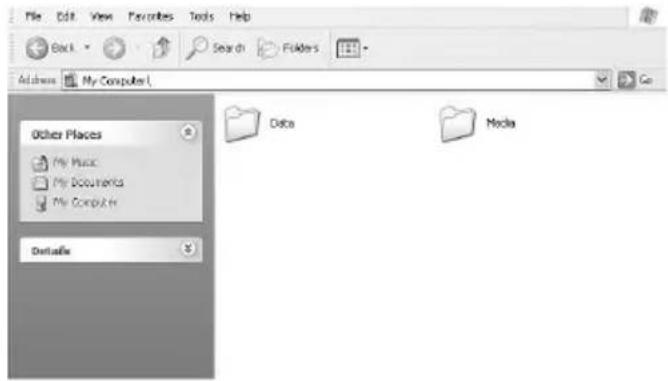
You can copy files to / delete files from the player through Windows Explorer, but you cannot open or edit the files directly from the player. If you want to edit the files, you will need to copy the files from the player to another location (drive) in the system.
Note: Picture files should be copied to the “Media” folder for viewing. Video files cannot be dragged and copied to the “Media” folder. They must be converted and transferred to the player via Thomson Video Converter for playback (read page 30).
Caution: Secure music download files must be transferred to your player through one of the provided Jukebox software packages or any applications recommended by the online music download service. Please visit the online music download service's website where you purchased your content from for more details on transferring secure music to your player.
Note: Windows XP requires Service Pack 1 or higher.
Disconnecting Your Player from the Computer
Attention: Do not disconnect the USB connection during file download. Doing so may corrupt system files or the files being downloaded.
For Win XP users, your player is connected in MTP (Media Transfer Protocol) mode to your computer by default, you may disconnect the USB cable directly when file download is completed.
Before You Begin
The following example illustrates what you should do before operating your player.
- These instructions presume you've already done the followings:
- Installed all necessary applications. • T transferred music from your computer to the player.
- Allowed your player to charge for at least 3 hours while connected to the computer.
- Updated your player software using the Auto Updater application if it was installed. See page 12 on updating your player (You must have an active Internet connection).
- If you haven't unplugged the player from your computer, detach the USB cable from the player.
- Connect the headphones to your player.
- If your player isn't already on, turn it on using the ON/OFF button. The main navigation menu appears.
Note: You can reset your player at any time if there is a problem by pressing and holding the ON/OFF button for 10 seconds.
Overview

Top view
Front view
Right view
1. The display
- M - Enters or exits the player's menu. (During playback, press once to access the previous navigation screen before playback, press twice to access the player's menu. Press three times to go back to the playback screen.)
- Touch sensitive keypad - press or move your finger rotationally on the surface for operations. Two operation modes are available to best fit your key operation habit. You can always switch between the two modes from the "Settings > Scrolling" menu (read page 37).
![graph TD A["①"] --> B["②"] B --> C["③"] C --> D["④"] D --> E["⑤"] E --> F["⑥"] F --> G["M"] style A fill:#f9f,stroke:#333 style B fill:#f9f,stroke:#333 style C fill:#f9f,stroke:#333 style D fill:#f9f,stroke:#333 style E fill:#f9f,stroke:#333 style F fill:#f9f,stroke:#333 style G fill:#f9f,stroke:#33…](/content/2026/05/990556/images/8c40e2fccbd61d393062b75bf72a864b16f9ca9d7ef11a94ca4881e426552ef7.jpg)
Mode: Pressing (default)
① Scrolls up
② Scrolls down
③ Skips backwards, goes back
④ Skips forwards, advances
⑤ Starts/pauses playback, makes selections
⑥ Increases or decreases the volume by rotational movement
Mode: Rotating
① Increases the volume
② Decreases the volume
③ Skips backwards, goes back
④ Skips forwards, advances
⑤ Starts/pauses playback, makes selections
⑥ Scrolls up or down by rotational movement
- Power on/off - slide the key upwards and hold it until the unit switches on/off.
Stop playback - slide the key upwards during music, picture, or video playback and then release to stop it.

Key lock - slide the key downwards to prevent accidental key activation.
- USB connector - Attach the small end (Type mini-B) of the mini-USB cable here. Attach the large end (Type A) to your computer's USB port. The player will enter USB mode automatically, and you can transfer files to and from the computer.
The player's battery will also be charged when connected to the computer.
- Earphones jack - Insert the earphones plug here.
Navigation Display

Indicates the mode currently selected

Indicates the item currently selected
- Indicates whether the player is playing or paused.
- Indicates the shuffle mode.
- Indicates the repeat mode.
- Indicates that the key lock function is activated.
- Indicates the battery level of the unit. When charging, the icon will animate.
Navigation Menus
The files are sorted according to their file types. Music files are further sorted according to several parameters for quick search of your favourite music. Once your player is turned on, you will see the file menus as below:
![graph LR A["Home"] --> B["Music"] B --> C["Podcasts"] B --> D["Audiobooks"] B --> E["Playlists"] B --> F["Pictures"] B --> G["Video"] H["Artists"] --> I["Albums"] H --> J["Titles"] H --> K["Genres"] H --> L["Years"]](/content/2026/05/990556/images/21ea65b078d4a478df2ab86abc8a5dd63ccfef416c36a670b3d1ea78a117914e.jpg)
Tip: Some PODCAST files from the Web may not have correct GENRE name, and will not display correctly on the player. You may find those incorrect PODCAST Genre files sorted into other function mode (Music), instead of function mode PODCAST. To resolve this issue, please rename the GENRE of these files to PODCAST. In Window XP, right click the file and select PROPERTIES, go into SUMMARY, you will see the GENRE and be able to rename it.
Selecting What You Want to Play
The following example illustrates the steps to select and play songs in the “Artists” category.
Note: Use the Touch sensitive keypad for operations. Two operation modes (pressing and rotating) are available to best fit your key operation habit (read page 37 "Settings >Scrolling" for details on switching between the two modes).
![graph TD A["①"] --> B["②"] B --> C["③"] C --> D["④"] D --> E["⑤"] E --> F["⑥"] F --> G["M"] style A fill:#f9f,stroke:#333 style B fill:#f9f,stroke:#333 style C fill:#f9f,stroke:#333 style D fill:#f9f,stroke:#333 style E fill:#f9f,stroke:#333 style F fill:#f9f,stroke:#333 style G fill:#f9f,stroke:#33…](/content/2026/05/990556/images/db492ea730800b41fb2fbe3a4aba50eee89d482dcc33269a16f6feb0195cb762.jpg)
Music

- Select "Music" by pressing 1 or 2 (pressing mode) or moving rotationally 6 (rotating mode). Then press 4 to advance.
Music
Artists
Albums
Titles
Genres
Years
Artists
Artist 1
Artist 2
Artist 3
Artist 4
Artist 5
Artist 6
- Highlight "Artists" by pressing 1 or 2 (pressing mode) or moving rotationally 6 (rotating mode). Then press 4 to advance.
- The Artists menu appears with the artists listed in alphabetical order.
- Scroll up and down the "Artists" menu by pressing 1 or 2 (pressing mode) or moving rotationally 6 (rotating mode). • Return to the previous menu by pressing 3.
- Go to the root music menu directly by pressing and holding 3.
- View the albums from the artist highlighted by pressing 4 (the albums of that artist appear in alphabetical order).
Artist 3
All Songs
Album 1
Album 2
Album 3
Album 4
Album 5
- Scroll up and down the “Albums” menu by pressing 1 or 2 (pressing mode) or moving rotationally 6 (rotating mode).
View the songs from the album highlighted by pressing 4 (the songs of that album appear in track order).
| Album 4 |
| All Songs |
| Song 1 |
| Song 2 |
| Song 3 |
| Song 4 |
| Song 5 |
- Highlight the desired song by pressing 1 or 2 (pressing mode) or moving rotationally 6 (rotating mode).
To play the song, press 3 or 5. Song's information will show on the display during playback.
To pause playback, press 5.
Note: The information provided in the playback screen depends upon the ID3 tags that have been set up for the song.
Note: To show the player's menu at any stage of navigation, press M.
Note: The item that you can select for playback does not limit to a single file, you may select an artist, an album or a playlist and then press 5 to start playback of all files within your selected item.
Music/ Podcasts/ Audiobooks Playback
Note: Use the Touch sensitive keypad for operations. Two operation modes (pressing and rotating) are available to best fit your key operation habit (read page 37 "Settings >Scrolling" for details on switching between the two modes).
![graph TD A["⑥"] --> B["①"] B --> C["③"] C --> D["⑤"] D --> E["④"] E --> F["②"] F --> G["③"] G --> H["③"] H --> I["③"] I --> J["③"] J --> K["③"] K --> L["③"] L --> M["③"] M --> N["③"] N --> O["③"] O --> P["③"] P --> Q["③"] Q --> R["③"] R --> S["③"] S --> T["③"] T --> U["③"] U --> V["③"] V --> W["③"]…](/content/2026/05/990556/images/ed784ecc1849feacc3f2cb7b8cb7b063c397ea40ce5ff01968cfe759ff539ccf.jpg)
Mode: Pressing (default)

Slide upwards and release to stop playback.
① Shows Album Art of DRM Music
② Shows Album Art of DRM Music
③ Skips to the previous file, press and hold to scan backwards within a file.
④ Skips to the next file, press and hold to scan forwards within a file.
⑤ Starts/pauses playback, press and hold to add the current file to the playlist.
⑥ Increases or decreases the volume by rotational movement.
Mode: Rotating
① Increases the volume
② Decreases the volume
③ Skips to the previous file, press and hold to scan backwards within a file.
④ Skips to the next file, press and hold to scan forwards within a file.
⑤ Starts/pauses playback, press and hold to add the current file to the playlist.
⑥ Shows Album Art of DRM Music
Tips: for multi-section audiobook files, press and hold 5 during playback to select between "skipping by file" and "skipping by section".
Skipping by file - Press 3 or 4 to go to the previous or next audiobook file.
Skipping by section - Press 3 or 4 to go to the previous or next section of the current file.
Showing Album Art of DRM Music - Depending on the format of the music file, album art and the application software used for transferring files to the player, not all different formats of the album art might be supported. For music files with displayed album art, you can select displaying either the album art or the track information by using the up/down button.
Music/ Audiobooks Playback Display

- Current file number / total number of files (for audiobooks in "Skipping by Section" mode (read the previous page), "Sect" shows before current section number / total number of sections)
- Song name (or title of audiobooks)
- Singer name (or author of audiobooks)
- Album name (or provider of audiobooks)
- Genre type (or category of audiobooks)
- Elapsed playback time
- Year of the file
- Playback progress bar
- File total duration
Note: The information provided in the playback screen depends upon the ID3 tags that have been set up for the song.
Note: If album art is available with a music file, press 1 or 2 (pressing mode) or move rotationally 6 (rotating mode) to show/hide it.
Picture Viewing
Note: Use the Touch sensitive keypad for operations. Two operation modes (pressing and rotating) are available to best fit your key operation habit (read page 37 "Settings > Scrolling" for details on switching between the two modes).
![graph TD A["①"] --> B["②"] B --> C["③"] C --> D["④"] D --> E["⑤"] E --> F["⑥"] F --> G["M"]](/content/2026/05/990556/images/6dacfedaaae34276202c7e7458aac80ae51443bfcd4eb73b94bc9797bff2b0bb.jpg)

Slide upwards and release to stop playback.
Mode: Pressing (default)
① Scrolls up during file navigation. ② Scrolls down during file navigation. ③ Goes back, skips backward. ④ Advances, skips forward. ⑤ Starts/pauses slideshow. ⑥ Increases or decreases the volume by rotational movement.
Mode: Rotating
① Increases the volume ② Decreases the volume ③ Goes back, skips backward. ④ Advances, skips forward. ⑤ Starts/pauses slideshow. ⑥ Scrolls up or down during file navigation by rotational movement.
Press M during playback to pause and return to file navigation.
Note: Music playback will be stopped when viewing pictures or slideshow.
Note: Picture files should be copied to the "Media" folder of the player for viewing.
Video Viewing
Note: Use the Touch sensitive keypad for operations. Two operation modes (pressing and rotating) are available to best fit your key operation habit (read page 37 "Settings > Scrolling" for details on switching between the two modes).
![graph TD A["①"] --> B["②"] B --> C["③"] C --> D["④"] D --> E["⑤"] E --> F["⑥"] F --> G["M"]](/content/2026/05/990556/images/022f381b86be9276daabd5b136fae2fc24b763f0fb1798b730be6dc208d8d849.jpg)

Slide upwards and release to stop playback.
Mode: Pressing (default)
① Scrolls up during file navigation. ② Scrolls down during file navigation. ③ Goes back, skips backward. Press and hold to scan backwards within a file. ④ Advances, skips forward. Press and hold to scan forwards within a file. ⑤ Starts/pauses playback. ⑥ Increases or decreases the volume by rotational movement.
Mode: Rotating
① Increases the volume ② Decreases the volume ③ Goes back, skips backward. ④ Advances, skips forward. ⑤ Starts/pauses playback. ⑥ Scrolls up or down during file navigation, scans forwards or backwards within a file by rotational movement.
Press M during playback to pause and return to file navigation.
Video Converter
Your video has to be converted to optimum format before transferring to this player for playback. To do so, you need to install the Thomson Video Converter in your computer. The video converter only works on Windows XP.

Select the target folder. Select the player type.


- Load the music management CD included with this player in your computer. Installation will start automatically. Follow the instructions on screen to install the video converter.
- Launch the video converter after installation succeeded and connect the player to the computer.
- Drag-and-drop video files from the Windows Explorer to the control panel.
- If the video file is already compatible with the player, “Ready to be downloaded” shows under “Status”.
- Select the target folder for output files by clicking "Browse" under the control panel.
- If you want to transfer the output files to the player automatically after the conversion is complete, check the box underneath for doing so.
- Select the type of player from the pull-down menu under "Player". Select "EH30 series" for this player. Optimum settings for the file conversion will be made automatically.
- To edit the name of the output video file, click on the box next to "Destination" at the lower right corner.

- To convert only a portion of the video file, select the start and end time for conversion at the lower right corner.

- To rotate the video file by 90 ° after the file conversion, select "Yes" from the pull-down menu for doing so.

- Click "Convert" to start the file conversion.

- If all the video files are ready to be transferred without conversion, the "Convert" button will change as "Download". Click to start the file transfer.
Tip: For operation details of the video converter, please open the help file by pressing the 'F1' key on your computer.
Note: Picture files should be copied to the "Media" folder for viewing. Video files cannot be dragged and copied to the "Media" folder. They must be converted and transferred to the player via Thomson Video Converter for playback. Alternatively, converted video files can also be transferred via Windows Media Player in the same way as you transfer music files to the player. Please refer to the instructions of Windows Media Player for open

This video converter software relies on the video codecs already installed in your computer. Make sure the video file you wish to convert plays on your computer before using the video converter software. Note that some video files that play on your computer may rely on specialized video playback applications that are not compatible with the video converter software.
The video converter can only convert files that play on your PC. If a file cannot play on your PC, then it will be necessary for you to download the appropriate PC media player for that file's format from the Internet. Enter the file type or file format into a common Internet search engine to find links where the PC media player can be downloaded and installed to your PC.
Note: Use the Touch sensitive keypad for operations. Two operation modes (pressing and rotating) are available to best fit your key operation habit (read page 37 "Settings >Scrolling" for details on switching between the two modes).
![graph TD A["⑥"] --> B["①"] B --> C["③"] C --> D["⑤"] D --> E["④"] E --> F["②"] F --> G["M"] style A fill:#f9f,stroke:#333 style B fill:#f9f,stroke:#333 style C fill:#f9f,stroke:#333 style D fill:#f9f,stroke:#333 style E fill:#f9f,stroke:#333 style F fill:#f9f,stroke:#333 style G fill:#ccf,stroke:#33…](/content/2026/05/990556/images/1cf32a49d89413199a09eea5eba424549f210f6f418c5dc73a03648d8408c020.jpg)
Creating Playlists
You can add your favorite songs, albums, artists to the playlists.


1 Highlight the desired song, artist, album etc. and then press and hold 5 until "Added to My Sel" shows on the display. Repeat this step for selecting more items.
- You may select an item as My Selections as many times as you want, even if it has already been selected. If your selected item is an artist, an album etc., all files within will be selected as My Selections.
• My Selections is only a temporary playlist, follow the steps below to save as a playlist.
- In the home menu, select "Playlists" by pressing 1 or 2 (pressing mode) or moving rotationally 6 (rotating mode). Then press 4 to enter the Playlists menu.
- "My Selections" is already selected, press M to show the player's menu.
| Menu |
| Clear Playlist |
| Save as Playlist |
| Shuffle Off |
| Repeat Off |
| DSP Flat |
| Slideshow Off |
- Highlight "Save as Playlist" by pressing 1 or 2 (pressing mode) or moving rotationally 6 (rotating mode). Then press 5 to confirm. The unit will use "Playlist" and then the next available number as the name of the new playlist.
Tip: Highlight "Clear Playlist" to clear all songs in My Selections.
Playing Playlists

Playlists
My Selections
Playlist 1
Playlist 2
Playlist 3
- In the home menu, select “Playlists” by pressing 1 or 2 (pressing mode) or moving rotationally 6 (rotating mode). Then press 4 to enter the Playlists menu.
- Highlight a playlist by pressing 1 or 2 (pressing mode) or rotational movement 6 (scrolling mode). Press 5 to start playback of the selected playlist.
Deleting Playlists

Playlists
My Selections
Playlist 1
Playlist 2
Playlist 3
- In the home menu, select “Playlists” by pressing 1 or 2 (pressing mode) or moving rotationally 6 (rotating mode). Then press 4 to enter the Playlists menu.
- Highlight an unwanted playlist by pressing 1 or 2 (pressing mode) or moving rotationally 6 (rotating mode).
Menu
Delete Playlist
Shuffle Off
Repeat Off
DSP Flat
Slideshow Off
- Press M to show player's menu. "Delete Playlist" is already selected, press 5 to confirm deletion of the selected playlist.
Accessing Player's Menus
Press M in any mode to access the player's menu.
Note: during playback M has to be pressed twice to display the player's menu.
![graph TD A["Player's menus"] --> B["Shuffle"] A --> C["Repeat"] A --> D["DSP"] A --> E["Slideshow"] A --> F["Settings"] A --> G["System Info"] F --> H["Customize Menu"] F --> I["Brightness"] F --> J["Screensaver"] F --> K["Power Save"] F --> L["Sleep"] F --> M["Scrolling"] F --> N["Language"] F -->…](/content/2026/05/990556/images/0b74d837da593b0f3448d779af690120447daa5a147404c961a65c070f3203eb.jpg)
Navigation and Selection
Note: Use the Touch sensitive keypad for operations. Two operation modes (pressing and rotating) are available to best fit your key operation habit (read page 37 "Settings >Scrolling" for details on switching between the two modes).
![graph TD A["①"] --> B["②"] B --> C["③"] C --> D["④"] D --> E["⑤"] E --> F["⑥"] F --> G["M"]](/content/2026/05/990556/images/6e798bfde4a78c508315a95294565cea956fe91cf9040c5f5e89b6f780bd7124.jpg)
![graph LR A["Player's Menu items"] --> B["Menu"] B --> C["Shuffle Off"] B --> D["Repeat Off"] B --> E["DSP Flat"] B --> F["Slideshow Off"] B --> G["Settings"] B --> H["System Info"] C --> I["Currently selected option"]](/content/2026/05/990556/images/f45899a1255d79b0e168bfbcd117bab97ab76c8e6a07bf2fc6648848ce2049de.jpg)
- To scroll up or down to highlight items on the screen, press 1 or 2 (pressing mode) or move rotationally 6 (rotating mode).
- To enter and view the submenu, press 4 or 5.
- To go back to the previous menu level, press 3.
- Press 5 repeatedly to select options.
Shuffle
Press 5 repeatedly to select shuffle on or off. Files will be played randomly when shuffle is activated. This function is only available when you are listening to a music (mp3 or wma) file.
Repeat
Press 5 repeatedly to select a repeat mode. This function is only available when you are listening to a music (mp3 or wma) file.
Repeat One - Repeat the current item
Repeat All - Repeat all items.
Repeat Off - Repeat is Off.
Note: Repeat and shuffle will work differently if you have highlighted a song or a set (albums, genres, etc.). You can select your desired combination of Shuffle and Repeat to suit you.
DSP (Digital Signal Processor)
Press 5 repeatedly to select a DSP mode. Options available: flat, bass, pop, rock, jazz and graphic (press 4 to enter graphic mode). In graphic mode, you can customize the 5 band equalizer. Press 3 or 4 to select a band and then press 1 or 2 (pressing mode) or move rotationally 6 (rotating mode) to adjust the band level.
Slideshow
The item defines the viewing time for each picture during a slideshow. Press 5 repeatedly to select among: off, 3, 5, 10 and 15 seconds.
Settings
Press 4 or 5 to enter the Settings menu and then press 1 or 2 (pressing mode) or move rotationally 6 (scrolling mode) to select an item. Refer to the player for options available within each item. Press 5 repeatedly to select settings.
Customize Menu: to customize the music menu to show and hide certain menu items.
Brightness: to adjust the display light brightness.
Screensaver: to adjust the duration before the screensaver activates.
Power Save: to adjust the duration for automatic switch off when the player is idle.
Sleep: to adjust the duration of playback before automatic switch off.
Scrolling: to select between “Pressing” and “Rotating” modes. In “Pressing” mode (default), rotational movement on the touch sensitive keypad will control the volume level. In “Rotating” mode, rotational movement on the touch sensitive keypad will scroll up and down during file navigation.
Language: to select the menu's language.
Restore Defaults: to reset all menus to factory defaults.
System Info
Press 4 or 5 to show the amount of free space available and the firmware version.
Tips and Troubleshooting
• Problem: Player repeats same tracks or all tracks.
- Repeat play is turned on. Press the MENU button (M) to change the play mode.
• Problem: Audio distorted at high volume.
Select another DSP setting.
Turn down the volume.
• Problem: The audio tracks on my player keep skipping or popping.
- You'll need to re-record the audio track – make sure you close all other applications on your PC when you record.
- Try recording with Error Correction setting turned on.
• Problem: Player turns itself off.
- Your player turns itself off if you leave it in pause mode or navigation mode for the duration specified in PowerSave setting.
- Problem: The harddisk is corrupted and need to be formatted.
- Format your unit by right-clicking on the drive letter or icon of your player and select FORMAT.
- Please go to http://www.thomsonlink.com for more details.
• Problem: Player does not respond to key presses.
- If your player stops responding to key presses, you can reset it by sliding the power button upwards for more than 10 seconds. Most of your settings will be preserved; only the settings that you have changed after your last power off will be lost.
- This unit may temporarily cease to function if subjected to electrostatic disturbance. To resume normal operation, it may be necessary to cycle the power off and back on or you can reset it by sliding the power button upwards for more than 10 seconds.
• Problem: Player cannot play WMA songs.
- Secure music download files must be transferred to your player through the Yahoo! Music Engine™ or the application recommended by your online music download service (Note: Services and applications must be Windows Media audio-compliant and support Digital Rights Management.) (Apple iTunes™ music content is not supported).
- Problem: The player takes a long time to read files in a folder.
- File reading may take longer if too many files are put in a single folder. Re-organize your files into a number of folders.
• Problem: Why song information is not showing correctly?
- Song information may not match your current player's language setting. Change the language setting.
• Why the player cannot view the picture files?
- The player only supports .jpg extension file, and do not support other formats like .bmp, .tiff, .jpeg.
- All picture files need to be put in \Media folder of the player.
- Why the player cannot play the video files from the computer?
- All video contents must be converted by the video converter which comes with the player (please refer to the CD-rom). Other format of video file will not be supported.
• Why does my player report that it is full?
- You have filled the capacity of the internal hard disc drive.
- You have exceeded the maximum number of items that this player supports. Your player can only support up to 5440 files and folders on the player.
- Problem: Contents transferred to my player doesn't show up on other computers.
- For Win XP users, your player is connected in MTP mode to PC by default, those contents transferred in MTP mode can only be seen on a PC with Win XP and connected in MTP mode.
- Problem: Cannot playback tracks on the player.
- Make sure audio tracks are encoded in the mp3 or Windows Media formats at supported bitrates.
Bitrates supported by the player:
mp3 - 32 to 320 kbps
wma - 48 to 192 kbps
- WMA files may be DRM protected and you don't have the proper rights (license) to play the files.
- Check the website and/or application help system of the music download service provider from where the content was purchased from for license acquisition details. For more information on how license acquisition works, go to www.microsoft.com/windowsmedia/drm.
- What is MTP mode?
- MTP (Media Transfer Protocol) mode is essential if you want to transfer DRM content to your player. In MTP mode your player will no longer show up as a drive letter. So programs that were designed to work with a player that shows up as a drive letter will not be able to work directly with the player.
Check for Updates
Visit http://www.thomsonlink.com for the latest news and firmware upgrades for our digital media player.
Specifications
Hardware
- Dimensions: 90 mm H, 47 mm W, 12 mm D
- Unit Weight: 55 g
- Stereo Headphones Jack
- Mini USB Connection Jack
- Battery Operated: Rechargeable lithium polymer battery.
Hard Drive
- External Hard Drive: When connected to a computer via USB, the player is capable of storing any file type allowing the user a fast, convenient method of storing, retrieving, and transferring files. This includes word processing files, presentations, spreadsheets and any other computer files.
• Capacity: EH308 - 8 GB • Rotational Speed: 3600 RPM - Connection: USB 2.0, Hi-speed capable
Software
- Includes the player applications and media management software.
Miscellaneous Specifications
• Signal to Noise Ratio (>85dB) A-weighted - THD (<0.1%)
1 GB = 1 x 10^9
Visit us at www.thomsonlink.com
Please do not send any products to the address listed in this manual or on the carton. This will only add delays in service for your product.
THOMSON
46, quai Alphonse Le Gallo
92648 Boulogne Cedex
FRANCE
v4.0 (EN)
- LISTENING AND VIEWING
- PLAYLISTS
- PLAYER'S MENUS
- ADDITIONAL INFORMATION
- WARNING
- CAUTION
- RISK OF ELECTRIC SHOCK DO NOT OPEN
- TECHNICAL SPECIFICATION
- ELECTRICAL RATING
- SOUND PRESSURE CONTROL
- SERVICE
- IMPORTANT: READ CAREFULLY BEFORE DOWNLOADING OR INSTALLING THIS SOFTWARE
- LICENSE
- LICENSE RESTRICTIONS
- TERM AND TERMINATION
- WARRANTY DISCLAIMER
- OWNERSHIP RIGHTS
- LIMITATION OF LIABILITY
- WINDOWS MEDIA
- THIRD PARTY SOFTWARE
- GOVERNING LAW
- GENERAL TERMS
- DEAR THOMSON CUSTOMER
- UNPACKING YOUR UNIT
- THINGS TO CONSIDER BEFORE YOU GET STARTED
- COMPUTER SYSTEM REQUIREMENTS
- SECURE MUSIC DOWNLOAD REQUIREMENTS
- CAUTION WHILE DRIVING
- BACK UP YOUR DATA
- PRODUCT REGISTRATION
- INSERTING INCLUDED CD-ROM INTO CD-ROM DRIVE
- AUTO UPDATER
- CONNECTING THE PLAYER TO THE COMPUTER
- CHARGING THE BATTERY
- IMPORTANT BATTERY INFORMATION
- TRANSFERRING FILES TO THE PLAYER
- TRANSFERRING FILES VIA YAHOO! MUSIC ENGINE (WINDOWS XP ONLY)
- TRANSFERRING FILES VIA WINDOWS EXPLORER (DRAG AND DROP) (WINDOWS XP ONLY)
- DISCONNECTING YOUR PLAYER FROM THE COMPUTER
- BEFORE YOU BEGIN
- OVERVIEW
- THE DISPLAY
- MODE: PRESSING (DEFAULT)
- MODE: ROTATING
- NAVIGATION DISPLAY
- NAVIGATION MENUS
- SELECTING WHAT YOU WANT TO PLAY
- MUSIC
- ARTISTS
- ALBUMS
- TITLES
- GENRES
- YEARS
- ARTIST
- ALL SONGS
- ALBUM
- MUSIC/ PODCASTS/ AUDIOBOOKS PLAYBACK
- MUSIC/ AUDIOBOOKS PLAYBACK DISPLAY
- PICTURE VIEWING
- VIDEO VIEWING
- VIDEO CONVERTER
- CREATING PLAYLISTS
- PLAYING PLAYLISTS
- DELETING PLAYLISTS
- MENU
- ACCESSING PLAYER'S MENUS
- NAVIGATION AND SELECTION
- SHUFFLE
- REPEAT
- DSP (DIGITAL SIGNAL PROCESSOR)
- SLIDESHOW
- SETTINGS
- SYSTEM INFO
- TIPS AND TROUBLESHOOTING
- PROBLEM: CANNOT PLAYBACK TRACKS ON THE PLAYER
- WHAT IS MTP MODE
- CHECK FOR UPDATES
- SPECIFICATIONS
- HARDWARE
- HARD DRIVE
- SOFTWARE
- MISCELLANEOUS SPECIFICATIONS
Brand : THOMSON
Model : EH308
Category : Mp3 player