
M150E512KFM - Mp3 player THOMSON - Free user manual and instructions
Find the device manual for free M150E512KFM THOMSON in PDF.
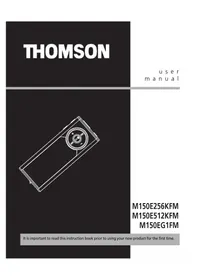


| Product Type | Digital Audio Player (MP3/WMA) |
| Brand | Thomson |
| Model | M150E512KFM |
| Storage Capacity | 512 MB (internal flash memory) |
| Dimensions | 78 x 31 x 15 mm |
| Weight | 30 g |
| Display | LCD screen |
| Audio Formats | MP3, Windows Media Audio (WMA) |
| Supported Bitrates | MP3: 32-320 kbps; WMA: 48-192 kbps |
| FM Radio | Yes, with manual and preset tuning (up to 20 presets) |
| Recording | Voice (WAV), Radio (MP3), Line-in (MP3) |
| Playback Modes | Normal, Shuffle, Repeat One/All |
| Equalizer (DSP) | Flat, Bass, Pop, Rock, Jazz |
| Battery Type | Rechargeable lithium-ion (internal) |
| Charging Method | Via USB port of computer |
| Charging Time | Approximately 2 hours for full charge |
| Battery Life | Up to 12 hours of music playback (estimated) |
| Connectivity | USB 2.0 (backward compatible with USB 1.1) |
| Headphone Jack | 3.5 mm stereo (also used for line-in) |
| System Requirements | Windows 98SE/Me/2000/XP, Mac OS X 10.2+; USB port |
| Accessories Included | Earphones, USB extension cable, Line-in cable, Neck strap, Music Management CD |
| Maintenance | Clean with soft cloth; do not use solvents |
| Safety | Do not expose to rain/moisture; hearing protection advised |
| Repairability | No user-serviceable parts; refer to qualified service personnel |
Frequently Asked Questions - M150E512KFM THOMSON
User questions about M150E512KFM THOMSON
0 question about this device. Answer the ones you know or ask your own.
Ask a new question about this device
Download the instructions for your Mp3 player in PDF format for free! Find your manual M150E512KFM - THOMSON and take your electronic device back in hand. On this page are published all the documents necessary for the use of your device. M150E512KFM by THOMSON.
USER MANUAL M150E512KFM THOMSON
M150E256KFM
M150E512KFM
M150EG1FM
It is important to read this instruction book prior to using your new product for the first time.
Safety Information
EN
IMPORTANT NOTE: To reduce the risk of fire or shock hazard, do not expose this player to rain or moisture.
CAUTION
RISK OF ELECTRIC SHOCK DO NOT OPEN

This symbol indicates "dangerous voltage" inside the product that presents a risk of electric shock or personal injury.
ATTENTION
RISQUE DE CHOC ELECTRIQUE NE PAS OUVRIR

This symbol indicates important instructions accompanying the product.
TO REDUCE THE RISK OF ELECTRIC SHOCK, DO NOT REMOVE THE COVER (OR BACK). NO USER-SERVICEABLE PARTS ARE INSIDE. REFER SERVICING TO THE QUALIFIED SERVICE PERSONNEL.
Sound Pressure Control
Sound Pressure Control
Articles L44.5 and 44.6 of the Code on Public Health modified by Article 2 of the Law dated May 28th 1996 impose a maximum acoustic output of 100 decibels. The headphone provided (code 557009300) and your player do abide by the legislation in force. Prolonged listening in full power may irreversibly damage the user's hearing.
The descriptions and characteristics given in this document are given as a general indication and not as a guarantee. In order to provide the highest quality product possible, we reserve the right to make any improvement or modification without prior notice. The English version serves as the final reference on all products and operational details should any discrepancies arise in other languages.
End User License Agreement
IMPORTANT-READ CAREFULLY: This End User License Agreement ("Agreement") is a legal agreement between you and Thomson Inc. ("Thomson") for the Thomson Lyra device application/driver software program and associated documentation, if any ("Program").
ACKNOWLEDGMENT
BY INSTALLING THE SOFTWARE OR CLICKING ON THE ACCEPTANCE BUTTON OF THE SOFTWARE, COPYING OR OTHERWISE USING THE PROGRAM, YOU ACKNOWLEDGE AND AGREE THAT YOU HAVE READ THIS AGREEMENT, UNDERSTAND IT, AND AGREE TO BE BOUND BY ITS TERMS AND CONDITIONS. IF YOU DO NOT AGREE TO THE TERMS OF THIS LICENSE AGREEMENT, CLICK ON THE REJECTION BUTTON AND/OR DO NOT INSTALL THE SOFTWARE AND/OR DO NOT USE THE PROGRAM.
LICENSE
a) You are granted the license (i) to use the Program on a single workstation and (ii) to make one (1) copy of the Program into any machine-readable form for backup of the Program, provided the copy contains all of the original Program's proprietary notices.
b) You may transfer the Program and license, only as part of the Thomson Lyra device, to another party if the other party agrees to accept the terms and conditions of this Agreement. If you transfer the Program, you must at the same time either transfer all copies to the same party or destroy any copies not transferred.
End User License Agreement
EN
LICENSE RESTRICTIONS
a) Except for the licenses expressly granted to you in this Agreement, no other licenses are implied.
b) You may not (i) modify, translate, reverse engineer, decompile, disassemble (except to the extent that this restriction is expressly prohibited by law) or create derivative works based upon the Program or (ii) copy the Program, except as expressly permitted herein. You agree that you shall only use the Program in a manner that complies with all applicable laws in the jurisdictions in which you use the Program, including, but not limited to, applicable restrictions concerning copyright and other intellectual property rights.
c) The Program may contain pre-release code that does not perform at the level of a final code release. In this case, the Program may not operate properly. Updated versions of the Program can be downloaded from www.thomson-lyra.com.
d) Thomson is not obligated to provide support services for the Program.
e) The Program is provided with "RESTRICTED RIGHTS". Use, duplication, or disclosure by the U.S. Government is subject to restrictions as set forth in subparagraph (c)(1)(ii) of DFARS 252.227-7013, or FAR 52.227-19, or in FAR 52.227-14 Alt. III, as applicable.
TERM AND TERMINATION
a) The license is effective on the date you accept this Agreement, and remains in effect until terminated by either party.
b) You may terminate this license without any notice or delay, by destroying or permanently erasing the Program and all copies thereof.
c) If you use, copy, modify, or transfer the Program, or any copy, in whole or part, except as expressly provided for in this license, your license is automatically terminated.
d) When the license is terminated, you must destroy or permanently erase the Program and all copies thereof.
End User License Agreement
WARRANTY DISCLAIMER
THE PROGRAM IS PROVIDED "AS IS" WITHOUT WARRANTY OF ANY KIND, EITHER EXPRESSED OR IMPLIED, INCLUDING, BUT NOT LIMITED TO THE IMPLIED WARRANTIES OF MERCHANTABILITY, FITNESS FOR A PARTICULAR PURPOSE, TITLE OR NON-INFRINGEMENT. THE ENTIRE RISK AS TO THE QUALITY AND PERFORMANCE OF THE PROGRAM IS WITH YOU. SHOULD THE PROGRAM PROVE DEFECTIVE, YOU (AND NOT THOMSON, ITS SUPPLIERS, ITS AFFILIATES OR ITS DEALERS) ASSUME THE ENTIRE COST FOR ALL NECESSARY REPAIR OR CORRECTION.
This exclusion of warranty may not be allowed under some applicable laws. As a result, the above exclusion may not apply to you, and you may have other rights depending on the law that applies to you.
OWNERSHIP RIGHTS
All title and intellectual property rights in and to the Program and any copies thereof are owned by Thomson or its suppliers. All title and intellectual property rights in and to the content which may be accessed through use of the Program is the property of the respective content owner and may be protected by applicable copyright or other intellectual property laws and treaties. This license grants you no rights to use such content.
End User License Agreement
EN
LIMITATION OF LIABILITY
a) TO THE MAXIMUM EXTENT PERMITTED BY APPLICABLE LAW, IN NO EVENT SHALL THOMSON, ITS AFFILIATES, OR ITS DEALERS BE LIABLE FOR ANY SPECIAL, INCIDENTAL, INDIRECT OR CONSEQUENTIAL DAMAGES WHATSOEVER (INCLUDING, WITHOUT LIMITATION, DAMAGES FOR LOSS OF PROFITS, BUSINESS INTERRUPTION, CORRUPTION OF FILES, LOSS OF BUSINESS INFORMATION OR ANY OTHER PECUNIARY LOSS) REGARDLESS OF CAUSE OR FORM OF ACTION, INCLUDING CONTRACT, TORT OR NEGLIGENCE, ARISING OUT OF THE USE OF OR INABILITY TO USE THE PROGRAM, EVEN IF THOMSON HAS BEEN ADVISED OF THE POSSIBILITY OF SUCH DAMAGES. BECAUSE SOME STATES AND JURISDICTIONS DO NOT ALLOW THE EXCLUSION OR LIMITATION OF LIABILITY OF CONSEQUENTIAL OR INCIDENTAL DAMAGES, THE ABOVE LIMITATION MAY NOT APPLY TO YOU.
b) YOU ASSUME RESPONSIBILITY FOR THE SELECTION OF THE APPROPRIATE PROGRAM TO ACHIEVE YOUR INTENDED RESULTS, AND FOR THE INSTALLATION, USE, AND RESULTS OBTAINED.
WINDOWS MEDIA
This version of the Lyra Personal Digital Player ("Lyra Player") contains software licensed from Microsoft that enables you to play Windows Media Audio (WMA) files ("WMA Software"). The WMA Software is licensed to you for use with the RCA/THOMSON Portable Audio Device digital music player under the following conditions. By installing and using this version of the Lyra Player, you are agreeing to these conditions. IF YOU DO NOT AGREE TO THE CONDITIONS OF THIS END USER LICENSE AGREEMENT, DO NOT INSTALL OR USE THIS VERSION OF THE Lyra Player.
End User License Agreement
The WMA Software is protected by copyright and other intellectual property laws. This protection also extends to documentation for the WMA Software, whether in written or electronic form.
GRANT OF LICENSE. The WMA Software is only licensed to you as follows: You may use this version of the Lyra Player containing the WMA Software only with the Portable Audio Device player.
You may not reverse engineer, decompile, or disassemble the WMA Software, except and only to the extent that such activity is expressly permitted by applicable law in spite of this limitation.
You may transfer your right to use this version of the Lyra Player only as part of a sale or transfer of your Portable Audio Device player, on the condition that the recipient agrees to the conditions in this End User License Agreement. If the version of the Lyra Player that you are transferring is an upgrade, you must also transfer all prior versions of the Lyra Player that you have which include the WMA Software.
MICROSOFT IS NOT PROVIDING ANY WARRANTY OF ANY KIND TO YOU FOR THE WMA SOFTWARE, AND MICROSOFT MAKES NO REPRESENTATION CONCERNING THE OPERABILITY OF THE WMA SOFTWARE.
The WMA Software is of U.S. origin. Any export of this version of the Lyra Player must comply with all applicable international and national laws, including the U.S. Export Administration Regulations, that apply to the WMA Software incorporated in the Lyra Player.
End User License Agreement
EN
THIRD PARTY SOFTWARE
ANY THIRD PARTY SOFTWARE THAT MAY BE PROVIDED WITH THE PROGRAM IS INCLUDED FOR USE AT YOUR OPTION. IF YOU CHOOSE TO USE SUCH THIRD PARTY SOFTWARE, THEN SUCH USE SHALL BE GOVERNED BY SUCH THIRD PARTY'S LICENSE AGREEMENT, AN ELECTRONIC COPY OF WHICH WILL BE INSTALLED IN THE APPROPRIATE FOLDER ON YOUR COMPUTER UPON INSTALLATION OF THE SOFTWARE. THOMSON IS NOT RESPONSIBLE FOR ANY THIRD PARTY'S SOFTWARE AND SHALL HAVE NO LIABILITY FOR YOUR USE OF THIRD PARTY SOFTWARE.
GOVERNING LAW
This Agreement is governed by the laws of France, without regard to its conflict of laws.
End User License Agreement
GENERAL TERMS
This Agreement can only be modified by a written agreement signed by you and Thomson, and changes from the terms and conditions of this Agreement made in any other manner will be of no effect. If any portion of this Agreement shall be held invalid, illegal, or unenforceable, the validity, legality, and enforceability of the remainder of the Agreement shall not in any way be affected or impaired thereby.
This Agreement is the complete and exclusive statement of the agreement between you and Thomson, which supersedes all proposals or prior agreements, oral or written, and all other communications between you and Thomson, relating to the subject matter of this Agreement.
Table of Contents
EN
Safety Information
End User License Agreement
Table of Contents .....1
Before You Begin .....2
Unpacking your unit .....2
What's so special about this
mp3 player? .....2
Computer system requirements ...2
Precautions for the unit .....3
Caution 3
Caution while driving .....3
Headset safety ....3
Important Battery Information ....4
Caution 4
Connecting to Computer .....5
Charging the Battery .....5
Transferring Files to the Player ....5
General Controls ....6
Quick Start .....7
How Files are Organized ....7
Menu Navigation....7
Switching On and Off Player .....7
Playing/Pausing 8
Skipping Files 8
Scanning Files 8
Listening to Radio 8
mp3 and WMA Playback .....9
Basic Playback 9
Random Playback 9
Repeat Playback ....9
My Selections .....9
Radio ....10
Basic Operations .....10
Manual and Preset Modes .....10
Manual Tuning ....10
Saving Preset Stations .....10
Selecting Preset Stations .....10
Clearing Presets .....10
Suppressing Stereo Signal .....10
Stop Listening to the Radio .....10
Radio Recording .....11
Recording Radio .....11
Selecting Recording Duration ....11
Listening to Radio Recordings ....11
Deleting Radio Recordings .....11
Voice Recording .....12
Voice Recording .....12
Listening to Voice Recordings ....12
Deleting Voice Recordings .....12
Line-in Recording .....13
Line-in Recording .....13
Listening to Line-in Recordings .....13
Deleting Line-in Recordings .....13
Setting the Player .....14
DSP 14
Settings 14
System Info 14
More Information .....15
Before You Begin
"Dear Thomson Customer,
Thank you for purchasing the Thomson Digital Audio Player. This product will play open mp3 and Windows Media™ audio (WMA) content as well as content purchased from most online music download services.
After purchasing and downloading music to your PC, you are now ready to move content to your player. To transfer the music, you should use Windows Media Player or the application recommended by the online music download service.
(Note: Services and applications must be Windows Media audio-compliant and support Digital Rights Management.)"
Unpacking your unit
When you unpack your new player, be sure you have removed all the accessories and documentation. The items below should have been packed in the box with your player.
• Digital Audio Player • Music Management CD - Earphones - USB extension cable - Line-in cable - Neck strap
What's so special about this mp3 player?
This player is meant to play mp3 and Windows Media™ audio files.
To do so, you need the use of a Windows computer with a USB port, USB extension cable (optional) and a music management software.
Computer system requirements
- Pentium III 500MHz or higher recommended Macintosh iMac G3 or higher
- Windows ®98SE, Me, 2000 (SP3 or higher), or XP Mac OS X Version 10.2 or higher
- Internet Explorer 4.0 or higher
- Internet access
- 200MB free hard disk space for the software • 64MB RAM (128 MB recommended)
- CD-ROM drive capable of digital audio extraction • USB port (2.0 recommended)
- Sound card
Before You Begin
EN

Warning:
Use of this product is for your personal use only. Unauthorized recording or duplication of copyrighted material may infringe upon the rights of third parties and may be contrary to copyright laws.
Precautions for the Unit
- Do not use the unit immediately after transportation from a cold place to a warm place; condensation may result.
- Avoid shock to the unit.
- Do not store the unit near fire, places with high temperature, or in direct sunlight.
- Do not operate or store the unit in places with frequent static electricity or electrical noise (e.g., speaker, TV set).
- Clean the unit with a soft cloth or a damp chamois leather. Never use solvents.
- The unit must only be opened by qualified personnel.
Caution
- Keep the product out of direct sunlight. Exposure to direct sunlight or extreme heat (such as inside a parked car) may cause damage or malfunction.
- Do not expose to rain or moisture.
Caution while Driving
Use of headphones while operating an automobile or moving vehicle is not recommended and is unlawful in some states and areas. Be careful and attentive on the road. Stop operation of the unit if you find it disruptive or distracting while driving.
Headset Safety

Have a Blast - Just Not in Your Eardrums. Make sure you turn down the volume on the unit before you put on headphones. Increase the volume to the desired level only after headphones are in place.
- Do not play your headset at a high volume. Hearing experts warn against extended high-volume play.
- If you experience a ringing in your ears, reduce volume or discontinue use.
- You should use extreme caution or temporarily discontinue use in potentially hazardous situations. Even if your headset is an open-air type designed to let you hear outside sounds, don't turn up the volume so high that you are unable to hear what is around you.
Before You Begin
Important Battery Information
- Charge the unit for at least 2 hours before first use.
- Charge the unit for at least 2 hours after putting away the unit for a long time.
- The battery used in this device may present a risk of fire or chemical burn if mistreated. Do not separately recharge, disassemble, heat above 100°C (212°F), or incinerate.
- Battery replacement should only be made by a trained technician. Refer to Limited Warranty for details.
- Do not attempt to open the unit. No user serviceable parts inside.
- To reduce risk of injury, use only rechargeable batteries recommended by the manufacturer for this product. Other types of batteries may burst causing damage and personal injury.
- Keep the unit away from children. Do not disassemble or incinerate.
- Use USB port of PC or the specified charger (not included). Use of another charger may present a risk of fire or explosion.
Caution
- The battery used in this device may present a risk of fire, explosion, or chemical burn if mistreated. Do not separately recharge, disassemble, incinerate, or expose to high temperatures over 45°C (113°F). Examples of high temperatures that may damage your product include leaving it in a locked car in the summer, the dashboard of car or putting it on top of other heat generating electronics devices (such as power amplifiers and computer monitors).
- Dispose of used battery promptly. Keep away from children. Do not disassemble and do not dispose of in fire.


This symbol means that your inoperative electronic appliance must be collected separately and not mixed with the household waste. The
European Union has implemented a specific collection and recycling system for which manufacturers are responsible.
This appliance has been designed and manufactured with high quality materials and components that can be recycled and reused. Electrical and electronic appliances are liable to contain parts that are necessary in order for the system to work properly but which can become a health and environmental hazard if they are not handled or disposed of in the proper way. Consequently, please do not throw out your inoperative appliance with the household waste. If you are the owner of the appliance, you must deposit it at the appropriate local collection point or leave it with the vendor when buying a new appliance.
- If you are a professional user, please follow your supplier's instructions.
- If the appliance is rented to you or left in your care, please contact your service provider. Help us protect the environment in which we live!
Connecting to Computer
EN
Charging the Battery
The player's battery can only be charged through the USB port of a computer.
- Slide the USB connector upward as shown below.

- Insert the USB connector of the player into the USB port on the computer tightly (use an optional USB extension cable if necessary). Once connected, the display shows as below:
USB Connected Hold to charge batt.
- Press and hold to enter battery charging mode. The display shows as below with the battery icon □ animating.
USB Connected
- Charge the unit for at least 2 hours before first use.
- You can still transfer files to the player in the battery charging mode.
- When the battery is full, the display shows "Battery full".
Transferring Files to the Player
You should refer to the software manual for details in software installation, connecting your player with the computer and transferring files to the player.

Note
The player will automatically go to battery charging mode if every level is low.

Attention
Do not disconnect the USB connection during music
download. Doing so may corrupt system files or the files being downloaded.

Note
Refer to the software instruction manual for procedures in installing music management software and transferring files to the player.
General Controls
EN

- Microphone.
- USB connector.
- Increases volume; moves upward in menu navigation.
- Decreases volume; moves downward in menu navigation.
- Skip and search backward a file; goes back a menu level in menu navigation; selects radio frequency and preset stations.
- Skip and search forward a file; goes into a menu level in menu navigation; selects radio frequency and preset stations.
- Press and hold to switch on or off the player; starts and pauses playback.
- Starts and ends recording; press to select music files as My Selections; for sectioned audible files, press repeatedly during playback to select skipping by section or by file.
- Accesses the player's menu.
- Lock switch - slide to the locked icon to prevent accidental key activation. The lock icon 🔒 shows on the display when keys are locked.
- Headphone jack, input jack for line-in recording.
- Reset button.
Quick Start
EN
How Files are Organized?
The files transferred to the player will be sorted automatically so that you can easily find and play them. They are sorted as below:
- Music
- Audiobooks
- Radio Recs • Voice / Line-in Recs
- My Selections

Note: Radio Recs files are recorded files from the radio (see "Radio Recording"); Voice / Line-in Recs are recorded files from the microphone and line-in audio cable respectively (see "Voice Recording" and "Line-in Recording"). My Selections files are your preferred files (see "My Selections").
Music files are further sorted as below:
- Artists
- Albums
- Titles
- Genres
- Years
The navigation menu is displayed when playback is stopped or when M is pressed during playback.
Menu Navigation
To navigate through the menu, press → to go into a menu level, press + or - to move along menu items at the same level. Press to go back up a menu level.
If the selected item is a music, audible or recorded file, press or will start playback.
Switching On and Off Player
- Press and hold to turn on the unit.
- To turn off the player completely, press and hold ▶
Quick Start
Playing / Pausing
- Press to begin playback.
- Press once to pause playback, press again to resume playback.
During playback, file duration, elapsed playback time, file information show on the display.

Skipping Files
- To skip to the next file, press and release.
- To go to the previous file, press and release within the beginning 4 seconds of the current file. Otherwise, press and release twice. (This operation does not apply to audible file. Press at any time during playback to go to the previous file.)
Note: for sectioned audible files, press
- and then perform the steps above to go to the previous or next audible section. Press repeatedly to select skipping by file or by section.
Scanning Files
- To scan backward, press and hold during playback.
- To scan forward, press and hold during playback.
Listening to Radio
- While the display shows the navigation screen for file selection, press M to access the player's menu. (If the display shows the playback screen, press M twice to access the player's menu.)
- While "Go to" is highlighted in the menu, press to enter into the submenu.
Go to >
Delete File
- While "Radio" is highlighted, press to switch on the radio.

Radio
Voice Recording
- Press so that "P01" does not show on the display and you have switched off preset mode. "01" can also be any preset station number.
- Press or once to tune down or up frequency. Or press and hold or release the button when you see "Searching..." to start automatic search for the next available station. Or press and hold or continuously to tune down or up frequency at a faster rate until you release the button.
MP3 and WMA Playback
EN
Basic Playback
Refer to "Quick Start".
Random Playback
While the display shows the navigation screen for file selection, press M to access the player's menu. (If the display shows the playback screen, press M twice to access the player's menu.) Press – to select "Shuffle". Press repeatedly to select the shuffle mode on or off. The shuffle icon lights on the display.
Repeat Playback
While the display shows the navigation screen for file selection, press M to access the player's menu. (If the display shows the playback screen, press M twice to access the player's menu.) Press – to select "Repeat". Press repeatedly to select a repeat mode (Repeat One & Repeat All and Repeat Off).
The corresponding icon lights on the display.

Tips:
Shuffle on + Repeat one = a file is selected randomly and
played repeatedly.
Shuffle on + Repeat All = Files are played in random order repeatedly.
My Selections
My Selections is a playlist of your preferred music files (audible and recorded files are not selectable).
- Select your preferred files in one of the following ways:
- Press once while you are listening to a preferred music file with "Added to MySel" shows on the display briefly.
- Press once while you are browsing music files in the navigation menu with "Added to MySel" shows on the display briefly. (see "Quick Start - How Files are Organized and Menu Navigation" for details).
- Select "My Selections" folder from the navigation menu (see "Quick Start - How Files are Organized and Menu Navigation" for details).
- Press to begin playback.
- To clear My Selections, while the display shows the navigation screen for file selection, press M to access the player's menu. (If the display shows the playback screen, press M twice to access the player's menu.) Press – to select "Clear MySel". Press to confirm clearing.
Radio
Basic Operations
Refer to "Quick Start" for basic operations.
Manual and Preset Modes
Press repeatedly to select between the two modes while listening to the radio.
Manual mode – tuning to stations manually,
Preset mode – selecting stations saved in preset memory.

Manual Tuning
Refer to step 5 of "Listening to Radio" on p.8 for more information.
Saving Preset Stations
- Tune to a station to be saved as a preset station (refer to manual tuning).
- Press M.
- Press – to select "Save to Preset" and press >>
- Press or to select a preset number.
- Press to save station as selected preset number.
Selecting Preset Stations
- Make sure you are in preset mode
- Press or to select a preset number.
Clearing Presets
- In preset mode, select the preset station to be cleared, press M to view the radio sub-menu.
- Press - to select "Clear Preset".
- Press to confirm clearing.
Suppressing Stereo Signal
If FM stereo reception is weak, select mono sound to reduce the noise.
- While listening to the radio, press M to view the radio sub-menu.
- Press - to select "Mode".
- Press repeatedly to select between stereo or mono sound.
Stop Listening to the Radio
- Press and hold to switch off the player. OR
- Press M while listening to the radio. Select "Go to" and then "Library" by pressing twice. The player will return to file navigation for music, audible and recorded files listening.
Radio Recording
Recording Radio
Radio programs can be recorded as mp3 files.
- Tune to the station to be recorded.
- Press to start recording. Press to pause recording and again to resume.
- Press to stop recording.

Selecting Recording Duration
- While listening to the radio, press M to view the radio sub-menu.
- Press – to select "RecDur" (recording duration).
- Press repeatedly to select among max, 1 hour, 30 min and 5 min.
Listening to Radio Recordings
- In the navigation menu, press – to select "Radio Recs".
- Press to view radio recordings and then press – to select a desired recording.
- Press or to play the selected recording.
Deleting Radio Recordings
- In the navigation menu, press – to select "Radio Recs".
- Press to view radio recordings and then press – to select an unwanted recording.
- Press M and then – to select "Delete File".
- Press to confirm deletion.
Voice Recording
Voice Recording
Voice can be recorded through the microphone as WAV files.
- While playback is stopped, press M to access the player's menu.
- Press while "Go to" is highlighted.
- Press - to select "Voice Recording".
- Press, "Ready" shows on the display.
- Press to start recording. Press to pause recording. Press again to resume.
- Press to stop recording.

Listening to Voice Recordings
- In the navigation menu, press – to select "Voice / Line-in Recs".
- Press to view recordings and press – to select a desired recording. Voice recordings are indicated by "Voice" at the beginning of the file names.
- Press or to play the selected recording.
Deleting Voice Recordings
- In the navigation menu, press – to select "Voice / Line-in Recs".
- Press to view recordings and press – to select an unwanted recording. Voice recordings are indicated by "Voice" at the beginning of the file names.
- Press M and then – to select "Delete File".
- Press to confirm deletion.
Line-in Recording
EN
Line-in Recording
Recording as mp3 files can be made through a line-in cable connected to the headphone jack.
- While playback is stopped, press M to access the player's menu.
- Press while "Go to" is highlighted.
- Press - to select "Line-in Recording".
- Press, "Ready" shows on the display.
- Start playback of the line-in source.
- Press to start recording. Press to pause recording. Press again to resume.
- Press to stop recording.

Listening to Line-in Recordings
- In the navigation menu, press – to select "Voice / Line-in Recs".
- Press to view recordings and then press – to select a desired recording. Line-in recordings are indicated by "Line" at the beginning of the file names.
- Press or to play the selected recording.
Deleting Line-in Recordings
- In the navigation menu, press – to select "Voice / Line-in Recs".
- Press to view recordings and then press – to select an unwanted recording. Line-in recordings are indicated by "Line" at the beginning of the file names.
- Press M and then – to select "Delete File".
- Press to confirm deletion.

Tips:
Adjust the volume level of the source audio device in order to achieve the optimum recording quality. The source output varies from model to model. You might want to experiment with a few recordings to determine the proper volume output of the source to get optimum recording quality from the player. Recommend starting the source at a volume level that is adequate at room volume level.
Setting the Player
DSP
DSP feature consists of a number of sound effects.
While the display shows the navigation screen for file selection, press M to access the player's menu and then press – to select "DSP". (If the display shows the playback screen, press M twice to access the player's menu.) Press repeatedly to select an effect mode (Flat, Bass, Pop, Rock and Jazz).
Settings
While the display shows the navigation screen for file selection, press M to access the player's menu and then press – to select "Settings". (If the display shows the playback screen, press M twice to access the player's menu.) Press to enter the setting menu. The following items are available:
- Brightness (adjusts the display brightness, 8 levels available),
- Screensaver (adjusts the duration before screensaver activation, 5 options available),
- Power Save (adjusts the duration before automatic switch off, 5 options available),
- FreqStep (Frequency Step) (selects between US and Europe frequency mode),
• Language (selects the display language, 9 languages available) - Restore Defaults (restore all settings to default values by pressing)
Unless otherwise indicated, select available options within each item by pressing repeatedly. To exit the setting menu, press M.
System Info
While the display shows the navigation screen for file selection, press M to access the player's menu and then press – to select "System Info". (If the display shows the playback screen, press M twice to access the player's menu.) Press to check memory usage and firmware version.
More Information
EN
Troubleshooting Tips
The player does not turn on when the PLAY button is pressed?
- Battery may be empty.
- Press the reset button to reset the player.
Skipping tracks or bad sound quality?
- Repeat, random or program function may be activated.
- There may be strong magnetic fields (e.g. too close to TV) near the unit.
- Low Battery level.
Cannot perform playback?
- LOCK function may be activated.
- There may be no mp3/WMA tracks in the internal memory.
USB display does not appear when connected to computer?
- Check connection between your unit and the computer. (Refer to the software instruction manual)
- Check if the USB drivers are properly installed if you are using Windows 98SE.
- You may have to re-associate the drive letter that was assigned to the device. Please check your help on Windows for details on assigning a different drive letter.
Cannot playback tracks on the player.
- Make sure audio tracks are encoded in the mp3 or Windows Media formats at supported bitrates. Bitrates supported by the player: mp3 – 32 to 320 kbps wma – 48 to 192 kbps
- WMA or audiobooks files may be DRM protected and you don't have the proper rights (license) to play the files.
- Check the website and/or application help system of the music download service provider from where the content was purchased for license acquisition details. For more information on how license acquisition works, go to www.microsoft.com/windowsmedia/drm.
- Play the original or downloaded song on your computer to ensure that there was nothing wrong with the encoding of the MP3 or WMA.
More Information
My computer does not boot up if the player is connected prior to turning on the PC.
In order to improve the performance of your portable music player and allow a faster download experience, the storage in your device has been formatted using a larger sector size. The BIOS in some older computers does not support this larger sector size, which causes it not to recognize the device when the PC is booting up. To correct this, simply disable the "boot from USB" option in your computer BIOS or wait until your computer has completed its boot-up sequence before connecting your portable music player.
Check for Updates
Visit http://www.thomson-lyra.com for the latest news and firmware upgrades for our Digital Audio Player. You must update your system after new downloads have been made in order for the new applications to be executed.
Specifications
Weight: 30g
Dimensions: 78mm (Length) x 31mm
(Width) x 15mm (Thickness).

Note:
For better results, we recommend a constant encoded bit rate from 32 to 320kbps for MP3 and 48kbps to 192kbps for Windows Media Audio.
Nevertheless, your unit can play tracks encoded in variable bit rate (VBR).

Note:
This unit may temporarily cease to function if subjected to electrostatic disturbance. To resume normal functioning, you may use a pin to activate the reset button.
THOMSON
46, quai Alphonse Le Gallo
92648 Boulogne
Cedex FRANCE
www.thomson.net
TOCOM (v3.0)
THOMSON
user manual
Computer
Connection &
Music Transfer
It is important to read this instruction book prior to using your new product for the first time.
End User License Agreement
EN
IMPORTANT - READ CAREFULLY: This End User License Agreement ("Agreement") is a legal agreement between you and Thomson Inc. ("Thomson") for the Thomson Lyra device application/driver software program and associated documentation, if any ("Program").
ACKNOWLEDGMENT
BY INSTALLING THE SOFTWARE OR CLICKING ON THE ACCEPTANCE BUTTON OF THE SOFTWARE, COPYING OR OTHERWISE USING THE PROGRAM, YOU ACKNOWLEDGE AND AGREE THAT YOU HAVE READ THIS AGREEMENT, UNDERSTAND IT, AND AGREE TO BE BOUND BY ITS TERMS AND CONDITIONS. IF YOU DO NOT AGREE TO THE TERMS OF THIS LICENSE AGREEMENT, CLICK ON THE REJECTION BUTTON AND/OR DO NOT INSTALL THE SOFTWARE AND/OR DO NOT USE THE PROGRAM.
LICENSE
a) You are granted the license (i) to use the Program on a single workstation and (ii) to make one (1) copy of the Program into any machine-readable form for backup of the Program, provided the copy contains all of the original Program's proprietary notices.
b) You may transfer the Program and license, only as part of the Thomson Lyra device, to another party if the other party agrees to accept the terms and conditions of this Agreement. If you transfer the Program, you must at the same time either transfer all copies to the same party or destroy any copies not transferred.
End User License Agreement
LICENSE RESTRICTIONS
a) Except for the licenses expressly granted to you in this Agreement, no other licenses are implied.
b) You may not (i) modify, translate, reverse engineer, decompile, disassemble (except to the extent that this restriction is expressly prohibited by law) or create derivative works based upon the Program or (ii) copy the Program, except as expressly permitted herein. You agree that you shall only use the Program in a manner that complies with all applicable laws in the jurisdictions in which you use the Program, including, but not limited to, applicable restrictions concerning copyright and other intellectual property rights.
c) The Program may contain pre-release code that does not perform at the level of a final code release. In this case, the Program may not operate properly. Updated versions of the Program can be downloaded from www.thomson-lyra.com.
d) Thomson is not obligated to provide support services for the Program.
e) The Program is provided with "RESTRICTED RIGHTS". Use, duplication, or disclosure by the U.S. Government is subject to restrictions as set forth in subparagraph (c)(1)(ii) of DFARS 252.227-7013, or FAR 52.227-19, or in FAR 52.227-14 Alt. III, as applicable.
TERM AND TERMINATION
a) The license is effective on the date you accept this Agreement, and remains in effect until terminated by either party.
b) You may terminate this license without any notice or delay, by destroying or permanently erasing the Program and all copies thereof.
c) If you use, copy, modify, or transfer the Program, or any copy, in whole or part, except as expressly provided for in this license, your license is automatically terminated.
d) When the license is terminated, you must destroy or permanently erase the Program and all copies thereof.
End User License Agreement
EN
WARRANTY DISCLAIMER
THE PROGRAM IS PROVIDED "AS IS" WITHOUT WARRANTY OF ANY KIND, EITHER EXPRESSED OR IMPLIED, INCLUDING, BUT NOT LIMITED TO THE IMPLIED WARRANTIES OF MERCHANTABILITY, FITNESS FOR A PARTICULAR PURPOSE, TITLE OR NON-INFRINGEMENT. THE ENTIRE RISK AS TO THE QUALITY AND PERFORMANCE OF THE PROGRAM IS WITH YOU. SHOULD THE PROGRAM PROVE DEFECTIVE, YOU (AND NOT THOMSON, ITS SUPPLIERS, ITS AFFILIATES OR ITS DEALERS) ASSUME THE ENTIRE COST FOR ALL NECESSARY REPAIR OR CORRECTION.
This exclusion of warranty may not be allowed under some applicable laws. As a result, the above exclusion may not apply to you, and you may have other rights depending on the law that applies to you.
OWNERSHIP RIGHTS
All title and intellectual property rights in and to the Program and any copies thereof are owned by Thomson or its suppliers. All title and intellectual property rights in and to the content which may be accessed through use of the Program is the property of the respective content owner and may be protected by applicable copyright or other intellectual property laws and treaties. This license grants you no rights to use such content.
End User License Agreement
LIMITATION OF LIABILITY
a) TO THE MAXIMUM EXTENT PERMITTED BY APPLICABLE LAW, IN NO EVENT SHALL THOMSON, ITS AFFILIATES, OR ITS DEALERS BE LIABLE FOR ANY SPECIAL, INCIDENTAL, INDIRECT OR CONSEQUENTIAL DAMAGES WHATSOEVER (INCLUDING, WITHOUT LIMITATION, DAMAGES FOR LOSS OF PROFITS, BUSINESS INTERRUPTION, CORRUPTION OF FILES, LOSS OF BUSINESS INFORMATION OR ANY OTHER PECUNIARY LOSS) REGARDLESS OF CAUSE OR FORM OF ACTION, INCLUDING CONTRACT, TORT OR NEGLIGENCE, ARISING OUT OF THE USE OF OR INABILITY TO USE THE PROGRAM, EVEN IF THOMSON HAS BEEN ADVISED OF THE POSSIBILITY OF SUCH DAMAGES. BECAUSE SOME STATES AND JURISDICTIONS DO NOT ALLOW THE EXCLUSION OR LIMITATION OF LIABILITY OF CONSEQUENTIAL OR INCIDENTAL DAMAGES, THE ABOVE LIMITATION MAY NOT APPLY TO YOU.
b) YOU ASSUME RESPONSIBILITY FOR THE SELECTION OF THE APPROPRIATE PROGRAM TO ACHIEVE YOUR INTENDED RESULTS, AND FOR THE INSTALLATION, USE, AND RESULTS OBTAINED.
WINDOWS MEDIA
This version of the Lyra Personal Digital Player ("Lyra Player") contains software licensed from Microsoft that enables you to play Windows Media Audio (WMA) files ("WMA Software"). The WMA Software is licensed to you for use with the RCA/THOMSON Portable Audio Device digital music player under the following conditions. By installing and using this version of the Lyra Player, you are agreeing to these conditions. IF YOU DO NOT AGREE TO THE CONDITIONS OF THIS END USER LICENSE AGREEMENT, DO NOT INSTALL OR USE THIS VERSION OF THE Lyra Player.
End User License Agreement
EN
The WMA Software is protected by copyright and other intellectual property laws. This protection also extends to documentation for the WMA Software, whether in written or electronic form.
GRANT OF LICENSE. The WMA Software is only licensed to you as follows: You may use this version of the Lyra Player containing the WMA Software only with the Portable Audio Device player.
You may not reverse engineer, decompile, or disassemble the WMA Software, except and only to the extent that such activity is expressly permitted by applicable law in spite of this limitation.
You may transfer your right to use this version of the Lyra Player only as part of a sale or transfer of your Portable Audio Device player, on the condition that the recipient agrees to the conditions in this End User License Agreement. If the version of the Lyra Player that you are transferring is an upgrade, you must also transfer all prior versions of the Lyra Player that you have which include the WMA Software.
MICROSOFT IS NOT PROVIDING ANY WARRANTY OF ANY KIND TO YOU FOR THE WMA SOFTWARE, AND MICROSOFT MAKES NO REPRESENTATION CONCERNING THE OPERABILITY OF THE WMA SOFTWARE.
The WMA Software is of U.S. origin. Any export of this version of the Lyra Player must comply with all applicable international and national laws, including the U.S. Export Administration Regulations, that apply to the WMA Software incorporated in the Lyra Player.
End User License Agreement
THIRD PARTY SOFTWARE
ANY THIRD PARTY SOFTWARE THAT MAY BE PROVIDED WITH THE PROGRAM IS INCLUDED FOR USE AT YOUR OPTION. IF YOU CHOOSE TO USE SUCH THIRD PARTY SOFTWARE, THEN SUCH USE SHALL BE GOVERNED BY SUCH THIRD PARTY'S LICENSE AGREEMENT, AN ELECTRONIC COPY OF WHICH WILL BE INSTALLED IN THE APPROPRIATE FOLDER ON YOUR COMPUTER UPON INSTALLATION OF THE SOFTWARE. THOMSON IS NOT RESPONSIBLE FOR ANY THIRD PARTY'S SOFTWARE AND SHALL HAVE NO LIABILITY FOR YOUR USE OF THIRD PARTY SOFTWARE.
GOVERNING LAW
This Agreement is governed by the laws of France, without regard to its conflict of laws.
GENERAL TERMS
This Agreement can only be modified by a written agreement signed by you and Thomson, and changes from the terms and conditions of this Agreement made in any other manner will be of no effect. If any portion of this Agreement shall be held invalid, illegal, or unenforceable, the validity, legality, and enforceability of the remainder of the Agreement shall not in any way be affected or impaired thereby. This Agreement is the complete and exclusive statement of the agreement between you and Thomson, which supersedes all proposals or prior agreements, oral or written, and all other communications between you and Thomson, relating to the subject matter of this Agreement.
Table of Contents
EN
End User License Agreement
Table of Contents
Before You Begin .....1
Computer System Requirements ...1
What's so special about this mp3 player? 2
Getting Started ....3
Insert the Included CD-ROM into CD-ROM Drive ....3
Connecting to the Computer . .4
Connecting the Player to the Computer ....4
Transferring Music .....5
Transferring Files to the Digital Audio Player ....5 Launch the MusicMatch Jukebox software ....6 Transferring Files via MusicMatch Jukebox ....7 Transferring Files via Windows Media Player ....8 Transferring Files via Windows Explorer (Drag and Drop) ....9
Profiling (Model Dependent) .9
Disconnecting the Player . . . 10
Disconnecting Your Player from the Computer ....10
Troubleshooting Tips .....11
The descriptions and characteristics given in this document are given as a general indication and not as a guarantee. In order to provide the highest quality product possible, we reserve the right to make any improvement or modification without prior notice. The English version serves as the final reference on all products and operational details should any discrepancies arise in other languages.
Before You Begin
Dear THOMSON Customer, Thank you for purchasing the Thomson Digital Audio Player. Our products will play open mp3 and Windows Media™ audio (WMA) content and for certain models, content purchased from most online music download services.
After purchasing and downloading music to your PC, you are now ready to move content to your player. To transfer the music, you may use the applications recommended by the online music download service.
Computer System Requirements
- Pentium III 500MHz or higher recommended • Windows® 98SE, Me, 2000, or XP
- Internet Explorer 4.0 or higher
- Internet access
- 100MB free hard disk space for the software • 64MB RAM (128 MB recommended)
- CD-ROM drive capable of digital audio extraction • USB port (2.0 recommended)
- Sound card

Warning:
Use of this product is for your personal use only. Unauthorized recording or duplication of copyrighted material may infringe upon the rights of third parties and may be contrary to copyright laws.
Before You Begin
EN
What's so special about this mp3 player?
This player is meant to play mp3 and Windows Media™ audio files recorded in the built-in flash memory. To do so, you need the use of a Windows computer with USB port, extension cable (included) and music management software (MusicMatch Jukebox).
The Music Management CD that comes with your Lyra Digital Audio Player contains all of the necessary software components you need to make your Lyra Digital Audio Player work properly.
These components do the following:
- install USB driver for Windows 98SE users. (Refer to page 3)
- enable you to transfer files from your computer to your Lyra Digital Audio Player. • use the MusicMatch Jukebox
software to organize your music collection and transfer the music to your Lyra Digital Audio Player.
The MusicMatch Jukebox™ software compresses audio files (from music CDs) to the mp3 or Windows Media Audio (WMA) format so you can play them on your Lyra Digital Audio Player. The MusicMatch software also enables you to download files from the internet that are already compressed and then transfer those files to your Lyra player (or play the music on your computer).
Getting Started
Inserting the Included CD-ROM into CD-ROM Drive
- Turn on your computer and place the Music Management CD that comes with your digital audio player into your computer.

Note:
Don't connect the USB device to the PC or digital audio player before or during the CD-ROM installation.
If you're running Windows ME/2000/XP, no additional drivers are required. If you're running Windows 98SE, you must install the USB drivers from the CD-ROM in order for the digital audio player to function properly.
- If the setup screen does not appear, double click My Computer, double click your CD-ROM drive icon, and double click "Install" to run the installer.

Note: The Music
Management CD may contain one or more music management software that can help transfer music content to your digital audio player. Please refer to the section on your installed software for basic transfer operations.
Connecting to the Computer
EN
Connecting the Player to the Computer
Connect the Digital Audio Player to your computer. If a USB connection cable is provided, connect it to the player first before the computer. The larger end of the cable should be connected to the computer while the smaller end to the player.
The player
Some models can be directly connected to the USB port of the computer. If necessary, an optional USB extension cable can be used.
The digital audio player will appear as a removable disk drive.

Note
It might take several seconds for the device (the Digital Audio Player) to be detected, especially in Windows 2000/XP. Click Refresh in My Computer or Explorer to make sure the device has been detected.

Note
The Digital Audio Player is capable of transferring files at full-speed when a USB 2.0 connection is used. USB 2.0 is up to 40 times faster than USB 1.1. If a USB 2.0 port is available on your computer, use it to connect to your Digital Audio Player. The player is still backward compatible with the older USB 1.1 ports. However, you will not be able to take full advantage of the potential speed increase.
Transferring Music
Transferring Files to a Digital Audio Player
Depending on the availability of software on your Music Management CD specific to your digital audio player, you can transfer files to your Digital Audio Player via 1) MusicMatch Jukebox, 2) Windows Media Player or 3) Windows Explorer (requires no software installation).
If your Digital Audio Player isn't already connected to your computer, connect it to the computer using the provided USB cable as illustrated on the previous page.
- Transferring files via MusicMatch Jukebox - refer to page 6,
- Transferring files via Windows Media Player - refer to page 8,
- Transferring files via Windows Explorer (drag-and-drop) - refer to page 9.

Attention
Do not disconnect the USB connection during music download. Doing so may corrupt system files or the files being downloaded.

Note
- Secure music download files can be transferred to your player through Windows Media Player or MusicMatch Jukebox. (Note: Services and applications must be Windows Media audio-compliant and support Digital Rights Management. Windows XP with Service Pack 1 required.) (Apple iTunesTM music content is not supported).
For more information on MusicMatch Jukebox, visit www.musicmatch.com.
For more information on Windows Media Player, visit http://www.microsoft.com/windows/windowsmedia.
- Some wma files may be DRM protected. You must acquire licenses for DRM protected wma files before they can be played on the player. For more information, go to www.microsoft.com/windows/windowsmedia/drm
Transferring Music
EN
Launch the MusicMatch Jukebox software.
The MusicMatch software converts audio files to the MP3 and WMA formats so you can play them on your Lyra Digital Audio Player.
- Remove the Music Management CD from your computer.
- Start the MusicMatch Jukebox software (double-click on the MusicMatch icon in your system tray or on your desktop).

The MusicMatch icon found in your computer's system tray.

Attention
Make sure all data are transferred to the Digital Audio Player before unplugging the USB connection.
Audio Player before unplugging the USB connection.

Note
It is recommended to uninstall any previous installations of the MusicMatch Jukebox software before proceeding.
After the uninstall process has been completed, delete the MusicMatch folder found under C:\Program Files.
Transferring Music
Transferring Files via MusicMatch Jukebox
- Drag and drop desired tracks from the Music Library to the Playlist display and save the playlist.

Note
Be sure to save the playlist or it will not be displayed on the playlist window of the Portable Device Manager screen.
- From the menu area, select Files/Send to Portable Device or click Send to Portable under the copy item on the left side of the MusicMatch Jukebox screen to display the Portable Device Manager screen.
- Click on Options and select your portable device under Select Device. Click OK.
Your device should be listed under Portable Device.
- Select the playlist item and drag it to the active device listed under Portable Device. Only those playlists saved in step 1 are displayed on the playlist window.
The songs in the playlist will now be automatically transferred to your Lyra Digital Audio Player.
During transfer a progress indicator appears in the Portable Device Manager screen, and "USB Transferring" flashes in the Lyra player's LCD.
Transferring Music
EN
Transferring Files via Windows Media Player
If you want to take your music collection with you, you can easily synchronize items in your library to your digital audio player. The Sync feature in the latest version of Windows Media Player and allows you to synchronize files in categories and playlists in your library to your digital audio player. For complete details, see the “Synchronizing media to your device” topic in the Windows Media Player help documentation.
- Connect your player to the computer and open Windows Media Player, select Library from the menu bar, a screen will appear as below:

- From the left column, select the songs, categories and/or playlist items you want to copy to the player.
- Drag the selected items to the right column.
- Select Sync from the menu bar, a screen will appear as below:

- Select Start Sync, the selected items will now be automatically transferred to your player.

Attention
Make sure all data are transferred to the Digital
Audio Player before unplugging the USB connection.
Transferring Music
Transferring Files via Windows Explorer (Drag and Drop)
From Windows Explorer, highlight all the files/folders you want to transfer to your Digital Audio Player and drag them to the drive letter that is associated with it.


Attention
Make sure all data are transferred to the Digital Audio Player before unplugging the USB connection.

Attention
Some WMA files may be DRM protected and must be transferred to your player via music management software that supports Windows Media DRM, such as Yahoo! Music Engine and Windows Media Player. You cannot listen to these protected files if transferred via Windows Explorer.
For more information, go to www.microsoft.com/windows/windowsmedia/drm
Profiling (Model Dependent)
Some models need to be profiled after file transfer. Profiling helps sort audio files on your player so that you can view them in the navigation menus and play them properly.
Please check the player's user manual if this step is necessary on your player. Follow the instructions to profile your newly transferred files.
Disconnecting the Player
Disconnecting Your Player from the Computer
For Windows XP, from the System Tray, double click the left mouse button on the icon and select Safely Remove Hardware.
Select the drive corresponding to your player and click STOP.

The Stop a Hardware device screen appears. Select the device to be stopped again for confirmation and click OK.

You can also stop your player by left clicking on the icon from the system tray and selecting the drive corresponding to your player.
Before disconnecting the USB connection from the computer or the Digital Audio Player, be sure the "Safe to Remove Hardware" message is displayed.


Attention
If you want to go back to USB mode for file transfer at this point, you need to unplug and connect over to the PC again.

Attention
Make sure all data are transferred to the Digital Audio Player before unplugging the USB connection.
Audio Player before unplugging the USB connection.
The description on this page is based on Windows XP. If you are running other operating systems, there may be some differences. See the Windows Help for details about safely removing hardware.
THOMSON
| ProblemAfter connecting the player to computer, "USB connected" does not appear on the display. | Checkpoints / ActionMake sure the device is powered on. Some players do not automatically come on when plugged into the computer.Make sure that the USB connections to the computer and device are securely in. |
| Cannot access the player via Windows 2000 computer. | Install the Service Pack 3 for Windows 2000. Visitwww.windowsupdate.microsoft.comto check for the latest updates. |
| Cannot playback tracks on the player. | Make sure audio tracks are encoded in the mp3 or Windows Media formats at supported bitrates. Please check the player's user manual for bitrates supported.WMA files may be DRM protected and you don't have the proper rights (license) to play the files.Check the website and/or application help system of the music download service provider from where the content was purchased from for license acquisition details.For more information on how license acquisition works, go towww.microsoft.com/windowsmedia/drm |
46, quai Alphonse Le Gallo
92648 Boulogne
Cedex FRANCE
www.thomson.net
TOCOM (v1.0) MMJB
TOCOM (v1.0) MMJB
- SAFETY INFORMATION
- CAUTION
- ATTENTION
- SOUND PRESSURE CONTROL
- END USER LICENSE AGREEMENT
- ACKNOWLEDGMENT
- LICENSE
- EN
- LICENSE RESTRICTIONS
- TERM AND TERMINATION
- WARRANTY DISCLAIMER
- OWNERSHIP RIGHTS
- LIMITATION OF LIABILITY
- WINDOWS MEDIA
- THIRD PARTY SOFTWARE
- GOVERNING LAW
- GENERAL TERMS
- TABLE OF CONTENTS
- BEFORE YOU BEGIN
- CONNECTING TO COMPUTER
- GENERAL CONTROLS
- QUICK START
- MP3 AND WMA PLAYBACK
- RADIO
- RADIO RECORDING
- VOICE RECORDING
- LINE-IN RECORDING
- SETTING THE PLAYER
- MORE INFORMATION
- UNPACKING YOUR UNIT
- WHAT'S SO SPECIAL ABOUT THIS MP3 PLAYER
- COMPUTER SYSTEM REQUIREMENTS
- WARNING
- PRECAUTIONS FOR THE UNIT
- CAUTION WHILE DRIVING
- HEADSET SAFETY
- IMPORTANT BATTERY INFORMATION
- CHARGING THE BATTERY
- TRANSFERRING FILES TO THE PLAYER
- NOTE
- HOW FILES ARE ORGANIZED
- MENU NAVIGATION
- SWITCHING ON AND OFF PLAYER
- PLAYING / PAUSING
- SKIPPING FILES
- SCANNING FILES
- LISTENING TO RADIO
- GO TO
- DELETE FILE
- BASIC PLAYBACK
- RANDOM PLAYBACK
- REPEAT PLAYBACK
- TIPS
- MY SELECTIONS
- BASIC OPERATIONS
- MANUAL AND PRESET MODES
- MANUAL TUNING
- SAVING PRESET STATIONS
- SELECTING PRESET STATIONS
- CLEARING PRESETS
- SUPPRESSING STEREO SIGNAL
- STOP LISTENING TO THE RADIO
- RECORDING RADIO
- SELECTING RECORDING DURATION
- LISTENING TO RADIO RECORDINGS
- DELETING RADIO RECORDINGS
- LISTENING TO VOICE RECORDINGS
- DELETING VOICE RECORDINGS
- LISTENING TO LINE-IN RECORDINGS
- DELETING LINE-IN RECORDINGS
- DSP
- SETTINGS
- SYSTEM INFO
- TROUBLESHOOTING TIPS
- THE PLAYER DOES NOT TURN ON WHEN THE PLAY BUTTON IS PRESSED
- SKIPPING TRACKS OR BAD SOUND QUALITY
- CANNOT PERFORM PLAYBACK
- USB DISPLAY DOES NOT APPEAR WHEN CONNECTED TO COMPUTER
- CANNOT PLAYBACK TRACKS ON THE PLAYER
- MY COMPUTER DOES NOT BOOT UP IF THE PLAYER IS CONNECTED PRIOR TO TURNING ON THE PC
- CHECK FOR UPDATES
- SPECIFICATIONS
- THOMSON
- GETTING STARTED
- CONNECTING TO THE COMPUTER
- TRANSFERRING MUSIC
- PROFILING (MODEL DEPENDENT)
- DISCONNECTING THE PLAYER
- INSERTING THE INCLUDED CD-ROM INTO CD-ROM DRIVE
- NOTE: THE MUSIC
- CONNECTING THE PLAYER TO THE COMPUTER
- TRANSFERRING FILES TO A DIGITAL AUDIO PLAYER
- LAUNCH THE MUSICMATCH JUKEBOX SOFTWARE
- TRANSFERRING FILES VIA MUSICMATCH JUKEBOX
- TRANSFERRING FILES VIA WINDOWS MEDIA PLAYER
- TRANSFERRING FILES VIA WINDOWS EXPLORER (DRAG AND DROP)
- DISCONNECTING YOUR PLAYER FROM THE COMPUTER
Brand : THOMSON
Model : M150E512KFM
Category : Mp3 player