
TP940 - Tablet ORION - Free user manual and instructions
Find the device manual for free TP940 ORION in PDF.


| Product Type | Tablet |
| Brand | Orion |
| Model | TP940 |
| Display Size | 10.1 inches |
| Display Type | IPS LCD |
| Resolution | 1280 x 800 pixels |
| Processor | Quad-core 1.3 GHz |
| RAM | 2 GB |
| Storage | 32 GB (expandable via microSD) |
| Operating System | Android 10 |
| Battery Capacity | 6000 mAh |
| Charging Port | Micro USB |
| Rear Camera | 5 MP |
| Front Camera | 2 MP |
| Connectivity | Wi-Fi 802.11 b/g/n, Bluetooth 4.0 |
| Sensors | Accelerometer, light sensor |
| Dimensions | 241 x 162 x 8.5 mm |
| Weight | 500 g |
| Power Input | 5V / 2A via Micro USB |
| Main Functions | Web browsing, video playback, e-reading, apps, games |
| Maintenance | Clean with a soft dry cloth; avoid liquids |
| Safety Features | Overcharge protection, temperature control |
| Spare Parts & Repairability | Battery not user-replaceable; repair by authorized service |
| General Information | User manual available for download in PDF format |
Frequently Asked Questions - TP940 ORION
User questions about TP940 ORION
0 question about this device. Answer the ones you know or ask your own.
Ask a new question about this device
Download the instructions for your Tablet in PDF format for free! Find your manual TP940 - ORION and take your electronic device back in hand. On this page are published all the documents necessary for the use of your device. TP940 by ORION.
USER MANUAL TP940 ORION
natural_image
Tablet displaying a person interacting with cloud and data visual elements (no text or symbols visible)CONTENTS
- PRECAUTIONS 3
- MAIN FUNCTIONS 3
- PACKAGE CONTENTS 3
- BUTTONS OVERVIEW 4
- BASIC OPERATIONS 5
- HOME SCREEN 6
- SETTINGS 7
- APPINSTALLER 8
- FILE MANAGER 9
- TECHNICAL SPECIFICATIONS 10
- TROUBLESHOOTING 11
单位:人民币元
ORION
This manual describes the instructions on the proper use of the device, as well as safety measures and precautions that should be observed during use. Before use, please read these instructions carefully and save it for future use.
Note
- Product features and specifications are subject to change satisfaction.
- BEFORE USING THE DEVICE YOU SHOULD CHARGE THE BATTERY TO 100% TO ACHIEVE FULL BATTERY CAPACITY AND THE CORRECT OPERATION OF THE DEVICE A NEVI BATTERY MUST BE FULLY CHARGED AND THEN FULLY DISCHARGE. THIS CYCLE MUST BE REPEATED 3-4 TIMES.
- UNAUTHORIZED SOFTWARE UPDATE (OS AND RIO D) CAN C AUSE DEVICE BALFUNCTIONS AND CANCELLATION OF WARRANTY SERVICE. AUTHORIZED SOFTWARE UPDATE IS AVAILABLE ONLY ON OFFICIAL WEBSITE OF THE MANUFACTURER'S WORLD ORIONA
PRECISSIONS
- During the formatting or uploading downloading do not disconnect the tablet from the PC. Disconnection during updating or data transfer may damage file or the tablet.
- Dismanting the tablet will void the warranty. Please check the trouble shooting section of this manual if experiencing problems.
- Our company reserves the right to improve the product. Different software and hardware versions might affect the product performance and functions, therefore the product shall be subject to change without further notice.
- If the OTG cable with charging port, when user using this cable should use 5V/2A adaptor to charging.
BANIN FUNCTIONS
• 9.4"1280"800 capositive touch screen
• Support MPS, MOL, WAV, AAC, AMR, WMA, APG music format
• Support video of MVV, WMV, MPG, MPDG, DAT, AVI, MOV, TS, TP, MP4, 3GP (1080p)
• Support picture browse in JPG@BHP/GIF@BHP format

- Power key
- Volume +
- Volume -
- RESET
- USB&OTG port Speaker
- TF card slot
- Earphone port
- Charging port
- Mic hole
- Speaker
- Back camera
- Front camera
Power on/off
1) Press and hold Power button for 3S to turn on the tablet. Pressing and holding the Power button for 3S to show "Power off" window. Choose "ok" to turn off the tablet, choose "cancel" to return.
Note: When the screen has a screen timeout, short press the Power button to wake it up.
Touch & type
Use your fingers to manipulate icons, buttons, menus, the onscreen keyboard, and other items on the touch screen. You can also change the screen's orientation.
To select or activate something, touch it.
To type something, such as a name, password, or search terms, just touch where you want to type. A keyboard pops up that lets you type into the field.
Other common gestures include:
a) Touch & hold: Touch & hold an item on the screen by touching it and not lifting your finger until an action occurs. For example, touching an icon on home screen and hold it, when the Remove icon is shown on the screen, dragging the selected icon to this icon can remove it from the home screen.
b) Drag: Touch & hold an item for a moment and then, without lifting your finger, move your finger on the screen until you reaches the target position. For example, you can drag to reposition shortcuts on the Home screen.
c) Swipe or slide: Quickly move your finger across the surface of the screen, without pausing when you first touch (so you don't drag something instead). For example, you can slide a Home screen left
or right to view the other Home screens.
d) Double-tap: Tap quickly twice on a webpage, map, or other screen to zoom. For example, double tap
a webpage in Browser to zoom in and double-tap again to zoom out.
e) Pinch: In some apps (such as Maps, Browser, and Gallery), you can zoom in and out by placing two
fingers on the screen at once and pinching them together (to zoom out) or spreading them apart (to zoom in).
f) Rotate the screen: On most screens, the orientation of the screen rotates with your device as you turn it. You can change this Display setting.
Related settings
The quick brown fox jumps over the lazy dog.
单位:元
单位:元
Setting > Device > Display
ORION
• How to meet the tablet?
If your tablet cannot response to any function key, please use pin to press the reset button in the reset hole to read the tablet
• How to save power?
The battery icon on the screen shows the net volume of electricity. To save the power, in system setting interface, please set Brightness and Sleep to a reasonable level.
• How to charge the tablet?
Please change the tablettimely before the battery icon shows blank.
The tablet can be charged via the commanded DC charged
The whole charging period need 5 hours. It is normal to find that the machine surface is near under charging state.
• G-mensor
If do settings setting—display—Auto-rotate screen—or, the tablet will switch the screen orientation automatically when it is being rotated.
- Connect to Computer and File Transfer
When the tablet on connect the tablet using the supplied USB cable, an interface is shown for your choice, on which it touch "turn on usb storage", then the player enters the USB connection mode.
In the USB connection mode, the tablet will be detected as standard removable disks by your computer and allows the transfer and management of files on the player without the need for the installation of 3rd party software.
Touch turn off usb storage can exit USB connection mode.
At the bottom of the screen, you'll find three Navigation buttons. They're always available. No matter what you're doing with your tablet, you can always get back to the main Home screen or return to previous screens:

Back: Opens the previous screen you were working in, even if it was in a different app.
Once you back up to the Home screen, you can't go back any further in your history.

Home: Opens Home. If you're viewing a left or right Home screen, opens the central Home even.

Recent apps:
Opens a list of thumbnail images of apps you've worked with recently. To open an app, touch it. To remove a thumbnail from the list, swipe it left or right.
Note: After a short time without getting used, these buttons may shrink to dots or fade away, depending on the current app. To bring them back, touch their location.

Status icons: it is used to show the current status of network connection, battery system time.

All Apps: Touch it to see all your apps and widgets. To open an app, folder, or widget, touch a button.

SETTINGS
From a Home or All Apps screen, touch the Settings icon to enter the system setting interface, on which user can do settings shown below:
Wi-Fi: turn on or turn off the Wi-Fi connection. The tablet can scan all available Wi-Fi network by itself. Choosing the target Wi-Fi and typing the correct password, then you can use the Wi-Fi.
Mobile networks: when user want external connect 3G dongle, please do settings- Wireless & networks-more- Mobile networks-Data enabled.
Sound: touch to setting volume, Default notification, Touch sounds, screen lock sounds.
Display: touch to setting "Brightness, Wallpaper, auto-rotate screen, Sleep, Font size.
Storage: touch to view SD card & device storage setting.
Battery: touch to scan the situation of the battery.
Apps: touch to scan the APPS.
Location & services: location settings.
Security: user can do screen security here.
Backup & reset: touch to enter Factory data reset interface.
Language & input: touch to set system language and text inputting method.
Date & time: touch to set system time and date.
About tablet: touch to view basic information about your tablet.
APPINSTALLER
From a Home or All Apps screen, touch the Appinstaller icon. Enter the corresponding interface, on which user can choose device to scan apps
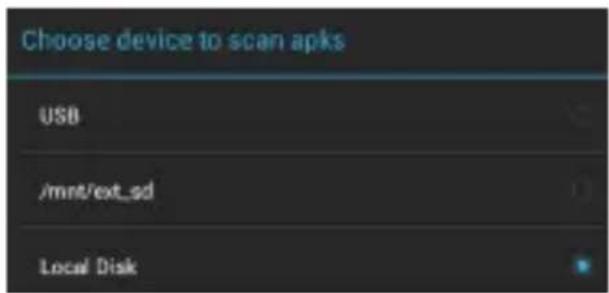
Choose the device, touch to enter into the APP list.

The star highlighting before the app means this app have already installed.

The grey star means this app uninstalled.
Touch an uninstalled app show installing window.Choose "install" to install the app,choose "cancel" to return.
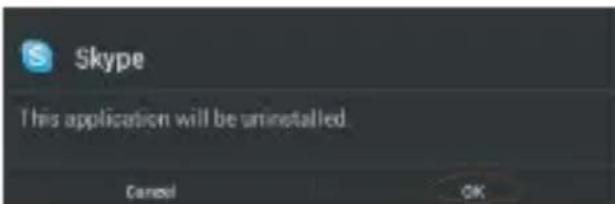
Touch an installed app show uninstalled window.Choose "OK" to uninstall the app,choose "cancel" to return.
Note: No matter in which interface, tap icon, can show submenu.
FILE MANAGER
From a Home or All Apps screen, touch the ES File Explore icon 📄, enter the corresponding interface, on which user can enter file management interface.
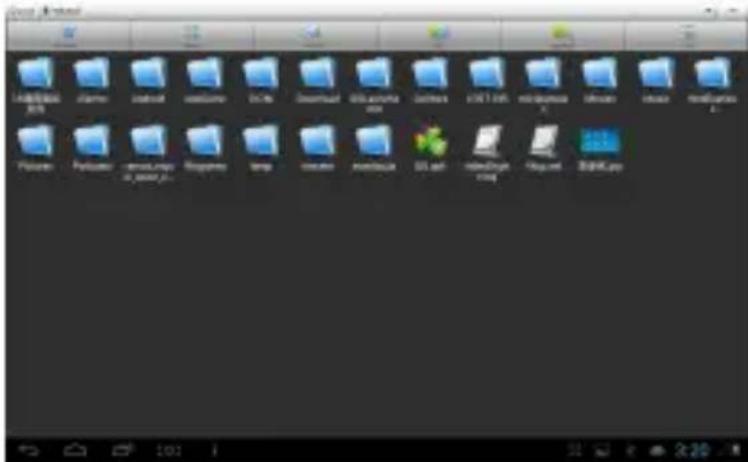

Select: turn on or turn off the select function. when "select"off,user can open the files y; When "Select"on,user can edit all files in this tablet.
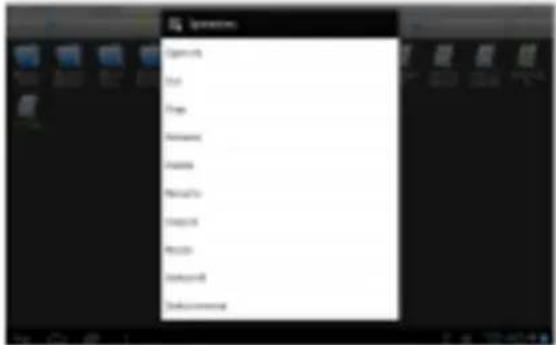
When "Select" on, touch and hold target files, can popup submenu.
特此公告。
单位:人民币元
-
ORION
TECHNICAL SPECIFICATIONS
| CPU: | Actions ATM7025 ARB Cortex A9 Quad Core 1.2GHz (4x1.2GHz) |
| GPU: | Vivrite GC1000 |
| RAM: | 1G8 D OR 3 |
| RCbit: | 16GB |
| Screen: | 9,4", capacitive IPS touch screen, resolution 1280x800) multi touch function |
| CG: | Android 4.1 |
| Gamma: | + |
| Card slot: | TF card (up to 32GB) |
| Camera: | back: 2MP, front: 0.3MP |
| Support | audio: MPS, MIO, WAV, AAC, AMR, WMA, APC video: MVV, WHV, MPG, MPGG, DAT, AVI, MOV, TS, TP, MP4, 3GP (1060p) |
The quick brown fox jumps over the lazy dog.
单位:人民币元
单位:元
TROUB LESHOO TING
| The tablet cannot be turned on | - Please charge it via the DC charger to check if the battery is low. If not, then please reset the tablet. |
| Incorrect language displayed | - Please make sure that you have selected the correct language. Set language in (Settings) or (personal) or (Language Input). |
| File cannot be downloaded | - Make sure the proper connection between computer and tablet.- Check if the memory is full.- Check if the USB cable is damaged and replace if necessary. |
| Audio files not playable | - This tablet cannot play audio files that are copy protected. Please ensure that only file that contain no copy protection are transferred to the tablet. |
| Fail to open the web page | - Please check whether successfully create the Wi-Fi connexion. |
ORION


Brand : ORION
Model : TP940
Category : Tablet