
DT400 - Phone ERICSSON - Free user manual and instructions
Find the device manual for free DT400 ERICSSON in PDF.


| Product Type | Cordless Telephone for BusinessPhone Communication Platform |
| Model | DT400 |
| Brand | Ericsson |
| Battery Type | NiMH, high capacity |
| Talk Time | Up to 10 hours |
| Standby Time | Up to 100 hours |
| Charging Time | Approximately 60 minutes |
| Ingress Protection | IP54 (dust and splash resistant) |
| Display | 3-row alphanumeric display with icons |
| Keypad | Alphanumeric keypad with dedicated keys (Call, OK, C, R, Scroll, Loudspeaker, Mute, Alarm) |
| Phonebook Capacity | Up to 75 entries |
| Message Capabilities | Voice messages, call-back messages (text messages not available on DT400) |
| Call Forwarding | Fixed diversion, individual diversion (internal/external), follow me, bypass |
| Conference Calls | Up to 6 parties (with system support) |
| Alarm Features | Personal alarm (manual trigger) – available on DT420/DT430 only |
| Non-movement Alarm | Not available on DT400 (available on DT420/DT430) |
| Headset Support | Via optional accessory connector |
| Belt Clip | Optional (hinge type or click-on) |
| Dimensions (approx.) | Standard cordless phone size (exact dimensions not specified) |
| Weight (approx.) | ~150 g (including battery) |
| Cleaning Instructions | Clean with soft, water-dampened cloth only; no solvents |
| Operating Temperature | Not specified; avoid extreme heat and direct sunlight |
| SIM Card | Stores personal settings and phonebook |
| Compatible Systems | BusinessPhone 250, 50, 128i (version 5.1) |
Frequently Asked Questions - DT400 ERICSSON
User questions about DT400 ERICSSON
0 question about this device. Answer the ones you know or ask your own.
Ask a new question about this device
Download the instructions for your Phone in PDF format for free! Find your manual DT400 - ERICSSON and take your electronic device back in hand. On this page are published all the documents necessary for the use of your device. DT400 by ERICSSON.
USER MANUAL DT400 ERICSSON
BusinessPhone Communication Platform
User Guide
natural_image
Blue Ericsson 33 mobile phone with water droplets on a textured surface (no visible text or symbols)Welcome to the User Guide for the Cordless telephones DT400, DT410, DT420 and DT430 of the BusinessPhone Communication Platform. The BusinessPhone Communication Platform consists of:
• BusinessPhone 250
- BusinessPhone 50
- BusinessPhone 128i
Note: The features described in this user guide are related to version 5.1 of the BusinessPhone Communication Platform. Some might not work in earlier versions of the system and/or might be protected by a hardware dongle that has to be bought separately.
The latest version of this User guide can also be downloaded from: http://www.ericsson.com/enterprise/archive/manuals_c.shtml
CE 0344 X
Hereby, Ericsson Austria GmbH, A-1121 Vienna, declares that this cordless telephone is in conformity with the essential requirements and other relevant provisions of the R&TTE directive 1999/5/EC.
ERICSSON MAKES NO WARRANTY OF ANY KIND WITH REGARD TO THIS MATERIAL, INCLUDING, BUT NOT LIMITED TO, THE IMPLIED WARRANTIES OF MERCHANTABILITY AND FITNESS FOR A PARTICULAR PURPOSE. Ericsson shall not be liable for errors contained herein nor for incidental or consequential damages in connection with the furnishing, performance or use of this material.
EN/LZTBS 151 352 R1A
© Ericsson Austria GmbH 2002
All rights reserved. No parts of this publication may be reproduced, stored in retrieval system, or transmitted in any form or by any means, electronic, mechanical, photocopying, recording or otherwise, without prior written permission of the publisher.
Quick Reference Guide
Cordless DT400 / DT410 / DT420 / DT430
BusinessPhone Communication Platform
Answer calls
Answer:
Suppress ringing:


Mute button on the right side of the phone
Make calls
Normal calls: Extension no.

0 External no.

Hot key
(pre-programmed):
From last dialled or who called list:


You get busy tone or no answer
Automatic call-back:

(Go "off hook" when called back)
Camp on:
4 (Keep handset off hook)
Intrusion:

Inquiry
Ongoing conversation:
R Call 3rd party
Conference
Ongoing conversation:
R Call 3rd party
R3 (To establish) End the call to leave
Transfer
Transfer a call:
R Call 3rd party
(Before or after answer)
Reminder
Reminder (24 hours):
*32* Reminder time #
Cancel reminder:
32
Account number
Costs on a selected account no.:
*9* Account number #
Volume control
Earpiece volume (during call):
▲ or ▼ (Left side of the phone)
Messages
"Call me":
9# 99 Speak
Voice:
*
Play-back:
9 Speak
Re-record:
#
Receive messages:
*59#
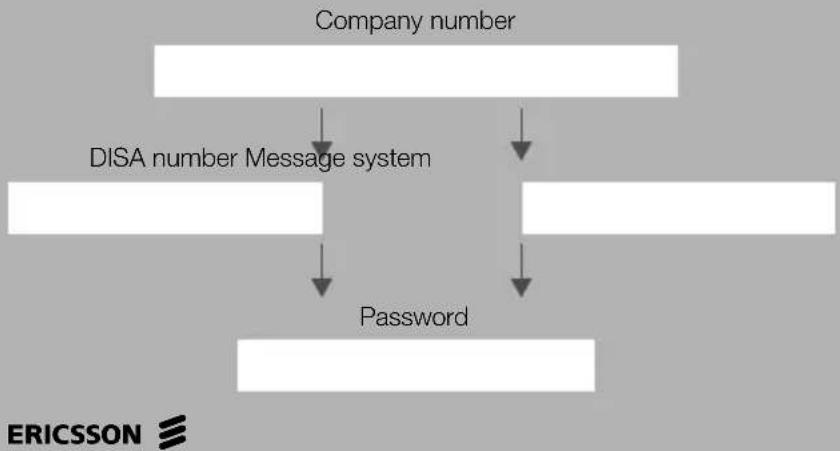
DISA and Message check:
flowchart
graph TD
    A["Company number"] --> B["DISA number Message system"]
    B --> C["Password"]
    C --> A
Call forwarding
| Fixed diversion: | #*21# | |
| Cancel: | ##21# | |
| Individual internal diversion: | #*21* New no. # | |
| Cancel: | ##21# | |
| Follow me, re-direct from answering extension: | #*21* Own no. *New no. # | |
| Cancel: | ##21* Own no. # | |
| External diversion: | ||
| Program: | #*22*Line access codeExternal number # | |
| Cancel: | ##22# | |
| Re-activate: | #*22*# | |
| Bypass call forwarding: | #*60*Extension no. # |
Information
| Enter information(pre-text): | 23*1-6Select "info code" from listEnter "completing info" # |
| Delete information: | 23# |
Info code Completing info
| Time of return 1 | hour (00-23) | minute (00-59) |
| Date of return 2 | month (01-12) | day (01-31) |
| Lunch 3 back at, | hour minute | |
| Meeting 4 back at, | hour minute | |
| Vacation 5 back, | month day | |
| Illness 6 back, | month day |
Hot keys
| 0 | |
| 1 | |
| 2 | |
| 3 | |
| 4 | |
| 5 | |
| 6 | |
| 7 | |
| 8 | |
| 9 |
Account numbers for business calls:
| 1 | |
| 2 | |
| 3 | |
| 4 |
Table of Contents
page
Important 6
Description 8
Incoming Calls 14
Outgoing Calls 16
During Calls 19
Call Forwarding 23
Information 28
Internal Messages ....32
Mailbox System 39
Hot Keys 43
Group Facilities 48
Other Useful Facilities 51
Security 61
Least Cost Routing ....68
Phone Book 69
Settings 75
Audible Adjustments ....81
Tones and Signals 85
Useful Hints 87
Installation 88
Troubleshooting 94
Glossary 96
Index 98
Voice Guide ....101
Important
This section describes the information that is important to know before you use the Cordless phone and the functions described.
Note: This user guide describes the supported BusinessPhone Communication Platform functions together with the most commonly used telephone specific functions. All telephone specific functions are listed in the menu structure "Menu structure" on page 12.
Preparing for use
Before using your Cordless the first time you have to charge and connect the battery, see section "Installation" on page 88.
Note: Place the Cordless in the charger and charge it for at least one hour before using it the first time.
Guidelines
Consider these suggestions and guidelines to keep your telephone in good shape and working properly.
Intrinsic safety
The Cordless DT400, DT410 and DT420 are IP54 classified, which means that they are not specified as intrinsically safe. Do not use them in hazardous areas.
Only the DT430 is designed for environments requiring intrinsically safe equipment and therefore IP64 and EX-classified.
Battery handling
The NiMH battery contains environmental polluting material. If damaged, return it to a collecting point.
Note: Only use the charger that is delivered with your Cordless to charge the battery.
Cleaning
Clean the Cordless only with a soft, water dampened cloth. Using soap or any other cleaning materials may discolor or damage the Cordless.
Treatment
Although the Cordless telephones are resistant to water spray, dust and soil, you should handle your phone always with care. Do not expose the Cordless to direct sunlight for long periods and keep your phone away from excessive heat.
Description
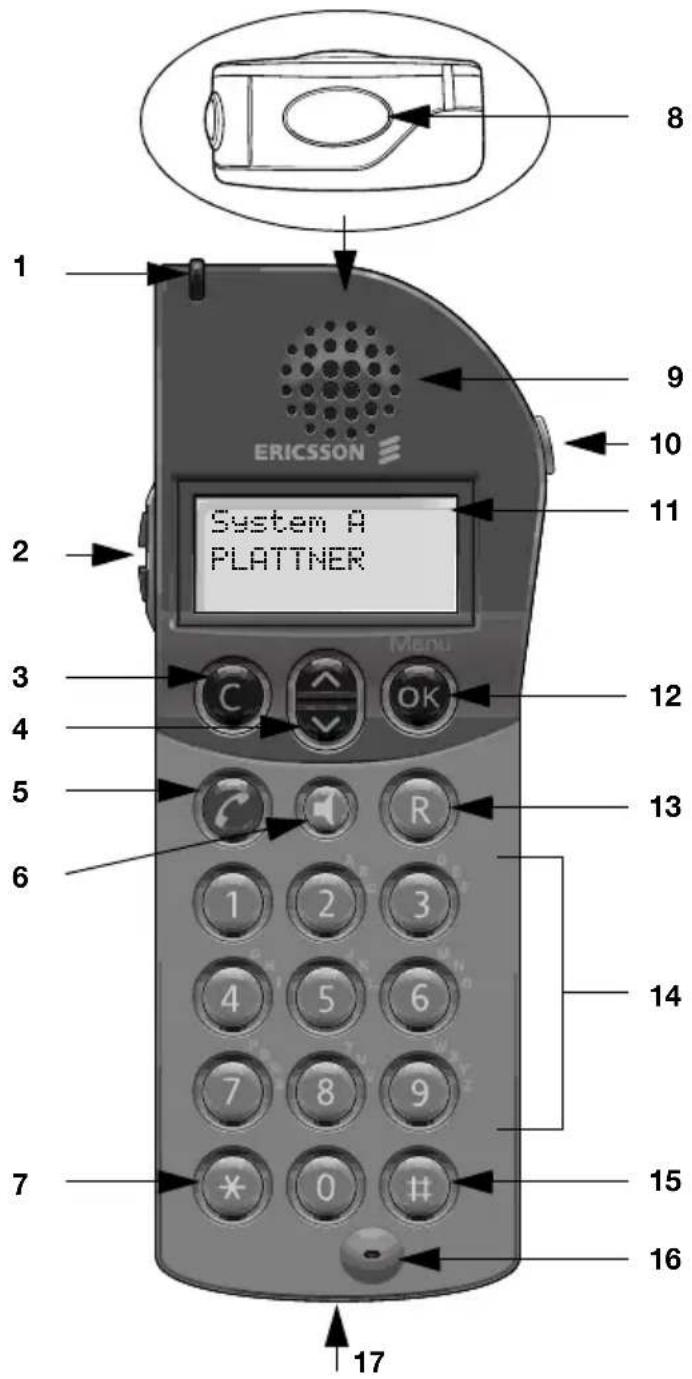
1 LED
2 Volume Up/Down
Off hook: raise/lower earpiece volume. On hook: raise/lower ringer volume. See section "Audible Adjustments" on page 81.
3 C - k e y
One menu back. Cancel a menu option. Delete latest entered digit. Backspace when editing text.
4 Scroll key
Scroll up/down through menus. "Arrow up": view messages (not available for DT400). "Arrow down": 10 last dialled numbers.
5 C a l l k e y
Switch on. Make call, answer call, end call.
6 Loudspeaker key
Hands-free mode: turn loudspeaker on/off, mute/turn on micro at the same time.
7 ✱ / Pause
Insert a dial tone pause.
8 A I a r m b u t t o n
DT420 and DT430 only. For sending alarms and test alarms.
9 Earpiece
Please note: The handset may retain small magnetic articles around the earpiece region.
10 Mute button
Idle state: turn off/on ring signal and message tone (not available for DT400). During calls: turn the microphone on/off.
11 Display (3 rows)
Display at rest. It shows the owner ID/name and the system. See section "Display info" on page 10.
12 OK key
Enter menu mode. Confirm settings. Accept messages (not available for DT400).
13 R-key
Put call on hold (inquiry), take call off hold, call forwarding. See section "During Calls" on page 19.
14 Keypad
15 # / Space
Space when editing text.
16 Microphone
17 Accessory connectors
See section "Installation" on page 88.
Display info
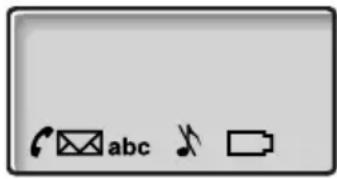
The display gives you visual feedback on all actions that you perform, and also textual warnings. The upper two rows are text rows (12 possible characters in each row), showing menus that you can access, names and numbers that you edit or dial, your owner id etc.
The lower row displays different states, visualized by icons.
The display
Texts in the display
System A
System indication
The Cordless is in contact with System A. It is also possible for the system to be named another letter, depending on your system settings.
No System
Out of coverage
The Cordless is not in contact with any system. Please ask your system administrator to log on the Cordless.
Display icons

Call / "Off hook"
Appears when your Cordless is off hook and flashes during ringing.

Low battery
An attention beep is heard and the "Low battery" icon is displayed when it is time to charge the battery.

New message
Indicates that a new message has been received. (DT 400 only voice messages). The symbol will remain until you look at the message and press OK.

Ringer off
Ringing signal muted or microphone off. High priority messages will override this setting.
abc Text mode
Indicates that you can type both numbers and letters.
Note: The following feature is only available for the DT420 and DT430 telephones. To use this feature with the DT420, the telephone must be equipped with an optional device.
A Non-movement alarm on
Indicates that the Non-movement alarm is set.
≥slant A Non-movement alarm activated
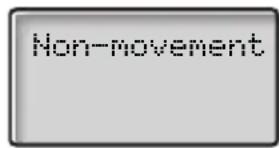
The icon starts to flash and you hear a warning signal if you have not moved within 30 seconds. If you do not reset the alarm within 5 seconds, an alarm message is sent and the display shows "Non-movement".
Additional display features
Depending on which network you are connected to, additional display features are available. Ask your system administrator if you require additional display features.
Menu structure
The available Cordless specific telephone and network functions can be accessed via the menus. Use the OK key to enter the menu mode and confirm the setting. With the Scroll key you can browse within each menu. To exit a menu, press C.
Note: Since the Cordless can be used in several networks, some functions might not be supported in your network.
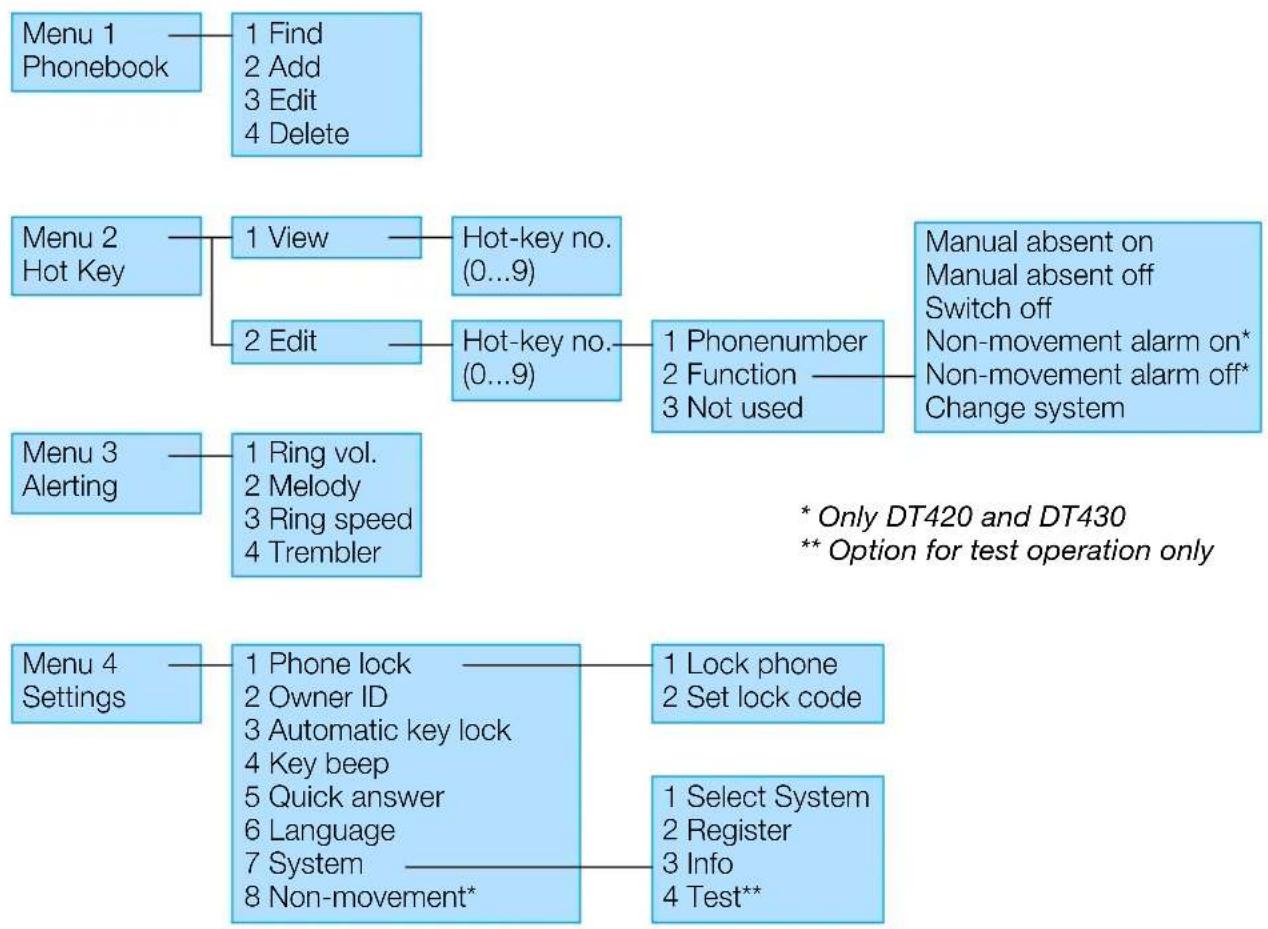
flowchart
graph TD
    A["Menu 1\nPhonebook"] --> B["1 Find\n2 Add\n3 Edit\n4 Delete"]
    C["Menu 2\nHot Key"] --> D["1 View"]
    D --> E["Hot-key no.\n(0...9)"]
    F["Menu 3\nAlerting"] --> G["1 Ring vol.\n2 Melody\n3 Ring speed\n4 Trembler"]
    H["Menu 4\nSettings"] --> I["1 Phone lock\n2 Owner ID\n3 Automatic key lock\n4 Key beep\n5 Quick answer\n6 Language\n7 System\n8 Non-movement*"]
    J["Manual absent on\nManual absent off\nSwitch off\nNon-movement alarm on*\nNon-movement alarm off*\nChange system"] --> K["1 Phonenumber\n2 Function\n3 Not used"]
    L["1 Lock phone\n2 Set lock code"] --> M["1 Select System\n2 Register\n3 Info\n4 Test**"]
    N["* Only DT420 and DT430\n** Option for test operation only"]
Switching on/off the Cordless
Switch on

Press until the display lights up
If the Cordless does not switch on or the battery icon is displayed, the battery is low. Charge the battery.
The display shows:
Switch on?

Press OK to confirm
Now you can use your Cordless.
Note: If the message "No System" is displayed you cannot make or answer calls.
Switch off
Note: During calls, you cannot switch off your telephone.
The Switch off function has to be programmed as a Hot key, see section "Edit a Hot key" on page 46.
If you already programmed a Hot key:

Press and hold the Hot key
The display shows:
Please wait
After a few seconds, the display turns blank. Now your Cordless is switched off.
Incoming Calls
A ringing signal and the flashing red LED indicate an incoming call.
Answer calls
The first row of the display shows the caller's number and the last row shows the call icon:
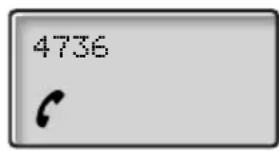

Press to answer
If the number is in the phone book, the name is shown instead.
Note: Calls can be answered at any time, no matter if you are programming, or keying in a number etc.
Mute ringing signal
If the Cordless rings at an inconvenient moment:

Press the mute button on the right side of the phone to suppress the ringing
Now only the red LED will indicate an incoming call.
If you did not answer a call, the text message icon will appear in the display:
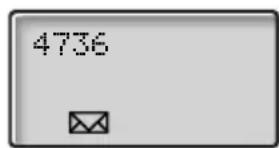

The caller will receive no answer.
Press the "Arrow up" Scroll key to view the phone number of the caller
The display shows the caller's phone number:
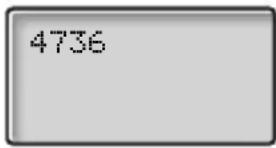

Press to exit
or

Press to dial the displayed number and call back the caller
End the call

Press
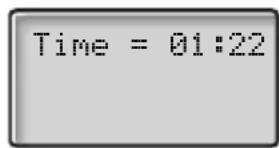
The display shows the duration of the call:
Outgoing Calls
Sometimes you make a call but the person is not available. These functions will help you in your attempts to establish contact with the called party.
You can also make a call via the phone book, see section "Phone Book" on page 69.
Make calls
Internal and external calls.


Enter the telephone number and press
The number may be any of the following:
- an extension number,
- an external number, where 0 is the digit for external call access.

To insert a pause if you have to wait for dial tone (on hook).
The dialled number is shown in the display. Your Cordless will go off hook and establish the connection.

Press to end the call
Notes: Correct a wrong entry by pressing the C-key. If you decide not to make the call while keying in the number, press "C" to stop. If you receive a call while keying in the number, simply press 🔒 to answer. You can make your calls faster by programming Hot keys with frequently used numbers.
Off Hook
If you prefer to dial a number off hook:

Press
Dial tone.
Key your number on-line
Note: When dialling this way, the C-key cannot be used to erase digits.
Redial number from last dialled list
The last ten dialled numbers are memorized by your Cordless. You can redial one of these numbers by selecting the number from the redial list.

Press the "Arrow down" Scroll key until the desired number is displayed
You can store numbers permanently by adding them to your phone book, see section "Phone Book" on page 69.

Press to redial
The display will show the dialled number.
Note: The list of last dialled numbers will be cleared if the power of your Cordless is lost.
Delete all numbers
If you want to delete all numbers in the redial list:

Press to scroll to the last position
The display shows:
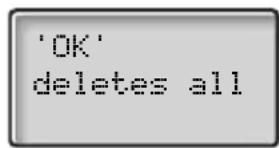

Press to delete all redial numbers
Automatic call-back
You call an extension and receive busy tone or get no answer.
5 Press
Verification tone.

Press
You are called back if the extension finishes the ongoing call or the next time the extension finishes a new call. You have to answer within eight seconds otherwise the call-back service is cancelled.
Busy extension
You call an extension and receive busy tone.
Camp-on
You can notify a busy extension of your call by a muted ringing call (if this function is allowed).
4 Press to camp on
Keep the handset off hook. When the called extension replaces the handset, it will be called automatically.
Note: If you receive the busy tone again, the desired extension does not allow camp-on.
Intrusion
You can intrude on an ongoing call on a busy extension (if this function is allowed).
8 Press to intrude
Intrusion tone is heard and a three-party call is established. When the called extension replaces the handset and you keep off hook, the called extension will be recalled automatically.
Note: If you still hear the busy tone, then your extension does not have the authority to intrude or the desired extension is protected against intrusion.
During Calls
The BusinessPhone Communication Platform allows you to handle calls in many different ways. You can make an inquiry, transfer the call, create a conference, mute the microphone and ringer or put the call on hold to perform other tasks.
Inquiry
During an ongoing conversation you like to make an inquiry to an internal or external party.


Press
The first call is put on hold.
Call the third party
When the third party answers, you can switch between the calls, create a conference and end one of the calls.
Refer back
You can switch between the connected parties:

Switch between calls

Press to terminate
The ongoing call is terminated. The other call is connected.
Note: Sometimes the "R"-key must be pressed twice. Whether you can put internal calls on hold or transfer calls to external lines depends on your PBX. Consult your system administrator.
Transfer
You have an ongoing internal or external conversation and you want to transfer an ongoing call.


Press
Call the third party
You can transfer the call before answer or wait for answer.
Note: Make sure, that you are connected to the desired party. Please read the notes and warnings in section "Useful hints".

Press
The call is transferred.
Transfer to a busy extension
You can even transfer calls to busy extensions. The other party will hear a muted signal (camp-on), and the call will be extended, as soon as the ongoing call is terminated (if camp-on is allowed).
Call-back
You are called back, if you have transferred an external call and the other extension has not answered the call within a certain time. Your telephone will ring again.
Conference
You have a conversation and you want to establish a telephone conference.


Press
Dial tone.
Call the third party

Press to establish a three party conference
Now you have established a three party conference. To mark the conference, all conference members will hear a periodical conference tone.
Repeat the procedure to include other persons to the conference
In this way, you can include up to six parties in a conversation. How many of them can be external callers depends on the programming of the system.

End the call to leave the conference
Mute ringer or warning
If the Cordless rings or a warning sounds at an inconvenient moment, e.g. when the battery runs low, you will be warned by a battery low sound (4 short beeps).

Press shortly to mute the ringing or warning for the moment The Ringer off icon turns on to indicate that ringing is suppressed.
Note: When a warning occurs during a call and you want to mute the microphone, the first press always mutes the warning sound. The second press mutes the microphone.

Mute microphone
To mute the microphone during an ongoing conversation:
Press the mute button at the right side of the telephone to turn the microphone off
The microphone is disconnected and the caller will not hear an ongoing conversation or environmental noises.
The display shows:
Muted

Press again to turn the microphone on
Note: It is advised to use this feature instead of putting a call on hold. A call on hold may be diverted to your operator, directly or after some time.
Loudspeaker mode
During a call, you can set the volume of the earpiece to maximum with pressing just one key. Then use the volume buttons to increase or decrease the volume to a suitable level.
This function is extremely useful in situations when you need to follow instructions over the phone while having your Cordless clipped on.

Press to change to loudspeaker mode
The volume of the earpiece is set to maximum and the microphone is muted.

Press again to return to normal mode
The volume of the earpiece is set to normal and the microphone is turned on again.
Call Forwarding
When you are not available to take calls or decide to answer your calls on another extension, it is useful to forward your calls to an alternate answering position. If you urgently need to talk to someone who has forwarded his calls, the system is also equipped with a bypass function.
Depending on the type of diversion you are also able to record your personal greeting, see section "Personal greeting" on page 42.
Note: You can still make calls as usual.
Diversion on no reply
If you are not available to answer incoming calls (internal or external), your system administrator can program your Cordless to automatically divert calls to a programmed diversion address (default time: 15 seconds).
Diversion on busy
If your Cordless is busy and you receive an incoming call (internal or external), your system administrator can program your Cordless to automatically divert the call to a programmed diversion address.
Fixed diversion
This function directs your calls to a pre-programmed answering position (e.g. secretary).
Activate fixed diversion

Press
\*21#
Dial
Special dial tone. All calls to your extension are directed to a pre-programmed address.

Cancel diversion
#21#
Press
Dial
Special dial tone.
Individual diversion
This feature gives you the possibility to divert your calls to internal and external positions, e.g. to any directory number, a colleague's extension, an external number or a common abbreviated number (e.g. your car telephone).
Note: In order to prevent misuse, individual external diversion can be blocked for your extension, see section "Security" on page 61.
Program and activate internal diversion
Divert your calls to an internal position.

Press
\*21\*
Dial

#
Enter the new diversion address and press
Verification tone. You can make outgoing calls as usual. A special dial tone reminds you that “Call forwarding” is active.
Note: An individual internal diversion cannot be activated if an individual external diversion is already activated.
Cancel internal diversion

Press
#21#
Dial
Individual diversion is cancelled.
Program and activate a new external diversion address
To set a new individual external diversion address:

Press
\*22\*
Dial
Dial the digit(s) for external call access and enter the new external diversion address
A maximum of 24 digits.
Note: If your public network requires waiting for a second dial tone, press “*”.
#
Press to activate the individual diversion
Verification tone.
Note: Individual external diversion can also be used via the DISA function, see section "Other Useful Facilities" on page 51.
Cancel external diversion

Press
#22#
Dial
Note: The programmed diversion address is not removed from the memory, the diversion is just inactive.
Re-activate external diversion
Divert your calls to an external position:

Press
\*22\*
Dial to activate the programmed external diversion
#
Press
You can make outgoing calls as usual. A special dial tone reminds you that “Call forwarding” is active.
Follow me
If your Cordless is not available, you can still answer your calls by forwarding them to where you are. To activate Follow me, "Individual Diversion" must be active on your telephone.
Activate Follow me
Note: This procedure has to be executed from the telephone the calls are diverted to.

Press
\*21\*
Dial
Dial your number and press

Dial the new number to where incoming calls should be diverted
#
Press
Special dial tone.
Cancel Follow me
Follow me and individual diversion can also be cancelled from the answering position.

Press
#21\*
Dial

Dial your number
#
Press to cancel Follow me Dial tone.
Bypass call forwarding
Bypass call forwarding me makes it possible to call a specific extension, even if call forwarding is activated on this extension.

Press
\*60\*
Dial

Dial the extension number
#
Press
You will be connected to the specified extension, regardless of which type of call forwarding the called extension has activated.
Information
If you are not in the office for a certain period of time (e.g. meeting, vacation, lunch, illness), this feature allows you to inform your callers why you are absent.
Note: When you have activated a diversion with a personal greeting, callers will receive this greeting instead of your activated absence information.
You can inform your callers with:
1 Pre-defined texts
Enter the reason for your absence and the date and time of your return. Internal callers receive the information on the display (or as spoken information to callers without display phone). External callers will be routed to the operator who also has access to your absence info.
2 Voice information
Record a voice message and name the reason of your absence. Internal callers will hear the information via the handset or the loudspeaker. External callers will be routed to the operator who also has access to your absence info.
Enter information
To store text or voice information.

Press
*23*
Dial to enter the information mode
Select "Pre-defined text" or "Voice information"
Voice information

Press
*23*
Dial to enter the information mode
9
Press and speak
*
Press to play-back and listen to your recording
9
Press and speak to re-record
#
Press to send
Information active.
Note: You can dial your own extension number if you want to check your information.
Pre-defined texts
See table below.
Enter "Code" and
Enter "Completing info"
| Code Completing info | |
| Time of return 1 | hour (00-23) minute (00-59) |
| Date of return 2 | month (01-12) day (01-31) |
| Lunch 3 back at, hour minute | |
| Meeting 4 back at, hour minute | |
| Vacation 5 back, month day | |
| Illness 6 back, month day | |
#
Press to enter the information
Verification tone. Internal callers receive the information on the display (or as spoken information to callers without display phone).
Pre-defined texts
Example: Vacation, back June 27

Press
*23*
Press
5
Enter "Code"
0627
Enter month and day
Save information
When the information is active:

Press
23*
Dial
#
Press
Verification tone. Information is passive and stored for later use.
Use saved information
When the information is switched off:

Press
*23*
Dial
#
Press to activate saved info
Verification tone. Information is active.
Note: You can edit a Hot key to activate or deactivate the information, see sections "Edit a Hot key" on page 46 and "Manual absent" on page 36.
Erase information

Press
23
Dial to erase info
Verification tone.
Internal Messages
You can send a call-back or a voice message when you call an extension and receive busy tone or get no answer. This section also describes how to record a personal voice message and how to forward a voice message.
Password protection
The first time you enter the message system (only possible from own extension) you might be requested to change your password if it is default (0000).
Note: Some systems are programmed to allow the default password.
Follow the voice announcements
You are requested to enter a new password, confirm and save it. If you use the default password, you are requested to try again.

Press to finish the procedure
or
Continue with any of the message functions
If you want to change your password again, it is possible from the message system or via the function "Select password" on page 62.
Send message
You call an extension and receive the busy tone or no answer.
Two possibilities exist:
1 Call-back message
2 Voice message
See also section "Mailbox System" on page 39.
Call-back
9# Press to send a "call me" message
Voice
If you want, you can send a voice message instead:
99 Press and speak
* Press to play-back
9 Press and speak to re-record
# Press to send
Check and store received messages
A received message is indicated with a message icon (envelope) in the display (a special dial tone can also be used to indicate a waiting message, if programmed). In addition you can see the number of queued messages in the display.
Received messages are divided into following three categories:
- New messages (not heard or read)
- Heard/Read messages
- Stored messages
Voice messages can also be forwarded to other mailbox numbers (individual or common), see section "Forward a voice message" on page 37.
Note: Messages are deleted from the system after a certain time. The time depends on which category the message belongs to. Please ask your system administrator regarding this.
Call me and voice messages

Press
*59#
Dial
You can check and store your received messages. Up to 20 messages can be stored.
Voice messages will be heard via the handset. "Call me" messages will call the sender automatically (these messages cannot be stored).
Note: Depending on the configuration, you might be asked for your password before you can retrieve your messages. See section "Security" on page 61.
Text messages
Note: This feature is only available for the DT410, DT420 and DT430 telephones.
With your Cordless you can receive important messages of up to 128 alphanumeric characters. The last 10 messages are stored for quick reviewing, so you need not miss a message.
When you receive a new message, a message tone sounds and the "New message" icon appears in the display. The text message is displayed for one minute:
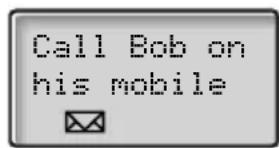
After 60 seconds, the display changes to normal and the message is stored in the memory. The new message icon is still displayed to remind you that you have a new message:
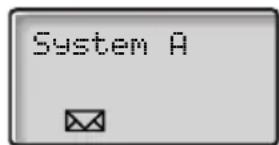

Press the "Arrow up" Scroll key to view the stored text messages
Continue to press the key to scroll between the messages.

Press to accept the message
This will cause the New message icon to disappear.
Note: If you scroll through unaccepted messages, they are automatically accepted and the New message icon disappears.

Press to delete the message
If you want to delete all numbers in the message list:

Scroll to the last position
The display shows:
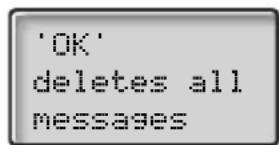

Press to delete all messages
Manual absent
Note: This feature is only available for the DT410, DT420 and DT430 telephones.
Activate manual absent if you cannot receive any messages. The system will then receive an absent notice, and keeps track of if you can be reached or not.
This function has to be programmed as a Hot key. Set one Hot key as “Manual absent on” and another as “Manual absent off”. How to program a Hot key, see section “Edit a Hot key” on page 46.
Activate
Press and hold the pre-programmed Hot key
The display shows:
Manual
absent on
Deactivate
Press and hold the pre-programmed Hot key
The display shows:
Manual
absent off
Forward a voice message
Your received voice messages (in the individual mailbox) can be forwarded to other mailbox numbers (individual or common). When you forward a voice message to an individual mailbox, the mailbox number is the same as the extension number. See also section "Mailbox System" on page 39.
\*59# Dial
Note: Depending on the configuration, you might be asked for your password before you can retrieve your messages. See section "Security" on page 61.
Follow the voice announcements
You can forward new, heard or stored voice messages.
Note: The forwarded message is a copy, i.e. it can be deleted without deleting the original message.
Repeat the procedure to forward the message to another mailbox

Press
Dictaphone Function
If you want to record and retrieve personal voice messages you can use the dictaphone function. A dictaphone message is treated as a normal message. How to retrieve dictaphone messages, see section "Check and store received messages" on page 34.
Record message
To start the recording:

Press
\*58#
Dial and record your message
The maximum recording time is four minutes and 15 seconds.
Select options below:

Press to play-back

Press and speak to re-record

Go "on hook" to stop recording and save the message
Mailbox System
While you are away from the office, callers can leave messages in your individual mailbox. You are also able to record your personal greeting, see section "Personal greeting" on page 42.
The first time you enter the message system (only possible from own extension), you might be requested to change your password if it is default (0000). See section "Password protection" on page 32.
The mailbox system is a part of the message system.
Individual mailbox system
Callers are able to leave messages in your individual mailbox.
Activate
Divert your extension to the mailbox system.

Press
\*21\*
Dial

Dial the number of the mailbox system
Ask the system administrator for your defined mailbox system number.
#
Press
Special dial tone.

Deactivate
Press
#21#
Dial
Retrieve messages internally
When the message icon appears in the display.

Press
\*59#
Dial
See section "Check and store received messages" on page 34.
Retrieve messages externally
To retrieve your messages from an external position:
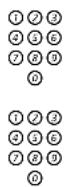
Dial your company's telephone number
Dial the number to the mailbox system
During the procedure you will be asked for your extension number and your password.
The following mailbox functions can also be used from an external position:
- Change password
- Check and store received messages
- Forward a voice message
- Send message
- Outcall (External) notification
- Personal greeting
Outcall (External) notification
With this function the message system can notify you when new voice messages arrive. You can specify an external number, where you will be called at a pre-programmed time or as soon as a new message arrives.
Note: This feature may be restricted or not available. Ask the system administrator for the availability and for more information.
You can be notified in two different ways (depending on the programming of the system):
Notification with mailbox access:
You acknowledge the notification via your password (has to differ from the default value 0000). See section "Select password" on page 62 to select a new password. You have full access to the mailbox system.
Notification without mailbox access:
You get a short voice announcement, informing that someone has left a message for you. You acknowledge the notification by pressing any key. To retrieve the message you have to call back the mailbox system.
Note: If you do not acknowledge the notification within the pre-programmed time, the connection is cancelled and repeated later. Ask the system administrator for the programmed number of notification attempts.
Program outcall notification
*59# Dial
Note: Depending on the configuration, you might be asked for your password.
Follow the voice announcements
You can program the external notification number, the notification time and activate/deactivate the function. The external number (including the digit(s) for external call access) can consist of up to 24 digits. The time is entered in 24h-format, e.g. 2030 for half past eight with values automatically set to even quarters, i.e. 2013 will be 2015.
Note: The notification number and time must be programmed before you activate the notification.

Press to finish the procedure
Personal greeting
Depending on the type of diversion you want to activate, you can leave three different personal greetings to the caller. The diversion state can be on no reply, on busy or an activated individual diversion.
\*59# Dial

Press
During this procedure you will be asked for your extension number. Depending on the system configuration you may be asked for a password, too.
2 Press to configure your personal greeting

Enter diversion code
Select an option below and follow the voice announcements.
Type of diversion Code
Diversion greeting on busy 1 Diversion greeting on no reply 2 Individual diversion greeting 3
# Press to store the recorded greeting
When you activate the diversion, the recorded greeting is played to the next caller.

Press to end
Note: When you have activated a diversion with a personal greeting, callers will receive this greeting instead of your activated absence information.
Hot Keys
A Hot key is one of the ordinary number keys 0 to 9. By using the Hot keys, you can make calls or activate a function by simply pressing and holding just one key.
Up to 10 of your personal most frequently used internal and external numbers or even functions can be assigned for single key activation with a hot key. The hot key programming is stored on the SIM card of your telephone.
Dial with a Hot key
Press and hold the pre-programmed Hot key
A number between 0 and 9. The display shows the pre-programmed number. The number is dialled and the connection will be established automatically.
If you want to cancel the dialling:
Press to cancel


Activate a function with a Hot key
Press and hold the pre-programmed Hot key
A number between 0 and 9. The pre-set function will be activated.
Program a Hot key with a phone number
How to program phone numbers on the Hot keys 0 to 9.

Press to enter the menu


Select "2 Hot key" and press


Select "2 Edit" and press
The display shows:
Hot key 0

Select an empty key position
Use the scroll keys to select a Hot key (0-9).

Press


Select "1 Phone number" and press

Enter the phone number
Notes: If you program an external number, you have to enter the prefix digit for external lines (e.g. "0"). You can also store codes that contain * or #. For example, if you have to wait for the dial tone, enter *".

Press
Note: You can leave the menu any time without accepting the changes by pressing the C-key.

Press to exit the menu
Cancel one specific Hot key number

Press to enter the menu


Select "2 Hot key" and press


Select "2 Edit" and press
The display shows:
Hot key 0

Select the programmed Hot key
Use the scroll keys to select a Hot key (0–9), that programming is no longer needed.

Press
The display shows the programmed phone number:
017234567

Press to delete the phone number
Now you can enter a new phone number or exit the menu by pressing C.

Press to exit the menu
Edit a Hot key
How to program a Hot key with a function:

Press to enter the menu


Select "2 Hot key" and press


Select "2 Edit" and press
The display shows:
Hot key 0

Select an empty key position
Use the scroll keys to select a Hot key (0–9).

Press


Select "2 Function" and press

Choose one of the following options for the selected Hot key:
- Manual absent on
- Manual absent off
- Switch off
• Non-movement alarm on
• Non-movement alarm off - Change system

Press to confirm

Press to exit the menu
Note: You can leave the menu any time without accepting the changes by pressing the C-key.
View Hot keys
To check the current configuration, you can easily view the already programmed Hot keys:

Press to enter the menu


Select "2 Hot key" and press


Select "1 View" and press


Select a key position and press
The display shows the programmed phone number or function, for example:
Switch off

Press to exit the menu
Set Hot key to not used
If you do not need a function or a phone number any longer, you can set the Hot key to "Not used".


Enter the "2 Hot key" / "2 Edit" menu
Select the Hot key and press


Select "3 Not used" and press

Press to exit the menu
Group Facilities
When you are working together in a team the following group facilities can be very useful.
Group hunting
Your telephone can be included in one or several hunt groups. In a hunt group all members are represented with one common directory number. 16 hunt groups can be programmed, each containing 1 to 20 members. A member can be either an extension number, an operator console or a fictive number. Please ask your system administrator if you require this function.
Note: The number of cordless extensions in a hunt group is limited to eight (including tandem configurations).
Incoming calls to the hunt group are directed to free extensions in the group. The hunt order within the group can be changed to suit your needs. If all members of the hunt group are busy an incoming call is being queued. If no one answers an incoming call before the programmed time, the call is forwarded to the programmed answering position (e.g. operator).
Note: If all members in a hunt group are busy, the call-back or intrusion functions are not available.
Log in
Before you can answer group hunting calls, you must log in.
To log in to one hunt group:
Press

\*28\* Dial

Dial the hunt group code
Please ask your system administrator for the configured number.
# Press
To log in to all hunt groups:

Press
\*28\* Dial
\*# Press
Answer calls
Answer group hunting calls in the normal way.
Note: Depending on the system configuration a different display layout may be used. Please ask your system administrator for further information.
Log out
To log out from one hunt group:

Press
#28\* Dial

Dial the hunt group code
Please ask your system administrator for the configured number.
# Press
Note: If you are logged in to more than one hunt group and log out from one of them, the display will show a special message.

28*
*#
To log out from all hunt groups:
Press
Dial
Press
Group call pick up
In a pick up group, any member can answer any individual call to group members. You answer a call to a group member by dialling a special answering number. Please ask your system administrator for the configured number.


Press
Dial the group call pick up code
Ask your system administrator for the group call pick up code.
Common bell
The common bell facility allows all extensions of the system (operator included) to pick up the call from an extension that has been predefined as a common bell extension.


Press
Dial the common bell pick up code
Ask your system administrator for the common bell pick up code.
If two or more extensions simultaneously attempt to answer a call from the common bell extension, only the first extension will pick it up. The other extensions will receive the “number unobtainable” tone. This will also happen if you dial the common bell pick up code and there are no calls waiting at the common bell extension.
Other Useful Facilities
By using these facilities your productivity will be increased, e.g. you can set reminders for important meetings, place the costs for external calls on separate accounts and much more ...
Reminder
The phone can be set to remind you at any time within the next 24 hours (multiple settings are allowed).

Press
\*32\*

#
Dial
Dial reminder time and press
(00-23) hour + (00-59) minute. When the time is reached your phone rings with recall signal.
Note: If you receive busy tone, your extension does not have the authority to set a reminder.
Cancel reminder

Press
#32#
Dial to cancel all settings
Account number
An account number can be entered to debit telephone costs to different accounts. Depending on the system configuration the account number has to be entered from a verified account number list (predefined) or you can invent an own account number. The following prerequisites apply:
- With the verified account number you can restrict the making of external calls (not a specific number or area), so everyone who is allowed to make external calls will receive an account number which has to be used each time he/she wants to make an external call.
- Verified account numbers contain up to 10 digits.
- Own account numbers contain up to 15 digits.
The account numbers can also be used via the DISA function, see section “Direct Inward System Access (DISA)” on page 55.
Verified or own account number
Before an outgoing call:

*9*
① ② ③ ④ ⑤ ⑥ ⑦ ⑧ ⑨ ⑩
Press
Press
Enter account number and press
Valid digits 0-9. Internal dial tone, make the external call.
Doorphone
The doorphone is used to monitor the admission to your company, i.e you can open the doorlock from your phone.
Answering doorphone calls

Press
You will be in speech connection with the calling party.
Opening of the doorlock
After you have answered the doorphone, you can open the door making an inquiry to the door-opener's directory number.

Press

Dial the door-opener's directory number
Please ask your system administrator for the number.
Tandem configuration
The tandem configuration is a unit, consisting of two telephones using the same directory number. One of the telephones is defined as the “Primary” and the other one as the “Secondary”.
This function enhances the communication for users that, for example, have a wired phone on their desk (the “primary telephone”) and need to be mobile within their company’s building with their own Cordless (the “secondary telephone”). Basically the tandem configuration works as follows:
To activate the tandem configuration

Press
\*28#
Dial to log on the secondary telephone
For incoming calls:
- Both telephones are treated as 1 single extension.
For outgoing calls:
- Both telephones are treated as 2 separate extensions.
To deactivate the tandem configuration

Press
#28#
Dial to log off the secondary telephone
For incoming calls:
- The “secondary” telephone cannot be called and the “primary” telephone works as a normal “stand-alone” telephone.
For outgoing calls:
- Both telephones are treated as 2 separate extensions.
Transferring a call between the members of a tandem unit

Press

Dial own directory number

Press
Automated attendant
The Automated Attendant facility sends voice instructions to external and internal callers, informing them of all possible options they can choose. Voice instructions lead the callers step by step to the desired destination.

Press

Dial the automated attendant directory number
Please ask your system administrator for the Automated Attendant directory number.
Direct Inward System Access (DISA)
If you are working externally and you have the need to make business calls, call your company and use the company PBX to build up an external call to the desired party. You just pay the costs for the phone call to your company. The other costs will automatically be placed on your extension number or on a special project.
Note: To activate this function, you have to change the default password from "0000" to a personal one. Which code to use and how to change it, see section "Select password" on page 62.
You can also divert calls from your office extension to your external position, see section "Call Forwarding" on page 23. During the procedure you will be prompted for your password. See last page for a card to remember these specific numbers.
Dial the public number of your company
followed by the DISA number
Please ask the system administrator for the defined DISA number.
Note: If want to register the call on an account number, you should use the account number procedure before you enter the external number, see section "Account number" on page 52.
Dial the external number
or
Use the external diversion function
Procedure, see section "Call Forwarding" on page 23.
Note: If you program a new diversion address, remember to reset it when you return to your office.


Networking
Networking is the connection of several premises within a company. The connection can be set up via leased lines, public lines, Local Area Network (LAN) or Wide Area Network (WAN). Ask your system administrator about details regarding networking.
IP calls
IP calls are internal calls sent via an internal data network (LAN or WAN) and the transfer of data and voice is made on the same line. If you are connected to an internal data network the IP connection is made automatically. To minimize the traffic on the network the speech quality is decreased.
If the speech quality is not acceptable you can disconnect the IP call and switch to a non-IP call (alternative network). The switch from the IP net to the non-IP net is made during the call, so the call does not have to be disconnected.
If you want to switch to a non-IP net during the call:

Press
*61*
Dial
During the procedure the other party is put on hold. When the procedure is ready you will receive a special ringing tone and the call is resumed in the non-IP net.
Note: A switch to a non-IP call can only be performed if the original call is an IP call, otherwise you will receive a blocking tone.
Lock the keypad
You can lock your keypad to avoid accidental activation or dialling a number by mistake. The following procedure describes the manual lock, but it is recommended to always have the automatic lock on.
How to set the Automatic key lock, see section "Settings" on page 75.
To lock the keypad manually

Press
When you press a key, the display will show:
Key locked Unlock R*
To unlock the keypad
The following combination is always used to unlock the keypad, no matter if the phone was locked manually or automatically with the Automatic key lock feature:

Press
The keypad is unlocked. Now you can make calls as usual.
Alarm
Note: The alarm feature is only available for the DT420 and DT430 telephones.
When you work alone and at risk, your personal safety is important. For situations like this, the DT420 and DT430 telephones are equipped with a red alarm button on top. When you are in trouble, just press the Alarm button to summon help by sending a preset message to the alarm central, which distributes it (requirers an external alarmserver).
Personal alarm
Activate
Press the red alarm button twice within 2 seconds
The display shows:
Personal
Alarm
You will hear a short, soft tone. An alarm is sent to the alarm central. After that, the telephone returns to standby mode.
Note: You can always trigger the alarm, even when you are speaking, editing your settings or while the phone is locked.
Cancel

Press to cancel the personal alarm
Test alarm
Press and hold the red alarm button
The display shows:
Test Alarm

Press to cancel
Non-movement alarm
Note: This feature is only available for the DT430. The DT420 can be fitted with an optional Non-movement alarm.
If you have not moved within 30 seconds and are unable to raise an alarm yourself, a sensor inside the phone will alert the operator. To use this feature, you have to activate the Non-movement alarm feature first. You can do this via the display menu or by programming the function as a Hot key, see "Edit a Hot key" on page 46.
Activate Non-movement alarm

Press to enter the menu

Select "4 Settings" and press

Select "8 Non-movement" and press The display shows:
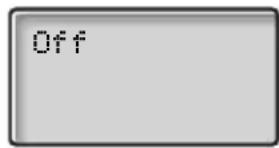
Note: If the Non-movement alarm is already turned on, the display will show "On" instead of "Off". If you want to keep the alarm on, just press C to exit the menu without changes.

Select "On" and press
The Non-movement alarm is set.

Press to exit the menu
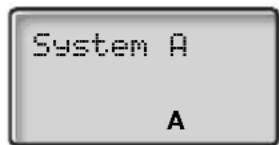
The display shows a small "A" in the last row. This indicates that the Non-movement alarm is set:
Note: It is recommended to program two Hot keys to activate and deactivate the Non-movement alarm. How to program a Hot key, see section "Edit a Hot key" on page 46.
Cancel Non-movement alarm
The alarm will go off when you have not moved within 30 seconds. Five seconds before the alarm is activated a warning signal sounds and the "A" icon starts to flash.
If it is not a case of emergency, you can cancel the non-movement alarm within this time.
Move the telephone or press any key to cancel the alarm
The display returns to normal state:
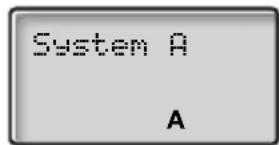
The “A” icon on the display indicates that the non-movement alarm is still in operation.
Send Non-movement alarm
If the alarm has not been reset during the warning signal period, the alarm is sent to the alarm central. No further action will be necessary.
The display will show:
Deactivate Non-movement alarm
To deactivate the Non-movement alarm, you have to program a Hot key first, see section "Hot Keys" on page 43.
Press the pre-programmed Hot key to deactivate the alarm feature

Security
You can block your extension in order to prevent unauthorized use of your telephone, e.g. if your external calls are placed on a specific account number.
Block extension

Press
*72#
Dial to block your extension
Verification tone.
Un-block extension

Press
72*
Dial

Dial your password
#
Press to re-open
Verification tone. Your extension is open for use.
Select password
You can use your four-digit password for blocking your phone from unauthorized use, for making external calls from any blocked extension, for entering the message system or when you are using the DISA function.
Note: The first time you enter the message system you might be requested to change your password if it is default (0000). This procedure is performed directly in the message system. See section "Internal Messages" on page 32.

Press
#\*72\*
Dial to select a new password

Dial your present password The default password is "0000".

Press

Dial your new password

Press Verification tone.
Bypass blocked extension
In order to make a call, you can temporarily bypass a blocked extension.
Bypass own extension
\*72\*
Dial

Dial your password
#
Press
Dial tone. You can make one call from your extension.
Bypass another extension
This makes it possible to make a call on another, blocked extension, by using your password.
\*72\*
Dial

Dial your password
\*
Press

Dial your extension number
#
Press
Dial tone. You can make one call from the blocked extension.
Phone lock
You can protect your Cordless from being used by unauthorized persons by locking it. The lock is manually activated. To use this feature, you have to select a lock code first.
Select lock code
If you have not entered a code before and want to set the code for the first time:




Press to enter the menu
Select "4 Settings" and press
Select "1 Phone lock" and press
Select "2 Set lock code" and press
The second row of the display is empty:
Code:


Enter a lock code
The code may consist of 1 to 4 digits (no characters).
Press to confirm
The lock code is set.
Press to exit the menu
Change lock code
For security reasons, it is recommended to change the lock code from time to time:

Press to enter the menu


Select "4 Settings" and press


Select "1 Phone lock" and press


Select "2 Set lock code" and press
The display shows:
Current code:

The display changes to:
Code:

Enter the new lock code (1 to 4 digits)

Press to confirm
The new lock code is set.

Press to exit the menu
Note: If you cannot remember the lock code, please contact your system administrator.
Lock phone
Note: To use this feature, you have to select a lock code first.


Press to enter the menu
Select "4 Settings" and press
Select "1 Phone lock" and press
Select "1 Lock phone" and press
The display shows:
Code:


Enter your code (1 to 4 digits)
Press to confirm
Now your Cordless is locked. If you press a key, the display will show:
Phone locked
To use your Cordless, you'll have to enter the lock code, see "Unlock phone" on page 67.
Unlock phone
If the phone was locked, the display will show:
Phone locked
Enter the pre-set lock code (1 to 4 digits)
Note: The entered digits will not appear on the display.
The Cordless is unlocked and you can make calls as usual.
Least Cost Routing
Least Cost Routing (LCR) automatically selects the cheapest way to establish the connection to the desired external number. Please ask your system administrator if this function is installed in your system.
If the extension has been configured to use LCR, each external call will be analysed and the cheapest way will be selected.
Use least cost routing

0

Press
Dial the digit(s) for external call access and the external number
The usual way of making an outgoing external call.
Calling least cost routing
If LCR has been installed in your system, but your extension is not configured to use it automatically, you also have the opportunity to get the cheapest connection by dialling the LCR code before you dial an external number.


Press
Dial the LCR code
Please ask your system administrator for the LCR code.
0

Dial the digit(s) for external call access and the external number
Phone Book
Your Cordless is equipped with a personal phone book where you can make up to 75 entries (names and numbers). The phone book entries are stored in the SIM card in your Cordless.
Notes:
It is not possible to download a pre-programmed phone book to the Cordless.
Phone book numbers have a maximum of 24 digits.
Phone book names have a maximum of 16 characters.
An indication that the phone book is full, means that you have to delete an entry before you can add a new one.
Use the phone book
Access the names and numbers of the phone book.
Select "1 Phone Book"
Press
Use the Scroll key to select the required option
Make a call via the phone book
When you have accessed the phone book:


Access "1 Find" and press
The display shows:
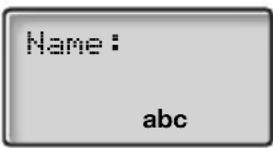

Press the key which has the first letter of the name you are looking for
How to write text, see section "Write text" on page 73.

Press to confirm
The first name beginning with that letter is displayed.


Scroll up or down until you find the name and press
The number is dialled.


Add a name or a number to the phone book
When you have accessed the phone book:
Access "2 Add" and press


Enter a name and press
A name may have up to 16 characters. How to write text, see section "Write text" on page 73.
The display changes to:



Enter the telephone number and press
The name and number are stored in the phone book.

Press to exit the menu
Change a name or a number in the phone book
When you have accessed the phone book:
Note: If you only want to change a name or a number press "OK" instead of "C" to proceed, otherwise all changes will be cancelled.


Access "3 Edit" and press
Enter the first letter of the name and press
How to write text, see section "Write text" on page 73.


Scroll up or down until you find the name and press
The display shows the name, for example "Smith":
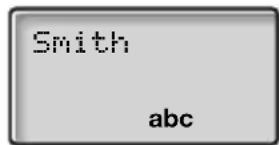

Press to erase the name


Enter the new name and press
Now the display shows the associated number:
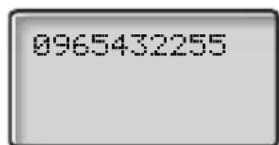


Press to erase the number

Enter the new number and press

Press to exit the menu
Delete a name or a number from the phone book
When you have accessed the phone book:


Access "4 Delete" and press
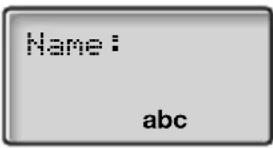


Enter the first letter of the name and press
How to write text, see section "Write text" on page 73.

Scroll up or down until you find the entry

Press to delete the name and number

Press to exit the menu
Write text
The characters that you can enter, are written above each key. Use the keypad to write text. Below is explained how to write text when you add a new name in the phone book menu.


Access "2 Add"
The Cordless changes to text entry mode automatically.
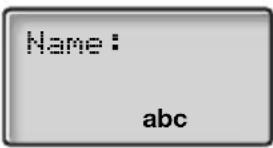
Example:
5
Press a digit
1 time result J
2 times result K
3 times result L
4 times result 5

Press to confirm your edit

Press to exit the menu
Control keys
While entering a name or a number you can use the following keys for control and navigation:
\*
Press to add a dial tone pause
#
Press to enter a space

Press to correct a wrong entry
Special characters
See the table below how to find a special character.
Key Number of key presses:
| 1 | 2 | 3 | 4 | 5 | 6 | |
| 1 | -.:1 | |||||
| 2 | A | B | C | Å | Ä | 2 |
| 3 | DEF3 | |||||
| 4 | G | H | I | 4 | ||
| 5 | JKL5 | |||||
| 6 | M | N | O | 6 | ||
| 7 | PQ | RS7 | ||||
| 8 | T | U | V | 8 | ||
| 9 | W | XY | Z9 | |||
| 0 | 0 | |||||
| # | # | |||||
Note: Depending on the selected menu language, other characters might be available, which means that the character order differ from the table above.
Example special characters:
| 2 | T o e n t e r Ä press 2 (five times) | ||||||
| 1 time | result A | ||||||
| 2 times | result B | ||||||
| 3 times | result C | ||||||
| 4 times | result Å | ||||||
| 5 times | result Ä | ||||||


Settings
In order to satisfy your personal needs, the Cordless is equipped with a number of setting options. This section describes how to customize your telephone. All of the following functions are accessed via the menu "Settings".
The menu structure at the beginning of this user's guide will give you an overview of the available functions.
Owner ID
With this function, you can program your personal Owner ID. The Owner ID may consist of up to 12 alphanumeric characters.
Enter Owner ID


Press to access the menu mode
Select "4 Settings" and press
Select "2 Owner ID" and press
The display shows:
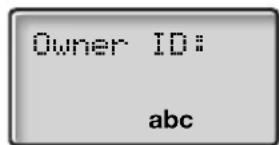
Enter your Owner ID
The Cordless changes to text entry mode automatically. How to write text, see section "Write text" on page 73.
For example, you would like to enter your name:
PLATTNER
abc

Press to confirm

Press to exit the menu
The display returns to normal state and shows the entered Owner ID.
Automatic key lock
You can set the keypad to lock after 20 seconds after the last usage.

Press to enter the menu

Select "4 Settings" and press

Select "3 Automatic key lock" and press

Scroll to choose between "Yes" and "No" and press

Press to exit the menu
The automatic lock will be activated after 20 seconds.
To use your Cordless again:

Press to unlock
The Cordless is unlocked and you can make calls as usual.
Key beep
Use this feature to set if you want every keystroke to be confirmed with a short tone or not:

Press to enter the menu


Select "4 Settings" and press


Select "4 Key beep" and press


Scroll to choose between "Yes" and "No" and press

Press to exit the menu
Depending on the previous setting, the key beep will be turned on or off.
Quick answer
When this function is activated, you can answer incoming calls by simply taking the Cordless out of the desktop charger. You do not need to press the Call key.

Press to enter the menu


Select "4 Settings" and press


Select "5 Quick Answer" and press


Scroll to choose between "Yes" and "No" and press

Press to exit the menu
Language
The display messages are available in ten languages: English, Spanish, French, Italian, Dutch, Norwegian, Suomi, Swedish, Danish and German. Select your preferred language options in the "Settings/Language" menu.
Select language


Press to enter the menu
Select "4 Settings" and press
Select "6 Language" and press
Scroll up or down to select a language and press
Press to exit the menu
System
Use this menu to select a system and view all telephone related information.
Note: How to register to the system is described at the beginning of this guide. The options “Test” and “Register” may only be performed by the system administrator and are described in a separate documentation.
Select system
When you have registered to more than one system, you can manually select to which system to connect.

Press to enter the menu


Select "4 Settings" and press


Select "7 System" and press
The display changes to:
1 Select system

Press
The display shows:
System:

Press


Scroll up or down to select an available system
You can connect to up to four different PBX systems with your Cordless, normally named "A", "B", "C" and "D".
Note: The normal setting though is "Auto". This setting makes the Cordless automatically look and connect to a system.

Press to exit the menu
Your Cordless is now connected to the selected system.
Note: If you are often moving between systems, it might be convenient to change system quickly. Therefore you can set the "Change system" function as a Hot key. This way you are connected to the next available system with pressing just one key. How to edit a Hot key with a function, see section "Hot Keys" on page 43.
Info
The Info menu shows general information about your Cordless and your network connection.
To view the information:


Press to enter the menu
Select "4 Settings" and press
Select "7 System" and press
Select "3 Info" and press
Scroll and press to view information about:
IPEI The unique global GAP registration number for the Cordless.
IPDI The unique global GAP registration number for the SIM card.
Software version Here you can see which version of the Cordless software you have. The actual version is 01.07.
Note: You cannot alter these settings.
Audible Adjustments
In order to satisfy your personal needs, your Cordless is equipped with many options to set and adjust a personal volume, ringing signal and ring melody. In addition to this there is a trembler, if your system has that option.
Volume control
Use the volume keys to adjust the volume in the earpiece. See section "Description" on page 8 for the location of volume controls.
To turn the microphone, ringer and warning sound on or off during a call, see section "During Calls" on page 19.
Earpiece volume
When you are making a call, the volume keys affect the earpiece volume. This is useful when e.g. you enter a machinery room. The earpiece volume can be set to 10 different levels.

Press the volume controls to adjust the earpiece volume during a call
Ringer volume
There are 5 ringer levels. You can set the ringer volume when the telephone is in idle state or via the "Alerting" menu.

Press the volume controls to adjust the ringer volume in standby mode
or

Press to enter the menu

Select "3 Alerting" and press

Select "1 Ring vol." and press
The Cordless will play a tone.

Set the ringer volume and press
Choose between very low, low, medium, high or very high.

Press to confirm and exit the menu
Turn off ringer permanently
You can also turn the ringer off permanently.
When the phone is on hook:

Press and hold the mute button on the right side of the phone
The ringer off icon is displayed:
natural_image
Blank rectangular frame with a small musical note symbol at the bottom (no text or labels)Now only the red LED will indicate an incoming call.
Note: High priority messages will override this setting.
This action will also mute messages signals for the DT410,
DT420 and DT430 telephones.

Press and hold to turn the ringer on again
The ringer off icon disappears.
Melody
You can choose between ten different ring melodies for your Cordless.
To set the ring melody:


Press to enter the menu
Select "3 Alerting" and press
Select "2 Melody" and press
The telephone will play a melody.
Set the ring melody and press
Press to exit the menu
Ring speed
This feature allows you to choose between seven ring speeds for each melody.
To set the ring speed:


Press to enter the menu
Select "3 Alerting" and press
Select "3 Ring speed" and press
The telephone will play a signal.
Set the ring speed and press
Press to exit the menu
Trembler
The trembler is a vibration alarm and can be ordered as a factory featured option to your Cordless.
If your Cordless is equipped with a trembler, you can set the vibration alarm instead of the ringing signal to indicate incoming calls and messages:

Press to enter the menu

Select "3 Alerting" and press

Select "4 Trembler" and press

Scroll to choose between "Yes" and "No" and press

Press to exit the menu
A call will now be indicated by both the trembler and the audio signal. If you want only the trembler to indicate calls, you have to mute the ringing signal first.
Tones and Signals
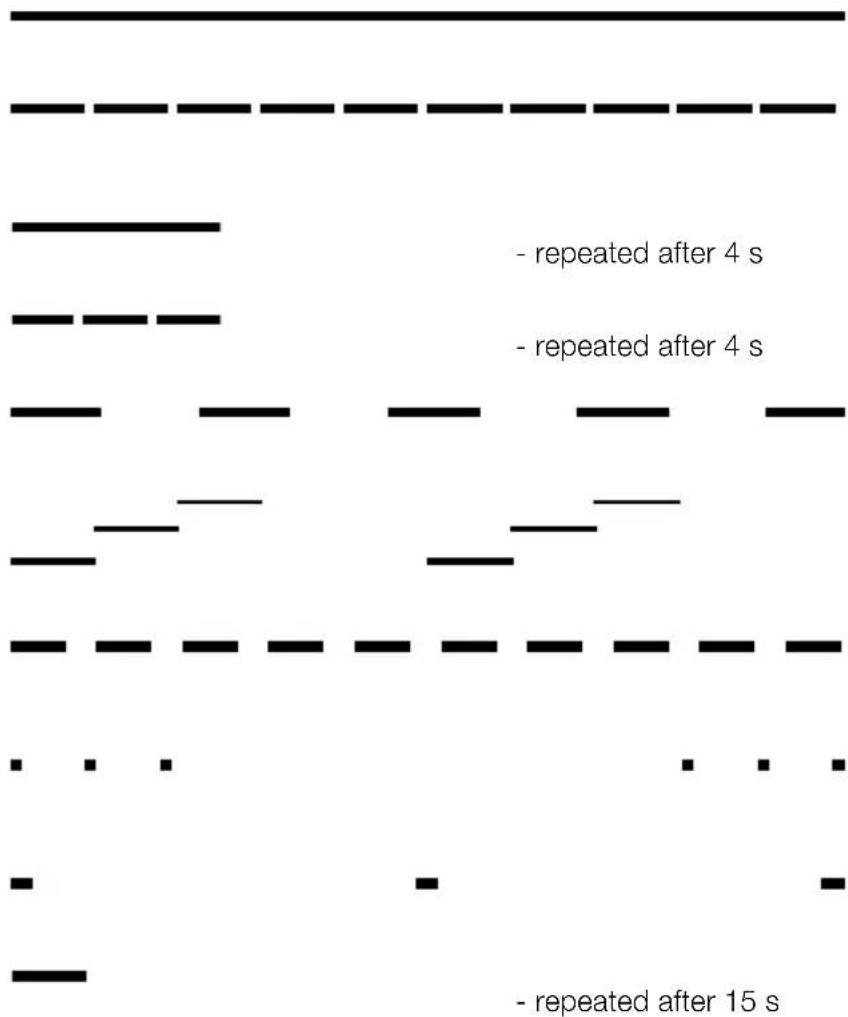
Ton es
Tones are audible in the handset.
Dial tone
(System ready to accept digits)
Special dial tone
(System ready to accept digits, active diversion on telephone)
Ringing tone
(Ringing signal to called party)
Special ringing tone
(Ringing signal to line 2)
Busy tone
(Called party is busy)
Number unobtainable tone
(Called number not accessible or vacant)
Blocking tone
(Call cannot be executed due to congestion or called party blocked)
Verification tone
(Verification that ordered function is accessed)
Intrusion tone
(Sent to all parties during intrusion)
Conference tone
(Sent to all participants in a conference)
line
| Time Period | Event Type | | --------------------- | ---------------------- | | 4 s | - repeated after 4 s | | 4 s | - repeated after 4 s | | 15 s | - repeated after 15 s |Signals
Ringing signals are emitted from the phone..
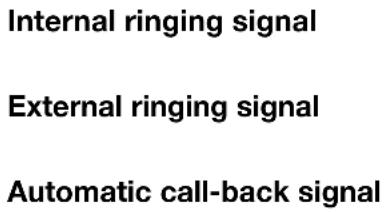
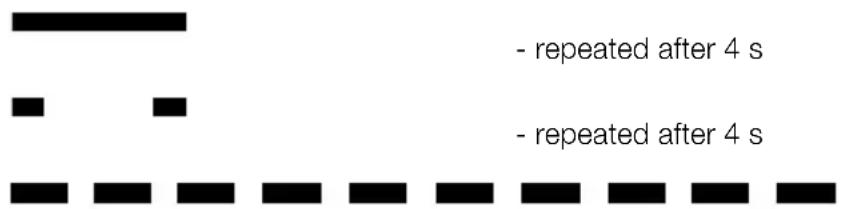
Note: The tones and ringing signals in this guide refer to the standard system but may vary between countries.
Useful Hints
Connections between external lines
With your BusinessPhone Communication Platform, you can establish an external call diversion or a conference with more than one external party or transfer an external call to another external destination (e.g. a mobile phone). These features are very useful for everyday business life.
Note: When these features are used, your BusinessPhone Communication Platform will occupy at least two external lines.
However, there may be disadvantages in connecting to several external lines. We would therefore like to draw your attention to the following:
- Please do not transfer external calls to an external mailbox, to information systems or to external parties before they have answered
- Try to avoid diverting calls to third parties before they have answered
- If you are connected to two external lines, cancel one call by pressing the "R"-key and the "1"-key
If the external parties are not persons (mailbox, automated information or attendant systems, etc.), connections on external lines can last a long time, which can be costly. Moreover, such calls may occupy two of your system's external lines. You can restrict connections between the external lines by reprogramming your system.
Please ask your system administrator or contact our service centre for more information.
Installation
This chapter describes how to connect and charge the battery of your Cordless.
Note: If you are using the DT430 or another phone that was equipped with an intrinsically safe battery for EX-classification, you need to loosen the screws at the back of the phone, see "DT430" on page 90 in this section.
DT400 / DT410 / DT420
The DT400, DT410 and DT420 are supplied with a high capacity nickel metal hydride (NiMH) battery. If you have more than one battery available, you charge only the battery.
Removing the battery
To remove the battery, use the two plastic ribbed plates at the short side of the Cordless.
Pull the plates towards the middle of the telephone
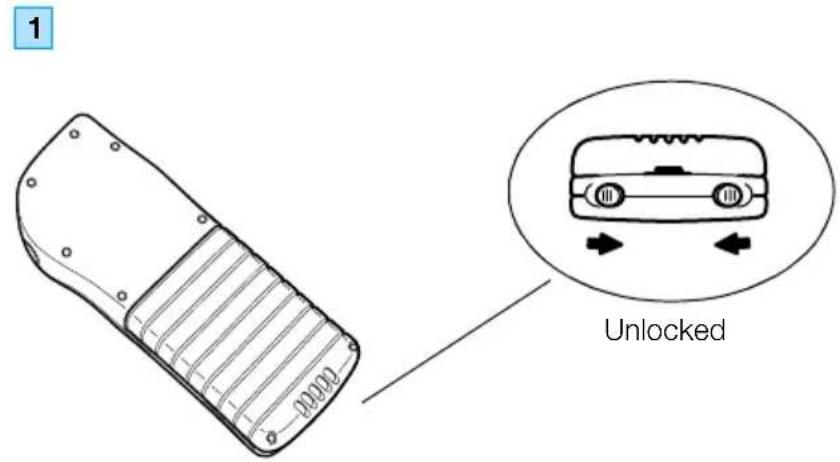
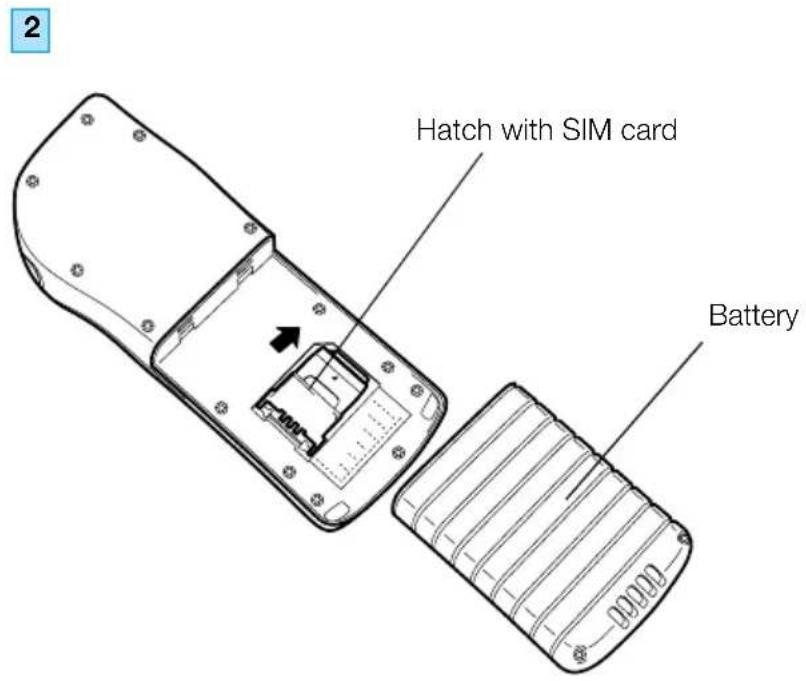
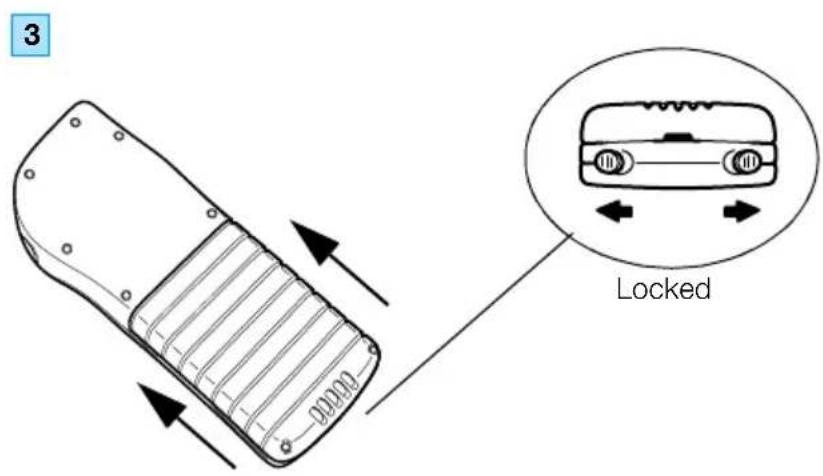
Fitting the battery
Press the battery firmly and pull the plates from the middle and out
DT430
The DT430 telephone is designed for usage in rough environments. This Cordless is safe to use in explosion risk environments (EX-classification) and therefore is equipped with a special battery.
Removing and fitting the battery for intrinsically safe phones
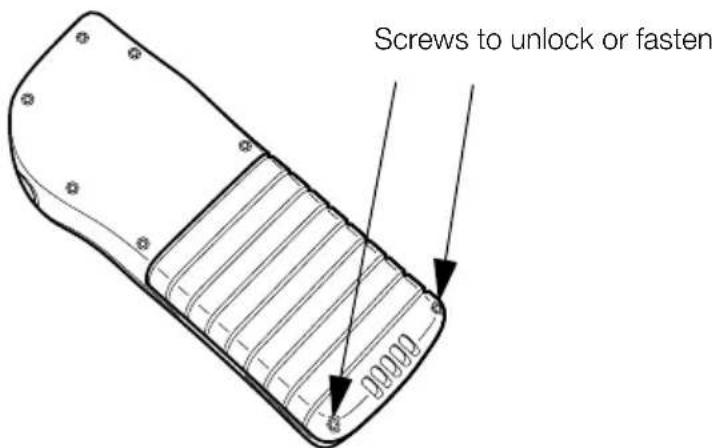
To remove and fit the battery, you have to use the screws at the back of your phone, as shown below. You do not have to use the ordinary plates to release and fasten the battery.
Use the screws on the back of the battery
Battery performance
All Cordless are supplied with a high capacity nickel metal hydride (NiMH) battery. The table below indicates the performance.
| Tak time (hours) | Standby time (hours) | Charge time (minutes) | |
| High capacity NiMH battery: | 10 100 60 | ||
Charging the battery
When the battery requires charging, you will hear an attention beep and the display will show the "Low battery" icon.
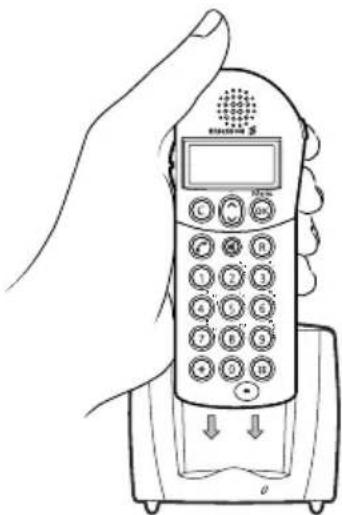
Place the Cordless in the desktop charger as shown in the figure below
The charging process will start automatically, indicated by a red light on the charger. It takes approximately one hour to fully charge the battery.
natural_image
Line drawing of a hand holding a handheld mobile phone with keypad and buttons (no text or symbols)The handset is fully operational while stored in the desktop charger. If you have another battery, you can also place just the battery alone in the desktop charger.
When charging is complete, the charger light will turn green.
Notes:
Do not connect your Cordless to the charger without a battery.
If the battery is completely flat it can take a few minutes before the red light on the charger is lit.
If the standby time for your Cordless becomes too low, you should replace the battery.
Only use the charger that is delivered with your Cordless to charge the battery.
It is normal for the battery to get slightly warm while charging.
SIM Card
All your personal settings in the handset are programmed and stored in the Subscriber Identity Module (SIM) card.
The SIM card provides you with personal mobility as you can easily move it to another Cordless telephone, enabling you to receive calls, make calls and keep all your personal settings such as phone book, identity and alert signal.
Changing the SIM Card
Note: Change the SIM Card only in an environment without static electricity.
Remove the battery
See section "Removing the battery" on page 88. The SIM card is placed under the battery unit in a hatch in the middle.
Move the steel plate forward to open the hatch
You see the labels "OPEN" and "LOCK" on the steel plate. Push the steel plate carefully in one of the directions.
Lift the hatch and remove the SIM card
Now you can place it in another Cordless.
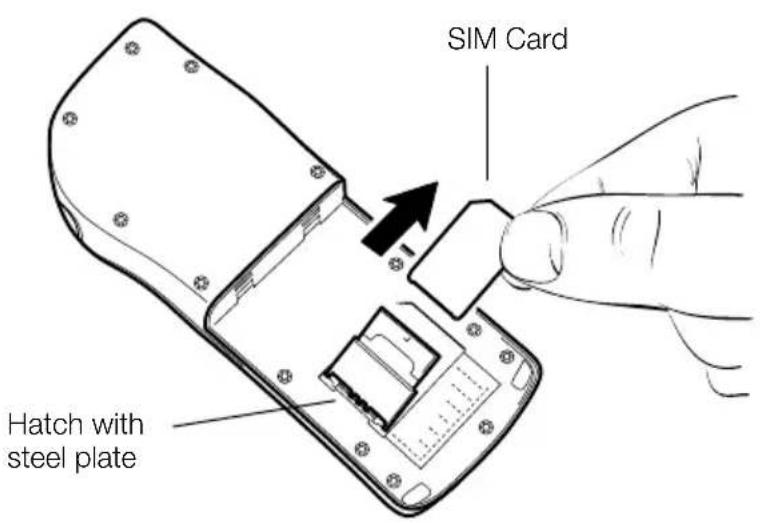
Press the hatch and move the steel plate forward to lock
Fit the battery
See section "Fitting the battery" on page 89.
Optional Accessories
You can customize your Ericsson telephone to meet your own needs. All of the following accessories are optional and can be purchased at your local Ericsson contact.
Available accessories for your Cordless:
- desktop charger
- battery pack NiMH with headset connector
- headsets for hands-free communication
- headset with hearing protection for noisy environments
- belt clip, hinge type
- belt clip, click-on type
- leather case
- security chain
Note: If you require EX-classification for intrinsically safe usage in explosive environments, you cannot use a headset or the headset special battery.
Troubleshooting
This section contains information on how to solve common operational problems, and warnings you may receive.
Go through the following lists if you encounter any problems. If this checklist does not solve the problem, contact your system administrator. If others have similar problems, there may be a system error.
| Fault / Display Probable cause Action or comment | ||
| The telephone does not switch on | The battery is low. Charge the battery. | |
| No display The battery is low or the telephone is defective. | Charge the battery or contact system administrator. | |
| No ringing The Ringer off icon is on or the telephone is defective. | Off icon on = Turn on the ringing signal. | |
| Battery icon flashes The battery is low or the telephone is defective. | Charge the battery. | |
| Call icon is switched off after 2 seconds | The battery is low or the telephone is defective. | Charge the battery or contact system administrator. |
| Lamp shows steady light | The telephone is defective. | Contact system administrator. |
| Wrong SIM card | The SIM card is not compatible with the software version of the telephone. | Contact system administrator. |
| SIM missing | The SIM card is missing. | Insert the SIM card or contact system administrator. |
| Phone locked | The telephone is locked. | Enter the required 4 digit lock code. If forgotten contact system administrator. |
| Key locked Unlock R* | The key pad is locked. | Press R key followed by the star key. |
| No System | Cannot connect to the network, the telephone is not registered or out of range. | Contact system administrator. |
| Phonebook full | The memory is full, you cannot add new names. | Delete a name. |
Glossary
Abbreviated number dialling
Initiating a call to a pre-programmed number by dialling a code or pressing a key. Short numbers can be:
- Common, which means that all extensions can use them.
- Individual, which means that they are programmed and used by each extension separately (10 numbers).
Account number
To place call costs on an account number. See section "Other Useful Facilities" on page 51.
Automated attendant
A facility which sends voice instructions to internal and external callers, providing all options which can be chosen. Voice instructions lead the caller to the desired destination.
See section "Other Useful Facilities" on page 51.
Call-back
An indication to a busy extension, to inform the person that you want to speak to him/her. See sections “Internal Messages” on page 32 and “Outgoing Calls” on page 16.
Camp on
To place (queue) a call to a busy extension. See section "Outgoing Calls" on page 16.
Directory number
Numbers with 1-8 digits which are assigned to extensions or external lines or as common abbreviated numbers.
Direct Inward System Access (DISA)
If you are working externally, the DISA function enables you to make external calls (long distance) via the company PBX. You only pay for the call to your company.
See section "Other Useful Facilities" on page 51.
Diversion
Incoming calls to an extension are diverted to another directory number (extension, common abbreviated number or the operator). There are three possibilities:
- Direct, which means that all calls to an extension are forwarded directly.
- On no reply, which means that a call is forwarded if it is not answered within a certain time.
- On busy, which means that a call is forwarded if the extension is busy.
See section "Call Forwarding" on page 23.
Diversion bypass
This is useful for letting urgent calls through to an extension where diversion is active. See section "Call Forwarding" on page 23.
Extension
All telephones connected to the PBX have a unique internal number (up to 8 digits). If your telephone is equipped with a display, you can see your number.
Hot key
A hot key is a pre-programmed key. With just pressing and holding the key, a pre-programmed phone number will be dialled or function will be executed. See “Abbreviated numbers” and “Settings” on page 75.
Information
Internal callers are informed about absence and time of return. External callers are diverted to the operator, where the same information is available. Information can be of two kinds:
- Pre-programmed text information.
- Voice information.
Intrusion
To intrude on an ongoing call when a requested extension is busy.
See section "Outgoing Calls" on page 16.
IP Call
Internal call sent via an internal data network (LAN or WAN).
ISDN
Integrated Services Digital Network. Provides your system with supplementary services from the public net.
Least cost routing
A function that automatically selects the cheapest way to connect your external call (not necessarily the shortest distance).
See section "Least Cost Routing" on page 68.
Lock code
A four-digit code needed to lock your Cordless to prevent misuse.
See "Security" on page 61.
Mailbox
The mailbox system controls the messages that are left for or sent by you when you are absent.
See section "Mailbox System" on page 39.
Message
A message can be sent to any extension. This is useful when you receive the busy tone or get no answer. There are two kinds of message:
- "Call me" message.
- Voice message.
See section "Internal Messages" on page 32.
Mute
To switch the microphone temporarily off. See section "During Calls" on page 19.
Password
A four-digit code needed to retrieve messages from the mailbox system. See section "Select password" on page 62.
PBX
Private Branch Exchange. Your telephone switching system (e.g. BusinessPhone Communication Platform).
Pre-defined text
Pre-programmed absent information. See section "Information" on page 28.
Third party
A third connection (person), which can be included in an ongoing two person conversation. The connection can be internal or external. See section “During Calls” on page 19.
Tie line
An external line from the private network.
Transfer
During an internal or external ongoing call you can make an inquiry and then transfer the call to another party (internal or external).
See section "During Calls" on page 19 and "Useful Hints" on page 87.
Trunk line
A trunk line is the same as an external line. Can be either digital or analogue.
Index
Account number 52
Activate a function with a Hot key 43
Add a name or a number to the phone book 70
Alarm 57
Answer calls 14
Audible Adjustments 81
Melody 83
Ring speed 83
Trembler 84
Volume control 81
Automated attendant 54
Automatic call-back 18
Automatic key lock 76
Block extension 61
Busy extension 18
Bypass blocked extension 63
Bypass call forwarding 27
Call Forwarding 23
Bypass call forwarding 27
Fixed diversion 24
Follow me 26
Individual diversion 24
Call me and voice messages 34
Cancel one specific Hot key number 45
Change a name or a number in the phone
book 71
Change lock code 65
Charging the battery 91
Check and store received messages 34
Common bell 50
Conference 21
Connections between external lines 87
Delete a name or a number from the phone
book 72
Description 8
Display info 10
Menu structure 12
Switching on/off the portable 13
Dial with a Hot key 43
Dictaphone Function 38
Direct Inward System Access (DISA) 55
DISA 55
Display info 10
Doorphone 53
During Calls 19
Conference 21
Inquiry 19
Loudspeaker mode 22
Mute microphone 22
Mute ringer or warning 21
Transfer 20
Edit a Hot key 46
Enter information 29
Erase information 31
Fixed diversion 24
Follow me 26
Forward a voice message 37
Glossary 96
Group call pick up 50
Group Facilities 48
Common bell 50
Group call pick up 50
Group hunting 48
Group hunting 48
Guidelines 7
Hot Keys 43
Activate a function 43
Cancel one specific Hot key number 45
Dial with 43
Edit 46
Program with a phone number 44
Set Hot key to not used 47
View 47
Important 6
Guidelines 7
Preparing for use 6
Incoming Calls 14
Answer calls 14
Individual diversion 24
Individual mailbox system 39
Info 80
Information 28
Enter 29
Erase 31
Save 31
Inquiry 19
Installation 88
Charging the battery 91
DT400 / DT410 / DT420 88
DT430 90
Optional Accessories 93
SIM Card 92
Internal Messages 32
Call me and voice messages 34
Check and store 34
Check and store received messages 34
Dictaphone Function 38
Forward a voice message 37
Manual absent 36
Password protection 32
Send message 33
Text messages 35
IP calls 56
Key beep 77
Language 78
Least Cost Routing 68
Lock phone 66
Lock the keypad 57
Loudspeaker mode 22
Mailbox System 39
Individual 39
Outcall (External) notification 41
Personal greeting 42
Make a call via the phone book 70
Make calls 16
Manual absent 36
Melody 83
Menu structure 12
Mute microphone 22
Mute ringer or warning 21
Networking 56
Non-movement alarm 59
Optional Accessories 93
Other Useful Facilities 51
Account number 52
Alarm 57
Automated attendant 54
Direct Inward System Access (DISA) 55
Doorphone 53
IP calls 56
Lock the keypad 57
Networking 56
Non-movement alarm 59
Personal alarm 58
Reminder 51
Tandem configuration 53
Test alarm 58
Outcall (External) notification 41
Outgoing Calls 16
Automatic call-back 18
Busy extension 18
Make calls 16
Redial number from last dialled list 17
Owner ID 75
Personal alarm 58
Personal greeting 42
Phone Book 69
Add a name or a number 70
Change a name or a number 71
Delete a name or a number 72
Make a call 70
Use 69
Write text 73
Phone lock 64
Preparing for use 6
Program a Hot key with a phone number 44
Quick answer 77
Redial number from last dialled list 17
Reminder 51
Ring speed 83
Save information 31
Security 61
Block extension 61
Bypass blocked extension 63
Change lock code 65
Lock phone 66
Phone lock 64
Select lock code 64
Select password 62
Unlock phone 67
Select lock code 64
Select password 62
Select system 79
Send message 33
Set Hot key to not used 47
Settings 75
Automatic key lock 76
Info 80
Key beep 77
Language 78
Owner ID 75
Quick answer 77
Select system 79
System 78
Signals 86
SIM Card 92
Switching on/off the portable 13
System 78
Tandem configuration 53
Test alarm 58
Text messages 35
Tones 85
Tones and Signals 85
Signals 86
Tones85
Transfer 20
Trembler 84
Troubleshooting 94
Unlock phone 67
Use the phone book 69
Useful Hints 87
Connections between external lines 87
View Hot keys 47
Volume control 81
Write text 73
Voice guide for the integrated mailbox system
A pocket-size voice guide, that will help you with the integrated mailbox system, for example useful when you are on the move.
Quick Reference Guide
Cordless DT400 / DT410 / DT420 / DT430
BusinessPhone Communication Platform
Answer calls
Answer:
Suppress ringing:


Mute button on the right side of the phone
Make calls
Normal calls: Extension no.

0 External no.

Hot key
(pre-programmed):
From last dialled or
who called list:


You get busy tone or no answer
Automatic call-back:

(Go "off hook" when called back)
Camp on:
4 (Keep handset off hook)
Intrusion:
8
Inquiry
Ongoing conversation:
R Call 3rd party
Transfer
Transfer a call:
R Call 3rd party
(Before or after answer)
Reminder
Reminder (24 hours):
*32*
Reminder time #
Cancel reminder:
32
Account number
Costs on a selected

account no.:
Account number #
Tandem
Activate:

Deactivate:

Transfer a call

between members:
Call forwarding
Fixed diversion:

Cancel:

Individual internal

diversion:
Cancel:

Follow me, re-direct from

answering extension:

Cancel:

External diversion:
Program:

Line access code
External number #
Cancel:

Re-activate:

Bypass call forwarding:

Extension no. #
Ericsson is shaping the future of Mobile and Broadband Internet communications through its continuous technology leadership. Providing innovative solutions in more than 140 countries, Ericsson is helping to create the most powerful communication companies in the world.
- CE 0344 X
- Quick Reference Guide
- Cordless DT400 / DT410 / DT420 / DT430
- Answer calls
- Make calls
- You get busy tone or no answer
- Inquiry
- Conference
- Transfer
- Reminder
- 32
- Account number
- Volume control
- Messages
- Table of Contents
- Important
- Preparing for use
- Guidelines
- Intrinsic safety
- Battery handling
- Cleaning
- Treatment
- LED
- Volume Up/Down
- C - k e y
- Scroll key
- C a l l k e y
- Loudspeaker key
- ✱ / Pause
- A I a r m b u t t o n
- Earpiece
- Mute button
- Display (3 rows)
- OK key
- R-key
- Keypad
- # / Space
- Microphone
- Accessory connectors
- Display info
- The display
- Texts in the display
- System indication
- Out of coverage
- Display icons
- Call / "Off hook"
- Low battery
- New message
- Ringer off
- abc Text mode
- A Non-movement alarm on
- ≥slant A Non-movement alarm activated
- Additional display features
- Menu structure
- Switching on/off the Cordless
- Switch on
- Press until the display lights up
- Press OK to confirm
- Switch off
- Press and hold the Hot key
- Incoming Calls
- Press to answer
- Mute ringing signal
- Press the mute button on the right side of the phone to suppress the ringing
- Press the "Arrow up" Scroll key to view the phone number of the caller
- Press to exit
- End the call
- Press
- Outgoing Calls
- Enter the telephone number and press
- To insert a pause if you have to wait for dial tone (on hook).
- Press to end the call
- Off Hook
- Key your number on-line
- Redial number from last dialled list
- Press the "Arrow down" Scroll key until the desired number is displayed
- Press to redial
- Delete all numbers
- Press to scroll to the last position
- Press to delete all redial numbers
- Automatic call-back
- Press
- Busy extension
- Camp-on
- Press to camp on
- Intrusion
- Press to intrude
- During Calls
- Call the third party
- Refer back
- Switch between calls
- Press to terminate
- Transfer to a busy extension
- Call-back
- Press to establish a three party conference
- Repeat the procedure to include other persons to the conference
- End the call to leave the conference
- Mute ringer or warning
- Mute microphone
- Press the mute button at the right side of the telephone to turn the microphone off
- Press again to turn the microphone on
- Loudspeaker mode
- Press to change to loudspeaker mode
- Press again to return to normal mode
- Call Forwarding
- Diversion on no reply
- Diversion on busy
- Fixed diversion
- Activate fixed diversion
- \*21#
- Dial
- Cancel diversion
- #21#
- Individual diversion
- Program and activate internal diversion
- \*21\*
- #
- Enter the new diversion address and press
- Cancel internal diversion
- Program and activate a new external diversion address
- \*22\*
- Dial the digit(s) for external call access and enter the new external diversion address
- Press to activate the individual diversion
- Cancel external diversion
- #22#
- Re-activate external diversion
- Dial to activate the programmed external diversion
- Follow me
- Activate Follow me
- Dial the new number to where incoming calls should be diverted
- Cancel Follow me
- #21\*
- Dial your number
- Bypass call forwarding
- \*60\*
- Dial the extension number
- Information
- Pre-defined texts
- Voice information
- Enter information
- Pre-defined texts
- Enter "Code" and
- Enter "Completing info"
- Press to enter the information
- Enter "Code"
- Enter month and day
- Save information
- 23*
- Use saved information
- Erase information
- 23
- Internal Messages
- Password protection
- Follow the voice announcements
- Press to finish the procedure
- Continue with any of the message functions
- Send message
- Call-back message
- Voice
- Check and store received messages
- Call me and voice messages
- Text messages
- Manual absent
- Activate
- Press and hold the pre-programmed Hot key
- Deactivate
- Forward a voice message
- \*59# Dial
- Repeat the procedure to forward the message to another mailbox
- Dictaphone Function
- Record message
- \*58#
- Dial and record your message
- Press to play-back
- Press and speak to re-record
- Go "on hook" to stop recording and save the message
- Mailbox System
- Individual mailbox system
- Dial the number of the mailbox system
- Retrieve messages internally
- \*59#
- Retrieve messages externally
- Dial your company's telephone number
- Dial the number to the mailbox system
- Outcall (External) notification
- Program outcall notification
- Personal greeting
- Press to configure your personal greeting
- Enter diversion code
- Type of diversion Code
- # Press to store the recorded greeting
- Press to end
- Hot Keys
- Dial with a Hot key
- Press to cancel
- Activate a function with a Hot key
- Program a Hot key with a phone number
- Cancel one specific Hot key number
- Select the programmed Hot key
- Press to delete the phone number
- Edit a Hot key
- View Hot keys
- Set Hot key to not used
- Group Facilities
- Group hunting
- Log in
- \*28\* Dial
- Dial the hunt group code
- # Press
- \*# Press
- Log out
- #28\* Dial
- 28*
- Group call pick up
- Dial the group call pick up code
- Common bell
- Dial the common bell pick up code
- Other Useful Facilities
- \*32\*
- Dial reminder time and press
- Cancel reminder
- #32#
- Dial to cancel all settings
- Verified or own account number
- Doorphone
- Answering doorphone calls
- Opening of the doorlock
- Dial the door-opener's directory number
- Tandem configuration
- To activate the tandem configuration
- \*28#
- Dial to log on the secondary telephone
- To deactivate the tandem configuration
- #28#
- Dial to log off the secondary telephone
- Transferring a call between the members of a tandem unit
- Dial own directory number
- Automated attendant
- Dial the automated attendant directory number
- Direct Inward System Access (DISA)
- Dial the public number of your company
- followed by the DISA number
- Dial the external number
- Use the external diversion function
- Networking
- IP calls
- Lock the keypad
- To lock the keypad manually
- To unlock the keypad
- Alarm
- Personal alarm
- Press the red alarm button twice within 2 seconds
- Cancel
- Test alarm
- Non-movement alarm
- Activate Non-movement alarm
- Cancel Non-movement alarm
- Move the telephone or press any key to cancel the alarm
- Send Non-movement alarm
- Deactivate Non-movement alarm
- Press the pre-programmed Hot key to deactivate the alarm feature
- Security
- Block extension
- 72*
- Select password
- #\*72\*
- Dial to select a new password
- Dial your new password
- Bypass blocked extension
- Bypass own extension
- \*72\*
- Bypass another extension
- \*
- Phone lock
- Select lock code
- Enter a lock code
- Press to confirm
- Change lock code
- Lock phone
- Enter your code (1 to 4 digits)
- Unlock phone
- Enter the pre-set lock code (1 to 4 digits)
- Least Cost Routing
- Use least cost routing
- 0
- Dial the digit(s) for external call access and the external number
- Calling least cost routing
- Dial the LCR code
- Phone Book
- Notes:
- Use the phone book
- Make a call via the phone book
- Access "1 Find" and press
- Press the key which has the first letter of the name you are looking for
- Scroll up or down until you find the name and press
- Add a name or a number to the phone book
- Access "2 Add" and press
- Enter a name and press
- Press to exit the menu
- Change a name or a number in the phone book
- Access "3 Edit" and press
- Enter the first letter of the name and press
- Press to erase the name
- Enter the new name and press
- Press to erase the number
- Enter the new number and press
- Delete a name or a number from the phone book
- Write text
- Access "2 Add"
- Example:
- 5
- Press a digit
- Press to confirm your edit
- Control keys
- Press to add a dial tone pause
- Press to enter a space
- Press to correct a wrong entry
- Special characters
- Settings
- Owner ID
- Enter Owner ID
- Press to access the menu mode
- Select "4 Settings" and press
- Select "2 Owner ID" and press
- Enter your Owner ID
- Automatic key lock
- Press to enter the menu
- Select "3 Automatic key lock" and press
- Scroll to choose between "Yes" and "No" and press
- Press to unlock
- Key beep
- Quick answer
- Language
- Select language
- System
- Select system
- Scroll up or down to select an available system
- Info
- Scroll and press to view information about:
- Audible Adjustments
- Earpiece volume
- Press the volume controls to adjust the earpiece volume during a call
- Ringer volume
- Turn off ringer permanently
- Melody
- Ring speed
- Trembler
- Tones and Signals
- Ton es
- Dial tone
- Special dial tone
- Ringing tone
- Special ringing tone
- Busy tone
- Number unobtainable tone
- Blocking tone
- Verification tone
- Intrusion tone
- Conference tone
- Signals
- Useful Hints
- Connections between external lines
- Installation
- DT400 / DT410 / DT420
- Removing the battery
- Fitting the battery
- DT430
- Removing and fitting the battery for intrinsically safe phones
- Battery performance
- Charging the battery
- Place the Cordless in the desktop charger as shown in the figure below
- SIM Card
- Changing the SIM Card
- Remove the battery
- Move the steel plate forward to open the hatch
- Lift the hatch and remove the SIM card
- Press the hatch and move the steel plate forward to lock
- Fit the battery
- Optional Accessories
- Troubleshooting
- Glossary
- Abbreviated number dialling
- Camp on
- Directory number
- Diversion
- Diversion bypass
- Extension
- Hot key
- IP Call
- ISDN
- Lock code
- Mailbox
- Message
- Mute
- Password
- PBX
- Pre-defined text
- Third party
- Tie line
- Trunk line
- Index
- Voice guide for the integrated mailbox system
- Tandem
Brand : ERICSSON
Model : DT400
Category : Phone