
SP-A8000 - Projector SAMSUNG - Free user manual and instructions
Find the device manual for free SP-A8000 SAMSUNG in PDF.


| Product Type | DLP Projector |
| Brand | Samsung |
| Model | SP-A8000 |
| Native Resolution | Full HD (1920 x 1080) |
| Brightness | 1000 ANSI lumens |
| Dynamic Contrast | 3000:1 |
| Display Technology | DLP |
| Dimensions (W x D x H) | 347 x 249 x 119 mm |
| Weight | 4.5 kg |
| Power Supply | 100-240 V AC, 50/60 Hz |
| Power Consumption | 250 W |
| Lens | Manual Zoom and Focus |
| Lamp Life | 3000 hours (Normal), 4000 hours (Eco) |
| Video Inputs | HDMI, VGA, Composite, Component |
| Audio Output | 3.5 mm Jack |
| Noise Level | 26 dB (Eco mode) |
| Main Features | Vertical Keystone Correction, Screen Fit, Cinema Mode |
| Installation | Ceiling mount possible (Front-Ceiling) |
| Security | Password Lock, Kensington Lock |
| Repairability | Replaceable lamp, cleanable air filter |
| Maintenance | Clean air filter every 500 hours |
| Included Accessories | Power cable, remote control, batteries, manual |
Frequently Asked Questions - SP-A8000 SAMSUNG
User questions about SP-A8000 SAMSUNG
0 question about this device. Answer the ones you know or ask your own.
Ask a new question about this device
Download the instructions for your Projector in PDF format for free! Find your manual SP-A8000 - SAMSUNG and take your electronic device back in hand. On this page are published all the documents necessary for the use of your device. SP-A8000 by SAMSUNG.
USER MANUAL SP-A8000 SAMSUNG
Owner's Instructions
The color and the appearance of the product may differ from the illustrations in this manual. The specifications are subject to change without prior notice to improve performance.
MAJOR SAFETY PRECAUTIONS
Before You Start 1-1
Care and Maintenance 1-2
Safety Precautions 1-3
INSTALLATION AND CONNECTION
Package Contents 2-1
Installing the Projector 2-2
Leveling with Adjustable Feet 2-3
Zoom and Focus Adjustment 2-4
Adjusting the Lens Position Moving Dial 2-5
Screen Size and Projection Distance 2-6
Lamp Replacement 2-7
Supported Display Modes 2-8
Connecting the Power 2-9
Connecting a DVD player/Cable Box/Satellite Box to HDMI/DVI ... 2-10
Connecting a DVD player/Cable Box/Satellite Box via Component 2-11
Connecting to VCR/Camcorder 2-12
Connecting with a PC and Setting up the PC 2-13
The 3D IR Emitters 2-14
USING
Product Features 3-1
Front, Upper 3-2
Rear Side 3-3
Remote Control 3-4
LED Indications 3-5
Using the Screen Adjustment Menu (OSD: On Screen Display) .... 3-6
Read Before Watching 3D Picture 3-7
TROUBLESHOOTING
Before Requesting Service 4-1
MORE INFORMATION
Specifications 5-1
RS232C Command Table 5-2
Contact SAMSUNG WORLDWIDE 5-3
Correct Disposal - Europe only 5-4
1 Major Safety Precautions
1-1 Before You Start
Icons used in this manual
| ICON | NAME | MEANING |
 | Caution | Indicates cases where the function may not work or the setting may be canceled. |
 | Note | Indicates a hint or tip to operate a function. |
Using this Manual
- The contents of this manual are subject to change without prior notice for performance improvement.
• Make yourself fully aware of the safety precautions before using this product.
• If a problem occurs, refer to the 'Troubleshooting' section.
Copyright Notice
Copyright © 2010 Samsung Electronics Co., Ltd. All rights reserved.
The copyright of this manual is reserved by Samsung Electronics, Co., Ltd.
The contents of this manual may not be partially or in whole reproduced, distributed or used in any form without the written permission of Samsung Electronics, Co., Ltd.
An administration fee may be charged if either.
(a) An engineer is called out at your request and there is no defect in the product.
(i.e. where you have failed to read this user manual).
(b) You bring the unit to a repair centre and there is no defect in the product.
(i.e. where you have failed to read this user manual).
The amount of such administration charge will be advised to you before any work or home visit is carried out.
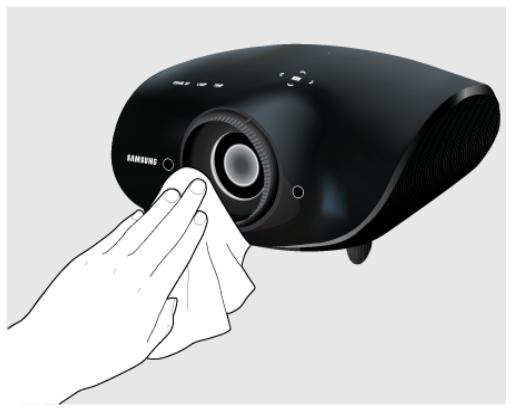
Cleaning the Surface and the Lens
Clean the projector using a soft dry cloth.
- Do not clean the product with a flammable substance such as benzene or thinner.
- Avoid scratching the lens with your fingernails or a sharp object. This may result in scratches or damage to the product.
- Avoid cleaning the product with a wet cloth or by directly spraying water onto the product.
If water enters the product, it may result in fire, electric shock, or a problem with the product. - A white stain may appear on the surface of the projector if water gets on it.

The appearance and the color may differ depending on the model.
Cleaning Inside the Projector
For cleaning the interior of the projector, contact an authorized Samsung Service Center.
- Contact a Service Center if dust or other substances are inside the projector.
natural_image
Hand cleaning a black Samsung projector with a cloth (no text or symbols visible)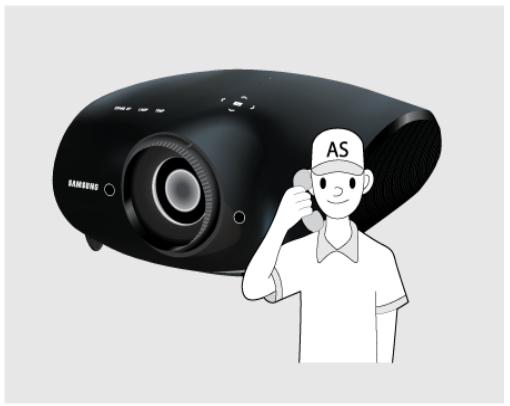
natural_image
Illustration of a person wearing a cap with 'AS' and a phone to listen (no text or symbols on device)Icons used for safety precautions
| ICON | NAME | MEANING |
 | Warning | Failing to follow the precautions marked with this sign may result in a serious injury or death. |
 | Caution | Failing to follow the precautions marked with this sign may result in a personal injury or property damage. |
Meaning of Signs

Do not perform.

Must be followed.
Power Related
The following images are for your reference and may differ depending on models and countries.
The appearance and the color may differ depending on models.

Warning
Plug the power plug in firmly.
• Doing otherwise may result in fire.
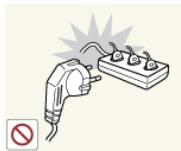
Avoid connecting multiple electric appliances to a single wall outlet.
- Doing otherwise may result in fire due to overheating of the wall outlet.
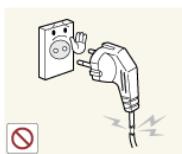
Avoid using a damaged power cord or plug or a loose power outlet.
- Doing otherwise may result in electric shock or fire.
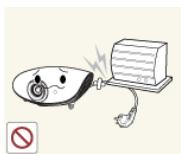
Avoid bending or twisting the power cord excessively and avoid placing heavy objects on the cord.
- Doing otherwise may result in electric shock or fire due to a damaged power cord.
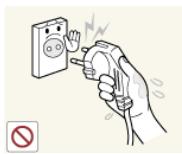
Avoid plugging in or unplugging the power supply with wet hands.
- Doing otherwise may result in electric shock.
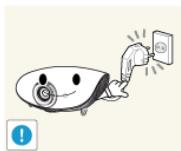
To move the product, turn the power off and unplug the power cord and any other wires connected to the product.
- Doing otherwise may result in electric shock or fire due to the damaged power cord.
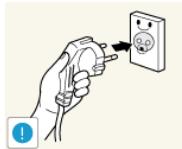
Make sure to connect the power cord to a grounded wall outlet (for insulation class 1 equipment only).
- Doing otherwise may result in electric shock or injury.
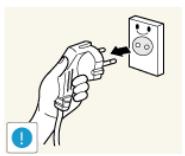
When unplugging the power plug from the wall outlet, make sure to hold the power plug by the plug and not by the cord.
- Failing to do so may result in electric shock or fire.
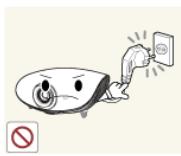
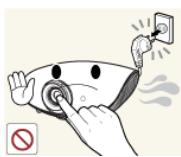
Do not turn the product on or off by plugging or unplugging the power plug. (Do not use the power plug as a power switch.)

Unplug the power plug before cleaning the product.
- There is a danger of electric shock or fire.
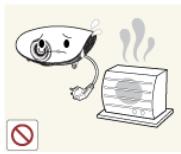
Keep the power cord away from sources of heat.
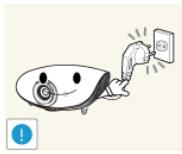
Connect the power plug to a wall outlet that can be easily reached.
- When a problem occurs with the product, you must unplug the power plug to cut the power off completely. You cannot cut the power off completely using only the power button on the product.
Installation Related

Warning
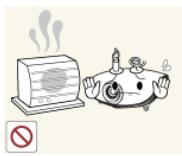
Avoid installing the product in a location exposed to direct sunlight and installing the product near a heat source such as a fire or heater.
- This may shorten the product life cycle or cause fire.
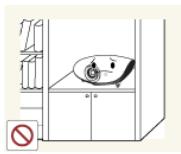
Avoid installing the product in a badly ventilated location such as inside a bookshelf or closet.
- Doing otherwise may result in fire due to internal overheating.
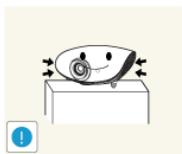
When installing the product in a cabinet or shelf, take care so that the front end of the product is completely supported by the cabinet or shelf.
- Failing to do so may result in the product falling and resulting in damage to the product or injury.
• Make sure to use a cabinet or shelf suitable to the size of the product.
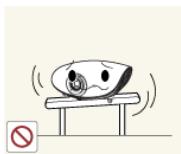
When installing the product on a console or shelf, make sure that the front of the product does not protrude out of the console or shelf.
- Doing otherwise may cause the product to fall off and result in a malfunction or injury.
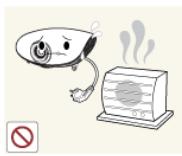
Keep the power cord away from heaters.
- The coating of the power cord may melt and cause electric shock or fire.
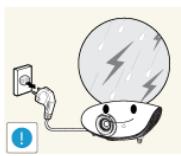
When thunder or lighting occurs, unplug the power cord.
- Failing to do so may result in electric shock or fire.
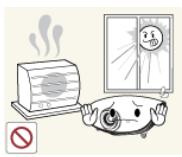
Do not install the product in a location exposed to dust, moisture (sauna), oil, smoke or water (rain drops) and do not install it in a vehicle.
• This may result in electric shock or fire.
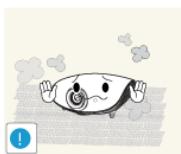
Do not install the product in areas with large amounts of dust.
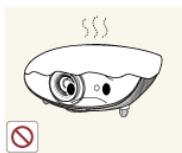
Take care not to block the vent with a table cloth or curtain.
- Doing otherwise may result in fire due to internal overheating.
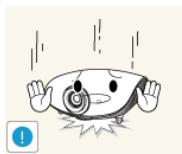
When putting the product down, place it gently.
- Failing to do so may result in a problem with the product or injury.

Do not let the product drop while moving it.
- This may result in a problem with the product or injury.
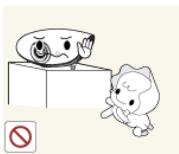
Do not install the product at a height where children may reach it.
- If a child touches the product, the product may fall and this may result in injury.
Usage Related
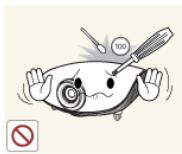
Avoid inserting metal objects such as chopsticks, coins, or hairpins, or inflammable objects into the product (through the vents, ports, etc).
- If water or an alien substance enters the product, turn the power off, unplug the power cord and contact a service center. - Doing otherwise may result in a problem with the product, electric shock or fire.
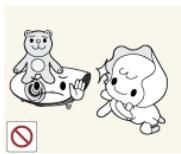
Do not let children place objects such as toys or cookies on the product.
- If a child tries to reach for any of these objects, the product may fall and cause harm.
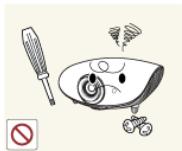
Do not disassemble, or attempt to fix or modify the product.
- When the product requires repairs, contact a Service Center.
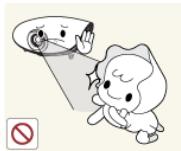
Do not look directly at the light of the lamp nor project the picture into someone's eyes.
• This is dangerous, especially for children.
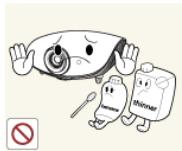
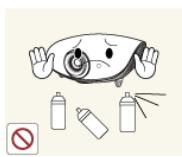
Avoid using or placing inflammable spray or objects near the product.
• This may result in an explosion or fire.
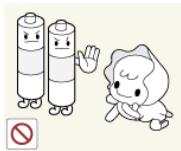
When you remove batteries from the remote, be careful that they are not swallowed by children. Keep batteries out of the reach of children.
• If swallowed, see a doctor immediately.
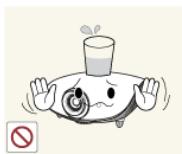
Avoid placing a container with liquid such as a vase, flowerpot, beverage can, cosmetics bottle or drug vail, or a metal object on or above the product.
- If water or an alien substance enters the product, turn the power off, unplug the power cord and contact a service center. - Doing otherwise may result in a problem with the product, electric shock or fire.
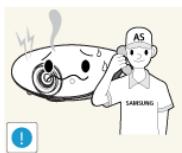
If the product generates a strange noise, a burning smell, or smoke, unplug the power plug immediately and contact a service center.
- Failing to do so may result in electric shock or fire.
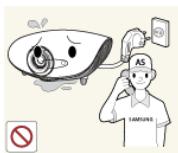
If water or a foreign substance enters the product, turn the product off, unplug the power cord from a wall outlet, and contact a Service Center.
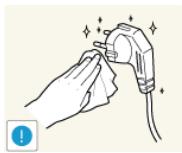
If the power plug pin or jack is exposed to dust, water or alien substances, clean it thoroughly.
- There is a danger of electric shock or fire.
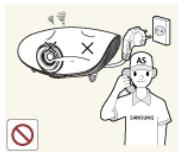
Do not use the product while it indicates a malfunction, such as no sound or no picture.
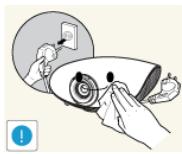
When cleaning the product, disconnect the power cord and clean the product with a soft dry cloth.dlrm
- Avoid using chemicals such as wax, benzene, alcohol, thinner, mosquito-repellent, fragrance, lubrication or cleansing agent when cleaning the product.
This may result in the exterior being deformed or the print being removed.
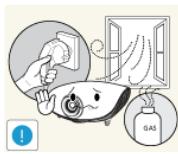
If a gas leak occurs, do not touch the product or the power plug and ventilate the room immediately.
- A spark may result in an explosion or fire.
- During a thunder or lighting storm, do not touch the power cord or antenna cable
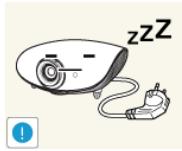
When not using the product for a long time, such as leaving your home, unplug the power cord from the wall outlet.
- Doing otherwise may cause dust accumulation and result in fire caused by overheating or a short circuit or result in an electric shock.
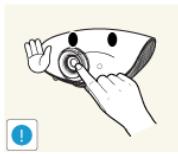
Do not touch the lens on the product.
• This may cause damage to the lens.
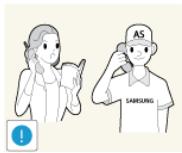
If the product is installed in a location where the operating conditions vary considerably, a serious quality problem may occur due to the surrounding environment. In this case, install the product only after consulting our Call Center.
- Places exposed to microscopic dust, chemicals, too high or low temperatures, high humidity, such as airports or stations where the product is continuously used for a long time etc..
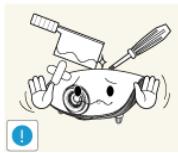
Do not touch any outer part of the product with tools such as a knife or a hammer.
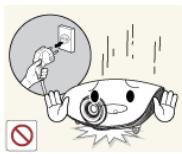
If you drop the product or the case is damaged, turn the power off and unplug the power cord. Contact a service center.
- Failing to do so may result in fire or electric shock.
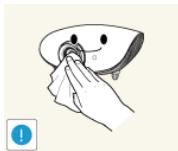
To clean dirt or fingerprints off the front projection lens, use a cloth dampened with neutral detergent and water.
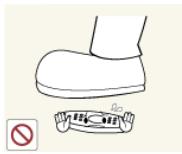
Make sure to place your remote control on a table or desk.
- If you step on the remote control, you may fall and hurt yourself or damage the remote.
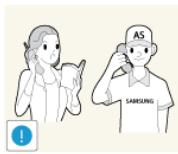
Ask a Service Center to clean the interior of the projector at least once per year.
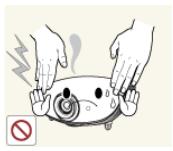
To avoid burning yourself, do not touch the vents or lamp cover while operating or right after turning off the product.
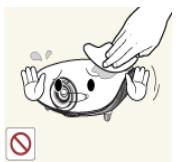
Do not clean the body of this product using water spray or a wet cloth. Avoid using any chemicals such as detergents, industrial or automotive polish, abrasive, wax, benzene, alcohol on any plastic part of the product such as projector case, since this may cause damage.
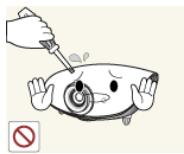
Do not open any cover on the product.
- This would prove hazardous because of high-voltage current inside the product.
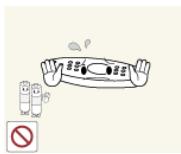
Do not use any undesignated battery.
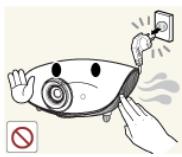
Be careful not to touch the ventilation hole while the projector is on as hot air comes out.
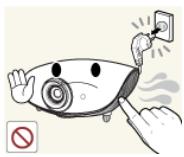
The ventilation hole is hot for some time though the projector is turned off. Keep you hands or body off the ventilation hole.
Do not place objects vulnerable to heat near the projector.
Be careful to keep your body away from the projector lamp. The lamp is hot.
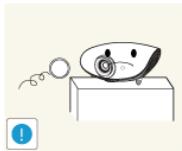
Take care not to lose the lens cover of the product.
• The lens could get damaged
(Children and those who have sensitive skin should be more careful.)
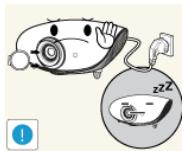
The lens cover protects the lens and should be used when the projector is turned off.
2 Installation and Connection
2-1 Package Contents
- Unpack the product and check if all of the contents listed below have been included.
- Store the packaging box in case you need to move the product at a later date.
• If any items are missing, contact your dealer. - Contact a local dealer to purchase optional items.
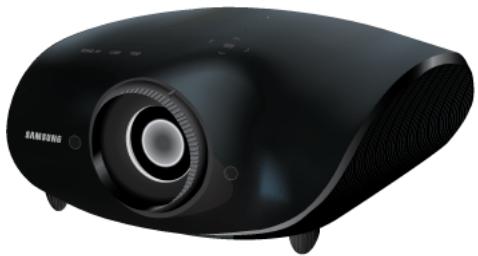
natural_image
Black rectangular projector with visible lens and ventilation slots (no text or symbols)Projector
CONTENTS

Quick Setup Guide
Warranty Card (Not available in all locations)

User Manual
Cleaning Cloth
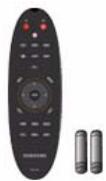
Remote control, Battery type : 1.5V AA size, 2EA
(Not available in all locations)
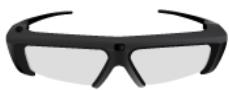
3D Active Glasses(SSG-2100AB), Battery type : 3V Lithium/Maganese CR2025, 1EA
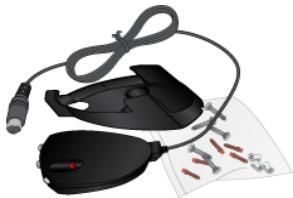
natural_image
Illustration of a black and white headband device with a strap, accompanied by a paper with red markings (no text or symbols visible)EXTERNAL 3D IR EMITTER
PACKAGE
(SSG-2100ME)

Lens Cover
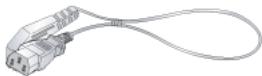
Power Cord
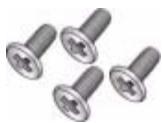
4 Screws
(For ceiling mount bracket.)
SOLD SEPARATELY
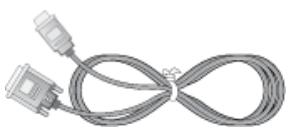
HDMI to DVI Cable
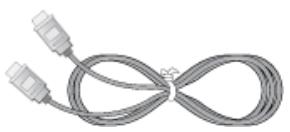
HDMI Cable
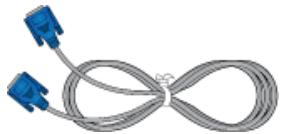
D-Sub Cable
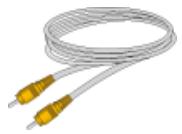
VIDEO Cable
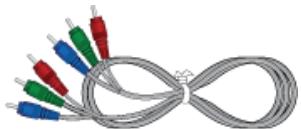
natural_image
Coiled cable with multiple colored test probes (blue, green, red) attached to a wire, no text or symbols visible.Component Cable
A ceiling mount is not included and must be purchased separately. Use the included screws to attach the projector to the ceiling mount bracket.
Install the projector so that the beam from the projector is perpendicular to the screen.
- Place the projector so that the lens aims at the center of the screen. If the screen is not vertical, the picture on the screen may not appear rectangular.
- Do not install the screen in bright surroundings. If the surroundings are too bright, the picture on the screen will be washed out and not display clearly.
- When using the projector in bright surroundings, use curtains to block the light.
- You can install the projector in the following locations relative to the screen :
/ / / . To view the installation position settings, see below.
To adjust the picture when you install the projector behind the screen
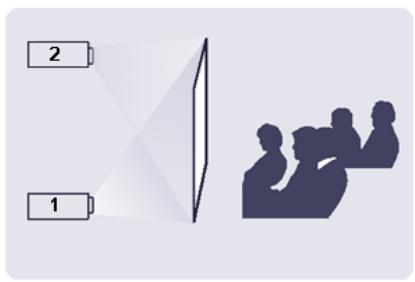
Installing behind a semi-transparent screen.
When you install the projector behind a semi-transparent screen, you can use the menu to adjust the picture so that it displays correctly, depending on where you've located the projector, rear-floor (or low) or rear-ceiling.
- For rear-floor, press :
Menu > Setup > Install > Rear-Floor
- For rear-ceiling, press :
Menu > Setup > Install > Rear-Ceiling
To adjust the picture when you install the projector in the front of the screen
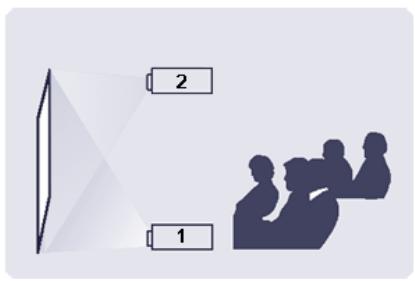
natural_image
Diagram showing two groups of people under a beam, one with a 2-second distance and the other with a 1-second distance (no text or symbols)Installing the projector in front of the screen.
When you install the projector in front of a screen, you can use the menu to adjust the picture so that it displays correctly, depending on where you've located the projector, front-floor (or low) or front-ceiling.
- For front-floor, press :
Menu > Setup > Install > Front-Floor
natural_image
Black Samsung projector with visible lens and sound waves (no text or symbols on body)To level the projector, turn the projector's adjustable feet.
• You may adjust the level of the projector up to 3 degrees.
• Depending on the position of the projector, Keystone distortion of the image may occur.
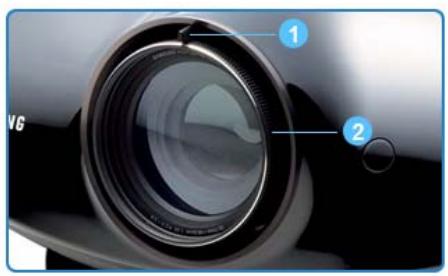
1 Zoom Knob You can adjust the size of the image within the zoom range by manipulating the Zoom Knob.
2 Focus Ring Focus the picture on the screen using the Focus Ring.
If you install your projector at a location beyond the projection distances specified for the projector, you will not be able to adjust the focus correctly. For specified projection distances, refer to Screen Size and Projection Distance in this manual.
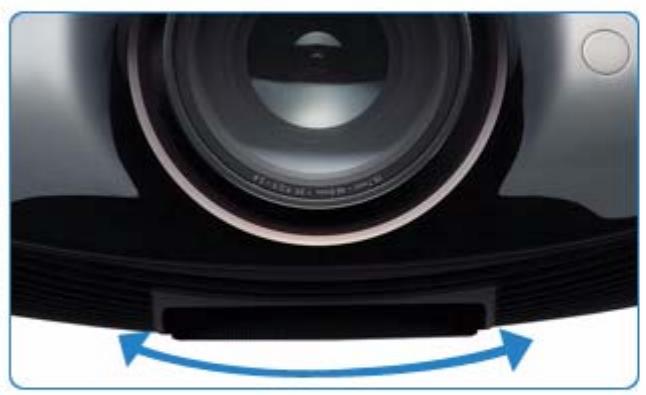
natural_image
Close-up of a camera lens with blue directional arrows indicating rotation (no text or symbols)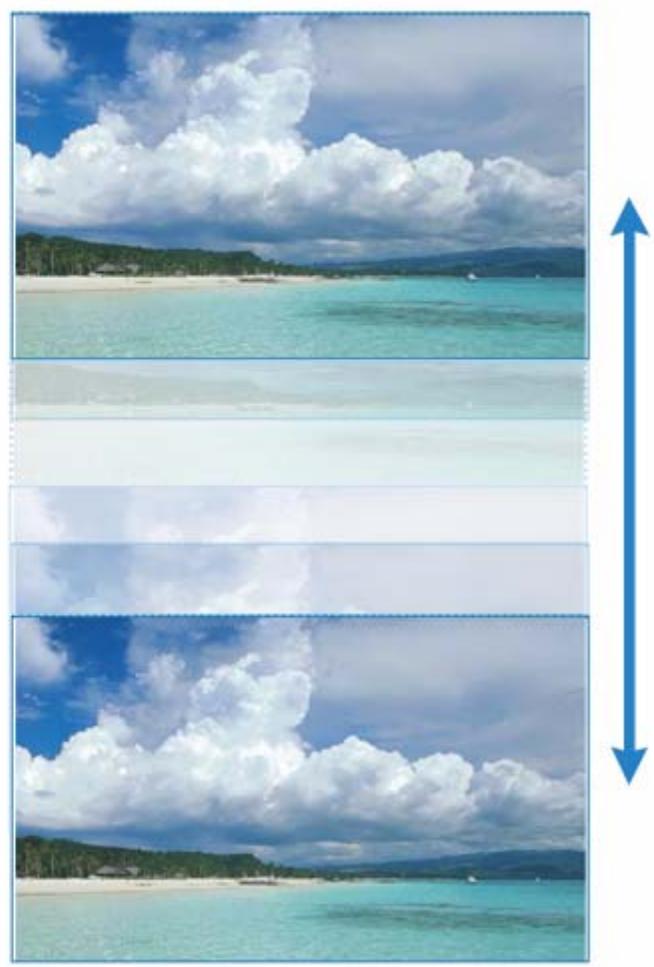
natural_image
Three-panel beach photo showing turquoise water under a cloudy sky, with a blue double-headed arrow indicating vertical offset (no text or symbols)Move the picture projected on the screen up and down within the lens range by turning the Lens Shift Dial on the bottom side of the projector with your fingers.
Install the projector on a flat, even surface, and then level the projector using the adjustable feet to obtain optimal picture quality. If images are not clear, adjust them using the Zoom Knob or Focus Ring, or move the projector forward and backward.
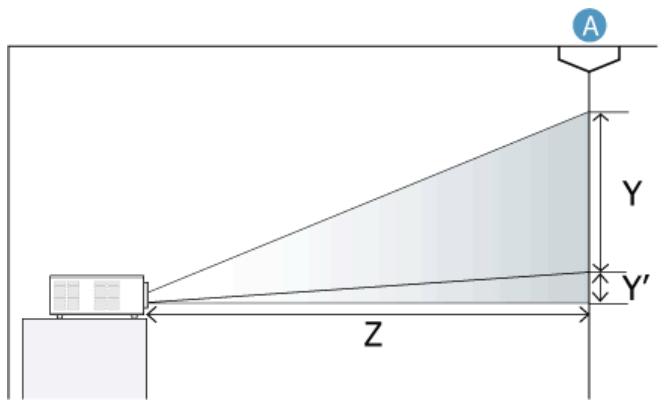
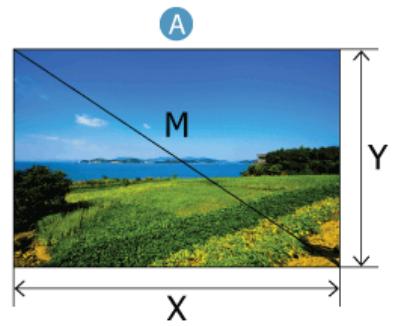
A. Screen / Z. Throw Distance / Y'. Distance from Lens Center to Image Bottom
This projector is designed to show images optimally on a 100 \~ 120 inch sized screen.
X. Screen width / Y. Screen height / M. Screen Diagonal length
| SCREEN SIZE | THROW DISTANCE | OFFSET | |||||||||
| M (DIAGONAL) | X (HORIZONTAL) | Y (VERTICAL) | Z (TELE) | Z (WIDE) | Y' | ||||||
| INCHES | CM | INCHES | CM | INCHES | CM | INCHES | CM | INCHES | CM | INCHES | CM |
| 40 | 101.6 | 34.9 | 88.6 | 19.6 | 49.8 | 78.1 | 198.4 | 60.0 | 152.3 | 2.0 | 5.0 |
| 50 | 127.0 | 43.6 | 110.7 | 24.5 | 62.3 | 97.6 | 248.0 | 75.0 | 190.4 | 2.4 | 6.2 |
| 60 | 152.4 | 52.3 | 132.8 | 29.4 | 74.7 | 117.1 | 297.5 | 89.9 | 228.5 | 3.0 | 7.5 |
| 70 | 177.8 | 61.0 | 155.0 | 34.3 | 87.2 | 136.7 | 347.1 | 104.9 | 266.5 | 3.4 | 8.7 |
| 80 | 203.2 | 69.7 | 177.1 | 39.2 | 99.6 | 156.2 | 396.7 | 119.9 | 304.6 | 3.9 | 10.0 |
| 90 | 228.6 | 78.4 | 199.2 | 44.1 | 112.1 | 175.7 | 446.6 | 134.9 | 342.7 | 4.4 | 11.2 |
| 100 | 254.0 | 87.2 | 221.4 | 49.0 | 124.5 | 195.2 | 495.9 | 149.9 | 380.8 | 4.9 | 12.5 |
| 110 | 279.4 | 95.9 | 243.5 | 53.9 | 137.0 | 214.8 | 545.5 | 164.9 | 418.9 | 5.4 | 13.7 |
| 120 | 304.8 | 104.6 | 265.7 | 58.8 | 149.4 | 234.3 | 595.1 | 179.9 | 456.9 | 5.9 | 14.9 |
| 130 | 330.2 | 113.3 | 287.8 | 63.7 | 161.9 | 253.8 | 644.7 | 194.9 | 495.0 | 6.4 | 16.2 |
| 140 | 355.6 | 122.0 | 309.9 | 68.6 | 174.3 | 273.3 | 694.3 | 209.9 | 533.1 | 6.9 | 17.4 |
| 150 | 381.0 | 130.7 | 332.1 | 73.5 | 186.8 | 292.9 | 743.8 | 224.9 | 571.2 | 7.4 | 18.7 |
| 160 | 406.4 | 139.4 | 354.2 | 78.4 | 199.2 | 312.4 | 793.4 | 239.9 | 609.2 | 7.8 | 19.9 |
| 170 | 431.8 | 148.1 | 376.3 | 83.3 | 211.7 | 331.9 | 843.0 | 254.9 | 647.3 | 8.3 | 21.2 |
| 180 | 457.2 | 156.9 | 398.5 | 88.2 | 224.1 | 351.4 | 892.6 | 269.8 | 685.4 | 8.8 | 22.4 |
| 190 | 482.6 | 165.6 | 420.6 | 93.1 | 236.6 | 370.9 | 942.2 | 284.8 | 723.5 | 9.3 | 23.7 |
| 200 | 508.0 | 174.3 | 442.8 | 98.1 | 249.1 | 390.5 | 991.8 | 299.8 | 761.6 | 9.8 | 24.9 |
| 210 | 533.4 | 183.0 | 464.9 | 103.0 | 261.5 | 410.0 | 1041.4 | 314.8 | 799.6 | 10.3 | 26.2 |
| 220 | 558.8 | 191.7 | 487.0 | 107.9 | 274.0 | 429.5 | 1091.0 | 329.8 | 837.7 | 10.8 | 27.4 |
| 230 | 584.2 | 200.5 | 509.2 | 112.8 | 286.4 | 449.0 | 1140.6 | 344.8 | 875.8 | 11.3 | 28.6 |
| 240 | 609.6 | 209.2 | 531.3 | 117.7 | 298.9 | 468.6 | 1190.1 | 359.8 | 913.9 | 11.8 | 29.9 |
| 250 | 635.0 | 217.9 | 553.5 | 122.6 | 311.3 | 488.1 | 1239.7 | 374.8 | 951.9 | 12.2 | 31.1 |
| 300 | 762.0 | 261.5 | 664.1 | 147.1 | 373.6 | 585.7 | 1487.7 | 449.7 | 1142.3 | 14.7 | 37.4 |
Cautions on Lamp Replacement
- The projector lamp is an expendable item. For best operating performance, replace the lamp according to the usage time. You can view the lamp usage time in the Information Display (INFO button).
- Use the recommended lamp when replacing. Replace with the same model provided with the projector.
- Lamp Model Name : LAMP-MERCURY-Philips
• Make sure the power cord is unplugged before replacing the lamp. - Because the lamp is a high temperature and high voltage product, wait at least one hour from the time you disconnect the power cord before replacing the lamp.
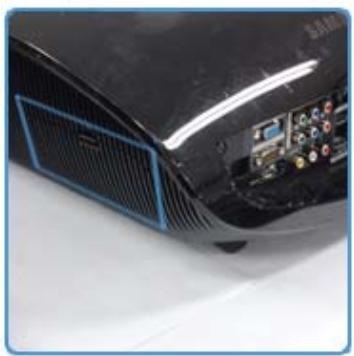
- The projector lamp is on the bottom-left side when looking at the projector from behind.
- Do not leave the old lamp near flammable items or in reach of children. There is a danger of fire, burns, or injury.
- Remove dirt or foreign material around or inside the lamp unit using a proper vacuum device.
- When handling the lamp, avoid touching any part of it except for the handles. If you handle the lamp incorrectly, you can shorten the lamp's lifetime and affect picture quality.
- The projector has been designed so that the projector does not work if the lamp cover is not completely assembled after a lamp replacement. If the projector does not work properly, please check the operating status of the indicator LED.
The lamp contains Mercury. Dispose According to Local, State or Federal Laws.
Lamp Replacement Procedure
- Because the lamp is a high temperature and high voltage product, wait at least one hour from the time that the power cord is disconnected before replacing it.
- The projector lamp is on the left side of the projector when you look at the projector from the rear.
natural_image
Close-up of a black car front panel with blue trim and electronic display (no visible text or symbols)- Turn the projector so the rear of the projector is facing you. The lamp and lamp cover are on the left side.
- Be careful your projector does not fall.
natural_image
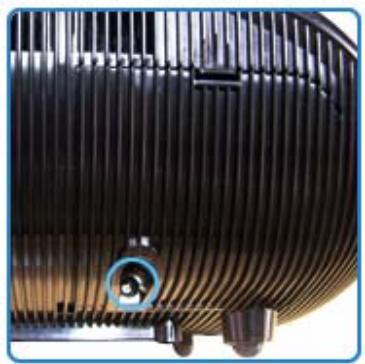
Close-up of a black industrial fan or radiator component with a circular opening, showing heat dissipation and mounting features (no text or symbols visible)- Locate and remove the screws on the lamp cover.
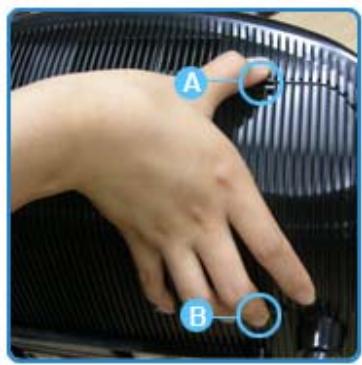
- Open the cover by holding A down and pulling B.
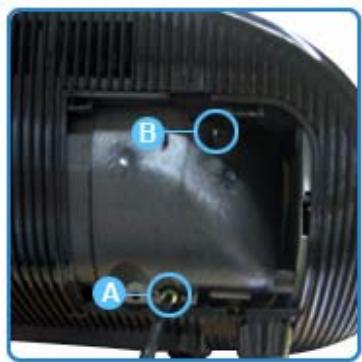
- Remove the screws A, and then hold and open B to remove the lamp door.
natural_image
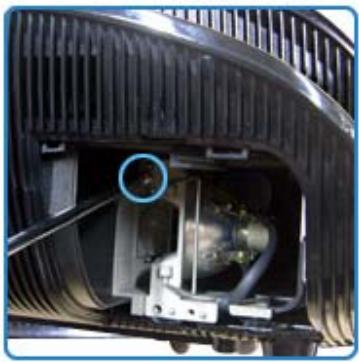
Close-up of a car's front engine compartment showing intake manifold, exhaust pipe, and internal components (no text or symbols visible)- Remove the screws from the lamp assembly as shown in the figure.
natural_image
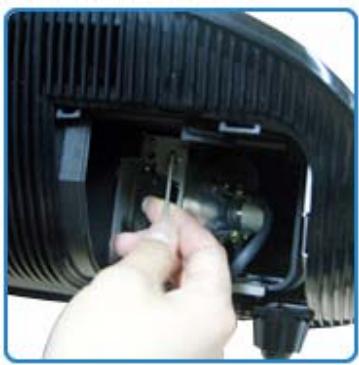
Close-up of a hand inserting a plug into a black plastic device (no visible text or symbols)-
As shown in the figure, lift up the lamp handles by holding them and pull the lamp.
-
Install the new lamp, and then reverse the procedure to fix the lamp to the projector, and re-install the lamp door and cover.
2-8-1. PC Timing (D-Sub/HDMI)
All resolutions higher or lower than 1920x1080 are converted to 1920x1080 by the Scaler chip inside the projector. If the resolution of the signal output by the PC matches the real resolution (1920x1080) of the projector, the screen quality is optimal.
| FORMAT | RESOLUTION | DISPLAY FORMAT | HORIZONTAL FREQUENCY (KHZ) | VERTICAL FREQUENCY (HZ) | PIXEL FREQUENCY (MHZ) | SYNC POLARITY |
| IBM | 640 x 350 | 70Hz | 31.469 | 70.086 | 25.175 | +/- |
| IBM | 720 x 400 | 70Hz | 31.469 | 70.087 | 28.322 | -/+ |
| VESA DMT | 640 x 480 | 60Hz | 31.469 | 59.94 | 25.175 | -/- |
| MAC | 640 x 480 | 67Hz | 35.000 | 66.667 | 30.240 | -/- |
| VESA GTF | 640 x 480 | 70Hz | 35.000 | 70.000 | 28.560 | |
| VESA DMT | 640 x 480 | 72Hz | 37.861 | 72.809 | 31.500 | -/- |
| VESA DMT | 640 x 480 | 75Hz | 37.500 | 75.000 | 31.500 | -/- |
| VESA CVT | 720 x 576 | 60Hz | 35.910 | 59.950 | 32.750 | -/+ |
| VESA DMT | 800 x 600 | 56Hz | 35.156 | 56.250 | 36.000 | +/+ |
| VESA DMT | 800 x 600 | 60Hz | 37.879 | 60.317 | 40.000 | +/+ |
| VESA GTF | 800 x 600 | 70Hz | 43.750 | 70.000 | 45.500 | |
| VESA DMT | 800 x 600 | 72Hz | 48.077 | 72.188 | 50.000 | +/+ |
| VESA DMT | 800 x 600 | 75Hz | 46.875 | 75.000 | 49.500 | +/+ |
| MAC | 832 x 624 | 75Hz | 49.726 | 74.551 | 57.284 | -/- |
| VESA DMT | 1024 x 768 | 60Hz | 48.363 | 60.004 | 65.000 | -/- |
| VESA DMT | 1024 x 768 | 70Hz | 56.476 | 70.069 | 75.000 | -/- |
| VESA GTF | 1024 x 768 | 72Hz | 57.672 | 72.000 | 78.434 | |
| VESA DMT | 1024 x 768 | 75Hz | 60.023 | 75.029 | 78.750 | +/+ |
| VESA CVT | 1152 x 864 | 60Hz | 53.783 | 59.959 | 81.750 | -/+ |
| VESA GTF | 1152 x 864 | 70Hz | 63.000 | 70.000 | 96.768 | |
| VESA GTF | 1152 x 864 | 72Hz | 64.872 | 72.000 | 99.643 | |
| VESA DMT | 1152 x 864 | 75Hz | 67.500 | 75.000 | 108.000 | +/+ |
| MAC | 1152 x 870 | 75Hz | 68.681 | 75.062 | 100.000 | -/- |
| VESA CVT | 1280 x 720 | 60Hz | 44.772 | 59.855 | 74.500 | -/+ |
| VESA GTF | 1280 x 720 | 70Hz | 52.500 | 70.000 | 89.040 | |
| VESA GTF | 1280 x 720 | 72Hz | 54.072 | 72.000 | 91.706 | |
| VESA CVT | 1280 x 720 | 75Hz | 56.456 | 74.777 | 95.750 | -/+ |
| VESA DMT | 1280 x 768 | 60Hz | 47.776 | 59.870 | 79.500 | -/+ |
| VESA DMT | 1280 x 768 | 75Hz | 60.289 | 74.893 | 102.250 | -/+ |
| VESA DMT | 1280 x 800 | 60Hz | 49.702 | 59.810 | 83.500 | -/+ |
| VESA DMT | 1280 x 800 | 75Hz | 62.795 | 74.934 | 106.500 | -/+ |
| VESA DMT | 1280 x 960 | 60Hz | 60.000 | 60.000 | 108.000 | +/+ |
| VESA GTF | 1280 x 960 | 70Hz | 69.930 | 70.000 | 120.839 | |
| VESA GTF | 1280 x 960 | 72Hz | 72.072 | 72.000 | 124.540 | |
| VESA CVT | 1280 x 960 | 75Hz | 75.231 | 74.857 | 130.000 | -/+ |
| VESA DMT | 1280 x 1024 | 60Hz | 63.981 | 60.020 | 108.000 | +/+ |
| VESA GTF | 1280 x 1024 | 70Hz | 74.620 | 70.000 | 128.943 | |
| VESA GTF | 1280 x 1024 | 72Hz | 76.824 | 72.000 | 132.752 | |
| VESA DMT | 1280 x 1024 | 75Hz | 79.976 | 75.025 | 135.000 | +/+ |
| VESA DMT | 1440 x 900 | 60Hz | 55.935 | 59.887 | 106.500 | -/+ |
| VESA DMT | 1440 x 900 | 75Hz | 70.635 | 74.984 | 136.750 | -/+ |
| VESA DMT | 1600 x 1200 | 60Hz | 75.000 | 60.000 | 162.000 | +/+ |
| VESA DMT | 1680 x 1050 | 60Hz | 65.290 | 59.954 | 146.250 | -/+ |
| VESA CVT | 1920 x 1080 | 60Hz | 67.500 | 60.000 | 148.500 | +/- |
| VESA DMT | 1920 x 1200 RB | 60Hz | 74.038 | 59.950 | 154.000 | +/- |
2-8-2. AV Timing(Component)
| SPECIFICATIONS | FORMAT | VERTICAL FREQUENCY (HZ) | SCAN |
| BT.601SMPTE 267M | 480i | 59.94Hz | Interlaced |
| BT.1358SMPTE 293M | 480p | 59.94Hz | Progressive |
| BT.601 | 576i | 50Hz | Interlaced |
| BT.1358 | 576p | 50Hz | Progressive |
| SMPTE 296M | 720p | 59.94Hz/60Hz | Progressive |
| 720p | 50Hz | Progressive | |
| BT.709SMPTE 274M | 1080i | 59.94Hz/60Hz | Interlaced |
| 1080i | 50Hz | Interlaced | |
| SMPTE 274M | 1080p | 59.94Hz/60Hz | Progressive |
| 1080p | 50Hz | Progressive |
2-8-3. AV Timing(HDMI)
| SPECIFICATIONS | RESOLUTION | SCAN | VERTICAL FREQUENCY (HZ) | HORIZONTAL FREQUENCY (KHZ) | PIXEL FREQUENCY (MHZ) |
| EIA-861 | 640 x 480 | Progressive | 59.940 | 31.469 | 25.175 |
| EIA-861 | 640 x 480 | Progressive | 60.000 | 31.500 | 25.200 |
| EIA-861 | 720 x 480 | Progressive | 59.940 | 31.469 | 27.000 |
| EIA-861 | 720 x 480 | Progressive | 60.000 | 31.500 | 27.027 |
| EIA-861 | 1280 x 720 | Progressive | 59.939 | 44.955 | 74.175 |
| EIA-861 | 1280 x 720 | Progressive | 60.000 | 45.000 | 74.250 |
| EIA-861 | 1920 x 1080 | Interlaced | 59.939 | 33.716 | 74.175 |
| EIA-861 | 1920 x 1080 | Interlaced | 60.000 | 33.750 | 74.250 |
| EIA-861 | 720 x 576 | Progressive | 50.000 | 31.250 | 27.000 |
| EIA-861 | 1280 x 720 | Progressive | 50.000 | 37.500 | 74.250 |
| EIA-861 | 1920 x 1080 | Interlaced | 50.000 | 28.125 | 74.250 |
| EIA-861 | 1920 x 1080 | Interlaced | 50.000 | 28.125 | 74.250 |
| EIA-861 | 1920 x 1080 | Progressive | 60.000 | 67.500 | 148.500 |
2-8-4. AV Timing (VIDEO)
NTSC, NTSC 4.43, PAL, PAL60, PAL-N, PAL-M, SECAM
Your projector supports the standard video formats listed above through its video inputs. No adjustments are necessary.
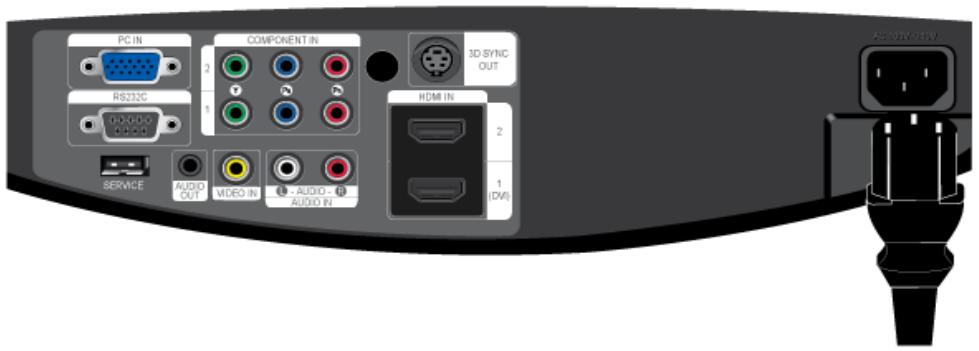
- Plug the power cord into the power terminal on the rear side of the projector.

Make sure that your projector and DVD player/Cable box/Satellite box are turned off and unplugged.
- Connecting using an HDMI/DVI cable
- Connect the [HDMI IN 1 (DVI)] terminal on the back of the projector and the DVI output terminal of the DVD player/Cable/Satellite box using a HDMI/DVI cable.
- Connecting using an HDMI cable
- Connect the [HDMI IN 1 (DVI)] or [HDMI IN 2] terminal on the back of the projector and the HDMI output terminal of the DVD player/Cable/Satellite box using a HDMI cable.
- When done, plug in the power cords of your projector and DVD player/Cable box/Satellite box.
Using the Projector
- Turn on the projector and the DVD player/Cable box/Satellite box, and then press the [HDMI1] button on the projector to select
. - Press the [HDMI2] button to select
if [HDMI2] is connected.
If
This projector does not support sound. (A separate audio system is needed for sound.)
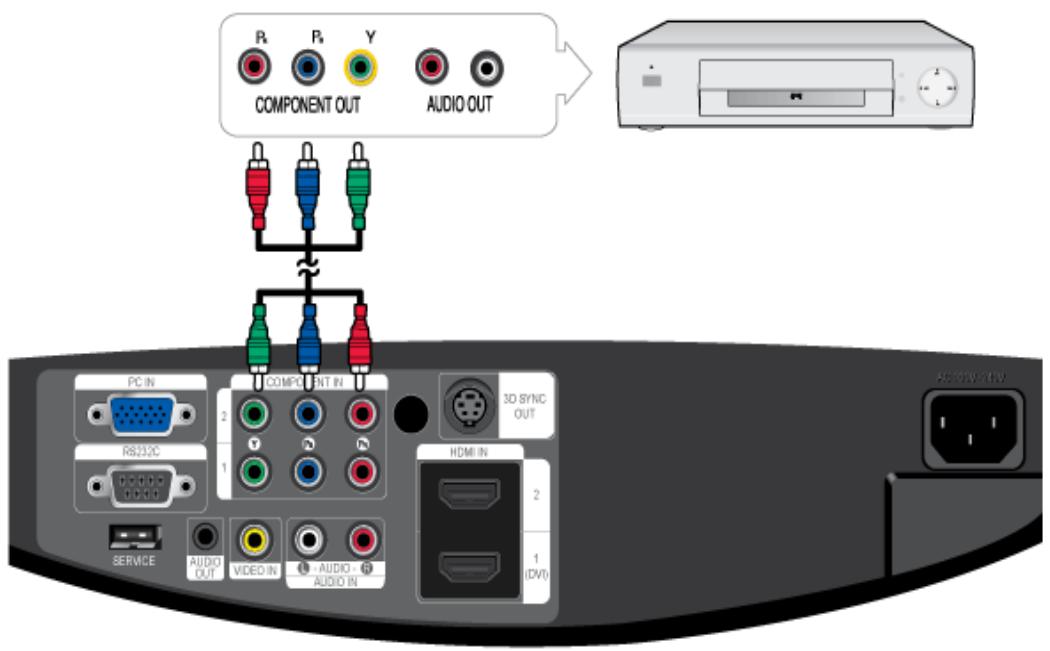
Make sure that your projector and DVD player/Cable box/Satellite box are turned off and unplugged.
-
Connect the [COMPONENT IN 1 (Y/P_B/P_R)] or [COMPONENT IN 2 (Y/P_B/P_R)] input port at the back of the projector to the Component port at the back of the DVD player/Cable/Satellite box with the Component cable.
-
When done, plug in the power cords of your projector and DVD player/Cable box/Satellite box.
Using the Projector
-
Turn on the projector and the DVD player/Cable box/Satellite box, and then press the [COMP1] button to select
. -
Press the [COMP2] button to select
if [COMPONENT IN 2] is connected. If Component Mode is not available, check whether the component cables are in place.
Component Ports are marked as (Y/P_B/P_R) , (Y, B-Y, R-Y) or (Y, Cb, Cr) , depending on the manufacturer.
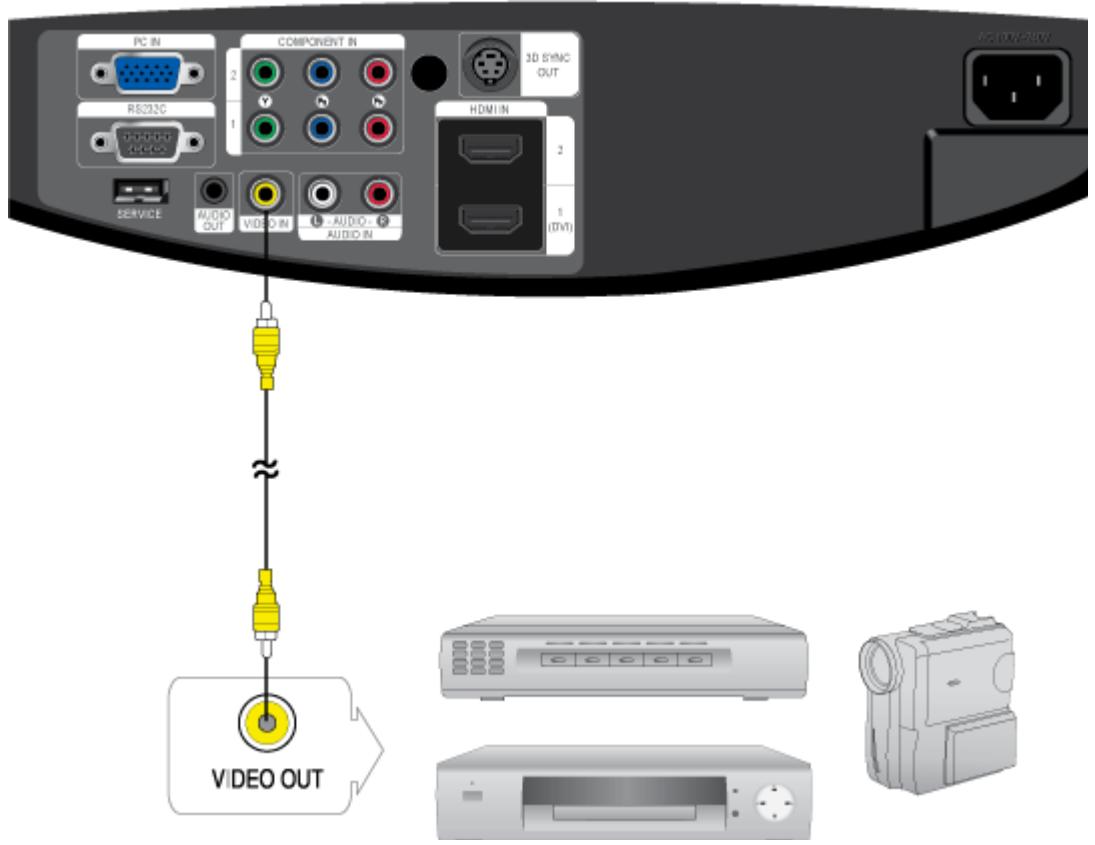
Make sure that your projector and VCR or camcorder are turned off and unplugged.
- Connect [VIDEO IN] input port of the projector to the VIDEO (yellow) OUT port of the video equipment using the video cable.
- When finished connecting the devices, plug in the power cords of your projector and the VCR or camcorder.
Using the Projector
- Turn on the projector and the VCR or camcorder, and then press the [VIDEO] button on the projector to select
This projector does not support sound. (A separate audio system is needed for sound.)
2-13-1. Setting up the PC Environment
Check the following items before connecting your PC to your projector.
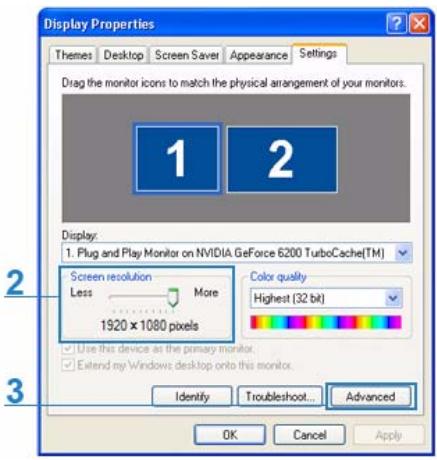
- Click the right mouse button on the Windows desktop, and then click [Properties]. The
dialog appears.

- Click the [Settings] tab, and then set the
. The optimal resolution for the projector is 1920 x 1080. For other resolutions supported by the projector, see the PC Timing Display Mode table in section 2-8.
You do not have to change the
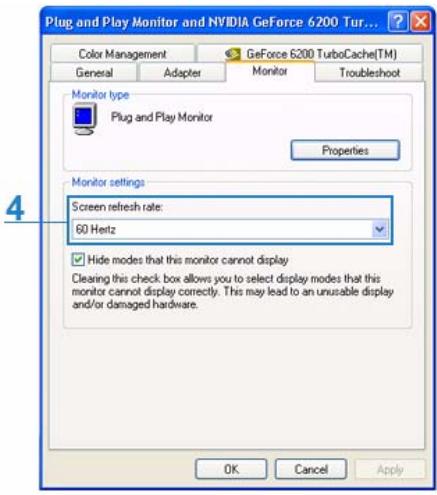
- Press the [Advanced] button. Another property window appears.
- Click the [Monitor] tab and set the
. For the refresh rate that matches the resolution you've chosen, see the refresh rate (60 Hz, 70 Hz, etc.) next to your selected resolution in the PC Timing Display Mode table in section 2-8.
Setting the refresh rate sets both the vertical and horizontal frequencies.
- Click the [OK] button to close the window, and then click the [OK] button on the
window to close that window. - Shut down the PC and connect it to the projector.
- The setup process might vary depending on your type of computer or version of Windows. (For example, [Properties] appears instead of [Properties (R)] as shown in 1.)
• This projector supports 32 bit color quality (per pixel) when it is used as a PC monitor.
- Projected images may differ from the images on your monitor depending on the monitor manufacturer or Windows version.
- When connecting the projector to a PC, make sure that the PC setup complies with the display settings supported by this projector. If it does not, you may have signal problems.
2-13-2. Connecting with a PC
flowchart
graph TD
    A["User"] --> B["Device"]
    B --> C["Server"]
    C --> D["Laptop"]
    D --> E["3D Sync Out"]
    E --> F["Component In"]
    F --> G["PC IN"]
    F --> H["R623C"]
    F --> I["COMPONENT IN"]
    I --> J["2"]
    I --> K["1"]
    I --> L["3D SYNC OUT"]
    L --> M["2"]
    L --> N["HOM IN"]
    N --> O["1 (DV)"]
    O --> P["AUDIO OUT"]
    O --> Q["VIDEO IN"]
    O --> R["AUDIO - AUDIO IN"]
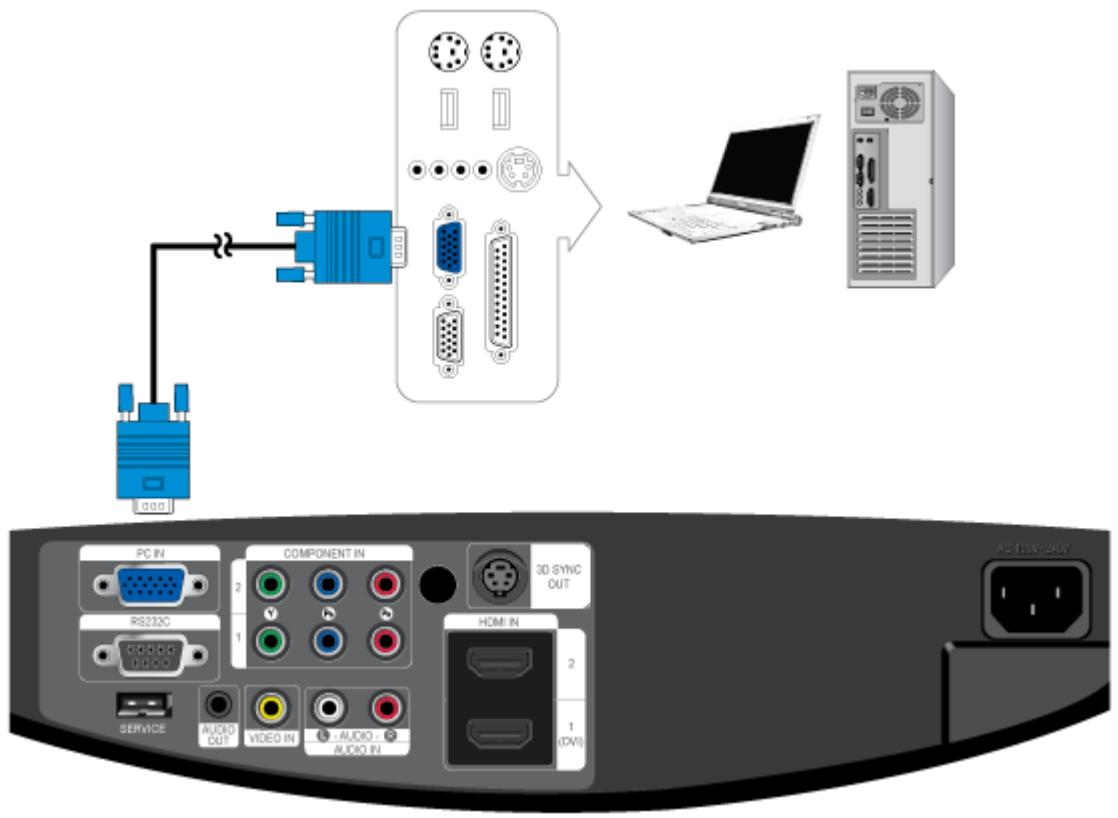
Make sure that your projector and PC are turned off and unplugged.
- Connect the [PC IN] port on the rear side of the projector to the PC video out (D-sub) port of the PC using a PC video cable.
- Plug in the power cords of the projector and the PC.
This product supports plug and play. If you use Windows XP, you do not need to set up the driver on your PC.
Using the Projector
- Turn on the PC, and then set the PC Environment (screen resolution, etc.) if necessary.
-
Turn on the projector, and then press the [PC] button to select
. If the Mode is not available, make sure the PC video cable is properly connected. -
Adjust the screen.
Sound comes from the PC's speakers.
- To avoid experiencing a blank screen when connecting a PC, set
Your projector comes with a built-in 3D emitter, which is located on the front of the projector, and an external 3D emitter, which you can connect to the back of the projector. Both 3D emitters emit a 3D synchronization signal that synchronizes the refresh rate of the image displayed by the projector with the shutter rate of the required 3D glasses, creating the 3D effect. If the internal emitter does not provide a sufficient 3D picture, you can connect the external emitter. You cannot use the internal and external emitters at the same time.
- <3D Emitter> does not switch automatically to
even if an external emitter is connected. Manually change the setting to . Refer to "3-6-1. Picture" for details. - The 3D effect may not work properly if there is any obstacle between the 3D emitter and 3D glasses.
- The 3D emitter may not work normally if there is any other 3D product or electronic device working nearby.
2-14-1. Ranges in which the External and Internal 3D IR Emitter Can Operate
External 3D IR Emitter Range
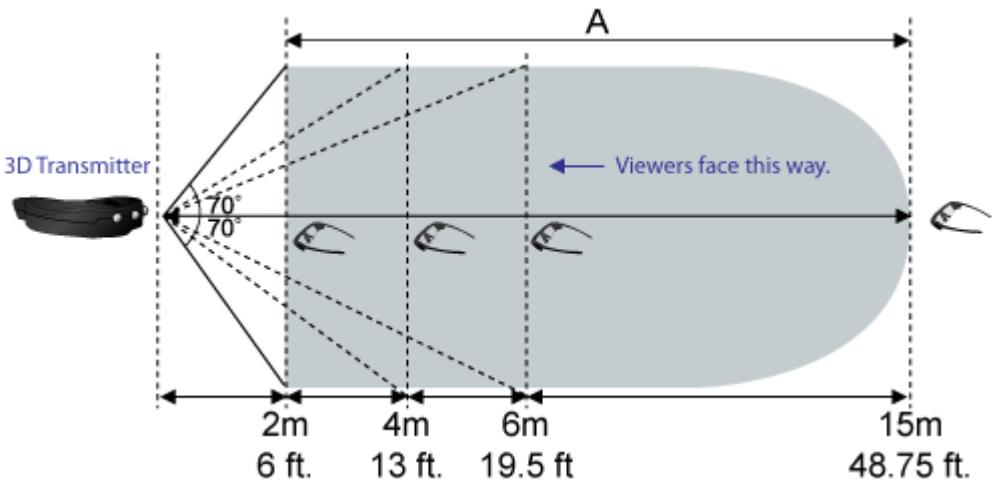
A : Suggested Range of Use
Internal 3D IR Emitter Range
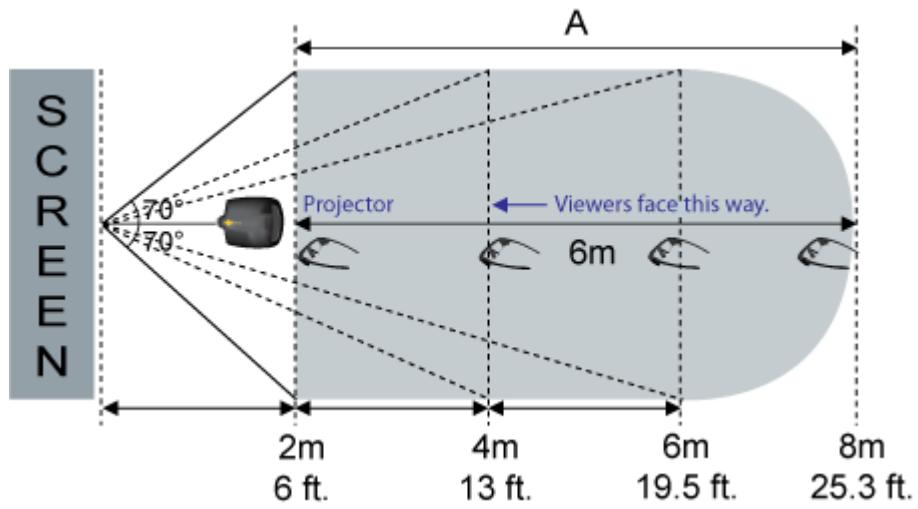
A : Suggested Range of Use
| VIEW ANGLE | MAX. SIGNAL RECEIVING DISTANCE |
| 2m/6 ft. : 140 ° | External emitter : 15m/48.75 ft. (base on 0°)Internal emitter : 8m/25.3 ft. (base on 0°) |
| 4m/13 ft. : 100 ° | |
| 6m/19.5 ft. : 80 ° |
- The range of the 3D function may differ slightly depending on the projector size, projection distance, and viewing angle.
• Make sure to use only 3D glasses authorized and supplied by Samsung Electronics.
2-14-2. Connecting the External 3D IR Emitter to the Projector
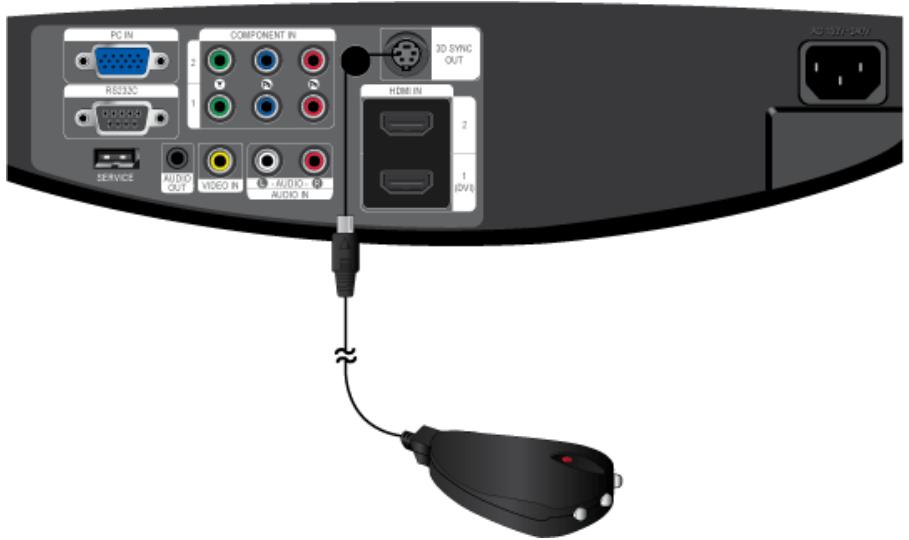
Make sure that your projector is turned off.
- Connect the external 3D IR emitter to [3D SYNC OUT] on the back of the projector.
- Power on the projector.
Using the Projector
-
To enjoy a 3D picture, power on the projector and press [3D] on the remote control.
-
<3D Emitter> does not switch automatically to
even if an external emitter is connected. Manually change the setting to . - Be sure to install the external IR emitter with the transmitters facing the viewers.
• You cannot use the internal and external emitters at the same time.
• This projector does not support sound. (A separate audio system is needed for sound.)
2-14-3. Installing an External 3D IR Emitter on a Ceiling
1. Contents
Unpack the external 3D IR emitter package and confirm that none of the following components are missing:
If any items are missing, contact your dealer.
1
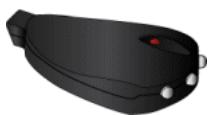
EXTERNAL 3D IR EMITTER : 1 EA
2
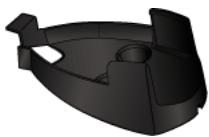
Emitter Holder: 1EA
3

Wire Holders : 3EA
4
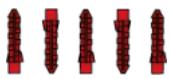
Anchor : 5EA (M4 x L25 Screws)
5
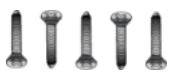
Screws : 5 EA (M4 x L25)
2. Installation Procedure
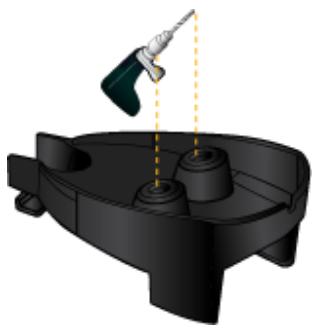
To install the external 3D IR emitter on the ceiling, follow these steps:
natural_image
3D illustration of a drill bit on a mechanical component with no visible text or symbols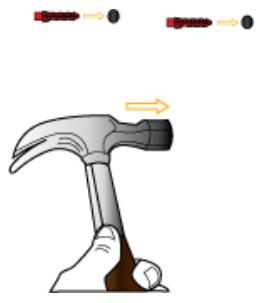
natural_image
Illustration of a hammer with arrows indicating motion or force direction (no text or symbols)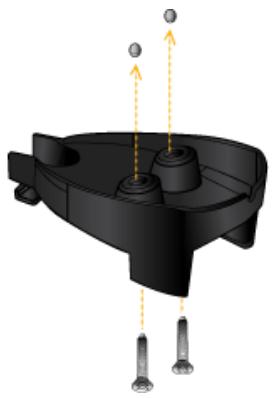
natural_image
3D mechanical component diagram showing a base with two springs and directional arrows indicating motion (no text or symbols)-
Make holes in the ceiling, matched to the screw holes in the emitter holder ^2 .
-
Insert the anchors 4 into the holes in the ceiling. Tap with a hammer until the anchors are flush with the ceiling.
-
Fasten the screws ⑤ to fix the emitter holder ② to the holes in the ceiling.
natural_image
3D mechanical component diagram showing a curved assembly with labeled point A (no text or symbols present)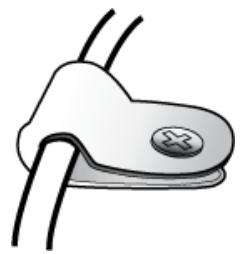
natural_image
Simple illustration of a medical or laboratory device with two wires and a central circular button (no text or symbols)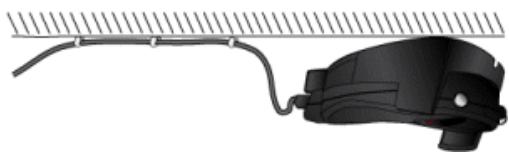
natural_image
Illustration of a black mechanical device with a curved rod and attached bracket (no text or symbols)-
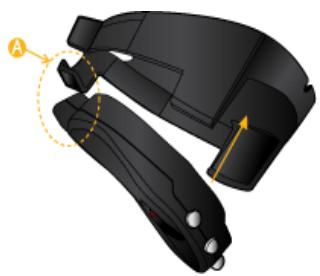
Insert the external emitter 1 into the emitter holder 2. Insert at point A first (circled above).
-
Fix the wire to the ceiling using the wire holders 3.
-
The external emitter has been installed.

• Disassembly is in the reverse order of assembly.
• If you make holes in the ceiling and drill into an underlying beam or stud, you do not need the anchors.
3-1 Product Features
- Optical engine with advanced DLP technology
• Full 1920x1080 HD panel.
- 6 segment color wheel to implement optimal colors.
• 300W Lamp designed to improve luminance
- Vivid colors
- Quality picture tuning focused on improving color. Your projector provides near broadcast quality color for vivid, life-like displays.
- Minimized fan noise and light leakage
- The airflow and fan installation structure are optimized to minimize fan noise and beam leakage.
- Various Input Ports
- Abundant input terminals are available, such as two HDMI (supporting HDCP) terminals and two Component terminals, enhancing connectivity with peripheral devices.
- User adjustments
• This unit allows adjustment of each input port.
- The unit has a reference pattern you can use for positioning and adjustment.
- For your convenience, a backlight for the remote control is provided for use in dark surroundings.
- 3D Display
• The world's first full HD, 3D AV projector for home use
• You can enjoy 3D pictures converted from a 2D video source.

| ICON | NAME | DESCRIPTION |
| 1 | Indicators | - STAND BY (Blue LED)- LAMP (Blue LED)- TEMP (Red LED)Refer to the LED Indications. |
| 2 | Focus Ring | Use for Focus Adjustment. |
| 3 | 3D signal emitter | Emits a 3D synchronization signal, allowing you to view 3D images through 3D glasses. |
| 4 | Lens Position Moving Dial | You can adjust screen images up and down within the lens range.- Refer to Adjusting the Lens Position Moving Dial. |
| 5 | Lens | - |
| 6 | Remote Control Signal Receiver | - |
| 7 | Adjustable Feet | You can adjust the screen position by moving the adjustable feet up and down. |
| 8 | Zoom Knob | Use to enlarge or reduce image size. |
| 9 | POWER button | Use to turn the projector on or off. |
| 10 | SOURCE button | Use to select the external device signal. |
| 11 | MENU button | Use to display the Menu Screen. |
| 12 | Move ^V <> / Select ☑ | ^V <> / ☑: Use to move or to select an item within a menu. |
The buttons on the top of the projector are touch buttons.
Touch them lightly with your fingers to use them.
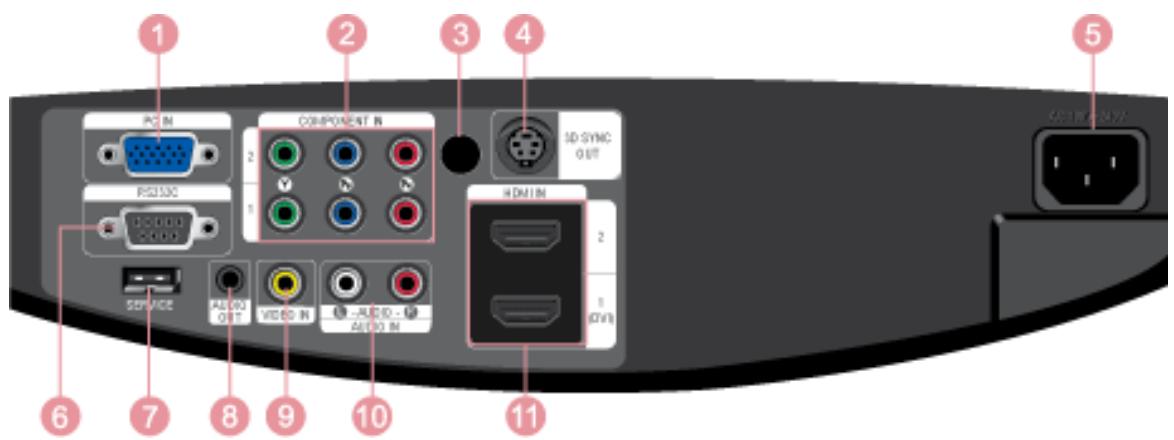
| ICON | NAME |
| 1 | PC IN Input port |
| 2 | COMPONENT IN 1 / COMPONENT IN 2 ports |
| 3 | Remote Control Signal Receiver |
| 4 | 3D SYNC OUT (connects to an external emitter) |
| 5 | Power Input port |
| 6 | RS232C port |
| 7 | SERVICE port |
| 8 | AUDIO OUT port |
| 9 | VIDEO IN port |
| 10 | AUDIO IN (L-AUDIO-R) port |
| 11 | HDMI IN 1 (DVI) / HDMI IN 2 port |
Using your projector with another remote control device nearby may result in improper functioning due to remote control code (frequency) interference.
1 ON ( | ) Button
Used to turn on the projector.
2 COMP1 Button
Used to switch to COMPONENT1 Mode.
3 VIDEO Button
Used to switch to Video Mode.
4 3D Button
Used to switch 2D-3D.
5 PC Button
Used to switch to PC Mode.
6 MENU Button
Used to display the Menu Screen.
7 Move(▼▲◀▶) / ENTER Buttons
Used to move to or select each menu item.
8 INFO Button
Used to view information about the current input mode (external input signal).
9 P.SIZE Button
Used to adjust the size of picture screen.
10 STILL Button
Used to see still images.
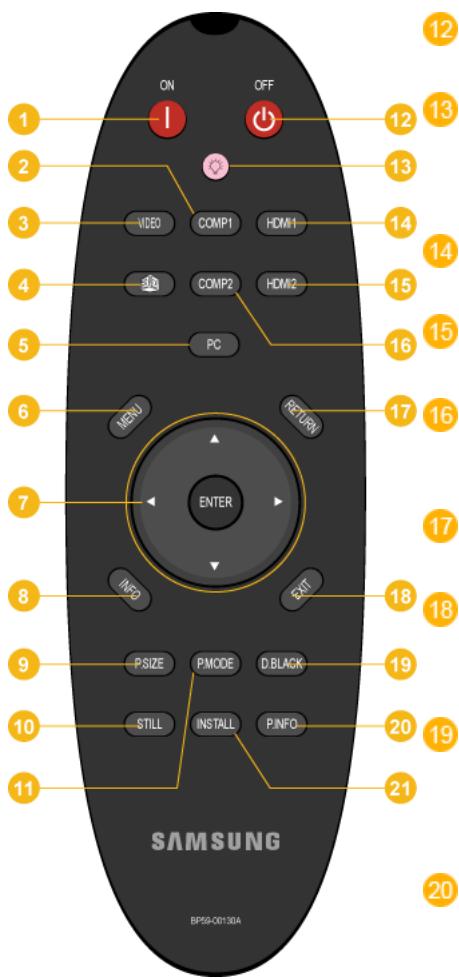
12 OFF (⏻) Button
Used to turn off the projector.
13 LIGHT (💡) Button
Use to check source signals, picture setup, PC screen adjustment, and lamp lifespan.
14 HDMI1 Button
Used to switch to HDMI1/DVI Mode.
15 HDMI2 Button
Used to switch to HDMI2 Mode.
16 COMP2 Button
Used to switch to COMPONENT2 Mode.
17 RETURN Button
Returns to the previous menu.
18 EXIT Button
Used to make Menu Screen disappear.
19 D.BLACK button Used to adjust the screen brightness and contrast by adjusting the iris in the optical system.
20 P.INFO Button
Use to check source signals, picture setup, PC screen adjustment, and lamp lifespan.
21 INSTALL Button
Used to flip or reverse the image so that it is appropriate for the projector's installation location (In front of the screen and hanging from the ceiling, behind the screen and hanging from the ceiling, etc.)
11 P.MODE Button Used to select Picture Mode.
• Make sure to place your remote control on a table or desk.
- If you step on the remote control, you may fall and hurt yourself or damage the remote.
• We recommend you use your remote control:
- No more than 10m (32.8 ft) from the remote control signal receiver
- At an angle of no more than 30^ to the left or right of the remote control signal receiver
Installing Batteries in the Remote Control
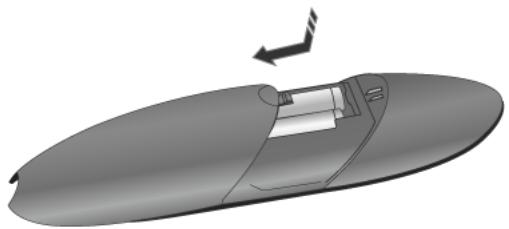
- Lift the cover at the back of the remote control upward as shown in the figure.
natural_image
3D rendering of a streamlined object with a curved panel and directional arrow (no text or symbols)- Insert two AA size batteries.
- Close the cover.
LED Indications
●:Light is On Ⓞ:Light is Blinking ○:Light is Off
| STAND BY | LAMP | TEMP | INFORMATION |
| ● | ○ | ○ | If you press the POWER button on the remote control or projector, the screen appears within 30 seconds. |
| ● | ● | ○ | The projector is in normal operating condition. |
| ● | ○ | ○ | This state appears when the projector is preparing an operation after the POWER button on the projector or the remote control has been pressed. |
| ○ | ○ | ○ | The POWER button is pressed to turn off the projector, and the cooling system is in operation to cool off the inside of the projector. (Lasts for about 1 minute) |
| ○ | ○ | ○ | The cooling fan inside the projector is not operating normally.Refer to Action 1 on the next page. |
| ○ | ○ | ○ | The lamp cover protecting the lamp unit is not closed properly.Refer to Action 2 on the next page. |
| ○ | ○ | ○ | The temperature inside the projector has risen beyond the control limit.Power is turned off automatically. Refer to Action 3 on the next page. |
| ● | ○ | ○ | A problem has occurred when operating the IC in the product. Refer to Action 4. |
| ○ | ○ | ○ | A problem has occurred with the operation of the lamp. Refer to Action 5. |
| ● | ○ | ● | The lifetime of the lamp has expired. Refer to Action 6 on the next page. |
| ○ | ○ | ○ | The memory in the product is not operating normally. Contact a Service Center. |
| ○ | ○ | ● | The power for the product is not operating normally. Contact a Service Center. |
| ○ | ● | ○ | A problem has occurred with the operaton of the color wheel in the product.Refer to Action 4 on the next page. |
Clearing Indicator Problems
| CLASSIFICATION | STATE | MEASURES |
| Action 1 | When the cooling fan system is not in normal operating condition. | If the symptom remains even after you disconnect and then reconnect the power cord and turn the projector on again, contact a Samsung service center. |
| Action 2 | When the lamp cover protecting the lamp unit is not properly closed or the sensor system is not in normal operating condition. | Confirm that the screws in the projector lamp cover are tightly fastened. If they are, contact your dealer or service center. |
| Action 3 | When temperature inside of the projector becomes too high. | Refer to the Installation Related Warnings in the front of this manual and adjust the installation of your projector accordingly. Cool down your projector sufficiently and then operate it again. If the same problem occurs continually, contact a Samsung service center. |
| Action 4 | The DDP IC or color wheel has failed to operate. | Disconnect and reconnect the power cord and start the projector again. If the same symptom still occurs, contact a Samsung service center. |
| Action 5 | The lamp malfunctions after power turns off abnormally or after powering on right after turning off the projector. | Turn the power off, wait for a sufficient amount of cooling time and then turn the power on to operate. If the same problem occurs continually, contact a Samsung service center. |
| Action 6 | When the screen becomes darker | Check the lamp usage time on the Information Display screen. If you need to replace the lamp, contact a Samsung service center. |
This Projector uses a cooling fan system to keep the unit from overheating. Operation of the cooling fan may cause noise. This noise does not affect product performance and is part of normal operation.
The Screen Adjustment Menu (OSD: On Screen Display) Structure
To access the Menu, press the MENU button on the product or on the remote. To move in the menu, press the arrow buttons. Menu selections with an arrow on the far right have sub-menus. Press the right arrow button to access the sub-menu. Directions for navigating and selecting items in a menu are at the bottom of each menu screen.
| MENU | SUB-MENU | ||||
| Picture | 3D | Mode | Contrast | Brightness | Sharpness |
| Color | Tint (G/R) | Gamma | Dynamic BlackTM | Color Temperature | |
| Save | Auto Adjustment | Screen | Advanced Setting | Picture Options | |
| Picture Reset | |||||
| Setup | Menu Language | No Signal Power Off | Install | Lamp Mode | Background |
| Test Pattern | Color Standard | General | Information | Factory Default | |
| Input | Source List | Edit Name | |||
| Support | Software Upgrade | Open Source License | |||
3-6-1. Picture
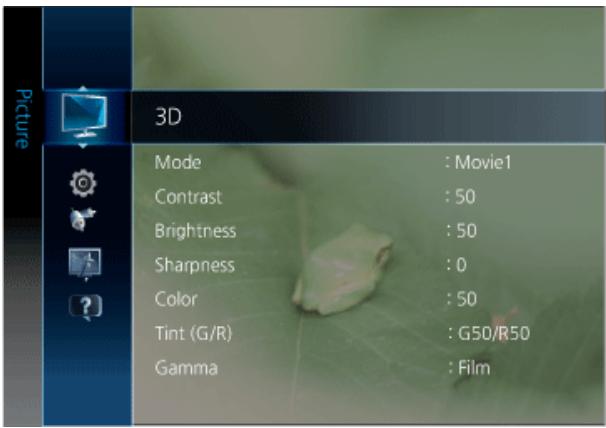
| MENU | DESCRIPTION | ||||
| 3D | Enjoy dynamic 3D images by using Samsung 3D glasses. Be sure to read "3-7 Read Before Watching 3D Picture" thoroughly before you watch 3D picture.If there is any obstacle between the emitter and 3D Active Glasses, the proper 3D effect may not be obtained.To switch to <3D> picture mode, press the 3D button on the remote control:<3D Mode> : Select a 3D picture input mode. The available modes differ depending on the video input signal. You can preview a selected mode before it is confirmed. Select the mode that provides you with the most vivid and comfortable picture:Turns the 3D function off.2D → 3D : Changes a 2D image to 3D.Side by Side : Displays two images next to each other.Top & Bottom : Displays one image above another.Vertical Stripe : Displays the images for the left and right eye alternately in rows.Line by Line : Displays the images for the left and right eye alternately in columns.Checker Board : Displays the images for the left and right eye alternately in pixels.Frame Sequential : Displays the images for the left and right eye alternately in frames.Compatible 3D modes for each input source and resolution | ||||
| InputMode | AV | Component | PC | HDMI | |
| 2D → 3D | ✓ | ✓ | ✓ | ✓ | |
| Side by Side | A & PC | ||||
| Top & Bottom | A & PC | ||||
| Vertical Stripe | PC | ||||
| Line by Line | PC | ||||
| Checker Board | PC | ||||
| Frame Sequential | PC 60Hz Only | ||||
| ✓ : Compatible with all conditionsA : Compatible with a resolution of 720p, 1080i, or 1080pPC : Compatible with PC resolutions (refer to PC Timing)If watching a 3D channel received via the HDMI port from a set-top box (that is compatible with 3D channels), changing to a 2D channel (on the set-top box) may temporarily distort or corrupt the picture. To resolve this, disable 3D mode, which will restore normal picture.The 3D input can be viewed as 3D picture only in HDMI mode:<3D → 2D> : Displays the image for the left eye only.-This function is deactivated when <3D Mode> is set to (2D → 3D) or<Off>. | |||||
| MENU | DESCRIPTION | ||||
| 3DMode | <3D View Point> : The overall adjustment of 3D perspective.This function is deactivated when <3D Mode> is set to (2D → 3D) or.<Depth> : Specify the level of 3D effect for converting a 2D video to 3D. Range: 1–10 levelsThis function is only activated when the <3D Mode> is set to (2D → 3D).<Picture Correction> : Adjusts the images for the left and right eye.<3D Auto View> : Set 3D picture mode to be automatically activated for HDMI1.3 3D video input.-If a 3D failure occurs due to a 3D information error, set <3D Auto View> toand manually select a <3D Mode> using the 3D button or corresponding menu.<3D Auto View> Support resolution3D video input with one of the following resolutions will automatically switch the HDMI signal to 3D in (Side by Side) mode. (16:9 only)ResolutionFrequency (Hz)1280x720p60Hz1920x1080i60Hz1920x1080p24/30/60HzResolution supported for HDMI PC modeThe resolution for HDMI PC mode is optimized to 1920 x 1080 input. An input resolution other than 1920 x 1080 may not be displayed properly in 3D display or full screen mode.Standard HDMI 3D FormatsThe 3D formats listed below are recommended by the HDMI association and must be supported.Source signal formatStandard HDMI 3D1920x1080p@24Hz x 21920x2205p@24Hz1280x720p@60Hz x 21280x1470p@60Hz1280x720p@50Hz x 21280x1470p@50HzThe projector automatically switches to 3D mode if it inputs one of the source signal formats above.For the Standard HDMI 3D format with 24Hz, the Projector is optimized as follows: Judder Reduction Display Mode: Whenis set to, you can watch a smooth picture without judder.<3D Emitter>The <3D Emitter> setting does not change automatically.Select the signal for the emitter you want to use.Internal emitter: <3D Emitter> -External emitter: <3D Emitter> -You cannot use the internal and external emitters at the same time.You can use the 3D glasses which the DLP Link function was applied to.-Select a screen mode to match the environment, the kind of images you are projecting, or select a customized mode you have created based on your requirements.: Select this mode for a more vivid picture.: Select if you want the screen quality to be clearer than standard screen quality.: You can comfortably view the projection screen if the surrounding is somewhat bright.: Select if your surroundings are dark. This saves energy and reduces eye fatigue.: Select if you want to view the screen in your customized screen Mode. You can set this in- . | ||||
| Contrast / Brightness / Sharpness / Color / Tint (G/R) | : Used to adjust the contrast between the object and the background.: Used to adjust the brightness of the entire picture.: Used to adjust the sharpness of the picture.: Used to adjust color lighter or darker.: Used to obtain more natural color of objects using Green or Red enhancement.In themode, the, and modes are not supported. | ||||
| Gamma | An image compensation function that adjusts the settings according the media you have selected.: The best setting for watching a film.: The best setting for watching a Projector program.: The best setting when you have a PC connected. | ||||
| Dynamic BlackTM | Adjusts the brightness and contrast of the screen by adjusting the tightening thread in the optical system.: You can view the screen where the brightness is emphasized by opening the tightening thread fully.: You can view a more dynamic screen as the input screens are adjusted automatically.: You can view the screen while manually controlling the iris value from minimum to maximum | ||||
| Color Temperature | You can change tint of the entire screen to suit your needs.: The color temperature appropriate to very bright places such as a shop.: This color temperature is appropriate for very bright places and is the default setting for Dynamic Picture Mode. The sharpness and brightness are emphasized.: This temperature is used for most video productions. It is the default setting for Movie1, and may deliver the most precise tint.: Used to deliver optimal image quality for black-and-white films.- - - - - - | ||||
| Save | Used to save custom picture settings.- - - | ||||
| Auto Adjustment | Adjust frequency values/positions and fine tune the settings automatically.Not available when connecting with an HDMI/DVI cable.Available inMode Only | ||||
| Screen | ·/ : Removes or reduces picture noise. If the noise is not removed by Fine-tuning alone, then adjust the frequency as best as possible ( ) and Finetune again. After the noise has been reduced, readjust the picture so that it is aligned to the Center of screen.Available inMode Only: Adjust the PC screen position with direction button (▲ / ▼ / ◀ / ▶).: You can enlarge any area on the screen by using the numeric buttons (1 - 9) on the remote.Available inMode Only: Return the display settings to the factory defaults. | ||||
| Advanced Setting | ·Select the black level to adjust the screen depth.- - -You can not set inmode.Adjust the screen contrast.- -You can filter the color of the entire screen according to your taste. Make optimal display settings for movies.: Shows the picture in the original color.: Shows the picture in black and white by filtering out all color signals.: Shows the picture in red by filtering out the green and blue color signals.: Shows the picture in green by filtering out the red and blue color signals.: Shows the picture in blue by filtering out the red and green color signals.You can not set inmode.Emphasize pink “Flesh Tone.”You can not set inmode.Emphasize object boundaries.-You can not set inmode.Setting the mode on increases detail and the color space when you display movies from an external device (e.g. BD/DVD player) connected to the [HDMI IN] or [COMPONENT IN] jacks.-Available when the picture mode is set to and when the external input is set toor.Some external devices may not support this function. | ||||
| Picture Options | You can select a screen size according to the type of scene.- - - <4:3>In themode, only the <16:9> and <4:3> modes are supported.In(576p,480p,576i,480i resolutions) and(576p,480p,576i,480i resolutions) modes, themode is not supported.In themode, theandmodes are not supported.If a dotted line is displayed or the screen shakes, you can view the picture with better visual quality by enabling Noise Reduction.- - - - - | ||||
| is not available inmode. | |||||
| Reduces MPEG noise to provide improved picture quality.- - - - - | |||||
| is not available inmode. | |||||
| Using this function, you can set the display mode so that it is optimized for playing movies.- - - | |||||
| is only supported for,(480i,576i).Removes drag from fast scenes with a lot of movement to provide a clearer picture.- - - | |||||
| If is Demo, you can compare the difference between on and off modes.If the picture seems too dark, you can set a brighter black level.Thefunction can only be selected in,andmodes. | |||||
| Modes: Default black level.: Set the black level so it is darker. | |||||
| Modes: Set the brightness for dark signals to a low setting.If the input signal is an [HDMI-Video] type, unclear screens are displayed normally.: Set the brightness for dark signals to a high setting. If the input signal is an [HDMI-PC] type, dark screens are brighter. | |||||
| Using this function, you can cut off the edge of the picture when unnecessary information or images appear on the edge of the picture.- - | |||||
| is not available inmode.Cannot be enabled if the input signal is [HDMI-PC]. | |||||
| Picture Reset | Resets your current picture mode to its default settings. | ||||
3-6-2. Setup
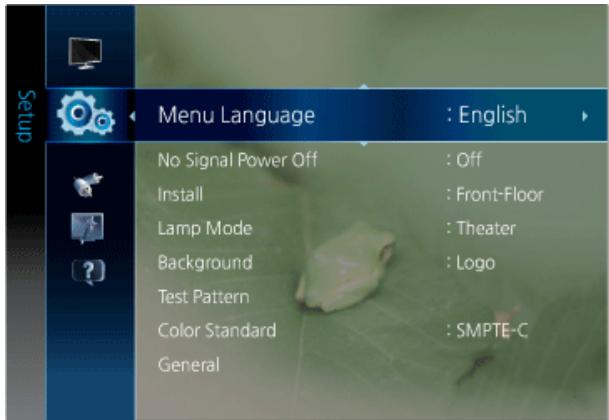
| MENU | DESCRIPTION |
| Menu Language | Set the menu language. |
| No Signal Power Off | To avoid unnecessary energy consumption, set how long you want the Projector to remain on if it's not receiving a signal.- <15min.> - <30min.> - <60min.<sup>Disabled when a connected PC is in power saving mode. |
| Install | To adjust the picture to the installation location, (for example, behind a semi-transparent screen, hanging from the ceiling), you can invert the projected images vertically / horizontally.: Normal Image: Horizontal/Vertical Reversed Image: Horizontally Reversed Image: Vertically Reversed Image |
| Lamp Mode | Using this function, you can set the image brightness by adjusting the amount of light generated by the lamp.: This mode is optimized for screens smaller than 100 inches.This mode decreases the lamp brightness and power consumption to extend the lamp lifetime and reduce noise and power consumption.: This mode maximizes the lamp brightness when the ambient illumination is bright. As the brightness of the lamp increases, the lamp lifetime may be reduced and the noise and power consumption may increase. |
| Background | You can select an image or screen which will appear when there is no signal from the external device connected to the projector.-<log> -<black> |
| Test Pattern | Generated by the projector itself. Utilize as standards to optimize the installation of the projector.: Helps you to determine whether the picture is distorted or not.: Displays picture format sizes such as 1.33 : 1 or 1.78 : 1.: Red Screen, only for color adjustment.: Green Screen, only for color adjustment.: Blue Screen, only for color adjustment.: White Screen, only for color adjustment.: White Screen, brings out the white tones for a more real white.The Crosshatch and Screen Size patterns of this projector are provided by JKP (JK Production).The Red/Green/Blue colors of the test patterns are only for the color adjustment procedures, and may not comply with the actual colors displayed during video playback. |
| Color Standard | Lets you select the color standard to match the color standard of the input signal.: High Definition, 1125 scan lines, standard definition Projector submitted to the ITU-R by U.S., Japan and Canada, in 1986.: Standardized for Video Equipment by the Society of Motion Picture and Television Engineers: Regulations and standards for European Broadcasting Production and Technology, standardized by the European Broadcasting Union |
| General | You can set the transparency of the menu.-You can set the display time of the menu.<5 sec> - <10 sec> - <30 sec> - <60 sec> - <90 sec> - <120 sec> -If power is supplied to the projector, it is turned on automatically. You do not need to press the Power button.-You can turn the LED indicators on your projector on or off according to your requirements.: This mode disables the operating LED. However, LEDs will come on regardless of the LED setting when the power is turned on or off or when the projector is in an abnormal state.: This mode enables the operating LEDs so they can display the current operating state of the projector. |
| Information | You can check external source signals, picture setup, PC picture adjustment. |
| Factory Default | Using this function, you can reset various settings to the factory default settings. |
3-6-3. Input
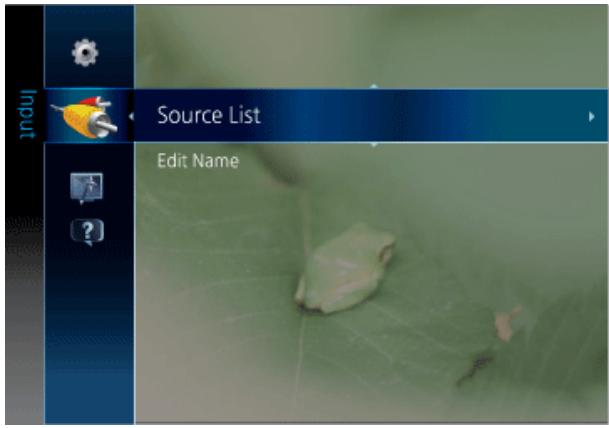
| MENU | DESCRIPTION |
| Source List | You can select a device connected to the projector to display.·- - - - - - |
| Edit Name | You can edit the names of devices connected to the projector.·- - - - - - - - - - - - - - - - - - - - - - - - - - - - - - - - - - - - - - - - - - - - - - - - - - - - - - - - - - - - - - - - - - - - - - - - - - - - - - - - - - - - - - - - - - - - - - - - - - - - - |
3-6-4. Support
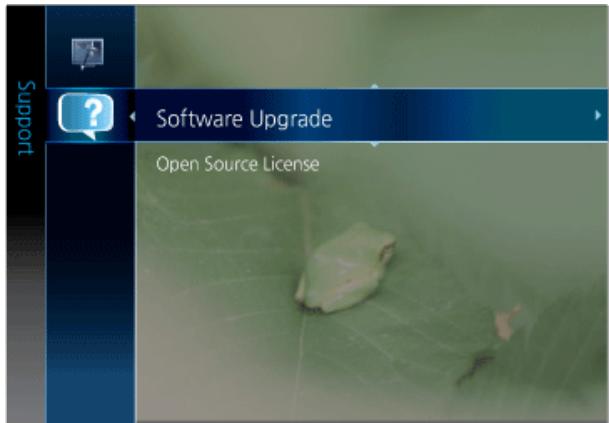
| MENU | DESCRIPTION |
| Software Upgrade | Samsung may offer upgrades for your Projector's firmware in the future. Please visit http://www.samsung.com or contact the Samsung call center at 1-800-SAMSUNG (726-7864) to receive information about downloading upgrades. To upgrade, you download the upgrade to your PC, copy the upgrade to a USB flash drive, and then attach the USB flash drive to the USB port on the projector.When software is upgraded, video and audio settings you have made will return to their default (factory) settings.We recommend you write down your settings so that you can easily reset them after the upgrade. |
| Open Source License | Open Source License NoticeIn the case of using open source software, Open Source Licenses are available on the product menu. |
IMPORTANT HEALTH AND SAFETY INFORMATION FOR 3D PICTURES.
Be sure to read and understand fully the following safety precautions before you use the 3D function on the projector.
Precautions
• Children should be monitored by a responsible adult when they use the 3D function.
If a child indicates he has tired eyes, a headache, dizziness, or nausea, have the child stop watching 3D pictures and rest.
- Do not use the 3D glasses for other purposes: as general eye glasses, sunglasses, protective goggles, etc.
• 3D pictures may cause discomfort such as dizziness, nausea, or a headache.
If you experience any of these symptoms, stop watching 3D pictures, remove the 3D glasses, and rest.
- Watching 3D images for an extended period of time may strain your eyes.
If your eyes are strained, stop watching the 3D pictures, remove the 3D glasses, and rest.
- Do not use the 3D function or wear the 3D glasses while walking or moving around.
3D images can be distracting. You may run into an object and trip or fall.
Precautions for Using the 3D Function
- The 3D glasses may not function normally if there is any other 3D products or electronic devices operating nearby.
- If the 3D function operates abnormally due to interference, move all other electronic devices and wireless telecommunication devices as far away as possible from the glasses.
- The screen may seem to flicker slightly if you watch 3D pictures under three-wave-length light, poor light conditions (e.g. a flickering, fluorescent light), or a fluorescent light with a frequency of 50 - 60 Hz.
- If this occurs, dim or turn off the light.
- The 3D effect may not look good if you are outside the effective distance or viewing angle.
• If you leave the 3D glasses powered on, the battery's life will decrease. - Power off the 3D glasses when not using them.
• If you lie on your side with the 3D glasses on, the picture on the Projector may look dark or not be visible. - Changing the input source will automatically disable 3D picture mode.
• 3D glasses from other manufacturers are not compatible. - Be sure you keep other electronic devices or wireless telecommunication devices as far away as possible from the glasses.
• Some options are disabled when you change the picture mode of the 3D projector screen. - Your 3D experience may differ from others. You may not notice the effect at all if your vision in one eye is much different from the other.
4 Troubleshooting
4-1 Before Requesting Service
Please check the following before requesting After-Sales service. If the problem continues, please contact your nearest Samsung Electronics Service Center.
| Symptoms | Troubleshooting | |
| Installation and Connection | No Power. | Check the power cable connections. |
| I want to install my projector on the ceiling. | The ceiling installation bracket is sold separately. Contact your local product distributor. | |
| External Source can not be selected. | Be sure that the video cable or cables are properly connected to the correct jack or jacks on both ends. If the device is not connected properly, it can not be selected. | |
| Menu and Remote Control | Remote control does not work. | Be sure that the proper external source is selected.Check whether your remote control is aimed at the correct angle and is within its effective operating range. Remove any obstacles between your remote control and the product.The remote control may work abnormally or degrade in sensitivity if a lamp (three-wavelength fluorescent lamp, etc.) interfer with the sensor on the projector.The batteries may have been discharged. Replace the batteries. (Be sure the batteries' positive and negative poles are correctly oriented.)Check whether the LED indicator on the top of the projector is turned on. |
| I cannot select a menu. | Check if the menu is displayed in gray. Gray-colored menu items are unavailable. | |
| Screen and External Source | Cannot see picture images. | Be sure that the power cord of the projector is connected. Confirm that the projector's power button is turned on. Be sure that the proper input source is selected. Confirm that the connectors are properly connected to the ports at the back of the projector. Be sure that theandsettings are not at their lower limit. |
| Poor color. | Adjust theand. | |
| Images are not clear. | Adjust the focus. Check if the projector is too far from or too near to the screen. | |
| Strange noise. | If a strange sound continues, contact your Service Center. | |
| An operating LED is lit. | Refer to the LED Indications section. | |
| Lines appear on screen. | On-screen noise may occur when using your PC. Adjust the frequency (refresh rate) of the screen. | |
| No external device screen is displayed. | Check the operating status for the external device and check whether the adjustable menu items, such asandhave been changed correctly in thecommand screen of the Projector menu. | |
| Only a blue screen appears. | Be sure to properly connect the external devices. Check the connection cables again. | |
| Screen appears in black and white or in an odd color, or the screen is too dark or bright. | As mentioned above, check the adjustable items such as, orin the menu. If you want to restore various settings to their factory defaults, runfrom the menu. |
5-1 Specifications
| MODEL | SP-A8000 | |
| Panel | Size | 0.95 inches DLP |
| Resolution | 1920×1080p | |
| Projection lens | 16:9 | |
| Power | Power Consumption | Max 410W (Standby : under 1W) |
| Voltage | 110/220V ac +/-10%, 50/60 Hz +/-3Hz | |
| Lamp | Power Consumption | 300 W UHP |
| Life Time | 2,000 Hours (Eco) | |
| Dimension (W x D x H) | 431.3 x 468.5 x 198.8 mm / 17.0 x 18.4 x 7.8 inches | |
| Weight | 9.8 Kg / 21.6 lbs | |
| Key Features | Brightness | 1,000 ANSI lumen |
| Contrast | 10000 : 1 | |
| Projection Range | 1 m ~ 14 m / 39.37 inches ~ 551.18 inches | |
| Zoom Adjustment | Manual | |
| Focus Adjustment | Manual | |
| Screen Size (Diagonal) | Diagonal 40 inches ~ 300 inches | |
| Throw Ratio | 1.7 / 2.2 | |
| Focus | < 3 pixel | |
| Input signal | VIDEO IN | CVBS (Composite video) |
| PC IN | D-Sub 15p (Analog RGB) | |
| COMPONENT IN 1, 2 | Component on RCA type | |
| HDMI IN 1(DVI) | HDMI, DVI | |
| HDMI IN 2 | HDMI | |
| User Environ-ment | Temperature and Humidity | Operating : Temperature 32 °F ~ 95 °F (0 °C ~ 40 °C) Humidity : 10% ~ 80% (Non-condensing) |
| Storage : Temperature -4°F ~ 140 °F (-20 °C ~ 60 °C) Humidity : 5% ~ 95% (Non-condensing) | ||
| Noise | Eco : 24 dB, Bright : 30 dB | |
This Class B equipment is designed for home and office use. The equipment has been registered regarding EMI for residential use. It may be used in all areas. Class A is for office use. Class A is for business while class B emits less electromagnetic waves than class A.
The DMD panel used for Samsung projectors is made of hundreds of tiny mirrors. As with other visual display elements, the DMD Panel may include a few bad pixels. Samsung and the DMD Panel manufacturer have a rigid, bad pixel identification and limitation procedure in place and products will not exceed the maximum number of bad pixels set by our standards. Rarely, non-displayable pixels may exist, however it does not affect the picture quality nor the lifespan of the product.
Communication Format (Complies with the RS232C Standard)
• Baud rate : 9,600 bps
- parity : None
• Data bits : 8, stop bit : 1
- Flow Control : None
Serial Communication Protocol
1. Command Packet Structure [7bytes]
| 0x08 | 0x22 | cmd1 | cmd2 | cmd3 | value | CS |
• A command packet consists of 7 bytes in total.
- The two bytes 0x08 and 0x22 signify that the packet is for serial communication.
- The following 4 bytes represent a pre-defined command that can be defined by the user.
- The last byte is the checksum which checks the validity of the current packet.
• Header [2 Byte]: Pre-defined values fixed to 0x08 and 0x22.
- Cmd1 [1 Byte]: The first value of the code defined in the command list (Hexadecimal)
- Cmd2 [1 Byte]: The second value of the code defined in the command list (Hexadecimal)
- Cmd3 [1 Byte]: The third value of the code defined in the command list (Hexadecimal)
• Value [1 Byte]: Input parameter for the command (Default: 0) (Hexadecimal)
- CS [1 Byte]: Checksum (the 2's complement of the sum of all the values except for the CS value.)
2. Response Packet Structure [3 Bytes]
1. Success
| 0x03 | 0x0C | 0xF1 |
2. Fail
| 0x03 | 0x0C | 0xFF |
- When the received packet from an external device has a valid value, a Success packet is sent. Otherwise, a Fail packet is sent.
• A Fail packet is sent if:
• The received packet length is not equal to 7 bytes.
• The 2 byte packet header value is not equal to 0x08, 0x22.
• The check sum is incorrect. - Failure detection by an external device
- An external device classifies the packet as Fail if it does not receive a Success packet within 100ms.
Command Table
| CONTROL ITEM | CMD1 | CMD2 | CMD3 | VALUE | |||
| General | Power | Power | Display OSD / Power On | 0x00 | 0x00 | 0x00 | 0 |
| OK | 1 | ||||||
| Cancel | 2 | ||||||
| Input | Source List | HDMI | HDMI1/DVI | 0x0A | 0x00 | 0x01 | 0 |
| HDMI2 | 1 | ||||||
| Component | Component1 | 0x02 | 0 | ||||
| Component2 | 1 | ||||||
| Video | Video | 0x04 | 0 | ||||
| PC | PC | 0x05 | 0 | ||||
| Picture | Mode | Vivid | 0x0B | 0X00 | 0x00 | 0 | |
| Dynamic | 1 | ||||||
| Standard | 2 | ||||||
| Movie1 | 3 | ||||||
| Movie2 | 4 | ||||||
| User1 | 5 | ||||||
| User2 | 6 | ||||||
| User3 | 7 | ||||||
| Size | 16:9 | 0x0B | 0x00 | 0 | |||
| Zoom1 | 1 | ||||||
| Zoom2 | 2 | ||||||
| Wide Fit | 3 | ||||||
| Anamorphic | 4 | ||||||
| 4:3 | 5 | ||||||
| Dynamic BlackTM | Off | 0x14 | 0 | ||||
| Auto | 1 | ||||||
| Manual | RIGHT | 2 | |||||
| LEFT | 3 | ||||||
| Setup | Install | Front-Floor | 0x0C | 0x00 | 0x00 | 0 | |
| Front-Ceiling | 1 | ||||||
| Rear-Floor | 2 | ||||||
| Rear-Ceiling | 3 | ||||||
| Lamp Mode | Theater | 0x01 | 0x00 | 0 | |||
| Bright | 1 | ||||||
If you have any questions or comments relating to Samsung products, please contact the SAMSUNG customer care center.
| NORTH AMERICA | ||
| U.S.A | 1-800-SAMSUNG (726-7864) | http://www.samsung.com |
| CANADA | 1-800-SAMSUNG (726-7864) | http://www.samsung.com |
| MEXICO | 01-800-SAMSUNG (726-7864) | http://www.samsung.com |
| LATIN AMERICA | ||
| ARGENTINA | 0800-333-3733 | http://www.samsung.com |
| BRAZIL | 0800-124-4214004-0000 | http://www.samsung.com |
| CHILE | 800-SAMSUNG (726-7864) | http://www.samsung.com |
| COLOMBIA | 01-8000112112 | http://www.samsung.com |
| COSTA RICA | 0-800-507-7267 | http://www.samsung.com |
| ECUADOR | 1-800-10-7267 | http://www.samsung.com |
| EL SALVADOR | 800-6225 | http://www.samsung.com |
| GUATEMALA | 1-800-299-0013 | http://www.samsung.com |
| HONDURAS | 800-7919267 | http://www.samsung.com |
| JAMAICA | 1-800-234-7267 | http://www.samsung.com |
| NICARAGUA | 00-1800-5077267 | http://www.samsung.com |
| PANAMA | 800-7267 | http://www.samsung.com |
| PERU | 0-800-777-08 | http://www.samsung.com |
| PUERTO RICO | 1-800-682-3180 | http://www.samsung.com |
| REP. DOMINICA | 1-800-751-2676 | http://www.samsung.com |
| TRINIDAD & TOBAGO | 1-800-SAMSUNG (726-7864) | http://www.samsung.com |
| VENEZUELA | 0-800-100-5303 | http://www.samsung.com |
| EUROPE | ||
| ALBANIA | 42 27 5755 | - |
| AUSTRIA | 0810 - SAMSUNG (7267864,€ 0.07/ min) | http://www.samsung.com |
| BELGIUM | 02-201-24-18 | http://www.samsung.com/be (Dutch)http://www.samsung.com/be_fr(French) |
| BOSNIA | 05 133 1999 | - |
| BULGARIA | 07001 33 11 | http://www.samsung.com |
| CROATIA | 062 SAMSUNG (062 726 7864) | http://www.samsung.com |
EUROPE
| CZECH | 800 - SAMSUNG (800-726786) | http://www.samsung.com |
| Samsung Zrt., česká organizační složka, Oasis Florenc,Sokolovská394/17, 180 00, Praha 8 | ||
| DENMARK | 70 70 19 70 | http://www.samsung.com |
| EIRE | 0818 717100 | http://www.samsung.com |
| ESTONIA | 800-7267 | http://www.samsung.com |
| FINLAND | 030 - 6227 515 | http://www.samsung.com |
| FRANCE | 01 48 63 00 00 | http://www.samsung.com |
| GERMANY | 01805 - SAMSUNG (726-7864,€ 0,14/Min) | http://www.samsung.com |
| HUNGARY | 06-80-SAMSUNG (726-7864) | http://www.samsung.com |
| ITALIA | 800-SAMSUNG (726-7864) | http://www.samsung.com |
| KOSOVO | +381 0113216899 | - |
| LATVIA | 8000-7267 | http://www.samsung.com |
| LITHUANIA | 8-800-77777 | http://www.samsung.com |
| LUXEMBURG | 261 03 710 | http://www.samsung.com |
| MACEDONIA | 023 207 777 | - |
| MONTENEGRO | 020 405 888 | - |
| NETHERLANDS | 0900 - SAMSUNG (0900-7267864) (€ 0,10/Min) | http://www.samsung.com |
| NORWAY | 815-56 480 | http://www.samsung.com |
| POLAND | 0 801 1SAMSUNG (172678)022 - 607 - 93 - 33 | http://www.samsung.com |
| PORTUGAL | 80820 - SAMSUNG (726-7864) | http://www.samsung.com |
| RUMANIA | 1. 08010 SAMSUNG (72678) – doar din rețeaua Romtelecom, tarif local;2. 021.206.01.10 – din orice rețea, tarif normal | http://www.samsung.com |
| SERBIA | 0700 Samsung (0700 726 7864) | http://www.samsung.com |
| SLOVAKIA | 0800-SAMSUNG (726-7864) | http://www.samsung.com |
| SPAIN | 902 - 1 - SAMSUNG (902 172 678) | http://www.samsung.com |
| SWEDEN | 0771 726 7864 (SAMSUNG) | http://www.samsung.com |
| SWITZERLAND | 0848-SAMSUNG (7267864, CHF 0.08/min) | http://www.samsung.com/chhttp://www.samsung.com/ch_fr (French) |
| U.K | 0330 SAMSUNG (7267864) | http://www.samsung.com |
CIS
| ARMENIA | 0-800-05-555 | - |
| AZERBAIJAN | 088-55-55-555 | - |
| BELARUS | 810-800-500-55-500 | - |
| GEORGIA | 8-800-555-555 | - |
| CIS | ||
| KAZAKHSTAN | 8-10-800-500-55-500 (GSM: 7799) | http://www.samsung.com |
| KYRGYZSTAN | 00-800-500-55-500 | http://www.samsung.com |
| MOLDOVA | 00-800-500-55-500 | - |
| RUSSIA | 8-800-555-55-55 | http://www.samsung.com |
| TADJIKISTAN | 8-10-800-500-55-500 | http://www.samsung.com |
| UKRAINE | 0-800-502-000 | http://www.samsung.com/uahttp://www.samsung.com/ua_ru |
| UZBEKISTAN | 8-10-800-500-55-500 | http://www.samsung.com |
| ASIA PACIFIC | ||
| AUSTRALIA | 1300 362 603 | http://www.samsung.com |
| NEW ZEALAND | 0800 SAMSUNG (0800 726 786) | http://www.samsung.com |
| CHINA | 400-810-5858010-6475 1880 | http://www.samsung.com |
| HONG KONG | (852) 3698 - 4698 | http://www.samsung.com/hkhttp://www.samsung.com/hk_en/ |
| INDIA | 3030 82821800 1100111800 3000 82821800 266 8282 | http://www.samsung.com |
| INDONESIA | 0800-112-8888021-5699-7777 | http://www.samsung.com |
| JAPAN | 0120-327-527 | http://www.samsung.com |
| MALAYSIA | 1800-88-9999 | http://www.samsung.com |
| PHILIPPINES | 1-800-10-SAMSUNG (726-7864)1-800-3-SAMSUNG (726-7864)1-800-8-SAMSUNG (726-7864)02-5805777 | http://www.samsung.com |
| SINGAPORE | 1800-SAMSUNG (726-7864) | http://www.samsung.com |
| TAIWAN | 0800-329-999 | http://www.samsung.com |
| THAILAND | 1800-29-323202-689-3232 | http://www.samsung.com |
| VIETNAM | 1 800 588 889 | http://www.samsung.com |
| MIDDLE EAST | ||
| BAHRAIN | 8000-4726 | http://www.samsung.com |
| Egypt | 08000-726786 | http://www.samsung.com |
| JORDAN | 800-22273 | http://www.samsung.com |
| Morocco | 080 100 2255 | http://www.samsung.com |
| Oman | 800-SAMSUNG (726-7864) | http://www.samsung.com |
| Saudi Arabia | 9200-21230 | http://www.samsung.com |
| TURKEY | 444 77 11 | http://www.samsung.com |
| U.A.E | 800-SAMSUNG (726-7864) | http://www.samsung.com |
| AFRICA | ||
| NIGERIA | 0800 - SAMSUNG (726-7864) | http://www.samsung.com |
| SOUTH AFRICA | 0860-SAMSUNG (726-7864) | http://www.samsung.com |
Correct Disposal of This Product (Waste Electrical & Electronic Equipment) - Europe only
(Applicable in the European Union and other European countries with separate collection systems)
This marking on the product, accessories or literature indicates that the product and its electronic accessories (e.g. charger, headset, USB cable) should not be disposed of with other household waste at the end of their working life. To prevent possible harm to the environment or human health from uncontrolled waste disposal, please separate these items from other types of waste and recycle them responsibly to promote the sustainable reuse of material resources.
Household users should contact either the retailer where they purchased this product, or their local government office, for details of where and how they can take these items for environmentally safe recycling.
Business users should contact their supplier and check the terms and conditions of the purchase contract. This product and its electronic accessories should not be mixed with other commercial wastes for disposal.
Correct disposal of batteries in this product - Europe only

(Applicable in the European Union and other European countries with separate battery return systems.)
This marking on the battery, manual or packaging indicates that the batteries in this product should not be disposed of with other household waste at the end of their working life. Where marked, the chemical symbols Hg, Cd or Pb indicate that the battery contains mercury, cadmium or lead above the reference levels in EC Directive 2006/66. If batteries are not properly disposed of, these substances can cause harm to human health or the environment.
To protect natural resources and to promote material reuse, please separate batteries from other types of waste and recycle them through your local, free battery return system.