
CK50 - Calculator AURORA - Free user manual and instructions
Find the device manual for free CK50 AURORA in PDF.


| Product Type | Desktop Calculator |
| Brand | Aurora |
| Model | CK50 |
| Display Type | LCD, 8 digits |
| Dimensions (approx.) | 10 cm x 15 cm x 2.5 cm |
| Weight | 100 g |
| Power Source | 1 x LR54 battery + solar panel |
| Basic Operations | Addition, subtraction, multiplication, division |
| Additional Functions | Percent, square root, memory (M+, M-, MR, MC) |
| Key Type | Plastic membrane keys |
| Auto Power Off | Yes, after approximately 7 minutes of inactivity |
| Cleaning Instructions | Wipe with a soft, dry cloth. Avoid solvents. |
| Safety Precautions | Keep away from moisture and extreme temperatures. Do not disassemble. |
| Spare Parts & Repairability | Non-serviceable by user. Contact authorized service center for repairs. |
| Warranty | 1 year limited warranty |
| Includes | Calculator only. Battery installed. |
Frequently Asked Questions - CK50 AURORA
User questions about CK50 AURORA
0 question about this device. Answer the ones you know or ask your own.
Ask a new question about this device
Download the instructions for your Calculator in PDF format for free! Find your manual CK50 - AURORA and take your electronic device back in hand. On this page are published all the documents necessary for the use of your device. CK50 by AURORA.
USER MANUAL CK50 AURORA
Aurora Operating Manual
For use with AX-501
Single line scientific calculator.
Printed in China 9220280
Introduction:
AURORA AX-501 calculator
The AURORA AX501 is a calculator with simplicity of use and many capabilities that will appeal to both professionals and student alike. It allows you to perform all elementary calculations, has a memory, and the most commonly used trigonometric and logarithmic functions, as well as calculations in binary, octal or hexadecimal number bases.
Removing and Replacing the Calculator's Cover
Always slide the keyboard end of the unit into the cover first. Never slide the display end of the unit into the cover.
Holding the cover as shown in the illustration, slide the unit out of the cover before use. Picture....1
Holding the cover as shown in the illustration, slide the unit out of the cover after use. Picture.....2


Precautions
- Don't expose the machine to water, direct sunlight, extremely hot or cold temperatures, or dusty environments.
- Don't drop the machine or subject it to heavy impact.
- Use a soft cloth to clean the machine. Do not use detergents.
● Never dispose of batteries in a fire.
- Keep batteries out of the reach of children.
Press the RESET switch (on the front), with the tip of a ball-point pen or similar object, only in the following cases. Do not use an object with a breakable or sharp tip. Note that pressing the RESET switch erases all data stored in memory.
- When using for the first time.
● After replacing the batteries.
● To clear all memory contents.
- When an abnormal condition occurs and all keys are inoperative.
Display
- Floating point system
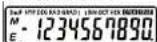
← Symbol

• Scientific notation system

Mantissa Exponent
(During actual use not all symbols are displayed at the same time.)
If the value of mantissa does not fit within the range ±0.00000001-±9999999999 , the display changes to scientific notation. The display mode can be changed according to the purpose of the calculation.
2ndF : Appears when 2ndF is pressed, indicating that the functions that are printed in the same colour as 2ndF are enabled.
HYP : Indicates that hyp has been pressed and the hyperbolic functions are enabled. If 2ndF arc hyp are pressed, the symbols '2ndF HYP' appear, indicating that inverse hyperbolic functions are enabled.
DEG/RAD/GRAD: Indicates angular units and changes each time DRG is pressed. The default setting is DEG.
( ) : Appears when a calculation with parentheses is performed by pressing ( ).
BIN : Indicates that 2ndF -BIN has been pressed.
Binary system
mode is selected.
OCT : Indicates that 2ndF→OCT has been pressed. Octal system mode is selected.
HEX : Indicates that 2ndF→HEX has been pressed. Hexadecimal system mode is selected.
CPLX : Indicates that 2ndF CPLX has been pressed. Complex number mode is selected.
STAT : Indicates that 2ndF STAT has been pressed. Statistics mode is selected.
M : Indicates that a numerical value is stored in the independent memory.
E : Appears when an error is detected.
Before Using the Calculator
Key Notation Used in This Manual
In this manual, key operations are described as
follows:

TO specify A (HEX): A
TO specify π : 2ndRπ
TO specify Exp : Exp
Functions that are printed in the same colour as 2ndF above the key require 2ndF to be pressed first before the key. Numbers keys do not have second function regardless of pressing 2ndF first, but as ordinary numbers.
B - Operating Instructions
1. Power On and Off
Press ON/O to turn the calculator on, and OFF to turn it off
2. Clearing Numbers
- Press ON:O to clear the entries except for a numerical value in the independent memory and statistical data.
- Press CE to clear the number entered prior to use of function key.
- In case of one digit correction of the entered number, press (right shift key).
Example:
| Key to Press | Display |
| ONC | 0. |
| 5 | 5. |
| × | 5. |
| ONC | 0. |
| 6 | 6. |
| × | 6. |
| 8 | 8. |
| CE | 0. |
| 2 | 2. |
| - | 12. |
| 1 3 4 | 134. |
| → | 13. |
| 3 | 133. |
3. Priority Levels in Calculation
Operations are executed according to the following
hierarchy:
-
Function calculations such as sin and %
-
Calculations in parenthesis
-
Powers and roots
-
x =
-
+
Example: 8+2×2=
| Key to Press | Display |
| ON/O | 0. |
| 8 | 8. |
| 1 | 8. |
| 2 | 2. |
| × | 2. |
| 3 | 2. |
| - | 12. |
※ In the example above, notice that the multiplication is performed first. Performing 2×2+8 should give the same result as the preceding one.
4. Parenthesis
a) Using Parenthesis
The parenthesis allow changes to be made to the priorities of the operators. For example, to calculate 3 × (8 - 5) .
If you leave out the parenthesis, the multiplication between 3 and 8 is performed first, then the subtraction of the result with 5 is made.
The presence of the parenthesis allows the subtraction of 8 and 5 to be made first and the multiplication of this result with 3.
| Key to Press | Display |
| ON/O | 0. |
| 3 | 3. |
| × | 3. |
| I | 0. |
| 8 | 6. |
| - | 8. |
| 5 | 5. |
| 1 | 3. |
| - | 9. |
In the above example, the calculator "waits for" the execution of subtraction in order to perform the
multiplication
When you press the key [the small sign]' appears on the display above the digits, means that parenthesis has been opened. This sign disappears when the parenthesis is closed
b) Levels of the Parenthesis
There are 4 levels of parenthesis. This means that you cannot have more than 4 operations pending.
-Try the calculation 2+(3+(4+(5+(6+7)))
To carry out this calculation, simply press the keys in the order they appear in writing. When you press the fifth sign "+" the error message will display.
c) Closing Parenthesis
Instead of closing the nested parenthesis and pressing the key simply press the key and calculator will give the correct result. For example, in the calculation of 5x(4+9), you type 5 1 2 3 4 instead of 5 4 6 7 - you will get the correct answer..
5. Selecting the Display Notation and Decimal Places
- When calculation result is displayed in the floating point system, pressing E displays the result in the scientific notation. Pressing E once more displays the result again in the floating point system.
- Pressing 2ndF TAB and any value between 0 and 9 specifies the number of decimal places in the calculation result. To clear the setting of decimal places, press 2ndF TAB .
Example 1-3
| Key to Press | Display |
| ON/C | 0. |
| 1 | 1. |
| - | 1. |
| 3 | 3. |
| ( floating point) | 0.533333333 |
| 2ndF | 0.533333333 |
| TAB | 0.533333333 |
| 2 | 0.33 |
| F...E | 3.33 -01 |
| F...E | 0.33 |
| 2ndF | 0.33 |
| TAB | 0.33 |
| 0.333333333 |
If the value for floating point system does not fit in the following range, the calculator will display the result using scientific notation system: 0.000000001≤ | x | ≤9999999999
6. Angle Units : Degree, Radian and Gradient
Before any trigonometric calculation, make sure the angle unit with which you use to make the calculation conforms with the one that the calculator will use. The angle unit is indicated above the display of the digits. This unit is marked by "DEG" for degree, "RAD" for radian and "GRAD" for gradient. Each press the key DRG will alternate between these units.
You may also want to convert an angle into another unit. The function that enables you to do that is the second function of the key DRG, marked DRG▶
We shall try to convert 180° in radian. First, make sure that the angle unit display is the degree (symbol DEG); Press the number 180, then press the key 2nd and DRG. The calculator will display the value of 'n'(3.141592654), value of 180° in radian.
7. Addition, Multiplication, Subtraction and Division
a) Addition of Two Numbers
| Key to Press | Display |
| ON:C | 0. |
| 8 | 8. |
| + | 8. |
| 5 | 5. |
| - | 13. |
b) Multiplication, Division and Subtraction of Two Numbers
These calculations are performed in the same manner as the addition.
8. Constant Calculations
In the constant calculations, the addend becomes a constant. Subtraction and division are performed in the same manner. For multiplication, the multiplicand becomes a constant.
Example:
| Key to Press | Display |
| 58 | 58. |
| - | 58. |
| 64 | 64. |
| - | 122. |
| 49 | 45. |
| - | 109. |
| 73 | 73. |
| - | 73. |
| 57 | 57. |
| - | 16. |
| 49 | 49. |
| - | -8. |
| 64 | 64. |
| + | 64. |
| 8 | 8. |
| - | 8. |
| 16 | 16. |
| - | 2. |
| 36 | 36. |
| × | 36. |
| 5 | 5. |
| - | 180. |
| 8 | 8. |
| - | 288. |
9. Trigonometric Functions
The functions cosine, sine and tangent are accessed respectively by the keys , , and .
To calculate, for example, the cosine of an angle, enter the value of the angle, and press the key cos.
Example: The calculation cosine of 60^ (make sure the calculator is in degree mode.)
| Key to Press | Display |
| DNC | 0. |
| 6 | 5. |
| 0 | 60. |
| cos | 0.5 |
※ Attention: before making any calculations, check
the angle unit display by the calculator.
10. Logarithmic and Exponential Functions
The natural logarithm and common logarithm functions are accessed respectively with the keys in and log.
The second function of the key in is the inverse function of the natural logarithm, or natural antilogarithm ^*
The second function of the key is the inverse function of the common logarithm, or common antilogarithm 10^- .
11. The functions Square, Root, Power and Reciprocal
The calculation square( x^2 ), square root( y^2 ), cubic root(second function of the key marked by ), and reciprocal(second function of the key ^2 , marked by 1(x)) is the same as the one explained above for trigonometric functions. The value, "x" must be enter first before the chosen function. For the universal power(key ^2 ), and root (second function of the key y^2 , marked by ), enter the value for "y" first then the value for "x".
12. Hyperbolic/Inverse Hyperbolic Functions
Example: cosh5.7 sinh 9.4 lanh8.7
| Key to Press | Display |
| ON/φ | 0. |
| 5 □ 7 | 5.7 |
| hyp | 5.7 |
| cos | 149.4353735 |
| 9 □ 4 | 9.4 |
| 2ndf | 9.4 |
| arc hyp | 9.4 |
| sin | 2.936674272 |
| 8 □ 7 | 8.7 |
| hyp | 8.7 |
| tar | 0.999999944 |
13. Percentage Calculation
The second function of the key "=" (marked by "%") permits percentage calculations. We can sum up the capabilities of this function in four
examples:
| Key to Press | Display |
| ON/C | 0. |
| 3 7 0 | 370. |
| × | 370. |
| 5 0 | 50. |
| 2ndF | 50. |
| % | 0.5 |
| - | 185. |
| 1 3 5 | 135. |
| ÷ | 135. |
| 2 5 0 | 250. |
| 2ndF | 250. |
| % | 2.5 |
| - | 54. |
| 2 3 0 | 230. |
| + | 230. |
| 2 0 | 20. |
| 2ndF | 20. |
| % | 46. |
| - | 276. |
| 1 8 0 | 180. |
| - | 180. |
| 5 0 | 50. |
| 2ndF | 50. |
| % | 90. |
| - | 90. |
14. : Exchange Key
During calculation, the calculator tiles the information in different registers (or reserve): the numbers in the "number" register (that we will call the "x" and "y" later) and the sign of the operation in the sign register.
| Key to Press | Display | Explain |
| 0. | The registers x* and y* contain 0 | |
| 8. | The registers y* contain 8 |
| ☐ | 6. | *Is filed in the sign register |
| ☒ | 5. | 8 is file in the register x' and o replace 8 in the register "x" |
| ☐ | 3. | The calculation is complete |
The key allows an exchange between the content of the register 'x' and content of the register 'y'. Take again, the preceding example.
| Key to Press | Display | Explain |
| ON/C | 0. | |
| E | 6. | |
| ☐ | 8. | |
| E | 5. | |
| 2ndF | 5. | |
| ☐ | 8. | The content ofregister 'X' isdisplay, andcontent of register Y(8) goes intoregister x. |
| ☐ | -3. |
Example: 3^4
| Key to Press | Display |
| 3 | 3. |
| y | 3. |
| 4 | 4. |
| 2nd | 4. |
| 1 | 3. |
| 2 | 04. |
15. Factorial
The calculation of "n!" is made possible through the second function of the "CE". To calculate 3!, for example, press*3* first, followed by 2ndF n!
16. Random Numbers
A pseudo-random number with three significant digits can be generated by pressing 2ndF RANDOM.
binary/ocall' hexadecimal system mode is set.
17. Memory Calculations
The calculator contains a memory that the user can use at any time. Three keys are allocated for the management of this memory:
-key STO: puts the display number into the memory. -key RCL: recall the content of the memory to the display.
-key M+ adds the displayed number to the memory with this sum.
Example:
| Key to Press | Display |
| ONC | 0. |
| 8 | 8. |
| X | 8. |
| 2 | 2. |
| - | 16. |
| STC | 16. |
| 2 4 M- | 24. |
| RCL | 40. |
18. Chain Calculations
This calculator allows the previous calculation result to be used in the following calculation.
The previous calculation result will not be recalled after entering multiple instructions.
Example
| Key to Press | Display |
| ON:3 | 0. |
| 4 5 | 45. |
| + | 45. |
| 1 6 | 16. |
| - | 61. |
| + | 61. |
| 7 | 7. |
| - | 68. |
19. Time, Decimal and Sexagesimal Calculations
This calculator also makes it possible to convert an angle from sexagesimal format (express in degrees, minutes, seconds) into a decimal format in degrees (key
→DEG), and vice versa with the second function of the key →DEG (marked by →D.MS). For example, the conversion of 1.876543203 into degree, minute, second:
| Key to Press | Display |
| ONQ | 0. |
| 1 8 7 6 34 3 2 03 | 1.876543203 |
| 2ndF | 1.876543203 |
| -D.MS | 1.523555 |
| -DEC | 1.876543203 |
You must read 1" 52'35.55"
20. Coordinate Conversions
It may be of interests to convert between polar coordinates(r, θ) and rectangular coordinates (x, y). To perform the conversion, follow the steps below:
-
To input the coordinates to be converted, enter the first coordinate(x or r), then the key a and the second coordinate (y or ) then key b.
-
Press 2ndF →xy for polar-rectangular conversion, or 2ndF →re for rectangular-polar conversion
-
The first coordinate of the result is display, second coordinate of the result is obtained with the key b.
Example (x,y)=1.2 into polar coordinates
| Key to Press | Display |
| ONQ | 0. |
| 1 a | 1. |
| 2 b | 2. |
| 2nd | 2. |
| -r e | 2.236067978 |
| b | 63.43494882 |
21. Binary, Octal, Decimal and Hexadecimal Operations (N-Base)
This calculator can perform the four basic arithmetic operations, calculations with parentheses and memory calculations using binary, decimal, and hexadecimal numbers.
When performing calculations in each system, first set the calculator in the desired mode before entering numbers.
It can also perform conversions between numbers
expressed in binary, octal, decimal and hexadecimal systems.
Conversion to each system is performed by the following Keys:
2ndF .BIN: Converts to the binary system, "BIN" appears.
2ndF—OCT: Converts to the octal system. "OCT" appears.
2ndF -HEX: Converts to the hexadecimal system. "HEX" appears.
2ndF →DEC: Converts to the decimal system. "BIN", "OCT", "HEX" disappear from the display.
Note: Normally, you should keep the calculator in the decimal mode. Some of the calculator's features are operative only in the decimal mode.
Examples:
-
Convert 35(decimal) to binary, octal and hexadecimal numbers.
-
Convert 2F (hexadecimal) to decimal number.
-
What is the negative (complement) number of 63 (octal)?
-
1001+11011=100100(binary)
5.2434(decimal)+1CF(hexadecimal)+36{octal)=4621{octal}=2449(decimal).
| NO | Key to Press | Display |
| ONC | 0. | |
| 1 | 2ndF→DEC 3 52ndF→BIN2ndF→OCT2ndF→I-HEX | 35.100011.43.23. |
| 2 | 2ndF→HEX 2 F2ndF→DEC | 2F.47. |
| 3 | 2ndF→OCT 6 84-2 | 63.777777715. |
| 4 | 2ndF→BIN 1 0 1 111 1 5 1 1 1 | 100100. |
| 5 | 2ndF→DEC 2 4 112ndF→HEX 1 C F2ndF→OCT 8 62ndF→DEC | 2434.1CF.36.4821.2449. |
22. Complex Number Calculations
To carry out addition, subtraction, multiplications, and division using complex numbers, press 2ndF CPLX to select the complex number mode.
- A complex number is represented in the a + b format. The 'a' is the real part while the 'b' is the imaginary part. When inputting the real part, you should input the number before press a. When inputting the imaginary part, you should input the number before press b. To obtain the result press □.
- Immediately after completing calculation, you can recall the value of the real part with a, and the value of the imaginary part with b.
- if the complex numbers are represented as polar coordinates press 2ndF -xy the numbers are input with a and b
Example(12-6)+(7+
| Key to Press | Display |
| ON/C | 0. |
| 2ndF CPLX(CPLX mode) | 0. |
| 1 2 a 8 + - b + | -6. |
| 7 a 1 b + | 18. |
| 19. | |
| 12. |
23. Statistical Calculations
Press 2ndF STAT to select statistics mode.
The following statistics can be obtained:
| Mean of samples (x data) | |
| sx | Sample standard deviation (x data) |
| ox | Population standard deviation (x data) |
| n | Number of samples |
| x | Sum of samples (x data) |
| x^2 | Sum of squares of samples (x data) |
Example: Analyze the sample
67,55,51,100,87,89,60,82
| Key to Press | Display |
| 0. |
| 2ndl STA (STATmode) | 0. |
| 6 7 DATA | 1. |
| 5 5 DATA | 2. |
| 5 1 DATA | 3. |
| 1 0 0 DATA | 4. |
| 8 7 DATA | 5. |
| 8 9 DATA | 6. |
| 6 0 DATA | 7. |
| 8 2 DATA | 8. |
| x | 73.875 |
| 2ndl σx | 16.84070589 |
| n | 8. |
| 2ndl Σx | 591. |
| 2ndl Σx | 45929. |
| sx | 18.00347189 |
| x | 324.125 |
a) Data entry and Correction
Entered data is kept in the memory until 2ndF STAT or OFF is pressed. Before entering new data, clear the memory contents.
1) Data Entry
Data DAT
Data × frequency DATA To enter multiples of the
same data)
2) Data Correction
Correction prior to pressing DATA
Delete incorrect data with ON/C
Correction offer processing DATA
Collection after press=0 DATA
Reenter the data to be corrected and press 2ndF
CD
- The number displayed after pressing DATA or 2nd F CD during data entry or correction is the number of samples (n).
b) Statistical Calculation Formulas
= xn x = x^2 - n^2n
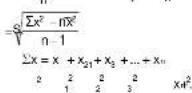
In the statistical calculation formulas, an error will occur when:
- The absolute value of the intermediate result or calculation result is equal to or greater than 1 × 10^100 .
- The denominator is zero.
- An attempt is made to take the square root of a negative number.
24. Errors
An error will occur if an operation exceeds the calculation ranges, or if the wrong mathematical syntax is attempted. In the case of an error, the display will show "E". An error can be cleared by pressing ON:C.
25. Battery Replacement
Notes on Battery Replacement
Improper handling of batteries can cause electrolyte leakage or explosion. Be sure to observe the following handling rules:
● Make sure the new batteries are the correct type.
- When installing, orientate the battery property as indicated in the calculator.
When to Replace the Battery
If the display becomes dim and has poor contrast, replace the battery.
Replacement Procedure
- Turn the power off by pressing OFF
- Remove two screws. (Fig.1)
- Lift the battery cover to remove.
- Remove the used battery then replace with one
fresh battery with the positive side (-) facing up. (Fig.2)
- Replace the battery cover and screws
- Press the RESET switch (on the front).
- Make sure that the display appears as shown below. If the display does not appear as shown, reinstall the batteries and check the display once again.


Automatic Power Off Function
This calculator will turn itself off to save battery power if no key is pressed for approximately 7 minutes.
C - Technical Specifications
Calculation Ranges
- Within the ranges specified, this calculator is accurate to z1 of the least significant digit of the mantissa. However, a calculation error increases in continuous calculations due to the accumulation of each calculation error. (This is the same for y ^A , y ^B , nL e ^C , In, etc., where continuous calculations are performed internally.) Additionally, a calculation error will accumulate and become larger in the vicinity of infection points and singular points of functions.
- Calculation ranges +10^25 +9.999999999 × 10^25 and 0. If the absolute value of an entry or a final or intermediate result of a calculation is less than 10^-25 , the value is considered to be 0 in calculations and in the display.
Range of Entry
| Function | Dynamic |
| sin x tan x | DEG: |x|≤4.499999999×10^9 (tan x: |x|+90(2n- 1))*RAD: |x|≤785396153.3 (tan x: |x|+π/2(2n- 1))*GRAD: |x|≤4.999999999×10^9 (tan x: x≠100(2n-1) |
| cos x | DEG: |x|≤4.500000008×10^9 RAD: |x|≤785396164.9 GRAD: |x|≤5.000000009×10^9 |
| sin' x, cos' x | |x|≤1 |
| tan 'x, √x | |x|<10100 |
| inx, logx | 0 |
| ex | -10100 |
| 10x | -10100 |
| sinhx, coshx | | x| ≤slant 230.2585092 |
| tanhx | | x| < 10100 |
| sinh' x | | x| < 5 × 1099 |
| cosh 'x | 1 ≤slant x < 5 × 1099 |
| tanh 'x | | x| < 1 |
| x2 | | x| < 1050 |
| 0 ≤slant x < 10100 | |
| 1/x | | x| < 10100(x + 0) |
| nl | 0 ≤slant n ≤slant 69^ * |
| →D.MS→DEG | | x| < 1 × 10100 |
| x,y→rθ | | x| ,y < 1050 × 2 - y < 10100 |
| r,θ→x,y | 0 ≤slant t < 10100 DEG: | | < 4.5 × 10¹⁰ RAD: | | ≤slant 785398163.3 GRAD: | | < 5 × 10¹⁰ |
| DRG* | DEG → RAD. GRAD → DEG: | x| < 10100 RAD → GRAD: | x| < 1098 |
| y^x | ·y>0: - 10^+10 < y ≤slant 230.2585092 ·y=0: 0 < x < 10^+10 ·y<0: x=n 0 < x < 1. 1x = 2n - 1,x 0): - 10^+10 < |y| ≤slant 230.2585092 |
| [x]y | ·y>0: - 10^+10 < 1x y ≤slant 230.2585092( x . 0)·y=0: 0 < x < 10^+10 ·y<0: x=2n-1 0 < x < 1. 1x = n,x 0 ). - 10^+10 < 1x |y| | 230.2585092. |
| (A+Bi)+(C+Di)(A+Bi)-(C+Di) | | A ± C| < 10^+100 | B ± D| < 10^+100 |
| (A+Bi)÷(C+Di) | AC1BD C2 + D2 < 10^+100 BC=AD<10 ^+100 C2 + D2 C^ + ± 0 |
| DEC: |x|≤9999999999BIN:1000000000≤x≤1111111111110≤x≤111111111OCT:4000000000≤x≤7777777777777777777777777777777777777777777777777777777777777777777777777777777777777777777777777777 | |
| →DEC | |
| →BIN | |
| →OCT | |
| →HEX | |
| 7HEX:FDABF41C01≤x≤FFFFFFFFF0≤x≤2540BE3F |
n: integer
Specifications
Display capacity: 10 digits in full floating or 8 digits mantissa with 2 digit and 2 exponent.
Power Supply: LR1130*1(1.5V)
Power Consumption: 0.00037W
Usable temperature: 0-40°C
Size: L144×W75×H10 mm
Weight : 71 g (hard cover not included)
Producer
Aurora Electronics (UK) LTD.
Unit 1 & 2 Shires Industrial Estate
Lichfield, Staffordshire, WS14 9AZ, U.K

- Aurora Operating Manual
- For use with AX-501
- Single line scientific calculator.
- Introduction:
- AURORA AX-501 calculator
- Removing and Replacing the Calculator's Cover
- Precautions
- Display
- Before Using the Calculator
- Key Notation Used in This Manual
- B - Operating Instructions
- Power On and Off
- Clearing Numbers
- Priority Levels in Calculation
- Parenthesis
- multiplication
- c) Closing Parenthesis
- Selecting the Display Notation and Decimal Places
- Angle Units : Degree, Radian and Gradient
- Addition, Multiplication, Subtraction and Division
- Constant Calculations
- Trigonometric Functions
- Logarithmic and Exponential Functions
- The functions Square, Root, Power and Reciprocal
- Hyperbolic/Inverse Hyperbolic Functions
- Percentage Calculation
- : Exchange Key
- Factorial
- Random Numbers
- Memory Calculations
- Chain Calculations
- Time, Decimal and Sexagesimal Calculations
- Coordinate Conversions
- Binary, Octal, Decimal and Hexadecimal Operations (N-Base)
- Complex Number Calculations
- Statistical Calculations
- a) Data entry and Correction
- b) Statistical Calculation Formulas
- Errors
- Battery Replacement
- Notes on Battery Replacement
- When to Replace the Battery
- Replacement Procedure
- Automatic Power Off Function
- C - Technical Specifications
- Calculation Ranges
- Specifications
- Producer
Brand : AURORA
Model : CK50
Category : Calculator