DT910P - Calculator AURORA - Free user manual and instructions
Find the device manual for free DT910P AURORA in PDF.


| Product Type | Calculator |
| Brand | Aurora |
| Model | DT910P |
| Color | Black |
| Display Type | LCD |
| Display Digits | 10 digits |
| Power Source | Solar and battery (LR44) |
| Battery Type | LR44 |
| Solar Panel | Yes |
| Number of Keys | 35 |
| Key Material | Plastic |
| Dimensions (W × D × H) | 150 × 100 × 20 mm |
| Weight | 150 g |
| Material | Plastic |
| Functions | Basic arithmetic, percentage, square root, memory (M+, M-, MR, MC) |
| Auto Power Off | Yes |
| Operating Temperature | 0 – 40 °C |
| Storage Temperature | -20 – 50 °C |
| Included Accessories | User manual (PDF) |
| Certifications | CE, RoHS |
| Warranty | 2 years |
| Maintenance | Wipe with a dry cloth |
| Reparability | Not user-repairable; contact authorized service |
Frequently Asked Questions - DT910P AURORA
User questions about DT910P AURORA
0 question about this device. Answer the ones you know or ask your own.
Ask a new question about this device
Download the instructions for your Calculator in PDF format for free! Find your manual DT910P - AURORA and take your electronic device back in hand. On this page are published all the documents necessary for the use of your device. DT910P by AURORA.
USER MANUAL DT910P AURORA
6. What does the ▷ do?
This is the backspace or delete key, pressing this deletes the last digit you entered.
7. How do I change the battery?
On the back of the calculator is a circular battery compartment, use a coin or screwdriver and carefully rotate the cover in an anti clockwise direction to unlock. Replace the battery - your calculator requires an LR1130. Replace the cover and carefully tighten.
IMPORTANT – when you change or remove the battery always perform a reset, see below.
8. My calculator is performing strangely and requires resetting.
Locate the reset button on the back of the calculator – there is a small hole in the case marked 'RESET'. Using a blunt but narrow object (the end of a paperclip or small screwdriver should do) gently depress the reset button. This should reset your calculator and will solve many potential problems.
9. My calculator has stopped working – what should I do?
Firstly you should try a Reset (see above), if you suspect the battery has failed then you should replace this (see above). If you believe your calculator is faulty and you purchased it less than 1 year ago then it is covered by a manufacturer's warranty. Please contact your supplier for details.
www.aurora-ltd.co.uk
Producer
Aurora Electronics (UK) LTD.
Unit 1 & 2 Shires Industrial Estate
Uchfield, Staffordshire, WS14 9AZ, U.K.
9219732
AURORA

DT910P
Thank you for purchasing your nezw Aurora DT910P calculator, please remove and recycle all packaging.
Instructions and FAQ's:
1. Turning your calculator on and off.
Your calculator is equipped with a patented 'direct number input' feature, which allows you to press 'any' key to turn your calculator on, should you press a number key, then this number will also register in the display. The calculator is equipped with an 'auto off' feature and will power down by itself after a period of inactivity.
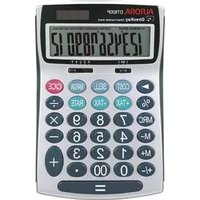
2. What are the COST, SELL and MARGIN keys for?
These buttons allow you to calculate 'gross profit margin' and your required cost or sell prices. There are 3 variables - Cost, Sell and Margin, if you input two of these variables the calculator will automatically solve the 3rd.
Example 1.
My cost is 30, I will sell for 60 – what gross profit margin am I making? [Input 3, 0, COST, 6, 0, SELL] – The answer will be displayed as 50%
Example 2.
My cost is 30, I want to make 50% gross profit – what should I sell it for? [Input 3, 0, COST, 5, 0, MARGIN] – The answer will be displayed as 60
Example 3.
I will sell for 60 and want to make 50% gross profit – what should my cost be? [Input 6, 0, SELL, 5, 0, MARGIN] – The answer will be displayed as 30
After you have solved any 3rd variable you can review all 3 variables by pressing the cost, sell and margin keys again.
3. What are the '+TAX' and '-TAX' keys for?
These buttons allow you to add or remove a user definable percentage at the touch of a button. A common use for these buttons is to add or remove sales tax.
Firstly you need to set the tax rate.
Example – Setting a tax rate of 20%
[Input 2,0, RATE, SET] – The SET key is on the same key as '+TAX'.
The tax rate is now set at 20% and will remain in the memory until you change it even when the calculator turns off. Now you have set your tax
rate you can simply add or remove tax easily by using the '+Tax' and '-Tax' Keys
Example1 – The price is 60 including 20% sales tax, what is the price exclusive of tax?
[Input 6, 0, -TAX] – The answer is displayed as 50.00
Example 2 – The price is 60 excluding 20% sales tax, what is the price including tax?
[Input 6, 0, +TAX] – The answer is displayed as 72.
You can also view the actual tax content and the total by pressing the same tax key again.
You can also review the currently programmed Tax rate by pressing 'RATE' and 'RECALL' (the recall key is on the same key as the '-TAX' key) the currently set tax rate will be displayed on the screen.
4. How do the memory keys work?
Your calculator has a memory and you can store a variable number, to store a number press the 'M+' key, you can store a simple number or an answer from a calculation. The memory also has a running total, so you can add and deduct numbers using the M+ and M- keys. To see the number stored in the memory or the running total press the MRC key once. To clear the memory and reset back to zero press the MRC key twice.
Example1 - Store the answers to the simple sums 2 + 2 and 3 + 3 in the memory and calculate the total.
[Input 2, +, 2, M+, 3, +, 3, M+] now press the MRC key once, the correct answer of 10 will be displayed. To clear and reset your memory press the MRC key a second time. Whenever a number is stored in the memory an 'M' will show on the display.
Example 2 – Use the memory to add these number together 5, -6, 8, 9, -4.
[Input 5, M+, -6, M+, 8, M+, 9, M+, -4, M+] – now press MRC and the correct answer 12 will be displayed. To clear and reset your memory press the MRC key a second time.
5. What does the C/CE key do?
CE means clear entry, pressing this will remove your last entry but not your whole sum.
C means cancel, pressing the key again will cancel your whole calculation.

- What does the ▷ do?
- How do I change the battery?
- My calculator is performing strangely and requires resetting.
- My calculator has stopped working – what should I do?
- AURORA
- Thank you for purchasing your nezw Aurora DT910P calculator, please remove and recycle all packaging.
- Instructions and FAQ's:
- Turning your calculator on and off.
- What are the COST, SELL and MARGIN keys for?
- Example 1.
- Example 2.
- Example 3.
- What are the '+TAX' and '-TAX' keys for?
- How do the memory keys work?
- What does the C/CE key do?
Brand : AURORA
Model : DT910P
Category : Calculator