
KSK270 - Keyboard Unitech - Free user manual and instructions
Find the device manual for free KSK270 Unitech in PDF.


| Product Type | Keyboard |
| Brand | Unitech |
| Model | KSK270 |
| Connection Type | Wired USB |
| Layout | Standard QWERTY (US) |
| Number of Keys | 104 keys including numeric keypad |
| Dimensions (W x D x H) | 450 x 160 x 25 mm |
| Weight | 0.6 kg |
| Cable Length | 1.8 m |
| Power Supply | Powered via USB (5V, 100mA) |
| Operating Systems Supported | Windows, macOS, Linux |
| Key Switch Type | Membrane |
| Key Life | 10 million keystrokes |
| Maintenance and Cleaning | Unplug before cleaning; use a soft, slightly damp cloth. Do not use solvents. |
| Safety | Do not spill liquids on the keyboard. Avoid exposure to extreme temperatures or humidity. |
| Spare Parts and Repairability | Not user-serviceable. Contact Unitech support for replacement. |
| General Information | Standard wired keyboard suitable for office and home use. Plug-and-play installation. |
Frequently Asked Questions - KSK270 Unitech
User questions about KSK270 Unitech
0 question about this device. Answer the ones you know or ask your own.
Ask a new question about this device
Download the instructions for your Keyboard in PDF format for free! Find your manual KSK270 - Unitech and take your electronic device back in hand. On this page are published all the documents necessary for the use of your device. KSK270 by Unitech.
USER MANUAL KSK270 Unitech
The keyboard is characterized by a compact 101/102 keys programmable keyboard which can be used for POS. Banking industrial Control data processing
The three powerful and easy to program the keyboard are the following.
Windows programming utility
Including the following features.
- Remap: All keys are remappable
- Macro key: 24 Macros are available with maximum 32 characters per Macro
- User definable Repeat rate & Validation time
- Save/Load keyboard setup tiles
- Download/Upload keyboard setup file to/from the programmable keyboard
DOS Downloads program
- The keyboard setup file created by Windows utility can be download by DOS utility
□ Loc I Programming(On site)
- Remap: All keys are remappable
- Macro key: 24 Macros are available with maximum 32 characters per Macro
- User definable Repeat rate
- Enable Macros
- Disable Macros
- Master Clear: Use this function will set the keyboard back to the default mode.
Program the Keyboard in Windows 3.x
You can program the keyboard in Windows 3.x. To install the utility, please complete the following steps;
- Execute Windows 3.x or later. Note: This program only allows to be installed in Windows 3.x or later, not Windows 95.
- Insert the Drivers/Utilities diskette in your floppy drive.
- Open the Program Manager Group in Windows.
- Open the File drop-down list box and select the Run"item.Now the dialogue box appears.
- Type A (where A=the designation for your floppy drive) in command line. Follow the instructions step by step on your screen.
- After you finish the programming on your keyboard, you can save the program to your hard disk. Thus, next time you want to program another new keyboard with the same definition, you just only use the DOS download program to directly download the program from your hard disk to your keyboard.
Master Clear All Definition You Programmed on the keyboard
To master clear your keyboard. Please follow the following steps;
- Turn your computer off.
- Press the
key and hold it for a while. - Turn on your computer. When the LED PROG flashes, release the
key.
English Version 1.00
Printed in china
04/01
Programmable Keyboard User's Guide
Remap
NOTE: ANY KEYS THAT HAVE BEEN REMAPPED WILL HAVE THEIR LEGENDS SHOWN IN RED!
Remapping allows you to create your own custom key layouts such as DVORAK. With this feature you can change the locations of the keys (key function) and/or create multiple positions for any keys. You can save multiple key layout files and download them at any time to the keyboard allowing you to have custom layouts for different applications.
TO RESTORE THE KEYBOARD TO THE STANDARD "QWERTY" LAYOUT MAKE A FILE WITH THE NAME [DEFAULT. KBD] THEN DOWNLOAD IT TO THE KEYBOARD. IF YOU SAVE IT AS A FILE IT WILL ALWAYS BE AVAILABLE FOR RESTORING THE KEYBOARD TO ITS STANDARD CONFIGURATION.
Remap Source Keys
Function
| F1 | ↑ |
| F2 | |
| F3 | |
| F4 | |
| F5 | |
| F6 | ↓ |
Alphanumeric
| Null | ↑ |
| A | |
| B | |
| C | |
| D | |
| E | ↓ |
Source Keys Editing
| Insert | ↑ |
| Delete | |
| Home | |
| End | |
| Page Up | |
| Page Down | ↓ |
Modifiers
| Left ShiftRight ShiftLeft CtrlRight CtrlLeft AltRight Alt | ↑ |
| ↓ |
To remap a key location, first select a key from these scroll windows.
When you have selected a key function, it will appear in the current selection box
Ins
Current Selection
Then, select any attributes □Shift □Control□Alt and/or × Repeat that you want to include with that remap.
Remember, when you assign an attribute to a key, that attribute will be transmitted to the computer every time you press that key.
Lastly, select the destination by clicking on any valid key location in the key layout above.
If a I of the remap data is correct, the way you want it, click the Accept button. if it is wrong, or you want to change something, click the Cancel button.
Repeat Rates
| 8.00 | ↓ |
| 10.00 | ↑ |
| 15.00 | |
| 20.00 | |
| 25.00 | |
| 30.00 | |
| 42.70 | |
| 63.00 | |
| 125.00 | ↓ |
To select the repeat rate for the entire keyboard scroll though the available repeat rates with your mouse click on the rate that you want. If this is the only change click on to save file for future use or click on to download your changes to the keyboard. This will make the change immediately available for use
Delay to Repeat
| 0.50 | ↓ |
| 0.00 | |
| 0.25 | |
| 0.50 | |
| 0.75 | |
| 1.00 | |
| 1.25 | |
| 1.85 |
To select the delay time before repeat for the entire keyboard scroll though the available delay rates
with your mouse click on the rate that want. If this is the only change click on, to save, a file
for future use or click on ↓ to download your changes to the keyboard. This will make the change immediately available for use.
REPEAT and DELAY BEFORE REPEAT
Repeat Rate Defines how fast the keys will repeat after the 1st key depression. Delay before repeat defines the time from the 1st key depression until the repeat begins. Repeat rates and delays can be slower or faster than the standard rates defined by IBM ^™ and repeat can be turned off completely.
Macro Definition To write a macro
Select a Modifier
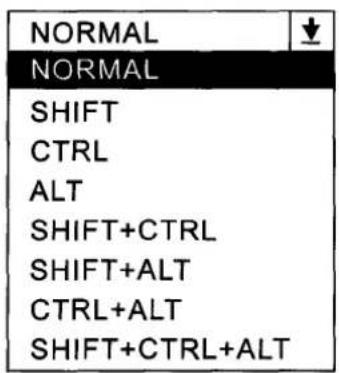
First, Select Modifier level from
Second, click on the key that you want the macro to be executed by. That key will appear in the Current Selection
↑
box
Third, click on EDIT the cursor will appear in the
Macro Definition
box
Type your macro definition by using the keyboard and clicking on keys in the keyboard layout.
To add a delay just click on the
Macro Definition
And finally if you want a description for the macro click in the box and type your description. This will be save in your file on disk for this session.
F1 Macro Example
F2 Macro Example
F3 Macro Example
You must save the macros in a file if you want a record of it. At any time you may download the macros that you have written in the current session by clicking on the Download button.
Macro Programming Syntax
if you type your macro instead of clicking on keys, you must use the codes listed here for the keys listed.
KEYBOARD MODIFIER KEYS or functions
| Left Shift | <LSHF> | Right Shift | <RSHF> |
| Left Control | <LCTL> | Right Control | <RCTL> |
| Left Alt | <LALT> | Right Alt | <RALT> |
KEYBOARD AUXILIARY KEYS or functions
| ExPn | |||||
| Caps Lock | Enter | Dely | |||
| Print Screen | Scroll Lock | Pause | |||
| Insert | Home | Page Up | |||
| Delete | End | Psge Down |
KEYBOARD CURSOR KEYS (arrows)
| ARROW Up | <UCUR> | ||
| ARROW Left | <LCUR> | ARROW Right | <RCUR> |
| ARROW Down | <DCUR> |
NUMERIC PAD
| Num Lock | PAD / | PAD * | PAD- | |||
| PAD 7 | PAD 8 | PAD 9 | PAD+ | |||
| PAD 4 | PAD 5 | PAD 6 | PAD= | |||
| PAD 1 | PAD 2 | PAD 3 | ||||
| PAD 0 | PAD DEL | Pad Enter |
KEYBOARD FUNCTION KEYS
| F1 | |
| F2 | |
| F3 | |
| F4 | |
| F5 | |
| F6 | |
| F7 | |
| F8 | |
| F9 | |
| F10 | |
| F11 | |
| F12 |
Limited Mobility Features
By using these features in combination you will be able to configure the keyboard and its operation to optimize the keyboard for your maximum use.
REPEAT DELAY BEFORE REPEAT and VALIDATION TIME (slow keys):
Repeat Rate defines how fast the keys will repeat after the 1st key depression. Delay before repeat defines the time from the 1st key depression until the repeat begins.
Validation time defines the length of time any key must be held down to be recognized as key press.
Repeat rates and delays can be slower or faster than the standard rates defined by IBM ^™ and repeat can be turned off completely.
Setting a validation time other that.008 seconds may cause it to appear that the keyboard is not functioning properly due to the length of time a key must be held down before the keyboard accepts it as a valid key closure.
TO Uninstall
After you have installed this program, certain changes have been made to your system. Files have been added to directories and lines have been inserted into the Win.ini and System.ini files
The following explains what has been done, and if you wish to completely remove this application from
Your system, simply run the uninstall program by double clicking on

WIN.INI
This line has been added to yourif ontsjs ection. Remove it or comment it out by putting a; as the first character in the line that it is on.
\The directory you have selected\IFKEY FONT=IFKey.FON
SYSTEM.INI
This line has been added to you i3 86 Enhjs ection.
Device=\The directory you have selected\IFVKD6.386

The uninstall program will not remove this entry. you must edit your system. File and remove this line, or put a ; as the first character in the line that it is on.
These files have been added to your chosen directory.
SOLID***.EXE
SOLID101.HLP
SOLID.ICO
SOLIDH.ICO
SOLYINFO.BMP
KEYDOWN.EXE
IFVKD6.386
IFKEY.FON
CTL3D.DLL
DDEML.DLL
IFVBDRV6.DLL
MHRUN300.DLL
VBRUN300.DLL
VER.DLL
CMDIALOG.VBX
MHGA200.VBX
THREED.VBX
Application
Help file
ICON for application
ICON for help file
Bit map
D.O.S.UTILITY
Keyboard driver
Font file for application
Repetitive Stress Injury

WARNING
Continuous use of a keyboard may cause Repetitive Stress Injuries or related injuries. If you feel any aching, numbing or tingling in your arms, wrists or hands, consult a qualified health professional.
TO REDUCE YOUR RISK OF REPETITIVE STRESS IN JURY:
• Take frequent breaks from typing
- Maintain a straight wrist position
• Avoid resting on your wrist while typing
• Use a light touch on keys
- Maintain good health habits
Some studies suggest that long periods of repetitive motion coupled with an improper work environment and incorrect work habits may be linked to certain types of physical discomfort or injury. These include Carpal Tunnel Syndrome (CTS), Tendinitis, and Tenosynovitis. To help avoid these conditions, follow the instructions above.
These instructions may not only help minimize your chances of experiencing one these conditions, but will also help you work more comfortably and effectively. Ensuring your chair, work surface, and keyboard are in the correct positions is important.
Dvorak layouts
Standard Layout
| ~ | 1 | 2 | 3 | 4 | 5 | 6 | 7 | 8 | 9 | 0 | [ | ] | ←BkSp |
| Tab | ; | <; | > | P | Y | F | G | C | R | L | ? | = | |
| Caps | A | O | E | U | I | D | H | T | N | S | = | ← | |
| △L | ; | Q | J | K | X | B | M | W | V | Z | △R | \ | |
Left Layout
| ~ | [ | ] | ? | P | F | M | L | J | 4 | 3 | 2 | 1 | ←BkSp |
| Tab | : | Q | B | Y | U | R | S | O | > | 6 | 5 | ± | |
| Caps | = | K | C | D | T | H | E | A | Z | 8 | 7 | ← | |
| 合L | ; | X | G | V | W | N | I | < | 0 | 9 | 合R | \ | |
Right Layout
| ~ | 1 | 2 | 3 | 4 | J | L | M | F | P | ? | [ | ] | ←BkSp |
| Tab | 5 | 6 | Q | ? | O | R | S | U | Y | B | ; | ± | |
| Caps | 7 | 8 | Z | A | E | H | T | D | C | K | = | ← | |
| △L | 9 | 0 | X | < | I | N | W | V | G | " | △R | \ | |
Using Nums lock and Scroll lock in macros
When you construct a macro that depends upon the ON state of the Nums or Scroll lock, you must press the Nums or Scroll lock key in the keyboard display prior to the point in the macro that you want these states to be on. Conversely, if you have turned these levels on in your macro you have to turn them off if you want them off.
This macro will use the
This example will turn the nums lock on, place a 7 pad character when the macro executes.

When ever a macro is executed, the keyboard saves the current status of the nums lock and scroll lock prior to the macro execution, then acts upon the information in the macro and when the macro finishes, restores the status of the nums lock and scroll lock.
This macro uses the
When this macro executes and the

If you didn't insert the first
ACTIVATE Macro Mode
Local mode programming and setting keyboard to MACRO mode.
- Press and release the RIGHT CONTROL key (4) times. This sets the keyboard to the local mode programming
M. Press the M key for macro programming (Macro LED will flash fast) Waiting for the macro key to be programmed. When the key has been selected the Macro LED will flash slowly, indicating the key has been selected and the macro statement can be entered.
Press the Right Control key ONE time to finish the macro programming. To program another macro, follow the same steps for each macro to be programmed.
If you decide not to program a macro, press any key then the Right Control key ONE time.
R. Press the R key for remapping (Macro LED will flash fast)
Waiting for the first key (from) in the move sequence. Once the from key has been selected, the (Macro LED will flash slowly) waiting for the second key (to) to be pressed.
Repeat the from-to sequence for each key to each key to be remapped.
Press the RIGHT CONTROL KEY (4) times and then the R key to exit remap mode.
E. Press the E key to enable the MACRO MODE. (Macro LED will be ON)
D. Press the D key to disable the MACRO MCDE. (Macro LED will be OFF)
T. Press the for repeat rate programming. (Maceo LED will flash fast)
Press one of the function keys F1-F12 this will set the repeat rate and exit the program mode. (Macro LED will be OFF)
REPEAT RATE TABLE:
| F1 | 0.54 CPS | F2 | 0.84 CPS | F3 | 1.00 CPS | F4 | 4.00 CPS |
| F5 | 10.00 CPS | F6 | 20.00 CPS | F7 | 25.00 CPS | F8 | 30.00 CPS |
| F9 | 42.70 CPS | F10 | 63.00 CPS | F11 | 125.00 CPS | F12 | 300.00 CPS |

- Pressing any key other than M R E D T after the right control key has been pressed four times, will cause the keyboard to exit back to normal operation and the Macro LED will turn off.
- If you have remapped any of the function keys F1-F12 setting the repeat rate will not operate correctly for the function key that has been remapped.
- DO NOT program any of these functions while the macro mode is enabled.
Systems
DIFFERENT WAYS TO DESIGN YOUR KEYBOARD APPLICATION
Due to the fact that there are many different hardware systems that are available. Your Windows 3.x keyboard application may not function properly when uploading or downloading to the keyboard.
There are some systems that will not allow the keyboard application to disable the PS/2 mouse when there isn't one attached. That why there are two versions of the application. The PS/2 mouse version and the Serial version.
If you are not sure which version of the mouse that your system uses, you may try both applications. If the PS/2 version conflicts with your system mouse, use the serial version.
If your system does not respond properly when the application tries to upload, a message will appear and tell you that.
If that happens, just continue with the application and design your keyboard program. When you are finished, SAVE IT IN FILE. Exit the application. EXIT Windows (do not shell out to D.O.S.) and then change to the directory that was your install directory for the application.
Then, on the command prompt line in the D.O.S. Mode
type KEYDOWN yourprog.kbd
The D.O.S. utility will then download your keyboard program data to the keyboard.
That information will then be available.
- Program the Keyboard in Windows 3.x
- Master Clear All Definition You Programmed on the keyboard
- Programmable Keyboard User's Guide
- Remap
- Remap Source Keys
- REPEAT and DELAY BEFORE REPEAT
- Limited Mobility Features
- TO Uninstall
- WARNING
- Dvorak layouts
- ACTIVATE Macro Mode
- Systems
- DIFFERENT WAYS TO DESIGN YOUR KEYBOARD APPLICATION
Brand : Unitech
Model : KSK270
Category : Keyboard