
PDH7 - Portable DVD Player Pyle - Free user manual and instructions
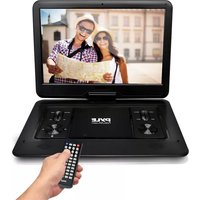
Find the device manual for free PDH7 Pyle in PDF.


| Product Type | Portable DVD Player |
| Brand | Pyle |
| Model | PDH7 |
| Display Size | 7 inches |
| Dimensions (W x D x H) | Approximately 8.5 x 6.5 x 1.5 inches |
| Weight | Approximately 1.5 lbs |
| Power Source | AC adapter (100-240V) or rechargeable battery |
| Battery Life | Up to 3 hours |
| Disc Formats Supported | DVD, DVD±R/RW, CD, CD-R/RW |
| Video Outputs | Composite AV out |
| Audio Outputs | Headphone jack, built-in speakers |
| Other Inputs/Outputs | USB port, SD card slot |
| Key Features | Swivel screen, anti-skip protection, parental lock |
| Care Instructions | Clean with a soft, dry cloth. Avoid liquids. Store in a dry place. |
| Safety Precautions | Do not disassemble. Keep away from moisture and heat sources. |
| Replacement Parts Availability | Replacement AC adapter and battery available from Pyle |
| Repairability | Limited; refer to authorized service center |
| General Information | Comes with remote control, AV cable, and user manual |
Frequently Asked Questions - PDH7 Pyle
User questions about PDH7 Pyle
0 question about this device. Answer the ones you know or ask your own.
Ask a new question about this device
Download the instructions for your Portable DVD Player in PDF format for free! Find your manual PDH7 - Pyle and take your electronic device back in hand. On this page are published all the documents necessary for the use of your device. PDH7 by Pyle.
USER MANUAL PDH7 Pyle
Swivel screen and rechargeable battery
USER'S MANUAL

natural_image
Close-up of a silver CD or DVD disc with reflective surface (no text or symbols visible)PYLE®
www.PyleAudio.com


Please read this User's Manual carefully before use
Contents
Contents - 1
Notice....-2-
Notice and Safety Information ....- 2 -
Function Introduction ....- 5 -
Disc Type & Notice - 6 -
Keys Function and Panel Instruction - 7 -
Remote Control Function and Instructions - 10 -
Basic Function Operation ....- 13 -
System Setup - 14 -
Disc Play....- 17 -
CD Transcription and Multi Media Function....- 20 -
Receiving TV/FM Programs....- 21 -
AV OUT (Signal to TV)....- 21 -
Troubleshooting - 22 -
DVD Parameter - 23 -
Accessories - 24 -
Note: TV/FM/Game functions are optional
Notice
Thank you for your purchase of this DVD player. Please read this manual carefully and keep it properly for future reference. Notice:
Note: When open, refit or demount the machine, our company cannot supply after-sales service.
Notice and Safety Information
1. User notice
After buying the DVD, please read the operations and other instruction of user manual carefully, the incorrect use will cause the damage of health and loose of wealth.
2. Disc
It cannot use the broken, distortion shape or mended disc, which will cause damage and inefficiently read.
3. Inspection
Check the crust and power adapter(especially the parts of the existence of damage.


mark part of internal there danger of voltage, current and enough.
4. Repair
In order to avoid the electric shock, please use wide blade plug to match with wide groove connector and make sure the secure connection. So all repair issue, please contact technical service center. Without technical service allowed, don't repair the DVD and spare parts.
| Attention: Don't open the cover, in order to avoid the conflagration or electric shock. Please make sure to consign qualified repair personnel for repair. | |
 | Risk or electric shock |
 | Operations and other notices after purchasing this player |
 | Lower laser light; no baneful radiation outside of machine |
5. Earphone
Adjust the volume in the middle during use of the earphone. . It may damage ear when listening to high volume music for a long time.
6. Humidity
In avoid of electric shock and fire accident, please don't out the DVD in the rain or humidity environment. Do not open the cabinet so as to avoid the direct radiation of the laser. When repair the DVD must consigned the technical service people. When using the DVD, should avoid of the water, such as bathtub, bathroom, basin, kitchen room, sink and washroom. And also should be avoid of humidity environment, such as basement, swimming pool. when the hand is not dry, do not touch charge, or will be electronic shock.
7. far away liquid
Please sure DVD and spare parts far away from liquid, don't put it in such environment, such as vase beside. When the inside of DVD has liquid, will cause electronic shock.
8. Far away of heat
DVD must far away from heat, such as warm-air blower, induction cooker and so on.
9. Avoid of thunder
Do not use DVD in the thunder and lightning conditions.
10. Environment and ventilate
DVD and spare parts should be on ventilate environment. Will run DVD and other parts of put on bed, sofa, or other soft surface may be wall of ventilation, causing DVD and other parts components is too hoot, even cause fire accident.
11. LCD Screen
Do not drop, impact, scratch LCD screen, or do not put too heavy goods on the DVD. Note: avoid of the liquid of LCD screen touch body directly, when it was broken, the liquid has touched the skin, please wash your skin by mass water at least 15 minutes
12. Laser
Attention: This DVD player is equipped with the laser system. Please make sure to get the familiar with the instructions of this manual to help you master how to use this player property. In case of requiring repair, please contract the distributor or our technical service center. Do not open the interlock mechanism. If need repair please contact the
distributor or our technical service center. Do not stare at the laser beam in case of any visible laser radiation damage the eyes.
13. Charger
Use the power wire, charge and battery in the accessory box, do not use other model of parts. Make sure the charge plug suit for the proper AC. Avoid of electric shock, please use the wide plug suit for socket, and connect tightly.
Unsuitable power source may do damage the DVD, even cause fire accident and electric shock.
Do not use the power socket, power line, power adaptor and battery module which may had already damaged and aged.
Do not use the same power source with high power motor electrical over the limited power motor of the wiring board. When the DVD have unusual sound and smell such as splintering and poop, please witch off the power line as soon as possible.
Note;
Please do not bind the power line is too high will arouse the unstable of the voltage and damage to the DVD, data, and also the equipment which is circumscribed, even result in the fire hazard.
Dangerous:
14. Battery and charging
1) Charging process
Before shipping, all batteries have not enough power.
Please put the DVD connect DC charge, the DVD will charge by itself. (the red light mean charge not enough, when full charge the light will be green, then u can play the DVD when you on trip.
Note: you can play the DVD when the DVD is charging, more convenient.
2) replace and deal with battery
If you replace the battery, must be same standard original battery, or there will be explosion dangerous.
Do not put the battery team in hit environment
There are some harmful substance inside battery team.
In order to avoid of the damage to body healthy and environment, please note as below:
1) In order to protect the quality of the DVD, if charging short time, the light turn to green, it means the battery need to replace, please replace the battery by service centre.
2) the battery will destroy the environment, please deal with these battenes by a legislative decree.
Note:
The built-in high capacity rechargeable batteries, no permission to install or remove battery must be replaced by professionals.
1) Do not put the battery into fire, in avoid of explosion
2) when it is charging or playing, do not install the battery.
3) Do not put the battery + - a direct connection, it will cause damage to the battery 4) Do not put the battery into water or other liquids, it will cause damage to the battery.
5) Do not appear or battery violence and other team on the impact.
6) Do not open the battery and change the structure.
7) If you want to have a long rest or sleep, please take the power off to prevent a rechargeable cell or damage caused by an unexpected accident.
8) when play the DVD, please put the volume in the middle (low volume can save more battery), you can use more longer time, convenient for your trip.
9) Before the first charge please use all stock power.
10) Use in temperature -5°C—40°C
Function Introduction
- High resolution color TFT LCD full screen display
- Super electronic shock resistance(3 seconds for DVD, 10 seconds for CD/VCD and 90 seconds for MP3)
- Compatible with most DVD, SVCD, VCD, CD, Mp3, MP4, DIVX discs etc
- TV receiving function (PAL/NTSC/SECAM system) (Optional)
- Built-In super power polymer lithium battery for up to 2 hours continue playing
- Built-in DOLBY decoder supporting MEPG-4 video decoding
- Support USB, SD/MMC
- Support full functions control remote, easily to operate
- Support game function (Optional)
- Support MP4、MP3、WMA、MPG、AVI、VOB、DIVX、JPEG formats.
- Switch regulated power supply adapter AC100-240V
- Personalize adjustment of TFT display
-
Fine ultra-thin design, suit for your better life
-
Support RM/RMVB formats (Optional)
-
FM Radio function and TXT Reader function are optional
Disc Type & Notice
Disc Introduction
| Disc Type | Disc Marks | Record contents | Disc size | Playing time |
| DVD | DVD | Audio/Video | 12CM | About 2 hours (SS-SL; Single-sided single-layer disc) |
| About 4 hours (DS-SL; Double-sided single-layer disc) | ||||
| 8CM | About 80 minutes (SS-SL; Double-sided single-layer disc) | |||
| About 160 minutes (DS-SL; Double-sided double-layer disc) | ||||
| Super VCD | Super VCD | Audio/Video | 12CM | About 74 minutes |
| VCD | VCD1.0/2.0 | Audio | 8CM | About 20 minutes |
| CD | CD | Audio | 12CM | About 74 minutes |
| 8CM | About 20 minutes | |||
| MP3 | Audio | 12CM | About 600 minutes |
Note: some DVD, VCD, super VCD disc playing time could be special provisions by software makers, and when this case shows broadcast is slightly different with form.
Special Prompt
Don't have PBC function VCD disks (1.1 version), can enjoy music, also can admire the image
Have PBC function VCD2.0 edition, super VCD, VCD3.0 edition CD
In addition to VCD1.1 version disc image play function, still can use the TV screen menu play Interactive software (PBC play), and, if the disc contains a static image, still can high-definition playback.
Use disc
Please hold with disc edge, don't touch surface, lest injure disc surface digital signals Please do not put tape or sticker on disk
Do not let the disc exposed to direct sunlight or near the heat source
After play disc, please keep disc
Clean disc
Before play disc, please use clean flannelette clean DVD and from central outwards to wipe CDS
Do not use volatile gasoline, the functionalities of cleansing liquid or plastic disc with electrostatic spray etc solution
Keys Function and Panel Instruction
Note: different model of buttons panels different, not necessarily all the functions that contains the following keys.
Keys function instruction
| 1 | LCD MENU | Short press the "menu" button pop-up image parameters function. |
| 2 | CH+ | Short time press "channel +" can realize channel add function, some models in the "Settings" composite state of the function of upward menu, or simultaneously composite realize choice one song functions. |
| 3 | CH- | Short time press "channel -" can realize channel minus function, some models in composite " set "menu state the function, or simultaneously downward compound realize one song selection function. |
| 4 | VOL- | Short time press "volume -" can realize the volume decreases function. Some models in the LCD screen of composite function of state of the menu to the left, or simultaneously composite realize choose retreat quickly function. |
| 5 | VOL+ | Short time press "volume +" can realize the volume increase function. Some models in the LCD screen menu compound to the right of the state, or simultaneously composite function realization choice quickly into function. |
| 6 | SETUP | Short time press the "set" pop-up menu:; System Settings/language setting/audio Settings/video setting/speaker setting/ Dolby digital set; Again according to the direction key realization through short out each function. |
| 7 | MODE | Short time press "mode" button can be pop-up mode menu DVD/TV/video input function screen. |
| 8 | In DVD playback, can retreat quickly, in order to search for specific target broadcast; Some models and compound the "Settings" menu under the function of state to the left. | |
| 9 | In DVD playback, can quickly into play to search for specific objectives; Some models and compound the "Settings" menu under the state to the right function. | |
| 10 | In DVD playback, can press on a paragraph or last program, to search for specific objectives; Some models and compound the "menu" under the function of state upward | |
| 11 | In DVD playback, can press a paragraph or the next program, to search for specific objectives; Some models and compound the "Settings" menu under the state to the right function. | |
| 12 | Short time press "play/pause" can play/pause functions switch; Press this button can confirm select menu content or start playing disc; Meanwhile compound In "Settings" menu state the function. OK confirm | |
| 13 | COPY | Use machine read CD content, and put USB disk into USB jack. Press copy button, operation according to display, put the disc contents copies to USB disk. |
| 14 | POWER | Short time press "POWER" backlight function can realize shut out. |
| 15 | USB/SD | DVD playback condition for disc playback/USB/SD switch button. |
| 16 | R/L | Short time press "track" can undertake: left single voice/right single voice/stereo/mixed track function switching. |
| 17 | STOP | Short time press "stop" can realize in play when stop function. |
| 18 | MENU/PBC | Short time press "PBC/menu" can realize DVD - title/VCD - menu functions switching |
| 19 | OPEN | Clicked CD door switch, open CD door put CD. |
Interfaces with lights:
| 1 | GAME | Game handle socket. |
| 2 | ANT | Match machine antenna or cable TV signal input. |
| 3 | DC-IN | Power input seats. Note: when not in use, please draw power DC adapter, and will power adapter plucked from the socket. |
| 4 | ON/OFF | The power switch. Note: when not in use, please dial shut OFF to'. |
| 5 | AV IN | External video signal input |
| 6 | AV OUT | This machine video signal output |
| 7 | Ω EARPHONE | Headset input or output/external earphone |
| 8 | SD/MMC | SD/MMC Card socket |
| 9 | USB socket | USB Equipment socket |
| 10 | GAME | Game handle socket. Note: the game handle quantity and interface position according to specific models and decide. |
| 11 | Rechargeable lights | Because of different model; Charging instructions have the following kinds, light color differ.A) Charging, red light; full of charging green light.B) Charging, lamp shining; and full of charging, long bright.C) Charging, the lamp bright, full of charging, lamp power off |
| 12 | Remote control receiving window | Receive a remote control signals. |
| 13 | on indicator | Turn on the power, turn indicator light yellow lights, red light off. Different model the light of color differs somewhat. |
Remote Control Function and Instructions

flowchart
graph TD
    A["POWER"] --> B["VOL+"]
    B --> C["LCD MENU"]
    C --> D["MODE"]
    E["PROG/SEARCH"] --> F["VOL-"]
    F --> G["MUTE"]
    G --> H["REPEAT"]
    I["1"] --> J["2"]
    K["4"] --> L["5"]
    M["7"] --> N["8"]
    O["10+"] --> P["0"]
    Q["ZOOM"] --> R["ENTER"]
    S["AUDIO"] --> T["GOTO"]
    U["CH+ SD/USB"] --> V["◀"]
    W["CH-COPY"] --> X["◀"]
    Y["TITLE"] --> Z["A-B"]
    AA["SUB"] --> AB["SUB"]
    AC["OSD"] --> AD["OSD"]
    AE["PBC"] --> AF["SLOW"]
    AG["RETURN"] --> AH["RETURN"]
    AI["SETUP"] --> AJ["SETUP"]
    AK["■"] --> AL["■"]
    AM["▶"] --> AN["▶"]
    AO["▶"] --> AP["▶"]
    AQ["▶"] --> AR["▶"]
    AS["▶"] --> AT["▶"]
    AU["▶"] --> AV["▶"]
    AW["▶"] --> AX["▶"]
    AY["1"] --> AZ["25"]
    BA["25"] --> BB["9"]
    BC["26"] --> BD["24"]
    BE["34"] --> BF["5"]
    BG["5"] --> BH["6"]
    BI["6"] --> BJ["7"]
    BK["7"] --> BL["8"]
    BM["21"] --> BN["10"]
    BO["10"] --> BP["22"]
    BQ["24"] --> BR["25"]
    BS["25"] --> BT["11"]
    BU["26"] --> BV["27"]
| 1 | POWER | Press this button to play machine or shutdown. |
| 2 | MENU | In the video, DVD playback showed programs menu. |
| 3 | LCD MENU | Press this button can appear LCD Settings menu, short time press the "menu" button pop-up image parameters function. |
| 4 | MODE | On DVD mode ordinal click this button will switch to TV state - AV input - turn back DVD playback modes picture. |
| 5 | ▲ | In "Settings" menu state the function of upward. |
| 6 | ◀ | In "Settings" menu state the function of left. |
| 7 | ENTER | In "Settings" menu operation of selected function when OK confirm. |
| 8 | ▶ | In "Settings" menu state to the right of the function. |
| 9 | PROG/SEARCH | Channel surfing shortcut, channel surfing navigation way with quickly enter channel surfing state. |
| 10 | ▼ | In "Settings" menu state the function of down. |
| 11 | MUTE | Open/close the trumpet sound output cabin machine, note: AV output don't mute. |
| 12 | RETURN | Exits current operation, return to the front level operation. |
| 13 | ■ | Press this button to play and stop playback on time. |
| 14 | ▶| | Press this button to enter play state, then press this button to suspend play. |
| 15 | REPEAT | In DVD playback, repeat play button, aired favorite programs. |
| 16 | ▶▶ | In DVD playback, backward quickly, looking for specific objectives broadcast. |
| 17 | ◀◀ | In DVD playback, but fast forward, looking for specific objectives broadcast |
| 18 | |◀◀ | In DVD playback, can press on a paragraph or last program, to search for specific goals. |
| 19 | ▶▶! | In DVD playback, can press a paragraph or the next program, to search for specific goals. |
| 20 | SUBTITLE | Short time press "subtitle" again through short time press the direction key choose play contains many kinds of language subtitles. |
| 21 | AUDIO | The left/right/stereo track switching. |
| 22 | CH+SD/USB | TV condition with "for" channel can be realized with feature. Channel Meanwhile compound the DVD player condition for disc playback/USB/SD switch button. |
| 23 | CH-COPY | TV condition for "channel decreased" can realize channel add function. Meanwhile composite DVD playback condition, can be conducted for COPY button discs/USB/SD COPY button |
| 24 | Number keys | Watching TV program or DVD playback video/audio CD /, can choose the place be fond of audio/video files show/playback. |
| 25 | VOL+ | Press this button for the system sounds add features. |
| 26 | VOL- | Press this button for the system sounds reduced function. |
| 27 | TITLE | On DVD next play DVD and state title key can show all program title |
| 28 | A-B | On DVD next play video, according to state A - B key can cycle for A picture. |
| 29 | OSD | On DVD condition video/audio CD/broadcast, character display key can display disc information. |
| 30 | SLOW | On DVD next play CD/video state key can slow play sometime screen display slow play |
| 31 | PBC | On DVD conditions play super VCD disc, can enjoy the simple PBC interactive function. |
| 32 | SETUP | Short time press the "set" pop-up menu, then according to the direction key realization by short, each function switching. |
| 33 | GOTO | On DVD condition video/audio CD/broadcast GOTO keys, realize, according to time repertoire, search broadcast. |
| 34 | ZOOM | On DVD next play CD/video state, by complex modulation ZOOM keys but larger or smaller screen |
Fix the batteries:
- Flip the remote control to the back, take down the lid;
- The battery warehouse polarity direction, put into two 7 battery;
- According to remove the lid of a reverse direction, mount the lid.
Note:
- Remote control do not use rechargeable batteries.
- Do not mix use different brand, type of battery, don't put the old and new batteries together to use.
- When the remote control function is not strong or control range be small please replace new battery.
- Long-term no use remote control, please put the remote control not battery inside, least
battery liquid leakage, corrosion, causing damage to the remote control.
-
Don't put the remote control in extremely hot or moist place.
-
Don't disassemble remote control,
-
Don't let light point-blank remote or panel infrared sensor, so as not to interfere with remote signal.
-
Within 5 meters away from the machine In 30° Angle and used only within the scope of the remote control best effect
Basic Function Operation
1. Operation
1) Connect the machine to electric with power supply(100-240V). Red light shows power on and charging.
2) Switch the ON button on the machine for screen display. Leaving the power switch OFF and unplug the adapter if not in using
3) Links with the TV set, please change the TV model into AV state
2. TFT picture adjustment
Press LCD MENU enter into LCD setup menu for adjustment.
3. Place disc
1) Press OPEN to open the disc cover
2) Hold the edge of the disc and buckle it slightly on the pivot.
4. Play /Pause
1) This player will automatically play once the disc is loaded.
2) Press ▶ I key, to pause
3) Press ▶ | key once more to resume play.
5. Character display
Press OSD to show disc information and operation function and press OSD once again to turn off the display.
6. DVD disc menu play
Some DVD discs are recorded with title menu or chapter menu.
When MENU key on the remote controller is pressed, the screen will display the menu at
your choice. Press direction keys to adjust and press ENTER to confirm and press number keys to select. Press MENU key again to return root menu. Press TITLE key once again to return title menu.
7. PBC play
It can enjoy PBC interactive function during play for the super VCD and VCD 2.0 discs with PBC function.
8. Select chapter play direct by Number key
Press number keys to directly select the chapter to play once the player finished the disc reading
1) Press number keys 1-9 for the chapters with the number less than 10
2) For the chapters with the number above 10, press 10+ key(it switches to 20+, 30+...when pressed in succession), before pressing number key 0-9
9. Game function
1) Connect the joystick with the machine and place the game disc to the player for play. Then close the cover, the player can play soon.
2) Use the remote control for menu page change. Choose the game serial number by press 1-10+
3) Use the joystick to play games. Press RETURN key in the remote control or press MODE START at the same time to back game menu.
10. Play the program of USB/SD/MMC memory card
Switch the model to DVD state, cove the open door, press SD/USB key to play the programs of memory card.
System Setup
1. TV Display Setup
Press LCD MENU for brightness, contrast ratio, hue and saturation change.
2. DVD Menu Setup
1) General Setup Page
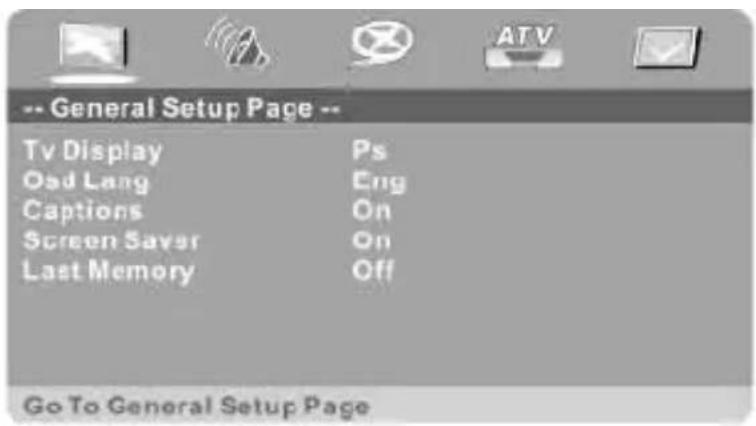
a. TV Display: Normal / PS. Normal / LB. Wide Screen.
b. OSD Language : English, French, German, Spanish, Italian, Portuguese, Russian.
c. Closed Caption: ON / OFF.
d. Screen Saver: : ON / OFF.
e. Set Last Memory State:; When the electricity cut off suddenly, the system can resume from last time play after getting electricity through again. ON / OFF.
2) Audio Setup Page: Speaker Setup and Sound Setup

a. DOWNMIX Mode: Lt / Rt. , Stereo, Virtual Surround.
b. Equalizer Setup Page: Rock, Popular, Live, Dance, Electronic, Classic, Soft.
3) Video Setup Page( adjust the LCD pictures quality) : sharp, brightness, contrast ratio, hue and saturation

4) Analogue TV setup

a. Auto Search: Search TV programs automatically.
b. Manual search: Manual search TV programs.
c. Fine tune: adjust TV signal.
d. Sound System: PAL_BG、PAL_DK、PAL_I、PAL_I、NTSC_M、SECAM_BG、SECAM_DK、PAL_M、PAL_N.
5) Preference Page:
a. TV type: Its very important to select the correct TV type. If the selection is wrong, there

will be no picture on the screen.
b. Audio Language: Choose the language when play Multilanguage disc English, French, Spanish, Chinese, Japan, Korean, Russian, Thai etc.
c. Subtitle Language: Choose the language when play Multilanguage disc English, French, Spanish, Chinese, Japan, Korean, Russian, Thai etc.
d. Menu Language: Choose the language when play Multilanguage disc English, French, Spanish, Chinese, Japan, Korean, Russian, Thai etc.
e. Age limit
1 Childhood
2 G
3 Pg
4 Pg 13
5 Pg-R
6 R
7 NC 17
8 Adult
f. Password: work with classification disc.
g. Default Value: Factory Reset.
Disc Play
1. Audio Track Selection
1) You may select the required language when playing DVD or super VCD discs with multi languages
During the play of DVD and super VCD, press AUDIO to choose the language(depends on the discs)
2) You may select mono L, mono R or stereo for the CD or VCD with multi audio tracks.
For instance, for the VCD discs with mono L is music and mono R for songs, you may select mono L to listen the music
3) During the play of VCD discs, press AUDIO to select audio track
2. Fast play
During the play of discs, it may work fast forward or rewind to search specific target.
1) Press ◀◀ enter into fast forward status. Every press of ◀◀ will adjust the forward speed.
$$ F F X 2 \rightarrow F F X 4 \rightarrow F F X 8 \rightarrow F F X 1 6 \rightarrow F F X 3 2 \rightarrow P l a y $$
Press ▶ || for normal play
2) Press ▶▶ enters into fast rewind status. Every press of ▶▶ will adjust the rewind speed.
$$ F R X 2 \rightarrow F R X 4 \rightarrow F R X 8 \rightarrow F R X 1 6 \rightarrow F R X 3 2 \rightarrow P l a y $$
Press ▶ || for normal play
3. Slow Play
You can enjoy slow motion video according to the following steps.
1) Press SLOW enter into slow display status. Every press of this key will adjust the slow speed
$$ \mathrm{SFX2} \rightarrow \mathrm{SFX4} \rightarrow \mathrm{SFX8} \rightarrow \mathrm{SFX16} \rightarrow \text { P l a y } $$
Press▶ || for normal display
4. Repeat Play
It can select title repeat and chapter repeat during the play of DVD discs.
1) Chapter repeal
Press REPEAT till the screen displays "REPEAT CHAPTER"
2) Title Repeat
Press REPEAT till the screen display REPEAT TITLE
3) Cancel Repeat
Press REPEAT till the screen display REPEAT OFF
It can select single repeat and disc repeat during the play of super VCD, VCD and CD
1) Repeal One
Press REPEAT till the screen display "REPEAT ONE",
2) Disc Repeat
Press REAPEAT till the screen display "DISC REPEAT"
3) Cancel Repeat
Press REPEAT TILL the screen display disappears
Note: SVCD, VCD2. 0, VCD3. 0 discs can only work only under the PBC is off. VCD1. 1, CD discs can be operated directly
5. Turnoff PBC function
Press PBC and the screen show" PBC OFF".
Press once again and the PBC is turned on
6. Certain Portion Repeat
During the display of disc, you may press "A-B" key to enjoy your prefer portion repeatedly
1) Press "A-B" at the beginning point of the contents to be repeated and the screen will display "Repeat A-" to set the start point A.
2) Press "A-B" at the end point of the contents to be repeated and the screen will display "Repeat A-B" to set the end point B
3) Press "A-B" once again and the on screen display will disappear, then the repeat play will be cancelled.
7. Subtitle Selection (Only effective to DVD and SVCD)
You may select one subtitle display for the DVD and VCD with multi language
1) Press SUBTITLE to select one subtitle display
2) Cancel subtitle display: press SUBTITLE till the screen display OFF
Note: Subtitle cancel function depend on the discs. If the subtitle on the discs is non-selectable, then its void to press SUBTITLE
8. Chapter search, Time search
Press GOTO during disc play and press direction keys to select among the following options:
1) Title: to display current true. It can input the title number to be played
2) Chapter: To display current playing chapter. It can input the chapter number to be played
3) Time: To display the current playing time. It can input the time to be played After choosing, press ENTER and quit the menu
9. Zoom Function(Only effective to DVD, SVCD, VCD)
To zoom in or zoom out the certain motion pictures or still image
1) During disc play, press ZOOM to zoom into 2x
2) Press ZOOM in turn to zoom into 3x. 4x and zoom out 1/2x. 1/3x and 1/4x.
3) When resuming to original Image, press ZOOM till the character disappear
10. MP3 Disc Play
MP3 adopt the third layer audio compression format of MPEG international standard, compress the acoustical signal with ratio 12: 1. A MP3 disc can record music around 600 minuets, i.e 170 songs with the high quality sound as the same as CD.
MP3 Disc Play
1) Place the disc, then the screen will display disc menu and the machine automatically play
2) Directory selection: Press ◀to move the cursor to the directory area(the left side of the screen). Press ▲or ▼ to select one folder and press ENTER to confirm
3) Chapter Selection: Press◀ to move the cursor to chapter area(the right side of the screen). Press ▲ or ▼ to select one folder and press ENTER to play
4) Choose the chapter with remote control: Songs quantity under 10, you can choose directly with the NO on remote control.
11. MP4 Disc Play
1) Place the disc. The player will automatically play.
2) Press ENTER to choose the chapter.
12. Support JPG and TXT format (Some model support TXT)
CD Transcription and Multi Media Function
This function fits for MP3 and CD disc
1. Copy from MP3 disc
When it is playing MP3 discs, insert USB devices, press COPY button. the screen will show pictures as below.
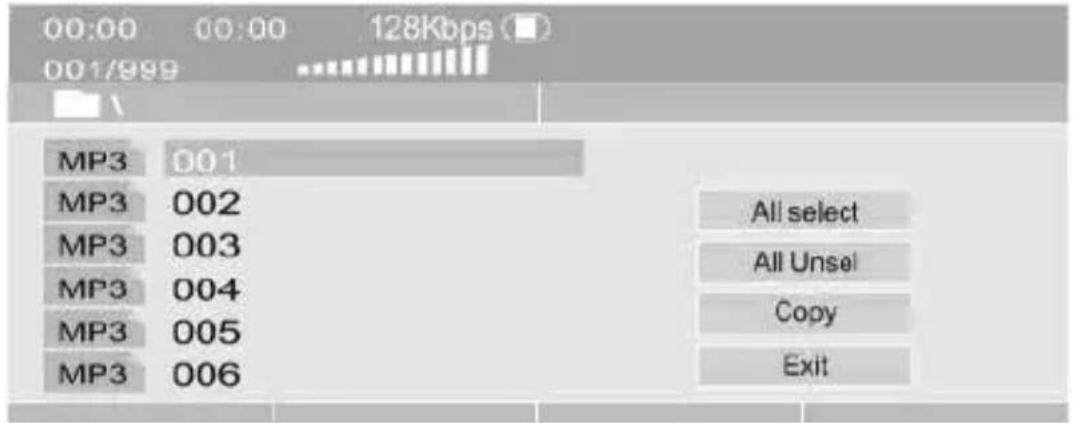
Press ENTER to select songs, then move cursor to "COPY" item, press ENTER to start. If need to copy all files in the MP3 disc, please move cursor to "All select" item, press ENTER
2. Copy from CD disc
When it is playing CD discs, insert USB device, press COPY button
| CD RIP | |||
| OPTION | TRACK | ||
| SPEED | Normal | track01 | 04:06 |
| BITRATE | 128Kbps | track02 | 03:32 |
| CREATE ID3 | Yes | track03 | 02:52 |
| DEVICE | USB 1 | track04 | 03:26 |
| SUMMARY | track05 | 02:16 | |
| selected track | 0 | track06 | 03:52 |
| selected time | 00:00 | track07 | 02:35 |
| start | exit | select all | select none |
Press ENTER to select songs, then move cursor to "Select all" item, press ENTER to start. If need to copy all files in the CD disc, please move cursor to "All select" item, press ENTER
Receiving TV/FM Programs
Note: TV/FM/GAME FUNCTION ARE OPTIONAL
1. Receiving TV
1) Plug in the CATV adapter or antenna.
2) Press "MODEL" key to switch the model to TV state.
3) Choose the correct local TV system, NTSC or PAL.
4) Choose the correct sound system.
5) Press "SET UP" key to switch the model to TV state.
6) Press "search/Program" key to search program automatic.
7) When u using the whip antenna, it can achieve best receiving effects by adjusting the antenna direction and angle.(use the small antenna to search programs ,The Qty and quality of programs depend on the effect of local signal)
8) Press 1-10 select channel 1-10. The channel above 10 can be selected by pressing two numbers keys within two seconds.
9) Press "CH+" or "CH-" key to select next or previous channel.
2. Receiving FM
1) Plug in the antenna.
2) Press "MODEL" key to switch the model to FM state
3) Press "SET UP" key to FM set up system.
4) Press "search" to on the remote control key to receive the FM program.
5) When u using the whip antenna, it can achieve best receiving effects by adjusting the antenna direction and angle. (use the small antenna to search programs, The Qty and quality of programs depend on the effect of local signal)
6) Press 1\~10 select channel 1\~10. The channel above 10 can be selected by pressing two numbers keys within two seconds.
AV OUT (Signal to TV)
Links with the TV set, please put the TV set in a state of AV.
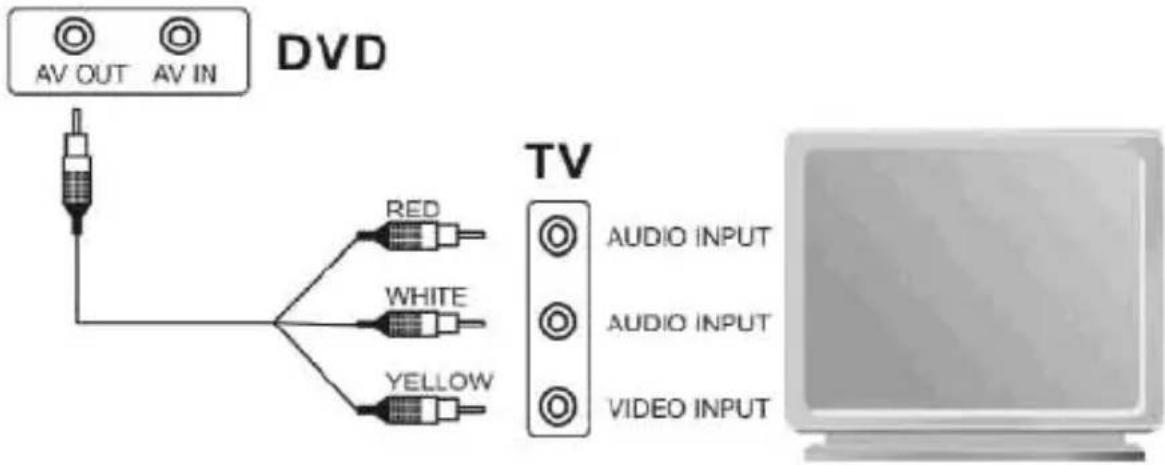
Note: Av line with his head for video signal, a red for audio signal.
Basic function operation
Open cooperation: Connecting with adaptor, please put ON/OFF to be on, DVD will completely be opened after 3 seconds, then change the DVD mode to be TV mode.
Note: open by ON/OFF or remote.
Press Setup to be DVD setup menu, choose menu by forward keys, selected menu will be bright color, then press enter to confirm operation.
DVD setup operation: Adjust TV, OSD language, closed captions setup, screen saver setup, last memory state, Audio, Video etc.
Press setup: the DVD system will be pause.
Troubleshooting
| Fault phenomena | Solution |
| No power/no charging | Check if adaptor is connectingCheck if put on/off to be on |
| No disc | Check if adaptor is connectingCheck if have discCheck if disc settlement is wrongIf damaging or dirty, please change it.If DVD is dirty, take out disc and charging 1-2hoursWrong disc formal |
| No pictures | Check TV is on, and Connecting in AV.Check the VIDEO setting is right.Check if wire is undamagedClean discCheck the power keys is opening. |
| Picture with twist | Disc is already damaged. Reset system of TV or DVD |
| Disc wrong | Change the disc or clean |
| Picture on screen is not completed | Setting TV systemChange the screen radio on Setup |
| Can not choose song | Some disc does not support choosing |
| Wrong Remoter | Remoter is damagedIf Remoter is forward to lightIf have remoter battery.Check if battery has power. |
| No Audio or Video output is not complete | Check if TV and Audio system is opening and setting rightlyCheck if TV and Audio system is connecting rightlyCheck if sound is zeroChange sound channel and languageNo sound under Pause, fast forward, fast rewind.Sound setting is lower. |
DVD Parameter
DVD Part technical specification
| Compatible disc | DVD, SVCD, VCD, CD, CD-R/RW, JPEG, DVD, DVD, WMA, MPG, MP3, DIVX, VOB, AVI, MP4 etc ... (RM/RMVB is optional) |
| Supporting out device | USB/MMC/SD |
| Anti-shock function | DVD; 3 seconds; VCD/CD; 10seconds; MP3; 90seconds |
| Audio out | AUDIO; 2.0V+-0.2, Speak: 8Ω/1.5W; Output of earphone: 15mW |
| Frequency | 20HZ 20KHZ |
| Audio (S/N) Radio | ≥50dB |
| Range of activity | ≥50dB |
| VEDIO OUTPUT | 1.0V±0.2Vp-p(75Ω) |
| VEDIO OUTPUT | PAL/NTSC/ANTO/SECAM |
TV PARAMETER
| Analogue frequency | receiver | BG/DK/I/L; 48. 25MHz~863. 25MHzM; 55. 25MHz~801. 25MHz |
| AUDIO SYSTEM | DK, I, BG, L, M | |
Accessories
Please check accessories after open package
1. Standard Accessories
Power Adaptor
AV Cable
Earphone
Remote control
Manual
2. Optional Accessories
Car adaptor (Optional)
TV Antenna (Optional)
Game CD (Optional)
Game Joystick (Optional)

- USER'S MANUAL
- PYLE®
- Contents
- Notice
- Notice and Safety Information
- User notice
- Disc
- Inspection
- Repair
- Earphone
- Humidity
- far away liquid
- Far away of heat
- Avoid of thunder
- Environment and ventilate
- LCD Screen
- Laser
- Charger
- Battery and charging
- In order to avoid of the damage to body healthy and environment, please note as below:
- Note:
- Function Introduction
- Disc Type & Notice
- Special Prompt
- Use disc
- Clean disc
- Keys Function and Panel Instruction
- Fix the batteries:
- Basic Function Operation
- Operation
- TFT picture adjustment
- Place disc
- Play /Pause
- Character display
- DVD disc menu play
- PBC play
- Select chapter play direct by Number key
- Game function
- Play the program of USB/SD/MMC memory card
- System Setup
- TV Display Setup
- DVD Menu Setup
- 5) Preference Page:
- Disc Play
- Audio Track Selection
- Fast play
- Slow Play
- Repeat Play
- Turnoff PBC function
- Certain Portion Repeat
- Subtitle Selection (Only effective to DVD and SVCD)
- Chapter search, Time search
- Zoom Function(Only effective to DVD, SVCD, VCD)
- MP3 Disc Play
- MP3 Disc Play
- MP4 Disc Play
- Support JPG and TXT format (Some model support TXT)
- CD Transcription and Multi Media Function
- Copy from MP3 disc
- Copy from CD disc
- Receiving TV/FM Programs
- Receiving TV
- Receiving FM
- AV OUT (Signal to TV)
- DVD Parameter
- Accessories
- Standard Accessories
- Optional Accessories
Brand : Pyle
Model : PDH7
Category : Portable DVD Player