PHCD26 - Portable DVD Player Pyle - Free user manual and instructions
Find the device manual for free PHCD26 Pyle in PDF.


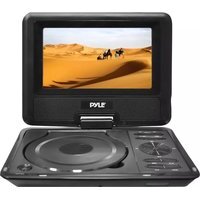
| Product Type | Portable DVD Player |
| Brand | Pyle |
| Model | PHCD26 |
| Display Size | 9 inches (diagonal) |
| Display Resolution | 800 x 480 pixels (typical) |
| Disc Compatibility | DVD, DVD±R/RW, CD, CD-R/RW, MP3, JPEG, DivX |
| Video Output | Composite AV output |
| Audio Output | Stereo headphone jack, built-in speakers |
| Inputs | AV input for external devices |
| Power Source | AC adapter (100-240V) and rechargeable battery |
| Battery Life | Up to 4 hours |
| Dimensions (W x D x H) | Approximately 9.8 x 7.5 x 2.0 inches |
| Weight | 2.5 lbs (1.13 kg) |
| Region Code | Region 1 (NTSC) or region-free |
| Parental Control | Yes, with password |
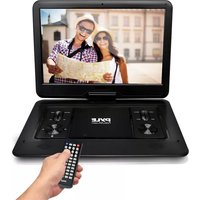
| Remote Control | Included |
| Car Mount Accessory | Included (headrest mount) |
| Cleaning Instructions | Wipe screen and body with a soft, dry cloth. Avoid abrasive cleaners. |
| Safety Warnings | Do not expose to moisture or extreme heat. Use only supplied AC adapter. |
| Spare Parts Availability | Replacement battery and remote available from Pyle or authorized dealers. |
| Repair Information | Contact Pyle customer service or visit pyleaudio.com for service centers. |
Frequently Asked Questions - PHCD26 Pyle
User questions about PHCD26 Pyle
0 question about this device. Answer the ones you know or ask your own.
Ask a new question about this device
Download the instructions for your Portable DVD Player in PDF format for free! Find your manual PHCD26 - Pyle and take your electronic device back in hand. On this page are published all the documents necessary for the use of your device. PHCD26 by Pyle.
USER MANUAL PHCD26 Pyle
natural_image
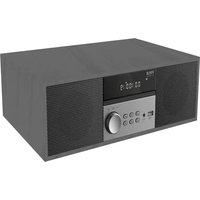
Black electronic device with digital display and control buttons (no visible text or symbols on body)PHCD26 (Gray & Silver)
natural_image
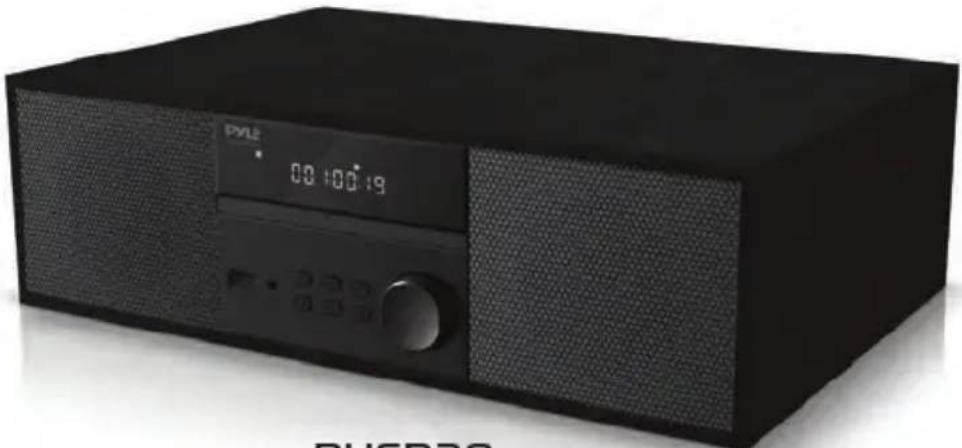
Black electronic device with digital display and control buttons (no visible text or symbols on body)PHCD28 (Full Black)
Home DVD Stereo System with Wireless Microphone
CD/DVD Player, Bluetooth Receiver, FM Radio, USB, AUX, and Adjustable Bass/Treble
USER GUIDE
Contents
Welcome 2
Safety information 2
Features and Technical Specifications 4
Remote Control 6
Setting up your Home DVD Stereo System 10
Using your Home DVD Stereo System 11
Troubleshooting 15
Maintaining your Home DVD Stereo System 17
Legal Notices 19
Welcome
Your Home DVD Stereo System is designed for reliable and trouble free performance, we wish you great satisfaction in using it.
Safety Information
To prevent fire or shock hazard, do not plug the power cord into an extension cord, receptacle, or other outlet unless the blades can be fully inserted to prevent blade exposure. To prevent fire or shock hazard, do not expose this Home DVD Stereo System to rain or moisture.


The lightning flash with arrowhead symbol within a triangle is intended to alert you to the presence of uninsulated dangerous voltage within your Home DVD Stereo System enclosure that may be of sufficient magnitude to constitute risk of electric shock to persons.

The exclamation point within an equilateral triangle is intended to alert the user to the presence of important operating and maintenance (servicing) instructions in this manual.

The Home DVD Stereo System uses a Class 1 laser to read Compact Discs. Your Home DVD Stereo System is equipped with safety switches to avoid exposure when the CD door is open and the safety interlocks are defeated. Invisible laser radiation is present when the CD door is open and the system's interlock has failed or been defeated. You should avoid direct exposure to the laser beam at all times. Do not attempt to defeat or bypass the safety switches.
WARNING: To reduce the risk of fire or electric shock, do not expose your Home DVD Stereo System to rain or moisture.
WARNING: Any use of the controls or an adjustment to the procedures other than those specified herein may result in hazardous radiation.
CAUTION: Your Home DVD Stereo System should not be exposed to water (dripping or splashing) and no objects filled with liquids, such as vases, should be placed on it.
Read Instructions
Read all of the safety and operating instructions before you use your Home DVD Stereo System.
Retain Instructions
Retain the safety and operating instructions for future reference.
FOLLOW WARNINGS AND INSTRUCTIONS
Follow all warnings on your Home Stereo System and in the operating instructions.
Follow all operating and use instructions.
Placement
Protect your furniture with a cloth or other protective material when placing your Home Stereo System on a lacquered or natural finish.
Avoid exposure to direct sunlight, extreme temperature, and moisture.
Ventilation
Slots and openings in the cabinet and the back or bottom are provided for ventilation, reliable operation, and protection from overheating. These openings must not be blocked or covered. Do not block the openings by placing your Home Stereo System on a bed, sofa, rug, or other similar surface.
Water and Moisture
- Do not use your Home Stereo System near water. For example, do not use it near a bath tub, wash bowl, kitchen sink, or laundry tub, in a wet basement, or near a swimming pool.
- Do not let water splash or drip onto your Home Stereo System.
- Do not place objects containing liquids, such as a vase, on top of your unit.
Disconnecting Power
Unplug this apparatus during lightning storms or when unused for long periods of time. The rating label of the Home Stereo System is located on the back.
Features:
- Ergonomic Design
• Sturdy and Durable Quality - Adjustable Bass and Treble System
- DVD/CD Player
• MP3 player/CD/CD-R/CD-RW - Big LED Display
- USB, AUX, FM, Bluetooth 5.0V, HDMI Function
• 3-inch Full Range Speaker - Remote Operated Speaker
- Microphone Operated Speaker
- Wooden Enclosure Rich Sound
- Bluetooth Connectivity
• 200W RMS Power Output
• Supports a Variety of Music Sources - Extensive Volume Rotary Knob Control with Oil Painting
• Significant Loud Volume and Super Bass - With HDMI Port
Wireless BT Connectivity:
• Hassle-Free Pairing, Simple Music Streaming
- Compatible with all of Todays Latest BT Devices (Smartphones, Tablets, Laptops, Computers, etc.)
- BT Version: 5.0V
• BT Network Name: 'Pyle USA'
- Wireless BT Range: Up to 30.0' ft
What's in the Box:
• Home DVD Stereo System
• (2) Wireless Microphones
- Remote Control
- Power Cord
Technical Specs:
- Construction Material: Wood Plastic and Metal
- Item Weight: 11 Lbs.
• Power Output (RMS): 200W (2x100W)
• Frequency Response: 40Hz -20KHz
• Rated Voltage: AC 110-240V, 50/60Hz - Requires (2) x 'AAA' Batteries (Not Included)
- Product Dimensions (L x W x H): 16" x 11" x 4.7"-inches

natural_image
Black PYLE portable electronic device with digital display and control buttons (no visible text or symbols on body)Remote Control Function Keys
Note: Use 2 x 'AAA' batteries (not included). Keep away from children.

- Standby/Power ON/OFF switch:
Press to open/close the unit power. In this mode, the unit is still consuming a small amount of power.
OPEN/CLOSE: ▲ Open/Close the disc tray. - Mute: Press to mute or unmute the sound.
Zoom: Magnifies/Shrinks the screen image size.
Angle: Select different angles in the same image (Only supports multi-angle discs).
Mode: Press to choose DVD/USB/FM/Line in (AUX)/BT mode.
6 3. SUB/COPY: Press subtitle button to displays the subtitles in dvd mode (Only supports multi-subtitle discs) Copy music contents from loaded CD disc to inserted USB drive.
PROGRAM: First, press PROG to enter program status. Then, press ◀▶ ▲▼ to select the item.
Press 0 to 9 to specify the 2-digit order (To reset, press clear).
Press ◀▶ ▲▼ to select Start, press OK to start programmed playback. Press STOP ■ twice to clear the whole proram.
Step 1: Press Treble button
Step 2: Turn Volume+/- knob)
Step 1: Press Bass button
Step 2: Turn Volume+/- knob)
TREBLE: Treble Adjustment
BASS: Bass Adjustment
- Return: After pressing "Menu" (In ON mode), choose a program then press "Return" to top menu. (Only for VCD/SVCD/DVD discs)
LANGUAGE: Chose the different languages in dvd discs.
(Only supports multi-languages discs)
OSD: Press OSD on the remote control to display single elapsed time, single remaining time, total elapsed time, total remaining time and other information about the disc.
L/R: Press to set: Stereo, Mono L, Mono R, Auto L, Auto R in SVCD VCD or CD format.
- Repeat: Repeat 1, Repeat ALL, RANDOM, RANDOM OFF (Only for USBVCD/CD discs)
Repeat chapter, repeat Title, repeat ALL, Repeat off (Only for DVD discs)
IN USB mode: Include Repeat directly
In FM/Line in/BT mode: Do not work
A-B Repeat: Specifies the parts you want to play repeatedly.
1> During playback, press A-B REPEAT to specify starting point (point A).
2> When you reach the ending point (point B), press it again.
Vol-/Vol+: Decrease/increase the audio volume.
- SET UP: Enter or exit the system setup menu.
MIC.VOL
First press: Mic volume (Adjust volume totary to increase/decrease mic volume)
Second press: Echo (Adjust volume totary to increase/decrease echo volume)

Selects items, input position, etc.
- For moving the display position of enlarged images
- For rotating JPEG images
Enter: Confirm menu selection
Menu/PBC: Display the menu
Sets PBC of VCD equipped with Playback Control (PBC) Function to On/Off.
Top Menu: Displays the top menu
7. FM-/FM+ (PREV/FWD)
In FM mode
Short press to next/previous channel. Press and hold to manual search (Unit will stop to current scanning channel automatically).
In DVD/USB mode
Forward/Backward (x2, x4, x8, x20)
Line in/BT: Do not work
PLAY/PAUSE/SCAN
Play or pause track
Auto scanning the stations in FM mode
STOP: Stop playback
CH-/CH+ (PREV/NEXT)
In FM/DVD/USB/BT mode: Previous/Next track
Line in/BT mode: Do not work
8. 1-10+
To select title/chapter track numbers etc.
e.g., 5: 5
15: 10+5 or 15 >—
GO-TO: Specifies the point of time where you would like to start playback.
FRONT PANEL

-
Remote Sensor: Remote control receiver
-
USB port: Connect a USB fash drive to this port to play files on the device.
-
Headphone jack: Connect headphones to this jack to listen to radio/playback through your headphones.
-
Standby/ON button: Press to turn on your Home Stereo System. Press again to return your Home Stereo System to standby mode.
-
MODE button: Press to cycle through the sound sources (CD>USB>AUX>BT>RADIO).
-
▶//SCAN: (play/pause/scan button) Press to begin CD, USB, or Bluetooth playback. Press again to pause playback. In radio mode, press to search FM stations from low to high, the searched stations are saved automatically as presets.
-
◀◀/CH-: (previous button) In radio mode, press to skip to the previous lower preset station. Press and hold to tune to the next lower station. In CD or USB mode, press to skip to the previous track. Press and hold for Fast backward. In Bluetooth mode, press to skip to the previous track.
-
CD door: (Open/Close) Press the area of the CD lip to open it, place the CD in the disc compartment, label side up, close it to begin playback.
-
▶▶/CH+: (Next button) In radio mode, press to skip to the next higher preset station. Press and hold to tune to the next higher station.
In CD or USB mode, press to skip to the next track.
Press and hold for Fast forward.
In Bluetooth mode, press to skip to the next track.
- Volume+/-: Raise/lower the volume
BACK PANEL
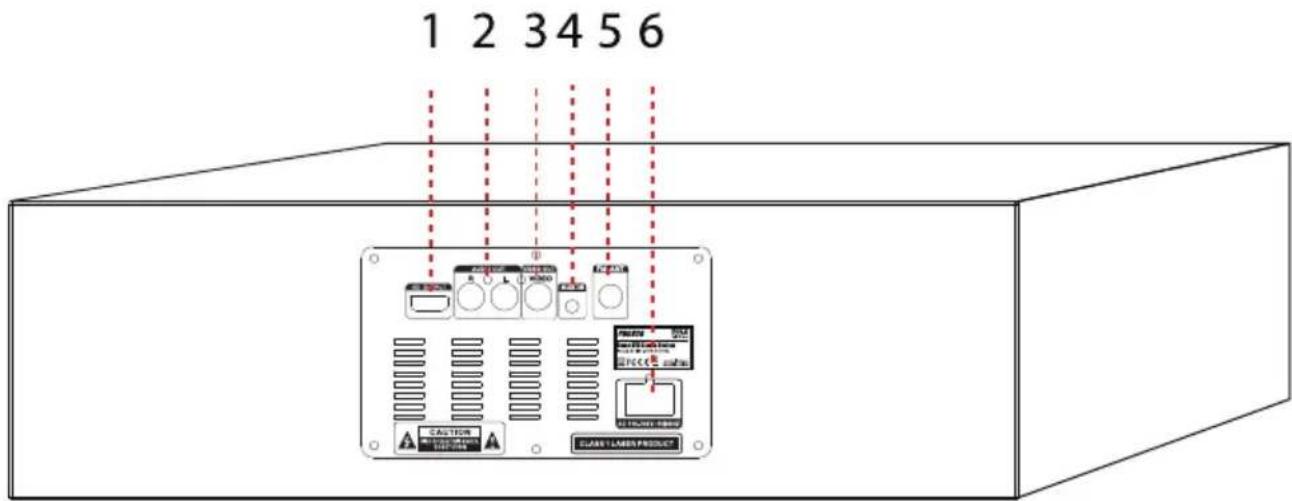
- HD OUTPUT: Connect an external HDMI device to this jack.
- AUDIO OUT: Connect an external L/R device to this jack.
- VIDEO OUT: Connect an external VIDEO device to this jack.
- AUX IN: Connect an external audio device to this jack.
- FM Antenna: Provides an improved FM signal.
- AC IN jack: Connect the AC cord (included) to this jack to operate your Home Stereo System on AC power.
Connecting the AC cord
- Make sure that your local AC power source matches the voltage shown on the plate located on the bottom of the Home Stereo System.
- Insert the small connector at the end of the AC cord into the AC IN jack on the back of your Home Stereo System.
- Plug the AC cord into a wall power outlet.
Notes: Unplug the AC cord when not in use.
• Power Electrical Specs: 110-240V - 50/60 Hz
Connecting Headphones
Plug the headphones into the headphone jack in your Home Stereo System.
CAUTION: Listening to music with the volume too loud can damage your hearing.
Before you connect headphones, turn the volume down. After you put on the headphones, gradually increase the volume to a comfortable level.
- Press Standby to turn on the Home Stereo System.
- Press MODE button repeatedly to select RADIO mode.
- Press SCAN button to automatically scan stations from low to high, the searched stations are automatically saved as presets. (Max save 20 stations)
- Press CH+/CH- to skip to the next/previous preset station.
- Press TUN+/TUN- to tune the FM radio to a higher/lower frequency.
- Press and Hold TUN+/TUN- for two seconds to search channels to stop after receiving signals automatically.
- Adjust the volume to a comfortable level by VOLUME+/-
- Press Standby to turn off the Home Stereo System.
Improving Reception
Fully extend the FM antenna. You may have to reposition the antenna for best reception.
Save a Station
PROG "Program" button: Save your favorite FM channel
- Stay on the channel you want to save.
- Press the "PROG" button.
- Press the CH-button to move to CH01.
- Press the "PROG" button again FM station stored in CH01 Select an radio station and press the program button. Repeat this, stored in CH02/CH03.
Playing CDs
You can play standard and 3" audio CDs, CD-Rs, and CD-RWs.
CAUTION: Do not try to play DVDs, VCDs, or data CDs. You may damage your unit.
- Press Standby to turn on the Home Stereo System.
- Press MODE button repeatedly to select CD mode.
- Press the ▲ area of the CD lid to open it.
- Insert a CD, label side up.
- Press the ▲ to close it. Playback begins automatically and stops when finished.
- Press ■ (stop) to stop the CD before it is finished. The total number of tracks appears on the display.
Notes:
- If a CD is inserted incorrectly, is dirty, or is damaged, or is not present at all, NO appears on the display.
- To prevent damage to the CD, never open the CD door while the CD is rotating and never touch the lens.
Pausing CD Playback
- Press ▶ (play/pause). Playback stops but the CD continues to spin and the elapsed time of the current track on the display.
- Press ▶II (play/pause) again to resume normal CD playback.
Skipping or Searching a CD track
- During playback, press ▶▶(next) or ◀◀(previous) to skip to the next or previous track, respectively.
- Press ▶▶ (fast forward) or ◀◀ (backward) to quickly search the current track forward or backward, respectively.
Using Repeat mode
- Press REPEAT while in playback mode to cycle through the repeat modes (Repeat current track, Repeat all, Random). The following appears on the display:
- REP ONE — Repeat current track
-
REP ALL — Repeat all tracks
• RAN ON — Random playback -
To cancel repeat mode, press REPEAT until the OFF icon appears on the display.
Playing USB flash drives
- Press Standby to turn ON the Home Stereo System.
- Press MODE button repeatedly to select USB mode till "USB" appears on the display.
- Connect the USB flash drive to the USB port.
Note: Make sure that you insert your USB drive all the way into the USB port.
-
Press ▶//SCAN to begin/pause playback.
-
Press ■ on remote control to stop playback, and the number of the total tracks will appear on the display.
Listening to an external audio device
- Make sure that the Home Stereo System is turned off.
- Plug one end of the 3.5 mm AUX cable (don't included) into the AUX IN jack in the front of your Home Stereo System.
- Plug the other end of the cable into the Line-out jack on the audio device, such as an iPod, smartphone, or other MP3 player.
- Press Standby to turn on the Home Stereo System.
- Press MODE button one or more times until "AUX" appears on the display.
- Use the controls on the audio device to control playback.
Listening to a Bluetooth Sound Source
Before you can use your Home Stereo System With a Bluetooth device, you need to pair your device to the Home Stereo System. After your Home Stereo System is plugged in and turned on, do the following:
Notes:
- Your Home Stereo System must be turned on to make a Bluetooth connection.
- Place the Bluetooth device within 33 ft. (10 m) of your Home Stereo System.
- Bluetooth is used as a convenient connection to your sound source.
Pairing your Devices
- Select Bluetooth as the input source by pressing the MODE button one or more times until "bt" appears on the display.
- Navigate to your device's Bluetooth settings, turn on Bluetooth, then search for available devices. For additional information on pairing your device, see your device's documentation.
- On your Bluetooth device, select "Pyle USA" from the device list. Repeat steps 1-2 if "Pyle USA" is not displayed.
- If a PIN code is requested, enter "0000".
- You will hear a tone when Bluetooth connection has been established.
Notes:
Your Home Stereo System can only be connected and play content from one device at a time. When you turn on your Home Stereo System, it automatically connects to the last connected device if that device is in range. To connect to a different paired device, turn off Bluetooth or unpair from the currently paired device and manually connect to the other paired device.
Important:
Make sure that the device you connect and select as your sound source output sound to the Home Stereo System. See your device's user manual for more information.
Disconnecting your devices
Turn OFF the Bluetooth function on your device.
Reconnecting to a paired device
When you select "bt" mode, your Home Stereo System automatically connects to a previously paired device. If it fails to connect, please check the following:
| Your Home Stereo System loses the Bluetooth connection if you... | To reconnect... |
| Turn it OFF | Turn ON your Home Stereo System.Your Home Stereo System searches for the last connected Bluetooth device and reconnects. |
| Move the Bluetooth device out of range. | Move your Bluetooth device within 33 ft.(10m) of your Home Stereo System. |
| Turn OFF your Bluetooth device | Turn on your Bluetooth device, then make sure that Bluetooth is ON. |
| Turn OFF Bluetooth on your Bluetooth device | Turn ON Bluetooth on your BT device |
| Connect your Bluetooth device to another Bluetooth device | Disconnect your Bluetooth device from the other Bluetooth device, then set your device to pairing mode. Select “Pyle USA” on your Bluetooth device. |
| Change your Home Stereo System input source | Change the Home Stereo System input source back to Bluetooth. |
Note:
If a device does not automatically reconnect, you may need to reselect "Pyle USA" on your Bluetooth device.
Connecting to a different device
-
On your Bluetooth device, turn OFF the Bluetooth function or unpair the Home Stereo System in your Bluetooth device list. The Home Stereo System can now be connected to another Bluetooth device.
-
Follow the section Pairing your devices on page 13 to connect a new device.
Receiving a phone call while playing music
- When you receive a call while playing music through your phone, the music stops automatically.
- When you hang up, depending on the setting of your phone, the current track may resume playback.
TROUBLESHOOTING
CAUTION:
Do not try to repair the Home Stereo System yourself.
Doing so will invalidate your warranty.
| Problem | Solution |
| Your Home Stereo System will not turn ON | ·Unplug your Home Stereo System for a few moment, then plug it back in.·Make sure that the AC outlet is working by plugging another device into it. |
| The CD player will not play | ·Make sure that you have put a CD in the CD compartment.·Make sure that the CD is inserted label side up.·Try a different CD.·Make sure that the CD player is not paused.·Make sure that the CD mode is selected.·Make sure that you are using a compatible CD. Your Home Stereo System can play standard and 3" audio CDs, CD-Rs, and CD-RWs. |
| A CD skips while playing | ·Wipe the CD with a cloth to clean it. See Cleaning discs instructions.·Try a different CD.·Make sure that the CD is not warped, scratched, or damaged. |
| A CD skips while playing | Make sure that your Home Stereo System is not being affected by vibration or shock.Move the Home Stereo System if necessary.Make sure that you are using a compatible CD.Your Home Stereo System can play standard and 3" audio CDs, CD-Rs, and CD-RWs. |
| Theres noise or distorted sound on FM radio broadcasts | Extend the FM antenna.Rotate your Home Stereo System until the best reception is obtained.Try turning off electrical appliances near your Home Stereo System, such as hair dryers, vacuum cleaners, or fluorescent lights. |
| You don't hear any sound | Increase the volume.Plug in the AC power cord and press Standby to turn on your Home Stereo System.Make sure that you have selected the correct source.If you are in AUX mode, make sure the volume has not been muted on your playback device. |
| The sound seems very low | If you are using AUX mode, make sure that the volume is turned up on both your audio source and your Home Stereo System. |
| USB drive will not play | Disconnect the USB drive and insert it back to the USB port all the way in.Make sure your USB drive is not formatted in NTFS. |
| My Home Stereo System won't connect to my Bluetooth device. | Shorten the distance between your Home Stereo System and your Bluetooth device.Turn your devices off, then on. Re-pair your Home Stereo System and your Bluetooth device.Make sure that your Home Stereo System is not paired to another Bluetooth device.Make sure that your Home Stereo System and Bluetooth device are both in pairing mode.Make sure that your Bluetooth device is not paired to any other device.Make sure that you have selected "Pyle USA" on your Bluetooth device. |
| My Bluetooth device keeps unpairing. | Ensure that your device and the other Bluetooth device are within the maximum Bluetooth range. |
| “Pyle USA” does not appear on my Bluetooth device | · Ensure that your device and the other Bluetooth device are within the maximum Bluetooth range. · Put your Home Stereo System into pairing mode, then refresh your list of Bluetooth devices. For more information, see the documentation that came with your Bluetooth device. · Make sure that your Bluetooth device is visible to other devices. For more information, see the documentation that came with your Bluetooth device. |
Care and Handling of Discs
Handling Discs
Do not touch the playback side of the disc. Hold the disc by the edges so that fingerprints do not get on the surface. Never stick paper or tape on the disc.

natural_image
Illustration showing a hand holding a circular object and a cross symbol on a ring (no text or symbols present)Storing Discs
After playing, store the disc in its case. Do not expose the disc to direct sunlight or sources of heat and never leave it in a parked car exposed to direct sunlight.
Cleaning Discs
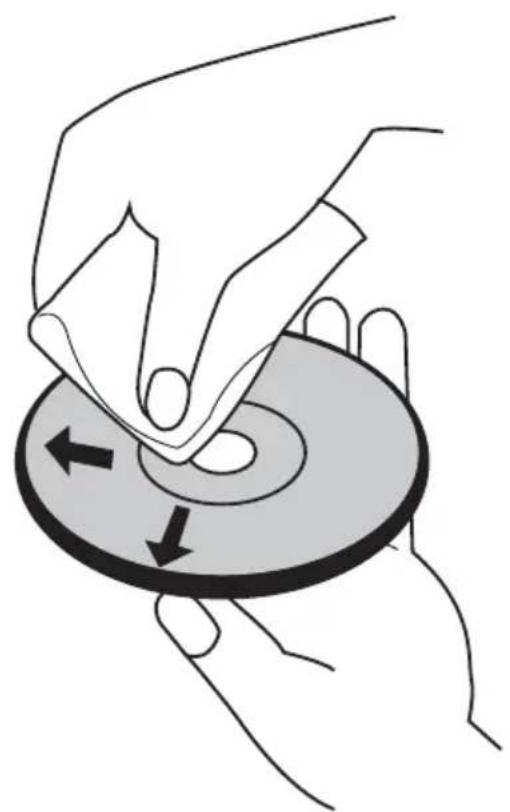
Fingerprints and dust on the disc can cause poor sound quality and distortion. Before playing, clean the disc with a clean cloth. Wipe the disc from the center out.
natural_image
Illustration of hands performing a circular motion or maneuver on a ring, with arrows indicating direction (no text or symbols)Do not use strong solvents such as alcohol, benzine, thinner, commercially available cleaners, or anti-static spray intended for older vinyl records.
Cleaning the CD Lens
If your CD lens gets dirty it can cause poor sound quality.
To clean the lens you will need to purchase a CD lens cleaner which can maintain the output sound quality of your system. For instructions on cleaning the CD lens, refer to the literature accompanying the lens cleaner.
Cleaning your Home Stereo System
To prevent fire or shock hazard, disconnect your Home Stereo System from the AC power source when cleaning.
The finish on your Home Stereo System may be cleaned with a dust cloth and cared for as other furniture. Use caution when cleaning and wiping the plastic parts. Mild soap and a damp cloth may be used on the front panel.
LEGAL NOTICES
FCC Statement
This device complies with Part 15 of the FCC Rules. Operation is subject to the following two conditions: (1) this device may not cause harmful interference, and (2) this device must accept any interference received, including interference that may cause undesired operation.
FCC Caution
Changes or modifications not expressly approved by the party responsible for compliance could void the user's authority to operate this equipment.
This equipment has been tested and found to comply with the limits for a Class B digital device, pursuant to Part 15 of the FCC Rules.
These limits are designed to provide reasonable protection against harmful interference in a residential installation.
This equipment generates, uses, and can radiate radio frequency energy and, if not installed and used in accordance with the instructions, maybe cause harmful interference to radio communications.
However, there is no guarantee that interference will not occur in a particular installation. If this equipment does cause harmful interference to radio or television reception, which can be determined by turning the equipment off and on, the user is encouraged to try to correct the interference by one or more of the following measures:
- Reorient or relocate the receiving antenna.
- Increase the separation between the equipment and receiver.
- Connect the equipment into an outlet on a circuit different from that to which the receiver is connected.
- Consult the dealer or an experienced radio/TV technician for help.
PYLE
PyleUSA.com
natural_image
Illustration of a laptop with a red checkmark on screen (no text or symbols)VISIT US ONLINE:
Have a question?
Need service or repair?
Want to leave a comment?
PyleUSA.com/ContactUs
PYLE
Questions? Issues?
We are here to help!
Phone: (1) 718-535-1800
Email: support@pyleusa.com


- Home DVD Stereo System with Wireless Microphone
- Contents
- Welcome
- Safety Information
- Read Instructions
- Retain Instructions
- FOLLOW WARNINGS AND INSTRUCTIONS
- Placement
- Ventilation
- Water and Moisture
- Disconnecting Power
- Features:
- Wireless BT Connectivity:
- What's in the Box:
- Technical Specs:
- Remote Control Function Keys
- TREBLE: Treble Adjustment
- BASS: Bass Adjustment
- MIC.VOL
- FM-/FM+ (PREV/FWD)
- In FM mode
- In DVD/USB mode
- PLAY/PAUSE/SCAN
- CH-/CH+ (PREV/NEXT)
- 1-10+
- FRONT PANEL
- BACK PANEL
- Connecting the AC cord
- Connecting Headphones
- Improving Reception
- Save a Station
- Playing CDs
- Notes:
- Pausing CD Playback
- Skipping or Searching a CD track
- Using Repeat mode
- Playing USB flash drives
- Listening to an external audio device
- Listening to a Bluetooth Sound Source
- Pairing your Devices
- Important:
- Disconnecting your devices
- Reconnecting to a paired device
- Note:
- Connecting to a different device
- Receiving a phone call while playing music
- TROUBLESHOOTING
- CAUTION:
- Care and Handling of Discs
- Handling Discs
- Storing Discs
- Cleaning Discs
- Cleaning the CD Lens
- Cleaning your Home Stereo System
- LEGAL NOTICES
- FCC Statement
- FCC Caution
- PYLE
- PyleUSA.com
Brand : Pyle
Model : PHCD26
Category : Portable DVD Player