
TW100-BRV204 - Router TRENDNET - Free user manual and instructions
Find the device manual for free TW100-BRV204 TRENDNET in PDF.


| Product Type | Broadband VPN Router |
| Brand | TRENDnet |
| Model | TW100-BRV204 |
| Dimensions (L x W x H) | 7.5 x 5.5 x 1.5 inches (19 x 14 x 3.8 cm) |
| Weight | 0.7 lbs (0.32 kg) |
| Power Supply | External 5V DC, 2A |
| WAN Ports | 1 x 10/100 Mbps Ethernet |
| LAN Ports | 4 x 10/100 Mbps Ethernet |
| VPN Support | IPSec, PPTP, L2TP pass-through |
| Firewall | SPI Stateful Packet Inspection |
| NAT | Network Address Translation |
| Wireless | None (Wired router only) |
| Management | Web-based interface |
| LED Indicators | Power, Link/Activity, Collision |
| Mounting | Desktop or wall-mountable |
| Operating Temperature | 0°C to 40°C (32°F to 104°F) |
| Storage Temperature | -10°C to 70°C (14°F to 158°F) |
| Cleaning | Wipe with dry cloth; avoid liquids |
| Safety | Use only included power adapter; keep away from water |
| Spare Parts | Power adapter available from TRENDnet |
| Repairability | Not user-serviceable; contact support |
Frequently Asked Questions - TW100-BRV204 TRENDNET
User questions about TW100-BRV204 TRENDNET
0 question about this device. Answer the ones you know or ask your own.
Ask a new question about this device
Download the instructions for your Router in PDF format for free! Find your manual TW100-BRV204 - TRENDNET and take your electronic device back in hand. On this page are published all the documents necessary for the use of your device. TW100-BRV204 by TRENDNET.
USER MANUAL TW100-BRV204 TRENDNET
natural_image
Blue network switch device with ventilation slots and control panel (no visible text or symbols)Package Contents
- TW100-BRV204
- Quick Installation Guide
• User's Guide CD-ROM
• 1 x RJ-45 Ethernet Cable
• Power Adapter (5V, 2.5A)
Installation Requirements
- A computer with a wired network adapter properly installed.
• Web Browser: Internet Explorer (5.0 or higher) or Netscape Navigator (4.7 or higher)
• Broadband Internet
• Installed Cable or DSL Modem
Application

flowchart
graph TD
    A["Corporate Office"] --> B["Cable / DSL 4-Port Advanced VPN Firewall Router (TW100-BRV304)"]
    B --> C["Workstations with PCI Adapter"]
    C --> D["Home Office"]
    D --> E["Notebook with PC Card"]
    F["INTERNET Virtual Private Network"] --> B
    G["10*100Mbps"] --> A
2. Hardware Installation
Note: Gather all information related to your Internet Connection before you start. If necessary, contact your Internet Service Provider (ISP).
- Verify that you have an Internet connection when connecting your computer directly to the Cable or DSL modem.

flowchart
graph LR
    A["Internet"] --> B["Cable/DSL Modem"]
    B --> C["Computer"]
-
Connect one end of a RJ-45 cable to the TW100-BRV204's WAN port. Connect the other end of the cable to your modem.
-
Connect one end of a RJ-45 cable to one of the TW100-BRV204's LAN ports. Connect the other end of the cable to the computer's Ethernet port.

natural_image
Blue network switch device with four Ethernet ports and indicator lights (no visible text or labels)-
Connect the AC Power Adapter to the TW100-BRV204 and then to a power outlet.
-
Verify that the following panel lights are on: Power, LINK/Act and WAN.
3. Configure the Router
- Open your web browser, type http://192.168.0.1 in the Address bar, and press Enter.

- Click Setup Wizard.

- Click Next.

- Select the type of Internet access that you have and then click Next.
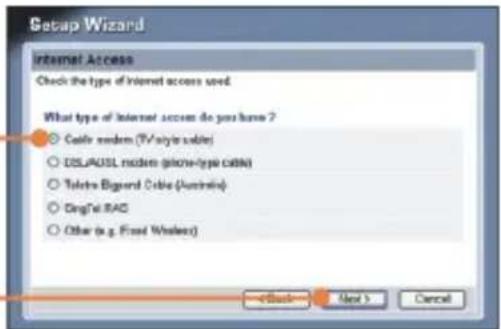
- Configure the settings based on information provided by your ISP. Follow the wizard instructions to complete the configuration.
Your configuration is now complete.
For detailed information regarding the TW100-BRV204's configuration and advanced settings, please refer to the Troubleshooting section, User's Guide CD-ROM, or TRENDnet's website at http://www.trendnet.com.
Register Your Product To ensure the highest level of customer service and support, please take a moment to register your product Online at: www.trendnet.com/register Thank you for choosing TRENDnet
Q1: I typed http://192.168.0.1 in my Internet Browser's Address Bar, but an error message says "The page cannot be displayed." How can I get into the TW100-BRV204's web configuration page?
A1: First, check your hardware settings again by following the instructions in Section 2. Second, make sure the LINK/ACT light for the LAN port is lit. Third, make sure your TCP/IP settings are set to Obtain an IP address automatically (see the steps below).

flowchart
graph TD
    A["1. Go into the Control Panel and double-click the Network Connections icon, right-click the Local Area Connection icon and then click Properties."] --> B["Local Connection"]
    B --> C["Disable"]
    B --> D["Status"]
    B --> E["Repair"]
    B --> F["Bridge Connections"]
    B --> G["Create Shortcut"]
    B --> H["Delete"]
    B --> I["Rename"]
    B --> J["Properties"]
    K["2. Click Internet Protocol (TCP/IP) and then click Properties. Then click on Obtain an IP address automatically."] --> L["Obtain an IP address automatically"]
    L --> M["Use the following IP address"]
    M --> N["IP address: "]
    M --> O["Subnet mask: "]
    M --> P["Default gateway: "]
Fourth, press on the factory reset button for 15 seconds.
Q2: I am not sure what type of Internet Account Type I have for my Cable/DSL connection. How do I find out?
A2: Contact your Internet Service Provider's (ISP) support service for the correct information.
Q3: I went through the Setup Wizard, but I can not get onto the Internet. What should I do?
A3: First, verify that you can get onto the Internet with a direct connection into your modem. Second, contact your ISP and verify all the information that you have in regards to your Internet connection settings is correct. Third, power cycle your modem and router. Unplug the power to the modem and router. Wait 30 seconds, and then reconnect the power to the modem. Wait for the modem to fully boot up, and then reconnect the power to the router.
If you still encounter problems or have any questions regarding the TW100-BRV204, please contact TRENDnet's Technical Support Department.
Certifications
This equipment has been tested and found to comply with FCC and CE Rules.
Operation is subject to the following two conditions:
(1) This device may not cause harmful interference.
(2) This device must accept any interference received. Including interference that may cause undesired operation.


Waste electrical and electronic products must not be disposed of with household waste. Please recycle where facilities exist. Check with you Local Authority or Retailer for recycling advice.

NOTE: THE MANUFACTURER IS NOT RESPONSIBLE FOR ANY RADIO OR TV INTERFERENCE CAUSED BY UNAUTHORIZED MODIFICATIONS TO THIS EQUIPMENT. SUCH MODIFICATIONS COULD VOID THE USER'S AUTHORITY TO OPERATE THE EQUIPMENT.
ADVERTENCIA
TRENDnet Technical Support
US · Canada
Toll Free Telephone: 1(866) 845-3673
24/7 Tech Support

Europe (Germany • France Italy Spain Switzerland UK)
Toll Free Telephone: +00800 60 76 76 67
English/Espanol - 24/7
Francais/Deutsch - 11am-8pm, Monday - Friday MET
Worldwide
Telephone: +(31) (0) 20 504 05 35
English/Espanol - 24/7
Francais/Deutsch - 11am-8pm, Monday - Friday MET
Product Warranty Registration
Please take a moment to register your product online.
Go to TRENDnet's website at http://www.trendnet.com/register
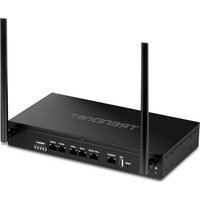
Brand : TRENDNET
Model : TW100-BRV204
Category : Router