IPCP Pro 255Q xi - AV Controller Extron - Free user manual and instructions
Find the device manual for free IPCP Pro 255Q xi Extron in PDF.


| Product Type | AV Controller |
| Brand | Extron |
| Model | IPCP Pro 255Q xi |
| Dimensions (H x W x D) | 1.7 x 17.4 x 6.1 inches (4.3 x 44.2 x 15.5 cm) |
| Weight | 3.2 lbs (1.45 kg) |
| Power Supply | 100-240 VAC, 50/60 Hz, 30 watts |
| Ethernet Ports | 2 x RJ-45 (10/100/1000) |
| Control Protocols | IP Link, Telnet, SSH, SNMP, HTTP/HTTPS |
| Supported AV Interfaces | HDMI, DVI, VGA, composite, S-Video |
| Audio I/O | 2x stereo line in, 2x stereo line out, mic in |
| RS-232 Ports | 2 x DB-9 |
| IR Control | 4 IR outputs, 1 IR input |
| Relays | 4 relays (30 VAC/DC, 1A) |
| Digital I/O | 4 digital inputs, 4 digital outputs |
| Operating Temperature | 32 to 122°F (0 to 50°C) |
| Humidity | 10% to 90% non-condensing |
| Mounting | Rack-mountable with included brackets |
| Maintenance | Clean with dry cloth; avoid liquids |
| Safety | UL listed, CE compliant; disconnect power before cleaning |
| Spare Parts | Power supply, IR emitters, mounting brackets |
| Repairability | Advanced user or professional recommended |
| Warranty | 3 years parts and labor |
| Included Accessories | Power cord, IR emitters, rack ears, user manual |
| Software | Extron IP Link Pro configuration software |
Frequently Asked Questions - IPCP Pro 255Q xi Extron
User questions about IPCP Pro 255Q xi Extron
0 question about this device. Answer the ones you know or ask your own.
Ask a new question about this device
Download the instructions for your AV Controller in PDF format for free! Find your manual IPCP Pro 255Q xi - Extron and take your electronic device back in hand. On this page are published all the documents necessary for the use of your device. IPCP Pro 255Q xi by Extron.
USER MANUAL IPCP Pro 255Q xi Extron
IPCP Pro Q xi and xi Series
IP Link Pro® xi Control Processors
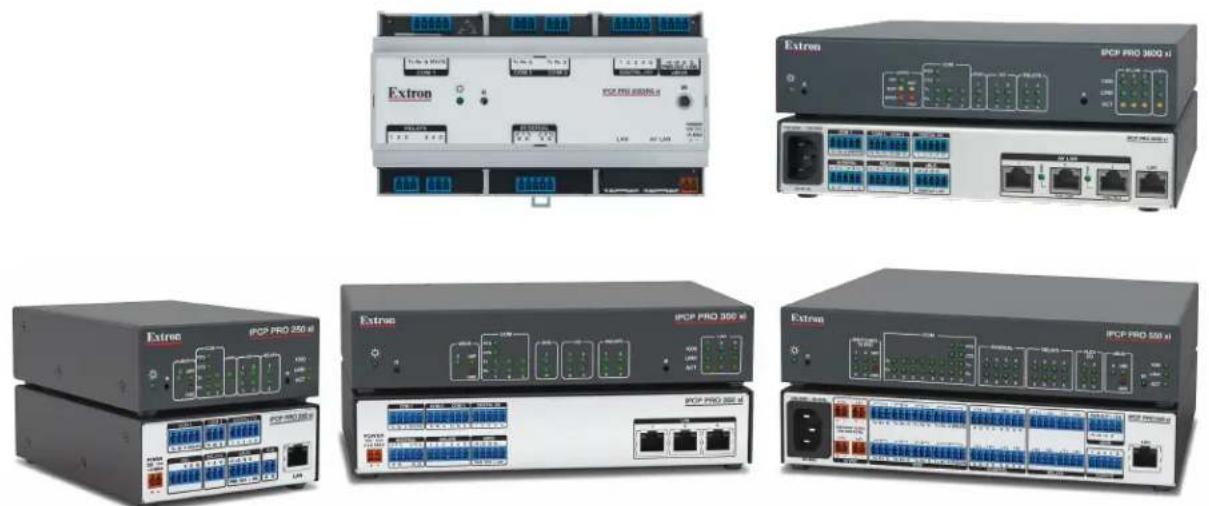
User Guide
IP Link Pro xi Products
Safety Instructions • English

WARNING: This symbol, when used on the product, is intended to alert the user of the presence of uninsulated dangerous voltage within the product's enclosure that may present a risk of electric shock.
ATTENTION: This symbol, when used on the product, is intended to alert the user of important operating and maintenance (servicing) instructions in the literature provided with the equipment.
For information on safety guidelines, regulatory compliances, EMI/EMF compatibility, accessibility, and related topics, see the Extron Safety and Regulatory Compliance Guide, part number 68-290-01, on the Extron website, www.extron.com.
All trademarks mentioned in this guide are the properties of their respective owners.
The following registered trademarks ( ^® ), registered service marks ( ^SM ), and trademarks ( ^TM ) are the property of RGB Systems, Inc. or Extron (see the current list of trademarks on the Terms of Use page at www.extron.com):
| Registered Trademarks (®) |
| Extron, Cable Cubby, ControlScript, CrossPoint, DTP, eBUS, EDID Manager, EDID Minder, eLink, Everlast, Flat Field, FlexOS, Glitch Free, Global Configurator, Global Scripter, GlobalViewer, Hideaway, HyperLane, IP Intercom, IP Link, Key Minder, LinkLicense, LockIt, MediaLink, MediaPort, NAV, NetPA, PlenumVault, PoleVault, PowerCage, PURE3, Quantum, ShareLink, Show Me, SoundField, SpeedMount, SpeedSwitch, StudioStation, System INTEGRATOR, TeamWork, TouchLink, V-Lock, VN-Matrix, VoiceLift, WallVault, WindoWall, XPA, XTP, XTP Systems, and ZipClip |
| Registered Service Mark(SM): S3 Service Support Solutions |
| Trademarks(TM) |
| AAP, AFL (Accu-RATE Frame Lock), ADSP (Advanced Digital Sync Processing), AVEdge, CableCover, CDRS (Class D Ripple Suppression), Codec Connect, DDSP (Digital Display Sync Processing), DMI (Dynamic Motion Interpolation), Driver Configurator, DSP Configurator, DSP Configurator Pro, DSVP (Digital Sync Validation Processing), EQIP, FastBite, Flex55, FOX, FOXBOX, InstaWake, IP Intercom HelpDesk, MAAP, MicroDigital, Opti-Torque, PendantConnect, ProDSP, QS-FPC (QuickSwitch Front Panel Controller), Room Agent, Scope-Trigger, SIS, Simple Instruction Set, Skew-Free, SpeedNav, Triple-Action Switching, True4K, True8K, VectorTM 4K, WebShare, XTRA, and ZipCaddy |
FCC Class A Notice
This equipment has been tested and found to comply with the limits for a Class A digital device, pursuant to part 15 of the FCC rules. The Class A limits provide reasonable protection against harmful interference when the equipment is operated in a commercial environment. This equipment generates, uses, and can radiate radio frequency energy and, if not installed and used in accordance with the instruction manual, may cause harmful interference to radio communications. Operation of this equipment in a residential area is likely to cause interference. This interference must be corrected at the expense of the user.
NOTE: For more information on safety guidelines, regulatory compliances, EMI/EMF compatibility, accessibility, and related topics, see the Extron Safety and Regulatory Compliance Guide on the Extron website.
Battery Notice
This product contains a battery. Do not open the unit to replace the battery. If the battery needs replacing, return the entire unit to Extron (for the correct address, see the Extron Warranty section on the last page of this guide).
CAUTION: Risk of explosion. Do not replace the battery with an incorrect type. Dispose of used batteries according to the instructions.
Conventions Used in this Guide
Notifications
The following notifications are used in this guide:
CAUTION: Risk of minor personal injury.
NOTE: A note draws attention to important information.
TIP: A tip provides a suggestion to make working with the application easier.
Software Commands
Commands are written in the fonts shown here:
^AR Merge Scene,,0p1 scene 1,1 ^B 51 ^W^C.0
[01] R000400300004000080000600 [02] 35 [17] [03]
Esc X1 * X17 * X20 * X23 * X21 CE ←
NOTE: For commands and examples of computer or device responses used in this guide, the character “θ” is the number zero and “O” is the capital letter “o.”
Computer responses and directory paths that do not have variables are written in the font shown here:
Reply from 208.132.180.48: bytes=32 times=2ms TTL=32
C:\Program Files\Extron
Variables are written in italics as shown here:
ping xxx.xxx.xxx.xxx -t
SOH R Data STX Command ETB ETX
Selectable items, such as menu names, menu options, buttons, tabs, and field names are written in the font shown here:
From the File menu, select New. Click the OK button.
Specifications Availability
Product specifications are available on the Extron website, www.extron.com.
Extron Glossary of Terms
A glossary of terms is available at https://www.extron.com/technology/glossary.aspx.
Contents
Introduction....1
Before You Begin....1
What This Guide Covers....1
Conventions Used in This Guide....1
Important Information You Need Before Installation....1
About the IPCP Pro xi Series....2
Features 3
Feature Summary Table....5
Application Diagrams....6
Device Control 7
About Global Configurator Plus and Global Configurator Professional 8
About ControlScript Programming....8
About Additional Software Used to Deploy Configurations from LAN to Products on an AV LAN....8
PC System Requirements 8
Hardware Features and Installation....9
Setup Checklist: How to Proceed With Installation....9
Get Ready....9
Mount and Cable All Devices 10
Set Up the Control Processor, Touchpanels, and Network Button Panels for Network Communication ..... 10
Configure or Program the Control Processor, Touchpanels, and Network Button Panels 11
Test and Troubleshoot....12
Network Communication Setup 12
Front Panel Features....13
IPCP Pro PCS1 xi-Specific Front Panel Features....17
IR Learning Receiver 18
Reset Features....18
Mounting the IPCP Pro xi Series 18
Mounting Options....18
UL Rack Mounting Guidelines....19
Rear Panel Features of the DIN Rail Model....20
Mounting an IPCP DIN Rail Unit to a DIN Rail....20
Mounting the IPCP Pro Matrix Q xi Into a Matrix Switcher....21
Ports, Addressing, and Connections ....21
Rear Panels — Rack Mount Models Without AV LAN 22
Rear Panels — Rack Mount Models
With AV LAN 23
Front Panel — DIN Rail Model....24
Rear Panel — IPCP Pro FOX3 Matrix Q xi 25
Power Connections....26
Bidirectional Control and Communication Connections and Features....30
Unidirectional Control and Communication Connections....35
Additional Control Ports 37
Resetting the Unit 50
Software-Based Configuration and Control.... 53
Configuration and Control: An Overview 53
Basic Setup Steps: a Guide to this Section and Other Resources....54
Downloading the Software and Getting Started 55
Locating Software, Firmware, and Driver Files on the Extron Website....55
Obtaining Control Drivers....56
Things to Do After Installing GC and Before Starting a Project....57
Using GC: Helpful Tips....57
Troubleshooting 57
Power Connections....58
Data Connections....58
Device Control Connections and Configuration 59
eBUS Connections and Configuration 59
Reference Information 60
Network Port Requirements and Licensed Third-Party Software 60
File Types: a Key to Extron-specific File Names 60
Secure Sockets Layer (SSL) Certificates 61
IEEE 802.1X Certificates 62
Certificate File Requirements....62
Private Key File Requirements....62
SNMP 63
Unmounting a DIN Rail Unit 64
Firmware Updates 65
Determining the Firmware Version 65
Using Toolbelt Software 65
Using a Browser....65
Updating the Firmware 65
Locating and Downloading the Firmware....66
Installing Firmware 66
Introduction
This section covers the following basic information you should know about this guide and the product before installation:
- Before You Begin
• About the IPCP Pro xi Series
• Application Diagrams
• Device Control - About ControlScript Programming
• PC System Requirements
- About Global Configurator Plus and Global Configurator Professional
Before You Begin
What This Guide Covers
This user guide provides instructions for an experienced installer to install an Extron IPCP Pro Q xi and xi Series IP Link Pro Control Processor. This guide provides detailed information and recommends best practices for cabling the control processor. It provides a brief overview of the configuration process, and reference information.
This guide does not contain instructions on detailed software-related setup steps or details of configuration within the software: those are covered in the Toolbelt Help File, the Global Configurator Help File, the Global Scripter Help File, ControlScript Deployment Utility Help File, and help files for related programs. The software help files describe how to use each program to download drivers, add AV devices to a configuration, configure basic functions, and set up schedules, macros, e-mail alerts, touchpanel button configurations, and the like.
Conventions Used in This Guide
- Throughout this guide these products are also referred to as the "IPCP," "IPCP Pro Q xi," "IPCP Pro xi," or "control processor." The xi models feature LAN ports, Q xi models feature both LAN and AV LAN ports.
- Global Configurator software is referred to as "GC," which can be run in Global Configurator Professional mode ("GC Professional") or Global Configurator Plus mode ("GC Plus").
- "ControlScript programming" encompasses ControlScript Deployment Utility (CSDU), ControlScript Extension, and Global Scripter (GS).
- The GlobalViewer Enterprise application is sometimes referred to as "GVE."
- Unless otherwise noted, in images of software or web pages, circled numbers correspond to the like-numbered procedural steps.
Important Information You Need Before Installation
The order and types of setup tasks for the IPCP Pro xi Series control processors and TouchLink Pro touchpanels are important. Pay close attention to them. Follow the setup checklist in the Hardware Features and Installation section starting on page 9.
About the IPCP Pro xi Series
The IPCP Pro xi Series Control Processors integrate Ethernet connection into AV systems to allow users to remotely control, monitor, and troubleshoot AV equipment, including display devices, switchers, source devices, and various other items such as lights, a projector lift, or a screen motor. They can be used in a distributed control system environment or as stand-alone control processors. Some models (such as the IPCP Pro 550 xi and IPCP Pro 555Q xi) can also power devices that accept 12 VDC.
This series of control processors offers increased deployment speed, improved runtime performance, support for Extron ControlScript Pro xi, and increased memory to accommodate more complex projects.
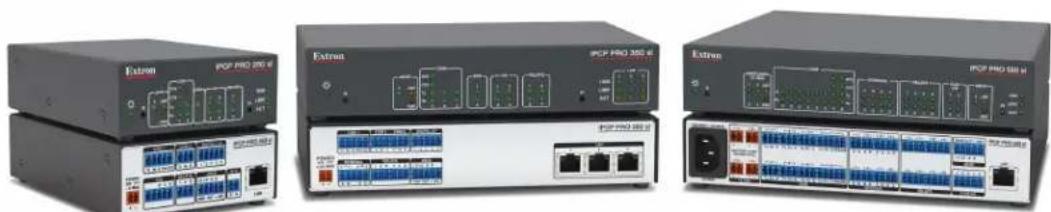
Figure 1. IPCP Pro 250 xi (Left), IPCP Pro 350 xi (Center), IPCP Pro 550 xi (Right)
IPCP Pro xi Control Processors with AV LAN provide a secure network dedicated for the connection and isolation of AV devices.
natural_image
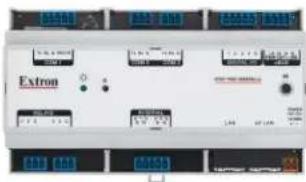
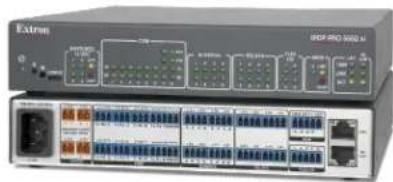
Extron network device with multiple Ethernet ports and I2CF PRO 3000 H1 interface (no readable text or symbols beyond branding)Figure 2. Models with Dedicated AV LAN Ports: IPCP Pro 355DRQ xi (Left), IPCP Pro 555Q xi (Right)
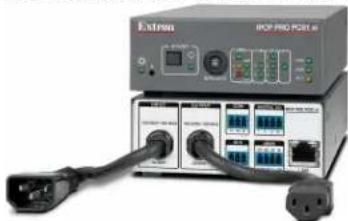
The IPCP Pro PCS1 xi provides a controlled AC power output which can be monitored and controlled, along with a circuit breaker that provides overcurrent protection to the connected device.
natural_image
Exterior view of a network equipment unit labeled 'Estron' with ports and connectors (no readable text beyond branding)CAUTION: This product is intended for indoor use only.
NOTE: The IPCP Pro PCS1 xi is intended to be used with Extron products only.
Figure 3. IPCP Pro PCS1 xi
The IPCP Pro FOX3 Matrix Q xi control card is an optional, field-swappable controller card for Extron FOX3 40x, 80x, 160x, 320x, 560x, and 840x Series matrix switchers
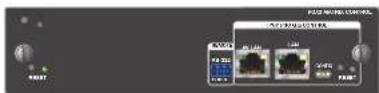
Figure 4. IPCP Pro FOX3 Matrix Q xi Control Card
An IPCP Pro xi Series control processor is the centerpiece of a control system that features Extron TouchLink Pro Touchpanels, Extron NBP Network Button Panels, and IPL EXP expansion interfaces. Most models (except the IPCP Pro S1 xi, IPCP Pro 360MQ xi, and the IPCP Pro FOX3 Matrix Q xi control card) also support Extron eBUS button panels connected to the eBUS port on the control processor. The IPCP supports multiple TouchLink Pro touchpanels over a standard Ethernet network. The touchpanels provide a convenient interface for controlling the
IPCP, which, in turn, controls the other system components. Another option is to use a third-party device such as a touchpanel or tablet in conjunction with Extron LinkLicense.
NOTE: GUI Designer software is used to design the user interface layout of any Extron TouchLink Pro touchpanel or third-party touch interface that is used with the IPCP.
Use Extron Toolbelt software to discover and manage the IPCP Pro xi control processor and other Extron control products. Configure the control processor using Extron Global Configurator software running in Global Configurator Professional (GC Professional) or Global Configurator Plus (GC Plus) mode, or program it using ControlScript programming. When you set up IP addresses and functions, assign drivers to ports, configure relays and digital input or output, and the like, that information is saved to a project configuration file. That file is built and uploaded into the IPCP and to any optional TouchLink Pro touchpanels.
The IPCP Pro xi Series integrates seamlessly with Extron GlobalViewer Enterprise software and Extron Control for Web, iOS, and Android for remote control applications.
Features
General features
Faster microprocessors and expanded memory — These models offer increased project upload speeds, faster runtime performance, and the ability to create more sophisticated projects than previous generations of control processors.
- IPCP Pro xi models — 1 GB of RAM, 8 GB of flash memory
- IPCP Pro Q xi models (models with AV LAN ports) — 2 GB of RAM, 8 GB of flash memory, quad-core processor
Flexible options for device control — The IPCP offers RS-232 and infrared (IR) control, TCP/Ethernet control and monitoring, relays, and either digital I/O (digital input or digital output) or flex I/O (analog input, digital input, or digital output) controls.
- Any IPCP Pro xi control processor with an IR receiver port can learn IR signals from remote controls to communicate with sources such as DVD or Blu-ray players. Users can create their own IR device drivers or go to the Extron website (www.extron.com) to obtain drivers.
- All models except the IPCP Pro S1 xi, IPCP Pro 360MQ xi and the IPCP Pro FOX3 Matrix Q xi card include an Extron eBUS port, which allows a variety of eBUS devices (such as button panels) and accessories (including power and signal hubs) to be connected to a single control processor. The eBUS button panels are automatically recognized by the control processor and can be added or removed at any time.
- Some models also offer contact input ports, independently switched 12 VDC power output, or a port for volume control of an Extron audio amplifier.
• The IPCP Pro PCS1 xi includes one switched AC power output port for power control of a connected device.
Several mounting options
- The IPCP Pro 355DRQ xi can be mounted to a standard 35mm × 7.5mm DIN rail.
- The IPCP Pro355MQ xi and IPCP Pro360MQ xi are embedded into a variety of other Extron products such as matrix switchers and scalers, which can be rack mounted.
- The IPCP Pro FOX3 Matrix Q xi card mounts within a FOX3 matrix switcher.
- All other models are housed in a standard 1U high enclosure which is easily rack mounted or can be installed in or under furniture with an optional mounting kit.
Universal power system compatibility
- The IPCP Pro 360Q xi, IPCP Pro 550 xi, and IPCP Pro 555Q xi include an internal power supply that accepts 100-240 VAC, 50-60 Hz input.
• Other models include a 12 VDC external power supply that accepts 100-240 VAC, 50-60 Hz input. - The IPCP Pro FOX3 Matrix Q xi card is powered directly by a FOX3 matrix switcher.
- The IPCP Pro360Q xi and IPCP Pro360MQ xi offer Power over Ethernet + (PoE+) output on two of their AV LAN ports.
Network and configuration features
- Global compatibility — The IPCP uses industry standard Ethernet communication protocols, including DHCP, DNS, HTTP (redirect), HTTPS, ICMP, IEEE 802.1X, NTP, SFTP, SMTP, SNMP, SSH, TCP/IP, and UDP/IP.
- Network switch — The IPCP Pro 350 xi, IPCP Pro355MQ xi, IPCP Pro 360Q xi, and IPCP Pro360MQ xi include an unmanaged three port switch that supports 10Base-T up to gigabit (1000Base-T) Ethernet communication. Connect any one of these ports to the network for communication with the IPCP. Connect the other two ports to devices such as TouchLink Pro touchpanels and network-controlled AV devices.
- Support for a separate, dedicated AV network (AV LAN) — Some models (IPCP Pro 255Q xi, IPCP Pro 355DRQ xi, IPCP Pro355MQ xi, IPCP Pro 360Q xi, IPCP Pro360MQ xi, IPCP Pro 555Q xi) feature two network interfaces. The interface at the LAN port connects to the corporate network. The AV LAN network interface is for dedicated control of AV devices so you can separate AV traffic from your primary corporate network.
• Multi-level password protection — This allows security to be set based on user roles. -
Embedded web pages — The IPCP embedded web pages include online diagnostics and monitoring of basic features.
-
If the unit is configured to work with Extron Control, you can access the virtual user interfaces from a link in the embedded web page.
- The AC power output port of the IPCP Pro PCS1 xi can also be managed (turned on or off) via its embedded web page.
- Remote equipment management — The IP Link Pro connection allows you to remotely manage, monitor, and control several Ethernet-enabled products such as projectors, cameras, video conferencing equipment, switchers, and other AV equipment. The IPCP provides support for the following:
- TCP, UDP, and HTTP connections
- Password protection using secure communication
- Up to 32 (GC Professional) or 8 (GC Plus) Ethernet devices at a time depending on the configuration mode
-
Connection via IP address or host name
-
System asset management — The configured system and control processor allow you to control, monitor, and schedule various functions of devices in the system.
- E-mail notification — The IPCP can be set up to send e-mail notifications, such as a notice that a projector has been disconnected or the projector lamp has been used for a designated number of hours.
- Additional security features — Each control processor can use the included Secure Sockets Layer (SSL) certificate or a user-supplied, customized security certificate (see Secure Sockets Layer (SSL) Certificates on page 61. IEEE 802.1X Authentication is also supported in our devices once enabled. For details see IEEE 802.1X Certificates on page 62. These control processors also comply with NIAP security standards.
• Support for Extron ControlScript Pro xi.
Feature Summary Table
The following table provides a summary of models and major features.
| Model | Features | ||||||||||||||||
| Ports | |||||||||||||||||
| Mounting | Power Supply | Switched 12 VDC Out | Switched AC Out | 3-pole COM | 5-pole COM | IR/Serial | Relay | Flex I/O | Digital I/O | eBUS | Volume Control | LAN | AV LAN | USB C | PoE+ | IR Learning | |
| IPCP Pro S1 xi Rack | External | — — — 1 | — — | — — | — 1 | — — | — — | ||||||||||
| IPCP Pro 250 xi | Rack | External | — | — | 1 | 1 | 1 | 2 | — | 4 | 1 | 1 | 1 | — | — | — | √ |
| IPCP Pro 255Q xi | Rack | External | — | — | 1 | 1 | 1 | 2 | — | 4 | 1 | 1 | 1 | 1 | — | — | √ |
| IPCP Pro PCS1 xi | Rack | Internal | — | 1 | 1 | — | 1 | — | — | 3 | 1 | — | 1 | — | — | — | — |
| IPCP Pro 350 xi | Rack | External | — | — | 2 | 1 | 2 | 4 | — | 4 | 1 | — | 3 | — | — | — | √ |
| IPCP Pro 355MQ xi (embedded model) | * | * | — | — | 2 | 1 | 2 | 4 | — | 4 | 1 | — | 1 | 3 | — | — | — |
| IPCP Pro 360MQ xi (embedded model) | * | * | — | — | 2 | 1 | 2 | 4 | — | 4 | — | — | 1 | 3 | — | PoE+ on 2 AV LAN ports | √ |
| IPCP Pro 355DRQ xi | DIN rail | External | — | — | 2 | 1 | 2 | 4 | — | 4 | 1 | — | 1 | 1 | — | — | √ |
| IPCP Pro 360Q xi | Rack | Internal | — | — | 2 | 1 | 2 | 4 | — | 4 | 1 | — | 1 | 3 | — | PoE+ on 2 AV LAN ports | √ |
| IPCP Pro 550 xi | Rack | Internal | 4 | — | 6 | 2 | 8 | 8 | 4 | — | 1 | — | 1 | — | — | — | √ |
| IPCP Pro 555Q xi | Rack | Internal | 4 | — | 6 | 2 | 8 | 8 | 4 | — | 1 | — | 1 | 1 | — | — | √ |
| IPCP Pro FOX3 Matrix Q xi Control Card** | Matrix switcher | Matrix switcher | — — | — — | — — | — — | — — | — 1 | 1 1 | — | — | ||||||
*This model is embedded within another product, which provides power to the IPCP.
**The IPCP Pro FOX3 Matrix Q xi card is mounted within and powered by the matrix switcher. Its USB C port is reserved for future use. It also includes a Remote RS-232 connector that is dedicated to control of the FOX3 matrix switcher and is not controlled by the IPCP.
Application Diagrams
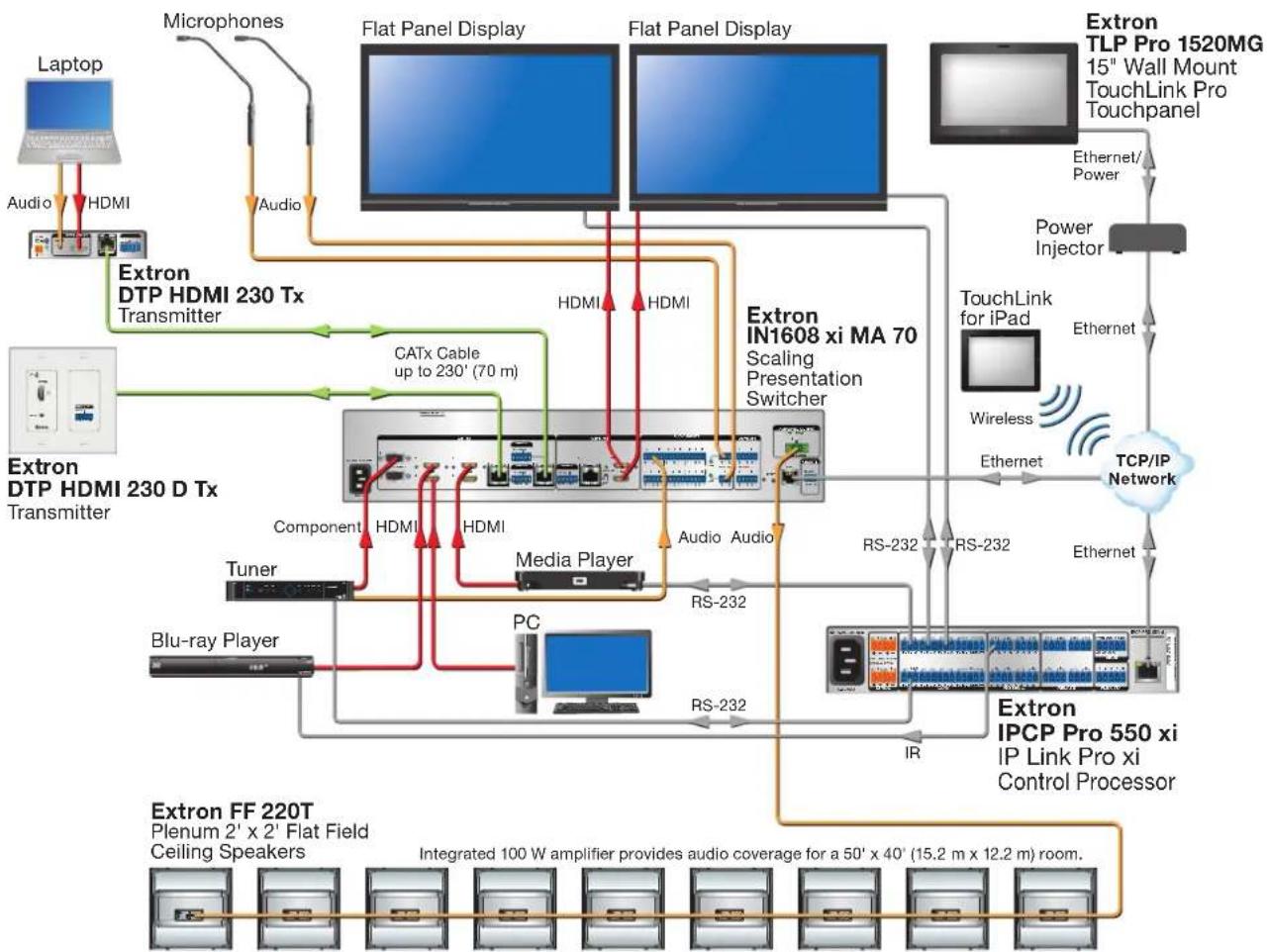
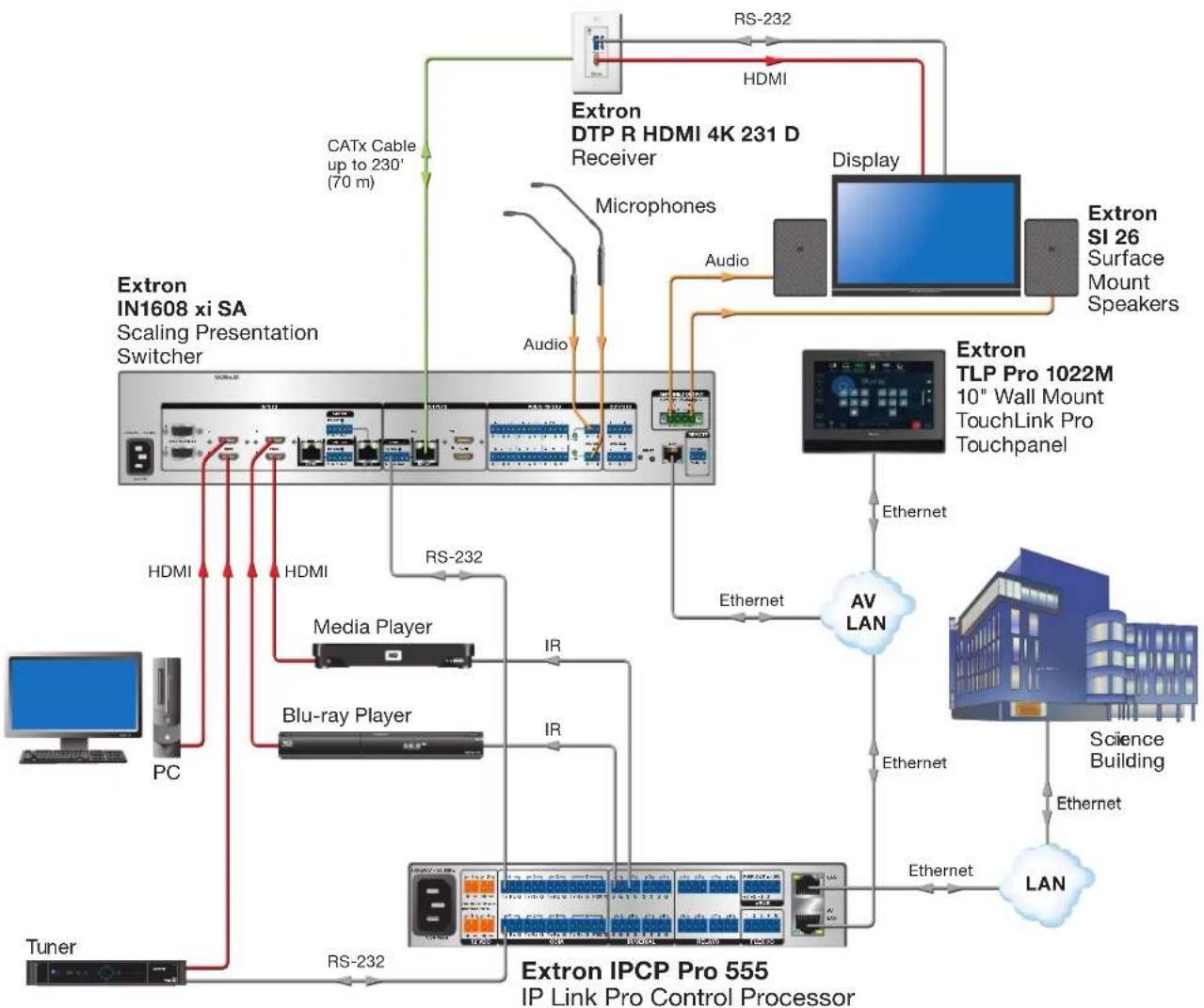
The following figures show examples of types of devices that can be connected to some of the ports on the IPCP Pro xi Series control processors.
flowchart
graph TD
    A["Laptop"] -->|Audio| B["Extron DTP HDMI 230 Tx Transmitter"]
    B --> C["Extron IN1608 xi MA 70 Scaling Presentation Switcher"]
    C --> D["Extron TLP Pro 1520MG 15" Wall Mount TouchLink Pro Touchpanel"]
    D --> E["Power Injector"]
    E --> F["TouchLink for iPad"]
    F --> G["TCP/IP Network"]
    G --> H["Extron IPCP Pro 550 xi IP Link Pro xi Control Processor"]
    H --> I["Extron FF 220T Plenum 2' x 2' Flat Field Ceiling Speakers"]
    C --> J["Media Player"]
    C --> K["Component"]
    C --> L["Audio Audio"]
    C --> M["Blu-ray Player"]
    C --> N["PC"]
    C --> O["RS-232"]
    C --> P["RS-232"]
    C --> Q["IR"]
    C --> R["Interconnects"]
    R --> S["Diagrams"]
    style A fill:#f9f,stroke:#333
    style B fill:#ccf,stroke:#333
    style C fill:#cfc,stroke:#333
    style D fill:#fcc,stroke:#333
    style E fill:#cff,stroke:#333
    style F fill:#ffc,stroke:#333
    style G fill:#fcc,stroke:#333
    style H fill:#ffc,stroke:#333
    style I fill:#cfc,stroke:#333
    style J fill:#cfc,stroke:#333
    style K fill:#cfc,stroke:#333
    style L fill:#cfc,stroke:#333
    style M fill:#cfc,stroke:#333
    style N fill:#cfc,stroke:#333
    style O fill:#cfc,stroke:#333
    style P fill:#cfc,stroke:#333
    style Q fill:#cfc,stroke:#333
    style R fill:#cfc,stroke:#333
    style S fill:#cfc,stroke:#333
    style T fill:#cfc,stroke:#333
    style U fill:#cfc,stroke:#333
    style V fill:#cfc,stroke:#333
    style W fill:#cfc,stroke:#333
    style X fill:#cfc,stroke:#333
    style Y fill:#cfc,stroke:#333
    style Z fill:#cfc,stroke:#333
Figure 5. An IPCP Pro 550 xi Application
flowchart
graph TD
    A["Extron IN1608 xi SA Scaling Presentation Switcher"] -->|HDMI| B["Media Player"]
    A -->|HDMI| C["Blu-ray Player"]
    A -->|RS-232| D["Extron IPCP Pro 555 IP Link Pro Control Processor"]
    A -->|RS-232| E["Extron SI 26 Surface Mount Speakers"]
    A -->|Audio| F["Display"]
    A -->|Audio| G["Microphones"]
    A -->|Audio| H["Extron TLP Pro 1022M 10" Wall Mount TouchLink Pro Touchpanel"]
    A -->|Ethernet| I["AV LAN"]
    A -->|Ethernet| J["Science Building"]
    A -->|Ethernet| K["LAN"]
    A -->|Ethernet| L["Tuner"]
    A -->|IR| M["Computer PC"]
    A -->|IR| N["Radio System"]
    A -->|IR| O["Radio System"]
    A -->|IR| P["Radio System"]
    A -->|IR| Q["Radio System"]
    A -->|IR| R["Radio System"]
    A -->|IR| S["Radio System"]
    A -->|IR| T["Radio System"]
    A -->|IR| U["Radio System"]
    A -->|IR| V["Radio System"]
    A -->|IR| W["Radio System"]
    A -->|IR| X["Radio System"]
    A -->|IR| Y["Radio System"]
    A -->|IR| Z["Radio System"]
    A -->|IR| AA["Radio System"]
    A -->|IR| AB["Radio System"]
    A -->|IR| AC["Radio System"]
    A -->|IR| AD["Radio System"]
    A -->|IR| AE["Radio System"]
    A -->|IR| AF["Radio System"]
    A -->|IR| AG["Radio System"]
    A -->|IR| AH["Radio System"]
    A -->|IR| AI["Radio System"]
    A -->|IR| AJ["Radio System"]
    A -->|IR| AK["Radio System"]
    A -->|IR| AL["Radio System"]
    A -->|IR| AM["Radio System"]
    A -->|IR| AN["Radio System"]
    A -->|IR| AO["Radio System"]
    A -->|IR| AP["Radio System"]
    A -->|IR| AQ["Radio System"]
    A -->|IR| AR["Radio System"]
    A -->|IR| AS["Radio System"]
    A -->|IR| AT["Radio System"]
    A -->|IR| AU["Radio System"]
    A -->|IR| AV["Radio System"]
Figure 6. An IPCP Pro 555Q xi AV LAN Application
Device Control
The IPCP must be configured in one of the following ways before it can send commands to a projector, display, or other device:
- An IR, RS-232, or Ethernet driver file can be downloaded from the Extron website (www.extron.com/download/index.aspx). The driver is saved to a folder and commands from the driver are incorporated into the GC configuration file for the control processor and any touchpanels that will work with it. The configuration file is built and uploaded to the IPCP via GC.
- If a driver is not already available, a universal display driver can be downloaded and used to send user defined commands using Global Configurator Plus or Pro. These can then be incorporated into controls within the GC project.
- IR commands can be learned directly from an IR remote control through IR learning via IR Learner Pro to create a driver that the unit can use. IR learning is seldom needed, but it is convenient for adding new or updated commands in the field in the rare cases when a driver is not already available from Extron.
See the Global Configurator Help File (which comes with the software) for details on setting up the IPCP and for downloading, programming, or learning device control commands.
About Global Configurator Plus and Global Configurator Professional
Global Configurator:
- Loads device drivers for monitoring the status of and controlling devices within the AV system.
- Uploads GUI Designer interface layouts to touchpanels and third-party touch interfaces.
- Creates the configuration containing all the settings for the control processor and the products with which it interacts in the AV system.
- Uploads the configuration to the control processor.
To obtain Extron control product software, you must have an Extron Insider account. Extron provides training to our customers on how to use the software. Access to the features of Global Configurator Professional is available to users who successfully complete Extron Control Professional (ECP) Certification.
About ControlScript Programming
For those who prefer to program control systems rather than configure them, Extron offers ControlScript programming as an alternative to Global Configurator. It encompasses ControlScript Deployment Utility (CSDU), ControlScript Extension for VS Code, and Global Scripter (GS). ControlScript programming is an integrated programming development environment for Extron control processors, user interfaces, network button panels, eBUS button panels, and expansion interfaces.
The programming environment includes the ControlScript API, as well as all of the tools for developing control system programs, such as file management, code editing, debugging and diagnostic tools. More information is available at https://www.extron.com/featured/Control-System-Programming/programming.
About Additional Software Used to Deploy Configurations from LAN to Products on an AV LAN
Extron Product Configuration Software (PCS), XTP Configurator, and DSP Configurator provide the ability to configure devices connected to the AV LAN of an IPCP Pro xi control processor.
PCS can do the following:
• Discover and display the supported IPCP devices
- Securely connect through the IPCP and display a list of devices connected to its AV LAN
- Configure various devices found on the AV LAN
Each of these applications can perform additional functions that vary by software type, such as performing firmware updates or configuration restoration for connected products on the AV LAN.
PC System Requirements
To find the minimum hardware and software requirements for the PC you use to configure the IPCP Pro xi Series:
- Visit the Download page (www.extron.com/download/index.aspx) on the Extron website and navigate to the web page for the specific software package (such as Global Configurator and GUI Designer). Minimum PC hardware and software system requirements are listed in the description section. In some cases, minimum device firmware version requirements are also listed there.
- If system requirements are not listed on the software package web page, contact an Extron support representative.
Hardware Features and Installation
This section covers the following material:
- Setup Checklist: How to Proceed With Installation — A checklist of tasks to guide you through installation
• Network Communication Setup — A flowchart guide to network settings configuration - Front Panel Features — Locations and some descriptions of items on the front panel
- Mounting the IPCP Pro xi Series — Brief guidelines for mounting
- Ports, Addressing, and Connections — Locations, descriptions, and cabling notes for rear panel features and corresponding front panel indications
- Resetting the Unit — Information about the available reset modes and how to reset the IPCP
Pay careful attention to the order and types of setup tasks. Follow the setup checklist in this guide or in the setup guide and keep it with you for reference throughout the installation and configuration process.
Setup Checklist: How to Proceed With Installation
Get Ready
- Familiarize yourself with the features of the control processor (see Front Panel Features on page 13 and Ports, Addressing, and Connections on page 21) and of any TouchLink Pro touchpanels or button panels that will be part of the system.
- Download and install the latest version of the following:
- Toolbelt software — for discovering the control processor and other control products on the network, for managing core settings, and for upgrading firmware when needed
- Global Configurator (GC) software — for configuring the control system
- Global Scripter software or the ControlScript Deployment Utility (ControlScript Pro xi software) — for programming the control processor (as an alternative to GC)
- PCS Product Configuration Software version 4.5 or higher — for setting the IP address for any IPCP Pro Q xi model with AV LAN ports if the ports are currently set to the default IP addresses
- GUI Designer software — for designing layouts for Extron TouchLink Pro touchpanels and third-party touch interfaces
• IP Link Pro device drivers — for use with GC, to make control of other devices possible
- IR Learner Pro software — for use with models that have IR receiver ports, to create your own IR drivers using the remote control of an AV device, if drivers are not already available from Extron
All are available from www.extron.com (see Locating Software, Firmware, and Driver Files on the Extron Website on page 55).
- Obtain network information for the unit from the network administrator. You need the following details for each IP Link Pro xi device:
- DHCP setting (on or off)
- Gateway IP address
• Device (IPCP Pro, TouchLink Pro, IPL EXP) LAN IP address • Username - AV LAN IP address (for models with AV LAN)
- Passwords
- Subnet mask
NOTE: If DHCP is on, you do not need the IP addresses and subnet mask.
- Write down the MAC address of each network interface on each IP Link Pro device to be used.
- Obtain model names and setup information for devices the IPCP will control.
- Each control processor comes with a factory-installed Secure Sockets Layer (SSL) security certificate. If you intend to install a different SSL certificate, contact your IT department to obtain the certificate or for instructions on how to obtain one (see Secure Sockets Layer (SSL) Certificates on page 61 for requirements and guidelines regarding SSL certificates).
- For systems that use IEEE 802.1X security, obtain a PEM-encoded security certificate and private key (see IEEE 802.1X Certificates on page 62) from your IT department.
Mount and Cable All Devices
- Mount the IPCP Pro 355DR Q xi to a DIN rail, insert the IPCP Pro FOX3 Matrix Q xi card into a FOX3 matrix switcher and fasten it to the chassis, or mount a rack-mountable unit to a rack or furniture (see Mounting the IPCP Pro xi Series on page 18).
- Cable devices to the control processor (see Ports, Addressing, and Connections starting on page 21).
- Connect power cords and power on all the devices.
Set Up the Control Processor, Touchpanels, and Network Button Panels for Network Communication
- For models without AV LAN ports: Connect the PC that you use for setup, the LAN port of the control processor, and the touchpanels or network button panels to the same Ethernet network. For control processor LAN connections, see LAN (Ethernet) connectors and LEDs on page 31.
- For models with AV LAN ports: Connect the PC that you use for setup, the control processor, and the touchpanels or network button panels to the Ethernet network. For control processor AV LAN connections, see AV LAN connectors and LEDs on page 31.
- Start Toolbelt and use it to set the IP address or addresses, subnet, gateway IP address, DHCP status, and related settings (see the flowchart in Network Communication Setup on page 12).
NOTES:
- When setting up DHCP during network configuration or if using a host name instead of an IP address, the user must enter a qualified host name (Username.HostName.Domain). For example: somename.extron.com.
- A dedicated AV LAN safeguards AV systems from outside intrusion or interference by separating device control and other network traffic from a corporate or campus network. To ensure that the control processor LAN and AV LAN connections (ports) are connected to separate networks, the LAN and AV LAN IP address schemes must be on different subnetworks.
Configure or Program the Control Processor, Touchpanels, and Network Button Panels
- If TouchLink Pro touchpanels are part of the system, start and use GUI Designer to design, save, and build the graphical user interface (GUI) layout for the touchpanels (see the GUI Designer Help File for instructions).
NOTE: To redeem (activate) a LinkLicense, go to www.extron.com/llredeem and follow the online instructions.
A LinkLicense unlocks features that add convenience, expand system options, and enhance the capabilities of your Extron products. For IPCP Pro Q xi and xi systems, a LinkLicense allows you to use a mobile device or computer as the primary control interface in an Extron control system where a TouchLink Pro touchpanel may not be present.
- If using GC, create a new GC Professional or GC Plus project and configure the control processor and other IP Link Pro devices. The configuration tells the control processor:
• How its ports function • What to monitor
• How to control other products • When to do things
- Which touchpanels to interact with
- Whom to notify, how, and under what circumstances
- Configure ports on the control processor:
- Select device drivers and link them to each serial, IR/serial, or Ethernet port.
- Select settings (serial protocol, relay behavior, digital I/O or flex I/O settings, AC output settings) as needed.
- Add eBUS devices and set them up:
- Ensure that the hardware address (eBUS ID) set on each device is distinct and matches the address used in the configuration.
-
Assign button functions as desired.
-
Add Network Button Panels (NBPs) and set them up. Assign button functions as desired.
- Add and configure any IPL EXP expansion interfaces.
- Set up monitors, schedules, macros, and local variables.
- Add touchpanels and set them up:
- Upload the GUI Designer layout to the Global Configurator project.
- Assign any appropriate functions, monitors, or schedules to the touchpanels and their buttons.
- If not using GC Professional or GC Plus, use ControlScript programming software to program the control system as desired.
• Program ports on the control processor:
- Program each serial, IR/serial, or Ethernet port.
- Program relay behavior, digital I/O, flex I/O, and AC output settings as needed.
- Add eBUS devices and set them up:
- Ensure that the hardware address set on each device is distinct and matches the addresses programmed for them in the IPCP.
-
Program button functions as desired.
-
Add Network Button Panels (NBPs) and set them up. Assign button functions as desired.
- Add and configure any IPL EXP expansion interfaces.
- Add touchpanels and set them up:
- In Global Scripter, drag the GUI Designer layout file into the System Manager window. Click on the touchpanels in the project and select the layout file to be associated with each panel.
Or
- In ControlScript Deployment Utility, make sure the GUI Designer layout file is present in the Layout folder of the project. In the project descriptor JSON file, set the layout file value for the touchpanels in the system to match the file name of the GUI Designer file you wish to be associated with each panel.
- Program functions, monitors, or schedules to the touchpanels and their buttons.
- Save the project.
- Build and upload the system configuration to the control processor and other system devices.
Test and Troubleshoot
- Test the system (see the Troubleshooting section starting on page 57 for an outline of items to check during system troubleshooting).
- Make adjustments to wiring or configuration as needed.
Network Communication Setup
Network setup is essential prior to configuration. Use the flowchart as a general guide to setting up the control processor for network use.
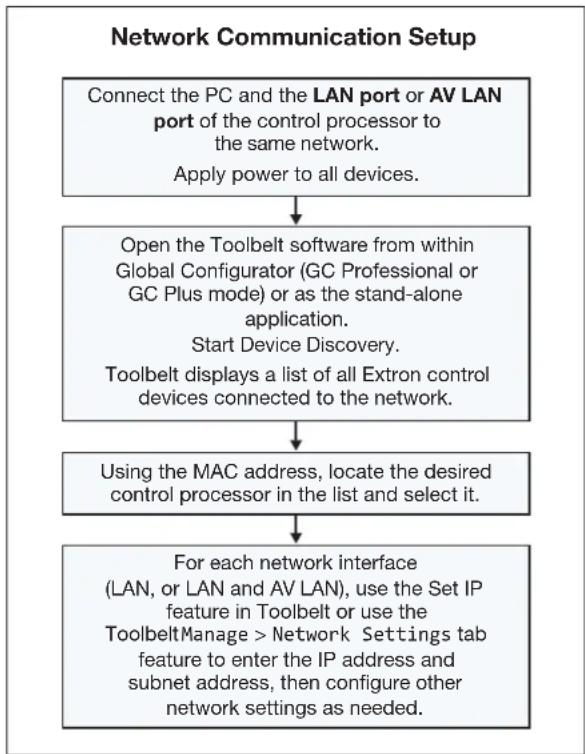
flowchart
graph TD
    A["Connect the PC and the LAN port or AV LAN port of the control processor to the same network.<br>Apply power to all devices."] --> B["Open the Toolbelt software from within Global Configurator (GC Professional or GC Plus mode) or as the stand-alone application.<br>Start Device Discovery.<br>Toolbelt displays a list of all Extron control devices connected to the network."]
    B --> C["Using the MAC address, locate the desired control processor in the list and select it."]
    C --> D["For each network interface (LAN, or LAN and AV LAN), use the Set IP feature in Toolbelt or use the ToolbeltManage > Network Settings tab feature to enter the IP address and subnet address, then configure other network settings as needed."]
NOTE: If using 802.1X security, see the Extron 802.1X Technology Reference Guide and the Toolbelt Help file for additional details on system setup.
Figure 7. Network Setup
Front Panel Features
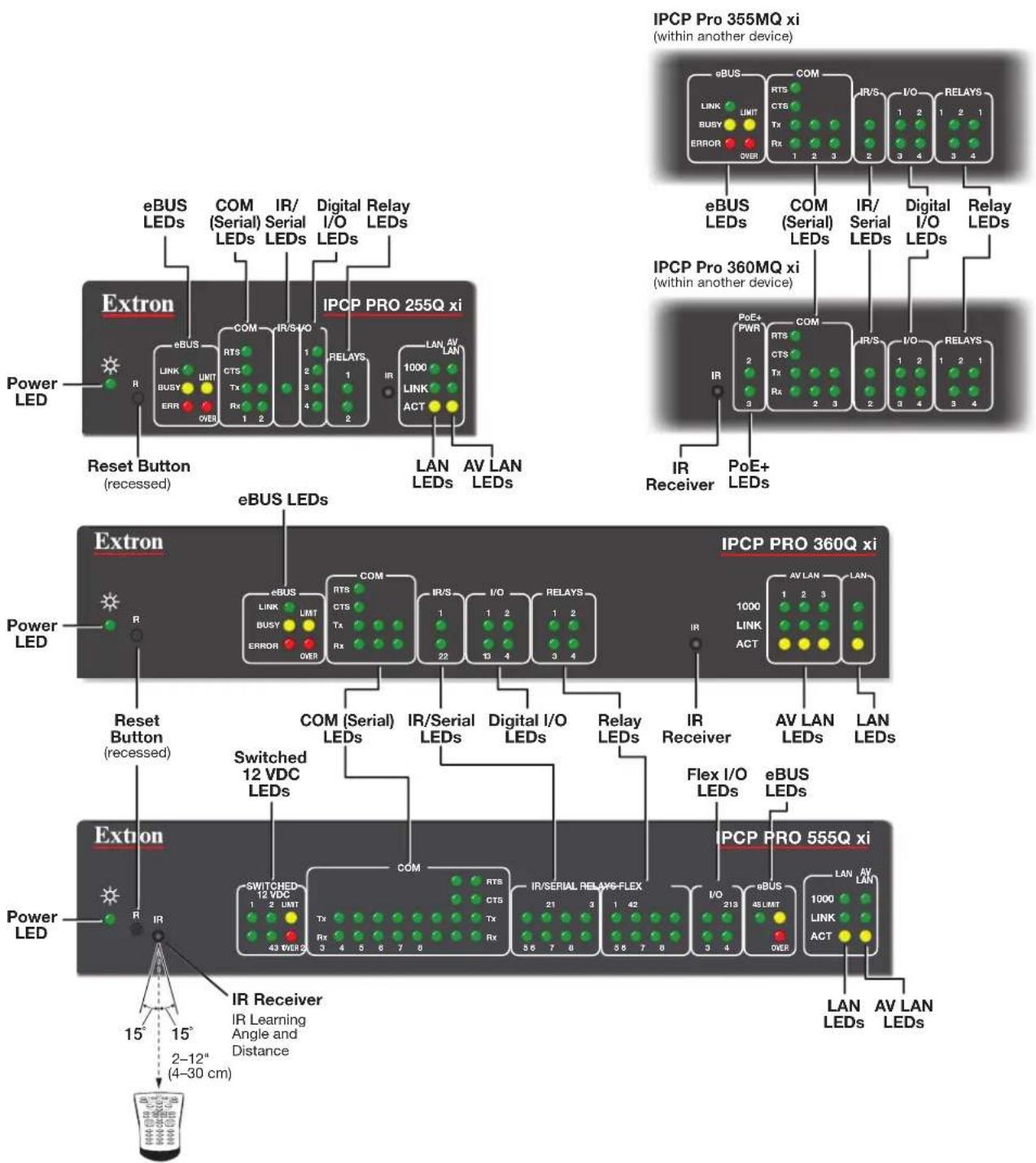
This section shows front panel features and their locations. The quantity and location of ports and corresponding front panel LEDs differ among IPCP models. However, the functions of each type of port and their LEDs are identical for all models. Aside from a few features of the IPCP Pro PCS1 xi, most of the features and LED indications are described and shown in the Ports, Addressing, and Connections section starting on page 21 paired with the descriptions of the corresponding ports.
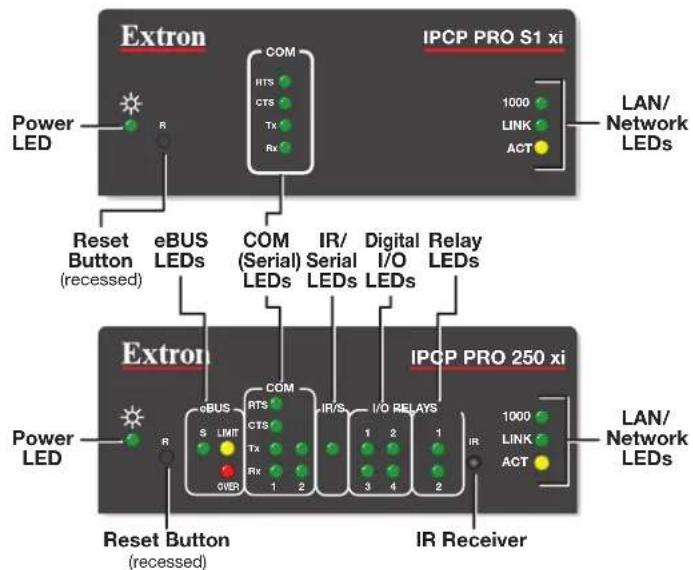
flowchart
graph TD
    A["Extron"] --> B["Power LED"]
    B --> C["Reset Button (recessed)"]
    C --> D["eBUS LEDs"]
    D --> E["COM (Serial) LEDs"]
    E --> F["IR/ Serial LEDs"]
    F --> G["Digital I/O LEDs"]
    G --> H["Relay LEDs"]
    H --> I["IPC P PRO 250 xi"]
    I --> J["Power LED"]
    I --> K["Reset Button (recessed)"]
    K --> L["eBUS"]
    L --> M["COM"]
    M --> N["I/O RELAYS"]
    N --> O["IR Receiver"]
    O --> P["IPC P PRO S1 xi"]
    P --> Q["LAN/ Network LEDs"]
    style A fill:#f9f,stroke:#333
    style I fill:#ccf,stroke:#333
NOTES:
- The Reset button and power LED for the IPCP Pro xi embedded control processors are located next to the rear panel connectors.
- Numbers above or below LEDs correspond to the like-numbered rear panel ports.
- For reset mode information, see Resetting the Unit on page 50.
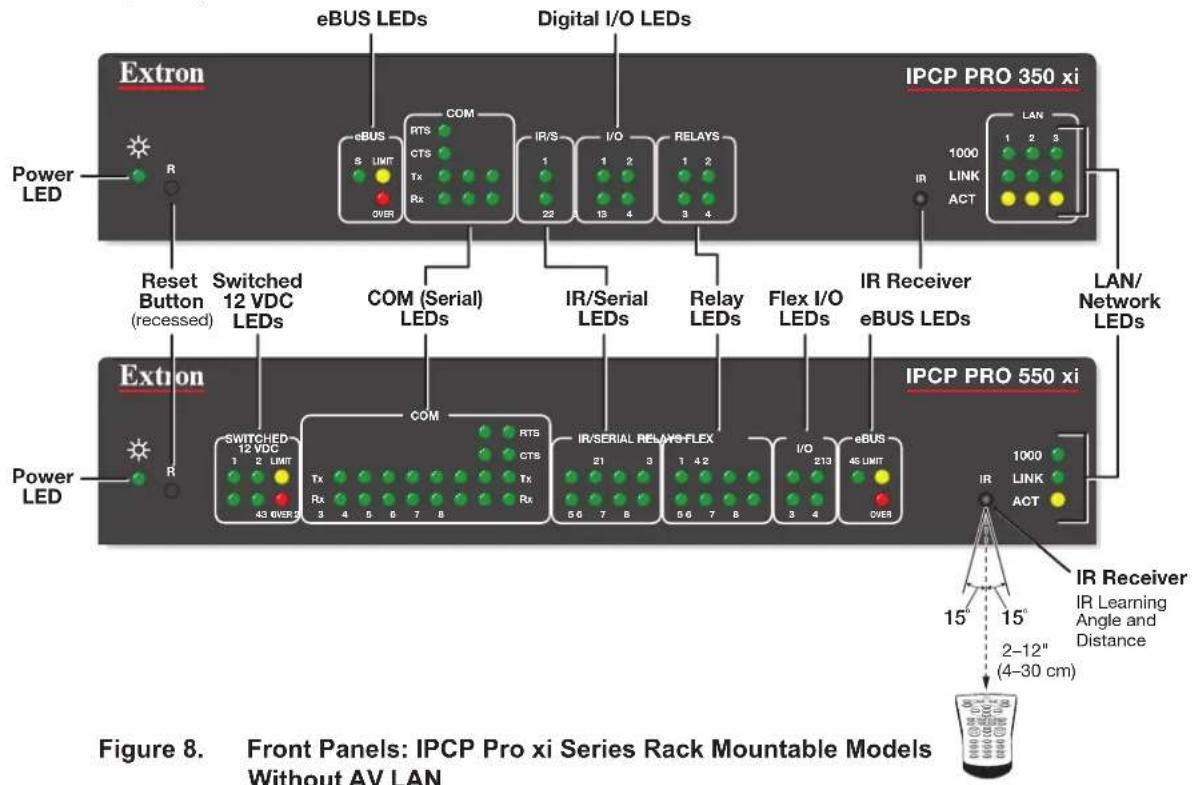
flowchart
graph TD
    A["Extron"] --> B["Power LED"]
    B --> C["Reset Button (recessed)"]
    C --> D["Switched 12 VDC LEDs"]
    D --> E["COM (Serial) LEDs"]
    E --> F["IR/Serial LEDs"]
    F --> G["Relay LEDs"]
    G --> H["Flex I/O LEDs"]
    H --> I["IPC P PRO 350 xi"]
    I --> J["IR Receiver eBUS LEDs"]
    J --> K["LAN Network LEDs"]
    K --> L["IPC P PRO 550 xi"]

    M["Extron"] --> N["Power LED"]
    N --> O["Switched 12 VDC 1 2 LIMIT"]
    O --> P["Tx Rx 43 OVER 2"]
    P --> Q["COM RTS CTS Tx Rx"]
    Q --> R["IR/SERIAL RELAIS-FLEX 21 3"]
    R --> S["I/O 42 213"]
    S --> T["eBUS 45 LIMIT OVER 3 4"]
    T --> U["IPC P PRO 550 xi"]

    V["IPC P PRO 350 xi"] --> W["IR 1000 LINK ACT"]
    W --> X["IR Receiver IR Learning Angle and Distance 15' 15' 2-12" (4-30 cm)"]
    X --> Y["Data Ring Icon"]
See the Software-based Configuration and Control section starting on page 53 and the Global Configurator Help File and Toolbelt Help File for information about Global Configurator and Toolbelt, which you must use to set up the unit.
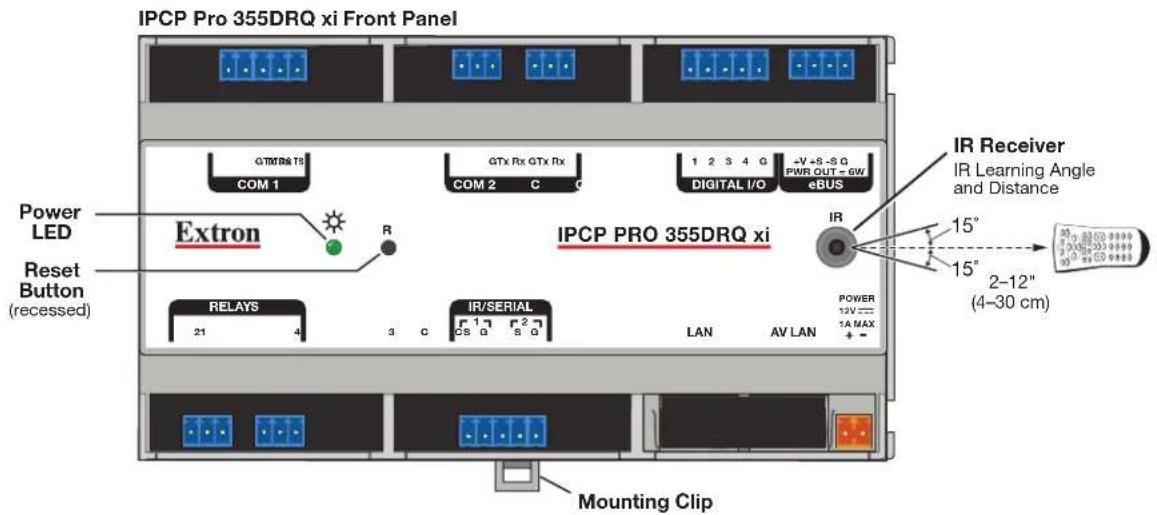
Figure 9. IPCP Pro 355DRQ xi Front Panel
flowchart
graph TD
    subgraph_PowerLED["Power LED"]
        A["Reset Button (recessed)"]
        B["eBUS LEDs"]
        C["COM (Serial) LEDs"]
        D["IR/ Serial LEDs"]
        E["Digital I/O LEDs"]
        F["Relay LEDs"]
    end

    subgraph_Extron["Extron"]
        G["Power LED"]
        H["Reset Button (recessed)"]
        I["eBUS LEDs"]
        J["COM (Serial) LEDs"]
        K["IR/ Serial LEDs"]
        L["Digital I/O LEDs"]
        M["Relay LEDs"]
    end

    subgraph_IPCPPRO255Qxi["IPC P PRO 255Q xi"]
        N["eBUS"] --> O["Link"]
        P["COM"] --> Q["RTS"]
        R["IR/S"] --> S["CTS"]
        T["Relay"] --> U["I/O"]
        V["Relay"] --> W["I/O"]
        X["Relay"] --> Y["I/O"]
    end

    subgraph_IPCPPRO360MQxi["IPC P PRO 360MQ xi"]
        Z["eBUS"] --> AA["PWR"]
        AB["COM"] --> AC["RTS"]
        AD["IR/S"] --> AE["I/O"]
        AF["Relay"] --> AG["I/O"]
        AH["Relay"] --> AI["I/O"]
        AJ["Relay"] --> AK["I/O"]
    end

    subgraph_Extron["Extron"]
        AL["Power LED"] --> AM["eBUS"] --> AN["eBUS LEDs"]
        AO["Reset Button (recessed)"] --> AP["COM (Serial) LEDs"]
        AQ["Switched 12 VDC LEDs"] --> AR["IR/ Serial LEDs"]
        AS["Power LED"] --> AT["Switched 12 VDC LEDs"]
        AU["IR Receiver"] --> AV["IR Learning Angle and Distance"]
        AW["IR Receiver"] --> AX["43 WER 2"]
    end

    subgraph_IPCPPRO360Qxi["IPC P PRO 360Q xi"]
        AY["Power LED"] --> AZ["eBUS"] --> BA["LINK ACT"]
        BB["Reset Button (recessed)"] --> BC["eBUS"] --> BD["LMT"]
        BE["BUSY ERROR OVER"] --> BF["Rx 1 2"]
        BG["Tx 2"] --> BH["Rx 1 2"]
        BI["Tx 4"] --> BJ["Rx 1 2"]
        BK["Rx 1 2"] --> BL["Rx 1 2"]
        BM["Tx 4"] --> BN["Rx 1 2"]
        BO["Rx 1 2"] --> BP["Rx 1 2"]
    end

    subgraph_Extron["Extron"]
        BZ["eBUS"] --> CA["LINK ACT"]
        CB["COM (Serial) LEDs"] --> CC["Tx 1 2"]
        DD["I/O"] --> DE["Tx 4 2"]
        FD["I/O"] --> DG["Tx 4 2"]
        DH["I/O"] --> DI["Tx 4 2"]
    end

    subgraph_IPCPPRO555Qxi["IPC P PRO 555Q xi"]
        DJ["eBUS"] --> DK["Tx 21 3"]
        DL["iO"] --> DV["Tx 6 7 8"]
        DW["iO"] --> DX["Tx 6 7 8"]
        DY["iO"] --> DY["Tx 6 7 8"]
        DY["iO"] --> DY["Tx 6 7 8"]
        DY["iO"] --> DY["Tx 6 7 8"]
    end

    subgraph Extron
        DA["eBUS"] --> DB["LINK ACT"]
        DC["iO"] --> DD
        DD --> DB
    end

    subgraph_IPCPPRO355MQxi["IPC P PRO 355MQ xi (within another device)"]
        DE["eBUS"] --> DE
        DE --> DE
        DE --> DE
        DE --> DE
        DE --> DE
    end

    subgraph_IPCPPRO360MQxi["IPC P PRO 360MQ xi (within another device)"]
        AF["eBUS"] --> AF
        AF --> AF
        AF --> AF
        AF --> AF
        AF --> AF
    end
Figure 10. IPCP Pro 255Q xi, 355MQ xi, 360MQ xi, 360Q xi, and 555Q xi Front Panels
NOTES:
- The Reset button and power LED for the IPCP Pro xi embedded control processors are located next to the rear panel connectors.
- Numbers above or below LEDs correspond to the like-numbered rear panel ports.
- For reset mode information, see Resetting the Unit on page 50.
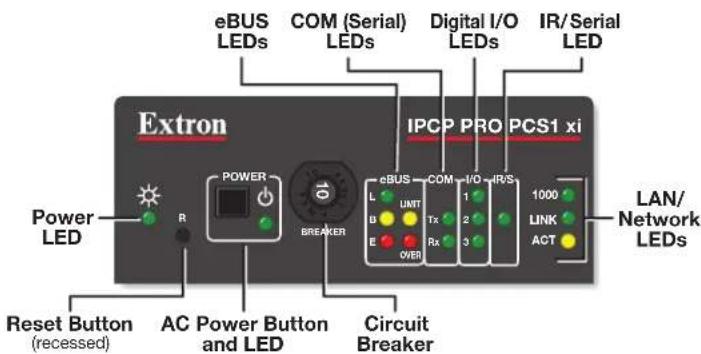
Figure 11. IPCP Pro PCS1 xi Front Panel
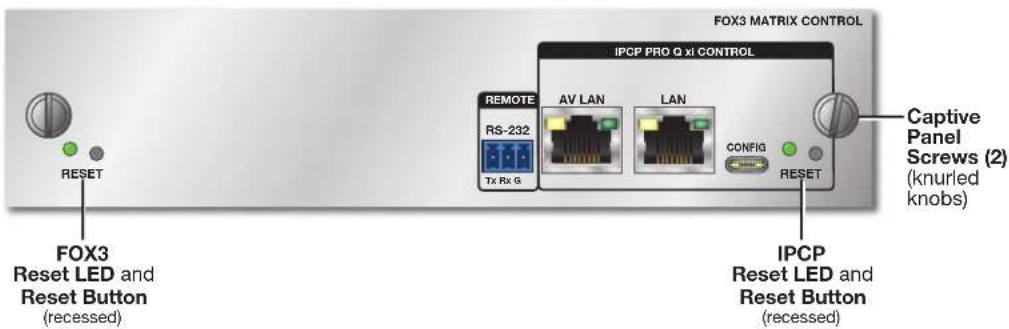
Figure 12. IPCP Pro FOX3 Matrix Q xi Panel
NOTES:
- Also see figure 19 in the "Rear Panel Features" section.
- See the FOX3 Matrix Series User Guide, available at www.extron.com, for information on the matrix switcher reset modes.
• See Resetting the Unit on page 50 for details on the IPCP reset modes.
IPCP Pro PCS1 xi-Specific Front Panel Features
Power button (switch) and LED
The front panel power button (switch) provides a way to manually turn switched AC power output on or off for the rear panel AC power output cable on the IPCP Pro PCS1 xi.
NOTE: The button is not a safety disconnect device. In case of an emergency, disconnect AC power from the power input (appliance inlet) of the connected equipment.
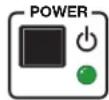
The IPCP Pro PCS1 xi can be configured (using Global Configurator or ControlScript programming software) to monitor the power output condition and to alert users in the event of a power fault interruption. The IPCP Pro PCS1 xi can be set up to monitor the circuit breaker and also the current load at the switched AC power output port.
NOTE: The power output state setting persists after a power cycle.
The AC power LED on the IPCP Pro PCS1 xi lights to indicate the power output state as follows:
- Lit green: Power output is enabled.
- Off (dark): Power output is disabled.
- Lit red: A fault condition is detected, and power output is disabled.
Front panel lockout (executive mode)
To prevent unauthorized use, the power button can be locked (disabled) via a front panel lockout mode (executive mode) that can be enabled or disabled by one of two methods:
• Using software, as part of the configuration or when programming actions, monitors, or schedules
- Pressing and holding down the Power button for 3 seconds
The power LED blinks three times to indicate the lockout mode has been enabled or disabled.
When the front panel is locked, if the Power button is pressed, the power LED blinks three times to indicate that the button is locked, and the unit does not change power states as a result of the button press.
NOTE: The executive mode state (on or off) persists after and is retained during a power cycle.
Circuit breaker
The front panel features a 10 A rated circuit breaker. When a fault condition occurs, the breaker is triggered, which stops power output. This condition can be monitored and the system can be configured (using available commands) to send an alert e-mail or perform some other action. After you correct the cause of the overcurrent condition, press the Breaker button to manually reset the circuit breaker.
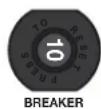
NOTES:
- The circuit breaker and the Reset button are not affected by front panel lockout (executive mode) settings.
- The embedded web page for the unit displays the state of the circuit breaker and the value of the combined current load.
IR Learning Receiver
In most cases, Extron has already produced a driver file for controlling the projector, display, or source device you plan to use. If a device driver file is not available, you can create your own using Extron IR Learner Pro software, the remote control of the projector or display, and the IR learning receiver sensor on many models of IPCPs.
NOTE: The IPCP Pro Matrix Q xi, IPCP Pro 355MQ xi, IPCP Pro PCS1 xi, and IPCP Pro S1 xi do not have an IR learning sensor.
The IR learning receiver accepts infrared signals from 30 kHz to 300 KHz. The IR remote control must be pointed directly at the receiver for best results. The front panel diagrams (see the bottom of figure 9 on page 14 and the right side of figure 8 on page 13) indicate the best distances and angles (15 degrees off axis from the receiver) at which to hold the remote control.
Reset Features
Reset button and LED — Pressing this recessed button causes various product settings to be reset to the factory defaults. The green power LED blinks depending on the selected reset mode (see Resetting the Unit on page 50 and the reset modes table starting on page 50 for details).
NOTE: The IPCP Pro xi reset button is separate from the FOX3 matrix reset button on the IPCP Pro Matrix Q xi (see figure 12 on page 16). Use the FOX3 matrix reset button to execute matrix switcher-specific reset functions, which are detailed in the "Operations" section of the FOX3 Matrix Series User Guide (available at www.extron.com).
Mounting the IPCP Pro xi Series
Mounting Options
Rack and furniture mounting
Optional 1U high rack shelves and a variety of rack mounting bracket kits and furniture mounting kits are available for use with most of the IPCP Pro xi models. Visit the product-specific page on the Extron website (www.extron.com) for a list of compatible accessories for mounting your control processor or call a support representative to find out which kit to order for your installation. Read the instructions that are included with the rack shelf or mounting kit for installation procedures and see the UL rack mounting guidelines below for safe installation.
DIN rail mounting
The IPCP Pro 355DRQ xi mounts to a standard 35 mm "top hat" DIN rail (EN 50022, IEC 60715, US TS35) system that uses rails that are 35 mm high x 7.5 mm deep. Rear Panel Features of DIN Rail Models on page 20 provides a way to identify mounting features. Mounting instructions are available in Mounting an IPCP DIN Rail Unit to a DIN Rail on page 20.
Matrix switcher mounting
The IPCP Pro Matrix Q xi control board mounts into the chassis of a supported model of FOX3 matrix switcher (see Mounting the IPCP Pro Matrix Q xi Into a Matrix Switcher on page 9).
UL Rack Mounting Guidelines
The following Underwriters Laboratories (UL) guidelines pertain to the safe installation of IPCP Pro xi Series control processors in a rack.
CAUTION:
- Elevated operating ambient temperature — If installed in a closed or multi-unit rack assembly, the operating ambient temperature of the rack environment may be greater than room ambient temperature. Therefore, install the IPCP in an environment compatible with the maximum ambient temperature (Tma = +122 °F, +50 °C) specified by Extron.
- Reduced air flow — Install the equipment in a rack so that the amount of air flow required for safe operation of the equipment is not compromised.
- Mechanical loading — Mount the equipment in the rack so that a hazardous condition is not achieved due to uneven mechanical loading.
- Circuit overloading — Connect the equipment to the supply circuit and consider the effect that circuit overloading might have on overcurrent protection and supply wiring. Appropriate consideration of equipment nameplate ratings should be used when addressing this concern.
- Reliable earthing (grounding) — Maintain reliable grounding of rack-mounted equipment. Pay particular attention to supply connections other than direct connections to the branch circuit (such as use of power strips).
Rear Panel Features of the DIN Rail Model
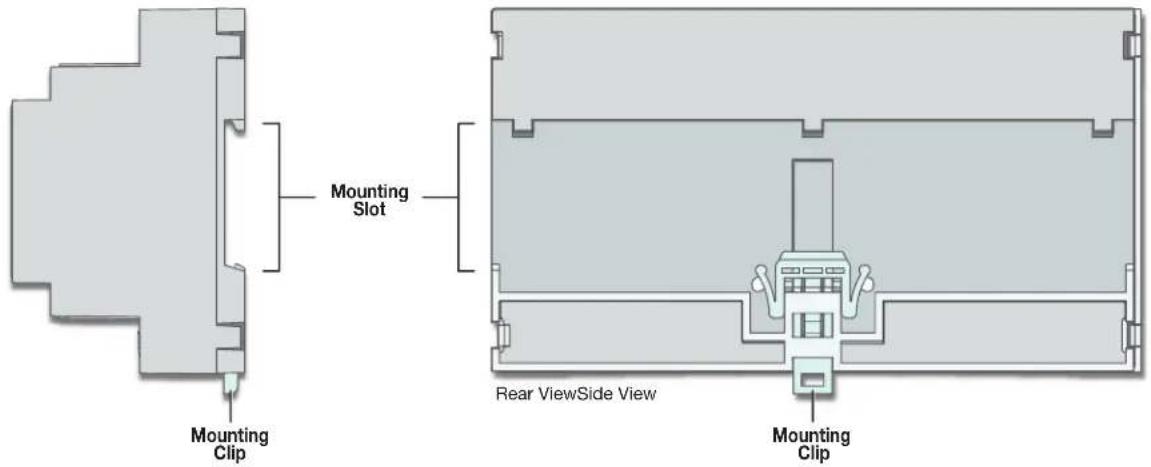
Figure 13. IPCP Pro 355DRQ xi Rear Panel Features
Mounting an IPCP DIN Rail Unit to a DIN Rail
To fasten the IPCP Pro 355DRQ xi to a DIN rail:
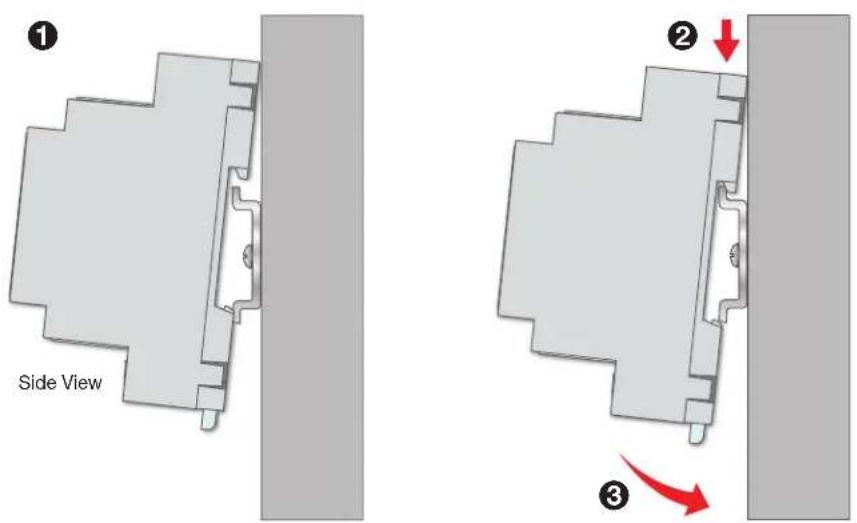
Figure 14. Mounting the IPCP Pro 355DRQ xi to a DIN Rail
- Place the unit in front of the rail, with the top rear against the wall or furniture (see figure 14, ①).
- Slide the IPCP Pro xi down so that the upper part of the mounting slot seats onto the top of the DIN rail (②).
- Tilt the base of the IPCP Pro xi toward the rail and press until the unit snaps into place on the rail (③).
Figure 15 on the next page shows how the IPCP Pro xi looks after it is mounted, before cables are connected.
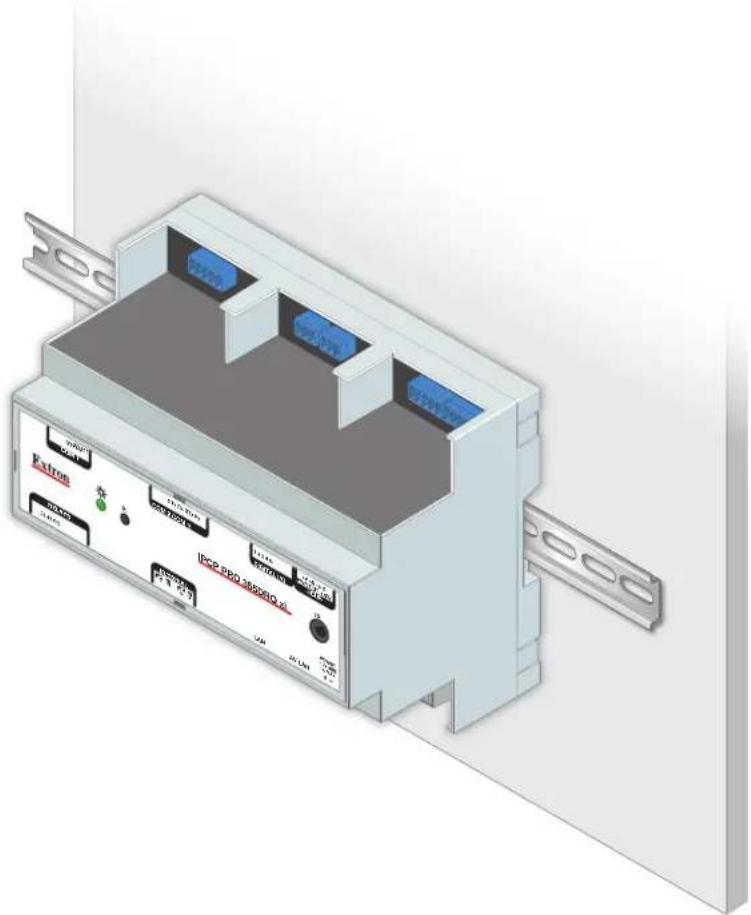
natural_image
3D rendering of an Extron device with labeled ports and control panel (no readable text or symbols beyond labels)Figure 15. The IPCP Pro 355DRQ xi Mounted on a DIN Rail, Before Cabling
Mounting the IPCP Pro Matrix Q xi Into a Matrix Switcher
The IPCP Pro Matrix Q xi mounts within an Extron FOX3 matrix switcher using the captive screws (in figure 19 on page 25). See the "Maintenance and Modifications" sections of the FOX3 Matrix Series User Guide or FOX3 Matrix Series Setup Guide (available at www.extron.com) for mounting instructions
Ports, Addressing, and Connections
ATTENTION:
The quantity of ports and corresponding front panel LEDs differs among IPCP models, but the functions of each type of port and their LEDs are identical for any model that includes that type of port.
Rear Panels — Rack Mount Models Without AV LAN
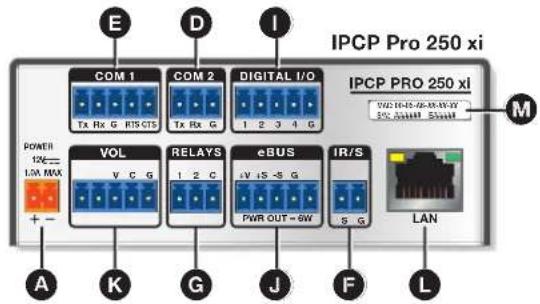
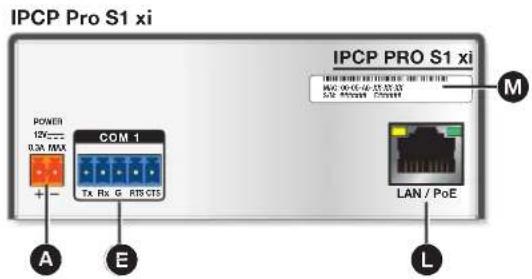
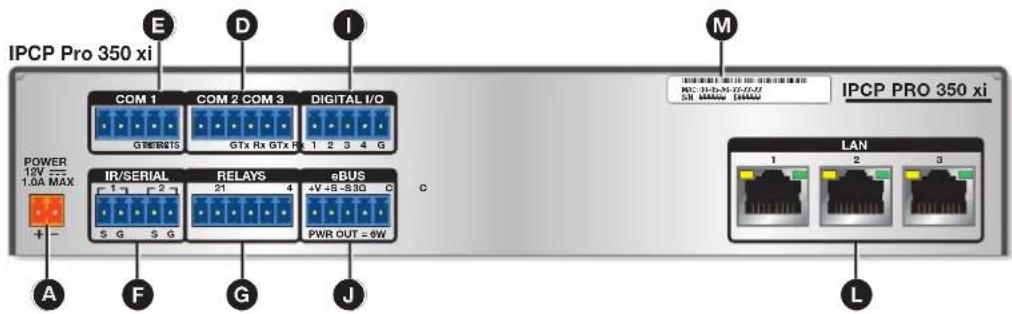
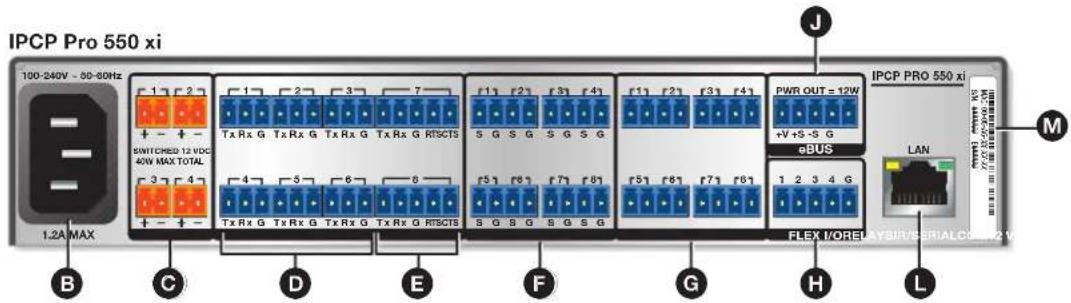
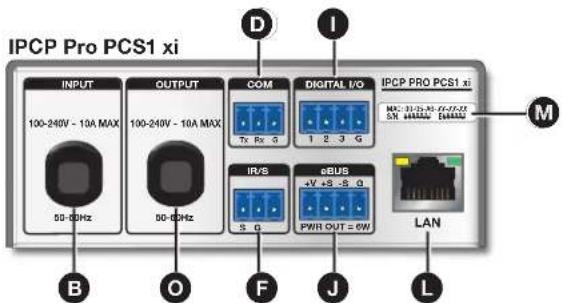
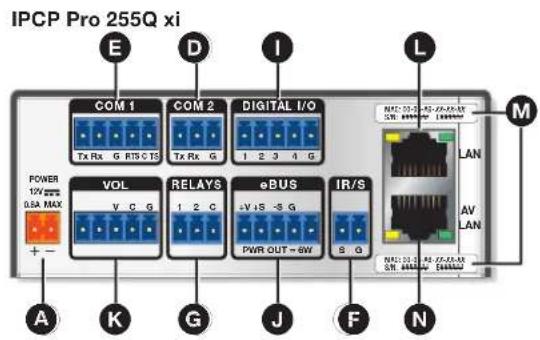
Figure 16. IPCP Pro xi Rack Mount Control Processors (Without AV LAN) Rear Panels
A Power input connector (external power supply)
B Power input connector (internal power supply)
Switched 12 VDC power output ports
D 3-pole COM ports (RS-232 only)
E 5-pole COM ports (RS-232/RS-422/RS-485)
F IR/serial output ports
G Relay ports
H Flex I/O ports (digital input/output or analog input)
Digital I/O ports (digital input/output)
J eBUS ports
K Volume control port
LAN connectors and LEDs (Ethernet)
M MAC address
Switched AC power output (attached cable)
Rear Panels — Rack Mount Models With AV LAN
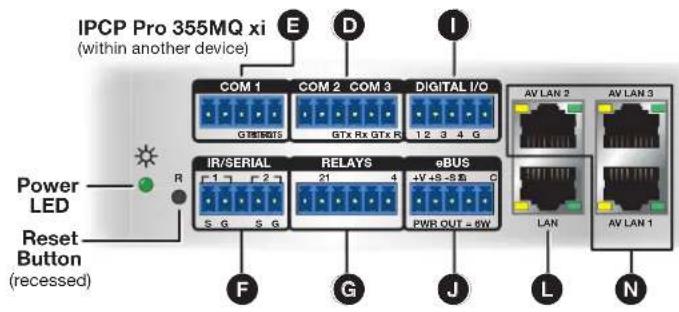
flowchart
graph TD
    A["Power LED"] --> B["Reset Button (recessed)"]
    B --> C["IR/SERIAL"]
    C --> D["RELAYS"]
    D --> E["eBUS"]
    E --> F["AV LAN 1"]
    E --> G["AV LAN 2"]
    E --> H["AV LAN 3"]
    C --> I["COM 1"]
    C --> J["COM 2"]
    C --> K["COM 3"]
    D --> L["PWR OUT = 8W"]
    E --> M["PWR OUT = 8W"]
    style A fill:#f9f,stroke:#333
    style B fill:#ccf,stroke:#333
    style C fill:#cfc,stroke:#333
    style D fill:#fcc,stroke:#333
    style E fill:#cff,stroke:#333
    style F fill:#ffc,stroke:#333
    style G fill:#ffc,stroke:#333
    style H fill:#ffc,stroke:#333
    style I fill:#fff,stroke:#333
    style J fill:#fff,stroke:#333
    style K fill:#fff,stroke:#333
    style L fill:#fff,stroke:#333
    style M fill:#fff,stroke:#333
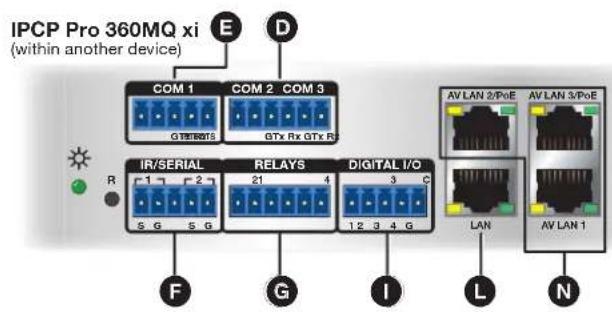
flowchart
graph TD
    A["IPC P Pro 360MQ xi (within another device)"] --> B["COM 1 GTxRx GTx Rx"]
    A --> C["COM 2 GTx Rx GTx Rx"]
    A --> D["COM 3 GTx Rx GTx Rx"]
    A --> E["IR/Serial 5 G 5 G"]
    A --> F["RELAYS 21 4"]
    A --> G["DIGITAL I/O 12 3 4 G"]
    H["AV LAN 2/PoE"] --> I["LAN"]
    J["AV LAN 3/PoE"] --> K["AV LAN 1"]
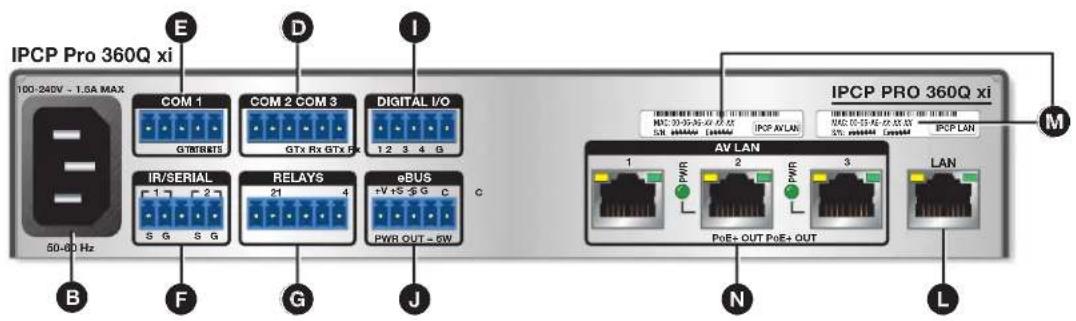
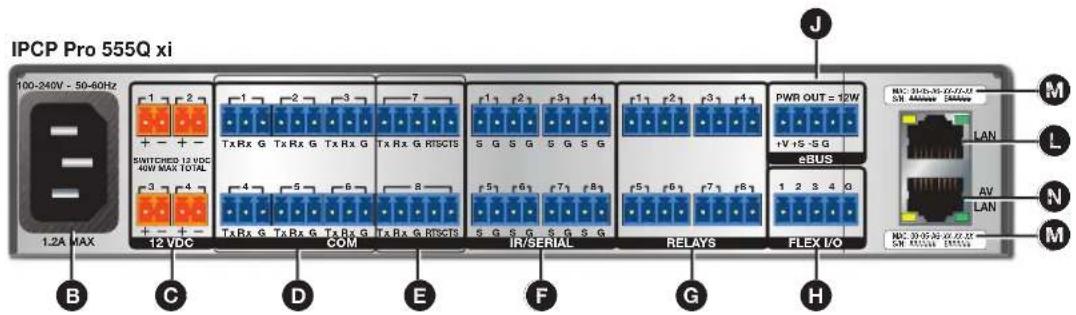
Figure 17. IPCP Pro Q xi Rack Mount Control Processors (with AV LAN) Rear Panels
A Power input connector (external power supply)
B Power input connector (internal power supply)
C Switched 12 VDC power output ports
D 3-pole COM ports (RS-232 only)
E 5-pole COM ports (RS-232/RS-422/RS-485)
F IR/serial output ports
G Relay ports
H Flex I/O ports (digital input/output or analog input)
Digital I/O ports (digital input/output)
J eBUS ports
K Volume control port
LAN connectors and LEDs (Ethernet)
M MAC address
N AV LAN connector and LEDs (Ethernet), some with PoE+ and PoE+ LEDs
NOTE: The Reset button and power LED for the IPCP Pro xi embedded control processors are located next to the rear panel connectors. For reset mode information, see Resetting the Unit on page 50.
Front Panel — DIN Rail Model
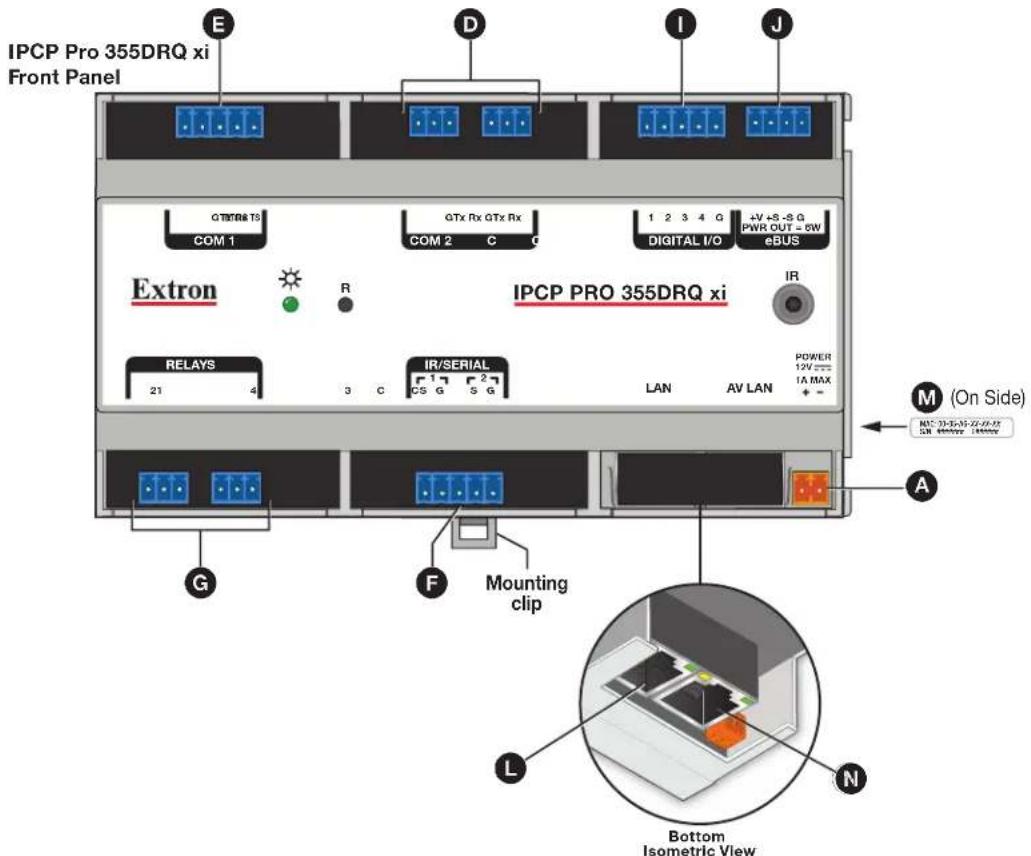
Figure 18. IPCP Pro 355DRQ xi Front Panel
A Power input connector (external power supply)
D 3-pole COM ports (RS-232 only)
E 5-pole COM ports (RS-232/RS-422/RS-485)
F IR/serial output ports
G Relay ports
Digital I/O ports (digital input/output)
J eBUS ports
LAN connectors and LEDs (Ethernet)
M MAC address (or addresses)
N AV LAN connector and LEDs (Ethernet)
Rear Panel — IPCP Pro FOX3 Matrix Q xi
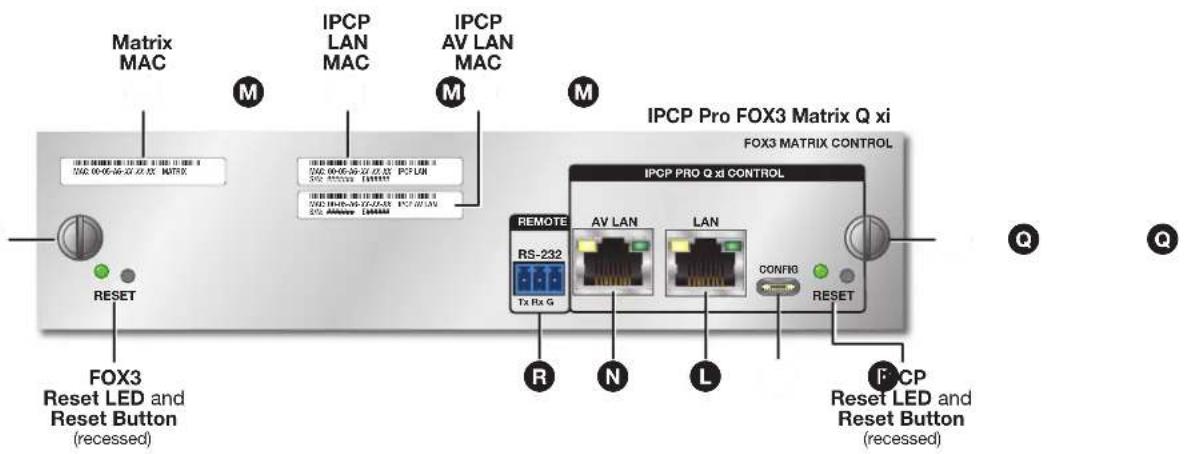
Figure 19. IPCP Pro FOX3 Matrix Q xi Panel
LAN connectors and LEDs (Ethernet)
M MAC address (or addresses)
N AV LAN connector and LEDs (Ethernet)
P USB C configuration port — For future use.
Q Captive panel (mounting) screws (2)
Remote RS-232 port — For direct SIS control of the matrix switcher. See the user guide for the FOX3 matrix switcher for details.
Power Connections
Power for the IPCP Pro FOX3 Matrix Q xi is provided by the FOX3 matrix switcher into which it is installed (see Mounting the IPCP Pro Matrix Q xi Into a Matrix Switcher on page 9). For all other models, follow cabling directions in this section.
NOTE: The IPCP Pro 250 xi, IPCP Pro 255Q xi, IPCP Pro 350 xi, and IPCP Pro 360Q xi are suitable for use in an environmental air space in accordance with section 300.22.C of the National Electrical Code, and sections 2-128, 12-010(3) and 12-100 of the Canadian Electrical Code, part 1, C22.1.
Power input connector (external power supply) — Connect the IPCP to the included 12 VDC power supply (part number 28-071-57LF or 28-327-57LF) via this port (see figure 16, figure 17, and figure 18, on page 22 through page 24), then connect the external power supply to a 100 to 240 VAC power source.
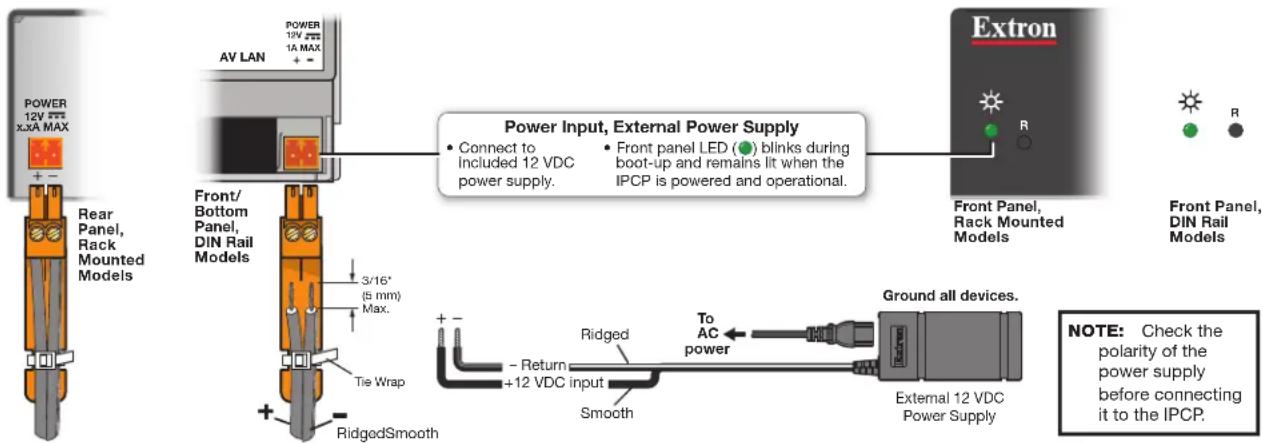
Figure 20. Connecting an External Power Supply
ATTENTION:
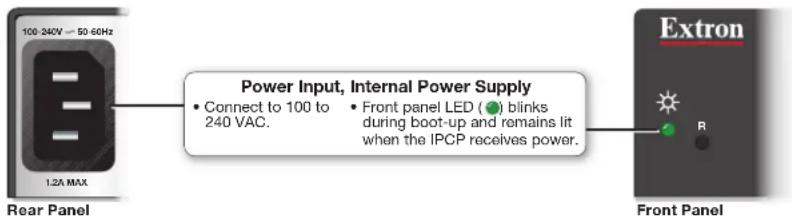
B Power input connector (internal power supply) — Connect the IPCP to a 100 to 240 VAC power source here (see figure 16 on page 22 or figure 17 on page 23).
flowchart
graph LR
    A["100-240V — 50-60Hz"] --> B["Rear Panel"]
    B --> C["Power Input, Internal Power Supply"]
    C --> D["• Connect to 100 to 240 VAC."]
    C --> E["• Front panel LED (●) blinks during boot-up and remains lit when the IPCP receives power."]
    E --> F["Extron"]
    F --> G["Front Panel"]
Figure 21. Connecting AC Power to an Internal Power Supply (Most Models)
The IPCP Pro PCS1 xi has an attached AC power input cable.
CAUTION: Always disconnect the product from the wall plug.
flowchart
graph TD
    A["Input 100-240V - 10A MAX"] --> B["50-60Hz"]
    C["Output 100-240V - 10A MAX"] --> B
    B --> D["Rear Panel"]
    D --> E["6 inch (152 mm) IEC Input Cable"]
    E --> F["IEC Power Cord"]
    F --> G["To a 100 - 240 VAC power source (main power)"]
    H["Power Input, Internal Power Supply"] --> I["Connect to 100 to 240 VAC."]
    H --> J["Front panel LED (●) blinks during boot-up and remains lit when the IPCP receives power."]
    J --> K["Extron"]
Figure 22. Connecting an AC Power Source to the IPCP Pro PCS1 xi
Switched 12 VDC power output ports — These ports (see figure 16, © on page 22) provide 12 VDC output. For the IPCP Pro 550 xi and IPCP Pro 555Q xi, the four ports provide up to a combined maximum of 40 watts. Once configured, each port can be separately turned on or off. These ports are monitored continuously for total power usage (draw).
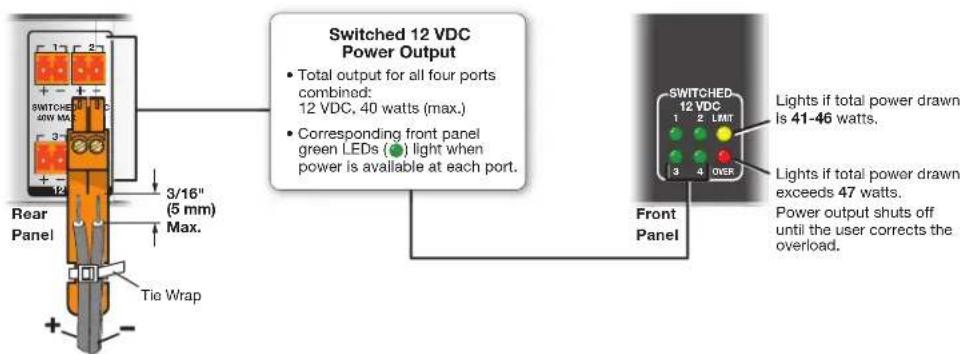
Figure 23. Switched DC Power Output Ports and LEDs
- When the total power usage exceeds a threshold of 41 watts but is still below 47 watts, the IPCP enters the limit mode, during which the yellow front panel Limit LED lights. If you have configured the unit to do so, the IPCP can issue a power overcurrent notice.
- If power usage exceeds a second, higher threshold (47 watts), the IPCP enters overcurrent mode. It turns these ports off, and the red front panel Over LED lights.
If the ports are disabled, the user must disconnect or fix the attached devices to correct the problem. If the power draw is still excessive, the ports remain off.
Switched AC power output (attached cable) (IPCP Pro PCS1 xi only) (see figure 16 on page 22) — Provides switched (controlled) AC power output to another device.
CAUTION:
ATTENTION :
flowchart
graph TD
    A["Input: 100-240V - 10A MAX"] --> B["6 inch (152 mm) IEC Output Cable"]
    C["Output: 100-240V - 10A MAX"] --> B
    B --> D["NEMA 5-15R Adapter"]
    D --> E["EDISON POWER Cord"]
    E --> F["Power input port on an AV device (USA)"]
    F --> G["Extron"]
    H["NOTE: The front panel power switch is not a safety disconnect device. In case of emergency, disconnect AC power from the power input (appliance inlet) of the connected equipment."] --> D
    style A fill:#f9f,stroke:#333
    style C fill:#f9f,stroke:#333
    style H fill:#ccf,stroke:#333
    style F fill:#cfc,stroke:#333
Figure 24. Switched AC Power Output Connection (IPCP Pro PCS1 xi Only)
ATTENTION:
- Within the United States of America use a power supply cord with conductors that are a minimum diameter of 18 AWG.
- For international installations, use a power supply cord with conductors that are a minimum of 1.0 ~mm^2 .
- Make sure that the device being controlled can support an AC power cycle.
- The power state of this port is retained after power is cycled to the IPCP Pro PCS1 xi.
AC power output can be enabled or disabled using the following:
• A configuration (created in Global Configurator, Global Scripter, or ControlScript Deployment Utility)
- The IPCP Pro PCS1 xi front panel Power button (see Power button (switch) and LED on page 17).
- A control within the IPCP Pro PCS1 xi embedded web page.
This output is protected by a 10 A circuit breaker (see Circuit breaker on page 17). For reference, the embedded web page for the unit displays the state of the circuit breaker and the value of the combined current load.
Bidirectional Control and Communication Connections and Features
3-pole COM ports, RS-232 only (see figure 16, figure 17, and figure 18 on page 22 through page 24) and
E 5-pole COM ports, RS-232/RS-422/RS-485 — Use COM ports for serial control of a display or other device and to receive status messages from the connected devices. These ports can send commands from a driver file. RS-232 is the only mode for the 3-pole ports and is the default mode for the 5-pole ports.
IPCP Pro xi Series serial protocol:
• 300 to 115200 baud (9600 baud = default)
• 8 (default) or 7 data bits
• 1 (default) or 2 stop bits
• No parity (default), even parity, or odd parity
- Flow control support (default = none):
• 3-pole ports: software-only (XON, XOFF)
• 5-pole ports: hardware and software
Use the following diagram as a wiring guide to cable the IPCP to other devices.
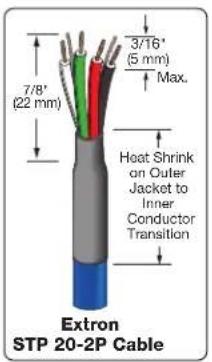
TIP: STP 20-2P cable, shown at left, is recommended for these connections. For best results, insulate the common or drain wires using heat shrink.
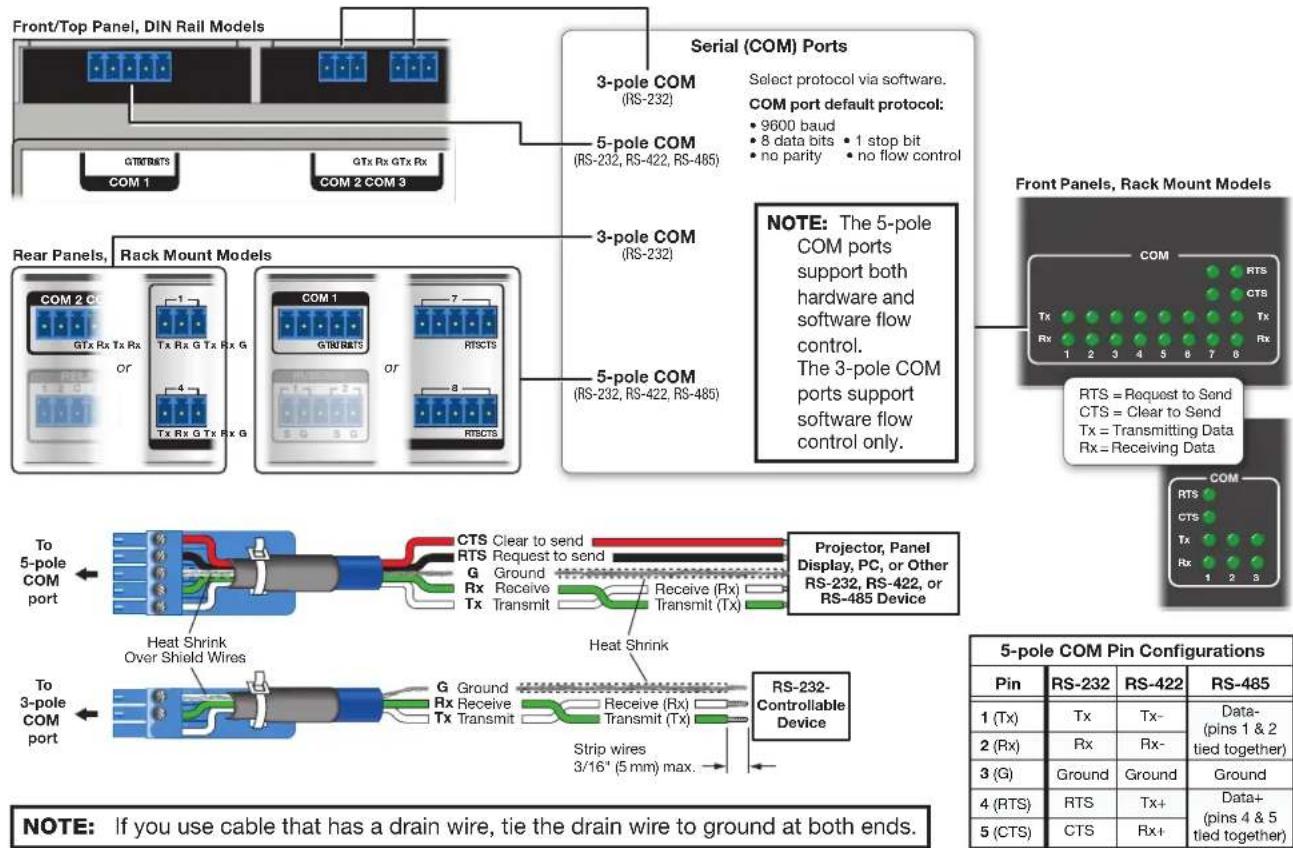
Figure 25. Wiring COM ports for Serial Control
For bidirectional serial communication, the transmit, ground, and receive pins must be wired at both the IPCP Pro xi Series and the other device. Each projector or other device may require different wiring.
For details, see the manual for that equipment or read the Extron device driver communication sheet, which is included with the drivers.
NOTE: Maximum distances between the IPCP and the device being controlled are generally up to 200 feet (61 m) but can vary based on factors such as cable gauge, baud rates, environment, and output levels from the IPCP and the device being controlled.
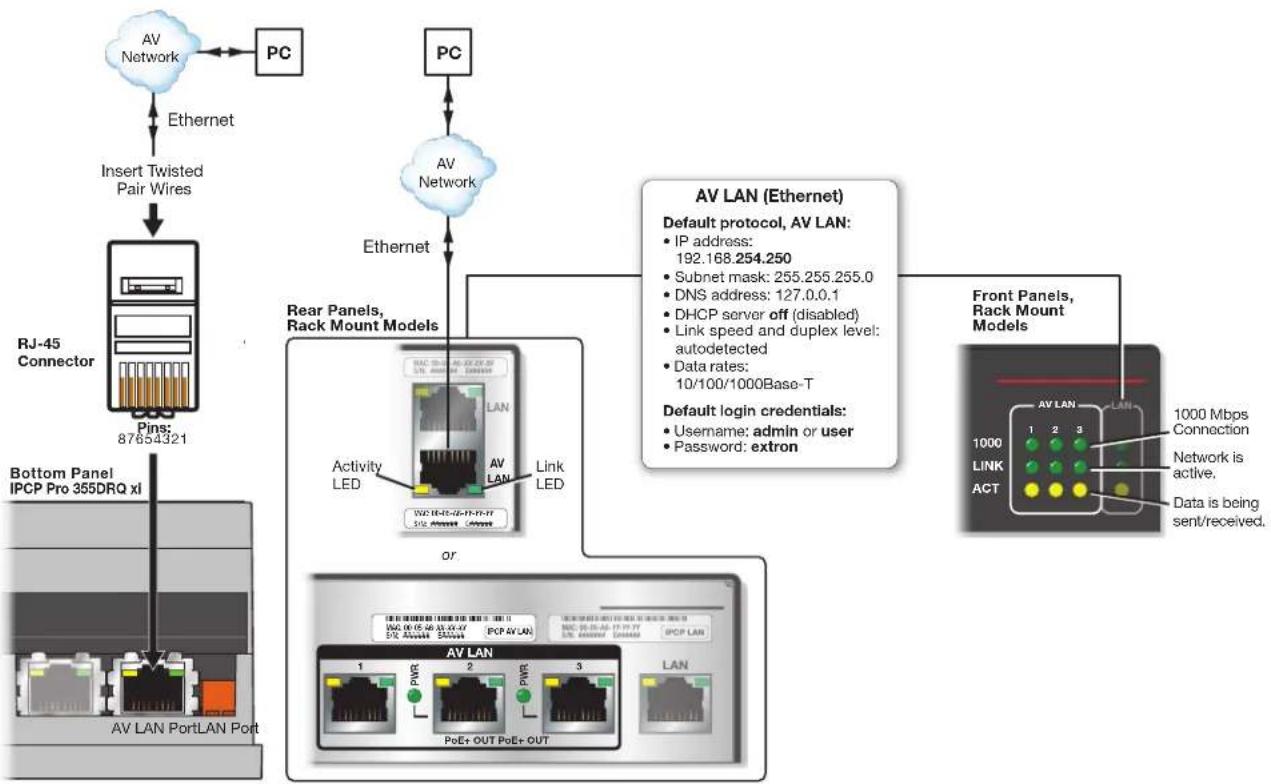
LAN (Ethernet) connectors and LEDs (Ethernet) (see figure 16, figure 17, and figure 18 on page 22 through page 24) and
N AV LAN connectors and LEDs (Ethernet) —
To connect the IPCP to an Ethernet network (for configuration and control of the IPCP and the devices connected to it), plug a cable into one of these RJ-45 sockets and connect the other end of the cable to a network switch, hub, router, or PC connected to a local network or the Internet.
- DHCP is off by default for all LAN and AV LAN ports.
- If the IPCP has more than one LAN port or AV LAN port, the rest of the LAN or AV LAN ports function as simple network switches (a multiport, unmanaged switch), so that you can connect additional devices to the same network.
AV LAN ports use a separate network interface from that of the main LAN connection for the unit. Connect AV devices to AV LAN ports in order to create a secure and private AV Ethernet network and to separate AV communications from the corporate network traffic.
NOTES:
- A dedicated AV LAN safeguards AV systems from outside intrusion or interference by separating device control and other network traffic from a corporate or campus network. To ensure that the control processor LAN and AV LAN connections (ports) are connected to separate networks, the LAN and AV LAN IP address schemes must be on different subnetworks.
-
For an IPCP Pro xi Series control processor mounted within a host product, such as the IPCP Pro Matrix Q xi control card, IPCP Pro 355MQ xi, and IPCP Pro 360MQ xi:
-
Use the LAN port when configuring the IPCP.
- Use the AV LAN port and Extron Product Configuration Software (PCS) to configure the matrix switcher or other host device. See the section on connecting to PCS in the user guide for the Extron host device (such as the FOX3 Matrix Series User Guide) for instructions.
Power over Ethernet+ (PoE+) output is available on some RJ-45 connectors
(AV LAN ports 2 and 3) on some models, such as the IPCP Pro 360Q xi and IPCP Pro 360MQ xi. PoE+ output allows the unit to provide power to PoE-enabled AV devices that are controlled by the IPCP.
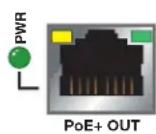
- Ports labeled "PoE+ Out" can output a maximum of 30 watts per port.
- The corresponding Power LED lights when the port provides power.
- Each individual PoE+ port can be configured or programmed to monitor its connection status and load (power consumption). This allows you to determine when a PoE supported device is connected to and powered by that port and how much power is being drawn.
• Power consumption at each PoE+ port is measured in watts, monitored with a resolution of 0.3 watts. - Schedules can be set up for PoE+ output (via GC or ControlScript programming) so that ports can be turned off automatically to conserve energy.
Additional details are available in the Global Configurator Help File.
ATTENTION:
Network Port Addressing:
If you use static IP addresses, configure the settings and IP addresses via Toolbelt. See the help file for Global Configurator or Toolbelt for basic information on configuration. PCS software version 4.5 or higher can also be used to set IP addresses on units with AV LAN ports as long as the ports are set to the default addresses.
The default static IP addresses and subnet masks for these ports differ depending on whether or not the unit includes AV LAN ports. See the diagrams starting on the next page, and see the following table for default addresses.
| Network Port Addressing | |||
| Model and Port Types IP Address Subnet Mask DNS Address | |||
| Static IP addresses (default, what the unit uses when DHCP is off) | |||
| Models without AV LAN | |||
| LAN | 192.168.254.250 | 255.255.255.0 127.0.0.1 | |
| Models with AV LAN | |||
| LAN | 192.168.253.250 | 127.0.0.1 | |
| AV LAN (DHCP server disabled) | 192.168.254.250 | ||
| AV LAN (DHCP server enabled) | 192.168.254.1 192.168.254.1 | ||
| DHCP on (alternative setting) | |||
| Models without AV LAN | |||
| LAN | DHCP on | ||
| Models with AV LAN | |||
| LAN | DHCP on | ||
| AV LAN (DHCP server disabled) | DHCP off (disabled) | ||
For details of communication protocols, ports, and services used, see the Control Systems Network Ports, Protocols, and Licenses Guide at www.extron.com.
LED Indication:
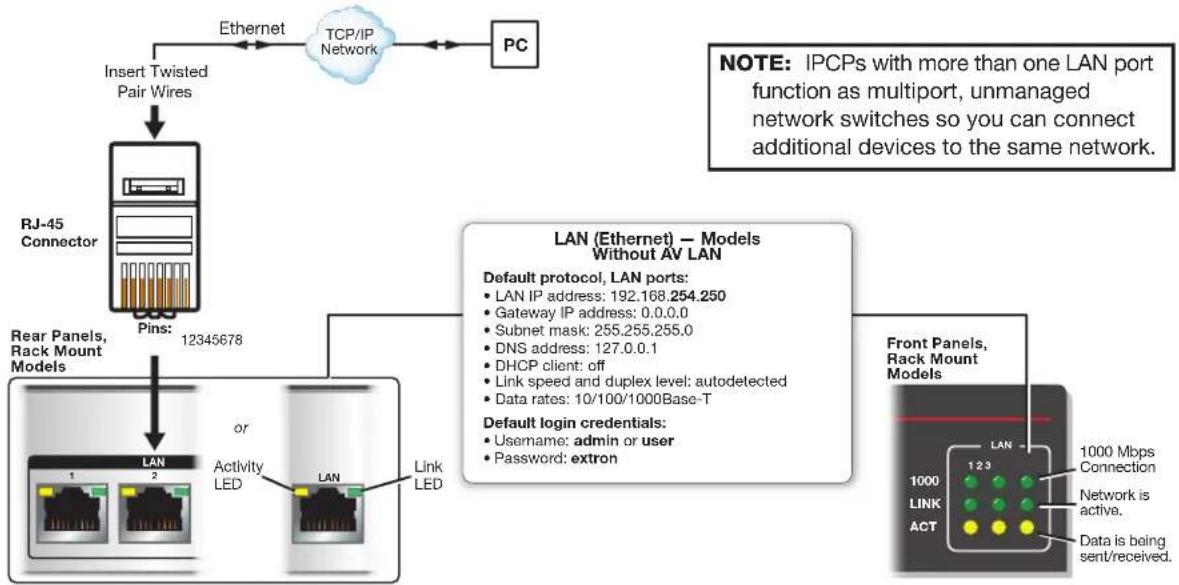
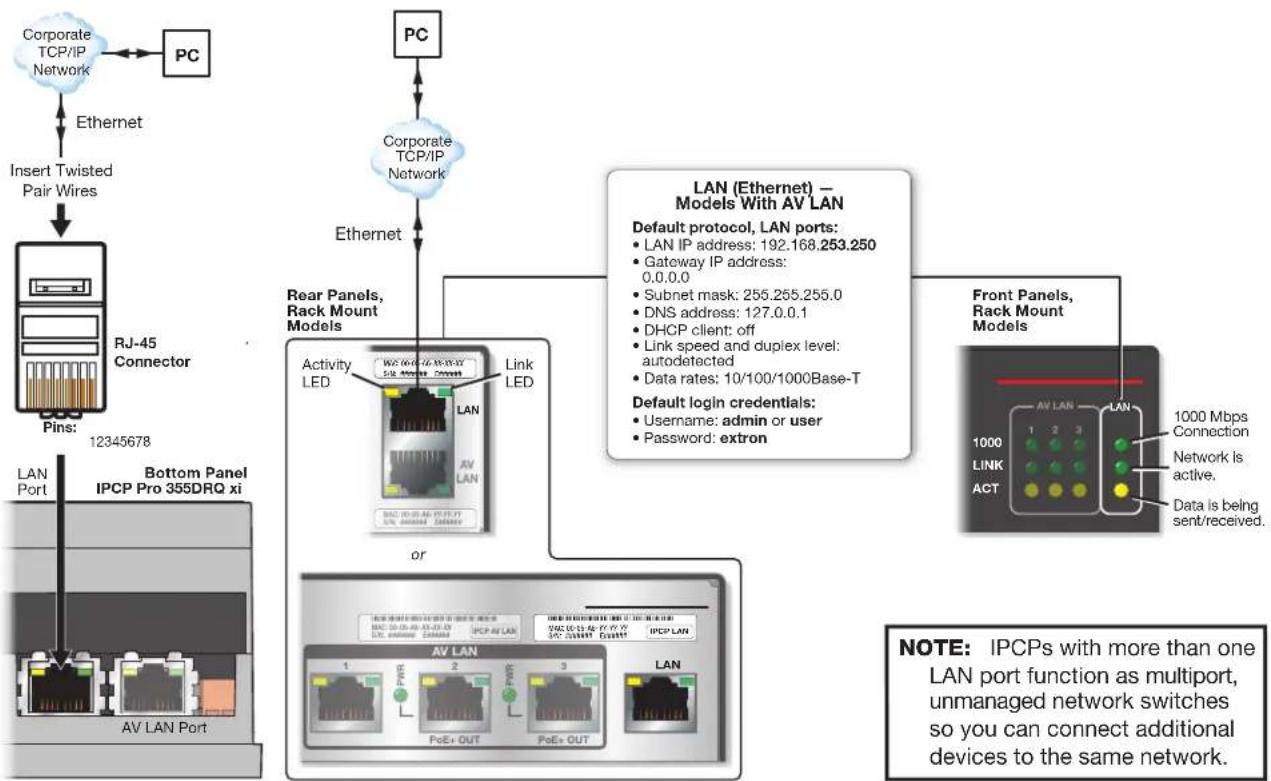
Activity LED (connectors [all models] and front panel [rack mount models]) — This yellow LED blinks to indicate network activity.
Link LED (connectors [all models] and front panel [rack mount models]) — This green LED lights to indicate a good network connection.
1000 LED (front panel [rack mount models]) — This green LED lights when the unit is connected to a gigabit network connection.
Passwords:
IMPORTANT NOTE:
The factory configured passwords for this device have been set to the device serial number. Passwords are case sensitive. Performing a Reset to Factory Defaults reset (see Resetting the Unit on page 50) sets the passwords to extron.
Cabling:
- For 10Base-T (10 Mbps) networks, use a CAT 3 or better cable.
• For 100Base-T (max. 155 Mbps) or 1000Base-T networks, use a CAT 5 or better cable.
For models without AV LAN: Connect the PC that you will use for setup, the LAN port of the control processor, and the touchpanels to the same Ethernet network.
flowchart
graph TD
    A["PC"] --> B["TCP/IP Network"]
    B --> C["Insert Twisted Pair Wires"]
    C --> D["RJ-45 Connector"]
    D --> E["Pins: 12345678"]
    E --> F["LAN"]
    F --> G["Link LED"]
    G --> H["LAN"]
    H --> I["Activity LED"]
    I --> J["1"]
    I --> K["2"]
    style A fill:#cce5ff,stroke:#333
    style B fill:#cce5ff,stroke:#333
    style C fill:#cce5ff,stroke:#333
    style D fill:#cce5ff,stroke:#333
    style E fill:#cce5ff,stroke:#333
    style F fill:#cce5ff,stroke:#333
    style G fill:#cce5ff,stroke:#333
    style H fill:#cce5ff,stroke:#333
    style I fill:#cce5ff,stroke:#333
    style J fill:#cce5ff,stroke:#333
    note right of A: NOTE: IPCPs with more than one LAN port function as multiport, unmanaged network switches so you can connect additional devices to the same network.
    note right of D: Rear Panels, Rack Mount Models
    note right of H: Default login credentials:
    note right of I: Default protocol, LAN ports:
    note right of J: Default protocol, LAN ports:
    note right of K: Default protocol, LAN ports:
    note_right_of_L["LAN IP address: 192.168.254.250"]
    note_right_of_M["Gateway IP address: 0.0.0.0"]
    note_right_of_N["Subnet mask: 255.255.255.0"]
    note_right_of_O["DNS address: 127.0.0.1"]
    note_right_of_P["DHCP client: off"]
    note_right_of_Q["Link speed and duplex level: autodetected"]
    note_right_of_R["Data rates: 10/100/1000Base-T"]
    note_right_of_S["Username: admin or user"]
    note_right_of_T["Password: extron"]
    note_right_of_U["Front Panels, Rack Mount Models"]
    note_right_of_V["1000 Mbps Connection"]
    note_right_of_W["Network is active."]
    note_right_of_X["Data is being sent/received."]
Figure 26. Models Without AV LAN: LAN Connector, LEDs, and Default Protocol
For models with AV LAN: Connect the PC that you use for setup, the control processor, and the touchpanels to the Ethernet network. If you choose not to use DHCP, pay careful attention to the default IP addresses.
flowchart
graph TD
    A["Corporate TCP/IP Network"] --> B["PC"]
    C["Corporate TCP/IP Network"] --> D["PC"]
    E["Ethernet"] --> F["Insert Twisted Pair Wires"]
    F --> G["RJ-45 Connector Pins: 12345678"]
    G --> H["Bottom Panel IPCP Pro 355DRQ xi AV LAN Port"]
    I["External Devices"] --> J["Activity LED"]
    J --> K["Link LED"]
    K --> L["LAN (Ethernet) — Models With AV LAN"]
    M["Front Panels, Rack Mount Models"] --> N["AV LAN"]
    N --> O["1000 Mbps Connection"]
    N --> P["1000 Mbps Connection"]
    N --> Q["1000 Mbps Connection"]
    N --> R["1000 Mbps Connection"]
    N --> S["1000 Mbps Connection"]
    N --> T["1000 Mbps Connection"]
    N --> U["1000 Mbps Connection"]
    N --> V["1000 Mbps Connection"]
    N --> W["1000 Mbps Connection"]
    N --> X["1000 Mbps Connection"]
    N --> Y["1000 Mbps Connection"]
    N --> Z["1000 Mbps Connection"]
    style A fill:#f9f,stroke:#333
    style C fill:#f9f,stroke:#333
    style E fill:#f9f,stroke:#333
    style F fill:#f9f,stroke:#333
    style G fill:#f9f,stroke:#333
    style H fill:#f9f,stroke:#333
    style I fill:#f9f,stroke:#333
    style J fill:#ccf,stroke:#333
    style K fill:#ccf,stroke:#333
    style L fill:#ccf,stroke:#333
    style M fill:#ccf,stroke:#333
    style N fill:#ccf,stroke:#333
    style O fill:#ccf,stroke:#333
    style P fill:#ccf,stroke:#333
    style Q fill:#ccf,stroke:#333
    style R fill:#ccf,stroke:#333
    style S fill:#ccf,stroke:#333
    style T fill:#ccf,stroke:#333
    style U fill:#ccf,stroke:#333
    style V fill:#ccf,stroke:#333
Figure 27. Models with AV LAN: LAN Connector, LEDs, and Default Protocol
flowchart
graph TD
    A["AV Network"] -->|Ethernet| B["Insert Twisted Pair Wires"]
    B --> C["RJ-45 Connector Pins: 87654321"]
    D["PC"] --> E["AV Network"]
    E --> F["Av LAN (Ethernet)"]
    F --> G["Default protocol, AV LAN: IP address: 192.168.254.250; Subnet mask: 255.255.255.0; DNS address: 127.0.0.1; DHCP server off (disabled); Link speed and duplex level: autodetected; Data rates: 10/100/1000Base-T; Default login credentials: Username: admin or user; Password: extron"]
    G --> H["Front Panels, Rack Mount Models"]
    H --> I["1000 Mbps Connection"]
    H --> J["1000 Mbps Connection"]
    H --> K["1000 Mbps Connection"]
    H --> L["1000 Mbps Connection"]
    H --> M["1000 Mbps Connection"]
    H --> N["1000 Mbps Connection"]
    H --> O["1000 Mbps Connection"]
    H --> P["1000 Mbps Connection"]
    H --> Q["1000 Mbps Connection"]
    H --> R["1000 Mbps Connection"]
    H --> S["1000 Mbps Connection"]
    H --> T["1000 Mbps Connection"]
    H --> U["1000 Mbps Connection"]
    H --> V["1000 Mbps Connection"]
    H --> W["1000 Mbps Connection"]
    H --> X["1000 Mbps Connection"]
    H --> Y["1000 Mbps Connection"]
    H --> Z["1000 Mbps Connection"]
    H --> AA["1000 Mbps Connection"]
    H --> AB["1000 Mbps Connection"]
    H --> AC["1000 Mbps Connection"]
    H --> AD["1000 Mbps Connection"]
    H --> AE["1000 Mbps Connection"]
    H --> AF["1000 Mbps Connection"]
    H --> AG["1000 Mbps Connection"]
    H --> AH["1000 Mbps Connection"]
    H --> AI["1000 Mbps Connection"]
    H --> AJ["1000 Mbps Connection"]
    H --> AK["1000 Mbps Connection"]
    H --> AL["1000 Mbps Connection"]
    H --> AM["1000 Mbps Connection"]
    H --> AN["1000 Mbps Connection"]
    H --> AO["1000 Mbps Connection"]
    H --> AP["1000 Mbps Connection"]
    H --> AQ["1000 Mbps Connection"]
    H --> AR["1000 Mbps Connection"]
    H --> AS["1000 Mbps Connection"]
    H --> AT["1000 Mbps Connection"]
    H --> AU["1000 Mbps Connection"]
    H --> AV["1000 Mbps Connection"]
    H --> AW["1000 Mbps Connection"]
    H --> AX["1000 Mbps Connection"]
    H --> AY["1000 Mbps Connection"]
    H --> AZ["1000 Mbps Connection"]
    H --> BA["1000 Mbps Connection"]
    H --> BB["1000 Mbps Connection"]
    H --> BC["1000 Mbps Connection"]
    H --> BD["1000 Mbps Connection"]
    H --> BE["1000 Mbps Connection"]
    H --> BF["1000 Mbps Connection"]
    H --> BG["1000 Mbps Connection"]
    H --> BH["1000 Mbps Connection"]
    H --> BI["1000 Mbps Connection"]
    H --> BJ["1000 Mbps Connection"]
    H --> BK["1000 Mbps Connection"]
    H --> BL["1000 Mbps Connection"]
    H --> BM["1000 Mbps Connection"]
    H --> BN["1000 Mbps Connection"]
    H --> BO["1000 Mbps Connection"]
    H --> BP["1000 Mbps Connection"]
    H --> BQ["100M Ethernet"]
    H --> BR["Line of Ethernet"]
    H --> BS["PWR"] --> BT["PWR"] --> BU["PWR"] --> BV["PWR"] --> BW["PWR"] --> BX["PWR"] --> BY["PWR"] --> BZ["PWR"] --> CA["PWR"] --> CB["PWR"] --> CC["PWR"] --> DA["PWR"] --> DB["PWR"] --> DC["PWR"] --> DV["PWR"] --> DW["PWR"] --> DX["PWR"] --> DXP["PWR"] --> DXP["PWR"] --> DXP["PWR"] --> DXP["PWR"] --> DXP["PWR"] --> DXP["PWR"] --> DXP["PWR"] --> DXP["PWR"] --> DXP["PWR"] --> DXP["PWR"] --> DXP["PWR"] --> DXP["PWR"] --> DXP["PWR"] --> DXP["PWR"] --> DXP["PWR"] --> DXP["PWR"] --> DXP["PWR"] & DXP["PWR"] & DXP["PWR"] & DXP["PWR"] & DXP["PWR"] & DXP["PWR"] & DXP["PWR"] & DXP["PWR"] & DXP["PWR"] & DXP["PWR"] & DXP["PWR"] & DXP["PWR"] & DXP["PWR"] & DXP["PWR"] & DXP["PWR"] & DXP["PWR"] & DXP["PWR"] & DXP["PW"] & DXP["PWR"] & DXP["PWR"] & DXP["PWR"] & DXP["PWR"] & DXP["PWR"] & DXP["PWR"] & DXP["PWR"] & DXP["PWR"] & DXP["PWR"] & DXP["PWR"] & DXP["PWR"] & DXP["PWR"] & DXP["PWR"] & DXP["PWR"] & DXP["PWR"] & DXP["PWR"] & DXS["LAN vs AV LAN PortLAN Port"]
NOTE: IPCPs with more than one LAN or AV LAN port function as multiport, unmanaged network switches so you can connect additional devices to the same network.
AV LAN DHCP Server
The AV LAN DHCP Server is disabled by default. It can be enabled to dynamically assign IP addresses to DHCP clients on the AV LAN.
Default protocol, AV LAN when
DHCP server is enabled:
• DHCP server IP address: 192.168.254.1
- Subnet mask: 255.255.255.0
• DNS address: 192.168.254.1
- DHCP dynamic address range for client devices: 192.168.254.100 - 192.168.254.149
• Maximum served addresses when DHCP server is enabled: 50
• DHCP client address lease time: 24 hours.
To use DHCP in the AV LAN:
- Using Toolbelt, enable the DHCP server for the AV LAN within the control processor (see the software or programming help file for details).
- Enable DHCP on each client AV device (see the user guide for each product).
- Connect client AV devices to the AV LAN.
Figure 28. Models with AV LAN: AV LAN Connector, LEDs, and Default Protocol
MAC address (see figure 16, figure 17, and figure 18 on page 22 through page 24) — Each network interface of the control processor is assigned a unique user hardware ID number (Media Access Control [MAC] address) (for example, 00-05-A6-05-1C-A0). You may need this address during control processor configuration. A label that indicates the MAC address is located on the rear or side panel of each rack-mounted model and on the side or bottom panel of each DIN rail model.
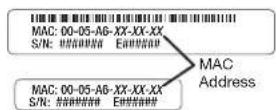
Unidirectional Control and Communication Connections
F IR/Serial output ports (see figure 16, figure 17, and figure 18 on page 22 through page 24) — An IPCP Pro xi Series control processor can use infrared signals or unidirectional RS-232 serial signals to control various devices (up to four per port for IR) via these ports. Set output signal type (IR or serial) during configuration. The following figure shows wiring examples.
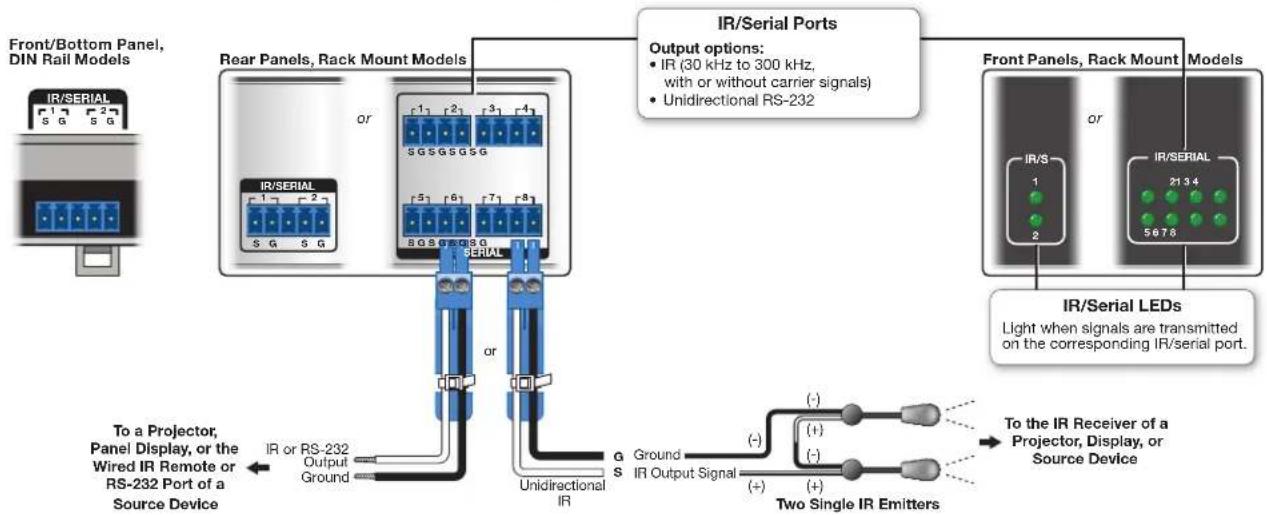
flowchart
graph TD
    A["Front/Bottom Panel, DIN Rail Models"] --> B["Rear Panels, Rack Mount Models"]
    B --> C["IR/Serial Ports"]
    C --> D["Output options: IR (30 kHz to 300 kHz, with or without carrier signals) Unidirectional RS-232"]
    D --> E["IR/Serial LEDs"]
    E --> F["Two Single IR Emitters"]
    F --> G["To the IR Receiver of a Projector, Display, or Source Device"]
    B --> H["IR/Serial Port"]
    H --> I["IR/Serial 1,2,3,4,5,6,7,8,9,10,11,12,13,14,15,16,17,18,19,20,21,22,23,24"]
    style A fill:#f9f,stroke:#333
    style B fill:#ccf,stroke:#333
    style C fill:#cfc,stroke:#333
    style D fill:#fcc,stroke:#333
    style E fill:#ffc,stroke:#333
    style F fill:#cff,stroke:#333
    style G fill:#ffc,stroke:#333
Figure 29. Wiring the IR/Serial Ports
Serial control — Connect one of these ports to the serial control receive (Rx) and ground pins of the device to be controlled. These ports have the same serial protocol options (see page 30) as the COM ports.
IR control — Connect one of these ports directly to the wired IR port of another device. Alternatively, insert the wires from up to four IR Emitters into an IR port and place the heads of the emitters over or next to the IR signal pickup windows of the devices. For wiring, see the following diagrams or the IR Emitter Installation Guide (available on www.extron.com).
NOTE: Each emitter must be within 100 feet (30.4 meters) of the IPCP for best IR control results.
Installing One Single Emitter
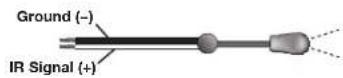
One Single IR Emitter
Installing One Dual Emitter
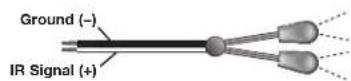
Dual IR Emitter
Installing Two Single Emitters
When installing only single emitters, tie them in series as shown below.
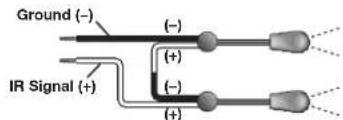
Two Single IR Emitters
G Relay ports — Relay ports (see figure 16, figure 17, and figure 18 on page 22 through page 24) provide control for power, screen or projector lifts, window coverings, and similar items, when trigger events occur.
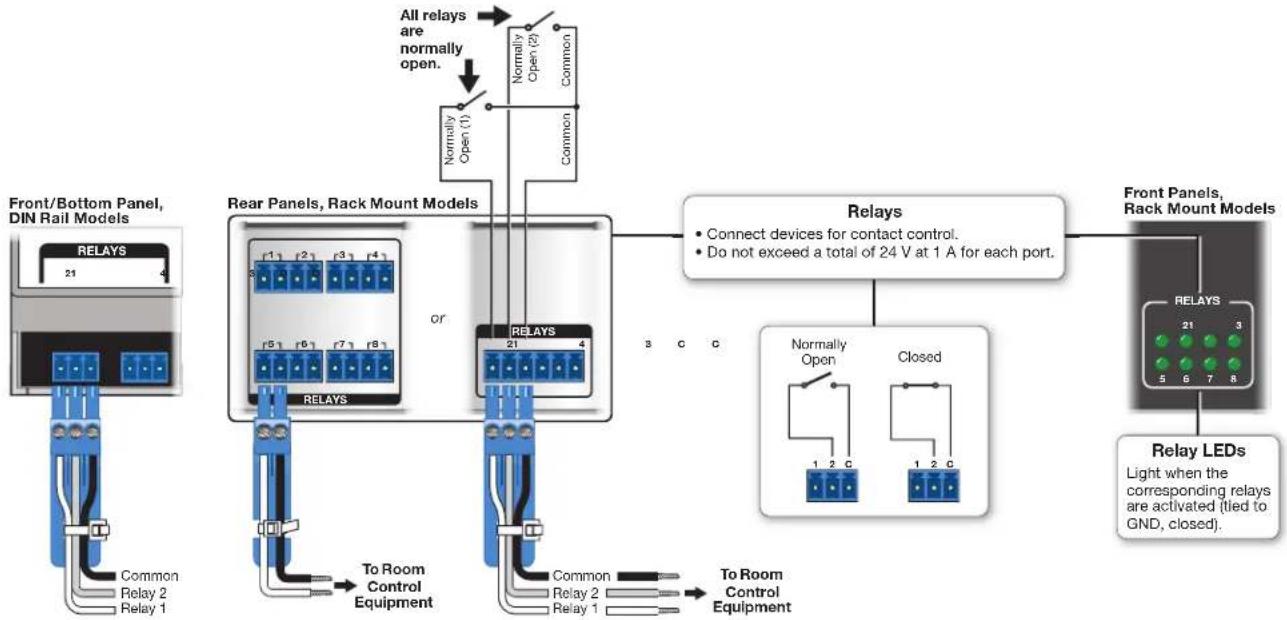
flowchart
graph TD
    A["Front/Bottom Panel, DIN Rail Models"] --> B["RELAYS 21"]
    B --> C["Common Relay 1"]
    B --> D["Relay 2 Relay 2"]
    B --> E["Relay 1"]
    F["Rear Panels, Rack Mount Models"] --> G["RelAYS 51"]
    G --> H["To Room Control Equipment"]
    I["RelAYS 21"] --> J["Common Relay 2"]
    I --> K["Relay 1"]
    L["All relays are normally open."] --> M["Normal Open (1)"]
    M --> N["Normal Open (2)"]
    N --> O["Common"]
    P["Relays"] --> Q["Connect devices for contact control."]
    P --> R["Do not exceed a total of 24 V at 1 A for each port."]
    S["Relays"] --> T["Normally Open"]
    S --> U["Closed"]
    T --> V["1 2 C"]
    U --> W["1 2 C"]
    X["Front Panels, Rack Mount Models"] --> Y["RELAYS 21"]
    Y --> Z["Relay LEDs Light when the corresponding relays are activated (tied to GND, closed)."]
Figure 30. Cabling Relay Ports
These relay contacts may be used to control any equipment as long as the contact specifications of a total of 24 V at 1 A are not exceeded for each port. These relays are normally open by default.
When activated, the open contacts close. They can be set up to operate in one of two ways:
- Latching (brief or indefinite period contact) (press to close, press to open), or
- Pulsed (timed cycle) (press to close, timeout to open, with automatic repeat).
In pulse mode the default timeout period (hold time) is 12 second (500 ms). Use Global Configurator to change the length of the timeout period.
NOTE: The pulse function is absolute: it always sets the relay state to closed, times out (briefly), then opens the contact. It overrides the previously selected setting (on state, off state, or toggle).
Additional Control Ports
Flex I/O ports (see (figure 16 on page 22 and figure 17 on page 23) — To allow the IPCP Pro xi Series control processor to monitor devices to trigger events, connect switches, sensors, LEDs, relays, or similar items to these ports. Flex I/O ports can be configured as analog inputs, or as digital inputs or outputs with or without +5 VDC pull-up. These ports can trigger events or functions (such as triggering relays, issuing commands, or sending an e-mail) that have been configured using GC. By default these ports are set as digital inputs with pull-up disabled.
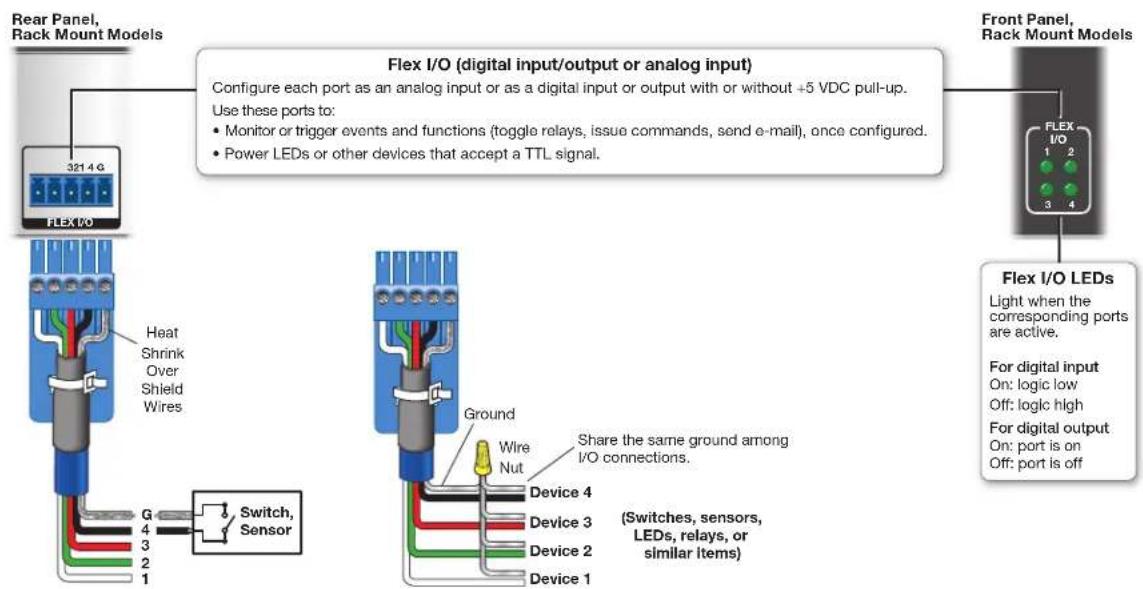
Figure 31. Flex I/O Port Wiring Examples
Analog input — When a Flex I/O port is configured as an analog input, the port can measure 0 to 25.3 VDC with 12-bit accuracy ( ±6 mV). A DC level is indicated by a count from 0-4096 ( ≈6 mV per count).
- Example application, analog input without pull-up: measuring voltage output of a temperature sensor In this example you set the port for analog input then connect a temperature sensor to an external voltage source and to the flex I/O port. You must know the output voltage of the sensor that corresponds to the sensed temperature in order to set threshold voltages correctly within Global Configurator software.
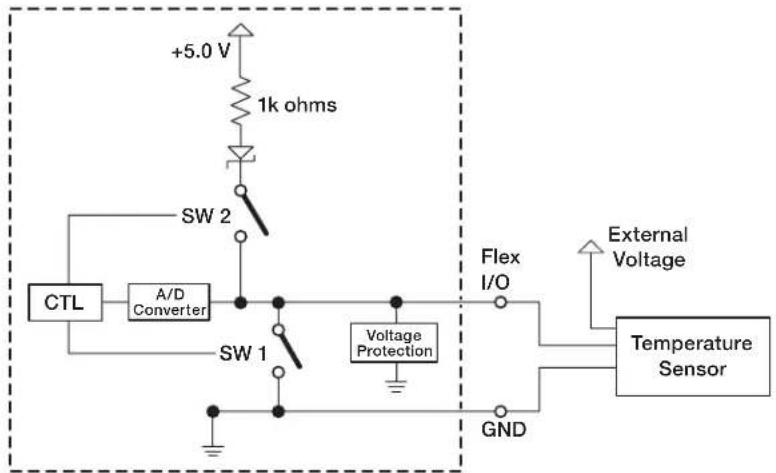
flowchart
graph TD
    A["CTL"] --> B["A/D Converter"]
    B --> C["SW 1"]
    C --> D["Voltage Protection"]
    D --> E["Flex I/O"]
    E --> F["External Voltage"]
    F --> G["Temperature Sensor"]
    H["+5.0 V"] --> I["1k ohms"]
    J["SW 2"] --> K["Switch"]
    L["GND"] --> M["Ground"]
Figure 32. Flex I/O Analog Input Application: Measuring Voltage Output of a Temperature Sensor
- Example application, analog input with pull-up: adjusting audio levels using a 10k potentiometer In this example, the flex I/O port is configured for analog input, and it supplies a pull-up voltage to the potentiometer. The position of the 10k potentiometer determines the voltage that this port provides, ranging from 0 VDC to 4.15 VDC.
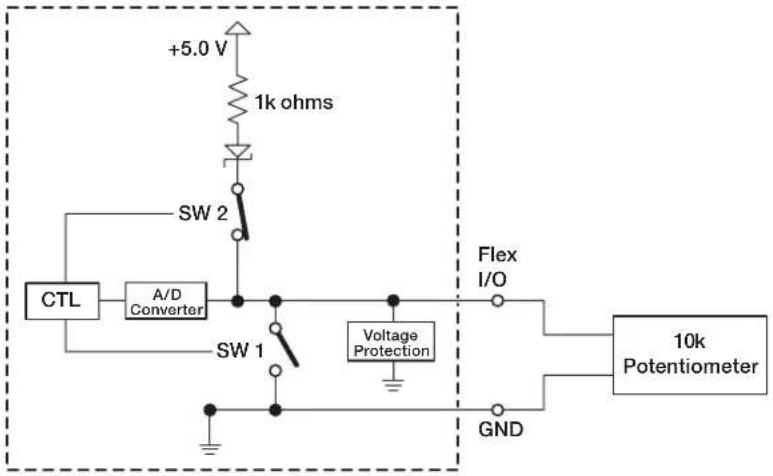
Figure 33. Flex I/O Analog Input Application: Audio Level Adjustment Using a 10k Potentiometer
Digital input — To allow the IPCP to monitor external devices that do not use RS-232 communication, connect a switch, motion sensor, moisture sensor, tally feedback output, button pad, relay contact, or a similar item to a Flex I/O port, and configure it for digital input.
When configured as a digital input, the port is set to measure two states: high and low. The port accepts 0 to 25.3 VDC input.
For Flex I/O ports, threshold voltages are adjustable. Default thresholds are:
• 2.0 VDC — port on, logic low
• 2.8 VDC — port off, logic high
There is also an internal, selectable, pull-up resistor connected to +5 VDC, which you can use if the connected device does not provide its own power.
• Flex I/O digital input with pull-up disabled:
• Digital input is triggered by an external switch or voltage between the digital input pin and ground.
• Threshold adjustments can be made from 0.0 VDC to 25.3 VDC in 100 mV steps.
• Example application, digital input without pull-up: occupancy sensor connection
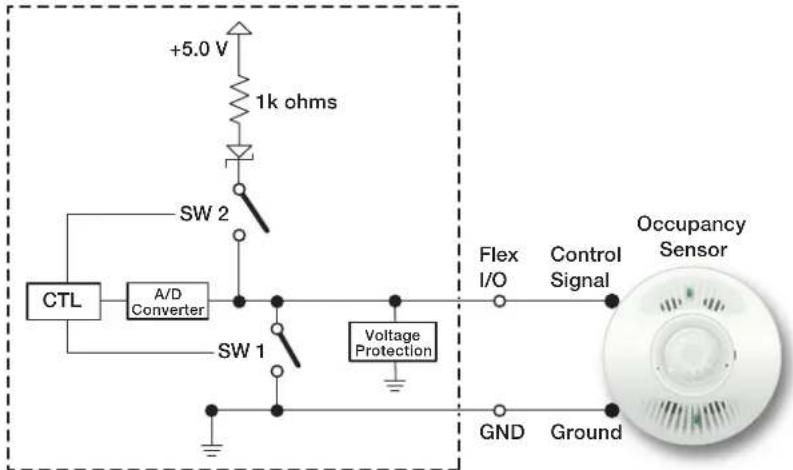
Figure 34. Flex I/O Digital Input Application: Occupancy Sensor, Without Pull-up
Room occupied: logic high, front panel LED is off.
Room unoccupied: logic low, front panel LED is lit.
NOTE: Occupancy sensors typically supply +24 VDC (logic high) when occupancy is detected. After a set time with no occupancy, the sensor supplies 0 VDC (logic low).
• Flex I/O digital input with pull-up enabled:
- When the port is configured for pull-up, switch 2 is closed, activating the +5.0 VDC pull-up resistor
• An external short to ground creates a logic low.
• An open circuit creates a logic high
• Example application, digital input with pull-up: connecting a two-position switch
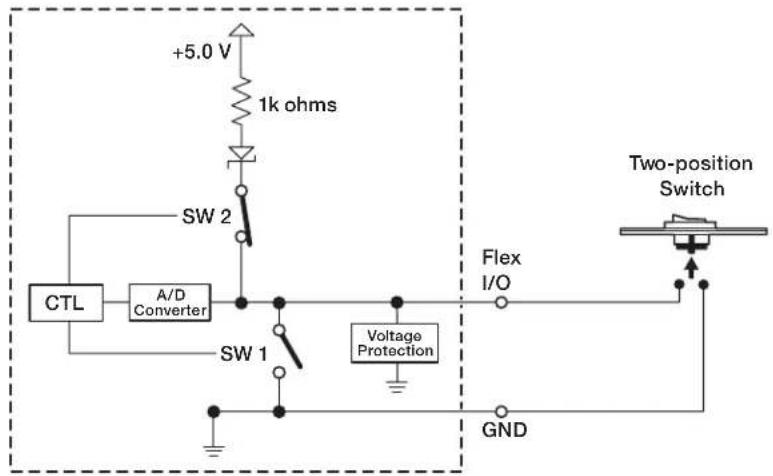
Figure 35. Flex I/O Digital Input Application: Two-position Switch With Pull-up
Two-position switch is open: logic high, front panel LED is off. Two-position switch is closed: logic low, front panel LED is lit.
Digital output — To activate LEDs, control incandescent lights, or power other devices that accept a TTL signal; or to provide contact closure control for projector lifts, motorized screens, room or light switches via an Extron IPA T RLY4 or similar device, you can use one or more of these ports as a digital output. When a port is configured for digital output, it offers two output states: on and off.
- When the port is set to an "on" state, (the switch 1 circuit is closed), the I/O pin is connected to ground. Output voltage is less than 0.5 volts.
- When the port is set to the "off" state (the switch 1 circuit is open), the output pin floats (is not connected).
- If the application calls for TTL compatibility, the digital output circuit can be set up to provide a 2k ohm pull-up resistor to +5 VDC, which you can use if the connected device does not provide its own power.
• If the pull-up resistor is disabled, voltage output is determined by an external source device.
• If the pull-up resistor is enabled, switch 2 closes, voltage output is 4.3 VDC.
Each I/O port is capable of accepting 250 mA, maximum.
• Flex I/O digital output with pull-up disabled:
- When switch 1 closes, the port is on and the front panel LED is on.
- When switch 1 opens, the port is off and the front panel LED is off.
• Example application, digital output without pull-up: connecting an LED and an external +5 VDC power source
This application often requires a current-limiting resistor, as shown in the diagram below. Many button switches that contain LEDs have a resistor built in. See the guide for the lighted switch or stand-alone LED for details.
NOTE: Each flex I/O pin is capable of sinking a maximum of 250 mA.
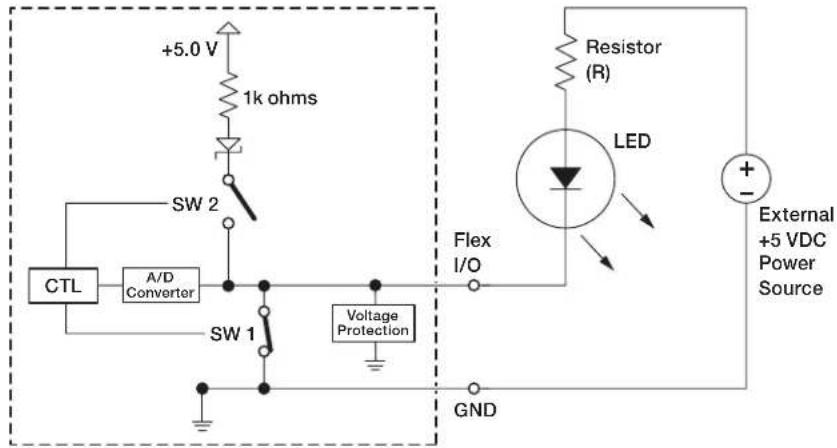
Figure 36. Flex I/O Digital Output Application: LED and External +5 VDC Power Source Without Pull-up
To determine the value of the current limiting resistor in the circuit shown above, you need to know the values of three variables:
i = LED forward current in amps (found in the data sheet for the LED)
V_f = LED forward voltage drop in volts (found in the data sheet for the LED)
V_c = supply voltage of the external voltage source
Insert those values into the following equation to determine the resistor value:
$$ R = \frac {V _ {\mathrm{s}} - V _ {\mathrm{f}}}{i} $$
Example calculation:
$$ \left. \begin{array}{l} i = 5 \mathrm{mA(0.005A)} \ V _ {f} = 2 \mathrm{V} \ V _ {s} = 5 \mathrm{V} \end{array} \right} \quad \frac {V _ {s} - V _ {f}}{i} = \frac {5 \mathrm{V} - 2 \mathrm{V}}{0 . 0 0 5 \mathrm{A}} = 6 0 0 \text {ohms} $$
NOTE: If the value calculated for the current limiting resistor is not a standard resistor value, you can round up the number to the next highest common resistance value.
The connected LED is off when the port (switch 1) is open.
The connected LED is on when the port (switch 1) is closed.
• Flex I/O digital output with pull-up enabled:
- When the port is configured for pull-up, switch 2 is closed, activating the +5.0 VDC pull-up resistor.
- When switch 1 closes, the port is on and the front panel LED is on.
- When switch 1 opens, the port is off. The front panel LED is off.
• Example application, digital output with pull-up: controlling another device via its contact closure input port
Connect the flex I/O port to the contact input port of another device, such as an Extron DTP transmitter. When activated, the flex I/O digital output port momentarily closes switch 1, which selects the input on the connected device.
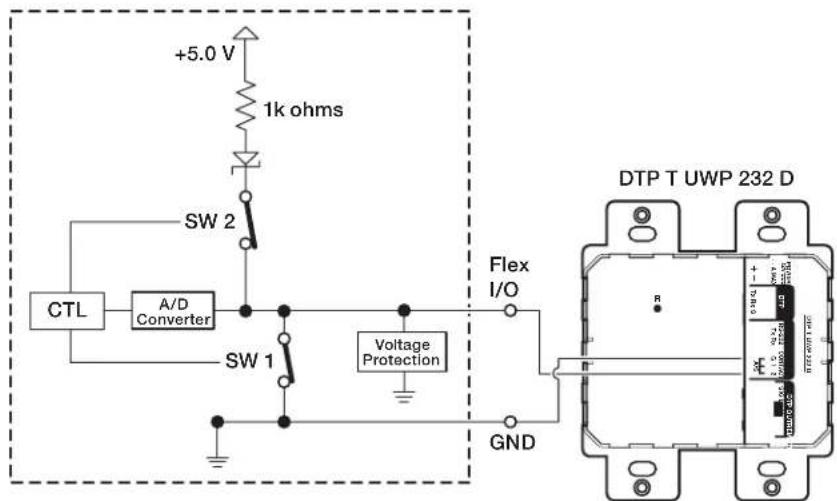
Figure 37. Flex I/O Digital Output Application With Pull-up: Contact Closure Input Selection on a Connected Device
Digital I/O (digital input/output) ports — These ports work the same way the flex I/O ports work, but they do not offer analog input, and thresholds are not adjustable. Connect physical switches, sensors, LEDs, relays, or similar items to these ports (see figure 16, figure 17, and figure 18 on page 22 to page 24), which can be configured as digital inputs or outputs, with or without +5 VDC pull-up. These ports can trigger events or functions (such as triggering relays, issuing commands, or sending an e-mail) that have been set up using Global Configurator.
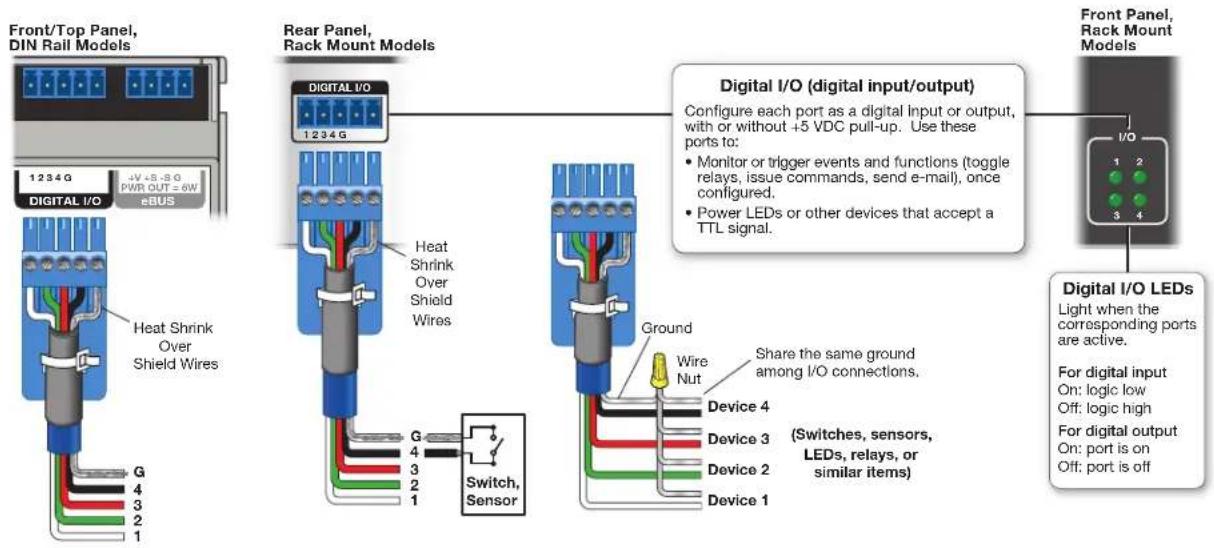
Figure 38. Digital I/O Port Wiring Examples
Digital input — To allow the IPCP to monitor external devices that do not use RS-232 communication, connect a switch, motion sensor, moisture sensor, tally feedback output, button pad, or a similar item to a digital I/O port and configure it for digital input. When configured as a digital input, the port is set to measure two states: high and low. The port accepts 0 to 25.3 VDC input.
Unlike flex I/O ports, for digital I/O ports, threshold voltages are not adjustable.
Thresholds are:
• 2.0 VDC — port on, logic low
• 2.8 VDC — port off, logic high
There is also an internal, selectable, pull-up resistor connected to +5 VDC, which you can use if the connected device does not provide its own power.
• Digital I/O digital input with pull-up disabled:
• Digital input is triggered by an external switch or voltage between the digital input pin and ground.
• Example application, digital input without pull-up: occupancy sensor connection:
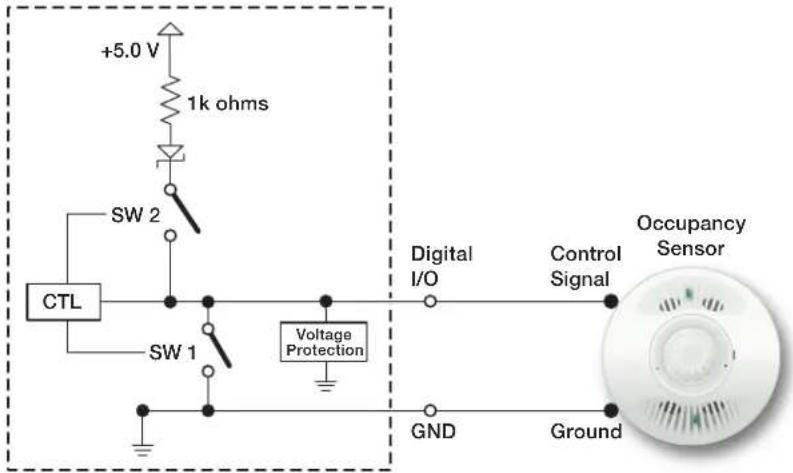
Figure 39. Digital I/O Digital Input Application: Occupancy Sensor, Without Pull-up
Room occupied: logic high, front panel LED is off. Room unoccupied: logic low, front panel LED is lit.
NOTE: Occupancy sensors typically supply +24 VDC when occupancy is detected. After a set time with no occupancy, the sensor supplies 0 VDC.
• Digital I/O digital input with pull-up enabled:
- When the port is configured for pull-up, switch 2 is closed, activating the +5.0 VDC pull-up resistor.
- When an external switch closes (shorts to ground, logic low), the port is on and the front panel LED is on.
- When the external switch opens (logic high), the port is off. The front panel LED is off.
• Example application, digital input with pull-up: connecting a two-position switch
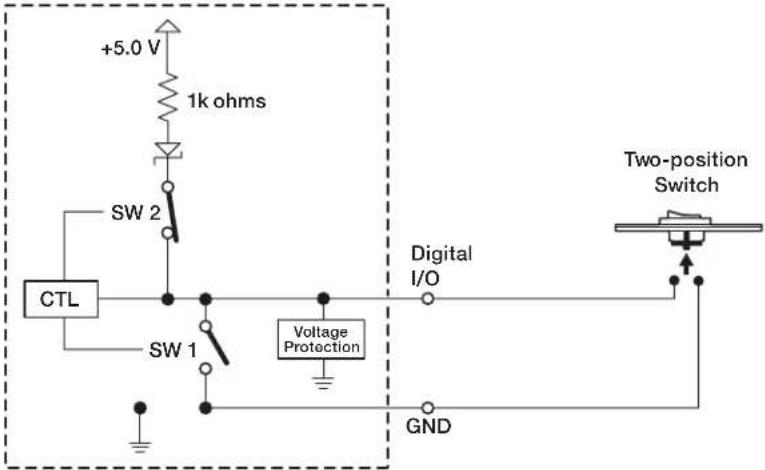
Figure 40. Digital I/O Digital Input Application: Two-position Switch With Pull-up
Two-position switch is open: logic high, front panel LED is off. Two-position switch is closed: logic low, front panel LED is lit.
Digital output — To activate LEDs, incandescent lights, or other devices that accept a TTL signal, or to provide contact closure control for projector lifts, motorized screens, room or light switches via an Extron IPA T RLY4 or similar device, you can use one or more of these ports as a digital output. When a port is configured for digital output, it offers two output states: on and off.
- When the port is set to an "on" state, (the switch 1 circuit is closed), the I/O pin is connected to ground. Output voltage is less than 0.5 volts.
- When the port is set to the "off" state (the switch 1 circuit is open), the output pin floats (is not connected).
- If the application calls for TTL compatibility, the digital output circuit can be set up to provide a 2k ohm pull-up resistor to +5 VDC, which you can use if the connected device does not provide its own power.
• If the pull-up resistor is disabled, voltage output is determined by an external source device.
• If the pull-up resistor is enabled, switch 2 is closed, voltage output is 4.3 VDC.
Each I/O port is capable of accepting 250 mA, maximum.
• Digital I/O digital output with pull-up disabled:
- When switch 1 closes, the port is on and the front panel LED is on.
- When switch 1 opens, the port is off and the front panel LED is off.
• Example application, digital output without pull-up: connecting an LED and an external +5 VDC power source
This application often requires a current-limiting resistor, as shown in the diagram below. Many button switches that contain LEDs have a resistor built in. See the guide for the lighted switch or stand-alone LED for details.
NOTE: Each I/O pin is capable of sinking a maximum of 250 mA.
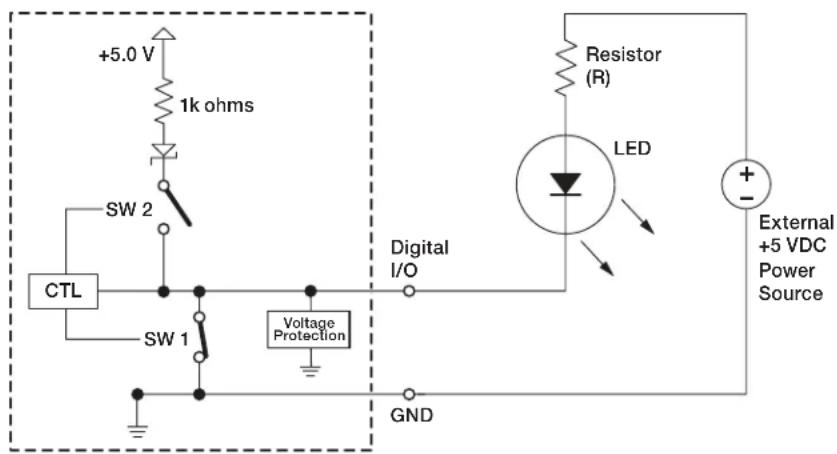
Figure 41. Digital I/O Digital Output Application: LED and External +5 VDC Power Source Without Pull-up
To determine the value of the current limiting resistor in the circuit shown above, you need to know the values of three variables:
i = LED forward current in amps (found in the data sheet for the LED)
V_f = LED forward voltage drop in volts (found in the data sheet for the LED)
V_s = supply voltage of the external voltage source
Insert those values into the following equation to determine the resistor value:
$$ R = \frac {V _ {\mathrm{s}} - V _ {f}}{i} $$
Example calculation:
$$ \left. \begin{array}{l} i = 5 \mathrm{mA(0.005A)} \ V _ {f} = 2 \mathrm{V} \ V _ {s} = 5 \mathrm{V} \end{array} \right} \quad \frac {V _ {s} - V _ {f}}{i} = \frac {5 \mathrm{V} - 2 \mathrm{V}}{0 . 0 0 5 \mathrm{A}} = 6 0 0 \text {ohms} $$
NOTE: If the value calculated for the current limiting resistor is not a standard resistor value, you can round up the number to the next highest common resistance value.
The connected LED is off when the port (switch 1) is open.
The connected LED is on when the port (switch 1) is closed.
• Digital I/O digital output with pull-up enabled:
- When the port is configured for pull-up, switch 2 is closed, activating the +5.0 VDC pull-up resistor.
- When switch 1 closes, the port is on and the front panel LED is on.
- When switch 1 opens, the port is off, and the front panel LED is off.
• Example application, digital output with pull-up: controlling another device via its contact closure input port
Connect the digital I/O port to the contact input port of another device, such as an Extron DTP transmitter. When activated, the digital I/O digital output port momentarily shorts pin 1 to ground (pulsed contact for 0.5 seconds), closes switch 1, which selects the input on the connected device.
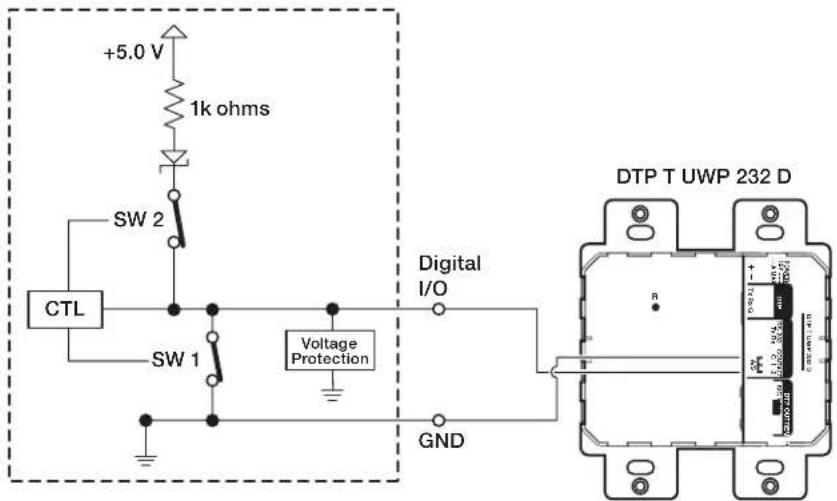
Figure 42. Digital I/O Digital Output Application With Pull-up: Contact Closure Input Selection on a Connected Device
eBUS port (see figure 16, figure 17, and figure 18 on page 22 to page 24) — eBUS is a technology (proprietary bus architecture and serial communication protocol) developed by Extron. It allows many eBUS devices (such as button panels) and accessories (including power and signal hubs) to be connected to a single control processor to expand the capabilities of a control system. Button panels are automatically recognized by the host control processor and can be added or removed at any time.
See the eBUS Technology Reference Guide (available at www.extron.com/ebus_tech_ref) before you install eBUS devices and accessories. It explains how to determine how many devices are supported when directly connected to the control processor and where (at what distances and what points in a system) and when it is advisable to add external power supplies. Also see the guide for each eBUS device for detailed installation information specific to each product, such as how to set the eBUS address and mount the devices. Each device in a system must have a distinct eBUS address that is not shared with any other device in the same system.
Wire both ends the same on each cable that connects eBUS devices. Extron STP 20 Series cable is recommended for these connections (see the cable preparation diagram on page 30).
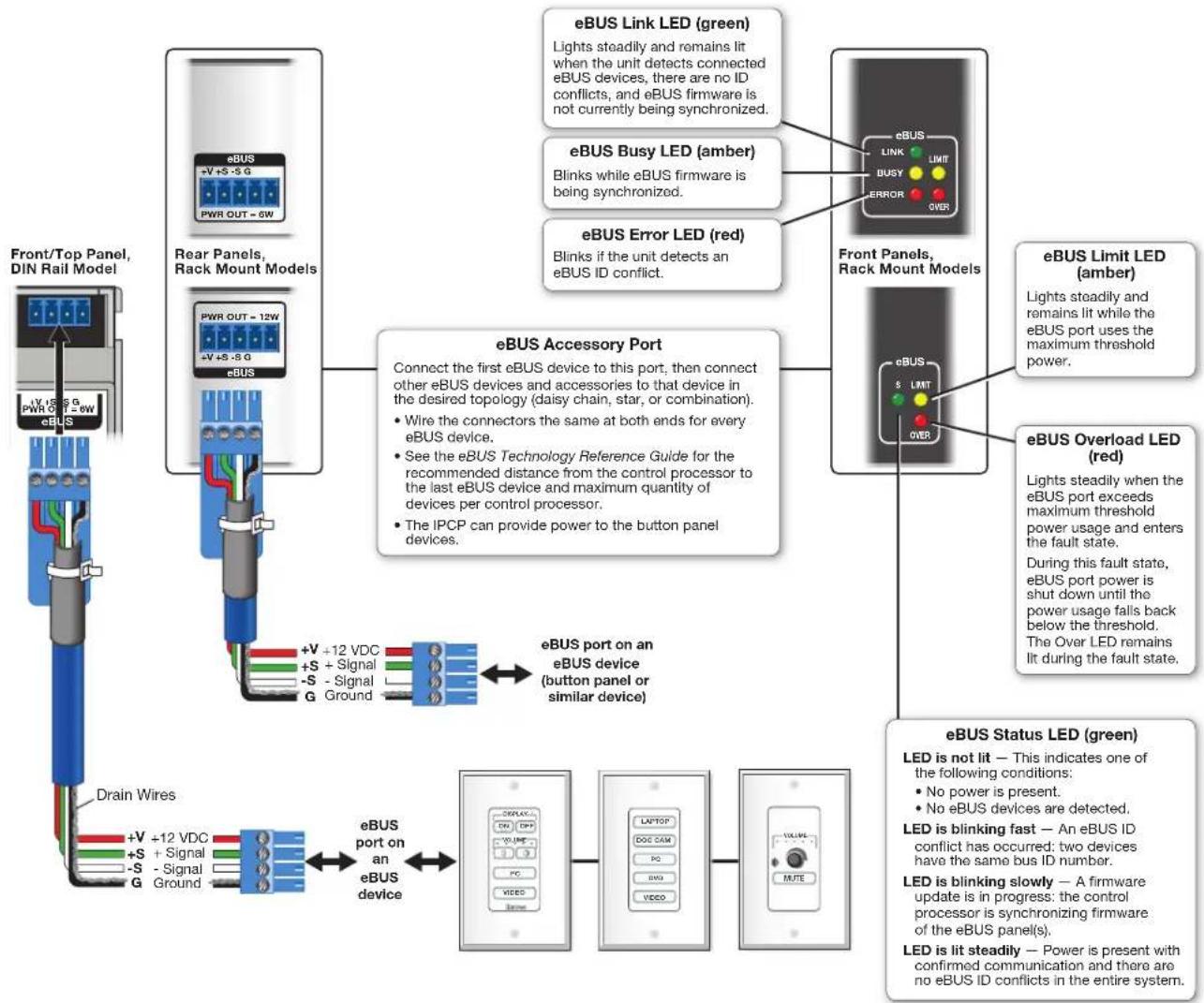
flowchart
graph TD
    A["Front/Top Panel, DIN Rail Model"] --> B["Rear Panels, Rack Mount Models"]
    B --> C["eBUS Link LED (green)"]
    B --> D["eBUS Busy LED (amber)"]
    B --> E["eBUS Error LED (red)"]
    C --> F["Front Panels, Rack Mount Models"]
    D --> F
    E --> F
    F --> G["eBUS Limit LED (amber)"]
    F --> H["eBUS Overload LED (red)"]
    G --> I["eBUS Status LED (green)"]
    H --> I
    I --> J["LED is not lit — This indicates one of the following conditions: No power is present. No eBUS devices are detected."]
    J --> K["LED is blinking fast — An eBUS ID conflict has occurred: two devices have the same bus ID number."]
    K --> L["LED is blinking slowly — A firmware update is in progress: the control processor is synchronizing firmware of the eBUS panel(s)."]
    L --> M["LED is lit steadily — Power is present with confirmed communication and there are no eBUS ID conflicts in the entire system."]
    M --> N["eBUS Port on an eBUS device (button panel or similar device)"]
    N --> O["+V +12 VDC +S + Signal -S -Signal G Ground"]
    O --> P["Drain Wires +V +12 VDC +S + Signal -S -Signal G Ground"]
    P --> Q["eBUS port on an eBUS device"]
    Q --> R["PC VIDEO VIDEO"]
    R --> S["Laptop DOC CAM PC BUG VIDEO"]
    S --> T["LOAD LINE ROUTER"]
Figure 43. eBUS Port Cabling and Front Panel LED Indication
This port provides power to eBUS devices. If the power draw by the connected devices reaches the maximum level allowed, the eBUS Limit LED lights. If the power consumption exceeds the allowed threshold, the IPCP shuts off the eBUS port and lights the eBUS Overload (Over) LED. If that occurs, you must resolve the hardware cause of the power overload before the IPCP can successfully restore function to this port. Once the power consumption of the port is reduced to below the maximum overload condition threshold, the eBUS port automatically re-enables and resumes function.
If additional power supplies are required for an eBUS system, consider the following:
- Do not connect power from both the IPCP and the supplemental power supply to any eBUS device.
- Do not allow power from the supplemental power supply to flow to the IPCP.
See the following diagram as an example of a system where both an IPCP and a supplemental power supply are included in the eBUS topology.
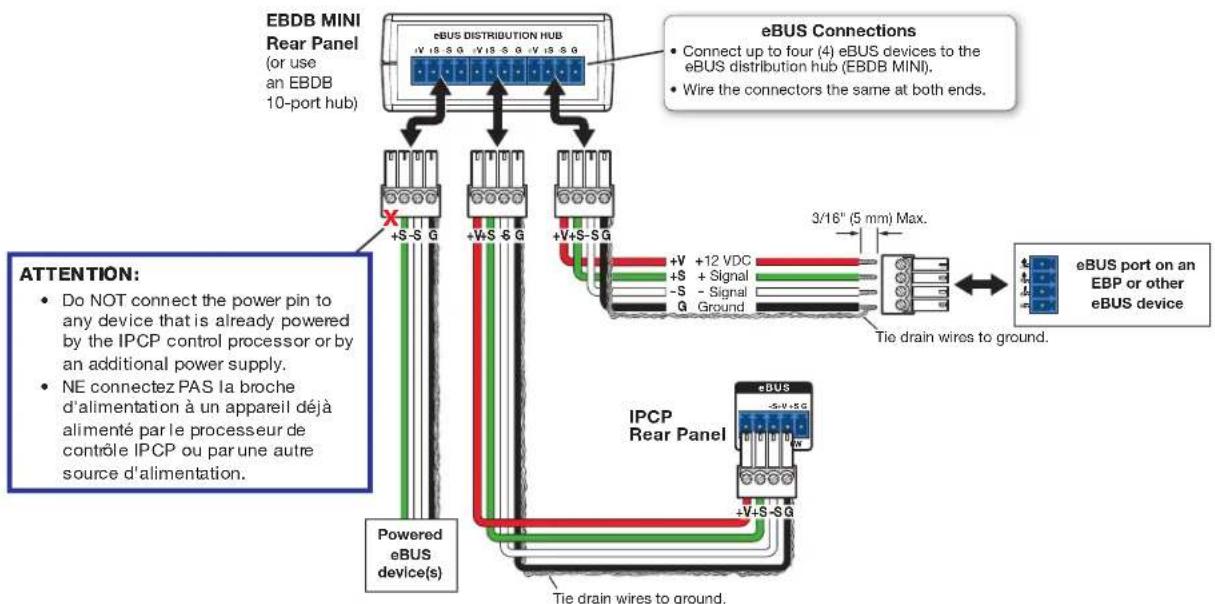
flowchart
graph TD
    A["EBDB MINI Rear Panel (or use an EBDB 10-port hub)"] --> B["eBUS DISTRIBUTION HUB"]
    B --> C["Connect up to four (4) eBUS devices to the eBUS distribution hub (EBDB MINI)."]
    B --> D["Wire the connectors the same at both ends."]
    B --> E["+V +S -SG"]
    B --> F["+V +S -SG"]
    B --> G["+V +S -SG"]
    B --> H["+V +S -SG"]
    B --> I["+V +S -SG"]
    B --> J["+V +S -SG"]
    B --> K["3/16" (5 mm) Max."]
    K --> L["eBUS port on an EBP or other eBUS device"]
    M["AttENTION"] --> N["Powered eBUS device(s)"]
    N --> O["NE connectez PAS la broche d'alimentation à un appareil déjà alimenté par le processeur de contrôle IPCP ou par une autre source d'alimentation."]
    P["Tie drain wires to ground."] --> Q["+V +S -SG"]
    R["Tie drain wires to ground."] --> S["+V +S -SG"]
    T["Tie drain wires to ground."] --> U["+V +S -SG"]
Figure 44. Connecting eBUS Devices in a System With Both an IPCP and Another Powered eBUS Device
Volume control port — To provide volume control for some Extron half rack audio amplifiers (such as the XPA and MPA models listed in figure 19), connect this port (see figure 16 on page 22 and figure 17 on page 23) to the volume remote control port on the amplifier as shown below. Configure the maximum and minimum voltage limits. Set Soft Start mode off or on (default). Soft Start mode allows volume to gradually increase from mute to the previous level after muting or power-on to prevent loud audio bursts.
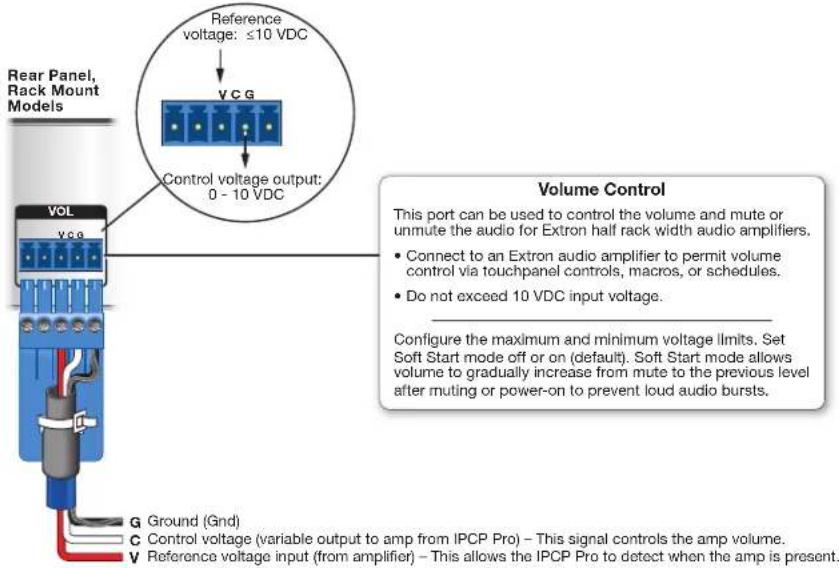
NOTE: Use shielded cable and place the control processor as close as possible to the amplifier to avoid picking up background noise via the cable. Ideal cable length is six feet (1.8 m) or less.
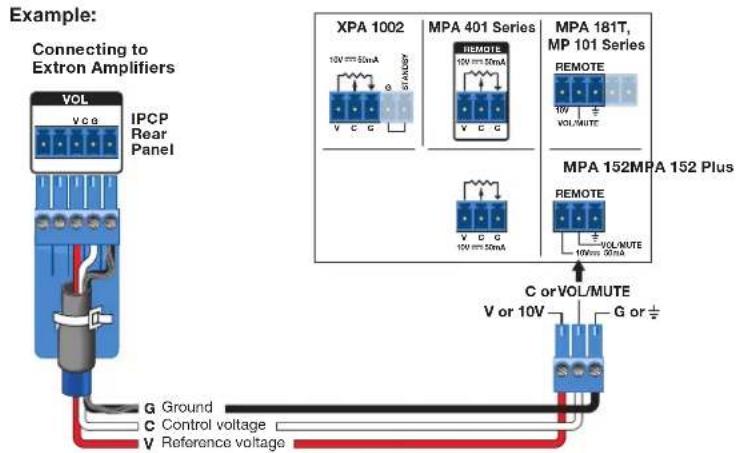
NOTE: When audio mute is active, the control processor sets output voltage to 0 VDC, even if the voltage range (minimum and maximum voltage limits) has been set to levels above zero, such as 2 V to 8 V.
Figure 45. Volume Control Port Wiring Examples
Resetting the Unit
There are six reset modes that are available by pressing the Reset button on the front panel (for most models) or the rear panel (for the IPCP Pro xi embedded control processors). The Reset button is recessed, so use a pointed stylus, ballpoint pen, or Extron Tweeker to access it. See the reset modes table below and on the next two pages for a summary of the modes.
ATTENTION:
NOTE: If you press and hold the Reset button continuously, the LED blinks every 3 seconds, and the unit enters a different mode, from the Reset All IP Settings mode through the Reset to Factory Defaults mode. For Reset to Factory Defaults mode the LED blinks three times, the third blink indicating the last mode. The modes are separate functions, not a continuation from one mode to the next.
| IPCP Pro Q xi and xi Series Control Processor Reset Mode Summary | |||
| Mode | Use This Mode to... | Activation Result | |
| Run Factory Boot Code | Temporarily boot up the unit running only the universal boot code, then install the desired firmware.Use this in the event that a firmware update has failed or if incompatibility issues arise with user-loaded firmware | To start the Run Factory Boot Code reset mode and replace firmware:1. On the control processor, hold down the recessedResetbutton while applying power to the unit. Keep holding the button down for 6 seconds or until the Power LED blinks twice, then release the button. The LED blinks slowly during bootup. The control processor runs the factory boot code (rather than full firmware).2. Upload new firmware to the unit as desired (seeUpdatingthe Firmwareon page 65 for details).NOTE:Do notcontinue to operate the control processor using only the boot code. The unit requires a full firmware package in order to be fully operational. If you want to use the firmware version with which the unit shipped, you must upload that version again (see theGlobal Configurator Help File or Toolbelt Help Filefor firmware upload instructions). | The control processor firmware is replaced. If the unit is powered on in Run Factory Boot Code mode, event scripts and systems do not start. All user files and settings such as drivers, adjustments, and IP settings are maintained.NOTE: To return the unit to the firmware version that was running prior to the reset, cycle power to the unit instead of installing new firmware. |
| Project Recovery | Recover project configuration and program files if passwords have been lost | To start the Project Recovery reset mode and recover a project:1. On the PC, open Global Configurator.2. Click the Tools menu and select Project Recovery. The Recovery Mode dialog box opens.3. Enter the IP address or host name of the target device for which you want to perform project recovery.4. Click Recover. The software allows indefinite time to establish a connection (until a connection is made or the user clicks Cancel).5. On the control processor, press the Reset button three times within one second. The control processor enters project recovery mode for 30 seconds, during which time the Power LED blinks quickly.GC automatically connects to the control processor, then opens and retrieves the project from the unit.6. Perform the Full Factory Reset reset (see the next page) on the control processor.7. Open Toolbelt, start device discovery, select the desired control processor from the list, and click Manage.8. Click the Network Settings tab and set the IP address of the control processor.9. Click the User Management tab and change the password of the control processor.10. Close Toolbelt.11. In GC, add the new password to the recovered project.12. Save the project.13. Upload the project from GC to the control processor. | Project Recovery mode stops regular operation and allows a connection to be made to the unit via software without requiring password entry so that project files can be retrieved and saved.During project recovery mode, events are stopped, and so is communication with AV devices.While the control processor is in this mode, use the software to recover project files.If the software does not initiate project recovery within 30 seconds after the control processor enters this mode, the control processor exits recovery mode.Upon exiting project recovery mode:The unit returns to its pre-recovery mode state and settings.The Power LED returns to being steadily lit. |
| Run/Stop Project | Toggle stop/start program | To stop or start scripts, and systems:1. Press and hold the Reset button for about 3 seconds, until the Power LED blinks once.2. Release and press the Reset button momentarily (for <1 second) within 1 second*.* Nothing happens if the momentary press does not occur within 1 second. | The LED blinks 2 times if the program is starting.The LED blinks 3 times if the program is stopping. |
| Toggle DHCP Client | Enable or disable the DHCP client | To enable or disable the DHCP client for the LAN port:1. Press the Reset button five times (consecutively).2. Release the button. Do not press the button within 3 seconds following the fifth press. | The Reset LED blinks 6 times if the DHCP client is enabled.The Reset LED blinks 3 times if the DHCP client is disabled. |
| NOTES:By default DHCP is off for the LAN port and the unit uses a static IP address.If DHCP has been enabled, when you disable DHCP, the unit reverts to using the previously-set static IP address. | |||
| Reset Network Settings | Reset IP settings and port maps to factory defaults without affecting user-loaded files | To reset all network settings:1. Press and hold the Reset button until the Power LED blinks once at 3 seconds and twice at 6 seconds.2. Release and press the Reset button momentarily (for <1 second) within 1 second*. The LED blinks 3 times in quick succession upon successful reset.* Nothing happens if the momentary press does not occur within 1 second.NOTE: This resets the settings for both LAN and AV LAN ports | Reset All Network Settings mode:Turns DHCP off (for LAN ports).Sets the LAN and AV LAN IP addresses back to factory default:LAN port, xi models: 192.168.254.250LAN port, Q xi models: 192.168.253.250AV LAN port (Q xi models, DHCP server disabled): 192.168.254.250Sets the subnet back to factory default (255.255.255.0).Sets the default gateway address to the factory default (0.0.0.0).Sets domain and host names to factory default.Sets port mapping back to factory default.Turns events (user-created schedules, macros) off.Stops any running program.Disables 802.1X authentication. |
| Full Factory Reset | Start over with configuration and uploading | To reset the unit to all factory default settings:Hold down the Reset button for about 9 seconds until the Power LED blinks once at 3 seconds, twice at 6 seconds, and thrice at 9 seconds.Release and press the Reset button momentarily (for <1 second) within 1 second*. The Power LED blinks 4 times in quick succession upon successful reset.* Nothing happens if the momentary press does not occur within 1 second. | Full Factory Reset mode performs a complete reset to factory defaults (except the firmware).Does everything Reset All Network Settings mode does.Removes (clears) all user-loaded files (except LinkLicense files) and configurations from the control processor:Clears driver-port associations (IR, serial, Ethernet) and port configurations.Removes button/touchpanel configurations.Removes user-loaded digital certificates.Removes schedules, settings, macros.Clears messages in the event logs table.The unit continues to run the user-loaded firmware. |
NOTES:
- After performing a Reset Network Settings or Full Factory Reset, either set the IP address again (by using Toolbelt) for use on your network, or turn DHCP on.
- The factory configured passwords for this device have been set to the device serial number. Passwords are case sensitive. Performing a Full Factory Reset sets the password to extron.
Software-Based Configuration and Control
This section of the guide is divided into the following topics:
- Configuration and Control: An Overview
- Basic Setup Steps: a Guide to this Section and Other Resources
- Downloading the Software and Getting Started
- Troubleshooting
Configuration and Control: An Overview
An IPCP must be configured before use in order to recognize and accept commands and pass them on to the controlled devices. It can be configured and controlled via a host computer connected to the same network as the control processor (see LAN (Ethernet) connectors and LEDs on page 31 for details about LAN port and cabling to connect the control processor to the network).
- Configure the control processor by using the Global Configurator software (GC Professional or GC Plus) (see the Extron website for full system hardware and software requirements for GC), or program it using ControlScript programming software..
- The default web pages embedded within the control processor provide a means to view general hardware information, network settings, and, if configured, project information. You cannot configure the control processor via the embedded web pages.
Basic Setup Steps: a Guide to this Section and Other Resources
NOTE: GC projects can be created offline and uploaded to the hardware at a later date.
Follow the steps in Setup Checklist: How to Proceed With Installation starting on page 9. The overall process for setting up a control processor using GC is as follows:
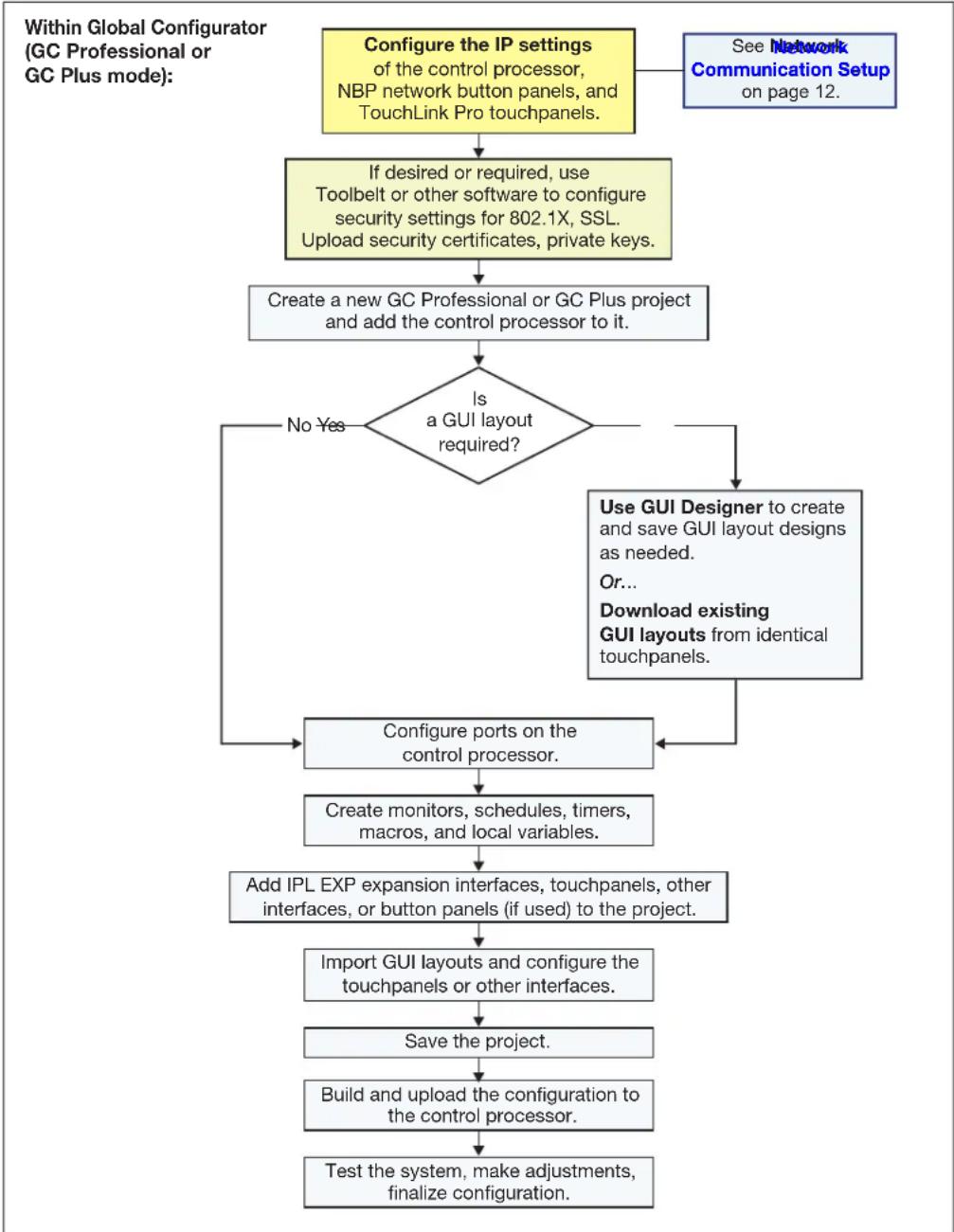
flowchart
graph TD
    A["Configure the IP settings of the control processor, NBP network button panels, and TouchLink Pro touchpanels."] --> B["If desired or required, use Toolbelt or other software to configure security settings for 802.1X, SSL. Upload security certificates, private keys."]
    B --> C["Create a new GC Professional or GC Plus project and add the control processor to it."]
    C --> D{Is a GUI layout required?}
    D -->|No Yes| E["Configure ports on the control processor."]
    D -->|Yes| F["Use GUI Designer to create and save GUI layout designs as needed. Or... Download existing GUI layouts from identical touchpanels."]
    F --> E
    E --> G["Create monitors, schedules, timers, macros, and local variables."]
    G --> H["Add IPL EXP expansion interfaces, touchpanels, other interfaces, or button panels (if used) to the project."]
    H --> I["Import GUI layouts and configure the touchpanels or other interfaces."]
    I --> J["Save the project."]
    J --> K["Build and upload the configuration to the control processor."]
    K --> L["Test the system, make adjustments, finalize configuration."]
    L --> E
    A --> M["See Network Communication Setup on page 12."]
Figure 46. Overall Configuration Steps
Downloading the Software and Getting Started
GC software updates and a large variety of device drivers can be downloaded from the Download page on the Extron website (www.extron.com/download/index.aspx). When you locate the desired software or driver package, follow the on-screen directions to download and install it.
NOTE: New RS-232 and Ethernet drivers are required. Use serial and Ethernet drivers developed specifically for the IP Link Pro platform. With the exception of IR device drivers, drivers used for the previous generation IP Link (non-Pro) control processors are not compatible.
Locating Software, Firmware, and Driver Files on the Extron Website
There are three main ways to find software, firmware, and device drivers within www.extron.com:
• Via links from the web page for the specific product
- Via the Download Center page (Click on the Download tab at the top of any page within the Extron website.)
• Via links from search results
NOTE: For some software you have the option to click the Download link to begin downloading the software file. For other software there is a link for contacting an Extron support representative who can provide you access to the latest version.
To obtain Extron control product software, you must have an Extron Insider account. Extron provides training to our customers on how to use the software. For Global Configurator Professional, you must first attend Extron training, pass a proficiency test, and achieve Extron Control Professional Certification before being able to access all the features of that program.
Via links from the web page for the specific product
-
Navigate to the web page for the specific product model by performing one of the following:
-
Enter the model name into the search field in the upper right of any Extron web page and click the magnifying glass icon, then select the correct result from the drop-down list.
-
In the upper left of the Extron home page click PRODUCTS to open the Products page. Select the product category from the cards in the center of the page or the list on the left, then select the model name from the resulting page.
-
Click the Downloads tab in the middle of the product page. A list of available software, firmware, and documents for that model appears on screen.
-
Click on the name of the desired software or firmware to start downloading the file.
NOTE: Device drivers must be accessed via the Download page, as described in the following instructions.
Via the Download Center page
- Either:
a. Click on the Download tab at the top of any page within the Extron website to access the Download page.
b. Click on the link for the desired software product category (such as Global Configurator Professional, firmware, or control system device drivers) in the center of the screen. A page opens that allows you to make more specific selections from within that category.
Or...
a. From the Download tab drop-down menu, select Firmware or Software, as appropriate. Enter the model name or product series name in the Search Firmware or Search Software field.
b. Select the correct result from the drop-down list, if needed. A link opens to allow you to download the software or firmware.
- For software, click on the link for the specific software that you need. A software product page opens that provides a description of the software package, a list of system requirements, a list of features, and access to the release notes, in addition to a download link.
For drivers:
a. Click on the Control System Drivers button.
b. Select the name of the control processor from the drop-down list.
c. Click the link directly below the search fields to download the current "Pro Series driver package" of all available drivers supported by the control processor. Alternatively, search for, locate, and select the device or devices for which you need a driver file.
d. To download a single driver rather than the package, click on the appropriate link in the row for the product you want to control to download the driver or to download the "communication sheet." The communication sheet provides details that may be helpful for working with the product and its control driver.
- For some software you can click the Download or Download Now button to begin downloading the software file. For other software there is a link for contacting an Extron support representative who can provide you access to the latest version.
For drivers, navigate through the alphabetically arranged list to select and download a driver for a specific device.
Via links from search results
- Type the specific name of the software package (such as Global Configurator or GUI Designer) into the Search field in the upper right of the Extron web page and click the magnifying glass icon. A search results page appears.
- Click on the name of the software package. A software product page opens that provides a description of the software package, a list of system requirements, a list of features, and access to the release notes, in addition to a download link.
- For some software you can click the Download or Download Now button to begin downloading the software file. For other software there may be a link for contacting an Extron support representative who can provide you access to the latest version.
Obtaining Control Drivers
Extron provides an extensive selection of device drivers available on the Extron website. Ethernet, serial, and infrared (IR) device drivers (for controlling projectors, displays, DVD players, document cameras, and so forth) are available as individual device driver files. Prior to configuration, download driver files for products to be used in the installation.
NOTE: For serial or Ethernet devices, IPCP Pro xi Series control processors require IP Link Pro drivers. They do not support serial or Ethernet drivers that were created for IP Link (non-Pro) products. However, existing Extron IR driver files are supported.
If the system requires a driver that is not already available, you have additional options:
- Request a new serial (RS-232) or Ethernet driver from Extron.
- Create your own custom IR driver using Extron IR Learner Pro software. Following the directions in the IR Learner Pro Help File, use the remote control of an AV device and the IR receiver port on the front panel of the IPCP Pro xi to capture commands and create a device-specific driver.
NOTE: The IPCP Pro FOX3 Matrix Q xi, IPCP Pro 355MQ xi, FOX3 IPCP Pro Q xi, IPCP Pro PCS1 xi, and IPCP Pro S1 xi do not have an IR learning sensor.
Things to Do After Installing GC and Before Starting a Project
- Read the Global Configurator Help File, included with the software, for details and step-by-step procedures on how to start a GC Professional or GC Plus project and perform basic setup tasks for a control processor. The help file provides a wealth of information on settings and how to use the software. It includes examples of how to use the features of GC and step by step instructions for typical configuration tasks.
- Obtain network addresses and related information from your network administrator.
- Set up the IP address for the control processor. See Network Communication Setup on page 12 for an overview of how to set up the network properties of the unit. For details, see the GC help file or Toolbelt help file. The help files contain instructions on how to set the IP address, gateway IP address, subnet mask, mail server IP address, domain name, web port, SMTP username, and SMTP password so that the IPCP is able to communicate with the network.
Using GC: Helpful Tips
- The IPCP Pro xi Series Setup Guide, IPCP Pro 355DRQ xi Setup Guide, or IPCP Pro PCS1 xi Setup Guide is shipped with the unit. It includes a quick reference to the front and rear panel features, and covers basic hardware installation.
- See Front Panel Features on page 13 and Ports, Addressing, and Connections on page 21 in this guide for features and settings for the ports you are configuring.
- If you plan to configure the IPCP at the installation site, Extron recommends downloading drivers for all the devices in the installation before you go out to the site.
- The Global Configurator project file (*.gcpro or *.gcplus) contains configuration settings and it can be saved to a directory or folder for backup or for installation on another IPCP Pro xi control processor. Saving a configuration is recommended before you perform a firmware upgrade.
• IP address, subnet mask, and gateway address are required during network setup of the control processor.
- The unit name is any name (for example, Room730-IPCPPPro550xi or ConfRmSystem) that you want to use to label a specific IPCP unit. The default is a combination of the product name and part of the hardware (MAC) address. This can be changed to your choice of alphanumeric characters and hyphens (-). The following rules apply:
- Spaces are not permitted within the name of a unit or at the start or the end of a name.
- Underscores ( _ ) are not permitted.
- Valid characters are A-Z, a-z, 0-9, and - (hyphen).
- The unit does not distinguish between upper and lower case letters.
- The name cannot start with a number or a hyphen, and it cannot end with a hyphen.
• Maximum name length is 63 characters.
Troubleshooting
Turn on the input devices (DVD players, Blu-ray players, PCs, and other sources), output devices (display screens, projectors), the control processor, and the PC and touchpanel or eBUS button panels. Touch a configured button on the touchpanel or eBUS button panel.
If an input or output AV device cannot be remotely controlled (does not respond as expected), check the following:
• Power Connections
• Data Connections
• Device Control Connections and Configuration
• eBUS Connections and Configuration
Power Connections
- Ensure that all devices are plugged in.
- Make sure that each device is receiving power. The IPCP front panel power LED lights if the IPCP is receiving power.
-
If the IPCP includes switched power output ports, verify that the overload indicator LED is not lit. If the switched 12 VDC power output Over LED is lit, the power draw at the switched power ports has been exceeded. To restore these ports to normal function, do the following:
-
Correct the hardware cause of the overload. Disconnect one or more devices from the 12 VDC switched power output ports on the IPCP. The IPCP waits a moment and rechecks the power load.
-
If the total load (power draw) is now within safe limits, the IPCP automatically re-enables the ports. The green switched 12 VDC power status LEDs on the IPCP light, the red Over LED is unlit, and power is restored to the output ports.
-
If the total load still exceeds the maximum threshold, the Over LED remains lit and the ports remain off until the overload is corrected (see step 2).
-
Repeat step 1 (disconnect another device from the switched power output ports) as needed until the Over LED turns off and all the green switched 12 VDC power status LEDs on the IPCP light.
- For the IPCP Pro PCS1 xi, if the device connected to the AC power output cable is not receiving power, check the following items:
- Is the AC output port enabled (turned on) via configuration or script settings, or via the front panel Power button? The AC Power LED lights to indicate the power output state as follows:
- Lit green: Power output is enabled.
- Off (dark): Power output is disabled.
- Lit red: A fault condition is detected, and power output is disabled.
- Is there a fault condition at that port? If so, the circuit breaker was triggered. Correct the fault condition (such as a circuit overload), then press the Breaker button to reset the circuit breaker.
Data Connections
- Check the cabling connections and make adjustments as needed. The Link LEDs on the IPCP and on the touchpanel, network button panel, or PC should be lit green steadily if a network connection is detected. If these LEDs are not lit, either the cable is faulty or not plugged in, or the wrong type of cable is being used (see LAN (Ethernet) connectors and LEDs on page 31).
- Try to "ping" the unit by entering one of the following at the command prompt on the PC:
- ping 192.168.254.250 — for a unit without AV LAN, or for an AV LAN port when the DHCP server is disabled (default)
• ping 192.168.253.250 — for the LAN port of a unit with AV LAN
• ping 192.168.245.1 — for an AV LAN port if the DHCP server is enabled
Or ping the IP or web address provided to you by your system administrator.
If you get no response:
• Make sure your unit is using the appropriate subnet mask (check with your system administrator).
• Make sure your PC and network do not have a software firewall program that might block the IP address of the IPCP unit.
- If contact is established with the unit, but the IPCP web pages cannot be accessed by your browser program, verify (via an Internet network options or preferences menu) that your browser is configured for direct network connection and is not set up to use a proxy server.
Device Control Connections and Configuration
- Verify that ports are wired correctly and that ground (earthing) wires are connected to the proper pins on the control processor and, if applicable, on the controlled device.
- Ensure that each IR emitter head is placed adjacent to or directly over the IR pickup window on the controlled device.
- Verify that the appropriate drivers were used while creating the configuration file and that the correct commands and signal types (IR, RS-232, Ethernet) are associated with the appropriate ports on the control processor and on the other devices.
- For digital input and output connections, verify whether the application requires the +5 VDC pull-up resistor within the IPCP for TTL circuits, and use the software to check whether it is selected within the configuration.
- Verify that input current at any digital input or output port does not exceed 250 mA.
- Verify that input current at the volume control port (IPCP Pro 250 xi) does not exceed 10 VDC and that the amplifier is cabled correctly, as well.
eBUS Connections and Configuration
- Verify that the eBUS ports are wired correctly and that ground (earthing) wires are connected to the ground pins on every device in the system. Connectors should be wired the same at each port.
- Check for eBUS address conflicts. Ensure that each device in the system has a distinct, individual bus ID address and that no device is set to address zero. When an eBUS address conflict exists:
• The eBUS status LED on the IPCP blinks fast. - The devices that share an address do not function.
• The other devices work correctly.
NOTE: If a device bus address is set to zero, it is not recognized by the IPCP.
- If the IPCP does not recognize any connected devices and if the eBUS Overload LED is lit, power consumption at the eBUS port is too high.
Use one of these methods to restore the eBUS port to normal mode:
- Remove eBUS devices one at a time from the system until the overload no longer occurs.
- Add supplemental power supplies to the system.
See the eBUS Technology Reference Guide (available at www.extron.com/ebus_tech_ref) for details.
- Once overload conditions are resolved, the green eBUS status LED on the IPCP lights, the red eBUS Over LED should be unlit, and eBUS devices resume functioning and are again recognized by the IPCP.
If you are still experiencing problems, call the Extron S3 Sales & Technical Support Hotline or the Extron S3 Control Systems Support Hotline (1.800.633.9877).
Reference Information
This section of the guide includes the following reference items:
• Network Port Requirements and Licensed Third-Party Software
- File Types: a Key to Extron-specific File Names
- Secure Sockets Layer (SSL) Certificates
• IEEE 802.1X Certificates
• SNMP
• Unmounting a DIN Rail Unit
To read product specifications, visit the IPCP Pro xi Series product pages at www.extron.com.
Network Port Requirements and Licensed Third-Party Software
Network administrators may find it useful to know which ports, protocols, and services are used by the IP Link Pro control processors, TouchLink Pro Touchpanels, Global Configurator Plus and Professional software, Toolbelt, and Extron Control (for IP Link Pro control systems). A list of protocols used for inbound and outbound communication for each type of device or software is available in the Control Systems Network Ports, Protocols, and Licenses Guide, part 68-2961-01, available at www.extron.com.
The control processors use various licensed third-party software packages during operation. To view details about third-party packages and associated licensing, click the License Information button in the internal web pages of the control processor. A License Information window opens. To view a copy of a listed package license, in the License Information window, click the link in the License column for the relevant package. This opens a copy of the package license in a separate window. A list of licenses is also available in the Control Systems Network Ports, Protocols, and Licenses Guide at www.extron.com.
File Types: a Key to Extron-specific File Names
A basic understanding of the types of files used by the control processor is helpful in order to decide what (if anything) to do with them.
- .eff — This is an Extron firmware update file (see the Firmware Updates section starting on page 65 for details on firmware updates).
- .eir — These are IR driver files containing infrared commands. There is a separate .eir file for each device the IPCP controls via infrared communication. This is also the type of file created during IR learning. Via Global Configurator, these files can be imported and associated with one of the IR ports on a control processor.
- .ell — This is a LinkLicense file. It appears in systems that use a LinkLicense for using a third-party device as a control interface instead of an Extron TouchLink Pro touchpanel.
- .gcplus — This is a Global Configurator Plus configuration file.
- .gcpro — This is a Global Configurator Professional configuration file.
- .gdl — This is a GUI Designer layout created for TouchLink Pro a touchpanel or third-party touch interface.
- .glta — This is a GUI layout template.
- .gs – This is a Global Scripter project file.
Secure Sockets Layer (SSL) Certificates
Extron control processors ship with factory-installed SSL certificates created by Extron. If you want or are required to use a different SSL certificate at your installation site, then you can use system utilities in the Toolbelt software to change the SSL certificate at any time. The Toolbelt Help File provides instructions on how to apply an SSL certificate to a control processor.
NOTES:
- You must run Toolbelt as an administrator.
- Some certificates require a passphrase that is created when the certificate is created. If a passphrase is required, you must enter that passphrase before uploading and applying the certificate.
IP Link Pro controllers support standard OpenSSL certificate encodings such as .pem (Privacy-enhanced Electronic Mail) and .der (Distinguished Encoding Rules) file types. PEM file types are ASCII encoded and are the required format for uploading to the control processor. DER file types are binary encoded and can typically have several file extension variations, such as .crt and .cer. There are many standard tools that can convert from DER to PEM file encodings if needed.
NOTE: A DER format file must be converted to PEM encoding before uploading it to the control processor.
To properly create the certificate for uploading to Extron control processors, ensure that the certificate file meets the following requirements:
- contains X.509 certificate information
- contains public and private keys
- uses PEM encoding
NOTE: ITU-T standard X.509 covers aspects of public key encryption, digital cryptography, certificates, and validation.
Contact your IT administrator for more information on what tools and policies are required to obtain or create the SSL certificate and, if necessary, the corresponding passphrase.
IEEE 802.1X Certificates
IEEE 802.1X is a standard that enables port-based network access control via an authentication server. The protocol requires that all devices must be authenticated before gaining privileges to access the secure part of the network.
The Extron implementation of 802.1X supports PEAP - MSCHAPV2 and EAP - TLS methods of authentication. This section of the guide details the requirements for any certificate file (machine or CA) (below) and the private key file (for the machine certificate) to be used in the system.
Extron provides resources for learning about 802.1X implementation:
- The Extron 802.1X Technology Reference Guide, available from www.extron.com, is the primary resource for background information, system planning, topology, and how to set up these systems.
- The Toolbelt Help file provides detailed step-by-step information on using the software to set up 802.1X for IP Link Pro control systems and on troubleshooting.
- The 802.1X Primer white paper, also available from www.extron.com, provides a general overview of the protocol and its use within a control system.
NOTES:
- You must run Toolbelt as an administrator.
- Machine certificates require a private key file, which can be encrypted.
Certificate File Requirements
PEM (Privacy-enhanced Electronic Mail) file types are ASCII encoded, and they are the required format for 802.1X authentication for the control processors. DER (Distinguished Encoding Rules) file types are binary encoded and can typically have several file extension variations, such as .crt and .cer.
NOTE: DER encoded files (files with .der, .crt, or .cer extensions that are encoded in DER binary format) must be converted to a PEM encoded file type (.pem) before being used for authentication.
DER encoded certificates must be converted to PEM encoding using a third-party tool. Contact your IT administrator for more information on required tools.
To create the 802.1X security certificate for uploading to Extron control processors, ensure that the certificate file meets the following requirements:
- It contains X.509 certificate information.
- It contains a private key (for machine certificates only).
- It is PEM encoded.
- It has a file extension that is .crt or .pem
- Its file name consists of the following types of valid characters:
• Alphanumerical (A-Z, a-z, 0-9) characters - Some special characters (colon [:], underscore [ _ ], and hyphen [-])
NOTE: Spaces are not permitted anywhere in the name.
Private Key File Requirements
Private key files are required only when employing machine certificates. Follow these requirements for creating a private key:
- Its file name consists of the following types of valid characters:
• Alphanumerical (A-Z, a-z, 0-9) characters - Some special characters (colon [: ], underscore [ _ ], and hyphen [-])
- It has a file extension that is .key or .pem.
- It can have optional encryption (via password or passphrase).
SNMP
Extron control products support Simple Network Management Protocol (SNMP). SNMP facilitates the exchange of basic network management information between network devices. It helps in monitoring of operations and factors such as packet usage, memory usage, remote password resets, and collection of error information. An information technology administrator can use common IT tools to monitor those factors, as well as look up device location and the name of the contact person for the device.
The SNMP controls within Toolbelt provide a way to enable or disable SNMP. It also allows you to specify related information such as the name of a contact person, the physical location of the unit, and a community name. The text that is specified in these fields is seen by the network community when the unit is queried.
Extron control products support the following security levels:
• Management Information Base 2 (MIB-II)
- SNMPv2c
Unmounting a DIN Rail Unit
If the need arises, the IPCP Pro 355DRQ xi can be removed from the DIN rail, whether or not cables are still attached. Remove or unmount the unit as follows:
-
Pull the mounting clip down to release the unit from the bottom of the rail (see figure 46, ①). If you cannot grasp and pull the clip by hand, insert a small, flat-bladed screwdriver (such as an Extron Tweeker) through the slot in the clip and pull it downward.
-
While the clip is pulled down, tilt the IPCP Pro xi away from the DIN rail and lift it off the rail (②).
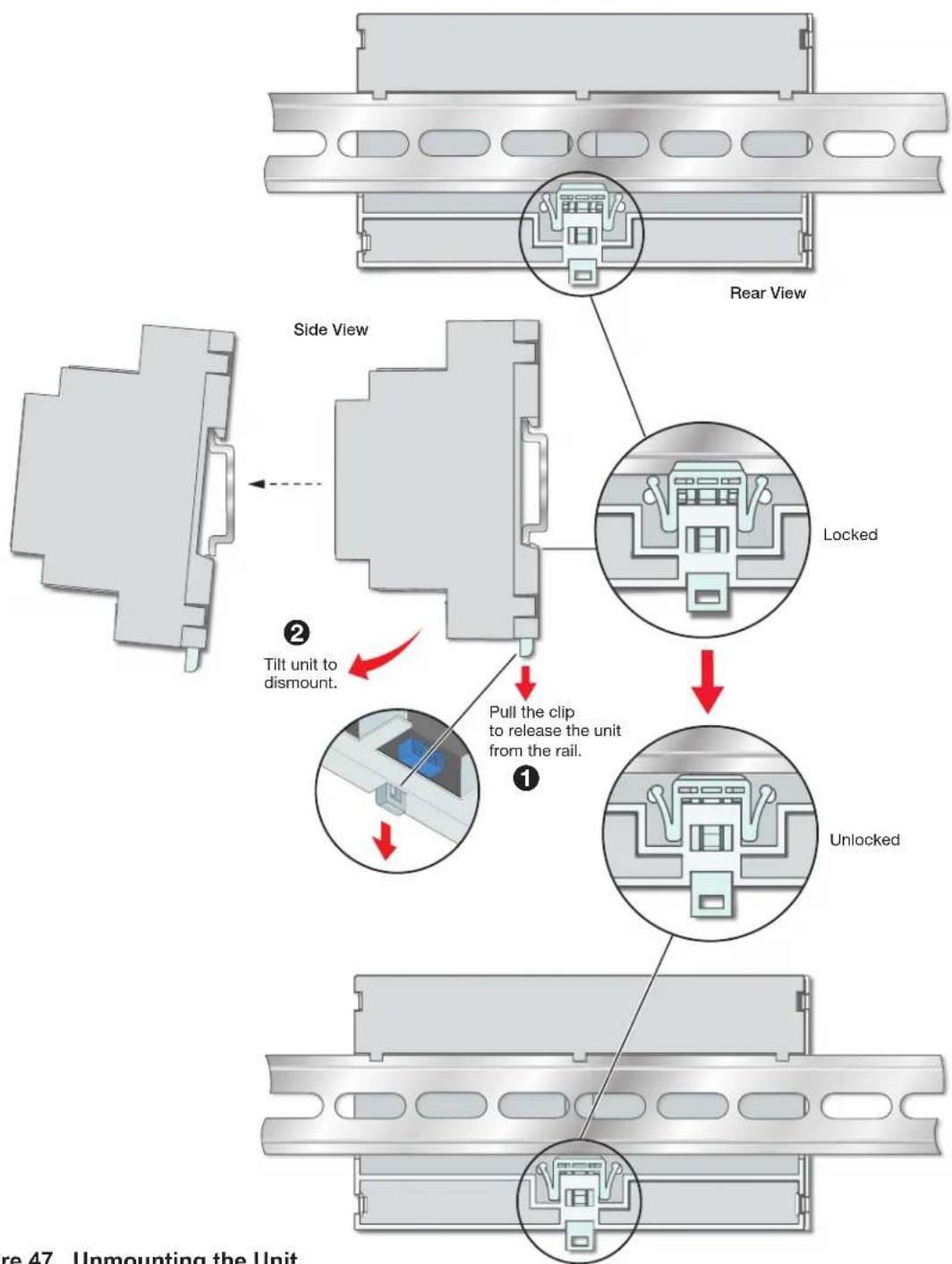
Figure 47. Unmounting the Unit
Firmware Updates
If the need arises, you can replace the IPCP firmware. This section covers the following firmware-related topics:
• Determining the Firmware Version
- Updating the Firmware
Determining the Firmware Version
There are several ways to check which firmware version the control processor is using:
• View the device information in Toolbelt.
• View the general status information section of the IPCP embedded web page.
Before using any of those methods, connect the control processor and the PC to the same network. For details see the Hardware Features and Installation section starting on page 9, the Software-Based Configuration and Control section starting on page 53, and the IPCP Pro xi Series Setup Guide, the IPCP Pro 355DRQ xi Setup Guide, or the IPCP Pro PCS1 xi Setup Guide.
Using Toolbelt Software
- Open the Toolbelt software.
- Either add the desired control processor manually or start device discovery and select the desired processor from the list of discovered devices.
- Click Manage in the row for the desired control processor and view the device information that appears in that section.
Using a Browser
The control processor comes with a factory default embedded web page.
- Start a browser program.
- Enter the IP address of the control processor into the address field of the browser and log on to the internal web page.
- Look for the version within one of the information pane
Updating the Firmware
Firmware upgrade tools require the PC and the control processor to both be connected to an Ethernet network. The instructions for updating the IPCP firmware assume you have installed the appropriate software on your PC first.
NOTES:
- You should save the existing system configuration to a file (see the Global Configurator Help File for instructions) before replacing the firmware. If the file is saved, the configuration can be restored to the control system later using GC.
- Check the Extron website for firmware-related documents, instructions, patch files, and new firmware files before loading new firmware into the control processor. We recommend that you read the firmware release notes (available from www.extron.com) before beginning the firmware update.
Locating and Downloading the Firmware
- Visit the Extron website to find the latest firmware file for the control processor. The easiest way to locate files is through the Downloads tab on the web page for the specific model.
- Download the executable installer file (*.exe) from the website and run the installer program. The program stores the firmware file on the PC in C:\Program Files (x86)\Extron\Firmware or C:\Program Files\Extron\Firmware within a folder specific to that version.
- Write down the firmware filename and location for later use. The filename ends in .eff such as 49-###-50-x.xx.xxxx-yyyy.eff, where x.xx.xxxx is the version number.
NOTE: The firmware update file must have a filename extension of .eff. If the file does not have that extension, it does not work properly.
Installing Firmware
Firmware can be replaced by using one of the following:
- Global Configurator (using the Update Firmware link to Toolbelt)
- Toolbelt
These methods allow you to browse to find and select the appropriate .eff file on your PC and then click an Upload button to initiate the firmware upload to the control processor.
NOTE: Toolbelt allows you to update multiple devices with the same firmware version simultaneously.
Allow at least a couple minutes for the firmware to finish uploading. At the end of the upload process, the unit partially reboots and loses its connection to the PC. Therefore, to continue using Toolbelt or monitoring the unit using the embedded web page, you need to refresh the web page or reconnect via Toolbelt after the firmware update.
Extron Warranty

Extron warrants its powered products against defects in materials and workmanship for a period of three years from the date of invoice. In the event of malfunction during the warranty period, Extron will repair or replace a product to whatever extent it shall deem necessary to restore the product to proper operating condition.
This Limited Warranty does not apply if the fault has been caused by misuse, improper handling care, electrical or mechanical abuse, abnormal operating conditions or non-Extron authorized modification to the product. Extron Electronics makes no further warranties either expressed or implied with respect to the product and its quality, performance, merchantability, or fitness for any particular use. In no event will Extron Electronics be liable for direct, indirect, or consequential damages resulting from any defect in this product even if Extron Electronics has been advised of such damage. Please note that laws vary from state to state and country to country, and that some provisions of this warranty may not apply to you.
Powered Warranty Exception
Everlast™ Power Supplies — Extron warrants Everlast power supplies against any defects in materials and workmanship for a period of seven years from the date of invoice. In the event of a malfunction during the warranty period, Extron will repair or replace the power supply to its original operating condition. Extron engineers will examine the returned product and determine whether the Everlast Power Supply Warranty or Powered Product Warranty applies.
Speakers — Extron warrants Flat Field®, SoundField®, SpeedMount®, Column Array, and System INTEGRATOR® speakers against any defects in materials and workmanship for a period of five years from the date of invoice.
Touchscreens — Extron warrants touchscreen display and overlay components against any defects in materials and workmanship for a period of one year from the date of invoice.
Annotator 300 — Extron warrants the Annotator 300 against any defects in materials and workmanship for a period of five years from the date of invoice.
Non-Powered Warranty Exception
Cable Cubby, Hideaway Surface Access Enclosures and Retractors — Extron warrants Cable Cubby cable access enclosures, HSA Hideaway Surface Access enclosures, and Retractor cable retraction modules for a period of three years from the date of invoice.
Active Cables and Active Adapters — Extron warrants active cables and active adapter cables for a period of three years from the date of invoice.
Cable Termination Tools and Dies — Extron warrants cable termination tools for a period of three years from the date of invoice, excluding the die.
Return Information
Units must be returned insured, with shipping charges prepaid. If not insured, you assume the risk of loss or damage during shipment. Returned units must include the serial number and a description of the problem, as well as the name of the person to contact in case there are any questions.
NOTE: To assure the highest level of service, a return authorization number must be obtained from Extron before products are returned for service. Products must be shipped to Extron, prepaid along with proof of purchase only after obtaining a Return Authorization (RA) number from the Extron Customer Support department.
Please contact Extron to receive an RA (Return Authorization) number:
USA: 714.491.1500 or 800.633.9876
Asia: 65.6383.4400
Europe: 31.33.453.4040 or 800.3987.6673
Japan: 81.3.3511.7655
Africa and Middle East: 971.4.299.1800