
SP-L221 - Projector SAMSUNG - Free user manual and instructions
Find the device manual for free SP-L221 SAMSUNG in PDF.


| Brand | SAMSUNG |
| Model | SP-L221 |
| Product Type | Projector |
| Display Technology | DLP |
| Brightness | 2200 lumens |
| Native Resolution | XGA (1024 x 768) |
| Contrast Ratio | 2000:1 |
| Lamp Life | 3000 hours (normal mode) |
| Dimensions (W x D x H) | 291 x 234 x 93 mm |
| Weight | 2.5 kg |
| Power Supply | 100-240 V AC, 50/60 Hz |
| Power Consumption | 200 W (max) |
| Video Inputs | VGA, S-Video, Composite, Component |
| Audio Input | 3.5 mm Jack |
| Built-in Speaker | Yes, 7 W mono |
| Ceiling Mount | Yes (Front-Ceiling mode) |
| Filter Cleaning | Every 100 hours of use |
| Operating Temperature | 5°C to 35°C |
| Included Accessories | Power cable, VGA cable, remote control, batteries |
Frequently Asked Questions - SP-L221 SAMSUNG
User questions about SP-L221 SAMSUNG
0 question about this device. Answer the ones you know or ask your own.
Ask a new question about this device
Download the instructions for your Projector in PDF format for free! Find your manual SP-L221 - SAMSUNG and take your electronic device back in hand. On this page are published all the documents necessary for the use of your device. SP-L221 by SAMSUNG.
USER MANUAL SP-L221 SAMSUNG
Owner's Instructions
The color and the appearance may differ depending on the product, and the specifications are subject to change without prior notice to improve the performance.
MAJOR SAFETY PRECAUTIONS
Before You Start 1-1
Care and Maintenance 1-2
Safety Precautions 1-3
INSTALLATION AND CONNECTION
Package Contents 2-1
Installing the Projector 2-2
Leveling with Adjustable Feet 2-3
Zoom and Focus Adjustment 2-4
Screen Size and Projection Distance 2-5
Lamp Replacement 2-6
Rear Side 2-7
Setting up the PC Environment 2-8
Supported Display Modes 2-9
Connecting the Power 2-10
Connecting with a PC 2-11
Connecting a PC using an HDMI/DVI cable 2-12
Connecting an External Monitor 2-13
Connecting an HDMI-Compatible Device 2-14
Connecting an AV device using a D-Sub cable 2-15
Connecting an AV device with component output 2-16
Connecting using a Video/S-Video cable 2-17
Connecting an External Speaker 2-18
Kensington Lock 2-19
USING
Product Features 3-1
Front, Upper 3-2
Remote Control 3-3
LED Indications 3-4
Using the Screen Adjustment Menu (OSD: On Screen Display) .... 3-5
TROUBLESHOOTING
Before Requesting Service 4-1
MORE INFORMATION
Specifications 5-1
RS-232C Command Table 5-2
Contact SAMSUNG WORLDWIDE 5-3
Correct Disposal - Europe only 5-4
1 Major Safety Precautions
1-1 Before You Start
Icons used in this manual
| ICON | NAME | MEANING |
 | Caution | Indicates cases where the function may not work or the setting may be canceled. |
 | Note | Indicates a hint or tip to operate a function. |
Using this Manual
• Make yourself fully aware of the safety precautions before using this product.
• If a problem occurs, refer to the 'Troubleshooting' section.
Copyright Notice
The contents of this manual are subject to change without prior notice for performance improvement.
Copyright © 2009 Samsung Electronics Co., Ltd. All rights reserved.
The copyright of this manual is reserved by Samsung Electronics, Co., Ltd.
The contents of this manual may not be partially or in whole reproduced, distributed or used in any form without the written permission of Samsung Electronics, Co., Ltd.
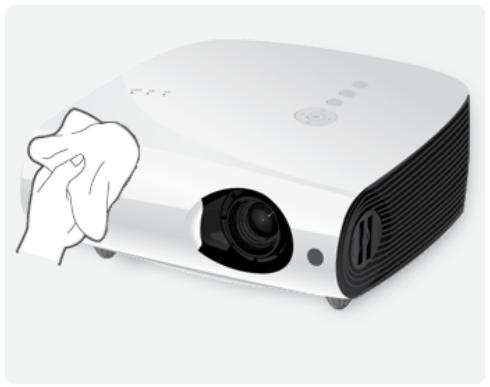
Cleaning the Surface and the Lens
Clean the projector using a soft dry cloth.
- Avoid cleaning the product with a flammable substance such as benzene or thinner.
- Avoid scratching the lense with your fingernails or a sharp object.
This may result in scratches or damage to the product. - Avoid cleaning the product with a wet cloth or by directly spraying water onto the product.
If water enters the product, it may result in fire, electric shock, or a problem with the product. - A white stain may appear on the surface of the projector if water gets on it.

The appearance and the color may differ depending on models.
Cleaning Inside the Projector
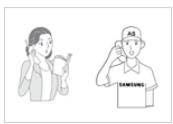
For cleaning the interior of the projector, contact a Service Center.
- Contact a Service Center if dust or other substances are inside the projector.
natural_image
Illustration of a projector with a hand holding the lens (no text or symbols visible)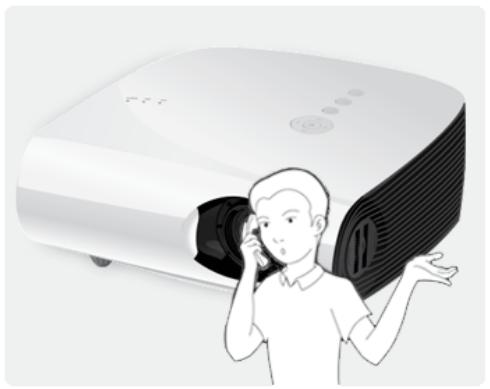
natural_image
Illustration of a person reacting to a phone call into a large projector (no text or symbols visible)Icons used for safety precautions
| ICON | NAME | MEANING |
 | Warning | Failing to follow the precautions marked with this sign may result in a serious injury or even a fatality. |
 | Caution | Failing to follow the precautions marked with this sign may result in a personal injury or property damage. |
Meaning of Signs

Do not perform.

Must be followed.

Do not disassemble.

The power plug must be unplugged from the wall outlet.

Do not touch.

Must be grounded to prevent electric shock.
Power Related
The following images are for your reference and may differ depending on models and countries.

Warning
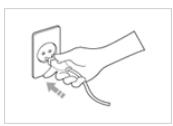
Plug the power plug in firmly.
• Otherwise, it may result in fire.
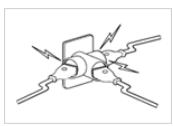
Avoid connecting multiple electric appliances to a single wall outlet.
- Otherwise, it may result in fire due to overheating of the wall outlet.
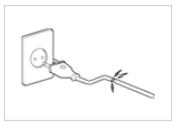
Avoid using a damaged power cord or plug or a loose power outlet.
- Otherwise, it may result in electric shock or fire.
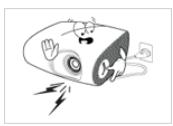
Avoid bending or twisting the power cord excessively and avoid placing heavy objects on the cord.
- Otherwise, it may result in electric shock or fire due to a damaged power cord.
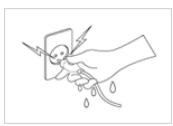
Avoid plugging in or unplugging the power supply with wet hands.
- Otherwise, it may result in electric shock.
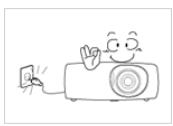
To move the product, turn the power off and unplug the power cord and any other wires connected to the product.
- Otherwise, it may result in electric shock or fire due to the damaged power cord.
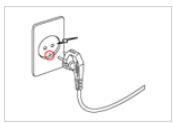
Make sure to connect the power cord to a grounded wall outlet (for insulation class 1 equipment only).
- Otherwise, it may result in electric shock or injury.
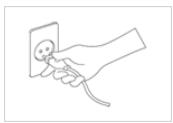
When unplugging the power plug from the wall outlet, make sure to hold the power plug by the plug and not by the cord.
- Failing to do so may result in electric shock or fire.

Do not turn the product on or off by plugging or unplugging the power plug. (Do not use the power plug as a power switch.)
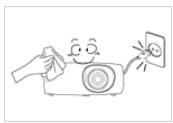
Unplug the power plug before cleaning the product.
- There is a danger of electric shock or fire.
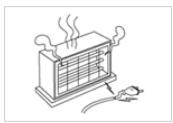
Keep the power cord away from sources of heat.
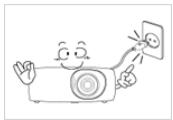
Connect the power plug to a wall outlet that can be easily reached.
- When a problem occurs with the product, you must unplug the power plug to cut the power off completely. You cannot cut the power off completely using only the power button on the product.
Installation Related

Warning
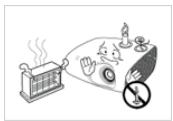
Avoid installing the product in a location exposed to direct sunlight and installing the product near a heat source such as a fire or heater.
- This may shorten the product life cycle or cause fire.
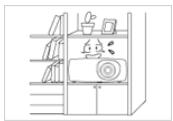
Avoid installing the product in a badly-ventilated location such as inside a bookshelf or closet.
- Otherwise, it may result in fire due to internal overheating.
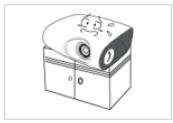
When installing the product in a cabinet or shelf, take care so that the front end of the product is completely supported by the cabinet or shelf.
- Failing to do so may result in the product falling and resulting in damage to the product or injury.
• Make sure to use a cabinet or shelf suitable to the size of the product.
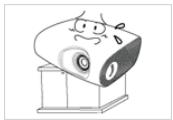
When installing the product on a console or shelf, make sure that the front of the product does not protrude out of the console or shelf.
- Otherwise, this may cause the product to fall off and result in a malfunction or injury.
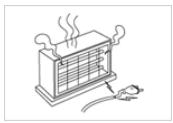
Keep the power cord away from heaters.
- The coating of the power cord may melt and cause electric shock or fire.
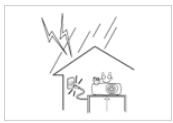
When thunder or lighting occurs, unplug the power cord.
- Failing to do so may result in electric shock or fire.
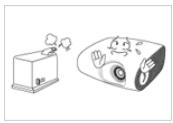
Do not install the product in a location exposed to dust, moisture (sauna), oil, smoke or water (rain drops) and do not install it in a vehicle.
• This may result in electric shock or fire.
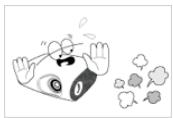
Do not install the product in areas with heavy dust.
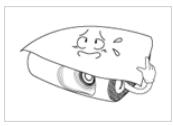
Take care not to block the vent with a table cloth or curtain.
- Otherwise, it may result in fire due to internal overheating.
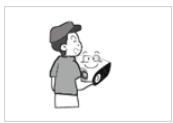
Do not let the product drop while moving it.
- This may result in a problem with the product or injury.
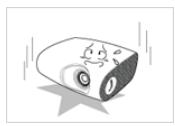
When putting the product down, place it gently.
- Failing to do so may result in a problem with the product or injury.
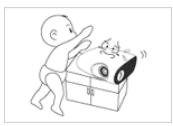
Do not install the product at a height where children may reach it.
- If a child touches the product, the product may fall and this may result in injury.
Usage Related
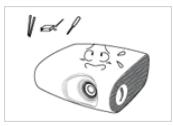
Avoid inserting metal objects such as a chopsticks, coins or hairpins, or inflammable objects into the product (the vents, ports, etc).
- If water or an alien substance enters the product, turn the power off, unplug the power cord and contact a service center.
- Otherwise, it may result in a problem with the product, electric shock or fire.
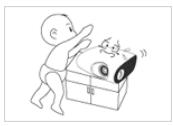
Do not let children place objects such as toys or cookies on the product.
- If a child tries to reach for any of these objects, the product may fall and cause harm.
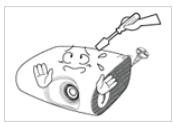
Do not disassemble, or attempt to fix or modify the product.
- When the product requires repairs, contact a Service Center.
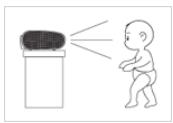
Do not look directly at the light of the lamp nor project the picture into someone's eyes.
• This is dangerous, especially for children.
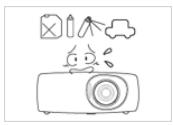
Avoid using or placing inflammable spray or objects near the product.
• This may result in an explosion or fire.
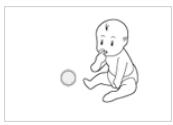
When you remove batteries from the remote, be careful that they are not swallowed by children. Keep batteries out of the reach of children.
• If swallowed, see a doctor immediately.
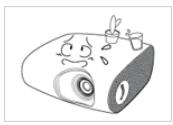
Avoid placing a liquid container such as a vase, flowerpot, beverage, cosmetics or drugs, or a metal object over the product.
- If water or an alien substance enters the product, turn the power off, unplug the power cord and contact a service center.
- Otherwise, it may result in a problem with the product, electric shock or fire.
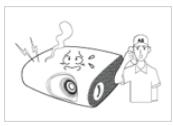
If the product generates a strange noise, a burning smell, or smoke, unplug the power plug immediately and contact a service center.
- Failing to do so may result in electric shock or fire.
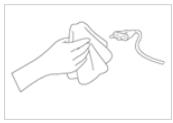
If the power plug pin or jack is exposed to dust, water or alien substances, clean it thoroughly.
- There is a danger of electric shock or fire.
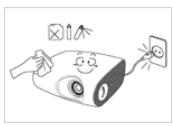
When cleaning the product, disconnect the power cord and clean the product with a soft dry cloth.
- Avoid using chemicals such as wax, benzene, alcohol, thinner, mosquito-repellent, fragrance, lubrication or cleansing agent when cleaning the product.
This may result in the exterior being deformed or the print being removed.
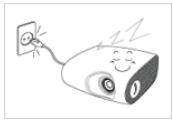
When not using the product for a long time, such as leaving your home, unplug the power cord from the wall outlet.
- Otherwise, it may cause dust accumulation and result in fire caused by overheating or a short circuit or result in an electric shock.
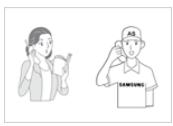
If the product is installed in a location where the operating conditions vary considerably, a serious quality problem may occur due to the surrounding environment. In this case, install the product only after consulting our Call Center.
- Places exposed to microscopic dust, chemicals, too high or low temperature, high humidity, such as airports or stations where the product is continuously used for a long time etc..
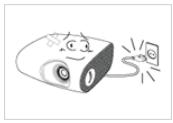
If you drop the product or the case is damaged, turn the power off and unplug the power cord. Contact a service center.
- Failing to do so may result in fire or electric shock.
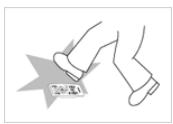
Make sure to place your remote control on a table or desk.
- If you step on the remote control, you may fall and hurt yourself or the product may be damaged.

If water or a foreign substance enters the product, turn the product off, unplug the power cord from a wall outlet, and contact a Service Center.
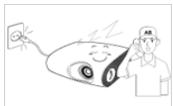
Do not use the product while it indicates a malfunction, such as no sound or no picture.
- Turn the product off immediately, unplug the power cord from a wall outlet, and contact a Service Center.
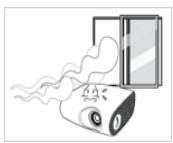
When a gas leak occurs, do not touch the product or the power plug and ventilate immediately.
- A spark may result in an explosion or fire.
- During a thunder or lighting storm, do not touch the power cord or antenna cable
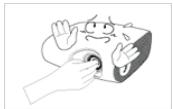
Do not touch the lens on the product.
• This may cause damage to the lens.
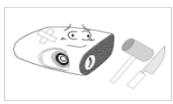
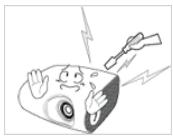
Do not touch any outer part of the product with tools such as a knife or a hammer.
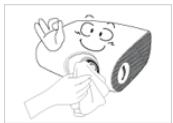
To clean dirt or stains on the front projection lens, use spray or a wet cloth dampened with neutral detergent and water.
Ask a Service Center to clean the interior of the projector at least once per year.
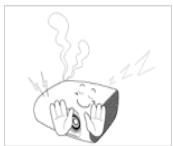
To avoid burning yourself, do not touch the vents or lamp cover while operating or right after turning off the product.
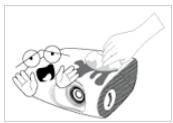
Do not clean the product using water spray or a wet cloth. Avoid using any chemicals such as detergents, industrial or automotive polish, abrasive, wax, benzene, alcohol on any plastic part of the product such as projector case, since this may cause damage.
Do not open any cover on the product.
- This would prove hazardous because of high-voltage current inside the product.
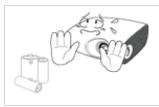
Do not use any undesignated battery.
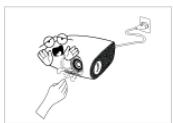
Be careful not to touch the ventilation hole while the projector is on as hot air comes out.
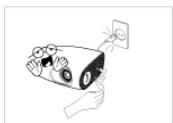
The ventilation hole is hot for some time though the projector is turned off. Keep you hands or body off the ventilation hole.
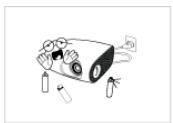
Do not place objects vulnerable to heat near the projector.
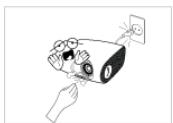
Be careful to keep your body away from the projector lamp. The lamp is hot.
(Children and those who have sensitive skin should be more careful.)
2 Installation and Connection
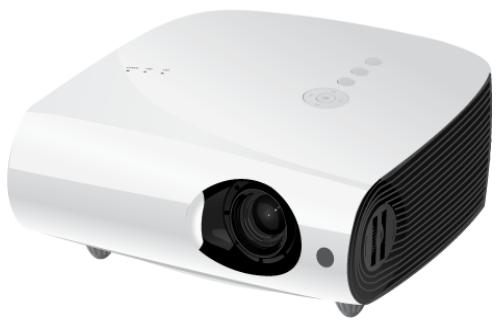
2-1 Package Contents
- Unpack the product and check if all of the contents listed below have been included.
- Store the packaging box in case you need to move the product at a later stage.
natural_image
White projector with black ventilation slots and a camera lens (no visible text or symbols)Projector
| CONTENTS | |||
 | 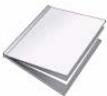 |  | 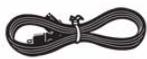 |
| Quick Installation Guide | Warranty Card / Registration Card (Not available in all locations) | User Manual | Power Cord |
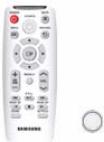 | 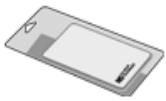 | 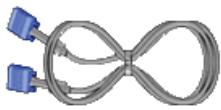 | |
| Remote Control / 1 Battery (CR 2025, Not available in all locations) | Cleaning Cloth | D-Sub Cable | |
Install the projector so that the beam from the projector is perpendicular to the screen.
- Place the projector so that the lens aims at the center of the screen. If the screen is not vertical, the picture on the screen may not appear rectangular.
- Do not install the screen in bright surroundings. If the surroundings are too bright, the picture on the screen will be washed out and not display clearly.
- When using the projector in bright surroundings, use curtains to block the light.
- You can install the projector in the following locations: Front-Floor / Front-Ceiling / Rear-Floor / Rear-Ceiling. To view the installation position settings, see below.
To adjust picture when you install the projector behind the screen
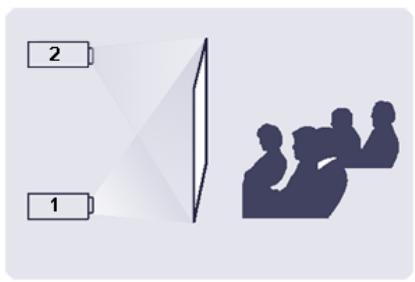
Installing behind a semi-transparent screen.
When you install the projector behind a semi-transparent screen, you can use the menu to adjust the picture so that it displays correctly, depending on where you've located the projector, rear-floor (or low) or rear-ceiling.
- For rear-floor, press :
Menu > Setup > Install > Rear-Floor
- For rear-ceiling, press :
Menu > Setup > Install > Rear-Ceiling
To adjust the picture when you install the projector in the front of the screen
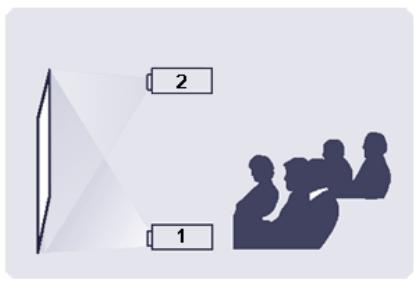
Install the projector on the side where you are watching the screen.
When you install the projector in front of a screen, you can use the menu to adjust the picture so that it displays correctly, depending on where you've located the projector, front-floor (or low) or front-ceiling.
- For front-floor, press :
Menu > Setup > Install > Front-Floor
natural_image
White projector with black ventilation slots and blue control buttons (no visible text or symbols)To level the projector, turn the Adjustable Feet of the projector.
The projector can be adjusted to a height of up to 30 mm (about 12 °) from the reference point.
Depending on the position of the projector, Keystone distortion of the image may appear.
If
natural_image
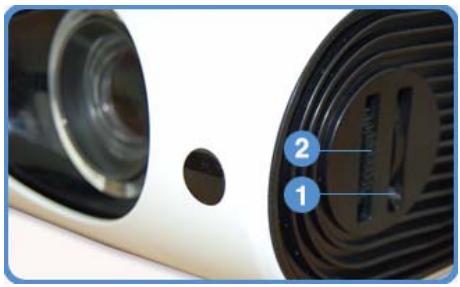
Close-up of a car's front wheel and side grille (no visible text or symbols)1 Zoom Knob : You can adjust the size of the image within the zoom range by manipulating the Zoom Knob.
2 Focus Ring : Focus the picture on the screen using the Focus Ring.
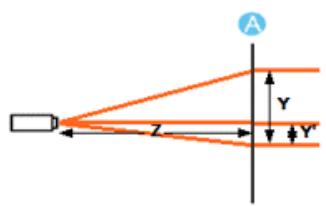
The size of your screen determines the distance you set your projector from the screen.
If you do not install your projector at the projection distance specified in the Screen Size and Projection Distance table on the next page, you will not be able to adjust the focus correctly.
natural_image
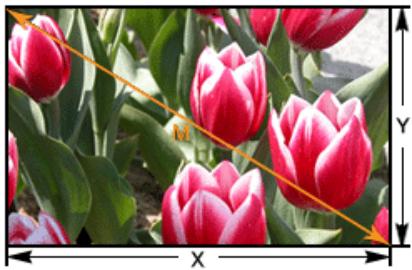
Close-up of pink tulips in a garden setting with measurement lines and X-Y axis indicators (no text or symbols on the plants themselves)A. Screen / Z. Throw Distance / Y'. Distance from Lens Center to Image Bottom
Install the projector on a flat, even surface and level the projector using the adjustable feet to obtain optimal picture quality. If images are not clear, adjust them using the Zoom Knob or Focus Ring, or move the projector forward and backward.
This projector is designed to show images optimally on a 80 \~ 120 inch sized screen.
| SCREEN SIZE | THROW DISTANCE | OFFSET | |||||||||
| M (DIAGONAL) | X (HORIZONTAL) | Y (VERTICAL) | Z (TELE) | Z (WIDE) | Y' | ||||||
| INCHES | CM | INCHES | CM | INCHES | CM | INCHES | CM | INCHES | CM | INCHES | CM |
| 40 | 101.6 | 32 | 81.3 | 24 | 61.0 | 54.2 | 137.6 | 44.9 | 114.0 | 4.0 | 10.2 |
| 50 | 127.0 | 40 | 101.6 | 30 | 76.2 | 68.0 | 172.7 | 56.4 | 143.3 | 5.0 | 12.7 |
| 60 | 152.4 | 48 | 121.9 | 36 | 91.4 | 81.8 | 207.8 | 68.0 | 172.6 | 6.0 | 15.2 |
| 70 | 177.8 | 56 | 142.2 | 42 | 106.7 | 95.7 | 243.0 | 79.5 | 202.0 | 7.0 | 17.8 |
| 80 | 203.2 | 64 | 162.6 | 48 | 121.9 | 109.5 | 278.1 | 91.1 | 231.3 | 8.0 | 20.3 |
| 90 | 228.6 | 72 | 182.9 | 54 | 137.2 | 123.4 | 313.3 | 102.6 | 260.6 | 9.0 | 22.9 |
| 100 | 254.0 | 80 | 203.2 | 60 | 152.4 | 137.2 | 348.4 | 114.1 | 289.9 | 10.0 | 25.4 |
| 110 | 279.4 | 88 | 223.5 | 66 | 167.6 | 151.0 | 383.5 | 125.7 | 319.2 | 11.0 | 27.9 |
| 120 | 304.8 | 96 | 243.8 | 72 | 182.9 | 164.8 | 418.7 | 137.2 | 348.5 | 12.0 | 30.5 |
| 130 | 330.2 | 104 | 264.2 | 78 | 198.1 | 178.7 | 453.8 | 148.7 | 377.8 | 13.0 | 33.0 |
| 140 | 355.6 | 112 | 284.5 | 84 | 213.4 | 192.5 | 488.9 | 160.3 | 407.1 | 14.0 | 35.6 |
| 150 | 381.0 | 120 | 304.8 | 90 | 228.6 | 206.3 | 524.1 | 171.8 | 436.4 | 15.0 | 38.1 |
| 160 | 406.4 | 128 | 325.1 | 96 | 243.8 | 220.2 | 559.2 | 183.4 | 465.7 | 16.0 | 40.6 |
| 170 | 431.8 | 136 | 345.4 | 102 | 259.1 | 234.0 | 594.4 | 194.9 | 495.0 | 17.0 | 43.2 |
| 180 | 457.2 | 144 | 365.8 | 108 | 274.3 | 247.8 | 629.5 | 206.4 | 524.3 | 18.0 | 45.7 |
| 190 | 482.6 | 152 | 386.1 | 114 | 289.6 | 261.7 | 664.6 | 218.0 | 553.6 | 19.0 | 48.3 |
| 200 | 508.0 | 160 | 406.4 | 120 | 304.8 | 275.5 | 699.8 | 229.5 | 582.9 | 20.0 | 50.8 |
| 210 | 533.4 | 168 | 426.7 | 126 | 320.0 | 289.3 | 734.9 | 241.0 | 612.2 | 21.0 | 53.3 |
| 220 | 558.8 | 176 | 447.0 | 132 | 335.3 | 303.2 | 770.1 | 252.6 | 641.5 | 22.0 | 55.9 |
| 230 | 584.2 | 184 | 467.4 | 138 | 350.5 | 317.0 | 805.2 | 264.1 | 670.8 | 23.0 | 58.4 |
| 240 | 609.6 | 192 | 487.7 | 144 | 365.8 | 330.8 | 840.3 | 275.6 | 700.1 | 24.0 | 61.0 |
| 250 | 635.0 | 200 | 508.0 | 150 | 381.0 | 344.7 | 875.5 | 287.2 | 729.4 | 25.0 | 63.5 |
| 260 | 660.4 | 208 | 528.3 | 156 | 396.2 | 358.5 | 910.6 | 298.7 | 758.7 | 26.0 | 66.0 |
| 270 | 685.8 | 216 | 548.6 | 162 | 411.5 | 372.3 | 945.7 | 310.2 | 788.0 | 27.0 | 68.6 |
| 280 | 711.2 | 224 | 569.0 | 168 | 426.7 | 386.2 | 980.9 | 321.8 | 817.3 | 28.0 | 71.1 |
| 290 | 736.6 | 232 | 589.3 | 174 | 442.0 | 400.0 | 1016.0 | 333.3 | 846.6 | 29.0 | 73.7 |
| 300 | 762.0 | 240 | 609.6 | 180 | 457.2 | 413.9 | 1051.2 | 344.9 | 875.9 | 30.0 | 76.2 |
Cautions on Lamp Replacement
- The projector lamp is an expendable item. For best operating performance, replace the lamp according to the usage time. You can view the lamp usage time in the Information Display (INFO button).
-
Use the recommended lamp when replacing. Replace the lamp with the one specified below.
-
Lamp Model Name : NSHA230SS
- Lamp Manufacturer : Ushio
-
For inquiries on lamp purchase, please refer to 'Contact SAMSUNG WORLDWIDE'.
-
Check that the power cord is unplugged before replacing the lamp.
- Because the lamp is a high temperature and high voltage product, wait at least one hour from the time you disconnect the power cord before replacing the lamp.
- The lamp is located on the left side of the projector (when looking from the front).
- Do not leave the old lamp near inflammables or in reach of children. There is a danger of burn or injury.
- Remove dirt or foreign material around or inside the lamp unit using a proper vacuum device.
- When handling the lamp, avoid touching any part of it except for the handles. If you handle the lamp incorrectly, you can shorten the lamp's lifetime and affect picture quality.
- When you turn the projector over to change the lamp, put the projector on a soft cloth on a flat surface.
- The projector has been designed so that the projector does not work if the lamp cover is not completely assembled after a lamp replacement. If the projector does not work properly, please check the operating status of the indicator LED.
Lamp contains Mercury. Dispose According to Local, State or Federal Laws.
Lamp Replacement Procedure
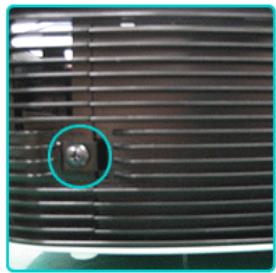
Since the lamp is a high temperature and high voltage product, wait at least one hour from the time that the power cord is disconnected before replacing it.
The lamp is located on the left side of the projector (when looking from the front).
- Remove the screw shown in the figure below and than open the cover.
natural_image
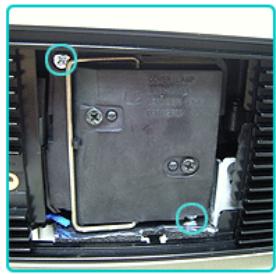
Close-up of a black ventilation grille with a circular blue badge highlighting a small object (no text or symbols visible)- Remove the two (2) screws shown in the figure below.
natural_image
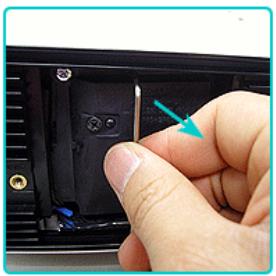
Interior view of a car showing a battery panel with three buttons and a small car, no visible text or symbols.- Hold and pull the lamp handle out of the projector, as shown in the figure below.
natural_image
Close-up of a hand inserting a cable into a black electronic device (no visible text or symbols)Assemble a new lamp in the reverse order of disassembly.
Replacing and Cleaning the Filter
Precautions when replacing the projector filter:
• The filter is located at the bottom of the projector.
- Turn off the power of the projector, and then disconnect the power cord after the projector has cooled sufficiently. Otherwise, its parts may be damaged due to internal heat.
- When you replace the filter, you may release some dust.
- For inquiries on filter purchase, please refer to 'Contact SAMSUNG WORLDWIDE'.
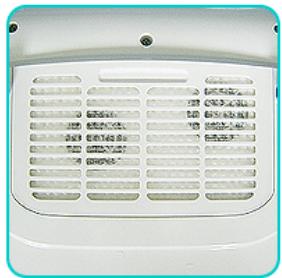
The sequence for replacing or cleaning the filter of the projector.
- Turn off the power of the projector, and then disconnect the power cord after the projector has cooled sufficiently.
natural_image
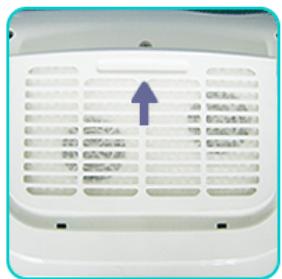
Front view of a white appliance ventilation grille with grid patterns and ventilation slots (no visible text or symbols)- Turn the projector over so that its bottom points upward, and then push and remove the filter cover in the direction of the arrow.
* When placing the projector with the bottom facing up, make sure to place a soft cloth under the projector to prevent scratches.
natural_image
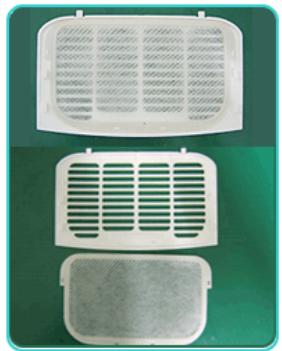
Front view of a white appliance ventilation grille with a blue upward arrow indicating airflow direction (no text or symbols)- Replace or clean the filter.
natural_image
Three white plastic ventilation grilles with ventilation slots, placed on a green background (no text or symbols visible)- When cleaning the filter, use a small vacuum cleaner designed for computers and small electronics products, or wash it under
running water.
• After washing the filter under running water, make sure to dry it completely. The moisture may cause the filter to corrode.
• If dust cannot be separated from the filter or the filter is torn, it must be replaced.
• Make sure to select the Reset Filter Time option after replacing or cleaning the filter of the projector
Ventilation openings
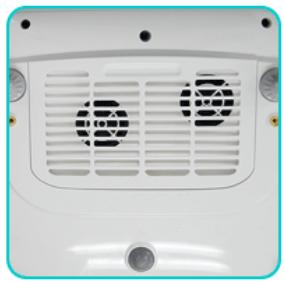
The location of the ventilation openings:
- The ventilation openings are located on the right and left sides and at the bottom of the projector.
natural_image
Front view of a white industrial ventilation grille with circular vent patterns (no text or symbols visible)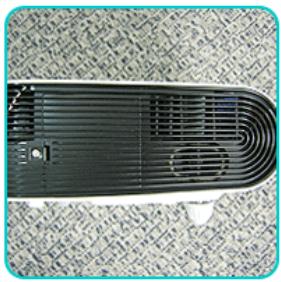
natural_image
Top-down view of a black electronic device with ventilation slots and a small circular component (no visible text or symbols)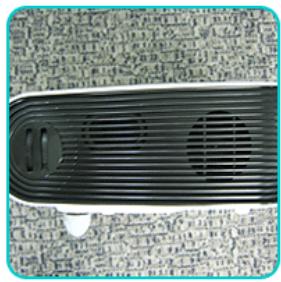
natural_image
Close-up of a black plastic ventilation grille with ventilation slots and ventilation ducts (no visible text or symbols)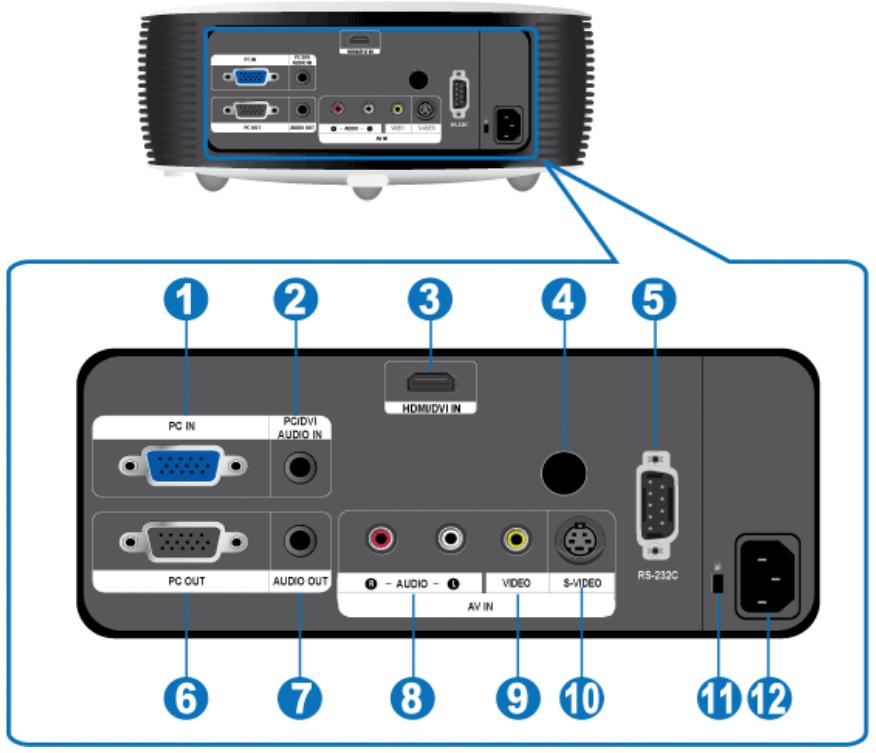
| 1. PC IN port | 7. AUDIO OUT port |
| 2. PC/DVI AUDIO IN port | 8. [AV IN] R-AUDIO-L port |
| 3. HDMI/DVI IN port | 9. [AV IN] VIDEO Input port |
| 4. Remote Control Signal Receiver | 10. [AV IN] S-VIDEO port |
| 5. RS-232C port (For service only) | 11. Kensington Lock |
| 6. PC OUT port | 12. POWER Input port |
Check the following items before connecting your PC to your projector.
- Click the right mouse button on the Windows desktop, and then click [Properties]. The
dialog appears.
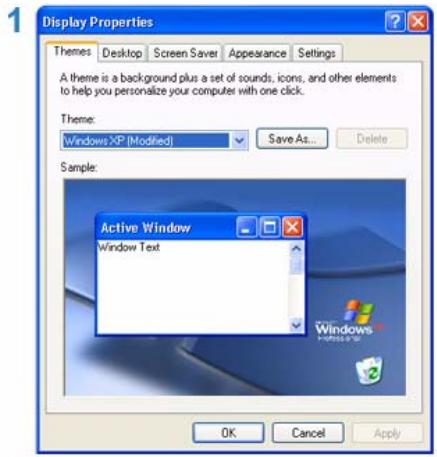
- Click the [Settings] tab, and then set the
. The optimal resolution for the projector is 1024 x 768. For other resolutions supported by the projector, see the PC Timing Display Mode table in section 2-9.
You do not have to change the
- Press the [Advanced] button. Another property window appears.
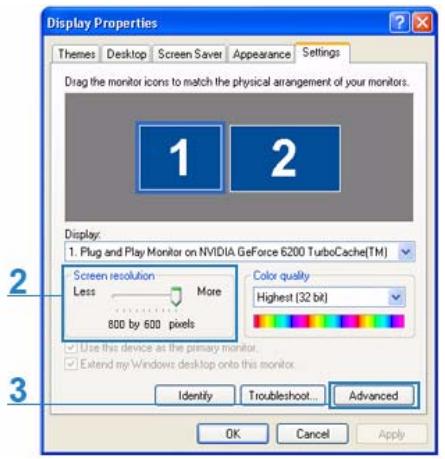
- Click the [Monitor] tab and set the
. For the refresh rate that matches the resolution you've chosen, see the refresh rate (60 Hz, 70 Hz, etc.) next to your selected resolution in the PC Timing Display Mode table in section 2-9.
Setting the refresh rate sets both the vertical and horizontal frequencies.
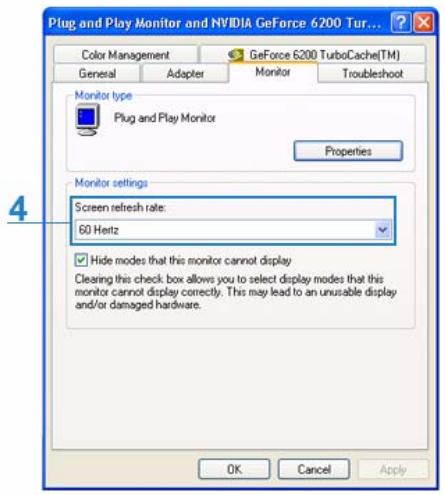
- Click the [OK] button to close the window, and click the [OK] button on the
window to close the window. The computer may restart automatically. - Shut down the PC and connect to the projector.
The setup process might vary depending on your type of computer or version of Windows.
(For example, [Properties] appears instead of [Properties (R)] as shown in 1.)
This projector supports 32 bit color quality (per pixel) when it is used as a PC monitor.
Projected images may differ from the images on your monitor depending on the monitor manufacturer or Windows version.
When connecting the projector to a PC, make sure that the PC setup complies with the display settings supported by this projector. If it does not, you may have signal problems.
PC Timing (D-Sub/HDMI)
For the resolutions presented above, if a signal with a resolution lower or higher than 1024x768 is input, it is converted to 1024x768 by the Scaler chip inside the projector.
| FORMAT | RESOLUTION | HORIZONTAL FREQUENCY (KHZ) | VERTICAL FREQUENCY (HZ) | PIXEL FREQUENCY (MHZ) | |
| IBM | 640 x 350 | 70Hz | 31.469 | 70.086 | 25.175 |
| IBM | 640 x 480 | 60Hz | 31.469 | 59.940 | 25.175 |
| IBM | 720 x 400 | 70Hz | 31.469 | 70.087 | 28.322 |
| VESA | 640 x 480 | 60Hz | 31.469 | 59.940 | 25.175 |
| MAC | 640 x 480 | 67Hz | 35.000 | 66.667 | 30.240 |
| VESA | 640 x 480 | 70Hz | 35.000 | 70.000 | 28.560 |
| VESA | 640 x 480 | 72Hz | 37.861 | 72.809 | 31.500 |
| VESA | 640 x 480 | 75Hz | 37.500 | 75.000 | 31.500 |
| VESA | 720 x 576 | 60Hz | 35.910 | 59.950 | 32.750 |
| VESA | 800 x 600 | 56Hz | 35.156 | 56.250 | 36.000 |
| VESA | 800 x 600 | 60Hz | 37.879 | 60.317 | 40.000 |
| VESA | 800 x 600 | 70Hz | 43.750 | 70.000 | 45.500 |
| VESA | 800 x 600 | 72Hz | 48.077 | 72.188 | 50.000 |
| VESA | 800 x 600 | 75Hz | 46.875 | 75.000 | 49.500 |
| MAC | 832 x 624 | 75Hz | 49.726 | 74.551 | 57.284 |
| VESA | 1024 x 768 | 60Hz | 48.363 | 60.004 | 65.000 |
| VESA | 1024 x 768 | 70Hz | 56.476 | 70.069 | 75.000 |
| VESA | 1024 x 768 | 72Hz | 57.672 | 72.000 | 78.434 |
| VESA | 1024 x 768 | 75Hz | 60.023 | 75.029 | 78.750 |
| VESA | 1152 x 864 | 60Hz | 53.783 | 59.959 | 81.750 |
| VESA | 1152 x 864 | 70Hz | 63.000 | 70.000 | 96.768 |
| VESA | 1152 x 864 | 72Hz | 64.872 | 72.000 | 99.643 |
| VESA | 1152 x 864 | 75Hz | 67.500 | 75.000 | 108.000 |
| VESA | 1280 x 720 | 60Hz | 44.772 | 59.855 | 74.500 |
| VESA | 1280 x 720 | 70Hz | 52.500 | 70.000 | 89.040 |
| VESA | 1280 x 720 | 72Hz | 54.072 | 72.000 | 91.706 |
| VESA | 1280 x 720 | 75Hz | 56.456 | 74.777 | 95.750 |
| VESA | 1280 x 768 | 60Hz | 47.776 | 59.870 | 79.500 |
| VESA | 1280 x 768 | 75Hz | 60.289 | 74.893 | 102.250 |
| VESA | 1280 x 800 | 60Hz | 49.702 | 59.810 | 83.500 |
| VESA | 1280 x 800 | 75Hz | 62.795 | 74.934 | 106.500 |
| VESA | 1280 x 960 | 60Hz | 60.000 | 60.000 | 108.000 |
| VESA | 1280 x 960 | 70Hz | 69.930 | 70.000 | 120.839 |
| VESA | 1280 x 960 | 72Hz | 72.072 | 72.000 | 124.540 |
| VESA | 1280 x 960 | 75Hz | 75.231 | 74.857 | 130.000 |
| VESA | 1280 x 1024 | 60Hz | 63.981 | 60.020 | 108.000 |
| VESA | 1280 x 1024 | 70Hz | 74.620 | 70.000 | 128.943 |
| VESA | 1280 x 1024 | 72Hz | 76.824 | 72.000 | 132.752 |
| VESA | 1280 x 1024 | 75Hz | 79.976 | 75.025 | 135.000 |
| VESA | 1400 x 1050 | 60Hz | 65.317 | 59.978 | 121.750 |
| VESA | 1440 x 900 | 60Hz | 55.935 | 59.887 | 106.500 |
| VESA | 1440 x 900 | 75Hz | 70.635 | 74.984 | 136.750 |
| VESA | 1600 x 1200 | 60Hz | 75.000 | 60.000 | 162.000 |
When the real resolution (1024x768) of the projector and the PC output resolution are the same, the screen quality is optimal.
AV Timing (D-Sub)
| FORMAT | RESOLUTION | SCAN | |
| BT.601 SMPTE 267M | 480i | 59.94Hz | Interlaced |
| BT.1358 SMPTE 293M | 480p | 59.94Hz | Progressive |
| BT.601 | 576i | 50Hz | Interlaced |
| BT.1358 | 576p | 50Hz | Progressive |
| SMPTE 296M | 720p | 59.94Hz/60Hz | Progressive |
| 720p | 50Hz | Progressive | |
| BT.709 SMPTE 274M | 1080i | 59.94Hz/60Hz | Interlaced |
| 1080i | 50Hz | Interlaced | |
AV Timing (HDMI)
| FORMAT | RESOLUTION | SCAN | HORIZONTAL FREQUENCY (KHZ) | VERTICAL FREQUENCY (HZ) | PIXEL FREQUENCY (MHZ) | |
| EIA-861 | Format1 | 640 x 480 | Progressive | 59.940 | 31.469 | 25.175 |
| EIA-861 | Format1 | 640 x 480 | Progressive | 60.000 | 31.500 | 25.200 |
| EIA-861 | Format2,3 | 720 x 480 | Progressive | 59.940 | 31.469 | 27.000 |
| EIA-861 | Format2,3 | 720 x 480 | Progressive | 60.000 | 31.500 | 27.027 |
| EIA-861 | Format4 | 1280 x 720 | Progressive | 59.939 | 44.955 | 74.175 |
| EIA-861 | Format4 | 1280 x 720 | Progressive | 60.000 | 45.000 | 74.250 |
| EIA-861 | Format5 | 1920 x 1080 | Interlaced | 59.939 | 33.716 | 74.175 |
| EIA-861 | Format5 | 1920 x 1080 | Interlaced | 60.000 | 33.750 | 74.250 |
| EIA-861 | Format17,18 | 720 x 576 | Progressive | 50.000 | 31.250 | 27.000 |
| EIA-861 | Format19 | 1280 x 720 | Progressive | 50.000 | 37.500 | 74.250 |
| EIA-861 | Format20 | 1920 x 1080 | Interlaced | 50.000 | 28.125 | 74.250 |
AV Timing (VIDEO/S-VIDEO)
NTSC, NTSC 4.43, PAL, PAL60, PAL-N, PAL-M, SECAM
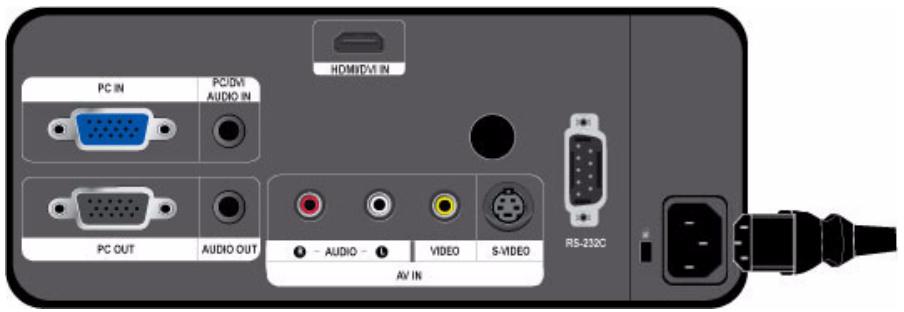
- Plug the power cord into the power terminal on the rear side of the projector.
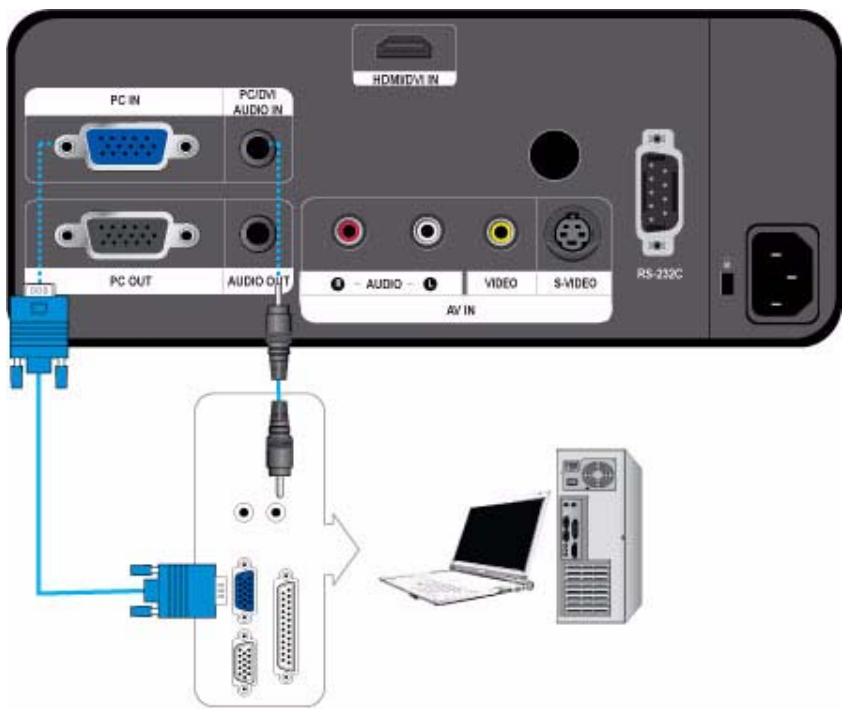
- Connect the [PC IN] port on the rear side of the projector to the monitor output port of the PC using a PC video cable.
- Plug in the power cords of the projector and the PC.
- Connect the [PC/DVI AUDIO IN] input port of the projector to the speaker output ports of the PC using an audio cable.
This product supports plug and play. If you use Windows XP, you do not need to set up the driver on your PC.
Using the Projector
- Turn on the projector and press the [SOURCE] button to select
.
If theMode is not available, make sure the PC video cable is properly connected. - Turn on the PC and set the PC Environment when necessary.
- Adjust the screen. (
)
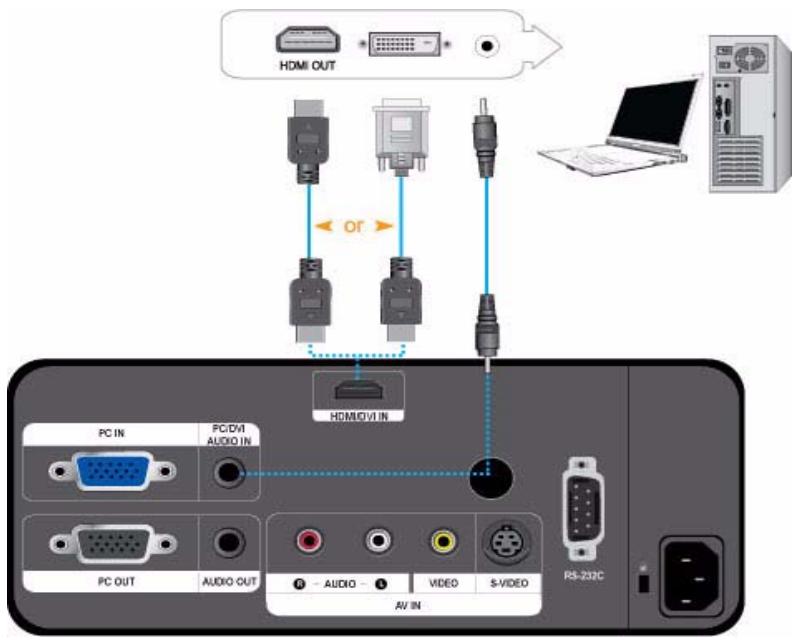
Make sure that your PC and projector are turned off.
-
Connect the [HDMI/DVI IN] terminal of the projector to the HDMI or DVI terminal of your PC using a HDMI/HDMI or HDMI/DVI cable (Not supplied).
-
If you are connecting to the HDMI terminal of your PC, use an HDMI/HDMI cable (Not supplied).
-
For the supported resolutions and refresh rates, see PC Timing (D-Sub/HDMI) in Section 2-9.
-
If you connected using a HDMI/DVI cable, connect the [PC/DVI AUDIO IN] terminal of the projector to the Audio out terminal of your PC using an audio cable (Not supplied).
- If you connected with a HDMI/HDMI cable, you do not need an audio cable.
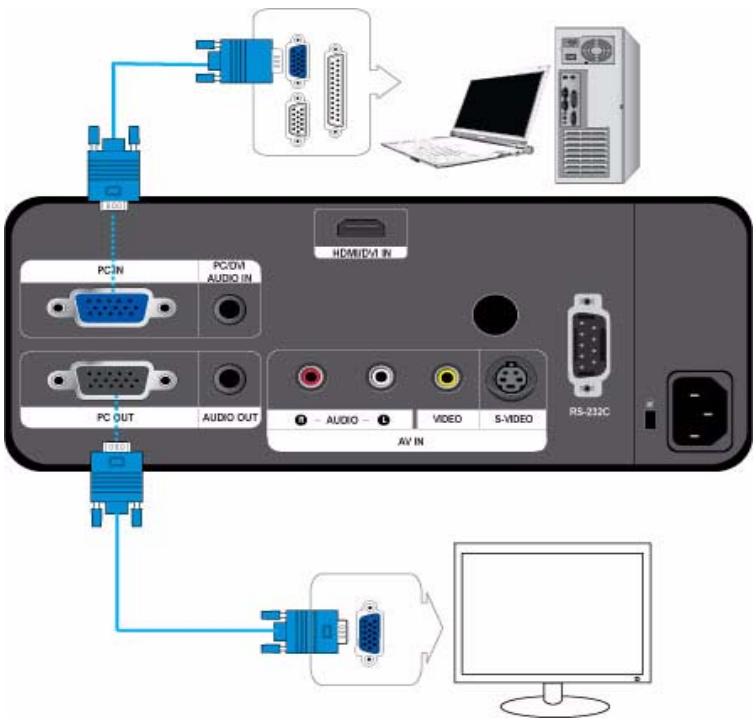
You can view an image on both your projector and a separate monitor at the same time.
Make sure that your PC and projector are turned off.
- Connect the [PC IN] terminal at the back of the projector to the D-Sub terminal of your PC using a D-Sub cable.
-
Connect the [PC OUT] terminal of the projector to the D-Sub terminal of a monitor using a D-Sub cable.
-
When connecting a monitor using the [PC OUT] function, make sure to connect your PC to the [PC IN] terminal.
- The monitor output which is connected to the [PC OUT] terminal will be normal even if you see a blank screen on your projector.
- The [PC OUT] function will not operate in standby mode.
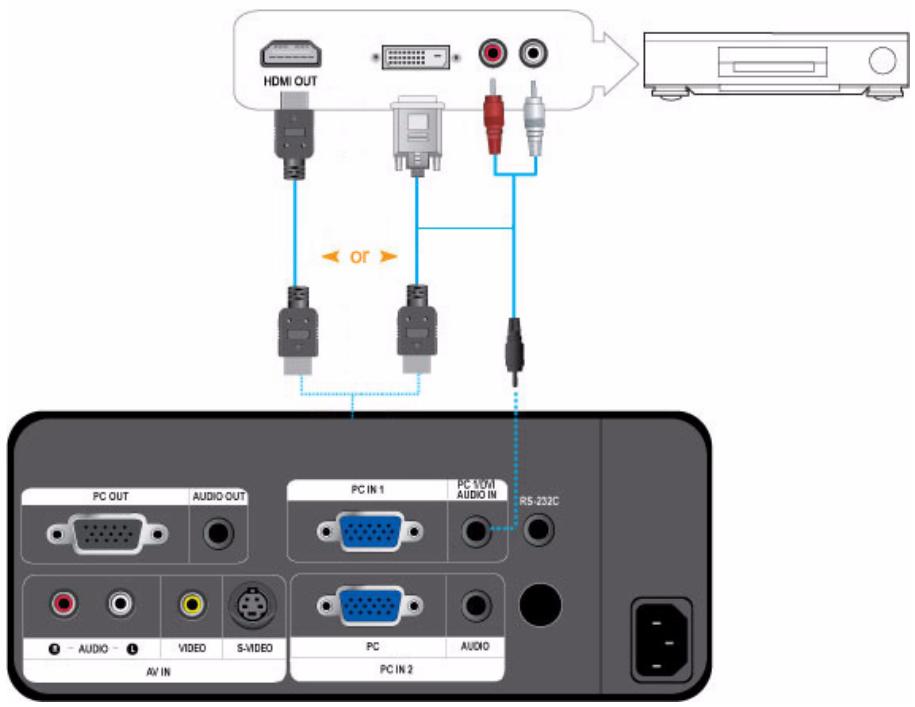
First, Make sure that the AV device and your projector are turned off.
-
Connect the [HDMI/DVI IN] terminal at the back of the projector to the HDMI or HDMI/DVI output terminal of the digital output device using an HDMI/DVI or HDMI/HDMI cable.
-
If you are connecting to the HDMI output terminal on the digital output device, use an HDMI/HDMI cable.
-
For supported input signal formats, resolutions, and frequencies, see AV Timing(HDMI) in Section 2-9.
-
If you connected using a HDMI/DVI cable, connect the [PC/DVI AUDIO IN] terminal on the projector to the Audio out terminal on your digital output device using an audio cable (Not supplied).
- If you connected with a HDMI/HDMI cable, you do not need an audio cable.
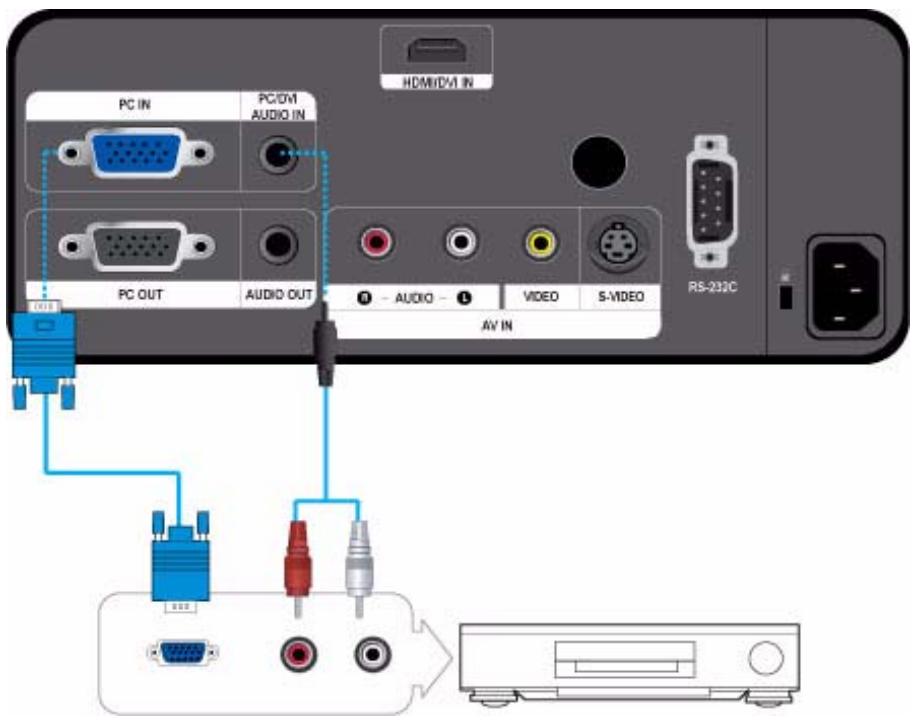
First, Make sure that the AV device and your projector are turned off.
- Connect the [PC IN] terminal at the back of the projector to the D-Sub terminal of your AV device using a D-Sub cable. - For supported input signal formats, resolutions, and frequencies, see AV Timing (D-Sub) in Section 2-9.
- Connect the [PC/DVI AUDIO IN] terminal at the back of the projector to the Audio out terminal of your AV device using an audio cable (Not supplied).
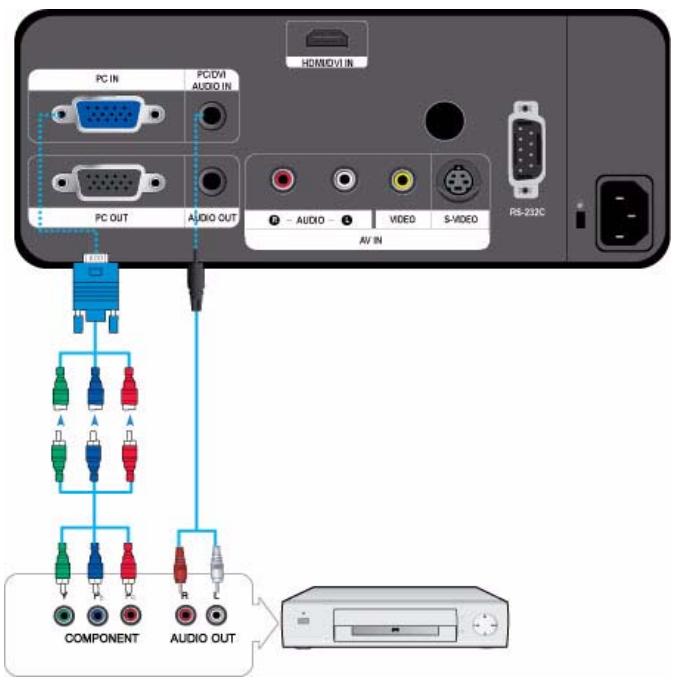
First, Make sure that the AV device and your projector are turned off.
- Connect the [PC IN] terminal on the back of the projector to the Component terminal on your AV device using a D-Sub to Component cable (Not supplied). This cable has a D-Sub connector on one end and three RCA jacks on the other.
- For supported input signal formats, resolutions, and frequencies, see AV Timing (D-Sub) in Section 2-9.
- Connect the [PC/DVI AUDIO IN] terminal on the back of the projector and the Audio out terminal on your AV device using an audio cable (Not supplied).
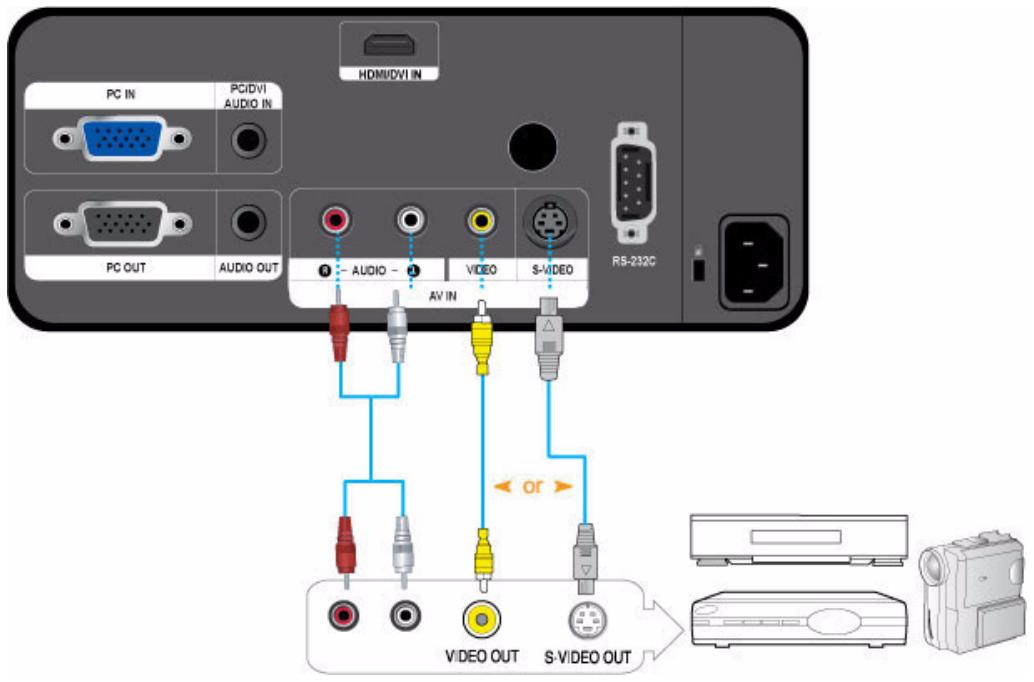
First, Make sure that the AV device and your projector are turned off.
- Connect the [VIDEO] or [S-VIDEO] terminal and the AV device using a Video cable (Not supplied) or S-Video cable (Not supplied).
- For supported input signal formats, see AV Timing (VIDEO/S-VIDEO) in section 2-9.
- Connect the [AV IN R-AUDIO-L] terminal on the back of the projector and the Audio out terminal on your AV device using an audio cable (Not supplied).
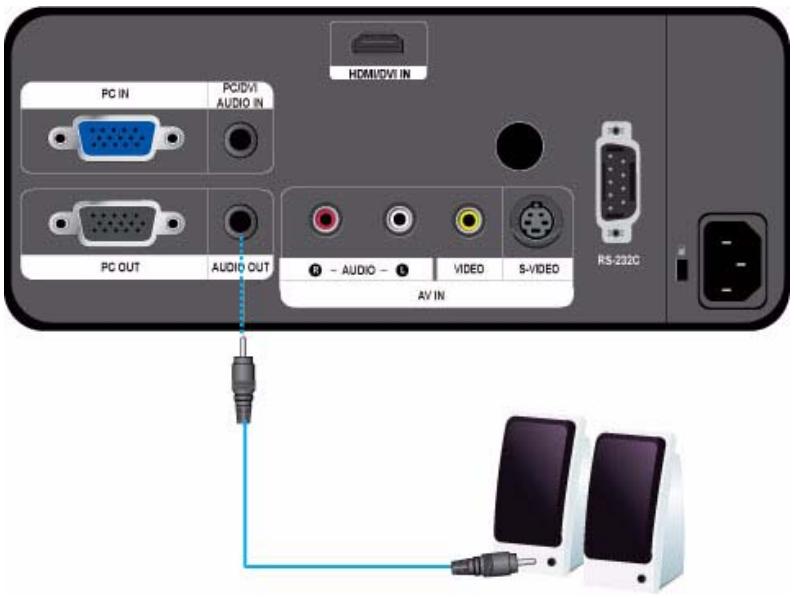
You can hear sound through an external speaker instead of the internal speakers embedded in the projector.
- Prepare an audio cable (Not supplied) suitable for your external speaker.
- Connect the [AUDIO OUT] terminal of the projector to the external speaker using an audio cable.
- When using an external speaker, the internal speaker does not operate but you can adjust the volume of the external speaker using the Volume button of the projector (or remote control).
- The [AUDIO OUT] terminal can output all audio signals.
A Kensington Lock (not supplied) is an anti-theft device that lets users to lock the product so that they can safely use it in public locations. Because the shape and usage of the lock may differ depending on the model and the manufacturer, see the User Manual supplied with the locking device for more information.
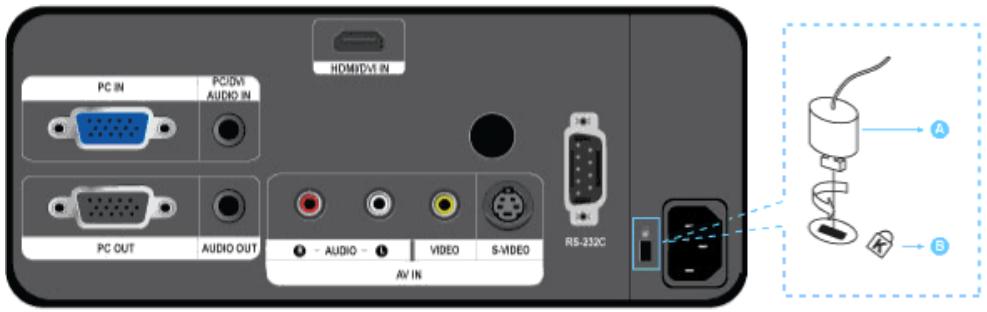
Locking the product
- Loop the Kensington lock cable around an immovable part of desk or heavy object as directed in the Kensington lock user manual.
- Insert the locking part of the locking device into the Kensington lock hole in the projector.
- Insert the Kensington lock key into the locking mechanism and turn it in the locking direction.
You can purchase the locking device from an electronics store or an online shop.
3-1 Product Features
- An optical engine adopting new LCD technology
• 1024 x 768 panel has been adapted.
• Utilizes a 3P-LCD panel.
• SP-L201 : Provides a bright screen of 2000 lumen.
SP-L221 : Provides a bright screen of 2200 lumen.
SP-L251 : Provides a bright screen of 2500 lumen.
- Compact size, lightweight, and portable.
- Minimized fan noise
• Fan noise minimized through optimized internal air flow and the fan installation structure.
- Multiple input terminals
• Increases the connectivity to peripheral devices such as D-Sub 15P (supporting DTV signal), S-Video, Video, HDMI, etc.
- Audio Output
- Includes stereo speakers on the right and left and a 5-band equalizer.
-
User adjustments
-
Allows adjustment of each input port.
- Has a reference pattern you can use for positioning and adjustment.
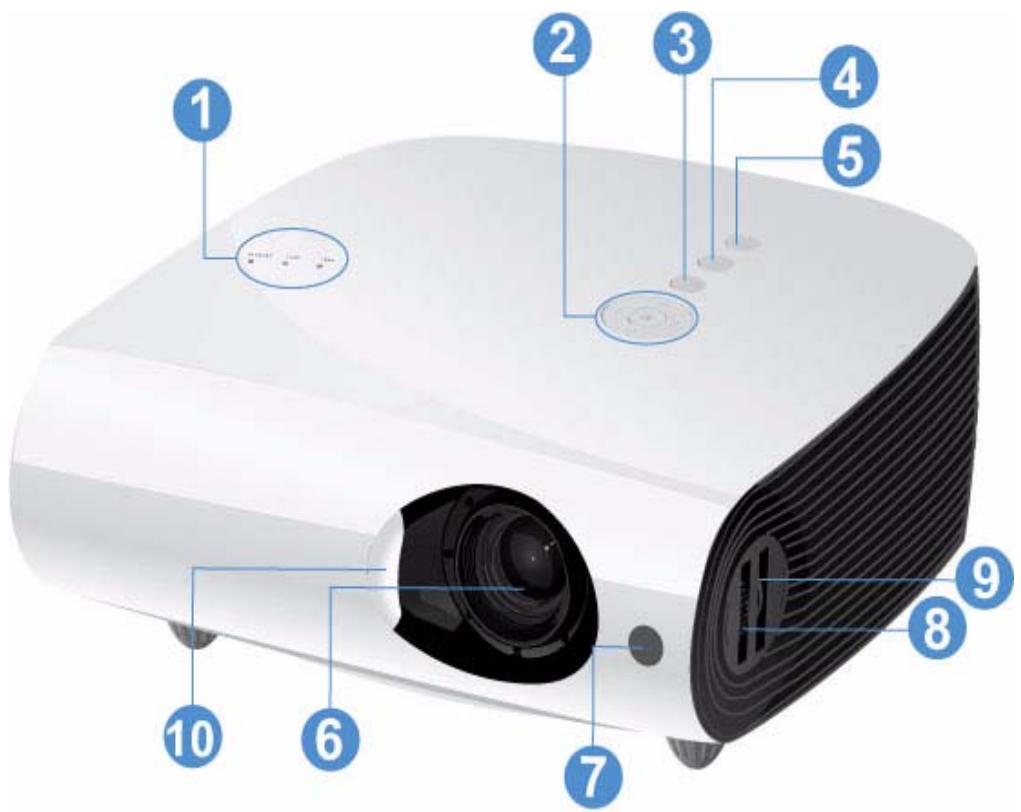
| NAME | DESCRIPTION |
| 1.Indicators | - STAND BY (Blue LED)- LAMP (Blue LED)- TEMP (Red LED)Refer to the LED Indications. |
| 2. Move ^V<> / Select 📋/Volume < >vol vol + button | ^V<> / 📋: Use to move to or select an item within a menu.< >vol vol + : Use to adjust the volume. |
| 3. MENU button | Use to display the Menu Screen. |
| 4. SOURCE button | Use to select the external device signal. |
| 5. ⏻ Button | Use to turn the projector on or off. |
| 6. Lens | Use for Focus Adjustment. |
| 7. Remote Control Signal Receiver | - |
| 8. Focus Ring | Use for Focus Adjustment. |
| 9. Zoom Knob | Use to enlarge or reduce image size. |
| 10. Lens cover | - |
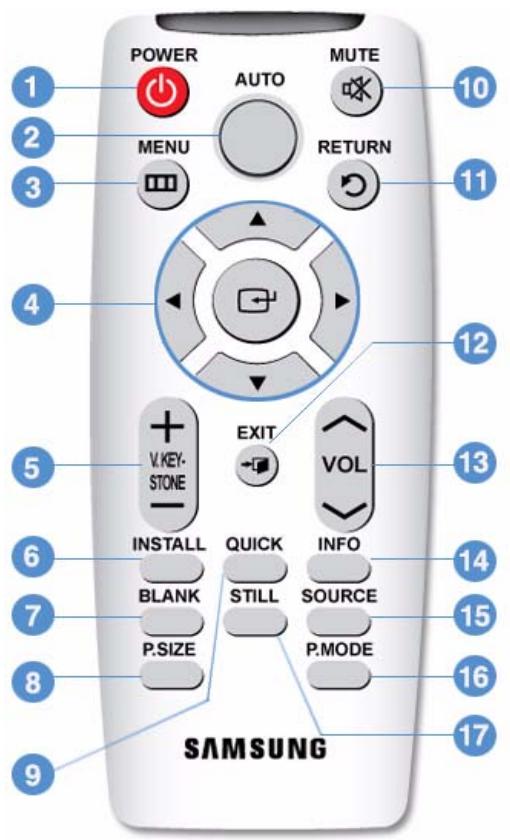
- POWER (⏻) Button
Use this button for turning the product on and off.
- AUTO Button
Adjusts the Picture automatically. (Available in
- MENU (☐) Button
Used to display the Menu Screen.
- Move (▼▲◀▶)/ (☐) Buttons
Used to display the Menu Screen.
- V. KEYSTONE Button (+−)
Use this when the screen is displayed in a trapezoid shape.
- INSTALL Button
Used to flip or reverse the projected image.
- BLANK Button
This is used to turn off the video and audio temporarily.
The video and audio will come back on when any button other than the [POWER] button is pressed.
- P.SIZE Button
Used to adjust the size of picture screen.
- QUICK Button
This is used to quickly return to the last menu used.
- MUTE (OK) Button
Press to mute the sound temporarily. Press the MUTE button again or the VOL button (^^) when the sound is muted to hear sound again.
- RETURN (→) Button
Returns to the previous menu.
- EXIT (→) Button
Used to make the Menu Screen disappear.
- VOL (^^) Button
Used to control the volume.
- INFO Button
Used to check source signals, picture setup, PC screen adjustment and lamp lifespan.
- SOURCE Button
Used to check or select the connection status of external devices.
- P.MODE Button
Used to select Picture Mode.
- STILL Button
Used to see still images.
Make sure to place your remote control on a table or desk.
If you step on the remote control, you may fall and hurt yourself or damage the remote.
You can use the remote control up to a distance of about 23 feet (7 m) from the product.
LED Indications
●:Light is On Ⓞ:Light is Blinking ○:Light is Off
| STAND BY | LAMP | TEMP | STATUS |
| ● | ○ | ○ | If you press the [POWER] button on the remote control or projector, the screen appears within 30 seconds. |
| ● | ● | ○ | The projector is operating normally. |
| ● | ○ | ○ | The projector is preparing an operation after the [POWER] button on the projector or the remote control has been pressed. |
| ○ | ○ | ○ | The [POWER] button has been pressed to turn off the projector, and the cooling system is in operation to cool off the inside of the projector. (Operates for about 3 seconds.) |
| ○ | ○ | ○ | The cooling fan inside the projector is not operating normally. Refer to Action 1 in Clearing Indicator Problems below. |
| ○ | ○ | ○ | The lamp cover protecting the lamp unit is not closed properly. Refer to Action 2 in Clearing Indicator Problems below. |
| ● | ○ | ○ | The lens cover has not opened completely. Refer to Action 3 in Clearing Indicator Problems below. |
| ● | ● | ○ | The projector has changed to Cooling mode because it's internal temperature has increased beyond the maintenance limit.Refer to Action 4 in Clearing Indicator Problems below. |
| ○ | ○ | ○ | The projector has turned itself off automatically because it's internal temperature has increased beyond the maintenance limit. Refer to Action 5 in Clearing Indicator Problems below. |
| ○ | ○ | ○ | A problem has occurred with the operation of the lamp. Refer to Action 6 below. |
Clearing Indicator Problems
| CLASSIFICATION | STATE | MEASURES |
| Action 1 | The cooling fan system is not operating normally. | If the symptom remains even after disconnecting and then reconnecting the power cord and turning the projector on again, contact your product provider or our service center. |
| Action 2 | The lamp cover protecting the lamp unit is not properly closed or the sensor system is not operating normally. | Check if the screws on the side of the projector are securely tightened. If they are and the indicators are still lit, contact your product distributor or a service center. |
| Action 3 | The lens cover has not opened completely. | Open the lens cover completely.If the lens cover does not open completely when the projector is operating, both the video and audio turn off automatically.If this status persists for ten minutes, the projector turns off automatically. |
| Action 4 | The projector has changed to Cooling mode because the internal temperature of the projector has increased beyond the maintenance limit. | If the internal temperature of the projector has increased beyond the maintenance limit, the projector changes to Cooling mode before turning off automatically.In Cooling mode, the fan speed is increased and the projector's lamp is changed tomode.Check whether the ventilation hole of the projector is blocked.Check the air filter and clean if blocked.Check whether the surrounding temperature of the projector is higher than the standard temperature range of the projector.Cool the projector sufficiently and operate it again. |
| Action 5 | The internal temperature of the projector has risen higher than the limit, and the projector has turned off automatically. | Check whether the ventilation hole of the projector is blocked.Check the air filter and clean if blocked.Check whether the surrounding temperature of the projector is higher than the standard temperature range of the projector.Cool the projector sufficiently and operate it again.If the same problem occurs continually, contact your product distributor or service center. |
| Action 6 | The lamp has malfunctioned after power turns off abnormally or after powering on right after turning off the projector. | Turn the power off, wait for a sufficient amount of cooling time and then turn the power on to operate. If the same problem occurs continually, contact your product distributor or service center. |
This Projector uses a cooling fan system to keep the unit from overheating. Operation of the cooling fan may cause noise, which does not affect product performance and is part of normal operation.
The Screen Adjustment Menu (OSD: On Screen Display) Structure
| MENU | SUB-MENU | ||||
| Input | Source List | Edit Name | |||
| Picture | Mode | Size | Position | Digital NR | Black Level |
| Overscan | Film Mode | PC | Zoom | ||
| Setup | Install | Lamp Mode | Auto Keystone | V-Keystone | Background |
| Test Pattern | Video Type | Caption | Reset | ||
| Option | Language | Menu Option | Sound | Filter Check Time | Auto Power On |
| Sleep Timer | Information | ||||
To access the Menu, press the Menu button on the product or on the remote. To move in the menu, press the arrow buttons. Menu selections with an arrow on the far right have sub-menus. Press the right arrow button to access the sub-menu. Directions for navigating and selecting items in a menu are at the bottom of each menu screen.
3-5-1. Input
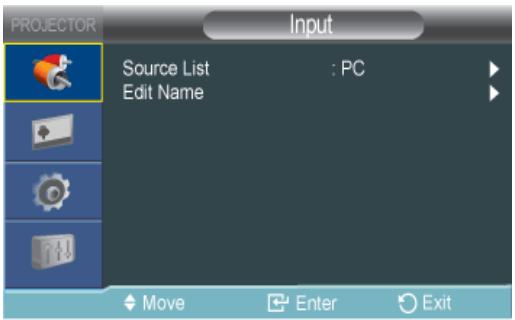
| MENU | DESCRIPTION |
| Source List | You can select a device connected to the projector to display.·-<S-Video>-<HDMI> |
| Edit Name | You can edit the names of devices connected to the projector.·-<Cable STB>-<PVR STB>-<Game>-<Camcorder>-<DVI Devices>-<IPTV>-<HD DVD>-<DMA> |
3-5-2. Picture
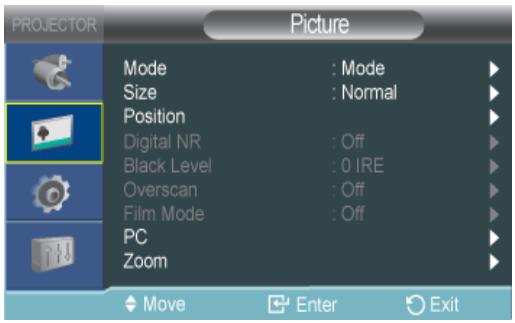
| MENU | DESCRIPTION |
| Mode | Select a screen state which is customized to your projector or change the screen mode as required.·: This picture mode is the most general mode and works well in most situations.·: This mode is suitable for presentations.·: This mode is suitable for text work.·: This mode is suitable for viewing a movie.·: This picture mode is optimized for playing games.The text in a still picture appears unnatural.: This mode is a customized mode created using the→function.Presentation and Text modes are only enabled if the input signal is a PC Timing (D-Sub/HDMI) signal.Each mode has separate controls for, , , , etc.When you access a mode and change (for example) the, you are changing the contrast for that mode only.: Used to adjust the contrast between the object and the background.: Used to adjust brightness of the entire picture.: Used to adjust the sharpness of the picture.When the input signal is PC Timing (D-Sub/HDMI), thecannot be adjusted.: Used to adjust color lighter or darker.When the input signal is PC Timing (D-Sub/HDMI), thecannot be adjusted.: Used to obtain more natural color of objects using Green or Red enhancement.When the input signal is PC Timing (D-Sub/HDMI) or PAL and SECAM in the [S-Video] or [AV] modes, thecannot be adjusted.: You can select the color temperature according to your preferences.Factory defaults: <9300K>, <8000K>, <6500K>, <5500K>You can select the color temperature for the items below according to your preferences, : Adjusts the color temperature of the White level, , , : Adjusts the color temperature of the Black level.·: Changes the brightness characteristic for each color tone of an image.The larger (+) the value, the greater the contrast of the bright and dark parts.The smaller (-) the value, the darker the dark parts.Adjustable range: -3 to +3: You can save the status of a screen you adjusted according to your preferences using the→OSD.: Restores the mode settings to the factory defaults. |
| Size | You can select a screen size according to the type of scene.When the input signal is PC Timing (D-Sub/HDMI),/is not supported.-<Zoom1>-<Zoom2>-<16:9> |
| Position | Adjust the screen position if it is not aligned.To adjust, select the direction you want to move the screen, and then press the arrow button pointing in that direction repeatedly. |
| Digital NR | When a dotted line is displayed or the screen shakes, you can view a better visual quality picture by enabling Noise Reduction.When the input signal is PC Timing (D-Sub/HDMI),does not operate. |
| Black Level | You can select the signal black level according to the input signal. If it is unsuitable for the input signal, the dark parts may appear clearly or may be dim.Thecan only be set for the 480i and 576i RGB signals of [AV], [S-Video], and AV Timing (D-Sub) modes.For [AV], [S-Video], and the 480i and 576i signals of AV Timing (D-Sub).<0 IRE>: Sets the black level to <0 IRE>.<7.5 IRE>: Sets the black level to <7.5 IRE>.For the RGB signal ofmode.: Used in a normal environment.: Used when the dark part is shown too bright. |
| Overscan | Using this function, you can cut the edge of the picture when unnecessary information or images appear on the edge of the picture.This is not supported in [AV] and [S-Video] modes.This is supported only when the input signal is AV Timing (D-Sub) or AV Timing (HDMI).Ifis turned off, unnecessary extra parts at the edges of an image may be shown.In this case, turnon. |
| Film Mode | Using this function, you can set the display mode optimized for playing movies.-:can only be supported for the [AV], [S-Video], 480i, and 576i of AV Timing (D-Sub) signals. |
| PC | Eliminates or reduces noise that causes unstable screen quality, such as screen shaking. If the noise is not removed using Fine Adjustment, adjust the frequency to the maximum and then perform Fine Adjustment again.These functions are only enabled for the PC Timing (D-Sub/HDMI) input of the D-Sub terminal.Refer to PC Timing (D-Sub/HDMI):Used to adjust the frequency and phase of PC screen automatically.: Used to adjust the frequency when vertical lines appear on PC screen.: Used to fine tune the PC screen.: Using this function, you can reset the PC menu settings to the factory default settings. |
| Zoom | Enlarges the PC screen to 2X, 4X, or 8X.This function is only enabled when the input signal is PC Timing (D-Sub/HDMI). |
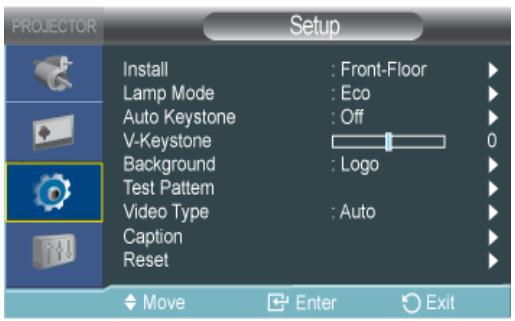
| MENU | DESCRIPTION | |||
| Install | To tailor the picture to the installation location, you can invert the projected images vertically / horizontally.·: Normal Image·: Horizontal/Vertical Reversed Image·: Horizontally Reversed Image·: Vertically Reversed Image | |||
| Lamp Mode | Used to set the image brightness by adjusting the amount of light generated by the lamp.·: This mode is optimized for screens smaller than 100 inches.This mode decreases the lamp brightness and power consumption in order to extend the lamp lifetime and reduce noise and power consumption.·: This mode maximizes the lamp brightness when the ambient illumination is bright. As the brightness of the lamp increases, the lamp lifetime can be reduced and the noise and power consumption may increase. | |||
| Auto Keystone | If video scenes are distorted or tilted, you can compensate for this by setting thefunction toso that thefunction automatically starts.- | |||
| V-Keystone | If video scenes are distorted or tilted, you can compensate for this using the vertical Keystone function.The sound output of your projector is temporarily stopped while the keystone is being changed.The keystone is not compensated for in the On Screen Display (OSD). | |||
| Background | You can set the Background that is displayed when there is no signal from the external device connected to the projector. If a signal is received, the Background you set disappears and a normal screen is displayed.- | |||
| Test Pattern | Generated by the projector itself. Use to optimize the installation of the projector.·: You can check whether the picture is distorted or not.·: You can refer to picture format sizes such as 1.33 : 1 or 1.78 : 1. | |||
| MENU | DESCRIPTION | |||
| Video Type | If the screen quality is abnormal as a result of the projector not identifying the input signal type automatically inormode, you can manually set the input signal.Inmode,is only enabled if the input signal is AV Timing (D-Sub). However, for a separate H/V sync.,is only enabled for the 1280 x 720p 59.94 Hz/60 Hz signals.Inmode,is only enabled for the 640x480p 59.94Hz/60 Hz and 1280x720p 59.94Hz/60 Hz signals.-<RGB(PC)->-<RGB(AV)->-<YPbPr(AV)>:mode.-<PC>-<AV>:mode | |||
| Usage | Color, Sharpness,Tint | PC menu and zoom | ||
| RGB(PC) | When connecting the RGB output of a PC to the D-Sub terminal | Disabled | Enabled | |
| RGB(AV) | When connecting the RGB output of an AV device (STB, DVD, etc...) to the D-Sub terminal | Enabled | Enabled | |
| YPbPr(AV) | When connecting the YPbPr output of an AV device (STB, DVD, etc...) to the D-Sub terminal | Enabled | Disabled | |
| PC | When connecting a PC to the HDMI terminal | Disabled | Enabled | |
| AV | When connecting an AV device (STB, DVD, etc...) to the HDMI terminal | Enabled | Disabled | |
| Auto | Auto settings | - | - | |
| Caption | Thefunction is supported when subtitles are contained in the external analog signal (from either the Video or S-Video terminal).Thefunction will not operate in(including components) ormode.Depending on the external signal, a change to the channel orsettings may be required.Eachandcontains different information.<2>carries additional information to supplement information contained in<(e.g. If English subtitles are provided on<1>, Spanish subtitles will be provided on<2>.)::::<2>::<2>::<2>::<2> | |||
| Reset | Using this function, you can reset various settings to the factory default settings.: Changes the settings to the factory defaults.: Resets the filter time. | |||
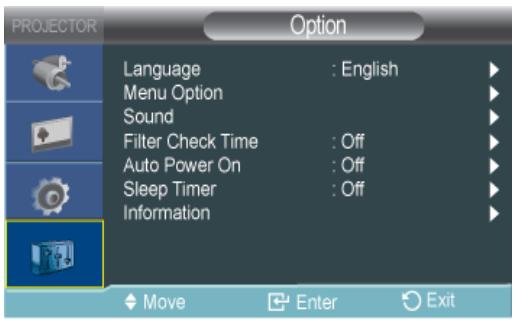
| MENU | DESCRIPTION |
| Language | You can select the language used for the menu screen. |
| Menu Option | : You can move Menu Position up/down/left/right. : You can set the translucency of the menu. -Opaque : You can set the display time of the menu. <5 sec>-<10 sec>-<30 sec>-<60 sec>-<90 sec>-<120 sec>- |
| Sound | Adjusts the right and left audio balance and equalizer of the 3W stereo speaker embedded in the projector. -<100Hz>-<300Hz>-<1kHz>-<3kHz>-<10kHz> |
| Filter Check Time | Sets the check period for the filter. (Unit: hour) -<100>-<200>-<400>-<800> If the filter usage time is larger than the filter check period, the filter check message is displayed for a minute whenever the projector is turned on. Filter check message: "Check the filter, and if necessary, clean or replace it." |
| Auto Power On | With Auto Power On, if power is supplied to the projector, it turns on automatically without your pressing the Power button. - |
| Sleep Timer | With Sleep Timer on, if there is no input signal for the specified time, the projector turns off automatically. (There must be no button input from the remote control or the top of the projector for the specified time) -<10 min>-<20 min>-<30 min> |
| Information | You can check external source signals, picture setup, PC picture adjustment. |
4 Troubleshooting
4-1 Before Requesting Service
Please check the following before requesting After-Sales service. If the problem continues, please contact your nearest Samsung Electronics Service Center.
| Symptoms | Troubleshooting | |
| Installation and Connection | No Power. | Check the power cable connections. |
| I want to install my projector on the ceiling. | The ceiling installation support is sold separately. Contact your local product distributor. | |
| External Source can not be selected. | Be sure that the connection cable(s) (video) is properly connected to the proper port. If the device is not connected properly, it can not be selected. | |
| Menu and Remote Control | Remote control does not work. | Be sure that the proper external source is selected.Check the battery in the remote. If there is something wrong with it, replace it with a new battery of the recommended size.Be sure to aim the remote at sensor on the back of the unit and at a distance of no more than approximately 23 feet(7 m).Remove any obstacles between your remote control and the product.Direct light from 3-way light bulbs or other lighting devices on the remote sensor of the projector may affect the sensitivity and cause the remote control to malfunction.Check if the remote control battery compartment is empty.Check whether the LED indicator on the top of the projector is turned on. |
| I cannot select a menu. | Check if the menu is displayed in gray. A gray-colored menu is unavailable. | |
| Screen and External Source | Cannot see picture images. | Be sure that the power cord of the projector is connected.Be sure that the proper input source is selected.Check that the connectors are properly connected to the ports at the back of the projector.Check the Remote Control batteries.Be sure that theandsettings are not at their lower limit. |
| Poor color. | Adjust theand. | |
| Images are not clear. | Adjust the focus.Check if the projector is too far from or too near to the screen. | |
| Strange noise. | If a strange sound continues, contact your Service Center. | |
| The operating LED is lit up. | Refer to Corrective Actions According to LED Indications. | |
| Lines appear on screen. | On screen noise may occur when using your PC. Adjust the frequency (refresh rate) of the screen. | |
| No external device screen is displayed. | Check the operating status for the external device and check whether the adjustment items, such as theand thehave been changed correctly in thecommand screen of the Projector menu. | |
| Only a blue screen appears. | Be sure to properly connect the external devices. Check the connection cables again. | |
| Screen appears in black and white or odd color or screen is too dark or bright. | As mentioned above, check the adjustment items such as, orin the menu.If you want to restore various settings to their factory defaults, runfrom the menu. |
5-1 Specifications
| MODEL | SP-L201 | SP-L221 | SP-L251 | |
| Panel | Size | 0.63" 3P LCD | ||
| Resolution | XGA (1024 x 768) | |||
| Aspect ratio | 4:3 | |||
| Power | Power Consumption | 270 W (Power off : Less than 0.5W) | ||
| Voltage | 100~240V AC, 50/60Hz | |||
| Lamp | Power Consumption | 203W ( Eco : 172W ) | ||
| Life Time | 2,500 Hours (Eco : 3,000 Hours ) | |||
| Dimension | 291 x 289 x 127 mm / 11.46 x 11.38 x 5 inches | |||
| Weight | 3.8 Kg / 10.2 lbs | |||
| Key Features | Brightness | 2,000 ANSI | 2,200 ANSI | 2,500 ANSI |
| Contrast | 500:1 | |||
| Screen Size (Diagonal) | Diagonal 40 inches ~ 300 inches | |||
| Projection Range | 1 m ~ 10 m / 39.37 inches ~ 393.70 inches | |||
| Keystone | Vertical (±20°) | |||
| Zoom Adjustment | Manual | |||
| Focus Adjustment | Manual | |||
| Lens | F=1.65~1.93, f=18.5mm~22.5mm | |||
| Zoom Ratio | 1:1.2 | |||
| Input signal | D-Sub 15p | Analog RGB, analog YPbPr | ||
| HDMI | Digital RGB, digital YCbCr | |||
| Mini DIN x 1 | S-Video | |||
| RCA x 1 | Composite video | |||
| Speaker | 3W x 2 (Stereo) | |||
| User Environ-ment | Temperature and Humidity | Operating : Temperature 41 °F ~ 95 °F (5 °C ~ 35 °C), Humidity 20 % ~ 80 % (Non-condensing) | ||
| Storage : Temperature -14 °F ~ 140 °F (-10 °C ~ 60 °C), Humidity 10 % ~ 90 % (Non-condensing) | ||||
| Noise | Eco : 30dB, Bright : 32dB | |||
This Class B equipment is designed for home and office use. The equipment has been registered regarding EMI for residential use. It may be used in all areas. Class A is for office use. Class A is for business while class B emits less electromagnetic waves than class A.
The LCD panel used in the LCD projector consists of hundreds of thousands of fine pixels. Like other video display devices, the LCD panel may contain bad pixels which do not operate. When shipping a product, the conditions for identifying bad pixels and the number of bad pixels that a LCD panel is allowed to contain are strictly managed in accordance with the relevant specified standards by the LCD panel manufacturer and our company. Though a screen may have some dead pixels, this does not affect the overall screen quality and the lifetime of the product.
Communication Format (Complies with the RS232C Standard)
• Baud rate : 9,600 bps
- parity : None
• Data bits : 8, stop bit : 1
- Flow Control : None
Serial Communication Protocol
1. Command Packet Structure [7bytes]
| 0x08 | 0x22 | cmd1 | cmd2 | cmd3 | value | CS |
• A command packet consists of 7 bytes in total.
- The two bytes 0x08 and 0x22 signify that the packet is for serial communication.
- The following 4 bytes represent a pre-defined command that can be defined by the user.
- The last byte is the checksum which checks the validity of the current packet.
• Header [2 Byte]: Pre-defined values fixed to 0x08 and 0x22.
- Cmd1 [1 Byte]: The first value of the code defined in the command list (Hexadecimal)
- Cmd2 [1 Byte]: The second value of the code defined in the command list (Hexadecimal)
- Cmd3 [1 Byte]: The third value of the code defined in the command list (Hexadecimal)
• Value [1 Byte]: Input parameter for the command (Default: 0) (Hexadecimal)
- CS [1 Byte]: Checksum (the 2's complement of the sum of all the values except for the CS value.)
2. Response Packet Structure [3 Bytes]
1. Success
| 0x03 | 0x0C | 0xF1 |
2. Fail
| 0x03 | 0x0C | 0xFF |
- When the received packet from an external device has a valid value, a Success packet is sent. Otherwise, a Fail packet is sent.
• A Fail packet is sent if:
• The received packet length is not equal to 7 bytes.
• The 2 byte packet header value is not equal to 0x08, 0x22.
• The check sum is incorrect.
- Failure detection by an external device
- An external device classifies the packet as Fail if it does not receive a Success packet within 100ms.
Command Table
| CONTROL ITEM | CMD1 | CMD2 | CMD3 | VALUE | |||
| General | Power | Power | Display OSD / Power On | 0x00 | 0x00 | 0x00 | 0 |
| OK | 1 | ||||||
| Cancel | 2 | ||||||
| Direct Power Off | 3 | ||||||
| Volume | Direct | 0x01 | 0x00 | 0x00 | (0~100) | ||
| Continuous | Up | 0x01 | 0 | ||||
| Down | 0x02 | 0 | |||||
| Mute | 0x02 | 0x00 | 0x00 | 0 | |||
| Blank | On | 0x03 | 0x00 | 0x00 | 0 | ||
| Off | 1 | ||||||
| Input | Source List | AV | AV | 0x0A | 0x00 | 0x01 | 0 |
| S-Video | S-Video | 0x02 | 0 | ||||
| PC | PC | 0x03 | 0 | ||||
| HDMI | HDMI | 0x04 | 0 | ||||
| Picture | Mode | Standard | 0x0B | 0X00 | 0x00 | 0 | |
| Presentation | 1 | ||||||
| Text | 2 | ||||||
| Movie | 3 | ||||||
| Game | 4 | ||||||
| User | 5 | ||||||
| Contrast | 0~100 | 0X02 | 0x00 | (0~100) | |||
| Brightness | 0~100 | 0X03 | 0x00 | (0~100) | |||
| Sharpness | 0~100 | 0X04 | 0x00 | (0~100) | |||
| Color | 0~100 | 0X05 | 0x00 | (0~100) | |||
| Tint (G/R) | G50 / R50 | 0x06 | 0x00 | (0~100) | |||
| Color Temperature | 9300K | 0x0A | 0x00 | 1 | |||
| 8000K | 2 | ||||||
| 6500K | 3 | ||||||
| 5500K | 4 | ||||||
| WB | R offset | 0x0B | 0x00 | (0~100) | |||
| G offset | 0x01 | (0~100) | |||||
| B offset | 0x02 | (0~100) | |||||
| R gain | 0x03 | (0~100) | |||||
| G gain | 0x04 | (0~100) | |||||
| B gain | 0x05 | (0~100) | |||||
| Picture | Gamma | -3~3 | 0x0B | 0x0C | 0x00 | (0~6) | |
| Save | Display OSD | 0x0D | 0x00 | 0 | |||
| OK | 1 | ||||||
| Cancel | 2 | ||||||
| Direct Save | 3 | ||||||
| Reset | 0x0E | 0x00 | 0 | ||||
| Size | Normal | 0x0F | 0x00 | 0 | |||
| Zoom1 | 1 | ||||||
| Zoom2 | 2 | ||||||
| 16:9 | 3 | ||||||
| Digital NR | Off | 0x10 | 0x00 | 0 | |||
| On | 1 | ||||||
| Black Level | 0 IRE/NOR-MAL | 0x11 | 0x00 | 0 | |||
| 7.5 IRE/LOW | 1 | ||||||
| Overscan | Off | 0x12 | 0x00 | 0 | |||
| On | 1 | ||||||
| Film Mode | Off | 0x13 | 0x00 | 0 | |||
| On | 1 | ||||||
| PC | Auto adjustment | 0x14 | 0x00 | 0 | |||
| Coarse | UP | 0x15 | 0x00 | 0 | |||
| DOWN | 1 | ||||||
| fine | Up | 0x16 | 0x00 | 0 | |||
| DOWN | 1 | ||||||
| Reset | Display OSD | 0x17 | 0x00 | 0 | |||
| OK | 1 | ||||||
| Cancel | 2 | ||||||
| Direct Reset | 3 | ||||||
| Zoom | x1 | 0x18 | 0x00 | 0 | |||
| x2 | 1 | ||||||
| x4 | 2 | ||||||
| x8 | 3 | ||||||
| LEFT | 0x19 | 0x00 | 0 | ||||
| RIGHT | 1 | ||||||
| Up | 2 | ||||||
| Down | 3 | ||||||
| Picture | Horizontal Position | Continuous | LEFT | 0x0B | 0x1A | 0x00 | 0 |
| RIGHT | 1 | ||||||
| Vertical Position | Continuous | DOWN | 0x1B | 0x00 | 0 | ||
| Up | 1 | ||||||
| Setup | install | F-F | 0x0C | 0x00 | 0x00 | 0 | |
| F-C | 1 | ||||||
| R-F | 2 | ||||||
| R-C | 3 | ||||||
| Lamp Mode | ECO | 0x01 | 0x00 | 0 | |||
| Bright | 1 | ||||||
| Keystone | V-Keystone | -50~50 | 0x02 | 0x00 | (0~100) | ||
| Auto Key-stone | Off | 0x02 | 0 | ||||
| On | 1 | ||||||
| Background | Logo | 0x03 | 0x00 | 0 | |||
| Blue | 1 | ||||||
| Black | 2 | ||||||
| Test Pattern | Crosshatch | 0x04 | 0x00 | 0 | |||
| Screen size | 1 | ||||||
| Pattern Off | 2 | ||||||
| Video Type | Auto | 0x05 | 0x00 | 0 | |||
| RGB(PC) | 1 | ||||||
| RGB(AV) | 2 | ||||||
| YCbCr(AV) | 3 | ||||||
| PC | 4 | ||||||
| AV | 5 | ||||||
| Reset | Factory Default | Display OSD | 0x06 | 0x00 | 0 | ||
| Ok | 1 | ||||||
| Cancel | 2 | ||||||
| Reset Filter Time | Display OSD | 0x01 | 0 | ||||
| Ok | 1 | ||||||
| Cancel | 2 | ||||||
| Caption | Caption | Off | 0x07 | 0x00 | 0 | ||
| On | 1 | ||||||
| Mode | Caption | 0x01 | 0 | ||||
| Text | 1 | ||||||
| Channel | 1 | 0x02 | 0 | ||||
| 2 | 1 | ||||||
| Field | 1 | 0x03 | 0 | ||||
| 2 | 1 | ||||||
| Option | Language | English | 0x0D | 0x00 | 0x00 | 0 | |
| Deutsch | 1 | ||||||
| Nederlands | 2 | ||||||
| Español | 3 | ||||||
| Français | 4 | ||||||
| Italiano | 5 | ||||||
| Svenska | 6 | ||||||
| Português | 7 | ||||||
| Русский | 8 | ||||||
| 中国语 | 9 | ||||||
| 한국어 | 0A | ||||||
| Türkçe | 0B | ||||||
| ไทย | 0C | ||||||
| Menu Option | Position | LEFT | 0x01 | 0x00 | 0 | ||
| RIGHT | 1 | ||||||
| UP | 2 | ||||||
| DOWN | 3 | ||||||
| Transparency | High | 0x02 | 0x00 | 0 | |||
| Medium | 1 | ||||||
| Low | 2 | ||||||
| Opaque | 3 | ||||||
| Display Time | 5 sec | 0x03 | 0x00 | 0 | |||
| 10 sec | 1 | ||||||
| 30 sec | 2 | ||||||
| 60 sec | 3 | ||||||
| 90 sec | 4 | ||||||
| 120 sec | 5 | ||||||
| Stay On | 6 | ||||||
| Option | SOUND | Balance | Up | 0x0D | 0x04 | 0x00 | 0 |
| Down | 1 | ||||||
| 100Hz | Up | 0x01 | 0 | ||||
| Down | 1 | ||||||
| 300Hz | Up | 0x02 | 0 | ||||
| Down | 1 | ||||||
| 1KHz | Up | 0x03 | 0 | ||||
| Down | 1 | ||||||
| 3KHz | Up | 0x04 | 0 | ||||
| Down | 1 | ||||||
| 10KHz | Up | 0x05 | 0 | ||||
| Down | 1 | ||||||
| Filter Check Time | off | 0x05 | 0x00 | 0 | |||
| 100 | 1 | ||||||
| 200 | 2 | ||||||
| 400 | 3 | ||||||
| 800 | 4 | ||||||
| Auto Power ON | OFF | 0x06 | 0x00 | 0 | |||
| ON | 1 | ||||||
| Sleep Timer | OFF | 0x07 | 0x00 | 0 | |||
| 10 min | 1 | ||||||
| 20 min | 2 | ||||||
| 30 min | 3 | ||||||
| Information | 0x08 | 0x00 | 0 | ||||

- If you have any questions or comments relating to Samsung products, please contact the SAMSUNG customer care center.
| NORTH AMERICA | ||
| U.S.A | 1-800-SAMSUNG(726-7864) | http://www.samsung.com/us |
| CANADA | 1-800-SAMSUNG(726-7864) | http://www.samsung.com/ca |
| MEXICO | 01-800-SAMSUNG(726-7864) | http://www.samsung.com/mx |
| LATIN AMERICA | ||
| ARGENTINA | 0800-333-3733 | http://www.samsung.com/ar |
| BRAZIL | 0800-124-4214004-0000 | http://www.samsung.com/br |
| CHILE | 800-SAMSUNG(726-7864) | http://www.samsung.com/cl |
| COLOMBIA | 01-8000112112 | http://www.samsung.com/co |
| COSTA RICA | 0-800-507-7267 | http://www.samsung.com/latin |
| ECUADOR | 1-800-10-7267 | http://www.samsung.com/latin |
| EL SALVADOR | 800-6225 | http://www.samsung.com/latin |
| GUATEMALA | 1-800-299-0013 | http://www.samsung.com/latin |
| HONDURAS | 800-7919267 | http://www.samsung.com/latin |
| JAMAICA | 1-800-234-7267 | http://www.samsung.com/latin |
| NICARAGUA | 00-1800-5077267 | http://www.samsung.com/latin |
| PANAMA | 800-7267 | http://www.samsung.com/latin |
| PUERTO RICO | 1-800-682-3180 | http://www.samsung.com/latin |
| REP. DOMINICA | 1-800-751-2676 | http://www.samsung.com/latin |
| TRINIDAD & TOBAGO | 1-800-SAMSUNG(726-7864) | http://www.samsung.com/latin |
| VENEZUELA | 0-800-100-5303 | http://www.samsung.com/latin |
| EUROPE | ||
| AUSTRIA | 0810 - SAMSUNG(7267864,€ 0.07/min) | http://www.samsung.com/at |
| BELGIUM | 02 201 2418 | http://www.samsung.com/be (Dutch)http://www.samsung.com/be_fr(French) |
| CZECH REPUBLIC | 800 - SAMSUNG (800-726786) | http://www.samsung.com/cz |
| Distributor pro Českou republiku:Samsung Zrt., Česká organizační složka, Oasis Florenc, Sokolov ská394/17, 180 00, Praha 8 | ||
| DENMARK | 8 - SAMSUNG (7267864) | http://www.samsung.com/dk |
| EIRE | 0818 717 100 | http://www.samsung.com/ie |
| FINLAND | 30 - 6227 515 | http://www.samsung.com/fi |
| FRANCE | 01 4863 0000 | http://www.samsung.com/fr |
EUROPE
| GERMANY | 01805 - SAMSUNG (7267864,€ 0.14/Min) | http://www.samsung.de |
| HUNGARY | 06-80-SAMSUNG(726-7864) | http://www.samsung.com/hu |
| ITALIA | 800-SAMSUNG(726-7864) | http://www.samsung.com/it |
| LUXEMBURG | 02 261 03 710 | http://www.samsung.com/lu |
| NETHERLANDS | 0900 - SAMSUNG (0900-7267864) (€ 0,10/Min) | http://www.samsung.com/nl |
| NORWAY | 3 - SAMSUNG (7267864) | http://www.samsung.com/no |
| POLAND | 0 801 1SAMSUNG (172678)022 - 607 - 93 - 33 | http://www.samsung.com/pl |
| PORTUGAL | 808 20 - SAMSUNG (7267864) | http://www.samsung.com/pt |
| SLOVAKIA | 0800-SAMSUNG(726-7864) | http://www.samsung.com/sk |
| SPAIN | 902 - 1 - SAMSUNG (902 172 678) | http://www.samsung.com/es |
| SWEDEN | 0771 726 7864 (SAMSUNG) | http://www.samsung.com/se |
| SWITZERLAND | 0848-SAMSUNG(7267864, CHF 0.08/min) | http://www.samsung.com/ch |
| U.K | 0845 SAMSUNG (7267864) | http://www.samsung.com/uk |
CIS
| BELARUS | 810-800-500-55-500 | |
| ESTONIA | 800-7267 | http://www.samsung.com/ee |
| LATVIA | 8000-7267 | http://www.samsung.com/lv |
| LITHUANIA | 8-800-77777 | http://www.samsung.com/lt |
| MOLDOVA | 00-800-500-55-500 | |
| KAZAKHSTAN | 8-10-800-500-55-500 | http://www.samsung.com/kz_ru |
| KYRGYZSTAN | 00-800-500-55-500 | |
| RUSSIA | 8-800-555-55-55 | http://www.samsung.ru |
| TADJIKISTAN | 8-10-800-500-55-500 | |
| UKRAINE | 8-800-502-0000 | http://www.samsung.com/uahttp://www.samsung.com/ua_ru |
| UZBEKISTAN | 8-10-800-500-55-500 | http://www.samsung.com/kz_ru |
ASIA PACIFIC
| AUSTRALIA | 1300 362 603 | http://www.samsung.com/au |
| CHINA | 400-810-5858010-6475 1880 | http://www.samsung.com/cn |
| HONG KONG | 3698 - 4698 | http://www.samsung.com/hkhttp://www.samsung.com/hk_en/ |
| INDIA | 3030 82821-800-3000-82821800 110011 | http://www.samsung.com/in |
ASIA PACIFIC
| INDONESIA | 0800-112-8888 | http://www.samsung.com/id |
| JAPAN | 0120-327-527 | http://www.samsung.com/jp |
| MALAYSIA | 1800-88-9999 | http://www.samsung.com/my |
| NEW ZEALAND | 0800 SAMSUNG (0800 726 786) | http://www.samsung.com/nz |
| PHILIPPINES | 1-800-10-SAMSUNG(726-7864)1-800-3-SAMSUNG(726-7864)1-800-8-SAMSUNG(726-7864)02-5805777 | http://www.samsung.com/ph |
| SINGAPORE | 1800-SAMSUNG(726-7864) | http://www.samsung.com/sg |
| THAILAND | 1800-29-3232, 02-689-3232 | http://www.samsung.com/th |
| TAIWAN | 0800-329-999 | http://www.samsung.com/tw |
| VIETNAM | 1 800 588 889 | http://www.samsung.com/vn |
MIDDLE EAST & AFRICA
| SOUTH AFRICA | 0860-SAMSUNG(726-7864) | http://www.samsung.com/za |
| TURKEY | 444 77 11 | http://www.samsung.com/tr |
| U.A.E | 800-SAMSUNG(726-7864)8000-4726 | http://www.samsung.com/ae |
Correct Disposal of This Product (Waste Electrical & Electronic Equipment) - Europe only
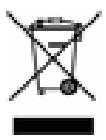
(Applicable in the European Union and other European countries with separate collection systems)
This marking on the product, accessories or literature indicates that the product and its electronic accessories (e.g. charger, headset, USB cable) should not be disposed of with other household waste at the end of their working life. To prevent possible harm to the environment or human health from uncontrolled waste disposal, please separate these items from other types of waste and recycle them responsibly to promote the sustainable reuse of material resources.
Household users should contact either the retailer where they purchased this product, or their local government office, for details of where and how they can take these items for environmentally safe recycling.
Business users should contact their supplier and check the terms and conditions of the purchase contract. This product and its electronic accessories should not be mixed with other commercial wastes for disposal.
Correct disposal of batteries in this product - Europe only

(Applicable in the European Union and other European countries with separate battery return systems.)
This marking on the battery, manual or packaging indicates that the batteries in this product should not be disposed of with other household waste at the end of their working life. Where marked, the chemical symbols Hg, Cd or Pb indicate that the battery contains mercury, cadmium or lead above the reference levels in EC Directive 2006/66. If batteries are not properly disposed of, these substances can cause harm to human health or the environment.
To protect natural resources and to promote material reuse, please separate batteries from other types of waste and recycle them through your local, free battery return system.
- Owner's Instructions
- MAJOR SAFETY PRECAUTIONS
- INSTALLATION AND CONNECTION
- USING
- TROUBLESHOOTING
- MORE INFORMATION
- Major Safety Precautions
- 1-1 Before You Start
- Using this Manual
- Copyright Notice
- Cleaning the Surface and the Lens
- Cleaning Inside the Projector
- Icons used for safety precautions
- Meaning of Signs
- Power Related
- Warning
- Installation Related
- Usage Related
- Installation and Connection
- 2-1 Package Contents
- To adjust picture when you install the projector behind the screen
- To adjust the picture when you install the projector in the front of the screen
- Cautions on Lamp Replacement
- Lamp Replacement Procedure
- Replacing and Cleaning the Filter
- Ventilation openings
- AV Timing (VIDEO/S-VIDEO)
- Using the Projector
- Locking the product
- 3-1 Product Features
- LED Indications
- 3-5-1. Input
- 3-5-2. Picture
- Troubleshooting
- 4-1 Before Requesting Service
- Communication Format (Complies with the RS232C Standard)
- Serial Communication Protocol
- Command Packet Structure [7bytes]
- Response Packet Structure [3 Bytes]
- Success
- Fail
- Correct Disposal of This Product (Waste Electrical & Electronic Equipment) - Europe only
- Correct disposal of batteries in this product - Europe only
Brand : SAMSUNG
Model : SP-L221
Category : Projector