
SYNCMASTER 923NW - Monitor SAMSUNG - Free user manual and instructions
Find the device manual for free SYNCMASTER 923NW SAMSUNG in PDF.


User questions about SYNCMASTER 923NW SAMSUNG
0 question about this device. Answer the ones you know or ask your own.
Ask a new question about this device
Download the instructions for your Monitor in PDF format for free! Find your manual SYNCMASTER 923NW - SAMSUNG and take your electronic device back in hand. On this page are published all the documents necessary for the use of your device. SYNCMASTER 923NW by SAMSUNG.
USER MANUAL SYNCMASTER 923NW SAMSUNG
text_image
SyncMaster Model Safety Instructions Introduction Setup Adjusting Your Monitor Troubleshooting Specifications Information Regulatory Manual ReaderSyncMaster 923NW / 2023 NW / 2223NW
text_image
The color and appearance of the product may vary depending on the model, and the product specifications are subject to change without prior notice for reasons of performance enhancement. Safety Instructions ■ Introduction ■ Setup ■ Adjusting Your Monitor ■ Troubleshooting ■ Specifications ■ InformationNotational
Power
Installation
Clean
Others
Notational
These safety instructions must be followed to ensure your safety and prevent property damage. Make sure to read the instructions carefully and use the product in the correct manner.
! Warning / Caution

Otherwise, it may result in death or personal injury.
Otherwise, it may result in personal injury or property damage.
Notational Conventions

Prohibited

Important to read and understand at all times

Do not disassemble

Disconnect the plug from the outlet

Do not touch

Ground to prevent an electric shock
Notational
Power
Installation
Clean
Others
Power

When not used for extended period of time, set your computer to DPM.
If using screen saver, set it to active screen mode.
The images here are for reference only, and are not applicable in all cases (or countries).
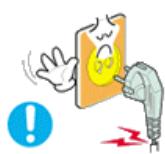
Do not use a damaged power cord or plug or a damaged or loose power outlet.
- Otherwise, this may result in electric shock or fire.
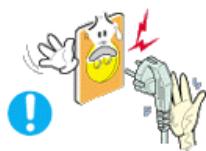
Do not touch the power plug with wet hands when removing or plugging the plug into the outlet.
- Otherwise, this may result in electric shock.
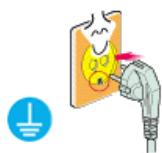
Make sure to connect the power cord to a grounded power outlet.
- Otherwise, it may result in electric shock or personal injury.
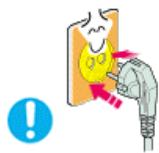
- Ensure that the power plug is plugged into the power outlet firmly and correctly.
- Otherwise, this may result in fire.
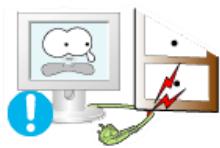
Do not forcefully bend or pull the power plug and do not place any heavy material on it.
- Otherwise, this may result in fire.
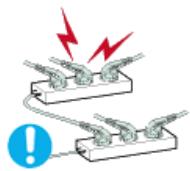
Do not connect multiple appliances to the same power outlet.
- Otherwise, this may cause fire due to overheating.
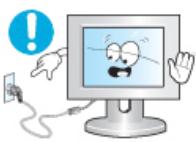
Do not disconnect the power cord while using the product.
- Otherwise, this may result in damage to the product due to electric shock.
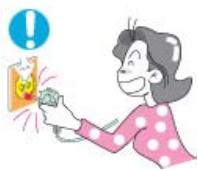
To disconnect the apparatus from the mains, the plug must be pulled out from the mains socket, therefore the mains plug shall be readily operable.
• This may cause electric shock or fire.
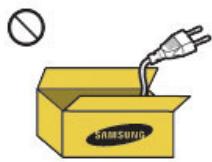
Use only the power cord provided by our company. Do not use the provided power cord of another product.
- Otherwise, this may result in fire or electric shock.
Installation

Be sure to contact an authorized Service Center when installing your monitor in a location with heavy dust, high or low temperatures, high humidity, and exposed to chemical substances and where it operates for 24 hours such as at airports, train stations etc.
Failure to do so may cause serious damage to your monitor.
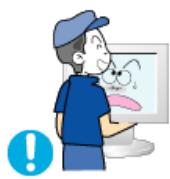
Do not drop the monitor when moving it.
- This may cause damage to the product or the person carrying it.
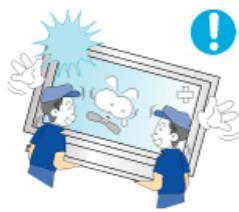
natural_image
Illustration of two people viewing a cartoon rabbit on a screen with a blue warning symbol (no text or symbols present)- Ensure that at least two persons lift and move the product.
- Otherwise, it may be dropped and cause personal injury, and/or damage the product.
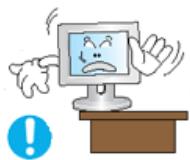
When installing the product in a cabinet or rack, make sure that the front end of the bottom of the product does not project out.
- Otherwise, it may fall or cause personal injury.
- Use a cabinet or rack of a size appropriate to the product.
natural_image
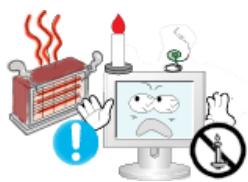
Illustration of a computer monitor displaying a sad face with smoke and a lit candle, accompanied by warning symbols (no text or labels)DO NOT PLACE CANDLES, MOSQUITO REPELLANT, CIGARETTES AND ANY HEATING APPLIANCES NEAR THE PRODUCT.
- Otherwise, this may result in fire.
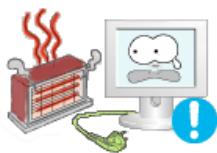
Keep heating appliances as far away from the power cord or the product as possible.
- Otherwise, this may result in electric shock or fire.
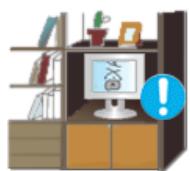
Do not install it in a badly ventilated location such as a bookcase or closet.
- Otherwise, this may result in fire due to an increase in the internal temperature.
- Put down the monitor carefully.
- Failing to do so may damage the monitor.
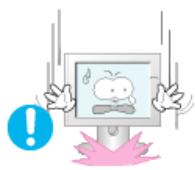
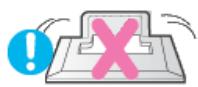
Do not place the front of the product on the floor.
- Otherwise, this may result in damage to the screen display.
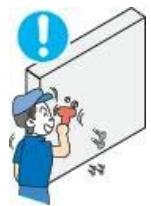
- Ensure that an authorized installation company installs the wall mount.
- Otherwise, it may fall and cause personal injury.
- Make sure to install the specified wall mount.
natural_image
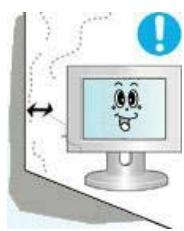
Cartoon illustration of a computer monitor with a smiling face and a blue warning symbol (no text or labels)Install your product in a well ventilated location. Ensure that there is a clearance of more than 10 cm from the wall.
- Otherwise, it may result in fire due to an increase in the internal temperature.
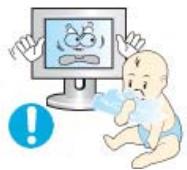
- Ensure that the packaging vinyl is kept away from children.
- Otherwise, it may result in serious harm (suffocation) if children play with it.
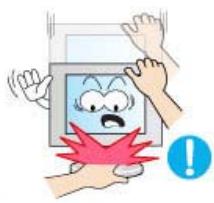
natural_image
Illustration of a hand holding a computer monitor with a sad face and a red explosion effect (no text or symbols)If the height of your monitor is adjustable, do not place any object or part of your body on the stand when lowering it.
- This may cause damage to the product or the person carrying it.
Notational
Power
Installation
Clean
Others

Clean

When cleaning the monitor case or the surface of the TFT-LCD screen, wipe with a slightly moistened and soft fabric.
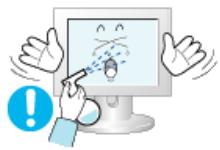
Do not spray cleaner directly onto the surface of the product.
- Otherwise, this may result in the discoloration and distortion of the structure and the screen surface may peel off.
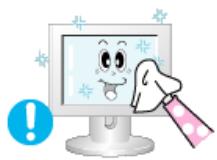
Clean the product using a soft cloth with a monitor cleaner only. If you must use a cleaner other than the monitor cleaner, dilute it with water at a ratio of 1:10.

When cleaning the power plug pins or dusting the power outlet, clean it with a dry cloth.
- Otherwise, it may result in fire.
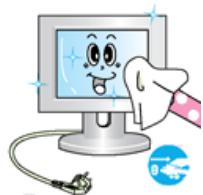
natural_image
Cartoon illustration of a smiling computer monitor with a toothbrush and cable, no text or symbols present.When cleaning the product, make sure to disconnect the power cord.
- Otherwise, it may result in electric shock or fire.
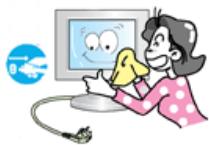
When cleaning the product, disconnect the power cord and clean it softly with a dry cloth.
- (Do not use chemicals such as wax, benzene, alcohol, thinner, mosquito repellant, lubricant, or cleaner.) These may change the appearance of the product surface and peel off the indication labels on the product.
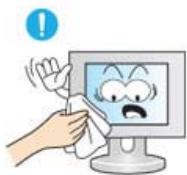
- Since the product housing is easily scratched, make sure to use the specified cloth only.
- Use the specified cloth adding only a little water. As the product may be scratched if there is any foreign material on the cloth, make sure to shake it thoroughly before using it.
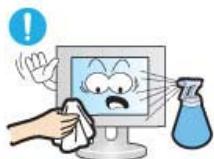
When cleaning the product, do not spray water directly onto the main body of the product.
- Ensure that water does not enter the product and that it is not wet.
- Otherwise, this may result in electric shock, fire or a malfunction.
Notational
Power
Installation
Clean
Others
Others
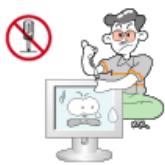
The product is a high voltage product. Ensure that users do not disassemble, repair or modify the product themselves.
- Otherwise, this may result in electric shock or fire. If the product needs to be repaired, contact a Service Center.
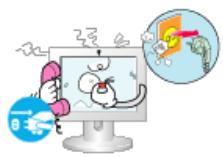
If there is a strange smell or a strange sound or smoke is coming from the product, disconnect the power plug immediately and contact a Service Center.
- Otherwise, this may result in electric shock or fire.
natural_image
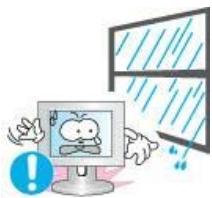
Illustration of a cartoon apple character on a computer monitor with raindrops falling out (no text or symbols)Do not place this product in a location exposed to moisture, dust, smoke, water, or in a car.
- Otherwise, this may result in electric shock or fire.
natural_image
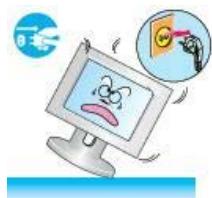
Cartoon illustration of a computer monitor with a sad face and a thought bubble showing a warning sign (no text or symbols present)When you drop the product or the case is broken, turn the power off and disconnect the power cord. Contact a Service Center.
- Otherwise, this may result in electric shock or fire.
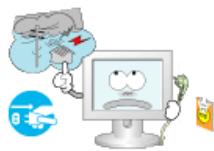
If thunder or lightening is occurring, do not touch the power cord or antenna cable.
- Otherwise, this may result in electric shock or fire.
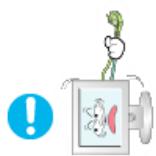
Do not try to move the monitor by pulling only the wire or the signal cable.
- Otherwise, it may fall and result in electric shock, damage to the product or fire due to damage to the cable.
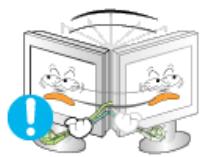
Do not lift or move the product back and forwards or right and left while only holding the power cord or signal cables.
- Otherwise, it may fall and result in electric shock, damage to the product or fire due to damage to the cable.

Make sure that the ventilating opening is not blocked by a table or curtain.
- Otherwise, it may result in fire due to an increase in the internal temperature.
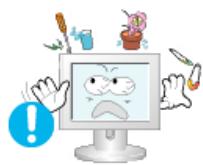
Do not place any containers containing water, vases, flowerpots, medicines as well as any metal on the product.
- If water or a foreign material enters the product, disconnect the power cord and contact a Service Center.
- This may result in a product malfunction, electric shock, or fire.
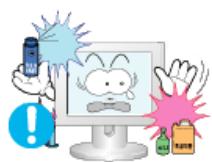
Do not use or keep combustible spray or flammable material near the product.
- Otherwise, this may result in an explosion or fire.
natural_image
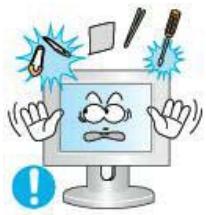
Cartoon illustration of a computer monitor character with expressive faces and surrounding tools (no text or symbols)Do not insert any metal, such as chopsticks, coins, pins and steels, or inflammable objects, such as matches or paper, inside the product (through the ventilating openings, input and output terminals, etc).
- If water or foreign material enters the product, disconnect the power cord and contact a Service Center.
- Otherwise, this may result in electric shock or fire.
When using a fixed screen for a long time, an afterimage or stain may occur.
- If you are not using your product for a long period of time, put it into sleep mode or use a moving screen saver.
Set a resolution and frequency appropriate to the product.
- Otherwise, your eyesight may be damaged.
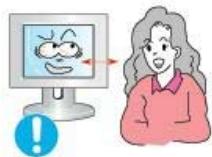
If you continually move closer to the product screen, your eyesight may be failing.
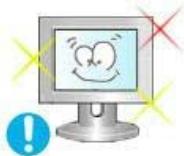
To ease eye strain, take at least a five-minute break after every hour of using the monitor.
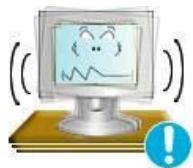
Do not install it in an unstable location such as an unstable rack or uneven surface or a location exposed to vibrations.
- Otherwise, it may fall and cause personal injury and/or damage the product.
- If you use the product in a location exposed to vibrations, it may damage the product and result in fire.
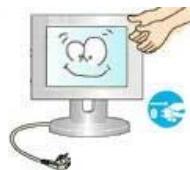
When moving the product, turn the power off and disconnect the power plug, antenna cable, and all the cables connected to the product.
- Otherwise, it may result in electric shock or fire.
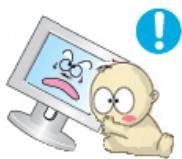
- Ensure that children do not hang onto the product or climb up onto the product.
- The product may fall and cause personal injury or death.
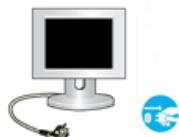
If you do not use the product for a long period of time, disconnect the power cord from the power outlet.
- Otherwise, this may result in overheating or fire due to dust, and may result in fire due to electric shock or leakage.
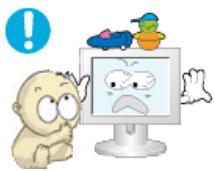
Do not place any heavy items or toys or confectionery, such as cookies etc. that may attract the attentions of children onto the product.
- Your children may hang onto the product causing it to fall and this may result in personal injury or death.
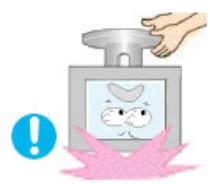
Do not turn the product upside down or move it while holding only the stand.
- Otherwise, it may fall and result in personal injury and/or damage to the product.
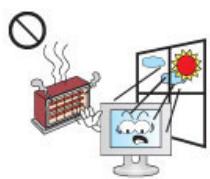
Do not place the product in a location exposed to direct sunlight or near any heat such as a fire or heater.
- This may reduce the lifetime of the product, and may result in fire.
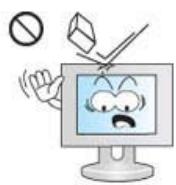
Do not drop any objects onto the product or cause any impact to the product.
- Otherwise, this may result in electric shock or fire.

Do not use a humidifier or kitchen table near the product.
- Otherwise, this may result in electric shock or fire.
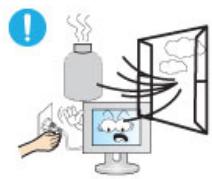
When there is a gas leak, do not touch the product or the power plug but ventilate immediately.
- If a spark occurs, it may cause an explosion or fire.
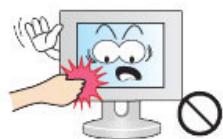
If the product has been turned on for a long time, the display panel becomes hot. Do not touch it.
- Keep the small accessories in a location out of the reach of children.
- Be careful when adjusting the angle of the product or the height of the stand.
- This may result in personal injury as your hand or fingers may become caught.
- Also, if you tilt the product too far, it may fall and cause personal injury.
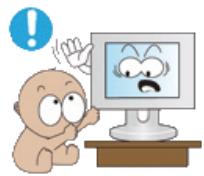
Do not install the product in a location low enough for children to reach.
- Otherwise, it may fall and result in personal injury.
- Since the front part of the product is heavy, install the product on a level and stable surface.

Do not put any heavy objects on the product.
- This may result in personal injury and/or damage to the product.
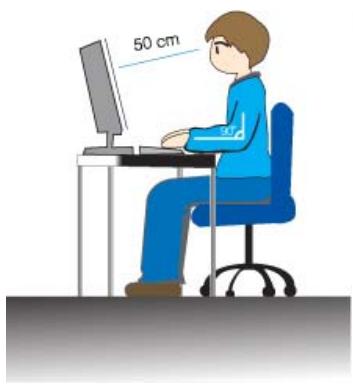
Good Postures When Using the Monitor
natural_image
Illustration of a person sitting at a desk using a computer, with a 50 cm measurement annotation on the wall (no other text or symbols)When using the product, use it in the correct position.
- Keep your back straight while looking at the product.
- The distance between your eyes and the screen should be between 45 to 50 cm. Look at the screen from a slightly higher location than the height of the screen.
- When using the product, use it in the correct position.
- Adjust the angle so that light is not reflected on the screen.
- Place your arms perpendicular to your sides and allow your arms to be level with the back of the hand.
- Keep your elbow at 90 degrees.
- Keep your knees at greater than 90 degrees, and keep your heels firmly on the floor. Keep your arms lower than your heart.
text_image
The color and appearance of the product may vary depending on the model, and the product specifications are subject to change without prior notice for reasons of performance enhancement. ■ Safety Instructions ■ Introduction ■ Setup ■ Adjusting Your Monitor ■ Troubleshooting ■ Specifications ■ InformationUnpacking
Front
Rear
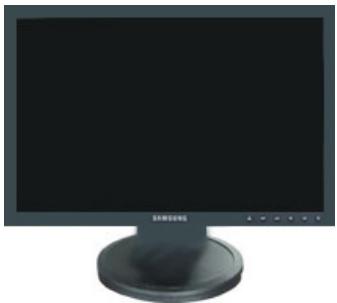
Please make sure the following items are included with your monitor.
If any items are missing, contact your dealer.
Contact a local dealer to buy optional items.

Unpacking
Without stand
natural_image
Dark rectangular screen with no visible text, symbols, or graphicsMonitor
With stand
natural_image
Front view of a black computer monitor with a circular base (no visible text or symbols)Monitor & Simple Stand
Bottom
Manual
Quick Setup Guide

Warranty Card/Registration Card (Not available in all

User's Guide, Monitor Driver

Cable
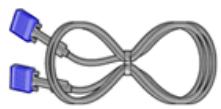
D-sub Cable
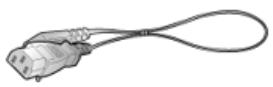
Power Cord
Unpacking
Front
Rear

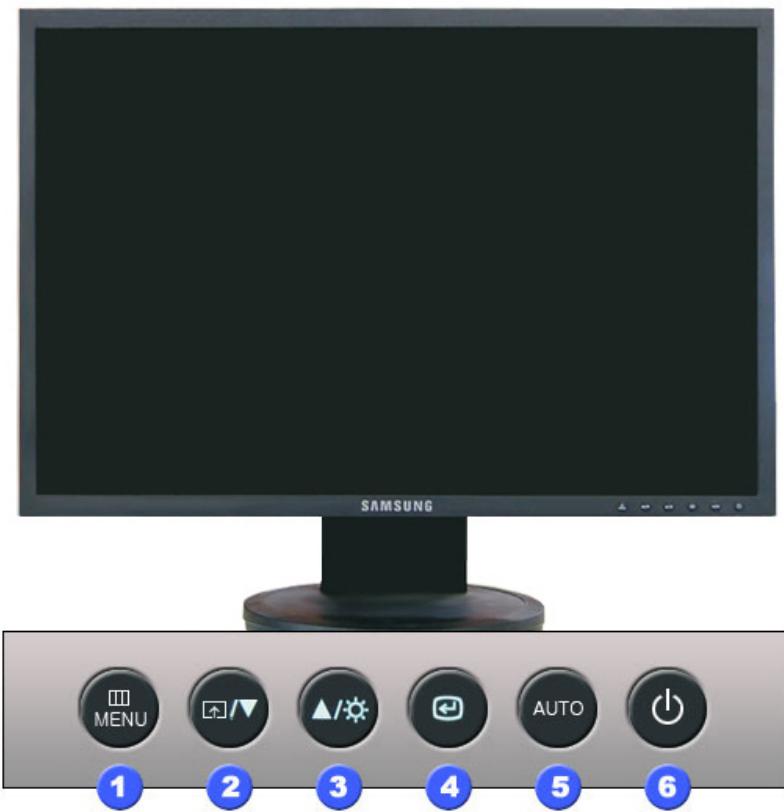
Front
text_image
SAMSUNG MENU /▼ /☀️ AUTO POWER 1 2 3 4 5 6
MENU button [☐]
Opens the OSD menu. Also use to exit the OSD menu or return to the previous menu.

Customized Key [↑]
You can customize key assignment for the Custom button according to your preferences.

You can configure the customized key for a required function via Setup > Customized Key.

Brightness button [○]
When OSD is not on the screen, push the button to adjust brightness.

Adjust buttons [▼/▲]
Adjust items in the menu.

Enter button [∅]
Activates a highlighted menu item.

AUTO button
Use this button for auto adjustment.

Power button [+]/ Power indicator
Use this button for turning the monitor on and off./ This light glows blue during normal operation, and blinks blue once as the monitor saves your adjustments.
Unpacking
Front
Rear

Rear
text_image
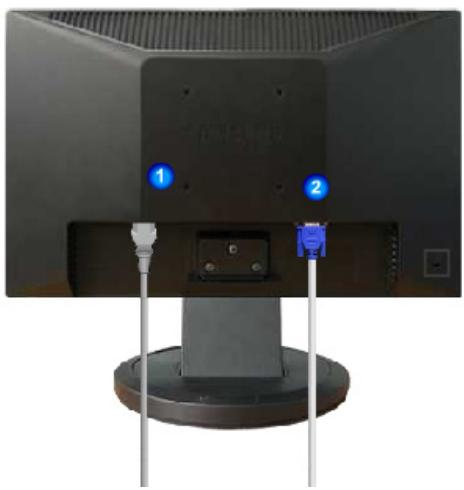
1 2Simple stand
(The configuration at the back of the monitor may vary from product to product.)
1 POWER port
Connect the power cord for your monitor to the power port on the back of the monitor.
2 RGB IN port
Connect the signal cable to the 15-pin, D-sub port on the back of your monitor.
3 Kensington Lock
The Kensington lock is a device used to physically fix the system when using it in a public place. (The locking device has to be purchased separately.)
For using a locking device, contact where you purchase it.

See Connecting the Monitor for further information regarding cable connections.
text_image
The color and appearance of the product may vary depending on the model, and the product specifications are subject to change without prior notice for reasons of performance enhancement.■ Safety Instructions
■ Introduction
Setup
■ Adjusting Your Monitor
■ Troubleshooting
■ Specifications
Information
TOP
MAIN
↑
Connecting the Monitor Using the Stand Installing the Monitor Driver (Automatic) Installing the Monitor Driver (Manual)
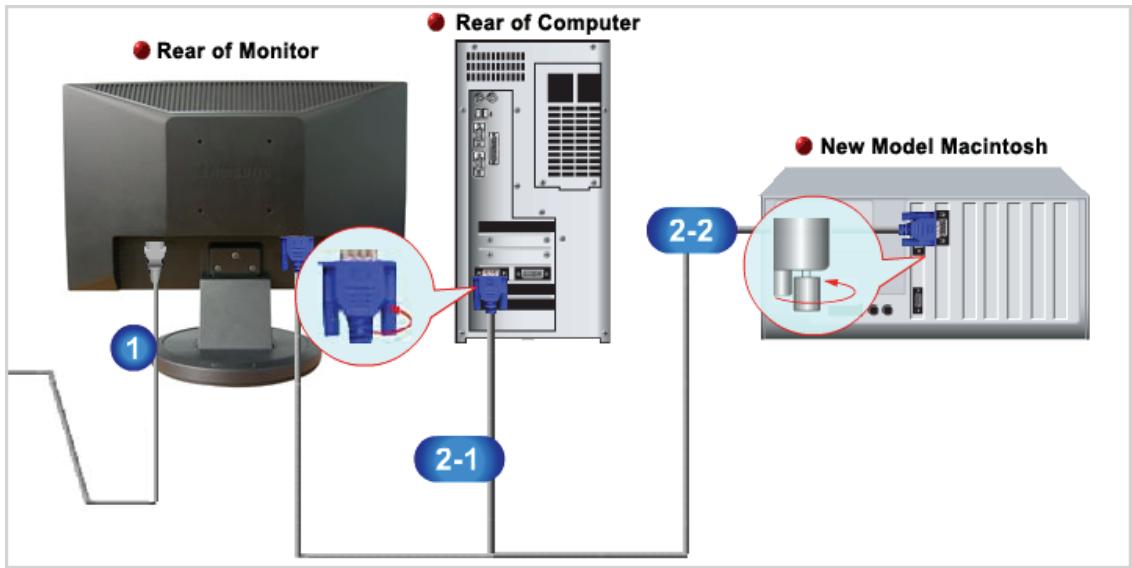
Connecting the Monitor
text_image
Rear of Monitor Rear of Computer 1 2-1 2-2 New Model Macintosh1 Connect the power cord for your monitor to the power port on the back of the monitor. Plug the power cord for the monitor into a nearby outlet.
2 Use appropriate connection for your computer.
2-1 Using the D-sub (Analog) connector on the video card. Connect the signal cable to the 15-pin, D-sub port on the back of your monitor.
[ RGB IN ]
2-2 Connected to a Macintosh. Connect the monitor to the Macintosh computer using the D-sub connection cable.

If the monitor and the computer are connected, you can turn them on and use them.
Connecting the Monitor
Using the Stand
Installing the Monitor Driver (Automatic)
Installing the Monitor Driver (Manual)
Using the Stand
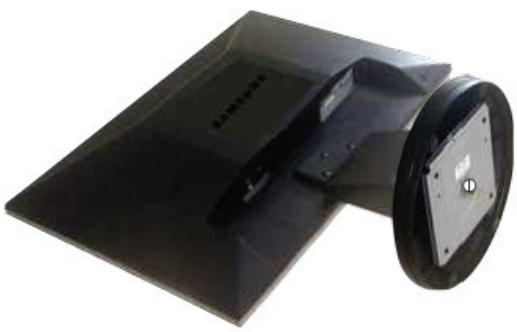
Monitor Assembly
natural_image
Exterior view of a black rectangular electronic device with a circular base and metallic components (no visible text or symbols)Monitor and Bottom
- Attaching a Base
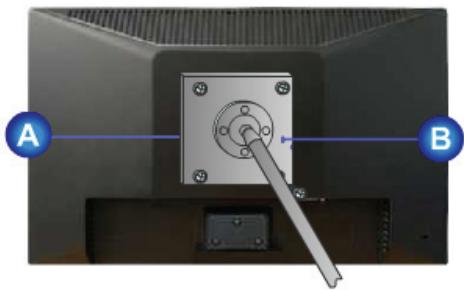
This monitor accepts a 75.0 mm x 75.0 mm VESA-compliant mounting interface pad.
natural_image
Close-up of a mechanical component with labeled points A and B, showing a central knob and shaft assembly (no text or symbols beyond labels)Simple stand
A Monitor
B Mounting interface pad (Sold separately)
- Turn off your monitor and unplug its power cord.
- Lay the LCD monitor face-down on a flat surface with a cushion beneath it to protect the screen.
- Remove four screws and then remove the stand from the LCD monitor.
- Align the mounting interface pad with the holes in the rear cover mounting Pad and secure it with four screws that came with the arm-type base, wall mount hanger or other base.

- Do not use screws longer than the standard dimension, as they may damage the inside of the Monitor.
- For wall mounts that do not comply with VESA standard screw specifications, the length of the screws may differ depending on their specifications.
- Do not use screws that do not comply with the VESA standard screw specifications. Do not fasten the screws too tightly, as this may damage the product or cause the product to fall, leading to personal injury. Samsung is not liable for these kinds of accidents.
- Samsung is not liable for product damage or personal injury when a non-VESA or non-specified wall mount is used or the consumer fails to follow the product installation instructions.

- To mount the monitor on a wall, you should purchase the wall mounting kit that allows you to mount the monitor at least 10cm away from the wall surface.
- Contact the nearest Samsung Service Center for more information. Samsung Electronics will
not be responsible for damages caused by using a base other than those specified.
- Please use Wall Mount according to the International standards.
Connecting the Monitor | Using the Stand | Installing the Monitor Driver (Automatic) | Installing the Monitor Driver (Manual)

Installing the Monitor Driver (Automatic)

When prompted by the operating system for the monitor driver, insert the CD-ROM included with this monitor. Driver installation is slightly different from one operating system to another. Follow the directions appropriate for the operating system you have.
Prepare a blank disk and download the driver program file at the Internet web site shown below.
http://www.sec.co.kr/monitor (Korea)
http://www.samsungmonitor.com.cn/ (China)
- Insert CD into the CD-ROM drive.
- Click "Windows"
- Choose your monitor model in the model list, then click the "OK" button.
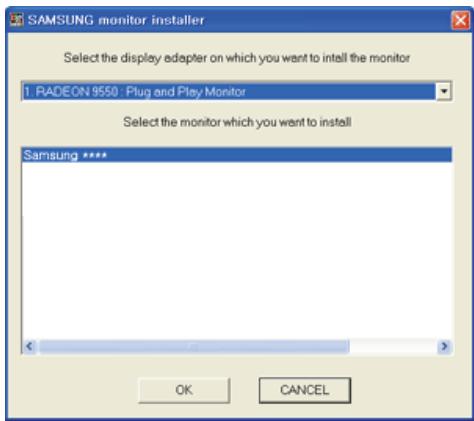
text_image
SAMSUNG monitor installer Select the display adapter on which you want to install the monitor 1. RADEON 9550 : Plug and Play Monitor Select the monitor which you want to install Samsung ***** OK CANCEL- If you can see following message window, then click the "Continue Anyway" button. Then click "OK" button. (Microsoft® Windows® XP Operating System)
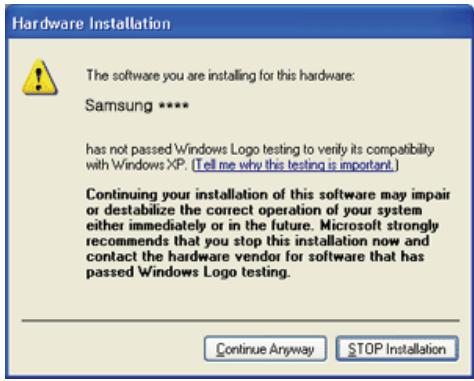
text_image
Hardware Installation The software you are installing for this hardware: Samsung **** has not passed Windows Logo testing to verify its compatibility with Windows XP. (Tell me why this testing is important.) Continuing your installation of this software may impair or destabilize the correct operation of your system either immediately or in the future. Microsoft strongly recommends that you stop this installation now and contact the hardware vendor for software that has passed Windows Logo testing. Continue Anyway STOP Installation
This monitor driver is under certifying MS logo, and this installation don't damage your system. The certified driver will be posted on Samsung Monitor homepage http://www.samsung.com/
- Monitor driver installation is completed.
Connecting the Monitor | Using the Stand | Installing the Monitor Driver (Automatic) | Installing the Monitor Driver (Manual)

Installing the Monitor Driver (Manual)
Windows Vista | Windows XP | Windows 2000 | Windows ME | Windows NT | Linux

When prompted by the operating system for the monitor driver, insert the CD-ROM included with this monitor. Driver installation is slightly different from one operating system to another. Follow the directions appropriate for the operating system you have.
Prepare a blank disk and download the driver program file at the Internet web site shown below.
http://www.sec.co.kr/monitor (Korea)
http://www.samsungmonitor.com.cn/ (China)
Microsoft® Windows Vista™ Operating System
- Insert your Manual CD into your CD-ROM drive.
- Click 📋(Start) and "Control Panel". Then, double-click on "Appearance and Personalization".
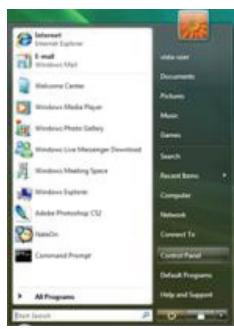
text_image
Internet Microsoft Explorer E-mail Windows Mail Welcome Carton Windows Media Player Windows Photo Gallery Windows Live Messenger Download Windows Meeting Space Windows System Adobe Photoshop CS2 NameCn Command Prompt All Programs Data user Documents Pictures Music Games Search Recent Items Computer Network Comment To Control Panel Default Programs Help and Support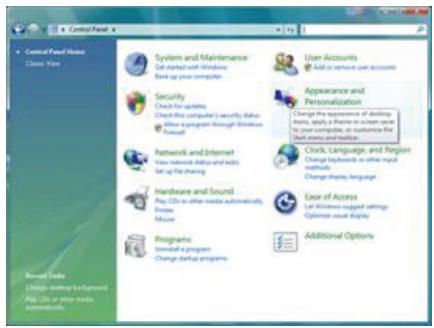
text_image
Control Panel Help Class Name System and Maintenance Get help with Windows Back up your computer Security Check for actions Check this computer's security status Allow a program through Windows Default Network and Internet View network details and tools Set up the sharing Hardware and Sound Prog. CDs or other media automatically. Protein Mouse Programs Unregulated program Change Status programs User Accounts Add or remove user accounts Appearance and Personalization Change the appearance of desktop items, apply iPhone or audio format to your computer, in accordance with the best means and better. Click, Language, and Region Change keyboards or other key methods Change statics language Ease of Access Let Windows support settings Optimize visual display Additional Options- Click "Personalization" and then "Display Settings".
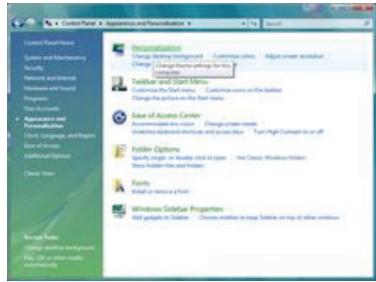
text_image
Control Panel > Applications and Maintenance Command Settings Systems and Maintenance Services Networks and Internet Hardware and Sound Options Help Applications and Accessories Language, Languages, and Programs Use of Home Information Options Create View Personalization Change Building Background ... Customize sites Adjust server resources Change Storage Settings for the 12 Settings Textiles and Start Files Customize the Start menu: Customizes users on the Startline Change the phones on the Start files Save of Access Center Change Building Environment & Service Area Turn Right Command to an off Available desktop icons and access area Options: Specific Image or Initialize other types in your Use Devices Window Help Options: Details Windows Sub-Size Properties Add objects to Sub-Size Choose whether to keep Sub-Size or map of other windows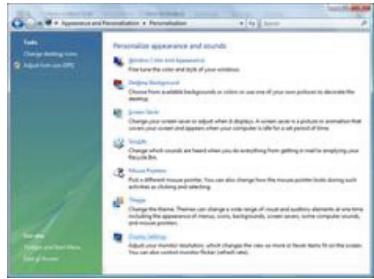
text_image
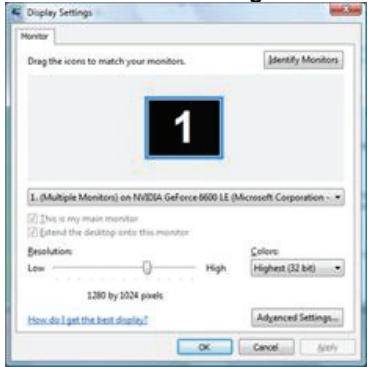
Appearance and Presentation Details Change binding screen Adjust how to use PDFs Personal appearance and sounds Windows 1.0 or 2.0 Have the colors and highlights of your colors. Design background Choose from available backgrounds as colors on use one of your own patterns to decide the texture. Change your color space to adjust what it displays a custom pattern in applications that covers your color and appames when your computer is able to run a cell period of time. Change which sounds are heard about you do anything from getting in mail to injecting your files like. Music Posters You can be different more popular. You can also change from the mouse printer looks during such activities as closing and selecting. Preview Use the theme. These can change a type of sound and auditory elements as they use, including the appearance of mouse, sounds, background, screen areas, some computer sounds, and audio instruments. Adjust your monitor installation, which changes the size as more than five items for the screen. You can also update monitor filter settings.- Click "Advanced Settings...".
text_image
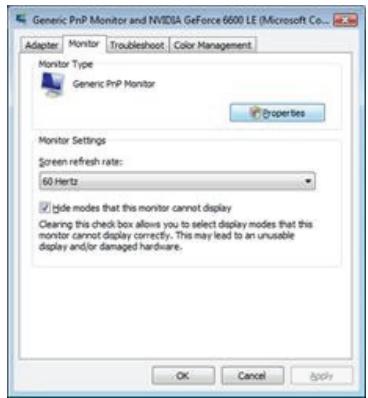
Display Settings Monitor Drag the icons to match your monitors. Identify Monitors 1. (Multiple Monitors) on NVIDIA GeForce 6000 LE (Microsoft Corporation ~ This is my main monitor Extend the desktop onto this monitor Resolution Low High Colors: Highest (32 bit) $280 by 1024 pixels How do I get the best display? Advanced Settings... OK Cancel Apply- Click "Properties" in the "Monitor" tab. If the "Properties" button is deactivated, it means the configuration for your monitor is completed. The monitor can be used as is. If the message "Windows needs..." is displayed, as shown in the figure below, click "Continue".
text_image
Generic PrNP Monitor and NVIDIA GeForce 6600 LE (Microsoft Co... Adapter Monitor Troubleshoot Color Management Monitor Type Generic PrNP Monitor Properties Monitor Settings screen refresh rate: 60 Hertz ✓ side modes that this monitor cannot display Clearing this check box allows you to select display modes that this monitor cannot display correctly. This may lead to an unusable display and/or damaged hardware. OK Cancel Apply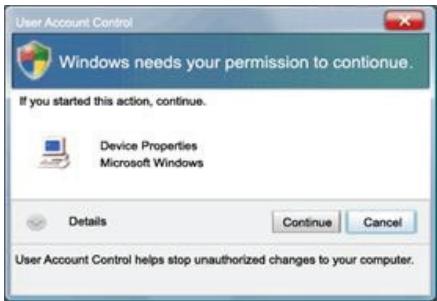
text_image
User Account Control Windows needs your permission to continue. If you started this action, continue. Device Properties Microsoft Windows Details Continue Cancel User Account Control helps stop unauthorized changes to your computer.
This monitor driver is under certifying MS logo, and this installation doesn't damage -your system.
The certified driver will be posted on Samsung Monitor homepage
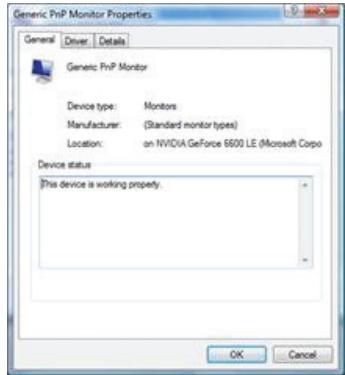
- Click "Update Driver..." in the "Driver" tab.
text_image
Generic PrnP Monitor Properties General Driver Details Generic PrnP Monitor Device type: Monitors Manufacturer: (Standard monitor types) Location:,on NVIDIA GeForce 6600 LE (Microsoft Corp) Device status This device is working property. OK Cancel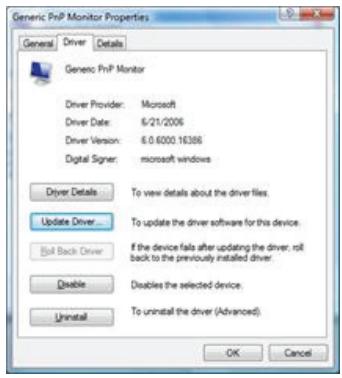
text_image
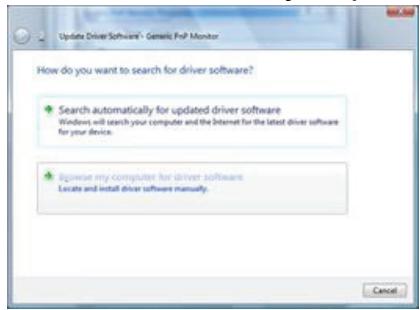
Generic FnP Monitor Properties General Driver Details Generic FnP Monitor Driver Provider: Microsoft Driver Date: 6/21/2006 Driver Version: 6.0.6000.16386 Digital Signer: microsoft windows Driver Details To view details about the driver files. Update Driver... To update the driver software for this device. Mail Back Driver If the device fails after updating the driver, roll back to the previously installed driver. Disable Disables the selected device. Uninstall To uninstall the driver (Advanced) OK Cancel- Check the "Browse my computer for driver software" checkbox and click "Let me pick from a list of device drivers on my computer".
text_image
Update Driver Software - Generic Prp Monitor How do you want to search for driver software? • Search automatically for updated driver software Windows will search your computer and the Internet for the latest driver software for your device. • Browse my computer for driver software Locate and install driver software manually. Cancel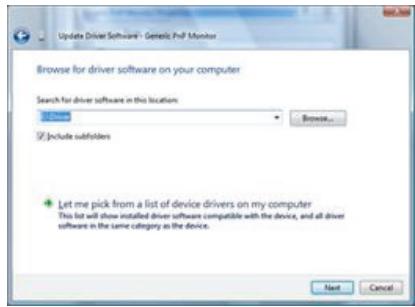
text_image
Update Driver Software - Genetic PDF Monitor Browse for driver software on your computer Search for driver software in this location: Browse... Include subfolders Let me pick from a list of device drivers on my computer This list will show installed driver software compatible with the device, and all driver software in the same category as the device. Next Cancel- Click "Have Disk..." and select the folder (for example, D:\Drive) where the driver setup file is located, and click "OK".
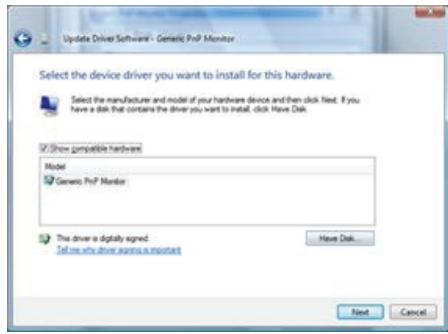
text_image
Update Driver Software - Generic PrGP Monitor Select the device driver you want to install for this hardware. Select the manufacturer and model of your hardware device and then click next. If you Have a disk that contains the driver you want to install. click Have Disk. Show compatible hardware Model Generic PrGP Monitor This driver is digitally signed. Tell me why driver supports a important Have Disk... Next Cancel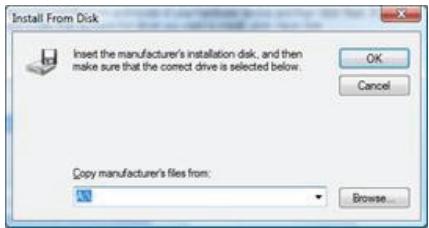
text_image
Install From Disk Insert the manufacturer's installation disk, and then make sure that the correct drive is selected below. OK Cancel Copy manufacturer's files from: Browse...- Select the model that matches your monitor from the list of monitor models on the screen, and click "Next".
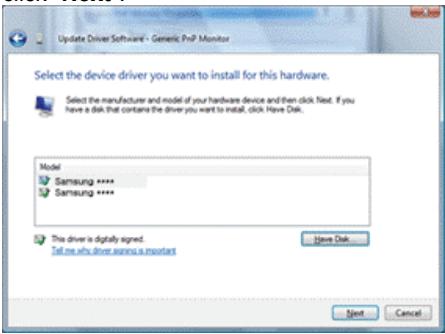
text_image
Update Driver Software - Generic PoP Monitor Select the device driver you want to install for this hardware. Select the manufacturer and model of your hardware device and then click Next. If you have a disk that contains the driver you want to install, click Have Disk. Model Samsung **** Samsung **** This driver is digitally signed. To me why driver uses a important Have Disk... Next Cancel- Click "Close" → "Close" → "OK" → "OK" on the following screens displayed in sequence.
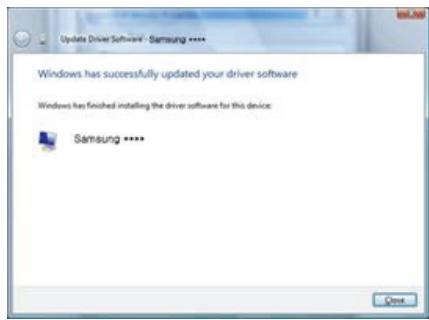
text_image
Update Driver Software - Samsung **** Windows has successfully updated your driver software Windows has finished installing the driver software for this device Samsung **** Close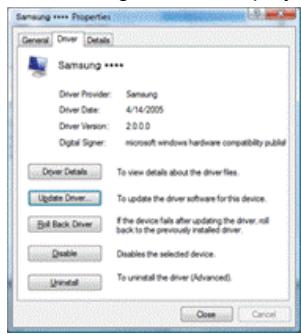
text_image
Samsung **** Properties General Driver Details Driver Provider: Samsung Driver Date: 4/14/2005 Driver Version: 2.0.0.0 Digital Signar: microsoft windows hardware compatibility publal Driver Details To view details about the driver files. Update Driver... To update the driver software for this device. Still Back Driver If the device fails after updating the driver, roll back to the previously installed driver. Disable Disables the selected device. Uninstall To uninstall the driver (Advanced). Close Cancel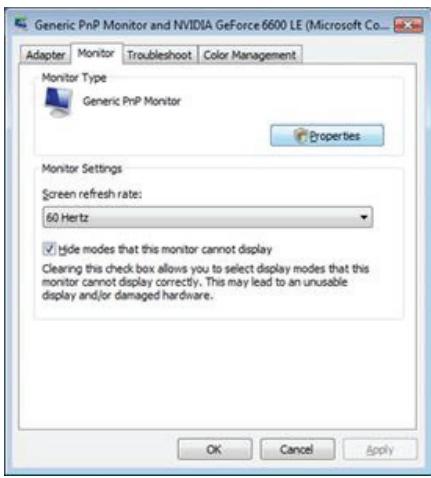
text_image
Generic PrnP Monitor and NVIDIA GeForce 6600 LE (Microsoft Co... Adapter Monitor Troubleshoot Color Management Monitor Type Generic PrnP Monitor Properties Monitor Settings Screen refresh rate: 60 Hertz Hide modes that this monitor cannot display Clearing this check box allows you to select display modes that this monitor cannot display correctly. This may lead to an unusable display and/or damaged hardware. OK Cancel Apply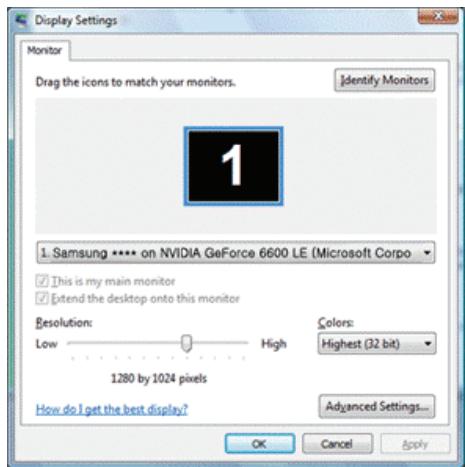
text_image
Display Settings Monitor Drag the icons to match your monitors. Identify Monitors 1 Samsung **** on NVIDIA GeForce 6600 LE (Microsoft Corpo This is my main monitor Extend the desktop onto this monitor Resolution: Low High Colors: Highest (32 bit) 1280 by 1024 pixels How do I get the best display? Advanced Settings... OK Cancel ApplyMicrosoft® Windows® XP Operating System
- Insert CD into the CD-ROM driver.
- Click "Start" —> "Control Panel" then click the "Appearance and Themes" Icon.
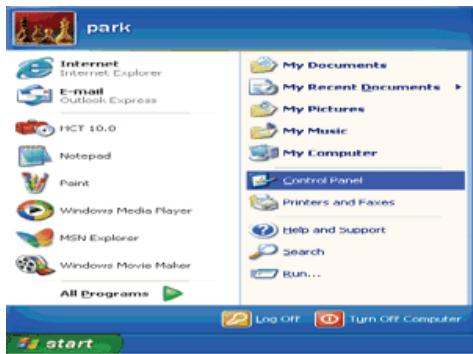
text_image
park Internet Internet Explorer E-mail Outlook Express HCT 10.0 Notepad Paint Windows Media Player MSN Explorer Windows Movie Maker All Programs My Documents My Recent Documents My Pictures My Music My Computer Control Panel Printers and Faxes Help and Support Search Run... Log Off Turn Off Computer start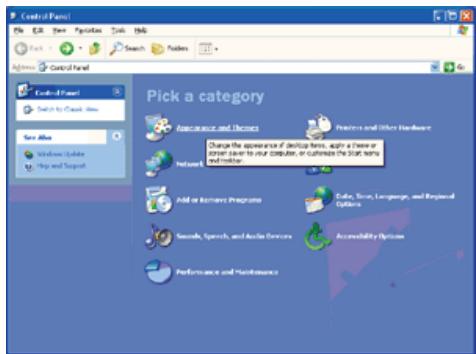
text_image
Control Panel File Edit View Insert Tools Help Back Search Folders Control Panel Control Panel Set to Control Panel Save All Windows Update Play and Support Pick a category Accessories and Diagnostics Products and Other Hardware Change the appearance of Desktop Items, apply a Theme or Power server to your computer, or customize the Start Menu and member. Add or Remove Programs Color, Tree, Language, and Environmental Options Sounds, Speech, and Audio Services Accessibility Options Performance and Maintenance- Click "Display" icon and choose the "Settings" tab then click "Advanced..".
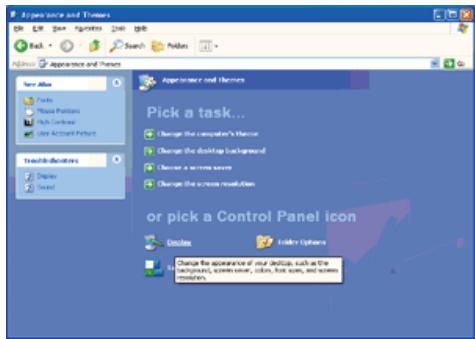
text_image
Appearance and Themes Pick a task... Change the computer's theme Change the desktop background Change a screen screen Change the screen resolution or pick a Control Panel icon Create Delete Options Change the appearance of our dialog, such as the background, screen color, color, font color, and screen colors.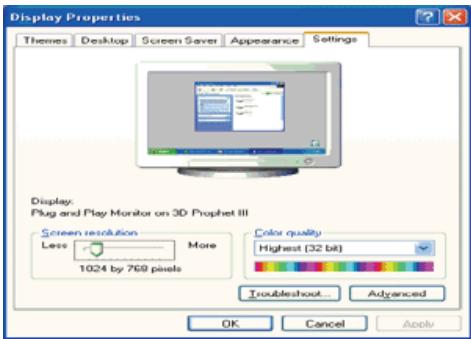
text_image
Display Properties Themes Desktop Screen Saver Appearance Settings Display: Plug and Play Monitor on 3D Prophet III Screen resolution More Less 1024 by 769 pixels Color quality Highest (32 bit) Troubleshoot... Advanced OK Cancel Apply- Click the "Properties" button on the "Monitor" tab and select "Driver" tab.
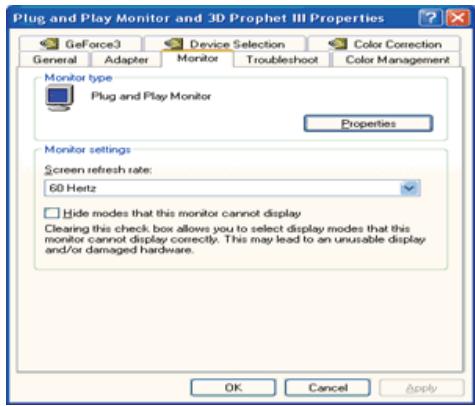
text_image
Plug and Play Monitor and 3D Prophet III Properties GeForce3 Device Selection Color Correction General Adapter Monitor Troubleshoot Color Management Monitor type Plug and Play Monitor Properties Monitor settings Screen refresh rate: 60 Hertz Hide modes that this monitor cannot display Clearing this check box allows you to select display modes that this monitor cannot display correctly. This may lead to an unusable display and/or damaged hardware. OK Cancel Apply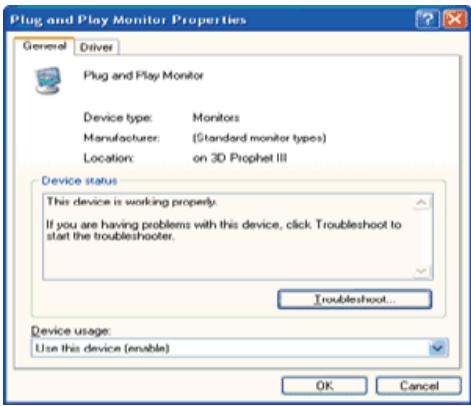
text_image
Plug and Play Monitor Properties General Driver Plug and Play Monitor Device type: Monitors Manufacturer: (Standard monitor types) Location: on 3D Prophet III Device status This device is working properly. If you are having problems with this device, click Troubleshoot to start the troubleshooter. Troubleshoot... Device usage: Use this device (enable) OK Cancel- Click "Update Driver.." and select "Install from a list or.." then click "Next" button.
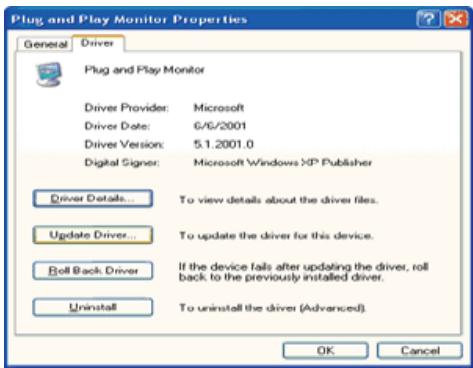
text_image
Plug and Play Monitor Properties General Driver Plug and Play Monitor Driver Provider: Microsoft Driver Date: 6/6/2001 Driver Version: 5.1.2001.0 Digital Signer: Microsoft Windows XP Publisher Driver Details... To view details about the driver files. Update Driver... To update the driver for this device. Roll Back Driver If the device fails after updating the driver, roll back to the previously installed driver. Uninstall To uninstall the driver (Advanced). OK Cancel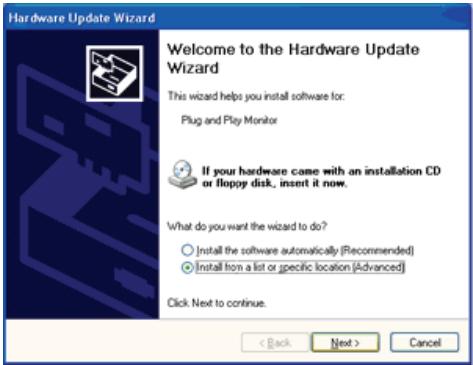
text_image
Hardware Update Wizard Welcome to the Hardware Update Wizard This wizard helps you install software for: Plug and Play Monitor If your hardware came with an installation CD or floppy disk, insert it now. What do you want the wizard to do? Install the software automatically (Recommended) Install from a list or specific location (Advanced) Click Next to continue.- Select "Don't search, I will.." then click "Next" and then click "Have disk".
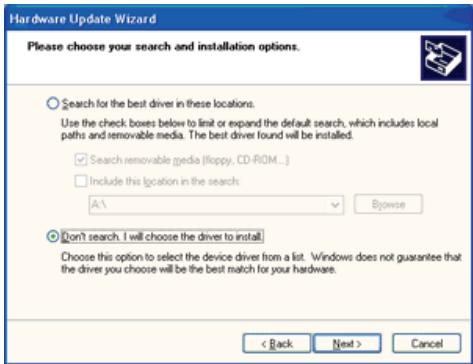
text_image
Hardware Update Wizard Please choose your search and installation options. Search for the best driver in these locations. Use the check boxes below to limit or expand the default search, which includes local paths and removable media. The best driver found will be installed. ✓ Search removable media (floppy, CD-ROM...) Include this location in the search: A:\ Browse Don't search. I will choose the driver to install. Choose this option to select the device driver from a list. Windows does not guarantee that the driver you choose will be the best match for your hardware. < Back Next > Cancel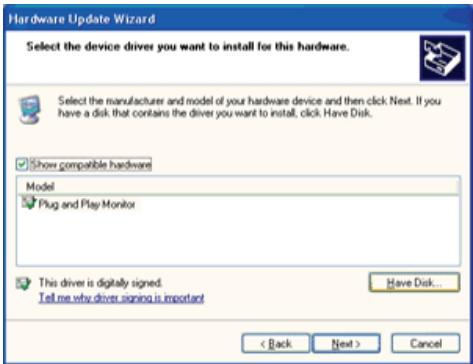
text_image
Hardware Update Wizard Select the device driver you want to install for this hardware. Select the manufacturer and model of your hardware device and then click Next. If you have a disk that contains the driver you want to install, click Have Disk. Show compatible hardware Model Plug and Play Monitor This driver is digitally signed. Tell me why driver signing is important Have Disk... < Back Next > Cancel- Click the "Browse" button then choose A:(D:\Driver) and choose your monitor model in the model list and click the "Next" button.
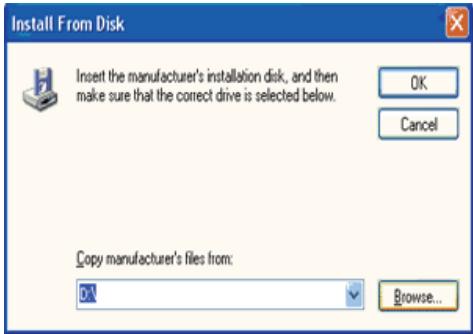
text_image
Install From Disk Insert the manufacturer's installation disk, and then make sure that the correct drive is selected below. OK Cancel Copy manufacturer's files from: OK Browse...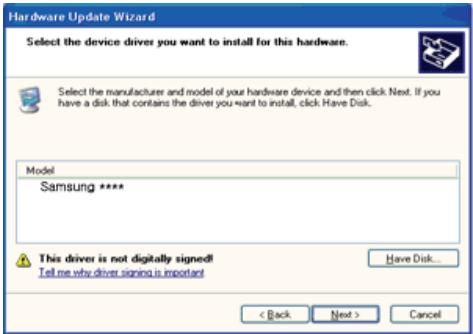
text_image
Hardware Update Wizard Select the device driver you want to install for this hardware. Select the manufacturer and model of your hardware device and then click Next. If you have a disk that contains the driver you want to install, click Have Disk. Model Samsung **** This driver is not digitally signed! Tell me why driver signing is important Have Disk... < Back Next > Cancel- If you can see following "Message" window, then click the "Continue Anyway" button. Then click "OK" button.
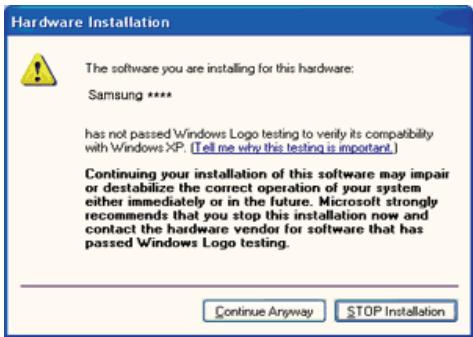
text_image
Hardware Installation The software you are installing for this hardware: Samsung **** has not passed Windows Logo testing to verify its compatibility with Windows XP. (Tell me why this testing is important.) Continuing your installation of this software may impair or destabilize the correct operation of your system either immediately or in the future. Microsoft strongly recommends that you stop this installation now and contact the hardware vendor for software that has passed Windows Logo testing. Continue Anyway STOP InstallationThis monitor driver is under certified MS logo, and this installation doesn't damage your system. The certified driver will be posted on Samsung Monitor homepage. http://www.samsung.com/
- Click the "Close" button then click "OK" button continually.
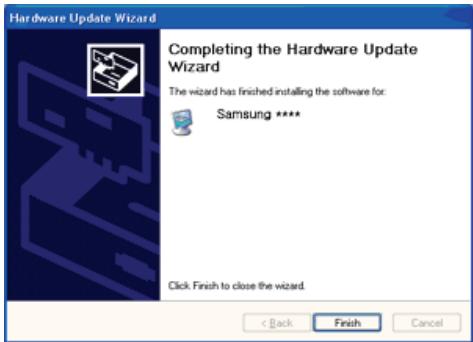
text_image
Hardware Update Wizard Completing the Hardware Update Wizard The wizard has finished installing the software for: Samsung ***** Click Finish to close the wizard. < Back Finish Cancel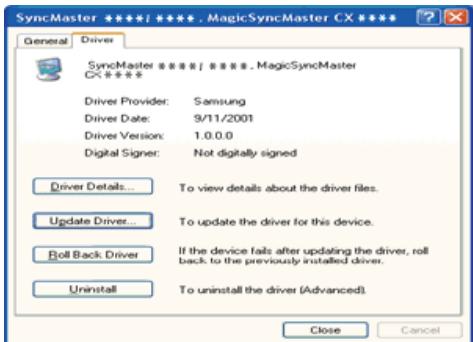
text_image
SyncMaster ****; ****. MagicSyncMaster CX **** General Driver SyncMaster ****; ****. MagicSyncMaster CX ***** Driver Provider: Samsung Driver Date: 9/11/2001 Driver Version: 1.0.0.0 Digital Signer: Not digitally signed Driver Details... To view details about the driver files. Update Driver... To update the driver for this device. Roll Back Driver If the device fails after updating the driver, roll back to the previously installed driver. Uninstall To uninstall the driver (Advanced). Close Cancel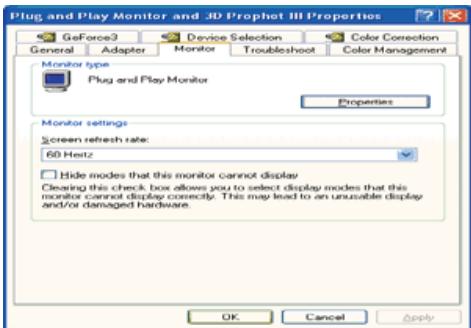
text_image
Plug and Play Monitor and 3D Prophet III Properties GeForce3 Device Selection Color Correction General Adapter Monitor Troubleshoot Color Management Monitor type Plug and Play Monitor Properties Monitor settings screen refresh rate: 60 Heiz Hide modes that this monitor cannot display Clearing this check box allows you to select display modes that this monitor cannot display correctly. This may lead to an unusable display and/or damaged hardware. OK Cancel Apply- Monitor driver installation is completed.
Microsoft® Windows® 2000 Operating System

When you can see "Digital Signature Not Found" on your monitor, follow these steps.
- Choose "OK" button on the "Insert disk" window.
- Click the "Browse" button on the "File Needed" window.
- Choose A:(D:\Driver) then click the "Open" button and then click "OK" button.

How to install
- Click "Start", "Setting", "Control Panel".
- Double click the "Display" Icon.
- Choose the "Settings" tab and then click "Advanced..".
- Choose "Monitor".
Case1: If the "Properties" button is inactive, it means your monitor is properly configured. Please stop installation
Case2: If the "Properties" button is active, click the "Properties" button then follow next steps continually.
- Click "Driver" and then click on "Update Driver.." then click on the "Next" button.
- Choose "Display a list of the known drivers for this device so that I can choose a specific driver" then click "Next" and then click "Have disk".
- Click the "Browse" button then choose A:(D:\Driver).
- Click the "Open" button, then click "OK" button.
-
Choose your monitor model and click the "Next" button then click "Next" button.
-
Click the "Finish" button then the "Close" button.
If you can see the "Digital Signature Not Found" window then click the "Yes" button. And click the "Finish" button then the "Close" button.
Microsoft® Windows® Millennium Operating System
- Click "Start", "Setting", "Control Panel".
- Double click "Display" icon.
- Select the "Settings" tab and click "Advanced Properties" button.
- Select the "Monitor" tab.
- Click the "Change" button in the "Monitor Type" area.
- Choose "Specify the location of the driver".
- Choose "Display a list of all the driver in a specific location.." then click "Next" button.
- Click the "Have Disk" button
-
Specify A: D: then click "OK" button.
-
Select "Show all devices" and choose the monitor that corresponds to the one you connected to your computer and click "OK".
-
Continue choosing "Close" button and "OK" button until you close the Display Properties dialogue box.
Microsoft® Windows® NT Operating System
- Click Start, Settings, Control Panel, and then double-click Display icon.
- In Display Registration Information window, click Settings Tab and then click All Display Modes.
-
Select a mode that you wish to use (Resolution, Number of colors and Vertical frequency) and then click OK.
-
Click Apply button if you see the screen working normally after clicking Test. If the screen is not normal, change to a different mode (lower mode of resolution, colors or frequency).

If there is no Mode at All Display Modes, select the level of resolution and vertical frequency by referring to the Preset Timing Modes in the user guide.
Linux Operating System
To execute X-Window, you need to make the X86Config file, which is a type of system setting file.
- Press Enter at the first and the second screen after executing the X86Config file.
- The third screen is for setting your mouse.
- Set a mouse for your computer.
- The next screen is for selecting a keyboard.
- Set a Keyboard for your computer.
- The next screen is for setting your monitor.
- First of all, set a horizontal frequency for your monitor. (You can enter the frequency directly.)
- Set a vertical frequency for your monitor. (You can enter the frequency directly.)
- Enter the model name of your monitor. This information will not affect the actual execution of X-Window.
- You have finished setting up your monitor. Execute X-Window after setting other requested hardware.
text_image
The color and appearance of the product may vary depending on the model, and the product specifications are subject to change without prior notice for reasons of performance enhancement. ■ Safety Instructions ■ Introduction ■ Setup ■ Adjusting Your Monitor ■ Troubleshooting ■ Specifications ■ InformationUser Control Buttons | Direct Functions | OSD Functions |
natural_image
Garden scene with traditional pagoda, red lanterns, and blooming flowers in the foreground (no text or symbols visible)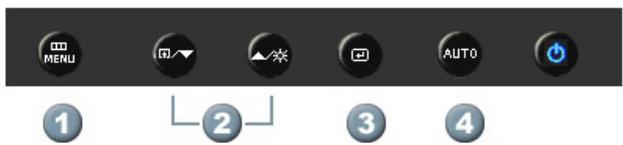
text_image
MENU 2 AUTO 1 2 3 4- [MENU] Use this button to open the on-screen menu and exit from the menu screen or close screen adjustment menu.
- [▼/▲]This button allows you to adjust items in the menu.
- [☐]Press this button to activate a highlighted menu item.
- [AUTO]Press to self-adjust to the incoming PC signal. The values of fine, coarse and position are adjusted automatically.
User Control Buttons | Direct Functions | OSD Functions
natural_image
Garden scene with traditional pagoda, red lanterns, and blooming flowers (no text or symbols visible)
text_image
MENU ▲ AUTOMenu
Description
When the 'AUTO' button is pressed, the Auto Adjustment screen appears as shown in the animated screen on the center.
Auto adjustment allows the monitor to self-adjust to the incoming video signal. The values of fine, coarse and position are adjusted automatically. (Available in analog mode only)
AUTO
- If auto adjustment does not work properly, press AUTO button again to adjust picture with more accuracy.
- If you change resolution in the control panel, auto function will be executed automatically.
Locked
natural_image
Garden scene with traditional pagoda, red lanterns, and blooming flowers (no text or symbols visible)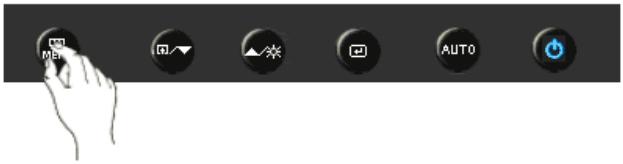
text_image
MO AUTOCustomized key
natural_image
Garden scene with traditional pagoda, multi-tiered trees, and colorful lanterns (no text or symbols visible)
text_image
MENU AUTO| Menu | Description |
| Customized key | You can customize key assignment for the Custom button according to your preferences.To view the operating screen displayed when pressing the [ ↗ ] button after configuring the customized key for a function, click the name of each function.( Image Size - MagicBright - MagicColor - Color Effect ) |
| You can configure the customized key for a required function via Setup >Customized Key |
Brightness
natural_image
Garden scene with traditional pagodas, red lanterns, and blooming flowers in the foreground (no text or symbols visible)
text_image
MENU ↑ AUTO| Menu | Description |
| Brightness | When OSD is not on the screen, push the button to adjust brightness. |
| Picture | Brightness | Contrast | MagicBright | ||
| Color | MagicColor | Color Tone | Color Control | Color Effect | Gamma |
| Image | Coarse | Fine | Sharpness | H-Position | V-Position |
| OSD | Language | H-Position | V-Position | Transparency | Display Time |
| Setup | Reset | Customized Key | Off Timer | Image Size | |
| Information | |||||
natural_image
Garden scene with traditional pagodas, red lanterns, and a tree in the background (no text or symbols visible)
text_image
NEW AUTO| Menu | Description | Play/Stop |
| Brightness | You can use the on-screen menus to change the brightness according to personal preference. | |
| Direct Access Feature: When OSD is not on the screen, push the [icon] button to adjust brightness. | ||
| Contrast | [MENU → ➔ → ➔ → ▲, ▼ → MENU] | |
| You can use the on-screen menus to change the contrast according to personal preference. | ||
| [MENU → ➔ → ▲, ▼ → ➔ → ▲, ▼ → MENU] | ||
| Push the ➔ button to circle through available preconfigured modes. | ||
| MagicBright | MagicBright is a new feature providing optimum viewing environment depending on the contents of the image you are watching. Currently seven different modes are available: Custom, Text, Internet, Game, Sport, Movie and Dynamic Contrast. Each mode has its own pre-configured brightness value. You can easily select one of seven settings by simply pressing Customized Key control button. | |
| 1) Custom - Although the values are carefully chosen by our engineers, the pre-configured values may not be comfortable to your eyes depending on your taste. | ||
| If this is the case, adjust the brightness and contrast by using the OSD menu. | ||
| 2) Text - For documentations or works involving heavy text. | ||
| 3) Internet - For working with a mixture of images such as texts and graphics. | ||
| 4) Game - For watching motion pictures such as a game. | ||
| 5) Sport - For watching motion pictures such as a sport. | ||
| 6) Movie - For watching motion pictures such as a DVD or Video CD. | ||
| [MENU → ➔ → ▲, ▼ → ➔ → ▲, ▼ → MENU] |
natural_image
Garden scene with traditional pagoda, red lanterns, and blooming flowers (no text or symbols visible)
text_image
Ctrl OK Save AUTO| Menu | Description | Play/Stop |
| MagicColor | MagicColor is a new technology that Samsung has exclusively developed to improve digital image and to display natural color more clearly without disturbing image quality. | |
| 1) Off - Returns to the original mode. | ||
| 2) Demo - The screen before applying MagicColor appears on the right and the screen after applying MagicColor appears on the left. |  | |
| 3) Full - Displays not only vivid natural color but also more realistic natural skin color with clearness. | ||
| 4) Intelligent - Displays vivid natural color with clearness. | ||
| [MENU →▲,▼→→→→→→→→→→→→→→→→→→→→→→→→→→→→→→→→→→→→→→→→→→→→→→→→→→→→→→→→→→→→→→→→→→→→→→→→→→→→→→→→→→→→→→→→→→→→→→→→→→→→ | | |
| Color Tone | The tone of the color can be changed and one of four modes can be selected - Cool, Normal, Warm and Custom. | |
| Cool - Makes whites bluish. | ||
| Normal - Keeps whites white. |  | |
| Warm - Makes whites reddish. | ||
| Custom - Select this mode when you want to adjust the image according to your preferences. | ||
| [MENU →▲,▼→→→→→→→→→→→→→→→→→→→→→→→→→→→→→→→→→→→→→→→→→→→→→→→→→→→→→→→→→→→→→→→→→→→→→→→→→→→→→→→→→→→→→→→ | [YG4G] | |
| Color Control | Adjusts individual R,G,B color balance. | |
| [MENU →▲,▼→→→→→→→→→→→→→→→→→→→→→→→→→→→→→→→→→→→→→→→→→→→→→→→→→→→→→→→→→→→→→→→→→→→→→→→→→→→→→→→→→→→→→→→ | ||
| You can change the overall mood by changing the screen colors. | ||
| Color Effect | Off - This applies an achromatic color to the screen to adjust the screen effects. | |
| Grayscale - The default colors of black and white are displayed. | | |
| Green - This applies the green color effect to a black and white screen. | ||
| Aqua - Select this mode when you want to adjust the image according to your preferences. |
Sepia
- This applies the Sepia color effect to a black and white screen.
Gamma correction changes the luminance of the colors with intermediate luminance.
Gamma
- Mode 1
- Mode 2
- Mode 3
[MENU → ▲, ▼ → ◀→ ▲, ▼→ ◀→ ▲, ▼→ MENU]


Image

natural_image
Garden scene with traditional pagoda, red lanterns, and blooming flowers (no text or symbols visible)
text_image
MB ▼ 笨 AUTO| Menu | Description | Play/Stop |
| Coarse | Removes noise such as vertical stripes. Coarse adjustment may move the screen image area. You may relocate it to the center using the horizontal control menu. (Available in analog mode only) | |
| [MENU →▲,▼→→→→→→→→→→→→→→→→→→→→→→→→→→→→→→→→→→→→→→→→→→→→→→→→→→→→→→→→→→→→→→→→→→→→→→→→→→→→→→→→→→→→→→→→→→→→→→→→→→→→ | [HDK] | |
| Fine | Removes noise such as horizontal stripes. If the noise persists even after fine tuning, repeat it after adjusting the frequency (clock speed). (Available in analog mode only) |  |
| [MENU →▲,▼→→→→→→→→→→→→→→→→→→→→→→→→→→→→→→→→→→→→→→→→→→→→→→→→→→→→→→→→→→→→→→→→→→→→→→→→→→→→→→→→→→→→→→→→ | [HDK] | |
| Sharpness | Changes the clearance of image. [MENU →▲,▼→→→→→→→→→→→→→→→→→→→→→→→→→→→→→→→→→→→→→→→→→→→→→→→→→→→→→→→→→→→→→→→→→→→→→→→→→→→→→→→→→→→→→→→→→→→→→→→ |  |
| H-Position | Changes the horizontal position of the monitor's entire display. (Available in analog mode only) | [HDK] |
| [MENU →▲,▼→→→→→→→→→→→→→→→→→→→→→→→→→→→→→→→→→→→→→→→→→→→→→→→→→→→→→→→→→→→→→→→→→→→→→→→→→→→→→→→→→→→→→→→→ | ||
| Changes the vertical position of the monitor's entire display. |

OSD
natural_image
Garden scene with traditional pagoda, red lanterns, and blooming flowers (no text or symbols visible)
text_image
MB AUTO| Menu | Description | Play/Stop |
| You can choose one of 9 languages.• English, Deutsch, Español, Français, Italiano, Svenska, Русский , Português , Türkçe | ||
| Language | Note:The language chosen affects only the language of the OSD. It has no effect on any software running on the computer.[MENU → ▲, ▼→ 📋 → 📋 → ▲, ▼→ MENU] | [IMAGE] |
| H-Position | You can change the horizontal position where the OSD menu appears on your monitor.[MENU → ▲, ▼→ 📋 → ▲, ▼→ 📋 → ▲, ▼→ MENU] | [IMAGE] |
| V-Position | You can change the vertical position where the OSD menu appears on your monitor.[MENU → ▲, ▼→ 📋 → ▲, ▼→ 📋 → ▲, ▼→ MENU] | [IMAGE] |
| Transparency | Change the transparency of the background of the OSD.[MENU → ▲, ▼→ 📋 → ▲, ▼→ 📋 → ▲, ▼→ MENU] | [IMAGE] |
| Display Time | The menu will be automatically turned off if no adjustments are made for a certain time period.You can set the amount of time the menu will wait before it is turned off.[MENU → ▲, ▼→ 📋 → ▲, ▼→ 📋 → ▲, ▼→ MENU] | [IMAGE] |
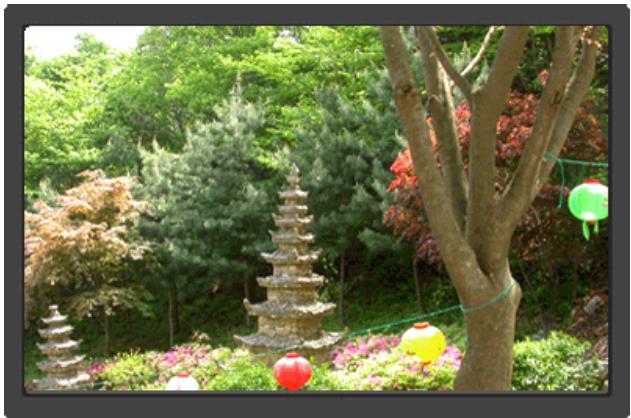
natural_image
Garden scene with traditional pagodas, red lanterns, and blooming flowers (no text or symbols visible)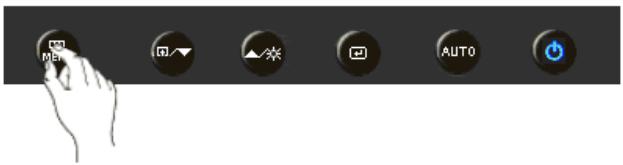
text_image
AUTO| Menu | Description | Play/Stop |
| Reset | Reverts the product settings to factory defaults. | |
| No Yes | ||
| Customized Key | [MENU →▲,▼→→→→→→→→→→→→→→→→→→→→→→→→→→→→→→→→→→→→→→→→→→→→→→→→→→→→→→→→→→→→→→→→→→→→→→→→→→→→→→→→→→→→→→→→→→→→→→→→→→→→ | |
| You can specify a function which will be activated when the Customized Key(→) is pressed. | ||
| [MENU →▲,▼→→→→→→→→→→→→→→→→→→→→→→→→→→→→→→→→→→→→→→→→→→→→→→→→→→→→→→→→→→→→→→→→→→→→→→→→→→→→→→→→→→→→→→→→→→→→ | ||
| Off Timer | The monitors will turn off automatically at the specified time. | |
| Off On | ||
| [MENU →▲,▼→→→→→→→→→→→→→→→→→→→→→→→→→→→→→→→→→→→→→→→→→→→→→→→→→→→→→→→→→→→→→→→→→→→→→→→→→→→→→→→→→→→→→→→→ | ||
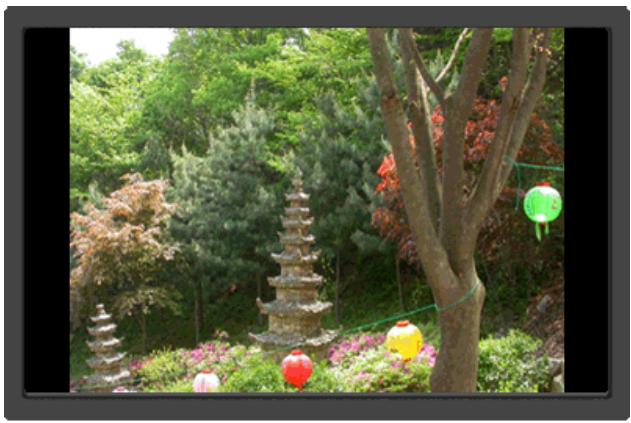
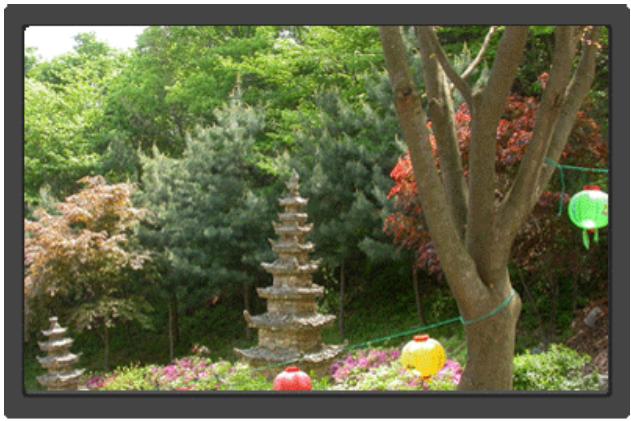
| You can change the size of the screen displayed on your monitor. | ||
| Auto - The screen is displayed in accordance with the screen aspect ratio of the input signals. | ||
| Image Size | Wide - A full screen is displayed regardless of the screen aspect ratio of the input signals. | |
| Signals not available in the standard mode table are not supported. | ||
| If the wide screen which is the optimal resolution for the monitor is set on your PC, this function is not performed. | ||
| [MENU →▲,▼→→→→→→→→→→→→→→→→→→→→→→→→→→→→→→→→→→→→→→→→→→→→→→→→→→→→→→→→→→→→→→→→→→→→→→→→→→→→→→→→→→→→→→→ |

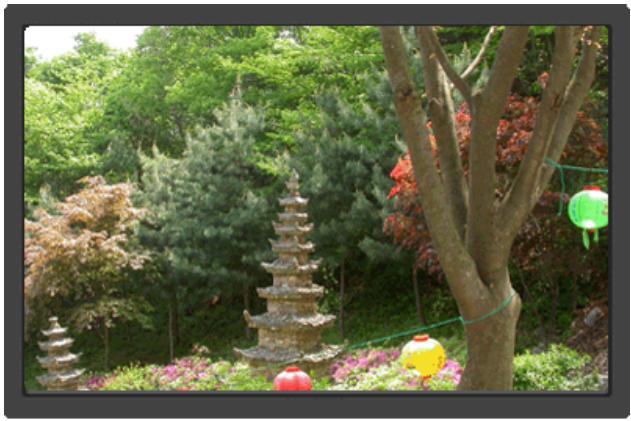
natural_image
Garden scene with traditional pagoda, red lanterns, and blooming flowers (no text or symbols visible)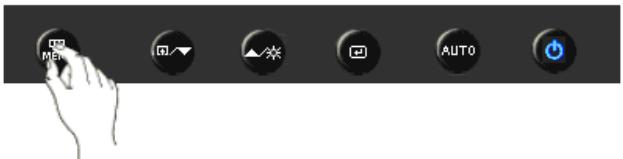
text_image
header AUTOMenu
Description
Information
Shows a video source, display mode on the OSD screen.
[MENU → ▲, ▼ → MENU]
text_image
The color and appearance of the product may vary depending on the model, and the product specifications are subject to change without prior notice for reasons of performance enhancement. ■ Safety Instructions ■ Introduction ■ Setup ■ Adjusting Your Monitor ■ Troubleshooting ■ Specifications ■ InformationCheck List
Q & A
Self-Test Feature Check

Check List

Before calling for service, check the information in this section to see if you can remedy any problems yourself. If you do need assistance, please call the phone number on the Information section or contact your dealer.
| Symptom | Check List | Solutions |
| No images on the screen. I cannot turn on the monitor. | Is the power cord connected properly? | Check the power cord connection and supply. |
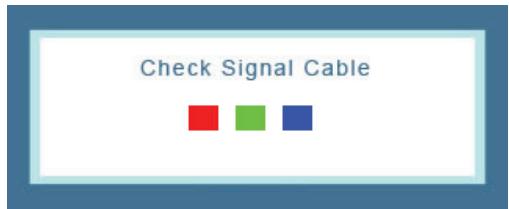
| Can you see "Check Signal Cable" on the screen? | (Connected using the D-sub cable)Check the signal cable connection. | |
| If the power is on, reboot the computer to see the initial screen (the login screen), which can be seen. | If the initial screen (the login screen) appears, boot the computer in the applicable mode (the safe mode for Windows ME/XP/2000) and then change the frequency of the video card.(Refer to the Preset Timing Modes) | |
| Note: If the initial screen (the login screen) does not appear, contact the Service Center or your dealer. | ||
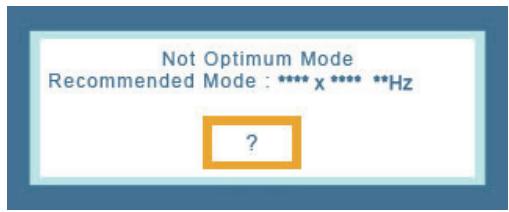
| Can you see "Not Optimum Mode", "Recommended Mode 1440 X 900 60 Hz" on the screen? | You can see this message when the signal from the video card exceeds the maximum resolution and frequency that the monitor can handle properly. | |
| Adjust the maximum resolution and frequency that the monitor can handle properly. | ||
| There is no image on the screen.Is the power indicator on the monitor blinking at 1 second intervals? | The monitor is in PowerSaver mode.press a key on the keyboard to activate the monitor and restore the image on the screen. | |
| I cannot see the On Screen Display. | Have you locked the On Screen Display (OSD) Menu to prevent changes? | Unlock the OSD by pressing the MENU button for at least 5 seconds. |
| The screen shows strange colors or just black and white. | Is the screen displaying only one color as if looking at the screen through a cellophane paper?Have the screen colors become strange after running a program or due to a crash between applications? | Check the signal cable connection.Make sure the video card is fully inserted in it's slot.Reboot the computer. |
| Has the video card been set properly? | Set the video card by referring to the video card manual. | |
| The screen suddenly has become unbalanced. | Have you changed the video card or the driver? | Adjust screen image position and size using the OSD. |
| Have you adjusted the resolution or frequency to the monitor? | Adjust the resolution and frequency at the video card.(Refer to the Preset Timing Modes). | |
| The screen can be unbalanced due to the cycle of the video card signals. Readjust Position by referring to the OSD. | ||
| The screen is out of focus or OSD cannot be adjusted. | Have you adjusted the resolution or frequency on the monitor? | Adjust the resolution and frequency of the video card.(Refer to the Preset Timing Modes). |
| LED is blinking but no images on the screen. | Is the frequency properly adjusted when checking the Display Timing on the menu? | Adjust the frequency properly by referring to the video card manual and the Preset Timing Modes.(The maximum frequency per resolution may differ from product to product.) |
| There are only 16 colors shown on the screen.The screen colors have changed after changing the video card. | Have the Windows colors been set properly? | Windows ME/2000/XP:Set the colors properly at the Control Panel → Display → Settings. |
| Has the video card been set properly? | Set the video card by referring to the video card manual. | |
| There is a message that reads "Unrecognized monitor, Plug & Play (VESA DDC) monitor found". | Have you installed the monitor driver? | Install the monitor driver according to the Driver Installation Instructions. |
| See the video card manual to see if the Plug & Play (VESA DDC) function can be supported. | Install the monitor driver according to the Driver Installation Instructions. | |

Check the following items if there is trouble with the monitor.
- Check if the power cord and the video cables are properly connected to the computer.
- Check if the computer beeps more than 3 times when booting. (If it does, request an after-service for the main board of the computer.)
- If you installed a new video card or if you assembled the PC, check if the installed the adapter (video) driver and the monitor driver.
- Check if the scanning ratio of the video screen is set at 56 Hz \~ 60 Hz. (Do not exceed 60 Hz when using the maximum resolution.)
- If you have problems in installing the adapter (video) driver, boot the computer in Safe Mode, remove the Display Adapter at the "Control Panel → System → Device Administrator" and then reboot the computer to reinstall the adapter (video) driver.

If problems repeatedly occur, contact an authorized service center.
Check List
Q & A
Self-Test Feature Check

Q & A
| Question | Answer |
| How can I change the frequency? | Frequency can be changed by reconfiguring the video card.Note that video card support can vary, depending on the versionof the driver used. (Refer to the computer or the video card manual for details.) |
| How can I adjust the resolution? | Windows ME/XP/2000 : Set the resolution at the Control Panel→Display→Settings.* Contact the video card manufacturer for details. |
| How can I set the Power Saving function? | Windows ME/XP/2000 : Set the function at BIOS-SETUP of the computer or the screen saver. (Refer to Windows/Computer Manual). |
| How can I clean the outer case/LCD Panel? | Disconnect the power cord and then clean the monitor with a soft cloth, using either a cleaning solution or plain water.Do not leave any remains of the detergent nor scratch the case.Do not allow any water to go inside the monitor. |
Check List
Q & A
Self-Test Feature Check

Self-Test Feature Check
Self-Test Feature Check | Warning Messages | Environment | Useful Tips
Your monitor provides a self test feature that allows you to check whether your monitor is functioning properly.

Self-Test Feature Check
- Turn off both your computer and the monitor.
- Unplug the video cable from the back of the computer.
- Turn on the monitor.
If the monitor is functioning properly, you will see a box in the illustration below.
text_image
Check Signal CableThis box appears during normal operation if the video cable becomes disconnected or damaged.
- Turn off your monitor and reconnect the video cable; then turn on both your computer and the monitor.
If your monitor screen remains blank after using the previous procedure, check your video controller and computer system; your monitor is functioning properly.

Warning Messages
If there is something wrong with the input signal, a message appears on the screen or the screen goes blank although the power indicator LED is still on. The message may indicate that the monitor is out of scan range or that you need to check the signal cable.
text_image
Not Optimum Mode Recommended Mode : **** x **** **Hz ?
Environment
The location and the position of the monitor may influence the quality and other features of the monitor.
- If there are any sub woofer speakers near the monitor, unplug and relocate the woofer to another room.
- Remove all electronic devices such as radios, fans, clocks and telephones that are within 3 feet (one meter) of the monitor.
Useful Tips
- A monitor recreates visual signals received from the computer. Therefore, if there is trouble with the computer or the video card, this can cause the monitor to become blank, have poor coloring, noise, Video mode not supported, etc. In this case, first check the source of the problem, and then contact the Service Center or your dealer.
• Judging the monitor's working condition
If there is no image on the screen or a "Not Optimum Mode", "Recommended Mode 1440 X 900 60 Hz" message comes up, disconnect the cable from the computer while the monitor is still powered on.
○ If there is a message coming up on the screen or if the screen goes white, this means the monitor is in working condition. - In this case, check the computer for trouble.
text_image
The color and appearance of the product may vary depending on the model, and the product specifications are subject to change without prior notice for reasons of performance enhancement. ■ Safety Instructions ■ Introduction ■ Setup ■ Adjusting Your Monitor ■ Troubleshooting ■ Specifications ■ InformationCheck List
Q & A
Self-Test Feature Check

Check List

Before calling for service, check the information in this section to see if you can remedy any problems yourself. If you do need assistance, please call the phone number on the Information section or contact your dealer.
| Symptom | Check List | Solutions |
| No images on the screen. I cannot turn on the monitor. | Is the power cord connected properly? | Check the power cord connection and supply. |
| Can you see "Check Signal Cable" on the screen? | (Connected using the D-sub cable)Check the signal cable connection. | |
| If the power is on, reboot the computer to see the initial screen (the login screen), which can be seen. | If the initial screen (the login screen) appears, boot the computer in the applicable mode (the safe mode for Windows ME/XP/2000) and then change the frequency of the video card.(Refer to the Preset Timing Modes) | |
| Note: If the initial screen (the login screen) does not appear, contact the Service Center or your dealer. | ||
| Can you see "Not Optimum Mode","Recommended Mode 1680 X 1050 60 Hz" on the screen? | You can see this message when the signal from the video card exceeds the maximum resolution and frequency that the monitor can handle properly. | |
| Adjust the maximum resolution and frequency that the monitor can handle properly. | ||
| There is no image on the screen. Is the power indicator on the monitor blinking at 1 second intervals? | The monitor is in PowerSaver mode. press a key on the keyboard to activate the monitor and restore the image on the screen. | |
| I cannot see the On Screen Display. | Have you locked the On Screen Display (OSD) Menu to prevent changes? | Unlock the OSD by pressing the MENU button for at least 5 seconds. |
| The screen shows strange colors or just black and white. | Is the screen displaying only one color as if looking at the screen through a cellophane paper?Have the screen colors become strange after running a program or due to a crash between applications? | Check the signal cable connection.Make sure the video card is fully inserted in it's slot.Reboot the computer. |
| Has the video card been set properly? | Set the video card by referring to the video card manual. | |
| The screen suddenly has become unbalanced. | Have you changed the video card or the driver? | Adjust screen image position and size using the OSD. |
| Have you adjusted the resolution or frequency to the monitor? | Adjust the resolution and frequency at the video card.(Refer to the Preset Timing Modes). | |
| The screen can be unbalanced due to the cycle of the video card signals. Readjust Position by referring to the OSD. | ||
| The screen is out of focus or OSD cannot be adjusted. | Have you adjusted the resolution or frequency on the monitor? | Adjust the resolution and frequency of the video card.(Refer to the Preset Timing Modes). |
| LED is blinking but no images on the screen. | Is the frequency properly adjusted when checking the Display Timing on the menu? | Adjust the frequency properly by referring to the video card manual and the Preset Timing Modes.(The maximum frequency per resolution may differ from product to product.) |
| There are only 16 colors shown on the screen.The screen colors have changed after changing the video card. | Have the Windows colors been set properly? | Windows ME/2000/XP:Set the colors properly at the Control Panel → Display → Settings. |
| Has the video card been set properly? | Set the video card by referring to the video card manual. | |
| There is a message that reads "Unrecognized monitor, Plug & Play (VESA DDC) monitor found". | Have you installed the monitor driver? | Install the monitor driver according to the Driver Installation Instructions. |
| See the video card manual to see if the Plug & Play (VESA DDC) function can be supported. | Install the monitor driver according to the Driver Installation Instructions. | |

Check the following items if there is trouble with the monitor.
- Check if the power cord and the video cables are properly connected to the computer.
- Check if the computer beeps more than 3 times when booting. (If it does, request an after-service for the main board of the computer.)
- If you installed a new video card or if you assembled the PC, check if the installed the adapter (video) driver and the monitor driver.
- Check if the scanning ratio of the video screen is set at 56 Hz \~ 60 Hz. (Do not exceed 60 Hz when using the maximum resolution.)
- If you have problems in installing the adapter (video) driver, boot the computer in Safe Mode, remove the Display Adapter at the "Control Panel → System → Device Administrator" and then reboot the computer to reinstall the adapter (video) driver.

If problems repeatedly occur, contact an authorized service center.
Check List
Q & A
Self-Test Feature Check

Q & A
| Question | Answer |
| How can I change the frequency? | Frequency can be changed by reconfiguring the video card.Note that video card support can vary, depending on the versionof the driver used. (Refer to the computer or the video card manual for details.) |
| How can I adjust the resolution? | Windows ME/XP/2000 : Set the resolution at the Control Panel→Display→Settings.* Contact the video card manufacturer for details. |
| How can I set the Power Saving function? | Windows ME/XP/2000 : Set the function at BIOS-SETUP of the computer or the screen saver. (Refer to Windows/Computer Manual). |
| How can I clean the outer case/LCD Panel? | Disconnect the power cord and then clean the monitor with a soft cloth, using either a cleaning solution or plain water.Do not leave any remains of the detergent nor scratch the case.Do not allow any water to go inside the monitor. |
Check List
Q & A
Self-Test Feature Check

Self-Test Feature Check
Self-Test Feature Check | Warning Messages | Environment | Useful Tips
Your monitor provides a self test feature that allows you to check whether your monitor is functioning properly.

Self-Test Feature Check
- Turn off both your computer and the monitor.
- Unplug the video cable from the back of the computer.
- Turn on the monitor.
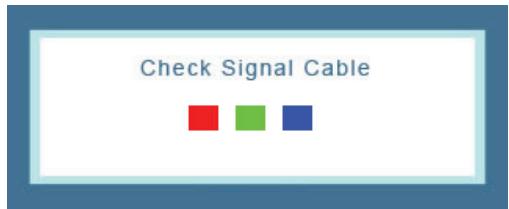
If the monitor is functioning properly, you will see a box in the illustration below.
text_image
Check Signal CableThis box appears during normal operation if the video cable becomes disconnected or damaged.
- Turn off your monitor and reconnect the video cable; then turn on both your computer and the monitor.
If your monitor screen remains blank after using the previous procedure, check your video controller and computer system; your monitor is functioning properly.

Warning Messages
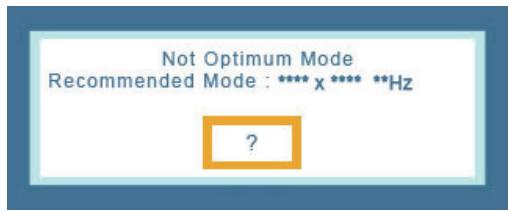
If there is something wrong with the input signal, a message appears on the screen or the screen goes blank although the power indicator LED is still on. The message may indicate that the monitor is out of scan range or that you need to check the signal cable.
text_image
Not Optimum Mode Recommended Mode : **** x **** **Hz ?
Environment
The location and the position of the monitor may influence the quality and other features of the monitor.
- If there are any sub woofer speakers near the monitor, unplug and relocate the woofer to another room.
- Remove all electronic devices such as radios, fans, clocks and telephones that are within 3 feet (one meter) of the monitor.
Useful Tips
- A monitor recreates visual signals received from the computer. Therefore, if there is trouble with the computer or the video card, this can cause the monitor to become blank, have poor coloring, noise, Video mode not supported, etc. In this case, first check the source of the problem, and then contact the Service Center or your dealer.
• Judging the monitor's working condition
If there is no image on the screen or a "Not Optimum Mode", "Recommended Mode 1680 X 1050 60 Hz" message comes up, disconnect the cable from the computer while the monitor is still powered on.
○ If there is a message coming up on the screen or if the screen goes white, this means the monitor is in working condition. - In this case, check the computer for trouble.
text_image
The color and appearance of the product may vary depending on the model, and the product specifications are subject to change without prior notice for reasons of performance enhancement. ■ Safety Instructions ■ Introduction ■ Setup ■ Adjusting Your Monitor ■ Troubleshooting ■ Specifications ■ InformationCheck List
Q & A
Self-Test Feature Check

Check List

Before calling for service, check the information in this section to see if you can remedy any problems yourself. If you do need assistance, please call the phone number on the Information section or contact your dealer.
| Symptom | Check List | Solutions |
| No images on the screen. I cannot turn on the monitor. | Is the power cord connected properly? | Check the power cord connection and supply. |
| Can you see "Check Signal Cable" on the screen? | (Connected using the D-sub cable)Check the signal cable connection. | |
| If the power is on, reboot the computer to see the initial screen (the login screen), which can be seen. | If the initial screen (the login screen) appears, boot the computer in the applicable mode (the safe mode for Windows ME/XP/2000) and then change the frequency of the video card.(Refer to the Preset Timing Modes) | |
| Note: If the initial screen (the login screen) does not appear, contact the Service Center or your dealer. | ||
| Can you see "Not Optimum Mode","Recommended Mode 1680 X 1050 60 Hz" on the screen? | You can see this message when the signal from the video card exceeds the maximum resolution and frequency that the monitor can handle properly. | |
| Adjust the maximum resolution and frequency that the monitor can handle properly. | ||
| There is no image on the screen. Is the power indicator on the monitor blinking at 1 second intervals? | The monitor is in PowerSaver mode.press a key on the keyboard to activate the monitor and restore the image on the screen. | |
| I cannot see the On Screen Display. | Have you locked the On Screen Display (OSD) Menu to prevent changes? | Unlock the OSD by pressing the MENU button for at least 5 seconds. |
| The screen shows strange colors or just black and white. | Is the screen displaying only one color as if looking at the screen through a cellophane paper?Have the screen colors become strange after running a program or due to a crash between applications? | Check the signal cable connection.Make sure the video card is fully inserted in it's slot.Reboot the computer. |
| Has the video card been set properly? | Set the video card by referring to the video card manual. | |
| The screen suddenly has become unbalanced. | Have you changed the video card or the driver? | Adjust screen image position and size using the OSD. |
| Have you adjusted the resolution or frequency to the monitor? | Adjust the resolution and frequency at the video card.(Refer to the Preset Timing Modes). | |
| The screen can be unbalanced due to the cycle of the video card signals. Readjust Position by referring to the OSD. | ||
| The screen is out of focus or OSD cannot be adjusted. | Have you adjusted the resolution or frequency on the monitor? | Adjust the resolution and frequency of the video card.(Refer to the Preset Timing Modes). |
| LED is blinking but no images on the screen. | Is the frequency properly adjusted when checking the Display Timing on the menu? | Adjust the frequency properly by referring to the video card manual and the Preset Timing Modes.(The maximum frequency per resolution may differ from product to product.) |
| There are only 16 colors shown on the screen.The screen colors have changed after changing the video card. | Have the Windows colors been set properly? | Windows ME/2000/XP:Set the colors properly at the Control Panel → Display → Settings. |
| Has the video card been set properly? | Set the video card by referring to the video card manual. | |
| There is a message that reads "Unrecognized monitor, Plug & Play (VESA DDC) monitor found". | Have you installed the monitor driver? | Install the monitor driver according to the Driver Installation Instructions. |
| See the video card manual to see if the Plug & Play (VESA DDC) function can be supported. | Install the monitor driver according to the Driver Installation Instructions. | |

Check the following items if there is trouble with the monitor.
- Check if the power cord and the video cables are properly connected to the computer.
- Check if the computer beeps more than 3 times when booting. (If it does, request an after-service for the main board of the computer.)
- If you installed a new video card or if you assembled the PC, check if the installed the adapter (video) driver and the monitor driver.
- Check if the scanning ratio of the video screen is set at 56 Hz \~ 60 Hz. (Do not exceed 60 Hz when using the maximum resolution.)
- If you have problems in installing the adapter (video) driver, boot the computer in Safe Mode, remove the Display Adapter at the "Control Panel → System → Device Administrator" and then reboot the computer to reinstall the adapter (video) driver.

If problems repeatedly occur, contact an authorized service center.
Check List
Q & A
Self-Test Feature Check

Q & A
| Question | Answer |
| How can I change the frequency? | Frequency can be changed by reconfiguring the video card.Note that video card support can vary, depending on the versionof the driver used. (Refer to the computer or the video card manual for details.) |
| How can I adjust the resolution? | Windows ME/XP/2000 : Set the resolution at the Control Panel→Display→Settings.* Contact the video card manufacturer for details. |
| How can I set the Power Saving function? | Windows ME/XP/2000 : Set the function at BIOS-SETUP of the computer or the screen saver. (Refer to Windows/Computer Manual). |
| How can I clean the outer case/LCD Panel? | Disconnect the power cord and then clean the monitor with a soft cloth, using either a cleaning solution or plain water.Do not leave any remains of the detergent nor scratch the case.Do not allow any water to go inside the monitor. |
Check List
Q & A
Self-Test Feature Check

Self-Test Feature Check
Self-Test Feature Check | Warning Messages | Environment | Useful Tips
Your monitor provides a self test feature that allows you to check whether your monitor is functioning properly.

Self-Test Feature Check
- Turn off both your computer and the monitor.
- Unplug the video cable from the back of the computer.
- Turn on the monitor.
If the monitor is functioning properly, you will see a box in the illustration below.
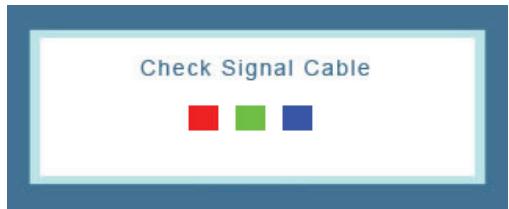
text_image
Check Signal CableThis box appears during normal operation if the video cable becomes disconnected or damaged.
- Turn off your monitor and reconnect the video cable; then turn on both your computer and the monitor.
If your monitor screen remains blank after using the previous procedure, check your video controller and computer system; your monitor is functioning properly.

Warning Messages
If there is something wrong with the input signal, a message appears on the screen or the screen goes blank although the power indicator LED is still on. The message may indicate that the monitor is out of scan range or that you need to check the signal cable.
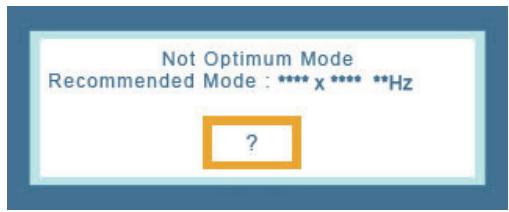
text_image
Not Optimum Mode Recommended Mode : **** x **** **Hz ?
Environment
The location and the position of the monitor may influence the quality and other features of the monitor.
- If there are any sub woofer speakers near the monitor, unplug and relocate the woofer to another room.
- Remove all electronic devices such as radios, fans, clocks and telephones that are within 3 feet (one meter) of the monitor.
Useful Tips
- A monitor recreates visual signals received from the computer. Therefore, if there is trouble with the computer or the video card, this can cause the monitor to become blank, have poor coloring, noise, Video mode not supported, etc. In this case, first check the source of the problem, and then contact the Service Center or your dealer.
• Judging the monitor's working condition
If there is no image on the screen or a "Not Optimum Mode", "Recommended Mode 1680 X 1050 60 Hz" message comes up, disconnect the cable from the computer while the monitor is still powered on.
○ If there is a message coming up on the screen or if the screen goes white, this means the monitor is in working condition. - In this case, check the computer for trouble.
text_image
The color and appearance of the product may vary depending on the model, and the product specifications are subject to change without prior notice for reasons of performance enhancement. ■ Safety Instructions ■ Introduction ■ Setup ■ Adjusting Your Monitor ■ Troubleshooting ■ Specifications ■ InformationGeneral
PowerSaver
Preset Timing Modes

General
General
Model Name SyncMaster 923NW
LCD Panel
Size 19 inch(48 cm)
Display area 408.24 mm (H) x 255.15 mm (V)
Pixel Pitch 0.2835mm (H) x 0.2835 mm (V)
Synchronization
Horizontal 30 \~ 81 kHz
Vertical 56\~75Hz
Display Color
16.7M
Resolution
Optimum resolution 1440 x 900@60Hz
Maximum resolution 1440 x 900@75Hz
Input Signal, Terminated
RGB Analog
0.7 Vp-p ± 5 %
Separate H/V sync, Composite, SOG
TTL level (V high ≥ 2.0 V, V low ≤ 0.8 V)
Maximum Pixel Clock
137MHz
Power Supply
AC 100 - 240 V\~ (+/- 10 %), 50/60 Hz ± 3 Hz
Signal Cable
15pin - to - 15pin D-sub cable, Detachable
Dimensions (WxHxD)/ (Without Stand)
439 x 289 x 65.5 mm(Without Stand)
Dimensions (WxHxD)/ Weight (With Stand)
439 x 360.2 x 199.9 mm (With Stand)/ 3.7 kg
VESA Mounting Interface
75 mm x 75 mm
Environmental considerations
Operating
Temperature : 10°C \~ 40°C (50°F \~ 104°F)
Humidity : 10% \~ 80%, non-condensing
Storage
Temperature : -20^ 45^ ( -4^ 113^ )
Humidity : 5% \~ 95%, non-condensing
Plug and Play Capability
This monitor can be installed on any Plug & Play compatible system. Interaction of the monitor and computer systems will provide the best operating conditions and monitor settings. In most cases, monitor installation will proceed automatically, unless the user wishes to select alternate settings.
Dot Acceptable
TFT LCD panel manufactured by using advanced semiconductor technology with precision of 1ppm (one millionth) above is used for this product. But the pixels of RED, GREEN, BLUE and WHITE color seem to be bright sometimes or some of black pixels could be seen. This is not from bad quality and you can use it without uneasiness.
- For example, the number of TFT LCD sub pixels that is contained in this product are 3,888,000.
Note: Design and specifications are subject to change without prior notice.
Class B Equipment (Information Communication equipment for residential use)
This product complies with the Electromagnetic Compatibility Directives for residential use and can be used in all areas including common residential areas.
(Class B equipment emits less electromagnetic waves than Class A equipment.)
General
PowerSaver
Preset Timing Modes

PowerSaver
This monitor has a built-in power management system called PowerSaver. This system saves energy by switching your monitor into a low-power mode when it has not been used for a certain amount of time. The monitor automatically returns to normal operation when you press a key on the keyboard. For energy conservation, turn your monitor OFF when it is not needed, or when leaving it unattended for long periods. The PowerSaver system operates with a VESA DPMS compliant video card installed in your computer. Use a software utility installed on your computer to set up this feature.
| State | Normal Operation | Power saving mode | Power off (Power button OFF) EPA/ENERGY 2000 |
| Power Indicator | Blue | Blue Blinking | Off |
| Power Consumption | 36 W | Less than 1 W | Less than 1 W |

ENERGY STAR
This monitor is EPA ENERGY STAR ^® compliant and ENERGY2000 compliant when used with a computer equipped with VESA DPMS functionality.
As an ENERGY STAR ^® Partner, SAMSUNG has determined that this product meets the ENERGY STAR ^® guidelines for energy efficiency.

If the signal transferred from the computer is the same as the following Preset Timing Modes, the screen will be adjusted automatically. However, if the signal differs, the screen may go blank while the power LED is on. Refer to the video card manual and adjust the screen as follows.
Table 1. Preset Timing Modes
| Display Mode | Horizontal Frequency (kHz) | Vertical Frequency (Hz) | Pixel Clock (MHz) | Sync Polarity (H/V) |
| IBM, 640 x 350 | 31,469 | 70,086 | 25,175 | +/- |
| IBM, 640 x 480 | 31,469 | 59,940 | 25,175 | -/- |
| IBM, 720 x 400 | 31,469 | 70,087 | 28,322 | -/+ |
| MAC, 640 x 480 | 35,000 | 66,667 | 30,240 | -/- |
| MAC, 832 x 624 | 49,726 | 74,551 | 57,284 | -/- |
| MAC, 1152 x 870 | 68,681 | 75,062 | 100,000 | -/- |
| VESA, 640 x 480 | 37,500 | 75,000 | 31,500 | -/- |
| VESA, 640 x 480 | 37,861 | 72,809 | 31,500 | -/- |
| VESA, 800 x 600 | 35,156 | 56,250 | 36,000 | +/+ |
| VESA, 800 x 600 | 37,879 | 60,317 | 40,000 | +/+ |
| VESA, 800 x 600 | 46,875 | 75,000 | 49,500 | +/+ |
| VESA, 800 x 600 | 48,077 | 72,188 | 50,000 | +/+ |
| VESA, 1024 x 768 | 48,363 | 60,004 | 65,000 | -/- |
| VESA, 1024 x 768 | 56,476 | 70,069 | 75,000 | -/- |
| VESA, 1024 x 768 | 60,023 | 75,029 | 78,750 | +/+ |
| VESA, 1152 x 864 | 67,500 | 75,000 | 108,000 | +/+ |
| VESA, 1280 x 960 | 60,000 | 60,000 | 108,000 | +/+ |
| VESA, 1280 x 1024 | 63,891 | 60,020 | 108,000 | +/+ |
| VESA, 1280 x 1024 | 79,976 | 75,025 | 135,00 | +/+ |
| VESA, 1440 x 900 | 55,935 | 59,887 | 106,500 | -/+ |
| VESA, 1440 x 900 | 70,635 | 74,984 | 136,750 | -/+ |

natural_image
Cartoon illustration of a notebook character with question marks above, against a blue upward-trending arrow background (no text or symbols)Horizontal Frequency
The time to scan one line connecting the right edge to the left edge of the screen horizontally is called Horizontal Cycle and the inverse number of the Horizontal Cycle is called Horizontal Frequency. Unit: kHz
Vertical Frequency
Like a fluorescent lamp, the screen has to repeat the same image many times per second to display an image to the user. The frequency of this repetition is called Vertical Frequency or Refresh Rate. Unit: Hz
text_image
The color and appearance of the product may vary depending on the model, and the product specifications are subject to change without prior notice for reasons of performance enhancement. ■ Safety Instructions ■ Introduction ■ Setup ■ Adjusting Your Monitor ■ Troubleshooting ■ Specifications ■ InformationGeneral
PowerSaver
Preset Timing Modes

General
General
Model Name SyncMaster 2023NW
LCD Panel
Size 20inch (51 cm)
Display area 433.44mm (H) x 270.9mm (V)
Pixel Pitch 0.258 mm (H) x 0.258mm (V)
Synchronization
Horizontal 30 \~ 81 kHz
Vertical 56\~75Hz
Display Color
16.7M
Resolution
Optimum resolution 1680 x 1050@60Hz
Maximum resolution 1680 x 1050@60Hz
Input Signal, Terminated
RGB Analog
0.7 Vp-p ± 5 %
Separate H/V sync, Composite, SOG
TTL level (V high ≥ 2.0 V, V low ≤ 0.8 V)
Maximum Pixel Clock
146MHz
Power Supply
AC 100 - 240 V\~ (+/- 10 %), 50/60 Hz ± 3 Hz
Signal Cable
15pin - to - 15pin D-sub cable, Detachable
Dimensions (WxHxD)/ (Without Stand)
471.4 x 307.9 x 69.5 mm(Without Stand)
Dimensions (WxHxD)/ Weight (With Stand)
471.4 x 391.1 x 217.3 mm (With Stand) / 3.8 kg
VESA Mounting Interface
100 mm x 100 mm
Environmental considerations
Operating
Temperature : 10°C \~ 40°C (50°F \~ 104°F)
Humidity : 10% \~ 80%, non-condensing
Storage
Temperature : -20^ 45^ ( -4^ 113^ )
Humidity : 5% \~ 95%, non-condensing
Plug and Play Capability
This monitor can be installed on any Plug & Play compatible system. Interaction of the monitor and computer systems will provide the best operating conditions and monitor settings. In most cases, monitor installation will proceed automatically, unless the user wishes to select alternate settings.
Dot Acceptable
TFT LCD panel manufactured by using advanced semiconductor technology with precision of 1ppm (one millionth) above is used for this product. But the pixels of RED, GREEN, BLUE and WHITE color seem to be bright sometimes or some of black pixels could be seen. This is not from bad quality and you can use it without uneasiness.
- For example, the number of TFT LCD sub pixels that is contained in this product are 5,292,000.
Note: Design and specifications are subject to change without prior notice.
Class B Equipment (Information Communication equipment for residential use)
This product complies with the Electromagnetic Compatibility Directives for residential use and can be used in all areas including common residential areas.
(Class B equipment emits less electromagnetic waves than Class A equipment.)
General
PowerSaver
Preset Timing Modes

PowerSaver
This monitor has a built-in power management system called PowerSaver. This system saves energy by switching your monitor into a low-power mode when it has not been used for a certain amount of time. The monitor automatically returns to normal operation when you press a key on the keyboard. For energy conservation, turn your monitor OFF when it is not needed, or when leaving it unattended for long periods. The PowerSaver system operates with a VESA DPMS compliant video card installed in your computer. Use a software utility installed on your computer to set up this feature.
| State | Normal Operation | Power saving mode | Power off (Power button OFF) EPA/ENERGY 2000 |
| Power Indicator | Blue | Blue Blinking | Off |
| Power Consumption | 41 W | Less than 1 W | Less than 1 W |

ENERGY STAR
This monitor is EPA ENERGY STAR ^® compliant and ENERGY2000 compliant when used with a computer equipped with VESA DPMS functionality.
As an ENERGY STAR ^® Partner, SAMSUNG has determined that this product meets the ENERGY STAR ^® guidelines for energy efficiency.

If the signal transferred from the computer is the same as the following Preset Timing Modes, the screen will be adjusted automatically. However, if the signal differs, the screen may go blank while the power LED is on. Refer to the video card manual and adjust the screen as follows.
Table 1. Preset Timing Modes
| Display Mode | Horizontal Frequency (kHz) | Vertical Frequency (Hz) | Pixel Clock (MHz) | Sync Polarity (H/V) |
| IBM, 640 x 350 | 31,469 | 70,086 | 25,175 | +/- |
| IBM, 640 x 480 | 31,469 | 59,940 | 25,175 | -/- |
| IBM, 720 x 400 | 31,469 | 70,087 | 28,322 | -/+ |
| MAC, 640 x 480 | 35,000 | 66,667 | 30,240 | -/- |
| MAC, 832 x 624 | 49,726 | 74,551 | 57,284 | -/- |
| MAC, 1152 x 870 | 68,681 | 75,062 | 100,000 | -/- |
| VESA, 640 x 480 | 37,861 | 72,809 | 31,500 | -/- |
| VESA, 640 x 480 | 37,500 | 75,000 | 31,500 | -/- |
| VESA, 800 x 600 | 35,156 | 56,250 | 36,000 | +/+ |
| VESA, 800 x 600 | 37,879 | 60,317 | 40,000 | +/+ |
| VESA, 800 x 600 | 48,077 | 72,188 | 50,000 | +/+ |
| VESA, 800 x 600 | 46,875 | 75,000 | 49,500 | +/+ |
| VESA, 1024 x 768 | 48,363 | 60,004 | 65,000 | -/- |
| VESA, 1024 x 768 | 56,476 | 70,069 | 75,000 | -/- |
| VESA, 1024 x 768 | 60,023 | 75,029 | 78,750 | +/+ |
| VESA, 1152 x 864 | 67,500 | 75,000 | 108,000 | +/+ |
| VESA, 1280 x 960 | 60,000 | 60,000 | 108,000 | +/+ |
| VESA, 1280 x 1024 | 79,976 | 75,025 | 135,000 | +/+ |
| VESA, 1680 x 1050 | 64,674 | 59,883 | 119,000 | +/- |

natural_image
Cartoon illustration of an open book with a line graph and question marks above it, set against a blue upward arrow background (no text or symbols)Horizontal Frequency
The time to scan one line connecting the right edge to the left edge of the screen horizontally is called Horizontal Cycle and the inverse number of the Horizontal Cycle is called Horizontal Frequency. Unit: kHz
Vertical Frequency
Like a fluorescent lamp, the screen has to repeat the same image many times per second to display an image to the user. The frequency of this repetition is called Vertical Frequency or Refresh Rate. Unit: Hz
text_image
The color and appearance of the product may vary depending on the model, and the product specifications are subject to change without prior notice for reasons of performance enhancement. ■ Safety Instructions ■ Introduction ■ Setup ■ Adjusting Your Monitor ■ Troubleshooting ■ Specifications ■ InformationGeneral
PowerSaver
Preset Timing Modes

General
General
Model Name SyncMaster 2223NW
LCD Panel
Size 22inch
Display area 473.76mm (H) x 296.1 mm (V)
Pixel Pitch 0.282 mm (H) x 0.282 mm (V)
Synchronization
Horizontal 30 \~ 81 kHz
Vertical 56\~75Hz
Display Color
16.7M
Resolution
Optimum resolution 1680 x 1050@60Hz
Maximum resolution 1680 x 1050@60Hz
Input Signal, Terminated
RGB Analog
0.7 Vp-p ± 5 %
Separate H/V sync, Composite, SOG
TTL level (V high ≥ 2.0 V, V low ≤ 0.8 V)
Maximum Pixel Clock
146MHz (Analog)
Power Supply
AC 100 - 240 V\~ (+/- 10 %), 50/60 Hz ± 3 Hz
Signal Cable
15pin - to - 15pin D-sub cable, Detachable
Dimensions (WxHxD)/ (Without Stand)
511 x 335 x 66.8 mm (Without Stand)
Dimensions (WxHxD)/ Weight (With Stand)
511 x 417.8 x 217.3 mm (With Stand) / 4.9 kg
VESA Mounting Interface
100 mm x 100 mm
Environmental considerations
Operating
Temperature : 10°C \~ 40°C (50°F \~ 104°F)
Humidity : 10% \~ 80%, non-condensing
Storage
Temperature : -20^ 45^ ( -4^ 113^ )
Humidity : 5% \~ 95%, non-condensing
Plug and Play Capability
This monitor can be installed on any Plug & Play compatible system. Interaction of the monitor and computer systems will provide the best operating conditions and monitor settings. In most cases, monitor installation will proceed automatically, unless the user wishes to select alternate settings.
Dot Acceptable
TFT LCD panel manufactured by using advanced semiconductor technology with precision of 1ppm (one millionth) above is used for this product. But the pixels of RED, GREEN, BLUE and WHITE color seem to be bright sometimes or some of black pixels could be seen. This is not from bad quality and you can use it without uneasiness.
- For example, the number of TFT LCD sub pixels that is contained in this product are 5,292,000.
Note: Design and specifications are subject to change without prior notice.
Class B Equipment (Information Communication equipment for residential use)
This product complies with the Electromagnetic Compatibility Directives for residential use and can be used in all areas including common residential areas.
(Class B equipment emits less electromagnetic waves than Class A equipment.)
General
PowerSaver
Preset Timing Modes

PowerSaver
This monitor has a built-in power management system called PowerSaver. This system saves energy by switching your monitor into a low-power mode when it has not been used for a certain amount of time. The monitor automatically returns to normal operation when you press a key on the keyboard. For energy conservation, turn your monitor OFF when it is not needed, or when leaving it unattended for long periods. The PowerSaver system operates with a VESA DPMS compliant video card installed in your computer. Use a software utility installed on your computer to set up this feature.
| State | Normal Operation | Power saving mode | Power off (Power button OFF) EPA/ENERGY 2000 |
| Power Indicator | Blue | Blue Blinking | Off |
| Power Consumption | 41 W | Less than 1 W | Less than 1 W |

ENERGY STAR
This monitor is EPA ENERGY STAR ^® compliant and ENERGY2000 compliant when used with a computer equipped with VESA DPMS functionality.
As an ENERGY STAR ^® Partner, SAMSUNG has determined that this product meets the ENERGY STAR ^® guidelines for energy efficiency.

If the signal transferred from the computer is the same as the following Preset Timing Modes, the screen will be adjusted automatically. However, if the signal differs, the screen may go blank while the power LED is on. Refer to the video card manual and adjust the screen as follows.
Table 1. Preset Timing Modes
| Display Mode | Horizontal Frequency (kHz) | Vertical Frequency (Hz) | Pixel Clock (MHz) | Sync Polarity (H/V) |
| IBM, 640 x 350 | 31,469 | 70,086 | 25,175 | +/- |
| IBM, 640 x 480 | 31,469 | 59,940 | 25,175 | -/- |
| IBM, 720 x 400 | 31,469 | 70,087 | 28,322 | -/+ |
| MAC, 640 x 480 | 35,000 | 66,667 | 30,240 | -/- |
| MAC, 832 x 624 | 49,726 | 74,551 | 57,284 | -/- |
| MAC, 1152 x 870 | 68,681 | 75,062 | 100,000 | -/- |
| VESA, 640 x 480 | 37,861 | 72,809 | 31,500 | -/- |
| VESA, 640 x 480 | 37,500 | 75,000 | 31,500 | -/- |
| VESA, 800 x 600 | 35,156 | 56,250 | 36,000 | +/+ |
| VESA, 800 x 600 | 37,879 | 60,317 | 40,000 | +/+ |
| VESA, 800 x 600 | 48,077 | 72,188 | 50,000 | +/+ |
| VESA, 800 x 600 | 46,875 | 75,000 | 49,500 | +/+ |
| VESA, 1024 x 768 | 48,363 | 60,004 | 65,000 | -/- |
| VESA, 1024 x 768 | 56,476 | 70,069 | 75,000 | -/- |
| VESA, 1024 x 768 | 60,023 | 75,029 | 78,750 | +/+ |
| VESA, 1152 x 864 | 67,500 | 75,000 | 108,000 | +/+ |
| VESA, 1280 x 960 | 60,000 | 60,000 | 108,000 | +/+ |
| VESA, 1280 x 1024 | 79,976 | 75,025 | 135,000 | +/+ |
| VESA, 1680 x 1050 | 64,674 | 59,883 | 119,000 | +/- |

natural_image
Cartoon illustration of an open book with a line graph and question marks above it, set against a blue upward arrow background (no text or symbols)Horizontal Frequency
The time to scan one line connecting the right edge to the left edge of the screen horizontally is called Horizontal Cycle and the inverse number of the Horizontal Cycle is called Horizontal Frequency. Unit: kHz
Vertical Frequency
Like a fluorescent lamp, the screen has to repeat the same image many times per second to display an image to the user. The frequency of this repetition is called Vertical Frequency or Refresh Rate. Unit: Hz
text_image
The color and appearance of the product may vary depending on the model, and the product specifications are subject to change without prior notice for reasons of performance enhancement. ■ Safety Instructions ■ Introduction ■ Setup ■ Adjusting Your Monitor ■ Troubleshooting ■ Specifications ■ InformationContact SAMSUNG WORLDWIDE
Terms
For Better Display
Authority
Correct Disposal

Contact SAMSUNG WORLDWIDE

If you have any questions or comments relating to Samsung products, please contact the SAMSUNG customer care center.
| North America | ||
| U.S.A | 1-800-SAMSUNG (726-7864) | http://www.samsung.com |
| CANADA | 1-800-SAMSUNG (726-7864) | http://www.samsung.com/ca |
| MEXICO | 01-800-SAMSUNG (726-7864) | http://www.samsung.com |
| Latin America | ||
| ARGENTINE | 0800-333-3733 | http://www.samsung.com/ar |
| BRAZIL | 0800-124-4214004-0000 | http://www.samsung.com |
| CHILE | 800-SAMSUNG(726-7864) | http://www.samsung.com/cl |
| COLOMBIA | 01-8000112112 | http://www.samsung.com/co |
| COSTA RICA | 0-800-507-7267 | http://www.samsung.com/latin |
| ECUADOR | 1-800-10-7267 | http://www.samsung.com/latin |
| EL SALVADOR | 800-6225 | http://www.samsung.com/latin |
| GUATEMALA | 1-800-299-0013 | http://www.samsung.com/latin |
| HONDURAS | 800-7919267 | |
| JAMAICA | 1-800-234-7267 | http://www.samsung.com/latin |
| NICARAGUA | 00-1800-5077267 | |
| PANAMA | 800-7267 | http://www.samsung.com/latin |
| PUERTO RICO | 1-800-682-3180 | http://www.samsung.com/latin |
| REP. DOMINICA | 1-800-751-2676 | http://www.samsung.com/latin |
| TRINIDAD & TOBAGO | 1-800-SAMSUNG(726-7864) | http://www.samsung.com/latin |
| VENEZUELA | 0-800-100-5303 | http://www.samsung.com/latin |
| Europe | ||
| AUSTRIA | 0800-SAMSUNG(726-7864) | http://www.samsung.com/at |
| BELGIUM | 0032 (0)2 201 24 18 | http://www.samsung.com/be |
| CZECH REPUBLIC | 844 000 844 | http://www.samsung.com/cz |
| Distributor pro Českou republiku: Samsung Zrt., Česka organizační složka Vyskočilova 4, 14000 Praha 4 | ||
| DENMARK | 70 70 19 70 | http://www.samsung.com/dk |
| EIRE | 0818 717 100 | http://www.samsung.com/ie |
| FINLAND | 030-6227 515 | http://www.samsung.com/fi |
| FRANCE | 3260 SAMSUNG(€ 0,15/Min) 08 25 08 65 65 (€ 0,15/Min) | http://www.samsung.com |
| GERMANY | 01805 - SAMSUNG(726-7864) (€ 0,14/Min) | http://www.samsung.com |
| HUNGARY | 06-80-SAMSUNG(726-7864) | http://www.samsung.com |
| ITALIA | 800-SAMSUNG(726-7864) | http://www.samsung.com |
| LUXEMBURG | 0035 (0)2 261 03 710 | http://www.samsung.com/be |
| NETHERLANDS | 0900 SAMSUNG(726-7864) (€ 0,10/Min) | http://www.samsung.com/nl |
| NORWAY | 815-56 480 | http://www.samsung.com/no |
| POLAND | 0 801 801 881 022-607-93-33 | http://www.samsung.com/pl |
| PORTUGAL | 80820-SAMSUNG(726-7864) | http://www.samsung.com/pt |
| SLOVAKIA | 0800-SAMSUNG (726-7864) | http://www.samsung.com/sk |
| SPAIN | 902 10 11 30 | http://www.samsung.com |
| SWEDEN | 0771-400 200 | http://www.samsung.com/se |
| SWITZERLAND | 0800-SAMSUNG(726-7864) | http://www.samsung.com/ch |
| U.K | 0845 SAMSUNG (7267864) | http://www.samsung.com |
| CIS | ||
| ESTONIA | 800-7267 | http://www.samsung.ee |
| LATVIA | 800-7267 | http://www.samsung.com/lv |
| LITHUANIA | 8-800-77777 | http://www.samsung.lt |
| KAZAKHSTAN | 8-10-800-500-55-500 | http://www.samsung.kz |
| KYRGYZSTAN | 00-800-500-55-500 | |
| RUSSIA | 8-800-555-55-55 | http://www.samsung.ru |
| TADJIKISTAN | 8-10-800-500-55-500 | |
| UKRAINE | 8-800-502-0000 | http://www.samsung.com |
| UZBEKISTAN | 8-10-800-500-55-500 | http://www.samsung.uz |
| Asia Pacific | ||
| AUSTRALIA | 1300 362 603 | http://www.samsung.com |
| 800-810-5858 | ||
| CHINA | 010-6475 1880 | http://www.samsung.com |
| HONG KONG | 3698-4698 | http://www.samsung.com/hk |
| 3030 8282 | ||
| INDIA | 1800 110011 | http://www.samsung.com |
| INDONESIA | 0800-112-8888 | http://www.samsung.com |
| JAPAN | 0120-327-527 | http://www.samsung.com/jp |
| MALAYSIA | 1800-88-9999 | http://www.samsung.com/my |
| NEW ZEALAND | 0800 SAMSUNG(726-7864) | http://www.samsung.com/nz |
| PHILIPPINES | 1800-10-SAMSUNG (726-7864) | http://www.samsung.com/ph |
| SINGAPORE | 1800-SAMSUNG (726-7864) | http://www.samsung.com |
| THAILAND | 1800-29-3232, 02-689-3232 | http://www.samsung.com |
| TAIWAN | 0800-329-999 | http://www.samsung.com/tw |
| VIETNAM | 1 800 588 889 | http://www.samsung.com |
| Middle East & Africa | ||
| SOUTH AFRICA | 0860-SAMSUNG(726-7864) | http://www.samsung.com |
| TURKEY | 444 77 11 | http://www.samsung.com |
| U.A.E | 800-SAMSUNG(726-7864)8000-4726 | http://www.samsung.com |
Contact SAMSUNG WORLDWIDE
Terms
For Better Display
Authority
Correct Disposal
Terms
Dot Pitch
The image on a monitor is composed of red, green and blue dots. The closer the dots, the higher the resolution. The distance between two dots of the same color is called the 'Dot Pitch'. Unit: mm
Vertical Frequency
The screen must be redrawn several times per second in order to create and display an image for the user. The frequency of this repetition per second is called Vertical Frequency or Refresh Rate. Unit: Hz
Example : If the same light repeats itself 60 times per second, this is regarded as 60 Hz.
Horizontal Frequency
The time to scan one line connecting the right edge to the left edge of the screen horizontally is called Horizontal Cycle. The inverse number of the Horizontal Cycle is called Horizontal Frequency. Unit: kHz
Interlace and Non-Interlace Methods
Showing the horizontal lines of the screen from the top to the bottom in order is called the Non-Interlace method while showing odd lines and then even lines in turn is called the Interlace method. The Non-Interlace method is used for the majority of monitors to ensure a clear image. The Interlace method is the same as that used in TVs.
Plug & Play
This is a function that provides the best quality screen for the user by allowing the computer and the monitor to exchange information automatically. This monitor follows the international standard VESA DDC for the Plug & Play function.
Resolution
The number of horizontal and vertical dots used to compose the screen image is called 'resolution'. This number shows the accuracy of the display. High resolution is good for performing multiple tasks as more image information can be shown on the screen.
For Better Display
- Adjust computer resolution and screen injection rate (refresh rate) oncomputer as described below to enjoy the best quality of picture. You can have an uneven quality of picture in the screen if the best quality of picture is not provided in TFT-LCD.
○ Resolution: 1440 X 900
○ Vertical frequency (refresh rate): 60 Hz
- TFT LCD panel manufactured by using advanced semiconductor technology with precision of 1ppm (one millionth) above is used for this product. But the pixels of RED, GREEN, BLUE and WHITE color seem to be bright sometimes or some of black pixels could be seen. This is not from bad quality and you can use it without uneasiness.
☐ For example, the number of TFT LCD sub pixels that is contained in this product are 5,292,000.
-
When you clean the monitor and the panel outside, please apply the recommended small amount of cleaner by using soft and dry cloth and polish it. Let LCD area not to be forced but to be scrubbed out softly. If excessive force is applied, you can have a stain on it.
-
If you are not satisfied with the quality of the picture, you can get better quality of the picture by executing "auto adjustment function" in display screen that is appeared as window termination button is pressed. If there's still noise after automatic adjustment, use FINE/COARSE adjustment function.
-
If you view a fixed screen for an extended period of time, residual image or blurriness may appear. Change the mode to energy save or set a screensaver to move the picture when you need to be away from the monitor for an extended period of time.
Contact SAMSUNG WORLDWIDE | Terms | For Better Display | Authority | Correct Disposal |
Authority
Information in this document is subject to change without notice. © 2008 Samsung Electronics Co., Ltd. All rights reserved.
Reproduction in any manner whatsoever without the written permission of Samsung Electronics Co., Ltd. is strictly forbidden.
Samsung Electronics Co., Ltd. shall not be liable for errors contained herein or for incidental or consequential damages in connection with the furnishing, performance, or use of this material.
Samsung is the registered trademark of Samsung Electronics Co., Ltd.; Microsoft, Windows and Windows NT are registered trademarks of Microsoft Corporation; VESA, DPMS and DDC are registered trademarks of Video Electronics Standard Association; the ENERGY STAR® name and logo are registered trademarks of the U.S. Environmental Protection Agency (EPA). As an ENERGY STAR® Partner, Samsung Electronics Co., Ltd. has determined that this product meets the ENERGY STAR® guidelines for energy efficiency. All other product names mentioned herein may be the trademarks or registered trademarks of their respective owners.
text_image
The color and appearance of the product may vary depending on the model, and the product specifications are subject to change without prior notice for reasons of performance enhancement. ■ Safety Instructions ■ Introduction ■ Setup ■ Adjusting Your Monitor ■ Troubleshooting ■ Specifications ■ InformationContact SAMSUNG WORLDWIDE
Terms
For Better Display
Authority
Correct Disposal

Contact SAMSUNG WORLDWIDE

If you have any questions or comments relating to Samsung products, please contact the SAMSUNG customer care center.
| North America | ||
| U.S.A | 1-800-SAMSUNG (726-7864) | http://www.samsung.com |
| CANADA | 1-800-SAMSUNG (726-7864) | http://www.samsung.com/ca |
| MEXICO | 01-800-SAMSUNG (726-7864) | http://www.samsung.com |
| Latin America | ||
| ARGENTINE | 0800-333-3733 | http://www.samsung.com/ar |
| BRAZIL | 0800-124-4214004-0000 | http://www.samsung.com |
| CHILE | 800-SAMSUNG(726-7864) | http://www.samsung.com/cl |
| COLOMBIA | 01-8000112112 | http://www.samsung.com/co |
| COSTA RICA | 0-800-507-7267 | http://www.samsung.com/latin |
| ECUADOR | 1-800-10-7267 | http://www.samsung.com/latin |
| EL SALVADOR | 800-6225 | http://www.samsung.com/latin |
| GUATEMALA | 1-800-299-0013 | http://www.samsung.com/latin |
| HONDURAS | 800-7919267 | |
| JAMAICA | 1-800-234-7267 | http://www.samsung.com/latin |
| NICARAGUA | 00-1800-5077267 | |
| PANAMA | 800-7267 | http://www.samsung.com/latin |
| PUERTO RICO | 1-800-682-3180 | http://www.samsung.com/latin |
| REP. DOMINICA | 1-800-751-2676 | http://www.samsung.com/latin |
| TRINIDAD & TOBAGO | 1-800-SAMSUNG(726-7864) | http://www.samsung.com/latin |
| VENEZUELA | 0-800-100-5303 | http://www.samsung.com/latin |
| Europe | ||
| AUSTRIA | 0800-SAMSUNG(726-7864) | http://www.samsung.com/at |
| BELGIUM | 0032 (0)2 201 24 18 | http://www.samsung.com/be |
| CZECH REPUBLIC | 844 000 844 | http://www.samsung.com/cz |
| Distributor pro Českou republiku: Samsung Zrt., Česka organizační složka Vyskočilova 4, 14000 Praha 4 | ||
| DENMARK | 70 70 19 70 | http://www.samsung.com/dk |
| EIRE | 0818 717 100 | http://www.samsung.com/ie |
| FINLAND | 030-6227 515 | http://www.samsung.com/fi |
| FRANCE | 3260 SAMSUNG(€ 0,15/Min) 08 25 08 65 65 (€ 0,15/Min) | http://www.samsung.com |
| GERMANY | 01805 - SAMSUNG(726-7864) (€ 0,14/Min) | http://www.samsung.com |
| HUNGARY | 06-80-SAMSUNG(726-7864) | http://www.samsung.com |
| ITALIA | 800-SAMSUNG(726-7864) | http://www.samsung.com |
| LUXEMBURG | 0035 (0)2 261 03 710 | http://www.samsung.com/be |
| NETHERLANDS | 0900 SAMSUNG(726-7864) (€ 0,10/Min) | http://www.samsung.com/nl |
| NORWAY | 815-56 480 | http://www.samsung.com/no |
| POLAND | 0 801 801 881 022-607-93-33 | http://www.samsung.com/pl |
| PORTUGAL | 80820-SAMSUNG(726-7864) | http://www.samsung.com/pt |
| SLOVAKIA | 0800-SAMSUNG (726-7864) | http://www.samsung.com/sk |
| SPAIN | 902 10 11 30 | http://www.samsung.com |
| SWEDEN | 0771-400 200 | http://www.samsung.com/se |
| SWITZERLAND | 0800-SAMSUNG(726-7864) | http://www.samsung.com/ch |
| U.K | 0845 SAMSUNG (7267864) | http://www.samsung.com |
| CIS | ||
| ESTONIA | 800-7267 | http://www.samsung.ee |
| LATVIA | 800-7267 | http://www.samsung.com/lv |
| LITHUANIA | 8-800-77777 | http://www.samsung.lt |
| KAZAKHSTAN | 8-10-800-500-55-500 | http://www.samsung.kz |
| KYRGYZSTAN | 00-800-500-55-500 | |
| RUSSIA | 8-800-555-55-55 | http://www.samsung.ru |
| TADJIKISTAN | 8-10-800-500-55-500 | |
| UKRAINE | 8-800-502-0000 | http://www.samsung.com |
| UZBEKISTAN | 8-10-800-500-55-500 | http://www.samsung.uz |
| Asia Pacific | ||
| AUSTRALIA | 1300 362 603 | http://www.samsung.com |
| 800-810-5858 | ||
| CHINA | 010-6475 1880 | http://www.samsung.com |
| HONG KONG | 3698-4698 | http://www.samsung.com/hk |
| 3030 8282 | ||
| INDIA | 1800 110011 | http://www.samsung.com |
| INDONESIA | 0800-112-8888 | http://www.samsung.com |
| JAPAN | 0120-327-527 | http://www.samsung.com/jp |
| MALAYSIA | 1800-88-9999 | http://www.samsung.com/my |
| NEW ZEALAND | 0800 SAMSUNG(726-7864) | http://www.samsung.com/nz |
| PHILIPPINES | 1800-10-SAMSUNG (726-7864) | http://www.samsung.com/ph |
| SINGAPORE | 1800-SAMSUNG (726-7864) | http://www.samsung.com |
| THAILAND | 1800-29-3232, 02-689-3232 | http://www.samsung.com |
| TAIWAN | 0800-329-999 | http://www.samsung.com/tw |
| VIETNAM | 1 800 588 889 | http://www.samsung.com |
| Middle East & Africa | ||
| SOUTH AFRICA | 0860-SAMSUNG(726-7864) | http://www.samsung.com |
| TURKEY | 444 77 11 | http://www.samsung.com |
| U.A.E | 800-SAMSUNG(726-7864)8000-4726 | http://www.samsung.com |
Contact SAMSUNG WORLDWIDE
Terms
For Better Display
Authority
Correct Disposal
Terms
Dot Pitch
The image on a monitor is composed of red, green and blue dots. The closer the dots, the higher the resolution. The distance between two dots of the same color is called the 'Dot Pitch'. Unit: mm
Vertical Frequency
The screen must be redrawn several times per second in order to create and display an image for the user. The frequency of this repetition per second is called Vertical Frequency or Refresh Rate. Unit: Hz
Example : If the same light repeats itself 60 times per second, this is regarded as 60 Hz.
Horizontal Frequency
The time to scan one line connecting the right edge to the left edge of the screen horizontally is called Horizontal Cycle. The inverse number of the Horizontal Cycle is called Horizontal Frequency. Unit: kHz
Interlace and Non-Interlace Methods
Showing the horizontal lines of the screen from the top to the bottom in order is called the Non-Interlace method while showing odd lines and then even lines in turn is called the Interlace method. The Non-Interlace method is used for the majority of monitors to ensure a clear image. The Interlace method is the same as that used in TVs.
Plug & Play
This is a function that provides the best quality screen for the user by allowing the computer and the monitor to exchange information automatically. This monitor follows the international standard VESA DDC for the Plug & Play function.
Resolution
The number of horizontal and vertical dots used to compose the screen image is called 'resolution'. This number shows the accuracy of the display. High resolution is good for performing multiple tasks as more image information can be shown on the screen.
For Better Display
- Adjust computer resolution and screen injection rate (refresh rate) oncomputer as described below to enjoy the best quality of picture. You can have an uneven quality of picture in the screen if the best quality of picture is not provided in TFT-LCD.
○ Resolution: 1680 X 1050
○ Vertical frequency (refresh rate): 60 Hz
- TFT LCD panel manufactured by using advanced semiconductor technology with precision of 1ppm (one millionth) above is used for this product. But the pixels of RED, GREEN, BLUE and WHITE color seem to be bright sometimes or some of black pixels could be seen. This is not from bad quality and you can use it without uneasiness.
☐ For example, the number of TFT LCD sub pixels that is contained in this product are 5,292,000.
-
When you clean the monitor and the panel outside, please apply the recommended small amount of cleaner by using soft and dry cloth and polish it. Let LCD area not to be forced but to be scrubbed out softly. If excessive force is applied, you can have a stain on it.
-
If you are not satisfied with the quality of the picture, you can get better quality of the picture by executing "auto adjustment function" in display screen that is appeared as window termination button is pressed. If there's still noise after automatic adjustment, use FINE/COARSE adjustment function.
-
If you view a fixed screen for an extended period of time, residual image or blurriness may appear. Change the mode to energy save or set a screensaver to move the picture when you need to be away from the monitor for an extended period of time.
Contact SAMSUNG WORLDWIDE | Terms | For Better Display | Authority | Correct Disposal |
Authority
Information in this document is subject to change without notice. © 2008 Samsung Electronics Co., Ltd. All rights reserved.
Reproduction in any manner whatsoever without the written permission of Samsung Electronics Co., Ltd. is strictly forbidden.
Samsung Electronics Co., Ltd. shall not be liable for errors contained herein or for incidental or consequential damages in connection with the furnishing, performance, or use of this material.
Samsung is the registered trademark of Samsung Electronics Co., Ltd.; Microsoft, Windows and Windows NT are registered trademarks of Microsoft Corporation; VESA, DPMS and DDC are registered trademarks of Video Electronics Standard Association; the ENERGY STAR® name and logo are registered trademarks of the U.S. Environmental Protection Agency (EPA). As an ENERGY STAR® Partner, Samsung Electronics Co., Ltd. has determined that this product meets the ENERGY STAR® guidelines for energy efficiency. All other product names mentioned herein may be the trademarks or registered trademarks of their respective owners.
text_image
The color and appearance of the product may vary depending on the model, and the product specifications are subject to change without prior notice for reasons of performance enhancement. ■ Safety Instructions ■ Introduction ■ Setup ■ Adjusting Your Monitor ■ Troubleshooting ■ Specifications ■ InformationContact SAMSUNG WORLDWIDE
Terms
For Better Display
Authority
Correct Disposal

Contact SAMSUNG WORLDWIDE

If you have any questions or comments relating to Samsung products, please contact the SAMSUNG customer care center.
| North America | ||
| U.S.A | 1-800-SAMSUNG (726-7864) | http://www.samsung.com |
| CANADA | 1-800-SAMSUNG (726-7864) | http://www.samsung.com/ca |
| MEXICO | 01-800-SAMSUNG (726-7864) | http://www.samsung.com |
| Latin America | ||
| ARGENTINE | 0800-333-3733 | http://www.samsung.com/ar |
| BRAZIL | 0800-124-4214004-0000 | http://www.samsung.com |
| CHILE | 800-SAMSUNG(726-7864) | http://www.samsung.com/cl |
| COLOMBIA | 01-8000112112 | http://www.samsung.com/co |
| COSTA RICA | 0-800-507-7267 | http://www.samsung.com/latin |
| ECUADOR | 1-800-10-7267 | http://www.samsung.com/latin |
| EL SALVADOR | 800-6225 | http://www.samsung.com/latin |
| GUATEMALA | 1-800-299-0013 | http://www.samsung.com/latin |
| HONDURAS | 800-7919267 | |
| JAMAICA | 1-800-234-7267 | http://www.samsung.com/latin |
| NICARAGUA | 00-1800-5077267 | |
| PANAMA | 800-7267 | http://www.samsung.com/latin |
| PUERTO RICO | 1-800-682-3180 | http://www.samsung.com/latin |
| REP. DOMINICA | 1-800-751-2676 | http://www.samsung.com/latin |
| TRINIDAD & TOBAGO | 1-800-SAMSUNG(726-7864) | http://www.samsung.com/latin |
| VENEZUELA | 0-800-100-5303 | http://www.samsung.com/latin |
| Europe | ||
| AUSTRIA | 0800-SAMSUNG(726-7864) | http://www.samsung.com/at |
| BELGIUM | 0032 (0)2 201 24 18 | http://www.samsung.com/be |
| CZECH REPUBLIC | 844 000 844 | http://www.samsung.com/cz |
| Distributor pro Českou republiku: Samsung Zrt., Česka organizační složka Vyskočilova 4, 14000 Praha 4 | ||
| DENMARK | 70 70 19 70 | http://www.samsung.com/dk |
| EIRE | 0818 717 100 | http://www.samsung.com/ie |
| FINLAND | 030-6227 515 | http://www.samsung.com/fi |
| FRANCE | 3260 SAMSUNG(€ 0,15/Min) 08 25 08 65 65 (€ 0,15/Min) | http://www.samsung.com |
| GERMANY | 01805 - SAMSUNG(726-7864) (€ 0,14/Min) | http://www.samsung.com |
| HUNGARY | 06-80-SAMSUNG(726-7864) | http://www.samsung.com |
| ITALIA | 800-SAMSUNG(726-7864) | http://www.samsung.com |
| LUXEMBURG | 0035 (0)2 261 03 710 | http://www.samsung.com/be |
| NETHERLANDS | 0900 SAMSUNG(726-7864) (€ 0,10/Min) | http://www.samsung.com/nl |
| NORWAY | 815-56 480 | http://www.samsung.com/no |
| POLAND | 0 801 801 881 022-607-93-33 | http://www.samsung.com/pl |
| PORTUGAL | 80820-SAMSUNG(726-7864) | http://www.samsung.com/pt |
| SLOVAKIA | 0800-SAMSUNG (726-7864) | http://www.samsung.com/sk |
| SPAIN | 902 10 11 30 | http://www.samsung.com |
| SWEDEN | 0771-400 200 | http://www.samsung.com/se |
| SWITZERLAND | 0800-SAMSUNG(726-7864) | http://www.samsung.com/ch |
| U.K | 0845 SAMSUNG (7267864) | http://www.samsung.com |
| CIS | ||
| ESTONIA | 800-7267 | http://www.samsung.ee |
| LATVIA | 800-7267 | http://www.samsung.com/lv |
| LITHUANIA | 8-800-77777 | http://www.samsung.lt |
| KAZAKHSTAN | 8-10-800-500-55-500 | http://www.samsung.kz |
| KYRGYZSTAN | 00-800-500-55-500 | |
| RUSSIA | 8-800-555-55-55 | http://www.samsung.ru |
| TADJIKISTAN | 8-10-800-500-55-500 | |
| UKRAINE | 8-800-502-0000 | http://www.samsung.com |
| UZBEKISTAN | 8-10-800-500-55-500 | http://www.samsung.uz |
| Asia Pacific | ||
| AUSTRALIA | 1300 362 603 | http://www.samsung.com |
| 800-810-5858 | ||
| CHINA | 010-6475 1880 | http://www.samsung.com |
| HONG KONG | 3698-4698 | http://www.samsung.com/hk |
| 3030 8282 | ||
| INDIA | 1800 110011 | http://www.samsung.com |
| INDONESIA | 0800-112-8888 | http://www.samsung.com |
| JAPAN | 0120-327-527 | http://www.samsung.com/jp |
| MALAYSIA | 1800-88-9999 | http://www.samsung.com/my |
| NEW ZEALAND | 0800 SAMSUNG(726-7864) | http://www.samsung.com/nz |
| PHILIPPINES | 1800-10-SAMSUNG (726-7864) | http://www.samsung.com/ph |
| SINGAPORE | 1800-SAMSUNG (726-7864) | http://www.samsung.com |
| THAILAND | 1800-29-3232, 02-689-3232 | http://www.samsung.com |
| TAIWAN | 0800-329-999 | http://www.samsung.com/tw |
| VIETNAM | 1 800 588 889 | http://www.samsung.com |
| Middle East & Africa | ||
| SOUTH AFRICA | 0860-SAMSUNG(726-7864) | http://www.samsung.com |
| TURKEY | 444 77 11 | http://www.samsung.com |
| U.A.E | 800-SAMSUNG(726-7864)8000-4726 | http://www.samsung.com |
Contact SAMSUNG WORLDWIDE
Terms
For Better Display
Authority
Correct Disposal
Terms
Dot Pitch
The image on a monitor is composed of red, green and blue dots. The closer the dots, the higher the resolution. The distance between two dots of the same color is called the 'Dot Pitch'. Unit: mm
Vertical Frequency
The screen must be redrawn several times per second in order to create and display an image for the user. The frequency of this repetition per second is called Vertical Frequency or Refresh Rate. Unit: Hz
Example : If the same light repeats itself 60 times per second, this is regarded as 60 Hz.
Horizontal Frequency
The time to scan one line connecting the right edge to the left edge of the screen horizontally is called Horizontal Cycle. The inverse number of the Horizontal Cycle is called Horizontal Frequency. Unit: kHz
Interlace and Non-Interlace Methods
Showing the horizontal lines of the screen from the top to the bottom in order is called the Non-Interlace method while showing odd lines and then even lines in turn is called the Interlace method. The Non-Interlace method is used for the majority of monitors to ensure a clear image. The Interlace method is the same as that used in TVs.
Plug & Play
This is a function that provides the best quality screen for the user by allowing the computer and the monitor to exchange information automatically. This monitor follows the international standard VESA DDC for the Plug & Play function.
Resolution
The number of horizontal and vertical dots used to compose the screen image is called 'resolution'. This number shows the accuracy of the display. High resolution is good for performing multiple tasks as more image information can be shown on the screen.
For Better Display
- Adjust computer resolution and screen injection rate (refresh rate) oncomputer as described below to enjoy the best quality of picture. You can have an uneven quality of picture in the screen if the best quality of picture is not provided in TFT-LCD.
○ Resolution: 1680 X 1050
○ Vertical frequency (refresh rate): 60 Hz
- TFT LCD panel manufactured by using advanced semiconductor technology with precision of 1ppm (one millionth) above is used for this product. But the pixels of RED, GREEN, BLUE and WHITE color seem to be bright sometimes or some of black pixels could be seen. This is not from bad quality and you can use it without uneasiness.
☐ For example, the number of TFT LCD sub pixels that is contained in this product are 5,292,000.
-
When you clean the monitor and the panel outside, please apply the recommended small amount of cleaner by using soft and dry cloth and polish it. Let LCD area not to be forced but to be scrubbed out softly. If excessive force is applied, you can have a stain on it.
-
If you are not satisfied with the quality of the picture, you can get better quality of the picture by executing "auto adjustment function" in display screen that is appeared as window termination button is pressed. If there's still noise after automatic adjustment, use FINE/COARSE adjustment function.
-
If you view a fixed screen for an extended period of time, residual image or blurriness may appear. Change the mode to energy save or set a screensaver to move the picture when you need to be away from the monitor for an extended period of time.
Contact SAMSUNG WORLDWIDE | Terms | For Better Display | Authority | Correct Disposal |
Authority
Information in this document is subject to change without notice. © 2008 Samsung Electronics Co., Ltd. All rights reserved.
Reproduction in any manner whatsoever without the written permission of Samsung Electronics Co., Ltd. is strictly forbidden.
Samsung Electronics Co., Ltd. shall not be liable for errors contained herein or for incidental or consequential damages in connection with the furnishing, performance, or use of this material.
Samsung is the registered trademark of Samsung Electronics Co., Ltd.; Microsoft, Windows and Windows NT are registered trademarks of Microsoft Corporation; VESA, DPMS and DDC are registered trademarks of Video Electronics Standard Association; the ENERGY STAR® name and logo are registered trademarks of the U.S. Environmental Protection Agency (EPA). As an ENERGY STAR® Partner, Samsung Electronics Co., Ltd. has determined that this product meets the ENERGY STAR® guidelines for energy efficiency. All other product names mentioned herein may be the trademarks or registered trademarks of their respective owners.
LCD Monitors and TVs may have an image retention when switching from one image to another especially after displaying a stationary image for a long time.
This guide is to demonstrate a correct usage of LCD products in order to protect them from Image retention.
Warranty
Warranty does not cover any damage caused by image retention.
Burn-in is not covered by the warranty.
What is Image retention?
During normal operation of a LCD panel, pixel image retention doesn't occur. However, if the same image is displayed for a long time, a slight difference in electric charge accumulates between the two electrodes which encase the liquid crystal. This may cause the liquid crystal to build up in a certain areas of the display. Thus, the previous image is retained when switching to a new video image. All display products, including LCD, are subject to image retention. This is not a product defect.
Please follow the suggestions below to protect your LCD from image retention
Power Off, Screen Saver, or Power Save Mode Ex)
- Turn the power off when using a stationary pattern.
- Turn the power off for 4 hours after 20 hours in use
- Turn the power off for 2 hours after 12 hours in use
- Use a Screen saver if possible
- Screen saver in one color or a moving image is recommended.
- Set the Monitor to power off with the PC Display Properties Power Scheme.
Suggestions for specific applications
Ex) Airports, Transit Stations, Stock Markets, Banks, and Controlling Systems We recommend that you follow set up of your display system program as below:
- Display Information together with Logo or Moving image cycle.
Ex) Cycle : Display Information for 1 hour followed by a Display Logo or moving image for 1 minute.
Change the Color Information periodically (Use 2 different colors).
Ex) Rotate the Color Information with 2 colors every 30 minutes.
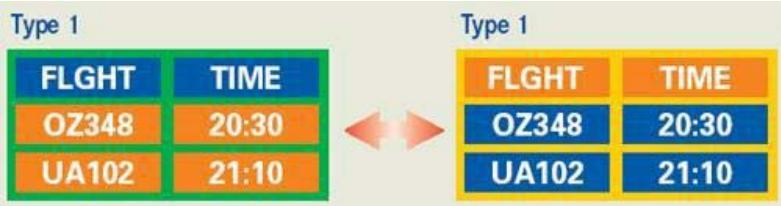
text_image
Type 1 FLIGHT TIME OZ348 20:30 UA102 21:10 Type 1 FLIGHT TIME OZ348 20:30 UA102 21:10Avoid using a combination of characters and background color with large difference in luminance.
Avoid using Grey colors, which can cause Image retention easily.
- Avoid: Colors with big difference in luminance (Black & White, Grey) Ex)

text_image
SYSTEM : 245 STATUS : NG SYSTEM : 245 STATUS : NG- Recommended settings: Bright colors with little difference in luminance - Change the characters color and background color every 30 minutes Ex)

text_image
SYSTEM : 245 STATUS : OK SYSTEM : 245 STATUS : OK SYSTEM : 245 STATUS : OK SYSTEM : 245 STATUS : OK- Every 30 minutes, change the characters with movement.
Ex)
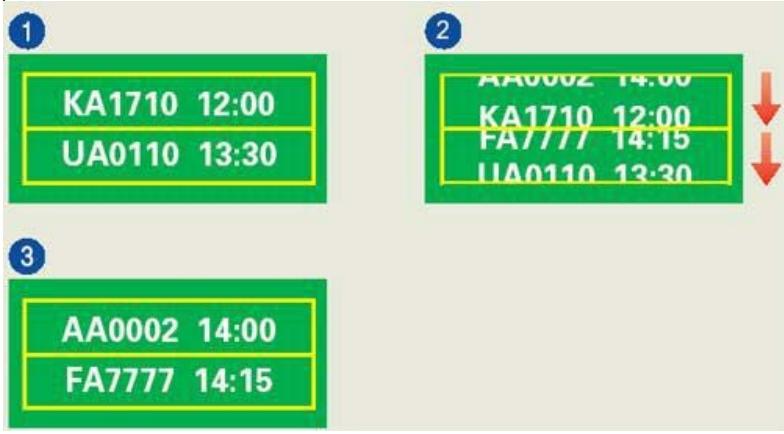
text_image
1 KA1710 12:00 UA0110 13:30 2 AA0002 14:00 KA1710 12:00 FA7777 14:15 UA0110 13:30 3 AA0002 14:00 FA7777 14:15The best way to protect your monitor from Image retention is to set your PC or System to operate a Screen Saver program when you are not using it.
Image retention may not occur when a LCD panel is operated under normal conditions.
Normal conditions are defined as continuously changing video patterns. When the LCD panel is operated for a long time with a fixed pattern (-over 12 hours-), there may be slight difference in voltage between electrodes that work the liquid crystal (LC) in a pixel. The voltage difference between electrodes increases with time, forcing the liquid crystal to lean. When this occurs, the previous image may be seen when the pattern is changed.
To prevent this, the accumulated voltage difference must be decreased.
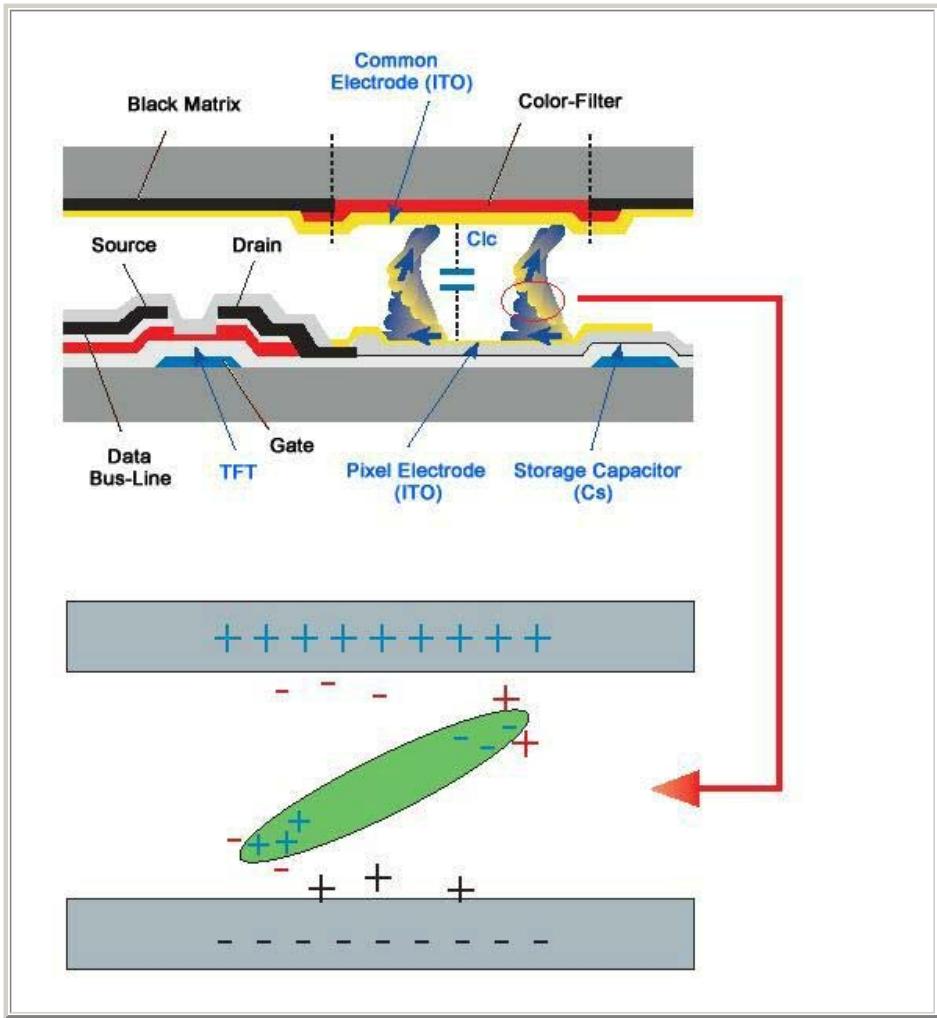
text_image
Black Matrix Common Electrode (ITO) Color-Filter Source Drain Cic Data Bus-Line TFT Gate Pixel Electrode (ITO) Storage Capacitor (Cs) + + + + + + + + +Our LCD Monitor satisfies ISO13406-2 Pixel fault Class II
natural_image
Symbol of a trash bin crossed with no text or numbers, representing environmental protection (no text present)(Applicable in the European Union and other European countries with separate collection systems)
This marking shown on the product or its literature, indicates that it should not be disposed with other household wastes at the end of its working life. To prevent possible harm to the environment or human health from uncontrolled waste disposal, please separate this from other types of wastes and recycle it responsibly to promote the sustainable reuse of material resources.
Household users should contact either the retailer where they purchased this product, or their local government office, for details of where and how they can take this item for environmentally safe recycling.
Business users should contact their supplier and check the terms and conditions of the purchase contract. This product should not be mixed with other commercial wastes for disposal.