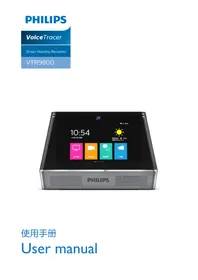
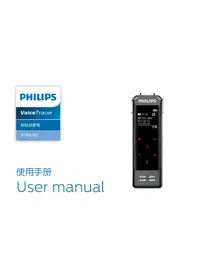
USER MANUAL Voice Tracer VTR5102 PHILIPS
使用手册
User manual
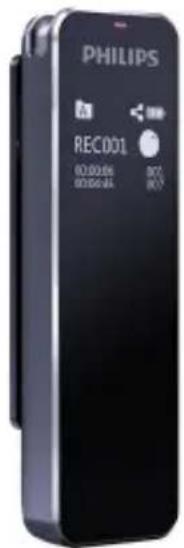

目录
1 欢迎 6
1.1 产品特点 6
2 重要须知 8
2.1 安全 8
3 您的智能录音笔 9
供货范围 9
概览 10
3.1 开 / 关机 11
3.2 安装下载 APP 12
1 欢迎
2 重要须知
2.1 安全
I.1 Product features 29
English
2 Important Notice 31
2.1 Safety 31
3 Your Smart Voice Recorder 33
What's in the box 33
Overview
34
3.1 Power on/off 35
3.2 Download and install APP 36
3.3 Connection 37
EN 27
3.4 Status indication 41
3.5 Recording 41
3.6 Playback 43
4 APP Operating Instruction 47
4.1 Recording with APP 47
4.2 Real-time translation 47
4.3 Settings 49
4.4 File 50
4.5 Sync with device 50
5 Specifications 53
28 EN
I Welcome
Welcome to the world of Philips! We are honoured by your choice and purchase of Philips' products. You can have Philips' comprehensive technical supports from our website, e.g. user's manuals, software downloading and warranty information etc.
www.philips.com
1.1 Product features
• High-sensitivity microphone;
• Intelligent real-time translation;
• Real-time sharing;
- Voice-to-text;
- Role identification;
EN 29
- Record while charging;
- Mini-compact and portable.

Reminder
- In the state of standby, long press the volume and play button will pop up the demo interface.
2 Important Notice
2.1 Safety
- To avoid short circuits, DO NOT expose the product to humidity.
- DO NOT place the product near a location with heat source or direct sunlight.
- Be careful not to pinch the cable, especially the plug.

Warning
- Special Announcement: Before using the product, please read the Manual carefully. Our Company shall not be held liable for any data loss due to incorrect manual operation or force majeure. We specially recommend that users make additional copies of the files in the device.
- Images are for reference only. Philips reserves the right to change the color / appearance / design / parameters/product functions. Hardware, software and APP are subject to update without prior notice.
3 Your Smart Voice Recorder
What's in the box:

English
EN 33
Overview:
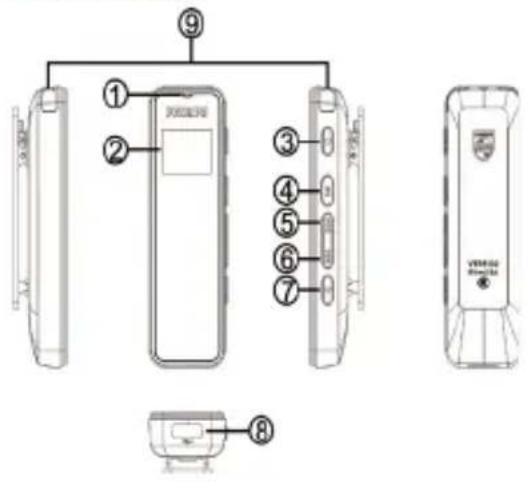
①Indicator light
② Display
③ Record key
④ Power / Play key
⑤ Previous / Volume+
⑥ Next / Volume-
⑦ Volume
⑧ USB connector
⑨ Mic head
3.1 Power on/off
(I)Power on: Long press "1" for 2 seconds to switch the device on, and "PHILIPS" will be displayed. (Share at power-on function is enabled automatically, and the Share icon begins to flash)
English
PHILIPS
(2) Power off: In the state of power-on, long press "for 2 seconds to power off after "PHILIPS" is displayed.
EN 35
3.2 Download and install APP

Scan the QR code below to download and install the APP with an Android phone or iPhone. Choose "always allow" if there is a prompt that the application requires the permission of the mobile phone, otherwise it cannot be used.

Note
- If Bluetooth connection is unsuccessful, turn Bluetooth off, then turn it on again;
- Close the APP and reopen it to connect.
English
3.3 Connection
Connect with an Android phone:
Step 1: Press " " to power on, the device automatically enters into Bluetooth search status, and the Share icon begins to flash.
Step 2: Turn on Bluetooth of the phone, and open the installed APP; Step 3: Search with the APP, tap the device in the Device list to connect manually; if failed to Connect/Search, check if the Share function of the
EN 37
device is turned on, or if Bluetooth of the phone is set up correctly, reopen the APP and tap Connect/Search again.
Step 4: If connected successfully, the APP interface appears and show the connection status, and ready for use.
Connect with iPhone
Step 1: Download and install the APP, open it directly and connect as prompted;
Step 2: If open the APP directly, you will be prompted with "Mobile phone's Bluetooth not turned on", turn Bluetooth on in Settings, or via shortcut; if Bluetooth is turned on, when you open the APP you will be prompted with "Device not found, please tap Search";
Step 3: ID number pops up when you tap Search, e.g. "PHILIPS_VTR5102_XXXX", manually select Connect, if there is not ID number for the search, please select "re-search device". After connected successfully, the device is ready for use once "Connected" appears on the interface.
English
EN 39

Note
- If the Device ID is unable to find during the connection, check Bluetooth of the device is turned on and ensure to turn on Bluetooth of the phone, and tap Search again; If the Device ID is found but connection is unsuccessful, close the APP, then reopen it to search again.
- When using 4G with iPhone, make sure to turn cellular data on, otherwise Translation function unable to be used.
3.4 Status indication
① Bluetooth search and pairing: Share icon flashes;
② Standby after Bluetooth connected: Share icon doesn't flash;
③ Recording: The indicator turns red and keeps on; when paused, the indicator flashes in red;
④ Playback: The indicator turns green and keeps on; when paused, the indicator flashes in green;
⑤ Charging: The indicator is on while charging and off when fully charged.
3.5 Recording
① Normal recording: Long press " " for 2 seconds to power on, in the state of power-on, press " " for 2 seconds to record. During recording, press " " to pause, press once again to resume, long press " " to save
EN 41
the recording.

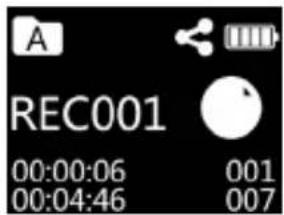
I Recording scene
② File name
③ Current recording time
④ Remaining time
⑤ Total files
⑥ Current files
⑦ Recording status indicator
⑧ Battery
42 EN
② Recording with APP: After connected via the APP, in the Recording interface select "Start Recording", the device begins to record, the indicator turns red and keeps on. During recording, tap Pause in the APP to pause recording, the indicator flashes in red; tap again to resume recording, tap Stop in the APP to save the recording.
3.6 Playback
Play via device: In the Voice interface, press " " to play the current recording file, press " " to pause, and press again to resume playback. Press the Previous and Next keys to switch between files.
EN 43

① Loop mode
③ Current playback time
⑤ Total files
⑦ Playback status indicator
⑨ Share icon
② File name
④ Total time
⑥ Current files
⑧ Battery
Volume Control: In the playing or playback stop state, press the Volume key, the Volume Control interface pops up, press the Previous and Next keys to adjust the volume.
Tip:
I Due to environmental factors and the differences between different brands of mobile phones, to achieve better recording effect and fluency of real-time translation, make sure the device is within 5 meters of the mobile phone, and no obstacles between them;
English
2 During recording, do not turn off the device or close the APP. Save the recording file first to avoid file corruption;
3 When recording with the APP, if the effective distance is exceeded, the APP will be disconnected. Recording continues with device, you need to press "☐" manually to save the recording.
4 When recording with the APP, if disconnection caused by a phone call, or direct close of the APP, or by directly turning off Bluetooth, you need to
EN 45
press "☐" manually to save the recording; If the APP disconnects with the device due to exceeding the effective distance, back to the connectable distance to connect the APP manually.
5 With the device connected to the APP, when a call has been connected, you need to manually switch to the receiver to answer the call;
6 With the device connected to the APP, if WeChat/QQ voice and video is used, you will be prompted that the microphone is in use. You need to turn off Bluetooth of the mobile phone, or disconnect for normal use.
4 APP Operating Instruction
4.1 Recording with APP
Once the Voice Recorder connected to the APP, you can control the recording with the APP. Specific operations refer to the Recording section in "Recording with APP".
4.2 Real-time translation
After connecting to the APP, select "Real-time Translate" to enter translation interface. Tap "Real-time Translate" button (Set the target language as needed before tapping the button). After prompted to be sent successfully, current speech can be recognized and translated instantly, and the transla-
EN 47
tion can be edited, saved and shared.

Note
I. During real-time translation, focus the sound source on the microphone, and do not cover the Mic head with your hand, so as to avoid to affect the recognition effect;
2. During real-time translation, do not exceed the effective recognition distance;
3. During real-time translation, the recognition effect will be affected if obstacles exist.
4.3 Settings
In the recording interface, tap "Settings" in the upper right, to set Recording scene, Indicator, Playback mode, Backlight, Time calibration, Capacity (remaining/total), APP interface introduction, Check for updates, About, Disconnect the device, etc.
English

Reminder
- If you need to disconnect with the APP, just select "Disconnect the device" in the Settings to disconnect. To avoid exceptions, you cannot close the APP directly.
EN 49
4.4 File
In the APP interface, select the option "File" to enter the list of recording files and real-time translation files. You can select a file to delete, share, play, etc.
4.5 Sync with device
(I) In the APP interface, select the option "Sync with device" to enter the sync file list interface; Select a file and the file will automatically uploaded, uploaded to 100% can click the file to transcribed.
(2) after the file is uploaded successfully, the list interface will show "not transcribed". Click the file to enter the file for transcribed.
The trash icon next to the file can be selected to delete the currently uploaded cache, and the share icon can be selected to share the current file.
(3) Select the uploaded file to transcribed, after the transfer of the file can be edited, Shared, saved, etc.
(4) In sync device interface, you can select the upper left corner of the edit function to “delete files on the mobile phone” or delect files on the recorder”. If you choose to delete files on the mobile phone and the Voice Recorder files on the Voice Recorder will be deleted. Save important files to avoid files being deleted by mistake. Once files on the Voice Recorder have been deleted, the original files will be permanently removed.
English
EN 51

Reminder
- Synchronize file refers to the file recorded by the recorder separately, which can be synchronized to the mobile phone to transfer text and translate after connecting the APP.
- Files with the suffix named opus in the recorder cannot be deleted, otherwise they cannot be synchronized.
- The time to upload files synchronously will depend on the Bluetooth configuration of your phone. Different brands of mobile phones and different Bluetooth versions will have different upload speeds.
5 Specifications
Recording format: WAV
Recording scene: Interview mode, Diary mode, Teaching mode, Conference mode
Microphone: Dual MIC array
Net weight: 36g
Dimensions: 70*22*11mm
Operating system: Android4.4 or above, iOS9.0 or above
EN 53

Warranty card

year warranty
质保书
一年质保
Dealer's name, address and signature
销售商名称、地址及签字
www.philips.com/welcome
This document is printed on chlorine free produced paper. Data subject to change without notice
This product was brought to the market by Speech Processing Solutions GmbH or one of its affiliates, further referred to in this document as SPS, which is the manufacturer of the product. SPS is the warrantor in relation to the product with which this booklet was packaged.
Type: VTR5102
Serial nr:
For China only
只限中国地区
Printed in China

Date of purchase
购买日期
PHILIPS
保修卡
WORLD'S FUTURE

© 2020 Speech Processing Solutions GmbH.
Register your product and get support at
www.philips.com/welcome