G1000 - Computer Adapter Evolveo - Free user manual and instructions
Find the device manual for free G1000 Evolveo in PDF.


| Product Type | Computer Adapter (USB Hub) |
| Brand | Evolveo |
| Model | G1000 |
| Dimensions (L x W x H) | 120 mm x 60 mm x 20 mm |
| Weight | 100 g |
| Power Supply | USB powered (5V, 500mA) |
| Input Interface | USB Type-A Male |
| Output Ports | 4 x USB 2.0 Type-A Female |
| Data Transfer Speed | Up to 480 Mbps (USB 2.0) |
| Charging Support | Yes, up to 500mA per port |
| LED Indicator | Blue LED for power/activity |
| Cable Length | 0.3 m |
| Material | ABS plastic |
| Compatibility | Windows, macOS, Linux |
| Plug and Play | Yes, no driver required |
| Certification | CE, FCC |
| Operating Temperature | 0°C to 40°C |
| Storage Temperature | -20°C to 60°C |
| Maintenance | Wipe with a dry, soft cloth |
| Safety Warnings | Avoid exposure to water, extreme heat, or magnetic fields |
| Spare Parts / Repairability | Not user-serviceable; no spare parts available |
Frequently Asked Questions - G1000 Evolveo
User questions about G1000 Evolveo
0 question about this device. Answer the ones you know or ask your own.
Ask a new question about this device
Download the instructions for your Computer Adapter in PDF format for free! Find your manual G1000 - Evolveo and take your electronic device back in hand. On this page are published all the documents necessary for the use of your device. G1000 by Evolveo.
USER MANUAL G1000 Evolveo
natural_image
Exterior view of a black OPUND 800 CPU drive unit (no visible text or symbols on body)CZ
SK
EN
Obsah / Content
Česky 2
Slovensky....8
English 14
ÚVOD CZ
Copyright © Abacus Electric, s.r.o.
www.evolveo.com, www.facebook.com/EvolveoCZ
Copyright © Abacus Electric, s.r.o.
www.evolveo.com, www.facebook.com/EvolveoCZ
Thank you for purchasing the EVOLVEO G Series Gaming Power Supply. These power supplies offer premium quality that should satisfy the needs of even the most demanding gamers.
SAFETY INFORMATION
WARNING: There are no user-repairable parts inside. Opening the cover creates a risk of electric shock and voids the warranty. EVOLVEO is not responsible for the consequences of any improper handling, use for which the product was not intended, or use in violation of the warranty and this manual.
FEATURES
EVOLVEO G-Series gaming power supplies are equipped with several protections to ensure safe operation, including the following protections:
(OVP) Over Voltage Protection / (UVP) Under Voltage Protection (OPP) Overload protection / (SCP) Short circuit protection (OCP) Overcurrent protection / (OTP) Overtemperature protection
The power supply fan starts cooling only after the power supply exceeds the specified operating temperature. On the G1000, the fan runs continuously relative to the power supply.
INSTALLATION
| 1. Remove the power supply from its packaging. | 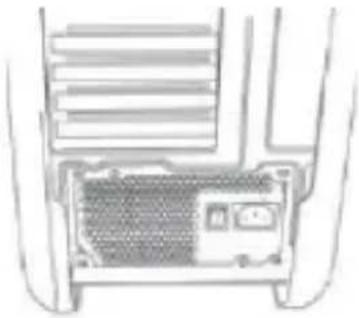 |
| 2. Use the included screws to install the power supply into your computer case. COMMENT: We recommend installing the power supply with the fan pointing downwards. However, if the power supply will be placed on the bottom of your computer case and there are no ventilation holes, it may be best to install the power supply with the fan facing upwards to ensure greater efficiency and reliability. | |
| 3. Connect the 24-pin ATX cable to the motherboard. COMMENT: This power supply allows you to disconnect the four pins on the far right to make this connector the 20-pin. Under no circumstances should you plug another 4-pin connector into the 4-pin ATX12V or "P4" connector on the motherboard. Serious damage can occur. | 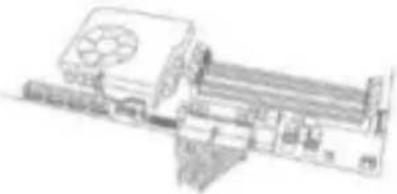 |
| 4. Connect the 8pin EPS12V cables to the motherboard. One of the EPS12V connectors can be split to create a 4pin ATX12V connector if your board does not have an EPS12V connector. | 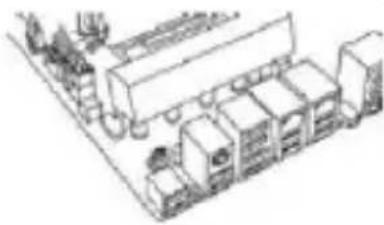 |
| 5. Connect the required number of 6+2pin PCIe cables to your graphics card(s). The connector must be properly and sufficiently plugged in, it must only be disconnected by loosening the latching mechanism. "(Model G1000). Connect the 12+4pin PCIe 5.0 cables to your graphics card(s).NOTE: If the PCIe 5.0 connector is not plugged in sufficiently, it may get hot and then burst into flames !!! | 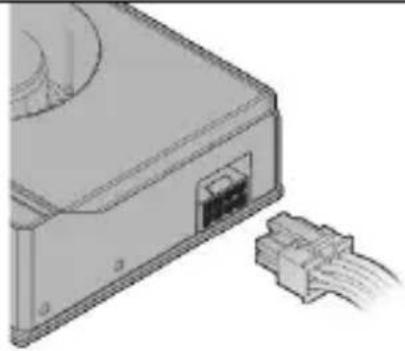 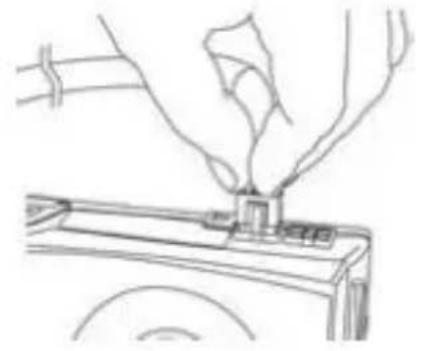 |
| 6. Connect the SATA cables to your system's drive. Hard drives, SSDs and optical drives]. If your basic the board supports additional PCIe power via the SATA connector, connect a SATA cable to the motherboard as well. | 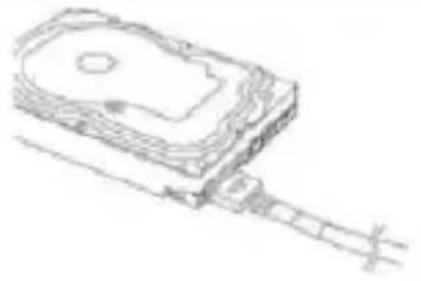 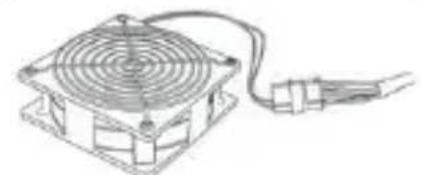 |
| 7. Connect "molex" peripheral connectors to the power supply and to fans, hard drives and other devices. | |
| 8. Connect the AC power cord to the power supply and to a wall outlet and turn the power switch to the ON position. | 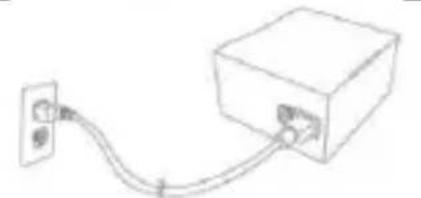 |
CERTIFICATION 80 Plus GOLD

EVOLVEO G-Series power supplies are 80 Plus Gold certified, which means that the power supplies have higher efficiency and generally higher production quality. 80 Plus Certification Gold means 90% efficiency at 50% power supply load.
IMPORTANT SAFETY PRECAUTIONS
- Do not pull the power cord out of the socket by the cable.
- Do not connect or pull the power cord into the socket with wet hands.
- Do not connect the adapter to the mains if you find that the adapter is damaged (e.g. short circuit, burnt PVC cover).
- Immediately unplug from the mains if you smell a burn.
- Do not disassemble this equipment, do not attempt to modify it in any way there is a risk of fire, injury or damage to personal property. Entrust all repairs to an authorized service (Abacus Electric s.r.o.)
- Do not expose it to direct sunlight or place it on a heater or other heat source. Do not cover it with paper or other material to allow air to circulate
- Do not use in environments where the temperature is below 0^ C and above 40^ C . Use in ventilated areas.
- Do not place the adapter in areas that are sensitive to heat.
- Make sure that your power source supplies the correct voltage (V) and frequency (HZ).
- Do not use the adapter with damaged leads, output cables or fuses.
-
Keep out of reach of children
-
Make sure that the output voltage of this power adapter is appropriate for your device.
- Disconnect the device from the mains if you will not be using it for an extended period of time.
- Connect the connectors according to the instructions and guidelines of the peripheral manufacturer (HDD, MB, CPU/GPU, ...)
- Check the power rating of the peripherals and make sure it matches the output of the power supply.
- Higher-end power supplies may have a passive cooling feature, the fan will only turn on when the power supply is hot or loaded.
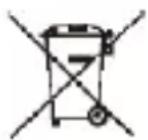

Disposal
The crossed-out container symbol on the product, in the accompanying documentation or on the packaging reminds you that in EU countries, all electrical and electronic equipment, batteries and accumulators must be disposed of separately at the end of their useful life as part of sorted waste. Do not dispose of these products in unsorted municipal waste.

DECLARATION OF CONFORMITY
Abacus Electric, s.r.o. hereby declares that the EVOLVEO G 650, 750, 1000 product meets the requirements of the standards and regulations that are relevant for the type of equipment.
The full text of the Declaration of Conformity can be found at http://ftp.evolveo.com/CE/
Importer and manufacturer
Abacus Electric, s.r.o.
370 01 Planá 2, Czech Republic
Made in China
Copyright © Abacus Electric, s.r.o.
www.evolveo.com, www.facebook.com/EvolveoCZ
All rights reserved. The appearance and technical specifications of the product are subject to change without notice.

Brand : Evolveo
Model : G1000
Category : Computer Adapter