
CORE-3200R-12R-V4 - Server Ernitec - Free user manual and instructions
Find the device manual for free CORE-3200R-12R-V4 Ernitec in PDF.


| Product Type | Server |
| Brand | Ernitec |
| Model | CORE-3200R-12R-V4 |
| Form Factor | 2U Rackmount |
| Dimensions (H x W x D) | 3.5 x 19 x 25.6 in (88.9 x 482.6 x 650 mm) |
| Weight (approx) | 40 lbs (18 kg) |
| Power Supply | Dual redundant 800W PSU (80 PLUS Platinum) |
| Processor | Dual Intel Xeon Scalable (3rd Gen) |
| Memory | 8x DDR4 ECC RDIMM, up to 1TB |
| Storage Bays | 12x 3.5"/2.5" SAS/SATA hot-swap |
| RAID Support | Hardware RAID 0/1/5/6/10 |
| Network | 2x 1GbE RJ45, 2x 10GbE SFP+ (optional) |
| Cooling | 4x hot-swappable fans |
| Management | IPMI 2.0 dedicated port |
| Operating Temperature | 10°C to 35°C |
| Operating Humidity | 8% to 90% non-condensing |
| Safety Certifications | CE, FCC, RoHS |
| Maintenance | Tool-less drive trays, easy access |
| Cleaning | Use low-pressure compressed air |
| Spare Parts | Available from authorized distributors |
Frequently Asked Questions - CORE-3200R-12R-V4 Ernitec
User questions about CORE-3200R-12R-V4 Ernitec
0 question about this device. Answer the ones you know or ask your own.
Ask a new question about this device
Download the instructions for your Server in PDF format for free! Find your manual CORE-3200R-12R-V4 - Ernitec and take your electronic device back in hand. On this page are published all the documents necessary for the use of your device. CORE-3200R-12R-V4 by Ernitec.
USER MANUAL CORE-3200R-12R-V4 Ernitec
Onsite solutions to hardware and software problems
Applies for Ernitec ESR servers
Caution and Preventive Tips
Important Information
Before proceeding, please read and observe all instructions and warnings in this manual. Retain this manual with the original bill of sale for future reference and, if necessary, warranty service. When unpacking your unit, check for missing or damaged items. If any item is missing, or if damage is evident, DO NOT INSTALL OR OPERATE THIS PRODUCT. Contact your dealer for assistance.
- Handle with care, do not drop the unit
- Mount the unit in an equipment rack or place it on a solid, stable surface
- Indoor use only. Do not place the unit in a humid, dusty, oily, or smoky site
- Do not place it in an area with poor ventilation or in an area close to fire or other sources of heat. Doing so may damage the unit as well as cause fire or an electric shock
- When cleaning is necessary, shut down the system and unplug the unit from the outlet before uncovering the top cover. Do not use liquid cleaners or aerosol cleaners. Use only a damp cloth for cleaning
- Always shut down the system prior connecting or disconnecting accessories, with the exception of USB devices
Rack Mounting
Consult with the supplier or manufacturer of your equipment rack for the proper hardware and procedure of mounting this product in a safe fashion. Avoid uneven loading or mechanical instability when rack-mounting units. Make sure that units are installed to get enough airflow for safe operation. The maximum temperature for rack-mounted units is 40 °C. Check product label for power supply requirements to assure that no overloading of supply circuits or over current protection occurs. Mains grounding must be reliable and uncompromised by any connections.
Copyright
Under copyright laws, the contents of this user manual may not be copied, photocopied, translated, reproduced or reduced to any electronic medium or machine-readable format, in whole or in part, without prior written permission of the company.
Important Information
Before proceeding, please read and observe all instructions and warnings in this manual. Retain this manual with the original bill of sale for future reference and, if necessary, warranty service. When unpacking your unit, check for missing or damaged items. If any item is missing, or if damage is evident, DO NOT INSTALL OR OPERATE THIS PRODUCT. Contact your dealer for assistance.
The screens are formed on a PC with Windows 7.
If you are using another version of Windows, the screens have a slightly different appearance.
- Machine does not boot/ start up
- LED lights are on but no image on screen
Press the power button

- The machine is running but can hear a failure warning tone power cable / two is
Rack model: check
needed

natural_image
Technical diagram of a server rack with two internal compartments and mounting points (no text or labels)- The machine is running but can hear a failure warning tone drive / Red LED Replace it
Check for defect hard
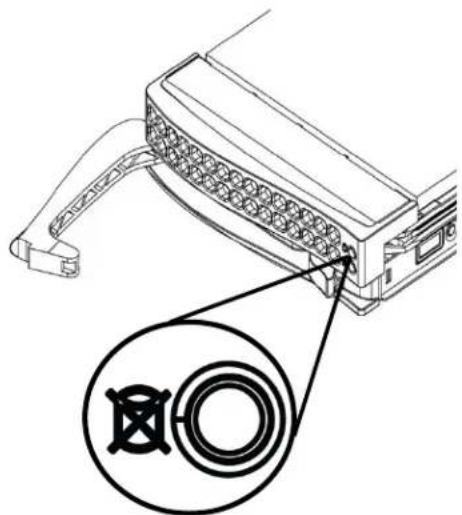
natural_image
Technical line drawing of a device with a magnified circular detail showing a ring symbol (no text or labels present)- The machine is running but can hear a failure Warning tone contact your local
Check for defect Fan/
dealer

- The machine is running but no image on the screen
- No network connection
- No sound
Check cable connection and reboot the machine

| Backplane I/O Panel | ||
| A. USB 2.0 Port 0 | H. Gb LAN Port 1 | N. Center/LFE Out |
| B. USB 2.0 Port 1 | I. USB 3.0 Port 6 | O. Surround Out |
| C. HDMI Port | J. USB 3.0 Port 7 | P. S/PDIF Out |
| D. VGA Port | K. Gb LAN Port 2 | Q. Line In |
| E. DVI Port | L. USB 3.0 Port 4 | R. Line Out |
| F. Thunderbolt Port | M. USB 3.0 Port 5 | S. Mic In |
| G. CMOS Reset | ||
HD Audio
- The rack rails does not fit the rack cabinet
Extending the Rails
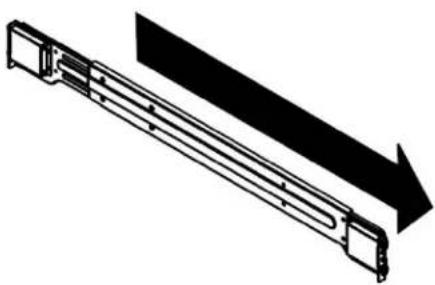
natural_image
Technical line drawing of a mechanical component with an arrow indicating direction (no text or symbols)- The machine does boot up, no LED lights Contact your local power cables is connected to PSU dealer no warning tone
Read hardware manuals supplied with the machine for more information
Ernitec server software (excluding VMS system) Checkups Part 1.
Please notice that in part 1 of this document - none of the questions here urge you to change anything on your server just reply to each question - without changing anything.
a. Have you followed the guide above hardware guide?
□ = Yes - continue to next question
□ = No - Follow the above guide
b. Are you able to operate your server? – Is Microsoft Windows running and can you operate your mouse and keyboard?
□ = Yes - Continue to next question
□ = No - Follow the hardware guide above. And continue If it still does not work
c. Have you tried shutting down the server and starting it up again – did it solve your problem?
□ = Yes - There is no problem with your server
□ = No - Continue to next question.
d. What exact symptoms is your server showing?
e. What do you think the problem is?
f. Do you think your server problems are related to Surveillance software installed on your server?
□ = Yes - Contact your Surveillance software supplier for support
□ = No - Continue to next question
g. Do you think your server problems are related to Microsoft Windows installed on your server?
□ = Yes - Please write why and continue and continue to next question
□ = No - Continue to next question
h. Do you think your server problems are related to the physical hardware in your server?
☐ = Yes - Please write why and continue to next question
Part 2.
Please notice that in part 2 of this document - some questions will ask you to change some settings, but if you follow this guide you will be able to restore back to before Part 2 of this document.
Any changes made is your own responsibility.
Ernitec Smart Recovery
Ernitec ESR is preinstalled on all servers that has the "ESR" name in the model name.
a. Before making any changes to you system we urge you to reboot your server and use Ernitec ESR to create an image:
Reseller 1 or Reseller 2 or Customer image
The backup / image will be an exact copy of the current system on the c: drive This backup will do an exact copy of your c: drive
(Please notice that a backup does not change any data on your system - it's just a backup of whatever is installed on your c: drive)
When you have completed the ESR backup your server will now have two images
Read appendix "A" on how to operate Ernitec ESR software.
Antivirus, Firewall, hot fixes and updates
Before using any of these options please check if your problem been resolved before continuing to the next question.
a. Antivirus.
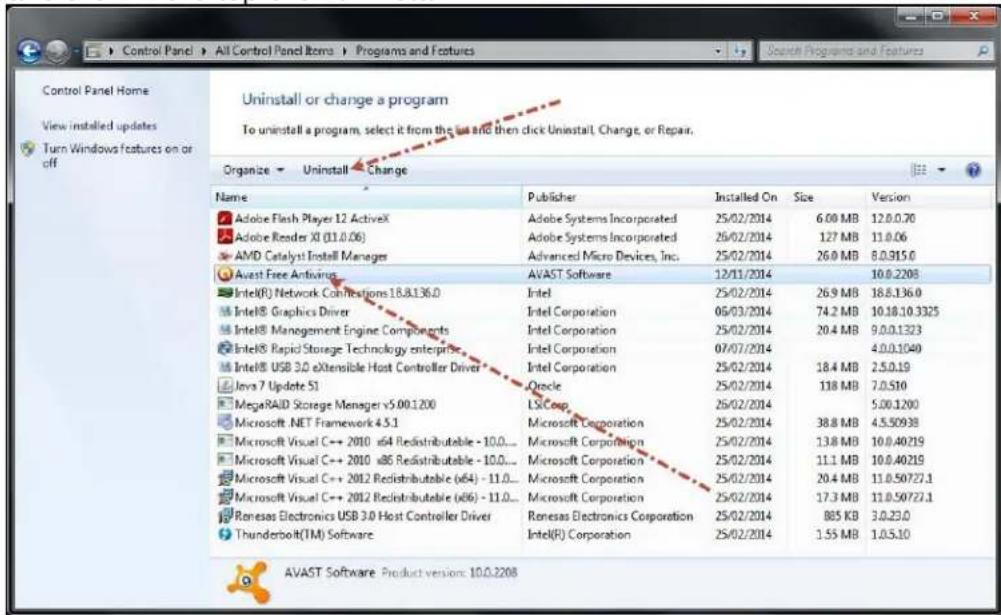
Uninstall any third party antivirus / internet security programs installed on your server (Microsoft defender, Norton, Symantec, AVG, Avast etc)
Read appendix "B" on how to uninstall programs from Microsoft Windows
b. Firewall.
Disable the Microsoft Windows firewall or any other Firewall installed on your server.
Read appendix "C" on how to disable the Microsoft Windows Firewall.
c. Hotfixes.
Identify your servers model name and number (the information is printed on the side of your server) – Example Build-ESR1800
Visit http://files.ernitec.com and browse to "Surveillance servers" and locate your model and download hotfixes for your server model. Remember to read the readme file for Each Hotfix to identify if you need/want to install the hotfix.
d. Updates
Identify your servers model name and number (the information is printed on the side of your server) – Example Build-ESR1800
Visit http://files.ernitec.com and browse to "Surveillance servers" and locate your model and download drivers for your server model. Compare what you downloaded with files on your server in the directory c:\ernitec. Update drivers that are newer than the ones installed on your server.
e. Updates – extension boards
Identify your servers model name and number (the information is printed on the side of your server) – Example Build-ESR1800
Visit http://files.ernitec.com and browse to "Surveillance servers" and locate your model and download drivers for your server model. Compare what you downloaded with files on your server in the directory c:\ernitec
Update drivers that are newer than the ones installed on your server.
If you are in doubt what “version” of drivers you have on your system please write an e-mail to support@ernitec.com with the model and serial number of your server and we will supply the information.
Ernitec ESR.
If the problem is still there.
a. Please make a backup of any essential software, licenses and such that you need / has been installed after receiving your server. Copy these to CD-ROM or USB key.
b. Use Ernitec ESR via boot F6 menu to restore "Ernitec Factory image"
Read appendix "D" on how to use Ernitec ESR to reinstall Factory image.
c. Without installing ANY new software / Windows update / changing anything is the problem still there?
□ = Yes - Go to part 3.
☐ = No - There is no problem with your Ernitec server or Windows installation, go to next question.
d. Install your surveillance software. Is there a problem with your server / is the original problem back?
□ = Yes - Please contact your surveillance software supplier for support
☐ = No - Your server works fine after a manual reinstallation.
Part 3.
Apparently, there is something not working the way it is supposed to.
To be able to help you, please fill out the next questions and send this entire rapport to support@ernitec.com
System description:
a. Server model name (Written on the white sticker on the server)
b. Server serial number (Written on the white sticker on the server)
c. Is your server still under warranty?
□ = Yes
□ = No
Contact information:
a. Reseller company name:
b. Reseller contact person name:
c. Reseller contact phone number:
d. Reseller contact e-mail address:
List programs installed – example: Ernitec EVR, Milestone – etc.
List programs:
What happened:
a. For how long has your server been running without any errors? – minutes/hours/days
b. Before having this problem did you install or update any software – if yes – what?
c. Before having this problem did you update any drivers? – if yes – what?
d. Before having, this problem did you run Windows update on the server?
$$ \begin{array}{l} \square = \text {Yes} \ \square = \mathrm{No} \ \end{array} $$
e. Before having, this problem did your server shutdown unexpectedly / power failure?
$$ \begin{array}{l} \square = \text { No } \ \square = \text {Yes} \ \end{array} $$
If Yes:
□ = How many times ? : ____
f. What Windows version is installed on your server (Please follow appendix "E")
g. Have you followed the hardware guide in the top of this document completely?
$$ \begin{array}{l} \square = \text {Yes} \ \square = \text { No } \ \end{array} $$
IP setup of your server
a. Please fill out this form completely for network setup
Network card 1 name: ____
IP address:
Is IP setup running DHCP ?: ____
Subnet address:
Gateway:
DNS 1 and/or DNS 2:
Network card 2 name:
IP address:
Is IP setup running DHCP ?: ____
Subnet address:
Gateway:
DNS 1 and/or DNS 2:
Follow appendix "F" on how to find IP setup information for your server
Microsoft Windows:
Please inform:
a. Is the operating system part of a Microsoft Windows domain?
□ = Yes
□ = No
Please follow appendix "G" if you don't know how to find the information
b. Is Microsoft Windows auto update enabled or disabled?
□ = Yes
□ = No
Please follow appendix "H" if you don't know how to find the information
Log files.
Please look though log files and look for significant errors.
a. Launch "Windows event viewer" and look for significant errors and report them here:
Please follow appendix "I" if you don't know how to find the log files
Teamviewer:
Launch Teamviewer and report ID and password
(The program is located on the desktop or in c:\ernitec folder)
Teamviewer ID
Teamviewer Password
Send this entire document – filled out on all points to support@ernitec.com and we will Make contact as soon as possible.
Other information:
Please write other information you find relevant about your problem:
Appendix "A"
How to operate Ernitec ESR software.
a. Reboot or start your server and look for this screen during boot process and press F6 to start ESR software.

b. Now choose what image you want to write / overwrite. Choose between
c. Update Reseller Image 1 (*Password required)
d. Update Reseller Image 2 (*Password required)
e. Update Customer Image (No password required)
* Passwords are printed on short manual and delivered with your server If you don't have it, then your reseller will have it – or can obtain the passwords by writing to support@ernitec.com

f. When you have completed the "Update Reseller or customer Image" you now have a backup of your current configuration and the Ernitec Factory image, so two images in total to choose from later on.
Please notice that the backup ONLY contains whatever is installed on the C: drive of your server. Also please notice that the "Update Reseller or customer image" does not change any settings on your server – it's just a backup you can use later to get back to this exact point in time.
Appendix "B"
How to look for and uninstall programs from Microsoft Windows 7.
a. Click Start and choose "Control panel"
b. Locate "Programs" and choose - "Uninstall a program"
c. If you cannot locate "Uninstall a program" then click start and write in the field "search" - Programs and features - and click on the finding.
d. If no antivirus is installed it should look like this
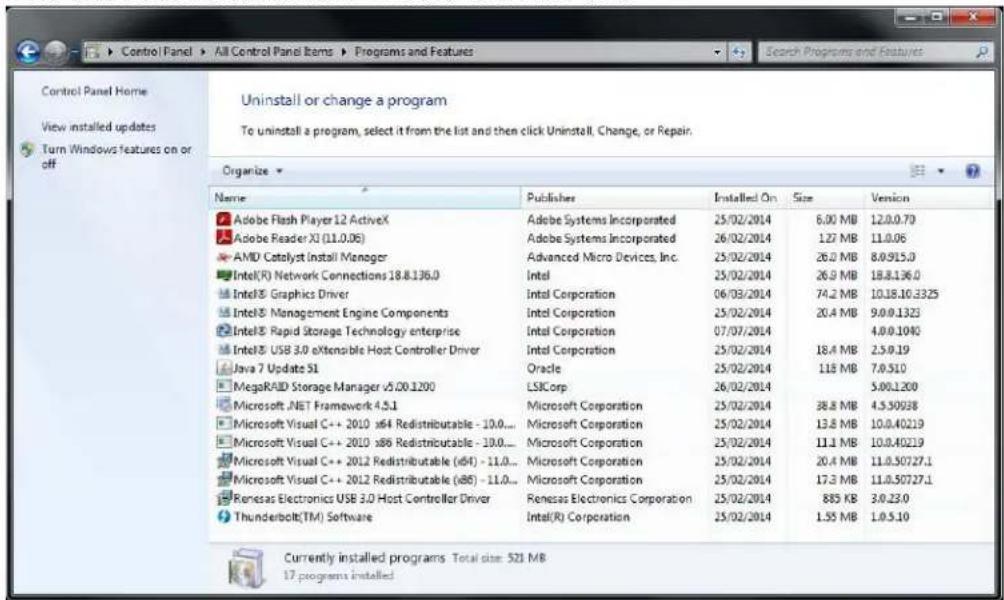
e. If example Avast antivirus is installed locate it and click on the program and then in the top click uninstall
Appendix "C"
How to disable Microsoft Windows Firewall.
a. Click Start and choose "Control panel"
b. Locate Network and Internet and choose "View network status and tasks"
c. Locate and choose "Windows Firewall"
d. If you cannot locate "Windows Firewall" then click start and write in the field search - Windows Firewall - and click on the findings.
e. In the left side choose option "Turn Windows Firewall on or off"
f. When the Firewall is disabled it should look like this:

Appendix "D"
How to use Ernitec ESR to restore the Ernitec factory image.
a. Reboot or start your server and look for this screen during boot process and press F6 to start ESR software.

b. Now choose "Restore images in the left side
c. Now choose "Restore Factory Image"

d. Click okay to overwrite existing installation. (Keep in mind that ALL existing data on the C: drive will be deleted and the Ernitec Factory image will be installed.
Appendix "E"
Find out what version of Windows is installed on your server.
a. Click on start and write in the search field - system - and choose "System"
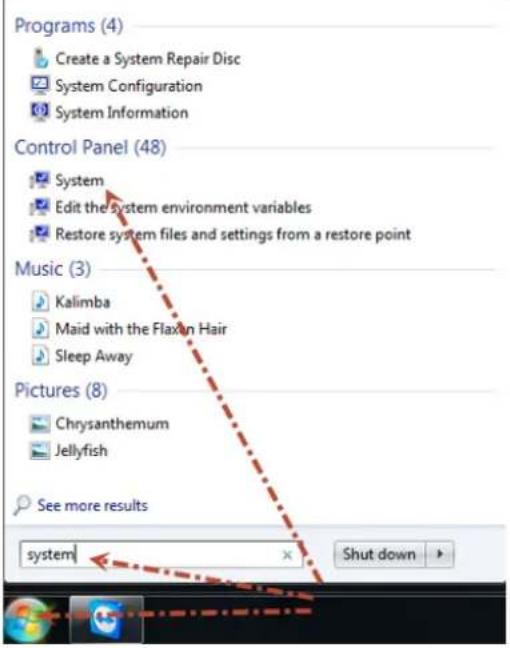
b. From an image like this – look at the two red arrows. On this system the details are Windows 7 Ultimate – 64-bit operating system.

Appendix "F"
How to find IP setup of your server.
a. Click Start and choose "Control panel"
b. Locate Network and Internet and choose "View network status and tasks"
c. If you cannot locate "View network status and tasks" then click start and write in the field search - Network and Sharing center" - and click on the findings
d. By default your server has two network cards. If both are in use, both will show up In the "Network and Sharing Center"
e. For each network click on the blue text next to "Connections"
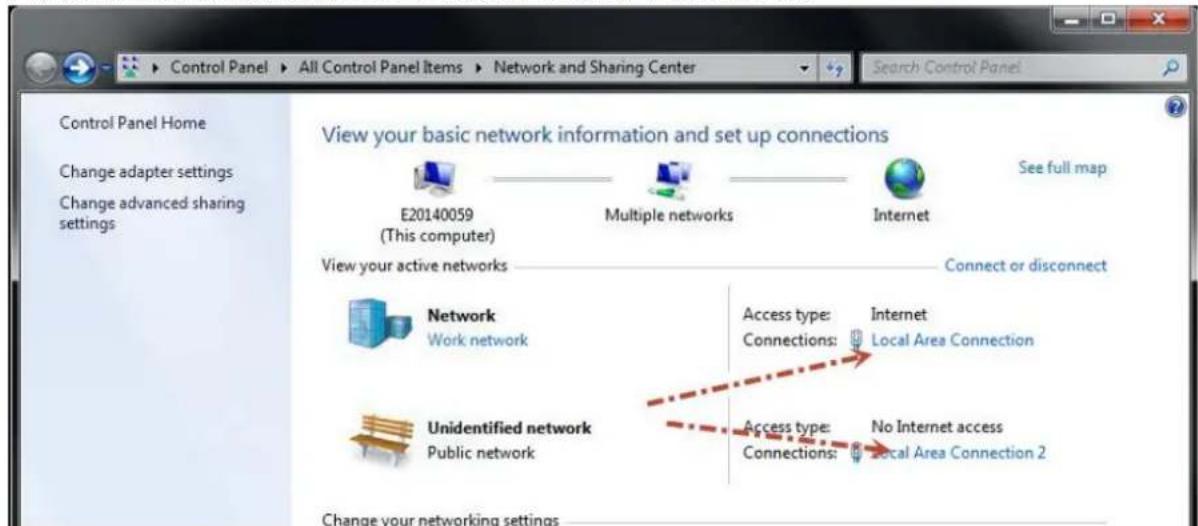
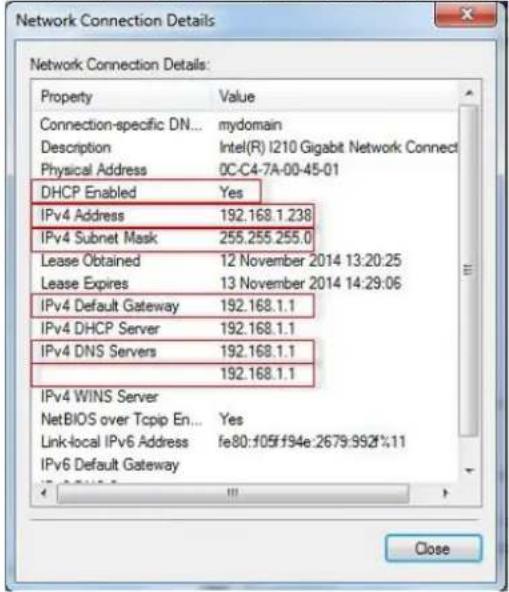
f. After clicking on "Local Area Connection" click on Details:

g. The information in the red areas are the information you are looking for
Appendix "G"
How to find out if the operating system is part of a Microsoft active directory domain.
a. Click on start and write in the search filed - system - and choose "System"

b. From an image like this – look at the red arrow. If it says Domain and then a domain Name then it is a member of this Microsoft Windows Active directory domain.
If it says Workgroup – then it's a member of this Microsoft Windows workgroup

Appendix "H"
How to find out if Microsoft Windows update is enabled or disabled.
a. Click on start and write in the search field - system - and choose "System"

b. Choose "Change settings"
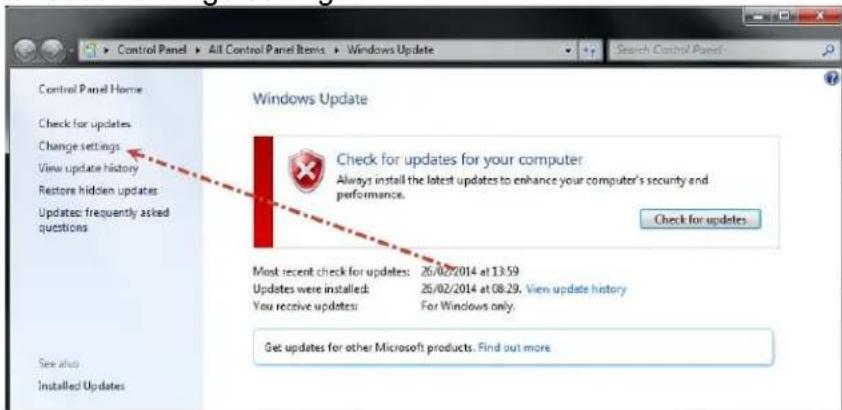
c. Here you will see what setting Windows update has:

Appendix "I".
How to launch "Windows event viewer" and look for significant errors:
a. Click on "start" and write - eventvwr.msc - in the search field and click on the finding Eventvwr.

b. Click on Windows Logs and on system

c. Look through the logs – especially for the tab "Level" where it says "Error"
- Look for errors
- Look for Critical
- Look for disk failures
- Look for NTFS errors
- Look for DMIO errors
- Look at what happens before an error by using date and time
• In general look for things that does not look right
d. Right click the Systems log and press "Save All Events As.."
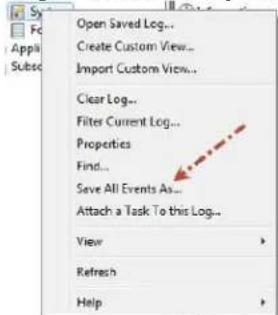
And then click on Desktop as the place to save the file and name the file with serial number of server – system – example E20150213 – system

Attach this file to the e-mail with this document.
e. Do the same with the log file called programs.

- Onsite solutions to hardware and software problems
- Caution and Preventive Tips
- Important Information
- Rack Mounting
- Copyright
- Ernitec server software (excluding VMS system) Checkups Part 1.
- Part 2.
- Ernitec Smart Recovery
- Antivirus, Firewall, hot fixes and updates
- a. Antivirus.
- b. Firewall.
- c. Hotfixes.
- d. Updates
- e. Updates – extension boards
- Ernitec ESR.
- Part 3.
- System description:
- Contact information:
- What happened:
- IP setup of your server
- Microsoft Windows:
- Log files.
- Teamviewer:
- Other information:
- Appendix "A"
- Appendix "B"
- Appendix "C"
- Appendix "D"
- Appendix "E"
- Appendix "F"
- Appendix "G"
- Appendix "H"
- Appendix "I".
Brand : Ernitec
Model : CORE-3200R-12R-V4
Category : Server