
Data Bender - Synthesizer Qu-Bit - Free user manual and instructions
Find the device manual for free Data Bender Qu-Bit in PDF.


| Product Type | Eurorack Synthesizer Module |
| Brand | Qu-Bit Electronix |
| Model | Data Bender |
| Width | 10 HP |
| Depth | 24 mm (including power cable) |
| Weight | 100 g |
| Power Supply | +12V: 150 mA, -12V: 20 mA |
| Power Connector | 10-pin ribbon cable (Eurorack standard) |
| Main Functions | Glitch, delay, looper, randomization, bit crushing |
| Audio Inputs | 2 (Left & Right), 3.5mm jacks |
| Audio Outputs | 2 (Left & Right), 3.5mm jacks |
| CV Inputs | 6 (dedicated to various parameters) |
| Sample Rate | Up to 48 kHz |
| Buffer Size | 2 seconds (stereo) |
| Processing | 16-bit, FPGA-based |
| Controls | Encoder, 4 knobs, 4 CV inputs with attenuverter |
| Firmware Update | Via USB micro-B (bootloader mode) |
| Operating Temperature | 0°C to 40°C |
| Care & Cleaning | Wipe with dry cloth, avoid liquids |
| Safety | Low voltage device; do not expose to moisture or extreme temperatures |
| Repairability / Spare Parts | Contact Qu-Bit support; no user-serviceable parts inside |
Frequently Asked Questions - Data Bender Qu-Bit
User questions about Data Bender Qu-Bit
0 question about this device. Answer the ones you know or ask your own.
Ask a new question about this device
Download the instructions for your Synthesizer in PDF format for free! Find your manual Data Bender - Qu-Bit and take your electronic device back in hand. On this page are published all the documents necessary for the use of your device. Data Bender by Qu-Bit.
USER MANUAL Data Bender Qu-Bit
Storing Settings Between Power Cycles 16
Description
Data Bender is a circuit bent digital audio buffer. It is inspired by the ways in which audio equipment can fail. The sounds of skipping CDs, software bugs, and defective tape machine playback are all accessible. The 96kHz, 24-bit audio buffer can hold over a minute of stereo audio, providing a sonic canvas capable of infinite surprises and discovery.
• Circuit bent digital audio buffer
- Skipping CDs, software bugs, old tape machine, scratched records
- 96kHz sampling rate, 24-bit depth for high fidelity audio with over a minute of stereo sampling time
- Stereo IO
Specifications
Depth: 28mm
Width: 14HP
Current Consumption:
• +12V: 58mA
-12V: 60mA
• +5V: 0mA
Installation
To install, locate 14HP of space in your Eurorack case and confirm the positive 12 volts and negative 12 volts sides of the power distribution lines. Plug the connector into the power distribution board of your case, keeping in mind that the red band corresponds to negative 12 volts. In most systems, the negative 12 volt supply line is at the bottom. The power cable should be connected to the module with the red band facing the bottom of the module
Marked Diagram
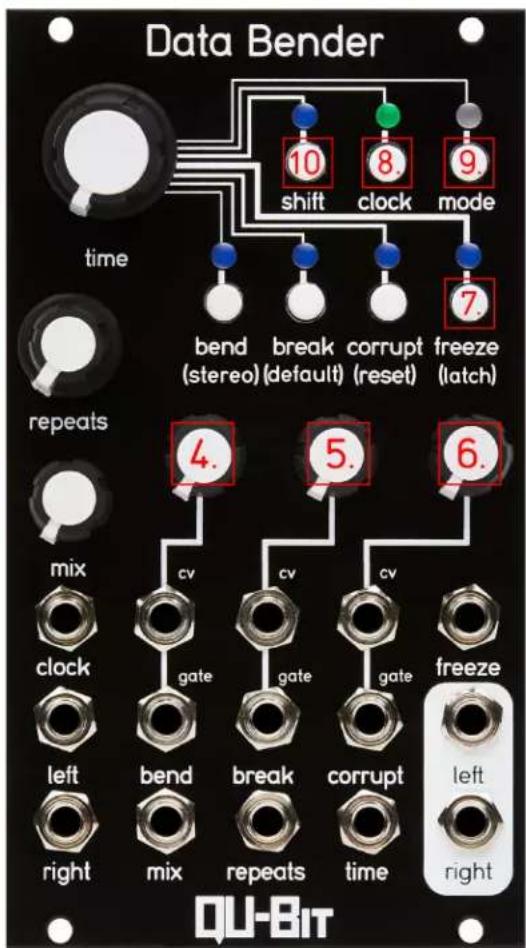
Core Control Overview
1. Time
Time sets the sample period for incoming audio to be processed.
This is the rate at which a new audio buffer is acquired for processing and manipulation.
Switch between Internal and External Clock modes by pressing the clock button.
The buffer space located outside of the current section set by time is written to in the background so that some fairly recent audio is always in the buffer when time is changed. This can bring back sounds from up to a minute ago in unexpected and interesting ways.
CV responds to -5V to +5V and adds to the knob position.
Internal Clock Mode
In this mode the clock LED will blink blue at the clock rate.
The Time knob will be a smooth changing value from 16 seconds at the bottom of the knob to 80Hz at the top of the knob.
External Clock Mode
In this mode the clock LED will blink white at the clock rate.
The Time Knob acts as a divide/multiply control with the following changes to the clock:
- Divide by 16 (4 bars)
- Divide by 8 (2 bars)
- Divide by 4 (1 bar)
- Divide by 2
- Clock Matches Input
• Multiply by 2 (Eighth Notes) - Multiply by 3 (Eight Note Triplets)
- Multiply by 4 (Sixteenth Notes)
- Multiply by 8 (32nd Notes)
When the knob/CV move into a new division or multiplication, the Clock LED will briefly illuminate gold.
2. Repeats
Repeats divides the primary buffer into smaller subsections of audio.
These will be heard as repeated pieces of the recorded audio buffer.
Several parameters within the module will control which section of the buffer is repeating as well as modify this control itself.
The higher the knob is increased the more divisions of the buffer are created, and the "faster" the apparent audio will come out.
With the control all the way down the primary buffer will not be subdivided.
CV responds to -5V to +5V and adds to the knob position.
3. Mix
This controls the balance between the live input, and the audio buffer being processed.
CV responds to -5V to +5V and adds to the knob position.
6. Corrupt - Decimate / Dropout / Destroy
Pressing the Corrupt button will step through the various corruption modes.
The knob controls a variable range for each control.
CV responds to -5V to +5V and adds to the knob position.
Decimate
Controls variable amounts of bit-crushing and downsampling.
Dropout
Controls the occurrence of random audio dropouts.
There are less, but longer dropouts on the left side of the knob, and more, but shorter dropouts on the right side of the knob.
Destroy
Controls an amount of Soft saturation and hard clipping applied to the signal.
The first half of the knob softly saturates, and the second half introduces absolute devastation.
Caution: this gets loud if using with signals that aren't modular level to begin with
7. Freeze
When enabled, no new audio will be recorded into the audio buffer, and whatever is there will stay there until Freeze is deactivated.
When Freeze is in its default latching mode (blue in the shift-edit menu) the freeze effect will activate on the next clock beat to ensure everything stays in sync.
When Freeze is in the momentary mode (green in the shift-edit menu) the freeze effect engages and disengages instantly.
When the Mix control is fully dry, engaging freeze will instantly set the mix to be fully wet. This allows for exciting performative gestures, and the queueing up of specific data bending actions, while letting the rest of your audio pass through unaffected until freeze is enabled.
All changes to Time, Repeats, Bend, and Break are not destructive. So feel free to mangle away without fear of losing your precious buffer.
Extending the time control down below where it was when the signal was frozen will introduce artifacts of old data from the last time the buffer was that size. Expect discontinuities, and fragments of your sonic history when twisting the time knob while frozen.
8. Clock
When activated, the clock input will be used as the source for the Time control, and the Time Knob/CV will control the divisions/multiplications of the clock that new audio will be recorded at.
While the module is in Internal clock mode the LED will blink blue at the rate of the internal clock.
While the module is in External clock mode the LED will blink white at the rate set by the external clock, and the multiply divide setting (based on the Time control).
If the module has not received an external clock for at least four beats (one measure) at the last recorded clock rate, the LED will illuminate a DIM white to indicate that there is no clock source present.
While there is no clock source, the clock will continue to run at the last rate until a new clock pulse is detected.
9. Mode
Selects between Macro mode (Blue) and Micro mode (Green).
These modes are described below, and change the way the Bend and Break controls work.
10. Shift
Used for Secondary functions, and additional features. When held, the controls listed below will perform their secondary actions.
Illuminates Blue when held.
- SHIFT + Time Knob - Glitch Windowing
- SHIFT + Bend Button - Stereo Behavior
- SHIFT + Break Button - Restore Settings
- SHIFT + Corrupt Button - Corrupt Jack as Reset Input
- SHIFT + Freeze Button - Freeze Behavior
- SHIFT + Clock Button - Gate Behaviors
Audio Inputs
Stereo Inputs
Expect a Modular Level signal, but will work with line level signals (However, certain things may make these very loud on the outputs after saturation, etc.)
The left input is normalled to the right input when nothing is connected.
Audio Outputs
Stereo Outputs
Modular Level signals, roughly in a range between input level and 14Vpp when using a lot of Corruption, etc.
Macro Mode
Macro mode is a set of 3 controls that have automated parameters based on the clock settings.
Set the knobs where you like them and let the Data Bender bend your data for you.
4. Bend
Bend provides manipulations that are inspired by the tape medium and its associated play-back machines.
With this control you can experience the following effects: - Varispeed pitch changes - Reversed audio playback - Vinyl clicks and pops - Tape stop
Enabling/Disabling bend using the Gate or Button will toggle this control on or off.
When enabled (LED Blue), every clock division a certain manipulation of the playback speed and direction can occur.
When the knob is all the way down, the effect is disabled.
At the lowest settings, it will only have a slight chance to reverse the audio at the normal playback speed.
At the maximum settings, it can play back the audio forward or backward at various intervals, and will begin to introduce a slew to the changes in playback speeds.
5. Break
Break emulates the malfunctioning of digital audio devices such as CDs, wireless audio, and software bugs.
With this control you can experience the following effects: - Glitches and stutters similar to a scratched CD - Disjointed playhead movement - Synchronized Audio dropouts
Enabling/Disabling bend using the Gate or Button will toggle this control on or off.
When enabled (LED Blue), every clock division a certain manipulation of the number of repeats and playback position may occur.
when the knob is all the way down, the effect is disabled.
At the lowest settings, it will only have a slight chance to add additional repeats, or move to a new sub-section of the buffer
At the maximum settings, it can jump to any sub-section of the buffer, and has a high likelihood to do so. It can also set the repeats to anywhere above where the knob is set, and add up to 90% silence to each repeat.
Micro Mode
Take control of the microcosms of destruction and failure with discrete controls for the module's parameters.
4. Bend - Playback Speed/Reverse
This control acts as playback speed going down 3 octaves and up 3 octaves
When the playback speed is forward the LED will be blue, unless it is on a specific multiple (octave) above or below the original playback speed. Then it will be cyan.
When reversing, the LED will be green unless it is on a specific multiple above or below the playback speed, then the LED will be gold.
Pressing Bend will toggle the playback to reverse.
5. Break - Traverse / Silence
Pressing the button or using a Gate will toggle between Traverse and Silence
When either the knob, CV or the Repeats setting changes the currently selected subsection, the Break LED will blip gold.
Traverse
When the LED is not illuminated the break controls subsection traversal, allowing you to select from each chunk of the active buffer.
On the far left of the knob, the first subsection will be selected.
On the far right of the knob, the last subsection (determined by Repeats) will be selected.
When Repeats is set to 1 (all the way left), this will have no effect.
Silence
When the LED is illuminated, the control acts as a duty-cycle for the amount of silence introduced.
On the far left of the knob, there will be no silence.
On the far right of the knob, 90% of the playback buffer will be replaced with silence.
Edit Functions
Glitch Windowing
Using SHIFT + TIME you can scale an amount of windowing to be applied to the individual stutters
When turning this all the way down there will be hard edges, and clicks will happen often. Great for Glitchy beats and Sound Effects.
When turning this all the way up, the glitches will be fully windowed, only reaching its full volume for a moment before fading back out. Great for Ambient Jamz.
While holding SHIFT, the shift LED will indicate the current amount of windowing.
- If the LED is off then there is no windowing applied.
- If the LED is blue, then the default minimal amount of windowing is applied.
- Beyond that, the LED will indicate from dim to bright white the amount of windowing applied.
The Restore Settings action will reset this to the default amount of windowing.
Restore Settings
While holding shift, pressing the Break button will restore all settings back to their defaults.
The LED for this button will pulsate white to indicate that it is the restore default settings function.
When pressed it will blink blue to indicate the settings have been restored to their defaults.
This sets:
- Windowing back to default windowing (2%)
- Bend disabled
- Break disabled
- Freeze disabled
- Mode to Macro Mode
- Stereo behavior to shared mode.
- Gates to Latching
- Break Jack set to primary function (not reset/sync).
- Freeze button behavior to latching mode
Gate Behaviors
While holding shift, the Freeze LED will indicate whether the gates are configured as momentary or latching.
Pressing the button while holding shift will toggle between the two options.
When the LED is blue the gates are latching (each trigger input will toggle the state of the gated controls). When the LED is green the gates are momentary (an incoming gate signal will hold the state of the button on if it is off, as long as it is held high).
Stereo Behavior
While holding shift, the Bend LED will indicate the stereo behavior of the macro-mode controls.
Pressing the Bend button will toggle between these modes:
- Blue - Unique Mode: All automatic bend/break settings will be unique for each stereo channel.
- Green - Shared Mode: All automatic bend/break settings are set the same for both stereo channels.
Corrupt As Reset
While holding shift the corrupt LED will indicate whether the corrupt Gate input jack is configured as normal (blue), or as a reset input (green).
When configured as a reset jack, the corrupt input will cause the internal or external clock to resync.
This can be useful for synchronizing with a DAW or manually restarting the buffer, and randomizing Macro mode controls when running with a slow internal clock.
In internal clock mode, this will resync the internal clock immediately, causing new audio to load into the buffer, possibly resulting in silence during certain bend/break settings. This does move the playback heads into a reset position immediately which can cause clicks.
In external clock mode, this resets the subdivision counter to align the divided clock with an external beat. This will take effect on the next.
Freeze Behavior
While holding shift, the Freeze LED will indicate the behavior of the Freeze Button.
Pressing the Freeze button while holding shift will toggle between these modes:
- Blue - Freeze button is latching, releasing the button will toggle the state between frozen and unfrozen, on the next clock cycle.
- Green - Freeze button is momentary, pressing the button engages freeze instantly, releasing the button disengages.
Storing Settings Between Power Cycles
Several Settings are stored between power cycles. Settings are stored whenever the SHIFT button is released, as frequently as once every two seconds.
The following settings are stored:
- Bend state
- Break state
- Corrupt Mode
- Clock source
- Processor Mode (Micro, Macro)
- Stereo Mode (Unique, Shared)
- Windowing amount
- Latching/Momentary gate behavior
- Latching/Momentary freeze button behavior
• Corrupt as Reset behavior




- STORING SETTINGS BETWEEN POWER CYCLES 16
- DESCRIPTION
- SPECIFICATIONS
- INSTALLATION
- MARKED DIAGRAM
- CORE CONTROL OVERVIEW
- TIME
- INTERNAL CLOCK MODE
- EXTERNAL CLOCK MODE
- REPEATS
- MIX
- CORRUPT - DECIMATE / DROPOUT / DESTROY
- DECIMATE
- DROPOUT
- DESTROY
- FREEZE
- CLOCK
- MODE
- SHIFT
- AUDIO INPUTS
- AUDIO OUTPUTS
- MACRO MODE
- BEND
- BREAK
- MICRO MODE
- BEND - PLAYBACK SPEED/REVERSE
- BREAK - TRAVERSE / SILENCE
- TRAVERSE
- SILENCE
- EDIT FUNCTIONS
- GLITCH WINDOWING
- RESTORE SETTINGS
- GATE BEHAVIORS
- STEREO BEHAVIOR
- CORRUPT AS RESET
- FREEZE BEHAVIOR
- STORING SETTINGS BETWEEN POWER CYCLES
Brand : Qu-Bit
Model : Data Bender
Category : Synthesizer