
HT-DM550 - Audio System SAMSUNG - Free user manual and instructions
Find the device manual for free HT-DM550 SAMSUNG in PDF.


User questions about HT-DM550 SAMSUNG
0 question about this device. Answer the ones you know or ask your own.
Ask a new question about this device
Download the instructions for your Audio System in PDF format for free! Find your manual HT-DM550 - SAMSUNG and take your electronic device back in hand. On this page are published all the documents necessary for the use of your device. HT-DM550 by SAMSUNG.
USER MANUAL HT-DM550 SAMSUNG
CLASS 1 LASER PRODUCT
KLASSE 1 LASER PRODUKT
LUOKAN 1 LASER LAITE
KCLASS 1 LASER APPARAT
PRODUCTO LASER CLASE 1
CLASS 1 LASER PRODUCT
This Compact Disc player is classified as a CLASS 1 LASER product.
Use of controls, adjustments or performance of procedures other than those specified herein may result in hazardous radiation exposure.
CAUTION-INVISIBLE LASER RADIATION WHEN OPEN AND INTERLOCKS DEFEATED, AVOID EXPOSURE TO BEAM.

This symbol indicates that dangerous voltage which can cause electric shock is present inside this unit.

This symbol alerts you to important operating and maintenance instructions accompanying the unit.
WARNING: To reduce the risk of fire or electric shock, do not expose this appliance to rain or moisture.
CAUTION: TO PREVENT ELECTRIC SHOCK, MATCH WIDE BLADE OF PLUG TO WIDE SLOT, FULLY INSERT.
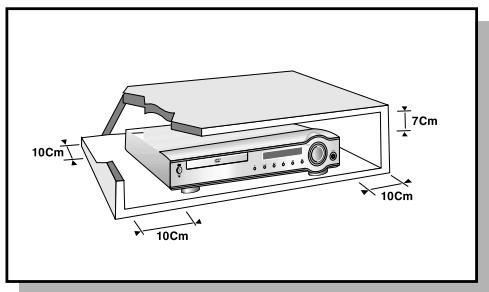
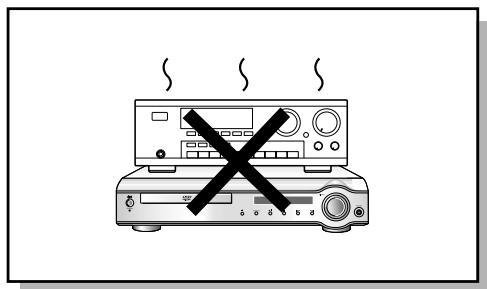
Ensure that the AC power supply in your house complies with the identification sticker located on the back of your player. Install your player horizontally, on a suitable base (furniture), with enough space around it for ventilation (3-4inches). Make sure the ventilation slots are not covered. Do not stack anything on top of the player. Do not place the player on amplifiers or other equipment which may become hot. Before moving the player, ensure the disc tray is empty. This player is designed for continuous use. Switching off the DVD player to the stand-by mode does not disconnect the electrical supply. In order to disconnect the player completely from the power supply, remove the main plug from the wall outlet, especially when left unused for a long period of time.
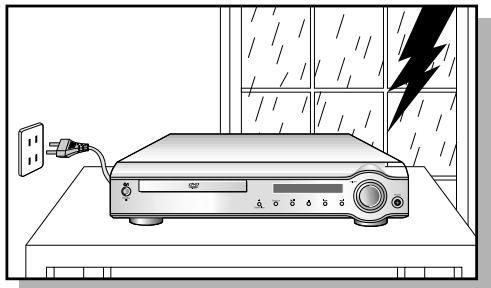
During thunderstorms, disconnect the main plug from the
socket.
Main voltage peaks due to lightning could damage the unit.
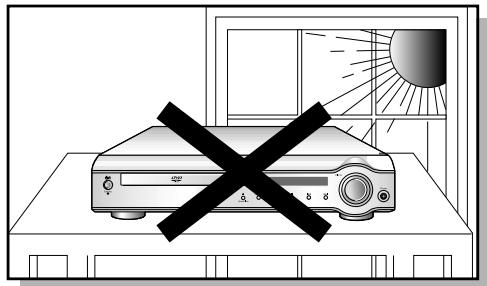
Do not expose the unit to direct sun radiation or other heat sources. This could lead to overheating and malfunction of the unit.
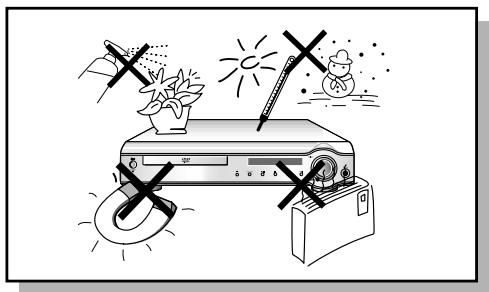
Protect the player from moisture(dripping or splashing and that no objects filled with liquids, such as vases, shall be placed on the player), and excess heat(e.g.fireplace) or equipment creating strong magnetic or electric fields (i.e.speakers...) disconnect the power cable from the mains electricity supply if the player malfunction. Your player is not intended for industrial use but for domestic purposes only. Use of this product is for personal use only. Condensation If your player or disc have been stored in a cold atmosphere, as for example during transportation in the winter, wait for approximately 2 hours until they have reached room temperature.
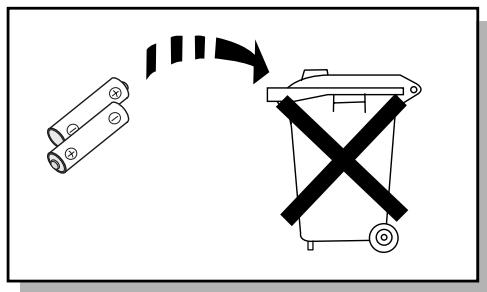
The battery used in this product contains the chemicals that are harmful to the environment.
Do not dispose of batteries in the general household waster. It is recommended that the replacement of the battery should be done by technician.

VIDEO
DVD (Digital Versatile Disc) offers fantastic audio and video, thanks to Dolby Digital surround sound and MPEG-2 video compression technology. Now you can enjoy these realistic effects in the home, as if you were in a movie theater or concert hall.

DVD players and the discs are coded by region. These regional codes must match in order for the disc to play. If the codes do not match, the disc will not play. The Region Number for this player is given on the rear panel of the player. (Your DVD player will only play DVDs that are labeled with identical region codes.)
Do not use the following types of disc!
- LD, CD-G, CD-I, CD-ROM and DVD-ROM cannot be played on this player. If such discs are played, a "WRONG DISC FORMAT" message appears on the TV screen.
DVD discs purchased abroad may not play on this player. If such discs are played, a "WRONG REGION CODE" message appears on the TV screen.
Copy Protection
- Many DVD discs are encoded with copy protection. Because of this, you should only connect your DVD player directly to your TV, not to a VCR. Connecting to a VCR results in a distorted picture from copy-protected DVD discs.
- This product incorporates copyright protection technology that is protected by methods claims of certain U.S. patents and other intellectual property rights owned by Macrovision Corporation and other rights owners. Use of this copyright protection technology must be authorized by Macrovision Corporation, and is intended for home and other limited viewing uses only unless otherwise authorized by Macrovision Corporation. Reverse engineering or disassembly is prohibited.
CHAPTER 1. PREPARATION
SafetyWarnings 1
Precautions 2
Description 5
Remote Control 7
Listening on headphones 8
CHAPTER 2. CONNECTIONS
Connecting the Speakers 9
Connect Video to TV 10
Connecting the FM and AM(mw/Lw) Antennas 11
AUX Connections 12
Controlling a TV with the Remote 13
Connecting your System to the Power Supply 13
Before Using the DVD Player 14
Selecting the Audio Language/Subtitle Language 23
Zoom/Angle Functions 24
ProgramPlayback 25
Sleep/D.R.C Function 27
CHAPTER 4. SETUP
Setting up the Language Features 28
System Setup 29
Speaker Setup 31
To set up Speaker Balance 33
Creating Realistic Sound Fields 34
Dolby Pro Logic II decoder 35
DSP (Digital Signal Processor) Modes 37
To increase Effect level 38
Adjusting DSP Sound Parameters 38
Listening to the Radio 39
Preseting stations 40
CHAPTER 6. MISCELLANEOUS
Troubleshooting 41
Cautions on Handling and Storing Discs... 43
Disc Type and Protection 44
Specifications 45
Reference 46
Front Panel
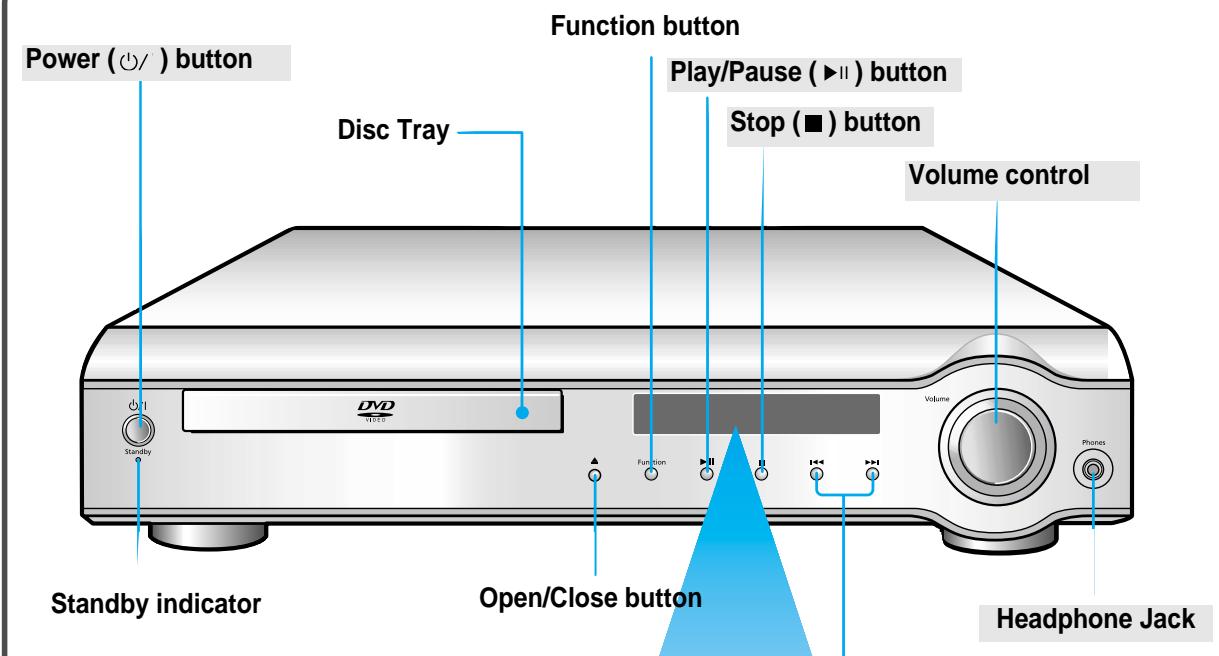
Tuning Down & Skip (1-4) buttons
Tuning Up & Skip () buttons
Display
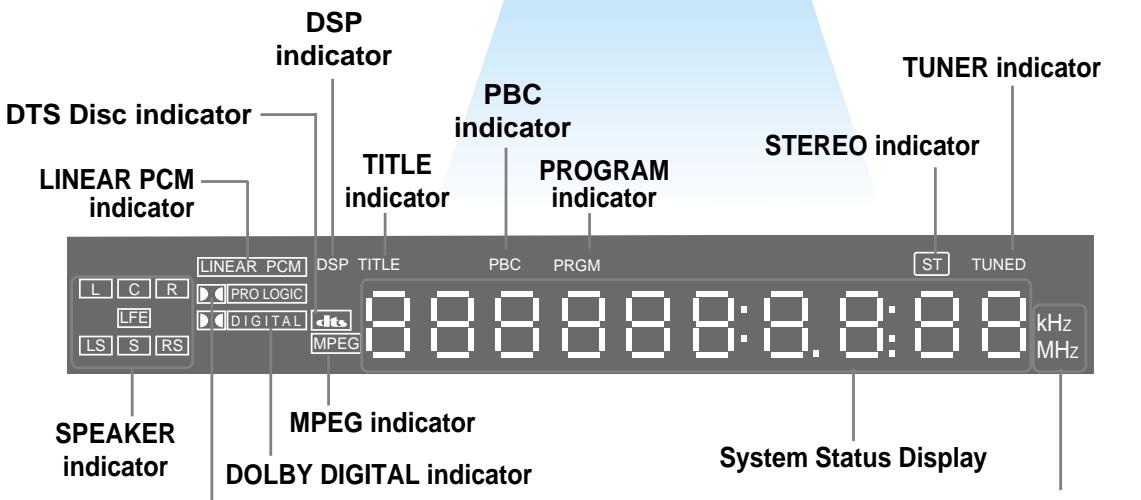
PRO LOGIC indicator
RADIO FREQUENCY indicator
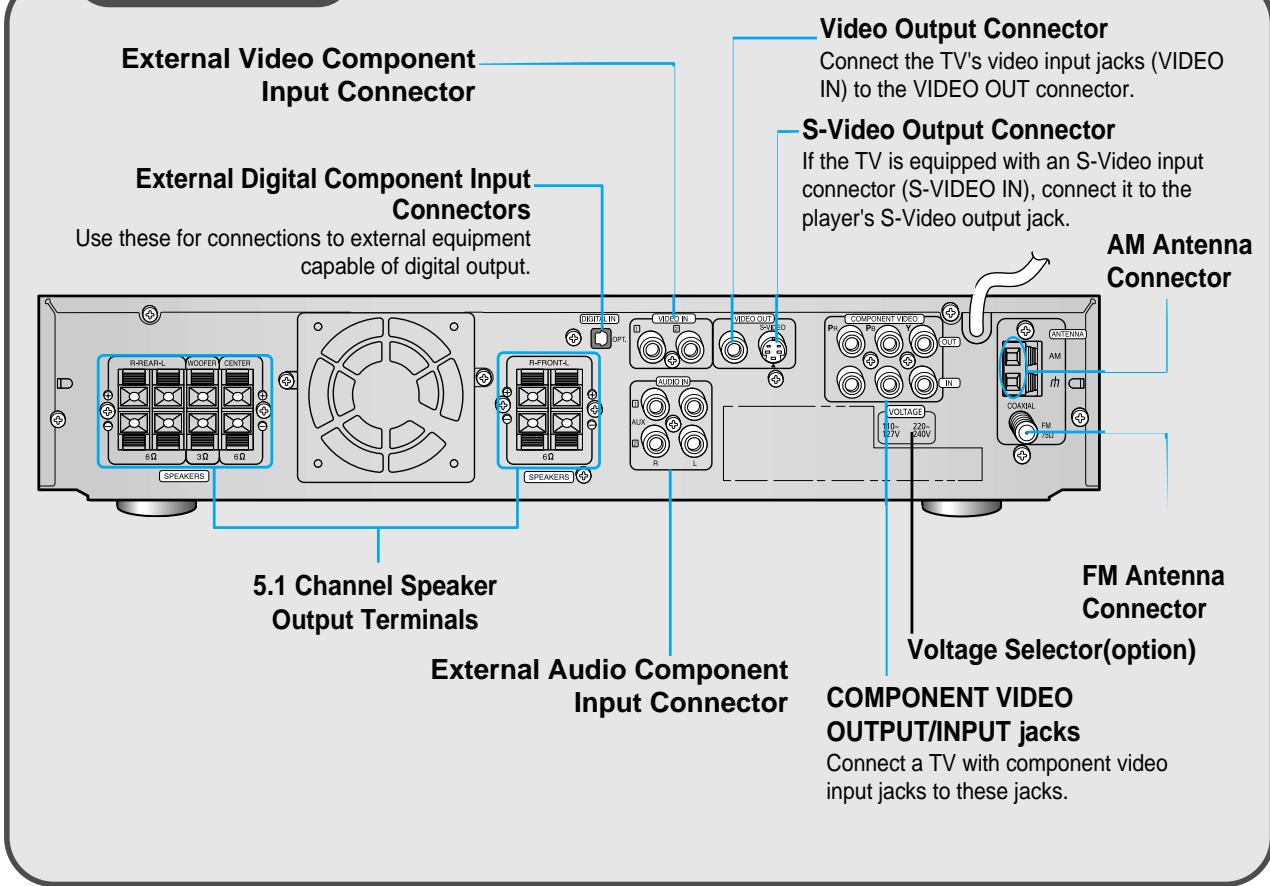
Rear Panel
Accessories
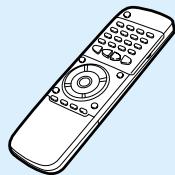
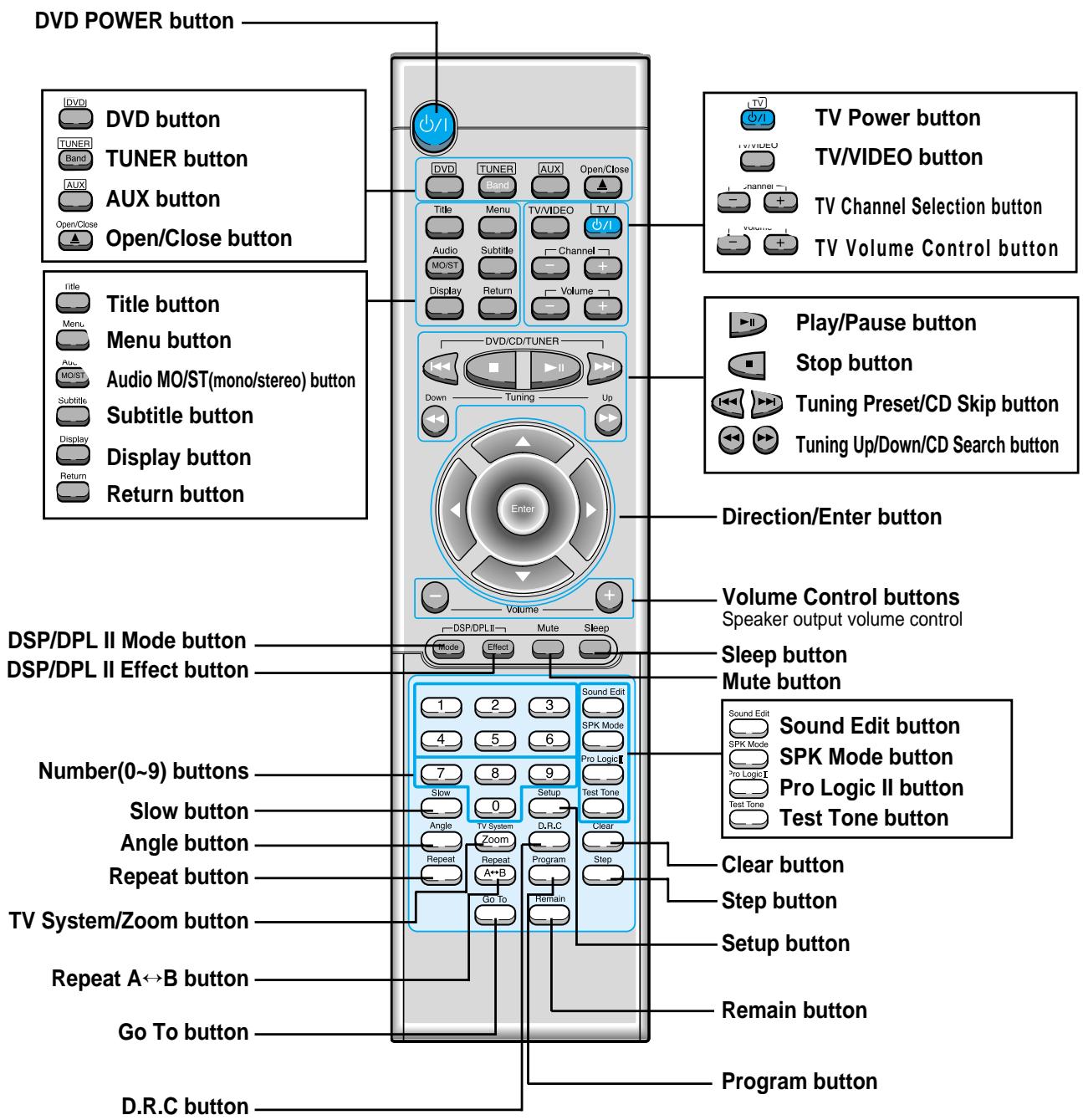
Remote Control
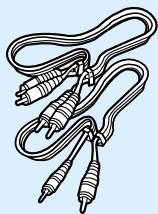
Video/Audio Cable

AM Antenna
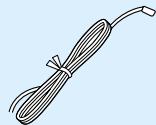
FM Antenna
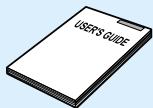
User's Manual
Insert Remote Batteries
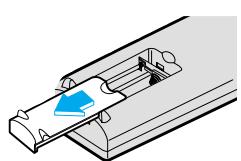
1 Remove the battery cover on the back of the remote by pressing down and sliding the cover in the direction of the arrow.
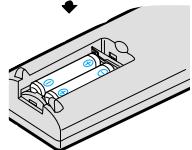
2 Insert two 1.5V AAA batteries, paying attention to the correct polarities (+ and -).
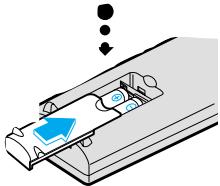
3 Replace the battery cover.
CAUTION
Follow these precautions to avoid leaking or cracking cells:
- Place batteries in the remote control so they match the polarity: (+) to (+) and (-) to (-) .
- Use the correct type of batteries. Batteries that look similar may differ in voltage.
Always replace both batteries at the same time. - Do not expose batteries to heat or flame.
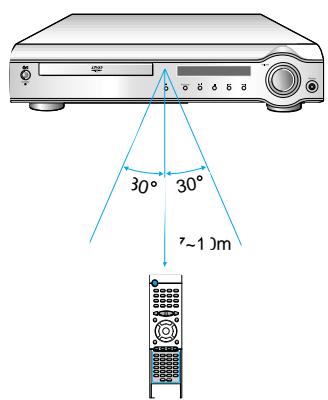
Range of Operation of the Remote Control
The remote control can be used up to approximately 23 feet/7 meters in a straight line. It can also be operated at a horizontal angle of up to 30^ from the remote control sensor.
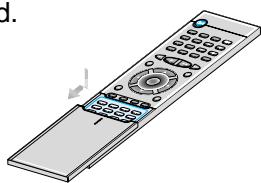
To open the remote control cover, push the top of the cover, then slide downward.

Listening on headphones
Listening on headphones
Use headphones (not supplied) for private listening pleasure.
Connect the headphones to the HEADPHONES jack of the front panel.
- No sound is produced from the speakers.
- To prevent hearing damage, do not raise the volume level excessively when using headphones.
HEADPHONE jack
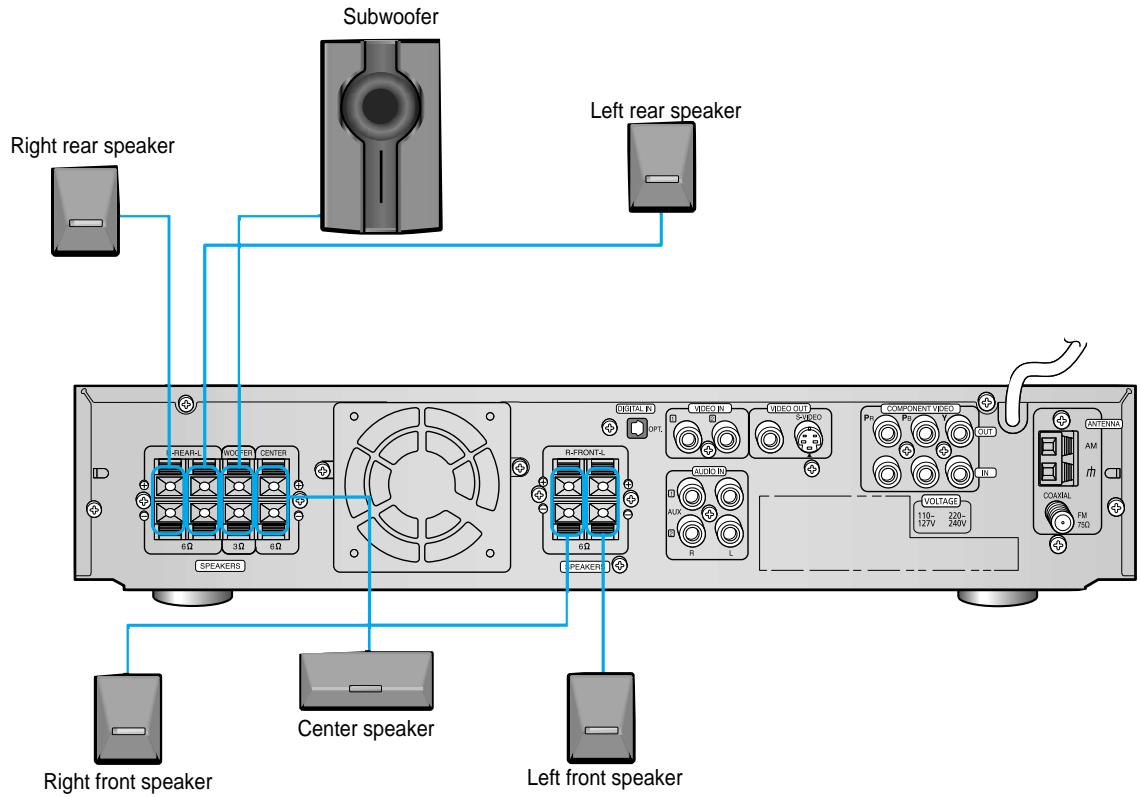
Connecting the Speakers
- Connect the satellite speakers, center speaker, and subwoofer to the terminals on the rear panel using speaker cords supplied.
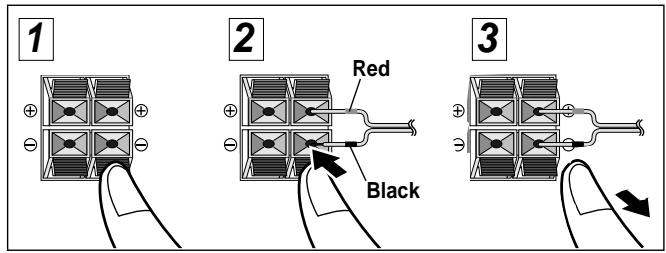
- Connect the red cord to the red (+) terminal and the black cord to the black (-) terminal.
1 Press and hold the terminal tab.
2 Insert the speaker cord.
3 Release the finger.
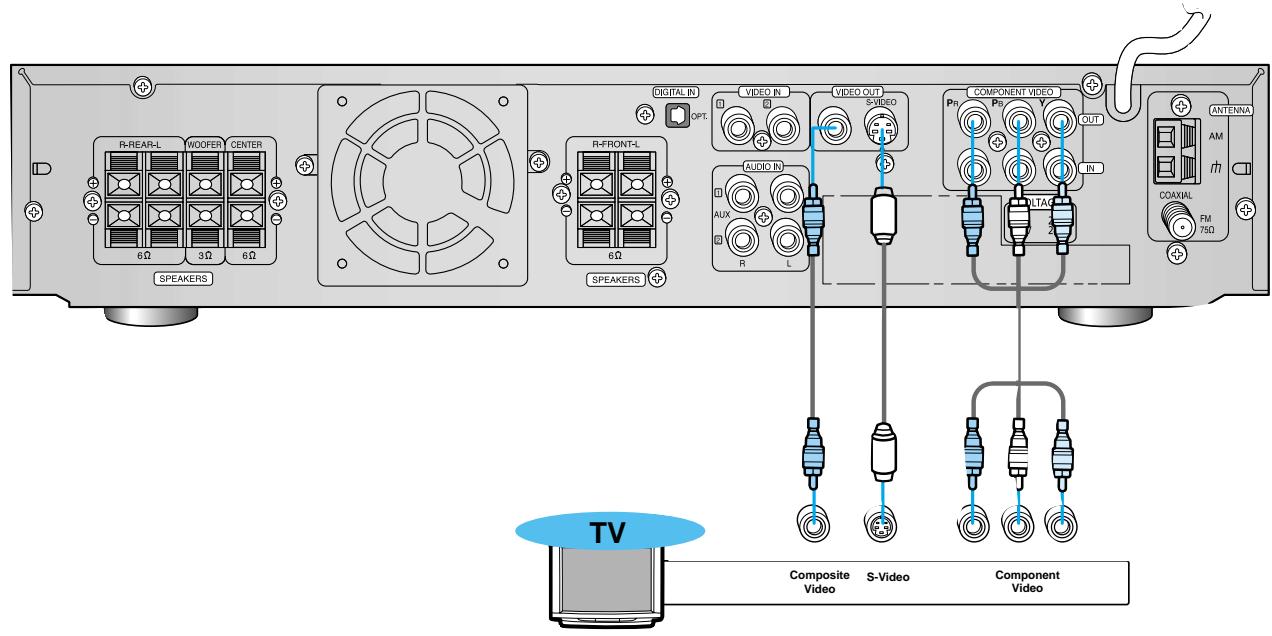
- Depending on your TV, Component Video input connectors may be marked as DVD Video input connectors.
Composite Video (Good Quality)
Connect the supplied video cable from the VIDEO OUT jack on the back panel of the system to the VIDEO IN jack on your television.
S-Video (Better Quality)
If you television is equipped with an S-Video input, connect an S-Video cable (not supplied) from the S-VIDEO OUT jack on the back panel of the system to the S-VIDEO IN jack on your television.
Component Video (Best Quality)
If your television is equipped with Component Video inputs, connect a component video cable (not supplied) from the Pr, Pb and Y jacks on the back panel of the system to the corresponding jacks on your television.
- When the Progressive scan mode is selected, the VIDEO and S-VIDEO outputs do not feed any signals.
Connecting the FM and AM_(MW / LW) Antennas
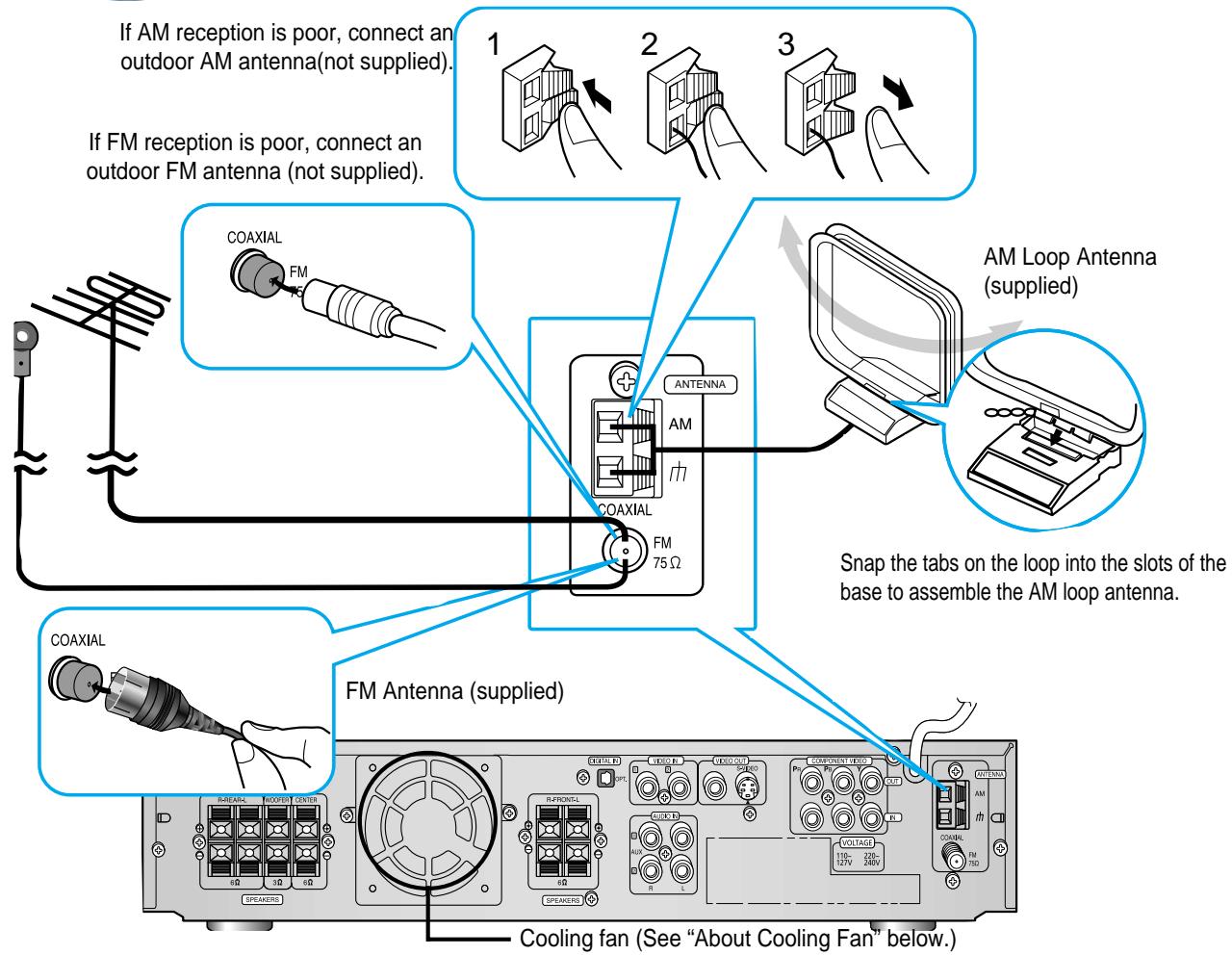
FM antenna connection
- Connect the FM antenna supplied to the FM 75Ω COAXIAL terminal.
-
Slowly move the antenna wire around until you find a location where reception is good, then fasten it to a wall or other rigid surface.
-
If reception is poor, connect an outdoor antenna. Before attaching a 75 coaxial cable (with a standard type connector), disconnect the supplied FM antenna.
AM(MW/LW) antenna connection
- Connect the AM loop antenna supplied to the AM and terminals.
- If reception is poor, connect an outdoor single vinyl-covered wire to the AM terminal. (Keep the AM loop antenna connected).
(About the cooling fan)
A cooling fan is mounted on the rear panel of the center unit to prevent abnormal temperature inside the center unit, thus assuring normal operation. The cooling fan automatically starts rotating to supply external cool air to the inside of the center unit when the internal temperature exceeds the specified limit.
For safety, observe the following carefully.
- Make sure there is good ventilation around the center unit. Poor ventilation could overheat and cause damage.
- DO NOT block the cooling fan and the ventilation openings or holes. (If they are blocked by a newspaper or cloth, etc., the heat may not be able to escape.)
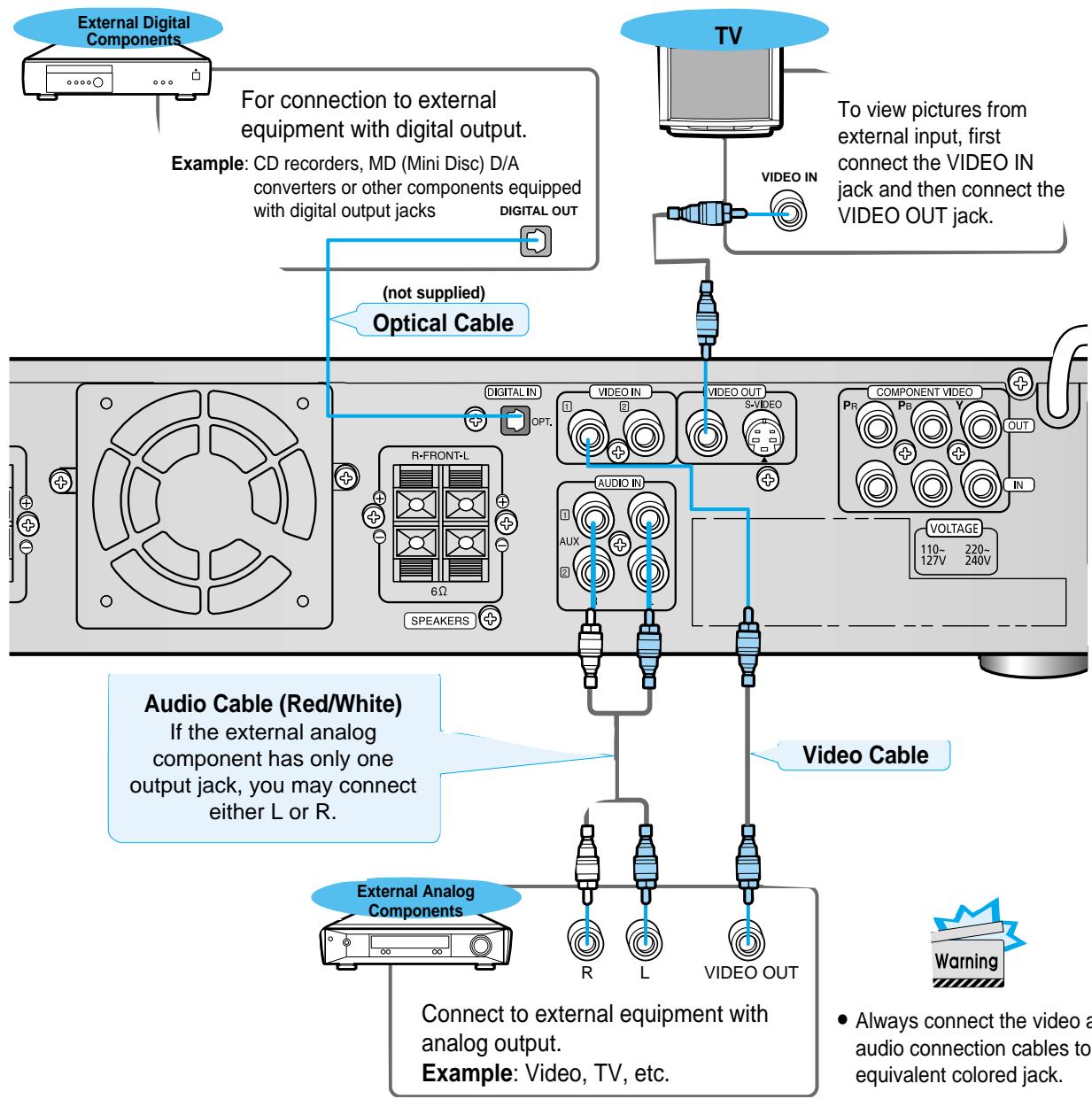
To Play External Digital/Analog Equipment
Press AUX on the remote control to select DIGITAL IN, AUX1, or AUX2.
Press Function on the main unit to select DIGITAL IN, AUX1, or AUX2.
- Each time the button is pressed the mode switches as follows: FM AM DVD DIGITAL IN AUX 1 AUX 2.
1 Turn on the TV.
2 Point the DVD's remote at the TV.
3 While holding the button down, enter the code for your brand.
- If there is more than one code listed in the table, enter one at a time to determine which code works.
example: For SAMSUNG 1TVs While holding down the enter 0 + 1
If the TV turns off, setup is complete.
- Now, you can perform the following operations on the TV.
| TV ①/ : Turn on or off the TV. |
| VOLUME +/- : Adjust the volume. |
| TV/VIDEO : Set the input mode (either TV or VIDEO) |
| CHANNEL +/- : Change the channels. |
| Manufacturer | CODES |
| Samsung | 01~06,32 |
| Akai | 12 |
| Flisher | 12 |
| Grundig | 09,17,21 |
| Hitachi | 11,13,14,24 |
| JVC | 32 |
| LG | 02,30 |
| Mitsubishi | 02,16 |
| Mival | 29 |
| Nokia | 23 |
| Nordmende | 13,14,24 |
| Panasonic | 08,23~27 |
| Philips | 02,20,22 |
| Saba | 13,14,22~24 |
| Sanyo | 12,16 |
| Schneider | 02 |
| Sharp | 10,31 |
| Sony | 15,16 |
| Telefunken | 14,24,28 |
| Thomson | 13,14,24,33,34 |
| Toshiba | 07,16~19,21 |
Note
- Manufacturers' codes are subject to change without notice. If they are changed, this remote control cannot operate the equipment.

Connecting your System to the Power Supply
The main lead must be plugged into an appropriate socket.
Before plugging your system into a main socket, you must check the voltage.
Check the position of the voltage selector on the rear of the system (OPTIONAL).
1. Plug the main lead (marked AC Cord on the rear of the system) into an appropriate socket.
2. Press the On/Standby button to switch your DVD Player system on.
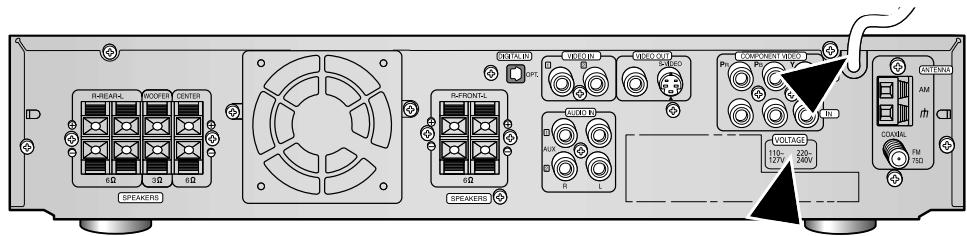
Before Using the DVD Player
Your DVD player is capable of playing DVD, VCD, and CD discs.
User instructions may vary depending on the type of disc. Read the instructions carefully before use.
Preperations before use
1
Turn on the power to your DVD player and TV.


2
Select a video mode by pressing the TV/VIDEO button.
3
Press the DVD button to select the DVD input function.

Note
- The "WAIT" message that appears on the display for about 4~5 seconds when turning on the power or selecting a DVD function indicates a stabilization period for optimizing the condition of your DVD player. While the message is being displayed, other buttons remain inactive.
- When the power is not turned on, press down the Stop (■) button on the main unit for over 5 seconds. The product will be initialized to its optimum state.
- As to some operational features such as the Speaker mode, Test tone, Volume, etc. your DVD player will not display their operation on the TV screen.
TV Broadcast System
- This device is designed to work with the PAL video format.
- For normal playback, the video format a DVD disc is recorded in must coincide with your TV's video format.
TV System Selection
Press the TV System button while in stop mode.
Each time the TV System button is pressed, "NTSC, PAL" are selected in this order.
- Different countries use different types of TV broadcast systems, video, audio and channel systems.
Example : The player cannot playback PAL-encoded DVD with NTSC-TV.
1
Press the Open/Close(▲) button to open the disc tray.

- The button is located only on the Front Panel of the player (not on the remote).
2
Insert a DVD disc.
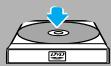
- Place a disc gently into the tray with the disc's label facing up.
3
Press the Open/Close(▲) button again to close the disc tray.

- Playback starts automatically.
PausingPlayback

Press the Play/Pause (▶II) button during playback.
- To resume, press the Play/Pause (▶II) button again.
Note
Depending on the disc, the initial disc information screen may look different from disc to disc.
- When playing a DVD containing MPEG format, video may not be reproduced correctly and you may get picture
Stopping Playback

Press the Stop (■) button during playback.
- During playback, when the Stop (■) button is pressed, the position is stored in the memory, and STOP is shown on the display.
When the Play/Pause (▶II) button or Return button is pressed subsequently, playback resumes from the position at which it was stopped. - If the Stop (■) button is pressed a second time, the 'resume play' memory function is canceled, and STOP is shown on the display. When the Play/Pause (▶II) button is pressed, playback starts from the beginning.
Using the On-Screen Display
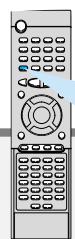
Press the Display button on the remote.
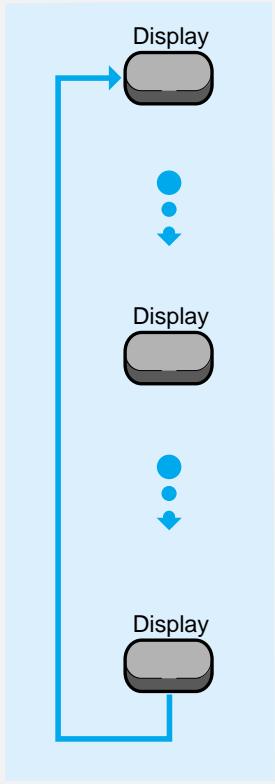
Display
DVD
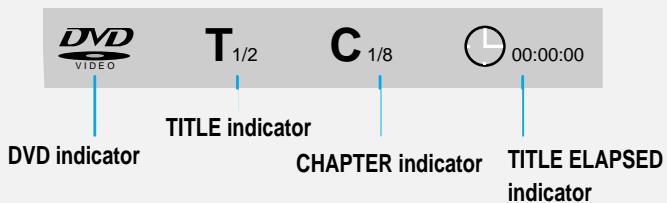
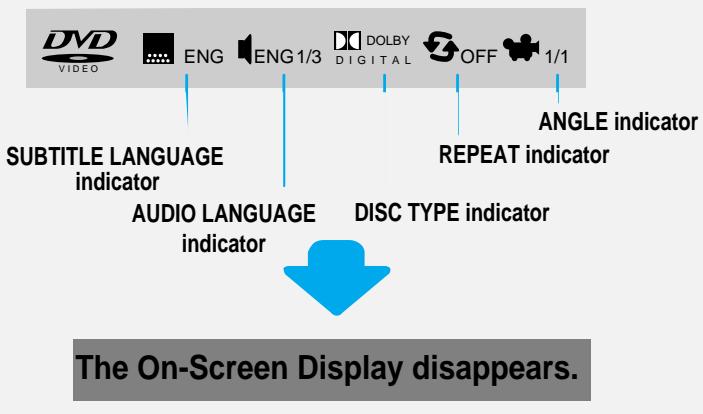
What is a Title?
A movie contained in a DVD disc.
What is a Chapter?
Each Title on a DVD disc is divided into several smaller sections called "chapters".
Turning the sound off temporarily?
Mlte
Press the Mute button during playback.
- This operation may be useful when you need to greet the guests or answer the telephone.
Note
If the player is left for more than 3 minutes in pause mode, it will stop.
What is MP3? MP3 is an abbreviation of Motion Picture Experts Group (or MPEG) Audio Layer 3. MP3 is simply a file format with a data compression ratio of 1:10 (128 Kbps*). That means, by using MP3 format, one CD-R or CD-RW can contain 10 times as much data volume as a regular CD can.
StartingPlayback
- It is recommended you turn on your TV when playing back an MP3-CD.
1
Press the Open/Close( ) button
to load a disc.
2
Press the Play/Pause( II) button.
- After detecting the disc, playback starts.
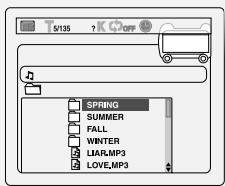
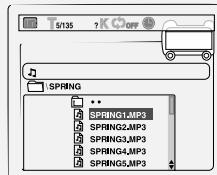
- The on-screen bar and the contents recorded on the MP3-CD will be shown on the TV if it is turned on.
To stop during playback
Press the Stop (■) button.
CD-R MP3 DISC
- Only CD-R discs with MP3 files in ISO 9660 or Joliet format can be played.
- The file name of the MP3 file may not be longer than 8 characters and should contain no blank spaces or special characters.
- Use discs recorded with a compression/decompression data rate greater than 128Kbps.
- Only files with the ".mp3" and ".MP3" extensions can be played.
- Only a consecutively written Multisession disc can be played. If there is a blank segment in the Multisession disc, the disc can be played only up to the blank segment.
- If the disc is not closed, it will take longer to begin playback and not all of the recorded files may be played.
- For files encoded in Variable Bit Rate (VBR) format, i.e. files encoded in both low bit rate and high bit rate (e.g., 32Kbps ~ 320Kbps), the sound may skip during playback.
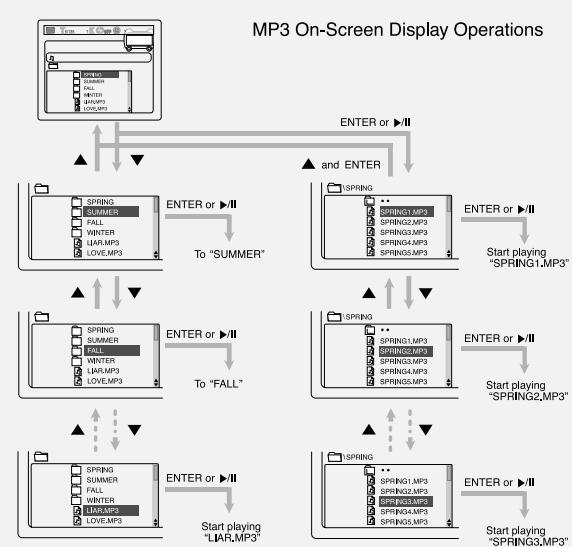
Operations Using the On-Screen Display
Turn on your TV when playing back an MP3 disc.
When the loaded MP3 disc is recognized, the following on-screen display appears on the TV screen.
(The contents of this on-screen display vary according to the disc — the way MP3 tracks were recorded on the disc.)
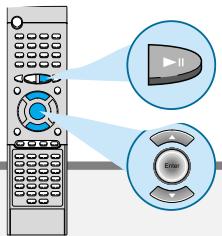
| Button | To do |
| ENTER,▶ | Start playback or go into a directory. |
| ▲/▼ | Select a track or directory. |
CD-R/RW playback compatibility
- Your DVD player can also play CD-R and CD-RW discs recorded in digital audio format. When recording your own CD-R or CD-RW discs, make sure that the recording session is properly terminated, or they will not be playable. (Depending on disc properties and recording quality, some CD-R/RWs may not be playable.)
- CD-RW has a lower reflection rate than CD-R media and consequently it will take a longer to read CD-R discs.
- CD-RW discs recorded at high speed tend to be difficult for the DVD player to read. If the recording speed for the CD-RW disc is not predetermined, write it at low speed.
Repeating Playback
On an MP3 disc, Repeat A B cannot be used.
You can enjoy only repeat play.
Press the Repeat button.
The indication corresponding to the selected mode appears on the TV screen.
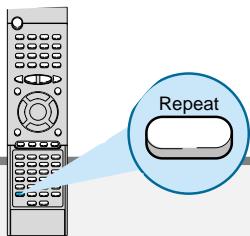
Each time you press the button, repeat mode changes as follows:

REPEAT:RANDOM
: All tracks recorded on the disc will be played once in random order.
REPEAT:ONE
: Current track will be repeated.
REPEAT:DIR
: Tracks in the current directory will be repeated.
REPEAT:DISC
: All tracks on the disc will be repeated.
REPEAT OFF
: Repeat play is canceled.(Normal play is resumed.)
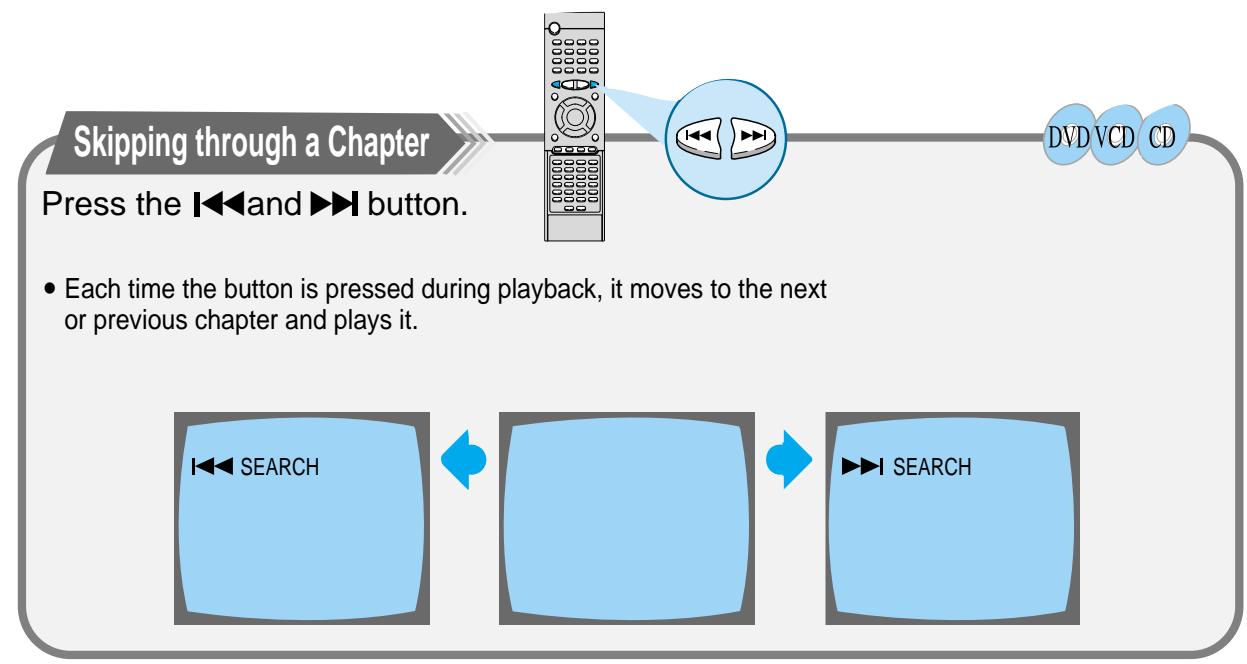
During playback, you can search quickly through a chapter or track for a specific scene or tune.
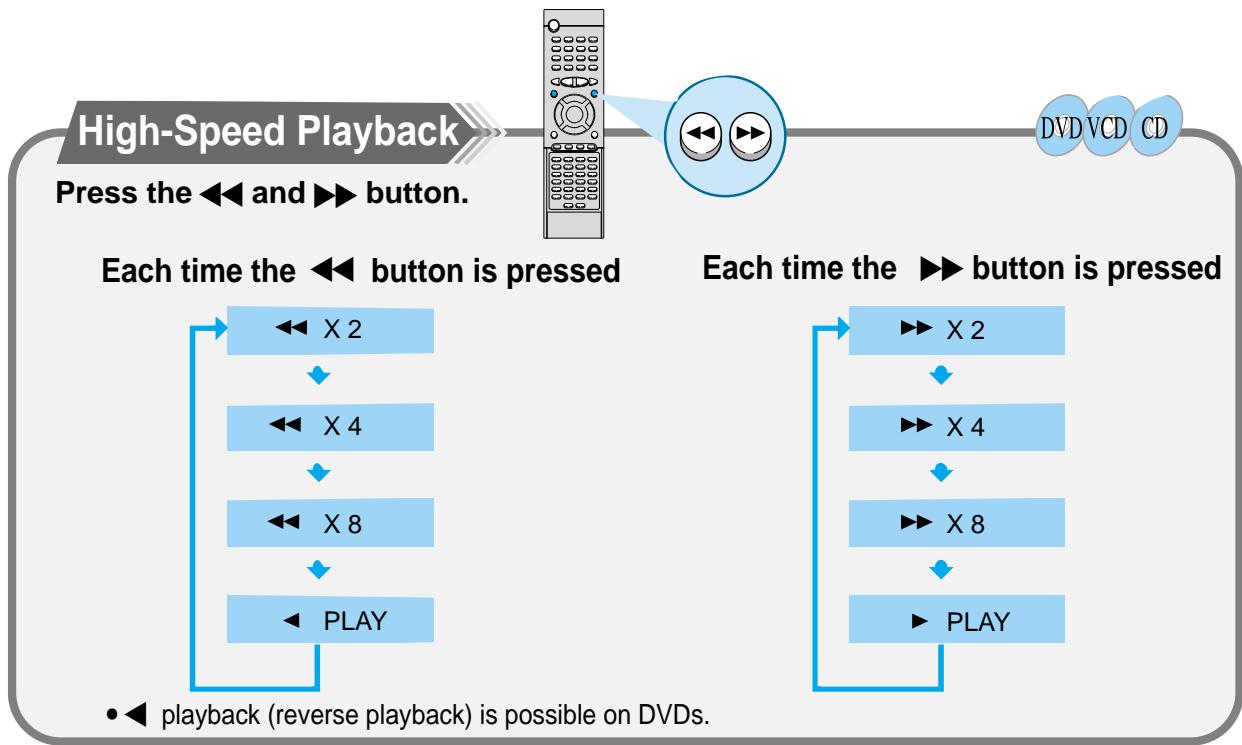

- The picture moves forward one frame each time the button is pressed.
Slow Playback/Checking the Remaining Time
Playing Slowly
Press the Slow button.
Slow
DVD VCD
Each time the Slow button is pressed
DVD
SLOW 1/2
SLOW 1/4
▶ PLAY
VCD
The slow playback speed changes and the selections (1/2X, 1/4X, 1/8X, 1/16X and normal play) are repeated.
Checking the Remaining Time
Press the Remain button.
- For checking check the total time and the remaining time of a title or chapter being played.
Remain

DVD VCD
CD
Each time the Remain button is pressed
DVD
TITLE TIME
REMAIN TIME : TITLE
CHAPTER TIME
REMAIN TIME : CHAPTER
VCD
CD
TRACK TIME
REMAIN TIME:TRACK
DISC TIME
REMAIN TIME : DISC
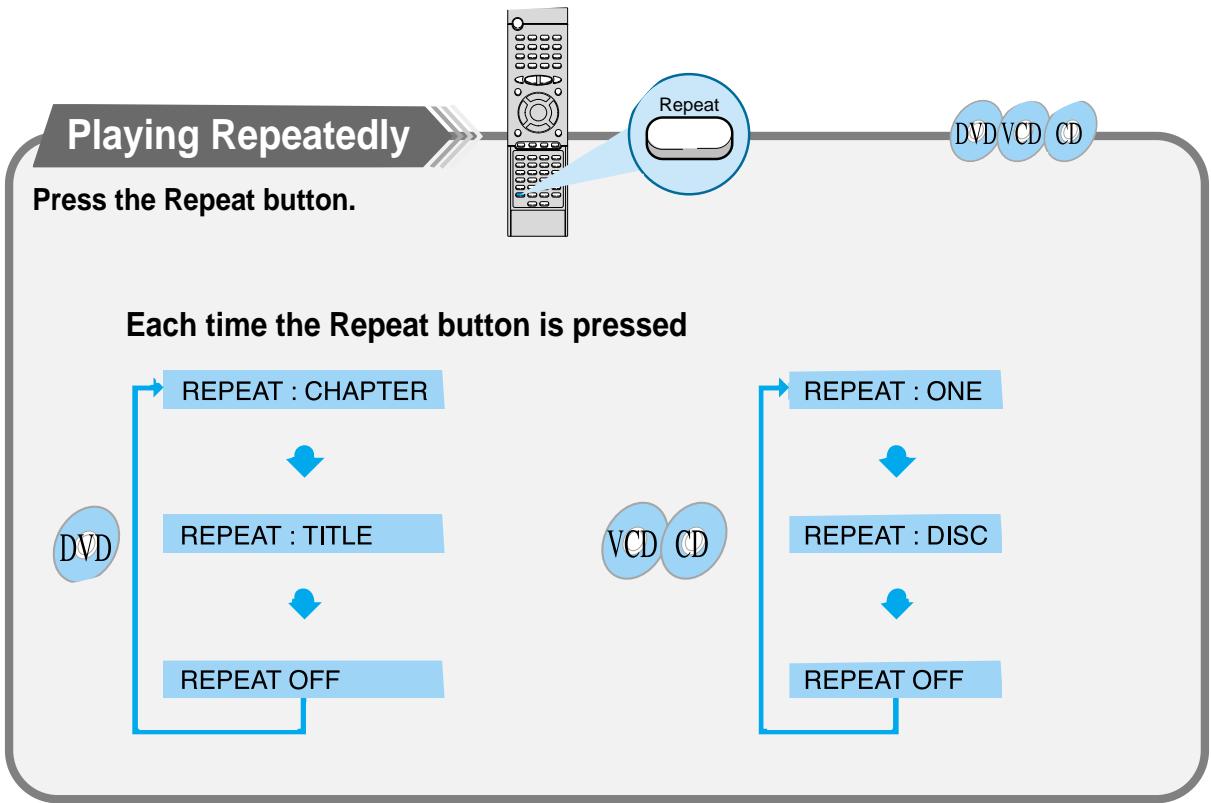

- Repeat playback operation is not possible with version 2.0 VCD discs if PBC is turned on. To operate this feature, press the MENU button, and then select "PBC OFF".

Using Disc Menu/Title
To Select the Disc-Ment
You can use the menus for the audio language, subtitle language, profile, etc. DVD menu contents differ from disc to disc.
DVD
1
Press the Menu button during playback.
2
Use the Up/Down ( / ) or Left/Right ( / ) button to access the different features.
3
Press the Enter button.
- The Menu Screen appears.
-
When playing a VCD version 2.0, you can operate it using PBC On/Off function.
-
The selected item will play.
Using the Title Menu
For DVDs containing multiple titles, you can view the title of each movie.
Depending on the disc, this function may either not work at all, or may work differently.
DVD
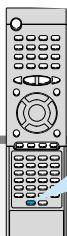
To move directly to a title chapter or time
1
Press the Go To button.
DVD
2
Press Number(0~9) button or the Left/Right (▲/▲) button.
Each time the button is pressed, it repeats as shown below.
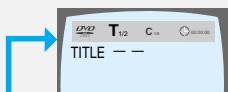
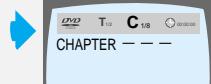
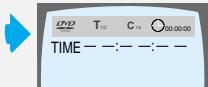
Each time the buttons are pressed the desired scene is located and then played.
Depending on the disc, the Title function may not work.
Selecting the Audio Language
Press the Audio button.
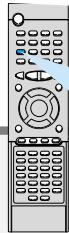
Audio
MO/ST
DVD
- Depending on the number of languages recorded on a DVD disc, a different audio language (ENGLISH, SPANISH, FRENCH, etc.) is selected each time the button is pressed.
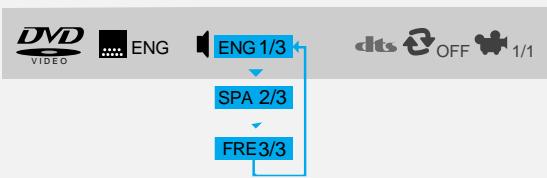
Note
- Depending on the disc, DTS or DIGITAL PRO LOGIC can be selected.
Selecting the Subtitle Language
Press the Subtitle button.
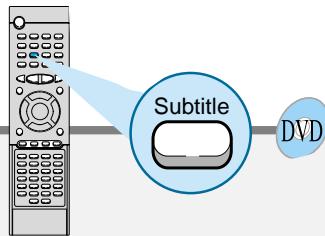
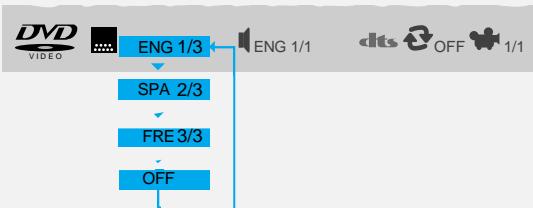
- Depending on the number of languages recorded on a DVD disc, a different subtitle language (ENGLISH, SPANISH, FRENCH etc.) is selected each time the button is pressed.
- To make the subtitles disappear, select "OFF".
Note
- If the word INVALIDID appears on the TV screen while buttons are being operated, that operation is not possible with that particular disc.
- Depending on the disc, the audio or subtitle language function may not work.
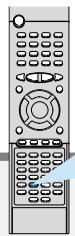
To enlarge an image
Press the Zoom button.
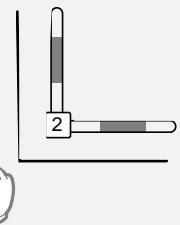
Images can be enlarged 2x and 4x.
- During DVD playback, press the Zoom button to zoom in 2X/4X/normal, in that order.
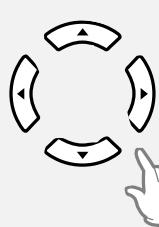
- Press / / / to move the enlarged portion you want to watch.
DVD VCD
Note
- Only 2X zoom operation is possible during VCD playback.
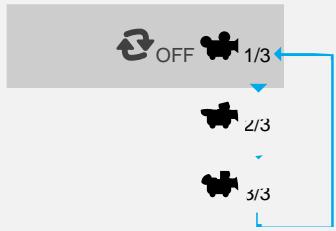
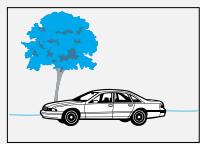
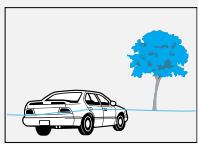
Selecting the desired Screen Angle
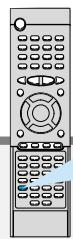
Press the Angle button.
DVD
- This function only works with discs on which multiple angles have been recorded.
- During playback, press the Angle button to select the desired angle: 1/3, 2/3, 3/3, normal, in that order.

ProgramPlayback
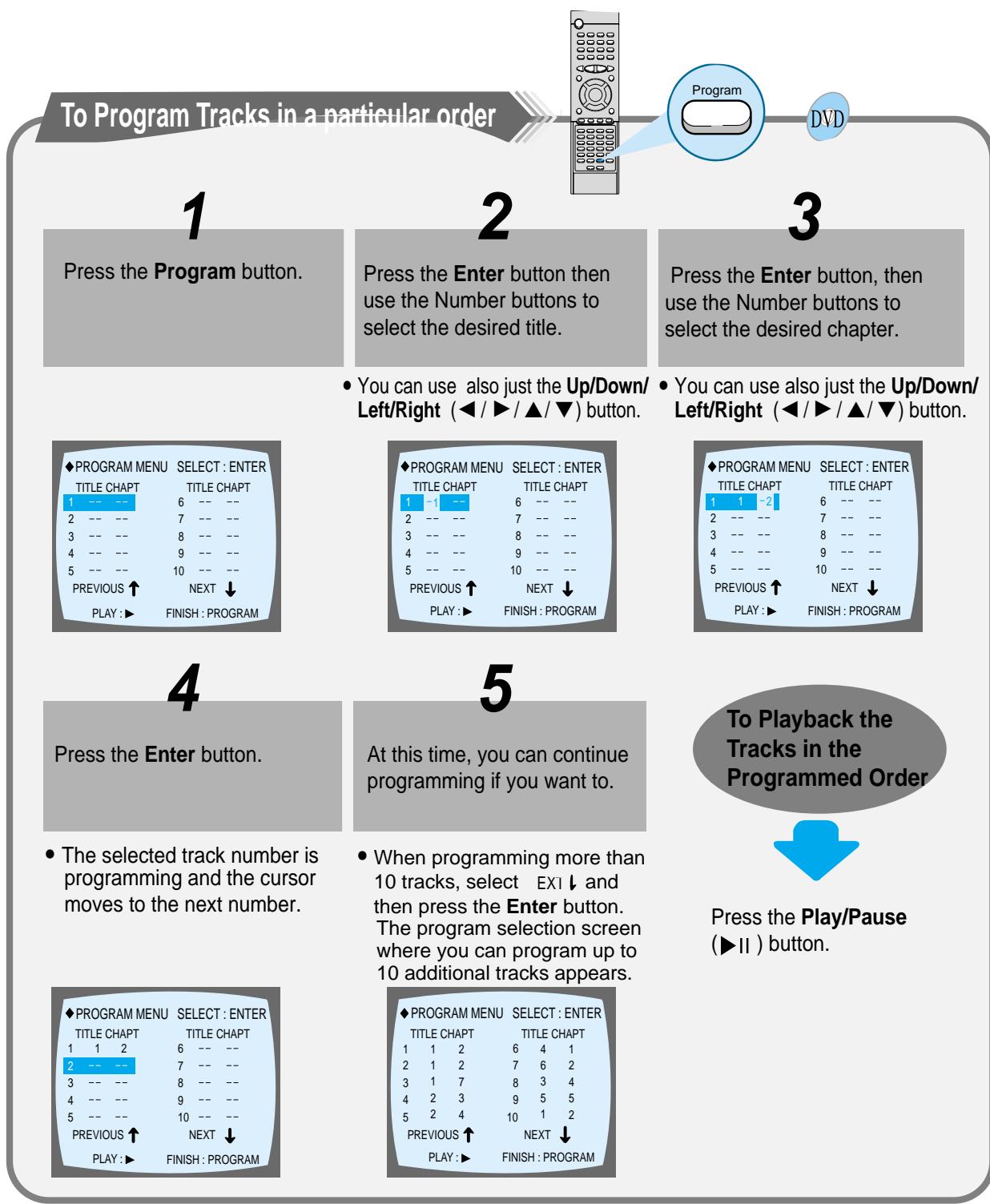
Use this function with video and music CDs to play the tracks in a particular order.
To Cancel the Programming
Press either the Program button or Stop (■) button.
To Change the Program
DVD
1
Press the Up/Down (/) button to select the track number to be changed.
2
Press the Enter button to select the title or chapter to be changed.
3
Press the Clear button and then press the Number buttons.
4
Press the Enter button.
- The cursor moves to the next number when the Enter button is pressed again.
5
Repeat steps 1-4 above to change the program.
-
You can use also just the Left/Right (▲/▶) button.
-
The cursor moves to the number below.
To delete the entire Program
- Press the Stop (■) button twice during playback.
- Press the Stop (■) button once when in the Stop mode.
- Press the Open/Close (▲) button on the main unit. The disc tray will open and then close. The program will then be deleted.
When you have entered a wrong number
Note
You can program or change particular tracks for VCD or CD discs in the same manner.
Press the Clear button.
- When you want to delete a selection during programming, select the track (or chapter, or title) to be deleted and then press the Clear button.
To set up Sleep
Press the Sleep button.
Each time the button is pressed the selection toggles as follows: SLEEP 10 SLEEP 20
→ SLEEP 30 → SLEEP 60 → SLEEP 90
→ SLEEP 120 → SLEEP 150 → OFF.
What is the Sleep function?
You can set the sleep time so that the unit powers off automatically after a preset period of time.
To Review Sleep Setting
- Press the Sleep button.
The remaining time for the selected Sleep time is displayed on the front panel. - Pressing the button once again changes the Sleep time from the last setting.
Activating Dynamic Range Compression
You can enjoy a powerful sound even at a low volume level by compressing the dynamic range (difference between the maximum and minimum sounds).
From the remote control ONLY:
Press the D.R.C button.
Each time you press the button, the dynamic range compression mode alternates between on and off. Select "D.R.C.ON" while watching the DVD at night. (You can obtain a powerful sound at a low volume.)
D.R.C

DVD
X DIGITAL
1、A、C、ON
Note
- When the Stop button is pressed, DRC is switched to Off.
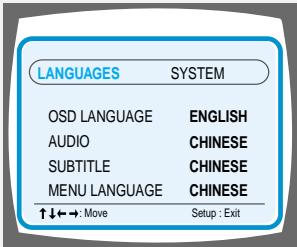
Setting up the Language Features
Using the DVD player's Setup function, you can customize the Menu Language, Subtitle Language, and Disc Menu Language.
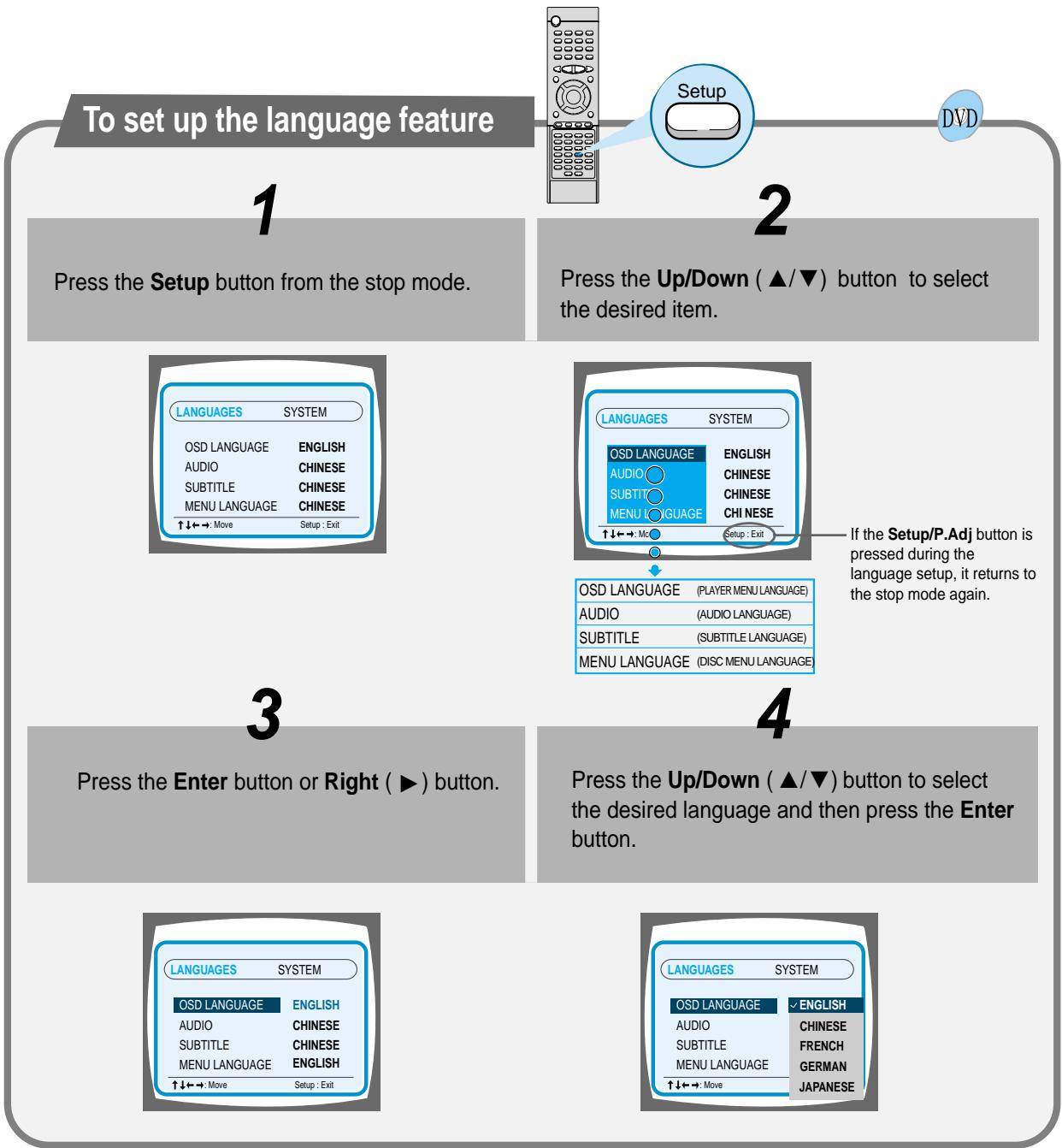
To End the Language Features Setup
Setup
- Press the Setup button again.
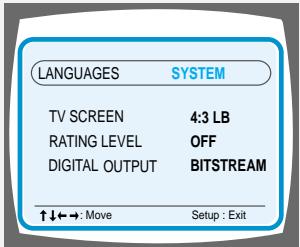
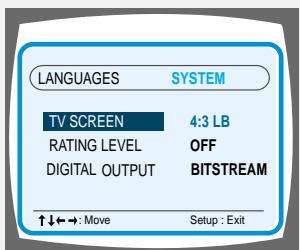
You can use the DVD player's Setup function to select the TV screen ratio, rating limit, or digital output mode.
To Set up the System
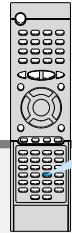
Setup
DVD
1
From the stop mode, press the Setup button.
2
Press the Left/Right ( / ) button to select the system.
3
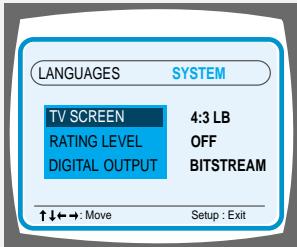
Press the Up/Down ( /) button to select the desired item.
4
Press the Enter button or Right (▶) button.
5
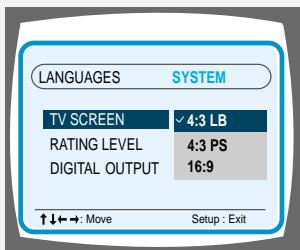
Press the Up/Down (▲/▼) button to select the desired sub-item and then press the Enter button.
To End the System Setup
Setup
- Press the Setup button again.

Adjusting the TV Aspect Ratio (Screen Size)
The horizontal to vertical screen size ratio of conventional TVs is 4:3 while that of wide screen and high definition TVs is 16:9. This ratio is called the aspect ratio. When playing DVDs recorded in different screen size, you should adjust the aspect ratio to fit your TV or monitor.
For a standard TV, select either "4:3LB" or "4:3PS" option according to personal preference. Select "16:9" if you have a wide screen TV.
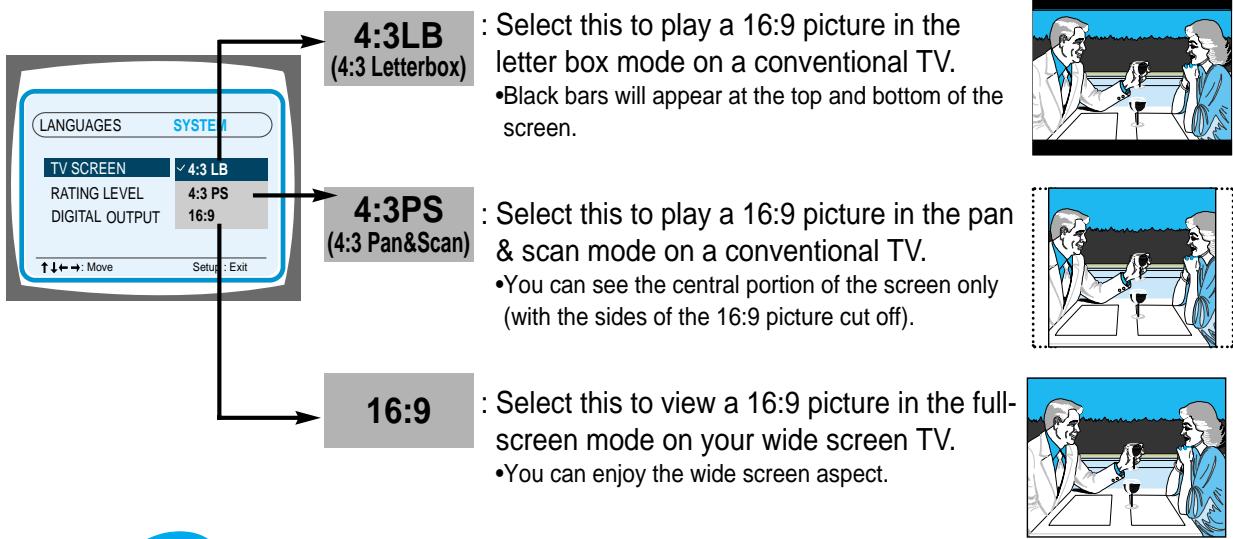

- However, if a picture is stored on the DVD in the 4:3 ratio, you cannot view it in wide screen.
- Since DVD discs are recorded in various image formats, they will look different depending on the software, the type of TV, and the TV aspect ratio setting.
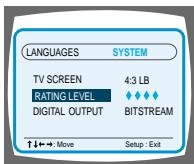
RATING LEVEL
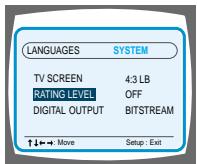
The Rating Level function works in conjunction with DVDs which have been assigned a rating, to help control the types of DVDs that your family watches.
-
Select RATING LEVEL, then press the Enter button.
-
Use the number(0~9) buttons to input a 4-digit password.
-
The player's password is set to "7890" by default.
When the rating level password has been forgotten
While the player is in the stop mode, hold the Stop (■) button down on the main unit for more than 5 seconds.
- "INITIAL" appears on the display and all default settings will return to Factory Preset.
- Press the Power button.
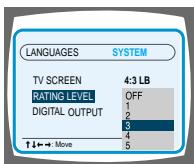
3.Use the Up/Down ( /) button to select either RATING LEVEL or NEW PASSWORD, and then press the Enter button.
- There are up to 8 rating levels on a disc.
- If LEVEL 6 is selected, a disc which contains rating LEVEL 7 and above cannot be played.
- If you select NEW PASSWORD, the screen changes and enables you to enter the new password.

Speaker Setup
Setting up Speaker Mode and Delay Time
1
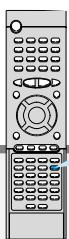
Press the SPK Mode button.
DVD
2
Press the Left/Right ( / ) button to select the desired item.
- Each time the button is pressed, a different mode selection is displayed on the front panel display as shown below.
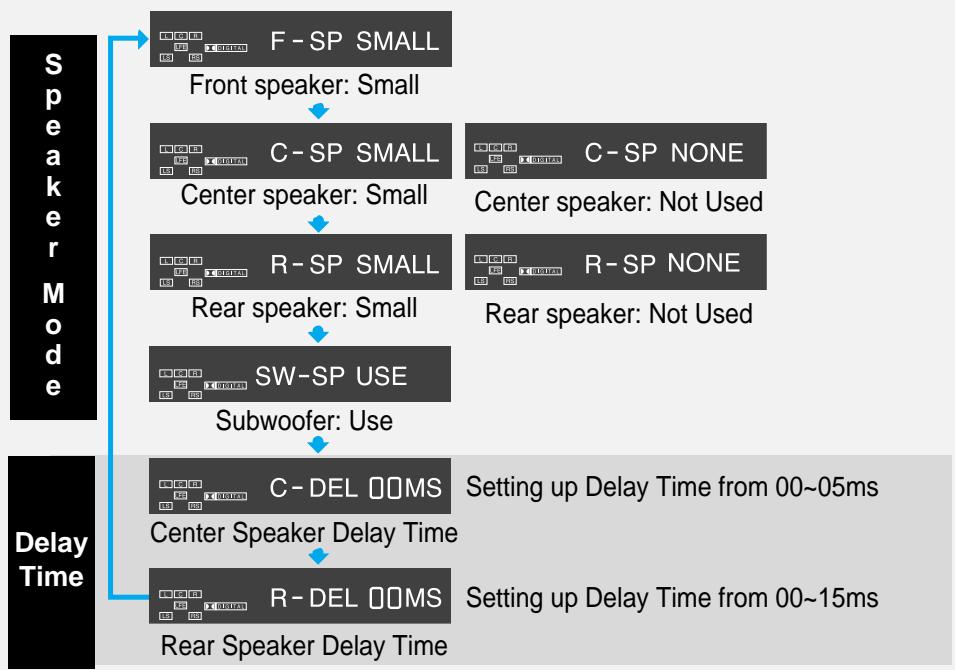
- SMALL: When this setting is selected, low frequencies of below 200Hz are assigned to the subwoofer only.
- USE: Select when using speakers.
- NONE: Select this when no speakers are installed.
Note
The display changes depending on the current audio output mode (DSP, PRO LOGIC, 3-STEREO, STEREO, etc.).
Setting up the Speaker Delay Time
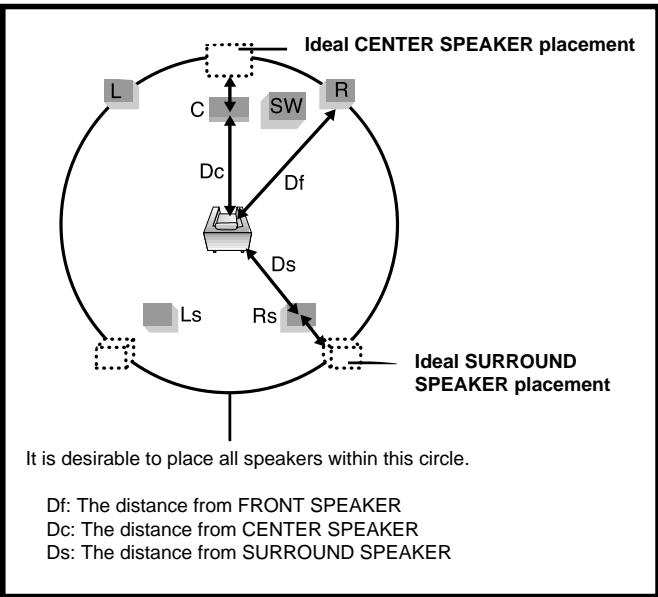
When 5.1CH Surround Sound is played, you can enjoy the best sound if the distance between you and each speaker is the same. Since the sounds arrive at the listening position at different times depending on the placement of speakers, you can adjust this difference by adding a delay effect to the sound of the Center Speaker and Surround Speakers.
- Setting CENTER SPEAKER
If the distance of Dc is equal to or longer than the distance of Df in the figure, set the mode as 0ms. Otherwise, change the setting according to the table.
| Distance between Df and Dc | Delay Time |
| 50 | 1.3 ms |
| 100 | 2.6 ms |
| 150 | 3.9 ms |
| 200 | 5.3 ms |
- Setting REAR (SURROUND) SPEAKERS If the distance of Df is equal to the distance of Ds in the figure, set the mode as 0ms. Otherwise, change the setting according to the table.
| Distance between Ds and Dc | Delay Time |
| 200 | 5.3 ms |
| 400 | 10.6 ms |
| 600 | 15.9 ms |

Speaker delay time setting is a professional sound volume adjustment method for audio enthusiast. For home use, refer to "Setting up the Ideal Speaker Positions" below to install speakers in appropriate locations.
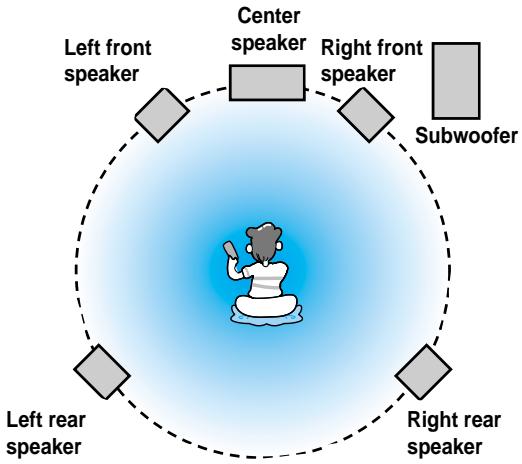
Ideal Speaker Placement
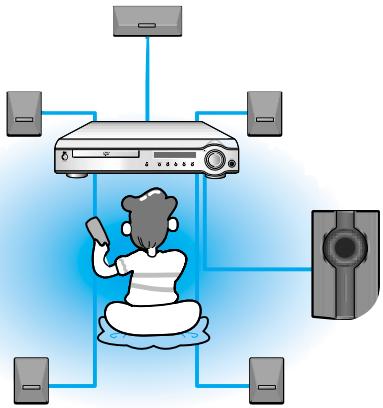
Front Speakers
Set the front speakers so that their tweeters (high-range) are aligned at about ear level and at a horizontal angle of 45^ to the prime listening position.
Center Speaker
Ideally the center speaker should be positioned with its top surface flush with the front speakers. However, you may place the speaker either on top or near the bottom of your TV set.
Rear Speakers
Set the rear speakers further back parallel to the walls, at 60 to 90 centimeters (2 to 3 feet) above prime listening position ear level.
If the space behind the listening position is insufficient (i.e., too close to the wall), place the rear speakers facing each other on either side.
Subwoofer Speaker
Place the subwoofer at any convenient location within the vicinity of the listening position.

To set up Speaker Balance
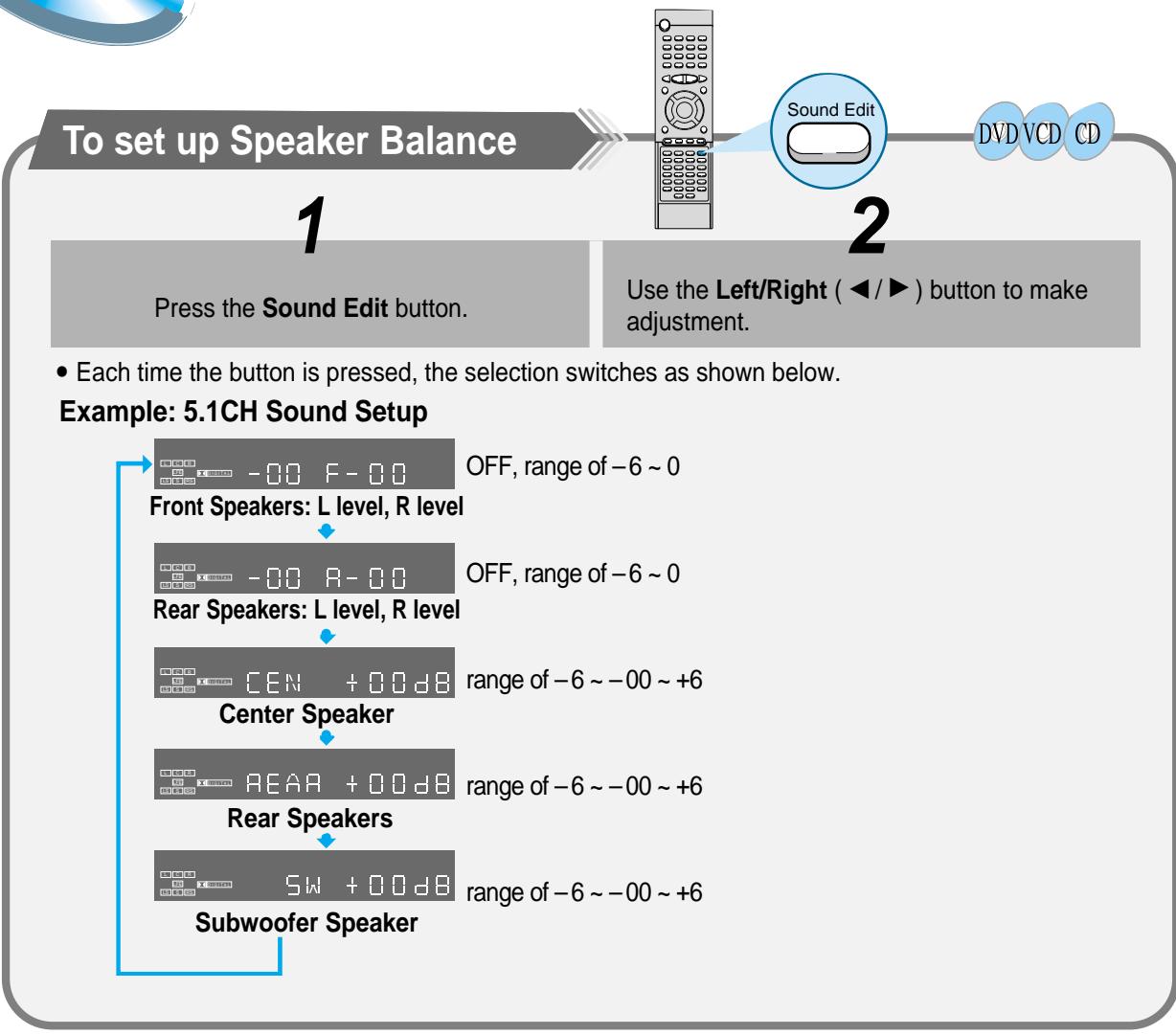

The display changes depending on the current audio output mode (DSP, PRO LOGIC, 3-STEREO, STEREO, etc.).
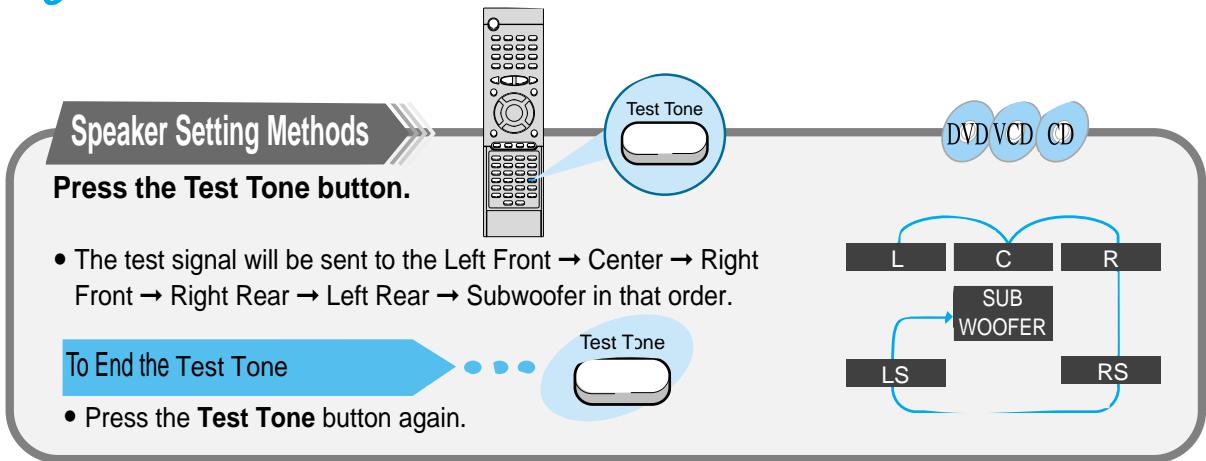

While in DSP or PRO LOGIC mode, TEST TONE may operate differently for VCDs or CDs.
You can use the following surround modes to reproduce a realistic sound field.
- Digital Multichannel Surround —Dolby Digital and DTS Digital Surround
Dolby Pro Logic II
Dolby Digital and DTS Digital Surround
To enjoy surround effectively, all the speakers need to be connected and activated.
Dolby Digital
Used to reproduce multichannel sound tracks of the software encoded with Dolby Digital ( DOLBY DIGITAL).
Dolby Digital encoding method (discrete 5.1 channel digital audio format) records and digitally compresses the left front channel, right front channel, center channel, left rear channel, right rear channel, and LFE channel signals (total 6 channels, but LFE channel is counted as 0.1 channel. Therefore, LFE is called the 5.1 channel).
In addition, Dolby Digital enables stereo rear sounds, and sets the cutoff frequency of the rear treble at 20 kHz, compared to 7 kHz for Dolby Pro Logic. These facts result in better sound quality than Dolby Pro Logic.
When the system detects Dolby Digital signals, the DOLBY DIGITAL indicator lights up on the display.
DTS Digital Surround
Used to reproduce multichannel sound tracks of the software encoded with DTS Digital Surround ( DIGITAL SURROUND).
DTS Digital Surround is another discrete 5.1 channel digital audio format available on CD, LD, and DVD software.
Compared to Dolby Digital, audio compression rate is relatively low.
This fact allows DTS Digital Surround format to add breadth and depth to the reproduced sounds. As a result, DTS Digital Surround features natural, solid and clear sound.
When the system detects DTS Digital Surround signals, the DTS indicator lights up on the display.
Dolby Pro Logic II
- Dolby Pro-Logic II is a new multi-channel playback format developed by Dolby Laboratories using feedback logic steering technology and offering improvements over conventional Dolby Pro Logic circuits.
- Dolby Pro Logic II can be used to decode not only sources recorded in Dolby Surround ( DOLBY SURROUND ) but also regular stereo sources into five channels (front left, front right, center, surround left and surround right) to achieve surround sound.
- Whereas with conventional Dolby Pro Logic the surround channel playback frequency band was limited, Dolby Pro Logic II offers a wider band range.
In addition, the surround channels were monaural (the surround left and right channels were the same) with previous Dolby Pro Logic, but with Dolby Pro Logic II they are stereo.
* Sources recorded in Dolby Surround
These are sources in which three or more channels of surround have been recorded as two channels of signals using Dolby Surround encoding technology.
Dolby Surround is used for the sound tracks of movies recorded on DVDs, LDs and video cassettes to be played on stereo VCRs, as well as for the stereo broadcast signals of FM radio, TV, satellite broadcasts and cable TV.
Decoding these signals with Dolby Pro Logic makes it possible to achieve multi-channel surround playback.
The signals can also be played on ordinary stereo equipment, in which case they provide normal stereo sound.
Dolby Pro Logic II
DVD VCD CD
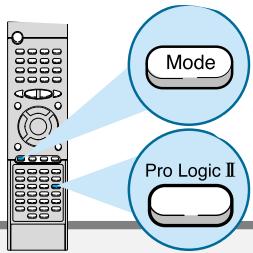
Dolby Pro Logic II is a new format for playing multichannel audio signals that offers improvements over conventional Dolby Pro Logic. It can be used to decode not only sources recorded in Dolby Surround, but also regular stereo sources into five channels (front left/right, center and surround left/right). In addition, various parameters can be set according to the type of source and the contents, so you can adjust the sound field with greater precision.
1
Press the Function button on the front panel to select the desired function.
- Select from FM AM DVD DIGITAL IN AUX 1 AUX 2.
2
Press the Pro Logic II button.
3
Press the DSP/DPL II Mode button.
Each time the Pro Logic II button is pressed.
Each time the DSP/DPL II Mode button is pressed.
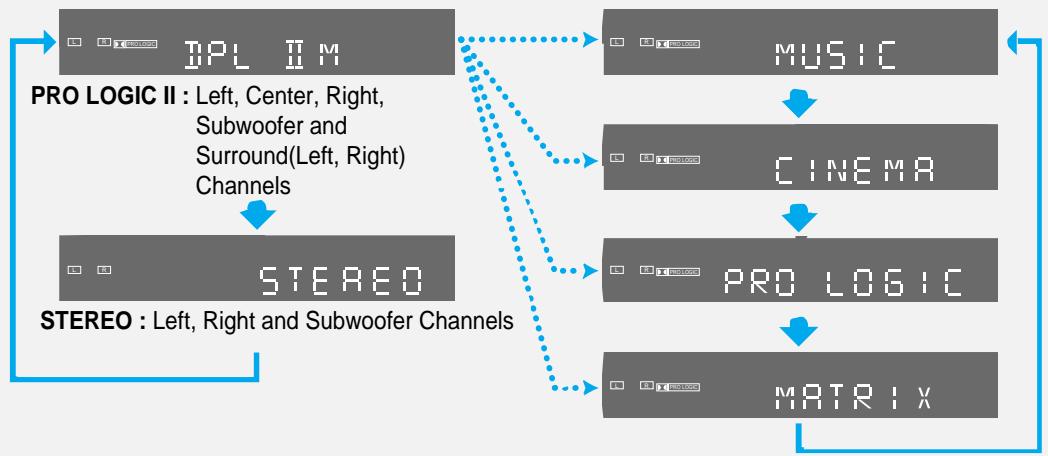
Pro Logic II Mode
Select one of the modes ("MUSIC", "CINEMA", "PRO LOGIC" or "MATRIX").
- The Music mode is recommended when listening to CDs or watching DVDs with mostly musical content.
- The Cinema mode is best when watching movies.
- The Pro Logic mode offers the same surround processing as original Pro Logic and is best used when the source contents are not of optimum quality.
- The Matrix mode is useful for when the audio is mono.
Dolby Pro Logic II Effect Function
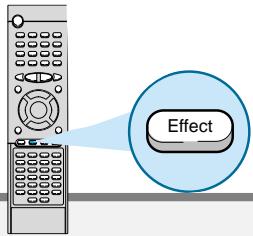
This function works only in the DPL II M (Dolby Pro Logic II Music) Mode.
1
Press the DSP/DPL II Effect button.
2
Use the Left/Right ( / ) button to make adjustments.
Each time the DSP/DPL II Effect button is pressed.
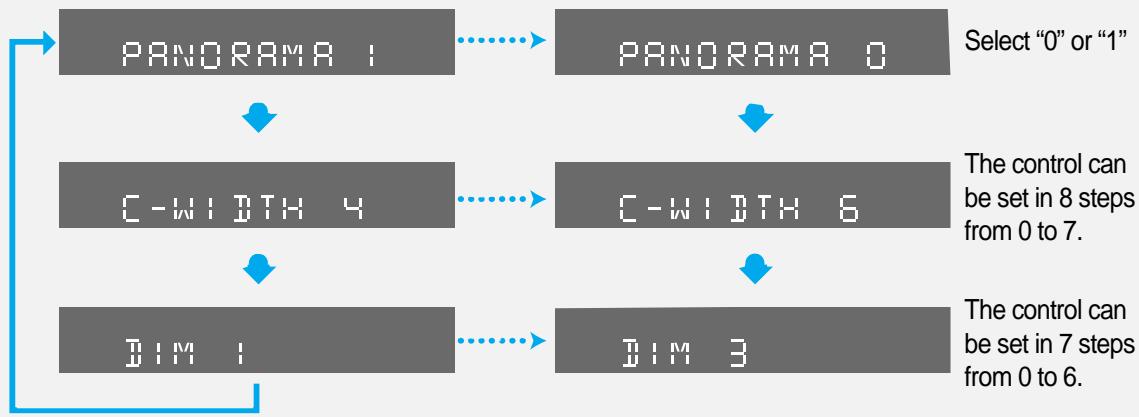
- Panorama Mode
This mode extends the front stereo image to include the surround speakers for an exciting "wraparound" effect with side wall imaging.
Center Width Control
This control adjusts the center image so it may be heard only from the center speaker; only from the left/right speakers as a phantom image; or from all three front speakers to varying degrees.
Dimension Control
This control gradually adjusts the soundfield either towards the front or towards the rear.

- When playing a DVD encoded in two or more channels, DOLBY PRO LOGIC II mode cannot be selected.
DSP modes have been designed to simulate different acoustic environments.
The sound heard in a hall, theater, pavilion, dance club, or live club consists of direct and indirect sound —early reflections and reflections from behind.
Direct sounds reach the listener directly without any reflection.
Indirect sounds are delayed by the distance of the ceiling and walls.
These indirect sounds are an important element of the acoustic surround effect.
Press the DSP/DPLII Mode button.
- This function works only in the STEREO Mode.
- The following DSP modes are provided with this unit:
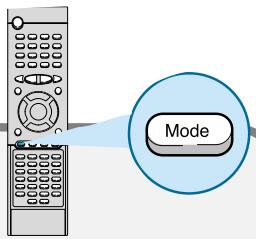
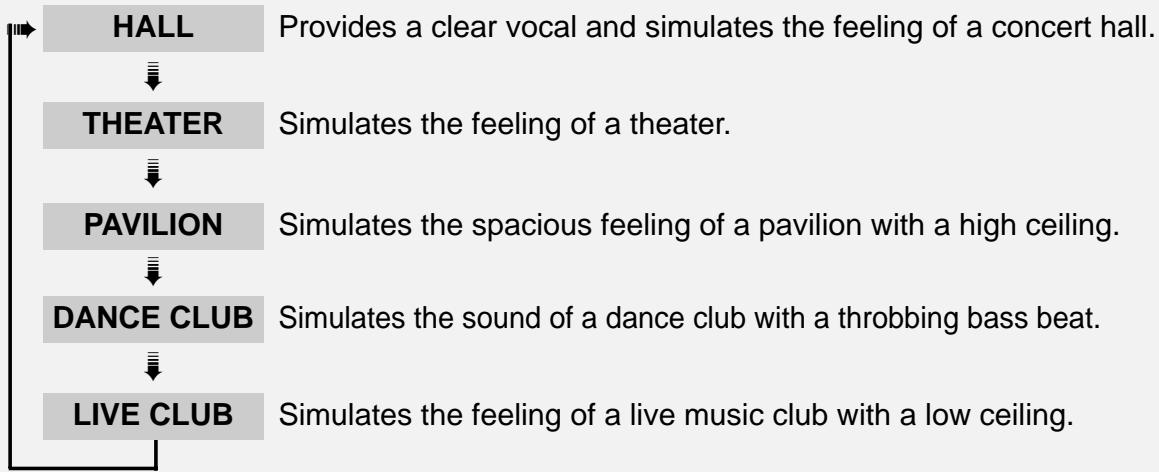
- These DSP modes can be used to add acoustic surround effects while reproducing stereo analog or linear PCM digital signals.
- When one of the DSP modes is selected, the DSP indicator lights up on the display.
DSP modes available according to the input signal format
O:Possible,X:Not possible
| Surround | Multichannel Surround | DSP | (canceled) | |||||
| HALL | THEATER | PAVILION | DANCE CLUB | LIVE CLUB | STEREO | |||
| Input Signal format | Analog | X | O | O | O | O | O | O |
| Linear PCM | X | O | O | O | O | O | O | |
| Dolby Digital | O | X | X | X | X | X | X | |
| DTS | O | X | X | X | X | X | X | |

To increase Effect level
To increase Effect level
Press the DSP/DPL II Effect button.
- The effect level can be set in steps from 1 to 4 EFFECT1 EFFECT2 EFFECT3 OFF(DEFAULT).
Each time the button is pressed the selection moves to the next effect. - The higher the number, the stronger the DSP surround effect will be.
What is a Effect?
This sets the strength of the DSP mode.
Note
- This function works only in the DSP Mode.

Adjusting DSP Sound Parameters
You can fine-adjust DSP modes more minutely by changing three parameters—room, liveness, and reverberation.
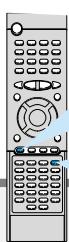
1
Press the DSP/DPL II Mode button.
2
Press the Sound Edit button.
Each time you press the button, the indication on the display changes as follows:
3
Press the Left/Right (▲/▲) button to adjust the DSP sound parameter.

ROOM: To adjust the resonance based on the room size. The larger this value is, the more effective the resonance is (from 04 to 16 by 2 steps).
LIVE (Liveness): To adjust the liveness. The larger this value is, the more liveness is obtained (from 04 to 16 by 2 steps).
REVERB (Reverberation): To adjust the reverberation time of the sound (from 0.0 msec to 1.6 msec by 0.2 msec steps).

- This function works only in the DSP Mode.
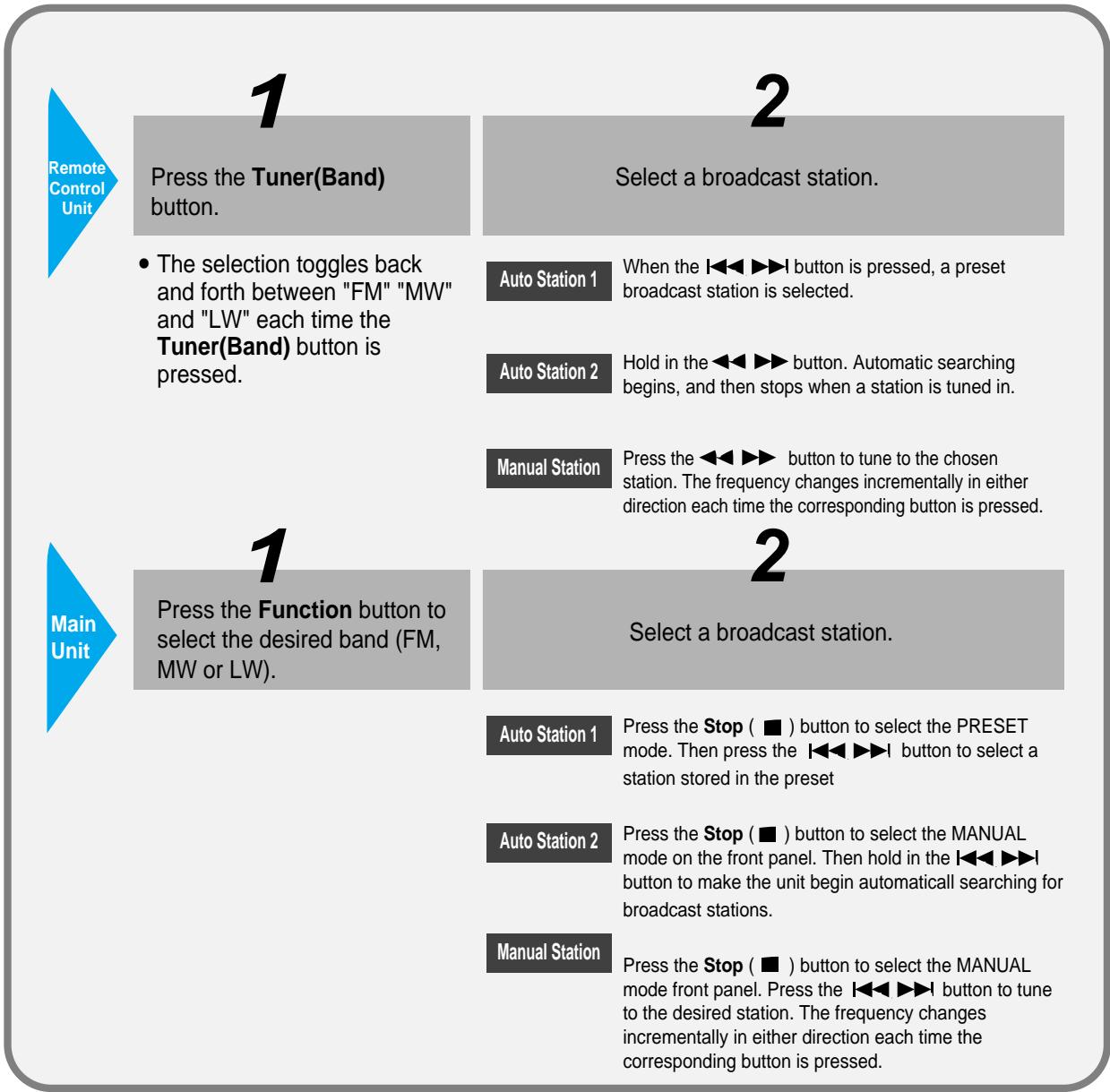
To Listen in Mono/Stereo
Audio
MO/ST
Press the MO/ST button. (only FM)
- The selection toggles back and forth between "STEREO" and "MONO" each time the MO/ST button is pressed.
- In a poor reception areas, select Mono mode for a clear, interference-free broadcast.
You can store up to:
15 FM stations
8 MW stations
7 LW(Option) stations
FM Frequency Modulation
AM(MW) Medium Wave
- LW(Option) ... Long Wave
Example: Preseting FM 89.1 in the memory
1
Press the Tuner(Band) button and select the FM band.
2
Select the MANUAL by pressing the Stop (■) button on the main unit.
3
Use the and button to tune into 89.1
- The selection toggles back and forth between " FM AM(MW) LW(Option) " each time the Tuner(Band) button is pressed.

F M
101.2 1
MANUAL
FM
8910
4
Press the Program button on the remote control, FM1 will flash. If you want to save 89.1 to FM1, press Program again.
5
If you want to save 89.1 to another preset location(FM2~FM15), press
or , then press Program to save it to that location.
6
To preset other stations, follow steps 1~5 again.

FMI
89:0
F M 2
89.10。

F M
89:0
To tune in a preset station
See the previous page.
| Problem | Check |
| The disc tray does not open. | ·Is the disc installed with the label side facing up? ·Is the power cord plugged securely into the power outlet? ·Turn off the power to the unit by pressing the Power (▶) button and turn it back on. |
| Disc does not play. | ·Check the region number of the DVD. ·DVD discs purchased abroad may not be playable. ·This player cannot play CD-ROMs, DVD-ROMs, etc. ·Check the rating level of the DVD. |
| Playback does not start immediately when the Play/Pause button is pressed. | ·Check whether the disc has any scratch marks or is deformed? |
| No sound is produced. | ·No sound is heard during high-speed playback, slow playback, and step motion playback modes. ·Are the speakers properly connected? Is the speaker Setup correctly customized? ·Is the disc severely damaged? The disc may be dirty. Wipe off fingerprints or dirt. |
| Sound can be heard only from a few speakers and not all six. | ·When listening to a CD or radio, sound is output to the front speakers only (L/R). Select the “PRO LOGIC” option by pressing the Pro Logic button on the remote control unit to use all six speakers. ·Check whether your DVD disc is 5.1 CH compatible. |
| Picture does not appear; sound is not produced; the disc tray opens 2-5 seconds later. | ·Was the player moved suddenly from a cold pace to a warm one? When condensation forms inside the player, remove the disc and let the player stand for 1 or 2 hours with the power on. (You can use the player after the condensation disappears.) |
| Sound quality is irregular. | ·Are the speaker cables loose? ·Is there any dirt or debris at the end of the speaker connector? |
| Dolby Digital 5.1 Channel Surround Sound is not being reproduced. | ·Does the disc being played show the “Dolby Digital 5.1CH” mark? 5.1-channel sound is reproduced only if the disc is recorded with 5.1 channel sound. ·Is the DVD player connected to the proper speakers? |
| The disc revolves but no picture appears. Picture shows interference and quality is poor. | Is the TV power turned on? Are the video cables properly connected? Is it the player in PAUSE mode? Is your TV's video format (NTSC/PAL) set correctly? Press the NTSC/PAL button once again to change the current selection. Is there any dirt on the disc, or is the disc damaged? It may not be possible to play some DVD discs due to poor manufacture. When a dark scene changes to a bright scene during playback, the screen may flicker vertically. Some disturbance is normal. |
| Remote control unit does not operate. | Is the remote control being used within the appropriate distance and angle of operation for the unit? Are there any obstacles between the remote control unit and the remote control sensor? Are the batteries dead? Is it time to replace the batteries with new ones? |
| Audio or subtitle language does not operate. | The audio or subtitle language features does not operate with DVDs that do not include multiple audio or subtitle languages. |
| The Menu button is pressed but the Menu screen does not appear. | Is the remote control being used within the appropriate distance and angle of operation for the unit? Are the batteries dead? Does tje disc have a Menu? |
| The screen ratio cannot be changed. | You can play 16:9 wide DVDs in 16:9 WIDE mode, 4:3 LETTER BOX mode or 4:3 PAN-SCAN mode; but 4:3 encoded DVDs only show in 4:3 ratio. Refer to the DVD disc jacket and then select the appropriate function. |
| The desired radio station cannot be tuned in. | Is the antenna installed properly? When the antenna's input signal is weak, install an external FM antenna in an area with good reception quality. |
| The system is malfunctioning (the system does not work or no sound). | While the player is in the stop mode, hold the Stop (■) button down on the main unit for over 5 seconds."INITIAL" appears on the display and all settings will return to the Factory Preset condition. The RESET function erases all settings; do not use this function unless necessary. |
Handling and Storing Discs
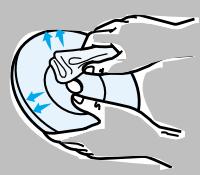
When you get fingerprints or dirt on the disc, clean it with a mild detergent diluted in water and wipe with a soft cloth.
- When cleaning, wipe gently from the inside to the outside of the disc.

Condensation may form if warm air comes into contact with cold parts inside the player. When condensation forms inside the player, the player may not operate correctly. If this occurs, remove the disc and let the player stand for 1 or 2 hours with the power on.
Disc Storage
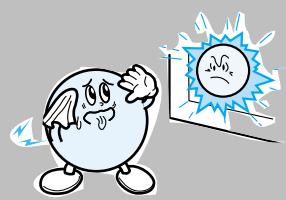
Do not keep in direct sunlight
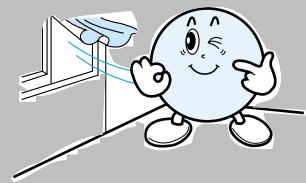
Keep in a cool ventilated area
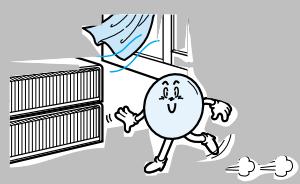
Keep in a clean Protection jacket. Store vertically.

- Do not allow the discs to become contaminated with dirt.
- Do not load cracked discs or discs that are scratched.
Usable Discs
| Disc Types | Marks | Recording Types | Disc Size | Max. Playing Time |
| DVD | VIDEO | Audio + Video | 12cm | Approx. 240 min. (Single-sided) |
| Approx. 480 min. (Double-sided) | ||||
| 8cm | Approx. 80 min. (Single-sided) | |||
| Approx. 160 min. (Double-sided) | ||||
| VIDEO-CD | COMPACT DIGITAL VIDEO | Audio + Video | 12cm | 74 min. |
| 8cm | 20 min. | |||
| AUDIO-CD | COMPACT DIGITAL AUDIO | Audio | 12cm | 74 min. |
| 8cm | 20 min. |
Dolby Digital disc

DTS Disc

Digital Audio disc

Stereo disc
NTSC broadcast system in USA, Canada, Japan, South Korea, etc..
MP3 disc
| GENERAL | Power Consumption | 160W | |
| Weight | 8.3Kg | ||
| Dimensions (W x H x D) | 430mm x 80mm x 365mm | ||
| Operating Temperature Range | +5°C~+35°C | ||
| Operating Humidity Range | 10%~75% | ||
| F M T U N E R | Usable Sensitivity | 10dB | |
| S/N Ratio | 60dB | ||
| Distortion | 0.5% | ||
| A M T U N E R | Usable Sensitivity | 54dB | |
| S/N Ratio | 40dB | ||
| Distortion | 2% | ||
| V O D E O T | Composite Video | 1.0Vp-p(75Ω load) | |
| Component Video | Y: 1.0Vp-p(75Ω load) | ||
| Pr: 0.7Vp-p(75Ω load) | |||
| Pb: 0.7Vp-p(75Ω load) | |||
| S-VIDEO | Luminance Signal: 1.0Vp-p(75Ω load) | ||
| Color Signal: 0.286Vp-p(75Ω load) | |||
| A M P L I F I E R | Front speaker output | 60W x 2(6Ω), Distortion 10% | |
| Center speaker output | 60W(6Ω), Distortion 10% | ||
| Rear speaker output | 60W x 2(6Ω), Distortion 10% | ||
| Subwoofer speaker output | 100W(3Ω), Distortion 10% | ||
| Frequency range | 20Hz~20KHz | ||
| S/N Ratio | 75dB | ||
| Channel separation | 50dB | ||
| Input sensitivity | (AUX)500mV | ||
| S P E K E R | Speaker system | 5.1ch speaker system | |
| Front/Center/Rear speaker | Subwoofer speaker | ||
| Impedance | 6Ω x 5 | 3Ω | |
| Frequency range | 100Hz~22KHz | 40Hz~200Hz | |
| Output sound pressure level | 87dB/W/M | 86dB/W/M | |
| Rated input | 60W | 100W | |
| Maximum input | 120W | 200W | |
| Dimensions (W x H x D) | Front/Rear | 120mm x 186mm x 145mm | |
| Center | 300mm x 139mm x 136mm | ||
| Weights | Front/Rear | 1.2Kg | |
| Center | 1.4Kg | ||
Note on Terminology
| ANGLE | Recorded onto some DVD discs are scenes which have been simultaneously shot from a number of different angles (the same scene is shot from the front, from the left, from the right, etc.). With such discs, the Angle button can be used to change the angle of view for specific scenes. |
| CHAPTER NUMBER | These numbers are recorded on DVD discs. A Title is subdivided into many sections, each of which is numbered, and specific parts of the video can be searched quickly using these numbers. |
| DVD | A high-density optical disc on which high-quality pictures and sound have been recorded by means of digital signals. Incorporating a new video compression technology (MPEG-2) and high-density recording technology, a DVD disc comprises two 0.6 mm thick discs bonded together. |
| PCM | An acronym for Pulse Code Modulation - another name for digital audio. |
| PBC (PLAYBACK CONTROL) | This is recorded on a video CD (version 2.0). Selected scenes or information can be chosen from the menu displayed on the TV monitor. |
| REGION NUMBER | Both the DVD player and DVD discs are encoded with a region number. If the region number on the DVD disc does not correspond to the region number of the DVD player, the player cannot play the disc. |
| SUBTITLES | Translated appearing at the bottom of the screen. A DVD disc can contain up to 32 subtitle languages. |
| TITLE NUMBER | These numbers are recorded on DVD discs. When a disc contains two or more movies, these movies are numbered as Title 1, Title 2, etc. |
| TRACK NUMBER | These numbers are assigned to the tracks which are recorded on video and audio CDs. They enable specific tracks to be located quickly. |
| VIDEO CD | Contains recordings of pictures and sound whose quality is roughly comparable to that of video tape. This player also supports video CDs with playback control (version 2.0). |
| DIGITAL SURROUND | You can enjoy 5.1 (or 6) channels of high fidelity digital sound from various digital input sources such as laser discs, DVD, CD etc. DTS provides a realistic, clear surround sound that has not previously been available from conventional surround sound. |
| DOLBY DIGITAL | 5.1 (or 6) Channel Digital Surround sound reproduced from DVDs and LDs recorded as a digital signal (with DOLBY disc marking). With better sound quality, dynamic range, and directionality than the traditional Dolby surround technology, you can enjoy the dynamic realistic sound. |
| PRO LOGIC II | A 4 channel analog sound reproduced from a program source such as a videotape or LD with the PROLOGI mark. You can enjoy a more realistic, robust sound unavailable from regular stereo sources. |
THIS APPLIANCE IS MANUFACTURED BY:
SAMSUNG
ELECTRONICS