OBHPTZ - Baby monitor Oricom - Free user manual and instructions
Find the device manual for free OBHPTZ Oricom in PDF.


| Product Type | Baby Monitor |
| Brand | Oricom |
| Model | OBHPTZ |
| Parent Unit Dimensions | 120 x 70 x 30 mm |
| Baby Unit Dimensions | 100 x 80 x 40 mm |
| Parent Unit Weight | 150 g |
| Baby Unit Weight | 200 g |
| Power Supply | AC adapter (input 100-240V, output 5V DC) |
| Battery Type | Rechargeable lithium-ion |
| Battery Life | Up to 10 hours (parent unit), 12 hours (baby unit) |
| Display | 2.4 inch color LCD screen |
| Video Resolution | 480p |
| Night Vision | Infrared LEDs for clear night viewing |
| Audio | Two-way talk intercom |
| Range | Up to 300 meters (open space) |
| Temperature Sensor | Yes, displays room temperature |
| Lullabies | Built-in lullabies |
| VOX Mode | Voice-activated transmission to save battery |
| Maintenance | Clean with a dry cloth; avoid harsh chemicals |
| Safety Compliance | FCC, CE certified |
| Spare Parts | Available from Oricom customer support |
| Repairability | Not user-serviceable; contact authorized service center |
| Included Accessories | Parent unit, baby unit, AC adapters, user manual |
Frequently Asked Questions - OBHPTZ Oricom
User questions about OBHPTZ Oricom
0 question about this device. Answer the ones you know or ask your own.
Ask a new question about this device
Download the instructions for your Baby monitor in PDF format for free! Find your manual OBHPTZ - Oricom and take your electronic device back in hand. On this page are published all the documents necessary for the use of your device. OBHPTZ by Oricom.
USER MANUAL OBHPTZ Oricom
For a full explanation of all features and instructions, please refer to the User Guide (available for download from www.oricom.com.au/support/).
1. Contents Inside Box
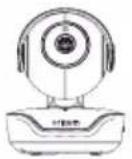
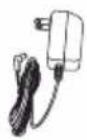
Baby Unit (Camera) Power Adaptor Quick Start Guide
WARNING:
Strangulation hazard. Children have STRANGLED on cords. Keep this cord out of the reach of children (more than 1 metre away). Never use extension cords with AC Adaptor. Only use the AC Adaptor provided.
EN
2. Setting up the Camera Unit
A. Connecting the Power Supply of the Camera Unit.
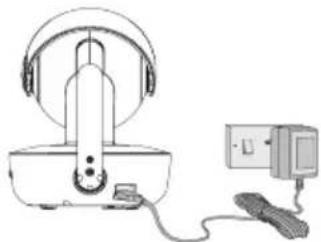
natural_image
Line drawing of a portable electronic device with headphones and a connected power strip (no text or symbols)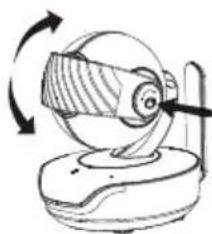
natural_image
Diagram of a mechanical device with rotating components and a curved arrow indicating rotation (no text or symbols)- Connect the USB type-C plug of the power adaptor to the Camera Unit and the other end to a suitable electrical outlet.
- Only use the enclosed adaptor (5V DC / 1500mA).
Privacy Protector
This is to disable the live camera video feed by blocking the camera lens.
- Press the knob to release the lock.
- You can move the protector to its open or closed position after the lock is released.
- When you hear the click sound the protector is at its proper positions.
IMPORTANT:
Make sure the privacy protector does not cover the camera lens when in use. Sound is NOT disabled when the protector covers the camera lens.
3. Basic operation of the keys
| Camera Unit | ||
| PAIR button | Press and hold to pair with the parent unit or for Hubble Wi-Fi® Setup. Located on the bottom of the camera. | |
IMPORTANT: Download the full User Guide for complete instruction and button location, from the Oricom website: oricom.com.au/support/.
4. Pairing Your Camera Unit with a Parent Unit
The unit works as an accessory camera with Oricom model: OBH36T.
To re-register your Camera Unit (Baby Unit), or register a new Camera Unit (Baby Unit), follow the procedures below:
-
Tap the Ⓧ in the menu bar.
-
Tap and Camera / 1/ will pop up
-
Tap ☐1 / ☐2 / ☐ to select the desired Camera, the parent unit start to search for a camera unit.
Note: If a camera is currently paired with the Parent Unit, its camera location (in dark grey color) cannot be selected for a new registration.
- Press and hold the PAIR button on the underside of the Baby Unit until the Parent Unit finds the camera, beeps and PAIR OK appears on the screen. The video from the camera will then appear.
Note:
A camera can only be registered to one Parent Unit at any one time.
5. Setting up the Camera Unit for Wi-Fi® internet viewing
A. Install HubbleClub for Partners.



- Scan the QR code with your smart device and download the HubbleClub for Partners from the App Store for iOS devices or from the Google Play™ Store for Android™ devices.
• Install the HubbleClub for Partners on your device.
B. View on Compatible Smartphones and Tablets.
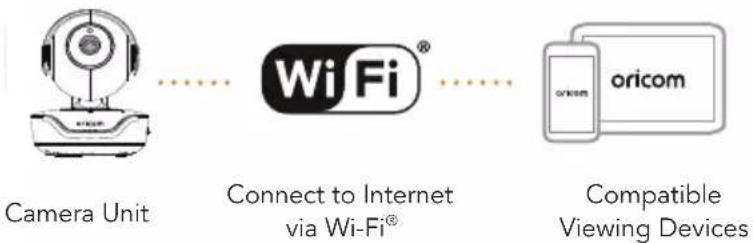
- Open the HubbleClub for Partners on your compatible smartphone or tablet.
- Follow the in-app instructions to create your Hubble account and connect to your device.
Please take note of the following minimum system requirements:
Smartphones/Tablets: iOS 12.0, Android™ 8.0
Wi-Fi ^® requirements:
At least 0.6 Mbps upload bandwidth per Smart Monitoring Companion, test your Internet speed at: http://www.speedtest.net/
6. Important Safety Information
- Your Oricom baby monitor is designed to be an aid and should not be used as a substitute for responsible and proper adult supervision of a child.
- The baby monitor has been designed to provide some added reassurance in the form of video/sound transmission for those times when you are not in the same room as your baby provided you always stay within hearing range of the baby monitor during use.
- Your baby monitor is not a medical device, nor a device to prevent cases of Sudden Infant Death Syndrome (SIDS) or "cot death", and you should not rely on it for your baby's wellbeing. It is important that you regularly check on your baby personally.
- Make sure the baby unit, parent unit and mains adaptor cables are kept out of reach of your baby and other young children at all times, as far away from the baby as practical.
- Never place the baby unit or parent unit inside your baby's cot, bed or playpen.
- Never cover the parent or baby units with clothes, towels or blankets or any other item.
- Never use or place your parent or baby unit in or near moisture or water (e.g. near bath or pool). Immersing in water could cause electric shock and even death.
- The installation location plays an important role in ensuring proper operation. Therefore, maintain a distance of at least one metre from other electronic equipment, such as microwave ovens or Wi-Fi devices, otherwise they could cause interference.
- During continual use the baby unit power adaptors may become warm to the touch. This is normal and should not be a concern.
- This product is not a toy, do not allow children to play with this monitor.
- This device is designed for indoor use only.
7. General Information
Express Warranty (Australia)
This Express Warranty is provided by Oricom International Pty Ltd ABN 46 086 116 369, Unit 1, 4 Sovereign Place, South Windsor NSW 2756, herein after referred to as "Oricom".
Oricom warrants that the product is free from defects in materials or workmanship during the Express Warranty Period. This Express Warranty does not extend to any product from which the serial number has been removed or was purchased outside of Australia.
The benefits of this Express Warranty are in addition to other rights and remedies you may have under the Australian Consumer Law. Our goods come with guarantees that cannot be excluded under the Australian Consumer Law. You are entitled to a replacement or refund for a major failure and compensation for any other reasonably foreseeable loss or damage. You are also entitled to have the goods repaired or replaced if the goods fail to be of acceptable quality and the failure does not amount to a major failure. In the event of a minor failure, Oricom reserves the right to choose to repair or replace the product.
The Express Warranty Period will be a period of 24 months beginning on the date of purchase of the product evidenced by your dated sales receipt. You are required to provide proof of purchase as a condition of receiving Express Warranty services.
You are entitled to a replacement product or repair of the product at our discretion according to the terms and conditions of this document if your product is found to be faulty within the Express Warranty Period. This Express Warranty extends to the original purchaser only and is not transferable.
Products distributed by Oricom are manufactured using new materials or new and used materials equivalent to new in performance and reliability. Spare parts may be new or equivalent to new. Spare parts are warranted to be free from defects in material or workmanship for thirty (30) days or for the remainder of the Express Warranty Period of the Oricom branded product in which they are installed,
whichever is longer. During the Express Warranty Period, Oricom will where possible repair and if not replace the faulty product or part thereof. All component parts removed under this Express Warranty become the property of Oricom. In the unlikely event that your Oricom product has a recurring failure, Oricom may always, subject to the Competition and Consumer Act 2010, at its discretion, elect to provide you with a replacement product of its choosing that is at least equivalent to your product in performance.
No change to the conditions of this Express Warranty is valid unless it is made in writing and signed by an authorised representative of Oricom.
Oricom will not be liable under this Express Warranty, and to the extent permitted by law will not be liable for any defect, loss, damage or injury arising out of or in connection with a:
- Failure by you to adhere to the warnings and follow the instructions set out in this user guide for the proper installation and use of the product;
- Willful misconduct or deliberate misuse by you of the product;
- Any external cause beyond our control, including but not limited to power failure, lightning or over voltage; or
- Modification to the product or services carried out on the product by anyone other than Oricom or Oricom's authorised service provider.
How to make a claim under your Express Warranty in Australia
Oricom has a simple warranty process for you to follow:
- Please call or email our Customer Support Team, 02 4574 8888 or support@oricom.com.au.
- A Customer Support Team member will verify after troubleshooting with you if your product qualifies under warranty. If so, they will give you a Product Return Authorisation number.
- We will then email a Return Authorisation form and a Repair Notice (if necessary), together with instructions on how to return the product for warranty service.
Please note that if a Customer Support Team member advises that your product does not qualify for return, this warranty does not apply to your product. Products that are authorised to be returned to Oricom in Australia must include all of the following:
• A completed Return Authorisation form
- A copy of your Proof of Purchase (please keep your original copy)
- The faulty product, including all accessories.
Send the approved returns to:
Oricom International Pty Ltd Locked Bag 658
South Windsor NSW 2756 Australia
Please note that this Express Warranty excludes expenses incurred by you in returning any faulty product to us. You must arrange and pay any expenses incurred (including postage, delivery, freight, transportation or insurance of the product) to return the faulty product to us, however, we will arrange delivery of the repaired or replaced faulty product to you.
Important Information - Repair Notice
Please be aware that the repair of your products may result in the loss of any user-generated data (such as stored telephone numbers, text messages and contact information). Please ensure that you have made a copy of any data saved on your product before sending for repair. Please also be aware that products presented for repair may be replaced by refurbished products or parts of the same type rather than being repaired.
Oricom Customer Support
Oricom have a trained and dedicated team of Customer Support Representatives, each with the knowledge and resources to assist in answering your questions quickly and efficiently.
Oricom Support - Australia
For all product enquiries, troubleshooting or to discuss the range of Oricom products, feel free to contact Oricom or visit our website for answers to frequently asked questions.
(02) 4574 8888 / Monday - Friday 8am - 6pm AEST
Email: support@oricom.com.au / www.oricom.com.au
Oricom Support - New Zealand
0800 674 266 / Monday - Friday 10am - 8pm NZST
Email: support@oricom.co.nz
oricom.
All rights reserved
R-NZ


Ref: 2021-09-22
- Contents Inside Box
- WARNING:
- Setting up the Camera Unit
- Privacy Protector
- IMPORTANT:
- Basic operation of the keys
- Pairing Your Camera Unit with a Parent Unit
- Note:
- Setting up the Camera Unit for Wi-Fi® internet viewing
- Important Safety Information
- General Information
- Express Warranty (Australia)
- How to make a claim under your Express Warranty in Australia
- Important Information - Repair Notice
- Oricom Customer Support
- Oricom Support - Australia
- Oricom Support - New Zealand
Brand : Oricom
Model : OBHPTZ
Category : Baby monitor