
HT-AS720ST - Audio System SAMSUNG - Free user manual and instructions
Find the device manual for free HT-AS720ST SAMSUNG in PDF.


| Product type | Home Cinema Digital AV Receiver |
| Brand | SAMSUNG |
| Model | HT-AS720ST |
| Dimensions (W x H x D) of main unit | 16.9 x 5.7 x 13.7 inches |
| Weight of main unit | 12.7 lb (5.8 kg) |
| Subwoofer dimensions | 12 x 15.6 x 17.4 inches |
| Subwoofer weight | 31.7 lb (14.4 kg) |
| Power supply | 120 V, 60 Hz |
| Power consumption (main unit) | 100 W |
| Power consumption (subwoofer) | 90 W |
| Standby power consumption | 0.9 W |
| Supported audio formats | Dolby Digital, Dolby Digital EX, DTS, DTS-ES, DTS 96/24, Dolby Pro Logic IIx, DTS Neo:6 |
| Number of channels | 7.1 (up to 7.1 with rear surround speakers) |
| Output power (per channel) | 100 W at 4 Ω (front, center, surround, rear surround) |
| HDMI connectivity | Yes, with Anynet+ (HDMI-CEC) function |
| Digital audio inputs | 2 optical, 1 coaxial |
| FM tuner | Yes, with 30 presets |
| Maintenance and cleaning | Clean with a dry cloth. Do not use liquid products. |
| Safety | Do not expose to moisture, do not block ventilation slots, unplug during thunderstorms |
| Included accessories | Remote control, FM antenna, user manual, front speakers, center speaker, surround speakers, subwoofer |
Frequently Asked Questions - HT-AS720ST SAMSUNG
User questions about HT-AS720ST SAMSUNG
0 question about this device. Answer the ones you know or ask your own.
Ask a new question about this device
Download the instructions for your Audio System in PDF format for free! Find your manual HT-AS720ST - SAMSUNG and take your electronic device back in hand. On this page are published all the documents necessary for the use of your device. HT-AS720ST by SAMSUNG.
USER MANUAL HT-AS720ST SAMSUNG
Digital Surround AV Receiver System HT-AS720S
Instruction Manual

CAUTION
RISK OF ELECTRIC SHOCK. DO NOT OPEN

CAUTION: TO REDUCE THE RISK OF ELECTRIC SHOCK, DO NOT REMOVE REAR COVER (OR BACK) NO USER SERVICEABLE PARTS INSIDE. REFER SERVICING TO QUALIFIED SERVICE PERSONNEL.

This symbol indicates that dangerous voltage consisting a risk of electric shock is present within this unit.

This symbol indicates that there are important operating and maintenance instructions in the literature accompanying this unit.
WARNING
- To reduce the risk of fire or electric shock, do not expose this appliance to rain or moisture.
- To prevent injury, this apparatus must be securely attached to the floor/wall in accordance with the installation instructions.
- If this power supply is used at 240V ac, a suitable plug adapter should be used.
CAUTION
- Apparatus shall not be exposed to dripping or splashing and no objects filled with liquids, such as vases, shall be placed on the apparatus.
- The Mains plug is used as a disconnect device and shall stay readily operable at any time.
FCC NOTE (for U.S.A):
This equipment has been tested and found to comply with the limits for a Class B digital device, pursuant to Part 15 of the FCC Rules. These limits are designed to provide reasonable protection against harmful interference in a residential installation.
This equipment generates, uses and can radiate radio frequency energy and, if not installed and used in accordance with the instructions, may cause harmful interference to radio communications.
However, there is no guarantee that interference will not occur in a particular installation.
If this equipment does cause harmful interference to radio or television reception, which can be determined by turning the equipment off and on, the user is encouraged to try to correct the interference by one or more of the following measures:
- Reorient or relocate the receiving antenna.
- Increase the separation between the equipment and receiver.
- Connect the equipment into an outlet on a circuit different from that to which the receiver is connected.
- Consult the dealer or an experienced radio/TV technician for help.
Caution: FCC regulations state that any unauthorized changes or modifi cations to this equipment may void the user's authority to operate it.
Safety Instructions
Read these operating instructions carefully before using the unit. Follow all the safety instructions listed below.
Keep these operating instructions handy for future reference.
1) Read these instructions.
2) Keep these instructions.
3) Heed all warnings.
4) Follow all instructions.
5) Do not use this apparatus near water.
6) Clean only with a dry cloth.
7) Do not block any ventilation openings, Install in accordance with the manufacturer's instructions.
8) Do not install near any heat sources such as radiators, heat registers, stoves, or other apparatus (including amplifiers) that produce heat.
9) Do not defeat the safety purpose of the polarized or grounding- type plug. A polarized plug has two blades with one wider than the other. A groundingtype plug has two blades and a third grounding prong. The wide blade or the third prong is provided for your safety. If the provided plug does not fit into your outlet, consult an electrician for replacement of the obsolete outlet.
10) Protect the power cord from being walked on or pinched particularly at plugs, convenience receptacles, and the point where they exit from the apparatus.
11) Only use attachments/accessories specified by the manufacturer.
12) Use only with the cart, stand, tripod, bracket, or table specified by the manufacturer, or sold with the apparatus.

When a cart is used, use caution when moving the cart/apparatus combination to avoid injury from tip-over.
13) Unplug this apparatus during lightning storms or when unused for long periods of time.
14) Refer all servicing to qualified service personnel. Service is required when the apparatus has been damaged in any way, such as the power-supply cord or plug is damaged, liquid has been spilled or objects have fallen into the apparatus. Service is also required if the apparatus has been exposed to rain or moisture, does not operate normally, or has been dropped.
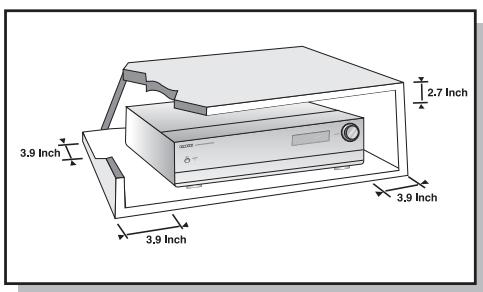
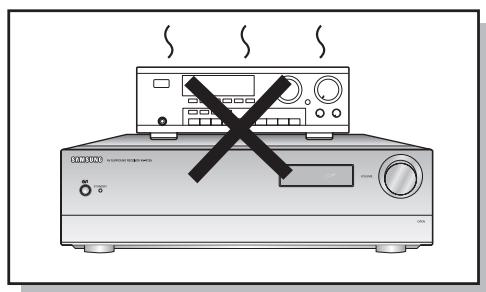
Ensure that the AC power supply in your house complies with the identification sticker located on the back of your player. Install your player horizontally, on a suitable base (furniture), with enough space around it for ventilation (3~4inches). Make sure the ventilation slots are not covered. Do not stack anything on top of the amplifier. In order to disconnect the player completely from the power supply, remove the mains plug from the wall outlet, especially when left unused for a long period of time.
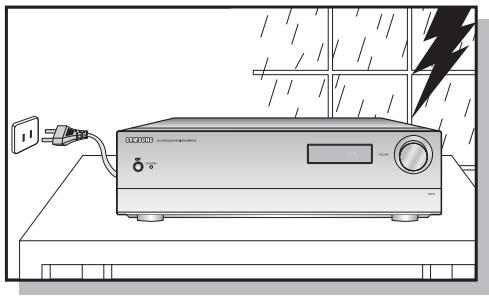
During thunderstorms, disconnect AC main plug from the wall outlet.
Voltage peaks due to lightning could damage the unit.
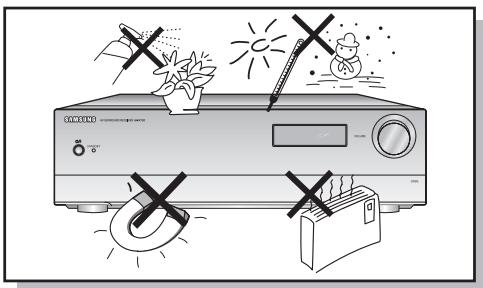
Protect the player from moisture(i.e. vases), and excess heat(e.g.fireplace) or equipment creating strong magnetic or electric fields (i.e-speakers...). Disconnect the power cable from the AC supply if the player malfunctions. Your player is not intended for industrial use.
Use of this product is for personal use only.
Condensation may occur if your player or disc have been stored in cold temperatures.
If transporting the player during the winter, wait approximately 2 hours until the unit has reached room temperature before using.
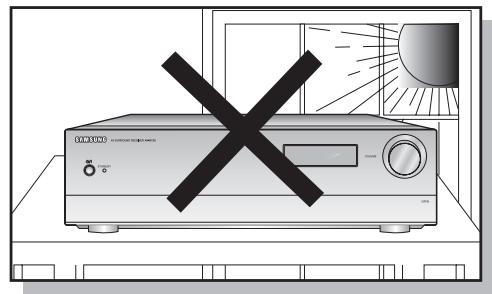
Do not expose the unit to direct sunlight or other heat sources.
This could lead to overheating and malfunction of the unit.
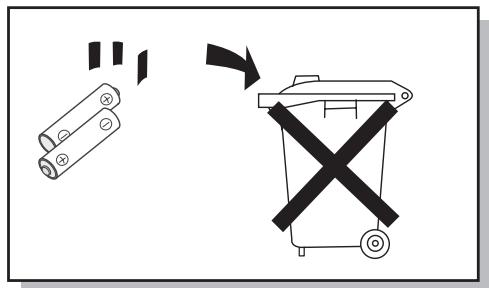
The battery used with this product contain chemicals that are harmful to the environment.
Do not dispose of batteries in the general household trash.
Digital AV Receiver
This product is a pure digital AV receiver that performs digital signal processing to minimize signal distortion and loss.
Dolby Pro Logic IIx
Dolby Pro Logic IIx is a new technology that provides discrete 7.1 channel out of 2 channel or multi channel sources.It also provides Music, Movie and Game modes.
DTS 96/24
DTS is a surround format that implements 5.1 channel multi channel sound at 96KHz/24bit. In addition, it can also reproduce the matrix 6.1 of DTS 96/24 decoder signals.
DOLBY DIGITAL EX
Adds a surround back channel for more spacious sound compared to regular 5.1 channel Dolby Digital.
DTS (Digital Theater Systems)
DTS plays back 5.1 channel sound with less compression than Dolby Digital for richer sound.
DTS-ES (Extended Surround)
DTS-ES adds an additional rear center surround channel for 6.1 channel sound. It is compatible with existing DTS Digital Sound formats.
DTS NEO:6
Reproduces digital PCM or analog stereo over 6.1 channels using a high precision DTS digital matrix.
SFE (Sound Field Effect) Using 24bit Audio Digital Signal Processing
Provides more realistic surround sound with normal stereo audio sources.
Anynet+ (HDMI-CEC) Function
Anynet+ is a function that can be used to operate this AV Receiver with a Samsung TV remote control, by connecting the receiver to a SAMSUNG TV using an HDMI Cable. (This function is available only in connection with Samsung TV and DVD player supporting Anynet+(HDMI-CEC).)
PREPARATION
SafetyWarnings 2
Safety Instructions 4
Precautions. 5
Features 6
Description 8
CONNECTIONS
Connecting speakers 12
Connecting external devices 14
Anynet+ 18
Connecting the FM antenna 19
OPERATION
Before using the AV receiver 20
Selecting digital/analog input 21
Setting the speaker mode 22
Setting the speaker listening distance 24
Setting digital input 25
Setting HDMI AUDIO 26
Setting DRC (Dynamic Range Compression) 27
Test tone 28
Setting speaker level 30
Dolby Pro Logic IIx mode 31
Setting Dolby Pro Logic IIx effect 32
Setting NEO:6 mode 33
Setting EX/ES mode 34
Setting Tone Control 35
SFE mode. 36
Stereo mode 37
RADIO OPERATION
Listening to radio 38
Preseting radio stations 39
MISCELLANEOUS
Convenient functions 40
Operating your TV with the remote control. 43
Operating your DVD or VCR with the remote control 45
Before calling for service 47
Specifications 49
[Front panel]
![SAMSUNG HT-AS720ST - [Front panel] - 1](/content/2025/01/98281/images/ba925bc98b85ef14a4e925a6e29c2f5762f5a7b3ed4b9055affd1bd723d457cc.jpg)
[Display]
![SAMSUNG HT-AS720ST - [Display] - 1](/content/2025/01/98281/images/3e47d6b134aa998f474f816364ea673e5618d020584553c8bb3a9121a3808f91.jpg)
[Rear panel]
![SAMSUNG HT-AS720ST - [Rear panel] - 1](/content/2025/01/98281/images/33ebd9986e591ce80924eeb0702f50aa187941f84173ba1cad442b45143bc4c1.jpg)
Accessories
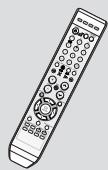
Remote control (AH59-01867F)
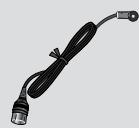
FM antenna (AH42-00017A)
User's manual (AH68-01989R)
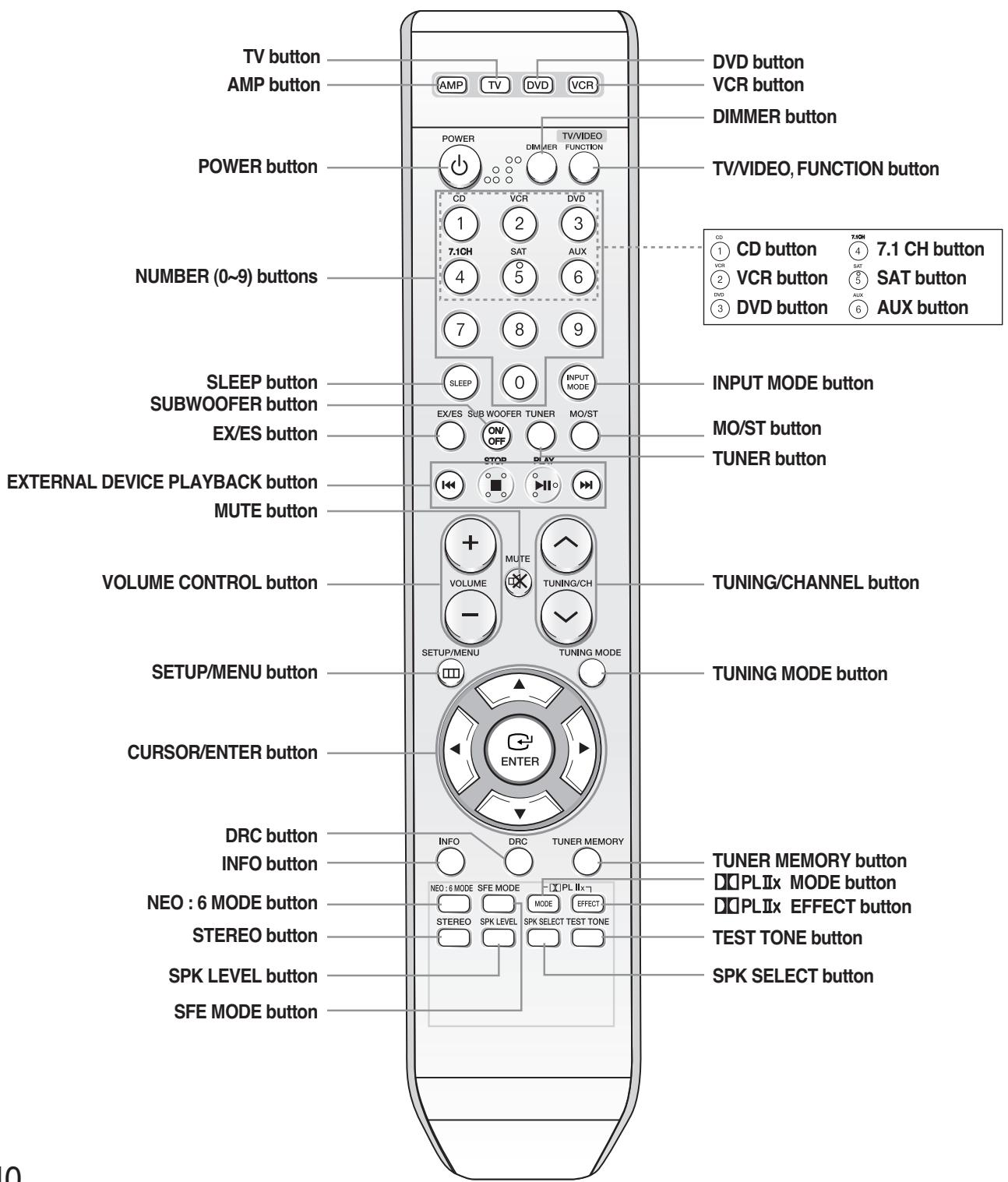
[Remote control]
Insert remote control batteries
1 Remove the battery cover in the direction of the arrow.
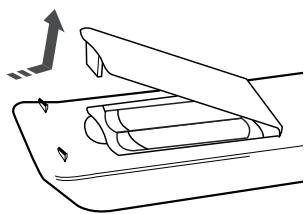
2 Insert two 1.5V AAA batteries, paying attention to the correct polarities (+ and -).
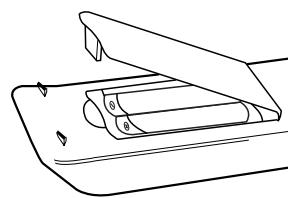
3 Replace the battery cover.
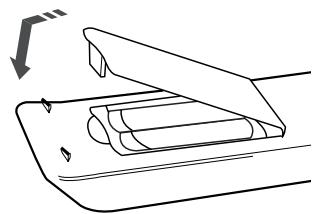

Note
Follow these precautions to avoid leaking or cracking batteries:
- Place batteries in the remote control so they match the polarity: (+) to (+) and (-) to (-) .
- Use the correct type of batteries. Batteries that look similar may differ in voltage.
Always replace both batteries at the same time. - Do not expose batteries to heat or flame.
Range of operation of the remote control
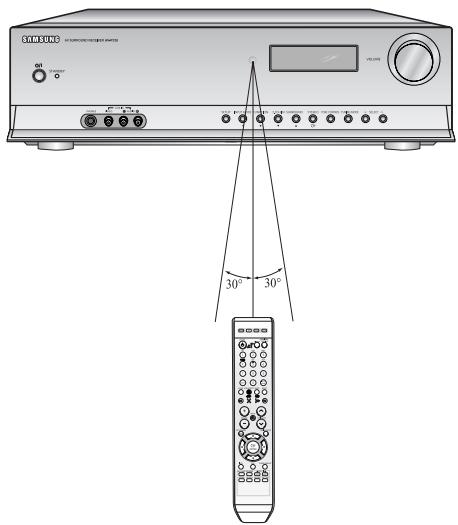
The remote control can be used up to approximately 23 feet/7 meters in a straight line. It can also be operated at a horizontal angle of up to 30° from the remote control sensor.
Connecting speakers
Before moving or installing the product, be sure to turn off the power and disconnect the power cord.
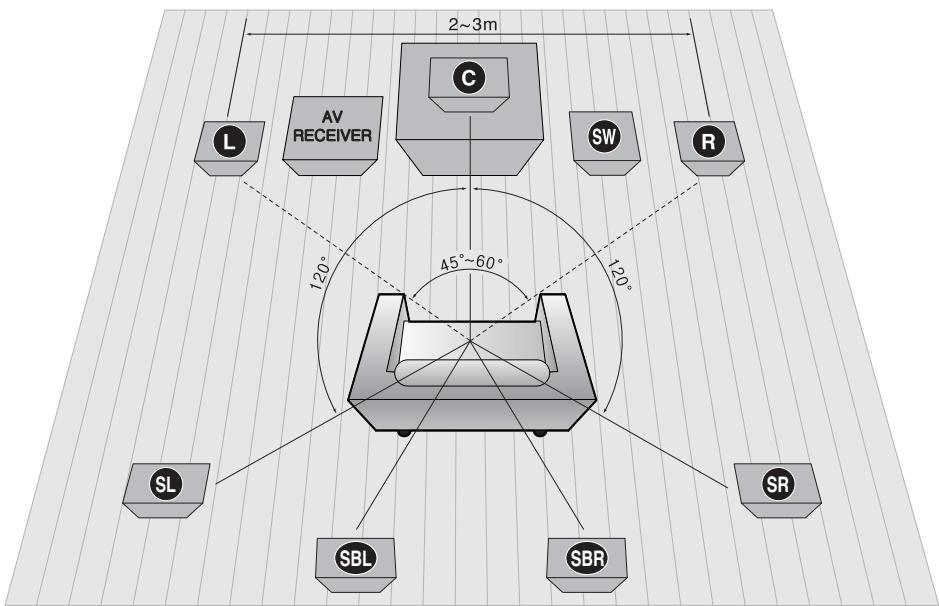

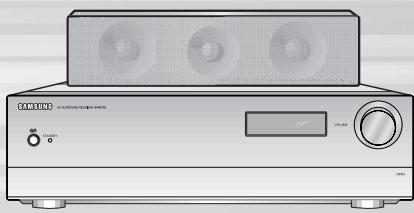
Position of AV Receiver
- Place AV Receiver on a dedicated stand or rack.

Front Speakers

- Place these speakers in front of your listening position, facing inwards (about 45° ) toward you.
- Place the speakers so that their tweeters will be at the same height as your ears.
- Align the front face of the front speakers with the front face of the center speaker or place them slightly in front of the center speaker.

Center speaker

- It is best to install it at the same height as the front speakers.
- You can also install it directly over or under the TV.

Subwoofer SW

- The position of the subwoofer is not so critical. Place it anywhere you like.

Surround Speakers

- Place these speakers behind your listening position.
- If there isn't enough room, place these speakers so they face each other.
- Place them about 60 to 90cm (2 to 3feet) above your ears, facing slightly downward.
Unlike the front and center speakers, the surround speakers are used to handle mainly sound effects and sound will not come from them all the time.

Surround Back Speakers

- If you are using two rear center speakers, place them facing forward from behind the listening position.
- Place the surround back speaker about 70 cm to 1m (2.3~3.3feet) above surround speakers, facing slightly downwards.
Note

- When you attach the speakers to a wall, make sure to fasten them tightly so they do not fall off.
Subwoofer function
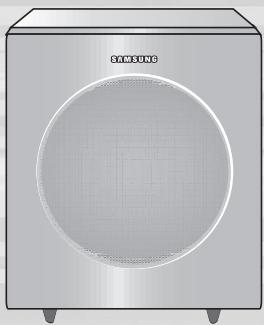
Active subwoofer with integrated 150W amplifier provides rich bass sound.
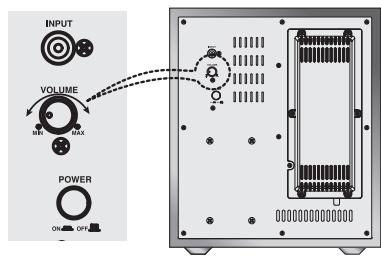
1 Connect the SW OUT terminal of the amplifier (AV-R720) to the INPUT terminal of the subwoofer speaker.
2 Press the POWER button on the rear side of the subwoofer to turn the power on.
3 Using the subwoofer's VOLUME control, you can set the desired bass level (See page 30 "Setting Speaker Level" to set the subwoofer level in the menu).
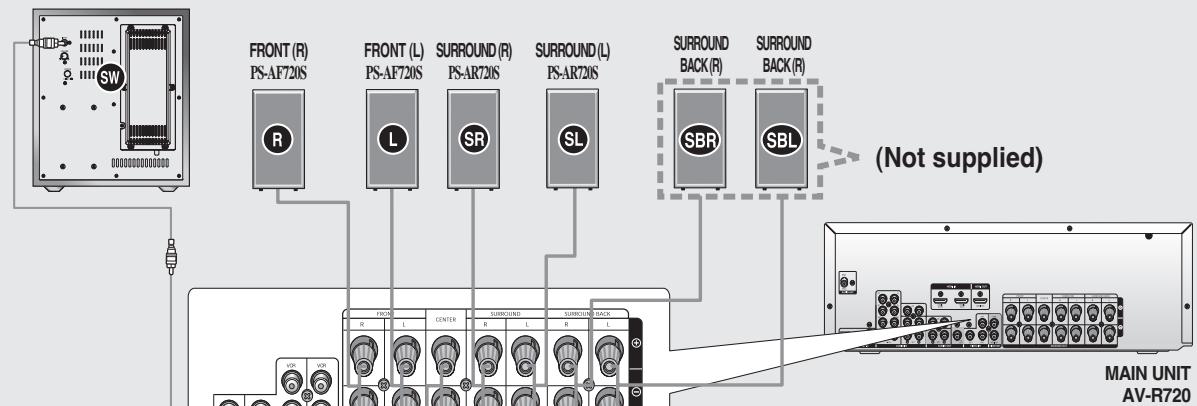
ACTIVE SUBWOOFER (BUILT-IN POWER AMPLIFIER) PS-AW720S
SYSTEM MODEL NAME : HT-AS720S
| MAIN UNIT | AV-R720 |
| FRONT SPEAKER | PS-AF720S |
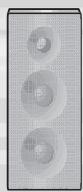
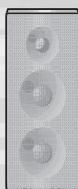
| CENTER SPEAKER | PS-AC720S |
| SURROUND SPEAKER | PS-AR720S |
| ACTIVE SUBWOOFER | PS-AW720S |
CONNECTING SPEAKER WIRE
- Loosen the knob by turning counterclockwise.
- Insert the bare part of the wire into the hole in the side of each terminal.
- Tighten the knob by turning clockwise to secure the wire.
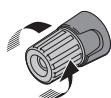
1.
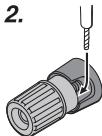
2.
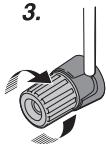
3.
Connecting the Speakers
- Press down the terminal tab on the back of the speaker.
- Insert the black wire into the black terminal (-) and the red wire into the red (+) terminal, and then release the tab.
-
Connect the connecting plugs to the back of the Home Theater.
-
Make sure the colors of the speaker terminals match the colors of the connecting plugs.
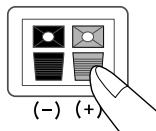
1
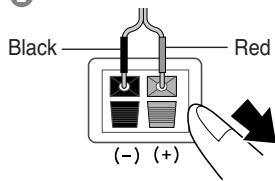
2
Caution
- Keep the subwoofer speaker out of reach of children to prevent them from inserting their hands or objects into the duct (hole).

Note
- Never touch speaker terminals while the power is on. Doing so could result in electric shock.
- Make sure the polarities (+ and -) are correct.
- This system is capable of reproducing 6.1/7.1 channel sound, however only 5.1 speakers are supplied.
Connecting video devices
Before moving or installing the product, be sure to turn off the power and disconnect the power cord.
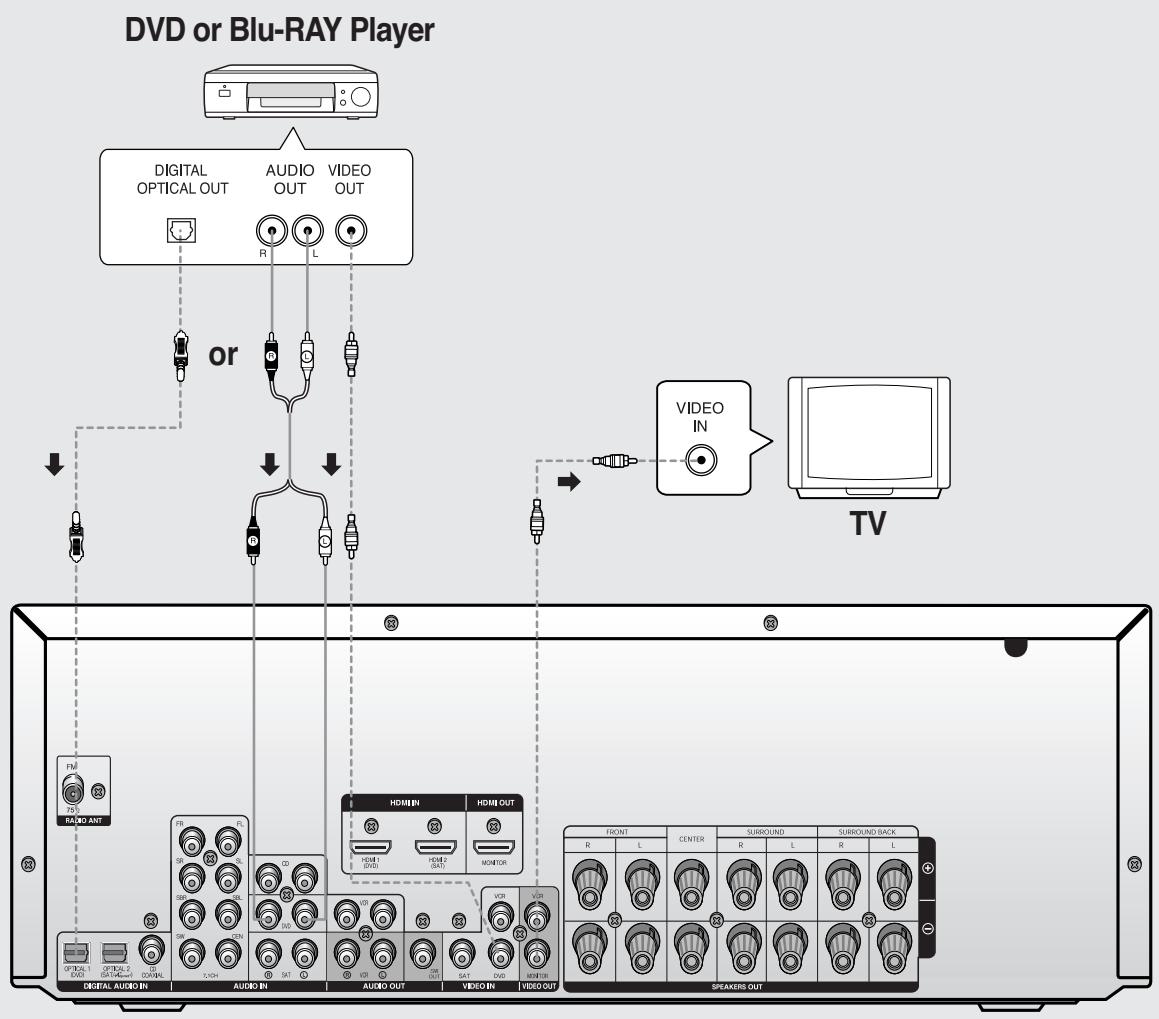

- Disconnect the power plug from the outlet if you will not use this unit for a long period of time.
- Even though the Digital Audio inputs are labelled DVD, SAT and CD, you can connect your DVD/SAT/CD player to either the OPTICAL or COAXIAL digital audio input (as long as it matches the Digital audio output on your player).
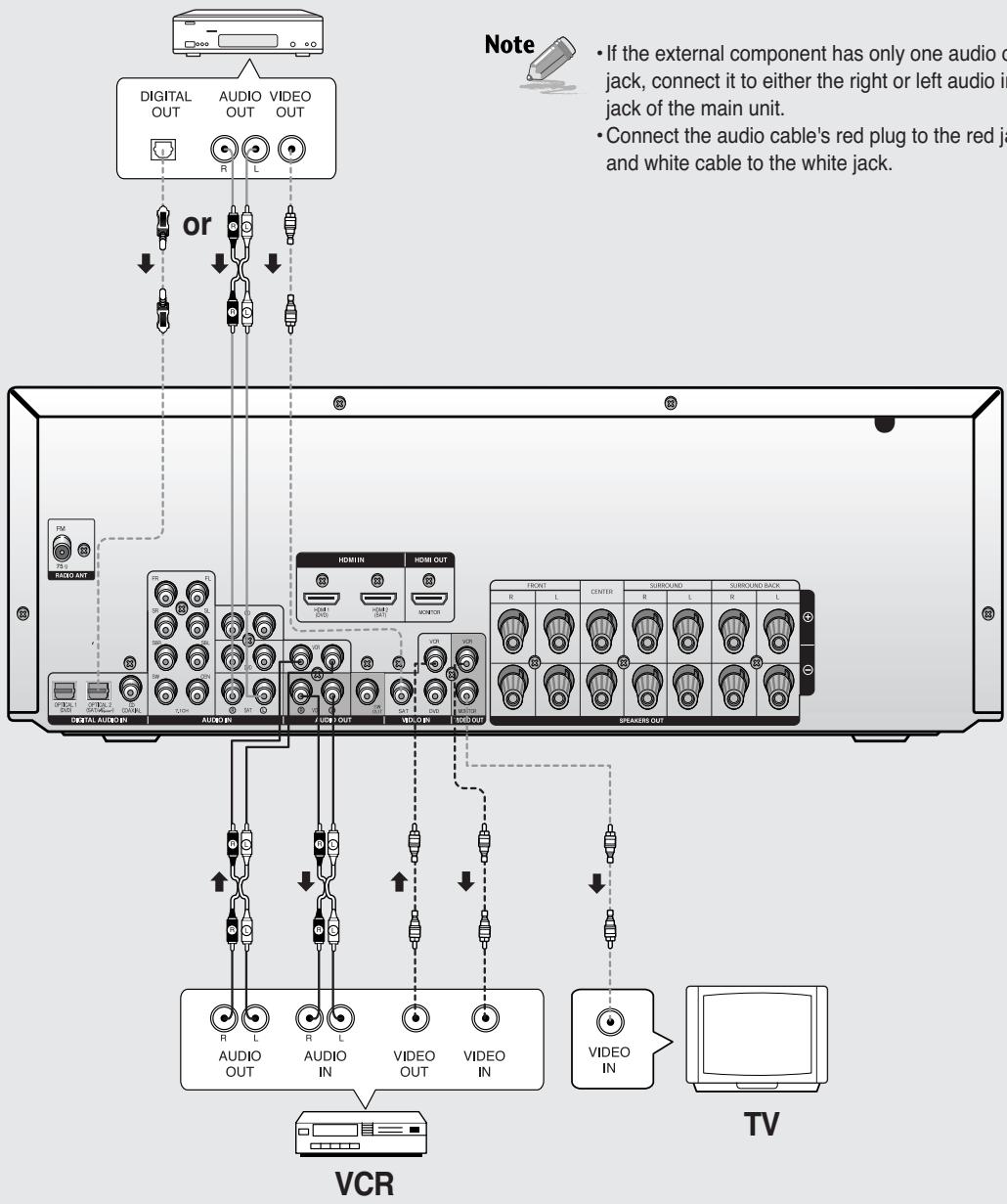
SAT(Cable/Satellite/Settop Box)
Connecting audio/7.1 channel devices
Before moving or installing the product, be sure to turn off the power and disconnect the power cord.
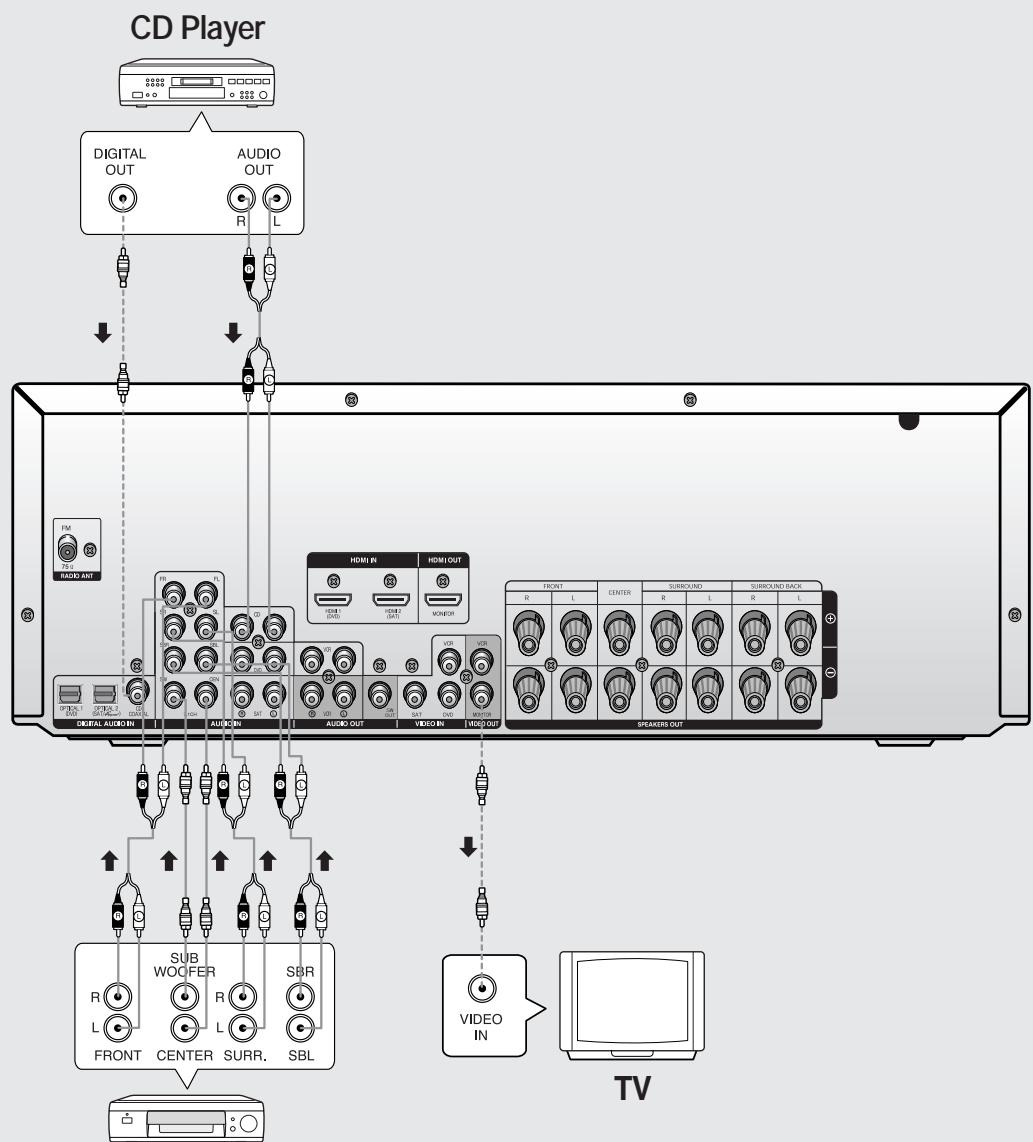
DVD/Blu-RAY or 7.1 channel player
Connecting external devices via HDMI
By connecting through the HDMI(High-Definition Multimedia Interface) interface, you can play back digital video and audio without conversion to analog.
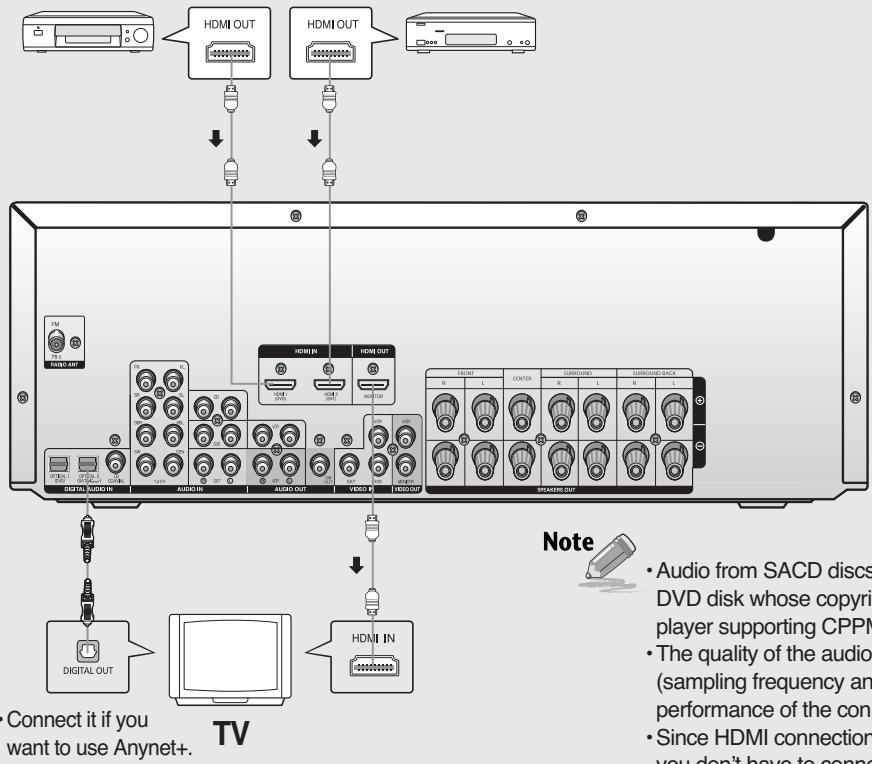
DVD or Blu-RAY Player
SAT(Cable/Satellite/Set-top box)
High-bandwidth Digital Content Protection System (HDCP) support
To play digital contents through the HDMI connection, both of the connected external device and TV must support High-bandwidth Digital Content Protection System (HDCP). This product supports HDCP.
| COMPATIBILITY WITH A TV SUPPORTING HDMI | |
| A TV with an HDMI jack. | Video/Audio |
| A TV with a DVI-D jack (TV supporting HDCP) | Video |
| A TV with a DVI-D jack (TV not supporting HDCP) | - |
Note

- If you use an HDMI cable to connect a Samsung TV to the DVD Player, you can operate the AV receiver using the TV's remote control. This function is available only in connection with Samsung TV and DVD player supporting Anynet +(HDMI-CEC).
- Please check the nynet^+ logo. If your TV has an nynet^+ logo, then it supports the Anynet+ function.
Using Anynet+(HDMI-CEC)
1 Connect the AV receiver to a Samsung TV with an HDMI cable. (See page 17)
2 Set the Anynet+ function on your TV. (See the TV instruction manual for more information.)
- You can operate the AV receiver by using the TV remote control.
(Available TV button : VOLUME , button.)
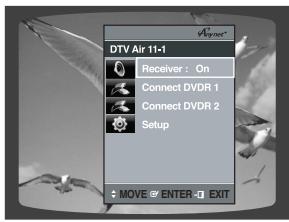
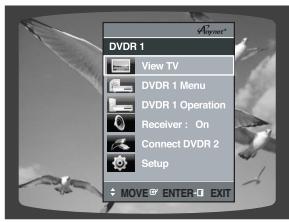
If you select TV
Set the Anynet+(HDMI-CEC) function to <On> on your TV.
- Receiver: On: You can listen to audio through the AV Receiver.
- Receiver : Off : You can listen to audio through the TV.
If you select the DVD Player
Select THEATER to connector and set the option of each items below.
- View TV: If Anynet+(HDMI-CEC) set to on and you select View TV, the AV receiver will automatically switch to SAT OPTIC2(DIGITAL IN).
- Receiver: On : You can listen to audio through the AV receiver.
- Receiver : Off : You can listen to audio through the TV.
To turn off Anynet+
1 Press SETUP/MENU button, and then press the ENTER button.
- “SETUP MODE” appears on the display and goes into Setup Mode.
2 Press button to select the "ANYNET+ MODE", and then press the ENTER button.
3 Press the button to set ANYNET+ to OFF.
- If you are using Anynet+, set ANYNET+ to ON and if not, set it to OFF.
To exit setup mode
- Wait for about 5 seconds or press SETUP button.
"SETUP OFF" appears on the display and Setup Mode is exited.
Note

- When selecting View TV, you must have a digital optical cable connected from the TV to the AV receiver to listen to the TV sound through the AV receiver.
Caution
- When you are making Anynet+ connection, do not connect more than two AV receivers (Anynet+ installed). Otherwise, it can cause a malfunction.
With Anynet+
You can operate this unit, power on your TV, or watch a movie by pressing the Play button on your Samsung TV's remote control.
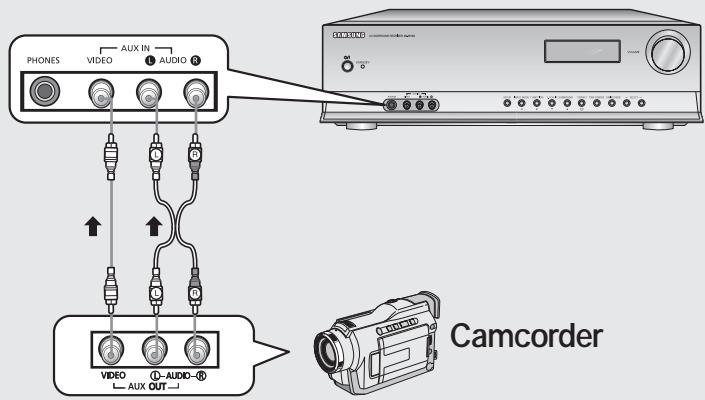
Connecting AUX components
You can connect external devices you use (camcorder, game console, mobile equipment,etc.) to the front of this unit for convenience.
Connecting the FM antenna
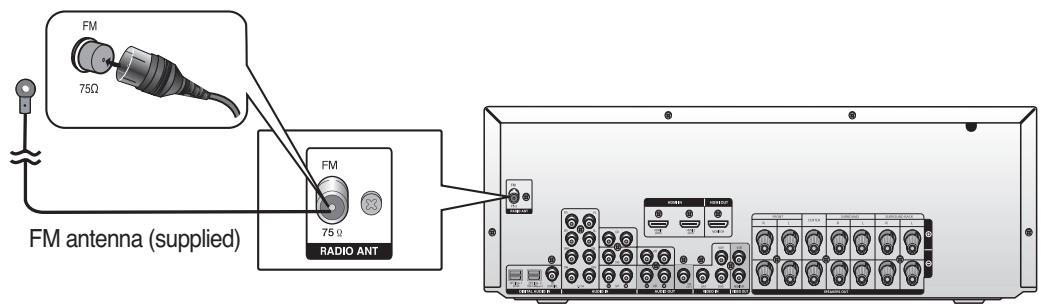
FM antenna connection
- Connect the FM antenna supplied to the FM 75Ω COAXIAL terminal as a temporary measure.
- Slowly move the antenna wire around until you find a location where reception is good, then fasten it to a wall or other rigid surface.
Turning On/Off
Connect the power plug to the outlet.
Press the POWER button of the remote control.
- This unit will be turned on or set to Standby mode.
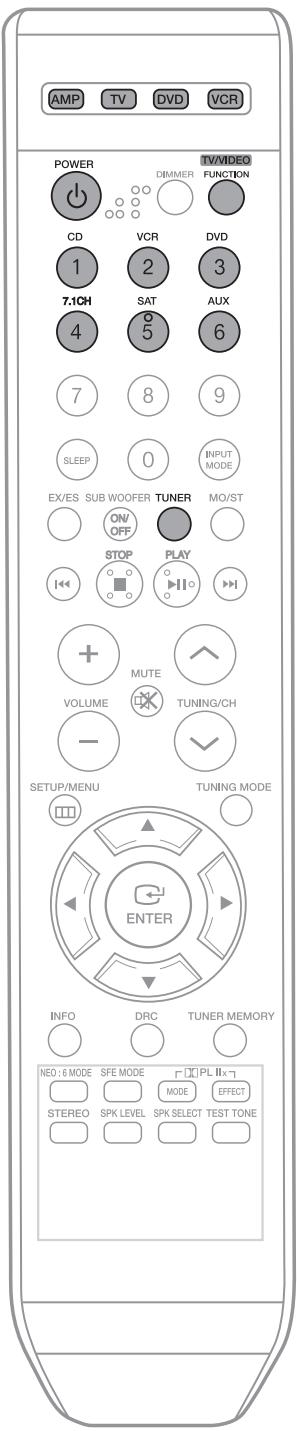
Remote control functions
You can operate your AMP (this AV receiver), TV, DVD and VCR with this remote control.
See pages 43-46 for more details.
To select a function
Method 1
Press the FUNCTION button.
Each time you press this button, FM → 7.1 MULTICH → CD → DVD
→ SAT → VCR → AUX will be selected in turn.
Method 2
Press CD, VCR, DVD, 7.1CH, SAT, AUX or TUNER button.
- You can directly select the desired function.
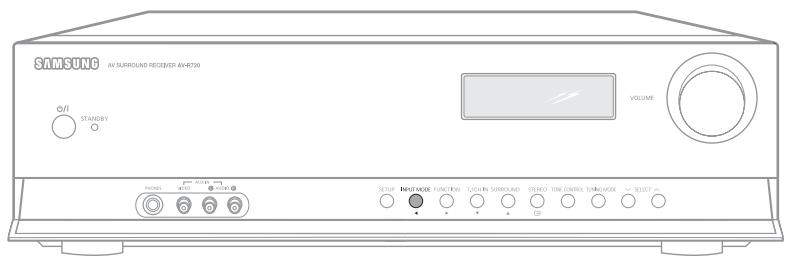

REMOTE CONTROL
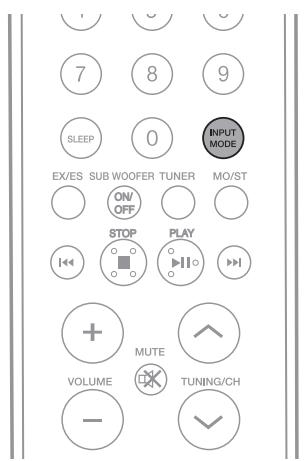
Press the INPUT MODE button.
Each time you press this button, input mode changes as follows:

MAIN UNIT
Press the INPUT MODE button.
Each time the button is pressed, input mode changes as follows:
For DVD/SAT function

For CD function

Note

- You can change the digital input setting for DVD, SAT and CD functions in the "DIGITAL IN" setup. (See page 25)
- You can enjoy Dolby Digital or DTS if you connect the digital audio output jack of an external audio component to the optical or coaxial digital audio input jack on the main unit.
Setting the speaker mode
Signal outputs and frequency response from the speaker will be adjusted according to your speaker configuration and whether certain speakers are used or not.
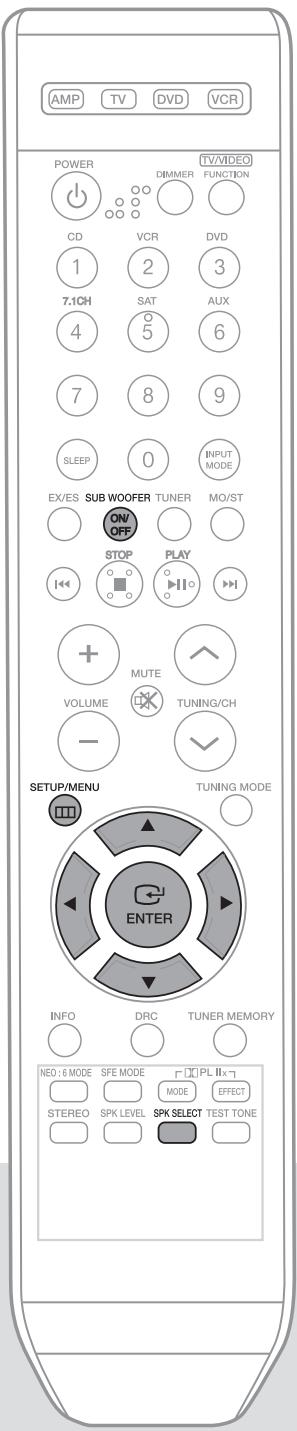
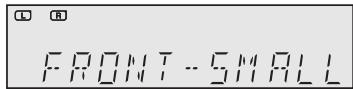
5PP 5ETUP

REMOTE CONTROL
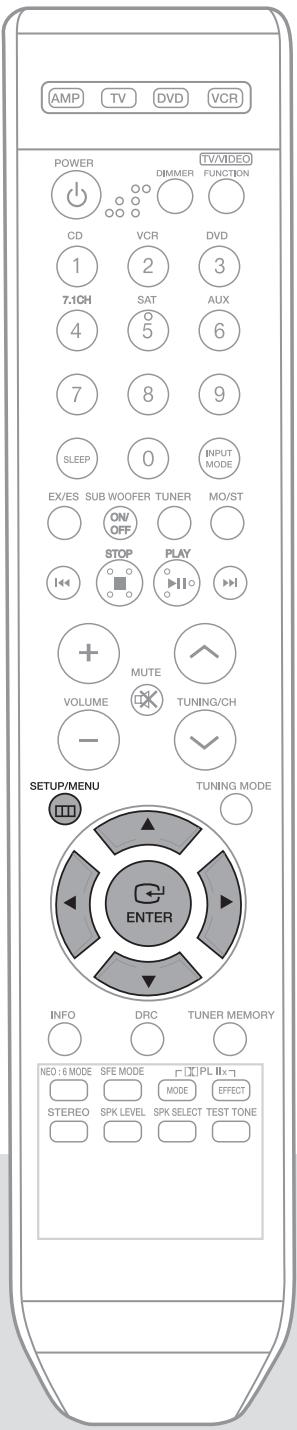
1 Press SETUP/MENU button, and then press the ENTER button. "SETUP MODE" appears on the display and goes into Setup Mode.
2 Press button to select the "SPK SETUP", and then press the ENTER button.
3 Press button to select the speaker you want. Each time you press this button, FRONT → CEN → SURR → S.BACK → SUB → CROVR will be selected in turn.
4 Press button to set the mode (LARGE, SMALL etc.) for the selected speaker.
5 Repeat steps 3-4 to set the mode for each speaker.
To exit setup mode
- Wait for about 5 seconds or press SETUP/MENU button. "SETUP OFF" appears on the display and Setup Mode is exited.
Using the SPK SELECT button
1 Press SPK SELECT button to select the speaker you want.
- Each time you press this button, FRONT → CEN → SURR → S.BACK → SUB → CROVR will be selected in turn.
2 Press button to set the mode (LARGE, SMALL etc.) for the selected speaker.
3 Repeat steps 1-2 to set the mode for each speaker.
To turn the SUBWOOFER on or off.
Press SUBWOOFER button on the remote.
Each time you press this button, SUB : YES, SUB : NO will be selected in turn.
Note

- If FRONT is set to LARGE, you can select YES or NO for SUB.
- If FRONT is set to SMALL, SUB is automatically set to YES. NO cannot be selected.
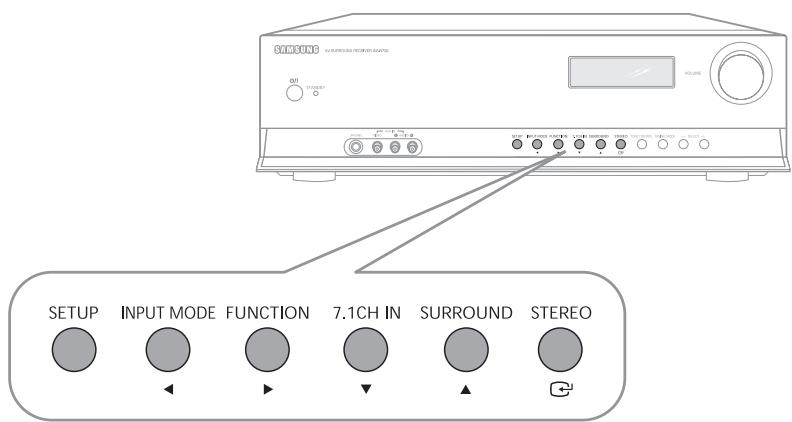
MAIN UNIT
1 Press SETUP button, and then press the ENTER (G) button. "SETUP MODE" appears on the display and goes into Setup Mode.
2 Press button to select the "SPK SETUP", and then press the ENTER (G) button.
3 Press button to select the speaker you want.
Each time you press this button, FRONT → CEN → SURR → S.BACK → SUB → CROVR will be selected in turn.
4 Press button to set the mode (LARGE, SMALL etc.) for the selected speaker.
5 Repeat steps 3-4 to set the mode for each speaker.
To exit setup mode
- Wait for about 5 seconds or press SETUP button.
"SETUP OFF" appears on the display and Setup Mode is exited.
Setting the Speaker
| SPEAKER | Possible Settings | Default Setting |
| FRONT(Front) | LARGE,SMALL | SMALL |
| CEN(Center) | LARGE,SMALL,NONE | SMALL |
| SURR(Surround) | LARGE,SMALL,NONE | SMALL |
| S.BACK(Surround Back) | LARGE,SMALL,NONE | SMALL |
| SUB(Subwoofer) | YES,NO | YES |
| CROVR(Crossover Frequency) | 60,80,100,120,150,180,200(Hz) | 150Hz |
- LARGE : Select when using large speakers. You can listen to full range sound.
- SMALL: Select this when using small speakers
- NONE : Select when no speaker is used
- YES (subwoofer) : Select when using the subwoofer speaker.
- NO (subwoofer): Select when not using the subwoofer speaker.
CROVR : Select the crossover frequency for the best bass response in your room.
Setting the speaker listening distance
If the speakers cannot be placed at equal distances from the listening position, you can adjust the delay time of the audio signals from the center and surround speakers.
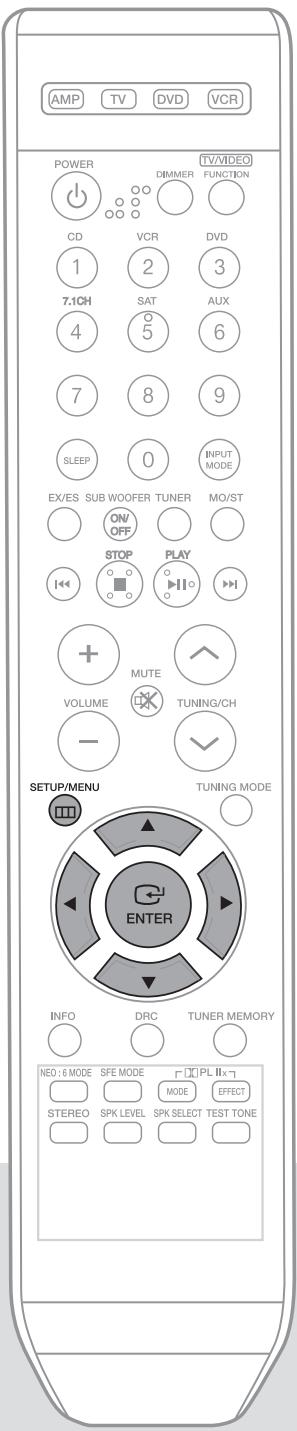
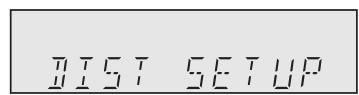
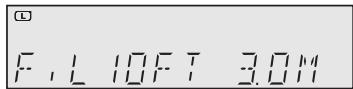
1 Press SETUP/MENU button, and then press the ENTER button. “SETUP MODE” appears on the display and goes into Setup Mode.
2 Press button to select the "DIST SETUP", and then press the ENTER button.
3 Press button to select the speaker you want.
Each time you press this button, F.L → CEN → F.R → S.R → SBR → SBL → S.L → S.W will be selected in turn.
4 Press button to set the speaker distance.
- For F.L, CEN, F.R, S.W, S.R, SBR, SBL, S.L Speaker, you can set the distance from the speaker to listening position between 0.3~9.0m in intervals of 0.3m.
To exit setup mode
- Wait for about 5 seconds or press SETUP/MENU button. "SETUP OFF" appears on the display and Setup Mode is exited.
Setting Speaker Distance
Set the distance from the speaker to listening position in intervals of 0.3m
-F.L(front left) : 0.9ft ~ 29.5ft
- CEN (center) : 0.9ft ~ 29.5ft
-F.R(front right) : 0.9ft ~ 29.5ft
· S.R (surround right): 0.9ft 29.5ft
- SBR (surround back right): 0.9ft ~ 29.5ft · SBL (surround back left): 0.9ft ~ 29.5ft
· S.L (surround left) : 0.9ft 29.5ft
- If the listening position is beyond the range of the speaker distance setup, set the speaker distance to the maximum.
- The distance range of the overall speaker system is determined based on the F.L(front left) speaker distance from the listening position.
- Based on the max delay channel, the distance of the front speaker is 4.9ft(5ms) and the surround speaker can be set up to 14.7ft(15ms).
Setting digital input
You can set the digital input for a DVD/SAT/CD player to either OPTICAL or COAXIAL to match the connections you've made.
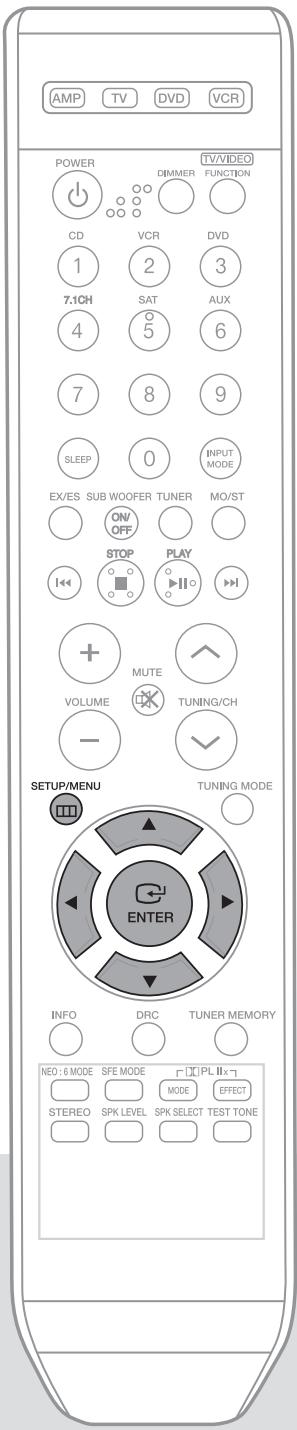

1 Press SETUP/MENU button, and then press the ENTER button.
- "SETUP MODE" appears on the display and goes into Setup Mode.
2 Press button to select the "DIGITAL IN", and then press ENTER button.
3 Press button to select the CD, DVD or SAT function.
Each time you press this button, CD → DVD → SAT will be selected in turn.
4 Press button to set the digital input.
Each time you press this button, COAXIAL → OPTICAL2 → OPTICAL1 will be selected in turn.
To exit setup mode
- Wait for about 5 seconds or press SETUP/MENU button.
"SETUP OFF" appears on the display and Setup Mode is exited.
Note
- You can select only one digital input for each function. Example) If you have selected COAXIAL for the CD function, you cannot select COAXIAL for the DVD or SAT function.
| Function | Digital input |
| DVD | OPTICAL1 |
| SAT | OPTICAL2 |
| CD | COAXIAL |
H H I F U I I
1111 1 F1
Before using!
- Press the INPUT MODE button to select HDMI1 or HDMI2. (see page 21)
- If you select Digital (Optical, Coaxial) or Analog, the HDMI audio setting will be deactivated.
1 Press SETUP/MENU button, and then press the ENTER button.
- "SETUP MODE" appears on the display and goes into Setup Mode.
2 Press button to select the "HDMI AUDIO", and then press the ENTER button.
"HDMI:AVR" appears on the display.
3 Press button to set the HDMI audio.
Each time you press this button, HDMI : AVR → HDMI : TV will be selected in turn.
To exit setup mode
- Wait for about 5 seconds or press SETUP/MENU button.
"SETUP OFF" appears on the display and Setup Mode is exited.
Setting HDMI AUDIO
- AVR : Audio is played on this product.
- TV : Audio is played on a TV connected to the HDMI OUT jack and no audio is played on this product.

- HDMI AUDIO setting is available only when the HDMI output is connected to a TV.
- If you do not hear sound from the TV, should change the HDMI audio output setting for your DVD PLAYER or SAT to PCM.
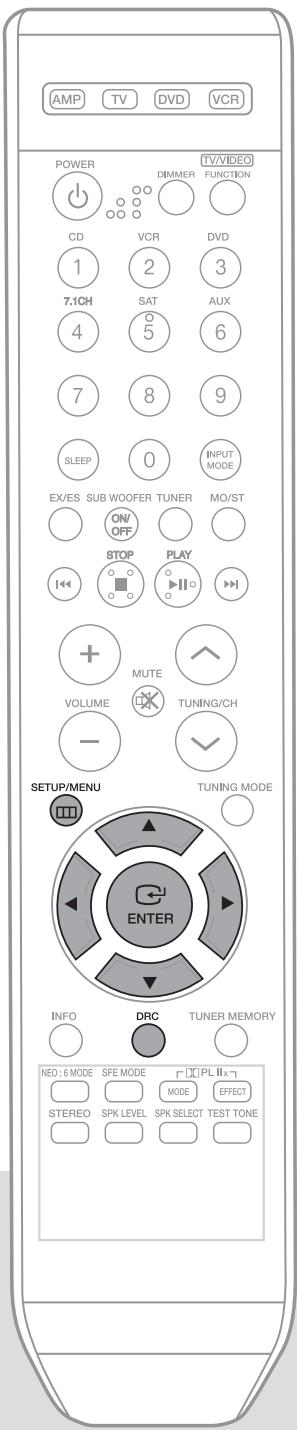
You can use this function to enjoy Dolby Digital sound when watching movies at low volume at night. DRC compresses the audio to make the loudest sounds quieter and the quietest sounds louder.
I R E SET UP
111
1 Press SETUP/MENU button, and then press the ENTER button.
- "SETUP MODE" appears on the display and goes into Setup Mode.
2 Press button to select the "DRC SETUP", and then press the ENTER button.
- "DRC:STD" appears on the display.
3 Press button to set the DRC.
- Each time you press this button, DRC : STD → DRC : MAX → DRC : MIN will be selected in turn.
To exit setup mode
- Wait for about 5 seconds or press SETUP/MENU button.
"SETUP OFF" appears on the display and Setup Mode is exited.
Using the DRC button
Press DRC button.
- Each time you press this button, DRC: STD → DRC: MAX → DRC: MIN will be selected in turn.
Setting DRC
- STD: Sets DRC effect to standard.
- MAX : Sets DRC effect to maximum.
- MIN : Sets DRC effect to minimum.
To automatically output test tone

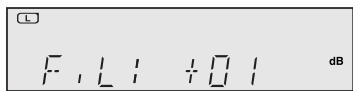
1 Press SETUP/MENU button, and then press the ENTER button.
- "SETUP MODE" appears on the display and the unit goes into Setup Mode.
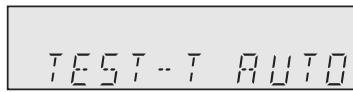
2 Press button to select the "TEST-T AUTO", and then press the ENTER button.
- Test signal will be automatically output as follows; F.L → CEN → F.R → S.R → SBR → SBL → S.L → S.W.
- During test signal output, press button to adjust the individual speaker output level from -10 to +10 dB by 1 step.
To stop test tone
- Press SETUP/MENU button once time.
"SETUP OFF" appears on the display and test tone stops.
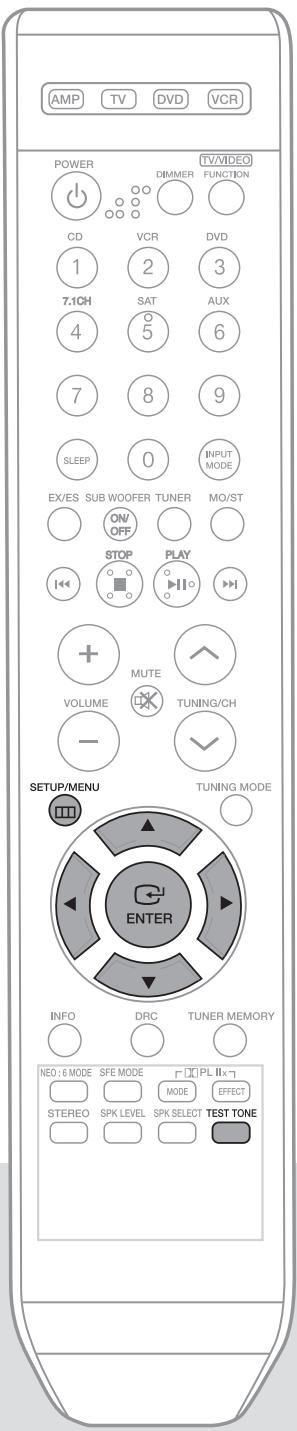
Using the Test Tone button
Press TEST TONE button.
- Test signal will be automatically output as follows; F.L → CEN → F.R → S.R → SBR → SBL → S.L → S.W.
- During test tone output, press button to adjust the speaker output level from -10 to +10 dB by 1 step.
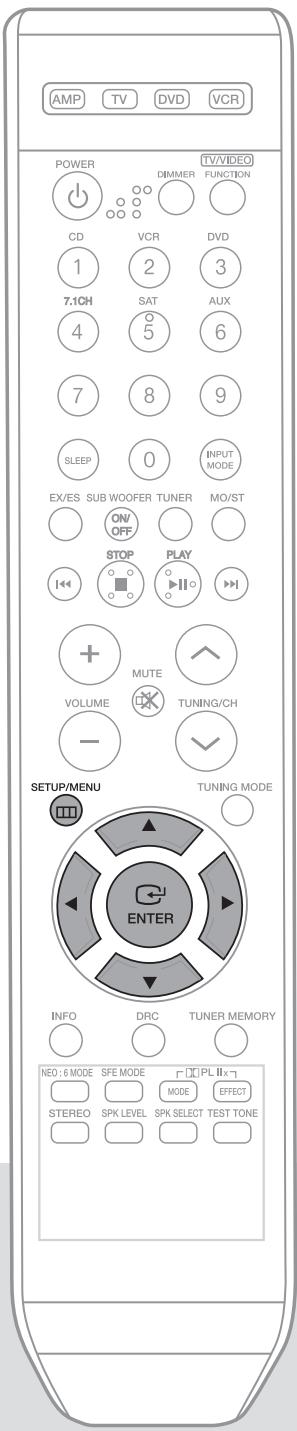
To Manually Output Test Tone

1 Press SETUP/MENU button, and then press the ENTER button.
- "SETUP MODE" appears on the display and goes into Setup Mode.
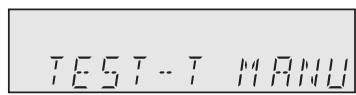
2 Press button to select the "TEST-T MANU", and then press the ENTER button.
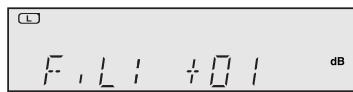
3 Press button to select the speaker you want..
Each time you press button, F.L → CEN → F.R → S.R → SBR → SBL → S.L → S.W will be selected in turn.
4 Press button to set the test tone as you want.
- You can adjust the speaker output level from -10 to +10dB by 1 step.
The sound gets quieter at -10dB and louder at +10dB.
To stop test tone
- Press SETUP/MENU button once time.
"SETUP OFF" appears on the display and test tone stops.
Test Tone Output
-F.L(frontleft) · -10 +10 dB
- CEN (center) : -10 ~ +10dB
-F.R(front right) : - 10 +10dB
· S.R (surround right) : -10 ~ +10dB
- SBR (surround back right) : -10 ~ +10dB
- SBL (surround back left) : -10 ~ +10dB
· S.L (surround left): -10 +10dB
· S.W (subwoofer): -10 +10dB
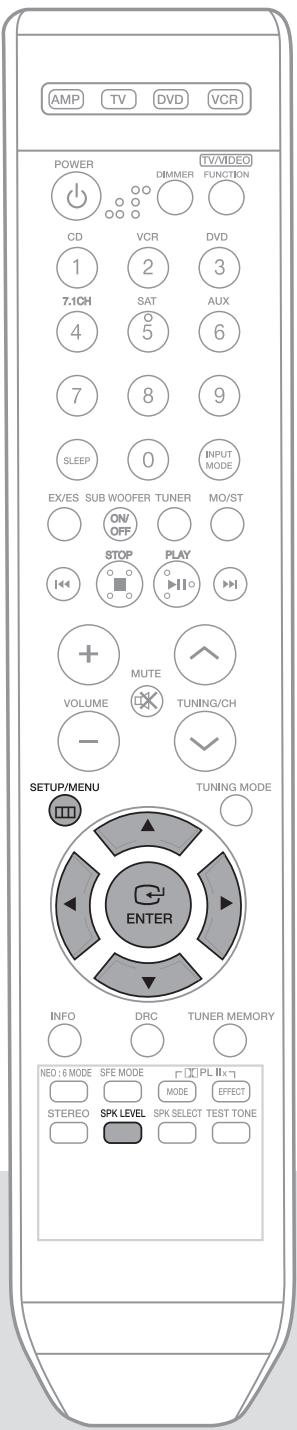

1 Press SETUP/MENU button, and then press the ENTER button.
- “SETUP MODE” appears on the display and goes into Setup Mode.
2 Press button to select the "LEVEL SETUP", and then press the ENTER button.
3 Press button to select the speaker you want.
Each time you press button, F.L → CEN → F.R → S.R → SBR → SBL
→ S.L → S.W will be selected in turn.
4 Press button to set the speaker mode.
- You can adjust it from -10 to +10dB by 1 step.
- The sound gets quieter at -10dB and louder at +10dB.
To exit setup mode
- Wait for about 5 seconds or press SETUP/MENU button. "SETUP OFF" appears on the display and Setup Mode is exited.
Using the SPK LEVEL button
1 Press SPK LEVEL button to select the speaker you want.
Each time you press this button, F.L → CEN → F.R → S.R → SBR → SBL → S.L
→ S.W → SPKLVL OFF will be selected in turn.
2 Press button to set the speaker level you want.
- You can adjust it from -10 to +10dB by 1 step.
- The sound gets quieter at -10dB and louder at +10dB.
Setting Speaker Level
-F.L(front left) · 10 +10 dB
- CEN (center) : -10 ~ +10dB
-F.R(front right) : -10 ~ +10dB
· S.R (surround right) : -10 ~ +10dB
- SBR (surround back right) : -10 ~ +10dB
- SBL (surround back left) : -10 ~ +10dB
· S.L (surround left): -10 +10dB
· S.W (subwoofer): -10 +10dB
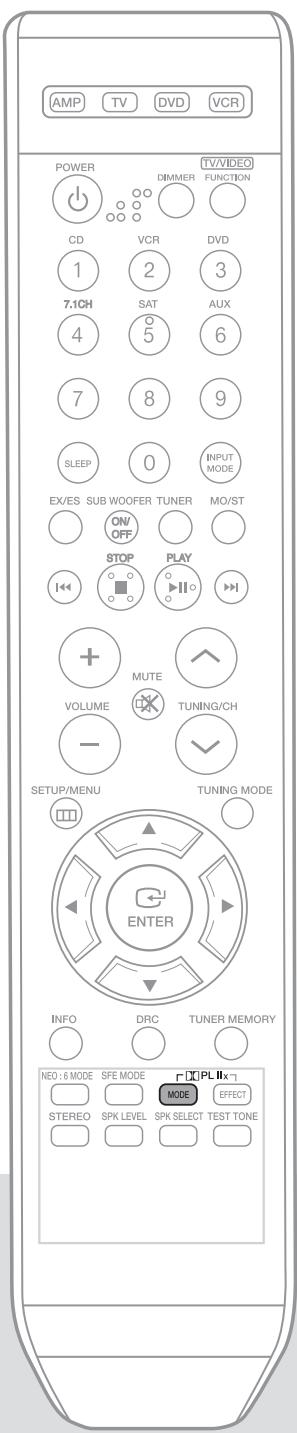
REMOTE CONTROL
Press DPLIIx MODE button.
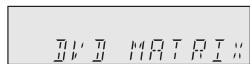
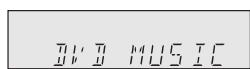
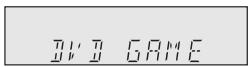
Each time you press this button, CINEMA → MATRIX → GAME → PL → MUSIC will be selected in turn.
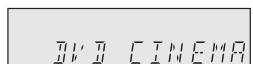
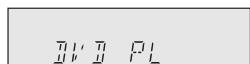
MAIN UNIT
1 Press SURROUND button to select "DPLlIx" mode.
Each time you press this button, DPLlIx → NEO:6 → SFE → STEREO will be selected in turn.
2 Press SELECT( , ) button.
Each time you press SELECT ( ) button, CINEMA → MATRIX → GAME → PL → MUSIC will be selected in turn.
Each time you press SELECT ( ) button, MUSIC → PL → GAME → MATRIX → CINEMA will be selected in turn.
To exit setup mode
- Wait for about 5 seconds.
Dolby Pro Logic IIx mode
- MUSIC : Provides 7.1 channel surround sound for digital, analog or existing stereo sources such as CD, TAPE, FM, TV and stereo VCR.
CINEMA : Adds realism to the movie soundtrack. - MATRIX : You will hear 7.1 channel surround sound.
- GAME : Enhances the excitement of the game's sound.
- PL : You will experience a surround effect with just the front left and right speakers.
Note

- You cannot use Dolby Pro Logic IIx mode for multi channel signals such as Dolby Digital and DTS.
- Pro Logic works only for PCM audio signals with sampling frequencies of 32KHz, 44KHz or 48KHz.
- Sound will not be output from the surround back speaker if the PCM audio signal is mono.
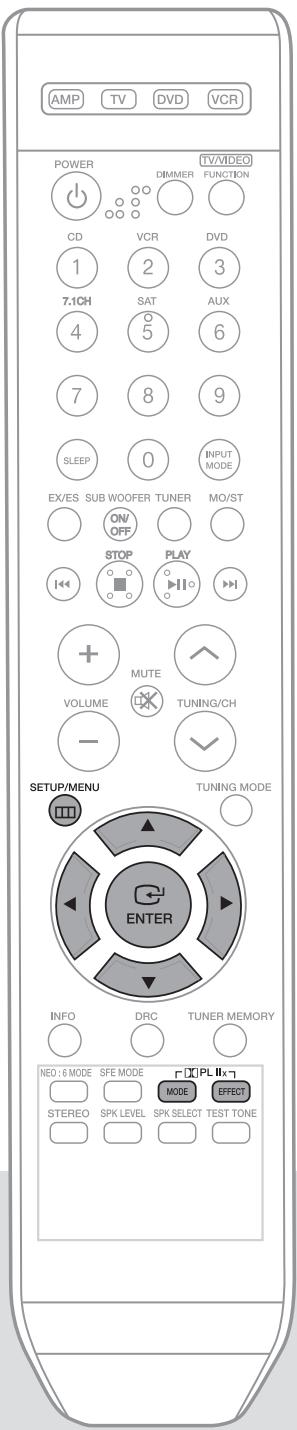
1 Press SETUP/MENU button, and then press the ENTER button.
- "SETUP MODE" appears on the display and goes into Setup Mode.
2 Press button to select the "PLIIx MODE", and then press the ENTER button.
3 Press button.
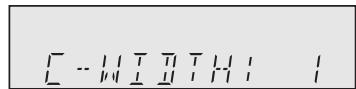
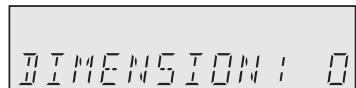
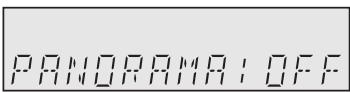
Each time you press this button, C-WIDTH → DIMENSION → PANorama will be selected in turn.
4 Press button to set the Dolby Pro Logic llx effect you want.
To exit setup mode
- Wait for about 5 seconds or press SETUP/MENU button.
"SETUP OFF" appears on the display and Setup Mode is exited.
Using the PLIIx EFFECT button
1 Press PLIIx MODE button to select MUSIC' Mode.
2 Press PLIIx EFFECT button.
- Each time you press this button, C-WIDTH → DIMENSION → PANorama will be selected in turn.
3 Press button to select Dolby Pro Logic IIx effect you want.
C-WIDTH : You can set from 0 to 7 .
- DIMENSION: You can set from -7 to +7.
- PANorama : You can set it ON or OFF.
Dolby Pro Logic IIx effect
- C-WIDTH : This sets the width of the center image. The higher the setting, the less sound comes from the center speaker.
- DIMENSION : Incrementally adjusts the sound field (DSP)from the front or surround.
- PANorama : This mode extends the front stereo image to include the surround speakers for an exciting "wraparound" effect with side wall imaging.

REMOTE CONTROL
Press NEO:6 MODE button.
Each time you press this button, MUSIC → CINEMA will be selected in turn.
MAIN UNIT
Press SURROUND button briefly to select "NEO:6" mode.
Each time you press this button, DPLIIx → NEO:6 → SFE → STEREO will be selected in turn.
2 Press SELECT( , ) button.
Each time you press this button, MUSIC → CINEMA will be selected in turn.
To set the height of the center sound image
If your TV (or screen) is installed high on a wall, you can raise the center sound image of the front and center speakers to compensate.
1 Press SETUP/MENU button, and then press the ENTER button.
- "SETUP MODE" appears on the display and goes into Setup Mode.
2 Press button to select the "NEO:6 MODE", and then press the ENTER button.
- "CEN - IMG : 2" appears on the display.
NE016 MOJE
EN-IMG:2
3 Press button to set the sound image you want.
- You can set the sound image from 0 to 5.
- This parameter adjusts the height of the center image through the front and center speakers. "0" is the lowest while "5" is the highest.
To exit setup mode
- Wait for about 5 seconds or press SETUP/MENU button.
"SETUP OFF" appears on the display and Setup Mode is exited.
NEO:6Mode
This mode decodes 2 channel signals to a high precision digital matrix decoder. for 6.1 channel sound.
- MUSIC : NEO:6 MUSIC mode is optimized for music playback
- CINEMA : NEO:6 CINEMA mode is optimized for movie playback.
Note
- NEO:6 mode cannot be used with DTS and Dolby Digital multi channel signals.
- Pro Logic works only for PCM audio signals with sampling frequencies of 32KHz, 44KHz or 48KHz.
When surround back speakers are connected, you can listen to 6.1 or 7.1 multi-channel sound using the built-in Dolby Digital Surround EX or DTS ES decoder. This function works when a Dolby Digital or DTS source (such as a DVD player) is input, and does not work with L.PCM and Dolby Digital 2 channel sources.
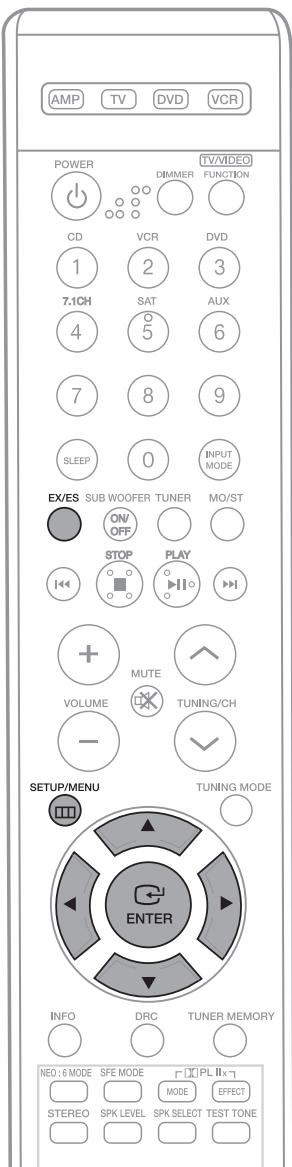
1 Press SETUP/MENU button, and then press the ENTER button. "SETUP MODE" appears on the display and goes into Setup Mode.
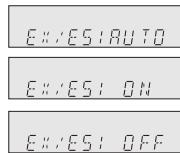
2 Press button to select the "EX/ES SETUP", and then press the ENTER button. "EX/ES:AUTO" appears on the display.
3 Press button to set the EX/ES you want.
Each time you press this button, EX/ES: AUTO → EX/ES: ON → EX/ES: OFF will be selected in turn.
To exit setup mode
- Wait for about 5 seconds or press SETUP/MENU button. "SETUP OFF" appears on the display and Setup Mode is exited.
Using the EX/ES button
Press EX/ES button.
- Each time you press this button, EX/ES : AUTO → EX/ES : ON → EX/ES : OFF will be selected in turn.
- The EX/ES button on the remote control is enabled only if the input source is of Dolby Digital or DTS.
EX/ES Mode
- AUTO: If the unit receives an audio signal that it can recognize, it will select an optimal decoder for playback in 6.1/7.1 channel. If the amplifier does not recognize the audio signal, it will not play in 6.1/7.1 channel automatically.
- ON : Dolby Digital or DTS signal will be played in 6.1 / 7.1 channel using Dolby Digital Surround EX / DTS ES decoder.
- OFF : Dolby Digital Surround EX / DTS ES decoder will not be used for playback.
Dolby Digital - EX
Movie soundtracks encoded with Dolby Digital EX will play audio over the surround back channels also.
Note

- You cannot use Dolby Digital-EX in the system without Surround Back speakers connected.
- EX/ES Mode must be set to On when playing back discs encoded with 6.1 channel Dolby Digital-EX.
- Some discs encoded with Dolby Digital-EX do not contain an identification signal. In this case, set EX/ES to ON.
DTS-ES (Discrete 6.1, Matrix 6.1)
A surround back channel is added to the DTS 5.1 channel system, improving the sense of sound directionality and space. A built-in DTS-ES decoder has been equipped with this system that supports discs encoded with DTS-ES Direct and DTS-ES Matrix.

- You cannot use DTS-ES without surround back speakers connected.
TONE CONTROL

1 Press SETUP/MENU button, and then press the ENTER button.
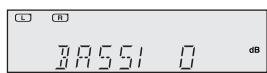
- "SETUP MODE" appears on the display and goes into Setup Mode.
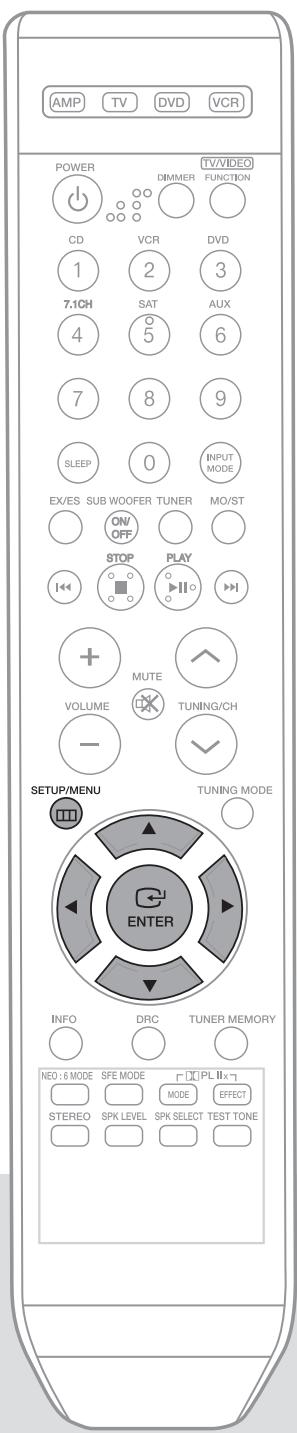
2 Press button to select "TONE CONTROL", and then press the ENTER button.
3 Press button.
Each time you press this button, BASS → TREBLE → TONE: OFF will be selected in turn.
- If it is set to TONE: OFF, the Tone Control function will be disabled.
4 Press button to set the tone control you want.
- You can adjust it from -6 to +6dB by 1 step.
- The sound gets smaller at -6dB and louder at +6dB.
To exit setup mode
- Wait for about 5 seconds or press SETUP/MENU button.
"SETUP OFF" appears on the display and Setup Mode is exited.
Note

- Tone Control function is available only in the Stereo mode.

REMOTE CONTROL
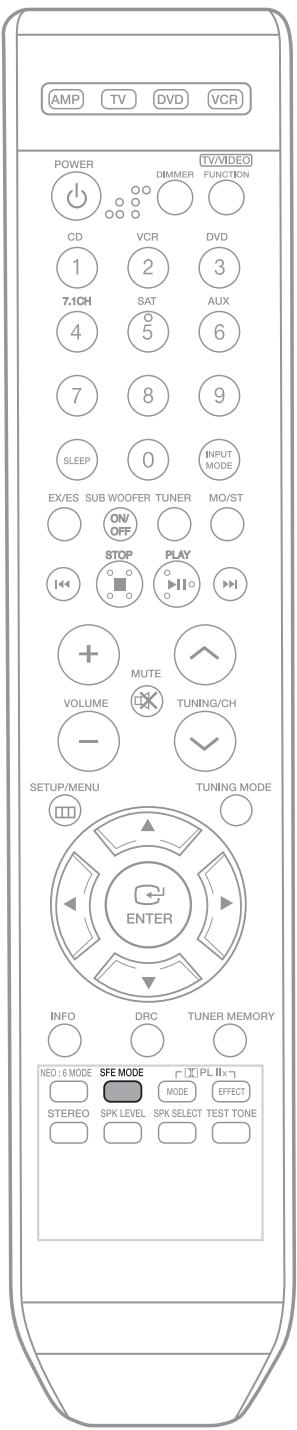
Press SFE MODE button.
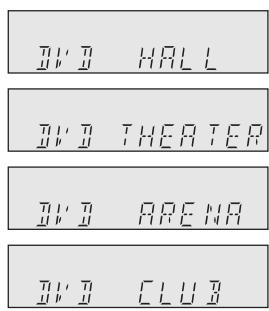
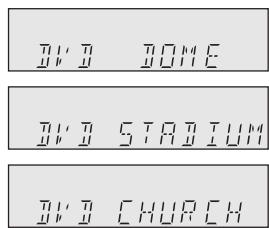
Each time you press this button, HALL → THEATER → ARENA → CLUB → DOME → STADIUM → CHURCH will be selected in turn.

MAIN UNIT
1 Press SURROUND button to select 'SFE' Mode.
Each time you press this button, DPLIIx → NEO:6 → SFE → STEREO will be selected in turn.
2 Press SELECT( , ) button.
Each time you press Select ( , ) button, HALL ↔ THEATER ↔ ARENA ↔ CLUB ↔ DOME ↔ STADIUM ↔ CHURCH will be selected in turn.
To exit setup mode
- Wait for about 5 seconds.
REMOTE CONTROL
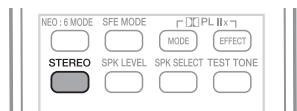
Press STEREO button.
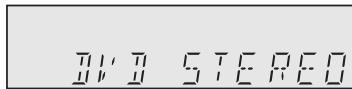
- "STEREO" appears in the display and Stereo Mode is selected.
MAIN UNIT
Press SURROUND button to select 'STEREO'.
Each time you press this button, DPLlIx → NEO:6 → SFE → STEREO will be selected in turn.
- If you press the STEREO button on the player, it will switch to STEREO mode.
To exit setup mode
- Wait for about 5 seconds.
Surround Mode and Input Signal Chart
0 = active, - = inactive
| Surround Mode | Input Signal | Decoding | Output Channel | Display Information | |||||
| L/R | C | SL SR | SRL SBR | SubW | Display Signal Format | Channel Status | |||
| DOLBY (MUSIC, CINEMA, MATRIX, GAME, PRO LOGIC) | Dolby D Surr. EX | Dolby Digital 5.1 | 0 | 0 | 0 | 0 | 0 | ☐ DIGITAL | L, C, R, SL, SR, SBL, SBR, SW |
| Dolby D (5.1ch) | Dolby Digital 5.1 | 0 | 0 | 0 | - | 0 | ☐ DIGITAL | L, C, R, SL, SR, SW | |
| Dolby D (2ch) | Pro Logic II x | 0 | 0 | 0 | 0 | 0 | ☐ DIGITAL | L, C, R, SL, SR, SBL, SBR, SW | |
| Dolby D (2ch Surr) | Pro Logic II x | 0 | 0 | 0 | 0 | 0 | ☐ DIGITAL | L, C, R, SL, SR, SBL, SBR, SW | |
| LPCM (Audio) | Pro Logic II x | 0 | 0 | 0 | 0 | 0 | LPCM | L, C, R, SL, SR, SBL, SBR, SW | |
| Analog | Pro Logic II x | 0 | 0 | 0 | 0 | 0 | ANALOG | L, C, R, SL, SR, SBL, SBR, SW | |
| NEO:6 (MUSIC, CINEMA) | LPCM (Audio) | Neo:6 | 0 | 0 | 0 | 0 | 0 | LPCM | L, C, R, SL, SR, SBL, SBR, SW |
| Analog | Neo:6 | 0 | 0 | 0 | 0 | 0 | ANALOG | L, C, R, SL, SR, SBL, SBR, SW | |
| Dolby D (2ch) | Neo:6 | 0 | 0 | 0 | 0 | 0 | ☐ DIGITAL | L, C, R, SL, SR, SBL, SBR, SW | |
| Dolby D (2ch Surr) | Neo:6 | 0 | 0 | 0 | 0 | 0 | ☐ DIGITAL | L, C, R, SL, SR, SBL, SBR, SW | |
| SFE | Dolby D (2ch) | DD+SFE | 0 | 0 | 0 | - | 0 | ☐ DIGITAL | L, C, R, SL, SR, SW |
| Dolby D (2ch Surr) | DD+SFE | 0 | 0 | 0 | - | 0 | ☐ DIGITAL | L, C, R, SL, SR, SW | |
| LPCM (Audio) | SFE | 0 | 0 | 0 | - | 0 | LPCM | L, C, R, SL, SR, SW | |
| Analog | SFE | 0 | 0 | 0 | - | 0 | ANALOG | L, C, R, SL, SR, SW | |
| EX/ES | Dolby D Surr. EX | Dolby Digital EX | 0 | 0 | 0 | 0 | 0 | ☐ DIGITAL | L, C, R, SL, SR, SBL, SBR, SW |
| Dolby D (5.1ch) | Dolby Digital EX | 0 | 0 | 0 | 0 | 0 | ☐ DIGITAL | L, C, R, SL, SR, SBL, SBR, SW | |
| DTS-ES | DTS-ES | 0 | 0 | 0 | 0 | 0 | dts, ES | L, C, R, SL, SR, SBL, SBR, SW | |
| DTS (5.1ch) | DTS-ES | 0 | 0 | 0 | 0 | 0 | dts | L, C, R, SL, SR, SBL, SBR, SW | |
| STEREO | Dolby D (2ch) | Stereo | 0 | - | - | - | 0 | ☐ DIGITAL | L, R, SW |
| Dolby D (2ch Surr) | Stereo | 0 | - | - | - | 0 | ☐ DIGITAL | L, R, SW | |
| LPCM (Audio) | Stereo | 0 | - | - | - | 0 | LPCM | L, R, SW | |
| LPCM 96KHz | Stereo | 0 | - | - | - | 0 | LPCM | L, R, SW | |
| Analog | Stereo | 0 | - | - | - | 0 | ANALOG | L, R, SW | |
L/R : front speaker (left/right) C : center speaker SL/SR : surround speaker (left/right) SBL/SBR : surround back speaker (left/right)
SW:subwoofer
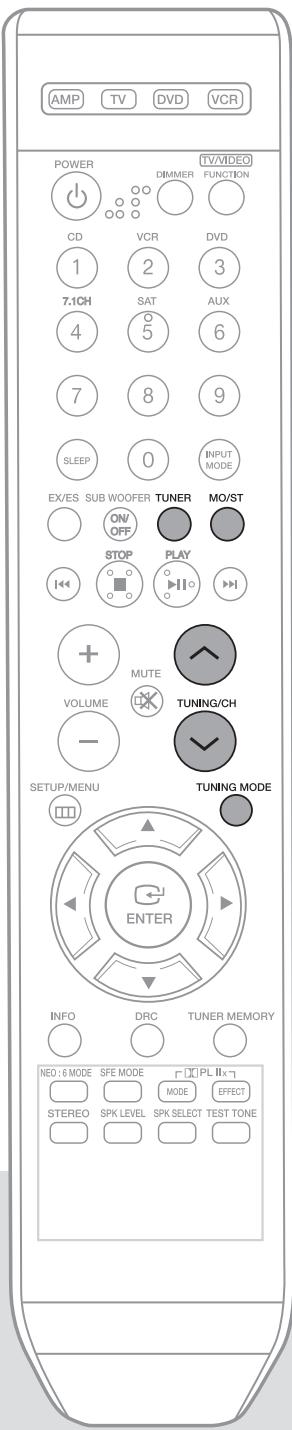
REMOTE CONTROL
1 Press TUNER button.
2 Selected frequency.
Automatic tuning 1:
1) Press TUNING MODE button to select PRESET.
2) Press TUNING/CH (, ) button to select the preset frequency.
Automatic tuning 2 :
1) Press TUNING MODE button to select MANUAL
2) Press and hold TUNING/CH ( ,) button to automatically tune in frequency.
- Manual tuning :
1) Press TUNING MODE button to select MANUAL.
2) Press TUNING/CH (√, ∧) button briefly to increase or decrease the frequency step by step.
MAIN UNIT
1 Press FUNCTION button to select FM.
2 Select the frequency.
Automatic tuning 1:
1) Press TUNING MODE button to select PRESET.
2) Press TUNING/CH ( , ) button to select the preset frequency.
Automatic tuning 2 :
1) Press TUNING MODE button to select MANUAL
2) Press and hold TUNING/CH ( , ) button to automatically tune in frequency.
- Manual tuning :
1) Press TUNING MODE button to select MANUAL.
2) Press TUNING/CH ( , ) button briefly to increase or decrease the frequency step by step.
To Listen to mono/stereo
Press MO/ST button on the remote.
Each time you press this button, STEREO → MONO will be selected in turn.
- If you select MONO in an area with weak reception, it will help to reduce noise.
- This function works only with the Remote Control.
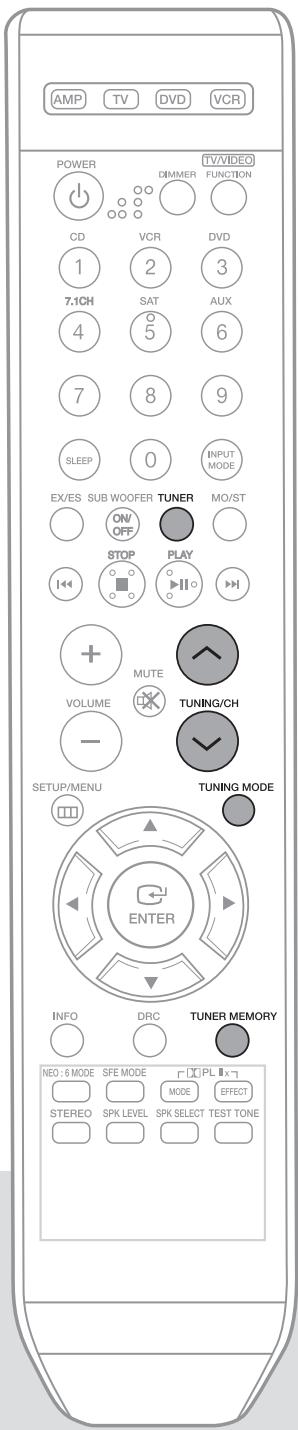
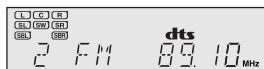
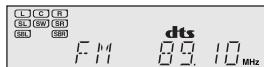
E.g.: Setting station FM 89.10 in preset 2.
1 Press TUNER button.
2 Press TUNING MODE button to select MANUAL and then press TUNING/CH(√, ∧) button to select 89.10.
Refer to step 2, page 38, to tune in automatically and manually.
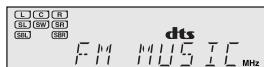
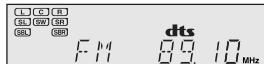
3 Press TUNER MEMORY button.
- Tuner number will blink on the display.
4 Press TUNING/CH( , ) button to select preset 2.
- You can select from presets 1 to 30.
5 Press TUNER MEMORY button.
- Tuner number will disappear and station 89.10 will be saved in preset 2.
6 To preset other stations, repeat steps 2 to 5.

To Listen to Preset Station
- Press TUNING MODE button of the remote control to select the PRESET and press TUNING/CH (√, ∧) button.
Sleep timer function
You can set the time that this unit will shut itself off.
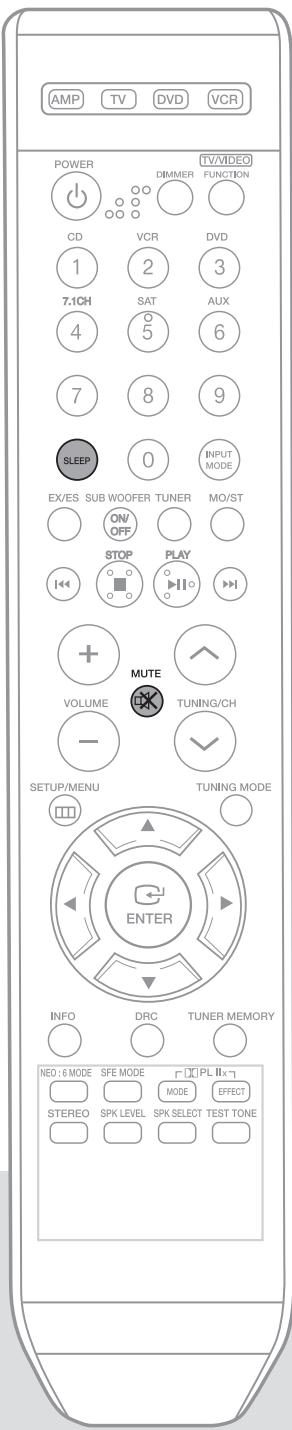
Press the SLEEP button.
- SLEEP: OFF → 15 → 30 → 45 → 60 → 90 → 120 M (MIN) will be selected in turn.
To check sleep timer Press the SLEEP button.
- The remaining time before this unit will shut itself off is shown on the display.
- Pressing the button again changes the sleep time from what you set previous
To cancel sleep timer
- Press SLEEP button until "SLEEP : OFF" appears on the display.
Mute function
This function is useful when answering a doorbell or telephone call.
Press the MUTE button.
- MUTE appears on the display.
To output sound again
Press the MUTE button again.
- MUTE will disappear and sound will output.
Note
- SLEEP, Mute and the Adjust Display functions can only be operated with the remote control.
Reset function
REMOTE CONTROL
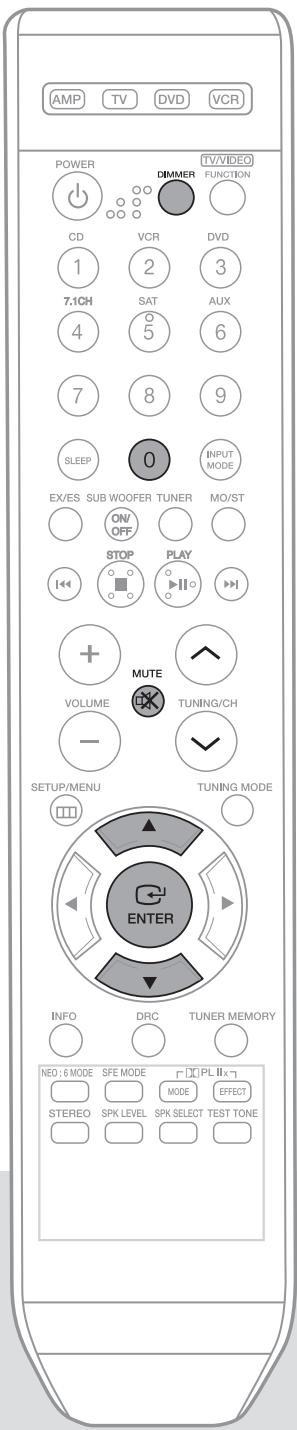
1 Press the MUTE button.
- MUTE appears on the display.
2 Press "0" button five times and then press the ENTER button.
- "INITIAL : NO" appears on the display.
3 Press buttons to select "YES".
The unit will turn off after 5 seconds.
MAIN UNIT
1 Turn off the power and hold the SELECT(▲) button for longer than 5 seconds.
- POWER STANDBY indicator will flash.
Caution!
- Using the RESET function will erase all stored settings.
- Do not use this unless necessary.
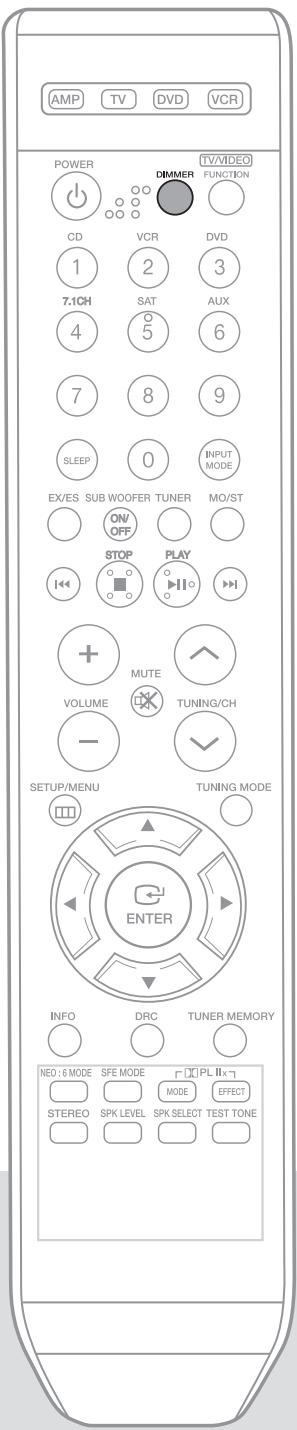
Adjust the display
You can adjust the brightness of the display.
Press the DIMMER button.
Each time you press this, the brightness changes as follows: DARK → BRIGHT.
Using headphones
Use headphones (not supplied) for private listening pleasure.
Connect the headphones to the headphone jack and listen to music.

- Do not turn the volume up too high when you use headphones as It may damage your hearing.
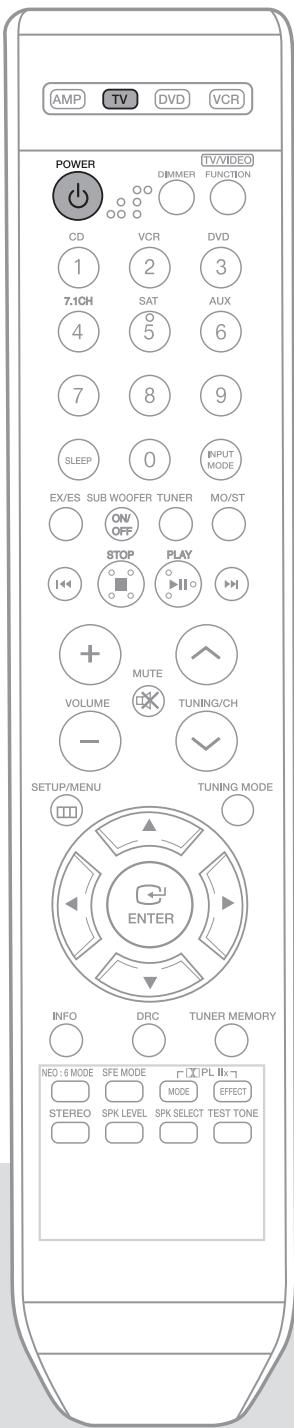
1 Press POWER button to turn on the TV.
2 Press TV button to set the remote to TV mode.
3 Point the remote control toward the TV.
While holding down POWER button, enter the code corresponding to your brand of TV.
- If there is more than one code listed for your TV in the table, enter one at a time to determine which code works.
- If the code matches the TV's code, the TV will be turned off.
5 If TV is turned on or off when you press the power button of the remote control, the setting is completed.
- You can use the TV POWER, VOLUME, CHANNEL, MENU and Numeric buttons (0~9).
Note

- The remote control may not work on some brands of TVs. Also, some operations may not be possible depending on your brand of TV.
The remote control will work with Samsung TVs by default.
Operating your TV with the remote control (cont'd)
TV Brand Code List
| Brand | Code Number | Brand | Code Number | Brand | Code Number |
| ADMIRAL (M.WARDS) | 056,057,058 | LUXMAN | 018 | SYLVANIA | 018,040,048,054,059,060,062 |
| AMARK | 001,015 | LXI (SEARS) | 019,054,056,059,060,062,063,065,071 | SYMPHONIC | 061,095,096 |
| ANAM | 001,002,003,004,005,006,007,008,009,010,011,012,013,014 | MAGNAVOX | 015,017,018,048,054,059,060,062,072,089 | TATUNG | 006 |
| TECHWOOD | 018 | ||||
| AOC | 001,018,040,048 | MARANTZ | 040,054 | TEKNIKA | 003,015,018,025 |
| BELL & HOWELL (M.WARDS) | 057,058,081 | MATSUI | 054 | TMK | 018,040 |
| BROCSONIC | 059,060 | MGA | 018,040 | TOSHIBA | 019,057,063,071,101 |
| CANDLE | 018 | MITSUBISHI/MGA | 018,040,054,059,060,075,101 | VIDTECH | 018 |
| CETRONIC | 003 | ||||
| CITIZEN | 003,018,025 | MTC | 018 | VIDTECH | 059,060,069 |
| CINEMA | 097 | NEC | 018,019,020,040,059,060 | WARDs | 015,017,018,040,048,054,060,064 |
| CLASSIC | 003 | ||||
| CONCERTO | 018 | NIKEI | 003 | YAMAHA | 018 |
| CONTEC | 046 | ONKING | 003 | YORK | 040 |
| CORONADO | 015 | ONWA | 003 | YUPITERU | 003 |
| CRAIG | 003,005,061,082,083,084 | PANASONIC | 006,007,008,009,054,066,067,073,074 | ZENITH | 058,079 |
| ZONDA | 001 | ||||
| CROSLEX | 062 | PENNEY | 018 | DONGYANG | 003,054 |
| CROWN | 003 | PHILCO | 003,015,017,018,048,054,059,062,069,090 | LOWE | 054 |
| CURTIS MATHES | 059,061,063 | FINLUX | 054,109,114 | ||
| CXC | 003 | PHILIPS | 015,017,018,040,048,054,062,072,112,114,117,118 | YOKO | 054 |
| LOWE OPTA | 054,114 | ||||
| PHONOLA | 054,112,114 | ||||
| DAEWOO | 002,003,004,015,016,017,018,019,020,021,022,023,024,025,026,027,028,029,030,032,034,035,036,040,048,059,090,099,100 | PIONEER | 063,066,080,091 | RADIOLA | 054,112 |
| SCHNEIDER | 054 | ||||
| PORTLAND | 015,018,059 | AKAI | 103 | ||
| PROTON | 040 | AKAI | 103 | ||
| QUASAR | 006,066,067 | GRUNDIG | 108,109,113,119,120,121 | ||
| DAYTRON | 040 | RADIO SHACK | 017,048,056,060,061,075 | BLAUPUNKT | 108 |
| DYNASTY | 003 | ||||
| EMERSON | 003,015,040,046,059,061,064,082,083,084,085 | RCA/PROSCAN | 018,059,067,076,077,078,092,093,094 | SIEMENS | 108 |
| CGE | 113 | ||||
| REALISTIC | 003,019 | IMPERIAL | 113 | ||
| FISHER | 019,065,103 | SAMPO | 040 | MIVAR | 113 |
| FUNAI | 003 | SAMSONG | 000,015,016,017,040,043,046,047,048,049,054,059,060,098 | SABA | 114 |
| FUTURETECH | 003 | BANG&OLUFSEN | 114 | ||
| GENERALELECTRIC (GE) | 006,040,056,059,066,067,068 | SANYO | 019,061,065,101,102,103,104 | BRIONVEGA | 114 |
| FORMENTI | 114 | ||||
| HALL MARK | 040 | METZ | 114 | ||
| HITACHI | 015,018,050,059,069 | SCOTT | 003,040,060,061 | WEGA | 114 |
| INKEL | 045 | SEARS | 015,018,019 | RADIOMARELLI | 114 |
| JCPENNY | 056,059,067,086 | SHARP | 015,057,064,101,105,106,115 | SINGER | 114 |
| JVC | 070 | SINUDYNE | 114 | ||
| KTV | 059,061,087,088 | SIGNATURE2000 (M.WARDS) | 057,058 | TELEFUNKEN | 116 |
| KEC | 003,015,040 | SONY | 050,051,052,053,055,101 | ||
| KMC | 015 | ||||
| LG (GOLDSTAR) | 001,015,016,017,037,038,039,040,041,042,043,044,054,086 | SOUNDESIGN | 003,040 | ||
| SPECTRICON | 001 | ||||
| SSS | 018 |
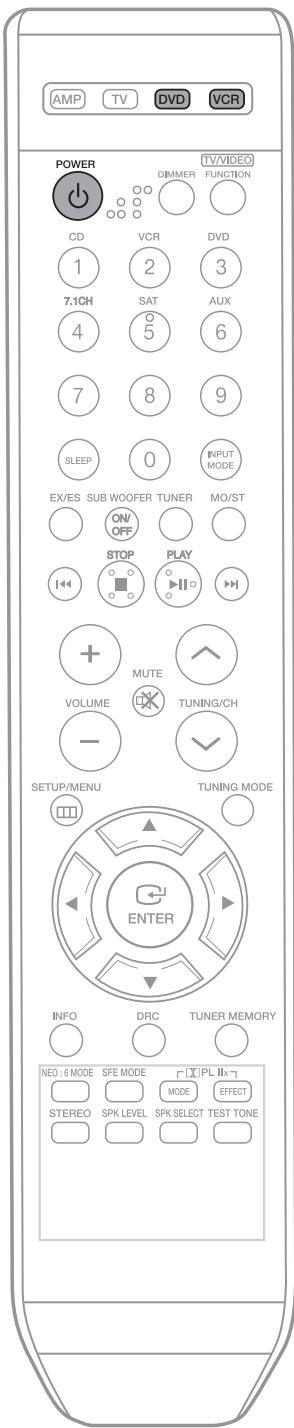
1 Press POWER button to turn on the DVD (VCR).
2 Press DVD button to set the remote to DVD mode.
- If you operate VCR, press VCR button to set the remote to VCR mode.
3 Point the remote control toward the DVD (VCR).
While holding down POWER button, enter the code corresponding to your brand of DVD (VCR).
- If there is more than one code listed for your DVD (VCR) in the table, enter one at a time to determine which code works.
- If the code matches the DVD (VCR)'s code, the DVD (VCR) will be turned off.
5 If DVD (VCR) is turned on or off when you press the power button of the remote controller, the setting is completed.
- You can use DVD (VCR) POWER, VOLUME, PLAY, PAUSE, STOP, SKIP, MENU and Numeric button (0 9) .
Note

- The remote control may not work on some brands of DVD (VCR). Also, some operations may not be possible depending on your brand of DVD (VCR).
- The remote control will work with Samsung DVD (VCR) by default.
VCR Brand Code List
| Brand | Code Number | Brand | Code Number | Brand | Code Number |
| ADMIRAL (M.WARDS) | 043,106 | MEI | 001,033 | TASHIRO | 050 |
| AWIA | 044,045,046 | MEMOREX | 001,025,033,054,091,100 | TATUNG | 047,052,092 |
| AKAI | 088,089,090 | TEAC | 044,047,052,092 | ||
| ANAM | 001,002,003,004,005,033 | MINOLTA | 020,021,062 | TECHNICS | 001,033,049,091 |
| MITSUBISHI/MGA | 068,069,070,101,102 | TEKNIKA | 001,025,033 | ||
| AOC | 091 | MTC | 072 | TOSHIBA | 006,051 |
| AUDIO DYNAMIC | 019,047,092 | MULTITECH | 044,057,069 | TOTEVISION | 025,072 |
| BELL & HOWELL (M.WARDS) | 048,093 | NEC | 019,047,052,057,092 | TAEKWANG | 087 |
| BROKSONIC | 092,094,095 | OLYMPIC | 049,091 | UNITECH | 072 |
| CANON | 001,033,049,091 | OPTIMUS | 101 | VECTORRESEARCH | 019 |
| CAPEHART | 011 | ORION | 103 | VIDEOCONCEPTS | 019 |
| CITIZEN | 050 | PANASONIC | 001,004,033,049,067,091,107 | VIDEOSONIC | 072 |
| CRAIG | 050,072,096 | WARD | 001,020,031,032,033,043,050,054,072,100,105,106,109 | ||
| CRITERION | 051 | PENNEY | 019,020,072 | ||
| CURTIS MATHES | 001,031,032,033,044,091 | PENTAX | 001,020,021,033,062 | ||
| PHILCO | 001,033,046,049,091,094 | YAMAHA | 019,047,048,052,092, | ||
| DAEWOO | 006,007,008,009,010,011,012,013,014,015,016,017,018,046,051,091 | PHILIPS | 001,030,033,049,050,066,091 | ZENITH | 019,047,048,052,092 |
| PILOT | 025 | DVD Brand Code List | |||
| DAYTRON | 011 | PIONEER | 049 | ||
| DBX | 019,047,052,092 | PORTLAND | 011 | Brand | Code Number |
| EMERSON | 025,031,032,044,046,094,095,097,098,099 | QUASAR | 001,033,049,067,091,107,108 | DENON | 003,032 |
| FISHER | 009,048,053,054,055,100 | RICO | 036 | DOONOON | 019 |
| RCA/PROSCAN | 001,020,021,031,032,033,049,051,062,066,070,091,104 | DMTECH | 017 | ||
| FUNAI | 044 | FISHER | 002 | ||
| GENERALELECTRIC (GE) | 001,031,032,033,056,091 | REALISTIC | 001,009,025,033,044,048,054,091,101,105 | GE | 006 |
| HARMANKARDON | 012 | ||||
| GO VIDEO | 059,060,061 | JVC | 010,013 | ||
| HARMANKARDON | 019 | KENWOOD | 008 | ||
| HITACHI | 020,021,049,054,062,100 | SAMSUNG | 000,006,031,032,057,058,071,072,073,074,075,076,077,078,079,080,081 | LG | 001 |
| MAGNAVOX | 004 | ||||
| HQ | 051 | MITSUBISHI | 005,016 | ||
| INSTANTREPLAY | 001,033,049,091 | ONKYO | 004,014 | ||
| JCL | 001,033 | SANYO | 008,009,046,048,050,054,058,093,100 | OPTIMUS | 011 |
| JCP | 025 | PANASONIC | 021 | ||
| JC PENNY | 047,048,052,062,091,092 | SANSUI | 092 | PROSCAN | 006 |
| SCOTT | 006,051,054,057,069,070,100,101 | PHILIPS | 004,023 | ||
| JVC | 001,033,047,052,063,064,065,092 | SEARS | 020,021,025 | PIONEER | 007,011,022,025 |
| RCA | 006 | ||||
| KENWOOD | 047,050,052,092 | SHARP | 043,105,106 | SAMSUNG | 000,027 |
| LG (GOLDSTAR) | 019,020,021,022,023,024,025,026,027,028,029,030,050 | SINGER | 096 | SANYO | 002 |
| SIGNATURE2000 (M.WARDS) | 043,044,054,100,106 | SONY | 015,020 | ||
| SHINTOM | 096 | THETA DIGITAL | 011 | ||
| LXI (SEARS) | 020,025,044,048,050,053,054,055,062,100 | SONY | 034,035,036,037,038,039,040,041,042,082,083,084,085,086 | TOSHIBA | 004,018 |
| YAMAHA | 009,033 | ||||
| MAGIN | 072 | ZENITH | 004,024 | ||
| MAGNAVOX | 001,031,032,033,049,066,067,091 | STS | 020 | TAEGWANG | 026 |
| SYLVANIA | 001,033,044,049,066,091 | PS2 | 028 | ||
| MARANTZ | 001,019,033,047,052,092,110 | X-BOX | 029 | ||
| SYMPHONIC | 044 | APEX | 030 | ||
| MARTA | 025,050 | TANDY | 009 | MARANTZ | 031 |
| Symptom | Check | Remedy |
| The unit will not turn on. | ·Is the power cord plugged into the outlet? | ·Connect the power plug to the outlet. |
| A function does not work when the button is pressed. | ·Is there static electricity in the air? | ·Disconnect the power plug and connect it again. |
| Sound is not produced. | ·Are the speakers and external components connected properly? | ·Connect them correctly. |
| ·Is the Mute function on? | ·Press Mute button to cancel the function. | |
| ·Is the volume set to minimum? | ·Adjust the volume. | |
| ·Is the speaker setup set incorrectly to NONE? | ·Refer to pages 22~23 to select LARGE, SMALL or YES. | |
| Picture does not appear on a TV when the function is selected. | ·Is the external component connected properly? | ·Connect it correctly. |
| Remote controller does not work. | ·Are the batteries drained? | ·Replace with new batteries. |
| ·Is the distance between remote control and main unit too great? | ·Operate at close distance. | |
| The sound from the left/right channels is reversed. | ·Are the left/right speaker or left/right input/output cables connected properly? | ·Check the left/right channel and connect it/them correctly. |
| Can't receive radio broadcasts. | ·Is FM antenna connected properly? | ·Connect the antenna correctly. ·If the input strength of antenna signal is weak, install the FM antenna in a place with good reception. |
| There is no sound from surround speakers. | ·Is the surround speaker connected properly? | ·Refer to pages 12~13 to connect them properly. |
| ·Is SURR (surround) incorrectly set to NONE in speaker setup? | ·Refer to pages 22~23 to select LARGE or SMALL. | |
| ·Is surround mode set to stereo? | ·Refer to pages 31~37 to select proper Surround Mode. | |
| There is no sound from center speaker | ·Is the center speaker connected properly? | ·Refer to pages 12~13 to connect it properly. |
| ·Is CEN (center) incorrectly selected to NONE in speaker setup? | ·Refer to pages 22~23 to select LARGE or SMALL. | |
| ·Is the surround mode selected to stereo? | ·Refer to pages 31~37 to select other Surround Modes. | |
| There is no sound from surround back speakers | ·Are the surround back speakers connected properly? ·Is the S.BACK(Surround Back) selected to NONE in Speaker Setup? ·Is Surround Mode set to EX/ES? | ·Refer to pages 12~13 to connect it properly. ·Refer to pages 22~23 to select LARGE or SMALL. ·Refer to page 34 to set Surround Mode to EX/ES. |
| Can't select EX/ES mode. | ·Is S.BACK(Surround Back) selected to NONE in Speaker Setup? ·Is the input signal selected properly? | ·Refer to pages 11~12 to select LARGE or SMALL. ·Use 7.1 channel external component. |
| Can't select Dolby Pro Logic Ilx mode. | ·Is the input signal selected properly? | ·Select 2 channel Dolby Digital, PCM, and Analog input signal. |
| Can't select NEO:6 mode. | ·Is the input signal selected properly? | ·Use PCM and Analog input signal. |
| There is no sound when playing a DTS encoded DVD. | ·Is Digital input selected? | ·Check whether the DVD player is properly connected and refer to page 24 to select the digital input. |

Product protection function
Heat protection
- The protection function will come on if the main unit or power transformer overheats.
"PROTECTION" will appear in the display.
This function will come on :
- If speaker terminal is shorted
- If speaker cable is shorted If there is no problem when you turn the unit on again after turning it off, PROTECTION mark will disappear on the display and the unit will work properly.
Note
- If PROTECTION appears on the display, check whether the speaker terminal is shorted and then turn on the unit
| GENERAL | Power supply | 120V, 60 Hz | |
| Standby power consumption | 0.9W | ||
| Power consumption | Main unit | 100W | |
| Subwoofer | 90W | ||
| Weight | 12.7 lbs | ||
| Dimensions (W x H x D) | 16.9 x 5.7 x 13.7 inches | ||
| Operating temperature range | 41°F~+95°F | ||
| Operating humidity range | 10%~75% | ||
| FM TUNER | Frequency response | 87.5~108.0MHz | |
| Usable sensitivity | 12dBf | ||
| S/N ratio | MONO/STEREO 55/55dB | ||
| Distortion | MONO/STEREO 0.3/0.8% | ||
| Stereo separation | 30dB | ||
| Tuner output level | 1kHz, 75kHz Dev | ||
| AMPLIFIER | Rated output | 20Hz~20kHz/THD = 10% | |
| Front speaker(left+right) | 4 Ω 100W/CH | ||
| Center speaker | 4 Ω 100W/CH | ||
| Surround speaker(left+right) | 4 Ω 100W/CH | ||
| Surround back | 4 Ω 100W/CH | ||
| Input sensitivity/impedance | 450mV/47kΩ | ||
| S/N ratio (analog input) | 80dB | ||
| Separation (1kHz) | 60dB | ||
| FREQUENCY RESPONSE | Analog input | 20Hz~20kHz(±3dB) | |
| Digital input/96kHz PCM | 20Hz ~44kHz(±3dB) | ||
| VIDEO OUTPUT | TV format | NTSC/PAL | |
| Input level/impedance | 1Vp-p/75 Ω | ||
| Output level/impedance | 1Vp-p/75 Ω | ||
| Video frequency response | 5Hz to 10kHz(-3dB) | ||
| S/N ratio | 60dB | ||
| SPEAKERS | Speaker system | Front / Surround | Center | Subwoofer speaker |
| Impedance | 4Ω x 4 | 4Ω | 8Ω | |
| Rated input | 100W | 100W | 150W | |
| Maximum input | 200W | 200W | 300W | |
| Dimensions (W x H x D) | 3.9 x 10.6 x 3.8 inches | 11.8 x 3.5 x 3.7 inches | 12 x 15.6 x 17.4 inches | |
| Weight | 3.1 lbs / 2.6 lbs | 3.1 lbs | 31.7 lbs |
※ S/N ratio, distortion, separation and usable sensitivity are based on measurement using AES (Audio Engineering Society) guidelines.
SAMSUNG AV receiver
LIMITED WARRANTY TO ORIGINAL PURCHASER
This SAMSUNG brand product, as supplied and distributed by Samsung Electronics America, Inc. (SAMSUNG) and delivered new, in the original carton to the original consumer purchaser, is warranted by SAMSUNG against manufacturing defects in materials and workmanship for a limited warranty period of:
One (1) Year Parts and Labor*
(*90 days Parts and Labor for Commercial Use)
This limited warranty begins on the original date of purchase, and is valid only on products purchased and used in the United States. To receive warranty service, the purchaser must contact SAMSUNG for problem determination and service procedures. Warranty service can only be performed by a SAMSUNG authorized service center. The original dated bill of sale must be presented upon request as proof of purchase to SAMSUNG or SAMSUNG's authorized service center. Transportation of the product to and from the service center is the responsibility of the purchaser.
SAMSUNG will repair or replace this product, at our option and at no charge as stipulated herein, with new or reconditioned parts or products if found to be defective during the limited warranty period specified above. All replaced parts and products become the property of SAMSUNG and must be returned to SAMSUNG. Replacement parts and products assume the remaining original warranty, or ninety (90) days, whichever is longer.
SAMSUNG's obligations with respect to software products distributed by SAMSUNG under the SAMSUNG brand name are set forth in the applicable end user license agreement. Non-SAMSUNG hardware and software products, if provided, are on an "AS IS" basis. Non-SAMSUNG manufacturers, suppliers, publishers, and service providers may provide their own warranties.
This limited warranty covers manufacturing defects in materials and workmanship encountered in normal, and except to the extent otherwise expressly provided for in this statement, noncommercial use of this product, and shall not apply to the following, including, but not limited to: damage which occurs in shipment; delivery and installation; applications and uses for which this product was not intended; altered product or serial numbers; cosmetic damage or exterior finish; accidents, abuse, neglect, fire, water, lightning or other acts of nature; use of products, equipment, systems, utilities, services, parts, supplies, accessories, applications, installations, repairs, external wiring or connectors not supplied and authorized by SAMSUNG, or which damage this product or result in service problems; incorrect electrical line voltage, fluctuations and surges; customer adjustments and failure to follow operating instructions, cleaning, maintenance and environmental instructions that are covered and prescribed in the instruction book; product removal or reinstallation; reception problems and distortion related to noise, echo, interference or other signal transmission and delivery problems. SAMSUNG does not warrant uninterrupted or error-free operation of the product.
THERE ARE NO EXPRESS WARRANTY OTHER THAN THOSE LISTED AND DESCRIBED ABOVE, AND NO WARRANTYES WHEHER EXPRESS OR IMPLIED, INCLUDING, BUT NOT LIMITED TO, ANY IMPLIED WARRANTY OF MERCHANTABILITY OR FITNESS FOR A PARTICULAR PURPOSE, SHALL APPLY AFTER THE EXPRESS WARRANTY PERIODS STATED ABOVE, AND NO OTHER EXPRESS WARRANTY OR GUARANTY GIVEN BY ANY PERSON, FIRM OR CORPORATION WITH RESPECT TO THIS PRODUCT SHALL BE BINDING ON SAMSUNG. SAMSUNG SHALL NOT BE LIABLE FOR LOSS OF REVENUE OR PROFITS, FAILURE TO REALIZE SAVINGS OR OTHER BENEFITS, OR ANY OTHER SPECIAL, INCIDENTAL OR CONSEQUENTIAL DAMAGES CAUSED BY THE USE, MISUSE OR INABILITY TO USE THIS PRODUCT, REGARDLESS OF THE LEGAL THEORY ON WHICH THE CLAIM IS BASED, AND EVEN IF SAMSUNG HAS BEEN ADVISED OF THE POSSIBILITY OF SUCH DAMAGES. NOR SHALL RECOVERY OF ANY KIND AGAINST SAMSUNG BE GREATER IN AMOUNT THAN THE PURCHASE PRICE OF THE PRODUCT SOLD BY SAMSUNG AND CAUSING THE ALLEGED DAMAGE. WITHOUT LIMITING THE FOREGOING, PURCHASER ASSUMES ALL RISK AND LIABILITY FOR LOSS, DAMAGE OR INJURY TO PURCHASER AND PURCHASER'S PROPERTY AND TO OTHERS AND THEIR PROPERTY ARISING OUT OF THE USE, MISUSE OR INABILITY TO USE THIS PRODUCT SOLD BY SAMSUNG NOT CAUSED DIRECTLY BY THE NEGLIGENCE OF SAMSUNG. THIS LIMITED WARRANTY SHALL NOT EXTEND TO ANYONE OTHER THAN THE ORIGINAL PURCHASER OF THIS PRODUCT, IS NONTRANSFERABLE AND STATES YOUR EXCLUSIVE REMEDY.
Some states do not allow limitations on how long an implied warranty lasts, or the exclusion or limitation of incidental or consequential damages, so the above limitations or exclusions may not apply to you. This warranty gives you specific legal rights, and you may also have other rights which vary from state to state.
To obtain warranty hardware service, please contact SAMSUNG at:
Samsung Electronics America, Inc.
105 Challenger Road Ridgefield Park, NJ07660-0511
1-800-SAMSUNG(726-7864) and www.samsung.com
SAMSUNG
If you have any questions or comments relating to Samsung products, please contact the SAMSUNG customer care center.
Samsung Electronics America, Inc.
- DIGITAL SURROUND AV RECEIVER SYSTEM HT-AS720S
- INSTRUCTION MANUAL
- CAUTION
- WARNING
- FCC NOTE (FOR U.S.A)
- SAFETY INSTRUCTIONS
- DIGITAL AV RECEIVER
- DOLBY PRO LOGIC IIX
- DTS 96/24
- DOLBY DIGITAL EX
- DTS (DIGITAL THEATER SYSTEMS)
- DTS-ES (EXTENDED SURROUND)
- DTS NEO:6
- SFE (SOUND FIELD EFFECT) USING 24BIT AUDIO DIGITAL SIGNAL PROCESSING
- ANYNET+ (HDMI-CEC) FUNCTION
- PREPARATION
- CONNECTIONS
- OPERATION
- RADIO OPERATION
- MISCELLANEOUS
- [FRONT PANEL]
- [DISPLAY]
- [REAR PANEL]
- ACCESSORIES
- INSERT REMOTE CONTROL BATTERIES
- FOLLOW THESE PRECAUTIONS TO AVOID LEAKING OR CRACKING BATTERIES
- RANGE OF OPERATION OF THE REMOTE CONTROL
- CONNECTING SPEAKERS
- POSITION OF AV RECEIVER
- FRONT SPEAKERS
- CENTER SPEAKER
- SUBWOOFER SW
- SURROUND SPEAKERS
- SURROUND BACK SPEAKERS
- SUBWOOFER FUNCTION
- CONNECTING SPEAKER WIRE
- CONNECTING THE SPEAKERS
- CONNECTING VIDEO DEVICES
- CONNECTING AUDIO/7.1 CHANNEL DEVICES
- CONNECTING EXTERNAL DEVICES VIA HDMI
- HIGH-BANDWIDTH DIGITAL CONTENT PROTECTION SYSTEM (HDCP) SUPPORT
- NOTE
- USING ANYNET+(HDMI-CEC)
- IF YOU SELECT TV
- IF YOU SELECT THE DVD PLAYER
- TO TURN OFF ANYNET
- TO EXIT SETUP MODE
- WITH ANYNET
- CONNECTING AUX COMPONENTS
- CONNECTING THE FM ANTENNA
- FM ANTENNA CONNECTION
- TURNING ON/OFF
- REMOTE CONTROL FUNCTIONS
- TO SELECT A FUNCTION
- METHOD 1
- METHOD 2
- REMOTE CONTROL
- MAIN UNIT
- FOR DVD/SAT FUNCTION
- FOR CD FUNCTION
- SETTING THE SPEAKER MODE
- USING THE SPK SELECT BUTTON
- TO TURN THE SUBWOOFER ON OR OFF
- SETTING THE SPEAKER LISTENING DISTANCE
- SETTING DIGITAL INPUT
- BEFORE USING
- SETTING HDMI AUDIO
- USING THE DRC BUTTON
- SETTING DRC
- TO AUTOMATICALLY OUTPUT TEST TONE
- TO STOP TEST TONE
- USING THE TEST TONE BUTTON
- PRESS TEST TONE BUTTON
- TO MANUALLY OUTPUT TEST TONE
- TEST TONE OUTPUT
- USING THE SPK LEVEL BUTTON
- SETTING SPEAKER LEVEL
- DOLBY PRO LOGIC IIX MODE
- USING THE PLIIX EFFECT BUTTON
- DOLBY PRO LOGIC IIX EFFECT
- TO SET THE HEIGHT OF THE CENTER SOUND IMAGE
- NEO:6MODE
- USING THE EX/ES BUTTON
- PRESS EX/ES BUTTON
- EX/ES MODE
- DOLBY DIGITAL - EX
- DTS-ES (DISCRETE 6.1, MATRIX 6.1)
- TO LISTEN TO MONO/STEREO
- SLEEP TIMER FUNCTION
- MUTE FUNCTION
- RESET FUNCTION
- ADJUST THE DISPLAY
- USING HEADPHONES
- OPERATING YOUR TV WITH THE REMOTE CONTROL (CONT'D)
- PRODUCT PROTECTION FUNCTION
- HEAT PROTECTION
- SAMSUNG AV RECEIVER
- LIMITED WARRANTY TO ORIGINAL PURCHASER
- ONE (1) YEAR PARTS AND LABOR
Brand : SAMSUNG
Model : HT-AS720ST
Category : Audio System