
KD-MS4x4G-2 - Router Key Digital - Free user manual and instructions
Find the device manual for free KD-MS4x4G-2 Key Digital in PDF.


| Product Type | HDMI Matrix Switcher 4x4 |
| Model | KD-MS4x4G-2 |
| Brand | Key Digital |
| Video Inputs | 4 x HDMI (Type A) |
| Video Outputs | 4 x HDMI (Type A) |
| Supported Resolution | Up to 4K@60Hz 4:4:4 |
| HDCP Version | 2.2 |
| Audio Support | PCM, Dolby Digital, DTS up to 7.1 |
| Control Interfaces | IR, RS-232, TCP/IP |
| EDID Management | Built-in EDID emulation and learning |
| Dimensions (W x D x H) | 17.3 x 5.5 x 1.7 in (440 x 140 x 43 mm) |
| Weight | 5.5 lbs (2.5 kg) |
| Power Supply | 12V DC 2A (included) |
| Power Consumption | 12W max |
| Operating Temperature | 32°F to 104°F (0°C to 40°C) |
| Mounting | Rack-mountable (1U) |
| Key Features | 4K60 4:4:4, HDR10, Dolby Vision, IR and RS-232 control, Web GUI |
| Maintenance | Clean with a dry cloth; avoid liquids |
| Safety Warning | Do not expose to moisture or extreme temperatures |
| Spare Parts | Power adapter, IR remote, mounting ears (included) |
| Repairability | Consult authorized service center for repairs |
| General Information | Designed for commercial and residential AV systems |
Frequently Asked Questions - KD-MS4x4G-2 Key Digital
User questions about KD-MS4x4G-2 Key Digital
0 question about this device. Answer the ones you know or ask your own.
Ask a new question about this device
Download the instructions for your Router in PDF format for free! Find your manual KD-MS4x4G-2 - Key Digital and take your electronic device back in hand. On this page are published all the documents necessary for the use of your device. KD-MS4x4G-2 by Key Digital.
USER MANUAL KD-MS4x4G-2 Key Digital
4x4 4K 18G HDMI Matrix Switch with Independent Audio Routing, Digital Optical and Analog Balanced / Un-balanced Audio De-Embedding, Web Control UI

Key digital®
Engineered for Your Success™
Table of Contents
About KD-MS4X4G-2 3
Quick Setup Guide 4
Connect 4
Configure Using KDMS Pro 4
Control 6
Application Example 10
Connections, Buttons, and LEDs 10
TCP/IP and RS-232 Commands 13
Specifications 17
Warranty Information 18
Product Warnings & Safety Instructions 18

Operation Manual
Please visit www.keydigital.com for the latest product documentation, firmware, control drivers and software downloads. Product features and specifications are subject to change without notice
Always follow the instructions provided in this Operating Manual.
About KD-MS4X4G-2
Key Digital's KD-MS4x4G-2 is a 4K matrix switcher with support of 18Gbps signal bandwidth and HDCP 2.2 for routing and distributing 4 HDMI source signals to 4 displays. KD-MS4x4G-2 features 4 analog balanced/unbalanced and optical digital audio outputs which may be independently controlled to follow the HDMI output selection or separately switched to accommodate a wide variety of usage applications in professional AV systems integration. KD-MS4x4G-2 supports all SD, HD, VESA and Ultra HD/4K video standards up to and including UHD/4K 18G and 1080p. All UHD/4K EDID handshake files include HDR header information.
Key Features
• HDMI Matrix Switching: 4 HDMI sources to 4 HDMI outputs
- Ultra HD/4K Support: 4096x2160 or 3840x2160 24/25/30/60hz at 4:4:4 (signals up to 18Gbps bandwidth)
• HDCP Licensing: Fully licensed and compatible with HDCP 2.2
• HDR10 and Dolby Vision®: More life-like images through a greater range of luminance levels
- Resolution Support: Supports all SD, HD, and VESA (VGA, SVGA, XGA, WXGA, SXGA, UXGA) up to 4096x2160p
• Deep Color Support: Up to UHD/4K 60Hz 4:2:0/12 bits, 60Hz 4:2:2/12 bits
• Audio De-Embed: 6 pin balanced / un-balanced and digital optical outputs
- Independent Audio and Video Matrix: Output HDMI and Audio ports may route together or independently
- Full Buffer System™: Manages TMDS re-clocking / signal re-generation, HDCP authentication to source & display, and EDID Control handshake
- EDID: Internal library with 15 internal EDID configurations per input, in addition to native EDID data for any Output/Display
- TMDS re-clocking: Support for long HDMI connectivity using Key Digital® HDMI cables
- Dolby Digital® & DTS™ Audio: Supports 2-channel and multi-channel surround formats up to DTS-HD Master Audio™, DTS:X®, Dolby® TrueHD, Dolby Atmos®
• Control: Front panel buttons/LEDs, Serial IR, Optical IR, RS-232 Control, and TCP/IP Control
• Web UI: Control AV routing and other basic functions from any web browser
- Control System Support: Key Digital® app ready, Compass Control® Pro ready. Fully controllable by all IR, RS-232, and TCP/IP supported control systems via open API.
- Key Digital® App & KDMS® Pro Ready: Scan & detect population for pre-built GUI and TCP/IP control via Key Digital® App and Key Digital Management Software™ Pro (KDMS™ Pro) PC setup Software
Accessories
• Power supply, KD-PS20W12VC 12V/1.66A (20W) DC Power Jack, Screw In Type
• (2) Rack ears
• IR Remote Control, model KDRMSG
• (5) 6-pin terminal block
• USB Setup Cable, USB Micro to USB A
Quick Setup Guide
Begin with the KD-MS4X4G-2, all source, display devices, audio system, and any other connected peripherals powered off.
Connect
- Connect HDMI sources to the input ports
- Connect HDMI displays to the output ports
- Connect analog audio outputs to amplifiers/receivers via the analog 6-pin phoenix terminals
- Connect digital audio outputs to amplifiers/soundbars/receivers via the Optical outputs
- Connect Control System. For KD-App control and/or IP control from a control system or PC, connect TCP/IP port to network. RS-232 and IR control may also be utilized
- Connect Power Supply. Screw-in the power supply to KD-MS4x4G-2, then plug-in to power outlet
- Connect to KD-MS4X4G-2 from your PC using the USB micro port on the face of the unit
Configure
Configure KD-MS4X4G-2 with Key Digital Management Software Pro (KDMS Pro). Download HERE
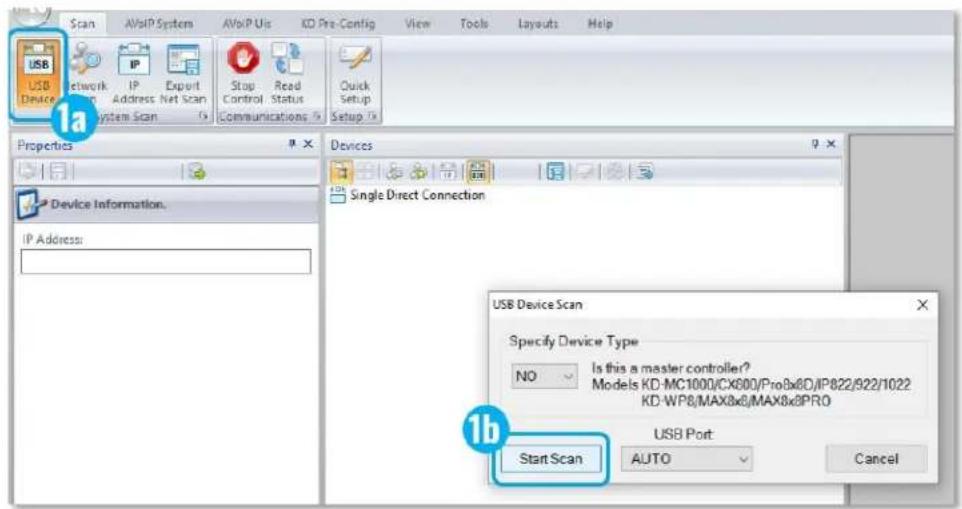
- With the USB cable connected as instructed above, open the KDMS Pro software and perform a USB scan (fig. 1a). Choose "NO" and Start Scan when the USB Device Scan prompt appears (fig. 1b)
- Choose the detected device from the Devices window (fig. 2)
- Enter the desired unit name (fig. 3a), IP address (fig. 3b) and IP gateway (fig. 3c) settings for the unit
- Save (fig. 4)
- Select the desired EDID handshake for each video source (fig. 5)
- Enter the desired Input and Output names and press Update Names (fig. 6)
- Your unit is now ready to control from the web UI, KDMS Pro control panel, KD-App, or by professional control system. Full access to all settings/commands is achieved via terminal session using Tera Term or PuTTy software.
- Power on video sources and displays / output devices to use system

Control
Option 1: Control via Remote Control
- Matrix Switching – Video and Audio together
- IR Button Sequence = A, B
○ A = Output # [1-4], B = Input # [1-4]
- Matrix Switching – HDMI AV ONLY
- IR Button Sequence = R1, A, B
○ A = Output # [1-4], B = Input # [1-4]
- Matrix Switching – Audio ONLY
- IR Button Sequence = R2, A, B
○ X = Output # [1-4], Y = Input # [1-4]
- Assign EDID Handshake to Input from EDID Table
- IR Button Sequence = R3, B, CC
○ B = Input # [1-4], CC = Device Select # [01-15]
- Assign EDID Handshake Copy from Output A to Input B
- IR Button Sequence = R3, B, A

Unit's EDID Table (7 is the default)
| 01 | 1080i, 2CH AUDIO |
| 02 | 1080i, DOLBY/DTS 5.1 |
| 03 | 1080i, HD AUDIO |
| 04 | 1080p, 2CH AUDIO |
| 05 | 1080p, DOLBY/DTS 5.1 |
| 06 | 1080p, HD AUDIO |
| 07 | 4Kx2K@60, 10.2G, HDR, 2CH AUDIO |
| 08 | 4Kx2K@60, 10.2G, HDR, DOLBY/DTS 5.1 |
| 09 | 4Kx2K@60, 10.2G, HDR, HD AUDIO |
| 10 | 4Kx2K@60, 18G, HDR, 2CH AUDIO |
| 11 | 4Kx2K@60, 18G, HDR, DOLBY/DTS 5.1 |
| 12 | 4Kx2K@60, 18G, HDR, HD AUDIO |
| 13 | 1280x720p@60 DVI (no audio) |
| 14 | 1920x1080p@60 DVI (no audio) |
| 15 | 4Kx2K@30, 10.2G, HDR, 2CH AUDIO |
Option 2: Control via KD-App, KDMS Pro™
KD-MS4x4G-2 is controllable by Key Digital's user-friendly iOS App (downloadable in the App Store) or Key Digital® Management Software™ Pro (downloadable here).
- Connect and Configure your KD-MS4x4G-2 as described in the Connect & Configure sections
- Download and open KD-App and/or KDMS™
- Ensure the iOS device and/or PC computer are on the same network with KD-MS4x4G-2
-
Perform a network scan in the KD-App/KDMS™ and select the unit.
-
To control, first select the display / output, then the source / input
-
Use the buttons at the bottom of the screen to choose HDMI + External Audio (6a), HDMI AV only (6b) or External Audio only (6c) routing.
-
To enter KDMS Pro end-user mode, key CTRL + ALT + N after selecting the unit in the devices tree.
Key Digital® App on the App Store


Option 3: Control via web UI
Access KD-MS4x4G-2's web UI from any phone, tablet, or PC. The web UI shows the input, output, and unit name, for a user-friendly experience.
- Connect and Configure your KD-MS4x4G-2 as described in the Connect & Configure sections
- Ensure the PC, phone, or tablet are on the network with KD-MS4x4G-2
- Enter IP Address of KD-MS4x4G-2 unit into the web browser search bar
- Enter password. Default password is "admin"

- Use the web UI to control video + external audio routing (5a), HDMI AV routing only (5b), or External Audio routing only (5c). Audio muting is also available for the HDMI and/or External Audio ports (5d).


- Use the Web UI Settings Menu (6a) to update names of the device, inputs, and outputs (6b), as well as updating the network settings and Admin password (6c).


Option 4: Control via professional control system
KD-MS4x4G-2 allows control over serial interface for bi-directional communication.
- For RS-232 control use pins 4, 5, and 6 of the Unit Control port. Baud Rate is 57,600
- For TCP/IP control the default static IP address is 192.168.1.239, with port 23.
Default static IP address: 192.168.1.239, port 23

- KD-MS4x4G-2 supports KD's standard matrixing protocol, so if you have controlled a KD matrix with a third-party control system before, you will likely have success with the same driver/module.
a. Switching HDMI AV + External Audio together
i. SPOxxSIyy xx = output (01-04), yy = input (01-04)
b. Switching HDMI AV Only
i. SPOxxSByy xx = output (01-04), yy = input (01-04)
c. Switching External Audio only
i. SPOxxSAyy xx = output (01-04), yy = input (01-04)
- A carriage return is required at the end of each string. See the TCP/IP and RS-232 Commands section for full command set and protocol.

Test for proper operation of the unit and cables in your system before permanently securing the unit for final installation. Ensure that you leave enough ventilation space to provide sufficient airflow and cooling
Application Example
Room Combine Ballrooms with projector and display in each room, wall plate plugin, and wireless casting. Each audio de-embed port provides the audio of the HDMI sources to the audio mixer. Add Compass Control Pro to fully integrate the devices with an iOS touchscreen.

flowchart
graph TD
    subgraph_Room_A["Laptop"]
        A1["Room A - Laptop"] -->|HDMI| B1["KD-XWPS"]
        B1 --> C1["CAT6a"]
    end
    subgraph_Room_B["Laptop"]
        B2["Room B - Laptop"] -->|HDMI| C2["HDMI"]
        C2 --> D1["KD-MS4x4G-2"]
    end
    subgraph Room_CX800
        D1 --> E1["Network Router"]
        E1 --> F1["KD-CX800"]
        F1 --> G1["RJ45"]
    end
    subgraph Room_DL
        G1 --> H1["KD-X444LP Rx"]
        H1 --> I1["KD-MS4x4G-2"]
    end
    subgraph Room_EL
        I1 --> J1["KD-X444LP Rx"]
        J1 --> K1["KD-MS4x4G-2"]
    end
    L1["PC/Mac ChromeOS"] --> M1["Digital Signage"]
    M1 --> N1["HDMI"]
    M1 --> O1["IOS Android"]
    M1 --> P1["HDMA HDMI"]
    Q["Audio Mixer"] --> R1["Audio Amplifier"]
    S["Network Router"] --> T1["KD-MS4x4G-2"]
    T1 --> U1["KD-CX800"]
    U1 --> V1["KD-X444LP Rx"]
    V1 --> W1["KD-MS4x4G-2"]
    X["ICU"] --> Y1["KD-X444LP Rx"]
    Y1 --> Z1["KD-MS4x4G-2"]
    AA["ICU"] --> AB["ICU HDMI"]
    AC["ICU"] --> AD["ICU HDMI"]
    AE["ICU"] --> AF["ICU HDMI"]
    AG["ICU"] --> AH["ICU HDMI"]
    AI["ICU"] --> AJ["ICU HDMI"]
    AK["ICU"] --> AL["ICU HDMI"]
    AM["ICU"] --> AN["ICU HDMI"]
    AO["ICU"] --> AP["ICU HDMI"]
    AQ["ICU"] --> AR["ICU HDMI"]
    AS["ICU"] --> AT["ICU HDMI"]
    AU["ICU"] --> AV["ICU HDMI"]
    AW["ICU"] --> AX["ICU HDMI"]
    AY["ICU"] --> AZ["ICU HDMI"]
    BA["ICU"] --> BB["ICU HDMI"]
    BC["ICU"] --> BD["ICU HDMI"]
    BE["ICU"] --> BF["ICU HDMI"]
    BG["ICU"] --> BH["ICU HDMI"]
    BI["ICU"] --> BJ["ICU HDMI"]
    BK["ICU"] --> BL["ICU HDMI"]
    BM["ICU"] --> BN["ICU HDMI"]
    BO["ICU"] --> BP["ICU HDMI"]
    BQ["ICU"] --> BR["ICU HDMI"]
    BS["ICU"] --> BT["ICU HDMI"]
    BU["ICU"] --> BV["ICU HDMI"]
    BW["ICU"] --> BX["ICU HDMI"]
    BY["ICU"] --> BZ["ICU HDMI"]
    CA["ICU"] --> CB["ICU HDMI"]
    CC["ICU"] --> CD["ICU HDMI"]
    CE["ICU"] --> CF["ICU HDMI"]
    CG["ICU"] --> CH["ICU HDMI"]
    CI["ICU"] --> CJ["ICU HDMI"]
    CK["ICU"] --> CL["ICU HDMI"]
Residential multi-zone AV with HDMI and de-embedded audio to each zone. The viewer can choose any of the connected HDMI sources, with audio and video going to the display and soundbar. Web UI control from any smart tablet or phone.

flowchart
graph TD
    A["Cable / Satellite"] -->|HDMI| B["KD-MS4x4G-2"]
    C["Cable / Satellite"] -->|HDMI| B
    D["Blu Ray"] -->|HDMI| B
    E["Apple TV"] -->|HDMI| B
    B --> F["Optical"]
    B --> G["Optical"]
    B --> H["Optical"]
    B --> I["Optical"]
    B --> J["Optical"]
    B --> K["HDMI"]
    B --> L["HDMI"]
    B --> M["HDMI"]
    B --> N["HDMI"]
    B --> O["HDMI"]
    B --> P["HDMI"]
    B --> Q["HDMI"]
    B --> R["HDMI"]
    B --> S["HDMI"]
    B --> T["HDMI"]
    B --> U["HDMI"]
    B --> V["HDMI"]
    B --> W["HDMI"]
    B --> X["HDMI"]
    B --> Y["HDMI"]
    B --> Z["HDMI"]
    B --> AA["HDMI"]
    B --> AB["HDMI"]
    B --> AC["HDMI"]
    B --> AD["HDMI"]
    B --> AE["HDMI"]
    B --> AF["HDMI"]
    B --> AG["HDMI"]
    B --> AH["HDMI"]
    B --> AI["HDMI"]
    B --> AJ["HDMI"]
    B --> AK["HDMI"]
    B --> AL["HDMI"]
    B --> AM["HDMI"]
    B --> AN["HDMI"]
    B --> AO["HDMI"]
    B --> AP["HDMI"]
    B --> AQ["HDMI"]
    B --> AR["HDMI"]
    B --> AS["HDMI"]
    B --> AT["HDMI"]
    B --> AU["HDMI"]
    B --> AV["HDMI"]
    B --> AW["HDMI"]
    B --> AX["HDMI"]
    B --> AY["HDMI"]
    B --> AZ["HDMI"]
    B --> BA["HDMI"]
    B --> BB["HDMI"]
    B --> BC["HDMI"]
    B --> BD["HDMI"]
    B --> BE["HDMI"]
    B --> BF["HDMI"]
    B --> BG["HDMI"]
    B --> BH["HDMI"]
    B --> BI["HDMI"]
    B --> BJ["HDMI"]
    B --> BK["HDMI"]
    B --> BL["HDMI"]
    B --> BM["HDMI"]
    B --> BN["HDMI"]
    B --> BO["HDMI"]
    B --> BP["HDMI"]
    B --> BQ["HDMI"]
    B --> BR["HDMI"]
    B --> BS["HDMI"]
    B --> BT["HDMI"]
    B --> BU["HDMI"]
    B --> BV["HDMI"]
    B --> BW["HDMI"]
    B --> BX["HDMI"]
    B --> BY["HDMI"]
    B --> BZ["HDMI"]
Connections, Buttons, and LEDs

Front Buttons and LEDs (4): Using an HDMI cable, connect your HDMI sources.
- Press an output button to select the next HDMI input.
○ A blue LED indicates which Input has been selected for each Output.
- Front button control can be disabled/enabled via serial control if desired.
- Press and hold Output 1 + Output 4 buttons simultaneously for 10 seconds to reset the unit to factory default. The front LEDs will scroll during boot up
IR Sensor: Mount IR an IR emitter from control system or IR connection block. Refer to IR Remote Control section for correct button press sequence
HDMI Inputs and LEDs (4): Using an HDMI cable, connect your HDMI sources.
• LED (Blue) illuminates solid to indicate an active incoming HDMI signal.
HDMI Outputs and LEDs (4): Using an HDMI cable, connect your HDMI displays.
• LED (Blue) with active Hot Plug Detection voltage from the connected display/sync device.
HDMI Input & Outputs Port Specifications
• Supports up to UHD/4K @ 50/60 fps [4:4:4], 18Gbps signals
- See Supported standard 4K Video Formats table
- Supports HDR10
• Compliant with HDCP 2.2 and previous
- Supports lossless compressed audio formats including Dolby® TrueHD, Dolby® Digital Plus, Dolby Atmos®, and DTS-HD Master Audio™
- Does not support CEC
- For DVI-D/DVI-I sources or monitors, use appropriate adapters. For Display Port, use active converters
Supported Standard 4K Video Formats
| Resolution | Bandwidth | |
| 1 | 4K@24/25/30 [4:4:4] 8bit | < 10.2Gbps |
| 2 | 4K@24/25/30 [4:2:2] 8/10/12bit | < 10.2Gbps |
| 3 | 4K@50/60 [4:2:0] 8bit | < 10.2Gbps |
| 4 | 4K@24/25/30 [4:4:4] 10/12bit | < 18Gbps |
| 5 | 4K@50/60 [4:2:2] 8/10/12bit | < 18Gbps |
| 6 | 4K@50/60 [4:2:0] 10/12bit | < 18Gbps |
| 7 | 4K@50/60 [4:4:4] 8bit | < 18Gbps |
Analog Audio Outputs (4): 6-pin phoenix balanced / un-balanced
- Provides 2ch balanced or un-balanced analog audio output from the selected HDMI input source.
- The Pin assignment for the audio is as follows:
○ Left + is Pin 1; Left - is Pin 3; Left Ground is Pin 2.
- Right + is Pin 4; Right - is Pin 6; Right Ground is Pin 5.
- For un-balanced audio, use the + and Ground pins of each channel
- Drives audio signals up to 2VRMS with a sampling rate of 192KHz
• There are no volume or tone control features - There are no format conversion features. For example, to achieve 2ch analog audio output, the selected HDMI input source audio format must be 2ch.
Digital Audio Outputs (4): Optical
- Provides digital audio output from the selected HDMI input source.
• Supports PCM, SPDIF (IEC 60958), Dolby Digital®, and DTS™ up to 5.1 / 6.1
• There are no volume or tone control features - There are no format conversion features. For example, to achieve 2ch analog audio output, the selected HDMI input source audio format must be 2ch.
| Audio Input Signal Format | Audio L/R Output | Digital Audio Output (Optical) |
| 2ch PCM | Pass-Through | Pass-Though |
| Multi-Channel PCM | Front L/R Pass-Through | MUTE |
| Dolby DTS | MUTE | Pass-Though |
| HD Audio | MUTE | MUTE |
Service USB (1):
- Micro USB port
- Used for configuration and control from PC via KDMS Pro, KDMS, or third-party control terminal
- Used for firmware updates (consult with Key Digital tech support before updating firmware).
Note: After updating firmware, all unit settings are restored to defaults except IP information. Please collect all customized settings info before loading firmware.
• Supports USB driver for Windows, Mac
- Will register as "Prolific USB-to-Serial Comm Port in Device Manager
- Can be used as RS-232 control port. Baud rate is 115,200.

Ground Screw: Connect to ground screw on rack or direct to ground wire from ground post to ensure solid grounding of the main unit.
TCP/IP Unit Control: Used for unit control from a control system and/or PC
- Connect ethernet cable from the KD-MS4x4G-2 to a network router or connect a straight through cable directly from a PC
- Default static IP address is 192.168.1.239, port 23
- Unit configuration, control, and firmware updates are achieved with Key Digital Management Software™ Pro (KDMS™ Pro) downloaded HERE.
• See TCP/IP and RS-232 Commands section for full API
IR & RS-232 Unit Control: Used for unit control from a control system and/or PC
- 6-Pin Terminal Block for IR and RS-232
- Pin out:
○ Pin 1 = Serial (Wired) IR In
- Pin 4 = RS-232 Tx Data
○ Pin 2 = IR Ground
○ Pin 5 = RS-232 Ground
- Pin 3 = No Connection
○ Ping 6 = RS-232Rx Data
• See TCP/IP RS-232 Commands section for full API
TCP/IP and RS-232 Commands
TCP/IP Connection Protocol
- Default IP address = 192.168.1.239
- TCP/IP Port Number = 23
• Notes: Use Raw / Other service, not Telnet.
Maximum of two TCP/IP socket supported at a time.
Default static IP address: 192.168.1.239, port 23
Simultaneous TCP/IP and web sockets are supported. Multiple web sockets are supported.
RS-232 Connection Protocol
- Baud Rate = 57,600 bits per second as default
- Data Bits = 8
- Stop Bits = 1
- Parity = None
- Flow Control = None
- Carriage Return = Required at end of each string
Notes:
- Commands are not case-sensitive
- Spaces are shown for clarity; commands should NOT have any spaces
• After a new command is received, a prompt should be sent back
Help Command (H). Returns entire API in readable format:
-- Key Digital Systems HELP --
-- KD-MS4x4G-2 F/W Version : 1.00 --
--
-- H : Help --
-- STA : Show Global System Status --
Status Command (STA). Returns unit status and settings in readable format:
-- Key Digital Systems STATUS
-- Model Number: KD-MS4x4G-2, Device Name: MS4x4G-2_0001
-- Main F/W Ver: 1.00
--
-- Power : ON
-- RS232 : Baud Rate=57600bps, Data=8bit, Parity=None, Stop=1bit
-- Front Panel Button : Enabled, A/V Switching Mode= HDMI + Ext. Audio
--
-- Network Setting Status
-- MAC Address = 60:89:B1:21:10:01
-- Host IP Address = 192.168.001.239
-- Net Mask = 255.255.255.000
-- Router IP Address = 192.168.001.001
-- TCP Port = 0023
--
-- Video Input Status
-- 01: IN = ON, EDID = DEFAULT10, Link = ON, Name = Input 01
-- 02: IN = ON, EDID = DEFAULT10, Link = ON, Name = Input 02
-- 03: IN = ON, EDID = DEFAULT10, Link = ON, Name = Input 04
-- 04: IN = ON, EDID = DEFAULT10, Link = ON, Name = Input 04
--
-- Video Output Status
-- 01: Input = 01, Link = ON, DBG = OFF, HA = Enable,
Name = Display 01
-- 02: Input = 02, Link = ON, DBG = OFF, HA = Enable,
Name = Display 02
-- 03: Input = 03, Link = OFF, DBG = OFF, HA = Enable,
Name = Display 03
-- 04: Input = 04, Link = OFF, DBG = ON, HA = Enable,
Name = Display 04
--
-- External Audio Output Status
-- 01 : Input = 01, Analog Balanced = Enable, Optical = Enable
-- 01 : Input = 02, Analog Balanced = Enable, Optical = Enable
-- 01 : Input = 03, Analog Balanced = Enable, Optical = Enable
-- 01 : Input = 04, Analog Balanced = Disable, Optical = Disable
Specifications
Technical
- Input (Each): 1 HDMI Connector, Type A, 19 Pin Female
• Output (Each): 1 HDMI Connector, Type A, 19 Pin Female -
Output (Each): Balanced/unbalanced line level audio on 6-pin terminal block. Drives 2VRMS line audio input with a sampling rate of 192KHz
-
Output (each): TOSlink optical digital audio following SPDIF format (IEC 60958). Supports sampling rate up to 192KHz
• Video Bandwidth: TMDS bandwidth 18 Gbps
• DDC Signal (Data): Input DDC Signal - 5 Volts p-p (TTL)
• HDMI Video/Audio Signal: Input Video Signal - 1.2 Volts p-p
• DDC Communication: EDID and HDCP Bi-directional buffering to Display and Source
• Analog Audio Max Output Level: 4dBu on 150kΩ, DC coupling
• Audio Bandwidth: 20Hz to 20kHz @ 0dBu
• TND + Noise: 0.33% @0dBu @ 1kHz
• Optical Max Output Level: 1Vpp on 75Ω, DC coupling - Wired IR: modulated IR signal input, 0-5V TTL or -10 to +10V
- Power: 12V/1.66A (20W) AC Power Supply with Grounded, 2.1mm ID DC Power Jack with Screw In Type
General
• Regulation: CE, RoHS, WEEE, EAC
- Product Dimensions (LxWxH): 17.24 x 7.48 x 1.73" (438 x 190 x 44mm)
• Product Weight: Weight: 5.62 lbs / 2.55 kg
- Packaging Dimensions (LxWxH): 19.48 x 12.20 x 3.14" (495 x 310 x 80mm)
• Packaging Weight: 7.94 lbs / 3.62 kg
Warranty Information
All Key Digital® products are built to high manufacturing standards and should provide years of trouble-free operation. They are backed by a Key Digital Limited 3 Year Product Warranty Policy.
http://www.keydigital.com/warranty.htm
Product Warnings & Safety Instructions

Important Product Warnings:
- Connect all cables before providing power to the unit.
- Test for proper operation before securing unit behind walls or in hard to access spaces.
- If installing the unit into wall or mounting bracket into sheet-rock, provide proper screw support with bolts or sheet-rock anchors.

Safety Instructions:
Please be sure to follow these instructions for safe operation of your unit.
-
Read and follow all instructions.
-
Heed all warnings.
- Do not use this device near water.
- Clean only with dry cloth.
- Install in accordance with the manufacturer's instructions.
- Do not install near any heat sources such as radiators, heat registers, stoves, or other apparatus (including amplifiers) that produce heat.
- Only use attachments/accessories specified by the manufacturer.
- Refer all servicing to qualified service personnel. Servicing is required when the device has been damaged in any way including:
o Damage to the power supply or power plug - Exposure to rain or moisture

Power Supply Use:
You MUST use the Power Supply provided with your unit or you VOID the Key Digital® Warranty and risk damage to your unit and associated equipment.
NOTES

natural_image
Completely dark image with no visible content or text.
Key Digital ^® , led by digital video pioneer Mike Tsinberg, develops and manufactures high quality, cutting-edge technology solutions for virtually all applications where high-end video and control are important. Key Digital ^® is at the forefront of the video industry for Home Theater Retailers, Custom Installers, System Integrators, Broadcasters, Manufacturers, and Consumers.

- Table of Contents
- Operation Manual
- About KD-MS4X4G-2
- Key Features
- Accessories
- Quick Setup Guide
- Connect
- Configure
- Configure KD-MS4X4G-2 with Key Digital Management Software Pro (KDMS Pro). Download HERE
- Control
- Option 1: Control via Remote Control
- Option 2: Control via KD-App, KDMS Pro™
- Option 3: Control via web UI
- Option 4: Control via professional control system
- Application Example
- Connections, Buttons, and LEDs
- HDMI Input & Outputs Port Specifications
- Analog Audio Outputs (4): 6-pin phoenix balanced / un-balanced
- Digital Audio Outputs (4): Optical
- Service USB (1):
- TCP/IP and RS-232 Commands
- TCP/IP Connection Protocol
- RS-232 Connection Protocol
- Notes:
- Help Command (H). Returns entire API in readable format:
- Specifications
- Technical
- General
- Warranty Information
- Product Warnings & Safety Instructions
- Important Product Warnings:
- Safety Instructions:
- Power Supply Use:
- NOTES
Brand : Key Digital
Model : KD-MS4x4G-2
Category : Router