
Youview DTR-T2110 - TV Decoder BT - Free user manual and instructions
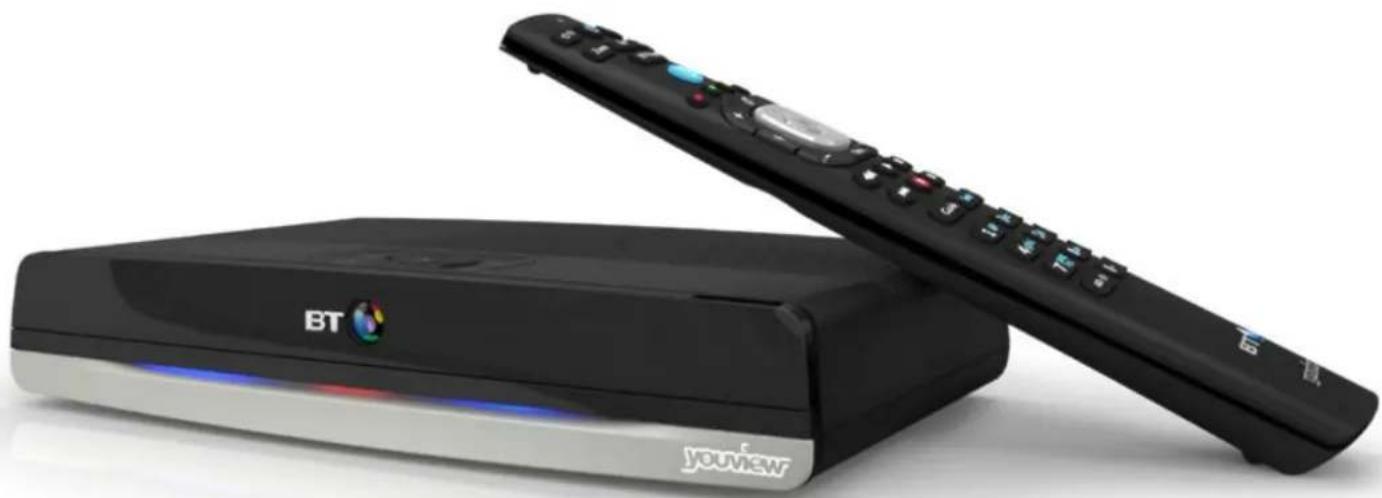
Find the device manual for free Youview DTR-T2110 BT in PDF.


| Product Type | TV Decoder / Set-top box |
| Brand | BT |
| Model | Youview DTR-T2110 |
| Dimensions (W x D x H) | 200 x 130 x 40 mm |
| Weight | 0.5 kg |
| Power Supply | 12V DC, 1A |
| HDMI Output | 1 x HDMI 1.4 |
| USB Ports | 1 x USB 2.0 |
| Ethernet | 10/100 Mbps |
| Wi-Fi | 802.11 b/g/n |
| Internal Storage | 500 GB HDD |
| TV Tuner | DVB-T2 (Freeview HD) |
| Maximum Resolution | 1080p (Full HD) |
| Audio Output | Optical (Toslink), HDMI |
| Smart TV Features | Youview on-demand, catch-up TV, IPTV |
| Remote Control | Infrared, included |
| Energy Consumption (Active) | < 15W |
| Operating System | Youview |
| HDR Support | No |
| Voice Control | No |
Frequently Asked Questions - Youview DTR-T2110 BT
User questions about Youview DTR-T2110 BT
0 question about this device. Answer the ones you know or ask your own.
Ask a new question about this device
Download the instructions for your TV Decoder in PDF format for free! Find your manual Youview DTR-T2110 - BT and take your electronic device back in hand. On this page are published all the documents necessary for the use of your device. Youview DTR-T2110 by BT.
USER MANUAL Youview DTR-T2110 BT
Top five tips
1 In the YouView Guide, use P and to move up or down a page.
Use or to move forward or back 24 hours.
2 While it's easy to scroll back up to seven days in the YouView Guide, there are lots more shows available in the On Demand library.
To browse everything by genre, press and choose On Demand then press or
3 If you know what you're looking for, press Search and type using the number buttons on your remote. Search will only show popular suggestions until you press OK. If you can't see what you're looking for, press OK to see everything that matches the words you entered.
4 You have two PINs. You use your YouView PIN to control access to programmes with certain age ratings. You use your BT TV PIN to authorise any payments within the BT Player. You can use the same PIN for both if you like.
5 High definition (HD) Freeview channels are separate from those in standard definition and start at channel 101.
To watch in HD, press ☒ while watching a channel. If it's available in HD, you'll see an option to Watch Now in HD.
Welcome to YouView from BT
Before you settle down to watch your favourite programme, it's well worth taking a few minutes to find out more about what your YouView+ box can do. If you want to get going straightaway, check out the top tips on the left.
This guide will help you:
- learn how to use YouView
• find out what to do if you're having problems.
If you haven't set up your YouView+ box yet, just follow the Quick Start Guide to get set up.

Need some help? No problem – go to bt.com/help/youview, check Help in the BT Player or give us a call on 0800 111 4567.
Get to know your remote
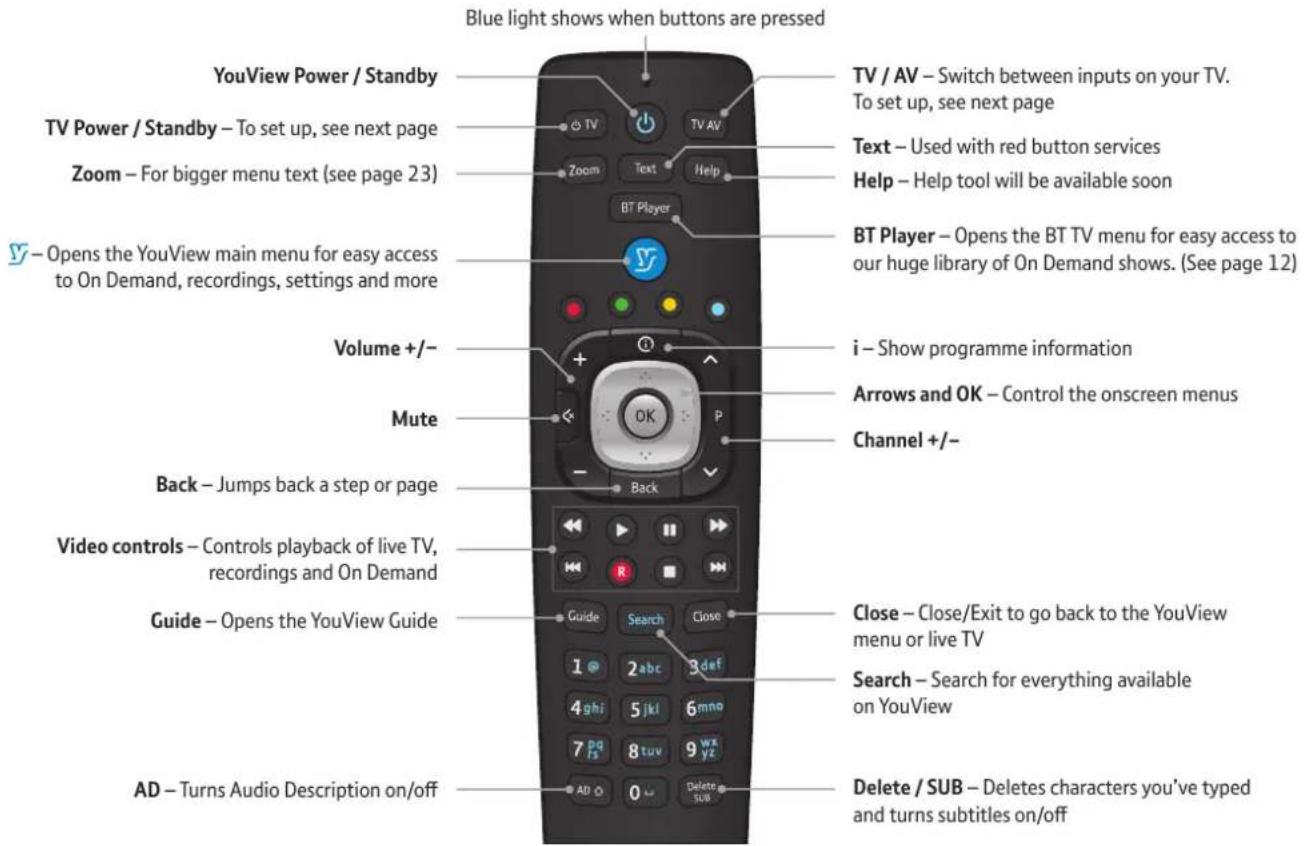
Controlling your TV with your YouView remote
You can set your YouView remote to control both your YouView+ box and your TV. Here's how.
After putting the batteries in your remote, turn on your TV, then...
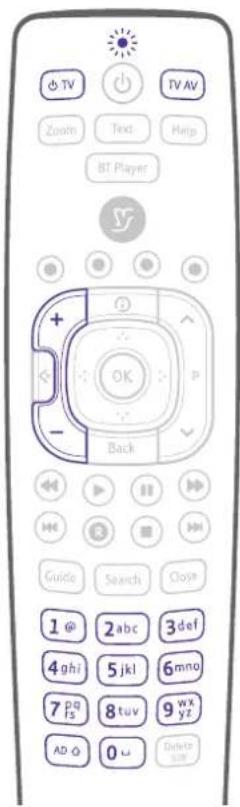
1 Hold down TV and TV AV until the blue light on the remote flashes three times.
2 When the flashing stops, enter the four-digit code for your brand of TV (see the table on the right). The blue light will flash another three times.
3 Hold down TV until your TV turns off. The blue light will blink while it turns off.
4 When your TV turns off, let go of TV and press it again – your TV should turn back on. Next try Vol +, Vol -.
5 If the volume control works, press ok. And that's it! If it doesn't work, start again from Step 3.

Using your remote to switch to another device
When switching to another device on your TV (e.g. a games console), press TV AV on your remote, then keep pressing TV AV (not the up or down arrows) to scroll through your choices (e.g. HDMI 1).
Maximum volume too low?
If you need to change the volume on your YouView+ box after setting up your remote, hold down AD while pressing Vol +, Vol -.
| TV brand | Code |
| Goodmans | 2037 |
| Hitachi | 2424 |
| JVC | 2788 |
| LG | 2992 |
| Panasonic | 3846 |
| Philips | 3951 |
| Samsung | 4483 |
| Sharp | 4848 |
| Sony | 4985 |
| Toshiba | 5523 |
If your brand of TV isn't listed here, you can find a full list of brands and codes at bt.com/help/remote

Once you've set up your remote, you can:
• turn your TV on and off (standby)
- switch to another device TV AV
- adjust or mute the volume.
Get to know your YouView+ box
The lights
The lights on the front of your YouView+ box show you what it's doing:
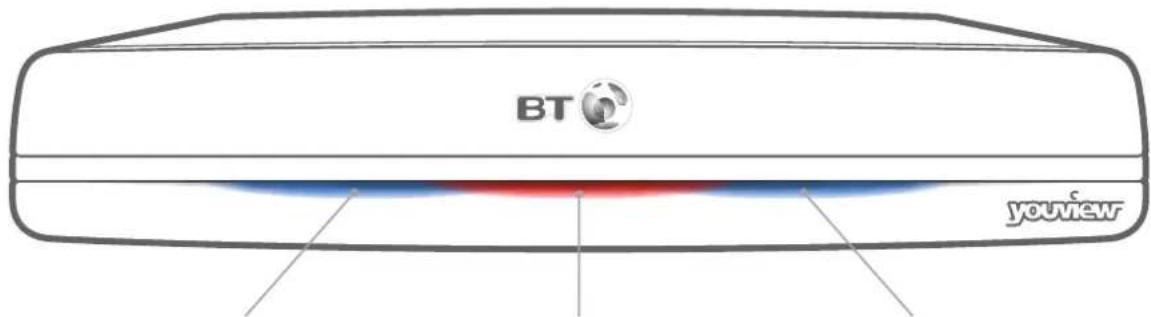
| Power light | Record light | Broadband light | |||
| Red | Standby in Eco mode:High (see page 21) | Red | Recording one or more channels | Blue | Connected to your broadband |
| Purple | Standby in Eco mode:Low (see page 21) | ||||
| Blue | On | ||||
The buttons
As well as using the remote, you can also control your YouView+ box with the buttons on the top.

Each button works in exactly the same way as they do on your remote.
Extra connections
Your YouView+ box supports Dolby Digital Surround sound through the audio outputs, so it's easy to hook up your box to a separate sound system.

If you want to, you can watch TV channels using your TV when your YouView+ box is in standby. See page 29 to find out more.
Using YouView
The YouView main menu 9
Search 10
On Demand 11
Making the most of the BT Player 12
Using the YouView Guide and Mini Guide 14
Pausing live TV 16Reminders 17
The YouView mobile app 17
Recording 18
Managing recordings 19
Parental controls, PINs and settings 20
Accessibility 22
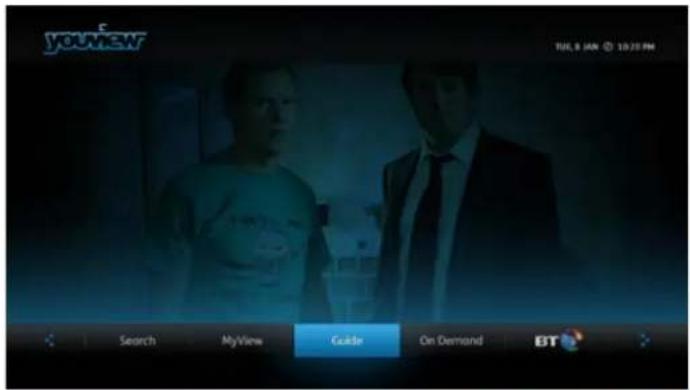
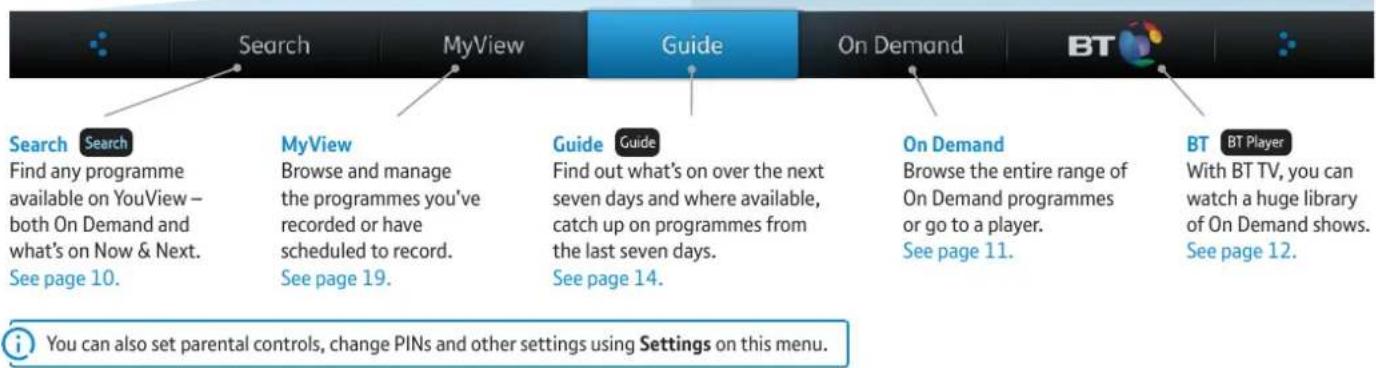
The YouView main menu
To open the YouView main menu, press 📅 on your remote.
Use the arrow keys ☐ and OK to find your way around. Press Back to go back a step.
Search
Use this handy, super-smart search tool to find available programmes both in On Demand and what's on Now & Next.

How to search for programmes
Press Search on your remote control, or choose Search from the main menu.
Use the number buttons to type what you're searching for (e.g. press 2abc twice to get 'b'). If you see the programme in the suggestions that appear, navigate up and select it.
If the programme you want doesn't appear in the list of suggestions, press OK to see all results.
On Demand / On Now & Next
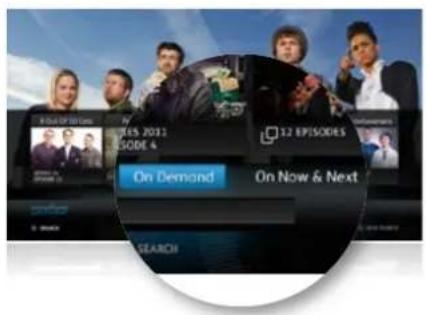
When you press OK to choose a programme, the results might be split between On Demand and On Now & Next.
Find out more about On Demand on the next page.
On Now & Next shows programmes coming up over the next seven days. You can set recordings from here by pressing OK or set reminders by pressing OK. See page 18 for more on Recording and page 17 for more on Reminders.
Filtering
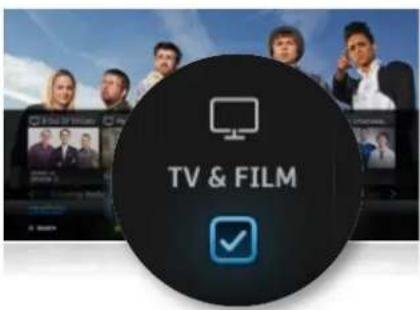
To filter your search results by TV & Film, Radio or Music Videos, press the green button.

Search tips
Press 0 on your remote control to enter a space.
Press Delete SUB to delete the last letter you entered.
Press ok to see all results that match your search.
On Demand
Here's where you can browse, by player or category, all the On Demand programmes that are available for you to watch.
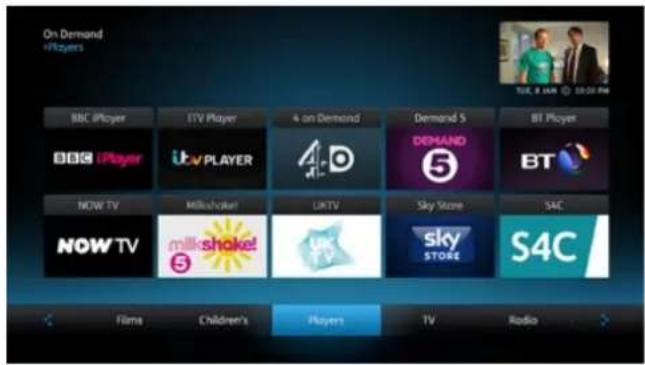
Press 📋 to open the YouView main menu and choose On Demand to see all the players that are available.
BT Player offers a wide range of On Demand and subscription programmes. See page 12.
Other players, like BBC iPlayer and 4oD, offer free programmes; others, like NOW TV offer subscriptions to get more programmes. New players will be added automatically as they become available on YouView.
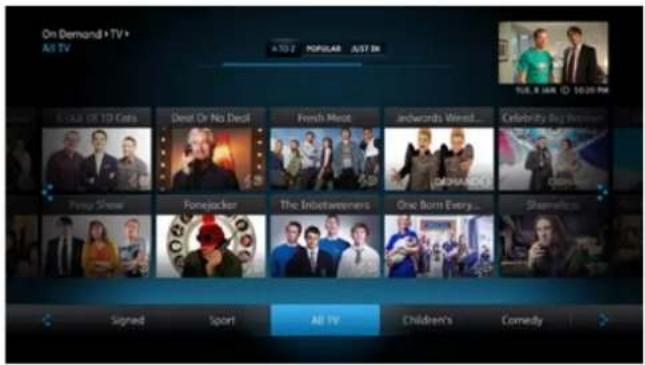
From the On Demand menu, press 📋 or 🙏 to start browsing all the programmes from all the players. There are lots of categories and subcategories to browse (e.g. TV > Factual > Travel) and you can change how they're displayed using the options at the top of the screen (e.g. A to Z, or Popular).

Press ⓘ to get more information about a programme, or find other episodes. Use ▶ and ◀ on your remote to skip between pages when browsing.

For You
The For You page shows the programmes we think you'll like, based on things you've watched before.
My TV - Bookmarks
While browsing, you can bookmark programmes to watch later. Select a programme, then press the green button on your remote control. You'll see a tick to show it's been bookmarked.
My TV – Playlists
If you have a Music or Kids subscription, you can create playlists. To select music or videos, press the yellow button on your remote control, then choose Add to Existing Playlist or Create New Playlist. Once you've added something, you'll see a tick next to it. Tip: Use or to skip videos in a playlist.
My TV-Watching
See the BT TV programmes you've watched or you're currently watching. If you've already watched part of a programme when you press play, you'll be asked if you want to start again or carry on from where you left off.
Catch Up
Catch up with shows you've missed from the last seven days.
12 Using YouView

Library
With BT TV, you can add bolt ons to build your perfect package. Just choose the ones you want to get unlimited access to On Demand box sets, kid's shows, music and more. Plus there's Box Office, where films are available to rent or buy individually.
The library is divided into these categories:
- Box Office – rent or buy the latest blockbusters, downloaded straight to your TV; no post, no returns, no late fees, no hassle.
- BT Sport – dedicated sport TV channels that will deliver top-flight sport, plus features, insight and expert commentary.
- TV Box Sets – complete series box sets of the most popular dramas, comedies and documentaries.
- Kids – hundreds of episodes of ad-free, kids' programmes from pre-school to tween.
• Film – films you know, films you love. - Music – a huge selection of albums and videos from the biggest superstars, plus live concerts and music documentaries.
- Sky Movies – there's something for everyone, from recent box office hits to all-time classics and family favourites on Sky Movies Disney.
• A Taste of... – the top five from each category, updated each week. - Box Office – rent or buy the latest blockbusters, downloaded straight to your TV; no post, no returns, no late fees, no hassle.
BT TV PIN
You'll need your BT TV PIN to authorise any payments within the BT Player, if you've set this up. For more help on your BT TV PIN, go to page 20.
Using YouView

Library
With BT TV, you can add bolt ons to build your perfect package. Just choose the ones you want to get unlimited access to On Demand box sets, kid's shows, music and more. Plus there's Box Office, where films are available to rent or buy individually.
The library is divided into these categories:
The For You page shows the programmes we think you'll like, based on things you've watched before.
My TV - Bookmarks
While browsing, you can bookmark programmes to watch later. Select a programme, then press the green button on your remote control. You'll see a tick to show it's been bookmarked.
My TV – Playlists
My TV-Watching
See the BT TV programmes you've watched or you're currently watching. If you've already watched part of a programme when you press play, you'll be asked if you want to start again or carry on from where you left off.
Catch Up
Catch up with shows you've missed from the last seven days.
12
Using YouView
Using the YouView Guide and Mini Guide
With the YouView Guide and Mini Guide, you can see what's on for the next seven days and scroll back to catch programmes you might have missed over the past seven days.

Using the YouView Guide
> Press Guide on your remote
- Use the arrow buttons to move around, then press OK to watch.
- Press R to record the selected programme (see page 18 for more on recording).
- Press P and to move up and down a page at a time.
- Press ↔ and ➤ to skip backwards and forwards by 24 hours.
- Press Ⓔ to find out more about a programme or to see if it's available in HD.
- Use the coloured buttons to use the shortcuts shown at the bottom of the screen.
• To return to live TV at any time, press Close.
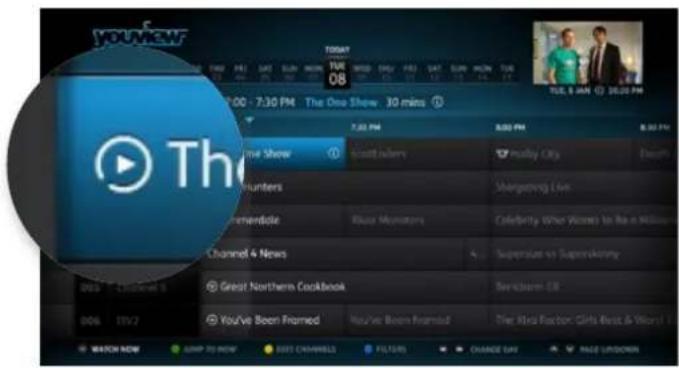
Seven day catch up
With the YouView Guide, not only can you scroll forward to see what's coming up, but you can also scroll back over seven days to catch programmes you might have missed.
Programmes that are available from the past seven days will be shown in white text with a ▶ icon.
How to filter channels by category
Open the YouView Guide, press 📄 on your remote control and scroll left or right to choose the category you want. Then press OK. The Guide will then show the channels from that category.

Using the Mini Guide
Use the Mini Guide to browse through channels as you watch TV.
Press OK while you're watching any TV channel.
- Use the arrow keys to move between channels and times, press OK to jump to a channel.
- Press ⓘ to find out more about the currently selected programme or to see if it's available in HD.
- Press R to schedule or start recording the currently selected programme (see page 18 for more on recording).
Extra TV channels
Extra TV channels include those that come with the Entertainment pack, BT Sport and Sky Movies. Like On Demand programmes, Extra TV channels are delivered through your broadband connection.
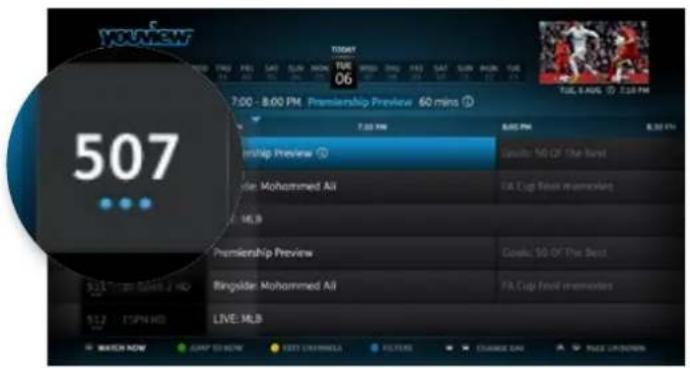
Once you've signed up, it can take up to 24 hours for the channels to appear. You'll find them in the YouView Guide between 407 and 599 – with three blue dots below the channel number.
Check out the full line up at bt.com/help/extratvchannelslineup
Set up and watch your Extra TV channels
Before you can watch your Extra TV channels you'll need to activate them. Go to one of the channels, press ok and follow the steps on the screen.
Pausing live TV
YouView gives you complete control over your TV, so even if you get interrupted, you won't miss a minute. You can pause the programme, rewind to catch the bit you missed, then fast forward to catch up to live TV again.
Pause
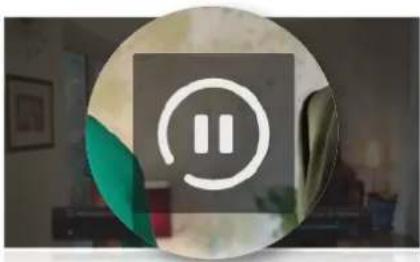
To pause live TV for up to two hours, press 📄. When you're ready to start watching again, press 🔒.

Get back to live TV
You can return to live TV at any time by pressing ☐.
If you change channel while pausing, you'll lose your paused position.
Rewind
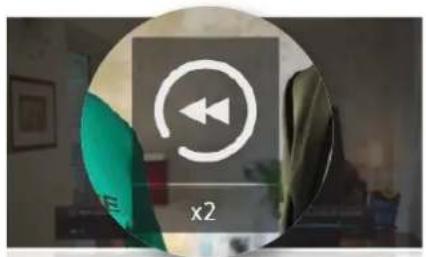
To rewind live TV, press 📄. You can rewind at different speeds by pressing 📄 again, up to four times. When you reach the part you want to watch, press ▶.
If you rewind too far, you can easily fast forward. You can also skip back 15 seconds by pressing 📄.

Fast forward
If you've paused or rewound live TV, you can fast forward it by pressing ▶. You can forward at different speeds by pressing ▶ again, up to four times.
When you reach the part you want to watch, press ▶. You can also skip forward 60 seconds by pressing ▶.
Reminders
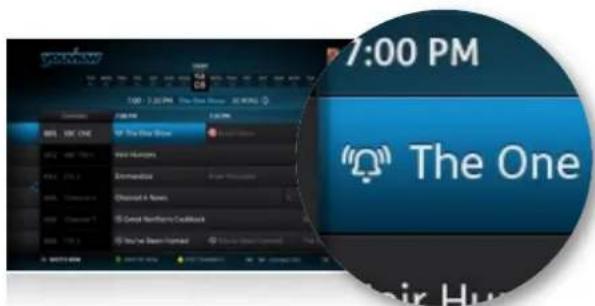
Set reminders for your favourite programmes and YouView will let you know that they're about to start.
Set or Cancel a reminder
Use the YouView Guide or Mini Guide to find the programme you want to be reminded about and then press OK on your remote control.
To cancel a reminder you've already set, find the programme, and press OK to cancel the reminder.
The YouView mobile app
Pair your YouView+ box with the YouView app to set recordings while on the move. Once paired, you can also browse the app's YouView Guide to see what's on now and next.
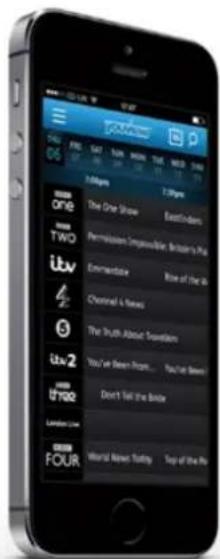

It's available as a free download in the Apple® App Store (for iOS6 or later) and Google Play store (for Android 2.3 or later). Just search for 'YouView'.
For more information and help using the YouView app, go to youview.com

Using YouView
Recording
YouView makes it easy to record up to 300 hours of your favourite programmes and series (or around 125 hours in HD). You can also watch at least one other programme while recording another.
Setting a recording
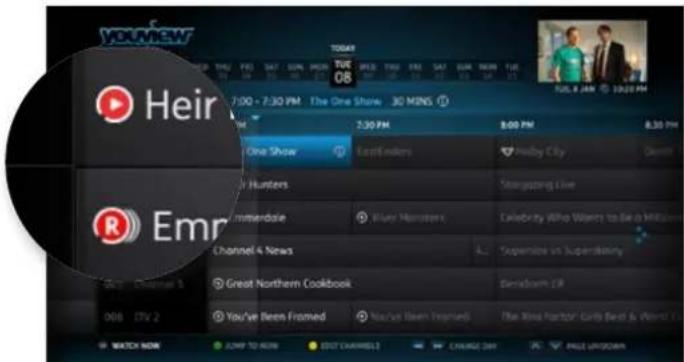
Press 📄 on your remote control to start recording the programme you're currently watching.
You can also set recordings within the YouView Guide or Mini Guide or from a Search (On Now & Next) or the YouView mobile app (see page 17).
Recordings will automatically start and finish at the right time. You can't add extra time before or after the recording.
Series recording
If the programme you want to record is part of a series, you'll be asked whether you want to record the selected episode or the whole series.
If you choose to record a whole series, every episode that airs on the channel will be recorded automatically, even if the time changes.
All recordings and scheduled recordings are shown in MyView. See page 19.
Recording two programmes
You can record two programmes at the same time while watching another from Catch Up, On Demand or MyView.
Recording clashes
If you try to record too many programmes at the same time, you'll create a clash. If this happens, YouView will let you know how to fix it (e.g. by cancelling another scheduled recording).
Cancelling a recording
To cancel a recording, go to the YouView Guide, find the programme that's set to record and press 📄 on your remote control.
You can also cancel a recording through MyView or the Mini Guide – find the programme in your list of scheduled recordings, press 📄 and then select Edit Recording.
Managing recordings
Managing your recordings is really easy. Just press the y button and select MyView.

Browsing your recordings
The Recordings area of MyView lists all your watched and unwatched recorded programmes. The Scheduled area lists all your upcoming recordings.
If you've got a lot of recordings, they'll be split across two or more screens and series recordings will be grouped together. You can order the list of recordings by date or alphabetically. To find out more about a programme, highlight it and press 📄 on your remote control.
Watching a recording
Highlight the programme you want to watch and press ok twice. If you only watch part of a recording, you can carry on from where you left off or start from the beginning.
To watch a recording from an Extra TV channel, your YouView+ box needs to be connected to your Hub.
Deleting recordings
To delete a programme you've recorded, select the recording and press Delete SUB on your remote control.
If you're worried about accidentally deleting recordings, go to Settings > Device Management and turn on Delete Recordings Confirmation.
Auto deleting recordings
If your YouView+ box gets full and there isn't enough space to record a new programme, it'll automatically delete a recording, starting with the oldest one you've watched.
To stop a programme from being deleted you can lock it. Highlight the recording and then press the yellow button ● on your remote control. To unlock a recording, highlight it and press the yellow button ● again.
Parental controls, PINs and settings
Use the Settings menu to change how your YouView+ box works and to arrange things how you want them. To access any of the options covered on these two pages, press 📎 d select Settings.
Parental controls
With YouView, you only need to set parental controls once and they cover all YouView channels, players and programmes.
About your PINs
You have two PINs. You use your YouView PIN control access to programmes with certain age or guidance ratings. You use your BT TV PIN to authorise any payments within the BT Player. You can use the same PIN number for both if you like.
YouView PIN
Your YouView-box comes with a default PIN 1234. You can change your PIN any time. Just go to Settings, then Parental Controls and then Change PIN. If you change your PIN, you'll need to create a security question. You'll be asked for this in the future if you can't remember your existing PIN.
Can't remember your YouView PIN and security question?
You'll need to reset the box. This will delete all of your preferences and recordings.
To reset your box, go to Settings, then Device Management, then Reset your YouView+ box. Once reset, you'll need to set up again and create a new YouView PIN.
BT TV PIN
The first time you enter the BT Player you'll need to set up your BT TV PIN. To switch this PIN on or off go to the BT Player, then choose Settings and BT PIN settings.
If you forget your BT TV PIN call the BT helpdesk on 0800 111 4567.
Restricting access to age-rated programmes and films
If you set the Restrict Rated Programmes option to ON, you can choose to restrict access to programmes rated PG and over, 12 and over, 15 and over, and 18. You can also choose whether parental controls apply to programmes that are guidance labelled.
You'll always be asked to enter your YouView PIN if you try to watch a live programme with an age rating of 15 or above between 5.30am and 8pm.
How to hide adult programmes
Access to the Adult section of the On Demand menu is YouView PIN protected. You can turn this off, but you must also turn off restrictions on rated programmes. You can also hide this section so it doesn't even appear in On Demand. Choose the Restrict Adult Category option to set this control.
How to hide (or unhide) channels
If you don't want certain channels to show in the YouView Guide, you can hide them by pressing when in the YouView Guide. (Press unhide them.)
TV signal and quality
Re-tune channels
Sometimes, you might need to re-tune your digital TV channels. For example, if you've moved home or you're having trouble getting a clear picture.
To re-tune, go to Settings, choose TV Signal and Quality then Re-tune Channels.
i New channels will be added to your YouView Guide automatically when they're available.
Play On Demand in HD
The default setting for Play in High Definition is NO. If YES is selected, YouView will automatically look for and play High Definition versions of On Demand programmes, when possible.
Viewing On Demand programmes in HD will need a broadband speed of about 5Mbps.
To turn HD on, go to Settings, choose TV Signal and Quality then Play in High Definition.
Power saving (Eco mode)
Eco mode controls energy usage. The standard setting is HIGH, but you can change it to LOW. If you do, your YouView+ box will use more power but will start up faster from standby.
Eco mode Energy use in standby Time to start up
HIGH Approx. 0.5 Watt Up to 96 seconds
LOW Approx. 10 Watts Up to 10 seconds
To change the Eco mode, go to Device Management and choose Eco mode. Note that if you power off your box overnight to save energy, your box will not pick up software updates. We recommend you leave it in standby overnight occasionally to keep your box up to date. Remember: you can't record overnight if you turn the power off.
Other settings
The standard settings should suit most cases, but if you'd like to delve a little deeper into your YouView+ box settings you can:
- change the programme soundtrack and subtitle language (where available)
- check your TV signal quality and network connection.
You can find out more about your settings at support.youview.com
Accessibility
There are lots of things you can change to make your YouView+ box even easier to use.
Subtitles, Audio Description (AD) and Sign Language
If provided by the broadcaster, these features are available on live TV, On Demand and your recordings.
Use Delete and AD to turn Subtitles and Audio Description on and off.
For sign language settings, go to Settings and then Subtitles & Accessibility.

Recording Subtitles and Audio Description
These are automatically recorded even if you have them switched OFF at the time of the recording.
Remove the TV screen from the YouView Guide
The mini screen TV picture shown in the top right hand corner of the YouView menus and Guide can be hidden. This can be useful for users who find the moving image distracting when reading the text.
To remove this mini screen, press 📋 on your remote control then go to Settings then Subtitles & Accessibility then Mini TV Screen.
When pressing OK on this setting, move left and right to turn the mini screen 'ON' or 'OFF'.
High contrast colour scheme
If you find the YouView menus difficult to navigate, an alternative high contrast colour scheme is available. This uses white text on black and menu options don't blend in with the background.
You can switch this on or off by going to Settings, choosing Subtitles & Accessibility and then Colour Scheme.
'Zooming' the screen
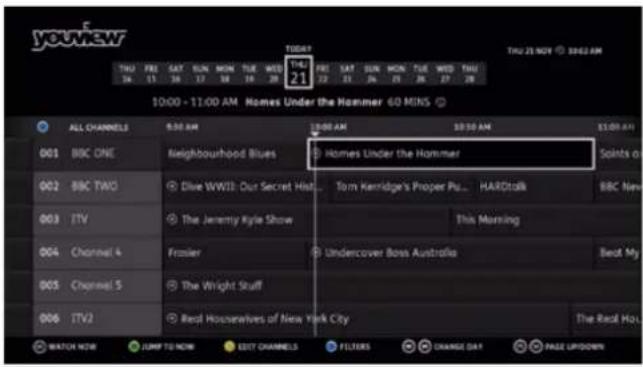
If you're finding it difficult to read some of the text on the YouView screens, you can use the Zoom tool to make it bigger.
Simply press Zoom on your remote control when using the YouView menus and guides to make them bigger (you'll be able to use the options on the screen as normal). Press Zoom again and you'll be able to use the arrow buttons on your remote control to move around the screen. Press Zoom for the third time to go back to the normal view.

Grid 2 compatibility
Grid 2 is software for Windows computers, which can be used to control your YouView+ box without a remote control or keyboard. It accepts input from a wide range of devices including switches, head pointers and eye gaze systems.
You can find out more about this at support.youview.com and sensorysoftware.com
Keyboard control
You can use a UK USB keyboard to interact with your YouView+ box, either alongside the remote control or instead of it. There's a USB connection on the back and the left hand side of the box.
- Keyboard key mapping supports popular accessible keyboards.
- Certain keys are mapped to replicate the buttons on the remote control.
- The standard alphabet keys can be used for text entry.
• The '1' key also cycles through punctuation. - The number key mimics the remote control's multi-tap number buttons.
A number of keyboard layouts are supported including Jumbo, Clevy and multimedia. You can read more about this and print out keyboard overlays at support.youview.com
Accessibility features in the YouView app
If you're visually impaired, you can use the YouView app with Apple and Android's text-to-speech tools.
YouView has optimised areas, like the Guide, to navigate and read out menu options or information about different programmes, e.g. the programme description and when it's on. You can also use search for channels and programmes using speech-to-text entry. On the search page, compatible devices will show 📋 near the bottom left of the keypad. Press 📋 tto use the voice entry feature then, when asked, say the name of a channel or programme. You'll then get the search results as normal.
For more about accessibility, go to bt.com/help/tvaccessibility or youview.com/features/accessibility-features
Help and troubleshooting
What to do if YouView isn't working 25
Digital TV channels 26
Catch up and On Demand 28
Extra TV channels 28
TV without YouView 29
Extra Box 29

Need some help? No problem – go to bt.com/help/youview, check Help in the BT Player or give us a call on 0800 111 4567.
YouView isn't working
The power light isn't blue. Check:
- the power cable's connected and the switch on the back of your YouTube+ box is ON
- if the light is red/purple, press ⏻ to switch it on.
The power light is blue but there's no picture (or welcome screen). Check:
- your TV's on and not in standby
- your TV's on the right AV input 📄 for the HDMI connection (see your TV's manual if you need help with this)
- all your cables are securely connected, including those going to your TV, aerial and broadband extenders (if you've used them)
- to see if there's a problem with your HDMI cable, you can try using a SCART cable instead if you have one.
It says I'm not connected. Check:
- your Hub's connected and your broadband's working
- the broadband light on the front of your YouView+box is blue.
If either of these aren't right:
- if you have an Openreach modem, turn it off, wait a moment, then turn it on again
- press Restart on your Hub and wait a few minutes
- now press Standby ⏻ on your YouView+ box until the power light goes red, then blue
- if you're using broadband extenders (Powerline adapters), try restarting them. To find out how to do this, go to bt.com/help/tvpowerlines
Tried all the above and YouView still isn't working?
Go to bt.com/help/youview or give us a call on 0800 111 4567.
Can't see the Welcome screen?
Check that you've selected the right AV input € in your TV. If you still can't see anything, make sure all the cables are connected properly, then try each AV input in turn. If you still can't see anything, try connecting your TV and YouView+ box using a SCART cable (not supplied).
How to restart your YouView+ box
To restart your YouView+ box, use the switch on the back, or press and hold in Standby ⏻ on the top of your box until the power light turns red, then blue. Your box will then restart – this can take a minute or two.
Can I use wi-fi to connect my YouView+ box?
No. To give you the best picture quality when watching Catch up, On Demand or Extra TV channels (where available), your YouView+ box uses an Ethernet cable to connect to your Hub instead of having built-in wi-fi.
'LJLWDO79FKDQQHOV
Channel availability
Channel availability depends on where you live. To check what you can receive in your area, go to youview.com
Almost all digital TV problems (e.g. missing channels or pixilation) relate to the quality of your aerial or wiring. So, make sure that you've got a good quality external or loft aerial that's capable of receiving a digital TV signal and that it's aligned with your local transmitter. This shouldn't be a portable aerial (even with a booster).
Digital TV signals can be affected by:
- local geography – tall trees, hills or buildings in direct line with your local transmitter
- weather – low pressure or windy conditions, especially if the aerial isn't securely mounted. Weather can disrupt picture quality, cause pixilation and/or picture freezes. It might even cause missing channels
- wiring – make sure you're using good quality cables. These are vital to ensure the signal from the aerial reaches your YouView+ box with the least interference.
If you have trouble watching live or recorded Freeview programmes, or you're missing Freeview channels, it could be because your aerial or cables need replacing. To get them checked, to order a new aerial or to get help with Freeview, call 0800 800 150 or go to bt.com/help/freeview
I'm missing channels, or having problems with the picture on live or recorded TV
This is likely to be a problem with the signal reaching your YouView+ box. Try this:
1 Check that your cables are connected correctly and securely. In particular, check your aerial cable's connection to the wall socket and your YouView+ box.
2 Restart your YouView+ box (see page 25 for help with this).
3 Re-tune your channels. Go to Settings, then TV Signal and Quality, then Re-tune Channels.
4 If you're trying to watch a programme in high definition, switch to standard definition instead.
i Moving home
If you've moved home, you might not get the same channels you did before as signal strength and channel availability depend on where you live.
There's no sound
If you can't hear anything while watching TV or when watching a recording, try this:
1 Check that the volume on your TV isn't muted or turned all the way down.
2 Check that the volume on your YouView+ box isn't muted or turned all the way down.
3 Try another channel to see if the sound is missing from all channels or just the one you're watching.
4 Check that all your cables are connected properly.
5 If connected to a surround sound system, check that the system is on and cables are connected correctly.
6 Restart your YouView+ box (see page 25 for help with this).
The TV sound isn't in time with the picture
Connecting your YouView+ box to speakers or a surround sound system might cause syncing issues. If this happens, you'll need to adjust the audio delay.
Go to Settings, choose TV Signal and Quality, then Synchronise Picture and Sound.
I can't see any channels in the YouView Guide
Check that your aerial cable is connected properly. If it is, exit the YouView Guide, go to Settings, choose TV Signal and Quality, then Re-tune Channels.
Why am I seeing subtitles or hearing voices over my programmes?
You may have accidentally pressed the Subtitles Delete Audio Description AD 🔔 buttons on your remote.
- Press Delete SUB again to turn off Subtitles
- Press AD again to turn off Audio Description
For more details about Subtitles and Audio Description, see page 22.
Catch Up and On Demand
My TV picture is breaking up with Catch Up or On Demand TV
This is likely to be a problem with the broadband connection to your YouView+ box or your broadband speed. Try this:
1 Are there any other devices connected to the internet, such as laptops or games consoles? These can slow your broadband speed, especially during peak periods. Disconnecting or reducing usage of these when using Catch Up or On Demand should help.
2 Run a broadband speed check using your YouView box. Press BT Player on your remote control, then select Settings from the main menu, then Broadband Speed Checker.
3 Check that the Ethernet cable between your YouView box and your Hub (and broadband extenders if you're using them) are connected correctly and that they're connected to a yellow Ethernet port on your Hub, not the red one.
4 If you're trying to watch a programme in high definition, switch to standard definition instead.
Extra TV channels
These channels are delivered through your broadband connection, so you'll need to make sure it's working to watch them.
These channels aren't available. What can I do?
1 Make sure you're using the BT Home Hub we sent you. If you aren't, check that the hub or router you're using is compatible at bt.com/help/tv/tvhub
2 If you've just ordered these channels, you'll have to wait for up to 24 hours for them to start working. The channels that are available will depend upon your TV and broadband subscriptions.
3 Check that your broadband's working and that your aerial and Ethernet cables are connected properly. It they are, exit the YouView Guide and go to Settings then Device Management then Software Update and press OK
Can I use broadband extenders with these channels?
To find out what products are compatible with broadband extenders (Powerline adapters), go to bt.com/help/tvpowerlines
My internet connection seems slower when using these channels. What can I do?
Because Extra TV channels are delivered over your broadband, your internet connection may be a little slower when you're using these channels.
To speed up your internet connection for your other devices, switch off your YouView+ box with the remote when you're not using it, change to a channel that doesn't use your broadband connection (like BBC 1) and if you're watching a programme in high definition, switch to standard definition instead.

Need some help?
You can find more help at bt.com/help/extratvchannels
TV without YouView Extra Box
If you'd like to be able to watch Digital TV channels on your TV with the YouView + box in standby, you'll need an extra aerial cable, available from most electrical stores. When connected, this will allow the signal from your aerial to reach your TV, even when the YouView+ box is in standby.
1 Using the extra aerial cable, connect the Aerial Out socket on the back of your YouView+ box to the Aerial In socket on your TV.
2 Eco mode needs to be set to LOW. In the YouView menu, go to Settings then Device Management then Eco mode to check that it is.
3 Go back to Device Management then select RF Loop through and change it to ON.
When watching TV without YouView, you'll need to use your TV's standard remote.
If you've got another YouView or YouView- box from BT, remember:
- you can buy BT Box Office movies using any of your boxes, but you'll only be able to watch them on the box you used to buy them
- if you have Extra TV channels like BT Sport, you can watch them on both boxes at the same time – if your broadband connection's fast enough
- you can use the same or different YouView PINs on each of your boxes. Your BT TV PIN is the same for both boxes.
You can buy an Extra Box at bt.com/help/extrabox
The small print
Safety instructions and precautions
This product has been manufactured to comply with international safety standards. Please read the following safety precautions carefully.
Liquid
Keep all kinds of liquid away from this product. Don't put anything filled with liquid (like a vase of flowers or an oil burning candle) on the product.
Cleaning
- Unplug the product from the wall outlet before cleaning.
- Use a light damp cloth (no solvents) to dust the product.
Ventilation
- Keep the ventilation slots uncovered to allow proper airflow into the product.
- Don't stand the product on soft furnishings, carpets or delicate surfaces.
- Don't stack other electronic equipment on top of the product.
- Don't keep the product in a confined, unventilated space (like a cupboard).
Warning
To avoid damaging the power cord or plug
- Don't modify or process the power cord or plug.
- Don't bend or twist the power cord.
- Make sure you unplug the power cord by holding the plug.
- Keep heating appliances as far away as possible from the power cord to avoid the vinyl cover melting.
- You should have easy access to the mains plug at all times.
To avoid electrical shock
- Don't open the main body of the product.
- Don't insert metal or flammable objects into the product.
-
Don't touch the power plug with wet hands.
-
Unplug the product from the mains socket if there's severe lightning.
- Unplug the product to install the aerial cable.
Don't use the product if it's out of order. If you keep using it when defective, you might cause serious damage. Please contact BT if the product isn't working properly.
To avoid damaging your YouView box
To avoid damaging the hard disk drive
- Don't move the product or turn the power off suddenly while the hard disk drive is running.
- BT shall not be liable for any corruption of data on the hard disk drive caused by carelessness or misuse.
Other information
YouView
The YouView service requires a broadband connection and is subject to the terms of use, suitable broadband speed, TV aerial and coverage. See youview.com for details. YouView and the YouView logo are registered trademarks of YouView TV Ltd and are used under licence.
Open source software
Your YouView box uses open source software. To find out more, go to bt.com/vision/opensource
Declaration of Conformance
Low Voltage Directive 2006/95/EC, EMC Directive 2004/108/EC and Energy-related Products Directive 2009/125/EC. This product is intended for use within the UK. The Declaration of Conformance can be found at bt.com/help/tv
Warranty
Your YouView box is guaranteed for 12 months from the date of purchase.
Subject to the terms listed below, the guarantee will provide for the repair, or at BT's or its agent's discretion, the option to replace the YouView box or any component thereof (other than batteries), which is identified as faulty or below standard, or as a result of inferior workmanship or materials. Products over 28 days old from the date of purchase may be replaced with a refurbished or repaired product.
The conditions of this guarantee are:
- The guarantee shall only apply to defects that occur within the 12-month guarantee period.
- Proof of purchase is required.
- The equipment is returned to BT or its agents as instructed.
- This guarantee doesn't cover any faults or defects caused by accidents, misuse, fair wear and tear, neglect, tampering with the equipment, or any attempt at adjustment or repair other than by approved agents.
• This guarantee does not affect your statutory rights.
Within the 12-month guarantee period
If you have problems using the product, don't return it before you've contacted the BT Technical Helpdesk on 0800
111 4567. In the unlikely event of a defect occurring, please follow the Helpline's instructions for replacement or repair.
Outside the 12-month guarantee period
If your product needs repair after the end of the guarantee period, the repair must meet the approval requirements for connection to the broadband and telephone network. We recommend that you contact the BT Technical Helpdesk 0800 111 4567 for details of BT's approved repair agents.
Recycling
How to recycle your equipment
Your YouView box, remote control and Powerline adapters (if you have them) are classed as electrical or electronic equipment, so DO NOT put them in your normal rubbish bin. It's all part of the Waste Electrical and Electronic Equipment (WEEE) Directive (2002/96/EU) to recycle products in the best way – to be kinder to the planet, get rid of dangerous things more safely and bury less rubbish in the ground.

The BT Electrical Take Back Scheme
If you'd rather send your kit back to us, it's easy and free of charge:
1 Call 0800 800 150 and tell us what you want to return. We'll then send you a pre-paid posting bag.
2 Pack everything, including any cables, into the original box (if you don't have it, please use another box or bubble wrap as protection).
3 Pop it in the posting bag and seal it.
4 Peel off the barcode from the address label and stick it next to the postage label on the posting bag.
5 Take it to your local Post Office. We recommend you ask for proof of posting – there's no charge for this.
Sorry, but we can only deal with BT equipment. You can usually take other old equipment to your local recycling centre.
Remember, batteries need to be disposed of responsibly too.
Available in other formats including
Braille, large print or audio CD.
Please go to bt.com/mediatypes
or call 0800 800 150
recycle
BT

Offices worldwide
© British Telecommunications plc 2014
We're registered in England at 81 Newgate Street, London EC1A 7AJ (company number 1800000).
Item code 077880 V3
Written and designed by The Art & Design Partnership and Muse Publishing
All this information was correct as of September 2014. See our terms and conditions at bt.com/terms.
All third party trademark rights are hereby acknowledged.
20000-00555 MANUAL(UG)/DTRT2100(DF)/100GB
HDMI®
HIGH-DEFINITION MULTIMEDIA INTERFACE

DOLBY.
DIGITAL PLUS.
DV3
Digital Video Broadcasting


- TOP FIVE TIPS
- WELCOME TO YOUVIEW FROM BT
- GET TO KNOW YOUR REMOTE
- CONTROLLING YOUR TV WITH YOUR YOUVIEW REMOTE
- GET TO KNOW YOUR YOUVIEW+ BOX
- THE LIGHTS
- THE BUTTONS
- EXTRA CONNECTIONS
- USING YOUVIEW
- THE YOUVIEW MAIN MENU
- SEARCH
- HOW TO SEARCH FOR PROGRAMMES
- ON DEMAND / ON NOW & NEXT
- FILTERING
- SEARCH TIPS
- ON DEMAND
- FOR YOU
- MY TV - BOOKMARKS
- MY TV – PLAYLISTS
- MY TV-WATCHING
- CATCH UP
- LIBRARY
- BT TV PIN
- USING THE YOUVIEW GUIDE AND MINI GUIDE
- USING THE YOUVIEW GUIDE
- PRESS GUIDE ON YOUR REMOTE
- SEVEN DAY CATCH UP
- HOW TO FILTER CHANNELS BY CATEGORY
- USING THE MINI GUIDE
- EXTRA TV CHANNELS
- SET UP AND WATCH YOUR EXTRA TV CHANNELS
- PAUSING LIVE TV
- PAUSE
- GET BACK TO LIVE TV
- REWIND
- FAST FORWARD
- REMINDERS
- SET OR CANCEL A REMINDER
- THE YOUVIEW MOBILE APP
- RECORDING
- SETTING A RECORDING
- SERIES RECORDING
- RECORDING TWO PROGRAMMES
- RECORDING CLASHES
- CANCELLING A RECORDING
- MANAGING RECORDINGS
- BROWSING YOUR RECORDINGS
- WATCHING A RECORDING
- DELETING RECORDINGS
- AUTO DELETING RECORDINGS
- PARENTAL CONTROLS, PINS AND SETTINGS
- PARENTAL CONTROLS
- ABOUT YOUR PINS
- YOUVIEW PIN
- CAN'T REMEMBER YOUR YOUVIEW PIN AND SECURITY QUESTION
- RESTRICTING ACCESS TO AGE-RATED PROGRAMMES AND FILMS
- HOW TO HIDE ADULT PROGRAMMES
- HOW TO HIDE (OR UNHIDE) CHANNELS
- TV SIGNAL AND QUALITY
- RE-TUNE CHANNELS
- PLAY ON DEMAND IN HD
- POWER SAVING (ECO MODE)
- ECO MODE ENERGY USE IN STANDBY TIME TO START UP
- OTHER SETTINGS
- ACCESSIBILITY
- SUBTITLES, AUDIO DESCRIPTION (AD) AND SIGN LANGUAGE
- RECORDING SUBTITLES AND AUDIO DESCRIPTION
- REMOVE THE TV SCREEN FROM THE YOUVIEW GUIDE
- HIGH CONTRAST COLOUR SCHEME
- ZOOMING' THE SCREEN
- GRID 2 COMPATIBILITY
- KEYBOARD CONTROL
- ACCESSIBILITY FEATURES IN THE YOUVIEW APP
- HELP AND TROUBLESHOOTING
- YOUVIEW ISN'T WORKING
- THE POWER LIGHT ISN'T BLUE. CHECK
- THE POWER LIGHT IS BLUE BUT THERE'S NO PICTURE (OR WELCOME SCREEN). CHECK
- IT SAYS I'M NOT CONNECTED. CHECK
- IF EITHER OF THESE AREN'T RIGHT
- TRIED ALL THE ABOVE AND YOUVIEW STILL ISN'T WORKING
- CAN'T SEE THE WELCOME SCREEN
- HOW TO RESTART YOUR YOUVIEW+ BOX
- CAN I USE WI-FI TO CONNECT MY YOUVIEW+ BOX
- LJLWDO79FKDQQHOV
- CHANNEL AVAILABILITY
- I'M MISSING CHANNELS, OR HAVING PROBLEMS WITH THE PICTURE ON LIVE OR RECORDED TV
- I MOVING HOME
- THERE'S NO SOUND
- THE TV SOUND ISN'T IN TIME WITH THE PICTURE
- I CAN'T SEE ANY CHANNELS IN THE YOUVIEW GUIDE
- WHY AM I SEEING SUBTITLES OR HEARING VOICES OVER MY PROGRAMMES
- CATCH UP AND ON DEMAND
- MY TV PICTURE IS BREAKING UP WITH CATCH UP OR ON DEMAND TV
- THESE CHANNELS AREN'T AVAILABLE. WHAT CAN I DO
- CAN I USE BROADBAND EXTENDERS WITH THESE CHANNELS
- MY INTERNET CONNECTION SEEMS SLOWER WHEN USING THESE CHANNELS. WHAT CAN I DO
- TV WITHOUT YOUVIEW EXTRA BOX
- THE SMALL PRINT
- SAFETY INSTRUCTIONS AND PRECAUTIONS
- LIQUID
- CLEANING
- VENTILATION
- WARNING
- TO AVOID DAMAGING THE POWER CORD OR PLUG
- TO AVOID ELECTRICAL SHOCK
- TO AVOID DAMAGING YOUR YOUVIEW BOX
- TO AVOID DAMAGING THE HARD DISK DRIVE
- OTHER INFORMATION
- YOUVIEW
- OPEN SOURCE SOFTWARE
- DECLARATION OF CONFORMANCE
- WARRANTY
- THE CONDITIONS OF THIS GUARANTEE ARE
- WITHIN THE 12-MONTH GUARANTEE PERIOD
- OUTSIDE THE 12-MONTH GUARANTEE PERIOD
- RECYCLING
- HOW TO RECYCLE YOUR EQUIPMENT
- THE BT ELECTRICAL TAKE BACK SCHEME
- OFFICES WORLDWIDE
Brand : BT
Model : Youview DTR-T2110
Category : TV Decoder