
XHUD1000 - Uncategorized DUAL - Free user manual and instructions
Find the device manual for free XHUD1000 DUAL in PDF.


| Product Type | Portable Head-Up Display (HUD) |
| Brand | Dual |
| Model | XHUD1000 |
| Display Type | Transflective TFT LCD |
| Display Size | 3.5 inches |
| Brightness | Auto-adjusting up to 1000 nits |
| Connection | OBDII (16-pin) via included cable |
| Power Input | 12V DC from OBDII port |
| Dimensions | 5.5 x 2.8 x 1.2 inches (140 x 71 x 30 mm) |
| Weight | Approx. 8.8 oz (250 g) |
| Main Functions | Speed, RPM, fuel level, coolant temperature, voltage, engine load, trip distance, driving time, overspeed alarm, fatigue reminder |
| Compatible Vehicles | Most OBDII-compliant vehicles (gasoline 2001+, diesel 2004+) |
| Mounting | Windshield or dashboard with included reflective pad and non-slip mat |
| Operating Temperature | -20°C to 70°C (-4°F to 158°F) |
| Safety Features | Auto-dimming for night driving, fuse protection, no user-serviceable parts |
| Maintenance | Clean with dry microfiber cloth; do not use liquids or abrasives |
| Spare Parts | Replacement OBDII cable and reflective pad available |
| Repairability | No user-repairable parts; contact Dual support for service |
| General Information | Designed to reduce driver distraction by projecting data onto windshield |
Frequently Asked Questions - XHUD1000 DUAL
User questions about XHUD1000 DUAL
0 question about this device. Answer the ones you know or ask your own.
Ask a new question about this device
Download the instructions for your Uncategorized in PDF format for free! Find your manual XHUD1000 - DUAL and take your electronic device back in hand. On this page are published all the documents necessary for the use of your device. XHUD1000 by DUAL.
USER MANUAL XHUD1000 DUAL
XHUD1000
OWNER'S MANUAL
Head Up Display (HUD)

XHUD1000 IS NOT TO BE USED AS A PRIMARY FLIGHT INSTRUMENT
Introduction
The Dual XHUD1000 is a high performance Head Up Display for General Aviaon and Light Sport Aircra. The device allows pilots to connuously monitor critical light data while keeping their head up and eyes forward. Dual developed the XHUD1000 in collaboraon with pilots to ensure it provides the right mix of features for enhanced situaonal awareness. With the XHUD1000, GA pilots can now benet from modern features previously only available in large advanced aircra.
Set up and installaon of the XHUD1000 is simple. Aer making the wireless connnecons using Dual's free ADS-B Status Tool app, the app runs in the background and the mobile device is available for running other apps. The XHUD1000 includes accessories for easy installaon on most aircra. The unit is lightweight and ultra-compact, and has a folding screen with adjustable viewing distance & angle.
The Dual XHUD1000 gives pilots the opon to display data from portable ADS-B receivers using the XHUD1000's built-in graphics, or to display external graphics from tablets and smartphones running 3^rd party EFB apps.
The XHUD1000's built-in graphics include AHRS and Trac modes. AHRS mode displays altitude, ground speed, atude, bank angle, and compass heading in a classic HUD AHRS graphic for convenient monitoring of lights. Trac mode displays ADS-B trac on a radar style graphic using standard TCAS symbology, and has a selectable coverage range. For both of these modes, the informaon displayed is based on data from portable ADS-B GPS receivers.
As an alternate, pilots can operate the XHUD1000 in Mirroring mode to display external graphics from their tablet or smartphone running EFB apps. This allows the XHUD1000 to display AHRS, synthec vision, or
moving maps for navigaon, which are features available on most EFB apps. In this mode, several brands of portable GPS receivers can be used to provide source data for EFB apps.
For best HUD performance, it is recommended to operate the XHUD1000 using its built-in graphics (AHRS and Trac modes).
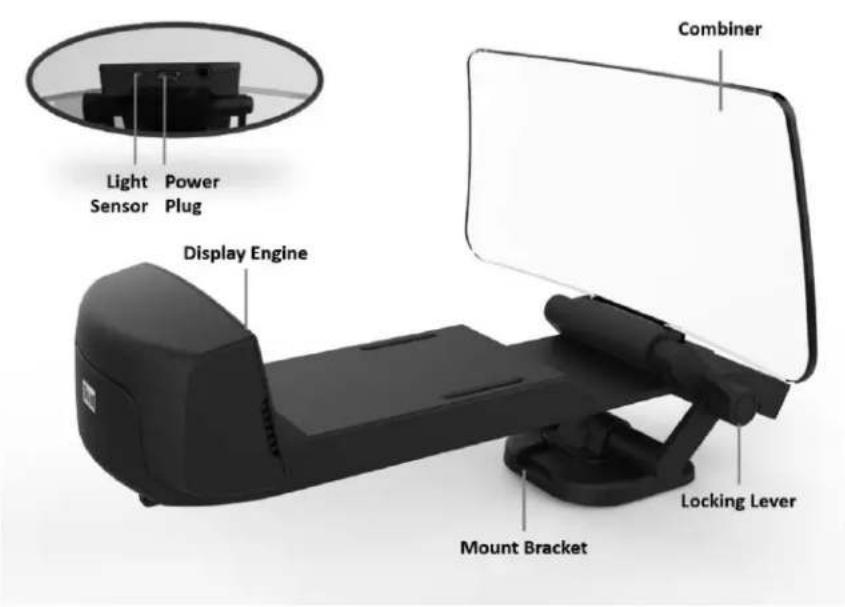
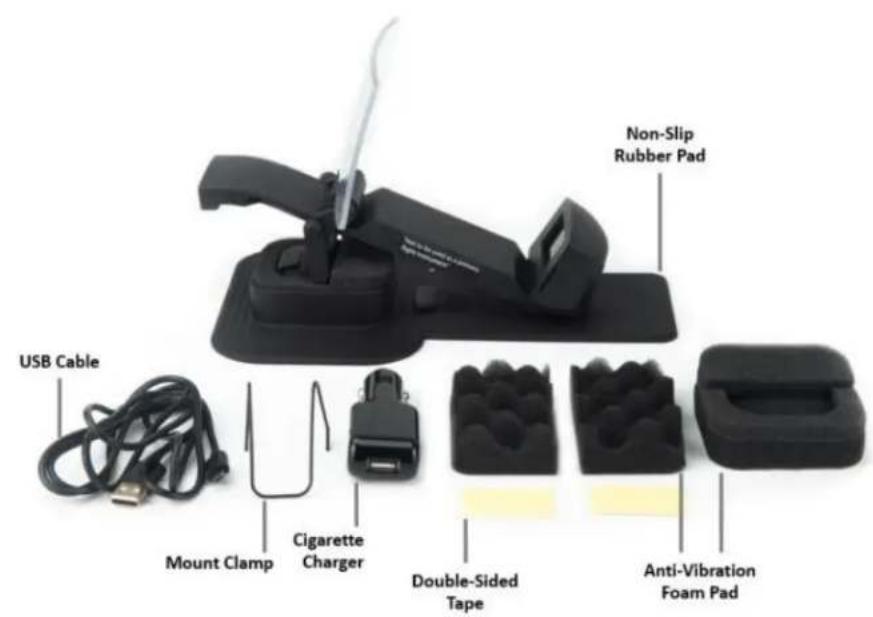
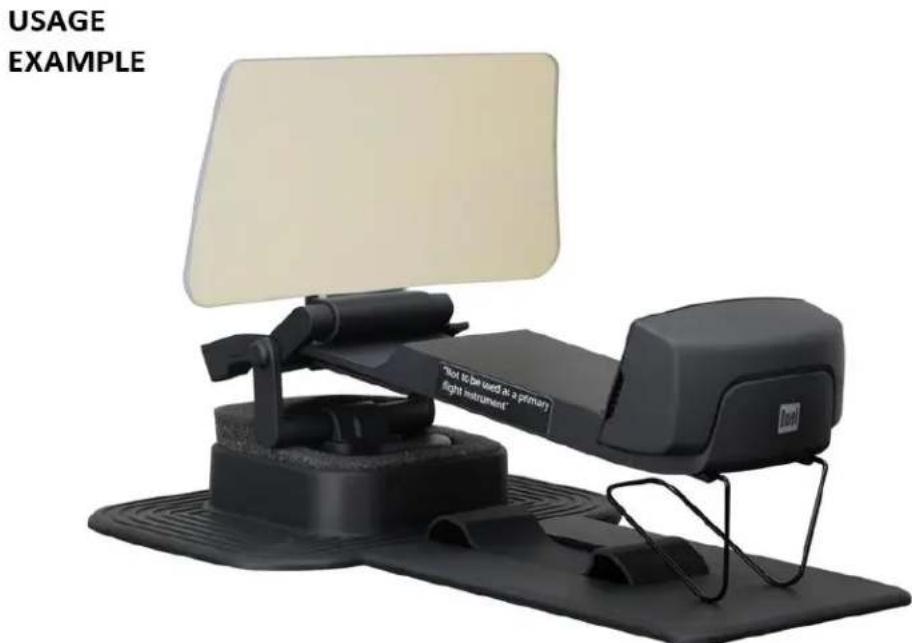
To achieve largest size image on HUD, the distance from Combiner to Display Engine should be set to the maximum distance by adjusting the locking lever. Since cockpit conguraons and dimensions can vary considerably among different airplane types, pilots should use their best judgement on how to mount the XHUD1000 in their airplane. The included mounng accessories can be used as needed.
Installation
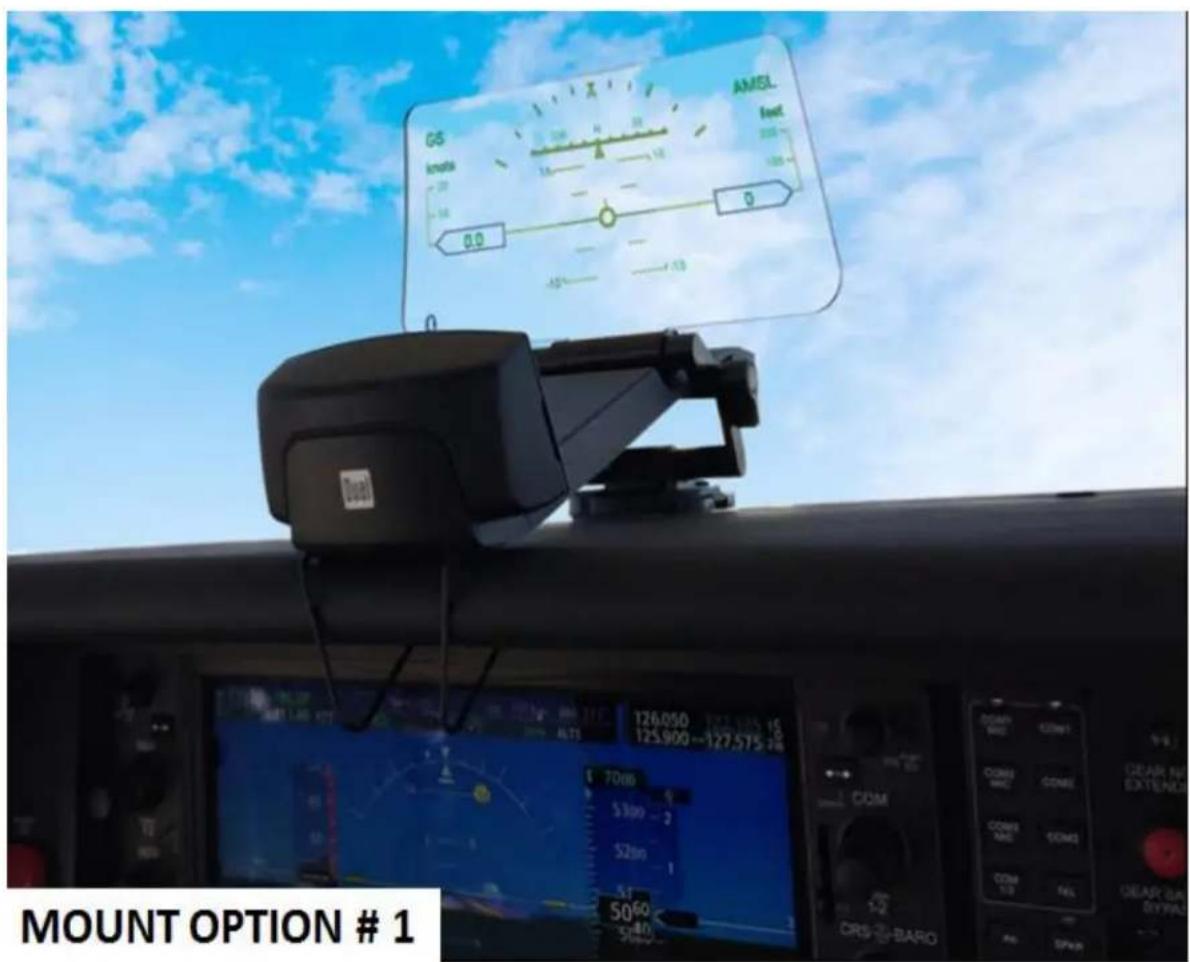
The XHUD1000 has exible mounng opons to accommodate installaon in most small aircra.
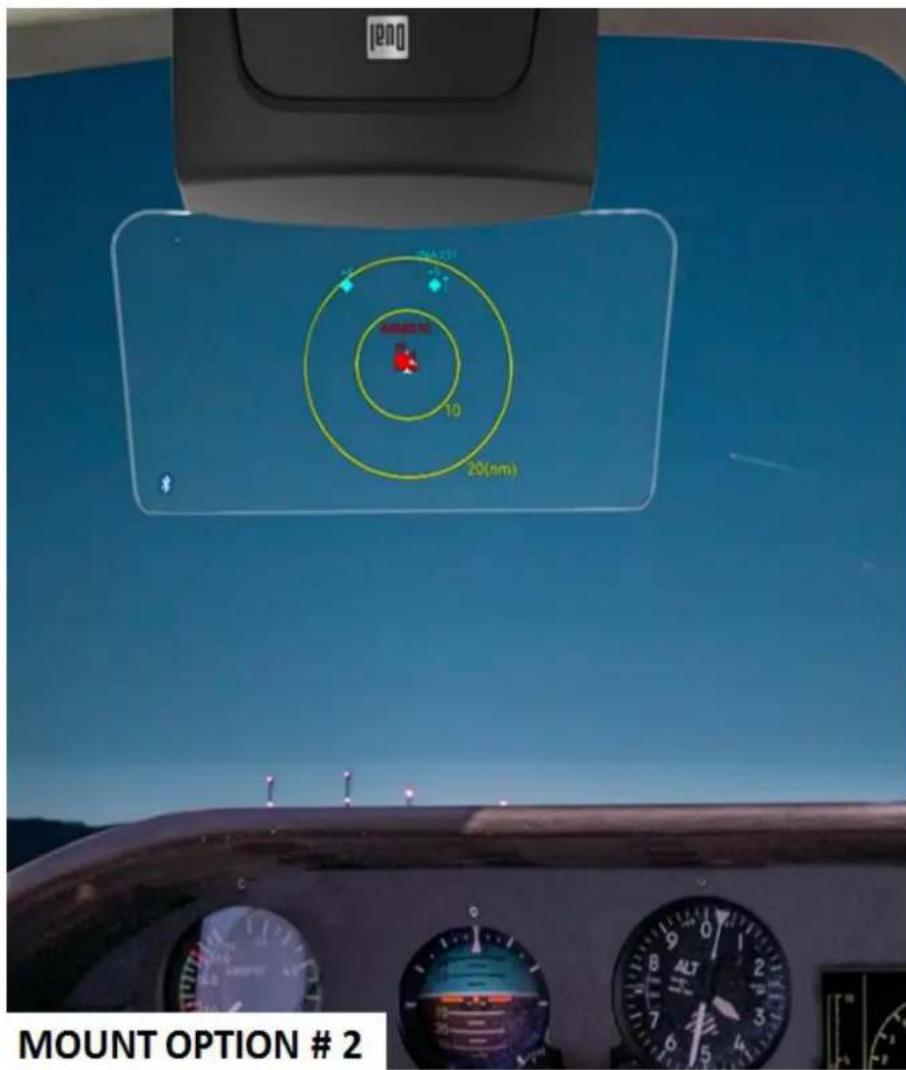
Setup
All XHUD1000 / mobile device sengs should be made while the aircra is on the ground, and should be le unchanged during ight.
Setup with Dual ADS-B Receivers & Apple Device
1) ADS-B Status Tool App for HUD Control
- Download the ADS-B Status Tool app from App Store. The HUD Control tab from the ADS-B Status Tool app enables mulple features that control the XHUD1000.
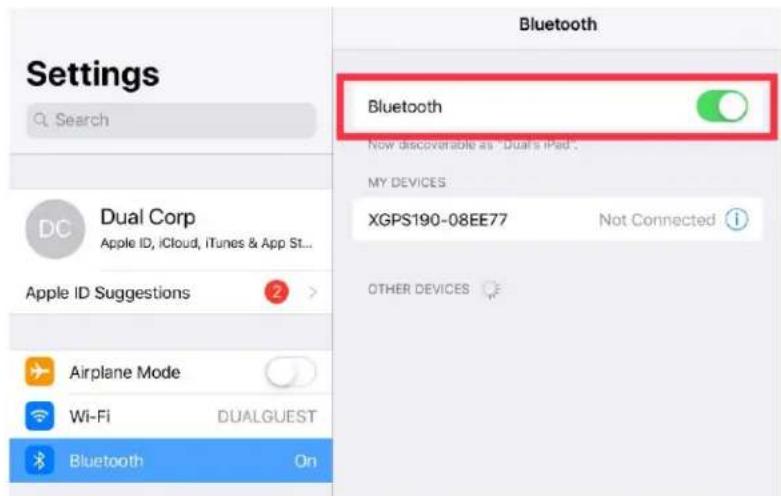
2) Bluetooth Connecon for AHRS & Trac modes
- Prior to this step, it's important to make sure the XGPS190 (or one of the other Dual ADS-B receivers) and your Apple device are powered on, and the XHUD1000 is sll le powered o.
- Turn on Bluetooth under Sengs from your Apple device.
- Choose the XGPS190 under the Bluetooth device list to connect to your Apple device.
- Once the XGPS190 and your Apple device are connected, power on the XHUD1000 by plugging in the supplied USB cable.
- Open the ADS-B Status Tool app, and then go to the HUDControl tab.
Device Status
natural_image
Black electronic device with red circular logo and ports (no visible text or symbols)Connecting Device
XGPS190-08EE77·
GPS Battery

Firmware Version
2.6.0
Position Information

natural_image
Simple curved dashed arrow drawn on a grid background (no text or symbols)Latitude
28° 46' 44.714" N
Longitude
81° 22' 59.952" W
Altitude
120.0 ft
UTC
19:42:37
Heading
--
Speed
0.0 knots
Position Confidence

natural_image
Simple diagram with concentric circles and a red crosshair, no text or symbols presentHorizontal
Good

Vertical
Good

3D
Good

- Tap the XHUD, and choose the XHUD(****) to connect HUD to your Apple device.
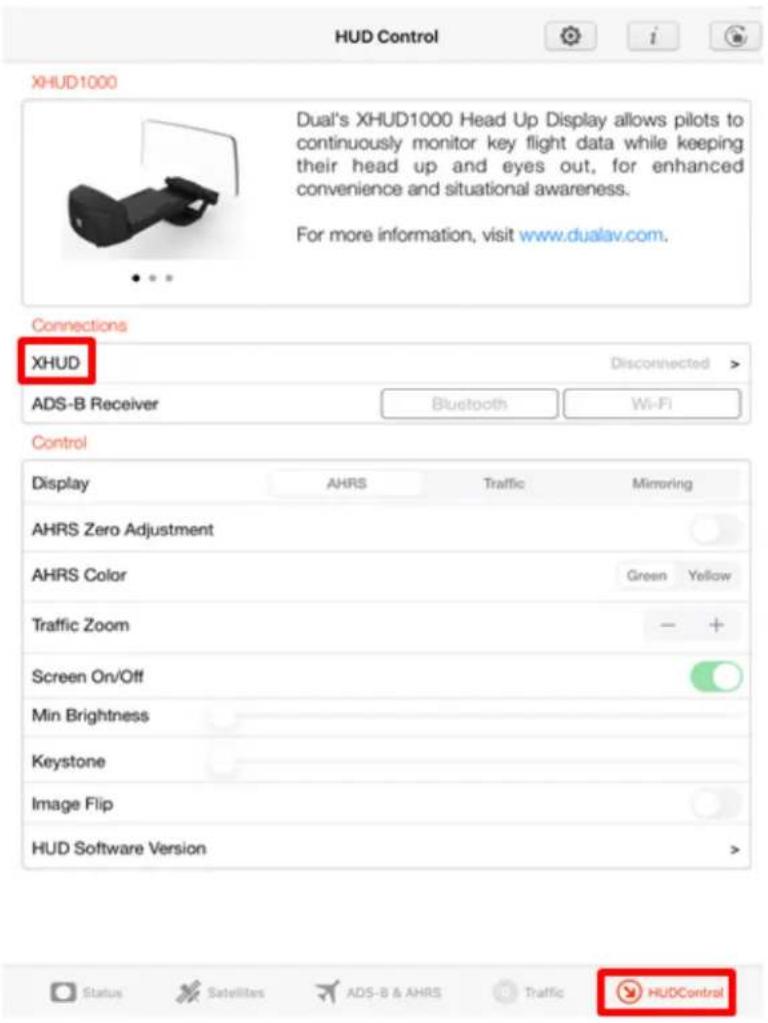
4:24 PM Thu Mar 21
100%
HUD Control
XHUD1000 ( )
- Tap the Bluetooth box and choose the XGPS190. Once conncon is successfully made, Bluetooth logo on the le side corner of the XHUD1000 screen will stop blinking.
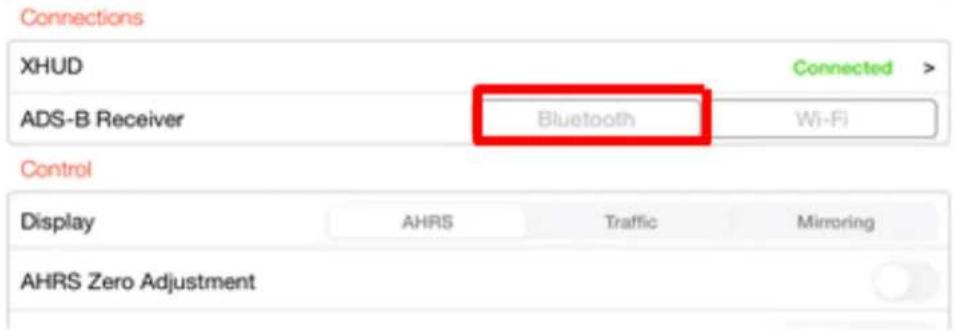

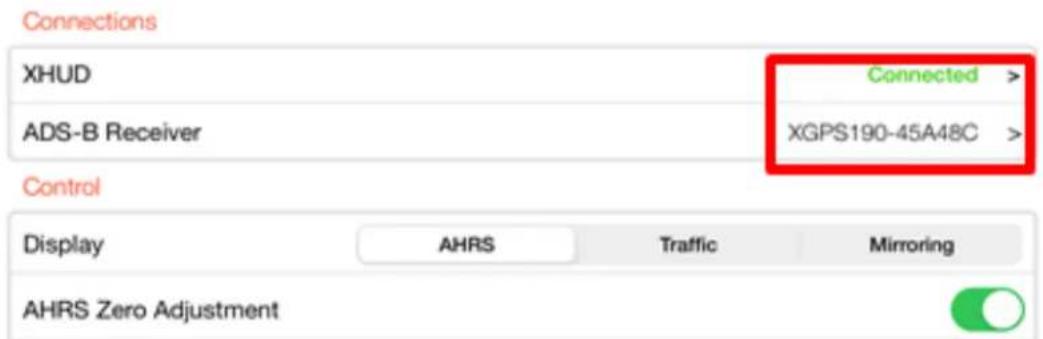
- To conrm conncon between the XHUD1000 and the XGPS190, try switching between AHRS and Trac modes, or try dierent controls from the HUDControl tab. The XHUD1000 display should respond to the controls of your choice accordingly.
- You have now successfully made Bluetooth conneccon between the XHUD1000, the XGPS190, and your Apple device.
Note: Once conncon is made between XHUD1000, XGPS190, and Apple device, there are several choices of EFB apps that can run on your Apple device, including Foreight. See Dual's web site for a complete list of apps compatible with XGPS190.
Setup with Stratus 3 & Apple Device
1) Connect Stratus 3 to mobile device per Stratus 3 instrucon manual, and download the Stratus Horizon Pro app from App Store.
2) In the Stratus Horizon Pro app, go to Stratus Seng, and enable 'Open ADS-B Mode'
| Done Settings | Stratus Settings |
| Stratus Information > | LED Brightness |
| Stratus Settings > | |
| AHRS > | Turn On When Plugged In i |
| Transcriptions > | Auto Power Off i |
| Display Options > | Auto AHRS Calibration i |
| Wi-Fi > | Open ADS-B Mode i |
| App Information > |
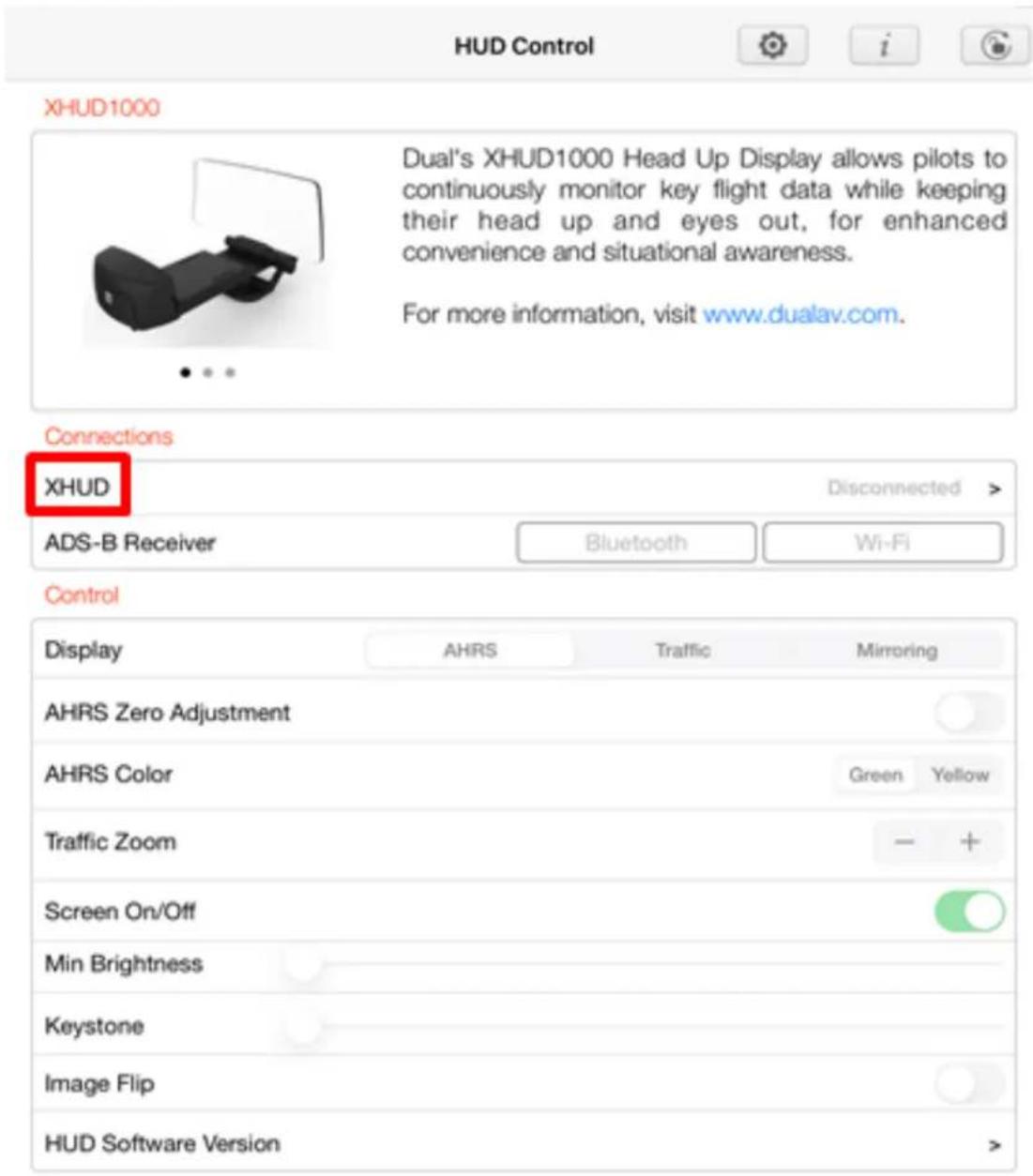
- In the Dual ADS-B Status Tool App, HUD Control Tab, Tap on' XHUD', and choose the XHUD(****) to connect HUD to your Apple device.

HUD Control
XHUD1000 ( )
- Tap the Wi-Fi box and choose the Stratus. Once conncon is successfully made, Wi-Fi logo on the le side corner of the XHUD1000 screen will stop blinking.
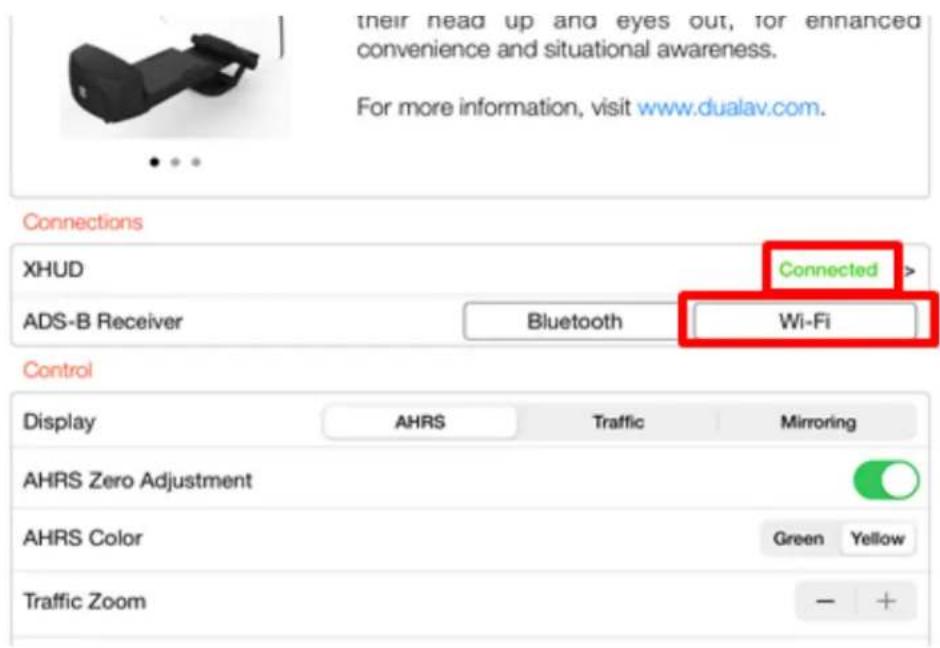
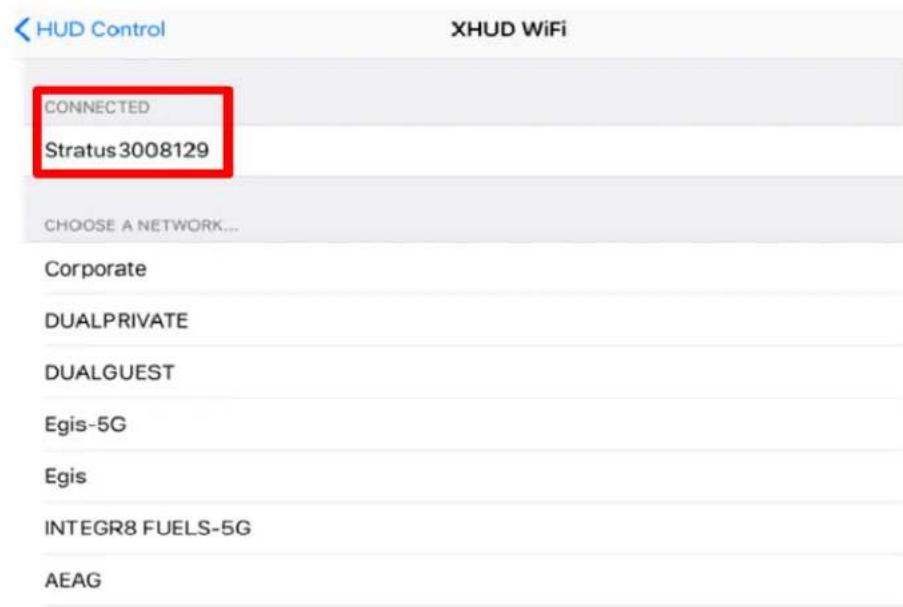
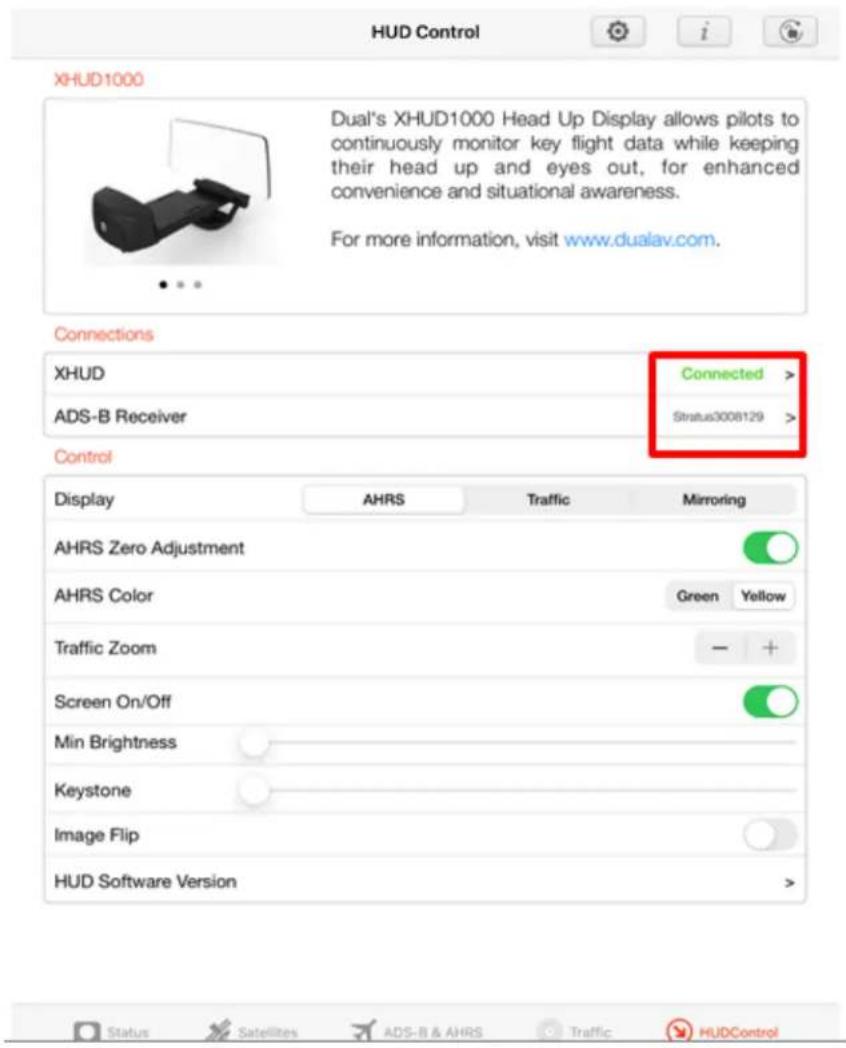
- To conrm conncon between the XHUD1000 and Stratus 3, try switching between AHRS and Trac modes, or try dierent controls from the HUD Control tab. The XHUD1000 display should respond to the controls of your choice accordingly.
- You have now successfully made conneccon between the XHUD1000, the Stratus 3, and your Apple device.
Note: Once conncon is made between XHUD1000, Stratus 3, and Apple device, there are several choices of EFB apps that can run on your Apple device. However Foreight cannot be used unless XHUD1000 is in Tablet Graphics mode.
Setup with Stratux & Apple Device
1) Connect Stratux to mobile device per Stratux instrucon manual.
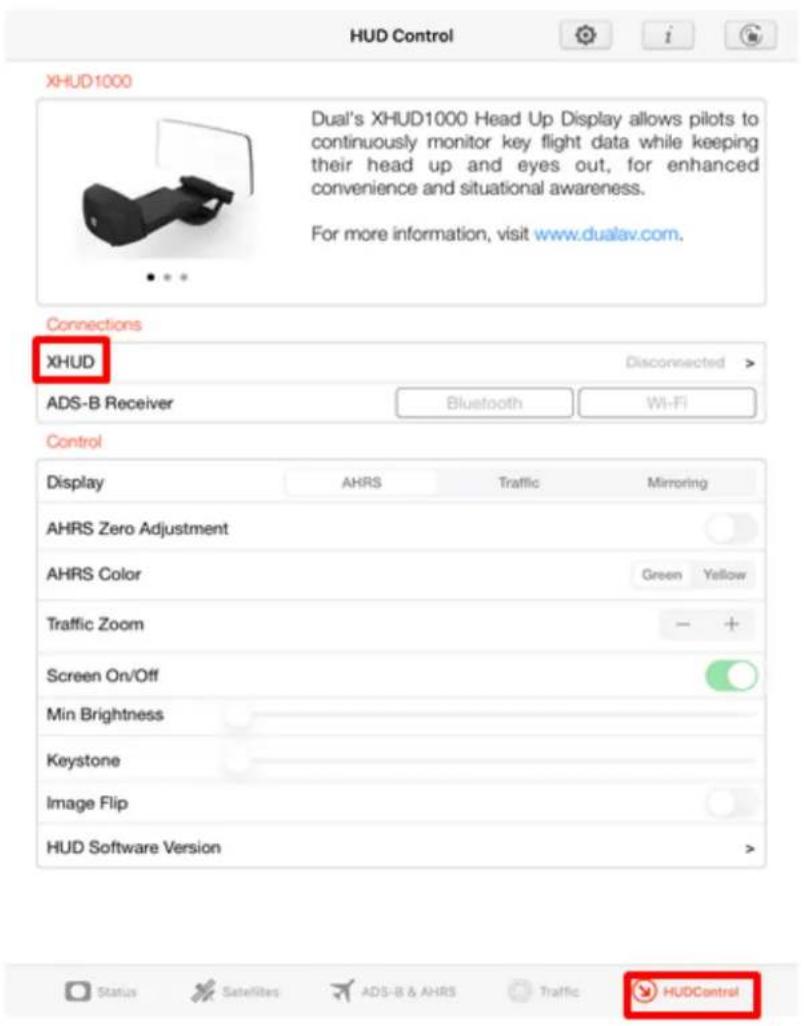
In the Dual ADS-B Status Tool App, HUD Control Tab, tap XHUD, and choose the XHUD(****) to connect HUD to your Apple device.
HUD Control
XHUD1000 ( )
- Tap the Wi-Fi box and choose the Stratux. Once conncon is successfully made, Wi-Fi logo on the le side corner of the XHUD1000 screen will stop blinking.
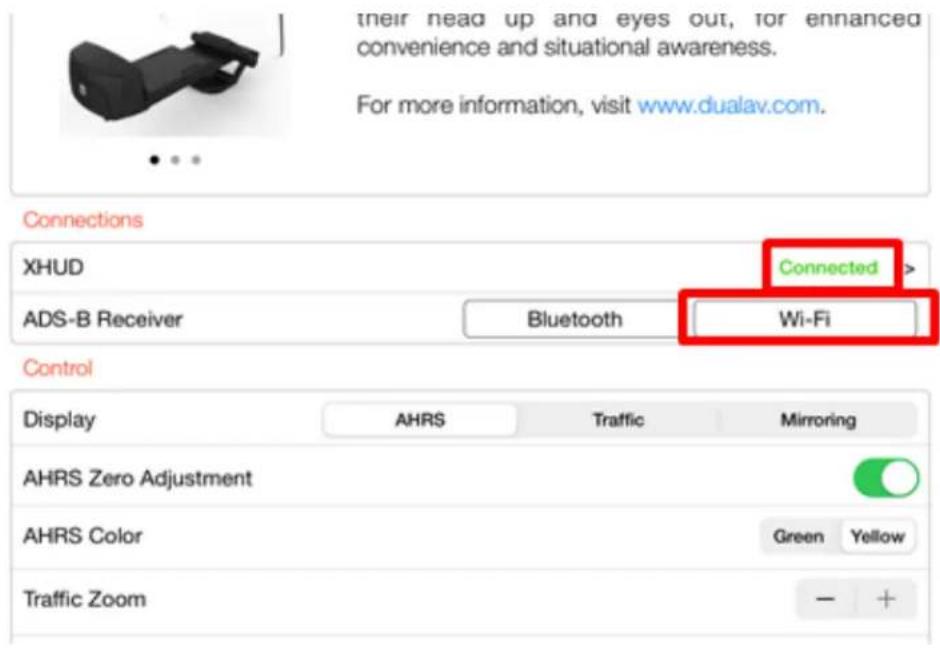
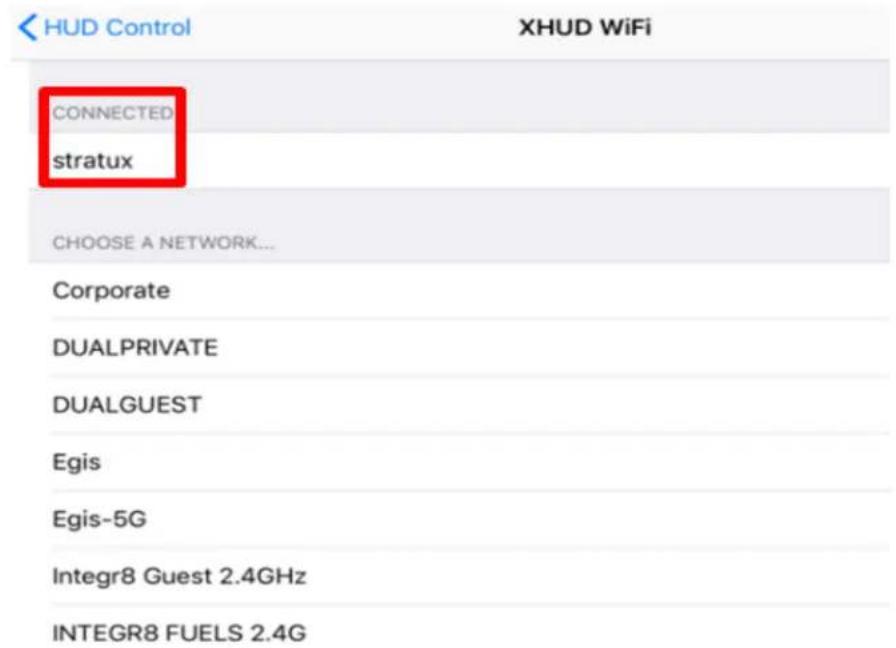
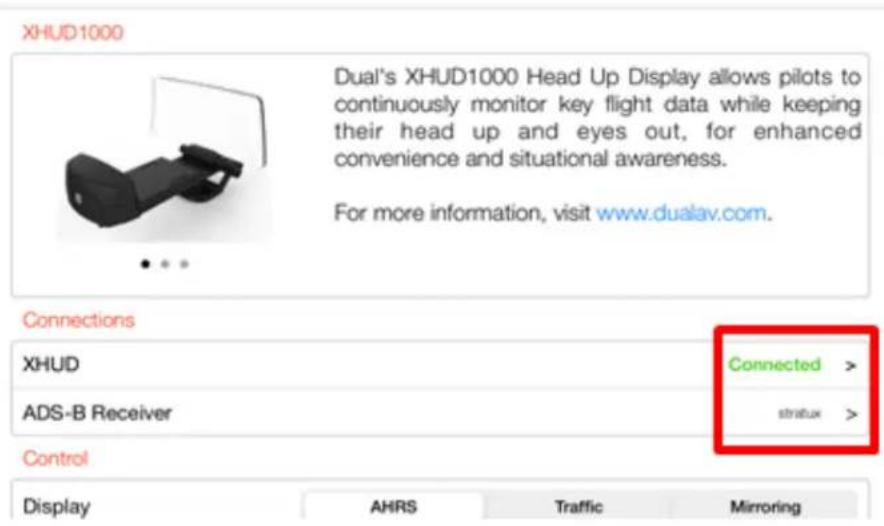
- To conrm conncon between the XHUD1000 and Stratux, try switching between AHRS and Trac modes, or try dierent controls from the HUD Control tab. The XHUD1000 display should respond to the controls of your choice accordingly.
- You have now successfully made conneccon between the XHUD1000, the Stratux, and your Apple device.
Note: Once conncon is made between XHUD1000, Stratux, and Apple device, there are several choices of EFB apps that can run on your Apple device. However Foreight cannot be used unless XHUD1000 is in Tablet Graphics mode.
Mirroring with Apple devices
Mirroring of EFB app image from your Apple device to your HUD requires both a Bluetooth and a WiFi conncon. There are 2 opons for WiFi conncon, depending on your parcular set up.
OPTION A) Mirroring with XHUD1000 as Wi-Fi Hotspot
- Mirroring with this opon can be enabled if your Apple device's WiFi is unused. XGPS190 is not required for mirroring.
- Tap XHUD, and choose the XHUD(****) to connect HUD to your Apple device via Bluetooth.
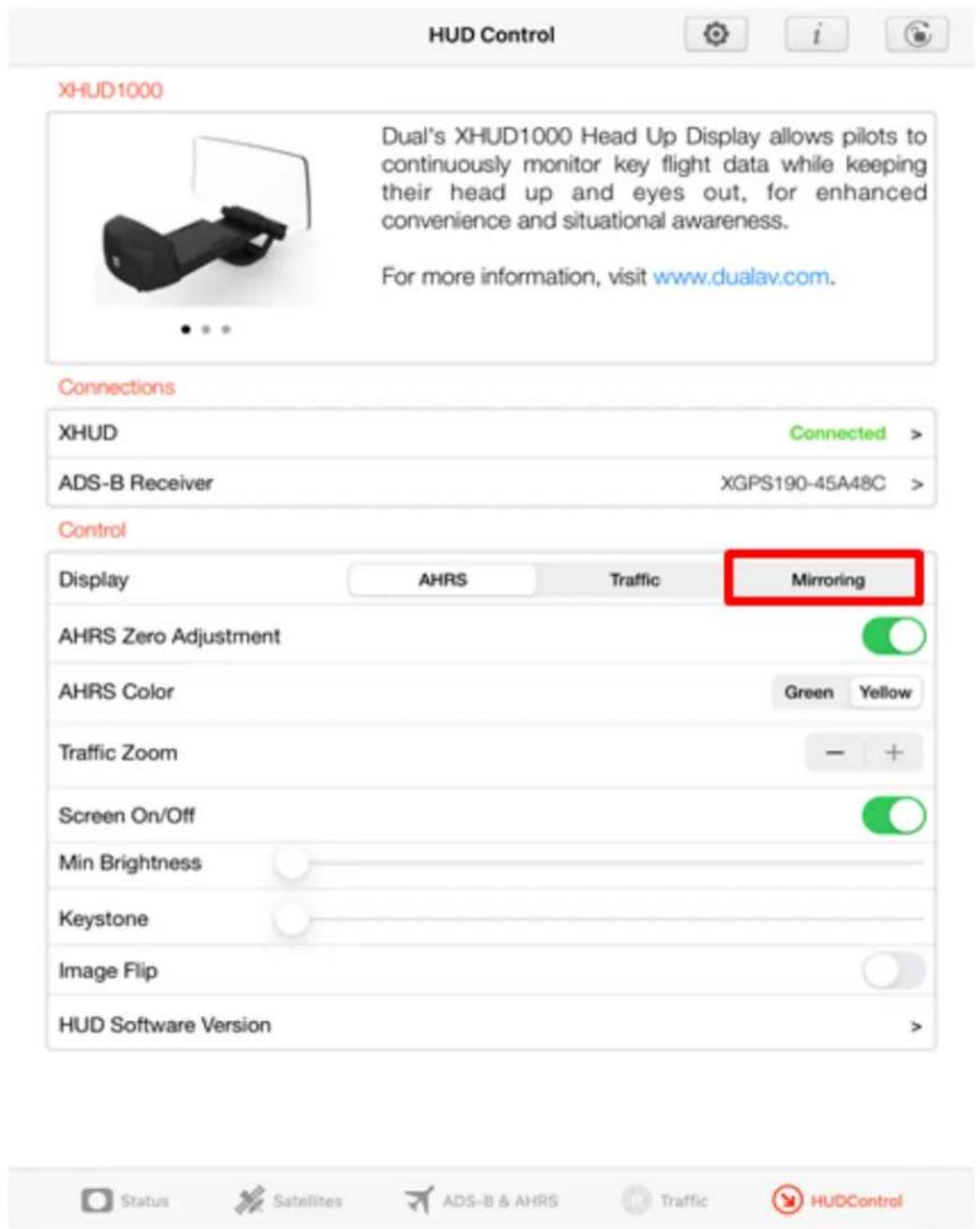
- Once the XHUD1000 is connected to your Apple device, tap Mirroring, and follow steps in pop up screen.

XHUD1000 as Wi-Fi Hotspot
The Wi-Fi Hotspot mode allows XHUD1000 to become the Wi-Fi source.
Follow the steps below to enable the Wi-Fi Hotspot mode.
1) Go to Settings of your Apple device
2) Connect to XHUD1000 under WiFi
3) Use the password below to connect
Password: 87654321
4) Go to Control Center under Settings
5) Press Customize Controls
6) Press Screen Recording to add this feature to your Control Center
7) Press home button to exit
8) Swipe up/down and find the Screen Recording button from your Control Center
9) Hold for 2 seconds and choose Tablet Graphics
10) Press Start Broadcast
OK
+ XHUD1000 as Wi-Fi Hotspot
① Go to Sengs of your Apple device.
② Connect to XHUD1000 under Wi-Fi.
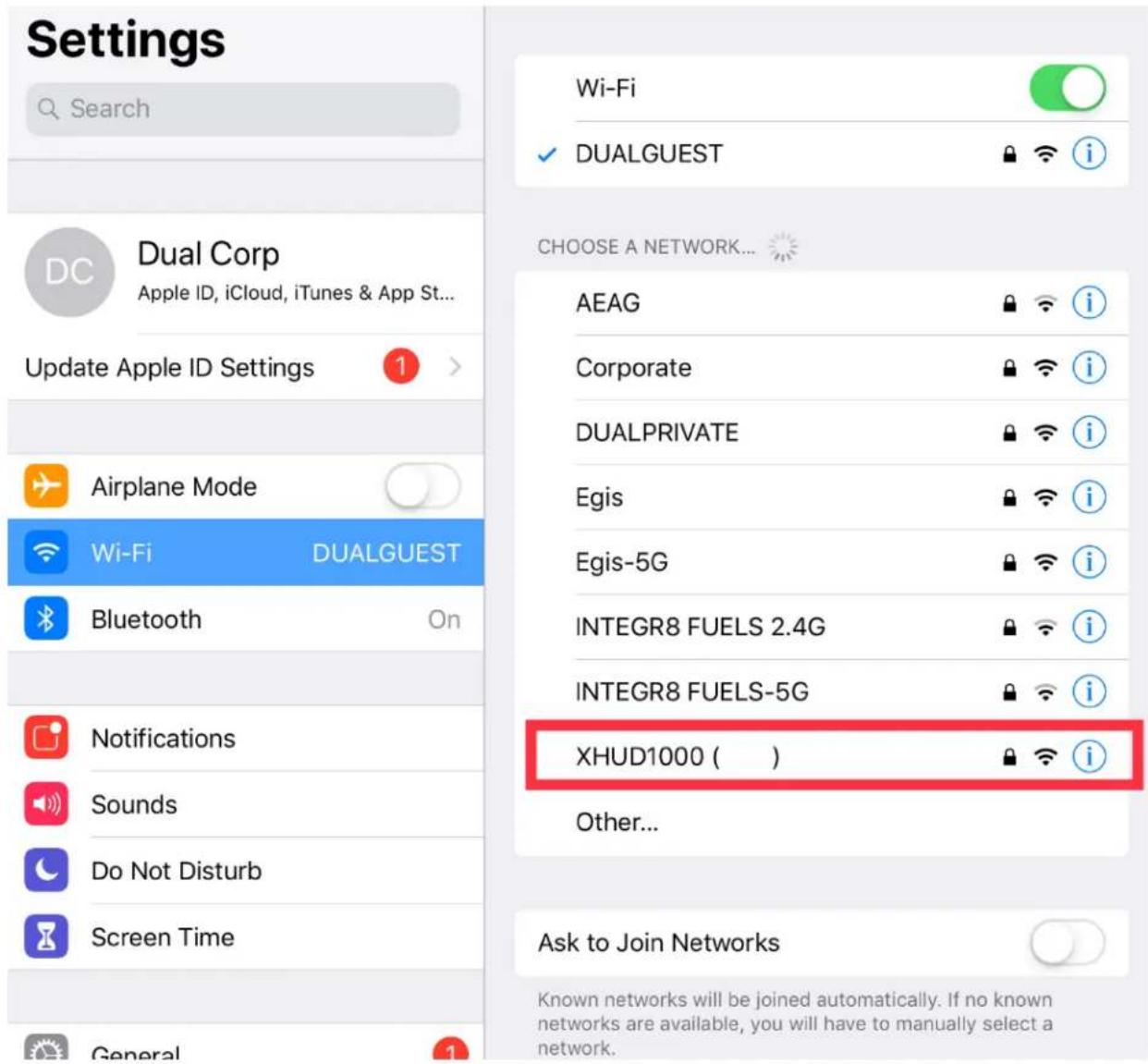
③ Use the password below to connect.
Password: 87654321
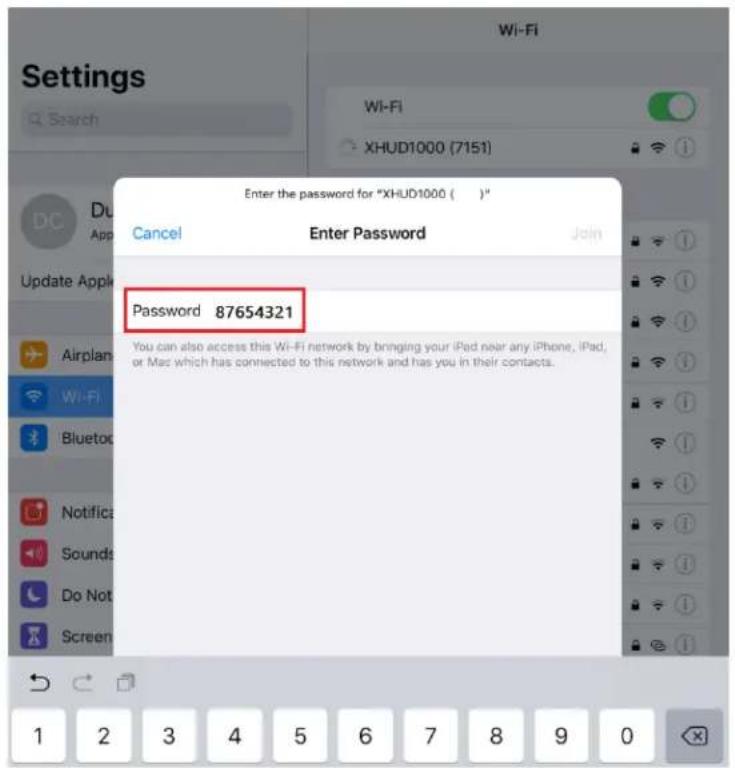
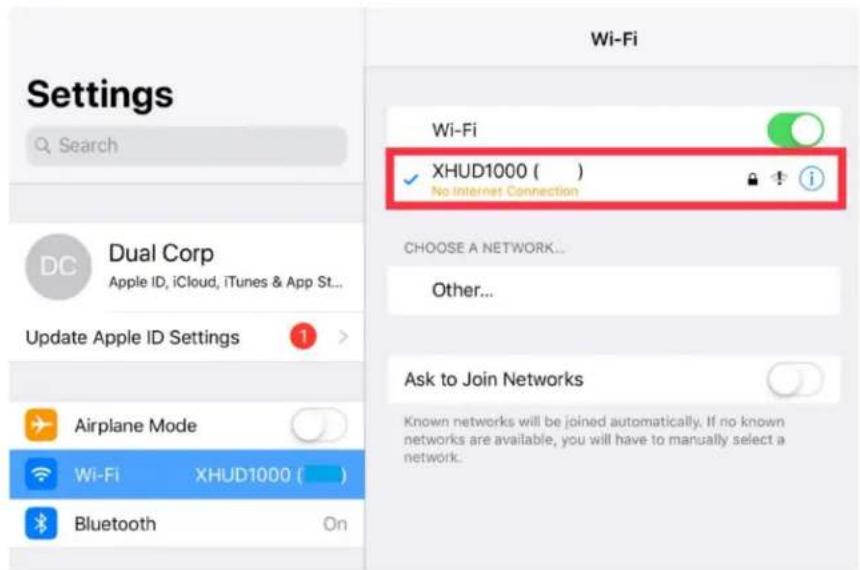
④ Go to Control Center under Sengs.
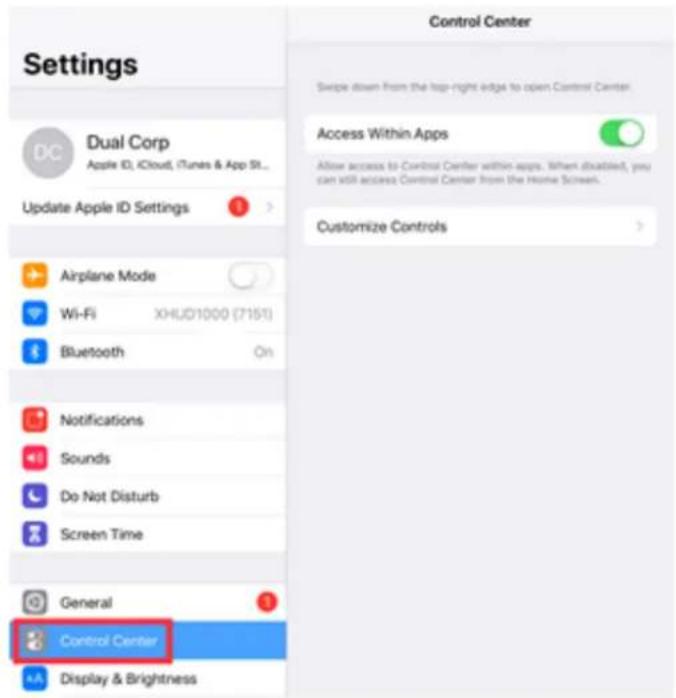
⑤ Press Customize Controls.
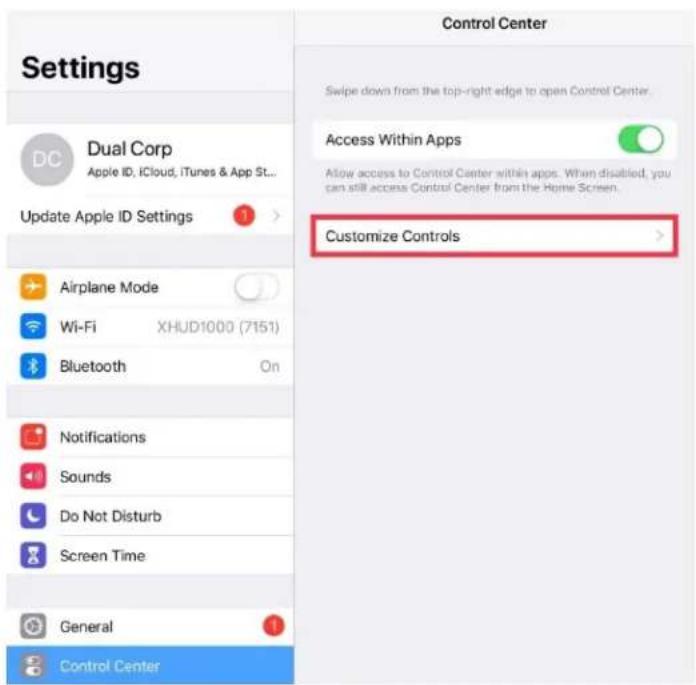
⑥ Press Screen Recording to add this feature to your Control Center.
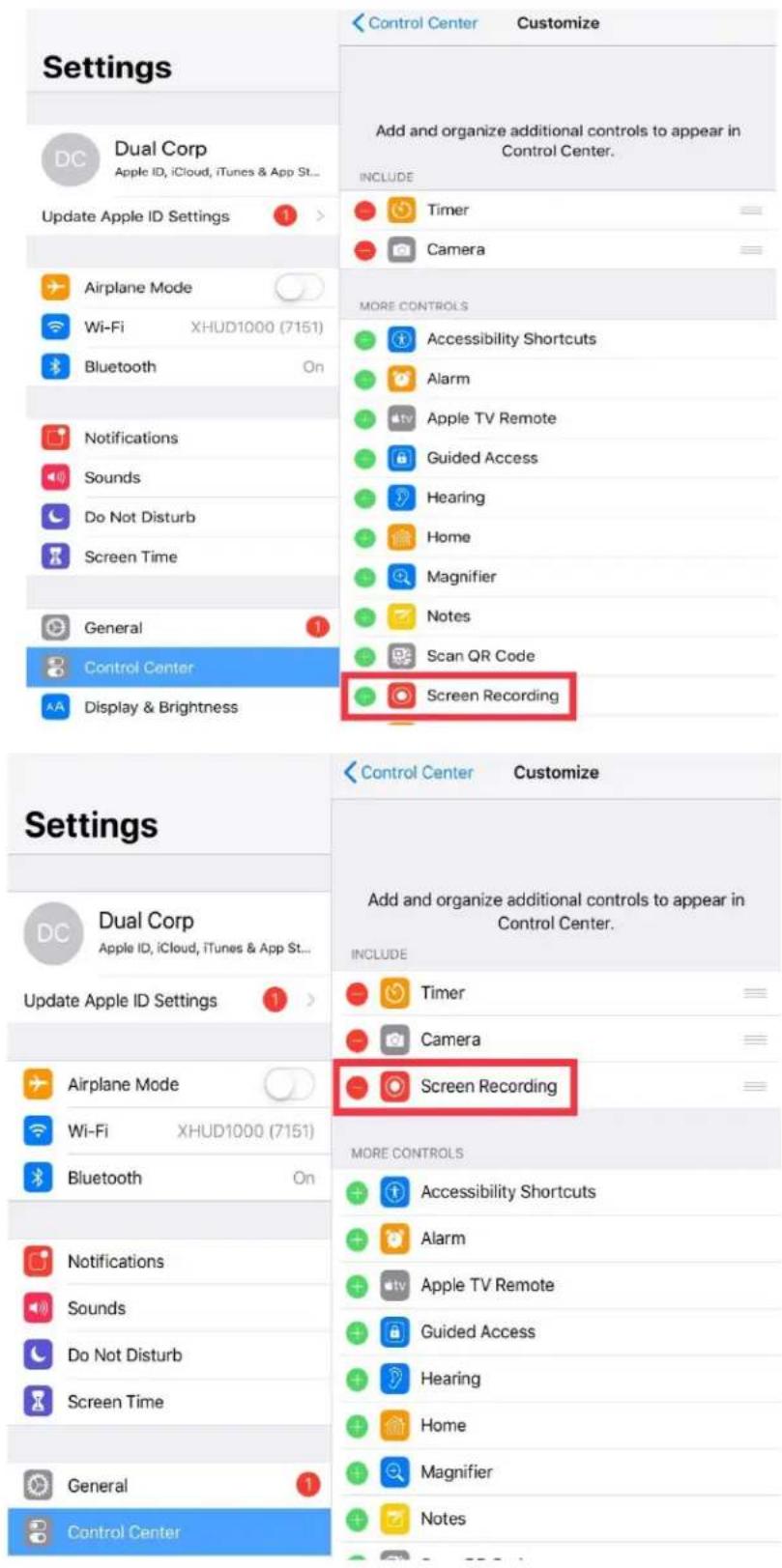
⑦ Press the home buon to exit.
⑧ On iPad, swipe from upper right corner to lower le corner of screen, and nd the Screen Recording buon from your Control Center. If using iPhone, swipe from boom to top of screen to do the same.
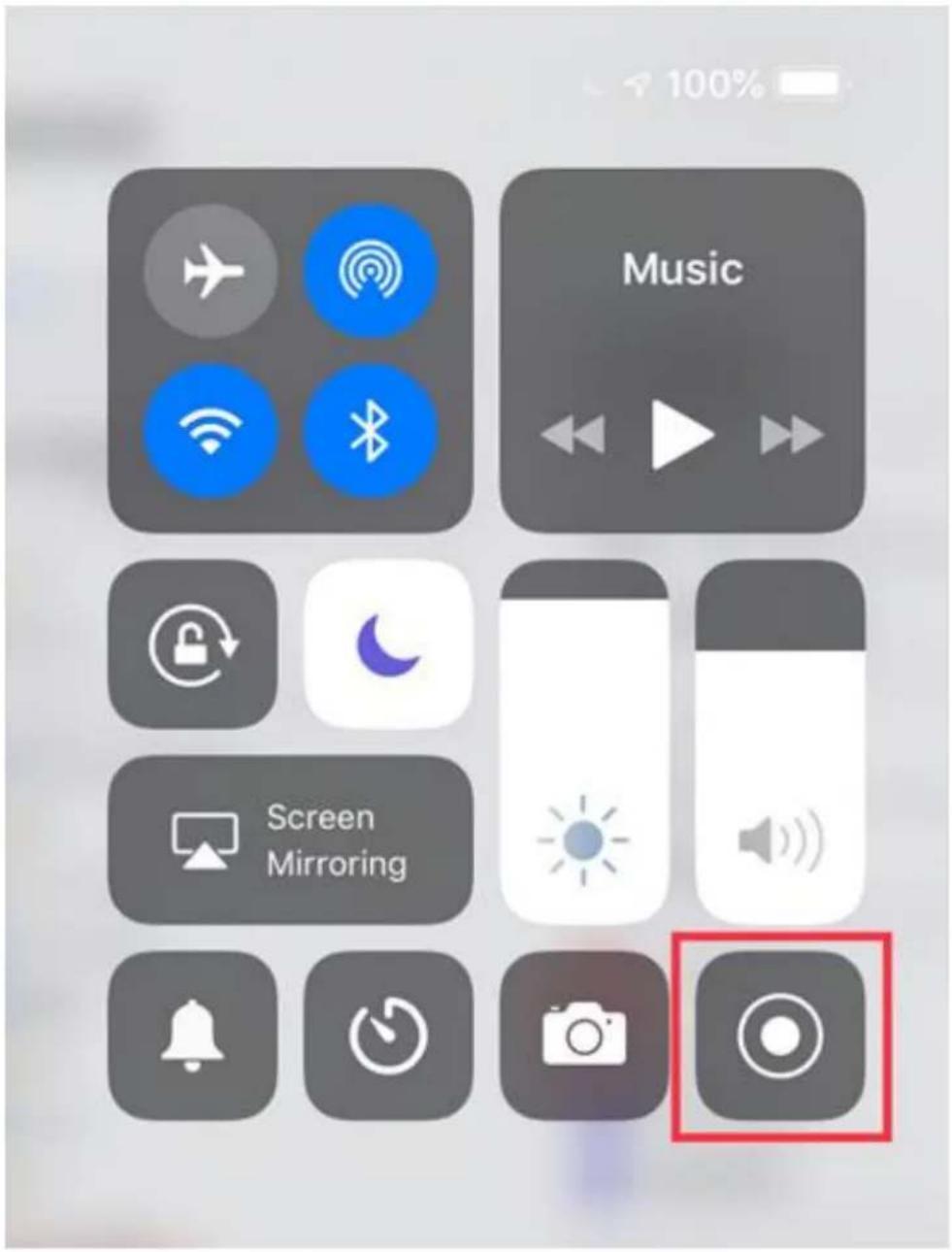
⑨ Firmly press and hold the screen recording buon for 2 seconds and choose Tablet Graphics.
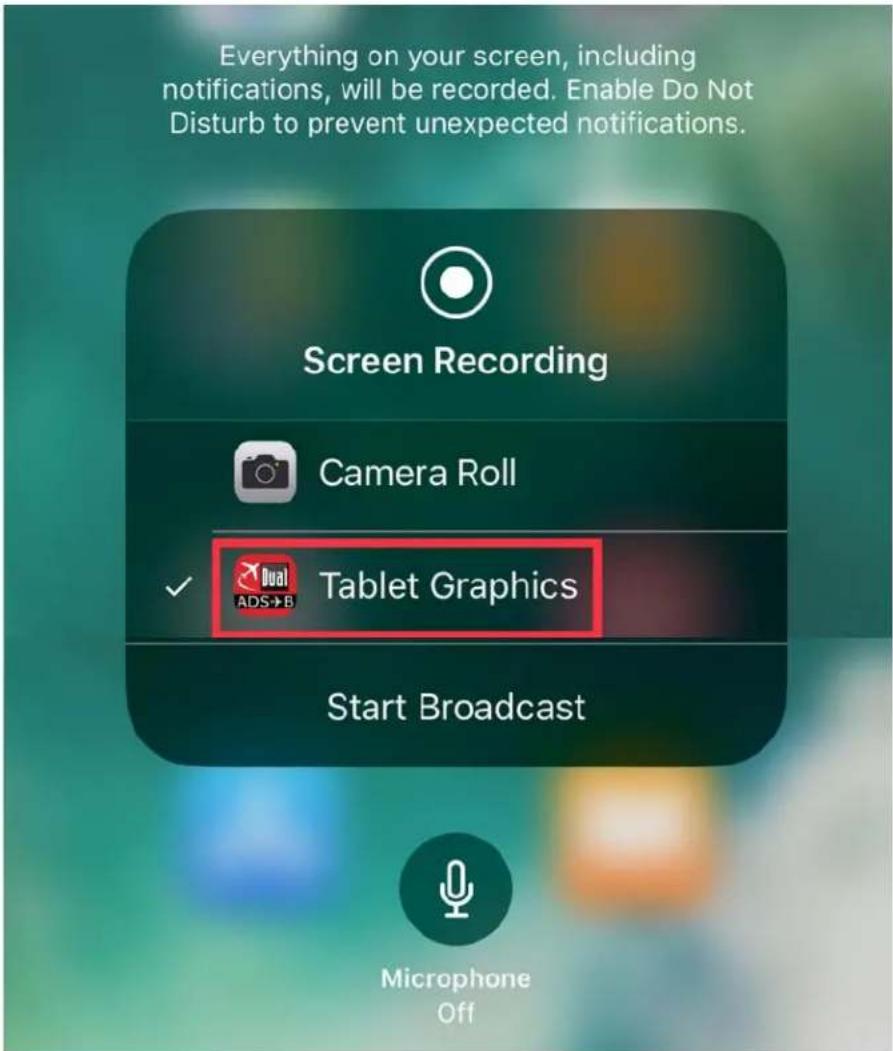
⑩ Select Tablet Graphics and Press Start Broadcast.
- Once you have completed these steps, you should be able to conrm that the screen from your Apple device is being mirrored to the XHUD1000.
OPTION B) Mirroring with XHUD1000 as Wi-Fi Client
- Allows the XHUD1000 to connect to the Wi-Fi hotspot of your device (e.g. WiFi portable receivers such as Stratus, or panel avionics that transmits its data on Wi-Fi).
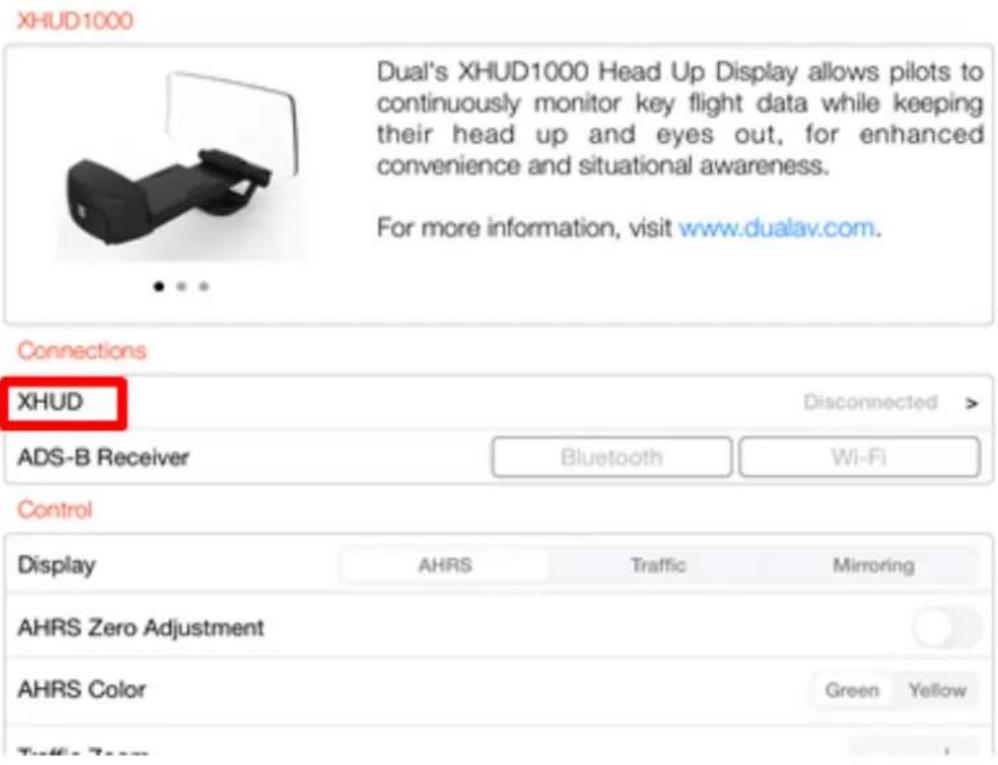
• Make sure your Apple device is already connected to the Wi-Fi hotspot of your device before you move onto the next steps. - Tap XHUD, and choose the XHUD(****) to connect HUD to your Apple device via Bluetooth.
4:24 PM Thu Mar 21
100%
HUD Control
XHUD1000 ( )
- Once the XHUD1000 is connected to your Apple device, tap Mirroring, and follow steps in pop up screen.
For more information, visit www.dualav.c
XHUD1000 as Wi-Fi Client
The Wi-Fi Client mode allows XHUD1000 to connect the Wi-Fi network hosted by your device (e.g. portable GPS receivers, panel avionics, etc.)
Follow the steps below to enable the Wi-Fi Client mode.
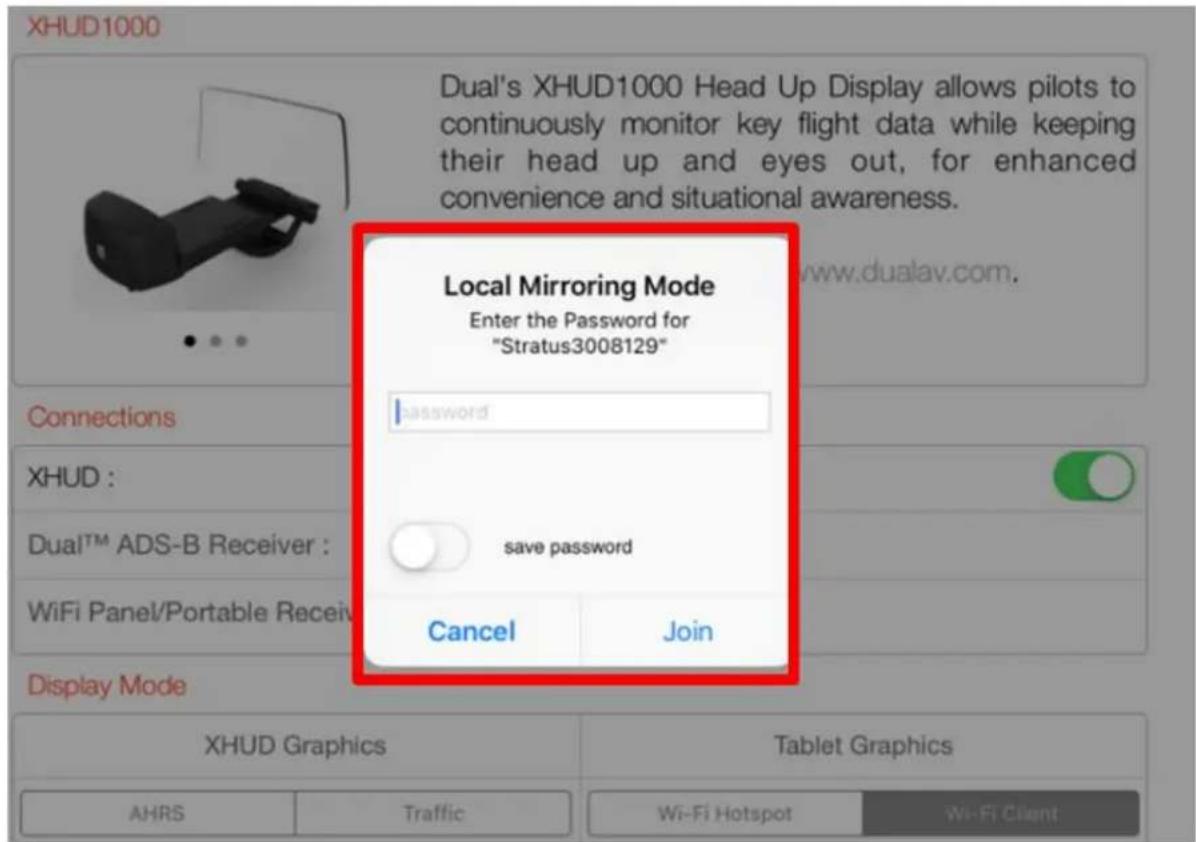
1) Read through the below steps first, then press OK to type in the password provided by your device. This will allow XHUD1000 to join the Wi-Fi network.
2) After connecting to the Wi-Fi network, go to Control Center under Settings 3) Press Customize Controls
4) Press Screen Recording to add this feature to your Control Center 5) Press the home button to exit
6) Swipe up/down and find the Screen Recording button from your Control Center 7) Hold for 2 seconds and choose Tablet Graphics 8) Press Start Broadcast
OK
① If your device requires a password, enter it, then press Join to allow XHUD1000 to join the Wi-Fi network. If your device is a Stratus 3 or Stratux, no password is required, and you can simply press Join.
② Aer connecng to the Wi-Fi network, go to Control Center under Sengs.
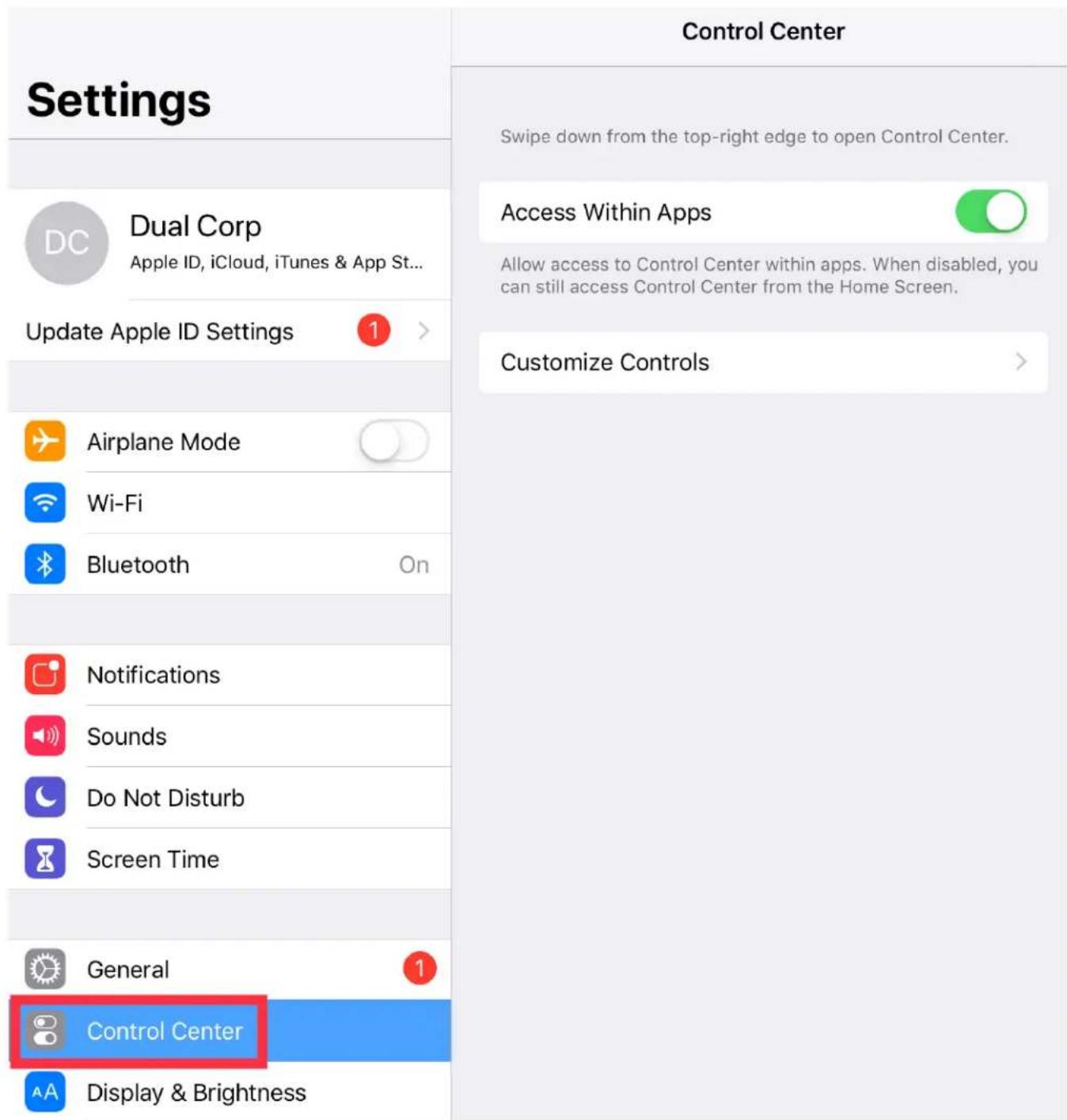
③ Press Customize Controls.
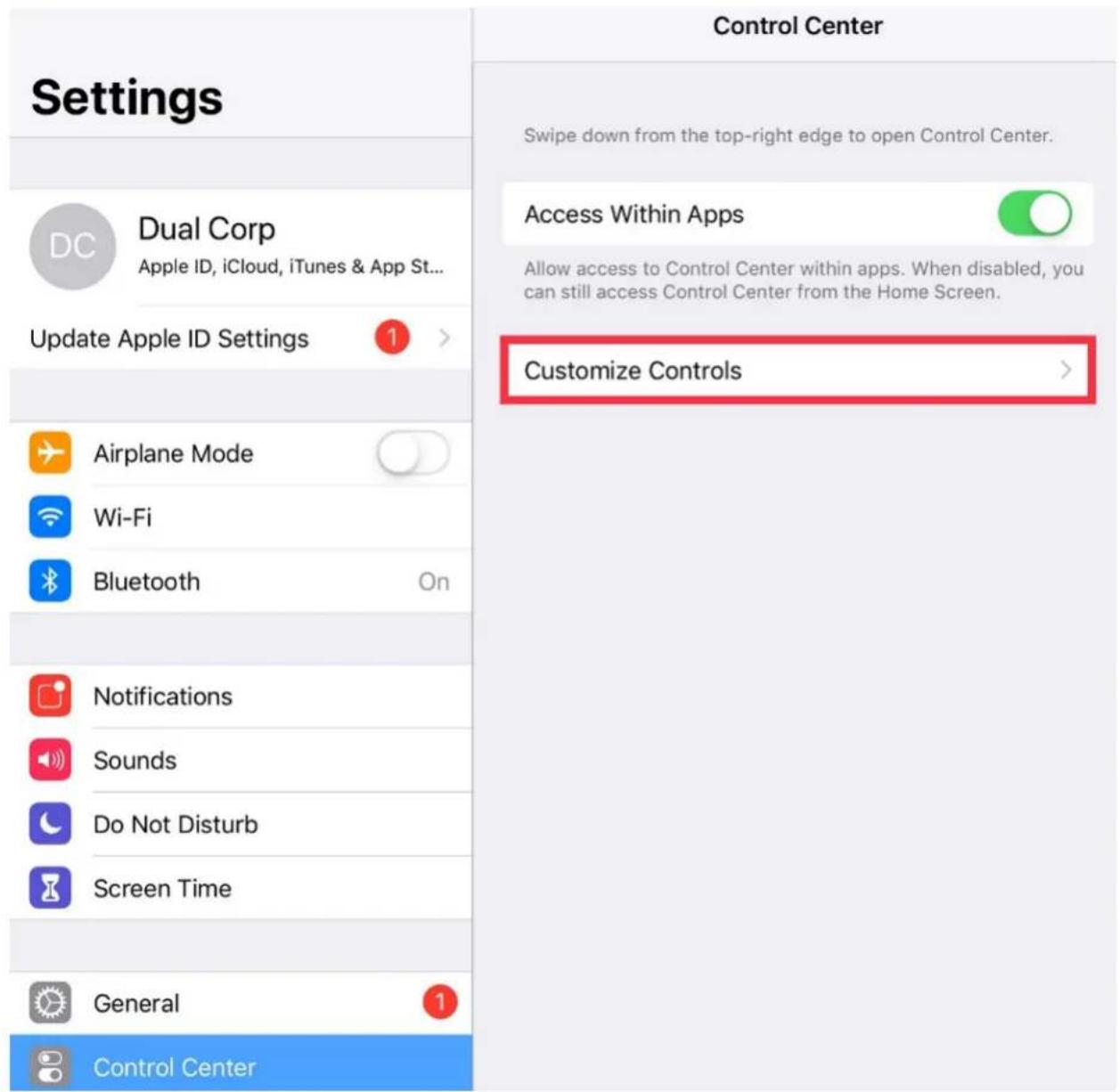
④ Press Screen Recording to add this feature to your Control Center.
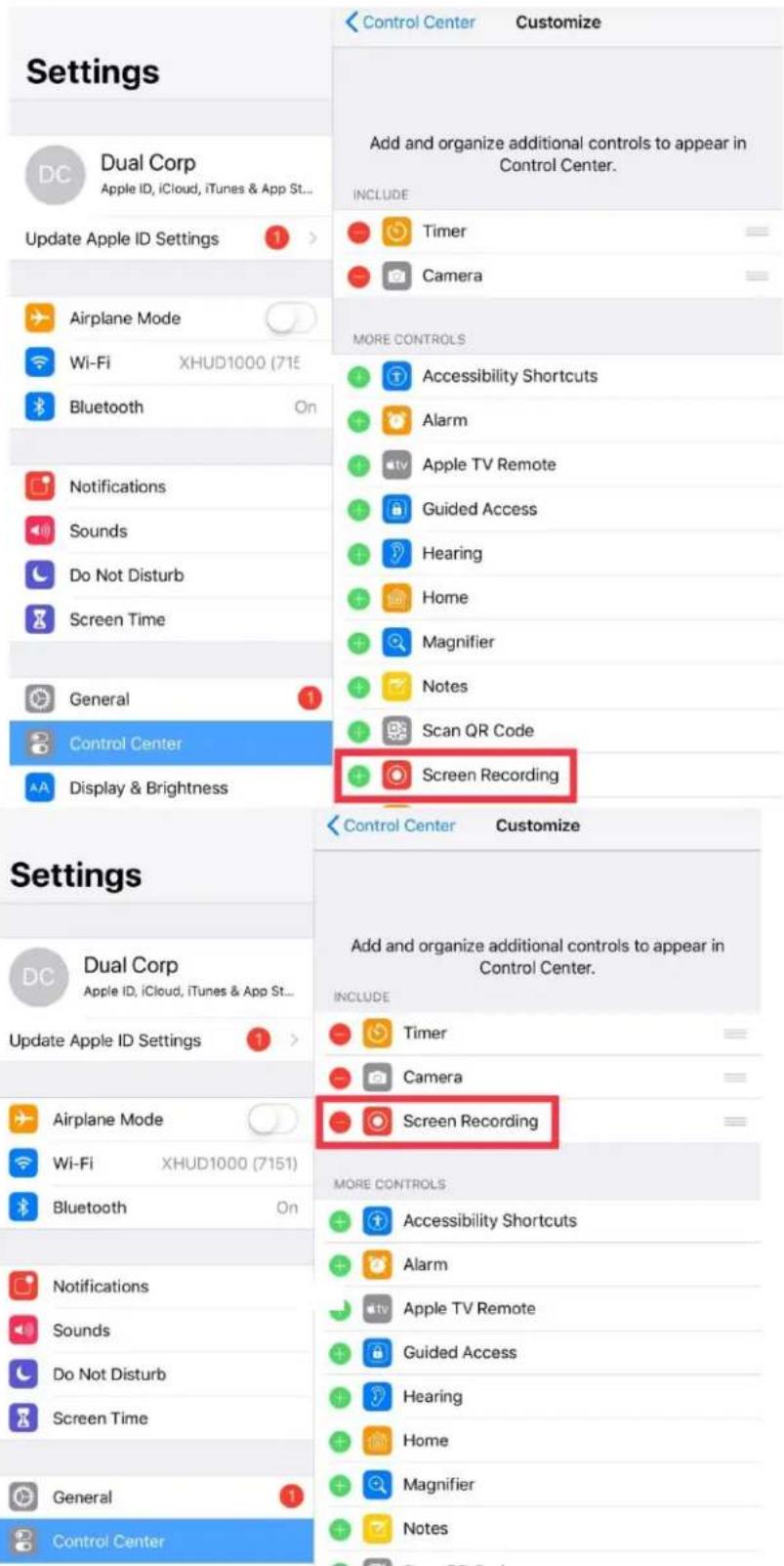
⑤ Press the home buon to exit.
⑥ On iPad, swipe from upper right corner to lower le corner of screen, and nd the Screen Recording buon from your Control Center. If using iPhone, swipe from boom to top of screen to do the same.
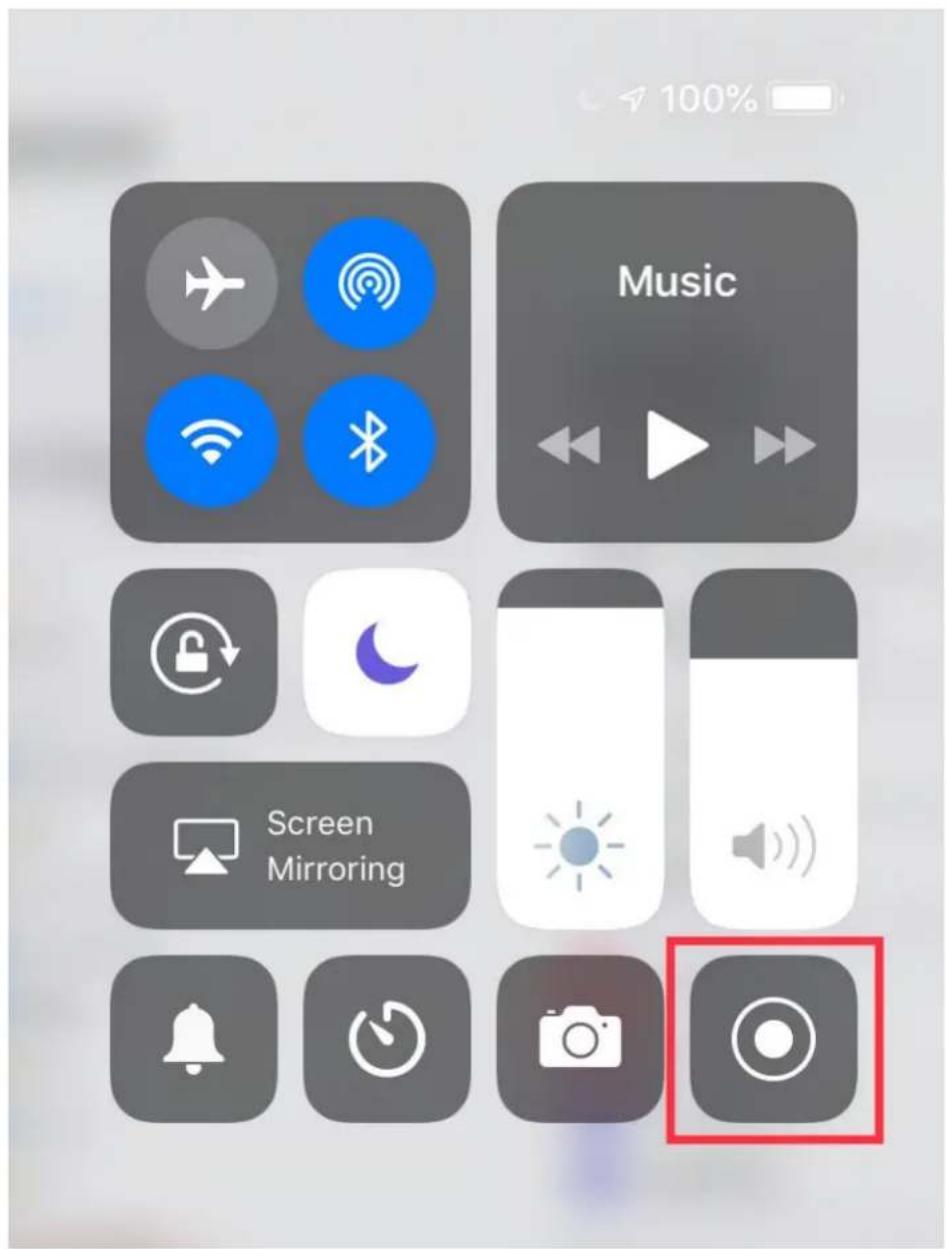
⑦ Firmly press and hold the screen recording buon for 2 seconds and choose Tablet Graphics.
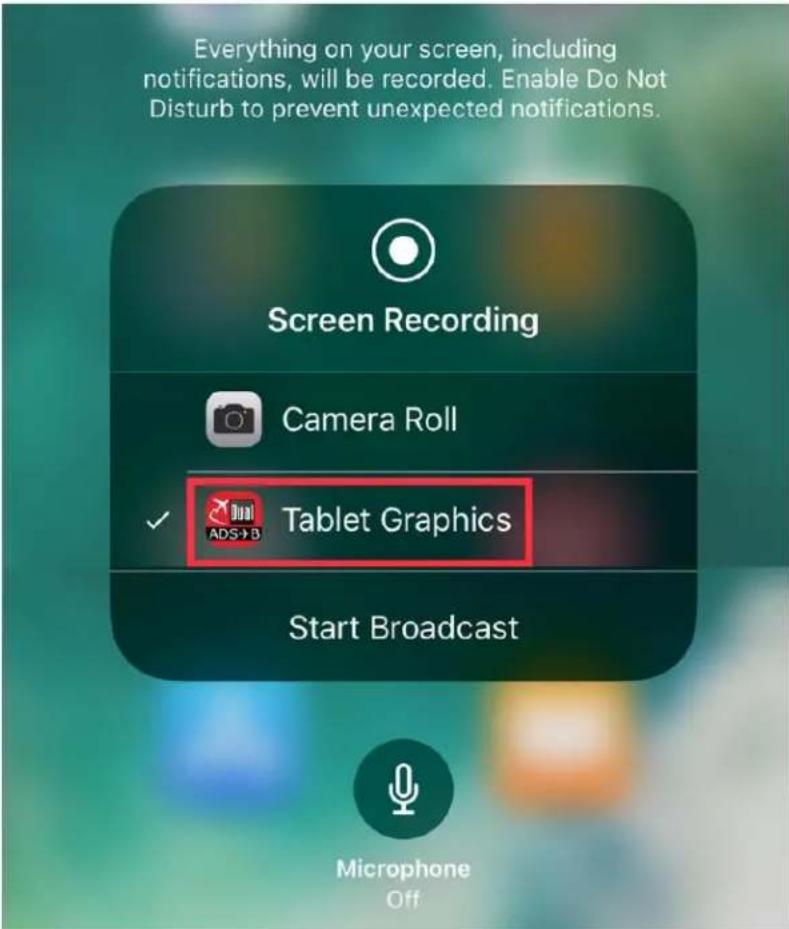
⑧ Select Tablet Graphics and Press Start Broadcast.
- Once you have completed these steps, you should be able to conrm that the screen from your Apple device is being mirrored to the XHUD1000.
Firmware Update with Apple Devices
- Connect the HUD with Apple device running ADS-B Status Tool.
- DO NOT connect portable GPS receiver when updang HUD rmware.
• DO NOT unplug HUD during rmware update process. - On ADS-B Status tool, press 'HUD Control' tab in lower right.
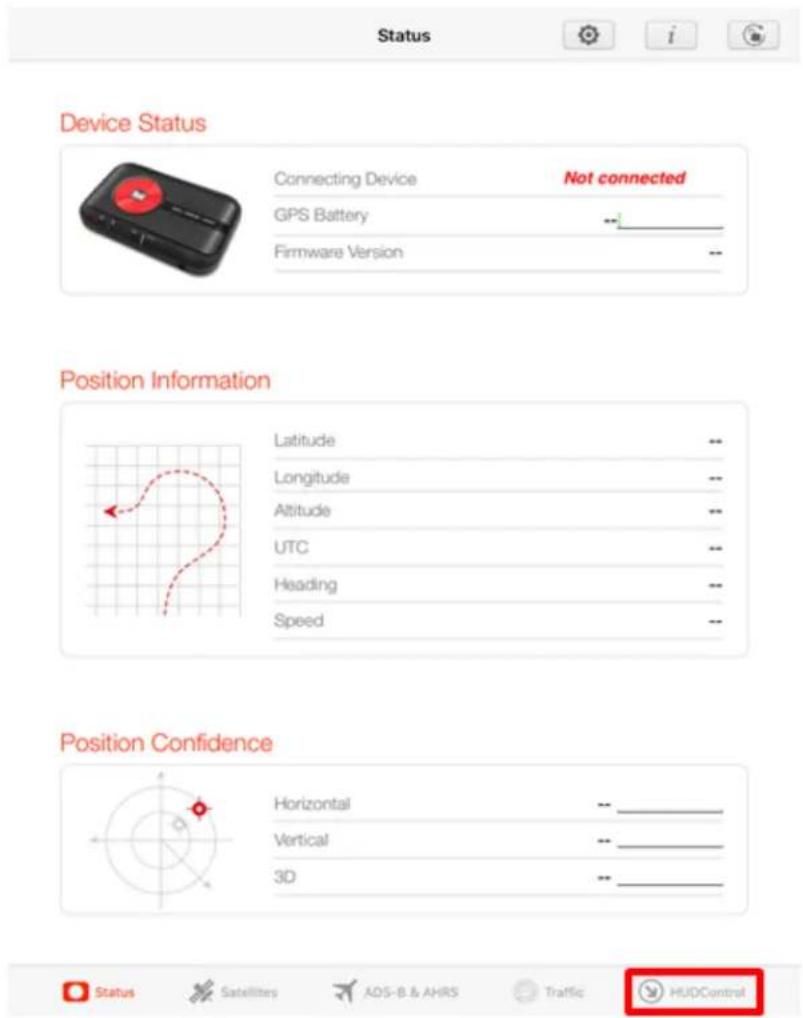
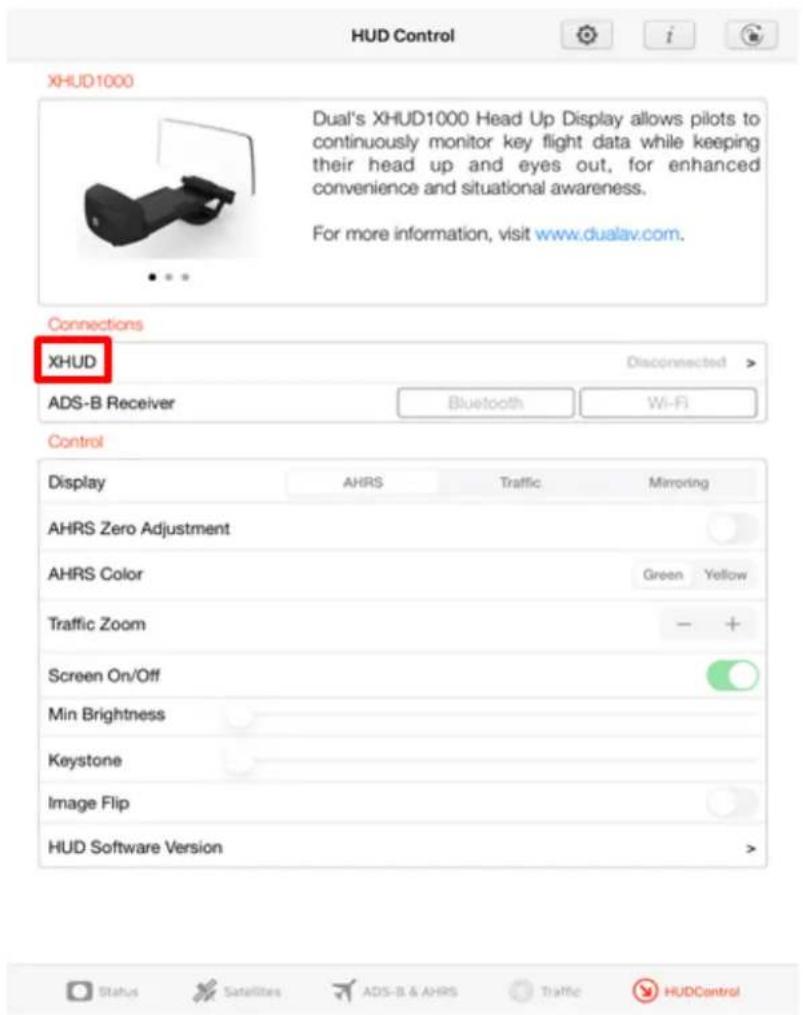
Tap XHUD, and choose the XHUD(****) to connect HUD to your Apple device.
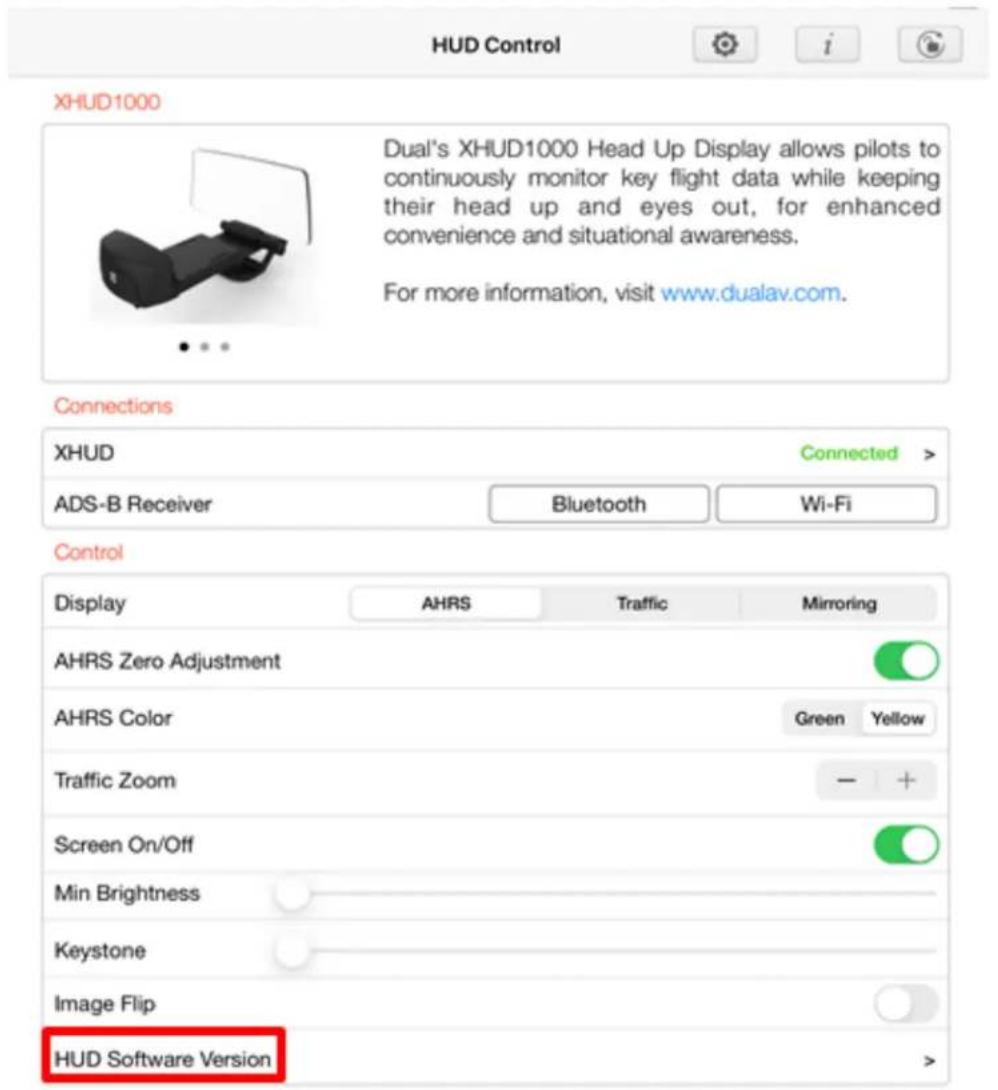
Check the current version by pressing 'HUD Soware Version'
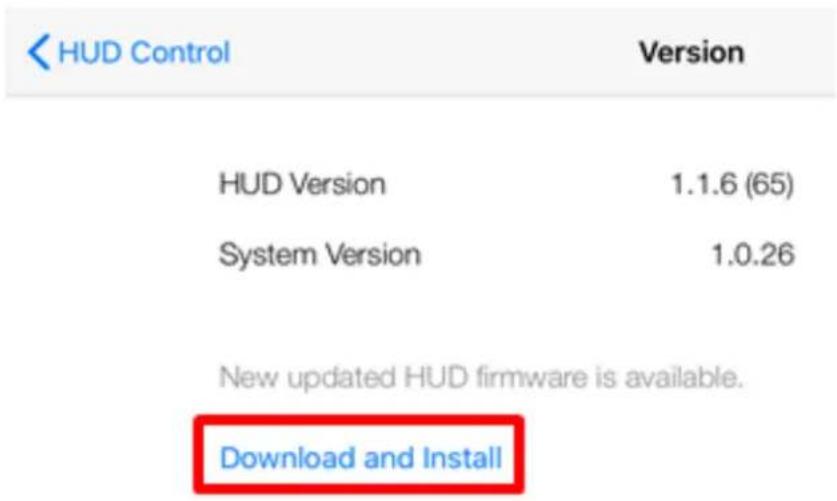
Tap ‘Download and Install’, if there is a new version available. Follow the instrucons on your mobile device. Process may take several minutes.
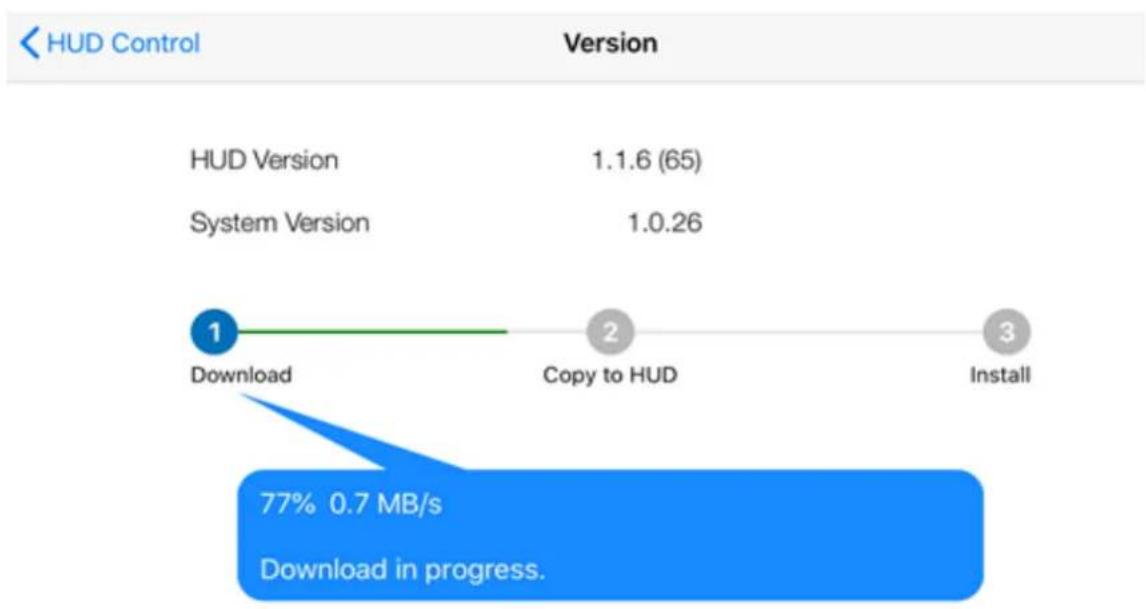
other
| Stage | Value | | ------------- | ----------- | | Download | 1.1.6 (65) | | System Version| 1.0.26 | | Install | 77% 0.7 MB/s |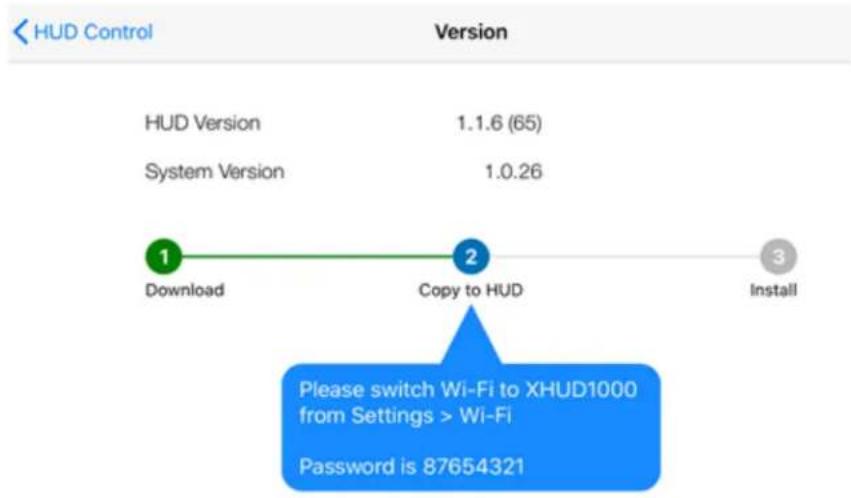
line
| Step | Value | | ---- | --------- | | Download | 1.1.6 (65) | | System Version | 1.0.26 | | Install | 3 |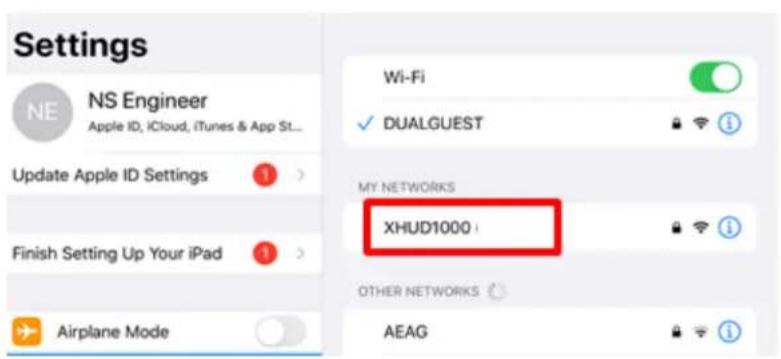
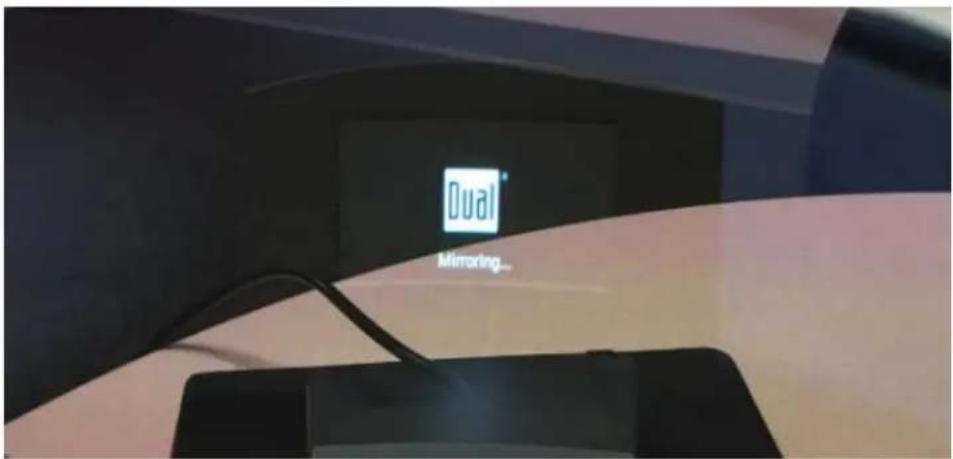
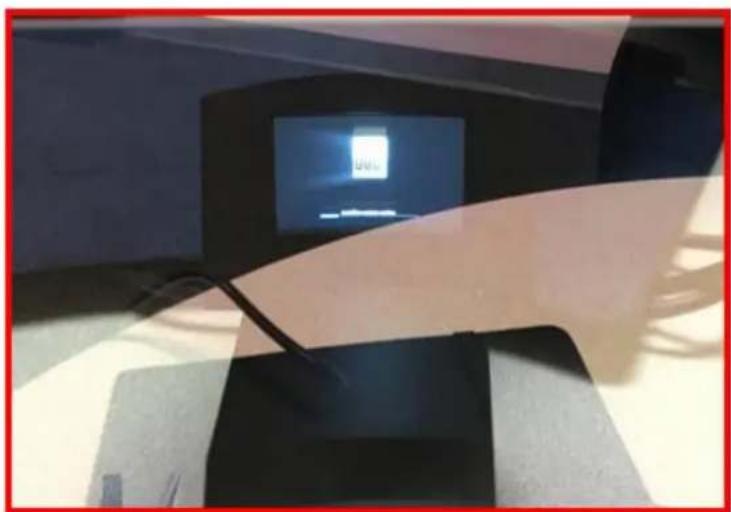
HUD screen changes to Mirroring status.
line
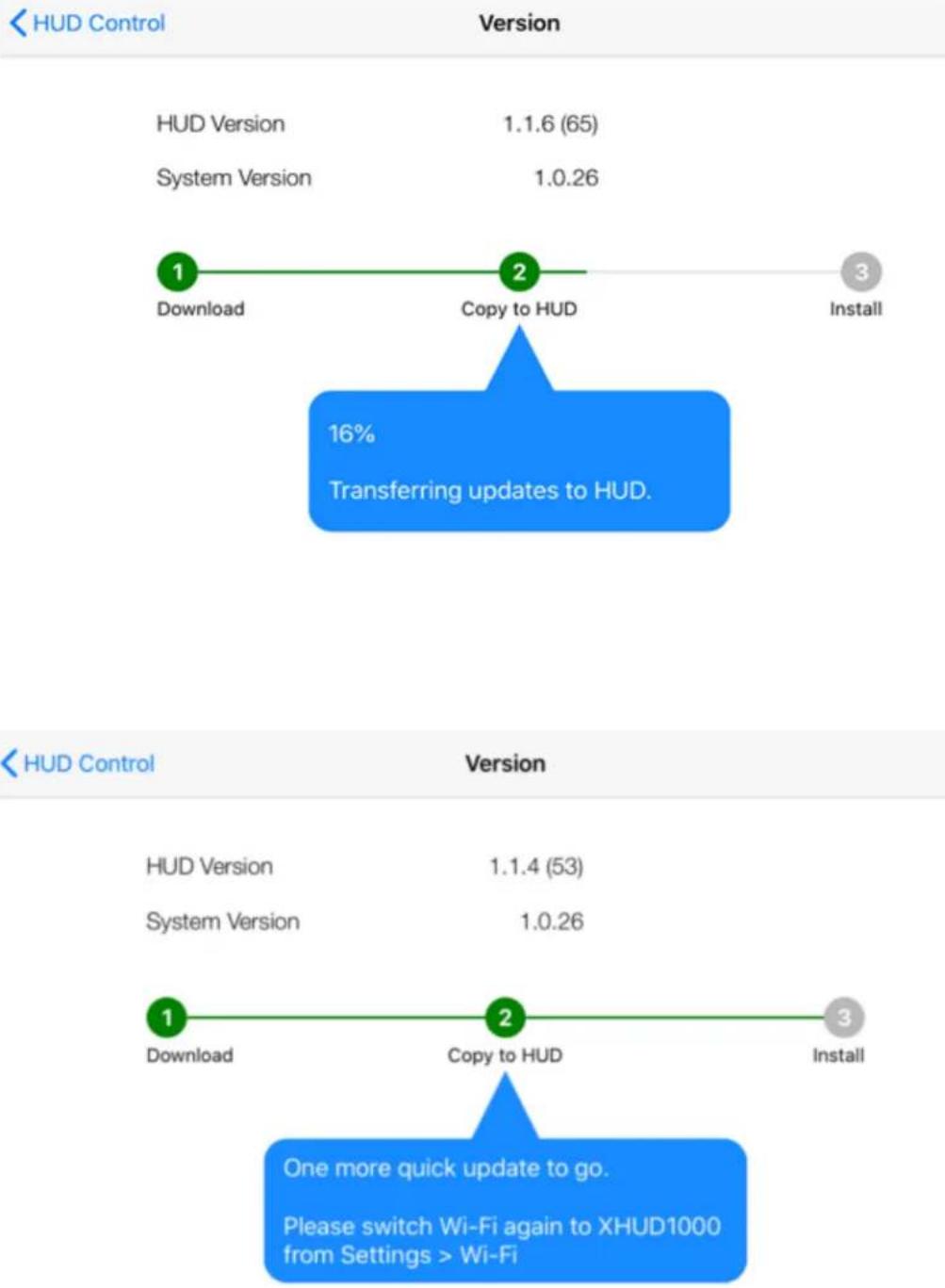
| HUD Version | Download | Copy to HUD | Install | |-------------|----------|-------------|---------| | HUD Version | 1.1.6 (65) | | | | System Version | 1.0.26 | | | | 16% Transferring updates to HUD. | | | | | 1 | | | | | 2 | | | | | 3 | | | | | 1 more quick update to go. Please switch Wi-Fi again to XHUD1000 from Settings > Wi-FiHUD Control
Version
HUD Version 1.1.6 (65)
System Version 1.0.26
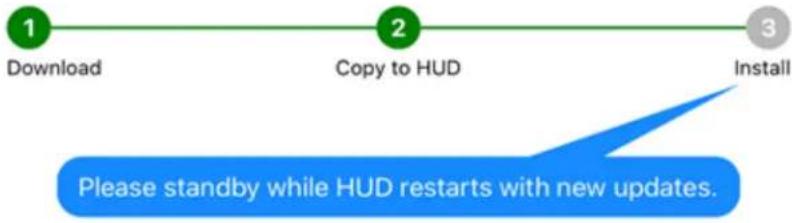
flowchart
graph LR
    A["1 Download"] --> B["2 Copy to HUD"]
    B --> C["3 Install"]
    D["Please standby while HUD restarts with new updates."] --> E["Feedback Loop"]
< HUD Control
Version
HUD Version 3.0.1 (85)
System Version 1.1.0
HUD is running up to date firmware.
Setup with Dual ADS-B Receivers & Android Device
1) XGPS ADS-B Status Tool App for HUD Control
- Download the XGPS ADS-B Status Tool app from Google Play Store.

- The HUD Control tab from the XGPS ADS-B Status Tool app enables mulple features that control the XHUD1000.
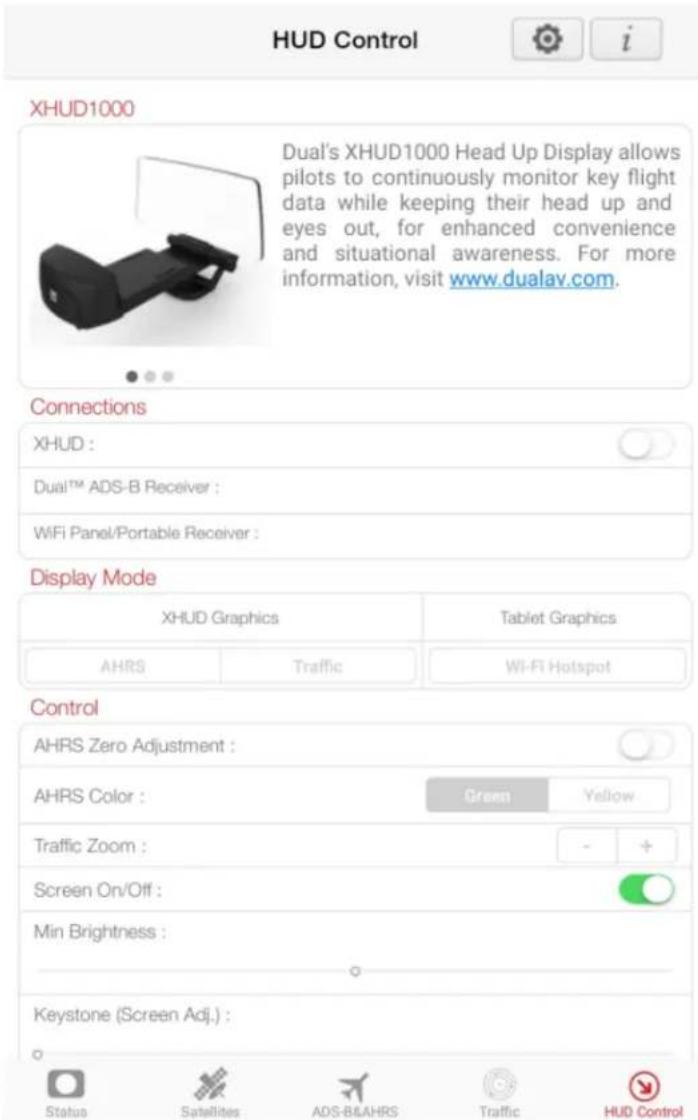
2) Bluetooth Connecon for XHUD Graphics Modes (AHRS & Trac)
- Prior to this step, it's important to make sure the XGPS190 (or one of the other Dual ADS-B receivers) and your Android device are powered on, and the XHUD1000 is sll le powered o.
- Go to Sengs → Connecons from your Android device, and turn on Bluetooth.
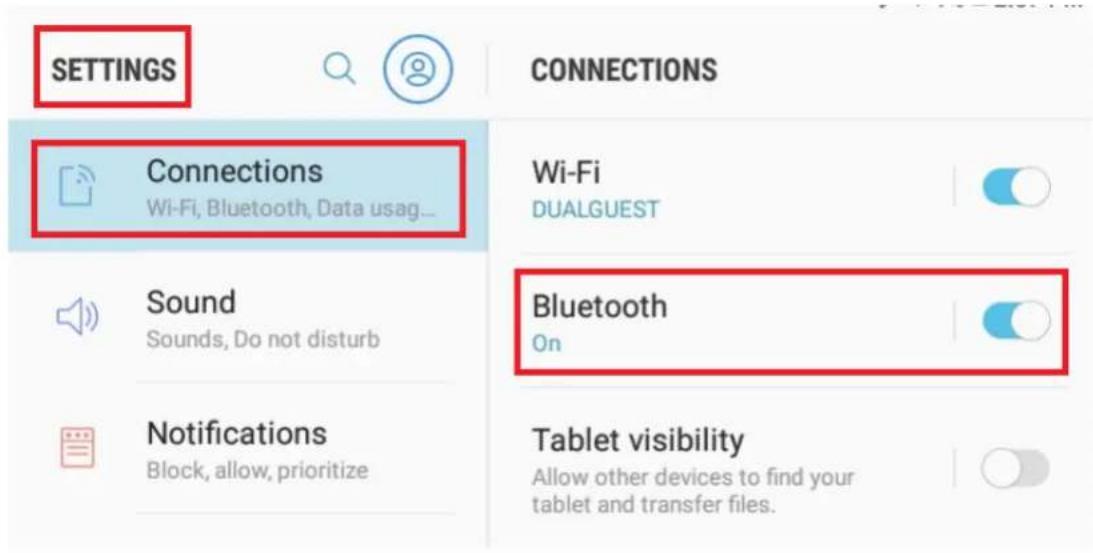
- Choose the XGPS190 under the Bluetooth available devices list to pair the XGPS190 with your Android device.
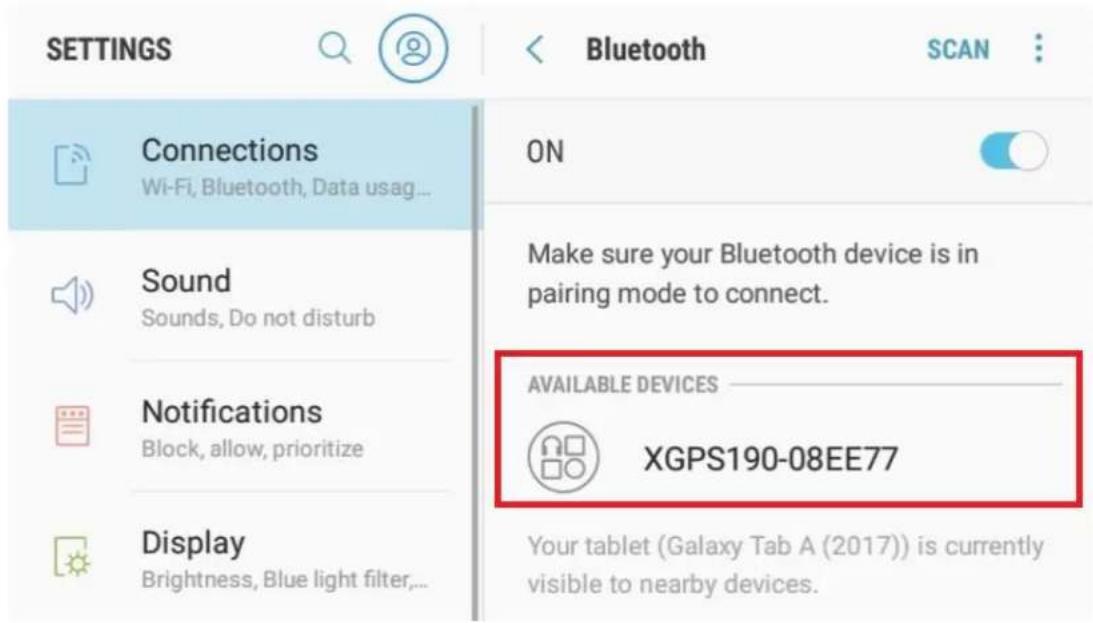
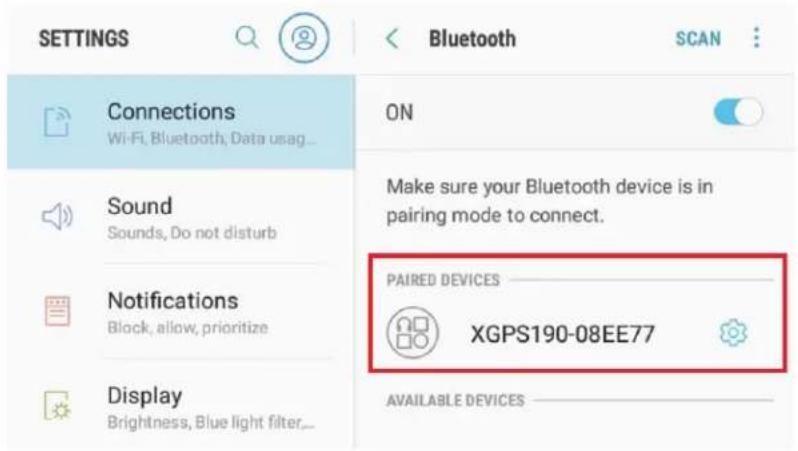
- Once the XGPS190 and your Android device are paired, power on the XHUD1000 by plugging in the supplied USB cable.
- Open the XGPS ADS-B Status Tool app, and go to the HUD Control tab.
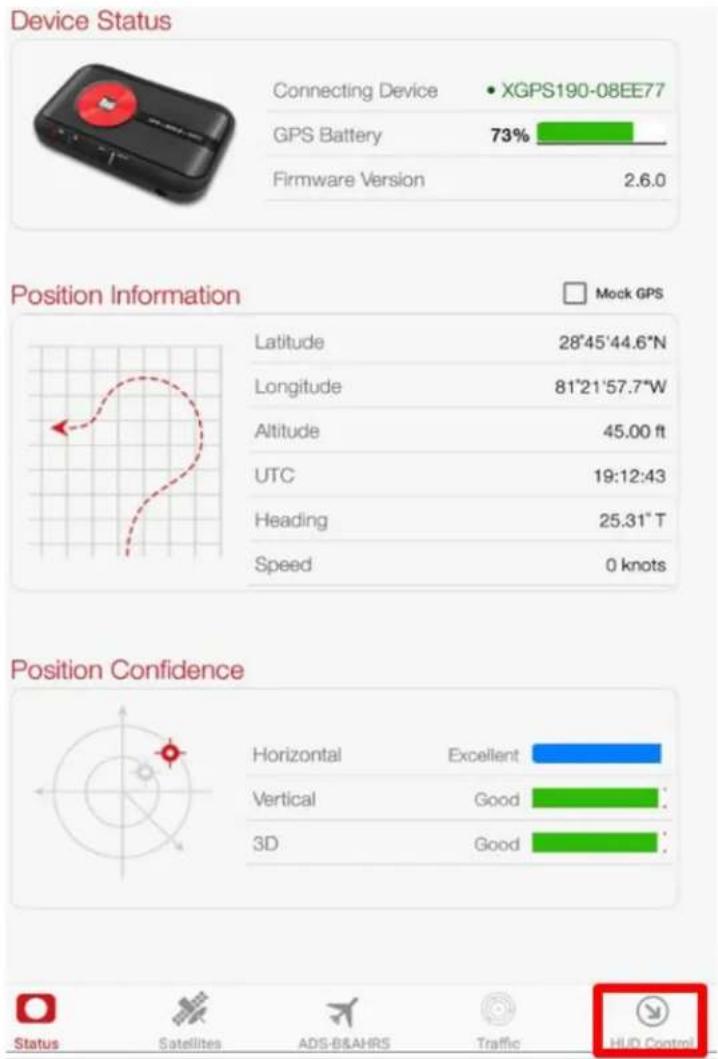
- Tap XHUD and choose the XHUD(****) to pair the XHUD1000 with your Android device.
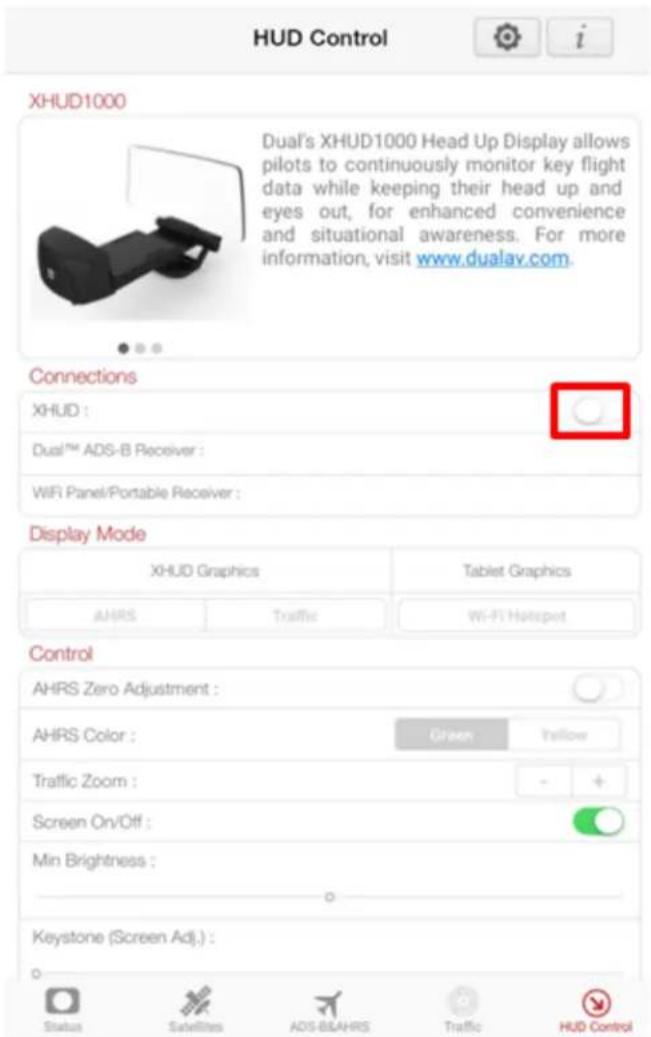
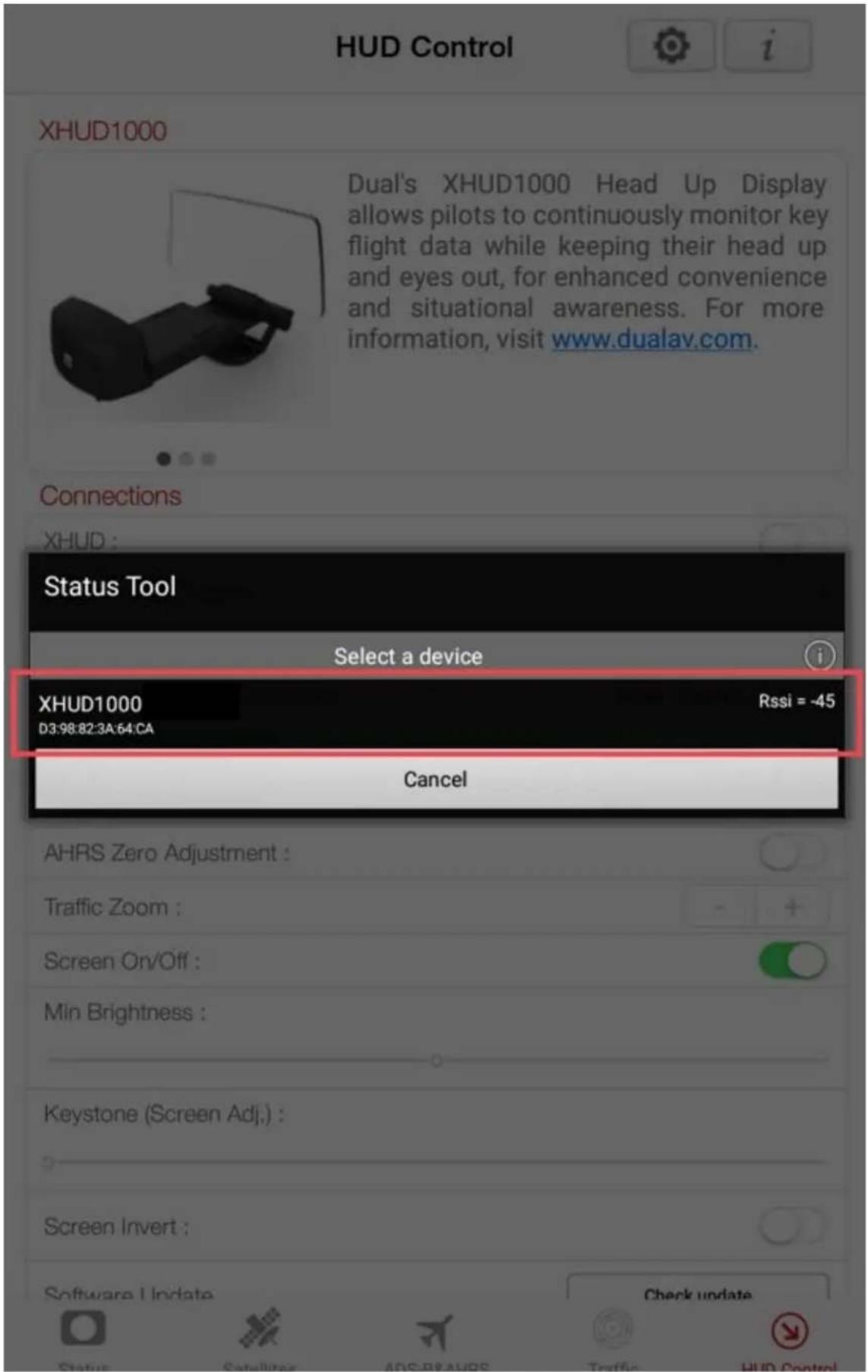
- Tap the Dual ADS-B Receiver box and choose the XGPS190. Once conncon is successfully made, Bluetooth logo on the le side corner of the XHUD1000 screen will stop blinking.
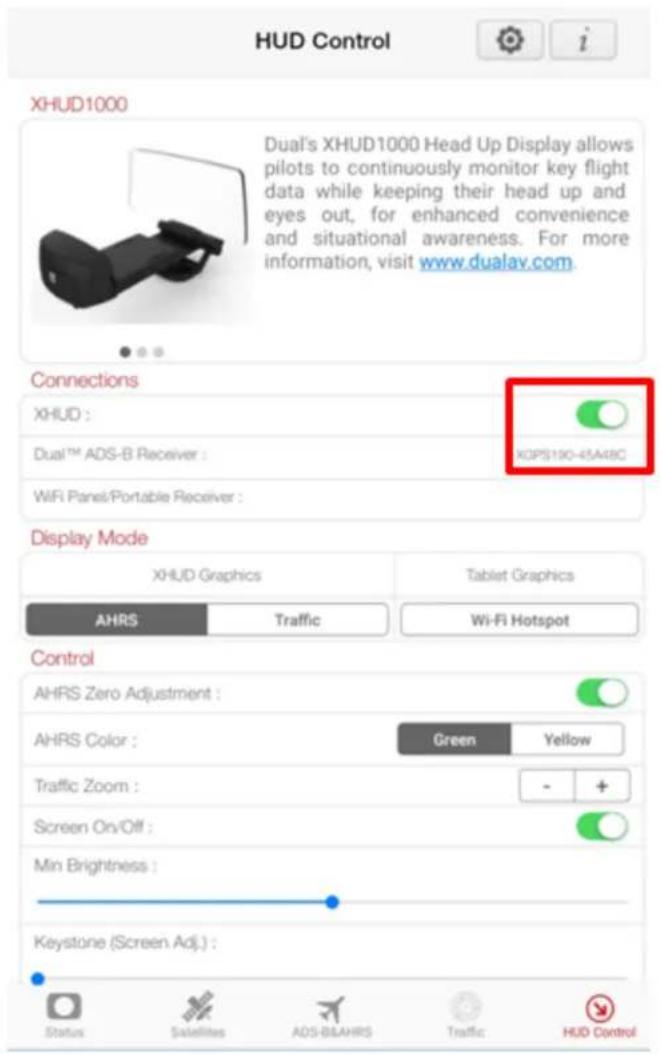
- To conrm conncon between the XHUD1000 and the XGPS190, try switching between AHRS and Trac modes, or try dierent controls from the HUD Control tab. The XHUD1000 display should respond to the controls of your choice accordingly.
- You have now successfully made Bluetooth conncon between the XHUD1000, the XGPS190, and your Android device.
Note: Once conncon is made between XHUD1000, XGPS190, and Android device, there are several choices of EFB apps that can run on your Android device. See Dual's web site for a complete list of apps compatible with XGPS190.
Setup with Stratus 3 & Android Device
1) Connect Stratus 3 to mobile device per Stratus 3 instrucon manual.
2) ADS-B Status Tool App for HUD Control
- Download the XGPS ADS-B Status Tool app from Google Play Store.
- Open the XGPS ADS-B Status Tool app, and go to the HUD Control tab.
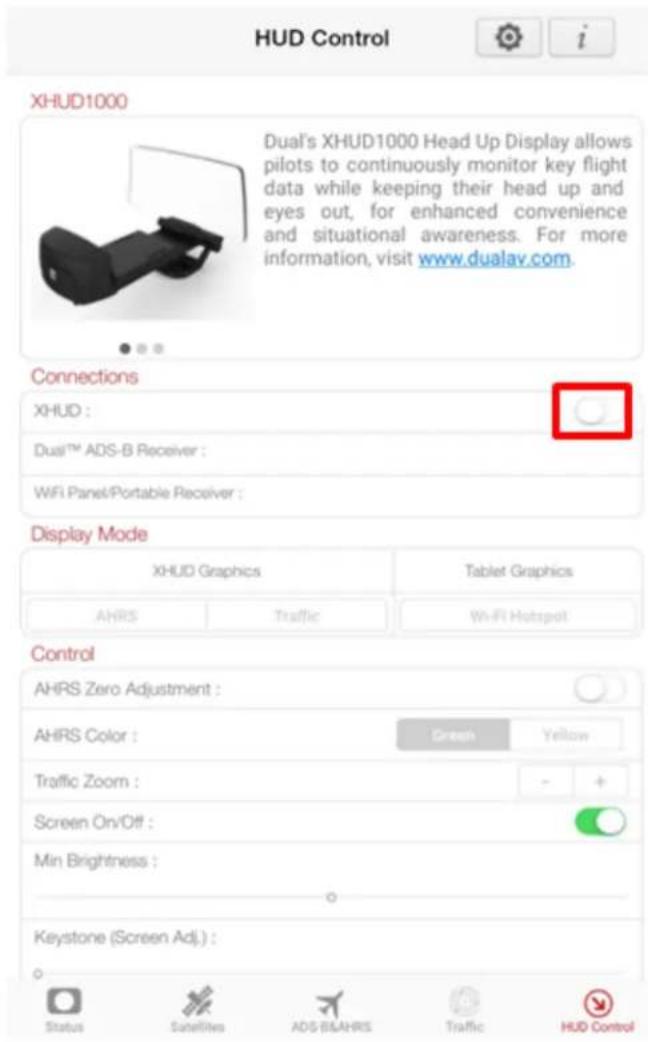
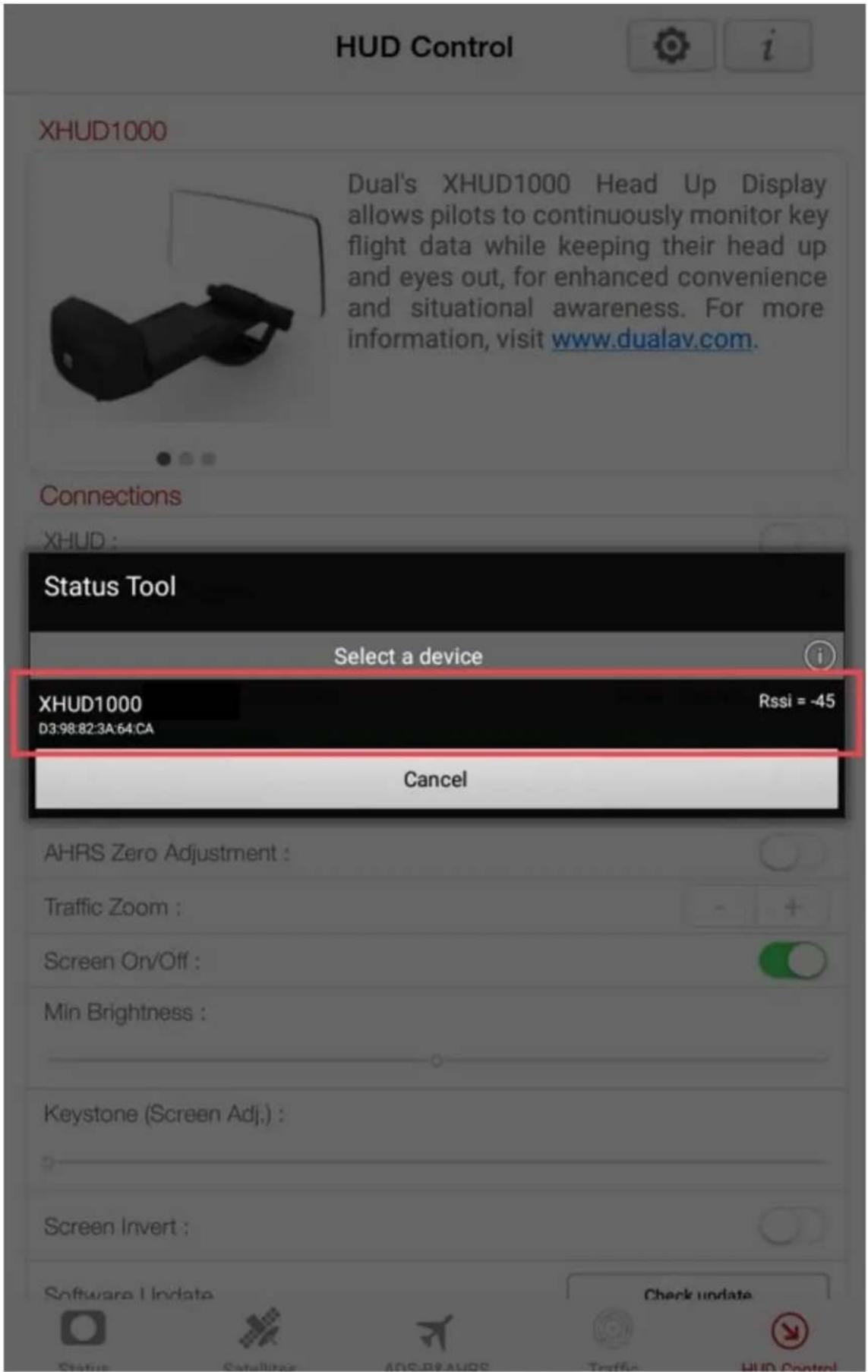
- Tap the XHUD toggle buon and choose the XHUD1000(****) to pair the XHUD1000 with your Android device.
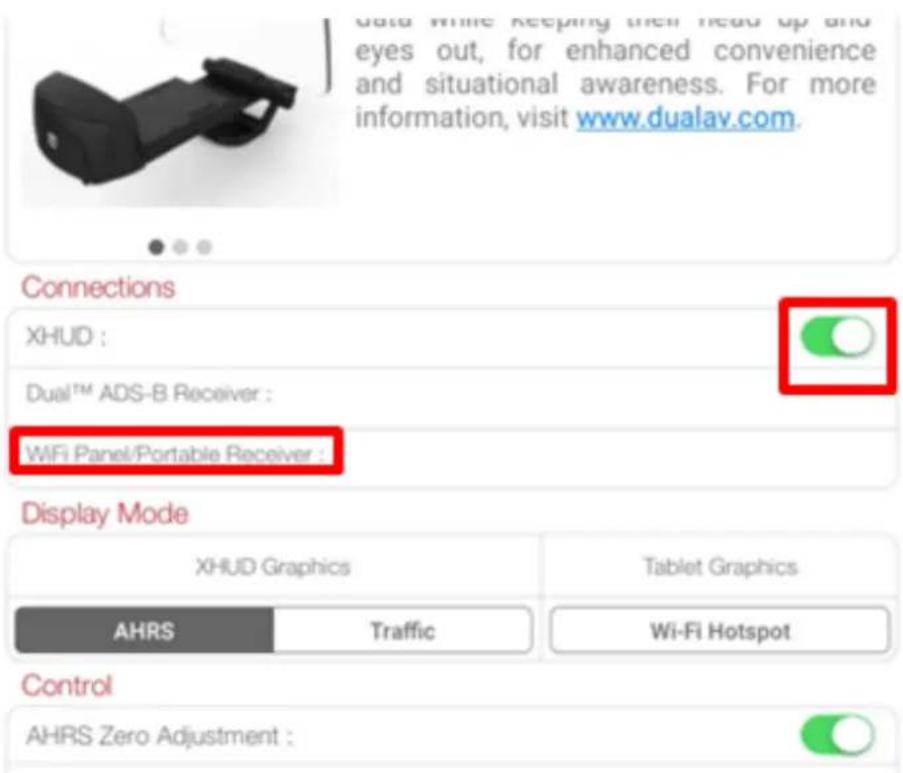
- Tap the WiFi Panel/Portable Device box and choose the Stratus. Once conncon is successfully made, WiFi logo on the le side corner of the XHUD1000 screen will appear.
XHUD1000
natural_image
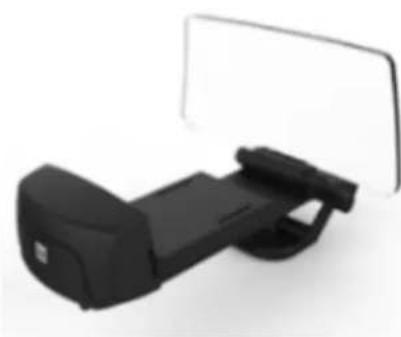
Black handheld device with a transparent screen, no visible text or symbolsDual's XHUD1000 Head Up Display allows pilots to continuously monitor key flight data while keeping their head up and eyes out, for enhanced convenience and situational awareness. For more information, visit www.dualav.com.

Connections
XHUD :

Dual™ ADS-B Receiver :
WiFi Panel/Portable Receiver :
Stratus3008129
Display Mode
| XHUD Graphics | Tablet Graphics | |
| AHRS | Traffic | Wi-Fi Hotspot |
Control
| AHRS Zero Adjustment : |  |
| Traffic Zoom : | - + |
- To conrm conncon between the XHUD1000 and the Stratus, try switching between AHRS and Trac modes, or try dierent controls from the HUD Control tab. The XHUD1000 display should respond to the controls of your choice accordingly.
- You have now successfully made conneccon between the XHUD1000, the Stratus, and your Android device.
Note: Once conncon is made between XHUD1000, Stratus 3, and Android device, there are several choices of EFB apps that can run on your Android device.
Setup with Stratux & Android Device
1) Connect Stratux to mobile device per Stratux instrucon manual.
2) ADS-B Status Tool App for HUD Control
- Download the XGPS ADS-B Status Tool app from Google Play Store.
- Open the XGPS ADS-B Status Tool app, and go to the HUD Control tab.
- Tap the XHUD toggle buon and choose the XHUD1000(****) to pair the XHUD1000 with your Android device.
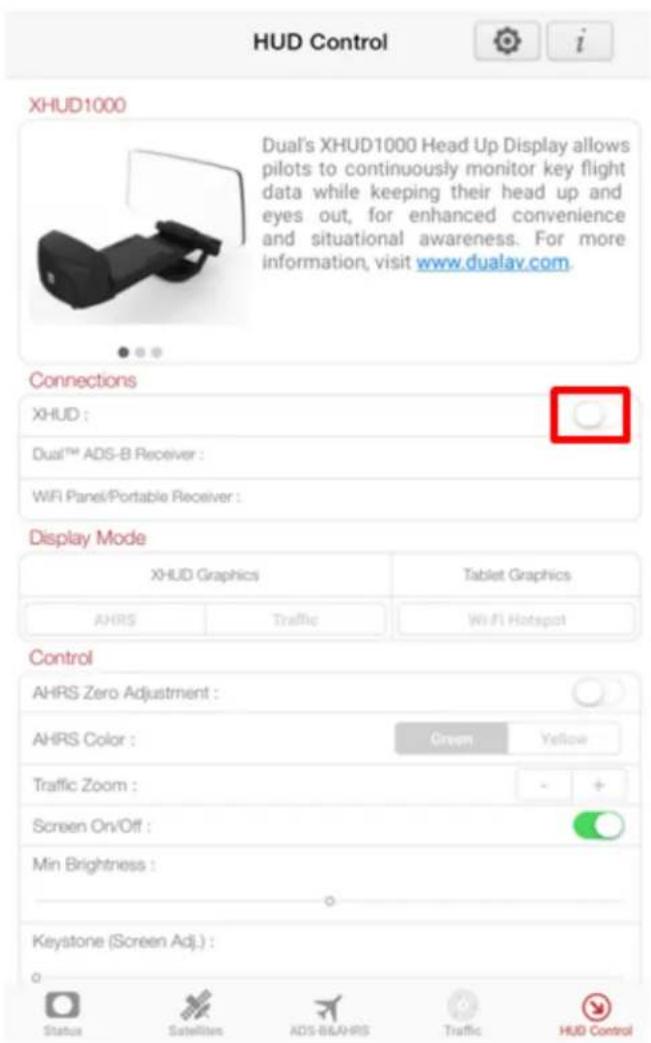
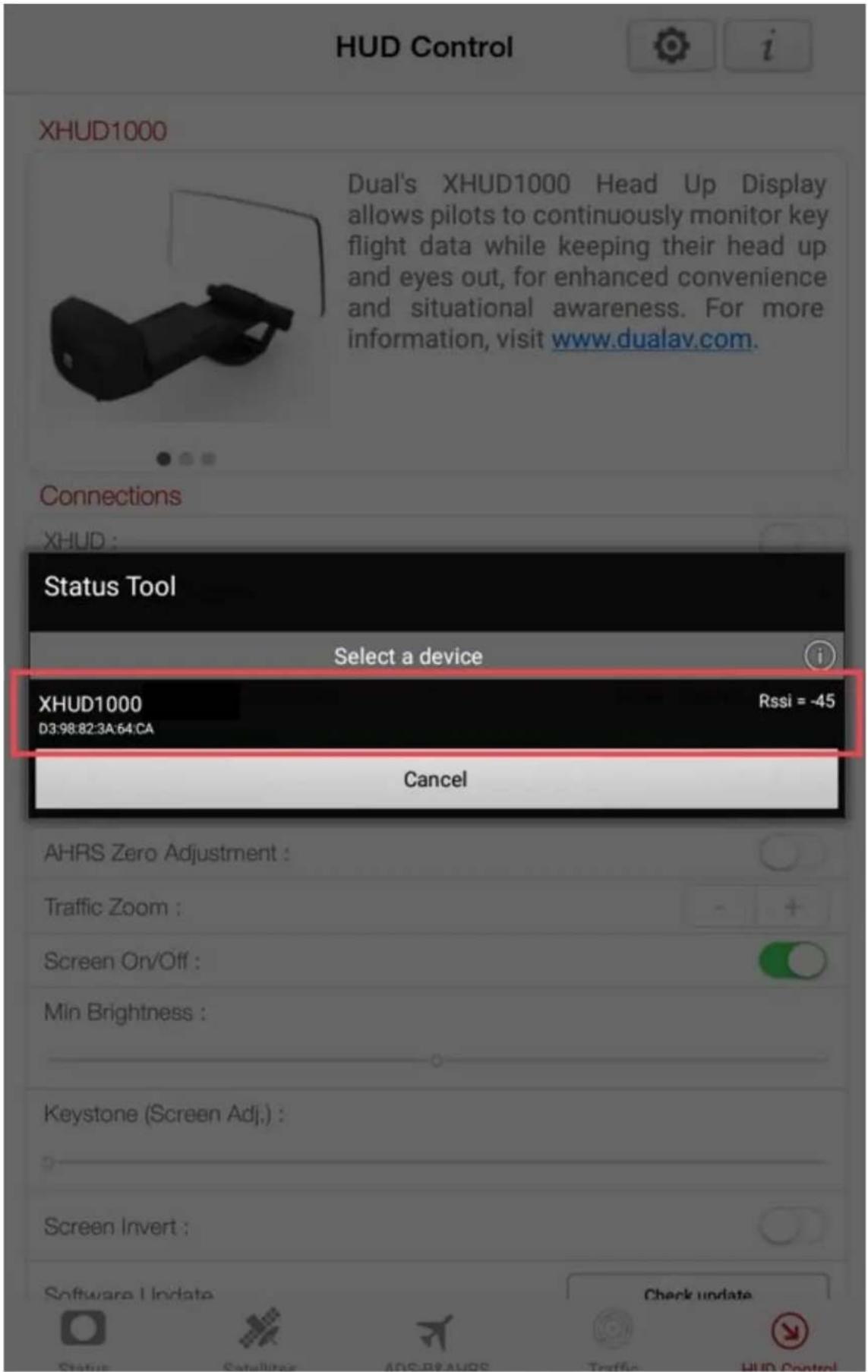
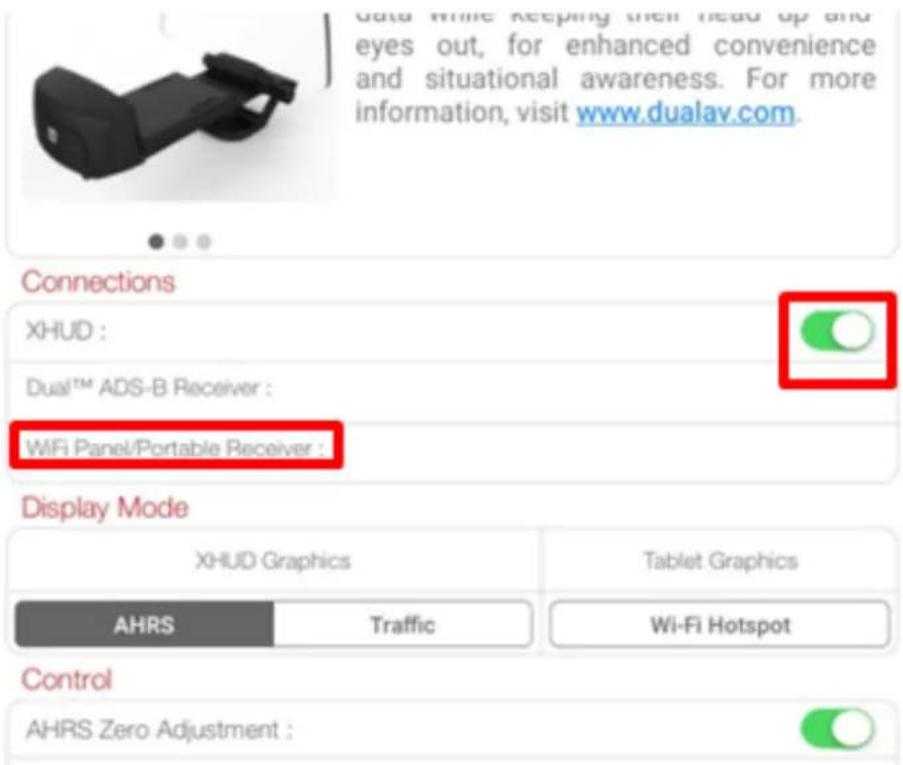
- Tap the WiFi Panel/Portable Device box and choose the Stratux. Once conncon is successfully made, WiFi logo on the le side corner of the XHUD1000 screen will appear.
XHUD1000
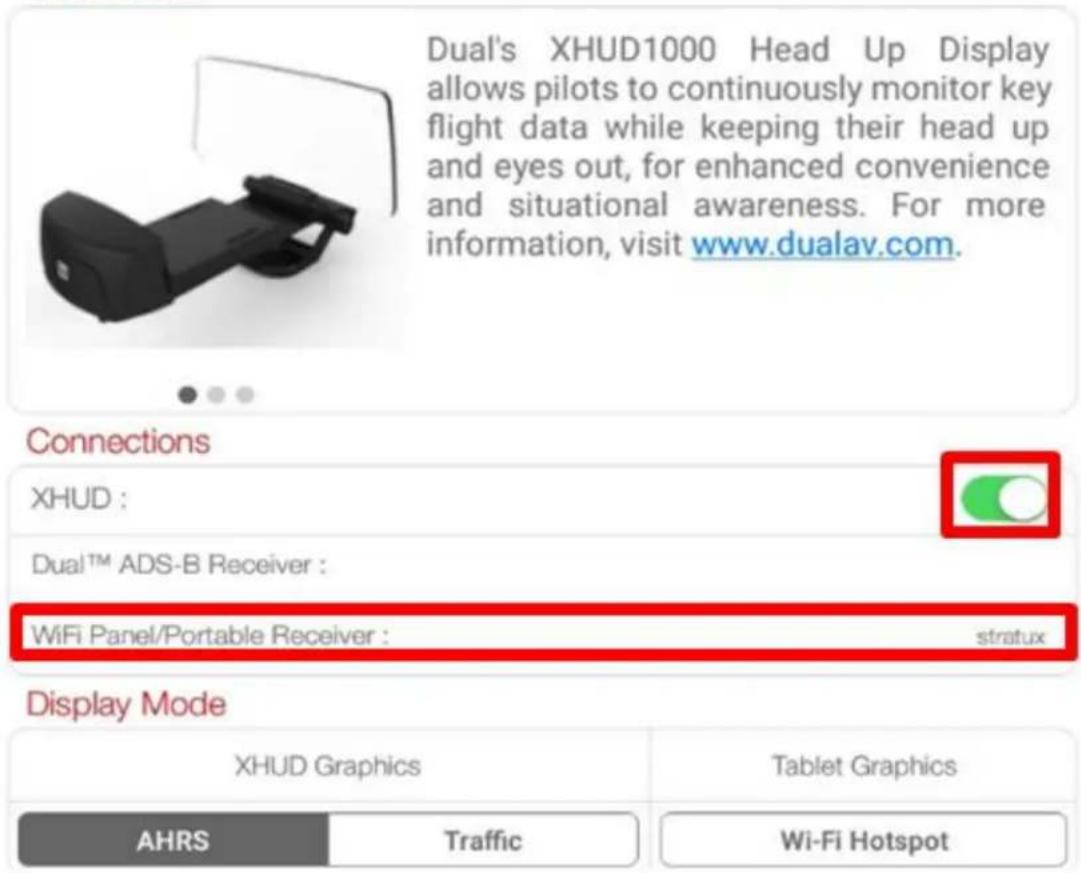
- To conrm conncon between the XHUD1000 and the Stratux, try switching between AHRS and Trac modes, or try dierent controls from the HUD Control tab. The XHUD1000 display should respond to the controls of your choice accordingly.
- You have now successfully made conneccon between the XHUD1000, the Stratux, and your Android device.
Note: Once conncon is made between XHUD1000, Stratux, and Android device, there are several choices of EFB apps that can run on your Android device.
Mirroring with Android Device
- To enable image mirroring of EFB apps from Android device to the XHUD1000 screen, HUD must be setup as a WiFi Hotspot.
- The XGPS190 is not required for mirroring. Your Android device must have its WiFi available to connect to XHUD1000 Hotspot.
- Tap the XHUD toggle buon and choose the XHUD1000 to pair the XHUD1000 with your Android device.
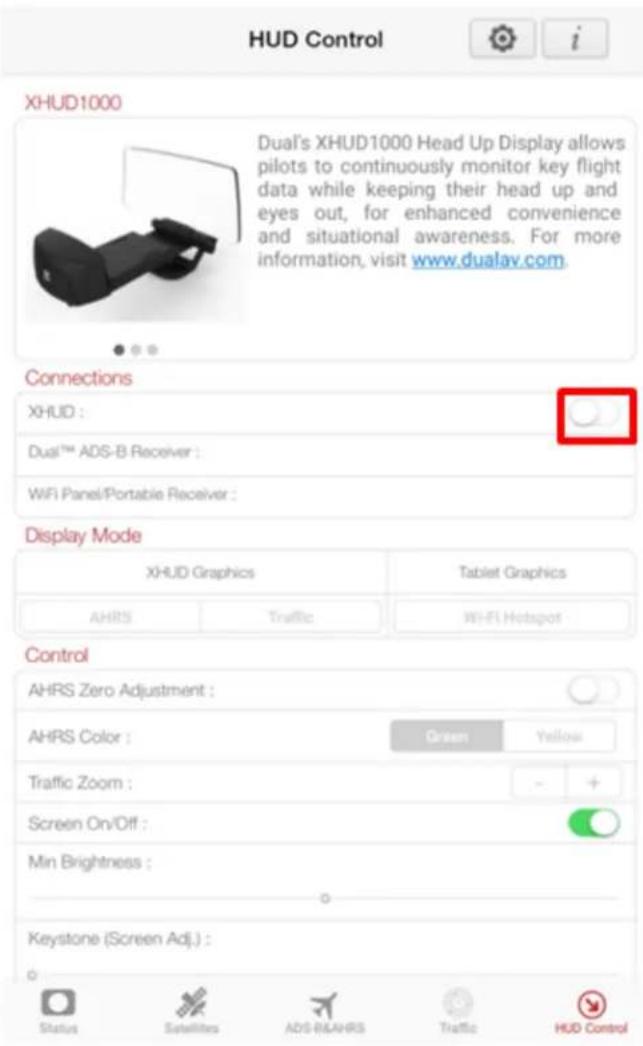
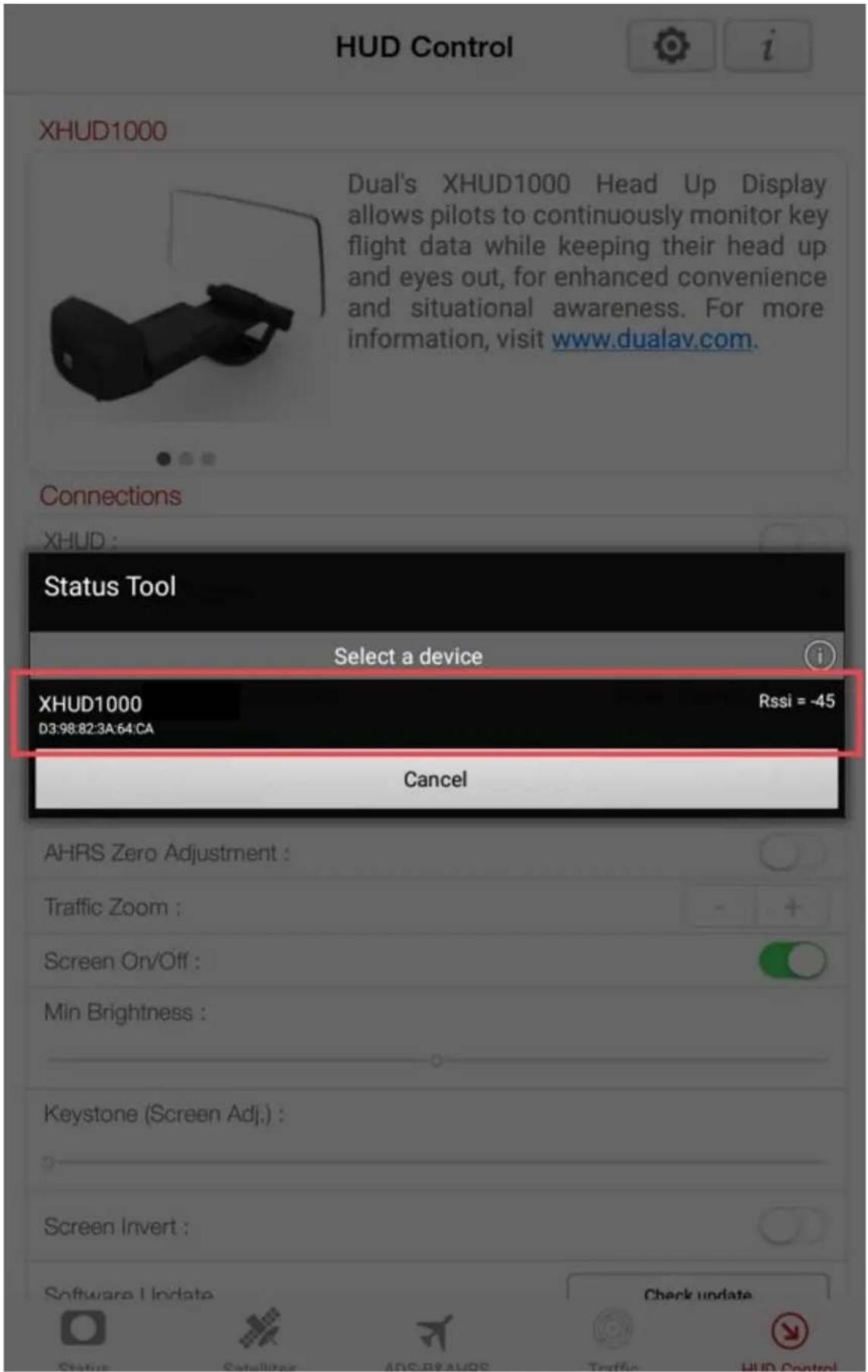
- Once the XHUD1000 is paired with your Android device, press Wi-Fi Hotspot from the HUD Control tab.
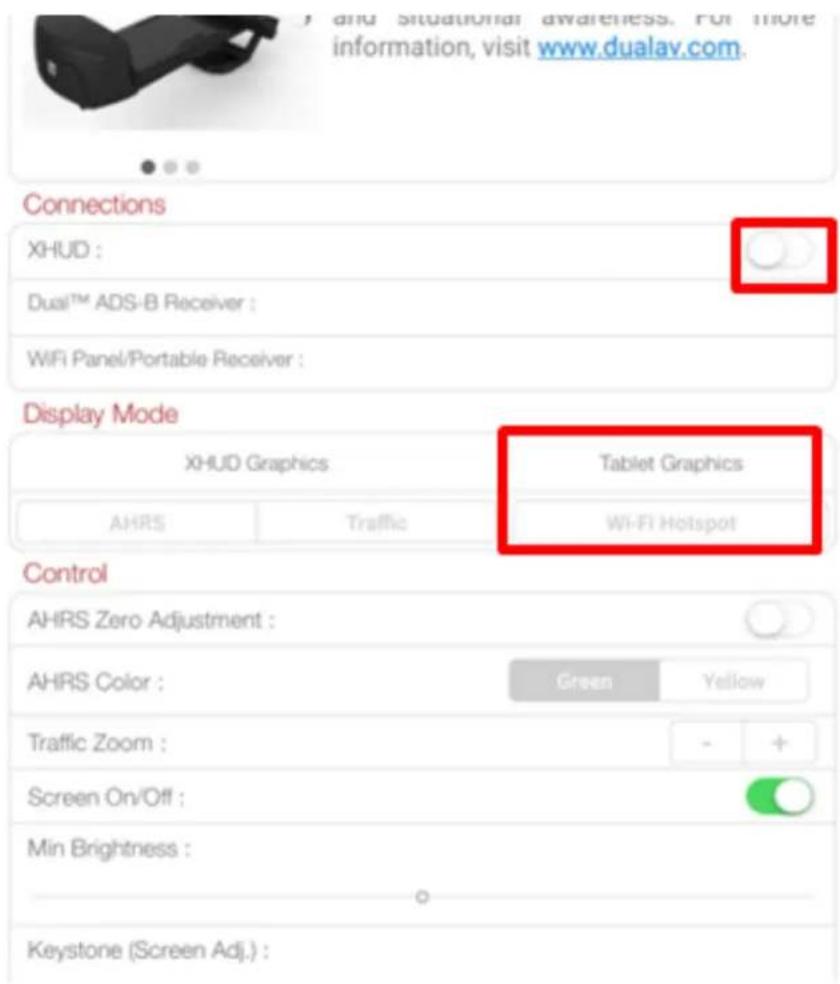
- When you press the Wi-Fi Hotspot buon, the pop-up screen will appear. Press the OK buon to automacally enable Wi-Fi Hotspot mode. If Wi-Fi Hotspot mode is not enabled even aer pressing the OK buon, follow the steps from the pop-up screen to manually enable Wi-Fi Hotspot mode.
XHUD1000 as Wi-Fi Hotspot
The Wi-Fi Hotspot mode allows XHUD1000 to become the Wi-Fi source.
Press OK to enable the Wi-Fi Hotspot mode
If the Wi-Fi Hotspot mode is not automatically enabled for screen mirroring, go to Settings -> Connections -> Wi-Fi of your Android device, and select XHUD1000 (****) to manually enable the Wi-Fi Hotspot mode.
□ Don't show again.
OK
- Once you have completed these steps, you should be able to conrm that the screen from your Android device is being mirrored to the XHUD1000.
Firmware Update with Android Device
- Connect the HUD with Android device running ADS-B Status Tool.
- DO NOT connect portable GPS receiver when updang HUD rmware.
- DO NOT unplug HUD during rmware update process.
- On ADS-B Status tool, press 'HUD Control' tab in lower right.
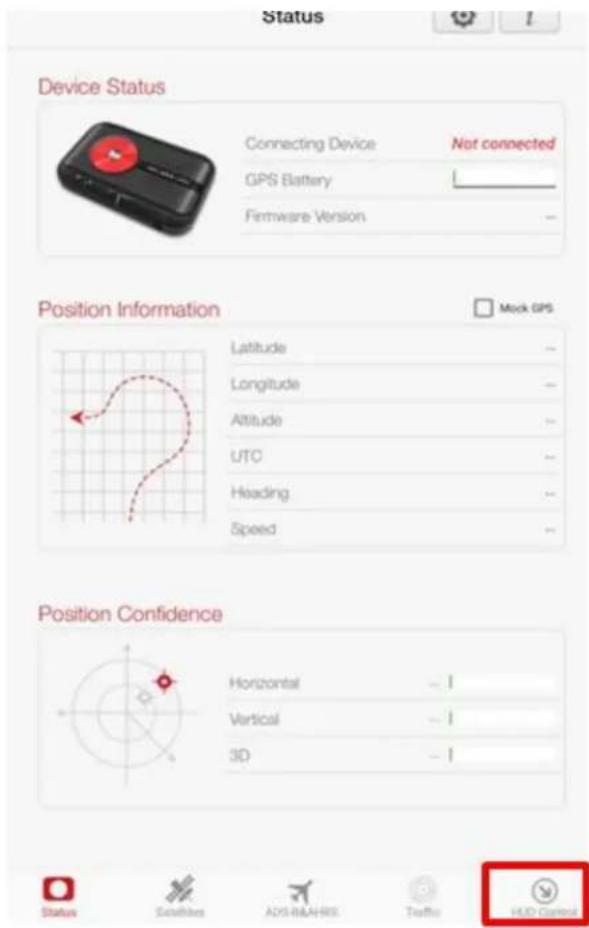
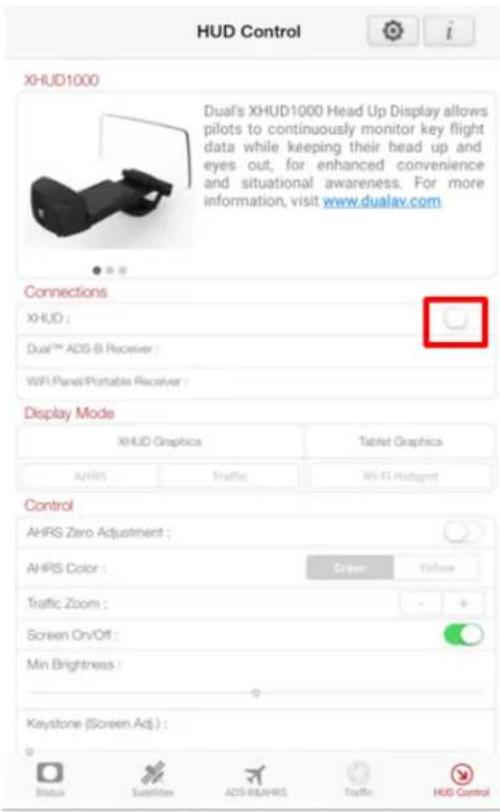
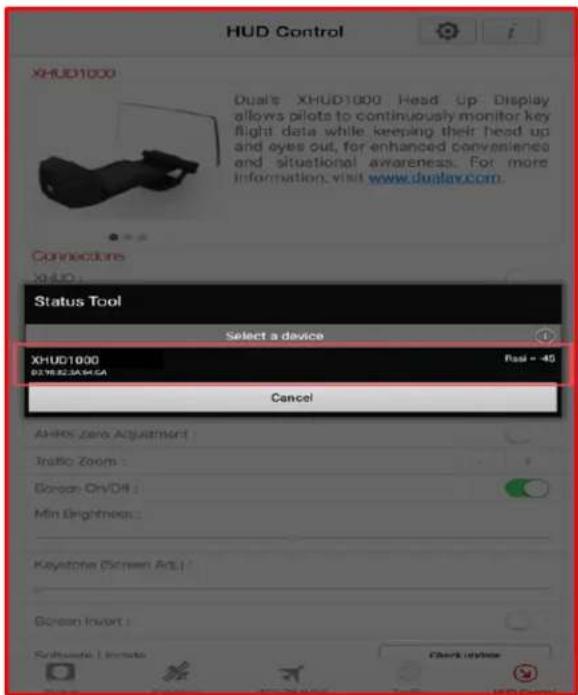
Tap the XHUD toggle, and choose the XHUD(****) to connect the XHUD to your Android device.
Check the current version by pressing 'Check Update'
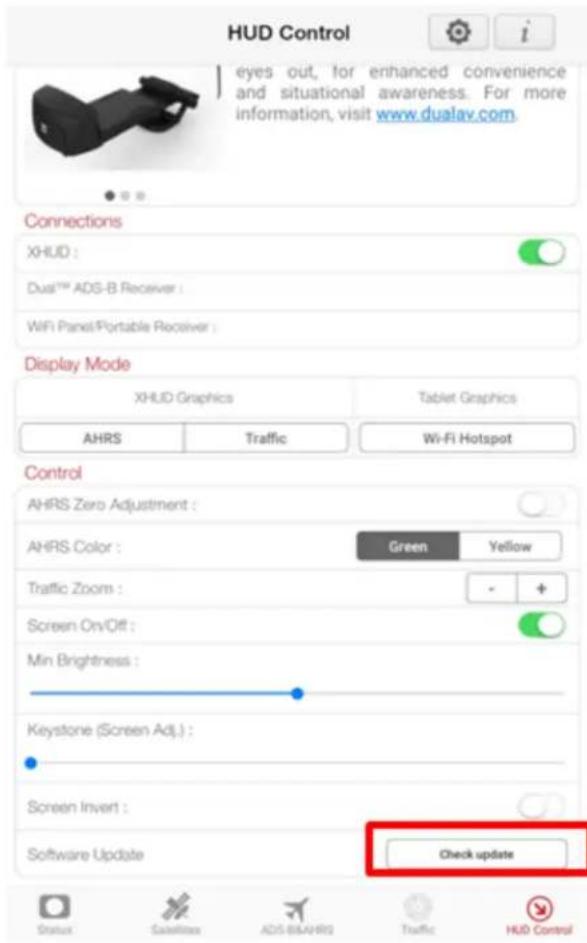
Tap 'Download', if there is new version available. Follow the instrucons on your mobile device. Process may take several minutes.
XHUD Information
System Version
Current Version 1.0.18
New Version 1.1.0
App for HUD Version 1.0.7 (30)
DOWNLOAD
System Version
Current Version 1.0.18
New Version 1.1.0
App for HUD Version 1.0.7 (30)
13%
DOWNLOAD
XHUD Information
System Version
Current Version 1.0.18
New Version 1.1.0
App for HUD Version 1.0.7 (30)
18%
UPDATE
Do not close the app or disconnect the power cable while updating the firmware!
natural_image
Interior view of a modern office or presentation space with a monitor displaying a small white square and a light blue line, no visible text or symbols.HUD screen shows the installaon being done.
XHUD Information
System Version
Current Version 1.1.0
New Version 1.1.0
App for HUD Version 1.1.5 (59)
up to date
HUD Control Settings
- AHRS Zero Adjustment: calibrates the AHRS horizon on a level, at surface.
- AHRS Color: allows choice of either green or yellow AHRS image. Green is more suitable for dim / dark condions, while yellow is more suitable for bright / daylight.
- Trac Zoom: adjusts range of the radar-style trac display from the XHUD1000.
- Screen On/O: turns on and o the XHUD1000 screen, respectively.
- Min Brightness: sets the minimum brightness level of the XHUD1000 screen. The light sensor on the XHUD1000 automacally adjusts the overall brightness level of the XHUD1000 screen.
- Keystone (Screen Adj.): allows the display engine to skew the image if necessary to make it more rectangular.
- Image Flip: projects image upside down to allow use of XHUD1000 in ceiling mount posion.
Tips for Best Performance
- The XHUD1000 and its system perform at their best when there are no other Wi-Fi or Bluetooth devices nearby. If you aempt to use the XHUD1000 where there could be signal interference (e.g. house, oce, etc.), you may experience conncon delay or latency.
- To clean the combiner, it is recommended to use a non-abrasive micro ber cloth. Please refrain yourself from rinsing the combiner with water since liquid and moisture can cause serious damage to the device.
- You can renew the sickness on the boom of the non-slip pad by washing the pad with warm water and mild soap. Let the pad air dry or dry it with a lint-free cloth.
- For best HUD performance, it is recommended to operate the XHUD1000 in either AHRS mode or Trac mode. These modes ulize Dual's built-in HUD graphics. Operang the XHUD1000 in Tablet Graphics mode may result lower image quality due to the graphics coming from external apps that were designed for tablets & smartphones.
Troubleshooting
- Acvang Airplane Mode on your mobile device will automacally turn Bluetooth o. If you are using Airplane Mode, you will need to manually turn Bluetooth on form your mobile device in order to use the XHUD1000.
- The XHUD1000 will automacally connect to any mobile devices that have previously been connected. Therefore, it is important to perform “Forget This Device” for Apple or “Unpair” for Android from any devices that have been used before in order to make conneccon with a new mobile device.
- Not correctly following the setup steps may cause issues when making wireless connecons to use the XHUD1000. It is important to follow the steps provided in this owner's manual.
- For other quesons or additional help, contact Customer Support via email at xhud1000@dualav.com or call 855-936-0129.
Specifications
- Connecvity
○ Wi-Fi for Tablet Graphics mode (Wi-Fi Hotspot & Wi-Fi Client)
- BT Classic for data receiving from Dual’s ADS-B receivers
○ BLE for HUD Control
- Soware Requirements
○ Android
OS: Above Android 5.0
Wi-Fi: Supports 2.4 GHz 5GHz Dual Band
○ iOS
OS: Above iOS 11
Wi-Fi: Supports Dual Band
- Device
○ iPhone 5 & Up
○ iPad 5 ^th Generaon & Up
○ iPad Mini 2 & Up
- Input Power
○ Input: DC 5V (1.5A)
• Operang Temperature
○ 20 \~ 60 °C
Compliance
This product is CE marked according to the provision of the R&TTE Directive (99/5/EC). We declare that this product is in compliance with the essenal requirements and other relevant provision of Directive 1999/5/EC. For further informaon, please refer to website.
FCC / Industry Canada Noce:
This device complies with Part 15 of the FCC rules. Operaon is subject to the following two conditions:
(1) This device may not cause harmful interference.
(2) This device must accept any interference received, including interference that may cause undesired operaon.
In compliance with Industry Canada regulaons, technical specicaons have been provided in a declaraon of conformity. This does not imply that Industry Canada approved the equipment. This device complies with Industry Canada licence-exempt RSS standard(s). Operaon is subject to the following two conditions:
(1) This device may not cause interference.
(2) This device must accept any interference, including interference that may cause undesired operaon of the device.
Warranty
This warranty gives you specific legal rights. You may also have other rights, which vary from state to state. Dual Electronics Corp. warrants this product to the original purchaser to be free from defects in material and workmanship for a period of one year from the date of the original purchase.
Dual Electronics Corp. agrees, at our opon, during the warranty period, to repair any defect in material or workmanship or to furnish an equal new, renewed or comparable product (whichever is deemed necessary) in exchange without charges, subject to vericaon of the defect or malfuncon and proof of the date of purchase. Subsequent replacement products are warranted for the balance of the original warranty period.
• Who is covered?
This warranty is extended to the original retail purchaser for products purchased from an authorized dealer of Dual Electronics Corp. and used in the U.S.A.
• What is covered?
This warranty covers all defects in material and workmanship in this product. The followings are not covered: soware, installaon/removal costs, damage resulting from accident, misuse, abuse, neglect, product modicaon, improper installaon, incorrect line voltage, unauthorized repair or failure to follow instrucons supplied with the product, or damage occurring during return shipment of the product. Specific license conditions and copyright noces for the soware can be found via hp://www.dualav.com.
- What to do?
- Before you call for service, check the appropriate secon in this manual. A simple adjustment may save you a service call.
- If you require service during the warranty period, you must carefully pack the product (preferably in the original package) and ship it by prepaid transportaon with a copy of the original receipt from the retailer to an authorized service center.
- Please describe your problem in wring and include your name, a return shipping address, and a dayme phone number with your shipment.
- For more informaon and for the locaon of the nearest authorized service center, please contact us by one of the following methods:
• Call us toll-free at 1-855-936-0129
• E-mail us at xhud1000@dualav.com
Exclusion of Certain Damages: This warranty is exclusive and in lieu of any and all other warranes, expressed or implied, including without limitaon the implied warranes of merchantability and tness for a parcular purpose and any obligaon, liability, right, claim, or remedy in contract or tort, whether or not arising from the company's negligence, actual or imputed. No person or representave is authorized to assume for the company any other liability in conneccon with the sale of this product. In no event shall the company be liable for indirect, incidental or consequential damages.

Dual Electronics Corp.
Toll Free: 1-855-936-0129
www.dualav.com
©2019 Dual Electronics Corp. All rights reserved.
- XHUD1000
- OWNER'S MANUAL
- Introduction
- Installation
- Setup
- Setup with Dual ADS-B Receivers & Apple Device
- 1) ADS-B Status Tool App for HUD Control
- 2) Bluetooth Connecon for AHRS & Trac modes
- Device Status
- Position Information
- Position Confidence
- Setup with Stratus 3 & Apple Device
- Setup with Stratux & Apple Device
- Mirroring with Apple devices
- XHUD1000 as Wi-Fi Hotspot
- Password: 87654321
- + XHUD1000 as Wi-Fi Hotspot
- OPTION B) Mirroring with XHUD1000 as Wi-Fi Client
- XHUD1000 as Wi-Fi Client
- ③ Press Customize Controls.
- Firmware Update with Apple Devices
- Check the current version by pressing 'HUD Soware Version'
- HUD Control
- Version
- < HUD Control
- Setup with Dual ADS-B Receivers & Android Device
- 1) XGPS ADS-B Status Tool App for HUD Control
- 2) Bluetooth Connecon for XHUD Graphics Modes (AHRS & Trac)
- Setup with Stratus 3 & Android Device
- Connections
- Display Mode
- Control
- Setup with Stratux & Android Device
- Mirroring with Android Device
- Firmware Update with Android Device
- XHUD Information
- System Version
- HUD Control Settings
- Tips for Best Performance
- Troubleshooting
- Specifications
- - Connecvity
- - Soware Requirements
- - Device
- - Input Power
- • Operang Temperature
- Compliance
- Warranty
Brand : DUAL
Model : XHUD1000
Category : Uncategorized